Scan to Folder
Easy Setup
Guide
Ver. 1.3
Downloading and Installing the Tool
2
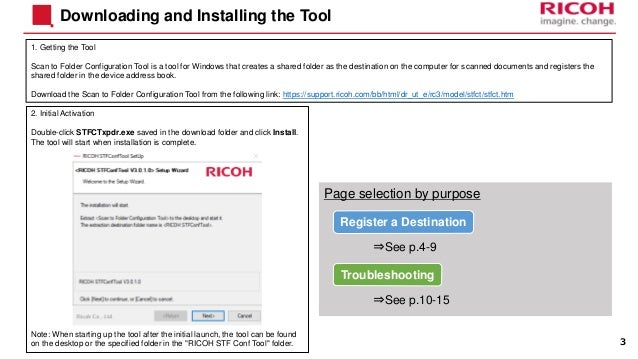
2. Initial Activation
Double-click STFCTxpdr.exe saved in the download folder and click Install.
The tool will start when installation is complete.
Note: When starting up the tool after the initial launch, the tool can be found
on the desktop or the specified folder in the "RICOH STF Conf Tool" folder.
Downloading and Installing the Tool
1. Getting the Tool
Scan to Folder Configuration Tool is a tool for Windows that creates a shared folder as the destination on the computer for scanned documents and registers the
shared folder in the device address book.
Download the Scan to Folder Configuration Tool from the following link: https://support.ricoh.com/bb/html/dr_ut_e/rc3/model/stfct/stfct.htm
Page selection by purpose
3
Register a Destination
⇒See p.4-9
⇒See p.10-15
Troubleshooting
4
Registering a Destination
Register a Destination
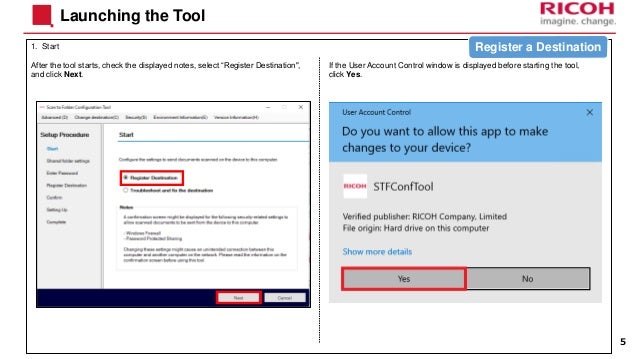
1. Start
Launching the Tool
5
After the tool starts, check the displayed notes, select “Register Destination",
and click Next.
If the User Account Control window is displayed before starting the tool,
click Yes.
Register a Destination
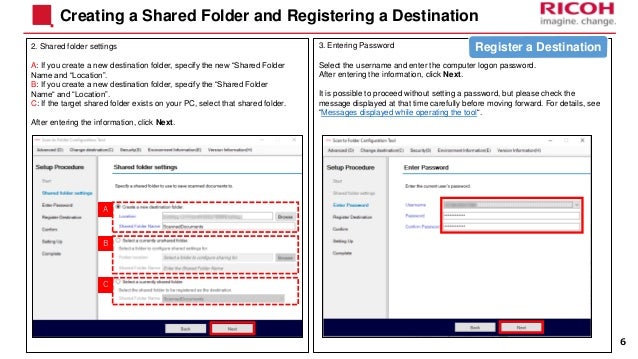
3. Entering Password
Select the username and enter the computer logon password.
After entering the information, click Next.
It is possible to proceed without setting a password, but please check the
message displayed at that time carefully before moving forward. For details, see
“Messages displayed while operating the tool“.
2. Shared folder settings
A: If you create a new destination folder, specify the new “Shared Folder
Name and “Location”.
B: If you create a new destination folder, specify the “Shared Folder
Name“ and “Location”.
C: If the target shared folder exists on your PC, select that shared folder.
After entering the information, click Next.
Creating a Shared Folder and Registering a Destination
6
A
B
C
Register a Destination
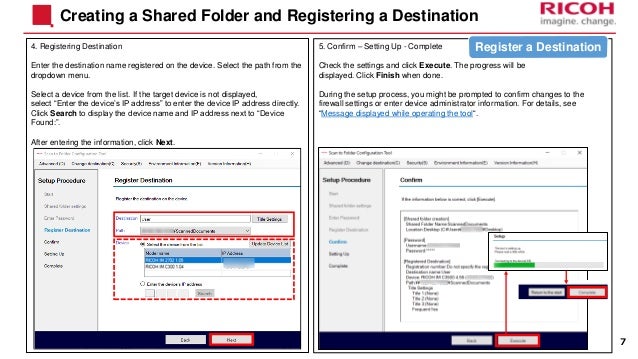
4. Registering Destination
Enter the destination name registered on the device. Select the path from the
dropdown menu.
Select a device from the list. If the target device is not displayed,
select “Enter the device’s IP address” to enter the device IP address directly.
Click Search to display the device name and IP address next to “Device
Found:”.
After entering the information, click Next.
Creating a Shared Folder and Registering a Destination
5. Confirm – Setting Up - Complete
Check the settings and click Execute. The progress will be
displayed. Click Finish when done.
During the setup process, you might be prompted to confirm changes to the
firewall settings or enter device administrator information. For details, see
“Message displayed while operating the tool“.
7
Register a Destination
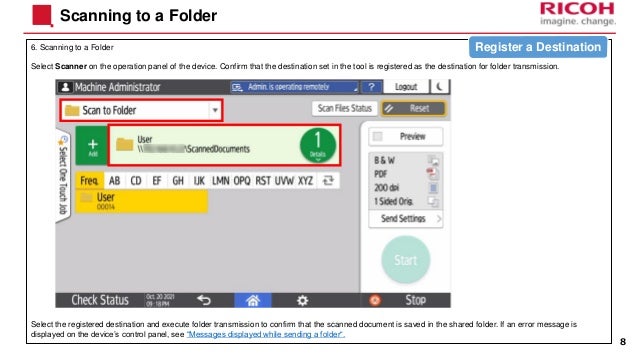
6. Scanning to a Folder
Select Scanner on the operation panel of the device. Confirm that the destination set in the tool is registered as the destination for folder transmission.
Select the registered destination and execute folder transmission to confirm that the scanned document is saved in the shared folder. If an error message is
displayed on the device’s control panel, see “Messages displayed while sending a folder“.
Scanning to a Folder
8
Register a Destination
Troubleshooting and fixing
the destination
9
Troubleshooting
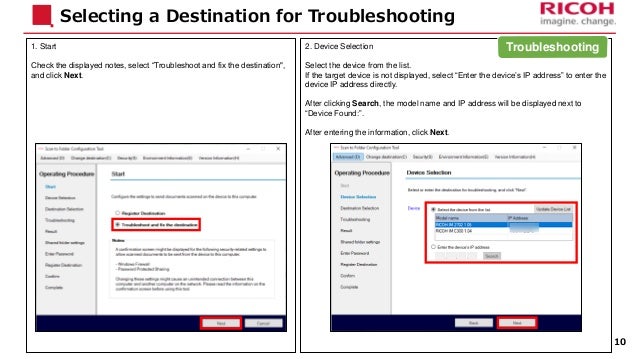
1. Start
Check the displayed notes, select “Troubleshoot and fix the destination",
and click Next.
Selecting a Destination for Troubleshooting
2. Device Selection
Select the device from the list.
If the target device is not displayed, select “Enter the device’s IP address” to enter the
device IP address directly.
After clicking Search, the model name and IP address will be displayed next to
“Device Found:”.
After entering the information, click Next.
10
Troubleshooting
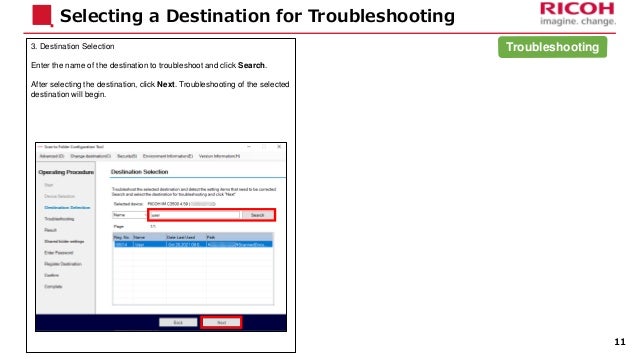
3. Destination Selection
Enter the name of the destination to troubleshoot and click Search.
After selecting the destination, click Next. Troubleshooting of the selected
destination will begin.
Selecting a Destination for Troubleshooting
11
Troubleshooting
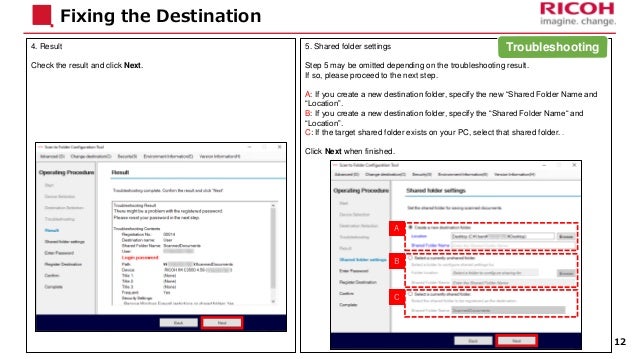
4. Result
Check the result and click Next.
Fixing the Destination
5. Shared folder settings
Step 5 may be omitted depending on the troubleshooting result.
If so, please proceed to the next step.
A: If you create a new destination folder, specify the new “Shared Folder Name and
“Location”.
B: If you create a new destination folder, specify the “Shared Folder Name“ and
“Location”.
C: If the target shared folder exists on your PC, select that shared folder. .
Click Next when finished.
12
A
B
C
Troubleshooting
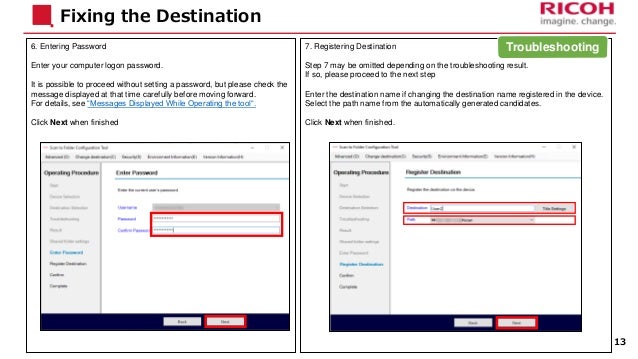
7. Registering Destination
Step 7 may be omitted depending on the troubleshooting result.
If so, please proceed to the next step
Enter the destination name if changing the destination name registered in the device.
Select the path name from the automatically generated candidates.
Click Next when finished.
6. Entering Password
Enter your computer logon password.
It is possible to proceed without setting a password, but please check the
message displayed at that time carefully before moving forward.
For details, see “Messages Displayed While Operating the tool“.
Click Next when finished
Fixing the Destination
13
Troubleshooting
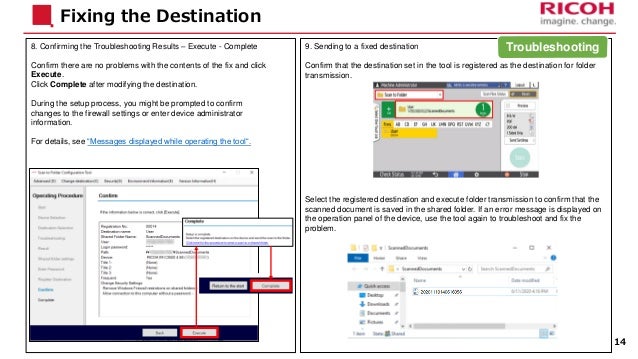
9. Sending to a fixed destination
Confirm that the destination set in the tool is registered as the destination for folder
transmission.
Select the registered destination and execute folder transmission to confirm that the
scanned document is saved in the shared folder. If an error message is displayed on
the operation panel of the device, use the tool again to troubleshoot and fix the
problem.
8. Confirming the Troubleshooting Results – Execute - Complete
Confirm there are no problems with the contents of the fix and click
Execute.
Click Complete after modifying the destination.
During the setup process, you might be prompted to confirm
changes to the firewall settings or enter device administrator
information.
For details, see “Messages displayed while operating the tool“.
Fixing the Destination
14
Troubleshooting
Error Messages
15
Messages Displayed While Operating the Tool
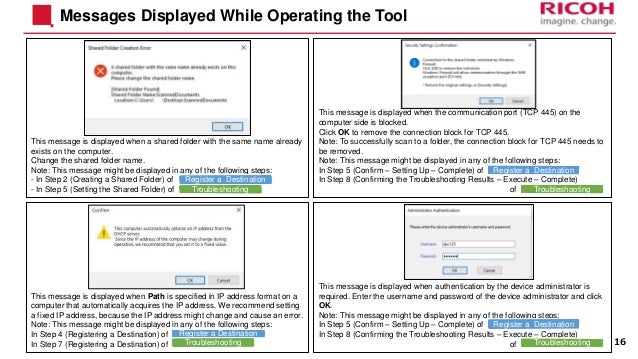
This message is displayed when a shared folder with the same name already
exists on the computer.
Change the shared folder name.
Note: This message might be displayed in any of the following steps:
- In Step 2 (Creating a Shared Folder) of
- In Step 5 (Setting the Shared Folder) of
This message is displayed when the communication port (TCP 445) on the
computer side is blocked.
Click OK to remove the connection block for TCP 445.
Note: To successfully scan to a folder, the connection block for TCP 445 needs to
be removed.
Note: This message might be displayed in any of the following steps:
In Step 5 (Confirm – Setting Up – Complete) of
In Step 8 (Confirming the Troubleshooting Results – Execute – Complete)
of
This message is displayed when authentication by the device administrator is
required. Enter the username and password of the device administrator and click
OK.
Note: This message might be displayed in any of the following steps:
In Step 5 (Confirm – Setting Up – Complete) of
In Step 8 (Confirming the Troubleshooting Results – Execute – Complete)
of
This message is displayed when Path is specified in IP address format on a
computer that automatically acquires the IP address. We recommend setting
a fixed IP address, because the IP address might change and cause an error.
Note: This message might be displayed in any of the following steps:
In Step 4 (Registering a Destination) of
In Step 7 (Registering a Destination) of 16
Register a Destination
Troubleshooting
Register a Destination
Troubleshooting
Register a Destination
Troubleshooting
Register a Destination
Troubleshooting
Messages Displayed While Operating the Tool
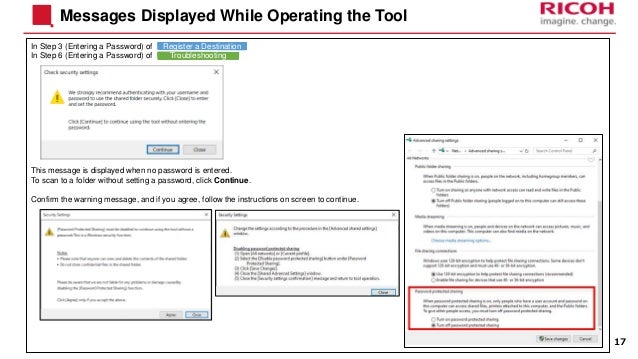
In Step 3 (Entering a Password) of
In Step 6 (Entering a Password) of
This message is displayed when no password is entered.
To scan to a folder without setting a password, click Continue.
Confirm the warning message, and if you agree, follow the instructions on screen to continue.
17
Register a Destination
Troubleshooting
Messages Displayed While Operating the Device
18
If the destination path name is not entered correctly in this machine or the firewall settings of
the destination PC do not permit access from this machine, this message will be displayed
after scan is executed.
Touch the [Scan Files Status] button and follow the on-screen instructions to correct the
settings.
Note: Not applicable for some models
Touch the [Connection Error…] button
Touch the [Current Address Book] button
Touch the “Destinations” tab, then “Folder” Correct the IP address or computer name in “Path” and Touch "OK".
Note: Enter the name or IP address of the computer where the shared folder
was created.
Messages Displayed While Operating the Device
19
If the login user name and the password of the destination PC is not entered correctly in this
machine, this message will be displayed after scan is executed.
Touch the [Scan Files Status] button and follow the on-screen instructions to correct the
settings.
Note: Not applicable for some models
Touch the [Connection Error…] button
Touch the [Current Address Book] button
Touch the “Destinations” tab, then “Folder” Correct “Login User Name” or “Login Password” and touch "OK".
Note: Enter “Login User Name” or “Login Password” of the computer where
the shared folder was created.
20

Scan to Folder Easy Setup Guide.pdf

  • 1.
    Scan to Folder EasySetup Guide Ver. 1.3
  • 2.
  • 3.
    2. Initial Activation Double-clickSTFCTxpdr.exe saved in the download folder and click Install. The tool will start when installation is complete. Note: When starting up the tool after the initial launch, the tool can be found on the desktop or the specified folder in the "RICOH STF Conf Tool" folder. Downloading and Installing the Tool 1. Getting the Tool Scan to Folder Configuration Tool is a tool for Windows that creates a shared folder as the destination on the computer for scanned documents and registers the shared folder in the device address book. Download the Scan to Folder Configuration Tool from the following link: https://support.ricoh.com/bb/html/dr_ut_e/rc3/model/stfct/stfct.htm Page selection by purpose 3 Register a Destination ⇒See p.4-9 ⇒See p.10-15 Troubleshooting
  • 4.
  • 5.
    1. Start Launching theTool 5 After the tool starts, check the displayed notes, select “Register Destination", and click Next. If the User Account Control window is displayed before starting the tool, click Yes. Register a Destination
  • 6.
    3. Entering Password Selectthe username and enter the computer logon password. After entering the information, click Next. It is possible to proceed without setting a password, but please check the message displayed at that time carefully before moving forward. For details, see “Messages displayed while operating the tool“. 2. Shared folder settings A: If you create a new destination folder, specify the new “Shared Folder Name and “Location”. B: If you create a new destination folder, specify the “Shared Folder Name“ and “Location”. C: If the target shared folder exists on your PC, select that shared folder. After entering the information, click Next. Creating a Shared Folder and Registering a Destination 6 A B C Register a Destination
  • 7.
    4. Registering Destination Enterthe destination name registered on the device. Select the path from the dropdown menu. Select a device from the list. If the target device is not displayed, select “Enter the device’s IP address” to enter the device IP address directly. Click Search to display the device name and IP address next to “Device Found:”. After entering the information, click Next. Creating a Shared Folder and Registering a Destination 5. Confirm – Setting Up - Complete Check the settings and click Execute. The progress will be displayed. Click Finish when done. During the setup process, you might be prompted to confirm changes to the firewall settings or enter device administrator information. For details, see “Message displayed while operating the tool“. 7 Register a Destination
  • 8.
    6. Scanning toa Folder Select Scanner on the operation panel of the device. Confirm that the destination set in the tool is registered as the destination for folder transmission. Select the registered destination and execute folder transmission to confirm that the scanned document is saved in the shared folder. If an error message is displayed on the device’s control panel, see “Messages displayed while sending a folder“. Scanning to a Folder 8 Register a Destination
  • 9.
    Troubleshooting and fixing thedestination 9 Troubleshooting
  • 10.
    1. Start Check thedisplayed notes, select “Troubleshoot and fix the destination", and click Next. Selecting a Destination for Troubleshooting 2. Device Selection Select the device from the list. If the target device is not displayed, select “Enter the device’s IP address” to enter the device IP address directly. After clicking Search, the model name and IP address will be displayed next to “Device Found:”. After entering the information, click Next. 10 Troubleshooting
  • 11.
    3. Destination Selection Enterthe name of the destination to troubleshoot and click Search. After selecting the destination, click Next. Troubleshooting of the selected destination will begin. Selecting a Destination for Troubleshooting 11 Troubleshooting
  • 12.
    4. Result Check theresult and click Next. Fixing the Destination 5. Shared folder settings Step 5 may be omitted depending on the troubleshooting result. If so, please proceed to the next step. A: If you create a new destination folder, specify the new “Shared Folder Name and “Location”. B: If you create a new destination folder, specify the “Shared Folder Name“ and “Location”. C: If the target shared folder exists on your PC, select that shared folder. . Click Next when finished. 12 A B C Troubleshooting
  • 13.
    7. Registering Destination Step7 may be omitted depending on the troubleshooting result. If so, please proceed to the next step Enter the destination name if changing the destination name registered in the device. Select the path name from the automatically generated candidates. Click Next when finished. 6. Entering Password Enter your computer logon password. It is possible to proceed without setting a password, but please check the message displayed at that time carefully before moving forward. For details, see “Messages Displayed While Operating the tool“. Click Next when finished Fixing the Destination 13 Troubleshooting
  • 14.
    9. Sending toa fixed destination Confirm that the destination set in the tool is registered as the destination for folder transmission. Select the registered destination and execute folder transmission to confirm that the scanned document is saved in the shared folder. If an error message is displayed on the operation panel of the device, use the tool again to troubleshoot and fix the problem. 8. Confirming the Troubleshooting Results – Execute - Complete Confirm there are no problems with the contents of the fix and click Execute. Click Complete after modifying the destination. During the setup process, you might be prompted to confirm changes to the firewall settings or enter device administrator information. For details, see “Messages displayed while operating the tool“. Fixing the Destination 14 Troubleshooting
  • 15.
  • 16.
    Messages Displayed WhileOperating the Tool This message is displayed when a shared folder with the same name already exists on the computer. Change the shared folder name. Note: This message might be displayed in any of the following steps: - In Step 2 (Creating a Shared Folder) of - In Step 5 (Setting the Shared Folder) of This message is displayed when the communication port (TCP 445) on the computer side is blocked. Click OK to remove the connection block for TCP 445. Note: To successfully scan to a folder, the connection block for TCP 445 needs to be removed. Note: This message might be displayed in any of the following steps: In Step 5 (Confirm – Setting Up – Complete) of In Step 8 (Confirming the Troubleshooting Results – Execute – Complete) of This message is displayed when authentication by the device administrator is required. Enter the username and password of the device administrator and click OK. Note: This message might be displayed in any of the following steps: In Step 5 (Confirm – Setting Up – Complete) of In Step 8 (Confirming the Troubleshooting Results – Execute – Complete) of This message is displayed when Path is specified in IP address format on a computer that automatically acquires the IP address. We recommend setting a fixed IP address, because the IP address might change and cause an error. Note: This message might be displayed in any of the following steps: In Step 4 (Registering a Destination) of In Step 7 (Registering a Destination) of 16 Register a Destination Troubleshooting Register a Destination Troubleshooting Register a Destination Troubleshooting Register a Destination Troubleshooting
  • 17.
    Messages Displayed WhileOperating the Tool In Step 3 (Entering a Password) of In Step 6 (Entering a Password) of This message is displayed when no password is entered. To scan to a folder without setting a password, click Continue. Confirm the warning message, and if you agree, follow the instructions on screen to continue. 17 Register a Destination Troubleshooting
  • 18.
    Messages Displayed WhileOperating the Device 18 If the destination path name is not entered correctly in this machine or the firewall settings of the destination PC do not permit access from this machine, this message will be displayed after scan is executed. Touch the [Scan Files Status] button and follow the on-screen instructions to correct the settings. Note: Not applicable for some models Touch the [Connection Error…] button Touch the [Current Address Book] button Touch the “Destinations” tab, then “Folder” Correct the IP address or computer name in “Path” and Touch "OK". Note: Enter the name or IP address of the computer where the shared folder was created.
  • 19.
    Messages Displayed WhileOperating the Device 19 If the login user name and the password of the destination PC is not entered correctly in this machine, this message will be displayed after scan is executed. Touch the [Scan Files Status] button and follow the on-screen instructions to correct the settings. Note: Not applicable for some models Touch the [Connection Error…] button Touch the [Current Address Book] button Touch the “Destinations” tab, then “Folder” Correct “Login User Name” or “Login Password” and touch "OK". Note: Enter “Login User Name” or “Login Password” of the computer where the shared folder was created.
  • 20.