SAP GUI INSTALLATION
Introducing
SAP GUI 7.20
Attendant By-
1.Mr.Abhisek Hardia
2.Virendra Singh
3.Sunil Kumar
SAP GUI INSTALLATION
TRAINING
PRESENTATION
Dated :16/08/2012
Faculty-
1.Hari Singh
• PRECAUTIONS
• PLATFORMS
• PURPOSE
• PREPARATION
• PROCEDURE
• SELF EXTRACTR
• INSTALLED
PRECAUTIONS
Confirm that your system meets the MINIMUM
requirements:
• 500 M+ free disk space
• Processor 500+ MHz
• At least 256M RAM
If you find that your PC currently freezes when you open
2 or 3 applications, be aware that the GUI uses a lot of
memory and your ability to keep multiple applications
running may be diminished.
PLATFORMS-
SAP GUI for Windows provides support for the
most common Microsoft Windows platforms:
● Windows XP
● Windows 2003 Server
● Windows Vista
● Windows 7
● Windows 2008 Server
PURPOSE -
Installation of SAPGUI the installer file
‘SAPGUISETUP.EXE’ will install the latest
version of SAPGUI (including our new centrally
managed .ini file parameters, and all relevant
patches). This GUI version has been tested and
confirmed to be working on both of Windows
XP, Windows Vista, and Windows 7.
PREPARATION -
It is no longer required that previous versions of the SAPGUI be
uninstalled; however, not removing the prior locally stored .ini files will
allow them to also populate your sapgui server list. It is suggested that
you remove or back up previous versions of the saplogon.ini file. On
Windows XP, this file can be found in C:windows or C:documents and
settings[your user name]application dataSAPcommon – or
C:Windows, though I suggest using the same method used on vista and
windows 7 to be sure. On Vista and Windows 7 operating systems, you
need to search for and delete all copies of this file, hidden files and
folders need to be enabled in the control panel (start -> control panel ->
appearance and personalization -> Folder Options – in view tab and radio
button “show hidden files and folders”). Then search your computer for
the file saplogon.ini and remove or back them up before installing.
PROCEDURE -
SAPGUI installer program from our pc at
d:/sapgui720. If you have not already done so, please
do this now. Once you have the installer program,
execute it by double clicking this icon:
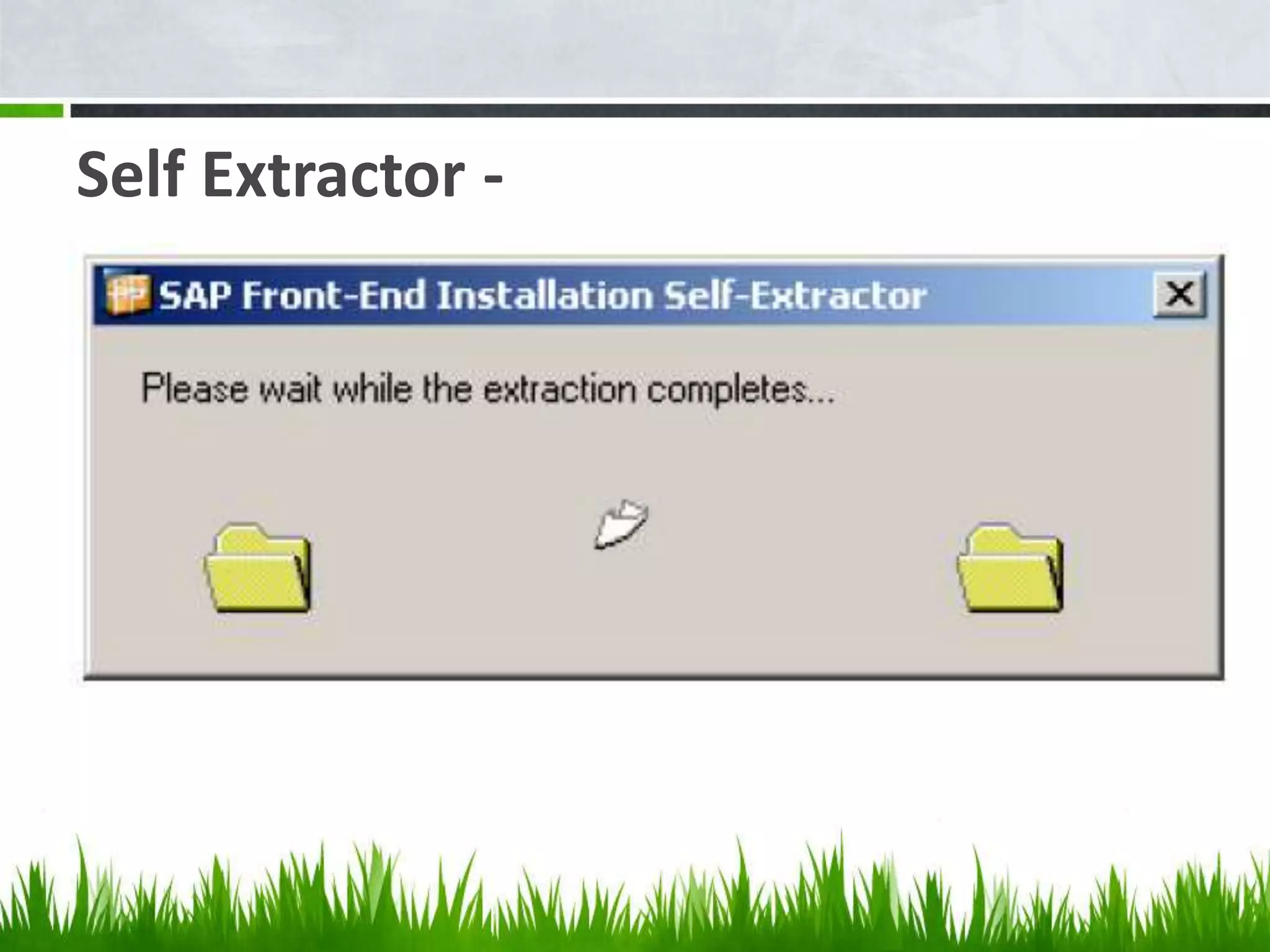
This will bring up SAP’s extraction notification, which
depending on your machine can run for a few
minutes.
Self Extractor -
Once the extraction is complete, you will be presented with the following window
Press the next button to get the screen below:
Your computer should now be installing SAPGUI, you will see the progress bar
move along as the installation progresses:
After a few minutes, the installer will complete. Please press the ‘Done’ button
At that time, the window below will perform some clean up functions and your
install should be complete.
To make sure our front end installed correctly, please open the program ‘SAP Logon’
from start menu -> programs -> SAP Front end. You should see the screen below:
Set IP Address
Create New System Entry
Add IP Address
Create SAP Login
Enter SAP Login Password
After SAP Login Password
SAP Screen Open
Collaboration
THANKS

Sap gui 720 training

  • 1.
  • 2.
    Attendant By- 1.Mr.Abhisek Hardia 2.VirendraSingh 3.Sunil Kumar SAP GUI INSTALLATION TRAINING PRESENTATION Dated :16/08/2012 Faculty- 1.Hari Singh
  • 3.
    • PRECAUTIONS • PLATFORMS •PURPOSE • PREPARATION • PROCEDURE • SELF EXTRACTR • INSTALLED
  • 4.
    PRECAUTIONS Confirm that yoursystem meets the MINIMUM requirements: • 500 M+ free disk space • Processor 500+ MHz • At least 256M RAM If you find that your PC currently freezes when you open 2 or 3 applications, be aware that the GUI uses a lot of memory and your ability to keep multiple applications running may be diminished.
  • 5.
    PLATFORMS- SAP GUI forWindows provides support for the most common Microsoft Windows platforms: ● Windows XP ● Windows 2003 Server ● Windows Vista ● Windows 7 ● Windows 2008 Server
  • 6.
    PURPOSE - Installation ofSAPGUI the installer file ‘SAPGUISETUP.EXE’ will install the latest version of SAPGUI (including our new centrally managed .ini file parameters, and all relevant patches). This GUI version has been tested and confirmed to be working on both of Windows XP, Windows Vista, and Windows 7.
  • 7.
    PREPARATION - It isno longer required that previous versions of the SAPGUI be uninstalled; however, not removing the prior locally stored .ini files will allow them to also populate your sapgui server list. It is suggested that you remove or back up previous versions of the saplogon.ini file. On Windows XP, this file can be found in C:windows or C:documents and settings[your user name]application dataSAPcommon – or C:Windows, though I suggest using the same method used on vista and windows 7 to be sure. On Vista and Windows 7 operating systems, you need to search for and delete all copies of this file, hidden files and folders need to be enabled in the control panel (start -> control panel -> appearance and personalization -> Folder Options – in view tab and radio button “show hidden files and folders”). Then search your computer for the file saplogon.ini and remove or back them up before installing.
  • 8.
    PROCEDURE - SAPGUI installerprogram from our pc at d:/sapgui720. If you have not already done so, please do this now. Once you have the installer program, execute it by double clicking this icon: This will bring up SAP’s extraction notification, which depending on your machine can run for a few minutes.
  • 9.
  • 10.
    Once the extractionis complete, you will be presented with the following window
  • 11.
    Once the extractionis complete, you will be presented with the following window
  • 12.
    Press the nextbutton to get the screen below:
  • 13.
    Your computer shouldnow be installing SAPGUI, you will see the progress bar move along as the installation progresses:
  • 14.
    After a fewminutes, the installer will complete. Please press the ‘Done’ button
  • 15.
    At that time,the window below will perform some clean up functions and your install should be complete.
  • 17.
    To make sureour front end installed correctly, please open the program ‘SAP Logon’ from start menu -> programs -> SAP Front end. You should see the screen below:
  • 18.
  • 19.
  • 20.
  • 21.
  • 22.
  • 23.
  • 24.
  • 25.
  • 26.
  • 27.
  • 28.

Editor's Notes

  • #2 This presentation demonstrates the new capabilities of PowerPoint and it is best viewed in Slide Show. These slides are designed to give you great ideas for the presentations you’ll create in PowerPoint 2010! For more sample templates, click the File tab, and then on the New tab, click Sample Templates.