1
How to Embed an Excel Spreadsheet
into PowerPoint
(For PowerPoint 2016 Mac) By Richard Evans
2
This tutorial will show how to embed an
Excel Spreadsheet into PowerPoint.
3
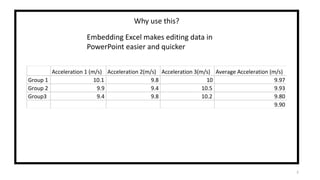
Why use this?
Embedding Excel makes editing data in
PowerPoint easier and quicker
Acceleration 1 (m/s) Acceleration 2(m/s) Acceleration 3(m/s) Average Acceleration (m/s)
Group 1 10.1 9.8 10 9.97
Group 2 9.9 9.4 10.5 9.93
Group3 9.4 9.8 10.2 9.80
9.90
4
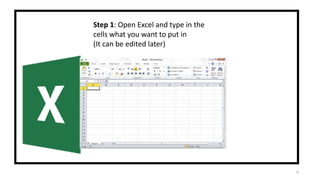
Step 1: Open Excel and type in the
cells what you want to put in
(It can be edited later)
5
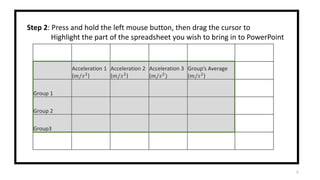
Step 2: Press and hold the left mouse button, then drag the cursor to
Highlight the part of the spreadsheet you wish to bring in to PowerPoint
Acceleration 1
(𝑚/𝑠2)
Acceleration 2
(𝑚/𝑠2)
Acceleration 3
(𝑚/𝑠2
)
Group’s Average
(𝑚/𝑠2)
Group 1
Group 2
Group3
6
Step 3: Right-click and and click “Copy”
7
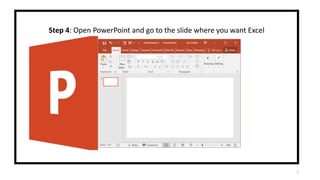
Step 4: Open PowerPoint and go to the slide where you want Excel
8
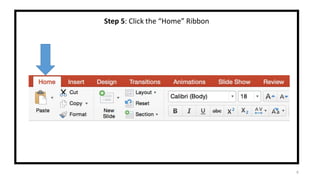
Step 5: Click the “Home” Ribbon
9
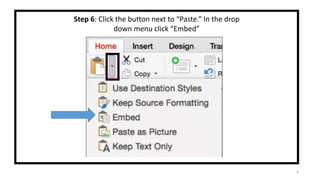
Step 6: Click the button next to “Paste.” In the drop
down menu click “Embed”
10
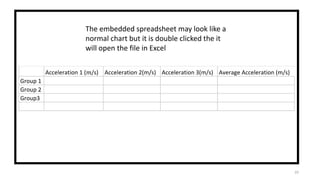
The embedded spreadsheet may look like a
normal chart but it is double clicked the it
will open the file in Excel

Richard Evans' Excel Embedding Powerpoint Tutorial

  • 1.
    1 How to Embedan Excel Spreadsheet into PowerPoint (For PowerPoint 2016 Mac) By Richard Evans
  • 2.
    2 This tutorial willshow how to embed an Excel Spreadsheet into PowerPoint.
  • 3.
    3 Why use this? EmbeddingExcel makes editing data in PowerPoint easier and quicker Acceleration 1 (m/s) Acceleration 2(m/s) Acceleration 3(m/s) Average Acceleration (m/s) Group 1 10.1 9.8 10 9.97 Group 2 9.9 9.4 10.5 9.93 Group3 9.4 9.8 10.2 9.80 9.90
  • 4.
    4 Step 1: OpenExcel and type in the cells what you want to put in (It can be edited later)
  • 5.
    5 Step 2: Pressand hold the left mouse button, then drag the cursor to Highlight the part of the spreadsheet you wish to bring in to PowerPoint Acceleration 1 (𝑚/𝑠2) Acceleration 2 (𝑚/𝑠2) Acceleration 3 (𝑚/𝑠2 ) Group’s Average (𝑚/𝑠2) Group 1 Group 2 Group3
  • 6.
    6 Step 3: Right-clickand and click “Copy”
  • 7.
    7 Step 4: OpenPowerPoint and go to the slide where you want Excel
  • 8.
    8 Step 5: Clickthe “Home” Ribbon
  • 9.
    9 Step 6: Clickthe button next to “Paste.” In the drop down menu click “Embed”
  • 10.
    10 The embedded spreadsheetmay look like a normal chart but it is double clicked the it will open the file in Excel