Really Useful Guide to Twitter Lists
Introduction

Contents




Create Twitter Lists
Managing Twitter Lists
Add followers to Lists





Monitoring your competition
Demonstrating your expertise
Remove yourself from Lists
Why use Lists
Twitter Lists are a really useful way to organise
your connections and to ensure you do not
miss out on interesting tweets
Twitter’s recent upgrade allows you to create
up to 1,000 Lists. Each List can contain 5,000
accounts.
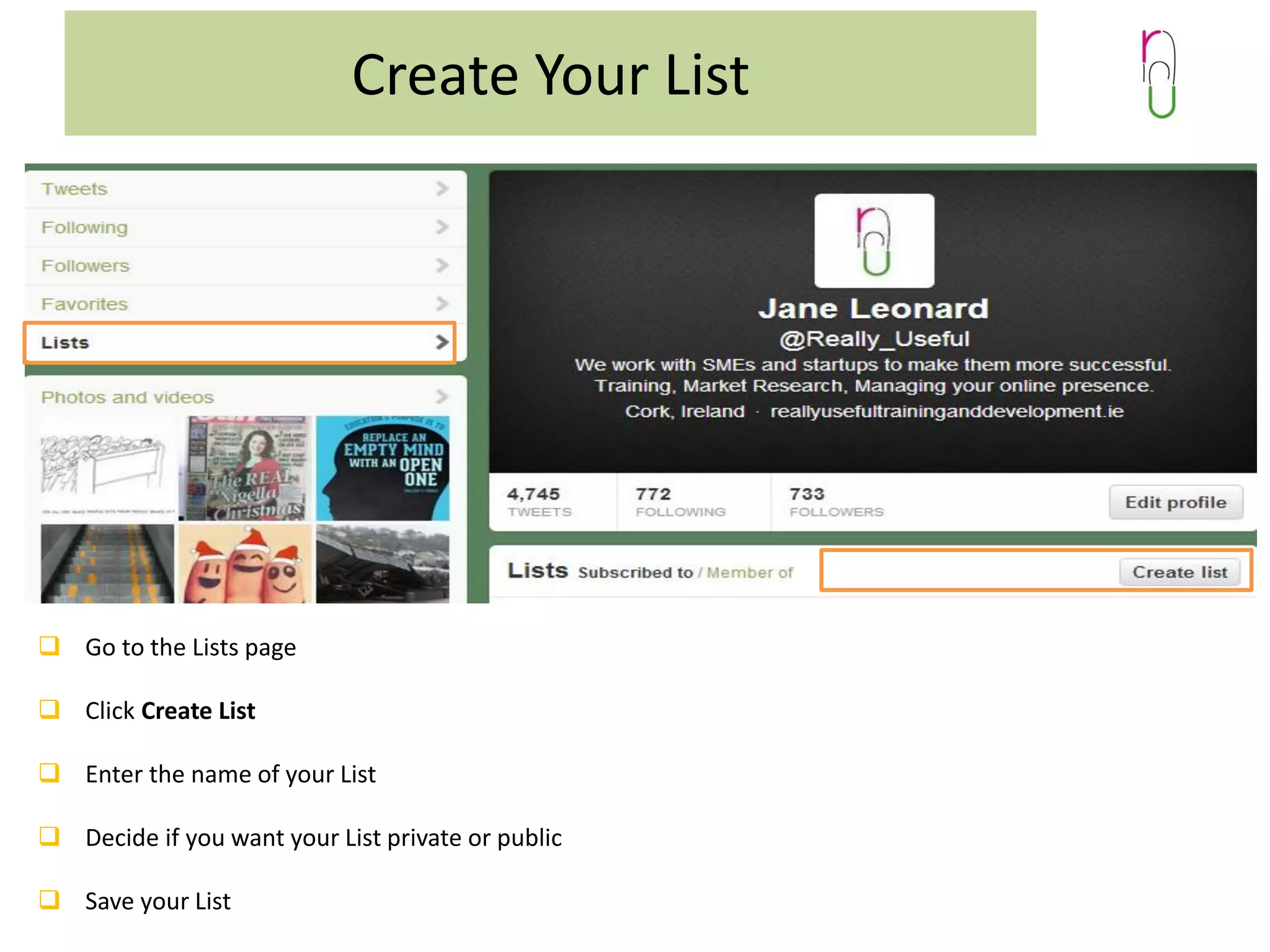
Create Your List

 Go to the Lists page
 Click Create List

 Enter the name of your List
 Decide if you want your List private or public
 Save your List
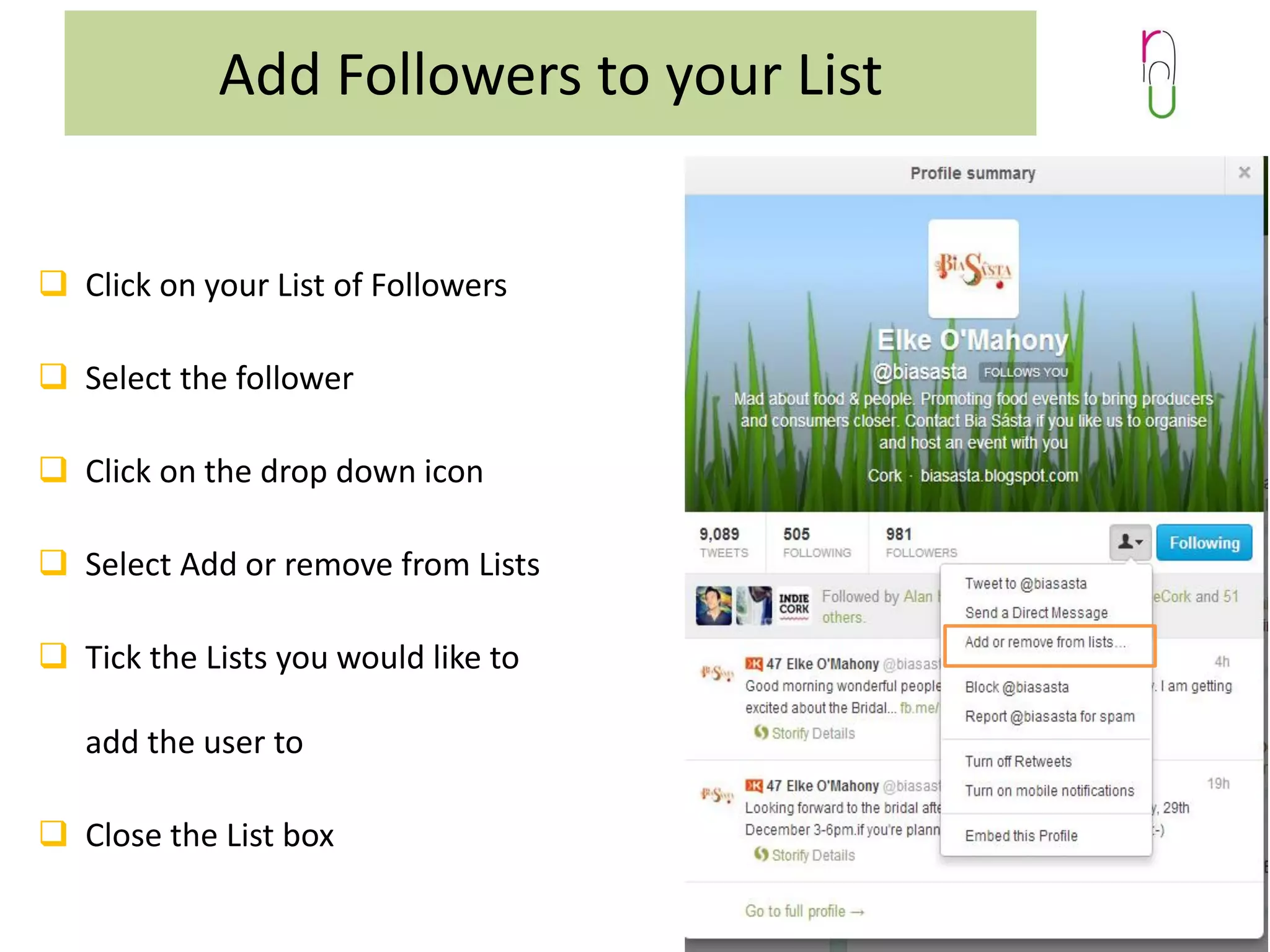
Add Followers to your List
 Click on your List of Followers
 Select the follower
 Click on the drop down icon
 Select Add or remove from Lists

 Tick the Lists you would like to
add the user to

 Close the List box
Private Twitter Lists to monitor competitors

It can be useful to create private Lists of your
competitors.
You can monitor this List to see your
competitor’s latest tweets.
You can add a profile to your List without
following them.
This can give you a real insight or even some
inspiration.
Public Twitter Lists to demonstrate expertise

Public Lists are a great way to demonstrate
your connections or expertise.
Add some thought leaders or influencers
Give the List an appropriate name, such as
Start-Up Experts or Influential Educators
There is a real value in aligning yourself with
this type of List
It also enhances your authority in the sector
To Remove Yourself from a List
From your Twitter profile, click on Lists.
Click on Member Of.
You will then see the Twitter Lists that include you as
a member.
Click on the List owner to see the profile
 Click on Block, this will remove you from any Lists
If you want to stay in touch with the person, you can
then Unblock them
Really Useful Guide to Twitter Lists

Image courtesy of Twitter

@Really_Useful

Really Useful guide to twitter Lists

  • 1.
    Really Useful Guideto Twitter Lists
  • 2.
    Introduction Contents    Create Twitter Lists ManagingTwitter Lists Add followers to Lists    Monitoring your competition Demonstrating your expertise Remove yourself from Lists
  • 3.
    Why use Lists TwitterLists are a really useful way to organise your connections and to ensure you do not miss out on interesting tweets Twitter’s recent upgrade allows you to create up to 1,000 Lists. Each List can contain 5,000 accounts.
  • 4.
    Create Your List Go to the Lists page  Click Create List  Enter the name of your List  Decide if you want your List private or public  Save your List
  • 5.
    Add Followers toyour List  Click on your List of Followers  Select the follower  Click on the drop down icon  Select Add or remove from Lists  Tick the Lists you would like to add the user to  Close the List box
  • 6.
    Private Twitter Liststo monitor competitors It can be useful to create private Lists of your competitors. You can monitor this List to see your competitor’s latest tweets. You can add a profile to your List without following them. This can give you a real insight or even some inspiration.
  • 7.
    Public Twitter Liststo demonstrate expertise Public Lists are a great way to demonstrate your connections or expertise. Add some thought leaders or influencers Give the List an appropriate name, such as Start-Up Experts or Influential Educators There is a real value in aligning yourself with this type of List It also enhances your authority in the sector
  • 8.
    To Remove Yourselffrom a List From your Twitter profile, click on Lists. Click on Member Of. You will then see the Twitter Lists that include you as a member. Click on the List owner to see the profile  Click on Block, this will remove you from any Lists If you want to stay in touch with the person, you can then Unblock them
  • 9.
    Really Useful Guideto Twitter Lists Image courtesy of Twitter @Really_Useful