Social Media:             Twitter

              Twitter In-depth

                                    May 9, 2012
                                    Robert Lawrence III
                                    @mark_biersdorf
For the Intermediate Twitterer
Why Twitter
• Research, learn, stay up to date in your field
  (e.g., CPA, IT, HR, Medical Devices, etc.)
• Follow topics and people of interest
• Look for jobs
• Be seen; get your brand out
• Participate in a community (e.g., Cubs, Sox,
  CPA, IT, Mac)
• Send out important information to others
Understanding
   Twitter
How is Twitter Like
               Email?
• Both are communication tools
• Tweet like email message
• @handle like email address
• Sending Tweet like sending message to an
  email group
• Private list like email group
• Public list like public group in email
How is Twitter Like
                Email?
•   Both can have addresses in the message
•   Both can contain text, URLs, pictures
•   DM like sending email to one person
•   Both can become unmanageable if not
    organized
How is Twitter Not
            Like Email?
• 140 characters in Tweet
• Tweets sent to people you don’t know
  with #hashtags and @handles
• @handles, URLs, #hashtags in Tweet
  body
• Don’t delete Tweets
How is Twitter Not
              Like Email?
• Show brand in Twitter (Profile, Tweets)
• Find information in Twitter, including jobs;
  someone must send them to you in email
• Followers and Following
• Communities, social aspect
• Can link Twitter to Facebook, LinkedIn, etc.
Twitter Elements
    and their
  Application
Twitter Elements

•   Profile Information
•   Handles - @xCubs2016 or @xwhitesox2013
•   Hashtags - #socialmedia
•   URL added to Tweet
•   Direct Messages (DM) and Retweets (RT)
•   Lists
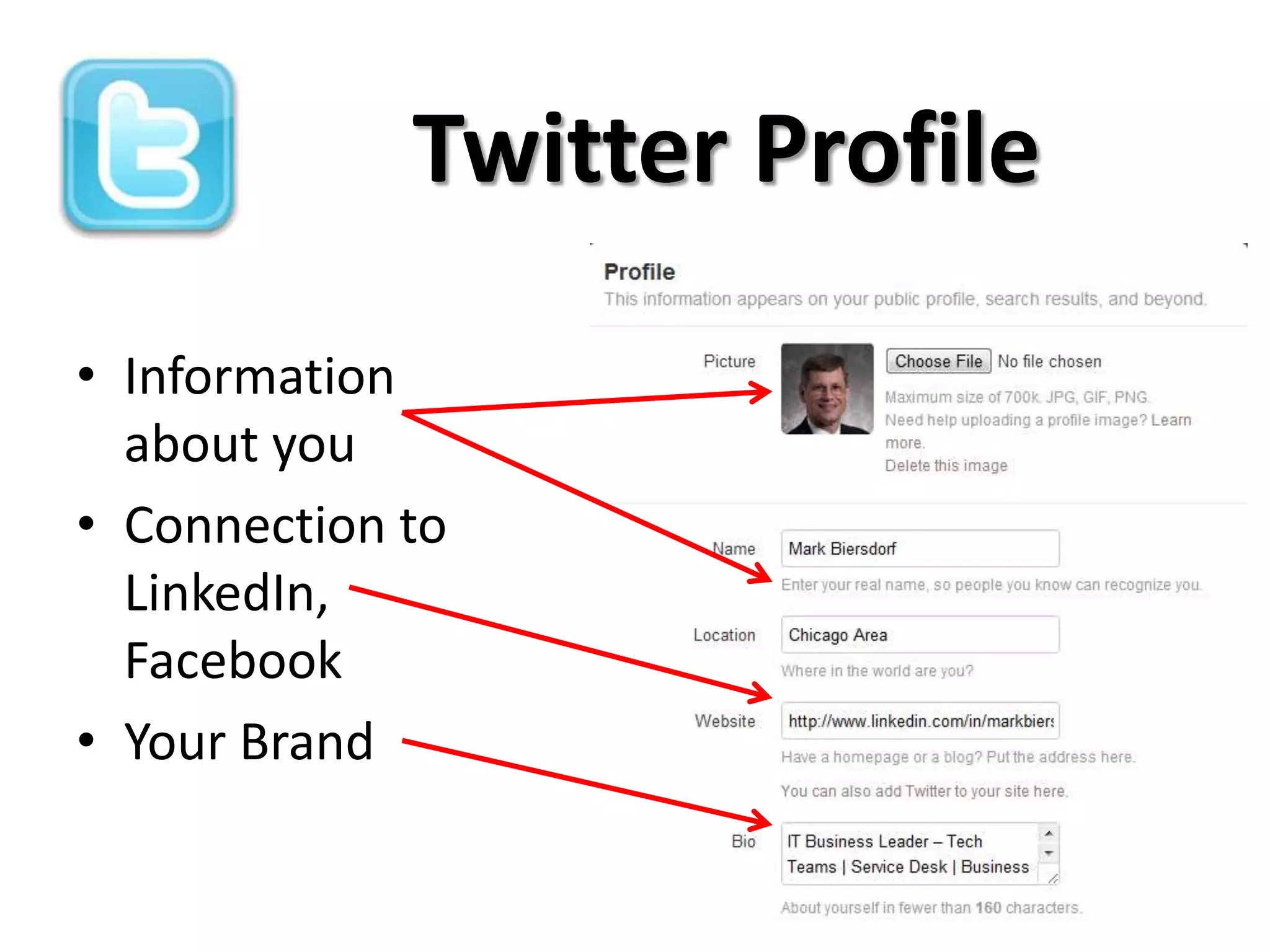
Twitter Profile

• Information
  about you
• Connection to
  LinkedIn,
  Facebook
• Your Brand
@handles

• Unique to every Twitter user
• Use handle to send a Tweet to someone
  that is not following you
• Placed anywhere in Tweet body, acts like a
  c.c. in email
• Click on a handle to show other messages
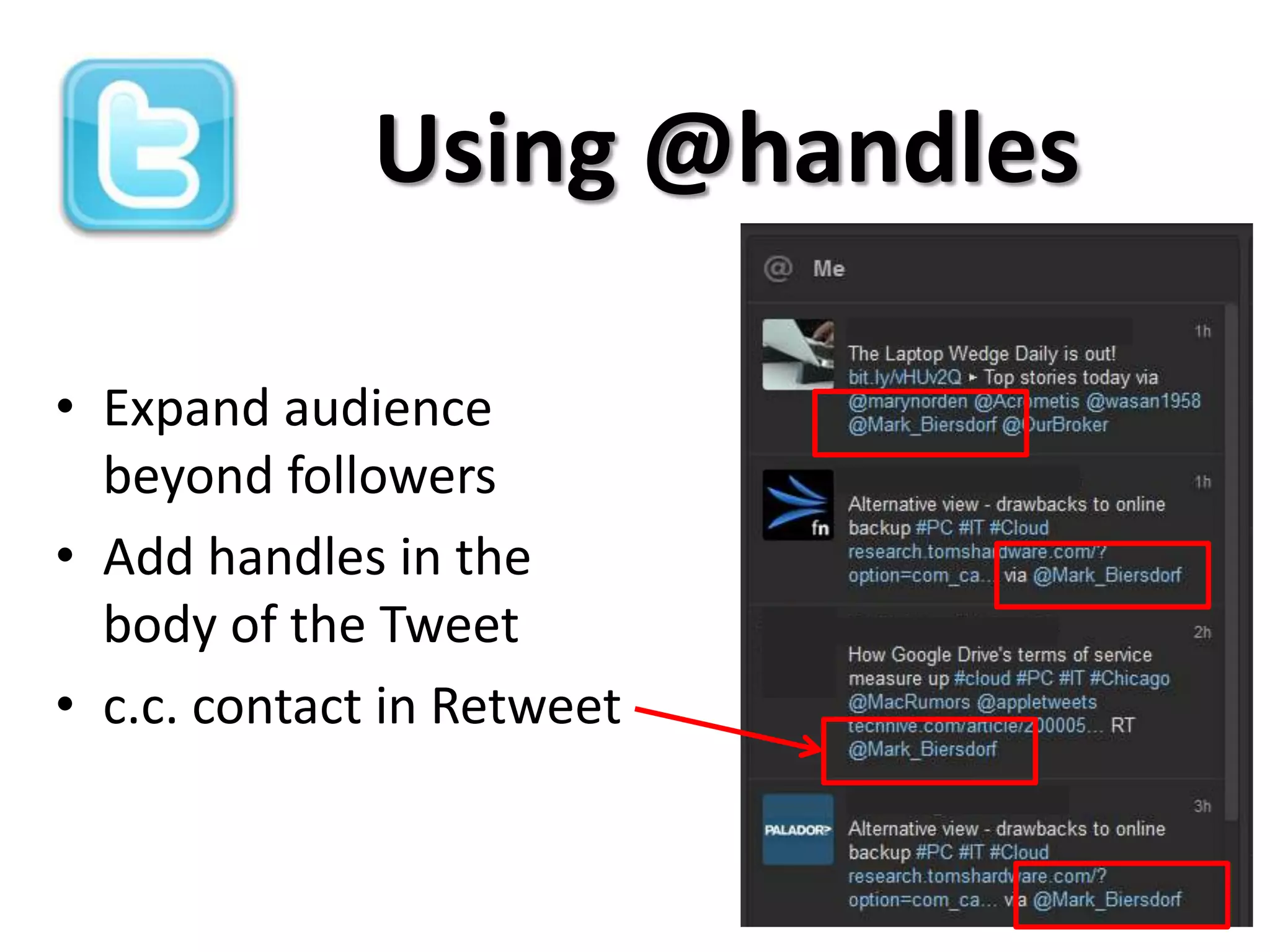
Using @handles

• Expand audience
  beyond followers
• Add handles in the
  body of the Tweet
• c.c. contact in Retweet
Hashtags

• Relevant keywords
• Placed anywhere in Tweet body
• Clicking on a hashtags shows other
  messages with that keyword
• Can be trend topics
Hashtags
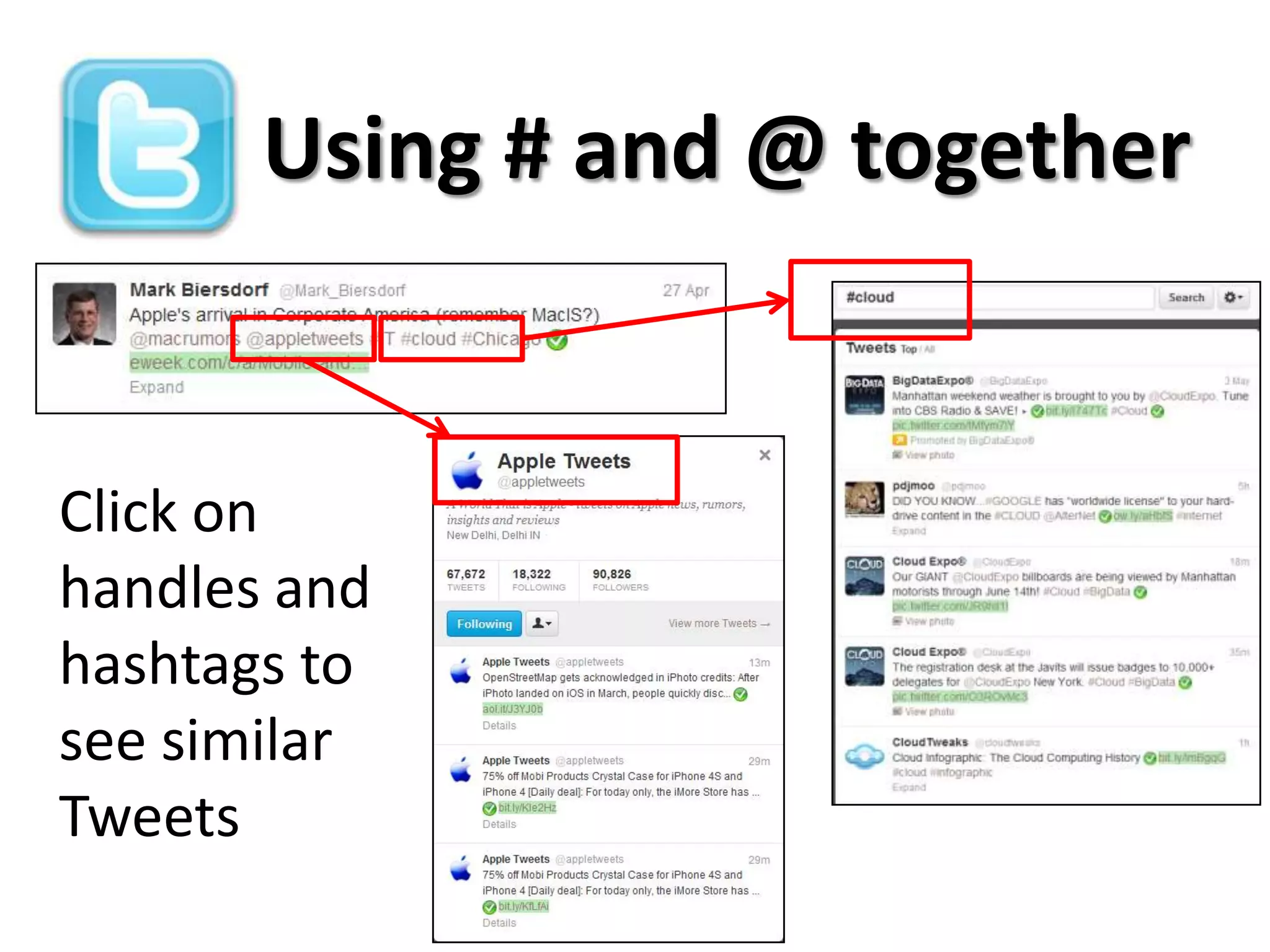
Using # and @ together


Click on
handles and
hashtags to
see similar
Tweets
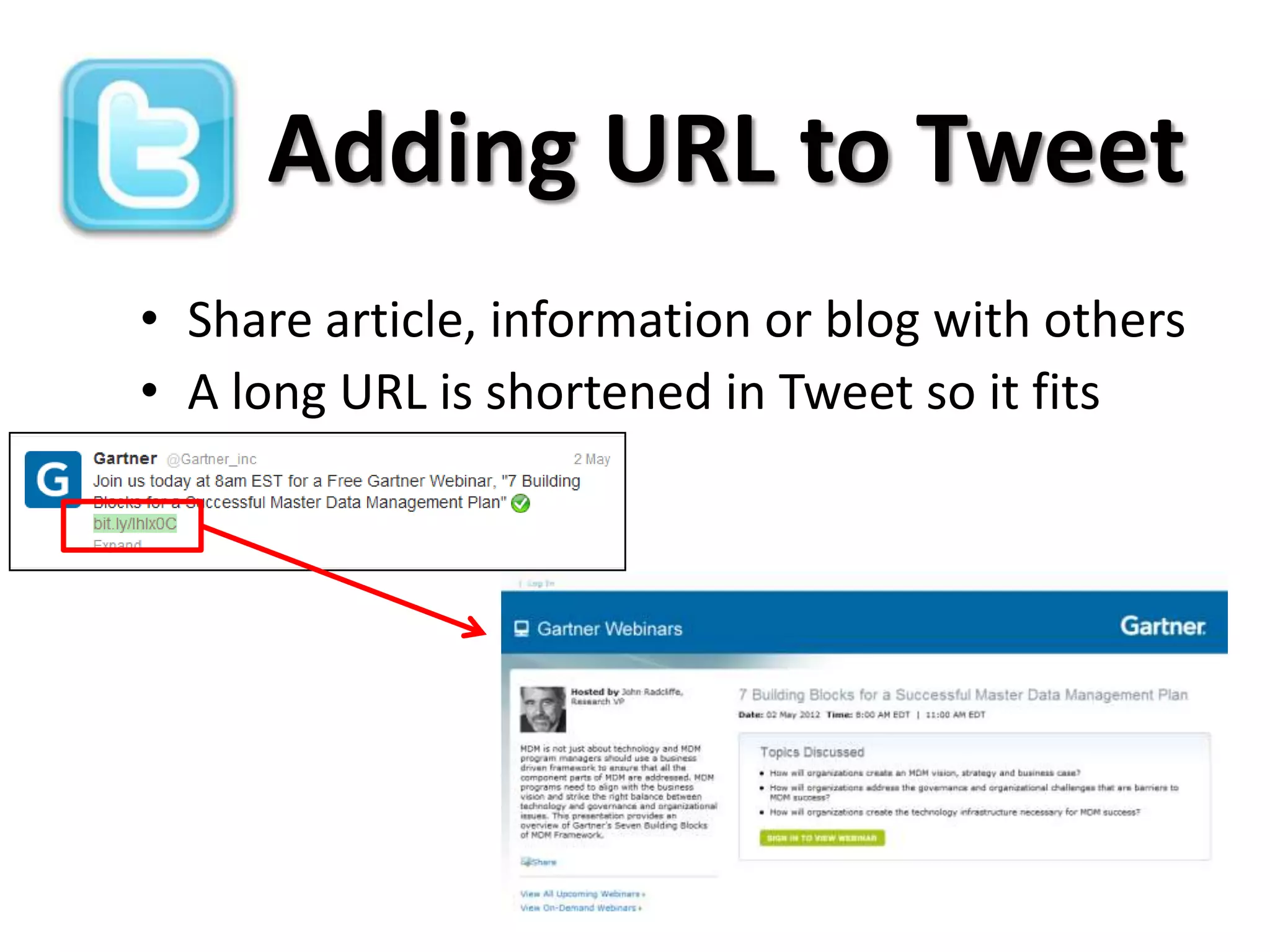
Adding URL to Tweet
• Share article, information or blog with others
• A long URL is shortened in Tweet so it fits
Direct Messages (DM)

•   Send a message only to the recipient
•   Recipient must be a follower
•   Other followers cannot see
•   Not listed in Tweet timeline
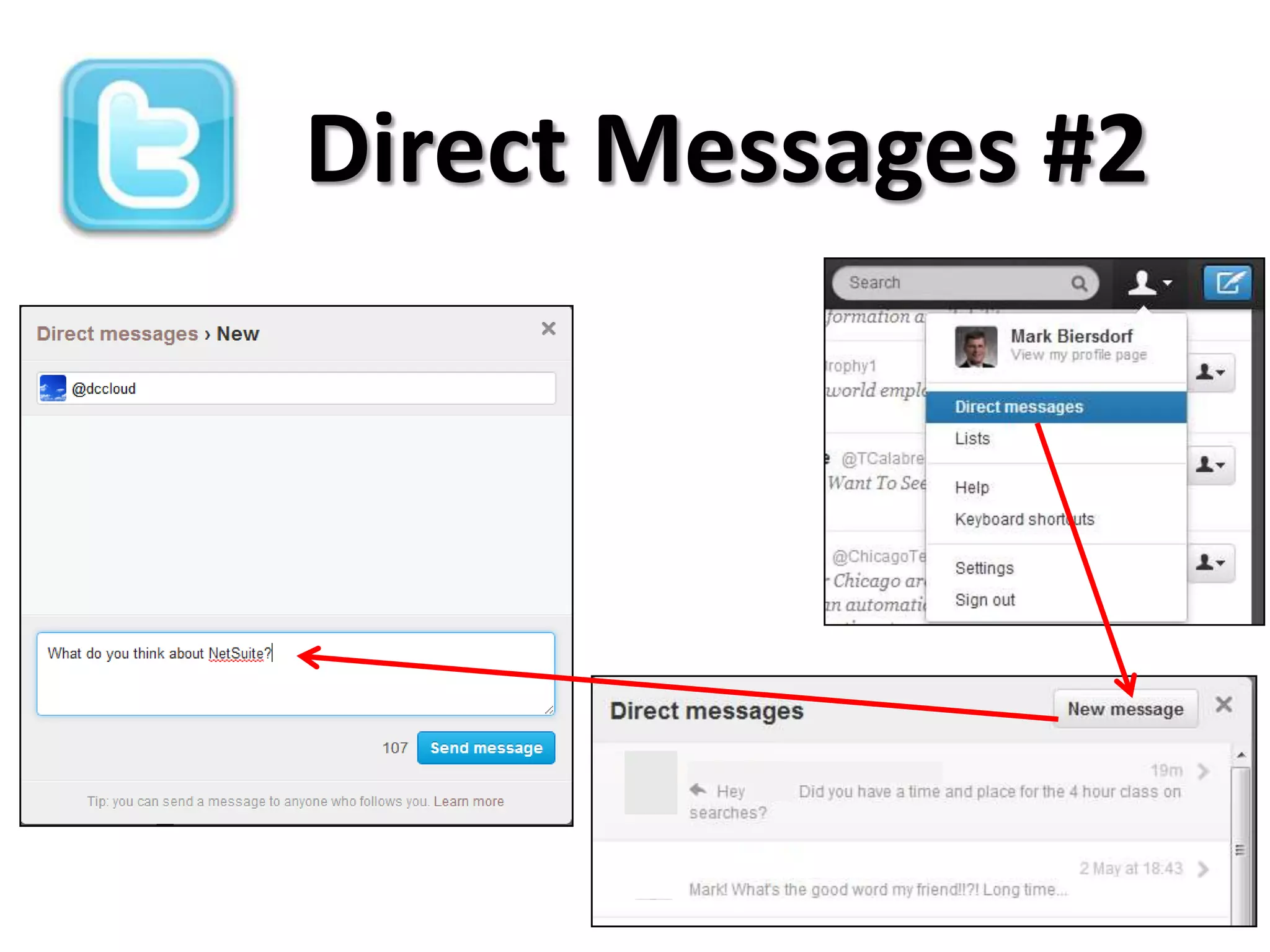
•   Two ways to send DM
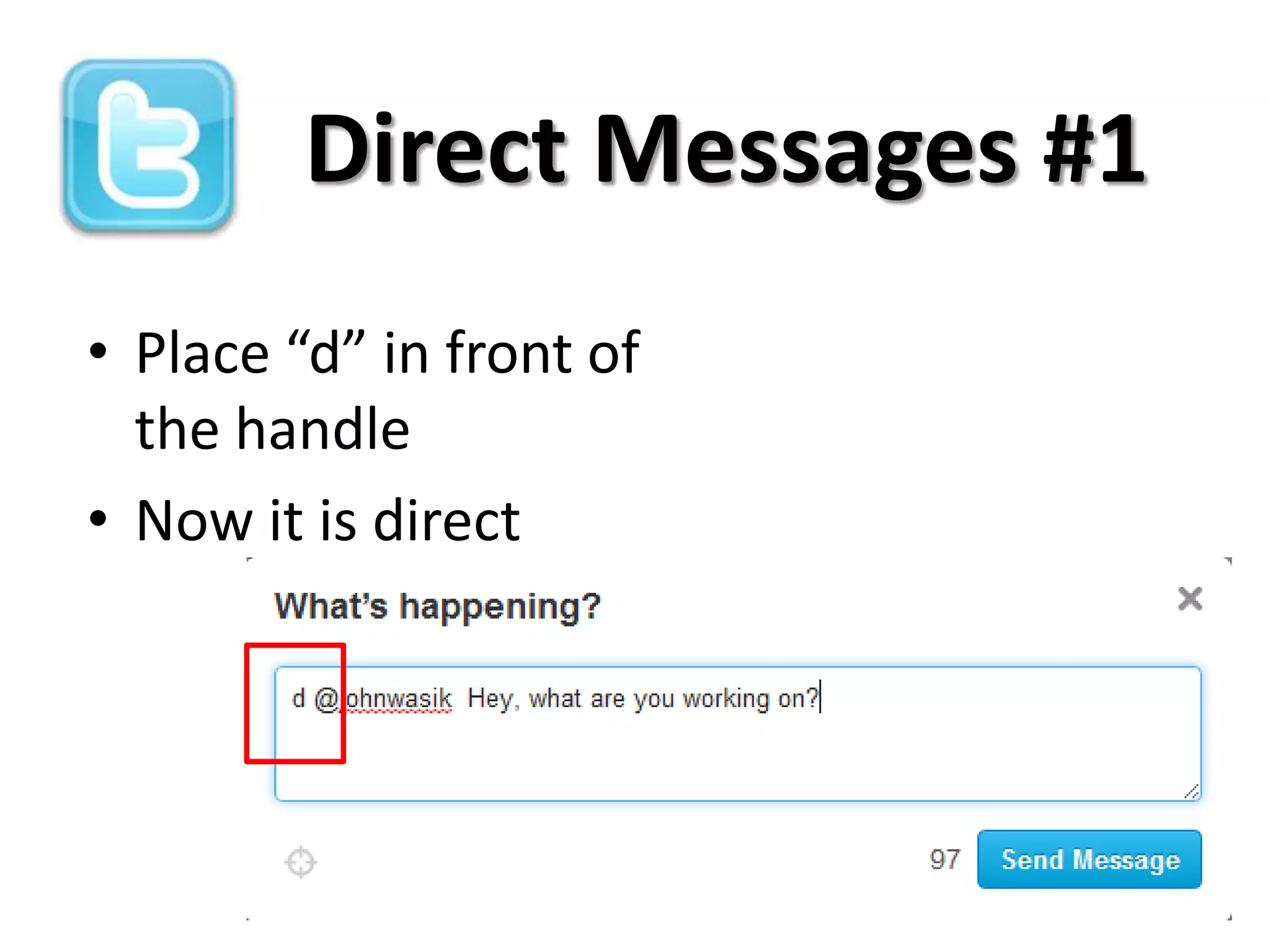
Direct Messages #1
• Place “d” in front of
  the handle
• Now it is direct
Direct Messages #2
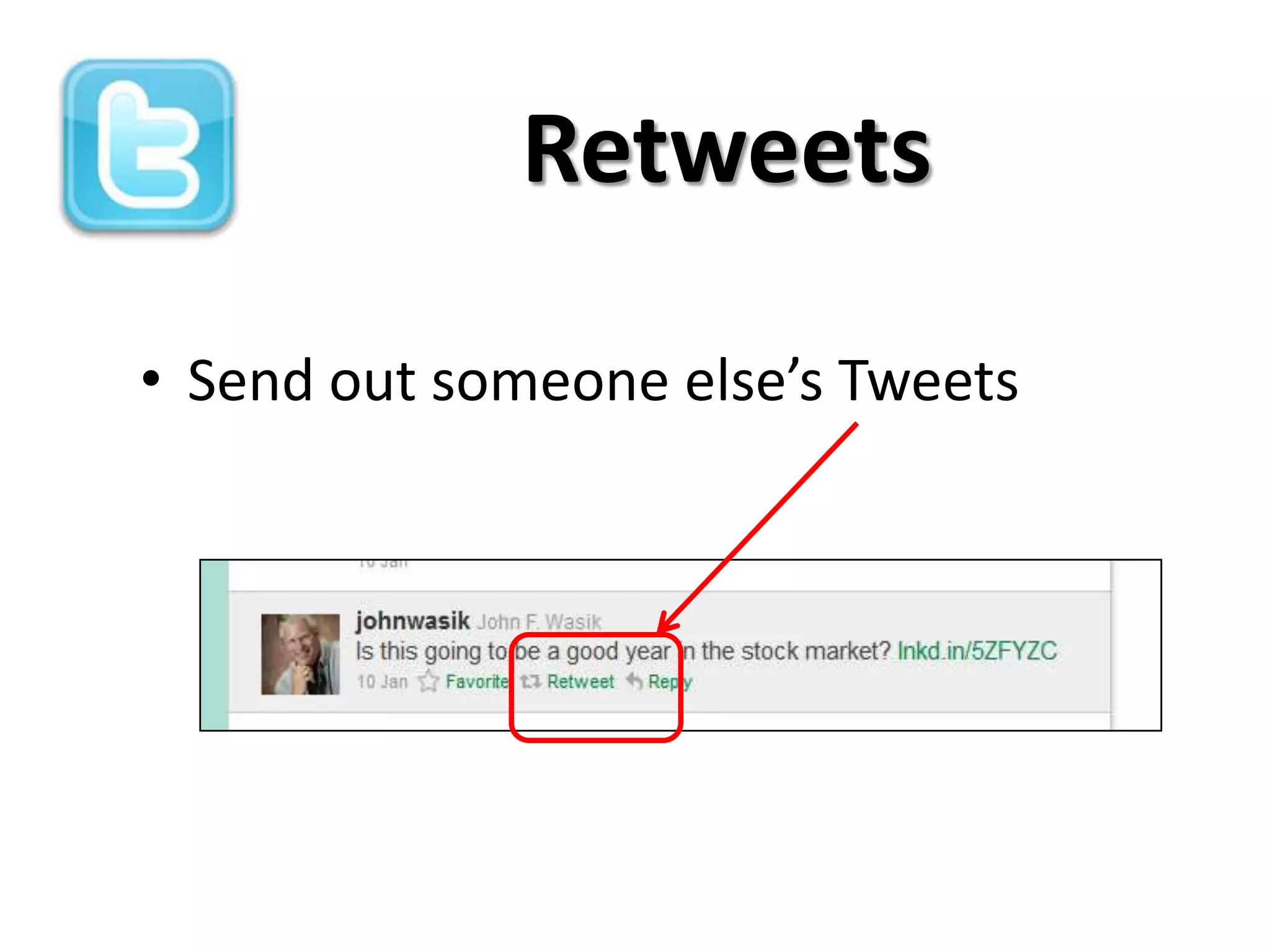
Retweets

• Send out someone else’s Tweets
Lists:
Private and Public
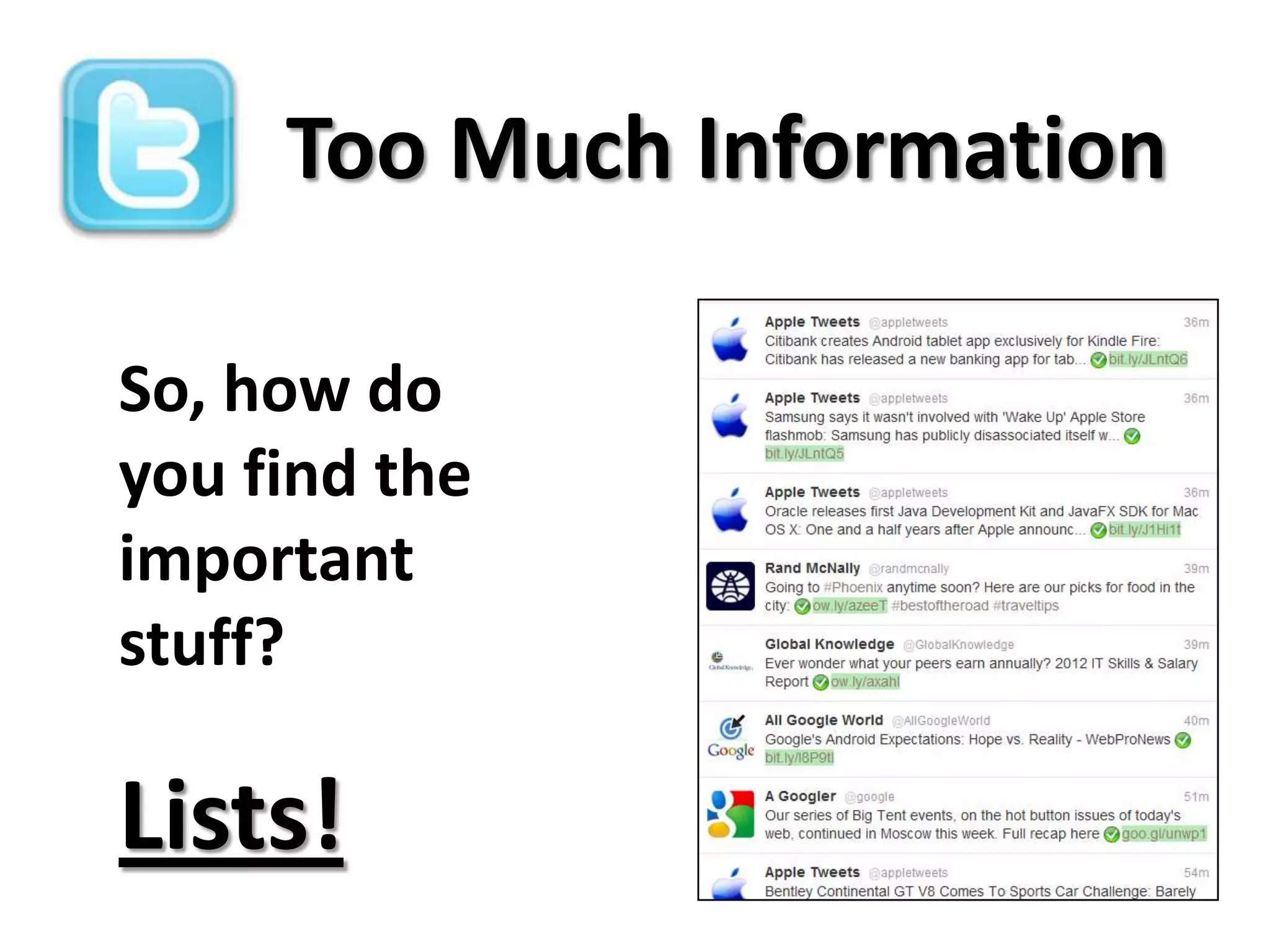
Too Much Information

So, how do
you find the
important
stuff?

Lists!
What are Lists
• Sort Tweets by topics and people for
  easier viewing
• “A curated group of Twitter users”
• Two kinds; Private and Public
• Create or join lists

                http://bit.ly/IwI47z
Lists:
Private
List Types - Private

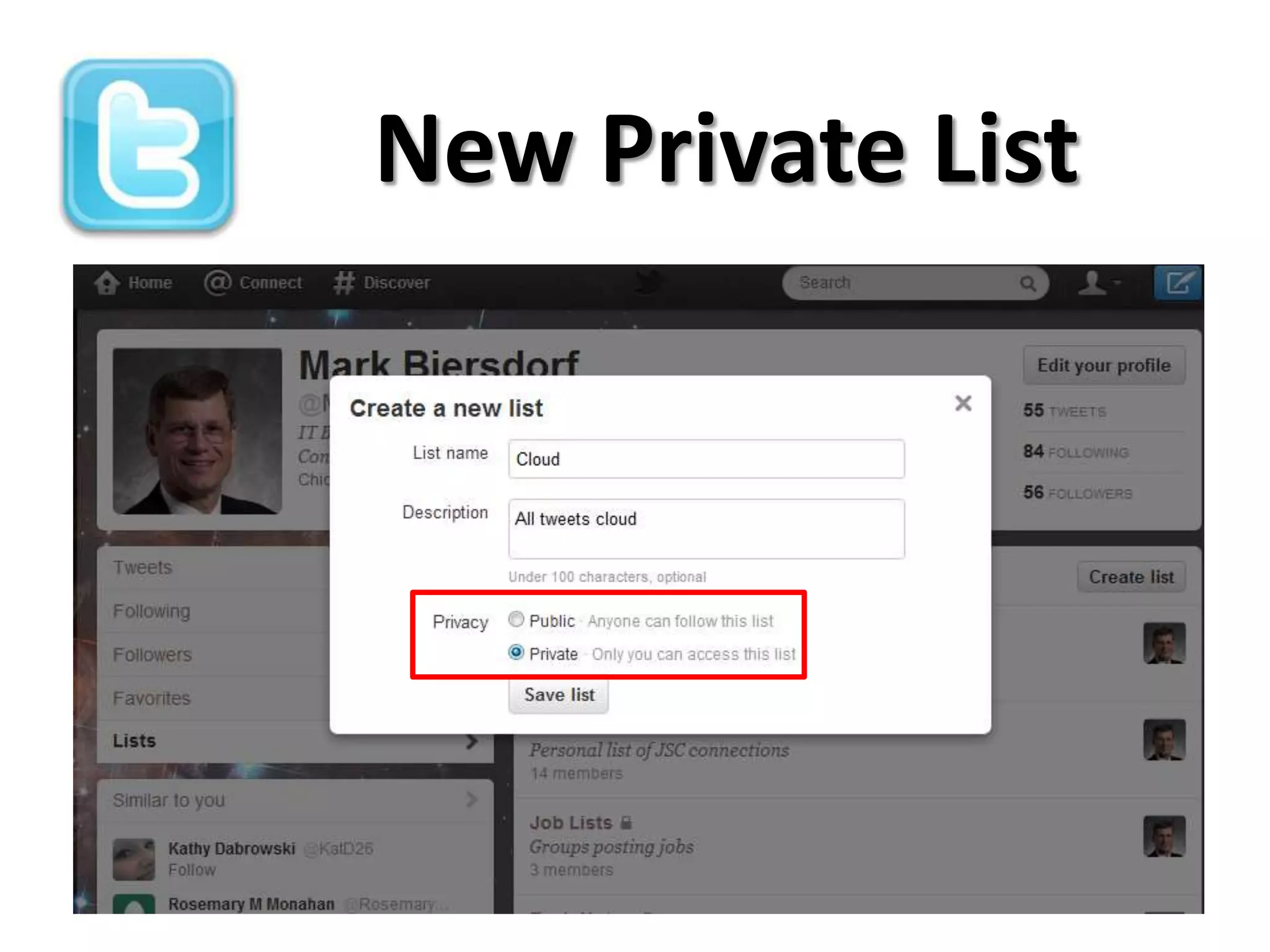
• You create - 25 characters per list name,
  20 lists/account, 500 members/list
• Think group of people, you can organize by
  topic or interest
• Separates important information from a
  storm of Tweets
• Only you can view private list
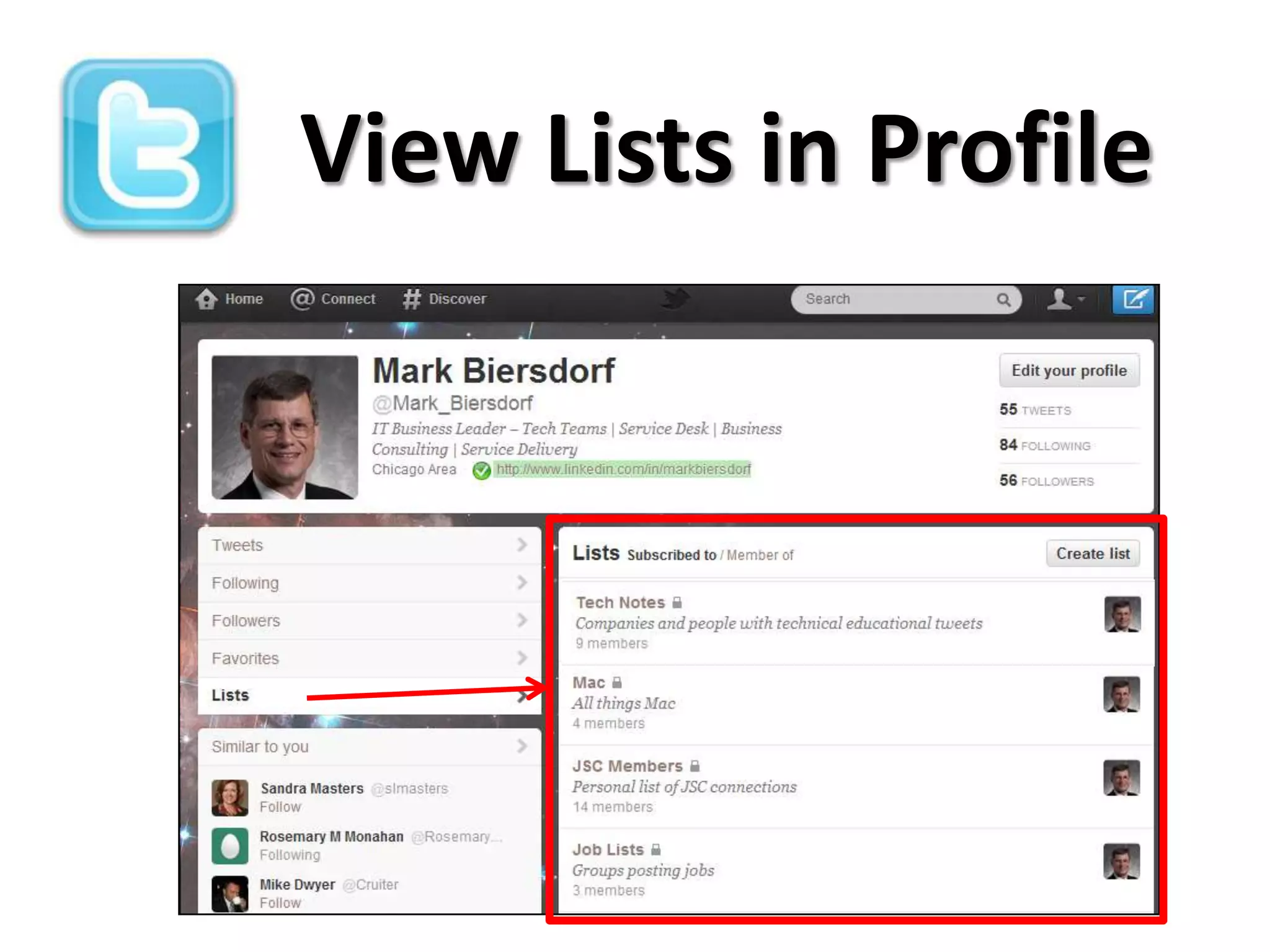
View Lists in Profile
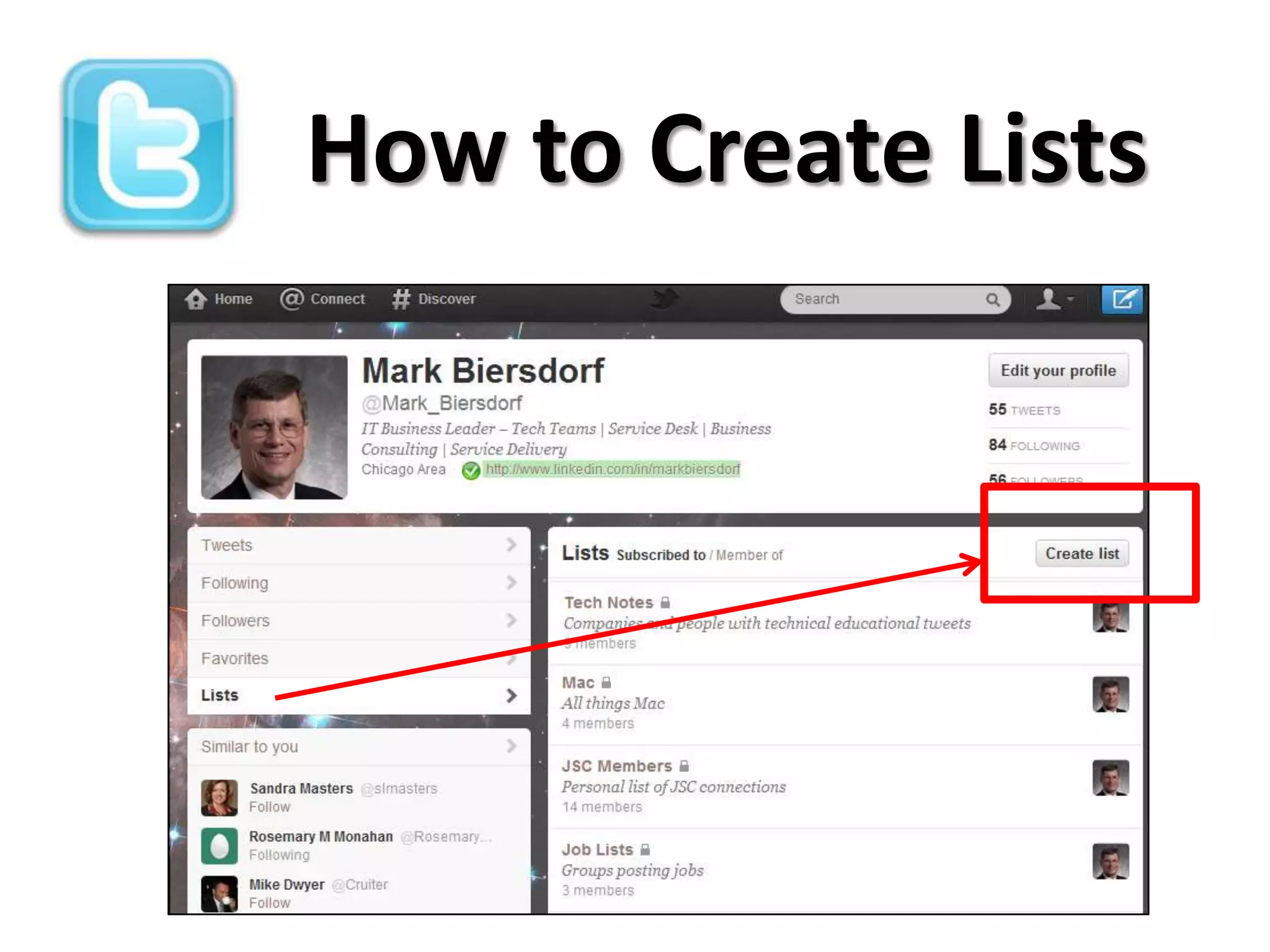
How to Create Lists
New Private List
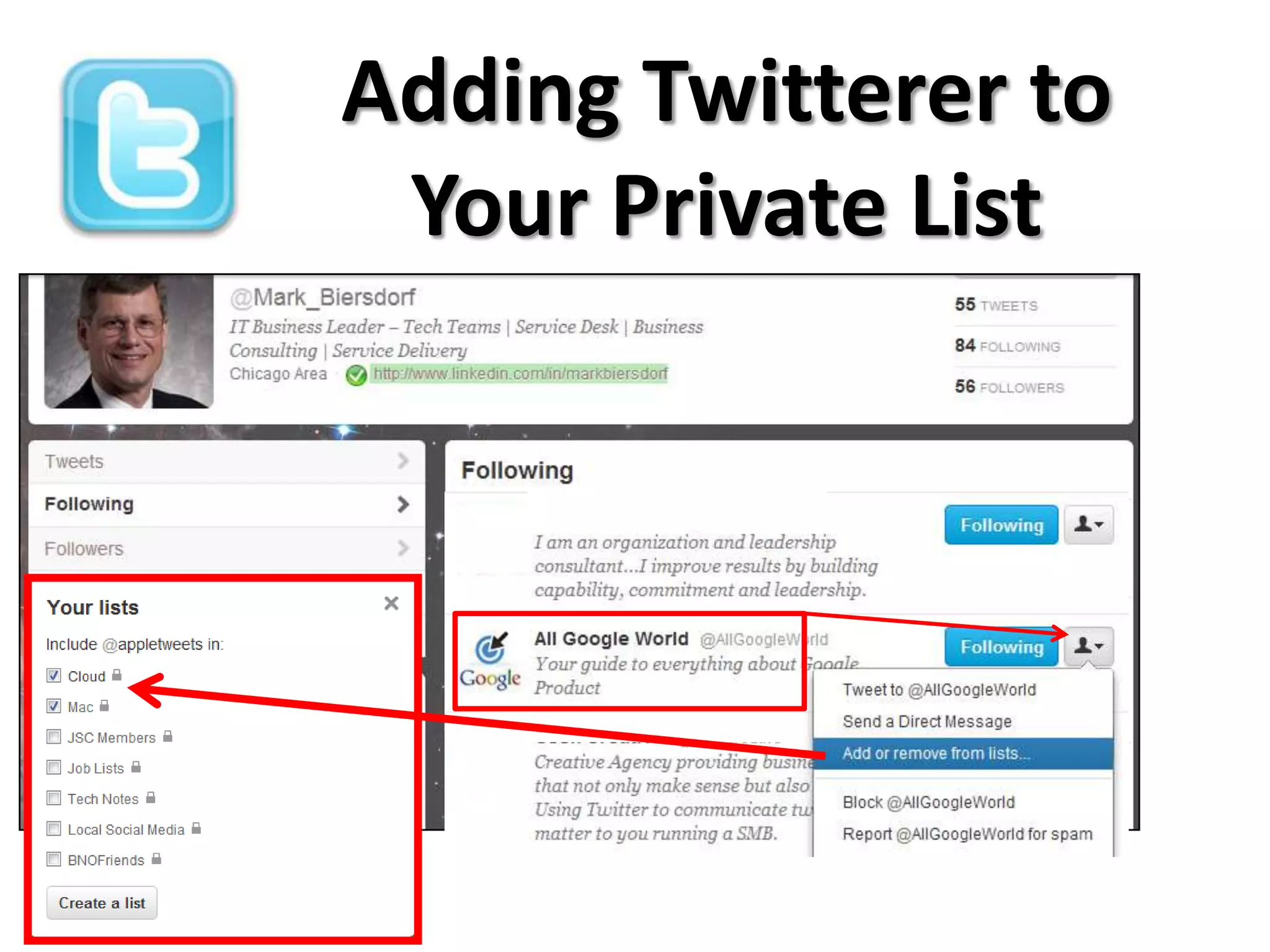
Adding Twitterer to
 Your Private List
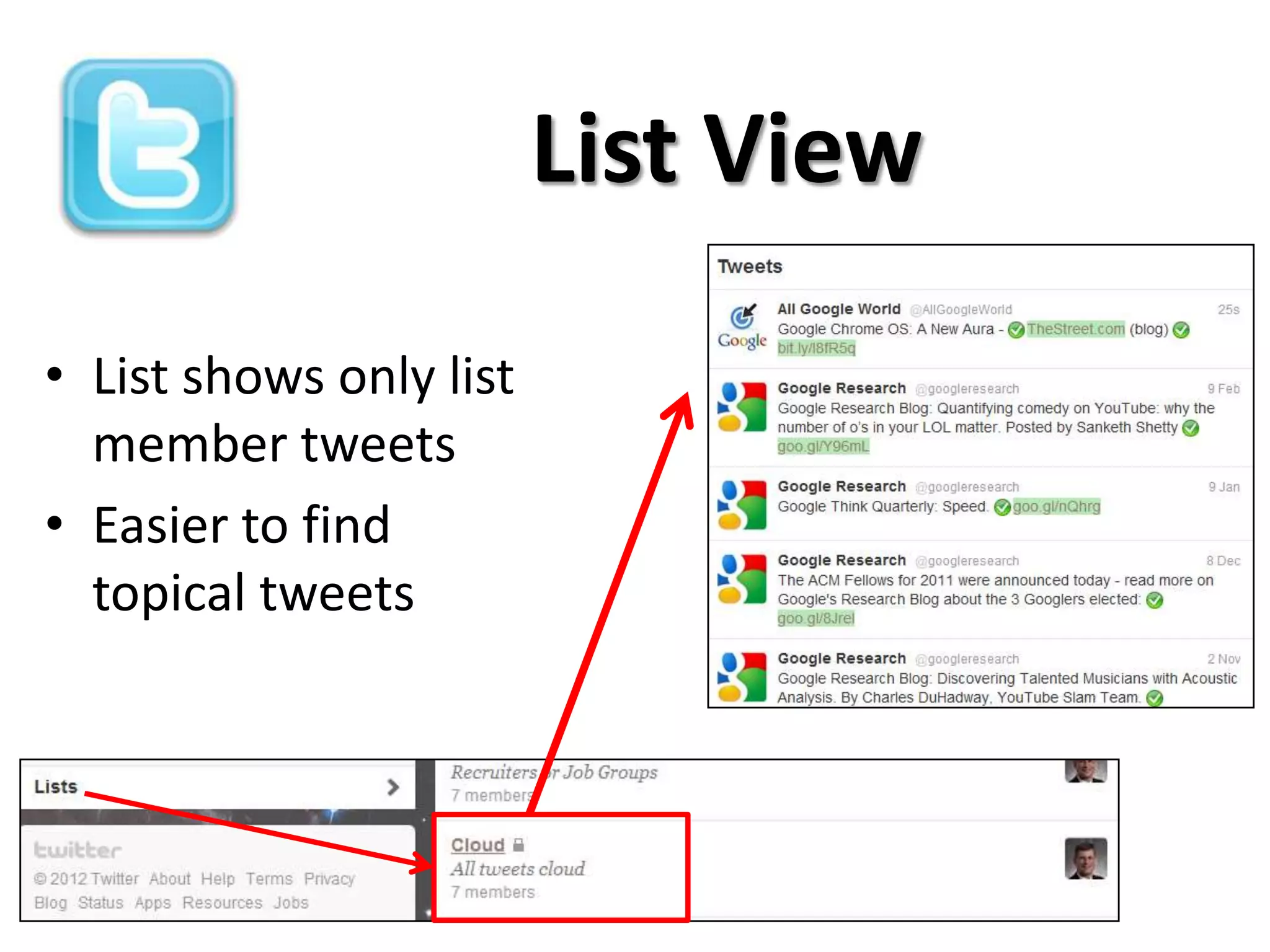
List View

• List shows only list
  member tweets
• Easier to find
  topical tweets
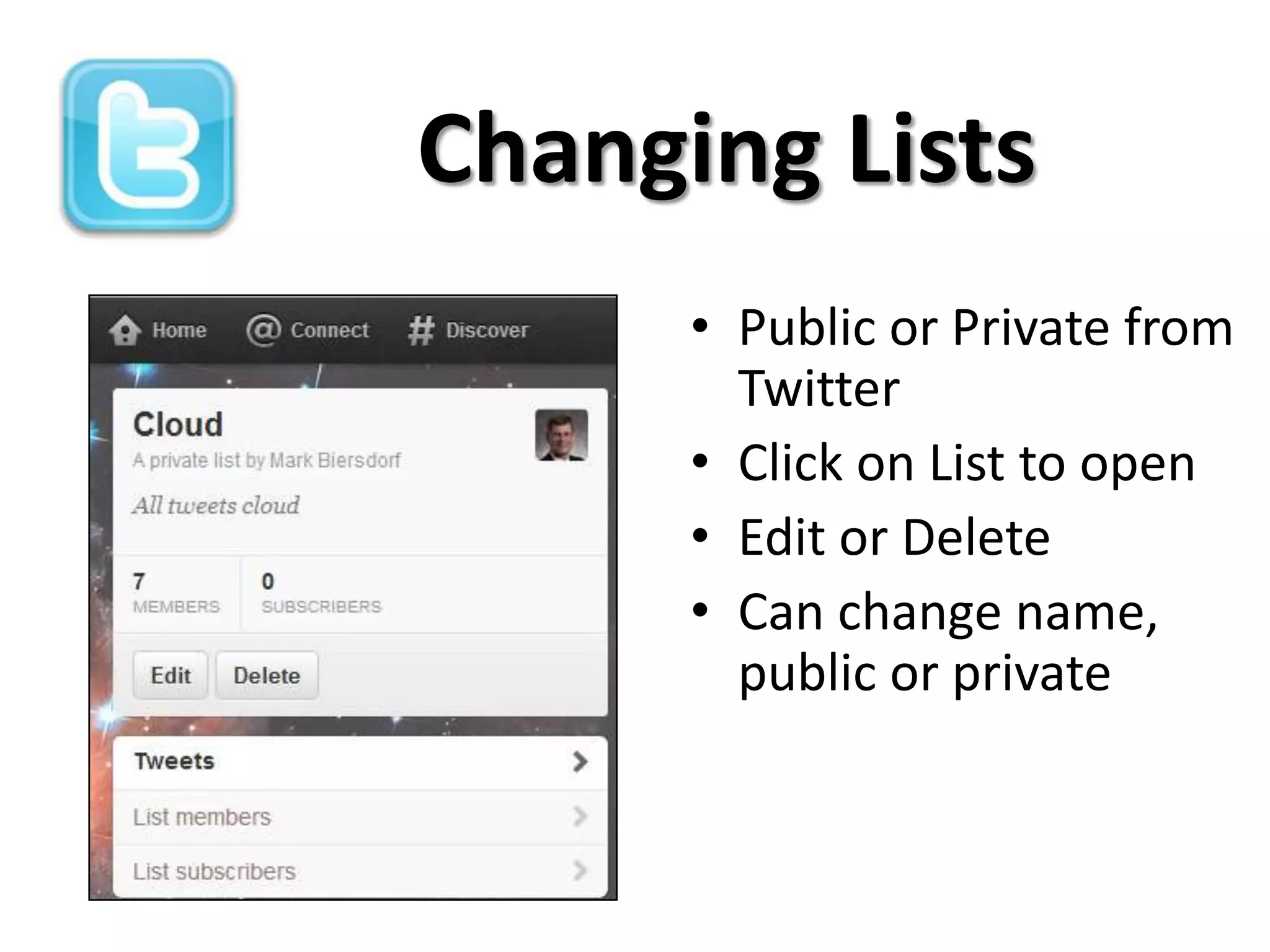
Changing Lists
      • Public or Private from
        Twitter
      • Click on List to open
      • Edit or Delete
      • Can change name,
        public or private
Lists:
Public
About Public Lists

• Community of members, share tweets with
  others that appreciate them
• Anyone can find and join
• Create your own public list in Twitter
• Subscribe to already created public lists
• Create or join public list on Listorious
Public Lists
Created in Twitter
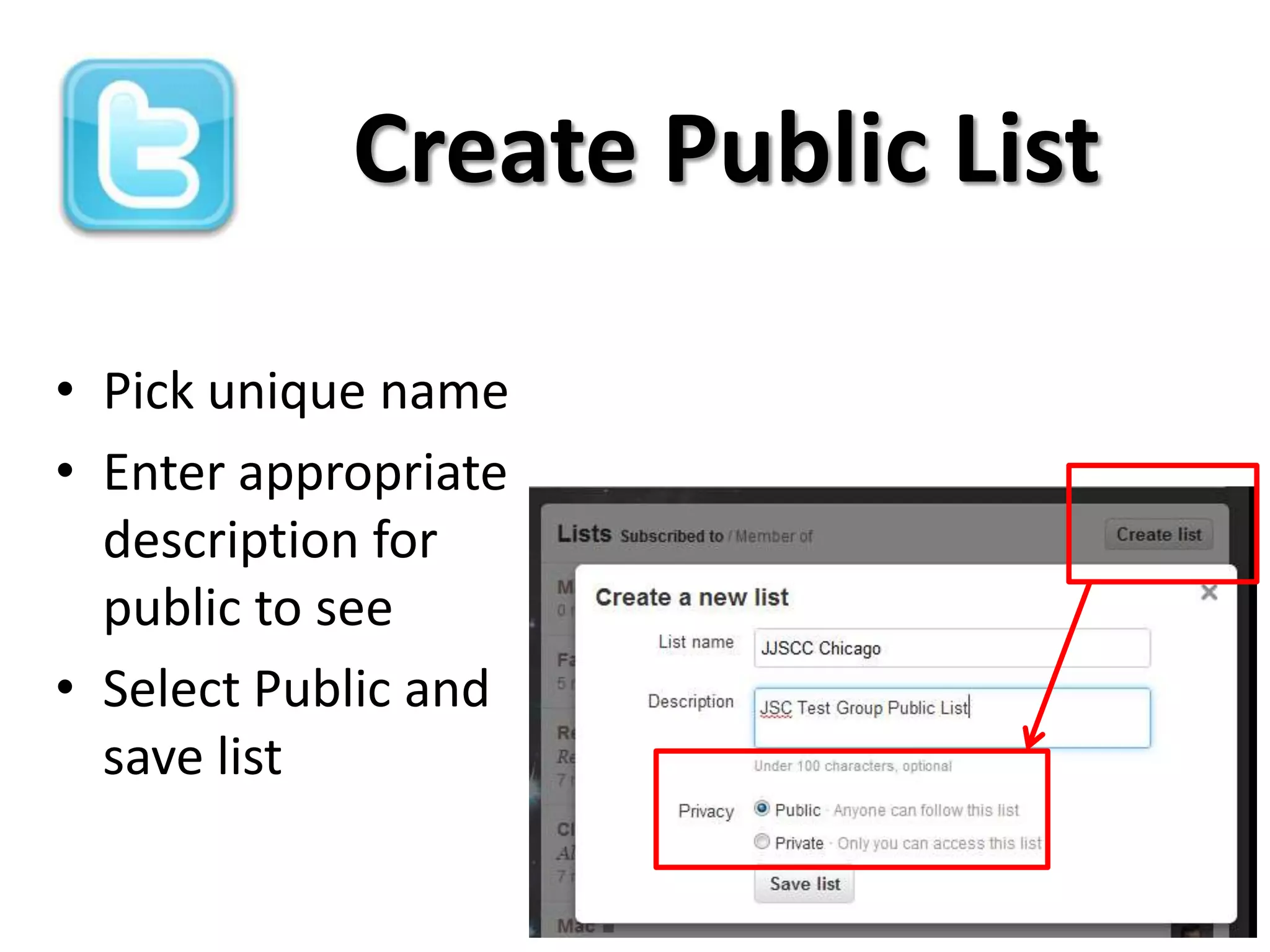
Create Public List

• Pick unique name
• Enter appropriate
  description for
  public to see
• Select Public and
  save list
Add Members

• Look up
  handles to add
  to public list
• New member
  will be notified
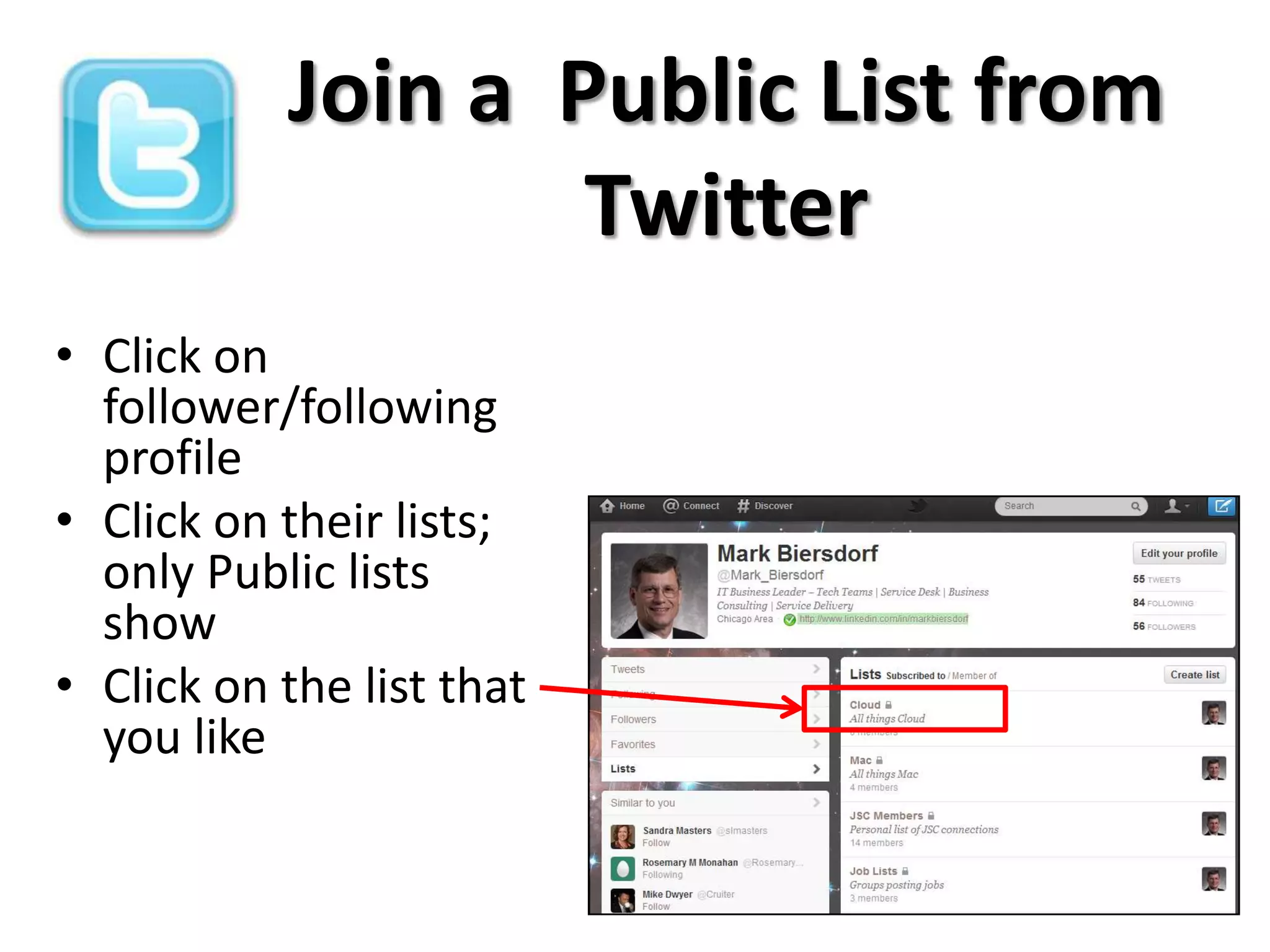
Join a Public List from
                   Twitter
• Click on
  follower/following
  profile
• Click on their lists;
  only Public lists
  show
• Click on the list that
  you like
Join a Public List
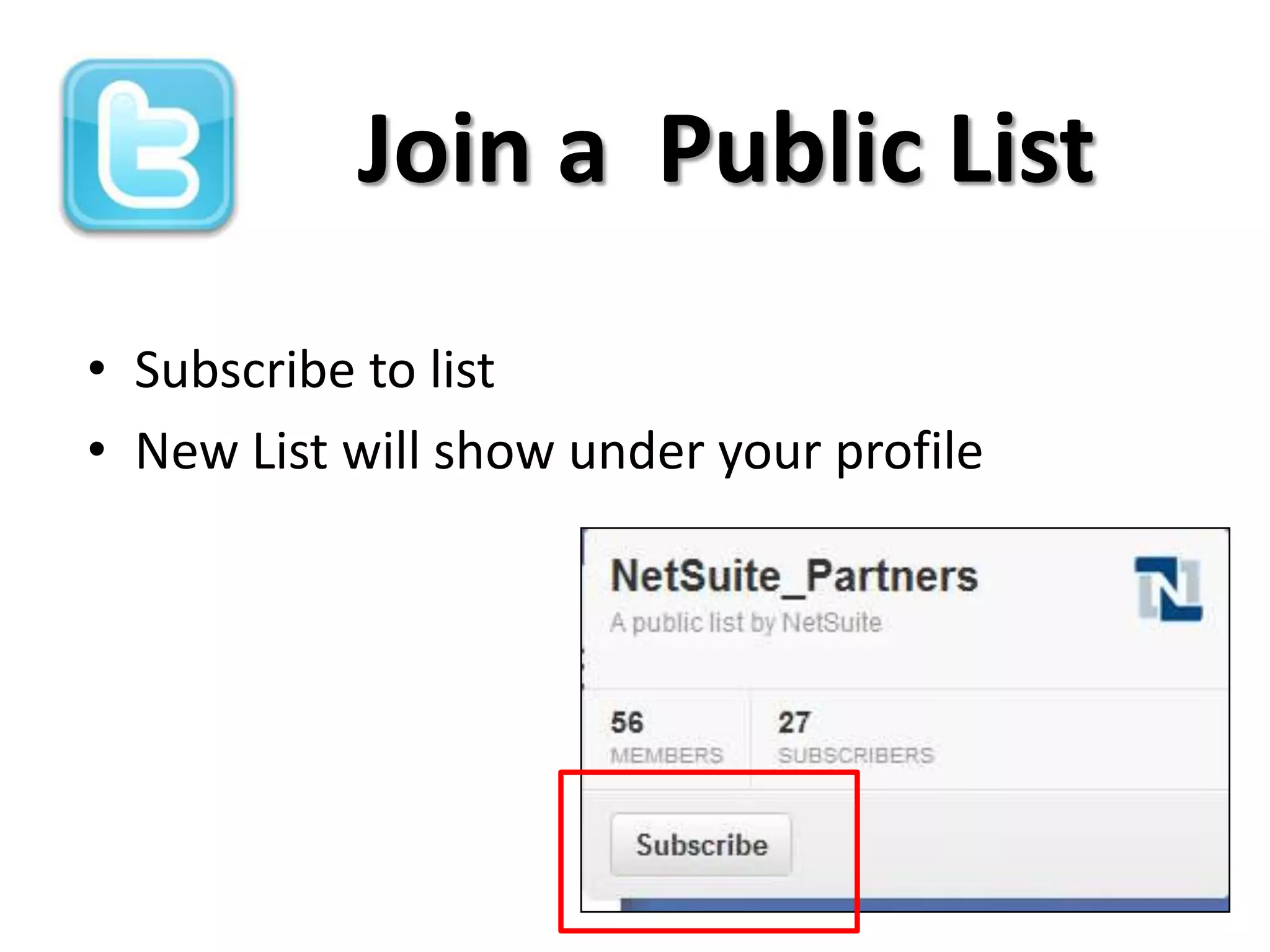
• Subscribe to list
• New List will show under your profile
Removing Yourself
            From a Public List
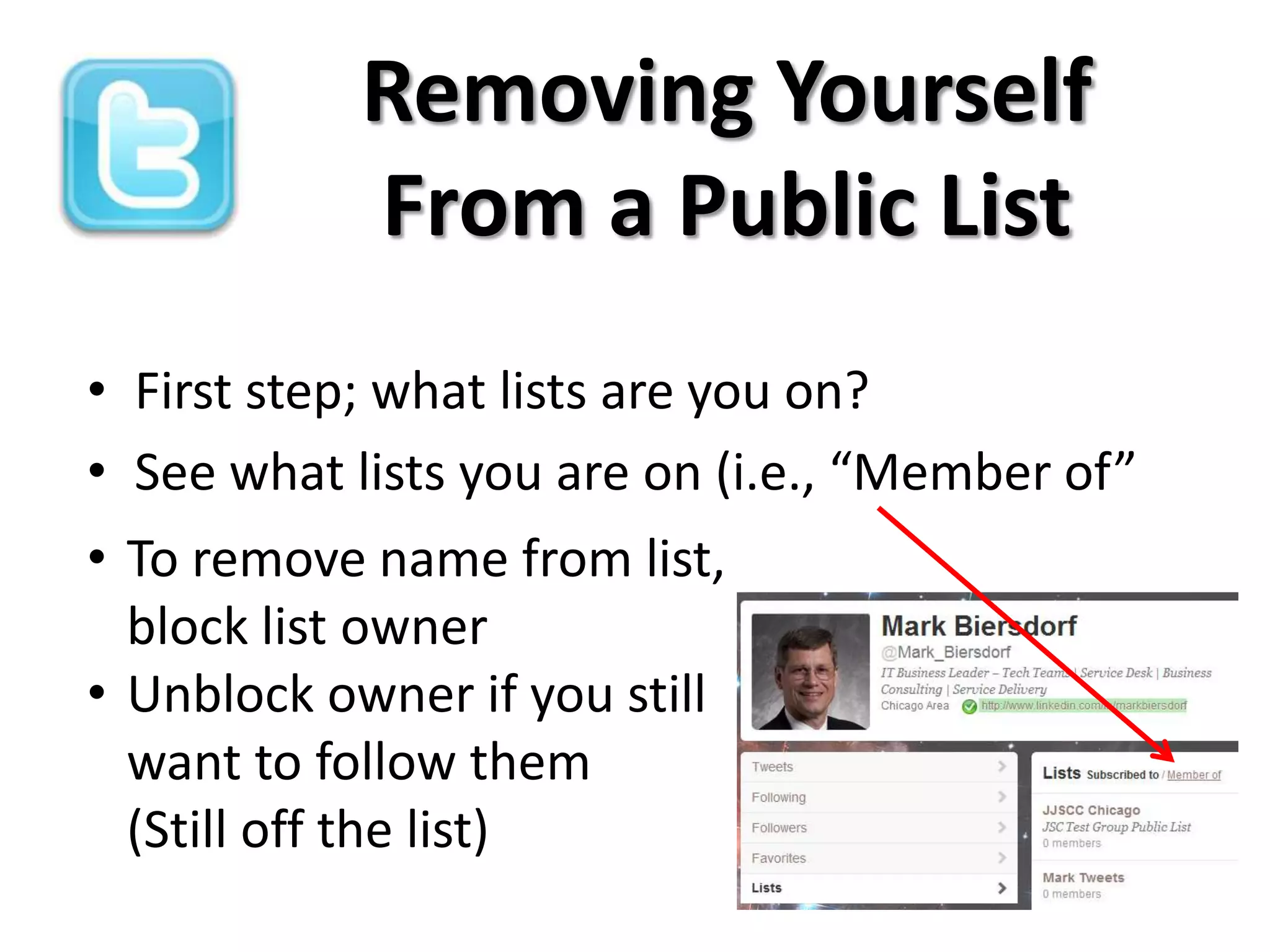
• First step; what lists are you on?
• See what lists you are on (i.e., “Member of”
• To remove name from list,
  block list owner
• Unblock owner if you still
  want to follow them
  (Still off the list)
Public Lists
   Listorious
Subscribe to Public
                     Lists
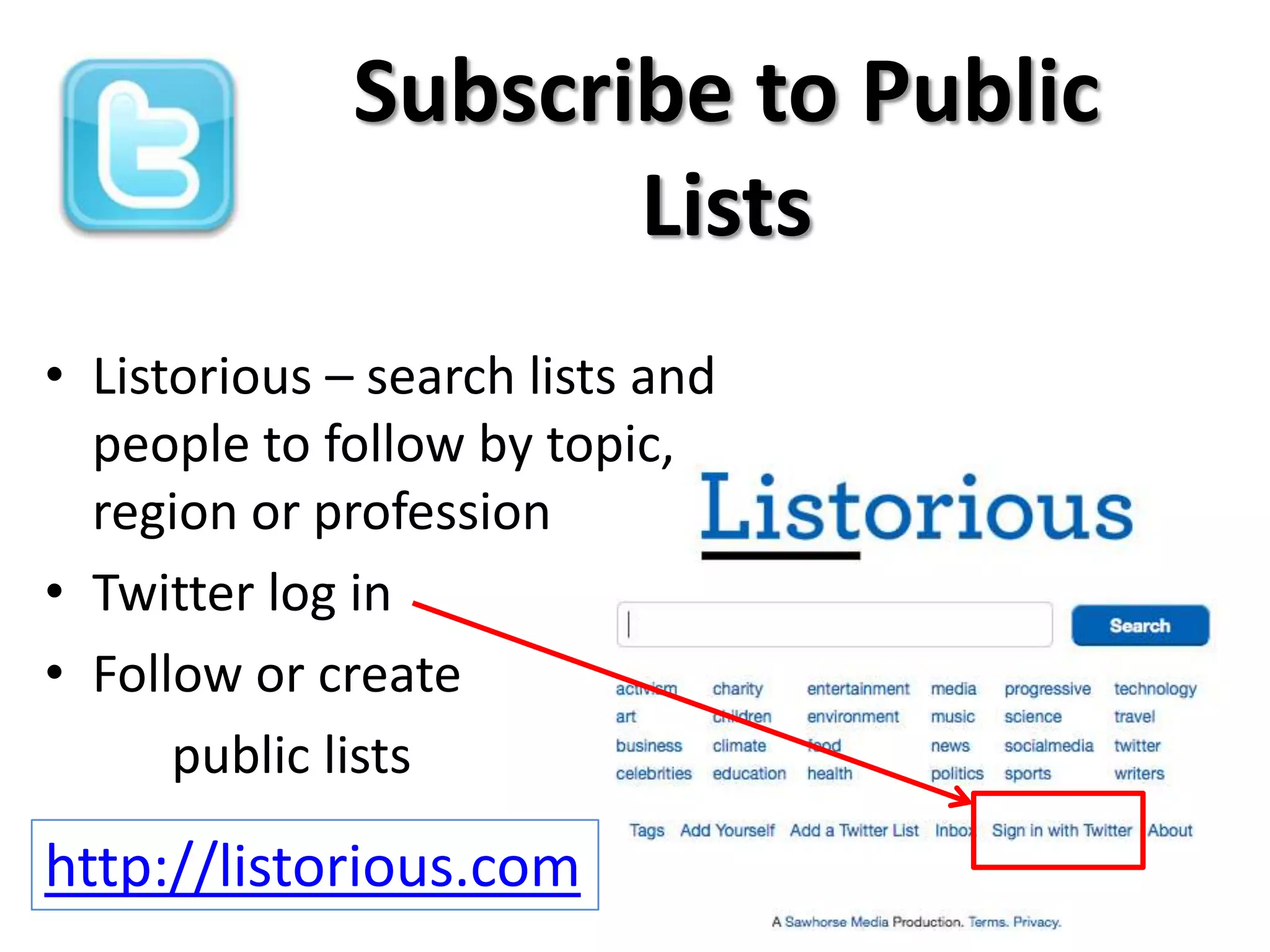
• Listorious – search lists and
  people to follow by topic,
  region or profession
• Twitter log in
• Follow or create
      public lists

http://listorious.com
Listorious
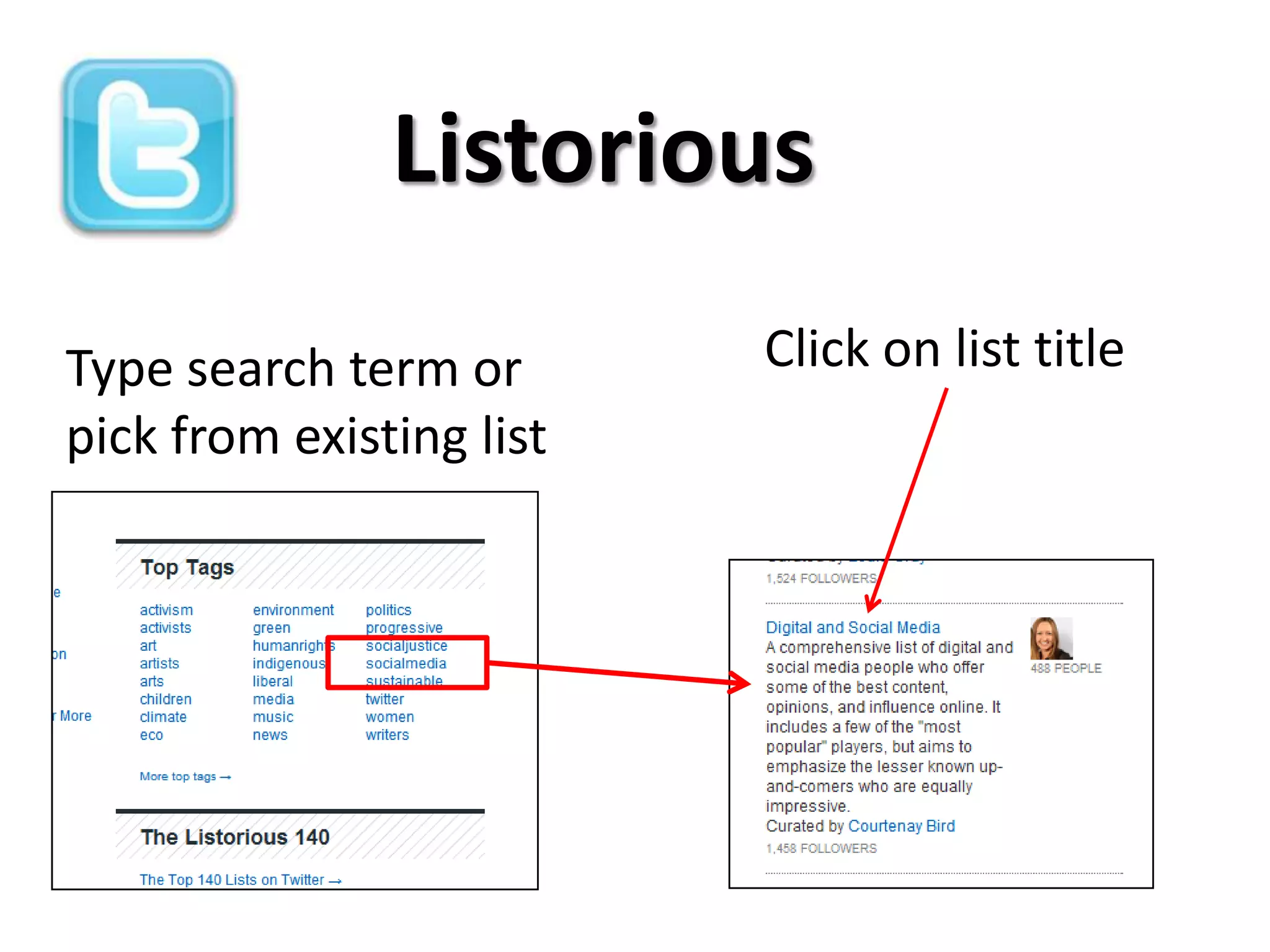
Type search term or       Click on list title
pick from existing list
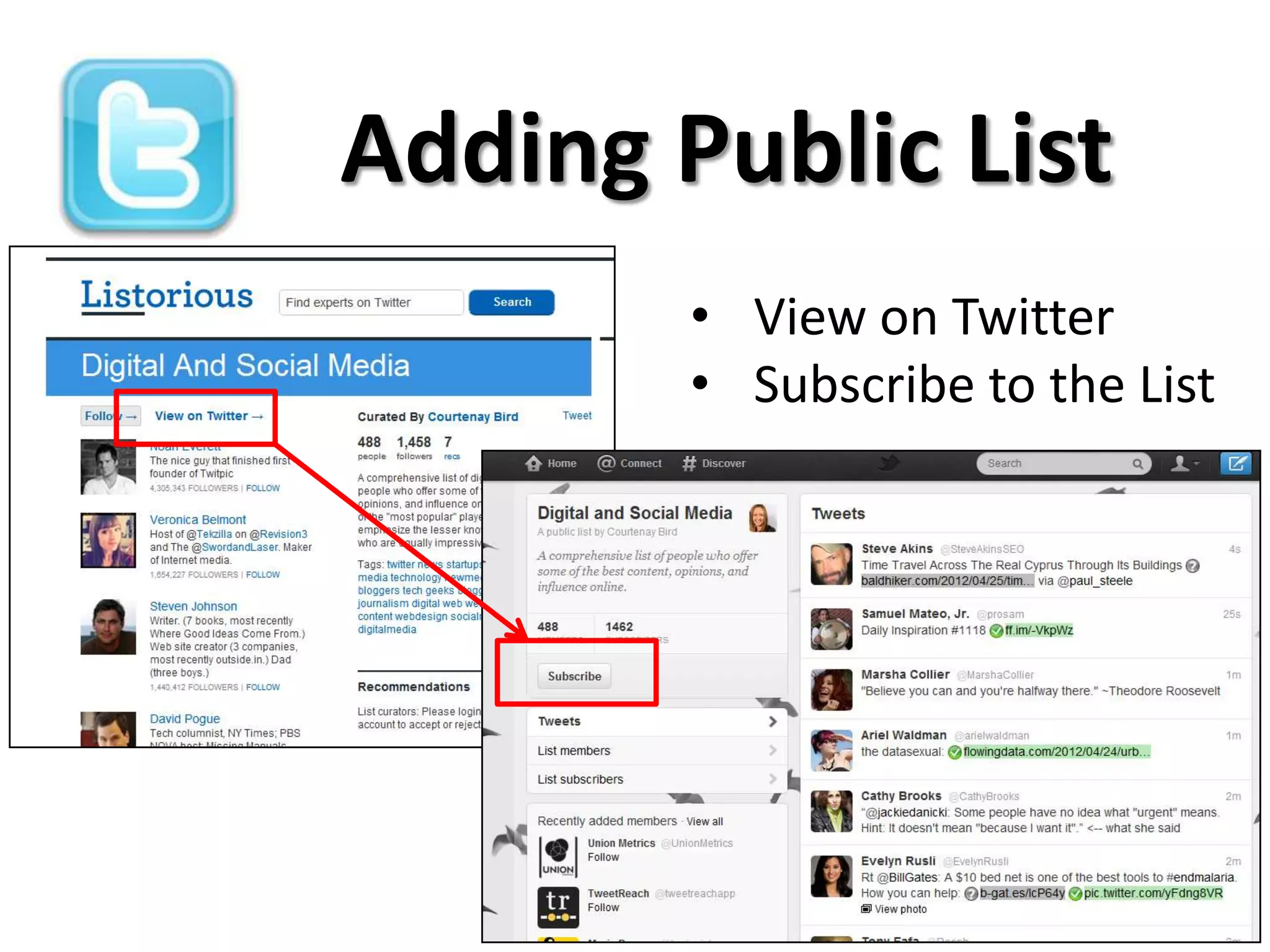
Adding Public List
        • View on Twitter
        • Subscribe to the List
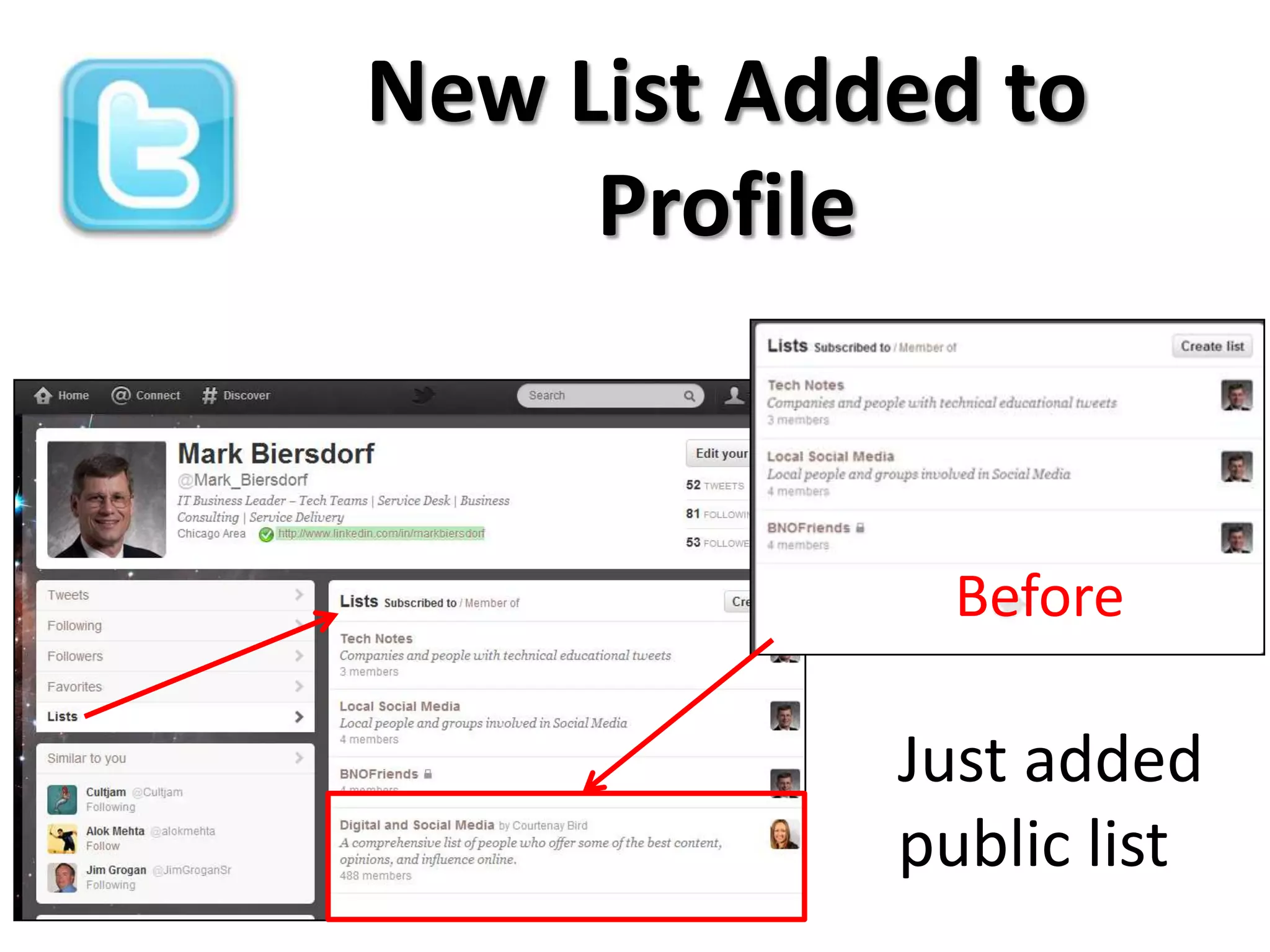
New List Added to
     Profile


              Before

            Just added
            public list
Dashboards:
Managing Tweets and
       Lists
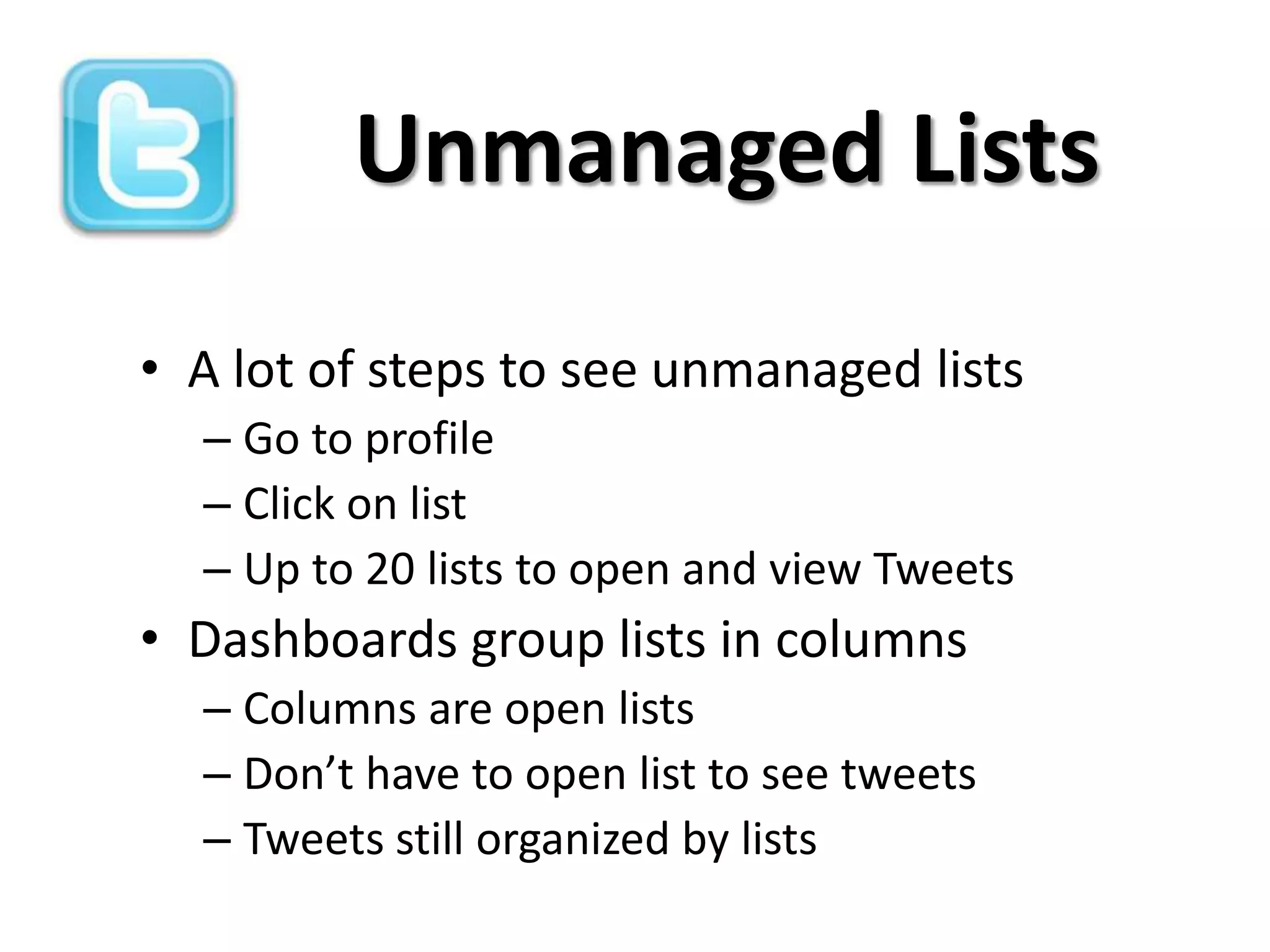
Unmanaged Lists
• A lot of steps to see unmanaged lists
  – Go to profile
  – Click on list
  – Up to 20 lists to open and view Tweets
• Dashboards group lists in columns
  – Columns are open lists
  – Don’t have to open list to see tweets
  – Tweets still organized by lists
Dashboards

•   Dashboard displays your lists in column form
•   Used to manage private or public Twitter lists
•   TweetDeck, HooteSuite, Seesmic, others
•   Top 10 Dashboards - http://bit.ly/Jyp7jb
•   Versions for iPhone, iPad, Windows, Mac
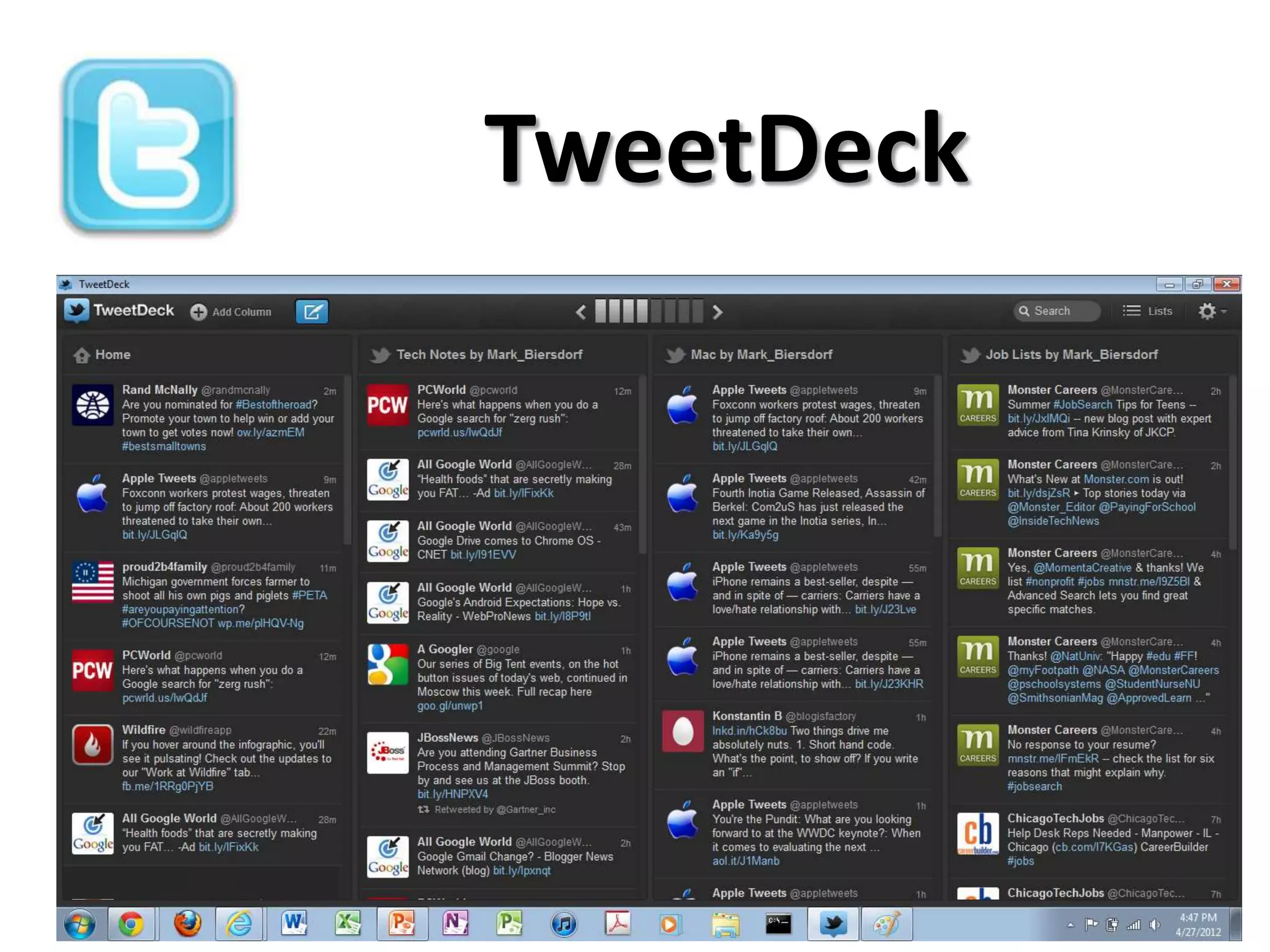
TweetDeck
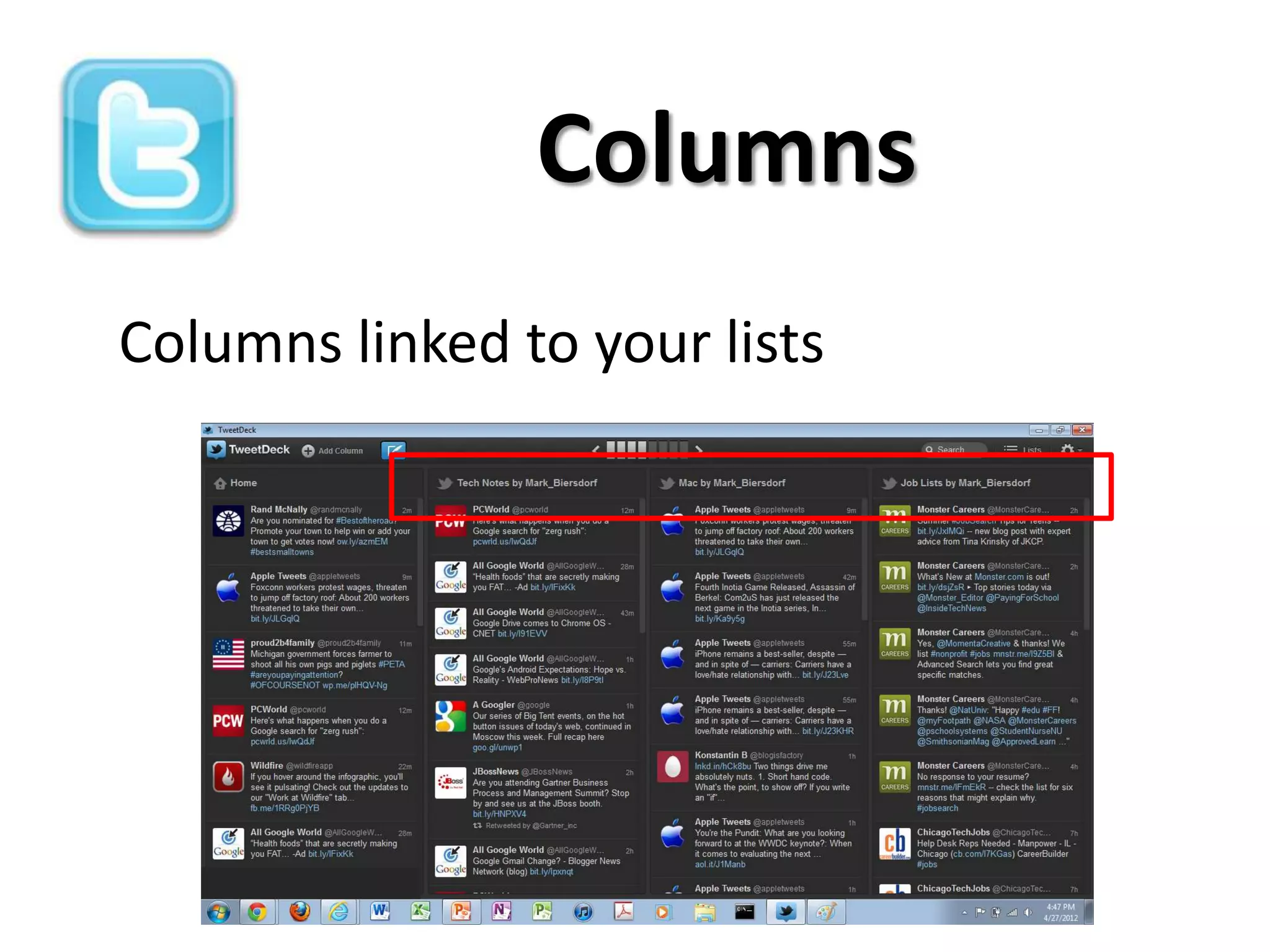
Columns
Columns linked to your lists
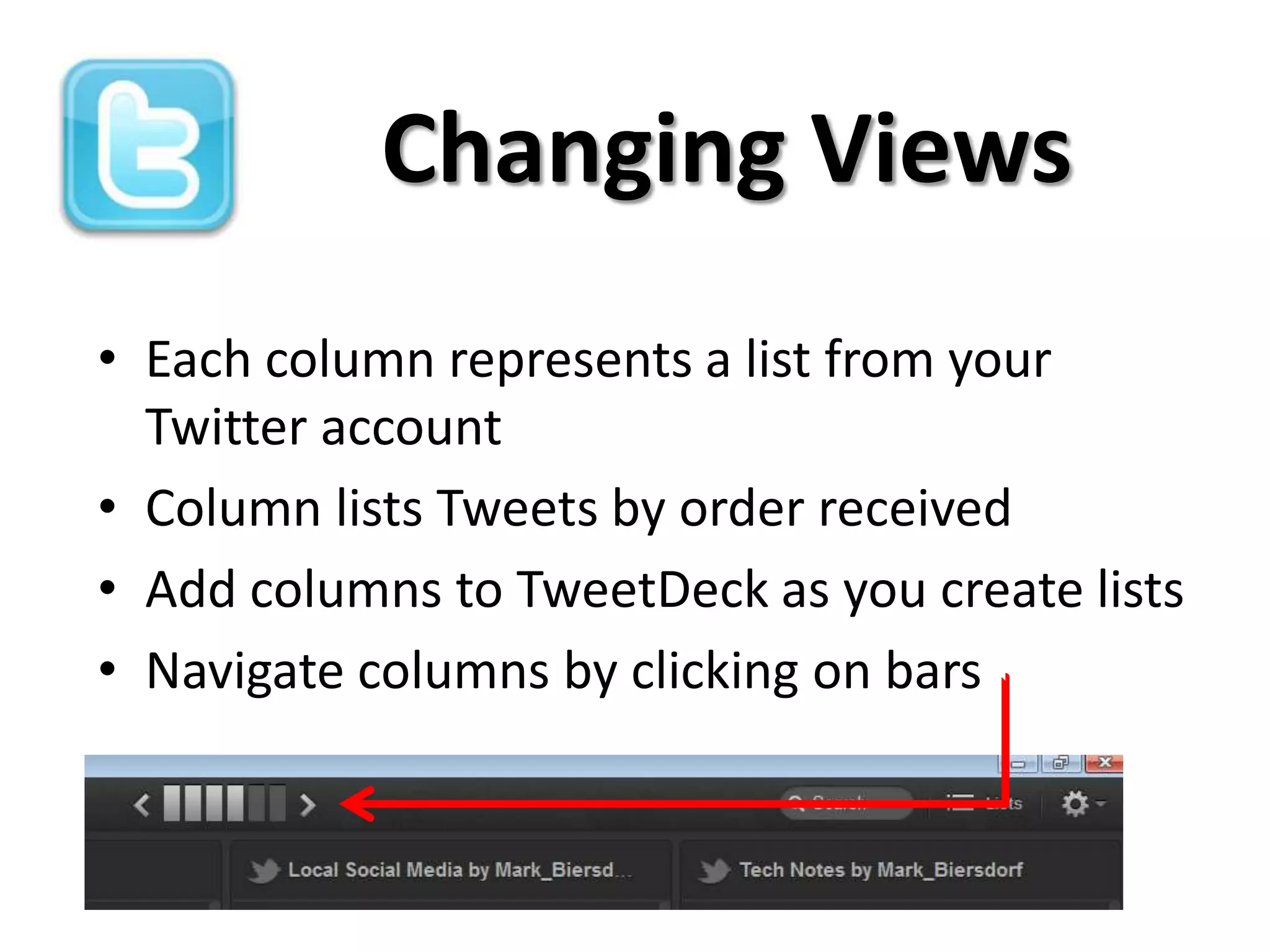
Changing Views
• Each column represents a list from your
  Twitter account
• Column lists Tweets by order received
• Add columns to TweetDeck as you create lists
• Navigate columns by clicking on bars
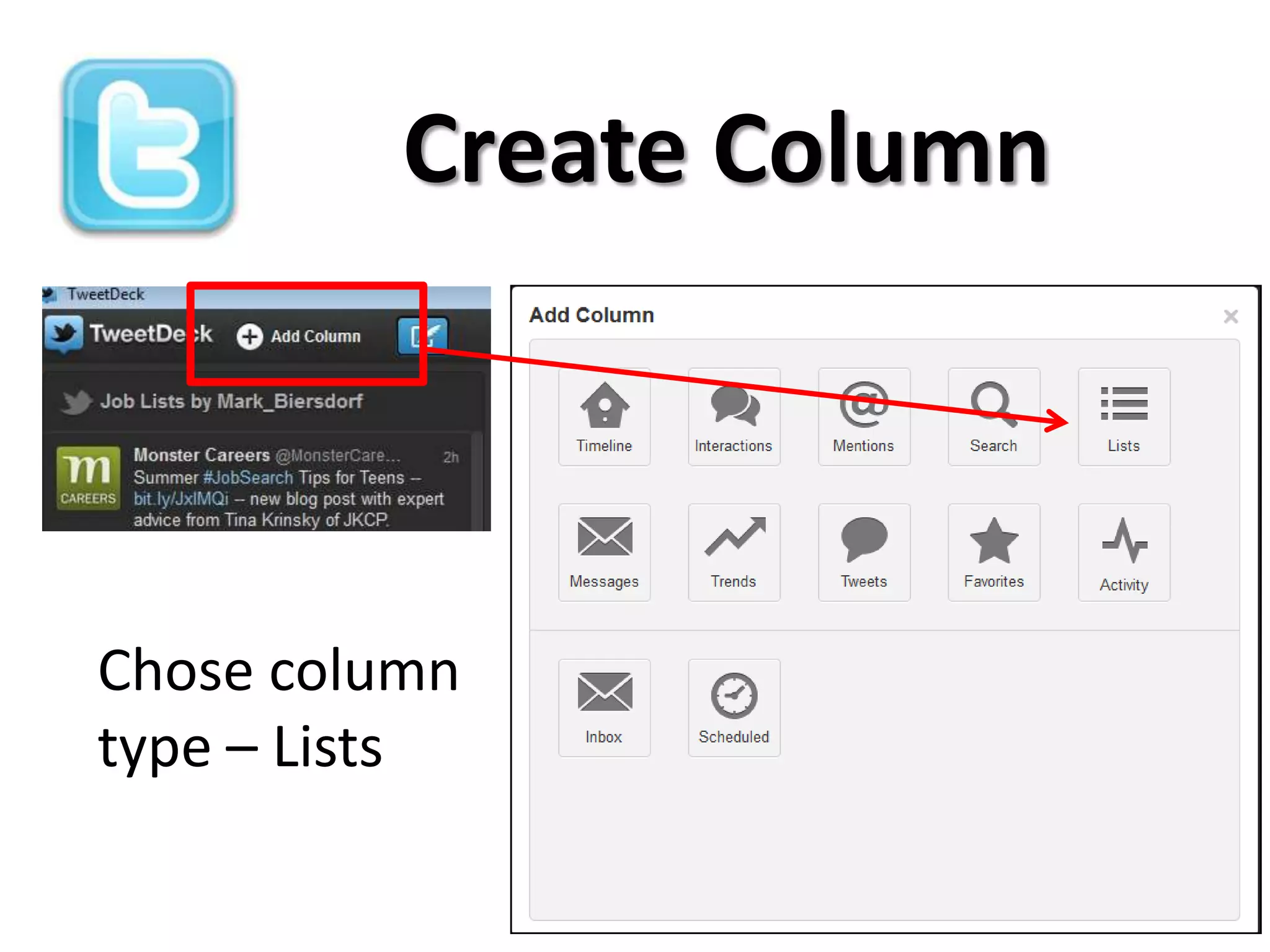
Create Column


Chose column
type – Lists
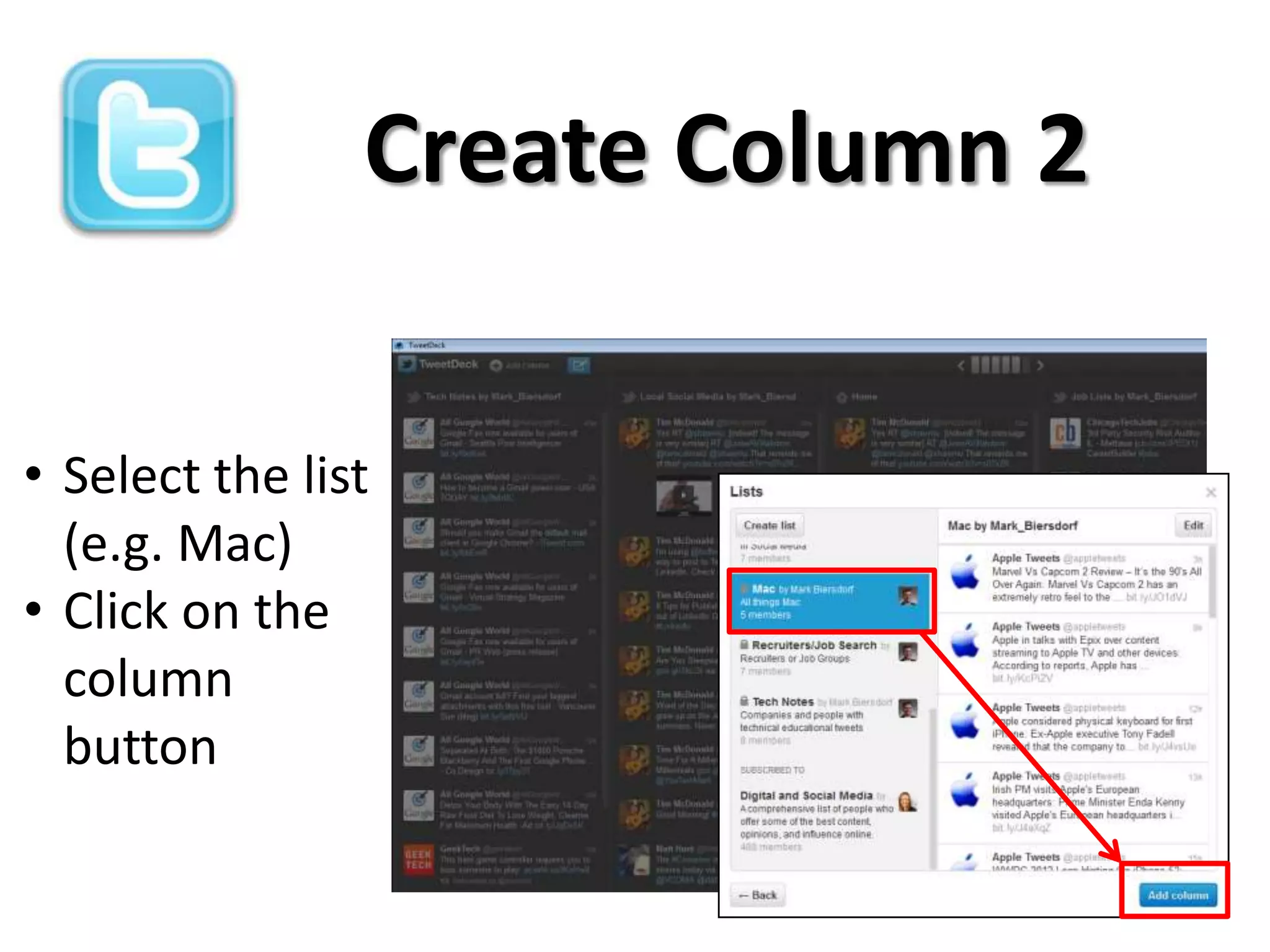
Create Column 2

• Select the list
  (e.g. Mac)
• Click on the
  column
  button
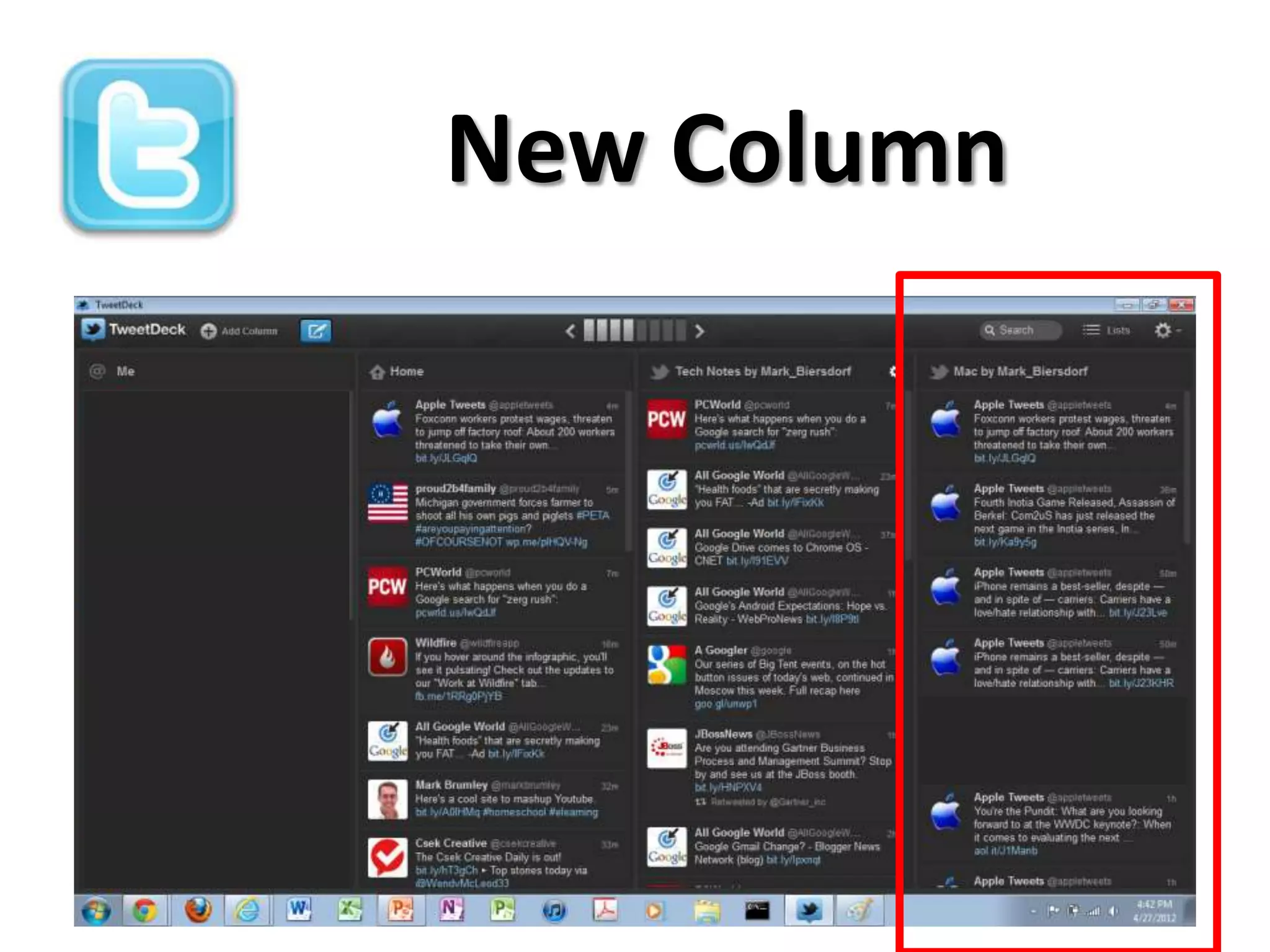
New Column
Additional Resources

•   How to create a List - http://bit.ly/KC3cr8
•   TweetDeck Tutorial - http://bit.ly/IttFYl
•   How to use Listorious - http://bit.ly/JaRrLe
•   Using #hashtags - http://bit.ly/ILhRWc
Conclusion

•   Understand Twitter Elements, experiment
•   Lists organize and display similar Tweets
•   Lists are starting point for Dashboards
•   Dashboards display lists in columns
•   Columns display Tweets w/o opening lists
Questions?

Twitter In-Depth 1

  • 1.
    Social Media: Twitter Twitter In-depth May 9, 2012 Robert Lawrence III @mark_biersdorf For the Intermediate Twitterer
  • 2.
    Why Twitter • Research,learn, stay up to date in your field (e.g., CPA, IT, HR, Medical Devices, etc.) • Follow topics and people of interest • Look for jobs • Be seen; get your brand out • Participate in a community (e.g., Cubs, Sox, CPA, IT, Mac) • Send out important information to others
  • 3.
  • 4.
    How is TwitterLike Email? • Both are communication tools • Tweet like email message • @handle like email address • Sending Tweet like sending message to an email group • Private list like email group • Public list like public group in email
  • 5.
    How is TwitterLike Email? • Both can have addresses in the message • Both can contain text, URLs, pictures • DM like sending email to one person • Both can become unmanageable if not organized
  • 6.
    How is TwitterNot Like Email? • 140 characters in Tweet • Tweets sent to people you don’t know with #hashtags and @handles • @handles, URLs, #hashtags in Tweet body • Don’t delete Tweets
  • 7.
    How is TwitterNot Like Email? • Show brand in Twitter (Profile, Tweets) • Find information in Twitter, including jobs; someone must send them to you in email • Followers and Following • Communities, social aspect • Can link Twitter to Facebook, LinkedIn, etc.
  • 8.
    Twitter Elements and their Application
  • 9.
    Twitter Elements • Profile Information • Handles - @xCubs2016 or @xwhitesox2013 • Hashtags - #socialmedia • URL added to Tweet • Direct Messages (DM) and Retweets (RT) • Lists
  • 10.
    Twitter Profile • Information about you • Connection to LinkedIn, Facebook • Your Brand
  • 11.
    @handles • Unique toevery Twitter user • Use handle to send a Tweet to someone that is not following you • Placed anywhere in Tweet body, acts like a c.c. in email • Click on a handle to show other messages
  • 12.
    Using @handles • Expandaudience beyond followers • Add handles in the body of the Tweet • c.c. contact in Retweet
  • 13.
    Hashtags • Relevant keywords •Placed anywhere in Tweet body • Clicking on a hashtags shows other messages with that keyword • Can be trend topics
  • 14.
  • 15.
    Using # and@ together Click on handles and hashtags to see similar Tweets
  • 16.
    Adding URL toTweet • Share article, information or blog with others • A long URL is shortened in Tweet so it fits
  • 17.
    Direct Messages (DM) • Send a message only to the recipient • Recipient must be a follower • Other followers cannot see • Not listed in Tweet timeline • Two ways to send DM
  • 18.
    Direct Messages #1 •Place “d” in front of the handle • Now it is direct
  • 19.
  • 20.
    Retweets • Send outsomeone else’s Tweets
  • 21.
  • 22.
    Too Much Information So,how do you find the important stuff? Lists!
  • 23.
    What are Lists •Sort Tweets by topics and people for easier viewing • “A curated group of Twitter users” • Two kinds; Private and Public • Create or join lists http://bit.ly/IwI47z
  • 24.
  • 25.
    List Types -Private • You create - 25 characters per list name, 20 lists/account, 500 members/list • Think group of people, you can organize by topic or interest • Separates important information from a storm of Tweets • Only you can view private list
  • 26.
  • 27.
  • 28.
  • 29.
    Adding Twitterer to Your Private List
  • 30.
    List View • Listshows only list member tweets • Easier to find topical tweets
  • 31.
    Changing Lists • Public or Private from Twitter • Click on List to open • Edit or Delete • Can change name, public or private
  • 32.
  • 33.
    About Public Lists •Community of members, share tweets with others that appreciate them • Anyone can find and join • Create your own public list in Twitter • Subscribe to already created public lists • Create or join public list on Listorious
  • 34.
  • 35.
    Create Public List •Pick unique name • Enter appropriate description for public to see • Select Public and save list
  • 36.
    Add Members • Lookup handles to add to public list • New member will be notified
  • 37.
    Join a PublicList from Twitter • Click on follower/following profile • Click on their lists; only Public lists show • Click on the list that you like
  • 38.
    Join a PublicList • Subscribe to list • New List will show under your profile
  • 39.
    Removing Yourself From a Public List • First step; what lists are you on? • See what lists you are on (i.e., “Member of” • To remove name from list, block list owner • Unblock owner if you still want to follow them (Still off the list)
  • 40.
    Public Lists Listorious
  • 41.
    Subscribe to Public Lists • Listorious – search lists and people to follow by topic, region or profession • Twitter log in • Follow or create public lists http://listorious.com
  • 42.
    Listorious Type search termor Click on list title pick from existing list
  • 43.
    Adding Public List • View on Twitter • Subscribe to the List
  • 44.
    New List Addedto Profile Before Just added public list
  • 45.
  • 46.
    Unmanaged Lists • Alot of steps to see unmanaged lists – Go to profile – Click on list – Up to 20 lists to open and view Tweets • Dashboards group lists in columns – Columns are open lists – Don’t have to open list to see tweets – Tweets still organized by lists
  • 47.
    Dashboards • Dashboard displays your lists in column form • Used to manage private or public Twitter lists • TweetDeck, HooteSuite, Seesmic, others • Top 10 Dashboards - http://bit.ly/Jyp7jb • Versions for iPhone, iPad, Windows, Mac
  • 48.
  • 49.
  • 50.
    Changing Views • Eachcolumn represents a list from your Twitter account • Column lists Tweets by order received • Add columns to TweetDeck as you create lists • Navigate columns by clicking on bars
  • 51.
  • 52.
    Create Column 2 •Select the list (e.g. Mac) • Click on the column button
  • 53.
  • 54.
    Additional Resources • How to create a List - http://bit.ly/KC3cr8 • TweetDeck Tutorial - http://bit.ly/IttFYl • How to use Listorious - http://bit.ly/JaRrLe • Using #hashtags - http://bit.ly/ILhRWc
  • 55.
    Conclusion • Understand Twitter Elements, experiment • Lists organize and display similar Tweets • Lists are starting point for Dashboards • Dashboards display lists in columns • Columns display Tweets w/o opening lists
  • 56.