Tip 1 Protect your Privacy
LinkedIn has changed its rules.
LinkedIn now has the right to use your name
and photo in social advertising -without any
warning.
Unless you opt out. Here’s how
Step 1
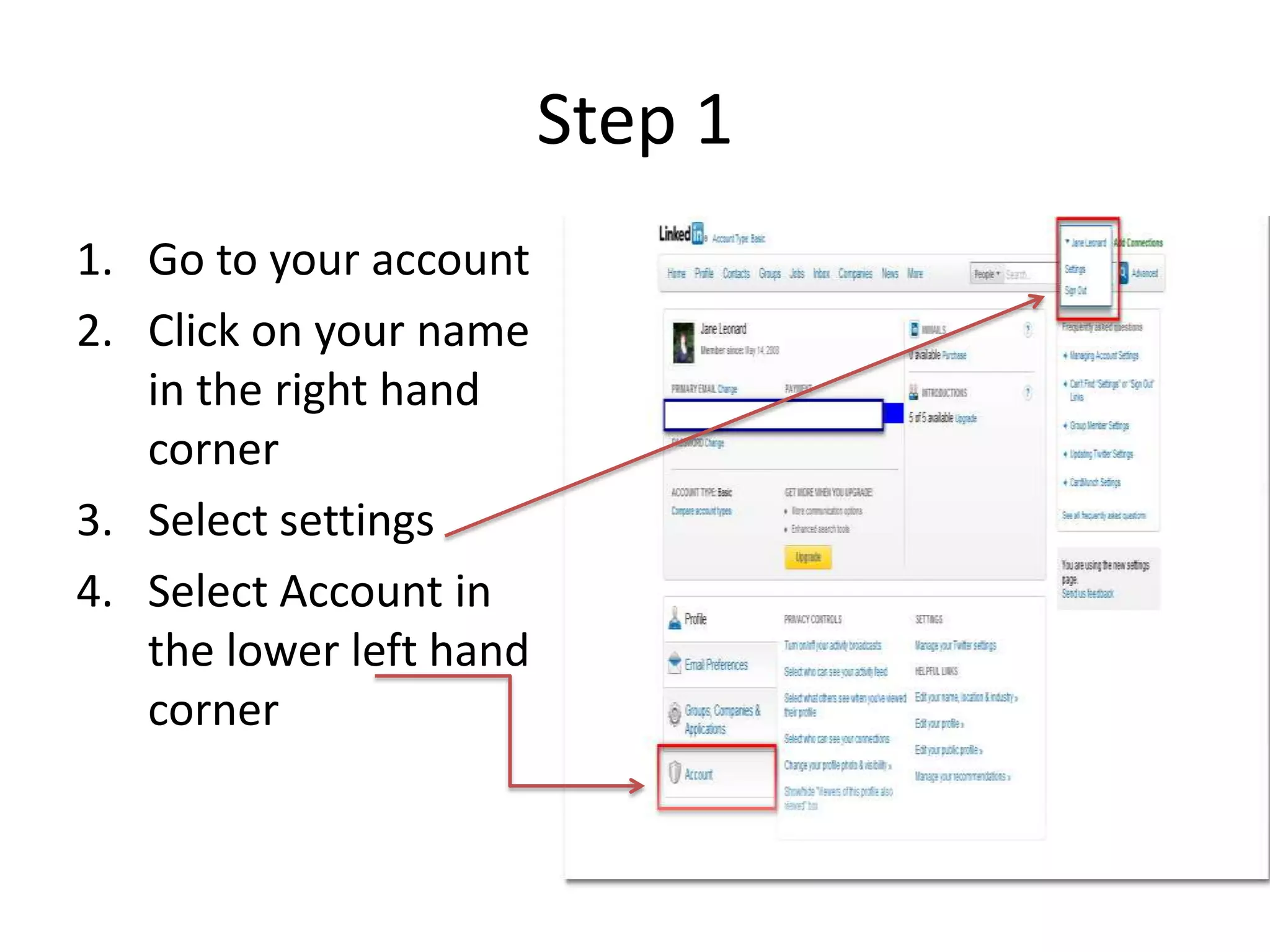
1. Go to your account
2. Click on your name
   in the right hand
   corner
3. Select settings
4. Select Account in
   the lower left hand
   corner
Step 2
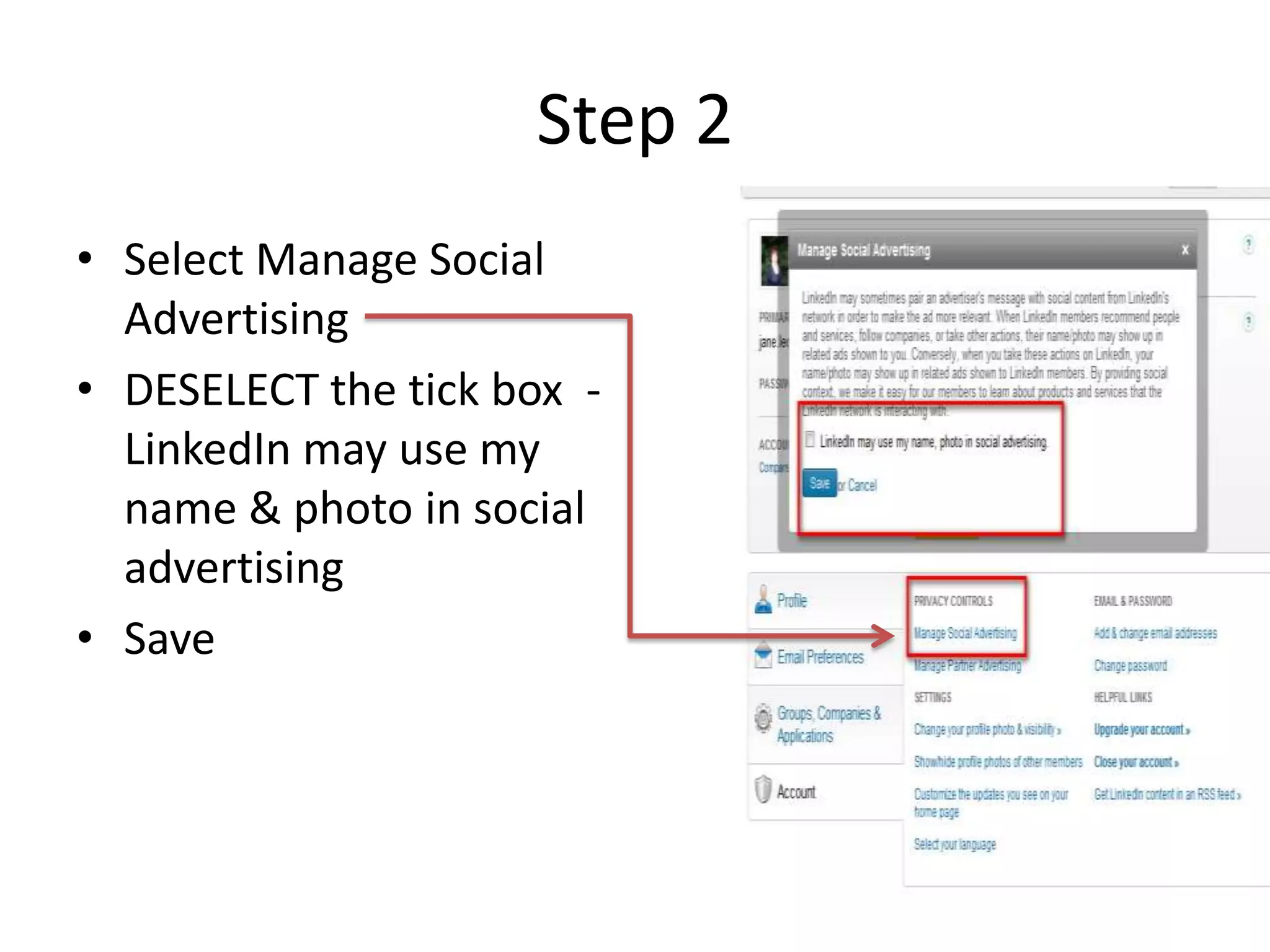
• Select Manage Social
  Advertising
• DESELECT the tick box -
  LinkedIn may use my
  name & photo in social
  advertising
• Save
Tip 2 Don’t Spam Your Network
• When you make changes to your profile, all the
  members in your network receive an update.
• Turn off this setting when you are refreshing your
  profile or experimenting with different phrases or
  key words.
• When you temporarily turn off your Broadcast
  settings, you make your changes and only
  update your network when you are ready to
  reveal the finished product.
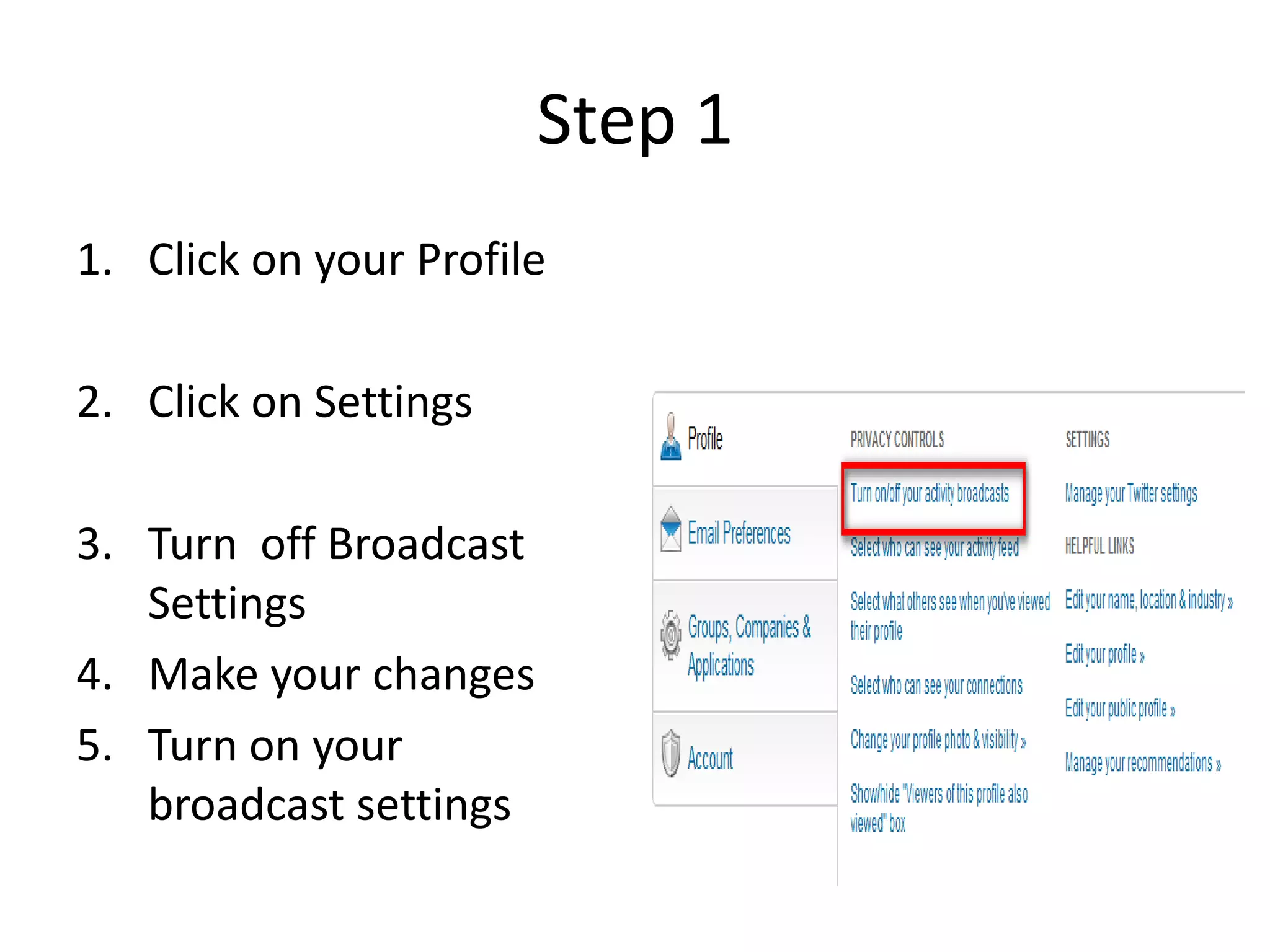
Step 1
1. Click on your Profile

2. Click on Settings

3. Turn off Broadcast
   Settings
4. Make your changes
5. Turn on your
   broadcast settings
Tip 3 Don’t Hide- Use Keywords
• Use keywords in the headline and also in your
  summary, specialties and job titles. That helps
  people find you in searches
• A keyword is a term relevant for your industry
  or sector
• During your job search change keywords to
  emphasise different strengths
Tip 4 Customize your public profile URL

• Change your personal URL from the
  gobbledygook LinkedIn uses and you will look
  like a LinkedIn pro
• People who still use the default URL mark
  themselves out as novices.
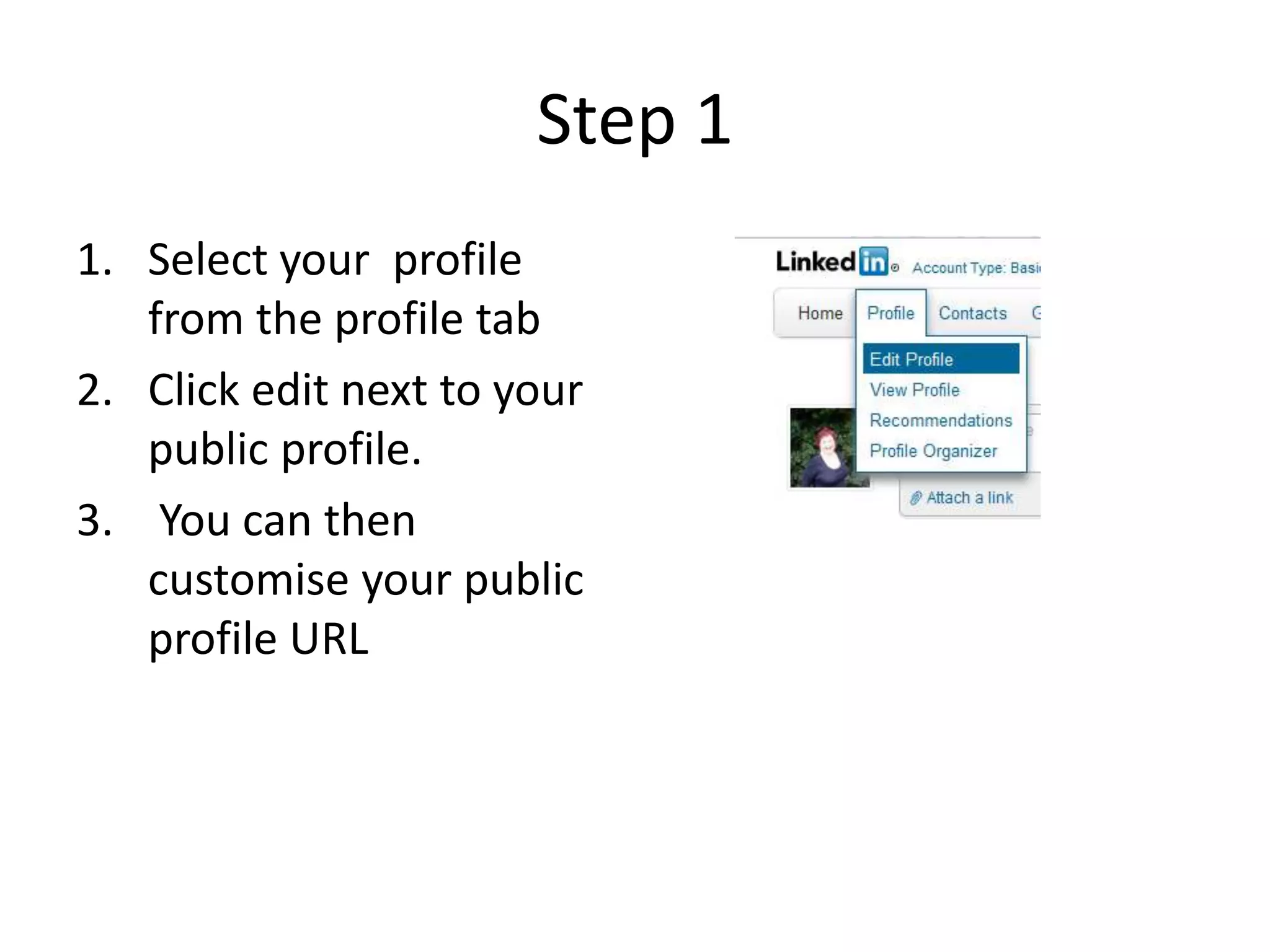
Step 1
1. Select your profile
   from the profile tab
2. Click edit next to your
   public profile.
3. You can then
   customise your public
   profile URL
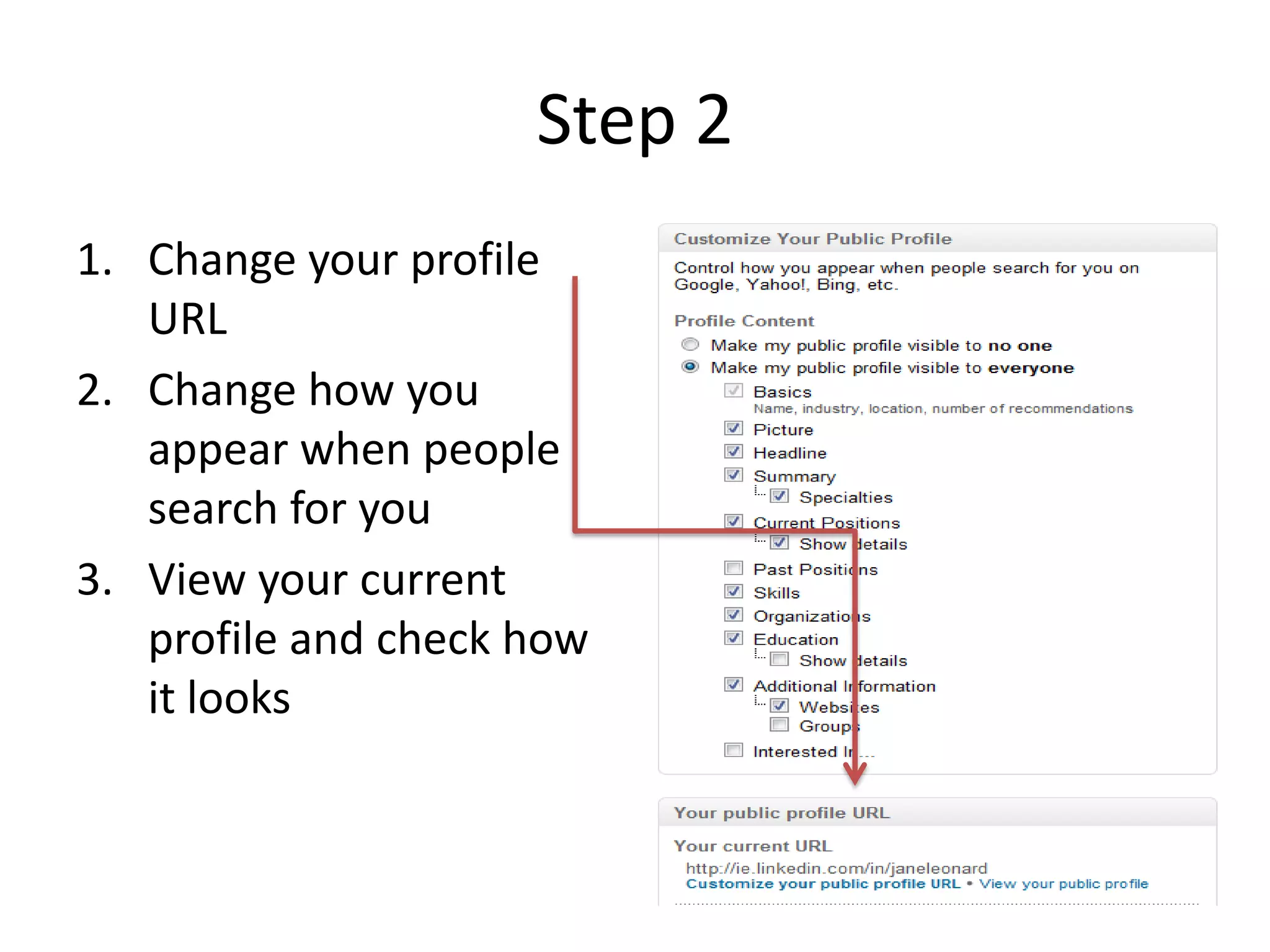
Step 2
1. Change your profile
   URL
2. Change how you
   appear when people
   search for you
3. View your current
   profile and check how
   it looks
Tip 5 Customise Your Website Listing

• When you list your websites, do not leave the
  default “Company Website” as the
  hyperlinked text
• Choose “other” and write the name or your
  website
• Your company name is a keyword can help
  people find you
• This also makes you look more professional
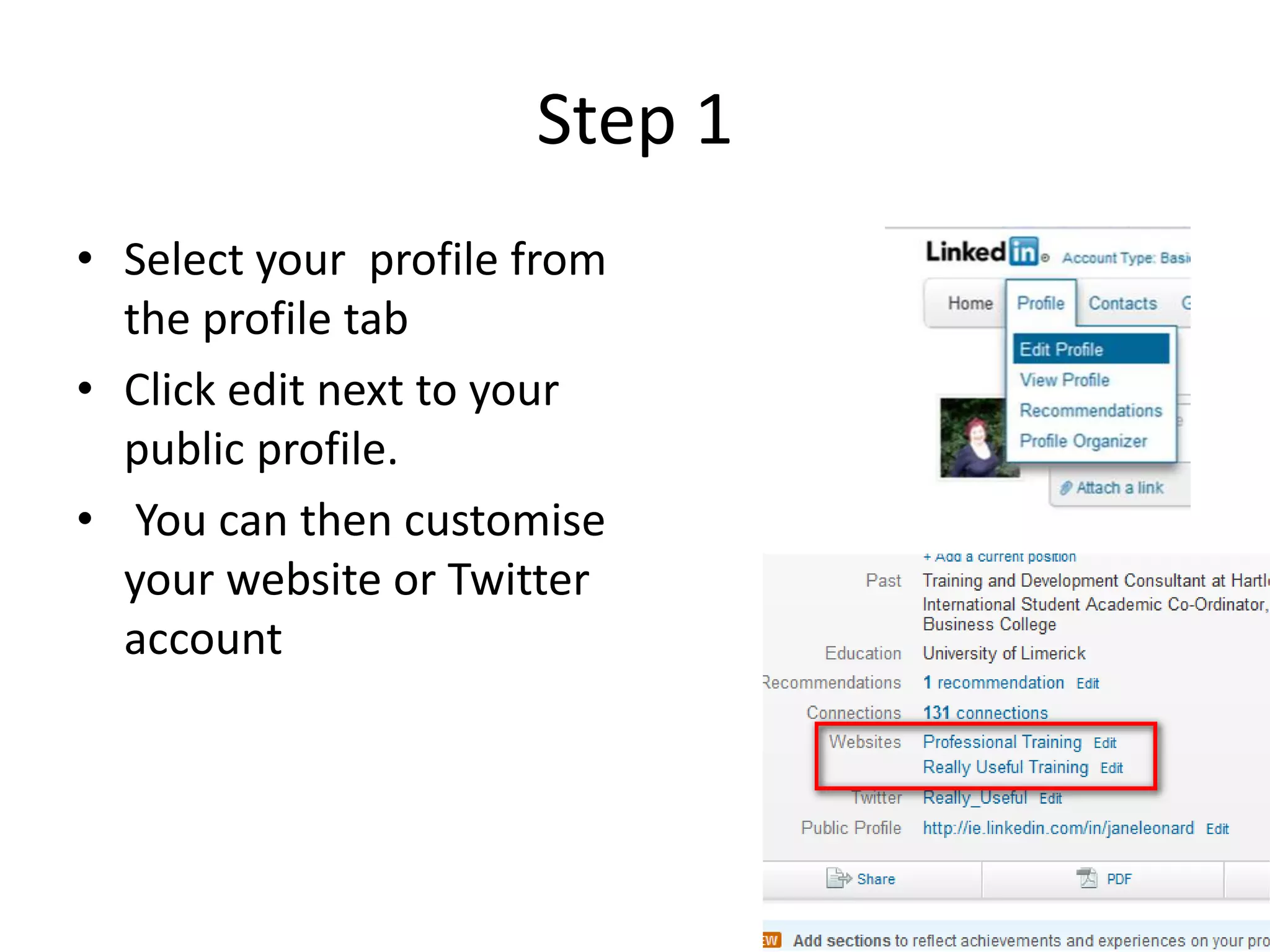
Step 1
• Select your profile from
  the profile tab
• Click edit next to your
  public profile.
• You can then customise
  your website or Twitter
  account
Contact us
               Jane Leonard
              @really_useful
Jane@reallyusefultraininganddevelopment.ie

5 linked in tips

  • 2.
    Tip 1 Protectyour Privacy LinkedIn has changed its rules. LinkedIn now has the right to use your name and photo in social advertising -without any warning. Unless you opt out. Here’s how
  • 3.
    Step 1 1. Goto your account 2. Click on your name in the right hand corner 3. Select settings 4. Select Account in the lower left hand corner
  • 4.
    Step 2 • SelectManage Social Advertising • DESELECT the tick box - LinkedIn may use my name & photo in social advertising • Save
  • 5.
    Tip 2 Don’tSpam Your Network • When you make changes to your profile, all the members in your network receive an update. • Turn off this setting when you are refreshing your profile or experimenting with different phrases or key words. • When you temporarily turn off your Broadcast settings, you make your changes and only update your network when you are ready to reveal the finished product.
  • 6.
    Step 1 1. Clickon your Profile 2. Click on Settings 3. Turn off Broadcast Settings 4. Make your changes 5. Turn on your broadcast settings
  • 7.
    Tip 3 Don’tHide- Use Keywords • Use keywords in the headline and also in your summary, specialties and job titles. That helps people find you in searches • A keyword is a term relevant for your industry or sector • During your job search change keywords to emphasise different strengths
  • 8.
    Tip 4 Customizeyour public profile URL • Change your personal URL from the gobbledygook LinkedIn uses and you will look like a LinkedIn pro • People who still use the default URL mark themselves out as novices.
  • 9.
    Step 1 1. Selectyour profile from the profile tab 2. Click edit next to your public profile. 3. You can then customise your public profile URL
  • 10.
    Step 2 1. Changeyour profile URL 2. Change how you appear when people search for you 3. View your current profile and check how it looks
  • 11.
    Tip 5 CustomiseYour Website Listing • When you list your websites, do not leave the default “Company Website” as the hyperlinked text • Choose “other” and write the name or your website • Your company name is a keyword can help people find you • This also makes you look more professional
  • 12.
    Step 1 • Selectyour profile from the profile tab • Click edit next to your public profile. • You can then customise your website or Twitter account
  • 13.
    Contact us Jane Leonard @really_useful Jane@reallyusefultraininganddevelopment.ie