Import Content
  from a Text
   Document
Document Preparation
1. You can import text data from any word processor, but before you
   copy-paste the text from your document to Quizlet, you’ll need to
   make sure that your list is formatted correctly:
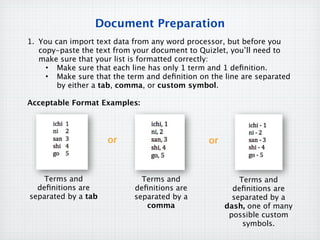
     • Make sure that each line has only 1 term and 1 definition.
     • Make sure that the term and definition on the line are separated
        by either a tab, comma, or custom symbol.

Acceptable Format Examples:


                     or                         or


    Terms and                 Terms and                  Terms and
  definitions are            definitions are             definitions are
separated by a tab          separated by a             separated by a
                               comma                 dash, one of many
                                                      possible custom
                                                          symbols.
Creating a Quizlet Set from Data Import


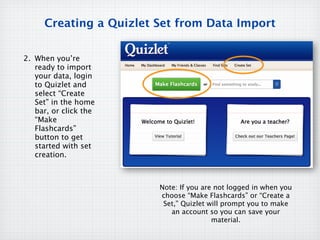
2. When you’re
   ready to import
   your data, login
   to Quizlet and
   select “Create
   Set” in the home
   bar, or click the
   “Make
   Flashcards”
   button to get
   started with set
   creation.


                        Note: If you are not logged in when you
                        choose “Make Flashcards” or “Create a
                         Set,” Quizlet will prompt you to make
                           an account so you can save your
                                        material.
Setting Up to Import

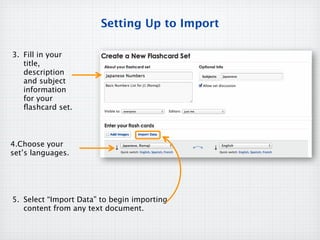
3. Fill in your
   title,
   description
   and subject
   information
   for your
   flashcard set.


4.Choose your
set’s languages.


5. Select “Import Data” to begin importing
   content from any text document.
Importing Data into Quizlet
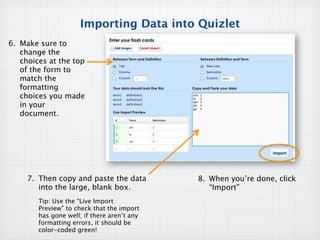
6. Make sure to
   change the
   choices at the top
   of the form to
   match the
   formatting
   choices you made
   in your
   document.


     7. Then copy and paste the data         8. When you’re done, click
        into the large, blank box.              “Import”
        Tip: Use the “Live Import
        Preview” to check that the import
        has gone well; if there aren’t any
        formatting errors, it should be
        color-coded green!
Publishing a Set
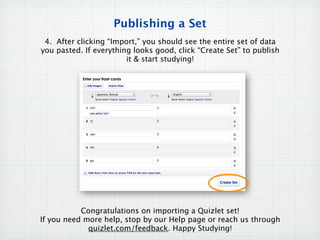
 4. After clicking “Import,” you should see the entire set of data
you pasted. If everything looks good, click “Create Set” to publish
                        it & start studying!


           Congratulations on importing a Quizlet set!
If you need more help, stop by our Help page or reach us through
             quizlet.com/feedback. Happy Studying!

Quizlet.import doc

  • 1.
    Import Content from a Text Document
  • 2.
    Document Preparation 1. Youcan import text data from any word processor, but before you copy-paste the text from your document to Quizlet, you’ll need to make sure that your list is formatted correctly: • Make sure that each line has only 1 term and 1 definition. • Make sure that the term and definition on the line are separated by either a tab, comma, or custom symbol. Acceptable Format Examples: or or Terms and Terms and Terms and definitions are definitions are definitions are separated by a tab separated by a separated by a comma dash, one of many possible custom symbols.
  • 3.
    Creating a QuizletSet from Data Import 2. When you’re ready to import your data, login to Quizlet and select “Create Set” in the home bar, or click the “Make Flashcards” button to get started with set creation. Note: If you are not logged in when you choose “Make Flashcards” or “Create a Set,” Quizlet will prompt you to make an account so you can save your material.
  • 4.
    Setting Up toImport 3. Fill in your title, description and subject information for your flashcard set. 4.Choose your set’s languages. 5. Select “Import Data” to begin importing content from any text document.
  • 5.
    Importing Data intoQuizlet 6. Make sure to change the choices at the top of the form to match the formatting choices you made in your document. 7. Then copy and paste the data 8. When you’re done, click into the large, blank box. “Import” Tip: Use the “Live Import Preview” to check that the import has gone well; if there aren’t any formatting errors, it should be color-coded green!
  • 6.
    Publishing a Set 4. After clicking “Import,” you should see the entire set of data you pasted. If everything looks good, click “Create Set” to publish it & start studying! Congratulations on importing a Quizlet set! If you need more help, stop by our Help page or reach us through quizlet.com/feedback. Happy Studying!