Integrated Business Projects 
Part 1 Marketing and Communications 
Project 2 
Creating Personnel Documents 
Press Esc to Exit 
©2011 Cengage Learning. All Rights Reserved. May not be scanned, copied or duplicated, or posted to a publicly accessible website, in whole or in part.
Project 2 Objectives 
• Create an organization chart 
• Prepare documents using tabs, rotated 
text, special characters, Quick Parts, 
and outline numbered lists 
• Sort items in a list 
• Prepare forms 
• Write a report using research findings 
Press Esc to Exit 
©2011 Cengage Learning. All Rights Reserved. May not be scanned, copied or duplicated, or posted to a publicly accessible website, in whole or in part. 
2
Project 2 Jobs 
• Job 2-1: Create Organization Chart 
• Job 2-2: Prepare Job Descriptions 
• Job 2-3: Create Name Cards 
• Job 2-4: Prepare Information Sheet 
• Job 2-5: Continue Work on Manual 
• Job 2-6: Prepare Guide Information 
• Job 2-7: Research Topics Related to 
Rafting 
Press Esc to Exit 
©2011 Cengage Learning. All Rights Reserved. May not be scanned, copied or duplicated, or posted to a publicly accessible website, in whole or in part. 
3
Job 2-1: Create Organization 
Chart 
• Modifying page margins and page 
orientation 
• Creating and modifying charts 
• Creating and inserting graphics in 
documents 
Press Esc to Exit 
©2011 Cengage Learning. All Rights Reserved. May not be scanned, copied or duplicated, or posted to a publicly accessible website, in whole or in part. 
4 
Jobs 
List
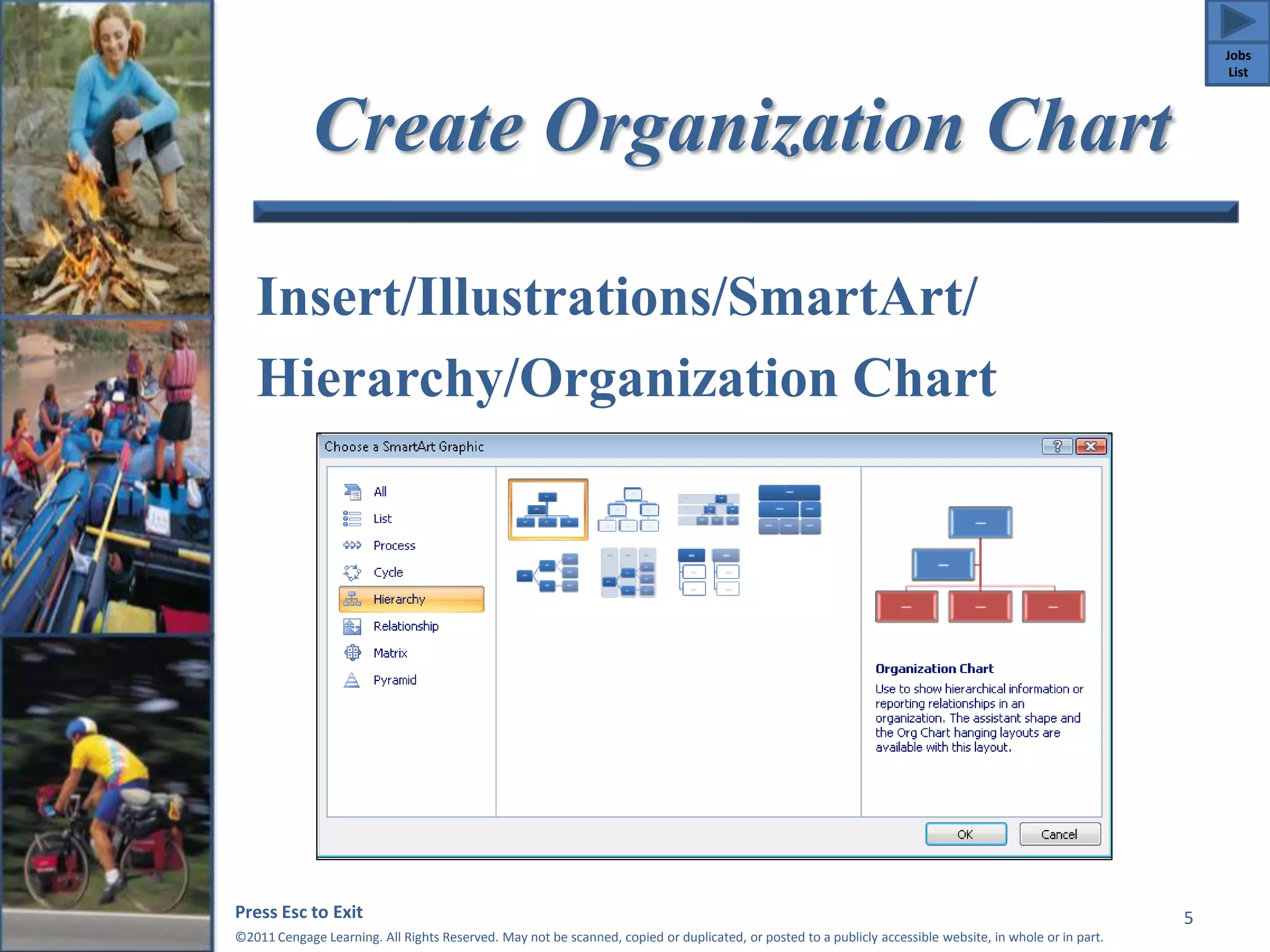
Create Organization Chart 
Insert/Illustrations/SmartArt/ 
Hierarchy/Organization Chart 
Press Esc to Exit 
©2011 Cengage Learning. All Rights Reserved. May not be scanned, copied or duplicated, or posted to a publicly accessible website, in whole or in part. 
5 
Jobs 
List
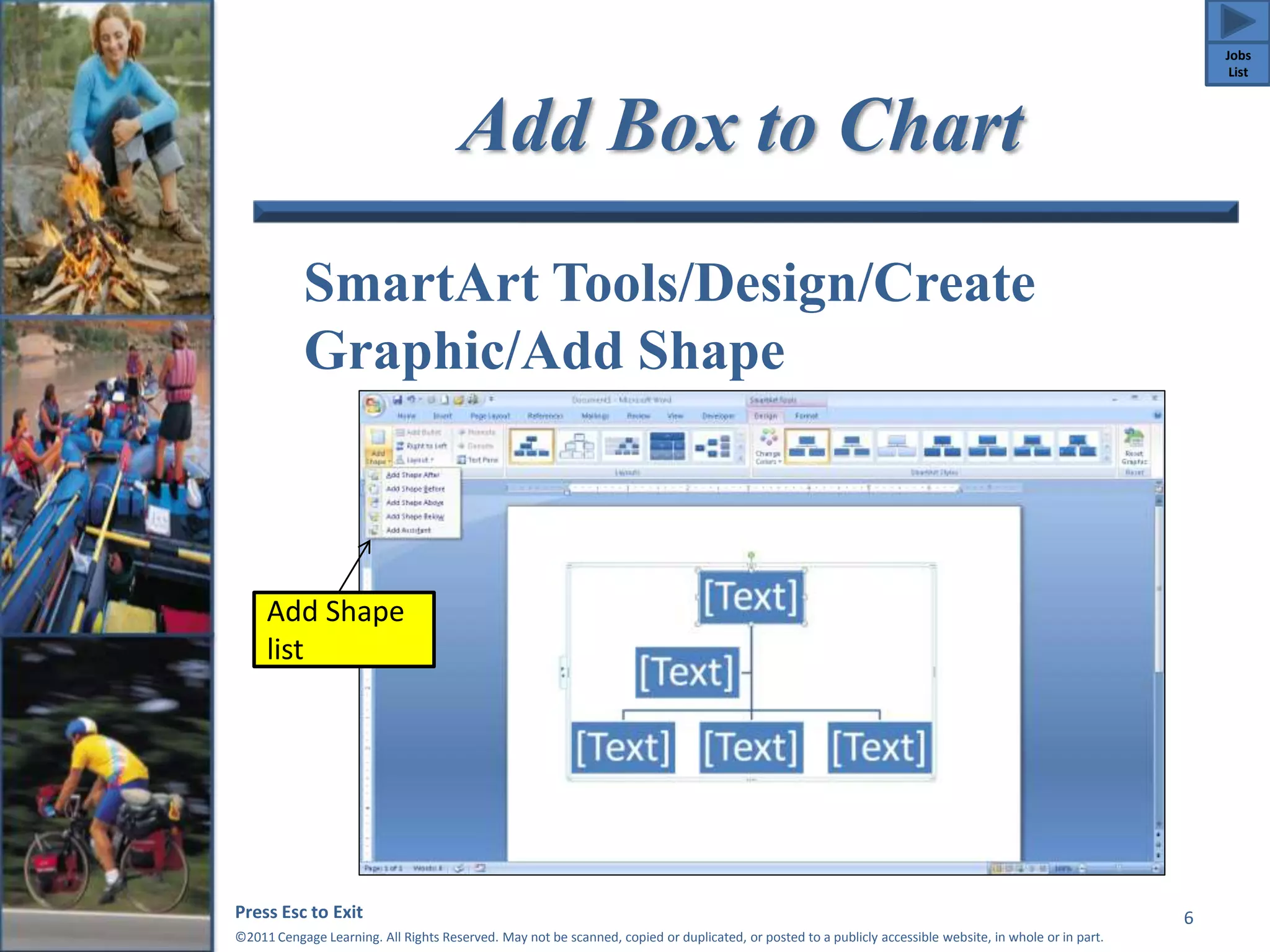
Add Box to Chart 
SmartArt Tools/Design/Create 
Graphic/Add Shape 
Press Esc to Exit 
©2011 Cengage Learning. All Rights Reserved. May not be scanned, copied or duplicated, or posted to a publicly accessible website, in whole or in part. 
6 
Add Shape 
list 
Jobs 
List
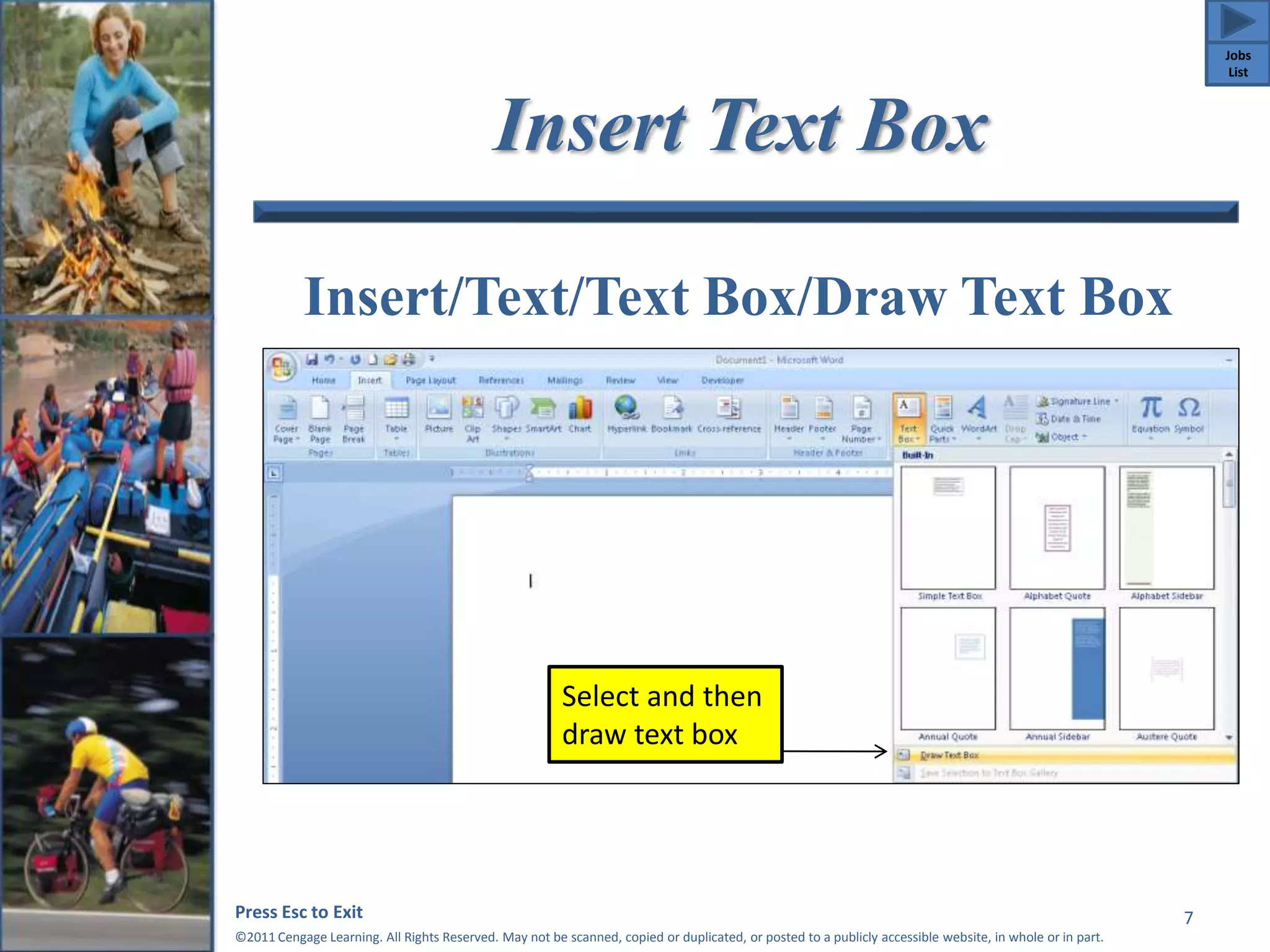
Insert Text Box 
Insert/Text/Text Box/Draw Text Box 
Press Esc to Exit 
©2011 Cengage Learning. All Rights Reserved. May not be scanned, copied or duplicated, or posted to a publicly accessible website, in whole or in part. 
7 
Select and then 
draw text box 
Jobs 
List
Format Text Box 
Word 2007 
• Click the Text 
Box 
Tools/Format 
tab. 
• Select options 
from the Text 
Box Styles 
group. 
Word 2010 
• Click the 
Drawing 
Tools/Format 
tab. 
• Select options 
from the Shape 
Styles group. 
Press Esc to Exit 
©2011 Cengage Learning. All Rights Reserved. May not be scanned, copied or duplicated, or posted to a publicly accessible website, in whole or in part. 
8 
Jobs 
List
Job 2-2: Prepare Job Description 
• Creating numbered lists 
• Creating multilevel outlines 
Press Esc to Exit 
©2011 Cengage Learning. All Rights Reserved. May not be scanned, copied or duplicated, or posted to a publicly accessible website, in whole or in part. 
9 
Jobs 
List
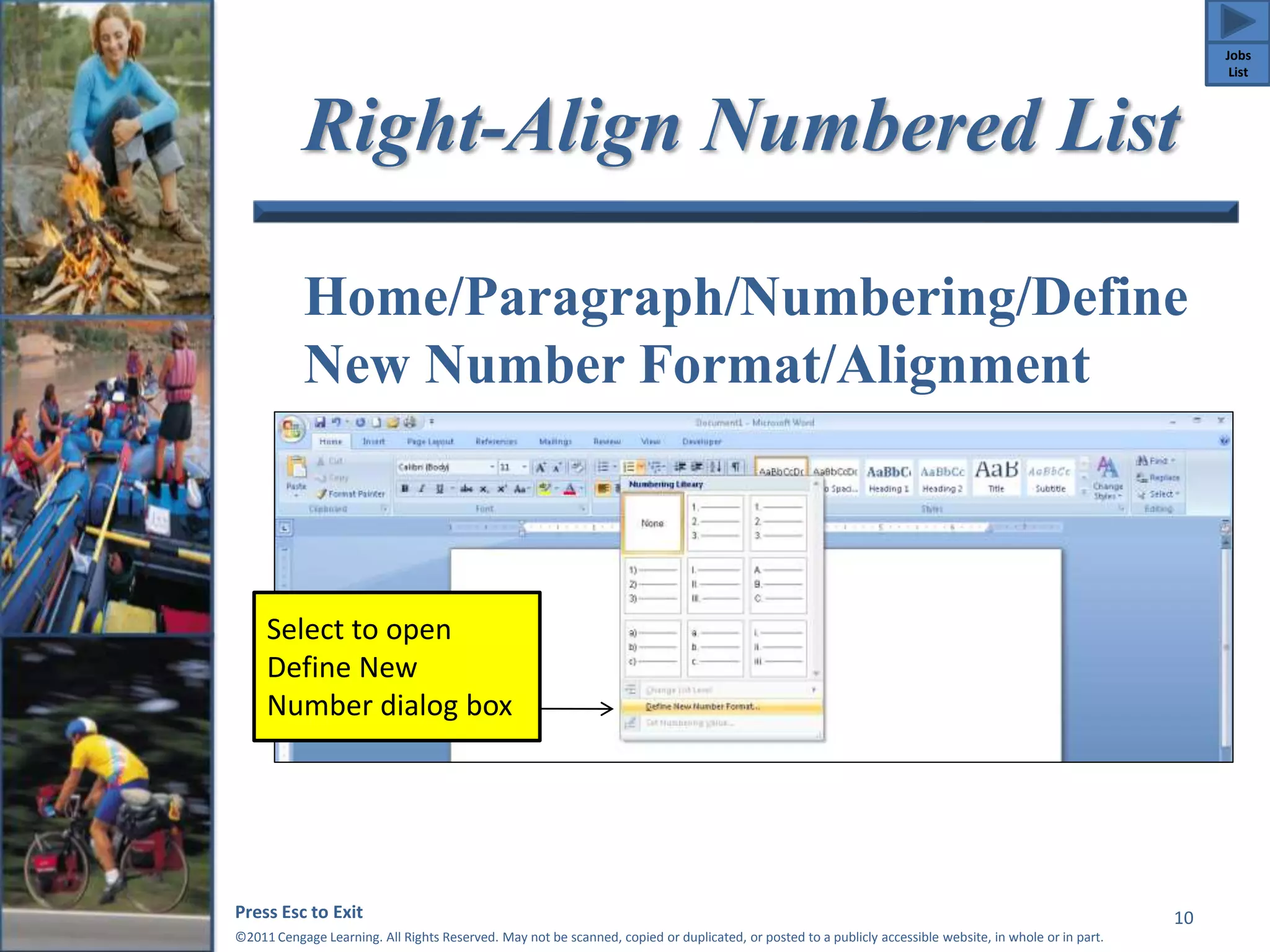
Right-Align Numbered List 
Home/Paragraph/Numbering/Define 
New Number Format/Alignment 
Press Esc to Exit 
©2011 Cengage Learning. All Rights Reserved. May not be scanned, copied or duplicated, or posted to a publicly accessible website, in whole or in part. 
10 
Select to open 
Define New 
Number dialog box 
Jobs 
List
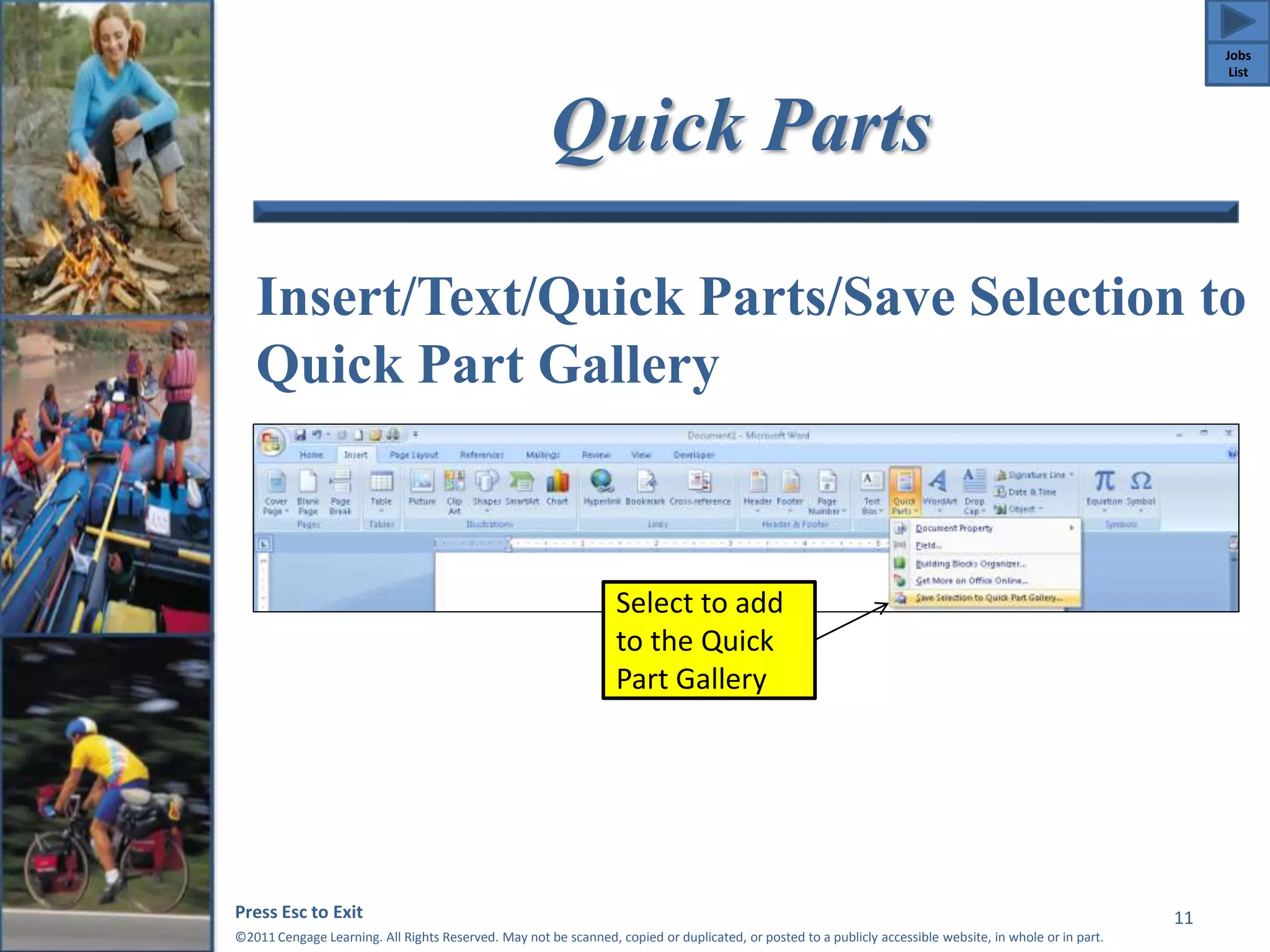
Quick Parts 
Insert/Text/Quick Parts/Save Selection to 
Quick Part Gallery 
Press Esc to Exit 
©2011 Cengage Learning. All Rights Reserved. May not be scanned, copied or duplicated, or posted to a publicly accessible website, in whole or in part. 
11 
Select to add 
to the Quick 
Part Gallery 
Jobs 
List
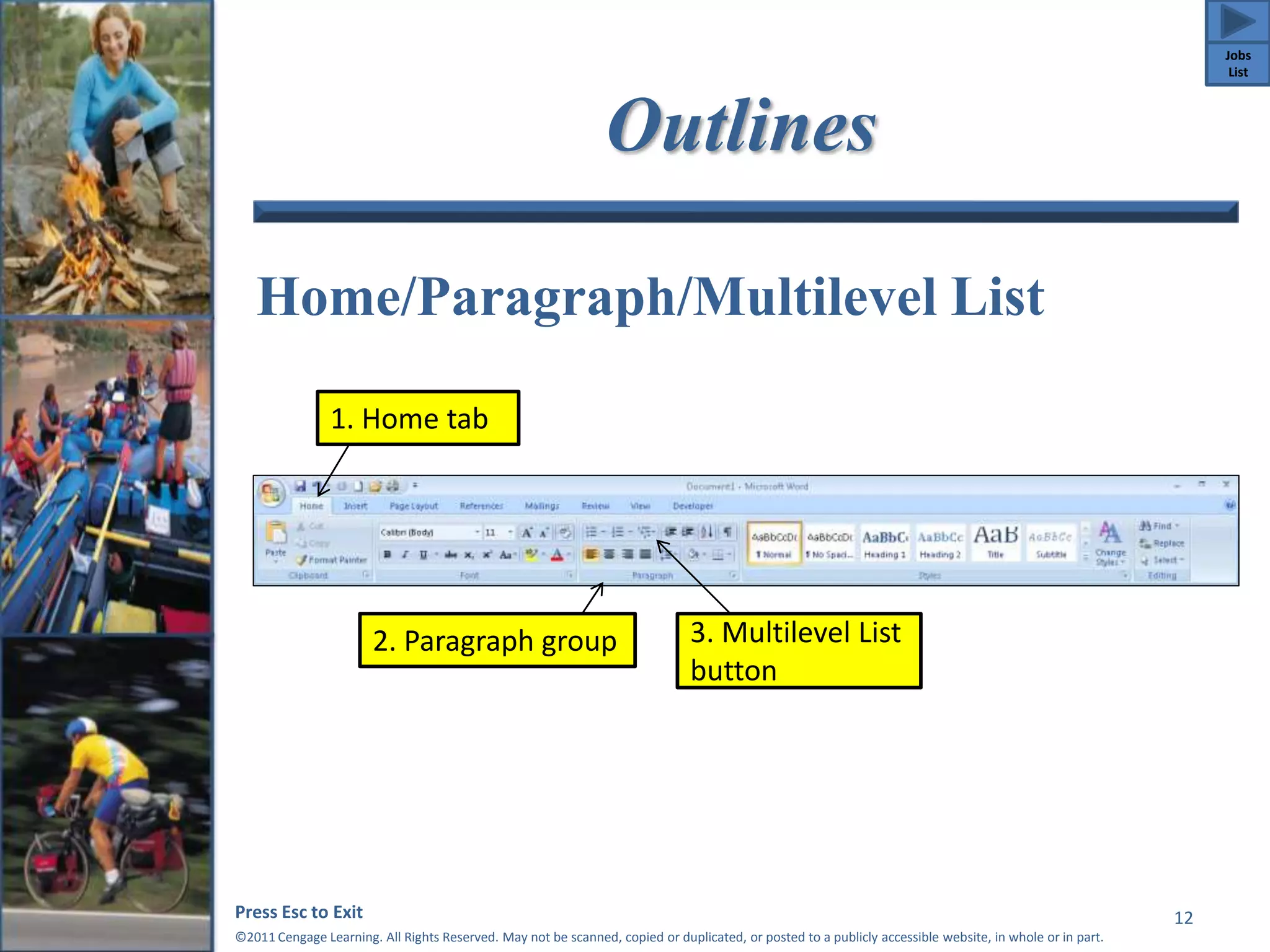
Outlines 
Home/Paragraph/Multilevel List 
Press Esc to Exit 
©2011 Cengage Learning. All Rights Reserved. May not be scanned, copied or duplicated, or posted to a publicly accessible website, in whole or in part. 
12 
1. Home tab 
2. Paragraph group 3. Multilevel List 
button 
Jobs 
List
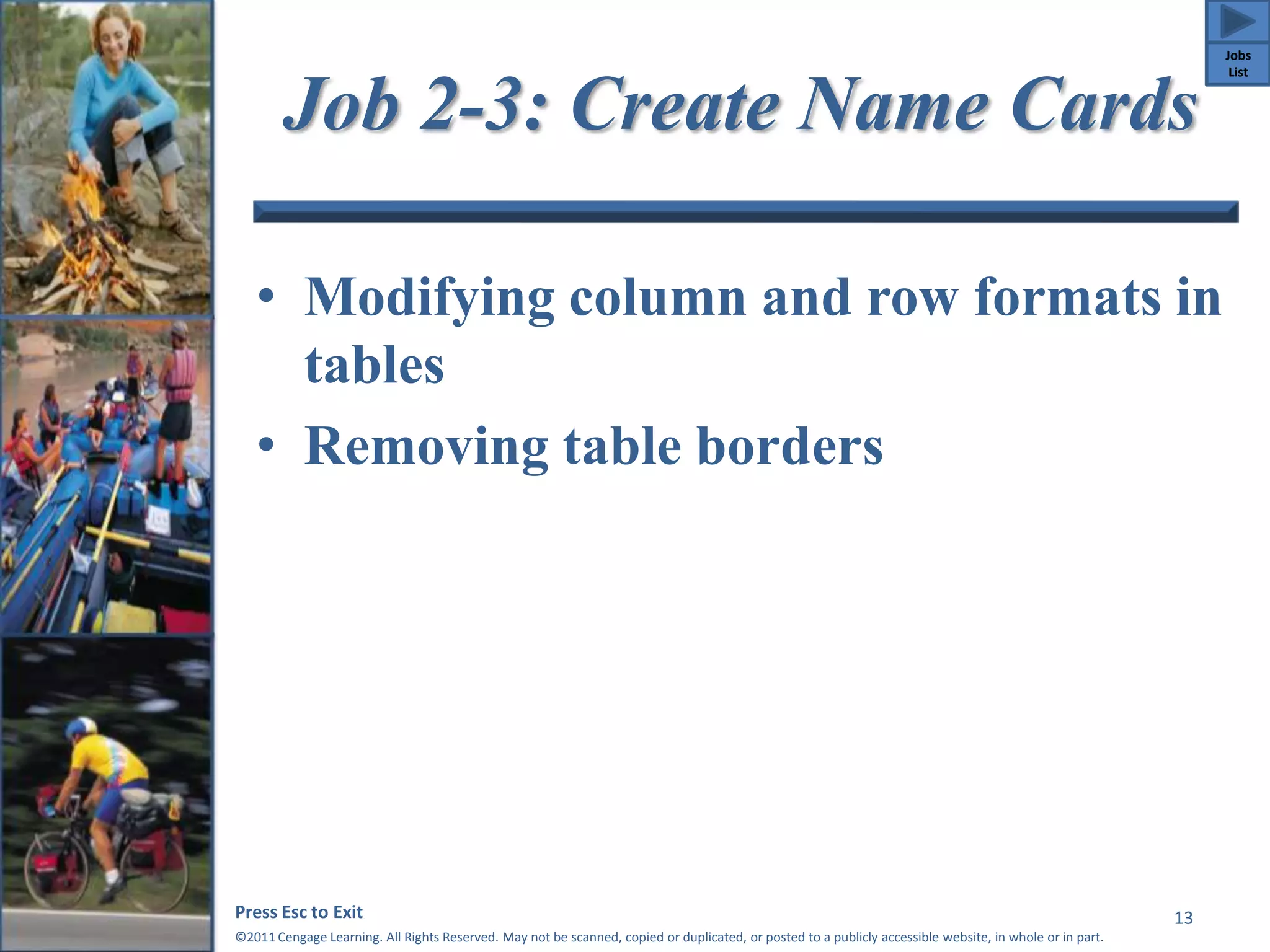
Job 2-3: Create Name Cards 
• Modifying column and row formats in 
tables 
• Removing table borders 
Press Esc to Exit 
©2011 Cengage Learning. All Rights Reserved. May not be scanned, copied or duplicated, or posted to a publicly accessible website, in whole or in part. 
13 
Jobs 
List
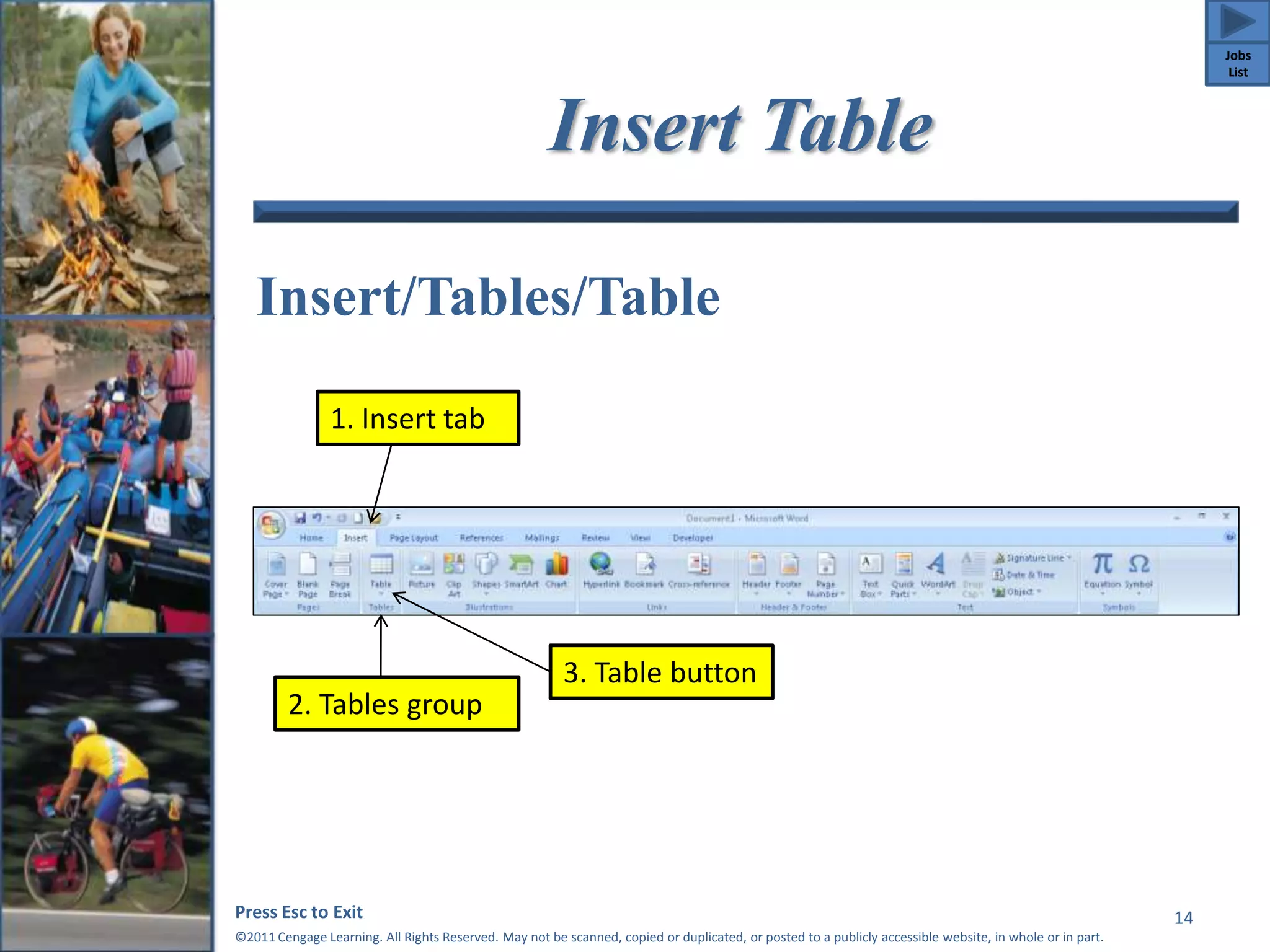
Insert Table 
Insert/Tables/Table 
Press Esc to Exit 
©2011 Cengage Learning. All Rights Reserved. May not be scanned, copied or duplicated, or posted to a publicly accessible website, in whole or in part. 
14 
1. Insert tab 
2. Tables group 
3. Table button 
Jobs 
List
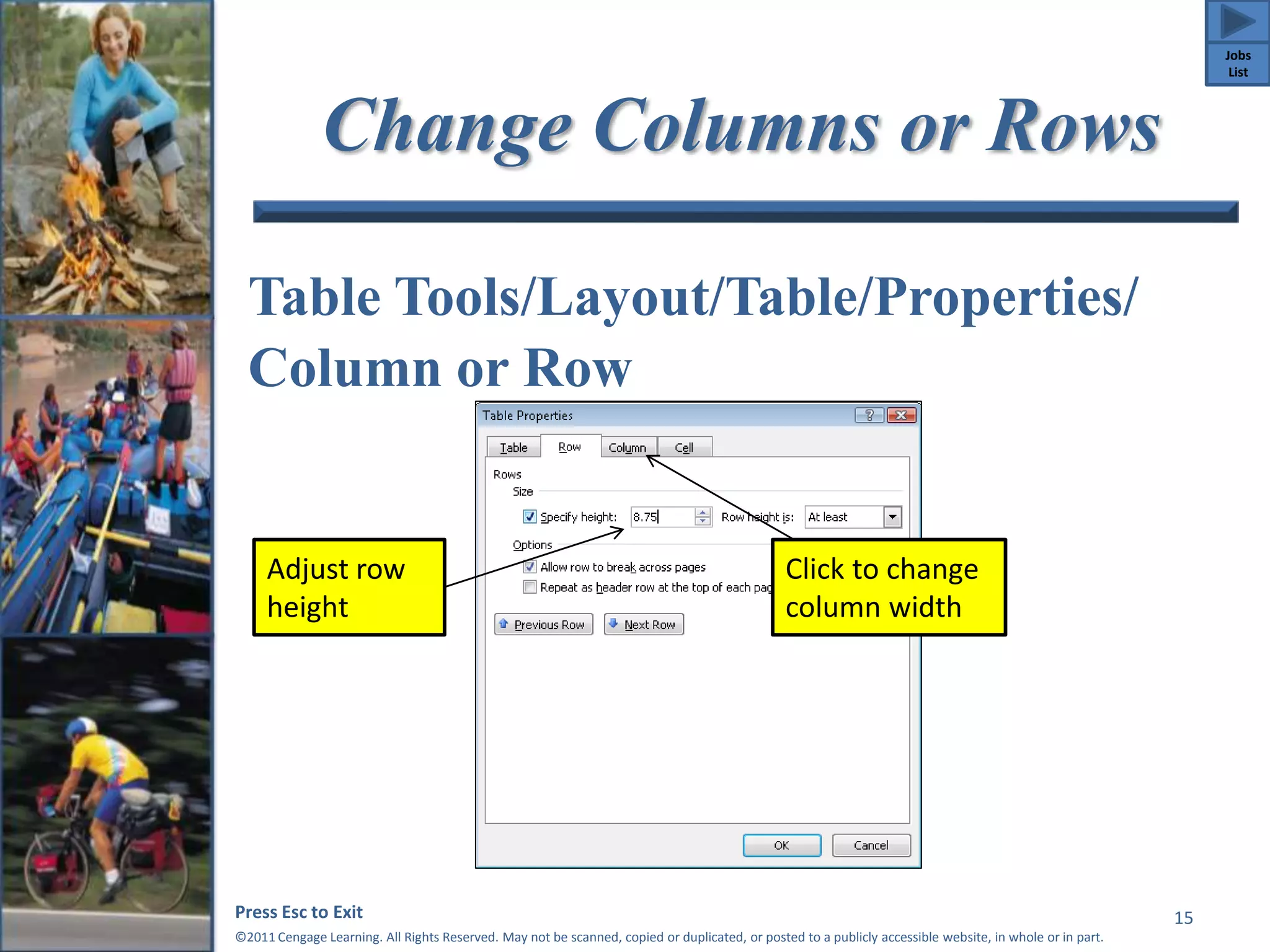
Change Columns or Rows 
Table Tools/Layout/Table/Properties/ 
Column or Row 
Press Esc to Exit 
©2011 Cengage Learning. All Rights Reserved. May not be scanned, copied or duplicated, or posted to a publicly accessible website, in whole or in part. 
15 
Adjust row 
height 
Click to change 
column width 
Jobs 
List
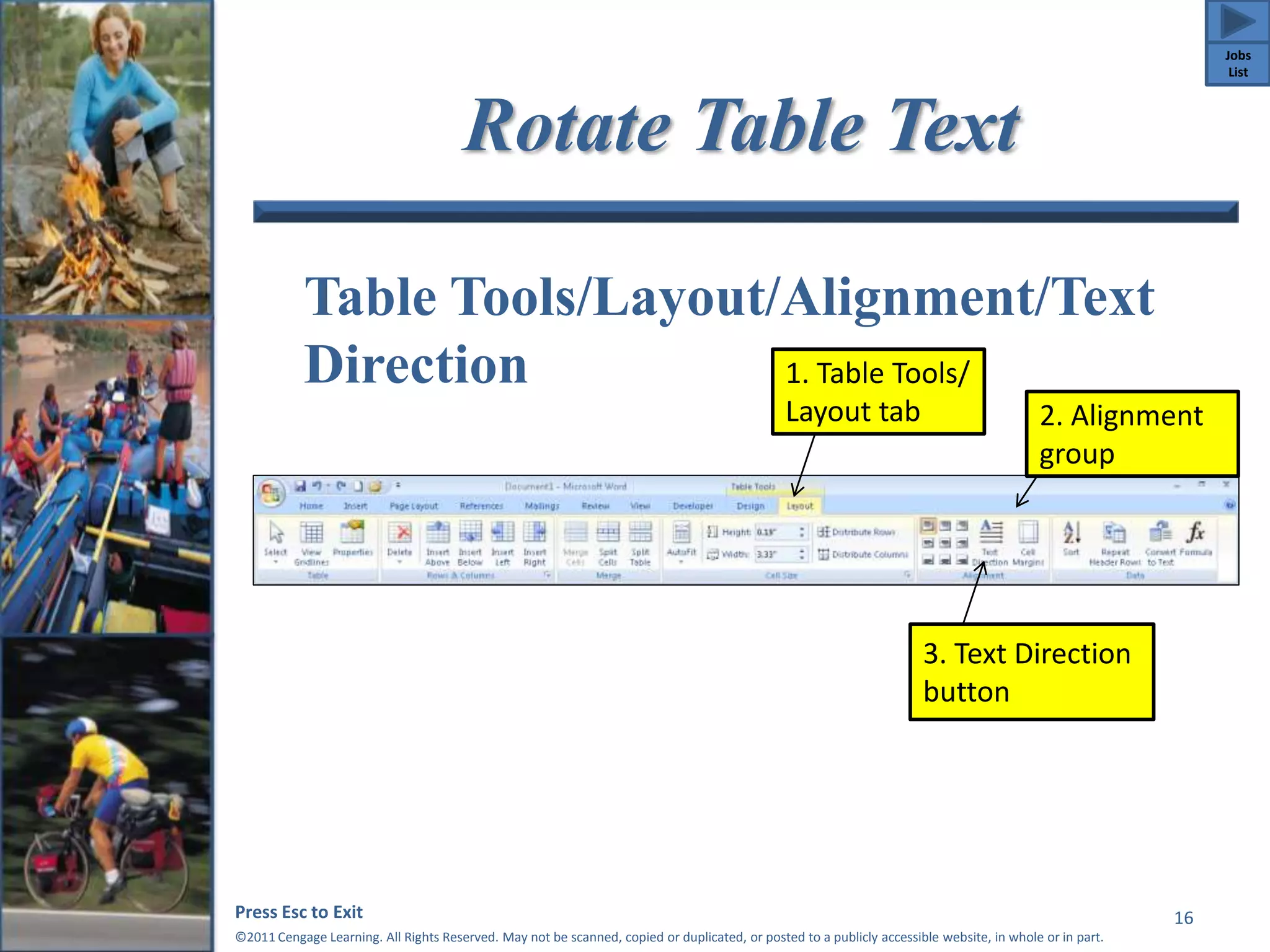
Rotate Table Text 
Table Tools/Layout/Alignment/Text 
Direction 
1. Table Tools/ 
Layout tab 2. Alignment 
Press Esc to Exit 
©2011 Cengage Learning. All Rights Reserved. May not be scanned, copied or duplicated, or posted to a publicly accessible website, in whole or in part. 
16 
group 
3. Text Direction 
button 
Jobs 
List
Job 2-4: Prepare Information 
Sheet 
• Inserting continuous breaks 
• Applying columns and modifying text 
alignment 
Press Esc to Exit 
©2011 Cengage Learning. All Rights Reserved. May not be scanned, copied or duplicated, or posted to a publicly accessible website, in whole or in part. 
17 
Jobs 
List
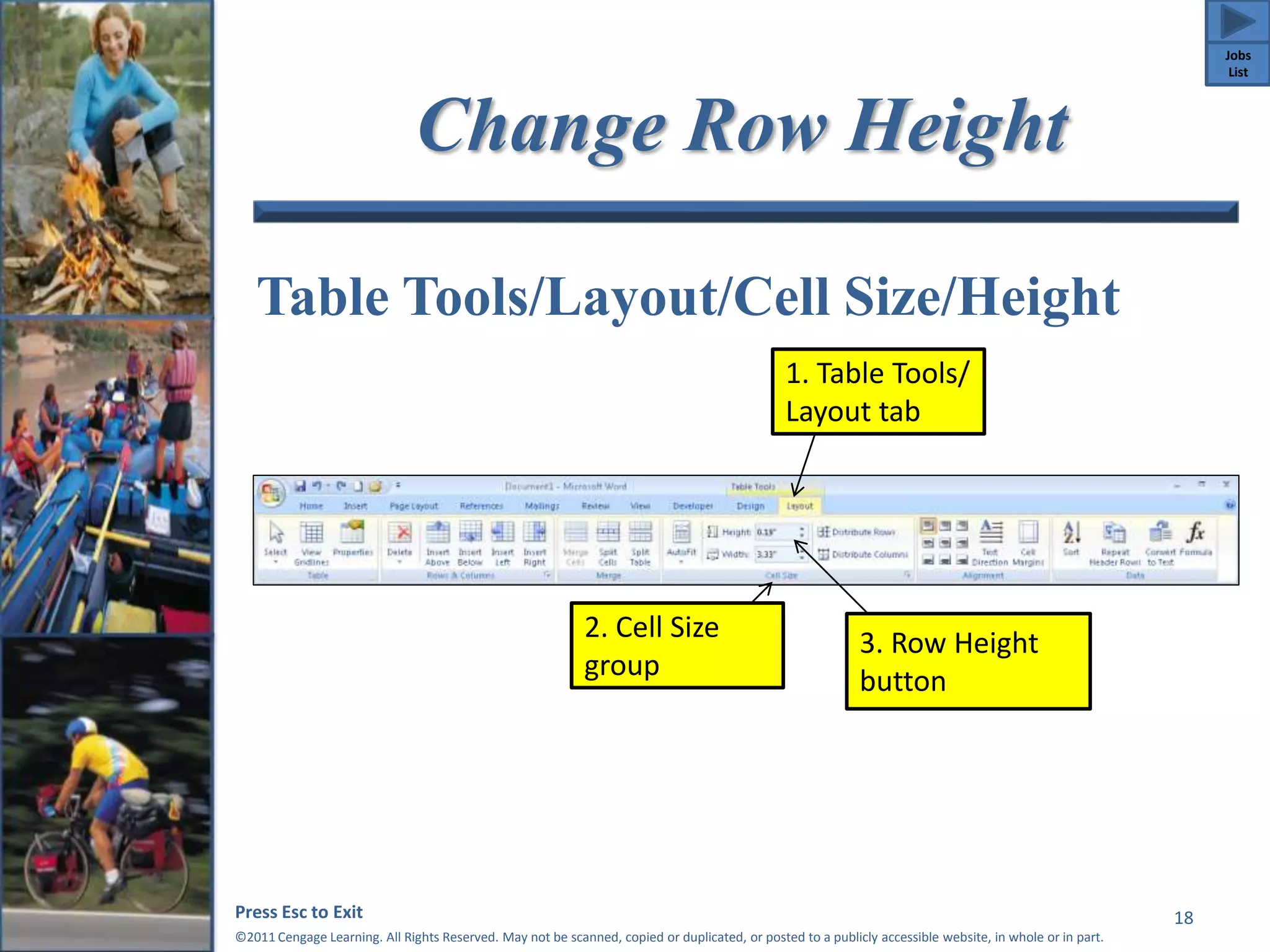
Change Row Height 
Table Tools/Layout/Cell Size/Height 
Press Esc to Exit 
©2011 Cengage Learning. All Rights Reserved. May not be scanned, copied or duplicated, or posted to a publicly accessible website, in whole or in part. 
18 
1. Table Tools/ 
Layout tab 
2. Cell Size 
group 
3. Row Height 
button 
Jobs 
List
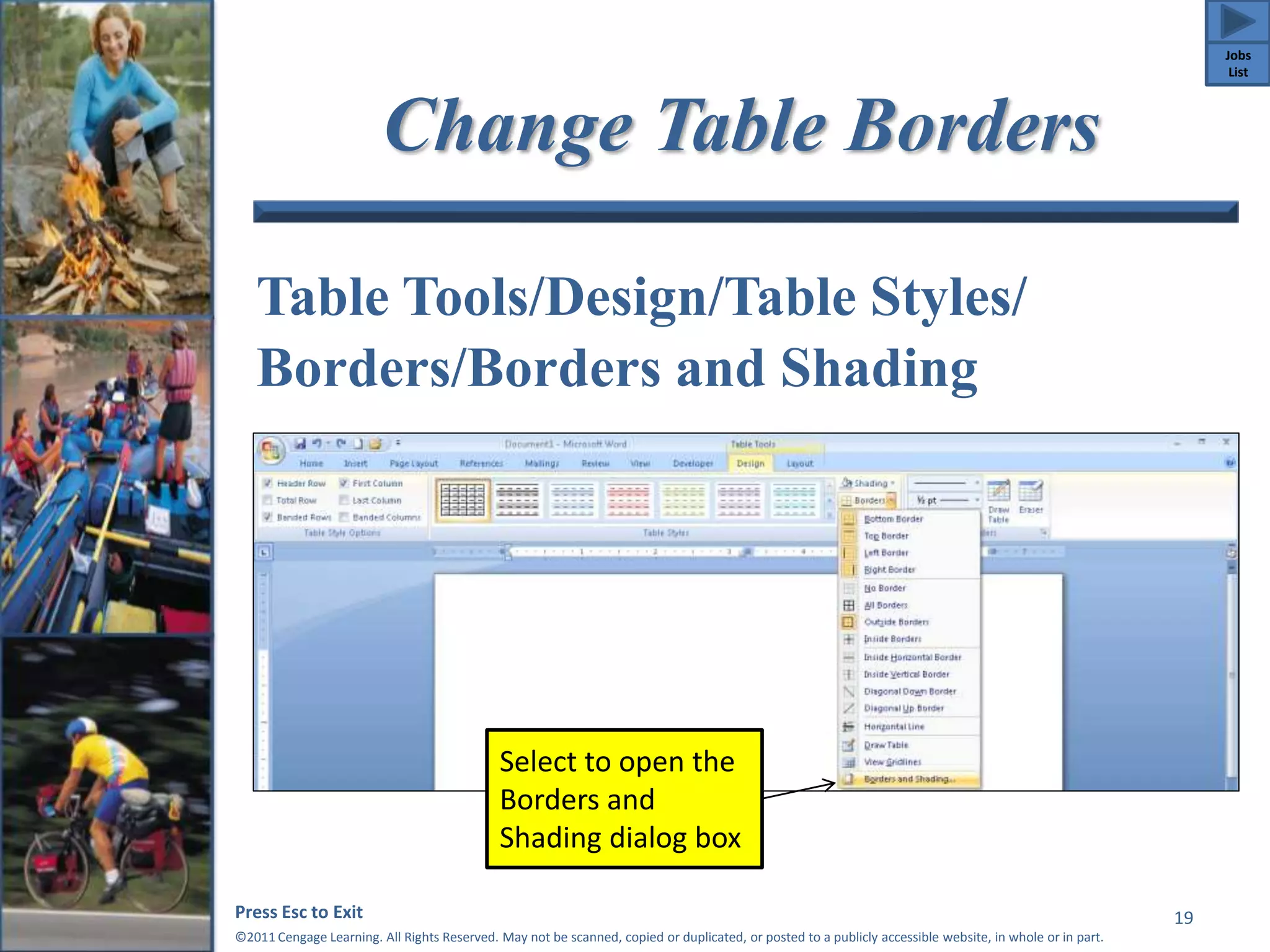
Change Table Borders 
Table Tools/Design/Table Styles/ 
Borders/Borders and Shading 
Press Esc to Exit 
©2011 Cengage Learning. All Rights Reserved. May not be scanned, copied or duplicated, or posted to a publicly accessible website, in whole or in part. 
19 
Select to open the 
Borders and 
Shading dialog box 
Jobs 
List
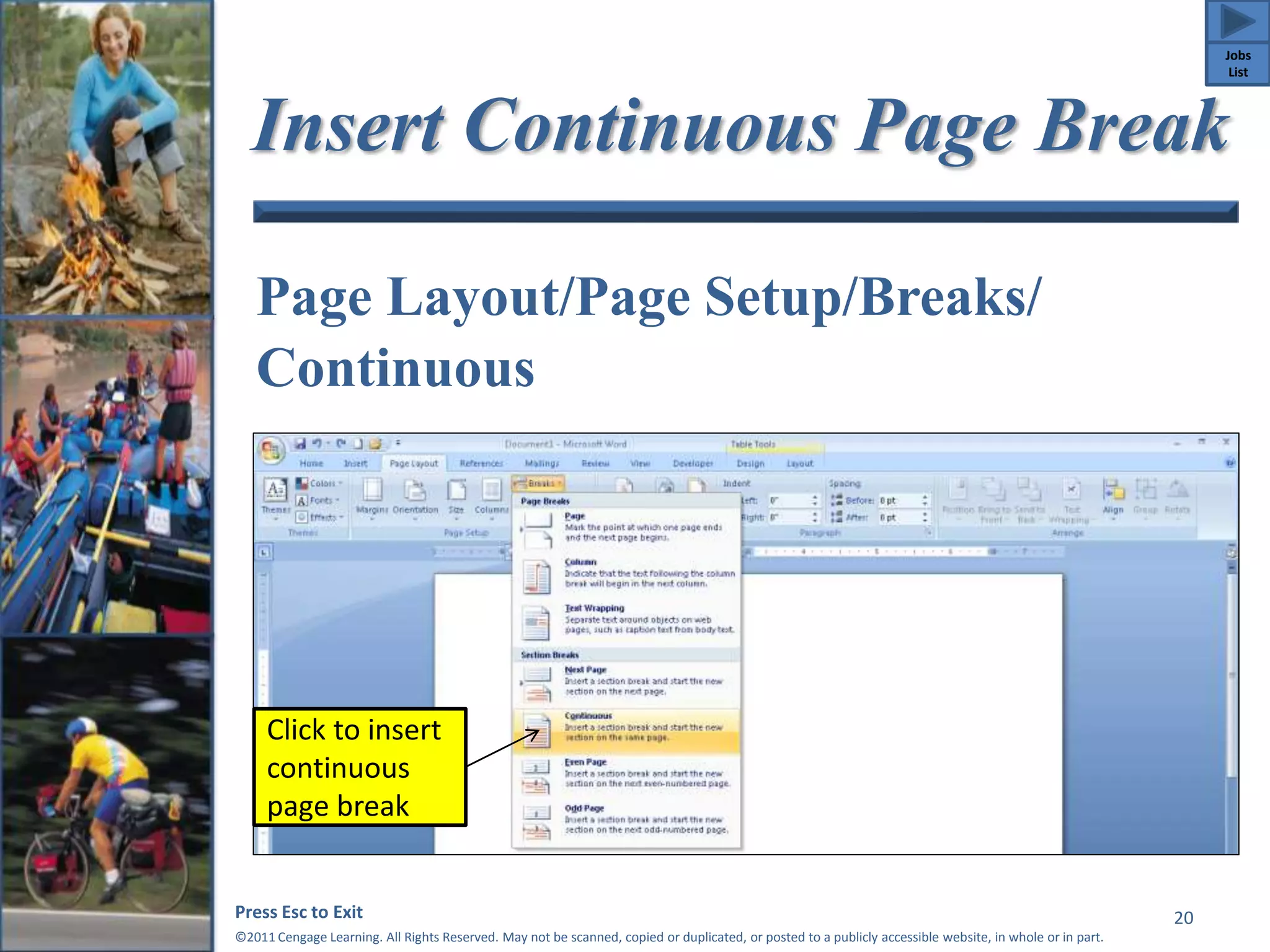
Insert Continuous Page Break 
Page Layout/Page Setup/Breaks/ 
Continuous 
Press Esc to Exit 
©2011 Cengage Learning. All Rights Reserved. May not be scanned, copied or duplicated, or posted to a publicly accessible website, in whole or in part. 
20 
Click to insert 
continuous 
page break 
Jobs 
List
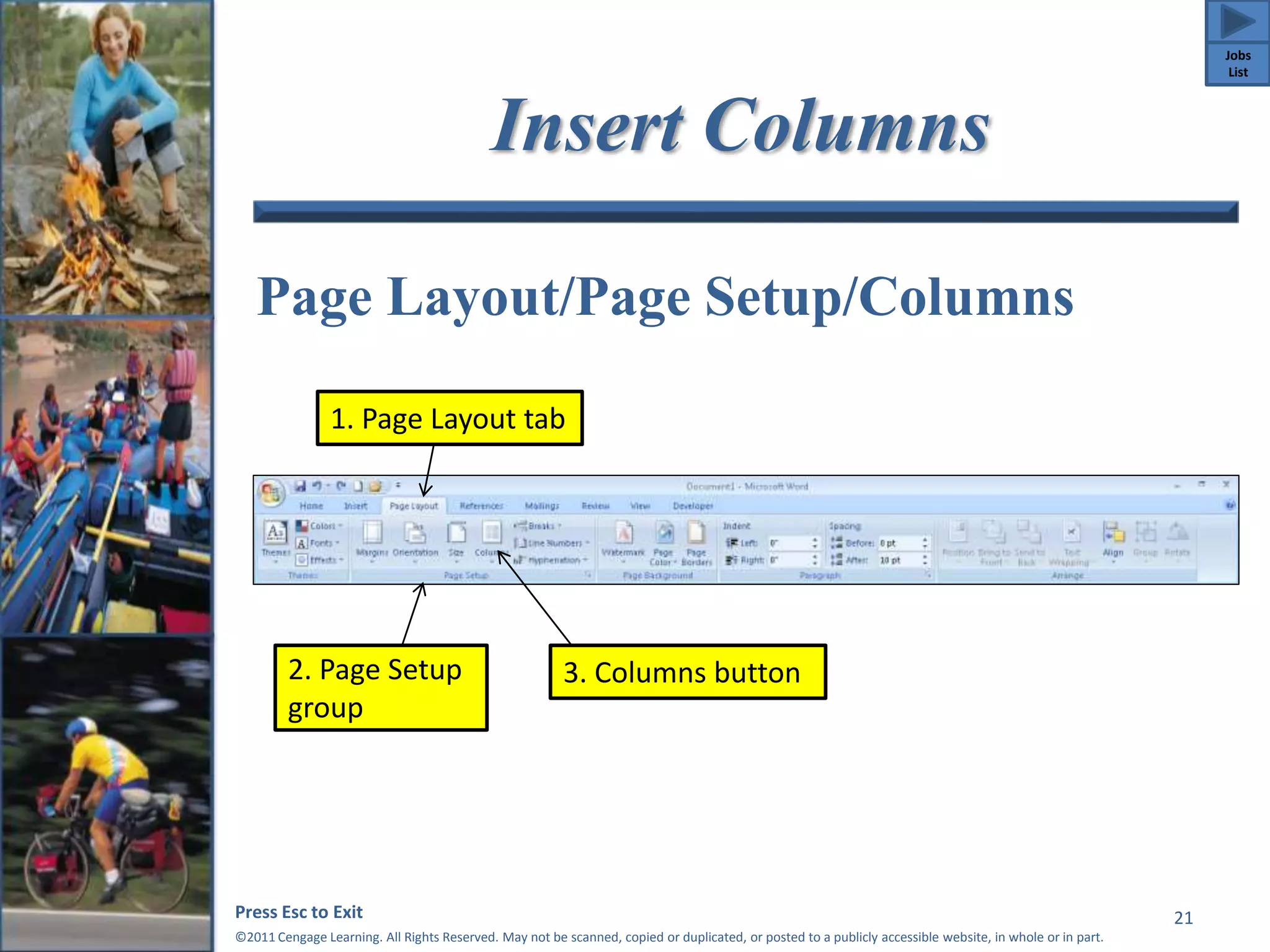
Insert Columns 
Page Layout/Page Setup/Columns 
Press Esc to Exit 
©2011 Cengage Learning. All Rights Reserved. May not be scanned, copied or duplicated, or posted to a publicly accessible website, in whole or in part. 
21 
1. Page Layout tab 
2. Page Setup 
group 
3. Columns button 
Jobs 
List
Job 2-5: Continue Work on 
Manual 
• Setting and modifying tabs 
• Inserting symbols 
• Using AutoCorrect options 
Press Esc to Exit 
©2011 Cengage Learning. All Rights Reserved. May not be scanned, copied or duplicated, or posted to a publicly accessible website, in whole or in part. 
22 
Jobs 
List
Formatting Text 
To place text in columns without 
changing the formatting of the 
preceding and following text, insert a 
continuous section break before and 
after the text. 
Press Esc to Exit 
©2011 Cengage Learning. All Rights Reserved. May not be scanned, copied or duplicated, or posted to a publicly accessible website, in whole or in part. 
23 
Jobs 
List
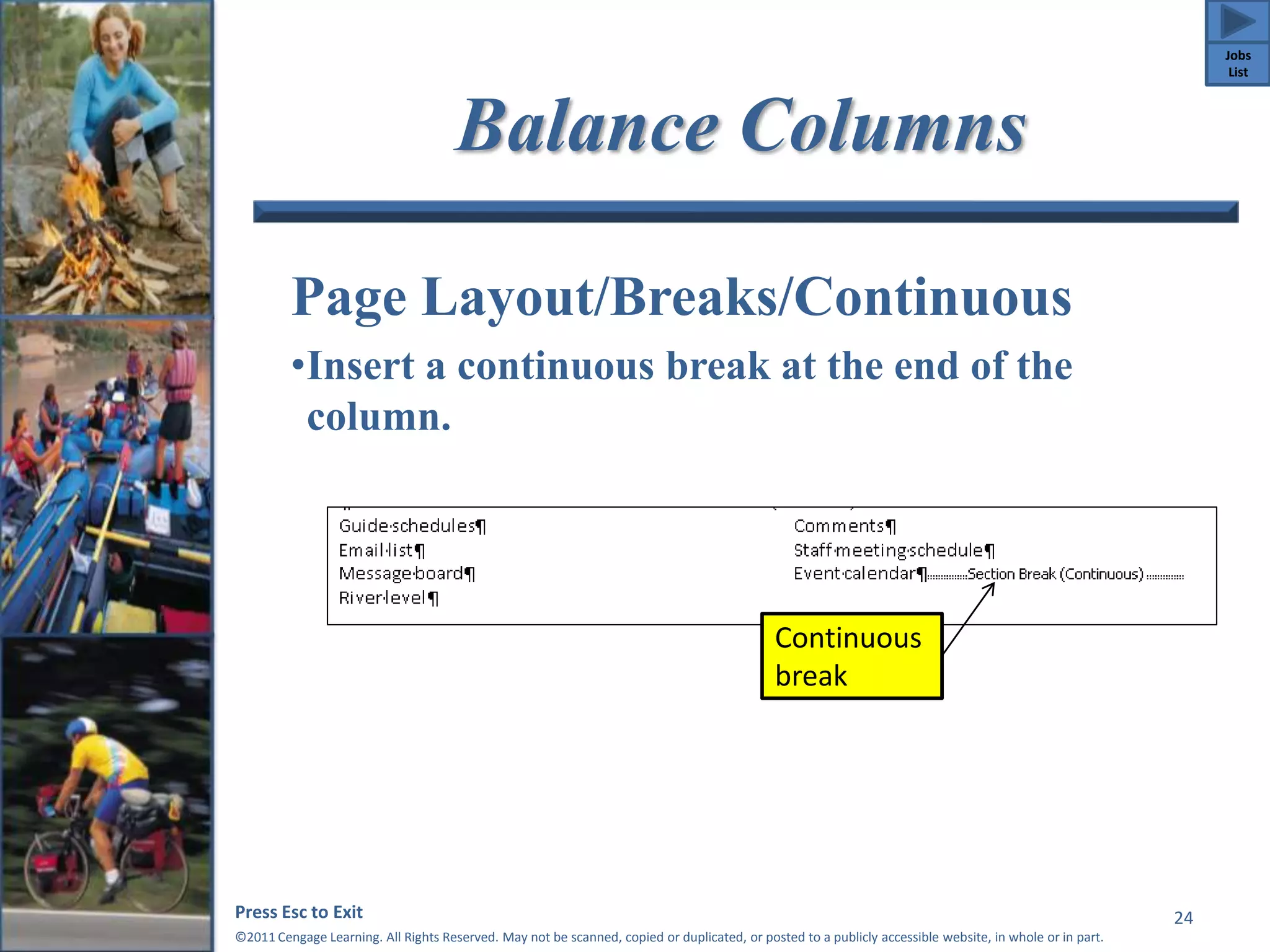
Balance Columns 
Page Layout/Breaks/Continuous 
•Insert a continuous break at the end of the 
column. 
Press Esc to Exit 
©2011 Cengage Learning. All Rights Reserved. May not be scanned, copied or duplicated, or posted to a publicly accessible website, in whole or in part. 
24 
Continuous 
break 
Jobs 
List
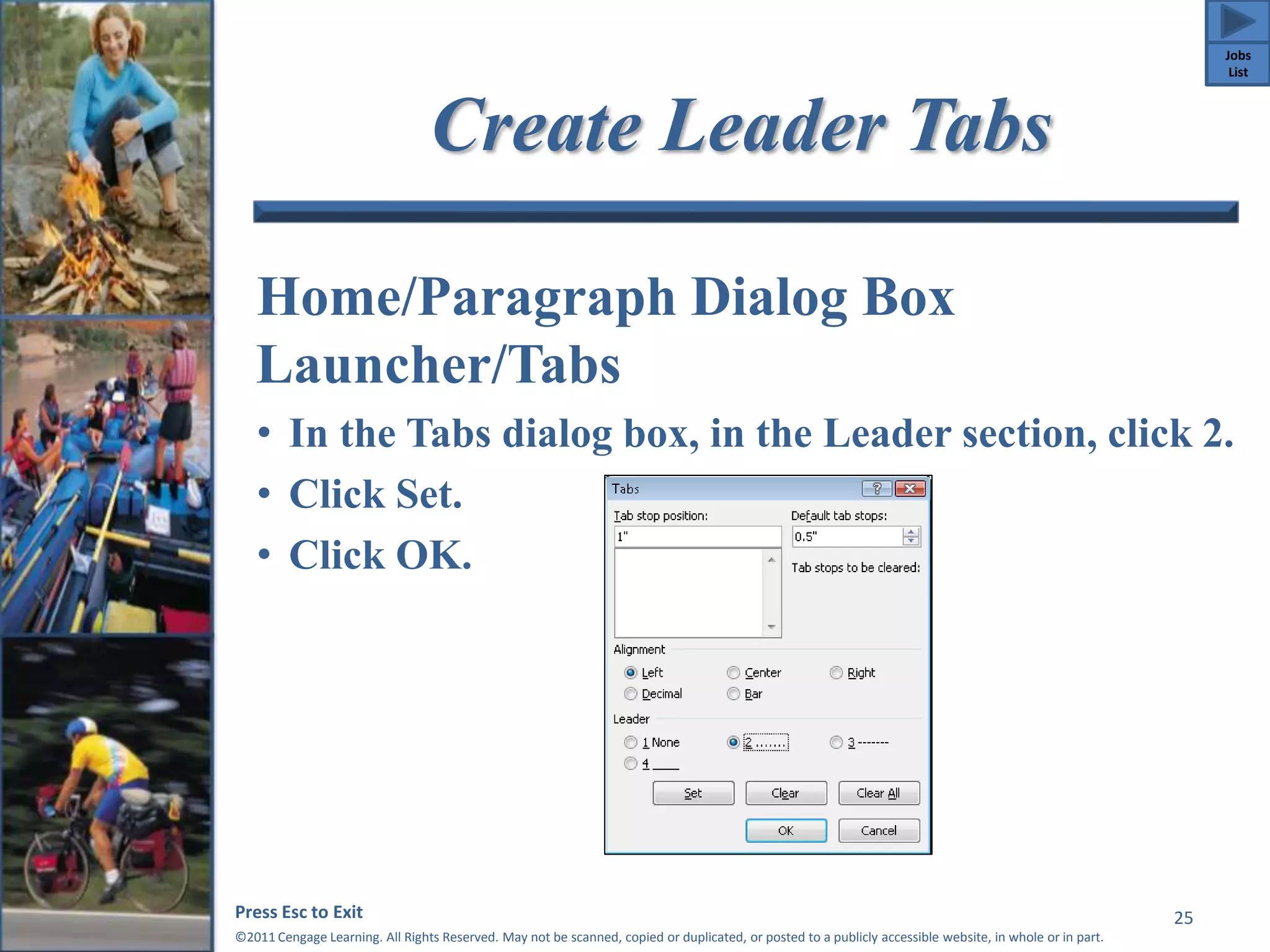
Create Leader Tabs 
Home/Paragraph Dialog Box 
Launcher/Tabs 
• In the Tabs dialog box, in the Leader section, click 2. 
• Click Set. 
• Click OK. 
Press Esc to Exit 
©2011 Cengage Learning. All Rights Reserved. May not be scanned, copied or duplicated, or posted to a publicly accessible website, in whole or in part. 
25 
Jobs 
List
Format with AutoCorrect 
AutoCorrect will automatically 
format :-) as  . 
Press Esc to Exit 
©2011 Cengage Learning. All Rights Reserved. May not be scanned, copied or duplicated, or posted to a publicly accessible website, in whole or in part. 
26 
Jobs 
List
Job 2-6: Prepare Guide 
Information 
• Sorting lists in a document 
• Numbering pages 
Press Esc to Exit 
©2011 Cengage Learning. All Rights Reserved. May not be scanned, copied or duplicated, or posted to a publicly accessible website, in whole or in part. 
27 
Jobs 
List
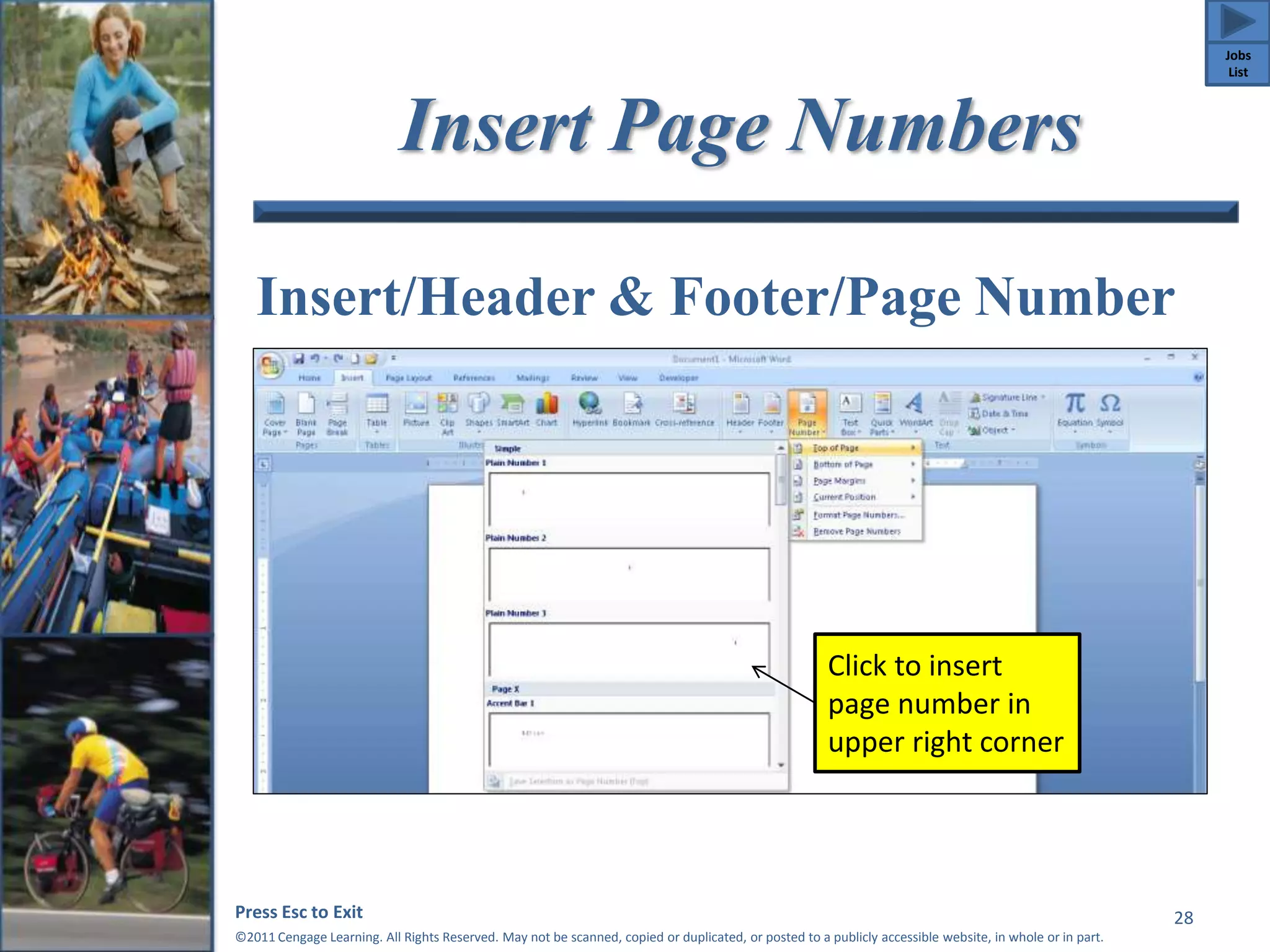
Insert Page Numbers 
Insert/Header & Footer/Page Number 
Press Esc to Exit 
©2011 Cengage Learning. All Rights Reserved. May not be scanned, copied or duplicated, or posted to a publicly accessible website, in whole or in part. 
28 
Click to insert 
page number in 
upper right corner 
Jobs 
List
Job 2-7: Research Topics 
Related to Rafting 
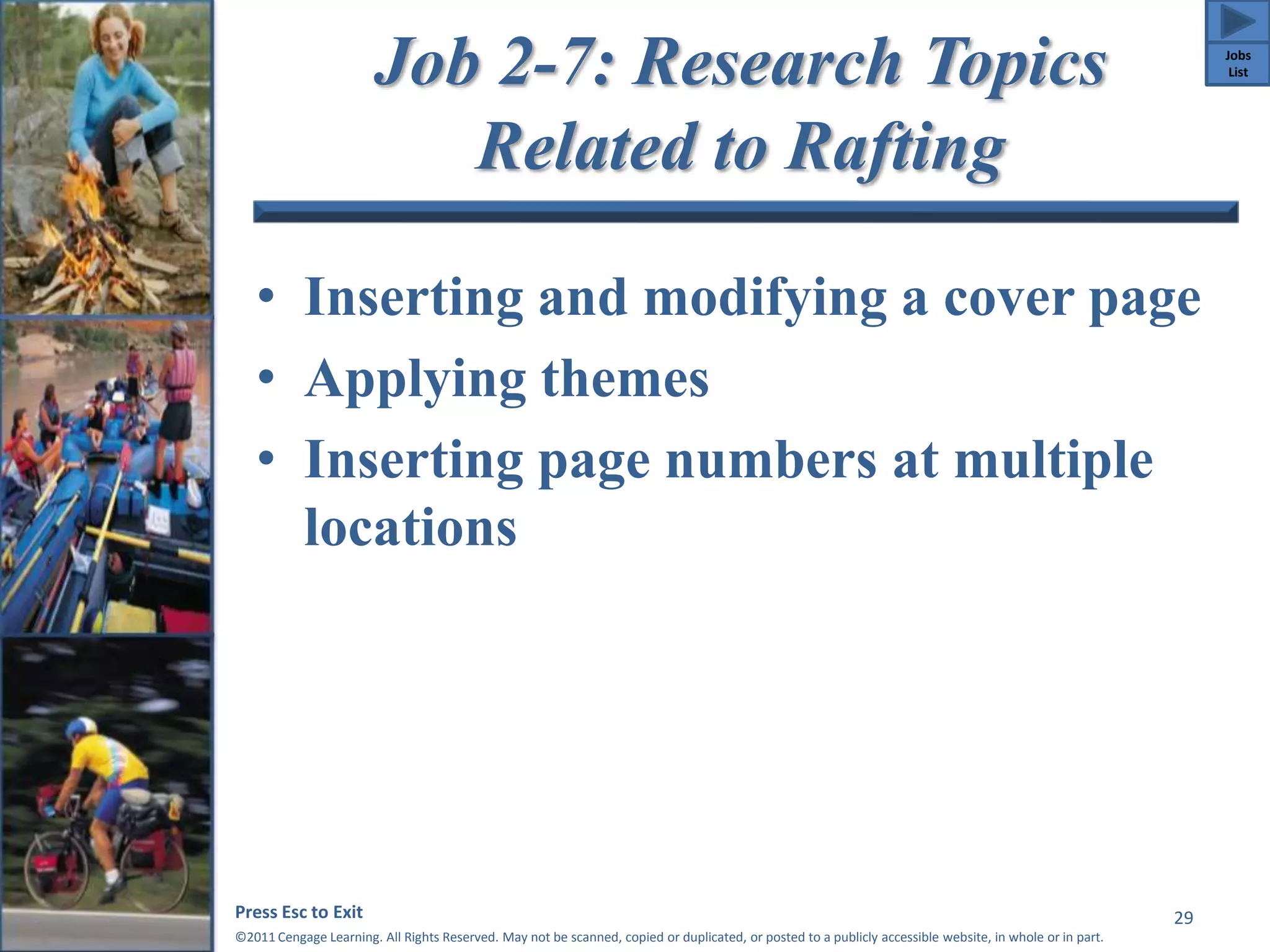
• Inserting and modifying a cover page 
• Applying themes 
• Inserting page numbers at multiple 
locations 
Press Esc to Exit 
©2011 Cengage Learning. All Rights Reserved. May not be scanned, copied or duplicated, or posted to a publicly accessible website, in whole or in part. 
29 
Jobs 
List
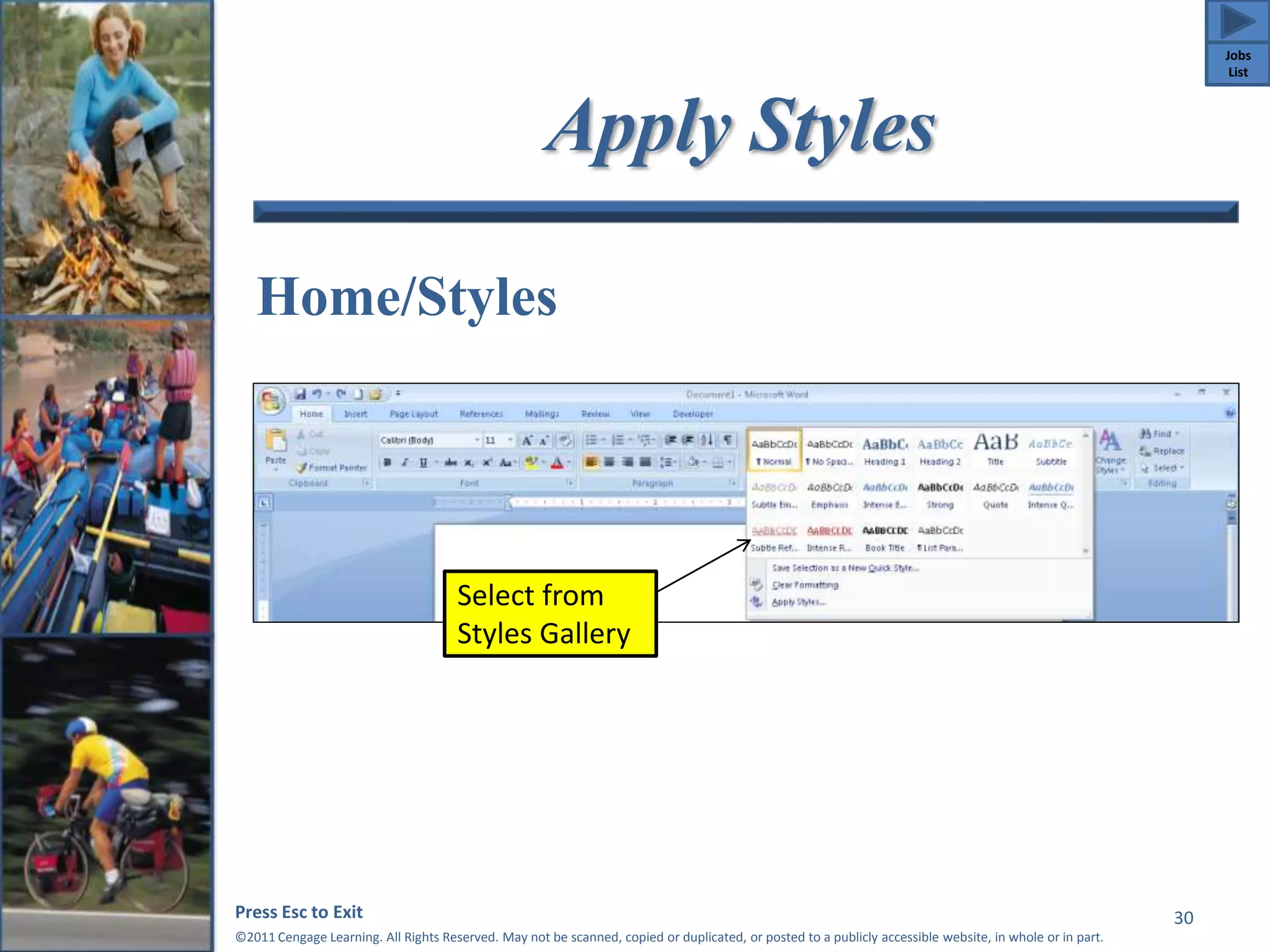
Apply Styles 
Home/Styles 
Press Esc to Exit 
©2011 Cengage Learning. All Rights Reserved. May not be scanned, copied or duplicated, or posted to a publicly accessible website, in whole or in part. 
30 
Select from 
Styles Gallery 
Jobs 
List
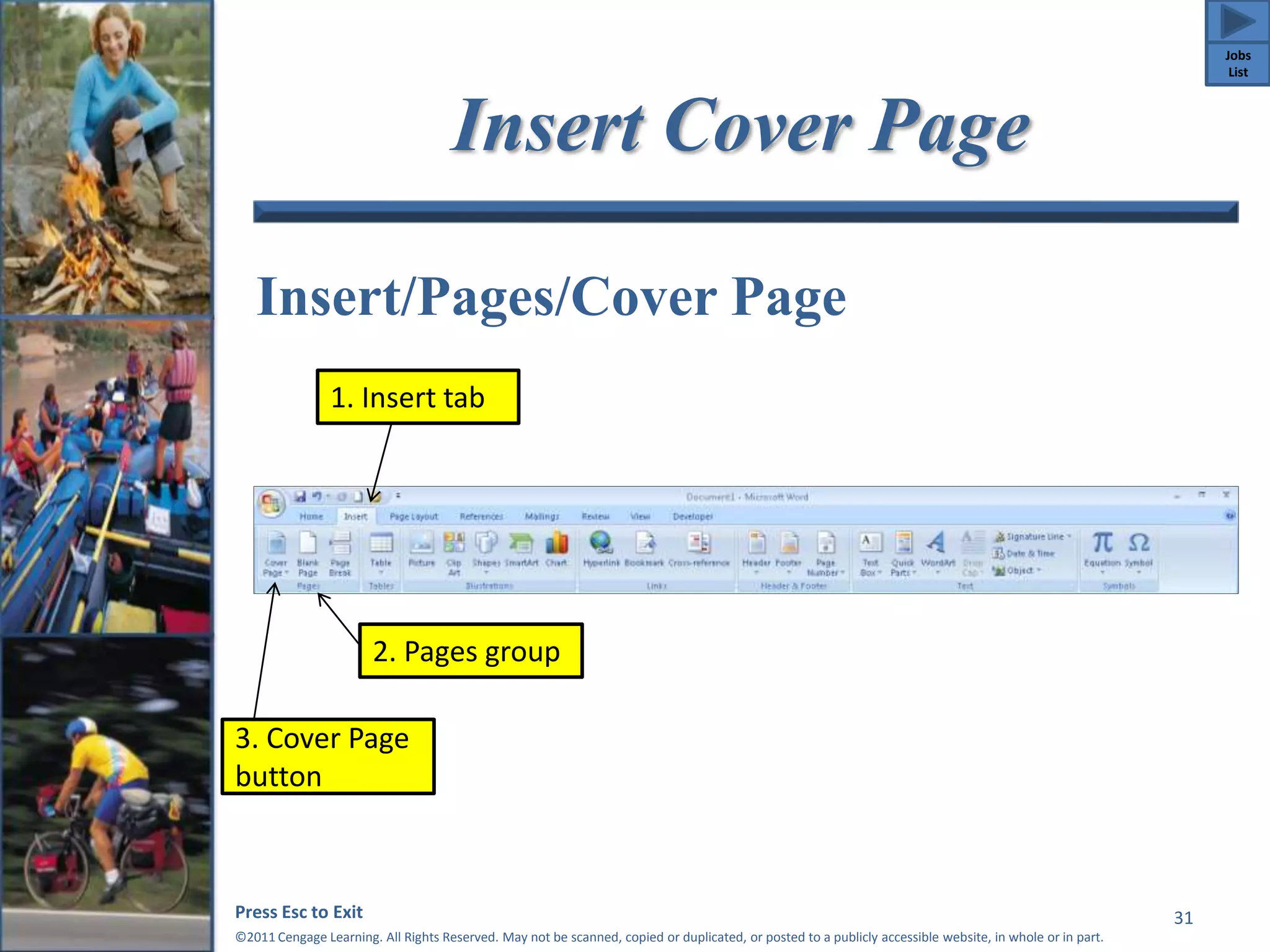
Insert Cover Page 
Insert/Pages/Cover Page 
2. Pages group 
Press Esc to Exit 
©2011 Cengage Learning. All Rights Reserved. May not be scanned, copied or duplicated, or posted to a publicly accessible website, in whole or in part. 
31 
1. Insert tab 
3. Cover Page 
button 
Jobs 
List
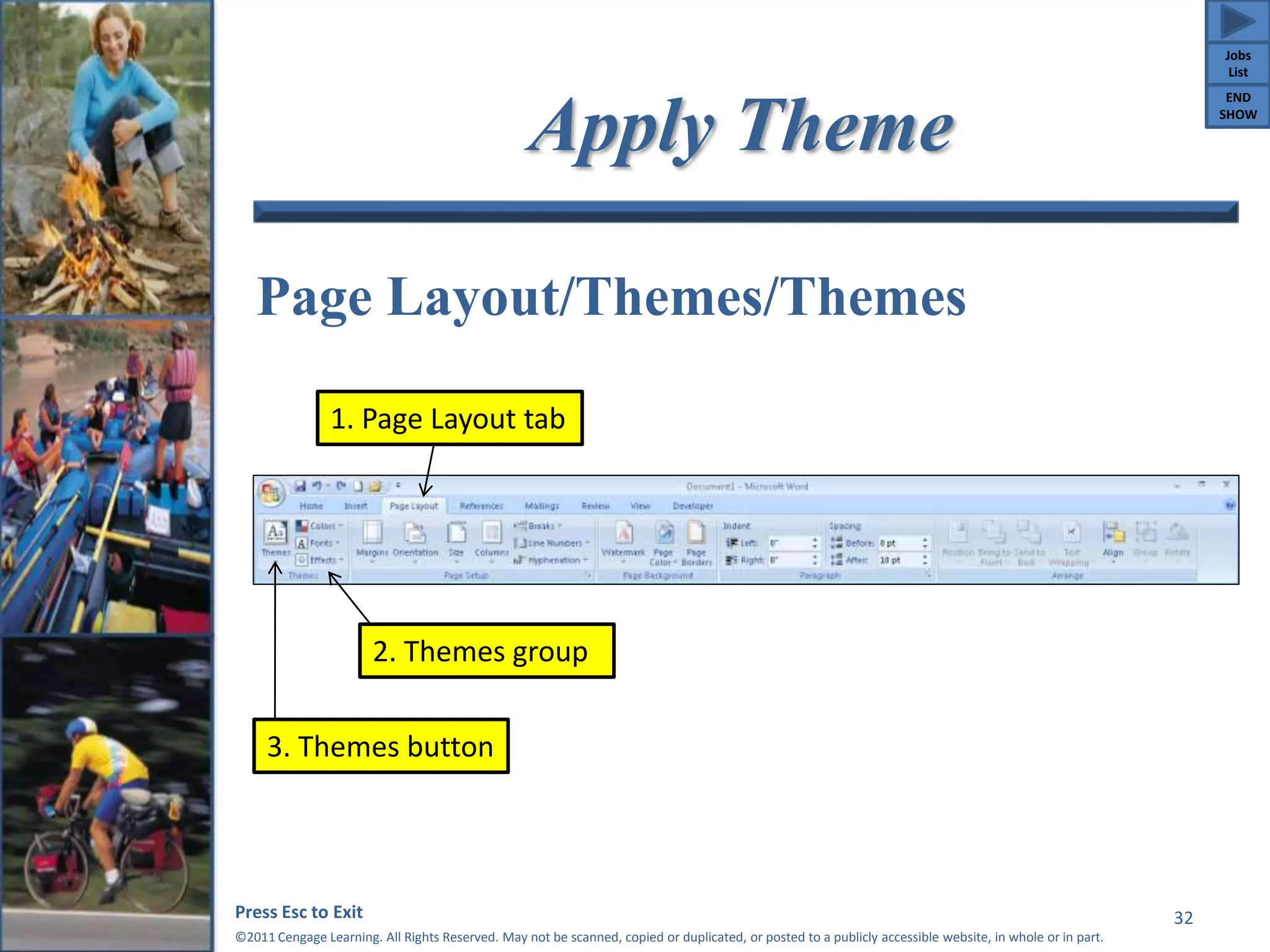
Apply Theme 
Page Layout/Themes/Themes 
2. Themes group 
Press Esc to Exit 
©2011 Cengage Learning. All Rights Reserved. May not be scanned, copied or duplicated, or posted to a publicly accessible website, in whole or in part. 
32 
1. Page Layout tab 
3. Themes button 
Jobs 
List 
END 
SHOW

Project 02 Tutorial power point

  • 1.
    Integrated Business Projects Part 1 Marketing and Communications Project 2 Creating Personnel Documents Press Esc to Exit ©2011 Cengage Learning. All Rights Reserved. May not be scanned, copied or duplicated, or posted to a publicly accessible website, in whole or in part.
  • 2.
    Project 2 Objectives • Create an organization chart • Prepare documents using tabs, rotated text, special characters, Quick Parts, and outline numbered lists • Sort items in a list • Prepare forms • Write a report using research findings Press Esc to Exit ©2011 Cengage Learning. All Rights Reserved. May not be scanned, copied or duplicated, or posted to a publicly accessible website, in whole or in part. 2
  • 3.
    Project 2 Jobs • Job 2-1: Create Organization Chart • Job 2-2: Prepare Job Descriptions • Job 2-3: Create Name Cards • Job 2-4: Prepare Information Sheet • Job 2-5: Continue Work on Manual • Job 2-6: Prepare Guide Information • Job 2-7: Research Topics Related to Rafting Press Esc to Exit ©2011 Cengage Learning. All Rights Reserved. May not be scanned, copied or duplicated, or posted to a publicly accessible website, in whole or in part. 3
  • 4.
    Job 2-1: CreateOrganization Chart • Modifying page margins and page orientation • Creating and modifying charts • Creating and inserting graphics in documents Press Esc to Exit ©2011 Cengage Learning. All Rights Reserved. May not be scanned, copied or duplicated, or posted to a publicly accessible website, in whole or in part. 4 Jobs List
  • 5.
    Create Organization Chart Insert/Illustrations/SmartArt/ Hierarchy/Organization Chart Press Esc to Exit ©2011 Cengage Learning. All Rights Reserved. May not be scanned, copied or duplicated, or posted to a publicly accessible website, in whole or in part. 5 Jobs List
  • 6.
    Add Box toChart SmartArt Tools/Design/Create Graphic/Add Shape Press Esc to Exit ©2011 Cengage Learning. All Rights Reserved. May not be scanned, copied or duplicated, or posted to a publicly accessible website, in whole or in part. 6 Add Shape list Jobs List
  • 7.
    Insert Text Box Insert/Text/Text Box/Draw Text Box Press Esc to Exit ©2011 Cengage Learning. All Rights Reserved. May not be scanned, copied or duplicated, or posted to a publicly accessible website, in whole or in part. 7 Select and then draw text box Jobs List
  • 8.
    Format Text Box Word 2007 • Click the Text Box Tools/Format tab. • Select options from the Text Box Styles group. Word 2010 • Click the Drawing Tools/Format tab. • Select options from the Shape Styles group. Press Esc to Exit ©2011 Cengage Learning. All Rights Reserved. May not be scanned, copied or duplicated, or posted to a publicly accessible website, in whole or in part. 8 Jobs List
  • 9.
    Job 2-2: PrepareJob Description • Creating numbered lists • Creating multilevel outlines Press Esc to Exit ©2011 Cengage Learning. All Rights Reserved. May not be scanned, copied or duplicated, or posted to a publicly accessible website, in whole or in part. 9 Jobs List
  • 10.
    Right-Align Numbered List Home/Paragraph/Numbering/Define New Number Format/Alignment Press Esc to Exit ©2011 Cengage Learning. All Rights Reserved. May not be scanned, copied or duplicated, or posted to a publicly accessible website, in whole or in part. 10 Select to open Define New Number dialog box Jobs List
  • 11.
    Quick Parts Insert/Text/QuickParts/Save Selection to Quick Part Gallery Press Esc to Exit ©2011 Cengage Learning. All Rights Reserved. May not be scanned, copied or duplicated, or posted to a publicly accessible website, in whole or in part. 11 Select to add to the Quick Part Gallery Jobs List
  • 12.
    Outlines Home/Paragraph/Multilevel List Press Esc to Exit ©2011 Cengage Learning. All Rights Reserved. May not be scanned, copied or duplicated, or posted to a publicly accessible website, in whole or in part. 12 1. Home tab 2. Paragraph group 3. Multilevel List button Jobs List
  • 13.
    Job 2-3: CreateName Cards • Modifying column and row formats in tables • Removing table borders Press Esc to Exit ©2011 Cengage Learning. All Rights Reserved. May not be scanned, copied or duplicated, or posted to a publicly accessible website, in whole or in part. 13 Jobs List
  • 14.
    Insert Table Insert/Tables/Table Press Esc to Exit ©2011 Cengage Learning. All Rights Reserved. May not be scanned, copied or duplicated, or posted to a publicly accessible website, in whole or in part. 14 1. Insert tab 2. Tables group 3. Table button Jobs List
  • 15.
    Change Columns orRows Table Tools/Layout/Table/Properties/ Column or Row Press Esc to Exit ©2011 Cengage Learning. All Rights Reserved. May not be scanned, copied or duplicated, or posted to a publicly accessible website, in whole or in part. 15 Adjust row height Click to change column width Jobs List
  • 16.
    Rotate Table Text Table Tools/Layout/Alignment/Text Direction 1. Table Tools/ Layout tab 2. Alignment Press Esc to Exit ©2011 Cengage Learning. All Rights Reserved. May not be scanned, copied or duplicated, or posted to a publicly accessible website, in whole or in part. 16 group 3. Text Direction button Jobs List
  • 17.
    Job 2-4: PrepareInformation Sheet • Inserting continuous breaks • Applying columns and modifying text alignment Press Esc to Exit ©2011 Cengage Learning. All Rights Reserved. May not be scanned, copied or duplicated, or posted to a publicly accessible website, in whole or in part. 17 Jobs List
  • 18.
    Change Row Height Table Tools/Layout/Cell Size/Height Press Esc to Exit ©2011 Cengage Learning. All Rights Reserved. May not be scanned, copied or duplicated, or posted to a publicly accessible website, in whole or in part. 18 1. Table Tools/ Layout tab 2. Cell Size group 3. Row Height button Jobs List
  • 19.
    Change Table Borders Table Tools/Design/Table Styles/ Borders/Borders and Shading Press Esc to Exit ©2011 Cengage Learning. All Rights Reserved. May not be scanned, copied or duplicated, or posted to a publicly accessible website, in whole or in part. 19 Select to open the Borders and Shading dialog box Jobs List
  • 20.
    Insert Continuous PageBreak Page Layout/Page Setup/Breaks/ Continuous Press Esc to Exit ©2011 Cengage Learning. All Rights Reserved. May not be scanned, copied or duplicated, or posted to a publicly accessible website, in whole or in part. 20 Click to insert continuous page break Jobs List
  • 21.
    Insert Columns PageLayout/Page Setup/Columns Press Esc to Exit ©2011 Cengage Learning. All Rights Reserved. May not be scanned, copied or duplicated, or posted to a publicly accessible website, in whole or in part. 21 1. Page Layout tab 2. Page Setup group 3. Columns button Jobs List
  • 22.
    Job 2-5: ContinueWork on Manual • Setting and modifying tabs • Inserting symbols • Using AutoCorrect options Press Esc to Exit ©2011 Cengage Learning. All Rights Reserved. May not be scanned, copied or duplicated, or posted to a publicly accessible website, in whole or in part. 22 Jobs List
  • 23.
    Formatting Text Toplace text in columns without changing the formatting of the preceding and following text, insert a continuous section break before and after the text. Press Esc to Exit ©2011 Cengage Learning. All Rights Reserved. May not be scanned, copied or duplicated, or posted to a publicly accessible website, in whole or in part. 23 Jobs List
  • 24.
    Balance Columns PageLayout/Breaks/Continuous •Insert a continuous break at the end of the column. Press Esc to Exit ©2011 Cengage Learning. All Rights Reserved. May not be scanned, copied or duplicated, or posted to a publicly accessible website, in whole or in part. 24 Continuous break Jobs List
  • 25.
    Create Leader Tabs Home/Paragraph Dialog Box Launcher/Tabs • In the Tabs dialog box, in the Leader section, click 2. • Click Set. • Click OK. Press Esc to Exit ©2011 Cengage Learning. All Rights Reserved. May not be scanned, copied or duplicated, or posted to a publicly accessible website, in whole or in part. 25 Jobs List
  • 26.
    Format with AutoCorrect AutoCorrect will automatically format :-) as  . Press Esc to Exit ©2011 Cengage Learning. All Rights Reserved. May not be scanned, copied or duplicated, or posted to a publicly accessible website, in whole or in part. 26 Jobs List
  • 27.
    Job 2-6: PrepareGuide Information • Sorting lists in a document • Numbering pages Press Esc to Exit ©2011 Cengage Learning. All Rights Reserved. May not be scanned, copied or duplicated, or posted to a publicly accessible website, in whole or in part. 27 Jobs List
  • 28.
    Insert Page Numbers Insert/Header & Footer/Page Number Press Esc to Exit ©2011 Cengage Learning. All Rights Reserved. May not be scanned, copied or duplicated, or posted to a publicly accessible website, in whole or in part. 28 Click to insert page number in upper right corner Jobs List
  • 29.
    Job 2-7: ResearchTopics Related to Rafting • Inserting and modifying a cover page • Applying themes • Inserting page numbers at multiple locations Press Esc to Exit ©2011 Cengage Learning. All Rights Reserved. May not be scanned, copied or duplicated, or posted to a publicly accessible website, in whole or in part. 29 Jobs List
  • 30.
    Apply Styles Home/Styles Press Esc to Exit ©2011 Cengage Learning. All Rights Reserved. May not be scanned, copied or duplicated, or posted to a publicly accessible website, in whole or in part. 30 Select from Styles Gallery Jobs List
  • 31.
    Insert Cover Page Insert/Pages/Cover Page 2. Pages group Press Esc to Exit ©2011 Cengage Learning. All Rights Reserved. May not be scanned, copied or duplicated, or posted to a publicly accessible website, in whole or in part. 31 1. Insert tab 3. Cover Page button Jobs List
  • 32.
    Apply Theme PageLayout/Themes/Themes 2. Themes group Press Esc to Exit ©2011 Cengage Learning. All Rights Reserved. May not be scanned, copied or duplicated, or posted to a publicly accessible website, in whole or in part. 32 1. Page Layout tab 3. Themes button Jobs List END SHOW