A Word Pressing Program
 Microsoft Word is a word processing program 
designed by Microsoft Company. 
 We use word to write our reports, 
assignments and other important documents. 
 Word shares many great features with other 
Office Programs.
 Bars – Title Bar, Menu Bar, Status Bar, and Quick 
Access Toolbar. 
 Buttons – Office button, minimize button, 
maximize/restore button, close button and other 
command buttons. 
 Ribbon – the area below menu bar. It contains tab 
group command buttons. 
 Tabs – Home Tab, Insert Tab, Page Layout Tab, 
References Tab, Review and View Tabs. 
 Tab groups – some set of commands under each 
tab. 
 Work area – the place in the center where we type 
our work
 Clipboard group 
 Font group 
 Paragraph group 
 Styles group 
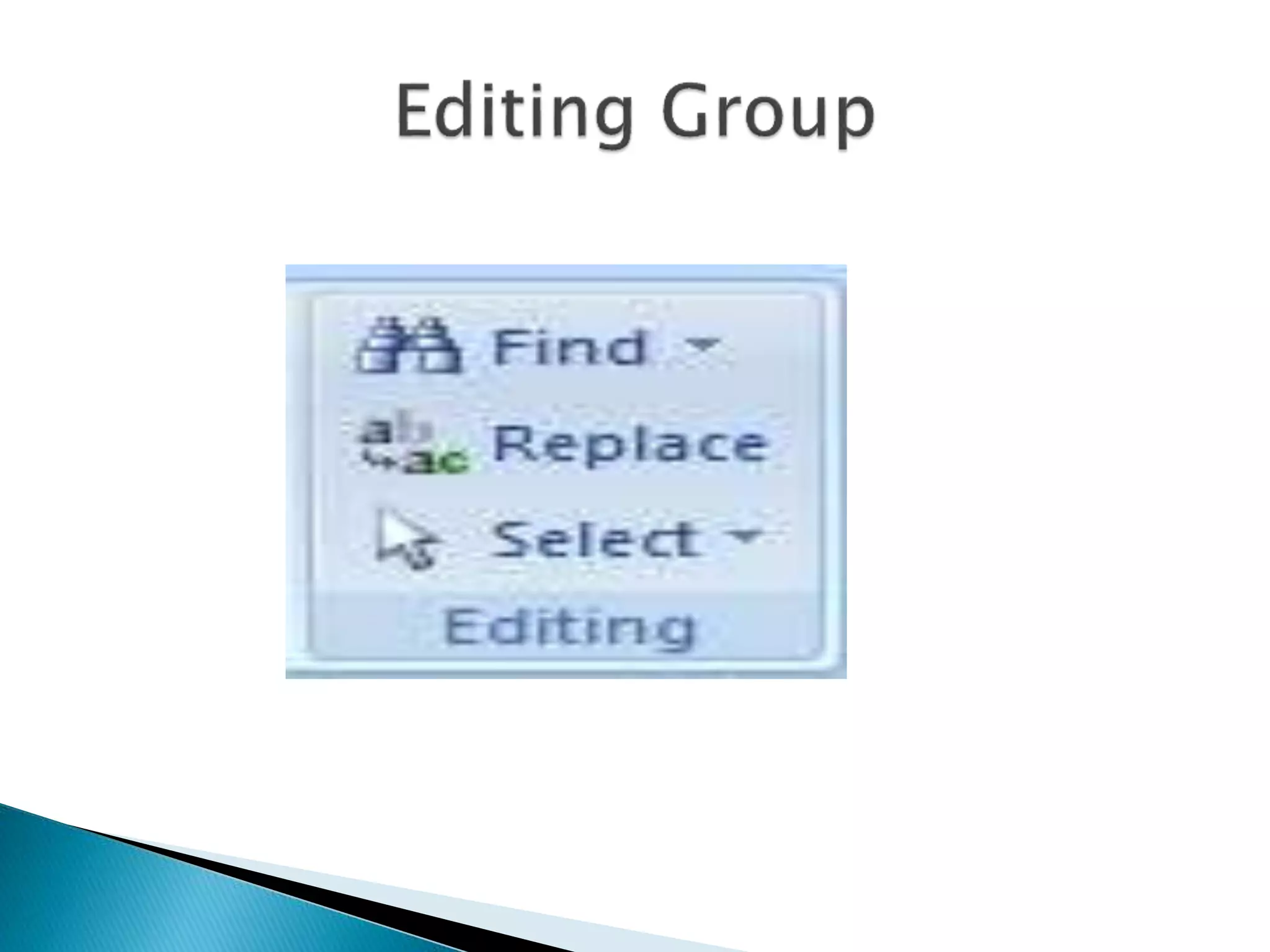
 Editing group
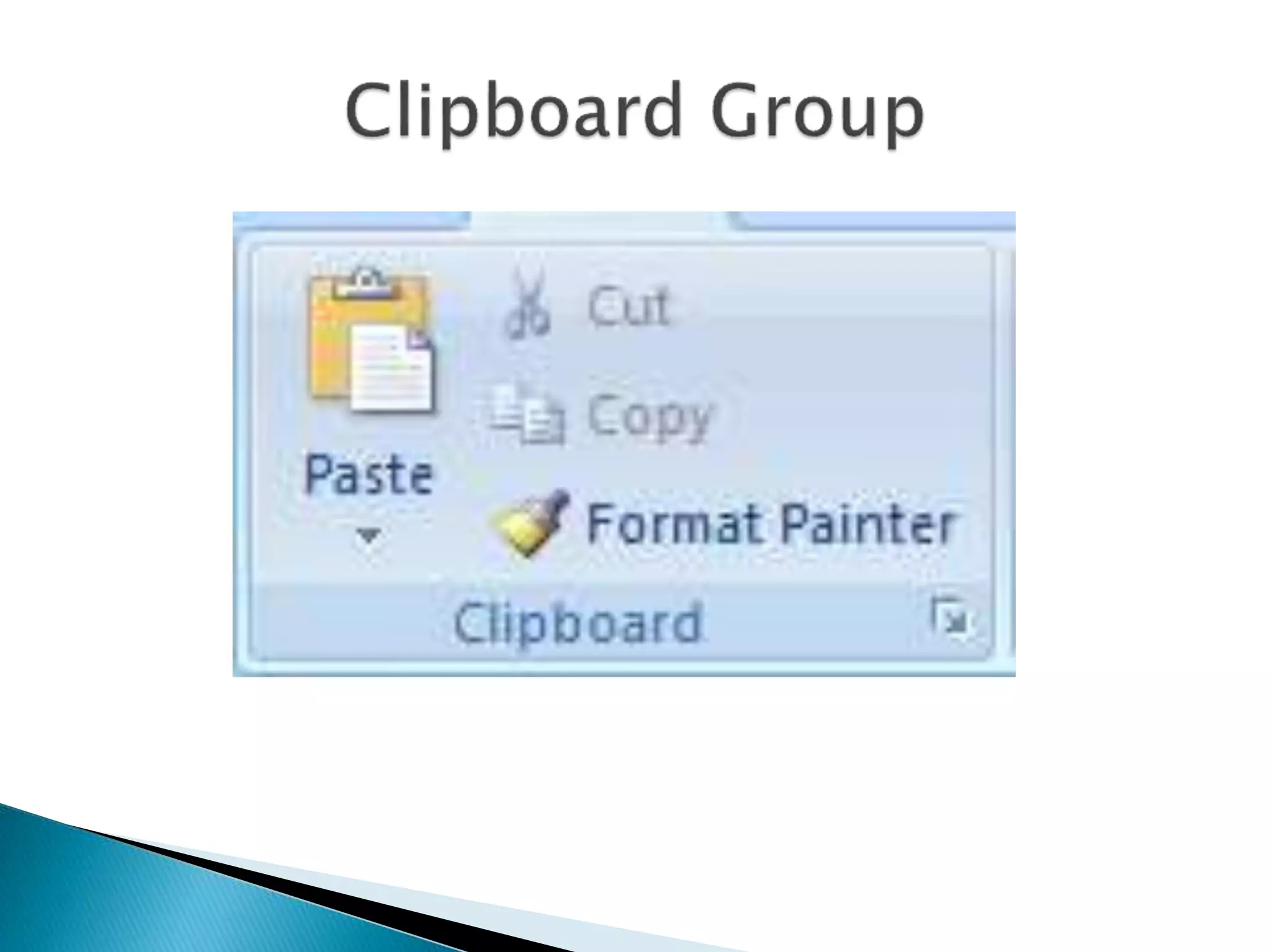
 Cut – to remove the selected item. 
 Copy – to take a copy of the selected item. 
 Paste – to insert an item from clipboard. 
 Format Painter – to apply the same format to 
more than one text at once. 
 Diagonal arrow to open Clipboard Task Pane 
window.
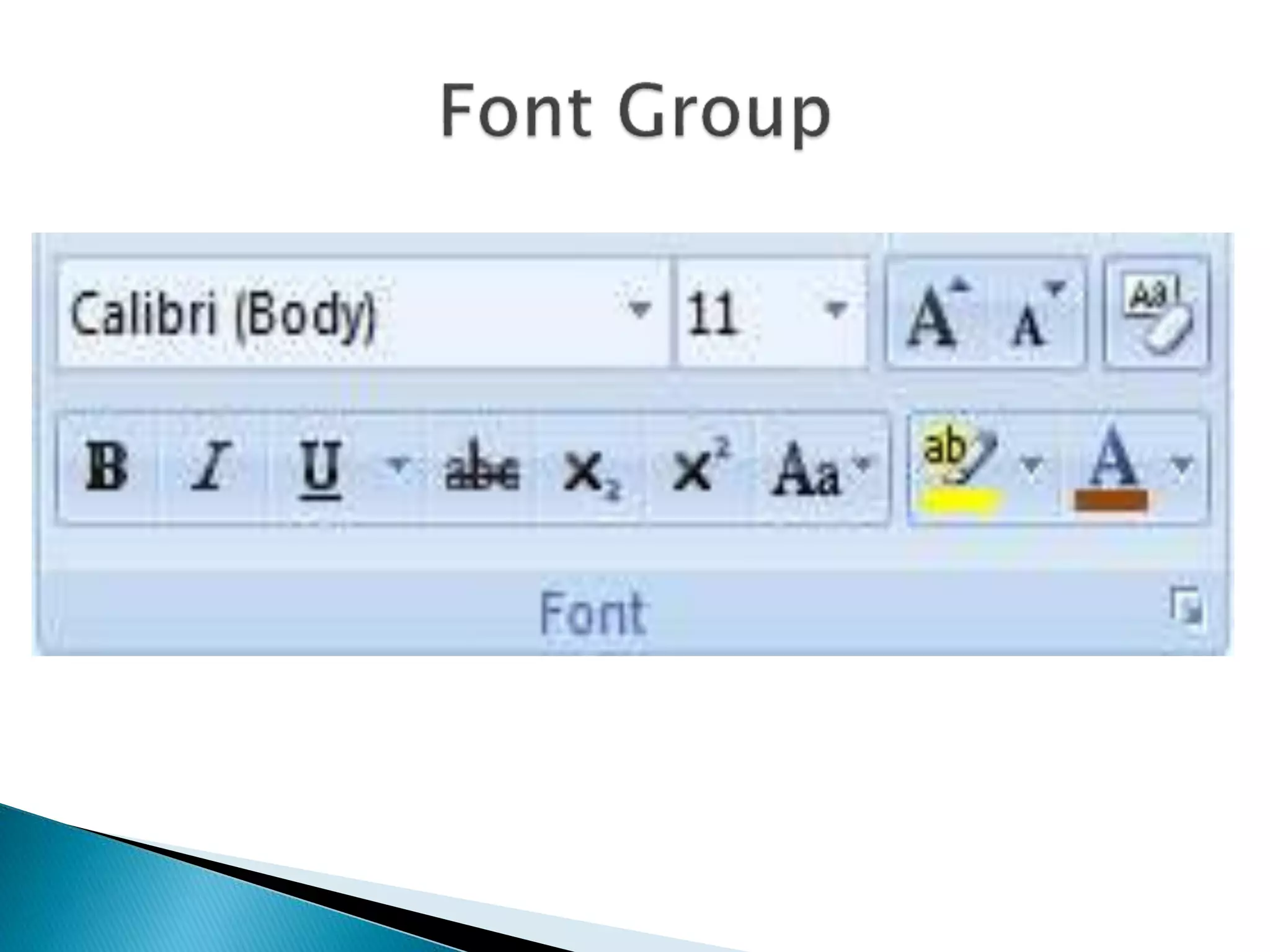
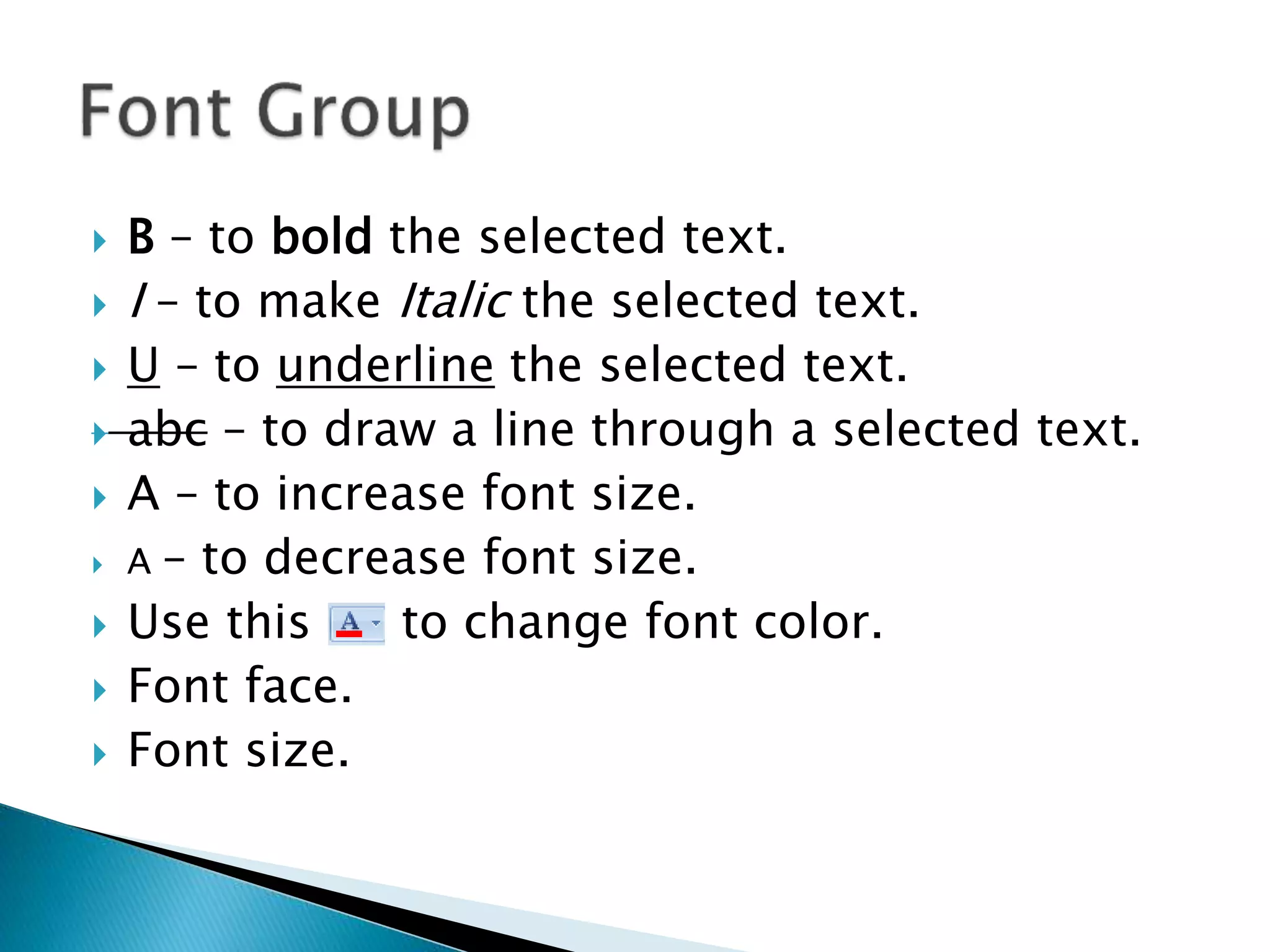
 B – to bold the selected text. 
 I – to make Italic the selected text. 
 U – to underline the selected text. 
 abc – to draw a line through a selected text. 
 A – to increase font size. 
 A – to decrease font size. 
 Use this to change font color. 
 Font face. 
 Font size.
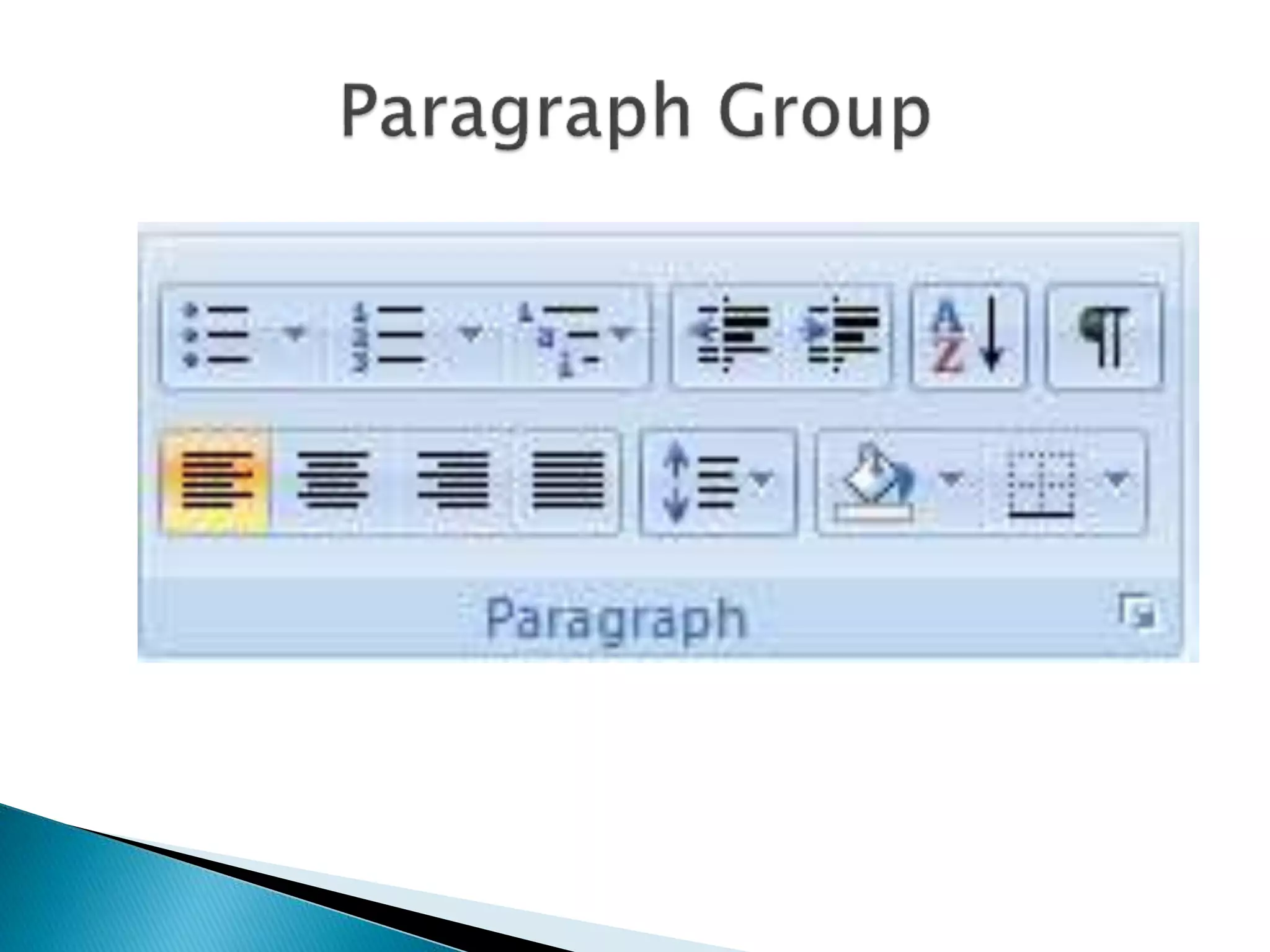
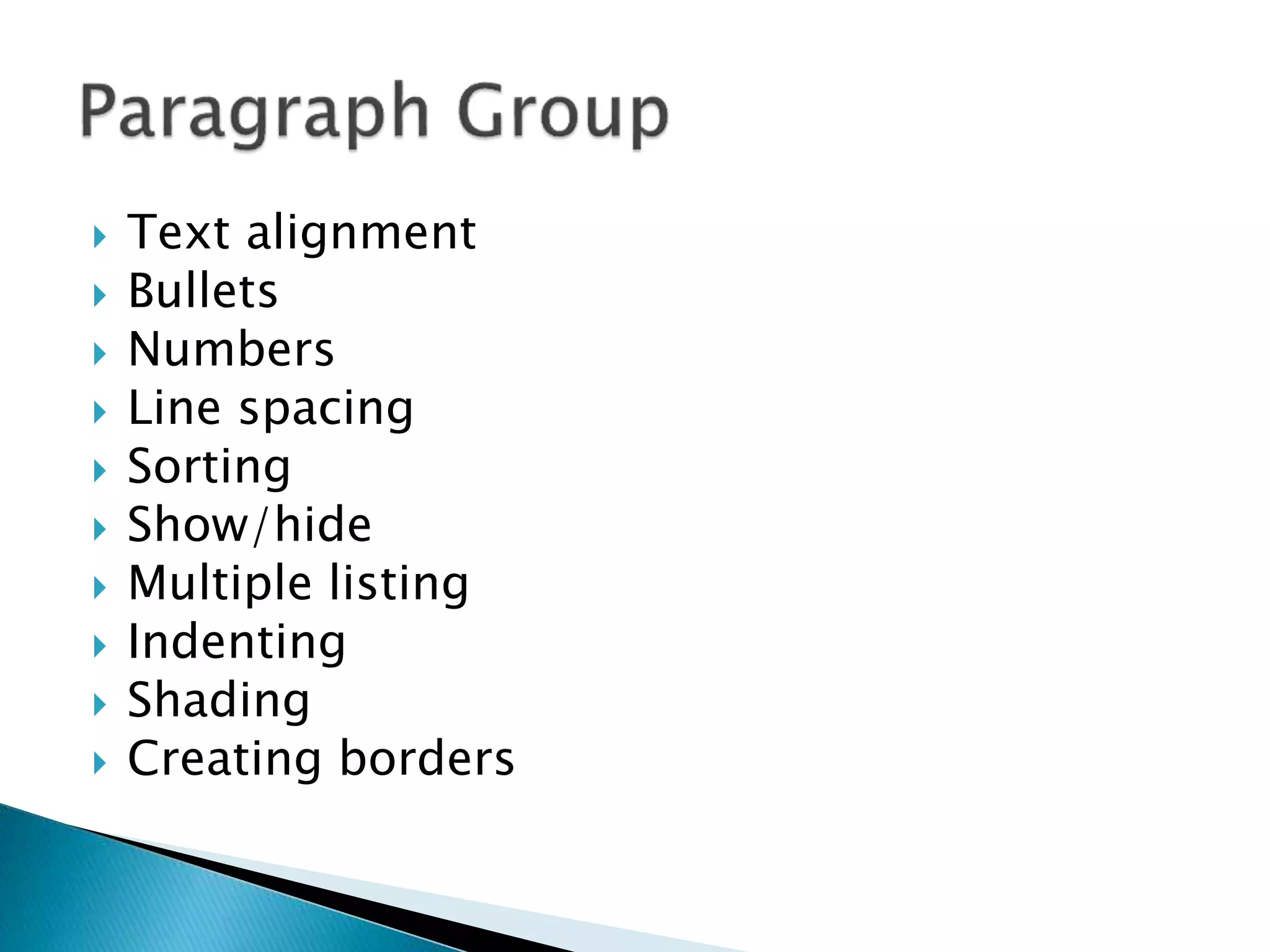
 Text alignment 
 Bullets 
 Numbers 
 Line spacing 
 Sorting 
 Show/hide 
 Multiple listing 
 Indenting 
 Shading 
 Creating borders
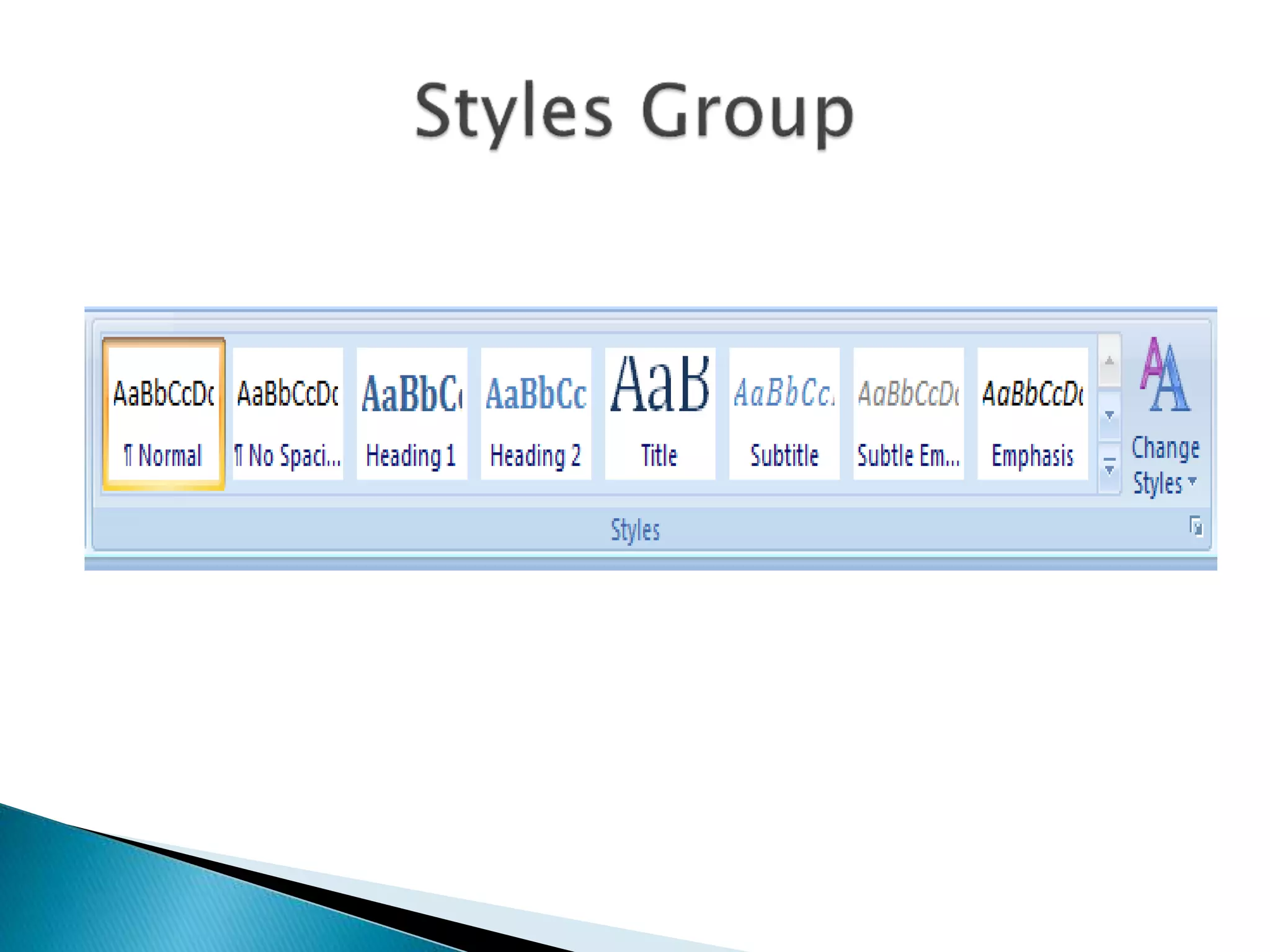
 Normal 
 No spacing 
 Heading 1 
 Heading 2 
 Title 
 Subtitle 
 Subtitle Emphasis 
 Emphasis 
 More styles…
 Find 
 Replace 
 Select
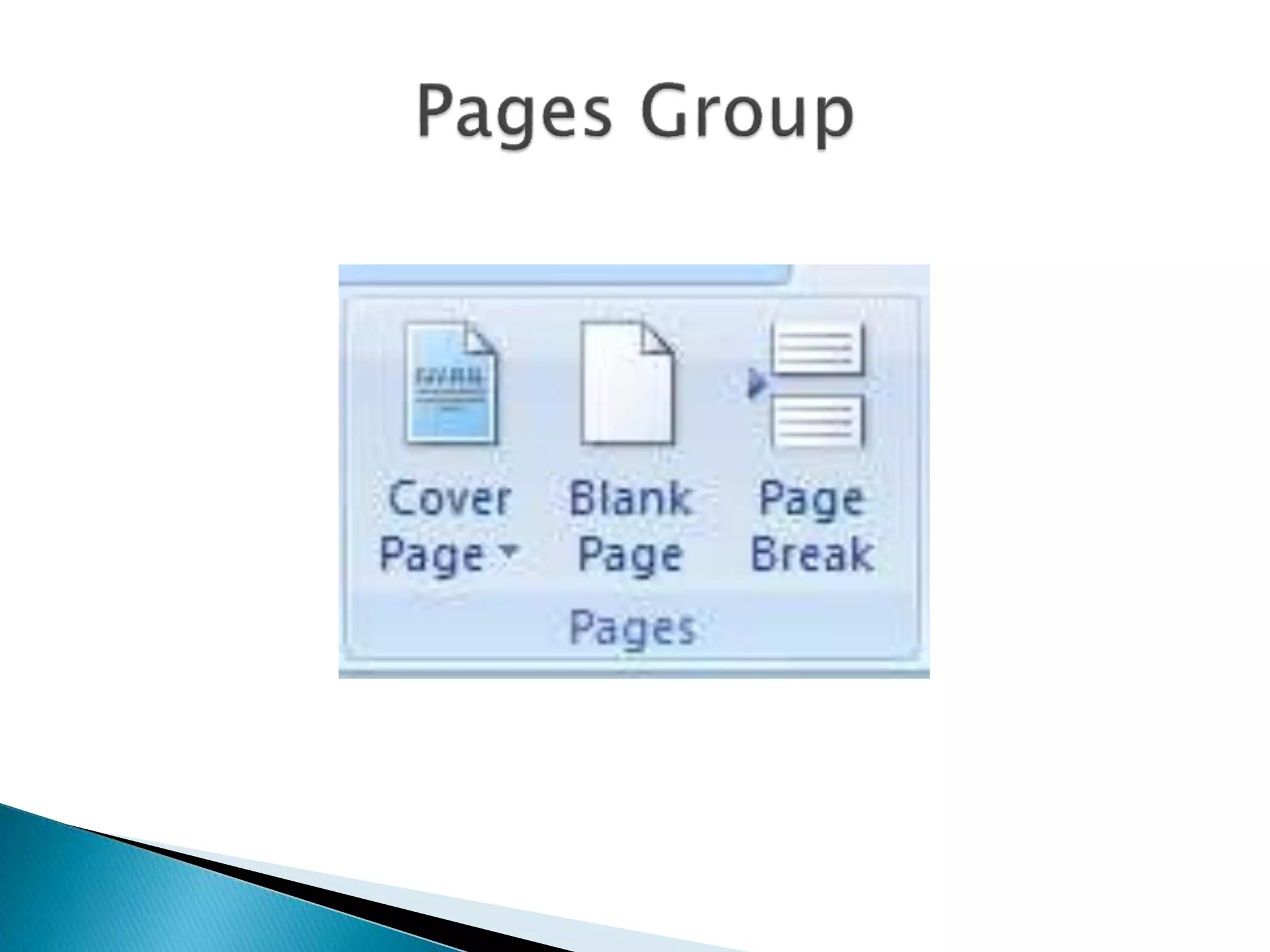
 Pages 
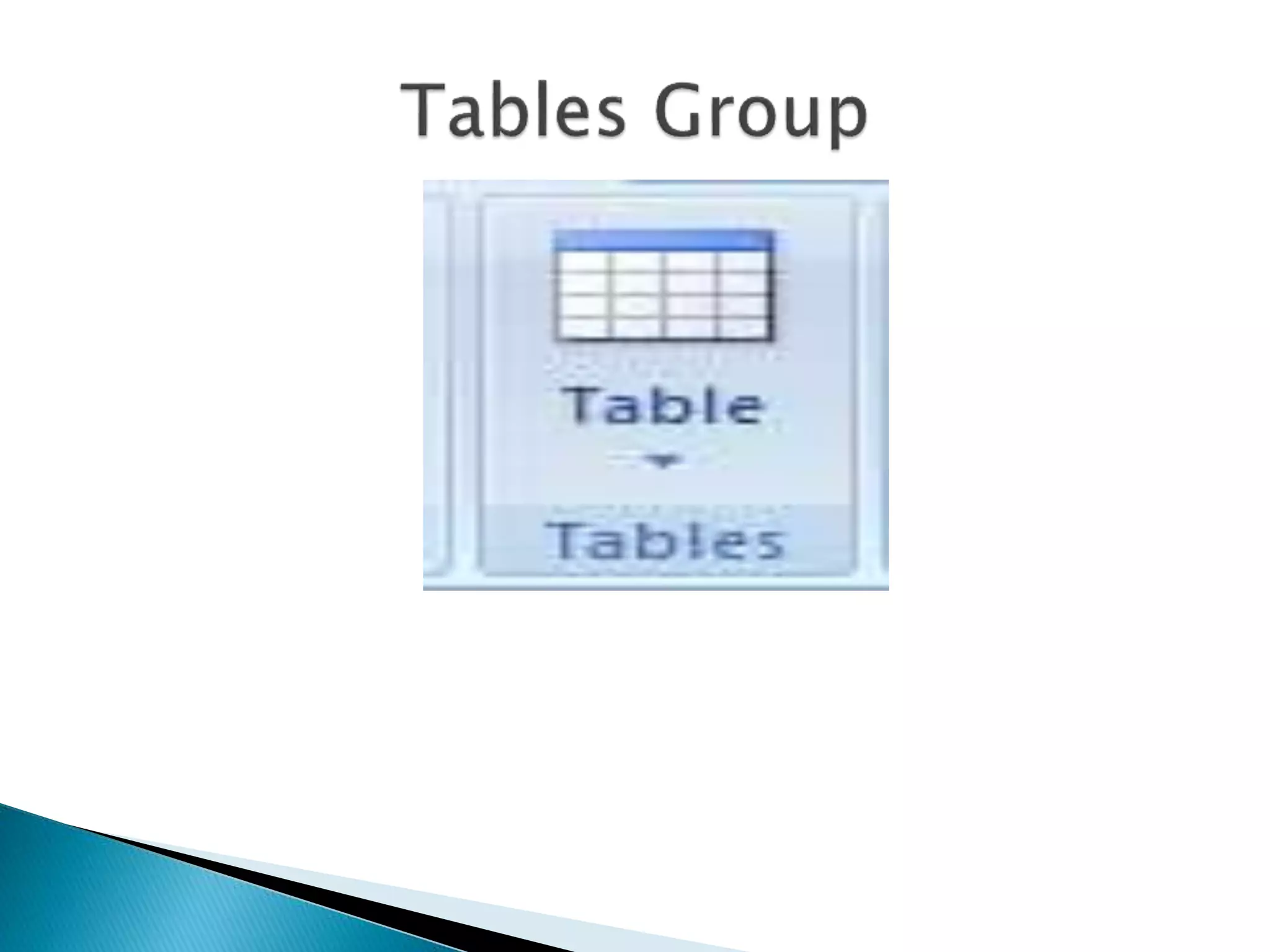
 Tables 
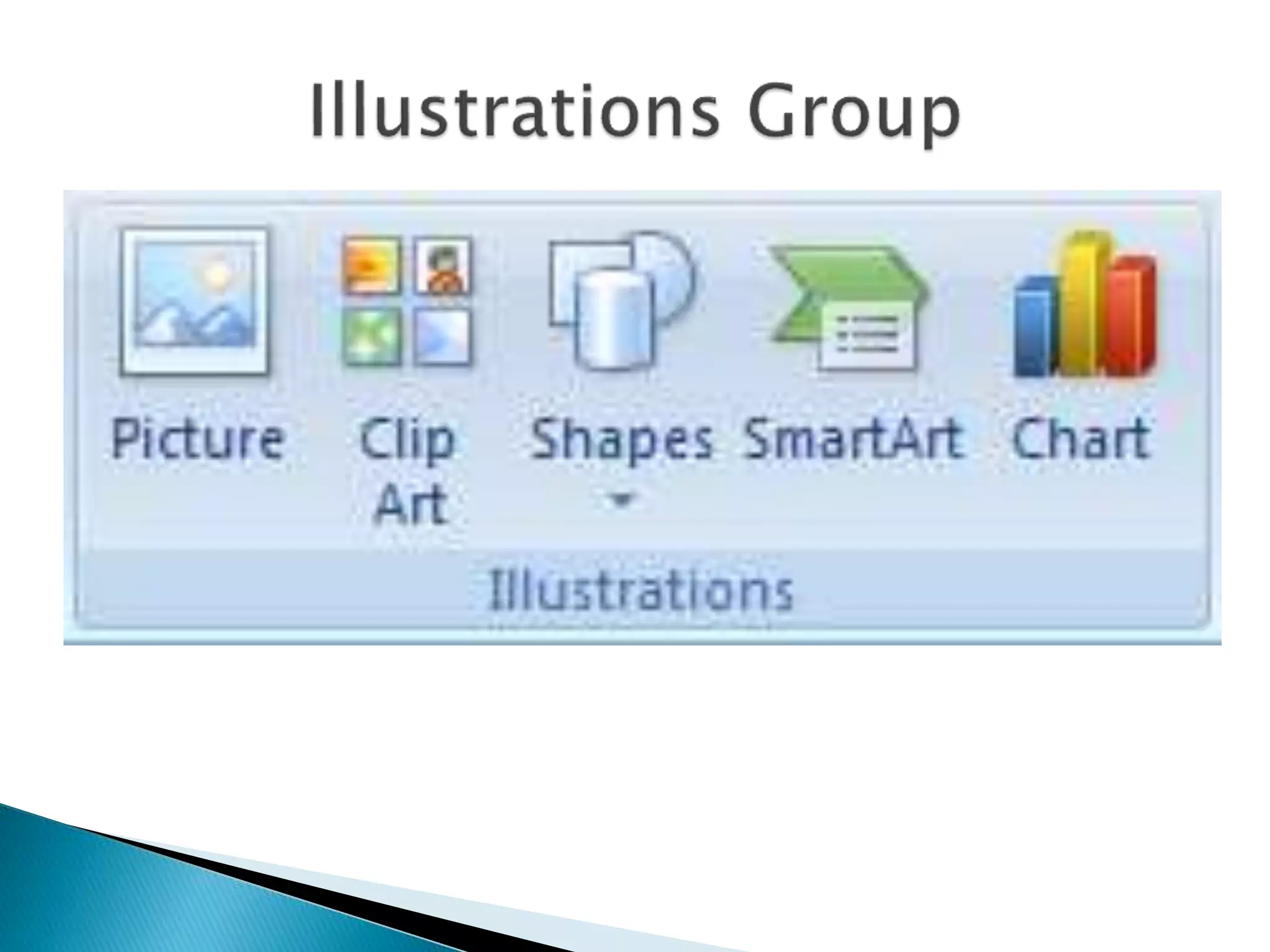
 Illustrations 
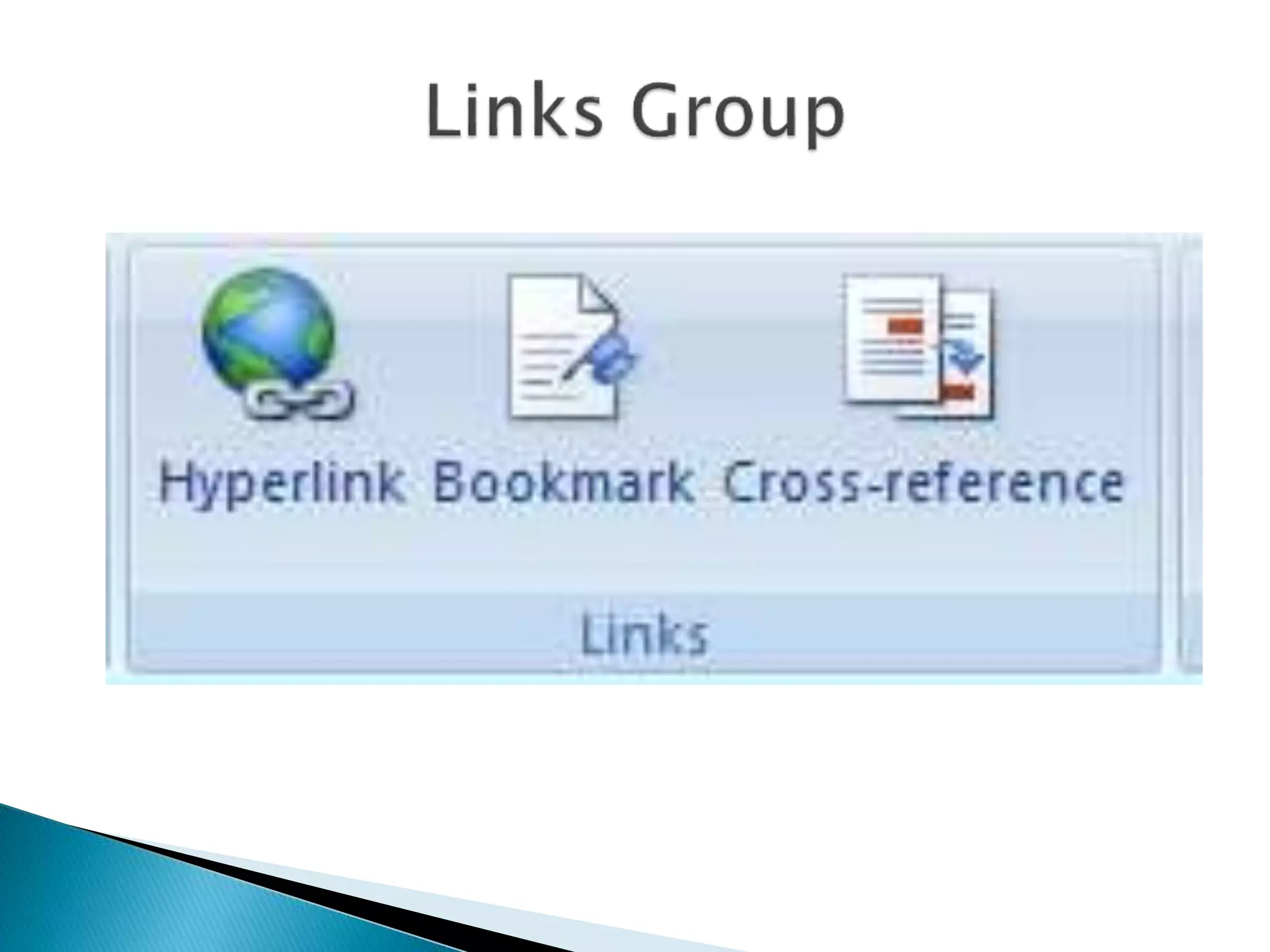
 Links 
 Header & Footer 
 Text 
 Symbol
 Cover pages 
 Blank page 
 Page break
 Insert Table 
 Draw table 
 Convert text to table 
 Excel Spreadsheet 
 Quick tables
 Picture 
 Clip Art 
 SmartArt 
 Shapes 
 Chart
 Hyperlink 
 Bookmark 
 Cross-reference
 Insert header 
 Insert footer 
 Insert page numbers
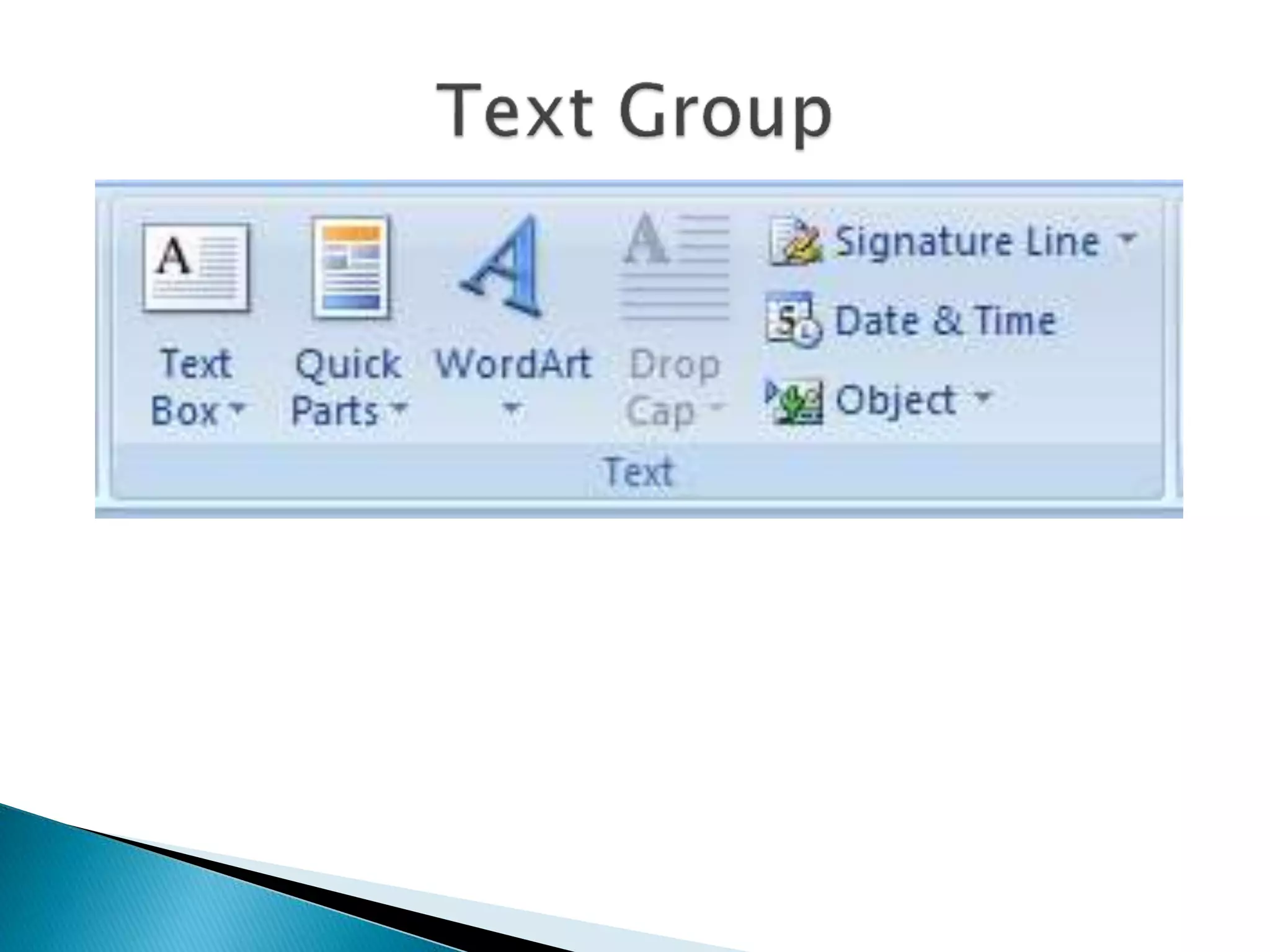
 Insert text boxes 
 Insert quick parts 
 Insert WordArt 
 Insert Drop Caps 
 Insert signature line 
 Insert Date & Time 
 Insert any Object
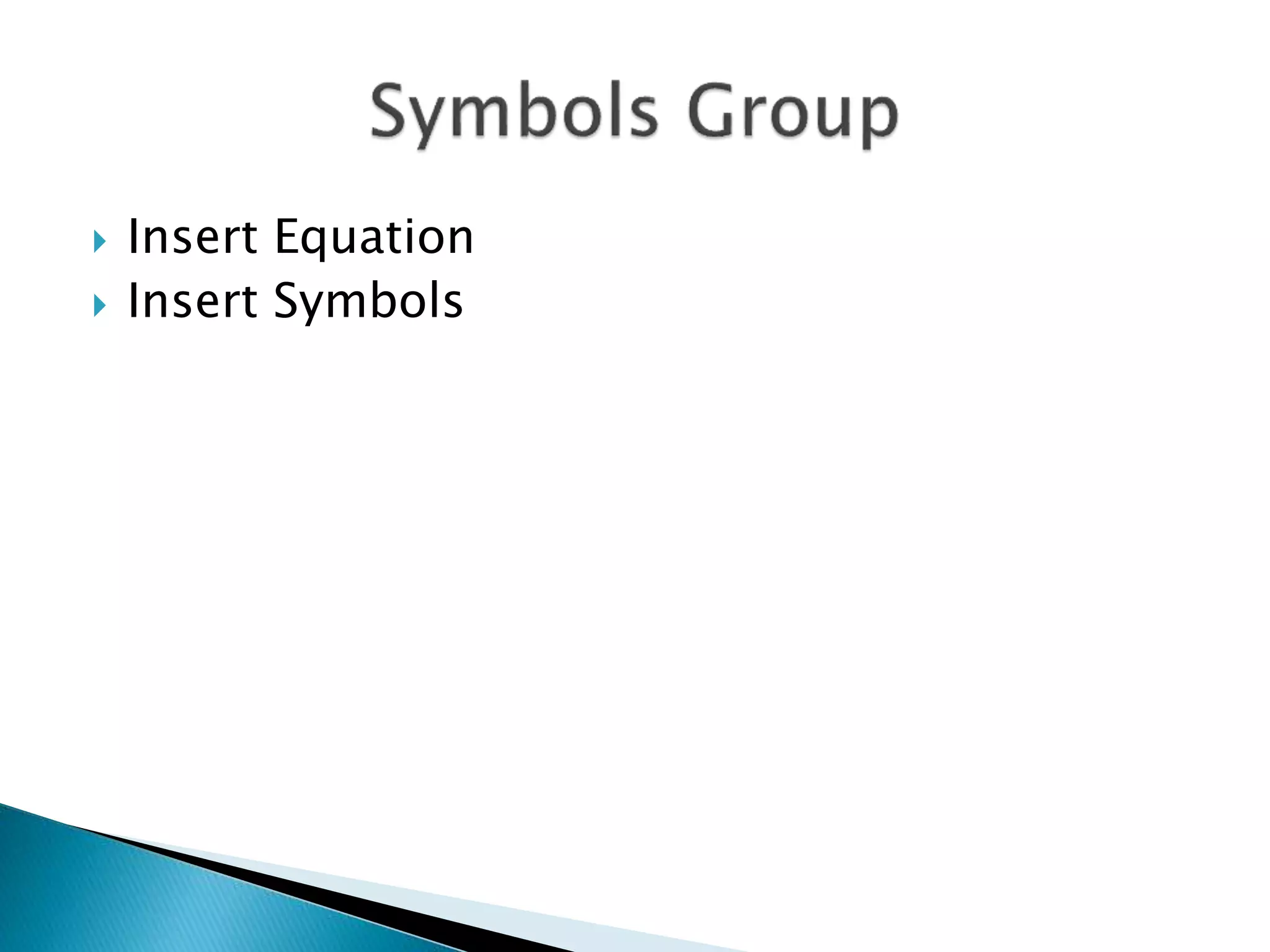
 Insert Equation 
 Insert Symbols
 Themes group 
 Page Setup Group 
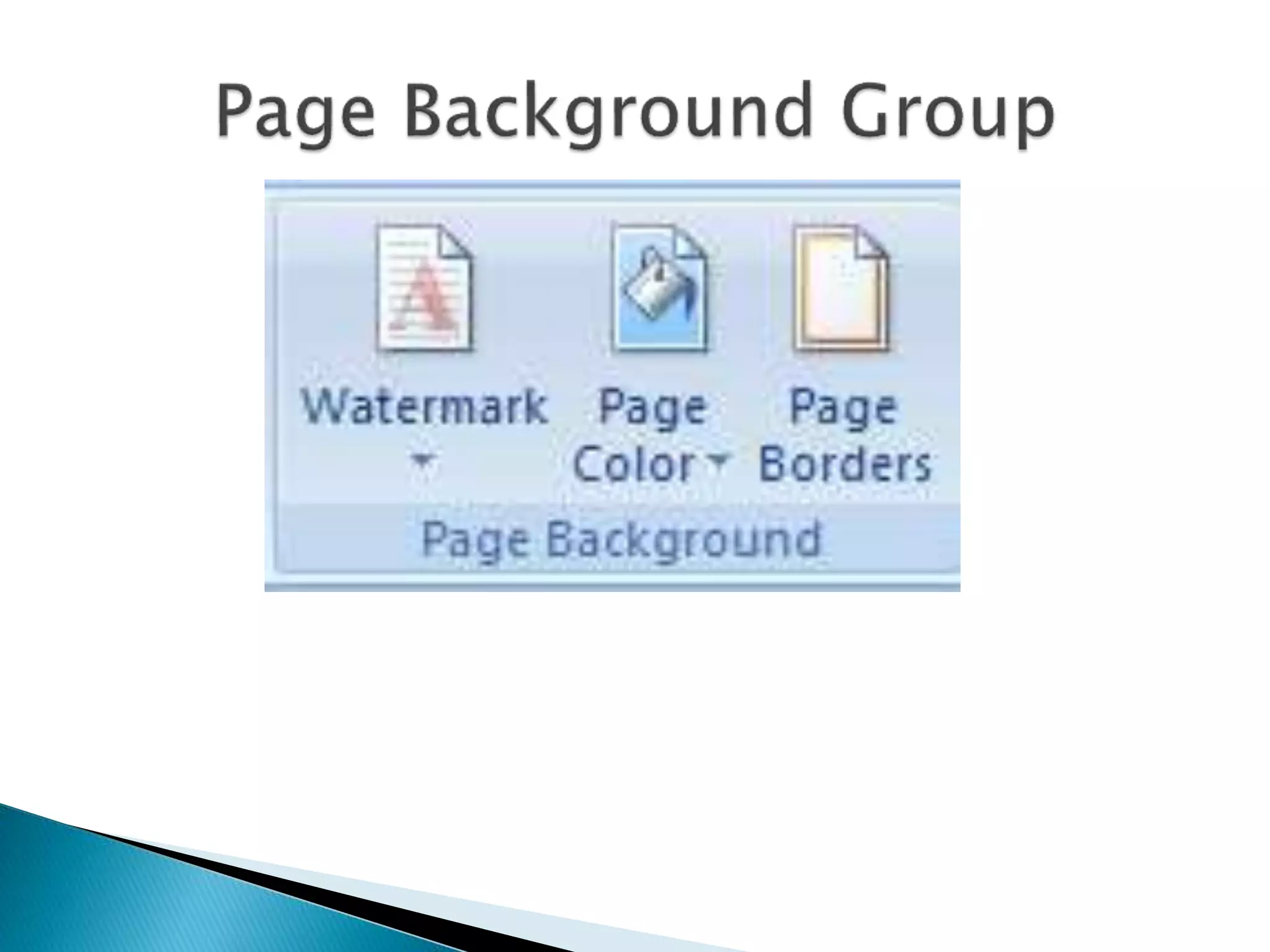
 Page Background Group 
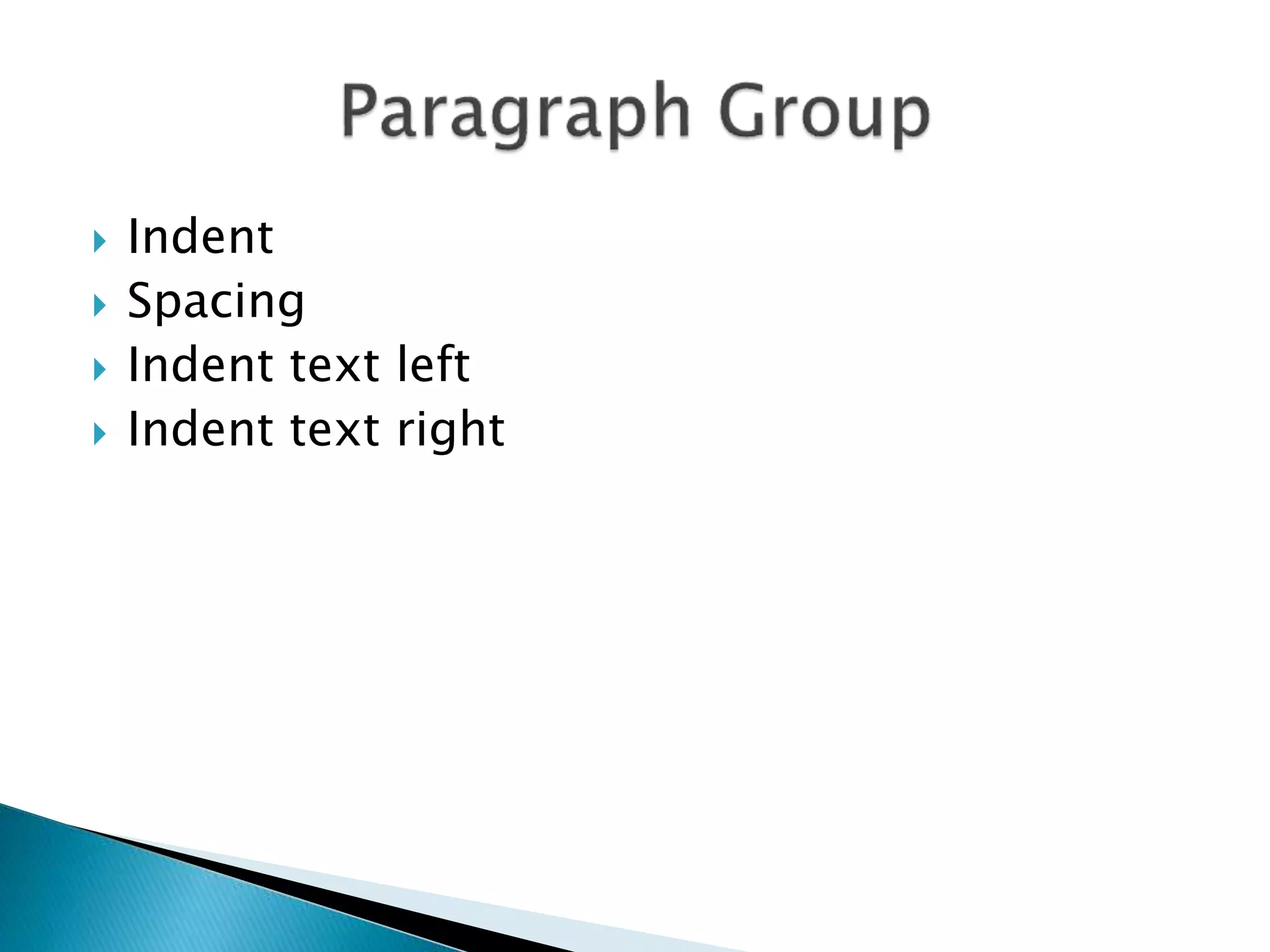
 Paragraph Group 
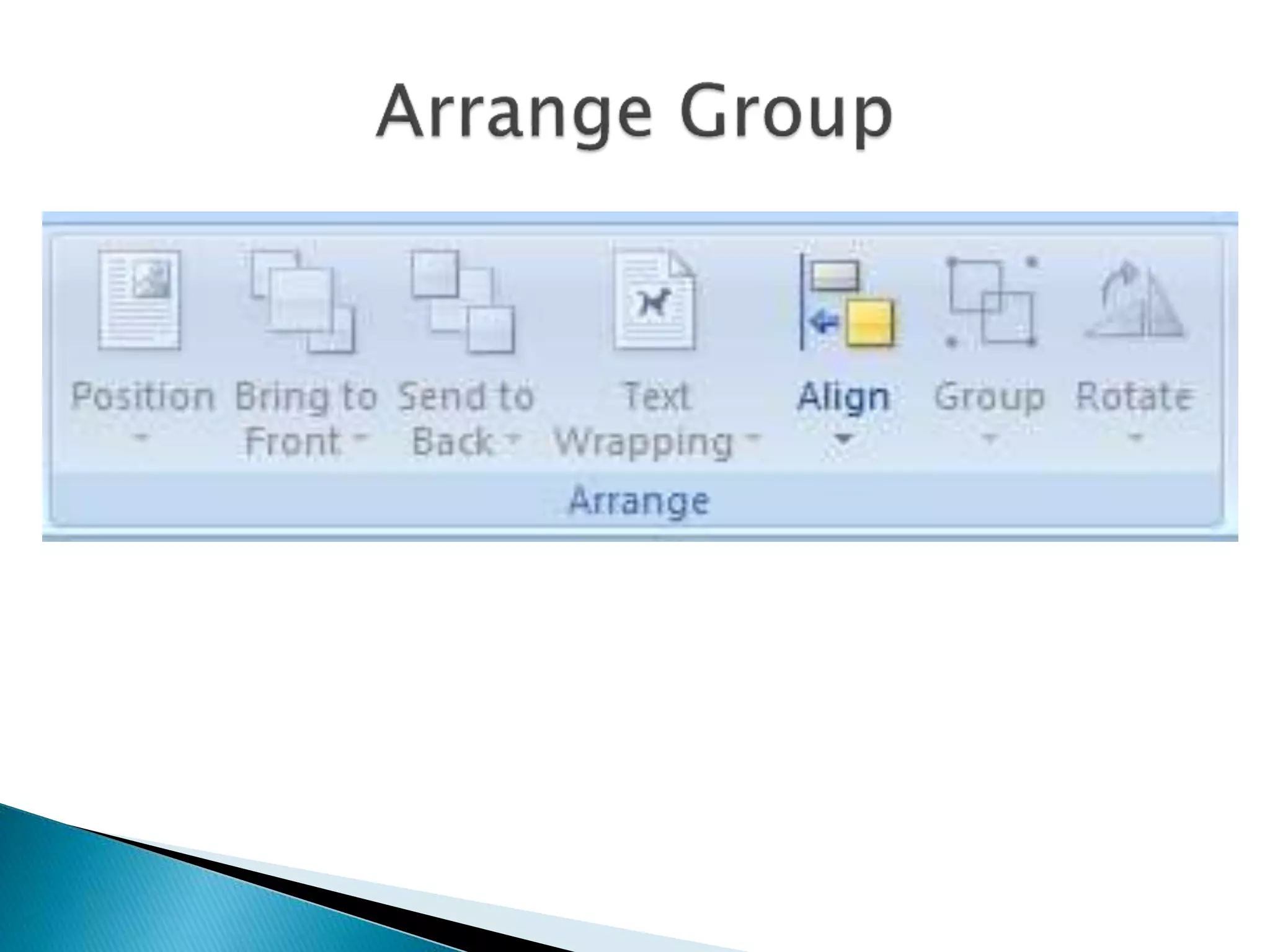
 Arrange Group
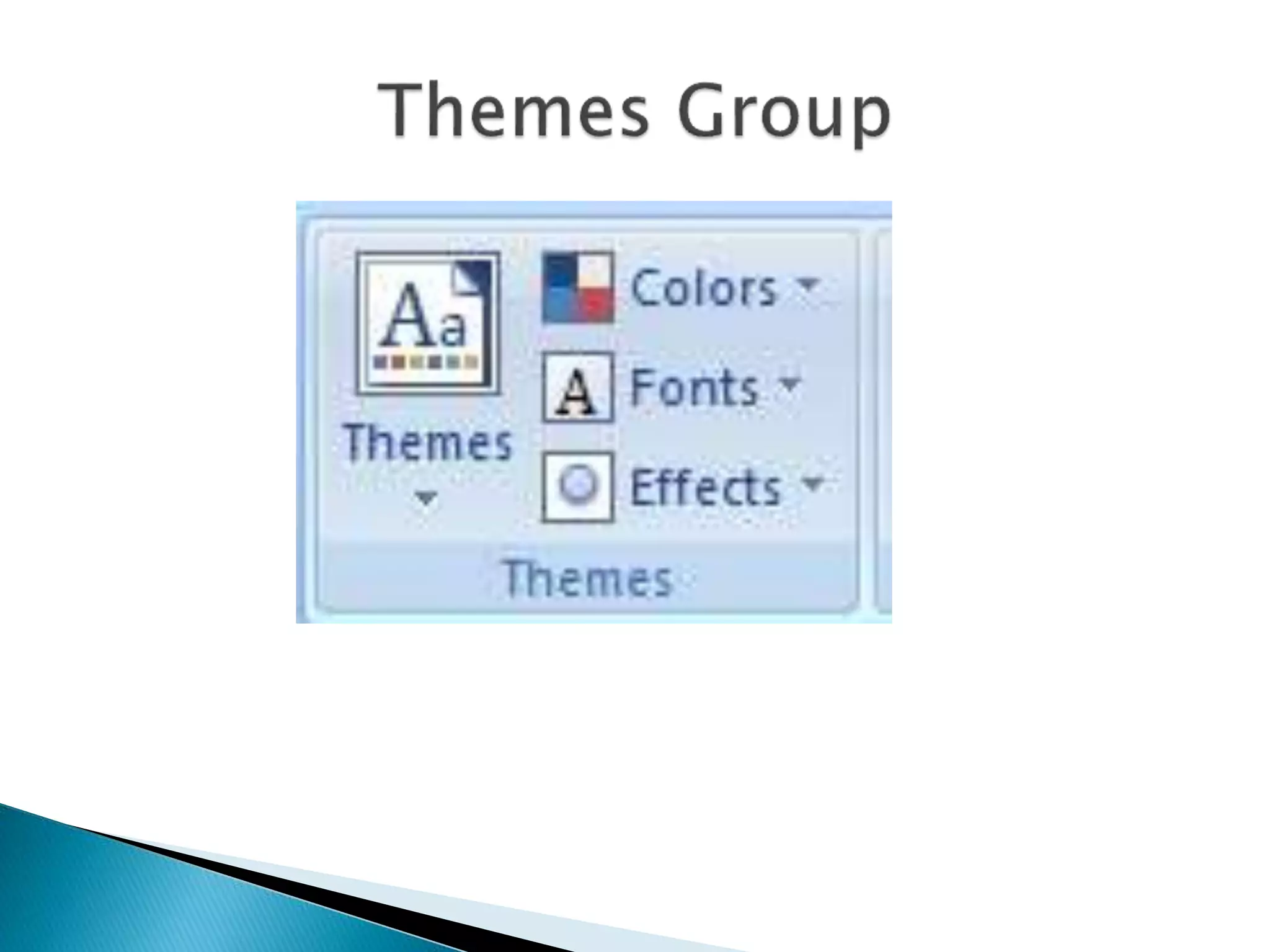
 Apply themes 
 Apply Effects 
 Apply Colors 
 Apply Fonts
 Set Page Margins 
 Set Page Orientation 
 Set columns 
 Set Page Size 
 Breaks 
 Line numbers 
 Hyphenation
 Watermark 
 Page Color 
 Page Borders
 Indent 
 Spacing 
 Indent text left 
 Indent text right
 Position 
 Bring to front 
 Send back 
 Text wrapping 
 Align 
 Group 
 Rotate
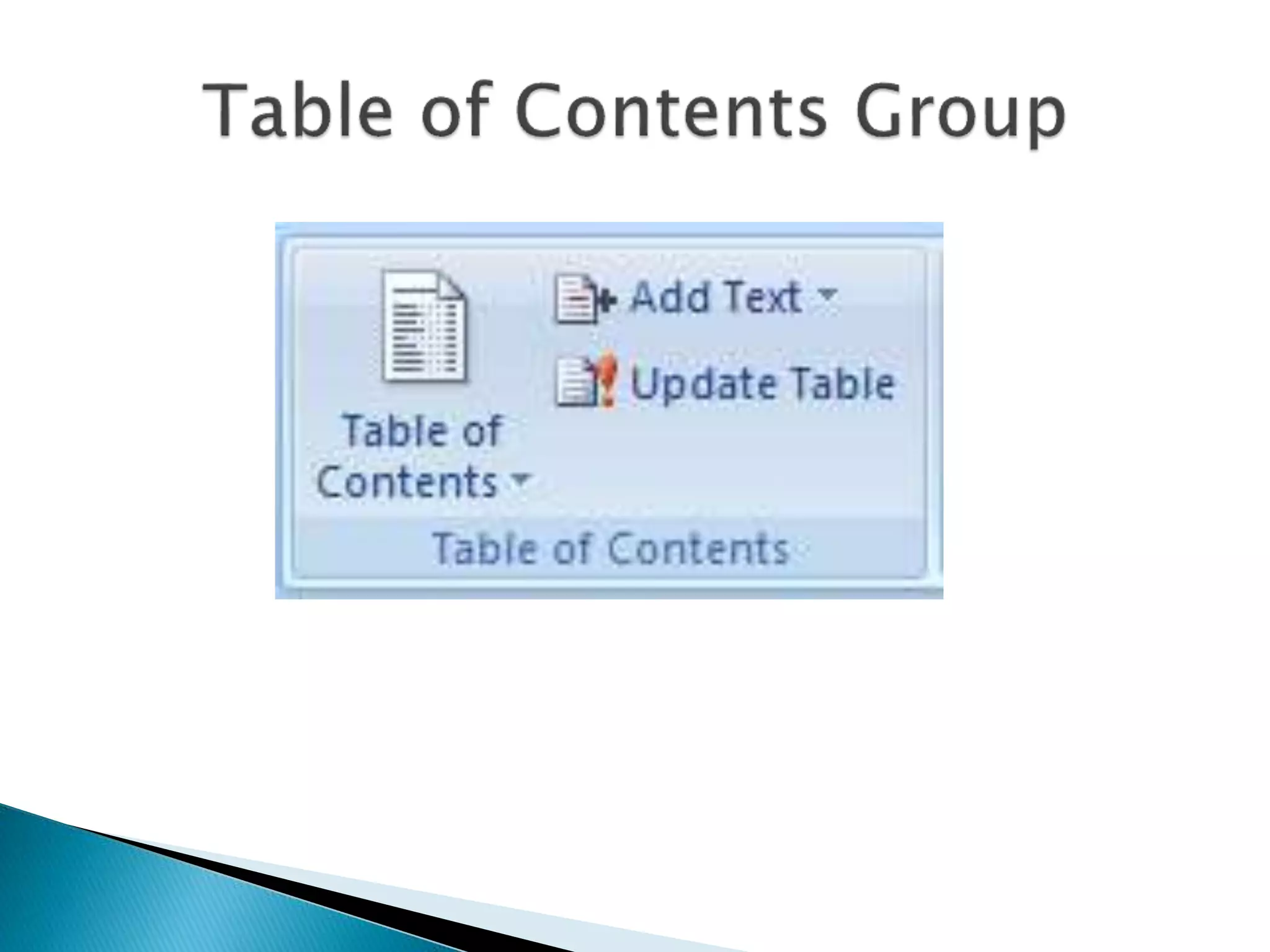
 Table of Contents 
 Footnotes 
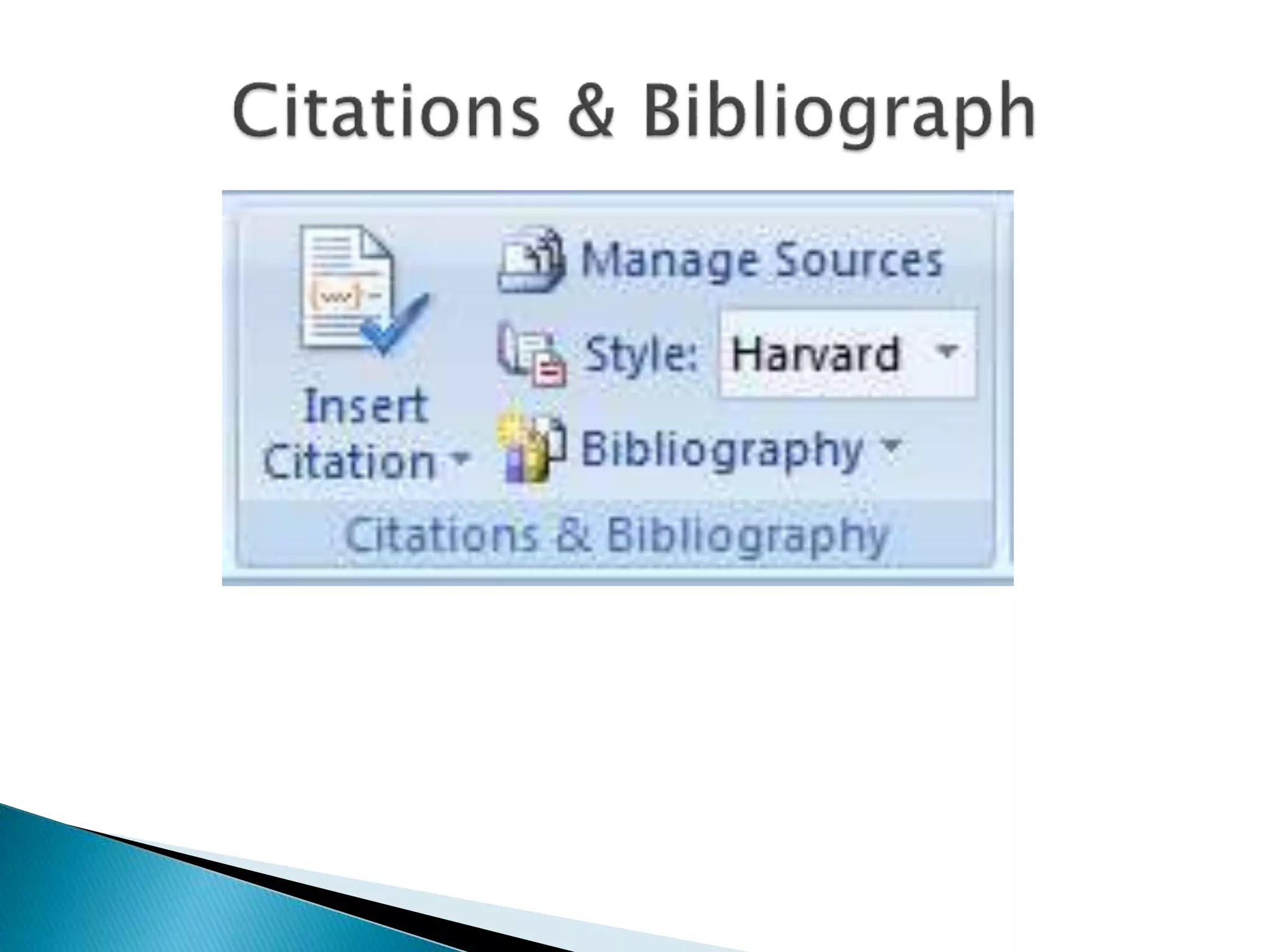
 Citations & Bibliography 
 Caption 
 Index 
 Table of Authorities
 Insert Table of contents 
 Add Text to table of contents 
 Update existing table of contents
 Insert footnote 
 Insert endnote 
 Next footnote 
 Previous footnote 
 Next endnote 
 Show notes
 Insert citation 
 Manage sources 
 Styles 
 Bibliography
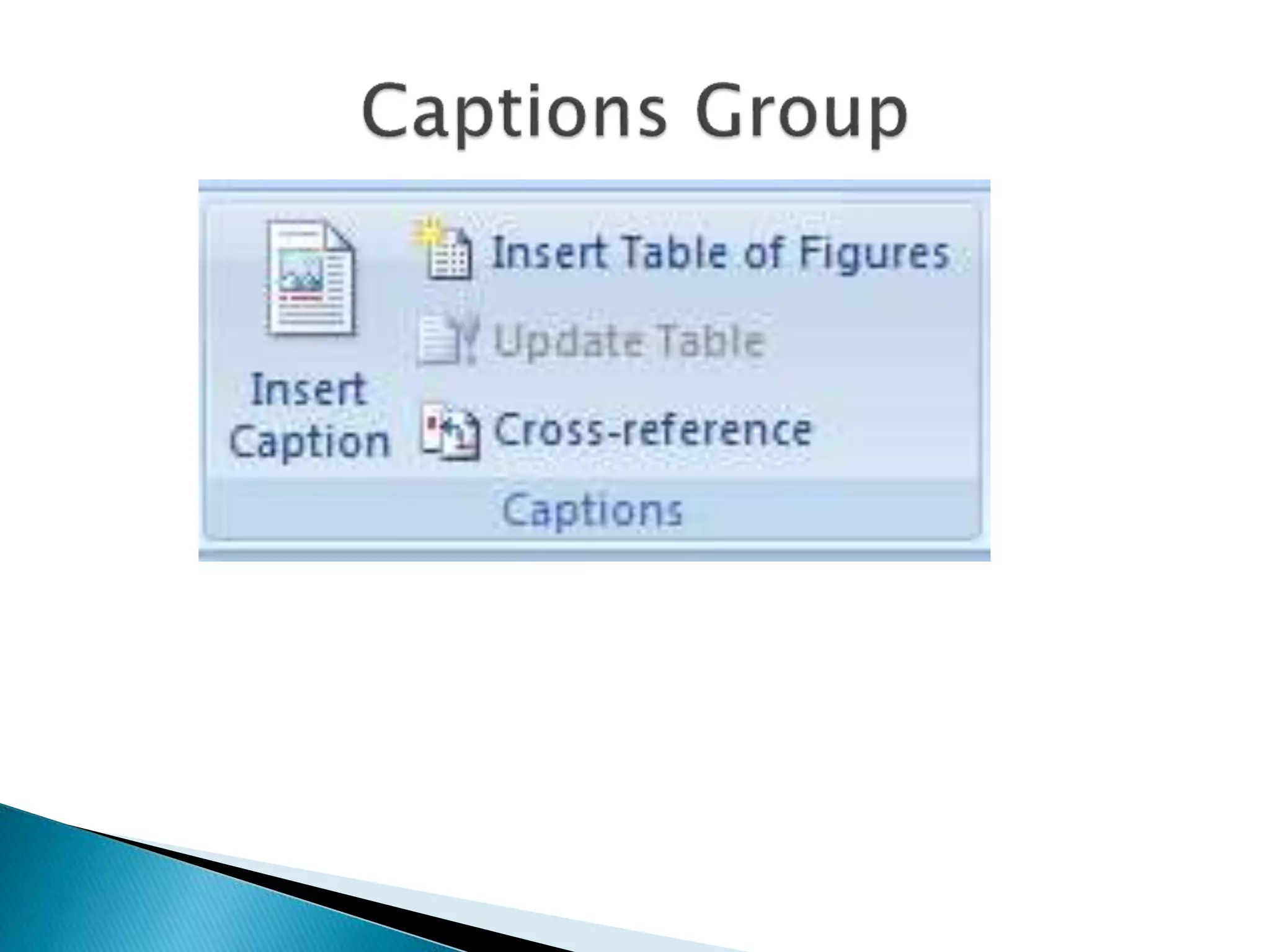
 Insert caption 
 Insert table of figures 
 Update table 
 Cross-reference
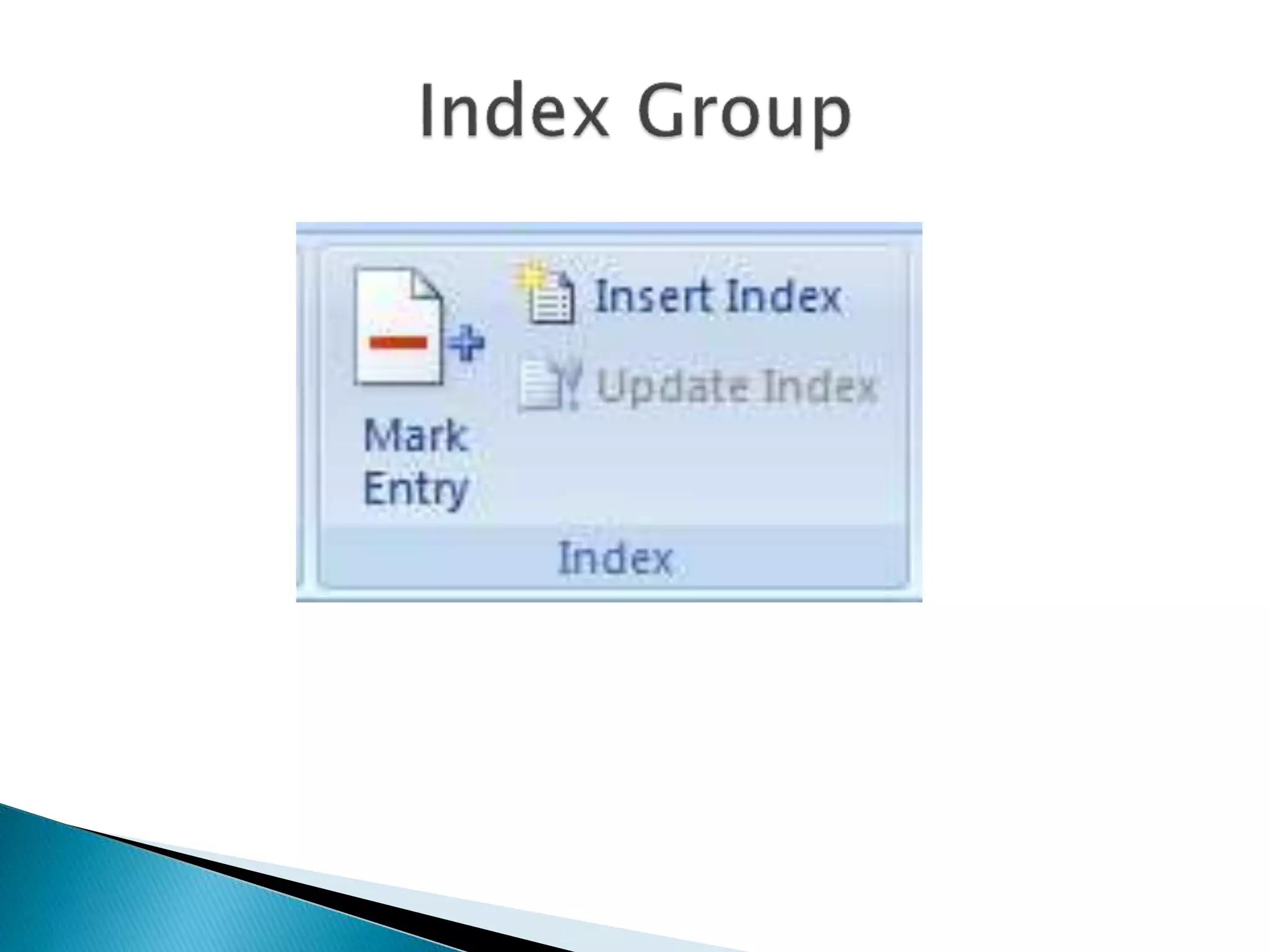
 Mark entry 
 Insert index 
 Update index
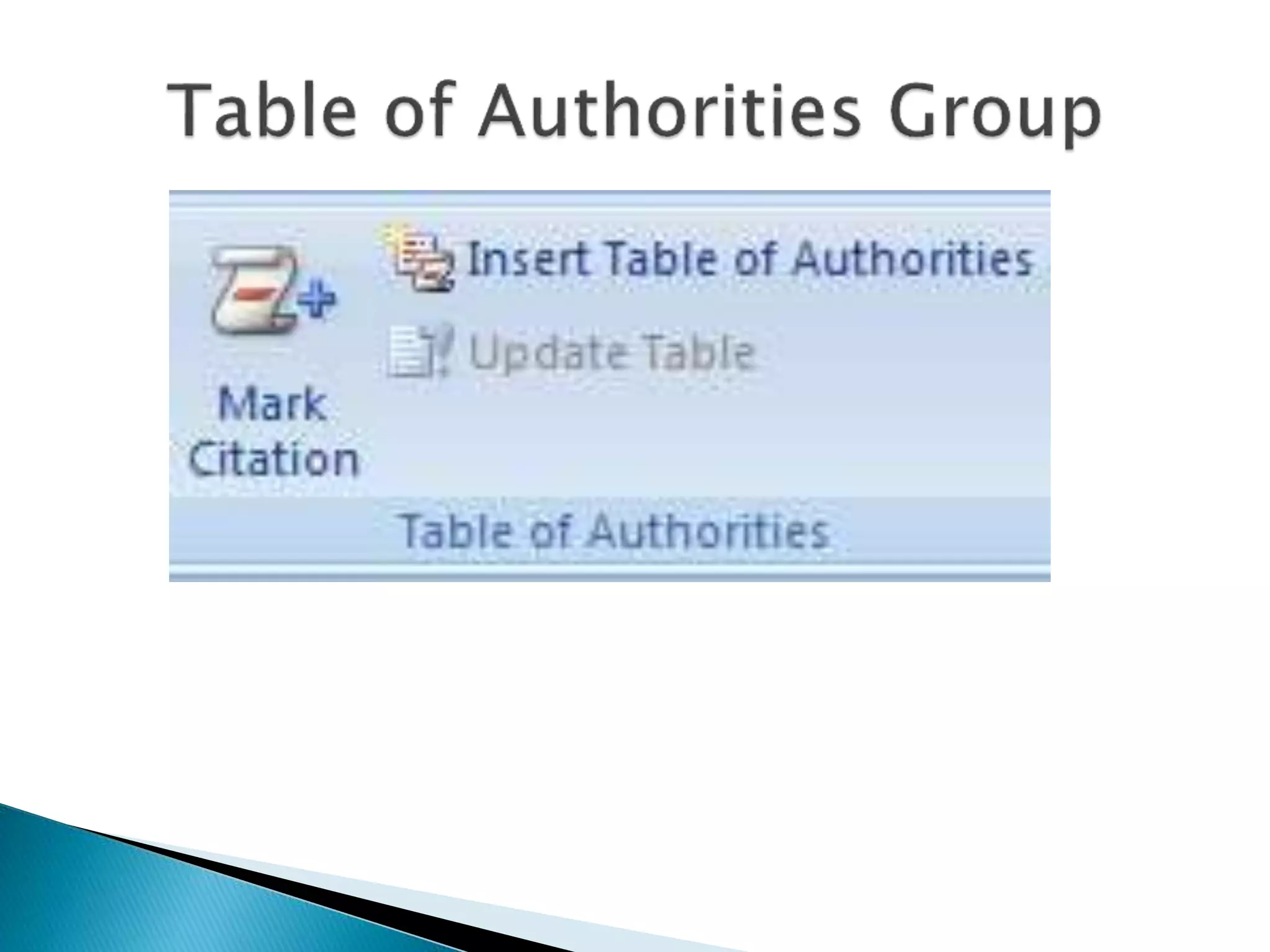
 Mark citation 
 Insert table of authorities 
 Update table
 Create 
 Start mail merge 
 Write & insert fields 
 Preview results 
 Finish
 Envelops 
 Labels
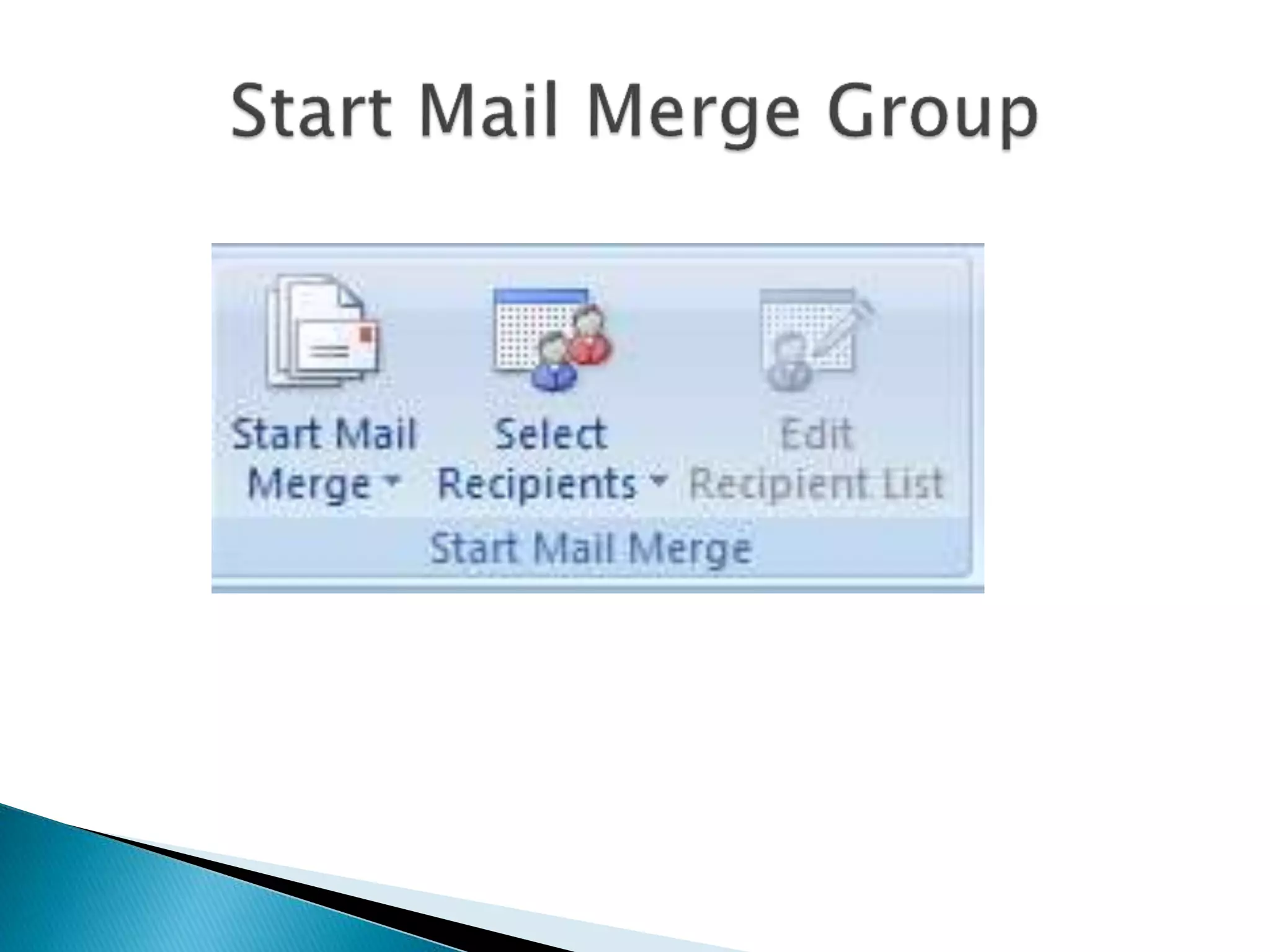
 Start Mail Merge 
 Select Recipients 
 Edit Recipients List
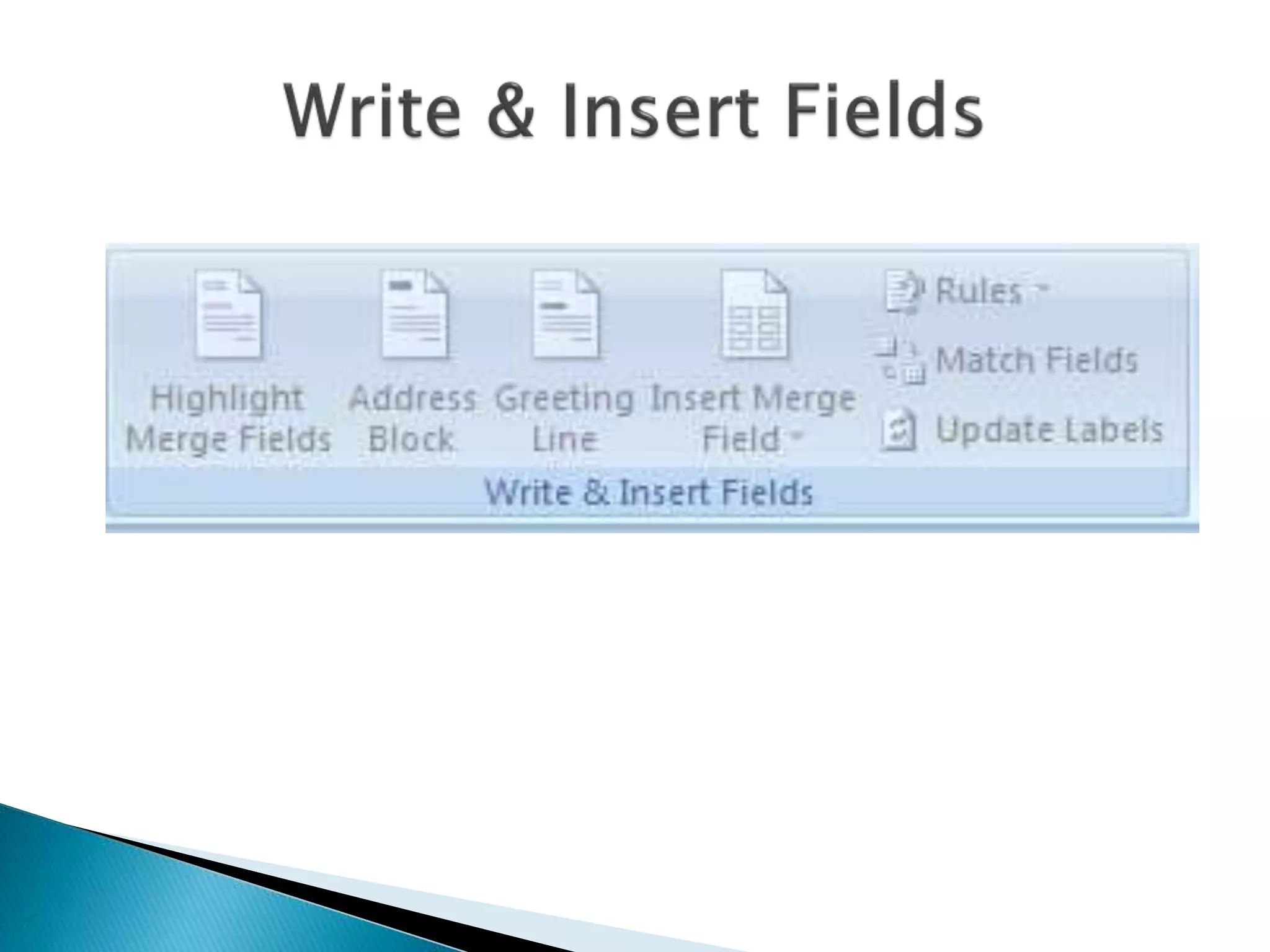
 Highlight Merge Fields 
 Address Block 
 Greeting Line 
 Insert Merge Field 
 Rules 
 Match Fields 
 Update Labels
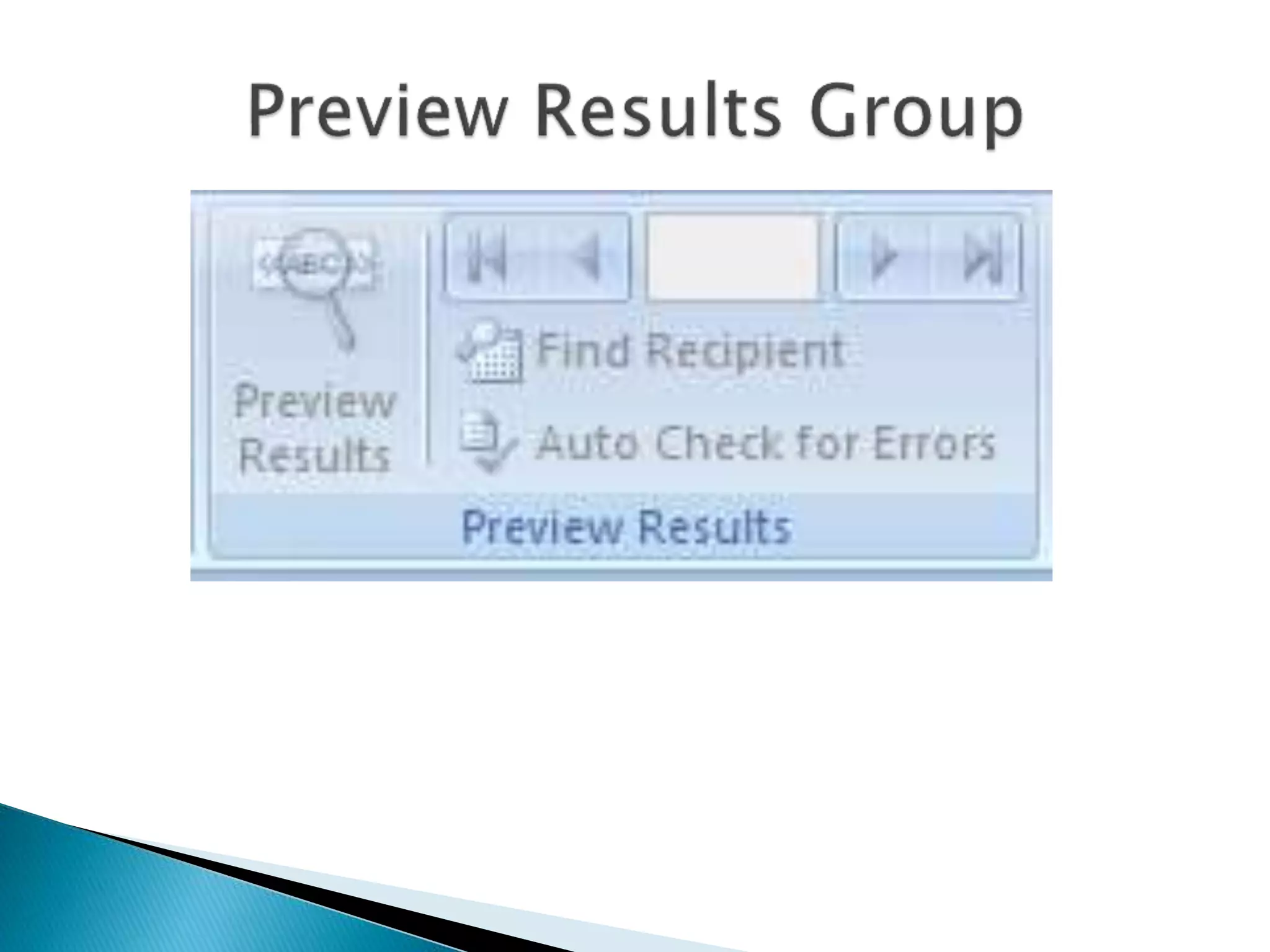
 Preview Results 
 Find recipient 
 Auto check for errors 
 Next result 
 Previous result
 Finish & Merge
 Proofing Group 
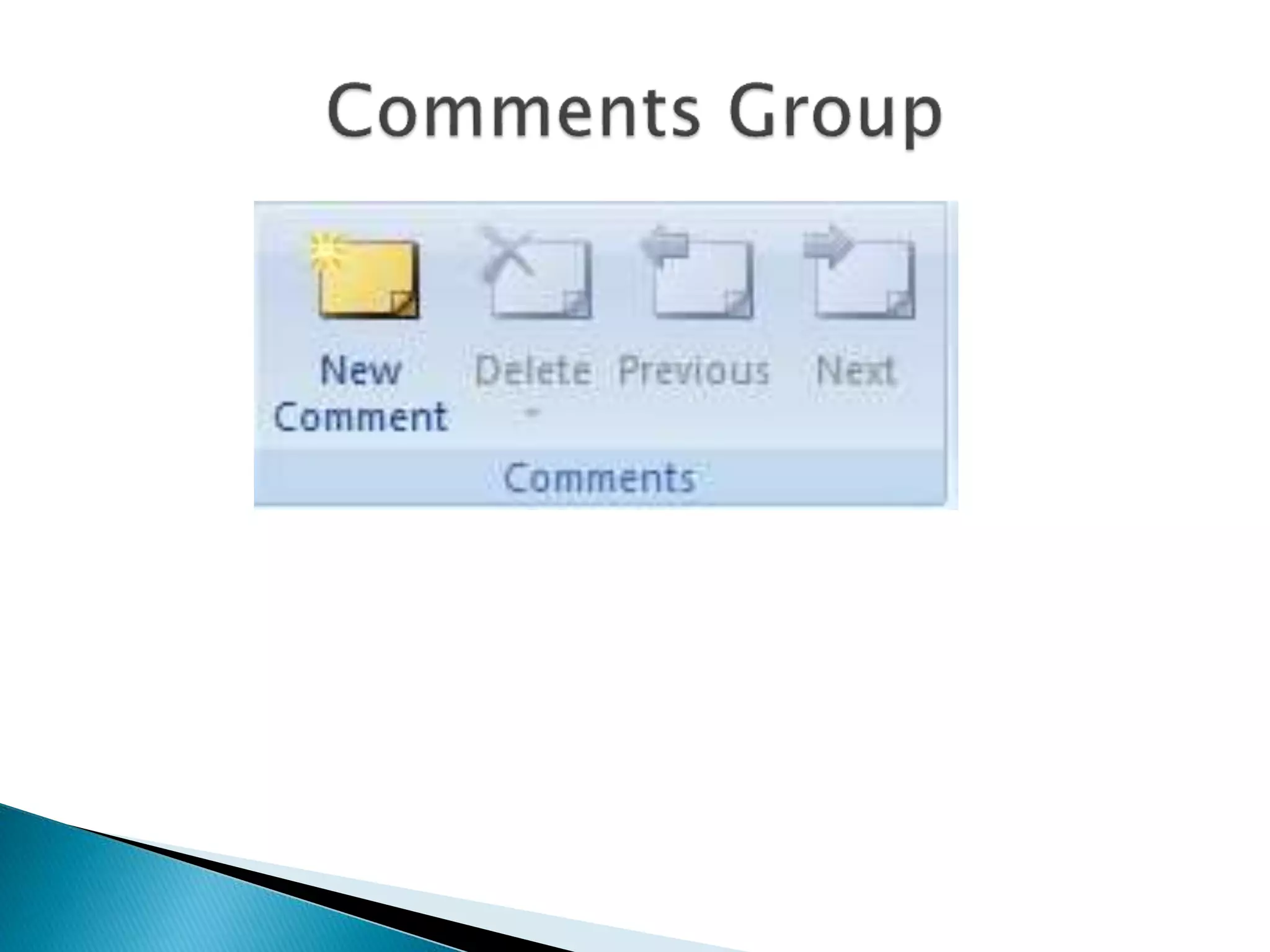
 Comments Group 
 Tracking Group 
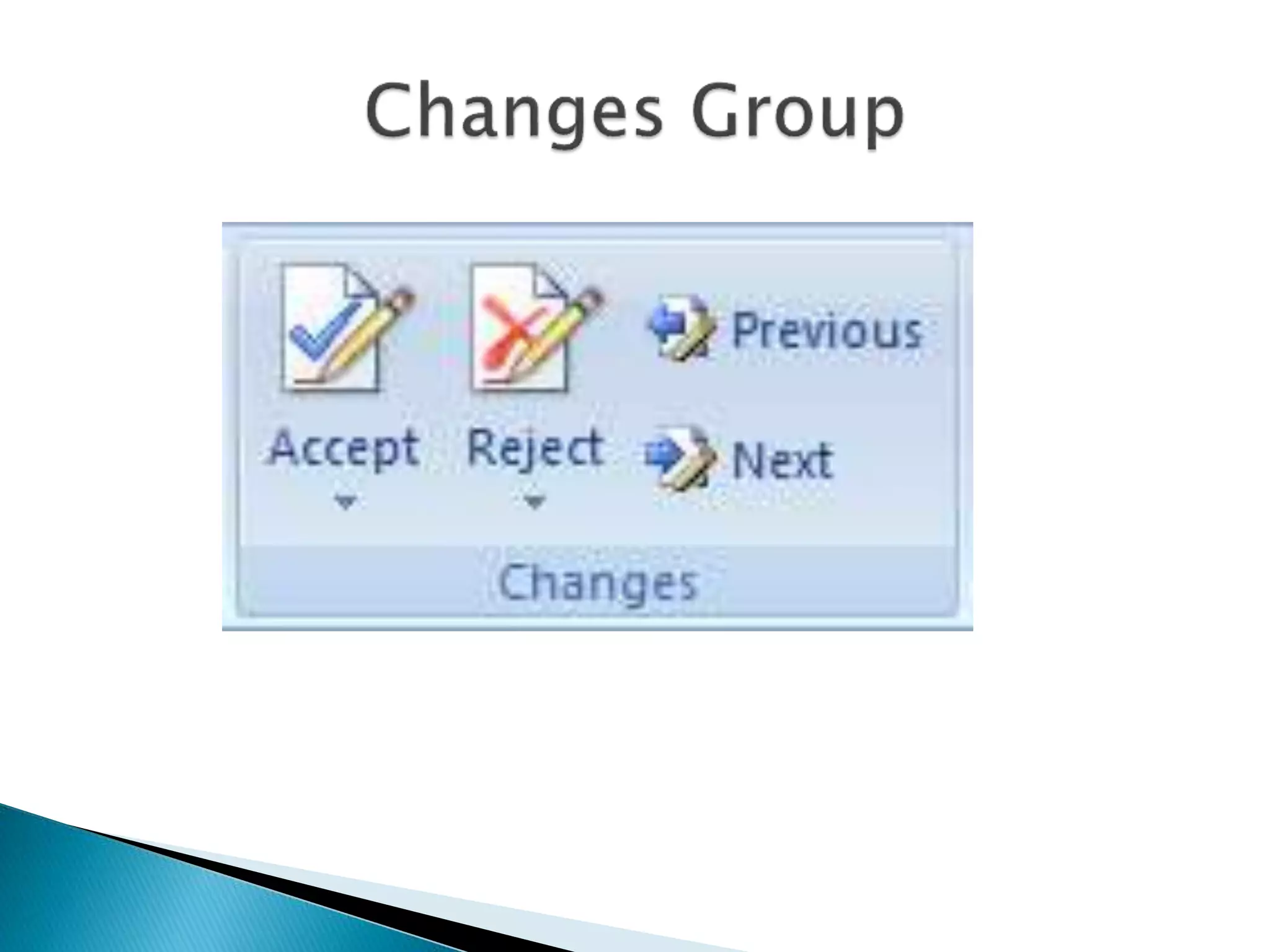
 Change Group 
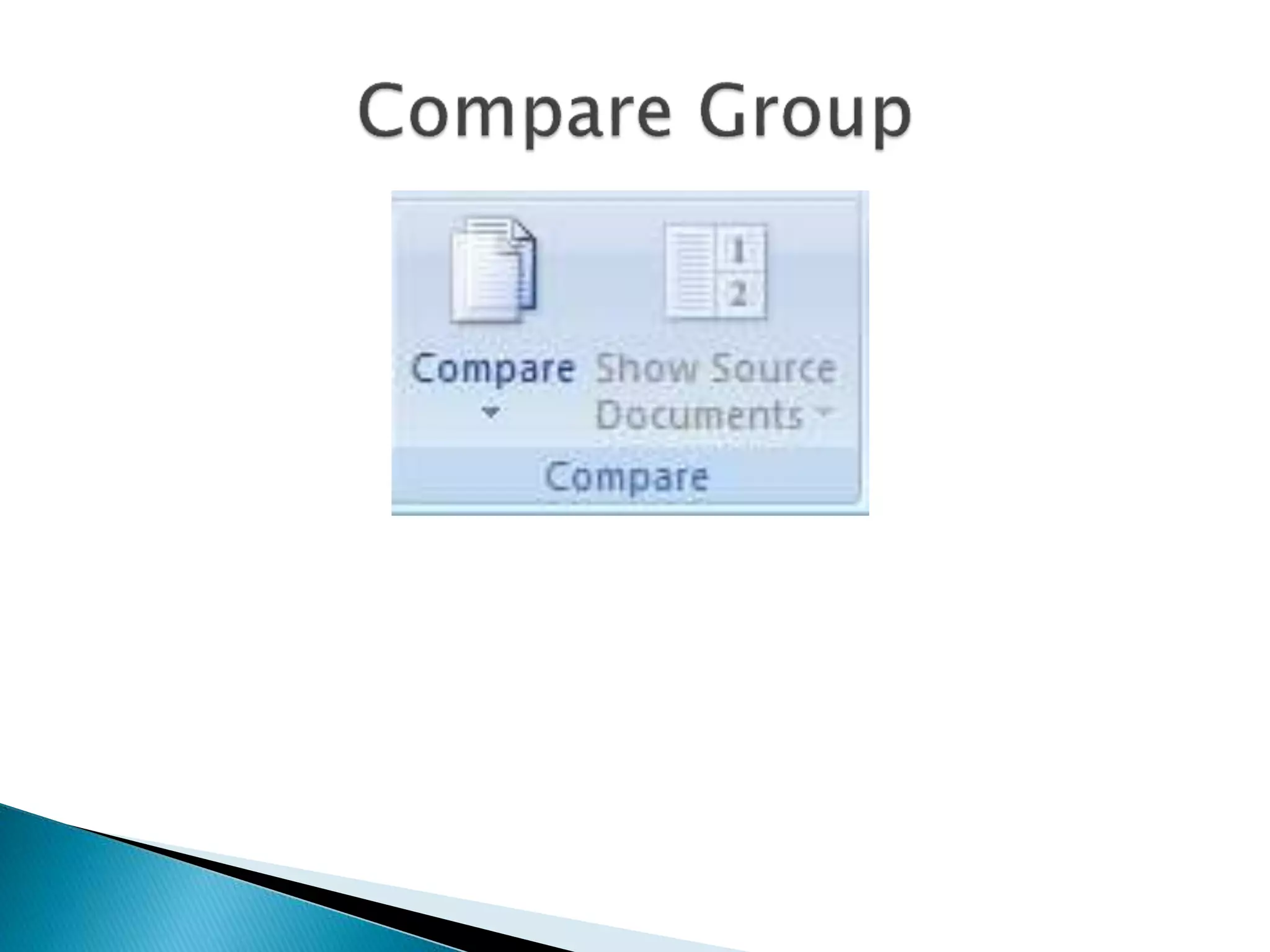
 Compare Group 
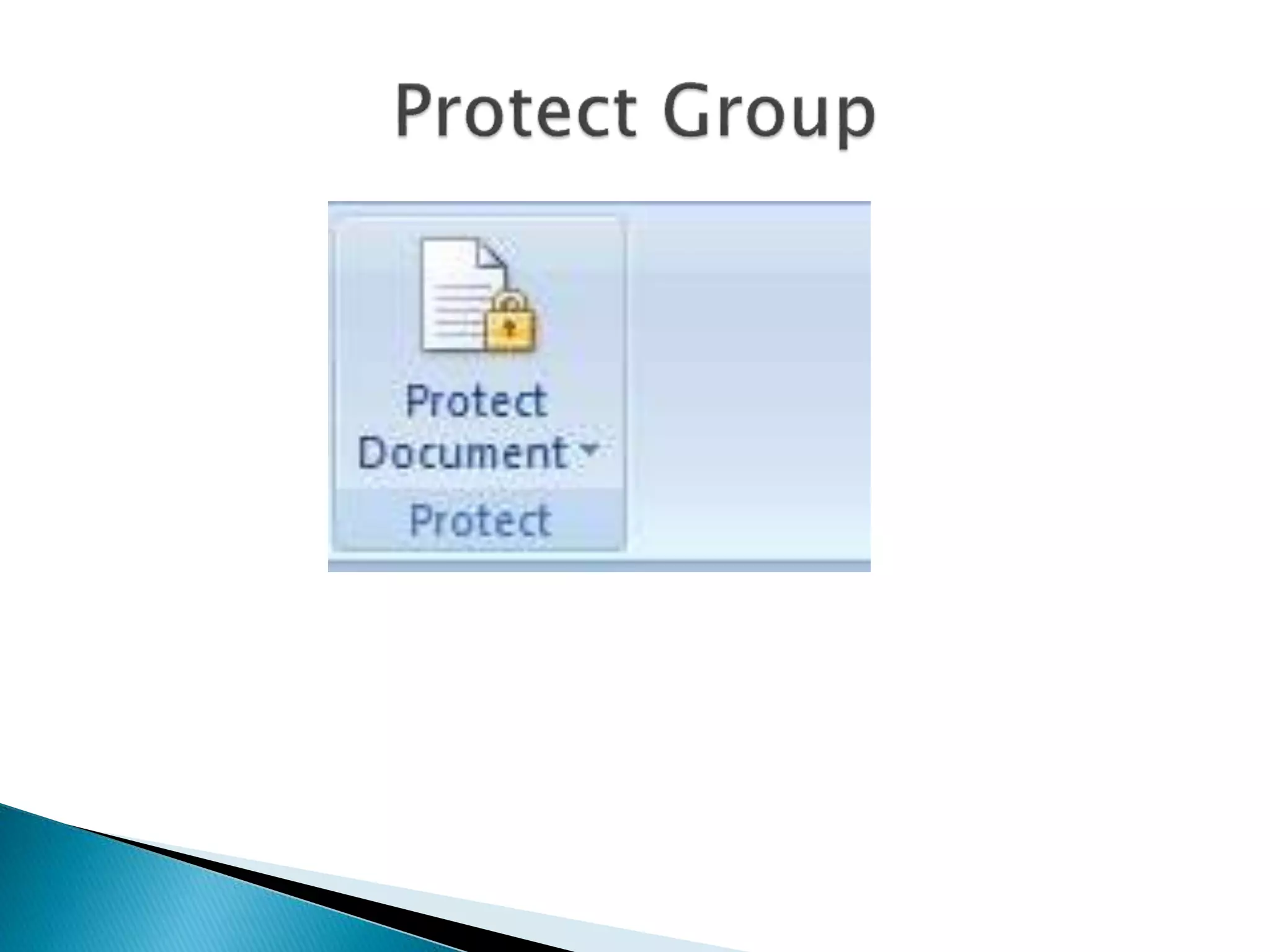
 Protect Group
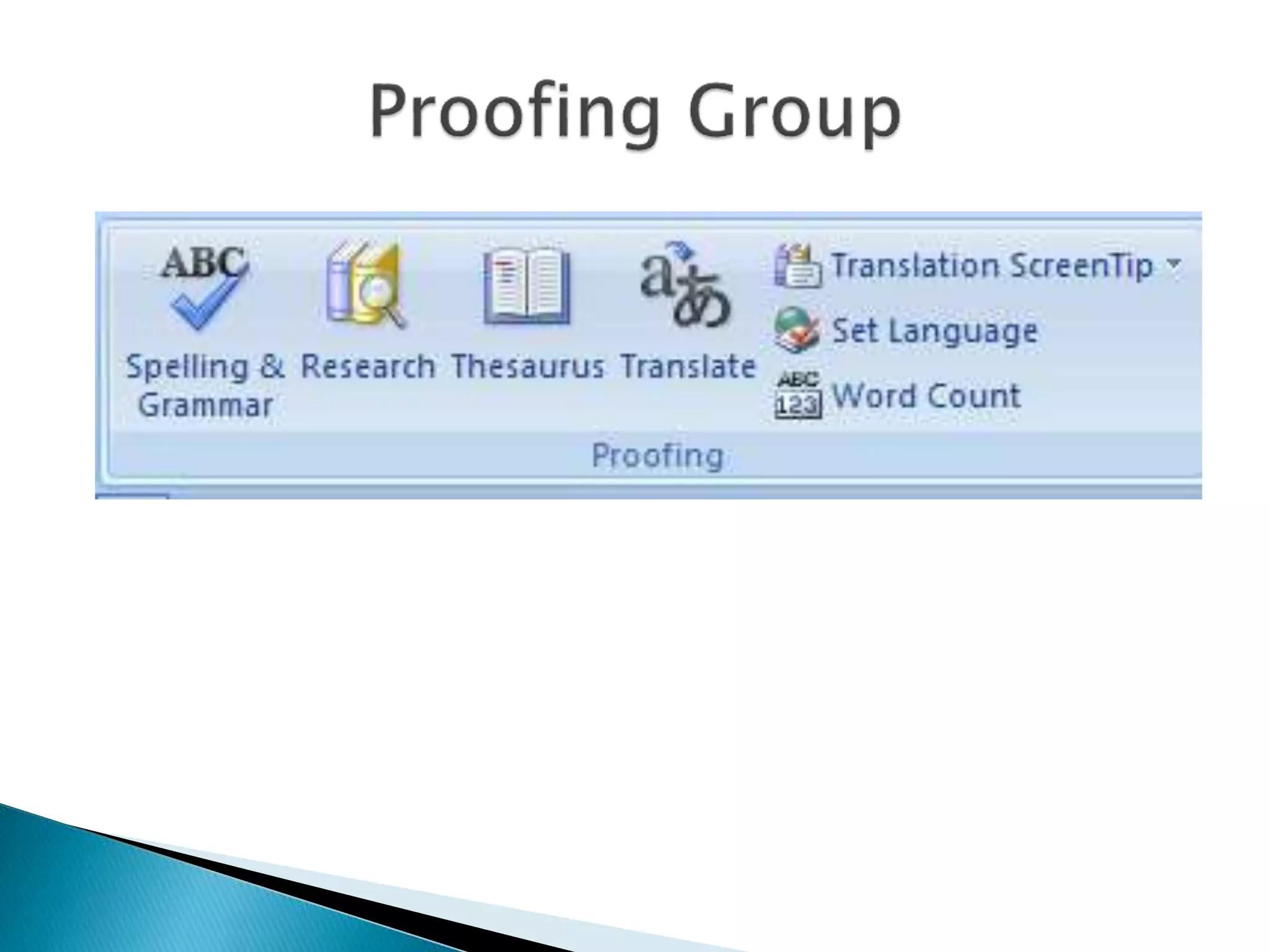
 Spelling & Grammar 
 Research 
 Thesaurus 
 Translate 
 Translation ScreenTip 
 Set Language 
 Word Count
 New Comment 
 Delete 
 Previous 
 Next
 Track Changes 
 Balloons 
 Final Showing Markup 
 Show Markup 
 Reviewing Pane
 Accept 
 Reject 
 Previous 
 Next
 Compare 
 Show Source Documents
 Protect Document
 Document View Group 
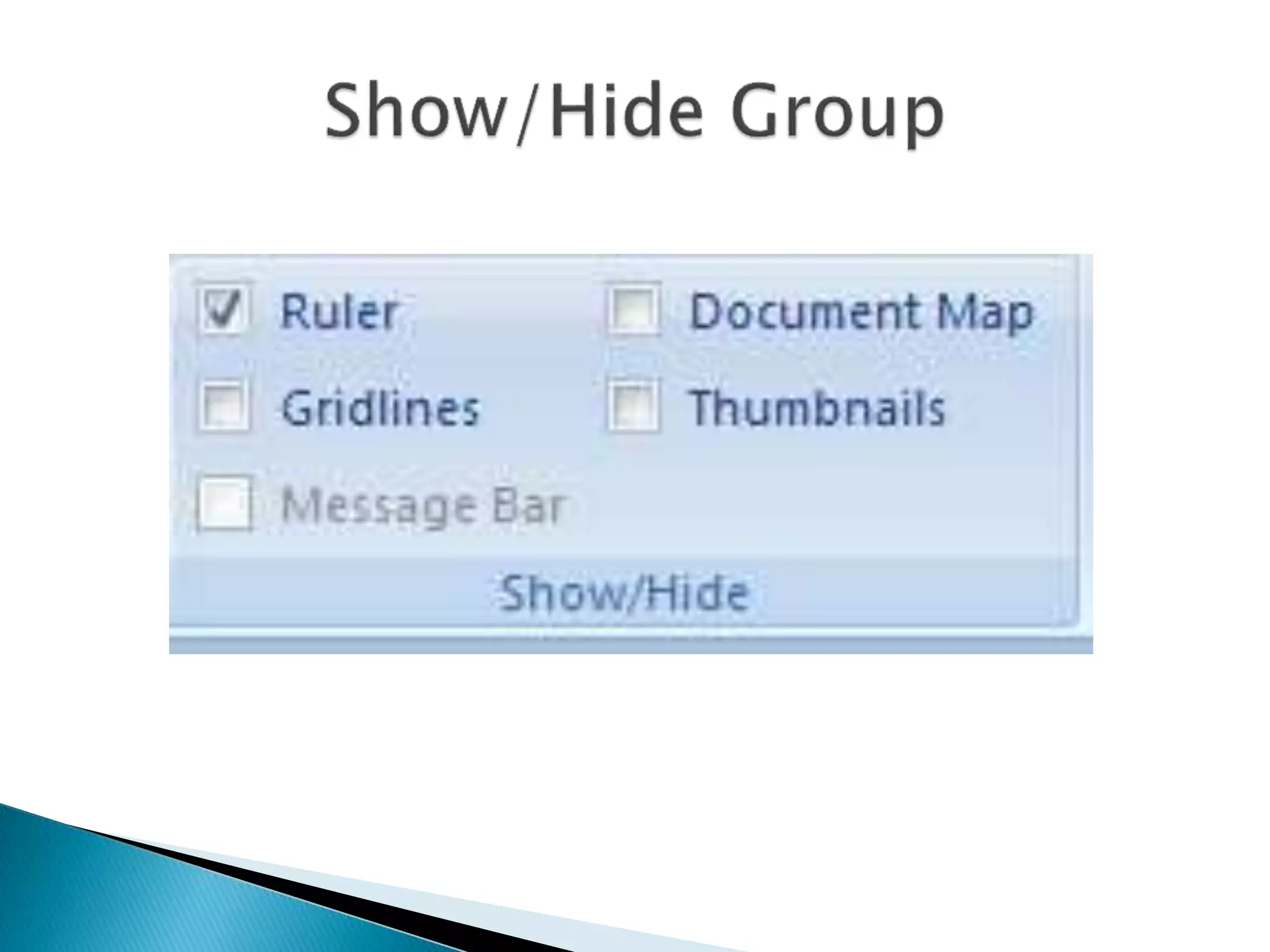
 Show/Hide Group 
 Zoom 
 Window 
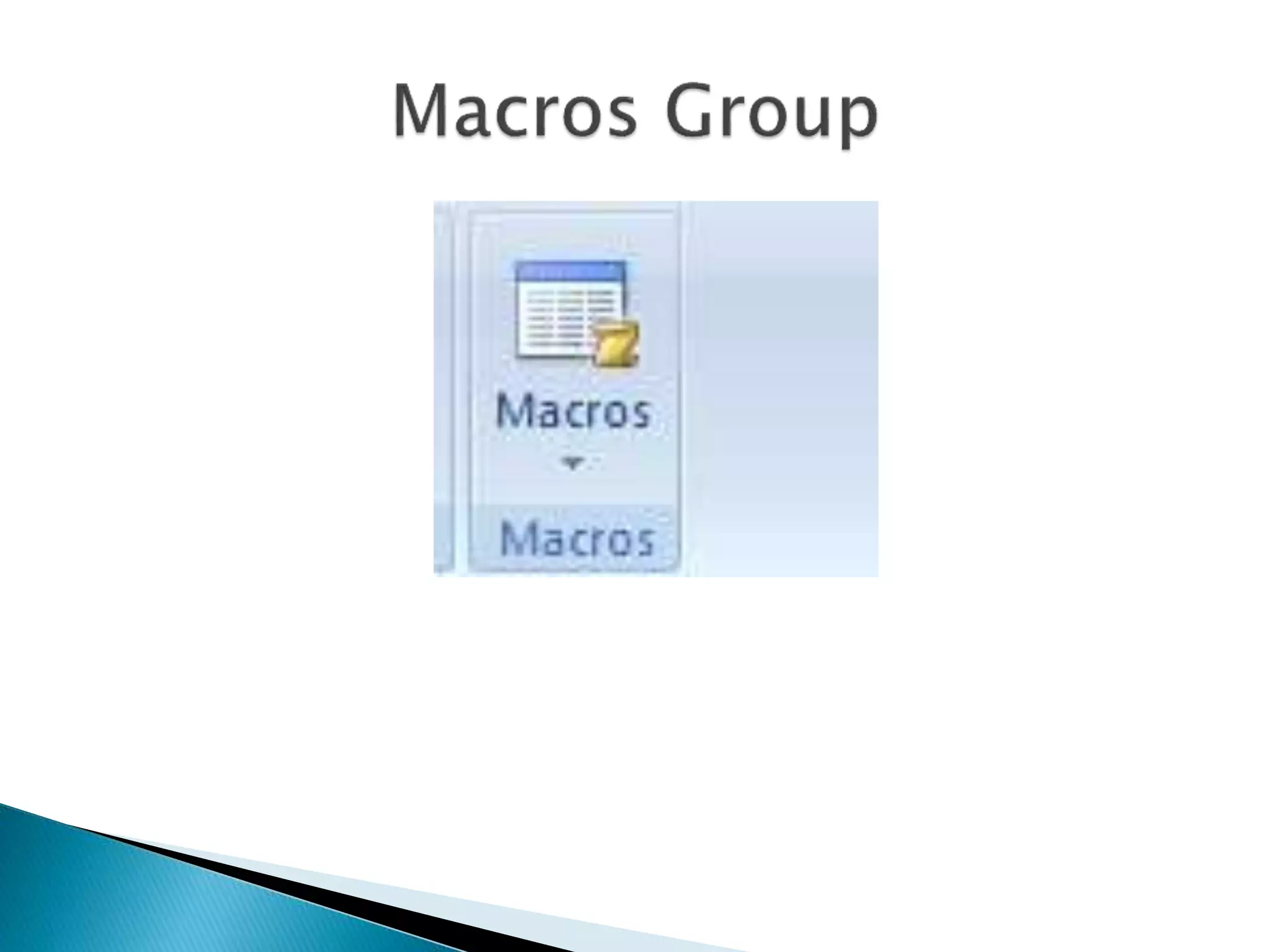
 Macros
 Print Layout 
 Full Screen Reading 
 Web Layout 
 Outline 
 Draft
 Ruler 
 Document Map 
 Thumbnails 
 Gridlines 
 Message Bar
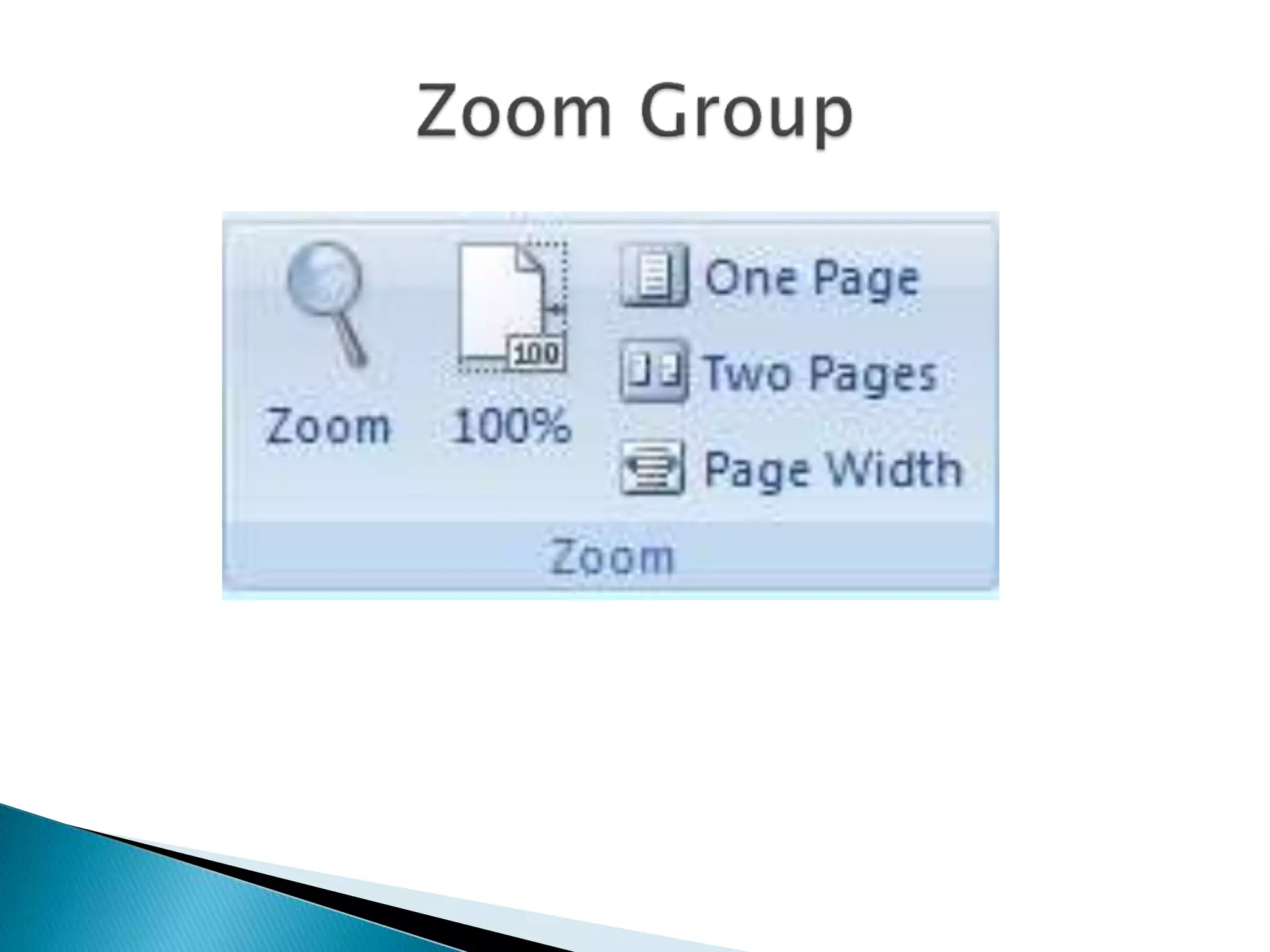
 Zoom 
 100% 
 One Page 
 Two Page 
 Page Width
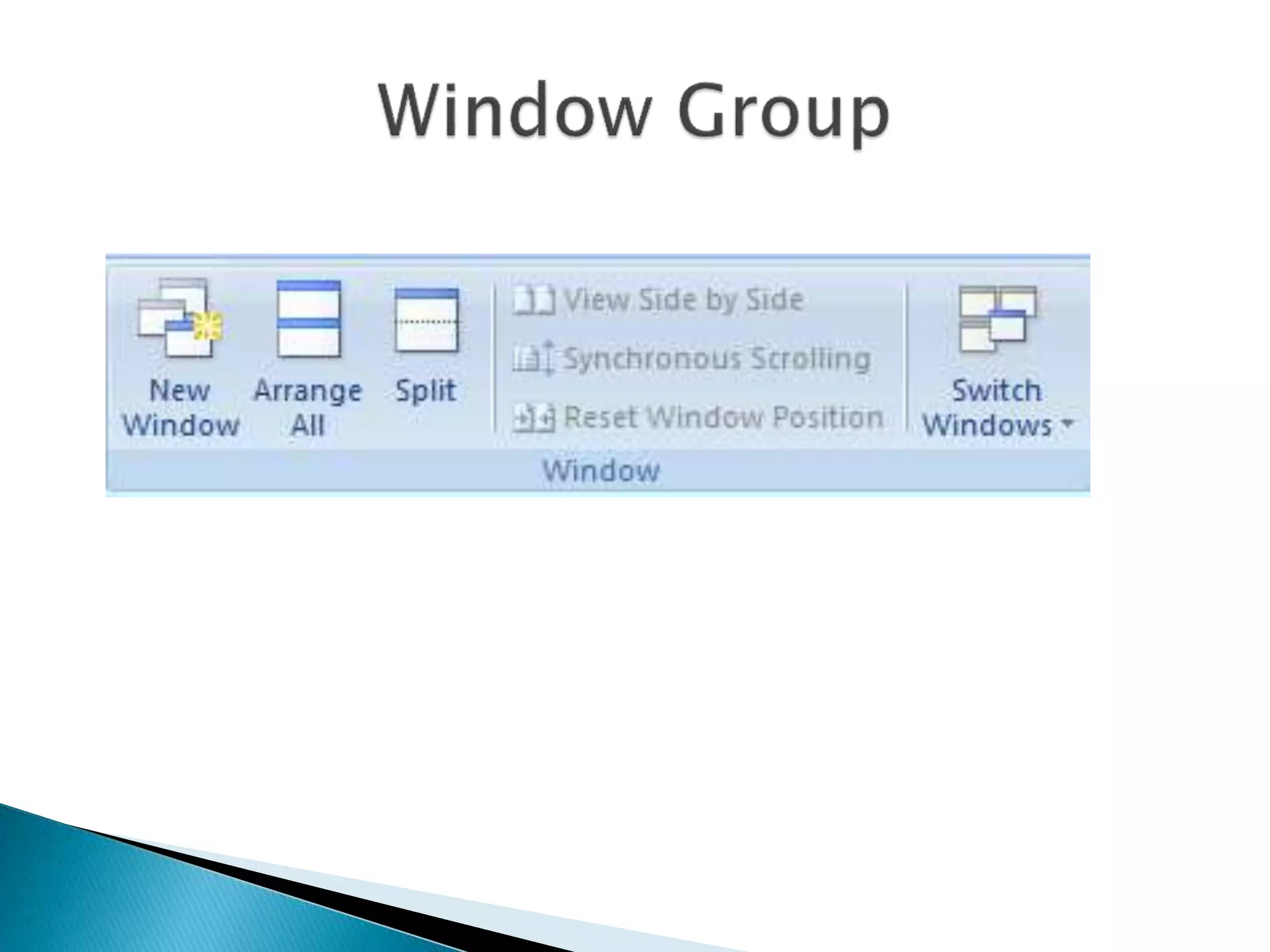
 New Window 
 Arrange All 
 Split 
 View Side by Side 
 Synchronous Scrolling 
 Reset Window Position 
 Switch Windows
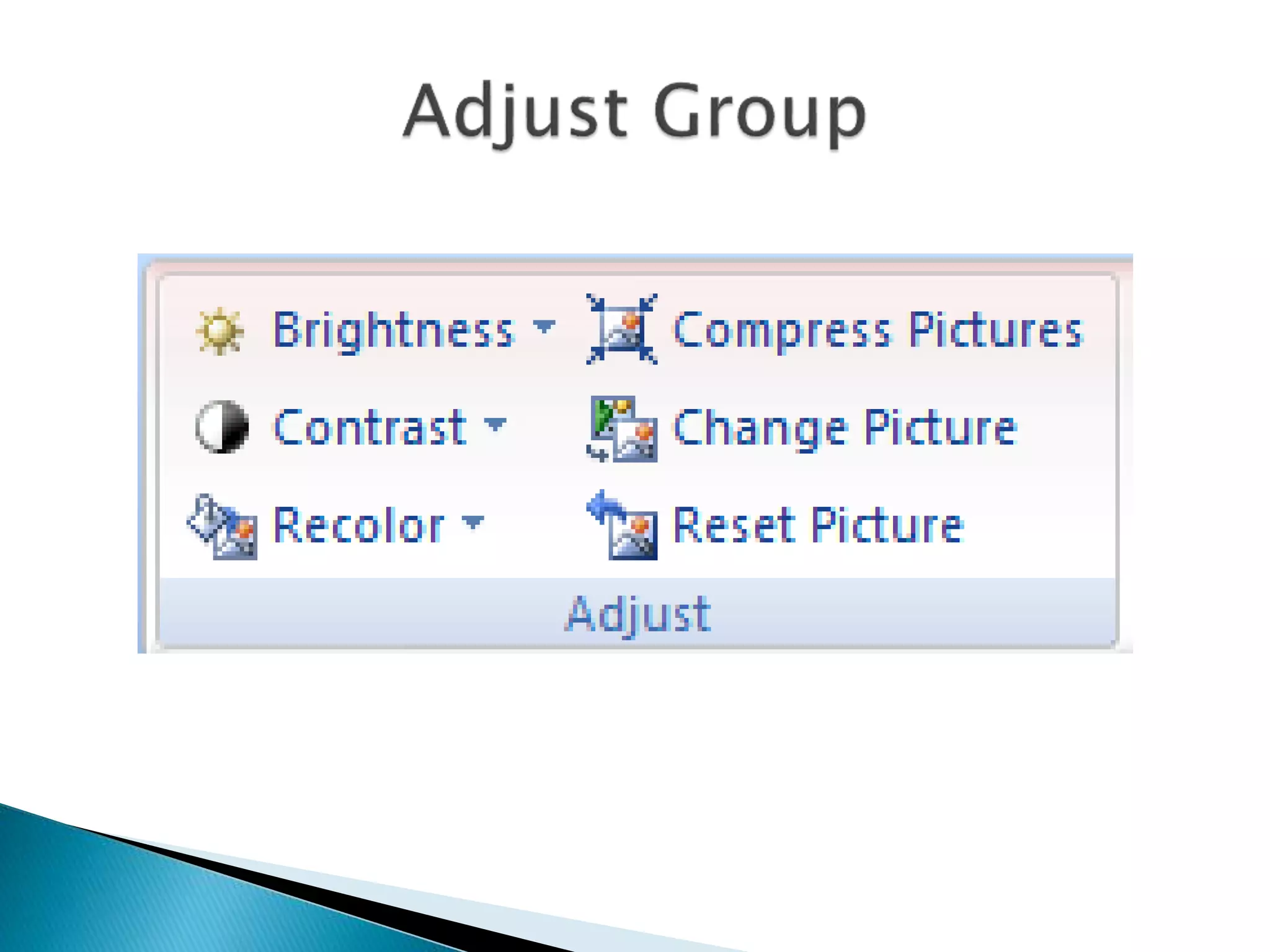
 Adjust Group 
 Picture Style Group 
 Arrange Group 
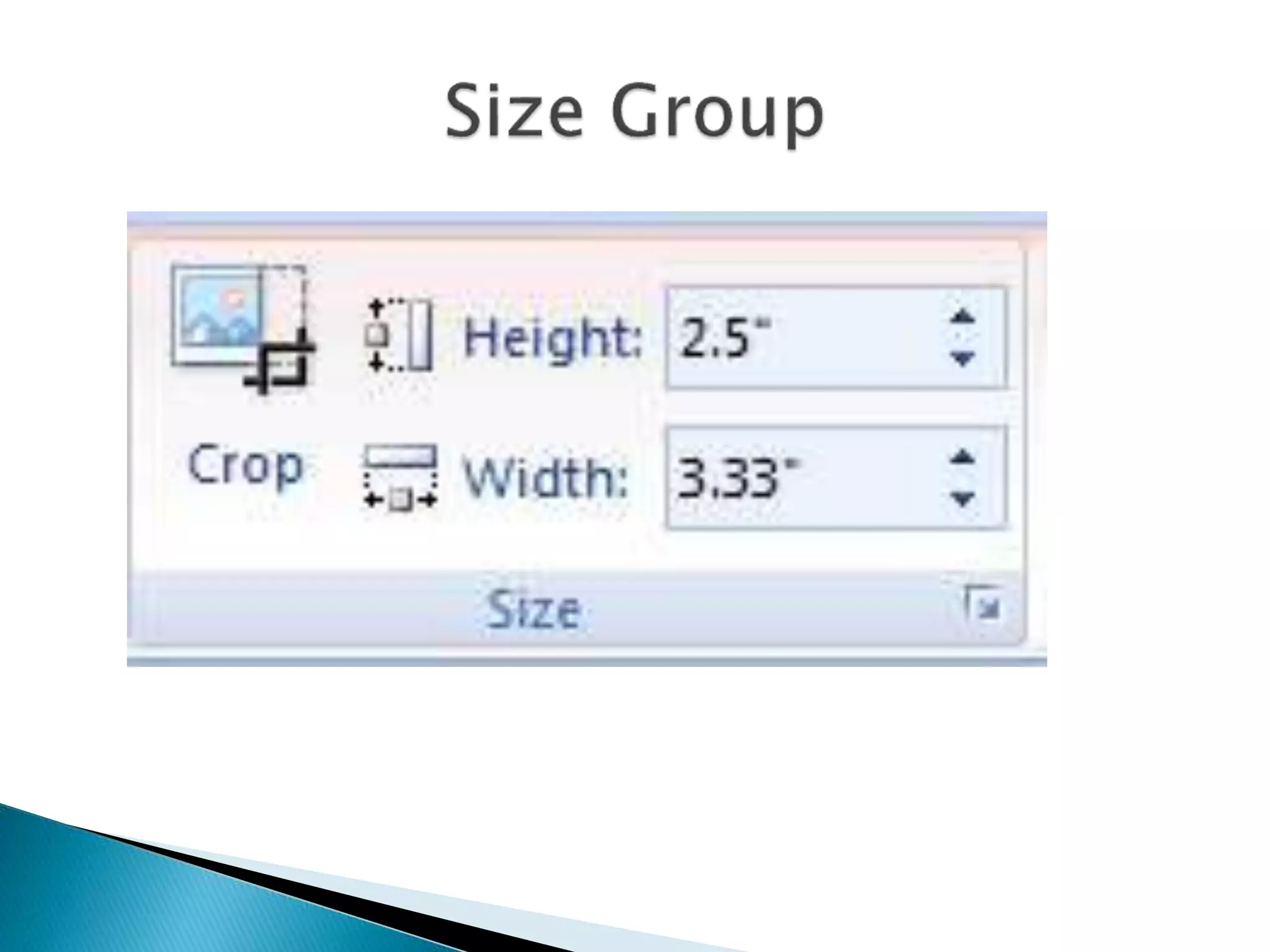
 Size Group
 Brightness 
 Contrast 
 Recolor 
 Compress Pictures 
 Change Picture 
 Reset Picture
 Picture Shape 
 Picture Border 
 Picture Effects
 Position 
 Bring to front 
 Send to back 
 Text wrapping 
 Align 
 Group 
 Rotate
 Crop 
 Height 
 Width
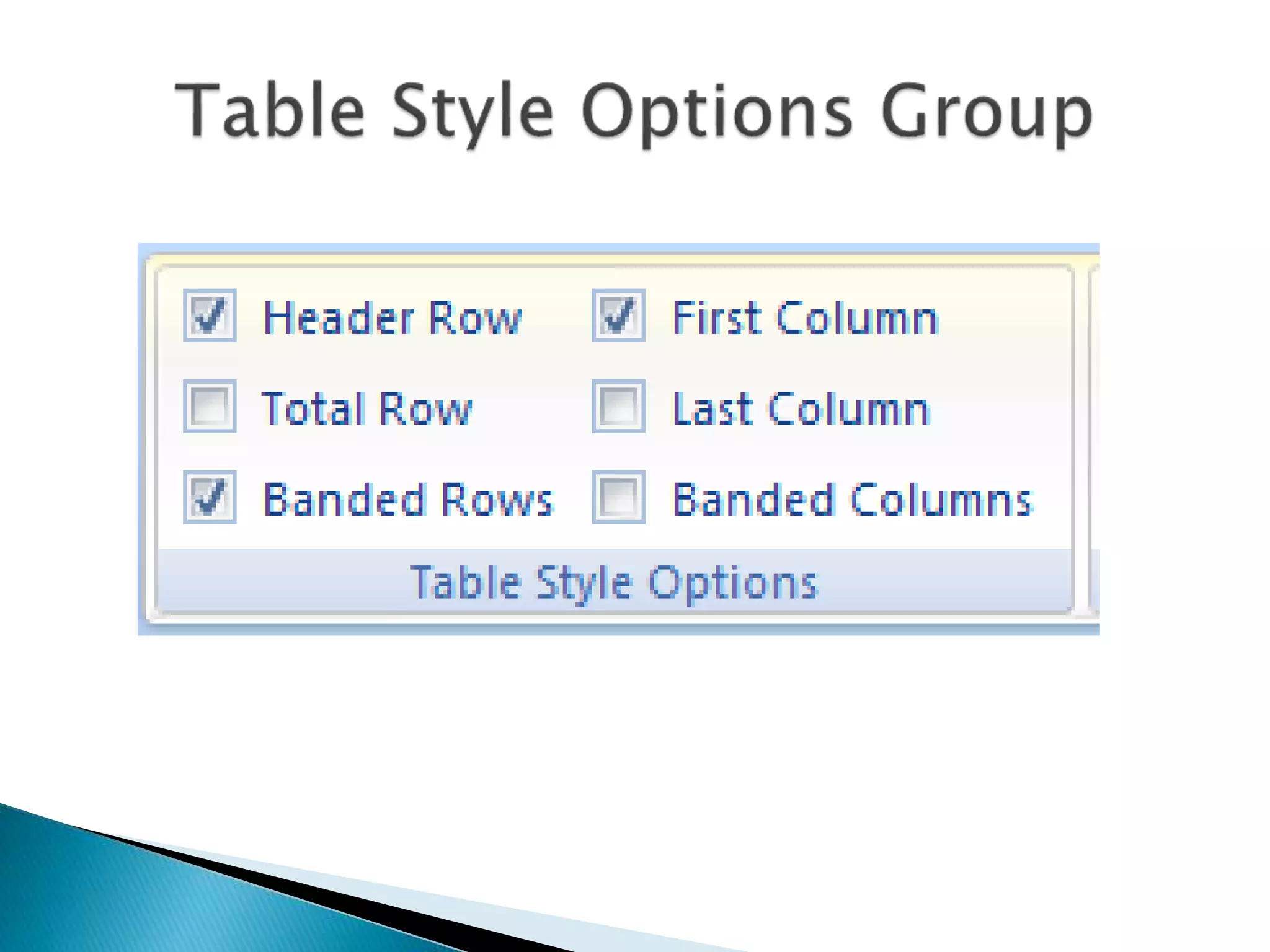
 Table Style Options Group 
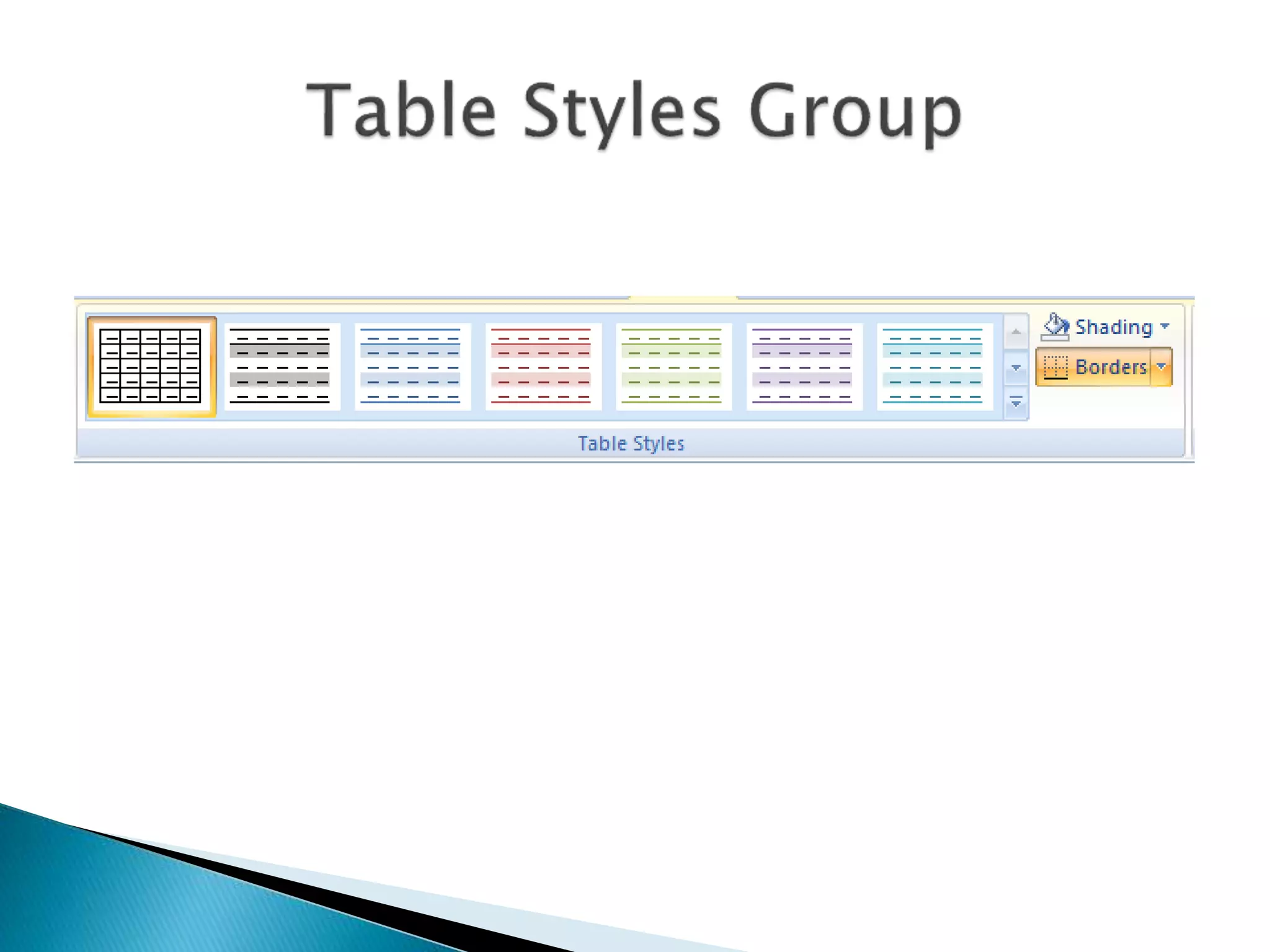
 Table Styles Group 
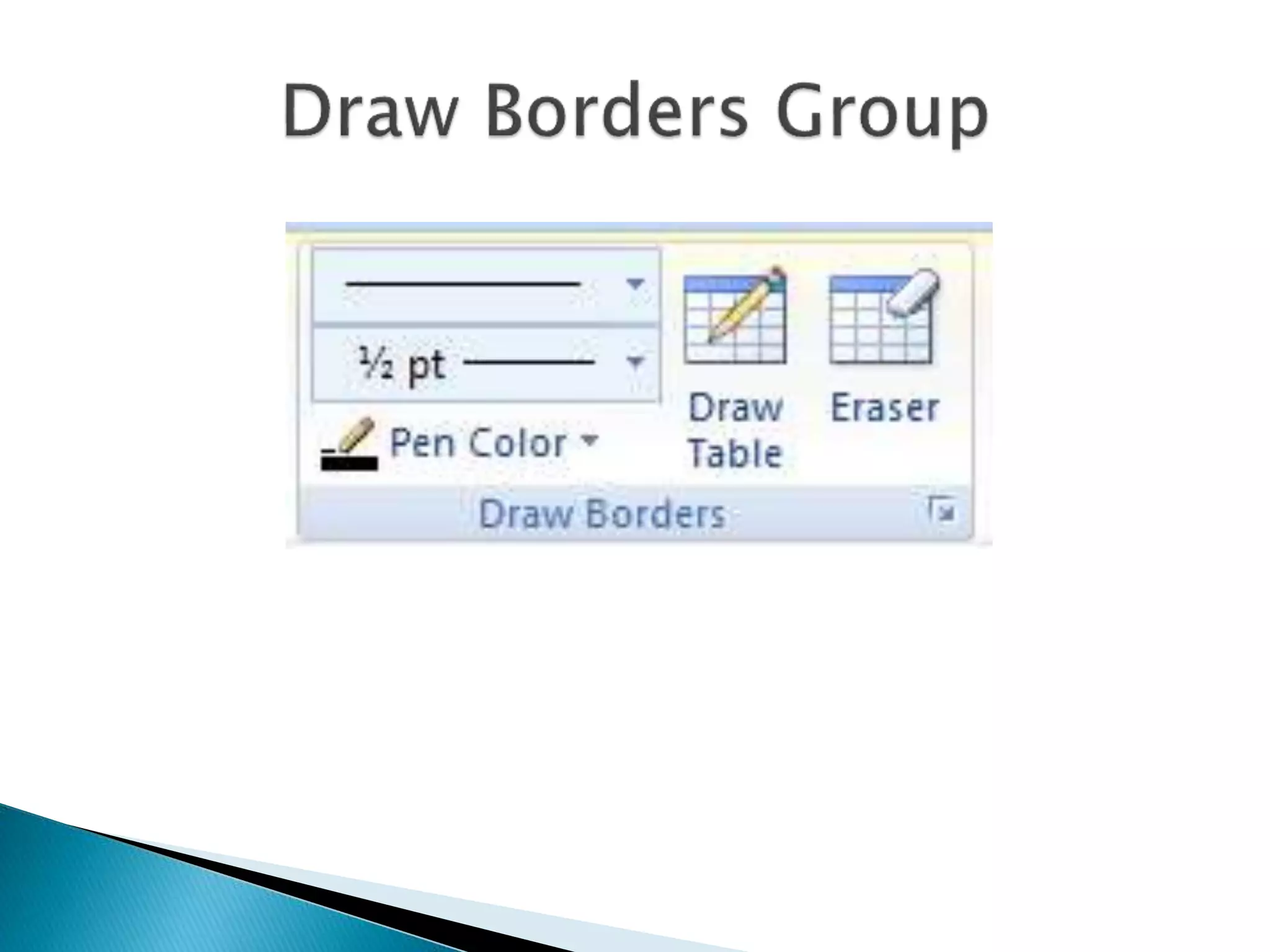
 Draw Borders Group
 Header Row 
 Total Row 
 Banded Rows 
 First Column 
 Last Column 
 Banded Columns
 Shading 
 Borders
 Table Group 
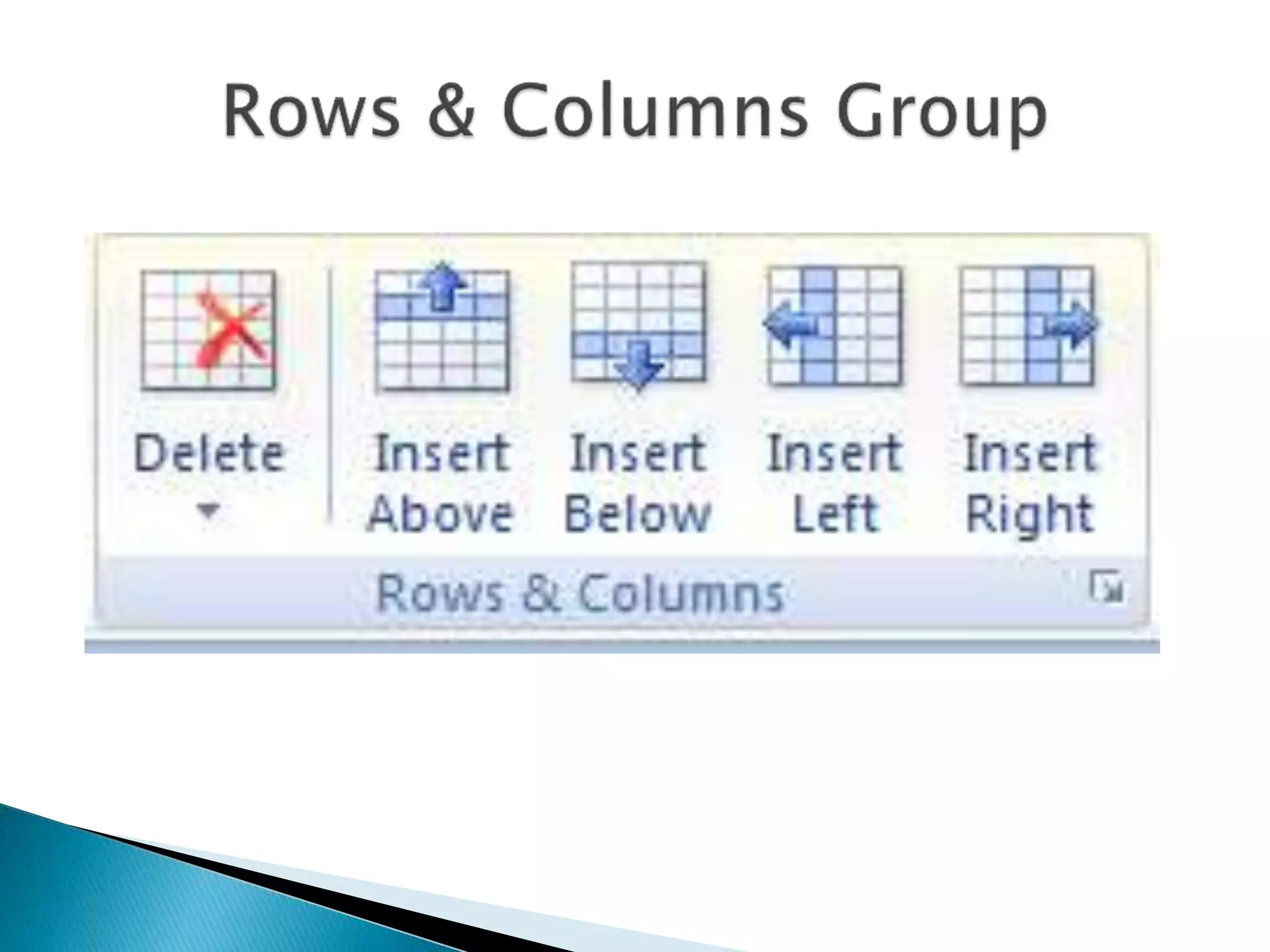
 Rows & Columns Group 
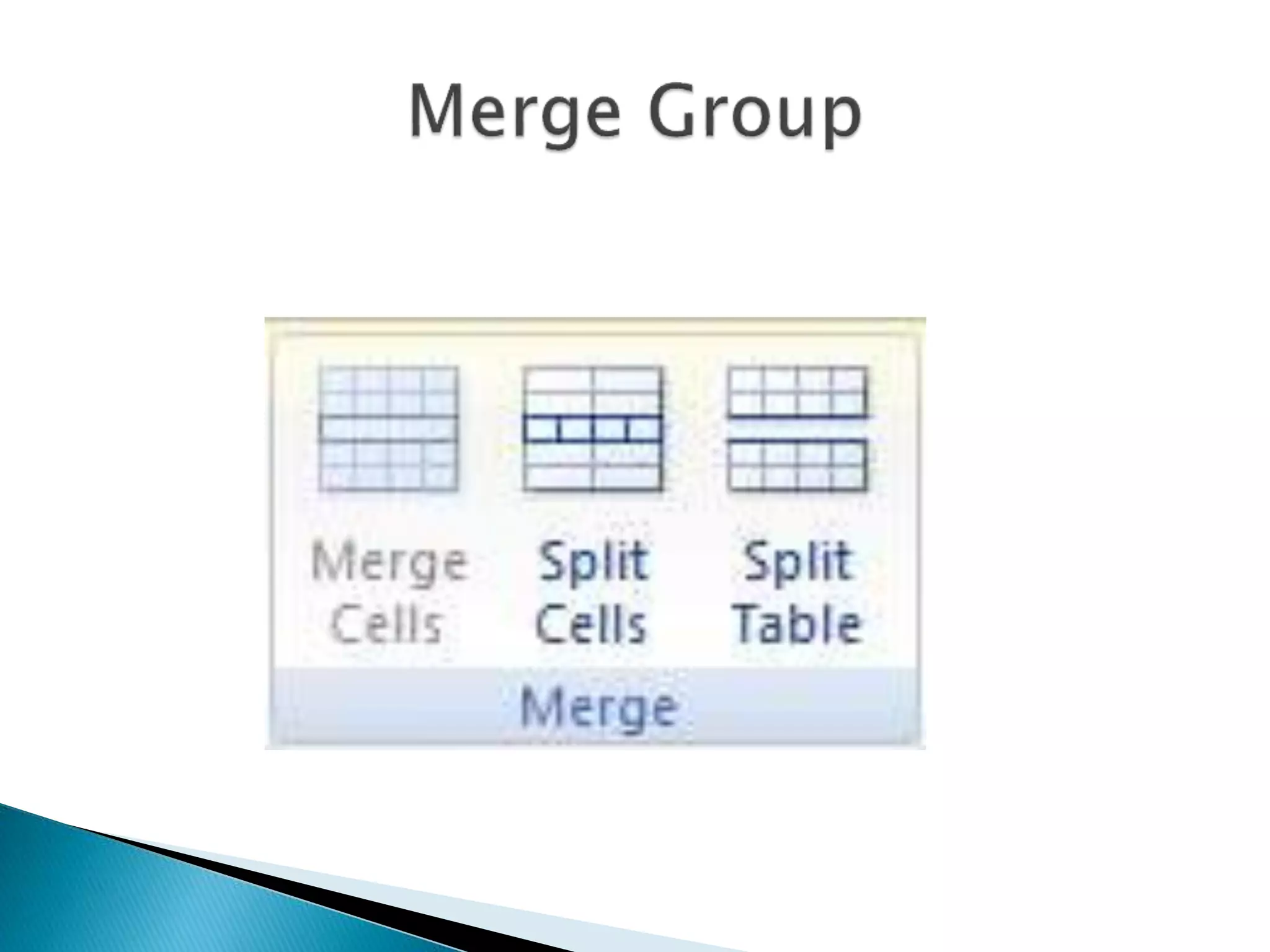
 Merge Group 
 Cell Size Group 
 Alignment Group 
 Data Group
 Select 
 View Gridlines 
 Properties
 Delete 
 Insert Above 
 Insert Below 
 Insert Left 
 Insert Right
 Merge Cells 
 Split Cells 
 Split Table
 AutoFit 
 Height 
 Width 
 Distribute Rows 
 Distribute Columns
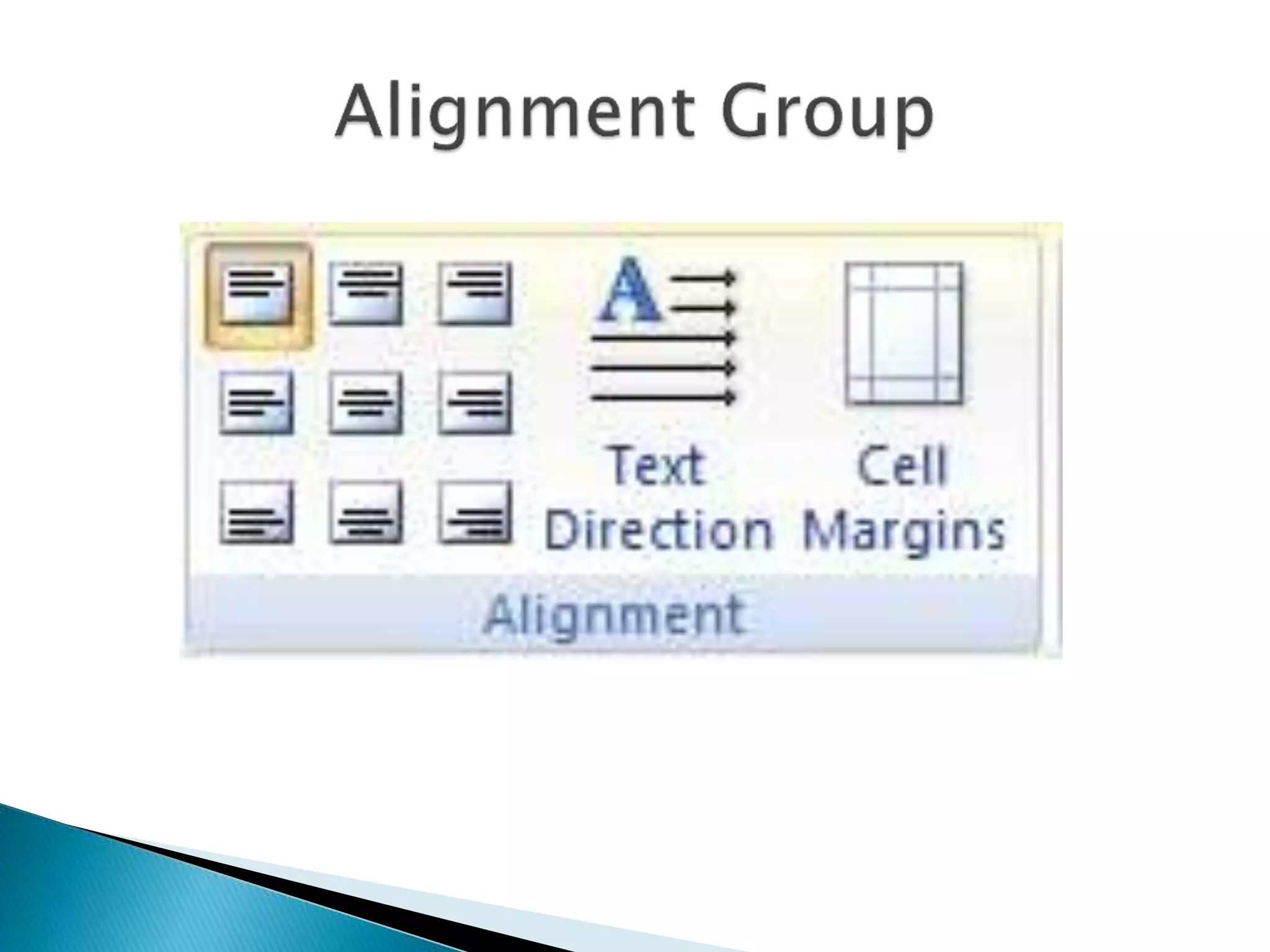
 Align top-left 
 Align top-center 
 Align top-right 
 Align middle-left 
 Align middle-center 
 Align middle right 
 Align bottom-left, bottom-center, bottom 
right 
 Text direction 
 Cell margins
 Sort 
 Repeat Header Rows 
 Convert to text 
 Formula

Microsoft word 2007

  • 1.
  • 2.
     Microsoft Wordis a word processing program designed by Microsoft Company.  We use word to write our reports, assignments and other important documents.  Word shares many great features with other Office Programs.
  • 3.
     Bars –Title Bar, Menu Bar, Status Bar, and Quick Access Toolbar.  Buttons – Office button, minimize button, maximize/restore button, close button and other command buttons.  Ribbon – the area below menu bar. It contains tab group command buttons.  Tabs – Home Tab, Insert Tab, Page Layout Tab, References Tab, Review and View Tabs.  Tab groups – some set of commands under each tab.  Work area – the place in the center where we type our work
  • 5.
     Clipboard group  Font group  Paragraph group  Styles group  Editing group
  • 7.
     Cut –to remove the selected item.  Copy – to take a copy of the selected item.  Paste – to insert an item from clipboard.  Format Painter – to apply the same format to more than one text at once.  Diagonal arrow to open Clipboard Task Pane window.
  • 9.
     B –to bold the selected text.  I – to make Italic the selected text.  U – to underline the selected text.  abc – to draw a line through a selected text.  A – to increase font size.  A – to decrease font size.  Use this to change font color.  Font face.  Font size.
  • 11.
     Text alignment  Bullets  Numbers  Line spacing  Sorting  Show/hide  Multiple listing  Indenting  Shading  Creating borders
  • 13.
     Normal No spacing  Heading 1  Heading 2  Title  Subtitle  Subtitle Emphasis  Emphasis  More styles…
  • 15.
     Find Replace  Select
  • 16.
     Pages Tables  Illustrations  Links  Header & Footer  Text  Symbol
  • 18.
     Cover pages  Blank page  Page break
  • 20.
     Insert Table  Draw table  Convert text to table  Excel Spreadsheet  Quick tables
  • 22.
     Picture Clip Art  SmartArt  Shapes  Chart
  • 24.
     Hyperlink Bookmark  Cross-reference
  • 26.
     Insert header  Insert footer  Insert page numbers
  • 28.
     Insert textboxes  Insert quick parts  Insert WordArt  Insert Drop Caps  Insert signature line  Insert Date & Time  Insert any Object
  • 30.
     Insert Equation  Insert Symbols
  • 31.
     Themes group  Page Setup Group  Page Background Group  Paragraph Group  Arrange Group
  • 33.
     Apply themes  Apply Effects  Apply Colors  Apply Fonts
  • 35.
     Set PageMargins  Set Page Orientation  Set columns  Set Page Size  Breaks  Line numbers  Hyphenation
  • 37.
     Watermark Page Color  Page Borders
  • 38.
     Indent Spacing  Indent text left  Indent text right
  • 40.
     Position Bring to front  Send back  Text wrapping  Align  Group  Rotate
  • 41.
     Table ofContents  Footnotes  Citations & Bibliography  Caption  Index  Table of Authorities
  • 43.
     Insert Tableof contents  Add Text to table of contents  Update existing table of contents
  • 45.
     Insert footnote  Insert endnote  Next footnote  Previous footnote  Next endnote  Show notes
  • 47.
     Insert citation  Manage sources  Styles  Bibliography
  • 49.
     Insert caption  Insert table of figures  Update table  Cross-reference
  • 51.
     Mark entry  Insert index  Update index
  • 53.
     Mark citation  Insert table of authorities  Update table
  • 54.
     Create Start mail merge  Write & insert fields  Preview results  Finish
  • 56.
  • 58.
     Start MailMerge  Select Recipients  Edit Recipients List
  • 60.
     Highlight MergeFields  Address Block  Greeting Line  Insert Merge Field  Rules  Match Fields  Update Labels
  • 62.
     Preview Results  Find recipient  Auto check for errors  Next result  Previous result
  • 64.
  • 65.
     Proofing Group  Comments Group  Tracking Group  Change Group  Compare Group  Protect Group
  • 67.
     Spelling &Grammar  Research  Thesaurus  Translate  Translation ScreenTip  Set Language  Word Count
  • 69.
     New Comment  Delete  Previous  Next
  • 71.
     Track Changes  Balloons  Final Showing Markup  Show Markup  Reviewing Pane
  • 73.
     Accept Reject  Previous  Next
  • 75.
     Compare Show Source Documents
  • 77.
  • 78.
     Document ViewGroup  Show/Hide Group  Zoom  Window  Macros
  • 80.
     Print Layout  Full Screen Reading  Web Layout  Outline  Draft
  • 82.
     Ruler Document Map  Thumbnails  Gridlines  Message Bar
  • 84.
     Zoom 100%  One Page  Two Page  Page Width
  • 86.
     New Window  Arrange All  Split  View Side by Side  Synchronous Scrolling  Reset Window Position  Switch Windows
  • 88.
     Adjust Group  Picture Style Group  Arrange Group  Size Group
  • 90.
     Brightness Contrast  Recolor  Compress Pictures  Change Picture  Reset Picture
  • 92.
     Picture Shape  Picture Border  Picture Effects
  • 94.
     Position Bring to front  Send to back  Text wrapping  Align  Group  Rotate
  • 96.
     Crop Height  Width
  • 97.
     Table StyleOptions Group  Table Styles Group  Draw Borders Group
  • 99.
     Header Row  Total Row  Banded Rows  First Column  Last Column  Banded Columns
  • 101.
  • 103.
     Table Group  Rows & Columns Group  Merge Group  Cell Size Group  Alignment Group  Data Group
  • 105.
     Select View Gridlines  Properties
  • 107.
     Delete Insert Above  Insert Below  Insert Left  Insert Right
  • 109.
     Merge Cells  Split Cells  Split Table
  • 111.
     AutoFit Height  Width  Distribute Rows  Distribute Columns
  • 113.
     Align top-left  Align top-center  Align top-right  Align middle-left  Align middle-center  Align middle right  Align bottom-left, bottom-center, bottom right  Text direction  Cell margins
  • 115.
     Sort Repeat Header Rows  Convert to text  Formula