PWCT 1.9 Art Documentation ( http://doublesvsoop.sourceforge.net )
2006-2013, Mahmoud Fayed ( msfclipper@users.sourceforge.net )
_____________________________________________________________________________________
Table of contents
1 - Introduction
2 - Implementation steps
3 - Final Steps Tree
4 - Application during the runtime
1 - Introduction
In this lesson we are going to learn how to Encrypt/Decrypt files using the PolarCryptoLight ActiveX.
2 - Implementation Steps
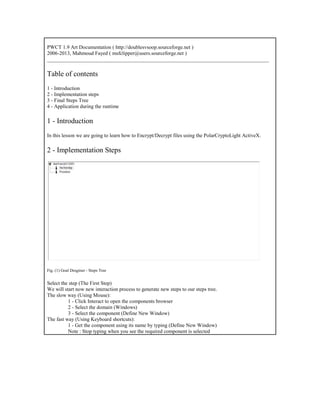
Fig. (1) Goal Desginer - Steps Tree
Select the step (The First Step)
We will start now new interaction process to generate new steps to our steps tree.
The slow way (Using Mouse):
1 - Click Interact to open the components browser
2 - Select the domain (Windows)
3 - Select the component (Define New Window)
The fast way (Using Keyboard shortcuts):
1 - Get the component using its name by typing (Define New Window)
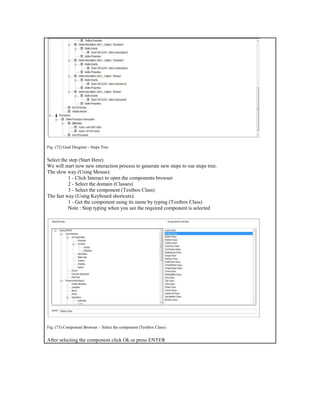
Note : Stop typing when you see the required component is selected
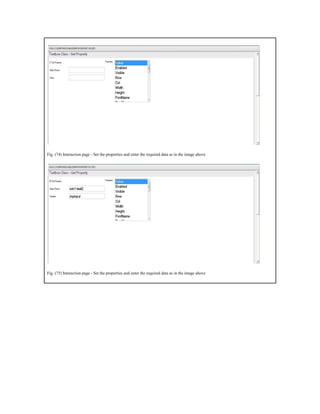
Fig. (2) Component Browser – Select the component (Define New Window)
After selecting the component click Ok or press ENTER
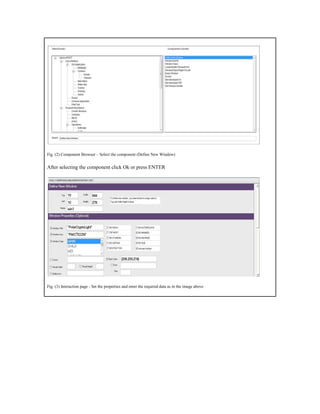
Fig. (3) Interaction page - Set the properties and enter the required data as in the image above
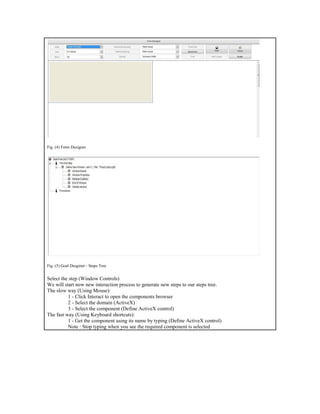
Fig. (4) Form Designer
Fig. (5) Goal Desginer - Steps Tree
Select the step (Window Controls)
We will start now new interaction process to generate new steps to our steps tree.
The slow way (Using Mouse):
1 - Click Interact to open the components browser
2 - Select the domain (ActiveX)
3 - Select the component (Define ActiveX control)
The fast way (Using Keyboard shortcuts):
1 - Get the component using its name by typing (Define ActiveX control)
Note : Stop typing when you see the required component is selected
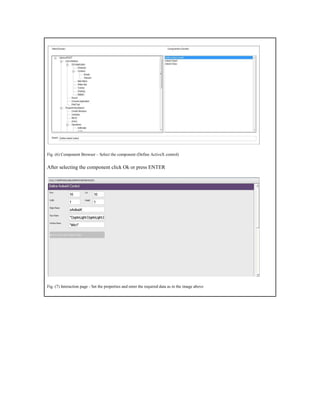
Fig. (6) Component Browser – Select the component (Define ActiveX control)
After selecting the component click Ok or press ENTER
Fig. (7) Interaction page - Set the properties and enter the required data as in the image above
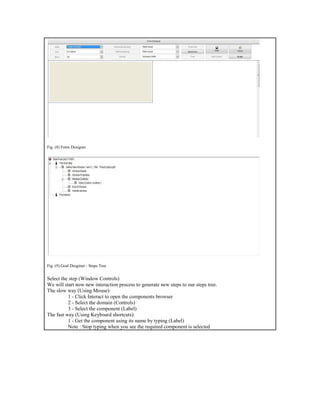
Fig. (8) Form Designer
Fig. (9) Goal Desginer - Steps Tree
Select the step (Window Controls)
We will start now new interaction process to generate new steps to our steps tree.
The slow way (Using Mouse):
1 - Click Interact to open the components browser
2 - Select the domain (Controls)
3 - Select the component (Label)
The fast way (Using Keyboard shortcuts):
1 - Get the component using its name by typing (Label)
Note : Stop typing when you see the required component is selected
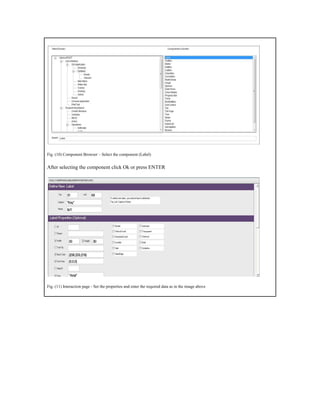
Fig. (10) Component Browser – Select the component (Label)
After selecting the component click Ok or press ENTER
Fig. (11) Interaction page - Set the properties and enter the required data as in the image above
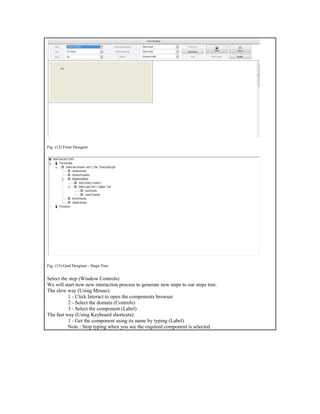
Fig. (12) Form Designer
Fig. (13) Goal Desginer - Steps Tree
Select the step (Window Controls)
We will start now new interaction process to generate new steps to our steps tree.
The slow way (Using Mouse):
1 - Click Interact to open the components browser
2 - Select the domain (Controls)
3 - Select the component (Label)
The fast way (Using Keyboard shortcuts):
1 - Get the component using its name by typing (Label)
Note : Stop typing when you see the required component is selected
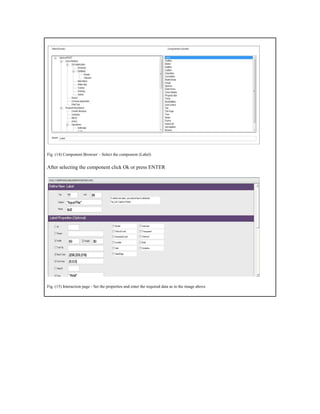
Fig. (14) Component Browser – Select the component (Label)
After selecting the component click Ok or press ENTER
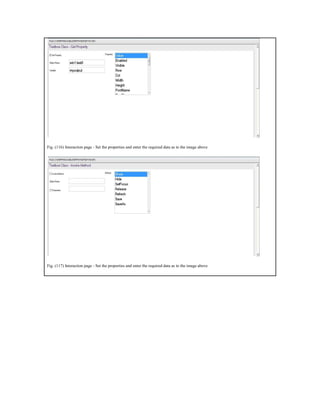
Fig. (15) Interaction page - Set the properties and enter the required data as in the image above
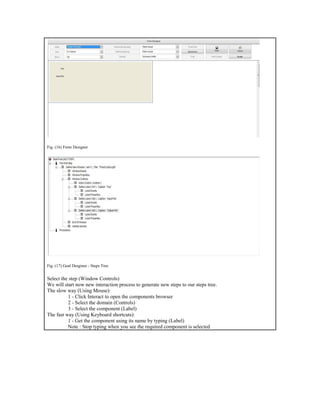
Fig. (16) Form Designer
Fig. (17) Goal Desginer - Steps Tree
Select the step (Window Controls)
We will start now new interaction process to generate new steps to our steps tree.
The slow way (Using Mouse):
1 - Click Interact to open the components browser
2 - Select the domain (Controls)
3 - Select the component (Label)
The fast way (Using Keyboard shortcuts):
1 - Get the component using its name by typing (Label)
Note : Stop typing when you see the required component is selected
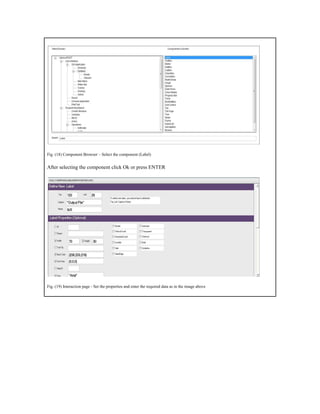
Fig. (18) Component Browser – Select the component (Label)
After selecting the component click Ok or press ENTER
Fig. (19) Interaction page - Set the properties and enter the required data as in the image above
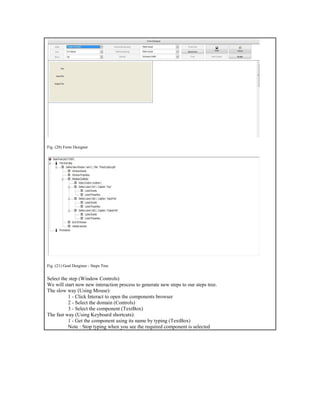
Fig. (20) Form Designer
Fig. (21) Goal Desginer - Steps Tree
Select the step (Window Controls)
We will start now new interaction process to generate new steps to our steps tree.
The slow way (Using Mouse):
1 - Click Interact to open the components browser
2 - Select the domain (Controls)
3 - Select the component (TextBox)
The fast way (Using Keyboard shortcuts):
1 - Get the component using its name by typing (TextBox)
Note : Stop typing when you see the required component is selected
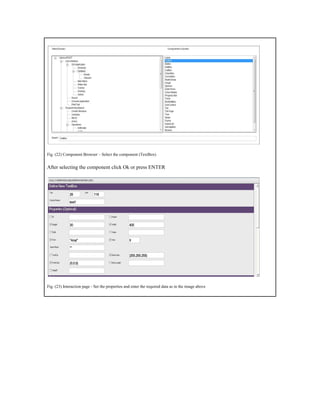
Fig. (22) Component Browser – Select the component (TextBox)
After selecting the component click Ok or press ENTER
Fig. (23) Interaction page - Set the properties and enter the required data as in the image above
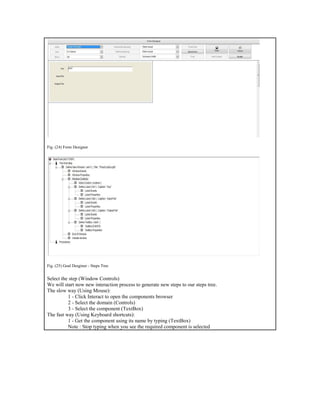
Fig. (24) Form Designer
Fig. (25) Goal Desginer - Steps Tree
Select the step (Window Controls)
We will start now new interaction process to generate new steps to our steps tree.
The slow way (Using Mouse):
1 - Click Interact to open the components browser
2 - Select the domain (Controls)
3 - Select the component (TextBox)
The fast way (Using Keyboard shortcuts):
1 - Get the component using its name by typing (TextBox)
Note : Stop typing when you see the required component is selected
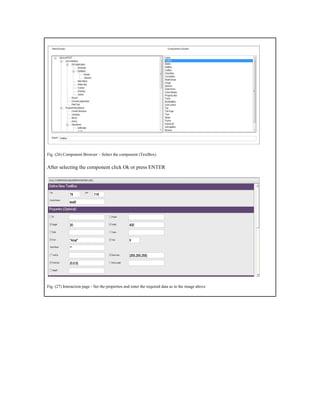
Fig. (26) Component Browser – Select the component (TextBox)
After selecting the component click Ok or press ENTER
Fig. (27) Interaction page - Set the properties and enter the required data as in the image above
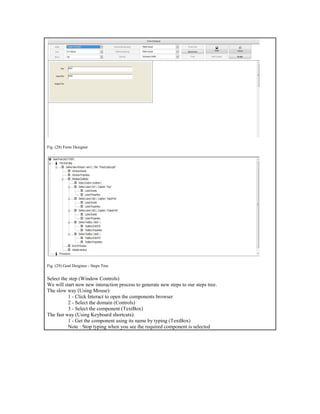
Fig. (28) Form Designer
Fig. (29) Goal Desginer - Steps Tree
Select the step (Window Controls)
We will start now new interaction process to generate new steps to our steps tree.
The slow way (Using Mouse):
1 - Click Interact to open the components browser
2 - Select the domain (Controls)
3 - Select the component (TextBox)
The fast way (Using Keyboard shortcuts):
1 - Get the component using its name by typing (TextBox)
Note : Stop typing when you see the required component is selected
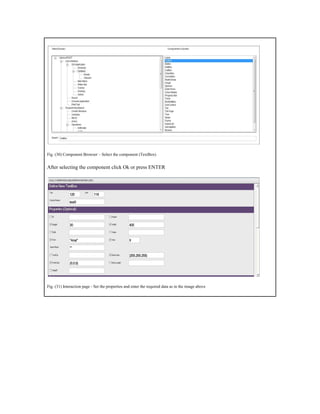
Fig. (30) Component Browser – Select the component (TextBox)
After selecting the component click Ok or press ENTER
Fig. (31) Interaction page - Set the properties and enter the required data as in the image above
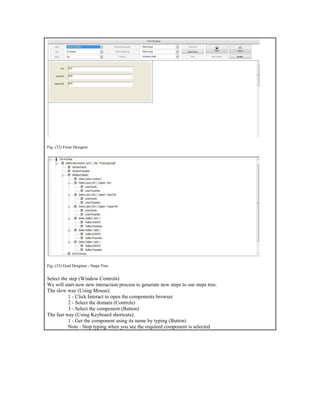
Fig. (32) Form Designer
Fig. (33) Goal Desginer - Steps Tree
Select the step (Window Controls)
We will start now new interaction process to generate new steps to our steps tree.
The slow way (Using Mouse):
1 - Click Interact to open the components browser
2 - Select the domain (Controls)
3 - Select the component (Button)
The fast way (Using Keyboard shortcuts):
1 - Get the component using its name by typing (Button)
Note : Stop typing when you see the required component is selected
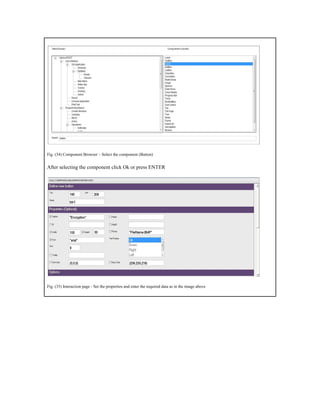
Fig. (34) Component Browser – Select the component (Button)
After selecting the component click Ok or press ENTER
Fig. (35) Interaction page - Set the properties and enter the required data as in the image above
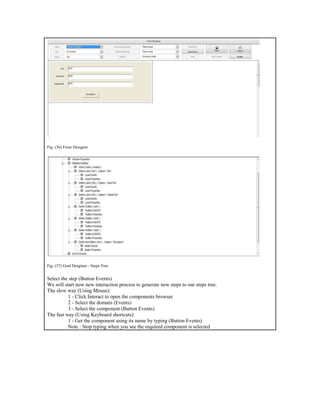
Fig. (36) Form Designer
Fig. (37) Goal Desginer - Steps Tree
Select the step (Button Events)
We will start now new interaction process to generate new steps to our steps tree.
The slow way (Using Mouse):
1 - Click Interact to open the components browser
2 - Select the domain (Events)
3 - Select the component (Button Events)
The fast way (Using Keyboard shortcuts):
1 - Get the component using its name by typing (Button Events)
Note : Stop typing when you see the required component is selected
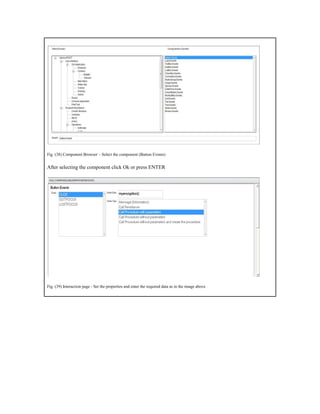
Fig. (38) Component Browser – Select the component (Button Events)
After selecting the component click Ok or press ENTER
Fig. (39) Interaction page - Set the properties and enter the required data as in the image above
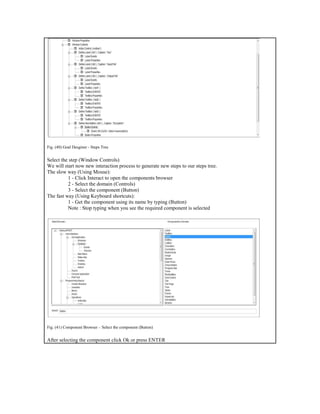
Fig. (40) Goal Desginer - Steps Tree
Select the step (Window Controls)
We will start now new interaction process to generate new steps to our steps tree.
The slow way (Using Mouse):
1 - Click Interact to open the components browser
2 - Select the domain (Controls)
3 - Select the component (Button)
The fast way (Using Keyboard shortcuts):
1 - Get the component using its name by typing (Button)
Note : Stop typing when you see the required component is selected
Fig. (41) Component Browser – Select the component (Button)
After selecting the component click Ok or press ENTER
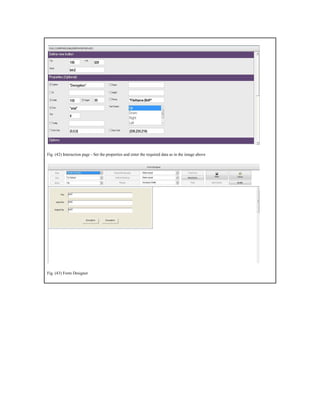
Fig. (42) Interaction page - Set the properties and enter the required data as in the image above
Fig. (43) Form Designer
Fig. (44) Goal Desginer - Steps Tree
Select the step (Button Events)
We will start now new interaction process to generate new steps to our steps tree.
The slow way (Using Mouse):
1 - Click Interact to open the components browser
2 - Select the domain (Events)
3 - Select the component (Button Events)
The fast way (Using Keyboard shortcuts):
1 - Get the component using its name by typing (Button Events)
Note : Stop typing when you see the required component is selected
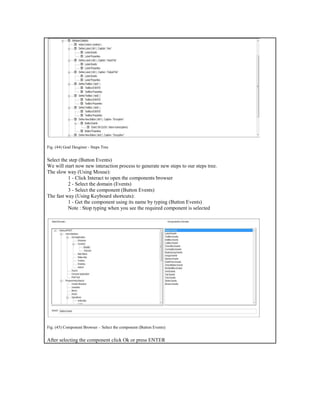
Fig. (45) Component Browser – Select the component (Button Events)
After selecting the component click Ok or press ENTER
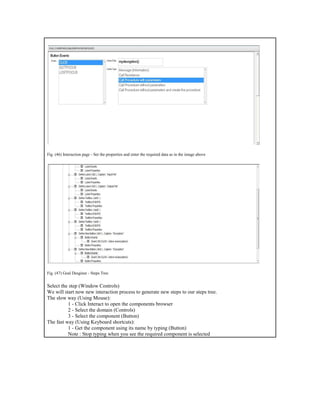
Fig. (46) Interaction page - Set the properties and enter the required data as in the image above
Fig. (47) Goal Desginer - Steps Tree
Select the step (Window Controls)
We will start now new interaction process to generate new steps to our steps tree.
The slow way (Using Mouse):
1 - Click Interact to open the components browser
2 - Select the domain (Controls)
3 - Select the component (Button)
The fast way (Using Keyboard shortcuts):
1 - Get the component using its name by typing (Button)
Note : Stop typing when you see the required component is selected
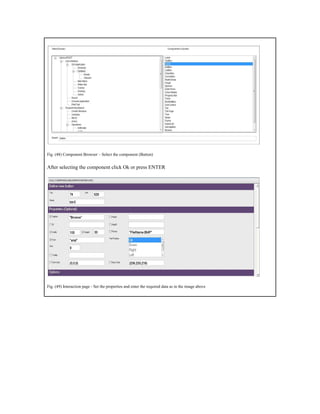
Fig. (48) Component Browser – Select the component (Button)
After selecting the component click Ok or press ENTER
Fig. (49) Interaction page - Set the properties and enter the required data as in the image above
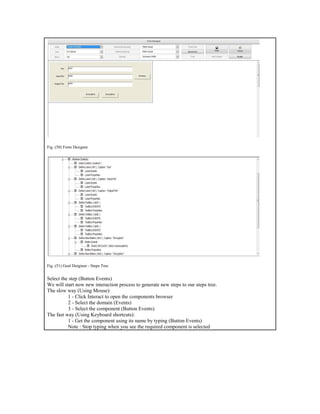
Fig. (50) Form Designer
Fig. (51) Goal Desginer - Steps Tree
Select the step (Button Events)
We will start now new interaction process to generate new steps to our steps tree.
The slow way (Using Mouse):
1 - Click Interact to open the components browser
2 - Select the domain (Events)
3 - Select the component (Button Events)
The fast way (Using Keyboard shortcuts):
1 - Get the component using its name by typing (Button Events)
Note : Stop typing when you see the required component is selected
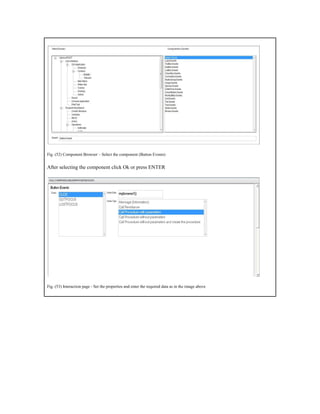
Fig. (52) Component Browser – Select the component (Button Events)
After selecting the component click Ok or press ENTER
Fig. (53) Interaction page - Set the properties and enter the required data as in the image above
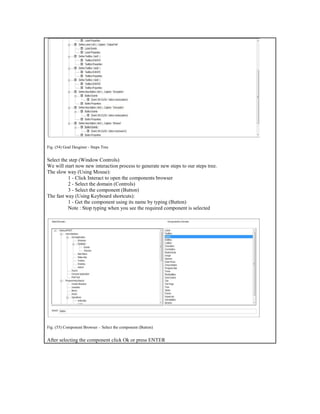
Fig. (54) Goal Desginer - Steps Tree
Select the step (Window Controls)
We will start now new interaction process to generate new steps to our steps tree.
The slow way (Using Mouse):
1 - Click Interact to open the components browser
2 - Select the domain (Controls)
3 - Select the component (Button)
The fast way (Using Keyboard shortcuts):
1 - Get the component using its name by typing (Button)
Note : Stop typing when you see the required component is selected
Fig. (55) Component Browser – Select the component (Button)
After selecting the component click Ok or press ENTER
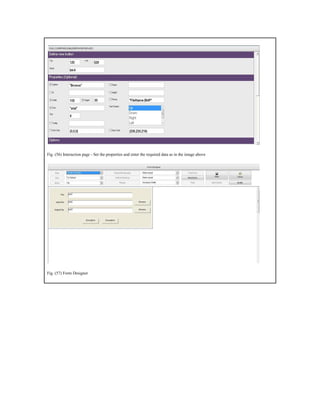
Fig. (56) Interaction page - Set the properties and enter the required data as in the image above
Fig. (57) Form Designer
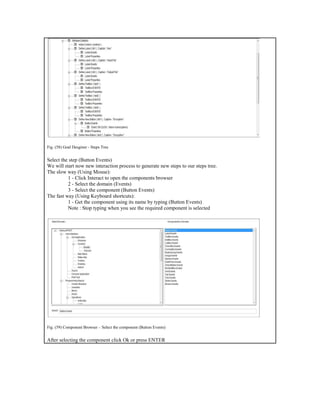
Fig. (58) Goal Desginer - Steps Tree
Select the step (Button Events)
We will start now new interaction process to generate new steps to our steps tree.
The slow way (Using Mouse):
1 - Click Interact to open the components browser
2 - Select the domain (Events)
3 - Select the component (Button Events)
The fast way (Using Keyboard shortcuts):
1 - Get the component using its name by typing (Button Events)
Note : Stop typing when you see the required component is selected
Fig. (59) Component Browser – Select the component (Button Events)
After selecting the component click Ok or press ENTER
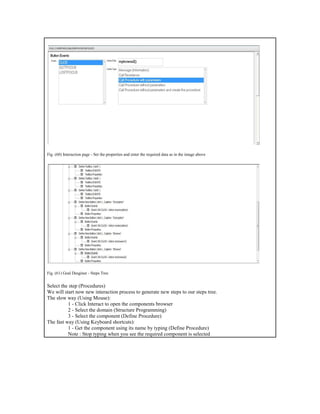
Fig. (60) Interaction page - Set the properties and enter the required data as in the image above
Fig. (61) Goal Desginer - Steps Tree
Select the step (Procedures)
We will start now new interaction process to generate new steps to our steps tree.
The slow way (Using Mouse):
1 - Click Interact to open the components browser
2 - Select the domain (Structure Programming)
3 - Select the component (Define Procedure)
The fast way (Using Keyboard shortcuts):
1 - Get the component using its name by typing (Define Procedure)
Note : Stop typing when you see the required component is selected
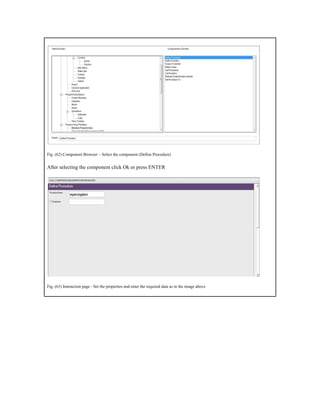
Fig. (62) Component Browser – Select the component (Define Procedure)
After selecting the component click Ok or press ENTER
Fig. (63) Interaction page - Set the properties and enter the required data as in the image above
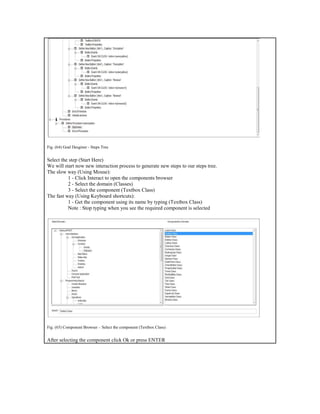
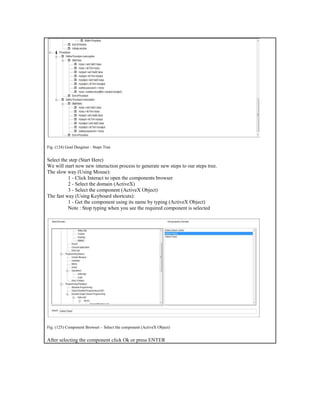
Fig. (64) Goal Desginer - Steps Tree
Select the step (Start Here)
We will start now new interaction process to generate new steps to our steps tree.
The slow way (Using Mouse):
1 - Click Interact to open the components browser
2 - Select the domain (Classes)
3 - Select the component (Textbox Class)
The fast way (Using Keyboard shortcuts):
1 - Get the component using its name by typing (Textbox Class)
Note : Stop typing when you see the required component is selected
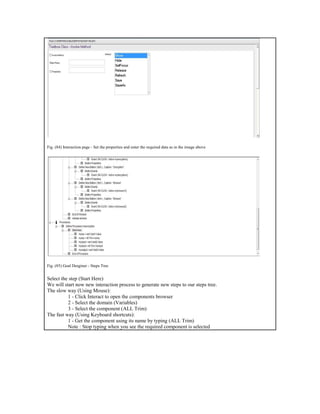
Fig. (65) Component Browser – Select the component (Textbox Class)
After selecting the component click Ok or press ENTER
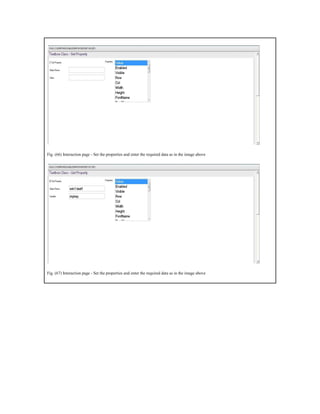
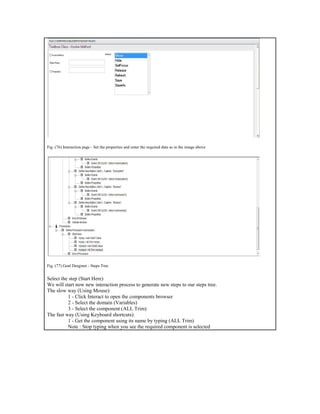
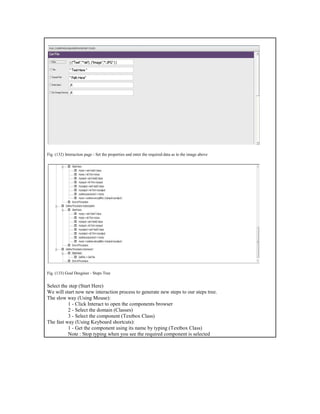
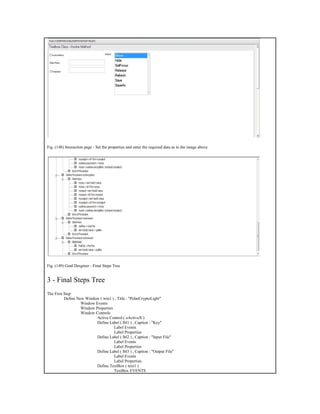
Fig. (66) Interaction page - Set the properties and enter the required data as in the image above
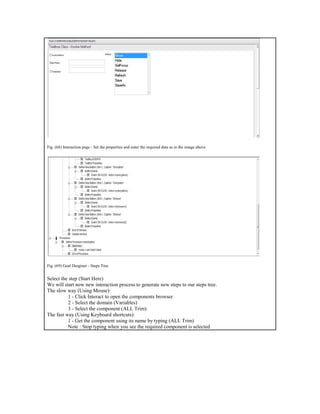
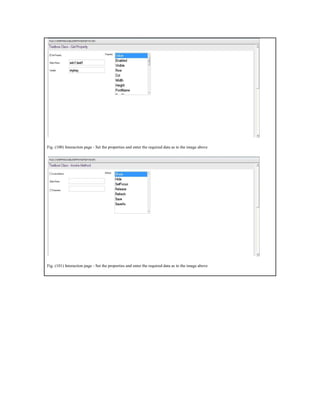
Fig. (67) Interaction page - Set the properties and enter the required data as in the image above
Fig. (68) Interaction page - Set the properties and enter the required data as in the image above
Fig. (69) Goal Desginer - Steps Tree
Select the step (Start Here)
We will start now new interaction process to generate new steps to our steps tree.
The slow way (Using Mouse):
1 - Click Interact to open the components browser
2 - Select the domain (Variables)
3 - Select the component (ALL Trim)
The fast way (Using Keyboard shortcuts):
1 - Get the component using its name by typing (ALL Trim)
Note : Stop typing when you see the required component is selected
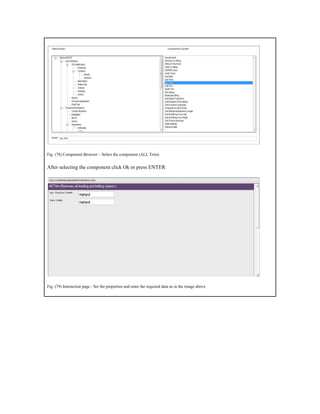
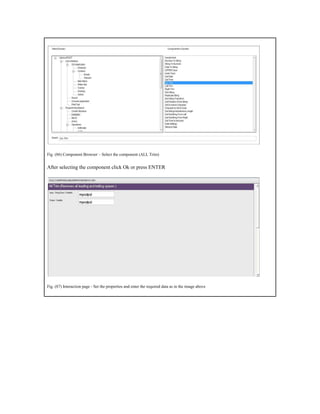
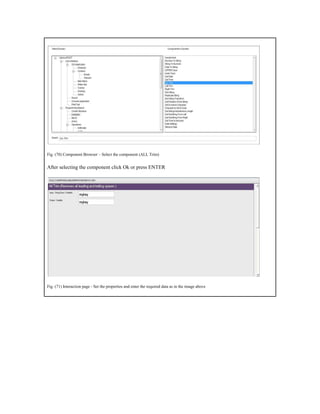
Fig. (70) Component Browser – Select the component (ALL Trim)
After selecting the component click Ok or press ENTER
Fig. (71) Interaction page - Set the properties and enter the required data as in the image above
Fig. (72) Goal Desginer - Steps Tree
Select the step (Start Here)
We will start now new interaction process to generate new steps to our steps tree.
The slow way (Using Mouse):
1 - Click Interact to open the components browser
2 - Select the domain (Classes)
3 - Select the component (Textbox Class)
The fast way (Using Keyboard shortcuts):
1 - Get the component using its name by typing (Textbox Class)
Note : Stop typing when you see the required component is selected
Fig. (73) Component Browser – Select the component (Textbox Class)
After selecting the component click Ok or press ENTER
Fig. (74) Interaction page - Set the properties and enter the required data as in the image above
Fig. (75) Interaction page - Set the properties and enter the required data as in the image above
Fig. (76) Interaction page - Set the properties and enter the required data as in the image above
Fig. (77) Goal Desginer - Steps Tree
Select the step (Start Here)
We will start now new interaction process to generate new steps to our steps tree.
The slow way (Using Mouse):
1 - Click Interact to open the components browser
2 - Select the domain (Variables)
3 - Select the component (ALL Trim)
The fast way (Using Keyboard shortcuts):
1 - Get the component using its name by typing (ALL Trim)
Note : Stop typing when you see the required component is selected
Fig. (78) Component Browser – Select the component (ALL Trim)
After selecting the component click Ok or press ENTER
Fig. (79) Interaction page - Set the properties and enter the required data as in the image above
Fig. (80) Goal Desginer - Steps Tree
Select the step (Start Here)
We will start now new interaction process to generate new steps to our steps tree.
The slow way (Using Mouse):
1 - Click Interact to open the components browser
2 - Select the domain (Classes)
3 - Select the component (Textbox Class)
The fast way (Using Keyboard shortcuts):
1 - Get the component using its name by typing (Textbox Class)
Note : Stop typing when you see the required component is selected
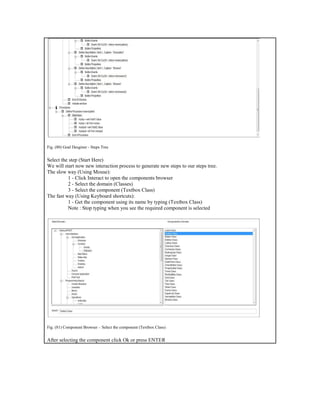
Fig. (81) Component Browser – Select the component (Textbox Class)
After selecting the component click Ok or press ENTER
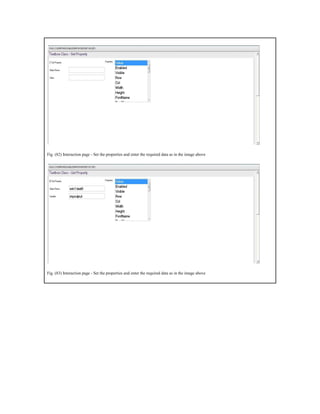
Fig. (82) Interaction page - Set the properties and enter the required data as in the image above
Fig. (83) Interaction page - Set the properties and enter the required data as in the image above
Fig. (84) Interaction page - Set the properties and enter the required data as in the image above
Fig. (85) Goal Desginer - Steps Tree
Select the step (Start Here)
We will start now new interaction process to generate new steps to our steps tree.
The slow way (Using Mouse):
1 - Click Interact to open the components browser
2 - Select the domain (Variables)
3 - Select the component (ALL Trim)
The fast way (Using Keyboard shortcuts):
1 - Get the component using its name by typing (ALL Trim)
Note : Stop typing when you see the required component is selected
Fig. (86) Component Browser – Select the component (ALL Trim)
After selecting the component click Ok or press ENTER
Fig. (87) Interaction page - Set the properties and enter the required data as in the image above
Fig. (88) Goal Desginer - Steps Tree
Select the step (Start Here)
We will start now new interaction process to generate new steps to our steps tree.
The slow way (Using Mouse):
1 - Click Interact to open the components browser
2 - Select the domain (ActiveX)
3 - Select the component (ActiveX Object)
The fast way (Using Keyboard shortcuts):
1 - Get the component using its name by typing (ActiveX Object)
Note : Stop typing when you see the required component is selected
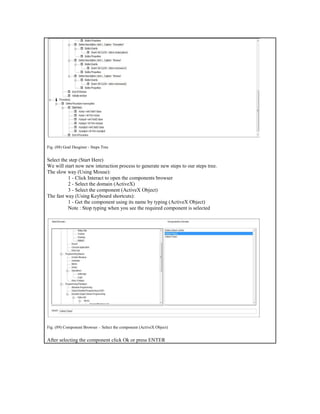
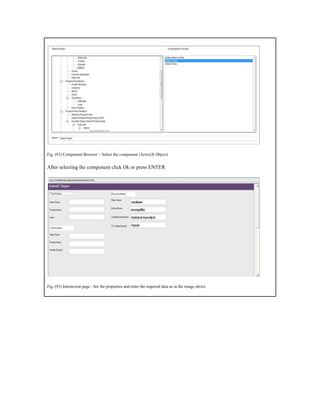
Fig. (89) Component Browser – Select the component (ActiveX Object)
After selecting the component click Ok or press ENTER
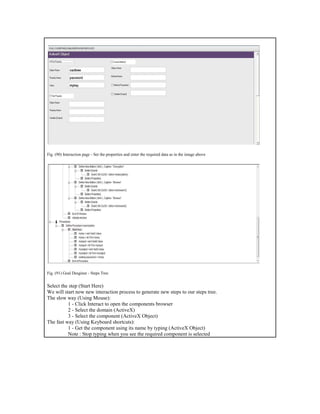
Fig. (90) Interaction page - Set the properties and enter the required data as in the image above
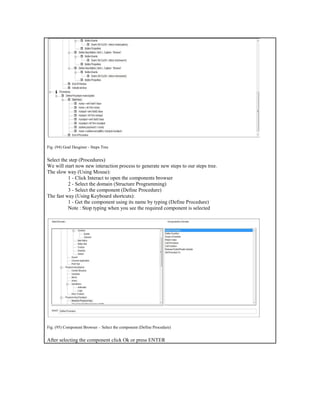
Fig. (91) Goal Desginer - Steps Tree
Select the step (Start Here)
We will start now new interaction process to generate new steps to our steps tree.
The slow way (Using Mouse):
1 - Click Interact to open the components browser
2 - Select the domain (ActiveX)
3 - Select the component (ActiveX Object)
The fast way (Using Keyboard shortcuts):
1 - Get the component using its name by typing (ActiveX Object)
Note : Stop typing when you see the required component is selected
Fig. (92) Component Browser – Select the component (ActiveX Object)
After selecting the component click Ok or press ENTER
Fig. (93) Interaction page - Set the properties and enter the required data as in the image above
Fig. (94) Goal Desginer - Steps Tree
Select the step (Procedures)
We will start now new interaction process to generate new steps to our steps tree.
The slow way (Using Mouse):
1 - Click Interact to open the components browser
2 - Select the domain (Structure Programming)
3 - Select the component (Define Procedure)
The fast way (Using Keyboard shortcuts):
1 - Get the component using its name by typing (Define Procedure)
Note : Stop typing when you see the required component is selected
Fig. (95) Component Browser – Select the component (Define Procedure)
After selecting the component click Ok or press ENTER
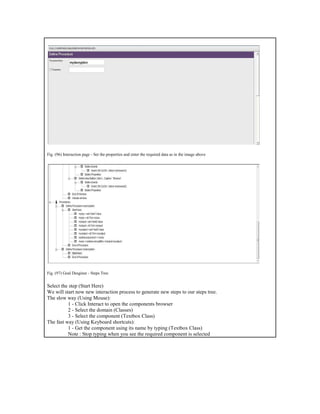
Fig. (96) Interaction page - Set the properties and enter the required data as in the image above
Fig. (97) Goal Desginer - Steps Tree
Select the step (Start Here)
We will start now new interaction process to generate new steps to our steps tree.
The slow way (Using Mouse):
1 - Click Interact to open the components browser
2 - Select the domain (Classes)
3 - Select the component (Textbox Class)
The fast way (Using Keyboard shortcuts):
1 - Get the component using its name by typing (Textbox Class)
Note : Stop typing when you see the required component is selected
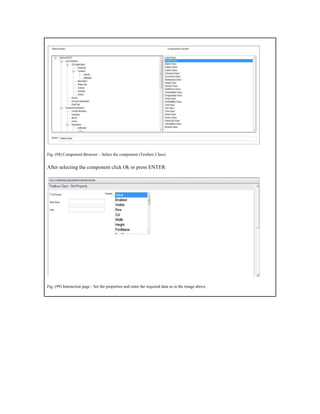
Fig. (98) Component Browser – Select the component (Textbox Class)
After selecting the component click Ok or press ENTER
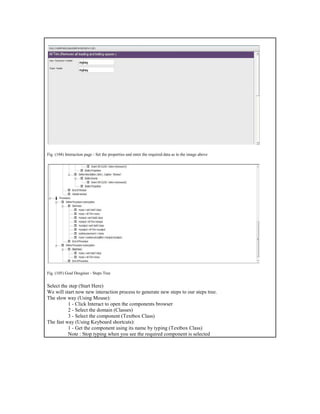
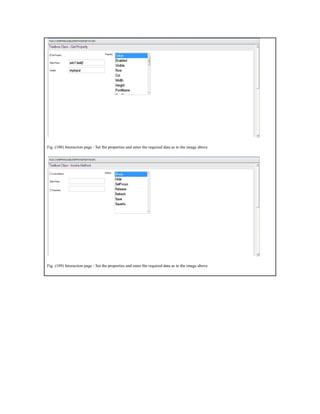
Fig. (99) Interaction page - Set the properties and enter the required data as in the image above
Fig. (100) Interaction page - Set the properties and enter the required data as in the image above
Fig. (101) Interaction page - Set the properties and enter the required data as in the image above
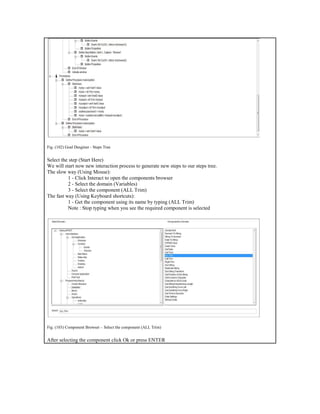
Fig. (102) Goal Desginer - Steps Tree
Select the step (Start Here)
We will start now new interaction process to generate new steps to our steps tree.
The slow way (Using Mouse):
1 - Click Interact to open the components browser
2 - Select the domain (Variables)
3 - Select the component (ALL Trim)
The fast way (Using Keyboard shortcuts):
1 - Get the component using its name by typing (ALL Trim)
Note : Stop typing when you see the required component is selected
Fig. (103) Component Browser – Select the component (ALL Trim)
After selecting the component click Ok or press ENTER
Fig. (104) Interaction page - Set the properties and enter the required data as in the image above
Fig. (105) Goal Desginer - Steps Tree
Select the step (Start Here)
We will start now new interaction process to generate new steps to our steps tree.
The slow way (Using Mouse):
1 - Click Interact to open the components browser
2 - Select the domain (Classes)
3 - Select the component (Textbox Class)
The fast way (Using Keyboard shortcuts):
1 - Get the component using its name by typing (Textbox Class)
Note : Stop typing when you see the required component is selected
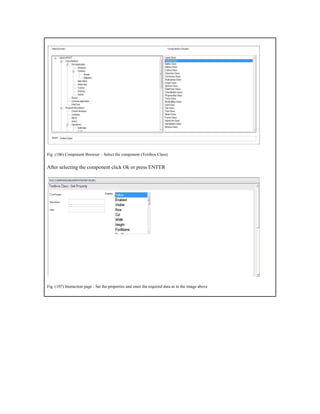
Fig. (106) Component Browser – Select the component (Textbox Class)
After selecting the component click Ok or press ENTER
Fig. (107) Interaction page - Set the properties and enter the required data as in the image above
Fig. (108) Interaction page - Set the properties and enter the required data as in the image above
Fig. (109) Interaction page - Set the properties and enter the required data as in the image above
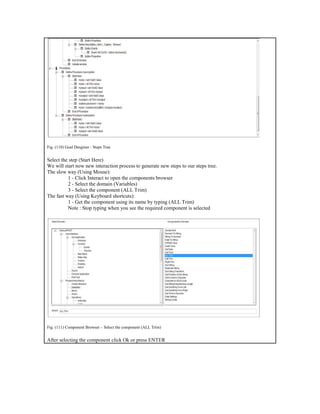
Fig. (110) Goal Desginer - Steps Tree
Select the step (Start Here)
We will start now new interaction process to generate new steps to our steps tree.
The slow way (Using Mouse):
1 - Click Interact to open the components browser
2 - Select the domain (Variables)
3 - Select the component (ALL Trim)
The fast way (Using Keyboard shortcuts):
1 - Get the component using its name by typing (ALL Trim)
Note : Stop typing when you see the required component is selected
Fig. (111) Component Browser – Select the component (ALL Trim)
After selecting the component click Ok or press ENTER
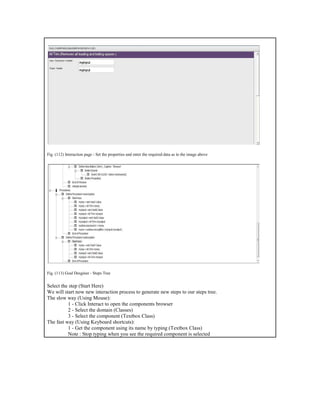
Fig. (112) Interaction page - Set the properties and enter the required data as in the image above
Fig. (113) Goal Desginer - Steps Tree
Select the step (Start Here)
We will start now new interaction process to generate new steps to our steps tree.
The slow way (Using Mouse):
1 - Click Interact to open the components browser
2 - Select the domain (Classes)
3 - Select the component (Textbox Class)
The fast way (Using Keyboard shortcuts):
1 - Get the component using its name by typing (Textbox Class)
Note : Stop typing when you see the required component is selected
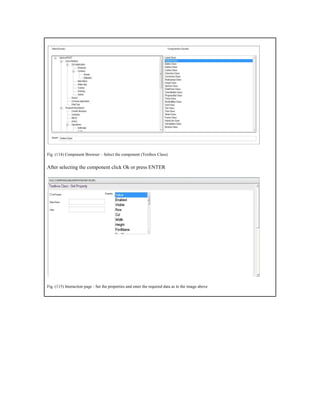
Fig. (114) Component Browser – Select the component (Textbox Class)
After selecting the component click Ok or press ENTER
Fig. (115) Interaction page - Set the properties and enter the required data as in the image above
Fig. (116) Interaction page - Set the properties and enter the required data as in the image above
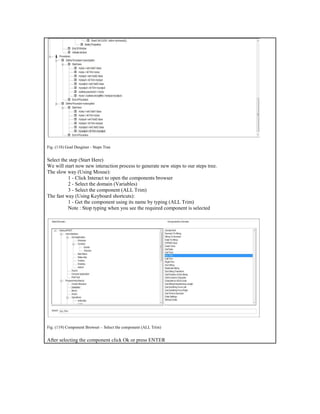
Fig. (117) Interaction page - Set the properties and enter the required data as in the image above
Fig. (118) Goal Desginer - Steps Tree
Select the step (Start Here)
We will start now new interaction process to generate new steps to our steps tree.
The slow way (Using Mouse):
1 - Click Interact to open the components browser
2 - Select the domain (Variables)
3 - Select the component (ALL Trim)
The fast way (Using Keyboard shortcuts):
1 - Get the component using its name by typing (ALL Trim)
Note : Stop typing when you see the required component is selected
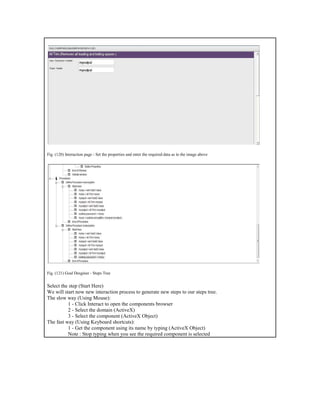
Fig. (119) Component Browser – Select the component (ALL Trim)
After selecting the component click Ok or press ENTER
Fig. (120) Interaction page - Set the properties and enter the required data as in the image above
Fig. (121) Goal Desginer - Steps Tree
Select the step (Start Here)
We will start now new interaction process to generate new steps to our steps tree.
The slow way (Using Mouse):
1 - Click Interact to open the components browser
2 - Select the domain (ActiveX)
3 - Select the component (ActiveX Object)
The fast way (Using Keyboard shortcuts):
1 - Get the component using its name by typing (ActiveX Object)
Note : Stop typing when you see the required component is selected
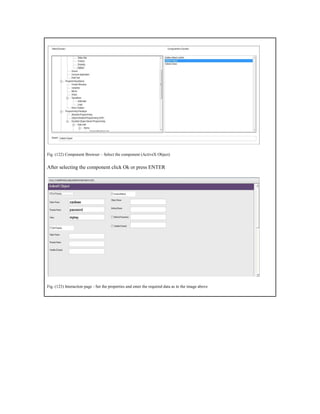
Fig. (122) Component Browser – Select the component (ActiveX Object)
After selecting the component click Ok or press ENTER
Fig. (123) Interaction page - Set the properties and enter the required data as in the image above
Fig. (124) Goal Desginer - Steps Tree
Select the step (Start Here)
We will start now new interaction process to generate new steps to our steps tree.
The slow way (Using Mouse):
1 - Click Interact to open the components browser
2 - Select the domain (ActiveX)
3 - Select the component (ActiveX Object)
The fast way (Using Keyboard shortcuts):
1 - Get the component using its name by typing (ActiveX Object)
Note : Stop typing when you see the required component is selected
Fig. (125) Component Browser – Select the component (ActiveX Object)
After selecting the component click Ok or press ENTER
Fig. (126) Interaction page - Set the properties and enter the required data as in the image above
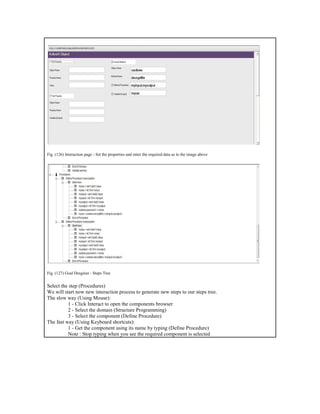
Fig. (127) Goal Desginer - Steps Tree
Select the step (Procedures)
We will start now new interaction process to generate new steps to our steps tree.
The slow way (Using Mouse):
1 - Click Interact to open the components browser
2 - Select the domain (Structure Programming)
3 - Select the component (Define Procedure)
The fast way (Using Keyboard shortcuts):
1 - Get the component using its name by typing (Define Procedure)
Note : Stop typing when you see the required component is selected
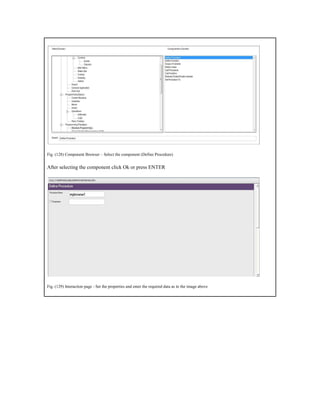
Fig. (128) Component Browser – Select the component (Define Procedure)
After selecting the component click Ok or press ENTER
Fig. (129) Interaction page - Set the properties and enter the required data as in the image above
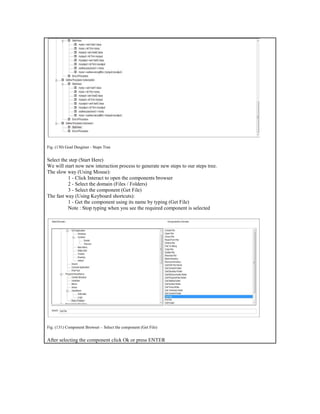
Fig. (130) Goal Desginer - Steps Tree
Select the step (Start Here)
We will start now new interaction process to generate new steps to our steps tree.
The slow way (Using Mouse):
1 - Click Interact to open the components browser
2 - Select the domain (Files / Folders)
3 - Select the component (Get File)
The fast way (Using Keyboard shortcuts):
1 - Get the component using its name by typing (Get File)
Note : Stop typing when you see the required component is selected
Fig. (131) Component Browser – Select the component (Get File)
After selecting the component click Ok or press ENTER
Fig. (132) Interaction page - Set the properties and enter the required data as in the image above
Fig. (133) Goal Desginer - Steps Tree
Select the step (Start Here)
We will start now new interaction process to generate new steps to our steps tree.
The slow way (Using Mouse):
1 - Click Interact to open the components browser
2 - Select the domain (Classes)
3 - Select the component (Textbox Class)
The fast way (Using Keyboard shortcuts):
1 - Get the component using its name by typing (Textbox Class)
Note : Stop typing when you see the required component is selected
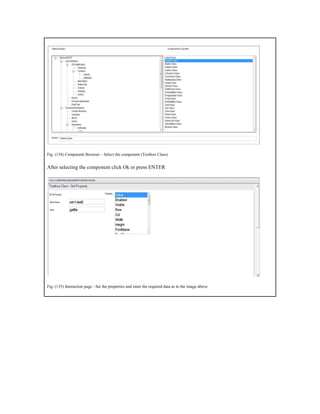
Fig. (134) Component Browser – Select the component (Textbox Class)
After selecting the component click Ok or press ENTER
Fig. (135) Interaction page - Set the properties and enter the required data as in the image above
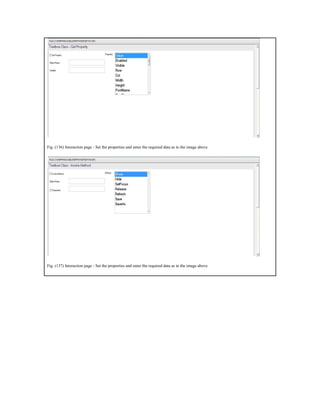
Fig. (136) Interaction page - Set the properties and enter the required data as in the image above
Fig. (137) Interaction page - Set the properties and enter the required data as in the image above
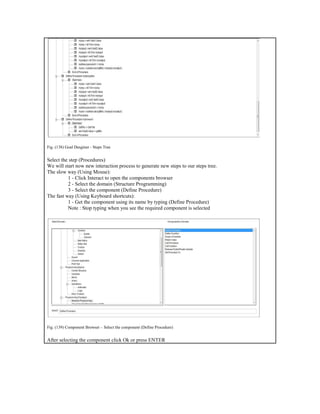
Fig. (138) Goal Desginer - Steps Tree
Select the step (Procedures)
We will start now new interaction process to generate new steps to our steps tree.
The slow way (Using Mouse):
1 - Click Interact to open the components browser
2 - Select the domain (Structure Programming)
3 - Select the component (Define Procedure)
The fast way (Using Keyboard shortcuts):
1 - Get the component using its name by typing (Define Procedure)
Note : Stop typing when you see the required component is selected
Fig. (139) Component Browser – Select the component (Define Procedure)
After selecting the component click Ok or press ENTER
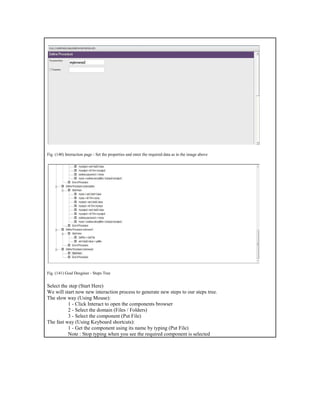
Fig. (140) Interaction page - Set the properties and enter the required data as in the image above
Fig. (141) Goal Desginer - Steps Tree
Select the step (Start Here)
We will start now new interaction process to generate new steps to our steps tree.
The slow way (Using Mouse):
1 - Click Interact to open the components browser
2 - Select the domain (Files / Folders)
3 - Select the component (Put File)
The fast way (Using Keyboard shortcuts):
1 - Get the component using its name by typing (Put File)
Note : Stop typing when you see the required component is selected
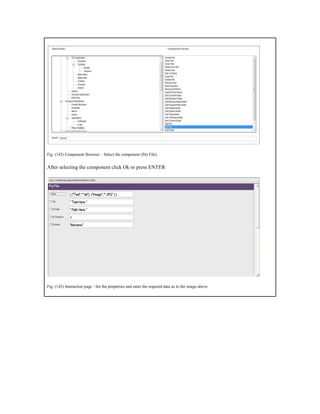
Fig. (142) Component Browser – Select the component (Put File)
After selecting the component click Ok or press ENTER
Fig. (143) Interaction page - Set the properties and enter the required data as in the image above
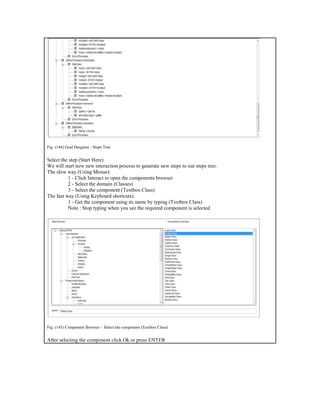
Fig. (144) Goal Desginer - Steps Tree
Select the step (Start Here)
We will start now new interaction process to generate new steps to our steps tree.
The slow way (Using Mouse):
1 - Click Interact to open the components browser
2 - Select the domain (Classes)
3 - Select the component (Textbox Class)
The fast way (Using Keyboard shortcuts):
1 - Get the component using its name by typing (Textbox Class)
Note : Stop typing when you see the required component is selected
Fig. (145) Component Browser – Select the component (Textbox Class)
After selecting the component click Ok or press ENTER
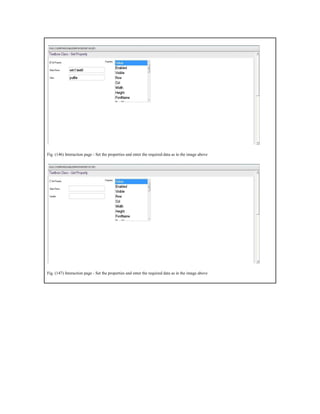
Fig. (146) Interaction page - Set the properties and enter the required data as in the image above
Fig. (147) Interaction page - Set the properties and enter the required data as in the image above
Fig. (148) Interaction page - Set the properties and enter the required data as in the image above
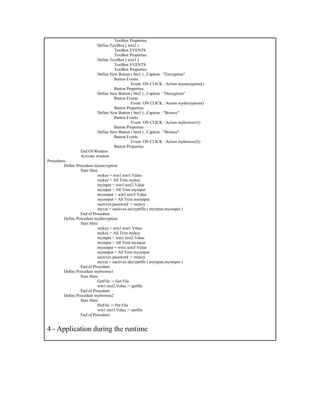
Fig. (149) Goal Desginer - Final Steps Tree
3 - Final Steps Tree
The First Step
Define New Window ( win1 ) , Title : "PolarCryptoLight"
Window Events
Window Properties
Window Controls
Active Control ( oActiveX )
Define Label ( lbl1 ) , Caption : "Key"
Label Events
Label Properties
Define Label ( lbl2 ) , Caption : "Input File"
Label Events
Label Properties
Define Label ( lbl3 ) , Caption : "Output File"
Label Events
Label Properties
Define TextBox ( text1 )
TextBox EVENTS
TextBox Properties
Define TextBox ( text2 )
TextBox EVENTS
TextBox Properties
Define TextBox ( text3 )
TextBox EVENTS
TextBox Properties
Define New Button ( btn1 ) , Caption : "Encryption"
Button Events
Event: ON CLICK : Action myencryption()
Button Properties
Define New Button ( btn2 ) , Caption : "Decryption"
Button Events
Event: ON CLICK : Action mydecryption()
Button Properties
Define New Button ( btn3 ) , Caption : "Browse"
Button Events
Event: ON CLICK : Action mybrowse1()
Button Properties
Define New Button ( btn4 ) , Caption : "Browse"
Button Events
Event: ON CLICK : Action mybrowse2()
Button Properties
End Of Window
Activate window
Procedures
Define Procedure myencryption
Start Here
mykey = win1.text1.Value
mykey = All Trim mykey
myinput = win1.text2.Value
myinput = All Trim myinput
myoutput = win1.text3.Value
myoutput = All Trim myoutput
oactivex.password := mykey
myvar = oactivex.encryptfile ( myinput,myoutput )
End of Procedure
Define Procedure mydecryption
Start Here
mykey = win1.text1.Value
mykey = All Trim mykey
myinput = win1.text2.Value
myinput = All Trim myinput
myoutput = win1.text3.Value
myoutput = All Trim myoutput
oactivex.password := mykey
myvar = oactivex.decryptfile ( myinput,myoutput )
End of Procedure
Define Procedure mybrowse1
Start Here
GetFile := Get File
win1.text2.Value := getfile
End of Procedure
Define Procedure mybrowse2
Start Here
PutFile := Put File
win1.text3.Value := putfile
End of Procedure
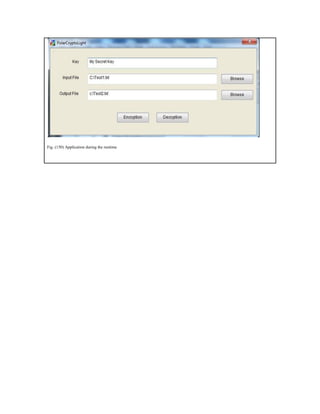
4 - Application during the runtime
Fig. (150) Application during the runtime

Programming Without Coding Technology (PWCT) - Encrypt/Decrypt Files using PolarCryptoLight ActiveX

  • 1.
    PWCT 1.9 ArtDocumentation ( http://doublesvsoop.sourceforge.net ) 2006-2013, Mahmoud Fayed ( msfclipper@users.sourceforge.net ) _____________________________________________________________________________________ Table of contents 1 - Introduction 2 - Implementation steps 3 - Final Steps Tree 4 - Application during the runtime 1 - Introduction In this lesson we are going to learn how to Encrypt/Decrypt files using the PolarCryptoLight ActiveX. 2 - Implementation Steps Fig. (1) Goal Desginer - Steps Tree Select the step (The First Step) We will start now new interaction process to generate new steps to our steps tree. The slow way (Using Mouse): 1 - Click Interact to open the components browser 2 - Select the domain (Windows) 3 - Select the component (Define New Window) The fast way (Using Keyboard shortcuts): 1 - Get the component using its name by typing (Define New Window) Note : Stop typing when you see the required component is selected
  • 2.
    Fig. (2) ComponentBrowser – Select the component (Define New Window) After selecting the component click Ok or press ENTER Fig. (3) Interaction page - Set the properties and enter the required data as in the image above
  • 3.
    Fig. (4) FormDesigner Fig. (5) Goal Desginer - Steps Tree Select the step (Window Controls) We will start now new interaction process to generate new steps to our steps tree. The slow way (Using Mouse): 1 - Click Interact to open the components browser 2 - Select the domain (ActiveX) 3 - Select the component (Define ActiveX control) The fast way (Using Keyboard shortcuts): 1 - Get the component using its name by typing (Define ActiveX control) Note : Stop typing when you see the required component is selected
  • 4.
    Fig. (6) ComponentBrowser – Select the component (Define ActiveX control) After selecting the component click Ok or press ENTER Fig. (7) Interaction page - Set the properties and enter the required data as in the image above
  • 5.
    Fig. (8) FormDesigner Fig. (9) Goal Desginer - Steps Tree Select the step (Window Controls) We will start now new interaction process to generate new steps to our steps tree. The slow way (Using Mouse): 1 - Click Interact to open the components browser 2 - Select the domain (Controls) 3 - Select the component (Label) The fast way (Using Keyboard shortcuts): 1 - Get the component using its name by typing (Label) Note : Stop typing when you see the required component is selected
  • 6.
    Fig. (10) ComponentBrowser – Select the component (Label) After selecting the component click Ok or press ENTER Fig. (11) Interaction page - Set the properties and enter the required data as in the image above
  • 7.
    Fig. (12) FormDesigner Fig. (13) Goal Desginer - Steps Tree Select the step (Window Controls) We will start now new interaction process to generate new steps to our steps tree. The slow way (Using Mouse): 1 - Click Interact to open the components browser 2 - Select the domain (Controls) 3 - Select the component (Label) The fast way (Using Keyboard shortcuts): 1 - Get the component using its name by typing (Label) Note : Stop typing when you see the required component is selected
  • 8.
    Fig. (14) ComponentBrowser – Select the component (Label) After selecting the component click Ok or press ENTER Fig. (15) Interaction page - Set the properties and enter the required data as in the image above
  • 9.
    Fig. (16) FormDesigner Fig. (17) Goal Desginer - Steps Tree Select the step (Window Controls) We will start now new interaction process to generate new steps to our steps tree. The slow way (Using Mouse): 1 - Click Interact to open the components browser 2 - Select the domain (Controls) 3 - Select the component (Label) The fast way (Using Keyboard shortcuts): 1 - Get the component using its name by typing (Label) Note : Stop typing when you see the required component is selected
  • 10.
    Fig. (18) ComponentBrowser – Select the component (Label) After selecting the component click Ok or press ENTER Fig. (19) Interaction page - Set the properties and enter the required data as in the image above
  • 11.
    Fig. (20) FormDesigner Fig. (21) Goal Desginer - Steps Tree Select the step (Window Controls) We will start now new interaction process to generate new steps to our steps tree. The slow way (Using Mouse): 1 - Click Interact to open the components browser 2 - Select the domain (Controls) 3 - Select the component (TextBox) The fast way (Using Keyboard shortcuts): 1 - Get the component using its name by typing (TextBox) Note : Stop typing when you see the required component is selected
  • 12.
    Fig. (22) ComponentBrowser – Select the component (TextBox) After selecting the component click Ok or press ENTER Fig. (23) Interaction page - Set the properties and enter the required data as in the image above
  • 13.
    Fig. (24) FormDesigner Fig. (25) Goal Desginer - Steps Tree Select the step (Window Controls) We will start now new interaction process to generate new steps to our steps tree. The slow way (Using Mouse): 1 - Click Interact to open the components browser 2 - Select the domain (Controls) 3 - Select the component (TextBox) The fast way (Using Keyboard shortcuts): 1 - Get the component using its name by typing (TextBox) Note : Stop typing when you see the required component is selected
  • 14.
    Fig. (26) ComponentBrowser – Select the component (TextBox) After selecting the component click Ok or press ENTER Fig. (27) Interaction page - Set the properties and enter the required data as in the image above
  • 15.
    Fig. (28) FormDesigner Fig. (29) Goal Desginer - Steps Tree Select the step (Window Controls) We will start now new interaction process to generate new steps to our steps tree. The slow way (Using Mouse): 1 - Click Interact to open the components browser 2 - Select the domain (Controls) 3 - Select the component (TextBox) The fast way (Using Keyboard shortcuts): 1 - Get the component using its name by typing (TextBox) Note : Stop typing when you see the required component is selected
  • 16.
    Fig. (30) ComponentBrowser – Select the component (TextBox) After selecting the component click Ok or press ENTER Fig. (31) Interaction page - Set the properties and enter the required data as in the image above
  • 17.
    Fig. (32) FormDesigner Fig. (33) Goal Desginer - Steps Tree Select the step (Window Controls) We will start now new interaction process to generate new steps to our steps tree. The slow way (Using Mouse): 1 - Click Interact to open the components browser 2 - Select the domain (Controls) 3 - Select the component (Button) The fast way (Using Keyboard shortcuts): 1 - Get the component using its name by typing (Button) Note : Stop typing when you see the required component is selected
  • 18.
    Fig. (34) ComponentBrowser – Select the component (Button) After selecting the component click Ok or press ENTER Fig. (35) Interaction page - Set the properties and enter the required data as in the image above
  • 19.
    Fig. (36) FormDesigner Fig. (37) Goal Desginer - Steps Tree Select the step (Button Events) We will start now new interaction process to generate new steps to our steps tree. The slow way (Using Mouse): 1 - Click Interact to open the components browser 2 - Select the domain (Events) 3 - Select the component (Button Events) The fast way (Using Keyboard shortcuts): 1 - Get the component using its name by typing (Button Events) Note : Stop typing when you see the required component is selected
  • 20.
    Fig. (38) ComponentBrowser – Select the component (Button Events) After selecting the component click Ok or press ENTER Fig. (39) Interaction page - Set the properties and enter the required data as in the image above
  • 21.
    Fig. (40) GoalDesginer - Steps Tree Select the step (Window Controls) We will start now new interaction process to generate new steps to our steps tree. The slow way (Using Mouse): 1 - Click Interact to open the components browser 2 - Select the domain (Controls) 3 - Select the component (Button) The fast way (Using Keyboard shortcuts): 1 - Get the component using its name by typing (Button) Note : Stop typing when you see the required component is selected Fig. (41) Component Browser – Select the component (Button) After selecting the component click Ok or press ENTER
  • 22.
    Fig. (42) Interactionpage - Set the properties and enter the required data as in the image above Fig. (43) Form Designer
  • 23.
    Fig. (44) GoalDesginer - Steps Tree Select the step (Button Events) We will start now new interaction process to generate new steps to our steps tree. The slow way (Using Mouse): 1 - Click Interact to open the components browser 2 - Select the domain (Events) 3 - Select the component (Button Events) The fast way (Using Keyboard shortcuts): 1 - Get the component using its name by typing (Button Events) Note : Stop typing when you see the required component is selected Fig. (45) Component Browser – Select the component (Button Events) After selecting the component click Ok or press ENTER
  • 24.
    Fig. (46) Interactionpage - Set the properties and enter the required data as in the image above Fig. (47) Goal Desginer - Steps Tree Select the step (Window Controls) We will start now new interaction process to generate new steps to our steps tree. The slow way (Using Mouse): 1 - Click Interact to open the components browser 2 - Select the domain (Controls) 3 - Select the component (Button) The fast way (Using Keyboard shortcuts): 1 - Get the component using its name by typing (Button) Note : Stop typing when you see the required component is selected
  • 25.
    Fig. (48) ComponentBrowser – Select the component (Button) After selecting the component click Ok or press ENTER Fig. (49) Interaction page - Set the properties and enter the required data as in the image above
  • 26.
    Fig. (50) FormDesigner Fig. (51) Goal Desginer - Steps Tree Select the step (Button Events) We will start now new interaction process to generate new steps to our steps tree. The slow way (Using Mouse): 1 - Click Interact to open the components browser 2 - Select the domain (Events) 3 - Select the component (Button Events) The fast way (Using Keyboard shortcuts): 1 - Get the component using its name by typing (Button Events) Note : Stop typing when you see the required component is selected
  • 27.
    Fig. (52) ComponentBrowser – Select the component (Button Events) After selecting the component click Ok or press ENTER Fig. (53) Interaction page - Set the properties and enter the required data as in the image above
  • 28.
    Fig. (54) GoalDesginer - Steps Tree Select the step (Window Controls) We will start now new interaction process to generate new steps to our steps tree. The slow way (Using Mouse): 1 - Click Interact to open the components browser 2 - Select the domain (Controls) 3 - Select the component (Button) The fast way (Using Keyboard shortcuts): 1 - Get the component using its name by typing (Button) Note : Stop typing when you see the required component is selected Fig. (55) Component Browser – Select the component (Button) After selecting the component click Ok or press ENTER
  • 29.
    Fig. (56) Interactionpage - Set the properties and enter the required data as in the image above Fig. (57) Form Designer
  • 30.
    Fig. (58) GoalDesginer - Steps Tree Select the step (Button Events) We will start now new interaction process to generate new steps to our steps tree. The slow way (Using Mouse): 1 - Click Interact to open the components browser 2 - Select the domain (Events) 3 - Select the component (Button Events) The fast way (Using Keyboard shortcuts): 1 - Get the component using its name by typing (Button Events) Note : Stop typing when you see the required component is selected Fig. (59) Component Browser – Select the component (Button Events) After selecting the component click Ok or press ENTER
  • 31.
    Fig. (60) Interactionpage - Set the properties and enter the required data as in the image above Fig. (61) Goal Desginer - Steps Tree Select the step (Procedures) We will start now new interaction process to generate new steps to our steps tree. The slow way (Using Mouse): 1 - Click Interact to open the components browser 2 - Select the domain (Structure Programming) 3 - Select the component (Define Procedure) The fast way (Using Keyboard shortcuts): 1 - Get the component using its name by typing (Define Procedure) Note : Stop typing when you see the required component is selected
  • 32.
    Fig. (62) ComponentBrowser – Select the component (Define Procedure) After selecting the component click Ok or press ENTER Fig. (63) Interaction page - Set the properties and enter the required data as in the image above
  • 33.
    Fig. (64) GoalDesginer - Steps Tree Select the step (Start Here) We will start now new interaction process to generate new steps to our steps tree. The slow way (Using Mouse): 1 - Click Interact to open the components browser 2 - Select the domain (Classes) 3 - Select the component (Textbox Class) The fast way (Using Keyboard shortcuts): 1 - Get the component using its name by typing (Textbox Class) Note : Stop typing when you see the required component is selected Fig. (65) Component Browser – Select the component (Textbox Class) After selecting the component click Ok or press ENTER
  • 34.
    Fig. (66) Interactionpage - Set the properties and enter the required data as in the image above Fig. (67) Interaction page - Set the properties and enter the required data as in the image above
  • 35.
    Fig. (68) Interactionpage - Set the properties and enter the required data as in the image above Fig. (69) Goal Desginer - Steps Tree Select the step (Start Here) We will start now new interaction process to generate new steps to our steps tree. The slow way (Using Mouse): 1 - Click Interact to open the components browser 2 - Select the domain (Variables) 3 - Select the component (ALL Trim) The fast way (Using Keyboard shortcuts): 1 - Get the component using its name by typing (ALL Trim) Note : Stop typing when you see the required component is selected
  • 36.
    Fig. (70) ComponentBrowser – Select the component (ALL Trim) After selecting the component click Ok or press ENTER Fig. (71) Interaction page - Set the properties and enter the required data as in the image above
  • 37.
    Fig. (72) GoalDesginer - Steps Tree Select the step (Start Here) We will start now new interaction process to generate new steps to our steps tree. The slow way (Using Mouse): 1 - Click Interact to open the components browser 2 - Select the domain (Classes) 3 - Select the component (Textbox Class) The fast way (Using Keyboard shortcuts): 1 - Get the component using its name by typing (Textbox Class) Note : Stop typing when you see the required component is selected Fig. (73) Component Browser – Select the component (Textbox Class) After selecting the component click Ok or press ENTER
  • 38.
    Fig. (74) Interactionpage - Set the properties and enter the required data as in the image above Fig. (75) Interaction page - Set the properties and enter the required data as in the image above
  • 39.
    Fig. (76) Interactionpage - Set the properties and enter the required data as in the image above Fig. (77) Goal Desginer - Steps Tree Select the step (Start Here) We will start now new interaction process to generate new steps to our steps tree. The slow way (Using Mouse): 1 - Click Interact to open the components browser 2 - Select the domain (Variables) 3 - Select the component (ALL Trim) The fast way (Using Keyboard shortcuts): 1 - Get the component using its name by typing (ALL Trim) Note : Stop typing when you see the required component is selected
  • 40.
    Fig. (78) ComponentBrowser – Select the component (ALL Trim) After selecting the component click Ok or press ENTER Fig. (79) Interaction page - Set the properties and enter the required data as in the image above
  • 41.
    Fig. (80) GoalDesginer - Steps Tree Select the step (Start Here) We will start now new interaction process to generate new steps to our steps tree. The slow way (Using Mouse): 1 - Click Interact to open the components browser 2 - Select the domain (Classes) 3 - Select the component (Textbox Class) The fast way (Using Keyboard shortcuts): 1 - Get the component using its name by typing (Textbox Class) Note : Stop typing when you see the required component is selected Fig. (81) Component Browser – Select the component (Textbox Class) After selecting the component click Ok or press ENTER
  • 42.
    Fig. (82) Interactionpage - Set the properties and enter the required data as in the image above Fig. (83) Interaction page - Set the properties and enter the required data as in the image above
  • 43.
    Fig. (84) Interactionpage - Set the properties and enter the required data as in the image above Fig. (85) Goal Desginer - Steps Tree Select the step (Start Here) We will start now new interaction process to generate new steps to our steps tree. The slow way (Using Mouse): 1 - Click Interact to open the components browser 2 - Select the domain (Variables) 3 - Select the component (ALL Trim) The fast way (Using Keyboard shortcuts): 1 - Get the component using its name by typing (ALL Trim) Note : Stop typing when you see the required component is selected
  • 44.
    Fig. (86) ComponentBrowser – Select the component (ALL Trim) After selecting the component click Ok or press ENTER Fig. (87) Interaction page - Set the properties and enter the required data as in the image above
  • 45.
    Fig. (88) GoalDesginer - Steps Tree Select the step (Start Here) We will start now new interaction process to generate new steps to our steps tree. The slow way (Using Mouse): 1 - Click Interact to open the components browser 2 - Select the domain (ActiveX) 3 - Select the component (ActiveX Object) The fast way (Using Keyboard shortcuts): 1 - Get the component using its name by typing (ActiveX Object) Note : Stop typing when you see the required component is selected Fig. (89) Component Browser – Select the component (ActiveX Object) After selecting the component click Ok or press ENTER
  • 46.
    Fig. (90) Interactionpage - Set the properties and enter the required data as in the image above Fig. (91) Goal Desginer - Steps Tree Select the step (Start Here) We will start now new interaction process to generate new steps to our steps tree. The slow way (Using Mouse): 1 - Click Interact to open the components browser 2 - Select the domain (ActiveX) 3 - Select the component (ActiveX Object) The fast way (Using Keyboard shortcuts): 1 - Get the component using its name by typing (ActiveX Object) Note : Stop typing when you see the required component is selected
  • 47.
    Fig. (92) ComponentBrowser – Select the component (ActiveX Object) After selecting the component click Ok or press ENTER Fig. (93) Interaction page - Set the properties and enter the required data as in the image above
  • 48.
    Fig. (94) GoalDesginer - Steps Tree Select the step (Procedures) We will start now new interaction process to generate new steps to our steps tree. The slow way (Using Mouse): 1 - Click Interact to open the components browser 2 - Select the domain (Structure Programming) 3 - Select the component (Define Procedure) The fast way (Using Keyboard shortcuts): 1 - Get the component using its name by typing (Define Procedure) Note : Stop typing when you see the required component is selected Fig. (95) Component Browser – Select the component (Define Procedure) After selecting the component click Ok or press ENTER
  • 49.
    Fig. (96) Interactionpage - Set the properties and enter the required data as in the image above Fig. (97) Goal Desginer - Steps Tree Select the step (Start Here) We will start now new interaction process to generate new steps to our steps tree. The slow way (Using Mouse): 1 - Click Interact to open the components browser 2 - Select the domain (Classes) 3 - Select the component (Textbox Class) The fast way (Using Keyboard shortcuts): 1 - Get the component using its name by typing (Textbox Class) Note : Stop typing when you see the required component is selected
  • 50.
    Fig. (98) ComponentBrowser – Select the component (Textbox Class) After selecting the component click Ok or press ENTER Fig. (99) Interaction page - Set the properties and enter the required data as in the image above
  • 51.
    Fig. (100) Interactionpage - Set the properties and enter the required data as in the image above Fig. (101) Interaction page - Set the properties and enter the required data as in the image above
  • 52.
    Fig. (102) GoalDesginer - Steps Tree Select the step (Start Here) We will start now new interaction process to generate new steps to our steps tree. The slow way (Using Mouse): 1 - Click Interact to open the components browser 2 - Select the domain (Variables) 3 - Select the component (ALL Trim) The fast way (Using Keyboard shortcuts): 1 - Get the component using its name by typing (ALL Trim) Note : Stop typing when you see the required component is selected Fig. (103) Component Browser – Select the component (ALL Trim) After selecting the component click Ok or press ENTER
  • 53.
    Fig. (104) Interactionpage - Set the properties and enter the required data as in the image above Fig. (105) Goal Desginer - Steps Tree Select the step (Start Here) We will start now new interaction process to generate new steps to our steps tree. The slow way (Using Mouse): 1 - Click Interact to open the components browser 2 - Select the domain (Classes) 3 - Select the component (Textbox Class) The fast way (Using Keyboard shortcuts): 1 - Get the component using its name by typing (Textbox Class) Note : Stop typing when you see the required component is selected
  • 54.
    Fig. (106) ComponentBrowser – Select the component (Textbox Class) After selecting the component click Ok or press ENTER Fig. (107) Interaction page - Set the properties and enter the required data as in the image above
  • 55.
    Fig. (108) Interactionpage - Set the properties and enter the required data as in the image above Fig. (109) Interaction page - Set the properties and enter the required data as in the image above
  • 56.
    Fig. (110) GoalDesginer - Steps Tree Select the step (Start Here) We will start now new interaction process to generate new steps to our steps tree. The slow way (Using Mouse): 1 - Click Interact to open the components browser 2 - Select the domain (Variables) 3 - Select the component (ALL Trim) The fast way (Using Keyboard shortcuts): 1 - Get the component using its name by typing (ALL Trim) Note : Stop typing when you see the required component is selected Fig. (111) Component Browser – Select the component (ALL Trim) After selecting the component click Ok or press ENTER
  • 57.
    Fig. (112) Interactionpage - Set the properties and enter the required data as in the image above Fig. (113) Goal Desginer - Steps Tree Select the step (Start Here) We will start now new interaction process to generate new steps to our steps tree. The slow way (Using Mouse): 1 - Click Interact to open the components browser 2 - Select the domain (Classes) 3 - Select the component (Textbox Class) The fast way (Using Keyboard shortcuts): 1 - Get the component using its name by typing (Textbox Class) Note : Stop typing when you see the required component is selected
  • 58.
    Fig. (114) ComponentBrowser – Select the component (Textbox Class) After selecting the component click Ok or press ENTER Fig. (115) Interaction page - Set the properties and enter the required data as in the image above
  • 59.
    Fig. (116) Interactionpage - Set the properties and enter the required data as in the image above Fig. (117) Interaction page - Set the properties and enter the required data as in the image above
  • 60.
    Fig. (118) GoalDesginer - Steps Tree Select the step (Start Here) We will start now new interaction process to generate new steps to our steps tree. The slow way (Using Mouse): 1 - Click Interact to open the components browser 2 - Select the domain (Variables) 3 - Select the component (ALL Trim) The fast way (Using Keyboard shortcuts): 1 - Get the component using its name by typing (ALL Trim) Note : Stop typing when you see the required component is selected Fig. (119) Component Browser – Select the component (ALL Trim) After selecting the component click Ok or press ENTER
  • 61.
    Fig. (120) Interactionpage - Set the properties and enter the required data as in the image above Fig. (121) Goal Desginer - Steps Tree Select the step (Start Here) We will start now new interaction process to generate new steps to our steps tree. The slow way (Using Mouse): 1 - Click Interact to open the components browser 2 - Select the domain (ActiveX) 3 - Select the component (ActiveX Object) The fast way (Using Keyboard shortcuts): 1 - Get the component using its name by typing (ActiveX Object) Note : Stop typing when you see the required component is selected
  • 62.
    Fig. (122) ComponentBrowser – Select the component (ActiveX Object) After selecting the component click Ok or press ENTER Fig. (123) Interaction page - Set the properties and enter the required data as in the image above
  • 63.
    Fig. (124) GoalDesginer - Steps Tree Select the step (Start Here) We will start now new interaction process to generate new steps to our steps tree. The slow way (Using Mouse): 1 - Click Interact to open the components browser 2 - Select the domain (ActiveX) 3 - Select the component (ActiveX Object) The fast way (Using Keyboard shortcuts): 1 - Get the component using its name by typing (ActiveX Object) Note : Stop typing when you see the required component is selected Fig. (125) Component Browser – Select the component (ActiveX Object) After selecting the component click Ok or press ENTER
  • 64.
    Fig. (126) Interactionpage - Set the properties and enter the required data as in the image above Fig. (127) Goal Desginer - Steps Tree Select the step (Procedures) We will start now new interaction process to generate new steps to our steps tree. The slow way (Using Mouse): 1 - Click Interact to open the components browser 2 - Select the domain (Structure Programming) 3 - Select the component (Define Procedure) The fast way (Using Keyboard shortcuts): 1 - Get the component using its name by typing (Define Procedure) Note : Stop typing when you see the required component is selected
  • 65.
    Fig. (128) ComponentBrowser – Select the component (Define Procedure) After selecting the component click Ok or press ENTER Fig. (129) Interaction page - Set the properties and enter the required data as in the image above
  • 66.
    Fig. (130) GoalDesginer - Steps Tree Select the step (Start Here) We will start now new interaction process to generate new steps to our steps tree. The slow way (Using Mouse): 1 - Click Interact to open the components browser 2 - Select the domain (Files / Folders) 3 - Select the component (Get File) The fast way (Using Keyboard shortcuts): 1 - Get the component using its name by typing (Get File) Note : Stop typing when you see the required component is selected Fig. (131) Component Browser – Select the component (Get File) After selecting the component click Ok or press ENTER
  • 67.
    Fig. (132) Interactionpage - Set the properties and enter the required data as in the image above Fig. (133) Goal Desginer - Steps Tree Select the step (Start Here) We will start now new interaction process to generate new steps to our steps tree. The slow way (Using Mouse): 1 - Click Interact to open the components browser 2 - Select the domain (Classes) 3 - Select the component (Textbox Class) The fast way (Using Keyboard shortcuts): 1 - Get the component using its name by typing (Textbox Class) Note : Stop typing when you see the required component is selected
  • 68.
    Fig. (134) ComponentBrowser – Select the component (Textbox Class) After selecting the component click Ok or press ENTER Fig. (135) Interaction page - Set the properties and enter the required data as in the image above
  • 69.
    Fig. (136) Interactionpage - Set the properties and enter the required data as in the image above Fig. (137) Interaction page - Set the properties and enter the required data as in the image above
  • 70.
    Fig. (138) GoalDesginer - Steps Tree Select the step (Procedures) We will start now new interaction process to generate new steps to our steps tree. The slow way (Using Mouse): 1 - Click Interact to open the components browser 2 - Select the domain (Structure Programming) 3 - Select the component (Define Procedure) The fast way (Using Keyboard shortcuts): 1 - Get the component using its name by typing (Define Procedure) Note : Stop typing when you see the required component is selected Fig. (139) Component Browser – Select the component (Define Procedure) After selecting the component click Ok or press ENTER
  • 71.
    Fig. (140) Interactionpage - Set the properties and enter the required data as in the image above Fig. (141) Goal Desginer - Steps Tree Select the step (Start Here) We will start now new interaction process to generate new steps to our steps tree. The slow way (Using Mouse): 1 - Click Interact to open the components browser 2 - Select the domain (Files / Folders) 3 - Select the component (Put File) The fast way (Using Keyboard shortcuts): 1 - Get the component using its name by typing (Put File) Note : Stop typing when you see the required component is selected
  • 72.
    Fig. (142) ComponentBrowser – Select the component (Put File) After selecting the component click Ok or press ENTER Fig. (143) Interaction page - Set the properties and enter the required data as in the image above
  • 73.
    Fig. (144) GoalDesginer - Steps Tree Select the step (Start Here) We will start now new interaction process to generate new steps to our steps tree. The slow way (Using Mouse): 1 - Click Interact to open the components browser 2 - Select the domain (Classes) 3 - Select the component (Textbox Class) The fast way (Using Keyboard shortcuts): 1 - Get the component using its name by typing (Textbox Class) Note : Stop typing when you see the required component is selected Fig. (145) Component Browser – Select the component (Textbox Class) After selecting the component click Ok or press ENTER
  • 74.
    Fig. (146) Interactionpage - Set the properties and enter the required data as in the image above Fig. (147) Interaction page - Set the properties and enter the required data as in the image above
  • 75.
    Fig. (148) Interactionpage - Set the properties and enter the required data as in the image above Fig. (149) Goal Desginer - Final Steps Tree 3 - Final Steps Tree The First Step Define New Window ( win1 ) , Title : "PolarCryptoLight" Window Events Window Properties Window Controls Active Control ( oActiveX ) Define Label ( lbl1 ) , Caption : "Key" Label Events Label Properties Define Label ( lbl2 ) , Caption : "Input File" Label Events Label Properties Define Label ( lbl3 ) , Caption : "Output File" Label Events Label Properties Define TextBox ( text1 ) TextBox EVENTS
  • 76.
    TextBox Properties Define TextBox( text2 ) TextBox EVENTS TextBox Properties Define TextBox ( text3 ) TextBox EVENTS TextBox Properties Define New Button ( btn1 ) , Caption : "Encryption" Button Events Event: ON CLICK : Action myencryption() Button Properties Define New Button ( btn2 ) , Caption : "Decryption" Button Events Event: ON CLICK : Action mydecryption() Button Properties Define New Button ( btn3 ) , Caption : "Browse" Button Events Event: ON CLICK : Action mybrowse1() Button Properties Define New Button ( btn4 ) , Caption : "Browse" Button Events Event: ON CLICK : Action mybrowse2() Button Properties End Of Window Activate window Procedures Define Procedure myencryption Start Here mykey = win1.text1.Value mykey = All Trim mykey myinput = win1.text2.Value myinput = All Trim myinput myoutput = win1.text3.Value myoutput = All Trim myoutput oactivex.password := mykey myvar = oactivex.encryptfile ( myinput,myoutput ) End of Procedure Define Procedure mydecryption Start Here mykey = win1.text1.Value mykey = All Trim mykey myinput = win1.text2.Value myinput = All Trim myinput myoutput = win1.text3.Value myoutput = All Trim myoutput oactivex.password := mykey myvar = oactivex.decryptfile ( myinput,myoutput ) End of Procedure Define Procedure mybrowse1 Start Here GetFile := Get File win1.text2.Value := getfile End of Procedure Define Procedure mybrowse2 Start Here PutFile := Put File win1.text3.Value := putfile End of Procedure 4 - Application during the runtime
  • 77.
    Fig. (150) Applicationduring the runtime