PWCT 1.9 Art Documentation ( http://doublesvsoop.sourceforge.net )
2006-2013, Mahmoud Fayed ( msfclipper@users.sourceforge.net )
_____________________________________________________________________________________
Table of contents
1 - Introduction
2 - Implementation steps
3 - Final Steps Tree
4 - Application during the runtime
1 - Introduction
In this lesson we are going to learn how to create database file (*.dbf)
2 - Implementation Steps
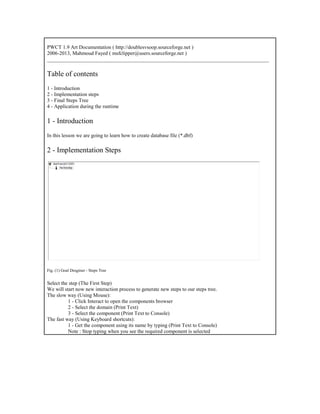
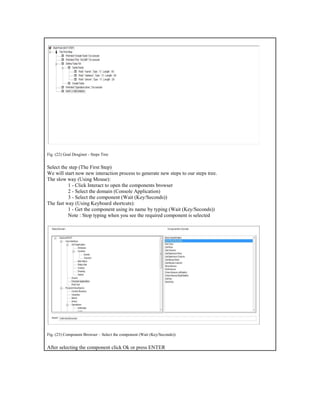
Fig. (1) Goal Desginer - Steps Tree
Select the step (The First Step)
We will start now new interaction process to generate new steps to our steps tree.
The slow way (Using Mouse):
1 - Click Interact to open the components browser
2 - Select the domain (Print Text)
3 - Select the component (Print Text to Console)
The fast way (Using Keyboard shortcuts):
1 - Get the component using its name by typing (Print Text to Console)
Note : Stop typing when you see the required component is selected
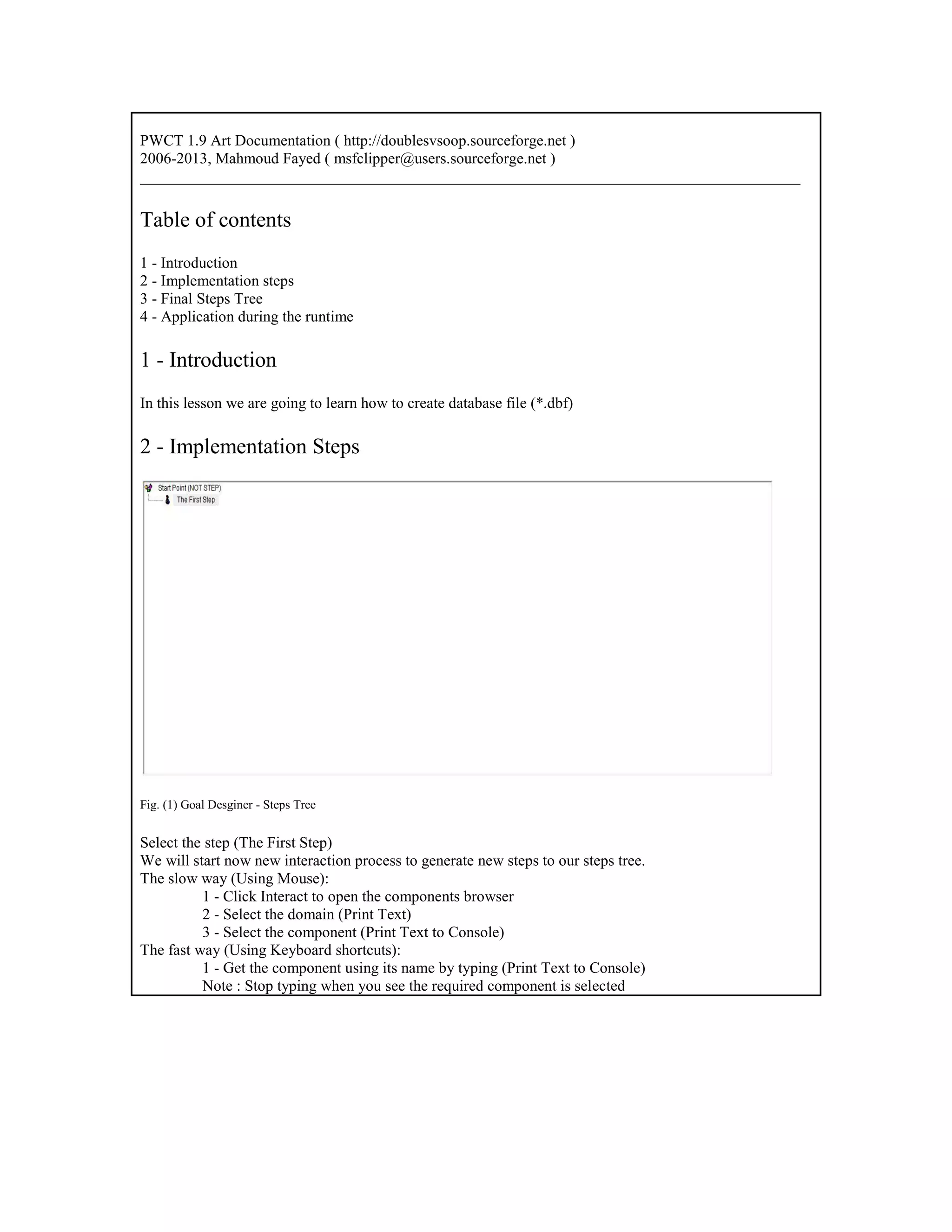
Fig. (2) Component Browser – Select the component (Print Text to Console)
After selecting the component click Ok or press ENTER
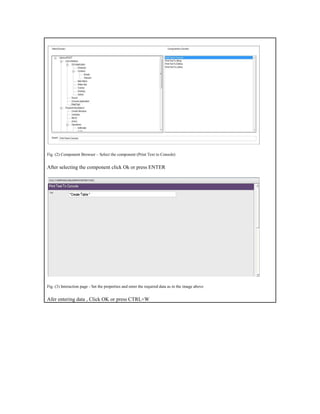
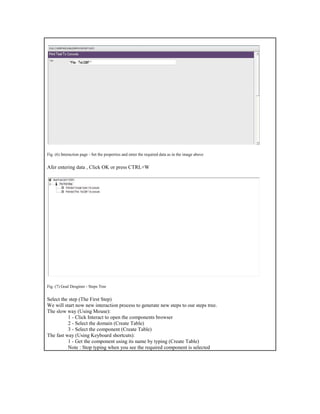
Fig. (3) Interaction page - Set the properties and enter the required data as in the image above
Afer entering data , Click OK or press CTRL+W
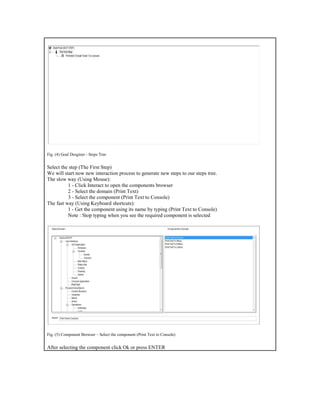
Fig. (4) Goal Desginer - Steps Tree
Select the step (The First Step)
We will start now new interaction process to generate new steps to our steps tree.
The slow way (Using Mouse):
1 - Click Interact to open the components browser
2 - Select the domain (Print Text)
3 - Select the component (Print Text to Console)
The fast way (Using Keyboard shortcuts):
1 - Get the component using its name by typing (Print Text to Console)
Note : Stop typing when you see the required component is selected
Fig. (5) Component Browser – Select the component (Print Text to Console)
After selecting the component click Ok or press ENTER
Fig. (6) Interaction page - Set the properties and enter the required data as in the image above
Afer entering data , Click OK or press CTRL+W
Fig. (7) Goal Desginer - Steps Tree
Select the step (The First Step)
We will start now new interaction process to generate new steps to our steps tree.
The slow way (Using Mouse):
1 - Click Interact to open the components browser
2 - Select the domain (Create Table)
3 - Select the component (Create Table)
The fast way (Using Keyboard shortcuts):
1 - Get the component using its name by typing (Create Table)
Note : Stop typing when you see the required component is selected
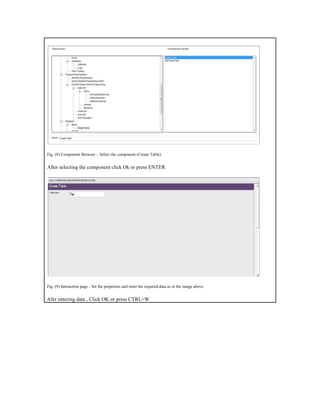
Fig. (8) Component Browser – Select the component (Create Table)
After selecting the component click Ok or press ENTER
Fig. (9) Interaction page - Set the properties and enter the required data as in the image above
Afer entering data , Click OK or press CTRL+W
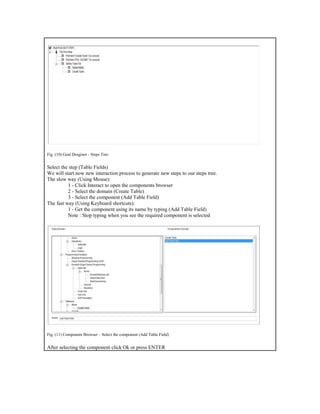
Fig. (10) Goal Desginer - Steps Tree
Select the step (Table Fields)
We will start now new interaction process to generate new steps to our steps tree.
The slow way (Using Mouse):
1 - Click Interact to open the components browser
2 - Select the domain (Create Table)
3 - Select the component (Add Table Field)
The fast way (Using Keyboard shortcuts):
1 - Get the component using its name by typing (Add Table Field)
Note : Stop typing when you see the required component is selected
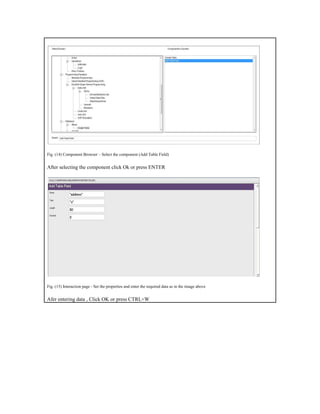
Fig. (11) Component Browser – Select the component (Add Table Field)
After selecting the component click Ok or press ENTER
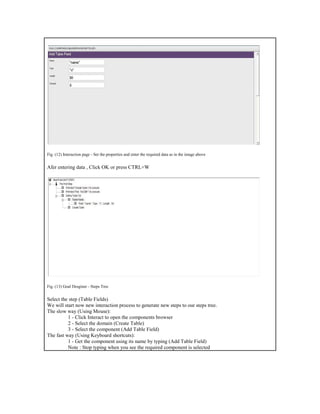
Fig. (12) Interaction page - Set the properties and enter the required data as in the image above
Afer entering data , Click OK or press CTRL+W
Fig. (13) Goal Desginer - Steps Tree
Select the step (Table Fields)
We will start now new interaction process to generate new steps to our steps tree.
The slow way (Using Mouse):
1 - Click Interact to open the components browser
2 - Select the domain (Create Table)
3 - Select the component (Add Table Field)
The fast way (Using Keyboard shortcuts):
1 - Get the component using its name by typing (Add Table Field)
Note : Stop typing when you see the required component is selected
Fig. (14) Component Browser – Select the component (Add Table Field)
After selecting the component click Ok or press ENTER
Fig. (15) Interaction page - Set the properties and enter the required data as in the image above
Afer entering data , Click OK or press CTRL+W
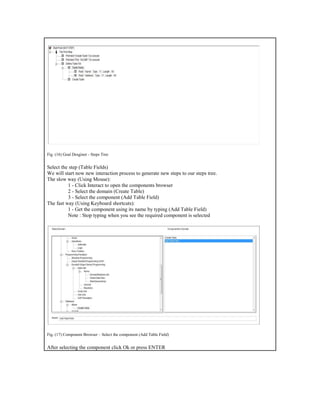
Fig. (16) Goal Desginer - Steps Tree
Select the step (Table Fields)
We will start now new interaction process to generate new steps to our steps tree.
The slow way (Using Mouse):
1 - Click Interact to open the components browser
2 - Select the domain (Create Table)
3 - Select the component (Add Table Field)
The fast way (Using Keyboard shortcuts):
1 - Get the component using its name by typing (Add Table Field)
Note : Stop typing when you see the required component is selected
Fig. (17) Component Browser – Select the component (Add Table Field)
After selecting the component click Ok or press ENTER
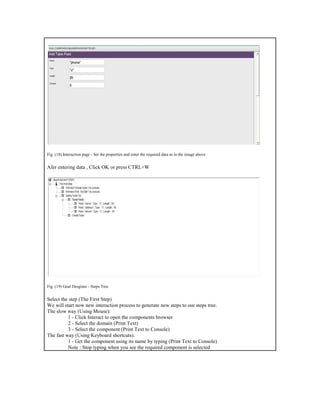
Fig. (18) Interaction page - Set the properties and enter the required data as in the image above
Afer entering data , Click OK or press CTRL+W
Fig. (19) Goal Desginer - Steps Tree
Select the step (The First Step)
We will start now new interaction process to generate new steps to our steps tree.
The slow way (Using Mouse):
1 - Click Interact to open the components browser
2 - Select the domain (Print Text)
3 - Select the component (Print Text to Console)
The fast way (Using Keyboard shortcuts):
1 - Get the component using its name by typing (Print Text to Console)
Note : Stop typing when you see the required component is selected
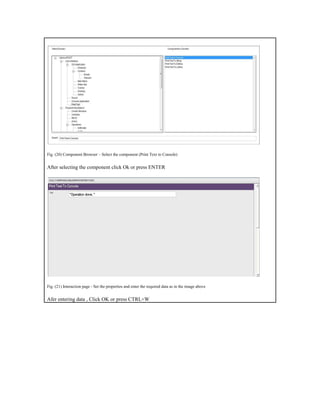
Fig. (20) Component Browser – Select the component (Print Text to Console)
After selecting the component click Ok or press ENTER
Fig. (21) Interaction page - Set the properties and enter the required data as in the image above
Afer entering data , Click OK or press CTRL+W
Fig. (22) Goal Desginer - Steps Tree
Select the step (The First Step)
We will start now new interaction process to generate new steps to our steps tree.
The slow way (Using Mouse):
1 - Click Interact to open the components browser
2 - Select the domain (Console Application)
3 - Select the component (Wait (Key/Seconds))
The fast way (Using Keyboard shortcuts):
1 - Get the component using its name by typing (Wait (Key/Seconds))
Note : Stop typing when you see the required component is selected
Fig. (23) Component Browser – Select the component (Wait (Key/Seconds))
After selecting the component click Ok or press ENTER
Fig. (24) Interaction page - Set the properties and enter the required data as in the image above
Afer entering data , Click OK or press CTRL+W
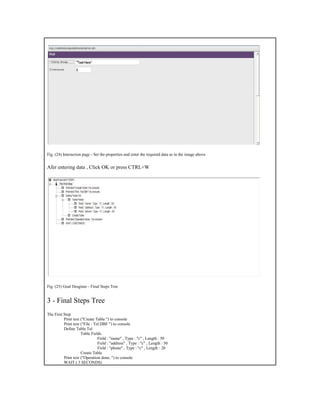
Fig. (25) Goal Desginer - Final Steps Tree
3 - Final Steps Tree
The First Step
Print text ("Create Table ") to console
Print text ("File : Tel.DBF ") to console
Define Table Tel
Table Fields
Field : "name" , Type : "c" , Length : 50
Field : "address" , Type : "c" , Length : 50
Field : "phone" , Type : "c" , Length : 20
Create Table
Print text ("Operation done. ") to console
WAIT ( 3 SECONDS)
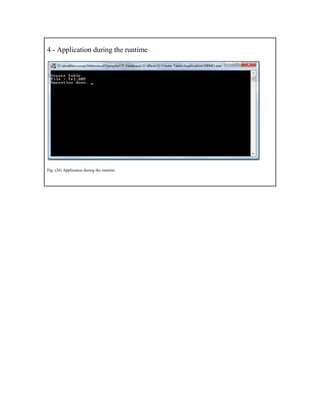
4 - Application during the runtime
Fig. (26) Application during the runtime

Programming Without Coding Technology (PWCT) - Create Database Files (*.DBF)

  • 1.
    PWCT 1.9 ArtDocumentation ( http://doublesvsoop.sourceforge.net ) 2006-2013, Mahmoud Fayed ( msfclipper@users.sourceforge.net ) _____________________________________________________________________________________ Table of contents 1 - Introduction 2 - Implementation steps 3 - Final Steps Tree 4 - Application during the runtime 1 - Introduction In this lesson we are going to learn how to create database file (*.dbf) 2 - Implementation Steps Fig. (1) Goal Desginer - Steps Tree Select the step (The First Step) We will start now new interaction process to generate new steps to our steps tree. The slow way (Using Mouse): 1 - Click Interact to open the components browser 2 - Select the domain (Print Text) 3 - Select the component (Print Text to Console) The fast way (Using Keyboard shortcuts): 1 - Get the component using its name by typing (Print Text to Console) Note : Stop typing when you see the required component is selected
  • 2.
    Fig. (2) ComponentBrowser – Select the component (Print Text to Console) After selecting the component click Ok or press ENTER Fig. (3) Interaction page - Set the properties and enter the required data as in the image above Afer entering data , Click OK or press CTRL+W
  • 3.
    Fig. (4) GoalDesginer - Steps Tree Select the step (The First Step) We will start now new interaction process to generate new steps to our steps tree. The slow way (Using Mouse): 1 - Click Interact to open the components browser 2 - Select the domain (Print Text) 3 - Select the component (Print Text to Console) The fast way (Using Keyboard shortcuts): 1 - Get the component using its name by typing (Print Text to Console) Note : Stop typing when you see the required component is selected Fig. (5) Component Browser – Select the component (Print Text to Console) After selecting the component click Ok or press ENTER
  • 4.
    Fig. (6) Interactionpage - Set the properties and enter the required data as in the image above Afer entering data , Click OK or press CTRL+W Fig. (7) Goal Desginer - Steps Tree Select the step (The First Step) We will start now new interaction process to generate new steps to our steps tree. The slow way (Using Mouse): 1 - Click Interact to open the components browser 2 - Select the domain (Create Table) 3 - Select the component (Create Table) The fast way (Using Keyboard shortcuts): 1 - Get the component using its name by typing (Create Table) Note : Stop typing when you see the required component is selected
  • 5.
    Fig. (8) ComponentBrowser – Select the component (Create Table) After selecting the component click Ok or press ENTER Fig. (9) Interaction page - Set the properties and enter the required data as in the image above Afer entering data , Click OK or press CTRL+W
  • 6.
    Fig. (10) GoalDesginer - Steps Tree Select the step (Table Fields) We will start now new interaction process to generate new steps to our steps tree. The slow way (Using Mouse): 1 - Click Interact to open the components browser 2 - Select the domain (Create Table) 3 - Select the component (Add Table Field) The fast way (Using Keyboard shortcuts): 1 - Get the component using its name by typing (Add Table Field) Note : Stop typing when you see the required component is selected Fig. (11) Component Browser – Select the component (Add Table Field) After selecting the component click Ok or press ENTER
  • 7.
    Fig. (12) Interactionpage - Set the properties and enter the required data as in the image above Afer entering data , Click OK or press CTRL+W Fig. (13) Goal Desginer - Steps Tree Select the step (Table Fields) We will start now new interaction process to generate new steps to our steps tree. The slow way (Using Mouse): 1 - Click Interact to open the components browser 2 - Select the domain (Create Table) 3 - Select the component (Add Table Field) The fast way (Using Keyboard shortcuts): 1 - Get the component using its name by typing (Add Table Field) Note : Stop typing when you see the required component is selected
  • 8.
    Fig. (14) ComponentBrowser – Select the component (Add Table Field) After selecting the component click Ok or press ENTER Fig. (15) Interaction page - Set the properties and enter the required data as in the image above Afer entering data , Click OK or press CTRL+W
  • 9.
    Fig. (16) GoalDesginer - Steps Tree Select the step (Table Fields) We will start now new interaction process to generate new steps to our steps tree. The slow way (Using Mouse): 1 - Click Interact to open the components browser 2 - Select the domain (Create Table) 3 - Select the component (Add Table Field) The fast way (Using Keyboard shortcuts): 1 - Get the component using its name by typing (Add Table Field) Note : Stop typing when you see the required component is selected Fig. (17) Component Browser – Select the component (Add Table Field) After selecting the component click Ok or press ENTER
  • 10.
    Fig. (18) Interactionpage - Set the properties and enter the required data as in the image above Afer entering data , Click OK or press CTRL+W Fig. (19) Goal Desginer - Steps Tree Select the step (The First Step) We will start now new interaction process to generate new steps to our steps tree. The slow way (Using Mouse): 1 - Click Interact to open the components browser 2 - Select the domain (Print Text) 3 - Select the component (Print Text to Console) The fast way (Using Keyboard shortcuts): 1 - Get the component using its name by typing (Print Text to Console) Note : Stop typing when you see the required component is selected
  • 11.
    Fig. (20) ComponentBrowser – Select the component (Print Text to Console) After selecting the component click Ok or press ENTER Fig. (21) Interaction page - Set the properties and enter the required data as in the image above Afer entering data , Click OK or press CTRL+W
  • 12.
    Fig. (22) GoalDesginer - Steps Tree Select the step (The First Step) We will start now new interaction process to generate new steps to our steps tree. The slow way (Using Mouse): 1 - Click Interact to open the components browser 2 - Select the domain (Console Application) 3 - Select the component (Wait (Key/Seconds)) The fast way (Using Keyboard shortcuts): 1 - Get the component using its name by typing (Wait (Key/Seconds)) Note : Stop typing when you see the required component is selected Fig. (23) Component Browser – Select the component (Wait (Key/Seconds)) After selecting the component click Ok or press ENTER
  • 13.
    Fig. (24) Interactionpage - Set the properties and enter the required data as in the image above Afer entering data , Click OK or press CTRL+W Fig. (25) Goal Desginer - Final Steps Tree 3 - Final Steps Tree The First Step Print text ("Create Table ") to console Print text ("File : Tel.DBF ") to console Define Table Tel Table Fields Field : "name" , Type : "c" , Length : 50 Field : "address" , Type : "c" , Length : 50 Field : "phone" , Type : "c" , Length : 20 Create Table Print text ("Operation done. ") to console WAIT ( 3 SECONDS)
  • 14.
    4 - Applicationduring the runtime Fig. (26) Application during the runtime