Programming in
Matlab
By Adamu Mudi
Date: 01/01/2023
Matlab Windows
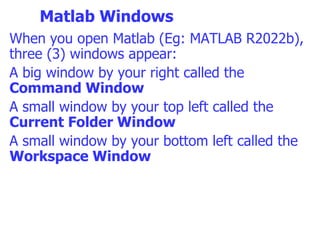
When you open Matlab (Eg: MATLAB R2022b),
three (3) windows appear:
A big window by your right called the
Command Window
A small window by your top left called the
Current Folder Window
A small window by your bottom left called the
Workspace Window
Matlab Windows
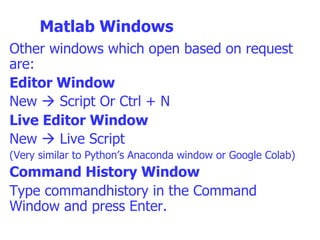
Other windows which open based on request
are:
Editor Window
New  Script Or Ctrl + N
Live Editor Window
New  Live Script
(Very similar to Python’s Anaconda window or Google Colab)
Command History Window
Type commandhistory in the Command
Window and press Enter.
The Command Window
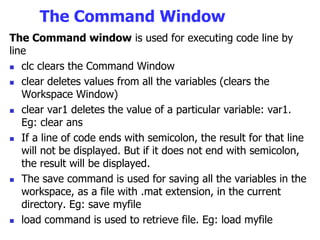
The Command window is used for executing code line by
line
 clc clears the Command Window
 clear deletes values from all the variables (clears the
Workspace Window)
 clear var1 deletes the value of a particular variable: var1.
Eg: clear ans
 If a line of code ends with semicolon, the result for that line
will not be displayed. But if it does not end with semicolon,
the result will be displayed.
 The save command is used for saving all the variables in the
workspace, as a file with .mat extension, in the current
directory. Eg: save myfile
 load command is used to retrieve file. Eg: load myfile
The Command Window
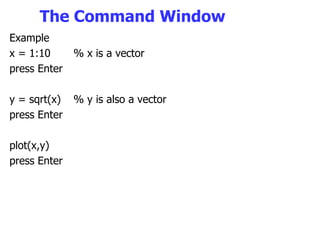
Example
x = 1:10 % x is a vector
press Enter
y = sqrt(x) % y is also a vector
press Enter
plot(x,y)
press Enter
The Live Editor Window
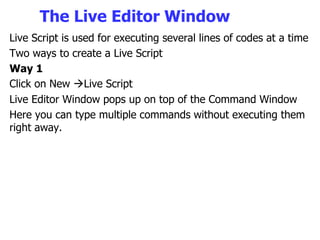
Live Script is used for executing several lines of codes at a time
Two ways to create a Live Script
Way 1
Click on New Live Script
Live Editor Window pops up on top of the Command Window
Here you can type multiple commands without executing them
right away.
The Live Editor Window
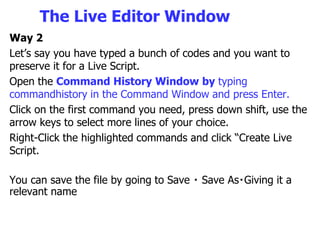
Way 2
Let’s say you have typed a bunch of codes and you want to
preserve it for a Live Script.
Open the Command History Window by typing
commandhistory in the Command Window and press Enter.
Click on the first command you need, press down shift, use the
arrow keys to select more lines of your choice.
Right-Click the highlighted commands and click “Create Live
Script.
You can save the file by going to Save Save As Giving it a
relevant name
The Live Editor Window
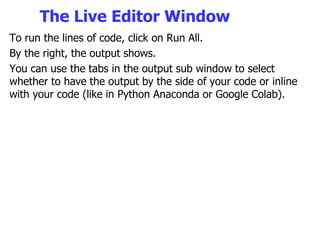
To run the lines of code, click on Run All.
By the right, the output shows.
You can use the tabs in the output sub window to select
whether to have the output by the side of your code or inline
with your code (like in Python Anaconda or Google Colab).
The Live Editor Window
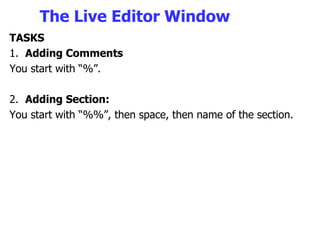
TASKS
1. Adding Comments
You start with “%”.
2. Adding Section:
You start with “%%”, then space, then name of the section.
The Live Editor Window
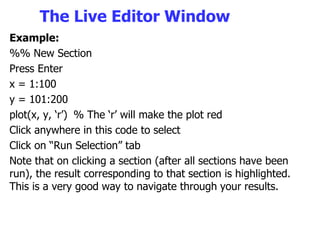
Example:
%% New Section
Press Enter
x = 1:100
y = 101:200
plot(x, y, ‘r’) % The ‘r’ will make the plot red
Click anywhere in this code to select
Click on “Run Selection” tab
Note that on clicking a section (after all sections have been
run), the result corresponding to that section is highlighted.
This is a very good way to navigate through your results.
Indexing
This is used to take a subset of a vector or a matrix already
created. Similar to List in Python.
Consider this:
y = sqrt(x)
To see the elements of y, double-click on y in the Workspace
Window
To access the fifth element of this vector:
y(5) % Similar to y[5] in Python
Press Enter
Indexing
We could create a new variable “a” which is equal to the fifth
element:
a = y(5) % Similar to a = y[5] in Python
Or we could change the fifth element of y to 100
y(5) = 100 % y[5] = 100 in Python
Let’s say we want to change the first five elements of y to be
the numbers 6 to 10:
y(1:5) = [6 7 8 9 10] % In the Command Window
Press Enter
y(1:5) = [10:2:18] %will replace them with 10, 12, 16, 18
Press Enter
If-else statement
Example:
% Type in Live Editor
userIn = input(‘Did you learn something? [y/n] ‘, ’s’) % This
line will prompt the user to enter input and convert it to string.
if userIn == ‘y’
display(‘hooray’)
elseif userIn == ‘n’
display(‘aww man’)
else
disp(‘please reread the directions’)
end
If-else statement
For Loops
For detailed tutorial on Matlab, visit:
https://www.educba.com/for-loop-in-matlab/

Programming in Matlab.ppt

  • 1.
    Programming in Matlab By AdamuMudi Date: 01/01/2023
  • 2.
    Matlab Windows When youopen Matlab (Eg: MATLAB R2022b), three (3) windows appear: A big window by your right called the Command Window A small window by your top left called the Current Folder Window A small window by your bottom left called the Workspace Window
  • 3.
    Matlab Windows Other windowswhich open based on request are: Editor Window New  Script Or Ctrl + N Live Editor Window New  Live Script (Very similar to Python’s Anaconda window or Google Colab) Command History Window Type commandhistory in the Command Window and press Enter.
  • 4.
    The Command Window TheCommand window is used for executing code line by line  clc clears the Command Window  clear deletes values from all the variables (clears the Workspace Window)  clear var1 deletes the value of a particular variable: var1. Eg: clear ans  If a line of code ends with semicolon, the result for that line will not be displayed. But if it does not end with semicolon, the result will be displayed.  The save command is used for saving all the variables in the workspace, as a file with .mat extension, in the current directory. Eg: save myfile  load command is used to retrieve file. Eg: load myfile
  • 5.
    The Command Window Example x= 1:10 % x is a vector press Enter y = sqrt(x) % y is also a vector press Enter plot(x,y) press Enter
  • 6.
    The Live EditorWindow Live Script is used for executing several lines of codes at a time Two ways to create a Live Script Way 1 Click on New Live Script Live Editor Window pops up on top of the Command Window Here you can type multiple commands without executing them right away.
  • 7.
    The Live EditorWindow Way 2 Let’s say you have typed a bunch of codes and you want to preserve it for a Live Script. Open the Command History Window by typing commandhistory in the Command Window and press Enter. Click on the first command you need, press down shift, use the arrow keys to select more lines of your choice. Right-Click the highlighted commands and click “Create Live Script. You can save the file by going to Save Save As Giving it a relevant name
  • 8.
    The Live EditorWindow To run the lines of code, click on Run All. By the right, the output shows. You can use the tabs in the output sub window to select whether to have the output by the side of your code or inline with your code (like in Python Anaconda or Google Colab).
  • 9.
    The Live EditorWindow TASKS 1. Adding Comments You start with “%”. 2. Adding Section: You start with “%%”, then space, then name of the section.
  • 10.
    The Live EditorWindow Example: %% New Section Press Enter x = 1:100 y = 101:200 plot(x, y, ‘r’) % The ‘r’ will make the plot red Click anywhere in this code to select Click on “Run Selection” tab Note that on clicking a section (after all sections have been run), the result corresponding to that section is highlighted. This is a very good way to navigate through your results.
  • 11.
    Indexing This is usedto take a subset of a vector or a matrix already created. Similar to List in Python. Consider this: y = sqrt(x) To see the elements of y, double-click on y in the Workspace Window To access the fifth element of this vector: y(5) % Similar to y[5] in Python Press Enter
  • 12.
    Indexing We could createa new variable “a” which is equal to the fifth element: a = y(5) % Similar to a = y[5] in Python Or we could change the fifth element of y to 100 y(5) = 100 % y[5] = 100 in Python Let’s say we want to change the first five elements of y to be the numbers 6 to 10: y(1:5) = [6 7 8 9 10] % In the Command Window Press Enter y(1:5) = [10:2:18] %will replace them with 10, 12, 16, 18 Press Enter
  • 13.
    If-else statement Example: % Typein Live Editor userIn = input(‘Did you learn something? [y/n] ‘, ’s’) % This line will prompt the user to enter input and convert it to string. if userIn == ‘y’ display(‘hooray’) elseif userIn == ‘n’ display(‘aww man’) else disp(‘please reread the directions’) end
  • 14.
    If-else statement For Loops Fordetailed tutorial on Matlab, visit: https://www.educba.com/for-loop-in-matlab/