GP-2400/2500/2600 Series
User Manual
GP-2400/2500/2600 Series User Manual 1
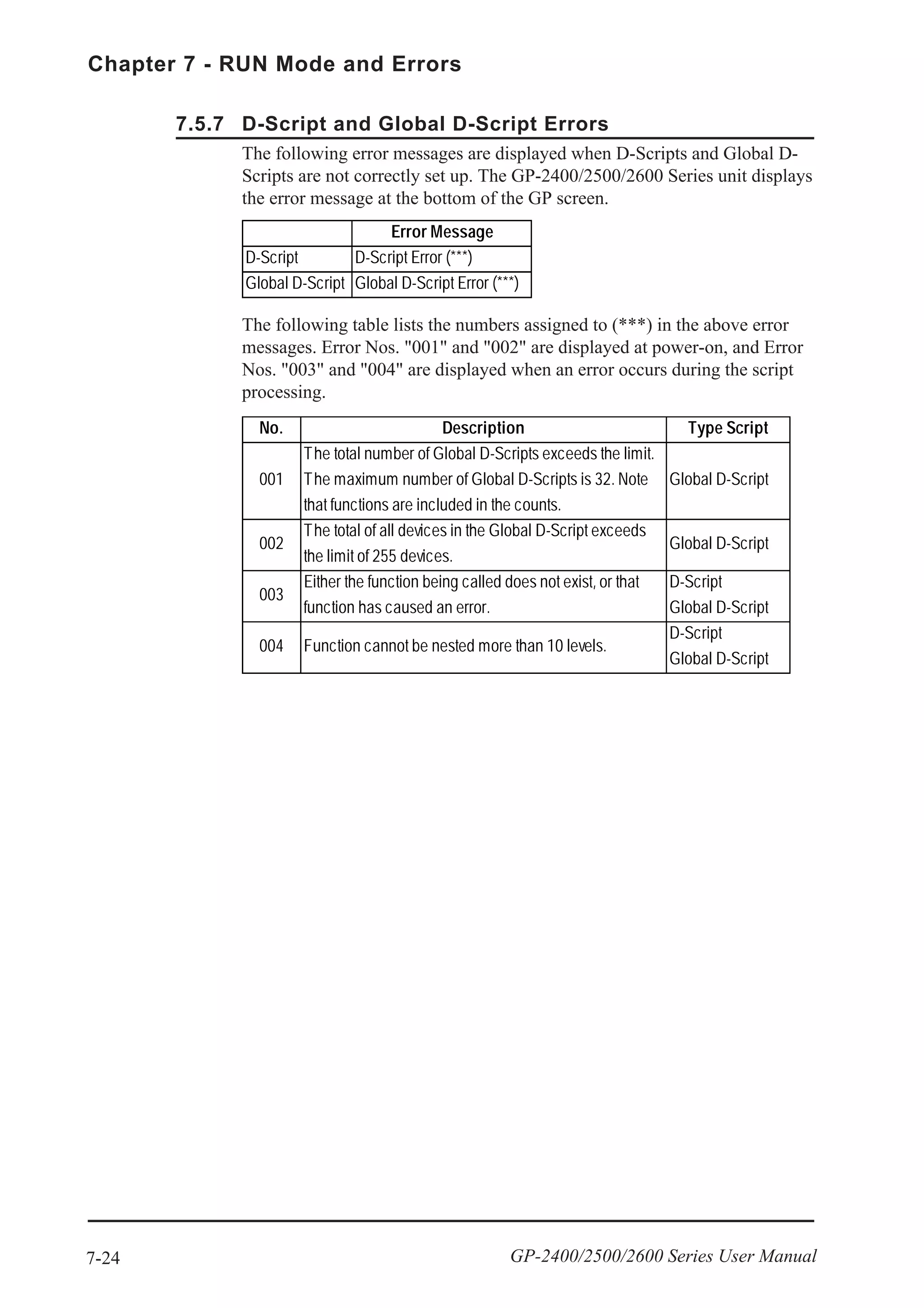
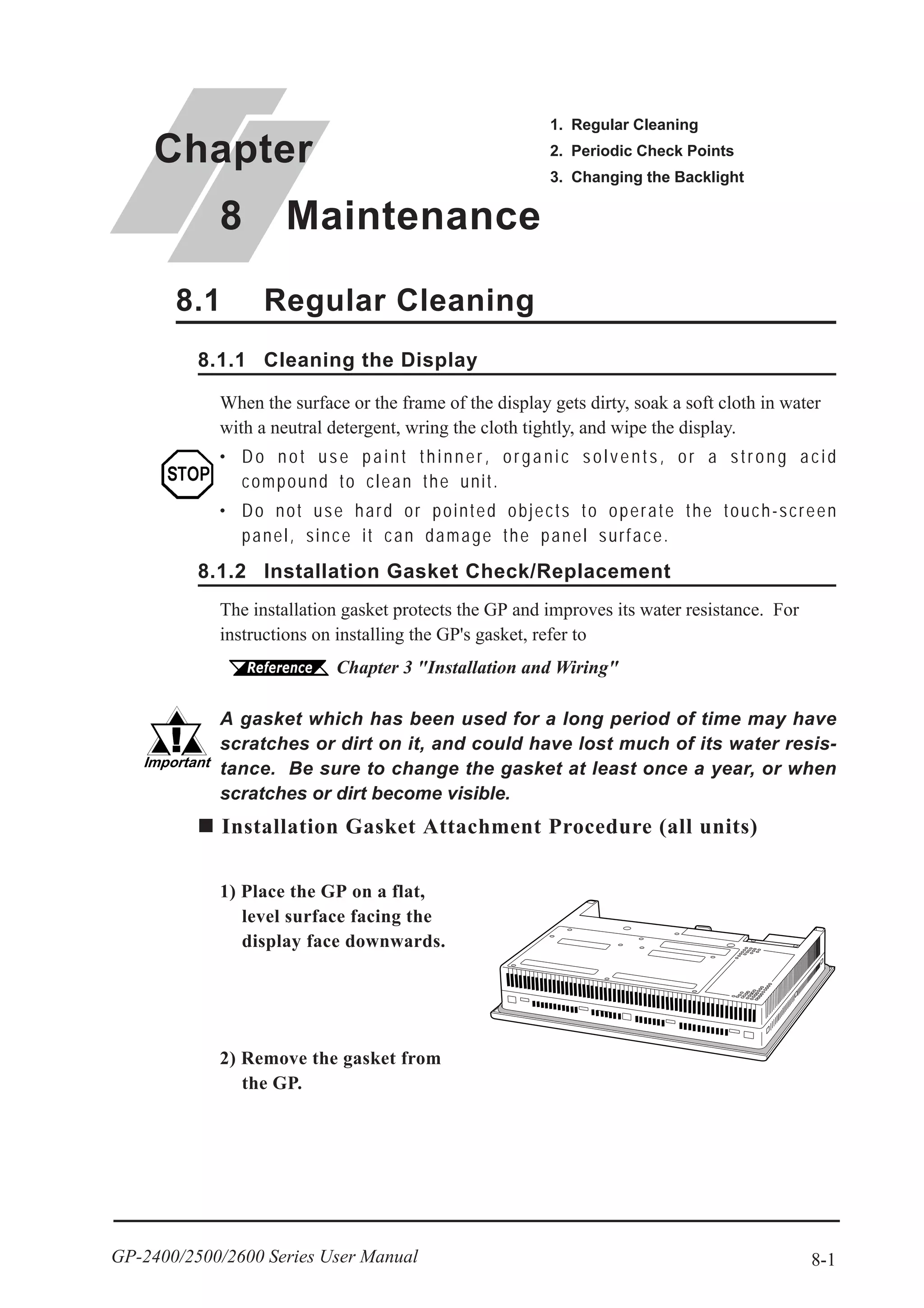
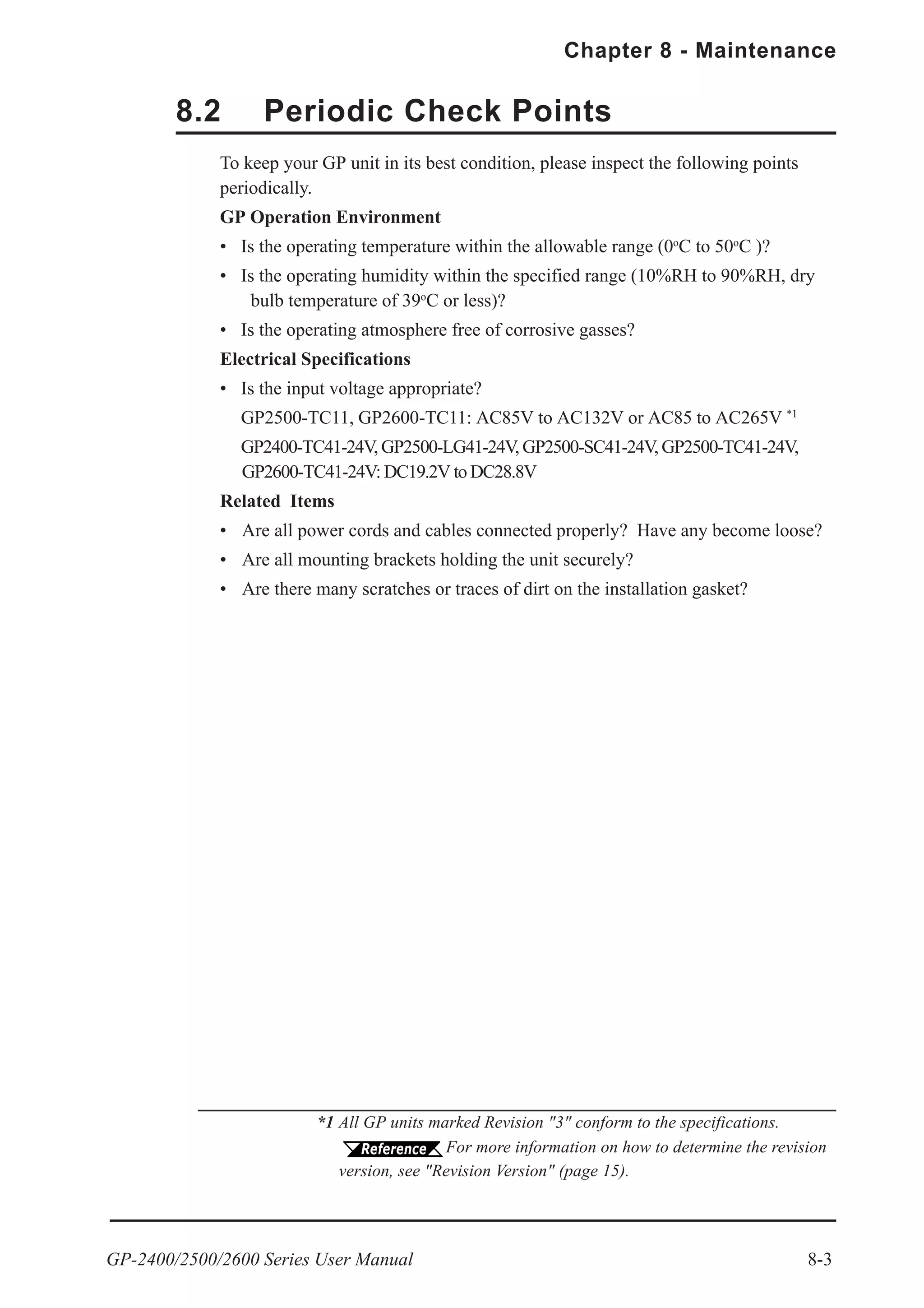
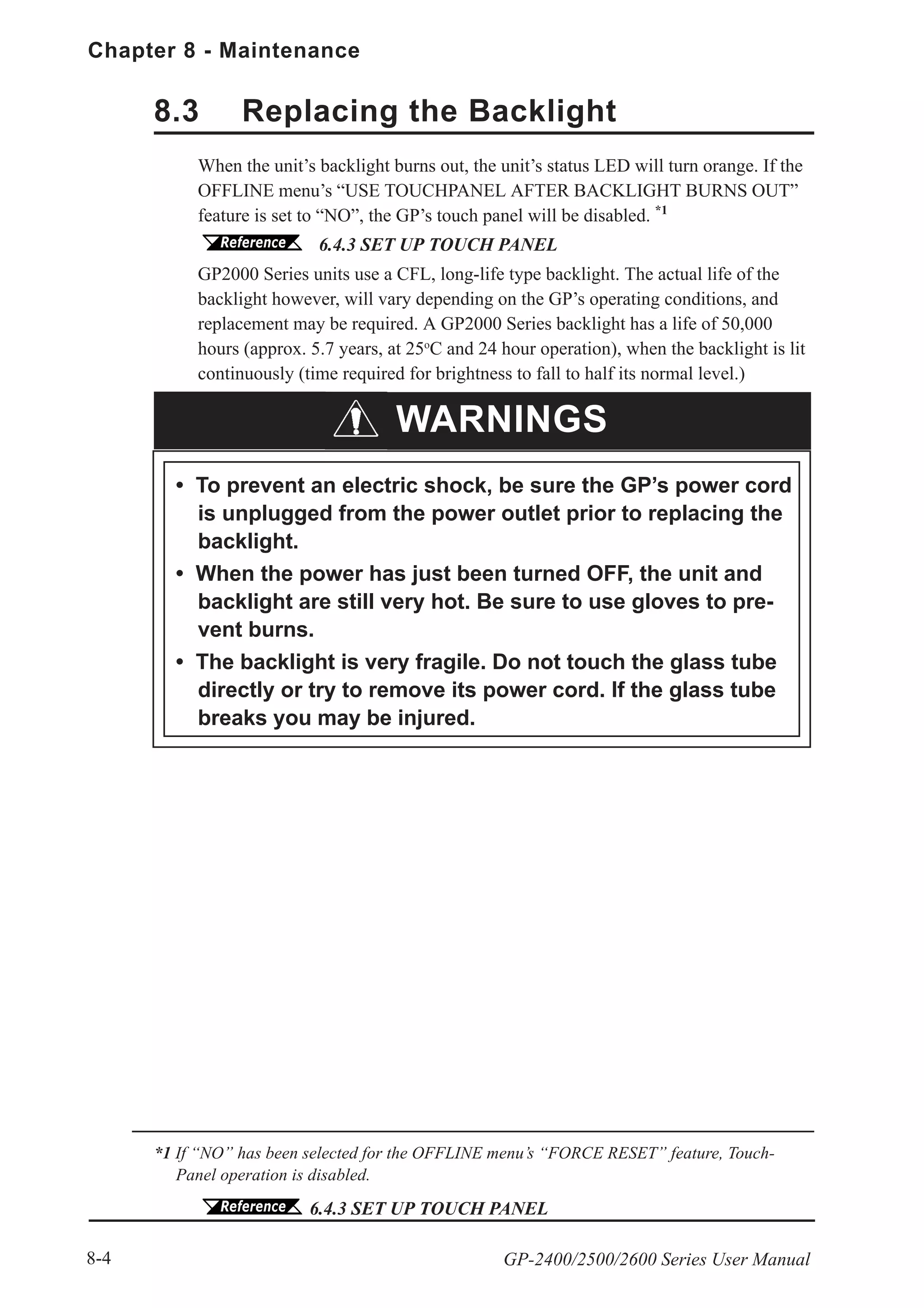
Thank you for purchasing the Pro-face GP-2400/2500/2600 Series programmable
operator interface (hereafter referred to as the "GP unit").
This GP unit, with its expanded functionality and improved overall performance,
is an upgrade of Pro-face's previous GP series panels. GP-2400/2500/2600 Series
units allow you to use the Ethernet, CF Card, and Sound Output features without
attaching separately sold expansion units.
Please read this manual carefully as it explains, step by step, how to use the GP
correctly and safely.
Also, in this manual's examples, the Mitsubishi MELSEC-AnA Series PLC is
used whenever possible, connected in a one-to-one relationship with a GP.
<Note>
1) It is forbidden to copy the contents of this manual, in whole or in part, except
for the user’s personal use, without the express permission of Digital Electron-
ics Corporation of Japan.
2) The information provided in this manual is subject to change without notice.
3) This manual has been written with care and attention to detail; however, should
you find any errors or omissions, please contact Digital and inform them of
your findings.
4) Please be aware that Digital shall not be held liable by the user for any dam-
ages, losses, or third party claims arising from any uses of this product.
All Company/Manufacturer names used in this manual are the registered trade-
marks of those companies.
© 2002, Digital Electronics Corporation
Preface
Preface
GP-2400/2500/2600 Series User Manual2
Table of Contents
Preface........................................................................................................................ 1
Table of Contents...................................................................................................... 2
Essential Safety Precautions................................................................................... 6
General Safety Precautions .................................................................................. 10
GP-2400/2500/2600 Series Models ....................................................................... 12
Package Contents ................................................................................................... 12
UL/c-UL (CSA) Application Notes .................................................................... 13
CE Marking Notes ............................................................................................... 14
Revision Version ..................................................................................................... 15
Documentation Conventions................................................................................. 15
CHAPTER 1 INTRODUCTION
1.1 Prior to Operating the GP .......................................................................... 1-1
1.2 System Design ............................................................................................... 1-2
1.3 Accessories .................................................................................................... 1-6
1.4 GP-2400/2500/2600 Series Overview ...................................................... 1-10
1.4.1 Ethernet Connectivity ..................................................................... 1-11
1.4.2 CF Card ............................................................................................ 1-12
1.4.3 Sound Output ................................................................................... 1-13
1.4.4 Expansion Serial I/F ........................................................................ 1-13
1.4.5 Internal 2-Port Feature .................................................................... 1-14
1.4.6 Backlight Burnout Detection Feature ............................................ 1-15
CHAPTER 2 SPECIFICATIONS
2.1 General Specifications................................................................................. 2-1
2.1.1 Electrical ............................................................................................ 2-1
2.1.2 Environmental.................................................................................... 2-2
2.1.3 Structural ............................................................................................ 2-3
2.2 Functional Specifications............................................................................ 2-4
2.2.1 Display ............................................................................................... 2-4
2.2.2 Memory .............................................................................................. 2-5
2.2.3 Touch Panel • Clock .......................................................................... 2-5
2.2.4 Interfaces........................................................................................... 2-6
2.3 Interface Specifications............................................................................... 2-7
2.3.1 Serial Interfaces ................................................................................. 2-7
2.3.2 Printer Interface ................................................................................. 2-9
2.3.3 AUX I/O and Sound Output ........................................................... 2-10
GP-2400/2500/2600 Series User Manual 3
Preface
2.4 Part Names and Functions ....................................................................... 2-12
2.5 Dimensions .................................................................................................. 2-14
2.5.1 GP-2400 Series External Dimensions........................................... 2-14
2.5.2 GP-2500 Series External Dimensions........................................... 2-14
2.5.3 GP-2600 Series External Dimensions........................................... 2-15
2.5.4 Panel Cut Dimensions ..................................................................... 2-15
2.5.5 Installation Fasteners ...................................................................... 2-16
CHAPTER 3 INSTALLATION AND WIRING
3.1 Installation .................................................................................................... 3-1
3.1.1 Installation Procedures...................................................................... 3-1
3.2 Wiring Cautions ........................................................................................... 3-6
3.2.1 Connecting the Power Cord .............................................................. 3-6
3.2.2 Connecting the Power Supply ......................................................... 3-8
3.2.3 Grounding .......................................................................................... 3-9
3.2.4 I/O Signal Line Placement ................................................................ 3-9
3.3 Tool Connector ........................................................................................... 3-10
3.4 Ethernet Cable Connector........................................................................ 3-10
3.5 CF Card Installation and Removal ......................................................... 3-11
3.5.1 CF Card Handling ........................................................................... 3-13
3.6 Sound Output ............................................................................................. 3-14
3.6.1 Connecting Speaker Lines .............................................................. 3-14
3.6.2 Sound Volume Adjustment.............................................................. 3-15
CHAPTER 4 DATA TRANSFER
4.1 Serial Data Transfer .................................................................................... 4-1
4.2 Ethernet Data Transfer ............................................................................... 4-4
4.2.1 Checking the IP Address ................................................................... 4-5
4.3 CF Memory Loader Tool............................................................................. 4-7
4.3.1 Data Upload and Download.............................................................. 4-8
CHAPTER 5 OFFLINE MODE
5.1 Entering OFFLINE Mode ......................................................................... 5-1
5.1.1 After Plugging in the Power Cord.................................................... 5-1
5.1.2 From the Menu Bar ........................................................................... 5-2
5.2 OFFLINE Mode Main Menu ..................................................................... 5-3
5.3 INITIALIZATION....................................................................................... 5-4
5.4 SELF-DIAGNOSIS...................................................................................... 5-6
Preface
GP-2400/2500/2600 Series User Manual4
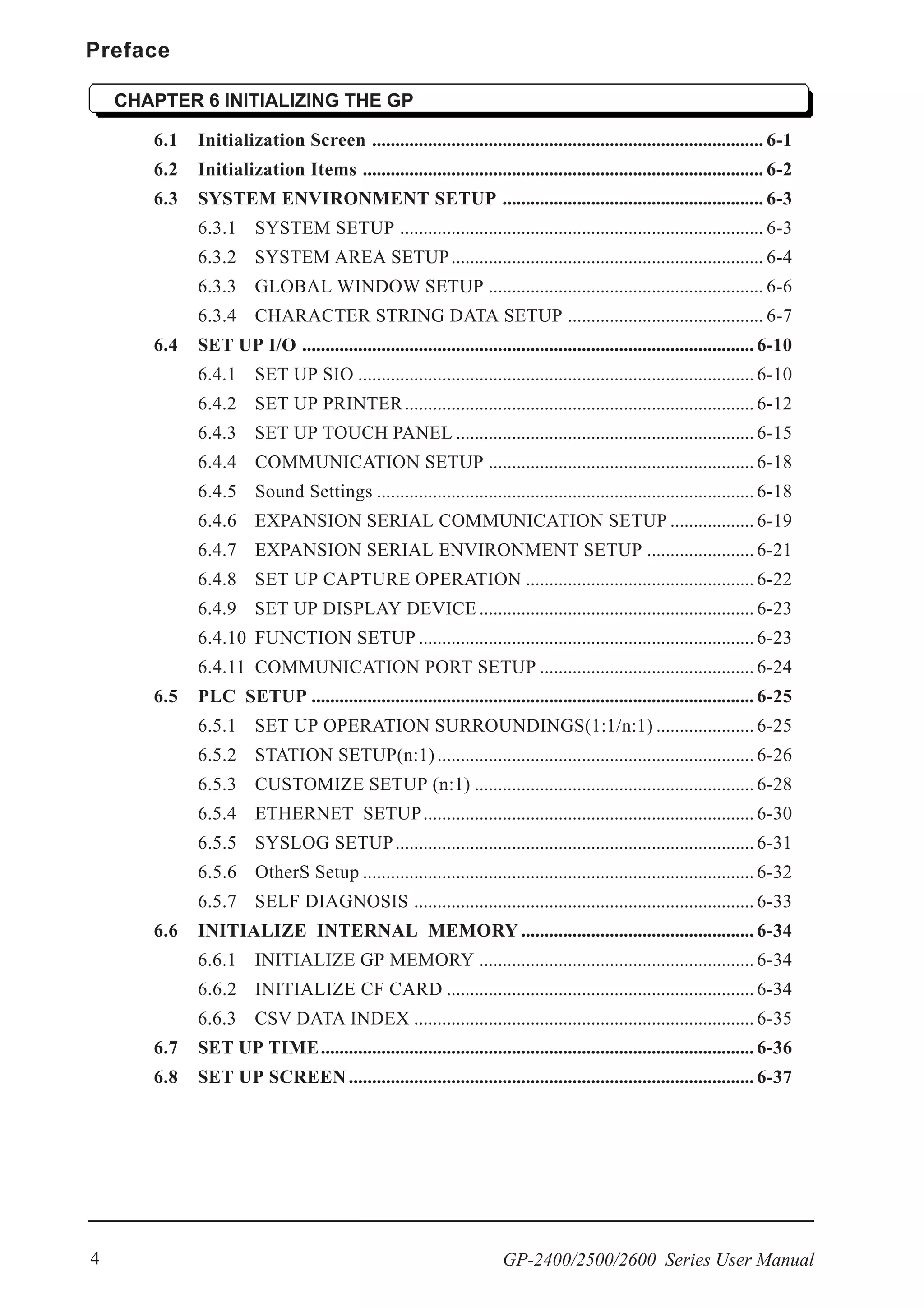
CHAPTER 6 INITIALIZING THE GP
6.1 Initialization Screen .................................................................................... 6-1
6.2 Initialization Items ...................................................................................... 6-2
6.3 SYSTEM ENVIRONMENT SETUP ........................................................ 6-3
6.3.1 SYSTEM SETUP .............................................................................. 6-3
6.3.2 SYSTEM AREA SETUP................................................................... 6-4
6.3.3 GLOBAL WINDOW SETUP ........................................................... 6-6
6.3.4 CHARACTER STRING DATA SETUP .......................................... 6-7
6.4 SET UP I/O ................................................................................................. 6-10
6.4.1 SET UP SIO ..................................................................................... 6-10
6.4.2 SET UP PRINTER........................................................................... 6-12
6.4.3 SET UP TOUCH PANEL ................................................................ 6-15
6.4.4 COMMUNICATION SETUP ......................................................... 6-18
6.4.5 Sound Settings ................................................................................. 6-18
6.4.6 EXPANSION SERIAL COMMUNICATION SETUP .................. 6-19
6.4.7 EXPANSION SERIAL ENVIRONMENT SETUP ....................... 6-21
6.4.8 SET UP CAPTURE OPERATION ................................................. 6-22
6.4.9 SET UP DISPLAY DEVICE ........................................................... 6-23
6.4.10 FUNCTION SETUP ........................................................................ 6-23
6.4.11 COMMUNICATION PORT SETUP .............................................. 6-24
6.5 PLC SETUP ............................................................................................... 6-25
6.5.1 SET UP OPERATION SURROUNDINGS(1:1/n:1) ..................... 6-25
6.5.2 STATION SETUP(n:1).................................................................... 6-26
6.5.3 CUSTOMIZE SETUP (n:1) ............................................................ 6-28
6.5.4 ETHERNET SETUP....................................................................... 6-30
6.5.5 SYSLOG SETUP............................................................................. 6-31
6.5.6 OtherS Setup .................................................................................... 6-32
6.5.7 SELF DIAGNOSIS ......................................................................... 6-33
6.6 INITIALIZE INTERNAL MEMORY .................................................. 6-34
6.6.1 INITIALIZE GP MEMORY ........................................................... 6-34
6.6.2 INITIALIZE CF CARD .................................................................. 6-34
6.6.3 CSV DATA INDEX ......................................................................... 6-35
6.7 SET UP TIME............................................................................................. 6-36
6.8 SET UP SCREEN....................................................................................... 6-37
GP-2400/2500/2600 Series User Manual 5
Preface
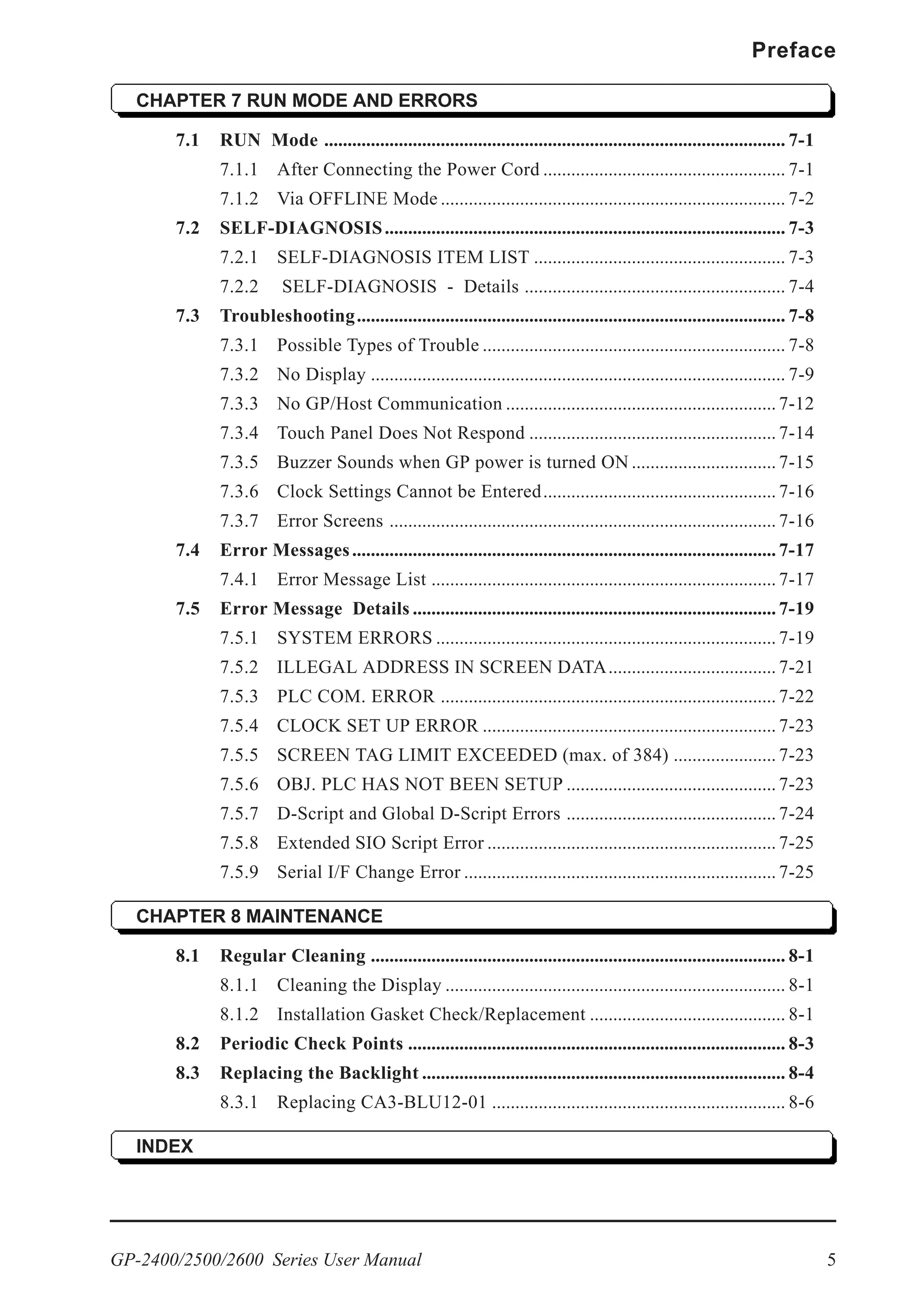
CHAPTER 7 RUN MODE AND ERRORS
7.1 RUN Mode ................................................................................................... 7-1
7.1.1 After Connecting the Power Cord .................................................... 7-1
7.1.2 Via OFFLINE Mode .......................................................................... 7-2
7.2 SELF-DIAGNOSIS...................................................................................... 7-3
7.2.1 SELF-DIAGNOSIS ITEM LIST ...................................................... 7-3
7.2.2 SELF-DIAGNOSIS - Details ........................................................ 7-4
7.3 Troubleshooting............................................................................................ 7-8
7.3.1 Possible Types of Trouble ................................................................. 7-8
7.3.2 No Display ......................................................................................... 7-9
7.3.3 No GP/Host Communication .......................................................... 7-12
7.3.4 Touch Panel Does Not Respond ..................................................... 7-14
7.3.5 Buzzer Sounds when GP power is turned ON ............................... 7-15
7.3.6 Clock Settings Cannot be Entered.................................................. 7-16
7.3.7 Error Screens ................................................................................... 7-16
7.4 Error Messages........................................................................................... 7-17
7.4.1 Error Message List .......................................................................... 7-17
7.5 Error Message Details .............................................................................. 7-19
7.5.1 SYSTEM ERRORS ......................................................................... 7-19
7.5.2 ILLEGAL ADDRESS IN SCREEN DATA.................................... 7-21
7.5.3 PLC COM. ERROR ........................................................................ 7-22
7.5.4 CLOCK SET UP ERROR ............................................................... 7-23
7.5.5 SCREEN TAG LIMIT EXCEEDED (max. of 384) ...................... 7-23
7.5.6 OBJ. PLC HAS NOT BEEN SETUP ............................................. 7-23
7.5.7 D-Script and Global D-Script Errors ............................................. 7-24
7.5.8 Extended SIO Script Error .............................................................. 7-25
7.5.9 Serial I/F Change Error ................................................................... 7-25
CHAPTER 8 MAINTENANCE
8.1 Regular Cleaning ......................................................................................... 8-1
8.1.1 Cleaning the Display ......................................................................... 8-1
8.1.2 Installation Gasket Check/Replacement .......................................... 8-1
8.2 Periodic Check Points ................................................................................. 8-3
8.3 Replacing the Backlight .............................................................................. 8-4
8.3.1 Replacing CA3-BLU12-01 ............................................................... 8-6
INDEX
Preface
GP-2400/2500/2600 Series User Manual6
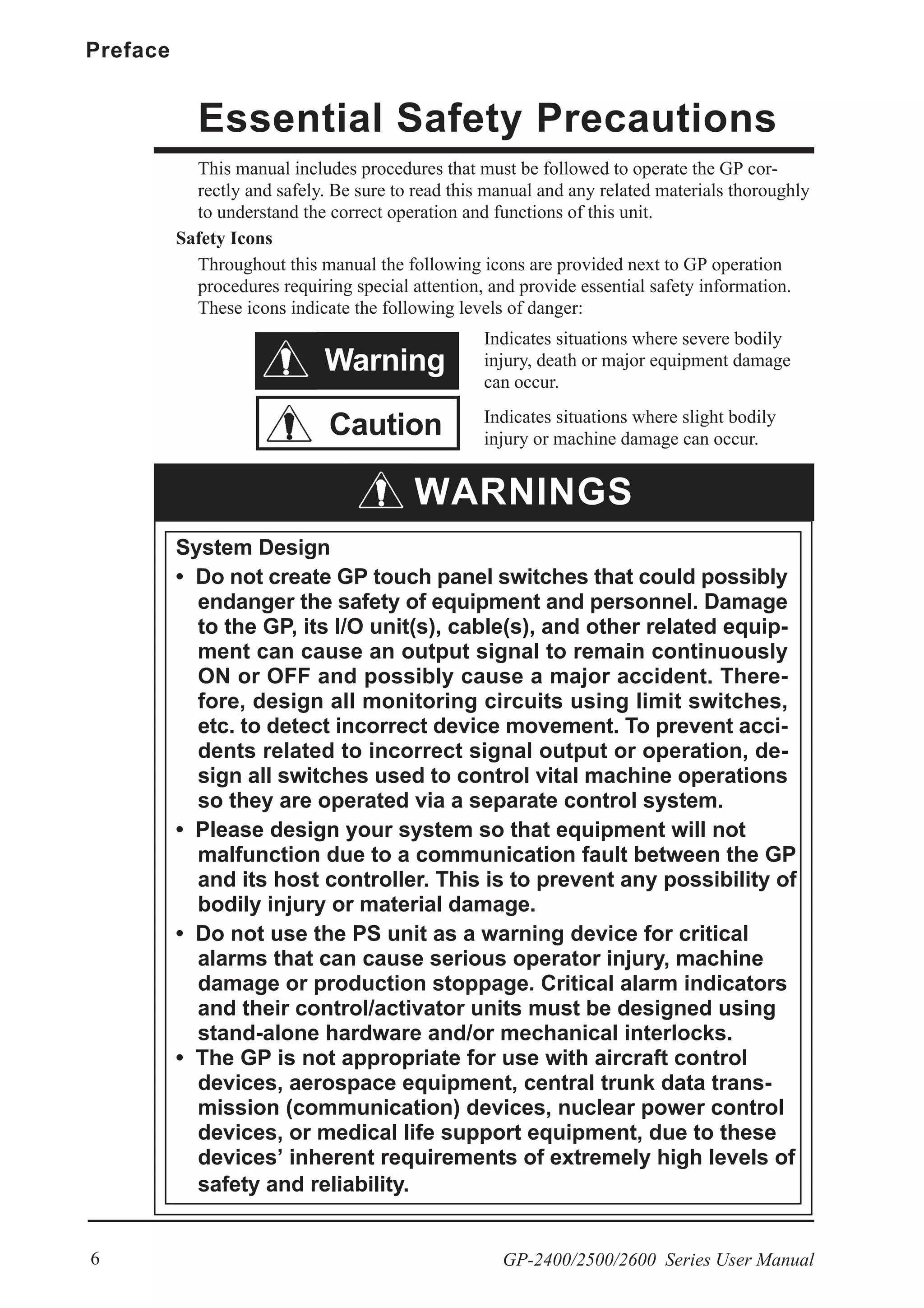
This manual includes procedures that must be followed to operate the GP cor-
rectly and safely. Be sure to read this manual and any related materials thoroughly
to understand the correct operation and functions of this unit.
Safety Icons
Throughout this manual the following icons are provided next to GP operation
procedures requiring special attention, and provide essential safety information.
These icons indicate the following levels of danger:
Indicates situations where severe bodily
injury, death or major equipment damage
can occur.
Indicates situations where slight bodily
injury or machine damage can occur.
System Design
• Do not create GP touch panel switches that could possibly
endanger the safety of equipment and personnel. Damage
to the GP, its I/O unit(s), cable(s), and other related equip-
ment can cause an output signal to remain continuously
ON or OFF and possibly cause a major accident. There-
fore, design all monitoring circuits using limit switches,
etc. to detect incorrect device movement. To prevent acci-
dents related to incorrect signal output or operation, de-
sign all switches used to control vital machine operations
so they are operated via a separate control system.
• Please design your system so that equipment will not
malfunction due to a communication fault between the GP
and its host controller. This is to prevent any possibility of
bodily injury or material damage.
• Do not use the PS unit as a warning device for critical
alarms that can cause serious operator injury, machine
damage or production stoppage. Critical alarm indicators
and their control/activator units must be designed using
stand-alone hardware and/or mechanical interlocks.
• The GP is not appropriate for use with aircraft control
devices, aerospace equipment, central trunk data trans-
mission (communication) devices, nuclear power control
devices, or medical life support equipment, due to these
devices’ inherent requirements of extremely high levels of
safety and reliability.
Essential Safety Precautions
Caution
Warning
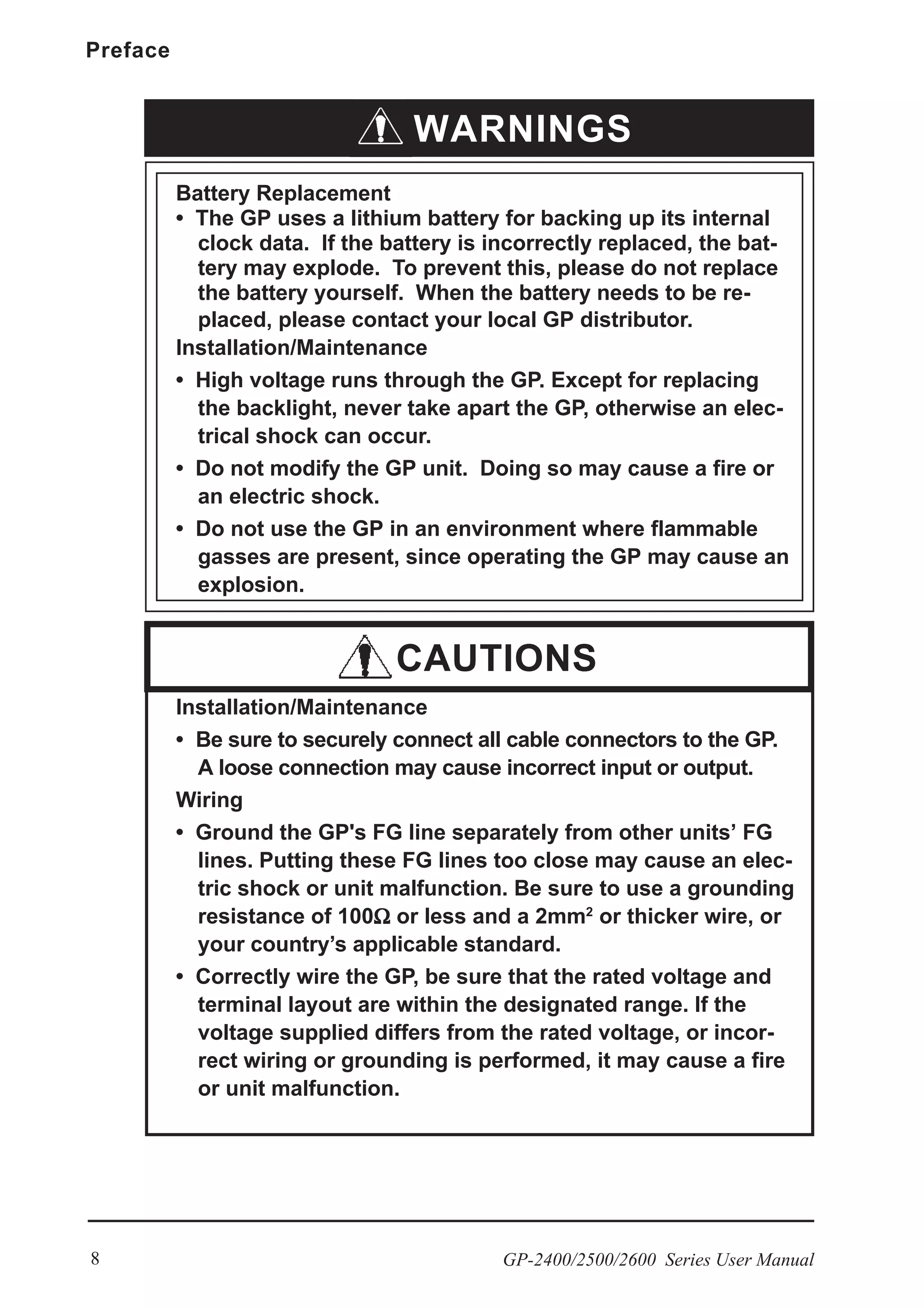
WARNINGS
GP-2400/2500/2600 Series User Manual 7
Preface
WARNINGS
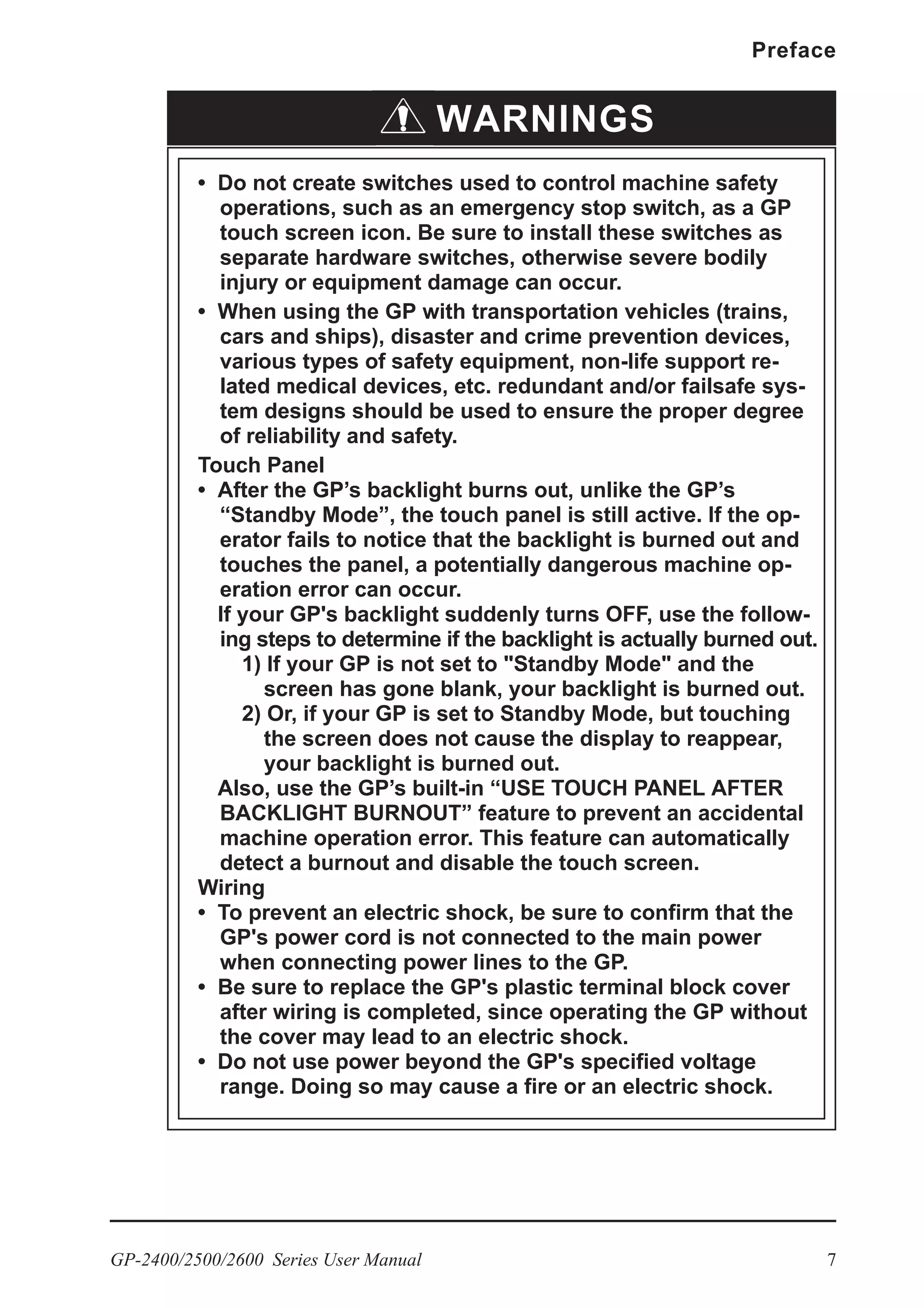
• Do not create switches used to control machine safety
operations, such as an emergency stop switch, as a GP
touch screen icon. Be sure to install these switches as
separate hardware switches, otherwise severe bodily
injury or equipment damage can occur.
• When using the GP with transportation vehicles (trains,
cars and ships), disaster and crime prevention devices,
various types of safety equipment, non-life support re-
lated medical devices, etc. redundant and/or failsafe sys-
tem designs should be used to ensure the proper degree
of reliability and safety.
Touch Panel
• After the GP’s backlight burns out, unlike the GP’s
“Standby Mode”, the touch panel is still active. If the op-
erator fails to notice that the backlight is burned out and
touches the panel, a potentially dangerous machine op-
eration error can occur.
If your GP's backlight suddenly turns OFF, use the follow-
ing steps to determine if the backlight is actually burned out.
1) If your GP is not set to "Standby Mode" and the
screen has gone blank, your backlight is burned out.
2) Or, if your GP is set to Standby Mode, but touching
the screen does not cause the display to reappear,
your backlight is burned out.
Also, use the GP’s built-in “USE TOUCH PANEL AFTER
BACKLIGHT BURNOUT” feature to prevent an accidental
machine operation error. This feature can automatically
detect a burnout and disable the touch screen.
Wiring
• To prevent an electric shock, be sure to confirm that the
GP's power cord is not connected to the main power
when connecting power lines to the GP.
• Be sure to replace the GP's plastic terminal block cover
after wiring is completed, since operating the GP without
the cover may lead to an electric shock.
• Do not use power beyond the GP's specified voltage
range. Doing so may cause a fire or an electric shock.
Preface
GP-2400/2500/2600 Series User Manual8
Installation/Maintenance
• Be sure to securely connect all cable connectors to the GP.
A loose connection may cause incorrect input or output.
Wiring
• Ground the GP's FG line separately from other units’ FG
lines. Putting these FG lines too close may cause an elec-
tric shock or unit malfunction. Be sure to use a grounding
resistance of 100ΩΩΩΩΩ or less and a 2mm2
or thicker wire, or
your country’s applicable standard.
• Correctly wire the GP, be sure that the rated voltage and
terminal layout are within the designated range. If the
voltage supplied differs from the rated voltage, or incor-
rect wiring or grounding is performed, it may cause a fire
or unit malfunction.
WARNINGS
Battery Replacement
• The GP uses a lithium battery for backing up its internal
clock data. If the battery is incorrectly replaced, the bat-
tery may explode. To prevent this, please do not replace
the battery yourself. When the battery needs to be re-
placed, please contact your local GP distributor.
Installation/Maintenance
• High voltage runs through the GP. Except for replacing
the backlight, never take apart the GP, otherwise an elec-
trical shock can occur.
• Do not modify the GP unit. Doing so may cause a fire or
an electric shock.
• Do not use the GP in an environment where flammable
gasses are present, since operating the GP may cause an
explosion.
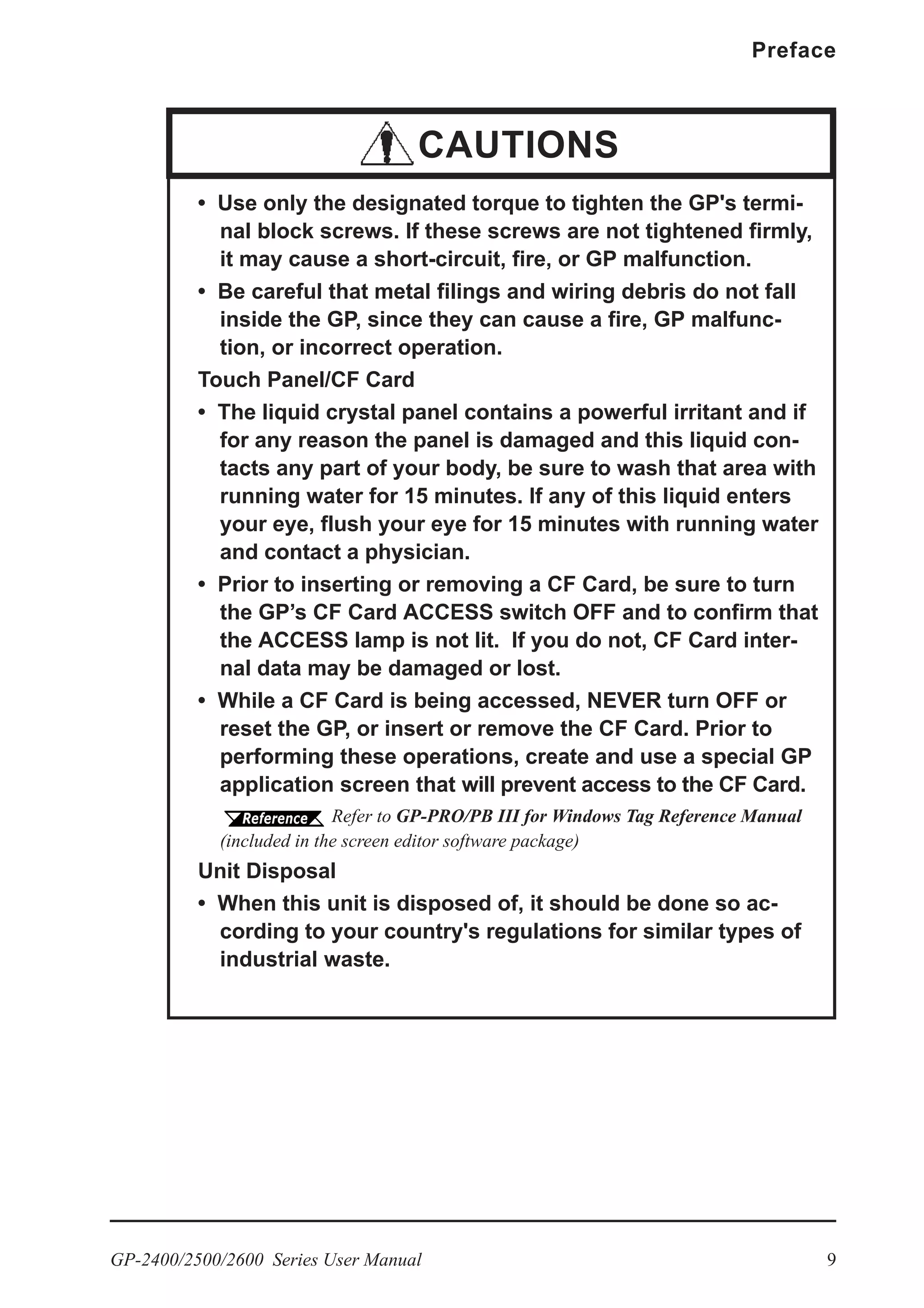
CAUTIONS
GP-2400/2500/2600 Series User Manual 9
Preface
• Use only the designated torque to tighten the GP's termi-
nal block screws. If these screws are not tightened firmly,
it may cause a short-circuit, fire, or GP malfunction.
• Be careful that metal filings and wiring debris do not fall
inside the GP, since they can cause a fire, GP malfunc-
tion, or incorrect operation.
Touch Panel/CF Card
• The liquid crystal panel contains a powerful irritant and if
for any reason the panel is damaged and this liquid con-
tacts any part of your body, be sure to wash that area with
running water for 15 minutes. If any of this liquid enters
your eye, flush your eye for 15 minutes with running water
and contact a physician.
• Prior to inserting or removing a CF Card, be sure to turn
the GP’s CF Card ACCESS switch OFF and to confirm that
the ACCESS lamp is not lit. If you do not, CF Card inter-
nal data may be damaged or lost.
• While a CF Card is being accessed, NEVER turn OFF or
reset the GP, or insert or remove the CF Card. Prior to
performing these operations, create and use a special GP
application screen that will prevent access to the CF Card.
Refer to GP-PRO/PB III for Windows Tag Reference Manual
(included in the screen editor software package)
Unit Disposal
• When this unit is disposed of, it should be done so ac-
cording to your country's regulations for similar types of
industrial waste.
CAUTIONS
Preface
GP-2400/2500/2600 Series User Manual10
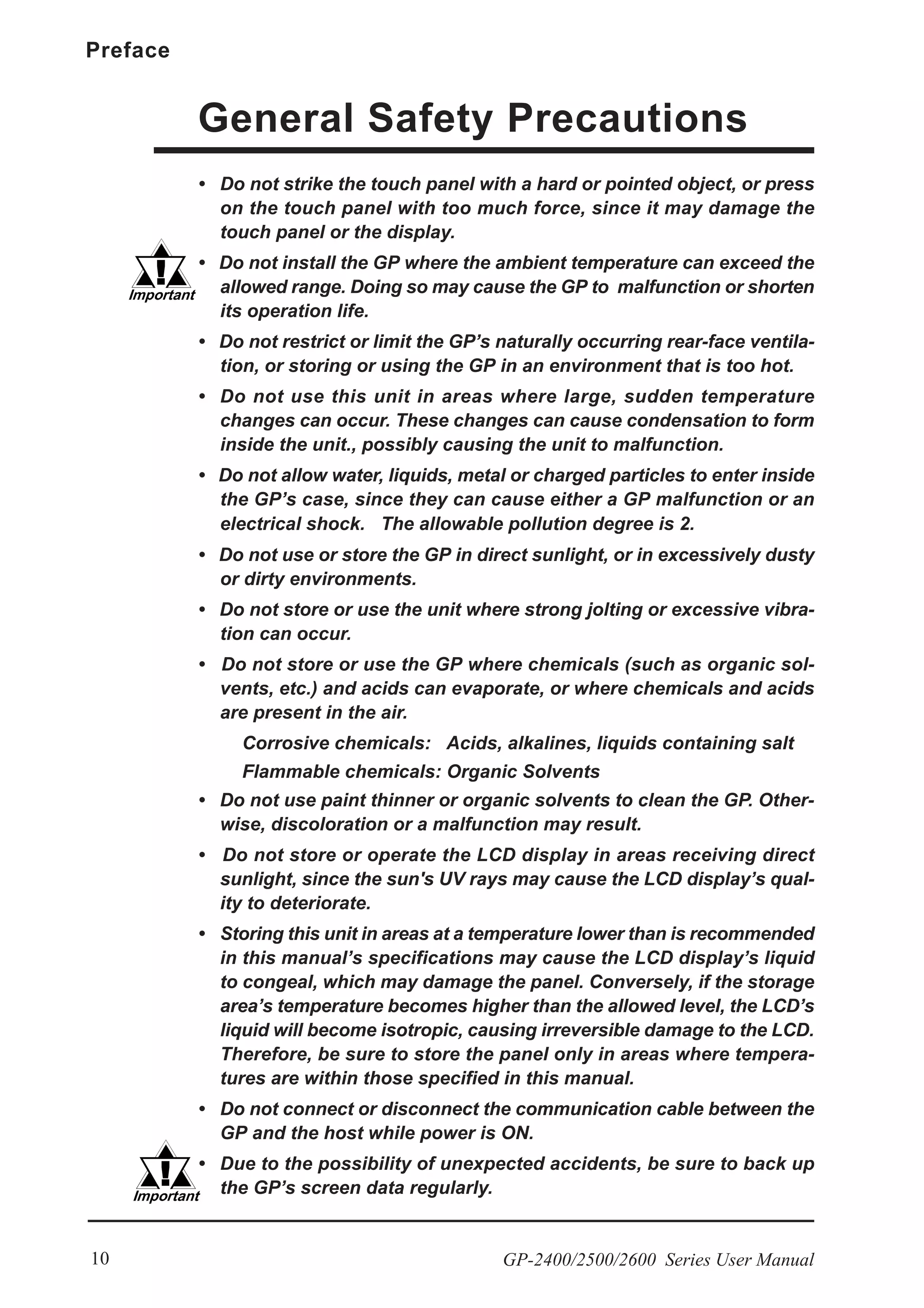
General Safety Precautions
• Do not strike the touch panel with a hard or pointed object, or press
on the touch panel with too much force, since it may damage the
touch panel or the display.
• Do not install the GP where the ambient temperature can exceed the
allowed range. Doing so may cause the GP to malfunction or shorten
its operation life.
• Do not restrict or limit the GP’s naturally occurring rear-face ventila-
tion, or storing or using the GP in an environment that is too hot.
• Do not use this unit in areas where large, sudden temperature
changes can occur. These changes can cause condensation to form
inside the unit., possibly causing the unit to malfunction.
• Do not allow water, liquids, metal or charged particles to enter inside
the GP’s case, since they can cause either a GP malfunction or an
electrical shock. The allowable pollution degree is 2.
• Do not use or store the GP in direct sunlight, or in excessively dusty
or dirty environments.
• Do not store or use the unit where strong jolting or excessive vibra-
tion can occur.
• Do not store or use the GP where chemicals (such as organic sol-
vents, etc.) and acids can evaporate, or where chemicals and acids
are present in the air.
Corrosive chemicals: Acids, alkalines, liquids containing salt
Flammable chemicals: Organic Solvents
• Do not use paint thinner or organic solvents to clean the GP. Other-
wise, discoloration or a malfunction may result.
• Do not store or operate the LCD display in areas receiving direct
sunlight, since the sun's UV rays may cause the LCD display’s qual-
ity to deteriorate.
• Storing this unit in areas at a temperature lower than is recommended
in this manual’s specifications may cause the LCD display’s liquid
to congeal, which may damage the panel. Conversely, if the storage
area’s temperature becomes higher than the allowed level, the LCD’s
liquid will become isotropic, causing irreversible damage to the LCD.
Therefore, be sure to store the panel only in areas where tempera-
tures are within those specified in this manual.
• Do not connect or disconnect the communication cable between the
GP and the host while power is ON.
• Due to the possibility of unexpected accidents, be sure to back up
the GP’s screen data regularly.
GP-2400/2500/2600 Series User Manual 11
Preface
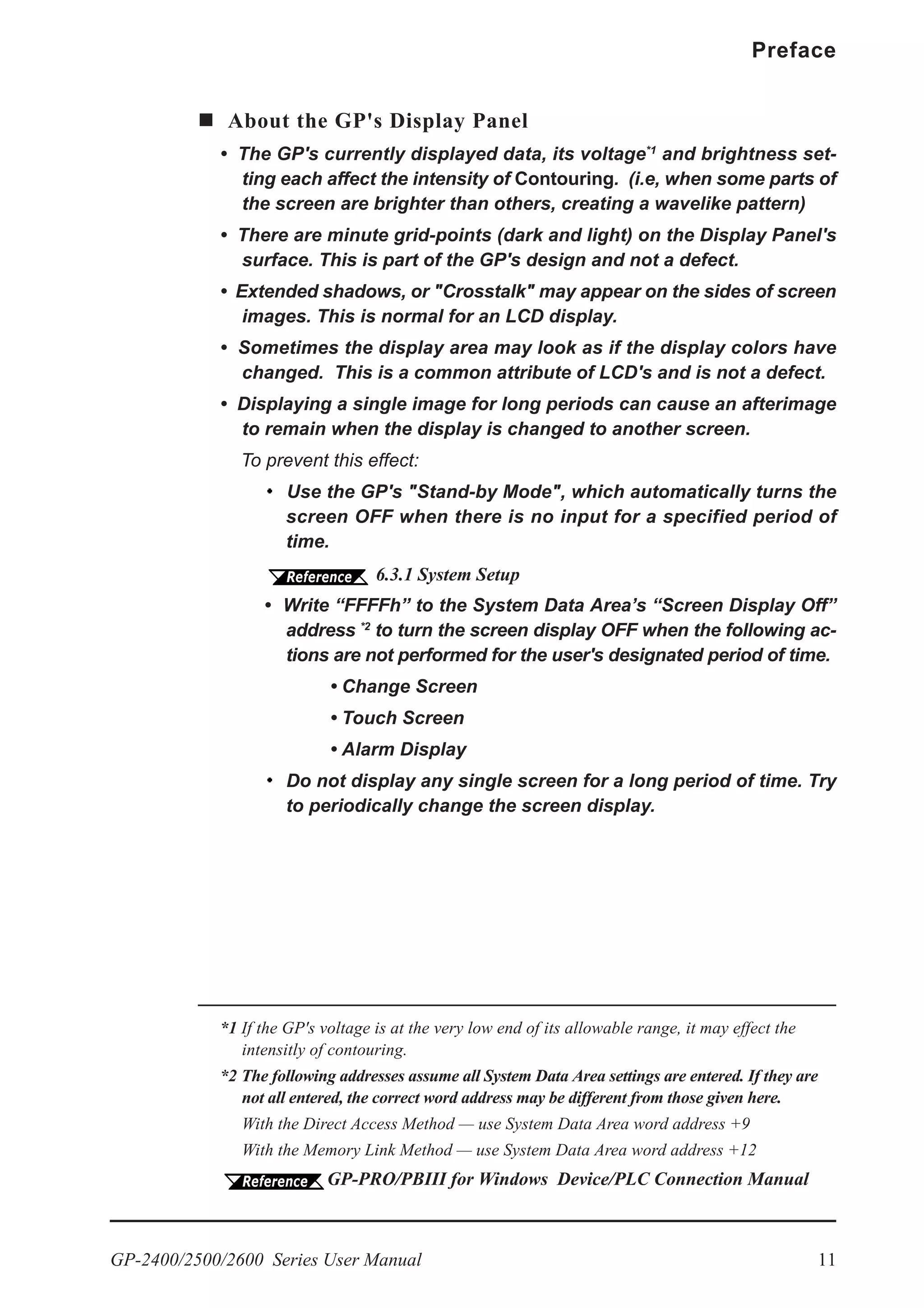
About the GP's Display Panel
• The GP's currently displayed data, its voltage*1
and brightness set-
ting each affect the intensity of Contouring. (i.e, when some parts of
the screen are brighter than others, creating a wavelike pattern)
• There are minute grid-points (dark and light) on the Display Panel's
surface. This is part of the GP's design and not a defect.
• Extended shadows, or "Crosstalk" may appear on the sides of screen
images. This is normal for an LCD display.
• Sometimes the display area may look as if the display colors have
changed. This is a common attribute of LCD's and is not a defect.
• Displaying a single image for long periods can cause an afterimage
to remain when the display is changed to another screen.
To prevent this effect:
Use the GP's "Stand-by Mode", which automatically turns the
screen OFF when there is no input for a specified period of
time.
6.3.1 System Setup
• Write “FFFFh” to the System Data Area’s “Screen Display Off”
address *2
to turn the screen display OFF when the following ac-
tions are not performed for the user's designated period of time.
• Change Screen
• Touch Screen
• Alarm Display
Do not display any single screen for a long period of time. Try
to periodically change the screen display.
*1 If the GP's voltage is at the very low end of its allowable range, it may effect the
intensitly of contouring.
*2 The following addresses assume all System Data Area settings are entered. If they are
not all entered, the correct word address may be different from those given here.
With the Direct Access Method — use System Data Area word address +9
With the Memory Link Method — use System Data Area word address +12
GP-PRO/PBIII for Windows Device/PLC Connection Manual
Preface
GP-2400/2500/2600 Series User Manual12
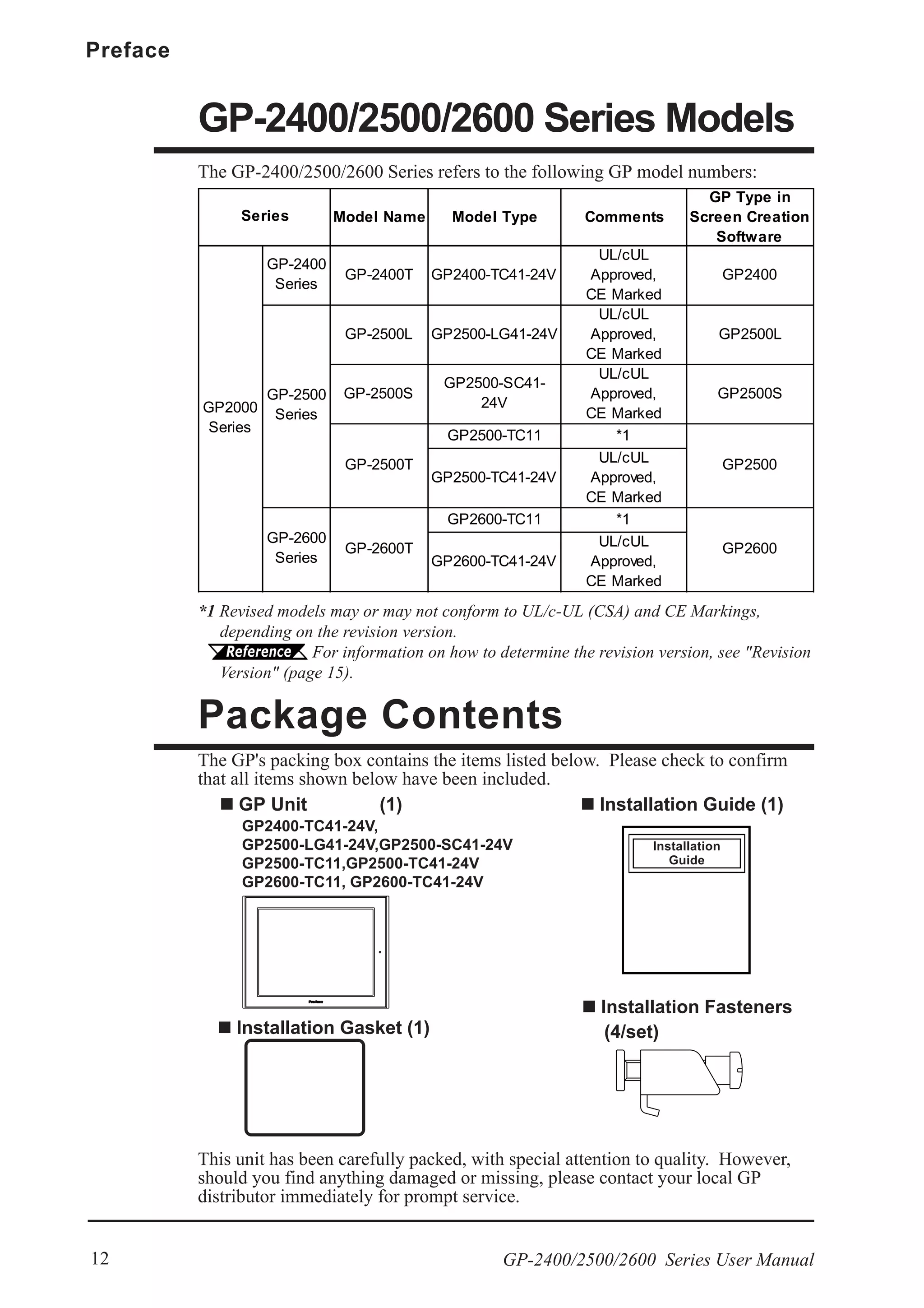
The GP's packing box contains the items listed below. Please check to confirm
that all items shown below have been included.
Package Contents
Installation Fasteners
(4/set)
Installation Guide (1)
This unit has been carefully packed, with special attention to quality. However,
should you find anything damaged or missing, please contact your local GP
distributor immediately for prompt service.
GP Unit (1)
GP2400-TC41-24V,
GP2500-LG41-24V,GP2500-SC41-24V
GP2500-TC11,GP2500-TC41-24V
GP2600-TC11, GP2600-TC41-24V
The GP-2400/2500/2600 Series refers to the following GP model numbers:
GP-2400/2500/2600 Series Models
Installation
Guide
Installation Gasket (1)
*1 Revised models may or may not conform to UL/c-UL (CSA) and CE Markings,
depending on the revision version.
For information on how to determine the revision version, see "Revision
Version" (page 15).
Model Name Model Type Comments
GP Type in
Screen Creation
Software
GP-2400
Series
GP-2400T GP2400-TC41-24V
UL/cUL
Approved,
CE Marked
GP2400
GP-2500L GP2500-LG41-24V
UL/cUL
Approved,
CE Marked
GP2500L
GP-2500S
GP2500-SC41-
24V
UL/cUL
Approved,
CE Marked
GP2500S
GP2500-TC11 *1
GP2500-TC41-24V
UL/cUL
Approved,
CE Marked
GP2600-TC11 *1
GP2600-TC41-24V
UL/cUL
Approved,
CE Marked
Series
GP2600
GP2000
Series
GP-2600T
GP-2500T
GP-2500
Series
GP-2600
Series
GP2500
GP-2400/2500/2600 Series User Manual 13
Preface
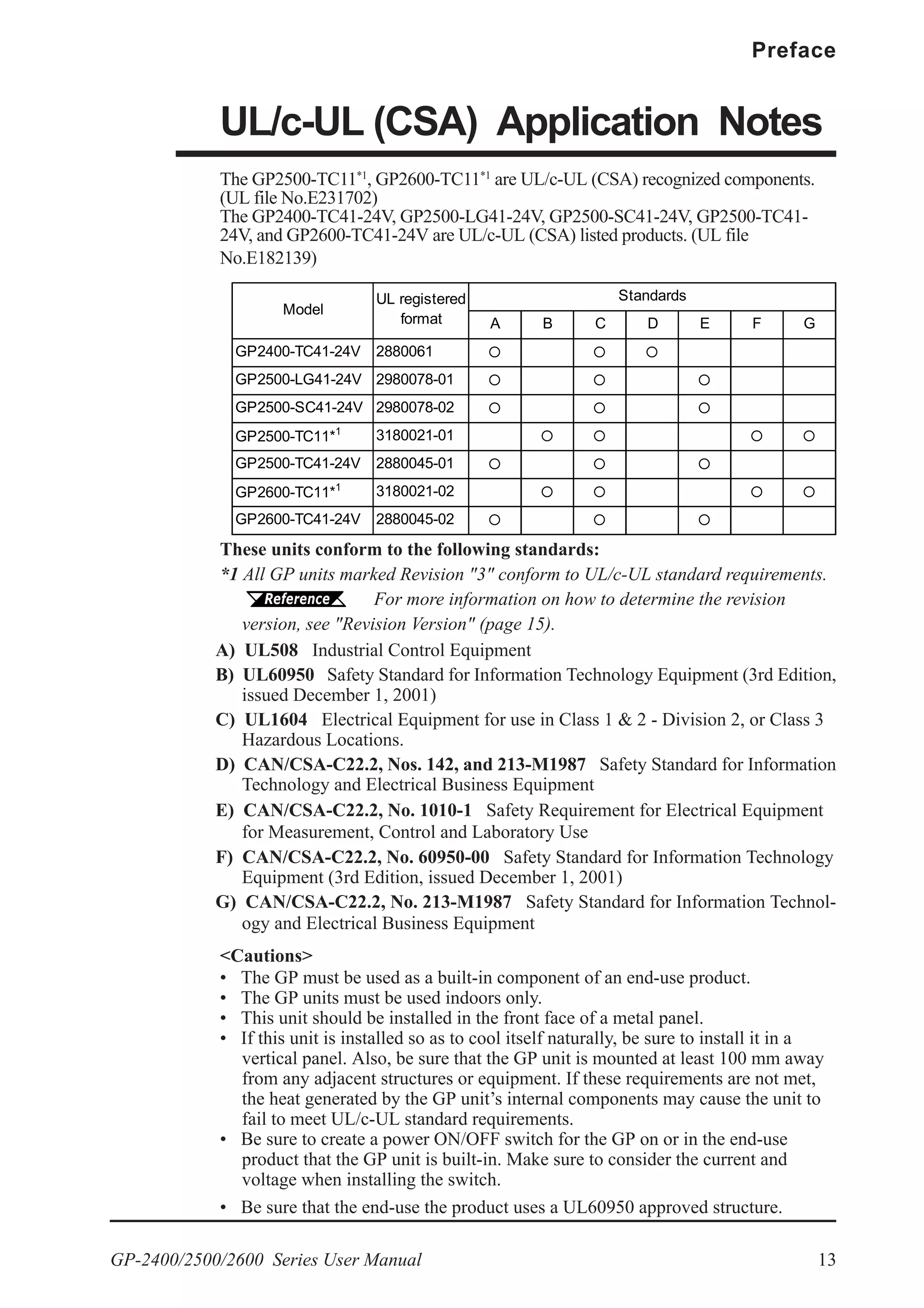
UL/c-UL (CSA) Application Notes
The GP2500-TC11*1
, GP2600-TC11*1
are UL/c-UL (CSA) recognized components.
(UL file No.E231702)
The GP2400-TC41-24V, GP2500-LG41-24V, GP2500-SC41-24V, GP2500-TC41-
24V, and GP2600-TC41-24V are UL/c-UL (CSA) listed products. (UL file
No.E182139)
A B C D E F G
GP2400-TC41-24V 2880061
GP2500-LG41-24V 2980078-01
GP2500-SC41-24V 2980078-02
GP2500-TC11*1
3180021-01
GP2500-TC41-24V 2880045-01
GP2600-TC11*1
3180021-02
GP2600-TC41-24V 2880045-02
Standards
Model
UL registered
format
These units conform to the following standards:
*1 All GP units marked Revision "3" conform to UL/c-UL standard requirements.
For more information on how to determine the revision
version, see "Revision Version" (page 15).
A) UL508 Industrial Control Equipment
B) UL60950 Safety Standard for Information Technology Equipment (3rd Edition,
issued December 1, 2001)
C) UL1604 Electrical Equipment for use in Class 1 & 2 - Division 2, or Class 3
Hazardous Locations.
D) CAN/CSA-C22.2, Nos. 142, and 213-M1987 Safety Standard for Information
Technology and Electrical Business Equipment
E) CAN/CSA-C22.2, No. 1010-1 Safety Requirement for Electrical Equipment
for Measurement, Control and Laboratory Use
F) CAN/CSA-C22.2, No. 60950-00 Safety Standard for Information Technology
Equipment (3rd Edition, issued December 1, 2001)
G) CAN/CSA-C22.2, No. 213-M1987 Safety Standard for Information Technol-
ogy and Electrical Business Equipment
<Cautions>
• The GP must be used as a built-in component of an end-use product.
• The GP units must be used indoors only.
• This unit should be installed in the front face of a metal panel.
• If this unit is installed so as to cool itself naturally, be sure to install it in a
vertical panel. Also, be sure that the GP unit is mounted at least 100 mm away
from any adjacent structures or equipment. If these requirements are not met,
the heat generated by the GP unit’s internal components may cause the unit to
fail to meet UL/c-UL standard requirements.
• Be sure to create a power ON/OFF switch for the GP on or in the end-use
product that the GP unit is built-in. Make sure to consider the current and
voltage when installing the switch.
• Be sure that the end-use the product uses a UL60950 approved structure.
Preface
GP-2400/2500/2600 Series User Manual14
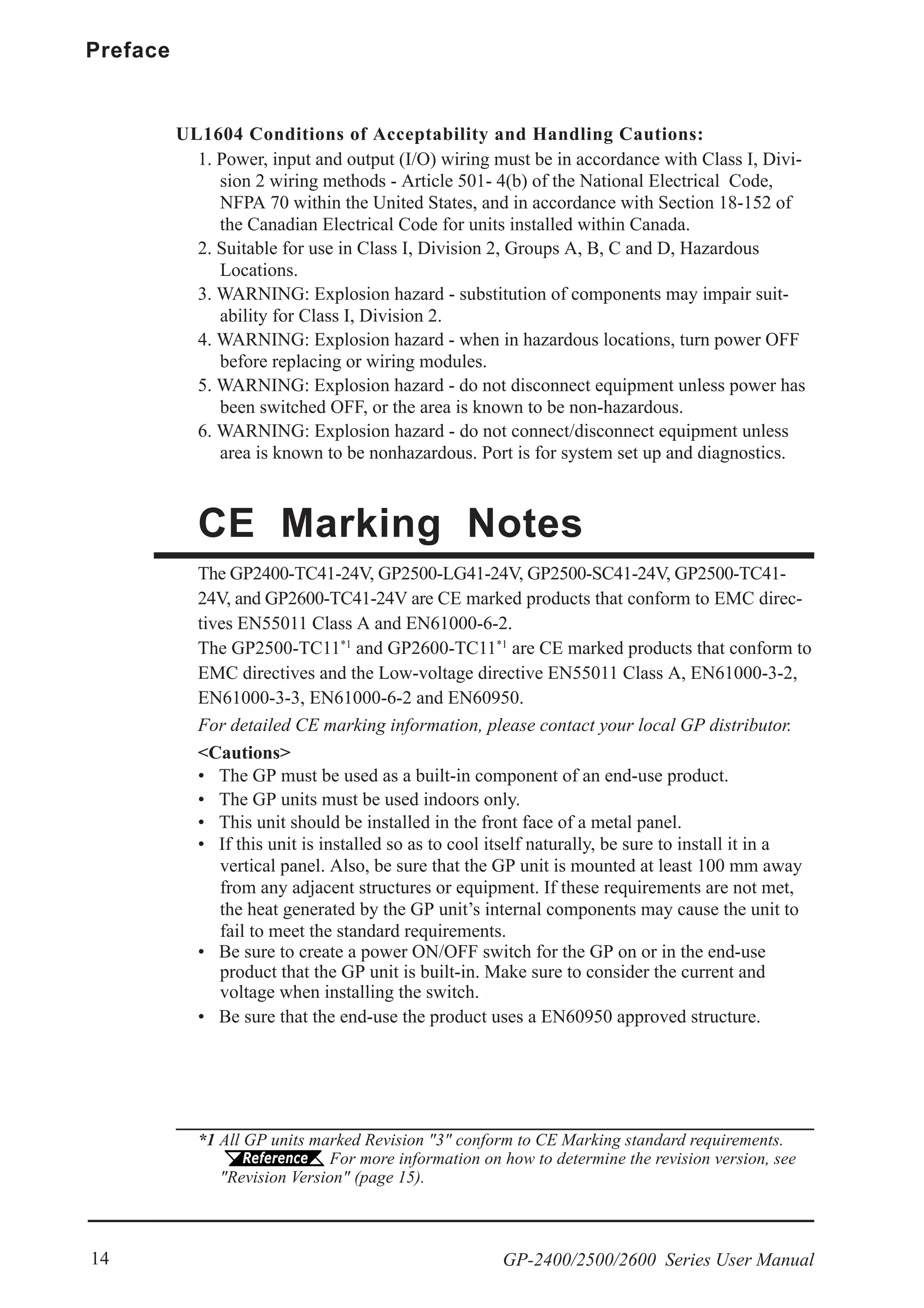
CE Marking Notes
The GP2400-TC41-24V, GP2500-LG41-24V, GP2500-SC41-24V, GP2500-TC41-
24V, and GP2600-TC41-24V are CE marked products that conform to EMC direc-
tives EN55011 Class A and EN61000-6-2.
The GP2500-TC11*1
and GP2600-TC11*1
are CE marked products that conform to
EMC directives and the Low-voltage directive EN55011 Class A, EN61000-3-2,
EN61000-3-3, EN61000-6-2 and EN60950.
For detailed CE marking information, please contact your local GP distributor.
UL1604 Conditions of Acceptability and Handling Cautions:
1. Power, input and output (I/O) wiring must be in accordance with Class I, Divi-
sion 2 wiring methods - Article 501- 4(b) of the National Electrical Code,
NFPA 70 within the United States, and in accordance with Section 18-152 of
the Canadian Electrical Code for units installed within Canada.
2. Suitable for use in Class I, Division 2, Groups A, B, C and D, Hazardous
Locations.
3. WARNING: Explosion hazard - substitution of components may impair suit-
ability for Class I, Division 2.
4. WARNING: Explosion hazard - when in hazardous locations, turn power OFF
before replacing or wiring modules.
5. WARNING: Explosion hazard - do not disconnect equipment unless power has
been switched OFF, or the area is known to be non-hazardous.
6. WARNING: Explosion hazard - do not connect/disconnect equipment unless
area is known to be nonhazardous. Port is for system set up and diagnostics.
<Cautions>
• The GP must be used as a built-in component of an end-use product.
• The GP units must be used indoors only.
• This unit should be installed in the front face of a metal panel.
• If this unit is installed so as to cool itself naturally, be sure to install it in a
vertical panel. Also, be sure that the GP unit is mounted at least 100 mm away
from any adjacent structures or equipment. If these requirements are not met,
the heat generated by the GP unit’s internal components may cause the unit to
fail to meet the standard requirements.
• Be sure to create a power ON/OFF switch for the GP on or in the end-use
product that the GP unit is built-in. Make sure to consider the current and
voltage when installing the switch.
• Be sure that the end-use the product uses a EN60950 approved structure.
*1 All GP units marked Revision "3" conform to CE Marking standard requirements.
For more information on how to determine the revision version, see
"Revision Version" (page 15).
GP-2400/2500/2600 Series User Manual 15
Preface
The list below describes the documentation conventions used in this manual.
Documentation Conventions
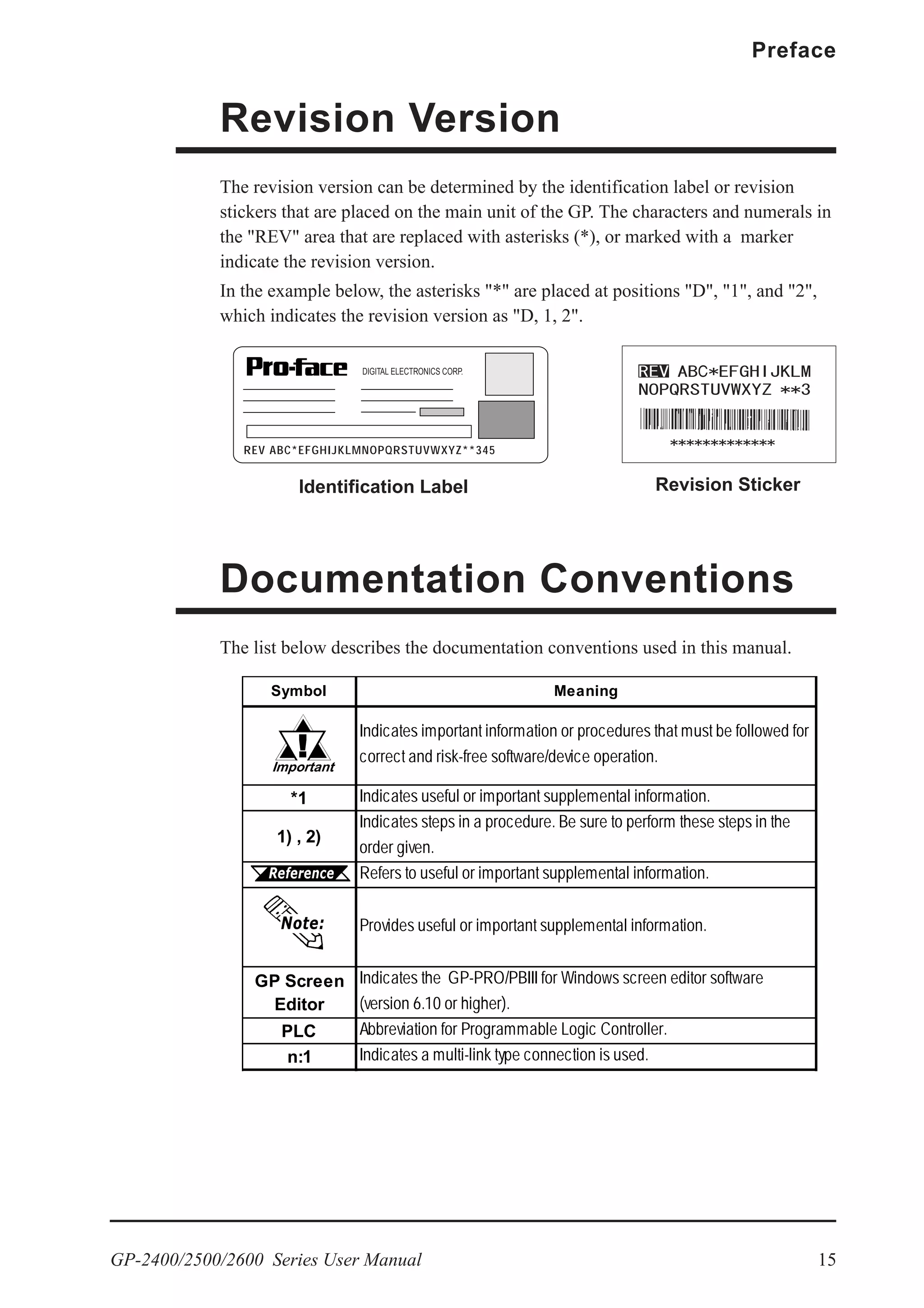
Revision Version
DIGITAL ELECTRONICS CORP.
REV ABC*EFGHIJKLMNOPQRSTUVWXYZ**345
The revision version can be determined by the identification label or revision
stickers that are placed on the main unit of the GP. The characters and numerals in
the "REV" area that are replaced with asterisks (*), or marked with a marker
indicate the revision version.
In the example below, the asterisks "*" are placed at positions "D", "1", and "2",
which indicates the revision version as "D, 1, 2".
Identification Label Revision Sticker
Symbol Meaning
Indicates important information or procedures that must be followed for
correct and risk-free software/device operation.
*1 Indicates useful or important supplemental information.
1) , 2)
Indicates steps in a procedure. Be sure to perform these steps in the
order given.
Refers to useful or important supplemental information.
Provides useful or important supplemental information.
GP Screen
Editor
Indicates the GP-PRO/PBIII for Windows screen editor software
(version 6.10 or higher).
PLC Abbreviation for Programmable Logic Controller.
n:1 Indicates a multi-link type connection is used.
Memo
GP-2400/2500/2600 Series User Manual 1-1
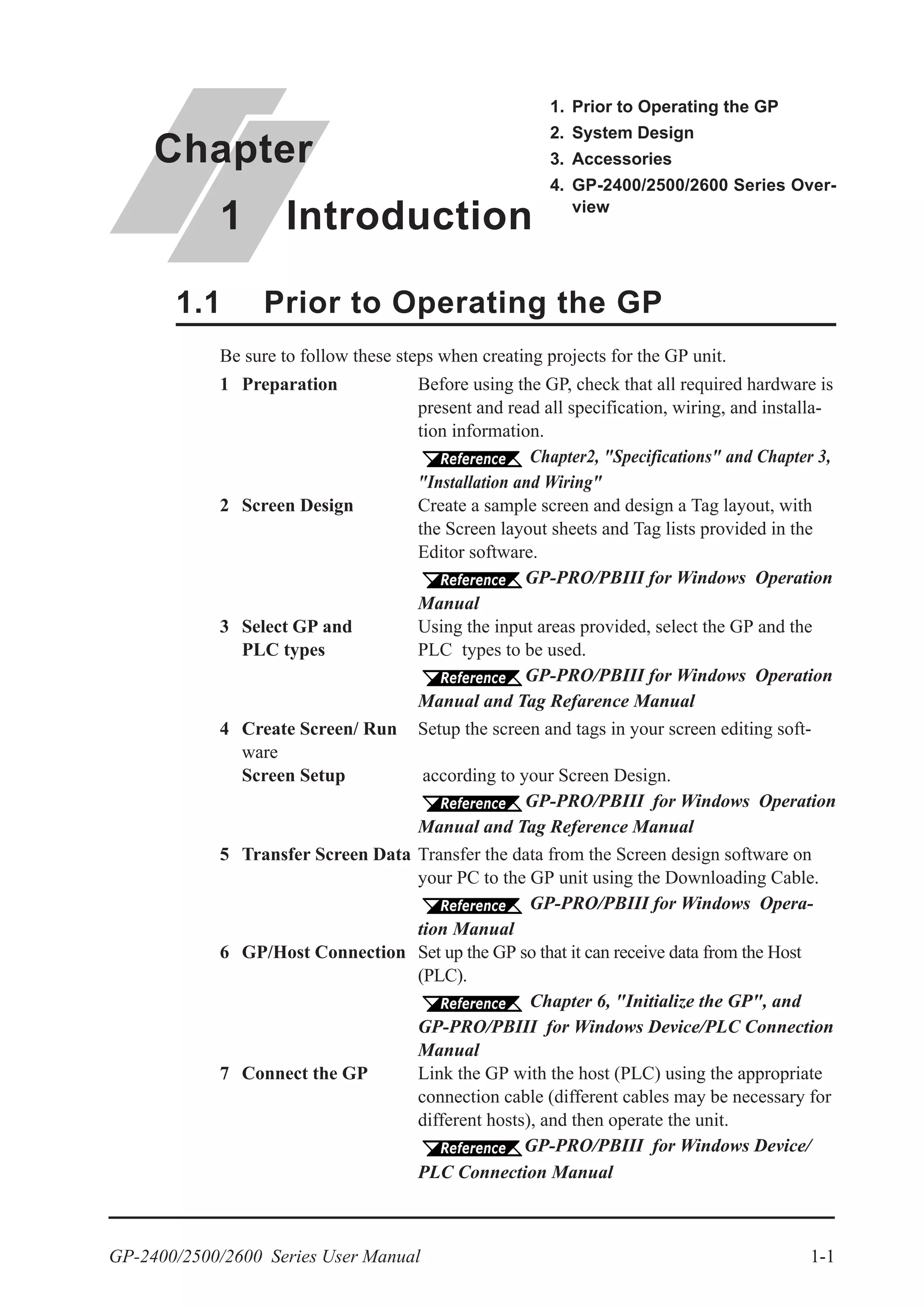
Be sure to follow these steps when creating projects for the GP unit.
1 Preparation Before using the GP, check that all required hardware is
present and read all specification, wiring, and installa-
tion information.
Chapter2, "Specifications" and Chapter 3,
"Installation and Wiring"
2 Screen Design Create a sample screen and design a Tag layout, with
the Screen layout sheets and Tag lists provided in the
Editor software.
GP-PRO/PBIII for Windows Operation
Manual
3 Select GP and Using the input areas provided, select the GP and the
PLC types PLC types to be used.
GP-PRO/PBIII for Windows Operation
Manual and Tag Refarence Manual
4 Create Screen/ Run Setup the screen and tags in your screen editing soft-
ware
Screen Setup according to your Screen Design.
GP-PRO/PBIII for Windows Operation
Manual and Tag Reference Manual
5 Transfer Screen Data Transfer the data from the Screen design software on
your PC to the GP unit using the Downloading Cable.
GP-PRO/PBIII for Windows Opera-
tion Manual
6 GP/Host Connection Set up the GP so that it can receive data from the Host
(PLC).
Chapter 6, "Initialize the GP", and
GP-PRO/PBIII for Windows Device/PLC Connection
Manual
7 Connect the GP Link the GP with the host (PLC) using the appropriate
connection cable (different cables may be necessary for
different hosts), and then operate the unit.
GP-PRO/PBIII for Windows Device/
PLC Connection Manual
1.1 Prior to Operating the GP
Chapter
1 Introduction
1. Prior to Operating the GP
2. System Design
3. Accessories
4. GP-2400/2500/2600 Series Over-
view
Chapter 1 - Introduction
GP-2400/2500/2600 Series User Manual1-2
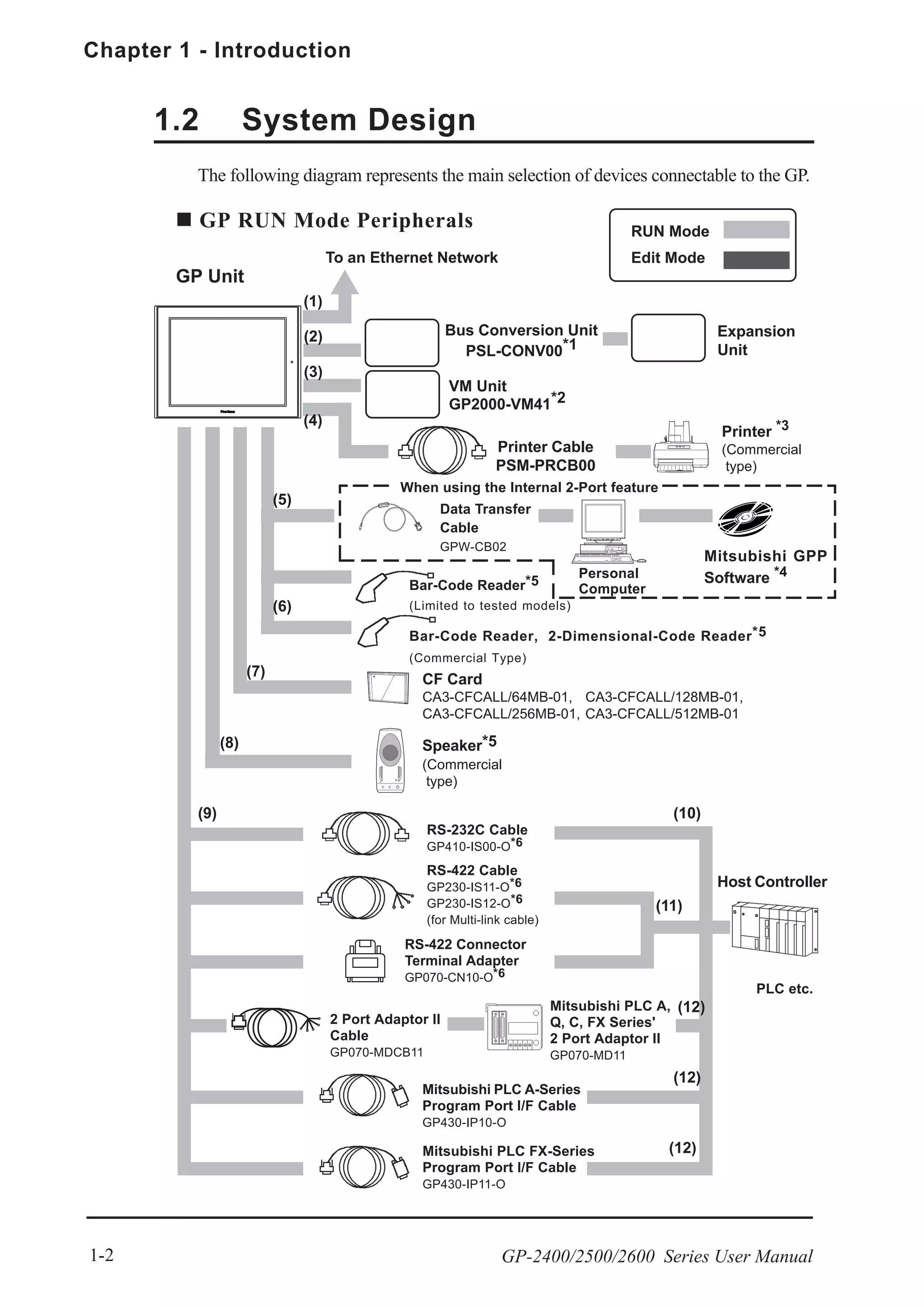
The following diagram represents the main selection of devices connectable to the GP.
1.2 System Design
GP RUN Mode Peripherals
Edit Mode
RUN Mode
Data Transfer
Cable
GPW-CB02
GP Unit
Printer Cable
PSM-PRCB00
Printer *3
(Commercial
type)
RS-232C Cable
GP410-IS00-O*6
Personal
Computer
Mitsubishi GPP
Software *4
CF Card
CA3-CFCALL/64MB-01, CA3-CFCALL/128MB-01,
CA3-CFCALL/256MB-01, CA3-CFCALL/512MB-01
Speaker*5
(Commercial
type)
RS-422 Cable
GP230-IS11-O*6
GP230-IS12-O*6
(for Multi-link cable)
RS-422 Connector
Terminal Adapter
GP070-CN10-O*6
Mitsubishi PLC FX-Series
Program Port I/F Cable
GP430-IP11-O
Mitsubishi PLC A-Series
Program Port I/F Cable
GP430-IP10-O
Host Controller
Mitsubishi PLC A,
Q, C, FX Series'
2 Port Adaptor II
GP070-MD11
PLC etc.
2 Port Adaptor II
Cable
GP070-MDCB11
(4)
(5)
(7)
(8)
(9) (10)
(11)
(12)
(12)
(12)
Bar-Code Reader, 2-Dimensional-Code Reader*5
(Commercial Type)
(6)
When using the Internal 2-Port feature
Bus Conversion Unit
PSL-CONV00*1
To an Ethernet Network
Expansion
Unit
(1)
VM Unit
GP2000-VM41*2
(2)
(3)
Bar-Code Reader*5
(Limited to tested models)
GP-2400/2500/2600 Series User Manual 1-3
Chapter 1 - Introduction
Data Transfer
Cable
GPW-CB02
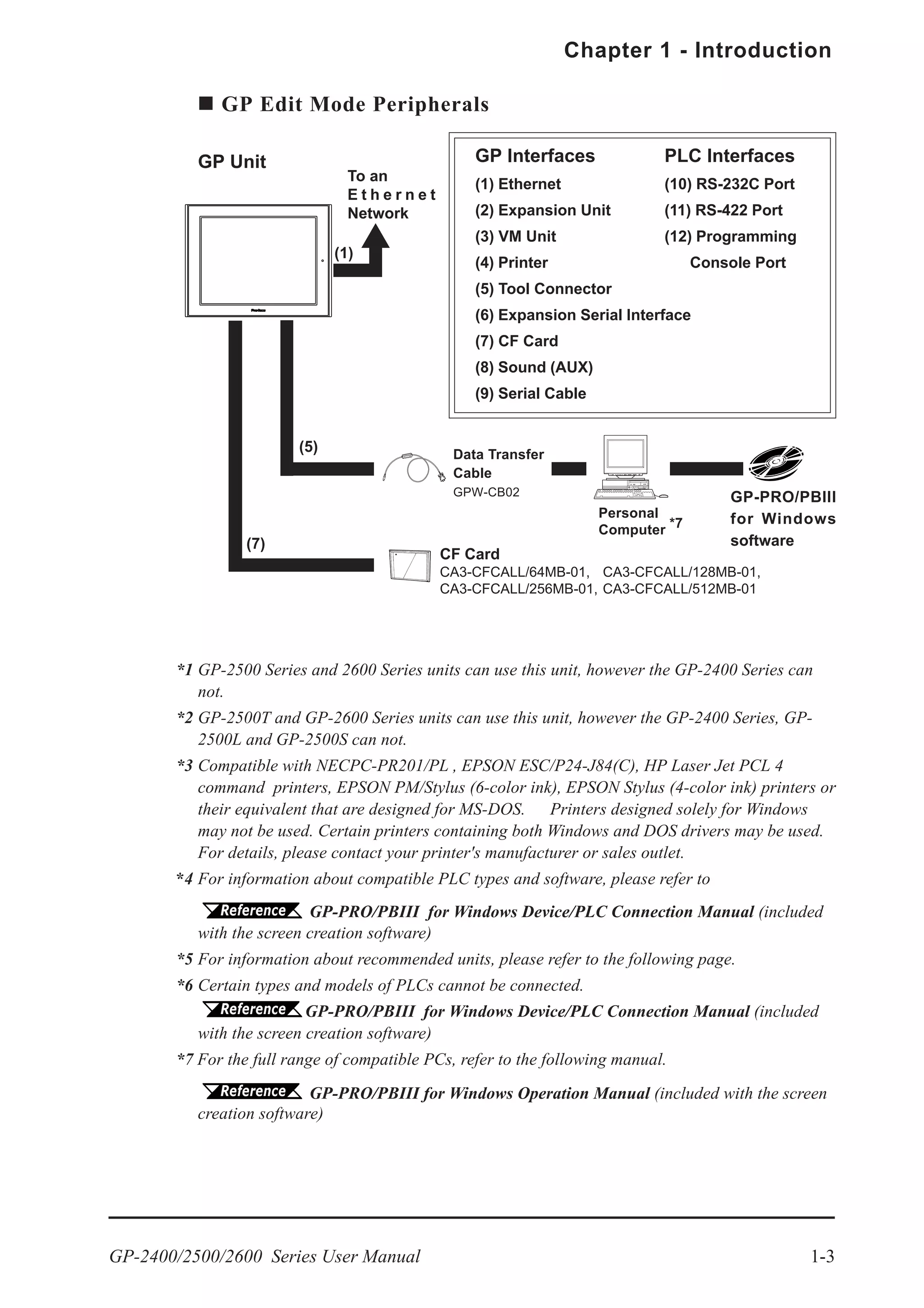
GP Interfaces
(1) Ethernet
(2) Expansion Unit
(3) VM Unit
(4) Printer
(5) Tool Connector
(6) Expansion Serial Interface
(7) CF Card
(8) Sound (AUX)
(9) Serial Cable
PLC Interfaces
(10) RS-232C Port
(11) RS-422 Port
(12) Programming
Console Port
GP Edit Mode Peripherals
To an
E t h e r n e t
Network
GP Unit
Personal
Computer *7
GP-PRO/PBIII
for Windows
software
CF Card
CA3-CFCALL/64MB-01, CA3-CFCALL/128MB-01,
CA3-CFCALL/256MB-01, CA3-CFCALL/512MB-01
(1)
(5)
(7)
*1 GP-2500 Series and 2600 Series units can use this unit, however the GP-2400 Series can
not.
*2 GP-2500T and GP-2600 Series units can use this unit, however the GP-2400 Series, GP-
2500L and GP-2500S can not.
*3 Compatible with NECPC-PR201/PL , EPSON ESC/P24-J84(C), HP Laser Jet PCL 4
command printers, EPSON PM/Stylus (6-color ink), EPSON Stylus (4-color ink) printers or
their equivalent that are designed for MS-DOS. Printers designed solely for Windows
may not be used. Certain printers containing both Windows and DOS drivers may be used.
For details, please contact your printer's manufacturer or sales outlet.
*4 For information about compatible PLC types and software, please refer to
GP-PRO/PBIII for Windows Device/PLC Connection Manual (included
with the screen creation software)
*5 For information about recommended units, please refer to the following page.
*6 Certain types and models of PLCs cannot be connected.
GP-PRO/PBIII for Windows Device/PLC Connection Manual (included
with the screen creation software)
*7 For the full range of compatible PCs, refer to the following manual.
GP-PRO/PBIII for Windows Operation Manual (included with the screen
creation software)
Chapter 1 - Introduction
GP-2400/2500/2600 Series User Manual1-4
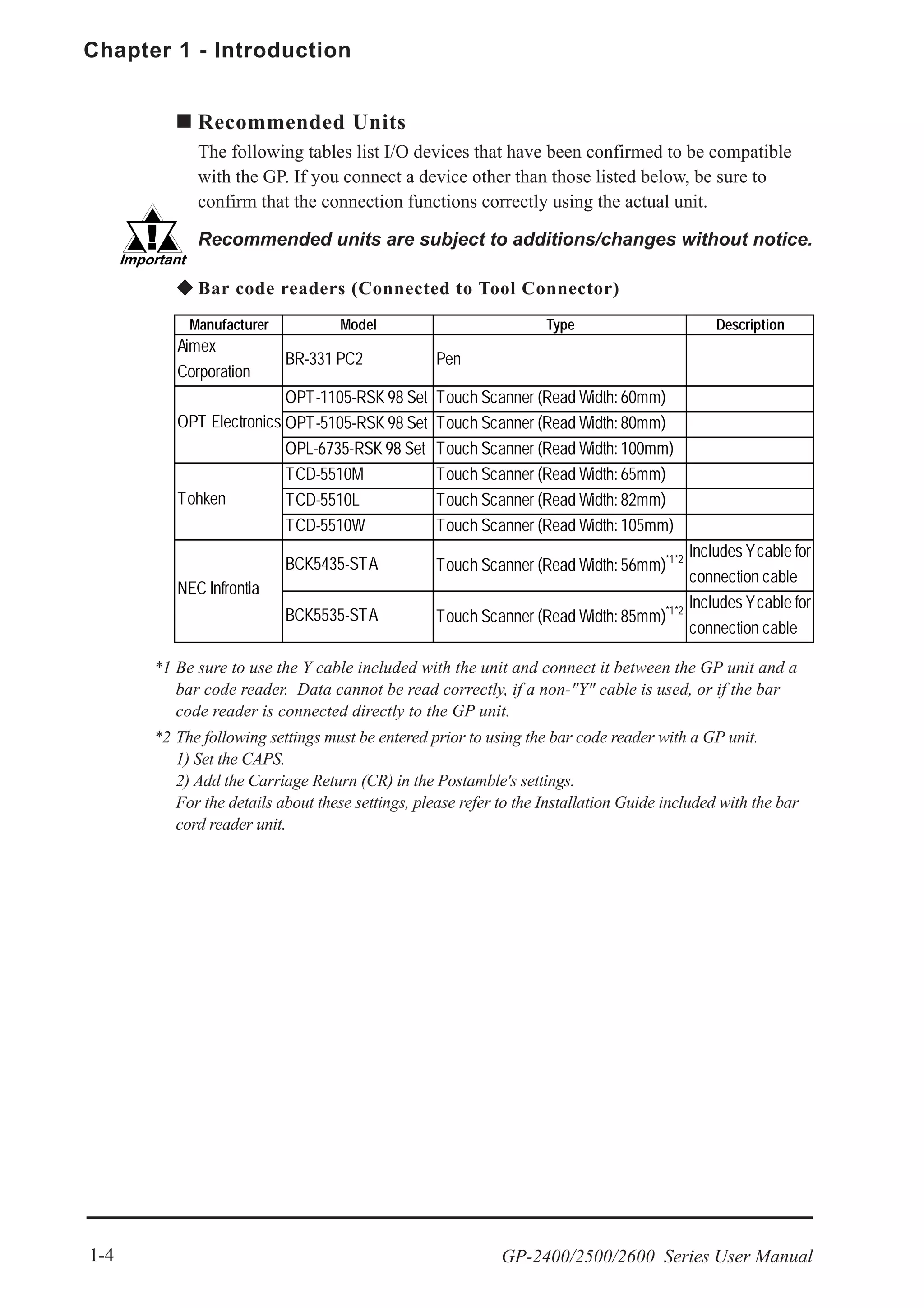
Recommended Units
The following tables list I/O devices that have been confirmed to be compatible
with the GP. If you connect a device other than those listed below, be sure to
confirm that the connection functions correctly using the actual unit.
Recommended units are subject to additions/changes without notice.
Bar code readers (Connected to Tool Connector)
*1 Be sure to use the Y cable included with the unit and connect it between the GP unit and a
bar code reader. Data cannot be read correctly, if a non-"Y" cable is used, or if the bar
code reader is connected directly to the GP unit.
*2 The following settings must be entered prior to using the bar code reader with a GP unit.
1) Set the CAPS.
2) Add the Carriage Return (CR) in the Postamble's settings.
For the details about these settings, please refer to the Installation Guide included with the bar
cord reader unit.
Manufacturer Model Type Description
Aimex
Corporation
BR-331 PC2 Pen
OPT-1105-RSK 98 Set Touch Scanner (Read Width: 60mm)
OPT-5105-RSK 98 Set Touch Scanner (Read Width: 80mm)
OPL-6735-RSK 98 Set Touch Scanner (Read Width: 100mm)
TCD-5510M Touch Scanner (Read Width: 65mm)
TCD-5510L Touch Scanner (Read Width: 82mm)
TCD-5510W Touch Scanner (Read Width: 105mm)
BCK5435-STA Touch Scanner (Read Width: 56mm)*1*2
Includes Ycable for
connection cable
BCK5535-STA Touch Scanner (Read Width: 85mm)*1*2
Includes Ycable for
connection cable
OPT Electronics
Tohken
NEC Infrontia
GP-2400/2500/2600 Series User Manual 1-5
Chapter 1 - Introduction
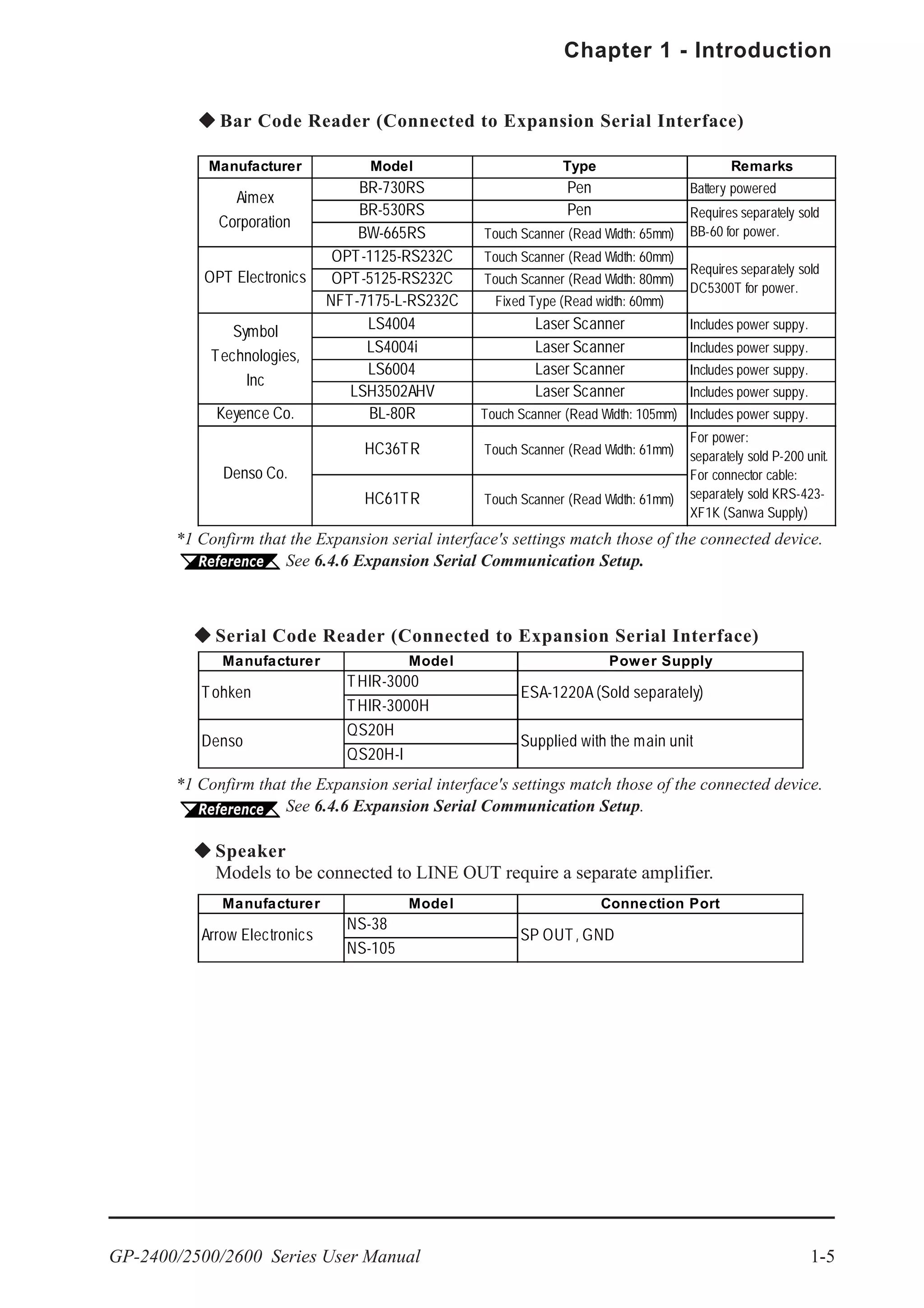
Manufacturer Model Power Supply
THIR-3000
THIR-3000H
QS20H
QS20H-I
ESA-1220A (Sold separately)
Supplied with the main unit
Tohken
Denso
Manufacturer Model Connection Port
NS-38
NS-105
Arrow Electronics SP OUT, GND
Serial Code Reader (Connected to Expansion Serial Interface)
Speaker
Models to be connected to LINE OUT require a separate amplifier.
Manufacturer Model Type Remarks
BR-730RS Pen Battery powered
BR-530RS Pen
BW-665RS Touch Scanner (Read Width: 65mm)
OPT-1125-RS232C Touch Scanner (Read Width: 60mm)
OPT-5125-RS232C Touch Scanner (Read Width: 80mm)
NFT-7175-L-RS232C Fixed Type (Read width: 60mm)
LS4004 Laser Scanner Includes power suppy.
LS4004i Laser Scanner Includes power suppy.
LS6004 Laser Scanner Includes power suppy.
LSH3502AHV Laser Scanner Includes power suppy.
Keyence Co. BL-80R Touch Scanner (Read Width: 105mm) Includes power suppy.
HC36TR Touch Scanner (Read Width: 61mm)
HC61TR Touch Scanner (Read Width: 61mm)
For power:
separately sold P-200 unit.
For connector cable:
separately sold KRS-423-
XF1K (Sanwa Supply)
Requires separately sold
DC5300T for power.
Requires separately sold
BB-60 for power.
Symbol
Technologies,
Inc
OPT Electronics
Aimex
Corporation
Denso Co.
Bar Code Reader (Connected to Expansion Serial Interface)
*1 Confirm that the Expansion serial interface's settings match those of the connected device.
See 6.4.6 Expansion Serial Communication Setup.
*1 Confirm that the Expansion serial interface's settings match those of the connected device.
See 6.4.6 Expansion Serial Communication Setup.
Chapter 1 - Introduction
GP-2400/2500/2600 Series User Manual1-6
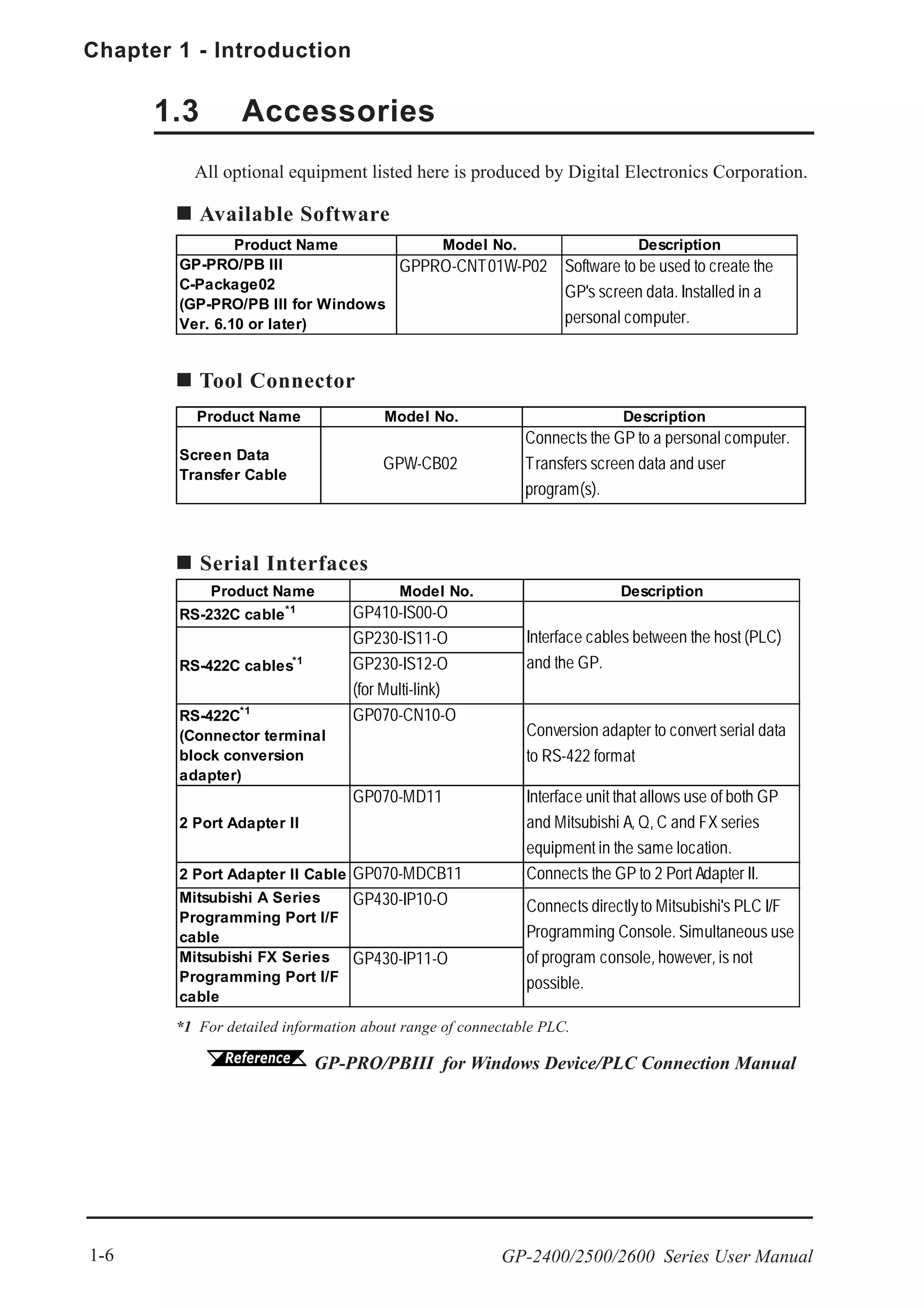
Product Name Model No. Description
RS-232C cable*1 GP410-IS00-O
GP230-IS11-O
GP230-IS12-O
(for Multi-link)
RS-422C*1
(Connector terminal
block conversion
adapter)
GP070-CN10-O
Conversion adapter to convert serial data
to RS-422 format
2 Port Adapter II
GP070-MD11 Interface unit that allows use of both GP
and Mitsubishi A, Q, C and FX series
equipment in the same location.
2 Port Adapter II Cable GP070-MDCB11 Connects the GP to 2 Port Adapter II.
Mitsubishi A Series
Programming Port I/F
cable
GP430-IP10-O
Mitsubishi FX Series
Programming Port I/F
cable
GP430-IP11-O
RS-422C cables*1
Interface cables between the host (PLC)
and the GP.
Connects directlyto Mitsubishi's PLC I/F
Programming Console. Simultaneous use
of program console, however, is not
possible.
All optional equipment listed here is produced by Digital Electronics Corporation.
*1 For detailed information about range of connectable PLC.
GP-PRO/PBIII for Windows Device/PLC Connection Manual
Available Software
Tool Connector
Serial Interfaces
1.3 Accessories
Product Name Model No. Description
Screen Data
Transfer Cable
GPW-CB02
Connects the GP to a personal computer.
Transfers screen data and user
program(s).
Product Name Model No. Description
GP-PRO/PB III
C-Package02
(GP-PRO/PB III for Windows
Ver. 6.10 or later)
GPPRO-CNT01W-P02 Software to be used to create the
GP's screen data. Installed in a
personal computer.
GP-2400/2500/2600 Series User Manual 1-7
Chapter 1 - Introduction
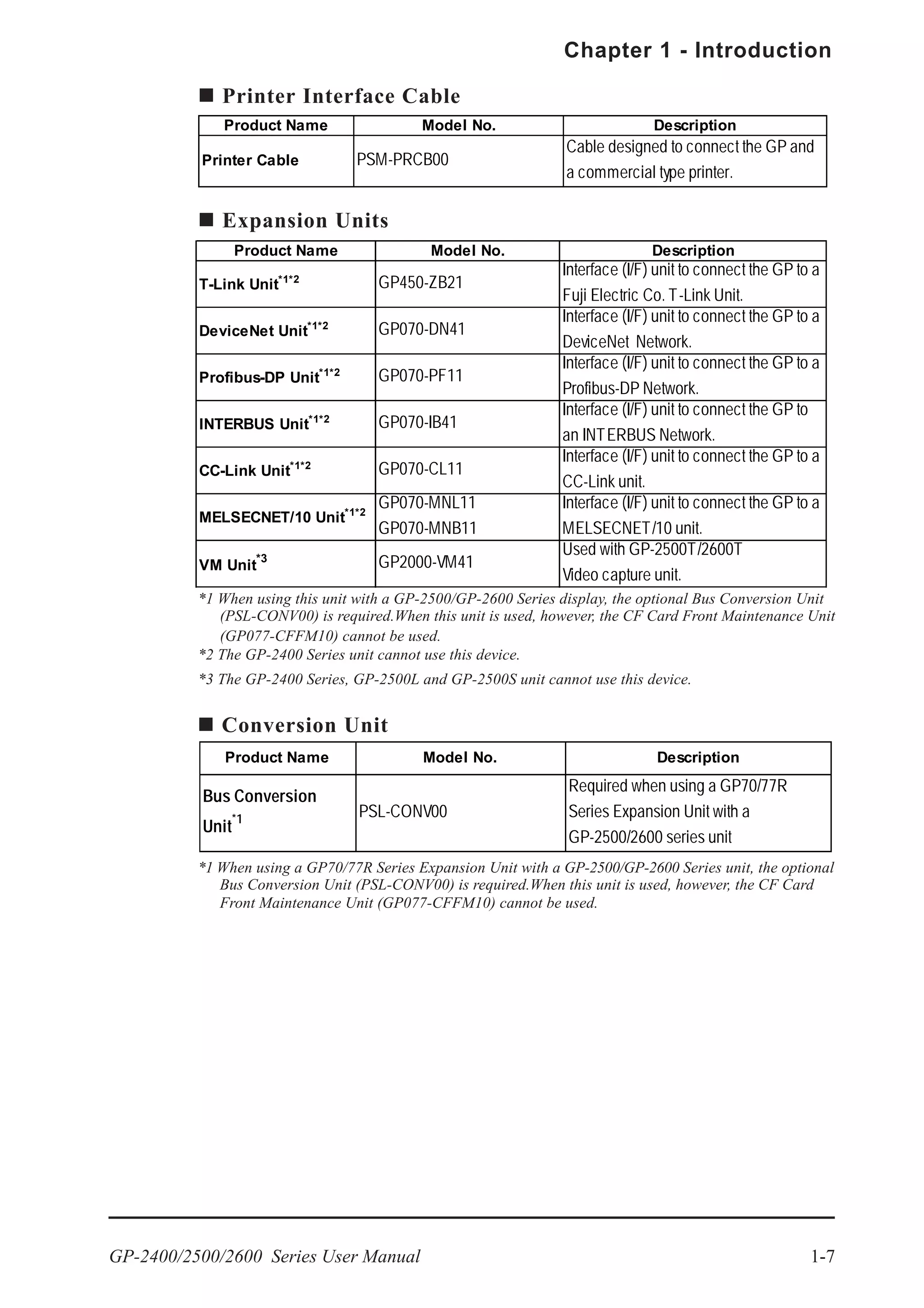
*1 When using this unit with a GP-2500/GP-2600 Series display, the optional Bus Conversion Unit
(PSL-CONV00) is required.When this unit is used, however, the CF Card Front Maintenance Unit
(GP077-CFFM10) cannot be used.
*2 The GP-2400 Series unit cannot use this device.
*3 The GP-2400 Series, GP-2500L and GP-2500S unit cannot use this device.
Printer Interface Cable
Expansion Units
Product Name Model No. Description
Printer Cable PSM-PRCB00
Cable designed to connect the GP and
a commercial type printer.
Conversion Unit
*1 When using a GP70/77R Series Expansion Unit with a GP-2500/GP-2600 Series unit, the optional
Bus Conversion Unit (PSL-CONV00) is required.When this unit is used, however, the CF Card
Front Maintenance Unit (GP077-CFFM10) cannot be used.
Product Name Model No. Description
T-Link Unit*1*2
GP450-ZB21
Interface (I/F) unit to connect the GP to a
Fuji Electric Co. T-Link Unit.
DeviceNet Unit*1*2
GP070-DN41
Interface (I/F) unit to connect the GP to a
DeviceNet Network.
Profibus-DP Unit*1*2
GP070-PF11
Interface (I/F) unit to connect the GP to a
Profibus-DP Network.
INTERBUS Unit*1*2
GP070-IB41
Interface (I/F) unit to connect the GP to
an INTERBUS Network.
CC-Link Unit*1*2
GP070-CL11
Interface (I/F) unit to connect the GP to a
CC-Link unit.
MELSECNET/10 Unit*1*2
GP070-MNL11
GP070-MNB11
Interface (I/F) unit to connect the GP to a
MELSECNET/10 unit.
VM Unit
*3 GP2000-VM41
Used with GP-2500T/2600T
Video capture unit.
Product Name Model No. Description
Bus Conversion
Unit
*1 PSL-CONV00
Required when using a GP70/77R
Series Expansion Unit with a
GP-2500/2600 series unit
Chapter 1 - Introduction
GP-2400/2500/2600 Series User Manual1-8
Screen Protection
CF Card Items
*1 When using a GP70/77R Series Expansion Unit with a GP-2500/GP-2600 Series unit, the
optional Bus Conversion Unit (PSL-CONV00) is required.When this unit is used, however, the CF
Card Front Maintenance Unit (GP077-CFFM10) cannot be used.
*2 The GP-2400 Series unit cannot use this device.
Product Name Model No. Description
PS400-DF00
(GP-2400 Series)
PSL-DF00
(GP-2500/2600 Series)
Disposable protective and dirtresistant
sheet for the GP's screen. The GP's
touch panel can be used with this cover
sheet attached. (5 sheets/set)
Screen Protection Sheet
Product Name Model No. Description
CA3-CFCALL/64MB-01 GP Series CF Card (64MB)
CA3-CFCALL/128MB-01 GP Series CF Card (128MB)
CA3-CFCALL/256MB-01 GP Series CF Card (256MB)
CA3-CFCALL/512MB-01 GP Series CF Card (512MB)
CF Card Adaptor GP077-CFAD10
CFCard Adaptor for standard PC Card
Slot.
CF Card Front
Maintenance Unit*1*2 GP077-CFFM10
Allows CF Card to be inserted into the
front face of GP-2500/2600.
(inside Maintenance Cover)
CF Cards
GP-2400/2500/2600 Series User Manual 1-9
Chapter 1 - Introduction
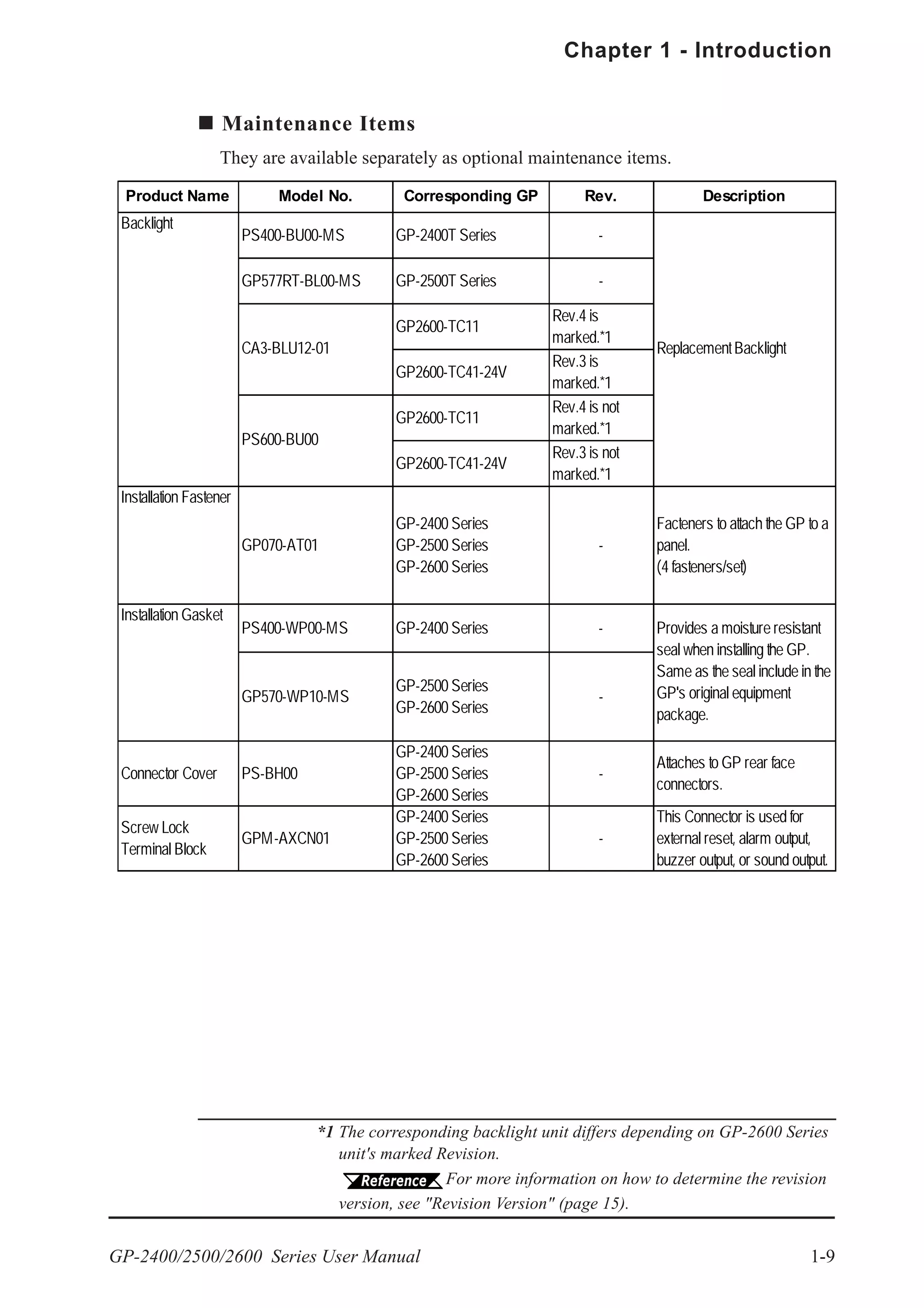
Maintenance Items
They are available separately as optional maintenance items.
Product Name Model No. Corresponding GP Rev. Description
PS400-BU00-MS GP-2400T Series -
GP577RT-BL00-MS GP-2500T Series -
GP2600-TC11
Rev.4 is
marked.*1
GP2600-TC41-24V
Rev.3 is
marked.*1
GP2600-TC11
Rev.4 is not
marked.*1
GP2600-TC41-24V
Rev.3 is not
marked.*1
Installation Fastener
GP070-AT01
GP-2400 Series
GP-2500 Series
GP-2600 Series
-
Facteners to attach the GP to a
panel.
(4 fasteners/set)
Installation Gasket
PS400-WP00-MS GP-2400 Series -
GP570-WP10-MS
GP-2500 Series
GP-2600 Series
-
Connector Cover PS-BH00
GP-2400 Series
GP-2500 Series
GP-2600 Series
-
Attaches to GP rear face
connectors.
Screw Lock
Terminal Block
GPM-AXCN01
GP-2400 Series
GP-2500 Series
GP-2600 Series
-
This Connector is used for
external reset, alarm output,
buzzer output, or sound output.
Provides a moisture resistant
seal when installing the GP.
Same as the seal include in the
GP's original equipment
package.
Backlight
CA3-BLU12-01
PS600-BU00
ReplacementBacklight
*1 The corresponding backlight unit differs depending on GP-2600 Series
unit's marked Revision.
For more information on how to determine the revision
version, see "Revision Version" (page 15).
Chapter 1 - Introduction
GP-2400/2500/2600 Series User Manual1-10
Ethernet Feature
Your GP-2400/2500/2600 series unit comes with an Ethernet 10BASE-T connec-
tor as standard equipment. In addition to sending screen data to the GP, this
feature can also be used to set up the GP, even if you are using the unit for the first
time*1
.
Also, Digital's separately sold Pro-Server software can be used to read out data
collected in the GP to a central PC server, via an Ethernet LAN network. This
collected data can then be processed for production information management, via
a variety of popular software applications.
CF Card Feature
This interface allows you to use the CF Card instead of the optional Memory
Loader II to store GP setup*1
and screen data, and then transfer it to the GP.
You can also read and write data to your existing (optional) Multi-Unit's CF Card,
since the GP-2400/2500/2600's card is the same type.
The CF Card can also be used for the storage and transfer of recipe, logging,
alarm history and bmp data files. The GP can read these files from the CF Card, or
use the CF Card to store data read out from the host (PLC).
Sound Output I/F
With the GP-2400/2500/2600, you only need to connect a speaker to the GP’s
sound output Terminal to enable sound output, without connecting the optional
Multi Unit.
Expansion Serial Interface
This interface allows you to connect a variety of equipment, including a bar-coder
reader, a serial code reader or an I/O device.
Internal 2-Port Feature *2
The GP's built-in 2-Port feature allows you to enjoy 2-Port operation with a
Mitsubishi brand PLC, without using the optional 2-Port Adapter II unit.
Backlight Burnout Detection Feature *2
When the GP’s backlight burns out, it will be automatically detected. The GP’s
“Status LED” will alert you that the backlight is burned out so that you can
disable GP Touch Panel Operation and prevent a possible GP operation mistake.
(Please read the following sections for detailed information about each feature.)
1.4 GP-2400/2500/2600 Series Overview
The GP-2400T/2500T/2600T are equipped with a variety of new and useful
items, such as an Ethernet, CF Card, Sound and Expansion Serial interfaces as
standard equipment. The following explanation describes these and other new GP
features.
*1 Setting up the GP means downloading the required system and protocol programs from the
GP screen creation software to the GP.
*2 These features are supported by certain earlier GP types.
GP-2400/2500/2600 Series User Manual 1-11
Chapter 1 - Introduction
1.4.1 Ethernet Connectivity
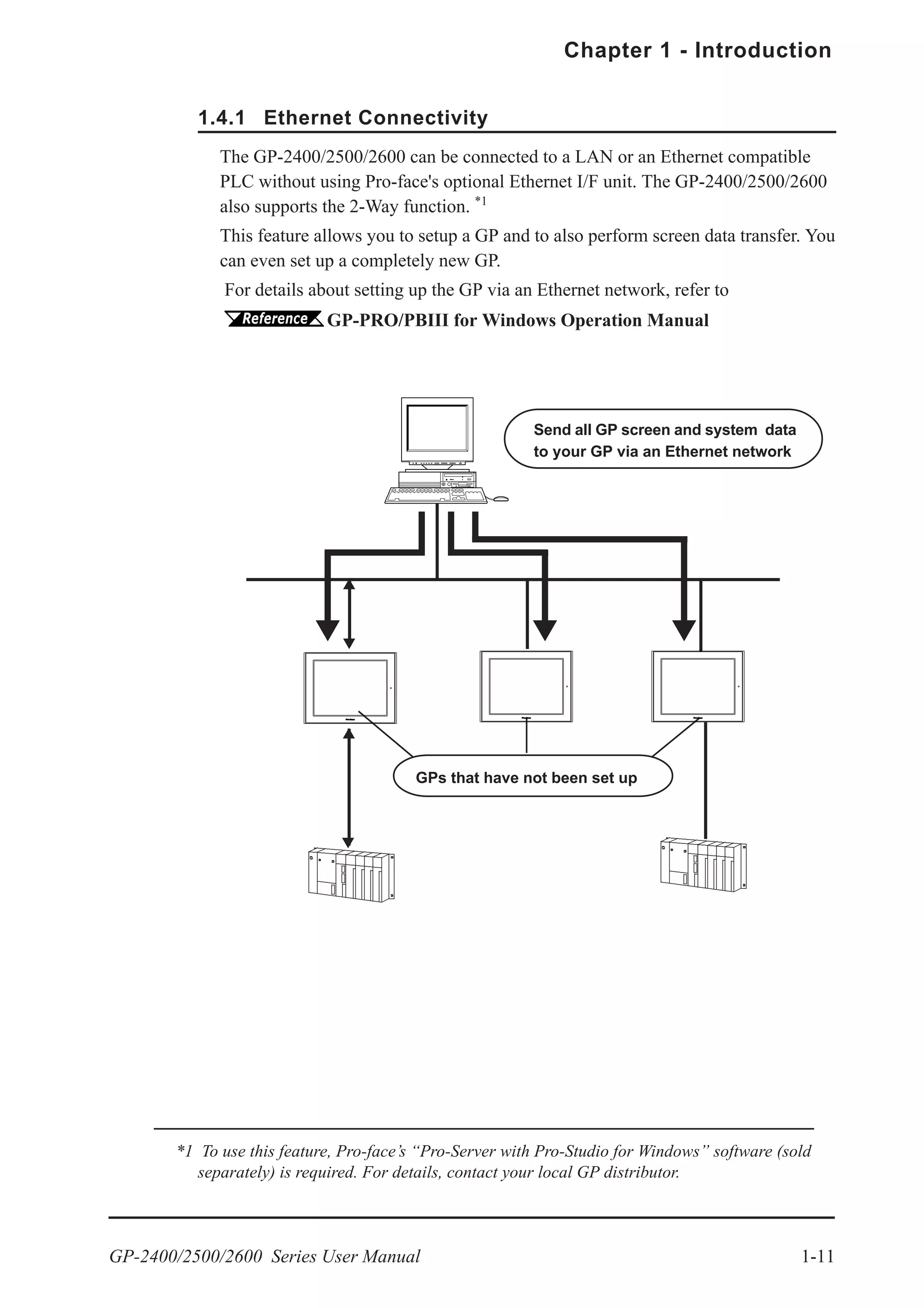
The GP-2400/2500/2600 can be connected to a LAN or an Ethernet compatible
PLC without using Pro-face's optional Ethernet I/F unit. The GP-2400/2500/2600
also supports the 2-Way function. *1
This feature allows you to setup a GP and to also perform screen data transfer. You
can even set up a completely new GP.
For details about setting up the GP via an Ethernet network, refer to
GP-PRO/PBIII for Windows Operation Manual
Send all GP screen and system data
to your GP via an Ethernet network
*1 To use this feature, Pro-face’s “Pro-Server with Pro-Studio for Windows” software (sold
separately) is required. For details, contact your local GP distributor.
GPs that have not been set up
Chapter 1 - Introduction
GP-2400/2500/2600 Series User Manual1-12
1.4.2 CF Card
The new GP-2400/2500/2600 series unit allows you to use a CF Card without
installing the separately sold Multi Unit. You can set up the GP or send screen data
by saving backup data (i.e. all necessary data for GP operation) in the CF Card
using the GP’s CF Memory Loader Tool feature. As with the Multi Unit, all the
following features are available with a GP-2400/2500/2600 series unit.
• Read filing data from CF Card
• Write logging data to CF Card
• Read image data or sound data from CF Card
• Write Graph data or Alarm data to CF Card
• Back up screen data to CF Card
For details about creating / saving backup data (i.e. all necessary data for GP operation)
and sending GP data, refer to
GP-PRO/PBIII for Windows Operation Manual
For details about CF Memory Loader Tool’s data upload and download, refer to
4.3 Memory Loader Tool
When using the "CF Memory Loader Tool", Digital's GP077-CF20 (16MB)
or GP077-CF30 (32MB) Memory Card is required.
Send GP Screen Data to a CF card, then to other GPs
The CF Card allows you to set up multiple GPs, using a single GP's data.
Copy your GP data and the "CF Memory Loader Tool" to your GP’s CF Card,
then insert that CF Card in another GP and transfer that data using the the CF
Memory Loader Tool.
Send GP Screen Data to a GP, then to the CF card
You can also use the GP as a CF Card drive for your PC, by sending data from
your PC directly to your GP's CF Card, . Simply connect your PC and the GP
using the data transfer cable, and send your backup data and the CF Memory
Loader Tool to the CF Card installed in the GP.
Copy data using
GP-PRO/PBIII’s
[CF Card Tool]
Transfer data to
G P v i a " C F
Memory Loader
Tool"
Send data using
GP-PRO/PBIII’s
[Transfer] feature
At a transmission speed of 115.2kbps, it takes approximately fifteen minutes to
transfer screen and system data to a GP.
GP-2400/2500/2600 Series User Manual 1-13
Chapter 1 - Introduction
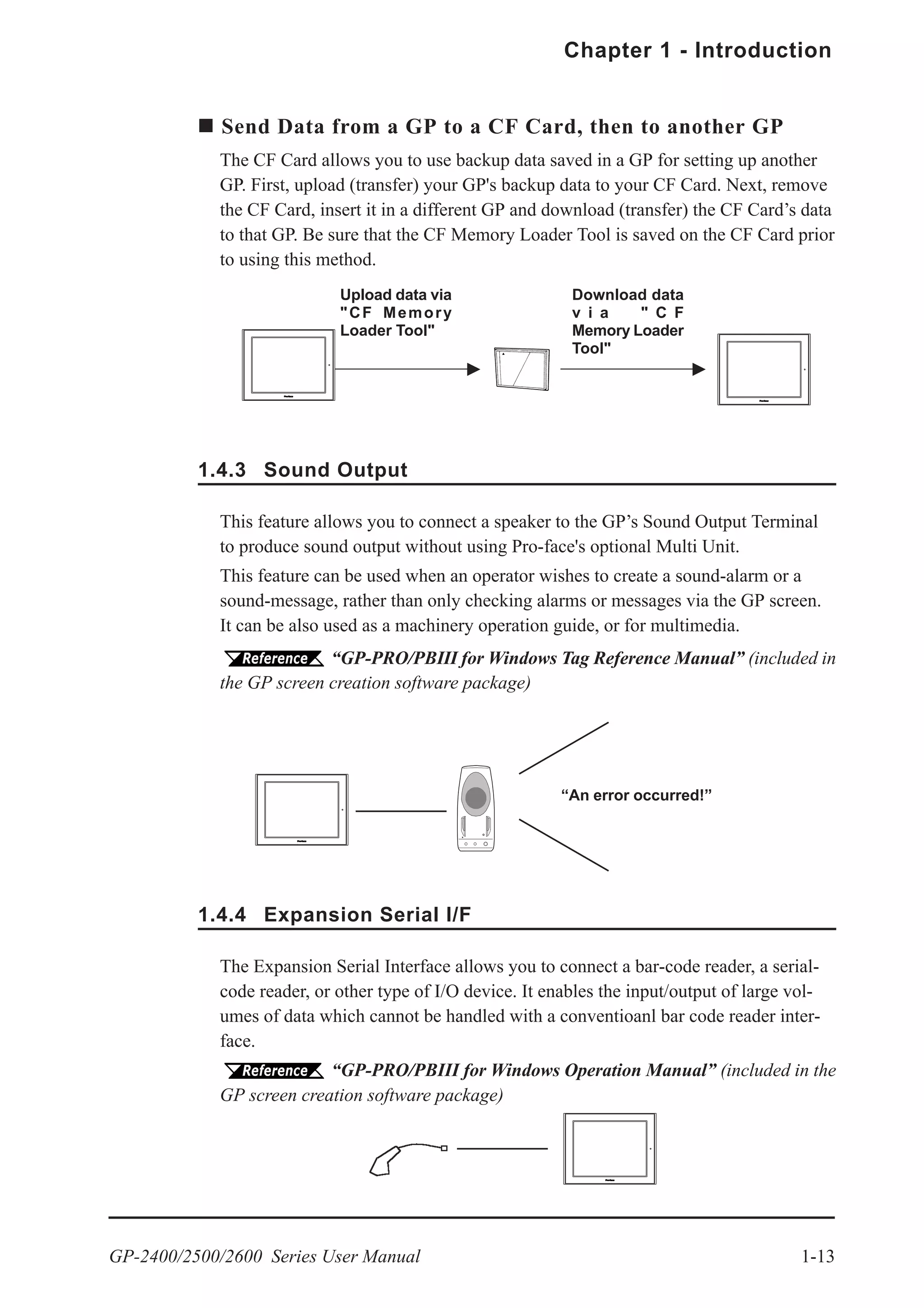
Send Data from a GP to a CF Card, then to another GP
The CF Card allows you to use backup data saved in a GP for setting up another
GP. First, upload (transfer) your GP's backup data to your CF Card. Next, remove
the CF Card, insert it in a different GP and download (transfer) the CF Card’s data
to that GP. Be sure that the CF Memory Loader Tool is saved on the CF Card prior
to using this method.
1.4.3 Sound Output
Download data
v i a " C F
Memory Loader
Tool"
Upload data via
"CF Memory
Loader Tool"
This feature allows you to connect a speaker to the GP’s Sound Output Terminal
to produce sound output without using Pro-face's optional Multi Unit.
This feature can be used when an operator wishes to create a sound-alarm or a
sound-message, rather than only checking alarms or messages via the GP screen.
It can be also used as a machinery operation guide, or for multimedia.
“GP-PRO/PBIII for Windows Tag Reference Manual” (included in
the GP screen creation software package)
“An error occurred!”
1.4.4 Expansion Serial I/F
The Expansion Serial Interface allows you to connect a bar-code reader, a serial-
code reader, or other type of I/O device. It enables the input/output of large vol-
umes of data which cannot be handled with a conventioanl bar code reader inter-
face.
“GP-PRO/PBIII for Windows Operation Manual” (included in the
GP screen creation software package)
Chapter 1 - Introduction
GP-2400/2500/2600 Series User Manual1-14
The 2-Port feature allows you to use Mitsubishi’s GPP software package (ladder
programming software) on your PC while the GP is connected to a PLC. With a
GP-2400/2500/2600 Series unit, you can use the 2-Port feature in the following
two ways:
• Via the internal 2-Port feature
The GP’s Tool Connector and a PC are connected via a data transfer cable (GPW-CB02).
• Via the external 2-Port Adapter II
Pro-face’s 2-Port Adapter II (GP070-MD11) is used.
For information about PLC types and GP compatibility with GP-2400/2500/2600 Se-
ries units, refer to GP-PRO/PBIII for Windows Device/PLC Connec-
tion Manual (included with the GP screen creation software)
1.4.5 Internal 2-Port Feature
GP
Pro-face's 2-Port Adapter II (GP070-MD11)
When Using Internal 2-Port feature *1
Connect to the Serial I/F via
the Programmer I/F Cable
Connect to GP's Tool Connector via
Data Transfer Cable (GPW-CB02)
Connect to PLC's Program-
ming Port
(PC with Mitsubishi’s GPP soft-
ware installed)
Mitsubishi PLC
(compatible types only)
GP
Connected to GP’s Serial I/F
When Using the External 2-Port Adapter *2
PC with Mitsubishi’s GPP software installed, or
a Programming Console
or
Connect to Programming Port
*1 The Device Monitor feature can also be used at the same time. For details about the device monitor
function, refer to GP-PRO/PBIII for Windows Device/PLC Connection
Manual (included with the GP screen creation software)
*2 GP-2400/2500/2600 Series units can also use the 2-Port Adapter II. For details, refer
to GP-PRO/PBIII for Windows Device/PLC Connection Manual (included
with the GP screen creation software)
Mitsubishi PLC
(compatible
types only)
GP-2400/2500/2600 Series User Manual 1-15
Chapter 1 - Introduction
Internal 2-Port Feature Usage Notes
• To use the Internal 2-Port feature, you will need to adjust your GP’s settings.
For information about these settings, refer to
GP-PRO/PBIII for Windows Device/PLC Connection Manual
(included with the GP Screen creation software)
• This feature can be used only while the GP is in ONLINE mode.
• Since the internal 2-Port feature uses the GP’s single tool connector, you will
not be able to use equipment which requires the tool connector (i.e. a Barcode
Reader, Optional Items, etc.)
• If you transfer screen data while the GP is in ONLINE mode, the screen will
not change to the data transfer screen automatically. Thus, you will need to
change the screen manually to the OFFLINE mode's [Main Menu/ Transfer]
screen.
4.1 Serial Data Transfer
• Peripheral equipment, such as a Programming Console, is not compatible with
the GP's Internal 2-Port feature. To use this type of equipment, you will need to
use the external 2- Port Adapter II.
1.4.6 Backlight Burnout Detection Feature
When the GP’s backlight burns out, it will be automatically detected. The GP’s
Status LED will alert you that the backlight is burned out so that you can disable
GP Touch Panel Operation and prevent a possible GP operation mistake. When
Backlight Burnout is detected the GP's Status LED will turn orange. Also, the
system data area’s “Status” bit10 *1
will turn ON.
For details about touch panel operation when the backlight burned
out, refer to 6.4.3 SET UP TOUCH PANEL.
*1 When using the Direct Access method, bit +6 will turn ON. The using Memory Link
method, bit 11 will turn ON. For details, refer to GP-PRO/PBIII for
Windows Device/PLC Connection Manual (included with the GP screen creation software)
Chapter 1 - Introduction
GP-2400/2500/2600 Series User Manual1-16
Memo
GP-2400/2500/2600 Series User Manual 2-1
2.1.1 Electrical
2.1 General Specifications
Chapter
2 Specifications
4. Part Names and Functions
5. Dimensions
1. General Specifications
2. Functional Specifications
3. Interface Specifications
GP2400-TC41-24V/GP2500-LG41-24V/GP2500-SC41-24V/
GP2500-TC41-24V/GP2600-TC41-24V
GP2500-TC11/GP2600-TC11
*1 All GP units marked Revision "3" conform to the specifications.
For more information on how to determine the revision version,
see "Revision Version" (page 15).
Rated Voltage AC100V AC100Vto AC240V*1
Rated Voltage Range AC85Vto AC132V AC85Vto AC265V*1
Power Consumption 50VAor less
50VAor less (ACIN100V)*1
85VAor less (ACIN240V)*1
Allowable Voltage Drop
Voltage Endurance
Insulation Resistance
AC1500V20mAfor 1 minute (between charging and FG terminals)
10MΩ or higher at DC500V(between charging and FG terminals)
20ms or less
GP2400-TC41-24V
Rated Voltage
Rated Voltage Range
Power Consumption 28W or less
Allowable Voltage Drop
In-rush Current
Voltage Endurance
Insulation Resistance
GP2500-LG41-24V, GP2500-SC41-24V,
GP2500-TC41-24V, GP2600-TC41-24V
AC1000V20mAfor 1 minute
(between charging and FG terminals)
10MΩ or higher at DC500V
(between charging and FG terminals)
DC 24V
DC19.2Vto DC28.8V
10ms or less
30Aor less
50W or less
Chapter 2 - Specifications
GP-2400/2500/2600 Series User Manual2-2
3.
2.1.2 Environmental
*1 When using GP-2500L/GP-2500S/GP-2600T in an environment where the
temperature becomes or exceeds 40 o
C for an extended period of time, the screen
contrast level may decrease from its original level of brightness.
GP2400-TC41-24V
GP2500-LG41-24V
GP2500-SC41-24V
GP2500-TC41-24V
GP2600-TC41-24V
GP2500-TC11
GP2600-TC11
Ambient Operating
Temperature
(Cabinet Interior)
(Panel Face)
Storage Temperature
Operating Humidity
Storage Humidity
Atmosheric Endurance
(GP Operation Altitude)
Air Purity (Dust)
Pollution Degree
Corrosive Gasses
When vibration is continuous
Noise Voltage: 1000Vp-p Noise Voltage: 1500Vp-p
Pulse Duration: 1µs Pulse Duration: 1µs
Rise Time: 1ns Rise Time: 1ns
Electrostatic Discharge
Immunity
Noise Immunity
(via noise simulator)
Vibration Resistance
0o
C to +50o
C *1
-20o
C to +60o
C
10%RH to 90%RH
(Non condensing, wet bulb temperature: 39o
C or less)
800hPa to 1114hPa (2000 meters or lower)
0.1mg/m3
or less (non-conductive levels)
Free of corrosive gasses
IEC61131-2 (JIS B 3501) compliant
When vibration is NOT continuous
10%RH to 90%RH
(Non condensing, wet bulb temperature: 39o
C or less)
Pollution Degree 2
6kV(complies with IEC 61000-4-2 Level 3)
10Hzto 57Hz0.075mm, 57Hzto 150Hz 9.8m/s2
10Hzto 57Hz0.035mm, 57Hzto 150Hz4.9m/s2
X, Y, Z directions for 10 times (80min.)
GP-2400/2500/2600 Series User Manual 2-3
Chapter 2 - Specifications
2.1.3 Structural
GP-2400 Series GP-2500 Series GP-2600 Series
Grounding
Ratings
*1
(For front panel of installed unit)
Weight 1.7 kg (5.5lb) or less
Cooling Method
External Dimensions
W215mm [8.46in] x
H170mm [6.69in]
x D60mm [2.36in]
W317mm [12.48in] x H243mm [9.57in]
x D58mm [2.28in]
100Ω or less, or your country's applicable standard
3.5kg (7.7lb) or less
Natural air circulation
Equivalent to IP65f (JEM 1030)
NEMA#250 Type4X/12
*1 The front face of the GP unit, installed in a solid panel, has been tested using
conditions equivalent to the standards shown in the specification. Even though
the GP unit’s level of resistance is equivalent to these standards, oils that should
have no effect on the GP can possibly harm the unit. This can occur in areas
where either vaporized oils are present, or where low viscosity cutting oils are
allowed to adhere to the unit for long periods of time. If the GP’s front face
protection sheet becomes peeled off, these conditions can lead to the ingress of
oil into the GP and separate protection measures are suggested. Also, if non-
approved oils are present, it may cause deformation or corrosion of the front
panel’s plastic cover. Therefore, prior to installing the GP be sure to confirm the
type of conditions that will be present in the GP’s operating environment. If the
installation gasket is used for a long period of time, or if the unit and its gasket
are removed from the panel, the original level of the protection cannot be guar-
anteed. To maintain the original protection level, you need to replace the instal-
lation gasket regularly.
Chapter 2 - Specifications
GP-2400/2500/2600 Series User Manual2-4
2.2 Functional Specifications
2.2.1 Display
GP-2400 Series GP-2500 Series GP-2600 Series
GP-2500L
Monochrome LCD
GP-2500S
STN type color LCD
GP-2500T
TFT type color LCD
GP-2500L
Black and White,
2 levels of gray/
Black and White,
8 levels of gray*3
(Color switching is done
via software)
GP-2500S
64 colors / 3-speed blink
GP-2500T
256 / No blink*1
,
64 colors / 3-speed blink
(Color switching is done
via software)
Resolution 800 x 600pixels
W149.8mm [5.90in.] x
H112.3mm [4.42in.]
W211.2mm [8.34in.] x
H158.4mm [6.24in.]
W246mm [9.69in.] x
H184.5mm [7.26in.]
8x8 dots 100 Char. x 75 rows
8x16 dots 100 Char. x 37 rows
16x16 dots 50 Char. x 37 rows
32x32 dots 25 Char. x 18 rows
Backlight
8 levels of adjustment
available via touch panel.
(GP-2500L/S Only)
Contrast
Adjustment
TFT type color LCD
Colors
256 / No blink*1
,
64 colors / 3-speed blink
(Color switching is done
via software)
256 / No blink*1
,
64 colors / 3-speed blink
(Color switching is done
via software)
Effective Display
Area
Language Fonts
ASCII: (Code page 850) Alphanumeric (incl. Eur. characters)
Chinese: (GB2312-80 codes) simplified Chinese fonts
Japanese: ANK 158, Kanji : 6962 (JIS Standards 1 & 2)
Korean: (KSC5601 - 1992 codes) Hangul fonts
Taiwanese: (Big 5 codes) traditional Chinese fonts
Text
80 Char. x 60 rows
640 x 480pixels
Type TFT type color LCD
80 Char. x 30 rows
40 Char. x 30 rows
20 Char. x 15 rows
Font Sizes
Hight can be expanded 1 to 8 times.
Width can be expanded 1/2*4
, 1 to 8 times.
CCFL (Service life: 50,000 hrs. at 25o
C and 24hr. operation)
Brightness Control 4 levels of adjustment available via touch panel.
Character Sizes *2 8X8 dot font, 8X16 dot font, 16X16 dot font and 32X32 dot font
GP-2400/2500/2600 Series User Manual 2-5
Chapter 2 - Specifications
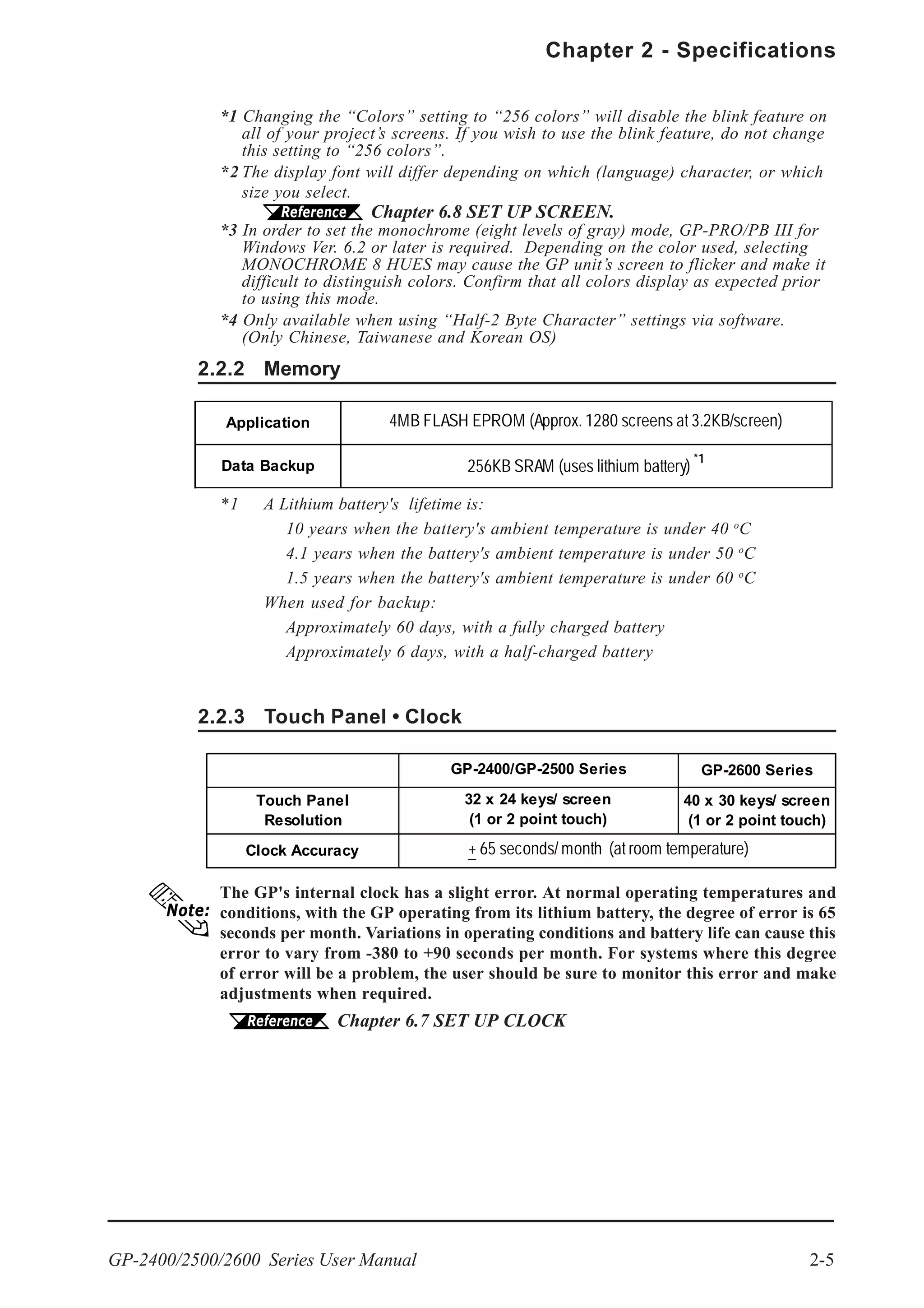
2.2.3 Touch Panel • Clock
The GP's internal clock has a slight error. At normal operating temperatures and
conditions, with the GP operating from its lithium battery, the degree of error is 65
seconds per month. Variations in operating conditions and battery life can cause this
error to vary from -380 to +90 seconds per month. For systems where this degree
of error will be a problem, the user should be sure to monitor this error and make
adjustments when required.
Chapter 6.7 SET UP CLOCK
2.2.2 Memory
*1 A Lithium battery's lifetime is:
10 years when the battery's ambient temperature is under 40 o
C
4.1 years when the battery's ambient temperature is under 50 o
C
1.5 years when the battery's ambient temperature is under 60 o
C
When used for backup:
Approximately 60 days, with a fully charged battery
Approximately 6 days, with a half-charged battery
Application 4MB FLASH EPROM (Approx. 1280 screens at 3.2KB/screen)
Data Backup 256KB SRAM (uses lithium battery)
*1
*1 Changing the “Colors” setting to “256 colors” will disable the blink feature on
all of your project’s screens. If you wish to use the blink feature, do not change
this setting to “256 colors”.
*2 The display font will differ depending on which (language) character, or which
size you select.
Chapter 6.8 SET UP SCREEN.
*3 In order to set the monochrome (eight levels of gray) mode, GP-PRO/PB III for
Windows Ver. 6.2 or later is required. Depending on the color used, selecting
MONOCHROME 8 HUES may cause the GP unit’s screen to flicker and make it
difficult to distinguish colors. Confirm that all colors display as expected prior
to using this mode.
*4 Only available when using “Half-2 Byte Character” settings via software.
(Only Chinese, Taiwanese and Korean OS)
GP-2600 Series
Touch Panel
Resolution
40 x 30 keys/ screen
(1 or 2 point touch)
Clock Accuracy + 65 seconds/ month (at room temperature)
GP-2400/GP-2500 Series
32 x 24 keys/ screen
(1 or 2 point touch)
Chapter 2 - Specifications
GP-2400/2500/2600 Series User Manual2-6
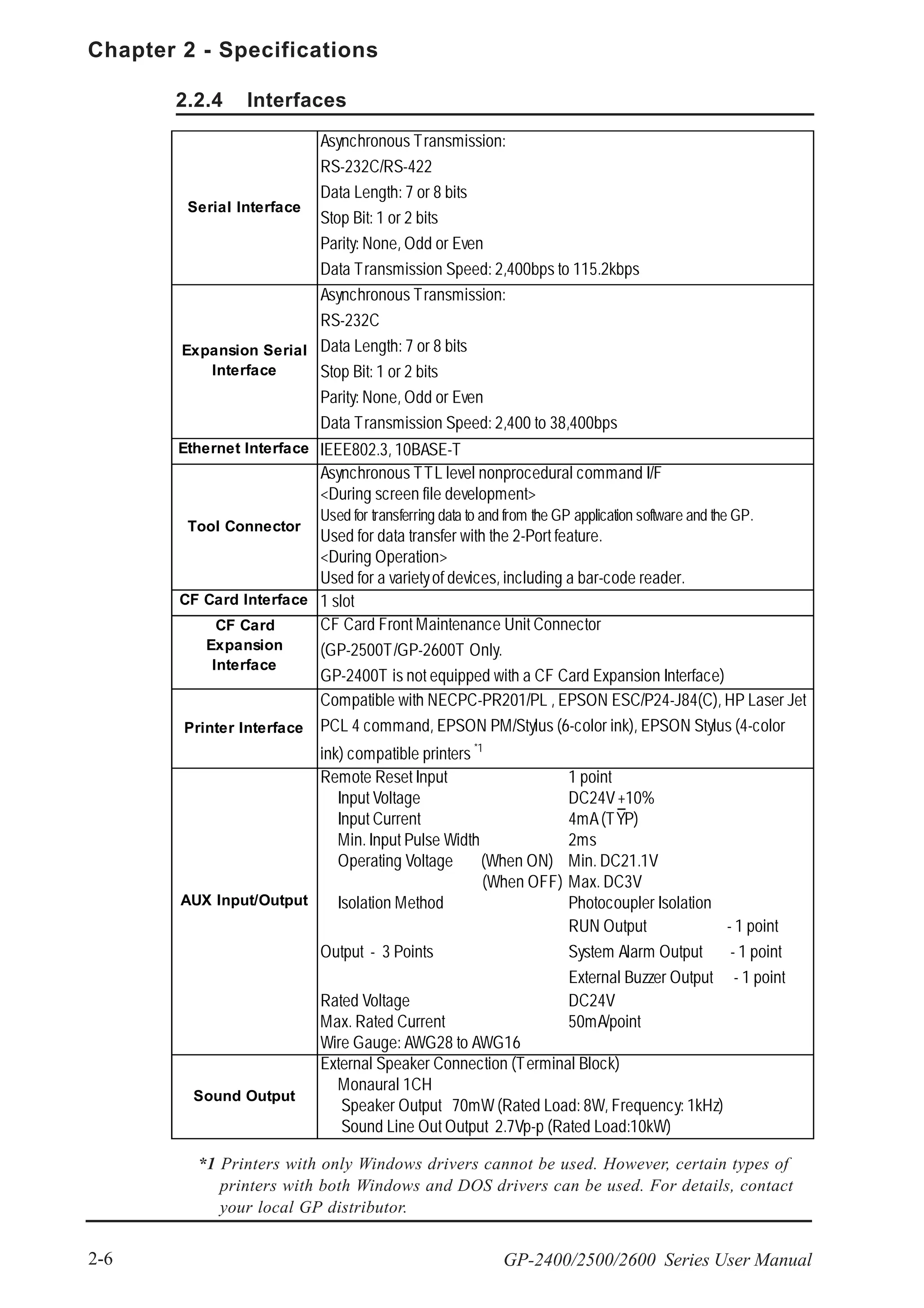
2.2.4 Interfaces
*1 Printers with only Windows drivers cannot be used. However, certain types of
printers with both Windows and DOS drivers can be used. For details, contact
your local GP distributor.
Ethernet Interface
CF Card Interface
CF Card
Expansion
Interface
Printer Interface
Remote Reset Input 1 point
Input Voltage DC24V+10%
Input Current 4mA(TYP)
Min. Input Pulse Width 2ms
Operating Voltage (When ON) Min. DC21.1V
(When OFF) Max. DC3V
Isolation Method Photocoupler Isolation
Output - 3 Points
RUN Output - 1 point
System Alarm Output - 1 point
External Buzzer Output - 1 point
Rated Voltage DC24V
Max. Rated Current 50mA/point
Monaural 1CH
Serial Interface
Asynchronous Transmission:
RS-232C/RS-422
Data Length: 7 or 8 bits
Stop Bit: 1 or 2 bits
Parity: None, Odd or Even
Data Transmission Speed: 2,400bps to 115.2kbps
Expansion Serial
Interface
Asynchronous Transmission:
RS-232C
Data Length: 7 or 8 bits
Stop Bit: 1 or 2 bits
Parity: None, Odd or Even
Data Transmission Speed: 2,400 to 38,400bps
AUX Input/Output
IEEE802.3, 10BASE-T
Tool Connector
Asynchronous TTL level nonprocedural command I/F
<During screen file development>
Used for transferring data to and from the GP application software and the GP.
Used for data transfer with the 2-Port feature.
<During Operation>
Used for a varietyof devices, including a bar-code reader.
Wire Gauge: AWG28 to AWG16
1 slot
CF Card Front Maintenance Unit Connector
(GP-2500T/GP-2600T Only.
GP-2400T is not equipped with a CF Card Expansion Interface)
Compatible with NECPC-PR201/PL , EPSON ESC/P24-J84(C), HP Laser Jet
PCL 4 command, EPSON PM/Stylus (6-color ink), EPSON Stylus (4-color
ink) compatible printers *1
Sound Output
External Speaker Connection (Terminal Block)
Speaker Output 70mW (Rated Load: 8W, Frequency: 1kHz)
Sound Line Out Output 2.7Vp-p (Rated Load:10kW)
GP-2400/2500/2600 Series User Manual 2-7
Chapter 2 - Specifications
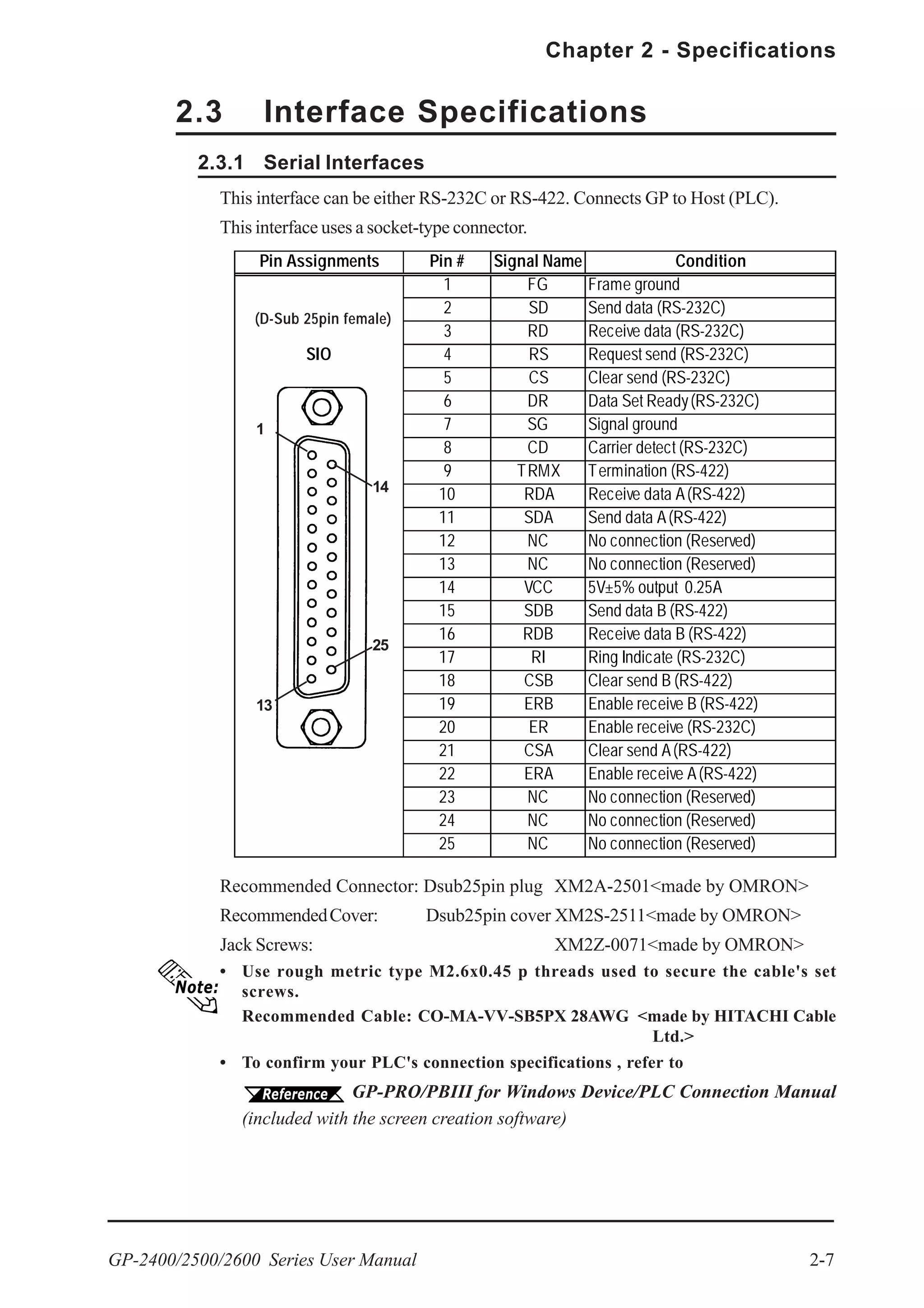
2.3 Interface Specifications
2.3.1 Serial Interfaces
Recommended Connector: Dsub25pin plug XM2A-2501<made by OMRON>
RecommendedCover: Dsub25pin cover XM2S-2511<made by OMRON>
Jack Screws: XM2Z-0071<made by OMRON>
• Use rough metric type M2.6x0.45 p threads used to secure the cable's set
screws.
Recommended Cable: CO-MA-VV-SB5PX 28AWG <made by HITACHI Cable
Ltd.>
• To confirm your PLC's connection specifications , refer to
GP-PRO/PBIII for Windows Device/PLC Connection Manual
(included with the screen creation software)
Pin Assignments Pin # Signal Name Condition
1 FG Frame ground
2 SD Send data (RS-232C)
3 RD Receive data (RS-232C)
SIO 4 RS Request send (RS-232C)
5 CS Clear send (RS-232C)
6 DR Data Set Ready(RS-232C)
7 SG Signal ground
8 CD Carrier detect (RS-232C)
9 TRMX Termination (RS-422)
10 RDA Receive data A(RS-422)
11 SDA Send data A(RS-422)
12 NC No connection (Reserved)
13 NC No connection (Reserved)
14 VCC 5V±5% output 0.25A
15 SDB Send data B (RS-422)
16 RDB Receive data B (RS-422)
17 RI Ring Indicate (RS-232C)
18 CSB Clear send B (RS-422)
19 ERB Enable receive B (RS-422)
20 ER Enable receive (RS-232C)
21 CSA Clear send A(RS-422)
22 ERA Enable receive A(RS-422)
23 NC No connection (Reserved)
24 NC No connection (Reserved)
25 NC No connection (Reserved)
1
13
25
14
This interface can be either RS-232C or RS-422. Connects GP to Host (PLC).
This interface uses a socket-type connector.
(D-Sub 25pin female)
Chapter 2 - Specifications
GP-2400/2500/2600 Series User Manual2-8
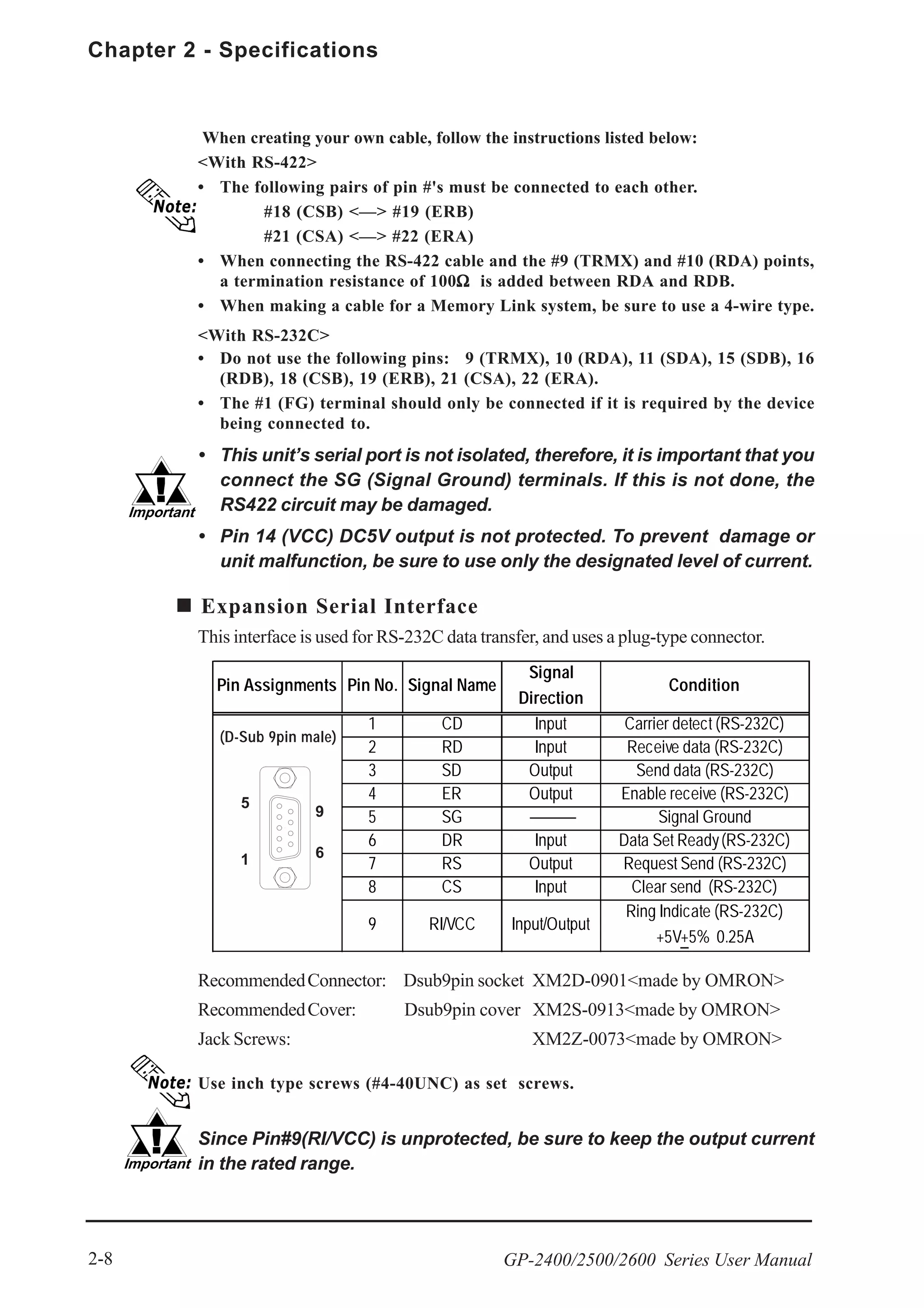
When creating your own cable, follow the instructions listed below:
<With RS-422>
• The following pairs of pin #'s must be connected to each other.
#18 (CSB) <—> #19 (ERB)
#21 (CSA) <—> #22 (ERA)
• When connecting the RS-422 cable and the #9 (TRMX) and #10 (RDA) points,
a termination resistance of 100ΩΩΩΩΩ is added between RDA and RDB.
• When making a cable for a Memory Link system, be sure to use a 4-wire type.
<With RS-232C>
• Do not use the following pins: 9 (TRMX), 10 (RDA), 11 (SDA), 15 (SDB), 16
(RDB), 18 (CSB), 19 (ERB), 21 (CSA), 22 (ERA).
• The #1 (FG) terminal should only be connected if it is required by the device
being connected to.
• This unit’s serial port is not isolated, therefore, it is important that you
connect the SG (Signal Ground) terminals. If this is not done, the
RS422 circuit may be damaged.
• Pin 14 (VCC) DC5V output is not protected. To prevent damage or
unit malfunction, be sure to use only the designated level of current.
Expansion Serial Interface
This interface is used for RS-232C data transfer, and uses a plug-type connector.
RecommendedConnector: Dsub9pin socket XM2D-0901<made by OMRON>
RecommendedCover: Dsub9pin cover XM2S-0913<made by OMRON>
Jack Screws: XM2Z-0073<made by OMRON>
Since Pin#9(RI/VCC) is unprotected, be sure to keep the output current
in the rated range.
5
1 6
9
(D-Sub 9pin male)
Pin Assignments Pin No. Signal Name
Signal
Direction
Condition
1 CD Input Carrier detect (RS-232C)
2 RD Input Receive data (RS-232C)
3 SD Output Send data (RS-232C)
4 ER Output Enable receive (RS-232C)
5 SG Signal Ground
6 DR Input Data Set Ready(RS-232C)
7 RS Output Request Send (RS-232C)
8 CS Input Clear send (RS-232C)
9 RI/VCC Input/Output
Ring Indicate (RS-232C)
+5V+5% 0.25A
Use inch type screws (#4-40UNC) as set screws.
GP-2400/2500/2600 Series User Manual 2-9
Chapter 2 - Specifications
Pin Assignments Pin # Signal Name Condition
1 GND Ground
2 RESERVE Reserved
3 PDB5 Data Signal
4 PDB4 Data Signal
5 PDB3 Data Signal
6 GND Ground
7 SLCT Select Status (Input)
8 PDB0 Data Signal
9 PSTB Strobe Signal (Output)
10 BUSY BusySignal (Input)
11 PDB7 Data Signal
12 PDB6 Data Signal
13 GND Ground
14 ERROR Printer Error (Input)
15 GND Ground
16 PDB2 Data Signal
17 PDB1 Data Signal
18 PE Paper Runout
19 INIT Initialization Signal (Output)
20 GND Ground
2.3.2 Printer Interface
When connecting a printer, use Digital’s printer cable (PSM-PRCB00).
1
10
20
11
Chapter 2 - Specifications
GP-2400/2500/2600 Series User Manual2-10
This interface is used for external reset, alarm output, buzzer output, or sound output.
2.3.3 AUX I/O and Sound Output
Pin Assingments Pin # Signal Name Condition
1 AUXCOM External Reset Common
2 AUXRESET External Reset Input
3 RUN ONLINE Operation
4 ALARM System Alarm Output
5 OUTCP DC24V
6 BUZZ External Buzzer Output
7 RESERVE Reserved
8 OUTCN 0V
9 RESERVE Reserved
10 SP OUT Speaker Output
11 GND Ground
12 LINE OUT Sound Lineout Output
1
12
Input Circuit
560Ω
InternalCircuit
Input Section
5.4kΩ
DC24V
AUXRESET
Input Voltage DC24V +/- 10%
InputCurrent 4mA/DC24V(TYP)
Min. Input Pulse Width 2ms
Operating Voltage ONVoltagemin. DC21.2V
OFF Voltage max. DC 3V
TerminationType Photo-CouplerIsolation
AUXCOM
Torque: 0.2 to 0.4N•m
Wire Gauge: AWG16 to AWG 28
Removed Wire Length: 7 +/- 0.5mm [0.28 +/- 0.02 in.]
GP-2400/2500/2600 Series User Manual 2-11
Chapter 2 - Specifications
Load Voltage: V 22.8
20.0
403020100 50 Load Current: mA
23
OutputCircuit
Max. Load Current 50mA/point
Rated Load Voltage DC24V(TYP)
InternalCircuit
OUTCP
DOUT*
470P
F
22
Load
Output Section
* DOUT is used for RUN, ALARM, and BUZZ.
OUTCN
DC24V
ThefollowingchartillustratestherelationshipbetweentheLoadVoltageandtheLoad
Current:
Chapter 2 - Specifications
GP-2400/2500/2600 Series User Manual2-12
A:Display Panel
The GP monitor screen displays the screen
setup and corresponding host (PLC) data.
(Allunits)
B: Touch Panel
Performs any screen change operations and
sends data to the PLC.
C:Status LED
This LED reflects the GP's condition.
D:Power Input Terminal Block
Connects the power cord.
E: CF Card Expansion Interface *1
Used for connecting the CF Card Front
MaintenanceUnit.
(GP-2500 Series, GP-2600 Series only)
F: Expansion Unit Interface 1
Connectsexpansionunitswithcommunication
features.
G:Expansion Unit Interface 2 *1
Connectsexpansionunitswithdisplayfeatures.
(GP-2500T , GP-2600 Series only)
H: CF Card Cover
Open this cover to see the CF Card Slot. When
accessingtheCFCard,thiscovermustbeclosed.
I: CF Card Access Lamp
If the CF Card Cover is closed when the CF
Card is inserted, the LED lamp turns ON. The
LEDlampwillremainturnedONeveniftheCF
Card Cover is opened while the GP accesses
the CF Card.
Color Indicates
OFF No power input
Green Normal operation
Orange Backlight is burned out
2.4 Part Names and Functions
A,B C
E F G
D H I
*1 When a unit is attached to this interface, the bus conversion unit (PSL-CONV00)
cannot be used, since there are no connectors available for it.
Front
Rear
(GP-2500/2600 Series)
F
D P L M Q N
H
I
J
(GP-2400 Series)
GP-2400/2500/2600 Series User Manual 2-13
Chapter 2 - Specifications
J: CF Card Slot
Insert the CF Card in this slot.
K: Dip Switches
J L M
N O QP
Color Indicates
Orange
Lights when power is turned ON,
blinks during data transfer.
Green Turns ON when linked.
Bottom
(GP-2500/2600 Series)
O
Side
(GP-2400 Series)
K
L: Serial Interface
Used for the RS-232C and RS-422
cables. Is connected to the Host (PLC.)
M: Expansion Serial Interface
Uses RS-232C cable.
N: Printer Interface
Connect the printer cable here. Recom-
mendedcable:DigitalElectronicCorpora-
tion PSM-PRCB00 Cable.
O: Ethernet Interface
Used for Ethernet (10BASE-T).
TheLEDwillchange(turnON,blink)
according to the GP’s status.
P: Screw Lock Terminal Block
Used for external reset, alarm output,
buzzer output, and sound output.
Q: Tool Connector
The Data Transfer cable, or Bar Code
Reader can be connected here.
Dip Switch Function ON OFF Note
1
This Dip switch
setting controls
the startup from a
CF Card.
Startup from
CF Card is
enabled.
Startup from
CF Card is
disabled.
CF Card with
startup data
required.
2 Reserved
3 Reserved
4
This setting
controls the forced
closing ofthe CF
Card cover.
Forced close
enabled.
Forced close
disabled.
Used when CF
Card cover is
damaged.
Keep these
switches OFF
Chapter 2 - Specifications
GP-2400/2500/2600 Series User Manual2-14
Unit: mm [in.]
2.5 Dimensions
2.5.2 GP-2500 Series External Dimensions
Top
Front Side
301 [11.85]
58 [2.28]
227[8.94]
8 [0.31]
243[9.57]
317 [12.48]
Unit: mm [in.]
2.5.1 GP-2400 Series External Dimensions
Top
Front
Side
204 [8.03]
60 [2.36]
159[6.26]
8 [0.31]
170[6.69]
215 [8.46]
GP-2400/2500/2600 Series User Manual 2-15
Chapter 2 - Specifications
2.5.3 GP-2600 Series External Dimensions
Unit: mm [in.]
Top
Front Side
301 [11.85]
58 [2.28]
227[8.94]
8 [0.31]
243[9.57]
317 [12.48]
2.5.4 Panel Cut Dimensions
Unit: mm [in.]
4-R3[0.12] or less
4-R3[0.12] or less
204.5
+1
0
159.5
+1
0[6.28]
+0.04
0
[8.05 ]
+0.04
0
GP-2400 Series
Unit: mm [in.]
GP-2500/2600 Series
[8.96]
227.5
+1
0
+0.04
0
301.5
+1
0 [11.87 ]
+0.04
0
Chapter 2 - Specifications
GP-2400/2500/2600 Series User Manual2-16
2.5.5 Installation Fasteners
Unit: mm [in.]
16[0.63]
31[1.22]
19.5[0.77]
10[0.39]
11[0.43]
3-1GP-2400/2500/2600 Series User Manual
Chapter
3 Installation and Wiring
1 . I n s t a l l a t i o n
2. Wiring Cautions
3. Tool Connector
3.1 Installation
3.1.1 Installation Procedures
4. Ethernet Cable Connector
5. CF Card Insertion and Removal
6. Sound Output
Follow the steps given below when installing the GP.
It is strongly recommended that you use the installation gasket, since it absorbs
vibration in addition to repelling water.
Place the GP on a level surface with the display panel facing downward. Check
that the GP’s installation gasket is seated securely into the gasket’s groove, which
runs around the perimeter of the panel’s frame.
For details about installing the gasket, refer to
8.1.2 Installation Gasket Check/Replacement
Check the Installation Gasket’s Seating
Installation
Gasket
Rear
face
• Before installing the GP into a cabinet or panel, check that the Instal-
lation gasket is securely attached to the unit.
• A gasket which has been used for a long period of time may have
scratches or dirt on it, and could have lost much of its dust and drip
resistance. Be sure to change the gasket periodically, or when
scratches or dirt become visible.
• Be sure to use gasket model PS400-WP00-MS (GP-2400 Series)/
GP570-WP10-MS (GP-2500/2600 Series).
• Be sure the gasket's seam is not inserted into any of the unit's cor-
ners, only in the straight sections of the groove. Inserting it into a
corner may lead to its eventually tearing.
Chapter 3 - Installation and Wiring
3-2 GP-2400/2500/2600 Series User Manual
Creating a Panel Cut
Create the correct sized opening required to install the GP, using the installation
dimensions given.
2.5.4 GP Panel Cut Dimensions
The installation gasket, installation brackets and attachment screws are all re-
quired when installing the GP.
Check that the installation panel or cabinet's surface is flat, in good condition and has
no jagged edges. Also, if desired, metal reinforcing strips can be attached to the inside
of the panel, near the Panel Cut, to increase the panel’s strength.
For easier maintenance, operation, and improved ventilation, be sure
to install the GP at least 100 mm [3.94 in.] away from adjacent struc-
tures and other equipment.
Panel thickness should be from 1.6mm [0.06in.] to 10mm [0.4in.]. De-
cide the panel’s thickness based on the level of panel strength required.
Panel Cut
Area
Panel
3-3
Chapter 3 - Installation and Wiring
GP-2400/2500/2600 Series User Manual
• Be sure that the ambient operation temperature and the ambient
humidity are within their designated ranges. (When installing the GP
in a cabinet or enclosure, the term “ambient operation temperature”
indicates the cabinet or enclosure’s internal temperature.
• Be sure that heat from surrounding equipment does not cause the
GP to exceed its standard operating temperature.
• When installing the GP in a slanted panel, the panel face should not
incline more than 30o
.
• When installing the GP in a slanted panel, and the panel face in-
clines more than 30o
, the ambient temperature must not exceed 40
o
C. You may need to use forced air cooling (fan, A/C) to ensure the
ambient operating temperature is 40 o
C or below.
• When installing the GP vertically, position the unit so that the Power
Input Terminal Block is also vertical.
Chapter 3 - Installation and Wiring
3-4 GP-2400/2500/2600 Series User Manual
2) Insert the installation fasten-
ers into the GP’s insertion
slots, at the top and bottom
of the unit.
(total: 4 slots)
Installing the GP
1) Insert the GP into the panel
cut out, as shown here.
GP-2400 Series
GP-2500/2600 Series
3-5
Chapter 3 - Installation and Wiring
GP-2400/2500/2600 Series User Manual
4) Use a Phillips screw driver to
tighten each fastener screw and
secure the GP in place.
A torque of only 0.5 N•m is sufficient to tighten these screws. Do not
use too much force, since it may damage the GP unit.
Depending on the installation panel's thickness, etc., the number of installation fas-
teners used on a GP-2500 Series or GP-2600 Series can be increased to provide a
higher level of moisture resistance. (The GP-2400T is limited to four (4)).
3) Insert each of the fasteners
shown below. Be sure to pull
the fastener back until it is
flush with the rear of the
attachment hole.
Chapter 3 - Installation and Wiring
3-6 GP-2400/2500/2600 Series User Manual
• Wherever possible, use thick wires (max 2mm2
) for power terminals, and twist
the exposed wire ends when connecting the Ring Terminals.
• Please use the following size crimp-on type Ring Terminals.
3.2 Wiring Cautions
3.2.1 Connecting the Power Cord
• To prevent the Ring Terminals from causing a short when the
terminal block attachment screws are loosened, be sure to use
sleeve-type Ring Terminals.
• When the FG terminal is connected, be sure the wire is grounded.
Not grounding the GP unit will result in excessive noise. Use your
country’s applicable standard for grounding.
3.2.3 Grounding
• The SG and FG terminals are connected internally in the GP unit.
• When connecting the SG line to another device, be sure that the
design of the system/connection does not produce a shorting loop
in your system.
WARNINGS
• To avoid an electric shock, be sure the power cord is
unplugged from the power outlet when connecting the
power terminals to the GP unit.
• GP2400-TC41-24V, GP2500-TC41-24V and GP2600-TC41-
24V are designed to use only with DC24V power. Using
any other level of power can damage both the power
supply and the GP unit.
• For models GP2500-TC11 and GP2600-TC11, products
on which REV "3" is not marked are designed to use
only with AC100V power. Using any other level of power
can damage both the power supply and the GP unit.
• Since the GP is not equipped with the power switch, be
sure to connect a breaker type power switch to the GP’s
power cord.
• Be sure to ground the GP’s FG terminal. Failure to do so
can lead to an electrical shock or GP malfunction.
3-7
Chapter 3 - Installation and Wiring
GP-2400/2500/2600 Series User Manual
1) Be sure that the GP's power cord is not plugged in to the power supply.
2) Remove the Terminal Strip's clear plastic cover.
3) Remove the screws from the three (3) middle terminals, position the Ring
Terminals as shown above and reattach the screws. (Check each wire to make
sure the connections are correct)
4) Reattach the Terminal Strip's clear plastic cover.
A torque of only 0.5 to 0.6 N•m is required to tighten an attachment screw.
L AC Input Live Line
N AC Input Neutral Line
FG
Grounding Terminal connected to
the GP chassis.
Connecting the Power Supply Terminals
+ Positive electrode
- Negative electrode
FG
Grounding Terminal connected to
the GP chassis.
GP2500-TC11, GP2600-TC11
Power
Terminal
BlockL N FG
GP2400-TC41-24V GP2500-LG41-24V, GP2500-SC41-24V,
GP2500-TC41-24V, GP2600-TC41-24V
Chapter 3 - Installation and Wiring
3-8 GP-2400/2500/2600 Series User Manual
3.2.2 Connecting the Power Supply
GP unit
Twisted Lines
Input/ Out-
put Power
power
input/output
main circuit
Motor
input/out-
put unit
GP unit
noise
reducing
transformer
voltage
transformer
Operation
Unit
Input/ Out-
put Power
• If the supplied voltage exceeds the
GP unit's range, connect a voltage
transformer.
Chapter 2 Specifi-
cations for the allowable voltage
range.
• For between the line and ground,
select a power supply that is low
in noise. If there is an excess
amount of noise, connect a noise
reducing transformer.
Use Voltage and Noise Re-
ducing transformers with
capacities exceeding 100VA.
• When supplying power to the GP
unit, please separate the input/
output and operation unit lines, as
shown.
• To increase the noise resistance
quality of the power cable, simply
twist each power wire before
attaching the Ring Terminal.
• The power supply cable must not
be bundled or positioned close to
main circuit lines (high voltage,
high current), or input/output
signal lines.
Twisted Lines
M a i n
Power
GP
power
GP unit
GP unit
M a i n
Power
GP
power
• Connect a lightening surge ab-
sorber, as shown in the diagram,
to deal with power surges.
• To avoid excess noise, make the
power cable as short as possible.
• Be sure to ground the surge
absorber (E1) separately
from the GP unit (E2).
• Select a surge absorber that
has a maximum circuit volt-
age greater than that of the
peak voltage of the power
supply.
GP unit
lightening
surge
absorber
3-9
Chapter 3 - Installation and Wiring
GP-2400/2500/2600 Series User Manual
3.2.3 Grounding
(a) Exclusive Grounding (BEST) *1 Connect the FG terminal found at the back
of the GP to an exclusive ground. [dia-
gram (a)].
(b) Common Grounding (OK)*1
• Check that the grounding re-
sistance is less than 100ΩΩΩΩΩ.
• The SG and FG terminals are
connected internally in the
GP unit.
• When connecting the SG line
to another device, be sure
that the design of the system/
connection does not produce
a shorting loop.
• The grounding wire should
have a cross sectional area
greater than 2mm2
. Create
the connection point as close
to the GP unit as possible,
and make the wire as short,
as possible. When using a
long grounding wire, replace
the thin wire with a thicker
wire, and place it in a duct.
(c) Common Grounding (Not OK)
Input and output signal lines must be separated from the power control cables
for operating circuits.
If this is not possible, use a shielded cable and connect the shield to the GP's
frame.
3.2.4 I/O Signal Line Placement
If exclusive grounding is not possible, use a
common connection point. [diagram (b)]
If the equipment does not function
properly when grounded, disconnect
the ground wire from the FG termi-
nal.
*1 Use a grounding resistance of less than 100Ω and a 2mm2
or greater thickness wire,
or your country’s applicable standard. For details, contact your local GP distributor.
Do not use common grounding, since it can lead to an acci-
dent or machine breakdown.
CAUTION
Chapter 3 - Installation and Wiring
3-10 GP-2400/2500/2600 Series User Manual
3.3 Tool Connector
The GP's Data Transfer Cable, Memory Loader, or the Bar Code Reader can be
attached to the GP unit’s Tool Connector.
When the Bar Code Reader uses a separate power supply:
• Turn the Bar Code Reader ON before turning the GP ON.
• Turn the GP OFF before turning the Bar Code Reader OFF.
Bottom Face
GP-2500 Series, GP-2600 Series
Ethernet Interface
(RJ-45 Connector)
Tool Connector
Bottom Face
GP-2500/2600 Series
3.4 Ethernet Cable Connector
Use the following drawing to locate your GP unit’s Ethernet connector. The GP
Ethernet interface is IEEE802.3 compliant, and transmits data at 10Mbps.
• It is strongly recommended that your Ethernet network is installed by a trained
engineer.
• 1:1 connections using a cross cable may not be possible depending on
the type of personal computer and network card you are using. Make sure to
use a hub for connection.
WARNING
To prevent an electric shock, unplug the GP unit's power
cord from the main power supply prior to attaching or de-
taching any connector(s) to or from the GP.
Rear Face
GP-2400 Series
Side Face
GP-2400 Series
3-11
Chapter 3 - Installation and Wiring
GP-2400/2500/2600 Series User Manual
3.5 CF Card Installation and Removal
When using the GP Unit and a CF Card, follow the precau-
tions below:
• Prior to inserting or removing a CF Card, be sure to turn the
GP unit’s CF Card ACCESS switch OFF and to confirm that
the ACCESS lamp is not lit. If you do not, CF Card internal
data may be damaged or lost.
• While a CF Card is being accessed, NEVER turn OFF or reset
the GP, or insert or remove the CF Card. Prior to performing
these operations, create and use a special GP application
screen that will prevent access to the CF Card.
Refer to GP-PRO/PB III for Windows Tag Reference Manual
(included in the screen editor software package)
• Prior to inserting a CF Card, familiarize yourself with the CF
Card’s front and rear face orientation, as well as the CF Card
connector’s position. If the CF Card is not correctly posi-
tioned when it is inserted into the Mulit Unit, the CF Card’s
internal data and the GP unit may be damaged or broken.
• Be sure to use only CF Cards manufactured by the Digital
Electronics Corporation. GP unit performance cannot be
guaranteed when using another manufacturer’s CF Card.
• Once GP data is lost, it cannot be recovered. Since acciden-
tal data loss can occur at any time, be sure to back up all GP
screen and CF Card data regularly.
• Be sure to follow the instructions given below to prevent the
CF Card's internal data from being destroyed or a CF Card
malfunction from occuring:
• DO NOT bend the CF Card.
• DO NOT drop or strike the CF Card against another
object.
• Keep the CF Card dry.
• DO NOT touch the CF Card connectors.
• DO NOT disassemble or modify the CF Card.
CAUTIONS
Chapter 3 - Installation and Wiring
3-12 GP-2400/2500/2600 Series User Manual
4) Confirm that the CF Card Access
LED turns ON.
2) Insert the CF Card in the CF Card
Slot, until the ejector button is
pushed forward.
3) Close the cover. (As shown.)
Removing the CF Card
Simply reverse the steps shown in the previous “Inserting CF Card” explanation.
Prior to removing the CF Card, confirm that the CF Card Access LED is turned
OFF.
Inserting the CF Card
Use the following steps to insert the CF Card in the GP.
(The illustrations below show the procedures for the GP-2500/2600 Series mod-
els. However, these procedures are also the same for the GP-2400 Series.)
1) Slide the CF Card Cover in the direc-
tion shown here, then upwards to
open the cover.
The GP cannot access the
CF Card if the CF Card
cover is already opened. If
however, the CF Card
Cover is opened while the
GP is accessing the CF
Card, access will not be in-
terrupted.
3-13
Chapter 3 - Installation and Wiring
GP-2400/2500/2600 Series User Manual
3.5.1 CF Card Handling
The CF Card has a data overwrite limit of approximately 100,000 times. There-
fore, be
sure to back up all CF Card data regularly to another storage media. (100,000
times
assumes the overwriting of 500KB of data in DOS format)
Two methods are available for backing up data. After using either method 1) or
method 2), use your PC to save your data to the CF Card.
(1) If your PC is equipped with a PC Card Slot
To view CF Card data on a personal computer, first, insert the CF Card into a CF
Card
Adapter.
(2) If your PC is NOT equipped with a PC Card slot
Use a commercially available PC Card Reader, or a CF Card Reader.
Chapter 3 - Installation and Wiring
3-14 GP-2400/2500/2600 Series User Manual
3.6 Sound Output
3.6.1 Connecting Speaker Lines
Use the following steps to connect the speaker.
(The illustrations below show the procedures for the GP-2500/2600 Series mod-
els. However, these procedures are also the same for the GP-2400 Series.)
4) Confirm that each line (cable) is
inserted completely, and retighten the
two (2) set screws.
Torque: 0.2 to 0.4 N•m
1) Rotate the screw lock terminal block’s
two (2) levers in the direction shown
(downward), and remove the screw
lock terminal block.
2) Unscrew #11 pin and #10 pin set
screws (2nd and 3rd screws from the
left).
3) Insert the Speaker’s GND line in #11
pin connector, and the SP OUT line in
#10 pin connector.
Wire Gauge:AWG 16 to AWG 28
Removed Wire Length: 7 +/- 0.5mm
[0.28 +/-0.02 in.]
3-15
Chapter 3 - Installation and Wiring
GP-2400/2500/2600 Series User Manual
5) Reattach the screw lock terminal
block to the GP.
3.6.2 Sound Volume Adjustment
1) Call up the GP menu bar.
6.4.3 SETUP TOUCH
PANEL
2) Touch the left-most key to call up
the next menu.
3) Touch the and
keys to adjust the sound volume to the
desired level.
Memo
4-1GP-2400/2500/2600 Series User Manual
Thischapterexplainsfollowingthree(3)methodsoftransferringdatacreatedwiththe
the GP screen creation software to or from the GP.
• Transfer data via the data transfer cable to or from your GP.
• Transfer data via an Ethernet network to the GP.
• TransferdataviatheCFCardtoorfromyourGPusingtheCFMemoryLoaderTool.
4.1 Serial Data Transfer
Chapter
4 Data Transfer
1. Serial Data Transfer
2. Ethernet Data Transfer
3. CF Memory Loader Tool
The following explains how to connect Pro-face’s data transfer cable to your PC and to
the GP.
GP PC
Connected to
the PC’s serial
port
Connected to
the GP’s Tool
Connector
• Pro-face’s transfer cable (GPW-CB02) is sold separately. The transfer cable
package does not include the PC’s interface converting adapter.
• When using the PC with the Dsub 25pin socket side interface, a connector
conversion adapter is required. Use the straight line type conversion adapter.
Recommended units:
Abel Co. AA833
Sanwa Supply Co. D09-9F25F
• When using a PC equipped with a half-pitch 14pin socket interface, a conver-
sion adapter is required.
Recommended unit:
Arroz Co. ZR01-024
Chapter 4 - Transfer Screen Data
4-2 GP-2400/2500/2600 Series User Manual
1* Here, the term “Set up” refers to the process of sending GP screen, system
program and protocol program information to the GP via the screen creation
software, so that the GP can be used as an operator interface.
If you try to set up the GP after data transfer, the OFFLINE mode’s “Main Menu” will
appear. If you do NOT set up the GP, the screen designated in “INITIAL SETTINGS/
SCREEN SETUP/INITIAL SCREEN FILE NO. ” will appear and the screen will
change to operation (RUN) mode.
Transfer screen data from your PC, via the GP screen creation software.
For details about the GP screen creation software, refer to GP-PRO/
PBIII for Windows Operation Manual (included in the GP screen creation software)
To Transfer Data to a Completely New GP
Connect the GP to your PC via the data transfer cable, and then turn the GP ON. The
“Initial Start Mode” screen will appear on the GP and you can transfer screen from your
PC.Thescreenwillchangetothe“Transfer”screensutomatically.
Duringdatatransfer,the“SETUPTransfer”and“NowTransferring-PleaseWait”
messages will appear. When these messages disappear, screen data transfer is com-
pleted.
If you wish to stop data transfer, simply cancel it from your PC’s GP screen creation
software.
After Completing Data Transfer using GP setup*1
TransferscreendatafromtheGPscreencreationsoftware,andselectthe“Transfer”mode.
Vx.xx Vx.xx
4-3
Chapter 4 - Transfer Screen Data
GP-2400/2500/2600 Series User Manual
If the GP screen creation software’s “GP SYSTEM SETTINGS” data is trans-
ferred to the GP, the OFFLINE mode “INITIAL SETTINGS” data will be over-
written.
Do NOT disconnect the GP’s power supply, turn OFF the PC, or discon-
nect the GP’s transfer cable during the data transfer. If you do, an error
may occur when the GP is started.
Chapter 4 - Transfer Screen Data
4-4 GP-2400/2500/2600 Series User Manual
The GP-2400/2500/2600 is equipped with the Ethernet I/F which allows you to set up
the GP via an Ethernet network, as well as transfer GP screen data.
When using the Ethernet communication protocol, you must specify the
port number for the protocol as +10 or higher than the value specified in
this section. Otherwise, the setup or screen data transfer via Ethernet is
disabled.
After you connect an Ethernet cable to the GP’s Ethernet I/F, the GP will appear on the
Ethernetnetwork.
Transferring Data to a Completely New GP
Setting Up the IP Address Manually and sending data to a GP
Touch the “Ethernet Setup” button on the GP2000 Initial Start Mode screen.
6.5.4 ETHERNET SETUP
4.2 Ethernet Data Transfer
Using a previously set up IP Address to send data *1
When the settings in the “Ethernet Setup” screen are not specified and data is sent, the
GP unit’s factory-set IP Address settings are used.
If you choose to use the factory-set IP address, be sure to designate the PC’s IP
Address from “10.255.255.001” to “10.255.255.254” and the subnet mask as
“255.0.0.0”.
Use the GP-PRO/PBIII for Windows software to transfer the data.
“GP-PRO/PBIII for Windows Operation Manual” (included in the
GP screen creation software package)
Use this method if the GP has been previously set up and data transferred to it.
*1 Be sure to use 2-Way2000 version 3.00 or higher. This version data can be seen
in the bottom left-hand corner of the [Initial Start Mode] screen.
Vx.xx Vx.xx
4-5
Chapter 4 - Transfer Screen Data
GP-2400/2500/2600 Series User Manual
You can now transfer data from your PC’s screen creation software.
GP-PRO/PBIII for Windows Operation Manual
When transferring data using the GP setup*1
is completed
When you transfer screen creation software data from your PC to the GP while the GP
is in RUN mode, the screen will change automatically to “Ethernet Mode”. If it does
not,youwillneedtomanuallychangetheGPscreentoEthernetMode,viathefollowing
screen.
4.2.1 Checking the IP Address
Use the following procedure to check the IP Address assigned to the GP and some
consideration/precautions.
1) Display the menu bar. For instructions on how to display the menu bar,
6.4.3 Touch Panel Setting
2) Click on the left-side 1/3 cell of the menu bar to display the next menu.
1* Here, the term “Set up” refers to the process of sending GP screen, system
program and protocol program information to the GP via the screen creation
software, so that the GP can be used as an operator interface.
Chapter 4 - Transfer Screen Data
4-6 GP-2400/2500/2600 Series User Manual
IP Address will not be reflected unless GP was reset or power cord was re-con-
nected. After changing “Ethernet Setup” settings, the GP must then be reset or
power cord must be re-connected.
3) Next, click on the 2/3 cell to
displaythefollowingmenu.
4) The IP Address assigned to the
GPwillappearinthemenu
bar.
4-7
Chapter 4 - Transfer Screen Data
GP-2400/2500/2600 Series User Manual
Dip Switches
The GP2000 allows you to use the CF Memory Loader Tool in the CF Card to set up
the GP, transfer screen data, and upload GP internal data to its internal CF Card.
• You need to transfer the CF Memory Loader Tool to the CF Card prior to using
the CF Memory Loader Tool.
GP-PRO/PBIII for Windows Operation Manual
• The CF Memory Loader Tool and Backup Data require at least 8MB of CF Card
memory. Use Digital’s CF Card “GP077-CF20 (16MB)” or “GP077-CF30 (32MB)”.
Starting the CF Memory Loader Tool
There are two methods for starting this program via the CF Card.
1. Menu Bar: Using the GP’s [CF BOOT] menu
Insert the CF Card with the CF Memory Loader Tool saved into the GP and touch the
menu screen’s [CF BOOT] selection. The GP will be reset, and after it restarts, the CF
card’s “CF Memory Loader Tool” will start.
For how to display the Menu bar, refer to 6.4.3 ETHERNET SETUP
When you finish using the CF Memory Loader Tool, turn OFF this dip switch.
4.3 CF Memory Loader Tool
2. GP Dip Switches: Forced Start via GP Dip Switches
You can also use the Dip Switches on the rear of the GP, next to the CF Card Slot. If
you turn ON Dip Switch No.1 (raise it) and then connect the GP unit’s power cord, the
“CFMemoryLoaderTool”willautomaticallystart.
GP-2400 Series
CF Card Slot
close-up diagram
GP-2500/2600 Series
CF Card Slot
close-up diagram
Chapter 4 - Transfer Screen Data
4-8 GP-2400/2500/2600 Series User Manual
4.3.1 Data Upload and Download
UPLOAD (From GP to CF Card)
ThisfeatureisforsavingallGPinternaldata(i.e.systemprogram,communicationprotocol,
expansion program, screen data and Backup SRAM data) in the CF Card as backup data.
Tostartdataupload,enterthepasswordyoudesignatedintheGPscreencreation
software’s“Transfer”screen,andthentouchthe“START”key.Ifyouhavenotdesignateda
passwordhowever,simplytouchthe“START”key.
When UPLOAD is performed, the CF Card’s current Backup Data will
be completely overwritten.
When theMemoryLoaderToolprogramstarts,thefollowingscreenwillappear.
DOWNLOAD (From CF Card to GP)
ThisfeatureisusedforwritingCFCardbackupdatatotheGP’sInternalSRAMMemory.
Tostartdatadownload,enterthepasswordyoudesignatedintheGPscreencreation
software’s“Transfer”screen,andtouchthe“START”key.Ifyouhavenotdesignateda
password,simplytouchthe“START”key.
When DOWNLOAD is performed, the GP’s Internal Memory data (i.e.
system program, communication protocol, expansion program, screen
data and Backup SRAM data) will be completely overwritten.
5-1GP-2400/2500/2600 Series User Manual
OFFLINE Mode provides access to the Initialize, Self-Diagnosis, and other
features built into the GP. Before you can use any of these features, however, you
will need to change the GP to OFFLINE mode.
OFFLINE mode is unavailable in a completely new GP until the neces-
sary GP system data has been transfered from your PC’s screen editor
software. To do this, be sure the GP's power cord is plugged in and
when you transfer screen data from your PC to the GP, your GP’s sys-
tem data will be automatically sent.
To INITIALIZE your GP or perform SELF-DIAGNOSIS, you must first switch the
GP to OFFLINE mode. There are two ways to enter OFFLINE mode. First, is
immediately after plugging in the GP's power cord, and second, by using the
Forced Reset feature.
Touch the upper left-hand corner of the GP screen within 10 seconds of plugging
in the GP's power cord and the GP will change to OFFLINE mode.
5.1.1 After Plugging in the Power Cord
For information about transferring data to the GP, refer to Chapter 4-
Transfer, or the GP-PRO/PBIII for Windows Operation Manual (included in the screen
creation software)
5.1 Entering OFFLINE Mode
Chapter
5 OFFLINE Mode
1. Entering OFFLINE Mode
2. OFFLINE Mode Main Menu
3. INITIALIZATION
4. SELF-DIAGNOSIS
Chapter 5 - OFFLINE Mode
5-2 GP-2400/2500/2600 Series User Manual
If a Password has been entered in the INITIALIZE/ SET UP SYSTEM area,
before entering the OFFLINE mode, the following screen appears.
Here, enter the password, then touch Set to enter OFFLINE mode.
If your GP unit has the Device Monitor feature, the “Monitor” square will also appear.
GP-PRO/PBIII for Windows Device/PLC Connection Manual (in-
cluded with the screen creation software), Appendix 3 - Device Monitor
From the GP unit’s Menu Bar, touch the OFFLINE square and the OFFLINE
mode Main Menu will appear.
5.1.2 From the Menu Bar
For instructions on how to call up the Menu Bar, refer to 6.4.3 “SET
UP TOUCH PANEL; FORCED RESET”
For more information about Passwords, Chapter 6.3.1, "SYSTEM
SETUP" and Chapter 5.3, "Initialize-Standard Operation”
5-3
Chapter 5 - OFFLINE Mode
GP-2400/2500/2600 Series User Manual
Select the desired menu item by touching the corresponding screen item bar.
Each Main Menu item is used as follows.
INITIALIZE
The setup items contained in this menu are used to control the GP unit.
SCREEN DATA TRANSFER
Select to transfer screen data to and from the screen editing software.
SELF-DIAGNOSIS
Checks to see if there are any problems with the GP System or Interface (I/F).
RUN
Starts GP operation.
For more information about INITIALIZE, refer to Chapter 6
For more information about TRANSFER SCREEN DATA, refer to Chapter 4 or GP-
PRO/PBIII for Windows Operation Manual (included with the screen creation software)
For more information about SELF-DIAGNOSIS and RUN, refer to Chapter 7.
5.2 OFFLINE Mode Main Menu
Each menu item shown below has different settings that must be set to match the
corresponding PLC in order for the GP to communicate properly.
Entering OFFLINE mode calls up the following screen.
Chapter 5 - OFFLINE Mode
5-4 GP-2400/2500/2600 Series User Manual
Selecting Setup Conditions
After selecting a menu item and entering that area, touch the option you would
like to setup. The selected item becomes highlighted. In this example, the
TOUCH BUZZER SOUND has been set to OFF.
5.3 INITIALIZATION
Selecting A Menu
Touch the menu number to select it.
Entering Numbers
Touching a menu item or an enter field enables you to enter the numeric values.
Use the numeric touch keys located at the bottom of the screen to enter numeric
values.
Touch the menu to select it.
5-5
Chapter 5 - OFFLINE Mode
GP-2400/2500/2600 Series User Manual
After All Setting Data is Entered
Touch the top-left [SET] key.
If you wish to exit the screen without saving the changes, touch the [CANCEL]
key.
Return To Previous Screen
Touch the title of the screen you would like to return to.
E.g. To return to the MAIN MENU from the SYS.ENVIRONMENT screen,
simply touch the MAIN MENU title.
• Press the [SET] key to write the Setup
conditions to the Internal FEEPROM,
which will require a short period of
time. Until this processing is com-
pleted, do not touch the screen until the
previous menu reappears.
• Press the [CANCEL] key to return to
the previous menu, without writing the
Setup conditions to the Internal
FEPROM.
Chapter 5 - OFFLINE Mode
5-6 GP-2400/2500/2600 Series User Manual
[CONFIRM], [START] and [CANCEL] Keys
After selecting the Self Diagnosis item, the [CONFIRM], [START], and [CAN-
CEL] keys may appear at different times at the top of the screen.
[CONFIRM] Key
Touching this key informs the GP that you have completed all the necessary steps
prior to running “Self Diagnosis”. All these steps will be shown in the GP’s
message dialogs.
[START] Key
Touch this key to start the checking process.
[CANCEL] Key
Press this key to cancel the Self-Diagnosis test. Control will then return to the
SELF-DIAGNOSIS menu.
Selecting a Sub-Display
Touch the desired the menu item and that sub-display will appear.
5.4 SELF-DIAGNOSIS
5-7
Chapter 5 - OFFLINE Mode
GP-2400/2500/2600 Series User Manual
Return To Main Menu
Touch the “RETURN” key to return to the main menu screen.
After Check - To Return To SELF-DIAGNOSIS MENU
When OK displays,
Pressing once anywhere on the
display screen returns you to the
SELF-DIAGNOSIS MENU.
Touch the bottom two corners of
the panel (1, 2) to return to the
SELF-DIAGNOSIS MENU.
When an Error Message displays
Memo
6-1GP-2400/2500/2600 Series User Manual
*1 PLC's that support the n:1 (multi-link) connection are limited.
GP-PRO/PBIII for Windows Device/PLC Connection Manual (included
with the screen creation software)
*2 Refer to GP screen creation software's "SYSTEM SETTINGS" area.
6.1 Initialization Screen
Chapter
6 Initializing the GP
1. Initialization Screen
2. Initialization Items
3. SYSTEM ENVIRONMENT SETUP
4. SET UP I/O
5. PLC SETUP
6. INITIALIZE INTERNAL MEMORY
7. SET UP TIME
8. SET UP SCREEN
Occasionally, you may want to change your GP's general operation settings. The
settings used for this are found in the INITIALIZE option in the GP OFFLINE
mode's MAIN MENU.
This chapter explains each of the OFFLINE mode's INITIALIZE items. However,
there are 2 types of INITIALIZE settings, those for the 1:1 connection and those
for the n:1 (multi-link) connection*1
.
The n:1 mark appears on original menu items related to n:1 multi-link connection
items. If there is no mark, the menu item is common to both 1:1 and n:1 connec-
tions.
1:1 A single (1) GP is connected with a single (1) PLC.
n:1 Multiple GPs are connected with a single PLC. The GPs successively pass a
PLC Access Token (exclusive PLC interaction key) among themselves to
designate which unit can communicate with the PLC.
If you transfer the GP's system file data to the GP via your screen design software*2
,
the GP operates using that data. If the GP System file has been correctly setup and
transferred, the setting of INITIALIZE items become unnecessary.
For more information about GP System files
GP-PRO/PB III for Windows Operation Manual, 1.1.2 "Screen Types" (included
with screen creation software)
6-2
Chapter 6 - Initializing the GP
GP-2400/2500/2600 Series User Manual
3 PLC SETUP*1
PLC SETUP
EXPANSION SETTINGS
6.2 Initialization Items
Chapter 5, "OFFLINE Mode"
*1 Note that, depending on the Device/PLC type selected, the screens that appear in your
GP’s screen editor software will vary.
This chapter explains the contents of the Initialize setup items listed below. For
information about screen operations and numeric input.
4 INITIALIZE MEMORY
INITIALIZE MEMORY
INITIALIZE CF CARD
CSV DATA INDEX
5 SET UP TIME
6 SET UP SCREEN
2 SET UP I/O 1/3
SET UP SIO
SET UP PRINTER
SET UP TOUCH PANEL
COMMUNICATION SETUP
SOUND SETTINGS
1 SYSTEM ENVIRONMENT SETUP
SYSTEM SETUP
SYSTEM AREA SETUP
GLOBAL WINDOW SETUP
CHARACTERSTRINGDATASETUP
SET UP I/O 2/3
EXP.SERIAL SETUP
EXP.SERIALENVIRONMENTSETUP
SET UP CAPTURE OPERATION
DISPLAY DEVICE SETTINGS
FUNCTION SETUP
SET UP I/O 3/3
COMMUNICATION PORT
SETUP
6-3
Chapter 6 - Initializing the GP
GP-2400/2500/2600 Series User Manual
STAND-BY MODE TIME (0-255)
To extend the life of the GP's backlight, the GP is equipped with a screen saver
function that automatically turns the unit's backlight(s) OFF when no operations
have occurred for a designated period of time. A "0" entered in this field causes a
normal display, i.e. the screen is cleared after the GP's standard default time
elapses.
When SYSTEM DATA AREA's ( GP-PRO/PBIII for Windows
Device/PLC Connection Manual - included with the screen creation software)
SCREEN DISPLAY OFF*1
data is 0000h, and the following operations are not per-
formed on the screen for the User's designated period of time, the GP's current display
is turned OFF.
• Change Screen • Touch Screen
• Alarm Messages (scrolling display)
• Error Message Display (Except for 2Way Error)
• Menu Bar (for forced reset) display • Japanese (FEP) System window
START TIME (0-255)
This setup determines the start-up time of the GP. Use this setup to adjust the
power up sequence so that the GP starts up after the PLC.
TOUCH BUZZER SOUND
Setup whether or not the GP beeps when pressed.
BUZZER TERMINAL OUTPUT
Turns the GP AUX Input I/F BUZZ signal output ON or OFF. Used when con-
necting an external buzzer to the GP.
*1 When using the Direct Access or the Memory Link formats, the object address becomes
+9 or +12, respectively. (Only when all items are set within the System Data Area.)
GP-PRO/PBIII for Windows Device/PLC Connection Manual (in-
cluded with the screen creation software)
6.3 SYSTEM ENVIRONMENT SETUP
6.3.1 SYSTEM SETUP
These settings allow you to adjust the GP's operation environment. SYSTEM
ENVIRONMENT SETUP includes the SYSTEM SETUP, SYSTEM DATA
AREA, GLOBAL WINDOW SETUP, and CHARACTER STRING DATA
SETUP screens.
6-4
Chapter 6 - Initializing the GP
GP-2400/2500/2600 Series User Manual
System Area Size
The System Data Area is used by the PLC to control its GP-related data, and is
contained in the PLC. The types of devices that can be set up in the System Data
Area differ depending the PLC type.
When the GP uses Memory Link format, this setting is unnecessary.
GP-PRO/PBIII for Windows Device/PLC Connection Manual (in-
cluded with the screen creation software)
Simply touch the number for the item desired. The item will change to reverse
video, to show it has been selected.
PASSWORD SETUP(0-9999)
The password setting is used when changing to the Initialize Memory or Initialize
(OFFLINE mode) Screens. The password (from 0 to 9999) ensures protection of
the GP settings, since the use of OFFLINE mode is controlled. If you do not wish
to use this feature, enter the default value, 0.
DATA TYPE OF SCREEN NO.
This setup controls whether BIN or BCD format numbers are used when making
screen changes. Screen numbers 1 to 8999 are available for binary format; screen
numbers 1 to 1999 are available for BCD format.
System Area Size
This field displays the total number of words used for the items selected from the
SYSTEM AREA SETUP (Write: from to and Read: from to ).
When you press the Confirm key, the SYSTEM AREA CONTENTS screen
appears to confirm the selected items
• These settings are enabled only when using Direct Access format.
• The selected System Area items, as displayed on the screen, become the System
Data Area.
6.3.2 SYSTEM AREA SETUP
6-5
Chapter 6 - Initializing the GP
GP-2400/2500/2600 Series User Manual
When these five items, "Current Screen Number", "Error Status", "Clock Data
(Current)", "Change Screen Number", and "Display ON/Off", have been selected,
word addresses are assigned to each item, in order, as shown here.
In the screen above, the device address used for [SET UP OPERATION
SURROUNDINGS]’s “SYSTEM AREA START DEV / START ADR” is “+0”.
Thus, in the example shown above, when the “SYSTEM AREA START DEV /
START ADR” is “D00200”, and the [CHANGE SCREEN NO.] has been desig-
nated, the address is shown as “+6” and you will need to then enter “D00206”
(i.e.“D00200” + 6) to use this address.
For details about setting “SYSTEM AREA START DEV / START ADR”, refer to
6.5.1 SET UP OPERATION SURROUNDINGS(1:1/n:1)
6-6
Chapter 6 - Initializing the GP
GP-2400/2500/2600 Series User Manual
A GP2000 Series unit can display one Global Window and two Local Windows at
any one time. The Global Window is common to all the display screens. The
Local Window displays exclusively on a designated base screen. The GLOBAL
WINDOW SETUP is described here.
GLOBAL WINDOW
Two options are available: Use and Do Not Use. If you select Do Not Use,
ignore the items described below. Selecting Use enables the following options.
GLOBAL WINDOW ACCESS
Use this feature to designate whether values used by the GP are DIRECT or
INDIRECT, i.e. the REGISTRATION NO. and the LOCATION values. When
set as Direct, the REGISTRATION NO. and LOCATION selections are fixed to
the values entered here. When set to Indirect, the WINDOW REG. NO.'s word
address is used by the SYSTEM AREA as a variable. This means the REGIS-
TRATION NO. written to it changes and, as a result, can call up multiple window
screens as Global windows. You can also use this method to adjust the Global
window's position by writing the desired X,Y coordinates to the SYSTEM AR-
EA's LOCATION word addresses.
DATA FORMAT
Setup whether the REGISTRATION NO. and the LOCATION values are BIN or
BCD values. This field is related only to indirect values.
REGISTRATION NO.
Enter the Window Screen Number used by the Global Window. This field is
enabled only when GLOBAL WINDOW ACCESS is set to direct.
WINDOW LOCATION
Enter the value used for the (Global WINDOW) LOCATION. This field is
enabled only when GLOBAL WINDOW ACCESS is set to direct. Use this
setting to designate the top left coordinate on the screen registered as a Global
Window. If you are installing the GP vertically, i.e. in portrait not landscape
mode, designate the bottom left coordinate instead
6.3.3 GLOBAL WINDOW SETUP
6-7
Chapter 6 - Initializing the GP
GP-2400/2500/2600 Series User Manual
Character String Data ordering varies from manufacturer to manufacturer. Setup
the Character String Data order here to match the corresponding PLC.
Setup the CHARACTER STRING DATA MODE to match the PLC type.
Device type and Tag settings are unavailable.
CHARACTER STRING DATA MODE
Find the data storage order for your PLC in the following table, and setup the
CHARACTER STRING DATA MODE.
(I) Data Device Storage Order
(II) Internal Word Byte LH/HL Storage Order
(III) Internal Double-word Word LH/HL Storage Order
6.3.4 CHARACTER STRING DATA SETUP
CHARACTER STRING DATA MODE(1-8) List
(I) Data Device
Storage Order
(II) Internal Word,
Byte LH/HL
Storage Order
(III) Double-word
Internal Word LH/HL
Storage Order
Character String
Data Mode
LH order LH order 4
HL order 2
HL order LH order 5
HL order 1
LH order LH order 6
HL order 7
HL order LH order 8
HL order 3
Storage from Initial
data
Storage from End
data
6-8
Chapter 6 - Initializing the GP
GP-2400/2500/2600 Series User Manual
I) Data Device Storage Order
E.g. Characters A B C D E F G H
• Storage from Start Data • Storage from End Data
D100
D101
D102
D103
D100
D101
D102
D103
II) Word Byte LH/HL Order
E.g. Characters A B C D
• 16 bit Device HL Order
D100
D101
D100
D101
• 32 bit Device LH Order
D100
• 32 bit Device HL Order
D100
• 16 bit Device LH Order
6-9
Chapter 6 - Initializing the GP
GP-2400/2500/2600 Series User Manual
Relationship between K-tag Write Character Value and PLC Device
16 bit Devices
The GP stores the character string from the start, as groups of 2, into one PLC
Device.
When there are nine characters, they are arranged as shown below.
1 2 3 4 5 6 7 8 9 Null
When the characters do not divide into 2 evenly, NULL is added at the end.
32 bit Devices
The GP stores the character string from the start, as groups of 4, into one PLC
Device.
When there are nine characters, they are arranged as shown below.
1 2 3 4 5 6 7 8 9 Null
When the characters do not divide into 4 evenly, NULL is added at the end.
E.g. Characters "A B C D E F G H I J K L M N O P Q R S T"
• 32 bit Device LH Order
III) Double-word Word LH/HL Order
E.g. Characters A B C D E F G H I J"
D100
D101
D102
D103
D104
• 16 bit Device HL Order
D100
D101
D102
D103
D104
D100
D101
D102
D103
D104
D100
D101
D102
D103
D104
• 16 bit Device LH Order
• 32 bit Device HL Order
6-10
Chapter 6 - Initializing the GP
GP-2400/2500/2600 Series User Manual
This menu runs the settings related to Device/PLC communication. Be sure to
match the settings listed below with the SIO setup on the Host (PLC). The settings
will vary depending on the Device/PLC type.
GP-PRO/PBIII for Windows Device/PLC Connection Manual (in-
cluded with screen creation software)
If you have selected "YES" for the [SERIAL I/F CHANGE] on the [COMMUNICA-
TION PORT SETUP] screen, or "Yes" for the [Serial I/F Switch] settings in the
[Change Extend SIO Type] command, in the GP Screen Editor's [Project] menu, do
not enter all of the settings related to device communication using the Extended SIO
Script Protocol here. ([SET UP SIO] screen) These settings are required to set
using the [EXPANSION SERIAL COMMUNICATION SETUP] screen.
6.4.6 EXPANSION SERIAL COMMUNICATION SETUP
This section describes the communication setup with the Host (PLC) and the setup
for any peripheral equipment. The SET UP I/O menu includes the SET UP SIO,
SET UP PRINTER, SET UP TOUCH PANEL, COMMUNICATION SETUP,
SOUND SETTINGS, EXPANSION SERIAL SETUP, EXPANSION SERIAL
ENVIRONMENT SETUP, SETUP CAPTURE OPERATION, DISPLAY DE-
VICE SETTINGS, FUNCTION SETUP, and COMMUNICATION PORT SETUP
menus.
COMMUNICATION RATE
The COMMUNICATION RATE (baud rate) is the data communication speed,
measured in bits per second (bps), between the GP and PLC. Match the COM-
MUNICATION RATE values in both the PLC and GP. Depending on the rate
selected, certain PLCs may not be able to be used.
GP-PRO/PBIII for Windows Device/PLC Connection Manual
DATA LENGTH/STOP BIT
For data communication, the DATA LENGTH must be set up as 7-bit or 8-bit
data, and set up also the STOP BIT as either a 1-bit or 2-bit value.
PARITY
Set up whether no parity check, or an odd or even number parity check will take
place during communication.
6.4 SET UP I/O
6.4.1 SET UP SIO
6-11
Chapter 6 - Initializing the GP
GP-2400/2500/2600 Series User Manual
CONTROL
CONTROL prevents the overflow of data sent and received. Select either XON/
XOFF control or ER (DTR) control.
COMMUNICATION FORMAT
Select one of the following options for the communication format: RS-232C, RS-
422 (4 line), or RS-422 (2 line).
• When using an RS422 cable and the Memory Link format, be sure to select the
4-line option.
GP-PRO/PBIII for Windows Device/PLC Connection Manual
(included with screen creation software)
• If you have selected "YES" for the [SERIAL I/F CHANGE] on the [COMMUNI-
CATION PORT SETUP] screen, or "Yes" for the [Serial I/F Switch] settings in
the [Change Extend SIO Type] command, in the GP Screen Editor's [Project]
menu, be sure to select RS-232C.
6-12
Chapter 6 - Initializing the GP
GP-2400/2500/2600 Series User Manual
6.4.2 SET UP PRINTER
PRINTER TYPE
Printers that are compatible with NECPC-PR201/PL , EPSON ESC/P24-J84(C),
HP Laser Jet PCL 4 commands, EPSON PM/Stylus (6-color ink), and EPSON
Stylus (4-color ink) printers can be used.
• There is no difference in the quality and printing speed between EPSON ESC/P
(High Speed) and EPSON ESC/P (High Quality) when the GP (corresponding to
64 colors or more) is used to print out hard copy of screen images.
• Using EPSON PM/Stylus (6-color ink), EPSON Stylus (4-color ink) printers, GP-
PRO/PBIII for Windows Ver.6.2 or later is required. For details,
EPSON PM Series / EPSON Stylus Series
PRINT
Two selections [GREY SCALING] and [COLOR] are available. If you select
[GREY SCALING], the same pattern will be applied to:
• Blue and Green • Light blue and Red • Purple and Yellow
• Since HP LaserJet Series printers do not support color printing, be sure to desig-
nate [GREY SCALING].
• With the [GREY SCALING] feature, printing patterns are reduced to 5 levels of
gray from 256 or 64 colors.
Colors that do not appear in the printout are ones that have been converted to
white.
BLACK/WHITE REVERSE
This setting is used for reversing the background and display color black/white
color attributes. When the color is reversed, the background color is printed as
black and the character color is printed as white.
<e.g.> When the background color is black and the display color is white.
When “BLACK/WHITE REVERSE” is selected.
When “BLACK/WHITE REVERSE” is not selected.
This setting is used to designate the type of printer that will be connected to the GP.
A
A
6-13
Chapter 6 - Initializing the GP
GP-2400/2500/2600 Series User Manual
This setting is enabled only when a screen display is printed. Alarm or Recovery data
output is printed always as black, regardless of the setting selected.
HARD COPY ORIENTATION (available with GP-2600T only)
This setting designates the direction of the screen copy printout (horizontal or
vertical). This setting is available with the GP-2600T unit only.
EPSON PM/Stylus (6-color ink) and EPSON Stylus (4-color ink) models do not sup-
port "Vertical” printing. When "Vertical" is selected, printing is not performed cor-
rectly.
EPSON PM Series / EPSON Stylus Series
Restrictions for using EPSON PM / EPSON Stylus Series printers
• EPSON PM/Stylus (6-color ink) and EPSON Stylus (4-color ink) printers do
not support "Vertical” printing for "HARD COPY ORIENTATION" (screen
copy printout.)
• When printing using an EPSON PM/Stylus (6-color) or an EPSON Stylus (4-
color) printer, GP screen updating (tag processing, etc.) will be slower.
• Since OFFLINE Self-diagnosis (Printer I/F Check) is used only for ASCII code
output, it will not produce a correct printout.
• A magnification value of 1 to 4 can be specified while printing out screen hard
copy. With GP-2600T units, a magnification value of 4 may cause the printout
to exceed the width of an A4 size paper.
• When screen data printout uses levels of shading, printout from these printers
will differ from a different type printer (PR201, etc.). This is because colors are
recognized based on shading level patterns and not on the density of shading.
Extension Settings
When specifying EPSON PM/Stylus (6-color) or EPSON Stylus (4-color) as
"PRINTER TYPE", "PRINT MAGFNIFY" feature for screen data printout can be
specified in the [SET UP PRINTER (EXT-SET)] screen.
Specify either EPSON PM/Stylus (6-color) or EPSON Stylus (4-color) as
"PRINTER TYPE", and touch the key.
[SET UP PRINTER (EXT-SET)] screen will appear. Touch the desired magnification.
With GP-2600T units, a magnification value of 4 may cause the printout to exceed
the width of an A4 size paper.
6-14
Chapter 6 - Initializing the GP
GP-2400/2500/2600 Series User Manual
When specifying "PRINTER TYPE", except for EPSON PM/Stylus (6-color),
EPSON Stylus (4-color) printers, touching the key causes the following
screen to appear. Touch the key, and the [SET UP PRINTER] screen will
reappear.
6-15
Chapter 6 - Initializing the GP
GP-2400/2500/2600 Series User Manual
Touch operation and Force Reset setup, and Display Device adjustments are made
here. There may be diffrences on these settings depending of the GP type.
TOUCH OPERATION MODE
Designates either One Point, Two Point or No Slide. When No Slide is selected,
dragging one's finger across the touch screen creates no screen response and only
individually selected points will register.
FORCE RESET
Designates whether to display or hide the Menu Bar. The Menu Bar can be displayed
using the following procedure when "ON" is selected.
To Display the Menu Bar
While pressing down on the bottom right corner (1) of the screen, press the upper
right corner (2). At the same time, press the bottom left corner (3) to enter the
FORCE RESET mode. To activate Reset, press the RESET button, and to change
to OFFLINE Mode, press OFFLINE.
6.4.3 SET UP TOUCH PANEL
!!!!!
You can perform FORCE RESET in either RUN mode or OFFLINE mode.
• While the GP is starting up,the Menu Bar will not display.
• Entering SYSTEM RESET is possible even when the PLC and GP are not commu-
nicating.
Chapter 6 - Initializing the GP
6-16 GP-2400/2500/2600 Series User Manual
CONTRAST ADJUSTMENT (GP-2500L/GP-2500S only)
When this option is set ON, CONTRAST ADJUSTMENTs can be made through
touch input. This setting is not available with GP-2400T/2500T/2600T units.
• To end CONTRAST ADJUSTMENT mode, touch anywhere on the screen,
except the bottom section.
• CONTRAST ADJUSTMENT mode cannot be entered while waiting for GP to
start up.
• CONTRAST ADJUSTMENTs can be made even in the middle of RUN mode
(PLC<-->GP communication).
• Regardless of a normal and reversed display, the left side of the contrast
adjustment bar, displayed at the bottom area of the screen, is always "Bright".
Be sure to press the GP corners in the order shown. If only corner (2) is
pressed OFFLINE mode will start.
While pressing the upper right hand corner (1) of the screen, press the upper left
corner (2) to enter CONTRAST ADJUSTMENT mode. Press the desired setting
and the screen's contrast will change accordingly.
Bright Dark
2 1
BRIGHTNESS ADJUSTMENT
When set to ON, BRIGHTNESS ADJUSTMENT can be performed via touch
input. Press the bottom left corner (2) of the screen while holding down the bot-
tom right corner (1) to enter BRIGHTNESS ADJUSTMENT mode. Touch the
left-side of the bar to brighten the display; touch the right-side of the bar to dim
the display. This unit has four levels of adjustment.
Bright Dark
2 1
• With the GP units, reducing the display brightness may cause flicker. Adjust it
by changing the display device settings.
6.4.9 DISPLAY DEVICE SETTINGS
• To end BRIGHTNESS ADJUSTMENT mode, touch anywhere on the screen, ex-
cept the bottom section.
• BRIGHTNESS ADJUSTMENT mode cannot be entered while the GP is
starting up.
• BRIGHTNESS ADJUSTMENT can be used even during RUN mode
(PLC<-->GP communication).
• Regardless of a normal and reversed display, the left side of the contrast adjust-
ment bar, displayed at the bottom area of the screen, is always "Bright".
6-17
Chapter 6 - Initializing the GP
GP-2400/2500/2600 Series User Manual
SET UP LCD (GP-2500L only)
To reverse the screen display colors, touch SET UP LCD on the SET UP I/O
screen to change the setting from "NORMAL" to "REVERSE", and then touch the
"SET" key. The display color will be reversed and the previous screen will reap-
pear.
USE TOUCH PANEL AFTER BACKLIGHT BURNOUT
This option designates whether touch-operation is disabled or not when the back-
light burns out.
If this selection is set to [OFF], touch-operation will be disabled when the back-
light burns out, which prevents the GP from sending input signals to the PLC.
• When the backlight burns out, the Status LED's orange light turns ON, and the
System Data Area's "Status" bit 10*1
will turn ON.
• The GP-2400/2500/2600 series models use two backlights (CCFL). The GP detects
backlight burnout when one of the two backlights burns out, and disables touch-
operations.
• If the [SYSTEM RESET] option is set to [ON], only "System Reset" can still be
performed by touch-operation in case of backlight burnout.
• If the backlight burns out when the GP is OFFLINE, touch-panel operation is
enabled, regardless of these settings.
Normally, the GP unit detects a backlight burnout by monitoring the
backlight's current flow, however, the GP may fail to detect this condi-
tion, depending on the type of backlight problem, and also the GP may
detect the condition before the backlight burns out.
*1 Bit +6 (when using the Direct Access method), and bit +11 (when using the Memory
Link method), will turn ON.
GP-PRO/PBIII for Windows Device/PLC Connection Manual (in-
cluded with screen creation software)
Chapter 6 - Initializing the GP
6-18 GP-2400/2500/2600 Series User Manual
6.4.4 COMMUNICATION SETUP
6.4.5 SOUND SETTINGS
START UP SOUND
Select the type of sound that is output when the GP starts. If “BUZZER is se-
lected, the GP's internal buzzer will be sound. If “SOUND" is selected, a sound
will output from the speaker connected to the GP.
RECEIVE TIMEOUT (1 to 127)
Sets the value used for the data reception timeout (PLC <--> GP).
If the cable is not connected, data communication will Timeout after one second,
regardless of this setting's value. The default is "10" seconds.
RETRY COUNT (0 to 255)
Designates how many times the GP tries to send data to the PLC when a PLC
communication error occurrs. An Error Message will appear on the GP after the
GP tries to send data to the PLC the number of times set by this option. The
default is "2".
An error message may appear on your personal computer if:
• You transfer screens from your PC to the GP after a PLC communication
error has occurred and the error is not yet cleared.
• Your GP's RECEIVE TIMEOUT value is set to 30 seconds or more.
The following explains the use the of the retry command to deal with errors,
including those that occur during GP and PLC communication.
6-19
Chapter 6 - Initializing the GP
GP-2400/2500/2600 Series User Manual
6.4.6 EXPANSION SERIAL COMMUNICATION SETUP
The following explains the setup for communicating with a device connected to
the Expansion Serial Interface. This setup screen will not display unless the
communication protocol for the Expansion Serial Interface (specified with “SET
UP EXPANSION SIO” of the GP screen creation software package) is transferred
to the GP.
If you have selected "YES" for the [SERIAL I/F CHANGE] on the [COM-
MUNICATION PORT SETUP] screen, or "Yes" for the [Serial I/F Switch]
settings [Change Extend SIO Type] command, in the GP Screen Edi-
tor' [Project] menu, enter all of the settings related to device communi-
cation using the Extended SIO Script Protocol here, [EXPANSION SE-
RIAL COMMUNICATION SETUP] screen.
COMMUNICATION RATE
The COMMUNICATION RATE refer to the data communication speed, measured
in bits per second (bps), between the GP and the device connected to the Expan-
sion Serial Interface.
The supported communication rates vary depending on the connected device.
Refer to the instruction manual of the connected device for more information. The
initial setting varies depending on the communication protocol for the Expansion
Serial Interface being transferred.
DATA LENGTH
Set the DATA LENGTH to 7-bit or 8-bit data.
STOP BIT
Set the STOP BIT to either 1- or 2-bit.
PARITY
Set the parity to no parity (OFF), or an ODD or EVEN parity check.
Chapter 6 - Initializing the GP
6-20 GP-2400/2500/2600 Series User Manual
RI/VCC (COM2)
This setting designates if the Serial Interface's #9 pin is used for RI or for VCC.
VCC is only enabled in RUN mode, and if the mode is changed from RUN to
OFFLINE, this will change to RI. When an Expansion Serial protocol is not used,
this setting is fixed at RI.
There is a danger that the SIO circuit can be damaged if the VCC set-
ting is used and the Expansion Serial Interface's check tool is con-
nected. 7.2.2 Self-Diagnosis - Details
COMMUNICATION FORMAT
Select one of the following options for the communication format: RS-232C, RS-
422 (4 line), or RS-422 (2 line).
6-21
Chapter 6 - Initializing the GP
GP-2400/2500/2600 Series User Manual
6.4.7 EXPANSION SERIAL ENVIRONMENT SETUP
The following setting varies depending on the communication protocol for the Expan-
sion Serial Interface being transferred.
This section explains the case where “SERIAL CODE READER(LS)” is transferred.
Use this setting when a serial code reader is connected to the Expansion Serial
Interface to read serial code data.
READ MODE
Select the READ MODE according to the scanner settings.
The communication format for each mode is shown below:
• Standard
• QR code scanner manufactured by Denso
• Code scanner manufactured by Tohken
Code data Terminator (CR)
Header (STX)
Code mark
(7 bytes)
No. of digits
(4 bytes)
Code data
Terminator
(CR)
BCC
(7 bytes)
Header (STX) Code data Terminator (CR + LF)
Chapter 6 - Initializing the GP
6-22 GP-2400/2500/2600 Series User Manual
6.4.8 SET UP CAPTURE OPERATION
Save the captured image of the GP unit’s screen as a JPEG file in the CF Card.
Refer to the GP-PRO/PBIII for Windows Tag Reference Manual,
4.7.10 – “Screen Capture” (included in the GP screen creation software).
QUALITY (1–100)
Sets the captured image quality. The image quality can be set from 1 to 100. 100 is
the highest quality.
BLACK/WHITE REVERSE
The white portion of the image that is created in the screen creation program is
reversed to black, and the black portion is reversed to white. This reversed white-
and-black image can be captured and saved.
Only black and white colors are reversed.
TFT Color LCD
The Color LCD GP captures a B/W reverse image and saves it to the CF Card.
The white portion of the image is converted to black, and the black portion of the
image is converted to white. Only black and white colors are converted.
6-23
Chapter 6 - Initializing the GP
GP-2400/2500/2600 Series User Manual
6.4.10 FUNCTION SETUP
This setting is not suported by the GP-2400/2500/2600 Series unit. Return to the
previous screen by touching the CANCEL button.
6.4.9 SET UP DISPLAY DEVICE
Depending on the GP's Environment and Brightness settings, sometimes the
screen's display will seem to flicker. This may be because the brightness setting is
too low, or that the GP's surrounding environment has become either too hot or
too cold. In order to correct this problem, please use the following setting.
• STN color LCD (GP-2500S)
REFRESH RATE
Refer to the samples shown on the GP unit's screen to gauge whether the "+" or "–
" adjustments help to correct the problem. While the normal setting value is "0",
there are two levels available in the minus direction (from "0") and 18 levels
available in the "+" direction (from "0").
• Monochrome LCD (GP-2500L)
<When using 8 levels of gray> <When using Black and White>
Chapter 6 - Initializing the GP
6-24 GP-2400/2500/2600 Series User Manual
6.4.11 COMMUNICATION PORT SETUP
This screen allows you to set up the connection environment of the GP's commu-
nication port.
SERIAL I/F CHANGE
Selecting "YES (COM1 <->COM2)" designates that the communication used for the
Extended SIO Script Protocol starts at the Serial I/F (COM1). Also, the communication
used for the device/PLC starts at the Expansion Serial I/F (COM2).
In OFFLINE mode, the SERIAL I/F CHANGE setting is set to "NO".
• After selecting "YES (COM1 <->COM2)", enter all of the settings related to de-
vice communication using the Extended SIO Script Protocol, [EXPANSION SE-
RIAL COMMUNICATION SETUP] screen. Enter all of the settings related to
Device/PLC communication, [SETUP SIO] screen.
• To use the "SERIAL I/F CHANGE" feature, the system of GP-PRO/PB III for
Windows Ver.6.2 or later is required to be transferred to the GP.
RI/VCC (COM2)
This setting designates if the Serial Interface's #9 pin is used for RI or for VCC.
6-25
Chapter 6 - Initializing the GP
GP-2400/2500/2600 Series User Manual
Enter the PLC System Data Area and the Unit Number settings here. The same
options are available for both 1:1 and n:1 (Multi-link) connections.
For an n:1 (Multi-link) Connection, System Data Area settings must be setup for
each GP connected tothe PLC.
GP-PRO/PBIII for Windows Device/PLC Connection Manual (in-
cluded with screen creation software)
STARTING ADDRESS OF SYSTEM DATA AREA
Setup the System Data Area's Start Address. Device addresses that can be allo-
cated will differ depending on the type of PLC used.
Set up the GP System Area and the Unit number in this screen. Because 1:1 and n:1
GP connections utilize different settings, confirm your connection's needs before using
any settings. The following assumes that the Direct Access format is used.
• The screens that appear will depend on the PLC type you selected in the screen
creation software.
GP-PRO/PBIII for Windows Device/PLC Connection Manual (in-
cluded with screen creation software)
• When the GP-PRO/PBIII for Windows Ver 3.0 "Simulation" feature is used, the
OPERATION SURROUNDINGS menu cannot be used.
UNIT NO.
Enter the PLC UNIT number here. Check that it matches the one set up in the PLC.
SYSTEM AREA READING AREA SIZE (0-256)
When using a Block Display Trend Graph, setup the Reading Area Size (in word
units) to match the Trend Graph's data size. Use this feature when you wish to
allocate the Reading Area in the PLC Data Register (D), or Data Memory (DM).
If you are not using the Reading Area, leave the 0 default values intact. This will
allow you to perform high speed data communication.
GP-PRO/PBIII for Windows Device/PLC Connection Manual (in-
cluded with screen creation software)
6.5 PLC SETUP
6.5.1 SET UP OPERATION SURROUNDINGS(1:1/n:1)
RESET GP ON DATA WRITE ERROR
Designates the mode which enables you to cancel the error from the error display
when the Write error occurs.
Chapter 6 - Initializing the GP
6-26 GP-2400/2500/2600 Series User Manual
STATION SETUP, required with an n:1 (Multi-link) setup, checks whether data
communication is being performed correctly between the GP and the PLC.
NETWORK INFORMATION ADDRESS
With an n:1 (multi-link) connection, the Network Information setting uses 2 words
for its data. These two (2) words consist of a Connection List and a Validation
List (described later in this section). These areas are allocated in the PLC's Data
Register (D) or Data Memory (DM). Adresses which can be allocated will differ
depending on the PLC type.
GP-PRO/PBIII for Windows Device/PLC Connection Manual (in-
cluded with screen creation software)
For example, when 4 GP units— shown by bits 0, 2, 3, and 5—are connected,
002D (h) is written here.
In the NETWORK INFORMATION ADDRESS, setup the same address to
all the GP's connected to the same link unit. Also, when the link unit
has 2 ports, be sure they do not use the same address.
Connection List
The word address for the Connection List sets up the number of GP's connected to
the PLC, which must be previously entered in the PLC. When these GP's are
connected to the PLC, the corresponding PLC bit number for each GP station
should be turned on by the PLC.
When the GP is connected to the PLC, and the option of GP-only correspondence
ends and OFFLINE mode is entered, the GP Station Number then turns the corre-
sponding PLC bit OFF.
6.5.2 STATION SETUP(n:1)
PLC Data Register
Bit 1Bit 16
Bit 16
002D (h)00000000 10110100
Bit 1
6-27
Chapter 6 - Initializing the GP
GP-2400/2500/2600 Series User Manual
• Be certain to setup this data before running.
• Turn all bits not related to the GP OFF.
Validation List
This area responds to the correspondence from each connected GP. In the Valida-
tion List, when the same bit numbers as the Connection List turn ON, the corre-
spondence is accepted. The Station Numbers of the communicating GPs turn their
corresponding PLC bit number ON.
If the correspondence between the GP and PLC is correct, the same value as in the
Connection List is written to the Validation List.
For example, the value 002D (h) in the Connection List, setup as the 0 bit, 2 bit, 3
bit, and 5 bit, writes to the Validation List.
• When the Connection List and Validation List do not match, a
COM MUNICATION ERROR occurs. Check the setup again.
• When changing the connection, first turn all the bits OFF.
STATION NO. (0-15)
This is the setup for the GP Station Number mentioned above. The setup range is
from 0 to 15, and the only other restriction is the GP STATION NO. must be
unique in the system. If STATION NO.'s are repeated, a COMMUNICATION
ERROR occurs.
The STATION NO. is the number allocated to the particular GP unit. This number is
not related to the Link Unit Machine number.
Bit 1Bit 16
00000000 0000
00000000 0000
1111
1111
Connection List
Validation List
002D (h)
002D (h)
Bit 1Bit 16
Chapter 6 - Initializing the GP
6-28 GP-2400/2500/2600 Series User Manual
PLC PRIORITY
According to how the GP is used, select either Operation priority (OPE.) or
Display priority (DISPLAY).
Display
Setup the GP to this option when using the GP mainly as a monitor screen. The
GP will command a higher display speed as a result; however, the response time
for the touch panel's operations will slow.
Operation
Set up the GP to this option when using the GP mainly as a monitor screen. The
touch panel’s numeric value input or switch function response speed will become
higher as a result.
When “OPE” is selected, the response time for the touch panel’s operation is
quicker than the response time when the “DISPLAY.” is selected, however, the
display refresh cycle time will slow.
• In a standard network setup, use the same settings for all connected
GP's.
• To increase the display speed, be sure the addresses used are con-
secutive addresses. When bit addresses are used, use addresses
that are consecutive to word units.
The Customize function modifies the n:1 (multi-link) connection's communication
method to make it more efficient. To perform GP<-->PLC communication effi-
ciently, the user should first determine whether they wish to have Operation or
Display priority set for the GP. Based on this, the communication response speed
can be upgraded. (However, this also depends on the complexity of the screen
information displayed.)
6.5.3 CUSTOMIZE SETUP (n:1)
6-29
Chapter 6 - Initializing the GP
GP-2400/2500/2600 Series User Manual
GP TOUCH MONOPOLIZE
The monopolizing of touch panel use can be set ON or OFF. When you want to
use the PLC exclusively with a Momentary operation setup on the touch panel,
turn GP TOUCH MONOPOLIZE ON.
When this setup is ON, the touch panel uses the PLC exclusively whenever the
momentary operation setup on the panel is pressed. In this way, you can use the
inching operation with a momentary switch. When you stop pressing the panel,
exclusive use ends.
GP-PRO/PBIII for Windows Device/PLC Connection Manual (in-
cluded with screen creation software)
MONOPOLIZE TIME (0-2550S)
This field controls the length of time for the monopolize process when no other
touch panel operations are performed. The Monopolize process ends when the
time set here elapses, and the 7th bit of word address LS14 turns OFF.
• Pressing the touch panel in the middle of the monopolize process interrupts the
MONOPOLIZE TIME function, and ends exclusive use.
• When MONOPOLIZE TIME is set to 0, the monopolize function does not end
automatically.
For further imformation about the contents of System Data Area LS6
(status) and LS14 (control), refer to GP-PRO/PBIII for Windows Device/PLC Con-
nection Manual (included with screen creation software)
Speed Difference between Display Priority and Operation Priority
When using the Mitsubishi Electric Corporation A3A PLC, with consecutive
addresses (80 words, not including the System Area), the difference in reading
speed is as shown in the following graphs.
Chapter 6 - Initializing the GP
6-30 GP-2400/2500/2600 Series User Manual
6.5.4 ETHERNET SETUP
This menu is for Ethernet settings. This information is used as setting data during
GP setup or screen transfer, or, if the Pro-Server software is used, for the 2-Way
Driver.
MY IP ADDRESS
Sets up the GP’s IP address. The IP address is 32 bits and designated in four 8-bit
units, entered in decimal.
To use Ethernet networking, click on [Initial Settings], [PLC Setup], [PLC Setup]
and [Ethernet Setup].
SUBNET MASK
Sets the subnet mask. If you are not using a subnet mask, designate “0”.
To use Ethernet networking, click on [Initial Settings], [PLC Setup], [PLC Setup]
and [Ethernet Setup].
MY PORT NO.
Sets the 2-Way Driver Port No. using a value from 1024 to 65535. Starting from
the value entered here, a toatl of 10 consecutive ports can be used. The default
setting is [8000].
To use Ethernet networking, click on [Initial Settings], [PLC Setup], [PLC Setup]
and [Ethernet Setup] and select the corresponding Ethernet protocol Port No.
GATEWAY
Sets up the gateway’s IP address. Only a single gateway can be set up. If you are
not using a gateway, enter “0”.
• Enter the “ETHERNET SETUP” settings after receiving information
from your network's system administrator.
• Be sure to enter a unique IP address, not one used for other GPs or
by the host.
6-31
Chapter 6 - Initializing the GP
GP-2400/2500/2600 Series User Manual
6.5.5 SYSLOG SETUP
HOST IP ADDRESS
Sets up the IP address of the host computer, where the 2-Way driver’s operation
logs will be output.
FACILITY
Sets up the facility.
OUTPUT LEVEL
Sets up the output level.
These settings are used for outputting 2-Way driver’s operation logs. Therefore, if
you are not using the Pro-Server software, these settings are not necessary.
For details about Pro-Server and SYSLOG, refer to Pro-Server with
Pro-Studio for Windows Operation Manual (included in the Pro-Server with Pro-
Studio for Windows software package)
Chapter 6 - Initializing the GP
6-32 GP-2400/2500/2600 Series User Manual
6.5.6 OTHERS SETUP
BUZZER ON ERROR
Enables/disables the buzzer sound output produced when an error related to the 2-
Way driver operation occurs.
DISPLAY WARNING
Enables/disables the warning message display used when an error related to the 2-
Way driver operation occurs.
Designates the GP operation performed when a 2-Way driver error occurs.
6-33
Chapter 6 - Initializing the GP
GP-2400/2500/2600 Series User Manual
6.5.7 SELF DIAGNOSIS
When there is no error detected, the message “OK” will appear. If an error is
detected, the message “NG” will appear.
Be sure that this Self Diagnosis program is used only for the Ethernet operation. If
you wish to run the general Self Diagnosis program, use [Main Menu]’s [Self
Diagnosis] feature.
7.3 Self Diagnosis
Runs the Self Diagnosis program for the Ethernet operation. The GP must be
connected to the Ethernet network prior to running this program.
Chapter 6 - Initializing the GP
6-34 GP-2400/2500/2600 Series User Manual
6.6 INITIALIZE INTERNAL MEMORY
6.6.1 INITIALIZE GP MEMORY
6.6.2 INITIALIZE CF CARD
Initializes the CF Card. Enter the common password “1101” or the password you
designated in the “SYSTEM SET UP” menu.
For details about entering the password’s numeric values, refer to
5.3 INITIALIZATION
This section explains how to initialize the GP’s internal data or a CF card inserted in
the GP. Select one of the menu items, [INITIALIZE MEMORY] , [INITIALIZE CF
CARD] and [CSV DATA INDEX] selections in the [INITIALIZE MEMORY] menu.
To initialize the GP internal memory, enter the common password 1101, or the
password entered in the SYSTEM SET UP screen.
Chapter 5.3, "INITIALIZE-Standard Operation"
The time required for Initialization is between 10 and 20 seconds.
• You cannot cancel the Initialization procedure after pressing the Start key.
• AIl data in SRAM will be erased.
• Initialization does not erase the SYSTEM SET UP, the SIO protocol, or
the internal clock settings.
Deletes all data in the CF Card installed in the GP.
Initialization cannot be canceled once the START switch is touched.
6-35
Chapter 6 - Initializing the GP
GP-2400/2500/2600 Series User Manual
6.6.3 CSV DATA INDEX
Specific data-transfer CSV files (ZR*****.CSV) on the CF Card can be trans-
ferred from the CF Card directly to the PLC (filing) or from the PLC directly to
the CF Card (logging). For the details about the CSV Data Transfer Function,
GP-PRO/PB III for Windows Tag Reference Manual.
Here creates the index file of the CSV files that are saved into the CF card with
the CSV data transfer function.
Touch the [START] key, then the operation to create the index file will start.
Do not open the CF card cover during the operation to create the index
file. The data may be damaged.
Too many number of CSV files may cause a time loss for creating the index file. It
will take about 10 minutes for creating an index file of the 4,000 CSV files.
If you touch the [CANCEL] key during the operation to create the index file, the
operation will stop, then the following screen will appear.
CONTINUE
The operation restarts. When the message "CREATED INDEX FILE. PLEASE
PRESS END KEY" appears, finish the program.
END
Deletes the creating index file, then the [INITIALIZE MEMORY] screen will
reappear.
Chapter 6 - Initializing the GP
6-36 GP-2400/2500/2600 Series User Manual
Sets the GP's internal clock.
SET UP TIME
Enter date and time corrections to the date and time displayed in the PRESENT
TIME.
The GP's internal clock has a slight error. At normal operating temperatures and
conditions, with the GP operating from its lithium battery, the degree of error is 65
seconds per month. Variations in operating conditions and battery life can cause this
error to vary from -350 to +90 seconds per month. For systems where this degree of
error will be a problem, the user should be sure to monitor this error and make ad-
justments when required. "Hour" and "Minute" display on the screen but "Second"
does not display.
6.7 SET UP TIME
6-37
Chapter 6 - Initializing the GP
GP-2400/2500/2600 Series User Manual
This screen is used to enter the number for the initial screen displayed after pow-
ering up, the character size when in RUN mode, and other general screen items.
INITIAL SCREEN NO. (1-8999)
Set up the screen file number that will display first upon powering up. If the BIN
option for DATA TYPE OF SCREEN NO in SYSTEM SET UP had been se-
lected, enter a number from 1 to 8999. Or, if BCD was the option set up, then
input a number from 1 to 1999.
ALARM MESSAGE
Set up the character size of the ALARM MESSAGE when the Alarm Bulletin is
activated.
ONLINE ERROR DISPLAY
Set up whether or not error messages display during RUN mode.
<When using single-byte characters>
<When using double-byte characters>
V size=4; H size=4
64×32 pixels
41
V size=1; H size=1
16×8 pixels
2
V size=2; H size=2
32×16 pixels
V size=1; H size=1
16×16 pixels
V size=2; H size=2
32×32 pixels
V size=4; H size=4
64×64 pixels
6.8 SET UP SCREEN
Chapter 6 - Initializing the GP
6-38 GP-2400/2500/2600 Series User Manual
FONT SETTING
Selects the font type displayed on the GP screen during operation.
KANJI FONT QUALITY
Designates the font display quality for enlarged characters.
When [FONT SETTING] is set to [JAPAN]
Single-byte characters will remain 8x16-dot characters when they are enlarged.
Double-byte characters are displayed as:
[Standard] Here, characters are displayed using 16x16-dot “blocks”. When
enlarged, this font will remain a 16x16-dot character. (Compat-
ible with GP-*30 series units.)
[HIGH] When enlarged to double size, Level 1 JIS Kanji Code charac-
ters are displayed as 32x32-dot characters. Level 2 JIS Kanji
Code characters remain 16x16-dot characters. (Compatible with
GP-*50 series and GP-70 series units.)
[1,2] When enlarged to double size, both Level 1 and Level 2 JIS
Kanji Code characters are displayed as 32x32-dot characters.
When [FONT SETTING] is set to any other type (i.e. CHINESE, I-
ASCII, KOREA or TAIWAN)
[Standard] Half-size (single-byte) characters are displayed as 16x8-dot
characters. Full-size characters, regardless of the display size
used, will always be displayed as 16x16-dot characters. When
enlarged, this font will stay as 16x16-dot character. (Compatible
with GP-*30 Series units)
[HIGH(1)] All half-size (single-byte) characters (ASCII code: 21h to 7Dh,
i.e. alphanumeric characters) except “ ^ ” and “ ‘ “ will display
as high quality characters.
• 16x16-dot or larger characters will display as high quality
16x16 fonts.
• 32x32 or larger characters will display as high quality 32x32
fonts.
Full-sized (double-byte) characters will display as 16x16-dot
characters and remain 16x16-dot characters when enlarged.
[HIGH(1,2)] All single-byte characters (ASCII code: 21h to 7Dh, i.e. alpha-
numeric characters) except “ ^ ” and “ ‘ “ will display as high
quality characters.
• When 16x16 dots are used for a character, it will display as a
high quality 16x16 character.
• When 32x32 or larger dots are used for a character, the
character will display as a high quality 32x32-character.
Full-sized (double-byte) characters (i.e. [KOREA], [TAIWAN-
ESE] and [CHINESE]) will display as 32x32-dot characters
when enlarged to 32x32-dot or larger characters.
7-1GP-2400/2500/2600 Series User Manual
The method of GP startup will vary, depending on the “START TIME” setting in
the “Initialization Settings” / “System Setup”area.
When START TIME is set to “0”
When the GP's power cord is connected, the version information screen shown
below will appear. Next, the screen designated by the initialization screen file
number (“Initialization Settings” / “System Setup”area) will appear, and the GP
will start to communicate with the PLC.
There are two ways of entering the GP's RUN mode; immediately after plugging
in the unit's power cord, or from the GP's OFFLINE mode.
7.1 RUN Mode
7.1.1 After Connecting the Power Cord
Chapter
7 RUN Mode and Errors
1. RUN Mode
2. SELF-DIAGNOSIS
3. Troubleshooting
When START TIME is set to any value other than “0”
In this case, when the GP's power cord is connected, the following version infor-
mation screen will appear. In the top right corner of the screen, a value will appear
and count down the number of seconds designated by the “START TIME” setting.
Next, the screen designated by the initialization screen file number (“Initialization
Settings” / “System Setup”area) will appear, and the GP will start to communicate
with the PLC.
System VersionProtocol Version
Counts down the number of
seconds designated in the
“START TIME” setting
If the initialization screen’s file number is not designated, or a number is desig-
nated that does not exist, the version information screen will remain.
System VersionProtocol Version
There is a possibility that the screens shown above may not display in the beginning
depending on the display device’s start-up time.
5
4. Error Messages
5. Error Message Details
7-2
Chapter 7 - RUN Mode and Errors
GP-2400/2500/2600 Series User Manual
To enter OFFLINE Mode, simply touch the top left corner of the GP's screen within
10 seconds after connecting the GP's power cord.
E.g. After powering up the GP, the initial screen that appears is equipped with a
built-in (invisible) switch in the top left corner. Touch this switch within 10 seconds to
change the GP from RUN to OFFLINE mode.
Touch the MAIN MENU's RUN selection to start your downloaded "project". The
INITIALIZE area's SET UP SCREEN feature designates the first screen that
appears in RUN mode, and, after this screen appears, communication with the
PLC begins. If, however, the designated initial screen has not been created, or
does not exist, the above display will remain.
7.1.2 Via OFFLINE Mode
7-3
Chapter 7 - RUN Mode and Errors
GP-2400/2500/2600 Series User Manual
7.2 SELF-DIAGNOSIS
The GP unit is equipped with a number of self-Diagnosis features used to check
its System and Interfaces for any problems.
7.2.1 SELF-DIAGNOSIS ITEM LIST
*1 This item requires that the user special equipment (cable, connector, etc.).
1 Checks the characters inside the internal Character ROM.
2 Checks all the figures and tiling patterns.
3 Checks each GP touch panel square.
4 Checks the internal hard disk contents (FEPROM).
5 Checks the System and Protocol of the GP Internal Memory (FEPROM).
6 Checks the internal display memory (Frame Buffer).
7 *1
Checks the Tool Connector control lines and send/receive lines.
8 Checks the Input Port. (for Digital's maintenance use only)
9 *1
Checks the AUX control line.
A *1
Checks the printer interface.
B *1
Checks the RS-232C and RS-422 send/receive lines.
C *1
Checks the status of the CF Card.
D *1
CF Card Checksum.
E *1
Checks the status of the GP's Sound Output feature.
F *1
Checks the status of the CF Card Memory Loader File.
G *1
Checks the status of the Expansion Serial I/F.
7-4
Chapter 7 - RUN Mode and Errors
GP-2400/2500/2600 Series User Manual
CHARACTER PATTERN
Checks each font’s pattern and kanji-characters’ ROM. Used when kanji-charac-
ters do not display. If there is no error, the message [OK] will appear, if there is an
error, the message [NG] will appear.
DISPLAY PATTERN
Used when the buzzer will not sound and when the device contents will not
display correctly to check the drawing function. It does this by running checks on
the various screen pattern displays (8 screens), the ON/OFF Display, and
KANJIROM CHECKSUM. When the ON/OFF Display is checked, the Buzzer
ON/OFF check is run simultaneously. If KANJIROM CHECKSUM is normal,
OK displays; if there is a problem, NG displays.
TOUCH PANEL
Touch Panel check. Checks if each touch cell highlights when pressed.
INTERNAL FEPROM (Display Area)
• If you run this check menu, all screen data that have been created
will be deleted. Therefore, be sure to back up data prior to running
this check.
• When this check menu is completed, you need to initialize the inter-
nal memory (FEPROM).
7.2.2 SELF-DIAGNOSIS - Details
This section explains the contents of SELF-DIAGNOSIS. For information on
how to operate the Screen, Chapter 5, "OFFLINE Mode"; for
information about how to set up the Special Tools, Chapter 3,
"Installation and Wiring".
This menu is used for checking the internal FEPROM. Use this check menu when
an error related to screen display occurred. When using this check menu, you need
to enter the password *1.
While checking, the screen display will change in the following order.
If there is no error, the message [OK] will appear, if there is an error, an error
message will appear.
The number of the symbol marks (i.e. “OOOO”, etc.) shown on the screen may
vary depending on the GP type.
The symbol mark “O” indicates the GP is operating the erase checking.
The symbol mark “*” indicates the GP is operating the R/W checking.
*1 Enter either the password you have designated in the “INITIALIZE” screen or the
common password “1101”.
****
7-5
Chapter 7 - RUN Mode and Errors
GP-2400/2500/2600 Series User Manual
INTERNAL FEPROM CHECKSUM (System & Protocol)
The Internal FEPROM System and Protocol check searches for any problems that
may arise during operations. When running the check, the screen will change as
follows.
When the FEPROM is normal, OK displays; if there is a problem, the screen stops
in the middle of operation. This check does not erase the System or Protocol.
FRAME BUFFER
The Frame Buffer (display memory) Check looks for any display problems that
may develop. When everything is normal, OK displays; when there is a problem,
an error message displays.
TOOL CONNECTOR
Use the Tool Connector Control line and Send/Receive line check when the GP
cannot send and receive data from the PC. To run the check, connecting a Tool
Connector Check Loop Back Cable (Dsub9 pin, pin-side) mounted to the Down-
loading Cable (provided in the software package) is necessary.
When everything is normal, OK displays; when there is a problem, an error
message displays.
(Created by User)
Data Transfer
cable
(GPW-CB02) *1
INPUT PORT
Used for Digital's maintenance.
AUX
Checks the AUX control line. Used when an inching output error or a monitor
output error occurred. To enable this check menu, you need to connect the PLC
input unit.
2.3.3 AUX I/O and Sound Output
This check uses the input unit’s LED.
The LED turns ON in the following order.
1) RUN, ALARM, and then BUZZ.
2) When all LED turn ON, they start to turn OFF in the same order as they
turned ON.
3) When all LED turn OFF, the check has been completed.
7-6
Chapter 7 - RUN Mode and Errors
GP-2400/2500/2600 Series User Manual
PRINTER I/F
Checks the printer I/F. Used when the printer does not function properly. You need
to connect the printer prior to using this checking menu.
Connecting the printer buffer may cause an error, therefore, connect the GP and
the printer directly.
If there is no error, (ASCII Code: 20 to 7D<HEX> and A0 to DF<HEX>) will be
output (printed) and the message [OK] will appear on the screen. If there is an
error, an error message will appear.
SIO CHECK
Checks the RS-232C and RS-422 SIO lines for areas where communication
problems develop. In the menu, select which check to run. To run the check,
connecting the SIO cable is necessary. If all is normal, OK displays; if there is a
problem, an error message appears.
The SIO cable wiring is as shown below. (RS-232C, RS-422 common)
CF CARD
Checks the CF Card’s Read/Write. Prior to using this check menu, you need to
insert the CF Card in the GP. The CF Card needs to have more than 1K bytes
usable space. If there is no error, the message [OK] will appear. If there is an error,
an error message will appear.
CF CARD CHECKSUM
Takes the Checksum of the CF Card’s files and operates the check. Prior to using
this check menu, you need to insert the CF Card in the GP.
This check menu can check the following files.
• Filing Data
• CF Card’s Image Data
• CF Card’s Sound Data
When the check is finished, the following items will appear on the screen.
• The number of checked files
• The number of files that have an error
• The file name where the most recent error occurred
7-7
Chapter 7 - RUN Mode and Errors
GP-2400/2500/2600 Series User Manual
SOUND I/F
Checks if Sound Output operates. Prior to using this check menu, connect the
speaker to the GP. The first three notes of the musical scale (do, re,mi) will sound.
CF CARD MEMORY LOADER FILE CHECK
Checks the CF Card’s Memory Loader Tool when it does not start. If there is no
error, the message [OK] will appear. It there is an error, the message [NG] will
appear.
EXPANSION SERIAL I/F
Checks the Send/Receive line of the Expansion Serial Interface when an abnor-
mality occurs. To run the check, you must connect the SIO cable. If all is normal,
the message [OK] appears. If there is a problem, an error message appears.
The SIO cable wiring is as shown below.
1
2
3
4
5
6
7
8
9
CD
RD
SD
ER
SG
DR
RS
CS
RI/VCC
7-8
Chapter 7 - RUN Mode and Errors
GP-2400/2500/2600 Series User Manual
The following items are problems that may occur while using this unit.
(A) No Display
The screen will not display even when the unit is powered On. Also, during RUN
mode, the screen disappears.
(B) No GP/HOST Communication
The GP unit cannot extract data from the host. An error message may appear on
the screen as a result.
Chapter 7.4 "Error Messages"
(C) Touch Panel Does Not Respond
The touch panel does not react when pressed, or the reaction time is very slow.
(D) Buzzer Sounds when GP power is turned ON
The GP goes to the OFFLINE mode unexpectedly while operating, or the GP
automatically goes to the OFFLINE mode when the power is turned ON.
(E) Clock Settings Cannot be Entered
Even after clock settings are entered, the GP unit's clock settings remain eg.) 00/01/01.
(F) OFFLINE displays During RUN Mode
The GP's buzzer will sound intermittently after power is first turned ON.
For these first five problems, see the troubleshooting tables on the following
pages.
For the last problem (F), a SYSTEM ERROR may have developed while display-
ing the OFFLINE mode screen.
Chapter 7.5 "Error Messages"
Be sure that no object has touched the screen accidentally if the GP goes to the
OFFLINE mode without displaying an error message when the power turned ON.
If any object may have possibly touched the top left corner of the screen within 10
seconds after the power turned ON, that may cause the GP to go OFFLINE.
This section describes how to find and resolve problems that may occur on the GP.
If there is a problem with the PLC, please refer to the corresponding PLC manual.
7.3 Troubleshooting
7.3.1 Possible Types of Trouble
7-9
Chapter 7 - RUN Mode and Errors
GP-2400/2500/2600 Series User Manual
7.3.2 No Display
Follow the flowchart below when the screen does not display when powering up,
or the screen turns OFF by itself during RUN mode, to find an appropriate solu-
tion.
No Screen Display
Is it using the correct
rated voltage?
NO
Is the power cable connected
properly to this unit?
YES
Does the Status LED
light turn On?
Has data transferred
from the Screen
editor?
YES
YES
NO
YES
YES
NO
Unplug the GP's power cord.
Disconnect the SIO and AUX cable.
Does turning ON the
power one more time
cause a display?
NO
NO
Transfer screen data from the
screen editing software.
Chapter 4,
"Transfer Screen Data"
Use the correct rated voltage.
Chapter 2,
"Specifications"
Fix the power cable connection.
Chapter 3, "Instal-
lation and Wiring"
Turn Off the power and reconnect
the SIO cable, or the AUX cable.
7-10
Chapter 7 - RUN Mode and Errors
GP-2400/2500/2600 Series User Manual
Is the SIO cable, AUX
cable connected properly to
this unit?
The SIO
cable may
not be
connected
properly.
YES
Set up the correct Screen
file number.
Chapter 6,
"Initializing the GP".
Does turning the power ON one
more time start the display?
GotoOFFLINEmode.*1
(Press the upper left cor-
ner of the screen)
YES
NO
See if INITIALIZE/ SET UP
SCREEN is OK.
Does the OFFLINE
menu display?
NO
Is the Status LED's
orange light turned ON?
YES
The back light has burned
out. Contact your nearest
GP distributor for the
backlight replacement.
NO
YES
*1 To make the OFFLINE screen appear, turn the power OFF, then ON, and press the
upper left corner of the screen within 10 seconds.
NO
NO
YES
Possible problems with the
PLC. Check if the PLC is
working properly.
NO
Connect the cable properly.
Chapter 3, "In-
stallation and Wiring" & GP-
PRO/PB III for Windows Device/
PLC Connection Manual
(included with the screen
creation software)
7-11
Chapter 7 - RUN Mode and Errors
GP-2400/2500/2600 Series User Manual
Run SELF-DIAGNO-
SIS INTERNAL
FEPROM CHECK*1
.
Is it OK?
*1 When you run the SELF-DIAGNOSIS area's FEEPROM CHECK , all screen data is
erased. Therefore, be sure to make a backup of all GP screens prior to performing
this check.
Erase the data that has been written.
When using Direct Access, the
address is +9; when using Memory
Link, the address is 12. For more on
the SYSTEM DATA AREA
GP-PRO/PB III for
Windows Device/PLC Connection
Manual (included with the screen
creation software)
YES
NO
There is a problem with the GP
unit. Please contact your local
GP distributor.
NO
YES
Has Display Off data
been written to the
SYSTEM DATA
AREA?
NO
YES
YES
Has Backlight Off
data been written to
the SYSTEM DATA
AREA?
There may be an error occurred
within Internal FEPROM*2
Data
while being transferred.
Initialize the FEPROM, transfer the
data, and try using again.
Erase the data that has been written.
When using Direct Access, the
address is +14; when using Memory
Link, the address is 11. For more on
the SYSTEM DATA AREA
GP-PRO/PB III for
Windows Device/PLC Connection
Manual (included with the screen
creation software)
*2 Also known as "FEEPROM" (Flash Electronic Erasable Programmable Read Only
Memory).
7-12
Chapter 7 - RUN Mode and Errors
GP-2400/2500/2600 Series User Manual
7.3.3 No GP/Host Communication
When the GP will not communicate with the host PLC, follow the flowchart
below to find both the cause of the problem and a suitable response.
Or, if an error message displays on the screen, check the error code (refer to the
Error Messages section in this chapter) to find the appropriate solution.
Is the SIO cable at-
tached properly to this
unit?
NO
Has the correct PLC
protocol (Table file)
been selected?
NO
Unplug the GP's power cord
YES
NO
Disconnectallthecablesexceptthe
power cable and turn the unit ON.
Setup the protocol that corre-
sponds with the connected PLC.
GP-PRO/PB III
for Windows Device/PLC Con-
nection Manual (included with
the screen creation software)
Attach the SIO cable unit properly,
makingsureallconnectionsaresecure.
GP-PRO/PB III
for Windows Device/PLC Con-
nection Manual (included with the
screen creation software)
For RS-422, use the solutions pro-
vided in the dotted rectangle, above.
YES
Install the Termination Resistor in the
correctpositionwiththecorrectvalues.
Resistor position and values change
with each PLC type. When using the
Direct Access format,
GP-PRO/PB III for
Windows Device/PLC Connection
Manual (included with the screen
creation software)
Does not communicate
YES
Is the Termination
Resistor correctly in-
stalled?
7-13
Chapter 7 - RUN Mode and Errors
GP-2400/2500/2600 Series User Manual
Is the SELF-DIAGNOSIS/
SIO CHECK OK?
Are all Tags set
up correctly?
NO
YES
YES
NO
YES
NO
Enter correct settings and
values.
Chapter 6,
"Initializing the GP".
Check the tag data, and
correct the setup values.
Tag
Reference Manual
(included with the
screen creation
software)
Possible problems with the
PLC. Check if the PLC is
working properly.
Are the corresponding
SIO INITIALIZE settings
OK?
There is a problem
with the GP unit.
Please contact your
local GP distributor.
7-14
Chapter 7 - RUN Mode and Errors
GP-2400/2500/2600 Series User Manual
YES
7.3.4 Touch Panel Does Not Respond
When the touch panel does not respond, or its response time is very slow after it is
pressed, please use the flowchart below to find the origin of the problem, and the
appropriate solution.
Disconnect all the cables (including SIO cable
and AUX cable), except the Power cable.
NO
Touch panel not responding
Are the settings for
touch input tags, or for
Parts correct?
Run SELF-DIAGNOSIS/
TOUCH PANEL CHECK to
see the GP is OK
YES Set the addresses
within the allowable
range,or redefine the
touch area.
YES
Is INITIALIZE's SET
UP TOUCH PANEL
correct?
NO
NO
In the INITIALIZE/ SET UP TOUCH
PANEL option, enter values applica-
ble to the Touch Operation Mode.
Chapter 6, "Initializ-
ing the GP"
There is a problem
with the GP unit.
Please contact your
local GP distributor.
NO YES
Connect each unit (i.e. SIO cable, bar code
reader, etc.) to the GP and turn the GP
power ON so that you can check each
unit’s operation one by one.
GP operation may
be effected by this
malfunction.
The peripheral equip-
ment is malfunctioning.
Green
What color is the
Power lamp?
Orange The GP has detected backlight
burnout. Replace the backlights
immediately.*1
*1 If the screen is visible after backlight burnout is detected, only one of the two back-
lights is burnt out. In this case, touch-operations can be enabled by changing the
initial settings (touch-operation mode settings) to enable touch-operations.
However, it is recommended that the backlight be immediately replaced.
6.4.3 SET UP TOUCH PANEL, 8.3 Replacing the Backlight
7-15
Chapter 7 - RUN Mode and Errors
GP-2400/2500/2600 Series User Manual
7.3.5 Buzzer Sounds when GP power is turned ON
If you start the GP unit and the internal buzzer sounds, use the following chart to
find the reason and the appropriate solution.
Buzzer Sound Timing Reason Solution
Send the correct GP system program
from the screen creation software to the
GP, via the Transfer screen's "Forced
Setup" feature.
Turn on the GP's dip switch #1 (next to
CF Card slot) and use the CF Memory
Loader Tool to set up the GP.
Send the correct GP system program
from the screen creation software to the
GP, via the Transfer screen's "Forced
Setup" feature.
At this time an error will appear on the
Screen Creation Software's screen,
however, simply turn the GP's power
supply OFF and then ON, and data
transfer will automatically start.
Turn on the GP's dip switch #1 (next to
CF Card slot) and use the CF Memory
Loader Tool to set up the GP.
When the GP's dip
switch #1 is turned
on (next to CF
Card slot) and
power to the GP is
turned ON.
The CF Card's
MemoryLoader
Tool (MLD****.SYS)
file is missing, or
destroyed.
When the GP is
started via the
Menu Bar's "CF
BOOT" key.
The CF Card's
MemoryLoader
Tool (MLD****.SYS)
file is missing.
Three beeps - Repeating
(approx. 1 sec. intervals)
When the GP is
started via the
Menu Bar's "CF
BOOT" key.
The CF Card's
internal boot
program (IPL.SYS) is
destroyed.
Reformat the CF Card and replace the
CF Card's Memory Loader Tool file.
Three beeps - Repeating
(approx. 1 sec. intervals)
Reformat the CF Card and replace the
CF Card's Memory Loader Tool file.
Continous beep
(approx. 1 sec. intervals)
When power to the
GP is turned ON
The GP's system
program is
destroyed.
Two beeps - Repeating
(approx. 1 sec. intervals)
When power to the
GP is turned ON
Adifferent GP unit's
system program has
been accidentally
installed in this GP.
If the CF Card's boot-up program (IPL.SYS) or the Memory Loader Tool
(MLD****.SYS) programs appear to be damaged or destroyed, use the GP's
internal diagnostic program "CF Card Memory Loader File Check" utility to
confirm the condition of these files.
7.2 Self Diagnosis
7-16
Chapter 7 - RUN Mode and Errors
GP-2400/2500/2600 Series User Manual
7.3.7 Error Screens
If the following error screen appears when you start the GP, it indicates an error
has occurred and the GP is not set up correctly. Be sure to perform screen transfer
(Force System Setup) again.
This unit's system data was not
down loaded. Please download the system
data again (Force System Setup)
7.3.6 Clock Settings Cannot be Entered
This problem occurs when the lithium backup battery's voltage, used for the
internal clock, runs out. To enter the clock settings, please read the CLOCK SET
UP ERROR directions.
7.5.4 CLOCK SET UP ERROR
7-17
Chapter 7 - RUN Mode and Errors
GP-2400/2500/2600 Series User Manual
This section explains the messages that appear when an error has occurred in the
GP unit during RUN mode. The problem causing the error message and its
related countermeasure are explained in the table below.
After a problem has been solved, unplug the GP's power cord and then reattach it.
(Only the latest error message will appear on the GP screen)
7.4 Error Messages
7.4.1 Error Message List
Error Message Problem Countermeasure
SYSTEM ERROR
(03 : **)
During screen data transfer, an
unrecoverable error occurred. 7.5 Error Message Details
SYSTEM ERROR
(*** : *** : ***)
During screen data transfer, an
unrecoverable error occurred. 7.5 Error Message Details
ILLEGAL ADDRESS IN
SCREEN DATA
Settings are used that overlap addresses. Set the addresses correctly
after checking the screen data.
UNSUPPORTED TAGIN
SCREEN DATA
The GP currentlyin use does not support
the desired Tag.
Set the Tag correctlyafter
checking the screen data.
PLC NOT CONNECTED
(02 : FF) and (02 : F7)
The communication cable is not connected
correctly.
Re-connect the
communication cable
correctly.
PLC's power is not turned ON. Turn ON the PLC's power.
GP unit INITIALIZE settings (Setup I/O, PLC
Setting) are incorrect.
Check the INITIALIZE settings
and make anynecessary
corrections.
The host and GP Powering up sequence
was incorrect.
Turn ON the PLC's power and
wait for 2-3 seconds, then turn
ON the GP's power.
The communication cable is not connected
properly.
Check the communication
cable and connect it correctly.
The communication cable was
disconnected while the GP was ON.
Turn the GP OFF and then
ON again.
The GP is powered OFF, then ON during
communication with PLC.
Turn the GP OFF and then
ON again.
Noise occurred in the communication
cable.
Check the communication
cable and connect it correctly.
This GP's station number is same as
another GP.
Check all GP station numbers,
and set them so theyare all
unique.
PLC is powered OFF, then ON during
communication with GP.
Turn the GP OFF and then
ON again.
PLC NOT RESPONDING
(02 : FE)
RECEIVE DATA ERROR
(02 : FD)
GP STATION NO.
DUPLICATION ERROR
(02 : F9)
Chapter 7 - RUN Mode and Errors
7-18 GP-2400/2500/2600 Series User Manual
Error Message Problem Counter Measure
NETWORK ADDRESS
ERROR (02 : F8)
The SIO address used for this GP is
different from other GP's. (Onlyfor the Multi-
Link connection)
Check all GP's SIO address
settings, and correct anythat
are incorrect.
PLC COM. ERROR
(02 : **)
Specific PLC related error, or an error has
occurred with the PLC. 7.5 Error Message Details
SCREEN MEMORY
DATA IS CORRUPT
(nnnn:mmmm)
ScreenData is corrupted:
*nnnn indicates the Screen Number that
has an error.
*mmmm indicates the number of screens
that have errors.(Decimal)
Check the screens that have
errors, correct all errors, and
then transfer the screen data
again.
CLOCK SETUP
ERROR*1
The backup batteryfor the internal clock is
running low. 7.5 Error Message Details
SCREEN TRANSFER
ERROR
An error occurred in the data transmission
from the screen editor to the GPpanel.
Re-transfer the screen data.
SCREEN TAGLIMIT
EXCEEDED
Tags are setup beyond the tag limit (max. of
385.) 7.5 Error Message Details
OBJ. PLC HAS NOT
BEEN SETUP (**)
The host PLC set up in the Editor program
does not match the PLC in use. 7.5 Error Message Details
The CF Card is not a GP compatible type. Use Pro-face's optional CF
Card.
The timing of the CF Card's insertion was
incorrect, and the GP unit cannot recognize
it.
Reinsert the CF Card, or turn
the GP ON/OFF with the CF
Card inserted.
D-SCRIPT ERROR (***) D-Script settings (data) are incorrect.
7.5 Error Message Details
GLOBAL D-SCRIPT
ERROR (***)
Global D-Script settings (data) are incorrect.
7.5 Error Message Details
EXTENDED SIO
SCRIPT ERROR (***)
Extended SIO script settings (data) are
incorrect. 7.5 Error Message Details
SERIAL I/FCHANGE
ERROR
The GP currentlyin use does not support
the "Serial I/F Switch" feature, however in
the GP screen editor, "Yes" has been
specified for the switch.
7.5 Error Message Details
CFCARD
RECOGNITION
ERROR
7-19
Chapter 7 - RUN Mode and Errors
GP-2400/2500/2600 Series User Manual
7.5 Error Message Details
7.5.1 SYSTEM ERRORS
Indicates a fault in the basic operations of the GP.
Following the error message, an error code, as shown below, will appear. Report the
error number and details on how the error developed to your local GP distributor.
SYSTEM ERROR ( 03 : x x )
An unrecoverable error occurred during screen data transfer.
03 : x x
Possible Solutions
• Check if the GP's Power Cord and the Input signal line have been wired sepa-
rately from each other.
• Check that the FG line has been grounded correctly, according to your country's
standards.
• Re-send the screen data from the PC to the GP.
• If other types of communication errors, such as [RECIEVE DATA ERROR],
[PLC COM. ERROR], have also occurred, try to correct those problems also.
7.4.1 Error Message List
If the above mentioned methods do not solve the problem, please contact your
local GP distributor.
Error No.
Constant Value
SYSTEM ERROR ( x x x : x x x : x x x )
An unrecoverable error occurred during screen data transfer.
x x x : x x x : x x x
Error No. 2
Error No. 3
Error No. 1
Chapter 7 - RUN Mode and Errors
7-20 GP-2400/2500/2600 Series User Manual
When the GP changes to OFFLINE mode during RUN mode
When the GP changes to OFFLINE mode without the user first pressing the
screen, there is a possibility that the screen data has been damaged. In this case,
after the SYSTEM ERROR displays, the screen automatically reverts to OFFLINE
mode after about 10 seconds. Run the INITIALIZE MEMORY command and
transfer the GP screen data again from your PC.
In most cases, system errors are related to the problems mentioned below.
Factors that may cause System Errors
Environment Related Problems
If an error occurs which has no apparent connection to the GP’s current operation,
the error may be due to the condition of GP’s operating environment. This can
include noise or electrostatic interference in the power code or the communication
line. In this case you need to check if the power code and the communication line
wiring and FG grounding are correct.
Screen Data or Project Data Related Problems
If an error seems to be caused by a particular GP operation, the error may be
related to the screen or project data transferred to the GP. In this case, try sending
screen data via the FORCE SYSTEM SETUP feature, which will transfer both the
screen data and the project data to the GP.
For details about the FORCE SYSTEM SETUP feature, refer to GP-PRO/
PBIII for Windows Operation Manual, Transfer Settings section.
GP Unit Related Problems
If disconnecting and then re-connecting the power code corrects an error, the
problem may not be related to the GP unit itself. However, to identify if the GP
unit has any problems, run the OFFLINE mode’s SELF-DIAGNOSIS program.
Peripheral Equipment Related Problems
(When the GP is equipped with a printer I/F)
If an error occurs only during printout, there may be a problem with the printer.
Check the printer cable wiring and the FG line as well as the printer itself.
When a communication error occurs continuously
(When using the Direct Access method)
If a communication error occurs continuously, the GP may define the error as a
system error. In this case you need to solve the problem causing the original
communication error.
7-21
Chapter 7 - RUN Mode and Errors
GP-2400/2500/2600 Series User Manual
7.5.2 ILLEGAL ADDRESS IN SCREEN DATA
Caused by an overlap of addresses.
After the error message, error codes, as listed below will appear. If the error
cannot be fixed, please report the error code and details on how the error devel-
oped to your local GP distributor.
ILLEGAL ADDRESS IN SCREEN AREA (00B:XXX:XXX)
Error No. 2
(Refer to Table
below)
Error
No. 1
Overlapping addresses, other than the ones mentioned above, can also cause the
Illegal Address message.
E.g. When the starting address of the System Data Area is set to 100, and the
tag below is setup:
*1 For details about the T-tag (trend graph) and A-tag (alarm messages),
GP-PRO/PBIII for Windows Tag Reference Manual (included
with the screen creation software)
Overlapping Addresses
Starting from addresses 99, two(2) words are used, which causes it to
overlap address 100.
Error 1 Error 2 Meaning
191
192
193
194
195
196
197
198
199
0C9 19B
All or part of a T-tag
*1
, S-tag or K-tag address
range overlap the address range set in an A-
tag (Log alarm.)
0C1
0C2
0C3
All or part of the T-tag
*1
or S-tag address
range overlap the addresses of System Data
Area.
All or part of the System Data Area address,
A-tag, or S-tag address range overlap the
addresses setup in a T-tag.
*1
All or part of a T-tag
*1
, S-tag or K-tag address
range overlap the address range set in an A-
tag (Alarm Message.)
Tag Name/ Part ID No. Word Address Tag Format
N1 99 BCD32
Chapter 7 - RUN Mode and Errors
7-22 GP-2400/2500/2600 Series User Manual
7.5.3 PLC COM. ERROR
Appears when the address setup for tags exceeds the address range used in the
host (PLC.) Check the Error Number that appears and use the following table to
solve the problem.
PLC COM. ERROR ( 02 : x x )
Error # Problem Countermeasure
FC
The communication settings for this
unit and the host do not match.
For MemoryLink type, check the data or settings
the host sends. For the PLC communication,
check the communication speed.
* When using MemoryLink type:
Set the addresses within the set range of the
System Data Area (0 to 2047), and re-send correct
data.
* Memoryto MemoryLink type. * When using a Toyoda Machine Works PLC:
* Siemen's PLC Series. Set the addresses within the set range of the
devices.
* When using a Yaskawa PLC:
Set the addresses within the set range of the
devices.
FA Address range error Set the addresses within the allowable range.
53
When using a Matsushita Electronics
PLC, and there are too manyscreen
tags, the PLC will not receive data.
Decrease the number of tags on the screen.
* When using a Fuji Electric PLC:
Setup the addresses in a device range that exists.
Others
The Error code for each PLC can be found in the table on the last page of this chapter.
Then, look up the Error Number in the indicated PLC manual. Or, report the Error Number
to the PLC manufacturer.
FB
The address set on a tag, the address
used for storing data for Trend graph,
or the address set byan alarm
message is out of a set range.
51
The tag addresses, Trend graph data
storage address, Alarm message
Registryaddress,do not exist in the
PLC's internal memory.
In Hitachi's HIDIC H (HIZAC H) Series, the error code is divided into 2 bytes, whereas
the GP Error Number is composed of 1 byte codes.
E.g. Reply Return Display
Command Code Error No.
When the Display Error Number is 8*, or 5*, use only the left column as the
error number.
Error code (see the table below)
Constant Value
7-23
Chapter 7 - RUN Mode and Errors
GP-2400/2500/2600 Series User Manual
• In Toshiba's PROSEC T Series, the Error Code is 4 characters long; on the GP,
Error Numbers are changed to and displayed in Hexadecimal.
• With the Allen-Bradley PLC-5 and SLC-500 Series, the EXT/STS error codes
have been re-mapped to start at D0 HEX, so they will not conflict with other error
codes. When looking up the error number in the PLC manual, subtract D0 h
from the GP error code to find its error value.
E.g. GP Error Code PLC Error Code
D1 —> 01
EA —> 1A
7.5.4 CLOCK SET UP ERROR
This message displays when the lithium backup battery’s voltage for the internal
clock runs To reset the error, you need to turn the GP’s power OFF and then ON
again. Leave the GP ON continuously and the battery’s charge will become suffi-
cient for backup after 24 hours, and will be fully charged in approximately 96
hours. If the battery is incorrectly replaced, the battery may explode. To avoid the
danger, please do not replace the battery yourself. When the battery needs a
replacement, please consult with your local GP distributor.
After changing the backup battery, set up the internal clock.
Chapter 6 - Initializing the GP
The lifetime of the backup battery depends on the ambient temperature and the amount
of current being charged and used. The table below gives a general indication of how
long the battery will last.
7.5.5 SCREEN TAG LIMIT EXCEEDED (max. of 384)
When tags are setup beyond the tag limit, all tags in excess of number 384 will be
disabled. Plus, when tags involve registered Windows and loaded screens, they are
disabled in this order: Window Registry, Load Screen.
1. Disabled registered windows start from the last screen used.
2. Disabled loaded screens start from the last screen used.
To correct this problem, reduce the number of tags to within the allowed limit.
7.5.6 OBJ. PLC HAS NOT BEEN SETUP
The host PLC setup in the Editor program (i.e. the .prw file) does not match the
PLC in use. Use the Error Code that follows the error message to select the proper
PLC type and correct the GP's INITIALIZE setup data so that it matches this.
OBJ. PLC HAS NOT BEEN SETUP ( x x )
Battery
Temperature
40o
C or lower 50o
C or lower 60o
C or lower
Expected
Lifetime
10 years or
longer
4.1 years or
longer
1.5 years or
longer
The PLC number (Hexadecimal)
written to the GP's System File
Chapter 7 - RUN Mode and Errors
7-24 GP-2400/2500/2600 Series User Manual
Error Message
D-Script D-Script Error (***)
Global D-Script Global D-Script Error (***)
The following table lists the numbers assigned to (***) in the above error
messages. Error Nos. "001" and "002" are displayed at power-on, and Error
Nos. "003" and "004" are displayed when an error occurs during the script
processing.
7.5.7 D-Script and Global D-Script Errors
The following error messages are displayed when D-Scripts and Global D-
Scripts are not correctly set up. The GP-2400/2500/2600 Series unit displays
the error message at the bottom of the GP screen.
No. Description Type Script
001
The total number of Global D-Scripts exceeds the limit.
The maximum number of Global D-Scripts is 32. Note
that functions are included in the counts.
Global D-Script
002
The total of all devices in the Global D-Script exceeds
the limit of 255 devices.
Global D-Script
003
Either the function being called does not exist, or that
function has caused an error.
D-Script
Global D-Script
004 Function cannot be nested more than 10 levels.
D-Script
Global D-Script
7-25
Chapter 7 - RUN Mode and Errors
GP-2400/2500/2600 Series User Manual
The following table lists the numbers assigned to (***) in the above error
message. Error No. 001 is displayed at power-on, and Error Nos. 003 and
004 are displayed when an error occurs during the script processing.
7.5.8 Extended SIO Script Error
The following error message is displayed when an Extended SIO Script is
not correctly set up. The GP-2400/2500/2600 Series unit displays the error
message at the bottom of the GP screen.
Error Message
Extended SIO Script EXTENDED SIO SCRIPT ERROR (***)
No. Description
001
The total number of the Functions of Extended SIO Scripts
exceeds the limit.
The maximum number of Extended SIO Scripts is 254.
002 Reserved
003 The function that is being called does not exist.
004 Functions cannot be nested more than 10 levels.
005
An old Extended SIO Script protocol is being used for the
GP system. Extended SIO Script cannot be run when this
error occurs. Be sure to install and run a new Extended SIO
protocol (Version 1.12 or later).
006
An incompatible function was found in the screen data's
Extended SIO Script. Be sure to install and run a new GP
system.
7.5.9 Serial I/F Change Error
The following error message is displayed when the GP currently in use does not
support the "Serial I/F Switch" feature, however in the GP screen editor, "Yes" has
been specified for the switch. GP-2400/2500/2600 Series units display the error
message at the bottom of the screen.
The following table shows the unit revision codes that correspond to the
“Serial I/F Switch” function.
Error Message
Serial I/F Change SERIAL I/F CHANGE ERROR (***)
Built-in Standard Product Name Unit
Corresponding
Revision
GP-2400T GP2400-TC41-24V Rev.H and later
GP-2500L GP2500-LG41-24V Rev.B and later
GP-2500S GP2500-SC41-24V Rev.A and later
GP2500-TC11 Rev.G and later
GP2500-TC41-24V Rev.C and later
GP2600-TC11 Rev.F and later
GP2600-TC41-24V Rev.C and later
GP-2500T
GP-2600T
Serial Interface
(Dsub25 Pin)
Expansion Serial
Interface
(Dsub 9 Pin)
Memo
8-1GP-2400/2500/2600 Series User Manual
Chapter
8 Maintenance
1. Regular Cleaning
2. Periodic Check Points
3. Changing the Backlight
When the surface or the frame of the display gets dirty, soak a soft cloth in water
with a neutral detergent, wring the cloth tightly, and wipe the display.
• Do not use paint thinner, organic solvents, or a strong acid
compound to clean the unit.
• Do not use hard or pointed objects to operate the touch-screen
panel, since it can damage the panel surface.
8.1 Regular Cleaning
8.1.1 Cleaning the Display
8.1.2 Installation Gasket Check/Replacement
The installation gasket protects the GP and improves its water resistance. For
instructions on installing the GP's gasket, refer to
Chapter 3 "Installation and Wiring"
A gasket which has been used for a long period of time may have
scratches or dirt on it, and could have lost much of its water resis-
tance. Be sure to change the gasket at least once a year, or when
scratches or dirt become visible.
Installation Gasket Attachment Procedure (all units)
1) Place the GP on a flat,
level surface facing the
display face downwards.
2) Remove the gasket from
the GP.
Chapter 8 - Maintenance
GP-2400/2500/2600 Series User Manual8-2
3) Attach the new gasket to the GP.
Be sure to insert the gasket into the
GP’s groove so that the gasket’s
groove sides are vertical.
4) Check if the gasket is attached to
the GP correctly.
• The gasket must be inserted correctly into the groove for the GP’s
moisture resistance to be equivalent to IP65f.
• The upper surface of the gasket should protrude approximately 2mm
out from the groove. Be sure to check that the gasket is correctly
inserted before installing the GP into a panel.
GP-2400/2500/2600 Series User Manual 8-3
Chapter 8 - Maintenance
8.2 Periodic Check Points
To keep your GP unit in its best condition, please inspect the following points
periodically.
GP Operation Environment
• Is the operating temperature within the allowable range (0o
C to 50o
C )?
• Is the operating humidity within the specified range (10%RH to 90%RH, dry
bulb temperature of 39o
C or less)?
• Is the operating atmosphere free of corrosive gasses?
Electrical Specifications
• Is the input voltage appropriate?
GP2500-TC11, GP2600-TC11: AC85V to AC132V or AC85 to AC265V *1
GP2400-TC41-24V, GP2500-LG41-24V, GP2500-SC41-24V, GP2500-TC41-24V,
GP2600-TC41-24V: DC19.2V to DC28.8V
Related Items
• Are all power cords and cables connected properly? Have any become loose?
• Are all mounting brackets holding the unit securely?
• Are there many scratches or traces of dirt on the installation gasket?
*1 All GP units marked Revision "3" conform to the specifications.
For more information on how to determine the revision
version, see "Revision Version" (page 15).
Chapter 8 - Maintenance
GP-2400/2500/2600 Series User Manual8-4
8.3 Replacing the Backlight
When the unit’s backlight burns out, the unit’s status LED will turn orange. If the
OFFLINE menu’s “USE TOUCHPANEL AFTER BACKLIGHT BURNS OUT”
feature is set to “NO”, the GP’s touch panel will be disabled. *1
6.4.3 SET UP TOUCH PANEL
GP2000 Series units use a CFL, long-life type backlight. The actual life of the
backlight however, will vary depending on the GP’s operating conditions, and
replacement may be required. A GP2000 Series backlight has a life of 50,000
hours (approx. 5.7 years, at 25o
C and 24 hour operation), when the backlight is lit
continuously (time required for brightness to fall to half its normal level.)
*1 If “NO” has been selected for the OFFLINE menu’s “FORCE RESET” feature, Touch-
Panel operation is disabled.
6.4.3 SET UP TOUCH PANEL
WARNINGS
• To prevent an electric shock, be sure the GP’s power cord
is unplugged from the power outlet prior to replacing the
backlight.
• When the power has just been turned OFF, the unit and
backlight are still very hot. Be sure to use gloves to pre-
vent burns.
• The backlight is very fragile. Do not touch the glass tube
directly or try to remove its power cord. If the glass tube
breaks you may be injured.
GP-2400/2500/2600 Series User Manual 8-5
Chapter 8 - Maintenance
Use the following table to check that you have ordered the correct backlight.
For backlight replacement details of PS400-BU00-MS, PS600-BU00,
GP577RT-BL00-MS, refer to the replacement backlight unit’s installation
guide.
The GP2500L's backlights cannot be replaced by the customer.
When the backlights need to be replaced, please contact your local GP
distributor.
*1 The corresponding backlight unit differs depending on GP-2600 Series
unit's marked Revision.
For more information on how to determine the revision
version, see "Revision Version" (page 15).
GP Model Rev. Backlight Model
GP-2400T Series - PS400-BU00-MS
GP-2500T Series - GP577RT-BL00-MS
GP2600-TC11 Rev.4 is marked.
*1
GP2600-TC41-24V Rev.3 is marked.
*1
GP2600-TC11 Rev.4 is not marked.
*1
GP2600-TC41-24V Rev.3 is not marked.
*1
CA3-BLU12-01
PS600-BU00
Chapter 8 - Maintenance
GP-2400/2500/2600 Series User Manual8-6
1) Turn the GP’s power OFF (i.e. dis-
connect the GP's power cord). Re-
move the three (3) I/F covers, and
use a Phillips screwdriver to remove
the case’s seven (7) rear attachment
screws. Pivot the rear cover open,
starting from the top of the unit.
2) The cover is fastened at the bottom,
and hinges open.
3) Loosen the three (3) circuit board at-
tachment screws.
4) The circuit board is attached on one
side, and hinges open.
Be sure not to break the rear
cover’s four (4) alignment tabs
when you open it.
Since the attachment screws are
small, be sure not to lose them
or allow them to fall inside the
GP's case.
When the GP's power has just
been turned OFF, the circuit
board chassis is still very hot!
Be sure to wear gloves to pre-
vent being burned.
Attach-
ment
Screws
I/F Covers
Rear
Attachment
Screws
Rear
Attachment
Screws
8.3.1 Replacing CA3-BLU12-01
GP-2400/2500/2600 Series User Manual 8-7
Chapter 8 - Maintenance
8) Connect the backlight's one (1) power
connector. Next, close the circuit board
and secure the rear case in place using
the attachement screws removed in steps
1), 2) and 3).
5) Disconnect the backlight's one (1) power
connectors.
6) Loosen the backlight unit attachment
screw. Next, slide the backlight in the di-
rection shown and lift it forward and re-
move it from the GP.
7) Insert the new backlight in the GP. Insert
the unit by sliding it in the direction
shown in step 6), then, tighten the unit’s
attachment screw.
• Be sure not to pinch or cut any of
the GP unit's internal wiring when
closing the case.
• If any of the attachment screws be-
comes misplaced, check to be
sure that they have not fallen in-
side the GP. If a screw has fallen
inside the GP, do not connect the
unit’s power cord until it has been
removed.
Connector
Attachment Screw
Chapter 8 - Maintenance
GP-2400/2500/2600 Series User Manual8-8
Memo
Index-I
Index
GP-2400/2500/2600 Series User Manual
Index
A
About GP-2400/2500/2600 Series Models .......... 12
ACCESS lamp ............................................9, 3-10
aerospace equipment ........................................... 6
ALARM MESSAGE ........................................ 6-37
Available Software .................... 1-6, 1-7, 1-8, 1-11
B
Backlight Burnout Detection Feature ................. 1-9
BUZZERTERMINALOUTPUT ........................... 6-3
C
CAUTIONS ...............................................3-9, 3-10
CF Card .......................................................... 3-10
CF Card Access Lamp .................................... 2-12
CF Card ACCESS switch OFF ....................9, 3-10
CF Card Handling ............................................ 3-13
CF Memory Loader Feature............................... 1-9
Changing the Backlight ..................................... 8-4
CHARACTER STRING DATA Mode List ............ 6-7
CHARACTER STRING DATA SETUP ................ 6-7
Cleaning the Display ......................................... 8-1
COMMUNICATIONINTERFACE ....................... 6-11
COMMUNICATIONPORTSETUP ................... 6-24
Communication Port Setup ............................. 6-24
COMMUNICATIONRATE ................................ 6-10
COMMUNICATIONSETUP.............................. 6-18
Connecting the GP's Power Cord ............................
........................................ 3-6, 3-8, 3-14, 3-15
CONTROL ........................................................ 6-11
Copyright ............................................................. 1
Creating installation openings............................ 3-2
crime prevention devices ...................................... 7
CSV DATA INDEX ........................................... 6-35
CSV Data Index .............................................. 6-35
CUSTOMIZE SETUP (n:1) ......................................
................ 6-28, 6-31, 6-32, 6-33, 6-34, 6-35
D
DATA FORMAT ................................................. 6-6
DATALENGTH ................................................ 6-10
Display Features ............................................... 2-4
Display Panel .................................................. 2-12
DISPLAY PATTERN .......................................... 7-4
E
Electrical Specifications .................................... 2-1
Environmental Specifications ............................. 2-2
Error Message Details.................................... 7-19
Error Message List .......................................... 7-17
Error Messages .............................................. 7-17
Error Screens .................................................. 7-16
errors or omissions .............................................. 1
Ethernet Feature ............................................... 1-9
Expansion Interface......................................... 2-12
Extended SIO Script Error ............................... 7-25
F
failsafe system design.......................................... 7
Features and Performance ................................ 2-4
FRAME BUFFER .............................................. 7-5
FUNCTIONSETUP ......................................... 6-23
G
Global D-Script Error ....................................... 7-24
GLOBAL WINDOW ........................................... 6-6
GLOBAL WINDOW ACCESS ........................... 6-6
GLOBAL WINDOW SETUP .............................. 6-6
GP data .......................................................... 3-10
GP Edit Mode Peripherals ................................. 1-3
GP RUN Mode Peripherals................................ 1-2
GP Start-up and Maintenance Precautions........... 9
GP TOUCH MONOPOLIZE ............................. 6-29
GP's Display Panel .............................................11
GP-2400/2500/2600 Series Overview ................. 1-9
GP-2400T........................................................... 12
GP-2500T........................................................... 12
GP-2600T........................................................... 12
Graphic Panel Dimensions .............................. 2-14
Grounding the GP ....................................3-9, 3-13
Index
Index-II GP-2400/2500/2600 Series User Manual
H
High quality fonts (32 dot) ................................. 1-9
I
In-rush Current .................................................. 2-1
INITIAL SCREEN NO. ..................................... 6-37
INITIALIZATION.................................................. 5-4
Initialization Items ............................................. 6-2
Initialization Screen ........................................... 6-1
INITIALIZE INTERNAL MEMORY .................. 6-34
INITIALIZEMEMORY ........................................ 6-2
Installation...................................... 3-1, 3-10, 3-11
Installation Fasteners ...................................... 2-16
Interface Specifications ..................................... 2-7
INTERNAL FEPROM CHECKSUM
(System & Protocol)...................................7-4, 7-5
M
medical devices ................................................... 7
Mitsubishi MELSEC-AnA Series PLC .................. 1
Moisture Resistant Gasket................................ 3-1
Moisture Resistant Gasket Replacement ...3-1, 8-1
moisture resistant seal ...................................... 3-1
MONOPOLIZE TIME (0 to 2550s) .................... 6-29
N
NETWORK INFORMATION (DEV/ADR) .......... 6-26
No Display ........................................................ 7-8
No GP/HOST Communication ........................... 7-8
No GP/Host Communication ........................... 7-12
nuclear power control devices............................... 6
O
OFFLINE displays During RUN Mode ................ 7-8
ONLINE ERror Display .................................... 6-37
Optional Maintenance Items .............................. 1-8
Options ......................................................1-7, 1-8
Output Circuit .................................................. 2-10
Overlapping Addresses.................................... 7-21
P
PARITY .................................................. 6-10, 6-24
PASSWORD SETUP(0-9999)............................ 6-4
Periodic Check Points....................................... 8-3
Placement of I/O Signal Lines ........................... 3-9
PLCPRIORITY................................................ 6-28
PLC SETUP .................................................... 6-25
Possible Types of Trouble ................................. 7-8
Power Input Terminal Block ............................. 2-12
R
REGISTRATIONNO.(1-256) ............................. 6-6
Regular Cleaning ............................................... 8-1
RESET GP ON WRITE ERROR ...................... 6-25
RETRYCOUNT ............................................... 6-18
Revision Version ................................................. 15
RI/VCC............................................................ 6-20
S
SELF-DIAGNOSIS - Details ............................ 7-4
Safety Symbols and Terms ............................... 1-9
Safty Precautions...........................................6, 12
Screen Data or Project Data Related Problems 7-20
SELF-DIAGNOSIS .....................................5-6, 7-3
SELF-DIAGNOSIS - Details ............................ 7-4
SELF-DIAGNOSIS-tandard Operation................ 5-6
Serial I/F Change Error .................................... 7-25
Serial Interface ......................... 1-6, 2-7, 2-9, 2-12
SET UP CAPTURE OPERATION .................... 6-22
SET UP DISPLAY DEVICE ............................. 6-23
SET UP I/O ..................................................... 6-10
SET UP SCREEN ....................................6-2, 6-37
SET UP TIME ..........................................6-2, 6-36
SET UP TOUCH PANEL ................................. 6-15
SIO CHECK ...................................................... 7-6
Sound Output .................................................. 2-10
Sound Output I/F............................................... 1-9
STAND-BY MODE TIME (0-255)........................ 6-3
START TIME (0-255).......................................... 6-3
STATION NO. (0-15) ........................................ 6-27
Status LED ..................................................... 2-12
Steps to run SYSTEM RESET ............... 6-13, 6-15
Structural Specifications ................................... 2-3
SYSTEM AREA READ SIZE (0-256) ............... 6-25
SYSTEM AREA SETUP ................................... 6-4
System Area Size ......................................6-4, 6-9
SYSTEM AREA START (DEV/ ADR) .............. 6-25
SYSTEM ENVIRONMENT SETUP .............6-2, 6-3
Index-III
Index
GP-2400/2500/2600 Series User Manual
SYSTEM RESET MODE................................. 6-15
SYSTEM SETUP .............................................. 6-3
T
TOOLCONNECTOR ......................................... 7-5
Tool Connector ......................1-6, 2-12, 3-10, 3-11
TOUCHBUZZERSOUND ................................. 6-3
TOUCH OPERATION MODE ........................... 6-15
TOUCH PANEL ................................................. 7-4
Touch Panel .................................................... 2-12
Touch Panel / Clock Accuracy ...................2-5, 2-6
Touch Panel Does Not Respond
..................................... 7-8, 7-14, 7-15, 7-16
transportation vehicles.......................................... 7
Troubleshooting ................................................. 7-8
Turning the GP's Power ON............................... 5-1
V
Validation List ................................................. 6-27
W
WARNINGS ..................................... 3-6, 3-10, 8-4
WINDOWLOCATION ........................................ 6-6
Wiring Cautions .......................................3-6, 3-14
Memo

Proface GP2400, GP2500, GP2501, GP2600 manual

  • 1.
  • 2.
    GP-2400/2500/2600 Series UserManual 1 Thank you for purchasing the Pro-face GP-2400/2500/2600 Series programmable operator interface (hereafter referred to as the "GP unit"). This GP unit, with its expanded functionality and improved overall performance, is an upgrade of Pro-face's previous GP series panels. GP-2400/2500/2600 Series units allow you to use the Ethernet, CF Card, and Sound Output features without attaching separately sold expansion units. Please read this manual carefully as it explains, step by step, how to use the GP correctly and safely. Also, in this manual's examples, the Mitsubishi MELSEC-AnA Series PLC is used whenever possible, connected in a one-to-one relationship with a GP. <Note> 1) It is forbidden to copy the contents of this manual, in whole or in part, except for the user’s personal use, without the express permission of Digital Electron- ics Corporation of Japan. 2) The information provided in this manual is subject to change without notice. 3) This manual has been written with care and attention to detail; however, should you find any errors or omissions, please contact Digital and inform them of your findings. 4) Please be aware that Digital shall not be held liable by the user for any dam- ages, losses, or third party claims arising from any uses of this product. All Company/Manufacturer names used in this manual are the registered trade- marks of those companies. © 2002, Digital Electronics Corporation Preface
  • 3.
    Preface GP-2400/2500/2600 Series UserManual2 Table of Contents Preface........................................................................................................................ 1 Table of Contents...................................................................................................... 2 Essential Safety Precautions................................................................................... 6 General Safety Precautions .................................................................................. 10 GP-2400/2500/2600 Series Models ....................................................................... 12 Package Contents ................................................................................................... 12 UL/c-UL (CSA) Application Notes .................................................................... 13 CE Marking Notes ............................................................................................... 14 Revision Version ..................................................................................................... 15 Documentation Conventions................................................................................. 15 CHAPTER 1 INTRODUCTION 1.1 Prior to Operating the GP .......................................................................... 1-1 1.2 System Design ............................................................................................... 1-2 1.3 Accessories .................................................................................................... 1-6 1.4 GP-2400/2500/2600 Series Overview ...................................................... 1-10 1.4.1 Ethernet Connectivity ..................................................................... 1-11 1.4.2 CF Card ............................................................................................ 1-12 1.4.3 Sound Output ................................................................................... 1-13 1.4.4 Expansion Serial I/F ........................................................................ 1-13 1.4.5 Internal 2-Port Feature .................................................................... 1-14 1.4.6 Backlight Burnout Detection Feature ............................................ 1-15 CHAPTER 2 SPECIFICATIONS 2.1 General Specifications................................................................................. 2-1 2.1.1 Electrical ............................................................................................ 2-1 2.1.2 Environmental.................................................................................... 2-2 2.1.3 Structural ............................................................................................ 2-3 2.2 Functional Specifications............................................................................ 2-4 2.2.1 Display ............................................................................................... 2-4 2.2.2 Memory .............................................................................................. 2-5 2.2.3 Touch Panel • Clock .......................................................................... 2-5 2.2.4 Interfaces........................................................................................... 2-6 2.3 Interface Specifications............................................................................... 2-7 2.3.1 Serial Interfaces ................................................................................. 2-7 2.3.2 Printer Interface ................................................................................. 2-9 2.3.3 AUX I/O and Sound Output ........................................................... 2-10
  • 4.
    GP-2400/2500/2600 Series UserManual 3 Preface 2.4 Part Names and Functions ....................................................................... 2-12 2.5 Dimensions .................................................................................................. 2-14 2.5.1 GP-2400 Series External Dimensions........................................... 2-14 2.5.2 GP-2500 Series External Dimensions........................................... 2-14 2.5.3 GP-2600 Series External Dimensions........................................... 2-15 2.5.4 Panel Cut Dimensions ..................................................................... 2-15 2.5.5 Installation Fasteners ...................................................................... 2-16 CHAPTER 3 INSTALLATION AND WIRING 3.1 Installation .................................................................................................... 3-1 3.1.1 Installation Procedures...................................................................... 3-1 3.2 Wiring Cautions ........................................................................................... 3-6 3.2.1 Connecting the Power Cord .............................................................. 3-6 3.2.2 Connecting the Power Supply ......................................................... 3-8 3.2.3 Grounding .......................................................................................... 3-9 3.2.4 I/O Signal Line Placement ................................................................ 3-9 3.3 Tool Connector ........................................................................................... 3-10 3.4 Ethernet Cable Connector........................................................................ 3-10 3.5 CF Card Installation and Removal ......................................................... 3-11 3.5.1 CF Card Handling ........................................................................... 3-13 3.6 Sound Output ............................................................................................. 3-14 3.6.1 Connecting Speaker Lines .............................................................. 3-14 3.6.2 Sound Volume Adjustment.............................................................. 3-15 CHAPTER 4 DATA TRANSFER 4.1 Serial Data Transfer .................................................................................... 4-1 4.2 Ethernet Data Transfer ............................................................................... 4-4 4.2.1 Checking the IP Address ................................................................... 4-5 4.3 CF Memory Loader Tool............................................................................. 4-7 4.3.1 Data Upload and Download.............................................................. 4-8 CHAPTER 5 OFFLINE MODE 5.1 Entering OFFLINE Mode ......................................................................... 5-1 5.1.1 After Plugging in the Power Cord.................................................... 5-1 5.1.2 From the Menu Bar ........................................................................... 5-2 5.2 OFFLINE Mode Main Menu ..................................................................... 5-3 5.3 INITIALIZATION....................................................................................... 5-4 5.4 SELF-DIAGNOSIS...................................................................................... 5-6
  • 5.
    Preface GP-2400/2500/2600 Series UserManual4 CHAPTER 6 INITIALIZING THE GP 6.1 Initialization Screen .................................................................................... 6-1 6.2 Initialization Items ...................................................................................... 6-2 6.3 SYSTEM ENVIRONMENT SETUP ........................................................ 6-3 6.3.1 SYSTEM SETUP .............................................................................. 6-3 6.3.2 SYSTEM AREA SETUP................................................................... 6-4 6.3.3 GLOBAL WINDOW SETUP ........................................................... 6-6 6.3.4 CHARACTER STRING DATA SETUP .......................................... 6-7 6.4 SET UP I/O ................................................................................................. 6-10 6.4.1 SET UP SIO ..................................................................................... 6-10 6.4.2 SET UP PRINTER........................................................................... 6-12 6.4.3 SET UP TOUCH PANEL ................................................................ 6-15 6.4.4 COMMUNICATION SETUP ......................................................... 6-18 6.4.5 Sound Settings ................................................................................. 6-18 6.4.6 EXPANSION SERIAL COMMUNICATION SETUP .................. 6-19 6.4.7 EXPANSION SERIAL ENVIRONMENT SETUP ....................... 6-21 6.4.8 SET UP CAPTURE OPERATION ................................................. 6-22 6.4.9 SET UP DISPLAY DEVICE ........................................................... 6-23 6.4.10 FUNCTION SETUP ........................................................................ 6-23 6.4.11 COMMUNICATION PORT SETUP .............................................. 6-24 6.5 PLC SETUP ............................................................................................... 6-25 6.5.1 SET UP OPERATION SURROUNDINGS(1:1/n:1) ..................... 6-25 6.5.2 STATION SETUP(n:1).................................................................... 6-26 6.5.3 CUSTOMIZE SETUP (n:1) ............................................................ 6-28 6.5.4 ETHERNET SETUP....................................................................... 6-30 6.5.5 SYSLOG SETUP............................................................................. 6-31 6.5.6 OtherS Setup .................................................................................... 6-32 6.5.7 SELF DIAGNOSIS ......................................................................... 6-33 6.6 INITIALIZE INTERNAL MEMORY .................................................. 6-34 6.6.1 INITIALIZE GP MEMORY ........................................................... 6-34 6.6.2 INITIALIZE CF CARD .................................................................. 6-34 6.6.3 CSV DATA INDEX ......................................................................... 6-35 6.7 SET UP TIME............................................................................................. 6-36 6.8 SET UP SCREEN....................................................................................... 6-37
  • 6.
    GP-2400/2500/2600 Series UserManual 5 Preface CHAPTER 7 RUN MODE AND ERRORS 7.1 RUN Mode ................................................................................................... 7-1 7.1.1 After Connecting the Power Cord .................................................... 7-1 7.1.2 Via OFFLINE Mode .......................................................................... 7-2 7.2 SELF-DIAGNOSIS...................................................................................... 7-3 7.2.1 SELF-DIAGNOSIS ITEM LIST ...................................................... 7-3 7.2.2 SELF-DIAGNOSIS - Details ........................................................ 7-4 7.3 Troubleshooting............................................................................................ 7-8 7.3.1 Possible Types of Trouble ................................................................. 7-8 7.3.2 No Display ......................................................................................... 7-9 7.3.3 No GP/Host Communication .......................................................... 7-12 7.3.4 Touch Panel Does Not Respond ..................................................... 7-14 7.3.5 Buzzer Sounds when GP power is turned ON ............................... 7-15 7.3.6 Clock Settings Cannot be Entered.................................................. 7-16 7.3.7 Error Screens ................................................................................... 7-16 7.4 Error Messages........................................................................................... 7-17 7.4.1 Error Message List .......................................................................... 7-17 7.5 Error Message Details .............................................................................. 7-19 7.5.1 SYSTEM ERRORS ......................................................................... 7-19 7.5.2 ILLEGAL ADDRESS IN SCREEN DATA.................................... 7-21 7.5.3 PLC COM. ERROR ........................................................................ 7-22 7.5.4 CLOCK SET UP ERROR ............................................................... 7-23 7.5.5 SCREEN TAG LIMIT EXCEEDED (max. of 384) ...................... 7-23 7.5.6 OBJ. PLC HAS NOT BEEN SETUP ............................................. 7-23 7.5.7 D-Script and Global D-Script Errors ............................................. 7-24 7.5.8 Extended SIO Script Error .............................................................. 7-25 7.5.9 Serial I/F Change Error ................................................................... 7-25 CHAPTER 8 MAINTENANCE 8.1 Regular Cleaning ......................................................................................... 8-1 8.1.1 Cleaning the Display ......................................................................... 8-1 8.1.2 Installation Gasket Check/Replacement .......................................... 8-1 8.2 Periodic Check Points ................................................................................. 8-3 8.3 Replacing the Backlight .............................................................................. 8-4 8.3.1 Replacing CA3-BLU12-01 ............................................................... 8-6 INDEX
  • 7.
    Preface GP-2400/2500/2600 Series UserManual6 This manual includes procedures that must be followed to operate the GP cor- rectly and safely. Be sure to read this manual and any related materials thoroughly to understand the correct operation and functions of this unit. Safety Icons Throughout this manual the following icons are provided next to GP operation procedures requiring special attention, and provide essential safety information. These icons indicate the following levels of danger: Indicates situations where severe bodily injury, death or major equipment damage can occur. Indicates situations where slight bodily injury or machine damage can occur. System Design • Do not create GP touch panel switches that could possibly endanger the safety of equipment and personnel. Damage to the GP, its I/O unit(s), cable(s), and other related equip- ment can cause an output signal to remain continuously ON or OFF and possibly cause a major accident. There- fore, design all monitoring circuits using limit switches, etc. to detect incorrect device movement. To prevent acci- dents related to incorrect signal output or operation, de- sign all switches used to control vital machine operations so they are operated via a separate control system. • Please design your system so that equipment will not malfunction due to a communication fault between the GP and its host controller. This is to prevent any possibility of bodily injury or material damage. • Do not use the PS unit as a warning device for critical alarms that can cause serious operator injury, machine damage or production stoppage. Critical alarm indicators and their control/activator units must be designed using stand-alone hardware and/or mechanical interlocks. • The GP is not appropriate for use with aircraft control devices, aerospace equipment, central trunk data trans- mission (communication) devices, nuclear power control devices, or medical life support equipment, due to these devices’ inherent requirements of extremely high levels of safety and reliability. Essential Safety Precautions Caution Warning WARNINGS
  • 8.
    GP-2400/2500/2600 Series UserManual 7 Preface WARNINGS • Do not create switches used to control machine safety operations, such as an emergency stop switch, as a GP touch screen icon. Be sure to install these switches as separate hardware switches, otherwise severe bodily injury or equipment damage can occur. • When using the GP with transportation vehicles (trains, cars and ships), disaster and crime prevention devices, various types of safety equipment, non-life support re- lated medical devices, etc. redundant and/or failsafe sys- tem designs should be used to ensure the proper degree of reliability and safety. Touch Panel • After the GP’s backlight burns out, unlike the GP’s “Standby Mode”, the touch panel is still active. If the op- erator fails to notice that the backlight is burned out and touches the panel, a potentially dangerous machine op- eration error can occur. If your GP's backlight suddenly turns OFF, use the follow- ing steps to determine if the backlight is actually burned out. 1) If your GP is not set to "Standby Mode" and the screen has gone blank, your backlight is burned out. 2) Or, if your GP is set to Standby Mode, but touching the screen does not cause the display to reappear, your backlight is burned out. Also, use the GP’s built-in “USE TOUCH PANEL AFTER BACKLIGHT BURNOUT” feature to prevent an accidental machine operation error. This feature can automatically detect a burnout and disable the touch screen. Wiring • To prevent an electric shock, be sure to confirm that the GP's power cord is not connected to the main power when connecting power lines to the GP. • Be sure to replace the GP's plastic terminal block cover after wiring is completed, since operating the GP without the cover may lead to an electric shock. • Do not use power beyond the GP's specified voltage range. Doing so may cause a fire or an electric shock.
  • 9.
    Preface GP-2400/2500/2600 Series UserManual8 Installation/Maintenance • Be sure to securely connect all cable connectors to the GP. A loose connection may cause incorrect input or output. Wiring • Ground the GP's FG line separately from other units’ FG lines. Putting these FG lines too close may cause an elec- tric shock or unit malfunction. Be sure to use a grounding resistance of 100ΩΩΩΩΩ or less and a 2mm2 or thicker wire, or your country’s applicable standard. • Correctly wire the GP, be sure that the rated voltage and terminal layout are within the designated range. If the voltage supplied differs from the rated voltage, or incor- rect wiring or grounding is performed, it may cause a fire or unit malfunction. WARNINGS Battery Replacement • The GP uses a lithium battery for backing up its internal clock data. If the battery is incorrectly replaced, the bat- tery may explode. To prevent this, please do not replace the battery yourself. When the battery needs to be re- placed, please contact your local GP distributor. Installation/Maintenance • High voltage runs through the GP. Except for replacing the backlight, never take apart the GP, otherwise an elec- trical shock can occur. • Do not modify the GP unit. Doing so may cause a fire or an electric shock. • Do not use the GP in an environment where flammable gasses are present, since operating the GP may cause an explosion. CAUTIONS
  • 10.
    GP-2400/2500/2600 Series UserManual 9 Preface • Use only the designated torque to tighten the GP's termi- nal block screws. If these screws are not tightened firmly, it may cause a short-circuit, fire, or GP malfunction. • Be careful that metal filings and wiring debris do not fall inside the GP, since they can cause a fire, GP malfunc- tion, or incorrect operation. Touch Panel/CF Card • The liquid crystal panel contains a powerful irritant and if for any reason the panel is damaged and this liquid con- tacts any part of your body, be sure to wash that area with running water for 15 minutes. If any of this liquid enters your eye, flush your eye for 15 minutes with running water and contact a physician. • Prior to inserting or removing a CF Card, be sure to turn the GP’s CF Card ACCESS switch OFF and to confirm that the ACCESS lamp is not lit. If you do not, CF Card inter- nal data may be damaged or lost. • While a CF Card is being accessed, NEVER turn OFF or reset the GP, or insert or remove the CF Card. Prior to performing these operations, create and use a special GP application screen that will prevent access to the CF Card. Refer to GP-PRO/PB III for Windows Tag Reference Manual (included in the screen editor software package) Unit Disposal • When this unit is disposed of, it should be done so ac- cording to your country's regulations for similar types of industrial waste. CAUTIONS
  • 11.
    Preface GP-2400/2500/2600 Series UserManual10 General Safety Precautions • Do not strike the touch panel with a hard or pointed object, or press on the touch panel with too much force, since it may damage the touch panel or the display. • Do not install the GP where the ambient temperature can exceed the allowed range. Doing so may cause the GP to malfunction or shorten its operation life. • Do not restrict or limit the GP’s naturally occurring rear-face ventila- tion, or storing or using the GP in an environment that is too hot. • Do not use this unit in areas where large, sudden temperature changes can occur. These changes can cause condensation to form inside the unit., possibly causing the unit to malfunction. • Do not allow water, liquids, metal or charged particles to enter inside the GP’s case, since they can cause either a GP malfunction or an electrical shock. The allowable pollution degree is 2. • Do not use or store the GP in direct sunlight, or in excessively dusty or dirty environments. • Do not store or use the unit where strong jolting or excessive vibra- tion can occur. • Do not store or use the GP where chemicals (such as organic sol- vents, etc.) and acids can evaporate, or where chemicals and acids are present in the air. Corrosive chemicals: Acids, alkalines, liquids containing salt Flammable chemicals: Organic Solvents • Do not use paint thinner or organic solvents to clean the GP. Other- wise, discoloration or a malfunction may result. • Do not store or operate the LCD display in areas receiving direct sunlight, since the sun's UV rays may cause the LCD display’s qual- ity to deteriorate. • Storing this unit in areas at a temperature lower than is recommended in this manual’s specifications may cause the LCD display’s liquid to congeal, which may damage the panel. Conversely, if the storage area’s temperature becomes higher than the allowed level, the LCD’s liquid will become isotropic, causing irreversible damage to the LCD. Therefore, be sure to store the panel only in areas where tempera- tures are within those specified in this manual. • Do not connect or disconnect the communication cable between the GP and the host while power is ON. • Due to the possibility of unexpected accidents, be sure to back up the GP’s screen data regularly.
  • 12.
    GP-2400/2500/2600 Series UserManual 11 Preface About the GP's Display Panel • The GP's currently displayed data, its voltage*1 and brightness set- ting each affect the intensity of Contouring. (i.e, when some parts of the screen are brighter than others, creating a wavelike pattern) • There are minute grid-points (dark and light) on the Display Panel's surface. This is part of the GP's design and not a defect. • Extended shadows, or "Crosstalk" may appear on the sides of screen images. This is normal for an LCD display. • Sometimes the display area may look as if the display colors have changed. This is a common attribute of LCD's and is not a defect. • Displaying a single image for long periods can cause an afterimage to remain when the display is changed to another screen. To prevent this effect: Use the GP's "Stand-by Mode", which automatically turns the screen OFF when there is no input for a specified period of time. 6.3.1 System Setup • Write “FFFFh” to the System Data Area’s “Screen Display Off” address *2 to turn the screen display OFF when the following ac- tions are not performed for the user's designated period of time. • Change Screen • Touch Screen • Alarm Display Do not display any single screen for a long period of time. Try to periodically change the screen display. *1 If the GP's voltage is at the very low end of its allowable range, it may effect the intensitly of contouring. *2 The following addresses assume all System Data Area settings are entered. If they are not all entered, the correct word address may be different from those given here. With the Direct Access Method — use System Data Area word address +9 With the Memory Link Method — use System Data Area word address +12 GP-PRO/PBIII for Windows Device/PLC Connection Manual
  • 13.
    Preface GP-2400/2500/2600 Series UserManual12 The GP's packing box contains the items listed below. Please check to confirm that all items shown below have been included. Package Contents Installation Fasteners (4/set) Installation Guide (1) This unit has been carefully packed, with special attention to quality. However, should you find anything damaged or missing, please contact your local GP distributor immediately for prompt service. GP Unit (1) GP2400-TC41-24V, GP2500-LG41-24V,GP2500-SC41-24V GP2500-TC11,GP2500-TC41-24V GP2600-TC11, GP2600-TC41-24V The GP-2400/2500/2600 Series refers to the following GP model numbers: GP-2400/2500/2600 Series Models Installation Guide Installation Gasket (1) *1 Revised models may or may not conform to UL/c-UL (CSA) and CE Markings, depending on the revision version. For information on how to determine the revision version, see "Revision Version" (page 15). Model Name Model Type Comments GP Type in Screen Creation Software GP-2400 Series GP-2400T GP2400-TC41-24V UL/cUL Approved, CE Marked GP2400 GP-2500L GP2500-LG41-24V UL/cUL Approved, CE Marked GP2500L GP-2500S GP2500-SC41- 24V UL/cUL Approved, CE Marked GP2500S GP2500-TC11 *1 GP2500-TC41-24V UL/cUL Approved, CE Marked GP2600-TC11 *1 GP2600-TC41-24V UL/cUL Approved, CE Marked Series GP2600 GP2000 Series GP-2600T GP-2500T GP-2500 Series GP-2600 Series GP2500
  • 14.
    GP-2400/2500/2600 Series UserManual 13 Preface UL/c-UL (CSA) Application Notes The GP2500-TC11*1 , GP2600-TC11*1 are UL/c-UL (CSA) recognized components. (UL file No.E231702) The GP2400-TC41-24V, GP2500-LG41-24V, GP2500-SC41-24V, GP2500-TC41- 24V, and GP2600-TC41-24V are UL/c-UL (CSA) listed products. (UL file No.E182139) A B C D E F G GP2400-TC41-24V 2880061 GP2500-LG41-24V 2980078-01 GP2500-SC41-24V 2980078-02 GP2500-TC11*1 3180021-01 GP2500-TC41-24V 2880045-01 GP2600-TC11*1 3180021-02 GP2600-TC41-24V 2880045-02 Standards Model UL registered format These units conform to the following standards: *1 All GP units marked Revision "3" conform to UL/c-UL standard requirements. For more information on how to determine the revision version, see "Revision Version" (page 15). A) UL508 Industrial Control Equipment B) UL60950 Safety Standard for Information Technology Equipment (3rd Edition, issued December 1, 2001) C) UL1604 Electrical Equipment for use in Class 1 & 2 - Division 2, or Class 3 Hazardous Locations. D) CAN/CSA-C22.2, Nos. 142, and 213-M1987 Safety Standard for Information Technology and Electrical Business Equipment E) CAN/CSA-C22.2, No. 1010-1 Safety Requirement for Electrical Equipment for Measurement, Control and Laboratory Use F) CAN/CSA-C22.2, No. 60950-00 Safety Standard for Information Technology Equipment (3rd Edition, issued December 1, 2001) G) CAN/CSA-C22.2, No. 213-M1987 Safety Standard for Information Technol- ogy and Electrical Business Equipment <Cautions> • The GP must be used as a built-in component of an end-use product. • The GP units must be used indoors only. • This unit should be installed in the front face of a metal panel. • If this unit is installed so as to cool itself naturally, be sure to install it in a vertical panel. Also, be sure that the GP unit is mounted at least 100 mm away from any adjacent structures or equipment. If these requirements are not met, the heat generated by the GP unit’s internal components may cause the unit to fail to meet UL/c-UL standard requirements. • Be sure to create a power ON/OFF switch for the GP on or in the end-use product that the GP unit is built-in. Make sure to consider the current and voltage when installing the switch. • Be sure that the end-use the product uses a UL60950 approved structure.
  • 15.
    Preface GP-2400/2500/2600 Series UserManual14 CE Marking Notes The GP2400-TC41-24V, GP2500-LG41-24V, GP2500-SC41-24V, GP2500-TC41- 24V, and GP2600-TC41-24V are CE marked products that conform to EMC direc- tives EN55011 Class A and EN61000-6-2. The GP2500-TC11*1 and GP2600-TC11*1 are CE marked products that conform to EMC directives and the Low-voltage directive EN55011 Class A, EN61000-3-2, EN61000-3-3, EN61000-6-2 and EN60950. For detailed CE marking information, please contact your local GP distributor. UL1604 Conditions of Acceptability and Handling Cautions: 1. Power, input and output (I/O) wiring must be in accordance with Class I, Divi- sion 2 wiring methods - Article 501- 4(b) of the National Electrical Code, NFPA 70 within the United States, and in accordance with Section 18-152 of the Canadian Electrical Code for units installed within Canada. 2. Suitable for use in Class I, Division 2, Groups A, B, C and D, Hazardous Locations. 3. WARNING: Explosion hazard - substitution of components may impair suit- ability for Class I, Division 2. 4. WARNING: Explosion hazard - when in hazardous locations, turn power OFF before replacing or wiring modules. 5. WARNING: Explosion hazard - do not disconnect equipment unless power has been switched OFF, or the area is known to be non-hazardous. 6. WARNING: Explosion hazard - do not connect/disconnect equipment unless area is known to be nonhazardous. Port is for system set up and diagnostics. <Cautions> • The GP must be used as a built-in component of an end-use product. • The GP units must be used indoors only. • This unit should be installed in the front face of a metal panel. • If this unit is installed so as to cool itself naturally, be sure to install it in a vertical panel. Also, be sure that the GP unit is mounted at least 100 mm away from any adjacent structures or equipment. If these requirements are not met, the heat generated by the GP unit’s internal components may cause the unit to fail to meet the standard requirements. • Be sure to create a power ON/OFF switch for the GP on or in the end-use product that the GP unit is built-in. Make sure to consider the current and voltage when installing the switch. • Be sure that the end-use the product uses a EN60950 approved structure. *1 All GP units marked Revision "3" conform to CE Marking standard requirements. For more information on how to determine the revision version, see "Revision Version" (page 15).
  • 16.
    GP-2400/2500/2600 Series UserManual 15 Preface The list below describes the documentation conventions used in this manual. Documentation Conventions Revision Version DIGITAL ELECTRONICS CORP. REV ABC*EFGHIJKLMNOPQRSTUVWXYZ**345 The revision version can be determined by the identification label or revision stickers that are placed on the main unit of the GP. The characters and numerals in the "REV" area that are replaced with asterisks (*), or marked with a marker indicate the revision version. In the example below, the asterisks "*" are placed at positions "D", "1", and "2", which indicates the revision version as "D, 1, 2". Identification Label Revision Sticker Symbol Meaning Indicates important information or procedures that must be followed for correct and risk-free software/device operation. *1 Indicates useful or important supplemental information. 1) , 2) Indicates steps in a procedure. Be sure to perform these steps in the order given. Refers to useful or important supplemental information. Provides useful or important supplemental information. GP Screen Editor Indicates the GP-PRO/PBIII for Windows screen editor software (version 6.10 or higher). PLC Abbreviation for Programmable Logic Controller. n:1 Indicates a multi-link type connection is used.
  • 17.
  • 18.
    GP-2400/2500/2600 Series UserManual 1-1 Be sure to follow these steps when creating projects for the GP unit. 1 Preparation Before using the GP, check that all required hardware is present and read all specification, wiring, and installa- tion information. Chapter2, "Specifications" and Chapter 3, "Installation and Wiring" 2 Screen Design Create a sample screen and design a Tag layout, with the Screen layout sheets and Tag lists provided in the Editor software. GP-PRO/PBIII for Windows Operation Manual 3 Select GP and Using the input areas provided, select the GP and the PLC types PLC types to be used. GP-PRO/PBIII for Windows Operation Manual and Tag Refarence Manual 4 Create Screen/ Run Setup the screen and tags in your screen editing soft- ware Screen Setup according to your Screen Design. GP-PRO/PBIII for Windows Operation Manual and Tag Reference Manual 5 Transfer Screen Data Transfer the data from the Screen design software on your PC to the GP unit using the Downloading Cable. GP-PRO/PBIII for Windows Opera- tion Manual 6 GP/Host Connection Set up the GP so that it can receive data from the Host (PLC). Chapter 6, "Initialize the GP", and GP-PRO/PBIII for Windows Device/PLC Connection Manual 7 Connect the GP Link the GP with the host (PLC) using the appropriate connection cable (different cables may be necessary for different hosts), and then operate the unit. GP-PRO/PBIII for Windows Device/ PLC Connection Manual 1.1 Prior to Operating the GP Chapter 1 Introduction 1. Prior to Operating the GP 2. System Design 3. Accessories 4. GP-2400/2500/2600 Series Over- view
  • 19.
    Chapter 1 -Introduction GP-2400/2500/2600 Series User Manual1-2 The following diagram represents the main selection of devices connectable to the GP. 1.2 System Design GP RUN Mode Peripherals Edit Mode RUN Mode Data Transfer Cable GPW-CB02 GP Unit Printer Cable PSM-PRCB00 Printer *3 (Commercial type) RS-232C Cable GP410-IS00-O*6 Personal Computer Mitsubishi GPP Software *4 CF Card CA3-CFCALL/64MB-01, CA3-CFCALL/128MB-01, CA3-CFCALL/256MB-01, CA3-CFCALL/512MB-01 Speaker*5 (Commercial type) RS-422 Cable GP230-IS11-O*6 GP230-IS12-O*6 (for Multi-link cable) RS-422 Connector Terminal Adapter GP070-CN10-O*6 Mitsubishi PLC FX-Series Program Port I/F Cable GP430-IP11-O Mitsubishi PLC A-Series Program Port I/F Cable GP430-IP10-O Host Controller Mitsubishi PLC A, Q, C, FX Series' 2 Port Adaptor II GP070-MD11 PLC etc. 2 Port Adaptor II Cable GP070-MDCB11 (4) (5) (7) (8) (9) (10) (11) (12) (12) (12) Bar-Code Reader, 2-Dimensional-Code Reader*5 (Commercial Type) (6) When using the Internal 2-Port feature Bus Conversion Unit PSL-CONV00*1 To an Ethernet Network Expansion Unit (1) VM Unit GP2000-VM41*2 (2) (3) Bar-Code Reader*5 (Limited to tested models)
  • 20.
    GP-2400/2500/2600 Series UserManual 1-3 Chapter 1 - Introduction Data Transfer Cable GPW-CB02 GP Interfaces (1) Ethernet (2) Expansion Unit (3) VM Unit (4) Printer (5) Tool Connector (6) Expansion Serial Interface (7) CF Card (8) Sound (AUX) (9) Serial Cable PLC Interfaces (10) RS-232C Port (11) RS-422 Port (12) Programming Console Port GP Edit Mode Peripherals To an E t h e r n e t Network GP Unit Personal Computer *7 GP-PRO/PBIII for Windows software CF Card CA3-CFCALL/64MB-01, CA3-CFCALL/128MB-01, CA3-CFCALL/256MB-01, CA3-CFCALL/512MB-01 (1) (5) (7) *1 GP-2500 Series and 2600 Series units can use this unit, however the GP-2400 Series can not. *2 GP-2500T and GP-2600 Series units can use this unit, however the GP-2400 Series, GP- 2500L and GP-2500S can not. *3 Compatible with NECPC-PR201/PL , EPSON ESC/P24-J84(C), HP Laser Jet PCL 4 command printers, EPSON PM/Stylus (6-color ink), EPSON Stylus (4-color ink) printers or their equivalent that are designed for MS-DOS. Printers designed solely for Windows may not be used. Certain printers containing both Windows and DOS drivers may be used. For details, please contact your printer's manufacturer or sales outlet. *4 For information about compatible PLC types and software, please refer to GP-PRO/PBIII for Windows Device/PLC Connection Manual (included with the screen creation software) *5 For information about recommended units, please refer to the following page. *6 Certain types and models of PLCs cannot be connected. GP-PRO/PBIII for Windows Device/PLC Connection Manual (included with the screen creation software) *7 For the full range of compatible PCs, refer to the following manual. GP-PRO/PBIII for Windows Operation Manual (included with the screen creation software)
  • 21.
    Chapter 1 -Introduction GP-2400/2500/2600 Series User Manual1-4 Recommended Units The following tables list I/O devices that have been confirmed to be compatible with the GP. If you connect a device other than those listed below, be sure to confirm that the connection functions correctly using the actual unit. Recommended units are subject to additions/changes without notice. Bar code readers (Connected to Tool Connector) *1 Be sure to use the Y cable included with the unit and connect it between the GP unit and a bar code reader. Data cannot be read correctly, if a non-"Y" cable is used, or if the bar code reader is connected directly to the GP unit. *2 The following settings must be entered prior to using the bar code reader with a GP unit. 1) Set the CAPS. 2) Add the Carriage Return (CR) in the Postamble's settings. For the details about these settings, please refer to the Installation Guide included with the bar cord reader unit. Manufacturer Model Type Description Aimex Corporation BR-331 PC2 Pen OPT-1105-RSK 98 Set Touch Scanner (Read Width: 60mm) OPT-5105-RSK 98 Set Touch Scanner (Read Width: 80mm) OPL-6735-RSK 98 Set Touch Scanner (Read Width: 100mm) TCD-5510M Touch Scanner (Read Width: 65mm) TCD-5510L Touch Scanner (Read Width: 82mm) TCD-5510W Touch Scanner (Read Width: 105mm) BCK5435-STA Touch Scanner (Read Width: 56mm)*1*2 Includes Ycable for connection cable BCK5535-STA Touch Scanner (Read Width: 85mm)*1*2 Includes Ycable for connection cable OPT Electronics Tohken NEC Infrontia
  • 22.
    GP-2400/2500/2600 Series UserManual 1-5 Chapter 1 - Introduction Manufacturer Model Power Supply THIR-3000 THIR-3000H QS20H QS20H-I ESA-1220A (Sold separately) Supplied with the main unit Tohken Denso Manufacturer Model Connection Port NS-38 NS-105 Arrow Electronics SP OUT, GND Serial Code Reader (Connected to Expansion Serial Interface) Speaker Models to be connected to LINE OUT require a separate amplifier. Manufacturer Model Type Remarks BR-730RS Pen Battery powered BR-530RS Pen BW-665RS Touch Scanner (Read Width: 65mm) OPT-1125-RS232C Touch Scanner (Read Width: 60mm) OPT-5125-RS232C Touch Scanner (Read Width: 80mm) NFT-7175-L-RS232C Fixed Type (Read width: 60mm) LS4004 Laser Scanner Includes power suppy. LS4004i Laser Scanner Includes power suppy. LS6004 Laser Scanner Includes power suppy. LSH3502AHV Laser Scanner Includes power suppy. Keyence Co. BL-80R Touch Scanner (Read Width: 105mm) Includes power suppy. HC36TR Touch Scanner (Read Width: 61mm) HC61TR Touch Scanner (Read Width: 61mm) For power: separately sold P-200 unit. For connector cable: separately sold KRS-423- XF1K (Sanwa Supply) Requires separately sold DC5300T for power. Requires separately sold BB-60 for power. Symbol Technologies, Inc OPT Electronics Aimex Corporation Denso Co. Bar Code Reader (Connected to Expansion Serial Interface) *1 Confirm that the Expansion serial interface's settings match those of the connected device. See 6.4.6 Expansion Serial Communication Setup. *1 Confirm that the Expansion serial interface's settings match those of the connected device. See 6.4.6 Expansion Serial Communication Setup.
  • 23.
    Chapter 1 -Introduction GP-2400/2500/2600 Series User Manual1-6 Product Name Model No. Description RS-232C cable*1 GP410-IS00-O GP230-IS11-O GP230-IS12-O (for Multi-link) RS-422C*1 (Connector terminal block conversion adapter) GP070-CN10-O Conversion adapter to convert serial data to RS-422 format 2 Port Adapter II GP070-MD11 Interface unit that allows use of both GP and Mitsubishi A, Q, C and FX series equipment in the same location. 2 Port Adapter II Cable GP070-MDCB11 Connects the GP to 2 Port Adapter II. Mitsubishi A Series Programming Port I/F cable GP430-IP10-O Mitsubishi FX Series Programming Port I/F cable GP430-IP11-O RS-422C cables*1 Interface cables between the host (PLC) and the GP. Connects directlyto Mitsubishi's PLC I/F Programming Console. Simultaneous use of program console, however, is not possible. All optional equipment listed here is produced by Digital Electronics Corporation. *1 For detailed information about range of connectable PLC. GP-PRO/PBIII for Windows Device/PLC Connection Manual Available Software Tool Connector Serial Interfaces 1.3 Accessories Product Name Model No. Description Screen Data Transfer Cable GPW-CB02 Connects the GP to a personal computer. Transfers screen data and user program(s). Product Name Model No. Description GP-PRO/PB III C-Package02 (GP-PRO/PB III for Windows Ver. 6.10 or later) GPPRO-CNT01W-P02 Software to be used to create the GP's screen data. Installed in a personal computer.
  • 24.
    GP-2400/2500/2600 Series UserManual 1-7 Chapter 1 - Introduction *1 When using this unit with a GP-2500/GP-2600 Series display, the optional Bus Conversion Unit (PSL-CONV00) is required.When this unit is used, however, the CF Card Front Maintenance Unit (GP077-CFFM10) cannot be used. *2 The GP-2400 Series unit cannot use this device. *3 The GP-2400 Series, GP-2500L and GP-2500S unit cannot use this device. Printer Interface Cable Expansion Units Product Name Model No. Description Printer Cable PSM-PRCB00 Cable designed to connect the GP and a commercial type printer. Conversion Unit *1 When using a GP70/77R Series Expansion Unit with a GP-2500/GP-2600 Series unit, the optional Bus Conversion Unit (PSL-CONV00) is required.When this unit is used, however, the CF Card Front Maintenance Unit (GP077-CFFM10) cannot be used. Product Name Model No. Description T-Link Unit*1*2 GP450-ZB21 Interface (I/F) unit to connect the GP to a Fuji Electric Co. T-Link Unit. DeviceNet Unit*1*2 GP070-DN41 Interface (I/F) unit to connect the GP to a DeviceNet Network. Profibus-DP Unit*1*2 GP070-PF11 Interface (I/F) unit to connect the GP to a Profibus-DP Network. INTERBUS Unit*1*2 GP070-IB41 Interface (I/F) unit to connect the GP to an INTERBUS Network. CC-Link Unit*1*2 GP070-CL11 Interface (I/F) unit to connect the GP to a CC-Link unit. MELSECNET/10 Unit*1*2 GP070-MNL11 GP070-MNB11 Interface (I/F) unit to connect the GP to a MELSECNET/10 unit. VM Unit *3 GP2000-VM41 Used with GP-2500T/2600T Video capture unit. Product Name Model No. Description Bus Conversion Unit *1 PSL-CONV00 Required when using a GP70/77R Series Expansion Unit with a GP-2500/2600 series unit
  • 25.
    Chapter 1 -Introduction GP-2400/2500/2600 Series User Manual1-8 Screen Protection CF Card Items *1 When using a GP70/77R Series Expansion Unit with a GP-2500/GP-2600 Series unit, the optional Bus Conversion Unit (PSL-CONV00) is required.When this unit is used, however, the CF Card Front Maintenance Unit (GP077-CFFM10) cannot be used. *2 The GP-2400 Series unit cannot use this device. Product Name Model No. Description PS400-DF00 (GP-2400 Series) PSL-DF00 (GP-2500/2600 Series) Disposable protective and dirtresistant sheet for the GP's screen. The GP's touch panel can be used with this cover sheet attached. (5 sheets/set) Screen Protection Sheet Product Name Model No. Description CA3-CFCALL/64MB-01 GP Series CF Card (64MB) CA3-CFCALL/128MB-01 GP Series CF Card (128MB) CA3-CFCALL/256MB-01 GP Series CF Card (256MB) CA3-CFCALL/512MB-01 GP Series CF Card (512MB) CF Card Adaptor GP077-CFAD10 CFCard Adaptor for standard PC Card Slot. CF Card Front Maintenance Unit*1*2 GP077-CFFM10 Allows CF Card to be inserted into the front face of GP-2500/2600. (inside Maintenance Cover) CF Cards
  • 26.
    GP-2400/2500/2600 Series UserManual 1-9 Chapter 1 - Introduction Maintenance Items They are available separately as optional maintenance items. Product Name Model No. Corresponding GP Rev. Description PS400-BU00-MS GP-2400T Series - GP577RT-BL00-MS GP-2500T Series - GP2600-TC11 Rev.4 is marked.*1 GP2600-TC41-24V Rev.3 is marked.*1 GP2600-TC11 Rev.4 is not marked.*1 GP2600-TC41-24V Rev.3 is not marked.*1 Installation Fastener GP070-AT01 GP-2400 Series GP-2500 Series GP-2600 Series - Facteners to attach the GP to a panel. (4 fasteners/set) Installation Gasket PS400-WP00-MS GP-2400 Series - GP570-WP10-MS GP-2500 Series GP-2600 Series - Connector Cover PS-BH00 GP-2400 Series GP-2500 Series GP-2600 Series - Attaches to GP rear face connectors. Screw Lock Terminal Block GPM-AXCN01 GP-2400 Series GP-2500 Series GP-2600 Series - This Connector is used for external reset, alarm output, buzzer output, or sound output. Provides a moisture resistant seal when installing the GP. Same as the seal include in the GP's original equipment package. Backlight CA3-BLU12-01 PS600-BU00 ReplacementBacklight *1 The corresponding backlight unit differs depending on GP-2600 Series unit's marked Revision. For more information on how to determine the revision version, see "Revision Version" (page 15).
  • 27.
    Chapter 1 -Introduction GP-2400/2500/2600 Series User Manual1-10 Ethernet Feature Your GP-2400/2500/2600 series unit comes with an Ethernet 10BASE-T connec- tor as standard equipment. In addition to sending screen data to the GP, this feature can also be used to set up the GP, even if you are using the unit for the first time*1 . Also, Digital's separately sold Pro-Server software can be used to read out data collected in the GP to a central PC server, via an Ethernet LAN network. This collected data can then be processed for production information management, via a variety of popular software applications. CF Card Feature This interface allows you to use the CF Card instead of the optional Memory Loader II to store GP setup*1 and screen data, and then transfer it to the GP. You can also read and write data to your existing (optional) Multi-Unit's CF Card, since the GP-2400/2500/2600's card is the same type. The CF Card can also be used for the storage and transfer of recipe, logging, alarm history and bmp data files. The GP can read these files from the CF Card, or use the CF Card to store data read out from the host (PLC). Sound Output I/F With the GP-2400/2500/2600, you only need to connect a speaker to the GP’s sound output Terminal to enable sound output, without connecting the optional Multi Unit. Expansion Serial Interface This interface allows you to connect a variety of equipment, including a bar-coder reader, a serial code reader or an I/O device. Internal 2-Port Feature *2 The GP's built-in 2-Port feature allows you to enjoy 2-Port operation with a Mitsubishi brand PLC, without using the optional 2-Port Adapter II unit. Backlight Burnout Detection Feature *2 When the GP’s backlight burns out, it will be automatically detected. The GP’s “Status LED” will alert you that the backlight is burned out so that you can disable GP Touch Panel Operation and prevent a possible GP operation mistake. (Please read the following sections for detailed information about each feature.) 1.4 GP-2400/2500/2600 Series Overview The GP-2400T/2500T/2600T are equipped with a variety of new and useful items, such as an Ethernet, CF Card, Sound and Expansion Serial interfaces as standard equipment. The following explanation describes these and other new GP features. *1 Setting up the GP means downloading the required system and protocol programs from the GP screen creation software to the GP. *2 These features are supported by certain earlier GP types.
  • 28.
    GP-2400/2500/2600 Series UserManual 1-11 Chapter 1 - Introduction 1.4.1 Ethernet Connectivity The GP-2400/2500/2600 can be connected to a LAN or an Ethernet compatible PLC without using Pro-face's optional Ethernet I/F unit. The GP-2400/2500/2600 also supports the 2-Way function. *1 This feature allows you to setup a GP and to also perform screen data transfer. You can even set up a completely new GP. For details about setting up the GP via an Ethernet network, refer to GP-PRO/PBIII for Windows Operation Manual Send all GP screen and system data to your GP via an Ethernet network *1 To use this feature, Pro-face’s “Pro-Server with Pro-Studio for Windows” software (sold separately) is required. For details, contact your local GP distributor. GPs that have not been set up
  • 29.
    Chapter 1 -Introduction GP-2400/2500/2600 Series User Manual1-12 1.4.2 CF Card The new GP-2400/2500/2600 series unit allows you to use a CF Card without installing the separately sold Multi Unit. You can set up the GP or send screen data by saving backup data (i.e. all necessary data for GP operation) in the CF Card using the GP’s CF Memory Loader Tool feature. As with the Multi Unit, all the following features are available with a GP-2400/2500/2600 series unit. • Read filing data from CF Card • Write logging data to CF Card • Read image data or sound data from CF Card • Write Graph data or Alarm data to CF Card • Back up screen data to CF Card For details about creating / saving backup data (i.e. all necessary data for GP operation) and sending GP data, refer to GP-PRO/PBIII for Windows Operation Manual For details about CF Memory Loader Tool’s data upload and download, refer to 4.3 Memory Loader Tool When using the "CF Memory Loader Tool", Digital's GP077-CF20 (16MB) or GP077-CF30 (32MB) Memory Card is required. Send GP Screen Data to a CF card, then to other GPs The CF Card allows you to set up multiple GPs, using a single GP's data. Copy your GP data and the "CF Memory Loader Tool" to your GP’s CF Card, then insert that CF Card in another GP and transfer that data using the the CF Memory Loader Tool. Send GP Screen Data to a GP, then to the CF card You can also use the GP as a CF Card drive for your PC, by sending data from your PC directly to your GP's CF Card, . Simply connect your PC and the GP using the data transfer cable, and send your backup data and the CF Memory Loader Tool to the CF Card installed in the GP. Copy data using GP-PRO/PBIII’s [CF Card Tool] Transfer data to G P v i a " C F Memory Loader Tool" Send data using GP-PRO/PBIII’s [Transfer] feature At a transmission speed of 115.2kbps, it takes approximately fifteen minutes to transfer screen and system data to a GP.
  • 30.
    GP-2400/2500/2600 Series UserManual 1-13 Chapter 1 - Introduction Send Data from a GP to a CF Card, then to another GP The CF Card allows you to use backup data saved in a GP for setting up another GP. First, upload (transfer) your GP's backup data to your CF Card. Next, remove the CF Card, insert it in a different GP and download (transfer) the CF Card’s data to that GP. Be sure that the CF Memory Loader Tool is saved on the CF Card prior to using this method. 1.4.3 Sound Output Download data v i a " C F Memory Loader Tool" Upload data via "CF Memory Loader Tool" This feature allows you to connect a speaker to the GP’s Sound Output Terminal to produce sound output without using Pro-face's optional Multi Unit. This feature can be used when an operator wishes to create a sound-alarm or a sound-message, rather than only checking alarms or messages via the GP screen. It can be also used as a machinery operation guide, or for multimedia. “GP-PRO/PBIII for Windows Tag Reference Manual” (included in the GP screen creation software package) “An error occurred!” 1.4.4 Expansion Serial I/F The Expansion Serial Interface allows you to connect a bar-code reader, a serial- code reader, or other type of I/O device. It enables the input/output of large vol- umes of data which cannot be handled with a conventioanl bar code reader inter- face. “GP-PRO/PBIII for Windows Operation Manual” (included in the GP screen creation software package)
  • 31.
    Chapter 1 -Introduction GP-2400/2500/2600 Series User Manual1-14 The 2-Port feature allows you to use Mitsubishi’s GPP software package (ladder programming software) on your PC while the GP is connected to a PLC. With a GP-2400/2500/2600 Series unit, you can use the 2-Port feature in the following two ways: • Via the internal 2-Port feature The GP’s Tool Connector and a PC are connected via a data transfer cable (GPW-CB02). • Via the external 2-Port Adapter II Pro-face’s 2-Port Adapter II (GP070-MD11) is used. For information about PLC types and GP compatibility with GP-2400/2500/2600 Se- ries units, refer to GP-PRO/PBIII for Windows Device/PLC Connec- tion Manual (included with the GP screen creation software) 1.4.5 Internal 2-Port Feature GP Pro-face's 2-Port Adapter II (GP070-MD11) When Using Internal 2-Port feature *1 Connect to the Serial I/F via the Programmer I/F Cable Connect to GP's Tool Connector via Data Transfer Cable (GPW-CB02) Connect to PLC's Program- ming Port (PC with Mitsubishi’s GPP soft- ware installed) Mitsubishi PLC (compatible types only) GP Connected to GP’s Serial I/F When Using the External 2-Port Adapter *2 PC with Mitsubishi’s GPP software installed, or a Programming Console or Connect to Programming Port *1 The Device Monitor feature can also be used at the same time. For details about the device monitor function, refer to GP-PRO/PBIII for Windows Device/PLC Connection Manual (included with the GP screen creation software) *2 GP-2400/2500/2600 Series units can also use the 2-Port Adapter II. For details, refer to GP-PRO/PBIII for Windows Device/PLC Connection Manual (included with the GP screen creation software) Mitsubishi PLC (compatible types only)
  • 32.
    GP-2400/2500/2600 Series UserManual 1-15 Chapter 1 - Introduction Internal 2-Port Feature Usage Notes • To use the Internal 2-Port feature, you will need to adjust your GP’s settings. For information about these settings, refer to GP-PRO/PBIII for Windows Device/PLC Connection Manual (included with the GP Screen creation software) • This feature can be used only while the GP is in ONLINE mode. • Since the internal 2-Port feature uses the GP’s single tool connector, you will not be able to use equipment which requires the tool connector (i.e. a Barcode Reader, Optional Items, etc.) • If you transfer screen data while the GP is in ONLINE mode, the screen will not change to the data transfer screen automatically. Thus, you will need to change the screen manually to the OFFLINE mode's [Main Menu/ Transfer] screen. 4.1 Serial Data Transfer • Peripheral equipment, such as a Programming Console, is not compatible with the GP's Internal 2-Port feature. To use this type of equipment, you will need to use the external 2- Port Adapter II. 1.4.6 Backlight Burnout Detection Feature When the GP’s backlight burns out, it will be automatically detected. The GP’s Status LED will alert you that the backlight is burned out so that you can disable GP Touch Panel Operation and prevent a possible GP operation mistake. When Backlight Burnout is detected the GP's Status LED will turn orange. Also, the system data area’s “Status” bit10 *1 will turn ON. For details about touch panel operation when the backlight burned out, refer to 6.4.3 SET UP TOUCH PANEL. *1 When using the Direct Access method, bit +6 will turn ON. The using Memory Link method, bit 11 will turn ON. For details, refer to GP-PRO/PBIII for Windows Device/PLC Connection Manual (included with the GP screen creation software)
  • 33.
    Chapter 1 -Introduction GP-2400/2500/2600 Series User Manual1-16 Memo
  • 34.
    GP-2400/2500/2600 Series UserManual 2-1 2.1.1 Electrical 2.1 General Specifications Chapter 2 Specifications 4. Part Names and Functions 5. Dimensions 1. General Specifications 2. Functional Specifications 3. Interface Specifications GP2400-TC41-24V/GP2500-LG41-24V/GP2500-SC41-24V/ GP2500-TC41-24V/GP2600-TC41-24V GP2500-TC11/GP2600-TC11 *1 All GP units marked Revision "3" conform to the specifications. For more information on how to determine the revision version, see "Revision Version" (page 15). Rated Voltage AC100V AC100Vto AC240V*1 Rated Voltage Range AC85Vto AC132V AC85Vto AC265V*1 Power Consumption 50VAor less 50VAor less (ACIN100V)*1 85VAor less (ACIN240V)*1 Allowable Voltage Drop Voltage Endurance Insulation Resistance AC1500V20mAfor 1 minute (between charging and FG terminals) 10MΩ or higher at DC500V(between charging and FG terminals) 20ms or less GP2400-TC41-24V Rated Voltage Rated Voltage Range Power Consumption 28W or less Allowable Voltage Drop In-rush Current Voltage Endurance Insulation Resistance GP2500-LG41-24V, GP2500-SC41-24V, GP2500-TC41-24V, GP2600-TC41-24V AC1000V20mAfor 1 minute (between charging and FG terminals) 10MΩ or higher at DC500V (between charging and FG terminals) DC 24V DC19.2Vto DC28.8V 10ms or less 30Aor less 50W or less
  • 35.
    Chapter 2 -Specifications GP-2400/2500/2600 Series User Manual2-2 3. 2.1.2 Environmental *1 When using GP-2500L/GP-2500S/GP-2600T in an environment where the temperature becomes or exceeds 40 o C for an extended period of time, the screen contrast level may decrease from its original level of brightness. GP2400-TC41-24V GP2500-LG41-24V GP2500-SC41-24V GP2500-TC41-24V GP2600-TC41-24V GP2500-TC11 GP2600-TC11 Ambient Operating Temperature (Cabinet Interior) (Panel Face) Storage Temperature Operating Humidity Storage Humidity Atmosheric Endurance (GP Operation Altitude) Air Purity (Dust) Pollution Degree Corrosive Gasses When vibration is continuous Noise Voltage: 1000Vp-p Noise Voltage: 1500Vp-p Pulse Duration: 1µs Pulse Duration: 1µs Rise Time: 1ns Rise Time: 1ns Electrostatic Discharge Immunity Noise Immunity (via noise simulator) Vibration Resistance 0o C to +50o C *1 -20o C to +60o C 10%RH to 90%RH (Non condensing, wet bulb temperature: 39o C or less) 800hPa to 1114hPa (2000 meters or lower) 0.1mg/m3 or less (non-conductive levels) Free of corrosive gasses IEC61131-2 (JIS B 3501) compliant When vibration is NOT continuous 10%RH to 90%RH (Non condensing, wet bulb temperature: 39o C or less) Pollution Degree 2 6kV(complies with IEC 61000-4-2 Level 3) 10Hzto 57Hz0.075mm, 57Hzto 150Hz 9.8m/s2 10Hzto 57Hz0.035mm, 57Hzto 150Hz4.9m/s2 X, Y, Z directions for 10 times (80min.)
  • 36.
    GP-2400/2500/2600 Series UserManual 2-3 Chapter 2 - Specifications 2.1.3 Structural GP-2400 Series GP-2500 Series GP-2600 Series Grounding Ratings *1 (For front panel of installed unit) Weight 1.7 kg (5.5lb) or less Cooling Method External Dimensions W215mm [8.46in] x H170mm [6.69in] x D60mm [2.36in] W317mm [12.48in] x H243mm [9.57in] x D58mm [2.28in] 100Ω or less, or your country's applicable standard 3.5kg (7.7lb) or less Natural air circulation Equivalent to IP65f (JEM 1030) NEMA#250 Type4X/12 *1 The front face of the GP unit, installed in a solid panel, has been tested using conditions equivalent to the standards shown in the specification. Even though the GP unit’s level of resistance is equivalent to these standards, oils that should have no effect on the GP can possibly harm the unit. This can occur in areas where either vaporized oils are present, or where low viscosity cutting oils are allowed to adhere to the unit for long periods of time. If the GP’s front face protection sheet becomes peeled off, these conditions can lead to the ingress of oil into the GP and separate protection measures are suggested. Also, if non- approved oils are present, it may cause deformation or corrosion of the front panel’s plastic cover. Therefore, prior to installing the GP be sure to confirm the type of conditions that will be present in the GP’s operating environment. If the installation gasket is used for a long period of time, or if the unit and its gasket are removed from the panel, the original level of the protection cannot be guar- anteed. To maintain the original protection level, you need to replace the instal- lation gasket regularly.
  • 37.
    Chapter 2 -Specifications GP-2400/2500/2600 Series User Manual2-4 2.2 Functional Specifications 2.2.1 Display GP-2400 Series GP-2500 Series GP-2600 Series GP-2500L Monochrome LCD GP-2500S STN type color LCD GP-2500T TFT type color LCD GP-2500L Black and White, 2 levels of gray/ Black and White, 8 levels of gray*3 (Color switching is done via software) GP-2500S 64 colors / 3-speed blink GP-2500T 256 / No blink*1 , 64 colors / 3-speed blink (Color switching is done via software) Resolution 800 x 600pixels W149.8mm [5.90in.] x H112.3mm [4.42in.] W211.2mm [8.34in.] x H158.4mm [6.24in.] W246mm [9.69in.] x H184.5mm [7.26in.] 8x8 dots 100 Char. x 75 rows 8x16 dots 100 Char. x 37 rows 16x16 dots 50 Char. x 37 rows 32x32 dots 25 Char. x 18 rows Backlight 8 levels of adjustment available via touch panel. (GP-2500L/S Only) Contrast Adjustment TFT type color LCD Colors 256 / No blink*1 , 64 colors / 3-speed blink (Color switching is done via software) 256 / No blink*1 , 64 colors / 3-speed blink (Color switching is done via software) Effective Display Area Language Fonts ASCII: (Code page 850) Alphanumeric (incl. Eur. characters) Chinese: (GB2312-80 codes) simplified Chinese fonts Japanese: ANK 158, Kanji : 6962 (JIS Standards 1 & 2) Korean: (KSC5601 - 1992 codes) Hangul fonts Taiwanese: (Big 5 codes) traditional Chinese fonts Text 80 Char. x 60 rows 640 x 480pixels Type TFT type color LCD 80 Char. x 30 rows 40 Char. x 30 rows 20 Char. x 15 rows Font Sizes Hight can be expanded 1 to 8 times. Width can be expanded 1/2*4 , 1 to 8 times. CCFL (Service life: 50,000 hrs. at 25o C and 24hr. operation) Brightness Control 4 levels of adjustment available via touch panel. Character Sizes *2 8X8 dot font, 8X16 dot font, 16X16 dot font and 32X32 dot font
  • 38.
    GP-2400/2500/2600 Series UserManual 2-5 Chapter 2 - Specifications 2.2.3 Touch Panel • Clock The GP's internal clock has a slight error. At normal operating temperatures and conditions, with the GP operating from its lithium battery, the degree of error is 65 seconds per month. Variations in operating conditions and battery life can cause this error to vary from -380 to +90 seconds per month. For systems where this degree of error will be a problem, the user should be sure to monitor this error and make adjustments when required. Chapter 6.7 SET UP CLOCK 2.2.2 Memory *1 A Lithium battery's lifetime is: 10 years when the battery's ambient temperature is under 40 o C 4.1 years when the battery's ambient temperature is under 50 o C 1.5 years when the battery's ambient temperature is under 60 o C When used for backup: Approximately 60 days, with a fully charged battery Approximately 6 days, with a half-charged battery Application 4MB FLASH EPROM (Approx. 1280 screens at 3.2KB/screen) Data Backup 256KB SRAM (uses lithium battery) *1 *1 Changing the “Colors” setting to “256 colors” will disable the blink feature on all of your project’s screens. If you wish to use the blink feature, do not change this setting to “256 colors”. *2 The display font will differ depending on which (language) character, or which size you select. Chapter 6.8 SET UP SCREEN. *3 In order to set the monochrome (eight levels of gray) mode, GP-PRO/PB III for Windows Ver. 6.2 or later is required. Depending on the color used, selecting MONOCHROME 8 HUES may cause the GP unit’s screen to flicker and make it difficult to distinguish colors. Confirm that all colors display as expected prior to using this mode. *4 Only available when using “Half-2 Byte Character” settings via software. (Only Chinese, Taiwanese and Korean OS) GP-2600 Series Touch Panel Resolution 40 x 30 keys/ screen (1 or 2 point touch) Clock Accuracy + 65 seconds/ month (at room temperature) GP-2400/GP-2500 Series 32 x 24 keys/ screen (1 or 2 point touch)
  • 39.
    Chapter 2 -Specifications GP-2400/2500/2600 Series User Manual2-6 2.2.4 Interfaces *1 Printers with only Windows drivers cannot be used. However, certain types of printers with both Windows and DOS drivers can be used. For details, contact your local GP distributor. Ethernet Interface CF Card Interface CF Card Expansion Interface Printer Interface Remote Reset Input 1 point Input Voltage DC24V+10% Input Current 4mA(TYP) Min. Input Pulse Width 2ms Operating Voltage (When ON) Min. DC21.1V (When OFF) Max. DC3V Isolation Method Photocoupler Isolation Output - 3 Points RUN Output - 1 point System Alarm Output - 1 point External Buzzer Output - 1 point Rated Voltage DC24V Max. Rated Current 50mA/point Monaural 1CH Serial Interface Asynchronous Transmission: RS-232C/RS-422 Data Length: 7 or 8 bits Stop Bit: 1 or 2 bits Parity: None, Odd or Even Data Transmission Speed: 2,400bps to 115.2kbps Expansion Serial Interface Asynchronous Transmission: RS-232C Data Length: 7 or 8 bits Stop Bit: 1 or 2 bits Parity: None, Odd or Even Data Transmission Speed: 2,400 to 38,400bps AUX Input/Output IEEE802.3, 10BASE-T Tool Connector Asynchronous TTL level nonprocedural command I/F <During screen file development> Used for transferring data to and from the GP application software and the GP. Used for data transfer with the 2-Port feature. <During Operation> Used for a varietyof devices, including a bar-code reader. Wire Gauge: AWG28 to AWG16 1 slot CF Card Front Maintenance Unit Connector (GP-2500T/GP-2600T Only. GP-2400T is not equipped with a CF Card Expansion Interface) Compatible with NECPC-PR201/PL , EPSON ESC/P24-J84(C), HP Laser Jet PCL 4 command, EPSON PM/Stylus (6-color ink), EPSON Stylus (4-color ink) compatible printers *1 Sound Output External Speaker Connection (Terminal Block) Speaker Output 70mW (Rated Load: 8W, Frequency: 1kHz) Sound Line Out Output 2.7Vp-p (Rated Load:10kW)
  • 40.
    GP-2400/2500/2600 Series UserManual 2-7 Chapter 2 - Specifications 2.3 Interface Specifications 2.3.1 Serial Interfaces Recommended Connector: Dsub25pin plug XM2A-2501<made by OMRON> RecommendedCover: Dsub25pin cover XM2S-2511<made by OMRON> Jack Screws: XM2Z-0071<made by OMRON> • Use rough metric type M2.6x0.45 p threads used to secure the cable's set screws. Recommended Cable: CO-MA-VV-SB5PX 28AWG <made by HITACHI Cable Ltd.> • To confirm your PLC's connection specifications , refer to GP-PRO/PBIII for Windows Device/PLC Connection Manual (included with the screen creation software) Pin Assignments Pin # Signal Name Condition 1 FG Frame ground 2 SD Send data (RS-232C) 3 RD Receive data (RS-232C) SIO 4 RS Request send (RS-232C) 5 CS Clear send (RS-232C) 6 DR Data Set Ready(RS-232C) 7 SG Signal ground 8 CD Carrier detect (RS-232C) 9 TRMX Termination (RS-422) 10 RDA Receive data A(RS-422) 11 SDA Send data A(RS-422) 12 NC No connection (Reserved) 13 NC No connection (Reserved) 14 VCC 5V±5% output 0.25A 15 SDB Send data B (RS-422) 16 RDB Receive data B (RS-422) 17 RI Ring Indicate (RS-232C) 18 CSB Clear send B (RS-422) 19 ERB Enable receive B (RS-422) 20 ER Enable receive (RS-232C) 21 CSA Clear send A(RS-422) 22 ERA Enable receive A(RS-422) 23 NC No connection (Reserved) 24 NC No connection (Reserved) 25 NC No connection (Reserved) 1 13 25 14 This interface can be either RS-232C or RS-422. Connects GP to Host (PLC). This interface uses a socket-type connector. (D-Sub 25pin female)
  • 41.
    Chapter 2 -Specifications GP-2400/2500/2600 Series User Manual2-8 When creating your own cable, follow the instructions listed below: <With RS-422> • The following pairs of pin #'s must be connected to each other. #18 (CSB) <—> #19 (ERB) #21 (CSA) <—> #22 (ERA) • When connecting the RS-422 cable and the #9 (TRMX) and #10 (RDA) points, a termination resistance of 100ΩΩΩΩΩ is added between RDA and RDB. • When making a cable for a Memory Link system, be sure to use a 4-wire type. <With RS-232C> • Do not use the following pins: 9 (TRMX), 10 (RDA), 11 (SDA), 15 (SDB), 16 (RDB), 18 (CSB), 19 (ERB), 21 (CSA), 22 (ERA). • The #1 (FG) terminal should only be connected if it is required by the device being connected to. • This unit’s serial port is not isolated, therefore, it is important that you connect the SG (Signal Ground) terminals. If this is not done, the RS422 circuit may be damaged. • Pin 14 (VCC) DC5V output is not protected. To prevent damage or unit malfunction, be sure to use only the designated level of current. Expansion Serial Interface This interface is used for RS-232C data transfer, and uses a plug-type connector. RecommendedConnector: Dsub9pin socket XM2D-0901<made by OMRON> RecommendedCover: Dsub9pin cover XM2S-0913<made by OMRON> Jack Screws: XM2Z-0073<made by OMRON> Since Pin#9(RI/VCC) is unprotected, be sure to keep the output current in the rated range. 5 1 6 9 (D-Sub 9pin male) Pin Assignments Pin No. Signal Name Signal Direction Condition 1 CD Input Carrier detect (RS-232C) 2 RD Input Receive data (RS-232C) 3 SD Output Send data (RS-232C) 4 ER Output Enable receive (RS-232C) 5 SG Signal Ground 6 DR Input Data Set Ready(RS-232C) 7 RS Output Request Send (RS-232C) 8 CS Input Clear send (RS-232C) 9 RI/VCC Input/Output Ring Indicate (RS-232C) +5V+5% 0.25A Use inch type screws (#4-40UNC) as set screws.
  • 42.
    GP-2400/2500/2600 Series UserManual 2-9 Chapter 2 - Specifications Pin Assignments Pin # Signal Name Condition 1 GND Ground 2 RESERVE Reserved 3 PDB5 Data Signal 4 PDB4 Data Signal 5 PDB3 Data Signal 6 GND Ground 7 SLCT Select Status (Input) 8 PDB0 Data Signal 9 PSTB Strobe Signal (Output) 10 BUSY BusySignal (Input) 11 PDB7 Data Signal 12 PDB6 Data Signal 13 GND Ground 14 ERROR Printer Error (Input) 15 GND Ground 16 PDB2 Data Signal 17 PDB1 Data Signal 18 PE Paper Runout 19 INIT Initialization Signal (Output) 20 GND Ground 2.3.2 Printer Interface When connecting a printer, use Digital’s printer cable (PSM-PRCB00). 1 10 20 11
  • 43.
    Chapter 2 -Specifications GP-2400/2500/2600 Series User Manual2-10 This interface is used for external reset, alarm output, buzzer output, or sound output. 2.3.3 AUX I/O and Sound Output Pin Assingments Pin # Signal Name Condition 1 AUXCOM External Reset Common 2 AUXRESET External Reset Input 3 RUN ONLINE Operation 4 ALARM System Alarm Output 5 OUTCP DC24V 6 BUZZ External Buzzer Output 7 RESERVE Reserved 8 OUTCN 0V 9 RESERVE Reserved 10 SP OUT Speaker Output 11 GND Ground 12 LINE OUT Sound Lineout Output 1 12 Input Circuit 560Ω InternalCircuit Input Section 5.4kΩ DC24V AUXRESET Input Voltage DC24V +/- 10% InputCurrent 4mA/DC24V(TYP) Min. Input Pulse Width 2ms Operating Voltage ONVoltagemin. DC21.2V OFF Voltage max. DC 3V TerminationType Photo-CouplerIsolation AUXCOM Torque: 0.2 to 0.4N•m Wire Gauge: AWG16 to AWG 28 Removed Wire Length: 7 +/- 0.5mm [0.28 +/- 0.02 in.]
  • 44.
    GP-2400/2500/2600 Series UserManual 2-11 Chapter 2 - Specifications Load Voltage: V 22.8 20.0 403020100 50 Load Current: mA 23 OutputCircuit Max. Load Current 50mA/point Rated Load Voltage DC24V(TYP) InternalCircuit OUTCP DOUT* 470P F 22 Load Output Section * DOUT is used for RUN, ALARM, and BUZZ. OUTCN DC24V ThefollowingchartillustratestherelationshipbetweentheLoadVoltageandtheLoad Current:
  • 45.
    Chapter 2 -Specifications GP-2400/2500/2600 Series User Manual2-12 A:Display Panel The GP monitor screen displays the screen setup and corresponding host (PLC) data. (Allunits) B: Touch Panel Performs any screen change operations and sends data to the PLC. C:Status LED This LED reflects the GP's condition. D:Power Input Terminal Block Connects the power cord. E: CF Card Expansion Interface *1 Used for connecting the CF Card Front MaintenanceUnit. (GP-2500 Series, GP-2600 Series only) F: Expansion Unit Interface 1 Connectsexpansionunitswithcommunication features. G:Expansion Unit Interface 2 *1 Connectsexpansionunitswithdisplayfeatures. (GP-2500T , GP-2600 Series only) H: CF Card Cover Open this cover to see the CF Card Slot. When accessingtheCFCard,thiscovermustbeclosed. I: CF Card Access Lamp If the CF Card Cover is closed when the CF Card is inserted, the LED lamp turns ON. The LEDlampwillremainturnedONeveniftheCF Card Cover is opened while the GP accesses the CF Card. Color Indicates OFF No power input Green Normal operation Orange Backlight is burned out 2.4 Part Names and Functions A,B C E F G D H I *1 When a unit is attached to this interface, the bus conversion unit (PSL-CONV00) cannot be used, since there are no connectors available for it. Front Rear (GP-2500/2600 Series) F D P L M Q N H I J (GP-2400 Series)
  • 46.
    GP-2400/2500/2600 Series UserManual 2-13 Chapter 2 - Specifications J: CF Card Slot Insert the CF Card in this slot. K: Dip Switches J L M N O QP Color Indicates Orange Lights when power is turned ON, blinks during data transfer. Green Turns ON when linked. Bottom (GP-2500/2600 Series) O Side (GP-2400 Series) K L: Serial Interface Used for the RS-232C and RS-422 cables. Is connected to the Host (PLC.) M: Expansion Serial Interface Uses RS-232C cable. N: Printer Interface Connect the printer cable here. Recom- mendedcable:DigitalElectronicCorpora- tion PSM-PRCB00 Cable. O: Ethernet Interface Used for Ethernet (10BASE-T). TheLEDwillchange(turnON,blink) according to the GP’s status. P: Screw Lock Terminal Block Used for external reset, alarm output, buzzer output, and sound output. Q: Tool Connector The Data Transfer cable, or Bar Code Reader can be connected here. Dip Switch Function ON OFF Note 1 This Dip switch setting controls the startup from a CF Card. Startup from CF Card is enabled. Startup from CF Card is disabled. CF Card with startup data required. 2 Reserved 3 Reserved 4 This setting controls the forced closing ofthe CF Card cover. Forced close enabled. Forced close disabled. Used when CF Card cover is damaged. Keep these switches OFF
  • 47.
    Chapter 2 -Specifications GP-2400/2500/2600 Series User Manual2-14 Unit: mm [in.] 2.5 Dimensions 2.5.2 GP-2500 Series External Dimensions Top Front Side 301 [11.85] 58 [2.28] 227[8.94] 8 [0.31] 243[9.57] 317 [12.48] Unit: mm [in.] 2.5.1 GP-2400 Series External Dimensions Top Front Side 204 [8.03] 60 [2.36] 159[6.26] 8 [0.31] 170[6.69] 215 [8.46]
  • 48.
    GP-2400/2500/2600 Series UserManual 2-15 Chapter 2 - Specifications 2.5.3 GP-2600 Series External Dimensions Unit: mm [in.] Top Front Side 301 [11.85] 58 [2.28] 227[8.94] 8 [0.31] 243[9.57] 317 [12.48] 2.5.4 Panel Cut Dimensions Unit: mm [in.] 4-R3[0.12] or less 4-R3[0.12] or less 204.5 +1 0 159.5 +1 0[6.28] +0.04 0 [8.05 ] +0.04 0 GP-2400 Series Unit: mm [in.] GP-2500/2600 Series [8.96] 227.5 +1 0 +0.04 0 301.5 +1 0 [11.87 ] +0.04 0
  • 49.
    Chapter 2 -Specifications GP-2400/2500/2600 Series User Manual2-16 2.5.5 Installation Fasteners Unit: mm [in.] 16[0.63] 31[1.22] 19.5[0.77] 10[0.39] 11[0.43]
  • 50.
    3-1GP-2400/2500/2600 Series UserManual Chapter 3 Installation and Wiring 1 . I n s t a l l a t i o n 2. Wiring Cautions 3. Tool Connector 3.1 Installation 3.1.1 Installation Procedures 4. Ethernet Cable Connector 5. CF Card Insertion and Removal 6. Sound Output Follow the steps given below when installing the GP. It is strongly recommended that you use the installation gasket, since it absorbs vibration in addition to repelling water. Place the GP on a level surface with the display panel facing downward. Check that the GP’s installation gasket is seated securely into the gasket’s groove, which runs around the perimeter of the panel’s frame. For details about installing the gasket, refer to 8.1.2 Installation Gasket Check/Replacement Check the Installation Gasket’s Seating Installation Gasket Rear face • Before installing the GP into a cabinet or panel, check that the Instal- lation gasket is securely attached to the unit. • A gasket which has been used for a long period of time may have scratches or dirt on it, and could have lost much of its dust and drip resistance. Be sure to change the gasket periodically, or when scratches or dirt become visible. • Be sure to use gasket model PS400-WP00-MS (GP-2400 Series)/ GP570-WP10-MS (GP-2500/2600 Series). • Be sure the gasket's seam is not inserted into any of the unit's cor- ners, only in the straight sections of the groove. Inserting it into a corner may lead to its eventually tearing.
  • 51.
    Chapter 3 -Installation and Wiring 3-2 GP-2400/2500/2600 Series User Manual Creating a Panel Cut Create the correct sized opening required to install the GP, using the installation dimensions given. 2.5.4 GP Panel Cut Dimensions The installation gasket, installation brackets and attachment screws are all re- quired when installing the GP. Check that the installation panel or cabinet's surface is flat, in good condition and has no jagged edges. Also, if desired, metal reinforcing strips can be attached to the inside of the panel, near the Panel Cut, to increase the panel’s strength. For easier maintenance, operation, and improved ventilation, be sure to install the GP at least 100 mm [3.94 in.] away from adjacent struc- tures and other equipment. Panel thickness should be from 1.6mm [0.06in.] to 10mm [0.4in.]. De- cide the panel’s thickness based on the level of panel strength required. Panel Cut Area Panel
  • 52.
    3-3 Chapter 3 -Installation and Wiring GP-2400/2500/2600 Series User Manual • Be sure that the ambient operation temperature and the ambient humidity are within their designated ranges. (When installing the GP in a cabinet or enclosure, the term “ambient operation temperature” indicates the cabinet or enclosure’s internal temperature. • Be sure that heat from surrounding equipment does not cause the GP to exceed its standard operating temperature. • When installing the GP in a slanted panel, the panel face should not incline more than 30o . • When installing the GP in a slanted panel, and the panel face in- clines more than 30o , the ambient temperature must not exceed 40 o C. You may need to use forced air cooling (fan, A/C) to ensure the ambient operating temperature is 40 o C or below. • When installing the GP vertically, position the unit so that the Power Input Terminal Block is also vertical.
  • 53.
    Chapter 3 -Installation and Wiring 3-4 GP-2400/2500/2600 Series User Manual 2) Insert the installation fasten- ers into the GP’s insertion slots, at the top and bottom of the unit. (total: 4 slots) Installing the GP 1) Insert the GP into the panel cut out, as shown here. GP-2400 Series GP-2500/2600 Series
  • 54.
    3-5 Chapter 3 -Installation and Wiring GP-2400/2500/2600 Series User Manual 4) Use a Phillips screw driver to tighten each fastener screw and secure the GP in place. A torque of only 0.5 N•m is sufficient to tighten these screws. Do not use too much force, since it may damage the GP unit. Depending on the installation panel's thickness, etc., the number of installation fas- teners used on a GP-2500 Series or GP-2600 Series can be increased to provide a higher level of moisture resistance. (The GP-2400T is limited to four (4)). 3) Insert each of the fasteners shown below. Be sure to pull the fastener back until it is flush with the rear of the attachment hole.
  • 55.
    Chapter 3 -Installation and Wiring 3-6 GP-2400/2500/2600 Series User Manual • Wherever possible, use thick wires (max 2mm2 ) for power terminals, and twist the exposed wire ends when connecting the Ring Terminals. • Please use the following size crimp-on type Ring Terminals. 3.2 Wiring Cautions 3.2.1 Connecting the Power Cord • To prevent the Ring Terminals from causing a short when the terminal block attachment screws are loosened, be sure to use sleeve-type Ring Terminals. • When the FG terminal is connected, be sure the wire is grounded. Not grounding the GP unit will result in excessive noise. Use your country’s applicable standard for grounding. 3.2.3 Grounding • The SG and FG terminals are connected internally in the GP unit. • When connecting the SG line to another device, be sure that the design of the system/connection does not produce a shorting loop in your system. WARNINGS • To avoid an electric shock, be sure the power cord is unplugged from the power outlet when connecting the power terminals to the GP unit. • GP2400-TC41-24V, GP2500-TC41-24V and GP2600-TC41- 24V are designed to use only with DC24V power. Using any other level of power can damage both the power supply and the GP unit. • For models GP2500-TC11 and GP2600-TC11, products on which REV "3" is not marked are designed to use only with AC100V power. Using any other level of power can damage both the power supply and the GP unit. • Since the GP is not equipped with the power switch, be sure to connect a breaker type power switch to the GP’s power cord. • Be sure to ground the GP’s FG terminal. Failure to do so can lead to an electrical shock or GP malfunction.
  • 56.
    3-7 Chapter 3 -Installation and Wiring GP-2400/2500/2600 Series User Manual 1) Be sure that the GP's power cord is not plugged in to the power supply. 2) Remove the Terminal Strip's clear plastic cover. 3) Remove the screws from the three (3) middle terminals, position the Ring Terminals as shown above and reattach the screws. (Check each wire to make sure the connections are correct) 4) Reattach the Terminal Strip's clear plastic cover. A torque of only 0.5 to 0.6 N•m is required to tighten an attachment screw. L AC Input Live Line N AC Input Neutral Line FG Grounding Terminal connected to the GP chassis. Connecting the Power Supply Terminals + Positive electrode - Negative electrode FG Grounding Terminal connected to the GP chassis. GP2500-TC11, GP2600-TC11 Power Terminal BlockL N FG GP2400-TC41-24V GP2500-LG41-24V, GP2500-SC41-24V, GP2500-TC41-24V, GP2600-TC41-24V
  • 57.
    Chapter 3 -Installation and Wiring 3-8 GP-2400/2500/2600 Series User Manual 3.2.2 Connecting the Power Supply GP unit Twisted Lines Input/ Out- put Power power input/output main circuit Motor input/out- put unit GP unit noise reducing transformer voltage transformer Operation Unit Input/ Out- put Power • If the supplied voltage exceeds the GP unit's range, connect a voltage transformer. Chapter 2 Specifi- cations for the allowable voltage range. • For between the line and ground, select a power supply that is low in noise. If there is an excess amount of noise, connect a noise reducing transformer. Use Voltage and Noise Re- ducing transformers with capacities exceeding 100VA. • When supplying power to the GP unit, please separate the input/ output and operation unit lines, as shown. • To increase the noise resistance quality of the power cable, simply twist each power wire before attaching the Ring Terminal. • The power supply cable must not be bundled or positioned close to main circuit lines (high voltage, high current), or input/output signal lines. Twisted Lines M a i n Power GP power GP unit GP unit M a i n Power GP power • Connect a lightening surge ab- sorber, as shown in the diagram, to deal with power surges. • To avoid excess noise, make the power cable as short as possible. • Be sure to ground the surge absorber (E1) separately from the GP unit (E2). • Select a surge absorber that has a maximum circuit volt- age greater than that of the peak voltage of the power supply. GP unit lightening surge absorber
  • 58.
    3-9 Chapter 3 -Installation and Wiring GP-2400/2500/2600 Series User Manual 3.2.3 Grounding (a) Exclusive Grounding (BEST) *1 Connect the FG terminal found at the back of the GP to an exclusive ground. [dia- gram (a)]. (b) Common Grounding (OK)*1 • Check that the grounding re- sistance is less than 100ΩΩΩΩΩ. • The SG and FG terminals are connected internally in the GP unit. • When connecting the SG line to another device, be sure that the design of the system/ connection does not produce a shorting loop. • The grounding wire should have a cross sectional area greater than 2mm2 . Create the connection point as close to the GP unit as possible, and make the wire as short, as possible. When using a long grounding wire, replace the thin wire with a thicker wire, and place it in a duct. (c) Common Grounding (Not OK) Input and output signal lines must be separated from the power control cables for operating circuits. If this is not possible, use a shielded cable and connect the shield to the GP's frame. 3.2.4 I/O Signal Line Placement If exclusive grounding is not possible, use a common connection point. [diagram (b)] If the equipment does not function properly when grounded, disconnect the ground wire from the FG termi- nal. *1 Use a grounding resistance of less than 100Ω and a 2mm2 or greater thickness wire, or your country’s applicable standard. For details, contact your local GP distributor. Do not use common grounding, since it can lead to an acci- dent or machine breakdown. CAUTION
  • 59.
    Chapter 3 -Installation and Wiring 3-10 GP-2400/2500/2600 Series User Manual 3.3 Tool Connector The GP's Data Transfer Cable, Memory Loader, or the Bar Code Reader can be attached to the GP unit’s Tool Connector. When the Bar Code Reader uses a separate power supply: • Turn the Bar Code Reader ON before turning the GP ON. • Turn the GP OFF before turning the Bar Code Reader OFF. Bottom Face GP-2500 Series, GP-2600 Series Ethernet Interface (RJ-45 Connector) Tool Connector Bottom Face GP-2500/2600 Series 3.4 Ethernet Cable Connector Use the following drawing to locate your GP unit’s Ethernet connector. The GP Ethernet interface is IEEE802.3 compliant, and transmits data at 10Mbps. • It is strongly recommended that your Ethernet network is installed by a trained engineer. • 1:1 connections using a cross cable may not be possible depending on the type of personal computer and network card you are using. Make sure to use a hub for connection. WARNING To prevent an electric shock, unplug the GP unit's power cord from the main power supply prior to attaching or de- taching any connector(s) to or from the GP. Rear Face GP-2400 Series Side Face GP-2400 Series
  • 60.
    3-11 Chapter 3 -Installation and Wiring GP-2400/2500/2600 Series User Manual 3.5 CF Card Installation and Removal When using the GP Unit and a CF Card, follow the precau- tions below: • Prior to inserting or removing a CF Card, be sure to turn the GP unit’s CF Card ACCESS switch OFF and to confirm that the ACCESS lamp is not lit. If you do not, CF Card internal data may be damaged or lost. • While a CF Card is being accessed, NEVER turn OFF or reset the GP, or insert or remove the CF Card. Prior to performing these operations, create and use a special GP application screen that will prevent access to the CF Card. Refer to GP-PRO/PB III for Windows Tag Reference Manual (included in the screen editor software package) • Prior to inserting a CF Card, familiarize yourself with the CF Card’s front and rear face orientation, as well as the CF Card connector’s position. If the CF Card is not correctly posi- tioned when it is inserted into the Mulit Unit, the CF Card’s internal data and the GP unit may be damaged or broken. • Be sure to use only CF Cards manufactured by the Digital Electronics Corporation. GP unit performance cannot be guaranteed when using another manufacturer’s CF Card. • Once GP data is lost, it cannot be recovered. Since acciden- tal data loss can occur at any time, be sure to back up all GP screen and CF Card data regularly. • Be sure to follow the instructions given below to prevent the CF Card's internal data from being destroyed or a CF Card malfunction from occuring: • DO NOT bend the CF Card. • DO NOT drop or strike the CF Card against another object. • Keep the CF Card dry. • DO NOT touch the CF Card connectors. • DO NOT disassemble or modify the CF Card. CAUTIONS
  • 61.
    Chapter 3 -Installation and Wiring 3-12 GP-2400/2500/2600 Series User Manual 4) Confirm that the CF Card Access LED turns ON. 2) Insert the CF Card in the CF Card Slot, until the ejector button is pushed forward. 3) Close the cover. (As shown.) Removing the CF Card Simply reverse the steps shown in the previous “Inserting CF Card” explanation. Prior to removing the CF Card, confirm that the CF Card Access LED is turned OFF. Inserting the CF Card Use the following steps to insert the CF Card in the GP. (The illustrations below show the procedures for the GP-2500/2600 Series mod- els. However, these procedures are also the same for the GP-2400 Series.) 1) Slide the CF Card Cover in the direc- tion shown here, then upwards to open the cover. The GP cannot access the CF Card if the CF Card cover is already opened. If however, the CF Card Cover is opened while the GP is accessing the CF Card, access will not be in- terrupted.
  • 62.
    3-13 Chapter 3 -Installation and Wiring GP-2400/2500/2600 Series User Manual 3.5.1 CF Card Handling The CF Card has a data overwrite limit of approximately 100,000 times. There- fore, be sure to back up all CF Card data regularly to another storage media. (100,000 times assumes the overwriting of 500KB of data in DOS format) Two methods are available for backing up data. After using either method 1) or method 2), use your PC to save your data to the CF Card. (1) If your PC is equipped with a PC Card Slot To view CF Card data on a personal computer, first, insert the CF Card into a CF Card Adapter. (2) If your PC is NOT equipped with a PC Card slot Use a commercially available PC Card Reader, or a CF Card Reader.
  • 63.
    Chapter 3 -Installation and Wiring 3-14 GP-2400/2500/2600 Series User Manual 3.6 Sound Output 3.6.1 Connecting Speaker Lines Use the following steps to connect the speaker. (The illustrations below show the procedures for the GP-2500/2600 Series mod- els. However, these procedures are also the same for the GP-2400 Series.) 4) Confirm that each line (cable) is inserted completely, and retighten the two (2) set screws. Torque: 0.2 to 0.4 N•m 1) Rotate the screw lock terminal block’s two (2) levers in the direction shown (downward), and remove the screw lock terminal block. 2) Unscrew #11 pin and #10 pin set screws (2nd and 3rd screws from the left). 3) Insert the Speaker’s GND line in #11 pin connector, and the SP OUT line in #10 pin connector. Wire Gauge:AWG 16 to AWG 28 Removed Wire Length: 7 +/- 0.5mm [0.28 +/-0.02 in.]
  • 64.
    3-15 Chapter 3 -Installation and Wiring GP-2400/2500/2600 Series User Manual 5) Reattach the screw lock terminal block to the GP. 3.6.2 Sound Volume Adjustment 1) Call up the GP menu bar. 6.4.3 SETUP TOUCH PANEL 2) Touch the left-most key to call up the next menu. 3) Touch the and keys to adjust the sound volume to the desired level.
  • 65.
  • 66.
    4-1GP-2400/2500/2600 Series UserManual Thischapterexplainsfollowingthree(3)methodsoftransferringdatacreatedwiththe the GP screen creation software to or from the GP. • Transfer data via the data transfer cable to or from your GP. • Transfer data via an Ethernet network to the GP. • TransferdataviatheCFCardtoorfromyourGPusingtheCFMemoryLoaderTool. 4.1 Serial Data Transfer Chapter 4 Data Transfer 1. Serial Data Transfer 2. Ethernet Data Transfer 3. CF Memory Loader Tool The following explains how to connect Pro-face’s data transfer cable to your PC and to the GP. GP PC Connected to the PC’s serial port Connected to the GP’s Tool Connector • Pro-face’s transfer cable (GPW-CB02) is sold separately. The transfer cable package does not include the PC’s interface converting adapter. • When using the PC with the Dsub 25pin socket side interface, a connector conversion adapter is required. Use the straight line type conversion adapter. Recommended units: Abel Co. AA833 Sanwa Supply Co. D09-9F25F • When using a PC equipped with a half-pitch 14pin socket interface, a conver- sion adapter is required. Recommended unit: Arroz Co. ZR01-024
  • 67.
    Chapter 4 -Transfer Screen Data 4-2 GP-2400/2500/2600 Series User Manual 1* Here, the term “Set up” refers to the process of sending GP screen, system program and protocol program information to the GP via the screen creation software, so that the GP can be used as an operator interface. If you try to set up the GP after data transfer, the OFFLINE mode’s “Main Menu” will appear. If you do NOT set up the GP, the screen designated in “INITIAL SETTINGS/ SCREEN SETUP/INITIAL SCREEN FILE NO. ” will appear and the screen will change to operation (RUN) mode. Transfer screen data from your PC, via the GP screen creation software. For details about the GP screen creation software, refer to GP-PRO/ PBIII for Windows Operation Manual (included in the GP screen creation software) To Transfer Data to a Completely New GP Connect the GP to your PC via the data transfer cable, and then turn the GP ON. The “Initial Start Mode” screen will appear on the GP and you can transfer screen from your PC.Thescreenwillchangetothe“Transfer”screensutomatically. Duringdatatransfer,the“SETUPTransfer”and“NowTransferring-PleaseWait” messages will appear. When these messages disappear, screen data transfer is com- pleted. If you wish to stop data transfer, simply cancel it from your PC’s GP screen creation software. After Completing Data Transfer using GP setup*1 TransferscreendatafromtheGPscreencreationsoftware,andselectthe“Transfer”mode. Vx.xx Vx.xx
  • 68.
    4-3 Chapter 4 -Transfer Screen Data GP-2400/2500/2600 Series User Manual If the GP screen creation software’s “GP SYSTEM SETTINGS” data is trans- ferred to the GP, the OFFLINE mode “INITIAL SETTINGS” data will be over- written. Do NOT disconnect the GP’s power supply, turn OFF the PC, or discon- nect the GP’s transfer cable during the data transfer. If you do, an error may occur when the GP is started.
  • 69.
    Chapter 4 -Transfer Screen Data 4-4 GP-2400/2500/2600 Series User Manual The GP-2400/2500/2600 is equipped with the Ethernet I/F which allows you to set up the GP via an Ethernet network, as well as transfer GP screen data. When using the Ethernet communication protocol, you must specify the port number for the protocol as +10 or higher than the value specified in this section. Otherwise, the setup or screen data transfer via Ethernet is disabled. After you connect an Ethernet cable to the GP’s Ethernet I/F, the GP will appear on the Ethernetnetwork. Transferring Data to a Completely New GP Setting Up the IP Address Manually and sending data to a GP Touch the “Ethernet Setup” button on the GP2000 Initial Start Mode screen. 6.5.4 ETHERNET SETUP 4.2 Ethernet Data Transfer Using a previously set up IP Address to send data *1 When the settings in the “Ethernet Setup” screen are not specified and data is sent, the GP unit’s factory-set IP Address settings are used. If you choose to use the factory-set IP address, be sure to designate the PC’s IP Address from “10.255.255.001” to “10.255.255.254” and the subnet mask as “255.0.0.0”. Use the GP-PRO/PBIII for Windows software to transfer the data. “GP-PRO/PBIII for Windows Operation Manual” (included in the GP screen creation software package) Use this method if the GP has been previously set up and data transferred to it. *1 Be sure to use 2-Way2000 version 3.00 or higher. This version data can be seen in the bottom left-hand corner of the [Initial Start Mode] screen. Vx.xx Vx.xx
  • 70.
    4-5 Chapter 4 -Transfer Screen Data GP-2400/2500/2600 Series User Manual You can now transfer data from your PC’s screen creation software. GP-PRO/PBIII for Windows Operation Manual When transferring data using the GP setup*1 is completed When you transfer screen creation software data from your PC to the GP while the GP is in RUN mode, the screen will change automatically to “Ethernet Mode”. If it does not,youwillneedtomanuallychangetheGPscreentoEthernetMode,viathefollowing screen. 4.2.1 Checking the IP Address Use the following procedure to check the IP Address assigned to the GP and some consideration/precautions. 1) Display the menu bar. For instructions on how to display the menu bar, 6.4.3 Touch Panel Setting 2) Click on the left-side 1/3 cell of the menu bar to display the next menu. 1* Here, the term “Set up” refers to the process of sending GP screen, system program and protocol program information to the GP via the screen creation software, so that the GP can be used as an operator interface.
  • 71.
    Chapter 4 -Transfer Screen Data 4-6 GP-2400/2500/2600 Series User Manual IP Address will not be reflected unless GP was reset or power cord was re-con- nected. After changing “Ethernet Setup” settings, the GP must then be reset or power cord must be re-connected. 3) Next, click on the 2/3 cell to displaythefollowingmenu. 4) The IP Address assigned to the GPwillappearinthemenu bar.
  • 72.
    4-7 Chapter 4 -Transfer Screen Data GP-2400/2500/2600 Series User Manual Dip Switches The GP2000 allows you to use the CF Memory Loader Tool in the CF Card to set up the GP, transfer screen data, and upload GP internal data to its internal CF Card. • You need to transfer the CF Memory Loader Tool to the CF Card prior to using the CF Memory Loader Tool. GP-PRO/PBIII for Windows Operation Manual • The CF Memory Loader Tool and Backup Data require at least 8MB of CF Card memory. Use Digital’s CF Card “GP077-CF20 (16MB)” or “GP077-CF30 (32MB)”. Starting the CF Memory Loader Tool There are two methods for starting this program via the CF Card. 1. Menu Bar: Using the GP’s [CF BOOT] menu Insert the CF Card with the CF Memory Loader Tool saved into the GP and touch the menu screen’s [CF BOOT] selection. The GP will be reset, and after it restarts, the CF card’s “CF Memory Loader Tool” will start. For how to display the Menu bar, refer to 6.4.3 ETHERNET SETUP When you finish using the CF Memory Loader Tool, turn OFF this dip switch. 4.3 CF Memory Loader Tool 2. GP Dip Switches: Forced Start via GP Dip Switches You can also use the Dip Switches on the rear of the GP, next to the CF Card Slot. If you turn ON Dip Switch No.1 (raise it) and then connect the GP unit’s power cord, the “CFMemoryLoaderTool”willautomaticallystart. GP-2400 Series CF Card Slot close-up diagram GP-2500/2600 Series CF Card Slot close-up diagram
  • 73.
    Chapter 4 -Transfer Screen Data 4-8 GP-2400/2500/2600 Series User Manual 4.3.1 Data Upload and Download UPLOAD (From GP to CF Card) ThisfeatureisforsavingallGPinternaldata(i.e.systemprogram,communicationprotocol, expansion program, screen data and Backup SRAM data) in the CF Card as backup data. Tostartdataupload,enterthepasswordyoudesignatedintheGPscreencreation software’s“Transfer”screen,andthentouchthe“START”key.Ifyouhavenotdesignateda passwordhowever,simplytouchthe“START”key. When UPLOAD is performed, the CF Card’s current Backup Data will be completely overwritten. When theMemoryLoaderToolprogramstarts,thefollowingscreenwillappear. DOWNLOAD (From CF Card to GP) ThisfeatureisusedforwritingCFCardbackupdatatotheGP’sInternalSRAMMemory. Tostartdatadownload,enterthepasswordyoudesignatedintheGPscreencreation software’s“Transfer”screen,andtouchthe“START”key.Ifyouhavenotdesignateda password,simplytouchthe“START”key. When DOWNLOAD is performed, the GP’s Internal Memory data (i.e. system program, communication protocol, expansion program, screen data and Backup SRAM data) will be completely overwritten.
  • 74.
    5-1GP-2400/2500/2600 Series UserManual OFFLINE Mode provides access to the Initialize, Self-Diagnosis, and other features built into the GP. Before you can use any of these features, however, you will need to change the GP to OFFLINE mode. OFFLINE mode is unavailable in a completely new GP until the neces- sary GP system data has been transfered from your PC’s screen editor software. To do this, be sure the GP's power cord is plugged in and when you transfer screen data from your PC to the GP, your GP’s sys- tem data will be automatically sent. To INITIALIZE your GP or perform SELF-DIAGNOSIS, you must first switch the GP to OFFLINE mode. There are two ways to enter OFFLINE mode. First, is immediately after plugging in the GP's power cord, and second, by using the Forced Reset feature. Touch the upper left-hand corner of the GP screen within 10 seconds of plugging in the GP's power cord and the GP will change to OFFLINE mode. 5.1.1 After Plugging in the Power Cord For information about transferring data to the GP, refer to Chapter 4- Transfer, or the GP-PRO/PBIII for Windows Operation Manual (included in the screen creation software) 5.1 Entering OFFLINE Mode Chapter 5 OFFLINE Mode 1. Entering OFFLINE Mode 2. OFFLINE Mode Main Menu 3. INITIALIZATION 4. SELF-DIAGNOSIS
  • 75.
    Chapter 5 -OFFLINE Mode 5-2 GP-2400/2500/2600 Series User Manual If a Password has been entered in the INITIALIZE/ SET UP SYSTEM area, before entering the OFFLINE mode, the following screen appears. Here, enter the password, then touch Set to enter OFFLINE mode. If your GP unit has the Device Monitor feature, the “Monitor” square will also appear. GP-PRO/PBIII for Windows Device/PLC Connection Manual (in- cluded with the screen creation software), Appendix 3 - Device Monitor From the GP unit’s Menu Bar, touch the OFFLINE square and the OFFLINE mode Main Menu will appear. 5.1.2 From the Menu Bar For instructions on how to call up the Menu Bar, refer to 6.4.3 “SET UP TOUCH PANEL; FORCED RESET” For more information about Passwords, Chapter 6.3.1, "SYSTEM SETUP" and Chapter 5.3, "Initialize-Standard Operation”
  • 76.
    5-3 Chapter 5 -OFFLINE Mode GP-2400/2500/2600 Series User Manual Select the desired menu item by touching the corresponding screen item bar. Each Main Menu item is used as follows. INITIALIZE The setup items contained in this menu are used to control the GP unit. SCREEN DATA TRANSFER Select to transfer screen data to and from the screen editing software. SELF-DIAGNOSIS Checks to see if there are any problems with the GP System or Interface (I/F). RUN Starts GP operation. For more information about INITIALIZE, refer to Chapter 6 For more information about TRANSFER SCREEN DATA, refer to Chapter 4 or GP- PRO/PBIII for Windows Operation Manual (included with the screen creation software) For more information about SELF-DIAGNOSIS and RUN, refer to Chapter 7. 5.2 OFFLINE Mode Main Menu Each menu item shown below has different settings that must be set to match the corresponding PLC in order for the GP to communicate properly. Entering OFFLINE mode calls up the following screen.
  • 77.
    Chapter 5 -OFFLINE Mode 5-4 GP-2400/2500/2600 Series User Manual Selecting Setup Conditions After selecting a menu item and entering that area, touch the option you would like to setup. The selected item becomes highlighted. In this example, the TOUCH BUZZER SOUND has been set to OFF. 5.3 INITIALIZATION Selecting A Menu Touch the menu number to select it. Entering Numbers Touching a menu item or an enter field enables you to enter the numeric values. Use the numeric touch keys located at the bottom of the screen to enter numeric values. Touch the menu to select it.
  • 78.
    5-5 Chapter 5 -OFFLINE Mode GP-2400/2500/2600 Series User Manual After All Setting Data is Entered Touch the top-left [SET] key. If you wish to exit the screen without saving the changes, touch the [CANCEL] key. Return To Previous Screen Touch the title of the screen you would like to return to. E.g. To return to the MAIN MENU from the SYS.ENVIRONMENT screen, simply touch the MAIN MENU title. • Press the [SET] key to write the Setup conditions to the Internal FEEPROM, which will require a short period of time. Until this processing is com- pleted, do not touch the screen until the previous menu reappears. • Press the [CANCEL] key to return to the previous menu, without writing the Setup conditions to the Internal FEPROM.
  • 79.
    Chapter 5 -OFFLINE Mode 5-6 GP-2400/2500/2600 Series User Manual [CONFIRM], [START] and [CANCEL] Keys After selecting the Self Diagnosis item, the [CONFIRM], [START], and [CAN- CEL] keys may appear at different times at the top of the screen. [CONFIRM] Key Touching this key informs the GP that you have completed all the necessary steps prior to running “Self Diagnosis”. All these steps will be shown in the GP’s message dialogs. [START] Key Touch this key to start the checking process. [CANCEL] Key Press this key to cancel the Self-Diagnosis test. Control will then return to the SELF-DIAGNOSIS menu. Selecting a Sub-Display Touch the desired the menu item and that sub-display will appear. 5.4 SELF-DIAGNOSIS
  • 80.
    5-7 Chapter 5 -OFFLINE Mode GP-2400/2500/2600 Series User Manual Return To Main Menu Touch the “RETURN” key to return to the main menu screen. After Check - To Return To SELF-DIAGNOSIS MENU When OK displays, Pressing once anywhere on the display screen returns you to the SELF-DIAGNOSIS MENU. Touch the bottom two corners of the panel (1, 2) to return to the SELF-DIAGNOSIS MENU. When an Error Message displays
  • 81.
  • 82.
    6-1GP-2400/2500/2600 Series UserManual *1 PLC's that support the n:1 (multi-link) connection are limited. GP-PRO/PBIII for Windows Device/PLC Connection Manual (included with the screen creation software) *2 Refer to GP screen creation software's "SYSTEM SETTINGS" area. 6.1 Initialization Screen Chapter 6 Initializing the GP 1. Initialization Screen 2. Initialization Items 3. SYSTEM ENVIRONMENT SETUP 4. SET UP I/O 5. PLC SETUP 6. INITIALIZE INTERNAL MEMORY 7. SET UP TIME 8. SET UP SCREEN Occasionally, you may want to change your GP's general operation settings. The settings used for this are found in the INITIALIZE option in the GP OFFLINE mode's MAIN MENU. This chapter explains each of the OFFLINE mode's INITIALIZE items. However, there are 2 types of INITIALIZE settings, those for the 1:1 connection and those for the n:1 (multi-link) connection*1 . The n:1 mark appears on original menu items related to n:1 multi-link connection items. If there is no mark, the menu item is common to both 1:1 and n:1 connec- tions. 1:1 A single (1) GP is connected with a single (1) PLC. n:1 Multiple GPs are connected with a single PLC. The GPs successively pass a PLC Access Token (exclusive PLC interaction key) among themselves to designate which unit can communicate with the PLC. If you transfer the GP's system file data to the GP via your screen design software*2 , the GP operates using that data. If the GP System file has been correctly setup and transferred, the setting of INITIALIZE items become unnecessary. For more information about GP System files GP-PRO/PB III for Windows Operation Manual, 1.1.2 "Screen Types" (included with screen creation software)
  • 83.
    6-2 Chapter 6 -Initializing the GP GP-2400/2500/2600 Series User Manual 3 PLC SETUP*1 PLC SETUP EXPANSION SETTINGS 6.2 Initialization Items Chapter 5, "OFFLINE Mode" *1 Note that, depending on the Device/PLC type selected, the screens that appear in your GP’s screen editor software will vary. This chapter explains the contents of the Initialize setup items listed below. For information about screen operations and numeric input. 4 INITIALIZE MEMORY INITIALIZE MEMORY INITIALIZE CF CARD CSV DATA INDEX 5 SET UP TIME 6 SET UP SCREEN 2 SET UP I/O 1/3 SET UP SIO SET UP PRINTER SET UP TOUCH PANEL COMMUNICATION SETUP SOUND SETTINGS 1 SYSTEM ENVIRONMENT SETUP SYSTEM SETUP SYSTEM AREA SETUP GLOBAL WINDOW SETUP CHARACTERSTRINGDATASETUP SET UP I/O 2/3 EXP.SERIAL SETUP EXP.SERIALENVIRONMENTSETUP SET UP CAPTURE OPERATION DISPLAY DEVICE SETTINGS FUNCTION SETUP SET UP I/O 3/3 COMMUNICATION PORT SETUP
  • 84.
    6-3 Chapter 6 -Initializing the GP GP-2400/2500/2600 Series User Manual STAND-BY MODE TIME (0-255) To extend the life of the GP's backlight, the GP is equipped with a screen saver function that automatically turns the unit's backlight(s) OFF when no operations have occurred for a designated period of time. A "0" entered in this field causes a normal display, i.e. the screen is cleared after the GP's standard default time elapses. When SYSTEM DATA AREA's ( GP-PRO/PBIII for Windows Device/PLC Connection Manual - included with the screen creation software) SCREEN DISPLAY OFF*1 data is 0000h, and the following operations are not per- formed on the screen for the User's designated period of time, the GP's current display is turned OFF. • Change Screen • Touch Screen • Alarm Messages (scrolling display) • Error Message Display (Except for 2Way Error) • Menu Bar (for forced reset) display • Japanese (FEP) System window START TIME (0-255) This setup determines the start-up time of the GP. Use this setup to adjust the power up sequence so that the GP starts up after the PLC. TOUCH BUZZER SOUND Setup whether or not the GP beeps when pressed. BUZZER TERMINAL OUTPUT Turns the GP AUX Input I/F BUZZ signal output ON or OFF. Used when con- necting an external buzzer to the GP. *1 When using the Direct Access or the Memory Link formats, the object address becomes +9 or +12, respectively. (Only when all items are set within the System Data Area.) GP-PRO/PBIII for Windows Device/PLC Connection Manual (in- cluded with the screen creation software) 6.3 SYSTEM ENVIRONMENT SETUP 6.3.1 SYSTEM SETUP These settings allow you to adjust the GP's operation environment. SYSTEM ENVIRONMENT SETUP includes the SYSTEM SETUP, SYSTEM DATA AREA, GLOBAL WINDOW SETUP, and CHARACTER STRING DATA SETUP screens.
  • 85.
    6-4 Chapter 6 -Initializing the GP GP-2400/2500/2600 Series User Manual System Area Size The System Data Area is used by the PLC to control its GP-related data, and is contained in the PLC. The types of devices that can be set up in the System Data Area differ depending the PLC type. When the GP uses Memory Link format, this setting is unnecessary. GP-PRO/PBIII for Windows Device/PLC Connection Manual (in- cluded with the screen creation software) Simply touch the number for the item desired. The item will change to reverse video, to show it has been selected. PASSWORD SETUP(0-9999) The password setting is used when changing to the Initialize Memory or Initialize (OFFLINE mode) Screens. The password (from 0 to 9999) ensures protection of the GP settings, since the use of OFFLINE mode is controlled. If you do not wish to use this feature, enter the default value, 0. DATA TYPE OF SCREEN NO. This setup controls whether BIN or BCD format numbers are used when making screen changes. Screen numbers 1 to 8999 are available for binary format; screen numbers 1 to 1999 are available for BCD format. System Area Size This field displays the total number of words used for the items selected from the SYSTEM AREA SETUP (Write: from to and Read: from to ). When you press the Confirm key, the SYSTEM AREA CONTENTS screen appears to confirm the selected items • These settings are enabled only when using Direct Access format. • The selected System Area items, as displayed on the screen, become the System Data Area. 6.3.2 SYSTEM AREA SETUP
  • 86.
    6-5 Chapter 6 -Initializing the GP GP-2400/2500/2600 Series User Manual When these five items, "Current Screen Number", "Error Status", "Clock Data (Current)", "Change Screen Number", and "Display ON/Off", have been selected, word addresses are assigned to each item, in order, as shown here. In the screen above, the device address used for [SET UP OPERATION SURROUNDINGS]’s “SYSTEM AREA START DEV / START ADR” is “+0”. Thus, in the example shown above, when the “SYSTEM AREA START DEV / START ADR” is “D00200”, and the [CHANGE SCREEN NO.] has been desig- nated, the address is shown as “+6” and you will need to then enter “D00206” (i.e.“D00200” + 6) to use this address. For details about setting “SYSTEM AREA START DEV / START ADR”, refer to 6.5.1 SET UP OPERATION SURROUNDINGS(1:1/n:1)
  • 87.
    6-6 Chapter 6 -Initializing the GP GP-2400/2500/2600 Series User Manual A GP2000 Series unit can display one Global Window and two Local Windows at any one time. The Global Window is common to all the display screens. The Local Window displays exclusively on a designated base screen. The GLOBAL WINDOW SETUP is described here. GLOBAL WINDOW Two options are available: Use and Do Not Use. If you select Do Not Use, ignore the items described below. Selecting Use enables the following options. GLOBAL WINDOW ACCESS Use this feature to designate whether values used by the GP are DIRECT or INDIRECT, i.e. the REGISTRATION NO. and the LOCATION values. When set as Direct, the REGISTRATION NO. and LOCATION selections are fixed to the values entered here. When set to Indirect, the WINDOW REG. NO.'s word address is used by the SYSTEM AREA as a variable. This means the REGIS- TRATION NO. written to it changes and, as a result, can call up multiple window screens as Global windows. You can also use this method to adjust the Global window's position by writing the desired X,Y coordinates to the SYSTEM AR- EA's LOCATION word addresses. DATA FORMAT Setup whether the REGISTRATION NO. and the LOCATION values are BIN or BCD values. This field is related only to indirect values. REGISTRATION NO. Enter the Window Screen Number used by the Global Window. This field is enabled only when GLOBAL WINDOW ACCESS is set to direct. WINDOW LOCATION Enter the value used for the (Global WINDOW) LOCATION. This field is enabled only when GLOBAL WINDOW ACCESS is set to direct. Use this setting to designate the top left coordinate on the screen registered as a Global Window. If you are installing the GP vertically, i.e. in portrait not landscape mode, designate the bottom left coordinate instead 6.3.3 GLOBAL WINDOW SETUP
  • 88.
    6-7 Chapter 6 -Initializing the GP GP-2400/2500/2600 Series User Manual Character String Data ordering varies from manufacturer to manufacturer. Setup the Character String Data order here to match the corresponding PLC. Setup the CHARACTER STRING DATA MODE to match the PLC type. Device type and Tag settings are unavailable. CHARACTER STRING DATA MODE Find the data storage order for your PLC in the following table, and setup the CHARACTER STRING DATA MODE. (I) Data Device Storage Order (II) Internal Word Byte LH/HL Storage Order (III) Internal Double-word Word LH/HL Storage Order 6.3.4 CHARACTER STRING DATA SETUP CHARACTER STRING DATA MODE(1-8) List (I) Data Device Storage Order (II) Internal Word, Byte LH/HL Storage Order (III) Double-word Internal Word LH/HL Storage Order Character String Data Mode LH order LH order 4 HL order 2 HL order LH order 5 HL order 1 LH order LH order 6 HL order 7 HL order LH order 8 HL order 3 Storage from Initial data Storage from End data
  • 89.
    6-8 Chapter 6 -Initializing the GP GP-2400/2500/2600 Series User Manual I) Data Device Storage Order E.g. Characters A B C D E F G H • Storage from Start Data • Storage from End Data D100 D101 D102 D103 D100 D101 D102 D103 II) Word Byte LH/HL Order E.g. Characters A B C D • 16 bit Device HL Order D100 D101 D100 D101 • 32 bit Device LH Order D100 • 32 bit Device HL Order D100 • 16 bit Device LH Order
  • 90.
    6-9 Chapter 6 -Initializing the GP GP-2400/2500/2600 Series User Manual Relationship between K-tag Write Character Value and PLC Device 16 bit Devices The GP stores the character string from the start, as groups of 2, into one PLC Device. When there are nine characters, they are arranged as shown below. 1 2 3 4 5 6 7 8 9 Null When the characters do not divide into 2 evenly, NULL is added at the end. 32 bit Devices The GP stores the character string from the start, as groups of 4, into one PLC Device. When there are nine characters, they are arranged as shown below. 1 2 3 4 5 6 7 8 9 Null When the characters do not divide into 4 evenly, NULL is added at the end. E.g. Characters "A B C D E F G H I J K L M N O P Q R S T" • 32 bit Device LH Order III) Double-word Word LH/HL Order E.g. Characters A B C D E F G H I J" D100 D101 D102 D103 D104 • 16 bit Device HL Order D100 D101 D102 D103 D104 D100 D101 D102 D103 D104 D100 D101 D102 D103 D104 • 16 bit Device LH Order • 32 bit Device HL Order
  • 91.
    6-10 Chapter 6 -Initializing the GP GP-2400/2500/2600 Series User Manual This menu runs the settings related to Device/PLC communication. Be sure to match the settings listed below with the SIO setup on the Host (PLC). The settings will vary depending on the Device/PLC type. GP-PRO/PBIII for Windows Device/PLC Connection Manual (in- cluded with screen creation software) If you have selected "YES" for the [SERIAL I/F CHANGE] on the [COMMUNICA- TION PORT SETUP] screen, or "Yes" for the [Serial I/F Switch] settings in the [Change Extend SIO Type] command, in the GP Screen Editor's [Project] menu, do not enter all of the settings related to device communication using the Extended SIO Script Protocol here. ([SET UP SIO] screen) These settings are required to set using the [EXPANSION SERIAL COMMUNICATION SETUP] screen. 6.4.6 EXPANSION SERIAL COMMUNICATION SETUP This section describes the communication setup with the Host (PLC) and the setup for any peripheral equipment. The SET UP I/O menu includes the SET UP SIO, SET UP PRINTER, SET UP TOUCH PANEL, COMMUNICATION SETUP, SOUND SETTINGS, EXPANSION SERIAL SETUP, EXPANSION SERIAL ENVIRONMENT SETUP, SETUP CAPTURE OPERATION, DISPLAY DE- VICE SETTINGS, FUNCTION SETUP, and COMMUNICATION PORT SETUP menus. COMMUNICATION RATE The COMMUNICATION RATE (baud rate) is the data communication speed, measured in bits per second (bps), between the GP and PLC. Match the COM- MUNICATION RATE values in both the PLC and GP. Depending on the rate selected, certain PLCs may not be able to be used. GP-PRO/PBIII for Windows Device/PLC Connection Manual DATA LENGTH/STOP BIT For data communication, the DATA LENGTH must be set up as 7-bit or 8-bit data, and set up also the STOP BIT as either a 1-bit or 2-bit value. PARITY Set up whether no parity check, or an odd or even number parity check will take place during communication. 6.4 SET UP I/O 6.4.1 SET UP SIO
  • 92.
    6-11 Chapter 6 -Initializing the GP GP-2400/2500/2600 Series User Manual CONTROL CONTROL prevents the overflow of data sent and received. Select either XON/ XOFF control or ER (DTR) control. COMMUNICATION FORMAT Select one of the following options for the communication format: RS-232C, RS- 422 (4 line), or RS-422 (2 line). • When using an RS422 cable and the Memory Link format, be sure to select the 4-line option. GP-PRO/PBIII for Windows Device/PLC Connection Manual (included with screen creation software) • If you have selected "YES" for the [SERIAL I/F CHANGE] on the [COMMUNI- CATION PORT SETUP] screen, or "Yes" for the [Serial I/F Switch] settings in the [Change Extend SIO Type] command, in the GP Screen Editor's [Project] menu, be sure to select RS-232C.
  • 93.
    6-12 Chapter 6 -Initializing the GP GP-2400/2500/2600 Series User Manual 6.4.2 SET UP PRINTER PRINTER TYPE Printers that are compatible with NECPC-PR201/PL , EPSON ESC/P24-J84(C), HP Laser Jet PCL 4 commands, EPSON PM/Stylus (6-color ink), and EPSON Stylus (4-color ink) printers can be used. • There is no difference in the quality and printing speed between EPSON ESC/P (High Speed) and EPSON ESC/P (High Quality) when the GP (corresponding to 64 colors or more) is used to print out hard copy of screen images. • Using EPSON PM/Stylus (6-color ink), EPSON Stylus (4-color ink) printers, GP- PRO/PBIII for Windows Ver.6.2 or later is required. For details, EPSON PM Series / EPSON Stylus Series PRINT Two selections [GREY SCALING] and [COLOR] are available. If you select [GREY SCALING], the same pattern will be applied to: • Blue and Green • Light blue and Red • Purple and Yellow • Since HP LaserJet Series printers do not support color printing, be sure to desig- nate [GREY SCALING]. • With the [GREY SCALING] feature, printing patterns are reduced to 5 levels of gray from 256 or 64 colors. Colors that do not appear in the printout are ones that have been converted to white. BLACK/WHITE REVERSE This setting is used for reversing the background and display color black/white color attributes. When the color is reversed, the background color is printed as black and the character color is printed as white. <e.g.> When the background color is black and the display color is white. When “BLACK/WHITE REVERSE” is selected. When “BLACK/WHITE REVERSE” is not selected. This setting is used to designate the type of printer that will be connected to the GP. A A
  • 94.
    6-13 Chapter 6 -Initializing the GP GP-2400/2500/2600 Series User Manual This setting is enabled only when a screen display is printed. Alarm or Recovery data output is printed always as black, regardless of the setting selected. HARD COPY ORIENTATION (available with GP-2600T only) This setting designates the direction of the screen copy printout (horizontal or vertical). This setting is available with the GP-2600T unit only. EPSON PM/Stylus (6-color ink) and EPSON Stylus (4-color ink) models do not sup- port "Vertical” printing. When "Vertical" is selected, printing is not performed cor- rectly. EPSON PM Series / EPSON Stylus Series Restrictions for using EPSON PM / EPSON Stylus Series printers • EPSON PM/Stylus (6-color ink) and EPSON Stylus (4-color ink) printers do not support "Vertical” printing for "HARD COPY ORIENTATION" (screen copy printout.) • When printing using an EPSON PM/Stylus (6-color) or an EPSON Stylus (4- color) printer, GP screen updating (tag processing, etc.) will be slower. • Since OFFLINE Self-diagnosis (Printer I/F Check) is used only for ASCII code output, it will not produce a correct printout. • A magnification value of 1 to 4 can be specified while printing out screen hard copy. With GP-2600T units, a magnification value of 4 may cause the printout to exceed the width of an A4 size paper. • When screen data printout uses levels of shading, printout from these printers will differ from a different type printer (PR201, etc.). This is because colors are recognized based on shading level patterns and not on the density of shading. Extension Settings When specifying EPSON PM/Stylus (6-color) or EPSON Stylus (4-color) as "PRINTER TYPE", "PRINT MAGFNIFY" feature for screen data printout can be specified in the [SET UP PRINTER (EXT-SET)] screen. Specify either EPSON PM/Stylus (6-color) or EPSON Stylus (4-color) as "PRINTER TYPE", and touch the key. [SET UP PRINTER (EXT-SET)] screen will appear. Touch the desired magnification. With GP-2600T units, a magnification value of 4 may cause the printout to exceed the width of an A4 size paper.
  • 95.
    6-14 Chapter 6 -Initializing the GP GP-2400/2500/2600 Series User Manual When specifying "PRINTER TYPE", except for EPSON PM/Stylus (6-color), EPSON Stylus (4-color) printers, touching the key causes the following screen to appear. Touch the key, and the [SET UP PRINTER] screen will reappear.
  • 96.
    6-15 Chapter 6 -Initializing the GP GP-2400/2500/2600 Series User Manual Touch operation and Force Reset setup, and Display Device adjustments are made here. There may be diffrences on these settings depending of the GP type. TOUCH OPERATION MODE Designates either One Point, Two Point or No Slide. When No Slide is selected, dragging one's finger across the touch screen creates no screen response and only individually selected points will register. FORCE RESET Designates whether to display or hide the Menu Bar. The Menu Bar can be displayed using the following procedure when "ON" is selected. To Display the Menu Bar While pressing down on the bottom right corner (1) of the screen, press the upper right corner (2). At the same time, press the bottom left corner (3) to enter the FORCE RESET mode. To activate Reset, press the RESET button, and to change to OFFLINE Mode, press OFFLINE. 6.4.3 SET UP TOUCH PANEL !!!!! You can perform FORCE RESET in either RUN mode or OFFLINE mode. • While the GP is starting up,the Menu Bar will not display. • Entering SYSTEM RESET is possible even when the PLC and GP are not commu- nicating.
  • 97.
    Chapter 6 -Initializing the GP 6-16 GP-2400/2500/2600 Series User Manual CONTRAST ADJUSTMENT (GP-2500L/GP-2500S only) When this option is set ON, CONTRAST ADJUSTMENTs can be made through touch input. This setting is not available with GP-2400T/2500T/2600T units. • To end CONTRAST ADJUSTMENT mode, touch anywhere on the screen, except the bottom section. • CONTRAST ADJUSTMENT mode cannot be entered while waiting for GP to start up. • CONTRAST ADJUSTMENTs can be made even in the middle of RUN mode (PLC<-->GP communication). • Regardless of a normal and reversed display, the left side of the contrast adjustment bar, displayed at the bottom area of the screen, is always "Bright". Be sure to press the GP corners in the order shown. If only corner (2) is pressed OFFLINE mode will start. While pressing the upper right hand corner (1) of the screen, press the upper left corner (2) to enter CONTRAST ADJUSTMENT mode. Press the desired setting and the screen's contrast will change accordingly. Bright Dark 2 1 BRIGHTNESS ADJUSTMENT When set to ON, BRIGHTNESS ADJUSTMENT can be performed via touch input. Press the bottom left corner (2) of the screen while holding down the bot- tom right corner (1) to enter BRIGHTNESS ADJUSTMENT mode. Touch the left-side of the bar to brighten the display; touch the right-side of the bar to dim the display. This unit has four levels of adjustment. Bright Dark 2 1 • With the GP units, reducing the display brightness may cause flicker. Adjust it by changing the display device settings. 6.4.9 DISPLAY DEVICE SETTINGS • To end BRIGHTNESS ADJUSTMENT mode, touch anywhere on the screen, ex- cept the bottom section. • BRIGHTNESS ADJUSTMENT mode cannot be entered while the GP is starting up. • BRIGHTNESS ADJUSTMENT can be used even during RUN mode (PLC<-->GP communication). • Regardless of a normal and reversed display, the left side of the contrast adjust- ment bar, displayed at the bottom area of the screen, is always "Bright".
  • 98.
    6-17 Chapter 6 -Initializing the GP GP-2400/2500/2600 Series User Manual SET UP LCD (GP-2500L only) To reverse the screen display colors, touch SET UP LCD on the SET UP I/O screen to change the setting from "NORMAL" to "REVERSE", and then touch the "SET" key. The display color will be reversed and the previous screen will reap- pear. USE TOUCH PANEL AFTER BACKLIGHT BURNOUT This option designates whether touch-operation is disabled or not when the back- light burns out. If this selection is set to [OFF], touch-operation will be disabled when the back- light burns out, which prevents the GP from sending input signals to the PLC. • When the backlight burns out, the Status LED's orange light turns ON, and the System Data Area's "Status" bit 10*1 will turn ON. • The GP-2400/2500/2600 series models use two backlights (CCFL). The GP detects backlight burnout when one of the two backlights burns out, and disables touch- operations. • If the [SYSTEM RESET] option is set to [ON], only "System Reset" can still be performed by touch-operation in case of backlight burnout. • If the backlight burns out when the GP is OFFLINE, touch-panel operation is enabled, regardless of these settings. Normally, the GP unit detects a backlight burnout by monitoring the backlight's current flow, however, the GP may fail to detect this condi- tion, depending on the type of backlight problem, and also the GP may detect the condition before the backlight burns out. *1 Bit +6 (when using the Direct Access method), and bit +11 (when using the Memory Link method), will turn ON. GP-PRO/PBIII for Windows Device/PLC Connection Manual (in- cluded with screen creation software)
  • 99.
    Chapter 6 -Initializing the GP 6-18 GP-2400/2500/2600 Series User Manual 6.4.4 COMMUNICATION SETUP 6.4.5 SOUND SETTINGS START UP SOUND Select the type of sound that is output when the GP starts. If “BUZZER is se- lected, the GP's internal buzzer will be sound. If “SOUND" is selected, a sound will output from the speaker connected to the GP. RECEIVE TIMEOUT (1 to 127) Sets the value used for the data reception timeout (PLC <--> GP). If the cable is not connected, data communication will Timeout after one second, regardless of this setting's value. The default is "10" seconds. RETRY COUNT (0 to 255) Designates how many times the GP tries to send data to the PLC when a PLC communication error occurrs. An Error Message will appear on the GP after the GP tries to send data to the PLC the number of times set by this option. The default is "2". An error message may appear on your personal computer if: • You transfer screens from your PC to the GP after a PLC communication error has occurred and the error is not yet cleared. • Your GP's RECEIVE TIMEOUT value is set to 30 seconds or more. The following explains the use the of the retry command to deal with errors, including those that occur during GP and PLC communication.
  • 100.
    6-19 Chapter 6 -Initializing the GP GP-2400/2500/2600 Series User Manual 6.4.6 EXPANSION SERIAL COMMUNICATION SETUP The following explains the setup for communicating with a device connected to the Expansion Serial Interface. This setup screen will not display unless the communication protocol for the Expansion Serial Interface (specified with “SET UP EXPANSION SIO” of the GP screen creation software package) is transferred to the GP. If you have selected "YES" for the [SERIAL I/F CHANGE] on the [COM- MUNICATION PORT SETUP] screen, or "Yes" for the [Serial I/F Switch] settings [Change Extend SIO Type] command, in the GP Screen Edi- tor' [Project] menu, enter all of the settings related to device communi- cation using the Extended SIO Script Protocol here, [EXPANSION SE- RIAL COMMUNICATION SETUP] screen. COMMUNICATION RATE The COMMUNICATION RATE refer to the data communication speed, measured in bits per second (bps), between the GP and the device connected to the Expan- sion Serial Interface. The supported communication rates vary depending on the connected device. Refer to the instruction manual of the connected device for more information. The initial setting varies depending on the communication protocol for the Expansion Serial Interface being transferred. DATA LENGTH Set the DATA LENGTH to 7-bit or 8-bit data. STOP BIT Set the STOP BIT to either 1- or 2-bit. PARITY Set the parity to no parity (OFF), or an ODD or EVEN parity check.
  • 101.
    Chapter 6 -Initializing the GP 6-20 GP-2400/2500/2600 Series User Manual RI/VCC (COM2) This setting designates if the Serial Interface's #9 pin is used for RI or for VCC. VCC is only enabled in RUN mode, and if the mode is changed from RUN to OFFLINE, this will change to RI. When an Expansion Serial protocol is not used, this setting is fixed at RI. There is a danger that the SIO circuit can be damaged if the VCC set- ting is used and the Expansion Serial Interface's check tool is con- nected. 7.2.2 Self-Diagnosis - Details COMMUNICATION FORMAT Select one of the following options for the communication format: RS-232C, RS- 422 (4 line), or RS-422 (2 line).
  • 102.
    6-21 Chapter 6 -Initializing the GP GP-2400/2500/2600 Series User Manual 6.4.7 EXPANSION SERIAL ENVIRONMENT SETUP The following setting varies depending on the communication protocol for the Expan- sion Serial Interface being transferred. This section explains the case where “SERIAL CODE READER(LS)” is transferred. Use this setting when a serial code reader is connected to the Expansion Serial Interface to read serial code data. READ MODE Select the READ MODE according to the scanner settings. The communication format for each mode is shown below: • Standard • QR code scanner manufactured by Denso • Code scanner manufactured by Tohken Code data Terminator (CR) Header (STX) Code mark (7 bytes) No. of digits (4 bytes) Code data Terminator (CR) BCC (7 bytes) Header (STX) Code data Terminator (CR + LF)
  • 103.
    Chapter 6 -Initializing the GP 6-22 GP-2400/2500/2600 Series User Manual 6.4.8 SET UP CAPTURE OPERATION Save the captured image of the GP unit’s screen as a JPEG file in the CF Card. Refer to the GP-PRO/PBIII for Windows Tag Reference Manual, 4.7.10 – “Screen Capture” (included in the GP screen creation software). QUALITY (1–100) Sets the captured image quality. The image quality can be set from 1 to 100. 100 is the highest quality. BLACK/WHITE REVERSE The white portion of the image that is created in the screen creation program is reversed to black, and the black portion is reversed to white. This reversed white- and-black image can be captured and saved. Only black and white colors are reversed. TFT Color LCD The Color LCD GP captures a B/W reverse image and saves it to the CF Card. The white portion of the image is converted to black, and the black portion of the image is converted to white. Only black and white colors are converted.
  • 104.
    6-23 Chapter 6 -Initializing the GP GP-2400/2500/2600 Series User Manual 6.4.10 FUNCTION SETUP This setting is not suported by the GP-2400/2500/2600 Series unit. Return to the previous screen by touching the CANCEL button. 6.4.9 SET UP DISPLAY DEVICE Depending on the GP's Environment and Brightness settings, sometimes the screen's display will seem to flicker. This may be because the brightness setting is too low, or that the GP's surrounding environment has become either too hot or too cold. In order to correct this problem, please use the following setting. • STN color LCD (GP-2500S) REFRESH RATE Refer to the samples shown on the GP unit's screen to gauge whether the "+" or "– " adjustments help to correct the problem. While the normal setting value is "0", there are two levels available in the minus direction (from "0") and 18 levels available in the "+" direction (from "0"). • Monochrome LCD (GP-2500L) <When using 8 levels of gray> <When using Black and White>
  • 105.
    Chapter 6 -Initializing the GP 6-24 GP-2400/2500/2600 Series User Manual 6.4.11 COMMUNICATION PORT SETUP This screen allows you to set up the connection environment of the GP's commu- nication port. SERIAL I/F CHANGE Selecting "YES (COM1 <->COM2)" designates that the communication used for the Extended SIO Script Protocol starts at the Serial I/F (COM1). Also, the communication used for the device/PLC starts at the Expansion Serial I/F (COM2). In OFFLINE mode, the SERIAL I/F CHANGE setting is set to "NO". • After selecting "YES (COM1 <->COM2)", enter all of the settings related to de- vice communication using the Extended SIO Script Protocol, [EXPANSION SE- RIAL COMMUNICATION SETUP] screen. Enter all of the settings related to Device/PLC communication, [SETUP SIO] screen. • To use the "SERIAL I/F CHANGE" feature, the system of GP-PRO/PB III for Windows Ver.6.2 or later is required to be transferred to the GP. RI/VCC (COM2) This setting designates if the Serial Interface's #9 pin is used for RI or for VCC.
  • 106.
    6-25 Chapter 6 -Initializing the GP GP-2400/2500/2600 Series User Manual Enter the PLC System Data Area and the Unit Number settings here. The same options are available for both 1:1 and n:1 (Multi-link) connections. For an n:1 (Multi-link) Connection, System Data Area settings must be setup for each GP connected tothe PLC. GP-PRO/PBIII for Windows Device/PLC Connection Manual (in- cluded with screen creation software) STARTING ADDRESS OF SYSTEM DATA AREA Setup the System Data Area's Start Address. Device addresses that can be allo- cated will differ depending on the type of PLC used. Set up the GP System Area and the Unit number in this screen. Because 1:1 and n:1 GP connections utilize different settings, confirm your connection's needs before using any settings. The following assumes that the Direct Access format is used. • The screens that appear will depend on the PLC type you selected in the screen creation software. GP-PRO/PBIII for Windows Device/PLC Connection Manual (in- cluded with screen creation software) • When the GP-PRO/PBIII for Windows Ver 3.0 "Simulation" feature is used, the OPERATION SURROUNDINGS menu cannot be used. UNIT NO. Enter the PLC UNIT number here. Check that it matches the one set up in the PLC. SYSTEM AREA READING AREA SIZE (0-256) When using a Block Display Trend Graph, setup the Reading Area Size (in word units) to match the Trend Graph's data size. Use this feature when you wish to allocate the Reading Area in the PLC Data Register (D), or Data Memory (DM). If you are not using the Reading Area, leave the 0 default values intact. This will allow you to perform high speed data communication. GP-PRO/PBIII for Windows Device/PLC Connection Manual (in- cluded with screen creation software) 6.5 PLC SETUP 6.5.1 SET UP OPERATION SURROUNDINGS(1:1/n:1) RESET GP ON DATA WRITE ERROR Designates the mode which enables you to cancel the error from the error display when the Write error occurs.
  • 107.
    Chapter 6 -Initializing the GP 6-26 GP-2400/2500/2600 Series User Manual STATION SETUP, required with an n:1 (Multi-link) setup, checks whether data communication is being performed correctly between the GP and the PLC. NETWORK INFORMATION ADDRESS With an n:1 (multi-link) connection, the Network Information setting uses 2 words for its data. These two (2) words consist of a Connection List and a Validation List (described later in this section). These areas are allocated in the PLC's Data Register (D) or Data Memory (DM). Adresses which can be allocated will differ depending on the PLC type. GP-PRO/PBIII for Windows Device/PLC Connection Manual (in- cluded with screen creation software) For example, when 4 GP units— shown by bits 0, 2, 3, and 5—are connected, 002D (h) is written here. In the NETWORK INFORMATION ADDRESS, setup the same address to all the GP's connected to the same link unit. Also, when the link unit has 2 ports, be sure they do not use the same address. Connection List The word address for the Connection List sets up the number of GP's connected to the PLC, which must be previously entered in the PLC. When these GP's are connected to the PLC, the corresponding PLC bit number for each GP station should be turned on by the PLC. When the GP is connected to the PLC, and the option of GP-only correspondence ends and OFFLINE mode is entered, the GP Station Number then turns the corre- sponding PLC bit OFF. 6.5.2 STATION SETUP(n:1) PLC Data Register Bit 1Bit 16 Bit 16 002D (h)00000000 10110100 Bit 1
  • 108.
    6-27 Chapter 6 -Initializing the GP GP-2400/2500/2600 Series User Manual • Be certain to setup this data before running. • Turn all bits not related to the GP OFF. Validation List This area responds to the correspondence from each connected GP. In the Valida- tion List, when the same bit numbers as the Connection List turn ON, the corre- spondence is accepted. The Station Numbers of the communicating GPs turn their corresponding PLC bit number ON. If the correspondence between the GP and PLC is correct, the same value as in the Connection List is written to the Validation List. For example, the value 002D (h) in the Connection List, setup as the 0 bit, 2 bit, 3 bit, and 5 bit, writes to the Validation List. • When the Connection List and Validation List do not match, a COM MUNICATION ERROR occurs. Check the setup again. • When changing the connection, first turn all the bits OFF. STATION NO. (0-15) This is the setup for the GP Station Number mentioned above. The setup range is from 0 to 15, and the only other restriction is the GP STATION NO. must be unique in the system. If STATION NO.'s are repeated, a COMMUNICATION ERROR occurs. The STATION NO. is the number allocated to the particular GP unit. This number is not related to the Link Unit Machine number. Bit 1Bit 16 00000000 0000 00000000 0000 1111 1111 Connection List Validation List 002D (h) 002D (h) Bit 1Bit 16
  • 109.
    Chapter 6 -Initializing the GP 6-28 GP-2400/2500/2600 Series User Manual PLC PRIORITY According to how the GP is used, select either Operation priority (OPE.) or Display priority (DISPLAY). Display Setup the GP to this option when using the GP mainly as a monitor screen. The GP will command a higher display speed as a result; however, the response time for the touch panel's operations will slow. Operation Set up the GP to this option when using the GP mainly as a monitor screen. The touch panel’s numeric value input or switch function response speed will become higher as a result. When “OPE” is selected, the response time for the touch panel’s operation is quicker than the response time when the “DISPLAY.” is selected, however, the display refresh cycle time will slow. • In a standard network setup, use the same settings for all connected GP's. • To increase the display speed, be sure the addresses used are con- secutive addresses. When bit addresses are used, use addresses that are consecutive to word units. The Customize function modifies the n:1 (multi-link) connection's communication method to make it more efficient. To perform GP<-->PLC communication effi- ciently, the user should first determine whether they wish to have Operation or Display priority set for the GP. Based on this, the communication response speed can be upgraded. (However, this also depends on the complexity of the screen information displayed.) 6.5.3 CUSTOMIZE SETUP (n:1)
  • 110.
    6-29 Chapter 6 -Initializing the GP GP-2400/2500/2600 Series User Manual GP TOUCH MONOPOLIZE The monopolizing of touch panel use can be set ON or OFF. When you want to use the PLC exclusively with a Momentary operation setup on the touch panel, turn GP TOUCH MONOPOLIZE ON. When this setup is ON, the touch panel uses the PLC exclusively whenever the momentary operation setup on the panel is pressed. In this way, you can use the inching operation with a momentary switch. When you stop pressing the panel, exclusive use ends. GP-PRO/PBIII for Windows Device/PLC Connection Manual (in- cluded with screen creation software) MONOPOLIZE TIME (0-2550S) This field controls the length of time for the monopolize process when no other touch panel operations are performed. The Monopolize process ends when the time set here elapses, and the 7th bit of word address LS14 turns OFF. • Pressing the touch panel in the middle of the monopolize process interrupts the MONOPOLIZE TIME function, and ends exclusive use. • When MONOPOLIZE TIME is set to 0, the monopolize function does not end automatically. For further imformation about the contents of System Data Area LS6 (status) and LS14 (control), refer to GP-PRO/PBIII for Windows Device/PLC Con- nection Manual (included with screen creation software) Speed Difference between Display Priority and Operation Priority When using the Mitsubishi Electric Corporation A3A PLC, with consecutive addresses (80 words, not including the System Area), the difference in reading speed is as shown in the following graphs.
  • 111.
    Chapter 6 -Initializing the GP 6-30 GP-2400/2500/2600 Series User Manual 6.5.4 ETHERNET SETUP This menu is for Ethernet settings. This information is used as setting data during GP setup or screen transfer, or, if the Pro-Server software is used, for the 2-Way Driver. MY IP ADDRESS Sets up the GP’s IP address. The IP address is 32 bits and designated in four 8-bit units, entered in decimal. To use Ethernet networking, click on [Initial Settings], [PLC Setup], [PLC Setup] and [Ethernet Setup]. SUBNET MASK Sets the subnet mask. If you are not using a subnet mask, designate “0”. To use Ethernet networking, click on [Initial Settings], [PLC Setup], [PLC Setup] and [Ethernet Setup]. MY PORT NO. Sets the 2-Way Driver Port No. using a value from 1024 to 65535. Starting from the value entered here, a toatl of 10 consecutive ports can be used. The default setting is [8000]. To use Ethernet networking, click on [Initial Settings], [PLC Setup], [PLC Setup] and [Ethernet Setup] and select the corresponding Ethernet protocol Port No. GATEWAY Sets up the gateway’s IP address. Only a single gateway can be set up. If you are not using a gateway, enter “0”. • Enter the “ETHERNET SETUP” settings after receiving information from your network's system administrator. • Be sure to enter a unique IP address, not one used for other GPs or by the host.
  • 112.
    6-31 Chapter 6 -Initializing the GP GP-2400/2500/2600 Series User Manual 6.5.5 SYSLOG SETUP HOST IP ADDRESS Sets up the IP address of the host computer, where the 2-Way driver’s operation logs will be output. FACILITY Sets up the facility. OUTPUT LEVEL Sets up the output level. These settings are used for outputting 2-Way driver’s operation logs. Therefore, if you are not using the Pro-Server software, these settings are not necessary. For details about Pro-Server and SYSLOG, refer to Pro-Server with Pro-Studio for Windows Operation Manual (included in the Pro-Server with Pro- Studio for Windows software package)
  • 113.
    Chapter 6 -Initializing the GP 6-32 GP-2400/2500/2600 Series User Manual 6.5.6 OTHERS SETUP BUZZER ON ERROR Enables/disables the buzzer sound output produced when an error related to the 2- Way driver operation occurs. DISPLAY WARNING Enables/disables the warning message display used when an error related to the 2- Way driver operation occurs. Designates the GP operation performed when a 2-Way driver error occurs.
  • 114.
    6-33 Chapter 6 -Initializing the GP GP-2400/2500/2600 Series User Manual 6.5.7 SELF DIAGNOSIS When there is no error detected, the message “OK” will appear. If an error is detected, the message “NG” will appear. Be sure that this Self Diagnosis program is used only for the Ethernet operation. If you wish to run the general Self Diagnosis program, use [Main Menu]’s [Self Diagnosis] feature. 7.3 Self Diagnosis Runs the Self Diagnosis program for the Ethernet operation. The GP must be connected to the Ethernet network prior to running this program.
  • 115.
    Chapter 6 -Initializing the GP 6-34 GP-2400/2500/2600 Series User Manual 6.6 INITIALIZE INTERNAL MEMORY 6.6.1 INITIALIZE GP MEMORY 6.6.2 INITIALIZE CF CARD Initializes the CF Card. Enter the common password “1101” or the password you designated in the “SYSTEM SET UP” menu. For details about entering the password’s numeric values, refer to 5.3 INITIALIZATION This section explains how to initialize the GP’s internal data or a CF card inserted in the GP. Select one of the menu items, [INITIALIZE MEMORY] , [INITIALIZE CF CARD] and [CSV DATA INDEX] selections in the [INITIALIZE MEMORY] menu. To initialize the GP internal memory, enter the common password 1101, or the password entered in the SYSTEM SET UP screen. Chapter 5.3, "INITIALIZE-Standard Operation" The time required for Initialization is between 10 and 20 seconds. • You cannot cancel the Initialization procedure after pressing the Start key. • AIl data in SRAM will be erased. • Initialization does not erase the SYSTEM SET UP, the SIO protocol, or the internal clock settings. Deletes all data in the CF Card installed in the GP. Initialization cannot be canceled once the START switch is touched.
  • 116.
    6-35 Chapter 6 -Initializing the GP GP-2400/2500/2600 Series User Manual 6.6.3 CSV DATA INDEX Specific data-transfer CSV files (ZR*****.CSV) on the CF Card can be trans- ferred from the CF Card directly to the PLC (filing) or from the PLC directly to the CF Card (logging). For the details about the CSV Data Transfer Function, GP-PRO/PB III for Windows Tag Reference Manual. Here creates the index file of the CSV files that are saved into the CF card with the CSV data transfer function. Touch the [START] key, then the operation to create the index file will start. Do not open the CF card cover during the operation to create the index file. The data may be damaged. Too many number of CSV files may cause a time loss for creating the index file. It will take about 10 minutes for creating an index file of the 4,000 CSV files. If you touch the [CANCEL] key during the operation to create the index file, the operation will stop, then the following screen will appear. CONTINUE The operation restarts. When the message "CREATED INDEX FILE. PLEASE PRESS END KEY" appears, finish the program. END Deletes the creating index file, then the [INITIALIZE MEMORY] screen will reappear.
  • 117.
    Chapter 6 -Initializing the GP 6-36 GP-2400/2500/2600 Series User Manual Sets the GP's internal clock. SET UP TIME Enter date and time corrections to the date and time displayed in the PRESENT TIME. The GP's internal clock has a slight error. At normal operating temperatures and conditions, with the GP operating from its lithium battery, the degree of error is 65 seconds per month. Variations in operating conditions and battery life can cause this error to vary from -350 to +90 seconds per month. For systems where this degree of error will be a problem, the user should be sure to monitor this error and make ad- justments when required. "Hour" and "Minute" display on the screen but "Second" does not display. 6.7 SET UP TIME
  • 118.
    6-37 Chapter 6 -Initializing the GP GP-2400/2500/2600 Series User Manual This screen is used to enter the number for the initial screen displayed after pow- ering up, the character size when in RUN mode, and other general screen items. INITIAL SCREEN NO. (1-8999) Set up the screen file number that will display first upon powering up. If the BIN option for DATA TYPE OF SCREEN NO in SYSTEM SET UP had been se- lected, enter a number from 1 to 8999. Or, if BCD was the option set up, then input a number from 1 to 1999. ALARM MESSAGE Set up the character size of the ALARM MESSAGE when the Alarm Bulletin is activated. ONLINE ERROR DISPLAY Set up whether or not error messages display during RUN mode. <When using single-byte characters> <When using double-byte characters> V size=4; H size=4 64×32 pixels 41 V size=1; H size=1 16×8 pixels 2 V size=2; H size=2 32×16 pixels V size=1; H size=1 16×16 pixels V size=2; H size=2 32×32 pixels V size=4; H size=4 64×64 pixels 6.8 SET UP SCREEN
  • 119.
    Chapter 6 -Initializing the GP 6-38 GP-2400/2500/2600 Series User Manual FONT SETTING Selects the font type displayed on the GP screen during operation. KANJI FONT QUALITY Designates the font display quality for enlarged characters. When [FONT SETTING] is set to [JAPAN] Single-byte characters will remain 8x16-dot characters when they are enlarged. Double-byte characters are displayed as: [Standard] Here, characters are displayed using 16x16-dot “blocks”. When enlarged, this font will remain a 16x16-dot character. (Compat- ible with GP-*30 series units.) [HIGH] When enlarged to double size, Level 1 JIS Kanji Code charac- ters are displayed as 32x32-dot characters. Level 2 JIS Kanji Code characters remain 16x16-dot characters. (Compatible with GP-*50 series and GP-70 series units.) [1,2] When enlarged to double size, both Level 1 and Level 2 JIS Kanji Code characters are displayed as 32x32-dot characters. When [FONT SETTING] is set to any other type (i.e. CHINESE, I- ASCII, KOREA or TAIWAN) [Standard] Half-size (single-byte) characters are displayed as 16x8-dot characters. Full-size characters, regardless of the display size used, will always be displayed as 16x16-dot characters. When enlarged, this font will stay as 16x16-dot character. (Compatible with GP-*30 Series units) [HIGH(1)] All half-size (single-byte) characters (ASCII code: 21h to 7Dh, i.e. alphanumeric characters) except “ ^ ” and “ ‘ “ will display as high quality characters. • 16x16-dot or larger characters will display as high quality 16x16 fonts. • 32x32 or larger characters will display as high quality 32x32 fonts. Full-sized (double-byte) characters will display as 16x16-dot characters and remain 16x16-dot characters when enlarged. [HIGH(1,2)] All single-byte characters (ASCII code: 21h to 7Dh, i.e. alpha- numeric characters) except “ ^ ” and “ ‘ “ will display as high quality characters. • When 16x16 dots are used for a character, it will display as a high quality 16x16 character. • When 32x32 or larger dots are used for a character, the character will display as a high quality 32x32-character. Full-sized (double-byte) characters (i.e. [KOREA], [TAIWAN- ESE] and [CHINESE]) will display as 32x32-dot characters when enlarged to 32x32-dot or larger characters.
  • 120.
    7-1GP-2400/2500/2600 Series UserManual The method of GP startup will vary, depending on the “START TIME” setting in the “Initialization Settings” / “System Setup”area. When START TIME is set to “0” When the GP's power cord is connected, the version information screen shown below will appear. Next, the screen designated by the initialization screen file number (“Initialization Settings” / “System Setup”area) will appear, and the GP will start to communicate with the PLC. There are two ways of entering the GP's RUN mode; immediately after plugging in the unit's power cord, or from the GP's OFFLINE mode. 7.1 RUN Mode 7.1.1 After Connecting the Power Cord Chapter 7 RUN Mode and Errors 1. RUN Mode 2. SELF-DIAGNOSIS 3. Troubleshooting When START TIME is set to any value other than “0” In this case, when the GP's power cord is connected, the following version infor- mation screen will appear. In the top right corner of the screen, a value will appear and count down the number of seconds designated by the “START TIME” setting. Next, the screen designated by the initialization screen file number (“Initialization Settings” / “System Setup”area) will appear, and the GP will start to communicate with the PLC. System VersionProtocol Version Counts down the number of seconds designated in the “START TIME” setting If the initialization screen’s file number is not designated, or a number is desig- nated that does not exist, the version information screen will remain. System VersionProtocol Version There is a possibility that the screens shown above may not display in the beginning depending on the display device’s start-up time. 5 4. Error Messages 5. Error Message Details
  • 121.
    7-2 Chapter 7 -RUN Mode and Errors GP-2400/2500/2600 Series User Manual To enter OFFLINE Mode, simply touch the top left corner of the GP's screen within 10 seconds after connecting the GP's power cord. E.g. After powering up the GP, the initial screen that appears is equipped with a built-in (invisible) switch in the top left corner. Touch this switch within 10 seconds to change the GP from RUN to OFFLINE mode. Touch the MAIN MENU's RUN selection to start your downloaded "project". The INITIALIZE area's SET UP SCREEN feature designates the first screen that appears in RUN mode, and, after this screen appears, communication with the PLC begins. If, however, the designated initial screen has not been created, or does not exist, the above display will remain. 7.1.2 Via OFFLINE Mode
  • 122.
    7-3 Chapter 7 -RUN Mode and Errors GP-2400/2500/2600 Series User Manual 7.2 SELF-DIAGNOSIS The GP unit is equipped with a number of self-Diagnosis features used to check its System and Interfaces for any problems. 7.2.1 SELF-DIAGNOSIS ITEM LIST *1 This item requires that the user special equipment (cable, connector, etc.). 1 Checks the characters inside the internal Character ROM. 2 Checks all the figures and tiling patterns. 3 Checks each GP touch panel square. 4 Checks the internal hard disk contents (FEPROM). 5 Checks the System and Protocol of the GP Internal Memory (FEPROM). 6 Checks the internal display memory (Frame Buffer). 7 *1 Checks the Tool Connector control lines and send/receive lines. 8 Checks the Input Port. (for Digital's maintenance use only) 9 *1 Checks the AUX control line. A *1 Checks the printer interface. B *1 Checks the RS-232C and RS-422 send/receive lines. C *1 Checks the status of the CF Card. D *1 CF Card Checksum. E *1 Checks the status of the GP's Sound Output feature. F *1 Checks the status of the CF Card Memory Loader File. G *1 Checks the status of the Expansion Serial I/F.
  • 123.
    7-4 Chapter 7 -RUN Mode and Errors GP-2400/2500/2600 Series User Manual CHARACTER PATTERN Checks each font’s pattern and kanji-characters’ ROM. Used when kanji-charac- ters do not display. If there is no error, the message [OK] will appear, if there is an error, the message [NG] will appear. DISPLAY PATTERN Used when the buzzer will not sound and when the device contents will not display correctly to check the drawing function. It does this by running checks on the various screen pattern displays (8 screens), the ON/OFF Display, and KANJIROM CHECKSUM. When the ON/OFF Display is checked, the Buzzer ON/OFF check is run simultaneously. If KANJIROM CHECKSUM is normal, OK displays; if there is a problem, NG displays. TOUCH PANEL Touch Panel check. Checks if each touch cell highlights when pressed. INTERNAL FEPROM (Display Area) • If you run this check menu, all screen data that have been created will be deleted. Therefore, be sure to back up data prior to running this check. • When this check menu is completed, you need to initialize the inter- nal memory (FEPROM). 7.2.2 SELF-DIAGNOSIS - Details This section explains the contents of SELF-DIAGNOSIS. For information on how to operate the Screen, Chapter 5, "OFFLINE Mode"; for information about how to set up the Special Tools, Chapter 3, "Installation and Wiring". This menu is used for checking the internal FEPROM. Use this check menu when an error related to screen display occurred. When using this check menu, you need to enter the password *1. While checking, the screen display will change in the following order. If there is no error, the message [OK] will appear, if there is an error, an error message will appear. The number of the symbol marks (i.e. “OOOO”, etc.) shown on the screen may vary depending on the GP type. The symbol mark “O” indicates the GP is operating the erase checking. The symbol mark “*” indicates the GP is operating the R/W checking. *1 Enter either the password you have designated in the “INITIALIZE” screen or the common password “1101”. ****
  • 124.
    7-5 Chapter 7 -RUN Mode and Errors GP-2400/2500/2600 Series User Manual INTERNAL FEPROM CHECKSUM (System & Protocol) The Internal FEPROM System and Protocol check searches for any problems that may arise during operations. When running the check, the screen will change as follows. When the FEPROM is normal, OK displays; if there is a problem, the screen stops in the middle of operation. This check does not erase the System or Protocol. FRAME BUFFER The Frame Buffer (display memory) Check looks for any display problems that may develop. When everything is normal, OK displays; when there is a problem, an error message displays. TOOL CONNECTOR Use the Tool Connector Control line and Send/Receive line check when the GP cannot send and receive data from the PC. To run the check, connecting a Tool Connector Check Loop Back Cable (Dsub9 pin, pin-side) mounted to the Down- loading Cable (provided in the software package) is necessary. When everything is normal, OK displays; when there is a problem, an error message displays. (Created by User) Data Transfer cable (GPW-CB02) *1 INPUT PORT Used for Digital's maintenance. AUX Checks the AUX control line. Used when an inching output error or a monitor output error occurred. To enable this check menu, you need to connect the PLC input unit. 2.3.3 AUX I/O and Sound Output This check uses the input unit’s LED. The LED turns ON in the following order. 1) RUN, ALARM, and then BUZZ. 2) When all LED turn ON, they start to turn OFF in the same order as they turned ON. 3) When all LED turn OFF, the check has been completed.
  • 125.
    7-6 Chapter 7 -RUN Mode and Errors GP-2400/2500/2600 Series User Manual PRINTER I/F Checks the printer I/F. Used when the printer does not function properly. You need to connect the printer prior to using this checking menu. Connecting the printer buffer may cause an error, therefore, connect the GP and the printer directly. If there is no error, (ASCII Code: 20 to 7D<HEX> and A0 to DF<HEX>) will be output (printed) and the message [OK] will appear on the screen. If there is an error, an error message will appear. SIO CHECK Checks the RS-232C and RS-422 SIO lines for areas where communication problems develop. In the menu, select which check to run. To run the check, connecting the SIO cable is necessary. If all is normal, OK displays; if there is a problem, an error message appears. The SIO cable wiring is as shown below. (RS-232C, RS-422 common) CF CARD Checks the CF Card’s Read/Write. Prior to using this check menu, you need to insert the CF Card in the GP. The CF Card needs to have more than 1K bytes usable space. If there is no error, the message [OK] will appear. If there is an error, an error message will appear. CF CARD CHECKSUM Takes the Checksum of the CF Card’s files and operates the check. Prior to using this check menu, you need to insert the CF Card in the GP. This check menu can check the following files. • Filing Data • CF Card’s Image Data • CF Card’s Sound Data When the check is finished, the following items will appear on the screen. • The number of checked files • The number of files that have an error • The file name where the most recent error occurred
  • 126.
    7-7 Chapter 7 -RUN Mode and Errors GP-2400/2500/2600 Series User Manual SOUND I/F Checks if Sound Output operates. Prior to using this check menu, connect the speaker to the GP. The first three notes of the musical scale (do, re,mi) will sound. CF CARD MEMORY LOADER FILE CHECK Checks the CF Card’s Memory Loader Tool when it does not start. If there is no error, the message [OK] will appear. It there is an error, the message [NG] will appear. EXPANSION SERIAL I/F Checks the Send/Receive line of the Expansion Serial Interface when an abnor- mality occurs. To run the check, you must connect the SIO cable. If all is normal, the message [OK] appears. If there is a problem, an error message appears. The SIO cable wiring is as shown below. 1 2 3 4 5 6 7 8 9 CD RD SD ER SG DR RS CS RI/VCC
  • 127.
    7-8 Chapter 7 -RUN Mode and Errors GP-2400/2500/2600 Series User Manual The following items are problems that may occur while using this unit. (A) No Display The screen will not display even when the unit is powered On. Also, during RUN mode, the screen disappears. (B) No GP/HOST Communication The GP unit cannot extract data from the host. An error message may appear on the screen as a result. Chapter 7.4 "Error Messages" (C) Touch Panel Does Not Respond The touch panel does not react when pressed, or the reaction time is very slow. (D) Buzzer Sounds when GP power is turned ON The GP goes to the OFFLINE mode unexpectedly while operating, or the GP automatically goes to the OFFLINE mode when the power is turned ON. (E) Clock Settings Cannot be Entered Even after clock settings are entered, the GP unit's clock settings remain eg.) 00/01/01. (F) OFFLINE displays During RUN Mode The GP's buzzer will sound intermittently after power is first turned ON. For these first five problems, see the troubleshooting tables on the following pages. For the last problem (F), a SYSTEM ERROR may have developed while display- ing the OFFLINE mode screen. Chapter 7.5 "Error Messages" Be sure that no object has touched the screen accidentally if the GP goes to the OFFLINE mode without displaying an error message when the power turned ON. If any object may have possibly touched the top left corner of the screen within 10 seconds after the power turned ON, that may cause the GP to go OFFLINE. This section describes how to find and resolve problems that may occur on the GP. If there is a problem with the PLC, please refer to the corresponding PLC manual. 7.3 Troubleshooting 7.3.1 Possible Types of Trouble
  • 128.
    7-9 Chapter 7 -RUN Mode and Errors GP-2400/2500/2600 Series User Manual 7.3.2 No Display Follow the flowchart below when the screen does not display when powering up, or the screen turns OFF by itself during RUN mode, to find an appropriate solu- tion. No Screen Display Is it using the correct rated voltage? NO Is the power cable connected properly to this unit? YES Does the Status LED light turn On? Has data transferred from the Screen editor? YES YES NO YES YES NO Unplug the GP's power cord. Disconnect the SIO and AUX cable. Does turning ON the power one more time cause a display? NO NO Transfer screen data from the screen editing software. Chapter 4, "Transfer Screen Data" Use the correct rated voltage. Chapter 2, "Specifications" Fix the power cable connection. Chapter 3, "Instal- lation and Wiring" Turn Off the power and reconnect the SIO cable, or the AUX cable.
  • 129.
    7-10 Chapter 7 -RUN Mode and Errors GP-2400/2500/2600 Series User Manual Is the SIO cable, AUX cable connected properly to this unit? The SIO cable may not be connected properly. YES Set up the correct Screen file number. Chapter 6, "Initializing the GP". Does turning the power ON one more time start the display? GotoOFFLINEmode.*1 (Press the upper left cor- ner of the screen) YES NO See if INITIALIZE/ SET UP SCREEN is OK. Does the OFFLINE menu display? NO Is the Status LED's orange light turned ON? YES The back light has burned out. Contact your nearest GP distributor for the backlight replacement. NO YES *1 To make the OFFLINE screen appear, turn the power OFF, then ON, and press the upper left corner of the screen within 10 seconds. NO NO YES Possible problems with the PLC. Check if the PLC is working properly. NO Connect the cable properly. Chapter 3, "In- stallation and Wiring" & GP- PRO/PB III for Windows Device/ PLC Connection Manual (included with the screen creation software)
  • 130.
    7-11 Chapter 7 -RUN Mode and Errors GP-2400/2500/2600 Series User Manual Run SELF-DIAGNO- SIS INTERNAL FEPROM CHECK*1 . Is it OK? *1 When you run the SELF-DIAGNOSIS area's FEEPROM CHECK , all screen data is erased. Therefore, be sure to make a backup of all GP screens prior to performing this check. Erase the data that has been written. When using Direct Access, the address is +9; when using Memory Link, the address is 12. For more on the SYSTEM DATA AREA GP-PRO/PB III for Windows Device/PLC Connection Manual (included with the screen creation software) YES NO There is a problem with the GP unit. Please contact your local GP distributor. NO YES Has Display Off data been written to the SYSTEM DATA AREA? NO YES YES Has Backlight Off data been written to the SYSTEM DATA AREA? There may be an error occurred within Internal FEPROM*2 Data while being transferred. Initialize the FEPROM, transfer the data, and try using again. Erase the data that has been written. When using Direct Access, the address is +14; when using Memory Link, the address is 11. For more on the SYSTEM DATA AREA GP-PRO/PB III for Windows Device/PLC Connection Manual (included with the screen creation software) *2 Also known as "FEEPROM" (Flash Electronic Erasable Programmable Read Only Memory).
  • 131.
    7-12 Chapter 7 -RUN Mode and Errors GP-2400/2500/2600 Series User Manual 7.3.3 No GP/Host Communication When the GP will not communicate with the host PLC, follow the flowchart below to find both the cause of the problem and a suitable response. Or, if an error message displays on the screen, check the error code (refer to the Error Messages section in this chapter) to find the appropriate solution. Is the SIO cable at- tached properly to this unit? NO Has the correct PLC protocol (Table file) been selected? NO Unplug the GP's power cord YES NO Disconnectallthecablesexceptthe power cable and turn the unit ON. Setup the protocol that corre- sponds with the connected PLC. GP-PRO/PB III for Windows Device/PLC Con- nection Manual (included with the screen creation software) Attach the SIO cable unit properly, makingsureallconnectionsaresecure. GP-PRO/PB III for Windows Device/PLC Con- nection Manual (included with the screen creation software) For RS-422, use the solutions pro- vided in the dotted rectangle, above. YES Install the Termination Resistor in the correctpositionwiththecorrectvalues. Resistor position and values change with each PLC type. When using the Direct Access format, GP-PRO/PB III for Windows Device/PLC Connection Manual (included with the screen creation software) Does not communicate YES Is the Termination Resistor correctly in- stalled?
  • 132.
    7-13 Chapter 7 -RUN Mode and Errors GP-2400/2500/2600 Series User Manual Is the SELF-DIAGNOSIS/ SIO CHECK OK? Are all Tags set up correctly? NO YES YES NO YES NO Enter correct settings and values. Chapter 6, "Initializing the GP". Check the tag data, and correct the setup values. Tag Reference Manual (included with the screen creation software) Possible problems with the PLC. Check if the PLC is working properly. Are the corresponding SIO INITIALIZE settings OK? There is a problem with the GP unit. Please contact your local GP distributor.
  • 133.
    7-14 Chapter 7 -RUN Mode and Errors GP-2400/2500/2600 Series User Manual YES 7.3.4 Touch Panel Does Not Respond When the touch panel does not respond, or its response time is very slow after it is pressed, please use the flowchart below to find the origin of the problem, and the appropriate solution. Disconnect all the cables (including SIO cable and AUX cable), except the Power cable. NO Touch panel not responding Are the settings for touch input tags, or for Parts correct? Run SELF-DIAGNOSIS/ TOUCH PANEL CHECK to see the GP is OK YES Set the addresses within the allowable range,or redefine the touch area. YES Is INITIALIZE's SET UP TOUCH PANEL correct? NO NO In the INITIALIZE/ SET UP TOUCH PANEL option, enter values applica- ble to the Touch Operation Mode. Chapter 6, "Initializ- ing the GP" There is a problem with the GP unit. Please contact your local GP distributor. NO YES Connect each unit (i.e. SIO cable, bar code reader, etc.) to the GP and turn the GP power ON so that you can check each unit’s operation one by one. GP operation may be effected by this malfunction. The peripheral equip- ment is malfunctioning. Green What color is the Power lamp? Orange The GP has detected backlight burnout. Replace the backlights immediately.*1 *1 If the screen is visible after backlight burnout is detected, only one of the two back- lights is burnt out. In this case, touch-operations can be enabled by changing the initial settings (touch-operation mode settings) to enable touch-operations. However, it is recommended that the backlight be immediately replaced. 6.4.3 SET UP TOUCH PANEL, 8.3 Replacing the Backlight
  • 134.
    7-15 Chapter 7 -RUN Mode and Errors GP-2400/2500/2600 Series User Manual 7.3.5 Buzzer Sounds when GP power is turned ON If you start the GP unit and the internal buzzer sounds, use the following chart to find the reason and the appropriate solution. Buzzer Sound Timing Reason Solution Send the correct GP system program from the screen creation software to the GP, via the Transfer screen's "Forced Setup" feature. Turn on the GP's dip switch #1 (next to CF Card slot) and use the CF Memory Loader Tool to set up the GP. Send the correct GP system program from the screen creation software to the GP, via the Transfer screen's "Forced Setup" feature. At this time an error will appear on the Screen Creation Software's screen, however, simply turn the GP's power supply OFF and then ON, and data transfer will automatically start. Turn on the GP's dip switch #1 (next to CF Card slot) and use the CF Memory Loader Tool to set up the GP. When the GP's dip switch #1 is turned on (next to CF Card slot) and power to the GP is turned ON. The CF Card's MemoryLoader Tool (MLD****.SYS) file is missing, or destroyed. When the GP is started via the Menu Bar's "CF BOOT" key. The CF Card's MemoryLoader Tool (MLD****.SYS) file is missing. Three beeps - Repeating (approx. 1 sec. intervals) When the GP is started via the Menu Bar's "CF BOOT" key. The CF Card's internal boot program (IPL.SYS) is destroyed. Reformat the CF Card and replace the CF Card's Memory Loader Tool file. Three beeps - Repeating (approx. 1 sec. intervals) Reformat the CF Card and replace the CF Card's Memory Loader Tool file. Continous beep (approx. 1 sec. intervals) When power to the GP is turned ON The GP's system program is destroyed. Two beeps - Repeating (approx. 1 sec. intervals) When power to the GP is turned ON Adifferent GP unit's system program has been accidentally installed in this GP. If the CF Card's boot-up program (IPL.SYS) or the Memory Loader Tool (MLD****.SYS) programs appear to be damaged or destroyed, use the GP's internal diagnostic program "CF Card Memory Loader File Check" utility to confirm the condition of these files. 7.2 Self Diagnosis
  • 135.
    7-16 Chapter 7 -RUN Mode and Errors GP-2400/2500/2600 Series User Manual 7.3.7 Error Screens If the following error screen appears when you start the GP, it indicates an error has occurred and the GP is not set up correctly. Be sure to perform screen transfer (Force System Setup) again. This unit's system data was not down loaded. Please download the system data again (Force System Setup) 7.3.6 Clock Settings Cannot be Entered This problem occurs when the lithium backup battery's voltage, used for the internal clock, runs out. To enter the clock settings, please read the CLOCK SET UP ERROR directions. 7.5.4 CLOCK SET UP ERROR
  • 136.
    7-17 Chapter 7 -RUN Mode and Errors GP-2400/2500/2600 Series User Manual This section explains the messages that appear when an error has occurred in the GP unit during RUN mode. The problem causing the error message and its related countermeasure are explained in the table below. After a problem has been solved, unplug the GP's power cord and then reattach it. (Only the latest error message will appear on the GP screen) 7.4 Error Messages 7.4.1 Error Message List Error Message Problem Countermeasure SYSTEM ERROR (03 : **) During screen data transfer, an unrecoverable error occurred. 7.5 Error Message Details SYSTEM ERROR (*** : *** : ***) During screen data transfer, an unrecoverable error occurred. 7.5 Error Message Details ILLEGAL ADDRESS IN SCREEN DATA Settings are used that overlap addresses. Set the addresses correctly after checking the screen data. UNSUPPORTED TAGIN SCREEN DATA The GP currentlyin use does not support the desired Tag. Set the Tag correctlyafter checking the screen data. PLC NOT CONNECTED (02 : FF) and (02 : F7) The communication cable is not connected correctly. Re-connect the communication cable correctly. PLC's power is not turned ON. Turn ON the PLC's power. GP unit INITIALIZE settings (Setup I/O, PLC Setting) are incorrect. Check the INITIALIZE settings and make anynecessary corrections. The host and GP Powering up sequence was incorrect. Turn ON the PLC's power and wait for 2-3 seconds, then turn ON the GP's power. The communication cable is not connected properly. Check the communication cable and connect it correctly. The communication cable was disconnected while the GP was ON. Turn the GP OFF and then ON again. The GP is powered OFF, then ON during communication with PLC. Turn the GP OFF and then ON again. Noise occurred in the communication cable. Check the communication cable and connect it correctly. This GP's station number is same as another GP. Check all GP station numbers, and set them so theyare all unique. PLC is powered OFF, then ON during communication with GP. Turn the GP OFF and then ON again. PLC NOT RESPONDING (02 : FE) RECEIVE DATA ERROR (02 : FD) GP STATION NO. DUPLICATION ERROR (02 : F9)
  • 137.
    Chapter 7 -RUN Mode and Errors 7-18 GP-2400/2500/2600 Series User Manual Error Message Problem Counter Measure NETWORK ADDRESS ERROR (02 : F8) The SIO address used for this GP is different from other GP's. (Onlyfor the Multi- Link connection) Check all GP's SIO address settings, and correct anythat are incorrect. PLC COM. ERROR (02 : **) Specific PLC related error, or an error has occurred with the PLC. 7.5 Error Message Details SCREEN MEMORY DATA IS CORRUPT (nnnn:mmmm) ScreenData is corrupted: *nnnn indicates the Screen Number that has an error. *mmmm indicates the number of screens that have errors.(Decimal) Check the screens that have errors, correct all errors, and then transfer the screen data again. CLOCK SETUP ERROR*1 The backup batteryfor the internal clock is running low. 7.5 Error Message Details SCREEN TRANSFER ERROR An error occurred in the data transmission from the screen editor to the GPpanel. Re-transfer the screen data. SCREEN TAGLIMIT EXCEEDED Tags are setup beyond the tag limit (max. of 385.) 7.5 Error Message Details OBJ. PLC HAS NOT BEEN SETUP (**) The host PLC set up in the Editor program does not match the PLC in use. 7.5 Error Message Details The CF Card is not a GP compatible type. Use Pro-face's optional CF Card. The timing of the CF Card's insertion was incorrect, and the GP unit cannot recognize it. Reinsert the CF Card, or turn the GP ON/OFF with the CF Card inserted. D-SCRIPT ERROR (***) D-Script settings (data) are incorrect. 7.5 Error Message Details GLOBAL D-SCRIPT ERROR (***) Global D-Script settings (data) are incorrect. 7.5 Error Message Details EXTENDED SIO SCRIPT ERROR (***) Extended SIO script settings (data) are incorrect. 7.5 Error Message Details SERIAL I/FCHANGE ERROR The GP currentlyin use does not support the "Serial I/F Switch" feature, however in the GP screen editor, "Yes" has been specified for the switch. 7.5 Error Message Details CFCARD RECOGNITION ERROR
  • 138.
    7-19 Chapter 7 -RUN Mode and Errors GP-2400/2500/2600 Series User Manual 7.5 Error Message Details 7.5.1 SYSTEM ERRORS Indicates a fault in the basic operations of the GP. Following the error message, an error code, as shown below, will appear. Report the error number and details on how the error developed to your local GP distributor. SYSTEM ERROR ( 03 : x x ) An unrecoverable error occurred during screen data transfer. 03 : x x Possible Solutions • Check if the GP's Power Cord and the Input signal line have been wired sepa- rately from each other. • Check that the FG line has been grounded correctly, according to your country's standards. • Re-send the screen data from the PC to the GP. • If other types of communication errors, such as [RECIEVE DATA ERROR], [PLC COM. ERROR], have also occurred, try to correct those problems also. 7.4.1 Error Message List If the above mentioned methods do not solve the problem, please contact your local GP distributor. Error No. Constant Value SYSTEM ERROR ( x x x : x x x : x x x ) An unrecoverable error occurred during screen data transfer. x x x : x x x : x x x Error No. 2 Error No. 3 Error No. 1
  • 139.
    Chapter 7 -RUN Mode and Errors 7-20 GP-2400/2500/2600 Series User Manual When the GP changes to OFFLINE mode during RUN mode When the GP changes to OFFLINE mode without the user first pressing the screen, there is a possibility that the screen data has been damaged. In this case, after the SYSTEM ERROR displays, the screen automatically reverts to OFFLINE mode after about 10 seconds. Run the INITIALIZE MEMORY command and transfer the GP screen data again from your PC. In most cases, system errors are related to the problems mentioned below. Factors that may cause System Errors Environment Related Problems If an error occurs which has no apparent connection to the GP’s current operation, the error may be due to the condition of GP’s operating environment. This can include noise or electrostatic interference in the power code or the communication line. In this case you need to check if the power code and the communication line wiring and FG grounding are correct. Screen Data or Project Data Related Problems If an error seems to be caused by a particular GP operation, the error may be related to the screen or project data transferred to the GP. In this case, try sending screen data via the FORCE SYSTEM SETUP feature, which will transfer both the screen data and the project data to the GP. For details about the FORCE SYSTEM SETUP feature, refer to GP-PRO/ PBIII for Windows Operation Manual, Transfer Settings section. GP Unit Related Problems If disconnecting and then re-connecting the power code corrects an error, the problem may not be related to the GP unit itself. However, to identify if the GP unit has any problems, run the OFFLINE mode’s SELF-DIAGNOSIS program. Peripheral Equipment Related Problems (When the GP is equipped with a printer I/F) If an error occurs only during printout, there may be a problem with the printer. Check the printer cable wiring and the FG line as well as the printer itself. When a communication error occurs continuously (When using the Direct Access method) If a communication error occurs continuously, the GP may define the error as a system error. In this case you need to solve the problem causing the original communication error.
  • 140.
    7-21 Chapter 7 -RUN Mode and Errors GP-2400/2500/2600 Series User Manual 7.5.2 ILLEGAL ADDRESS IN SCREEN DATA Caused by an overlap of addresses. After the error message, error codes, as listed below will appear. If the error cannot be fixed, please report the error code and details on how the error devel- oped to your local GP distributor. ILLEGAL ADDRESS IN SCREEN AREA (00B:XXX:XXX) Error No. 2 (Refer to Table below) Error No. 1 Overlapping addresses, other than the ones mentioned above, can also cause the Illegal Address message. E.g. When the starting address of the System Data Area is set to 100, and the tag below is setup: *1 For details about the T-tag (trend graph) and A-tag (alarm messages), GP-PRO/PBIII for Windows Tag Reference Manual (included with the screen creation software) Overlapping Addresses Starting from addresses 99, two(2) words are used, which causes it to overlap address 100. Error 1 Error 2 Meaning 191 192 193 194 195 196 197 198 199 0C9 19B All or part of a T-tag *1 , S-tag or K-tag address range overlap the address range set in an A- tag (Log alarm.) 0C1 0C2 0C3 All or part of the T-tag *1 or S-tag address range overlap the addresses of System Data Area. All or part of the System Data Area address, A-tag, or S-tag address range overlap the addresses setup in a T-tag. *1 All or part of a T-tag *1 , S-tag or K-tag address range overlap the address range set in an A- tag (Alarm Message.) Tag Name/ Part ID No. Word Address Tag Format N1 99 BCD32
  • 141.
    Chapter 7 -RUN Mode and Errors 7-22 GP-2400/2500/2600 Series User Manual 7.5.3 PLC COM. ERROR Appears when the address setup for tags exceeds the address range used in the host (PLC.) Check the Error Number that appears and use the following table to solve the problem. PLC COM. ERROR ( 02 : x x ) Error # Problem Countermeasure FC The communication settings for this unit and the host do not match. For MemoryLink type, check the data or settings the host sends. For the PLC communication, check the communication speed. * When using MemoryLink type: Set the addresses within the set range of the System Data Area (0 to 2047), and re-send correct data. * Memoryto MemoryLink type. * When using a Toyoda Machine Works PLC: * Siemen's PLC Series. Set the addresses within the set range of the devices. * When using a Yaskawa PLC: Set the addresses within the set range of the devices. FA Address range error Set the addresses within the allowable range. 53 When using a Matsushita Electronics PLC, and there are too manyscreen tags, the PLC will not receive data. Decrease the number of tags on the screen. * When using a Fuji Electric PLC: Setup the addresses in a device range that exists. Others The Error code for each PLC can be found in the table on the last page of this chapter. Then, look up the Error Number in the indicated PLC manual. Or, report the Error Number to the PLC manufacturer. FB The address set on a tag, the address used for storing data for Trend graph, or the address set byan alarm message is out of a set range. 51 The tag addresses, Trend graph data storage address, Alarm message Registryaddress,do not exist in the PLC's internal memory. In Hitachi's HIDIC H (HIZAC H) Series, the error code is divided into 2 bytes, whereas the GP Error Number is composed of 1 byte codes. E.g. Reply Return Display Command Code Error No. When the Display Error Number is 8*, or 5*, use only the left column as the error number. Error code (see the table below) Constant Value
  • 142.
    7-23 Chapter 7 -RUN Mode and Errors GP-2400/2500/2600 Series User Manual • In Toshiba's PROSEC T Series, the Error Code is 4 characters long; on the GP, Error Numbers are changed to and displayed in Hexadecimal. • With the Allen-Bradley PLC-5 and SLC-500 Series, the EXT/STS error codes have been re-mapped to start at D0 HEX, so they will not conflict with other error codes. When looking up the error number in the PLC manual, subtract D0 h from the GP error code to find its error value. E.g. GP Error Code PLC Error Code D1 —> 01 EA —> 1A 7.5.4 CLOCK SET UP ERROR This message displays when the lithium backup battery’s voltage for the internal clock runs To reset the error, you need to turn the GP’s power OFF and then ON again. Leave the GP ON continuously and the battery’s charge will become suffi- cient for backup after 24 hours, and will be fully charged in approximately 96 hours. If the battery is incorrectly replaced, the battery may explode. To avoid the danger, please do not replace the battery yourself. When the battery needs a replacement, please consult with your local GP distributor. After changing the backup battery, set up the internal clock. Chapter 6 - Initializing the GP The lifetime of the backup battery depends on the ambient temperature and the amount of current being charged and used. The table below gives a general indication of how long the battery will last. 7.5.5 SCREEN TAG LIMIT EXCEEDED (max. of 384) When tags are setup beyond the tag limit, all tags in excess of number 384 will be disabled. Plus, when tags involve registered Windows and loaded screens, they are disabled in this order: Window Registry, Load Screen. 1. Disabled registered windows start from the last screen used. 2. Disabled loaded screens start from the last screen used. To correct this problem, reduce the number of tags to within the allowed limit. 7.5.6 OBJ. PLC HAS NOT BEEN SETUP The host PLC setup in the Editor program (i.e. the .prw file) does not match the PLC in use. Use the Error Code that follows the error message to select the proper PLC type and correct the GP's INITIALIZE setup data so that it matches this. OBJ. PLC HAS NOT BEEN SETUP ( x x ) Battery Temperature 40o C or lower 50o C or lower 60o C or lower Expected Lifetime 10 years or longer 4.1 years or longer 1.5 years or longer The PLC number (Hexadecimal) written to the GP's System File
  • 143.
    Chapter 7 -RUN Mode and Errors 7-24 GP-2400/2500/2600 Series User Manual Error Message D-Script D-Script Error (***) Global D-Script Global D-Script Error (***) The following table lists the numbers assigned to (***) in the above error messages. Error Nos. "001" and "002" are displayed at power-on, and Error Nos. "003" and "004" are displayed when an error occurs during the script processing. 7.5.7 D-Script and Global D-Script Errors The following error messages are displayed when D-Scripts and Global D- Scripts are not correctly set up. The GP-2400/2500/2600 Series unit displays the error message at the bottom of the GP screen. No. Description Type Script 001 The total number of Global D-Scripts exceeds the limit. The maximum number of Global D-Scripts is 32. Note that functions are included in the counts. Global D-Script 002 The total of all devices in the Global D-Script exceeds the limit of 255 devices. Global D-Script 003 Either the function being called does not exist, or that function has caused an error. D-Script Global D-Script 004 Function cannot be nested more than 10 levels. D-Script Global D-Script
  • 144.
    7-25 Chapter 7 -RUN Mode and Errors GP-2400/2500/2600 Series User Manual The following table lists the numbers assigned to (***) in the above error message. Error No. 001 is displayed at power-on, and Error Nos. 003 and 004 are displayed when an error occurs during the script processing. 7.5.8 Extended SIO Script Error The following error message is displayed when an Extended SIO Script is not correctly set up. The GP-2400/2500/2600 Series unit displays the error message at the bottom of the GP screen. Error Message Extended SIO Script EXTENDED SIO SCRIPT ERROR (***) No. Description 001 The total number of the Functions of Extended SIO Scripts exceeds the limit. The maximum number of Extended SIO Scripts is 254. 002 Reserved 003 The function that is being called does not exist. 004 Functions cannot be nested more than 10 levels. 005 An old Extended SIO Script protocol is being used for the GP system. Extended SIO Script cannot be run when this error occurs. Be sure to install and run a new Extended SIO protocol (Version 1.12 or later). 006 An incompatible function was found in the screen data's Extended SIO Script. Be sure to install and run a new GP system. 7.5.9 Serial I/F Change Error The following error message is displayed when the GP currently in use does not support the "Serial I/F Switch" feature, however in the GP screen editor, "Yes" has been specified for the switch. GP-2400/2500/2600 Series units display the error message at the bottom of the screen. The following table shows the unit revision codes that correspond to the “Serial I/F Switch” function. Error Message Serial I/F Change SERIAL I/F CHANGE ERROR (***) Built-in Standard Product Name Unit Corresponding Revision GP-2400T GP2400-TC41-24V Rev.H and later GP-2500L GP2500-LG41-24V Rev.B and later GP-2500S GP2500-SC41-24V Rev.A and later GP2500-TC11 Rev.G and later GP2500-TC41-24V Rev.C and later GP2600-TC11 Rev.F and later GP2600-TC41-24V Rev.C and later GP-2500T GP-2600T Serial Interface (Dsub25 Pin) Expansion Serial Interface (Dsub 9 Pin)
  • 145.
  • 146.
    8-1GP-2400/2500/2600 Series UserManual Chapter 8 Maintenance 1. Regular Cleaning 2. Periodic Check Points 3. Changing the Backlight When the surface or the frame of the display gets dirty, soak a soft cloth in water with a neutral detergent, wring the cloth tightly, and wipe the display. • Do not use paint thinner, organic solvents, or a strong acid compound to clean the unit. • Do not use hard or pointed objects to operate the touch-screen panel, since it can damage the panel surface. 8.1 Regular Cleaning 8.1.1 Cleaning the Display 8.1.2 Installation Gasket Check/Replacement The installation gasket protects the GP and improves its water resistance. For instructions on installing the GP's gasket, refer to Chapter 3 "Installation and Wiring" A gasket which has been used for a long period of time may have scratches or dirt on it, and could have lost much of its water resis- tance. Be sure to change the gasket at least once a year, or when scratches or dirt become visible. Installation Gasket Attachment Procedure (all units) 1) Place the GP on a flat, level surface facing the display face downwards. 2) Remove the gasket from the GP.
  • 147.
    Chapter 8 -Maintenance GP-2400/2500/2600 Series User Manual8-2 3) Attach the new gasket to the GP. Be sure to insert the gasket into the GP’s groove so that the gasket’s groove sides are vertical. 4) Check if the gasket is attached to the GP correctly. • The gasket must be inserted correctly into the groove for the GP’s moisture resistance to be equivalent to IP65f. • The upper surface of the gasket should protrude approximately 2mm out from the groove. Be sure to check that the gasket is correctly inserted before installing the GP into a panel.
  • 148.
    GP-2400/2500/2600 Series UserManual 8-3 Chapter 8 - Maintenance 8.2 Periodic Check Points To keep your GP unit in its best condition, please inspect the following points periodically. GP Operation Environment • Is the operating temperature within the allowable range (0o C to 50o C )? • Is the operating humidity within the specified range (10%RH to 90%RH, dry bulb temperature of 39o C or less)? • Is the operating atmosphere free of corrosive gasses? Electrical Specifications • Is the input voltage appropriate? GP2500-TC11, GP2600-TC11: AC85V to AC132V or AC85 to AC265V *1 GP2400-TC41-24V, GP2500-LG41-24V, GP2500-SC41-24V, GP2500-TC41-24V, GP2600-TC41-24V: DC19.2V to DC28.8V Related Items • Are all power cords and cables connected properly? Have any become loose? • Are all mounting brackets holding the unit securely? • Are there many scratches or traces of dirt on the installation gasket? *1 All GP units marked Revision "3" conform to the specifications. For more information on how to determine the revision version, see "Revision Version" (page 15).
  • 149.
    Chapter 8 -Maintenance GP-2400/2500/2600 Series User Manual8-4 8.3 Replacing the Backlight When the unit’s backlight burns out, the unit’s status LED will turn orange. If the OFFLINE menu’s “USE TOUCHPANEL AFTER BACKLIGHT BURNS OUT” feature is set to “NO”, the GP’s touch panel will be disabled. *1 6.4.3 SET UP TOUCH PANEL GP2000 Series units use a CFL, long-life type backlight. The actual life of the backlight however, will vary depending on the GP’s operating conditions, and replacement may be required. A GP2000 Series backlight has a life of 50,000 hours (approx. 5.7 years, at 25o C and 24 hour operation), when the backlight is lit continuously (time required for brightness to fall to half its normal level.) *1 If “NO” has been selected for the OFFLINE menu’s “FORCE RESET” feature, Touch- Panel operation is disabled. 6.4.3 SET UP TOUCH PANEL WARNINGS • To prevent an electric shock, be sure the GP’s power cord is unplugged from the power outlet prior to replacing the backlight. • When the power has just been turned OFF, the unit and backlight are still very hot. Be sure to use gloves to pre- vent burns. • The backlight is very fragile. Do not touch the glass tube directly or try to remove its power cord. If the glass tube breaks you may be injured.
  • 150.
    GP-2400/2500/2600 Series UserManual 8-5 Chapter 8 - Maintenance Use the following table to check that you have ordered the correct backlight. For backlight replacement details of PS400-BU00-MS, PS600-BU00, GP577RT-BL00-MS, refer to the replacement backlight unit’s installation guide. The GP2500L's backlights cannot be replaced by the customer. When the backlights need to be replaced, please contact your local GP distributor. *1 The corresponding backlight unit differs depending on GP-2600 Series unit's marked Revision. For more information on how to determine the revision version, see "Revision Version" (page 15). GP Model Rev. Backlight Model GP-2400T Series - PS400-BU00-MS GP-2500T Series - GP577RT-BL00-MS GP2600-TC11 Rev.4 is marked. *1 GP2600-TC41-24V Rev.3 is marked. *1 GP2600-TC11 Rev.4 is not marked. *1 GP2600-TC41-24V Rev.3 is not marked. *1 CA3-BLU12-01 PS600-BU00
  • 151.
    Chapter 8 -Maintenance GP-2400/2500/2600 Series User Manual8-6 1) Turn the GP’s power OFF (i.e. dis- connect the GP's power cord). Re- move the three (3) I/F covers, and use a Phillips screwdriver to remove the case’s seven (7) rear attachment screws. Pivot the rear cover open, starting from the top of the unit. 2) The cover is fastened at the bottom, and hinges open. 3) Loosen the three (3) circuit board at- tachment screws. 4) The circuit board is attached on one side, and hinges open. Be sure not to break the rear cover’s four (4) alignment tabs when you open it. Since the attachment screws are small, be sure not to lose them or allow them to fall inside the GP's case. When the GP's power has just been turned OFF, the circuit board chassis is still very hot! Be sure to wear gloves to pre- vent being burned. Attach- ment Screws I/F Covers Rear Attachment Screws Rear Attachment Screws 8.3.1 Replacing CA3-BLU12-01
  • 152.
    GP-2400/2500/2600 Series UserManual 8-7 Chapter 8 - Maintenance 8) Connect the backlight's one (1) power connector. Next, close the circuit board and secure the rear case in place using the attachement screws removed in steps 1), 2) and 3). 5) Disconnect the backlight's one (1) power connectors. 6) Loosen the backlight unit attachment screw. Next, slide the backlight in the di- rection shown and lift it forward and re- move it from the GP. 7) Insert the new backlight in the GP. Insert the unit by sliding it in the direction shown in step 6), then, tighten the unit’s attachment screw. • Be sure not to pinch or cut any of the GP unit's internal wiring when closing the case. • If any of the attachment screws be- comes misplaced, check to be sure that they have not fallen in- side the GP. If a screw has fallen inside the GP, do not connect the unit’s power cord until it has been removed. Connector Attachment Screw
  • 153.
    Chapter 8 -Maintenance GP-2400/2500/2600 Series User Manual8-8 Memo
  • 154.
    Index-I Index GP-2400/2500/2600 Series UserManual Index A About GP-2400/2500/2600 Series Models .......... 12 ACCESS lamp ............................................9, 3-10 aerospace equipment ........................................... 6 ALARM MESSAGE ........................................ 6-37 Available Software .................... 1-6, 1-7, 1-8, 1-11 B Backlight Burnout Detection Feature ................. 1-9 BUZZERTERMINALOUTPUT ........................... 6-3 C CAUTIONS ...............................................3-9, 3-10 CF Card .......................................................... 3-10 CF Card Access Lamp .................................... 2-12 CF Card ACCESS switch OFF ....................9, 3-10 CF Card Handling ............................................ 3-13 CF Memory Loader Feature............................... 1-9 Changing the Backlight ..................................... 8-4 CHARACTER STRING DATA Mode List ............ 6-7 CHARACTER STRING DATA SETUP ................ 6-7 Cleaning the Display ......................................... 8-1 COMMUNICATIONINTERFACE ....................... 6-11 COMMUNICATIONPORTSETUP ................... 6-24 Communication Port Setup ............................. 6-24 COMMUNICATIONRATE ................................ 6-10 COMMUNICATIONSETUP.............................. 6-18 Connecting the GP's Power Cord ............................ ........................................ 3-6, 3-8, 3-14, 3-15 CONTROL ........................................................ 6-11 Copyright ............................................................. 1 Creating installation openings............................ 3-2 crime prevention devices ...................................... 7 CSV DATA INDEX ........................................... 6-35 CSV Data Index .............................................. 6-35 CUSTOMIZE SETUP (n:1) ...................................... ................ 6-28, 6-31, 6-32, 6-33, 6-34, 6-35 D DATA FORMAT ................................................. 6-6 DATALENGTH ................................................ 6-10 Display Features ............................................... 2-4 Display Panel .................................................. 2-12 DISPLAY PATTERN .......................................... 7-4 E Electrical Specifications .................................... 2-1 Environmental Specifications ............................. 2-2 Error Message Details.................................... 7-19 Error Message List .......................................... 7-17 Error Messages .............................................. 7-17 Error Screens .................................................. 7-16 errors or omissions .............................................. 1 Ethernet Feature ............................................... 1-9 Expansion Interface......................................... 2-12 Extended SIO Script Error ............................... 7-25 F failsafe system design.......................................... 7 Features and Performance ................................ 2-4 FRAME BUFFER .............................................. 7-5 FUNCTIONSETUP ......................................... 6-23 G Global D-Script Error ....................................... 7-24 GLOBAL WINDOW ........................................... 6-6 GLOBAL WINDOW ACCESS ........................... 6-6 GLOBAL WINDOW SETUP .............................. 6-6 GP data .......................................................... 3-10 GP Edit Mode Peripherals ................................. 1-3 GP RUN Mode Peripherals................................ 1-2 GP Start-up and Maintenance Precautions........... 9 GP TOUCH MONOPOLIZE ............................. 6-29 GP's Display Panel .............................................11 GP-2400/2500/2600 Series Overview ................. 1-9 GP-2400T........................................................... 12 GP-2500T........................................................... 12 GP-2600T........................................................... 12 Graphic Panel Dimensions .............................. 2-14 Grounding the GP ....................................3-9, 3-13
  • 155.
    Index Index-II GP-2400/2500/2600 SeriesUser Manual H High quality fonts (32 dot) ................................. 1-9 I In-rush Current .................................................. 2-1 INITIAL SCREEN NO. ..................................... 6-37 INITIALIZATION.................................................. 5-4 Initialization Items ............................................. 6-2 Initialization Screen ........................................... 6-1 INITIALIZE INTERNAL MEMORY .................. 6-34 INITIALIZEMEMORY ........................................ 6-2 Installation...................................... 3-1, 3-10, 3-11 Installation Fasteners ...................................... 2-16 Interface Specifications ..................................... 2-7 INTERNAL FEPROM CHECKSUM (System & Protocol)...................................7-4, 7-5 M medical devices ................................................... 7 Mitsubishi MELSEC-AnA Series PLC .................. 1 Moisture Resistant Gasket................................ 3-1 Moisture Resistant Gasket Replacement ...3-1, 8-1 moisture resistant seal ...................................... 3-1 MONOPOLIZE TIME (0 to 2550s) .................... 6-29 N NETWORK INFORMATION (DEV/ADR) .......... 6-26 No Display ........................................................ 7-8 No GP/HOST Communication ........................... 7-8 No GP/Host Communication ........................... 7-12 nuclear power control devices............................... 6 O OFFLINE displays During RUN Mode ................ 7-8 ONLINE ERror Display .................................... 6-37 Optional Maintenance Items .............................. 1-8 Options ......................................................1-7, 1-8 Output Circuit .................................................. 2-10 Overlapping Addresses.................................... 7-21 P PARITY .................................................. 6-10, 6-24 PASSWORD SETUP(0-9999)............................ 6-4 Periodic Check Points....................................... 8-3 Placement of I/O Signal Lines ........................... 3-9 PLCPRIORITY................................................ 6-28 PLC SETUP .................................................... 6-25 Possible Types of Trouble ................................. 7-8 Power Input Terminal Block ............................. 2-12 R REGISTRATIONNO.(1-256) ............................. 6-6 Regular Cleaning ............................................... 8-1 RESET GP ON WRITE ERROR ...................... 6-25 RETRYCOUNT ............................................... 6-18 Revision Version ................................................. 15 RI/VCC............................................................ 6-20 S SELF-DIAGNOSIS - Details ............................ 7-4 Safety Symbols and Terms ............................... 1-9 Safty Precautions...........................................6, 12 Screen Data or Project Data Related Problems 7-20 SELF-DIAGNOSIS .....................................5-6, 7-3 SELF-DIAGNOSIS - Details ............................ 7-4 SELF-DIAGNOSIS-tandard Operation................ 5-6 Serial I/F Change Error .................................... 7-25 Serial Interface ......................... 1-6, 2-7, 2-9, 2-12 SET UP CAPTURE OPERATION .................... 6-22 SET UP DISPLAY DEVICE ............................. 6-23 SET UP I/O ..................................................... 6-10 SET UP SCREEN ....................................6-2, 6-37 SET UP TIME ..........................................6-2, 6-36 SET UP TOUCH PANEL ................................. 6-15 SIO CHECK ...................................................... 7-6 Sound Output .................................................. 2-10 Sound Output I/F............................................... 1-9 STAND-BY MODE TIME (0-255)........................ 6-3 START TIME (0-255).......................................... 6-3 STATION NO. (0-15) ........................................ 6-27 Status LED ..................................................... 2-12 Steps to run SYSTEM RESET ............... 6-13, 6-15 Structural Specifications ................................... 2-3 SYSTEM AREA READ SIZE (0-256) ............... 6-25 SYSTEM AREA SETUP ................................... 6-4 System Area Size ......................................6-4, 6-9 SYSTEM AREA START (DEV/ ADR) .............. 6-25 SYSTEM ENVIRONMENT SETUP .............6-2, 6-3
  • 156.
    Index-III Index GP-2400/2500/2600 Series UserManual SYSTEM RESET MODE................................. 6-15 SYSTEM SETUP .............................................. 6-3 T TOOLCONNECTOR ......................................... 7-5 Tool Connector ......................1-6, 2-12, 3-10, 3-11 TOUCHBUZZERSOUND ................................. 6-3 TOUCH OPERATION MODE ........................... 6-15 TOUCH PANEL ................................................. 7-4 Touch Panel .................................................... 2-12 Touch Panel / Clock Accuracy ...................2-5, 2-6 Touch Panel Does Not Respond ..................................... 7-8, 7-14, 7-15, 7-16 transportation vehicles.......................................... 7 Troubleshooting ................................................. 7-8 Turning the GP's Power ON............................... 5-1 V Validation List ................................................. 6-27 W WARNINGS ..................................... 3-6, 3-10, 8-4 WINDOWLOCATION ........................................ 6-6 Wiring Cautions .......................................3-6, 3-14
  • 157.