Download to read offline
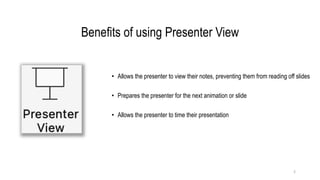
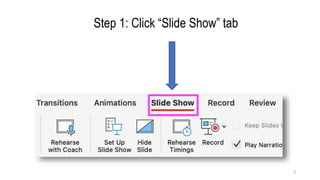
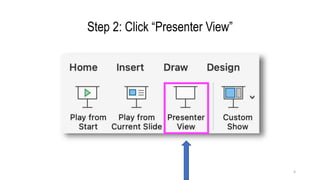
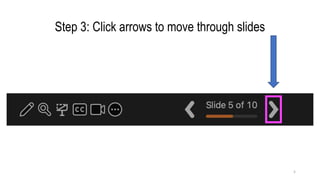
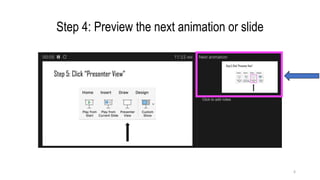
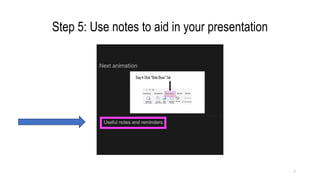
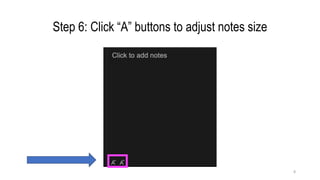
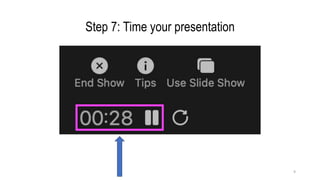
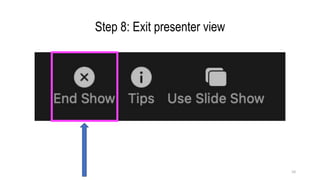
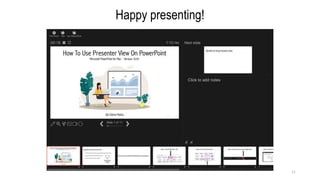
The document provides a guide on how to use Presenter View in Microsoft PowerPoint for Mac version 16.81. It highlights the benefits of this feature, including access to notes and better slide management. Step-by-step instructions are given for activating and using Presenter View effectively.


