OpManager
Discovering a Network OpManager automatically discovers all devices in the network that is chosen to be discovered. It automatically classifies the devices as Routers, Switches, Servers etc. It uses the SNMP and ICMP settings provided in the wizard to perform this discovery.  Specify the SNMP credentials that OpManager should use for discovery.  Specify the services that OpManager should automatically scan for during discovery  Specify the network address and start discovery
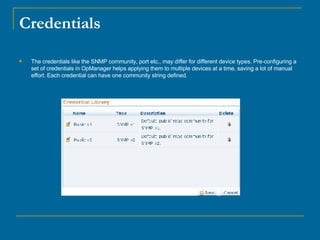
Credentials The credentials like the SNMP community, port etc., may differ for different device types. Pre-configuring a set of credentials in OpManager helps applying them to multiple devices at a time, saving a lot of manual effort. Each credential can have one community string defined.
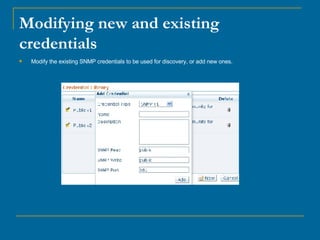
Modifying new and existing credentials Modify the existing SNMP credentials to be used for discovery, or add new ones.
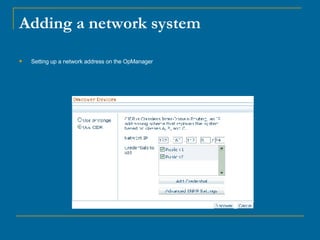
Adding a network system Setting up a network address on the OpManager
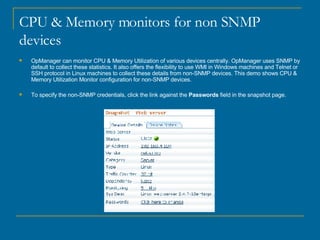
CPU & Memory monitors for non SNMP devices OpManager can monitor CPU & Memory Utilization of various devices centrally. OpManager uses SNMP by default to collect these statistics. It also offers the flexibility to use WMI in Windows machines and Telnet or SSH protocol in Linux machines to collect these details from non-SNMP devices. This demo shows CPU & Memory Utilization Monitor configuration for non-SNMP devices. To specify the non-SNMP credentials, click the link against the  Passwords  field in the snapshot page.
Change Passwords OpManager can monitor non-SNMP Linux machines using Telnet or SSH . It automatically logs in, executes system commands on the remote machine and parses the command output to store relevant information like CPU utilization or memory utilization. In this case you have to specify the username and password as part of the login credentials for OpManager to use when logging into the remote machine. Also in order to execute the commands and parse the results accurately, OpManager needs to know the prompt string on the remote machine.. 1. Select the option Use the below credential for the device . 2. Specify the user name and password that can be used to connect to the device. 3. By default, the  Command Prompt  is assigned  $ , the  User Prompt  is assigned  :  and the  Password Prompt  is assigned  :  Modify them as per your server settings.   4. Choose a  Connection Protocol  - Telnet or SSH - to collect the data.
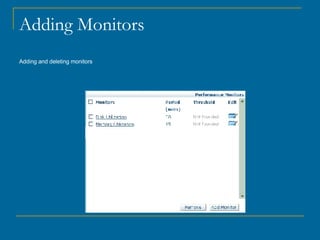
Adding Monitors Adding and deleting monitors
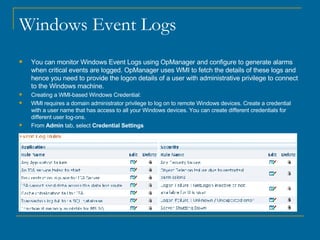
Windows Event Logs You can monitor Windows Event Logs using OpManager and configure to generate alarms when critical events are logged. OpManager uses WMI to fetch the details of these logs and hence you need to provide the logon details of a user with administrative privilege to connect to the Windows machine. Creating a WMI-based Windows Credential: WMI requires a domain administrator privilege to log on to remote Windows devices. Create a credential with a user name that has access to all your Windows devices. You can create different credentials for different user log-ons. From  Admin  tab, select  Credential Settings                                                                                                                                                                                                                                                                                                                                                                                                                                   
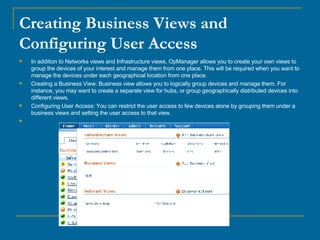
Creating Business Views and Configuring User Access In addition to Networks views and Infrastructure views, OpManager allows you to create your own views to group the devices of your interest and manage them from one place. This will be required when you want to manage the devices under each geographical location from one place.  Creating a Business View: Business view allows you to logically group devices and manage them. For instance, you may want to create a separate view for hubs, or group geographically distributed devices into different views. Configuring User Access: You can restrict the user access to few devices alone by grouping them under a business views and setting the user access to that view.                                                                                                                                                   

Presentation3

  • 1.
  • 2.
    Discovering a NetworkOpManager automatically discovers all devices in the network that is chosen to be discovered. It automatically classifies the devices as Routers, Switches, Servers etc. It uses the SNMP and ICMP settings provided in the wizard to perform this discovery. Specify the SNMP credentials that OpManager should use for discovery. Specify the services that OpManager should automatically scan for during discovery Specify the network address and start discovery
  • 3.
    Credentials The credentialslike the SNMP community, port etc., may differ for different device types. Pre-configuring a set of credentials in OpManager helps applying them to multiple devices at a time, saving a lot of manual effort. Each credential can have one community string defined.
  • 4.
    Modifying new andexisting credentials Modify the existing SNMP credentials to be used for discovery, or add new ones.
  • 5.
    Adding a networksystem Setting up a network address on the OpManager
  • 6.
    CPU & Memorymonitors for non SNMP devices OpManager can monitor CPU & Memory Utilization of various devices centrally. OpManager uses SNMP by default to collect these statistics. It also offers the flexibility to use WMI in Windows machines and Telnet or SSH protocol in Linux machines to collect these details from non-SNMP devices. This demo shows CPU & Memory Utilization Monitor configuration for non-SNMP devices. To specify the non-SNMP credentials, click the link against the Passwords field in the snapshot page.
  • 7.
    Change Passwords OpManagercan monitor non-SNMP Linux machines using Telnet or SSH . It automatically logs in, executes system commands on the remote machine and parses the command output to store relevant information like CPU utilization or memory utilization. In this case you have to specify the username and password as part of the login credentials for OpManager to use when logging into the remote machine. Also in order to execute the commands and parse the results accurately, OpManager needs to know the prompt string on the remote machine.. 1. Select the option Use the below credential for the device . 2. Specify the user name and password that can be used to connect to the device. 3. By default, the Command Prompt is assigned $ , the User Prompt is assigned : and the Password Prompt is assigned : Modify them as per your server settings.  4. Choose a Connection Protocol - Telnet or SSH - to collect the data.
  • 8.
    Adding Monitors Addingand deleting monitors
  • 9.
    Windows Event LogsYou can monitor Windows Event Logs using OpManager and configure to generate alarms when critical events are logged. OpManager uses WMI to fetch the details of these logs and hence you need to provide the logon details of a user with administrative privilege to connect to the Windows machine. Creating a WMI-based Windows Credential: WMI requires a domain administrator privilege to log on to remote Windows devices. Create a credential with a user name that has access to all your Windows devices. You can create different credentials for different user log-ons. From Admin tab, select Credential Settings                                                                                                                                                                                                                                                                                                                                                                                                                                   
  • 10.
    Creating Business Viewsand Configuring User Access In addition to Networks views and Infrastructure views, OpManager allows you to create your own views to group the devices of your interest and manage them from one place. This will be required when you want to manage the devices under each geographical location from one place. Creating a Business View: Business view allows you to logically group devices and manage them. For instance, you may want to create a separate view for hubs, or group geographically distributed devices into different views. Configuring User Access: You can restrict the user access to few devices alone by grouping them under a business views and setting the user access to that view.