CYBER SECURITY
FRAMEWORK
& CYBER AUDITITING IN
CRPF
Contents
 Naming of PC and join in domain
 Installation Procedure of Trellix Agent in SELO and Internet
 Shortcomings noticed during Audit
 Routine Audit check points
 Check list for PCs after formatting
 Router Configuration
 Desktop/Laptop Security at Office
 LAN security
 Internet Browsing Security
 Incident response in case of Cyber attacks
 Reports and returns
 Questionaries
Naming of PC and join in domain
 Logon as the administrator.
 Right Click on My Computer--Click on Properties -- Click on Advanced System
settings or System Protection-- Click on Computer Name Tab --Click on Change
button.
 Type the name of the computer and restart the PC.
 Again, logon as the administrator account and repeat the step 2.
 Now click on Domain under the Tab “member of and type SELO.Local , click
Ok.
 The Domain Username and Password dialog appears. You must enter an
account that has privileges to join the domain (DBA’s Id and password)-- click
OK
 Then you will receive the message, Welcome to the SELO.Local domain -- Click
OK
Live Demo
Continue…
 Again, logon as the administrator account.
 Right Click on My Computer-- Click on Manage--Click on Local Users and Groups
Double click on Groups--Double click on Administrator--Click on Add -- Enter the
user id for administrator right (never add dealing IDs in administrator group),
while working in domain user (add the Concerned DBA mail user id,) Click on
check name (it search for the user in active directory)The Domain Username and
Password dialog appears. You must enter an account that has privileges to join the
domain (DBA’s Id and password), click OK ,Again click OK and restart the PC
 After the PC starts there will be two option: - administrator and other user
 Click on other user--- Enter the user ID (user of active directory) and password.
Live
Demo
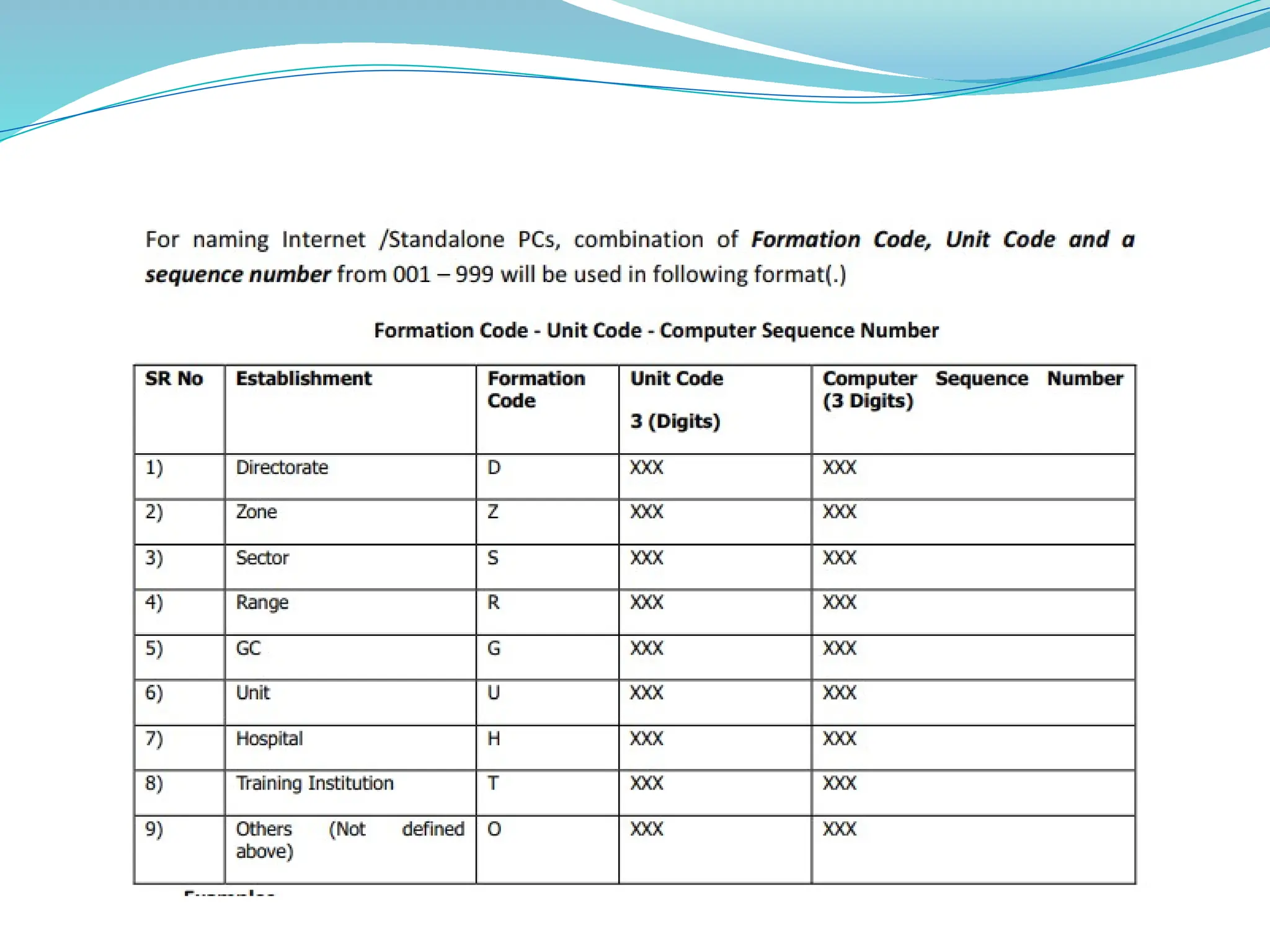
Naming conventions for selo and internet pcs
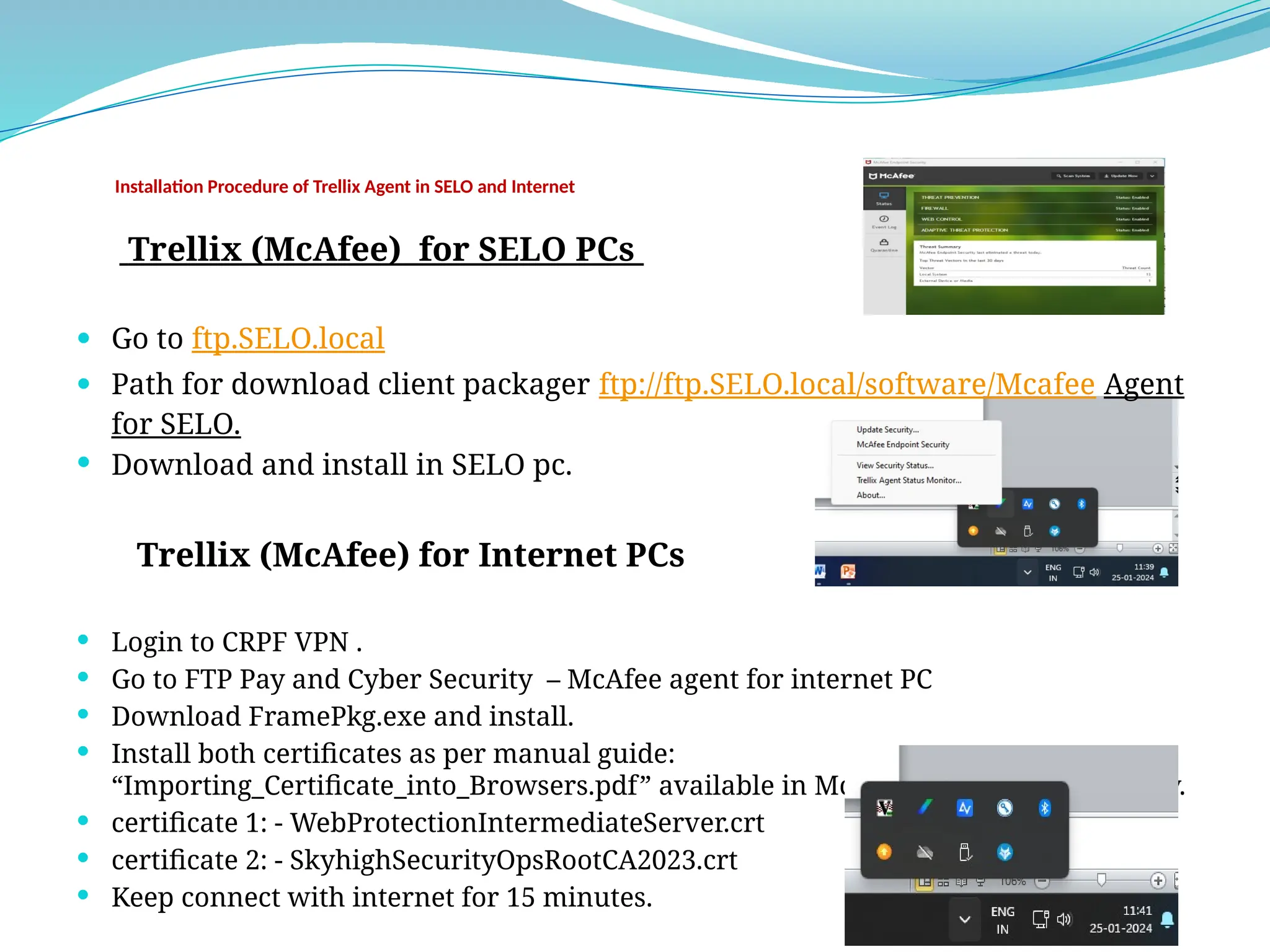
Installation Procedure of Trellix Agent in SELO and Internet
Trellix (McAfee) for SELO PCs
 Go to ftp.SELO.local
 Path for download client packager ftp://ftp.SELO.local/software/Mcafee Agent
for SELO.
 Download and install in SELO pc.
Trellix (McAfee) for Internet PCs
 Login to CRPF VPN .
 Go to FTP Pay and Cyber Security – McAfee agent for internet PC
 Download FramePkg.exe and install.
 Install both certificates as per manual guide:
“Importing_Certificate_into_Browsers.pdf” available in McAfee certificates for Proxy.
 certificate 1: - WebProtectionIntermediateServer.crt
 certificate 2: - SkyhighSecurityOpsRootCA2023.crt
 Keep connect with internet for 15 minutes.
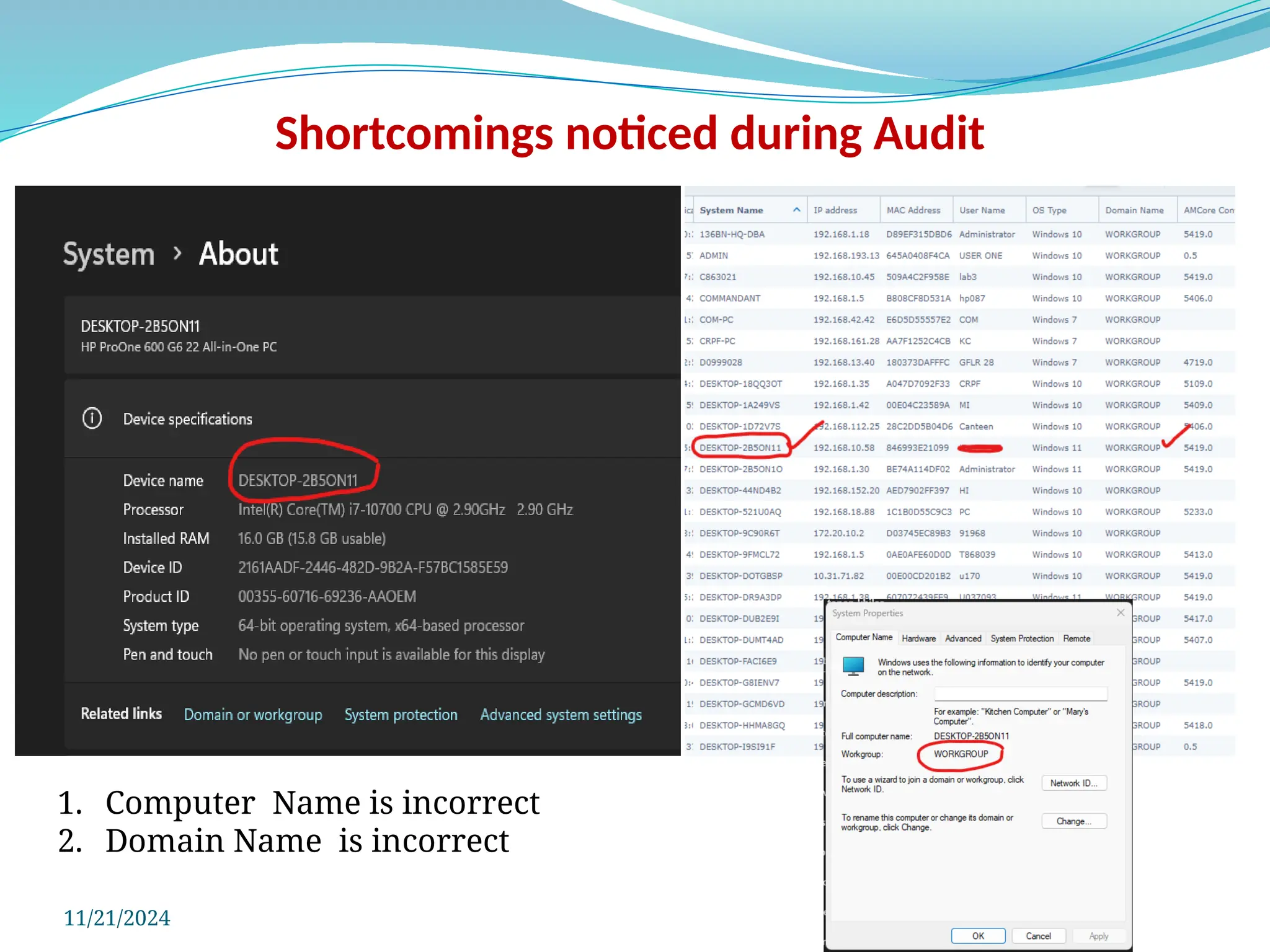
Shortcomings noticed during Audit
11/21/2024
1. Computer Name is incorrect
2. Domain Name is incorrect
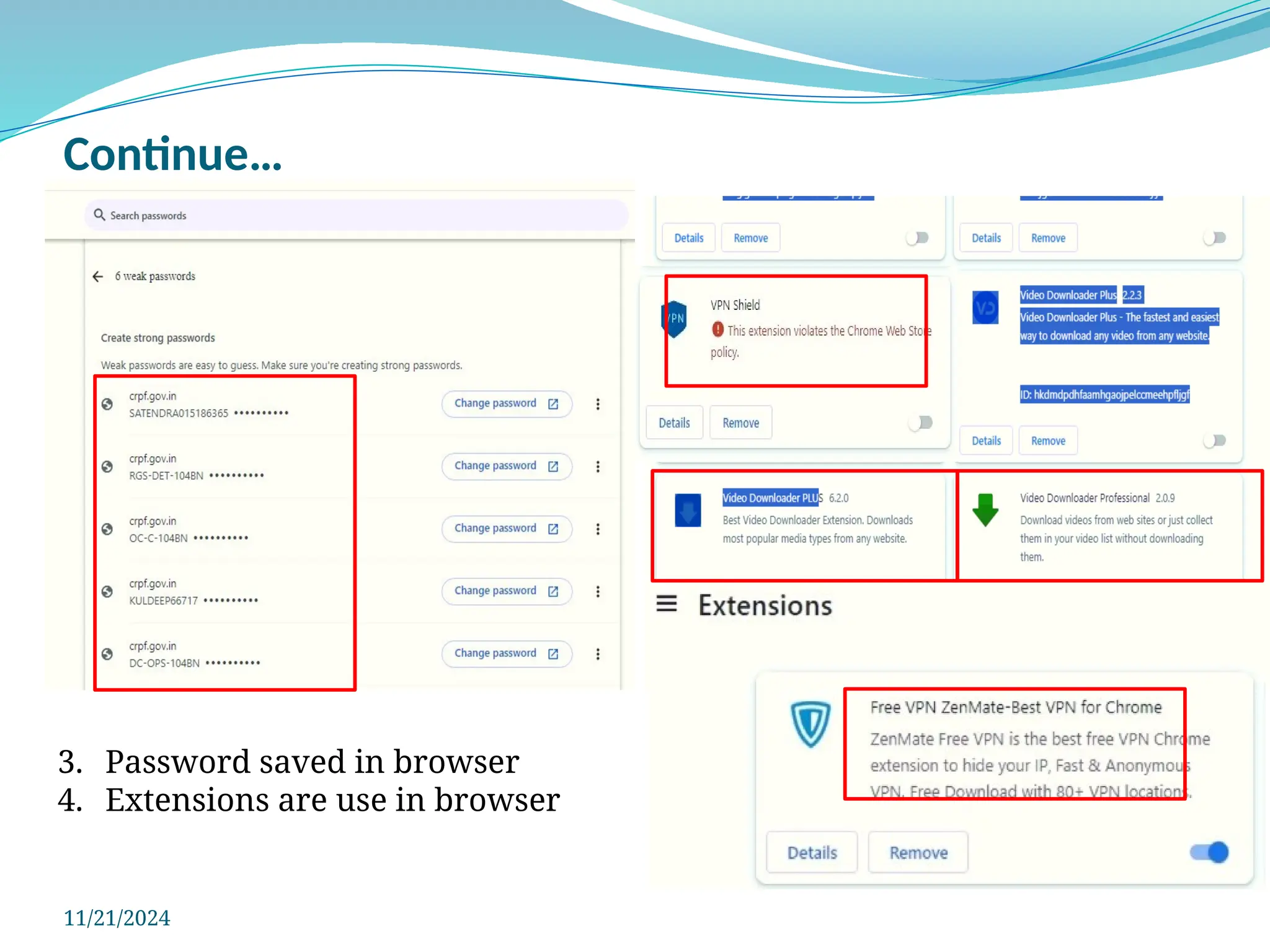
Continue…
11/21/2024
3. Password saved in browser
4. Extensions are use in browser
Continue…
11/21/2024
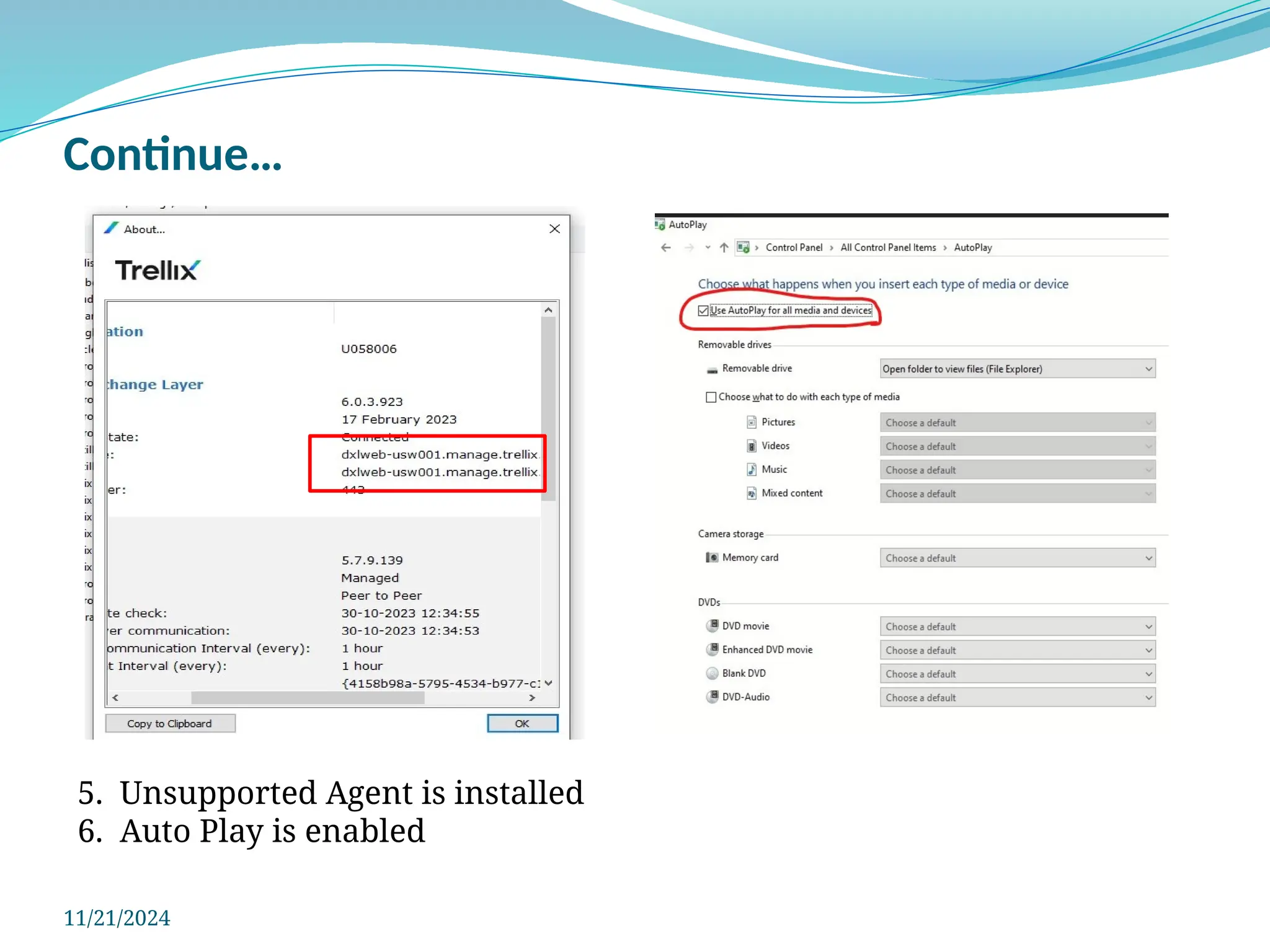
5. Unsupported Agent is installed
6. Auto Play is enabled
Continue…
11/21/2024
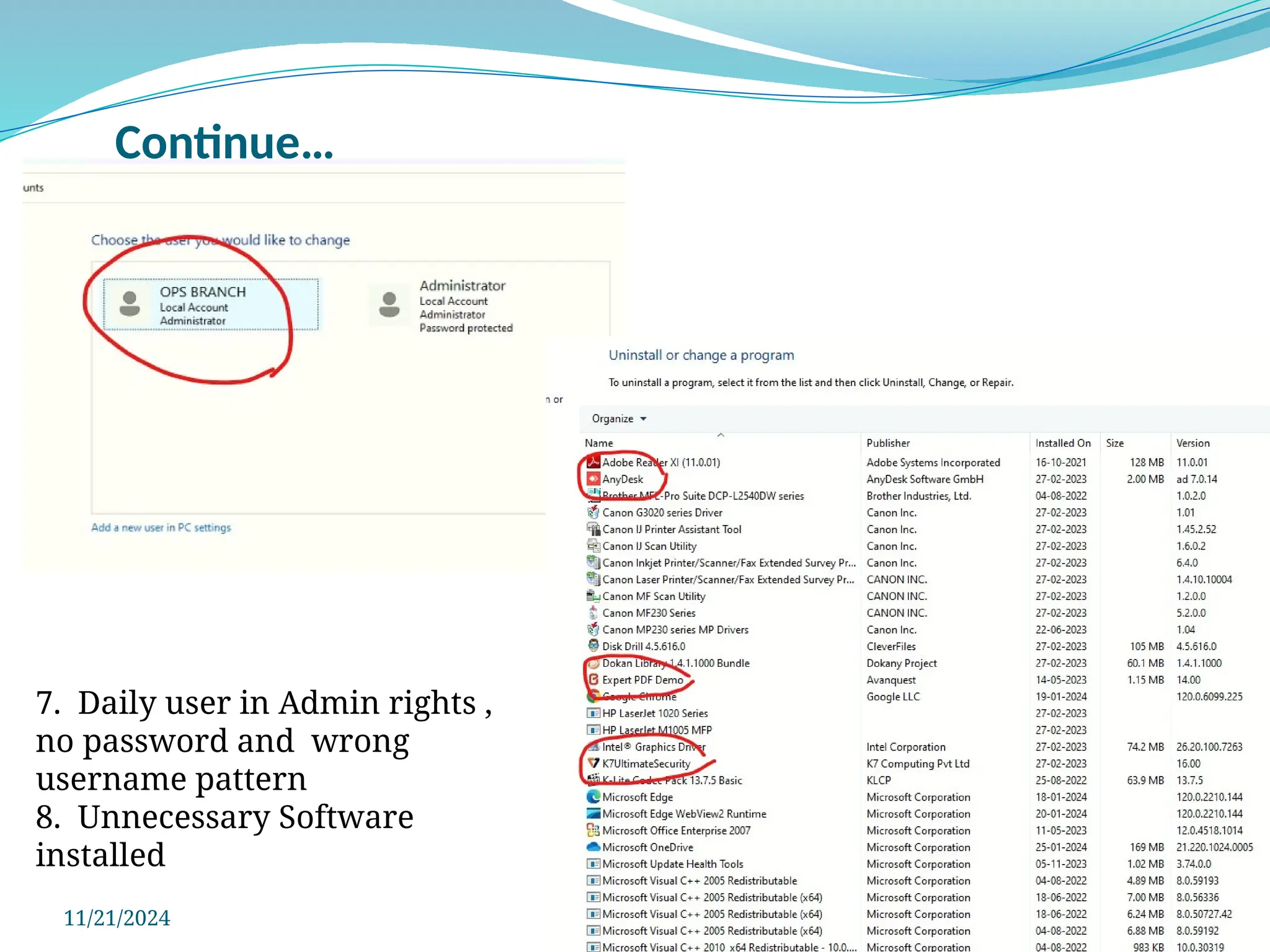
7. Daily user in Admin rights ,
no password and wrong
username pattern
8. Unnecessary Software
installed
Continue…
11/21/2024
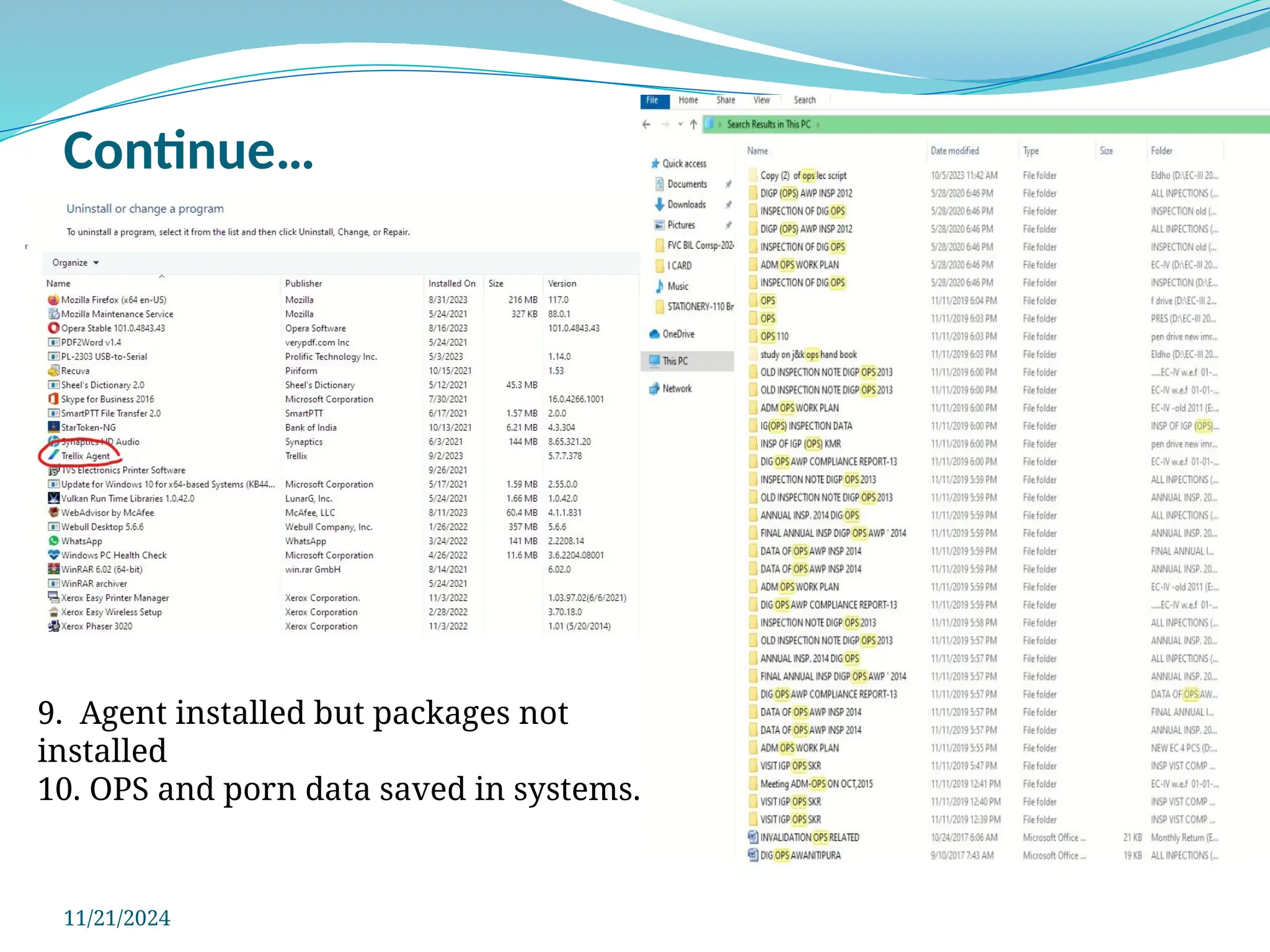
9. Agent installed but packages not
installed
10. OPS and porn data saved in systems.
Continue…
11/21/2024
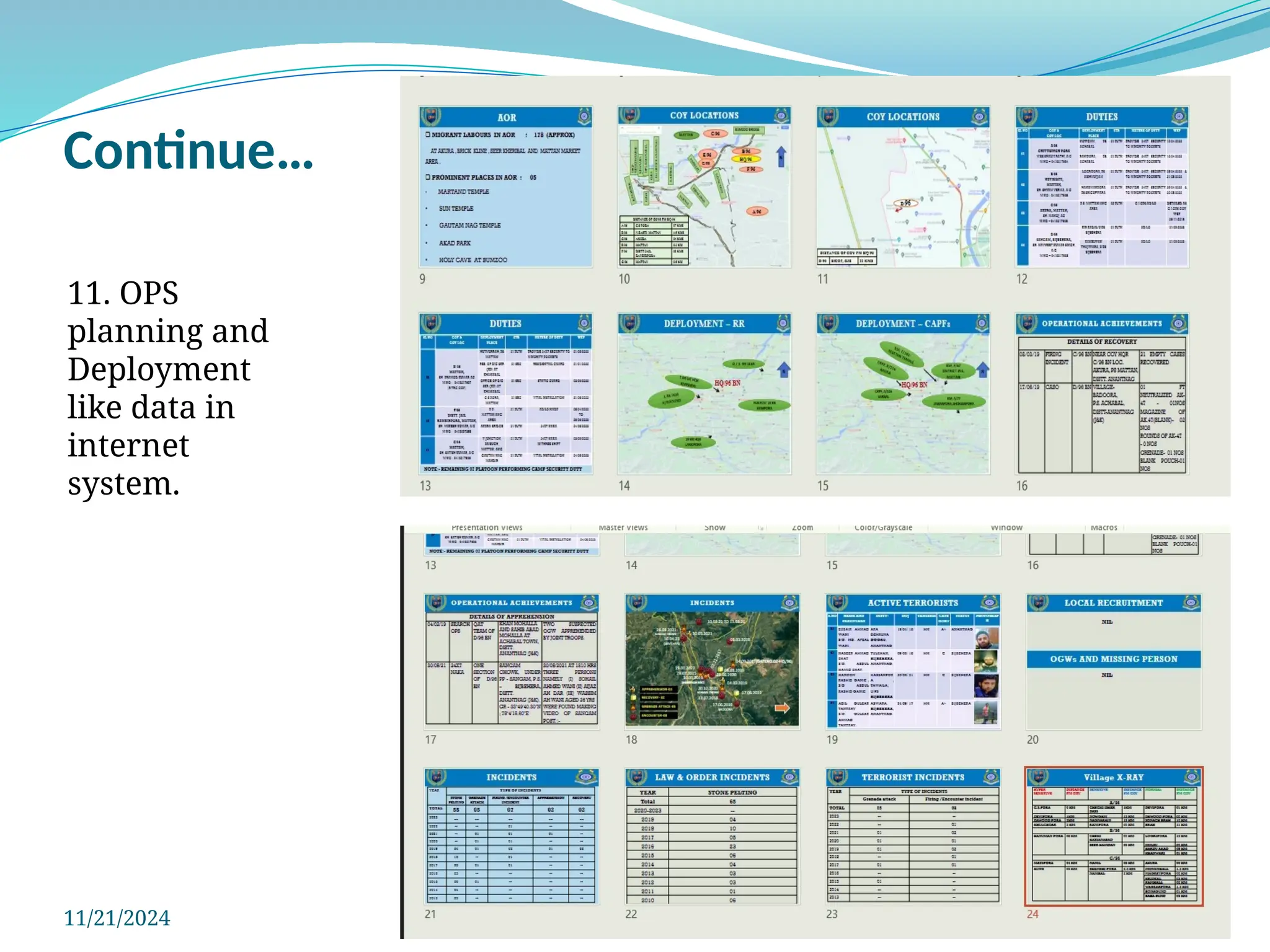
11. OPS
planning and
Deployment
like data in
internet
system.
Continue…
11/21/2024
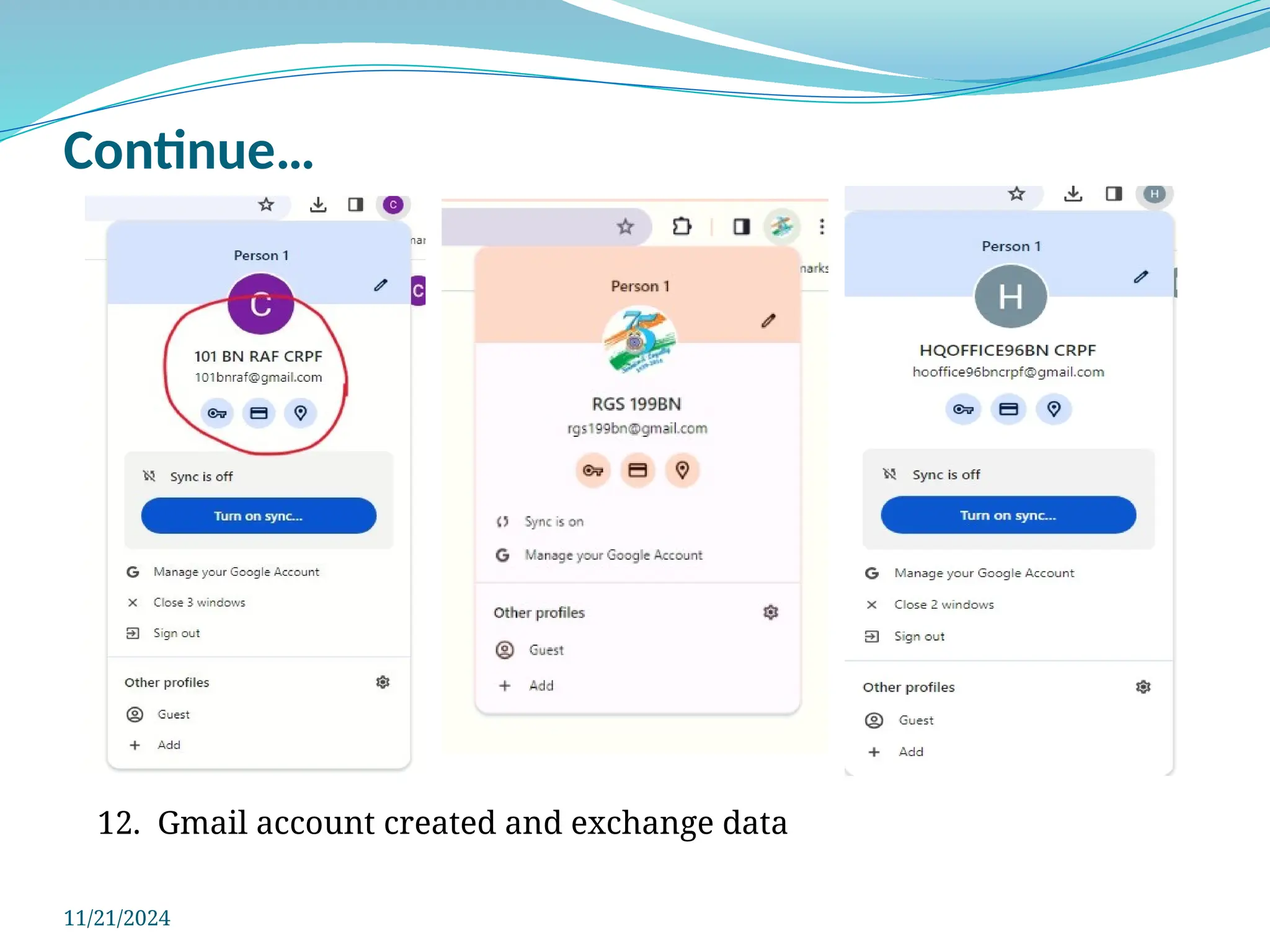
12. Gmail account created and exchange data
Routine Audit check points
Live Demo
• Check that proper naming of computer be implemented.
• Make sure Trellix antivirus should be installed in Pc and updated.
• Check system information and Mac Address
 Check Auto run / Auto play features should be disabled in all computers.
 Check firewall should be ON
 Check installed programs .
 Whether remote-desktop software (like Anydesk, Teamviewer etc) are blocked to
access Network resources from remote?
 Check user account, i.e Administrator and local user.
 Local user should not use admin account on daily basis
 All user must have password .
 Check whether login password saved in browser or not and any third party
browser extension is used or not .
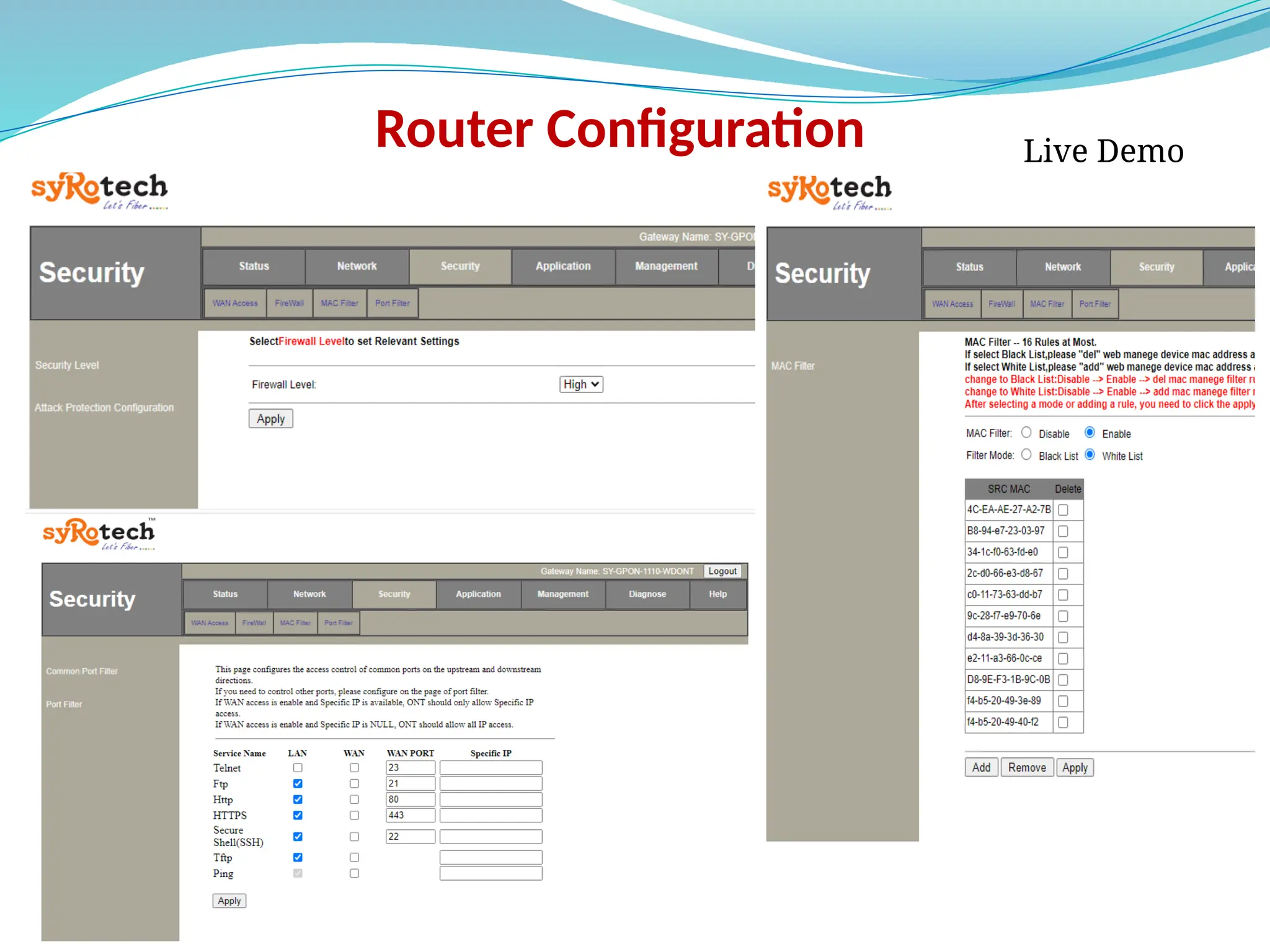
 Check firewall should be enabled in router and MAC binding is activated.
 Check operating system is updated with latest patches.
 Check no any ops/int/important official documents is available in drives.
 Type cmd in run and type netstat -na. Checkout foreign Established connection
and IP addresses. Check the IP address for its ownership.
 Type 'msconfig" in ͚run' and check for any unusual executable running
automatically.
 Check whether power shell is running in background without user intervention.
 Type "ipconfig/displaydns” in command prompt and look out for any URLs
which you have not accessed recently.
 Check Network icon (for packets received and sent) / ADSL lights for data in non
browsing mode. Check data usage pattern in Mobile. If the outgoing is unusually
high, then it is very likely that the system is compromised.
Continue…
Live Demo
• Make sure there is no hidden file and folders present in the media. The computers
should be enabled with “show hidden files and folders” option and “hide protected
operating system files” should be disabled to view hidden malicious files on USB /
storage devices in windows OS.
• i) Scan the following folders for any suspicious file and malwares (in form of *.exe
file) and delete them :-
• ii) C:Program Data aecir*.exe
• iii) C:Program Data hadris*.exe
• iv) C:Program Data eacr*.exe
• v) C:Program Data ddamsa*.exe
• vi) C:Program Data vidaurs*.exe
• vii) C:Program DataHriwarimlsurim.exe
• viii) C:Program DataGhrvicuidkhwrix.exe
• ix) C:Program DataGlrivcmdlskmrn.exe
• x) C:Program DataNvsrwsdlmrtens.exe
• xi) C:usersmusicrimlsurim.exe
• xii) C:usermusicuidkswrix.exe
• xiii) “*”could be any of the following files: uwcrise.exe, fhlergarw.exe, rmodlos.exe,
mstdhscasm.exe, hrdacerws.exe, cdthawau.exe
Live Demo
Continue…
Check list for PCs after formatting
 Install Application drivers and softwares.
 Name of the PC should be in proper format (for example DG-IT-ADAC)
 PC should be added in selo.local domain
 AD user name must be opposite of computer name .
 Domain user will be added in PC local user group
 McAfee antivirus must be installed and update in PC.
 Auto update of Windows and Office should be enabled.
 Auto play should be disabled for storage and media devices ( For Internet PC)
 Disable cloud storage like Google drive and One drive ( For Internet PC)
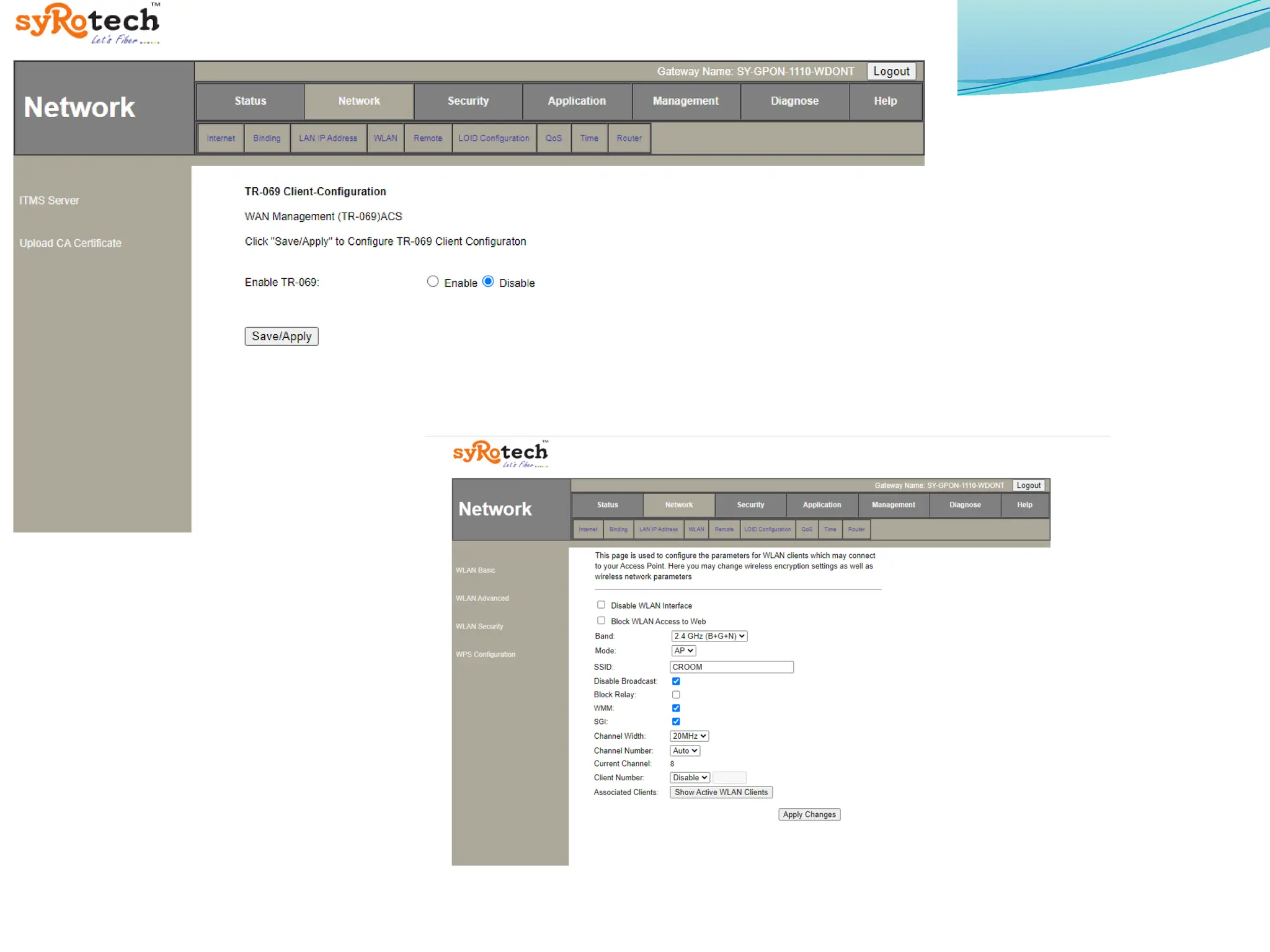
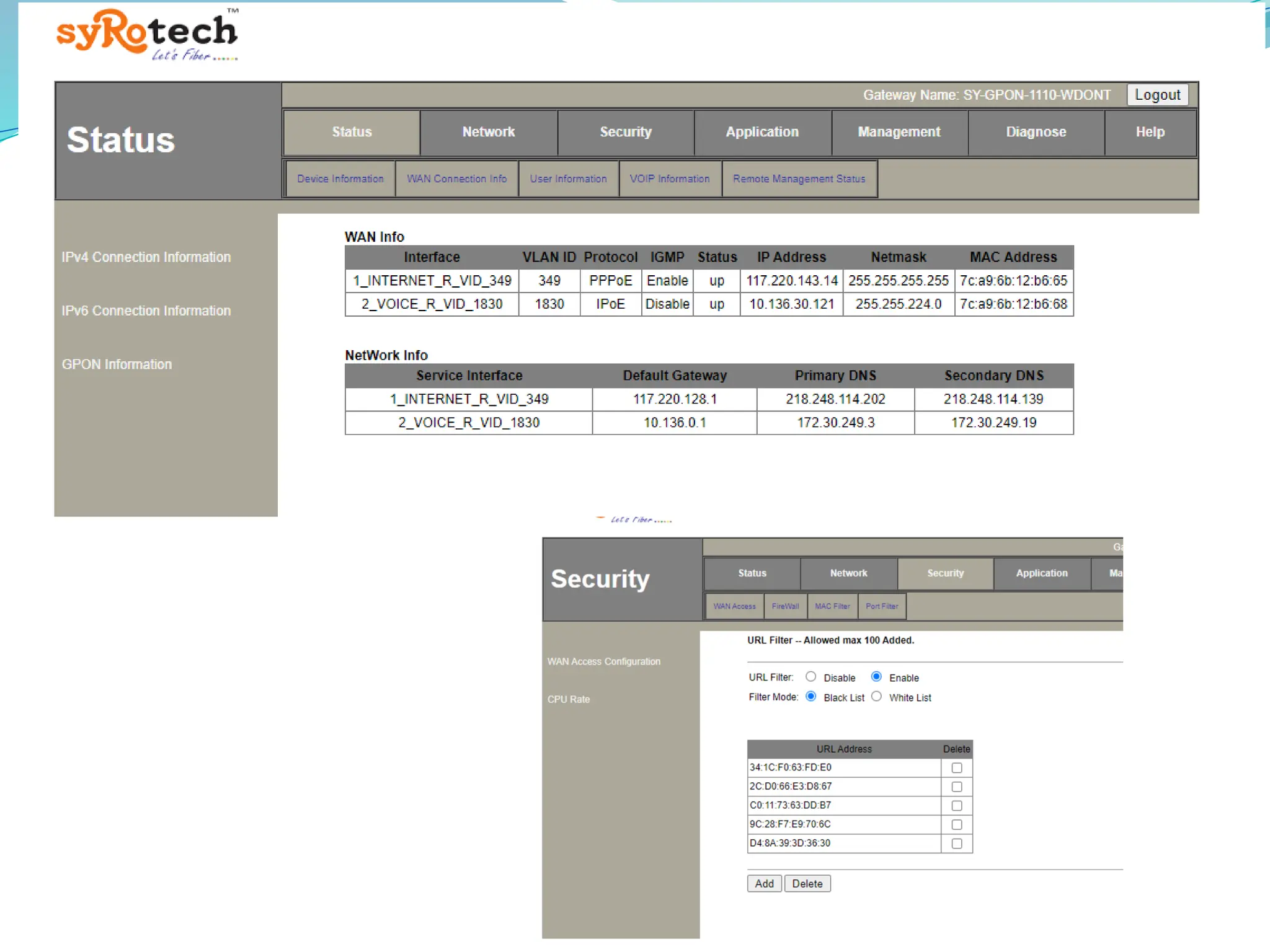
Router Configuration Live Demo
Desktop/Laptop Security at Office
 Use only Standard User (non-administrator) account for regular work.
 Turn on automatic updates .
 Ensure that the Antivirus clients installed on your systems are updated .
 Always lock/log off from the desktop when not in use.
 Shutdown the desktop before leaving the office.
 Enable Desktop Firewall for controlling information access.
 Keep the GPS, Bluetooth, NFC and other sensors disabled on the desktops /laptops .
 Do not use any external mobile App based scanner services (ex: Cam scanner) for
scanning internal government documents.
 Remove pirated /unsupported Operating systems .
 Beware of malware such as key logger in public computer.
 Enable hidden file & system file view to find any unusual or hidden files. .
 Turn off auto play .
 Type: dir. %temp% in “run” and delete all entries after opening any
suspicious attachments.
 Protect sensitive data.
 Stay updated with the latest guidelines issued by IT Wing (ISERT) for
Secure Computing.
 Back up on a regular basis.
Continue…
LAN security
 All ICT devices should be connected via the Internet gateway of local area
network .
 No hotspots to be used in the network
 Ensure that default credentials of network devices are changed.
 Media Access Control (MAC) address binding is mandatory for All device.
 Unmanaged network devices should be replaced with managed .
 Configure host firewall in all systems to restrict lateral traffic movement within
the same network segments.
 Only Authorized connectivity to be provided to users .
 Network firewall shall be used to restrict traffic movement outside the
network segment.
 Only selected ports and protocols shall be allowed for communication with
selected IPs, as per the requirements of the official work.
 Systems and equipment which are obsolete/unsupported to be removed from the
network.
Continue…
 Ensure that remote-desktop software (like Anydesk, teamviewer etc.) are not allowed
in network
 Ensure that RDP (Remote desktop) is restricted, if not required
 Ensure that manual configuration of systems in network is done and DHCP is
disabled, if not required.
 Ensure that segmentation of LAN is done if required.
 Ensure that internet access is allowed only to systems as per the directives of
CISO/Deputy CISO / Cyber Security Officers.
 Ensure that the Layer 2 /Layer 3 switches be used for more security.
Internet Browsing Security
 Use Private Browsing/Incognito Mode in your browser for confidential purpose.
 Eensure that the browser is updated with the latest updates/patches.
 Use secure connections starts with “https”
 Don’t store any usernames and passwords on the internet browser.
 Don’t store any payment related information on the internet browser.
 Don’t use any 3rd party anonymization services (3rd party VPN, Tor, Proxies etc).
 Don’t use any 3rd party toolbars (ex: download manager, weather tool bar, ask me tool
bar etc.) in your internet browser.
 Don’t download any unauthorized or pirated content /software from the internet (ex:
pirated - movies, songs, e-books, software).
 Observe caution while opening any shortened URLs (ex: tinyurl.com/ab534/).
 Use digital certificate, if you have, for electronic transactions.
 Ensure that Kavach Multi-Factor Authentication is configured on all the NIC Email
Accounts in the department.
Incident response in case of Cyber attacks
 Isolate the affected systems.
 Scan the system by antivirus software, anti-malware software, or
manual removal techniques.
 Block the attacker's access.
 This can be done by changing passwords, disabling accounts, or
implementing firewalls and intrusion detection systems.
 Act quickly. The sooner you take action, the less damage the attack
will cause.
 Do not panic. It is important to stay calm and focused during the
containment phase.
 Report any cyber security incident, including suspicious mails and
phishing mails to ISERT CRPF DTE on IP Phone No.99907 or through
SELO mail id ISERT-IT-DG.
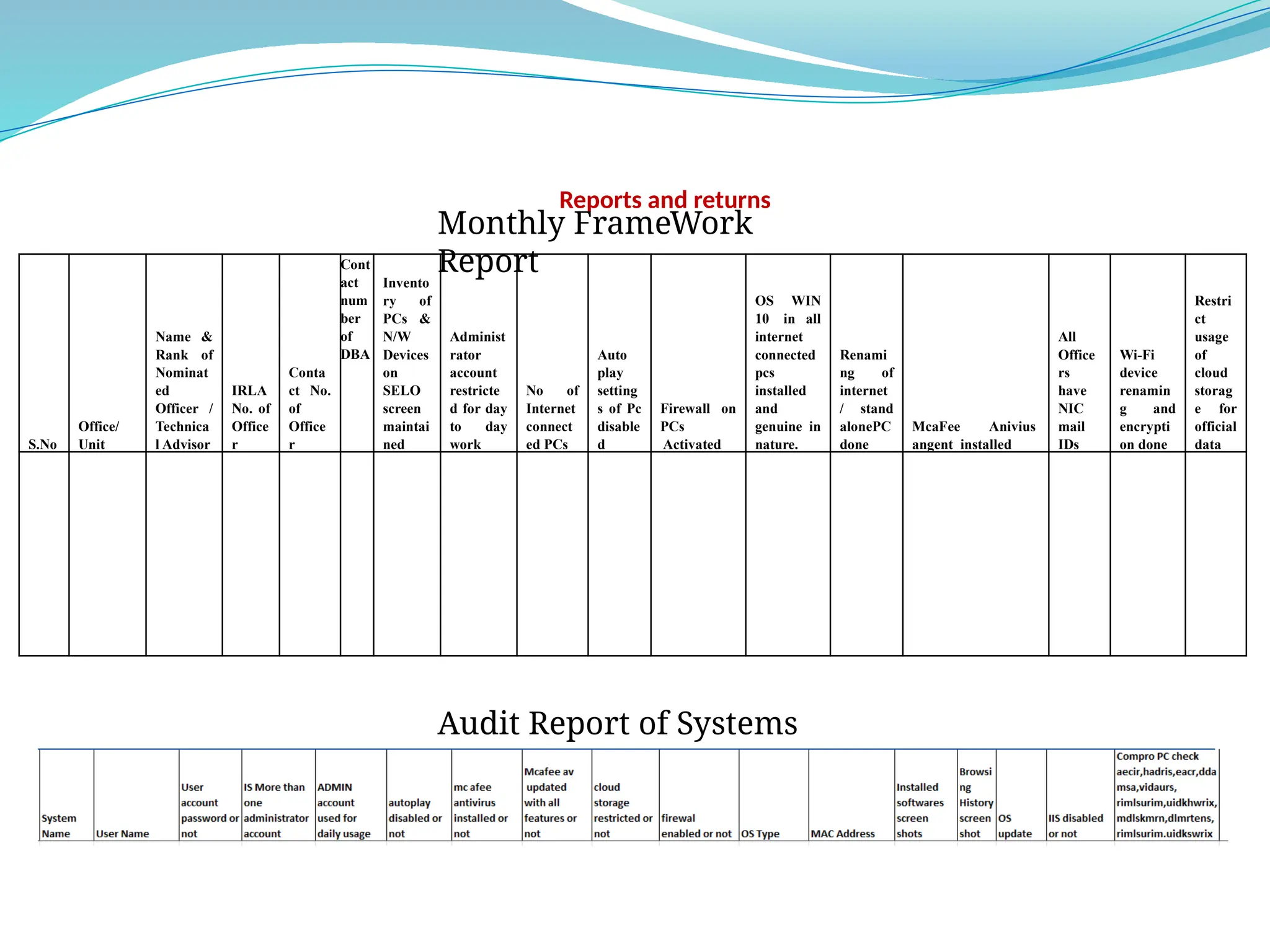
Reports and returns
S.No
Office/
Unit
Name &
Rank of
Nominat
ed
Officer /
Technica
l Advisor
IRLA
No. of
Office
r
Conta
ct No.
of
Office
r
Cont
act
num
ber
of
DBA
Invento
ry of
PCs &
N/W
Devices
on
SELO
screen
maintai
ned
Administ
rator
account
restricte
d for day
to day
work
No of
Internet
connect
ed PCs
Auto
play
setting
s of Pc
disable
d
Firewall on
PCs
Activated
OS WIN
10 in all
internet
connected
pcs
installed
and
genuine in
nature.
Renami
ng of
internet
/ stand
alonePC
done
McaFee Anivius
angent installed
All
Office
rs
have
NIC
mail
IDs
Wi-Fi
device
renamin
g and
encrypti
on done
Restri
ct
usage
of
cloud
storag
e for
official
data
Monthly FrameWork
Report
Audit Report of Systems
Any Question

PPT ON CYBER SECURITY FRAMEWORK & CYBER AUDITING IN CRPF .pptx

  • 1.
  • 2.
    Contents  Naming ofPC and join in domain  Installation Procedure of Trellix Agent in SELO and Internet  Shortcomings noticed during Audit  Routine Audit check points  Check list for PCs after formatting  Router Configuration  Desktop/Laptop Security at Office  LAN security  Internet Browsing Security  Incident response in case of Cyber attacks  Reports and returns  Questionaries
  • 3.
    Naming of PCand join in domain  Logon as the administrator.  Right Click on My Computer--Click on Properties -- Click on Advanced System settings or System Protection-- Click on Computer Name Tab --Click on Change button.  Type the name of the computer and restart the PC.  Again, logon as the administrator account and repeat the step 2.  Now click on Domain under the Tab “member of and type SELO.Local , click Ok.  The Domain Username and Password dialog appears. You must enter an account that has privileges to join the domain (DBA’s Id and password)-- click OK  Then you will receive the message, Welcome to the SELO.Local domain -- Click OK Live Demo
  • 4.
    Continue…  Again, logonas the administrator account.  Right Click on My Computer-- Click on Manage--Click on Local Users and Groups Double click on Groups--Double click on Administrator--Click on Add -- Enter the user id for administrator right (never add dealing IDs in administrator group), while working in domain user (add the Concerned DBA mail user id,) Click on check name (it search for the user in active directory)The Domain Username and Password dialog appears. You must enter an account that has privileges to join the domain (DBA’s Id and password), click OK ,Again click OK and restart the PC  After the PC starts there will be two option: - administrator and other user  Click on other user--- Enter the user ID (user of active directory) and password. Live Demo
  • 5.
    Naming conventions forselo and internet pcs
  • 6.
    Installation Procedure ofTrellix Agent in SELO and Internet Trellix (McAfee) for SELO PCs  Go to ftp.SELO.local  Path for download client packager ftp://ftp.SELO.local/software/Mcafee Agent for SELO.  Download and install in SELO pc. Trellix (McAfee) for Internet PCs  Login to CRPF VPN .  Go to FTP Pay and Cyber Security – McAfee agent for internet PC  Download FramePkg.exe and install.  Install both certificates as per manual guide: “Importing_Certificate_into_Browsers.pdf” available in McAfee certificates for Proxy.  certificate 1: - WebProtectionIntermediateServer.crt  certificate 2: - SkyhighSecurityOpsRootCA2023.crt  Keep connect with internet for 15 minutes.
  • 7.
    Shortcomings noticed duringAudit 11/21/2024 1. Computer Name is incorrect 2. Domain Name is incorrect
  • 8.
    Continue… 11/21/2024 3. Password savedin browser 4. Extensions are use in browser
  • 9.
    Continue… 11/21/2024 5. Unsupported Agentis installed 6. Auto Play is enabled
  • 10.
    Continue… 11/21/2024 7. Daily userin Admin rights , no password and wrong username pattern 8. Unnecessary Software installed
  • 11.
    Continue… 11/21/2024 9. Agent installedbut packages not installed 10. OPS and porn data saved in systems.
  • 12.
  • 13.
  • 14.
    Routine Audit checkpoints Live Demo • Check that proper naming of computer be implemented. • Make sure Trellix antivirus should be installed in Pc and updated. • Check system information and Mac Address  Check Auto run / Auto play features should be disabled in all computers.  Check firewall should be ON  Check installed programs .  Whether remote-desktop software (like Anydesk, Teamviewer etc) are blocked to access Network resources from remote?  Check user account, i.e Administrator and local user.  Local user should not use admin account on daily basis  All user must have password .  Check whether login password saved in browser or not and any third party browser extension is used or not .
  • 15.
     Check firewallshould be enabled in router and MAC binding is activated.  Check operating system is updated with latest patches.  Check no any ops/int/important official documents is available in drives.  Type cmd in run and type netstat -na. Checkout foreign Established connection and IP addresses. Check the IP address for its ownership.  Type 'msconfig" in ͚run' and check for any unusual executable running automatically.  Check whether power shell is running in background without user intervention.  Type "ipconfig/displaydns” in command prompt and look out for any URLs which you have not accessed recently.  Check Network icon (for packets received and sent) / ADSL lights for data in non browsing mode. Check data usage pattern in Mobile. If the outgoing is unusually high, then it is very likely that the system is compromised. Continue… Live Demo
  • 16.
    • Make surethere is no hidden file and folders present in the media. The computers should be enabled with “show hidden files and folders” option and “hide protected operating system files” should be disabled to view hidden malicious files on USB / storage devices in windows OS. • i) Scan the following folders for any suspicious file and malwares (in form of *.exe file) and delete them :- • ii) C:Program Data aecir*.exe • iii) C:Program Data hadris*.exe • iv) C:Program Data eacr*.exe • v) C:Program Data ddamsa*.exe • vi) C:Program Data vidaurs*.exe • vii) C:Program DataHriwarimlsurim.exe • viii) C:Program DataGhrvicuidkhwrix.exe • ix) C:Program DataGlrivcmdlskmrn.exe • x) C:Program DataNvsrwsdlmrtens.exe • xi) C:usersmusicrimlsurim.exe • xii) C:usermusicuidkswrix.exe • xiii) “*”could be any of the following files: uwcrise.exe, fhlergarw.exe, rmodlos.exe, mstdhscasm.exe, hrdacerws.exe, cdthawau.exe Live Demo Continue…
  • 17.
    Check list forPCs after formatting  Install Application drivers and softwares.  Name of the PC should be in proper format (for example DG-IT-ADAC)  PC should be added in selo.local domain  AD user name must be opposite of computer name .  Domain user will be added in PC local user group  McAfee antivirus must be installed and update in PC.  Auto update of Windows and Office should be enabled.  Auto play should be disabled for storage and media devices ( For Internet PC)  Disable cloud storage like Google drive and One drive ( For Internet PC)
  • 18.
  • 21.
    Desktop/Laptop Security atOffice  Use only Standard User (non-administrator) account for regular work.  Turn on automatic updates .  Ensure that the Antivirus clients installed on your systems are updated .  Always lock/log off from the desktop when not in use.  Shutdown the desktop before leaving the office.  Enable Desktop Firewall for controlling information access.  Keep the GPS, Bluetooth, NFC and other sensors disabled on the desktops /laptops .  Do not use any external mobile App based scanner services (ex: Cam scanner) for scanning internal government documents.  Remove pirated /unsupported Operating systems .
  • 22.
     Beware ofmalware such as key logger in public computer.  Enable hidden file & system file view to find any unusual or hidden files. .  Turn off auto play .  Type: dir. %temp% in “run” and delete all entries after opening any suspicious attachments.  Protect sensitive data.  Stay updated with the latest guidelines issued by IT Wing (ISERT) for Secure Computing.  Back up on a regular basis. Continue…
  • 23.
    LAN security  AllICT devices should be connected via the Internet gateway of local area network .  No hotspots to be used in the network  Ensure that default credentials of network devices are changed.  Media Access Control (MAC) address binding is mandatory for All device.  Unmanaged network devices should be replaced with managed .  Configure host firewall in all systems to restrict lateral traffic movement within the same network segments.  Only Authorized connectivity to be provided to users .  Network firewall shall be used to restrict traffic movement outside the network segment.  Only selected ports and protocols shall be allowed for communication with selected IPs, as per the requirements of the official work.  Systems and equipment which are obsolete/unsupported to be removed from the network.
  • 24.
    Continue…  Ensure thatremote-desktop software (like Anydesk, teamviewer etc.) are not allowed in network  Ensure that RDP (Remote desktop) is restricted, if not required  Ensure that manual configuration of systems in network is done and DHCP is disabled, if not required.  Ensure that segmentation of LAN is done if required.  Ensure that internet access is allowed only to systems as per the directives of CISO/Deputy CISO / Cyber Security Officers.  Ensure that the Layer 2 /Layer 3 switches be used for more security.
  • 25.
    Internet Browsing Security Use Private Browsing/Incognito Mode in your browser for confidential purpose.  Eensure that the browser is updated with the latest updates/patches.  Use secure connections starts with “https”  Don’t store any usernames and passwords on the internet browser.  Don’t store any payment related information on the internet browser.  Don’t use any 3rd party anonymization services (3rd party VPN, Tor, Proxies etc).  Don’t use any 3rd party toolbars (ex: download manager, weather tool bar, ask me tool bar etc.) in your internet browser.  Don’t download any unauthorized or pirated content /software from the internet (ex: pirated - movies, songs, e-books, software).  Observe caution while opening any shortened URLs (ex: tinyurl.com/ab534/).  Use digital certificate, if you have, for electronic transactions.  Ensure that Kavach Multi-Factor Authentication is configured on all the NIC Email Accounts in the department.
  • 26.
    Incident response incase of Cyber attacks  Isolate the affected systems.  Scan the system by antivirus software, anti-malware software, or manual removal techniques.  Block the attacker's access.  This can be done by changing passwords, disabling accounts, or implementing firewalls and intrusion detection systems.  Act quickly. The sooner you take action, the less damage the attack will cause.  Do not panic. It is important to stay calm and focused during the containment phase.  Report any cyber security incident, including suspicious mails and phishing mails to ISERT CRPF DTE on IP Phone No.99907 or through SELO mail id ISERT-IT-DG.
  • 27.
    Reports and returns S.No Office/ Unit Name& Rank of Nominat ed Officer / Technica l Advisor IRLA No. of Office r Conta ct No. of Office r Cont act num ber of DBA Invento ry of PCs & N/W Devices on SELO screen maintai ned Administ rator account restricte d for day to day work No of Internet connect ed PCs Auto play setting s of Pc disable d Firewall on PCs Activated OS WIN 10 in all internet connected pcs installed and genuine in nature. Renami ng of internet / stand alonePC done McaFee Anivius angent installed All Office rs have NIC mail IDs Wi-Fi device renamin g and encrypti on done Restri ct usage of cloud storag e for official data Monthly FrameWork Report Audit Report of Systems
  • 28.