Page 1
01/28/2013
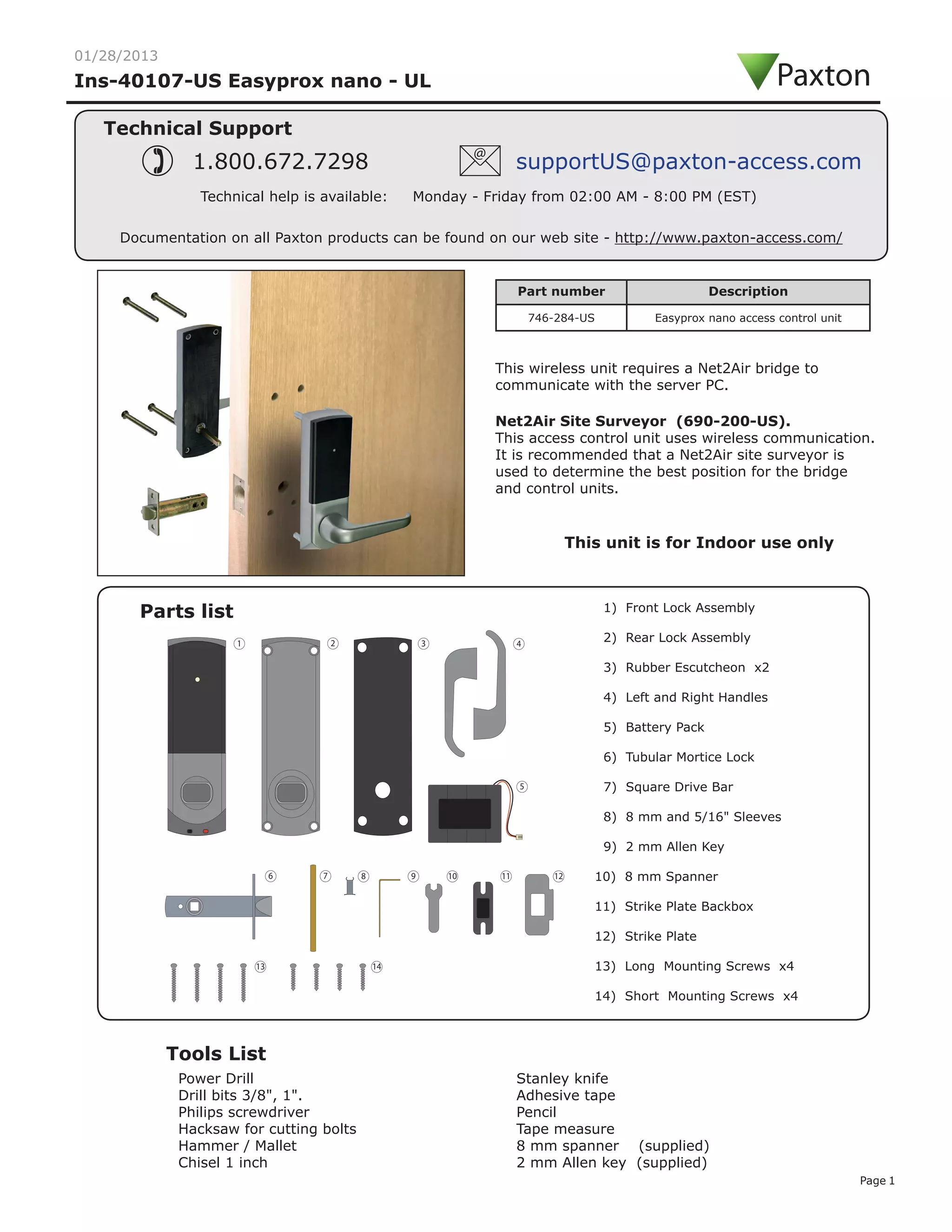
Parts list
Tools List
Power Drill
Drill bits 3/8", 1".
Philips screwdriver
Hacksaw for cutting bolts
Hammer / Mallet
Chisel 1 inch
Stanley knife
Adhesive tape
Pencil
Tape measure
8 mm spanner (supplied)
2 mm Allen key (supplied)
1) Front Lock Assembly
2) Rear Lock Assembly
3) Rubber Escutcheon x2
4) Left and Right Handles
5) Battery Pack
6) Tubular Mortice Lock
7) Square Drive Bar
8) 8 mm and 5/16" Sleeves
9) 2 mm Allen Key
10) 8 mm Spanner
11) Strike Plate Backbox
12) Strike Plate
13) Long Mounting Screws x4
14) Short Mounting Screws x4
This unit is for Indoor use only
Technical Support
Technical help is available: Monday - Friday from 02:00 AM - 8:00 PM (EST)
1.800.672.7298 supportUS@paxton-access.com
Ins-40107-US Easyprox nano - UL
Documentation on all Paxton products can be found on our web site - http://www.paxton-access.com/
Net2Air Site Surveyor (690-200-US).
This access control unit uses wireless communication.
It is recommended that a Net2Air site surveyor is
used to determine the best position for the bridge
and control units.
This wireless unit requires a Net2Air bridge to
communicate with the server PC.
1 2
6 7 8 9 10 11 12
13 14
3 4
5
Part number Description
746-284-US Easyprox nano access control unit
Paxton
Page 2
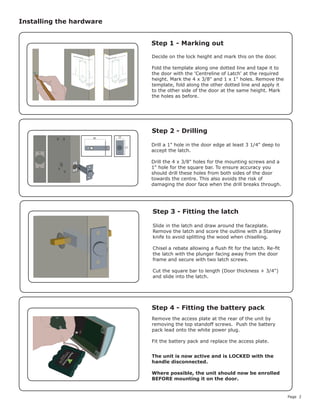
Decide on the lock height and mark this on the door.
Fold the template along one dotted line and tape it to
the door with the 'Centreline of Latch' at the required
height. Mark the 4 x 3/8" and 1 x 1" holes. Remove the
template, fold along the other dotted line and apply it
to the other side of the door at the same height. Mark
the holes as before.
Remove the access plate at the rear of the unit by
removing the top standoff screws. Push the battery
pack lead onto the white power plug.
Fit the battery pack and replace the access plate.
Installing the hardware
Step 1 - Marking out
Step 2 - Drilling
Step 3 - Fitting the latch
Step 4 - Fitting the battery pack
Drill a 1" hole in the door edge at least 3 1/4" deep to
accept the latch.					
							
Drill the 4 x 3/8" holes for the mounting screws and a
1" hole for the square bar. To ensure accuracy you
should drill these holes from both sides of the door
towards the centre. This also avoids the risk of
damaging the door face when the drill breaks through.
Slide in the latch and draw around the faceplate.
Remove the latch and score the outline with a Stanley
knife to avoid splitting the wood when chiselling.
Chisel a rebate allowing a flush fit for the latch. Re-fit
the latch with the plunger facing away from the door
frame and secure with two latch screws.
Cut the square bar to length (Door thickness + 3/4")
and slide into the latch.
25
57
80
The unit is now active and is LOCKED with the
handle disconnected.
Where possible, the unit should now be enrolled
BEFORE mounting it on the door.
Page 3
Fig A Fig B Fig C Fig D
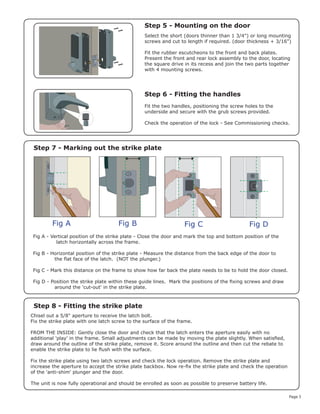
Step 5 - Mounting on the door
Step 6 - Fitting the handles
Step 7 - Marking out the strike plate
Step 8 - Fitting the strike plate
Select the short (doors thinner than 1 3/4") or long mounting
screws and cut to length if required. (door thickness + 3/16")
Fit the rubber escutcheons to the front and back plates.
Present the front and rear lock assembly to the door, locating
the square drive in its recess and join the two parts together
with 4 mounting screws.
Fit the two handles, positioning the screw holes to the
underside and secure with the grub screws provided.
Check the operation of the lock - See Commissioning checks.
Fig A - Vertical position of the strike plate - Close the door and mark the top and bottom position of the
latch horizontally across the frame.
Fig B - Horizontal position of the strike plate - Measure the distance from the back edge of the door to
the flat face of the latch. (NOT the plunger.)
Fig C - Mark this distance on the frame to show how far back the plate needs to be to hold the door closed.
Fig D - Position the strike plate within these guide lines. Mark the positions of the fixing screws and draw
around the 'cut-out' in the strike plate.
Chisel out a 5/8" aperture to receive the latch bolt.
Fix the strike plate with one latch screw to the surface of the frame.
FROM THE INSIDE: Gently close the door and check that the latch enters the aperture easily with no
additional 'play' in the frame. Small adjustments can be made by moving the plate slightly. When satisfied,
draw around the outline of the strike plate, remove it. Score around the outline and then cut the rebate to
enable the strike plate to lie flush with the surface.
Fix the strike plate using two latch screws and check the lock operation. Remove the strike plate and
increase the aperture to accept the strike plate backbox. Now re-fix the strike plate and check the operation
of the 'anti-shim' plunger and the door.
The unit is now fully operational and should be enrolled as soon as possible to preserve battery life.
Page 4
The current specification for compatible PC hardware, network and operating systems is available on our website
at the following link: http://paxton.info/720
There is NO Net2 Easyprox detection function. It is recognised that there could be security issues if the
wireless units were detectable from outside the site. During installation, an Easyprox unit makes a permanent
link with a Net2Air bridge which will then only talk to registered units. The Server Configuration Utility also has
an ' Enable commissioning' mode which can be turned off to inhibit other units being added.
An entry is then made on the Doors screen and a special icon is used to denote the wireless connection.
With the product fixed securely to the door:
1) Extend the door open time by changing this door's settings on the Net2 PC. Set ' Door open time' to
20 seconds and then present a user card at the door. Before each check, present a user card to unlock the door.
2) Check that the handles are running smoothly, this is best done by depressing the handle all the way to the
bottom and then releasing it as slowly as possible, if the handle is left behind at any point it is likely that the
product has not been installed squarely enough. Check the handle on both sides of the door.
3) If your finger is able to leave the handle, remove the Easyprox from the door (or slacken the four fixing
screws) and see if the problem goes away. If it does, then the installation onto the door is at fault and the drilling
of the mounting holes should be checked for alignment.
4) Once the install has successfully passed this test return the door to normal operation by changing the PC
setting for this door back to its previous door open time (default 3 seconds) and present a user card.
This test confirms the correct and free operation of the mechanical lock and also ensures that the electronic
circuits will shut down correctly preserving battery life.
Commissioning checks
An Easyprox must first bind to a Net2Air bridge before it will enrol itself onto the Net2 system. The term 'bind'
is used to denote the fixed relationship between a wireless unit and its bridge.
1. Create a user record in the database and assign a Net2 token to the user. This record can be deleted after
the installation is complete.
2. You must now wake up the Easyprox by moving the handle.
3. Present the same user token to the Easyprox which will then transmit the token number and wait for a
response from a bridge.
The software has the 'Enable commissioning mode' set as a default. If this has been turned off in the Server
Configuration Utility, it must be enabled for this process to succeed.
If more than one bridge replies, the Easyprox checks the signal strength and selects the strongest bridge to
communicate with. The Net2 software confirms that the token number is in the database and if so registers this
Easyprox/bridge binding.
Enrolling an Easyprox
The Net2 software should be loaded on the controlling PC with at least one Net2Air bridge installed.
Full documentation is supplied with the Net2Air bridge unit and also from the website as follows:
XAN1051 - Installing Net2 software < http://paxton.info/1520 >
XIns-40084-US Net2Air USB bridge < http://paxton.info/1453 >
XIns-40085-US Net2Air Ethernet bridge < http://paxton.info/1192 >
Software installation
The unit will continue to operate in a 'standalone' mode if the PC is shut down. Any Events that occur during this
period are stored in the unit and the PC is updated when it comes back on line.
The PC and Net2Air bridges are supplementary to the operation of the Easyprox.
Page 5
Presenting a valid user token to the unit will cause the LED to briefly flash Green and the door will unlock.
The presentation of a barred or unknown user token is indicted by a Red LED display.
The external handle is only engaged once access has been granted. The inside handle is always engaged.
Normal Operation - LED Indications
A button on the inside allows the internal handle to be held in the unlocked position.
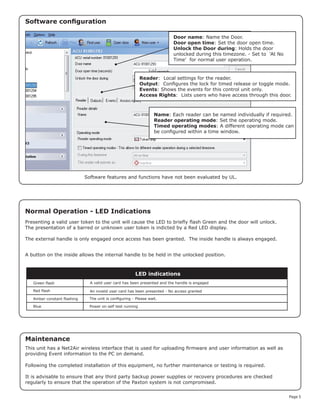
Software configuration
Name: Each reader can be named individually if required.
Reader operating mode: Set the operating mode.
Timed operating modes: A different operating mode can
be configured within a time window.
Reader: Local settings for the reader.
Output: Configures the lock for timed release or toggle mode.
Events: Shows the events for this control unit only.
Access Rights: Lists users who have access through this door.
Door name: Name the Door.
Door open time: Set the door open time.
Unlock the Door during: Holds the door
unlocked during this timezone. - Set to 'At No
Time' for normal user operation.
Software features and functions have not been evaluated by UL.
This unit has a Net2Air wireless interface that is used for uploading firmware and user information as well as
providing Event information to the PC on demand.
Following the completed installation of this equipment, no further maintenance or testing is required.
It is advisable to ensure that any third party backup power supplies or recovery procedures are checked
regularly to ensure that the operation of the Paxton system is not compromised.
Maintenance
Blue
Red flash
Amber constant flashing
A valid user card has been presented and the handle is engaged
An invalid user card has been presented - No access granted
LED indications
Green flash
Power on self test running
The unit is configuring - Please wait.
Page 6
Easyprox reset
The Easyprox holds address information for the bridge that it is bound to. This will cause problems if the unit is to
be used on another system.
The unit requires a hardware reset to clear its bridge information. This is achieved as follows:
1. Remove the unit from the door by removing the 4 mounting screws on the rear lock assembly.
2. Remove the access plate at the rear of the front lock assembly (top two standoff screws).
3. Locate the reset push button at the lower right corner of the circuit board.
4. Hold the button down and wake up the unit by briefly depressing the handle. The unit will give a single beep.
5. Push the reset button 4 more times and the unit will beep 5 times and display an AMBER LED.
6. Replace the access plate.
7. Enrol the unit - as above.
8. Refit the lock to the door with the 4 mounting screws.
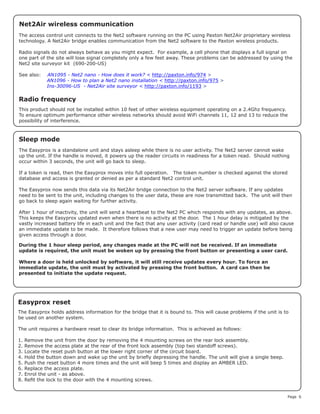
The access control unit connects to the Net2 software running on the PC using Paxton Net2Air proprietary wireless
technology. A Net2Air bridge enables communication from the Net2 software to the Paxton wireless products.
Radio signals do not always behave as you might expect. For example, a cell phone that displays a full signal on
one part of the site will lose signal completely only a few feet away. These problems can be addressed by using the
Net2 site surveyor kit (690-200-US)
See also: XAN1095 - Net2 nano - How does it work? < http://paxton.info/974 >
X AN1096 - How to plan a Net2 nano installation < http://paxton.info/975 >
X Ins-30096-US - Net2Air site surveyor < http://paxton.info/1193 >
The Easyprox is a standalone unit and stays asleep while there is no user activity. The Net2 server cannot wake
up the unit. If the handle is moved, it powers up the reader circuits in readiness for a token read. Should nothing
occur within 3 seconds, the unit will go back to sleep.
If a token is read, then the Easyprox moves into full operation. The token number is checked against the stored
database and access is granted or denied as per a standard Net2 control unit.
The Easyprox now sends this data via its Net2Air bridge connection to the Net2 server software. If any updates
need to be sent to the unit, including changes to the user data, these are now transmitted back. The unit will then
go back to sleep again waiting for further activity.
After 1 hour of inactivity, the unit will send a heartbeat to the Net2 PC which responds with any updates, as above.
This keeps the Easyprox updated even when there is no activity at the door. The 1 hour delay is mitigated by the
vastly increased battery life in each unit and the fact that any user activity (card read or handle use) will also cause
an immediate update to be made. It therefore follows that a new user may need to trigger an update before being
given access through a door.
Sleep mode
Net2Air wireless communication
Radio frequency
This product should not be installed within 10 feet of other wireless equipment operating on a 2.4Ghz frequency.
To ensure optimum performance other wireless networks should avoid WiFi channels 11, 12 and 13 to reduce the
possibility of interference.
During the 1 hour sleep period, any changes made at the PC will not be received. If an immediate
update is required, the unit must be woken up by pressing the front button or presenting a user card.
Where a door is held unlocked by software, it will still receive updates every hour. To force an
immediate update, the unit must by activated by pressing the front button. A card can then be
presented to initiate the update request.
Page 7
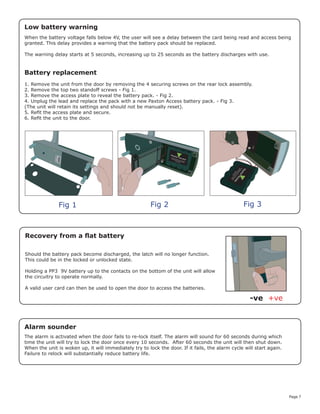
Battery replacement
1. Remove the unit from the door by removing the 4 securing screws on the rear lock assembly.
2. Remove the top two standoff screws - Fig 1.
3. Remove the access plate to reveal the battery pack. - Fig 2.
4. Unplug the lead and replace the pack with a new Paxton Access battery pack. - Fig 3.
(The unit will retain its settings and should not be manually reset).
5. Refit the access plate and secure.
6. Refit the unit to the door.
Fig 1 Fig 2 Fig 3
Recovery from a flat battery
Should the battery pack become discharged, the latch will no longer function.
This could be in the locked or unlocked state.
Holding a PP3 9V battery up to the contacts on the bottom of the unit will allow
the circuitry to operate normally.
A valid user card can then be used to open the door to access the batteries.
+ve-ve
When the battery voltage falls below 4V, the user will see a delay between the card being read and access being
granted. This delay provides a warning that the battery pack should be replaced.
The warning delay starts at 5 seconds, increasing up to 25 seconds as the battery discharges with use.
Low battery warning
Alarm sounder
The alarm is activated when the door fails to re-lock itself. The alarm will sound for 60 seconds during which
time the unit will try to lock the door once every 10 seconds. After 60 seconds the unit will then shut down.
When the unit is woken up, it will immediately try to lock the door. If it fails, the alarm cycle will start again.
Failure to relock will substantially reduce battery life.
Page 8
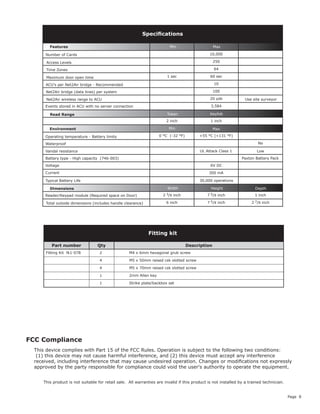
10,000
250
64
1 sec 60 sec
10
100
20 yds
3,584
2 inch 1 inch
0 °C (-32 °F) +55 °C (+131 °F)
6V DC
300 mA
2 3/8 inch 7 5/8 inch 1 inch
6 inch 7 5/8 inch 2 7/8 inch
Operating temperature - Battery limits
Environment
Dimensions
Features
Waterproof
Min
Width Height
Max
Depth
Min Max
Access Levels
Time Zones
Maximum door open time
ACU's per Net2Air bridge - Recommended
Events stored in ACU with no server connection
Number of Cards
Specifications
No
Net2Air bridge (data lines) per system
Net2Air wireless range to ACU
30,000 operations
Paxton Battery Pack
Low
Reader/Keypad module (Required space on Door)
Total outside dimensions (includes handle clearance)
Battery type - High capacity (746-003)
Typical Battery Life
Vandal resistance
Read Range KeyfobToken
This product is not suitable for retail sale. All warranties are invalid if this product is not installed by a trained technician.
Use site surveyor
FCC Compliance
This device complies with Part 15 of the FCC Rules. Operation is subject to the following two conditions:
(1) this device may not cause harmful interference, and (2) this device must accept any interference
received, including interference that may cause undesired operation. Changes or modifications not expressly
approved by the party responsible for compliance could void the user's authority to operate the equipment.
Part number Qty Description
Fitting Kit fk1-078 2 M4 x 6mm hexagonal grub screw
4 M5 x 50mm raised csk slotted screw
4 M5 x 70mm raised csk slotted screw
1 2mm Allen key
1 Strike plate/backbox set
Fitting kit
Voltage
Current
UL Attack Class 1

Paxton Access 746-284-US Instruction Manual

  • 1.
    Page 1 01/28/2013 Parts list ToolsList Power Drill Drill bits 3/8", 1". Philips screwdriver Hacksaw for cutting bolts Hammer / Mallet Chisel 1 inch Stanley knife Adhesive tape Pencil Tape measure 8 mm spanner (supplied) 2 mm Allen key (supplied) 1) Front Lock Assembly 2) Rear Lock Assembly 3) Rubber Escutcheon x2 4) Left and Right Handles 5) Battery Pack 6) Tubular Mortice Lock 7) Square Drive Bar 8) 8 mm and 5/16" Sleeves 9) 2 mm Allen Key 10) 8 mm Spanner 11) Strike Plate Backbox 12) Strike Plate 13) Long Mounting Screws x4 14) Short Mounting Screws x4 This unit is for Indoor use only Technical Support Technical help is available: Monday - Friday from 02:00 AM - 8:00 PM (EST) 1.800.672.7298 supportUS@paxton-access.com Ins-40107-US Easyprox nano - UL Documentation on all Paxton products can be found on our web site - http://www.paxton-access.com/ Net2Air Site Surveyor (690-200-US). This access control unit uses wireless communication. It is recommended that a Net2Air site surveyor is used to determine the best position for the bridge and control units. This wireless unit requires a Net2Air bridge to communicate with the server PC. 1 2 6 7 8 9 10 11 12 13 14 3 4 5 Part number Description 746-284-US Easyprox nano access control unit Paxton
  • 2.
    Page 2 Decide onthe lock height and mark this on the door. Fold the template along one dotted line and tape it to the door with the 'Centreline of Latch' at the required height. Mark the 4 x 3/8" and 1 x 1" holes. Remove the template, fold along the other dotted line and apply it to the other side of the door at the same height. Mark the holes as before. Remove the access plate at the rear of the unit by removing the top standoff screws. Push the battery pack lead onto the white power plug. Fit the battery pack and replace the access plate. Installing the hardware Step 1 - Marking out Step 2 - Drilling Step 3 - Fitting the latch Step 4 - Fitting the battery pack Drill a 1" hole in the door edge at least 3 1/4" deep to accept the latch. Drill the 4 x 3/8" holes for the mounting screws and a 1" hole for the square bar. To ensure accuracy you should drill these holes from both sides of the door towards the centre. This also avoids the risk of damaging the door face when the drill breaks through. Slide in the latch and draw around the faceplate. Remove the latch and score the outline with a Stanley knife to avoid splitting the wood when chiselling. Chisel a rebate allowing a flush fit for the latch. Re-fit the latch with the plunger facing away from the door frame and secure with two latch screws. Cut the square bar to length (Door thickness + 3/4") and slide into the latch. 25 57 80 The unit is now active and is LOCKED with the handle disconnected. Where possible, the unit should now be enrolled BEFORE mounting it on the door.
  • 3.
    Page 3 Fig AFig B Fig C Fig D Step 5 - Mounting on the door Step 6 - Fitting the handles Step 7 - Marking out the strike plate Step 8 - Fitting the strike plate Select the short (doors thinner than 1 3/4") or long mounting screws and cut to length if required. (door thickness + 3/16") Fit the rubber escutcheons to the front and back plates. Present the front and rear lock assembly to the door, locating the square drive in its recess and join the two parts together with 4 mounting screws. Fit the two handles, positioning the screw holes to the underside and secure with the grub screws provided. Check the operation of the lock - See Commissioning checks. Fig A - Vertical position of the strike plate - Close the door and mark the top and bottom position of the latch horizontally across the frame. Fig B - Horizontal position of the strike plate - Measure the distance from the back edge of the door to the flat face of the latch. (NOT the plunger.) Fig C - Mark this distance on the frame to show how far back the plate needs to be to hold the door closed. Fig D - Position the strike plate within these guide lines. Mark the positions of the fixing screws and draw around the 'cut-out' in the strike plate. Chisel out a 5/8" aperture to receive the latch bolt. Fix the strike plate with one latch screw to the surface of the frame. FROM THE INSIDE: Gently close the door and check that the latch enters the aperture easily with no additional 'play' in the frame. Small adjustments can be made by moving the plate slightly. When satisfied, draw around the outline of the strike plate, remove it. Score around the outline and then cut the rebate to enable the strike plate to lie flush with the surface. Fix the strike plate using two latch screws and check the lock operation. Remove the strike plate and increase the aperture to accept the strike plate backbox. Now re-fix the strike plate and check the operation of the 'anti-shim' plunger and the door. The unit is now fully operational and should be enrolled as soon as possible to preserve battery life.
  • 4.
    Page 4 The currentspecification for compatible PC hardware, network and operating systems is available on our website at the following link: http://paxton.info/720 There is NO Net2 Easyprox detection function. It is recognised that there could be security issues if the wireless units were detectable from outside the site. During installation, an Easyprox unit makes a permanent link with a Net2Air bridge which will then only talk to registered units. The Server Configuration Utility also has an ' Enable commissioning' mode which can be turned off to inhibit other units being added. An entry is then made on the Doors screen and a special icon is used to denote the wireless connection. With the product fixed securely to the door: 1) Extend the door open time by changing this door's settings on the Net2 PC. Set ' Door open time' to 20 seconds and then present a user card at the door. Before each check, present a user card to unlock the door. 2) Check that the handles are running smoothly, this is best done by depressing the handle all the way to the bottom and then releasing it as slowly as possible, if the handle is left behind at any point it is likely that the product has not been installed squarely enough. Check the handle on both sides of the door. 3) If your finger is able to leave the handle, remove the Easyprox from the door (or slacken the four fixing screws) and see if the problem goes away. If it does, then the installation onto the door is at fault and the drilling of the mounting holes should be checked for alignment. 4) Once the install has successfully passed this test return the door to normal operation by changing the PC setting for this door back to its previous door open time (default 3 seconds) and present a user card. This test confirms the correct and free operation of the mechanical lock and also ensures that the electronic circuits will shut down correctly preserving battery life. Commissioning checks An Easyprox must first bind to a Net2Air bridge before it will enrol itself onto the Net2 system. The term 'bind' is used to denote the fixed relationship between a wireless unit and its bridge. 1. Create a user record in the database and assign a Net2 token to the user. This record can be deleted after the installation is complete. 2. You must now wake up the Easyprox by moving the handle. 3. Present the same user token to the Easyprox which will then transmit the token number and wait for a response from a bridge. The software has the 'Enable commissioning mode' set as a default. If this has been turned off in the Server Configuration Utility, it must be enabled for this process to succeed. If more than one bridge replies, the Easyprox checks the signal strength and selects the strongest bridge to communicate with. The Net2 software confirms that the token number is in the database and if so registers this Easyprox/bridge binding. Enrolling an Easyprox The Net2 software should be loaded on the controlling PC with at least one Net2Air bridge installed. Full documentation is supplied with the Net2Air bridge unit and also from the website as follows: XAN1051 - Installing Net2 software < http://paxton.info/1520 > XIns-40084-US Net2Air USB bridge < http://paxton.info/1453 > XIns-40085-US Net2Air Ethernet bridge < http://paxton.info/1192 > Software installation The unit will continue to operate in a 'standalone' mode if the PC is shut down. Any Events that occur during this period are stored in the unit and the PC is updated when it comes back on line. The PC and Net2Air bridges are supplementary to the operation of the Easyprox.
  • 5.
    Page 5 Presenting avalid user token to the unit will cause the LED to briefly flash Green and the door will unlock. The presentation of a barred or unknown user token is indicted by a Red LED display. The external handle is only engaged once access has been granted. The inside handle is always engaged. Normal Operation - LED Indications A button on the inside allows the internal handle to be held in the unlocked position. Software configuration Name: Each reader can be named individually if required. Reader operating mode: Set the operating mode. Timed operating modes: A different operating mode can be configured within a time window. Reader: Local settings for the reader. Output: Configures the lock for timed release or toggle mode. Events: Shows the events for this control unit only. Access Rights: Lists users who have access through this door. Door name: Name the Door. Door open time: Set the door open time. Unlock the Door during: Holds the door unlocked during this timezone. - Set to 'At No Time' for normal user operation. Software features and functions have not been evaluated by UL. This unit has a Net2Air wireless interface that is used for uploading firmware and user information as well as providing Event information to the PC on demand. Following the completed installation of this equipment, no further maintenance or testing is required. It is advisable to ensure that any third party backup power supplies or recovery procedures are checked regularly to ensure that the operation of the Paxton system is not compromised. Maintenance Blue Red flash Amber constant flashing A valid user card has been presented and the handle is engaged An invalid user card has been presented - No access granted LED indications Green flash Power on self test running The unit is configuring - Please wait.
  • 6.
    Page 6 Easyprox reset TheEasyprox holds address information for the bridge that it is bound to. This will cause problems if the unit is to be used on another system. The unit requires a hardware reset to clear its bridge information. This is achieved as follows: 1. Remove the unit from the door by removing the 4 mounting screws on the rear lock assembly. 2. Remove the access plate at the rear of the front lock assembly (top two standoff screws). 3. Locate the reset push button at the lower right corner of the circuit board. 4. Hold the button down and wake up the unit by briefly depressing the handle. The unit will give a single beep. 5. Push the reset button 4 more times and the unit will beep 5 times and display an AMBER LED. 6. Replace the access plate. 7. Enrol the unit - as above. 8. Refit the lock to the door with the 4 mounting screws. The access control unit connects to the Net2 software running on the PC using Paxton Net2Air proprietary wireless technology. A Net2Air bridge enables communication from the Net2 software to the Paxton wireless products. Radio signals do not always behave as you might expect. For example, a cell phone that displays a full signal on one part of the site will lose signal completely only a few feet away. These problems can be addressed by using the Net2 site surveyor kit (690-200-US) See also: XAN1095 - Net2 nano - How does it work? < http://paxton.info/974 > X AN1096 - How to plan a Net2 nano installation < http://paxton.info/975 > X Ins-30096-US - Net2Air site surveyor < http://paxton.info/1193 > The Easyprox is a standalone unit and stays asleep while there is no user activity. The Net2 server cannot wake up the unit. If the handle is moved, it powers up the reader circuits in readiness for a token read. Should nothing occur within 3 seconds, the unit will go back to sleep. If a token is read, then the Easyprox moves into full operation. The token number is checked against the stored database and access is granted or denied as per a standard Net2 control unit. The Easyprox now sends this data via its Net2Air bridge connection to the Net2 server software. If any updates need to be sent to the unit, including changes to the user data, these are now transmitted back. The unit will then go back to sleep again waiting for further activity. After 1 hour of inactivity, the unit will send a heartbeat to the Net2 PC which responds with any updates, as above. This keeps the Easyprox updated even when there is no activity at the door. The 1 hour delay is mitigated by the vastly increased battery life in each unit and the fact that any user activity (card read or handle use) will also cause an immediate update to be made. It therefore follows that a new user may need to trigger an update before being given access through a door. Sleep mode Net2Air wireless communication Radio frequency This product should not be installed within 10 feet of other wireless equipment operating on a 2.4Ghz frequency. To ensure optimum performance other wireless networks should avoid WiFi channels 11, 12 and 13 to reduce the possibility of interference. During the 1 hour sleep period, any changes made at the PC will not be received. If an immediate update is required, the unit must be woken up by pressing the front button or presenting a user card. Where a door is held unlocked by software, it will still receive updates every hour. To force an immediate update, the unit must by activated by pressing the front button. A card can then be presented to initiate the update request.
  • 7.
    Page 7 Battery replacement 1.Remove the unit from the door by removing the 4 securing screws on the rear lock assembly. 2. Remove the top two standoff screws - Fig 1. 3. Remove the access plate to reveal the battery pack. - Fig 2. 4. Unplug the lead and replace the pack with a new Paxton Access battery pack. - Fig 3. (The unit will retain its settings and should not be manually reset). 5. Refit the access plate and secure. 6. Refit the unit to the door. Fig 1 Fig 2 Fig 3 Recovery from a flat battery Should the battery pack become discharged, the latch will no longer function. This could be in the locked or unlocked state. Holding a PP3 9V battery up to the contacts on the bottom of the unit will allow the circuitry to operate normally. A valid user card can then be used to open the door to access the batteries. +ve-ve When the battery voltage falls below 4V, the user will see a delay between the card being read and access being granted. This delay provides a warning that the battery pack should be replaced. The warning delay starts at 5 seconds, increasing up to 25 seconds as the battery discharges with use. Low battery warning Alarm sounder The alarm is activated when the door fails to re-lock itself. The alarm will sound for 60 seconds during which time the unit will try to lock the door once every 10 seconds. After 60 seconds the unit will then shut down. When the unit is woken up, it will immediately try to lock the door. If it fails, the alarm cycle will start again. Failure to relock will substantially reduce battery life.
  • 8.
    Page 8 10,000 250 64 1 sec60 sec 10 100 20 yds 3,584 2 inch 1 inch 0 °C (-32 °F) +55 °C (+131 °F) 6V DC 300 mA 2 3/8 inch 7 5/8 inch 1 inch 6 inch 7 5/8 inch 2 7/8 inch Operating temperature - Battery limits Environment Dimensions Features Waterproof Min Width Height Max Depth Min Max Access Levels Time Zones Maximum door open time ACU's per Net2Air bridge - Recommended Events stored in ACU with no server connection Number of Cards Specifications No Net2Air bridge (data lines) per system Net2Air wireless range to ACU 30,000 operations Paxton Battery Pack Low Reader/Keypad module (Required space on Door) Total outside dimensions (includes handle clearance) Battery type - High capacity (746-003) Typical Battery Life Vandal resistance Read Range KeyfobToken This product is not suitable for retail sale. All warranties are invalid if this product is not installed by a trained technician. Use site surveyor FCC Compliance This device complies with Part 15 of the FCC Rules. Operation is subject to the following two conditions: (1) this device may not cause harmful interference, and (2) this device must accept any interference received, including interference that may cause undesired operation. Changes or modifications not expressly approved by the party responsible for compliance could void the user's authority to operate the equipment. Part number Qty Description Fitting Kit fk1-078 2 M4 x 6mm hexagonal grub screw 4 M5 x 50mm raised csk slotted screw 4 M5 x 70mm raised csk slotted screw 1 2mm Allen key 1 Strike plate/backbox set Fitting kit Voltage Current UL Attack Class 1