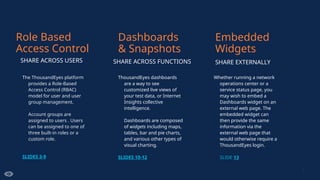
The ThousandEyes platform
providesa Role-Based
Access Control (RBAC)
model for user and user
group management.
Account groups are
assigned to users . Users
can be assigned to one of
three built-in roles or a
custom role.
SLIDES 3-9
ThousandEyes dashboards
are a way to see
customized live views of
your test data, or Internet
Insights collective
intelligence.
Dashboards are composed
of widgets including maps,
tables, bar and pie charts,
and various other types of
visual charting.
SLIDES 10-12
SHARE ACROSS FUNCTIONS
Whether running a network
operations center or a
service status page, you
may wish to embed a
Dashboards widget on an
external web page. The
embedded widget can
then provide the same
information via the
external web page that
would otherwise require a
ThousandEyes login.
SLIDE 13
2
Dashboards
& Snapshots
Role Based
Access Control
Embedded
Widgets
SHARE EXTERNALLY
SHARE ACROSS USERS
3.
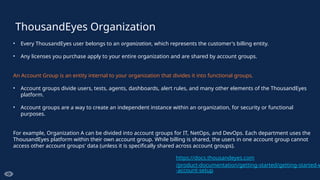
ThousandEyes Organization
• EveryThousandEyes user belongs to an organization, which represents the customer's billing entity.
• Any licenses you purchase apply to your entire organization and are shared by account groups.
An Account Group is an entity internal to your organization that divides it into functional groups.
• Account groups divide users, tests, agents, dashboards, alert rules, and many other elements of the ThousandEyes
platform.
• Account groups are a way to create an independent instance within an organization, for security or functional
purposes.
For example, Organization A can be divided into account groups for IT, NetOps, and DevOps. Each department uses the
ThousandEyes platform within their own account group. While billing is shared, the users in one account group cannot
access other account groups' data (unless it is specifically shared across account groups).
https://docs.thousandeyes.com
/product-documentation/getting-started/getting-started-w
-account-setup
4.
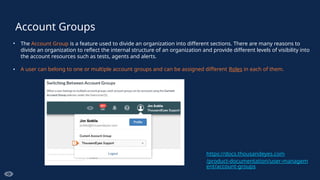
Account Groups
• TheAccount Group is a feature used to divide an organization into different sections. There are many reasons to
divide an organization to reflect the internal structure of an organization and provide different levels of visibility into
the account resources such as tests, agents and alerts.
• A user can belong to one or multiple account groups and can be assigned different Roles in each of them.
https://docs.thousandeyes.com
/product-documentation/user-managem
ent/account-groups
5.
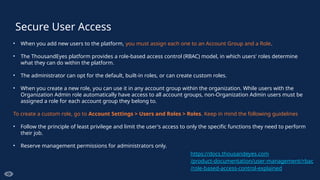
Secure User Access
•When you add new users to the platform, you must assign each one to an Account Group and a Role.
• The ThousandEyes platform provides a role-based access control (RBAC) model, in which users' roles determine
what they can do within the platform.
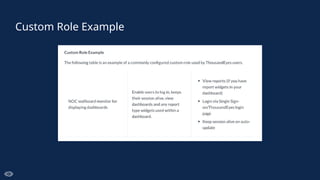
• The administrator can opt for the default, built-in roles, or can create custom roles.
• When you create a new role, you can use it in any account group within the organization. While users with the
Organization Admin role automatically have access to all account groups, non-Organization Admin users must be
assigned a role for each account group they belong to.
To create a custom role, go to Account Settings > Users and Roles > Roles. Keep in mind the following guidelines
• Follow the principle of least privilege and limit the user's access to only the specific functions they need to perform
their job.
• Reserve management permissions for administrators only.
https://docs.thousandeyes.com
/product-documentation/user-management/rbac
/role-based-access-control-explained
6.
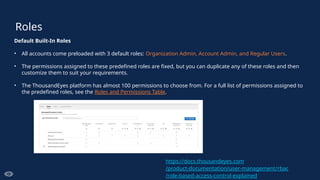
Roles
Default Built-In Roles
•All accounts come preloaded with 3 default roles: Organization Admin, Account Admin, and Regular Users.
• The permissions assigned to these predefined roles are fixed, but you can duplicate any of these roles and then
customize them to suit your requirements.
• The ThousandEyes platform has almost 100 permissions to choose from. For a full list of permissions assigned to
the predefined roles, see the Roles and Permissions Table.
https://docs.thousandeyes.com
/product-documentation/user-management/rbac
/role-based-access-control-explained
7.
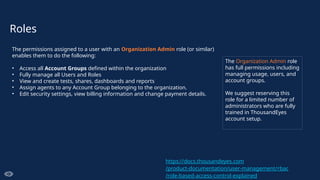
Roles
The permissions assignedto a user with an Organization Admin role (or similar)
enables them to do the following:
• Access all Account Groups defined within the organization
• Fully manage all Users and Roles
• View and create tests, shares, dashboards and reports
• Assign agents to any Account Group belonging to the organization.
• Edit security settings, view billing information and change payment details.
The Organization Admin role
has full permissions including
managing usage, users, and
account groups.
We suggest reserving this
role for a limited number of
administrators who are fully
trained in ThousandEyes
account setup.
https://docs.thousandeyes.com
/product-documentation/user-management/rbac
/role-based-access-control-explained
8.
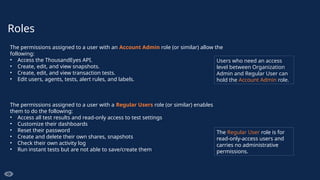
Roles
The permissions assignedto a user with an Account Admin role (or similar) allow the
following:
• Access the ThousandEyes API.
• Create, edit, and view snapshots.
• Create, edit, and view transaction tests.
• Edit users, agents, tests, alert rules, and labels.
The permissions assigned to a user with a Regular Users role (or similar) enables
them to do the following:
• Access all test results and read-only access to test settings
• Customize their dashboards
• Reset their password
• Create and delete their own shares, snapshots
• Check their own activity log
• Run instant tests but are not able to save/create them
The Regular User role is for
read-only-access users and
carries no administrative
permissions.
Users who need an access
level between Organization
Admin and Regular User can
hold the Account Admin role.
ThousandEyes Dashboards –Internal Users
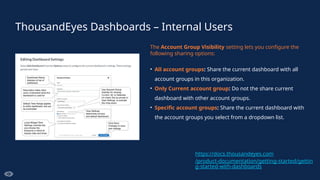
The Account Group Visibility setting lets you configure the
following sharing options:
• All account groups: Share the current dashboard with all
account groups in this organization.
• Only Current account group: Do not the share current
dashboard with other account groups.
• Specific account groups: Share the current dashboard with
the account groups you select from a dropdown list.
https://docs.thousandeyes.com
/product-documentation/getting-started/gettin
g-started-with-dashboards
11.
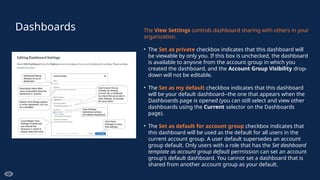
Dashboards The ViewSettings controls dashboard sharing with others in your
organization.
• The Set as private checkbox indicates that this dashboard will
be viewable by only you. If this box is unchecked, the dashboard
is available to anyone from the account group in which you
created the dashboard, and the Account Group Visibility drop-
down will not be editable.
• The Set as my default checkbox indicates that this dashboard
will be your default dashboard--the one that appears when the
Dashboards page is opened (you can still select and view other
dashboards using the Current selector on the Dashboards
page).
• The Set as default for account group checkbox indicates that
this dashboard will be used as the default for all users in the
current account group. A user default supersedes an account
group default. Only users with a role that has the Set dashboard
template as account group default permission can set an account
group's default dashboard. You cannot set a dashboard that is
shared from another account group as your default.
12.
ThousandEyes Dashboard Snapshots– External Users
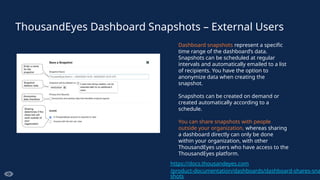
Dashboard snapshots represent a specific
time range of the dashboard’s data.
Snapshots can be scheduled at regular
intervals and automatically emailed to a list
of recipients. You have the option to
anonymize data when creating the
snapshot.
Snapshots can be created on demand or
created automatically according to a
schedule.
You can share snapshots with people
outside your organization, whereas sharing
a dashboard directly can only be done
within your organization, with other
ThousandEyes users who have access to the
ThousandEyes platform.
https://docs.thousandeyes.com
/product-documentation/dashboards/dashboard-shares-sna
shots
13.
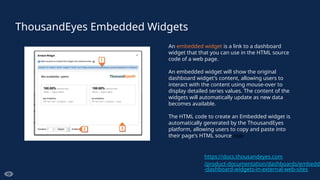
ThousandEyes Embedded Widgets
Anembedded widget is a link to a dashboard
widget that that you can use in the HTML source
code of a web page.
An embedded widget will show the original
dashboard widget's content, allowing users to
interact with the content using mouse-over to
display detailed series values. The content of the
widgets will automatically update as new data
becomes available.
The HTML code to create an Embedded widget is
automatically generated by the ThousandEyes
platform, allowing users to copy and paste into
their page's HTML source code
https://docs.thousandeyes.com
/product-documentation/dashboards/embeddi
-dashboard-widgets-in-external-web-sites