Joshua Stewart
December 28, 2011
What is the SC-1?
The Olympus SC-1 Barcode Scanner is a plug in module designed to scan barcodes to enter
option item values such as case number, patient number and others into the file headers.

The SC-1 can also be used as a USB barcode reader
for the PC
How does it work?
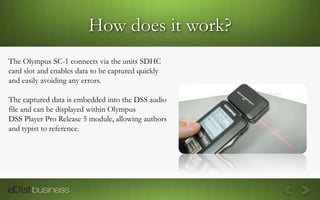
The Olympus SC-1 connects via the units SDHC
card slot and enables data to be captured quickly
and easily avoiding any errors.

The captured data is embedded into the DSS audio
file and can be displayed within Olympus
DSS Player Pro Release 5 module, allowing authors
and typist to reference.
Compatible Barcodes
The Olympus SC-1 will read the following types of barcodes:

   EAN-8          Codabar
   EAN-13         MSI
   EAN-128        Interleaved 2 of 5
   UPC-A          RSS-Limited
   UPC-E          RSS-Expanded
   Code 39
   Code 93
   Code 128
Compatible Devices

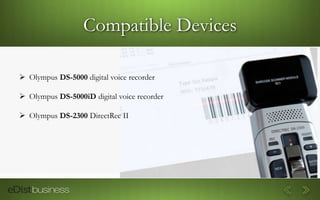
 Olympus DS-5000 digital voice recorder

 Olympus DS-5000iD digital voice recorder

 Olympus DS-2300 DirectRec II
Specifications
Laser class: Class 1 laser product

Code Length: Maximum of 30 digits

Working Range: 25 cm (The readable length shortens in bright
surroundings and when there is backlight)

Scan Beam Deflection Angle: 80 degrees

Dimensions: 50.6 mm (L) x 67 mm (H) x 16.6 mm (W)

Weight: Approximately 30g
STEP 1: Configure Worktypes
1. Start the Olympus DSS Player Pro Release 5.0.12 Dictation Module.
2. Go to Tools > Options > Workflow > Author.
3. On the right, you will see an Author List, click [Add] to create an Author ID.
4. Enter your name and select a priority level. The default is set at 7.
5. Click [OK]. You will now see your name and priority level in the Author List.
6. On the left window pane, select Worktype. A Worktype List window will appear on the right.
7. Click [Add]
8. A Worktype Property window will open. Enter a Worktype name in the Worktype ID field. Click [Add]
9. An Option Item Property window will appear. In the Label field, end the same Worktype name you entered in the
step before this. Leave the Default Value field empty.
10. In the Initial Value list box, choose [Blank]. Click [OK]. You will now see your entry in the Worktype Property
window.
11. Select [Individual Scanning]. Click [OK].
STEP 2: Transfer Settings
1. Connect your device to the computer. Make sure that it’s turned ON (DS-5000iD).
2. Start the Olympus DSS Player Pro Release 5 Module and go to Tools > Options > Device


4. On the top, select [Update] > [All Page]

This will transfer your settings to your digital voice recorder.
STEP 3: Connect Scanner
1. Disconnect the DS5000/id from your computer

2. Turn the recorder OFF.

3. Press and hold the two release buttons and slide the SC1 into the
open SD card slot on the DS5000.
STEP 4: Scan & Dictate
1. Turn the recorder ON. When you start a new recording, your Worktype will display on the LCD of the recorder.

2. Press and hold the [F1] button on the recorder to scan. The barcode information will display on the LCD.

3. Press the [F2] button to finish data input. Move the slide switch to the record position and begin dictating.
STEP 5: Configure Display Settings
When you connect your recorder and download your audio files, be sure to configure your software to display
Option Item 1(Barcode information).

1. Open the Olympus DSS Player Pro Release 5.0.8 software. In the main window, right click on [File Name] and check
[Option Item 1].

2. The Option Item column will appear.
Questions?
Sales Support
As a TOTAL SOLUTIONS PROVIDER, eDist provides partner access to the largest and most
highly trained sales staff in the industry. Our sales team specializes in vertical and integrated
solutions across a wide range of product lines with a strong emphasis on application sales
technique combined with a diverse product assortment to provide our partners with best in class
services tailored for your success.

     Dedicate Account Representative

     Online Order Entry

     Virtual Catalogs
Technical Support
eDist Partners receive FREE Technical Support, Training , Knowledge-Base Access,
Customization and Certification Preparation.
Outsource technical support to eDist and get back to what you do best – increasing your profits!
Our partners have access to tier 1, 2, 3 & 4 maintenance & technical services. Our multi-layered
support covers it ALL!
Marketing Support
eDist Partners receive FREE Marketing for Philips, Olympus, Dragon Medical and Dragon
NaturallySpeaking products.
Our marketing program was designed to assist partners increase revenue and facilitate growth.
Our services include:
   • Web Design &                                               • Email Marketing
     Development                                                  Campaigns
   • Web hosting                                                • Signage
   • Web print                                                  • Media Buying
   • SEO Reporting                                              • Public Relations
   • Logo Design & Creation                                     • Photography
   • Packaging                                                  • Media Planning
   • Branding & Identity                                        • and MORE
Hardware Support
eDist is an Authorized Repair facility for warranty and out-of-warranty
Philips & Olympus dictation and transcription devices.
Logistics
Our 8 facilities enable Voice Solution & Speech Recognition Partners to more efficiently and
               cost-effectively deploy custom solutions anywhere in the country.
Contact Information
                      THANK YOU FOR YOUR TIME!


                      Technical, Service & Repair Division
                      2210 Denton Drive, Ste. 101
                      Austin, TX 78758

                      1.800.962.7566 ext. 2202
JOSHUA STEWART
TXAO Branch Manager   1.512.310.7683 fax
                      j@edist.com

Olympus Sc 1 Barcode Scanner

  • 1.
  • 2.
    What is theSC-1? The Olympus SC-1 Barcode Scanner is a plug in module designed to scan barcodes to enter option item values such as case number, patient number and others into the file headers. The SC-1 can also be used as a USB barcode reader for the PC
  • 3.
    How does itwork? The Olympus SC-1 connects via the units SDHC card slot and enables data to be captured quickly and easily avoiding any errors. The captured data is embedded into the DSS audio file and can be displayed within Olympus DSS Player Pro Release 5 module, allowing authors and typist to reference.
  • 4.
    Compatible Barcodes The OlympusSC-1 will read the following types of barcodes:  EAN-8  Codabar  EAN-13  MSI  EAN-128  Interleaved 2 of 5  UPC-A  RSS-Limited  UPC-E  RSS-Expanded  Code 39  Code 93  Code 128
  • 5.
    Compatible Devices  OlympusDS-5000 digital voice recorder  Olympus DS-5000iD digital voice recorder  Olympus DS-2300 DirectRec II
  • 6.
    Specifications Laser class: Class1 laser product Code Length: Maximum of 30 digits Working Range: 25 cm (The readable length shortens in bright surroundings and when there is backlight) Scan Beam Deflection Angle: 80 degrees Dimensions: 50.6 mm (L) x 67 mm (H) x 16.6 mm (W) Weight: Approximately 30g
  • 7.
    STEP 1: ConfigureWorktypes 1. Start the Olympus DSS Player Pro Release 5.0.12 Dictation Module. 2. Go to Tools > Options > Workflow > Author. 3. On the right, you will see an Author List, click [Add] to create an Author ID. 4. Enter your name and select a priority level. The default is set at 7. 5. Click [OK]. You will now see your name and priority level in the Author List. 6. On the left window pane, select Worktype. A Worktype List window will appear on the right. 7. Click [Add] 8. A Worktype Property window will open. Enter a Worktype name in the Worktype ID field. Click [Add] 9. An Option Item Property window will appear. In the Label field, end the same Worktype name you entered in the step before this. Leave the Default Value field empty. 10. In the Initial Value list box, choose [Blank]. Click [OK]. You will now see your entry in the Worktype Property window. 11. Select [Individual Scanning]. Click [OK].
  • 8.
    STEP 2: TransferSettings 1. Connect your device to the computer. Make sure that it’s turned ON (DS-5000iD). 2. Start the Olympus DSS Player Pro Release 5 Module and go to Tools > Options > Device 4. On the top, select [Update] > [All Page] This will transfer your settings to your digital voice recorder.
  • 9.
    STEP 3: ConnectScanner 1. Disconnect the DS5000/id from your computer 2. Turn the recorder OFF. 3. Press and hold the two release buttons and slide the SC1 into the open SD card slot on the DS5000.
  • 10.
    STEP 4: Scan& Dictate 1. Turn the recorder ON. When you start a new recording, your Worktype will display on the LCD of the recorder. 2. Press and hold the [F1] button on the recorder to scan. The barcode information will display on the LCD. 3. Press the [F2] button to finish data input. Move the slide switch to the record position and begin dictating.
  • 11.
    STEP 5: ConfigureDisplay Settings When you connect your recorder and download your audio files, be sure to configure your software to display Option Item 1(Barcode information). 1. Open the Olympus DSS Player Pro Release 5.0.8 software. In the main window, right click on [File Name] and check [Option Item 1]. 2. The Option Item column will appear.
  • 12.
  • 13.
    Sales Support As aTOTAL SOLUTIONS PROVIDER, eDist provides partner access to the largest and most highly trained sales staff in the industry. Our sales team specializes in vertical and integrated solutions across a wide range of product lines with a strong emphasis on application sales technique combined with a diverse product assortment to provide our partners with best in class services tailored for your success.  Dedicate Account Representative  Online Order Entry  Virtual Catalogs
  • 14.
    Technical Support eDist Partnersreceive FREE Technical Support, Training , Knowledge-Base Access, Customization and Certification Preparation. Outsource technical support to eDist and get back to what you do best – increasing your profits! Our partners have access to tier 1, 2, 3 & 4 maintenance & technical services. Our multi-layered support covers it ALL!
  • 15.
    Marketing Support eDist Partnersreceive FREE Marketing for Philips, Olympus, Dragon Medical and Dragon NaturallySpeaking products. Our marketing program was designed to assist partners increase revenue and facilitate growth. Our services include: • Web Design & • Email Marketing Development Campaigns • Web hosting • Signage • Web print • Media Buying • SEO Reporting • Public Relations • Logo Design & Creation • Photography • Packaging • Media Planning • Branding & Identity • and MORE
  • 16.
    Hardware Support eDist isan Authorized Repair facility for warranty and out-of-warranty Philips & Olympus dictation and transcription devices.
  • 17.
    Logistics Our 8 facilitiesenable Voice Solution & Speech Recognition Partners to more efficiently and cost-effectively deploy custom solutions anywhere in the country.
  • 18.
    Contact Information THANK YOU FOR YOUR TIME! Technical, Service & Repair Division 2210 Denton Drive, Ste. 101 Austin, TX 78758 1.800.962.7566 ext. 2202 JOSHUA STEWART TXAO Branch Manager 1.512.310.7683 fax j@edist.com