INSTALL OWNCLOUD DAN NGINX DENGAN PHP-FPM


OwnCloud adalah software suite yang berfokus pada layanan penyimpanan data berbasis
lokasi yang independen (cloud storage) dan termasuk kategori Infrastructur as a Services
(IaaS) Cloud Computing, berbasis CMS (Content Management System ). ownCloud dibangun
berbasis PHP, SQLite/MySQL dan PostgreSQL serta dapat diberjalan disemua platform
windows, linux dan mac.


Nginx adalah salah satu server web yang ringan, cepat dan efiesien. Nginx juga merupakan
web reverse proxy dan email (IMAP/POP3) proxy.


Konfigurasi Sistem Centos 6.4
Konfigurasi centos dan tambahkan repository, disini menggunakan fedora epel untuk
repository dan remi. Sebenarnya repository ini tidak didukung secara resmi oleh Centos tapi
repository ini memberikan versi terbaru dari aplikasi yang nantinya akan digunakan.


[root@dl ~]# rpm -Uvh 
http://download.fedoraproject.org/pub/epel/6/x86_64/epel-release-6-8.noarch.rpm
[root@dl ~]# rpm -Uvh http://rpms.famillecollet.com/eterprise/remi-release-6.rpm
[root@dl ~]#yum update -y


Pastikan SELINUX dalam keadaan disable, perintah dibawah ini untuk memeriksa
konfigurasi selinux.
root@dl ~]# grep SELINUX /etc/selinux/config
# SELINUX= can take one of these three values:
SELINUX=disabled
# SELINUXTYPE= can take one of these two values:
SELINUXTYPE=targeted
[root@dl ~]#vi /etc/selinux/config
# This file controls the state of SELinux on the system.
# SELINUX= can take one of these three values:
#   enforcing - SELinux security policy is enforced.
#   permissive - SELinux prints warnings instead of enforcing.
#   disabled - No SELinux policy is loaded.
SELINUX=disabled                                      # pastikan SELINUX = disabled
# SELINUXTYPE= can take one of these two values:
#      targeted - Targeted processes are protected,
#      mls - Multi Level Security protection.
SELINUXTYPE=targeted
[root@dl ~]#reboot


Install Nginx, PHP-FPM dan Mysql Server
Untuk menjalankan Owncloud, dibawah ini daftar paket yang harus di install


[root@dl ~]#yum install nginx mysql-server php-fpm php-gd php-ldap php-pear php-xml
php-xmlrpc php-eaccelerator php-magickwand php-magpierss php-mbstring php-mcrypt
php-shout php-snmp php-soap php-tidy


Salah satu dari packet php-sqlite atau php-mysql harus di install tergantung database yang
digunakan, jika owncloud nantinya terintegrasi dengan samba install packet smbclient.


Konfigurasi Nginx dan PHP-FPM untuk OwnCloud
Buat file konfigurasi owncloud.conf dan simpan pada direktori conf.d pada direktori utama
nginx.
[root@dl ~]#cd /etc/nginx/conf.d
[root@dl conf.d]# vi owncloud.conf
---- isi file owncloud.conf ---
konfigurasi ini merupakan contoh lengkap untuk owncloud versi 5 dan berjalan untuk ipv4
dan ipv4, jika ingin berjalan ipv4 gunakan 80, bukan [::]:80.


Pertama, konfigurasi agar direct ke HTTPS ( contoh dl.sampel.com, disesuikan dengan
domain yang ada)
server {
    listen 80;
    server_name dl.sampel.com;
    rewrite ^ https://$server_name$request_uri? permanent;
}
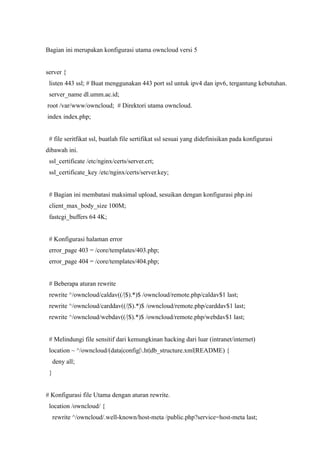
Bagian ini merupakan konfigurasi utama owncloud versi 5


server {
 listen 443 ssl; # Buat menggunakan 443 port ssl untuk ipv4 dan ipv6, tergantung kebutuhan.
 server_name dl.umm.ac.id;
root /var/www/owncloud; # Direktori utama owncloud.
index index.php;


 # file seritfikat ssl, buatlah file sertifikat ssl sesuai yang didefinisikan pada konfigurasi
dibawah ini.
 ssl_certificate /etc/nginx/certs/server.crt;
 ssl_certificate_key /etc/nginx/certs/server.key;


 # Bagian ini membatasi maksimal upload, sesuikan dengan konfigurasi php.ini
 client_max_body_size 100M;
 fastcgi_buffers 64 4K;


 # Konfigurasi halaman error
 error_page 403 = /core/templates/403.php;
 error_page 404 = /core/templates/404.php;


 # Beberapa aturan rewrite
 rewrite ^/owncloud/caldav((/|$).*)$ /owncloud/remote.php/caldav$1 last;
 rewrite ^/owncloud/carddav((/|$).*)$ /owncloud/remote.php/carddav$1 last;
 rewrite ^/owncloud/webdav((/|$).*)$ /owncloud/remote.php/webdav$1 last;


 # Melindungi file sensitif dari kemungkinan hacking dari luar (intranet/internet)
 location ~ ^/owncloud/(data|config|.ht|db_structure.xml|README) {
     deny all;
 }


# Konfigurasi file Utama dengan aturan rewrite.
 location /owncloud/ {
     rewrite ^/owncloud/.well-known/host-meta /public.php?service=host-meta last;
rewrite ^/owncloud/.well-known/host-meta.json /public.php?service=host-meta-json last;
        rewrite ^/owncloud/.well-known/carddav /remote.php/carddav/ redirect;
        rewrite ^/owncloud/.well-known/caldav /remote.php/caldav/ redirect;
        rewrite ^/owncloud/apps/calendar/caldav.php /remote.php/caldav/ last;
        rewrite ^/owncloud/apps/contacts/carddav.php /remote.php/carddav/ last;
        rewrite ^/owncloud/apps/([^/]*)/(.*.(css|php))$ /index.php?app=$1&getfile=$2 last;
    rewrite ^(/owncloud/core/doc[^/]+/)$ $1/index.html;
    index index.php;
    try_files $uri $uri/ index.php;
    }


    # Konfigurasi PHP-FPM
    location ~ ^(?<script_name>.+?.php)(?<path_info>/.*)?$ {
        try_files $script_name = 404;
        # sesuaikan dengan host atau port yang digunakan pada direktori php-fpm.d
        fastcgi_pass 127.0.0.1:9000;
        fastcgi_param PATH_INFO $path_info;
        fastcgi_param HTTPS on;
    fastcgi_param PHP_VALUE "upload_max_filesize = 100M n post_max_size = 100M";
        fastcgi_param SCRIPT_FILENAME /var/www/owncloud$fastcgi_script_name;
        include fastcgi_params;
    }


    location ~* ^.+.(jpg|jpeg|gif|bmp|ico|png|css|js|swf)$ {
        expires 30d;
        access_log off;
    }
}
Simpan file konfigurasi ini.


Membuat file sertifikat ssl.
Penjelasan lebih lanjut tentang module ssl seritkat baca di
http://wiki.nginx.org/HttpSslModule
[root@dl ~]# mkdir -p /etc/nginx/certs
[root@dl ~]# cd /etc/nginx/certs
[root@dl certs]# openssl genrsa -des3 -out server.key 1024
Generating RSA private key, 1024 bit long modulus
....................++++++
..............++++++
e is 65537 (0x10001)
Enter pass phrase for server.key:
Verifying - Enter pass phrase for server.key:
[root@dl certs]# openssl req -new -key server.key -out server.csr
Enter pass phrase for server.key:
You are about to be asked to enter information that will be incorporated
into your certificate request.
What you are about to enter is what is called a Distinguished Name or a DN.
There are quite a few fields but you can leave some blank
For some fields there will be a default value,
If you enter '.', the field will be left blank.
-----
Country Name (2 letter code) [XX]:IN
State or Province Name (full name) []:Jawa Timur
Locality Name (eg, city) [Default City]:Malang
Organization Name (eg, company) [Default Company Ltd]:My Company
Organizational Unit Name (eg, section) []:My Section
Common Name (eg, your name or your server's hostname) []:dl.sample.com
Email Address []:ruslan@sample.com


Please enter the following 'extra' attributes
to be sent with your certificate request
A challenge password []:
An optional company name []:
[root@dl certs]# cp server.key server.key.orig
[root@dl certs]# openssl rsa -in server.key.orig -out server.key
Enter pass phrase for server.key.orig:
writing RSA key
[root@dl certs]# openssl x509 -req -days 365 -in server.csr -signkey server.key -out
server.crt
Signature ok
subject=/C=IN/ST=Jawa Timur/L=Malang/O=My Company/OU=My
Section/CN=dl.sample.com/emailAddress=ruslan@sample.com
Getting Private key
[root@dl certs]# ls
server.crt server.csr server.key server.key.orig
[root@dl certs]#


Membuat database OwnCloud di Mysql
sebelum membuat database owncloud jalankan terlebih dahulu mysql, berikut ini langkah
untuk membuat database dan hak akses user ke database yang dibuat.


[root@dl ~]# /etc/init.d/mysqld start
[root@dl ~]# chkconfig mysqld on
[root@dl ~]# mysql -u root -p
Enter password:
Welcome to the MySQL monitor. Commands end with ; or g.
Your MySQL connection id is 1652
Server version: 5.1.67 Source distribution


Copyright (c) 2000, 2012, Oracle and/or its affiliates. All rights reserved.


Oracle is a registered trademark of Oracle Corporation and/or its
affiliates. Other names may be trademarks of their respective
owners.


Type 'help;' or 'h' for help. Type 'c' to clear the current input statement.


mysql> create database owncloud;
mysql> GRANT ALL ON owncloud.* TO owncloud@localhost IDENTIFIED BY
'mypasscloud';
mysql> flush privileges;
mysql> quit
Bye
[root@dl ~]#


Konfigurasi PHP-FPM
Edi file php.ini, naikkan nilai post_max_size dan upload_max_filesize sesuai dengan nilai
yang telah didefinisakan sebelumnya pada file owncloud.conf nginx.
[root@dl ~]#vi /etc/php.ini
cari bagian ini dan sesuikan
post_max_size = 100M
upload_max_file_size = 100M
simpan file konfigurasi ini.
[root@dl ~]#
Sesuaikan user,group dan port php-fpm sesuai yang telah didefinisikan sebelumnya pada file
owncloud.conf nginx.
[root@dl ~]#vi /etc/php-fpm.d/www.conf
cari bagian ini dan sesuaikan
listen = 127.0.0.1:9000
user = nginx
group = nginx
simpan file konfigurasi ini.
[root@dl ~]#


Menjalankan php-fpm dan nginx
[root@dl ~]# /etc/init.d/nginx start
[root@dl ~]# chkconfig nginx on
[root@dl ~]# /etc/init.d/php-fpm on
[root@dl ~]# chkconfig php-fpm on


Membangun OwnCloud
Download versi terbaru dari owncloud, ekstrak file ini dan pindahkan ke direktori utama yang
telah didefinisikan sebelumnya pada file owncloud.conf nginx.
[root@dl ~]# wget http://download.owncloud.org/community/owncloud-5.0.0.tar.bz2
[root@dl ~]#tar -jxvf owncloud-5.0.0.tar.bz2
[root@dl ~]# ls
owncloud owncloud-5.0.0.tar.bz2
[root@dl ~]# mv owncloud /var/www
chown dan chmod direcktori owncloud agar bisa di akses dan terproteksi hanya untuk user
dan group yang didefinisikan.
[root@dl ]~#cd /var/www
[root@dl ~]#chown -R nginx.nginx owncloud
[root@dl ~]#chmod -R 770 owncloud
Jika nanti direktori data user dibuat di partisi tersendiri, definisikan juga user dan hak akses
untuk diretkri tersebut
[root@dl ~]#mkdir /data/users
[root@dl ~]#chown -R nginx.nginx /data/users
[root@dl ~]#chmod -R 770 /data/users


Terakhir buka browser dan lakukan instalasi web interface owncloud, sesuai dengan alamat
yang telah didefinisikan sebelumnya pada file owncloud.conf nginx.


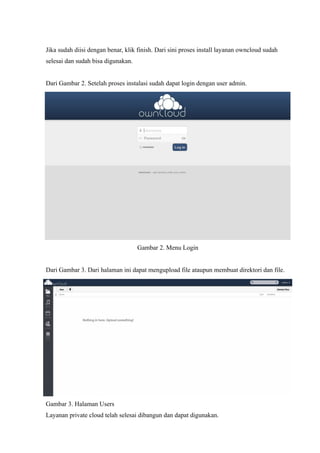
                                   Gambar 1. Proses Instalasi
Jika sudah diisi dengan benar, klik finish. Dari sini proses install layanan owncloud sudah
selesai dan sudah bisa digunakan.


Dari Gambar 2. Setelah proses instalasi sudah dapat login dengan user admin.


                                    Gambar 2. Menu Login


Dari Gambar 3. Dari halaman ini dapat mengupload file ataupun membuat direktori dan file.


Gambar 3. Halaman Users
Layanan private cloud telah selesai dibangun dan dapat digunakan.
INTEGRASI OWNCLOUD DENGAN ZIMBRA LDAP


Sistem authentikasi teintegrasi (Single Sign-on) saat ini merupakan sebuah kebutuhan, hal ini
karena memudahkan pengguna untuk mengingat dan mengakses setiap layanan hanya dengan
satu authentikasi terintegrasi.


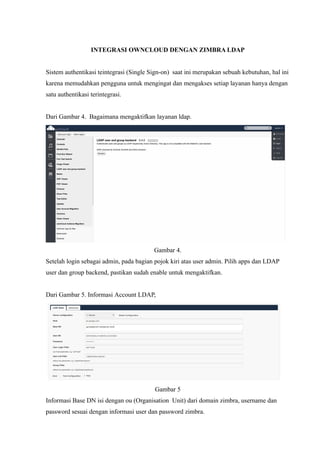
Dari Gambar 4. Bagaimana mengaktifkan layanan ldap.


                                         Gambar 4.
Setelah login sebagai admin, pada bagian pojok kiri atas user admin. Pilih apps dan LDAP
user dan group backend, pastikan sudah enable untuk mengaktifkan.


Dari Gambar 5. Informasi Account LDAP,


                                         Gambar 5
Informasi Base DN isi dengan ou (Organisation Unit) dari domain zimbra, username dan
password sesuai dengan informasi user dan password zimbra.
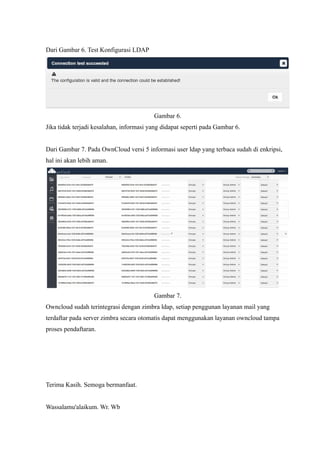
Dari Gambar 6. Test Konfigurasi LDAP


                                         Gambar 6.
Jika tidak terjadi kesalahan, informasi yang didapat seperti pada Gambar 6.


Dari Gambar 7. Pada OwnCloud versi 5 informasi user ldap yang terbaca sudah di enkripsi,
hal ini akan lebih aman.


                                         Gambar 7.
Owncloud sudah terintegrasi dengan zimbra ldap, setiap penggunan layanan mail yang
terdaftar pada server zimbra secara otomatis dapat menggunakan layanan owncloud tampa
proses pendaftaran.


Terima Kasih. Semoga bermanfaat.


Wassalamu'alaikum. Wr. Wb

Nginx owncloud

  • 1.
    INSTALL OWNCLOUD DANNGINX DENGAN PHP-FPM OwnCloud adalah software suite yang berfokus pada layanan penyimpanan data berbasis lokasi yang independen (cloud storage) dan termasuk kategori Infrastructur as a Services (IaaS) Cloud Computing, berbasis CMS (Content Management System ). ownCloud dibangun berbasis PHP, SQLite/MySQL dan PostgreSQL serta dapat diberjalan disemua platform windows, linux dan mac. Nginx adalah salah satu server web yang ringan, cepat dan efiesien. Nginx juga merupakan web reverse proxy dan email (IMAP/POP3) proxy. Konfigurasi Sistem Centos 6.4 Konfigurasi centos dan tambahkan repository, disini menggunakan fedora epel untuk repository dan remi. Sebenarnya repository ini tidak didukung secara resmi oleh Centos tapi repository ini memberikan versi terbaru dari aplikasi yang nantinya akan digunakan. [root@dl ~]# rpm -Uvh http://download.fedoraproject.org/pub/epel/6/x86_64/epel-release-6-8.noarch.rpm [root@dl ~]# rpm -Uvh http://rpms.famillecollet.com/eterprise/remi-release-6.rpm [root@dl ~]#yum update -y Pastikan SELINUX dalam keadaan disable, perintah dibawah ini untuk memeriksa konfigurasi selinux. root@dl ~]# grep SELINUX /etc/selinux/config # SELINUX= can take one of these three values: SELINUX=disabled # SELINUXTYPE= can take one of these two values: SELINUXTYPE=targeted [root@dl ~]#vi /etc/selinux/config # This file controls the state of SELinux on the system. # SELINUX= can take one of these three values: # enforcing - SELinux security policy is enforced. # permissive - SELinux prints warnings instead of enforcing. # disabled - No SELinux policy is loaded.
  • 2.
    SELINUX=disabled # pastikan SELINUX = disabled # SELINUXTYPE= can take one of these two values: # targeted - Targeted processes are protected, # mls - Multi Level Security protection. SELINUXTYPE=targeted [root@dl ~]#reboot Install Nginx, PHP-FPM dan Mysql Server Untuk menjalankan Owncloud, dibawah ini daftar paket yang harus di install [root@dl ~]#yum install nginx mysql-server php-fpm php-gd php-ldap php-pear php-xml php-xmlrpc php-eaccelerator php-magickwand php-magpierss php-mbstring php-mcrypt php-shout php-snmp php-soap php-tidy Salah satu dari packet php-sqlite atau php-mysql harus di install tergantung database yang digunakan, jika owncloud nantinya terintegrasi dengan samba install packet smbclient. Konfigurasi Nginx dan PHP-FPM untuk OwnCloud Buat file konfigurasi owncloud.conf dan simpan pada direktori conf.d pada direktori utama nginx. [root@dl ~]#cd /etc/nginx/conf.d [root@dl conf.d]# vi owncloud.conf ---- isi file owncloud.conf --- konfigurasi ini merupakan contoh lengkap untuk owncloud versi 5 dan berjalan untuk ipv4 dan ipv4, jika ingin berjalan ipv4 gunakan 80, bukan [::]:80. Pertama, konfigurasi agar direct ke HTTPS ( contoh dl.sampel.com, disesuikan dengan domain yang ada) server { listen 80; server_name dl.sampel.com; rewrite ^ https://$server_name$request_uri? permanent; }
  • 3.
    Bagian ini merupakankonfigurasi utama owncloud versi 5 server { listen 443 ssl; # Buat menggunakan 443 port ssl untuk ipv4 dan ipv6, tergantung kebutuhan. server_name dl.umm.ac.id; root /var/www/owncloud; # Direktori utama owncloud. index index.php; # file seritfikat ssl, buatlah file sertifikat ssl sesuai yang didefinisikan pada konfigurasi dibawah ini. ssl_certificate /etc/nginx/certs/server.crt; ssl_certificate_key /etc/nginx/certs/server.key; # Bagian ini membatasi maksimal upload, sesuikan dengan konfigurasi php.ini client_max_body_size 100M; fastcgi_buffers 64 4K; # Konfigurasi halaman error error_page 403 = /core/templates/403.php; error_page 404 = /core/templates/404.php; # Beberapa aturan rewrite rewrite ^/owncloud/caldav((/|$).*)$ /owncloud/remote.php/caldav$1 last; rewrite ^/owncloud/carddav((/|$).*)$ /owncloud/remote.php/carddav$1 last; rewrite ^/owncloud/webdav((/|$).*)$ /owncloud/remote.php/webdav$1 last; # Melindungi file sensitif dari kemungkinan hacking dari luar (intranet/internet) location ~ ^/owncloud/(data|config|.ht|db_structure.xml|README) { deny all; } # Konfigurasi file Utama dengan aturan rewrite. location /owncloud/ { rewrite ^/owncloud/.well-known/host-meta /public.php?service=host-meta last;
  • 4.
    rewrite ^/owncloud/.well-known/host-meta.json /public.php?service=host-meta-jsonlast; rewrite ^/owncloud/.well-known/carddav /remote.php/carddav/ redirect; rewrite ^/owncloud/.well-known/caldav /remote.php/caldav/ redirect; rewrite ^/owncloud/apps/calendar/caldav.php /remote.php/caldav/ last; rewrite ^/owncloud/apps/contacts/carddav.php /remote.php/carddav/ last; rewrite ^/owncloud/apps/([^/]*)/(.*.(css|php))$ /index.php?app=$1&getfile=$2 last; rewrite ^(/owncloud/core/doc[^/]+/)$ $1/index.html; index index.php; try_files $uri $uri/ index.php; } # Konfigurasi PHP-FPM location ~ ^(?<script_name>.+?.php)(?<path_info>/.*)?$ { try_files $script_name = 404; # sesuaikan dengan host atau port yang digunakan pada direktori php-fpm.d fastcgi_pass 127.0.0.1:9000; fastcgi_param PATH_INFO $path_info; fastcgi_param HTTPS on; fastcgi_param PHP_VALUE "upload_max_filesize = 100M n post_max_size = 100M"; fastcgi_param SCRIPT_FILENAME /var/www/owncloud$fastcgi_script_name; include fastcgi_params; } location ~* ^.+.(jpg|jpeg|gif|bmp|ico|png|css|js|swf)$ { expires 30d; access_log off; } } Simpan file konfigurasi ini. Membuat file sertifikat ssl. Penjelasan lebih lanjut tentang module ssl seritkat baca di http://wiki.nginx.org/HttpSslModule
  • 5.
    [root@dl ~]# mkdir-p /etc/nginx/certs [root@dl ~]# cd /etc/nginx/certs [root@dl certs]# openssl genrsa -des3 -out server.key 1024 Generating RSA private key, 1024 bit long modulus ....................++++++ ..............++++++ e is 65537 (0x10001) Enter pass phrase for server.key: Verifying - Enter pass phrase for server.key: [root@dl certs]# openssl req -new -key server.key -out server.csr Enter pass phrase for server.key: You are about to be asked to enter information that will be incorporated into your certificate request. What you are about to enter is what is called a Distinguished Name or a DN. There are quite a few fields but you can leave some blank For some fields there will be a default value, If you enter '.', the field will be left blank. ----- Country Name (2 letter code) [XX]:IN State or Province Name (full name) []:Jawa Timur Locality Name (eg, city) [Default City]:Malang Organization Name (eg, company) [Default Company Ltd]:My Company Organizational Unit Name (eg, section) []:My Section Common Name (eg, your name or your server's hostname) []:dl.sample.com Email Address []:ruslan@sample.com Please enter the following 'extra' attributes to be sent with your certificate request A challenge password []: An optional company name []: [root@dl certs]# cp server.key server.key.orig [root@dl certs]# openssl rsa -in server.key.orig -out server.key Enter pass phrase for server.key.orig: writing RSA key
  • 6.
    [root@dl certs]# opensslx509 -req -days 365 -in server.csr -signkey server.key -out server.crt Signature ok subject=/C=IN/ST=Jawa Timur/L=Malang/O=My Company/OU=My Section/CN=dl.sample.com/emailAddress=ruslan@sample.com Getting Private key [root@dl certs]# ls server.crt server.csr server.key server.key.orig [root@dl certs]# Membuat database OwnCloud di Mysql sebelum membuat database owncloud jalankan terlebih dahulu mysql, berikut ini langkah untuk membuat database dan hak akses user ke database yang dibuat. [root@dl ~]# /etc/init.d/mysqld start [root@dl ~]# chkconfig mysqld on [root@dl ~]# mysql -u root -p Enter password: Welcome to the MySQL monitor. Commands end with ; or g. Your MySQL connection id is 1652 Server version: 5.1.67 Source distribution Copyright (c) 2000, 2012, Oracle and/or its affiliates. All rights reserved. Oracle is a registered trademark of Oracle Corporation and/or its affiliates. Other names may be trademarks of their respective owners. Type 'help;' or 'h' for help. Type 'c' to clear the current input statement. mysql> create database owncloud; mysql> GRANT ALL ON owncloud.* TO owncloud@localhost IDENTIFIED BY 'mypasscloud'; mysql> flush privileges;
  • 7.
    mysql> quit Bye [root@dl ~]# KonfigurasiPHP-FPM Edi file php.ini, naikkan nilai post_max_size dan upload_max_filesize sesuai dengan nilai yang telah didefinisakan sebelumnya pada file owncloud.conf nginx. [root@dl ~]#vi /etc/php.ini cari bagian ini dan sesuikan post_max_size = 100M upload_max_file_size = 100M simpan file konfigurasi ini. [root@dl ~]# Sesuaikan user,group dan port php-fpm sesuai yang telah didefinisikan sebelumnya pada file owncloud.conf nginx. [root@dl ~]#vi /etc/php-fpm.d/www.conf cari bagian ini dan sesuaikan listen = 127.0.0.1:9000 user = nginx group = nginx simpan file konfigurasi ini. [root@dl ~]# Menjalankan php-fpm dan nginx [root@dl ~]# /etc/init.d/nginx start [root@dl ~]# chkconfig nginx on [root@dl ~]# /etc/init.d/php-fpm on [root@dl ~]# chkconfig php-fpm on Membangun OwnCloud Download versi terbaru dari owncloud, ekstrak file ini dan pindahkan ke direktori utama yang telah didefinisikan sebelumnya pada file owncloud.conf nginx. [root@dl ~]# wget http://download.owncloud.org/community/owncloud-5.0.0.tar.bz2 [root@dl ~]#tar -jxvf owncloud-5.0.0.tar.bz2
  • 8.
    [root@dl ~]# ls owncloudowncloud-5.0.0.tar.bz2 [root@dl ~]# mv owncloud /var/www chown dan chmod direcktori owncloud agar bisa di akses dan terproteksi hanya untuk user dan group yang didefinisikan. [root@dl ]~#cd /var/www [root@dl ~]#chown -R nginx.nginx owncloud [root@dl ~]#chmod -R 770 owncloud Jika nanti direktori data user dibuat di partisi tersendiri, definisikan juga user dan hak akses untuk diretkri tersebut [root@dl ~]#mkdir /data/users [root@dl ~]#chown -R nginx.nginx /data/users [root@dl ~]#chmod -R 770 /data/users Terakhir buka browser dan lakukan instalasi web interface owncloud, sesuai dengan alamat yang telah didefinisikan sebelumnya pada file owncloud.conf nginx. Gambar 1. Proses Instalasi
  • 9.
    Jika sudah diisidengan benar, klik finish. Dari sini proses install layanan owncloud sudah selesai dan sudah bisa digunakan. Dari Gambar 2. Setelah proses instalasi sudah dapat login dengan user admin. Gambar 2. Menu Login Dari Gambar 3. Dari halaman ini dapat mengupload file ataupun membuat direktori dan file. Gambar 3. Halaman Users Layanan private cloud telah selesai dibangun dan dapat digunakan.
  • 10.
    INTEGRASI OWNCLOUD DENGANZIMBRA LDAP Sistem authentikasi teintegrasi (Single Sign-on) saat ini merupakan sebuah kebutuhan, hal ini karena memudahkan pengguna untuk mengingat dan mengakses setiap layanan hanya dengan satu authentikasi terintegrasi. Dari Gambar 4. Bagaimana mengaktifkan layanan ldap. Gambar 4. Setelah login sebagai admin, pada bagian pojok kiri atas user admin. Pilih apps dan LDAP user dan group backend, pastikan sudah enable untuk mengaktifkan. Dari Gambar 5. Informasi Account LDAP, Gambar 5 Informasi Base DN isi dengan ou (Organisation Unit) dari domain zimbra, username dan password sesuai dengan informasi user dan password zimbra.
  • 11.
    Dari Gambar 6.Test Konfigurasi LDAP Gambar 6. Jika tidak terjadi kesalahan, informasi yang didapat seperti pada Gambar 6. Dari Gambar 7. Pada OwnCloud versi 5 informasi user ldap yang terbaca sudah di enkripsi, hal ini akan lebih aman. Gambar 7. Owncloud sudah terintegrasi dengan zimbra ldap, setiap penggunan layanan mail yang terdaftar pada server zimbra secara otomatis dapat menggunakan layanan owncloud tampa proses pendaftaran. Terima Kasih. Semoga bermanfaat. Wassalamu'alaikum. Wr. Wb