25/02/2016 My Library
https://www.diigo.com/user/zuzanna12 1/3
Search in Title, URL, Annotations & Tags
Skip to main content
 
My Library
My Outliners
My Groups
Discover 
Go Premium
 
Add
3 items total
Add to Outliners
Share to Group
More Actions
Filter:All
Collapse
Date Updated
Huelva – Wikipedia, wolna encyklopedia
1 minute ago
Huelva
pl.wikipedia.org wikepedia
Try PDF annotation ­ Active Reading: The Art of Annotation
www.diigo.com/annotation.pdf
Getting Started with Chrome extension ­ Diigo help 3
19 minutes ago
help.diigo.com Diigo Chrome
  
25/02/2016 My Library
https://www.diigo.com/user/zuzanna12 2/3
  
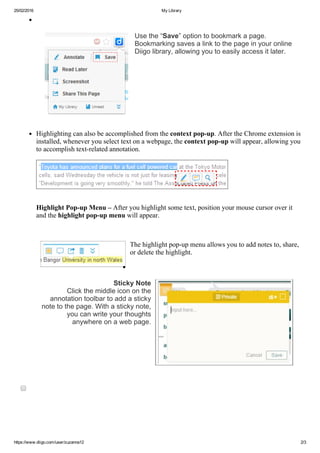
Use the “Save” option to bookmark a page.
Bookmarking saves a link to the page in your online
Diigo library, allowing you to easily access it later.
 
Highlighting can also be accomplished from the context pop­up. After the Chrome extension is
installed, whenever you select text on a webpage, the context pop­up will appear, allowing you
to accomplish text­related annotation.
    
Highlight Pop­up Menu – After you highlight some text, position your mouse cursor over it
and the highlight pop­up menu will appear.
    
The highlight pop­up menu allows you to add notes to, share,
or delete the highlight.
  
Sticky Note
  Click the middle icon on the
annotation toolbar to add a sticky
note to the page. With a sticky note,
you can write your thoughts
anywhere on a web page.
 
25/02/2016 My Library
https://www.diigo.com/user/zuzanna12 3/3
20 items/page
Tags (4)
All Tags
1Chrome
1Diigo
1Untagged
1wikepedia
©2016 Diigo, Inc.
About
Pricing & Plans
Terms of Service
Privacy Policy
Blog
Twitter
Contact Us

My library