MODULE 5
SCREEN BASED
CONTROLS
Screen-based controls, often simply called controls or
widgets, are the elements of a screen that represent the
properties or operations of other objects.
A controlmay:
• Permit the entry or selection of a particular value.
• Permit the changing or editing of a particularvalue.
• Display only a particular piece of text, value, or graphic.
• Cause a command to be performed.
• Possess a contextual pop-up window.
SCREEN-BASED
CONTROLS
1. OPERABLECONTROL
• Operable controls are those that permit the entry, selection, changing, or
editing of a particular value,
or cause a command to beperformed.
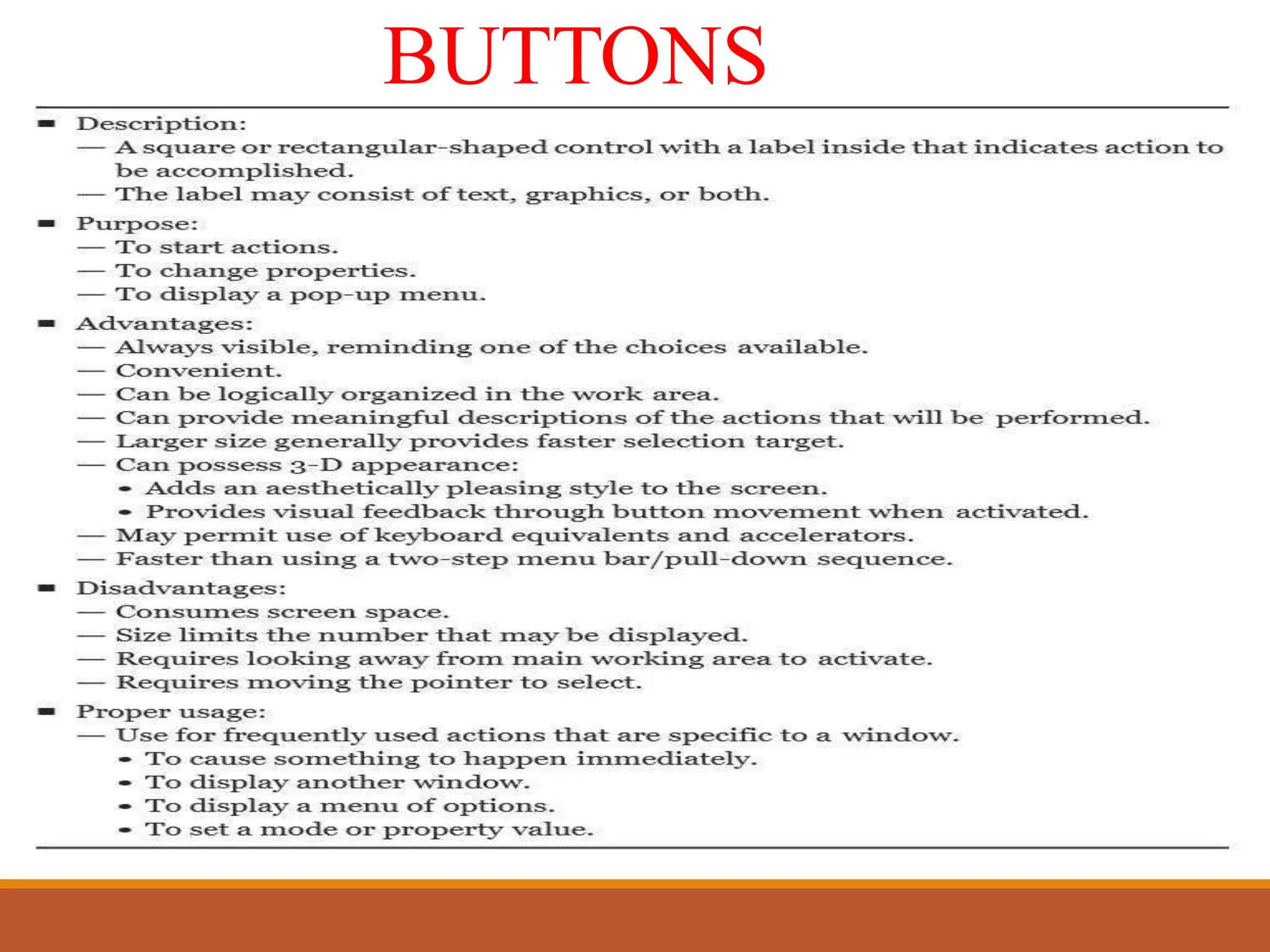
• It mainly includes “Buttons” : A square or rectangular-
shaped
a label
control
inside
with
that
indicates action to be accomplished.
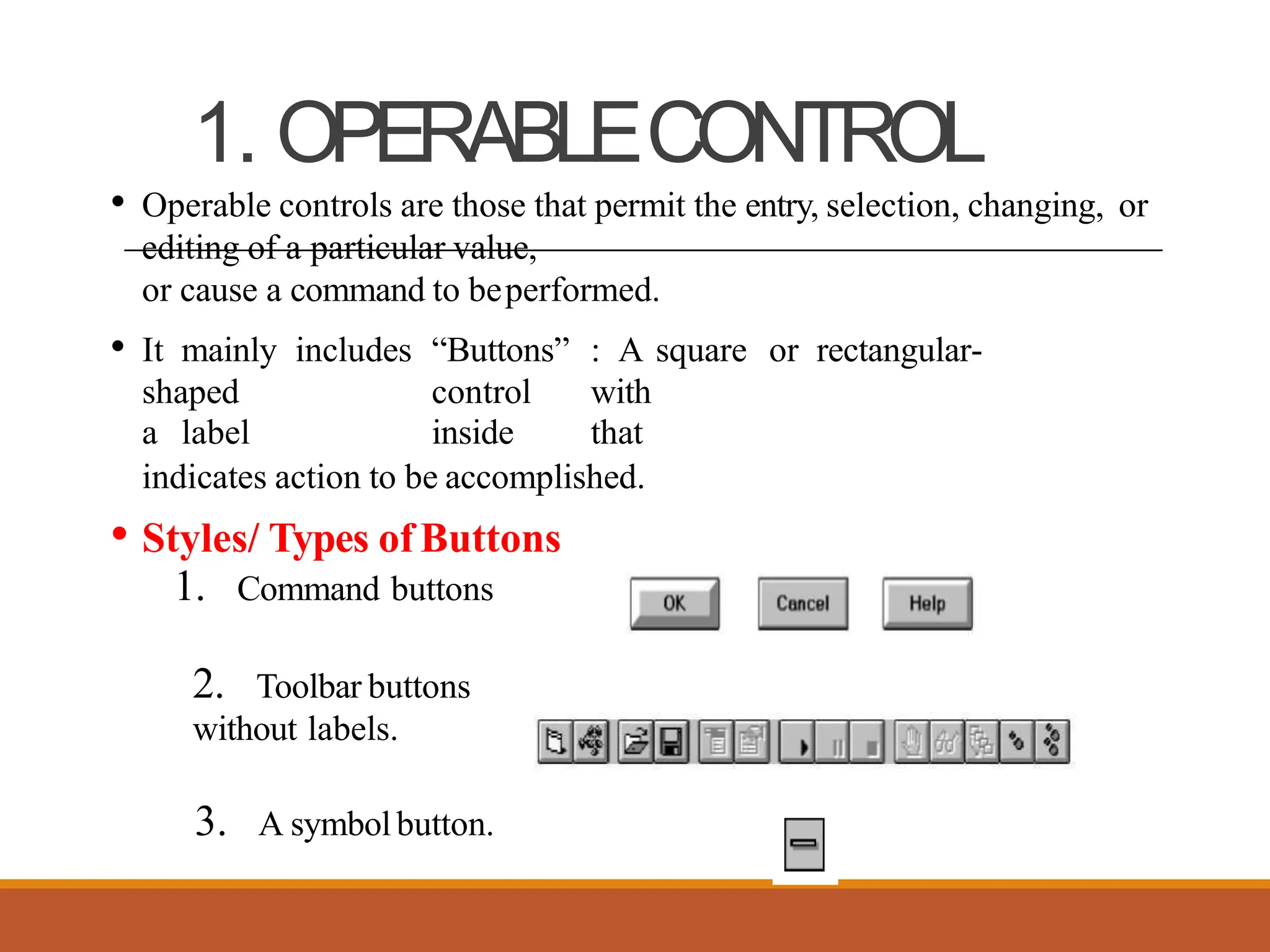
• Styles/ Types of Buttons
1. Command buttons
2. Toolbar buttons
without labels.
3. A symbolbutton.
BUTTONS
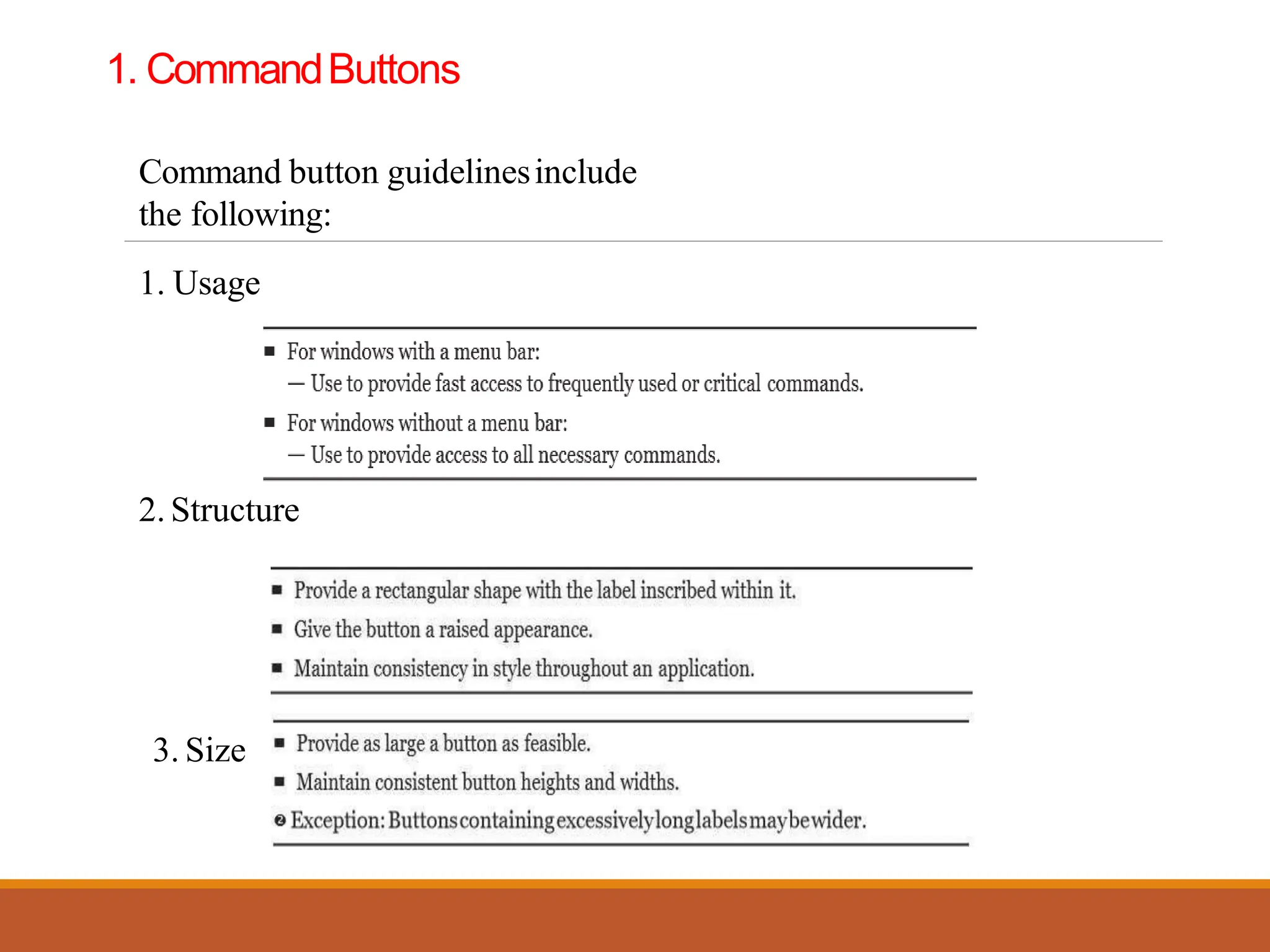
1. CommandButtons
Command button guidelinesinclude
the following:
1. Usage
2. Structure
3. Size
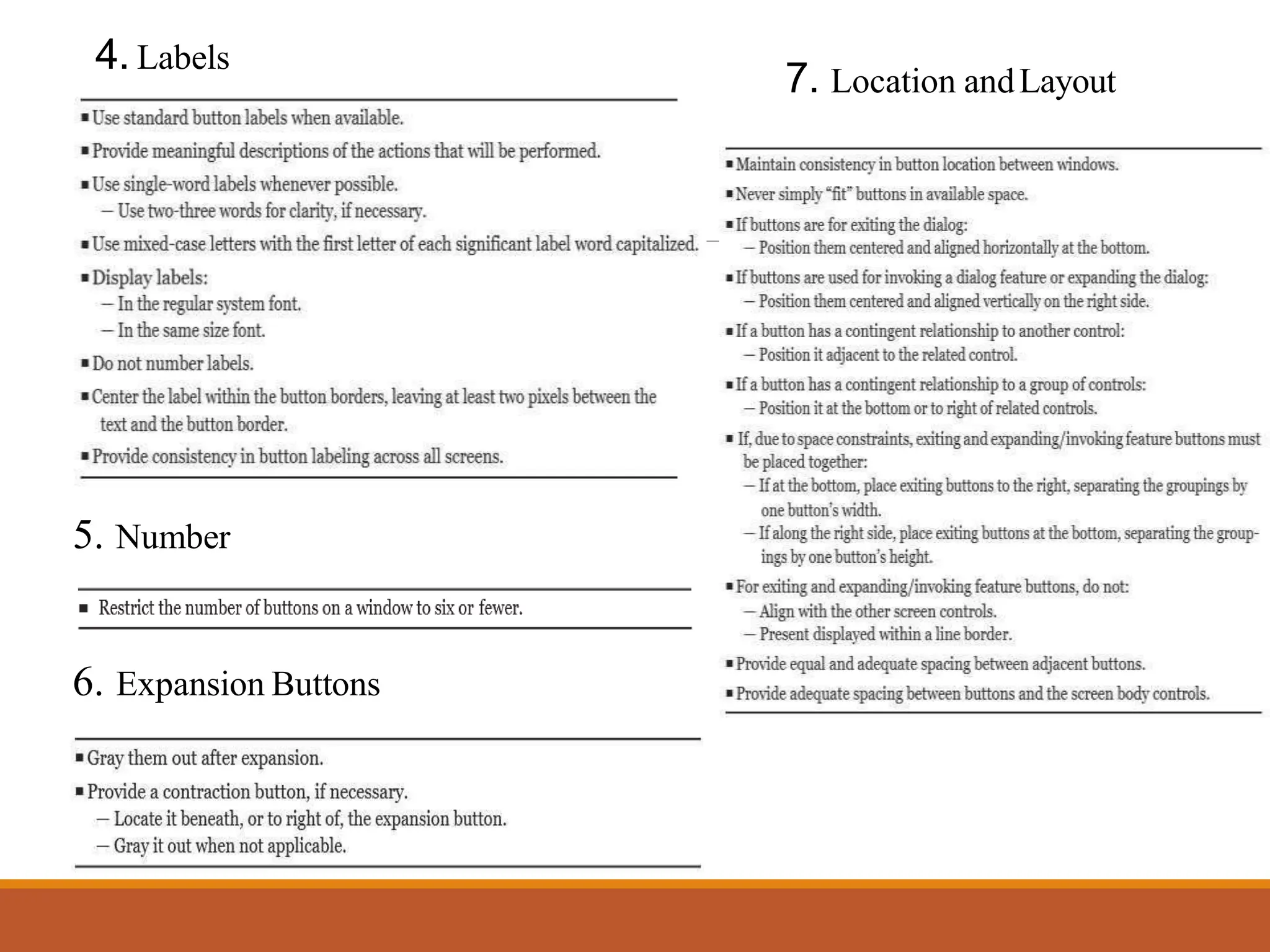
4. Labels
7. Location andLayout
5. Number
6. Expansion Buttons
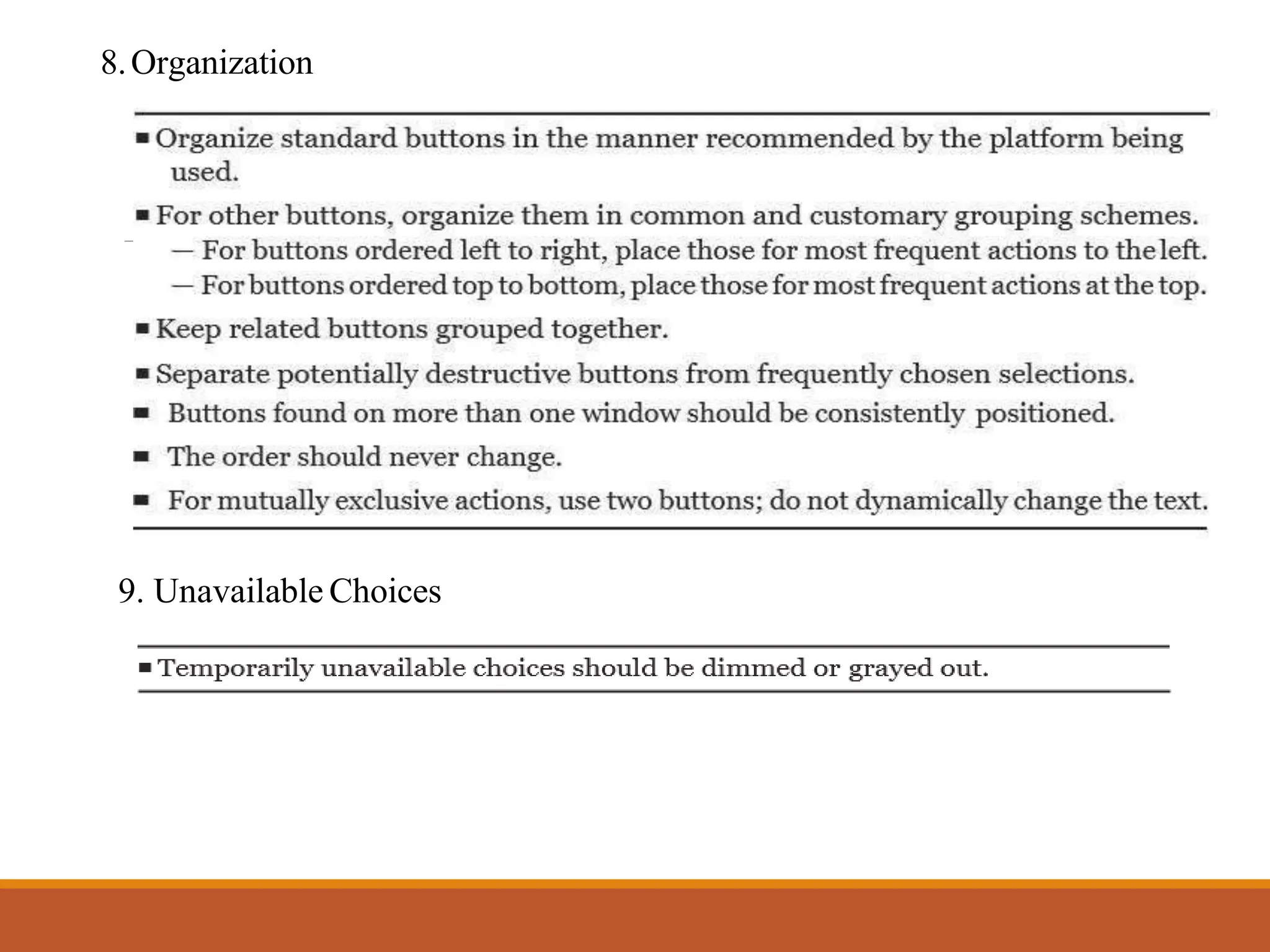
8.Organization
9. Unavailable Choices
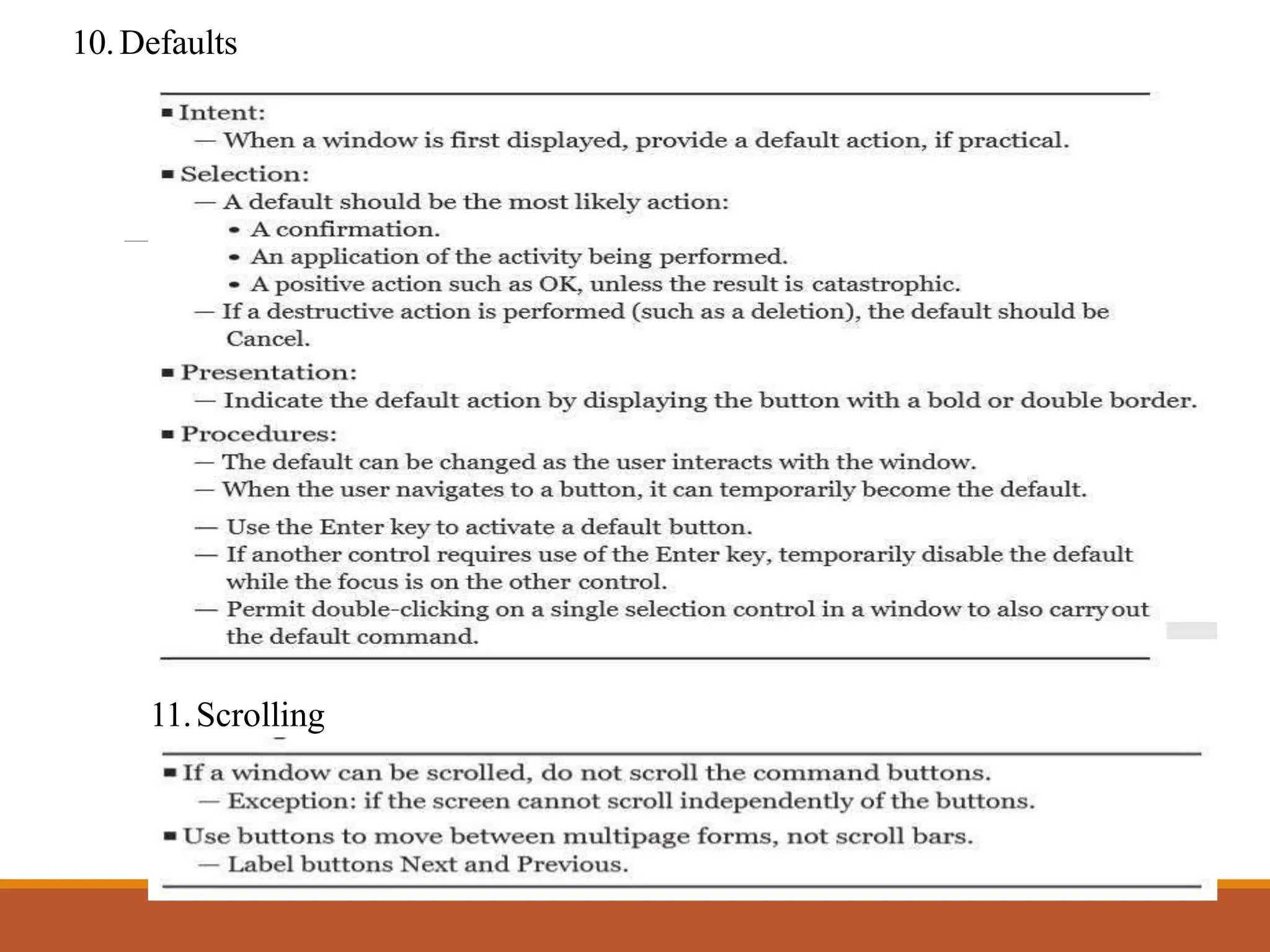
10.Defaults
11.Scrolling
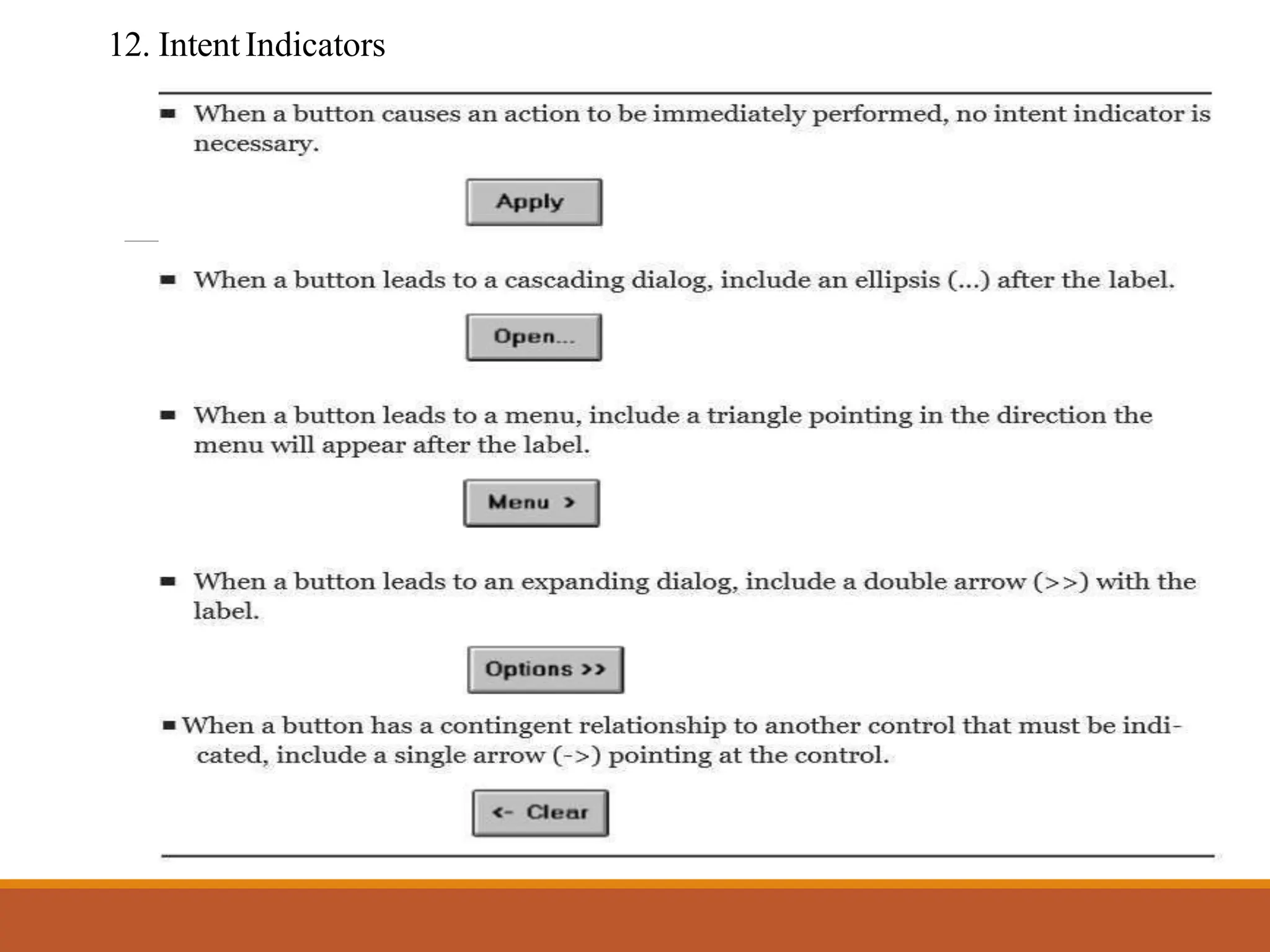
12. IntentIndicators
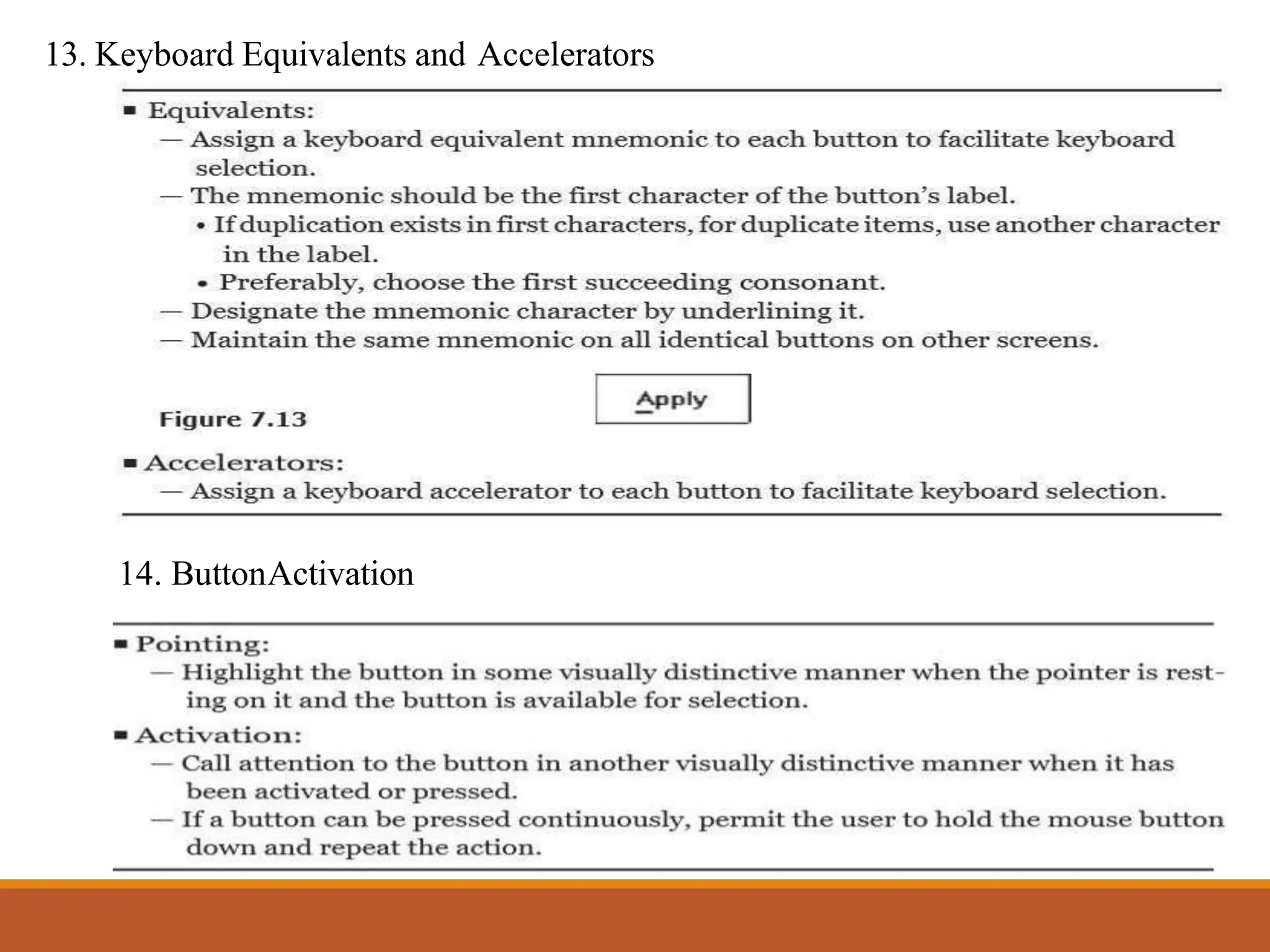
14. ButtonActivation
13. Keyboard Equivalents and Accelerators
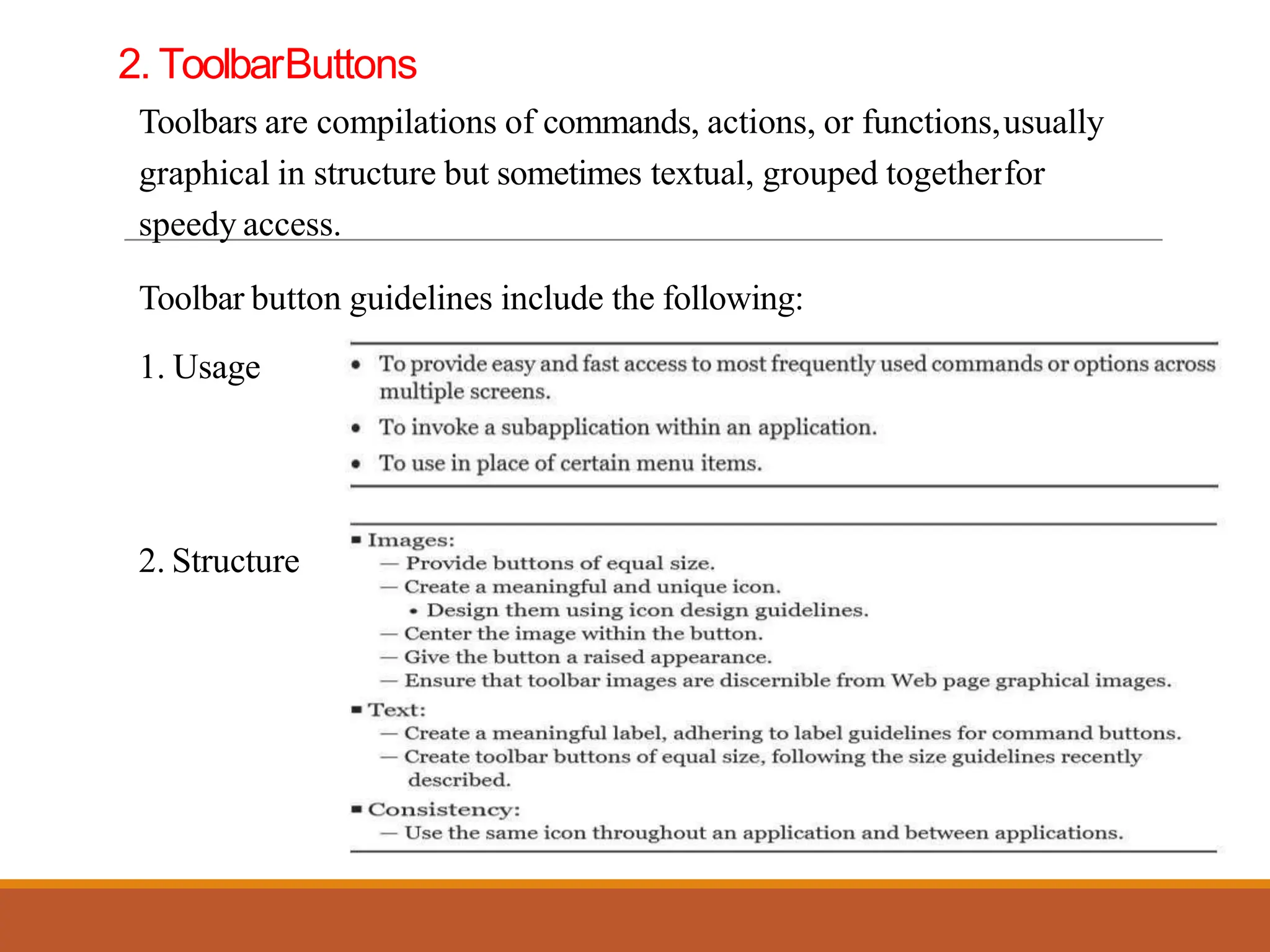
2. ToolbarButtons
Toolbars are compilations of commands, actions, or functions,usually
graphical in structure but sometimes textual, grouped togetherfor
speedy access.
Toolbar button guidelines include the following:
1. Usage
2. Structure
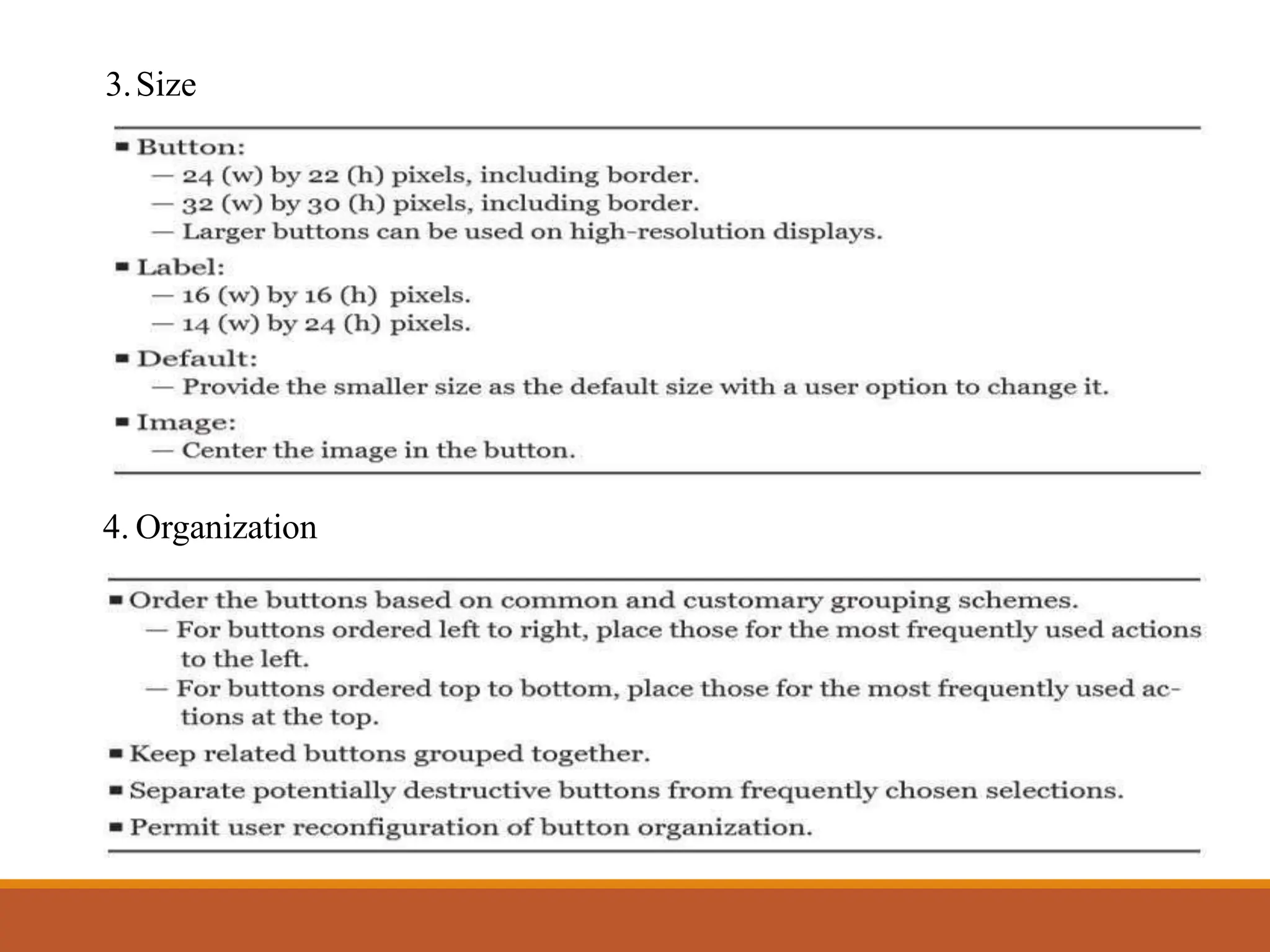
3.Size
4. Organization
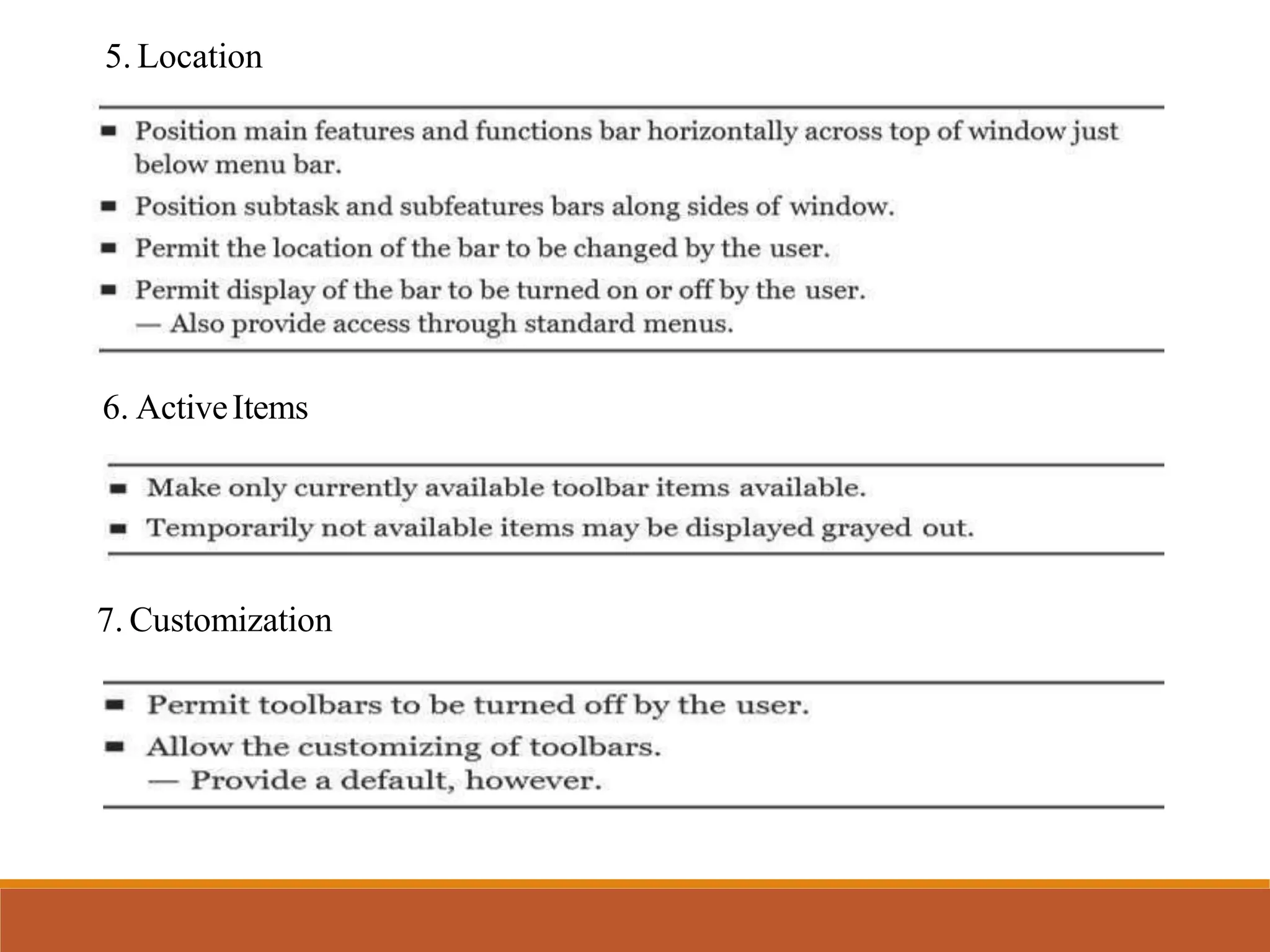
5. Location
6. ActiveItems
7. Customization
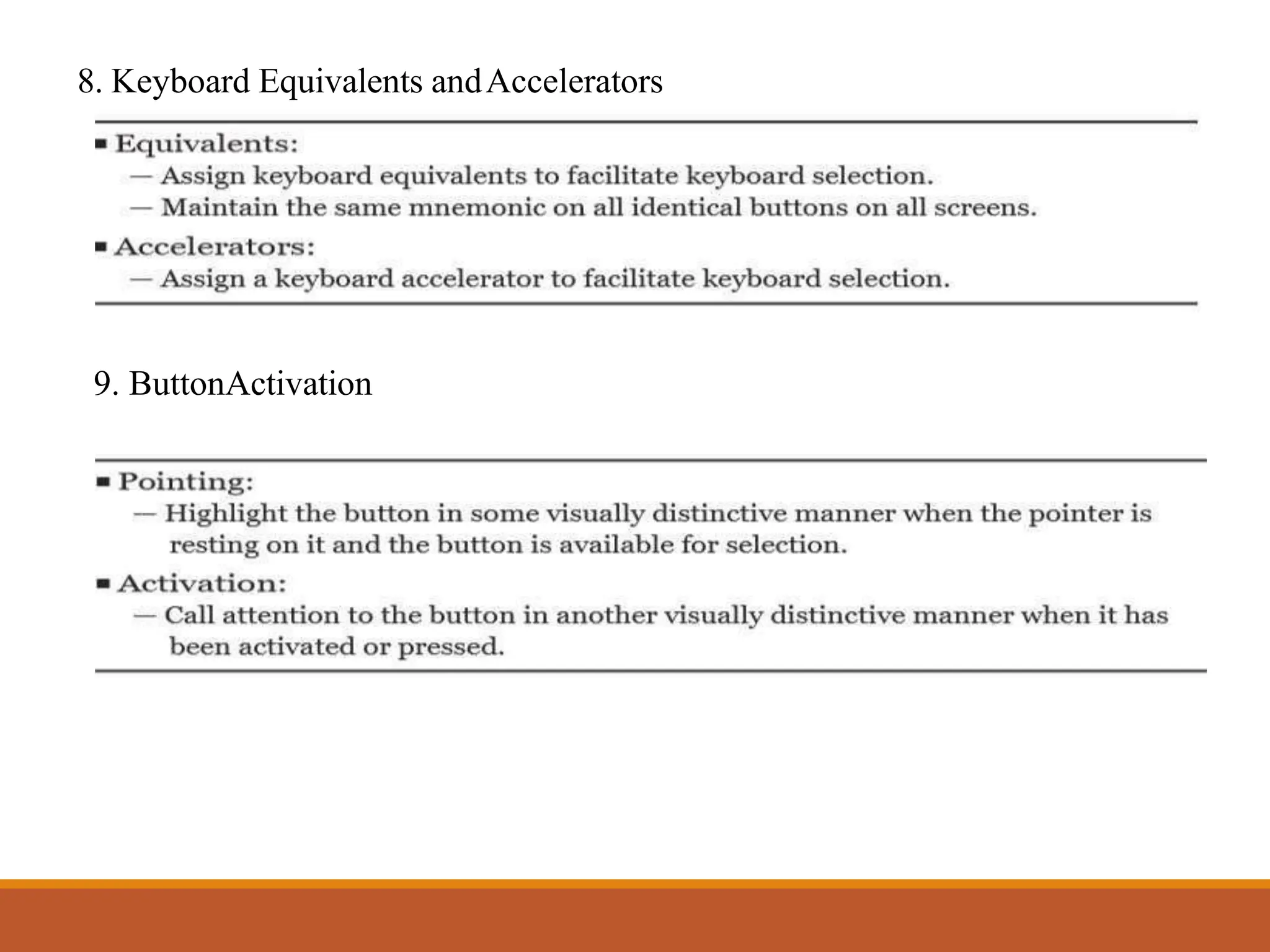
8. Keyboard Equivalents andAccelerators
9. ButtonActivation
OTHER OPERABLE
CONTROLS
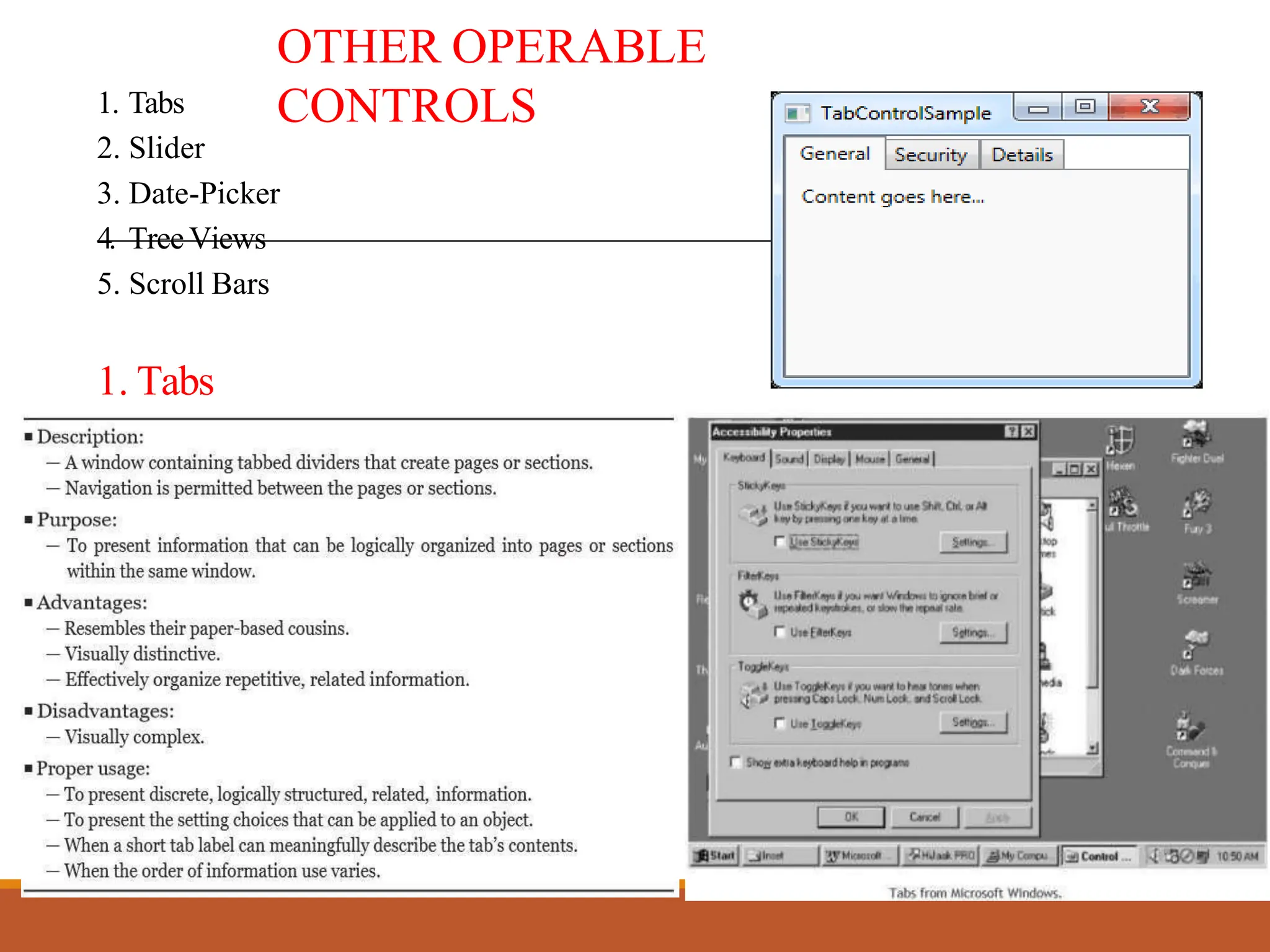
1. Tabs
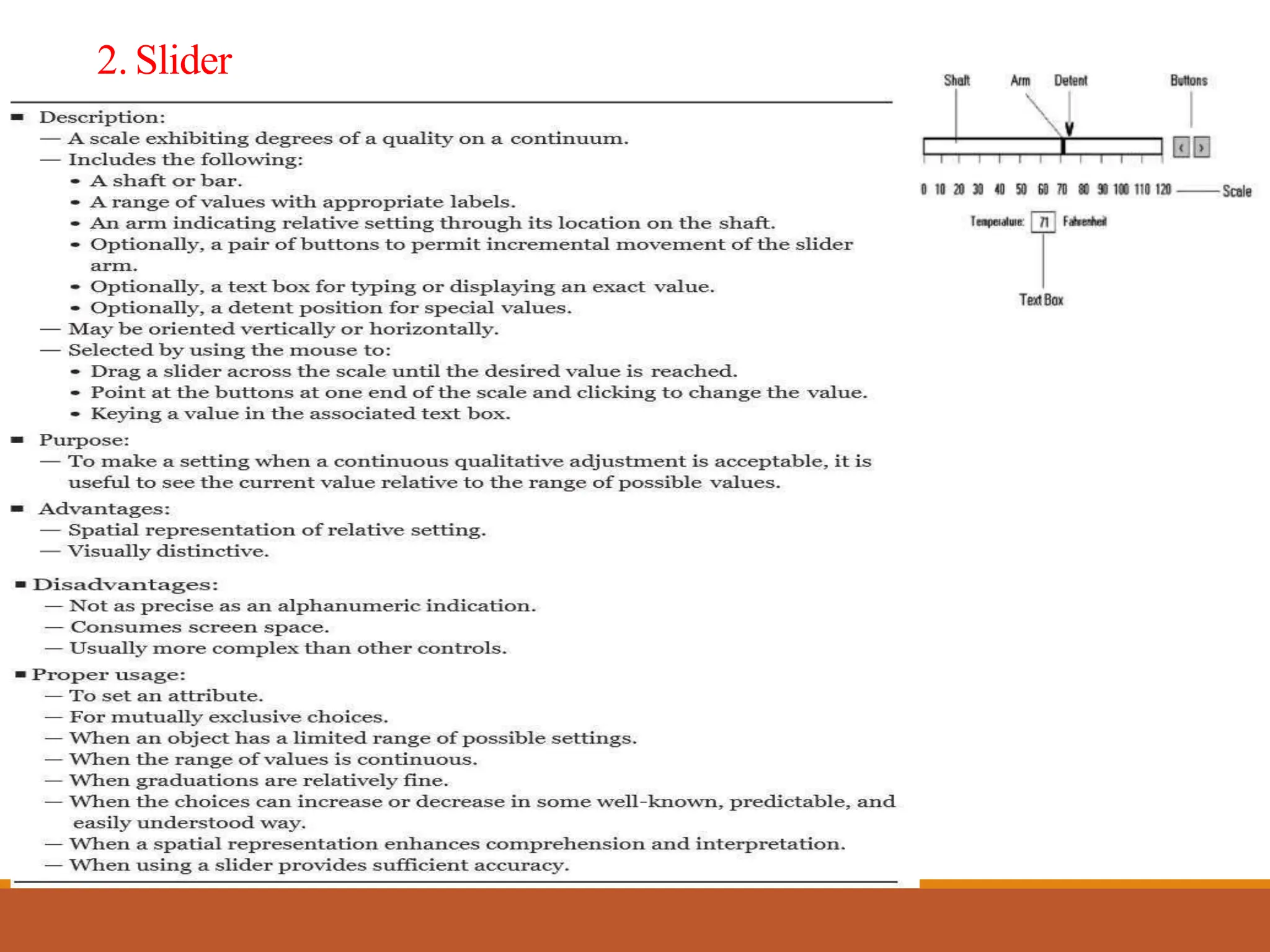
2. Slider
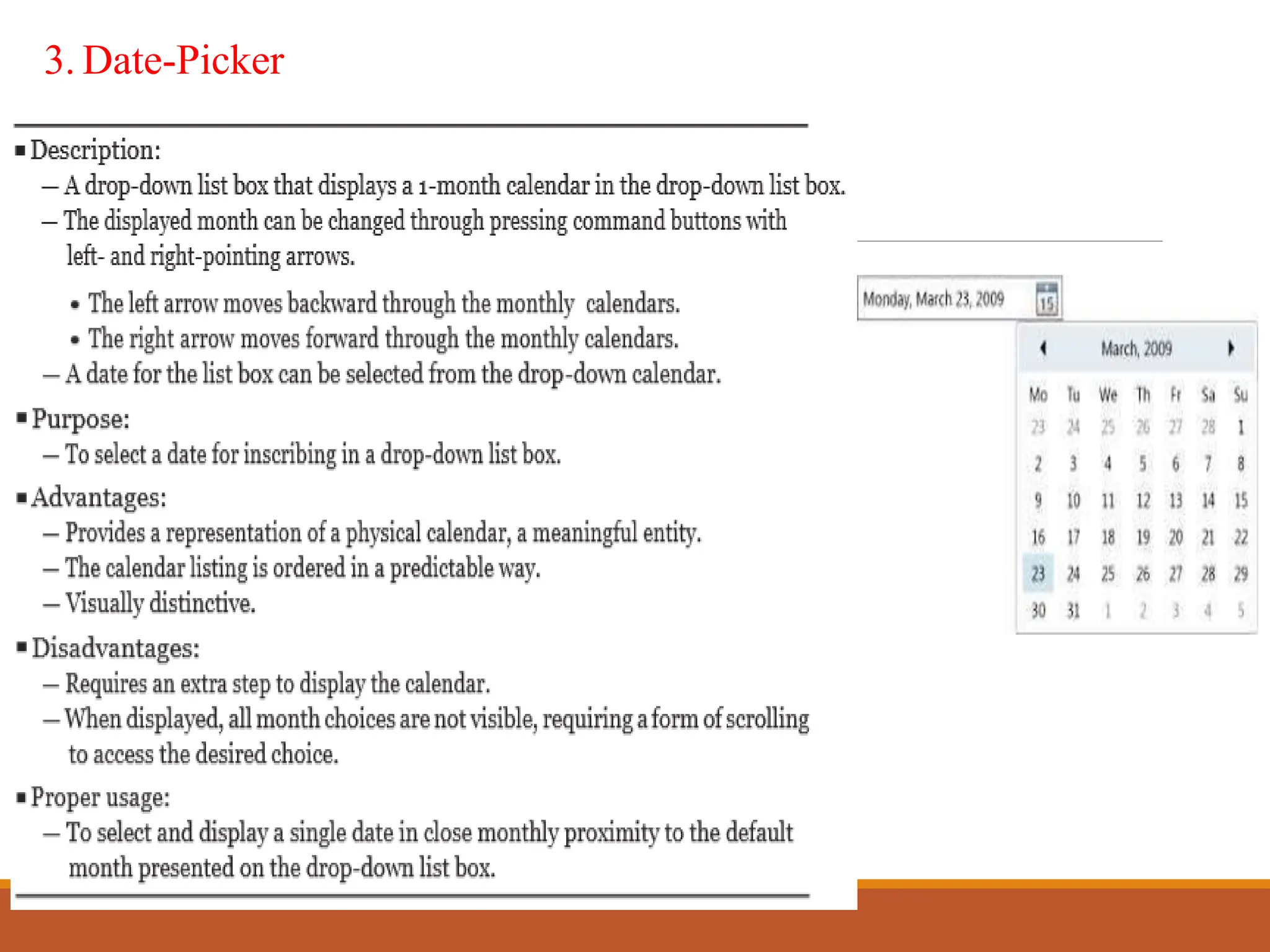
3. Date-Picker
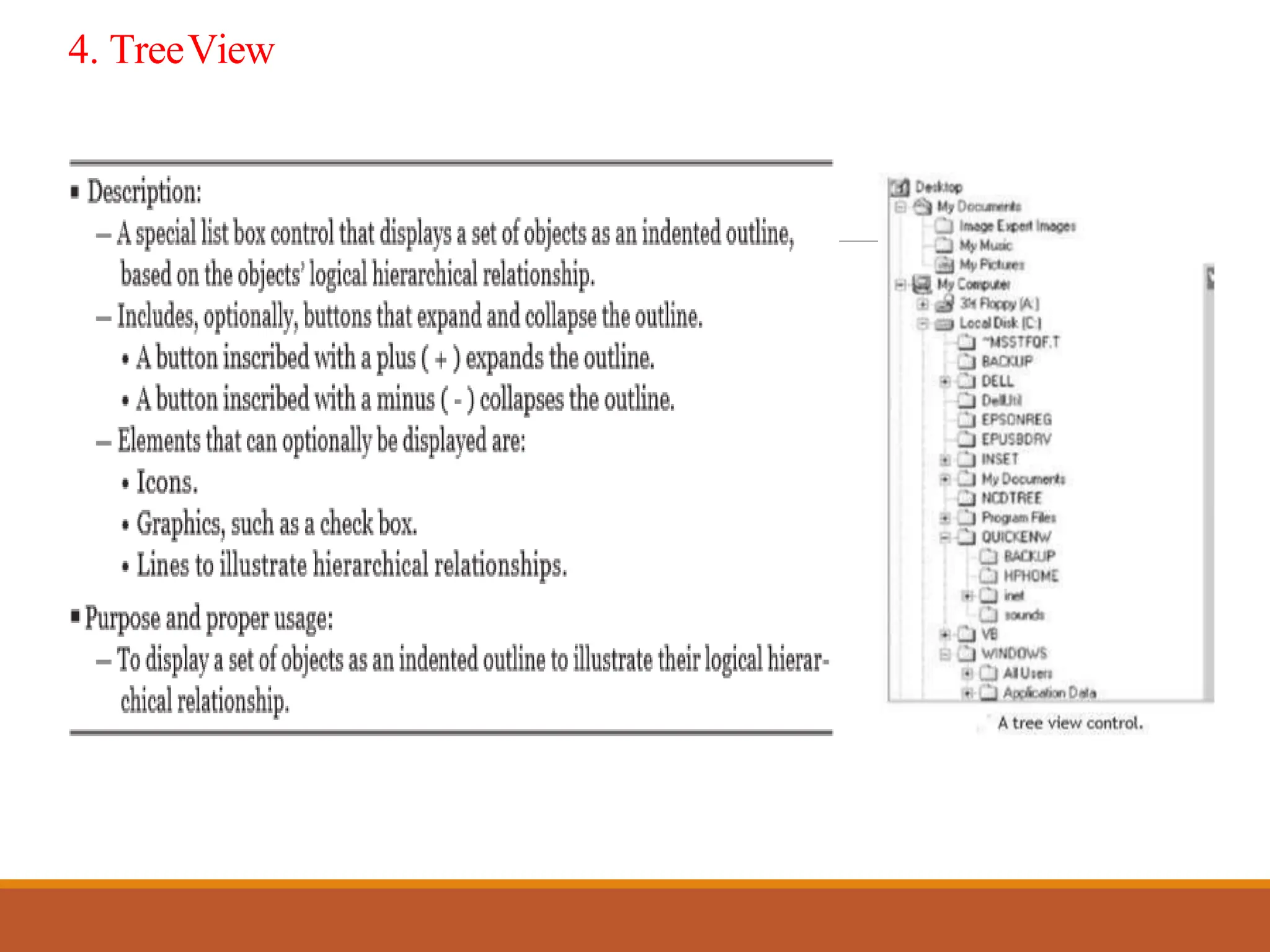
4. TreeViews
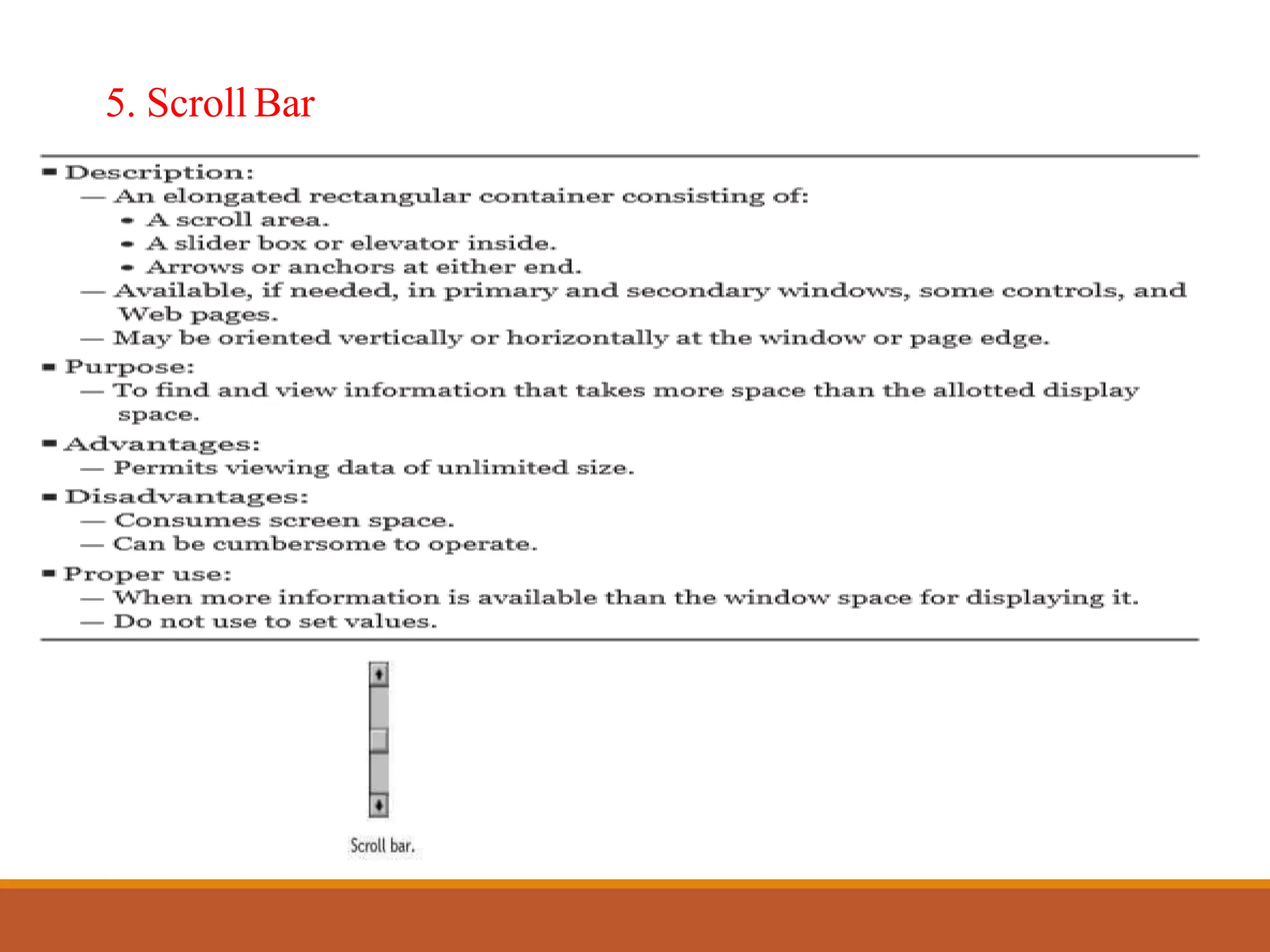
5. Scroll Bars
1. Tabs
2. Slider
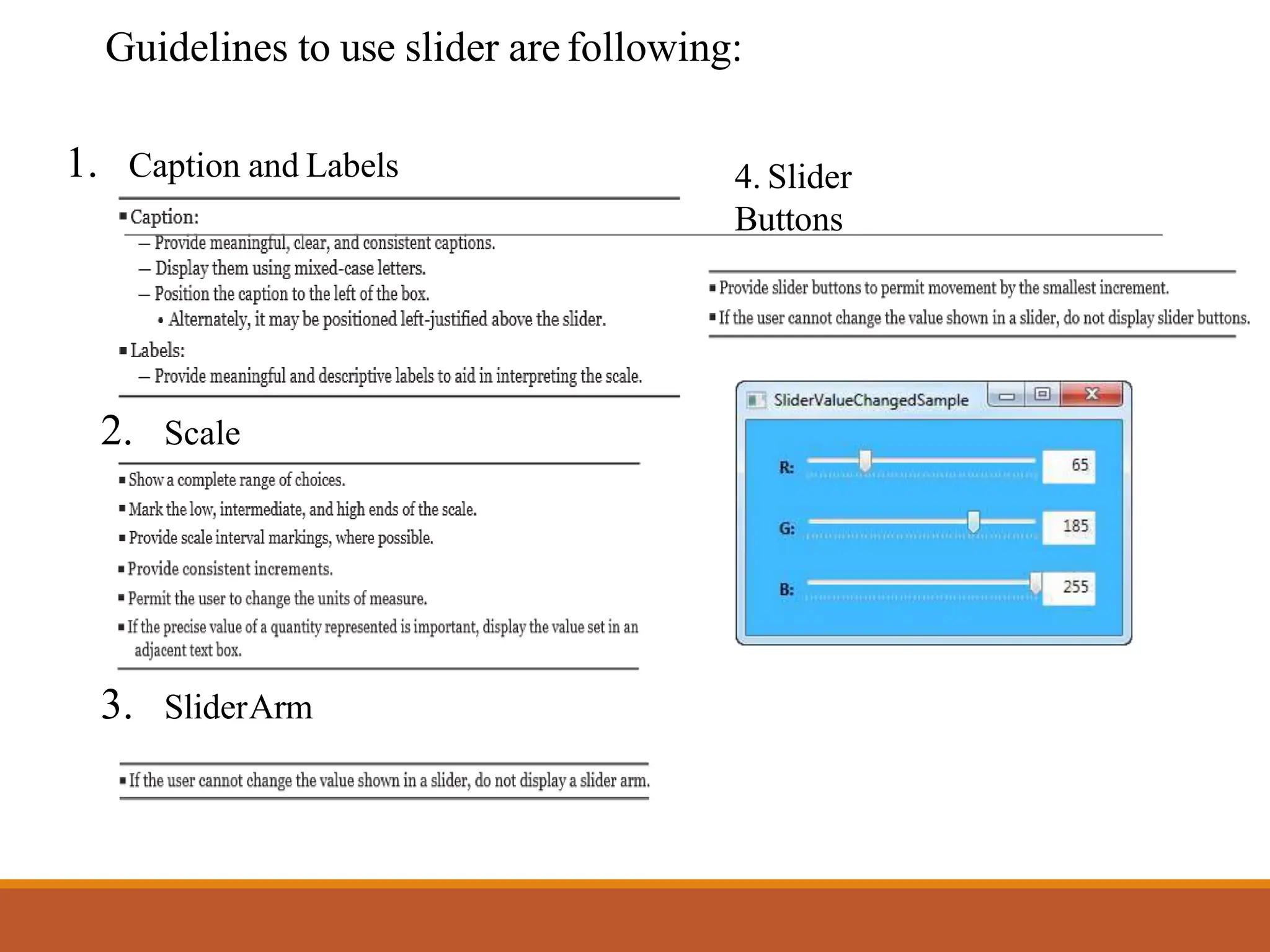
Guidelines to use slider are following:
1. Caption and Labels
2. Scale
3. SliderArm
4. Slider
Buttons
3. Date-Picker
4. TreeView
5. Scroll Bar
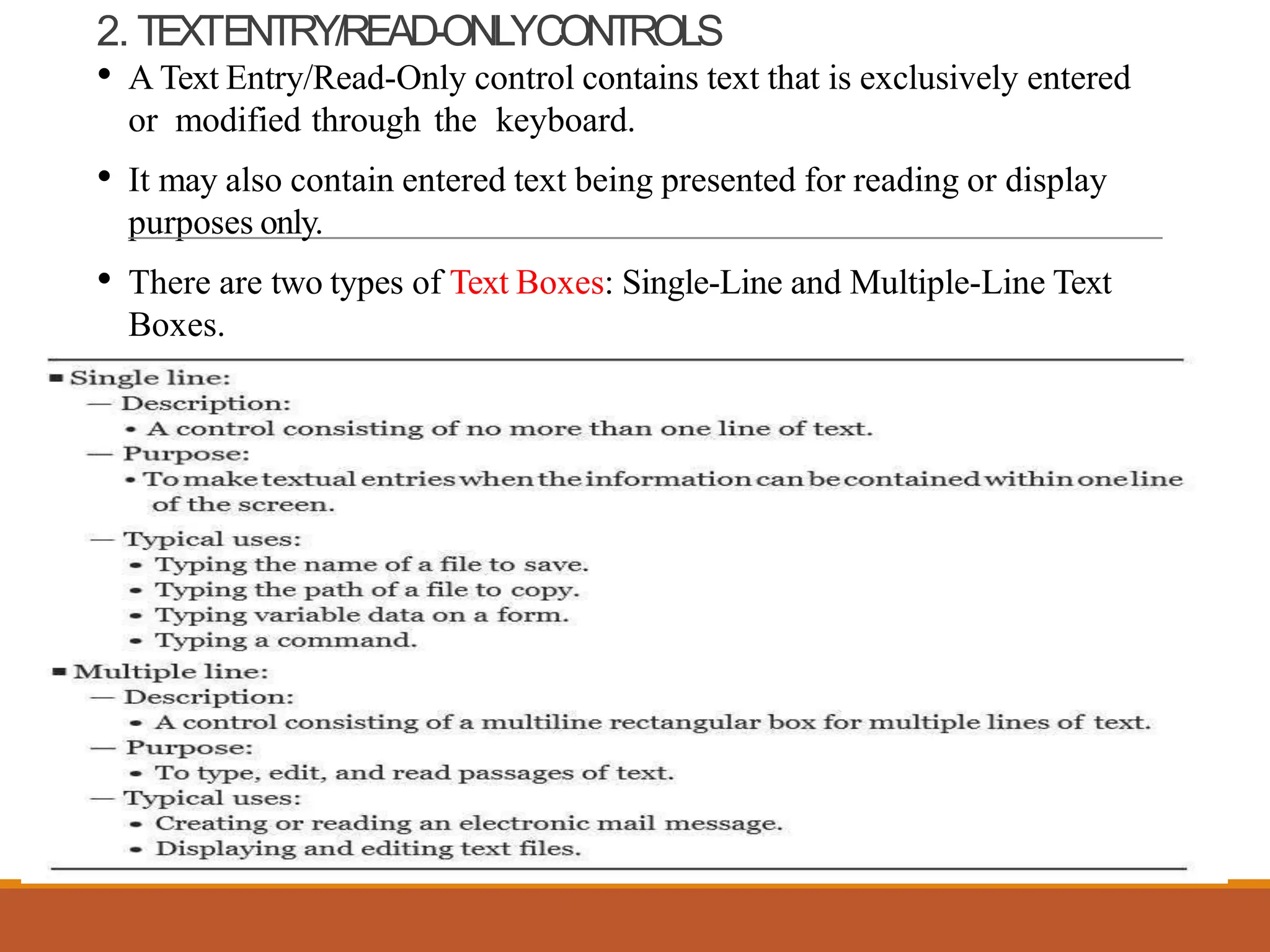
2. TEXTENTRY/READ-ONLYCONTROLS
• A Text Entry/Read-Only control contains text that is exclusively entered
or modified through the keyboard.
• It may also contain entered text being presented for reading or display
purposes only.
• There are two types of Text Boxes: Single-Line and Multiple-Line Text
Boxes.
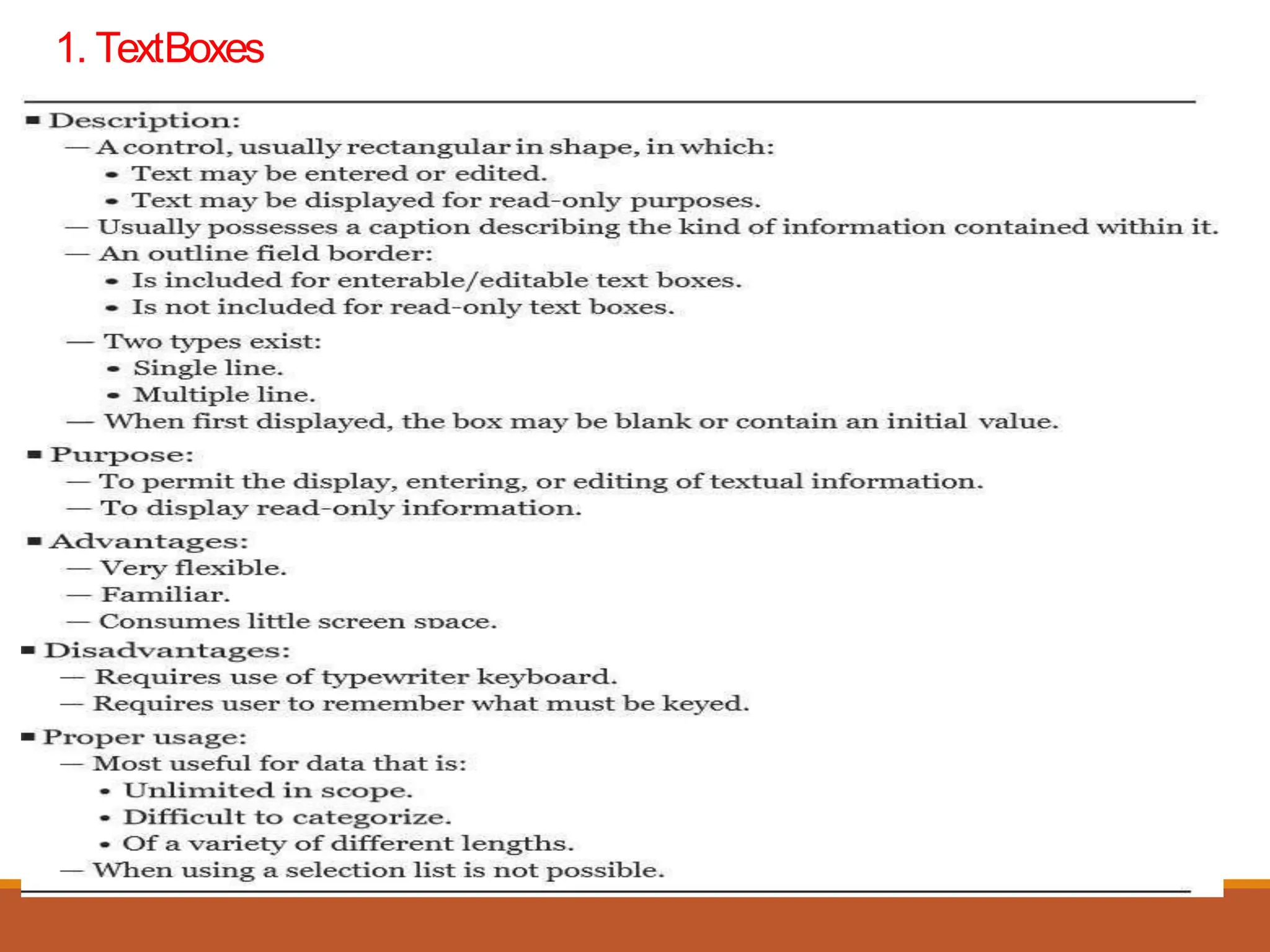
1. TextBoxes
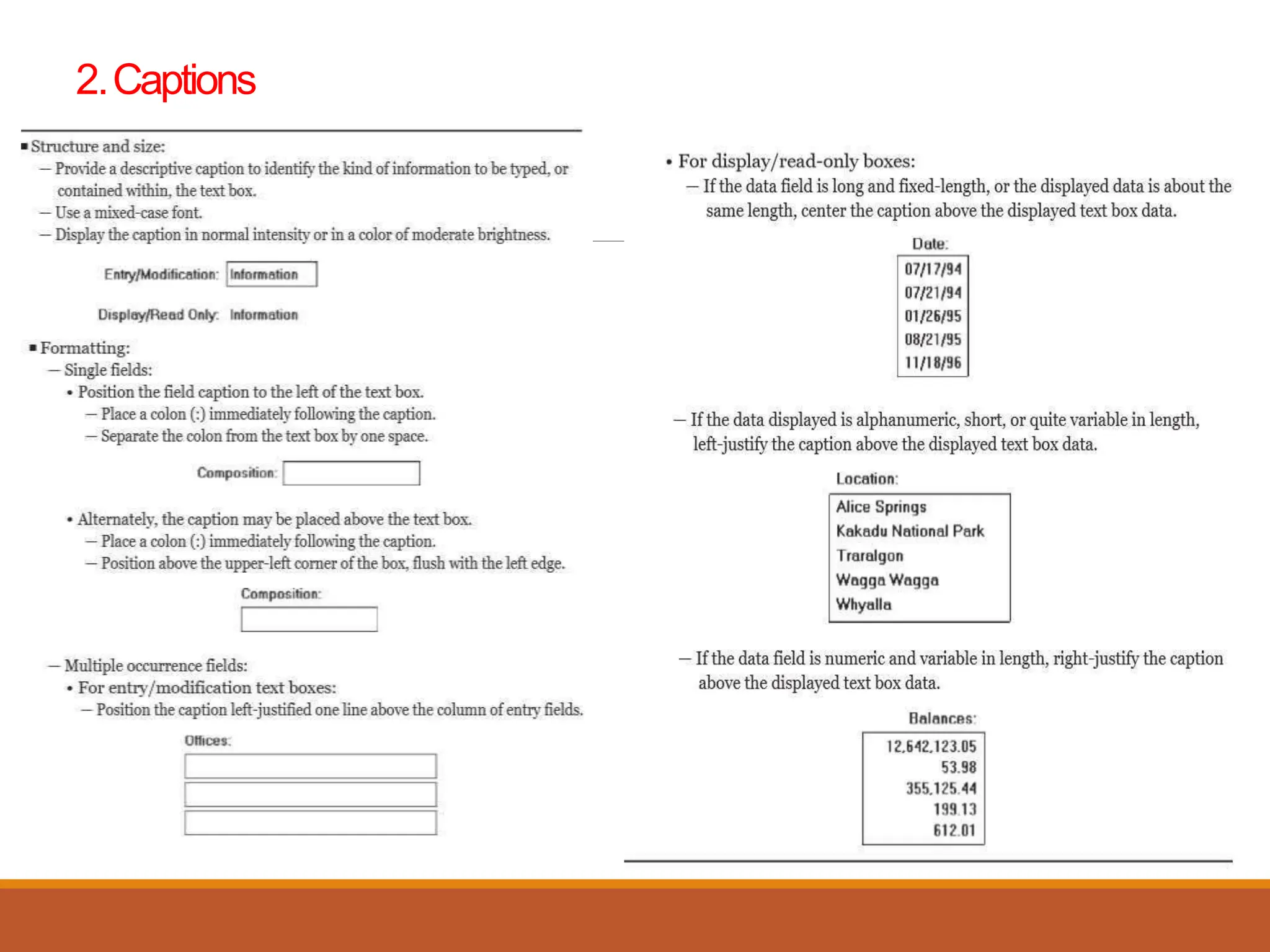
2.Captions
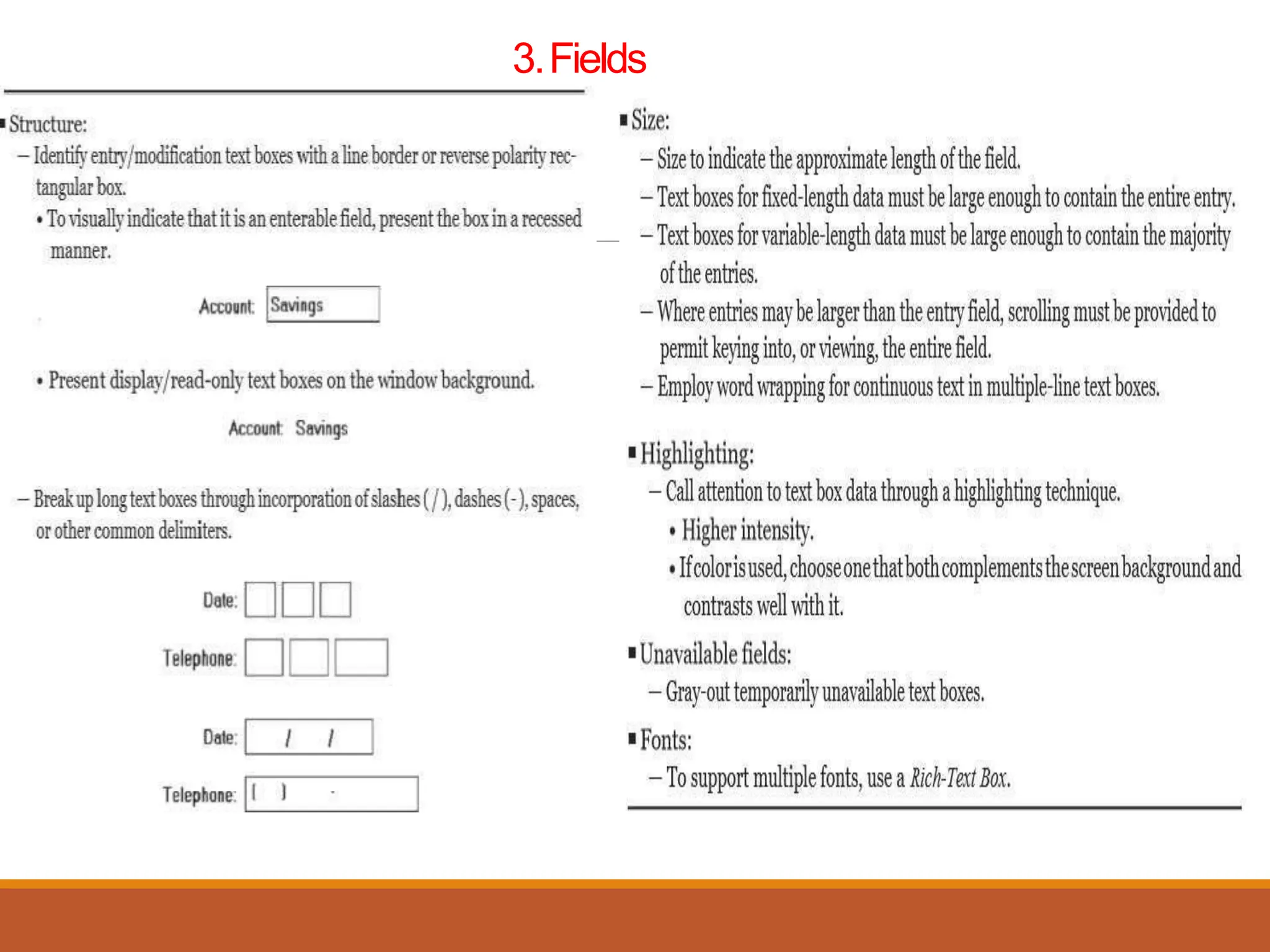
3.Fields
3. SELECTIONCONTROLS
• A selection control presents on the screen all the possible alternatives,
conditions, or choices that may exist for an entity, property, or value.
• Selection controls include:
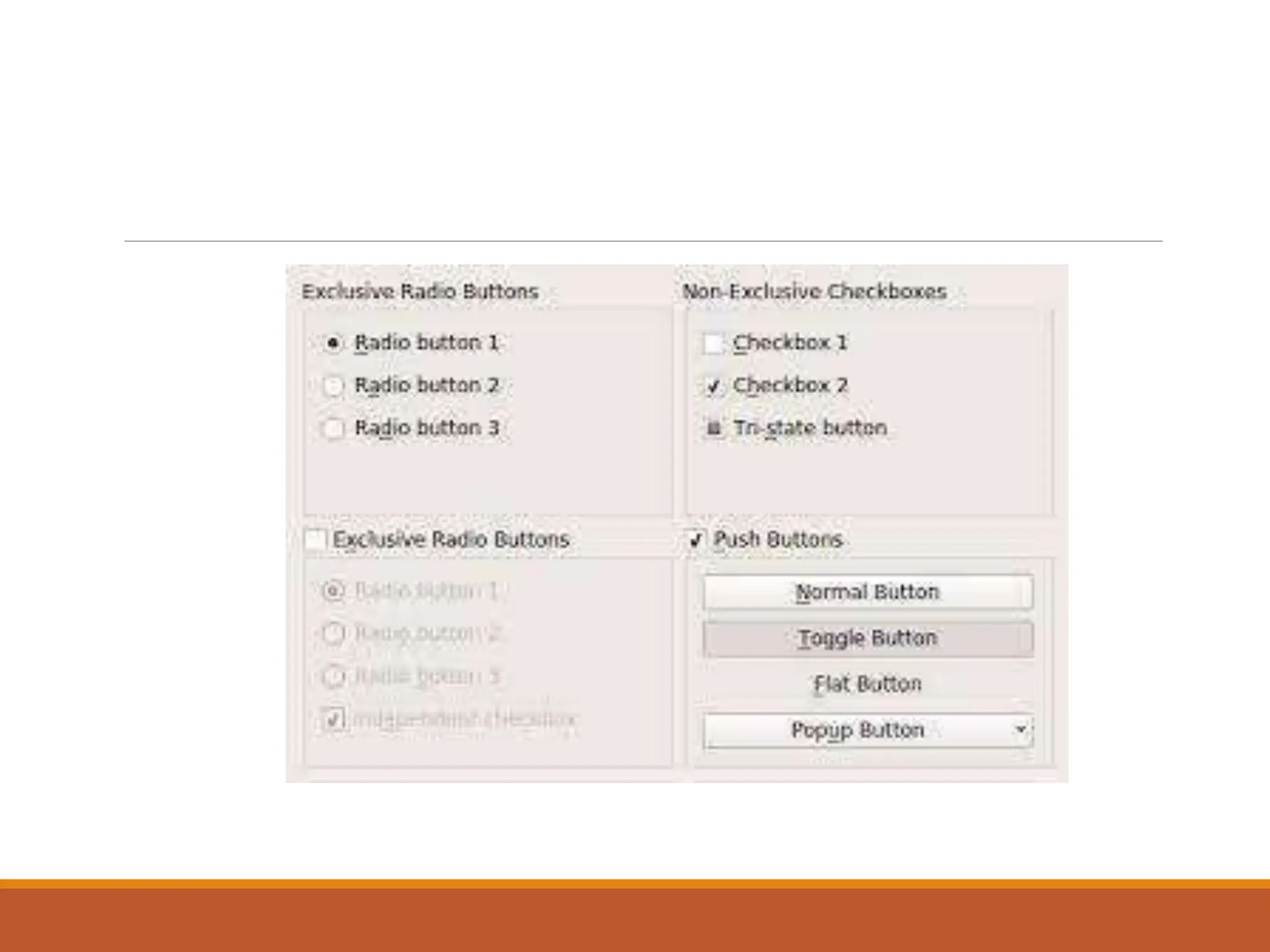
1. Radio buttons
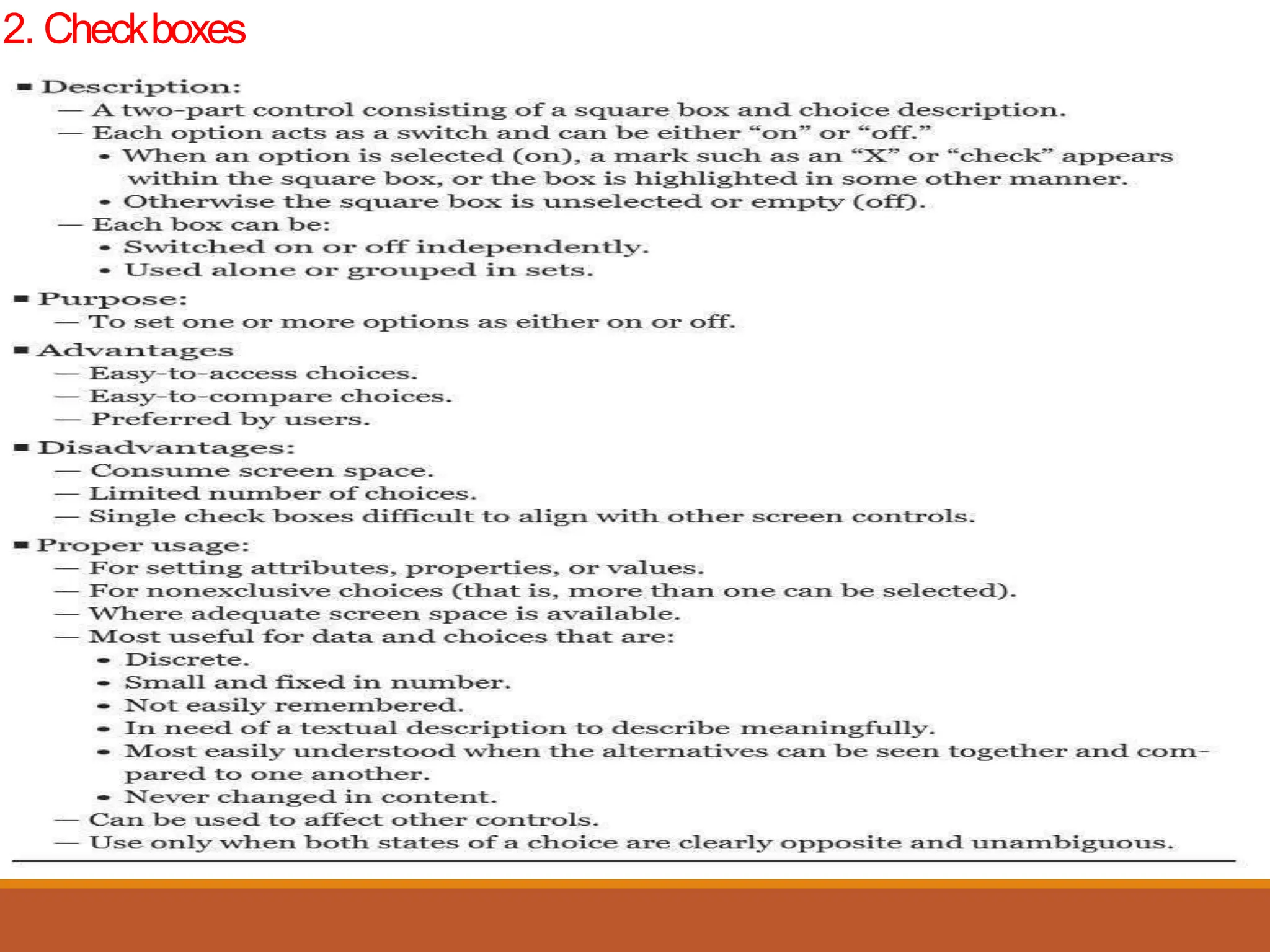
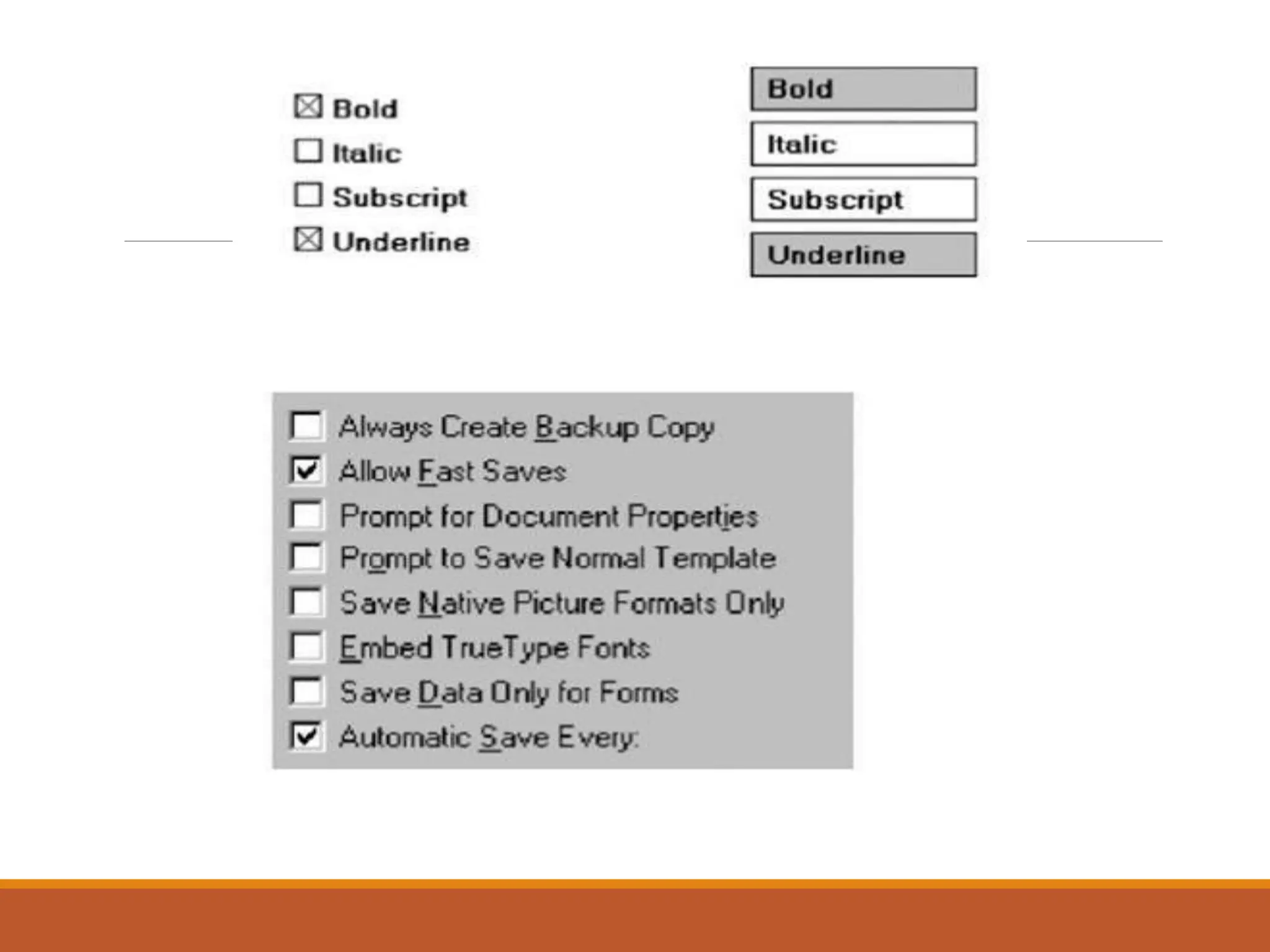
2. Check boxes
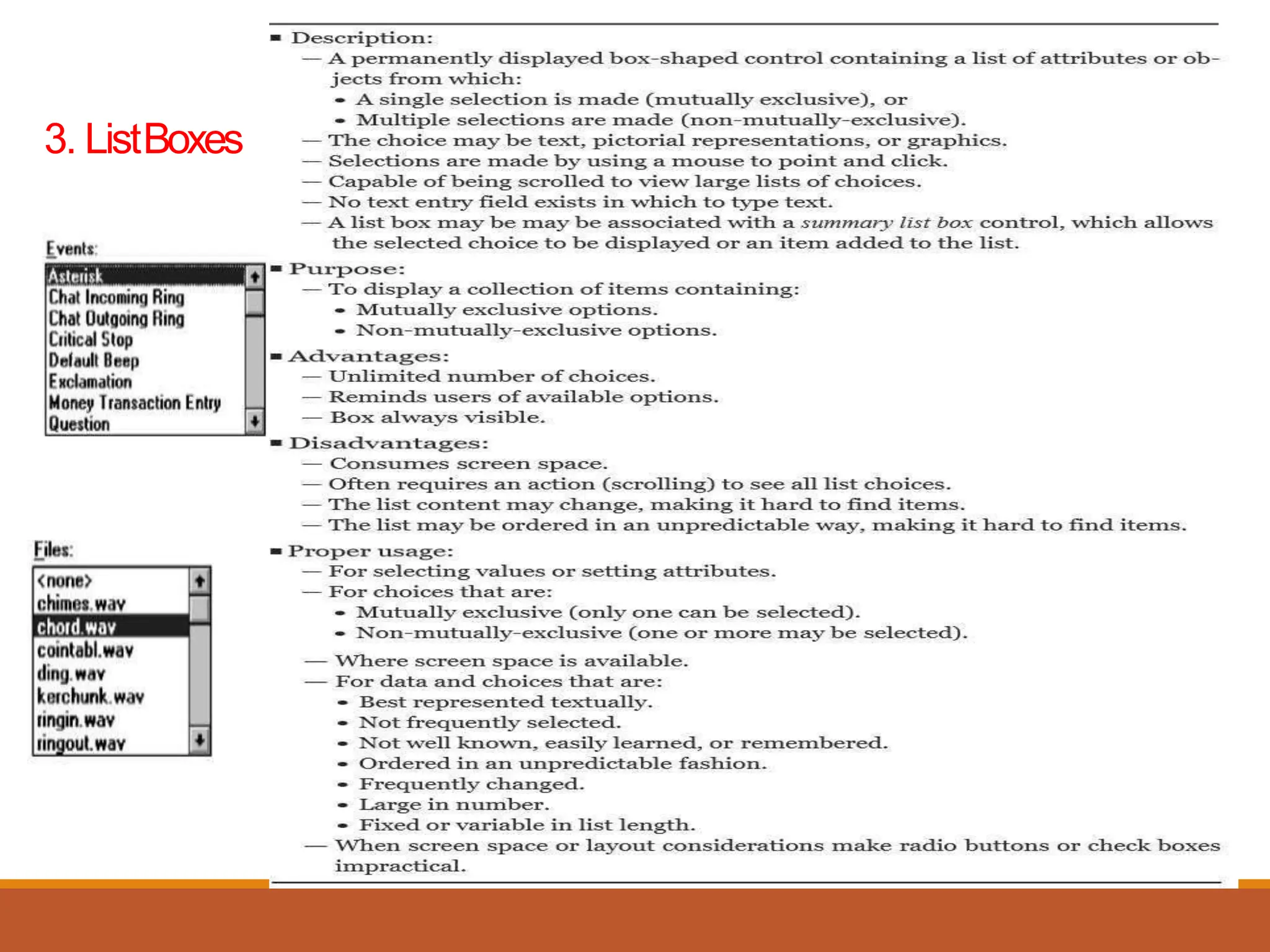
3. List boxes
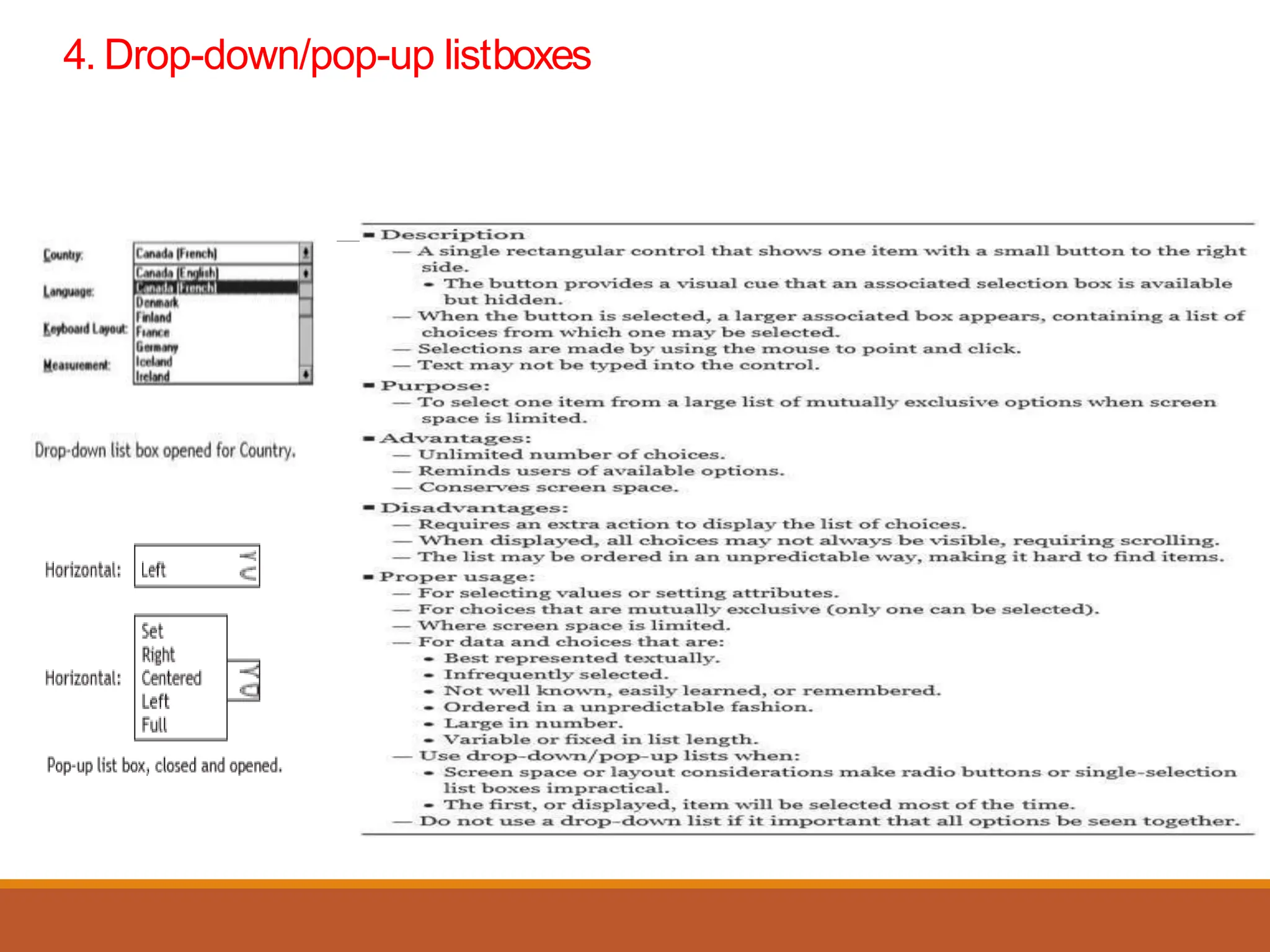
4. Drop-down/pop-up list boxes
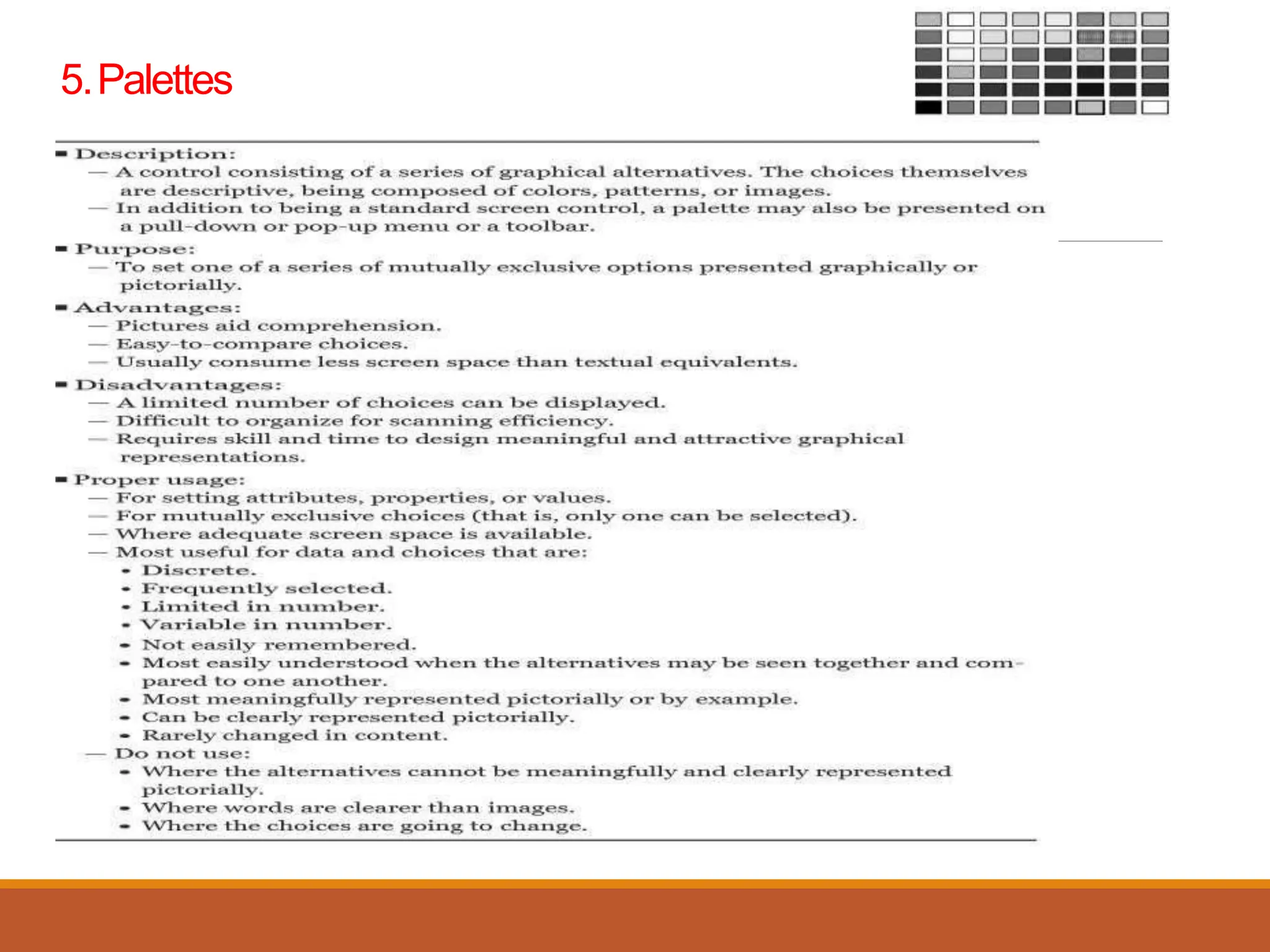
5. Palettes.
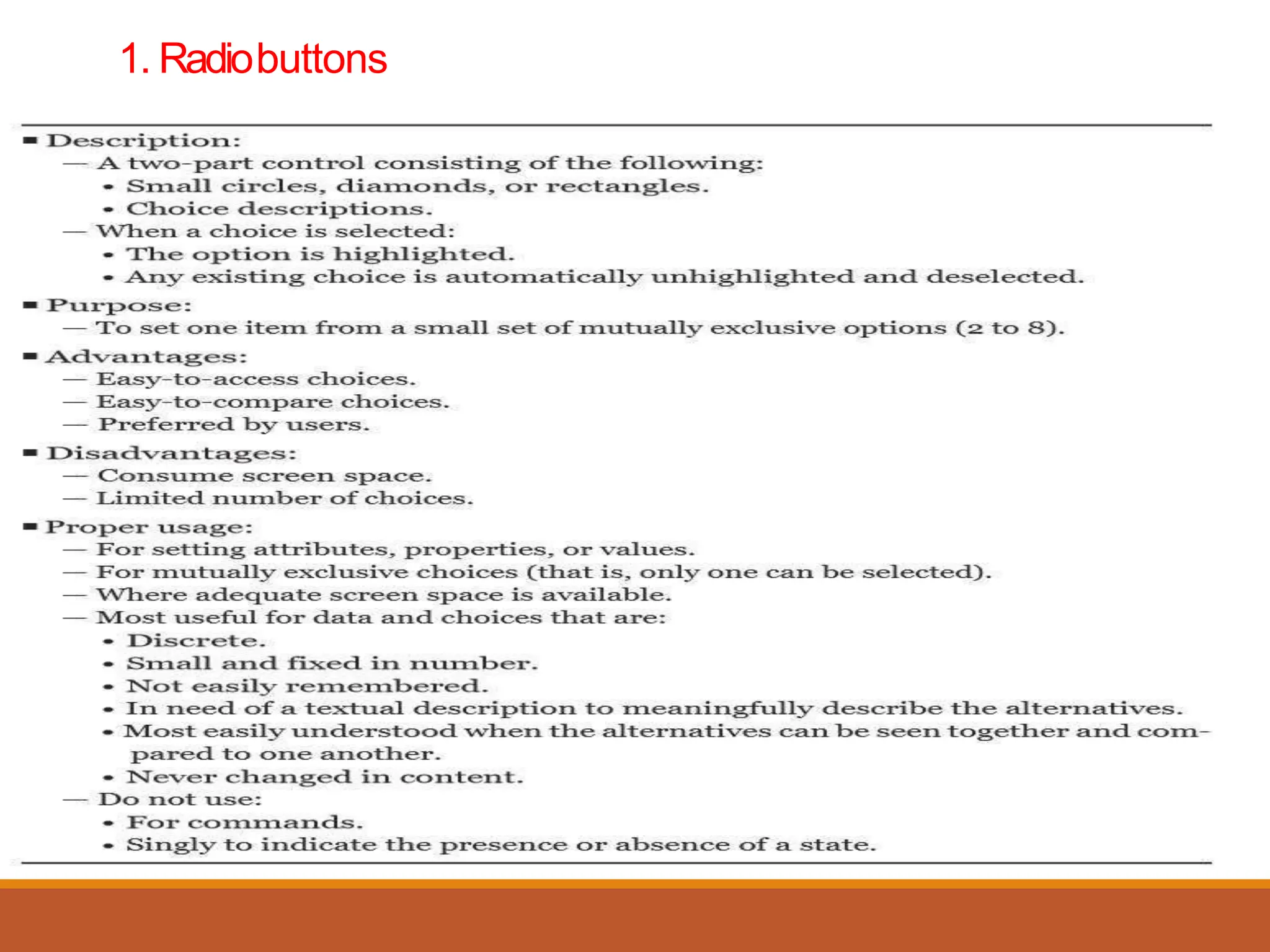
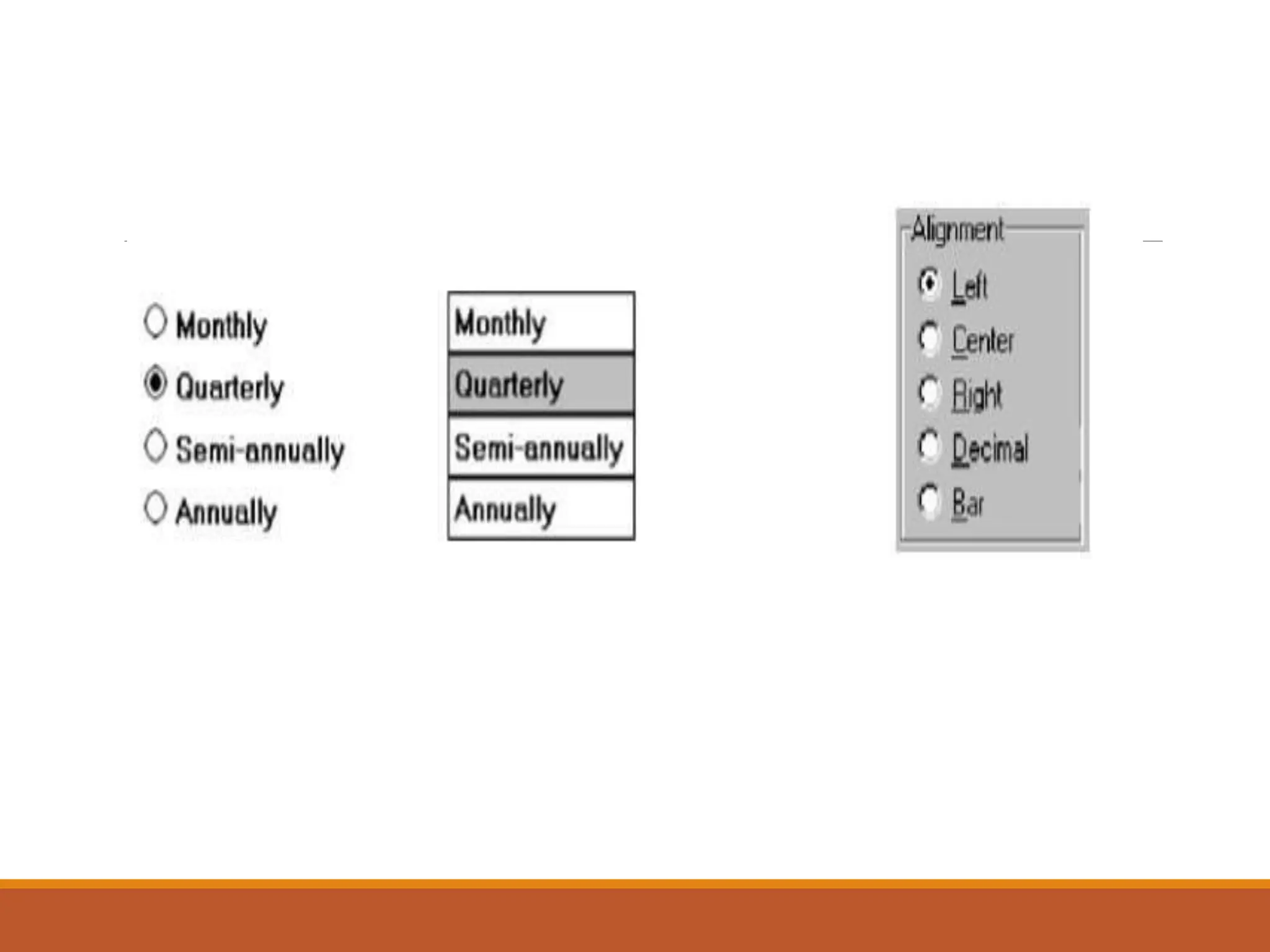
1. Radiobuttons
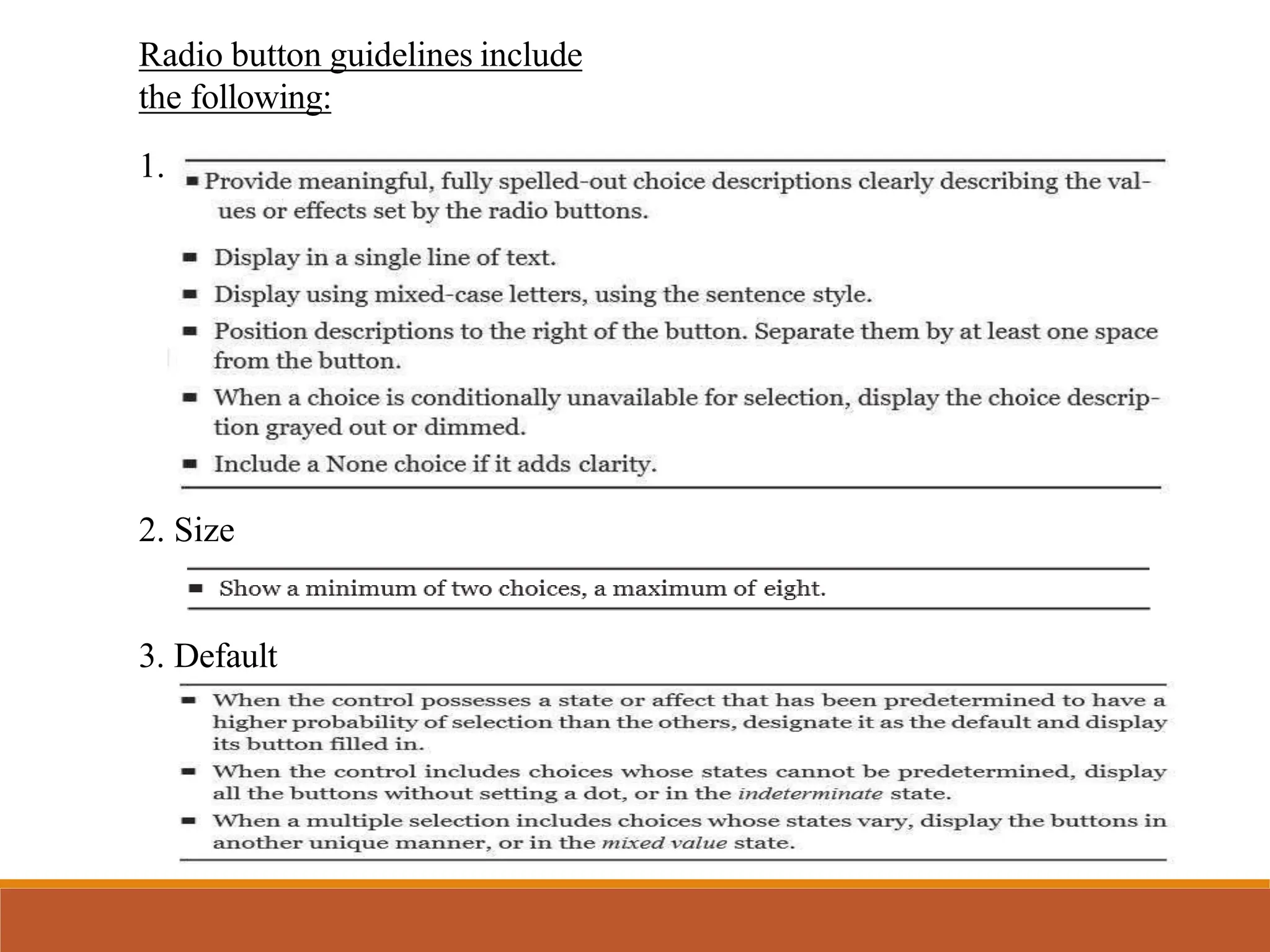
Radio button guidelines include
the following:
1. Choice Descriptions
2. Size
3. Default
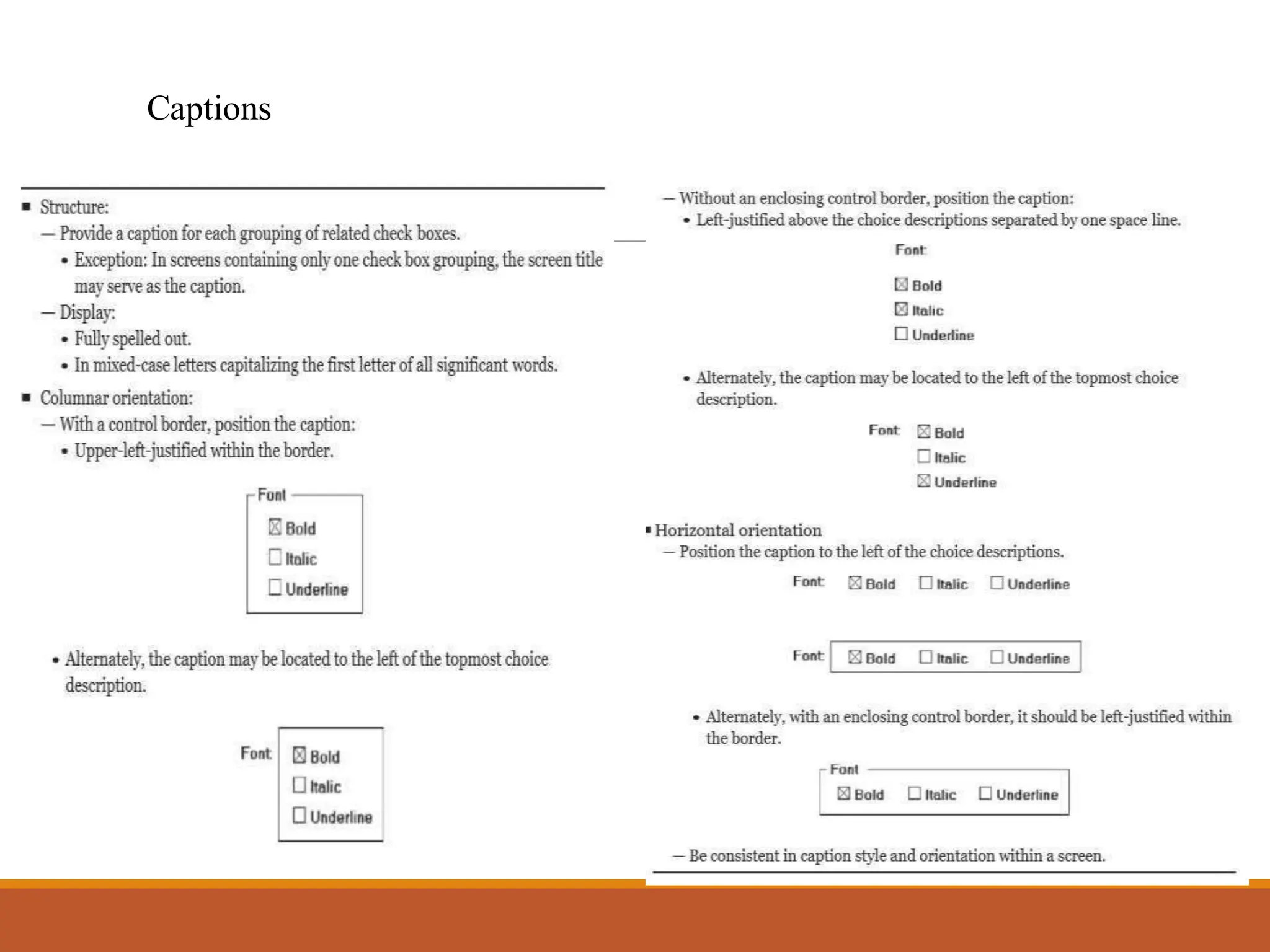
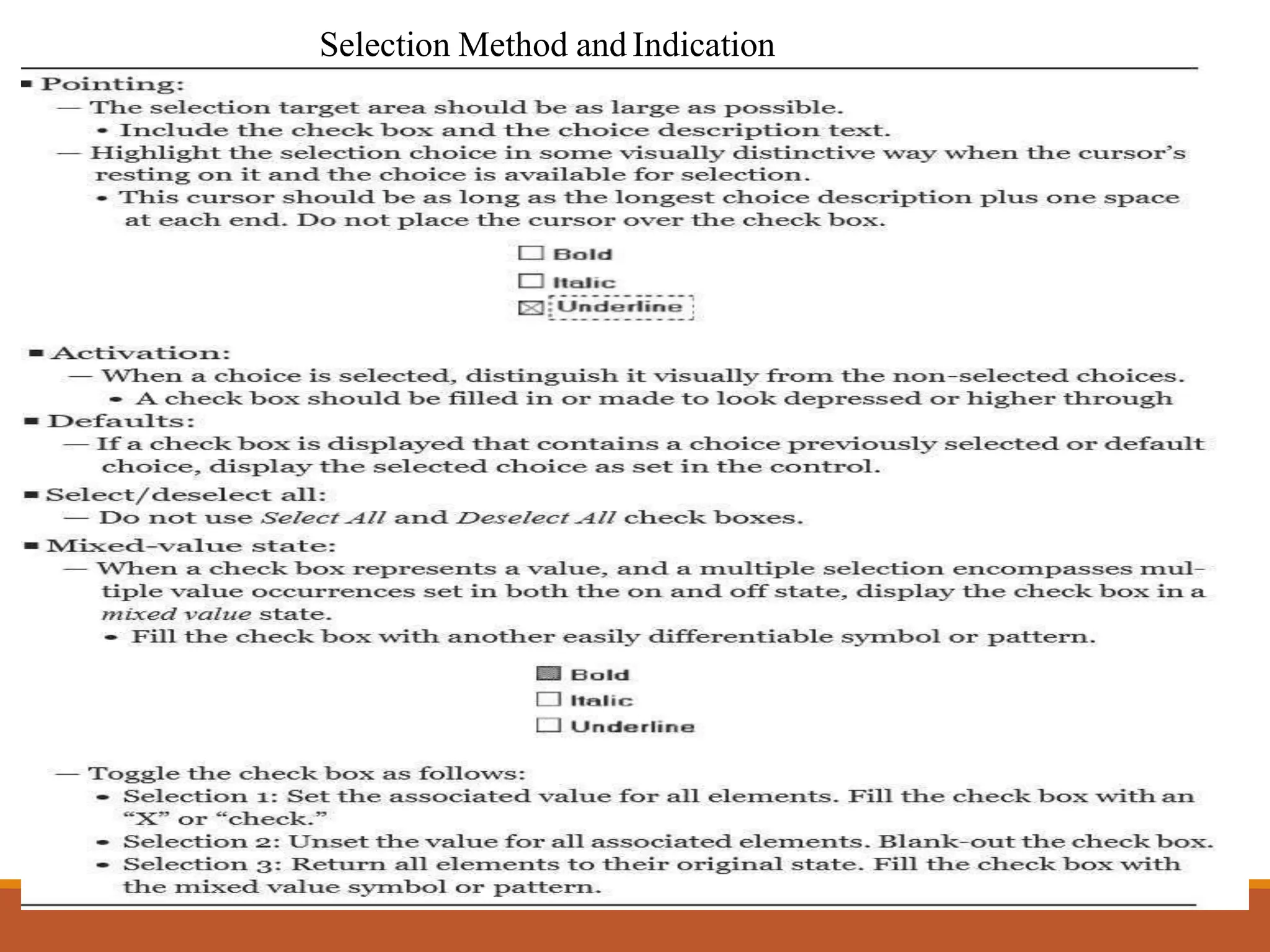
2. Checkboxes
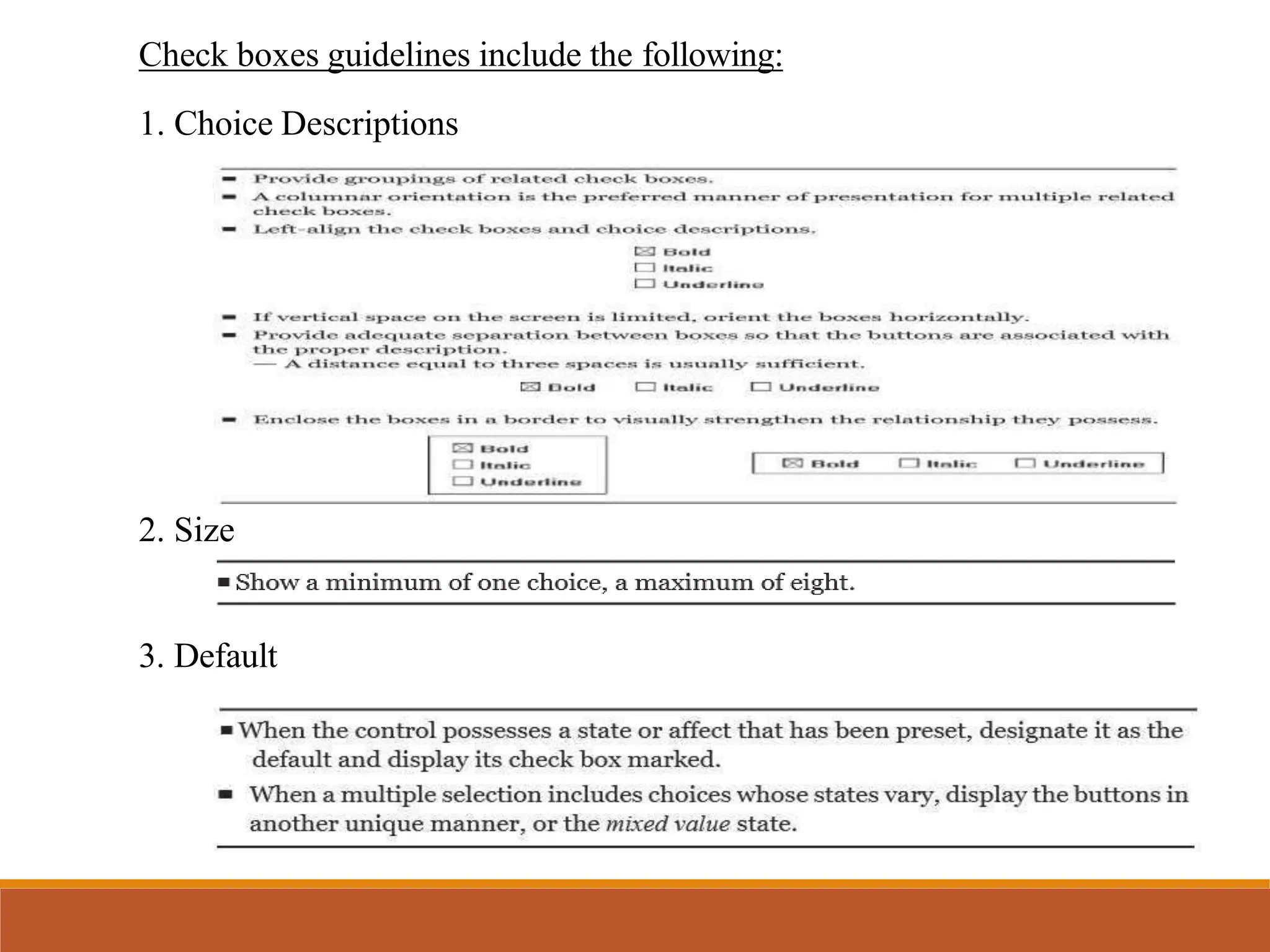
Check boxes guidelines include the following:
1. Choice Descriptions
2. Size
3. Default
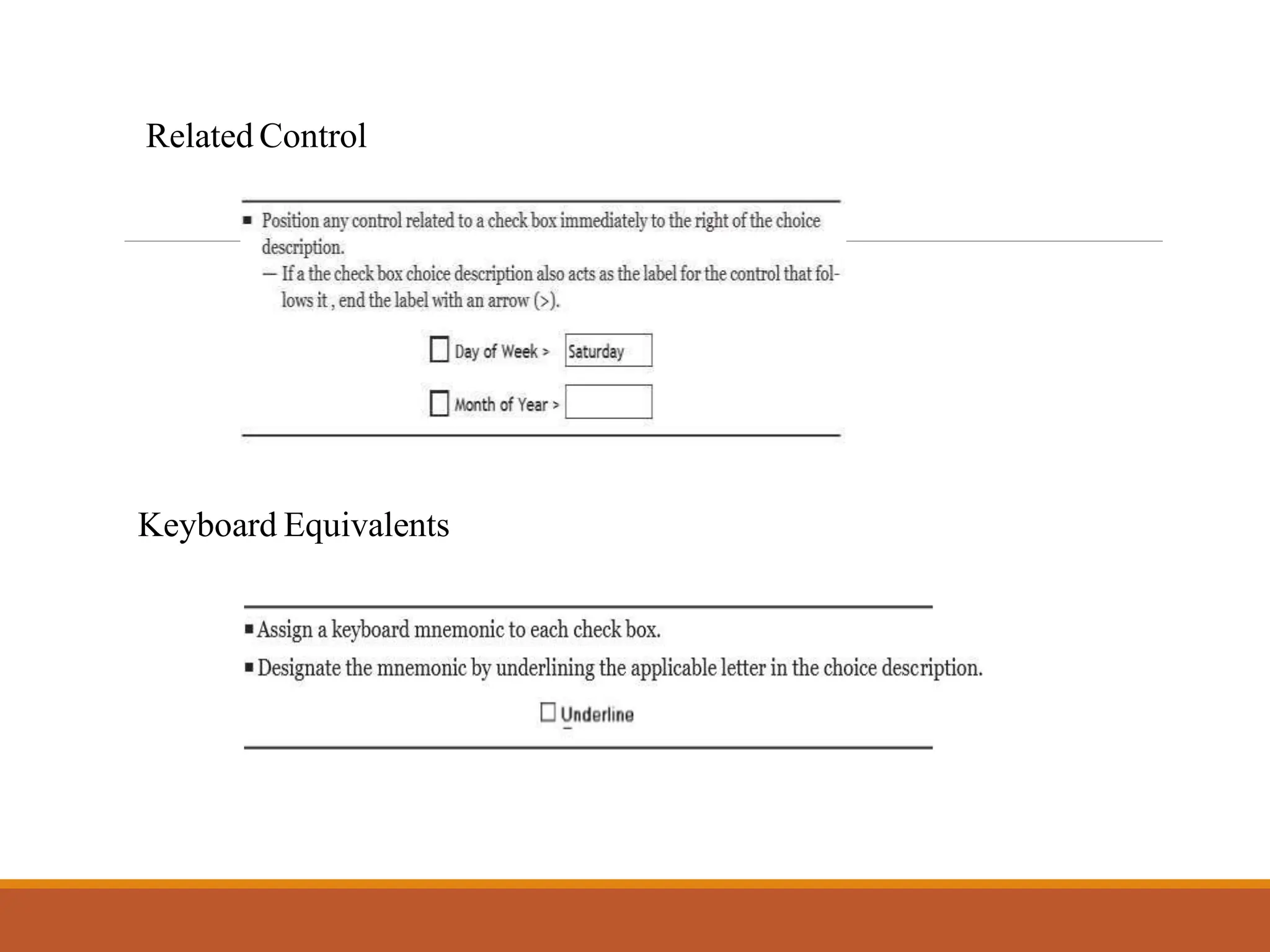
Related Control
Keyboard Equivalents
Captions
Selection Method and Indication
3. ListBoxes
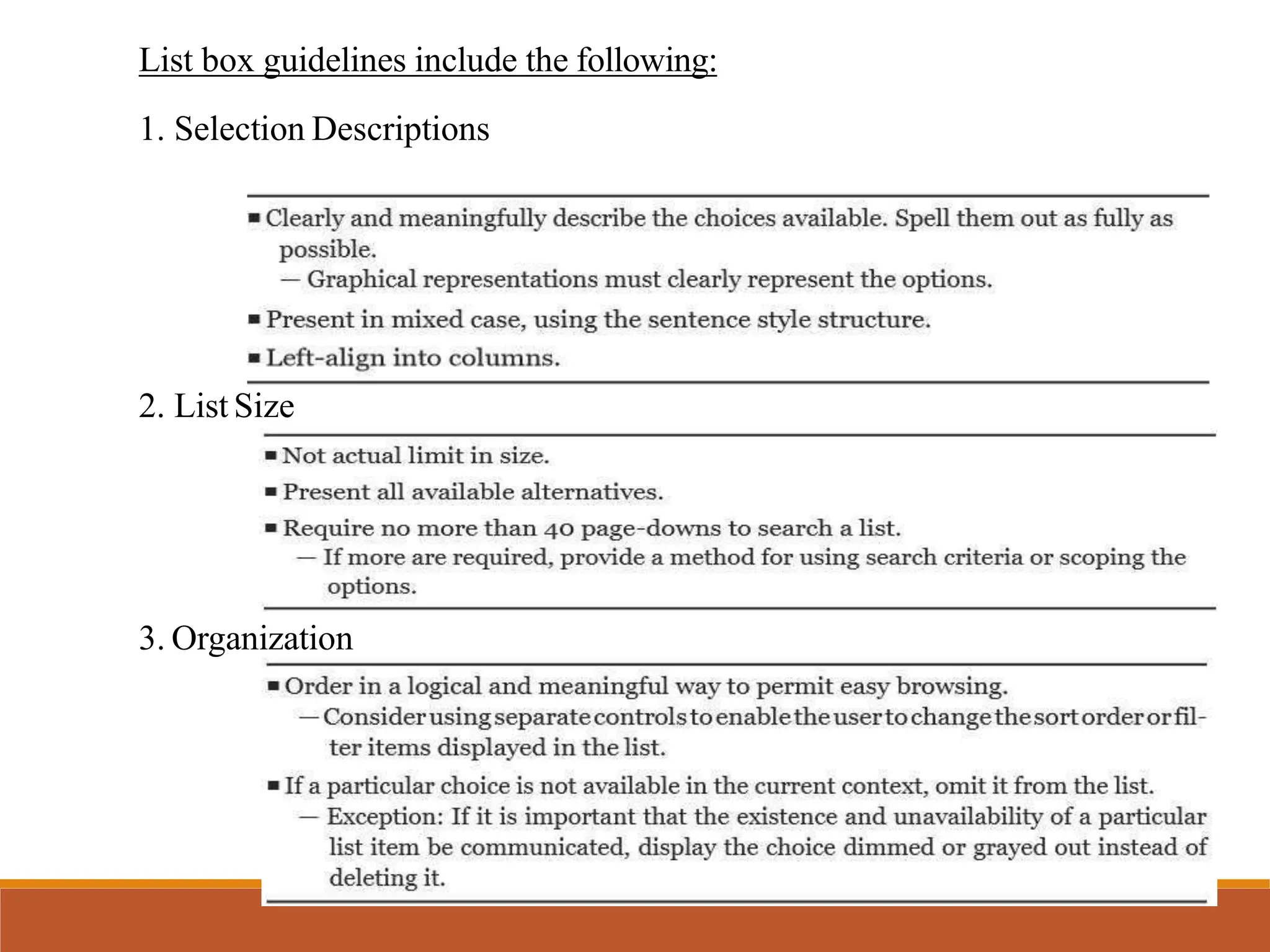
List box guidelines include the following:
1. Selection Descriptions
2. List Size
3. Organization
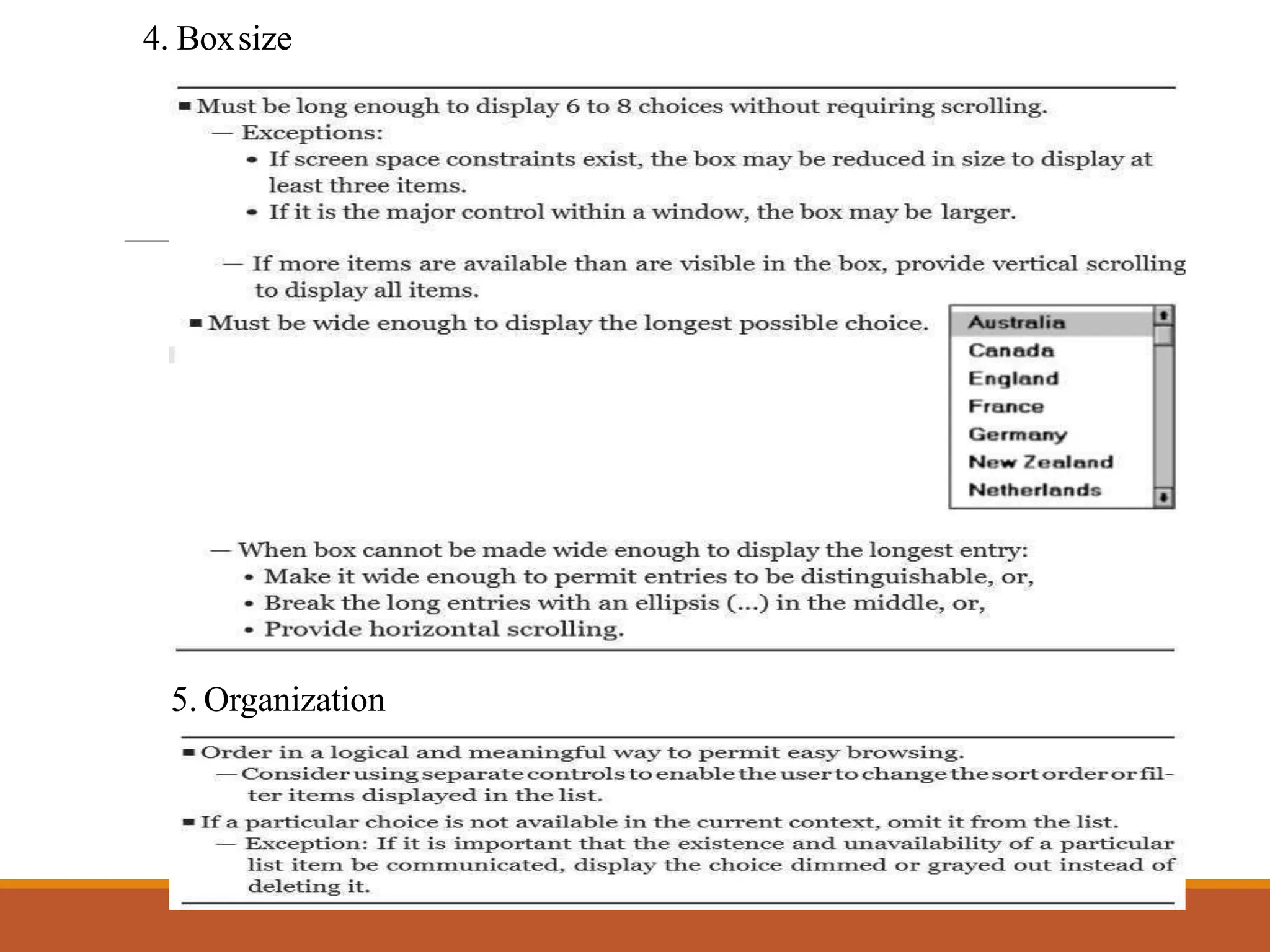
4. Boxsize
5. Organization
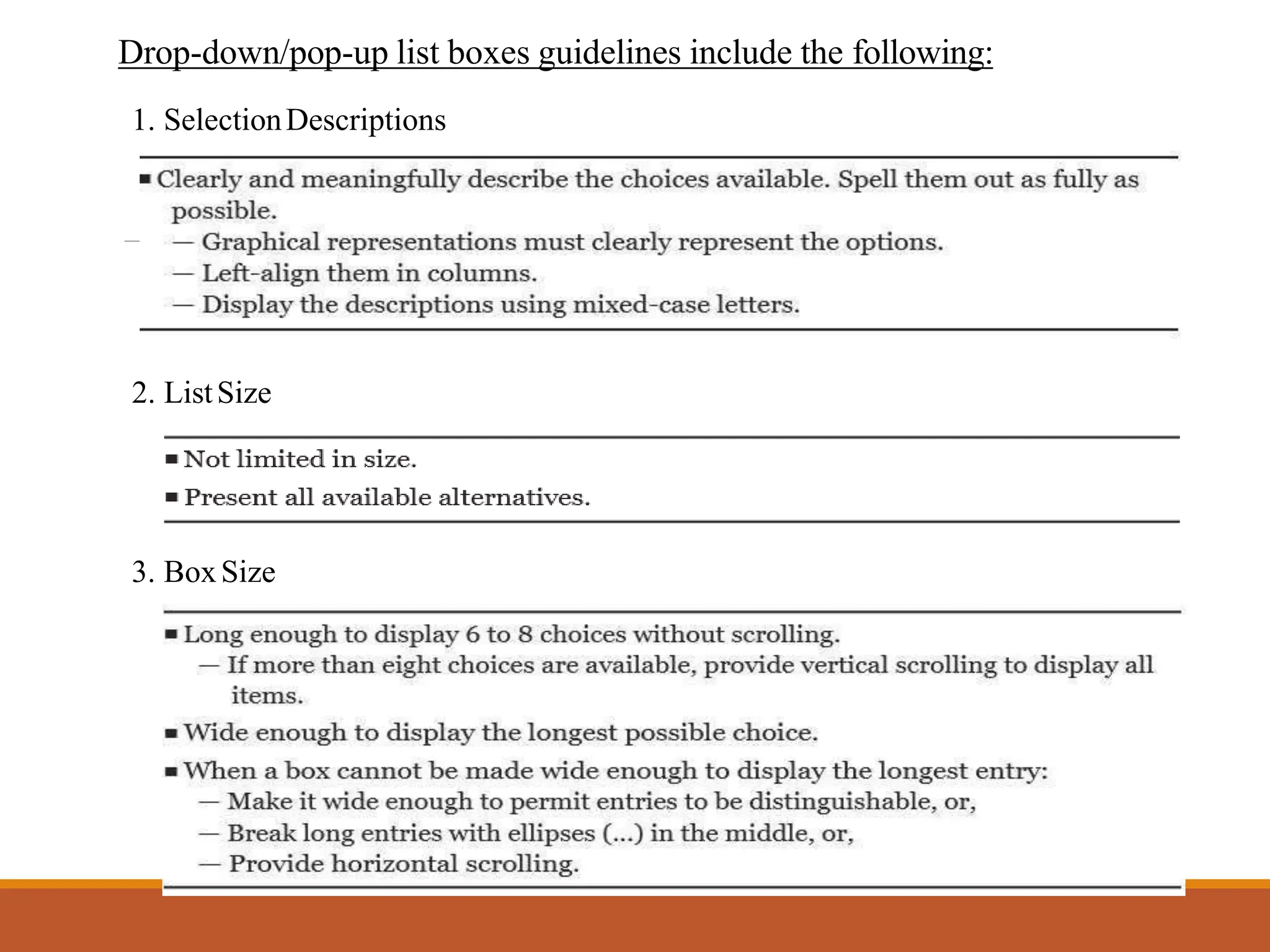
4. Drop-down/pop-up listboxes
1. SelectionDescriptions
2. ListSize
3. BoxSize
Drop-down/pop-up list boxes guidelines include the following:
5.Palettes
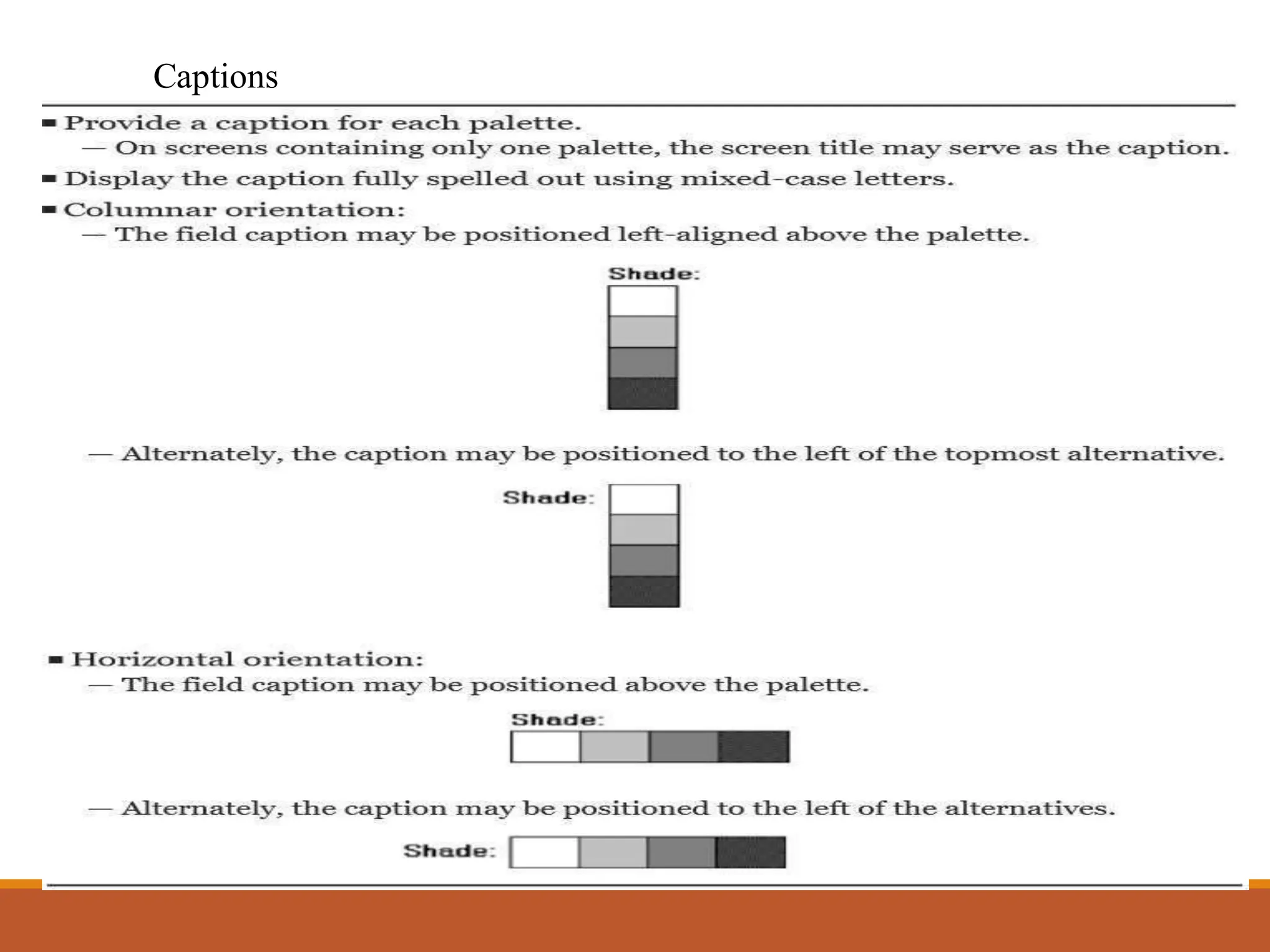
Captions
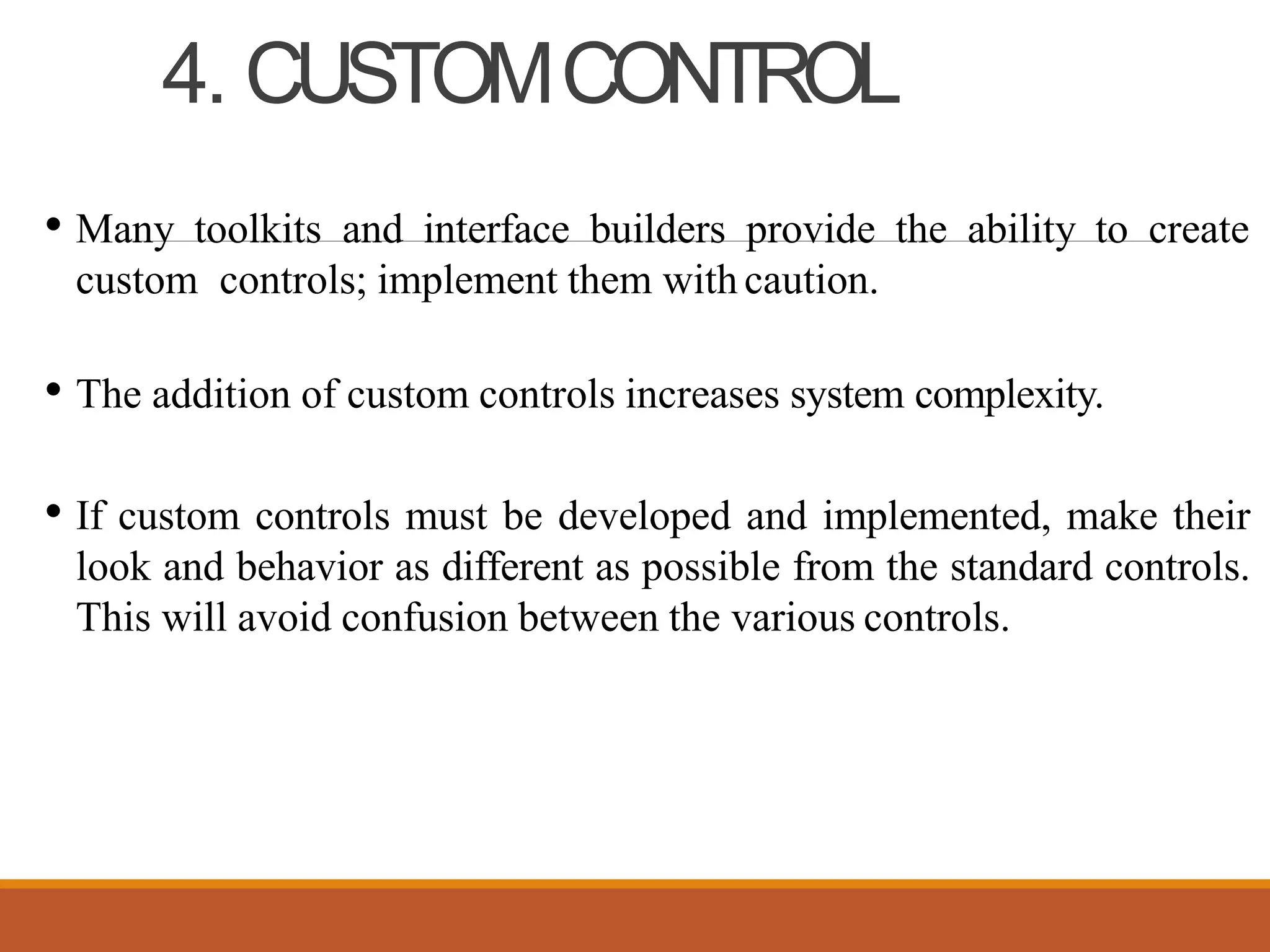
4. CUSTOMCONTROL
• Many toolkits and interface builders provide the ability to create
custom controls; implement them with caution.
• The addition of custom controls increases system complexity.
• If custom controls must be developed and implemented, make their
look and behavior as different as possible from the standard controls.
This will avoid confusion between the various controls.
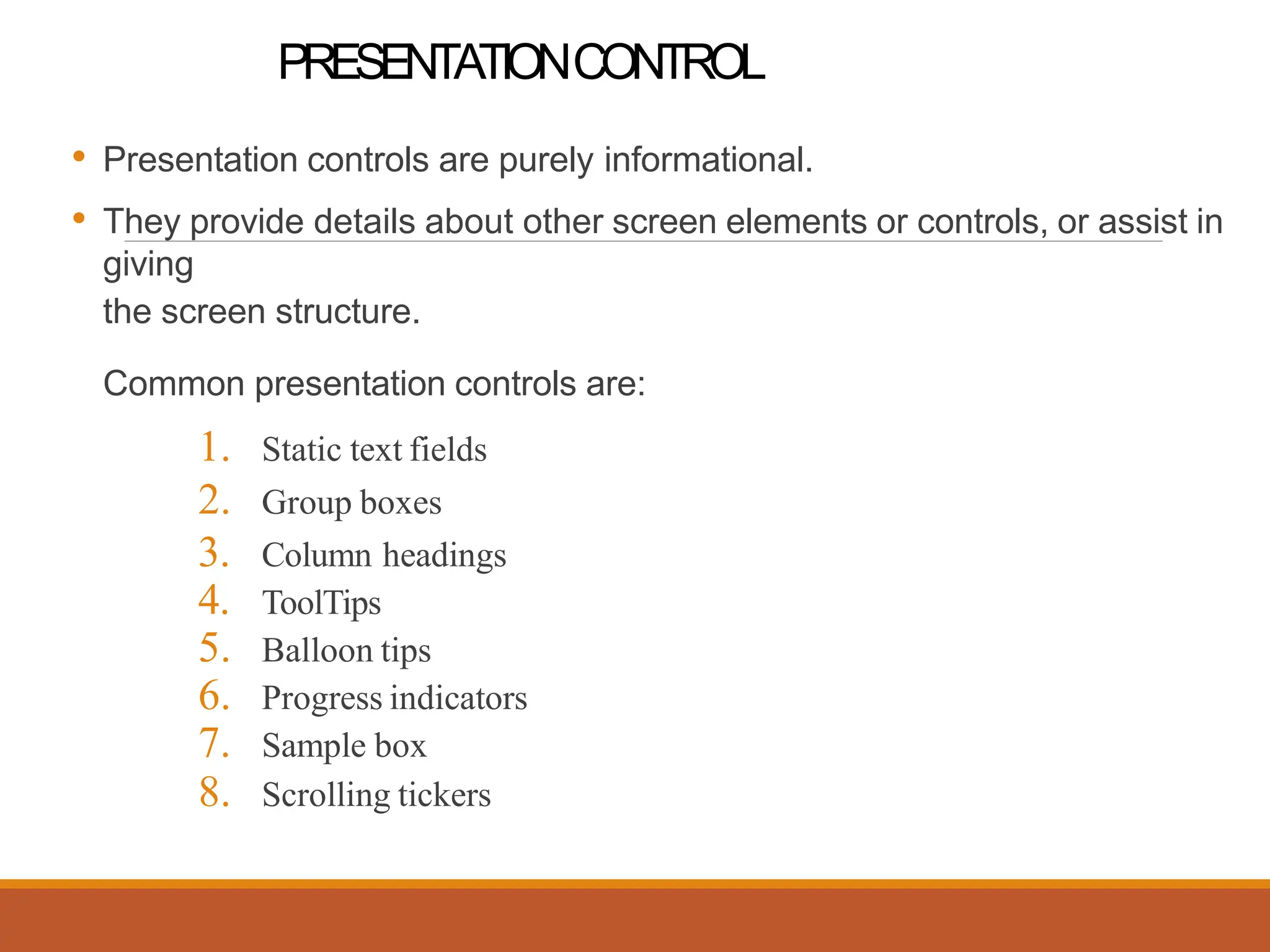
PRESENTATIONCONTROL
• Presentation controls are purely informational.
• They provide details about other screen elements or controls, or assist in
giving
the screen structure.
Common presentation controls are:
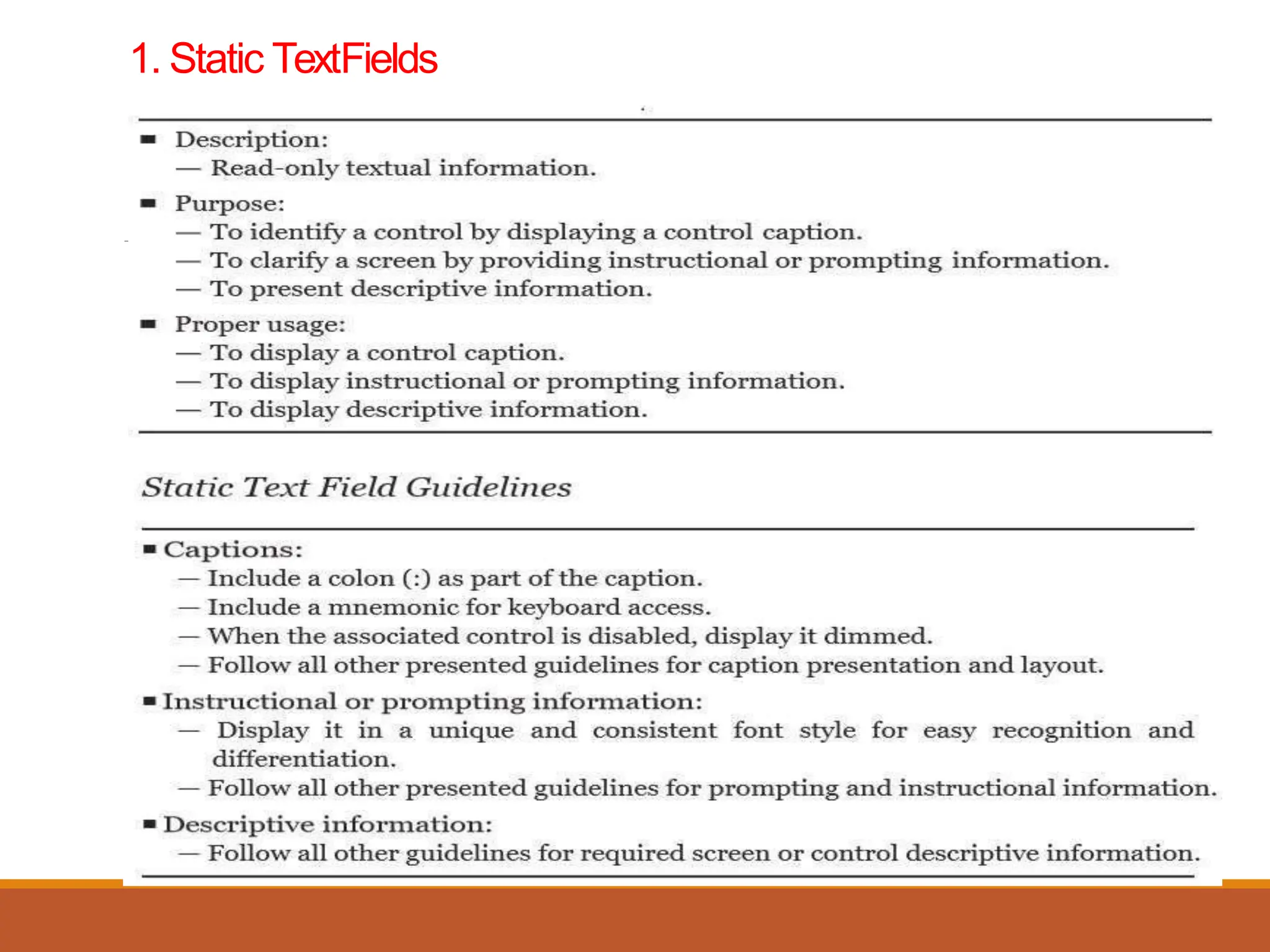
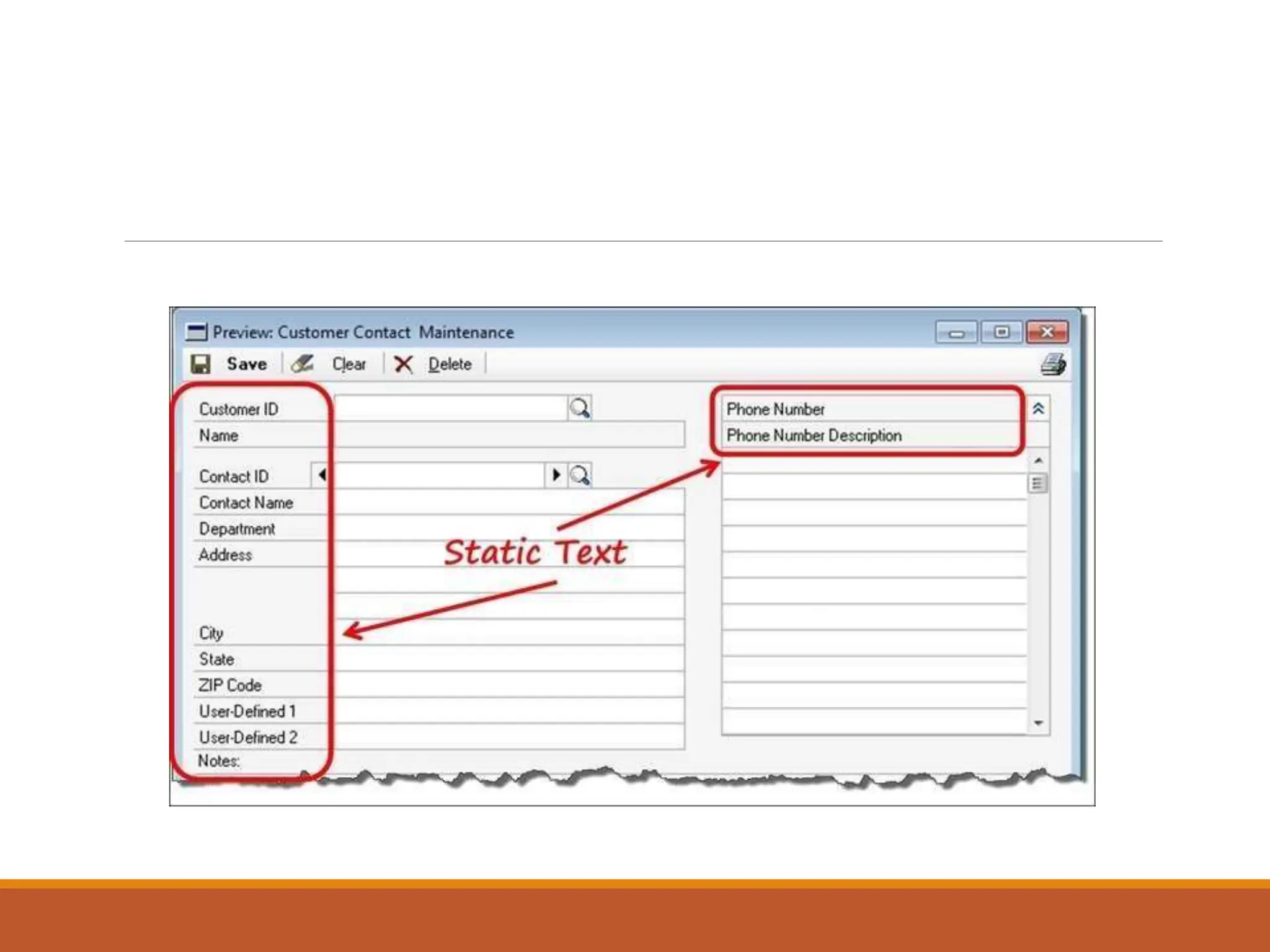
1. Static text fields
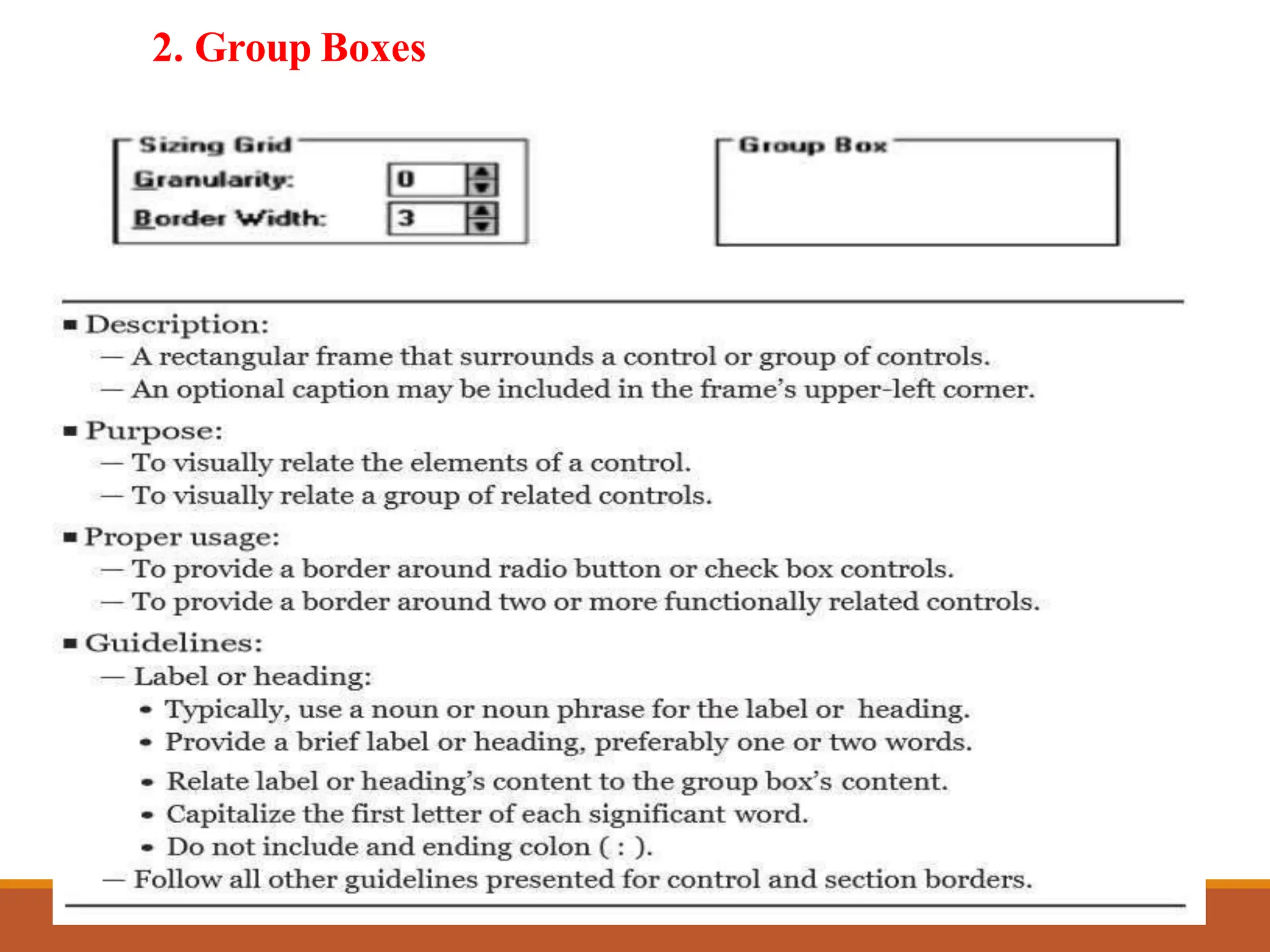
2. Group boxes
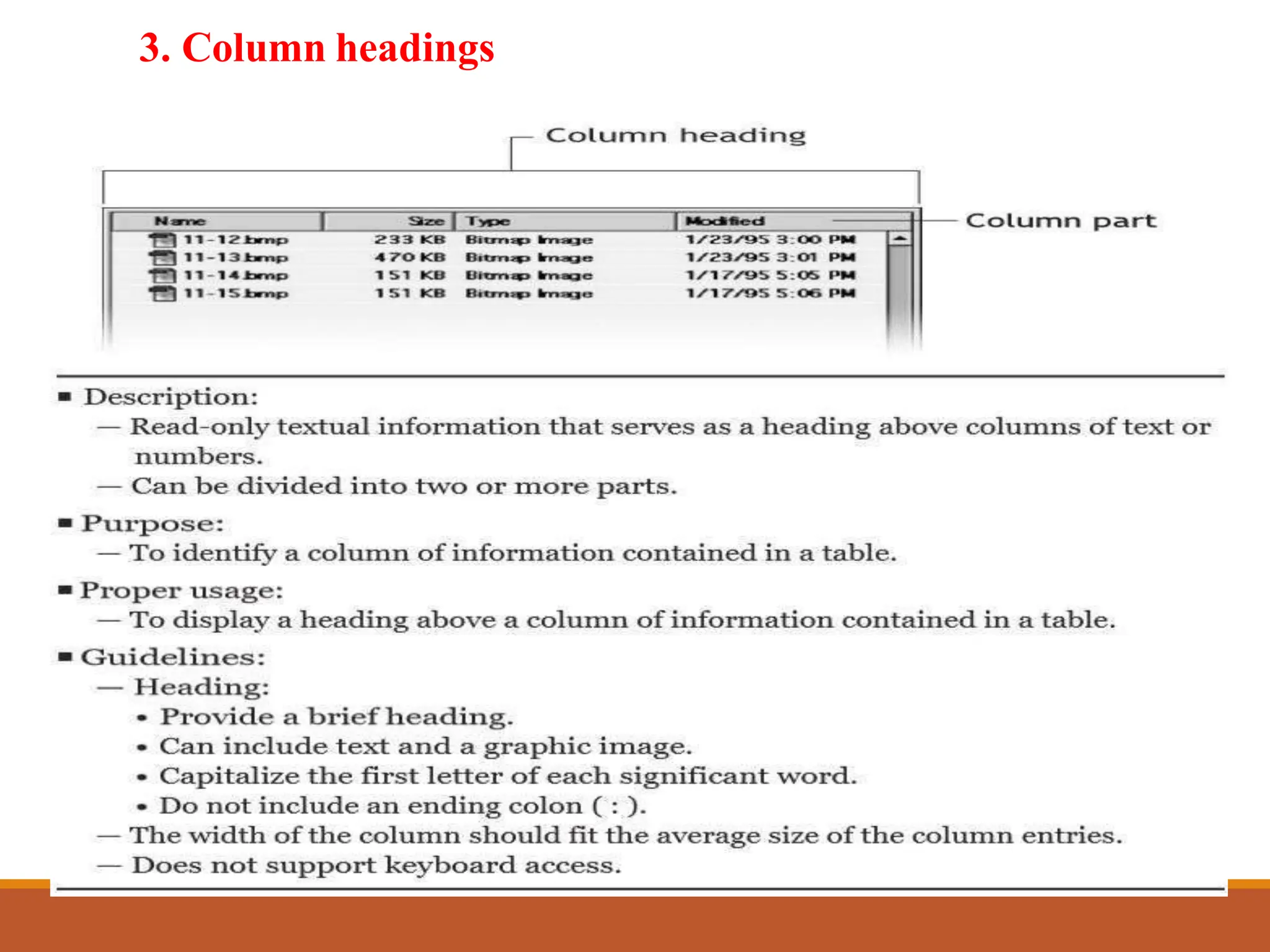
3. Column headings
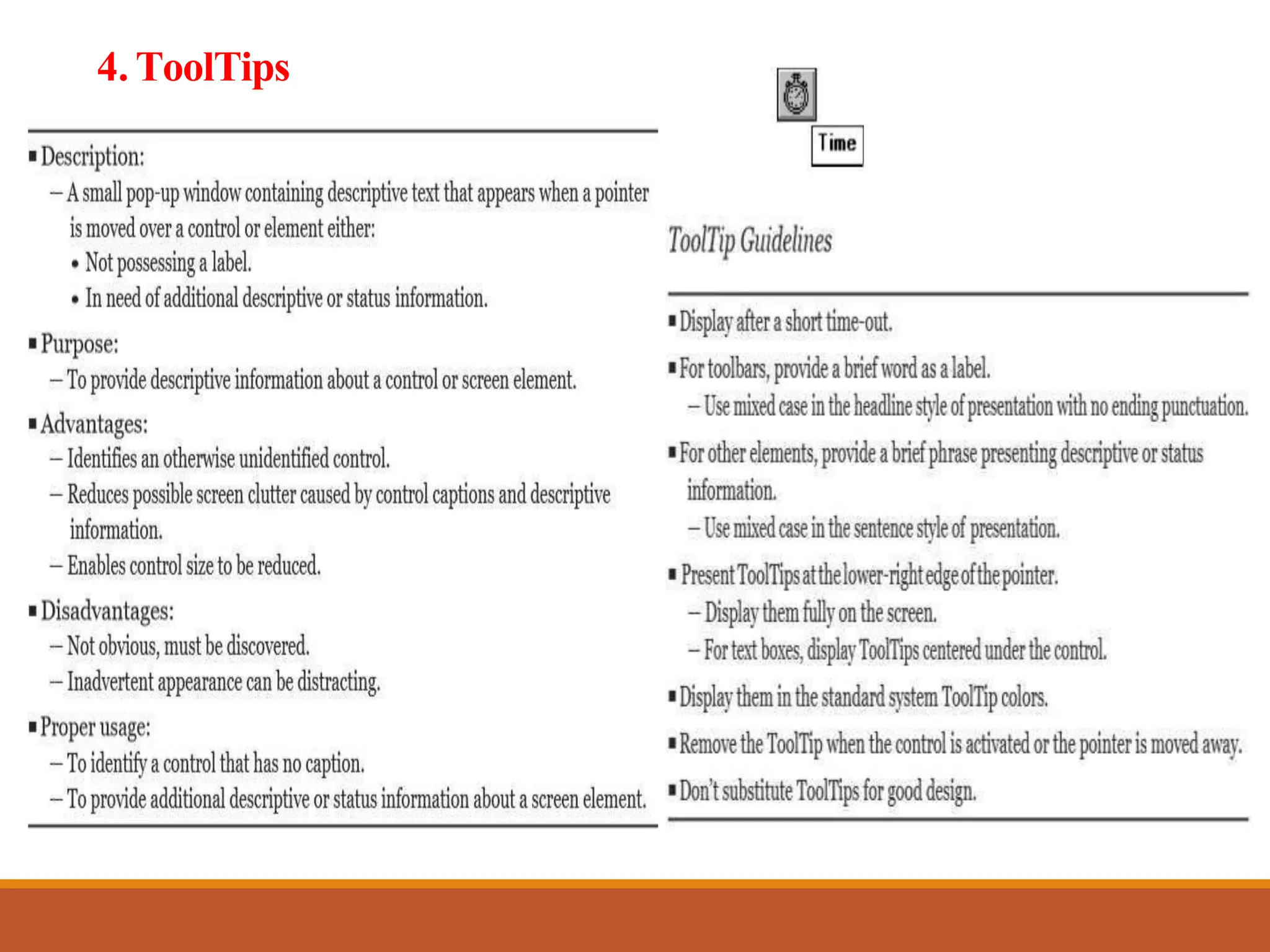
4. ToolTips
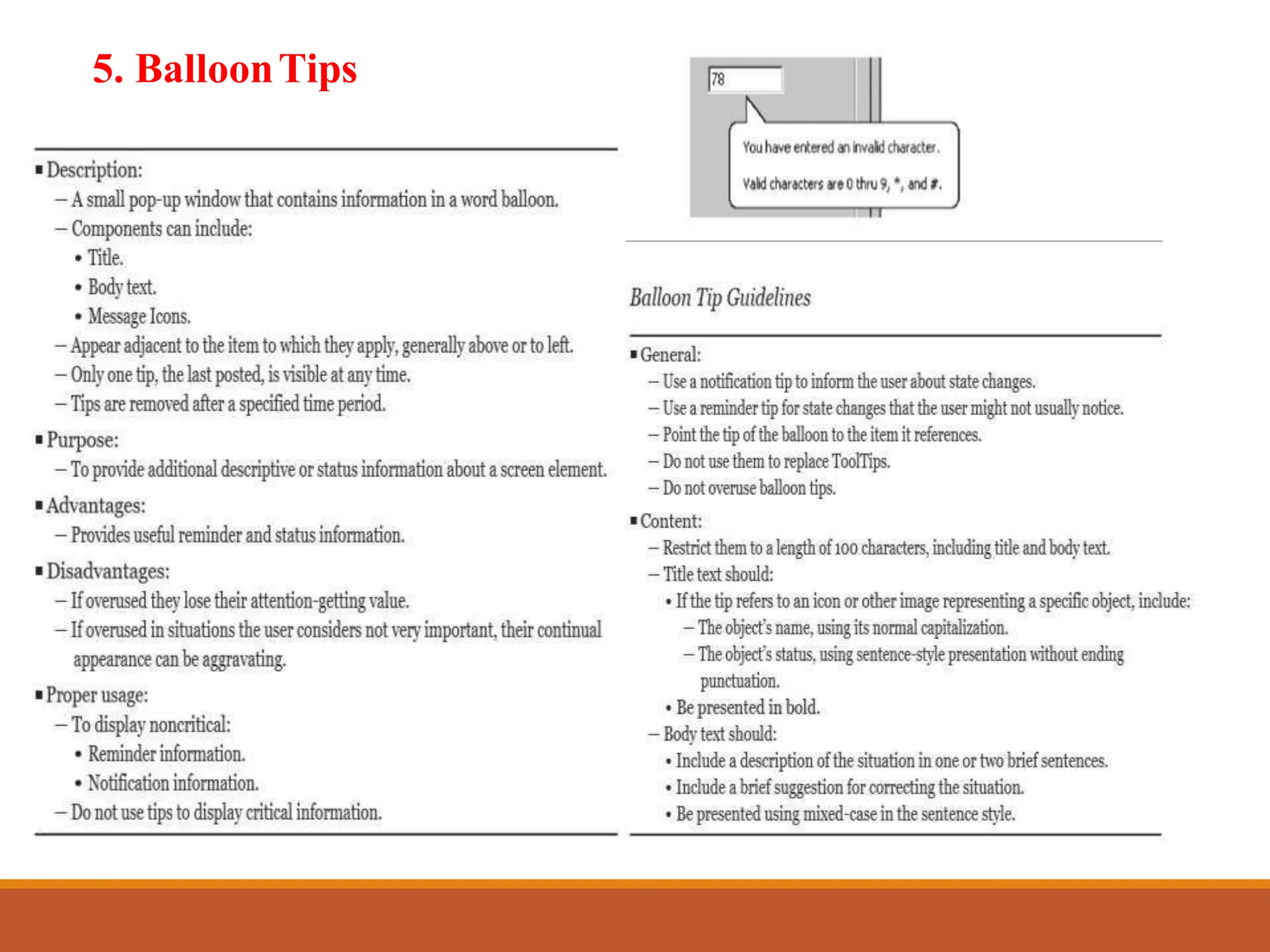
5. Balloon tips
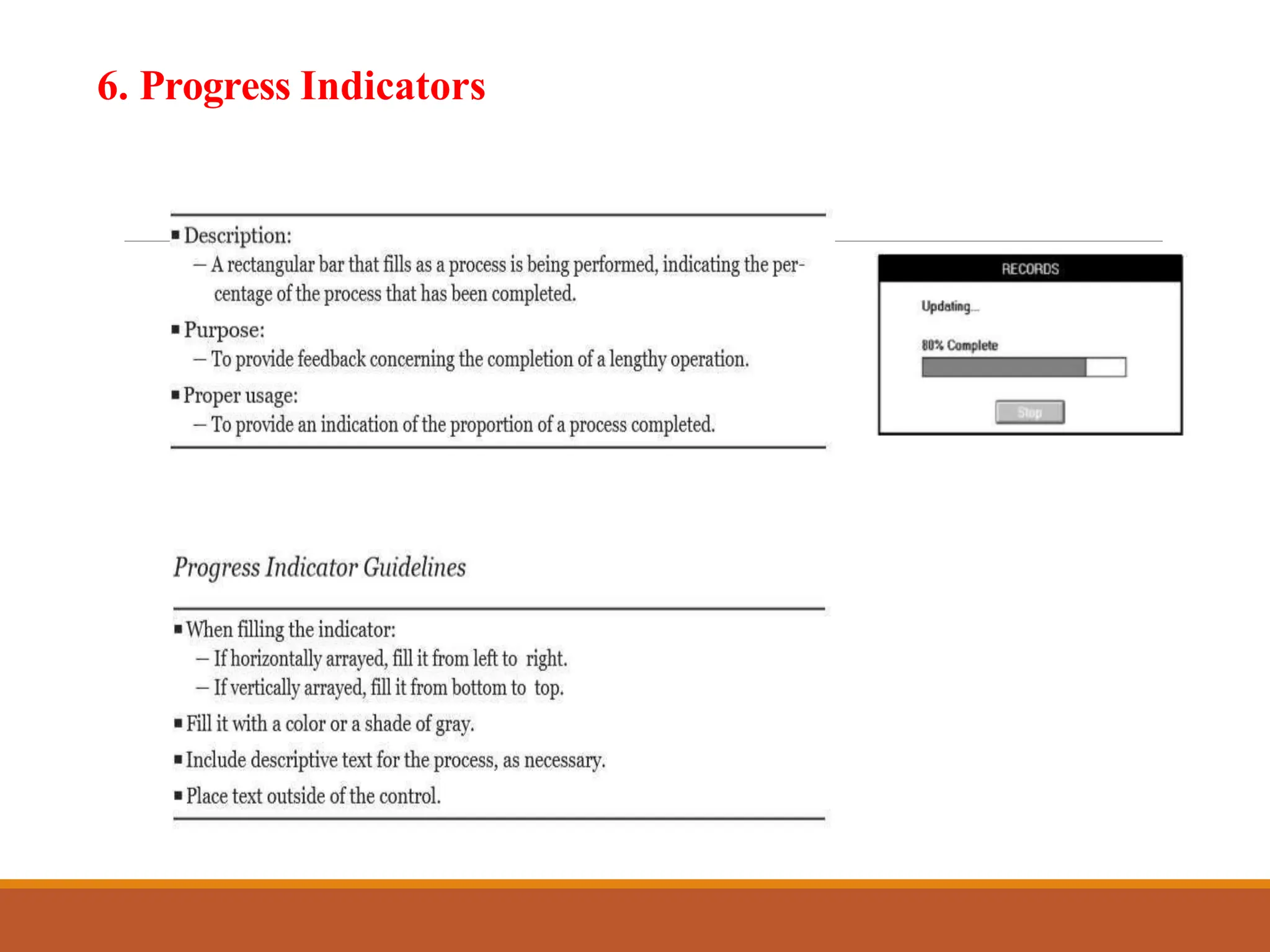
6. Progress indicators
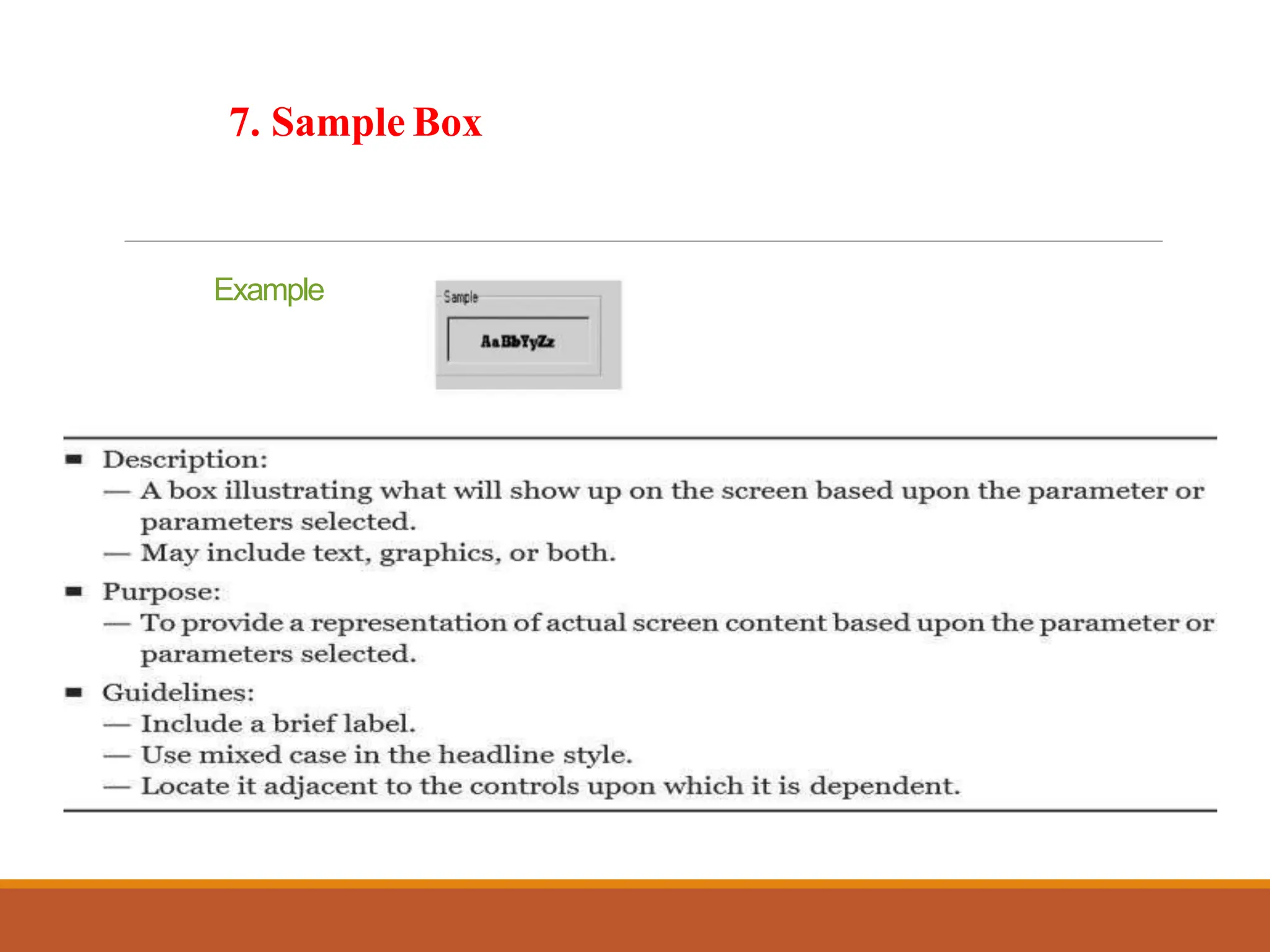
7. Sample box
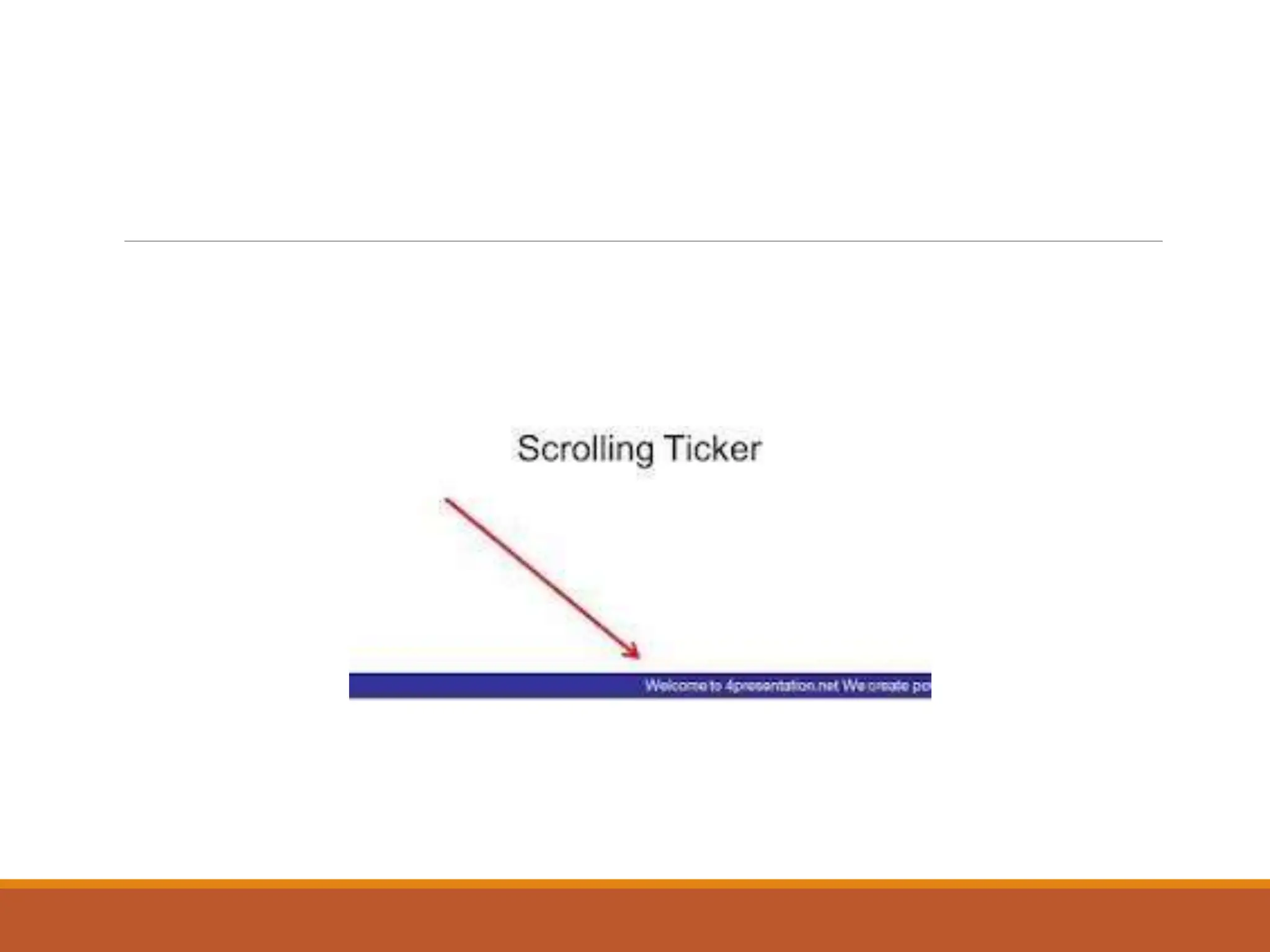
8. Scrolling tickers
1. Static TextFields
2. Group Boxes
3. Column headings
4. ToolTips
5. BalloonTips
6. Progress Indicators
7. Sample Box
Example
8. ScrollingTickers
6. WINDOWSTESTS-PROTOTYPES
• A prototype is a simulation of an actual system that can be
quickly created.
• A prototype may be a rough approximation, such as a simple
hand-drawn sketch, or it may be interactive, allowing the user
to key or select data using controls, navigate through menus,
retrieve displays of data, and perform basic system functions.
• Various kinds of prototypes are:
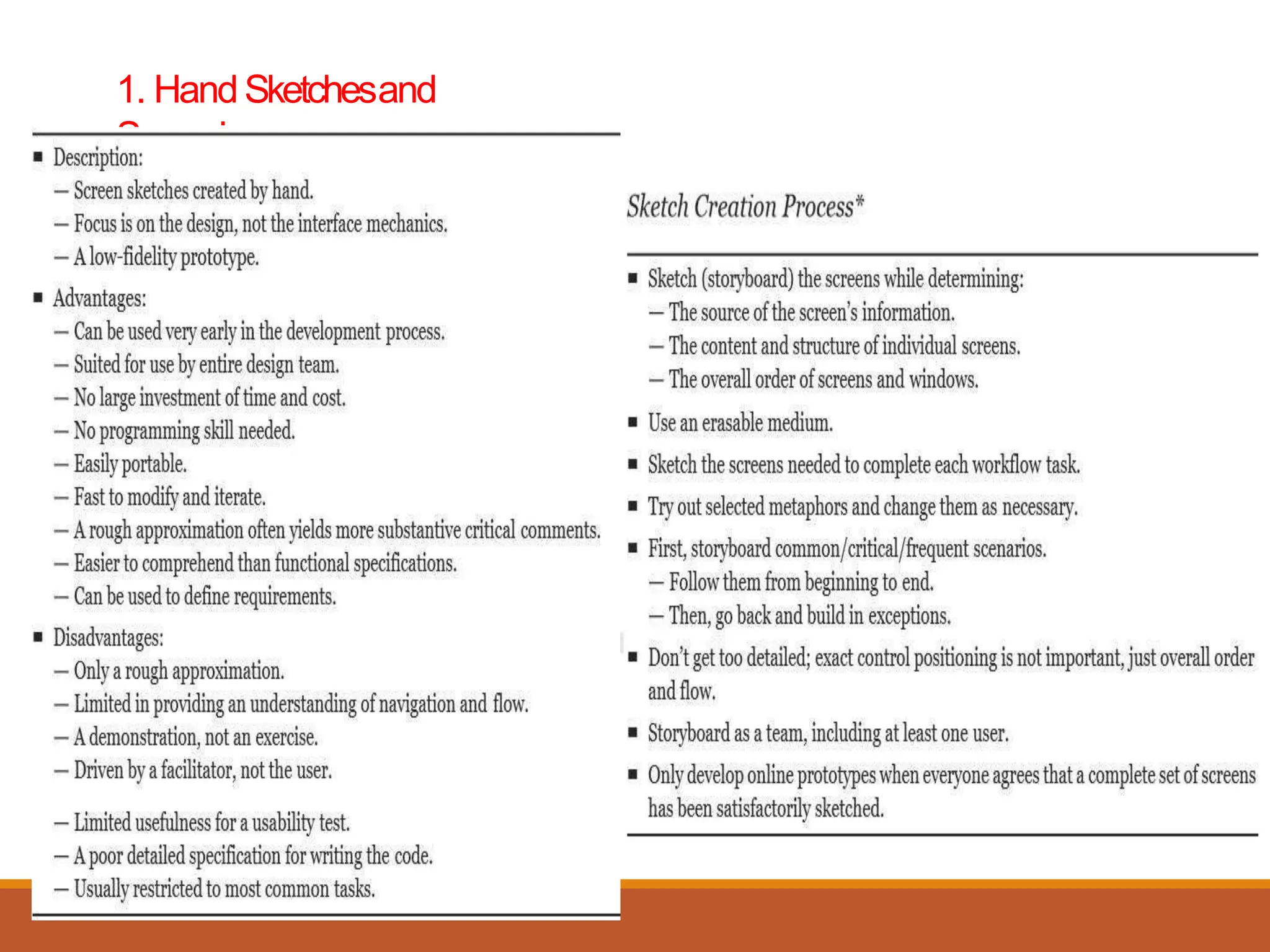
1. Hand Sketches and Scenarios
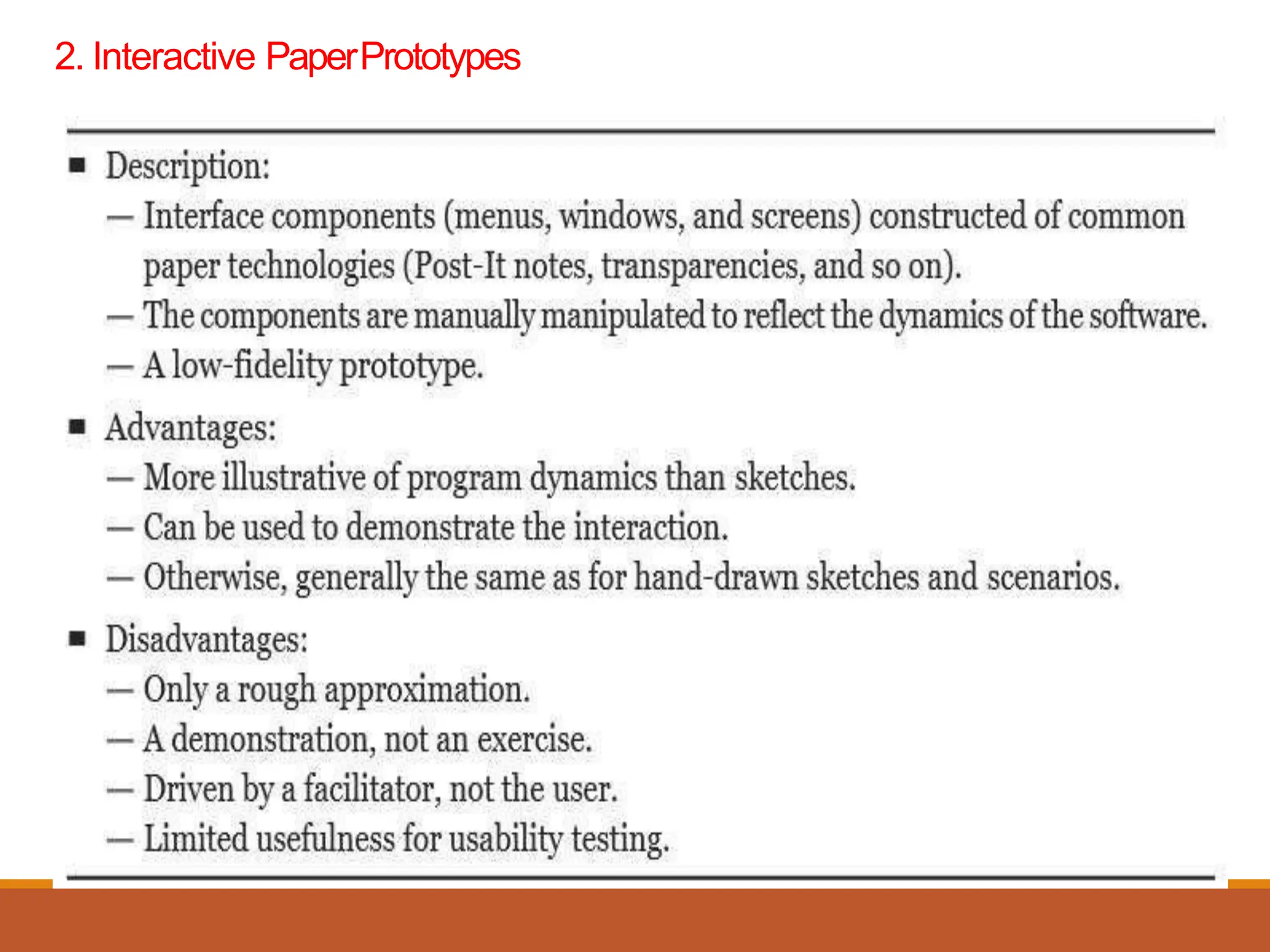
2. Interactive Paper Prototypes
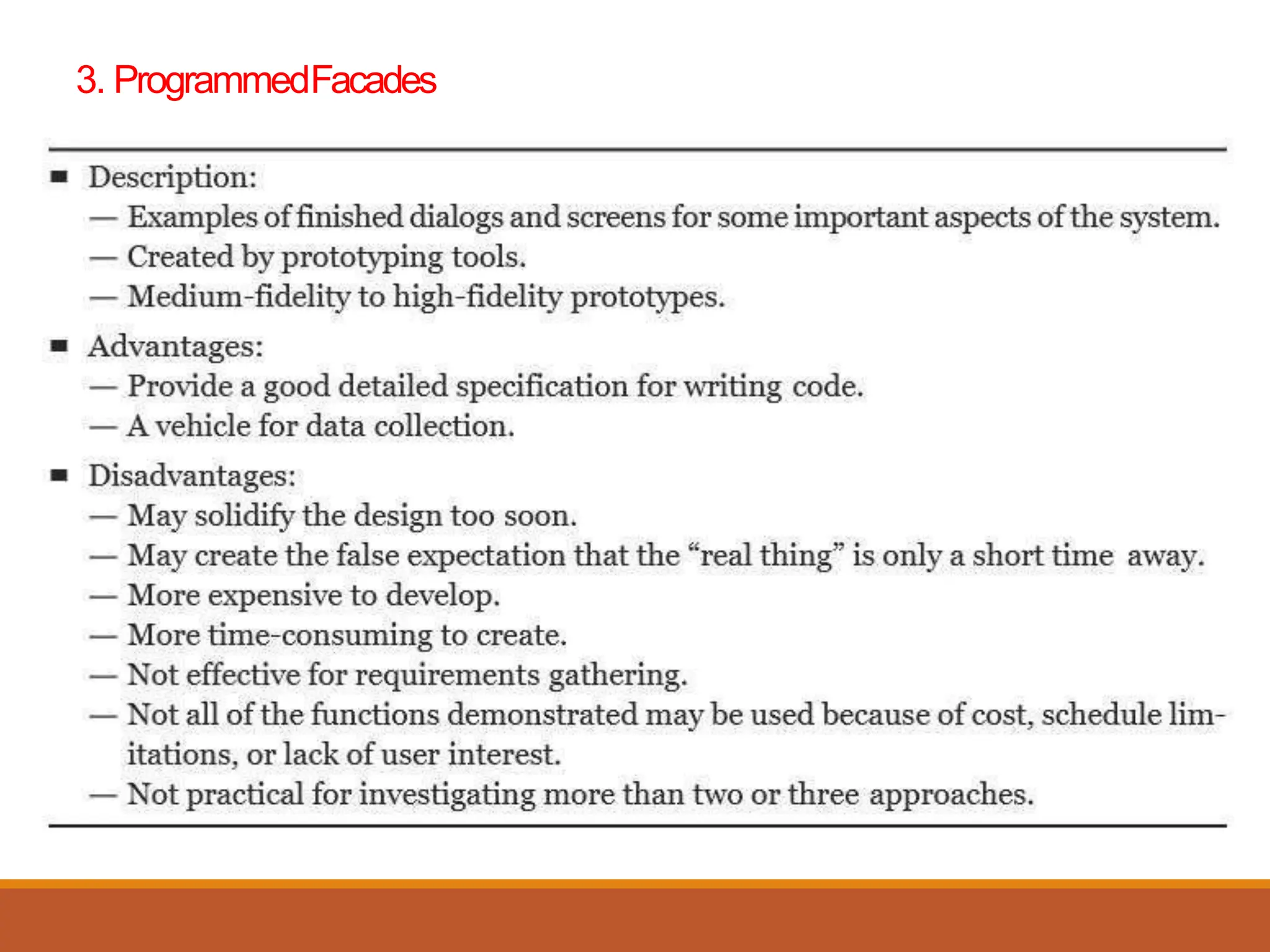
3. Programmed Facades
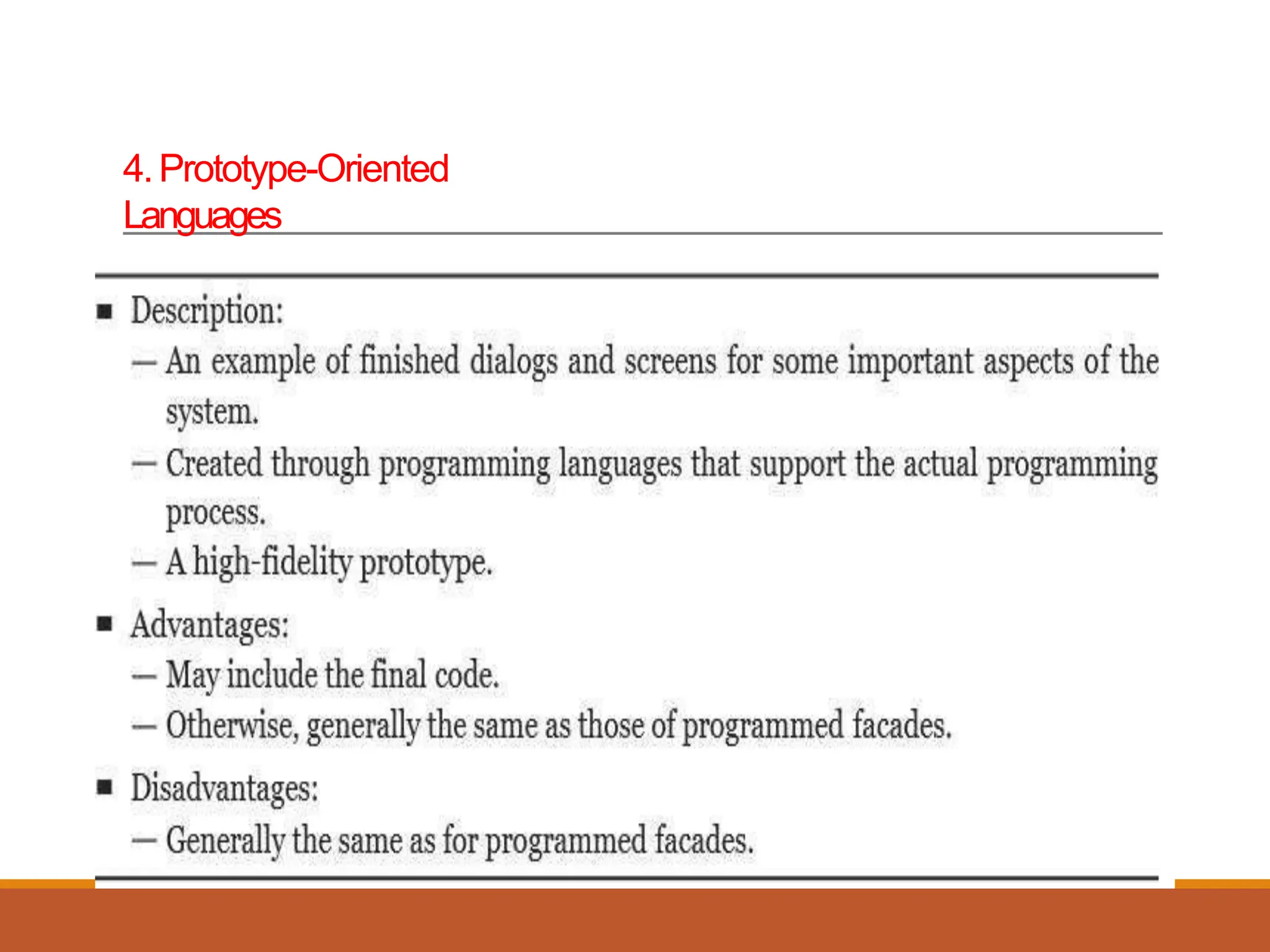
4. Prototype-Oriented Languages
1. HandSketchesand
Scenarios
2. Interactive PaperPrototypes
3. ProgrammedFacades
4.Prototype-Oriented
Languages
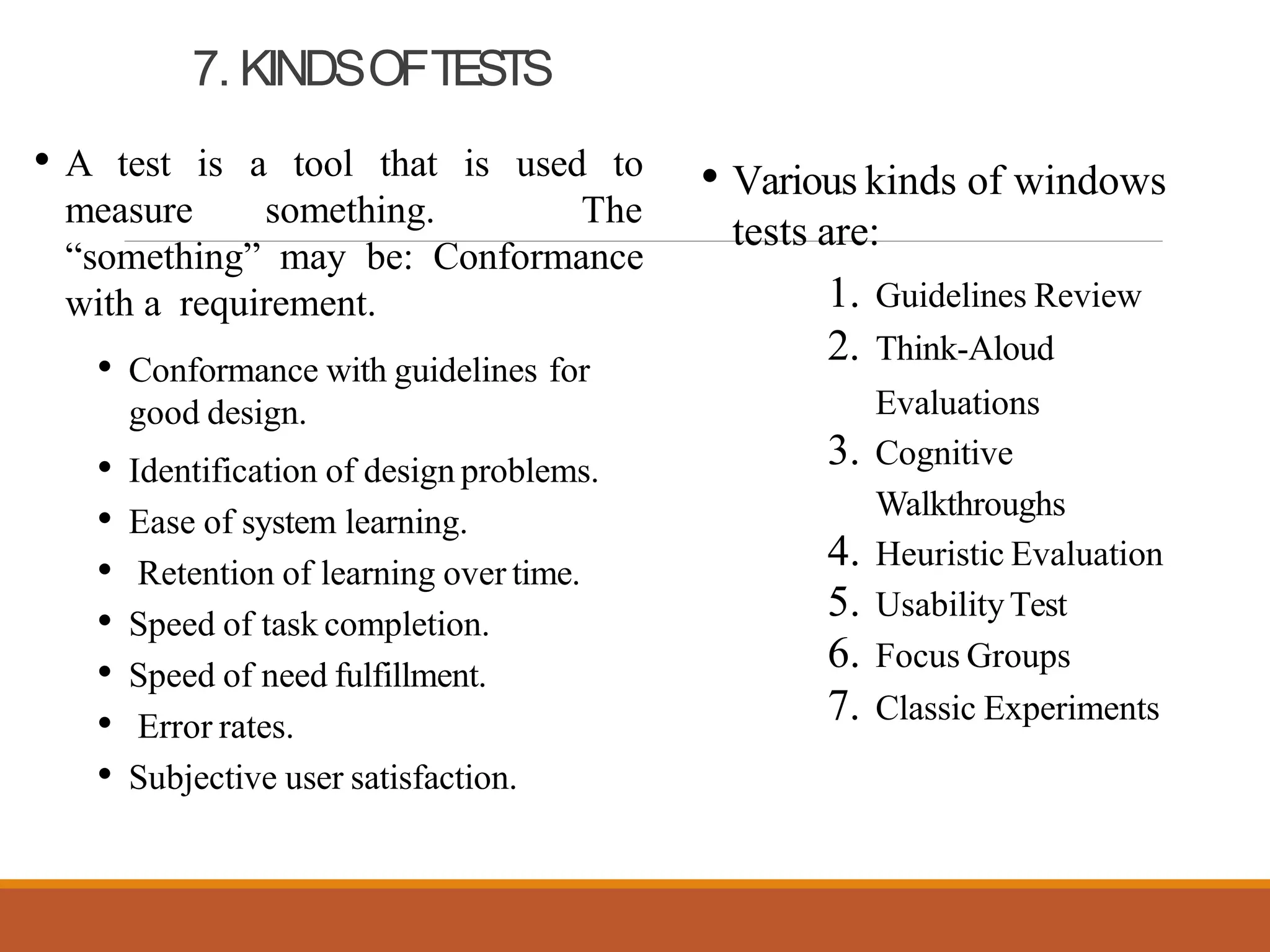
7. KINDSOFTESTS
• A test is a tool that is used to
measure something. The
“something” may be: Conformance
with a requirement.
• Conformance with guidelines for
good design.
• Identification of design problems.
• Ease of system learning.
• Retention of learning over time.
• Speed of task completion.
• Speed of need fulfillment.
• Error rates.
• Subjective user satisfaction.
• Various kinds of windows
tests are:
1. Guidelines Review
2. Think-Aloud
Evaluations
3. Cognitive
Walkthroughs
4. Heuristic Evaluation
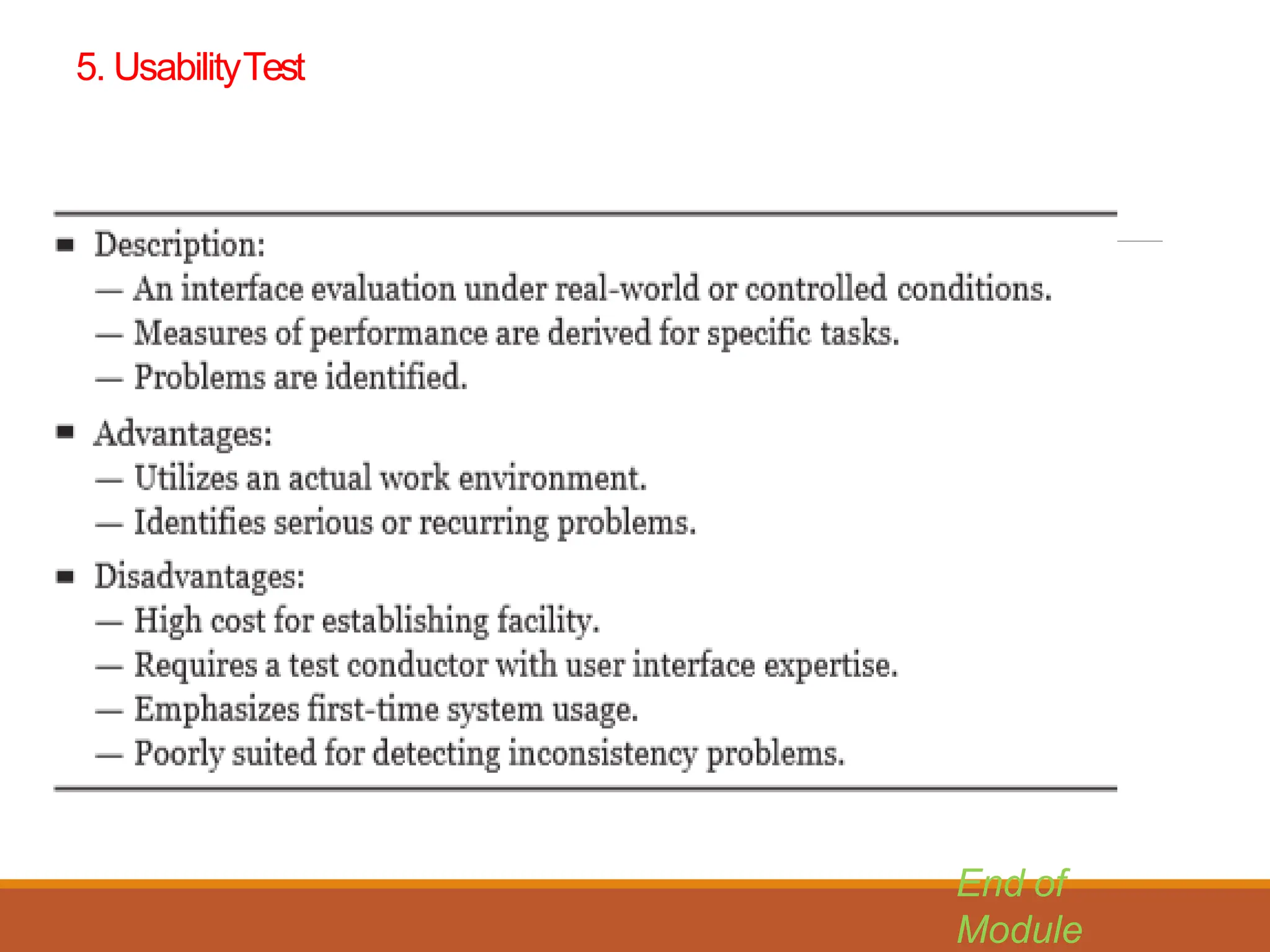
5. UsabilityTest
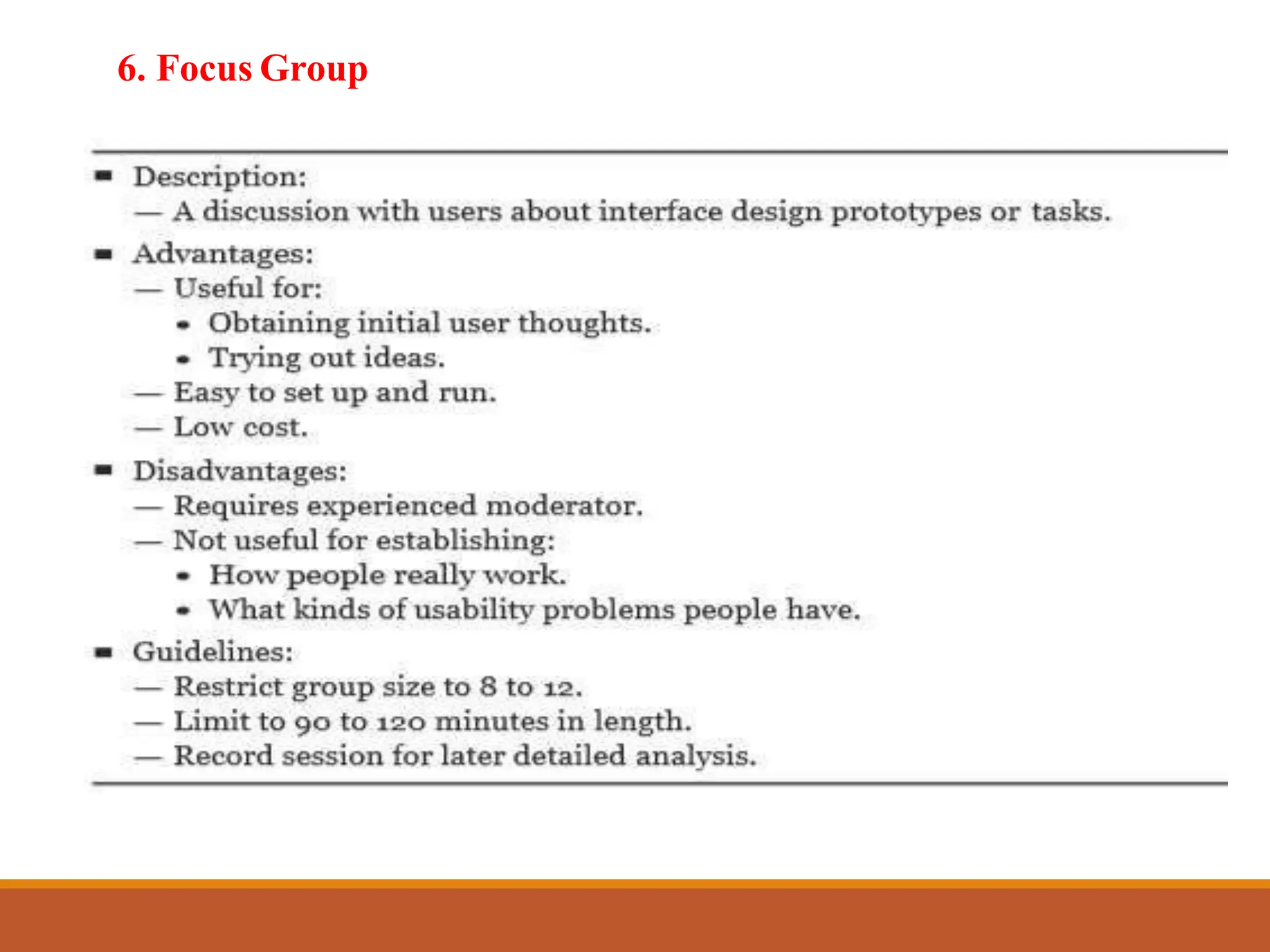
6. Focus Groups
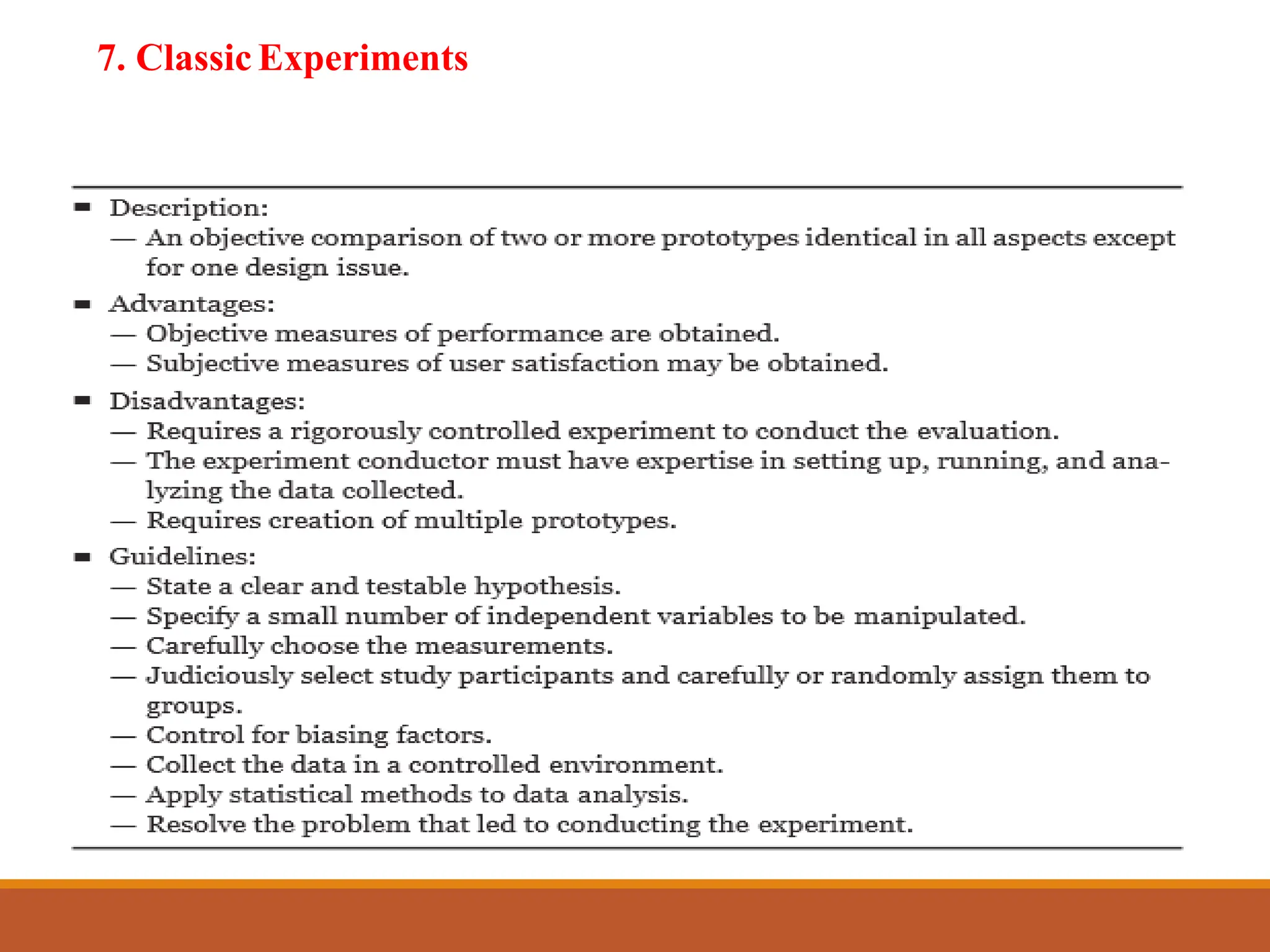
7. Classic Experiments
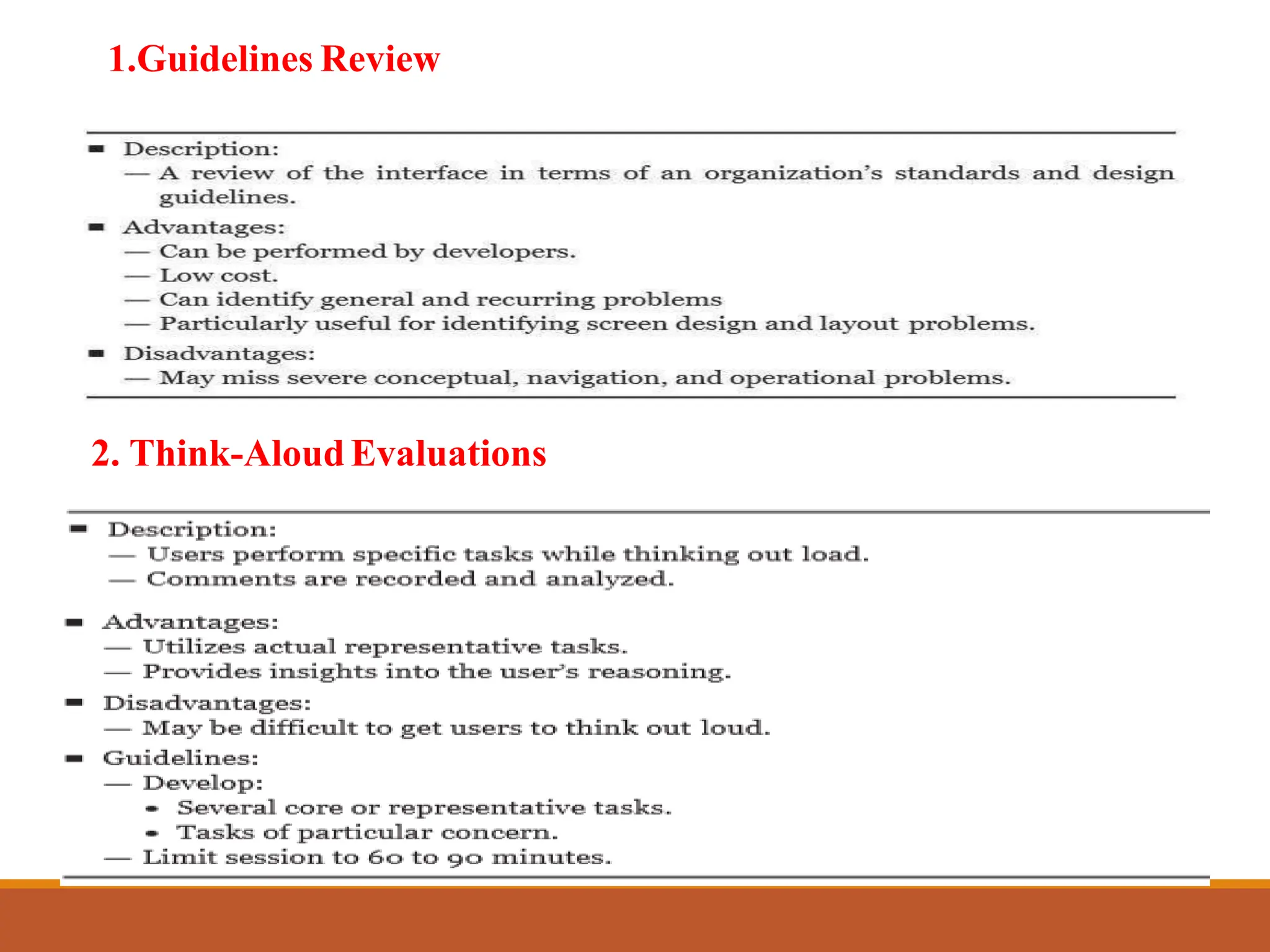
1.Guidelines Review
2. Think-Aloud Evaluations
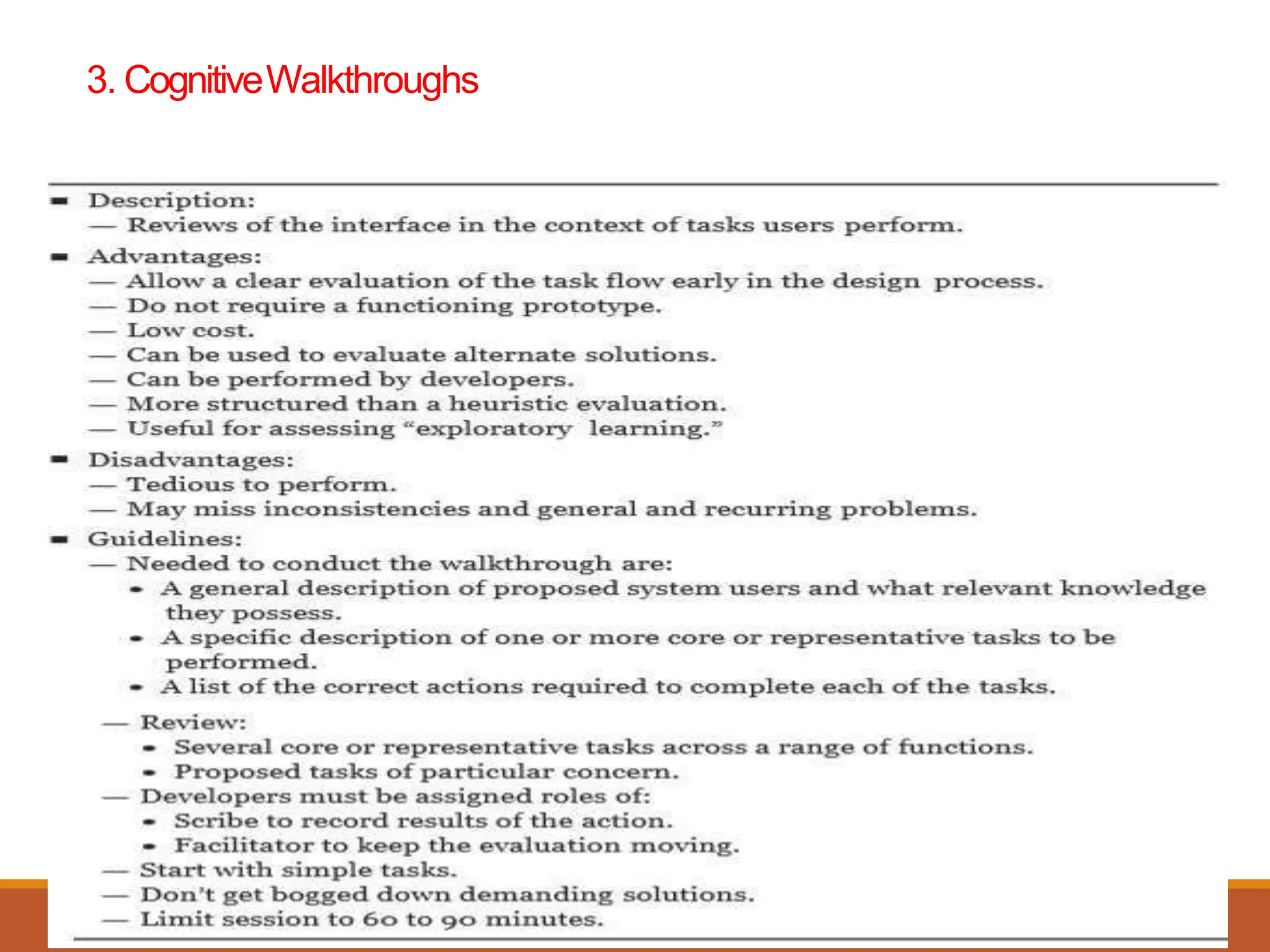
3. CognitiveWalkthroughs
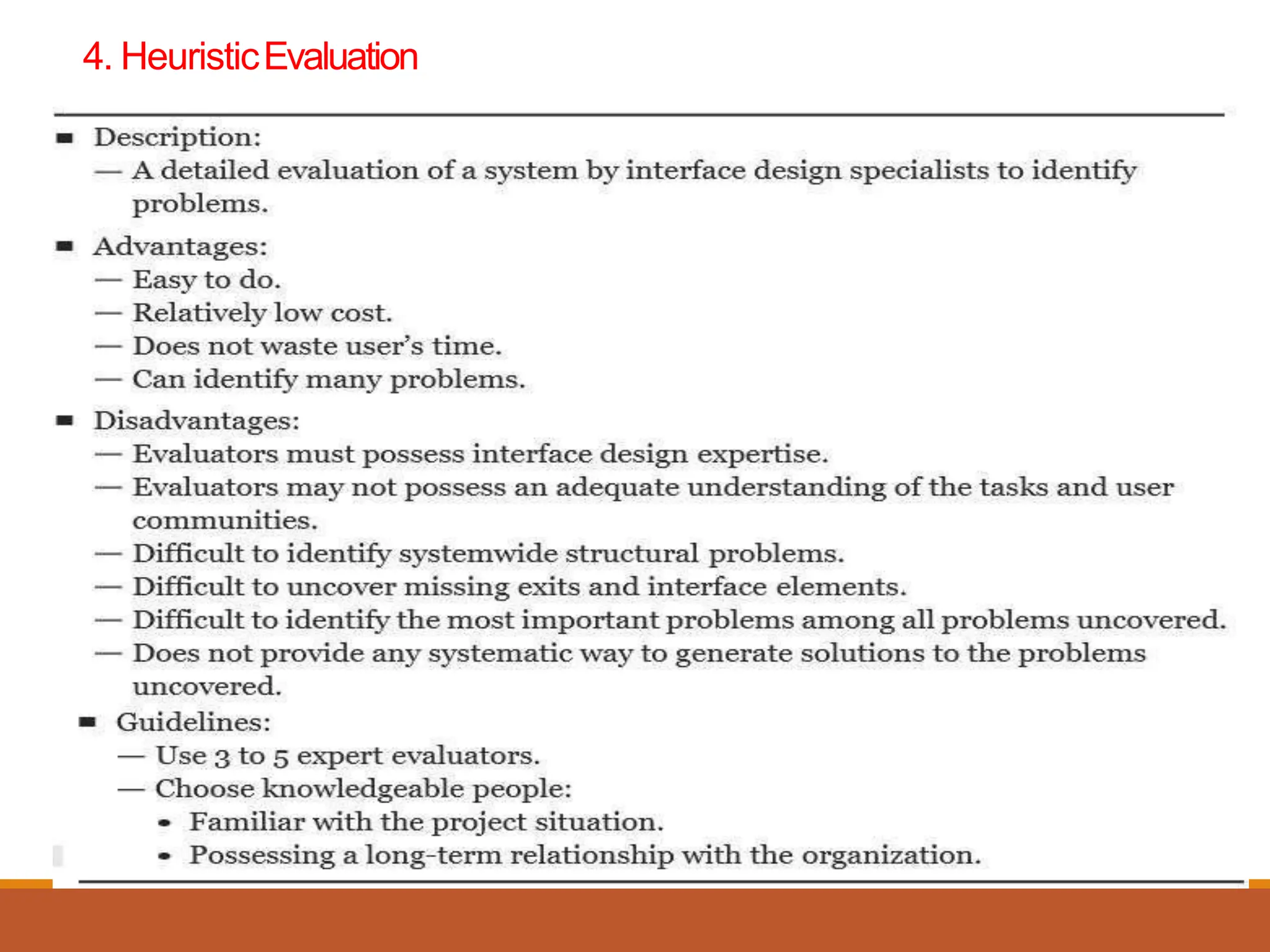
4. HeuristicEvaluation
5. UsabilityTest
End of
Module
6. Focus Group
7. Classic Experiments

Module_5_Screen Based Controls as Per Syllabus.ppt.pptx