WORDPRESS
INTRODUCTORY
COURSE
Manage Users Menus and Settings
1
Module 3
01
.
CONTENTS
02
.
03
.
Understandin
g
Users
Editing Menus
Updating
Settings
04
.Conclusion
01.
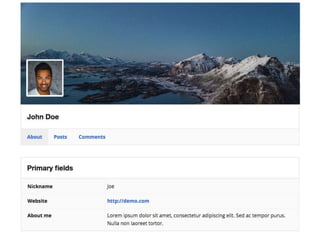
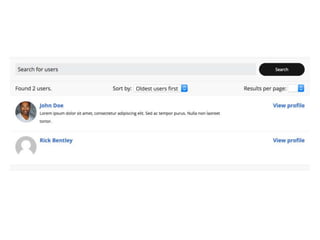
Understanding Users
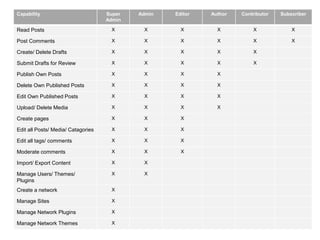
Capability Super
Admin
Admin Editor Author Contributor Subscriber
Read Posts X X X X X X
Post Comments X X X X X X
Create/ Delete Drafts X X X X X
Submit Drafts for Review X X X X X
Publish Own Posts X X X X
Delete Own Published Posts X X X X
Edit Own Published Posts X X X X
Upload/ Delete Media X X X X
Create pages X X X
Edit all Posts/ Media/ Catagories X X X
Edit all tags/ comments X X X
Moderate comments X X X
Import/ Export Content X X
Manage Users/ Themes/
Plugins
X X
Create a network X
Manage Sites X
Manage Network Plugins X
Manage Network Themes X
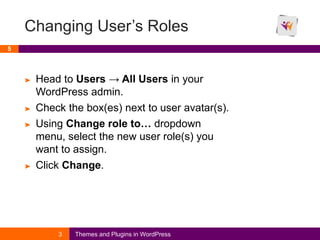
Changing User’s Roles
5
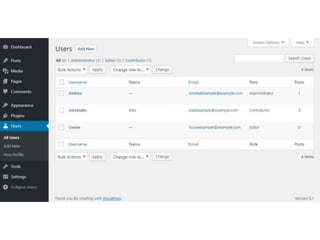
➤ Head to Users → All Users in your
WordPress admin.
➤ Check the box(es) next to user avatar(s).
➤ Using Change role to… dropdown
menu, select the new user role(s) you
want to assign.
➤ Click Change.
3 Themes and Plugins in WordPress
02.
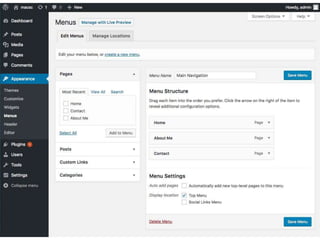
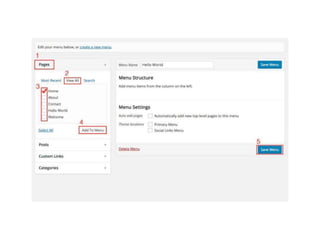
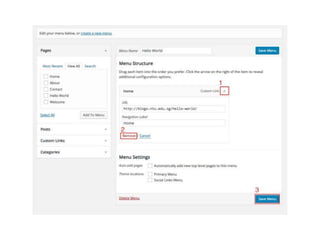
Editing Menus
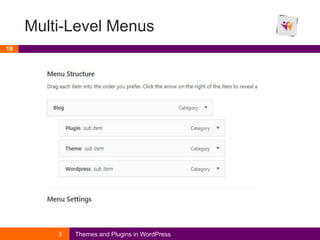
Multi-Level Menus
3 Themes and Plugins in WordPress
19
03.
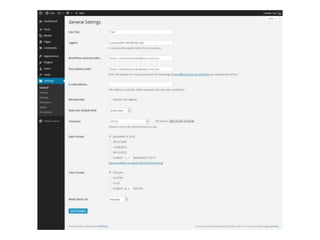
Updating Settings
Titles and Taglines
3 Themes and Plugins in WordPress
22
Choosing the Right Titles & Taglines
23
3 Themes and Plugins in WordPress
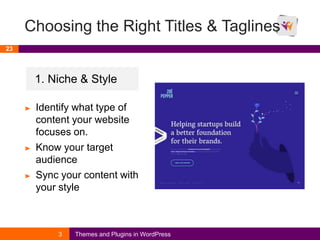
1. Niche & Style
➤ Identify what type of
content your website
focuses on.
➤ Know your target
audience
➤ Sync your content with
your style
Choosing the Right Titles & Taglines
24
3 Themes and Plugins in WordPress
2. Include Strong
Keywords
➤ Research keywords based
off your audience and
niche
➤ Incorporate keywords
within your title and
taglines to boost SEO
optimization
➤ Focus on keywords that
describe your site as a
whole
Choosing the Right Titles & Taglines
25
3 Themes and Plugins in WordPress
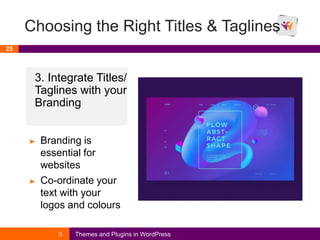
3. Integrate Titles/
Taglines with your
Branding
➤ Branding is
essential for
websites
➤ Co-ordinate your
text with your
logos and colours
04.
Conclusion
Self-reflection
Make sure that you
assign the right roles
to users, and that
settings are updated in
the best way to
optimize your website.
Is all content aligned?
Create and Manage Posts and Pages on WordPress3
27

Module 3

  • 1.
  • 2.
  • 3.
  • 4.
    Capability Super Admin Admin EditorAuthor Contributor Subscriber Read Posts X X X X X X Post Comments X X X X X X Create/ Delete Drafts X X X X X Submit Drafts for Review X X X X X Publish Own Posts X X X X Delete Own Published Posts X X X X Edit Own Published Posts X X X X Upload/ Delete Media X X X X Create pages X X X Edit all Posts/ Media/ Catagories X X X Edit all tags/ comments X X X Moderate comments X X X Import/ Export Content X X Manage Users/ Themes/ Plugins X X Create a network X Manage Sites X Manage Network Plugins X Manage Network Themes X
  • 5.
    Changing User’s Roles 5 ➤Head to Users → All Users in your WordPress admin. ➤ Check the box(es) next to user avatar(s). ➤ Using Change role to… dropdown menu, select the new user role(s) you want to assign. ➤ Click Change. 3 Themes and Plugins in WordPress
  • 15.
  • 19.
    Multi-Level Menus 3 Themesand Plugins in WordPress 19
  • 20.
  • 22.
    Titles and Taglines 3Themes and Plugins in WordPress 22
  • 23.
    Choosing the RightTitles & Taglines 23 3 Themes and Plugins in WordPress 1. Niche & Style ➤ Identify what type of content your website focuses on. ➤ Know your target audience ➤ Sync your content with your style
  • 24.
    Choosing the RightTitles & Taglines 24 3 Themes and Plugins in WordPress 2. Include Strong Keywords ➤ Research keywords based off your audience and niche ➤ Incorporate keywords within your title and taglines to boost SEO optimization ➤ Focus on keywords that describe your site as a whole
  • 25.
    Choosing the RightTitles & Taglines 25 3 Themes and Plugins in WordPress 3. Integrate Titles/ Taglines with your Branding ➤ Branding is essential for websites ➤ Co-ordinate your text with your logos and colours
  • 26.
  • 27.
    Self-reflection Make sure thatyou assign the right roles to users, and that settings are updated in the best way to optimize your website. Is all content aligned? Create and Manage Posts and Pages on WordPress3 27