Tutorial - How to use
miRQuest
Trough this short tutorial you’ll learn how to:
 Perform benchmark between the trending miRNA prediction tools
 Identify miRNA using those tools with your own datasets
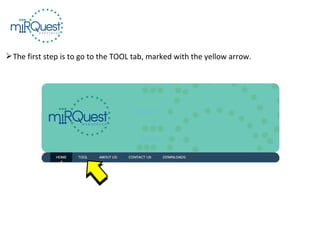
The first step is to go to the TOOL tab, marked with the yellow arrow.
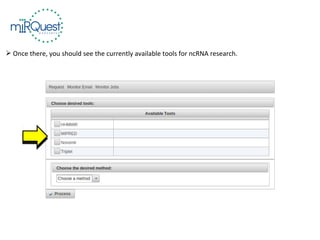
 Once there, you should see the currently available tools for ncRNA research.
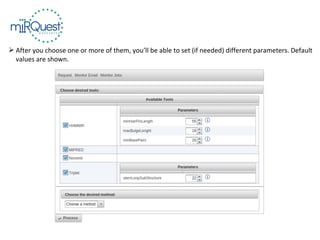
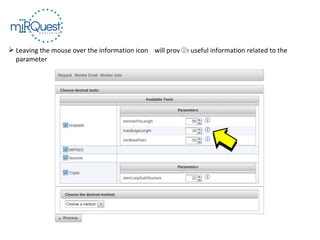
 After you choose one or more of them, you’ll be able to set (if needed) different parameters. Default
values are shown.
 Leaving the mouse over the information icon will provide useful information related to the
parameter
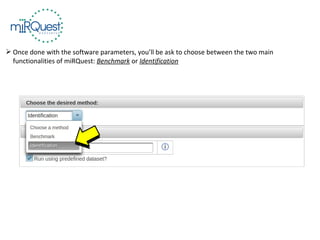
 Once done with the software parameters, you’ll be ask to choose between the two main
functionalities of miRQuest: Benchmark or Identification
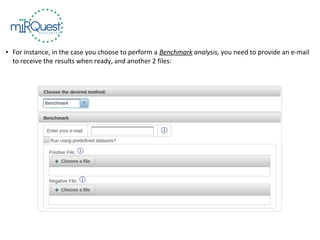
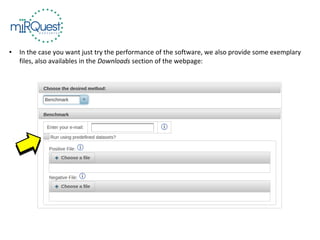
● For instance, in the case you choose to perform a Benchmark analysis, you need to provide an e-mail
to receive the results when ready, and another 2 files:
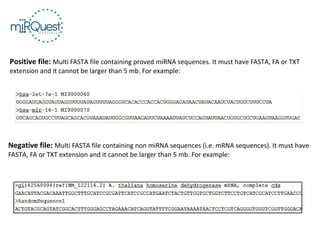
Positive file: Multi FASTA file containing proved miRNA sequences. It must have FASTA, FA or TXT
extension and it cannot be larger than 5 mb. For example:
Negative file: Multi FASTA file containing non miRNA sequences (i.e. mRNA sequences). It must have
FASTA, FA or TXT extension and it cannot be larger than 5 mb. For example:
● In the case you want just try the performance of the software, we also provide some exemplary
files, also availables in the Downloads section of the webpage:
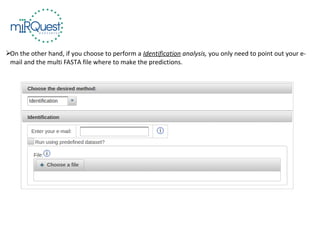
On the other hand, if you choose to perform a Identification analysis, you only need to point out your e-
mail and the multi FASTA file where to make the predictions.
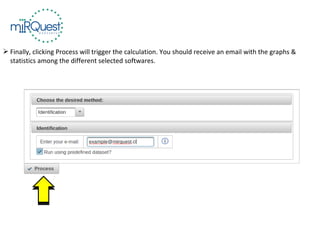
 Finally, clicking Process will trigger the calculation. You should receive an email with the graphs &
statistics among the different selected softwares.
Tutorial - How to use
miRQuest
mirquest.integrativebioinformatics.me

Mirquest howto tutorial

  • 1.
    Tutorial - Howto use miRQuest
  • 2.
    Trough this shorttutorial you’ll learn how to:  Perform benchmark between the trending miRNA prediction tools  Identify miRNA using those tools with your own datasets
  • 3.
    The first stepis to go to the TOOL tab, marked with the yellow arrow.
  • 4.
     Once there,you should see the currently available tools for ncRNA research.
  • 5.
     After youchoose one or more of them, you’ll be able to set (if needed) different parameters. Default values are shown.
  • 6.
     Leaving themouse over the information icon will provide useful information related to the parameter
  • 7.
     Once donewith the software parameters, you’ll be ask to choose between the two main functionalities of miRQuest: Benchmark or Identification
  • 8.
    ● For instance,in the case you choose to perform a Benchmark analysis, you need to provide an e-mail to receive the results when ready, and another 2 files:
  • 9.
    Positive file: MultiFASTA file containing proved miRNA sequences. It must have FASTA, FA or TXT extension and it cannot be larger than 5 mb. For example: Negative file: Multi FASTA file containing non miRNA sequences (i.e. mRNA sequences). It must have FASTA, FA or TXT extension and it cannot be larger than 5 mb. For example:
  • 10.
    ● In thecase you want just try the performance of the software, we also provide some exemplary files, also availables in the Downloads section of the webpage:
  • 11.
    On the otherhand, if you choose to perform a Identification analysis, you only need to point out your e- mail and the multi FASTA file where to make the predictions.
  • 12.
     Finally, clickingProcess will trigger the calculation. You should receive an email with the graphs & statistics among the different selected softwares.
  • 14.
    Tutorial - Howto use miRQuest mirquest.integrativebioinformatics.me