H O W T O U S E S C A N P R O 2 0 0 0 T O S C A N
M I C R O F I C H E A N D M I C R O F I L M
1. Ensure scanner is on and associated Digital
Media Lab computer is logged in.
2. Open “PowerScan2000” application.
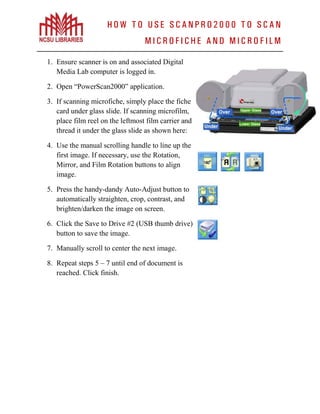
3. If scanning microfiche, simply place the fiche
card under glass slide. If scanning microfilm,
place film reel on the leftmost film carrier and
thread it under the glass slide as shown here:
4. Use the manual scrolling handle to line up the
first image. If necessary, use the Rotation,
Mirror, and Film Rotation buttons to align
image.
5. Press the handy-dandy Auto-Adjust button to
automatically straighten, crop, contrast, and
brighten/darken the image on screen.
6. Click the Save to Drive #2 (USB thumb drive)
button to save the image.
7. Manually scroll to center the next image.
8. Repeat steps 5 – 7 until end of document is
reached. Click finish.

Microfiche Scanning

  • 1.
    H O WT O U S E S C A N P R O 2 0 0 0 T O S C A N M I C R O F I C H E A N D M I C R O F I L M 1. Ensure scanner is on and associated Digital Media Lab computer is logged in. 2. Open “PowerScan2000” application. 3. If scanning microfiche, simply place the fiche card under glass slide. If scanning microfilm, place film reel on the leftmost film carrier and thread it under the glass slide as shown here: 4. Use the manual scrolling handle to line up the first image. If necessary, use the Rotation, Mirror, and Film Rotation buttons to align image. 5. Press the handy-dandy Auto-Adjust button to automatically straighten, crop, contrast, and brighten/darken the image on screen. 6. Click the Save to Drive #2 (USB thumb drive) button to save the image. 7. Manually scroll to center the next image. 8. Repeat steps 5 – 7 until end of document is reached. Click finish.