MCSA (E)
History of Microsoft certificates
MCSE – MCITP – MCSE
Validity of MCSA certificate
Course Topics
• Windows Management (Installation,
Modifying installation, Core)
• Active Directory
• Accounts (Users, Computers, OUs, and
Groups)
• Group Policy
• Networking (IPv4, IPv6, DHCP, and DNS)
• Managing Storage
• License (Editions)
• Prerequisites (HW, Apps, Storage
Drivers)
• Testing on Virtual Machine
• BACKUP
• Installation Modes
Installing Windows
2012 R2
• Upgrade
https://technet.microsoft.com/en
-us/library/dn303416.aspx
• Migration
https://technet.microsoft.com/en
-us/library/dn486773
Switching between modes
• Full – Core - Minimal
• GUI needs Vs Core advantages
Features on demand
• Security, space
• If we needed it later?
• Online or to an Offline VHD
Adding roles to offline VHDs
• PowerShell
• CMD
• Alias
• SConfig
• RDP
Configuring Core
WinRM (Mostly for monitoring)
RSAT (Useful for desktops)
Another Server With Same Role
Non-domain joined computer
(FW rule, PS script)
Remote Management
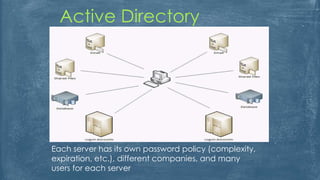
Active Directory
Each server has its own password policy (complexity,
expiration, etc.), different companies, and many
users for each server
Domain Vs Workgroup
DC redundancy
Domain naming
Parent, child, tree, and forest
Trust between domains
Active Directory
Domain
Controllers
Installation ADDS + Promoting to DC
Redundancy
Adding extra DCs (Same subnet,
IFM, Script)
Uninstalling (demoting) DC
AD DC Upgrade
FFL
DFL
Global Catalog
SRV Records
Domain
Controllers
User
Computer
Group (types)
Organizational Unit
Sites
AD Objects
What is SID?
Creating Accounts
Creating Template Accounts
Joining a Computer
Online
Offline
Inactive & Disabled Accounts
AD Users & Computers
SID, Username, & PW
Secure Channel
Broken Secure Channel
AD Computers
Accounts
DC Promo
AD AC
Recycle Bin
Fine-grained Passwords
Extra
Automate Accounts
Creation
LDIFDE: Lightweight Data Interchange
Format, Data Exchange
CSVDE: Comma Separated Value Data
Exchange.
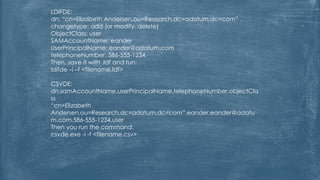
LDIFDE:
dn: “cn=Elizabeth Andersen,ou=Research,dc=adatum,dc=com”
changetype: add (or modify, delete)
ObjectClass: user
SAMAccountName: eander
UserPrincipalName: eander@adatum.com
telephoneNumber: 586-555-1234
Then, save it with .ldf and run:
ldifde –i –f <filename.ldf>
CSVDE:
dn,samAccountName,userPrincipalName,telephoneNumber,objectCla
ss
“cn=Elizabeth
Andersen,ou=Research,dc=adatum,dc=com”,eander,eander@adatu
m.com,586-555-1234,user
Then you run the command:
csvde.exe -i -f <filename.csv>
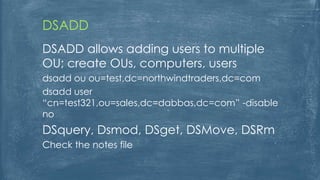
DSADD
DSADD allows adding users to multiple
OU; create OUs, computers, users
dsadd ou ou=test,dc=northwindtraders,dc=com
dsadd user
“cn=test321,ou=sales,dc=dabbas,dc=com” -disable
no
DSquery, Dsmod, DSget, DSMove, DSRm
Check the notes file
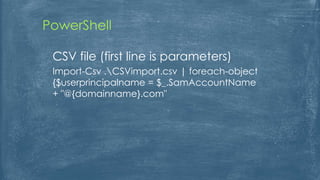
PowerShell
CSV file (first line is parameters)
Import-Csv .CSVimport.csv | foreach-object
{$userprincipalname = $_.SamAccountName
+ "@{domainname}.com"
Groups
Why we use Groups?
Are OUs Groups?
Type of Groups
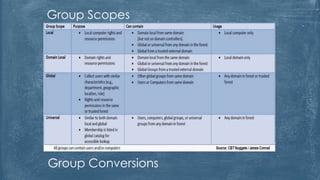
Group Scopes
Group Conversions
Organizational Units
What OU can contain?
Simplifying Administration
Permissions on OUs?
OUs & GPOs?
Users & Computers are Containers
RedirUser & RedirCmp
Accidental Deletion
Delegation
Delegation Templates
Organizational Units
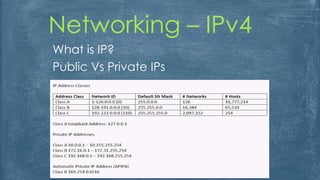
Networking – IPv4
What is IP?
Public Vs Private IPs
Subnetting & Default Gateway
Hosts
IP Assignments
Exercises
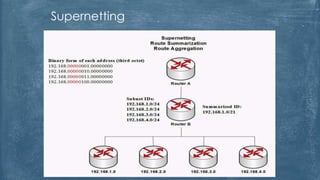
Supernetting
Networking – IPv6
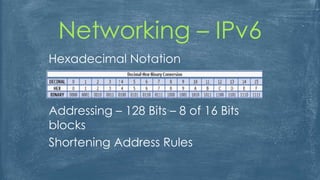
Hexadecimal Notation
Addressing – 128 Bits – 8 of 16 Bits
blocks
Shortening Address Rules
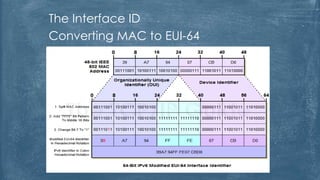
The Interface ID
Converting MAC to EUI-64
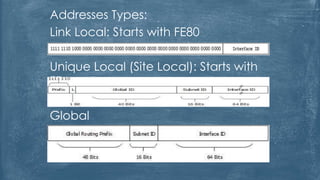
Addresses Types:
Link Local: Starts with FE80
Unique Local (Site Local): Starts with
FD
Global
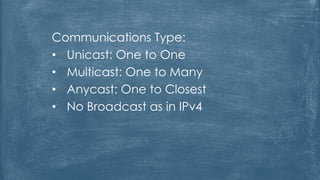
Communications Type:
• Unicast: One to One
• Multicast: One to Many
• Anycast: One to Closest
• No Broadcast as in IPv4
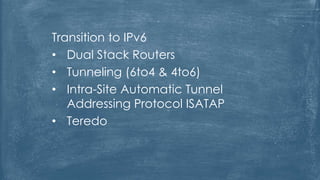
Transition to IPv6
• Dual Stack Routers
• Tunneling (6to4 & 4to6)
• Intra-Site Automatic Tunnel
Addressing Protocol ISATAP
• Teredo
Group Policy
What are GPOs & Why we use them?
Where GPO Files are saved?
GPOs Types:
Local GPO
Non-Local GPO
Creating & Managing a Local GPO
Non-Local Overwrites Local GPOs
Domain (Non-Local) GPOs
Creating a GPO
Linking (Applying) to an OU
Blocking Top GPOs on a specific OU
Enforcing Blocked GPO!
How long GPO takes to be applied?
Templates GPOs
Pre-defined GPOs
Can be downloaded
Multiple OSs?
Central Store
Useful to avoid OSs diff. templates
Found under “PolicyDefinitions”
www.gpanswers.com
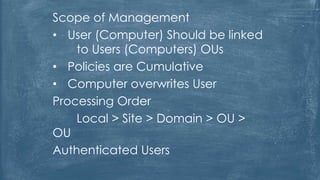
Scope of Management
• User (Computer) Should be linked
to Users (Computers) OUs
• Policies are Cumulative
• Computer overwrites User
Processing Order
Local > Site > Domain > OU >
OU
Authenticated Users
Starter GPOs
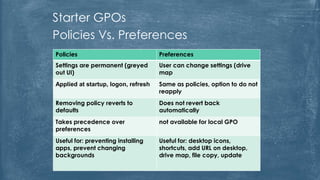
Policies Vs. Preferences
Policies Preferences
Settings are permanent (greyed
out UI)
User can change settings (drive
map
Applied at startup, logon, refresh Same as policies, option to do not
reapply
Removing policy reverts to
defaults
Does not revert back
automatically
Takes precedence over
preferences
not available for local GPO
Useful for: preventing installing
apps, prevent changing
backgrounds
Useful for: desktop icons,
shortcuts, add URL on desktop,
drive map, file copy, update
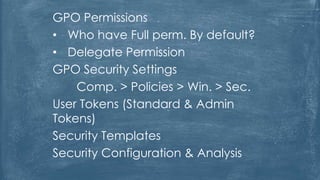
GPO Permissions
• Who have Full perm. By default?
• Delegate Permission
GPO Security Settings
Comp. > Policies > Win. > Sec.
User Tokens (Standard & Admin
Tokens)
Security Templates
Security Configuration & Analysis
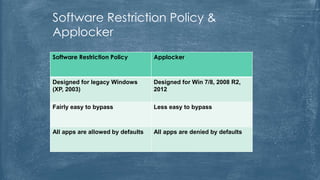
Software Restriction Policy &
Applocker
Software Restriction Policy Applocker
Designed for legacy Windows
(XP, 2003)
Designed for Win 7/8, 2008 R2,
2012
Fairly easy to bypass Less easy to bypass
All apps are allowed by defaults All apps are denied by defaults
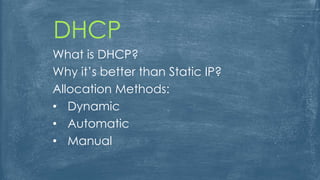
DHCP
What is DHCP?
Why it’s better than Static IP?
Allocation Methods:
• Dynamic
• Automatic
• Manual
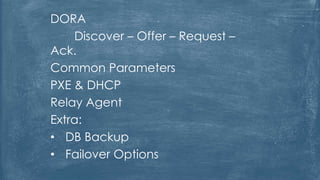
DORA
Discover – Offer – Request –
Ack.
Common Parameters
PXE & DHCP
Relay Agent
Extra:
• DB Backup
• Failover Options
DNS
What is DNS?
Zones & Zones Types
How DNS Works?
Type of Queries (Recursive &
Iterative)
Type of Answers (Authoritative &
Non-Authoritative)
Forwarders:
• Root Hints
• Conditional Forwarders
Stub Zones
Manage Cache
Records Types (Resource Records)
Hyper-V
What is Virtualization and Why?
Benefits of Using Virtualization
• Space, Power, Cooling
• Less Management (at least centralized)
• Optimize Resources to the max.
• Greener, easier to backup, easier to
replicate, etc.
Hypervisor
Hypervisor Types:
• Type 1: Native or Bare Metal (Hyper-
V)
• Type 2: Hosted (VMWare
Workstation)
Hyper-V needs 64-Bit processor
BIOS Should Support Virtualization
RAM & Storage Consideration
Enabling Hyper-V on Windows 8 & 8.1
Hyper-V Configuration Settings
• Dynamic Memory
• Smart Paging
• Resource Metering
• Guest Integration Services
• Memory Buffer
• Memory Weight
Storage in Hyper-V
VHD Max. 2 TB, VHDx up to 64 TB
VHDx is more resilient
How to modify VHD files?
How to Change VHD size? Disk Mgmt.?
Differencing drives
Pass through disks
Snapshots
Fiber Channel Adapter
Networking in Hyper-V
Switches Types:
• External
• Internal
• Private
VLAN
Configuring MAC
Gen1 & Gen2
Gen2 can be used on 2012, 8, 8.1 64-
bit only
Hyper-V in R2 uses RDP (supports
copy/paste, audio redirection)
Online VHDx resize / shrink
NIC Teaming:
Teaming
Switch Independent
Static Teaming (Dependent)
LACP (Dependent)
Load Balancing
Address Hash
Hyper-V Port
Dynamic
Local Storage
Disk Types, Basic & Dynamic
Choosing Storage Type Depends on:
• Amount of Storage needed
• Number of Users (at the same time)
• Data Sensitivity
• Data Importance
RAID Types:
Simple
Spanned
Striped (RAID 0)
Mirrored (RAID 1)
Striped Set with Parity (RAID 5)
File Systems (Must know, not directly
required)
File. Allocation Table FAT/FAT32/exFAT
• No Security
New TechFile System NTFS
• Secured using Permissions
• Encryption & Compression
• Quotas
• Auditing, File Tagging, Larger Files
Resilient File System ReFS
• File can have 16 Exabyte size
• File Name Length is up to 32000
char.
• High Resiliency
• Backward Compatible
• No Disk Quotas
Creating VHD & VHDx through Disk
Management
Adding files to VHD & VHDx through
Disk Management
Storage Spaces in 2012
What is SAN?
• Administration? Cost Wise?
What about NAS?
Virtual Disks (Not VHDs!)
Storage Pools
Virtual Disk Configuration
Layout
• Simple, Two or Three way Mirror,
Parity
Provisioning
• Fixed, Thin
Allocation
• Data Store, Manual, Hot Spare
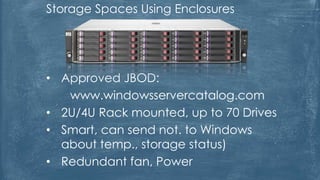
Storage Spaces Using Enclosures
• Approved JBOD:
www.windowsservercatalog.com
• 2U/4U Rack mounted, up to 70 Drives
• Smart, can send not. to Windows
about temp., storage status)
• Redundant fan, Power
Storage container not a self RAID
Storage Spaces Tiering
• Fast SSD for hot or pinned data
• Slow HDD for cold data
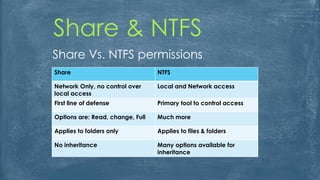
Share & NTFS
Share Vs. NTFS permissions
Share NTFS
Network Only, no control over
local access
Local and Network access
First line of defense Primary tool to control access
Options are: Read, change, Full Much more
Applies to folders only Applies to files & folders
No inheritance Many options available for
inheritance
Share
• Cumulative permissions apply (deny
wins)
• Can be combined with NTFS perms.
• Administrative Share
• Access-Based Enumeration
NTFS
• Change Owner
• Inheritance apply order
• Permission can be either additive or
subtractive (start with all denied then
allow, or start with all allow then deny)
• Effective access: the result of applying
these rules:
•Deny overrides allow
•Allow permissions are cumulative
•Explicit perm takes precedence over
inherited
• Authorizing occurs to SID for users
Offline Files
• Applies to network shares
• Files stay available when
disconnected
• High reliable sync. Mechanism
• Can be configured using Offline
settings or GPO
• Needs to be enabled first, then apply
on folders
Disk Quotas
• Limit disk usage
• Enabled on volume level
• Soft Quota & Hard Quota
• File Server Resource Manager FSRM is handy
• FSRM can apply quotas on folders, Windows
Explorer on volumes only
• File Screening, Data Deduplication
• Storage Reports Management
Volume Shadow Copy
• Used in VM snapshots
• Used by backup operations
(Windows, Acronis)
• Used for File Recovery
In File Recovery:
• Quick restore for accidental deletions
• Scheduled
• Used on the machine not only shares
• VSS is configured under volume
properties
• VSS is replaced with File History,
starting Win. 8
• On servers, enabled under driver
properties under disk management
• VSS by default creates two copies, at
7:00 AM and 12:00 PM
Work Folders
• Similar to Offline Files feature
• Allows access to joined & non-joined
domain workstations
• Enables managing BYOD
• Transparent conflict resolution
• Hub-Spoke topology
• Works with file screening, classification (can
classify documents), quotas
• Security policies for encryption, screen lock
(data security if device was stolen)
Work Folders Configuration
Server Side:
• Define appropriate users and groups
• Add & configure “work folders” role
• DNS (workfolders.domain.com)
• Certificates
• Proxy
Client Side:
• Control panel configuration
• Access using “work folders”
Printers
Definitions:
• Print Device
• Printer
• Print Server
• Printer Driver
Printing workflow:
• PC > Printer > Driver > Print server
> Print device
Network printers & Local printers
• Central Management, drivers,
easier to install, queue
management, less cost
Printer Management MMC
• Printers Filtering
Creating multiple instances
(objects) of a printer, if we want to
give higher priority for managers
Printing Options:
• Direct print
• Locally attached printer sharing
• Network attached printing
• Network attached printer sharing
Printer Pool: Identical devices ONLY
Adding 32-bit driver to a 64-bit
server
Easy Print
Firewall
Why Windows Firewall?
Firewall Interfaces
• Control Panel
• Windows Firewall Advanced
• NetSH
• PowerShell
• GPO
Hardware Firewall & Software Firewall
Firewall Modes:
Domain
• Work
• Home
• Public
Opening port Vs. Allowing Application
Connection security rules
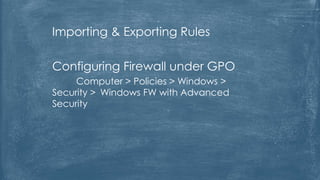
Importing & Exporting Rules
Configuring Firewall under GPO
Computer > Policies > Windows >
Security > Windows FW with Advanced
Security

MCSA Installing & Configuring Windows Server 2012 70-410

  • 1.
    MCSA (E) History ofMicrosoft certificates MCSE – MCITP – MCSE Validity of MCSA certificate
  • 3.
    Course Topics • WindowsManagement (Installation, Modifying installation, Core) • Active Directory • Accounts (Users, Computers, OUs, and Groups) • Group Policy • Networking (IPv4, IPv6, DHCP, and DNS) • Managing Storage
  • 4.
    • License (Editions) •Prerequisites (HW, Apps, Storage Drivers) • Testing on Virtual Machine • BACKUP • Installation Modes Installing Windows 2012 R2
  • 5.
  • 6.
    Switching between modes •Full – Core - Minimal • GUI needs Vs Core advantages Features on demand • Security, space • If we needed it later? • Online or to an Offline VHD Adding roles to offline VHDs
  • 7.
    • PowerShell • CMD •Alias • SConfig • RDP Configuring Core
  • 8.
    WinRM (Mostly formonitoring) RSAT (Useful for desktops) Another Server With Same Role Non-domain joined computer (FW rule, PS script) Remote Management
  • 9.
    Active Directory Each serverhas its own password policy (complexity, expiration, etc.), different companies, and many users for each server
  • 10.
    Domain Vs Workgroup DCredundancy Domain naming Parent, child, tree, and forest Trust between domains Active Directory
  • 11.
    Domain Controllers Installation ADDS +Promoting to DC Redundancy Adding extra DCs (Same subnet, IFM, Script) Uninstalling (demoting) DC
  • 12.
    AD DC Upgrade FFL DFL GlobalCatalog SRV Records Domain Controllers
  • 13.
  • 14.
    What is SID? CreatingAccounts Creating Template Accounts Joining a Computer Online Offline Inactive & Disabled Accounts AD Users & Computers
  • 15.
    SID, Username, &PW Secure Channel Broken Secure Channel AD Computers Accounts
  • 16.
    DC Promo AD AC RecycleBin Fine-grained Passwords Extra
  • 17.
    Automate Accounts Creation LDIFDE: LightweightData Interchange Format, Data Exchange CSVDE: Comma Separated Value Data Exchange.
  • 18.
    LDIFDE: dn: “cn=Elizabeth Andersen,ou=Research,dc=adatum,dc=com” changetype:add (or modify, delete) ObjectClass: user SAMAccountName: eander UserPrincipalName: eander@adatum.com telephoneNumber: 586-555-1234 Then, save it with .ldf and run: ldifde –i –f <filename.ldf> CSVDE: dn,samAccountName,userPrincipalName,telephoneNumber,objectCla ss “cn=Elizabeth Andersen,ou=Research,dc=adatum,dc=com”,eander,eander@adatu m.com,586-555-1234,user Then you run the command: csvde.exe -i -f <filename.csv>
  • 19.
    DSADD DSADD allows addingusers to multiple OU; create OUs, computers, users dsadd ou ou=test,dc=northwindtraders,dc=com dsadd user “cn=test321,ou=sales,dc=dabbas,dc=com” -disable no DSquery, Dsmod, DSget, DSMove, DSRm Check the notes file
  • 20.
    PowerShell CSV file (firstline is parameters) Import-Csv .CSVimport.csv | foreach-object {$userprincipalname = $_.SamAccountName + "@{domainname}.com"
  • 21.
    Groups Why we useGroups? Are OUs Groups? Type of Groups
  • 22.
  • 23.
    Organizational Units What OUcan contain? Simplifying Administration Permissions on OUs? OUs & GPOs?
  • 24.
    Users & Computersare Containers RedirUser & RedirCmp Accidental Deletion Delegation Delegation Templates Organizational Units
  • 25.
    Networking – IPv4 Whatis IP? Public Vs Private IPs
  • 26.
    Subnetting & DefaultGateway Hosts IP Assignments Exercises
  • 28.
  • 29.
    Networking – IPv6 HexadecimalNotation Addressing – 128 Bits – 8 of 16 Bits blocks Shortening Address Rules
  • 30.
  • 31.
    Addresses Types: Link Local:Starts with FE80 Unique Local (Site Local): Starts with FD Global
  • 32.
    Communications Type: • Unicast:One to One • Multicast: One to Many • Anycast: One to Closest • No Broadcast as in IPv4
  • 33.
    Transition to IPv6 •Dual Stack Routers • Tunneling (6to4 & 4to6) • Intra-Site Automatic Tunnel Addressing Protocol ISATAP • Teredo
  • 34.
    Group Policy What areGPOs & Why we use them? Where GPO Files are saved? GPOs Types: Local GPO Non-Local GPO Creating & Managing a Local GPO Non-Local Overwrites Local GPOs
  • 35.
    Domain (Non-Local) GPOs Creatinga GPO Linking (Applying) to an OU Blocking Top GPOs on a specific OU Enforcing Blocked GPO! How long GPO takes to be applied?
  • 36.
    Templates GPOs Pre-defined GPOs Canbe downloaded Multiple OSs? Central Store Useful to avoid OSs diff. templates Found under “PolicyDefinitions” www.gpanswers.com
  • 37.
    Scope of Management •User (Computer) Should be linked to Users (Computers) OUs • Policies are Cumulative • Computer overwrites User Processing Order Local > Site > Domain > OU > OU Authenticated Users
  • 38.
    Starter GPOs Policies Vs.Preferences Policies Preferences Settings are permanent (greyed out UI) User can change settings (drive map Applied at startup, logon, refresh Same as policies, option to do not reapply Removing policy reverts to defaults Does not revert back automatically Takes precedence over preferences not available for local GPO Useful for: preventing installing apps, prevent changing backgrounds Useful for: desktop icons, shortcuts, add URL on desktop, drive map, file copy, update
  • 39.
    GPO Permissions • Whohave Full perm. By default? • Delegate Permission GPO Security Settings Comp. > Policies > Win. > Sec. User Tokens (Standard & Admin Tokens) Security Templates Security Configuration & Analysis
  • 40.
    Software Restriction Policy& Applocker Software Restriction Policy Applocker Designed for legacy Windows (XP, 2003) Designed for Win 7/8, 2008 R2, 2012 Fairly easy to bypass Less easy to bypass All apps are allowed by defaults All apps are denied by defaults
  • 41.
    DHCP What is DHCP? Whyit’s better than Static IP? Allocation Methods: • Dynamic • Automatic • Manual
  • 42.
    DORA Discover – Offer– Request – Ack. Common Parameters PXE & DHCP Relay Agent Extra: • DB Backup • Failover Options
  • 43.
    DNS What is DNS? Zones& Zones Types How DNS Works? Type of Queries (Recursive & Iterative) Type of Answers (Authoritative & Non-Authoritative)
  • 44.
    Forwarders: • Root Hints •Conditional Forwarders Stub Zones Manage Cache Records Types (Resource Records)
  • 45.
    Hyper-V What is Virtualizationand Why? Benefits of Using Virtualization • Space, Power, Cooling • Less Management (at least centralized) • Optimize Resources to the max. • Greener, easier to backup, easier to replicate, etc.
  • 46.
    Hypervisor Hypervisor Types: • Type1: Native or Bare Metal (Hyper- V) • Type 2: Hosted (VMWare Workstation) Hyper-V needs 64-Bit processor BIOS Should Support Virtualization RAM & Storage Consideration
  • 47.
    Enabling Hyper-V onWindows 8 & 8.1 Hyper-V Configuration Settings • Dynamic Memory • Smart Paging • Resource Metering • Guest Integration Services • Memory Buffer • Memory Weight
  • 48.
    Storage in Hyper-V VHDMax. 2 TB, VHDx up to 64 TB VHDx is more resilient How to modify VHD files? How to Change VHD size? Disk Mgmt.? Differencing drives Pass through disks Snapshots Fiber Channel Adapter
  • 49.
    Networking in Hyper-V SwitchesTypes: • External • Internal • Private VLAN Configuring MAC
  • 50.
    Gen1 & Gen2 Gen2can be used on 2012, 8, 8.1 64- bit only Hyper-V in R2 uses RDP (supports copy/paste, audio redirection) Online VHDx resize / shrink
  • 51.
    NIC Teaming: Teaming Switch Independent StaticTeaming (Dependent) LACP (Dependent) Load Balancing Address Hash Hyper-V Port Dynamic
  • 52.
    Local Storage Disk Types,Basic & Dynamic Choosing Storage Type Depends on: • Amount of Storage needed • Number of Users (at the same time) • Data Sensitivity • Data Importance
  • 53.
    RAID Types: Simple Spanned Striped (RAID0) Mirrored (RAID 1) Striped Set with Parity (RAID 5)
  • 54.
    File Systems (Mustknow, not directly required) File. Allocation Table FAT/FAT32/exFAT • No Security New TechFile System NTFS • Secured using Permissions • Encryption & Compression • Quotas • Auditing, File Tagging, Larger Files
  • 55.
    Resilient File SystemReFS • File can have 16 Exabyte size • File Name Length is up to 32000 char. • High Resiliency • Backward Compatible • No Disk Quotas
  • 56.
    Creating VHD &VHDx through Disk Management Adding files to VHD & VHDx through Disk Management
  • 57.
    Storage Spaces in2012 What is SAN? • Administration? Cost Wise? What about NAS? Virtual Disks (Not VHDs!) Storage Pools
  • 58.
    Virtual Disk Configuration Layout •Simple, Two or Three way Mirror, Parity Provisioning • Fixed, Thin Allocation • Data Store, Manual, Hot Spare
  • 59.
    Storage Spaces UsingEnclosures • Approved JBOD: www.windowsservercatalog.com • 2U/4U Rack mounted, up to 70 Drives • Smart, can send not. to Windows about temp., storage status) • Redundant fan, Power
  • 60.
    Storage container nota self RAID Storage Spaces Tiering • Fast SSD for hot or pinned data • Slow HDD for cold data
  • 61.
    Share & NTFS ShareVs. NTFS permissions Share NTFS Network Only, no control over local access Local and Network access First line of defense Primary tool to control access Options are: Read, change, Full Much more Applies to folders only Applies to files & folders No inheritance Many options available for inheritance
  • 62.
    Share • Cumulative permissionsapply (deny wins) • Can be combined with NTFS perms. • Administrative Share • Access-Based Enumeration NTFS • Change Owner • Inheritance apply order
  • 63.
    • Permission canbe either additive or subtractive (start with all denied then allow, or start with all allow then deny) • Effective access: the result of applying these rules: •Deny overrides allow •Allow permissions are cumulative •Explicit perm takes precedence over inherited • Authorizing occurs to SID for users
  • 64.
    Offline Files • Appliesto network shares • Files stay available when disconnected • High reliable sync. Mechanism • Can be configured using Offline settings or GPO • Needs to be enabled first, then apply on folders
  • 65.
    Disk Quotas • Limitdisk usage • Enabled on volume level • Soft Quota & Hard Quota • File Server Resource Manager FSRM is handy • FSRM can apply quotas on folders, Windows Explorer on volumes only • File Screening, Data Deduplication • Storage Reports Management
  • 66.
    Volume Shadow Copy •Used in VM snapshots • Used by backup operations (Windows, Acronis) • Used for File Recovery In File Recovery: • Quick restore for accidental deletions • Scheduled • Used on the machine not only shares
  • 67.
    • VSS isconfigured under volume properties • VSS is replaced with File History, starting Win. 8 • On servers, enabled under driver properties under disk management • VSS by default creates two copies, at 7:00 AM and 12:00 PM
  • 68.
    Work Folders • Similarto Offline Files feature • Allows access to joined & non-joined domain workstations • Enables managing BYOD • Transparent conflict resolution • Hub-Spoke topology • Works with file screening, classification (can classify documents), quotas • Security policies for encryption, screen lock (data security if device was stolen)
  • 69.
    Work Folders Configuration ServerSide: • Define appropriate users and groups • Add & configure “work folders” role • DNS (workfolders.domain.com) • Certificates • Proxy Client Side: • Control panel configuration • Access using “work folders”
  • 70.
    Printers Definitions: • Print Device •Printer • Print Server • Printer Driver Printing workflow: • PC > Printer > Driver > Print server > Print device
  • 71.
    Network printers &Local printers • Central Management, drivers, easier to install, queue management, less cost Printer Management MMC • Printers Filtering Creating multiple instances (objects) of a printer, if we want to give higher priority for managers
  • 72.
    Printing Options: • Directprint • Locally attached printer sharing • Network attached printing • Network attached printer sharing Printer Pool: Identical devices ONLY Adding 32-bit driver to a 64-bit server Easy Print
  • 73.
    Firewall Why Windows Firewall? FirewallInterfaces • Control Panel • Windows Firewall Advanced • NetSH • PowerShell • GPO
  • 74.
    Hardware Firewall &Software Firewall Firewall Modes: Domain • Work • Home • Public Opening port Vs. Allowing Application Connection security rules
  • 75.
    Importing & ExportingRules Configuring Firewall under GPO Computer > Policies > Windows > Security > Windows FW with Advanced Security