IN ACTION
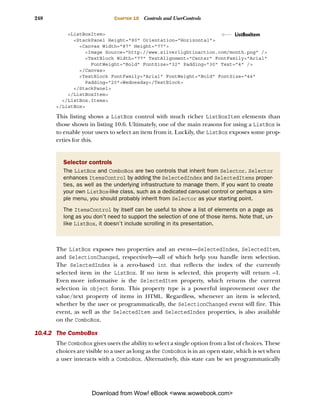
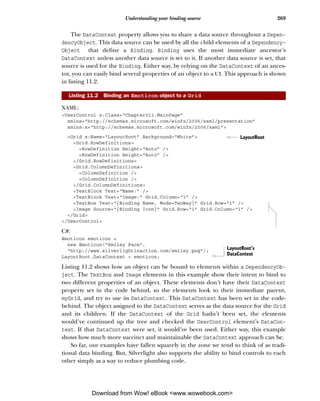
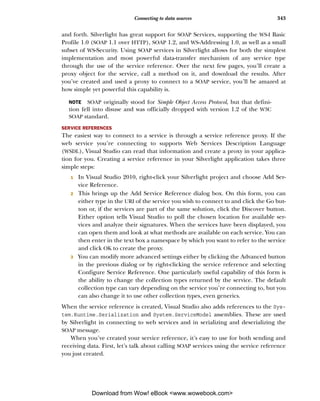
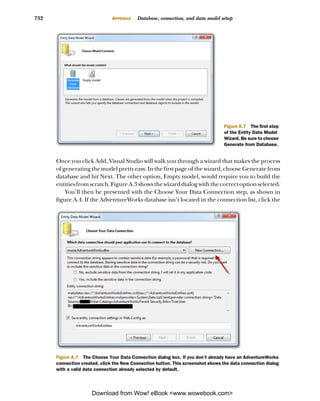
Revised Edition of
Silverlight 2 in Action


Pete Brown


        MANNING
Silverlight 4 in Action


Download from Wow! eBook <www.wowebook.com>
Silverlight 4 in Action
     SILVERLIGHT 4, MVVM, AND WCF RIA SERVICES


                                         PETE BROWN


                   Revised Edition of Silverlight 2 in Action
                    by Chad Campbell and John Stockton


                                              MANNING
                                                   Greenwich
                                                 (74° w. long.)


Download from Wow! eBook <www.wowebook.com>
For online information and ordering of this and other Manning books, please visit
www.manning.com. The publisher offers discounts on this book when ordered in quantity.
For more information, please contact
      Special Sales Department
      Manning Publications Co.
      180 Broad Street
      Suite 1323
      Stamford, CT 06901
      Email: orders@manning.com


©2010 by Manning Publications Co. All rights reserved.


No part of this publication may be reproduced, stored in a retrieval system, or transmitted, in
any form or by means electronic, mechanical, photocopying, or otherwise, without prior written
permission of the publisher.


Many of the designations used by manufacturers and sellers to distinguish their products are
claimed as trademarks. Where those designations appear in the book, and Manning
Publications was aware of a trademark claim, the designations have been printed in initial caps
or all caps.


Recognizing the importance of preserving what has been written, it is Manning’s policy to have
the books we publish printed on acid-free paper, and we exert our best efforts to that end.
Recognizing also our responsibility to conserve the resources of our planet, Manning books are
printed on paper that is at least 15 percent recycled and processed without the use of elemental
chlorine.


                                     Development editor:   Jeff Bleiel
      Manning Publications Co.              Copyeditor:    Benjamin Berg
      180 Broad Street, Suite 1323       Cover designer:   Marija Tudor
      Stamford, CT 06901                     Typesetter:   Gordan Salinovic


ISBN 9781935182375
Printed in the United States of America
1 2 3 4 5 6 7 8 9 10 – MAL – 15 14 13 12 11 10


                         Download from Wow! eBook <www.wowebook.com>
brief contents
PART 1   INTRODUCING SILVERLIGHT . .............................................1
                   1   ■   Introducing Silverlight 3
                   2   ■   Core XAML        20
                   3   ■   The application model and the plug-in      47
                   4   ■   Integrating with the browser    73
                   5   ■   Integrating with the desktop    95
                   6   ■   Rendering, layout, and transforming     138
                   7   ■   Panels    171
                   8   ■   Human input 188
                   9   ■   Text     203
                  10   ■   Controls and UserControls      234

PART 2   STRUCTURING YOUR APPLICATION ...................................259
                  11   ■   Binding    261
                  12   ■   Data controls: DataGrid and DataForm       285
                  13   ■   Input validation      308
                  14   ■   Networking and communications        335


                                            v


               Download from Wow! eBook <www.wowebook.com>
vi                                    BRIEF CONTENTS


                 15   ■   Navigation and dialogs         382
                 16   ■   Structuring and testing with the MVVM/ViewModel
                          pattern 416
                 17   ■   WCF RIA Services       459

PART 3   COMPLETING THE EXPERIENCE ........................................513
                 18   ■   Graphics and effects         515
                 19   ■   Printing   542
                 20   ■   Displaying and capturing media             572
                 21   ■   Working with bitmap images           618
                 22   ■   Animation and behaviors            637
                 23   ■   Resources, styles, and control templates          670
                 24   ■   Creating panels and controls             699
                 25   ■   The install experience and preloaders            720


                 Download from Wow! eBook <www.wowebook.com>
contents
           preface xix
           acknowledgments xxi
           about this book xxiii
           about the cover illustration xxix

PART 1 INTRODUCING SILVERLIGHT ...................................1

    1    Introducing Silverlight 3
           1.1   Silverlight and the web 4
           1.2   Silverlight and WPF 5
           1.3   Types of Silverlight applications 6
           1.4   What’s new since the first edition 6
                    Features for business and client applications 7 Media and
                                                                    ■


                    graphics enhancements 7 User interaction 8 Text 9
                                                  ■                     ■


           1.5   Getting started with Silverlight development 9
                    Setting up your development environment 9   ■
                                                                    Helpful sites   10
           1.6   Building your first Silverlight web application            10
                    Project setup 11 User interface 12 Calling Twitter search 13
                                        ■                ■


                    Parsing the results and binding the ListBox 14 Making the ListBox
                                                                    ■


                    contents more meaningful 17
           1.7   Summary        19

                                            vii


            Download from Wow! eBook <www.wowebook.com>
viii                                                 CONTENTS


       2   Core XAML 20
            2.1   XAML basics
                                     ■
                                         21
                    Objects 22 Namespaces 23 Properties 26 Dependency ■                              ■


                    properties 27 Attached properties 29 Events 30
                                         ■                                              ■


                    Commands 32 Behaviors 33 ■


            2.2   Object trees and namescope                              34
                    Object trees 35          ■
                                                     Namescope 37
            2.3   XAML extensions and type converters 38
                    Markup extensions                 38   ■
                                                               Type converters 39
            2.4   Loading XAML at runtime 42
            2.5   Tools for working in XAML 45
            2.6   Summary 46


       3   The application model and the plug-in 47
            3.1   The Silverlight application model 48
                    Application startup process 48 XAP 50 The application
                                                                      ■                         ■


                    manifest file 51 The Silverlight application object 52
                                                 ■


                    Application dependencies 55 Assembly caching 55
                                                                  ■


            3.2   Creating the Silverlight plug-in 58
                    Using the object tag 59 Using the Silverlight.js utility
                                                           ■


                    file 60 Creating an instance of the Silverlight plug-in
                             ■
                                                                                                              61
            3.3   Integrating the Silverlight plug-in                              62
                    Relating the Silverlight application to the HTML DOM 63
                    Clarifying the initial experience 64 Handling plug-in      ■


                    events 69 Sending initialization parameters 71
                                 ■


            3.4   Summary        72


       4   Integrating with the browser
            4.1
            4.2
                  Silverlight and the HTML DOM 74
                  Managing the web page from managed code
                                                                73

                                                                                                         76
                    Navigating web page contents 76 Working with element properties
                                                                          ■
                                                                                                                        77
                    Handling CSS information 78 Accessing the query string 79
                                                                      ■


            4.3   Working with the user’s browser window 79
                    Prompting the user 80 Navigating the browser window 81
                                                           ■


                    Discovering the browser properties 82
            4.4   Bridging the scripting and managed code worlds                                              82
                    Calling managed code from JavaScript                           83       ■
                                                                                                Using JavaScript from
                    managed code 85


               Download from Wow! eBook <www.wowebook.com>
CONTENTS                                                                              ix


     4.5   Hosting HTML in Silverlight 86
             Hosting the WebBrowser control               87      ■
                                                                          Using the WebBrowserBrush           92
     4.6   Summary      94


5   Integrating with the desktop
     5.1   Silverlight out of the browser
             Capabilities and restrictions 98
                                                95

                                                          ■
                                                              96
                                                              The end-user experience 98
     5.2   Creating out-of-browser applications 101
             The out-of-browser settings file 101 Controlling the experience 102
                                                                  ■


             Customizing icons 106 Checking the network state 106 Alerting
                                            ■                                                       ■


             the user with Notification toast 108 Implementation specifics 109
                                                                      ■


     5.3   Escaping the sandbox—elevated trust 110
             Creating elevated-trust applications 110                       ■
                                                                                Detecting elevated trust
             mode 113
     5.4   Local file access         113
             Accessing special folders      113      ■
                                                          Reading from a file 114               ■
                                                                                                    Writing
             to a file 115
     5.5   COM automation             115
             Detecting COM automation availability 115 Using COM                   ■


             automation to make Silverlight talk 117 Accessing GPS data     ■


             using COM automation 117 Automating Excel 119
                                                      ■


     5.6   Controlling the host window                     120
             Basic window properties 121 Changing window chrome 122
                                                     ■


             Minimizing, maximizing, restoring, and closing 123
             Moving 124 Resizing 125
                             ■


     5.7   Running in full screen               126
             Normal full-screen mode 126              ■
                                                          Elevated trust full-screen mode 128
     5.8   Storing data in isolated storage                           128
             IsolatedStorageFile: the virtual filesystem 129 Reading and writing   ■


             files: the isolated storage way 133 Administering isolated storage 136
                                                              ■


     5.9   Summary       136


6   Rendering, layout, and transforming 138
     6.1   The UIElement and FrameworkElement
             Properties 139      ■
                                     Methods      145
                                                                                       139

     6.2   The rendering process                146
             Clock tick 148 Per-frame rendering callback
                                 ■
                                                                                       148
             Rasterization 149


      Download from Wow! eBook <www.wowebook.com>
x                                      CONTENTS


         6.3   The layout system        155
                 Multipass layout—measuring and arranging 155 The                                   ■


                 LayoutInformation class 157 Performance considerations
                                                                   ■
                                                                                                                     158
         6.4   Render transforms 159
                 RotateTransform 160 ScaleTransform 160 SkewTransform 161
                                                 ■                                              ■


                 TranslateTransform 161 TransformGroup 162 Composite-
                                                      ■                                                 ■


                 Transform 163 MatrixTransform 164
                                   ■


         6.5   3D projection transforms                    166
                 PlaneProjection 166         ■
                                                  Matrix3dProjection                         168
         6.6   Summary      169


    7   Panels 171
         7.1
         7.2
               Canvas 172 Arranging content of a Canvas
                               ■


               The StackPanel 176
                                                                                                            173

         7.3   The Grid 177
                 Arranging Grid content 178 Positioning Grid content 180
                                                               ■


                 Spanning cells 180 Sizing it up 181 Working with the grid
                                         ■                                          ■


                 programmatically 183 Customizing cell boundaries 184
                                                  ■


         7.4   Summary      187


    8   Human input 188
         8.1   Capturing the keyboard                     189
                 Understanding focus 189 Handling keyboard events 190
                                                      ■


                 Dealing with modifier keys 192
         8.2   Mouse input 193
                 Mouse button and movement events 193                               ■
                                                                                            Using the mouse wheel             195
         8.3   Using multi-touch 197
         8.4   Collecting ink drawings 199
                 Creating the InkPresenter 199                         ■
                                                                           Collecting ink 199               ■
                                                                                                                Styling the
                 ink 201
         8.5   Summary      202


    9   Text 203
         9.1   The text system      204
                 Subpixel text rendering          205      ■
                                                                   Text hinting               205
         9.2   Displaying text     207
                 Font properties 207     ■
                                                 Flow control                 210       ■
                                                                                            Text properties         211
                 Spacing 214


           Download from Wow! eBook <www.wowebook.com>
CONTENTS                                                                                        xi


          9.3   Embedding fonts 216
          9.4   Entering and editing text 218
                  Handling basic text input 218 Understanding input method  ■


                  editors 220 Copying text with the Clipboard API 222
                                    ■


                  Collecting sensitive data 224
          9.5   Entering and displaying rich text                                       225
                  Formatting and inline elements 225                                ■
                                                                                        Working with selected text 229
          9.6   Summary     232


  10    Controls and UserControls
         10.1   Control 235
                  Appearance        235      ■
                                                              234

                                                     Navigation and state                     236     ■
                                                                                                          Templating   237
         10.2   ContentControl 238
                  The ContentPresenter 239
         10.3   Button controls              240
                  The Button 241 The HyperlinkButton 241
                                             ■                                                        ■
                                                                                                          The
                  RadioButton 242 The CheckBox 244   ■


         10.4   ItemsControls               245
                  The ListBox       246          ■
                                                         The ComboBox               248       ■
                                                                                                  The TabControl 249
         10.5   Creating UserControls                             252
                  Defining the appearance 253                           ■
                                                                            Defining the behavior 254
                  Calling the control 257
         10.6   Summary     258


PART 2 STRUCTURING YOUR APPLICATION .......................259

  11    Binding
         11.1
                   261
                Binding with your data
                  Mastering the binding syntax
                                                                  262
                                                                       263      ■
                                                                                    Choosing a binding mode            265
         11.2   Understanding your binding source                                           267
                  Binding to a property 267 Binding to an          ■


                  object 268 Binding to a UI element 270 Binding to an
                                ■                                                                 ■


                  indexed element 272 Binding to a keyed (string indexed)
                                                          ■


                  element 273 Binding to an entire collection 274
                                        ■


         11.3   Customizing the display                            276
                  Formatting values 276 Converting values during binding 277
                                                              ■


                  Providing default fallback values 280 Handling null values 280        ■


           Download from Wow! eBook <www.wowebook.com>
xii                                             CONTENTS


           11.4   Creating data templates                      280
                    Using a DataTemplate with a ContentControl                         281    ■
                                                                                                  Rendering
                    an ItemsControl with a DataTemplate 282
           11.5   Summary     283


      12   Data controls: DataGrid and DataForm 285
           12.1   The DataGrid 286
                    Displaying your data 286                   ■
                                                                   Editing grid data        292   ■
                                                                                                      Sorting
                    items 292
           12.2   The DataForm                 293
                    Displaying your data 294 Binding to lists of data 296
                                                               ■


                    Customizing display 299 Customizing edit, add, and display
                                                           ■


                    templates 300 Finer control over editing and committing
                                           ■


                    data 302
           12.3   Annotating for display                 304
                    The Display attribute 304                  ■
                                                                   The Editable attribute         306
           12.4   Summary     307


      13   Input validation
           13.1
                                   308
                  The validation example source and UI 309
           13.2   Exception-based property validation 313
                    Handling exception validation errors 313 Custom validation    ■


                    code 314 Validation error display 315
                               ■


           13.3   Synchronous validation with IDataErrorInfo                                     316
                    The IDataErrorInfo interface 316 Simple validation with
                                                                         ■


                    IDataErrorInfo 317 Cross-field validation with IDataErrorInfo
                                                     ■
                                                                                                                318
                    Combining exceptions and IDataErrorInfo 320
           13.4   Asynchronous validation with INotifyDataErrorInfo                                       321
                    The INotifyDataErrorInfo interface 321 Implementing the   ■


                    interface 322 Binding support 323 Building the WCF web
                                       ■                                      ■


                    service 323 Adding the client service code 324 Property
                                   ■                                                         ■


                    modifications 325
           13.5   Annotating for validation                        327
                    Validation attributes 327 Annotating your entity 328
                                                           ■


                    Calling external validation functions 330 Creating custom     ■


                    validators 331
           13.6   Comparison of validation approaches                                 332
           13.7   Summary 333


               Download from Wow! eBook <www.wowebook.com>
CONTENTS                                                                                  xiii


14   Networking and communications
     14.1   Trust, security, and browser limitations
              Cross-domain network access 336 Making your application
                                                                       335

                                                                          ■
                                                                                      336

              secure 340 Limitations of the browser 341
                           ■


     14.2   Connecting to data sources                               342
              Using SOAP services 342                      ■
                                                                   RESTful services       351
     14.3   The client HTTP stack                      355
              Manually creating the client stack 355 Automatically using the    ■


              client stack 356 Automatically setting the HTTP Referer and
                                   ■


              other headers 356 Authentication credentials 357
                                       ■


              Managing cookies with the CookieContainer 359
     14.4   Making the data usable                         360
              Reading POX 360              ■
                                               Converting JSON                      364
     14.5   Using advanced services                            366
              WCF service enhancements 366 WCF duplex services        ■
                                                                                                      367
              Connecting to sockets 372 Multicast sockets 374
                                                           ■


     14.6   Connecting to other Silverlight applications                                      377
              Creating the receiver 377                ■
                                                               Creating the sender 378           ■
                                                                                                     Putting it
              all together 379
     14.7   Summary     381


15   Navigation and dialogs
     15.1
              Browser journals 384
                                           382
            Browser navigation background 383
                                               ■
                                                   Anchor hashtags 384                    ■
                                                                                              Back and forth       385
     15.2   The Navigation Application template 386
              Creating a navigation application 386                             ■
                                                                                    Adding a new page        388
              Changing the application theme 390
     15.3   Navigating to pages                392
              The Page class 392 The NavigationService class 393 Frames
                                           ■                                                           ■


              and URIs 396 Caching pages 399 Navigating to pages in
                               ■                                                ■


              other assemblies 400
     15.4   Navigation out of the browser                                 403
              Providing custom navigation controls 403
     15.5   Showing dialogs and pop-ups                                   408
              The Popup control 408 Displaying a dialog box with the
                                                   ■


              ChildWindow control 408 Prompting for a file 412 ■


     15.6   Summary     415


       Download from Wow! eBook <www.wowebook.com>
xiv                                              CONTENTS


      16   Structuring and testing with the MVVM/ViewModel
           pattern 416
           16.1   Project setup and traditional code-behind approach                                                 417
                    Project and service setup              418       ■
                                                                             A typical code-behind solution           422
           16.2   Model-View-ViewModel basics                                     425
                    Keep it simple: a basic ViewModel implementation                                   427
           16.3   Factoring out reusable code                                433
                    Business rules and logic               434   ■
                                                                         Data access and service calls 436
           16.4   Better separation from the UI                                   438
                    Using commands 438 Using the CallMethodAction behavior 442
                                                       ■


                    View-specific entities and ViewModels 443 Interfaces, IoC, and           ■


                    ViewModel locators 448
           16.5   Testing    451
                    Introduction to the Silverlight Unit Testing Framework 451 Testing                           ■


                    the ViewModel 455 Testing asynchronous operations 456
                                                   ■


           16.6   Summary      457


      17   WCF RIA Services 459
           17.1   WCF RIA Services architecture, tooling, and
                   template 461
                    RIA Services tooling support 462                              ■
                                                                                      Creating a project with the
                    template 462
           17.2   Exposing data with the domain service                                          465
                    Creating the domain service 466 Exposing the domain service to
                                                                              ■


                    other clients 468 Domain service method types 472 Using a
                                             ■                                                               ■


                    domain service from Silverlight 476
           17.3   Filtering, sorting, grouping, and paging 480
                    Filtering 481    ■
                                         Sorting            484          ■
                                                                              Grouping           485   ■
                                                                                                           Paging 486
           17.4   Updating data          488
                    Using the DataForm UI 489 The domain context 490 The
                                                                 ■                                               ■


                    Entity class 492 Using validation and display metadata 494
                                             ■


           17.5   Loose coupling: using presentation models                                            496
                    Creating the employee presentation model 497 Supporting query                ■


                    operations 498 Supporting update operations 500 Supporting
                                         ■                                                                   ■


                    insert operations 502
           17.6   Business logic 503
                    Business logic in entities 504                   ■
                                                                             Sharing code            505


               Download from Wow! eBook <www.wowebook.com>
CONTENTS                                                                                    xv


         17.7   Authentication and authorization                                   506
                    Authentication        506         ■
                                                          Authorization                509
         17.8   Summary         510


PART 3 COMPLETING THE EXPERIENCE ............................513

  18     Graphics and effects 515
         18.1   Shapes      516
                    Lines 517 Rectangle 517
                                  ■                                      ■
                                                                             Ellipse    518    ■
                                                                                                       Polyline   519
                    Polygon 519
         18.2   Geometry        520
                    Simple geometries         521             ■
                                                                  Path geometries        522       ■
                                                                                                        Composite
                    geometries 523
         18.3   Brushes       524
                    SolidColorBrush 525 LinearGradientBrush 526 Radial-
                                                          ■                                                ■


                    GradientBrush 528 ImageBrush 529 VideoBrush 530
                                                      ■                                  ■


         18.4   Effects     531
                    Using built-in effects            532          ■
                                                                       Creating custom pixel shaders 535
         18.5   Summary         540


  19     Printing
         19.1
                      542
                How Silverlight printing works
                    The PrintDocument class 544                          ■
                                                                               543
                                                                             The PrintPage Event 547
                    Rasterization 549
         19.2   Printing onscreen Information                                   550
                    Printing the content as is 550                       ■
                                                                             Rerooting the elements to fit 552
                    Scaling content to fit 554
         19.3   Multipage printing dedicated trees                                     556
                    Prerequisites 557 Printing line items 560 Adding multipage
                                              ■                                               ■


                    support 566 Adding a header and footer 567
                                      ■


         19.4   Summary         570


  20     Displaying and capturing media
         20.1   Audio and video               573
                    Media source 573 Common properties 579
                                                  ■
                                                                             572

                                                                                                   ■
                                                                                                       Audio specific
                    properties 581 Video specific properties 582
                                          ■                                                        ■
                                                                                                       The lifecycle of a
                    media file 583


           Download from Wow! eBook <www.wowebook.com>
xvi                                            CONTENTS


           20.2   Playlists   584
                    Understanding client-side playlists 585                      ■
                                                                                         Using server-side
                    playlists 587
           20.3   Interactive playback             588
                    Controlling the play state            589   ■
                                                                    Working with the timeline 589
           20.4   Using protected content                   591
                    Requesting protected content 591 Retrieving the PlayReady
                                                                     ■


                    components 592 Unlocking protected content 592
                                           ■


           20.5   Using the Silverlight Media Framework 593
                    Using the player libraries 593              ■
                                                                    Creating the player               594
           20.6   Working with raw media 596
                    A custom MediaStreamSource class 596                             ■
                                                                                         Creating raw
                    video 598 Creating raw audio 602
                                 ■


           20.7   Using the webcam               607
                    Gaining access to capture devices 607 Working with video 609
                                                                             ■


                    Capturing still images 612 Getting the raw video data 614
                                                            ■


                    A note about audio 616
           20.8   Summary      617


      21   Working with bitmap images
           21.1
           21.2
                  Basic imaging 619
                  Creating images at runtime
                                                           618

                                                                    620
                    Creating from existing images 621 Creating from UI elements
                                                                         ■
                                                                                                                 623
                    A Mandelbrot fractal generator 624
           21.3   Deep Zoom          627
                    Showing an image 627 Zooming in and out 628 Managing
                                                      ■                                                ■


                    the viewport 630 Deploying multiscale images 631
                                           ■


           21.4   Dealing with dead space                  632
                    Filling the space 633         ■
                                                      Uniform sizing                 633      ■
                                                                                                  Fill the area 634
                    UniformToFill 635
           21.5   Summary      636


      22   Animation and behaviors
           22.1
           22.2
                  Animation: it’s about time 638
                  Mastering the timeline 639
                                                      637


                    What type of property are you animating? 639 Where are you                ■


                    starting from and where are you going? 642 How long should the        ■


                    animation run? 644


               Download from Wow! eBook <www.wowebook.com>
CONTENTS                                                                                     xvii


     22.3   Storyboarding           647
              Understanding the storyboard 647 Hitting the target 648        ■


              Controlling the Storyboard 650 Being resourceful 652   ■


     22.4   Keyframing      654
              Interpolation: it’s about acceleration                             656
     22.5   Easing functions         660
              Using easing functions 661                    ■
                                                                    Creating a custom easing
              function 663
     22.6   Behaviors, triggers, and actions                                     665
              Using existing behaviors             666          ■
                                                                     Creating your own behavior                667
     22.7   Summary       669


23   Resources, styles, and control templates
     23.1   Being resourceful
              Declarative resources 671
                                          671
                                                    ■
                                                            Accessing loose resources
                                                                                       670

                                                                                                         677
              Bundled resources 678
     23.2   Giving your elements style 680
              Defining the look 681 Explicitly keyed style definitions
                                               ■
                                                                                                            683
              Implicit style definitions 685
     23.3   Creating templates                686
              Building a control template               686              ■
                                                                             Creating reusable
              templates 690
     23.4   Dealing with visual states                      691
              Understanding the components                          691          ■
                                                                                     Leveraging the
              VisualStateManager 693
     23.5   Sharing your visual states                      697
     23.6   Summary 697


24   Creating panels and controls
     24.1   Creating a custom panel 700
                                                    699

              Project setup 701 The OrbitPanel class 701
                                      ■                                                           ■
                                                                                                      Properties 702
              Custom layout 705 Enhancements 709
                                          ■


     24.2   Creating a custom control 710
              Choosing the base type 711 Properties 712 The control template
                                                        ■                                     ■


              contract 712 The default template 714 Visual states 715
                                ■                                                         ■


              Visual states in template 716
     24.3   Summary       718


       Download from Wow! eBook <www.wowebook.com>
xviii                                     CONTENTS


        25   The install experience and preloaders
             25.1
                                                              720
                    Handling the “Silverlight not installed” scenarios
                      Creating your own install experience   722
                                                                           721


             25.2   Using a custom preloader          724
                      Creating the appearance 724 Integrating the custom splash
                                                     ■


                      screen 726 Monitoring the load progress 727
                                   ■


             25.3   Summary      728

         appendix   Database, connection, and data model setup      729
                    index 735


                 Download from Wow! eBook <www.wowebook.com>
preface
My background is in client application development. I started on the Commodore 64
in seventh grade in the 1980s, later moved to DOS with dBase, QuickBasic, and C++,
and eventually Windows programming using C++, Borland Delphi 1.0, PowerBuilder,
Visual Basic 3-6, and .NET.
    Though I’ve written plenty of pure HTML/JavaScript web applications, I’ve always
preferred client programming over strict web programming because I felt HTML/
JavaScript programming treated the immensely powerful PC as a dumb terminal,
squandering its CPU cycles for applications that were almost entirely network bound
in performance. Only recently is this changing.
    Back when web applications started to become more popular, customers loved the
flexibility of the blank canvas of HTML versus the old battleship gray look, as well as
the ease of deployment of web applications. On the client development side, we had
some things that came close (WPF for appearance, for one) but nothing that com-
bined the ease of deployment with the modern look.
    For a while, it looked like the world was going to move to relatively dumb web
applications, treating the local PC as just a keyboard and display—a disappointing
move to say the least.
    Back in 2006, long before I took my job as a Silverlight and WPF Community PM
with Microsoft, I attend the first Microsoft MIX conference in Las Vegas. On March 21,
day two of the conference, I attended some sessions about WPF/E, the product that
would later be named Silverlight. Even then, Microsoft had a strong vision for Silver-
light, a vision that included desktops, mobile devices, and set-top boxes. It was


                                     xix


           Download from Wow! eBook <www.wowebook.com>
xx                                           PREFACE


     planned to be a lightweight version of WPF optimized for cross-platform scenarios,
     which would both take advantage of client-side processing power (when the .NET CLR
     was incorporated) as well as provide the ease of deployment of a traditional web appli-
     cation. This was exactly what I was looking for!
         I was pretty jazzed about WPF/E at the time. I was also a little concerned about
     making the case for adoption. I took a wait-and-see approach. When Silverlight 1.0
     CTPs and betas hit the street, I was less than impressed, because they were JavaScript
     only. I wasn’t a big fan of JavaScript at the time and felt WPF/E wouldn’t make any
     meaningful impact until they delivered on the promise of the CLR inside the browser.
     Nevertheless, early in 2007 I took on a project to create a carbon offset calculator in
     WPF/E, to be hosted in SharePoint on a public internet site.
         Then, we had MIX07 and the name Silverlight was given to WPF/E. Along with it,
     Microsoft introduced Silverlight 1.1 alpha—a version that worked with managed code
     and included a cross-platform version of the .NET CLR. Yay! No JavaScript! (Hey, this
     was before jQuery proved to me that JavaScript can also be awesome.) Right at that
     point, I lobbied the project sponsors to let us work in Silverlight 1.1a. I also spoke with
     some contacts at Microsoft and received permission to go live with the Silverlight 1.1a
     application, happily foisting alpha code on unsuspecting users.
         Despite, or perhaps because of, having to code many primitives from scratch (we
     needed buttons and drop-down lists, none of which existed in Silverlight 1.1a), I was
     completely hooked. It felt like the old days of DOS programming when you had to spe-
     lunk without much support and make up your own tricks for how to best accomplish
     things. It was the Wild West of programming. (And, by that, I mean the Wild West with
     giant Steampunk spiders added into the mix.)
         I still had (and have) a place in my heart for Silverlight’s big brother WPF, but it
     was easy to see that Silverlight was going to take the world by storm. WPF is still an
     incredibly powerful technology, but it tends to appeal more to niche users and ISVs as
     opposed to the broad group building web-based applications for a living.
         The two of us on the carbon calculator development team released the first Silver-
     light managed code application ever to go live. It included video, Windows Live Maps
     integration, web services integration with SharePoint, carbon offset calculations of
     course, and a completely data-driven, configurable UI with SharePoint as the back-
     end, supporting everything.
        At the time, there was no real ecosystem around Silverlight, and the idea of using real
     designers on client applications in the Microsoft stack hadn’t yet caught on. Despite the
     primitive UI we designed, I’m still impressed with what we put together. I was thrilled to
     be able to use .NET skills in something that was truly unique in the .NET space.
         Later that year, Silverlight 1.1a would be updated to a stronger subset of WPF and
     rebranded as Silverlight 2, laying the groundwork required for Silverlight 4, a release
     that continues to impress and engage me every day I use it.
                                                                                   PETE BROWN


                   Download from Wow! eBook <www.wowebook.com>
acknowledgments
A book like this is a team effort from start to finish. Though my name may be on the
cover, there’s no way I could’ve completed this without the support and hard work of
many others. I’d like to thank:
   ■
       Chad Campbell and John Stockton for creating such an excellent first edition.
       Without their hard work covering Silverlight 2, I would never have thought to
       create a Silverlight 4 edition.
   ■
       Marshal Agnew, Brendan Clark, and Jordan Parker on the Silverlight product
       team for their help in digging into the darkest recesses of the rendering and
       layout system. If not for these folks, I wouldn’t have been able to provide the
       level of detail chapter 6 includes.
   ■
       David Ferguson and Seema Ramchandani, both on the Silverlight product
       team, for help on performance questions around transformations.
   ■
       Tim Heuer on the Silverlight product team for help on the Silverlight installa-
       tion experience covered in chapter 25.
   ■
       Jeff Handley on the WCF RIA Services product team for reviewing the RIA Ser-
       vices chapter on a really tight schedule.
   ■
       Ashish Shetty on the Silverlight product team for encouraging my Silverlight
       blogging very early on, including much of the app model and startup process
       content that ended up in this book.
   ■
       Tom McKearney, Tad Van Fleet, Al Pascual, and Ben Hayat for their excellent
       tech reviews. They caught a ton of mistakes, including differences between Sil-
       verlight 2, 3, and 4, and changes from the early builds through to the release of
       Silverlight 4.

                                      xxi


            Download from Wow! eBook <www.wowebook.com>
xxii                                      ACKNOWLEDGMENTS


          ■
              René Schulte for keeping my imaging and pixel shader sections honest and up
              to date. René is the go-to guy for working with bitmaps and shaders.
          ■
              Mike Street on the forums for his helpful and thorough review of many of the
              chapters on the forums. Mike was a great unofficial tech reviewer for this book.
       In addition, there were numerous editors, proofreaders, and reviewers at Manning
       Publications who deserve thanks for their hard work. I dropped on them a book twice
       as large as they were expecting with a third of the production time they normally take.
       People like Benjamin Berg, Mary Piergies, Nermina Miller, Gordan Salinovic, and oth-
       ers worked tirelessly to get this book published in time. I thank them and the rest of
       the folks at Manning for not freaking out when the book missed two deadlines, came
       in three months late, and at twice the expected length.
           Unique in this thanks is my editor, Jeff Bleiel. This was the first book I’ve written,
       so I wasn’t sure what to expect. A good editor can make the difference between a hor-
       rible authoring experience and a good one. Jeff definitely made that difference,
       respected our different areas of expertise, and kept the book on track. He was my
       interface with Manning and my mentor as an author. Jeff made a positive contribution
       to this book and to my writing in general.
           In addition to the individuals who helped me with the book itself, there are those
       who have made it possible through their presence or actions.
            Most of all, I’d like to thank my wife Melissa for being a single mom for most
       of 2010 and my children Ben and Abby for understanding when mom told them
       “Papa’s writing and can’t play right now.” Writing a book this size, for a product that
       revs every 10 to 12 months, is an undertaking that involves your whole family.
           I’d like to thank my manager at Microsoft, Scott Hanselman, for making sure I had
       time to finish the book. This book took an incredible amount of time to write and, if
       not for Scott offering me some flexibility, it simply wouldn’t have been completed.
            Of course, I thank the Silverlight and WPF community, my Twitter followers, the
       Silverlight and WPF insiders, the MVPs, and all the people who’ve read and com-
       mented on my blog posts since Silverlight was first released. The community support
       for and excitement around these technologies kept me motivated to create the best
       book possible.
           My gratitude also to my mum for encouraging me in my computer work and for
       helping me get that first job writing a database application from scratch in C++. I
       wouldn’t be where I am today without her.
            I’d like to thank my dad, who passed away during the writing of this book. He
       never quite understood what I was doing with the Commodore in my room, typing in
       all that hex code from the back of a magazine, but he supported me from the start
       and encouraged me to pursue a career doing what I love.
           Finally, I’d like to thank you, my readers.


                     Download from Wow! eBook <www.wowebook.com>
about this book
The overall goal of this book is to inform and educate you about the exciting and pow-
erful Silverlight 4 platform. Think of it as a guided tour through the Silverlight 4 plug-
in, runtime libraries, and SDK. After you’ve read this book, you should be able to con-
fidently design, develop, and deliver your first rich interactive applications using Sil-
verlight. To facilitate the learning process, I’ve structured the book to get you
developing as soon as possible, while providing quality, in-depth content.
    Within each chapter, I’ve included a collection of devices to help you build a firm
understanding of Silverlight. The following list explains how each agent helps along
the journey:
   ■
       Figures—Visual depictions that summarize data and help with the connection of
       complex concepts.
   ■
       Listings—Small, concise pieces of code primarily used for showing syntactical
       formats. These individual segments generally can’t be run on their own.
   ■
       Tables—Easy-to-read summaries.
In addition to these learning devices, my personal site http://10rem.net contains links
to the code samples used in this book. Additionally, http://silverlightinaction. com, the
web site for the first edition, includes assets, images, and services used in this book.

Audience
This book is intended for developers who want to create nontrivial applications using
Microsoft Silverlight 4. Though Silverlight provides numerous avenues for interactions


                                      xxiii


            Download from Wow! eBook <www.wowebook.com>
xxiv                                        ABOUT THIS BOOK


       with designers, this book primarily targets people who live and breathe inside Visual Stu-
       dio. Team members in the integration role (those who take designs and implement in
       Silverlight) will also find the information valuable and useful.
           This book assumes you have at least a passing familiarity with common web stan-
       dards such as HTML, CSS, XML, and JavaScript. In addition, this book assumes you
       have a background using the .NET framework and Microsoft Visual Studio. Although
       we’ll be using C# as the primary development language, we won’t be reviewing the
       C# language or explaining basic programming constructs such as classes, methods,
       and variables.
           Experience with previous versions of Silverlight isn’t required for this book.

       The bits: what you need
       This book provides ample opportunity for hands-on learning. But, it also provides a
       great deal of flexibility by allowing you to learn the material without using the hands-
       on content or optional tools. If you want to get the greatest value out of this book and
       use the hands-on opportunities, the following tools are recommended:
          ■
              Visual Studio 2010 Pro or higher, or Visual Studio Web Developer 2010 (free)
          ■
              Silverlight 4 tools for Visual Studio 2010, including the Silverlight 4 SDK and
              WCF RIA Services 1.0
          ■
              The Silverlight toolkit
          ■
              Microsoft Expression Blend 4 (optional)
          ■
              Microsoft Expression Blend 4 SDK for Silverlight 4 (installed with Blend 4) for
              creating and using behaviors
       You’ll find links to all of these tools at http://silverlight.net/GetStarted.

       Roadmap
       This book is designed to give you a guided tour of Silverlight 4. This tour will focus on
       three main areas: introducing Silverlight, structuring your application, and complet-
       ing the experience.

       Part 1: Introducing Silverlight
       Chapter 1 introduces Silverlight. The introduction shows you the advantages of Silver-
       light and explains its place in the desktop and web applications arenas. The chapter
       wraps up with a walkthrough of building your first Silverlight application.
           Chapter 2 covers one of the most fundamental parts of Silverlight: XAML. Though
       most of the book covers XAML in one form or another, this chapter takes you from the
       fundamentals all the way through the visual and logical trees, the dependency prop-
       erty system, and XAML extensions.
           Chapter 3 explains how the Silverlight plug-in and application startup process
       work. You’ll learn about the application object, the .xap file, and caching assemblies.
       We’ll also look at how to instantiate the plug-in and use it on a web page.


                     Download from Wow! eBook <www.wowebook.com>
ABOUT THIS BOOK                                             xxv


    Chapter 4 builds on the browser integration introduced in chapter 3 and shows
how to manipulate the HTML DOM from Silverlight, work with the browser window,
and bridge the scripting and managed code worlds. This chapter also introduces the
Silverlight WebBrowser control, used to display web content within Silverlight itself
when running out of the browser.
    Chapter 5 takes us out of the Web and onto the desktop. Silverlight supports creat-
ing both sandboxed and elevated trust desktop applications. This chapter covers out-
of-browser applications, local file access, COM automation, custom window chrome,
working full screen, and using isolated storage.
    Chapter 6 covers the layout and rendering system and both 2D and 3D transforma-
tions. If you truly want to understand what’s happening when you put pixels on the
screen, knowledge of the layout and rendering system is a must. This is information that
I personally found deeply interesting; I hope you do as well. This chapter also covers 2D
transformations, such as skew and translate, as well as 3D plane and matrix projection.
    Chapter 7 builds on the layout information from chapter 6 to show how to use the
various types of layout panels in Silverlight including the Grid, StackPanel, and Canvas.
    Chapter 8 brings us the human connection. Though everything so far has been
about presenting, this is about gathering. We’ll learn how to use the keyboard, mouse,
ink, and touch interfaces to perform actions in our applications.
    Chapter 9 covers text input and output. I start off with a discussion of the text stack,
including information on antialiasing strategies and the common text properties of
controls and the TextBlock element. From there, I look at text input controls such as
the TextBox and RichTextBox, with a side journey into IME and international text.
    Chapter 10 introduces several of the nontext controls including the Button,
RadioButton, CheckBox, ComboBox, ListBox, and more. This chapter also covers the
base control types common to the stock and custom controls, such as ContentControl
and ItemsControl.

Part 2: Structuring your application
Chapter 11 covers binding. In Silverlight, if you find yourself assigning values directly
to controls in the code-behind, as the meme goes, “you’re doing it wrong.” Binding is
one of the most powerful features of Silverlight and is something we’ll build upon in
the chapters that follow.
    Chapter 12 builds on what we learned in chapter 11 to make use of the DataGrid
and DataForm controls. In this chapter, I also cover the use of data annotations to con-
trol display attributes for your entities.
    Chapter 13 also builds on chapter 11 and 12 to provide validation capabilities to
our applications. I cover exception-based validation, synchronous and asynchronous
validation using interfaces, validation using attributes, and creating your own custom
validators.
    Chapter 14 helps our Silverlight applications break out of the client and communi-
cate with servers on the Internet and intranet. In this chapter, we learn how to use


            Download from Wow! eBook <www.wowebook.com>
xxvi                                       ABOUT THIS BOOK


       SOAP and REST web services, the underlying web stack, sockets, and even local con-
       nections between Silverlight applications.
           Chapter 15 is a deep dive into using the Navigation Framework, windows, and dia-
       logs in your application. We’ll look at how to structure your application as a series of
       pages, handle URL addressing and mapping, and parameter passing. We’ll also learn
       about the built-in dialogs and the ChildWindow class.
           Chapter 16 covers the MVVM pattern and unit testing. Without picking any one
       specific MVVM (or ViewModel) framework, I show you the concepts behind the View-
       Model pattern and how to implement them in your own application. This chapter
       wraps up with information on testing Silverlight applications using the Silverlight Unit
       Testing Framework.
           Chapter 17 covers one of the most exciting developments for business and other
       data-oriented applications: WCF RIA Services. We’ll walk through creating a RIA Ser-
       vices application using the Business Application template and look at everything from
       query and update operations to business rules and validation to security.

       Part 3: Completing the experience
       Chapter 18 dives into vector graphics and brushes—key concepts for creating applica-
       tions that move beyond the usual controls. This chapter also goes into depth on
       effects and pixel shaders, wrapping up with information on how to build your own
       custom shader in HLSL and C#.
           Chapter 19 covers working with the printer from Silverlight. Silverlight 4 intro-
       duced the ability to print short documents or handle print-screen functionality. We go
       over the API and wrap up this chapter with an implementation of a custom reporting
       solution for short reports.
           Chapter 20 is all about media: video and audio. In this chapter, I go over the vari-
       ous ways to present video and audio in your application, including IIS Smooth Stream-
       ing and custom managed code codecs using MediaStreamSource. I also dive into the
       webcam and microphone API covering basic use as well as creating your own Video-
       Sink to manipulate the returned data.
           Chapter 21 is to still images as chapter 20 is to video and audio. In this chapter, we
       look at how to use bitmap images in your application, including approaches for gener-
       ating images at runtime.
           Chapter 22 covers animation and behaviors. You’ll learn how to use storyboards to
       liven up your interface. After that, we take a look at using and creating behaviors to
       package up your own reusable functionality, often containing animations.
           Chapter 23 covers styles, templates, and resources. We look at how to package up
       style information for controls and how to create completely new templates using the
       lookless control model.
           Chapter 24 teaches us how to create layout panels and custom controls. Though
       you can do almost anything in Silverlight with a new control template, there are times
       when creating your own control or panel is the way to go.


                     Download from Wow! eBook <www.wowebook.com>
ABOUT THIS BOOK                                        xxvii


    Chapter 25 wraps up the book with information on creating the best possible
install experience for the plug-in, as well as the best possible loading experience for
your own applications.

Code conventions and downloads
All the code used in this book is presented in a monospace font like this. This code
can be in one of a variety of languages; the language used is indicated at the begin-
ning of the code block. For longer lines of code, a wrapping character may be used to
be technically correct while forming to the limitations of a printed page. Annotations
accompany many of the code listings and numbered cueballs are used when longer
explanations are needed.
    The source code for all of the examples in the book is available for download from
the publisher’s website at www.manning.com/Silverlight4inAction and from the
author’s website at http://10rem.net.

Author online
The purchase of Silverlight 4 in Action includes free access to a private forum run by
Manning Publications where you can make comments about the book, ask technical
questions, and receive help from the author and other users. You can access and sub-
scribe to the forum at www.manning.com/Silverlight4inAction. This page provides
information on how to get on the forum once you’re registered, what kind of help is
available, and the rules of conduct in the forum.
    Manning’s commitment to our readers is to provide a venue where a meaningful
dialogue between individual readers and between readers and the author can take
place. It isn’t a commitment to any specific amount of participation on the part of the
author, whose contributions to the book’s forum remains voluntary (and unpaid). We
suggest you try asking the author some challenging questions, lest his interest stray!
    The Author Online forum and the archives of previous discussions will be accessi-
ble from the publisher’s web site as long as the book is in print.
    In addition to the Author Online forum available on Manning’s website, you may
also contact us regarding this book, or anything else, through one of the following
avenues:
   ■
       Pete’s site and blog http://10rem.net
   ■
       Pete’s Twitter account http://twitter.com/pete_brown

About the author
Pete Brown is a Community Program Manager with Microsoft on the developer com-
munity team led by Scott Hanselman, as well as a former Microsoft Silverlight MVP,
INETA speaker, and RIA Architect for Applied Information Sciences, where he worked
for more than 13 years. Pete’s focus at Microsoft is the community around client
application development (WPF, Silverlight, Windows Phone, Surface, Windows
Forms, C++, Native Windows API, and more).


            Download from Wow! eBook <www.wowebook.com>
xxviii                                      ABOUT THIS BOOK


            From his first sprite graphics and custom character sets on the Commodore 64 to 3D
         modeling and design through to Silverlight, Surface, XNA, and WPF, Pete has always had
         a deep interest in programming, design, and user experience. His involvement in Sil-
         verlight goes back to the Silverlight 1.1 alpha application that he co-wrote and put into
         production in July 2007. Pete has been programming for fun since 1984 and profes-
         sionally since 1992.
             In his spare time, Pete enjoys programming, blogging, designing and building his
         own woodworking projects, and raising his two children with his wife in the suburbs of
         Maryland.

         About the title
         By combining introductions, overviews, and how-to examples, the In Action books are
         designed to help learning and remembering. According to research in cognitive sci-
         ence, the things people remember are things they discover during self-motivated
         exploration.
             Although no one at Manning is a cognitive scientist, we are convinced that for learn-
         ing to become permanent it must pass through stages of exploration, play, and, inter-
         estingly, retelling of what is being learned. People understand and remember new
         things, which is to say they master them, only after actively exploring them. Humans
         learn in action. An essential part of an In Action book is that it’s example driven. It
         encourages the reader to try things out, to play with new code, and explore new ideas.
             There is another, more mundane, reason for the title of this book: our readers are
         busy. They use books to do a job or solve a problem. They need books that allow them
         to jump in and jump out easily and learn just what they want just when they want it.
         They need books that aid them in action. The books in this series are designed for
         such readers.


                       Download from Wow! eBook <www.wowebook.com>
about the cover illustration
The figure on the cover of Silverlight 4 in Action is a “Janissary in Dress of Ceremony.”
Janissaries were the personal troops and bodyguards of the Ottoman sultan. The illus-
tration is taken from a collection of costumes of the Ottoman Empire published on
January 1, 1802, by William Miller of Old Bond Street, London. The title page is miss-
ing from the collection and we have been unable to track it down to date. The book’s
table of contents identifies the figures in both English and French, and each illustra-
tion bears the names of two artists who worked on it, both of whom would no doubt
be surprised to find their art gracing the front cover of a computer programming
book...two hundred years later.
    The collection was purchased by a Manning editor at an antiquarian flea market in
the “Garage” on West 26th Street in Manhattan. The seller was an American based in
Ankara, Turkey, and the transaction took place just as he was packing up his stand for
the day. The Manning editor did not have on his person the substantial amount of
cash that was required for the purchase and a credit card and check were both politely
turned down. With the seller flying back to Ankara that evening the situation was get-
ting hopeless. What was the solution? It turned out to be nothing more than an old-
fashioned verbal agreement sealed with a handshake. The seller simply proposed that
the money be transferred to him by wire and the editor walked out with the bank
information on a piece of paper and the portfolio of images under his arm. Needless
to say, we transferred the funds the next day, and we remain grateful and impressed by
this unknown person’s trust in one of us. It recalls something that might have hap-
pened a long time ago.


                                      xxix


           Download from Wow! eBook <www.wowebook.com>
xxx                                 ABOUT THE COVER ILLUSTRATION


          The pictures from the Ottoman collection, like the other illustrations that appear
      on our covers, bring to life the richness and variety of dress customs of two centuries
      ago. They recall the sense of isolation and distance of that period—and of every other
      historic period except our own hyperkinetic present. Dress codes have changed since
      then and the diversity by region, so rich at the time, has faded away. It is now often
      hard to tell the inhabitant of one continent from another. Perhaps, trying to view it
      optimistically, we have traded a cultural and visual diversity for a more varied personal
      life. Or a more varied and interesting intellectual and technical life.
           We at Manning celebrate the inventiveness, the initiative, and, yes, the fun of the
      computer business with book covers based on the rich diversity of regional life of two
      centuries ago‚ brought back to life by the pictures from this collection.


                    Download from Wow! eBook <www.wowebook.com>
Part 1

                    Introducing Silverlight


T     he first part of this book starts by building your first Silverlight application
and then dives into what makes Silverlight tick. We’ll cover the markup language
used for creating the interface, drill into the application model, and look at inte-
grating with both the browser and the desktop. You’ll then learn about the lay-
out system and panels—two concepts critical for an effective UI design. The part
wraps up with mouse, touch, and keyboard input; display and input of text; and
a discussion of the common types of controls you’ll use in your projects.


      Download from Wow! eBook <www.wowebook.com>
Download from Wow! eBook <www.wowebook.com>
Introducing Silverlight


This chapter covers
■   Silverlight, the web, and WPF
■   The best applications for Silverlight
■   Getting started with Silverlight
■   Changes in Silverlight since the first edition of this book
■   Building your first Silverlight “Hello World!” application


     First of all, let me thank you for starting at chapter 1. I’m one of those people who
     tend to read magazines backwards and skim technology books, so I appreciate it
     when someone reads a book’s chapters in order. Then again, maybe you read this
     book backwards as well. In that case, you’ll find the “Hello World!” walkthrough in
     this chapter to be a refreshingly simple take on building Silverlight applications
     unencumbered with patterns such as Model View ViewModel (MVVM), words such
     as DependencyProperty, and technologies such as Windows Communication Foun-
     dation (WCF) Rich Internet Application (RIA) Services. For the rest of you, don’t
     worry—we’ll cover each of those throughout the rest of the book, steadily building
     our Silverlight skills as we go.


                                            3


              Download from Wow! eBook <www.wowebook.com>
4                              CHAPTER 1   Introducing Silverlight


          Since you’ve picked up a Silverlight book, you would probably like to know what
      Silverlight is. Luckily, I’m horrible at marketing, so I’ll put it simply: Silverlight is a
      cross-platform .NET runtime, cross-browser plug-in, and a set of Windows-based devel-
      oper tools for building RIAs. At its heart, Silverlight is an implementation of the con-
      cepts and standards from Windows Presentation Foundation (WPF) such as binding,
      the property system, and Extensible Application Markup Language (XAML) in a cross-
      platform version of the .NET Common Language Runtime (CLR) and libraries.
          There. I think that paragraph managed to get all of the acronyms defined for the
      rest of the book. Then again, this is a Microsoft technology, so expect more acronyms
      before we’re through.
          Silverlight runs on Windows and Mac as well as on Linux through the Moonlight
      project. It runs on Windows Phone 7 and Nokia Symbian S60 phones. We’ve seen
      demos of it running on set-top boxes connected to televisions and serving up ads and
      content on the Xbox. Put simply, short of ASP.NET, Silverlight is the broadest reaching
      technology ever produced by Microsoft.
          Silverlight applications work on the web as well as on the client. You can create vir-
      tually any type of application in Silverlight, from web content, to widgets, to media
      players to full-blown client applications.
          In this section, we’ll introduce Silverlight, looking at how it fits into the developer
      stack both on the web and on the desktop. We’ll then look at some of the different
      types of applications Silverlight is well suited for. Then, we’ll check out the features
      and capabilities that have been added since the first edition of this book, before we
      wrap up with a walkthrough of creating your own first Silverlight application.
          Silverlight got its start as a web page plug-in, so that’s where we’ll start as well.

1.1   Silverlight and the web
      Silverlight sits in that interesting place between desktop applications and browser
      applications. In many ways, it’s like a little traditional desktop application embedded
      in HTML. Of course, the same can be said of many JavaScript Ajax applications,
      themselves modeled on the code-on-the-client desktop application paradigm.
           Great frameworks such as jQuery and the impending, somewhat nebulously
      defined HTML 5 further muddy the waters. Where’s Silverlight’s place on the web?
      Why should you use Silverlight instead of these other technologies?
          I’ll give you a few reasons:
         ■   Silverlight is here, now.
         ■   Silverlight works across platforms and browsers, now.
         ■   Silverlight has top-tier media support, including digital rights management
             (DRM), far more advanced than the proposed HTML 5 standards.
         ■   Silverlight is a no-brainer if you’re already a .NET developer looking to expand
             to other platforms.
      Don’t get me wrong; I think HTML 5, when fully spec’d and adopted, will be a great
      thing for the web—both exciting and capable. Having said that, Silverlight has more


                    Download from Wow! eBook <www.wowebook.com>
Silverlight and WPF                                            5


      advanced authoring tools, faster execution, and more capabilities than HTML 5 is
      expected to have. Rather than carrying out a zero-sum game, I believe HTML 5 will
      raise the floor, driving the quality and experience up across the spectra of platforms
      and developer tools.
           I don’t personally think that the code-on-the-client application development
      approach is going to disappear. Though doom has been forecast for many major
      development approaches over the years, few have actually declined when another rose
      in popularity. Silverlight and HTML 5 will just provide more options for how to imple-
      ment the solution you need in the most optimal way, using the tools you’re comfort-
      able with and the skills you already have.
          Also remember that HTML/JavaScript and Silverlight aren’t mutually exclusive. Sil-
      verlight applications can happily coexist on a page with Ajax applications, each com-
      plementing the other with features that play to their strengths.
          Silverlight is far more than a web technology. Though it can live on a web page, it’s
      also common to have out-of-browser Silverlight applications, either connected to ser-
      vices or simply using resources on the client. In those instances, you may wonder
      when to use WPF and when to use Silverlight.

1.2   Silverlight and WPF
      Silverlight and WPF were born of the same ideas. WPF came first and broke the ground
      required to make XAML a UI-friendly markup language. WPF also introduced us to
      dependency properties and binding, storyboard-based animation, and subpixel-
      rendered vector UI.
          But WPF is large and complex. It’s also deeply rooted in Windows, with no good
      way to substitute alternate stacks for those it relies on. WPF also relies on the rather
      outdated and web-unfriendly code access security model for application security. So,
      when Microsoft decided to enter the RIA space with a CLR based vector UI technology,
      they took the concepts and some of the code from WPF and reimplemented it in a
      smaller, tighter, and more platform-independent way.
           Silverlight primarily is a subset of WPF with
      some additions. Some of the additions, such as the
      Visual State Manager, have been migrated back
      from Silverlight into WPF. Others, such as Deep           WPF                            Silverlight
      Zoom, Media Stream Source, and the webcam and
      microphone APIs, are currently Silverlight-only fea-
      tures. Ignoring alternative solutions to the same
      problems, figure 1.1 shows this relationship using        Figure 1.1 Silverlight primarily is a
      our friend, the Venn diagram.                             subset of WPF with a few extras
                                                                added. Ignoring alternative solutions
          I recommend that developers new to both tech-         to the same problems, the places
      nologies learn Silverlight before learning WPF. In        where WPF differs most are in the
      general, you’ll find it easier to learn Silverlight first integration with the Windows OS and
                                                                the access to the full .NET framework.
      and then scale up to WPF, should your needs dic-
      tate. Silverlight is smaller, typically having a single


                   Download from Wow! eBook <www.wowebook.com>
6                              CHAPTER 1   Introducing Silverlight


      approach to solving a given problem, whereas WPF may have several solutions for the
      same task. Though Silverlight doesn’t have everything WPF has, Silverlight is an excel-
      lent, capable development platform and can cover many types of applications we
      would’ve previously written in Windows Forms, WPF, or even HTML.

1.3   Types of Silverlight applications
      You can build just about anything you’d like using Silverlight. Of course, Silverlight is
      better suited for some types of applications over others. For example, though possible,
      you wouldn’t necessarily want to build an entire website using Silverlight; there are
      better tools for the job.
          Silverlight excels at media. When Silverlight 1.0 was first introduced, one of the
      few capabilities it had was an excellent media stack. Silverlight through version 4 has
      built upon that to include new media capabilities such as smooth streaming, plugga-
      ble codecs using the Media Stream Source API, and even the DRM technologies
      required for the large content producers to adopt Silverlight.
          Silverlight’s early focus on media was both helpful and hurtful. Video on the web is
      a great way to gain product adoption, especially when you have a capable high-def
      video technology. Early on, many potential Silverlight developers failed to see past the
      media roots and missed the rich business capabilities Silverlight provides.
          Starting with versions 3 and 4, Silverlight gained serious business capabilities. From
      simple things such as sync and async validation, to patterns such as MVVM and Prism,
      and entire middle-tier frameworks such as WCF RIA Services, Silverlight showed itself
      to be a mature platform, able to absorb the best practices from other areas and build
      upon them.
          Though business and media applications certainly are great staples, another fun
      application type is games. Silverlight has good support for casual games, including the
      ability to generate bitmaps on the fly, create sound from bits, loop audio in the back-
      ground, and more. The community has successfully ported over physics and gaming
      engines to Silverlight, making it even easier to create complex casual games. Future
      versions of Silverlight are expected to be even more gaming friendly; we’ve just seen
      the tip of the iceberg so far.
          There are many other types of Silverlight applications ranging from ads, to photo
      viewers, to social media clients, to analogs for virtually every type of major desktop and
      web application. Some of those, such as desktop applications, weren’t possible with
      Silverlight 2, the version used in the first edition of this book. Let’s take a high-level
      view of what has changed in that time.

1.4   What’s new since the first edition
      The first edition of this book was written for Silverlight 2. Silverlight 3 and 4 have
      added an amazing number of new capabilities to the platform in all areas, from core
      capabilities, to device access, to the introduction of both trusted and sandboxed out-
      of-browser client applications. The advancements in Silverlight can be loosely
      grouped into four main areas: business and client applications, media and graphics,
      user interaction, and text.


                    Download from Wow! eBook <www.wowebook.com>
What’s new since the first edition                             7


1.4.1   Features for business and client applications
        When the first edition of this book was released, Silverlight 2 was just starting to gain
        adoption. It was a brand new technology from Microsoft (the managed code version
        was, anyway), one with strong competition. Though Silverlight 2 could have been used
        to build rich business applications, it didn’t have the chops to be a strong contender
        in that space yet. Many of the features in this section are useful in applications of all
        sorts; I hate to classify them under the heading of “business,” but that’s the largest
        consumer of these features.
            Validation, covered in chapter 13, was one of the biggest new features for business
        applications. Silverlight didn’t add just validation but included support for validation
        through attributes, validation through exceptions, and even asynchronous validation,
        all of which work with the Silverlight controls. Silverlight even made it possible to
        completely customize the style of the validation information provided to the end-user.
            One technology that builds heavily on the validation stack is WCF RIA Services
        (chapter 17). A good bit of the validation functionality rolled into the Silverlight run-
        time actually came from that project. WCF RIA Services provides a way to share valida-
        tion and logic between the client and server as well as a framework for validation, data
        access, and security, shareable between Silverlight and other clients.
            WCF RIA Services builds upon the WCF stack, but it’s not the only enhancement there.
        The Silverlight networking stack, described in chapter 14, was greatly enhanced to sup-
        port in-browser and out-of-browser operation, as well as SOAP 1.2 and a number of new
        protocol enhancements. These changes make it easier to use Silverlight behind a fire-
        wall where the services often have different requirements than those on the Internet.
            Despite the promises of a paperless office, printing (covered in chapter 19) is still a
        staple of business applications everywhere. Printing in Silverlight is optimized for rela-
        tively short reports or documents, as well as for the equivalent of print-screen opera-
        tions. It’s super simple to use—as easy as working with XAML on the pages.
            Finally, we come to a biggie: out-of-browser sandboxed and trusted applications.
        Covered in section 5.1, out-of-browser mode was one of the most significant enhance-
        ments made to how Silverlight operates. Silverlight 3 introduced the basic out-of-
        browser mode with a sandbox roughly equivalent to the one in browser. Silverlight 4
        opened up whole new classes of applications by adding the trusted application mode
        with its reduction in prompts, increased file access, and (on Windows) access to IDis-
        patch COM Automation servers. All of these features add up to a platform that’s more
        than capable of being the client for our complex business applications.
            One of the next major areas of enhancement for Silverlight is media.

1.4.2   Media and graphics enhancements
        Silverlight was first and best known for its media capabilities. The Silverlight media
        team didn’t rest on that, instead pumping out enormous advances in media in both
        Silverlight 3 and 4.
            Silverlight 2 included a Media Stream Source API for pushing media through the
        pipeline. But that API required that the bits be preencoded into one of the formats


                    Download from Wow! eBook <www.wowebook.com>
8                               CHAPTER 1   Introducing Silverlight


        natively understood at the time. Though useful, this could lead to double-encoding
        and made transcoding even more difficult.
            Silverlight 3 added support for pushing raw video and audio out of custom
        Media Stream Source implementations, as covered in section 20.6. As a result, you
        can write a managed codec for any type of media or even do something crazy like I
        did and use it to generate audio and video in real time for an emulator. Another
        option for generating video or at least images in real-time is the new bitmap API cov-
        ered in section 21.2.
            Speaking of codecs, one of the new codecs added was H.264 for video. H.264 has
        emerged as one of the most popular codecs for TV and video for devices. It was a logi-
        cal choice for an additional native Silverlight format because now content producers
        can use even more of their content without reencoding. To appeal to the same audi-
        ence, Silverlight 3 and 4 also continued to improve DRM capabilities, including the
        addition of offline DRM.
            A new and exciting feature for Silverlight 4 is built-in support for video and audio
        capture devices or, specifically, webcams and microphones. Though not yet quite at
        the level that would allow you to create a real-time video chat application, the support
        does open up a number of new possibilities for application development. Webcam
        and microphone support are both covered in section 20.7.
            Under the covers, Silverlight now has support for all formats of portable network
        graphics (PNG), something that was only partially supported in previous versions. Sil-
        verlight 4 also has support for pixel shaders and a set of built-in performance-tuned
        effects such as drop-shadow and blur, covered in section 18.4.
            With all of these advancements plus a number of performance optimizations and
        even additions such as the Silverlight Media Framework, Silverlight continues its lead-
        ership in the media space, offering everything you need to build rich media-centric
        applications.
            Sometimes, what you want is more than just a media experience; you want an
        application that can be truly interactive. Silverlight has your back there, too.

1.4.3   User interaction
        Since Silverlight 2, user interaction has received a number of important enhancements.
        Two of the most requested features, mouse scroll wheel and right-click mouse support
        (both covered in section 8.2), are now baked into the Silverlight core runtime.
            One of the newer and hotter user interaction mechanisms is multi-touch, covered
        in section 8.3. The ability to support multipoint interaction with the user interface,
        especially in kiosk and handheld/tablet scenarios, is quickly becoming a requirement
        for many applications. Silverlight now includes core runtime support for multipoint
        touch interaction with Silverlight application.
            Another user interaction piece missing from Silverlight 2 was the easy ability to
        show dialogs and pop-up windows (simulated) within your applications. Silverlight
        now not only has those (covered in chapter 15) but also notification toast, covered in
        chapter 5.


                     Download from Wow! eBook <www.wowebook.com>
Getting started with Silverlight development                        9


           Finally, all the interaction in the world has no value if your user can’t read the text
        on the screen. Happily, Silverlight includes plenty of improvements in text as well.

1.4.4   Text
        By far, the biggest improvement to text since Silverlight 2 is proper ClearType font
        rendering. Silverlight 2 performed only grayscale rendering, giving text a fuzzy
        appearance unless you carefully picked your color schemes.
            While ClearType may be important for font rendering in general, right-to-left or
        bidirectional (BiDi) text is something that’s absolutely essential for the correct ren-
        dering of many non-European languages. Silverlight supports not only BiDi text but
        also input method editors (IMEs) for complex composite characters for many lan-
        guages, especially eastern languages.
            Finally, one great improvement to text rendering and entry is the inclusion of the
        new rich text box control. This control allows you to display or edit text that includes
        multiple fonts and styles. The control can even embed other elements that can be
        interactive when the control is in read-only mode.
            ClearType, BiDi and IME text, and the rich text box are all covered in chapter 9,
        along with insight into the text rendering stack in general and how to apply these new
        features to text throughout Silverlight.
            Those are the major items. Of course, there are many more improvements sprin-
        kled throughout. In addition to capturing the major items in this book, I’ve also
        added information based on the experience gained from working with Silverlight
        since its inception as well as recent knowledge gained from working closely with the
        Silverlight product team. In important areas, such as layout and rendering, I’ve gone
        deeper than needed by the average developer to provide some insight into the inner
        workings of Silverlight.
            That was a lot to cover. I hope you enjoy reading it as much as I enjoyed writing it.
        Before we start covering individual feature areas, we’ll need to get our development
        environment set up and build a small “Hello World!” application.

1.5     Getting started with Silverlight development
        If you’re a .NET developer, you’re already well on your way to becoming a Silverlight
        developer. Silverlight builds on the .NET framework and uses the same tools as other
        .NET framework applications. You’ll use Visual Studio and, optionally, Expression
        Blend to build your applications. You’ll be able to turn to CodePlex and other open-
        source sites for sample code to use. And, of course, you’ll have a huge community of
        peers to lean on when trying to figure out those hard problems.
            Before you can do any of that, though, you need to make sure your development
        environment is set up.

1.5.1   Setting up your development environment
        Silverlight 4 requires Visual Studio 2010 to work with projects and build the solutions.
        The multitargeting support of Visual Studio 2010 means that your applications can tar-
        get either Silverlight 3 or Silverlight 4, once you have the Silverlight 4 tools installed.


                    Download from Wow! eBook <www.wowebook.com>
10                               CHAPTER 1   Introducing Silverlight


            If you don’t already have a version of Visual Studio 2010, you can get the free
        Visual Web Developer 2010 Express from Microsoft at www.microsoft.com/express/
        Web/. The free web developer tools will enable you to create Silverlight 4 applications
        as well as ASP.NET applications. If you want additional features and tools as well as
        the ability to create more than just web applications, upgrade to Visual Studio 2010
        Pro or higher.
            Once you have installed Visual Studio 2010, visit http://silverlight.net/getstarted/
        and use the Web Platform Installer to install the Silverlight 4 tools and SDK as well as
        any optional components.
            The Silverlight tools for Visual Studio 2010 and the SDK contain everything you
        need to develop Silverlight 4 applications, including WCF RIA Services 1.0.
            Optionally, you may want to install Microsoft Expression Blend 4. The link for that
        is also available on the Get Started page on Silverlight.net. Expression Blend 4 pro-
        vides a designer-friendly set of tooling that makes creating complex animations,
        behaviors, and layouts a snap.
             Microsoft and the community have created a number of helpful sites that will
        make your learning process go smoothly.

1.5.2   Helpful sites
        The official Microsoft Silverlight developer site is http://silverlight.net. There you’ll
        find videos, sample applications, tutorials, add-ons and the community forums, all
        designed to help you be the best and most efficient Silverlight developer you can be.
            In addition to Silverlight.net, http://channel9.msdn.com includes interviews with
        community and product team members, as well as tutorials. Silverlight.TV, located on
        Channel 9 at http://channel9.msdn.com/shows/SilverlightTV/, is a great resource
        for timely insight into the Silverlight products and releases.
           The MSDN documentation for Silverlight 4 may be found at http://bit.ly/SL4MSDN.
            Also, as a completely shameless plug, you may want to subscribe to my own blog at
        http://10rem.net. You can also follow me on twitter; my id is @pete_brown.
            Finally, one other place you’ll want to visit is Dave Campbell’s Silverlight Cream:
        http://bit.ly/SilverlightCream. Dave has done a spectacular job, daily compiling the
        best Silverlight posts on the web. From Dave’s link blog, you’ll get an idea of what
        other community member blogs to subscribe to.
           At this point, your developer machine is set up, you’ve subscribed to a few blogs, cre-
        ated an account at Silverlight.net, and maybe even poked around a little on the sites.
        Before we get into the features in detail in the rest of the book, I thought it would be
        good to see just how easy it is to build your first Silverlight “Hello World!” application.

1.6     Building your first Silverlight web application
        Expectations have come a long way since the days of C, where just getting “Hello
        World!” to compile and output to the screen was considered a great accomplishment.
        Rather than rehash that tired example, I think it would be neat if our “Hello World!”
        example actually did something interesting-like hit a public service on the web. Twit-
        ter is the ubiquitous example, and far be it for me to buck a trend.


                      Download from Wow! eBook <www.wowebook.com>
Building your first Silverlight web application                              11


            Using Twitter—Twitter search in this example—also allows us to explore a number
        of the features of Silverlight, including layout, network access, LINQ to XML, and more.

1.6.1   Project setup
        Open Visual Studio 2010. Choose File > New Project and create a new Silverlight
        Application project. The name isn’t important but I chose FirstSilverlightApplication for
        mine. Figure 1.2 shows the dialog with the correct project type selected and named.


        Figure 1.2   Visual Studio 2010 New Project dialog with the correct project type selected and named


        Once you click OK, you’ll be presented with another dialog. This dialog provides
        options specific to the Silverlight project. Figure 1.3 shows the dialog.


                                                                                   Figure 1.3 The New
                                                                                   Silverlight Application
                                                                                   options dialog


                      Download from Wow! eBook <www.wowebook.com>
12                                     CHAPTER 1    Introducing Silverlight


        Typically, you’ll leave the options at their default values and just click through this dia-
        log. But it’s important to understand what’s available to you. Table 1.1 describes each
        of the options presented in this dialog.

        Table 1.1   The New Silverlight Application dialog options

              Option                                                Description

         Host in a new         Silverlight applications, even out-of-browser apps, are served from a website. You
         website               can also serve them from a static HTML page on the file system but this is a limit-
                               ing option. You’ll typically want to leave this checked, unless you have an existing
                               website you want to use when building your application.

         New Web Project       Provide a project name for the website. The default is usually sufficient.
         Name

         New Web Project       If you’re an ASP .NET programmer and have a preference as to the ASP
                                                                                                  .NET project
         Type                  type, set it here. Otherwise, leave at the default.

         Silverlight Version   This allows you to select either Silverlight 3 or Silverlight 4. For this book, every
                               example will assume Silverlight 4.

         Enable WCF RIA        Check this if you want to link the web project to the Silverlight project as a WCF RIA
         Services              Services endpoint. This enables additional compile-time tooling.


        Once the new solution is created, you’ll see two projects. The first one is the Silver-
        light application; the second is the website. The website project contains a folder Cli-
        entBin, which will contain the compiled output (.xap file) from your Silverlight
        application. It also contains two test pages that may be used to test your Silverlight
        application. By default, the .aspx page is set as the startup page but you may use the
        HTML page if you later plan to host on a non-.NET server. (Yes, Silverlight applications
        may be hosted by any HTTP server and not just Internet Information Services [IIS]
        running ASP.NET.)
            With the project open and ready, it’s time to turn to the user interface.

1.6.2   User interface
        Open the MainPage.xaml file; it’s usually open by default when you create a new Sil-
        verlight project. MainPage.xaml is the start page for your application, set as such by a
        single line of code inside App.xaml.cs.
            Inside the opening and closing Grid tags, add the following XAML markup:
        <Button Content="Get Tweets"
                Height="23"
                HorizontalAlignment="Left"
                Margin="12,12,0,0"
                x:Name="GetTweets"
                VerticalAlignment="Top"
                Width="75"/>
        <ListBox x:Name="TweetList"
                Margin="12,41,12,12"/>


                         Download from Wow! eBook <www.wowebook.com>
Building your first Silverlight web application                           13


        Figure 1.4   The Visual Studio 2010 IDE showing the markup correctly entered for MainPage.xaml


        That markup creates two elements on the page: a Button and a ListBox. You could’ve
        dragged those controls from the toolbox onto the design view but that would be hard
        to describe in detail in this book. In the design view, you should end up with a form
        that looks like figure 1.4.
            Next, double-click the Get Tweets button to create an event handler in the code-
        behind. Incidentally, this code, like all code in Silverlight, will run on the client inside
        the Silverlight plug-in. The event handler will be used in the next section, where we
        make a call to the Twitter search API.

1.6.3   Calling Twitter search
        The next step is to call out to the Twitter search API. Fill out the event handler we just
        created in the code-behind to include this code:
        private void GetTweets_Click(object sender, RoutedEventArgs e)
        {
          WebClient client = new WebClient();

          client.DownloadStringCompleted += (s,ea) =>
            {


                      Download from Wow! eBook <www.wowebook.com>
14                               CHAPTER 1   Introducing Silverlight

                System.Diagnostics.Debug.WriteLine(ea.Result);
              };

            client.DownloadStringAsync(
              new Uri("http://search.twitter.com/search.atom?q=silverlight"));
        }

        The code here does a few interesting things. First, it creates an instance of WebClient,
        one of the easiest to use network clients in Silverlight. It then sets up an event handler
        using a lambda expression to respond to the results. Finally, it asynchronously calls the
        method to download the result string from search.twitter.com. The search is for tweets
        mentioning “silverlight”.

            TIP  The lambda expression approach here simply uses an anonymous dele-
            gate (an unnamed function) as the event handler. The beauty of this
            approach is that it doesn’t clutter up your code with tons of event handlers
            that are really part of discrete processes. You can learn more about lambda
            expressions in the C# language on MSDN at http://bit.ly/CSharpLambda.

        The network call is asynchronous because all network calls in Silverlight are asynchro-
        nous. This can take a little getting used to at first but is easy to deal with once you’ve
        done it a few times. Chapter 14 goes into detail on how to use the asynchronous meth-
        ods as well as the reasons behind them.
           If you run the application, click the Get Tweets button, and view the output win-
        dow, you’ll see that you’ve already built enough to call Twitter and pull back the
        results in XML format. Not bad for a few lines of code! Our next step is to parse the
        results and display them in the ListBox control.

1.6.4   Parsing the results and binding the ListBox
        If you look in the output window from your last run, you’ll see that the result format is
        an AtomPub document with an entry node for each of the results. In Silverlight, you
        can parse Atom a couple ways: you can use the built-in parsing of the Syndication-
        Feed class or you can use LINQ to XML to parse the results.
            LINQ to XML is a great technology and has many uses above and beyond AtomPub
        document parsing, so I’m going to go that route. We’ll end up with a little more code
        than the alternative approach, but I think it’s worth it.
        TWEET CLASS
        Before we do the actual parsing, we’ll need to create a simple class to hold the content
        we’re interested in. In Visual Studio, right-click the Silverlight project and choose Add
        > Class. Name the class Tweet.cs and fill it out so it looks like this:
        public class Tweet
        {
            public string Message { get; set; }
            public Uri Image { get; set; }
        }


                      Download from Wow! eBook <www.wowebook.com>
Building your first Silverlight web application                             15


   Save that class and move back to MainPage.xaml.cs. Somewhere inside the Main-
Page class, add the following collection variable. Above the GetTweets_Click method
would be a perfect location:
private ObservableCollection<Tweet> _tweets =
    new ObservableCollection<Tweet>();

Be sure to right-click the ObservableCollection type name and choose Resolve to
add the appropriate using statement to your code. This collection will be the location
where we place all of the parsed tweets. It’s also what we’ll bind the ListBox to. We’ll
use the ObservableCollection class in chapter 11 when we cover binding.
PARSING WITH LINQ TO XML
LINQ is something you may have used on other .NET projects. If so, you’ll feel right at
home because it’s supported in Silverlight as well. If not, it’s pretty easy to pick up.
Think of it almost like SQL but in code and working on objects and written backwards,
with no database in sight. Okay, it’s not exactly like SQL, but it’s a great query lan-
guage that lets you perform iterations and filters in a single line of code. In any case,
you won’t need to be a LINQ expert for this example.
    Right-click the project and choose Add Reference; add a reference to System.
Xml.Linq. Figure 1.5 shows the dialog with the correct reference selected.
    Once the reference is added, replace the Debug.WriteLine statement and the
event handler declaration in the code-behind with the code from listing 1.1. This
code performs the actual parsing of the XML document returned by Twitter search
and loads the tweets collection with the processed results.


Figure 1.5   The Add Reference dialog with System.Xml.Linq selected for LINQ to XML functionality


              Download from Wow! eBook <www.wowebook.com>
16                               CHAPTER 1   Introducing Silverlight


          Listing 1.1 Processing the Twitter search results using LINQ to XML
     client.DownloadStringCompleted += (s, ea) =>
     {
                                                                                    Atom
       XDocument doc = XDocument.Parse(ea.Result);                     B            namespace
       XNamespace ns = "http://www.w3.org/2005/Atom";

          var items = from item in doc.Descendants(ns + "entry")                C
            select new Tweet()                                             D
            {
              Message = item.Element(ns + "title").Value,

                 Image = new Uri((                                          E
                     from XElement xe in item.Descendants(ns + "link")
                     where xe.Attribute("type").Value == "image/png"
                     select xe.Attribute("href").Value
                     ).First<string>()),
            };

       foreach (Tweet t in items)            F
       {
         _tweets.Add(t);
       }
     };

     Be sure to right-click and resolve the XDocument class in order to add the correct
     using statement to the top of your code.
         The code does some interesting processing. It first loads the results into an XDoc-
     ument B so that it may be processed using LINQ statements. It then goes through
     the document selecting each entry element C and creating a new Tweet object
     from each D. The Tweet object itself is filled out by first grabbing the title ele-
     ment’s value and assigning that to the Message and then doing another LINQ query
     to find the link element that has a type of image/png and assigning that to the Image
     property E. Finally, the code loops through each of the results and adds them to
     the tweets collection F.
         The namespace declaration at the top is necessary because the Atom namespace is
     the default xmlns in the document. When parsing XML, you need to have the default
     namespace declared or the results will be empty.
         With the parsing out of the way, the next step is to bind the ListBox to the _tweets
     collection so that it has a place to pull the data from.
     BINDING THE LISTBOX
     Silverlight is all about binding data. Chapter 11 goes into detail on how binding works
     and how to use it. For now, it’s important to understand that rarely in Silverlight will
     you find yourself assigning data directly to controls. Instead, you’ll set up binding rela-
     tionships and let the elements pull the data as it becomes available.
         In this case, we want to set the ListBox’s ItemsSource property to our collection,
     so that it knows to load its individual items from the collection when the collection is
     updated. Since we’re using an ObservableCollection, the ListBox will be alerted
     whenever an item is added to or removed from that collection.


                       Download from Wow! eBook <www.wowebook.com>
Building your first Silverlight web application                       17


                                                                              Figure 1.6 The
                                                                              default presentation
                                                                              for the ListBox
                                                                              items leaves
                                                                              something to be
                                                                              desired. It looks like
                                                                              WinForms or
                                                                              something! I demand
                                                                              more from our first
                                                                              Silverlight example.


        Add the following line of code to the MainPage constructor, under the Initialize-
        Component call:
        TweetList.ItemsSource = _tweets;

        That’s all you need to do to set up the binding relationship for the ListBox. Run the
        application and retrieve the tweets. You should end up with something that looks like
        figure 1.6.
            That’s not really what we want, though. All we see are a bunch of type names. We
        want to display images and text. The reason you see the type name is because this is
        the default item template behavior. By default, the individual items are presented as
        their ToString call. This works fine for a string or numbers or similar, but with com-
        plex types? Not so much.
            Our final step in this walkthrough is to pretty up the ListBox results so we can see
        something more meaningful.

1.6.5   Making the ListBox contents more meaningful
        To make the ListBox present items using a format of our own choosing, we need
        to use a DataTemplate. DataTemplates are covered in detail in section 11.4. For now,
        understand that they’re a chunk of XAML that’ll be used to format each item in
        the list.


                   Download from Wow! eBook <www.wowebook.com>
18                           CHAPTER 1   Introducing Silverlight


          The DataTemplate for this ListBox will contain two columns for each row. The
     first column will contain the picture of the tweeter; the second will contain the body
     of the tweet.
          Open MainPage.xaml and replace the entire ListBox declaration with the XAML
     from listing 1.2.

       Listing 1.2 DataTemplate to format the tweets
     <ListBox x:Name="TweetList"
              HorizontalContentAlignment="Stretch"                                 B
              ScrollViewer.HorizontalScrollBarVisibility="Disabled"
              Margin="12,41,12,12">
       <ListBox.ItemTemplate>
         <DataTemplate>                               DataTemplate applied
           <Grid Margin="10">                         to each Tweet entity
             <Grid.ColumnDefinitions>
               <ColumnDefinition Width="Auto" />
               <ColumnDefinition Width="*" />                 C
             </Grid.ColumnDefinitions>
              <Image Source="{Binding Image}"            D
                     Grid.Column="0"
                     Margin="3"
                     Width="50"
                     Height="50"
                     Stretch="UniformToFill"/>
             <TextBlock Text="{Binding Message}"                   E
                         FontSize="14"
                         Margin="3"
                         Grid.Column="1"
                         TextWrapping="Wrap" />
           </Grid>
         </DataTemplate>
       </ListBox.ItemTemplate>
     </ListBox>

     In this markup, we first tell the ListBox that we want its content to take up the full
     width of the ListBox, without any horizontal scrolling B. The next bit of markup
     defines the grid, with an autosized first column and a full-width second column C.
     Then, we bind an Image to the Image property D of the Tweet class and a TextBlock
     to the Message property E.
          The end result of the work we’ve done, including this fine ListBox DataTemplate,
     is shown in figure 1.7.
          I’ve been working with Silverlight and WPF for a number of years now, but it never
     fails to impress me just how easy it is to have complete control over what your applica-
     tion displays. I remember the days when you had to purchase specialty controls to do
     something as simple as display an image inside a ListBox. Now, all you need to do is a
     little XAML. And, if you don’t feel like typing in XAML, you can crack open Expression
     Blend and use it to design the DataTemplate interactively on the design surface. As a
     famous dark lord of the Sith once said, “Impressive…most impressive.”


                  Download from Wow! eBook <www.wowebook.com>
Summary                                               19


                                                                         Figure 1.7 The end result
                                                                         of the Twitter search “Hello
                                                                         World!” example looks good!

1.7   Summary
      Silverlight is one of the most promising development platforms to come from Micro-
      soft since the original release of .NET a decade ago. Silverlight fills a niche that sits sol-
      idly between traditional desktop applications and web applications, while offering
      capabilities that both lack. It does all this via a small plug-in that takes only minutes to
      install and runs on different browsers and different operating systems.
          The code your write and the skills you gain are portable between the desktop and
      the web, devices in your pocket, game consoles in your living room, and the set-top
      box on your TV. That’s a pretty good return on your investment.
          Silverlight has come a long way since the Silverlight 2 version covered in the origi-
      nal edition of this book. It’s amazing just how much the product teams have been able
      to pack into the product in those two years. Before I joined Microsoft, I heard rumors
      about people with sleeping bags in their offices and coffee delivered by the gallon. I
      suspect I now know which team they work for, and I have to say that I’m “super”
      impressed with the results.
          Your environment is all set up, and you’ve whetted your appetite by building a sim-
      ple “Hello World!” application in Silverlight 4. In the next chapter, we’ll dive right
      into the meat of what makes Silverlight UI work: XAML. From there, we’ll take a tour
      of all the features this platform has to offer.


                  Download from Wow! eBook <www.wowebook.com>
Core XAML


This chapter covers
■   The basics of XAML, including how to represent objects,
    properties, events, commands, and behaviors
■   The structures Silverlight uses when working with XAML
■   Using and creating XAML extensions
■   Creating XAML at runtime
■   Tooling choices for working with XAML


     Before the sibling inventions of WPF and Silverlight, individual programming lan-
     guages and platforms had a variety of ways of specifying the user interface (UI). Most
     of them touted the concept of separating the UI from the implementation code. In
     some cases, such as on the web with HTML and CSS, the representation of the UI
     was theoretically separated from its underlying implementation but not truly so
     until tried and true patterns, such as Model-View-Controller (MVC), were applied.
     In others, such as Windows Forms, the separation was due only to hidden autogen-
     erated, uneditable files that contained the language-specific code necessary to cre-
     ate the UI.
         With WPF, Microsoft introduced XAML to provide a cleaner separation of con-
     cerns between the definition of the user interface and the code that makes it work.


                                          20


              Download from Wow! eBook <www.wowebook.com>
XAML basics                                          21


      This not only allows for some sleek design patterns such as the MVVM or ViewModel
      pattern (discussed in chapter 16 and here referred to simply as the ViewModel pat-
      tern) but also makes it easier to create tooling.
          Consider Windows Forms for a moment. The definition of the interface was so tied
      to the compiler and the existing tooling that it was extremely difficult for a third party
      to create a tool that designed (or assisted in the design) of the UI. The files were hid-
      den, made in multiple implementation languages, and had that “don’t even think of
      editing this file” comment at the top of the generated code. It was good at the time
      but the world has moved on.
           XAML helps fix those problems—it lets you, not the tools, own your UI. XAML
      files are editable individually and in relative isolation from the rest of the project.
      You can edit XAML in Expression Blend, Visual Studio, Notepad, Kaxaml, and other
      tools listed at the end of this chapter, thereby making it easier to incorporate into
      your own specific workflow. Even hand-edited XAML is round-trippable with tooling
      because the XAML rules are well-defined and consistent internally and across imple-
      mentation languages.
          XAML is so fundamental to Silverlight that this entire chapter is devoted to intro-
      ducing you to it. Though XAML appears in just about every chapter in this book, we’ll
      cover the core concepts here and ensure sufficient understanding so that, when you
      open an XAML file in Visual Studio or Notepad, you can read and understand what it’s
      doing, even as you’re still learning Silverlight. For those of you interested in the guts
      of XAML processing and use, I’ve included information on using tree structures, creat-
      ing your own converters, and working with the property system.

2.1   XAML basics
      XAML is a declarative language that enables you to create and initialize .NET objects in
      XML. Everything you can do in XAML you can do in code. But to make the most of the
      platform and its tooling, you’ll want to embrace the code-plus-markup philosophy
      rather than go with a 100 percent code solution.
         The XAML format enables you to easily visualize a hierarchy of elements while sep-
      arating presentation from code. This separation is possible because each XAML ele-
      ment maps to a .NET type. Each attribute within an element corresponds to a property
      within a .NET type. This concept is illustrated in figure 2.1.
          Figure 2.1 shows three code equivalents of an XAML segment. Note that the
      TextBlock element in the XAML code corresponds to an initialization statement
      within the code segments. This initialization occurs because, each time an element is
      created in XAML, the corresponding .NET type’s default constructor is called behind
      the scenes.
         To understand the structure of an XAML file, it’s important to understand the rep-
      resentation and use of objects, namespaces, properties, and events.


                  Download from Wow! eBook <www.wowebook.com>
{
22                                         CHAPTER 2   Core XAML


                                                           IronRuby
                                                           tb = wpf.TextBlock()
                                                           tb.Text = "Hello, World"
                                                           tb.FontFamily = "Verdana"


             XAML                                          Visual Basic

              <TextBlock x:Name="tb"                       Dim tb As New TextBlock
                  Text="Hello, World"                      tb.Text = "Hello, World"
                  FontFamily="Verdana"/>                   tb.FontFamily = "Verdana"


                                                           C#
                                                           TextBlock tb = new TextBlock();
                                                           tb.Text = "Hello, World";
        Figure 2.1 XAML markup represents                  tb.FontFamily = "Verdana";

        .NET objects. Anything you can do in
        XAML you can do in code.

2.1.1   Objects
        Objects (or instances of types) are represented in XAML using XML elements. The ele-
        ments have the same name as the associated class and are considered instantiated
        upon declaration in the markup.

           NOTE Any type you use in XAML must have a default (parameterless) con-
           structor. Silverlight XAML currently has no provision for passing arguments
           into a constructor or an initialization function, so you’ll need to make sure
           your types can be initialized using defaults and properties alone.

        Certain types of objects may contain one or more of other nested objects. For exam-
        ple, a button may contain a single content object, which itself may contain one or
        more other objects. In listing 2.1, the UserControl contains the Grid, the Grid con-
        tains the Button, and the Button contains a StackPanel, which is a panel that by
        default lays its children out in a vertical list. The StackPanel itself contains three
        TextBlock elements.

           Listing 2.1 XAML showing a hierarchy of nested objects
        Result:


                        Download from Wow! eBook <www.wowebook.com>
XAML basics                                          23


        XAML:                                                             Outermost UserControl
        <UserControl x:Class="XamlElements.MainPage"
          xmlns="http://schemas.microsoft.com/winfx/2006/xaml/presentation"
          xmlns:x="http://schemas.microsoft.com/winfx/2006/xaml">             Nested Grid
          <Grid x:Name="LayoutRoot">
            <Button Height="100" Width="150">          Button nested in Grid
              <StackPanel>
                <TextBlock Text="First Line" />       Three                  StackPanel
                <TextBlock Text="Second Line" />      TextBlocks in          inside Button
                <TextBlock Text="Third Line" />       StackPanel
              </StackPanel>
            </Button>
          </Grid>
        </UserControl>

        The UserControl and Button are both content controls, a concept we’ll discuss in
        greater detail in chapter 10. For now, it’s important to understand that a content con-
        trol may only have one direct child element, typically a panel that holds other ele-
        ments. The x:Name and x:Class properties are part of the namespace specified by the
        xmlns:x statement. More on that in a moment… The Grid and StackPanel are both
        Panels, which is a type that has a Children collection to allow multiple contained ele-
        ments. We’ll discuss panels in chapter 7.
            The ability to flexibly nest objects permits a composition approach to UI design.
        Rather than having to purchase or custom-code a button control that allows, say, three
        lines of text and an image, you can simply compose those into an appropriate layout
        panel and make that panel the content of the button control.
            The nesting of objects is part of what gives us an object tree. We’ll cover that in
        more detail shortly.
            Now that we’ve covered the basic structure of an XAML file, let’s talk about how
        you differentiate your SuperButton control from my SuperButton control, even
        though we used the same control name: namespaces.

2.1.2   Namespaces
        A namespace provides a way of organizing related objects within a common grouping.
        These groupings, or namespaces, give you a way to define where the compiler should
        look for a type. Namespaces in XAML are similar to namespaces in other languages
        such as C# and Java. To specify where to look, you reference a namespace within an
        element of an XAML file, typically the root or outermost element. Listing 2.2 illus-
        trates the use of the two default namespaces.

          Listing 2.2 A basic XAML file referencing the two default namespaces
        <UserControl x:Class="Xaml01.MainPage"
          xmlns="http://schemas.microsoft.com/winfx/2006/xaml/presentation"
          xmlns:x="http://schemas.microsoft.com/winfx/2006/xaml"
          Width="400" Height="300">
          <Grid x:Name="LayoutRoot" Background="White">
            <TextBlock x:Name="myTextBlock" Text="Hello" />
          </Grid>
        </UserControl>


                   Download from Wow! eBook <www.wowebook.com>
24                                 CHAPTER 2   Core XAML


       NOTE WPF supports the Name property in both the namespace prefixed with
       x: and the default namespace, allowing them to be specified as x:Name or
       just Name. Silverlight supports only x:Name. For compatibility with Silverlight
       markup, the recommended approach for WPF is to use x:Name.

     As listing 2.2 illustrates, you’re permitted to reference multiple namespaces within a sin-
     gle XAML file. When you reference multiple namespaces, each namespace must be
     uniquely prefixed. For instance, the x prefix in this example is used in association with
     the http://schemas.microsoft.com/winfx/2006/xaml namespace. At the same time,
     the http://schemas.microsoft.com/winfx/2006/xaml/presentation namespace
     doesn’t use a prefix.
     STANDARD XAML NAMESPACES
     The two namespaces we just mentioned will be used in almost every Silverlight appli-
     cation you work with or see. These namespaces are generally defined in the following
     manner:
        ■   xmlns="http://schemas.microsoft.com/winfx/2006/xaml/presentation"—
            This is the default Silverlight namespace. It provides your applications with core
            Silverlight elements. For that reason, this namespace generally omits a prefix,
            making it the default namespace within the page. Such approach enables you
            to reference elements within this specific namespace without having to include
            the prefix.
        ■   xmlns:x="http://schemas.microsoft.com/winfx/2006/xaml"—This is the
            common XAML namespace. It provides functionality that’s common across
            XAML. It’s important to remember that XAML is used by other technologies
            such as WPF, Oslo, and Windows Workflow Foundation (WF), all of which need
            access to common features such as Name, Key, and Class properties.

      NOTE   In addition to the standard namespaces, the Silverlight runtime sup-
      ports the Silverlight-specific http://schemas.microsoft.com/client/2007
      namespace as a default namespace. But, you should use the previously
      mentioned http://schemas.microsoft.com/winfx/2006/xaml/presentation
      namespace as the default because Expression Blend, Visual Studio, and other
      tools are all configured to recognize that namespace. The use of standard
      namespaces also makes it easier to share your markup with WPF applications.
     REFERENCING OTHER LIBRARIES
     When another assembly is referenced, it gets copied into the configuration-specific
     Bin folder of your Silverlight application. In fact, when you compile your Silverlight
     application, it gets compiled into an assembly that’s placed in this directory. We’ll dis-
     cuss the application model later; for now, in order to reference these assemblies, you
     need to define a new XAML namespace, which includes a prefix, CLR namespace, and
     assembly. Listing 2.3 illustrates this concept.


                   Download from Wow! eBook <www.wowebook.com>
XAML basics                                           25


  Listing 2.3 Using a control from an external assembly
<UserControl x:Class="Xaml02.MainPage"
  xmlns="http://schemas.microsoft.com/winfx/2006/xaml/presentation"
  xmlns:x="http://schemas.microsoft.com/winfx/2006/xaml"
  xmlns:my="clr-namespace:MyNamespace;assembly=MyAssembly"                      External
  Width="400" Height="300">                                                     assembly
  <Grid x:Name="LayoutRoot">                                                    reference
    <my:MyControl x:Name="myControl1" />           Use
  </Grid>                                          assembly
</UserControl>

As listing 2.3 illustrates, referencing other elements, including custom elements, only
requires you to provide the namespace and assembly name of the external element.
Of course, you’ll still need to reference the external assembly so that its types are
accessible to code and to the XAML parser/compiler. The name my was used as a con-
venience here; you can use any identifier that makes sense to you.
    If the referenced type is defined in the same assembly as the markup, you’ll still
need to create an XAML namespace reference for it. But the ;assembly= clause of the
namespace definition may optionally be left out, as illustrated in listing 2.4.

  Listing 2.4 Using a control from a different namespace in the same assembly

<UserControl x:Class="Xaml03.MainPage"
  xmlns="http://schemas.microsoft.com/winfx/2006/xaml/presentation"
  xmlns:x="http://schemas.microsoft.com/winfx/2006/xaml"
  xmlns:controls="clr-namespace:Xaml03.Controls"                   Namespace
  Width="400" Height="300">                                        reference
  <Grid x:Name="LayoutRoot">
    <controls:MyControl x:Name="myControl1" />            Use
  </Grid>                                                 namespace
</UserControl>

Namespaces are typically declared within the outermost element of an XAML file, as in
listing 2.4, but that doesn’t always need to be the case. When using XAML generated
by tools, you’ll sometimes find namespaces defined at lower levels, particularly within
control templates (covered in chapter 23). In those cases, the namespace only applies
to the elements within the enclosing type (and the enclosing element itself) rather
than to the XAML document as a whole.
     Listing 2.5 shows the definition of a namespace at the Grid level rather than at the
UserControl level. The namespace could also have been defined at the MyControl
level, but then we’d need to do it for each instance of MyControl. This approach is
sometimes taken when using control templates and other situations where you want to
minimize possible namespace prefix collisions, while still preserving the ability to ref-
erence external code.

  Listing 2.5 Namespace declaration at a level lower than the root

<UserControl x:Class="Xaml04.MainPage"
  xmlns="http://schemas.microsoft.com/winfx/2006/xaml/presentation"


           Download from Wow! eBook <www.wowebook.com>
26                                   CHAPTER 2   Core XAML

          xmlns:x="http://schemas.microsoft.com/winfx/2006/xaml"
          Width="400" Height="300">
          <Grid x:Name="LayoutRoot"                                                Namespace
                xmlns:controls="clr-namespace:Xaml03.Controls">                    declaration
            <controls:MyControl x:Name="myControl1" />
            <controls:MyControl x:Name="myControl2" />
            <controls:MyControl x:Name="myControl3" />
          </Grid>
        </UserControl>

        The namespace shown in listing 2.5 will only apply to the grid LayoutRoot and its chil-
        dren. Controls outside of that hierarchy won’t have access to the controls namespace
        or prefix. You’ll typically find this inside complex styles in resource dictionaries. The
        same approaches to referencing namespaces and assemblies apply to resource diction-
        aries, pages, and other types commonly associated with XAML. Though it’s important
        to understand the rules for referencing namespaces, in practice, the tooling will cre-
        ate the namespaces for you either by IntelliSense or when you drag and drop items
        into the markup editor or onto the design surface.

2.1.3   Properties
        There are two ways to reference properties in XAML: in line with the element as
        you would any XML attribute and as a nested subelement. Which you should
        choose depends on what you need to represent. Simple values are typically repre-
        sented with inline properties, whereas complex values are typically represented with
        element properties.
        INLINE PROPERTIES
        The use of an inline property requires a type converter that will convert the string rep-
        resentation—for example, the "Black" in Background="Black"—into a correct
        underlying .NET type (in this case, a SolidColorBrush). We’ll cover type converters
        later in this chapter. The example in listing 2.6 shows a built-in type converter in use
        to convert the string "Black" for the inline property Background.

          Listing 2.6 Specifying a property value in line using an XML attribute

        <UserControl x:Class="Xaml05.MainPage"
          xmlns="http://schemas.microsoft.com/winfx/2006/xaml/presentation"
          xmlns:x="http://schemas.microsoft.com/winfx/2006/xaml"
          Width="400" Height="300">                                                     Inline
          <Grid x:Name="LayoutRoot" Background="Black" />                               property
        </UserControl>

        ELEMENT PROPERTIES
        Another way to specify properties is to use the expanded property element syntax.
        While this can generally be used for any property, it’s typically required only when you
        need to specify something more complex than the inline syntax will easily allow. The
        syntax for element properties is <Type.PropertyName>value</Type.PropertyName>, as seen
        in listing 2.7.


                      Download from Wow! eBook <www.wowebook.com>
XAML basics                                       27


          Listing 2.7 Specifying a property value using property element syntax
        <UserControl x:Class="Xaml06.MainPage"
          xmlns="http://schemas.microsoft.com/winfx/2006/xaml/presentation"
          xmlns:x="http://schemas.microsoft.com/winfx/2006/xaml"
          Width="400" Height="300">
          <Grid x:Name="LayoutRoot">
            <Grid.Background>
              Black                        Property
            </Grid.Background>             element syntax
          </Grid>
        </UserControl>

        The use of the string to invoke the type converter is, in its end result, identical to
        using <SolidColorBrush Color="Black" /> in place of "Black". Though these exam-
        ples are rarely seen in practice, the more complex example of setting the background
        to a LinearGradientBrush is common, so we’ll cover that next.
            Rather than have the value represented as a simple string such as "Black", the
        value can be an element containing a complex set of elements and properties such as
        the <LinearGradientBrush> seen in listing 2.8.

          Listing 2.8 A more complex example of the property element syntax
        <UserControl x:Class="Xaml07.MainPage"
          xmlns="http://schemas.microsoft.com/winfx/2006/xaml/presentation"
          xmlns:x="http://schemas.microsoft.com/winfx/2006/xaml"
          Width="400" Height="300">
          <Grid x:Name="LayoutRoot">       Background property
            <Grid.Background>
              <LinearGradientBrush>                          Type of brush
                <LinearGradientBrush.GradientStops>
                                                                           More property
                  <GradientStop Offset="0.0" Color="Black" />              elements
                  <GradientStop Offset="0.5" Color="LightGray" />
                  <GradientStop Offset="0.5" Color="DarkGray" />
                  <GradientStop Offset="1.0" Color="White" />
                </LinearGradientBrush.GradientStops>
              </LinearGradientBrush>
            </Grid.Background>
          </Grid>
        </UserControl>

        Now that we know how to specify properties in markup, let’s dive deeper into how
        those properties work.

2.1.4   Dependency properties
        Dependency properties are part of the property system introduced with WPF and used in
        Silverlight. In markup and in consuming code, they’re indistinguishable from stan-
        dard .NET CLR properties, except that they can be data bound, serve as the target of
        an animation, or set by a style.
          TIP  A property can’t be the target of an animation or obtain its value
          through binding unless it’s a dependency property. We’ll cover binding in
          detail in chapter 11.


                   Download from Wow! eBook <www.wowebook.com>
28                                 CHAPTER 2   Core XAML


     To have dependency properties in a class, the class must derive from DependencyObject
     or one of its subclasses. Typically, you’ll do this only for visuals and other elements that
     you’ll use within XAML and not in classes defined outside of the user interface.
         In regular .NET code, when you create a property, you typically back it by a private
     field in the containing class. Storing a dependency property differs in that the loca-
     tion of its backing value depends upon its current state. The way that location is deter-
     mined is called value precedence.
     VALUE PRECEDENCE
     Dependency properties obtain their value from a variety of inputs. What follows is the
     order the Silverlight property system uses when assigning the runtime values of
     dependency properties, with the highest precedence listed first:
        ■   Active or hold animations—Animations will operate on the base value for the
            dependency property, determined by evaluating the precedence for other
            inputs. In order for an animation to have any effect, it must be highest in prece-
            dence. Animations may operate on a single dependency property from multiple
            levels of precedence (for example, an animation defined in the control tem-
            plate and an animation defined locally). The value typically results from the
            composite of all animations, depending on the type being animated.
        ■   Local value—Local values are specified directly in the markup and are accessed
            via the CLR property wrappers for the dependency property. Because local val-
            ues are higher in precedence than styles and templates, they’re capable of over-
            riding values such as the font style or foreground color defined in the default
            style for a control.
        ■   Templated properties—Used specifically for elements created within a control or
            data template, their value is taken from the template itself.
        ■   Style setters—These are values set in a style in your application via resources
            defined in or merged into the UserControl or application resource dictionar-
            ies. We’ll explore styles in chapter 23.
        ■   Default value—This is the value provided or assigned when the dependency
            property was first created. If no default value was provided, normal CLR defaults
            typically apply.
     The strict precedence rules allow you to depend on behaviors within Silverlight, such
     as being able to override elements of a style by setting them as local values from within
     the element itself. In listing 2.9, the foreground of the button will be red as set in the
     local value and not black as set in the style. The local value has a higher precedence
     than the applied style.

       Listing 2.9 Dependency property precedence rules in practice

     <UserControl x:Class="Xaml08.MainPage"
       xmlns="http://schemas.microsoft.com/winfx/2006/xaml/presentation"
       xmlns:x="http://schemas.microsoft.com/winfx/2006/xaml"
       Width="400" Height="300">


                   Download from Wow! eBook <www.wowebook.com>
XAML basics                                          29

          <UserControl.Resources>
            <Style x:Key="ButtonStyle" TargetType="Button">
              <Setter Property="Foreground" Value="Black" />
              <Setter Property="FontSize" Value="24" />
            </Style>
          </UserControl.Resources>
          <Grid x:Name="LayoutRoot">
            <Button Content="Local Values at Work"
                     Style="{StaticResource ButtonStyle}"
                     Foreground="Red" />
          </Grid>
        </UserControl>

        The Style tag in UserControl.Resources is a reusable asset that sets some key proper-
        ties for our button.
            We’ll cover creating dependency properties in chapter 24 when we create our own
        controls. For the purposes of this chapter, it’s sufficient to understand that the major-
        ity of the properties you’ll refer to in XAML are dependency properties. One type of
        dependency property that has a slightly odd appearance is an attached property.

2.1.5   Attached properties
        Attached properties are a specialized type of dependency property that is immediately
        recognizable in markup due to the TypeName.AttachedPropertyName syntax. For exam-
        ple, Canvas.Left is an attached property defined by the Canvas type. What makes
        attached properties interesting is that they’re not defined by the type you use them
        with; instead, they’re defined by another type in a potentially different class hierarchy.
            Attached properties allow flexibility when defining classes because the classes
        don’t need to take into account every possible scenario in which they’ll be used and
        define properties for those scenarios. Layout is a great example of this. The flexibility
        of the Silverlight layout system allows you to create new panels that may never have
        been implemented in other technologies—for example, a panel that lays elements out
        by degrees and levels in a circular or radial fashion versus something like the built-in
        Canvas that lays elements out by Left and Top positions.
            Rather than have all elements define Left, Top, Level, and Degrees properties (as
        well as GridRow and GridColumn properties for grids), we can use attached properties.
        The buttons in listing 2.10, for example, are contained in panels that have greatly dif-
        fering layout algorithms, requiring different positioning information. In this case,
        we’ll show a fictional RadialPanel in use.

          Listing 2.10 Attached properties in use

        <UserControl x:Class="Xaml09.MainPage"
          xmlns="http://schemas.microsoft.com/winfx/2006/xaml/presentation"
          xmlns:x="http://schemas.microsoft.com/winfx/2006/xaml"
          xmlns:panels="clr-namespace:Xaml09.Panels"
          Width="400" Height="600">
          <StackPanel x:Name="LayoutRoot">
            <Canvas Width="400" Height="200">


                    Download from Wow! eBook <www.wowebook.com>
30                                   CHAPTER 2   Core XAML

              <Button Canvas.Left="10"
                      Canvas.Top="50"
                      Width="200" Height="100"
                      Content="Button in Canvas" />                             Attached
            </Canvas>                                                           properties
            <panels:RadialPanel Width="400" Height="400">
              <Button panels:RadialPanel.Degrees="25"
                       panels:RadialPanel.Level="3"
                       Width="200" Height="100"
                       Content="Button in Radial Panel" />
            </panels:RadialPanel>
          </StackPanel>
        </UserControl>

        Attached properties aren’t limited to layout. You’ll find them in the animation engine
        for things such as Storyboard.TargetProperty as well as in other places of the
        framework.
        PROPERTY PATHS
        Before we wrap up our discussion of properties, there’s one concept left to under-
        stand: property paths. Property paths provide a way to reference properties of objects in
        XAML both when you have a name for an element and when you need to indirectly
        refer to an element by its position in the tree.
            Property paths can take several forms, and may dot-down into properties of an
        object. They can also use parentheticals for indirect property targeting as well as for
        specifying attached properties. Here are some examples of property paths for the
        Storyboard target property:
        <DoubleAnimation Storyboard.TargetName="MyButton"
                         Storyboard.TargetProperty="(Canvas.Left)" ... />

        <DoubleAnimation Storyboard.TargetName="MyButton"
                         Storyboard.TargetProperty="Width" ... />
        ...
        <Button x:Name="MyButton"
                Canvas.Top="50" Canvas.Left="100" />

        We’ll cover property paths in detail in chapter 11 when we discuss binding.
            Properties are one of the pieces that define an object’s interface. Because XAML
        doesn’t allow us to do anything specifically with methods, the only other part of the
        interface left is the definition of events.

2.1.6   Events
        Events in Silverlight are used much like events in any other .NET technology. The
        sender of the event wants to notify zero or more receivers of something that hap-
        pened. Silverlight enhances that, though, in that it may want events to work their way
        up the object tree, from the event source to the root element.
            Silverlight and WPF introduce the concepts of routed events and event bubbling.
        These allow events to be generated at one level of the tree, and then provide an


                      Download from Wow! eBook <www.wowebook.com>
XAML basics                                              31


opportunity to be handled by each level above, until reaching the root of the tree—an
effect known as bubbling.
    The main difference between routed events and standard CLR events, to the han-
dler of the event, is that the event sender isn’t necessarily the original source of the
event. In order to get the original source of the event, you need to check the Origi-
nalSource property of the RoutedEventArgs supplied to the handler.
    User-created events, such as the ones you might create in your own code, can’t
bubble. Instead, bubbling is reserved only for built-in core events such as MouseLeft-
ButtonDown. Bubbled events include a Handled property in the event arguments, as
well as the standard RoutedEventArgs information.


  WPF routed events
  If you’re familiar with the eventing system in WPF, you may wonder what happened to
  the Tunneling and Direct types of routed events. Silverlight doesn’t currently im-
  plement these. In fact, Silverlight doesn’t include the EventManager available in WPF,
  so routed events can’t be created in user code. Some clever folks at control vendors
  have implemented their own analogue that allows for user-created routed events but
  isn’t built into the core Silverlight runtime.


EVENTS REFERENCED IN XAML
In XAML, referencing an event handler defined in code-behind is simple. In fact, if
you use Visual Studio when doing so, the event handler in the code-behind can be cre-
ated for you automatically.
   For example, if we have a button in XAML:
<Button Click="MyButton_Click" />

We can wire it up to an appropriate event handler in the code-behind:
private void MyButton_Click(object sender, RoutedEventArgs e)
{
  MessageBox.Show("Click event");
}

The approach is a good shortcut for hooking up events. When working in XAML, the
tooling in Visual Studio will even let you define a new event handler or use an existing
one. One slight advantage of this approach is that you don’t necessarily need to define
a name for your button.
EVENTS REFERENCED IN CODE
To attach an event handler from code, you follow the same approach you would for
any normal CLR event: create a new event handler and add it to the event using the +=
syntax. So, if we have the same button as earlier and give it a name that can be refer-
enced from the code-behind:
<Button x:Name="MyButton" />


           Download from Wow! eBook <www.wowebook.com>
32                                   CHAPTER 2   Core XAML


        We can then wire up the event handler in the constructor. Do this after the Initial-
        izeComponent call so that MyButton is valid:
        public MainPage()
        {
            InitializeComponent();

            MyButton.Click += new RoutedEventHandler(MyButton_Click);

        }
        private void MyButton_Click(object sender, RoutedEventArgs e)
        {
          MessageBox.Show("Click event");
        }

        Both approaches are equally valid. The approach you use will depend primarily on
        your personal style. My preferred approach when not using commands is to wire up
        events in the code-behind, in the constructor as shown.
           Silverlight 4 added the ability to use commands as a way to clean up event handling
        and wire-up code. Rather than specify an event handler, you can specify one or more
        command properties in XAML.

2.1.7   Commands
        One of the more architecturally significant additions to Silverlight 4 was the addition
        of WPF-style commands. Commands allow you to remove the event handler middle-
        man from your code-behind when you want something other than the code-behind to
        handle the action. For example, if you follow the ViewModel pattern, you probably
        want the button clicks to be handled by the view model and not the code-behind. Typ-
        ical event handler code to forward the event might look like this:
        private void Save_Click(object sender, RoutedEventArgs e)
        {
          _viewModel.Save();
        }

        That’s extra goo that you don’t necessarily want in your view. It complicates unit test-
        ing and makes the code-behind an essential ingredient. It also requires separate view-
        model properties to set the IsEnabled property on the Save button. It’s not terrible,
        but it’s not great. The command code that eliminates the code-behind goo might look
        like this:
         // no code in code-behind required :)

        I love the code I don’t have to write. It’s all handled in the markup and the view
        model, so you don’t need any forwarding code at all. The controls in the view bind to
        a command that exists somewhere in the binding path. Assuming you have the page’s
        data context set to the view model, the markup to bind to the exposed view-model
        command looks like this:
        <Button x:Name="SaveButton"
                Height="25"


                     Download from Wow! eBook <www.wowebook.com>
XAML basics                                             33

                 Width="75"
                 Content="Save"
                 Command="{Binding SaveCommand}" />

        The related bits of the view model might look something like this, assuming you’ve
        implemented an EmployeeSaveCommand that implements ICommand:
        private EmployeeSaveCommand _saveCommand;
        public ICommand SaveCommand
        {
            get { return _saveCommand; }
        }

        In this way, you avoid having your code-behind stand in the way of separating your
        view from your view model. Commands also provide other capabilities such as auto-
        matically disabling the associated controls if the command can’t be run at that time
        via an implicit binding of the ICommand.CanExecute method with IsEnabled property
        of the Button.
            Commands are supported on any control that inherits from ButtonBase as well as
        on the Hyperlink control (not to be confused with HyperlinkButton, which inherits
        from ButtonBase).
            We’ll create our own commands in chapter 16 when we discuss how to build appli-
        cations using the ViewModel pattern. Another interesting bit of attached functionality
        you may see in the markup is a behavior.

2.1.8   Behaviors
        Behaviors are bits of designer-friendly packaged interactivity introduced in Silverlight 3,
        originally tied to Expression Blend to make it easy to drag functionality directly onto
        the design surface and associate it with
        controls. Behaviors included capabilities
        such as physics, sound, automatic shad-
        ows, drag and drop, and even nonvisual
        behaviors such as one that’s used to wire
        up the window-close events to a view
        model in WPF. The appeal was much
        broader than just Blend users, though, so
        the functionality was released for all Sil-
        verlight and WPF developers to enjoy.
             The SDK includes a number of
        default behaviors as well as a ton of
        community-created behaviors for both
        Silverlight and WPF on the Expression          Figure 2.2 The default behaviors in Expression
        community site. Figure 2.2 shows the           Blend include items from utilitarian, to sound
        Behaviors section of the Assets panel in       playing, to complex interactions such as mouse
                                                       drag and drop. Additional behaviors may be found
        Expression Blend, listing the eight            on the Microsoft Expression Community Gallery
        included behaviors.                            at http://gallery.expression.microsoft.com.


                    Download from Wow! eBook <www.wowebook.com>
34                                  CHAPTER 2   Core XAML


         Behaviors typically don’t require using any code because they’re wired up using
      XAML. For example, listing 2.11 shows the markup required to use the MouseDragEle-
      mentBehavior, one of the stock behaviors, with a Border element.

        Listing 2.11 A MouseDragElementBehavior attached to a Border element
      <UserControl
        xmlns="http://schemas.microsoft.com/winfx/2006/xaml/presentation"
        xmlns:x="http://schemas.microsoft.com/winfx/2006/xaml"
        xmlns:i="clr-namespace:System.Windows.Interactivity;
      ➥ assembly=System.Windows.Interactivity"
        xmlns:il="clr-namespace:Microsoft.Expression.Interactivity.Layout;
      ➥ assembly=Microsoft.Expression.Interactions"
        x:Class="SilverlightApplicationBehavior.MainPage"
        Width="640" Height="480">                               Required behavior
                                                                              namespaces
        <Grid x:Name="LayoutRoot" Background="White">
          <Border Width="100" Height="100"
                  BorderBrush="Black" Background="Orange"
                  BorderThickness="2">
            <i:Interaction.Behaviors>                                  Attached
              <il:MouseDragElementBehavior/>                           behavior
            </i:Interaction.Behaviors>
            <TextBlock Text="Drag Me"
                     HorizontalAlignment="Center"
                     VerticalAlignment="Center" />
          </Border>
        </Grid>
      </UserControl>

      All of the code required to implement the dragging of the border is encapsulated
      within the behavior. Behaviors are a great way to package up common UI functionality
      that would augment other UI elements.
          We’ll discuss behaviors in more detail in chapter 22, where we’ll also create our
      own custom behavior.
          Objects, properties, events, commands, and behaviors make up the majority of
      what you’ll see when you look at an XAML file. At this point, you should be able to
      read XAML and have a general understanding of what you’re looking at. Another
      thing you may see in XAML is object and property names inside curly braces. We’ll
      cover that later in this chapter, but first we’ll go through what Silverlight sees when it
      looks at XAML source and builds out the in-memory representation of the elements.

2.2   Object trees and namescope
      In the previous sections, I mentioned the concept of an object tree. In order to
      understand the object tree, you need to understand the layout and contents of
      XAML files. Once you do, it’s easier to conceptualize the object tree and its related
      concept, namescope.
         A common misconception is that Silverlight creates XAML for any objects you create
      in code. In fact, the opposite is what happens: Silverlight creates objects from XAML.


                    Download from Wow! eBook <www.wowebook.com>
Object trees and namescope                                      35


        Objects you create in code go right into the trees as their native .NET object form. Ele-
        ments in XAML are processed and turned into objects that go into the same tree.

2.2.1   Object trees
        Now that we’ve covered the structure of an XAML file, you can look at one and quickly
        realize it represents a hierarchical tree of objects starting from the root (typically a
        UserControl or Page) and going all the way down to the various shapes, panels, and
        other elements that make up the control templates in use. That hierarchical structure
        is known as an object tree. Figure 2.3 shows a hypothetical object tree.
            Each element has the concept of a parent (the containing element) and may have
        a child or children in panel-type collection properties, content properties, or other
        general-purpose properties.

          NOTE Unlike WPF, Silverlight doesn’t expose the concept of a logical tree.
          Operations that, in WPF, might return logical tree information will, in Silver-
          light, return visual tree information. This distinction is really only impor-
          tant if you’re coming from the WPF world or porting code from WPF that
          happened to use tree traversal functions.
        The visual tree is a filtered view of the object tree. While the object tree contains all
        types regardless of whether they participate in rendering (collections, for example),
        the visual tree contains only those objects with a visual representation. Figure 2.4
        shows the visual tree; note the lack of nonvisual objects such as collections.


                                 UserControl


                                     Grid
                                 (LayoutRoot)


                               ElementCollection
                                  (Children)


             TextBlock              ListBox              TextBlock


                                ItemCollection
                                    (Items)
                                                                     Figure 2.3 A hypothetical
                                                                      object tree showing not only
                                                                      the visual elements such as
                                                                      TextBlocks and
             TextBlock            TextBlock              TextBlock    ListBoxes, but also the
                                                                      internal collections used to


                     Download from Wow! eBook <www.wowebook.com>
36                                   CHAPTER 2   Core XAML


                               UserControl


                                   Grid
                               (LayoutRoot)


          TextBlock              ListBox              TextBlock


                                                                    Figure 2.4 The visual tree
                                                                    representation of the object
                                                                    tree from figure 2.3. Note that
          TextBlock             TextBlock             TextBlock     only visual elements, not
                                                                    collections, are represented.


     WALKING THE VISUAL TREE
     Silverlight includes the VisualTreeHelper static class to assist in examining the visual
     tree. Using the GetChild and GetChildrenCount methods, you can recursively walk the
     tree from any element down as deeply as you want. The GetParent method allows you
     to trace the tree from a given element up to the visual tree root, as seen in listing 2.12.

       Listing 2.12 Using the VisualTreeHelper to walk the tree from an element to the root

     Result:
     System.Windows.Controls.StackPanel
     System.Windows.Controls.Border
     System.Windows.Controls.Grid
     System.Windows.Controls.Grid
     VisualTree.MainPage

     XAML:
     <UserControl x:Class="VisualTree.MainPage"
       xmlns="http://schemas.microsoft.com/winfx/2006/xaml/presentation"
       xmlns:x="http://schemas.microsoft.com/winfx/2006/xaml"
       Width="400" Height="300">
       <Grid x:Name="LayoutRoot" Background="White">
         <Grid>
           <Border BorderThickness="1" BorderBrush="Black"
                    Margin="10">
             <StackPanel Margin="10">                          Start
                <TextBlock x:Name="MyTextBlock"                element
                           Text="Hello!" />
                <TextBlock Text="Lorem ipsum" />
                                                               Sibling
             </StackPanel>                                     element
           </Border>
         </Grid>
       </Grid>
     </UserControl>


                      Download from Wow! eBook <www.wowebook.com>
Object trees and namescope                                  37


        C#:
        public MainPage()
        {
            InitializeComponent();
              Loaded += new RoutedEventHandler(MainPage_Loaded);
        }                                                                        Start in
        void MainPage_Loaded(object sender, RoutedEventArgs e)                   loaded event
        {
            DependencyObject o = MyTextBlock;
              while((o = VisualTreeHelper.GetParent(o)) != null)
                                                                                 Stop when
              {                                                                  at root
                  Debug.WriteLine(o.GetType().ToString());
              }
        }

        We start the tree walk in the Loaded event handler because the tree isn’t valid until the
        UserControl has been loaded. We know the walk is complete when we hit an element
        with a null parent—the root of the tree.
            You’ll notice that, when you generate an object tree for an entire application,
        you’ll have multiple instances of controls, each of which contains elements with the
        same name. Namescope, the next topic, is how Silverlight ensures that the names
        remain uniquely addressable across the breadth of the object tree.

2.2.2   Namescope
        Earlier in this chapter we saw that you can define an x:Name for elements in XAML.
        This provides a way to find the control via code and perform operations on it, or han-
        dle its events.
            Consider for a moment the idea of having multiple controls on the same page,
        each of which contains named elements. To handle this situation, XAML introduces
        the concept of a namescope. A namescope simply ensures that the names across
        instances of controls don’t collide. This is similar in concept to the approach taken by
        ASP.NET to mangle control names to ensure they remain unique. Listing 2.13 shows
        an example where namescope is required to prevent duplicate control names.

            Listing 2.13 Without namescope, the name MyButton would be duplicated in the tree

        XAML:
        <UserControl x:Class="NamescopeExample.MyNestedControl"
            xmlns="http://schemas.microsoft.com/winfx/2006/xaml/presentation"
            xmlns:x="http://schemas.microsoft.com/winfx/2006/xaml"
            Width="200" Height="150">
            <Grid x:Name="LayoutRoot" Background="White">
                <Button x:Name="MyButton" />
                                                                MyButton in
            </Grid>                                             UserControl
        </UserControl>

        XAML:
        <UserControl x:Class="NamescopeExample.MainPage"
            xmlns="http://schemas.microsoft.com/winfx/2006/xaml/presentation"


                    Download from Wow! eBook <www.wowebook.com>
38                                   CHAPTER 2   Core XAML

            xmlns:x="http://schemas.microsoft.com/winfx/2006/xaml"
                     xmlns:local="clr-namespace:NamescopeExample"
            Width="400" Height="300">
            <StackPanel x:Name="LayoutRoot" Background="White">
                <local:MyNestedControl x:Name="Control1" />
                <local:MyNestedControl x:Name="Control2" />                  Multiple
                <local:MyNestedControl x:Name="Control3" />                  Instances
            </StackPanel>
        </UserControl>

        With three instances of the user control in listing 2.13, how does the XAML parser pre-
        vent naming collisions between all the MyButtons in the object tree but still allow you
        to uniquely reference each one? Namescope. As you’d expect, using the same name
        twice within the same XAML namescope will result in a parsing error. This is similar to
        the compile-time error you’d receive if you gave two variables the same name within
        the same scope level in a C# application.
          NOTE Silverlight 2 had a namescope bug that manifested itself when you
          named an element inside a tooltip (or pop up) attached to items in an
          ItemsControl such as a ListBox. The resulting error indicated that there
          were duplicate names in the object tree. This was fixed in Silverlight 3.
        In practice, you typically don’t need to worry about namescopes unless you’re loading
        and parsing XAML at runtime using the createFromXaml JavaScript API or Xaml-
        Reader.Load managed API. The namescopes are created for you automatically at run-
        time when you instantiate your controls.
           Now that we understand namescope, let’s go back to one of the other things you’ll
        run into in XAML: the curly brace syntax for markup extensions.

2.3     XAML extensions and type converters
        Now that we know the structure and rules for XAML files, let’s look at a something that
        allows us to bend those rules a little: extensions.
            XAML allows you to represent almost anything using the object element and prop-
        erty attribute syntaxes. But some things can get cumbersome to do that way. For that
        reason, XAML includes the concept of extensions in the form of markup extensions
        and type converters. Silverlight also includes the concept of a value converter but,
        because that’s used almost exclusively with binding, we’ll cover it in chapter 11.
            You’ll want to internalize both concepts to understand what’s happening when
        XAML is parsed or what those curly braces mean. Though you can’t currently create
        your own markup extensions, type converters will give you a powerful way to extend
        XAML using your own code. We’ll start with markup extensions and then move into
        using existing type converters and, later, creating our own type converters.

2.3.1   Markup extensions
        When viewing XAML of any complexity, you’re going to come across things such as
        Style="{StaticResource MyStyle}" or Text="{Binding LastName}". The curly
        braces indicate that you’re looking at a markup extension. Markup extensions are


                     Download from Wow! eBook <www.wowebook.com>
XAML extensions and type converters                                39


        code that can provide a value to a dependency property. In the case of the Style
        example, the markup extension provides a full style object to the Style property.
            You can’t create new markup extensions but you can use the built-in set, which cur-
        rently consists of StaticResource, Binding, and TemplateBinding. Listing 2.14 illus-
        trates the use of StaticResource and Binding.

          Listing 2.14 The Binding and StaticResource markup extensions in XAML
        <UserControl x:Class="MarkupExtensionExample.MainPage"
          xmlns="http://schemas.microsoft.com/winfx/2006/xaml/presentation"
          xmlns:x="http://schemas.microsoft.com/winfx/2006/xaml"
          Width="400" Height="300">
          <UserControl.Resources>
            <Style x:Key="TextBlockStyle"
                                                    Style
                   TargetType="TextBlock">          resource
              <Setter Property="FontSize"
                      Value="25" />
              <Setter Property="Foreground"
                      Value="DarkGray" />
            </Style>
          </UserControl.Resources>
          <StackPanel x:Name="LayoutRoot">                                   Binding
            <TextBlock Text="{Binding LastName}"                             extension
                        Style="{StaticResource TextBlockStyle}" />
            <TextBlock Text="{Binding FirstName}"
                        Style="{StaticResource TextBlockStyle}" />
                                                                                         Reused
                                                                                         style
            <TextBlock Text="{Binding MiddleInitial}"
                        Style="{StaticResource TextBlockStyle}" />
          </StackPanel>
        </UserControl>

        In the case of the Text example in listing 2.14, the markup extension is providing a
        value from the data binding engine. We’ll cover data binding in chapter 11.
            Markup extensions are a great way to get some additional functionality out of
        XAML, without needing to use a verbose object syntax. One downside is that you can’t
        create them yourself. The two extensions you can create yourself are type converters
        and value converters.

2.3.2   Type converters
        Type converters are used throughout the .NET framework to handle translation of one
        CLR type to another. Specifically in the context of XAML, type converters are used to
        convert string representations such as “Black” into their equivalent .NET CLR objects.
        In the case of the example in listing 2.14, a SolidColorBrush with Color set to Black
        is converted to a string that resolves to the color Red=0, Green=0, Blue=0, Alpha=255.
        This is shown in listing 2.15.

          Listing 2.15 A type converter in action
        <UserControl x:Class="TypeConverterExample.MainPage"
            xmlns="http://schemas.microsoft.com/winfx/2006/xaml/presentation"
            xmlns:x="http://schemas.microsoft.com/winfx/2006/xaml">


                   Download from Wow! eBook <www.wowebook.com>
40                                  CHAPTER 2   Core XAML

         <Grid x:Name="LayoutRoot"
               Background="Black">
                                                    Brush type
         </Grid>                                    converter
     </UserControl>

     There are enough built-in type converters that you may never have to write a new one
     yourself. But they’re an extensibility point in XAML and, therefore, provide you with
     flexibility to do some things that XAML may not handle natively.
     CREATING CUSTOM TYPE CONVERTERS
     First, since you need to decorate your type with a type converter attribute, you’ll need
     access to the source. If you don’t have access to the type source and can specify the
     converter just for a single property of your own class, that’ll work too. The difference
     is that a converter specified at the property level will only work for that one property
     in that one class and not in all instances of that type in all properties and in all classes.
         Next, you’ll need to decide on a string format. The options are wide open, with the
     exception that you can’t use the curly braces {} because they initialize the processing
     of markup extensions (discussed earlier in this chapter). Listing 2.16 shows a sample
     type converter that converts a string into a Border object. The format for the border is
     <color> <thickness>, where color is a named color or an eight-digit hex color and thickness
     is a number greater than or equal to zero.

        Listing 2.16 A custom type converter that converts from a string to a border (C#)

     public class BorderTypeConverter : TypeConverter
                                                                               TypeConverter
     {                                                                         base class
       public override bool CanConvertFrom(
         ITypeDescriptorContext context,
         Type sourceType)
       {
         return sourceType == typeof(string);
                                                                 XAML only
       }                                                         requires strings
       public override object ConvertFrom(
         ITypeDescriptorContext context,
         CultureInfo culture,
         object value)
       {
         string val = value as string;

         if (val == null) return null;                       Delimit
         string[] parts = val.Split(' ');                    on space

         if (parts.Length < 2)                                                       XamlReader.Load
                                                     Guard against                     to parse color
           return null;                              malformed strings
         SolidColorBrush brush = (SolidColorBrush)XamlReader.Load(
           "<SolidColorBrush " + "xmlns=" +
              "'http://schemas.microsoft.com/winfx/2006/xaml/presentation'"
           + " Color='" + parts[0] + "' />");

         double d;
         double.TryParse(parts[1], out d);                   Parse thickness


                   Download from Wow! eBook <www.wowebook.com>
XAML extensions and type converters                               41

        Thickness thick = new Thickness(d);

        Border border = new Border();
        border.BorderThickness = thick;               Create
        border.BorderBrush = brush;                   Border
                                                                      Resulting
        return border;                                                Border object
    }
}

Note that this example, in order to be production ready, would require additional
guard conditions and the ability to delimit on commas as well as spaces.
    To create a custom type converter, you must first inherit from the TypeConverter
base class. For the type converter to be used in XAML, you only need to support
converting from the string type. More general-purpose converters will support addi-
tional types.
    Note the hack I use to get the color information—it allows us to use any color rep-
resentation that the XAML parser can parse. XamlReader.Load is a nifty function that
has lots of uses, not only for its intended purpose of creating branches of the object
tree at runtime but also for simply invoking the parser as we did here. Some things in
Silverlight are simply easier to parse in XAML than they are in code—color is one
of them.

    NOTE The Silverlight color enumeration understands only a few of the
    many named colors, and the Silverlight Color class has no parse method to
    get the remaining colors or the hex representation. Using the XAML parser
    via XamlReader.Load() in listing 2.16, you reduce hundreds of lines of pars-
    ing code down to a single line. We’ll cover more on the XamlReader class in
    the next section.

Listing 2.17 illustrates a simple example of our custom type converter. Note that this
example also shows how to declare a dependency property—something we’ll cover in
more detail in chapter 24.

    Listing 2.17 A simple class that uses our custom type converter

public class TestClass : Control
{

        [TypeConverter(typeof(BorderTypeConverter))]              TypeConverterAttribute
        public Border Border
        {
            get { return (Border)GetValue(BorderProperty); }
            set { SetValue(BorderProperty, value); }
        }

        public static readonly DependencyProperty BorderProperty =
            DependencyProperty.Register("Border", typeof(Border),
            typeof(TestClass), null);

}


              Download from Wow! eBook <www.wowebook.com>
42                                  CHAPTER 2   Core XAML


      The TypeConverterAttribute that specifies the type converter to use for this specific
      property in this class is shown in listing 2.17. The attribute is applied to the public
      property because that’s what’s used by XAML. The converter is declared on the single
      property so it’ll apply only there and not to all instances of the Border type. It’s also
      important to note that the border isn’t actually used for anything other than illustrat-
      ing how to use a type converter.
         Finally, listing 2.18 shows the type converter implicitly in use in XAML.

        Listing 2.18 XAML showing the custom Border type converter in use

      <UserControl x:Class="TypeConverterExample.MainPage"
        xmlns="http://schemas.microsoft.com/winfx/2006/xaml/presentation"
        xmlns:x="http://schemas.microsoft.com/winfx/2006/xaml"
        xmlns:local="clr-namespace:TypeConverterExample">

        <Grid x:Name="LayoutRoot">                                           Type converter
          <local:TestClass Border="Red 5" />                                 in use
        </Grid>
      </UserControl>

      Because we used the XamlReader.Load method, we could easily use any valid color
      string such as "LemonCream" or "#C830019F". Bonus points if you caught the Star Wars
      reference in listing 2.18.


        Colors in XAML
        You may have given the color string #C830019F a double-take if you’re used to six-
        digit HTML hex colors. Colors in Silverlight are typically expressed as eight-digit hex
        numbers, the first pair representing the alpha component and the remaining three
        pairs the red, green, and blue components in that order. In the color #C830019F, the
        values are Alpha: 0xC8, Red: 0x30, Green: 0x01, and Blue: 0x9F. The alpha compo-
        nent is optional, so you may use an HTML-style hex color if you wish. For consistency
        across the application, I recommend you specify the alpha value and use all eight
        digits without any shortcuts.


      Type converters are a great way to extend the flexibility of XAML to include types you
      create yourself or new representations of existing types. We’ve used them in projects
      to provide serialization support for legacy format strings stored in databases and to
      extend the known representations of existing types.
          Now that we understand the basics of XAML and have seen a simple example of
      dynamically loading XAML to parse a color string, let’s take that a bit further and look
      at runtime loading or more complex content.

2.4   Loading XAML at runtime
      In listing 2.16, we saw a brief example of loading XAML at runtime using Xaml-
      Reader.Load. Let’s expand on that to do more than just some basic color conversion.


                    Download from Wow! eBook <www.wowebook.com>
Loading XAML at runtime                                     43


You can use dynamically loaded XAML to create entire sections of the object tree at
runtime. This could be useful for rendering user-generated content such as shapes
drawn on a screen and saved in a database or for creating highly dynamic controls.
    The process of loading XAML at runtime is incredibly easy. You only need to rely
on the XamlReader class, which belongs to the System.Windows.Markup namespace.
This class empowers you to parse XAML and convert it into an in-memory object. This
object can be created by a statically visible method called Load. This method takes a
string of XAML and converts it to the appropriate object. Then you can insert this
object into another UIElement. Listing 2.19 shows this entire process in action.

  Listing 2.19 Loading and parsing XAML at runtime

Result:


XAML:
<UserControl x:Class="XamlReaderExample.MainPage"
xmlns="http://schemas.microsoft.com/winfx/2006/xaml/presentation"
  xmlns:x="http://schemas.microsoft.com/winfx/2006/xaml"
  Width="400" Height="300">
  <Grid x:Name="LayoutRoot">

  </Grid>
</UserControl>

C#:
public MainPage()
{
  InitializeComponent();
  Loaded += new RoutedEventHandler(MainPage_Loaded);
}

void MainPage_Loaded(object sender, RoutedEventArgs e)
{
  var element = CreateRectangle();                              Add to
  LayoutRoot.Children.Add(element);                             tree
}

private Rectangle CreateRectangle()
{
  StringBuilder xaml = new StringBuilder();

  string ns =
"http://schemas.microsoft.com/winfx/2006/xaml/presentation";

  xaml.Append("<Rectangle ");                                            Namespace
  xaml.Append(string.Format("xmlns='{0}'", ns));                         declaration
  xaml.Append(" Margin='5 10 5 15'");


           Download from Wow! eBook <www.wowebook.com>
44                               CHAPTER 2   Core XAML

         xaml.Append(" Fill='Orange'");
         xaml.Append(" Stroke='Black' />");

         var rectangle = (Rectangle)
             XamlReader.Load(xaml.ToString());             XamlReader.Load
         return rectangle;
     }

     This example dynamically creates a rectangle and adds it to the object tree. The code
     in CreateRectangle simply builds up a string with XAML similar to what we’d have
     inside a regular .xaml file. Note that we need to specify the namespaces used for any
     segment of XAML we’ll pass into XamlReader.Load. The code that adds the generated
     XAML to the object tree can be seen inside the loaded event.
         You can of course do more with the element than just add it to the LayoutRoot.
     Listing 2.20 illustrates how we can take the XAML and integrate it with the managed
     code representations of XAML constructs to create multiple instances of the rectangle.

         Listing 2.20 Mixing dynamic XAML with code

     Result:


     XAML:
     <UserControl x:Class="XamlReaderExample2.MainPage"
       xmlns="http://schemas.microsoft.com/winfx/2006/xaml/presentation"
       xmlns:x="http://schemas.microsoft.com/winfx/2006/xaml"
       Width="400" Height="300">
       <Grid x:Name="LayoutRoot">

       </Grid>
     </UserControl>

     C#:
     public MainPage()
     {
     ...
     }

     void MainPage_Loaded(object sender, RoutedEventArgs e)
     {                                                                  Loop to create
       for (int i = 0; i < 4; i++)                                      four instances
       {
         RowDefinition def = new RowDefinition();
         LayoutRoot.RowDefinitions.Add(def);

           Rectangle rect = CreateRectangle();            Set grid
           Grid.SetRow(rect, i);                          row


                   Download from Wow! eBook <www.wowebook.com>
Tools for working in XAML                                      45

              LayoutRoot.Children.Add(rect);
          }
      }

      private Rectangle CreateRectangle()
      {
      ...
      }

      In this example, we loop to create four instances of the rectangle object. We then
      dynamically create grid row definitions (see chapter 6) in code rather than in parsed
      XAML and assign them via attached properties to our rectangle object.
          This shows a mix of the CLR representations of elements such as the grid row and
      the XAML representations of elements such as the rectangle. In practice, you’ll rarely
      create visual elements in code except for specific circumstances, but the power and
      flexibility to do so is available to you.
          That covers the core concepts for XAML. Next, we’ll look at some of the tools you
      can use to make working in XAML more efficient.

2.5   Tools for working in XAML
      So far we’ve looked at a lot of raw XAML files. When working on Silverlight applica-
      tions, you’ll find yourself bouncing back and forth between raw XAML and some sort
      of visual editor or design surface. Here are some of the tools available for working
      with Silverlight XAML files:
              ■   Visual Studio 2010—Visual Studio 2008 provides a great XAML editor but a fairly
                  useless Silverlight design surface, and it is limited to Silverlight 2 and 3. Visual Stu-
                  dio 2010 includes a fully capable Silverlight design surface that’ll handle most of
                  a developer’s needs and includes full support for Silverlight 3 and 4. If you want
                  to do more design-type work, including finer-grained control over the UI, anima-
                  tions, states, behaviors, and transitions, you’ll want to use Expression Blend.
              ■   Expression Blend—Expression Blend’s sole reason for existence is to edit XAML.
                  This is the primary XAML editor for both design professionals and creative
                  developers. While someone used to typing markup may bounce back and forth
                  between the XAML editor and the design surface, there’s little in Blend that you
                  can’t accomplish with the designer alone.
              ■   Kaxaml—Sometimes you don’t want an editor as heavy as Visual Studio or
                  Expression Blend. Kaxaml is a lightweight XAML editor created by Robby Inge-
                  bretsen. You can download Kaxaml for free from www.kaxaml.com.
              ■   Eclipse—If you want some freedom on other platforms such as the Mac, you can
                  use the Silverlight tools for Eclipse found at www.eclipse4sl.org to edit XAML files.
      Hundreds of other tools have support for exporting or importing XAML. Typically these
      are graphics tools, add-ins to existing graphics tools such as Adobe Illustrator, or 3D tools
      with XAML add-ins. Many of them are primarily targeted at WPF, but work at least par-
      tially with Silverlight.


                       Download from Wow! eBook <www.wowebook.com>
46                                 CHAPTER 2   Core XAML


2.6   Summary
      Silverlight development is all about code plus markup. To make the most of the plat-
      form, you’ll want to learn how to leverage the capabilities that XAML provides, while
      keeping a balance between what you write in code and what you put in the markup.
      Learning the markup language will allow you to use tooling to quickly create great user
      interfaces, work on a team including designers and developers without friction, and
      help enforce the separation of the view from the rest of the application architecture.
          A basic understanding of XAML is fundamental to getting the most from the rest of
      this book and from Silverlight itself. In later chapters, we’ll expand on what we did
      here to encompass topics such as brushes, shapes, controls, animation, and all of the
      other things that make Silverlight such a great presentation platform.
          In the next chapter, we’ll cover the Silverlight plug-in and how to use it to create
      applications that run inside and outside the browser.


                   Download from Wow! eBook <www.wowebook.com>
The application
                               model and the plug-in


This chapter covers
■   The Silverlight application model
■   Creating the Silverlight plug-in control in
    the browser


     Application is an overloaded term that means different things to different people.
     Some may question what level of footprint, functionality, or other metrics you need
     to meet before something can be called an application. For example, is the weather
     tracker sidebar gadget in Windows an application? What about Notepad? The code
     for the sidebar gadget is almost certainly more complex than Notepad, but most peo-
     ple would see Notepad as an application and the sidebar gadget as, well, a gadget.
         In my participation in the Silverlight community, I’ve been asked on a number
     of occasions what to call the Silverlight “thing” that the plug-in loads in the browser.
     How I answer that depends on the context of the question and the nature of the
     Silverlight thing. In this chapter we’re going to talk about Silverlight applications.
     In the context of this chapter, we’ll use the term application in the technical sense of
     the word: a compiled runnable Silverlight project. The application can be as small


                                            47


              Download from Wow! eBook <www.wowebook.com>
48                        CHAPTER 3   The application model and the plug-in


        as a tiny menu widget or a “punch the monkey” ad on a web page or as complex as
        some of the Microsoft and Adobe tools I’ve used to write this book. We’ll leave the
        other question of when something can be called an application open so we have some-
        thing interesting to debate at code camp.
             Regardless of our own individual definitions of application, a Silverlight applica-
        tion consists of a .xap file with our compiled code, entry-point information, poten-
        tially some resources, and a host for the Silverlight plug-in.
             As we saw in chapter 1, you can get up and running with Silverlight with little
        understanding of these concepts, thanks to the great templates provided by Microsoft.
        But as a developer, you have a natural curiosity to dig deeper and learn more about
        what’s going on when the magic happens and the Silverlight content lights up on the
        web page, both because you’ll need the knowledge once your applications reach more
        than “Hello World!” complexity, and also because it’s neat stuff. The core information
        upon which we’ll build in the rest of this book is the Silverlight application model and
        the Silverlight plug-in.

3.1     The Silverlight application model
        Silverlight applications consist of at least one or more compiled .NET dynamic-link
        libraries (DLLs) and a manifest file, all compressed into a file known as XAP (pro-
        nounced “zap”). This is all loaded into the plug-in at runtime and then executed at a
        specific entry point to start your application.
            The .xap file is the key deployment mechanism for all Silverlight managed code
        applications. When we talk about deploying a Silverlight application, we’re really talk-
        ing about two things:
           ■   Surfacing the .xap to the client via some URI
           ■   Instantiating the Silverlight plug-in on the web page or within a hosting out-of-
               browser process
        That’s it. There’s no additional installation, no .msi to install, no registry entries, no
        elevation prompts (unless you request elevated rights). It’s all about getting content
        down to the end user and instantiated in the plug-in with as little friction as possible.
        The subtleties of how that process works are what I find particularly interesting.
           When I first learned ASP.NET—back when a 17-inch display would take up your whole
        desk, contain more glass than your car, and weigh about 200 lb—one of the things I was
        most curious about was the startup cycle and the order of events when a request was
        made. If you want to understand how to target a particular application platform, you
        really need to know how it’s going to run your application, when things get loaded, when
        they’re rendered, and how key decisions are made—the application startup process.

3.1.1   Application startup process
        What happens when you enter a web page that contains a Silverlight application? The
        application startup process is shown in figure 3.1. The flowchart includes the details
        for Silverlight 1 through 4 but doesn’t address dynamic languages. The “XAML or


                      Download from Wow! eBook <www.wowebook.com>
The Silverlight application model                                       49


                          Browser loads
                          HTML and files


                            Required        No
                              version                 Display install
                            installed?                 experience


                                     Yes


                              XAML
                  Xaml
                               or
                              XAP?


                                     Xap


                             Custom         Yes       Load custom
                              splash                  splash XAML
                             screen?                 and wire events


                          Show default
                          splash screen


                            Downloiad
                              XAP


                            Read app
                            manifest


                              Load
                           assemblies


                            Instantiate
                            entry point
                               class


Call JavaScript               Call app
event handlers            startup handler


                            Load root
                             visual
                                                  Figure 3.1 The Silverlight startup process. This
                                                  flowchart describes the loading process from the
                                                  load of the HTML page through to the execution
                           Render/Run             of the events on the root visual of a Silverlight
                                                  application.


             Download from Wow! eBook <www.wowebook.com>
50                         CHAPTER 3   The application model and the plug-in


        XAP” step is what makes the decision between the old Silverlight 1.0 model and the
        current Silverlight 2+ model. That decision is based on a combination of the source (a
        .xaml or .xap file) and the specified type property of the plug-in.
           The dotted line between the JavaScript and the managed code event handlers is
        there because, though you typically wouldn’t do it, you can have both JavaScript and
        managed handlers active for the load event of the application. The order in which
        they fire in relation to each other isn’t guaranteed.
           Some additional parts of the process aren’t displayed in figure 3.1 but are interest-
        ing nonetheless. For example, when the Silverlight plug-in determines it’ll have a
        managed code .xap file to work with, it loads the Silverlight .NET CLR (CoreCLR) into
        the memory space of the browser.


          CoreCLR
          Silverlight 2+ uses a version of the Common Language Runtime (CLR) known as
          CoreCLR. This is a version of the .NET CLR that has been optimized for size and use
          for client-side rich Internet applications (RIAs). The CoreCLR shares code with the
          full .NET CLR for core bits such as the type system, the workstation-optimized gar-
          bage collector, and the just-in-time (JIT) compiler. These size optimizations and in-
          telligent decisions on what is and isn’t necessary for a client-side RIA allow the
          Silverlight plug-in, including the CoreCLR, to come in at around 5 MB total size. For
          more details on CoreCLR, see Andrew Pardoe’s CoreCLR MSDN article at http://
          msdn.microsoft.com/en-us/magazine/cc721609.aspx.


        Apparent in all this is that the most important artifact in the process is the Silverlight
        application itself: the .xap file.

3.1.2   XAP
        A managed code Silverlight application is packaged into a .xap when built. A .xap is
        simply a ZIP file and may be inspected by renaming it to .zip and opening it with any
        zip-compatible archiver. The contents of a
        typical .xap file are shown in figure 3.2.
            This compressed file will always contain         MyApp.xap
        a manifest file named AppManifest.xaml. In            AppManifest.xaml          MyApp.dll
        addition, there will always be a .dll file that
                                                                     Additional Libraries (.dll)
        serves as the entry point into the Silverlight
        application. This application may require                Packaged Content (images, media)
        other Silverlight libraries, service connec-
                                                                  ServiceReferences.ClientConfig
        tion information, or other types of content.
        Content items and additional libraries may
        be in the application .xap file or down-
                                                        Figure 3.2 Structure of a typical .xap file
        loaded at runtime; either way, they repre-      showing the types of files that are normally
        sent the dependencies of the application.       included


                      Download from Wow! eBook <www.wowebook.com>
The Silverlight application model                             51


            Because the .xap file is a ZIP-compatible compressed archive, you may alter its con-
        tents and rezip it after compilation. Reasons for doing this include updating the ser-
        vice references to move from (for example) a test environment to a production
        environment or altering other environment or customer-specific XML configuration
        files, branding assets, or other content.
            You can also slightly decrease a .xap file’s size by rezipping it with an efficient ZIP
        tool such as 7-Zip, at the expense of a slightly slower decompression and application
        startup time on older machines. This may be important in situations where bandwidth
        is at an extreme premium.
            The .xap contains a number of different files. One of which is the file that tells Sil-
        verlight what other files the .xap contains and where to find the application entry
        point—the application manifest file.

3.1.3   The application manifest file
        The manifest file is responsible for describing the Silverlight application to the Silver-
        light runtime. This file is created at build time by Visual Studio and is typically not
        hand edited.
            The Silverlight runtime reads the AppManifest.xaml file beginning with the root-
        most element, Deployment. This element exposes two attributes that tell the Silver-
        light runtime how to start the Silverlight application, as shown here:
        <Deployment
          xmlns="http://schemas.microsoft.com/client/2007/deployment"
          xmlns:x="http://schemas.microsoft.com/winfx/2006/xaml"
          EntryPointAssembly="MyApp" EntryPointType="MyApp.App"
          RuntimeVersion="4.0.50401.0">
          <Deployment.Parts>
            <AssemblyPart x:Name="MyApp" Source="MyApp.dll" />
          </Deployment.Parts>
        </Deployment>

        This example shows a basic manifest file, which uses the EntryPointAssembly and
        EntryPointType attributes to launch the Silverlight application. The first attribute,
        EntryPointAssembly, will always reference one of the AssemblyPart elements in the
        Deployment.Parts section. The second attribute, EntryPointType, explains which
        class should be used to start the Silverlight application. The third attribute, called
        RuntimeVersion, broadcasts the version of the Silverlight runtime that the Silverlight
        application was built with.
          NOTE AppManifest.xaml is generated during project compilation based on
          the settings found in the project’s property pages. If you change the name
          and/or namespace of the startup application class (App), then you must
          adjust the Startup object setting in the Silverlight property page. If you for-
          get to make these changes, you’ll get a runtime error mentioning an invalid
          or missing Silverlight application.
           The Deployment section of the manifest contains two sections:
           ■   Deployment.Parts
           ■   Deployment.ExternalParts


                    Download from Wow! eBook <www.wowebook.com>
52                         CHAPTER 3   The application model and the plug-in


        We’ll cover Deployment.ExternalParts in section 3.1.6 when we discuss assembly
        caching because it’s only used in caching situations. Deployment.Parts is used regard-
        less of the caching strategy used.
        DEPLOYMENT.PARTS
        The Deployment.Parts section includes a collection of AssemblyPart entries, each of
        which corresponds to a DLL in our application. In a complete application, at least one
        of the DLLs will be the entry point assembly.
            As we saw here, the application manifest contains a reference to the startup object
        type and assembly. The startup object is always the Silverlight application object.

3.1.4   The Silverlight application object
        The entry point into the Silverlight application is the App object. This object is defined
        in the App.xaml and App.xaml.cs files and derives from the System.Windows.
        Application type. This type allows you to interact with the three events affecting the
        application’s lifecycle—the start of the application, the unhandled errors in the appli-
        cation, and the exit of the application. In addition to these events, you can also read
        the settings of the hosting plug-in.
        MANAGING THE START OF A SILVERLIGHT APPLICATION
        Once the App object has been created, the Startup event fires. By default, this event
        loads the default XAML page into view. You can also use this event to perform any
        other type of application initialization task. For instance, you may want to use this
        event to set application-wide resources or properties. Or, you may want to use this
        event to load the initParams that were passed into the application (see section 3.3.4).
        Either way, this type of task can be accomplished by using the Startup event:
        private void Application_Startup(object sender, StartupEventArgs e)
        {
          foreach (string key in e.InitParams.Keys)
          {
            // Process the initParam from the createObjectEx function
          }

            this.RootVisual = new MainPage();
        }

        This particular event handler shows how to parse the initParams that may have been
        passed into the application. The Startup event creates a StartupEventArgs variable
        that assists in the initialization tasks. The first iterates through the initialization param-
        eters. You could access the individual dictionary entries by a string key. The second
        task in this listing displays the first page of the application. Both of these tasks intro-
        duce important facts about the Silverlight application lifecycle.
            The first important fact is that the StartupEventArgs type is created only by the
        Startup event. No other event in Silverlight will create a StartupEventArgs object.
        Because of this, it’s logical to deduce that the InitParams used in the preceding code
        are only available during application startup. If you’re going to use initialization
        parameters, the Startup event is your only chance to use them. If you need to access


                      Download from Wow! eBook <www.wowebook.com>
The Silverlight application model                            53


them throughout the application, you’ll want to store them in the singleton applica-
tion settings or the data class of your own creation. In addition to the initialization
parameters, you should consider the RootVisual.
    The RootVisual is the content that Silverlight will load into the root of the object
tree. (For more on object trees, see chapter 2.) Typically, this is a master-page style
application page. In the default Silverlight templates, it’s MainPage.
    Once set, the RootVisual of the application can’t be changed for the lifetime of the
application. This may cause confusion because you may wonder how to switch pages in
a Silverlight application. Think of the root visual in a complex multipage application
more as a container for other content pages. We’ll get to that when we discuss navigation
in chapter 15. For now, know that when the Startup event has completed, the RootVi-
sual will be loaded and rendered. At this point, a Silverlight application will be visible
to your users, so let’s begin discussing how to guard against unforeseen errors.
HANDLING UNFORESEEN ERRORS
The Application.UnhandledException event enables you to handle uncaught excep-
tions. Any Exception that hasn’t been caught by a try-catch block in the application
will be sent here. This is the last chance to gracefully deal with an unknown problem
by displaying a message or perhaps logging to a service or isolated storage:
private void Application_UnhandledException(object sender,
  ApplicationUnhandledExceptionEventArgs e)
{
  LogError(e.ExceptionObject);
  e.Handled = true;
}

This shows a basic UnhandledException event handler. The event handler uses an
argument to assist in properly handling an unhandled exception. This argument is of
the ApplicationUnhandledExceptionEventArgs type, which gives you access to the
Exception that caused the event through the ExceptionObject property. Once this
Exception has been dealt with, you need to signal that you’ve found an acceptable
solution. You can accomplish this by setting the ApplicationUnhandledException-
EventArgs object’s Handled property.
    The Handled property is a bool value that signals whether an exception has been
addressed. By default, this property value is set to false but you have the opportunity
to set it to true within your code. By setting this property to true, you signal that your
Silverlight application should continue to run. If this property remains false, the Sil-
verlight plug-in will unload the application, causing the plug-in’s onError event to be
fired. We’ll discuss this event in section 3.3.3. Note that this unnatural way of ending
an application won’t trigger the Application.Exit event.
EXITING THE SILVERLIGHT APPLICATION
The Application.Exit event is the last thing that occurs before an application is shut
down and provides one last opportunity to wrap things up. This event can be useful
for logging information or performing last-minute saves. The Application.Exit
event is fired when one of the following happens:


            Download from Wow! eBook <www.wowebook.com>
54                     CHAPTER 3   The application model and the plug-in

        ■   The user closes the browser window.
        ■   The user closes the browser tab that the Silverlight application is running in.
        ■   The user navigates away from the Silverlight application (such as going from
            www.mySilverlightApplication.com to www.silverlightinaction.com).
        ■   The HTML element associated with the Silverlight plug-in is removed from the
            HTML Document Object Model (DOM).

     This event doesn’t have any special event handling parameters like the Startup and
     UnhandledException events, but it can still read settings associated with the plug-in, if
     needed. Note that, when this event is fired, the browser has already been closed (if
     closing was the cause) and the Silverlight application has already disappeared. There-
     fore, displaying XAML UI or attempting to prevent the browser page from closing isn’t
     supported. You may display an HTML message box if you absolutely must get some UI
     in front of the user:
     private void Application_Exit(object sender, EventArgs e)
     {
         MessageBox.Show("Daisy, daisy...");
     }

     But you can still obtain information about the HTML page that’s hosting the applica-
     tion. For example, this displays a message box containing the URL of the page hosting
     the Silverlight application, even though that page is no longer visible:
     private void Application_Exit(object sender, EventArgs e)
     {
         HtmlDocument doc = System.Windows.Browser.HtmlPage.Document;
         MessageBox.Show(doc.DocumentUri.ToString());
     }

     Keep in mind that other dynamic elements on the HTML page may have their own
     shutdown handling, so be careful of how much you access from this event. A best prac-
     tice is to do as little as possible in this event, keeping in mind that you no longer have
     the Silverlight UI displayed to the user.
         One thing you can do in this event (and the others) is read plug-in settings.
     READING PLUG-IN SETTINGS
     Once the Silverlight application has been loaded, you can retrieve information about
     the hosting plug-in. This plug-in exposes information set during the creation of the
     plug-in (createObjectEx; see section 3.2.3). This information is useful throughout
     the entire life of the application and can be accessed through the Host property of
     the Application:
     Application.Current.Host;

     The Host property on the Application object is a SilverlightHost, which gives you
     access to information about the plug-in. The information is listed and described in
     table 3.1.
         This table shows the properties available through the SilverlightHost object.
     These properties give you access to most of the information discussed in this chapter,


                   Download from Wow! eBook <www.wowebook.com>
The Silverlight application model                                             55

        Table 3.1   The properties of the SilverlightHost object

            Property                                              Description

         Background         Retrieves the background Color of the plug-in.

         Content            The content subobject of the createObjectEx function call. This includes the
                            height and width of the plug-in.

         IsLoaded           Returns whether the hosting plug-in has completed loading.

         Settings           The settings subobject of the createObjectEx function call. This subobject
                            relays information about the Silverlight application’s instantiation settings. In addition,
                            this subobject provides values associated with the HTML DOM.

         Source             The Uri of the currently loaded XAML content.


        which enables you to dynamically create a truly integrated experience. This experi-
        ence will have a beginning, which can be managed through the Startup event. In
        addition, this experience will have an ending, which can be handled through the Exit
        event. These are the main events affecting the life of an Application. In addition, this
        Application may have other types of content that it depends upon. This content
        makes up what are known as the application dependencies.

3.1.5   Application dependencies
        Application dependencies are items that your application needs to run correctly. These
        items include assemblies, images, audio or video files, fonts, XAML files, configuration
        files, or any other type of file. Each file that’ll be used by the Silverlight application
        can be included in the .xap file. This approach can ensure a faster access time, but it
        can also cause a slower initial download of your application.
            To help you overcome long load times, Silverlight allows you to divide your appli-
        cation into smaller chunks that can be downloaded as they’re needed. This
        approach can ensure a faster initial application download, but it doesn’t happen
        automatically. Instead, you must rely on a class called WebClient, which is discussed
        in chapter 14, or use the built-in partitioning functionality from the Managed Exten-
        sibility Framework (MEF). For now, just know that you have a way of including appli-
        cation dependencies.
             Application dependencies belong to just one set of the items you may find in a
        .xap file. This file also includes a DLL, which contains an Application. This Applica-
        tion is described by the AppManifest.xaml file, which is used by the Silverlight run-
        time to start the application.
            Other DLLs required on initial load of the application must either be included in
        the .xap file or found through the assembly cache.

3.1.6   Assembly caching
        Assembly caching was introduced with Silverlight 3 to provide a way to avoid packaging
        common DLLs into every application .xap. Since the DLLs are usually hosted on your


                       Download from Wow! eBook <www.wowebook.com>
56                      CHAPTER 3   The application model and the plug-in


     own server, you may include both third-
     party DLLs as well as DLLs common
     across your own applications. This can
     reduce initial application load time and
     make subsequent upgrades to your appli-
     cation easy to deploy and superfast
     to download.
         To use assembly caching, select the
     Reduce XAP Size by Using Application        Figure 3.3 Setting the assembly caching option
     Library Caching option on the project       via the project property pages for the Silverlight
     Silverlight property page, as shown in fig- project
     ure 3.3.
         Note that assembly caching is available only for browser-hosted applications—it
     doesn’t currently work for out-of-browser applications.
     HOW IT WORKS
     Here’s the Deployment.Parts section of the application manifest for a simple applica-
     tion that uses one Microsoft assembly not included in the core runtime:
     <Deployment.Parts>
       <AssemblyPart x:Name="AssemblyCaching"
                     Source="AssemblyCaching.dll" />
       <AssemblyPart x:Name="System.ComponentModel.DataAnnotations"
                     Source="System.ComponentModel.DataAnnotations.dll" />
     </Deployment.Parts>

     Note that we have our application assembly AssemblyCaching.dll and the Microsoft
     assembly all packaged in the same .xap file. The resulting file size is 29 KB. Hardly
     large by web standards, but we know it could be even smaller.
         Once we select the option to use cached framework extension assemblies, the
     manifest changes to include a new section named Deployment.ExternalParts:
     <Deployment.Parts>
       <AssemblyPart x:Name="AssemblyCaching" Source="AssemblyCaching.dll" />
     </Deployment.Parts>
     <Deployment.ExternalParts>
       <ExtensionPart Source="System.ComponentModel.DataAnnotations.zip" />
     </Deployment.ExternalParts>

     The ExtensionPart entries in the Deployment.ExternalParts section correspond to
     the Microsoft DLL that was originally packaged in our application. Now, instead of
     including them in the application package, they’ll be downloaded from your server
     on first access and then cached locally for future use. Upon compiling your applica-
     tion, you’ll see that the ClientBin folder on the website will have one ZIP file added for
     each ExtensionPart included in the manifest. Each ZIP file contains just the com-
     pressed DLL—no additional baggage.


                    Download from Wow! eBook <www.wowebook.com>
The Silverlight application model                            57


  TIP  If you want to reduce per-application load time on a site that uses Sil-
  verlight on various pages, you could preload the cache by creating a small
  headless Silverlight application on a landing page and ensuring that it refer-
  ences all of the required assemblies and has assembly caching turned on.
  Your decision depends on the nature of the site and the landing page and
  whether you consider it okay to download several KB of binaries that may
  not be used.

Assembly caching is available for any assembly you use. The core Microsoft DLLs have
a built-in support because they include <dllname>.extmap.xml files for each DLL in the
software development kit (SDK). If you want to add support for your own (or a third
party) DLLs, you’ll need to create an .extmap.xml file for each DLL. The .extmap.xml
file looks like this:
<?xml version="1.0"?>
<manifest xmlns:xsi="http://www.w3.org/2001/XMLSchema-instance"
          xmlns:xsd="http://www.w3.org/2001/XMLSchema">
  <assembly>
    <name>System.ComponentModel.DataAnnotations</name>
    <version>2.0.5.0</version>
    <publickeytoken>31bf3856ad364e35</publickeytoken>
    <relpath>System.ComponentModel.DataAnnotations.dll</relpath>
    <extension downloadUri="System.ComponentModel.DataAnnotations.zip" />
  </assembly>
</manifest>

If you provide an absolute URI, the assembly will be served up by that URI. This is use-
ful for third parties or independent software vendors (ISVs) who may want to offer
hosting of their DLLs or for organizations that want to have a centralized location for
common application DLLs. Note that the server hosting the DLL will need to adhere
to cross-domain restrictions by providing a ClientAccessPolicy.xml file to support cli-
ents calling it from other servers.
    The files are cached in the default browser cache for the current browser so they
can be used by any other Silverlight application that has enabled assembly caching. If
you use multiple browsers, you’ll need to download and cache for each browser just
like any other web content. Similarly, the content can be cleared from the cache like
any other browser content.
    The end result is a .xap that weighs in at all of 4 KB, much smaller than most on-
page icons and an almost instantaneous download for your users. Assembly caching
can really make a difference in the load time of your applications.
    At this point, we’ve covered all the core bits of a Silverlight application, including
the startup process, key events, packaging applications, and sharing assemblies
between applications. Next we’ll discuss how to surface those applications on a web
page using the Silverlight plug-in.


            Download from Wow! eBook <www.wowebook.com>
58                       CHAPTER 3   The application model and the plug-in


3.2   Creating the Silverlight plug-in
      The Silverlight plug-in is a lightweight cross-platform browser plug-in responsible for
      rendering Silverlight content. To ensure cross-platform and cross-browser support,
      the Silverlight plug-in must take advantage of each browser’s plug-in technology. This
      requirement forces the plug-in to be packaged differently across platforms. For
      instance, when Silverlight runs within Microsoft’s Internet Explorer browser, the
      ActiveX model is used. Alternatively, if Safari or Chrome is used, the WebKit model is
      used. When any other browser is used, the plug-in uses the Netscape Server API
      (NSAPI) plug-in approach. Regardless of the combination of browsers a user chooses,
      Silverlight only needs to be installed one time on a workstation to work across all sup-
      ported browsers.
          The Silverlight installation is extremely compact, weighing in at around 5 to 6 MB
      on Windows. This installation requires that users have administrative privileges on
      their machines. If they don’t have these privileges, an administrator will need to assist
      them. Once the Silverlight plug-in is installed on their machines, users are free to
      enjoy rich Silverlight content in the browser of their choice without additional instal-
      lation requirements.


         Installation rights
         Silverlight requires administrative rights to install the plug-in on Windows operating
         systems. This was a conscious decision by the Silverlight team to allow Silverlight to
         be installed once per machine rather than require managing installations per user,
         per machine. In centrally managed environments, where administrative rights aren’t
         typically given to users, Silverlight may be installed via tools such as Windows Server
         Update Services (WSUS). Once the plug-in is installed, individual applications don’t
         require admin rights because they’re treated as content by the browser.


      The goal of creating a Silverlight plug-in is to host a Silverlight application. This plug-
      in can be created in at least three different ways. One approach is to use the HTML
      object tag directly. Another is to use the deprecated Silverlight server control that’s
      part of the Silverlight 2 SDK, but is no longer included with Silverlight 3+.
          Another approach for creating a Silverlight plug-in enables you to easily deliver Sil-
      verlight content through any server technology while ensuring maximum flexibility
      on the client. You can use Silverlight along with a variety of technologies including
      PHP, JSP, ASP, and ASP.NET. To get Silverlight to work with these technologies, you use
      the two steps covered in this section. The first step is to reference the required Silver-
      light JavaScript utility file. The second step involves writing the JavaScript that’ll create
      an instance of the Silverlight plug-in.
          The pros and cons of the three approaches are covered in table 3.2.


                    Download from Wow! eBook <www.wowebook.com>
Creating the Silverlight plug-in                                              59

        Table 3.2   Pros and cons of the three plug-in creation approaches

            Approach                           Pros                                           Cons

        ASP .NET Silver-    Simple to use                                  Deprecated in Silverlight 3+ but still avail-
        light control       Server-side access to plug-in properties,      able as part of the Silverlight 2 SDK. No
                            including initialization parameters            longer recommended for new projects.

        HTML object tag     No additional libraries                        Basic installation experience
                            No server dependency                           Older versions of Internet Explorer dis-
                                                                           played a warning dialog

        Silverlight.js      Complete control over the installation       Additional effort
        utility functions   experience for various client configurations Requires keeping the Silverlight.js file
                            No server dependency                         up to date


           What happened to the ASP.NET Silverlight control?
           The ASP.NET Silverlight control is still available as part of the Silverlight 2 SDK and
           on the MSDN Code Gallery (http://go.microsoft.com/fwlink/?LinkId=156721), but it
           is no longer maintained as part of the Silverlight tools. The object tag and Silverlight.js
           approaches provide more flexibility. When porting your Silverlight 2 projects to Silver-
           light 4, you may continue to use the ASP.NET Silverlight control as long as you update
           the minimum version number and add the required iframe if using navigation. But it’s
           recommended that you port to one of the other two approaches.


        Since the ASP.NET approach is no longer supported, we’ll skip that and instead cover
        the object tag approach. After that, we’ll dig right into using the Silverlight.js utility
        functions.

3.2.1   Using the object tag
        You may choose to explicitly create the object tag that hosts your Silverlight applica-
        tion. This approach is used in the “Instantiating a Silverlight Plug-In” section of the
        Silverlight SDK. The reason I use the Silverlight.js approach in this book is because
        there are additional methods, such as buildPromptInstall and isInstalled, in the
        Silverlight.js file. If you want to explicitly create an object tag, you can do so by embed-
        ding the code similar to the following:
        <div id="mySilverlightHost" style="height:100%;">
          <object
            id="SilverlightPlugInID"
            data="data:application/x-silverlight-2,"
            type="application/x-silverlight-2"
            width="100%" height="100%">
            <param name="source" value="ClientBin/MySilverlightApp.xap" />
          </object>
          </div>


                       Download from Wow! eBook <www.wowebook.com>
60                         CHAPTER 3   The application model and the plug-in


        Note that the data and type are both x-silverlight-2. The -2 in this case doesn’t
        mean Silverlight 2; it means version 2 of the Silverlight MIME type. If, in the future,
        Microsoft decides to change the object tag signature in some way, they may introduce
        an x-silverlight-3 for MIME type version 3 even though the related version of Sil-
        verlight may be something like Silverlight 8. That’s not expected at this time.
            In general, the properties specific to the Silverlight plug-in can be set through the
        param elements. There are some exceptions to this. If you decide to explicitly create
        the object tag, we recommend referring to the documentation in the Silverlight SDK.


           Getting just a blank page?
           There are many reasons why you might get the Silverlight White Screen of Death
           (WSOD), such as bad XAML, incorrect .xap file location, errors in startup code, and
           so forth. The WSOD appears when the Silverlight plug-in is present and instantiated
           (verified by right-clicking) but devoid of content.
           One of the most common WSOD causes for first-time users is a missing MIME type
           on the web server. If you’re using Windows Server 2003 or older, ensure the MIME
           type x-silverlight-app is registered. This MIME type is present on Server 2008
           R1 and newer. Many other web servers, such as some versions of Apache, will serve
           the content up without any MIME type registration.


3.2.2   Using the Silverlight.js utility file
        The Silverlight.js utility file is part of the free Silverlight SDK and also part of the
        Visual Studio Silverlight project templates. The Silverlight SDK is available through
        the Silverlight web site at http://silverlight.net/getstarted, and installed as part of the
        Silverlight tools installation package. Once you’ve downloaded the SDK, you can find
        the Silverlight.js file in the installation’s Tools directory. This file is an integral part of
        every Silverlight application, so you should know where to find it. Then, you can dis-
        tribute and reference this file within your applications. Once it’s referenced, you can
        use any number of the valuable features exposed by this file.
           NOTE Microsoft periodically releases new versions of the Silverlight.js file,
           related files such as Silverlight.supportedUserAgent.js, and associated docu-
           mentation. To facilitate distribution to developers, Microsoft created a Code
           Gallery project for Silverlight.js. You can download the latest version of Sil-
           verlight.js from http://code.msdn.microsoft.com/silverlightjs.
        REFERENCING THE SILVERLIGHT.JS FILE
        The Silverlight.js file is licensed under the Microsoft Public License (Ms-PL), which
        allows you to modify the file to suit your own needs if necessary. Referencing the Sil-
        verlight.js file is as easy as referencing any other script file: you set the src property of
        an HTML script tag:
        <html xmlns="http://www.w3.org/1999/xhtml" >
        <head>
          <title>My Silverlight Project</title>
          <script type="text/javascript" src="Silverlight.js">


                       Download from Wow! eBook <www.wowebook.com>
Creating the Silverlight plug-in                                          61

        ➥    </script>
          <!-- Other Script and Style References -->
        </head>
        <body>
          <!-- We will create a Silverlight plug-in here -->
        </body>
        </html>

        You gain the ability to create a Silverlight plug-in by adding a reference to the Silver-
        light.js JavaScript file. Let’s look at what’s inside.
        THE FUNCTIONS OF THE SILVERLIGHT.JS FILE
        The Silverlight.js file exposes a number of valuable functions. These functions give
        you the flexibility to tailor a custom experience within a web application. Table 3.3
        describes the primary utility functions in alphabetical order.
        Table 3.3   The primary utility functions exposed through the Silverlight.js utility file

               Function name                                       Function description

         buildPromptHTML                 Returns the HTML that creates the Silverlight installation prompt. Takes
                                         a Silverlight object in order to determine the prompt to build.

         createObject                    Initializes and creates a Silverlight plug-in. The details and a sample of
                                         this method are posted in the next section.

         createObjectEx                  Initializes and creates a Silverlight plug-in. The details and a sample of
                                         this method are posted in the next section. In addition, the next section
                                         will explain the difference between the createObjectEx and
                                         createObject functions.

         HtmlAttributeEncode             Performs some basic operations to encode a string into an HTML-encoded
                                         string. This internal function was primarily designed to be used only within
                                         the realm of the Silverlight.js file, so use caution. Here’s an example:
                                         var result =
                                         Silverlight.HtmlAttributeEncode('"Hello"');

         isInstalled                     Returns whether a specific version of the Silverlight runtime is available.
                                         This method takes one parameter, a string that represents a version
                                         number. Here’s an example:
                                         var result = Silverlight.isInstalled("3.0");


        These methods provide a powerful arsenal of options to help deliver the appropriate
        experience to your users. But two options encapsulate most of the other functions
        under one roof—the createObject and createObjectEx functions. These two utility
        functions shoulder the responsibility of creating an instance of the Silverlight plug-in.

3.2.3   Creating an instance of the Silverlight plug-in
        To initialize and create a Silverlight plug-in, you use one of two utility functions: cre-
        ateObject or createObjectEx. These methods do the same thing; in fact, createOb-
        jectEx calls createObject. But the createObjectEx function uses the more verbose
        JavaScript Object Notation (JSON) approach to pass in the necessary parameters. For
        this reason, we’ll use createObjectEx in this book.


                      Download from Wow! eBook <www.wowebook.com>
62                       CHAPTER 3   The application model and the plug-in


          The createObjectEx function requires an HTML element as a parameter. This ele-
      ment ultimately serves as the host for the Silverlight plug-in. Because of this, you must
      first either identify or create the HTML element to serve as the host. Then within that
      element, you call the createObjectEx method to add a Silverlight control as a child to
      the hosting HTML element. The creation process is shown in listing 3.1.

         Listing 3.1 Instantiating the Silverlight control (HTML)

      <html xmlns="http://www.w3.org/1999/xhtml" >
      <head>                                                               Silverlight.js
        <title>My Silverlight Project</title>                                 reference
        <script type="text/javascript" src="Silverlight.js"></script>
      </head>
      <body style="height:100%">                                   Hosting
        <div id="mySilverlightHost" style="height:100%;">          DIV
          <script type="text/javascript">
                                                                             Create Silverlight
            Silverlight.createObjectEx({ #C                     object
               source: "ClientBin/MySilverlightApp.xap",
               parentElement: document.getElementById("mySilverlightHost"),
              id: "mySilverlightControl",
                properties: {
                   width: "100%",
                   height: "100%",
                   version: "3.0"
                },
                events: {}
            });
          </script>
        </div>
      </body>
      </html>

      This listing demonstrates the two main steps of creating a Silverlight plug-in. The first
      step is to reference the Silverlight.js utility file. Once this file is referenced, you create
      an instance of the Silverlight plug-in, in a specific HTML <div> tag, using the cre-
      ateObjectEx function.
          This function accepts a wide range of parameters, which are responsible for speci-
      fying which Silverlight application to run and how it should be integrated within a
      web page. Because a Silverlight application will ultimately be integrated within a web
      page, even if only as the installation source for an out-of-browser application, we need
      to discuss how to integrate a Silverlight control with the surrounding page.

3.3   Integrating the Silverlight plug-in
      Once you’ve decided to create a Silverlight plug-in, you must ensure that it integrates
      nicely within your web page. This integration must not only look right but it must also
      behave properly. So, let’s study the items you can control. At a high level, these items
      give you the ability to:


                    Download from Wow! eBook <www.wowebook.com>
Integrating the Silverlight plug-in                     63

            ■     Relate your Silverlight application to the HTML DOM.
            ■     Clarify the initial experience.
            ■     Handle plug-in events.
            ■     Send initialization parameters.
        These general tasks cover a lot of ground, but we’re going to dive into the details that
        make each task possible.

3.3.1   Relating the Silverlight application to the HTML DOM
        The first three parameters of createObjectEx function build the relationship
        between a Silverlight application and the HTML DOM. These parameters are called
        source, parentElement, and id.
        SOURCE
        The source parameter specifies the URI of the Silverlight content that should be
        loaded. In a managed code application, this content is bundled up as a .xap file, as dis-
        cussed earlier in this chapter. The source property can reference a .xap file on the
        hosting server or on a remote server. This gives you the ability to easily share your Sil-
        verlight applications and improve server performance through load balancing. This
        isn’t as easy with Silverlight 1.0.
             Silverlight 1.0 didn’t have support for .xap files. Instead, Silverlight 1.0 relied on
        setting the source of a plug-in through one of two approaches. The first approach
        involves referencing a .xaml file that exists on the hosting server. The other approach
        is to reference XAML content defined in the hosting web page. This type of XAML con-
        tent is known as inline XAML. Either way, both of these approaches are dependent
        upon the JavaScript programming model. Silverlight 2+ still supports these
        approaches so that the source property in Silverlight 4 can be used in three different
        ways, all of which are shown in table 3.4.

        Table 3.4    The three approaches for referencing a Silverlight application

            Approach          File extension                                  Examplea

         Packaged            .xap                 source: "http://www.myserver.com/myApp.xap"

         Loose               .xaml                source: "/relativePath/page.xaml"

         Inline              [none]               source: "#myXamlID"

        a. Assuming this is part of a createObjectEx call

        We won’t be discussing the loose and inline approaches in detail because the pack-
        aged approach is the most widely used and is the only option that supports the man-
        aged code Silverlight 2+ APIs. It’s recommended because of its flexible, compact, and
        portable nature. Regardless of the approach you choose, the Silverlight plug-in is
        always placed inside the parentElement.


                       Download from Wow! eBook <www.wowebook.com>
64                        CHAPTER 3   The application model and the plug-in

        PARENTELEMENT
        The parentElement parameter specifies the HTML object that hosts the Silverlight
        plug-in. It’s important to recognize that this property requires an object and not just
        the ID of the parent. You may need to use the HTML DOM approach of retrieving an
        object using document.getElementById. Once the object is retrieved, a new HTML
        element will be appended to it when the Silverlight plug-in is created.
            The specific type of object that is created is based on the user’s browser. If the user
        is using Internet Explorer or Firefox, an HTML OBJECT element is created. Alterna-
        tively, if the user is using Safari, an HTML EMBED element is created. Regardless of the
        type of object, it gets appended to the element you defined as the parentElement.
            This newly created HTML object is given the unique identifier you set in the id
        parameter.
        ID
        The unique identifier of the Silverlight plug-in is specified by the third parameter of
        the createObjectEx method, id. The value you must supply to this parameter is the
        id attribute of the OBJECT or EMBED element mentioned in the previous section. This
        parameter is the primary hook from the HTML DOM to the Silverlight plug-in. You can
        easily access a Silverlight plug-in using the document.getElementById function. This
        function is available within the HTML DOM Document object, and you can use it from a
        scripting environment such as JavaScript. This fact will come into play at the end of
        this chapter. But we should first discuss how to clarify a user’s default experience.

3.3.2   Clarifying the initial experience
        While a Silverlight plug-in is being initialized, a number of properties clarify how that
        plug-in will initially render. These properties are demonstrated here:
        Silverlight.createObjectEx({
          source: "ClientBin/MySilverlightApp.xap",
          parentElement: document.getElementById("mySilverlightHost"),
          id: "mySilverlightControl",
          properties: {
             height: "100%",
             width: "100%",
             background: "blue",
             isWindowless: "true",
             frameRate: "30",
             inplaceInstallPrompt: true,
             version: "4.0",
             ignoreBrowserVer: "true",
             enableHtmlAccess: "true"
          },
          events: {}
        });

        These properties can be used to define an initial experience. (All the properties listed
        here use pretend values to show the syntax.) We’ll explain the details of each of these
        properties in the order they’re shown. In addition, these properties will be logically
        grouped together when possible, such as height and width.


                      Download from Wow! eBook <www.wowebook.com>
Integrating the Silverlight plug-in                          65

HEIGHT AND WIDTH+
The height and width properties specify the boundaries of the rectangular region
that the Silverlight application will be presented within. By default, these property val-
ues represent a rectangle with no height and no width. You can change this by pro-
viding either a pixel or percentage value, as you can with other HTML elements to
provide either absolute or relative sizing.
    Relative sizing is a widely used technique within the HTML world, so it’s nice to see
that the Silverlight plug-in provides this option to simplify integration efforts. To fur-
ther integrate your Silverlight content within the HTML page, you need to use the
background and isWindowless properties.
BACKGROUND AND ISWINDOWLESS
The background property allows you to specify the color of the rectangular region
where the Silverlight plug-in will appear. By default, this property is set to null, which
is the same as white. There are two techniques for setting this property value. The first
is to use a hexadecimal color value. The second is to use a color name recognized by
the user’s browser, such as Silver. Perhaps the most interesting option, though,
enables you to hide the background entirely.
    By setting the background property to transparent, you can make the background
of the plug-in region invisible. At the same time, your Silverlight application is still
completely visible. Before you get too excited, we strongly recommend searching for
alternatives before using this option. When the background property is set to trans-
parent, your Silverlight applications will incur a significant performance hit, which
may detract from a user’s experience, especially when playing media or doing heavy
animation. In addition, if you choose to use the transparent option, it’s important to
take the isWindowless property into consideration.
     The isWindowless property lets you determine whether the plug-in allows any
underlying HTML content to display through any transparent areas. By default, this
property is set to false, meaning that your Silverlight plug-in will appear on top of
any underlying HTML content. The reason why this property defaults to false is
because, once again, when this value is set to true, your Silverlight application will
take a significant performance hit.
     Setting the isWindowless property to true does have an advantage. When this
property is true, any underlying HTML content will show through the transparent
areas of the Silverlight plug-in. This option is most useful when you want seamless
integration with an HTML page such as flyovers and overlays. As figure 3.4 shows, the
background and isWindowless properties are somewhat reliant upon each other.
     It’s critical to your integration efforts to understand how the background and
isWindowless properties cooperate. As the third image in figure 3.4 shows, setting the
background property to transparent is only half the battle. The fourth image shows
that you truly have the ability to seamlessly integrate Silverlight content within your
web assets by setting both the background and isWindowless properties. The process
of integration will become clearer once we begin discussing the actual Silverlight con-
tent in the next chapter.


            Download from Wow! eBook <www.wowebook.com>
66                         CHAPTER 3   The application model and the plug-in


     Figure 3.4 The consequences of various background and isWindowless
     property combinations. The outermost rectangle represents a section of HTML within
     a web page. The inner rectangle represents the region occupied by a Silverlight plug-
     in. The rounded rectangle is the pure Silverlight content that will be explained later.


     FRAMERATE
     The frameRate property (object tag and ASP.NET property name: MaxFrameRate)
     enables you to determine the maximum number of frames you want to render per sec-
     ond. This built-in throttling mechanism ensures that your Silverlight plug-in doesn’t
     hog the system resources. By default, this property is set to render 60, which is more
     than most non-media applications need, so feel free to
     experiment. Ultimately, the frame rate is based on the
     available system resources. For more on frame rate and
     the rendering process, see section 6.2.
         To view the actual frame rate, set the EnableFrameRate-
     Counter plug-in property (enableFrameRateCounter in
                                                                      Figure 3.5 The browser
     JavaScript) to true. This will show the actual and max frame
                                                                      window displaying the current
     rates in the browser status bar as seen in figure 3.5. Note that and maximum frame rates in
     this feature only works in Internet Explorer on Windows.         a CPU-intensive application
     VERSION
     When instantiating a Silverlight plug-in, you
     need to set the version property in the cre-
     ateObjectEx function. This property repre-
     sents the minimum runtime version required
     by your Silverlight application. If users don’t
     have at least this version of the Silverlight run-
     time installed, they’ll be greeted by a default
     installation prompt. This installation prompt
     looks like figure 3.6.
         You can override this default image and
     show something that may be branded or more
     appropriate for your specific application. We’ll               Figure 3.6 The default Silverlight
                                                                    installation badge displayed when
     cover that in chapter 25 when we discuss opti-                 the user doesn’t have the required
     mizing the install experience. This figure shows               Silverlight version installed.


                     Download from Wow! eBook <www.wowebook.com>
Integrating the Silverlight plug-in                                     67


the default visual prompt users will see if they don’t have the necessary version of Sil-
verlight installed.
    Once Silverlight is installed, it’ll automatically install future versions of Silverlight
if configured to do so. These updates will continue to be installed as long as the users
don’t disable this feature in the Silverlight Configuration dialog box. Figure 3.7 shows
the Silverlight Configuration dialog box, which can be accessed by right-clicking any
Silverlight application in the browser.

   NOTE Windows 7 and Windows Vista users with User Account Control
   (UAC) enabled will not have the option to install updates automatically. In
   those instances, Silverlight will require permission to download and install
   updates when new updates are found. Windows Vista and Windows 7 users
   are encouraged to choose the second option shown in figure 3.7 to check
   for updates and be prompted to install new versions when available.

As you can see, this dialog box gives you the option of turning off automatic updates
of Silverlight. But, by default, users’ machines will typically have the latest and greatest
version of Silverlight.


Figure 3.7 The Silverlight Configuration dialog box (Silverlight 4 adds a Webcam/Mic tab). This dialog
box is accessible by right-clicking Silverlight content within a web browser. Administrators may
configure the Silverlight auto-updater for all users, thereby disabling the ability to change options on
this screen.


              Download from Wow! eBook <www.wowebook.com>
68                     CHAPTER 3   The application model and the plug-in

     IGNOREBROWSERVER
     The ignoreBrowserVer option empowers you to specify whether you should check to
     see if Silverlight can run within the browser environment. By default, this parameter is
     set to false, which ensures that only supported browsers will run a Silverlight applica-
     tion. You can set this property value to true to bypass this safety check. This brute-
     force approach can slightly speed up the plug-in initialization process but can lead to
     undesired effects. If you want to support browsers that mostly work but aren’t officially
     supported, update the user agent file (available on http://code.msdn.microsoft.com/
     SLsupportedUA) instead, so you still maintain control over the spectrum of browsers
     that’ll access your application.
     ENABLEHTMLACCESS
     The final Boolean property in the Silverlight plug-in initialization provides an extra
     layer of security. This property, called enableHtmlAccess, specifies whether the man-
     aged code running within a plug-in instance can access the HTML DOM. By default,
     this property is set to true for the same domain applications and false for cross-
     domain applications. This ensures a safe-by-default development experience. You can
     set this property value to true for cross-domain applications, but you should first con-
     sider the ramifications.

       NOTE Cross-domain applications are applications that run on one domain
       but are sourced from another. For example, if you host a web page at http:
       //www.mycoolsite.com and the .xap file used by the Silverlight plug-in on
       that page is served up from http://PetesHouseOfXap.org, which would be a
       cross-domain application.
     Let’s pretend for a second that a political candidate, we’ll call him Gill Thrives, has
     created a Silverlight application that everybody wants. This application is so amazing
     that even the competing political candidate, named Loth Slivering, wants it. Gill
     makes this control available for free download via a third-party control site. Gill has
     deceptively added code that will edit the hosting web page’s DOM to say Vote for Gill
     on a future date before the election. Unfortunately for Loth, Loth added this applica-
     tion to his web site, and now his campaign site has been trashed with “Vote for Gill” all
     over it. What an embarrassment!
         Loth could’ve easily avoided this time-bomb embarrassment by explicitly setting
     the enableHtmlAccess property value to false. When this property value is false,
     any managed code associated with the plug-in instance that attempts to access the
     HTML DOM will trigger an error. And, fortunately, an error is just a type of event,
     which Silverlight enables you to elegantly handle (more on that in a moment).
         The enableHtmlAccess property is but one of the many configuration options you
     have. The others include ignoreBrowserVer, inplaceInstallPrompt, version,
     isWindowless, background, height, and width. Collectively, these options are all set
     through the properties nested object within createObjectEx. This nested object syn-
     tax may seem awkward at first but it’s just a part of JSON syntax. This syntax gives you a
     way to logically group together items, making it easy to separate the items that define


                   Download from Wow! eBook <www.wowebook.com>
Integrating the Silverlight plug-in                                 69


        the look of a Silverlight plug-in instance from its behavior. The behavioral items are
        part of the events nested object.

3.3.3   Handling plug-in events
        At this point, we’ve covered all of the items required to create an instance of the Silver-
        light plug-in. Remember that this plug-in has events that affect it and, in turn, your appli-
        cation. These events are onLoad and onError. We’ll discuss each in detail in a moment.
        But, first, let’s look at how to wire these event handlers up with a plug-in instance. This
        can be done in the createObjectEx function in the events subobject, as shown here:
        Silverlight.createObjectEx({
        ...
          properties: {
        ...
          },
          events: {
             onLoad:plugin_Load,
             onError:plugin_Error
          }
        });

        This shows how to wire up the two events associated with a Silverlight plug-in. In real-
        ity, neither of these has to be set. But, by setting them, you can create a more tailored
        experience when loading or handling an unexpected error. Either way, you can
        accomplish what you need to by responding to the onLoad and onError events.
        ONLOAD
        The onLoad event occurs immediately after your Silverlight application has been
        loaded. By default, nothing special will happen when this event occurs. You do have
        the option of creating an event handler for when this event fires. Regardless of how
        you intend to use it, you can create an event handler by using JavaScript like this:
        function plugin_Load(sender, context, source)
        {
          alert("loaded");
        }

        This shows an extremely basic onLoad event handler with the three parameters that
        are passed with the onLoad event. These three parameters are sender, context, and
        source. The purpose of these parameters is described in table 3.5.

        Table 3.5   The parameters of the onLoad event handler

           Parameter                                        Description

         sender            A handle to the Silverlight plug-in itself

         context           A value specified to distinguish the plug-in instance; this value is provided
                           by a developer

         source            The root element of the content loaded into the plug-in


                       Download from Wow! eBook <www.wowebook.com>
70                        CHAPTER 3   The application model and the plug-in


     In addition to the parameters of this event, you should know that there are times
     when this event won’t fire. This event won’t be triggered if you attempt to reference a
     Silverlight application that doesn’t exist. Along the same lines, the onLoad event won’t
     fire if there’s an error in your createObjectEx function call. You may think that an
     error will fire the onError event; in reality, the onError event will fire only after the
     Silverlight application has loaded.
     ONERROR
     The onError event is triggered when an exception hasn’t been handled by managed
     code in your application. But, some errors, such as image and media errors, can’t be
     handled with a managed code unhandled exception handler (they must be handled
     in specific events or the onError handler in JavaScript). Because of this, you may want
     to create an error handler at the plug-in level. This can be accomplished by using an
     onError event handler such as the following:
     function plugin_Error(sender, errorArgs)
     {
       errorType = errorArgs.ErrorType;

         if (errorType == "ImageError" || errorType == "MediaError")
           return;

         alert("An unexpected error has occurred.");
     }

     This all-purpose onError event handler can be used to gracefully handle errors that
     haven’t been caught elsewhere. When called, the value in the sender parameter rep-
     resents the plug-in where the error occurred. The second parameter, errorArgs,
     describes the error. This description is accessible through a variety of publicly visible
     properties. These properties are listed and described in table 3.6.

     Table 3.6   The properties associated with the errorArgs parameter

            Property                                       Description

         ErrorCode           A numeric code associated with the error; this property can’t be set

         ErrorMessage        A read-only description of the error

         ErrorType           The category of the error

         Name                The name of the object that caused the error


     You can learn a lot about an error through the errorArgs parameter. This parameter
     is a valuable part of the onError event handler. As hinted at earlier, this event handler
     is useful for some situations that can’t be covered by application-level error handling.
     Examples of such an error would be a stack-overflow exception or the media errors
     shown earlier. Regardless of the error, it’s nice to know that there’s a way to handle
     those errors that can’t be handled elsewhere. It’s also nice to know how to pass some
     initialization information to a Silverlight application when it starts.


                       Download from Wow! eBook <www.wowebook.com>
Integrating the Silverlight plug-in                            71


3.3.4   Sending initialization parameters
        A Silverlight application is a lot like any other .NET application. As an example, imag-
        ine a basic command-line program. This program allows you to pass parameters to it
        before it starts. Then, when the application does start, it’s responsible for parsing the
        parameters. Once parsed, the application decides what to do with these parameters.
        This is exactly how Silverlight uses initialization parameters as well.
            The initialization parameters in Silverlight are sent through a parameter named
        initParams. initParams is another parameter in the createObjectEx function. Like-
        wise, there’s a parameter called context. This parameter allows you to uniquely tag a
        Silverlight plug-in instance. Both parameters are shown here:
        Silverlight.createObjectEx({
        ...
          properties: {
        ...
          },
          events: { },
          initParams: "key1=value1, key2=123, keyX=valueY",
          context: "27d3b786-4e0c-4ae2-97a3-cee8921c7d3d"
        });

        This code demonstrates the basic usage of the initParams and context parameters.
        Each of these parameters serves its own special purpose. In reality, you’ll probably
        only use the initParams parameter because the context parameter doesn’t have as
        much value in the Silverlight 4 world. The reason is because each Silverlight applica-
        tion runs within its own domain and code sharing isn’t necessary like it is in the
        scripting world of Silverlight 1.0. Regardless, we’ll cover them both in detail for the
        sake of completeness.
        INITPARAMS
        The initParams parameter enables you to send any number of user-defined, key-
        value pairs to a Silverlight application. The application is then responsible for reading
        and interpreting the key-value pairs when it starts as shown in section 3.1.4. But first,
        let’s build an understanding of how these key-value pairs are created.
            The key-value pairs are represented in typical dictionary [key]=[value] form, sepa-
        rated by commas. Naturally, the entire string of initParams represents a collection
        of key-value pairs. This is different from initParams in Silverlight 1.0.
            In Silverlight 1.0, the initParams parameter took a list of comma-delimited values.
        This is important to recognize if you’re promoting your Silverlight 1.0 application to
        Silverlight 4 because this approach isn’t valid in 4. If you are, in fact, doing this kind of
        migration, you may want to consider how the context parameter is used as well.
        CONTEXT
        The context parameter gives you a way to uniquely identify a Silverlight plug-in. This
        plug-in passes the value of the context parameter to the onLoad event associated with
        the plug-in. The event then uses this string value to distinguish the plug-in from oth-
        ers without having to check the HTML DOM. This empowers you to share scripted
        code across multiple Silverlight plug-ins that exist on the same web page.


                     Download from Wow! eBook <www.wowebook.com>
72                      CHAPTER 3   The application model and the plug-in


          The context and initParams serve as valuable initializers in the plug-in creation
      process, which involves deciding how to handle the onError and onLoad events
      impacting the plug-in. The initial look of this plug-in is set up through a variety of
      property settings declared within the properties sub-object.
          Initialization parameters and context are great ways to get simple values to Silver-
      light applications running in the browser. But, keep in mind that those values don’t
      currently carry over to applications running out of the browser—something we’ll
      cover in chapter 5.

3.4   Summary
      One of the most important things you can learn about any given platform or technol-
      ogy is how it handles the concept of an application, including the packaging of that
      application and the startup process. Back when I used to write straight C code, and
      everything started at int main(int argc, char **argv) with statically linked libraries
      into a single .exe or .com file, this was trivial to understand. In more complex technol-
      ogies such as Silverlight, both the packaging and the startup processes are significantly
      more involved, but the benefits are great. Because of that, we get great things like
      Internet deployment, browser integration, hands-off memory management, an event-
      driven input model, full media, and rich graphics. Who could’ve foreseen that back
      when code editors only handled a line at a time, compiles were initiated from the
      command prompt, ASCII graphics were popular, and the presence of a working TCP/
      IP stack wasn’t a given?
          Once the plug-in is installed on the end-user machines and the hosting page set
      up, deploying the application can be as simple as those C programs of yore: just copy
      the deployment file (the .xap) to a known location and have at it. The various options
      available for creating the plug-in allow us to support just about any server environ-
      ment and installation experience we’d like. In fact, we’ll talk more about custom
      installation experiences in chapter 25.
          In this chapter we covered HTML page integration primarily from a plug-in-centric
      view. In the next chapter we’ll talk more about how to integrate Silverlight with a web
      page, including interacting with JavaScript and the DOM.


                    Download from Wow! eBook <www.wowebook.com>
Integrating
                                                with the browser


This chapter covers
■   Interacting with the HTML Document Object
    Model (DOM)
■   Hosting HTML in Silverlight


     Silverlight has always been a web technology, integrated into the web page. Even
     when a Silverlight application took over the entire browser client area, it was still
     contained within several layers of HTML tags. Given the history, it makes sense that
     a Silverlight plug-in would have complete access to the Document Object Model
     (DOM) on the page in which it resides. In fact, the access is so complete that a Sil-
     verlight application could take over all of the functionality normally provided by
     JavaScript if you wanted to go that route.
         Despite the out-of-browser capability introduced with Silverlight 3, as a RIA tech-
     nology, Silverlight is and will remain for the foreseeable future most popular as a
     browser plug-in. There’s just too much synergy between the nature of a HTML
     application and the power of a .NET-based RIA plug-in like Silverlight to completely
     abandon that approach.


                                           73


              Download from Wow! eBook <www.wowebook.com>
74                            CHAPTER 4   Integrating with the browser


          Silverlight 4 added the ability for Silverlight to host HTML within itself. Though
      currently restricted to out-of-browser applications (the topic of the next chapter), the
      integration is provided by the default browsing engine in the operating system and
      supports some script integration.
          We’ll start where Silverlight started, in the browser, where it can take advantage of
      the DOM. From there, we’ll drill deeper into the HTML DOM and discuss the embed-
      ded Silverlight control. This control, which is also known as the Silverlight plug-in,
      ultimately hosts your Silverlight content. Finally, we’ll move on to hosting HTML
      within our Silverlight application.

4.1   Silverlight and the HTML DOM
      As mentioned in chapter 1, Silverlight
      is a browser-based plug-in. This plug-in
      was designed to be consistent with the
      well-established web architecture. This
      design decision ensures that you can
      integrate Silverlight content within any
      new or existing web property. The web
      property could be anything from a web
      page to a blog, intranet portal, or
      desktop gadget. As shown in figure 4.1,
      this decision gives you the flexibility to    Figure 4.1 Two theoretical in-browser uses of
                                                    Silverlight. The shaded areas represent Silverlight
      use as little or as much Silverlight as       applications on web pages.
      you want.
          Figure 4.1 shows the amount of flexibility you have when it comes to using Silver-
      light. In reality, you can place Silverlight anywhere you want within a web property.
      This is accomplished through Silverlight’s harmonious relationship with the well-
      known HTML DOM. The DOM allows you to embed a Silverlight plug-in within it.
      Once embedded, the overall application tree expands to something similar to that
      shown in figure 4.2.
          The HTML DOM enables you to easily access and manage content in a web page. As
      illustrated in figure 4.2, this content is represented as a structured tree of elements.
      These elements represent children and contain attributes and text that give them def-
      inition. Each child of the tree can be accessed through the HTML DOM. This gives you
      the ability to add, edit, or remove content as needed. Unfortunately, as the tree has
      grown, it has become somewhat unwieldy.
          In 1998, the World Wide Web Consortium (W3C) published the first version of the
      HTML DOM specification. Since then, this specification has been implemented, at
      least in some form, by every web browser. Over time, developers of some web browsers
      have decided to augment the original specification to provide additional functionality,
      causing a number of inconsistencies that can make it difficult to deliver platform-
      neutral content.


                     Download from Wow! eBook <www.wowebook.com>
Silverlight and the HTML DOM                                          75


Figure 4.2 The darkly shaded area represents the HTML DOM. The lightly shaded area represents the
Silverlight control. This control hosts the Silverlight Object Model.


To ensure that Silverlight could deliver platform-neutral content, the browsers sup-
ported by Silverlight had to be identified. Each of these browsers uses one of the Sil-
verlight-supported DOM variants. These DOM variants and their descriptions are
shown in table 4.1.
Table 4.1   The DOM variants officially supported by Silverlight

     Specification            Browser(s)                            Description

 DHTML Object Model        Internet Explorer   The DHTML Object Model gives developers programmatic
                                               access to the individual elements within a web property.

 Gecko DOM                 Firefox             The Gecko DOM approach parses and renders HTML con-
                           Mozilla             tent and utilizes the HTML DOM.
                           Netscape
                           Safari
                           Chrome


Most web browsers implement one of the DOM variants supported by Silverlight.
Regardless, these DOM variants enable you to programmatically access and manipu-
late the HTML DOM. Because of this, you can easily add an instance of the Silverlight
plug-in to a new or existing web page.


              Download from Wow! eBook <www.wowebook.com>
76                               CHAPTER 4   Integrating with the browser


            At this point, you should have a basic understanding of what a Silverlight applica-
        tion is. If you don’t, that’s okay because it’ll become clearer throughout this book.
        When a Silverlight application resides on a web page, you can use it to interact with
        the HTML DOM. To do this, you use the System.Windows.Browser namespace.
            The System.Windows.Browser namespace exposes a number of classes that encap-
        sulate the features of the HTML DOM. The entry point into this DOM is accessible
        through the HtmlPage class. This statically visible class gives you the ability to manage
        a web page from managed code. In addition, you can use the HtmlPage class to inter-
        act with users through their browser windows. What’s perhaps most interesting, the
        System.Windows.Browser namespace enables you to completely bridge the scripting
        and managed code worlds.

4.2     Managing the web page from managed code
        The HtmlPage object exposes a property called Document. This property is an Html-
        Document object that embodies the currently loaded HTML page and gives you admis-
        sion to all OF the elements available within the page. This may sound familiar because
        the Document object within the HTML DOM exposes the same kind of functionality.
        The Silverlight version gives you the ability to do all OF this from managed code. This
        enables you to navigate the contents of a web page, work with individual element
        properties and styles, and retrieve information from the query string.

4.2.1   Navigating web page contents
        The HtmlDocument gives you two entry points into the currently loaded document.
        These entry points are represented as properties and are shown in table 4.2.
        Table 4.2   The entry points into the HtmlDocument

                Property                                Description

         DocumentElement         This property represents the root element of the HTML DOM.
                                 It always represents the HTML element of a web page.

         Body                    This property gives you immediate access to the contents of
                                 the BODY element of a web page.


        These properties represent great ways to enter into an HtmlDocument. More specifi-
        cally, these items are geared toward navigating an HtmlDocument using a top-down
        approach. For situations where you need to dive into the middle of the action and
        find a nested element, you have two other options. These are shown in table 4.3.
             This table introduces the powerful and often-used GetElementById and Get-
        ElementsByTagName methods. Note that these method names match their HTML
        DOM equivalents, so you have a familiar approach for retrieving elements from man-
        aged code:
        HtmlDocument document = HtmlPage.Document;
        HtmlElement element = document.GetElementById("myDiv");


                           Download from Wow! eBook <www.wowebook.com>
Managing the web page from managed code                                           77

        Table 4.3   The navigation methods of an HtmlDocument

                    Method                                            Description

         GetElementById                 It empowers you to find any element within an HtmlDocument by ref-
                                        erencing its unique identifier. If the element is found, an object-oriented
                                        version of the element, known as an HtmlElement, is returned. If the
                                        element isn’t found, null will be returned.

         GetElementsByTagName           It finds all of the elements with a specified tag name. The results are
                                        returned as a collection of browser elements.


        This example shows how to access an HTML element, in this case myDiv, via managed
        code. Note that the myDiv element is simply an HTML DIV element within the HTML
        page hosting the Silverlight plug-in. The example also introduces the important Html-
        Element class. This class represents a strongly typed wrapper for any element in the
        HTML DOM. This wrapper exposes properties, listed in table 4.4, that enable you to
        interact with an HTML element from managed code.
        Table 4.4   The navigation properties of an HtmlElement

           Property                                         Description

         Children        A collection of items hosted by the current HtmlElement

         CssClass        The name of the Cascading Style Sheet (CSS) class in use by the HtmlElement

         Id              The unique identifier of the HtmlElement

         Parent          The HtmlElement that hosts the calling item; if the calling item is the
                         DocumentElement, this value will be null

         TagName         The name of the tag used by the HtmlElement


        This table shows the properties that define an HtmlElement. The Children and Par-
        ent properties give you the ability to navigate a web page from a specific element.
        Each element will have a specific tag associated with it, which can be viewed through
        the TagName property. If this tag is an input tag, you can give it the focus by calling a
        method that’s appropriately named Focus(). Beyond the Focus method and the prop-
        erties listed in table 4.4, each HTML tag may contain several unique properties. Let’s
        look at how to work with these element-specific properties.

4.2.2   Working with element properties
        Each element in the HTML DOM exposes a number of descriptive properties. Some of
        these properties are shared with all other elements in the HTML DOM (such as Tag-
        Name). At the same time, some properties are only relevant to some HTML elements—
        for example, the value property of an HTML input tag. Because this property is only
        relevant to one kind of element, you may be wondering how HtmlElement works in
        these situations.


                      Download from Wow! eBook <www.wowebook.com>
78                             CHAPTER 4   Integrating with the browser


            HtmlElement exposes two utility methods designed to interact with the properties
        of an HTML element. The first method, GetProperty, retrieves the value assigned to a
        property. The other method, SetProperty, can be used to assign a value to a property.
        These general methods give you the flexibility to work with any kind of HtmlElement:
        HtmlDocument document = HtmlPage.Document;
        HtmlElement myTextField = document.GetElementById("myTextField");
        int value = Convert.ToInt32(myTextField.GetProperty("value"));
        value = value + 1;
        myTextField.SetProperty("value", Convert.ToString(value));

        This code demonstrates how the GetProperty and SetProperty methods can be used.
        Note that this sample retrieves the value associated with the value attribute of an
        HTML Input field. This value is incremented by one and assigned back to the field.
        The GetProperty method takes a string that represents the name of the property
        value to retrieve. This value is then returned as a string. In a similar fashion, the Set-
        Property method takes a string that represents the value to set to a property. This
        property is identified by the first parameter in the SetProperty method. From this,
        you can see that it’s pretty easy to work with property values programmatically. Thank-
        fully, it’s just as easy to work with an element’s CSS information.

4.2.3   Handling CSS information
        Elements within the HTML DOM are designed to separate content from presentation.
        The presentation information is stored in a variety of styles that describe how the ele-
        ment should be shown, which are set through a number of attributes that belong to
        the CSS recommendation. These attributes have values that can be accessed or
        assigned from managed code, similar to the following:
        HtmlDocument document = HtmlPage.Document;
        HtmlElement myDiv = document.GetElementById("myDiv");
        myDiv.SetStyleAttribute("backgroundColor", "gray");

        The first step in accessing a style attribute from managed code is to retrieve the Htm-
        lElement whose style needs to be used. Then, the style can be set using the SetStyle-
        Attribute method. Alternatively, you can retrieve the current style of an HtmlElement
        by using the GetStyleAttribute method. Both of these methods require you to refer-
        ence a style using the scripting naming approach.
            The scripting naming approach is used to interact with styles from JavaScript. This
        approach uses CamelCase for style names. This is slightly different than the HTML
        approach, which uses dashes to separate words. This means that the HTML name for
        the backgroundColor property used in the previous example is background-color. If
        you’re an experienced web developer, you’ve probably run into this discrepancy
        before. Note that Silverlight requires the scripting approach. If you try to reference a
        style using the HTML approach, an exception won’t be thrown but the style value also
        won’t be set or retrieved. Either way, it’s nice to know there are ways to get and set style
        attributes. It’s also nice to know how to retrieve values from the query string.


                      Download from Wow! eBook <www.wowebook.com>
Working with the user’s browser window                             79


4.2.4   Accessing the query string
        One common approach for managing state in a web application involves using the
        query string. The query string empowers you to store small amounts of data relevant
        to a user’s session. In addition, the query string can be used as a sort of a bookmark to
        allow a user to come back to a specific location at a later point in time. As an example,
        let’s pretend we want to send you the search results for a query on Silverlight; we
        could email you the following web address:
        http://search.msn.com/results.aspx?q=Silverlight&mkt=en-us&FORM=LVCP

        This web address enables you to see the search results we’re referring to. This is more
        convenient than telling someone to go to a search engine, enter “Silverlight” into the
        query box, and wait for the results. This simpler approach is made possible through
        the values that are stored after the ? (question mark)—values that represent the
        QueryString of the Uri for an HtmlDocument.
            The QueryString is readable through a collection of key/value pairs. This collec-
        tion is part of a larger entity known as the DocumentUri. The DocumentUri represents
        the Uri of the current page, allowing you to always gain your current bearings within
        an application. Figure 4.3 shows how the parts of the DocumentUri are related.
           This figure shows the breakdown of
        a web address. Note that, significantly,                        DocumentUri

        the QueryString starts after the ? in a
        web address. In addition, each key/         http://www.silverlightinaction.com?page=1&id=1234
        value pair is separated by an & (amper-
        sand). The QueryString in figure 4.3                                            QueryString
        has two key/value pairs, which could
        be read using this code:                    Figure 4.3 The elements of a web address

        HtmlWindow window = HtmlPage.Window;
        HtmlDocument document = HtmlPage.Document;
        foreach (string key in document.QueryString.Keys)
        {
          window.Alert("Key: " + key + "; Value: " + document.QueryString[key]);
        }

        Note that you can’t set the key/value pairs of this collection from code. Instead, if you
        need to set the QueryString values, you’ll need to use the navigation techniques
        shown table 4.6. This will reset the values associated with the QueryString, as well as
        the contents of the page. Once the contents of the page are loaded, you can use the
        HtmlDocument to navigate the page.

4.3     Working with the user’s browser window
        The hosting browser window is represented as an HtmlWindow object. This object can’t
        be instantiated from code, but you can get the current instance of the hosting
        browser’s HtmlWindow through the HtmlPage class’s Window property. This can be
        accomplished by using the following code:
        HtmlWindow window = HtmlPage.Window;


                    Download from Wow! eBook <www.wowebook.com>
80                                CHAPTER 4    Integrating with the browser


        Once you have a handle to it, you can use the HtmlWindow to display prompts to a user.
        Alternatively, you can use this object to navigate the browser to a different location
        using the Navigate method. Either way, this browser window stores valuable informa-
        tion that can be discovered and used to enhance the user’s experience.

4.3.1   Prompting the user
        The HtmlWindow class enables you to deliver HTML prompts to your users. It’s impor-
        tant to note that these prompts aren’t Silverlight items. Instead, these prompts are
        constructed entirely by the user’s browser window, so you have a limited ability to cus-
        tomize how these prompts are displayed. The good news is that these prompts provide
        a quick way to show or collect information from your users. The three prompt options
        available through the HtmlWindow class are listed in table 4.5.
        Table 4.5   The prompt options available through the HtmlWindow class

            Method                                              Description

         Alert(…)          It shows a single message in an HTML alert window.

         Confirm(…)        It prompts the user to agree or disagree with a statement or question. This prompt
                           displays two buttons: OK and Cancel. The text of these buttons can’t be customized.
                           If a user selects OK, this method will return true; if a user selects Cancel, this
                           method will return false.

         Prompt(…)         It creates a dialog window that displays a single message. In addition, this dialog dis-
                           plays a single text box that the user can enter information into. If the user selects the
                           OK button from this dialog window, the value of that text box will be returned as a
                           string. Otherwise, if a user selects Cancel or exits the window, null will be returned.


        These prompt options mimic the prompt choices available through the HTML DOM
        Window object. Using Silverlight, you can launch these prompts from managed code.
        This example shows one way to display an alert to a user using C#:
        HtmlWindow window = HtmlPage.Window;
        window.Alert("Welcome!");

        Note how easy it is to deliver an HTML prompt to a user. It’s also important to note
        that these prompts prevent the execution of succeeding code until the user responds
        to the prompt—they’re blocking operations. Either way, you can use this approach to
        use the other prompt types shown in table 4.5.
            Silverlight 3 introduced another easy way to alert the user. The MessageBox.Show
        method encapsulates the HtmlWindow.Alert functionality to provide a more discover-
        able way to display alerts. More importantly, the MessageBox.Show method also works
        for out-of-browser applications where there’s no valid HtmlPage and has no depen-
        dence on the underlying JavaScript capabilities.
            Most .NET Windows developers are used to MessageBox.Show and will find it just as
        intuitive in Silverlight:
        MessageBox.Show("Welcome!");


                        Download from Wow! eBook <www.wowebook.com>
Working with the user’s browser window                                     81


           The Show method also takes some additional parameters to allow you to set the
        window caption and display either the OK button or both the OK and the Cancel
        buttons:
        MessageBox.Show("Format your C drive?",
                        "Windows Caption",
                        MessageBoxButton.OKCancel);

        Just as in the case with Alert and the other methods, this is a blocking operation and
        will suspend your application until the user closes the window.
            The MessageBox class and the HtmlWindow methods make it easy to display confir-
        mation messages to the user via the browser. Luckily, it’s just as easy to perform naviga-
        tion tasks through the browser window.

4.3.2   Navigating the browser window
        Navigation is an important part of any web application. There may be times when you
        want to redirect a user to another web page or perhaps you want to launch another
        browser window and load a web page into it. Either way, the HtmlWindow class provides
        two methods you can use to get the job done. These are shown in table 4.6.
        Table 4.6   The navigation options available through the HtmlWindow class

                    Method                                           Description

         Navigate(…)                     This method will redirect the browser window to the provided URI. This
                                         URI can be loaded in an optional target window. The specifications of
                                         this target window can be set via an optional third parameter. The
                                         name and specification of the target window parameters match those
                                         used by the HTML DOM window.open function.

         NavigateToBookmark(…)           This method is used to navigate to a location within the current HTML
                                         page.


        It’s important to recognize that these navigation methods can have undesired effects
        on your Silverlight application. For instance, if you redirect the hosting browser win-
        dow away from the hosting web page, your Silverlight application will be unloaded.
        You should strongly consider loading a different web page into a new browser window,
        as shown here:
        Uri uri = new Uri("http://10rem.net");
        HtmlWindow window = HtmlPage.Window;
        window.Navigate(uri, "_blank");

        One of the key items to notice from this code is the fact that you must always use a Uri
        for a web address. In addition, you can still use a target with an address, just like in
        HTML, making it easy to fully control the experience.
           In addition to the properties of the windows or elements in the DOM, you may also
        want to obtain information about the browser itself.


                      Download from Wow! eBook <www.wowebook.com>
82                               CHAPTER 4     Integrating with the browser


4.3.3   Discovering the browser properties
        The statically visible BrowserInformation property exposes detailed information
        about a user’s browser. This information is stored within a System.Windows.
        Browser.BrowserInformation object that corresponds nicely to the Navigator object
        available within the HTML DOM. Table 4.7 shows the properties exposed by the Brow-
        serInformation object and the equivalent Navigator property.
        Table 4.7   Descriptions of the BrowserInformation properties and their corresponding
                    Navigator properties

         BrowserInformation        Navigator                                  Description

         BrowserVersion         appVersion            Represents the platform and version associated with the
                                                      browser

         CookiesEnabled         cookieEnabled         Specifies whether cookies are enabled within the browser

         Name                   appName               The name of the browser

         Platform               Platform              The operating system

         UserAgent              userAgent             The value of the user-agent header that will be sent from
                                                      the browser to a server


        Based on these options, you can see that you have access to a lot of information. This
        information can be useful for creating a statistical analysis of your application’s users.
        To accomplish this, you must first get to the BrowserInformation by using code simi-
        lar to this:
        BrowserInformation browserInfo = HtmlPage.BrowserInformation;
        HtmlWindow window = HtmlPage.Window;
        window.Alert(browserInfo.Name);

        This information can be useful if you’re modifying the HTML DOM from managed
        code because of the rendering differences between different browsers. With the Brow-
        serInformation class, you can easily code against these inconsistencies.
           The BrowserInformation class provides a way to learn about the user’s browser win-
        dow, which is represented by the HtmlWindow class. With this class, you can navigate to
        locations within a web page or on the Internet. In addition, you can reach out to users
        and communicate with them through HTML prompts, if needed. These prompts are
        something you’re probably familiar with if you’ve developed web applications using
        JavaScript. If you’ve used JavaScript in the past, you’ll probably be excited to know that
        there are ways to bridge the scripting world with the managed code world.

4.4     Bridging the scripting and managed code worlds
        Silverlight allows you to create a bridge between the scripting and managed code
        worlds to allow you to leverage each platform for the area in which it excels. For exam-
        ple, you can use Silverlight purely for its rich and powerful .NET features; Silverlight
        can provide value even if you don’t need a rich vivid user interface. To take advantage


                        Download from Wow! eBook <www.wowebook.com>
Bridging the scripting and managed code worlds                        83


        of these features, you need to learn to call managed code from JavaScript. In addition,
        you’ll also learn how to use JavaScript from managed code.

4.4.1   Calling managed code from JavaScript
        Calling managed code from JavaScript is a fairly simple process—it consists of three
        basic steps intended to expose managed code elements to the scripting world. Once
        these tasks have been performed, you’re free to reference the managed elements
        from JavaScript. To demonstrate this, let’s pretend you want to use a method from
        managed code to call a web service.
           The first step in calling managed code from JavaScript involves using the Script-
        ableType attribute. This attribute, which is part of the System.Windows.Browser
        namespace, makes a class accessible to the JavaScript world. This attribute doesn’t expose
        any special properties, so you can apply it to any class using the following approach:
        [ScriptableType]
        public partial class MainPage : UserControl

        This C# code shows how to make a type accessible to JavaScript by exposing the
        default Silverlight page to JavaScript. In reality, you can make any class accessible to
        the scripting world and will typically create a dedicated class or classes just for that
        interface. Once a class has been marked as a ScriptableType, all public properties,
        methods, and events are available to JavaScript. Alternatively, you can decide to only
        expose select member items. Fortunately, this is also an easy process.
            To expose member items, you use a similar but different attribute—ScriptableMem-
        ber. The ScriptableMember attribute may be applied to the events, methods, and prop-
        erties that can be used with script. You add the attribute as shown in this C# code:
        [ScriptableMember]
        public void ExecuteWebService()
        {
          // Make a call to a web service
        }

        This attribute gives you the ability to set a scripting alias if you so desire, which you can
        accomplish by setting the string-typed ScriptAlias property. This may be useful if
        you want to prevent naming conflicts within script. Everything you’ve seen up to this
        point is pretty basic, but we haven’t created the bridge to JavaScript yet.
            To create the bridge to the scripting world, you must register an instance of the
        class to be exposed by using the statically visible RegisterScriptableObject method.
        This method, which belongs to the HtmlPage class, empowers you to give a class
        instance an alias. This alias can then be used from script. You can accomplish this
        using the RegisterScriptableObject method shown in the following C# code:
        public MainPage()
        {
          InitializeComponent();
          HtmlPage.RegisterScriptableObject("bridge", this);
        }


                    Download from Wow! eBook <www.wowebook.com>
84                          CHAPTER 4   Integrating with the browser


     This method accepts an instance of a class described as being a ScriptableType. The
     object is registered with the scripting engine by passing it as the second parameter to
     the RegisterScriptableObject method, which then uses the first parameter to cre-
     ate an alias for the class instance. This alias is appended to the content property of
     the hosting Silverlight plug-in.
         The Silverlight plug-in exposes a subobject called content, which exposes the con-
     tent of a Silverlight plug-in; this is the scripting version of the Content property of the
     SilverlightHost class previously discussed. You can access your scriptable object by
     first retrieving the plug-in instance and then referencing the ScriptableMember you
     want, as demonstrated in listing 4.1.

       Listing 4.1 Referencing a managed item from script on the HTML page
     <!DOCTYPE html PUBLIC "-//W3C//DTD XHTML 1.0 Transitional//EN"
     "http://www.w3.org/TR/xhtml1/DTD/xhtml1-transitional.dtd">
     <html xmlns="http://www.w3.org/1999/xhtml" >
     <head>
       <title>Silverlight Project Test Page </title>
       <script type="text/javascript" src="Silverlight.js"></script>
       <script type="text/javascript">
         function buttonClick()
         {
            var plugin = document.getElementById("mySilverlightControl");
            plugin.content.bridge.ExecuteWebService();
                                                                      Scriptable object
         }
                                                                      and method
       </script>
     </head>
     <body style="height:100%;">
       <div id="mySilverlightHost" style="height:100%;">
         <script type="text/javascript">
           var host = document.getElementById("mySilverlightHost");
            Silverlight.createObjectEx({
              source: "ClientBin/MySilverlightApp.xap",
              parentElement: host,
              id: "mySilverlightControl",
              properties: {
                 height: "100%",
                 width: "100%",
                 version: "2.0"
              },
              events: { }
            });
         </script>
       </div>
       <input type="button" onclick="buttonClick();"
         value="Execute Web Service" />
     </body>
     </html>

     This listing demonstrates how a scriptable object can be accessed from a plug-in
     instance. This plug-in gives you the ability to use managed code from JavaScript.
     This can be valuable in situations where you don’t need the rich visual features of


                   Download from Wow! eBook <www.wowebook.com>
Bridging the scripting and managed code worlds                      85


        Silverlight. For instance, you may decide to create something known as a headless Sil-
        verlight application.
             A headless Silverlight application is an application that doesn’t have a UI.
        Instead, it uses objects registered as ScriptableType elements as the brains for a tra-
        ditional web page. This approach allows you to write nonvisual components using
        the .NET Framework and integrate existing code libraries. This type of application is
        valuable because you can use it to perform tasks that the browser’s JavaScript engine
        can’t do. For instance, you may choose to use a headless Silverlight application
        to make cross-domain requests or listen to a socket (both items discussed in chap-
        ter 14). Regardless, you may still need to rely on the features of a preexisting
        JavaScript library. For these situations, you can use Silverlight to call JavaScript from
        managed code.

4.4.2   Using JavaScript from managed code
        Silverlight gives you the flexibility to call JavaScript from managed code and, in turn,
        the ability to call any method on an HTML or JavaScript object. This can be useful if
        you’re integrating Silverlight with a preexisting web application. There’s one spot in
        particular where this feature is especially valuable: printing.
            Silverlight has basic printing capabilities (see chapter 19), but the Window object in
        the HTML DOM also exposes a print method. You can use Silverlight’s ability to call a
        function on a JavaScript object to deliver this functionality. To accomplish this, you
        use a method called Invoke. This method can be used to execute a JavaScript function
        from managed code, as demonstrated in the following C# code:
        HtmlWindow window = HtmlPage.Window;
        window.Invoke("print", new object[]{});

        This code can be used to print the current web page, including your Silverlight
        application. The Invoke method can be applied to any HtmlDocument, HtmlElement,
        or HtmlWindow object. The first parameter of this method represents the name of the
        function to be invoked. The second parameter represents the arguments that will be
        passed to this function when it’s called. As you can see, this parameter is an array of
        objects, so you have the flexibility to pass anything you need to a JavaScript function.
            Silverlight gives you the ability to execute JavaScript code from managed code. In
        addition, you can go the other way and call managed code from JavaScript. These two
        features show how you can use Silverlight to bridge the scripting and managed code
        worlds. This is important because you need to use this approach if you want to com-
        municate between two different types of plug-ins, such as Flash and Silverlight, or
        between technologies such as AJAX and Silverlight.
            Silverlight gives you the ability to bridge scripting and managed code running
        inside the browser. In addition, you can use Silverlight to learn about the user’s
        browser window. What’s perhaps even more interesting, you can use managed code to
        interact with the HTML DOM. All this is made possible by the rich HTML DOM API
        that’s an integral part of Silverlight.


                    Download from Wow! eBook <www.wowebook.com>
86                             CHAPTER 4   Integrating with the browser


          Running Silverlight in the browser is the primary use case for the technology. But
      Silverlight 3 introduced a new way of running your applications: out of the browser,
      on the user’s desktop.

4.5   Hosting HTML in Silverlight
      Silverlight 4 added the ability to host arbitrary HTML content on the Silverlight plug-
      in surface. This feature was added primarily to support advertising scenarios such as
      Flash and animated GIF banner ads, but can be used to display anything the web
      browser can display, including instances of other Silverlight applications.
         NOTE   Internally, this feature was implemented by hosting an instance of the
         system browser within Silverlight. On the Mac, this is the WebKit-based Safari;
         on Windows, it’s Internet Explorer. This is an operating system setting inde-
         pendent from what browser you set as the default to open web content. Because
         you’ve now brought back the variability in rendering that’s inherent across the
         spectrum of web browsers, I recommend you use this feature sparingly.
      HTML hosting in Silverlight currently works only in out-of-browser applications (cov-
      ered in chapter 5). When displayed in an in-browser application, you’ll simply get a
      gray or otherwise boring-looking rectangle on the screen, as seen in figure 4.4. If your
      application supports running both in and out of the browser, you’ll want to dynami-
      cally add or enable the control based on a runtime check to see which mode you’re
      running in.


      Figure 4.4 When running in the browser, HTML hosting features are disabled. This example shows the
      WebBrowser control.


                     Download from Wow! eBook <www.wowebook.com>
Hosting HTML in Silverlight                                87


        There are two ways to host HTML content in your Silverlight application: you can host
        the WebBrowser control or you can use the WebBrowserBrush to paint HTML over
        other elements.

4.5.1   Hosting the WebBrowser control
        The WebBrowser control allows you to display a rectangular region on the screen con-
        taining a functional and interactive web browser. There are three ways you can load
        content into the control: the Source property and the Navigate and NavigateTo-
        String methods.
        SOURCE PROPERTY
        The Source property is the XAML-friendly way to host content for the control. Simply
        set the Source to a valid URI on the same domain that originally served the Silverlight
        application:
        <Grid x:Name="LayoutRoot" Background="White">
          <WebBrowser Source="http://www.mydomain.com" Margin="15" />
        </Grid>

        In the case of a cross-domain error, you’ll simply get a blank control for the display
        and an XamlParseException (attribute out of range), which may be trapped in the
        application-level exception handler. If you want to host cross-domain content, you’ll
        need to use the NavigateToString method and host an iframe.
            Because Source isn’t a dependency property and, therefore, doesn’t support bind-
        ing, its utility in real-world applications is pretty low. Instead, you’ll want to use the
        Navigate method.
        NAVIGATE METHOD
        The Navigate method is the counterpart to the Source property. Though it doesn’t
        support binding like the Source property, you have more control over exception han-
        dling when the page is cross-domain. Listing 4.2 shows how to load a local page using
        the Navigate method.

          Listing 4.2 Loading a page using the Navigate method

        HTML (example-page.aspx):
        <html xmlns="http://www.w3.org/1999/xhtml">
        <head runat="server">
          <title>Demo Page</title>
        </head>
        <body>
          <div style="margin:20px;font-family:Arial;font-size:20pt">
          This is HTML from the same domain as this out-of-browser
          application. If this were a cross-domain page, you
          wouldn't be able to see it here.
          </div>
          <div style="margin:20px">
            <img src="pete_headshot.jpg" />
          </div>
        </body>
        </html>


                    Download from Wow! eBook <www.wowebook.com>
88                          CHAPTER 4   Integrating with the browser


     XAML:
     <Grid x:Name="LayoutRoot">
       <Grid.Background>
         <LinearGradientBrush StartPoint="0,0"
                               EndPoint="0,1">
           <GradientStop Color="#FF0055DD"
                          Offset="0" />
           <GradientStop Color="#FF00DDFF"
                          Offset="1" />
         </LinearGradientBrush>
       </Grid.Background>
       <WebBrowser x:Name="b"                   WebBrowserControl
                   Margin="15" />
     </Grid>

     C#:
     public partial class MainPage : UserControl
     {
       public MainPage()
       {
         InitializeComponent();
             Loaded += new RoutedEventHandler(MainPage_Loaded);
         }
         void MainPage_Loaded(object sender, RoutedEventArgs e)
         {
           b.Navigate(new Uri("/example-page.aspx",                        Navigate Method
                               UriKind.Relative));
         }
     }

     Note that the URI is relative to the position of the .xap so, in this case, example-
     page.aspx is sitting in the ClientBin folder on the project. When you run this app, you
     get the result shown in figure 4.5, assuming you happen to have a gigantic photo of
     me hanging around for just such the occasion.


                                                                       Figure 4.5 The
                                                                       WebBrowser control
                                                                       with a page loaded via
                                                                       the Navigate method


                     Download from Wow! eBook <www.wowebook.com>
Hosting HTML in Silverlight                                     89


Like the Source property, we still have the cross-domain restrictions that make this
method less than useful for the majority of circumstances. The most flexible
approach for loading content into the WebBrowser control is to use the NavigateTo-
String method.
NAVIGATETOSTRING METHOD
NavigateToString allows you to build and display arbitrary HTML in the control. This
can be useful if, say, you’re building an RSS reader or similar application where the
source isn’t exactly an HTML page but has HTML content you want to display. To use this
method, simply provide a string containing the HTML source, as shown in listing 4.3.
(Use the same XAML as in listing 4.2.)

    Listing 4.3 Loading an HTML string via NavigateToString
void MainPage_Loaded(object sender, RoutedEventArgs e)
{
  StringBuilder html = new StringBuilder();
  html.Append("<html><head></head>");
  html.Append("<html><head></head>");
  html.Append("<body style='font-family:Arial;font-size:20pt'>");
  html.Append("<div style='color:blue'>");
  html.Append("This is the first div");
  html.Append("</div>");
  html.Append("<div style='color:orange'>");
  html.Append("This is the second div");
  html.Append("</div>");
  html.Append("<html><head></head><body>");
  html.Append("</body></html>");                     NavigateToString
    b.NavigateToString(html.ToString());
                                                            method
}

When run, the resulting application looks like figure 4.6. Note that the styles all came
through just as you’d expect it from any other browser page.
   NavigateToString will allow you to host an iframe to enable loading content from
another web domain. In this way, you can get around the same-domain limitations


                                                                     Figure 4.6 Runtime-
                                                                     generated HTML loaded
                                                                     into the Silverlight Web-
                                                                     Browser control via the
                                                                     NavigateToString
                                                                     method


            Download from Wow! eBook <www.wowebook.com>
90                             CHAPTER 4    Integrating with the browser


     imposed by the Navigate method and Source properties. Simply change the HTML-
     generating code in listing 4.3 to this:
     html.Append("<html><head></head><body>");
     html.Append("<iframe width='100%' height='100%'");
     html.Append("src='http://windowsclient.net/learn/video.aspx?v=289850'/>");
     html.Append("<html><head></head><body>");
     html.Append("</body></html>");

     The resulting page will look like figure 4.7. Note that, on this page, we have a Silver-
     light media player with a loaded video and several animated GIF ads. This provides all
     the flexibility you’d need to be able to create your own Silverlight web browser or to
     incorporate browsing capabilities into your own application.


     Figure 4.7 We’re loading http://windowsclient.net in an iframe using the NavigateToString
     method. Note the embedded Silverlight player and animated gif ads, all hosted in the control inside
     our Silverlight out-of-browser application.


                     Download from Wow! eBook <www.wowebook.com>
Hosting HTML in Silverlight                                   91


You can use normal HTML attributes and techniques to avoid the scrollbars and deal
with overflow content just as you would on any other web page. Remember, though, the
more HTML you put in your string, the more you’ll have to test across the browsers. One
of the biggest benefits of Silverlight is that it looks and behaves the same across different
browsers. Relying too much on HTML content largely negates this benefit.
    Though having an interactive web browser control may be enough for most cases,
sometimes you may want to run scripts on the page or save the content off to a file.
INVOKING SCRIPTS
Up until now, the web page loaded in the WebBrowser control has been a black box.
The user can type into it, but the application can’t do anything other than load the
content and let it fly. Sometimes you need to invoke behavior on the web page. The
WebBrowser control includes two overloads of the InvokeScript method just for that.
   Listing 4.4 shows how to invoke a script both with a parameter and without.

    Listing 4.4 Invoking scripts on a loaded web page

HTML:
<html xmlns="http://www.w3.org/1999/xhtml">
<head>
  <title></title>
  <script language="JavaScript">                                   JavaScript function
    function GreetMe(name) {
                                                                   expecting parameters
       div1.innerHTML += "<p>Hello " + name + "</p>";
    }

    function SayHello() {                             Basic JavaScript
       div1.innerHTML += "<p>Hello</p>";              function
    }
  </script>
</head>
<body>
  Hello world!<br />

  <div id="div1">
  </div>
</body>

</html>

XAML:
...
<WebBrowser x:Name="b"
            Source="/script-page.htm" />


C#:
public MainPage()
{
  InitializeComponent();

    b.LoadCompleted +=                                                    LoadCompleted
      new LoadCompletedEventHandler(b_LoadCompleted);
                                                                          wire-up
}


             Download from Wow! eBook <www.wowebook.com>
92                             CHAPTER 4   Integrating with the browser

        void b_LoadCompleted(object sender, NavigationEventArgs e)
        {                                                                   Invoking without
          b.InvokeScript("SayHello");
                                                                            parameters
          b.InvokeScript("GreetMe","'Pete'");         Invoking with parameters
        }

        You must ensure you wait for the LoadCom-
        pleted event before you attempt to call any
        scripts. Otherwise, there’s no guarantee
        that the script functions are available. The
        resulting application looks like figure 4.8.
            Another task you may want to perform
        with the web page is to render its content to
        a string for use elsewhere in the application.
        Though this could be done via a separate
        WebRequest, the information is already here
                                                            Figure 4.8 InvokeScript used to
        and there’s a handy function to expose the          manipulate the contents of the web
        content to your application code.                   page in the WebBrowser control
        SAVING THE CONTENT
        The WebBrowser control includes the SaveToString method, which takes the cur-
        rently loaded HTML and, well, saves it to a string. From there you can upload it to a
        service, save it locally, display it to the user or do pretty much anything else you’d like
        with it:
        string html = BrowserControlInstance.SaveToString();

        But if the content is from a cross-domain location, you’ll receive a SecurityExcep-
        tion. This restricts the use of the control to saving the HTML generated by your local
        server.
            The WebBrowser control forms the core of the embedded HTML in Silverlight
        applications. Building upon that and providing flexibility that’s both useful and fun is
        the WebBrowserBrush.

4.5.2   Using the WebBrowserBrush
        If you play with the WebBrowser control, you’ll eventually notice that you can’t overlay
        other Silverlight content on top of it. On Windows, the WebBrowser control has a sep-
        arate hWnd or handle to a window in Windows (the equivalent thing happens on the
        Mac) and, therefore, has what we call airspace issues, in that it’ll be on top of anything
        else you draw. If you want to have the content behave like normal Silverlight content,
        allowing transforms and otherwise respecting z-order, you’ll need to use the Web-
        BrowserBrush but at the cost of interactivity.
            The WebBrowserBrush takes a WebBrowser control as its source and is then used to
        paint on any arbitrary path or shape. It doesn’t allow the user to interact with the web
        page. During PDC09, Scott Guthrie demonstrated an application that puzzlefied a You-
        Tube page with a Rick Astley video playing in a Flash player. This was accomplished
        using the Web Browser brush on the individual puzzle shapes.


                      Download from Wow! eBook <www.wowebook.com>
Hosting HTML in Silverlight                                 93


   Listing 4.5 shows how to use the WebBrowserBrush to show the contents of a web
page within an ellipse. The HTML used is the same as that from listing 4.2.

  Listing 4.5   Using the WebBrowserBrush to paint an ellipse with a web page

XAML:
<Grid x:Name="LayoutRoot">
  <Grid.Background>
    <LinearGradientBrush StartPoint="0,0"
                          EndPoint="0,1">
      <GradientStop Color="#FF0055DD"
                     Offset="0" />
      <GradientStop Color="#FF00DDFF"
                     Offset="1" />
    </LinearGradientBrush>
  </Grid.Background>

  <WebBrowser x:Name="b"
              Height="1000"                 Ensure that
              Width="1000"                  browser has size
              Visibility="Collapsed"
                Source="/example-page.aspx" />

  <Ellipse Margin="25"
           Stroke="Black"
           StrokeThickness="2">
    <Ellipse.Fill>                                        Source for
      <WebBrowserBrush SourceName="b"
                                                          brush
                       x:Name="EllipseBrush" />                  Name for
    </Ellipse.Fill>                                              use in code
  </Ellipse>

</Grid>

C#:
void MainPage_Loaded(object sender, RoutedEventArgs e)
{                                                                      Wire up event
  CompositionTarget.Rendering += (s, ev) =>
                                                                       handler
    {                                          Redraw
       EllipseBrush.Redraw();
                                               on every frame
    };
}

The resulting application looks like figure 4.9.
    In listing 4.5, the code is redrawing the control during the CompositionTar-
get.Rendering event. That event typically fires once for every frame being drawn. For
a static web page, this is overkill, and you can simply use the LoadCompleted event of
the WebBrowser control. But, if you have video content or a web page that otherwise
constantly changes its appearance, you’ll need to wire up to this event or to a timer to
update the display.
    Another point to note is that the WebBrowser control must have a size. What’s ren-
dered by the WebBrowserBrush is the same as what would be rendered by the Web-
Browser if it were visible. If the WebBrowser was sized to 10×10, the WebBrowserBrush


           Download from Wow! eBook <www.wowebook.com>
94                           CHAPTER 4   Integrating with the browser


                                                                              Figure 4.9
                                                                              WebBrowserBrush
                                                                              used to paint web
                                                                              content onto an
                                                                              Ellipse element

      would show that 10×10 content, scaled up to the size specified by the brush’s
      stretch setting.
          That’s everything you need to be able to paint HTML all over your out-of-browser
      application whether running in a window or full screen.

4.6   Summary
      Silverlight has always been, first and foremost, a web technology. As such, it has excel-
      lent integration with the hosting browser. Anything you can do from JavaScript can be
      done from within Silverlight.
           When running in the browser, Silverlight provides you with enough control that
      you could automate the entire page without any JavaScript, if you desired, while bene-
      fitting from the capabilities and development model offered by managed code lan-
      guages. The other end of the spectrum is a full-page Silverlight application hosted in a
      thin HTML shell. For many applications, a middle ground using the in-browser experi-
      ence integrated with an existing web property or into a system such as SharePoint will
      be the way to go.
           In the next chapter, we’ll look at how Silverlight reaches beyond the browser both
      to interact with the local operating system while running in the browser and how to run
      Silverlight applications out of the browser, a capability first introduced in Silverlight 3.


                    Download from Wow! eBook <www.wowebook.com>
Integrating
                                                 with the desktop


This chapter covers
■   Running Silverlight applications out of the browser
■   Using the elevated trust mode
■   Lighting up on Windows with COM automation
■   Displaying the notification toast
■   Controlling the out-of-browser window
■   Running in full screen
■   Storing and retrieving local information using
    isolated storage


     Silverlight started as an in-browser technology, primarily used for media and sim-
     ple games. It later evolved into a more capable business technology and added
     some useful but basic desktop integration with additions such as isolated storage
     and the OpenFileDialog. With version 3, Silverlight gained the ability to run out-
     side of the browser as a sandboxed desktop application. Starting with Silverlight 4,
     the sandbox has been expanded and a whole new wave of desktop-integration
     capabilities included.

                                            95


              Download from Wow! eBook <www.wowebook.com>
96                           CHAPTER 5   Integrating with the desktop


          Elevated trust mode is one of the most exciting things to happen to out-of-browser
      applications. Now we have access to more local files and resources, fewer confirmation
      prompts, and a better integrated experience. On Windows, we also have all the power
      provided by COM automation. We get all this as the result of a single setting and a user
      confirmation dialog; no messing around with browser settings or code access security.
          Elevated trust mode even lets you control the out-of-browser window, from simple
      sizing and location all the way through to creating your own custom window chrome—
      the borders, title bars, buttons, and other elements that decorate a typical window on
      a given operating system.
           Sometimes what you want isn’t a separate window but rather to take your in-
      browser or out-of-browser application and make it run in full screen. Silverlight sup-
      ports that as well, a killer feature for media players and kiosk applications. When run
      in the elevated trust mode, full-screen applications have even more capabilities.
          Even in the default partial-trust mode, Silverlight 4 gains new out-of-browser capa-
      bilities including the new notification API, or toast, as it’s commonly called.
          Applications both in and out of the browser need to integrate with the local OS at
      varying levels. In this chapter, we’ll look at some of those local desktop integration fea-
      tures and dive deeply into out-of-browser capabilities using both the default partial
      trust mode introduced with Silverlight 3 and the elevated trust mode introduced with
      Silverlight 4. From there we’ll look at the full-screen mode and isolated storage.
      Before we get into some of the deeper topics, it’s fundamental to understand the out-
      of-browser mode.

5.1   Silverlight out of the browser
      One of the most exciting new features introduced with Silverlight 3 and enhanced in
      Silverlight 4 is support for out-of-browser (OOB) applications. OOB applications give
      us the best of Silverlight’s cross-platform support along with a locally installed and
      offline-enabled experience.
          Out-of-browser Silverlight applications aren’t hosted in a real browser instance—at
      least not in the way we’d typically think of a browser—and, therefore, don’t have
      access to the HTML DOM described in the previous chapter. Instead, the applications
      must be full-page, self-contained applications, without reliance on HTML, JavaScript,
      or other in-page assets.
          Out-of-browser Silverlight applications are already seeing significant uptake within
      corporations, behind the firewall, due to their simple installation and update models
      and their presentation and data manipulation capabilities.
           Out-of-browser Silverlight applications look just like their full-page in-browser
      equivalents but without all of the extra browser chrome. A sample OOB Silverlight
      application may be seen in figure 5.1 and its in-browser version in figure 5.2.
          Between the two screenshots, you can see that the Silverlight portion of the experi-
      ence remains identical (with the exception of the frame rate display I’ve turned on
      when in the browser). The code and the .xap file are the same in both instances. What


                    Download from Wow! eBook <www.wowebook.com>
Silverlight out of the browser                                   97


Figure 5.1 My first out-of-browser Silverlight application—a Commodore 64 emulator using the updated
MediaStreamSource API described in chapter 20


Figure 5.2   The same Silverlight application running in the browser


              Download from Wow! eBook <www.wowebook.com>
98                             CHAPTER 5   Integrating with the desktop


        changes is how much chrome surrounds the application and how much real estate is
        made available to Silverlight rather than to browser functionality.
            Silverlight provides APIs for detecting and responding to changes in network con-
        nectivity as well as an API for indentifying whether the application is running in or out
        of the browser and if there are any updates available. All of these, combined with the
        already rich set of capabilities offered by Silverlight, make for a compelling out-of-
        browser application platform.
            Before deciding on creating an out-of-browser application, it’s important to under-
        stand both the capabilities and restrictions.

5.1.1   Capabilities and restrictions
        Out-of-browser Silverlight applications work just like in-browser Silverlight applica-
        tions with some minor differences:
           ■   Isolated storage quota for out-of-browser applications is 25 MB by default as
               opposed to 1 MB for in-browser applications. In both cases, this can be
               extended by prompting the user.
           ■   Out-of-browser applications provide access to keys that the browser normally
               captures, such as function keys.
           ■   Out-of-browser applications can be pinned to the Start menu or taskbar on Win-
               dows systems and display custom icons but otherwise can’t integrate with the
               Windows 7 taskbar without using COM automation in the elevated trust mode.
           ■   Out-of-browser applications require an explicit check for a new version,
               whereas in-browser versions automatically update.
           ■   Out-of-browser applications support the elevated trust mode, discussed in sec-
               tion 5.3.1.
           ■   Out-of-browser applications can’t receive initialization parameters or take
               advantage of any of the plug-in parameters while running out of the browser.
           ■   Out-of-browser applications can’t interact with the HTML DOM—there’s no
               DOM to work with.
        If you want those capabilities and can live with those restrictions, then an out-of-
        browser application may be for you. If you need more power and fewer restrictions,
        consider creating a click-once WPF application.
            The end-user experience for installing Silverlight applications is slightly more com-
        plex than just hitting a web page and running Silverlight content but not nearly as
        involved as a regular platform application (.exe) install.

5.1.2   The end-user experience
        An end-user visiting your site will see a typical Silverlight application. If the applica-
        tion is out-of-browser enabled, he or she will be able to right-click on the surface to
        install it locally, assuming you’ve left that capability intact. In addition, you may pro-
        vide a onscreen button to perform the installation without requiring the right click.
        The default experience is shown in figure 5.3.


                      Download from Wow! eBook <www.wowebook.com>
Silverlight out of the browser                                        99


Figure 5.3 The install menu for an out-of-browser-enabled application is accessed by right-clicking on
the Silverlight surface.


The installation process is painless, being simply a copy of files to an obfuscated loca-
tion on the local machine. There are no registry entries required, no additional plat-
form DLLs, and no admin rights—nothing extra. As seen in figure 5.4, there’s only a
choice of where to put shortcuts (Start menu and/or desktop) and whether to
approve or cancel the install—a very low-friction experience compared to a typical
platform application install.
    Once the user takes the application out of the browser, the .xap will be rerequested
from the server and stored in a low-trust location on the local machine along with the
information about the original URI of the .xap and the download timestamp. It’ll then
appear in the places the user selected (Start menu and/or desktop) via the dialog shown
in figure 5.4 and also on the taskbar. The user may, as with any other application, pin
the shortcut to the Start menu or (in Windows 7) to the taskbar for convenience.


                                                                      Figure 5.4 The install dialog
                                                                      gives the user the option to place
                                                                      shortcuts on the Start menu and
                                                                      on the desktop. The install icon
                                                                      on the left is customizable, as is
                                                                      the application name.


             Download from Wow! eBook <www.wowebook.com>
100                            CHAPTER 5   Integrating with the desktop


                                                                                 Figure 5.5 The
                                                                                 application is running
                                                                                 in the out-of-browser
                                                                                 mode. Note that both
                                                                                 the application window
                                                                                 title and source domain
                                                                                 (localhost in this case)
                                                                                 are displayed in the
                                                                                 title bar.


      The application will also immediately launch in the out-of-browser mode, as seen in
      figure 5.5. At this point, the user may close the browser window if she wishes to do so.
          Figures 5.6 and 5.7 show a Silverlight application (the Commodore 64 emulator)
      pinned to the Start menu and the task-
      bar on a Windows 7 machine. Note the
      use of custom icons and information
      about the name of the application.
           To uninstall the application, the
      user may right-click the Silverlight
      application and select the menu option
      Remove This Application or use the
      control panel’s Add/Remove Programs
      applet. Again, no special rights are         Figure 5.6 An out-of-browser Silverlight application
      required and the process is painless.        with custom icons pinned to the Start menu in
          As you can see, out-of-browser Silver-   Windows 7. The application below it, TweetDeck, is
                                                   an Adobe AIR application, another competing out-of-
      light applications look and act much
                                                   browser RIA technology.
      like any other desktop application
      while providing a simple installation
      experience for the end user. You get the
      local experience of a desktop applica-
      tion with the ease of deployment of a
      web application. Next, we’ll look at how
      to configure and code your applica-          Figure 5.7 The same Silverlight out-of-browser
      tions for out-of-browser support.            application pinned to the taskbar in Windows 7


                     Download from Wow! eBook <www.wowebook.com>
Creating out-of-browser applications                         101


5.2     Creating out-of-browser applications
        An out-of-browser application may be as simple as an existing Silverlight application
        enabled to be run outside the browser chrome or something more complex that uses
        the Silverlight APIs to check the network state and support offline scenarios. Perhaps
        it even has a very different user interface when running out of the browser, building
        upon those APIs and those for runtime mode detection. Before covering the more
        advanced scenarios, let’s start with the minimal changes needed common for all three
        cases—the settings file.

5.2.1   The out-of-browser settings file
        As we saw in chapter 3, the application manifest file tells the Silverlight plug-in all
        about the components of your Silverlight application. What it doesn’t include is infor-
        mation about the out-of-browser configuration. That information is included in the
        out-of-browser configuration file OutOfBrowserSettings.xml (see listing 5.1).

          Listing 5.1 A basic out-of-browser application configuration file

        <OutOfBrowserSettings ShortName="Pete's App"                Shown in
                              EnableGPUAcceleration="True"          Start menu
                              ShowInstallMenuItem="True">
          <OutOfBrowserSettings.Blurb>                                      Shortcut
              Pete's Application on your desktop; at home, at work          comment
              or on the go.
          </OutOfBrowserSettings.Blurb>
          <OutOfBrowserSettings.WindowSettings>
            <WindowSettings Title="Pete's Out-of-Browser Application"            Window title
                            Top="100" Left="100"
                            WindowStartupLocation="Manual"                        Window
                            Height="450" Width="700" />                           startup
                                                                   Window
          </OutOfBrowserSettings.WindowSettings>                                  position
                                                                   startup
          <OutOfBrowserSettings.Icons>                             dimensions
            <Icon Size="16,16">AppIcon016.png</Icon>
            <Icon Size="32,32">AppIcon032.png</Icon>
            <Icon Size="48,48">AppIcon048.png</Icon>         Custom
            <Icon Size="128,128">AppIcon128.png</Icon>       icons
          </OutOfBrowserSettings.Icons>
        </OutOfBrowserSettings>

        The short name of the application is what’s displayed in the right-click Silverlight
        menu, the installation dialog, and the created shortcuts. The title, when combined with
        the domain name, is shown in the title bar of the window hosting your application.
            Typically, you won’t edit the settings file directly. Instead, you’ll use the Out-of-
        Browser Settings dialog from the project properties, as seen in figure 5.8.
            This dialog is displayed when you click the Out-of-Browser Settings button on the
        Silverlight tab of the project properties. One of the options is Show Install Menu,
        which allows you to toggle whether the default right-click install experience is dis-
        played. If you uncheck that option, you must provide another way for users to install
        your application out of the browser.


                    Download from Wow! eBook <www.wowebook.com>
102                           CHAPTER 5   Integrating with the desktop


                                                                            Figure 5.8 The Out-of-
                                                                            Browser Settings dialog


        The default right-click installation experience is adequate, but there may be times when
        you want to provide a more controlled experience both with custom icons and with a
        more obvious way to take the application out of the browser. We’ll cover that next.

5.2.2   Controlling the experience
        Silverlight provides several useful APIs for both detaching your application from the
        browser and for checking the current state of your application. The first is the Appli-
        cation.Current.InstallState value. The values for InstallState are shown in
        table 5.1.
            When the installation state is changed, the Application object will raise an Install-
        StateChanged event that informs you to look at InstallState for the latest state.
            You can extend this concept to force an out-of-browser-only mode in your applica-
        tion simply by refusing to display the application UI unless running outside of the
        browser. In that case, your in-browser application would simply be an install-me-locally
        splash screen. Listing 5.2 shows how to set up your application so that it provides a
        meaningful experience only when run out of the browser.


                      Download from Wow! eBook <www.wowebook.com>
Creating out-of-browser applications                                       103

Table 5.1   The various values of InstallState

       State                                                Meaning

 Installed            The application has been installed by the user. Note that the current instance of
                      the application may still be running in the browser. This value only tells you it’s
                      available in the locally installed mode for the current user/machine.

 InstallFailed        The application tried to install, but failed.

 Installing           The application is currently installing. This is a good place to download the
                      required assets if you intend to allow the application to run offline as well as out
                      of the browser.

 NotInstalled         This value indicates that the application hasn’t been locally installed.


    Listing 5.2 Forcing out-of-browser mode
XAML:
...
<Grid x:Name="IBNotInstalledExperience">
    <Button x:Name="InstallButton"
            Height="100"
            Width="400"
            FontSize="30"
            HorizontalAlignment="Center"
            VerticalAlignment="Center"
            Content="Take Out of Browser" />
</Grid>

<Grid x:Name="IBInstalledExperience">
    <Rectangle Fill="Azure"
               Stroke="LightBlue"
               RadiusX="10"
               RadiusY="10"
               Margin="20" />

    <TextBlock Text="This application is installed locally.
➥   Please run from the shortcut."
               FontSize="30"
               Margin="30"
               TextWrapping="Wrap"
               HorizontalAlignment="Center"
               VerticalAlignment="Center" />
</Grid>

<Grid x:Name="OobExperience"
      Visibility="Collapsed">

     <Rectangle Fill="Azure"
            Stroke="LightBlue"
            RadiusX="10"
            RadiusY="10"
            Margin="20" />

     <TextBlock Text="Running out of browser"
                FontSize="30"


               Download from Wow! eBook <www.wowebook.com>
104                        CHAPTER 5   Integrating with the desktop

                      Margin="30"
                      TextWrapping="Wrap"
                      HorizontalAlignment="Center"
                      VerticalAlignment="Center" />
      </Grid>

      C# code:
      public MainPage()
      {
        InitializeComponent();

          Loaded += new RoutedEventHandler(MainPage_Loaded);
          InstallButton.Click += new RoutedEventHandler(InstClick);
          Application.Current.InstallStateChanged +=
              new EventHandler(OnInstallStateChanged);
      }                                                               Installation and
      private void UpdateUserInterface()
                                                                      execution state check
      {
        if (Application.Current.IsRunningOutOfBrowser)
        {
          OobExperience.Visibility = Visibility.Visible;
        }
        else
        {
          if (Application.Current.InstallState == InstallState.Installed)
          {
            IBInstalledExperience.Visibility = Visibility.Visible;
            IBNotInstalledExperience.Visibility = Visibility.Collapsed;
            OobExperience.Visibility = Visibility.Collapsed;
          }
          else
          {
            IBInstalledExperience.Visibility = Visibility.Collapsed;
            IBNotInstalledExperience.Visibility = Visibility.Visible;
            OobExperience.Visibility = Visibility.Collapsed;
          }
        }                                                               Fired when
      }                                                                 Installed or
      void OnInstallStateChanged(object sender, EventArgs e)
                                                                                    uninstalled
      {
        UpdateUserInterface();
      }

      void MainPage_Loaded(object sender, RoutedEventArgs e)
      {
        UpdateUserInterface();
      }                                                                     Install button
      void InstClick(object sender, RoutedEventArgs e)
                                                                            click handler
      {
        Application.Current.Install();
      }


                    Download from Wow! eBook <www.wowebook.com>
Creating out-of-browser applications                                      105


The experiences resulting from the code in listing 5.2 are shown in figures 5.9
and 5.10. Note that the Install method may only be called from a user-generated


Figure 5.9 The experience a user will see if he hasn’t installed this application. Clicking the button calls
Application.Current.Install().


Figure 5.10 The same application after it’s detected that it was installed and is running outside of
the browser. Note that the browser-hosted version responded to the InstallStateChanged event
by changing its own UI.


              Download from Wow! eBook <www.wowebook.com>
106                            CHAPTER 5   Integrating with the desktop


        UI event, such as a button click. This is to prevent applications from self-installing
        without explicit user intervention.
            So though you can’t exactly force an application to install locally, you can design it
        to show different interfaces depending upon its installation state and current mode of
        operation. Think carefully before you use this type of code in your own applications; if
        there’s no compelling reason to force an application to run out of the browser only,
        don’t force the user.
            The next step in customizing the experience is to change the icons displayed in
        the install dialog, the application window, the Start menu, and the taskbar.

5.2.3   Customizing icons
        The next step in creating a customized out-of-browser experience is changing the
        icons used in the application. The icons, which must be .png files, are typically pro-
        vided in four sizes from 128×128 to 16×16. The 128×128 size is used in the installation
        dialog. The other sizes are used in the Start menu, the window icon, shortcuts, and in
        the Apple OS X application list. Though you don’t need to provide every size, I highly
        recommend that you do because they may not scale at runtime in quite the way you
        want them to. The approach is similar to exploding a typical Windows .ico file into
        four .png files.
            To include icons, the OutOfBrowserSettings.Icons section is added to the Out-
        OfBrowserSettings.xml inside the OutOfBrowserSettings section, as shown:
        <OutOfBrowserSettings ...>
        ...
          <OutOfBrowserSettings.Icons>
            <Icon Size="16,16">AppIcon016.png</Icon>
            <Icon Size="32,32">AppIcon032.png</Icon>
            <Icon Size="48,48">AppIcon048.png</Icon>
            <Icon Size="128,128">AppIcon128.png</Icon>
          </OutOfBrowserSettings.Icons>
        </OutOfBrowserSettings>

        The icons themselves are included in your project as Content and copied into the .xap
        file at compile time. In the preceding example, they’re in the project root but you cer-
        tainly may include them in a subfolder. The filenames can be anything you want as
        long as the actual resolution of the file matches up with the known resolution
        assigned to it in the Size property.
             That’s it for customizing the install experience. Next, we’ll look at how to handle
        two common scenarios for out-of-browser applications: changing the network state
        and updating the application.

5.2.4   Checking the network state
        You’ll use two mechanisms to check the network state in your Silverlight application:
        the GetIsNetworkAvailable method and the NetworkAddressChanged event. Both
        are available in an out of the browser but are more commonly used in out-of-browser
        scenarios.


                      Download from Wow! eBook <www.wowebook.com>
Creating out-of-browser applications                          107


    The NetworkInterface and NetworkChange classes included in the Sys-
tem.Net.NetworkInformation namespace provide access to the network state infor-
mation. Typically, you’ll use them together like this:
NetworkChange.NetworkAddressChanged += new
   NetworkAddressChangedEventHandler(OnNetworkAddressChanged);
...
void OnNetworkAddressChanged(object sender, EventArgs e)
{
  if (NetworkInterface.GetIsNetworkAvailable())
  {
    // Connected to some network
  }
  else
  {
    // Not connected to any network
  }
}

The call to GetIsNetworkAvailable will tell us only that there’s some sort of network
connection. It doesn’t guarantee that we can access required services or even the
Internet in general. On machines with network connections between the host and a
virtual PC (VPC), which is typical in development environments, this may even detect
the VPC connection as a valid network connection and return true.
    Rather than rely just on this call, it’s a good practice to first check to see whether
any network is available and, if so, ping or call a known service on the server you plan
to reach before assuming you’re connected. Since the network state can change dur-
ing the application runtime, you may want to call these methods on a timer or in the
exception handlers in your network service interface layer.
    One thing that can only happen when you’re connected to the network is updat-
ing the application.
UPDATING
A real benefit of browser-based applications is the ability to automatically update the
application without requiring any sort of explicit installation or push to the client
machine. Out-of-browser Silverlight applications aren’t very different in that regard,
except that the developer controls the update process.
    The Silverlight Application object includes a CheckAndDownloadUpdateAsync
method that, as its name indicates, will check for any available .xap updates and down-
load, if present. When the method completes, it fires the CheckAndDownloadUpdate-
Completed event.
   The code is fairly simple and, if you use a little lambda expression sugar to create
the delegate, you can even fit it all into a single short function:
private void CheckForUpdates()
{
  Application.Current.CheckAndDownloadUpdateCompleted +=
    (s, e) =>
    {


            Download from Wow! eBook <www.wowebook.com>
108                             CHAPTER 5   Integrating with the desktop

                if (e.UpdateAvailable)
                {
                  MessageBox.Show("A new version was downloaded.");
                }
              };

            Application.Current.CheckAndDownloadUpdateAsync();
        }

        When the CheckForUpdates call is made, Silverlight looks at the stored origin URI of the
        .xap file and makes a normal background HTTP request to that location to verify that
        the latest version is installed. If a new version is available, Silverlight will receive that in
        the background and programmatically indicate that a new version is available by setting
        the UpdateAvailable property to true in the returned event arguments class. Unless you
        prompt the user to shut down and relaunch the application, he’ll still be running the
        old version. It’s not until the next run that he’ll execute the newly downloaded version.
            But, when you detect that a new version is available, you can display a dialog to the
        user and request a restart. If the nature of the application allows it, you can also be
        more draconian and completely block all of the UI functionality until the user restarts
        the application. What you can’t do is force an application to restart programmatically.
        A best practice is to gently inform your user (perhaps soothing music and pastel colors
        will help) that a new version is available and let him restart at his convenience. At the
        worst, he’ll get the new version during the next session.
            Once you’ve decided to take your application out of the browser, one of the capa-
        bilities you’ll enable is the notification API, introduced in Silverlight 4.

5.2.5   Alerting the user with Notification toast
        Windows notifications have been nicknamed toast due to their way of popping up
        from the bottom right of the desktop, like a piece of toast in an old toaster. Notifica-
        tion is used for everything from displaying new email messages in Outlook, to new
        tweets in the popular Twitter programs, to new items in the queue of a business appli-
        cation. Notifications are an essential tool for alerting the user when the application is
        sitting in the background or on another screen.
            Creating a simple notification window is easy. All you need to do is create an instance
        of NotificationWindow, set the size, and set the content. The result will be less than stel-
        lar, though; it’ll be a simple opaque white rectangle with your text overlaid:
        if (Application.Current.IsRunningOutOfBrowser)
        {
          NotificationWindow notify = new NotificationWindow();
          notify.Height = 75;
          notify.Width = 300;
            TextBlock text = new TextBlock();
            text.Text = "Basic Notification";
            notify.Content = text;
            notify.Show(5000);
        }


                       Download from Wow! eBook <www.wowebook.com>
Creating out-of-browser applications                           109


        The Show method takes a number of mil-
        liseconds representing how long to show
        the window. The value of 5000 millisec-
        onds used in this example is 5 seconds.
             To really use NotificationWindow,
        you’ll need to fill it up with something
        more meaningful. Typically you’ll create
        a user control to represent the content
                                                     Figure 5.11 A customized notification window
        and assign that rather than a simple
        TextBlock. Figure 5.11 shows an example of a user control with a red and black border,
        gray header text, and white body text.
            On Windows, the notification windows will always display on the bottom-right cor-
        ner on the screen. On Mac OS X, they display at the top-right corner.
            The window may be closed by simply timing out or by calling the Notification-
        Window.Close method. In either case, the NotificationWindow.Closed event is fired,
        allowing you to take action as necessary.
            Notifications are one of many capabilities enabled when you run your application
        out-of-browser. Before we delve more deeply into other capabilities, let’s take a detour
        into the implementation specifics of out-of-browser applications.

5.2.6   Implementation specifics
        When developing and debugging out-of-browser applications, it can be essential to
        understand how Silverlight implements them under the covers. This is especially
        important when you’re developing a true cross-platform application and need to
        ensure consistent behavior.
             On Windows, out-of-browser Silverlight applications run in a process named
        sllauncher.exe. That process hosts the IE rendering surface mshtml.dll hosted in
        shdocvw. The rendering surface is where your Silverlight application exists, visually.
        Similarly, on Apple OS X, the process hosts the Safari/WebKit rendering surface and
        related libraries. In both cases, Silverlight doesn’t rely on the entire browser stack, just
        the core functionality required to host Silverlight content inside the native operating
        system window chrome.
             Though the Silverlight team has gone through great pains to ensure performance
        is similar on all supported operating systems, understanding the limitations of Safari/
        WebKit and Internet Explorer can really help with diagnosing performance issues.
        For example, current implementations of Safari use a plug-in compositing mode
        that’s not as efficient as Internet Explorer. If your application has lots of animation
        and internal compositing going on, it’s a good idea to test performance on OS X
        before the release.
             As in the case with process-isolated tabs in the browser, each out-of-browser Silver-
        light application will have its own process, app domain, and instance of the CoreCLR.
             Out-of-browser Silverlight support now enables us to create a new class of applica-
        tions that combine the best of Silverlight web development with the great experience


                    Download from Wow! eBook <www.wowebook.com>
110                            CHAPTER 5   Integrating with the desktop


        of a desktop application. If you want to enable out-of-browser and offline scenarios,
        need access to keys normally swallowed by the browser, or just want more screen real
        estate, you take advantage of the new OOB features. Best of all, the partial-trust appli-
        cations are just as safe and secure as their browser-hosted versions and easier to install
        than typical desktop applications.
            As compelling as that is, sometimes you need a bit more power. Silverlight 4 adds
        even more desktop-like functionality in the form of the new elevated trust mode.

5.3     Escaping the sandbox—elevated trust
        Silverlight 4 introduces the concept of elevated-trust applications. Elevated-trust appli-
        cations are out-of-browser applications that have access to additional capabilities on
        the machine on to which they’re installed. For all intents and purposes, elevated-trust
        applications are actually full-trust applications. For example, elevated-trust applica-
        tions can use the new COM automation capabilities discussed in section 5.2.2, as well
        as make web network requests without first checking for a client access policy. The full
        list of capabilities enabled by elevated trust includes:
           ■   Using COM for native Windows integration.
           ■   Calling web services and making network requests without requiring a client
               access policy check and without any cross-domain or cross-scheme restrictions.
           ■   Relaxed user consent for clipboard, webcam, and microphone access.
           ■   Relaxed user initiation requirements. For example, you can enter the full-
               screen mode in an Application.Startup event handler rather than requiring a
               button click or other user-initiated event.
           ■   Reading and writing files in user document folders.
           ■   Using the full-screen mode without keyboard restrictions and without the Press
               ESC to exit overlay and staying in full-screen mode even if the user switches
               focus to another window or display.
           ■   Controlling the size, position, and ordering of the host window.
        That’s a pretty powerful list; it addresses most of the restrictions developers have been
        bothered by since the initial release of Silverlight 2. In particular, the ability to make
        network calls without worrying about cross-domain, and the new COM automation
        capability, both open up entirely new areas for Silverlight development.
           We’ll first cover how to create elevated trust applications and the important step of
        how to sign them and then follow that up with sections covering specific elevated trust
        features you’ll use in your own applications—including enhancements to local file
        access and the COM automation support introduced in Silverlight 4.

5.3.1   Creating elevated-trust applications
        To mark your application as requiring elevated trust, first you must make the applica-
        tion support the out-of-browser mode. Then, it’s as simple as a check box on the Out-
        of-Browser Settings page, shown in figure 5.8 earlier in this chapter.


                      Download from Wow! eBook <www.wowebook.com>
Escaping the sandbox—elevated trust                                111


                                                                  Figure 5.12 Normal out-of-
                                                                  browser installation prompt


It may seem simple to just mark all out-of-browser applications as requiring elevated
trust, but the end-user install prompt is slightly scarier when elevated trust is used. Fig-
ure 5.12 shows the normal out-of-browser installation prompt. It’s pretty tame, since
the application is still running in a pretty tight sandbox.
    Once you move into the elevated trust mode, the dialogs rightfully get scarier to
encourage the user to install applications only from the sources they trust.
UNSIGNED APPLICATIONS
Figure 5.13 shows the elevated trust install dialog, in the case of an unsigned applica-
tion. It’s a pretty scary dialog that’ll give most users pause. For that reason alone, it’s
good to be judicious about which applications really require elevated trust or perhaps
even offer alternative versions of your application (perhaps the in-browser version)
that don’t require additional permissions.
    If you want to have a friendly elevated trust installation dialog, you’ll need to sign
the application (sign the .xap) using a certificate from a trusted certificate authority.
SIGNED APPLICATIONS
The only way to have an elevated trust application without a scary dialog is to sign the
.xap using a certificate from a trusted authority such as VeriSign, Thawte, GoDaddy,


                                                                  Figure 5.13 Unsigned
                                                                  out-of-browser elevated
                                                                  trust install prompt


            Download from Wow! eBook <www.wowebook.com>
112                             CHAPTER 5   Integrating with the desktop


                                                                           Figure 5.14 Signed out-
                                                                           of-browser elevated trust
                                                                           install prompt


      or Comodo. Once you sign the .xap, you’ll get a much friendlier dialog, as seen in
      figure 5.14.
          Users are much more likely to install an application with the friendlier dialog and
      your publisher information than with the yellow-bannered “unverified source” shown
      in figure 5.13.
          For testing purposes, you can self-sign your .xap using a test certificate. Visual Stu-
      dio, via the options on the Signing tab for the Silverlight project, will generate the test
      cert for you. You’ll then need to add the certificate to your own store in the Trusted
      Certificate Root. Anyone else who’s going to test the application will also need to
      install the certificate. The fewer people with your test cert, the better, so be sure to get
      a real certificate early in the process.
          Once you have a certificate, you can use it in Visual Studio 2010 to sign your .xap.
      This is accomplished via the Signing tab in the project properties window for the Sil-
      verlight application. Figure 5.15 shows a .xap file signed by my own test certificate.


      Figure 5.15   Signing options in Visual Studio 2010


                      Download from Wow! eBook <www.wowebook.com>
Local file access                                      113


        Once you have the certificate installed and it’s recognized by your target machines,
        you’re good to test and deploy. Make sure you get the certificate early in the process
        because it typically is not a simple, quick, or completely online process. Nevertheless,
        this is the same process you’ll go through for certificates for any use, including appli-
        cation signing and secure sockets.
           TIP  Jeff Wilcox from the Silverlight team at Microsoft put together a great walk-
           through of purchasing and installing a certificate for personal use. You can find
           it on his blog here: http://www.jeff.wilcox.name/2010/02/codesigning101/.
        Trusted applications have a lot going for them, but users can still reject elevated per-
        missions. If you’re going to build elevated trust applications and potentially share any
        code with a normal trust application, one thing you’ll need to do is check to see
        whether the user has actually granted you elevated permissions.

5.3.2   Detecting elevated trust mode
        Before enabling certain features in your application, it’s a good practice to check to
        see if you’re running in elevated trust mode. The Application object exposes the
        HasElevatedPermissions property, which allows you to do just that:
        if (Application.Current.HasElevatedPermissions)
        {
            /* Light up the awesomeness */
        }

        Checking for elevated permissions allows you to take alternative approaches in cases
        where the permissions weren’t granted. Graceful downgrading of functionality is always
        a good idea when it comes to web applications. You can provide the users with the level
        of features they’re comfortable with while maximizing the number of people you serve.
            We’ve now turned on the elevated trust mode and considered what it takes to
        detect it. One of the areas that’s available in Silverlight by default but is enhanced by
        elevated trust mode is local file access.

5.4     Local file access
        Since version 2, Silverlight has offered the ability to load data from local files but it was
        restricted to isolated storage and to streams loaded via the OpenFileDialog. Starting
        with Silverlight 4 and the new elevated trust mode, you now have the ability to open
        any file in the My Documents folder (and the equivalent folder on the Mac) without
        injecting additional user interface in the process.

5.4.1   Accessing special folders
        The paths to the special folders are accessed using Environment.GetFolderPath and
        passing it a value in the Environment.SpecialFolder enumeration. An example of
        enumerating all of the files in the My Music folder would look like this:
        var music = Directory.EnumerateFiles(
          Environment.GetFolderPath(Environment.SpecialFolder.MyMusic));


                    Download from Wow! eBook <www.wowebook.com>
114                                 CHAPTER 5    Integrating with the desktop


        The result would be an IEnumerable<string> containing all of the files in the
        C:UsersPete.BrownMusic folder on my machine.
           The full list of special folders currently supported in Silverlight is shown in table 5.2.
        The enumeration itself has quite a few other values, but those are for compatibility with
        the full framework. Using them in Silverlight will throw an exception.
        Table 5.2     The values of SpecialFolder currently supported in Silverlight

            Enum value                                  Description

            MyComputer        The My Computer folder
                              Note: The MyComputer constant always contains the empty
                              string ("") because no path is defined for the My Computer folder.
                              Example: ""

            MyMusic           The My Music folder
                              Example: C:UsersPete.BrownMusic

            MyPictures        The My Pictures folder
                              Example: C:UsersPete.BrownPictures

            MyVideos          The My Videos folder
                              Example: C:UsersPete.BrownVideos

            Personal          The directory that serves as a common repository for documents
                              This is the same as MyDocuments.

            MyDocuments       The My Documents folder
                              Example: C:UsersPete.BrownDocuments


        In addition to enumerating files, you’d expect to be able to read from and write to the
        files in those directories, and you’d be correct.

5.4.2   Reading from a file
        You may read from a file rooted in one of the allowed directories using the File
        object and opening a stream:
        if (Application.Current.HasElevatedPermissions)
        {
          string path = Environment.GetFolderPath(
                           Environment.SpecialFolder.MyDocuments);
          string fileName = System.IO.Path.Combine(path, "sltest.txt");
            if (File.Exists(fileName))
            {
              using (StreamReader reader = File.OpenText(fileName))
              {
                string contents = reader.ReadToEnd();
                    // do something with contents

                    reader.Close();
                }
            }
        }


                          Download from Wow! eBook <www.wowebook.com>
COM automation                                       115


        If you try to open from an unsupported location, Silverlight will throw an exception
        and you’ll be unable to open the file.
            In addition to reading files from the supported locations, you’ll probably want to
        write files.

5.4.3   Writing to a file
        Writing to a file works just as you’d expect it to, using the File object and a Stream-
        Writer, as long as you root your file in one of the allowed folders. Again, it’s a good
        idea to check for elevated permissions before taking any action:
        if (Application.Current.HasElevatedPermissions)
        {
          string path = GetFolderPath(Environment.SpecialFolder.MyDocuments);
          string fileName = System.IO.Path.Combine(path, "sltest.txt");
            using (StreamWriter writer = File.CreateText(fileName))
            {
              writer.WriteLine("Test from Silverlight.");
              writer.Close();
            }
        }

        Reading and writing to files in the My Documents folder is great but still falls short of
        what full-fledged desktop applications enable. Should you desire to do so, COM auto-
        mation will allow you to gain access to any folder the user would normally have access
        to. It also provides a lot of great new capabilities such as calling Windows APIs and
        automating programs like Excel.

5.5     COM automation
        One of the more interesting capabilities introduced in Silverlight 4 in the Sys-
        tem.Windows.Interop namespace is the ability to use COM automation to integrate
        with native code and applications on the desktop. The primary intent of this feature is
        to allow automation of other applications, including Microsoft Office. Secondarily,
        this feature may be used to gain access to a subset of the Windows APIs, specifically
        those that support IDispatch. Although there are hacks to make it work, it was not a
        goal of this feature to allow access to custom COM DLLs you may write or the third par-
        ties provide and which you package and install along with your Silverlight application
        or to allow access to the full desktop CLR.
            With that disclaimer out of the way, the COM automation feature of Silverlight is an
        incredibly powerful way to extend the sandbox, both for good and for evil. Once you
        have access to an IDispatch-compatible API, you can do anything you want with it. It
        doesn’t respect the sandbox otherwise enforced by Silverlight; the only security that
        comes into play is operating system-level security.

5.5.1   Detecting COM automation availability
        COM automation may not be available in any particular running instance of your
        application. Reasons for this may be that it’s running in the browser, the user has


                    Download from Wow! eBook <www.wowebook.com>
116                          CHAPTER 5   Integrating with the desktop


      declined the elevation request, or the application is running on a platform other than
      Windows. In those cases, you want to nicely degrade the functionality in a way that
      both respects the user and still provides a good experience.
          In addition to checking for elevated permissions as described in section 5.2.1, Sil-
      verlight provides some calls you may use to detect the presence of COM automation.
      The first is the call to check that you’re running on Windows. The primary reason to
      get used to coding this check is that the future versions of Silverlight may include
      automation of scripting capabilities on other platforms and you’d want to branch to
      them here.
      switch (System.Environment.OSVersion.Platform)
      {
          // Mac
          case PlatformID.MacOSX:
              break;

          // Unix/Linux
          case PlatformID.Unix:
              break;

          // Windows
          case PlatformID.Win32NT:
              break;
      }

      I recommend using the OS check sparingly. You never know if capabilities available only
      on one platform may show up in another in the future. Rather than drive that based on
      the OS, drive it based on feature availability. The exception to this is COM automation,
      which is a Windows-only feature. We may have an approach to accomplish the same
      thing on Mac OS X in the future, but the implementation will differ substantially.
          Once you check for the OS, the next logical check is to see that you’re running out
      of the browser. While this isn’t strictly necessary, you may want to do this to provide a
      different downgrade experience than the in-browser version:
      if (Application.Current.IsRunningOutOfBrowser)
      {
          /* Out-of-browser coolness goes here */
      }

      The final check is to see if COM automation is available. Technically, this is the only call
      you’re required to make but, if I kept this book just to the required bits, it’d be a rehash
      of our documentation on msdn.microsoft.com and would seem too much like work:
      if (AutomationFactory.IsAvailable)
      {
          /* do awesome stuff */
      }

      Once you ensure automation is available, you can start using it to interact with other
      applications or operating system APIs. It truly is a powerful level of integration with
      the native code bits of the system. Let’s look at some cool things you can do with it.


                    Download from Wow! eBook <www.wowebook.com>
COM automation                                         117


          IDispatch
          IDispatch is COM’s standard interface that supports late binding using the OLE Auto-
          mation protocol interface. IDispatch provides methods to allow a client to query the
          component to find out what properties and methods it supports as well as a method
          to invoke any one of those methods.
          Each method supported by the COM component is assigned an ID. When the IDis-
          patch interface’s GetIDsOfNames function is passed a string name of a function, it
          returns the ID. The calling code then uses the Invoke function to invoke that function.
          Due to the late binding nature of IDispatch, it supports scripting as well as clients
          using the dynamic functionality in .NET 4, along with older clients such as Visual Ba-
          sic (pre-.NET)
          The method-ID table approach of IDispatch isn’t as performant as the early bound ref-
          erences using custom interfaces. For that reason, consider alternative approaches
          when looking at calling many IDispatch methods in a large loop in an application.


5.5.2   Using COM automation to make Silverlight talk
        As an example of one of the neat OS-level things you can do with the API, let’s look at
        speech. System.Speech, available as part of the full .NET framework, makes speech
        easily accessible to any desktop or server application. But System.Speech simply wraps
        and makes .NET-friendly the Speech API (SAPI) native to Windows. As luck would have
        it, SAPI supports a script- and Silverlight-friendly IDispatch interface. The code here
        shows a simple “Hello World!” speech application using the C# dynamic keyword and
        Silverlight 4’s new COM automation feature:
        if (AutomationFactory.IsAvailable)
        {
            using (dynamic voice =
        ➥ AutomationFactory.CreateObject("Sapi.SpVoice"))
            {
                voice.Speak("I'm better than any in-page midi file!");
            }
        }

        In order to use the C# dynamic keyword, you need to have a reference to Micro-
        soft.CSharp.dll. The DLL is delivered with the Silverlight SDK.
            Another interesting use of COM automation is access to the Windows 7 Sensor and
        Location API.

5.5.3   Accessing GPS data using COM automation
        I’m writing this part of the chapter on the return trip from speaking at an event in Ice-
        land (in-flight power and limitless coffee are a real win, in spite of how hot my US
        power supply is from the 240V power). Right above my multi-touch tablet screen is a
        small seat-back console that displays the graphical representation of our geographical


                    Download from Wow! eBook <www.wowebook.com>
118                          CHAPTER 5   Integrating with the desktop


      position on the world map. (For reference, we’re above Canada between the amus-
      ingly named Goose Bay and Gander.)
         Watching that reminded me that all the nifty GPS work I’ve done with WPF on Win-
      dows 7 is also available in Silverlight because the native API supports IDispatch. Loca-
      tion-aware Silverlight applications? Awesome.
         Access to location information was first offered as part of the full .NET 4 framework
      in the System.Device.Location namespace. Much like System.Speech, System.
      Device.Location simply (or not so simply if you’re the one who had to write it) wraps
      and makes .NET-friendly the Windows 7 Location API. Though you do lose some con-
      venience such as the INotifyPropertyChanged implementation (see chapter 9) by
      going directly against the native COM API, it’s still pretty usable.
         The following example shows how to access location information, specifically the lat-
      itude and longitude reported by a GPS receiver such as the u-blox device included with
      Microsoft Streets and Trips 2010. Note that this example requires a version of Windows 7
      that supports the Sensor and Location API (all versions except the Starter edition):
      if (AutomationFactory.IsAvailable)
      {
        using (dynamic factory =
          AutomationFactory.CreateObject("LocationDisp.LatLongReportFactory"))
        {
          AutomationEvent newReportEvent =
            AutomationFactory.GetEvent(factory, "NewLatLongReport");

              newReportEvent.EventRaised += (s, ev) =>
              {
                using (dynamic report = factory.LatLongReport)
                {
                  LatitudeDisplay.Text = factory.Latitude.ToString();
                  LongitudeDisplay.Text = factory.Longitude.ToString();
                }
              };

              factory.ListenForReports(1000);

          }
      }

      In addition to working only on a Windows 7 PC (I don’t check for that in this example,
      but you should), this code will only work if you have a GPS attached to your PC and you’re
      in a spot where you can get a satellite signal. If you don’t have a different Location API-
      compatible receiver, I recommend getting the inexpensive u-blox one and downloading
      the Location API drivers from www.ublox.com/en/usb-drivers/windows-7-driver.html.
      The device itself is fairly simple, reporting only latitude and longitude (no altitude,
      speed, or heading) but is otherwise quite capable.
          Speech and location are fun and likely to be used by lots of applications, but the
      one example requested more than any else and the one feature many people have
      requested of Silverlight is the automation of Microsoft Office applications such as
      Outlook and Excel.


                      Download from Wow! eBook <www.wowebook.com>
COM automation                                          119


5.5.4   Automating Excel
        Finally, the canonical example of using COM automation in Silverlight is to automate
        Excel to populate data. Listing 5.3 shows an example of creating a worksheet with data
        and a chart.

            Listing 5.3 Automating Excel to create data and a chart
        if (AutomationFactory.IsAvailable)
        {
          dynamic excel =
            AutomationFactory.CreateObject("Excel.Application");
          excel.Visible = true;
            dynamic workbook = excel.workbooks;            Create
            workbook.Add();                                worksheet

            dynamic sheet = excel.ActiveSheet;
            int i = 1;
            double[] data = new double[] { 1.0, 5.0, 9.5, 2.7, 3.2, 0.6 };
            foreach (double d in data)                                              Iterate
            {                                                                       dummy data
              dynamic cell = sheet.Cells[i, 1];
              cell.Value = "Row " + i;                   Label
              cell.ColumnWidth = 10;                     cell
                cell = sheet.Cells[i, 2];
                cell.Value = d;                  Value
                i++;                             cell
            }
            dynamic shapes = sheet.Shapes;                             Add 3d rotated
            shapes.AddChart(-4100, 120, 2, 300, 200);
                                                                       chart (type –4100)
        }

        The resulting worksheet with data and chart looks like figure 5.16. Note that the com-
        munication need not be one way as shown in this example. You can also wire up Excel
        data change events to update the data back in your own Silverlight application.
            That’s pretty impressive from what’s otherwise thought of as a web application
        technology. Though you can’t actually embed Office UI (such an Excel worksheet)
        into your application, the ability to automate Excel and other Office applications
        really helps to make Silverlight ready for business.
           You can do quite a bit with elevated trust mode applications in Silverlight 4 and above.
        The local file access capability makes for an even richer cross-platform experience and
        enables scenarios previously restricted to platform-specific desktop applications.
            Special among the elevated trust features, the COM capabilities are almost endless
        but should be used with discretion and caution. This feature provides yet another
        option for creating Windows client applications.
           COM automation is exciting, powerful, and a little scary. The sky is the limit with what
        you can do. Coming back down to Earth on the elevated trust capabilities, we’ll next
        cover the control you have over the window hosting the out-of-browser application.


                      Download from Wow! eBook <www.wowebook.com>
120                            CHAPTER 5   Integrating with the desktop


      Figure 5.16 An Excel worksheet and chart generated through COM Interop using the Silverlight
      elevated trust mode


         What about other platforms?
         Silverlight is a cross-platform product so it’s reasonable to ask what the strategy is
         for the Mac and Linux. Though nothing is official at this point, the Silverlight team is
         looking into providing access to similar or equivalent technologies on other supported
         platforms. One example of that may be AppleScript on the Mac. Though that means
         we’d have to write different code for different platforms, I think the nature of this feature
         makes that a necessary evil, should you desire deep integration with the operating
         system features.


5.6   Controlling the host window
      To create a truly differentiated out-of-browser experience, you’ll probably want to
      have complete control over the title bar, resize bar, window buttons, and other ele-
      ments that make up the window chrome. You may want to just change the color or you
      may want to provide a completely different look and feel that blends seamlessly with
      the application, without any jarring window borders.
          Silverlight supports several levels of customization to the out-of-browser window.
      The simplest is setting the size and position of the window. From there, you can also
      set it to be a topmost window—one that floats above all others. You can also program-
      matically activate it.
          Those are all easy controls, but often you need to go a step further. Silverlight sup-
      ports customizing the out-of-browser window chrome. It even includes functions and
      properties that make it possible for you to easily replicate the normal window behav-
      ior, including minimizing, maximizing/restoring, closing, moving, and resizing
      the window.


                     Download from Wow! eBook <www.wowebook.com>
Controlling the host window                                            121


            In this section we’ll start with the basic properties, but as they’re simple and pretty
        self-explanatory, we won’t linger there. Instead, we’ll hop right into the meatier topics
        of changing the window chrome, modifying the window state, and moving and resiz-
        ing the window.

5.6.1   Basic window properties
        Elevated trust applications can change the properties of the host window at runtime,
        including size, location, and even the chrome. The Window class used is similar to the
        one used by WPF, so many of the properties and methods may be familiar to you. The
        list of important properties and functions is shown in table 5.3.
        Table 5.3   Runtime-controllable properties of the out-of-browser host window

              Member                                          Description

            Top, Left        Gets or sets the position of the window

            Height, Width    Gets of sets the size of the window

            TopMost          Set to true to make the Silverlight application float above all other windows
                             Useful for certain types of utility applications, but don’t abuse

            WindowState      Get or set the state of the window
                             Possible values are Normal, Minimized, and Maximized

            IsActive         Read-only
                             Returns a Boolean indicating whether the window is currently active

            Activate         Attempts to activate the application window by bringing it to the foreground and
                             setting focus to it


        The following example uses all of these properties and functions to size and position
        the window, set its state, ensure it’s topmost, and then activate if it’s not already acti-
        vated. We’ll cover the window state changes after we cover customizing the window
        chrome because that’s where the window state typically comes into play:
        if (Application.Current.HasElevatedPermissions)
        {
          Window win = Application.Current.MainWindow;
            win.TopMost = true;
            win.Height = 200;
            win.Width = 200;
            win.Left = 150;
            win.Top = 150;
            if (!win.IsActive)
              win.Activate();
        }

        Setting the size and state of the window is important, but that’s not changing the look
        of the window chrome itself. To do that, you’ll need to use a few more features intro-
        duced with Silverlight 4.


                        Download from Wow! eBook <www.wowebook.com>
122                                CHAPTER 5   Integrating with the desktop


5.6.2   Changing window chrome
        Silverlight applications tend to be highly visual and highly branded experiences.
        When an out-of-browser application with a custom look gets wrapped in the standard
        OS window chrome, it can really ruin the experience. What you really want is edge-to-
        edge control over the look of your application, including the borders, buttons, and
        title bar.
             Elevated trust out-of-browser applications enable you to control the window
        chrome. You can choose to have the default OS chrome, no border, or borderless
        rounded corners. At this point, you can’t have irregularly shaped windows or windows
        with transparency, but that may show up
        in a future version. Figure 5.17 shows
        the various options inside the out-of-
        browser configuration dialog in Visual
        Studio 2010.
            The setting here adds an attribute to
        the Window element in the OutOfBrows-
        erSettings.xml file. The possible values   Figure 5.17 Custom chrome settings for elevated
        for the style are shown in table 5.4.      trust out-of-browser applications

        Table 5.4   Window styles for out-of-browser applications

                          Value                                               Description

         (unspecified element)                      The default window chrome is based on the operating sys-
                                                    tem in use.

         BorderlessRoundCornersWindow               The window is drawn with a 5-pixel corner radius on all four
                                                    corners.

         None                                       The window is a rectangular shape with no border.


        Figure 5.18 shows a close-up of the corner of the win-
        dow when using the BorderlessRoundCornersWindow
        as the window style. The result is a rectangle with a 5 px
        corner radius on all four corners, with no anti-aliasing    Figure 5.18 A close-up view of
        or operating system drop shadow. This is a clipping         the top-left corner of a black
                                                                    window using the round-corners
        function in Silverlight; you don’t need to make any         setting. The radius is fixed by
        changes to your layout to accommodate the rounded           Silverlight itself.
        corner, unless you want to.
            When you create custom chrome for your windows, you’re suddenly responsible
        for the full behavior of the window, including creating a title bar (should you want
        one), adding your own minimize, maximize, and close buttons, and handling moving
        and resizing. Luckily, Silverlight provides several functions and events to help you
        do this.


                        Download from Wow! eBook <www.wowebook.com>
Controlling the host window                          123


5.6.3   Minimizing, maximizing, restoring, and closing
        Most chrome implementations will have at least three buttons on the upper right of
        the window: Minimize, Maximize/Restore, and Close. When you use the normal OS
        chrome, those buttons are provided for you. When using custom chrome, you’ll need
        to set the window state or call the Close method on the Application.Current.Main-
        Window object. Listing 5.4 shows how to handle these functions in an application with
        custom chrome. The Grid is assumed to be the main layout root in MainPage.xaml.

            Listing 5.4 Handling window state with custom chrome

        XAML:
        <Grid x:Name="LayoutRoot" Background="Orange">
          <StackPanel Orientation="Horizontal" HorizontalAlignment="Right"
                      VerticalAlignment="Top" Margin="8">
            <Button x:Name="MinimizeButton" Width="15" Height="15" />
            <Button x:Name="MaximizeButton" Width="15" Height="15" />
            <Button x:Name="CloseButton"    Width="15" Height="15" />
          </StackPanel>
        </Grid>

        C#:
        public MainPage()
        {
          InitializeComponent();

            MaximizeButton.Click +=
                    new RoutedEventHandler(MaximizeButton_Click);
            MinimizeButton.Click +=
                    new RoutedEventHandler(MinimizeButton_Click);
            CloseButton.Click +=
                    new RoutedEventHandler(CloseButton_Click);
        }

        void CloseButton_Click(object sender, RoutedEventArgs e)
        {
          Application.Current.MainWindow.Close();                         Close
        }

        void MinimizeButton_Click(object sender, RoutedEventArgs e)
        {
          Application.Current.MainWindow.WindowState =
                WindowState.Minimized;                      Minimize
        }

        void MaximizeButton_Click(object sender, RoutedEventArgs e)
        {
          if (Application.Current.MainWindow.WindowState ==
                WindowState.Maximized)
          {
            Application.Current.MainWindow.WindowState =
                  WindowState.Normal;                         Restore
          }
          else
          {


                    Download from Wow! eBook <www.wowebook.com>
124                            CHAPTER 5   Integrating with the desktop

                Application.Current.MainWindow.WindowState =
                      WindowState.Maximized;                              Maximize
            }
        }

        In this example, you can see how easy it is to add your own window state management
        buttons to the elevated trust out-of-browser application. That gets you half way there.
        The other half of the required functionality is the ability to move your window by
        dragging it with the mouse.

5.6.4   Moving
        There are three approaches to moving your window in Silverlight: making the whole
        window draggable, making an element (such as the title bar) draggable, or not both-
        ering. The last option isn’t going to make you any friends unless you’re writing some
        sort of a docking tool that can only sit on certain positions on the screen, so that
        leaves the first two.
           Silverlight includes the DragMove method on the MainWindow object we used in the
        previous examples. DragMove can be called from anything but is typically called from
        the MouseLeftButtonDown event of a title bar, or of the window itself. Listing 5.5
        builds on the previous example by adding a grid to represent the title bar and one
        event handler.

            Listing 5.5 Code to implement dragging a window

        XAML:
        <Grid x:Name="LayoutRoot" Background="Orange">                    Stand-in
          <Grid x:Name="TitleBar"
                                                                          title bar
                Background="Blue" Height="30"
                VerticalAlignment="Top" />
            <StackPanel Orientation="Horizontal" ...

        C#:
        public MainPage()
        {
          InitializeComponent();
            ...
            TitleBar.MouseLeftButtonDown +=
              new MouseButtonEventHandler(TitleBar_MouseLeftButtonDown);
        }
        void TitleBar_MouseLeftButtonDown(object sender,
                                          MouseButtonEventArgs e)
        {                                                                             Dragging
          Application.Current.MainWindow.DragMove();
                                                                                      to move
        }

        The DragMove method is interesting because it takes over the mouse management
        until the mouse is released. For that reason, you don’t need to wire up any mouse
        movement events, or worry about the mouse getting outside the bounds of the win-
        dow, or any of the other cruft you may have thought would be required.


                        Download from Wow! eBook <www.wowebook.com>
Controlling the host window                                  125


           Silverlight provides one more method for window management, this one to allow
        the user to resize the window when using custom chrome.

5.6.5   Resizing
        While all of the other functions are considered pretty essential to window manage-
        ment, resizing is completely optional. Some applications don’t allow resizing by the
        end user. But, since Silverlight makes it so simple to rescale or resize elements when
        the window is resized, this decision should be made only for aesthetic reasons and not
        for lack of time to implement.
            To support resizing, DragMove has a sister function named DragResize. The Dra-
        gResize move works much like DragMove, except it takes in a parameter that allows
        you to specify exactly where in the window the user is resizing. Listing 5.6 builds on
        the previous examples and shows how to use DragResize with a typical corner resize.
        Keep in mind that you can specify any edge by using multiple resize elements and call-
        ing DragResize with the appropriate parameter.

            Listing 5.6 Implementing resize using an element in the bottom right corner

        XAML:
        <Grid x:Name="ResizeArea"                                                    Stand-in resize
          Background="Blue" Height="30" Width="30"                                   corner
          VerticalAlignment="Bottom" HorizontalAlignment="Right" />

        <StackPanel Orientation="Horizontal" ...

        C#:
        public MainPage()
        {
          InitializeComponent();
          ...

            ResizeArea.MouseLeftButtonDown +=
                  new MouseButtonEventHandler(ResizeArea_MouseLeftButtonDown);
        }

        void ResizeArea_MouseLeftButtonDown(object sender,
                                            MouseButtonEventArgs e)
        {                                                                           Dragging to
            Application.Current.MainWindow.DragResize(
                                                                                    resize
                                      WindowResizeEdge.BottomRight);
        }

        Controlling the main window when running in the out-of-browser mode is an essential
        addition to the Silverlight platform. It enables you to write applications that really look
        and feel like native operating system apps—if you want them to. It also enables you to
        create truly branded experiences that extend all the way to the edges of the window.
            Silverlight provides a number of ways you can control the window, from simply set-
        ting its size and position, to floating it above other windows, all the way to using cus-
        tom chrome. Silverlight also provides functions and properties to make window
        manipulation easier when you implement your own chrome.


                     Download from Wow! eBook <www.wowebook.com>
126                            CHAPTER 5   Integrating with the desktop


           Sometimes what you want isn’t actually a host window in an out-of-browser applica-
        tion but rather just the ability to take your in- or out-of-browser application to full
        screen, overlaying even the operating system shell UI elements. Yes, Silverlight can do
        that too.

5.7     Running in full screen
        Most browsers support the ability to run in the full-screen mode, typically by pressing
        F11 or selecting the Full Screen option from the Tools menu equivalent. Though this
        mode is nice, the amount of real estate given over to the application isn’t consistent
        between browser versions. For example, the older versions of Internet Explorer kept
        the status bar and some other elements on the screen. Internet Explorer 8+ and Google
        Chrome both allow the browser to take over the entire screen, without any additional,
        ahem, chrome visible. Firefox (as of this writing) shows a small gray bar at the top used
        as a hotspot for the toolbar. All of these also require the user to navigate a browser-spe-
        cific menu or press a browser-specific (but currently identical) hotkey. The other prob-
        lem is that there is no way to handle this when running in the out-of-browser mode.
            Silverlight also supports its own full-screen mode, available both in and out of the
        browser. The experience is the same across browsers and the mode may be invoked via
        a button you provide in the Silverlight application. This allows you to keep the user’s
        focus inside the application (no “Best viewed in full-screen mode, accessed by F11”
        prompts) and enable the functionality in a way that’s consistent with your applica-
        tion’s experience.
            In a sandboxed application in the browser or a non-elevated application out of the
        browser, Silverlight’s full-screen support limits the types of keyboard entry just to those
        typically used in media players and games (arrow keys, page navigation keys, and so
        on). The reason for this is to prevent taking over the entire screen and spoofing an
        operating system login experience, thereby capturing the user’s password and per-
        haps sending it off to some scary site to be used to gain access to your private informa-
        tion, like your tax returns for the past five years and that passwords.txt file you
        thought no one would notice.
             There are some significant differences between the capabilities enabled by full
        screen in the partial-trust mode and full screen in the elevated-trust mode. Let’s tackle
        them separately.

5.7.1   Normal full-screen mode
        In keeping with the promise of delivering rich interactive experiences, Silverlight goes
        far beyond the standard web capabilities by providing a full-screen mode. This mode
        enables a user to enjoy immersive visual experiences and interactive media outside the
        bounds of the web browser. This full-screen experience comes with some limitations
        that you’ll see in a bit. Because of these limitations, the full-screen mode is generally
        used strictly with media. This section will show you the differences between the full-
        screen and the normal screen modes. Then, you’ll learn how to programmatically tog-
        gle between the screen modes.


                      Download from Wow! eBook <www.wowebook.com>
Running in full screen                                  127


    If a Silverlight application is put in
the full-screen mode, the user will be
greeted with a brief overlay message that
looks like figure 5.19.                      Figure 5.19 The prompt displayed to users when
    Note that full-screen mode doesn’t       they enter the full-screen mode
support the OpenFileDialog and
SaveFileDialog classes nor does it support multi-touch input (covered in chapter 8).
But full-screen mode is supported whether running in-browser or out.
    Figure 5.19 shows the prompt shown to users when they enter the full-screen
mode. This message will overlay the Silverlight content for approximately 3.5 seconds.
After that time, the prompt will gracefully fade out of view. This prompt can’t be cus-
tomized and, in the normal partial trust mode, it can’t be turned off because this
prompt is designed to prevent spoofing.
    Spoofing is a security attack used by malicious developers who try to deceptively
mask their application as another or as Windows itself. The purpose of this malicious
attempt is to collect otherwise sensitive information such as bank account numbers
and passwords.
    Because of the severity of this type of attack, Silverlight imposes two safeguards
when running in the partial trust mode. The first safeguard limits user input to the
arrow, Tab, Enter, Home, page up, page down, and space keys, as well as mouse events.
Additional information entered through the keyboard won’t be passed to the Silver-
light application. The second safeguard ensures that the full-screen mode can only be
entered through a user-initiated event such as a button click. Once this happens, you
can switch the Silverlight plug-in into the full-screen mode through the host.
TOGGLING BETWEEN SCREEN MODES
The SilverlightHost class gives you access to the information associated with a
plug-in instance. The switch to the full-screen mode is made using the Content prop-
erty, which exposes a bool property of its own called IsFullScreen. As you might
expect, this property can be used to toggle between the full-screen and the embed-
ded modes:
private void GoFullScreen_Click(object sender, RoutedEventArgs e)
{
  Application.Current.Host.Content.IsFullScreen = true;
}

This example shows how to switch a plug-in into the full-screen mode. As you proba-
bly already guessed, you can set the IsFullScreen property to false to go back to
the embedded mode. Regardless of which direction you’re going, a change in the
screen mode will cause the FullScreenChanged event to be triggered. This event is
useful for resizing the content so that it scales to an appropriate size based on the
screen mode.
    If you want to avoid the onscreen message, keyboard restrictions, and the require-
ment for user initiation, you’ll need to run in the elevated trust mode.


            Download from Wow! eBook <www.wowebook.com>
128                           CHAPTER 5   Integrating with the desktop


5.7.2   Elevated trust full-screen mode
        Out-of-browser applications can go full screen whether they’re running in the normal
        partial trust mode or in the elevated trust mode. The mechanisms for going full
        screen and detecting the mode are the same. But the elevated trust mode provides
        some real benefits to applications that require it.
           First of all, elevated-trust applications allow you to enter the full-screen mode from
        any branch of code and not just something that’s user-initiated. For example, you can
        go full screen from the Loaded event of the main page:
        private void MainPage_Loaded(object sender, RoutedEventArgs e)
        {
          if (Application.Current.HasElevatedPermissions)
          {
              Application.Current.Host.Content.IsFullScreen = true;
          }
        }

        Elevated trust also eliminates the “Press ESC to exit full-screen mode” prompt that’s
        displayed when the full-screen mode is first entered. At the same time, it eliminates
        the use of the Escape key for this purpose altogether. You’ll need to provide the user
        with another way to exit the full-screen mode either by capturing the Escape key and/
        or providing a button to drop out of full screen.
            The keyboard restrictions on the partial-trust full-screen mode make it suitable for
        only a small class of applications. The full-screen mode in the elevated trust also pro-
        vides access to all the keys you get in the normal out-of-browser mode. This is a huge
        boon that makes the mode acceptable for kiosks, full-screen games, interactive media
        players with chat, and many other application types.
            The full-screen mode works whether running in or out of the browser, in partial
        trust or elevated trust. Once in the full-screen mode, you can simulate an entire desk-
        top, provide your own window management, and so forth. It effectively gives you a
        work space that’s larger than what we’d traditionally consider a window.
            So far, we’ve covered a number of different ways Silverlight can integrate with the
        local machine. One final area of local machine integration, available both in and out
        of the browser, is isolated storage.

5.8     Storing data in isolated storage
        Even in the out-of-browser mode, Silverlight is a browser-based plug-in so, by default,
        it has the lowest of security privileges to ensure a safe browsing experience for your
        users. This safety restriction introduces a number of development challenges, such as
        working with data across browser sessions. Although working with data across browser
        sessions may not be a problem if the data is stored on a web server, it can be a problem
        if the data needs to be stored locally.
             Isolated storage is a mechanism that allows you to preserve data across browser ses-
        sions on a user’s machine. This storage area is tied to an individual user and helps you
        overcome the 4 KB limitation of a cookie. Unlike a cookie, isolated storage lies outside


                      Download from Wow! eBook <www.wowebook.com>
Storing data in isolated storage                             129


        of the browser cache—if a user clears the browser history, the items within isolated
        storage will remain in place. In order to access this storage area, you use the System.
        IO.IsolatedStorage namespace.
            The System.IO.IsolatedStorage namespace provides the functionality to work
        with a user’s isolated storage area. This area can be accessed through the Isolated-
        StorageFile class, which exposes two statically visible methods that retrieve an Iso-
        latedStorageFile. These methods are GetUserStoreForApplication and GetUser-
        StoreForSite. The GetUserStoreForApplication can be used to retrieve a user’s iso-
        lated storage for a specific Silverlight application, defined by the full URL to the .xap.
        The GetUserStoreForSite method gets a user’s isolated storage for an entire domain.
        As you may have guessed, this method gives you the ability to share information across
        multiple Silverlight applications.

          NOTE The GetUserStoreForSite method doesn’t exist in the full .NET
          framework. You should consider this fact if you want to promote your Silver-
          light application to WPF down the road.

        Either way, an example of retrieving an IsolatedStorageFile is shown here:
        IsolatedStorageFile isoFile =
          IsolatedStorageFile.GetUserStoreForApplication();

        This code gives you access to a user’s isolated storage area. Once you’ve retrieved an
        IsolatedStorageFile, you can use it to manage a virtual filesystem, which gives you
        the ability to read and write files and directories. This information can be leveraged
        through the IsolatedStorageFile and IsolatedStorageFileStream classes.

5.8.1   IsolatedStorageFile: the virtual filesystem
        The IsolatedStorageFile class represents a virtual filesystem that a Silverlight appli-
        cation can manage. Note the word virtual; outside of the elevated security mode, you
        can’t directly access the user’s local filesystem due to security constraints. As the previ-
        ous example showed, you can still access data related to the requesting Silverlight
        application but, in reality, the term filesystem is a probably a stretch.
            The IsolatedStorageFile object represents a specific partition within the iso-
        lated storage area. This partition is tied to both the user and the application. It’s easi-
        est to think of this partition as a specific folder or directory. And, like a regular
        directory, the isolated storage area enables you to perform several operations, includ-
        ing the ability to list the contents of a directory. This directory can have other files or
        directories added to or removed from it, so you should probably keep track of the iso-
        lated storage usage statistics to ensure you don’t run out of space. Fortunately, the
        IsolatedStorageFile allows you to check these statistics and request more space if
        you need it.
        LISTING THE CONTENTS OF THE VIRTUAL FILESYSTEM
        The IsolatedStorageFile class provides two methods that enable you to retrieve the
        items within a storage area. The first method, GetDirectoryNames, enables you to


                    Download from Wow! eBook <www.wowebook.com>
130                             CHAPTER 5   Integrating with the desktop


      retrieve the names of the directories that match a certain
      pattern; the GetFileNames method allows you to search
      for files that match a particular filter. To gain a solid
      understanding of how these filters work, look at the sam-
      ple isolated storage area structure in figure 5.20.
          The isolated storage area depicted in figure 5.20 con-
      tains a number of common filesystem items. For instance,         Figure 5.20 An illustration
      there are three text files, one XAML file, and one subdirec-     of a potential isolated storage
                                                                       area
      tory. With this hierarchical structure in mind, let’s turn our
      focus to mastering the filtering string syntax used for searching the isolated storage area.
          The first and most verbose approach involves searching for a specifically named
      item. This approach works with both the GetDirectoryNames and GetFileNames meth-
      ods. To perform the search, you simply provide the exact path to the file or directory.
      If the filename or directory is found, a string array with one element will be returned.
      Otherwise, an empty result set will be returned. Both approaches are shown here:
      string[]   directory1 = isoFile.GetDirectoryNames("Directory1");
      string[]   noDirFound = isoFile.GetDirectoryNames("Directory2");
      string[]   testfile1 = isoFile.GetFileNames("testfile1.txt");
      string[]   noFileFound = isoFile.GetFileNames("testfile2.txt");
      string[]   nestedFile = isoFile.GetFileNames("Directory1/file1.txt");

      Similarly, wildcard characters may be used to pattern-match file names. Following nor-
      mal Windows operating system rules, the * character matches any number of charac-
      ters, and the ? character matches any single character:
      string[]   results1   =   isoFile.GetFileNames("*");
      string[]   results2   =   isoFile.GetFileNames("Directory1/*");
      string[]   results3   =   isoFile.GetFileNames("textfile*");
      string[]   results4   =   isoFile.GetFileNames("*.txt");

      The * and ? wildcard characters are applicable within the GetDirectoryNames
      method as well. Once you have the file you’re looking for, you can open it and work
      on it just like you would any other file, including deleting it.
      REMOVING ITEMS FROM ISOLATED STORAGE
      The IsolatedStorageFile class exposes two utility methods that enable you to
      remove items from the storage area. The first method, DeleteDirectory, is used to
      remove a directory from the isolated storage area. The second method, DeleteFile,
      similarly allows you to remove a file. The usage of the DeleteFile method is illus-
      trated here:
      soFile.DeleteFile("testfile1.txt");
      isoFile.DeleteFile("Directory1/file1.txt");

      As this example shows, you must explicitly provide the absolute path to the file
      you want to delete. If you provide an invalid path, an IsolatedStorageException
      will be thrown. In addition, this same exception will be thrown if you attempt to
      remove a directory that isn’t empty. Other than that, the syntax is the same when


                     Download from Wow! eBook <www.wowebook.com>
Storing data in isolated storage                             131


using the DeleteDirectory method. But, before you can delete a directory, it needs
to be created.
CREATING DIRECTORIES WITHIN ISOLATED STORAGE
The IsolatedStorageFile class exposes a method called CreateDirectory that
enables you to create a directory within the isolated storage space. There isn’t any-
thing too shocking about the syntax associated with this method—to create a direc-
tory, you state the name of the folder:
isoFile.CreateDirectory("Directory1");

In addition to creating directories at the root of the isolated storage area, the Create-
Directory method enables you to create subdirectories. To do this, you use a URL-
style syntax that uses forward slashes as separators:
isoFile.CreateDirectory("Directory1/SubDirectory1");
isoFile.CreateDirectory("Directory1/Sub2/Leaf");

The first line of code is pretty simple; it creates a subdirectory under an existing
directory. The second line of code shows an additional feature. If you provide an
absolute path to a subdirectory further down the line, all missing directories along
the way will automatically be added. Once a directory exists, you can add files to it.
We’ll discuss adding files later in this section. But first, let’s make sure there’s space
for a new file.
CHECKING THE AVAILABLE SPACE
The IsolatedStorageFile class exposes two read-only properties that inform you of
an isolated storage area’s memory situation. The first property, Quota, holds the total
number of bytes allocated to the storage area. The other property, Available-
FreeSpace, represents the number of bytes remaining in the storage area. You can use
these properties together to create a cool little memory quota bar (see listing 5.7).
Note that this sample will only show the green bar if you pair it with other code that
actually uses some space in isolated storage; otherwise the bar will be white, showing
zero quota usage.

  Listing 5.7 Creating a file quota bar associated with the user’s isolated storage area

Result:


XAML:
<UserControl x:Class="IsolatedStorgageExample.QuotaBar"
  xmlns="http://schemas.microsoft.com/winfx/2006/xaml/presentation"
  xmlns:x="http://schemas.microsoft.com/winfx/2006/xaml"
  Width="400" Height="300">
  <Canvas x:Name="LayoutRoot" Background="White">
    <Rectangle x:Name="maximumRectangle" Width="1" Height="20"
      Fill="#FFFFFFFF" Stroke="#FF000000"
      Canvas.Left="1" Canvas.Top="5" RadiusX="5" RadiusY="5"/>
    <Rectangle x:Name="currentRectangle" Width="1" Height="20"


            Download from Wow! eBook <www.wowebook.com>
132                         CHAPTER 5   Integrating with the desktop

            Stroke="#FF000000" Canvas.Left="1" Canvas.Top="5"
            RadiusX="5" RadiusY="5" StrokeThickness="0">
            <Rectangle.Fill>
              <LinearGradientBrush EndPoint="0.5,1.35" StartPoint="0.5,-0.3">
                <GradientStop Color="#FF54CDEA" Offset="0"/>
                <GradientStop Color="#FF017328" Offset="0.5"/>
                <GradientStop Color="#FF54CDEA" Offset="1"/>
              </LinearGradientBrush>
            </Rectangle.Fill>
          </Rectangle>
        </Canvas>
      </UserControl>

      C#:
      ...
      public MainPage()
      {
        InitializeComponent();
        // Set the rectangle sizes accordingly
        using (IsolatedStorageFile isoFile =
          IsolatedStorageFile.GetUserStoreForApplication())
        {
          double usedSpace = isoFile.Quota - isoFile.AvailableFreeSpace;
          maximumRectangle.Width = (isoFile.Quota / 10024) * 2;
          currentRectangle.Width = (usedSpace / 10024) * 2;
        }
      }
      ...

      Listing 5.7 shows one way you can put the AvailableFreeSpace and Quota properties
      to use. These properties are used to set the widths of the Rectangle elements based
      on the available and used space. In this example, we divided these values by 10024 (a
      convenient number for sizing the control) and then multiplied them by 2 to create a
      reasonably sized quota bar.
          By default, the Quota property value is set to 1,048,576. The reason why is because,
      by default, each isolated storage area is given 1 MB of space. If you remember that the
      Quota property represents the number of bytes allocated to an isolated storage area,
      you can see how 1,048,576 bytes equals 1024 KB, which equals 1 MB. Significantly
      though, you have the option to ask the user for more space should your application
      need it.
      REQUESTING MORE SPACE
      The IsolatedStorageFile class enables the application to ask the user for more stor-
      age space. This request can be made by calling the IncreaseQuotaTo method, which
      accepts a long parameter that represents the new quota size you want. This size signals
      the total number of bytes you want to allocate to the isolated storage area; it doesn’t
      represent the number of bytes by which you want to increase the storage. When the
      IncreaseQuotaTo method is called, the user will be shown a dialog box, as shown in
      listing 5.8.


                   Download from Wow! eBook <www.wowebook.com>
Storing data in isolated storage                           133


          Listing 5.8 Requesting more isolated storage space
        Result:


        C#:
        IsolatedStorageFile isoFile =
          IsolatedStorageFile.GetUserStoreForApplication();
        long newQuotaSize = isoFile.Quota * 2;
        bool requestAccepted = isoFile.IncreaseQuotaTo(newQuotaSize);

        This listing shows how to request more space for an application from a user. You also
        have the option of asking for more storage for a domain if you retrieve the Isolated-
        StorageFile through the GetUserStoreForSite method. Either way, the Increase-
        QuotaTo method can only be called from a user-initiated event such as a button click.
        Once this request is made, the dialog box shown in listing 5.8 will be displayed to the
        user. This dialog box displays the name of the website requesting the new quota. This
        value is automatically set behind the scenes to prevent malicious coding. In addition,
        this dialog box shows how much space is currently being used and the quota size
        being requested. The user’s accept or deny decision will be returned from the
        IncreaseQuotaTo method in the form of a bool.
            The IsolatedStorageFile represents a virtual filesystem. This file system gives
        you the flexibility to create, navigate, and remove items from within it. To make sure
        that you have space to create items, you may need to check the Available-
        FreeSpace property, which represents the number of bytes available within the allo-
        cated storage Quota. If you need more space, you can request it using the
        IncreaseQuotaTo method. Requesting more space can come in handy as you read
        and write files.

5.8.2   Reading and writing files: the isolated storage way
        Files stored within the isolated storage area can be created and retrieved through a
        file stream. This file I/O task is like any other in the .NET framework but, because
        you’re working within a special area that provides additional security features, you
        must use a specific type of file stream. This particular type of file stream is appropri-
        ately named IsolatedStorageFileStream.
             The IsolatedStorageFileStream object provides in-memory access to a file
        stored within the isolated storage area. With this object, you can create, update, and


                   Download from Wow! eBook <www.wowebook.com>
134                            CHAPTER 5     Integrating with the desktop


      read a file from the isolated storage area. Because a file must exist before you can read
      it, it makes sense to first discuss how to create and update files within isolated storage.
      ISOLATED FILE CREATION
      Creating a file within a user’s isolated storage area is a simple process. This process
      hinges on the System.IO.StreamWriter object. You can use a StreamWriter to write
      content into a file stored within isolated storage. Listing 5.9 shows the process of writ-
      ing a text file to the user’s isolated storage area.

         Listing 5.9 Creating a text file within a user’s isolated storage area

      using (IsolatedStorageFile isoFile =
        IsolatedStorageFile.GetUserStoreForApplication())
      {
        using (IsolatedStorageFileStream stream =
               new IsolatedStorageFileStream(
                   "file1.txt", FileMode.Create, isoFile))
        {
          using (StreamWriter writer = new StreamWriter(stream))
          {
            writer.Write("Hello, from the isolated storage area!");
          }
          stream.Close();
        }
      }

      Listing 5.9 shows how easily you can write a text file into the isolated storage area. The
      first step is to retrieve a user’s isolated storage area. Then, you create an Isolated-
      StorageFileStream that represents a file within isolated storage. The contents of this
      file are created using a StreamWriter. This StreamWriter gives you the flexibility to
      write either binary data or plain text. This is important to recognize because the con-
      tents of an isolated storage area aren’t encrypted automatically. Because of this, you
      may want to manually encrypt your data when writing it to a file.
          You may have noticed the use of the FileMode enumeration. This value determines
      how the file will be opened. In all, there are six different ways to open a file. All six
      options are explained in table 5.5.

      Table 5.5   The FileMode enumeration

          FileMode                                             Description

       Append             Opens an existing file and prepares to add content onto the end

       Create             A brute-force approach to creating a new file
                          If a file of the same name exists, it’ll be overwritten. Either way, a new, empty file
                          with the specified name will be created.

       CreateNew          Attempts to create a new file
                          If a file of the same name exists, an IsolatedStorageException will be
                          thrown. If there isn’t a preexisting file with the same name, a new, empty file will be
                          created.


                      Download from Wow! eBook <www.wowebook.com>
Storing data in isolated storage                                            135

Table 5.5   The FileMode enumeration (continued)

    FileMode                                              Description

 Open                Attempts to open a file with the given name
                     If the file exists, the IsolatedStorageFileStream will have access to the
                     file. If the file doesn’t exist, an IsolatedStorageException will be thrown.

 OpenOrCreate        Opens a file if it exists. If the file doesn’t exist, a new one will be created with the
                     given name.

 Truncate            Open an existing file and removes all its contents. This FileMode doesn’t allow
                     read operations.


The FileMode options shown in this table cover a wide variety of file operations. These
values are useful when you’re creating files or attempting to read a file from isolated
storage.
READING AN ISOLATED FILE
The process of reading a file from a user’s isolated storage area is similar to writing to
a file. Instead of taking advantage of a StreamWriter, you use of a StreamReader. The
process of using a StreamReader to read a file is shown in listing 5.10.

   Listing 5.10 Reading a file from the user’s isolated storage area

using (IsolatedStorageFile isoFile =
  IsolatedStorageFile.GetUserStoreForApplication())
{
  using (IsolatedStorageFileStream stream =
    new IsolatedStorageFileStream("file1.txt", FileMode.Open, isoFile))
  {
    using (StreamReader writer = new StreamReader(stream))
    {
      myTextBlock.Text = writer.ReadToEnd();
    }
    stream.Close();
  }
}

As this example shows, reading a file is almost identical to creating a file. The first step
involves retrieving the user’s isolated storage area. Then, you create an Isolated-
StorageFileStream object—this time using the FileMode.Open option. Once the file
is opened, you can read through it using a StreamReader.
    Both the StreamReader and StreamWriter classes provide a lot of features for
working with character-based and binary input and output. These I/O features pro-
vide a lot of flexibility in regard to the client-side storage within the isolated storage
area. Once an isolated storage area is created, you may need to remove it for testing
during development. For this reason, it’s beneficial to know how to administer it.


              Download from Wow! eBook <www.wowebook.com>
136                                 CHAPTER 5    Integrating with the desktop


5.8.3   Administering isolated storage
        Administering an isolated storage area involves interacting with the physical filesys-
        tem. The reason you’d want to do this is to test a user’s initial interaction with a Silver-
        light application. During development, it can be easy to get lost in the action and
        forget a user’s initial experience with an application. Because the isolated storage area
        is separate from the browser’s cache, you need an easy way to remove information
        from the isolated storage area, so you should know where the isolated storage area is
        located on the physical filesystem.
            The isolated storage area is located in different locations based on the user’s oper-
        ating system. The specific location for each operating system is shown in table 5.6.

        Table 5.6   The base location of the isolated storage area on each operating system supported in Silverlight

        Operating system                                           Location

         Mac OS X             AppData/Local

         Windows XP           C:Documents and Settings[UserName]Application DataMicrosoftSilverlightis

         Windows Vista        C:Users[UserName]AppDataLocalLowMicrosoftSilverlightis
         and Windows 7


        This table shows the base location for the isolated storage area. Each unique Silver-
        light application that uses isolated storage will create a new directory under this loca-
        tion. This new directory will be given a name that appears encrypted, but don’t let this
        fool you. The data stored in the isolated storage area isn’t encrypted so you shouldn’t
        store sensitive information, such as passwords, in the isolated storage.
            Isolated storage is a great way to store nonpermanent data on the end user’s local
        machine. It’s flexible in that it works in all modes of Silverlight operation (in-
        browser, out-of-browser, elevated out-of-browser) and works as a virtual filesystem.
        When combined with the other features described in this chapter, it really helps
        round out a feature set that makes for extremely capable connected and discon-
        nected rich Internet applications.

5.9     Summary
        For a web technology, Silverlight provides an unprecedented level of desktop integra-
        tion. With Silverlight 4, we now have the ability to run in and out of the browser in the
        partial trust mode or out of the browser in the elevated trust mode.
            When running out of the browser in partial trust, you gain additional storage
        capacity without prompting, additional keyboard information, and a reduction in host
        chrome that allows you to take a greater advantage of screen real estate and provide a
        truly custom experience. For many behind-the-firewall business applications, and
        both custom experiences and self-contained Internet-delivered applications, this is a
        compelling option with no real downside.


                         Download from Wow! eBook <www.wowebook.com>
Summary                                          137


    When running in the elevated trust mode, your Silverlight applications gain a level
of desktop integration rivaled only by the native applications. You can access the local
files on all supported operating systems, eliminate many of the user confirmation
prompts, have a truly usable full-screen mode, have almost complete control over the
window chrome, and even automate installed applications and call native APIs when
running on Windows.
    In either out-of-browser mode, you have access to the notification APIs to provide a
richer desktop experience as well as access to the virtual file system in the isolated
storage.
    With both in-browser and out-of-browser support, you get access to the new net-
work connectivity detection APIs to allow you to create an even more robust applica-
tion that can work online or offline, in the browser or on the desktop. You get the
ability to run full screen to provide a truly differentiated experience. You also get the
simplicity of web-based deployment combined with the confidence that the applica-
tion is secure and sandboxed.
    With both approaches, you get the full Silverlight application model discussed in
chapter 3 as well as support for great user experience capabilities, including the layout
and transformation capabilities we’ll discuss in the next chapter. It’s hard not to get
excited about something so compelling.


           Download from Wow! eBook <www.wowebook.com>
Rendering, layout,
                                       and transforming


This chapter covers
■   UI elements and framework elements
■   The layout system
■   The rendering pipeline
■   Using 2D and 3D transformations


     Over the past few chapters, we covered some fairly big-picture topics, such as how
     to have Silverlight work in and out of the browser and how to use XAML. Those are
     all important to understand in order to create Silverlight applications that work in
     or out of the browser. XAML and the property system are also important, and we
     build upon that knowledge in every subsequent chapter, including this one.
         In this chapter, we’re going to dig back down under the covers and look at some
     fundamentals of the core user interface base classes and the rendering and layout
     systems that make everything fit on the screen and render to the user.
          Silverlight’s rendering process involves a number of steps, and has provisions
     for several developer-provided optimizations to the process. Silverlight also has a
     far more advanced layout system than simple left/top positioning of elements on


                                         138


              Download from Wow! eBook <www.wowebook.com>
The UIElement and FrameworkElement                            139


        the screen. The multipass layout system handles measuring and arranging elements
        across the entire visual tree.
            Once the rendering, layout, and core object fundamentals are down, we’ll have
        some fun with performing 2D transformations on our objects. If you’ve ever wanted to
        rotate or scale an object on the screen, you’ll find the section on render transforma-
        tions to your liking.
           Of course, if you have 2D, you always want one more, so we also have 3D transforma-
        tions. You can do some wild things with the power of the PlaneProjection and the
        Matrix3dProjection classes. The former is great for most use cases, including the ubiq-
        uitous CoverFlow scenario. The latter is one of the most powerful transformations in Sil-
        verlight. If you’ve ever wanted to do something akin to a 3D-rotated, sparsely populated,
        and z-layered deep zoom, you’ll definitely get a kick out of the power of the 3D matrix.
           We’ve covered the fundamentals of XAML already, so let’s start with the base classes
        that underlie all those angle-bracketed elements that make up the user interface: the
        UIElement and FrameworkElement classes.

6.1     The UIElement and FrameworkElement
        In previous chapters, we saw examples of TextBlocks, TextBoxes, and other controls
        and elements. All of the UI elements in XAML are FrameworkElement items, so they’re
        also inherently UIElement items because FrameworkElement inherits from UIElement.
            A UIElement is an object that represents a visual component. These types of ele-
        ments have built-in support for layout, event handling, and rendering. Although this
        extremely generic description may seem pointless, it isn’t. In fact, by deriving from
        this type, a large majority of the elements within Silverlight share the same types of
        features. These features are exposed through a number of extremely valuable meth-
        ods and properties.
            Throughout this section, we’ll cover the methods and properties that you’ll proba-
        bly use most often. It’s important to recognize that some of these belong to the Frame-
        workElement class, while others belong to the UIElement class. We’ll point this out as we
        go along but, for now, let’s begin by addressing some of the common properties.

6.1.1   Properties
        The UIElement and FrameworkElement classes expose a number of properties com-
        mon to all of the visual elements in your application. Because of the abstract nature of
        the UIElement and FrameworkElement classes, these properties may be set on any con-
        trol in a variety of scenarios.
            In this section, we’ll start with a look at cursors and then look at how to make your
        entire element partially or completely transparent. Sometimes, transparent isn’t good
        enough and what you really want is to have the control logically removed from the
        visual tree, so we’ll look at the Visibility property. From there, we’ll look at how to
        align an element in the horizontal and vertical spaces. Finally, we’ll cover how to set
        margins to give your elements a little breathing room and how to snap the layout to
        whole pixels so your lines look crisp and fully rendered.


                    Download from Wow! eBook <www.wowebook.com>
140                         CHAPTER 6   Rendering, layout, and transforming

      CURSOR
      When a user navigates the mouse cursor over a FrameworkElement, the cursor will
      change to indicate the type of action the user can take. For instance, when you hover
      around a Canvas, you’ll see a basic arrow. Alternatively, if you move your mouse over a
      HyperLinkButton, you’ll see a cursor that looks like a hand. But, you can use whatever
      cursor you want by setting the Cursor property; for example, using the Stylus cursor
      with a TextBlock:
      <Canvas Cursor="Hand" Background="Green" Height="60" Width="180">
        <TextBox Cursor="Stylus" Height="20" Width="60" />
      </Canvas>

      This example uses two nondefault cursor options: Stylus and Hand. These options
      represent Cursor items, each of which is accessible through the System.Windows.
      Input.Cursors class. This class exposes nine statically visible Cursor properties:
      ■   Arrow         ■   IBeam          ■   SizeWE
      ■   Eraser        ■   None           ■   Stylus
      ■   Hand          ■   SizeNS         ■   Wait

      This shows the values you can use in a FrameworkElement’s Cursor property. These
      cursor options provide an excellent way to communicate with your users. Most of
      these options reflect the cursor options found in Cascading Style Sheets (CSS). But,
      short of newer advances in the proposed HTML 5 spec, it’d be a challenge to find a
      W3C CSS equivalent for our next property: Opacity.


          Web cursor standards
          The ubiquity of browser applications has altered some of the user interface standards
          we’ve traditionally followed on the desktop. For example, a common standard to apply
          in your web application is to use the Hand cursor for many things a user can click and
          not just hyperlinks. This standard is slowly finding its way to traditional desktop ap-
          plications, where it’s helpful to differentiate “dead space” from active areas such as
          buttons. In the end, anything that helps the users explore your application and quickly
          identify actions they can take is a good thing.


      OPACITY
      The Opacity property represents an element’s transparency. By default, this double-pre-
      cision value is set to 1.0, which means the element is completely visible. You have the
      flexibility to set this value as low as 0.0, making it completely transparent. To get a feel
      for how the Opacity property renders content, look at figure 6.1, which shows a Text-
      Block with varying Opacity values.
          The Opacity values ensure that a
      UIElement is visible. If you set the Opac-
      ity value to 0.0, the element wouldn’t
      be visible. But, just because a UIElement       Figure 6.1 An example of the Opacity property


                     Download from Wow! eBook <www.wowebook.com>
The UIElement and FrameworkElement                               141


can’t be seen, it doesn’t mean it’s not there. Instead, even if a UIElement has an Opacity
of 0.0, it’ll still behave as though it can be seen. For instance, a transparent element will
still respond to mouse events. If you want to completely hide an element, you must
change the Visibility property.
VISIBILITY
The Visibility property gives you the ability to toggle whether a UIElement can be
seen and whether it participates in layout. By default, all UIElement objects have a
Visibility of Visible. This ensures that a UIElement can be seen and occupies its
allotted layout area. If you set the Visibility of a UIElement to Collapsed, no layout
area is reserved for the UIElement. Consider the StackPanel in listing 6.1.

   Listing 6.1 Three visible elements in a StackPanel

Result:


<StackPanel x:Name="myStackPanel" Background="Orange" Width="90">
  <TextBox x:Name="tb1" Width="60" Background="LightGray" />
  <TextBox x:Name="tb2" Width="60" Background="DarkGray" />
  <TextBox x:Name="tb3" Width="60" Background="Gray" />
</StackPanel>

Listing 6.1 shows three TextBox elements. By default, each of these elements has a
Visibility of Visible. Watch what happens when the Visibility of the middle
TextBox is set to Collapsed, as in listing 6.2.

   Listing 6.2 Two visible elements and one collapsed element in a StackPanel


<StackPanel x:Name="myStackPanel" Background="Orange" Width="90">
  <TextBox x:Name="tb1" Width="60" Background="LightGray" />
  <TextBox x:Name="tb2" Width="60" Background="DarkGray"
    Visibility="Collapsed" />
  <TextBox x:Name="tb3" Width="60" Background="Gray" />
</StackPanel>

Listing 6.2 highlights the effects of Collapsed. The TextBox with the name tb2 isn’t
shown. You could just set the Opacity to 0.0, but the layout space wouldn’t be freed. In
addition, using the Opacity property to hide an element can be wasteful; an element
with an Opacity of 0.0 still participates in the layout and rendering. Elements with a
Visibility of Collapsed skip the rendering stem and report no size in the layout steps.
    Cursor, Visibility, and Opacity all affect visible portions of the UIElement, but
not the layout. The alignment properties typically have a great impact on the layout of
an element, depending upon the panel in which the element is hosted.


             Download from Wow! eBook <www.wowebook.com>
142                      CHAPTER 6   Rendering, layout, and transforming


        What about Visibility.Hidden?
        In WPF, the Visibility enumeration contains Hidden in addition to the Collapsed
        and Visible values supported by Silverlight. Hidden hides an element but reserves
        a space for it during layout. Originally, Silverlight 1.0 supported the Hidden value, but
        it actually acted like Collapsed, so they decided to change it to Collapsed during
        the 1.0 beta cycle. To get the same effective behavior as Hidden, set the Opacity
        to 0.0 and IsHitTestVisibile to False. The end result will be an element that takes
        up space on the screen but is both invisible to the eye and to the mouse. But unlike
        Visibility.Hidden, the control will still participate in the layout and rendering—a
        potential performance concern if you use this often or in animation-heavy scenarios.


      HORIZONTALALIGNMENT AND VERTICALALIGNMENT
      Every FrameworkElement gives you the opportunity to specify how it should be aligned
      within its parent. This alignment setting will trickle down through the object tree and
      affect the alignment of all child elements—well, at least until another FrameworkEle-
      ment sets its alignment. You have two ways to align visual elements.
          Visual elements can be aligned both vertically and horizontally by setting the Ver-
      ticalAlignment and HorizontalAlignment property values to one of the acceptable
      values. These values belong to two separate enumerators, aptly called VerticalAlign-
      ment and HorizontalAlignment.

        Listing 6.3 Horizontal and vertical alignment


      <StackPanel Orientation="Horizontal">
        <StackPanel Width="200" Background="LightGray">       Horizontal
          <TextBox HorizontalAlignment="Left" />
                                                              alignment
          <TextBox HorizontalAlignment="Center" />
          <TextBox HorizontalAlignment="Right" />
          <TextBox HorizontalAlignment="Stretch" />
        </StackPanel>
        <Canvas Width="20"></Canvas>
        <StackPanel Width="200" Background="LightGray" Orientation="Horizontal">
          <TextBox VerticalAlignment="Top" />
          <TextBox VerticalAlignment="Center" />           Vertical
          <TextBox VerticalAlignment="Bottom" />
                                                           alignment
          <TextBox VerticalAlignment="Stretch" />
        </StackPanel>
      </StackPanel>

      Listing 6.3 shows the effects of all four HorizontalAlignment options and all four
      VerticalAlignment options. The HorizontalAlignment property accepts the Left,
      Center, Right, and Stretch values, whereas the VerticalAlignment property accepts


                    Download from Wow! eBook <www.wowebook.com>
The UIElement and FrameworkElement                             143


the Top, Center, Bottom, and Stretch values. The alignment properties behave dif-
ferently depending upon the container in which the UIElement resides. For exam-
ple, they have no effect when put into a Canvas due to the Canvas panel’s lack of
layout functionality.
    Both properties default to their Stretch values. Because the Stretch options alter
the rendered height or width of an element to take up the maximum amount of space
available, you may want to consider giving the element some breathing room with the
Margin property.
MARGIN
Similar in nature to the Padding property, the Margin property enables you to specify
a cushion, but this specific cushion works outside the bounds of a FrameworkElement.
This cushion can be set using a single value or a space-delimited or comma-delimited
list of four values just like the Padding property, as shown in listing 6.4.

  Listing 6.4 Margin and padding


<StackPanel Background="Gray">
  <TextBox Background="LightGray"        Margin on
           Margin="10"
                                         outside                Padding
           Padding="10"
                                                                on inside
    Text="Margin is outside, Padding is inside" />
</StackPanel>

Listing 6.4 shows the Margin and Padding properties working together. The Padding
property is valid in this code because this property is exposed by the System.Win-
dows.Controls.Control class. This is explained further in the next chapter. For now,
it’s important to recognize that the Padding property isn’t accessible to all Frame-
workElement items, but the Margin property is.
     Margins and padding can alter the location of contained elements, sometimes
pushing them to subpixel locations and making them look fuzzy. Luckily, Silverlight
has the UseLayoutRounding property to help us avoid that.
USELAYOUTROUNDING
Silverlight supports aligning elements on subpixel boundaries. An unfortunate side
effect of this is the loss of crisp lines. Sometimes, you really want that 1 px line to be
just 1 px thick and not antialiased to 2 px in thickness.
    One simple way to avoid this problem is to place your elements on whole pixel
locations. But when your element is nested inside a panel, which is inside a control,
which is in a stack panel located in another grid—all of which can have margins, pad-
ding, and other properties affecting layout—you can’t easily calculate exactly where
your element will appear.
    Silverlight supports a property of the UIElement called UseLayoutRounding. When
UseLayoutRounding is set to true, the layout system (see section 6.3) will round the


            Download from Wow! eBook <www.wowebook.com>
144                        CHAPTER 6   Rendering, layout, and transforming


      points of your element to the nearest whole pixel. When false, Silverlight will respect
      the subpixel location of the points and won’t attempt to move them. Listing 6.5 shows
      the impact of layout rounding on two rectangles. The first rectangle has layout round-
      ing turned on; the second has it turned off.

        Listing 6.5 Layout rounding in action with two rectangles

      Result:


      Result (enlarged):


      XAML:
      <Grid x:Name="LayoutRoot" Background="White">
          <Rectangle Margin="10.5"
                     UseLayoutRounding="True"
                     HorizontalAlignment="Left"
                     VerticalAlignment="Top"
                     Fill="Transparent"
                     Stroke="Black" StrokeThickness="1"
                     Width="150" Height="30" />

          <Rectangle Margin="20.5"
                     UseLayoutRounding="False"
                     Fill="Transparent"
                     HorizontalAlignment="Left"
                     VerticalAlignment="Top"
                     Stroke="Black" StrokeThickness="1"
                     Width="150" Height="30" />
      </Grid>

      In listing 6.5, you can see that the rectangle that isn’t rounded to the nearest pixel has
      lines that are two pixels thick and light gray. When viewed in its native resolution, it
      looks fuzzy. When layout rounding is turned on, the result is a crisp line with sharp
      corners and no fuzz.
          UseLayoutRounding is respected by almost every element in Silverlight. The Polygon
      class exposes this property but ignores it. Polygons are expected to be complex shapes
      where layout rounding wouldn’t really make sense, so layout rounding is a no-op.

        NOTE   When sharing code with WPF, it’s important to note that layout
        rounding is turned on by default in Silverlight. This is in contrast to WPF,
        where it’s turned off by default.


                    Download from Wow! eBook <www.wowebook.com>
The UIElement and FrameworkElement                           145


        We covered the Margin property as well as the useful HorizontalAlignment and Ver-
        ticalAlignment properties. In addition, we also highlighted the value of the Visi-
        bility, Opacity, and Cursor properties. Finally, we looked at how to scare away the
        fuzzies with UseLayoutRounding. Collectively, these represent some of the more
        widely used properties of the FrameworkElement and UIElement classes. But these
        properties only serve to describe an element. There are times when you need to per-
        form an action on them; in these scenarios, you need to rely on their methods.

6.1.2   Methods
        Two common tasks are often performed during runtime. The first task involves man-
        aging attached properties. The second involves finding an element within the element
        tree. We’ll cover each of these in detail.
        MANAGING ATTACHED PROPERTIES
        Every UIElement is a DependencyObject. A DependencyObject gives you the ability to
        retrieve and change attached property values. Consider the process of altering the
        position of an element within a Canvas. Although you might initially think to set the
        Canvas.Left and Canvas.Top properties, you’ll quickly run into a wall. Instead, you
        must take advantage of the SetValue method as shown in listing 6.6.

            Listing 6.6 Moving a TextBlock five pixels with GetValue and SetValue

        XAML:
        <Canvas x:Name="parentCanvas"
          Width="400" Height="400" Background="LightGray">
          <TextBlock x:Name="myTextBlock"
            Text="Click Me"
            Cursor="Hand"
            MouseLeftButtonUp="MyTextBlock_Click"
            FontFamily="Verdana" />
        </Canvas>

        C#:
        private void MyTextBlock_Click(object sender, MouseButtonEventArgs e)
        {
          double top =
            (double)(myTextBlock.GetValue(Canvas.TopProperty));
          double left =                                                   GetValue
            (double)(myTextBlock.GetValue(Canvas.LeftProperty));
                                                                          method

            myTextBlock.SetValue(Canvas.TopProperty, (top+5));              SetValue
            myTextBlock.SetValue(Canvas.LeftProperty, (left+5));            method
        }

        When a TextBlock is clicked and the click event raised, it’ll move five pixels down and
        to the right. This is made possible by retrieving the current Left and Top positions of
        the TextBlock within the Canvas through the GetValue methods. Then, the Text-
        Block is moved within the Canvas using the SetValue methods. But where do the
        TopProperty and LeftProperty values come from?


                    Download from Wow! eBook <www.wowebook.com>
146                      CHAPTER 6   Rendering, layout, and transforming


          These properties are DependencyProperty elements—a special type of property
      designed to depend on information from multiple sources, covered in chapter 2. For
      instance, as shown in listing 6.6, you use two DependencyProperty (specifically attached
      properties) attributes—Canvas.Left and Canvas.Top—to position the TextBlock. At
      the same time, there could be an animation affecting the TextBlock, so the position of
      the TextBlock would be dependent upon both the layout panel (the Canvas) and the
      animation. (Animations are discussed in chapter 22.)
          Thanks to the DependencyProperty, it’s incredibly easy to manage or retrieve the
      value associated with an attached property. Dependency properties also provide sev-
      eral other advantages discussed in more detail in section 2.1.4. For now, let’s look at
      how to find elements within the element tree.
      FINDING ELEMENTS
      As described in chapter 2, the Silverlight Object Model is represented as a hierarchi-
      cal tree of elements. Considering that each element in this visual tree is, at its core, a
      FrameworkElement, you have the flexibility to navigate this tree. With this element,
      you have the ability to go either up or down the tree.
          To go down the tree, you must call the FindName method. This method takes the
      name of an element and retrieves it. It doesn’t matter if the element is a child, grand-
      child, or located even further down the tree. The FindName method will retrieve it as
      long as it’s a descendent. If it isn’t found, the method will return null.
          Alternatively, if you need to find an element up the tree, you use the Parent prop-
      erty to recursively navigate up the tree and search the sibling nodes, as described in
      chapter 2.
           Finding elements is a task that you may need to perform in certain circum-
      stances, such as when you dynamically load XAML. Once these elements are found,
      you can readily get or set the attached property values of a UIElement using the
      GetValue and SetValue methods. These methods aren’t difficult to understand, but
      the process of using a DependencyProperty to set the value of an attached property
      may seem strange at first. As you grow more familiar with it, it’s easier to see the
      power of this approach, which can lead to new ways of delivering a rich and interac-
      tive user experience.
          The UIElement and FrameworkElement classes form the base of everything that’s
      rendered in Silverlight. We’ve seen that they offer a number of useful properties and
      methods to control everything from their alignment, to visibility, to how opaque they
      should appear. Now that we understand the capabilities they offer, it’s time to take a
      step back and look at the rendering process as a whole, in which the UIElement and
      FrameworkElement play a core role.

6.2   The rendering process
      User interfaces in Silverlight are complex. They often have multiple layers of semi-
      transparent or overlapping content, animation, video, and more. The level of prob-
      lems the runtime must solve is more akin to that of a gaming platform than, say,
      something like Windows Forms.


                    Download from Wow! eBook <www.wowebook.com>
The rendering process                                             147


   The problem is made even more complex by the restrictions and capabilities of the
various browser platforms. Most browsers have a simple threading model, varying
sandboxed capabilities, and what can only be described as personality.
    It’s important to understand the rendering process, especially as it relates to per-
formance. In this section, we’ll cover some of the highlights of the process, including
browser threading, drawing, performance optimizations, and how you can plug into
the process using the callback function.
    The rendering process can be broken down into the steps described in table 6.1.
Table 6.1     The steps of the render process

      Step                                                Description

 Update hosted         Get updated visuals for the hosted WebBrowser control, if used—for example, a
 HTML                  hosted web page playing a video.

 Clock tick            Increment the animation and video clock.

 Event handlers        Run the user code in event handlers, except for the per-frame render callback.

 Layout                Measure and arrange elements for display. Because this is one of the most impor-
                       tant steps in this process, we’ll cover this in more detail in section 6.3.

 Per-frame render      Run the per-frame callback CompositionTarget.Rendering.
 callback

 Rasterize             Rasterize the vector content, media, images, and more onto their intermediate ren-
                       der surfaces. Then composite to the back buffer.

 Show Frame            Show the frame in the browser. Blit (direct memory chunk copy; short for bit block
                       transfer) the back buffer to video memory or to the software rendering surface.


More than just that happens, of course. There’s user code, media decoding, network
access, and so on, but this table captures the essence of the rendering process.
Though it can help to conceptualize this as an ongoing loop, the individual steps trig-
ger off timers and window messages and not off a single cycle timer, it’d be slightly
inaccurate to do so. Nevertheless, just as we still refer to the various timer- and event-
driven processes in game development as the game loop, it’s a reasonable abstraction.
    This process is continually optimized from release to release and even across
devices. For example, the Windows Phone 7 process, though similar to what I’ve just
described, actually runs the animations on a separate thread.
    One of the most significant limitations of the rendering process for any browser
plug-in is the UI thread. Each browser offers up one UI thread per process, shared
across all plug-ins in that process. For some browsers, the scope of a process is a single
tab; for others, it’s the entire browser.
    Of the preceding steps, a few demand additional explanation. Specifically, the
clock tick, the per-frame render callback, rasterization, and layout all require more
detail. We’ll start with an explanation of rasterization and the various steps involved in
it and then look at how we can plug into the process via the render callback. Finally,


                Download from Wow! eBook <www.wowebook.com>
148                           CHAPTER 6    Rendering, layout, and transforming


        since it’s a much larger topic and arguably is the most important one to understand,
        we’ll cover layout in section 6.3. Before that, let’s look at a few of the other steps, start-
        ing with the clock tick.

6.2.1   Clock tick
        Animation and video in Silverlight are governed by clock time and not by frame rate.
        Because of this, Silverlight can skip frames on the machines that can’t keep up while
        still maintaining the correct real time of the media or the animation frames shown. In
        other words, an animation that lasts two seconds will last two seconds on a slow
        machine and on a fast machine.
             The clock tick on Windows happens at 60 frames per second at the most (it hap-
        pens to be capped at 30 frames per second on the Windows Phone 7). If you set the
        Silverlight MaxFrameRate to a value lower than that or the system can’t keep up, the
        tick will happen at a lower rate but will ensure the time remains correct. Figure 6.2
        shows an example of the dropped frame approach.


                                                   Dropped Frame at
           Frame 1: 1/60          Frame 2: 2/60          3/60            Frame 3: 4/60


        Figure 6.2 If the machine can’t keep up with the workload, Silverlight will drop
        frames but will ensure that the displayed frames are correctly synchronized with
        the clock tick.


        Figure 6.2 shows a theoretical dropped frame. Both frames 1 and 2 are at their correct
        times. What would’ve been frame 3 (timed at 3/60 of a second) was dropped, so the
        next presented frame, the new frame 3, picks up at the correct time. This prevents the
        undesired effect of slow-running animations or movies.
            After the clock has ticked and all the animations and media elements incre-
        mented, the next step is to call an optional per-frame rendering callback function.

6.2.2   Per-frame rendering callback
        There may be times when you want to perform an action during every frame that’s
        rendered on the screen. That may be a simple as keeping a count of frames, swapping
        a back buffer to simulate an immediate-mode rendering system, or performing game
        loop-style operations.
            Silverlight includes the Rendering event on the CompositionTarget class, which is
        suitable for these tasks. CompositionTarget.Rendering is an event that fires once per
        frame, allowing you to synchronize code with the rendering system.


                           Download from Wow! eBook <www.wowebook.com>
The rendering process                                149


            There’s no guarantee that the callback will happen at the max frame rate. Though
        it often does work out this way, many factors, including the amount of work being
        done inside the callback and the overall speed of the system, contribute to how often
        this runs. You can generally expect the callback to happen once per frame, assuming
        your code is well-behaved.
            Listing 6.7 shows how to wire up the Rendering event and show the current
        timestamp.

            Listing 6.7 Using the per-frame rendering callback
        public MainPage()
        {
          InitializeComponent();
            CompositionTarget.Rendering += new EventHandler(OnRendering);
        }
        void OnRendering(object sender, EventArgs e)
        {                                                                     Cast to
          RenderingEventArgs args = e as RenderingEventArgs;
                                                                              RenderingEventArgs

            Debug.WriteLine(args.RenderingTime.ToString());
        }

        Note the cast to RenderingEventArgs in listing 6.7. This is pretty unusual and not
        something you’d intuit without knowing something about the underlying code. The
        underlying code is actually sending an instance of RenderingEventArgs, but the event
        signature is just regular EventArgs. By casting to RenderingEventArgs, we gain access
        to the RenderingTime property, which we can use to synchronize our logic to Silver-
        light’s own rendering process.
            NOTE CompositionTarget.Rendering may not have a 1:1 correspondence
            with the actual rendering frame rate. For example, a static scene with no
            changes may require no actual render, but CompositionTarget.Rendering
            will still fire at the expected frame rate.
        The event signature uses EventArgs simply for historical reasons. The additional
        property was added late during the WPF v1 development cycle, and it was considered
        too late to introduce a new event signature—a breaking change. Silverlight strives to
        maintain WPF compatibility whenever possible, so the same signature was carried over
        to Silverlight.
            You can modify layout inside this callback, but that’ll cause another layout pass to
        happen. For that reason, you may want to consider other approaches to avoid the dou-
        ble layout tax on each frame. We’ll cover layout in detail in section 6.3. Before we do
        that, let’s look at another processing-intense operation in this cycle: rasterization.

6.2.3   Rasterization
        Rasterization is the process of turning the vectors in the vector cache into their bit-
        map representation. Though not exactly rasterization by that definition, we’ll also
        include video and image blitting in this process.


                     Download from Wow! eBook <www.wowebook.com>
150                      CHAPTER 6   Rendering, layout, and transforming


          In this section, we’ll cover the basics of how rasterization works, including the
      order of the steps. Then, we’ll look at some optimizations in the process and, finally,
      dive into the use of caching and hardware acceleration to improve performance.
         The most fundamental aspect of rasterization that you’ll need to understand is the
      order in which elements are rasterized.
      ORDER OF RENDERING
      As you recall from chapter 2, elements in Silverlight are organized into the visual tree.
      This tree has a single root and it branches off into hundreds or thousands of nodes
      depending upon the complexity of what’s on the screen.
          The structure of that tree is key to the rendering process. For any branch of the
      tree, Silverlight rasterizes elements in the visual tree in the following order:
      1   Children                                        2    Cache
      3   Opacity mask                                    4    Opacity
      5   Effects (intermediate surface)                  6    Clip
      7   Projection (intermediate surface)               8    Render transform
      9   Layout offset (internal layout transform)       10   Parent node

      This is a recursive process; it starts at leaf nodes (the furthest children) and works its
      way back to the root.
          Note that the clipping happens after the opacity calculations. One performance
      consideration is that a large shape that has opacity other than 1.0 and has only a small
      portion shown due to clipping (manual or via a panel) can waste a fair number of CPU
      cycles due to the opacity calculation. Similarly, effects are also calculated prior to the
      clip and have even more impact on performance.
          The intermediate surfaces mentioned are all bitmap caches that are later compos-
      ited together. Note that the Writeable bitmap is a special case because it essentially is
      an intermediate surface of its own.
          The rendering process involves a recursive traversal of the visual tree, with optimi-
      zations to eliminate branches of the tree that have been already cached and haven’t
      changed. Another optimization is the handling of occluded pixels.
      OCCLUSION
      I used to play around with 3D rendering. One of the most basic performance optimi-
      zations you’d make is the culling of occluded triangles. When 3D objects are rendered
      in 2D, the surface is typically broken down into many planar triangles. You’d check to
      see whether the normals (the direction the surface faces) for the triangles are pointing
      away from you and you are, therefore, looking at the back side of a triangle. If so,
      you’d remove the triangle from the pipeline. You’d also then check to see if there are
      any triangles that are completely covered by other triangles.
          Though a simplification, consider a complex scene where there’s an opaque wall
      in front of you (the camera) and a bunch of complex shapes on the other side of the
      wall, as shown in figure 6.3. In such a scene, the shapes would be occluded by the wall;
      it’d be wasteful to include them in the rendering process.


                     Download from Wow! eBook <www.wowebook.com>
The rendering process                                          151


     Occlusion culling in a 3D system can be          Shapes
expensive to calculate. The least performant but
most accurate approach would be to shoot an
imaginary ray from the camera to each and every       Wall
point in the geometry making up the shapes, and
see if the ray must cross through any other geom-
                                                               Camera
etry before hitting the target. If it does, then that
point is occluded.                                    Figure 6.3 An overhead view of occlu-
    Surprisingly, in a 2D system such as Silverlight, sion in a 3D system. The shapes are oc-
                                                      cluded by the wall; the camera can’t see
where you can have transforms and effects that        them. It’d be wasteful to include their ge-
play into both the size and shape of elements and     ometry in the rendering process. Silver-
as varying degrees of opacity, occlusion culling is   light does occlusion culling at the pixel
                                                      level rather than the shape level.
more complicated.
    Silverlight doesn’t handle occlusion culling at the shape level. Instead, it handles it
at the brush pixel level. If you consider that performing blends between multiple pix-
els can be an expensive operation, it makes sense that Silverlight would optimize that
process out of the loop for any pixels that wouldn’t be visible in a frame.
    This optimization does speed up rendering in most cases. But, if you know an ele-
ment won’t be visible on the screen and you either have many elements or that spe-
cific element is expensive to render, you’ll want to set its Visibility property to
Collapsed so that Silverlight doesn’t spend any time on its rendering or layout. Simi-
larly, you need to take into consideration the complexity of any alpha blending you
perform, especially when there could be several layers of pixels in play.
    One way to cut down on the number of layers and also avoid several other render-
ing and layout steps, is to cache segments of the visual tree into their own bitmaps.
CACHED COMPOSITION
Cached composition enables branches of the visual tree to be stored in bitmap form after
the first rendering. (For the web programmers reading this, understand that the cache
is a local in-memory cache on the client.) This bitmap is then used on subsequent frames
until the elements change. For complex subtrees, cached composition can realize huge
performance benefits. Figure 6.4 helps visualize how cached composition works.

    Frame 1                 Frame 2   Frame 3         Frame 4


    Visual


              Cache on                              Figure 6.4 Cached composition in use. On the first
             first render
                                      Bitmap        render, or any layout change, the cache is updated
                                      Cache         with the result of the render. Subsequent frames use
                                                    the prerendered contents of the cache.


                 Download from Wow! eBook <www.wowebook.com>
152                       CHAPTER 6   Rendering, layout, and transforming


      On first render, any elements that have been marked to be cached are rendered as
      usual and then the output of that render is stored in the bitmap cache. Listing 6.8
      shows how to enable caching for a group of elements in a Grid.

         Listing 6.8 Caching a group of elements in a StackPanel

      Result:


      XAML:
      <Grid x:Name="LayoutRoot" Background="White"       Cachemode
            CacheMode="BitmapCache">
                                                         directive
        <Rectangle Height="60" Width="50"
                   Fill="Green" />
        <Ellipse Height="30" Width="200" Opacity="0.75"
                 Fill="Blue" />
        <Path Stroke="Orange"
              StrokeThickness="10"
              Height="200" Width="200"
              Data="M 10,80 C 150,5 100,0 200,50 H 100" />
        <Path Stroke="Purple"
              Height="100" Width="300"
              StrokeThickness="10"
              Data="M 80,10 C 350,5 100,0 100,55" />
      </Grid>

      Listing 6.8 shows some Silverlight artwork (suitable for submission to the Freer and
      Sackler Galleries, no doubt!) composed of a number of shapes and paths. The paths
      here are relatively simple, but more complex artwork may be made of hundreds or
      thousands of points. The process of rasterizing complex artwork has a real CPU cost
      but, when cached, that cost is one time rather than per frame.
          In section 6.4 we discuss render transforms. Render transforms can affect size and
      orientation of a group of elements. If you apply a render transform to a subtree that has
      been cached—for example, to increase its size to 200 percent—you may end up losing
      the benefit of the cache because Silverlight has to render at the larger size. Luckily,
      there’s another form of the CacheMode property that enables you to cache the render
      at a different size. Listing 6.9 shows how to cache elements at four times their natural size.

         Listing 6.9 Caching at a size larger than the default (XAML)

      <Grid x:Name="LayoutRoot" Background="White">
        <Path Stroke="Orange" StrokeThickness="10"
              Height="200" Width="200"


                    Download from Wow! eBook <www.wowebook.com>
The rendering process                                  153

        Data="M 10,80 C 150,5 100,0 200,50 H 100" />
  <Path Stroke="Purple" Height="100" Width="300"
        StrokeThickness="10"
        Data="M 80,10 C 350,5 100,0 100,55" />
  <Grid.RenderTransform>                                2× Scale
    <ScaleTransform ScaleX="2" ScaleY="2" />
                                                        transform
  </Grid.RenderTransform>
  <Grid.CacheMode>
    <BitmapCache RenderAtScale="4" />          4× Caching
  </Grid.CacheMode>
</Grid>

Note that the bitmap cache is set to a 4× render whereas I’m only using a 2× trans-
form. That’s a bit wasteful but certainly is allowed and useful, and you can always scale
down without losing quality. If the RenderAtScale option hadn’t been used, caching
wouldn’t have worked for this subtree of elements.
    Caching the elements as bitmaps allows Silverlight to use hardware acceleration
by keeping those surfaces as textures cached on the video card—assuming sufficient
texture memory and assuming hardware acceleration has been enabled at the plug-
in level.
ENABLING HARDWARE ACCELERATION FOR THE CACHE
Once a tree of visual elements has been cached, you can take advantage of hard-
ware acceleration for composting those elements with other layers in the applica-
tion. In addition, hardware acceleration can benefit transforms, such as stretching
and rotation.
    In order to use hardware acceleration, you must set the EnableGPUAcceleration
plug-in parameter to true. In chapter 4, we covered how to build up the object tag.
Here’s the line for enabling acceleration:
<param name="EnableGPUAcceleration" value="true" />

If your application is an out-of-browser application (chapter 5), you can set this via the
OutOfBrowserSettings.EnableGPUAccelerationProperty, typically handled through
the out-of-browser settings dialog.
    Hardware (GPU) acceleration can help you realize real performance gains. But
there can also be times when it’s a net performance drain in your application. The
main reason for this is the number of surfaces that must be created when hardware
caching is used.
    For each bitmap of cached content, Silverlight must then create two additional sur-
faces in video RAM: a surface to hold all content above the cached bitmap and one to
hold the content below it. In an application with a large height/width on a machine
with relatively low video memory (especially all those integrated graphics chips), you
can quickly run out of memory should you try to cache too many separate subtrees.
    When caching, especially when using hardware acceleration, you should endeavor
to create as few bitmap caches as possible. When using acceleration, you may want to
debug how the process is working. For that, you can use the cache visualization debug
settings.


            Download from Wow! eBook <www.wowebook.com>
154                      CHAPTER 6   Rendering, layout, and transforming

      VISUALIZING THE CACHE AND REDRAW REGIONS
      When performance is important, one thing that can really help is visualizing the bit-
      map caches in use in your application. Silverlight provides a setting that draws col-
      ored overlays on different regions in your UI, indicating which content is or isn’t
      cached. Cached content shows up normally; uncached content shows up with a col-
      ored overlay.
          Cache visualization is another parameter on the plug-in object described in chap-
      ter 4. The parameter is named enableCacheVisualization:
      <param name="enableCacheVisualization" value="true"/>

      You can also set this value via code, which is essential for debugging out-of-browser
      applications. The setting is the EnableCacheVisualization property of the Settings
      object:
      Application.Current.Host.Settings.EnableCacheVisualization = true;

      In both cases, this is a debug setting, so be sure to turn it off when you move your
      application to testing or production environments. The in-code approach allows you
      to turn the property on and off via a menu setting or similar approach.
          Similarly, you can visualize redraw regions to see exactly what content Silverlight
      must redraw for each frame. Like cache visualization, this is an object tag setting:
      <param name="enableRedrawRegions" value="true" />

      When you enable this visualization, Silverlight will display redraw regions in a differ-
      ent color for each frame, making it obvious what elements are causing which parts of
      the interface to be redrawn at runtime. Just as with the other setting, this isn’t some-
      thing you want to leave enabled in production. Also with the other settings, this has a
      runtime-settable version especially useful for out-of-browser applications:
      Application.Current.Host.Settings.EnableRedrawRegions = true;

      Between the redraw visualization and the cache visualization, you should have a good
      start on debugging any rendering performance issues in your application.
          Rasterization is an important process to understand in Silverlight, especially if
      you’re creating an application, such as a game or media player, which is performance
      sensitive. Consider using cached composition and hardware acceleration to help you
      out but understand the limitations and where the point of diminishing returns lies for
      your application.
          The rendering process as a whole has a number of important steps. Of those, the
      key steps to understand are the clock tick, which increments all the animation and
      media counters; the per-frame rendering callback, which is useful for game loops and
      similar operations; and the rasterization process.
          One other important step we haven’t yet covered is layout. Layout is important
      enough to require a more in-depth look than some of the other steps. In fact, of all of
      them, I’d consider layout the most important step for the majority of Silverlight
      developers.


                   Download from Wow! eBook <www.wowebook.com>
The layout system                                        155


6.3     The layout system
        Layout systems across different technologies vary greatly in complexity. Take, for
        example, the Windows Forms layout system. Fundamentally, that layout system
        involves absolute x and y coordinate pairs and an explicit or implicit z-order. Controls
        can overlap each other, get clipped on the edge of the window, or even get obscured
        completely. The algorithm is pretty simple—sort by z order (distance from the viewer)
        and then blit the bits to the screen.
            For another example, look to HTML and CSS. HTML and CSS support elements
        that must size to content and page constraints (tables, divs), as well as support abso-
        lute positioning, overlapping, and so forth. It’s more of a fluid approach, where the
        size and position of one element can affect the size and position of another. There-
        fore, the layout system for HTML and CSS is significantly more complex than that for
        something like Windows Forms.
            Silverlight and WPF support both types of layout: content that self-sizes based on
        constraints, and content that’s simply positioned by way of an x and y coordinate pair.
        Depending on the container in use, it can even handle laying elements out on curves
        or radially from a central point. The complexity that makes that possible deserves a
        deeper look.

6.3.1   Multipass layout—measuring and arranging
        Layout in Silverlight and WPF involves two primary passes: the measure pass and the
        arrange pass. In the measure pass, the layout system asks each element to provide its
        dimensions given a provided available size. In the arrange step, the layout system tells
        each element its final size and requests that it lay itself out and also lay out its child ele-
        ments. A full run of measuring and arranging is called a layout pass.
            In this section, we’ll go through the layout system in more detail, especially these
        two key steps and their implications for performance and design. If you’re curious
        about layout or you’ve ever been confused by something like Height and Width versus
        ActualHeight and ActualWidth, read on.
        THE MEASURE PASS
        Whenever elements need to be rendered to screen due to having just been added,
        made visible, or changed in size, the layout system is invoked for an asynchronous lay-
        out pass. The first step in layout is to measure the elements. On a FrameworkElement,
        the measure pass is implemented inside the virtual MeasureOverride function, called
        recursively on the visual tree:
        protected virtual Size MeasureOverride(Size availableSize)

        The availableSize parameter contains the amount of space available for this object
        to give to itself and child objects. If the FrameworkElement is to size to whatever con-
        tent it has, the availableSize will be double.PositiveInfinity.
            The function returns the size the element requires based on any constraints or
        sizes of child objects.


                    Download from Wow! eBook <www.wowebook.com>
156                      CHAPTER 6   Rendering, layout, and transforming


          Note that MeasureOverride isn’t called directly from the layout system: it’s a pro-
      tected function. Instead, this function is called from the UIElement’s Measure func-
      tion, which, in turn, is called by the layout system.


        Height and Width versus ActualHeight and ActualWidth
        If you don’t explicitly set the height and width properties of a control, the ActualHeight
        and ActualWidth properties may be zero or not a number (NaN). Why is that? Due
        to the asynchronous nature of the layout pass, ActualHeight and ActualWidth might
        not be set at any specific point in time from run to run or, more importantly, might
        actually change their values over time as the result of layout operations.
        ActualHeight and ActualWidth are set after the rendering pass and may also be
        affected by layout rounding settings or content.
        In short, check them and, if they’re zero, they haven’t been set. If you want a single
        place where you can guarantee they’ll have a value, subscribe to the LayoutUpdated
        event on the element and check them there.


      THE ARRANGE PASS
      The second pass of layout is to arrange the elements given their final sizes. On a
      FrameworkElement, the Arrange is implemented inside the virtual ArrangeOverride
      function, also called recursively:
      protected virtual Size ArrangeOverride(Size finalSize)

      The finalSize parameter contains the size (the area within the parent) this object
      should use to arrange itself and child objects. The returned size must be the size actu-
      ally used by the element and smaller than the finalSize passed in; larger sizes typi-
      cally result in clipping by the parent.
           Similar to the relationship between the measure pass and MeasureOverride,
      ArrangeOverride isn’t called directly by the layout system. Instead, the Arrange
      method on UIElement is called, which then calls the protected ArrangeOverride
      function.
          At the end of the arrange pass, Silverlight has everything it needs to properly posi-
      tion and size each element in the tree. But it doesn’t have everything it needs to actu-
      ally display the element because its render position or size could be affected by a
      render transform, as covered in the previous section.
      LAYOUT COMPLETED
      Despite the name, the LayoutCompleted event isn’t technically part of the layout pass.
      Instead, it’s fired as the last event before an element is ready to accept input. Layout-
      Completed is the safe location for inspecting the actual size and position of the ele-
      ment or otherwise responding to changes in same.
          Don’t do anything in LayoutCompleted that would cause another layout pass. For
      example, don’t change the size or position of an element, modify its contents, change


                    Download from Wow! eBook <www.wowebook.com>
The layout system                                            157


        its layout rounding, or otherwise manipulate properties that could change the size of
        the element’s bounding box. If you have multiple nested layout passes and they take
        longer than the time allowed for that frame, the Silverlight runtime may skip frames
        or throw a layout exception.

6.3.2   The LayoutInformation class
        The LayoutInfomation class in System.Windows.Controls.Primitives contains a
        few methods that are useful to folks implementing their own MeasureOverride and
        ArrangeOverride code. Specifically, GetLayoutSlot and GetLayoutClip are helpful
        when hosting child elements in a custom panel.
        GETLAYOUTSLOT
        Regardless of its actual shape, each
                                                     Parent Element (Panel)
        visual element in Silverlight can be
        represented by a bounding box or lay-                         Layout Slot (Bounding Box)
        out slot. This is a rectangular shape
        that takes into account the element’s                                 Child Element

        size and any margins, padding, or
        constraints in effect. Figure 6.5 shows
        the relationship between a layout slot
        and the child element hosted in
        a panel.
            The layout slot is the maximum
        size to be used when displaying an ele-
        ment. Portions of the element that fall     Figure 6.5 The relationship between the layout slot
                                                    and the child element for an element smaller than the
        outside the slot will be clipped. To see    slot
        the layout slot for an element, you can
        call the static function GetLayoutSlot:
        public static Rect GetlayoutSlot(FrameworkElement element)

        The returned Rect will contain the bounding box or layout slot for that element. This
        return value can be useful when creating a custom panel or when debugging layout
        issues.
        GETLAYOUTCLIP
        Sometimes elements may be larger than their layout slots, even after measuring and
        arranging have attempted to fit them. When that happens, you have a layout clip that
        represents the intersection of the child element’s size and the layout slot.
            Figure 6.6 shows the relationship between the layout slot, the child element, and
        the layout clip for that child element in an instance where the child element is too
        large for its slot.
            The function GetLayoutClip returns the intersection that represents the layout
        clip. In this case, the function returns an actual geometry object, useful for setting the
        clip geometry for an element should you need to:
        public static Geometry GetLayoutClip(FrameworkElement element)


                    Download from Wow! eBook <www.wowebook.com>
158                                          CHAPTER 6      Rendering, layout, and transforming


         Parent Element (Panel)


                                     Layout Slot (Bounding Box)


                     Child Element
                                                     Layout Clip


                                                                                      Figure 6.6 The relationship between the
                                                                                      layout clip and the layout slot for a child
                                                                                      element too large for its slot


        The returned Geometry contains the intersection or null, if the element wasn’t
        clipped. It should be noted that, in WPF, the GetLayoutClip method has a counter-
        part by the same name that actually resides on the UIElement and takes in the slot size
        and returns clip geometry.

6.3.3   Performance considerations
        Layout is a recursive process; triggering layout on an element will trigger layout for all
        the children of that element, and their children, and so on. For that reason, you
        should try to avoid triggering layout for large visual trees as much as possible. In addi-
        tion, when implementing your own MeasureOverride or ArrangeOverride code,
        make sure it’s as efficient as possible.
        VIRTUALIZATION
        An example of this has to do with large collections of children in controls such as lists
        and grids. Drawing the elements takes a certain amount of time but that only happens
        for elements that are onscreen. Creation of the CLR objects representing the items
        also takes a certain amount of time. Most importantly for us, the measure and layout
        passes happen for all children, regardless of their potential position on screen or off.
        Therefore, if you have a thousand elements in a ListBox, MeasureOverride and
        ArrangeOverride will be called for each of them. More importantly, if those elements
        contain children (as often is the case with item templates), you’ll have even more calls
        in the layout passes.
            One solution to this is virtualization. A subset of the built-in controls (such as the
        DataGrid) support UI virtualization. For those, precreated elements are reused with
        new data. The end result is a reduction in the number of in-memory elements, as well
        as a reduction of MeasureOverride and ArrangeOverride calls.
        SIZING AND POSITIONING
        Another performance consideration has to do with sizing and positioning elements.
        For example, if you change the margin of an element or modify its width or height,
        you’ll trigger a layout pass. But, if you instead call a render transform to either move


                                     Download from Wow! eBook <www.wowebook.com>
Render transforms                                             159


      or resize that element, you won’t trigger a pass. We’ll cover render transforms in the
      next section.
          Understanding the layout system helps take some of the mystery out of what hap-
      pens when you size elements in Silverlight, and they don’t quite do what you might’ve
      expected them to do. It’s also a key concept to understand if you plan to implement
      your own panels/container controls.
          WPF has the concept of a layout transform. This type of transform is parallel to a
      render transform but triggers a layout pass. As we’ve seen here, triggering a layout
      pass can be an expensive operation, especially if done inside an animation. For per-
      formance considerations and due to their relatively low adoption, layout transforms
      were omitted from Silverlight.
          The render transforms provided by Silverlight are almost always adequate to solve
      problems we used to solve with layout transforms—and often superior. Let’s look at
      them next.

6.4   Render transforms
      The Transform element gives you the flexibility to alter the appearance of any UIEle-
      ment within Silverlight. Transforms give you the flexibility to change the size, location,
      gyration, and angling apart from the other related properties that have been defined
      up to this point. The real value of transforms will become apparent when you learn
      about animations in the next chapter. But first, table 6.2 lists the ways UIElement
      objects can be altered.
      Table 6.2    A list of the available transformation options

                  Transform                                         Description

       RotateTransform                  Rotates an object by a specific Angle.

       ScaleTransform                   Provides a zoom in or out effect by specified amounts

       SkewTransform                    Tilts an element by defined amounts

       TranslateTransform               Moves an element by specified amounts

       TransformGroup                   Not a type of transform; rather, a container that groups multiple
                                        transforms to be applied

       CompositeTransform               Provides an easy way to combine the other four transforms

       MatrixTransform                  Provides a way to use a low-level matrix to perform multiple
                                        simultaneous transforms


      As table 6.2 describes, each Transform has its own special purpose. As you’ll see within
      the next few sections, applying a transformation generally involves altering one or two
      basic properties.


                     Download from Wow! eBook <www.wowebook.com>
160                        CHAPTER 6   Rendering, layout, and transforming


6.4.1   RotateTransform
        The RotateTransform is responsible for rotating an object clockwise around a speci-
        fied point by a specified angle. This rotation affects the local coordinate system of the
        rotated object. If you need to rotate an object in place, you need to specify the center
        point as the center of the object being rotated. Listing 6.10 shows a basic square
        rotated clockwise by 30 degrees. The dashed version represents the original square
        before the transform was applied.

          Listing 6.10 A square that has been rotated by 30 degrees

        Result:


        XAML:
        <Rectangle Width="50" Height="50" Fill="Green" Stroke="Black">
          <Rectangle.RenderTransform>
            <TransformGroup>
              <RotateTransform Angle="30"/>
            </TransformGroup>
          </Rectangle.RenderTransform>
        </Rectangle>

        The Angle property specifies to rotate clockwise around the optional CenterX and
        CenterY properties, which default to 0. Because these values are initially set to 0, an
        element will rotate around the upper-left corner. If you set these values to the center
        of the object you’re rotating, it’ll give the element the appearance of rotating in place.
            When rotating elements, sometimes it becomes necessary to rotate them counter-
        clockwise. As you may have already guessed, you perform this task by providing a neg-
        ative value within the Angle property. Note that an element will complete one full
        rotation if the Angle is set to 360 or –360.

6.4.2   ScaleTransform
        The ScaleTransform enables you to expand or contract an object horizontally or ver-
        tically, empowering you to create the effect of zooming in or out. Listing 6.11 shows
        how a basic square was zoomed in on via a ScaleTransform.

          Listing 6.11 A square that has been scaled by a magnitude of 2.5

        Result:


                      Download from Wow! eBook <www.wowebook.com>
Render transforms                                     161


        XAML:
        <Rectangle Width="30" Height="30" Fill="Green"
          Stroke="Black" Canvas.Left="35" Canvas.Top="35">
          <Rectangle.RenderTransform>
            <TransformGroup>
              <ScaleTransform ScaleX="2.5" ScaleY="2.5"/>
            </TransformGroup>
          </Rectangle.RenderTransform>
        </Rectangle>

        The ScaleX and ScaleY properties determine the magnitude by which to zoom in or
        out. As you may expect, the ScaleX property stretches or shrinks the element along the
        x-axis. The ScaleY property stretches or shrinks the element along the y-axis. If you pro-
        vide the same value in both properties, the object will expand or contract proportionally.
           You may have also noticed that the Rectangle expands from the upper-left corner.
        This is because the CenterX and CenterY properties determine the point from where
        the scale operation should take place. By default, these values are set to 0.

6.4.3   SkewTransform
        A SkewTransform warps the coordinate space in a divergent manner. By skewing or
        shearing an element, you basically slant the element in a direction. Listing 6.12 illus-
        trates a basic square skewed by 18 degrees on both the x and y-axes.

          Listing 6.12 A Rectangle that’s been skewed by 18 degrees

        Result:


        XAML:
        <Rectangle Width="75" Height="75" Fill="Green"
          Stroke="Black" Canvas.Left="12" Canvas.Top="12">
          <Rectangle.RenderTransform>
            <TransformGroup>
              <SkewTransform AngleX="18" AngleY="18"/>
            </TransformGroup>
          </Rectangle.RenderTransform>
        </Rectangle>

        The AngleX and AngleY properties specify the amount to shear the rectangle horizon-
        tally and vertically. Much like the other transforms we’ve reviewed, the SkewTransform
        also exposes CenterX and CenterY properties to specify the horizontal and vertical ori-
        gin of the skew rendering.

6.4.4   TranslateTransform
        The TranslateTransform element allows you to define how to transfer an element
        from one location to another. Listing 6.13 shows a square translated by 25 pixels verti-
        cally and horizontally.


                    Download from Wow! eBook <www.wowebook.com>
162                        CHAPTER 6   Rendering, layout, and transforming


          Listing 6.13 A basic translation in action
        Result:


        XAML:
        <Rectangle Width="50" Height="50" Fill="Green" Stroke="Black">
          <Rectangle.RenderTransform>
            <TransformGroup>
              <TranslateTransform X="25" Y="25"/>
            </TransformGroup>
          </Rectangle.RenderTransform>
        </Rectangle>

        As this listing demonstrates, by specifying a double-precision floating-point value within
        the X and Y properties of a TranslateTransform, you can move a visual element hori-
        zontally or vertically. As you can imagine, the TranslateTransform and the other trans-
        forms mentioned give you a lot of flexibility with your visual elements. These transforms
        can be used to provide even more radical changes when you group them.

6.4.5   TransformGroup
        In the previous transform-related examples, you may have noticed the TransformGroup
        element. This element wasn’t required when there was only one applied transform.
        However, it’s usually a good idea to include it if there’s any chance you’ll be adding addi-
        tional transformations and you aren’t using the new CompositeTransform described in
        the next session. The TransformGroup element makes it possible to simultaneously
        define multiple transformations on a visual element in any arbitrary order.
            Up to this point, we’ve primarily used a Rectangle as the visual element for trans-
        formations but you can also apply these interesting renderings to any UIElement. You
        can apply these transformations to items such as TextBox elements, Buttons, the
        MediaElement, and so many more that you’ll need to refer to the Silverlight SDK to
        see. For the sake of illustration, all the primary transforms that have been discussed
        are applied to the TextBox shown in listing 6.14.

          Listing 6.14 Four transforms on a TextBox-note how the TextBox is still active

        Result:


                      Download from Wow! eBook <www.wowebook.com>
Render transforms                                    163


        XAML:
        <TextBox x:Name="myTextBox"
                 Text="Ben and Abby"
                 Height="25" Width="100">
            <TextBox.RenderTransform>
                <TransformGroup>
                    <ScaleTransform ScaleX="2" ScaleY="2" />
                    <SkewTransform AngleX="10" AngleY="10" />
                    <RotateTransform Angle="15" />
                    <TranslateTransform X="10" Y="10" />
                </TransformGroup>
            </TextBox.RenderTransform>
        </TextBox>

        Although the use of transforms in this example is a bit over the top, it does accurately
        display the true flexibility provided by the transform elements.

6.4.6   CompositeTransform
        Introduced in Silverlight 4, the CompositeTransform applies the four built-in render
        transforms using a single statement. Though a TransformGroup with all four trans-
        forms is still supported, you’ll find this approach generally easier to use. The Compos-
        iteTransform applies the transforms in the following order:
           1   Scale
           2   Skew
           3   Rotate
           4   Translate
        That’s the order generally recommended for transformation. If you play with trans-
        forms much, you’ll quickly find out that the order has a real impact on the final result.
        The transforms themselves are equivalent to the same individual transforms applied
        using a TransformGroup. Listing 6.15 shows the same example from listing 6.14 but
        now implemented via a CompositeTransform.

          Listing 6.15 The same four transforms on a TextBox using a CompositeTransform

        Result:


        XAML:
        <TextBox x:Name="myTextBox"
                 Text="Ben and Abby"
                 Height="25" Width="100">
            <TextBox.RenderTransform>
                <CompositeTransform ScaleX="2" ScaleY="2"


                    Download from Wow! eBook <www.wowebook.com>
164                         CHAPTER 6    Rendering, layout, and transforming

                                    SkewX="10" SkewY="10"
                                    TranslateX="10" TranslateY="10"
                                    Rotation="15" />
            </TextBox.RenderTransform>
        </TextBox>

        As you’d expect, the result is the same as the previous listing. But now the code is
        arguably easier to read, contains four fewer elements (three fewer transforms and no
        transform group), and is slightly more efficient due to the use of a single set of trans-
        formation matrices multiplied together in a single function.
            Once all the tooling switches over to using this approach, it’ll be much simpler to
        animate transforms without having to remember lengthy and error-prone property
        paths for the nested transform elements.
            Having said that, we actually had the ability to do all of this in previous versions of
        Silverlight using the MatrixTransform.

6.4.7   MatrixTransform
        MatrixTransform is a powerful class that’s rarely used in Silverlight applications. Why?
        Because the idea of matrix math is, to many, something new. But all of the other trans-
        forms use matrix math behind the covers; it’s just nicely shielded behind friendly
        property names.
            The Silverlight transformation matrix is a 3×3 affine transformation row-major
        matrix. The size is three rows by three columns. Affine means that the edges all need
        to stay the same length (proportionally) as they originally were. All points on a single
        line in the original shape will remain in a single line in the resulting transformed
        shape. You can’t do a true perspective transform in an affine matrix or other trans-
        form that would violate this. Row major means the vectors are expressed as rows and
        not columns.
            As a result of the affine nature and row-major approach, the last column of the
        matrix will always contain the rows “0,0,1.” Here’s what the structure looks like,
        including the default values:

                            1                2               3

              1        M11 (1.0)        M12 (0.0)            0

              2        M21 (0.0)        M22 (1.0)            0

              3        OffsetX (0.0)    OffsetY (0.0)        1


        To perform a translate transform that moves the shape 10 pixels in the positive x-axis
        and 20 pixels in the positive y-axis, you’d supply 10 for OffsetX and 20 for OffsetY.
           To increase the x scale of the target, provide a value larger than 1.0 to the M11
        property. Similarly, to increase the y scale, provide a value larger than 1.0 to the M22
        property. Values smaller than 1.0 will shrink the size.


                      Download from Wow! eBook <www.wowebook.com>
Render transforms                                  165


   You can skew the target in the x direction using M21. A value of 1.0 will skew it 100
percent. Similarly, you can skew the target in the y direction using M12.
   To rotate, you’d need to plug in the sine and cosine values into M11, M12, M21,
and M22. For example, to rotate by 15 degrees, the matrix would look like this:

                     1                2              3

        1      M11 (Cos(15))    M12 (Sin(15))        0

        2      M21 (-Sin(15))   M22 (Cos(15))        0

        3      OffsetX (0.0)    OffsetY (0.0)        1


Listing 6.16 shows the hard-coded values for a rotation of 15 degrees plus an offset
of 100 pixels in the x-axis and 20 pixels on the y-axis.

  Listing 6.16 Rotation and translation using a Matrix

Result:


XAML:
<TextBox x:Name="myTextBox"
         Text="Ben and Abby"
         Height="25" Width="100">
    <TextBox.RenderTransform>
        <MatrixTransform>
            <MatrixTransform.Matrix>                     Cos(15)
                <Matrix M11="0.96592583"                            Sin(15)
                        M12="0.25881905"
                        M21="-0.25881905"                -Sin(15)
                        M22="0.96592583"
                        OffsetX="100"                    Cos(15)
                        OffsetY="20" />
            </MatrixTransform.Matrix>
        </MatrixTransform>
    </TextBox.RenderTransform>
</TextBox>

One nice thing you can do with MatrixTransform is perform multiple transforma-
tions in a single step. Prior to the introduction of CompositeTransform, this was the
only way to achieve that operation. If you need to control the order of those transfor-
mations, you can multiply together two or more matrices.
    Render transforms are a powerful way to manipulate the display of your elements.
You’ll find transforms essential in animation, both to provide gross-level movement


            Download from Wow! eBook <www.wowebook.com>
166                          CHAPTER 6   Rendering, layout, and transforming


        and to provide more subtle effects such as a pop when you click a button. They’re also
        helpful in that they don’t force a layout pass to happen, as would be the case if you
        animated something like the actual Width and Height of the element.
           One thing none of the transformations can do, though, is a nonaffine transform
        such as a perspective effect. For that, you need to turn to 3D projection.

6.5     3D projection transforms
        3D projection transforms, introduced in Silverlight 3, provide a way to do nonaffine
        (perspective and distortion) transforms on an object. The UI elements to which the
        transforms are applied remain active and available, just as with render transforms.
            Like render transforms, projections don’t affect layout; they’re a render-time trans-
        formation that exists outside the layout pass.
            We’ll start with the PlaneProjection, the easiest and most popular of the two types
        of projections, and then look at the somewhat more obscure, but extremely powerful,
        Matrix3dProjection.

6.5.1   PlaneProjection
        Plane projection (System.Windows.Media.PlaneProjection), introduced in Silver-
        light 3, was one of the most anticipated features to make it into the product. At the time
        of Silverlight 3, the CoverFlow effect from iTunes was all the rage. You could simulate
        it using skew transforms and stitching of images but the result was never quite right.
            PlaneProjection has several key properties, as described in table 6.3. You may
        wonder why it exposes denormalized properties instead of three 3D point structures.
        The reason is binding and animation: by providing the individual properties as
        DependencyProperty properties, they can be used in binding and animation.
        Table 6.3   PlaneProjection properties

                Property                                           Description

         RotationX,                These represent the overall rotation of the object, in degrees for each axis.
         RotationY,
         RotationZ

         CenterOfRotationX,        These represent the object-oriented center of rotation. 0.5, 0.5 is the cen-
         CenterOfRotationY,        ter of the plane on that axis and is the default value.
         CenterOfRotationZ

         GlobalOffsetX,            These values translate the object along the specified axis, providing for
         GlobalOffsetY,            motion in 3D space. The values are relative to the screen. So the y-axis will
         GlobalOffsetZ             always be vertical and point up, and the x-axis will always be horizontal and
                                   point to the right.

         LocalOffsetX,             Unlike the GlobalOffset values, these values translate on an object-
         LocalOffsetY,             relative axis. So, if the object was already rotated 20 degrees to the left,
         LocalOffsetZ              the positive y-axis would point 20 degrees to the left and the positive x-axis
                                   would point 70 degrees to the right. The values of RotationX,
                                   RotationY, and RotationZ directly impact how LocalOffsetX,
                                   LocalOffsetY, and LocalOffsetZ, respectively, are interpreted.


                        Download from Wow! eBook <www.wowebook.com>
3D projection transforms                                   167


For each of the properties, the screen
                                                               Y Axis
axes are defined as shown in figure 6.7.
Positive y is vertical top, positive x is                                        Z Axis
horizontal right. Silverlight, at least in
the case of the PlaneProjection, fol-         X Axis
lows a right-hand coordinate system, so
positive z is closer to you, and negative
z is further “into” the screen.
      Both the PlaneProjection and
its related Matrix3dProjection are
assigned to an object via its Projection
property.                                    Figure 6.7 The x, y, and z-axes as recognized by
                                             the PlaneProjection element
      Listing 6.17 shows a simple
PlaneProjection applied to a set of UI elements. In this case, the projection is on the
y-axis, giving you that classic CoverFlow look but applied to live input controls.

   Listing 6.17 Simple perspective effect on a Grid containing multiple elements

Result:


XAML:
<Grid Width="200"
      Height="175">
  <Rectangle Fill="#FFe0e0c0"
             Stroke="#FF000000"
             StrokeThickness="3"
             RadiusY="10"
             RadiusX="10" />
  <StackPanel Margin="10">
    <TextBlock Text="Pete, Melissa, Ben, Abby" Margin="5" />
    <TextBox Text="Silverlight" Margin="5" />
    <TextBox Text="In Action" Margin="5" />
    <Button Content="I’m a Button!" Margin="5" />
  </StackPanel>

  <Grid.Projection>
    <PlaneProjection RotationY="-45" />                  PlaneProjection
  </Grid.Projection>

</Grid>


            Download from Wow! eBook <www.wowebook.com>
168                        CHAPTER 6   Rendering, layout, and transforming


6.5.2   Matrix3dProjection
        As with 2D affine transforms, Silverlight also supports a lower-level Matrix transform
        for 3D. The class is named System.Windows.Media.Matrix3dProjection.
            Due to the complexity of explaining 4×4 nonaffine matrices, and the relatively
        small subset of readers who’ll be interested in that, we’ll leave the fine details of 3D
        matrix projections out. But let’s look at a simple code example to get you started.
            Listing 6.18 shows how to do something that isn’t provided just by 3D rotation on
        an axis. This combines skew effects with rotation to come up with something that can
        only be described as interesting.

          Listing 6.18 Mangling elements using a Matrix3dProjection

        Result:


        XAML:
        <Grid Width="200"
              Height="175">
          <Rectangle Fill="#FFe0e0c0"
                     Stroke="#FF000000"
                     StrokeThickness="3"
                     RadiusY="10"
                     RadiusX="10" />
          <StackPanel Margin="10">
            <TextBlock Text="Pete, Melissa, Ben, Abby" Margin="5" />
            <TextBox Text="Silverlight" Margin="5" />
            <TextBox Text="In Action" Margin="5" />
            <Button Content="I’m a Button!" Margin="5" />
          </StackPanel>

          <Grid.Projection>
            <Matrix3DProjection>                         Matrix3dProjection
              <Matrix3DProjection.ProjectionMatrix>
                <Matrix3D M11="0.4269" M12="0.0592" M13="0.0" M14="-0.0012"
                          M21="-0.3600" M22="1.0548" M23="0.0" M24="-0.0028"
                          M31="0.0" M32="0.0" M33="1.0" M34="0.0"
                          OffsetX="9.0" OffsetY="-117.0" OffsetZ="0"
                          M44="1.0" />
              </Matrix3DProjection.ProjectionMatrix>
            </Matrix3DProjection>
          </Grid.Projection>

        </Grid>


                     Download from Wow! eBook <www.wowebook.com>
Summary                                             169


      Matrix3dProjection is something you may only ever use once but, for that one time,
      it’ll be exactly what you need to solve a specific problem. The sky’s the limit when it
      comes to 3D transformations (actually 2.5D because Silverlight doesn’t yet have a
      true 3D engine) for your Silverlight applications.
           One thing you may have noticed with the projection transforms is that they add
      some fuzziness to the elements when they render. That’s because the render trans-
      forms operate on frame-by-frame bitmap representations of the objects. That makes
      them extremely performant, but also causes them to have a slight degradation in qual-
      ity, especially when you do something such as an extreme z scale, as in the
      Matrix3dProjection example.
           Silverlight provides two easy-to-use but powerful ways to transform objects in 3D
      space: PlaneProjection and Matrix3dProjection. PlaneProjection, in particular,
      will find its way into a lot of your applications. In fact, if you develop for Silverlight for
      the Windows Phone, you’ll find the PlaneProjection indispensible for providing the
      expected page flip UI transitions.
           In the last two examples, I used a combination of Grids and StackPanels to hold
      the elements I was transforming. Both of these are types of Panels and will be some-
      thing you use over and over again in your own applications.

6.6   Summary
      The basis for all onscreen elements is the FrameworkElement and UIElement pair. The
      two of them define the majority of the commonly used properties and methods for
      other elements. In addition, they define the abstract methods for measuring and lay-
      out, the core of the layout system.
          Framework elements, UI elements, and panels are the fundamental players in the
      layout system. Layout in Silverlight is so flexible because so much of the measurement
      and layout are delegated to the elements themselves. An understanding of the layout
      system is important for both performance and flexibility reasons and is a must should
      you wish to create your own panels.
          The layout system is a major part of a much larger rendering system. The render-
      ing system in Silverlight does a good job at optimizing the elements onscreen for effi-
      cient rendering, but also provides appropriate places where you can tune that process
      to fit your own applications. Silverlight enables you to cache elements, for example,
      and even to control whether cached elements are cached to hardware surfaces on a
      compatible video card.
          Render transformations allow us to transform the location, rotation, skew, or size of
      any visible element without incurring the performance hit of a layout system pass. For
      that reason, they’re perfectly suited to animation and more performance-hungry uses.
      What render transformations lack is support for nonaffine or perspective transforms.
          The two types of 3D projections pick up where render transforms leave off, and
      provide support for nonaffine, perspective, and distorting 3D transformations. The
      PlaneProjection is the easiest to use and suitable for most types of basic projection


                  Download from Wow! eBook <www.wowebook.com>
170                     CHAPTER 6   Rendering, layout, and transforming


      work. The Matrix3dProjection is a little harder to use but is extremely powerful. If
      you want to do basic CoverFlow-style work, PlaneProjection is for you. If you want to
      do a more immersive 3D experience with floating panels zipping past you and appear-
      ing off in the distance, you’re probably looking at the Matrix3dProjection class and
      some of its helper libraries on www.codeplex.com.
          With framework and UI elements, the rendering and layout system, transforma-
      tions, and projections under our belt, we’re ready to move on to the fundamentals of
      working with layout panels. Panels form the root elements for most of our interfaces
      and are the main elements responsible for layout in Silverlight.


                   Download from Wow! eBook <www.wowebook.com>
Panels


This chapter covers
■   Absolute layout with the Canvas
■   Stacking items with the StackPanel
■   Cell-based layout with the Grid


     Panels in Silverlight provide a way to host multiple elements and provide unique
     layout logic. For example, you may want a panel that lays out elements so they
     appear to radiate out of a central point (think of the wheel on Wheel of Fortune).
     Rather than provide each and every control with the knowledge required to per-
     form that layout, Silverlight leaves it to the panel.
         This delegation to panels and the layout system is why you won’t see Left and
     Top properties on UI elements—those properties are provided by the panels in the
     form of attached properties (see section 2.1.5 for more information on attached
     properties).
         In typical use, any control you place in the UI in Silverlight is going to be hosted
     in a panel at some level. Understanding how the different panels work is essential
     to making the most of Silverlight’s UI capabilities.
         Though there are numerous types of panels available, the three most important
     and widely used are the Canvas, the StackPanel, and the Grid.


                                          171


              Download from Wow! eBook <www.wowebook.com>
172                                   CHAPTER 7   Panels


         We’ll start with the simplest panel, the Canvas, and from there move on to panels
      that provide more layout functionality. The StackPanel forms the basis of most list
      and menu implementations but is still relatively simple in its layout and functionality.
      The Grid, the final panel in this section, is typically the root of our interfaces and is
      one of the most powerful, flexible, and complex panels available.

7.1   Canvas
      Envision a painter inspired to recreate a mountainous landscape. As you can imagine,
      a tremendous amount of artistic freedom is required to adequately mimic this majes-
      tic view. Painters have the luxury of a conventional canvas, which gives them free rein
      over their illustrations. Unfortunately, traditional web technologies can occasionally
      be overly rigid, imprisoning you and making it difficult to deliver awe-inspiring con-
      tent over the Internet.
          Thankfully, in addition to being the highest-performing and lightest-weight layout
      panel, the Canvas element gives you the same type of freedom that painters have long
      taken for granted. This Panel allows you to say, “I want this element at this exact loca-
      tion,” and accomplish that. Before we discuss the details of Canvas, we should look at
      the basic syntax of a Canvas, as shown here:
      <Canvas Height="200" Width="300" Background="White">
      </Canvas>

      This bit of XAML shows an empty Canvas with a white background. To show some-
      thing contained within the canvas, you need to add some content, such as a basic
      block of text, as seen here:
      <Canvas>
        <TextBlock Text="Hello, Silverlight" />
      </Canvas>

      This shows a basic Canvas with a small amount of content: a single TextBlock. The
      content of a Canvas consists of elements inside the Canvas. These child elements are
      added to a collection, called Children, which is accessible from code. Each item in
      this collection derives from the UIElement type described in section 6.1. We’ll use a
      UIElement called TextBlock to show you how to arrange content within a Canvas.


        Canvas performance
        As described in section 6.3 on the layout system, the process of determining where
        elements are positioned can be quite involved. As each element is added to its con-
        tainer, Silverlight must perform layout calculations. The number of calculations is
        usually based on the requirements placed on an element by its ancestors and by sib-
        lings in the same container. In general, as the number of relative elements grows, so
        does the number of necessary calculations.


                    Download from Wow! eBook <www.wowebook.com>
Canvas                                            173


          (continued)
          Because of its explicit nature and minimal layout requirements, Canvas can minimize
          the number of necessary calculations, providing a potentially important performance
          boost for applications with many onscreen elements. To realize this performance gain,
          though, you’d need to have thousands or tens of thousands of visible elements on
          the screen.


7.1.1   Arranging content of a Canvas
        You can arrange the content within a Canvas by using at least one of two approaches.
        The first approach involves setting the vertical and/or horizontal offsets of an ele-
        ment within a Canvas. The other method revolves around setting the stack order of an
        element within a Canvas. These methods can be used in combination for full control
        over how each piece of content is shown. Let’s take it one step at a time and investi-
        gate how to set an element’s offsets.
        SETTING THE OFFSETS
        By default, the content within a Canvas is automatically arranged at 0,0. This
        approach places all of the content in the upper-left corner of a Canvas. To move con-
        tent out of this corner, you must take advantage of two attached properties—Left and
        Top—which are shown here:
        <TextBlock x:Name="tb" Text="Hello" Canvas.Left="20" Canvas.Top="30" />

        This TextBlock uses the Left and Top attached properties to set its position within an
        imaginary Canvas. The Left property specifies the distance, in pixels, from the left
        edge of the TextBlock element to the left edge of the parent Canvas. Likewise, the
        Top property sets the number of pixels between the top edge of the parent Canvas and
        the top edge of the TextBlock. This specific sample places the TextBlock 20 pixels
        from the left and 30 pixels from the top of a parent Canvas. Alternatively, you may
        need to set these values at runtime.
            To set the position of an element within a Canvas at runtime, you must do so pro-
        grammatically. The Canvas element exposes two statically visible methods that enable
        you to set an element’s position at runtime. There are also two other methods—illus-
        trated here using the TextBlock from the previous example—that enable you to
        retrieve an element’s position at runtime:
        double newLeft = Canvas.GetLeft(tb) + 15.0;
        Canvas.SetLeft(tb, newLeft);

        double newTop = Canvas.GetTop(tb) + 30.5;
        Canvas.SetTop(tb, newTop);

        This example shows how the GetLeft and SetLeft methods are used to move a Text-
        Block 15 pixels to the right. Alternatively, you could’ve subtracted a value to move the
        TextBlock to the left. This example also moves a TextBlock down by 30.5 pixels using


                   Download from Wow! eBook <www.wowebook.com>
174                                    CHAPTER 7   Panels


      the GetTop and SetTop methods. In a similar approach, you could’ve subtracted a
      value to move the TextBlock up. Either way, it’s important to note that you could’ve
      passed any UIElement to this method in place of the TextBlock.


        Wait... 30.5 pixels?
        Silverlight’s rendering and layout system support subpixel layout and rendering. This
        allows you to specify fractions of pixels and allow Silverlight to create the appropriate
        display. For example, if you have a white canvas with a black vertical line located half-
        way between two pixels—a width of one pixel at position 30.5, for example—Silver-
        light will show two gray lines side by side (the average of white and black) in order to
        produce the illusion of a line at the fractional offset. The end result can be described
        as fuzzy or blurry and is often something you want to avoid. To have exact pixel snap-
        ping and crisp lines, set the UseLayoutRounding property of the panel or control you
        want snapped.


      Any time you set the location of an element, you must use a double value. This double-
      precision value represents a specific number of pixels. If you aren’t careful, you may
      inadvertently overlap the content within a Canvas. Although this overlapping effect can
      occasionally be desirable, it’s still useful to know how to set the stacking order.
      SETTING THE STACK ORDER
      By default, when content is rendered within a layout panel, each element is rendered
      on its own imaginary layer. This ensures that the last element in a layout panel is
      shown on top of all the others. The other elements are still present; they’re just over-
      drawn by the overlapping content, as shown in listing 7.1.

        Listing 7.1   Natural stacking order

      Result:


      XAML:
      <Canvas Width="180" Height="180" >               Background
        <Canvas Width="60"
                                                       canvas
                Height="60"
                Background="LightGray"/>                    Middle
        <Canvas Width="60"
                                                            canvas
                Height="60"
                Canvas.Left="20"
                Canvas.Top="20"
                Background="Gray" />               Foreground
        <Canvas Width="60"
                                                   canvas
                Height="60"
                Canvas.Left="40"


                      Download from Wow! eBook <www.wowebook.com>
Canvas                                              175

            Canvas.Top="40"
            Background="Black"/>
</Canvas>

Listing 7.1 shows the natural stacking approach used when rendering overlapping
content. The content overlaps in this orderly fashion because, by default, its ZIndex
(or stacking position) is set to 0.
   TIP  Even though Canvas.ZIndex is an attached property on the Canvas
   type, it works within other panels such as the grid, even if there’s no canvas
   present anywhere in the visual tree. Note that ZIndex is relative only to the
   panel and not to the application as a whole.
You can change the ZIndex value to a value greater than 0 to move the Canvas farther
into the foreground, as shown in listing 7.2. The element will be placed on top of the
elements that have a smaller ZIndex within the same panel.

   Listing 7.2 Changing the stacking order using ZIndex

Result:


XAML:
<Canvas x:Name="myCanvas">              Foreground
  <Canvas Canvas.ZIndex="2"
                                        canvas
          Width="60" Height="60"
          Background="LightGray"/>          Middle
  <Canvas Canvas.ZIndex="1"
                                            canvas
          Width="60" Height="60"
          Canvas.Left="20" Canvas.Top="20"
          Background="Gray" />                     Background
  <Canvas Width="60" Height="60"
                                                   canvas
          Canvas.Left="40" Canvas.Top="40"
          Background="Black"/>
</Canvas>

This short example shows how to move an element further into the foreground of a Can-
vas. You add a value to the integer value represented by the ZIndex. Alternatively, you
could’ve moved the element somewhere into the background by subtracting a value.
Either way, the Canvas gives you the ability to set the stack order and offsets to your liking.
In addition, the Canvas provides some performance features that really pack a punch.
   TIP Playing around with ZIndex can get frustrating and difficult to track
   once you have several overlapping panels, each with elements with specific
   ZIndex values. Whenever possible, arrange your elements so they make
   sense in the natural order. In addition, try not to animate ZIndex because
   the Silverlight runtime rearranges the visual tree to get the required z posi-
   tioning. This can be a real performance drain.


            Download from Wow! eBook <www.wowebook.com>
176                                    CHAPTER 7   Panels


7.2   The StackPanel
      Once in a while, I’ll peel my eyes away from my computer
      and pick up a newspaper. One thing (other than the fun-
      nies) that catches my eye in the paper is the crossword puz-
      zle. The layout of a typical puzzle looks like that shown in
      figure 7.1.
           If you look at the overall structure of this crossword
      puzzle, you can derive that each word consists of either a
      horizontal or vertical stack of letters. Each of these stacks
      represents a small segment of the overall puzzle. This rep-
      resentation is used to position each letter successively to      Figure 7.1 A sample
                                                                       crossword puzzle that could
      create a recognizable word within a smaller context.
                                                                       be built using stack panels
          Much like a word is a grouping of letters in a crossword
      puzzle, a StackPanel is a grouping of visual elements. Each successive visual element is
      positioned vertically or horizontally within a single row or column, as seen in listing 7.3.

        Listing 7.3 The StackPanel in vertical mode

      Result:


      XAML:
      <StackPanel>
        <Canvas Width="90" Height="30" Background="Red"/>
        <Canvas Width="90" Height="30" Background="Green"/>
        <Canvas Width="90" Height="30" Background="Blue"/>
      </StackPanel>

      As shown in the listing, elements within a StackPanel are rendered one after another
      from top to bottom. The StackPanel exposes an Orientation property, which allows
      you to specify whether child elements are stacked in a Vertical or a Horizontal man-
      ner, as shown in listing 7.4.

        Listing 7.4 The StackPanel in horizontal mode

      Result:


      XAML:
      <StackPanel Orientation="Horizontal">
        <Canvas Width="90" Height="30" Background="Red"/>
        <Canvas Width="90" Height="30" Background="Green"/>
        <Canvas Width="90" Height="30" Background="Blue"/>
      </StackPanel>


                    Download from Wow! eBook <www.wowebook.com>
The Grid                                             177


      Figure 7.2   A basic purchase order, using tabular layout. This would be perfect for a Grid.


      As you can see in listing 7.4, shifting the layout from a vertical to horizontal orienta-
      tion is as simple as including a single property. In addition, layout panels of any type
      can be nested within one another to fully dictate an application’s arrangement.
          Nesting layout panels is incredibly important when you begin to consider the
      entire scope of an application. Although the StackPanel is great for one-dimensional
      (vertical or horizontal) content, it’s not suited for organizing large amounts of ele-
      ments. Consider the illustration in figure 7.2.
          Imagine attempting to recreate the purchase order shown in figure 7.2 using a
      series of StackPanel elements. Up front, you’d have to decide if you want to create
      vertical or horizontal elements. Then, you’d have to specify the Width of each Stack-
      Panel because StackPanel elements are arranged and sized independently of each
      other. There has to be a better way to organize tabular data. Thankfully, Silverlight
      provides the powerful Grid panel to do just that.

7.3   The Grid
      Of all the layout panels, the Grid is the one you’re likely to use the most. It’s the
      default root layout element for all the UserControl and Page templates, and is the
      one control that allows you to easily resize (not rescale) content to take up the space
      available to the plug-in.
          Though the Grid is similar to an HTML table element, it expands on a number of
      features, such as proportional and absolute row and column sizing, the ability to have
      any row or column be the one that takes up all the available space, gracefully handling
      of column and row spanning, and an easily consumed API for manipulating rows and
      columns at runtime.


                    Download from Wow! eBook <www.wowebook.com>
178                                     CHAPTER 7     Panels


            Throughout the remaining sections, we’ll take a deep look at the Grid, starting
        with the basics of how to position content in rows and columns. From there, we’ll
        work on cell spanning and sizing of Grid cells. Up until that point, we’ll primarily be
        working with XAML. For that reason, we’ll look at what’s required to build and manip-
        ulate the Grid from code. Finally, we’ll cover using the splitter to allow the end user to
        resize Grid columns and rows.
            The Grid panel gives you the ability to easily lay out content in a tabular format.
        This tabular format is similar to the table element in HTML, but the table element
        can occasionally be difficult to work with during development. For instance, it can be
        challenging to determine how many rows or columns exist in a table while coding. To
        help overcome this challenge, the Grid in Silverlight defines its rows and columns in
        two distinct collections. Appropriately, these collections are called ColumnDefini-
        tions and RowDefinitions.

7.3.1   Arranging Grid content
        The RowDefinitions collection stores the definitions of the rows of a Grid. Each row
        is set through an element called RowDefinition. This element is primarily responsible
        for defining the dimensions of a single horizontal row. Similarly, the Grid also enables
        you to create a ColumnDefinition element. This element must be defined within the
        ColumnDefinitions collection. As you’d expect, this element generally sets the
        dimensions of a vertical column within a Grid. By default, you don’t have to set these
        dimensions, as shown in listing 7.5.

          Listing 7.5 Grid with uniformly sized cells

        Result:


        XAML:
        <Grid x:Name="myGrid" ShowGridLines="True"
          Height="120" Width="120" Background="LightGray">
          <Grid.ColumnDefinitions>
            <ColumnDefinition />
                                            Column
            <ColumnDefinition />
                                            definitions
            <ColumnDefinition />
          </Grid.ColumnDefinitions>

          <Grid.RowDefinitions>
            <RowDefinition />
                                                    Row
            <RowDefinition />
                                                    definitions
            <RowDefinition />
          </Grid.RowDefinitions>
        </Grid>


                      Download from Wow! eBook <www.wowebook.com>
The Grid                                          179


This listing defines a Grid with three columns and three rows. The rows and columns
of this Grid are defined within the Grid.RowDefinitions and Grid.ColumnDefini-
tions elements. These elements represent strongly typed collections that serve as con-
tainers for the row and column definitions. The individual row and column
definitions are shown by the RowDefinition and ColumnDefinition elements. These
elements intersect at different points across the Grid, creating a total of nine cells.
     Each cell represents the area allocated to a specific region within a Grid. This
region is created by the intersection of a row and a column within a Grid. The easiest
way to see the boundaries of each cell is to use the Grid element’s ShowGridLines
property. Although this property defaults to a value of False, you can set it to True to
see the area reserved for each cell. Because these particular grid lines aren’t customiz-
able, they’re generally only used during development. As you’ll see in section 7.3.6,
you can add several GridSplitter elements to customize the cell boundaries while
giving the user control of cell sizing. Nevertheless, the ShowGridLines property and
the GridSplitter element are both useful when sizing a Grid’s rows and columns or
arranging its content.
    The content of a Grid consists of the elements that you want to arrange in a tabu-
lar fashion. These elements could be controls such as TextBox and TextBlock. Text-
Block will be covered at the end of this chapter, but TextBox won’t be covered until
the next chapter when we cover collecting user input. For now, we’ll use these basic
controls to show how to arrange content in a Grid to create an input form, as shown
in listing 7.6.

  Listing 7.6 Grid Row, Column, and ColumnSpan properties on a simple form

Result:


XAML:
<Grid x:Name="myGrid" ShowGridLines="True"
  Background="LightGray" Width="310" Height="75">
  <Grid.ColumnDefinitions>
    <ColumnDefinition />
    <ColumnDefinition />
  </Grid.ColumnDefinitions>
  <Grid.RowDefinitions>
    <RowDefinition />
    <RowDefinition />
                                                                        ColumnSpan
    <RowDefinition />
                                                                           property
  </Grid.RowDefinitions>

  <TextBlock Text="Please enter your name and email address."
    Grid.ColumnSpan="2" />
  <TextBlock Text="Name: " Grid.Row="1" />
  <TextBlock Text="Email Address: " Grid.Row="2" />


           Download from Wow! eBook <www.wowebook.com>
180                                     CHAPTER 7   Panels

          <TextBox Width="150" Grid.Column="1" Grid.Row="1" />               Grid.Row, Grid.Column
          <TextBox Width="150" Grid.Column="1" Grid.Row="2" />               properties
        </Grid>

        Listing 7.6 shows a basic input form that uses a Grid to arrange its content. This con-
        tent is arranged using a number of the Grid’s attached properties. The first attached
        property is ColumnSpan. This property gives you the ability to span an element across
        multiple cells. We’ll discuss this feature in greater detail in a moment. But first, we’ll
        cover the Grid.Row and Grid.Column attached properties. These properties are used
        more often and enable you to position content within a Grid.

7.3.2   Positioning Grid content
        Positioning content within a Grid is handled mainly by two attached properties—Col-
        umn and Row—which store integer values. These values specify the row and/or column
        in which to place the content. To illustrate the syntax of these attached properties,
        we’ll use the TextBlock:
        <TextBlock Text="Rock On!" Grid.Row="3" Grid.Column="2" />

        The properties in this example are assigned explicit integer values. If values aren’t
        assigned, they default to 0. Alternatively, if you provide a value outside the available
        row or column range, they’re simply capped at the end of that range, and the element
        will be displayed as though you specified the max row or max column for your grid,
        possibly overlapping other elements.
            Although overlapping can be an unwanted side effect, clipped content is also undesir-
        able. Clipped content can happen when a row or column is too small for its content. One
        way to overcome this problem is to size your row or column using one of the techniques
        discussed in section 7.3.1. Another option is to let your content span multiple cells.

7.3.3   Spanning cells
        Occasionally, you run into situations where you need to allow content to span multiple
        cells. You saw this in section 7.3.1, where we had a heading that demanded this func-
        tionality. As you saw then—to accomplish this, you need to use the ColumnSpan
        attached property.
            The ColumnSpan attached property empowers you to spread content across several
        cells horizontally. By default, this integer value is set to 1, meaning that the content
        can occupy a single column. If this value is larger than the number of columns avail-
        able in the row, the content extends to the end of the row but not beyond it. In addi-
        tion to the ability to span horizontally, you can span vertically with RowSpan, which
        works just like ColumnSpan:
        <TextBox Grid.Row="1" Grid.RowSpan="3"
                 Grid.Column="1" Grid.ColumnSpan="2" />

        The ColumnSpan and RowSpan properties are easy to add to any piece of content in a
        Grid. Occasionally, though, allowing content to span multiple cells isn’t desirable, but
        you may need more space for content. Let’s look at the Grid’s sizing options.


                      Download from Wow! eBook <www.wowebook.com>
The Grid                                          181


7.3.4   Sizing it up
        The overall dimensions of a Grid can be set to a specific number of pixels using the
        Height and Width properties. These dimensions are set like almost every other ele-
        ment in Silverlight. Defining the dimensions of a row or column within a Grid is an
        entirely different story because the Height of a RowDefinition and Width of a Col-
        umnDefinition are represented as GridLength values.
            The System.Windows.GridLength type provides three different ways to specify how
        to allocate space. We’ll discuss each of these options throughout this section. It’s impor-
        tant to understand how each approach works because these options can be intertwined
        within the same Grid. Based on this fact, we’ll naturally cover the typical pixel approach
        to sizing. In addition, we’ll also cover the more dynamic auto-sizing approach. But first,
        we’ll cover the default option used for sizing rows and columns: star sizing.
        STAR SIZING
        Star sizing enables you to equally distribute the available area of a Grid across its rows
        and columns. This is the default approach used within a Grid. But, if any row or col-
        umn in a grid uses some other form of sizing, the other approach will take prece-
        dence. (It may be more appropriate to say that star sizing is used by the remaining
        available area.) Listing 7.7 illustrates this concept.

          Listing 7.7 Absolute and star sizing

        Result:


        XAML:
        <Grid x:Name="myGrid" ShowGridLines="True"
          Background="LightGray" Width="200" Height="200">
          <Grid.RowDefinitions>                                          Absolute
            <RowDefinition Height="50" />
                                                                         sizing
            <RowDefinition Height="2*" />             Star
            <RowDefinition Height="3*" />             sizing
          </Grid.RowDefinitions>

          <Grid.ColumnDefinitions>
            <ColumnDefinition Width="50" />
            <ColumnDefinition Width="2*" />
            <ColumnDefinition Width="3*" />
          </Grid.ColumnDefinitions>
        </Grid>

        Listing 7.7 shows a Grid using star sizing in addition to absolute sizing. Absolute sizing
        will be discussed in just a moment; for now, observe the values with the n* in them, for
        example the Height and Width values for the second and third rows and columns.
        This asterisk signals that the element will use star sizing with a multiplier. Although


                      Download from Wow! eBook <www.wowebook.com>
182                                   CHAPTER 7   Panels


      this example only uses integer values, you can use any positive double-precision value.
      This value specifies the proportion of the remaining space to allocate to the element.
          Star sizing works by determining how much space is available after the other sizing
      schemes have rendered. These calculations will return a remaining amount of avail-
      able space. This space is divided proportionally across all the items using star sizing. As
      you can see, this approach provides an easy way to provide a proportionate-looking
      interface. Occasionally, you may want the size of the cells to be automatically deter-
      mined based on their content. For these situations, it’s appropriate to use the Auto
      GridLength option.
      AUTO SIZING
      The Auto GridLength option automatically determines how large or small to make an
      element, as shown in listing 7.8. With this option, the element’s size is based primarily
      on the content that occupies it, but other factors can also dictate the size of an ele-
      ment using the Auto approach.

        Listing 7.8 Auto sizing
      Result:


      XAML:
      <Grid x:Name="myGrid" Height="100" Width="300"
        ShowGridLines="True" Background="LightGray">
        <Grid.ColumnDefinitions>                            Auto
          <ColumnDefinition Width="Auto" />
                                                            sizing
          <ColumnDefinition Width="Auto" />
        </Grid.ColumnDefinitions>
        <Grid.RowDefinitions>
          <RowDefinition Height="Auto" />
          <RowDefinition Height="Auto" />
        </Grid.RowDefinitions>
        <TextBlock Text="Hello there, how are you?" />
        <TextBlock Text="I'm fine thanks!" Grid.Column="1" />
        <TextBlock Text="That's Great" Grid.Row="1" />
      </Grid>

      Listing 7.8 uses the Auto sizing approach for the Grid’s columns and rows. The result
      produced from this XAML shows two key aspects of Auto sizing. First, if a row or col-
      umn uses Auto sizing, the size of the largest element in the row or column determines
      the size of the others. Second, any remaining space is allocated to the last row or col-
      umn—this is why the cells in the last row look so bloated. If you want to have complete
      control over the size of your cells, you need to use a more exact approach.
      ABSOLUTE
      The final approach for allocating the available area to a row or column involves using
      a double. This double-precision floating-point value represents a number of pixels.


                    Download from Wow! eBook <www.wowebook.com>
The Grid                                        183


        These pixels single-handedly dictate the area reserved for a row or column. If this
        space is larger than the content, there’s no problem. If the amount of space is smaller
        than the content, you may get some undesired results because the overlapping con-
        tent is clipped, as shown in listing 7.9.

          Listing 7.9 Absolute sizing

        Result:


        XAML:
        <Grid x:Name="myGrid" Height="100" Width="300"
          ShowGridLines="True" Background="LightGray">
          <Grid.ColumnDefinitions>
            <ColumnDefinition></ColumnDefinition>
          </Grid.ColumnDefinitions>
         <Grid.RowDefinitions>
            <RowDefinition Height="68.5" />
            <RowDefinition Height="12" />
            <RowDefinition Height="19.5" />
          </Grid.RowDefinitions>
          <TextBlock Text="This row is too tall" />
          <TextBlock Text="This row is too small" Grid.Row="1" />
          <TextBlock Text="This row is just right!" Grid.Row="2" />
        </Grid>

        Listing 7.9 shows the absolute sizing approach in action. The rows use a double-
        precision value to specify their Height. The third row displays the text: “This row is
        just right!” Although you could use the Auto sizing approach for this row, we chose
        the absolute approach, primarily for illustration. It’s important to know that the
        absolute approach takes precedence over all other sizing options, giving you some
        flexibility to get a Grid to look exactly how you want.
            As you’ve seen, the Grid provides three valuable sizing options. These options give
        you the flexibility to create a great-looking layout at design time. Occasionally, you
        may need to set the sizing options at runtime. Alternatively, you may need to add or
        remove rows and columns at runtime. For both these reasons, it’s important to under-
        stand how to work with the Grid programmatically.

7.3.5   Working with the grid programmatically
        Usually, the rows and columns of a Grid are created at design time using XAML. This
        approach ensures that you can easily arrange the content of a Grid before an applica-
        tion is up and running. Once the application is running, there may be situations
        where you need to dynamically add or remove rows or columns from a Grid. In times
        like these, it’s nice to know how to both add and remove these items at runtime.


                   Download from Wow! eBook <www.wowebook.com>
184                                     CHAPTER 7   Panels

        ADDING ROWS AND COLUMNS AT RUNTIME
        Adding rows or columns programmatically at runtime is as simple as writing two lines
        of code. The first line of code is responsible for creating either a RowDefinition or
        ColumnDefinition object. The other line of code is then responsible for adding the
        newly created object to the appropriate collection. Significantly, there are two different
        ways to add the object to the collection. First, here’s how to programmatically add a row:
        RowDefinition myRow = new RowDefinition();
        myGrid.RowDefinitions.Add(myRow);

        The preceding adds a row to the grid created in the previous example. Similarly, this
        code adds a column to the same grid but uses the Insert method to insert the column
        definition at the far left of the grid:
        ColumnDefinition myColumn = new ColumnDefinition();
        myGrid.ColumnDefinitions.Insert(0, myColumn);

        The first approach adds a single row to the bottom of the Grid because the Add
        method always appends an object to the end of a collection. In situations where you
        need to have more control over where a column or row is added to a Grid, you may
        consider using the Insert method. Either way, you can see how easy it is to add rows
        and columns on the fly. And, fortunately, it’s just as easy to remove them.
        REMOVING ROWS AND COLUMNS AT RUNTIME
        To remove either a row or a column from a Grid, you must use one of two approaches.
        The first approach uses the Remove method, which attempts to remove the first occur-
        rence of the object provided. If the row or column is successfully removed, this
        method returns true. Otherwise, if something unexpected has occurred, this method
        returns false:
        RowDefinition myRow = myGrid.RowDefinitions[0];
        myGrid.RowDefinitions.Remove(myRow);

        Occasionally, you may want to explicitly state which row or column to remove based
        on an index. For these situations, you should consider using the RemoveAt method:
        int lastColumnIndex = myGrid.ColumnDefinitions.Count - 1;
        myGrid.ColumnDefinitions.RemoveAt(lastColumnIndex);

        The RemoveAt method enables you to specify which row or column to remove by using
        a specific index. This index is based on the zero-based indexing scheme used by the Row-
        Definitions and ColumnDefinitions collections. Once the row or column is removed,
        the remaining rows or columns will simply move up in the collection. This process
        occurs completely at runtime and demonstrates how powerful the Grid can be. Another
        feature that shows the power of the Grid is the ability to customize the cell boundaries.

7.3.6   Customizing cell boundaries
        Silverlight provides a way to customize the cell boundaries of a Grid that’s similar to the
        border property in CSS. But, Silverlight goes one step further and gives the user the abil-
        ity to use this boundary to dynamically resize the cells of a Grid. This user-controlled


                      Download from Wow! eBook <www.wowebook.com>
The Grid                                          185


sizing feature enables a user to reallocate space from one cell to another. During this
process, as one cell increases in size, other cells in the Grid may decrease in size. Sig-
nificantly, this resizing process doesn’t change the dimensions of the overall Grid. To
take advantage of this powerful feature, you use a GridSplitter.
    A GridSplitter is an element in the System.Windows.Controls namespace. But,
this item isn’t part of the core Silverlight runtime. Instead, this element is known as an
extended control. These types of controls must be accessed slightly differently than a
standard element such as a Grid. Over the course of this section, you’ll learn how to
access the library of extended controls. Then you’ll learn how to use the GridSplit-
ter within a Grid.
ACCESSING EXTENDED CONTROLS
The extended controls, including the GridSplitter, are part of an assembly called
System.Windows.Controls, which is included in the Silverlight SDK, itself part of the
developer tools download. This assembly includes a number of controls designed to
complement the core Silverlight controls. You’ll learn about the core Silverlight con-
trols in chapter 10 and the other extended controls throughout this book. For now, it’s
important to recognize that this assembly is not part of the core Silverlight runtime; if
you want to use any of the extended controls, you must reference the System.Windows.
Controls assembly. You can do so by adding a reference to the assembly in Visual Studio
and then referencing the namespace through a prefix:
<UserControl x:Class="ExtendedControls.Page"
  xmlns="http://schemas.microsoft.com/winfx/2006/xaml/presentation"
  xmlns:x="http://schemas.microsoft.com/winfx/2006/xaml"
  xmlns:ext="clr-namespace:System.Windows.Controls;
 [CA]assembly=System.Windows.Controls"
  Width="400" Height="300">
  <Grid x:Name="LayoutRoot" Background="White" />
</UserControl>

This code shows how to reference the extended controls assembly to pull in a control
not included in the core Silverlight runtime.
  WARNING    Referencing the System.Windows.Controls assembly will cause it
  to be bundled with your application’s .xap, increasing the size of the .xap
  file by about 427 KB before compression (as of the time of writing). This can
  cause your application to take slightly longer to download unless you take
  advantage of assembly caching described in chapter 3.
We’ve given this assembly the friendly prefix ext to reference the extended controls.
The sdk prefix will also be used in relation to our current discussion involving the
GridSplitter.
USING THE GRIDSPLITTER
The GridSplitter defines a divider within a Grid. This divider can be used to style
the boundaries of the cells in the Grid. Alternatively, a GridSplitter can be moved by
a user with the mouse or keyboard. To get a feel for how this works and the basic syn-
tax of a GridSplitter, take a look at listing 7.10.


            Download from Wow! eBook <www.wowebook.com>
186                                  CHAPTER 7   Panels


        Listing 7.10 GridSplitter
      Result:


      XAML:
      <Grid x:Name="LayoutRoot" Background="White">
        <Grid.RowDefinitions>
          <RowDefinition />
          <RowDefinition />
          <RowDefinition />
        </Grid.RowDefinitions>
        <Grid.ColumnDefinitions>
          <ColumnDefinition />
          <ColumnDefinition />
          <ColumnDefinition />
        </Grid.ColumnDefinitions>
        <Canvas Background="Silver" Margin="10" />
        <Canvas Background="Gray"
                Margin="10" Grid.Column="1" />
        <Canvas Background="Silver"
                Margin="10" Grid.Column="2" />           Basic GridSplitter
        <sdk:GridSplitter Width="2" />
                                                         control
        <Canvas Background="Gray"
                Margin="10" Grid.Row="1" />
        <Canvas Background="Silver" Margin="10"
                Grid.Column="1" Grid.Row="1" />
        <Canvas Background="Gray" Margin="10"
                Grid.Column="2" Grid.Row="1" />
        <sdk:GridSplitter Background="Black" Width="2"                   GridSplitter with
                          Grid.Column="1" Grid.RowSpan="2" />            appearance
        <Canvas Background="Silver" Margin="10" Grid.Row="2" />
        <Canvas Background="Gray"
                Margin="10" Grid.Column="1" Grid.Row="2" />
        <Canvas Background="Silver"
                Margin="10" Grid.Column="2" Grid.Row="2" />
      </Grid>

      Listing 7.10 shows a 3×3 Grid that has two GridSplitter elements. The first Grid-
      Splitter shows the most basic implementation of a GridSplitter. At the same time,
      the second GridSplitter goes a step further and shows how to control the appear-
      ance. The appearance of a GridSplitter is based on a variety of properties, including
      Width and Background.
          The Width property is a double-precision value that defines the thickness of a
      GridSplitter. By default, this property is not set to a value so the GridSplitter takes
      on a default appearance of a bar with a handle the user can grab. When the Width is
      set to a value greater than 0, the GridSplitter takes the shape of a basic line. This
      line will be visible as long as the Background isn’t Transparent.


                   Download from Wow! eBook <www.wowebook.com>
Summary                                          187


         The Background property defines how a GridSplitter is painted. We use the term
      painted because the Background property is defined as a Brush. We’ll cover brushes in
      chapter 18. For now, just know that the Background defaults to being transparent. Also
      know that you have the GridSplitter to empower a user to resize the columns of a
      Grid at runtime.
         In general, the Grid is the most powerful layout panel in Silverlight because it can
      do almost everything that the other layout panels can do. There may be times when
      you don’t want the additional bulk of the Grid. For these situations, it’s nice to know
      you have the StackPanel and Canvas layout options. For other situations, you may
      want to tap into the new layout panels included in the Silverlight SDK or Silverlight
      Toolkit: DockPanel and WrapPanel.

7.4   Summary
      A rich and interactive user experience is primarily about presenting information. The
      users’ acceptance and adoption of your application can hinge on how that informa-
      tion is presented to them, so it’s important to understand how to show this informa-
      tion in a pleasing way. To help accomplish an orderly UI, Silverlight provides the
      Canvas, StackPanel, and Grid layout options, as well as the other brand new panels
      such as the DockPanel and WrapPanel.
          The Canvas is the panel to use if you want to have the lightest layout possible and
      simply position elements using Left and Top properties. Canvas offers no scaling and
      no other layout.
         When you want to build a list of items, such as you’d see in a ListBox or a Menu, the
      StackPanel is the panel to use. Like the Canvas, it offers no scaling but it does offer
      automatic placement of elements in a vertical or horizontal list.
          Finally, if you want to lay out elements using a grid or tabular format and take
      advantage of automatic scaling, the Grid is the panel for you. By far, the Grid is the
      most commonly used layout panel in Silverlight.
          With the layout and rending background from the previous chapter and the infor-
      mation about panels from this chapter under our belt, we’re ready to move on to the
      fundamentals of working with human input such as mouse, keyboard, and touch.


                 Download from Wow! eBook <www.wowebook.com>
Human input


This chapter covers
■   Capturing keystrokes
■   Responding to mouse clicks, movement,
    and the wheel
■   Handling multi-touch input
■   Working with pen ink input


     Real-world applications need a way to accept input from users. This process of col-
     lecting input is managed by a wide range of input devices including the mouse,
     touch, stylus, and keyboard. Silverlight provides direct support for these devices
     through the System.Windows.Input namespace.
         Whether you’re implementing drag and drop or mouse-wheel zoom or creating
     your own right-click context menus, you’ll almost certainly end up handling mouse
     input in your applications. Silverlight has great support for mouse states as well as
     for handling both left and right mouse buttons and allowing you to respond to the
     mouse wheel.
         Multi-touch is now coming of age due to the proliferation of multi-touch devices,
     PC displays, and notebooks available to us. Silverlight can now accept single and
     multi-touch input to allow you to write next-generation touch-enabled applications.


                                         188


              Download from Wow! eBook <www.wowebook.com>
Capturing the keyboard                                 189


            If you have a tablet PC, an external drawing pad, or perhaps one of the newer tab-
        let form factors that we’re just dreaming about as I write this, then ink input using a
        stylus is a must. Ink is also a nice way to capture drawings done with the mouse.
            Most keyboard input will be handled by the TextBox and similar controls. But what
        happens when you want to implement custom accelerators or write a game that
        responds to keystrokes? In those instances, you’ll need to access the lower-level key-
        board events like I did in the Commodore 64 emulator shown in chapter 5.
            The keyboard has been our input of choice since the dawn of terminal-based com-
        puting (no, Silverlight doesn’t have a paper tape input API, but you could probably
        write one) and is used by virtually all applications, so we’ll start there.

8.1     Capturing the keyboard
        Have you ever considered how an application determines how to handle your key-
        strokes? Often, we click and clack our way through our days and take for granted how
        our information gets where we intend it to go. But if we’d slow down for a second,
        we’d notice that there’s an intermediary step.
            Before typing any information, you must target an element and give it the focus.
        This section will provide an explanation of the concept of focus. Once an item has
        focus, it can begin receiving keyboard events—the topic of our second subsection.
        Finally, for the special situations where you want to handle key combinations, you
        must learn to deal with modifier keys—our final keyboard topic.

8.1.1   Understanding focus
        When an element has focus, it becomes the primary target for any information entered
        through the keyboard. This target element must be a System.Windows.Controls.
        Control element because only Control elements can be given focus in Silverlight. You
        can give these elements focus by selecting them with the mouse, by tabbing to them
        through the keyboard, or via the Focus method. Regardless of your approach, the
        concept of focus is especially important within the realm of the World Wide Web.
            Web pages pose a unique challenge with focus because Silverlight plug-in instances
        are part of a larger ecosystem. In chapter 2, this ecosystem was shown to begin with an
        HTML document. This document may have multiple Silverlight controls or a mix of
        Silverlight controls and other control types such as Flash. In order for a Silverlight
        control to accept input from the keyboard on an HTML page with additional content,
        the Silverlight control itself must first have the focus. To accomplish this, you can use
        the following JavaScript:
        var silverlightControl = document.getElementById('SilverlightControl');
        if (silverlightControl)
          silverlightControl.focus();

        This example uses the HTML DOM to manually give the focus to an instance of the Sil-
        verlight plug-in. This approach can be useful if you want to give your Silverlight appli-
        cation the focus when a web page is loaded. If you don’t do this, a user will either have


                   Download from Wow! eBook <www.wowebook.com>
190                                  CHAPTER 8   Human input


        to click or tab to your Silverlight plug-in instance. Once that’s done, you’ll be able to
        set focus to individual controls.
        ELEMENT FOCUS
        Individual elements on the Silverlight page receive focus by click or tab. But you can
        manually set focus to an element by calling the Focus method of the UIElement:
        myTextBox.Focus();

        You may want to do that in response to a special accelerator key, or to automatically set
        focus to a field with a validation error, or perhaps to allow for skipping fields based on
        prefilled data.
           Once the plug-in instance has focus and one of the input controls on your page
        has focus, you can begin handling keyboard events within your Silverlight application.

8.1.2   Handling keyboard events
        Silverlight provides two events directly related to the keyboard. These events, KeyDown
        and KeyUp, are available through the UIElement class. The KeyDown event happens
        when a user presses a key. Once that key is released, the KeyUp event will fire. When
        either event is triggered, its event handler will receive a KeyEventArgs parameter.
        This parameter and the KeyDown and KeyUp events are shown in listing 8.1.

          Listing 8.1 A page in Silverlight that responds to the KeyDown and KeyUp events

        XAML:
        <UserControl x:Class="Keyboard01.MainPage"
          xmlns="http://schemas.microsoft.com/winfx/2006/xaml/presentation"
          xmlns:x="http://schemas.microsoft.com/winfx/2006/xaml"
          Width="400" Height="300"                                  Handler wired
          KeyDown="MainPage_KeyDown">
                                                                    up in XAML
          <Canvas x:Name="LayoutRoot" Background="Black">
            <TextBlock x:Name="myTextBlock" Foreground="White" Text="Waiting..." />
          </Canvas>
        </UserControl>

        C#:
        public partial class MainPage : UserControl
        {
          public MainPage()
          {
            InitializeComponent();                                     Handler wired
            this.KeyUp += new KeyEventHandler(MainPage_KeyUp);
                                                                       up in code
          }
          private void MainPage_KeyUp(object sender, KeyEventArgs e)
          {
            myTextBlock.Text = "Key (" + e.Key + ") was released.";
          }
          private void MainPage_KeyDown(object sender, KeyEventArgs e)
          {
            myTextBlock.Text = "Key (" + e.Key + ") is down.";
          }
        }


                      Download from Wow! eBook <www.wowebook.com>
Capturing the keyboard                                              191


This listing shows a page in Silverlight that responds to the KeyDown and KeyUp events.
The event handlers associated with these events update the TextBlock to show the key
that was used. These events are watched through the UserControl element, which is
inherently a UIElement. We’ll discuss this element further in section 10.5 but, for now,
note how the keyboard events are attached in two different ways. In one, the KeyDown
event is attached through the XAML declarative approach. The other approach uses
traditional procedural code. Regardless of the method, the appropriate keyboard
event handler will receive a KeyEventArgs parameter.
   NOTE   If the user holds the key down, and his system is set up to allow key
   repeating (the default), multiple KeyDown events will be fired and KeyUp will
   only be fired when the key is released. If you want to process typing, you should
   process KeyDown (to capture each character) but, if you want to process key-
   strokes for hotkeys or similar functionality, KeyUp may be a better event to use.
The KeyEventArgs class enables you to fetch data relayed from a user’s keyboard. Once
a user begins typing, you can use this object to interpret the user’s keystrokes and act
accordingly. The KeyEventArgs class provides the properties shown in table 8.1.
Table 8.1   The properties of the KeyEventArgs class

       Property                                           Description

 Handled                 A bool that signals whether the key event has been handled.

 OriginalSource          A reference to the element that originally raised this event. Since the keyboard
                         events are bubbling routed events, you need this to identify the source of the
                         event as opposed to the sender of the event.

 Key                     This value identifies which key has been pressed. Unlike the PlatformKey-
                         Code property, this value is consistent across all operating systems.

 PlatformKeyCode         An integer value that provides the key code of a pressed key. This value is spe-
                         cifically tied to the operating system the user is using.


After reviewing this table, you may be scratching your head and thinking, “Why would
I ever use the PlatformKeyCode property when Silverlight is cross-platform?” When I
ported the C64 emulator to Silverlight, I had to use the PlatformKeyCode to gain
access to a number of keys Silverlight didn’t surface through the Key enumeration—
for example, the bracket and pipe keys. The key codes for those keys will be different
on each supported platform and each type of keyboard, such as Qwerty in the US and
Azerty in France.


   If it’s not Windows, don’t assume it’s a Mac
   One thing that got me into trouble with my friends on the Moonlight team was my as-
   sumption in code that, if the keystroke wasn’t from Windows, it was from a Mac. Re-
   member, there are other platforms that support Silverlight without a recompile: Linux,
   Moblin, Nokia Symbian OS, and more.


              Download from Wow! eBook <www.wowebook.com>
192                                       CHAPTER 8    Human input


        Another reason is because some keys are irrelevant on other operating systems. For
        instance, checking for a Windows Logo keystroke on OS X makes as much sense as
        checking for a Command key press on Windows. If handling other OS-specific key-
        strokes is necessary, you can use the PlatformKeyCode. Otherwise, we recommend
        sticking with the Key property.
            In addition to straight key presses, you may need to capture key combinations such
        as Ctrl-C.

8.1.3   Dealing with modifier keys
        Modifier keys are specific keys used in combination with other keys. Modifier keys are
        necessary because the KeyEventArgs class only exposes information about the currently
        pressed key. If you press something like the Shift key or Ctrl key and then another key,
        the initially selected key data will be lost. You can overcome this problem with the help
        of the statically visible Keyboard class.
            The Keyboard class, in the System.Windows.Input namespace, exposes information
        directly related to the selected modifier keys. This information is available through the
        Modifiers property, which is a bit field enumeration that represents the set of Modi-
        fierKeys that are pressed. These ModifierKeys represent options of an enumeration.
            Table 8.2 shows the options available in the ModifierKeys enumeration. Notably, the
        Apple key is equal to the Windows key in value, as they serve conceptually similar roles
        on the two platforms. The reason for this enumeration is to allow for bitwise operations.
        Table 8.2   The ModifierKeys available within Silverlight

            Key                                       Description

         None          No modifier keys are pressed.

         Alt           The Alt key is pressed. This key is available on all supported platforms.
                       On an Apple keyboard, this key is also referred to as the Option key.

         Apple         The Command key is pressed on an Apple system. These keys used to
                       have open apples on them.

         Control       The Ctrl key is pressed. This key is available on all supported platforms,
                       despite usage differences between Windows and Mac.

         Shift         The Shift key is pressed. This key is available on all supported platforms.

         Windows       The Windows Logo key is pressed on a Windows-enabled keyboard.


        The modifiers are important because they allow you to check whether multiple keys
        are selected at the same time. For instance, if you want to change the KeyDown event
        used in listing 8.1 to listen for Shift-B, you could use this code:
        private void MainPage_KeyDown(object sender, KeyEventArgs e)
        {
          if (e.Key == Key.B)
          {
            if (Keyboard.Modifiers.HasFlag(ModifierKeys.Shift))


                        Download from Wow! eBook <www.wowebook.com>
Mouse input                                        193

                myTextBlock.Text = "You pressed SHIFT+B";
            }
        }

        This shows how you can go beyond individual key events in Silverlight. By appropri-
        ately listening to and responding to these events, you can extend the input and navi-
        gation of your application beyond just the mouse alone. Though that’s compelling,
        especially for those of us who grew up with 40- or 80-character displays and a fondness
        for the command prompt, the mouse is the primary input device for most web appli-
        cations today.

8.2     Mouse input
        The mouse requires very different input processing compared with the keyboard. In
        addition to responding to button-related events, the mouse can also respond to move-
        ment. It’s also common for the mouse to be moving with one or more buttons
        depressed. Another input vector on the mouse, one that’s relatively new compared to
        the mouse itself, is the scroll wheel or mouse wheel. Though implementations vary
        from traditional wheels to capacitive touch pads, it’s rare to find a modern mouse that
        omits this handy feature, so it’s important that Silverlight developers be able to gather
        meaningful input from it.
            We’ll start with mouse button and movement events. The two are often used
        together to handle dragging and resizing operations. Even when used separately,
        they’re often thought of together due to their ubiquity from the first days of mouse-
        based user interfaces.
            From there, we’ll look at the mouse wheel support added with Silverlight 3 and
        refined in Silverlight 4. The mouse wheel isn’t necessarily an essential input like the
        mouse button and mouse movement, but it can make the difference between a medi-
        ocre user experience and an awesome one.

8.2.1   Mouse button and movement events
        Silverlight supports a range of movement and click-related events emitted from the
        mouse. These events can be handled by any UIElement. The most familiar of these
        events are probably the click-handling events because they behave similarly to the key-
        board events. Table 8.3 shows these click-related actions along with their descriptions.
        Table 8.3   The click-related events associated with the mouse

                     Event                                      Description

            MouseLeftButtonDown           Responds to the user depressing the left mouse button

            MouseLeftButtonUp             Reacts to the user releasing the left mouse button

            MouseRightButtonDown          Responds to the user depressing the right mouse button

            MouseRightButtonUp            Fired when the user releases the right mouse button


                      Download from Wow! eBook <www.wowebook.com>
194                                    CHAPTER 8   Human input


      This table shows two pairs of events tied to the mouse buttons. When a mouse button
      is selected, the corresponding event handlers will receive a MouseButtonEventArgs
      object. This object derives from the MouseEventArgs class, which describes the mouse
      state at the time the event was raised.
          You can receive the location of the mouse cursor in relation to a specific UIEle-
      ment through the GetPosition method. This method is part of the MouseEventArgs
      class and will be discussed more in a moment. For now, please look at the properties
      available in the MouseEventArgs class (shown in table 8.4).
      Table 8.4   The properties exposed by the MouseEventArgs

             Property                                       Description

       Handled                 A bool that flags whether the mouse event has been dealt with
                               Set to true on a RightMouseButtonDown event to avoid showing the
                               default Silverlight configuration menu

       OriginalSource          A reference to the element that originally raised this event
                               Since the mouse events are bubbling routed events, you need this to
                               identify the source of the event as opposed to the sender of the event.

       StylusDevice            Includes information associated with a tablet pen


      Table 8.4 lists the properties available through the MouseEventArgs class. As this table
      shows, Silverlight has built-in support for working with a stylus, which we’ll discuss in a
      bit. One method in the MouseEventArgs class demands more immediate attention—
      GetPosition.
          The GetPosition method gives you immediate access to the current location of
      the mouse. This location is returned from the GetPosition method as a Point in rela-
      tion to any UIElement. This UIElement is determined by passing it as the sole parame-
      ter to the method. Optionally, you can pass null as the parameter to the GetPosition
      method to get the location of the mouse in relation to the Silverlight plug-in instance.
      Regardless of how you use it, this method is useful when handling both click and
      movement events. The UIElement class exposes the mouse-movement events shown in
      table 8.5.
      Table 8.5   The mouse-movement-related event handlers

            Event                                      Description

       MouseEnter          Triggers when the user enters the boundary of a UIElement

       MouseMove           Reacts to mouse movement within the boundary of a UIElement

       MouseLeave          Fires when the move leaves the boundary of a UIElement


      The events in table 8.5 are passed a MouseEventArgs parameter so you can be readily
      informed of a mouse’s position as it moves around a surface. This feature can especially


                        Download from Wow! eBook <www.wowebook.com>
Mouse input                                         195


        be useful if you want to implement drag-and-drop features in Silverlight or track the
        mouse for drawing.


          Implementing a custom click event
          Implementing a custom click event (rather than using a click-enabled base class such
          as ButtonBase) is more involved than simply handling the MouseLeftButtonUp
          event. Back in Silverlight 1.1a, when we had to create buttons from scratch, we all
          learned that a click event requires the following steps:
           1   On MouseLeftButtonDown on your control, capture the mouse using UIElement.
               CaptureMouse.
           2   On MouseEnter, update an internal flag that indicates that the mouse is cur-
               rently over your control. On MouseLeave, set that flag to false.
           3   On MouseLeftButtonUp, verify that the mouse is still over your control, using
               the flag you set in step 2. If it is, raise your own custom click event. If isn’t,
               do nothing. In either case, release the mouse capture using UIElement.
               ReleaseMouseCapture.
          You may never need to implement your own click event but, if you do, ensure that you
          follow these steps rather than simply responding to MouseLeftButtonUp.


        Besides buttons and pointer movement, modern mice offer one more form of input:
        the mouse wheel.

8.2.2   Using the mouse wheel
        Silverlight 3 added built-in support for the mouse wheel, in the form of the UIEle-
        ment.MouseWheel event. It was possible to wire up a mouse wheel handler in Silver-
        light 2, but you had to resort to JavaScript to do it—something that won’t work
        out of browser, always seemed a bit of a hack, and is difficult to support cross-
        browser and cross-platform. Silverlight 4 expanded that by adding in support in the
        controls themselves.
          NOTE    In the initial Silverlight 4 release, the MouseWheel event only worked in
          specific situations: windowed controls on IE and Firefox for Windows, as well
          as windowless controls for IE. The approach used with the Netscape Plug-in
          API (NPAPI) didn’t provide the plug-in with mouse wheel information, so Sil-
          verlight didn’t support the mouse wheel in Safari or Firefox on the Mac. Sup-
          port is planned, though, and will be in place by the time you read this book.
          On Windows, when using windowed mode on those browsers, the Silverlight
          runtime bypasses the plug-in API and grabs the underlying window handle
          (hWND) for the control as a workaround.
        Silverlight includes first-class mouse wheel support in the form of the MouseWheel
        event on the UIElement class. When the user scrolls the mouse wheel, this event is


                    Download from Wow! eBook <www.wowebook.com>
196                                   CHAPTER 8    Human input


      raised with an instance of the MouseWheelEventArgs class. The properties available in
      the MouseWheelEventArgs class are detailed in table 8.6.
      Table 8.6   The properties exposed by MouseWheelEventArgs

            Property                                          Description

       Delta                An integer representing the relative change since the last time the event was raised
                            A positive value indicates that the mouse wheel was scrolled up or away from the
                            user. A negative value means the mouse wheel was scrolled down or toward the
                            user. The higher the absolute value of the number, the faster the mouse wheel was
                            scrolled.

       Handled              A bool that flags whether the mouse event has been dealt with

       OriginalSource       A reference to the element that originally raised this event
                            Since the mouse events are bubbling routed events, you need this to identify the
                            source of the event as opposed to the sender of the event.

       StylusDevice         Includes information associated with a tablet pen


      Listing 8.2 shows the mouse wheel properties in action.

         Listing 8.2 Responding to the mouse wheel

      XAML:
      <UserControl x:Class="SilverlightApplication17.MainPage"
        xmlns="http://schemas.microsoft.com/winfx/2006/xaml/presentation"
        xmlns:x="http://schemas.microsoft.com/winfx/2006/xaml"
        Width="400" Height="300">
        <Grid x:Name="LayoutRoot" Background="White">
          <TextBlock x:Name="Info" />
        </Grid>
      </UserControl>

      C#:
      public MainPage()
      {
        InitializeComponent();                                                                  Wiring up
        MouseWheel += new MouseWheelEventHandler(OnMouseWheel);
                                                                                                event
      }
      void OnMouseWheel(object sender, MouseWheelEventArgs e)
      {
        if (e.Delta > 0)
          Info.Text = string.Format("Up {0}", e.Delta);                                           Responding
        else                                                                                      to scroll
          Info.Text = string.Format("Down {0}", Math.Abs(e.Delta));
      }

      Listing 8.2 shows how to obtain the Delta value from the MouseWheel event in order
      to determine both direction and speed. Negative values mean the wheel was scrolled
      down or toward the user; positive values mean the wheel was scrolled up or away from
      the user.


                       Download from Wow! eBook <www.wowebook.com>
Using multi-touch                                                197


         The ScrollViewer control automatically handles the MouseWheel event, so the
      ListBox, ComboBox, TextBox, and other ScrollViewers will automatically scroll using
      the wheel. If you want to support the mouse wheel on other controls, simply handle
      the MouseWheel event as shown in listing 8.2. As another example, here’s the mouse
      wheel integrated with a Slider:
      private void OnMouseWheel(object sender, MouseWheelEventArgs e)
      {
        if (e.Delta > 0)
          slider_X.Value += slider_X.LargeChange;
        else
          slider_X.Value -= slider_X.LargeChange;
      }

      First-class support for the mouse wheel event isn’t the only advanced input supported
      by Silverlight. Silverlight also has a great feature for Windows 7 systems and beyond:
      multi-touch support.

8.3   Using multi-touch
      Microsoft Windows 7 is the first Microsoft OS to have official built-in support for multi-
      touch-enabled hardware. For a platform to be touch enabled, it simply needs to recog-
      nize a single finger on the screen. Many tablets and portable devices support this, as
      do touch screens going all the way back to the 80s. Multi-touch is a pretty new ground.
      A multi-touch-enabled display will recognize more than one finger on the screen,
      allowing you to do things such as resize and rotate images by touching both corners or
      make complex multifinger gestures to perform specific functions, such as sweeping a
      screen to the side.
          It’s hard to predict how popular multi-touch will be on the desktop, but it’s already
      finding use in new classes of portable hardware as well as in kiosk and kitchen-PC sce-
      narios (as long as you have a cake-batter-and-grease-proof screen).
          The static Touch.FrameReported event is the primary entry point into the touch
      API in Silverlight. This event fires on a regular interval, the timing and triggering of
      which depends on the touch-enabled hardware and drivers in use. As soon as you wire
      up the event handler, you’ll begin receiving notifications.
          The FrameReported event includes an instance of the TouchFrameEventArgs class
      with members as described in table 8.7.
      Table 8.7   The properties and methods exposed by the TouchFrameEventArgs class

                    Property or method                                    Description

       Timestamp                                      An integer representing the time for this specific frame
                                                      You can use this to facilitate time-sensitive gestures.

       SuspendMousePromotionUntilTouchUp              Use this method when the primary touch point is
                                                      down in order to suspend promoting that point to a
                                                      mouse gesture until all the touch points are up.


                    Download from Wow! eBook <www.wowebook.com>
198                                   CHAPTER 8   Human input

      Table 8.7   The properties and methods exposed by the TouchFrameEventArgs class (continued)

                     Property or method                                     Description

       GetPrimaryTouchPoint                            Returns the first touch made since the last time all
                                                       touches were lifted from the screen
                                                       This is the touch point that’ll be promoted to a
                                                       mouse event.

       GetTouchPoints                                  Use this method to return a collection of
                                                       TouchPoint values for the frame.

      The GetPrimaryTouchPoint function returns a single instance of the TouchPoint class.
      The GetTouchPoints collection returns a collection of TouchPoints, including the pri-
      mary touch point. The TouchPoint class includes the members listed in table 8.8.
      Table 8.8   The properties and methods exposed by the TouchPoint class

                    Property                                         Description

       Action                             The user activity associated with this touch
                                          Possible values are Down, for finger down on the screen, Move
                                          for finger moved/dragged on the screen, and Up for finger up
                                          from the screen.

       Position                           The x,y coordinates of the touch. This is relative to the applica-
                                          tion’s RootVisual.

       Size                               A rectangle describing the size of the touch point. You can use
                                          this to differentiate between, say, a light tap and a full press.

       TouchDevice                        Information about the device that provided the touch information.

       TouchDevice.DirectlyOver           This property is located on the TouchDevice for WPF compati-
                                          bility reasons. It’ll return the topmost UIElement over which the
                                          touch occurred.


      Listing 8.3 shows how to listen for the FrameReported event, enumerate the Touch-
      Point objects, and display their positions to the debug window.

         Listing 8.3 Responding to the FrameReported event and reporting touch points
      public MainPage()
      {
        InitializeComponent();
        Touch.FrameReported += new TouchFrameEventHandler(OnTouchFrameReported);
      }
      void OnTouchFrameReported(object sender, TouchFrameEventArgs e)
      {
        foreach (TouchPoint tp in e.GetTouchPoints(this))
        {
          Debug.WriteLine(tp.Position);
        }
      }


                      Download from Wow! eBook <www.wowebook.com>
Collecting ink drawings                                 199


        One final method of interaction with your application is ink input. Though ink is typ-
        ically used with tablet-style PCs, it can be used with mice as well. With new pen-enabled
        devices such as multi-touch tablet PCs, there’s renewed interest in ink collection in Sil-
        verlight applications.

8.4     Collecting ink drawings
        Silverlight provides an intuitive way to collect hand-written information through an
        element known as the InkPresenter. This element empowers you to collect and dis-
        play a kind of content known as ink, a term that refers to a series of points related to
        the movement of a device. These points can be collected from a mouse, stylus, or
        touch screen and are stored as a Stroke. The process of collecting Stroke elements is
        handled through the InkPresenter.
            Over the course of this section, you’ll learn how to gather and display ink with the
        InkPresenter. This process involves three simple but important steps. The first step
        involves creating a canvas to collect the ink. After that, you must wire up the canvas to
        collect ink-related information. Finally, once the ink has been collected, you can
        decide how to style the content.

8.4.1   Creating the InkPresenter
        To create a place to capture and display the ink, you must define an InkPresenter
        object. This object can be thought of as a Canvas because the InkPresenter class
        derives from that type. And like the Canvas, you can create an InkPresenter in XAML,
        as shown here:
          <Grid x:Name="LayoutRoot" Background="White">
            <InkPresenter x:Name="myInkPresenter" Background="Silver"/>
          </Grid>

        This example creates a basic InkPresenter within a Grid. If you were to create a
        Silverlight application using this XAML, it’d look like the InkPresenter doesn’t do
        anything.
            The InkPresenter is designed to dynamically render ink as it’s drawn, so let’s look
        at how to dynamically collect ink content.

8.4.2   Collecting ink
        The first step in collecting ink involves listening for the mouse button or stylus to be
        depressed. When this event occurs, the MouseLeftButtonDown will fire and you can
        signal that the input device is depressed. At that point, you can begin to construct a
        Stroke object that can be added to an InkPresenter.
            The Stroke object represents a continuous series of points. As a user moves a
        device around an InkPresenter, you build on that Stroke until the user releases the
        device. It’s a general practice to define a Stroke object as a member variable of your
        Silverlight page, so you can interact with the same instance within the MouseLeftBut-
        tonDown, MouseMove, and MouseLeftButtonUp events. The MouseLeftButtonDown


                    Download from Wow! eBook <www.wowebook.com>
200                                 CHAPTER 8   Human input


      event is generally responsible for instantiating or resetting the Stroke, as shown in
      listing 8.4.

          Listing 8.4 Receiving mouse events and creating ink strokes

      private Stroke _stroke;
                                                Ink stroke
      public MainPage()
      {
        InitializeComponent();

          myInkPresenter.MouseLeftButtonDown +=                                   Mouse capture
            new MouseButtonEventHandler(ipMouseLeftButtonDown);
                                                                                  event handler

          myInkPresenter.MouseMove +=
            new MouseEventHandler(ipMouseMove);

          myInkPresenter.MouseLeftButtonUp +=
            new MouseButtonEventHandler(ipMouseLeftButtonUp);
                                                                              Handlers for
                                                                              upcoming listings
          myInkPresenter.MouseLeave +=
            new MouseEventHandler(ipMouseLeave);
      }

      public void ipMouseLeftButtonDown(object sender, MouseButtonEventArgs e)
      {
        myInkPresenter.CaptureMouse();                               Capture
          _stroke = new                                                        mouse
            Stroke(e.StylusDevice.GetStylusPoints(myInkPresenter));

          _stroke.DrawingAttributes.Color = Colors.Blue;
          _stroke.DrawingAttributes.OutlineColor = Colors.White;             Add ink
          myInkPresenter.Strokes.Add(_stroke);
                                                                             stroke
      }

      This example shows the member variable stroke used on these listings as well as the
      event handler wire-up required for listings 8.4 through 8.6. Importantly, it also shows
      the initial mouse capture established when the mouse left button is pressed.
          The member variable _stroke is reset each time the user depresses the input
      device. This reset process involves retrieving the styles points that have been collected.
      This task is handled by the GetStylusPoints method of the StylusDevice object.
      Because of the reset, you must also reapply the styling settings, which we’ll discuss
      shortly. With the styled Stroke in hand, you can add it to the InkPresenter, which will
      be immediately rendered. You can even do this as the move moves around an InkPre-
      senter, as shown in listing 8.5.

          Listing 8.5 Adding points to the InkPresenter

      public void ipMouseMove(object sender, MouseEventArgs e)
      {
        if (_stroke != null)
        {                                                                    Add points
          _stroke.StylusPoints.Add(
                                                                             to stroke


                     Download from Wow! eBook <www.wowebook.com>
Collecting ink drawings                                201

                e.StylusDevice.GetStylusPoints(myInkPresenter));
            }
        }

        This adds to the Stroke initialized in the previous example. You’ll notice that this task
        is wrapped in a null check statement. The reason for this will become apparent as you
        complete the final step of drawing ink.
            The final step involves completing the Stroke. The Stroke needs to be completed
        when the user releases the input device or leaves the InkPresenter. For this reason,
        you need to handle two events: MouseLeave and MouseLeftButtonUp. These two
        events perform the tasks of nullifying the Stroke and releasing the input device, as
        shown in listing 8.6.

            Listing 8.6 Completing the stroke

        public void ipMouseLeftButtonUp(object sender, MouseButtonEventArgs e)
        {
          myInkPresenter.ReleaseMouseCapture();          Release on
          _stroke = null;                                mouse up
        }
        public void ipMouseLeave(object sender, MouseEventArgs e)
        {                                                                      Release on
          myInkPresenter.ReleaseMouseCapture();
                                                                               mouse leave
          _stroke = null;
        }

        This completes the process of drawing a Stroke on an InkPresenter. By setting the
        Stroke to null, you can determine whether you should build on it when the Mouse-
        Move event occurs.
           In the event that you do draw a Stroke, you should know how to stylize it.

8.4.3   Styling the ink
        The Stroke element provides a property called DrawingAttributes that may be used
        to alter its appearance. This utility class is defined within the System.Windows.Ink
        namespace. It provides four properties that allow you to specify a Stroke element’s
        Color, Height, OutlineColor, and Width. Collectively, you can use these values to
        deliver truly expressive web content.
            The Color property represents the System.Windows.Media.Color used to paint
        the interior of a Stroke. By default, this value is set to Colors.Black. This default
        value is different than the default OutlineColor property, which defaults to Trans-
        parent. This property must be set if you wish to specify the Color surrounding a
        Stroke. If it’s set, a two-pixel boundary of the given Color will be added around the
        Stroke. The dimensions of the Stroke are just as important as colors.
            The dimensions of a Stroke are defined through the Height and Width proper-
        ties of the DrawingAttributes. These two double-precision values do exactly what
        you’d expect them to do. These properties can be used to help create Stroke
        elements that represent different drawing tools. Here’s some code so you can get a
        feel for all these DrawingAttributes:


                    Download from Wow! eBook <www.wowebook.com>
202                               CHAPTER 8   Human input

      <InkPresenter x:Name="ip" Background="Silver"
                    Height="300" Width="300">
        <InkPresenter.Strokes>
          <Stroke>
            <Stroke.DrawingAttributes>
              <DrawingAttributes Color="Blue" OutlineColor="Black"
                                  Height="4" Width="6" />
            </Stroke.DrawingAttributes>
            <Stroke.StylusPoints>
              <StylusPoint X="10" Y="10" />
            <StylusPoint X="10" Y="50" />
          </Stroke.StylusPoints>
        </Stroke>
        </InkPresenter.Strokes>
      </InkPresenter>

      As this shows, you can define the DrawingAttributes of a Stroke within XAML. It
      also shows the one property that the InkPresenter exposes that the Canvas doesn’t:
      the Strokes property. As these two properties remain consistent with the relationship
      between XAML and code, so too does the StylusPoints collection. This collection
      defines the continuous line of a Stroke, which is composed of a series of Stylus-
      Point elements.
          A StylusPoint, which is found in the System.Windows.Input namespace, repre-
      sents an individual point within a Stroke. This point is positioned based on the values
      of two properties called X and Y. These values are double-precision values that repre-
      sent a coordinate. This coordinate is relative to the containing InkPresenter.
          Like multi-touch, ink may not be common in many desktop applications. But as
      devices continue to add support for the stylus, supporting ink in your own applica-
      tions will become increasingly important.

8.5   Summary
      Without input, an application would just be an automated slide show. Though con-
      trols will get you most of the way there, sometimes you just need lower-level access to
      the input devices. Luckily, Silverlight doesn’t disappoint.
          Silverlight provides complete access to the keyboard information as the user presses
      and releases keys. Constants are provided for the most common and cross-platform keys,
      and you can always get to the low-level keycode information should you need to.
           The most common interaction device for many Silverlight applications is the
      mouse. Silverlight now provides access to the left and right mouse buttons as well as
      normal mouse movement and the scroll wheel.
          Two other modes of interaction are gaining in popularity. Pen-and-ink input has
      been around for a while but hasn’t seen serious interest until new waves of devices
      started becoming popular. Multi-touch, on the other hand, is both new and popular,
      especially in the device space.
          Now that you know how input works behind-the scenes, including keyboard input,
      we’re ready to discuss how to work with text.


                   Download from Wow! eBook <www.wowebook.com>
Text


This chapter covers
■   An overview of the text system
■   Displaying text
■   Working with fonts
■   Understanding input method editors
■   Moving text to and from the clipboard
■   Entering and editing plain and rich text


     Most applications you write will display or manipulate text at some point. Even
     many games have text input requirements for signup, registration, or to log a high
     score. Media players often have rolling commentary by other viewers and the ability
     to add to the social aspects of what you’re watching. In short, working with text is
     important.
         For as long as computers have been around and attached to video displays or
     teletypes, the display of text has been an important aspect of user interaction. Sil-
     verlight includes great support for displaying text, with a number of options that
     control formatting and other aspects of the display.


                                          203


              Download from Wow! eBook <www.wowebook.com>
204                                     CHAPTER 9   Text


         Of course, if all that the platform supported were the display of text, we’d be pretty
      limited in the types of applications we build. In addition to its display capabilities, Sil-
      verlight includes first-class support for editing text, both plain and rich text formats.
          If you can enter and edit text, you may find yourself wanting to copy and paste it
      between various applications. Silverlight also includes facilities to enable program-
      matic manipulation of the clipboard to share data within the same application and
      across applications.
          What do you do if you want to show text using a font the user doesn’t necessarily
      have? You embed the font. Silverlight supports font embedding to ensure that your
      users have the exact experience you’d intended. We’ll cover that and the support for
      international text using input method editors before we get into rich text.
          Plain text is useful in many scenarios but, for others, you may want richer text with
      embedded formatting, images, and even UI elements. Silverlight 4 introduced the
      RichTextBox control, which can be used for both the display and editing of rich text.
          We’ll start this chapter with the coverage of the text stack and then move on to the
      basics of text, under the task of displaying text. Along the way, we’ll look at font
      embedding, displaying international text, and integrating with the clipboard. The
      information learned when formatting the text for display will be used later when we
      work on entering and editing plain and rich text.

9.1   The text system
      You’d be forgiven if you looked at the title of this section and thought, “System?
      Really? It’s just text.” Getting the text from the Unicode string and presenting it on
      displays of varying resolutions using different fonts on different systems is actually
      fairly complex. It’s also a task we only notice when done poorly.
          In reality, a text stack needs to:
         ■   Read in the source text string.
         ■   Lay out an overall block of text.
         ■   Lay out individual lines within that block.
         ■   Obtain the font information for each character, including combining charac-
             ters for certain languages.
         ■   Figure out how to display bold and italics (and other styles/weights). There
             may be a font for it or it may need to generate pseudo-italic and pseudo-bold
             text.
         ■   Deal with any text expansion for fonts that support it.
         ■   Lay out individual characters within that line, including subpixel font rendering.
         ■   Render it all out to a rendering surface in software or hardware.
      Any one of those individual steps is a pretty serious programming effort. Though all
      interesting, the internals of the text stack are pretty well abstracted away from the
      work we’ll normally need to do. There are some places where the team has provided
      options we can set, though.


                    Download from Wow! eBook <www.wowebook.com>
The text system                                         205


           Before we get on to the high-level controls and elements that allow us to put text
        on the screen, let’s take a look at how Silverlight handles character rendering using
        ClearType.

9.1.1   Subpixel text rendering
        In chapters 6 and 7 we learned about the layout system and subpixel layout and ren-
        dering. Silverlight can handle elements aligned on subpixel boundaries, such as hav-
        ing a Left of 15.76 rather than just 16. This makes layout easier for design
        professionals and is also essential for smooth animation.
            Subpixel layout and rendering applies to text as well. On Windows machines, Sil-
        verlight uses the ClearType algorithm, provided by DirectWrite, to render text using
        the best quality for a given resolution. An example of ClearType rendering is shown in
        figure 9.1.


                                                                             Figure 9.1
                                                                             ClearType subpixel font
                                                                             rendering in Silverlight


        Silverlight supports subpixel rendering and layout of anything, so the text itself may
        already start on a partial pixel boundary (for example, a Left of 10.32). For that rea-
        son and others, the Silverlight ClearType algorithm will produce results slightly dif-
        ferent from the base Windows platform. The end result will still be text that’s more
        readable and more pleasing to the eye than no antialiasing or the grayscale used in
        Silverlight 2.
             The ClearType text rendering algorithm is a relatively expensive subpixel
        antialiasing algorithm that you wouldn’t necessarily want to recalculate 60 times per
        second. Also, as a side effect of the antialiasing, you may also see text that jumps
        around a bit when you animate it (you’d have to look closely). For those reasons, and
        to support other optimizations, Silverlight includes a TextOptions.TextHinting-
        Mode attached property.

9.1.2   Text hinting
        ClearType is an excellent text rendering algorithm, but it’s not something you want to
        be calling thousands of times because it’s a complex algorithm with performance
        implications. In addition, there are other visual optimizations applied to text that
        would be unnecessary if the text were animated.
            Silverlight offers the TextOptions.TextHintingMode attached property to control
        how hard Silverlight tries to make the text look great. When set to Fixed, it uses the
        quality ClearType rendering and performs the calculations that make static text look
        great. When set to Animated, it optimizes for text that’s going to change size, rotation,
        or angle, probably multiple times per second. Listing 9.1 shows the setting in action.


                    Download from Wow! eBook <www.wowebook.com>
206                                     CHAPTER 9   Text


         Listing 9.1 TextOptions.TextHintingMode
      Results:


      XAML:
      <StackPanel Width="150" Height="100">
        <StackPanel Background="White">
          <TextBlock Text="Lorem ipsum (Fixed)"
                      Foreground="Black"
                      TextOptions.TextHintingMode="Fixed" />
          <TextBlock Text="Lorem ipsum (Animated)"
                      Foreground="Black"
                      TextOptions.TextHintingMode="Animated"           />
        </StackPanel>
        <StackPanel Background="Black">                                Fixed text
          <TextBlock Text="Lorem ipsum (Fixed)"                        rendering           Animated
                      Foreground="White"                                                   text
                      TextOptions.TextHintingMode="Fixed" />                               rendering
          <TextBlock Text="Lorem ipsum (Animated)"
                      Foreground="White"
                      TextOptions.TextHintingMode="Animated"           />
        </StackPanel>
      </StackPanel>

      It’ll be hard to tell in a printed book (one benefit of the electronic copy), but the Ani-
      mated text hinting renders the text using grayscale antialiasing, whereas the Fixed
      text hinting (the default) renders using ClearType rendering. Figure 9.2 shows a
      close-up of the first word from each line on a white background as well as black.
          The rendering optimized for animation avoids both the costly ClearType calcula-
      tions as well as the jumping/jittering effect. If you use the animation-optimized text in
      small font sizes for regular text in your application, you’ll see it’s noticeably fuzzier than
      ClearType. In fact, this was an issue with Silverlight adoption for line-of-business appli-
      cations in the Silverlight 2 timeframe, before ClearType was integrated into the stack.
          As of this writing, ClearType isn’t supported on the Mac, so it always uses some
      form of grayscale rendering. Also, an interesting limitation of ClearType is that it’s


                                                                            Figure 9.2 The first line
                                                                            uses Fixed text hinting
                                                                            and, therefore, ClearType
                                                                            rendering. The second line
                                                                            uses Animated text
                                                                            hinting and is, therefore,
                                                                            grayscale.


                    Download from Wow! eBook <www.wowebook.com>
Displaying text                                                  207


        sensitive to the orientation of the display. Since the modern ClearType implementa-
        tion is meant only for LCD displays (if you have an old tube monitor hanging around,
        don’t enable ClearType on it or the world will end in an explosion of subpixels), it
        takes into account the position of the actual elements (red, green, blue) and uses
        them to make the text more readable. If you tilt the monitor 90 degrees, those posi-
        tions are out of whack, and ClearType won’t work correctly.
            Now that we know a little about what’s going on behind the scenes and how to opti-
        mize text rendering for different situations, let’s look at what’s available to us to actu-
        ally push characters onto our display and how we can set the higher-level properties
        like what font to use and what size to use when rendering the text.

9.2     Displaying text
        Displaying text is primarily addressed by an element called TextBlock. This element,
        which belongs to the System.Windows.Controls namespace, but which itself doesn’t
        derive from Control, is designed to flexibly display text within a variety of scenarios. The
        following example shows one such scenario, as well as the basic syntax of a TextBlock:
        <TextBlock x:Name="myTextBlock"
          Text="Eating a lot of fruit can help you live to a ripe old age."/>

        This shows a basic way to include text within your Silverlight applications. The Text-
        Block can be hosted in any of the panels discussed in chapter 7.
           As you’ve probably guessed, the Text property of a TextBlock is used to set the
        text to display. The text direction (right to left or left to right) is controlled via the
        FlowDirection property. The TextBlock provides a rich set of other styling options
        that mimic or exceed those found in CSS. We’ll cover all of these styling options,
        including setting the font properties, controlling the flow of text, setting the text-
        related properties, and specifying the spacing options.

9.2.1   Font properties
        The TextBlock has five properties related to the styling of a selected font. These prop-
        erties replace a lot of the familiar friends from CSS. Table 9.1 shows a font-related CSS
        property and its equivalent Silverlight TextBlock property.
        Table 9.1   The font-related properties available in Silverlight and their CSS equivalents

            CSS property name           TextBlock property name                         Summary

         font-family                    FontFamily                       A list of font names for an element

         font-size                      FontSize                         The size of the font

         font-weight                    FontWeight                       The weight of the font

         font-stretch                   FontStretch                      Expands or compresses the font

         font-style                     FontStyle                        The style of the font (for example, italics)


                      Download from Wow! eBook <www.wowebook.com>
208                                       CHAPTER 9   Text


      These items are related specifically to the font capabilities of Silverlight. We’ll now
      cover each of these items in detail, in the order they appear in the table.
      FONTFAMILY
      By default, the TextBlock displays text using the Lucida Sans Unicode font on Win-
      dows machines. On Apple Macintosh computers, an almost identical font known as
      Lucida Grande is used. Alternatively, you can specify a different font.
           The FontFamily property enables
      you to specify the font. More specifically,
      this property represents the name of the
      top-level font family. This is important to
      recognize because some fonts share a
      common family name; the differences
      between them lie in their individual fea-
      tures—things such as bold and italic           Figure 9.3 A sampling of the font families
      options. Silverlight has built-in support      supported within Silverlight

      for the font families shown in figure 9.3.
          Figure 9.3 shows the nine TrueType fonts supported within Silverlight. In addition
      to these fonts, Silverlight has support for Eastern Asian fonts. Collectively, the nine
      TrueType and Eastern Asian fonts are guaranteed to look almost identical on all plat-
      forms supported by Silverlight as long as someone hasn’t uninstalled the core fonts
      for those platforms. If you need to use a custom font, you can do so using font embed-
      ding or by referring to a local font on the machine. Previous versions of Silverlight
      restricted you to embedding or a white list of fonts, with no support for local fonts.
          Once the FontFamily has been set, this will be the font used within the TextBlock.
      If your users don’t have the font on their machines, the TextBlock will fall back to the
      default font. You can set fallback priority by providing a comma-delimited list of font
      family names.
           FontFamily is one of the more widely used font options. Another widely used
      option is the FontSize property.
      FONTSIZE
      The FontSize property allows you to set the size of a TextBlock using a double-precision
      value. This value is set by default to 14.66 pixels, which is roughly an 11 pt font. This fact
      is significant because the FontSize property always represents a specific number of
      device-independent pixels. This can have undesired effects, because fonts are generally
      discussed in terms of points (pt). Thankfully, you can easily convert points to pixels
      using the formula found in figure 9.4.
          This formula is based on the fact that Silverlight         points x 96
                                                                                 = pixels
      uses 96 pixels per inch and a point is defined as 72               72
      points per inch. If you want to use a 24 pt font in a         Figure 9.4 The formula to convert
      TextBlock, you need to set the FontSize property              font points to pixels in Silverlight
      to 32 (24 * 96 / 72 = 32):
      <TextBlock Text="I'm a Big Boy Now." FontSize="32" />


                     Download from Wow! eBook <www.wowebook.com>
Displaying text                                      209


This basic line of XAML sets the FontSize to a 24 pt font. In addition to setting the
FontSize, there are also times where you may need to work with the weight of a font.
FONTWEIGHT
The FontWeight property represents the heaviness, or weight, of the displayed text.
This weight is often depicted as a bolding effect, but you can also go the other way and
make text appear lighter or thinner. This is made possible by the fact that the Font-
Weight property accepts any numeric value between 1 and 999. Alternatively, you can
use one of the friendly constants available in the FontWeights class:
■   Thin                   ■   ExtraLight
■   Light                  ■   Normal
■   Medium                 ■   SemiBold
■   Bold                   ■   ExtraBold
■   Black                  ■   ExtraBlack

These values are shown in the order of increasing weight. Note that not all fonts sup-
port varying weights. In fact, most fonts support only two font weights: Normal and
Bold. If the font specified within the FontFamily property doesn’t support a specific
weight, it falls back to the closest weight supported by the font. The fallback support
for this property is also shared by another property called FontStretch.
FONTSTRETCH
The FontStretch property gives you the ability to either condense or expand the font
associated with a TextBlock. The CSS equivalent of this property is defined within the
third version of CSS (CSS3), but few browsers currently implement it. For this reason,
this property is one text-related feature not usually seen within a traditional web appli-
cation. But, with Silverlight, you can stylize your text with this feature using one of the
FontStretches values shown in table 9.2.

        Name            Stretch percentage

 UltraCondensed                       50.0%

 ExtraCondensed                       62.5%

 Condensed                            75.0%

 SemiCondensed                        87.5%

 Normal                             100.0%

 Medium                             100.0%

 SemiExpanded                       112.5%

 Expanded                           125.0%

 ExtraExpanded                      150.0%          Table 9.2
                                                    Acceptable values for the
 UltraExpanded                      200.0%
                                                    FontStretch property


             Download from Wow! eBook <www.wowebook.com>
210                                      CHAPTER 9   Text


        These values represent the acceptable values for the FontStretch property. The per-
        centages represent the proportion by which the normal font size is stretched. Any
        value less than 100 percent will condense a font and any percentage greater than 100
        percent will expand a font. Either way, the percentage is only taken into consideration
        if the selected FontFamily has support for font stretching. Even if a font does have
        support for stretching, it may not have support for all stretch values. If the font
        doesn’t support the stretch value you’ve selected, the FontStretch resorts to using an
        algorithm that searches the available fonts for one that matches the properties as
        closely as possible.
        FONTSTYLE
        The FontStyle property gives you the ability to switch the text of a TextBlock into
        italic mode. As you’ve probably guessed, this property is set to a value of Normal by
        default. You can easily change this to Italic to give your text an italic effect:
        <TextBlock x:Name="myText" Text="Going Italic" FontStyle="Italic" />

        The code shows how to set the FontStyle at design time. Setting the FontStyle dur-
        ing runtime involves using a slightly different approach. To set a TextBlock to italic
        during runtime, you use the FontStyles class:
        myTextBlock.FontStyle = FontStyles.Italic;

        Note how this uses a FontStyles static property called Italic. This static property
        represents a FontStyle definition. This fact is significant because, even though you
        can only set a FontStyle to italic in Silverlight, WPF is a different story. WPF, which is
        Silverlight’s parent technology, provides additional FontStyle options.
            The FontStyle is but one of the five font styling options available within a Text-
        Block. The other four are the FontStretch, FontWeight, FontSize, and FontFamily.
        Collectively, these give you a significant amount of control over the font styling of a
        TextBlock. In addition to basic font styling, Silverlight gives you the ability to control
        the overall flow of text.

9.2.2   Flow control
        The TextBlock enables you to control the overall flow of text through two nested ele-
        ments. These elements, called Run and LineBreak, belong to the System.Win-
        dows.Documents namespace. Both elements derive from the Inline class and have
        built-in support for the font features we discussed in section 9.1.1. Listing 9.2 shows
        how these elements can be used.

          Listing 9.2 TextBlock Run and LineBreak Inlines

        Result:


                       Download from Wow! eBook <www.wowebook.com>
Displaying text                                     211


        XAML:
        <TextBlock Text="Scene 1: The Greeting"                  Line
                   FontWeight="Bold" FontSize="17">              break
          <LineBreak />
            <Run FontWeight="Bold" FontSize="14"                Formatted
                 Text="Actor 1:" />                             Run
            <Run FontWeight="Normal" FontSize="14"
                 Text="Hello, how are you?" />
          <LineBreak />
          <Run FontWeight="Bold" FontSize="14"
               Text="Actor 2:" />
          <Run FontWeight="Normal" FontSize="14"
               Text="I am fine, thank you!" />
        </TextBlock>

        The conversation in this listing shows one way to use the Run and LineBreak Inline
        elements. These elements get appended in succession to the text defined in the Text
        property of the hosting TextBlock. In fact, the value inside the Text property itself
        gets converted to a Run element at runtime. This element and all the other Run and
        LineBreak items get stored in a collection called Inlines.
           The Inlines collection stores the Inline elements of a TextBlock. By default, all
        the items in this collection use the styling options set by the parent TextBlock. You can
        override these settings by specifying new values for them within the Inline item itself.
        This is the approach used in listing 9.2. But, to fully demonstrate how the LineBreak
        and Run items can be customized, we should jog through several text properties.

9.2.3   Text properties
        Silverlight gives you the ability to further customize your text through four useful
        properties. These properties focus on rendering text in combination with the font
        properties we discussed in 9.2.1. To further control how the text is rendered, you can
        use the Foreground, TextDecorations, TextWrapping, TextTrimming, and Tex-
        tAlignment properties.
        FOREGROUND
        The Foreground property allows you to set the color of a block of text. More specifi-
        cally, this property represents a Brush, which allows you to do a lot more than just
        apply solid colors. The various Brush options aren’t covered until chapter 18. For now,
        just know that you can use the name of a color, as shown here, in an example that
        changes a TextBlock from the default black SolidColorBrush to blue:
        <TextBlock Text="I'm feeling blue." Foreground="Blue" />

        Significantly, you can use the Foreground property with the Inline elements we dis-
        cussed in 9.2.2. These Inline elements also have baked-in support for the TextDeco-
        rations property.
        TEXTDECORATIONS
        The TextDecorations property gives you the ability to underline text. This can be
        accomplished using the Underline TextDecorations property as shown here:
        <TextBlock Text="I'm Serious" TextDecorations="Underline" />


                   Download from Wow! eBook <www.wowebook.com>
212                                    CHAPTER 9   Text


      Much like the FontStyle property, the TextDecorations property has more options
      in WPF—the reason why it has such an abstract name.
         The next property is more line or paragraph-oriented: TextWrapping.
      TEXTWRAPPING
      The TextWrapping property enables you to specify how text should wrap across multi-
      ple lines within a TextBlock. By default, Silverlight doesn’t wrap text within a Text-
      Block. You can set the TextWrapping attribute to Wrap, and the text will break and
      resume on the next line if the Width of the TextBlock is exceeded. This wrapping
      effect is shown in listing 9.3.

        Listing 9.3 Text wrapping

      Result:


      XAML:
      <Canvas Width="200" Height="140">
        <TextBlock Text="Eating a lot of fruit can help you live to a
      [CA]ripe old age."
                   Width="150"                    TextWrapping
                   TextWrapping="Wrap" />
                                                  property
      </Canvas>

      Listing 9.3 shows how to change the TextWrapping property from its default value of
      NoWrap. The value and its destination value of Wrap belong to the TextWrapping enu-
      meration. This type is only available to TextBlock elements—you can’t use it in
      Inline elements such as Run. The Run element also lacks the ability to specify its own
      TextTrimming or TextAlignment, separate from the TextBlock.
      TEXTTRIMMING
      There are often cases when you want to show only as much text as will fit into a pre-
      defined rectangle on the screen. The remaining text should be clipped off. In those
      cases, it’s common to provide the user with a visual cue that the text’s been trimmed.
          Rather than have you calculate the trimming manually, Silverlight supports the
      TextTrimming property. As shown in listing 9.4, Silverlight supports the WordEllipsis
      style of text trimming, where the ellipsis is shown after the last whole word that will fit
      in the rectangle.

        Listing 9.4 Text trimming with a small font

      Result:


      XAML:
      <Grid x:Name="LayoutRoot" Background="White">
          <TextBlock Width="150"


                     Download from Wow! eBook <www.wowebook.com>
Displaying text                                     213

                 Height="30"               Font Size
                 FontSize="12"                                   Text Trimming
                 TextTrimming="WordEllipsis"
                                                                 Option
                 Text="Well, hello there! I'm Pete" />
</Grid>

Listing 9.4 shows the TextTrimming option in place with a regular sized font. If you
increase the font size, less text will fit in the space. Listing 9.5 shows what happens
when you leave everything else the same, but increase the font size.

  Listing 9.5 Text trimming with a larger font

Result:


XAML:
<Grid x:Name="LayoutRoot" Background="White">
    <TextBlock Width="150"
               Height="30"               Font Size
               FontSize="20"                                     Text Trimming
               TextTrimming="WordEllipsis"
                                                                 Option
               Text="Well, hello there! I'm Pete" />
</Grid>

Note how the text is still broken at the word boundary. That’s one of the nice things
about WordEllipsis trimming. Breaking at a character boundary just looks unprofes-
sional in many cases and can lead to unexpected and inappropriate final words in the
worst cases.
    Another way to control the layout of text is to use the TextAlignment property.
Though text trimming is typically used with left-justified text, it can also be used with
any of the other alignments available to the TextBlock.
TEXTALIGNMENT
The TextAlignment property gives you the ability to align the text within a TextBlock.
You can specify whether information should be aligned to the Left, Center, or Right
of the rectangular region defined by the Height and Width properties of a TextBlock,
as shown in listing 9.6.

  Listing 9.6 Text alignment property values

Result:


XAML:
<Canvas Width="640" Height="480" Background="White">
  <TextBlock Text="Everybody to the Left side of the Canvas."


           Download from Wow! eBook <www.wowebook.com>
214                                      CHAPTER 9   Text

            TextWrapping="Wrap"
            Width="75"
            Canvas.Left="5" Canvas.Top="5" />
          <TextBlock Text="Everybody to the Center of the Canvas."
            TextAlignment="Center"
            TextWrapping="Wrap"                      Centered text
            Width="75"
            Canvas.Left="100" Canvas.Top="5" />
          <TextBlock Text="Everybody to the Right side of the Canvas."
            TextAlignment="Right"
            TextWrapping="Wrap"                      Right-aligned
            Width="75"                               text
            Canvas.Left="195" Canvas.Top="5" />
        </Canvas>
        Listing 9.6 demonstrates the TextAlignment options. These options provide one way to
        stylize your text. The TextWrapping, TextDecorations, TextTrimming, and Foreground
        properties enable you to further format this text. In addition, there’s one more impor-
        tant feature that shouldn’t be overlooked: the ability to control text spacing.

9.2.4   Spacing
        Spacing is effective for making text easier to read. This can help individuals with
        diminished eyesight or just make an application look better. To control the spacing of
        text, the TextBlock exposes two properties: LineHeight and Padding.
        LINEHEIGHT
        The LineHeight property determines the height of the bounding box that a single
        line of your text will be contained within. This height is represented as the number of
        pixels and specified as a double-precision value. Listing 9.7 demonstrates this property
        as well as its relationship to FontSize.

          Listing 9.7 Line height for vertical spacing

        Result:


        XAML:
        <Canvas Height="450" Width="485">                          Ignored
          <TextBlock Width="110" LineHeight="1"
                                                                   LineHeight


                     Download from Wow! eBook <www.wowebook.com>
Displaying text                                   215

             FontSize="14" TextWrapping="Wrap">
    Just testing some line height related
    stuff. This could actually
    be pretty interesting.
  </TextBlock>                                               Slightly larger
  <TextBlock Width="110" LineHeight="24"
                                                             LineHeight
             FontSize="14"
             TextWrapping="Wrap" Canvas.Left="125">
    Just testing some line height related
    stuff. This could actually
    be pretty interesting.
  </TextBlock>                                                 Large
  <TextBlock Width="110" LineHeight="44"
                                                               LineHeight
             FontSize="14"
             TextWrapping="Wrap" Canvas.Left="250">
    Just testing some line height related
    stuff. This could actually
    be pretty interesting.
  </TextBlock>
</Canvas>

As listing 9.7 illustrates, the LineHeight property often alters the layout of wrapped
text. Notably, if the LineHeight is smaller than the FontSize, the LineHeight value is
ignored. If the LineHeight is larger than the FontSize, some extra padding is gener-
ated around the text. The LineHeight doesn’t affect the FontSize.
    While LineHeight works on individual lines in the TextBlock and only controls
vertical spacing, Padding controls the overall spacing within the outside border of a
TextBlock.
PADDING
The Padding property represents the amount of cushion to use within a TextBlock.
This space represents the area between the border of the TextBlock and the text of
the element. By default, this property doesn’t specify any spacing. Using a double-pre-
cision value, you can provide a consistent buffer between the text and the virtual bor-
ders of a TextBlock, as shown in listing 9.8.

  Listing 9.8 Uniform padding in a TextBlock

Result:


XAML:
<StackPanel x:Name="myStackPanel" Background="LightGray">
  <TextBlock Text="Give Me Some Space!" />
  <TextBlock Text="I've got your space right here!"
              Padding="20.2" />
</StackPanel>                             Padding


           Download from Wow! eBook <www.wowebook.com>
216                                     CHAPTER 9   Text


      Listing 9.8 shows how a Padding of 20.2 pixels creates a nice bubble around some text.
      You’ll probably notice that the size of this buffer is the same on each side of the con-
      tent. The Padding property also enables you to use a more granular approach when
      defining the buffer, as shown in listing 9.9.

        Listing 9.9   Per-side padding in a TextBlock

      Result:


      XAML:
      <StackPanel x:Name="LayoutRoot"
                  Background="White"
                  Margin="10">
          <Border Background="LightGray"
                  BorderBrush="Black"
                  HorizontalAlignment="Left"
                  VerticalAlignment="Top">
              <TextBlock Text="HELLO"
                         Padding="3.5 6 9.7 12" />                    Padding
          </Border>
      </StackPanel>

      Listing 9.9 shows the Padding property using a space-delimited list of values. The val-
      ues can also be comma-delimited. This list of values represents the amount of spacing
      to use on each side of the text, within the outer limits of the TextBlock element. The
      first value in the list represents the thickness of the spacing on the left side of the text.
      The subsequent values represent the top, right, and bottom thicknesses of the buffer.
      As you can see, these values specify the thicknesses in a clockwise order. This granular
      approach gives the Padding property a significant amount of flexibility.
          The Padding property represents one of the more basic features of the TextBlock,
      which is one of the more basic elements in Silverlight. This element will be used in
      most Silverlight applications you write.
          The TextBlock always renders text using the specified font or a default fallback if
      unspecified or if the font is unavailable. If the font you’re using in your TextBlock or
      other control isn’t a standard font, you may want to consider embedding it with your
      application.

9.3   Embedding fonts
      Sometimes you want to use a special font in your application. Maybe it’s the typeface
      in use in your company logo. Sometimes it’s a slick headline font. Or perhaps it’s just
      a sharp and readable font you want to use in your news reading application. I had this
      issue when I built the trivia application that ran on the screens at Microsoft PDC 2009.
      I had to use the PDC font but couldn’t guarantee it would be on the machines.


                      Download from Wow! eBook <www.wowebook.com>
Embedding fonts                                       217


  What do you do when you can’t guarantee that end users will have that font on their
machines? One way to tackle this problem is to embed the font into the application.


  I’m not a lawyer
  But that’s not going to stop me from giving pseudo-legal advice. Before you go and
  embed that font, check its license. Most fonts don’t legally allow embedding in appli-
  cations. In fact, most fonts haven’t even caught up with the idea that fonts can be
  used outside of documents.
  Once the font foundries get out of the ’80s and start allowing more font embedding
  in applications, user interfaces will really start to shine.
  In the mean time, I suggest you consult someone with a real legal background before
  embedding that font in your application.


Silverlight supports embedded fonts—whole fonts and subsets—in applications.
When not using font subsetting, you simply add the font to your project and mark it as
a resource. You can then refer to it by name using the format FileName#FontName:
<TextBlock FontFamily="Fonts/MSPDC.TTF#Microsoft PDC Squared" … />

The folder name Fonts is the location where the original TTF file is placed in the proj-
ect. The name MSPDC.TTF is the name of the font file on disk, and Microsoft PDC
Squared is the name of the actual font.
    Packaging with font subsetting requires Expression Blend. Even if you use Visual
Studio, the required build action is supplied by Expression Blend and can be com-
piled in Visual Studio, but must be created the first time in Blend. This makes sense,
as font subsetting and font embedding are very designer-oriented tasks; most of us
programming grunts just default to Comic Sans MS and call it a day.
    To support subsetting—reducing the number of glyphs to only those used in the
application—the font is packaged up into a zip file and later referred to by its embed-
ded location. For example:
<TextBlock FontFamily="Fonts/Fonts.zip#Microsoft PDC Squared" … />

The folder name Fonts is the location where the original TTF file is placed in the proj-
ect. The zip name is the name Expression Blend generated for the archive, and the
name after the hash tag is the name after the font. Note that this can be different from
the TTF filename itself.
    The issue isn’t really the technical aspect of embedding itself (it’s just a zip file
embedded into the DLL as a resource); it’s the act of subsetting the font that makes
embedding legal for those fonts that support it. Expression Blend actually creates a
subset font that has only the glyphs (characters) you use in your application.
    In short, though you may find a way to manually embed the fonts, you’re better off
trusting Expression Blend to do it for you.


            Download from Wow! eBook <www.wowebook.com>
218                                      CHAPTER 9   Text


            Once you have fonts embedded in your application, they can be used anywhere
        you’d use a regular typeface. For example, they may be used in text boxes for gather-
        ing text, which is the subject of the next section.

9.4     Entering and editing text
        Collecting and displaying text is a vital part of almost every web application. Silverlight
        provides several controls designed to make this important task easy. Silverlight sup-
        ports standard keyboard text input as well as input from input method editors (IMEs). (If
        you don’t know what those are, don’t worry; we’ll get to that in a minute.) In this sec-
        tion, we’ll cover the core of text input, including the two main controls used for gath-
        ering plain text from the user.
            The most basic text input control is the TextBox. For most forms and other simple
        data, this is the control you’ll use to capture input. TextBox supports all the usual text
        entry functions, as well as multiline input.
            Similar to the TextBox but optimized for sensitive data, we have the PasswordBox.
        The PasswordBox is what you should use when collecting passwords or other data you
        want masked from view.
           Over the course of this section, you’ll learn how to handle basic text entry with the
        TextBox. In addition, you’ll see how to collect sensitive information, such as pass-
        words, with the PasswordBox. Finally, we’ll look at the ways to collect and format text
        simultaneously using the RichTextBox.

9.4.1   Handling basic text input
        The TextBox control enables your users to edit and view text. As basic as this may
        sound, it’d be difficult to consider a UI technology that didn’t include this type of
        functionality. When a user enters text into a TextBox, it gets stored as a string in the
        Text property. This property can be programmatically set at runtime, giving you the
        ability to prepopulate a form. Optionally, this property value can be set at design time
        if you have a more static value.
        XAML:
        <TextBox x:Name="NameField" Text="Pete Brown" />

        C#:
        TextBox nameField = new TextBox();
        nameField.Text = "Pete Brown";

        This example shows the XAML and C# definitions for a TextBox with a preset Text
        value. This value will change if a user decides to change the contents of a TextBox. This
        change will cause the TextChanged event to fire asynchronously, which gives you the
        opportunity to respond to characters after they’re entered. You can also limit how many
        characters a user can enter by setting the MaxLength property. Limiting the number of
        characters can be useful for ensuring that data isn’t truncated when it’s sent back to a
        data source. In addition, some of the values from a data source should only be seen, not
        edited. In these cases, you can change the IsReadOnly property to true to prevent a


                      Download from Wow! eBook <www.wowebook.com>
Entering and editing text                                219


user from editing a TextBox. These basic members of a TextBox are useful, but the mul-
tiline and text selection features are perhaps even more interesting.
ENABLING MULTILINE TEXT SUPPORT
The TextBox has built-in support for handling multiline text input. By default, this fea-
ture is turned off. You can turn it on by toggling two of the properties of a TextBox con-
trol. These two properties, AcceptsReturn and TextWrapping, are shown in listing 9.10.

  Listing 9.10 Multiline TextBox

Result:


XAML:
<Grid>
  <Grid.RowDefinitions>
    <RowDefinition Height="Auto" />
    <RowDefinition />
  </Grid.RowDefinitions>
  <TextBlock Text="Description:" FontFamily="Verdana" FontSize="14" />
  <TextBox x:Name="myTextBox" AcceptsReturn="True" TextWrapping="Wrap"
    FontFamily="Verdana" FontSize="14"
    Grid.Row="1" Height="150" Width="450" />
</Grid>

The listing shows a multiline TextBox enabled through the AcceptsReturn and Text-
Wrapping properties. The AcceptsReturn property is a bool that tells the TextBox
whether to show and permit newline characters. This property is important because it
is what enables a user to press the Enter key and go to a new line within a TextBox. A
true multiline TextBox isn’t complete until the TextWrapping property is set to Wrap.
We discussed this property in relation to the TextBlock element in section 9.2.3; those
same rules apply with the TextBox. With this property and the AcceptsReturn prop-
erty, you can easily implement a multiline TextBox.
    Implementing a multiline TextBox in Silverlight is simple. This approach is slightly
different than the approach used in HTML, which requires a separate element alto-
gether (the TextArea). The Silverlight approach simplifies the overall API and pro-
vides exciting text selection features not found in HTML.
MASTERING TEXT SELECTION
The TextBox has built-in support for selecting portions of text within a TextBox. A
user can highlight information and you can programmatically retrieve it through
three properties, appropriately named SelectedText, SelectionStart, and Selec-
tionLength. These properties can also be programmatically set, which is especially


            Download from Wow! eBook <www.wowebook.com>
220                                       CHAPTER 9   Text


        useful when implementing incremental search                        SelectedText=turt
        and auto-complete functionality in a TextBox.                      I like turtles
        Each is shown in figure 9.5.
            This figure shows the three properties associ-       SelectionStart=7 SelectionLength=4

        ated with text selection. The first property is a
        string called SelectedText that represents the           Figure 9.5 The text selection parts:
                                                                 SelectedText, SelectionStart,
        content currently selected within a TextBox. This
                                                                 and SelectionLength
        content has a specific length, which is available
        through the SelectionLength property. This int gives you the number of characters
        currently selected within a TextBox. These characters begin at a specific index, which
        is accessible through the SelectionStart property. When text isn’t selected, the
        SelectionStart property will return the index of the carat. The selection properties
        are read/write and allow you to programmatically change their values.
            The HTML text box doesn’t provide a way to select only portions of text. As shown
        here, the TextBox in Silverlight does enable you to select text at a more granular level.
        At the same time, Silverlight still has support for both single and multiline text boxes.
            Not all applications are written for the en-US market. If you’re writing applications
        for other markets, especially where the languages have different characters, you’ll
        want to understand input method editors and how they work with Silverlight.

9.4.2   Understanding input method editors
        IMEs are operating system components or added programs that allow, among other
        things, multiple keystrokes to be composited into a single character. This supports lan-
        guages where there are more possible charac-
        ters than keys on the keyboard or where the
        keyboard doesn’t have the required character.
             IME text is important for handling text
        from most Eastern languages. Figure 9.6 shows
        an example of a typical Japanese Romaji-based
        IME in operation.
            In this section, we’ll look at what IMEs are
        and how to use them in Silverlight. We’ll even
        take a look at how to change your Windows
        keyboard settings to allow you to test the func-
        tions that support IME in Silverlight.
            In Silverlight, the TextBox and other con-
        trols handle IME-entered text through events
        defined at the UIElement-level. In particular, if
        you want your application to work in IME situa-
        tions, don’t respond to KeyDown/KeyUp events
        of the TextBox. Instead, if you do use editing
                                                            Figure 9.6 Operation of a typical
        based on keystrokes, use the TextInput Tex-         Japanese Romaji-based IME (source:
        tInputStart and TextInputUpdated events.            Wikimedia Commons)


                      Download from Wow! eBook <www.wowebook.com>
Entering and editing text                                221


Note that, depending on the IME mode in use and the control you’re interacting with,
some of these events may be handled by the control and not otherwise bubbled up.

  TIP    In Windows 7, to change your keyboard layout to US International (if
  you’re in the US) to test basic IME, use Start > Control Panel > Region and
  Language. Then select the Keyboards and Languages tab and click Change
  Keyboards.
      If you already have the United States - International keyboard listed, select
  it. Otherwise click Add… to add it, and then select it from the list.
      From there, you can type diacritic characters. For example, to type the é in
  Claudé you’d select the US International keyboard from your system tray,
  then type the single quote followed by the letter e.

In addition, if you want finer control over IME in your application, use the Input-
Method class and the attached properties it exposes. For space reasons and to stay on
topic, we won’t cover those numerous options, but we’ll look at an example of the dif-
ferences between the keyboard and text input events.
    To do that, you may want to set the InputMethod.IsInputMethodEnabled to true
on your TextBox. While the underlying value of the IsInputMethodEnabled property
is True, its actual value is influenced by the state of available input methods at run-
time. Setting it to true isn’t essential but helps convey your intent, especially if you’ll
be handling IME events in code.
    Listing 9.11 shows the difference between the keyboard events and the text input
events. For example, to type the accented e in the first word, I must hit Shift-6 and
then the letter e.

  Listing 9.11 Wiring up the TextInputStart event

Result:


Debug window output:
Down:A, TextInputStart:a, Up:A
Down:R, TextInputStart:r, Up:R
Down:Shift, Down:D6, Up:D6, Up:Shift, Down:E, InputStart:ê, Up:E
Down:T, TextInputStart:t, Up:T,
Down:E, TextInputStart:e, Up:E,
Down:Z, TextInputStart:z, Up:Z

XAML:
<Grid x:Name="LayoutRoot" Background="White">
  <TextBox x:Name="FirstName"                                         Optional IME
           InputMethod.IsInputMethodEnabled="True"
                                                                      enable
           Width="150"
           Height="24" />
</Grid>


            Download from Wow! eBook <www.wowebook.com>
222                                      CHAPTER 9   Text


        C#:
        public MainPage()
        {
            InitializeComponent();

              FirstName.KeyDown += new KeyEventHandler(FirstName_KeyDown);
              FirstName.KeyUp += new KeyEventHandler(FirstName_KeyUp);
              FirstName.TextInputStart +=
                 new TextCompositionEventHandler(FirstName_TextInputStart);
        }

        void FirstName_TextInputStart(                                       IME
                   object sender, TextCompositionEventArgs e)                event
        {
            Debug.WriteLine("InputStart:" + e.Text);
        }

        void FirstName_KeyUp(object sender, KeyEventArgs e)
        {
            Debug.WriteLine("Up:" + e.Key.ToString());                           Standard key
        }                                                                        events
        void FirstName_KeyDown(object sender, KeyEventArgs e)
        {
            Debug.WriteLine("Down:" + e.Key.ToString());
        }

        If you have an IME installed on your system or have changed your keyboard layout to
        do so, you’ll be able to type diacritic characters using an IME.
            If you live and work in the United States, it can be tempting to create applications
        that work only with US keyboards. But if you want to move your product to an interna-
        tional market or at least understand what’s necessary to support those markets, you’ll
        want to read up on internationalization, including input method editing on Windows
        and the Mac.
            Input method editing is something not every application needs. However, it’s a sta-
        ple of Windows development. Another staple of modern application development is
        the clipboard. Think about how isolated our applications would be if we didn’t have a
        way to get data from one to another! Luckily, Silverlight allows you to programmati-
        cally access the clipboard to move text between applications.

9.4.3   Copying text with the Clipboard API
        Silverlight 4 added a new API for use with transferring text via the clipboard. Though
        currently limited to just Unicode strings, the clipboard is an excellent way to enable
        your Silverlight application to integrate with the rest of the applications on the host-
        ing system.
            The Clipboard object is your Silverlight application’s interface to the system clip-
        board. In this section, we’ll take a quick look at the clipboard API and its capabilities,
        starting with the three member functions of the Clipboard class. Table 9.3 shows the
        static member functions exposed by this object.


                      Download from Wow! eBook <www.wowebook.com>
Entering and editing text                                              223

Table 9.3   The Clipboard type’s static member functions

     Member                                             Description

 ContainsText         Queries the clipboard and returns true if the clipboard contains compatible text

 GetText              Returns the Unicode text from the clipboard

 SetText              Places Unicode text on the clipboard


Clipboard exposes static members, so you don’t need to instantiate it to use it. For
example, to place text on the clipboard, simply call Clipboard.SetText:
Clipboard.SetText("This text will be on the clipboard.");

Similarly, to retrieve text this or another application placed on the clipboard, call the
GetText method:
string text = Clipboard.GetText();

Note that, in both cases, you’ll receive a security exception if you’re running in
the standard (not elevated) permissions mode and either didn’t initiate the action
from a user event or the user didn’t allow access to the clipboard when prompted
to do so. Figure 9.7 shows the prompt the user receives when you initiate a clip-
board operation.
    The prompt helps to protect the user from potentially malicious applications that
may try to steal data from the clipboard or fill the clipboard with garbage.
    One thing you probably won’t want to allow on the clipboard is a user’s password.
For that and for masking reasons, Silverlight includes a specialized PasswordBox.


Figure 9.7 The clipboard access prompt. When running in standard permissions (sandboxed)
mode, Silverlight displays this when you attempt to access the clipboard from the application.


              Download from Wow! eBook <www.wowebook.com>
224                                     CHAPTER 9   Text


9.4.4   Collecting sensitive data
        Silverlight provides a special control called PasswordBox. This element is designed to
        hide information from someone who may be lurking behind a user. This is accom-
        plished by hiding the contents of a PasswordBox behind asterisks (*), which serve as
        familiar reminders to end users that they’re entering a password. But, if you’d like to
        use something other than an asterisk, you’re free to use any character you like by set-
        ting the PasswordChar property. This property, as well as the syntax of a PasswordBox,
        is shown in listing 9.12.

          Listing 9.12 The syntax for the PasswordBox—note the mask used in each field

        Result:


        XAML:
        <Grid>
          <Grid.RowDefinitions>
            <RowDefinition Height="Auto" />
            <RowDefinition Height="Auto" />
          </Grid.RowDefinitions>

          <Grid.ColumnDefinitions>
            <ColumnDefinition Width="Auto" />
            <ColumnDefinition Width="Auto" />                                Default mask
          </Grid.ColumnDefinitions>                                          character
          <TextBlock Text="Password: " FontFamily="Verdana" />
                                                                                   Custom mask
          <PasswordBox Width="200" Grid.Column="1" />
                                                                                      character
          <TextBlock Text="Confirm: " FontFamily="Verdana" Grid.Row="1" />
          <PasswordBox PasswordChar="#" Width="200"
            Grid.Column="1" Grid.Row="1" />
        </Grid>

        This example shows a default PasswordBox and a custom PasswordChar to show how
        Silverlight takes a small step beyond the masking approach used in HTML. Still, once a
        user enters information into these fields, you’ll probably need to retrieve it. This is
        possible thanks to the Password property.
            The Password property is a string that represents the value in a PasswordBox.
        This property can be programmatically set and retrieved. Interestingly, this value can’t
        be copied or cut at runtime by a user. This restriction is designed to ensure a user’s
        password remains protected, short of hacker heroics such as wiring a debugger to the
        code and inspecting values. To provide this feature, along with the general input con-
        trol features, the PasswordBox needs to derive from the Control class instead of the
        TextBox class.
            The PasswordBox and TextBox are two controls used for capturing user input.
        However, they are limited in how the text can be formatted. Unlike the TextBox, the


                     Download from Wow! eBook <www.wowebook.com>
Entering and displaying rich text                           225


        RichTextBox allows the user to have a true document experience with multiple fonts
        and styles.

9.5     Entering and displaying rich text
        From email composition to document creation, we’ve gotten so used to the simplicity
        of creating text with multiple fonts, colors, and font styles that, when we see a multi-
        line text box with no formatting control, it simply looks strange. Prior to the introduc-
        tion of the RichTextBox in Silverlight 4, Silverlight had no way of allowing the user to
        enter formatted text.
            The RichTextBox follows many of the same patterns as the regular TextBox but
        enhances it with the ability to store the formatting information such as fonts and col-
        ors. The RichTextBox also takes it one step further by allowing the embedding of
        images and other UI elements, even controls, into the text.
            In our tour of the RichTextBox control, we’ll look at how to format text using dif-
        ferent fonts and colors, how to embed hyperlinks in rich text, and even how to embed
        other controls such as the Button and ComboBox. As you’ll want your users to actually
        work with your text, we’ll then look into what it takes to work with the text the user has
        selected or text you select from code and then change its attributes.
            As the main reason the RichTextBox exists is to enable the display and editing of
        text with multiple fonts, colors, and other visual attributes, we’ll start there.

9.5.1   Formatting and inline elements
        The RichTextBox enables you to format text and add elements inline. This includes
        formatting tags, text spans, other controls, and—perhaps the most important and
        most basic of these elements—the Paragraph.
        PARAGRAPHS
        The Paragraph element enables you to break the text in the RichTextBox into one or
        more separate paragraphs. Each paragraph can have its own formatting independent
        of the overall control.
            Listing 9.13 shows three different paragraphs, each with separate formatting inde-
        pendent of the overall control’s formatting.

          Listing 9.13 RichTextBox showing paragraphs with different formatting and alignment

        Result:


                      Download from Wow! eBook <www.wowebook.com>
226                                    CHAPTER 9   Text


      XAML:
      <RichTextBox x:Name="RichText"
                    Width="350"
                    Height="200">
        <Paragraph>
          This is the first paragraph of the text I'm going to place
          in this RichTextBox. It has two sentences. Actually, it has
          three sentences.
        </Paragraph>
        <Paragraph TextAlignment="Justify"
                    FontWeight="Bold">
          This is the second paragraph, and its text is set to
          justify, as you can tell from the pretty screen shot.
          Please note that the last sentence in the paragraph is not
          justified.
        </Paragraph>
        <Paragraph TextAlignment="Right">
          One ring to rule them all, one ring to bind them. One ring
          to bring them all, and in the darkness bind them, in the
          land of Mordor where the Shadows lie.
        </Paragraph>
      </RichTextBox>

      Listing 9.13 shows several interesting features. First, the text in a RichTextBox can be
      easily broken apart into separate paragraphs. The second feature is that each of those
      paragraphs can have formatting separate from the others. In this case, I used different
      text alignment on each of them and also set the middle paragraph to be bold.
          In addition to setting the styles at a paragraph level, you can surround blocks of
      text with formatting markup, called inline styles.
      INLINE STYLES AND SPANS
      If formatting could be applied only at the paragraph level, the RichTextBox wouldn’t
      be all that useful. Luckily, formatting can be applied at a much finer-grained level using
      inline formatting elements such as Bold, Italic, and the versatile Span. Listing 9.14
      shows several formatting approaches in a single paragraph.

        Listing 9.14 Inline styles and spans in the paragraph text

      Result:


      XAML:
      <RichTextBox x:Name="RichText"
                   Width="350"
                   Height="125">


                    Download from Wow! eBook <www.wowebook.com>
Entering and displaying rich text                         227

  <Paragraph TextAlignment="Left">
    One <Bold>ring</Bold> to <Span Foreground="Red">rule them all</Span>,
    one ring to find them. <Italic>One</Italic> ring to bring them all,
    and in the darkness bind them, <Span FontSize="18">in the land of
    Mordor where the Shadows lie.</Span>
  </Paragraph>
</RichTextBox>

Listing 9.14 shows the use of the Bold and Italic inline styles, as well as Span. Bold
and Italic are handy shortcuts, but Span is the most flexible of the three, supporting
myriad formatting options. Span itself inherits from Inline and from that gets a num-
ber of useful properties. Section 9.2.1 goes into detail about the commonly used prop-
erties shared by the Span, TextBlock, and Run elements.
    In addition to these inline styles, the RichTextBox also supports LineBreaks via
the LineBreak element:
One ring to rule them all,<LineBreak />
one ring to find them.<LineBreak />

As expected, the LineBreak element causes the text following it to start on a new line.
You can think of the paragraph tag like the HTML <p></p> pair, and the LineBreak
element much like the HTML <br /> tag.
    One thing that the other text-display controls can’t include is a hyperlink. The
RichTextBox is currently unique in its ability to display active Hyperlink controls.
INLINE HYPERLINKS
The RichTextBox has the ability to host any UIElement, but it has first-class support
for hosting Hyperlinks without requiring any special containers or other work on
your part, while keeping them active even for editable text. This makes it easy to dis-
play HTML-like text with embedded links.
    For example, listing 9.15 shows two Hyperlink elements embedded in the Rich-
TextBox control.

  Listing 9.15 Hyperlink support in the RichTextBox

Result:


XAML:
<RichTextBox x:Name="RichText"
             Width="350"
             Height="125">
  <Paragraph TextAlignment="Left">


           Download from Wow! eBook <www.wowebook.com>
228                                   CHAPTER 9   Text

          One ring to <Hyperlink NavigateUri="http://manning.com">rule
          them all, one ring to find</Hyperlink> them. <Italic>One
          </Italic> ring to bring them all, and in the darkness bind them,
          <Hyperlink NavigateUri="http://10rem.net"><Span FontSize="18">in
          the land of Mordor where the Shadows lie.</Span></Hyperlink>
        </Paragraph>
      </RichTextBox>

      Listing 9.15 shows the use of two hyperlinks embedded in the paragraph text. Note
      how the hyperlinks also have support for cleanly nesting Spans and other formatting
      elements.
          The Hyperlink control in the RichTextBox is a fully functional Silverlight Hyper-
      link control, but it’s not the same as the one you’d place in regular XAML. Instead, it
      derives from Span. You can still wire up Click events, supply a NavigateUri as I did
      here, and otherwise do everything you’d expect to be able to do with a Hyperlink.
      The Hyperlink control itself is covered in more detail later in this chapter.
          In addition to the Hyperlink control, RichTextBox includes support for hosting
      any other UIElement through the use of InlineUIContainer.
      INLINE IMAGES AND ELEMENTS
      The RichTextBox control allows you to embed any UIElement inline into the text, as
      long as you contain it in an InlineUIContainer. The catch is that the elements won’t
      be active; they’ll only show their disabled representation unless the RichTextBox is set
      to read-only mode via the IsReadOnly property as shown in listing 9.16.

        Listing 9.16 A mad-lib of a RichTextBox showing embedded controls

      Result


      XAML:
      <RichTextBox x:Name="RichText" IsReadOnly="True"
                   Width="350" Height="150">
        <Paragraph TextAlignment="Left">
          One
          <InlineUIContainer>
            <Button Content="Ring" />
          </InlineUIContainer>
          to rule them all, one ring to find
          <InlineUIContainer> #A
            <ComboBox SelectedIndex="0">
              <ComboBox.Items>
                <ComboBoxItem Content="Mr. Book" />


                   Download from Wow! eBook <www.wowebook.com>
Entering and displaying rich text                         229

                  <ComboBoxItem Content="Mr. Hand" />
                  <ComboBoxItem Content="Deckard" />
                </ComboBox.Items>
              </ComboBox>
            </InlineUIContainer>
            One ring to bring them all, and in the
            <InlineUIContainer> #A
              <ComboBox SelectedIndex="0">
                <ComboBox.Items>
                  <ComboBoxItem Content="darkness bind them" />
                  <ComboBoxItem Content="darkness find them" />
                  <ComboBoxItem Content="snarkiness unwind them" />
                </ComboBox.Items>
              </ComboBox>
              </InlineUIContainer>
              in the land of
              <InlineUIContainer> #A
                <StackPanel>
                  <RadioButton Content="Mordor" />
                  <RadioButton Content="Dark City" />
                  <RadioButton Content="Tatooine" />
                </StackPanel>
              </InlineUIContainer>
              where the
              <InlineUIContainer>                      InlineUIContainer
                <TextBlock Text="shadows lie.">
                  <TextBlock.Effect>
                    <DropShadowEffect BlurRadius="2" />
                  </TextBlock.Effect>
                </TextBlock>
              </InlineUIContainer>
            </Paragraph>
        </RichTextBox>

        As listing 9.16 shows, you can do some pretty neat things with the inline UIElements,
        including add items with effects such as drop shadows. The example shown may be a
        real dog’s breakfast of a UI, but the ability to embed controls of any sort into a rich
        text interface really opens up the options for creating your own UI, especially for
        scripted questionnaires and similar free-flowing interfaces.
            Getting back to basic text manipulation, one thing you may need to do is program-
        matically select text or work with a selection a user has made. The nature of rich text
        makes this slightly more complex than plain text, as we’ll see in the next section.

9.5.2   Working with selected text
        Programmatic manipulation of the RichTextBox beyond simply reading or writing the
        entire contents requires that you work with selections. The selections may be set in
        code or you may be taking an action based upon a selection the user has made. Either
        way, the methods are consistent.
        SELECTION
        There may be times when you need to programmatically select content in the
        RichTextBox. For example, if you’re doing a search and replace, the Find Next function


                    Download from Wow! eBook <www.wowebook.com>
230                                     CHAPTER 9   Text


      should search the content for the next occurrence of the search term and then auto-
      matically select it. The RichTextBox exposes the Selection property, which has a
      Select function to support programmatic selection.
          The Select method takes two parameters, both of type TextPointer: the anchor-
      Position and the movingPosition. If you think about how you select text with a
      mouse, you start with one point that stays fixed in place, and you move the mouse cur-
      sor, changing the selection relative to that point. Similarly, the anchorPosition
      remains fixed and the movingPosition is the second or movable point.
          Figure 9.8 shows the three main data points of
                                                                       Selection.Text=turt
      interest. The first, the Selection.Text property, is
      a public read/write property that enables us to read             I like turtles
      or modify the text inside the two points.
                                                               anchorPosition      movingPosition
          The anchorPosition is the place where you or
      the user (or your code) started the selection. The       Figure 9.8 RichTextBox
      movingPosition is the end of the selection.              selection information, assuming the
                                                               user selected left to right, starting
          Note that, unlike the case with the TextBox,         with the first T in “turtles”
      we’re not dealing with numeric values for the start
      and end points. Instead, we have pointers to the text. Though this can make it slightly
      more complex to work with, it both supports the addition of nonvisible markup and
      makes it more flexible when adding text between the points and the substitution char-
      acter count isn’t 1:1 with the original.
          Listing 9.17 shows how to use the anchorPosition and movingPosition Text-
      Pointer objects to programmatically select text in the control.

         Listing 9.17 Programmatically selecting text in the RichTextBox

      Results:


      XAML:
      <StackPanel>
        <RichTextBox x:Name="RichText" Margin="10"
                     Width="350" Height="150">
          <Paragraph TextAlignment="Left">
            <Bold>We're off to outer space</Bold><LineBreak />
            We're leaving Mother Earth<LineBreak />


                    Download from Wow! eBook <www.wowebook.com>
Entering and displaying rich text                          231

        To save the human race<LineBreak />
        <Italic>Our Star Blazers</Italic>
      </Paragraph>
      <Paragraph TextAlignment="Left">
        <Bold>Searching for a distant star</Bold><LineBreak />
        Heading off to Iscandar<LineBreak />
        Leaving all we love behind<LineBreak />
        Who knows what danger we'll find?
      </Paragraph>
    </RichTextBox>

  <Button Content="Select Next 10" Click="SelectNext_Click"
          Width="150" Margin="10" />
</StackPanel>

C#:
private void SelectNext_Click(object sender, RoutedEventArgs e)         Start is
{
                                                                        current
                                                                        position
  TextPointer start = RichText.Selection.Start;
  TextPointer end = start;                                      End adds 10
    end = start.GetPositionAtOffset(10, LogicalDirection.Forward);

    RichText.Selection.Select(start, end);                    Perform
    RichText.Focus();                                         selection
}

The code in listing 9.17 takes the Selection.Start, which by default is where the
caret is currently positioned, and adds 10 characters to it and ends the selection. The
end result is the visible text selection.
   Selecting text itself is interesting, but it’s more interesting to actually manipulate
the contents of the selection.
CHANGING SELECTION PROPERTIES
Once either the user or code has made a selection, you can alter the properties of that
selection via code. For example, you can change the font face, the weight, the fore-
ground, and other properties for the selection.
    If you want to set the foreground color of the 10 characters to Red, simply alter the
code in listing 9.17 to add the following ApplyPropertyValue call, passing the Fore-
ground dependency property and a brush with the color red:
RichText.Selection.Select(start, end);
RichText.Selection.ApplyPropertyValue(
    TextElement.ForegroundProperty, new SolidColorBrush(Colors.Red));

RichText.Focus();

Similarly, you can call GetPropertyValue to get the value of a dependency property
for the selected text.
REPLACING TEXT
Once you have a valid selection, you can also replace the text with your own plain text.
The Selection.Text property is a two-way street: you can read the text that’s in the


            Download from Wow! eBook <www.wowebook.com>
232                                    CHAPTER 9   Text


      selection and you can also assign new text to it. Again modifying listing 9.17, this will
      replace the 10 characters with haha!!:
      RichText.Selection.Select(start, end);
      RichText.Selection.Text = "haha!!";

      RichText.Focus();

      Replacing text is a good common operation, but what about inserting new text with-
      out overwriting something else? For that, you’ll want to use the Selection.Insert
      method.
      INSERTING NEW TEXT
      In addition to replacing the selected text, you can insert new text anywhere you create
      a selection start point. In this example, we’ll modify listing 9.17 and insert text wher-
      ever the caret happens to be positioned:
      private void SelectNext_Click(object sender, RoutedEventArgs e)
      {
        Run run = new Run();
        run.Text = "This is some text we're going to insert";
        RichText.Selection.Insert(run);

          RichText.Focus();
      }

      While Runs can be implicit in the XAML, the Insert method requires a Run element,
      or something that derives from Run. You can click the button as many times as you’d
      like and it’ll happily insert new text wherever the caret is positioned.
      RETRIEVING RICH TEXT AS XAML
      This being Silverlight, you’d expect there to be some way to get the XAML representa-
      tion of the selected text—and you’d be right. The Selection type exposes a Xaml
      property that returns the XAML for the selection. Modify listing 9.17 to include the
      following code to see the XAML representation of the text:
      RichText.Selection.Select(start, end);
      Debug.WriteLine(RichText.Selection.Xaml);

      RichText.Focus();

      If you wish to get the XAML for the entire control, first call the SelectAll method and
      then retrieve the XAML.
          The RichTextBox control is a powerful control that allows you to create applica-
      tions with serious text editing requirements. It builds upon the concepts from the
      TextBlock and TextBox, and combines them with inline formatting, Hyperlinks, and
      UIElements to create a versatile Silverlight control for both the display and editing of
      rich text.

9.6   Summary
      Text handling is one of the most basic and important functions of any presentation
      layer. Silverlight has a complete text stack, including support for subpixel rendering


                    Download from Wow! eBook <www.wowebook.com>
Summary                                                 233


and ClearType and grayscale font smoothing. Silverlight also includes the TextBlock
element, which may be used to display read-only text.
   Though typically used for things such as field labels and description paragraphs,
the TextBlock supports multiple Runs of text, each with their own distinct attributes.
   Any text element in Silverlight can take advantage of embedded fonts. Embedded
fonts are useful for situations where you have a custom font or one that’s unlikely to
be on end-user machines. Rather than compromise and use a different font, you can
embed the font or a subset of the glyphs in the font directly into your application.
    Silverlight has several ways for entering and displaying text. There’s significant
overlap between them, but each has its own niche where it performs best. Table 9.4,
adapted from information from MSDN, shows how you should think of each control or
element when trying to decide between them.
Table 9.4   Recommended uses for the various text display and editing elements

                                   Scenario                                         Recommended element

 Display unformatted text in a single font                                          TextBlock

 Display formatted text including paragraphs, hyperlinks, images, multiple          RichTextBox
 fonts and styles

 Enter or edit plain text, such as would be used for data entry of a single field   TextBox
 like a person’s name

 Enter or edit formatted text including paragraphs, hyperlinks, images, multi-      RichTextBox
 ple fonts and styles

 Enter sensitive information, such as a password, which must be masked for          PasswordBox
 display


Choosing the correct one for any given situation means balancing the runtime
resources required with the features desired. In general, the elements from lightest to
heaviest in terms of runtime resource requirements are:
    1   TextBlock
    2   TextBox
    3   RichTextBox
So, although replacing all the TextBlock elements in your application with read-only
RichTextBox controls in order to allow for selectable formatted text may seem appeal-
ing, you need to test it in your specific scenario and see if the runtime trade-off is
worth the additional functionality. All three controls can display multibyte and right-
to-left text and support the use of input method editors (IMEs).
     The TextBlock lives in the System.Windows.Controls namespace but, unlike
TextBox and RichTextBox, it’s not actually a Control. This keeps it lightweight but
means that some properties have to be duplicated between TextBlock and Sys-
tem.Windows.Control.Control. In the next chapter, we’ll look at the various types of
controls in the Silverlight runtime and how they all fit together.


              Download from Wow! eBook <www.wowebook.com>
Controls
                                           and UserControls


This chapter covers
■   Understanding the control base types
■   Working with button controls
■   Working with items controls
■   Creating your own UserControls
■   Implementing dependency properties


     In the previous chapter, we covered the basics of text, including how to display and
     edit it. Two of the items discussed—the TextBox and RichTextBox—are both actu-
     ally controls. The TextBlock isn’t.
         If you’re coming from another technology, you may assume that anything you
     can see or interact with is a control, and you’d be partially right. Interaction gener-
     ally requires a Control but, to see something such as a TextBlock, it requires only
     that it be a UIElement (covered in chapter 6).
         In this and the following sections, we’ll look at the base control types Control
     and ContentControl and then dive into the various types of controls, including
     Button controls and ItemsControls. In your Silverlight travels, you’ll find that


                                          234


              Download from Wow! eBook <www.wowebook.com>
Control                                                235


      understanding these categories of controls will be pretty much all you need to make
      sense of any new control you run across.
          Toward the end of this chapter, we’ll also take our first trip into creating controls
      of our own. In this case, we’ll follow the simple reuse model: the UserControl. In
      chapter 24—once we’ve covered binding, resources, styles, and templates—we’ll again
      revisit creating controls, but with a more robust custom control model.
          We’ve already covered the UIElement and FrameworkElement in chapter 6, so let’s
      continue our walk up the stack and take a look at the base Control type.

10.1 Control
      Almost every element you’ll deal with that accepts input in some form derives from
      Control. Even the pages and user controls you create in your application ultimately
      end up deriving from this type. It’s also the lowest-level type you can typically get away
      with when trying to share styles (see chapter 23) between different elements.
           The System.Windows.Controls.Control abstract class derives from Frame-
      workElement. In addition to a number of protected methods that the derived controls
      can override to provide additional functionality, Control adds a number of new pub-
      lic properties and methods. We’ll break these up into several logical groups and cover
      them separately, starting with appearance, then navigation and state, and finally the
      support for control templating.

10.1.1 Appearance
      Controls are visual by definition. For that reason, several properties can be shared as a
      baseline implementation for anything visual and potentially interactive. The appear-
      ance-related properties for control are shown in table 10.1.
      Table 10.1   Visual style properties for the Control abstract type

                      Member                                         Description

       Background                               The brush used to paint the background

       BorderBrush                              The brush used to paint the border

       BorderThickness                          The thickness of the border line

       Foreground                               The color used for foreground elements

       Padding                                  The amount of space to reserve between the control’s
                                                exterior and interior

       HorizontalContentAlignment               Controls how the internal control content is aligned

       VerticalContentAlignment                 Controls how the internal control content is aligned


      The Background property is used to hold the background brush of the control. This
      can be a simple color or a complex gradient. Similarly, the BorderBrush property does
      the same for the brush used to paint the border. The BorderThickness is a size to be


                    Download from Wow! eBook <www.wowebook.com>
236                              CHAPTER 10    Controls and UserControls


       used to control the pen weight or thickness of the border for the control. The Fore-
       ground brush should be used when displaying text or other content for which the user
       hasn’t provided a specific color. The last three—Padding, HorizontalContentAlign-
       ment, and VerticalContentAlignment—all control how the content will be displayed.
           It’s important to know that no specific user interface is implied by these proper-
       ties. The control author (or person creating the style/template) is required to apply
       these properties to specific elements in the template. Common sense would say that a
       BorderBrush should control the color of the outline of the control, but nothing
       enforces that.
           Two other common traits that controls share is the ability to be navigated to via
       mouse and keyboard and set as either enabled or disabled.

10.1.2 Navigation and state
       Silverlight controls also support Tab-key navigation as well as manual focusing via the
       mouse or API. The properties and methods that support that are shown in table 10.2.

       Table 10.2   Navigation and state members for the Control abstract type

             Member                                             Description

        IsEnabled             Set to True if this control is in a state where it can accept user interaction

        IsTabStop             True if the user can tab into this control

        TabIndex              The tabbing position of this control, relative to its peers in the same panel

        TabNavigation         Controls how the Tab key navigates in this control. It can either cycle, be local,
                              or be a one-stop navigation. More on this shortly.

        Focus method          Calling this method attempts to set focus to the control.


       IsEnabled controls the enabled state for the control. The expected behavior is that, if
       IsEnabled is false, the control won’t accept any keyboard, mouse, or other human
       input and isn’t considered a tab stop. It should also display itself using a faded or
       grayed-out look to convey this state.
           The Focus method may be used to attempt to manually set focus to a control via
       code. If the control can’t receive focus (for example, IsEnabled is False), the method
       will return false.
           Three properties control tab navigation for the control. The first—IsTabStop—
       controls whether the Tab key can be used to access the control. The TabIndex con-
       trols the order within the container that the Tab key will navigate between controls.
       Lower-numbered controls come earlier in the tabbing sequence. Finally, the TabNavi-
       gation property controls how tabbing works for elements hosted inside this control.
       The possible values and their meanings are listed in table 10.3.
           If you were to create a composite control, such as the LockableListBox at the end
       of this chapter, Local tab navigation would be the expected behavior. But, if you


                       Download from Wow! eBook <www.wowebook.com>
Control                                                      237

       Table 10.3   Possible values for the TabNavigation property

        Member                                               Description

        Local        Your control is tabbed into. The next tab starts going through the child elements. Once the
                     last child element is focused and the user hits Tab, the next element outside of your main
                     control receives focus.

        Cycle        Once this control is tabbed into, individual controls inside this control may be navigated to
                     using Tab. When the last child control has been reached and the user hits Tab, the first one
                     will receive focus again. Doing this effectively traps the user inside your control until he
                     clicks elsewhere.

        Once         Individual child elements other than the first one don’t receive focus via the tab control.


       created a ListBox-like control, you’d expect the Once behavior because you’d use the
       arrow keys to navigate between the individual items.
           The next key area of support in the Control type is templating. Templates give Sil-
       verlight controls their appearance and user experience.

10.1.3 Templating
       One key feature that the controls add over the base type is the ability to template the
       control. As we’ll learn in section 23.3, a template is a definition for the visual represen-
       tation of the control. By default, controls in Silverlight are defined by their model
       and functionality. The user interface elements can be completely replaced; they’re
       considered lookless controls. Table 10.4 shows the properties and methods that sup-
       port templating.

       Table 10.4   Styling and templating properties for the Control abstract type

               Member                                              Description

        DefaultStyleKey          This is the key of the style to be used when no other style is assigned. Typi-
                                 cally, it’s set to the type of the class and, therefore, uses an implicit style.

        Template                 Reference to the template that makes up the control’s visuals

        ApplyTemplate            It attempts to rebuild the visual tree from the template. It returns true if
        method                   succeeded.


       The Template property enables this flexible control templating. The Default-
       StyleKey property is used by control authors to wire up the control to a default style
       and template, something which may be overridden by consumers of the control. The
       ApplyTemplate method is used to rebuild the visual tree for the control, using the
       supplied template.
           Control also supports the FontFamily, FontSize, FontStretch, FontStyle, and
       FontWeight properties we covered in the chapter on text. For more detail, please
       refer back to section 9.2.


                     Download from Wow! eBook <www.wowebook.com>
238                            CHAPTER 10    Controls and UserControls


         It’s rare that you’ll create new controls that derive directly from UIElement or
      FrameworkElement. Instead, you’ll usually derive from Control or one of its descen-
      dents such as ContentControl. ContentControl provides functionality above and
      beyond Control by enabling the containment and templating of arbitrary content.

10.2 ContentControl
      In older technologies, the content of a control was usually very specific: a button
      could hold a text string in a caption property; an ImageButton could hold an image
      and text split across two properties; and so forth. Silverlight and WPF demanded a
      more flexible content model where a control could indicate that it supports the inclu-
      sion of arbitrary content rather than a specific atomic item of known type. From this
      requirement, the ContentControl was born.
          ContentControl is a descendent of Control. As such, it inherits all of the proper-
      ties, methods, and behaviors Control provides. It also adds the key concept of Con-
      tent. Table 10.5 shows the two content-related properties that ContentControl adds
      to the Control type.

      Table 10.5   Properties for the ContentControl abstract type

             Member                                             Description

       Content                 Assign the content (anything that can be rendered) to this property. If the con-
                               tent isn’t a UIElement and there‘s no ContentTemplate, Silverlight will
                               call the object’s ToString method to display it.

       ContentTemplate         This is a data template used to display the content assigned via the Con-
                               tent property. We’ll cover more on data templates in chapter 11 when we
                               discuss binding.


      The Content for a ContentControl can be any arbitrary object. But, if the type isn’t
      something that can be natively added to the visual tree (a UIElement), Silverlight will
      call the object’s ToString method to display it. This allows you to add any other Silver-
      light visual elements or a string value without having to do any additional work. If
      you’ve wondered why a button can have a simple string or a complex tree of elements
      as the content property, this is why.
          The ContentTemplate is a data template that can be used to format the content. Con-
      sider that you may assign a complex object, such as a Person, to the content property.
      The ToString approach will leave you with something like MyLib.MyNamespace.Person
      as the actual text—probably not what you want. The ContentTemplate uses binding to
      format the object for display. We’ll cover data templates in detail in chapter 11.
          Table 10.6 shows the flexibility of the content control even without relying on a
      content template. Note how you can have anything inside the button, including a
      TextBox and a video. You can even type in the TextBox and watch the video because
      they’re real, live elements.


                      Download from Wow! eBook <www.wowebook.com>
ContentControl                                239

       Table 10.6   The flexibility of a ContentControl as displayed by three buttons

               Button                                         XAML

                                 <Button Width="150" Height="75"
                                         Content="Hello!" />


                                 <Button Width="150" Height="75">
                                   <Button.Content>
                                     <TextBox Height="24" Text="TextBox"
                                              Width="100" />
                                   </Button.Content>
                                 </Button>

                                 <Button Width="200" Height="100">
                                   <StackPanel>
                                     <TextBlock Text="Playing"
                                                 HorizontalAlignment="Center" />
                                       <MediaElement Height="75" Width="125"
                                                 Stretch="Uniform"
                                                 Source="PeteAtMIX10ch9.wmv" />
                                   </StackPanel>
                                 </Button>


       This table begins to show the flexibility provided with a ContentControl, in this case a
       Button. The first example shows a simple string for content. The second shows the
       explicit setting of the content property. This is optional, as we see in example three,
       where the Content property is omitted but the StackPanel is still assigned to it.
          As you progress through this book, you’ll learn how to make the contents of a Con-
       tentControl look exactly how you want. For now, note how the innards of a Content-
       Control are specified through the Content property.
           Most controls that inherit from ContentControl use a ContentPresenter to do
       that actual display work in their control template. We’ll cover more about templates in
       section 23.3 but, for now, a brief introduction to the ContentPresenter is in order.

10.2.1 The ContentPresenter
       The ContentPresenter is a descendent FrameworkElement that exists primarily to
       support the display of content in a ContentControl. Rather than require you to put a
       TextBlock, Image, or other strongly typed content presentation element into your
       control template, you can use a ContentPresenter to bind to and display the content
       from the Content property.
          Table 10.7 shows the properties of the ContentPresenter element.
          Without the ContentPresenter, the ContentControl can’t do much of anything
       exciting. The ContentPresenter holds the logic to try and render the object passed


                     Download from Wow! eBook <www.wowebook.com>
240                            CHAPTER 10   Controls and UserControls

      Table 10.7   Properties for the ContentPresenter element

             Member                                          Description

       Content                 The value assigned from the same property of a ContentControl

       ContentTemplate         The template value assigned from the same property of a ContentControl


      into it. In fact, in a typical control template, the ContentPresenter simply is assigned
      values from the ContentControl via template binding, as seen here:
      <ContentPresenter
        Content="{TemplateBinding Content}"
        Margin="{TemplateBinding Padding}"
        HorizontalAlignment="{TemplateBinding HorizontalContentAlignment}"
        VerticalAlignment="{TemplateBinding VerticalContentAlignment}" />

      We’ll cover TemplateBinding in chapter 23 when we work with control templates. For
      now, understand that TemplateBinding is used to bind an element in XAML to a
      dependency property in the control’s implementation. For example, the Content
      property of the ContentPresenter in the preceding code is bound to the Content
      property of the containing ContentControl.
          Together, Controls, ContentControls, and the associated ContentPresenter
      make up the core of the control tree in Silverlight. One other type of control, the
      ItemsControl, is equally as important. But before we look at the various types of
      ItemsControls, let’s look at some concrete implementations of ContentControls—
      specifically, those based on Button.

10.3 Button controls
      A button is a type of control that responds to a single-click event. This event can be trig-
      gered by either a mouse or a keyboard. With a mouse, a user can click a button by
      pressing and releasing the left mouse button while hovering over it. With the key-
      board, a button can be clicked by pressing Enter or the spacebar when the button has
      the focus. Either way, the general implementation of a button is spread across two
      classes, ButtonBase and ContentControl.
          ButtonBase is an abstract base class used by all buttons in Silverlight. This class
      provides three members that are directly related to a user’s interaction with a button:
      IsPressed, Click, and ClickMode. IsPressed returns whether a button is currently
      depressed. By default, this bool property is set to false. If a user clicks and holds a
      button, this property will change to true. But, once a user releases the mouse button,
      the IsPressed property will change back to false. At that point, the Click event will
      fire, assuming the default ClickMode is used.
          The ClickMode property specifies when the Click event will fire. Setting this prop-
      erty can be useful if you want to fully customize a user’s experience with your buttons.
      This experience can be set to any of the options available within the ClickMode enu-
      meration. These options are shown and described in table 10.8.


                      Download from Wow! eBook <www.wowebook.com>
Button controls                                         241

       Table 10.8   The options available within the ClickMode enumeration

          Option                                     Description

        Hover         Fires the Click event when the user moves the mouse pointer over a button

        Press         Causes the Click event to execute when the user depresses a button

        Release       Triggers the Click event when the user releases the left mouse button within
                      the bounds of the button
                      This is the default ClickMode used for a button.


       The ClickMode enumeration can be used to define a small part of the behavior of a
       button. The rest of the behavior is defined in the ButtonBase class itself.
          As the default property for the content control, you can omit the explicit <But-
       ton.Content> reference and simply nest the content as shown in the third example in
       the table. This property is available on all ContentControl elements, a category that
       naturally includes all ButtonBase elements such as the Button, HyperlinkButton,
       RadioButton, and CheckBox elements.

10.3.1 The Button
       The traditional Button is a simple ContentControl that a user can click to perform an
       action. This control is defined by the Button class, which derives directly from the
       ButtonBase class. The Button automatically exposes the Click event. The thing that
       makes the Button class special is the default appearance it creates around the Con-
       tent. This appearance and the syntax of a Button are shown in listing 10.1.

          Listing 10.1 The syntax for a button

       Result:


       XAML:
       <Button x:Name="myButton" Content="Save" Height="30" Width="90" />

       As you can see, the buttons in table 10.6 are slightly more complex than the one
       shown in this example, but it’s intended to show only the basic syntax and look of a
       Button. This appearance includes a small container that makes a Silverlight Button
       look similar to the buttons seen in other technologies. This container is designed to
       hold a Button element’s Content. Occasionally, you may want this Content to behave
       more like a hyperlink. For these situations, you should look to the HyperlinkButton.

10.3.2 The HyperlinkButton
       The HyperlinkButton control is designed to create a button that looks and behaves
       like a hyperlink. This behavior is provided through two publicly visible properties
       called NavigateUri and TargetName, which are shown here:


                     Download from Wow! eBook <www.wowebook.com>
242                            CHAPTER 10   Controls and UserControls

      <HyperlinkButton x:Name="myHyperlinkButton"
        Content="Search in a New Window"
        NavigateUri="http://www.live.com"
        TargetName="_blank" />

      The HyperlinkButton control uses the NavigateUri property to determine which
      page to load. By default, this Uri will be loaded in the current window, forcing your
      Silverlight application to unload. As you can imagine, this side effect may not be desir-
      able. But, you can take control of this behavior with the TargetName property.
          The TargetName property is a string that represents the name of the frame or win-
      dow to load the NavigateUri within. By default, the TargetName value will be an empty
      string. You can use any of the values in table 10.9 to create the intended experience.

      Table 10.9   The acceptable options for the TargetName property

               Target Value                                      Description

        _blank,_media, or search       Launches the URL specified in the NavigateUri property in a new
                                       browser window

        _parent,_self, or top          Loads the URL specified in the NavigateUri property in the cur-
                                       rent browser window


      This table describes the values that can be assigned to the TargetName property. If you
      happen to assign an unrecognized value to the TargetName property, one of two
      things will happen. If the value has one or more whitespace characters, an InvalidOp-
      erationException will be thrown. Alternatively, if the TargetName doesn’t have any
      whitespace characters, the NavigateUri will load in a new window. It’s important to
      remember that, despite its behavior as a hyperlink, the HyperlinkButton is still a type
      of button.
          The HyperlinkButton class derives from the ButtonBase class; it still acts like a
      button and supports the Click event. In the case of a HyperlinkButton, the Click
      event will fire before the NavigateUri is evaluated so you can dynamically change the
      location of the NavigateUri just before it gets loaded. In addition, this event can be
      useful for performing cleanup operations if you’re redirecting the user away from
      your Silverlight application.

10.3.3 The RadioButton
      A RadioButton represents a choice within a group of options. For instance, imagine
      having to choose your favorite pizza topping or flavor of ice cream. Each of these situ-
      ations requires one and only one choice to be selected. To properly deliver this kind
      of functionality, you need to familiarize yourself with the selection and grouping
      behaviors of the RadioButton.
      RADIOBUTTON SELECTION
      A RadioButton is a kind of ToggleButton. A ToggleButton represents a button that
      can change states. For a RadioButton, this state can change between a checked state


                      Download from Wow! eBook <www.wowebook.com>
Button controls                                     243


and the default unchecked state. The state can be set at design time through the Bool-
ean-based IsChecked property, the value of which affects both behavior and appear-
ance, as shown in listing 10.2.

  Listing 10.2 The default appearances of a checked and unchecked RadioButton

Result:


XAML:
<StackPanel>
  <TextBlock Text="What is your favorite flavor of ice cream?" />
  <RadioButton Content="Chocolate"
               IsChecked="true" />
  <RadioButton Content="Vanilla"
               IsEnabled="False"/>
  <RadioButton Content="Chocolate Chocolate" />
  <RadioButton Content="More Chocolate" />
</StackPanel>

This example shows four answers for a single question, one of which is disabled. You
can see that the first option is selected by default when the application starts. Note
also that it’s chocolate. If it’s not chocolate, it’s not a dessert.
    Once a RadioButton has been selected, it can’t be unselected by clicking it again.
A RadioButton can only be unselected by using one of two approaches: set the IsCh-
ecked property to false at runtime using code or selecting a different RadioButton
within the same group.
RADIOBUTTON GROUPING
A grouping of RadioButton items represents the choices available for a single situa-
tion. In the previous listing, you saw a StackPanel that grouped together a couple of
ice cream flavor choices. These choices were grouped because the StackPanel was the
immediate parent of both of the RadioButton items. A problem begins to emerge if
you add unrelated RadioButton items to the scenario. For these situations, you use
the GroupName property.
    The GroupName property allows you to control how RadioButton elements are
grouped together. By default, this string-typed property is set as an empty string, indi-
cating there’s no group. Because of this, all RadioButton elements with a direct par-
ent will belong to the same group. By explicitly setting this property, you can control
the groupings. You can even do this for RadioButton elements that share the same
parent, as shown in listing 10.3.


           Download from Wow! eBook <www.wowebook.com>
244                         CHAPTER 10   Controls and UserControls


        Listing 10.3 Manually controlling RadioButton grouping
      Result:


      XAML:
      <StackPanel>
        <TextBlock Text="What is your favorite flavor of ice cream?" />
        <RadioButton Content="Chocolate" IsChecked="true" />
        <RadioButton Content="Vanilla" />

        <TextBlock Padding="0,15,0,0"
          Text="What is your favorite pizza topping?" />
        <RadioButton Content="Green Peppers" GroupName="pizza" />
        <RadioButton Content="Onions" GroupName="pizza" />
        <RadioButton Content="Pepperoni" IsChecked="true"
                     GroupName="pizza" />
      </StackPanel>

      The listing shows how the GroupName property can be used to force RadioButtons to
      work together. A close relative of the radio button, but one that doesn’t handle mutu-
      ally exclusive choices and, therefore, needs no grouping, is the CheckBox.

10.3.4 The CheckBox
      The CheckBox control enables a user to select whether an option is chosen. Unlike the
      RadioButton, the CheckBox control allows you to select multiple elements that belong
      to the same grouping so you could do something like select multiple pizza toppings
      (see listing 10.4).

        Listing 10.4 A basic CheckBox setup

      Result:


      XAML:
      <StackPanel>
        <TextBlock Text="Please select your favorite pizza toppings:" />
        <CheckBox Content="Green Peppers" IsChecked="true" />
        <CheckBox Content="Onions" />
        <CheckBox Content="Pepperoni" IsChecked="true" />
      </StackPanel>


                   Download from Wow! eBook <www.wowebook.com>
ItemsControls                                      245


     Selecting multiple CheckBox elements at the same time is possible because the Check-
     Box isn’t bound to a specific group. In fact, the CheckBox does little more than extend
     the ToggleButton class. Because the CheckBox does extend the ToggleButton class,
     you can use three-state checkboxes by switching the IsThreeState bool property to
     true. What happens to the IsChecked property? Well, this property is actually a nul-
     lable type so it also supports three states. These states and the look of a three-state
     CheckBox are shown in listing 10.5.

       Listing 10.5 Using three-state mode with the CheckBox control

     Result:


     XAML:
     <StackPanel>
       <CheckBox IsThreeState="True" IsChecked="False" Content="Unchecked" />
       <CheckBox IsThreeState="True" IsChecked="True" Content="Checked" />
       <CheckBox IsThreeState="True" IsChecked="" Content="Indeterminate" />
     </StackPanel>

     Listing 10.5 shows the look and syntax of a three-state CheckBox. The fact that the
     CheckBox can support three different states demonstrates one way in which Silver-
     light is an improvement over HTML. Another improvement is found in the flexibility
     of the ContentControl class in general. This class was discussed at the beginning of
     section 10.2 and can be used in the CheckBox, RadioButton, HyperlinkButton, and
     Button controls. In addition, the flexibility of the ContentControl can be used with
     Silverlight’s item controls.
         In this section, we discussed the controls derived from the ButtonBase class that
     represent buttons available within Silverlight. Often, these controls are used to trigger
     an action. Occasionally, you may need to provide to present a list of items rather than
     a single item. This type of functionality can be delivered through an ItemsControl.

10.4 ItemsControls
     An ItemsControl is a type of control designed to show a collection of items. This con-
     trol exposes the collection of items through a publicly visible property called Items.
     This property represents an ItemsCollection where each element in the collection is
     some kind of object. This object can be added at design time through XAML or at
     runtime through code. Three controls in the Silverlight API are descendents of the
     ItemsControl class: the ListBox, the ComboBox, and the TabControl.
         Though you’ll most often use one of its derived classes, the base ItemsControl can
     be used whenever you want to present a list of items and don’t need any selected item
     tracking. You’ll get similar results from using a StackPanel but, if you need to bind
     items, the ItemsControl is the way to go.


                Download from Wow! eBook <www.wowebook.com>
246                             CHAPTER 10     Controls and UserControls


           The ItemsControl adds a few properties above and beyond what you would get
        from a regular Control. These properties are shown in table 10.10.
        Table 10.10   Key ItemsControl members

          Member name                                     Description

         Items              The collection of items to be displayed in the control

         ItemsPanel         The panel to be used to display the items
                            By default, this is a StackPanel, but you could change it to a
                            WrapPanel or anything else you’d like.

         ItemsSource        Used in binding, this is the source of the items, typically a collection.

         ItemTemplate       The data template used to display a single item


        We’ll show these properties in use with the ListBox, ComboBox, and TabControl. But
        they could be just as easily used with a plain old ItemsControl.

10.4.1 The ListBox
       The ListBox is one of the most commonly used items controls. Though much of its
       functionality is directly inherited from ItemsControl, it adds the important distinc-
       tions of exposing a selected item and including scrolling in its default template. This
       control enables you to show multiple items from a collection of items at the same
       time. If there are more items than the space allowed for the control, the ListBox will
       display scrollbars to allow scrolling through the content. An example of this scrolling
       feature as well as the syntax of a ListBox is shown in listing 10.6.

           Listing 10.6 A ListBox that displays the days of the week

        Result:


        XAML:
        <ListBox x:Name="myListBox">
          <ListBox.Items>
            <ListBoxItem><TextBlock Text="Sunday, June 1"/></ListBoxItem>
            <ListBoxItem><TextBlock Text="Monday, June 2"/></ListBoxItem>
            <ListBoxItem><TextBlock Text="Tuesday, June 3"/></ListBoxItem>
            <ListBoxItem><TextBlock Text="Wednesday, June 4"/></ListBoxItem>
            <ListBoxItem><TextBlock Text="Thursday, June 5"/></ListBoxItem>
          </ListBox.Items>
        </ListBox>


                       Download from Wow! eBook <www.wowebook.com>
ItemsControls                                    247


This ListBox uses the Items property to load options at design time. You also have the
option of binding to a data source to make this list of items more dynamic. Binding to
a data source will be covered in the next chapter. Regardless of whether you’re bind-
ing to a data source or defining items at design time, each item in the control is a
ListBoxItem. A ListBoxItem is a type of ContentControl so you can use any visual
tree you want for an item, as shown in listing 10.7.

  Listing 10.7 Using a ListBoxItem as a ContentControl

Result:


XAML:
<ListBox x:Name="myListBox">
  <ListBox.Items>
    <ListBoxItem> #A
      <StackPanel Height="80" Orientation="Horizontal">
        <Canvas Width="87" Height="77">
          <Image Source="http://www.silverlightinaction.com/month.png" />
          <TextBlock Width="77" TextAlignment="Center" FontFamily="Arial"
            FontWeight="Bold" FontSize="32" Padding="30" Text="1" />
        </Canvas>
        <TextBlock FontFamily="Arial" FontWeight="Bold" FontSize="44"
          Padding="20">Sunday</TextBlock>
      </StackPanel>
    </ListBoxItem>
    <ListBoxItem> #A
      <StackPanel Height="80" Orientation="Horizontal">
        <Canvas Width="87" Height="77">
          <Image Source="http://www.silverlightinaction.com/month.png" />
          <TextBlock Width="77" TextAlignment="Center" FontFamily="Arial"
            FontWeight="Bold" FontSize="32" Padding="30" Text="2" />
        </Canvas>
        <TextBlock FontFamily="Arial" FontWeight="Bold" FontSize="44"
          Padding="20">Monday</TextBlock>
      </StackPanel>
    </ListBoxItem>
    <ListBoxItem> #A
      <StackPanel Height="80" Orientation="Horizontal">
        <Canvas Width="87" Height="77">
          <Image Source="http://www.silverlightinaction.com/month.png" />
          <TextBlock Width="77" TextAlignment="Center" FontFamily="Arial"
            FontWeight="Bold" FontSize="32" Padding="30" Text="3" />
        </Canvas>
        <TextBlock FontFamily="Arial" FontWeight="Bold" FontSize="44"
          Padding="20">Tuesday</TextBlock>
      </StackPanel>
    </ListBoxItem>


           Download from Wow! eBook <www.wowebook.com>
248                          CHAPTER 10   Controls and UserControls

          <ListBoxItem>                                              ListBoxItem
            <StackPanel Height="80" Orientation="Horizontal">
              <Canvas Width="87" Height="77">
                 <Image Source="http://www.silverlightinaction.com/month.png" />
                 <TextBlock Width="77" TextAlignment="Center" FontFamily="Arial"
                   FontWeight="Bold" FontSize="32" Padding="30" Text="4" />
              </Canvas>
              <TextBlock FontFamily="Arial" FontWeight="Bold" FontSize="44"
                 Padding="20">Wednesday</TextBlock>
            </StackPanel>
          </ListBoxItem>
        </ListBox.Items>
      </ListBox>

      This listing shows a ListBox control with much richer ListBoxItem elements than
      those shown in listing 10.6. Ultimately, one of the main reasons for using a ListBox is
      to enable your users to select an item from it. Luckily, the ListBox exposes some prop-
      erties for this.


        Selector controls
        The ListBox and ComboBox are two controls that inherit from Selector. Selector
        enhances ItemsControl by adding the SelectedIndex and SelectedItems proper-
        ties, as well as the underlying infrastructure to manage them. If you want to create
        your own ListBox-like class, such as a dedicated carousel control or perhaps a sim-
        ple menu, you should probably inherit from Selector as your starting point.
        The ItemsControl by itself can be useful to show a list of elements on a page as
        long as you don’t need to support the selection of one of those items. Note that, un-
        like ListBox, it doesn’t include scrolling in its presentation.


      The ListBox exposes two properties and an event—SelectedIndex, SelectedItem,
      and SelectionChanged, respectively—all of which help you handle item selection.
      The SelectedIndex is a zero-based int that reflects the index of the currently
      selected item in the ListBox. If no item is selected, this property will return –1.
      Even more informative is the SelectedItem property, which returns the current
      selection in object form. This property type is a powerful improvement over the
      value/text property of items in HTML. Regardless, whenever an item is selected,
      whether by the user or programmatically, the SelectionChanged event will fire. This
      event, as well as the SelectedItem and SelectedIndex properties, is also available
      on the ComboBox.

10.4.2 The ComboBox
      The ComboBox gives users the ability to select a single option from a list of choices. These
      choices are visible to a user as long as the ComboBox is in an open state, which is set when
      a user interacts with a ComboBox. Alternatively, this state can be set programmatically


                    Download from Wow! eBook <www.wowebook.com>
ItemsControls                                      249


       through the IsDropDownOpen property. This bool property is by default set to false so
       a ComboBox starts in a compacted, closed state, as shown in listing 10.8.

         Listing 10.8 A ComboBox that has been used to select an item

       Result:


       XAML:
       <ComboBox x:Name="myComboBox" Height="28" Width="180">
         <ComboBox.Items>
           <ComboBoxItem><TextBlock Text="Sunday, June 1"/></ComboBoxItem>
           <ComboBoxItem><TextBlock Text="Monday, June 2"/></ComboBoxItem>
           <ComboBoxItem><TextBlock Text="Tuesday, June 3"/></ComboBoxItem>
           <ComboBoxItem><TextBlock Text="Wednesday, June 4"/></ComboBoxItem>
           <ComboBoxItem><TextBlock Text="Thursday, June 5"/></ComboBoxItem>
         </ComboBox.Items>
       </ComboBox>

       Listing 10.8 shows the appearance of a closed ComboBox. As you can see, this control
       delivers a compact approach for displaying a list of items. In fact, this control resem-
       bles the DropDownList found in ASP.NET and the select element used in HTML. But,
       unlike those controls, each item in the ComboBox can have a fully customized appear-
       ance; each item is a ComboBoxItem, which happens to be a kind of ContentControl.
       This fact enables you to recreate the list shown in listing 10.7 in the more compact
       form of a ComboBox.
            The ComboBox also provides three members that make it unique from the other
       list controls. The first member is a double property called MaxDropDownHeight that
       allows you to customize the maximum height of the drop-down list. The second
       member is an event named DropDownOpened that fires when the drop-down list is
       shown. The third member is an event that triggers when the drop-down list closes.
       This event is called DropDownClosed. Collectively, these three members make the
       ComboBox special—they won’t be found on the third and final type of ItemsControl,
       the TabControl.

10.4.3 The TabControl
       The TabControl is another ItemsControl available within Silverlight. This ItemsCon-
       trol is designed to show multiple content items in the same physical space on the
       screen using a tab metaphor to switch between them. Each of these pieces of content
       is defined within a TabItem, which happens to be a ContentControl. Because of this,
       you can define the complete visual tree for each TabItem. Before you can do this, you
       must reference the System.Windows.Controls assembly. The tab-related controls are
       extended controls like the GridSplitter mentioned in chapter 7, so the sdk prefix
       will be used once again throughout this section, as shown in listing 10.9.


                  Download from Wow! eBook <www.wowebook.com>
250                          CHAPTER 10   Controls and UserControls


        Listing 10.9 The basic syntax of a TabControl
      Result:


      XAML:
      <UserControl x:Class="Listing10_9.Page"
        xmlns="http://schemas.microsoft.com/winfx/2006/xaml/presentation"
        xmlns:x="http://schemas.microsoft.com/winfx/2006/xaml"
        xmlns:sdk="http://schemas.microsoft.com/winfx/2006/xaml/presentation/sdk"
        Width="400" Height="300">
        <StackPanel x:Name="LayoutRoot" Background="White"
          HorizontalAlignment="Left">
          <TextBlock Text="My Grocery List" />
            <sdk:TabControl x:Name="myTabControl" Height="200" Width="240">
              <sdk:TabItem>
                <ListBox>
                  <ListBoxItem Content="Apples" />
                  <ListBoxItem Content="Bananas" />
                  <ListBoxItem Content="Grapes" />
                </ListBox>
              </sdk:TabItem>
              <sdk:TabItem>
                <StackPanel Orientation="Vertical">
                  <ListBox>
                     <ListBoxItem Content="Beef" />
                     <ListBoxItem Content="Pork" />
                     <ListBoxItem Content="Chicken" />
                  </ListBox>
                  <TextBlock TextWrapping="Wrap" Width="200"
                     Text="NOTE: You may want to pick up some barbeque sauce." />
                </StackPanel>
              </sdk:TabItem>
            </sdk:TabControl>
          </StackPanel>
      </UserControl>

      This listing shows an entire page, which includes a basic TabControl. Because
      TabControl is an extended control and is part of the System.Windows.Controls.dll,
      we’ve shown the entire page’s XAML to demonstrate the use of the ext namespace.
      Now that you can use a TabControl, it’s important to understand the behavior of
      the headers.
         Each of the tab headers in listing 10.9 is hardly visible because each header is set by
      a TabItem property called Header. This property represents the object used when
      rendering the Header, so you should consider using some UIElement such as a Panel


                    Download from Wow! eBook <www.wowebook.com>
ItemsControls                                    251


for the Header. Listing 10.10 shows a TextBlock used for one Header and a Stack-
Panel for the other.

  Listing 10.10 Customizing the header of a TabItem

Result:


XAML:
<StackPanel x:Name="LayoutRoot" Background="White"
            HorizontalAlignment="Left">
  <TextBlock Text="My Grocery List" />
  <sdk:TabControl x:Name="myTabControl" Height="200" Width="240">
    <sdk:TabItem Header="Fruits">
      <ListBox>
        <ListBoxItem Content="Apples" />
        <ListBoxItem Content="Bananas" />
        <ListBoxItem Content="Grapes" />
      </ListBox>
    </sdk:TabItem>
    <sdk:TabItem>
      <sdk:TabItem.Header>
        <StackPanel Orientation="Horizontal">
          <Image Source="http://www.silverlightinaction.com/meat.png" />
          <TextBlock Text="Meats" />
        </StackPanel>
      </sdk:TabItem.Header>
      <StackPanel Orientation="Vertical">
        <ListBox>
          <ListBoxItem Content="Beef" />
          <ListBoxItem Content="Pork" />
          <ListBoxItem Content="Chicken" />
        </ListBox>
        <TextBlock TextWrapping="Wrap" Width="200"
          Text="NOTE: You may want to pick up some barbeque sauce." />
      </StackPanel>
    </sdk:TabItem>
  </sdk:TabControl>
</StackPanel>

This shows a TabControl with two TabItem elements. Each element has a Header. Note
that, if a TabItem has its Header property set, the HasHeader property of the TabItem
will change to true. This bool property defaults to false and is useful in the event
you need to check whether a TabItem has a header at runtime. For situations where
you want to change the location of the tabs, there’s another property.


           Download from Wow! eBook <www.wowebook.com>
252                           CHAPTER 10   Controls and UserControls


          The TabStripPlacement property determines how the tabs align in relation to the
      tab content area. This property represents an enumeration that can be set to Bottom,
      Left, Right, or Top. By default, this property value is set to Top on a TabControl.
          The TabControl, ComboBox, and ListBox represent three ItemsControl elements
      available in Silverlight. ItemsControl elements give you the flexibility to allow a user to
      select from any kind of content. ItemsControls are the key type of control to use when-
      ever you need to display lists of content: menus, list boxes, tab strips, carousels, and more.
          Together with the content controls such as Buttons, the ItemsControls help make
      up the majority of the user interface elements you’ll use in Silverlight. Chances are, if
      you create your own custom control, it’ll derive from one of those core types.
          Creating your own custom controls is a deep topic, and one that will need to wait
      for the discussion of styling, templating, binding, and the Visual State Manager—all
      covered in later chapters. But there’s one type of control you can create that doesn’t
      require all this additional complexity. In fact, it was designed for simple reuse and UI
      composition of existing controls such as those we’ve discussed in this chapter. That
      type of control is the UserControl.

10.5 Creating UserControls
      There may be times when none of the controls provided within Silverlight contain the
      functionality you need. For these situations, you may want to consider creating a reusable
      control. A reusable control can be useful when you want something more than UI
      enhancements. After all, these types of enhancements can be provided with the style and
      template features discussed in chapter 23. A reusable control
      allows you to reuse functionality not found in a preexisting
      control. For instance, imagine wanting to create a TextBox
                                                                           Figure 10.1 A TextBox
      that can be locked by a user and looks like figure 10.1.             that can be locked
           This figure shows a control that provides functionality
      beyond a basic TextBox. This control adds an image that projects whether the Text-
      Box can be edited. Although the desired functionality is easy to implement, you may
      not want to recreate it every time; this provides an excellent opportunity to create a
      reusable control. Now, imagine wanting to name this control LockableTextBox to use
      it in other projects. To do this, you must create an instance of the UserControl class.
          UserControls are intended for simple reuse. You want to be able to compose a con-
      trol in the designer but not to worry about enabling templating or other advanced con-
      trol functionality. We’ll discuss templating in greater detail in section 23.3 but, for now,
      understand that the template for a UserControl is the XAML file you create with it.
           The UserControl type itself is similar to ContentControl. Like ContentControl, it
      can have only a single item of content in the Content property. In the default item
      template in Visual Studio, that content is a grid, as shown in listing 10.11.

         Listing 10.11 The default UserControl template
      <UserControl x:Class="SilverlightApplication36.LockableTextBox"
        xmlns="http://schemas.microsoft.com/winfx/2006/xaml/presentation"
        xmlns:x="http://schemas.microsoft.com/winfx/2006/xaml"


                    Download from Wow! eBook <www.wowebook.com>
Creating UserControls                                 253

          xmlns:d="http://schemas.microsoft.com/expression/blend/2008"
          xmlns:mc="http://schemas.openxmlformats.org/markup-compatibility/2006"
          mc:Ignorable="d"
          d:DesignHeight="300" d:DesignWidth="400">

          <Grid x:Name="LayoutRoot" Background="White">                 Content
          </Grid>
        </UserControl>

        If they’re so similar, why doesn’t the UserControl derive directly from ContentCon-
        trol? The ContentControl type allows you to provide a custom template for the Con-
        tent. In a UserControl, that would be redundant because the content template is the
        XAML file created when you created the UserControl.
            The UserControl also provides compile-time code generation for all the named
        (using x:Name) elements in the XAML file. The InitializeComponent function, called
        from the constructor, handles associating the elements in the XAML file with the gen-
        erated properties. There’s no magic; the code is simply loading the associated XAML
        using the equivalent of XamlReader.Load, then calling FindName for each expected
        element, and assigning the result to the named property.
            You could do this in your own code if you preferred to. If you create the more flex-
        ible but marginally more difficult custom controls, you’ll perform many of these steps.
            The UserControl class is designed to represent a new control or extend an exist-
        ing one. This class gives you the ability to organize small portions of a UI into more
        manageable components, which can then be used in your application or shared with
        other applications. The process to provide this kind of functionality involves:
           1   Defining the appearance of the control.
           2   Defining the behavior of the control.
           3   Calling the control.
        This three-step process forms the ABCs of user-control development (Appearance,
        Behavior, and Call). Over the course of this section, as you create a LockableTextBox,
        you’ll see how these three steps relate to one another.

10.5.1 Defining the appearance
       Defining the appearance of a UserControl involves creating the XAML for the user
       interface. This process is the same as defining the UI for a page in Silverlight because
       every page in Silverlight is a UserControl. The XAML for the UserControl (Lockable-
       TextBox) is shown in listing 10.12.

           Listing 10.12 The user interface for the LockableTextBox UserControl
        <UserControl x:Class="MyClassLibrary.LockableTextBox"
          xmlns="http://schemas.microsoft.com/winfx/2006/xaml/presentation"
          xmlns:x="http://schemas.microsoft.com/winfx/2006/xaml"
          Width="400" Height="300">
          <StackPanel x:Name="LayoutRoot" Orientation="Horizontal">
            <TextBox x:Name="myTextBox" Height="24" Width="120" />
            <Image x:Name="myImage" Height="24" Margin="5,0,0,0"


                    Download from Wow! eBook <www.wowebook.com>
254                           CHAPTER 10   Controls and UserControls

                  Cursor="Hand" MouseLeftButtonUp="myImage_MouseLeftButtonUp"
             Source="http://www.silverlightinaction.com/unlocked.png" />
         </StackPanel>
       </UserControl>

       This listing shows the XAML that makes up the default appearance of the Lockable-
       TextBox. This UI defines a TextBox and an Image within a StackPanel. The Stack-
       Panel is important because, as we discussed, each UserControl can have only one
       UIElement as a child, so you’ll almost always use one of the Panel elements discussed
       in chapter 7 as the content of a UserControl.
           Also note that, in order to make the control truly reusable, we’ve put it into a sepa-
       rate Silverlight class library project named MyClassLibrary. This project is referenced
       from our main Silverlight application.
           Setting the Content of a UserControl is an important first step in creating a reus-
       able control. This step defines the static parts of the UI, but the real value in creating a
       reusable control is to provide some kind of new functionality. This functionality is gen-
       erally delivered when you define the behavior of a control.

10.5.2 Defining the behavior
       The functionality of a reusable control is also known as the control’s behavior. This
       behavior is defined in the code-behind file of the XAML file, which will contain a class
       that derives from the UserControl class. It’s your responsibility to make sure this class
       provides the events, methods, and properties that detail the behavior of the control.
       Look at the code for the LockableTextBox control shown in listing 10.13. This listing
       uses a DependencyProperty, which was covered in chapter 2.

         Listing 10.13 The LockableTextBox class definition (C#)

       public partial class LockableTextBox : UserControl
       {
         public LockableTextBox()
         {
           InitializeComponent();          InitializeComponent
         }

         private void myImage_MouseLeftButtonUp(object sender,
           MouseButtonEventArgs e)
         {                                      Toggle on
           IsLocked = !this.IsLocked;
                                                mouse click
         }

             public void UpdateUI()                   Worker
         {                                            function
             if (IsLocked)
             {
               myImage.Source = new BitmapImage(
                 new Uri("http://www.silverlightinaction.com/locked.png",
                 UriKind.Absolute));
             }
             else


                     Download from Wow! eBook <www.wowebook.com>
Creating UserControls                                   255

      {
          myImage.Source = new BitmapImage(
            new Uri("http://www.silverlightinaction.com/unlocked.png",
            UriKind.Absolute));
      }
      myTextBox.IsReadOnly = IsLocked;
    }                                       CLR property
    public bool IsLocked
                                            wrapper
    {
      get { return (bool)(GetValue(IsLockedProperty)); }
      set { SetValue(IsLockedProperty, value); }                        Dependency
    }                                                                      property

    public static readonly DependencyProperty IsLockedProperty =
      DependencyProperty.Register(
       "IsLocked",
       typeof(bool),
       typeof(LockableTextBox),
       new PropertyMetadata(new PropertyChangedCallback(OnIsLockedChanged))
       );

    private static void OnIsLockedChanged(DependencyObject o,                 Changed
      DependencyPropertyChangedEventArgs e)                                   handler
    {
      LockableTextBox textBox = (LockableTextBox)(o);
      textBox.UpdateUI();
    }
}

This class includes the call to InitializeComponent inside the constructor. If left out,
our control references (to the textbox and the image, for example) would be null at
runtime.
    The class also includes the creation of a DependencyProperty for IsLocked. We
introduced dependency properties in chapter 2, but let’s dive a bit deeper into what’s
required to create them in your own class.
REGISTERING DEPENDENCY PROPERTIES
To register a property as a DependencyProperty, you must call the statically visible
DependencyProperty.Register method. This method requires the name of the CLR
wrapper, the type of the property value, and the type of the object that owns the prop-
erty. Listing 10.14 shows how to register the IsLocked property.

    Listing 10.14 Registering a DependencyProperty with the property system

C#:
public static readonly DependencyProperty IsLockedProperty =
  DependencyProperty.Register(
    "IsLocked",                                       DependencyProperty
                                     Property
    typeof(bool),                    name
    typeof(LockableTextBox),
    new PropertyMetadata(                                     On change
         new PropertyChangedCallback(OnIsLockedChanged))      callback
  )


              Download from Wow! eBook <www.wowebook.com>
256                           CHAPTER 10    Controls and UserControls

        public bool IsLocked                                                        CLR property
        {                                                                           wrapper
          get { return (bool)(GetValue(IsLockedProperty)); }
          set { SetValue(IsLockedProperty, value); }
        }

      This listing shows how to register a property as a DependencyProperty. Note the name
      of the DependencyProperty itself. This name can be anything, but it generally follows
      a naming template of [CLR Wrapper Name]Property. This DependencyProperty serves as
      a key in the property dictionary used by the GetValue and SetValue methods of a CLR
      property wrapper. Also note the fourth parameter, which allows you to define behav-
      ioral aspects and automatically respond to property value changes.
          While the rest of the runtime uses the dependency properties directly, the CLR
      property wrapper is required because it’s used by direct property assignments in
      XAML or from your own code. Note that, unlike a normal CLR property, you’ll assign
      the value to and read it from the dependency property system. In addition, you
      won’t perform any other logic in the setter; you’ll do that inside the changed call-
      back instead.
      RESPONDING TO PROPERTY VALUE CHANGES
      Dependency properties have the ability to automatically respond to property value
      changes in a way that you determine. To stay connected with a value change, the
      PropertyChangedCallback passes along a DependencyPropertyChangedEventArgs
      instance, which gives you three properties to help you react to a change as necessary.
      These three properties are described in table 10.11.

      Table 10.11   The properties of the DependencyPropertyChangedEventArgs structure

             Property                                   Description

       NewValue                The value of the property after the change has completed

       OldValue                The value of the property before the change has completed

       Property                The DependencyProperty that triggered the change


      This table shows the properties of the DependencyPropertyChangedEventArgs struc-
      ture. This structure is associated with the dependency property that was changed. To
      get the object that this property is associated with, you must rely on the first parameter
      passed from the PropertyChangedCallback. This parameter represents the Depen-
      dencyObject whose property value was changed, so you’ll most likely need to perform
      a conversion, as shown here:
      private static void OnIsLockedChanged(DependencyObject o,
          DependencyPropertyChangedEventArgs e)
      {
          LockableTextBox textBox = (LockableTextBox)(o);
          textBox.UpdateUI();
        }


                     Download from Wow! eBook <www.wowebook.com>
Creating UserControls                                   257


       This example shows the event handler for the PropertyChangedCallback delegate
       specified earlier. As you can see, this is an event handler that updates the user inter-
       face of the UserControl. This optional event handler completes the implementation
       for the IsLocked dependency property.
           At first glance, it seems that a lot of additional coding is associated with creating a
       dependency property. But, considering the fact that only dependency properties can
       be animated or used in styling, it’s clear that understanding dependency properties is
       an important part of UserControl development. Once the behavior of a UserControl
       is completed, you can use the control by calling it.

10.5.3 Calling the control
       To include a UserControl in your application, you must do two things. First, you must
       add an XML namespace that references the location of the UserControl. Then, you
       must add an instance of that control within your XAML. These two steps are the same
       for any UserControl. Listing 10.15 shows how to reference the LockableTextBox con-
       trol built over the past two sections.

          Listing 10.15 Using the LockableTextBox

       <UserControl x:Class="MySilverlightApp.Page"
         xmlns="http://schemas.microsoft.com/winfx/2006/xaml/presentation"
         xmlns:x="http://schemas.microsoft.com/winfx/2006/xaml"
         xmlns:my="clr-namespace:MyClassLibrary;assembly=MyClassLibrary"
         Width="400" Height="300">                                Namespace definition
         <StackPanel x:Name="LayoutRoot" Margin="10">
           <my:LockableTextBox x:Name="myLockableTextBox" />          LockableTextBox
         </StackPanel>
       </UserControl>

       This snippet shows how to add the LockableTextBox to a basic Silverlight page. The
       my namespace is used to tell Silverlight where to look for the LockableTextBox defini-
       tion. This definition is used to build the control, which is referenced later. That’s all
       there is to it.
           Creating a reusable control in Silverlight is as simple as defining a UserControl
       that consists of an appearance and a behavior. These two items generally represent a
       small component within a Silverlight application. Alternatively, a UserControl can
       represent a component as large as an entire page. This fact is important because it can
       affect how you decide to share your content.
           UserControls are intended for simple reuse. They’re great for those times when
       you need to compose a number of existing elements and reuse them within your
       application. But they’re generally not the best approach for creating controls for
       broader reuse, which often require binding support and styling flexibility. In those
       instances, you need to create a custom control, which we’ll cover in chapter 24—once
       we get binding, styling, and visual state management under our belts.


                   Download from Wow! eBook <www.wowebook.com>
258                          CHAPTER 10   Controls and UserControls


10.6 Summary
      The Control, ContentControl, and ItemsControl types form the base for almost
      everything you’ll interact with on a page in Silverlight.
          The Control is a basic type, providing core interaction logic for controls. The Con-
      tentControl expands upon that base to provide a type of control that can hold a sin-
      gle item of content. The Button-based controls derive from ContentControl.
          ItemsControls are the place to turn to should you ever need to create or use a
      control that shows a list of items. Remember, it doesn’t need to be a traditional list; it
      could be something like a tab strip, or a carousel, or even a menu. In all of those cases,
      the ItemsControl base type provides the binding and templating support you need to
      work with lists of items.
          The intent behind the first part of this chapter was to provide enough background
      so that you can both understand how existing controls function and apply that knowl-
      edge to new controls as they appear. New Silverlight controls appear almost daily, but
      they’re almost always variations on one of the control models shown here.
          In the last part of this chapter, we introduced the concept of a UserControl. User-
      Controls are great for your own simple reuse scenarios, but you’ll also find them
      handy for creating pages and encapsulating data templates. Though you may never
      create your own LockableTextBox control, you certainly will work with Pages and the
      other Silverlight items based on the humble UserControl.
          Several times in this chapter, I mentioned the concept of binding. Binding is one
      of the most important concepts in Silverlight, especially when you start working with
      controls and templates; we’ll cover it next.


                    Download from Wow! eBook <www.wowebook.com>
Part 2

                                          Structuring
                                     your application


O       nce you move beyond the basics, it’s important to consider how you
architect applications. Effective use of binding and patterns such as MVVM (or
ViewModel) is key for ensuring that your application can be both designed and
tested. Along with the binding system, features such as annotations and valida-
tion help to reduce the code burden while maximizing reuse. Controls such as
the DataGrid and DataForm build upon binding, annotations, and validation to
make UI work a breeze.
    Networking is a key component of a structured Silverlight application. If you
want to access data on a server, you’ll need to use a service. We’ll discuss how to
use the underlying networking stacks, traditional web services, sockets, and
advanced services.
    A key component of structure is the organization of the pages as seen by the
user. The Navigation Framework enables you to integrate with browser naviga-
tion to properly handle deep linking and browser history. We wrap up this part
with an extensive look at WCF RIA Services using a business application template
that builds on the navigation template. RIA Services pulls together the rest of the
section including networking, navigation, binding, validation, and many of the
other topics.


      Download from Wow! eBook <www.wowebook.com>
Download from Wow! eBook <www.wowebook.com>
Binding


This chapter covers
■   Mastering binding with a binding source
■   Binding UI elements together
■   Using value converters
■   Creating data templates


     If I included a top-three list of the most important features to learn in-depth in Sil-
     verlight or WPF, binding would be on that list. Binding—specifically, data binding—
     tends to conjure up images of the old Visual Basic VCR control bound directly to
     tables in an Access database, mishandled lost-focus events, and circular validation
     problems. In more recent times, binding tends to be associated with specialized
     data controls on web forms. In both cases, binding is associated with traditional
     business or application data on its way to or from a persistent data store.
          Though binding is most commonly thought of in relation to persistent applica-
     tion or business data, it’s used for much more than that in Silverlight and WPF.
         In Silverlight and WPF, you can bind properties such as IsEnabled to bool values
     hanging off any arbitrary object. You can also bind controls to each other so that, for
     example, a slider controls the z-axis rotation of an object in 3D space. Neither of those


                                           261


              Download from Wow! eBook <www.wowebook.com>
262                                     CHAPTER 11   Binding


      properties (IsEnabled or z rotation) would normally be thought of as “data” in a data
      binding sense but, in the strictest sense of the term, they are.
          Want to show the number of characters entered in a TextBox? You guessed it: bind-
      ing will help you do that with no code required.
          What if you want to set up a ListBox so each item displays a photo on the left
      along with a name and description stacked on the right? Binding and data templates
      are essential for that type of user interface customization.
          In chapter 16, when we cover the ViewModel pattern, you’ll see just how essential
      binding can be for good application architecture. Throughout this chapter, we’ll pre-
      pare the foundation by covering the mechanics of binding the input controls we dis-
      cussed in chapter 10 with in-memory objects, as well as how to bind controls to each
      other. Then, because data may come in any format, you’ll learn how to format and
      convert it using value converters and binding expressions. Finally, we’ll end the chap-
      ter with a discussion about data templates.

11.1 Binding with your data
      Binding is a powerful way to create a connection between your UI and a source of
      data. This simple technique can be used to create a clean separation between your
      user interface and its underlying data and is essential for good application architec-
      ture, as we’ll see in chapter 16. Regardless of the reason, you can use data binding in
      your application by creating an instance of the Binding class.
          The Binding class is used to define a connection between a CLR object and a UI
      component. This connection is defined by three essential elements: the source of the
      data (the CLR object), the binding mode, and the target for the data (the dependency
      property; see section 2.1.4 for more information). These three items are part of a con-
      ceptual model that explains binding, which is shown in figure 11.1.
          This illustration uses the situation of binding the current time of day to a TextBox
      to give a high-level overview of what data binding looks like. This conceptual binding
      sets the Text property of a TextBox to the current TimeOfDay. To create a binding like
      this, you must use one of the two available binding syntaxes. These syntaxes require
      you to define both the source and the target of a binding. Each approach is appropri-
      ate at a different time, so we’ll cover each in its own right in section 11.1.1. Once
      you’ve decided which syntax is appropriate for your situation, you must decide how
      data can pass between the source and the target. This is the responsibility of the Bind-
      ingMode, which will be covered in section 11.1.2.

       Source                                        Target
        CLR Object (DateTime.Now)    Binding Mode      UI Component (TextBox)

          Property (TimeOfDay)                                Property (Text)


      Figure 11.1 A conceptual view of data binding. The source owns the data; the
      target operates on (displays, edits, and so forth) the data.


                     Download from Wow! eBook <www.wowebook.com>
Binding with your data                                 263


11.1.1 Mastering the binding syntax
       Silverlight gives you the ability to create a Binding using two different approaches.
       The first approach allows you to dynamically create a binding at runtime. The second
       gives you the opportunity to specify a binding at design time. Either way, the scenario
       from figure 11.1 will be used to show both approaches.
        BINDING AT RUNTIME
        Binding to a data source at runtime is a common approach used in event-driven appli-
        cation development. For instance, you may decide to display a list of basketball games
        based on a date selected by a user. Or, you may decide to show the current time when
        an application is loaded. Either way, creating a Binding at runtime follows a common
        pattern, which is shown here. First, the XAML in the page:
        <TextBox x:Name=“myTextBox” />

        Next the code to create the binding source and the binding itself:
        DateTime currentTime = DateTime.Now;
        Binding binding = new Binding(“TimeOfDay”);
        binding.Source = currentTime;
        binding.Mode = BindingMode.OneWay;
        myTextBox.SetBinding(TextBox.TextProperty, binding);

        This shows how to bind the value of a CLR property to a UI element at runtime. The
        preceding code binds the current time of day to the TextBox created in XAML. You
        first retrieve the DateTime object that represents the current moment in time. This
        object is then bound to the UI element (the TextBox) in just four lines of code. These
        four lines of code specify the source, the binding mode, and the target of a binding.
            The source of a binding is made up of two codependent items that specify which
        property of a CLR object to bind to. The name of the property to bind to is set when you
        create a Binding instance through the constructor. This constructor takes a single
        string parameter, which represents the name of the property to bind to. This property
        belongs to a CLR object that must be associated with a Binding through the Source
        property. Once this happens, the source of the binding is officially set. You can then
        choose a BindingMode, which we’ll cover in section 11.1.2 (in this case, OneWay). Once
        the source and binding mode have been set, you need to turn your focus to the target.
             The target element of a binding will always derive from the DependencyObject
        class. Virtually every visual element in Silverlight can be a target because the Depen-
        dencyObject class exposes a method called SetBinding. This method associates a tar-
        get property, which must be a dependency property, with a Binding instance. After
        this method is called, the source will be bound to the target.
            Occasionally, you may want to unbind a data source. Fortunately, data binding can
        be halted by manually setting the target property of a binding. For example:
        myTextBox.Text = “Binding Removed”;

        This feature is only available at runtime because that’s the only time it makes sense.
        Using a Binding at runtime is a powerful option. Equally as powerful and more often
        used is the ability to create a Binding at design time in XAML.


                   Download from Wow! eBook <www.wowebook.com>
264                                 CHAPTER 11   Binding

      BINDING AT DESIGN TIME
      Binding to a data source at design time is a common feature in declarative markup
      languages such as XAML. You’ve probably seen the power of this data-binding
      approach if you’ve used ASP.NET or WPF. If you haven’t, don’t worry. In essence, this
      approach allows you to keep your code separate from its presentation so that you can
      take advantage of the developer/designer workflow available within Silverlight. It also
      helps to keep your code clean and maintainable, as seen in this markup:
      <TextBox x:Name=“myTextBox” Text=“{Binding TimeOfDay, Mode=OneWay}” />

      This shows how to create a binding at design time in XAML. The binding is associated
      with a target through the use of the XAML markup extension syntax, which uses curly
      braces ({}). These braces, along with the use of the Binding extension name, inform a
      property that a data source will be bound to it. This data source will be a CLR object
      that has a TimeOfDay property, which may provide or receive a value, depending on
      the binding mode. The other properties associated with the binding are set using a
      propertyName=propertyValue syntax (Mode=OneWay).
          The curly brace syntax is helpful, but it’s simply shorthand. We’ll use the short-
      hand syntax throughout XAML in the rest of this book, but it can be helpful to under-
      stand the fuller version of the syntax. For example, the longer form (using property
      element syntax) of the earlier TextBox binding is this:
      <TextBox x:Name=“myTextBox”>
        <TextBox.Text>
          <Binding Path=“TimeOfDay” Mode=“OneWay” />
        </TextBox.Text>
      </TextBox>

      The markup in this example does exactly the same thing as the previous but doesn’t
      invoke the markup extension triggered by the curly brace. Obviously, the syntax is
      much more verbose and would be cumbersome to use for all values. If Silverlight ever
      gets MultiBinding (a concept currently in use in WPF), understanding the full bind-
      ing syntax will be essential to its use.
        NOTE   All parameters in a binding expression may be set using name=value
        syntax. The binding expression {Binding TimeOfDay} is just shorthand for
        {Binding Path=TimeOfDay}. Though you’ll find that certain tools, such as
        Expression Blend and Visual Studio 2010, prefer one syntax over the other,
        both may be used interchangeably and are equally valid.
      When creating a binding in XAML, the source may be set in procedural code. This
      code is responsible for setting the context in which a data source can be used via the
      appropriately named DataContext property. This property will be explained in fur-
      ther detail in section 11.2.2. For now, know that this is how a CLR object can be bound
      to a DependencyObject. In this case, the code-behind would have the following code
      to set the DataContext for the TextBox:
      DateTime currentTime = DateTime.Now;
      myTextBox.DataContext = currentTime;


                   Download from Wow! eBook <www.wowebook.com>
Binding with your data                              265


       The DataContext may also be set in markup using a StaticResource, if the type being
       used supports it. This approach is sometimes used for binding to a view model, which
       we’ll see in chapter 16.
           Binding at design time is a valuable option when it comes to working with data. It
       empowers you to separate UI from code. This functionality allows a designer to
       enhance a UI without worrying about where the data is actually coming from. In a sim-
       ilar light, binding at runtime enables you to create a more dynamic form of data bind-
       ing. Regardless of where you define the binding, both approaches define a bridge
       between a source and a target. Data can flow in multiple directions across this bridge.
       To control the direction of that flow, you must learn about the various binding modes.

11.1.2 Choosing a binding mode
       The Binding class gives you the ability to determine how data can flow between the
       source and the target. This flow can be controlled by setting the Binding instance’s
       Mode property. This property represents one of the three options available in the
       BindingMode enumerator—OneTime, OneWay, and TwoWay.
       ONETIME
       The OneTime option sets the target property to the source property when a binding is
       initially made. When this BindingMode is used, any changes to the data source won’t
       be automatically sent to the target. Instead, the target will be set only when the source
       is initialized, as shown in figure 11.2.
            This figure shows the simplistic nature of the OneTime BindingMode. As you can
       imagine, this BindingMode is appropriate in situations where you only care about the
       initial value of a property. For instance, you may want to display the creation date of a
       database record. Because this value shouldn’t change, the OneTime BindingMode is a
       great choice. For property values that will change such as the date/time when a data-
       base record was last modified, you may want to use the OneWay binding option.
       ONEWAY
       The OneWay BindingMode is the default when you create a Binding. This option gives
       you the ability to automatically receive changes from a source property. Whenever the
       binding source property changes, the target property will automatically change, but
       the source property won’t change if the target is altered. This process is shown in fig-
       ure 11.3.
           This figure shows how the OneWay BindingMode works at a high level. Think of the
       speedometer in your car as a OneWay binding from your gas pedal. When you press or
       release the gas pedal, the speedometer changes; but, if you somehow changed the
       value of the speedometer itself, your gas pedal wouldn’t change. This inability to send


       Figure 11.2 A conceptual view of OneTime binding to a data source. The value is
       initially read from the source and is never updated again.


                    Download from Wow! eBook <www.wowebook.com>
266                                       CHAPTER 11   Binding


      Figure 11.3 A conceptual view of OneWay binding to a data source. The value is
      updated each time the source changes, but changes to the value in the target control
      don’t make it back to the source.


      a change from the target back to the source shows how OneWay binding works. For sit-
      uations where you do want to send changes in the target back to the source, you use
      the TwoWay option.
      TWOWAY
      TwoWay binding enables two properties that are bound to change each other. This may
      sound recursive, but it’s not. A TwoWay binding changes the target when the source
      changes. If the target changes, the source is updated. This process can be seen in fig-
      ure 11.4.
          This figure shows a conceptual view of the TwoWay binding. This binding approach
      is useful for data entry forms using Silverlight because forms generally allow users to
      add as well as edit data. This process of editing the preexisting data practically begs for
      TwoWay binding.
          The TwoWay BindingMode is one of the options available to control the flow of your
      data. The other alternatives are available through the OneWay and OneTime options.
      Collectively, these options are an important part of setting up a binding.


      Figure 11.4 A conceptual view of TwoWay binding to a data source. The target
      control reflects changes to the source, and the source is updated with any changes
      made in the target.


                      Download from Wow! eBook <www.wowebook.com>
Understanding your binding source                                   267


       After the target and binding mode have been selected, you need to choose an appro-
       priate source.

11.2 Understanding your binding source
       In section 11.1, we looked at the general concept of binding. We discussed this concept
       in the limited scope of binding to an individual property. This approach can be valuable
       in certain situations but, to truly harness the power of data binding, we must build a bet-
       ter understanding of data sources, which we’ll do over the course of this section.
           We’ll discuss what it takes to bind to a property of a CLR object, but we won’t cover
       just any property. We’ve already done that. Instead, we’ll discuss what it takes to bind
       to properties in your CLR objects and how to bind to entire CLR objects. We’ll cover
       how to bind UI elements to each other and how to bind a UI element to itself. We’ll
       close out the section by talking about binding to entire collections of objects. Collec-
       tively, these items will help you to wield the power of binding.

11.2.1 Binding to a property
       Silverlight gives you the flexibility to bind to any CLR property you want. You saw this with
       the examples using the TimeOfDay property in section 11.1. Significantly, if you visited
       http://www.silverlightinaction.com and ran the application, you saw that, once the time
       was displayed, it just sat there. It didn’t automatically update with each passing second
       because, by default, CLR properties don’t broadcast their changes—that and because
       the TimeOfDay property doesn’t automatically continue ticking. To update the target
       with a change in the CLR property, you must create a change-notification handler.
           A change-notification handler notifies a binding target that a change has been
       made. This enables a target to automatically respond to changes. Dependency proper-
       ties already have this feature built in, but CLR properties don’t. If you want your CLR
       properties to broadcast their changes, you must implement the INotifyProperty-
       Changed interface, which is demonstrated in listing 11.1.

          Listing 11.1 Implementing the INotifyPropertyChanged interface (C#)
       public class Emoticon : INotifyPropertyChanged
       {
         public event PropertyChangedEventHandler PropertyChanged;
         private string _name;                                          PropertyChanged
         public string Name                                                       event
         {
           get { return _name; }
           set                                                            INotifyPropertyChanged
           {                                                                             interface
             _name = value;
             NotifyPropertyChanged(“Name”);
           }
         }
         private ImageSource _icon = null;
         public ImageSource Icon


                   Download from Wow! eBook <www.wowebook.com>
268                                   CHAPTER 11   Binding

           {
               get { return _icon; }
               set
               {
                 _icon = value;
                 NotifyPropertyChanged (“Icon”);
               }
           }

           public Emoticon(string name, string imageUrl)
           {
             _name = name;
             _icon = new BitmapImage(new Uri(imageUrl));
           }

           public void NotifyPropertyChanged(string propertyName)
           {
             if (PropertyChanged != null)
             {
               PropertyChanged(this,
                  new PropertyChangedEventArgs(propertyName));                   Notification
             }
           }
       }

       Listing 11.1 shows how to implement the System.ComponentModel namespace’s INo-
       tifyPropertyChanged interface on a class. This class represents an emoticon (such as
       a smiley face) that uses the INotifyPropertyChanged interface as a guide for broad-
       casting changes in property values. The interface can be used to ensure that your UI
       component and desired CLR property are in sync during OneWay and TwoWay binding.
       This synchronization effort will take effect as long as you’ve implemented the Proper-
       tyChanged event.
           The PropertyChanged event is what keeps things in sync, so you must make sure
       this event is triggered whenever a property value has changed. You can accomplish
       this by firing the event in a property’s setter. Alternatively, if you plan on keeping mul-
       tiple properties in sync, you may want to refactor the PropertyChanged event to a
       common method—as shown in listing 11.1. Either way, the binding system’s Proper-
       tyChanged event handler uses reflection to examine the value of a property and pass it
       on to the binding target. This is why the PropertyChangedEventArgs type takes a
       string parameter that represents the name of the CLR property that changed.
           Binding to a CLR property is a powerful way to work with your objects. These
       objects generally represent real-world entities that may also need to be bound to. For-
       tunately, Silverlight also provides an elegant way to bind to a CLR object.

11.2.2 Binding to an object
       Up to this point, we’ve primarily focused on binding individual properties to UI com-
       ponents. This technique is pretty simple, but it can also be somewhat tedious if you
       need to bind multiple properties of an object to a UI. You can make this task less tire-
       some by using the DataContext property.


                       Download from Wow! eBook <www.wowebook.com>
Understanding your binding source                              269


   The DataContext property allows you to share a data source throughout a Depen-
dencyObject. This data source can be used by all the child elements of a Dependency-
Object that define a Binding. Binding uses the most immediate ancestor’s
DataContext unless another data source is set to it. If another data source is set, that
source is used for the Binding. Either way, by relying on the DataContext of an ances-
tor, you can easily bind several properties of an object to a UI. This approach is shown
in listing 11.2.

  Listing 11.2 Binding an Emoticon object to a Grid

XAML:
<UserControl x:Class=“Chapter011.MainPage”
  xmlns=“http://schemas.microsoft.com/winfx/2006/xaml/presentation”
  xmlns:x=“http://schemas.microsoft.com/winfx/2006/xaml”>

  <Grid x:Name=“LayoutRoot” Background=“White”>               LayoutRoot
    <Grid.RowDefinitions>
      <RowDefinition Height=“Auto” />
      <RowDefinition Height=“Auto” />
    </Grid.RowDefinitions>
    <Grid.ColumnDefinitions>
      <ColumnDefinition />
      <ColumnDefinition />
    </Grid.ColumnDefinitions>
    <TextBlock Text=“Name:” />
    <TextBlock Text=“Image:” Grid.Column=“1” />
    <TextBox Text=“{Binding Name, Mode=TwoWay}” Grid.Row=“1” />
    <Image Source=“{Binding Icon}” Grid.Row=“1” Grid.Column=“1” />
  </Grid>
</UserControl>                                                       Binding
                                                                          statements
C#:
Emoticon emoticon =
  new Emoticon(“Smiley Face”,
  “http://www.silverlightinaction.com/smiley.png”);             LayoutRoot’s
LayoutRoot.DataContext = emoticon;
                                                                DataContext

Listing 11.2 shows how an object can be bound to elements within a DependencyOb-
ject. The TextBox and Image elements in this example show their intent to bind to
two different properties of an object. These elements don’t have their DataContext
property set in the code behind, so the elements look to their immediate parent,
myGrid, and try to use its DataContext. This DataContext has been set in the code-
behind. The object assigned to the DataContext serves as the data source for the Grid
and its children. If the DataContext of the Grid hadn’t been set, the elements
would’ve continued up the tree and checked the UserControl element’s DataCon-
text. If that DataContext were set, it would’ve been used. Either way, this example
shows how much more succinct and maintainable the DataContext approach can be.
    So far, our examples have fallen squarely in the zone we tend to think of as tradi-
tional data binding. But, Silverlight also supports the ability to bind controls to each
other simply as a way to reduce plumbing code.


           Download from Wow! eBook <www.wowebook.com>
270                                   CHAPTER 11   Binding


         Setting the DataContext in XAML
         In the previous section, I mentioned that you can set the data context using a static
         resource, all from within XAML. Though the DateTime example didn’t fit that model,
         the Emoticon example can.
         Recall from chapter 2 that XAML is, in essence, a way to represent and initialize CLR
         objects in markup. To support binding this way, we’ll add in a resources section (cov-
         ered in chapter 23), which holds a reference to a single Emoticon object in the local
         namespace:
         <UserControl x:Class=“Chapter011.MainPage”
           xmlns=“http://schemas.microsoft.com/winfx/2006/xaml
         ➥ /presentation”
           xmlns:x=“http://schemas.microsoft.com/winfx/2006/xaml”
           xmlns:local=“clr-namespace:Chapter11”>
           <UserControl.Resources>
             <local:Emoticon x:Key=“emoticon”
                Name=“SmileyFace”
                Icon=“http://www.silverlightinaction.com/smiley.png”/>
           </UserControl.Resources>

         The Emoticon in the resources section is initialized directly on the page when the
         rest of the elements are constructed. But as written, the Emoticon class requires
         parameters in its constructor, something that isn’t supported in the .NET 4 version
         of XAML used by Silverlight 4. This is remedied by adding a default (parameterless)
         constructor to the class:
         public Emoticon() {}

         Finally, we set up the relationship via the DataContext using the StaticResource
         markup extension and referring to the x:Key of the resource that corresponds to our
         emoticon:
         <Grid x:Name=“LayoutRoot”
               DataContext=“{StaticResource emoticon}” …

         The end result is a binding relationship set entirely from within XAML in a tool and
         designer-friendly way. We’ll see more examples of this when we look at .WCF RIA Ser-
         vices in chapter 17, and some of the optional XAML data source controls it provides.


11.2.3 Binding to a UI element
       Binding one or more properties of a UI element to the values on an entity, view
       model, or business object is a compelling use of binding. Sometimes, though, you
       want to use binding for things we wouldn’t traditionally consider “data”—things
       within the user interface. You may want to bind the height of two controls together so
       that they resize equally or perhaps you want to bind three sliders to the x, y, and z-axis
       rotations of a plane (see section 6.5 for more information on 3D rotation in Silver-
       light). Rather than binding to gather input or display data to the user, you’re binding
       to avoid writing extra plumbing code.


                     Download from Wow! eBook <www.wowebook.com>
Understanding your binding source                           271


    Let’s say that you want to display a count of
characters entered into a TextBox in real time,
something like figure 11.5.
    You could do that in code, but that would be
fairly uninteresting code to write. It would need     Figure 11.5 Using element binding
to refer to XAML elements by name or have             to count characters as you type into
                                                      a TextBox
event handlers wired in XAML, introducing a
dependency on the specific page’s code-behind and making it less portable and
potentially more brittle. In addition, you’d find yourself doing it enough that you’d
either wrap the TextBox in your own CountingCharsTextBox control or add a helper
buddy class or something.
    Or, if you prefer a XAML approach, which I hope I’ve sold you on by now, you
would use element binding introduced in Silverlight 3. Element binding allows you to
bind the properties of one FrameworkElement to another FrameworkElement. The
usual restrictions apply (the target must be a DependencyProperty; the source must
notify of changes), so you can’t use element binding quite everywhere.
    To produce the TextBox shown in figure 11.5 with the automatic count of characters
using element binding, the markup is pretty straightforward and entirely self-contained:
<StackPanel Orientation=“Vertical” Margin=“50”>
  <TextBlock Text=“Tweet (max 140 characters)” />
  <TextBox x:Name=“tweetText”
           MaxLength=“140”
           Text=“Right now I'm writing a book” />
  <StackPanel Orientation=“Horizontal”>
    <TextBlock Text=“{Binding Text.Length, ElementName=tweetText}” />
    <TextBlock Text=“/” />
    <TextBlock Text=“{Binding MaxLength, ElementName=tweetText}” />
  </StackPanel>
</StackPanel>

This XAML will show a TextBox with a count of characters underneath it. The charac-
ter count will update in real time to show the number of characters typed into the
TextBox. Note also that the MaxLength displayed under the text box is actually coming
from the TextBox itself (the 140 in the label is not, though). The key item that makes
this happen is the ElementName parameter in the binding expression. ElementName is,
as it suggests, the name of another element on the XAML page.
    Sometimes, you’ll want to bind two elements together, as we’ve done here. Other
times, you may want to bind an element to a value on itself using something called rel-
ative source binding.
USING A RELATIVE SOURCE
WPF supports a number of different types of relative source bindings. In Silverlight, it’s
used for one thing: binding an element to itself. Let’s assume for a moment that we
have a simple property in our user control’s code-behind. It could (and should) be a
DependencyProperty but, to keep it short, we’re going to declare a good old CLR prop-
erty and assume it’s set only in the constructor. We could then refer to that property in


            Download from Wow! eBook <www.wowebook.com>
272                                   CHAPTER 11   Binding


       XAML but, without somehow telling the binding system that the source of the data is the
       control hosting the XAML, we’d be stuck.

         WARNING Here be dragons. Relative source binding can not only encour-
         age bad application practices, such as binding to things defined in code-
         behind instead of following a pattern such as ViewModel, but also be hard
         to debug, especially when you get into changes to DataContext set by exter-
         nal consumers of your user control. Use RelativeSource Self binding, but
         understand that your debugging workload will probably go up for the
         choice. Don’t use RelativeSource Self binding just to avoid creating an
         appropriate container or abstraction for your data.

       This is where RelativeSource Self binding comes in. RelativeSource can be set any-
       place you’d normally have a binding statement, including the DataContext. Listing 11.3
       shows how to bind a TextBlock in the UI to a simple CLR property in the code-behind.

         Listing 11.3 Binding elements in XAML to properties in the code-behind

       C# code-behind:
       private string _pageTitle = “Page Title”;
       public string PageTitle
       {
         get { return _pageTitle; }
         set { _pageTitle = value; }
       }

       XAML:                                                                   RelativeSource
                                                                                          Self
       <UserControl x:Class=“Chapter011.RelativeSource”
         xmlns=“http://schemas.microsoft.com/winfx/2006/xaml/presentation”
         xmlns:x=“http://schemas.microsoft.com/winfx/2006/xaml”
         DataContext=“{Binding RelativeSource={RelativeSource Self}}”>
         <Grid x:Name=“LayoutRoot” Background=“White”>
           <TextBlock Text=“{Binding PageTitle}” />             Binding to
         </Grid>                                                property
       </UserControl>

       RelativeSource Self binding is useful for those occasions when you really do need
       to bind to a property of the control or need to bind a property of a control to itself.
       Use it sparingly and not as a part of the overall application architecture and you’ll find
       it helps enable those few scenarios where other solutions are just too cumbersome.
           Another quiet addition to Silverlight binding is the ability to bind to a specific ele-
       ment in an array or list.

11.2.4 Binding to an indexed element
       Silverlight 3 introduced the ability to bind to a numerically-indexed element in a col-
       lection. This can be useful in instances where you may have an indexed property bag
       hanging off a class or you really do want to get just a specific element out of a larger
       collection without prefiltering it in code.


                     Download from Wow! eBook <www.wowebook.com>
Understanding your binding source                             273


           Let’s assume for a moment that we have a class Repository that exposes a collec-
       tion of Emoticon objects through a property named Emoticons. We could then set up
       a static resource for pure XAML binding or set the DataContext from the page or
       within the code-behind, as shown in the previous examples. Once that’s set up, we’d
       be able to refer to individual elements in the collection using the index syntax within
       the binding statement, as shown in listing 11.4.

          Listing 11.4 Binding to a specific element in a collection, using a numeric index

       C#:
       public class Repository
       {
       ...
         private ObservableCollection<Emoticon> _emoticons;                    Collection
         public ObservableCollection<Emoticon> Emoticons
                                                                               to bind to
         {
           get { return _emoticons; }
         }
       }

       XAML:
       <UserControl.Resources>
         <local:Repository x:Key=“repository” />
       </UserControl.Resources>

       <Grid x:Name=“LayoutRoot”
         DataContext=“{StaticResource repository}”>                            Indexed
         <TextBlock Text=“{Binding Emoticons[2].Name}” />
                                                                               binding
       </Grid>

       In listing 11.4, the TextBlock will resolve its text property to be the value in reposi-
       tory.Emoticons[2].Name and display that on the screen. The syntax is consistent with
       C# indexing conventions.
           Binding to a single element in a collection using a numeric index in a binding
       expression is useful, but often we want to bind using a string key instead.

11.2.5 Binding to a keyed (string indexed) element
       Property bags and datasets are commonplace in the desktop application world. Silver-
       light 4 introduced the ability to bind to these types of structures by introducing keyed
       or string-indexed binding expressions.
           Listing 11.5 shows the same example as 11.4 but now the collection is being
       accessed via a string key.

          Listing 11.5 Binding to a specific element in a collection, using a numeric index

       C#:
       public class Repository
       {
       ...


                   Download from Wow! eBook <www.wowebook.com>
274                                   CHAPTER 11   Binding

           private Dictionary<string, Emoticon> _emoticons;
           public Dictionary<string, Emoticon> Emoticons                  Collection
           {                                                              to bind to
             get { return _emoticons; }
           }
       }

       XAML:
       <UserControl.Resources>
         <local:Repository x:Key=“repository” />
       </UserControl.Resources>

       <Grid x:Name=“LayoutRoot”
         DataContext=“{StaticResource repository}”>                               Keyed/string-
         <TextBlock Text=“{Binding Emoticons[Smiley].Name}” />
                                                                                  indexed binding
       </Grid>

       Listing 11.5 works assuming your Emoticons dictionary has an element with the key
       Smiley. This feature enables a ton of must-have scenarios in Silverlight, specifically
       around binding to the data of a shape unknown at design time.
           Binding to a single element in a collection using a numeric index or string key in a
       binding expression is useful, but it’s more common to bind to an entire collection
       rather than a single element within that collection. That’s the situation you’ll run into
       when you want to populate a ListBox or other ItemsControl.

11.2.6 Binding to an entire collection
       Binding to a collection is an important task in a lot of applications. There are numer-
       ous times when you need to show a list of the items in a collection. You may want to
       display a collection of emoticons or you may want to show a list of the days of the
       week. Either way, these lists are made up of individual items, so it’s only natural to use
       a control derived from ItemsControl.
           An ItemsControl is a basic control used to show a collection of items. We discussed
       this control in chapter 10, but we didn’t talk about the process of binding data to the
       control. Instead, you saw the manual approach of adding items one by one to the Items
       collection. Although this technique is useful in some situations, the ItemsControl pro-
       vides a more elegant approach through the ItemsSource property (see listing 11.6).

           Listing 11.6 Binding a collection of Emoticon objects to a ListBox

       Result:


       XAML:
       <ListBox x:Name=“myListBox” Height=“100” />


                     Download from Wow! eBook <www.wowebook.com>
Understanding your binding source                               275


C#:
List<Emoticon> emoticons = GetEmoticons();
myListBox.ItemsSource = emoticons;

This listing shows how to bind a collection of objects to an ItemsControl—in this
case, a ListBox control (which derives from ItemsControl). Using the ItemsSource
property, this ListBox loads a collection of Emoticon objects from our earlier exam-
ples using a function we’ll assume exists in our code: GetEmoticons.
     The ItemsSource property is used solely for the sake of data binding. This prop-
erty can be used to bind to any collection that implements IEnumerable. This prop-
erty is necessary because the Items collection of the ItemsControl class isn’t a
DependencyProperty, and only DependencyProperty-typed members have support
for data binding.
     The ItemsSource property can only be used if the Items collection of an Items-
Control is empty. If the Items collection isn’t empty, your application will throw an
InvalidOperationException when you try to set the ItemsSource property. If you
intend to use this property, you should also consider using the DisplayMemberPath
property.
     The DisplayMemberPath property determines which CLR property value to use for
the text of a list item. By default, each list item will use the ToString method of the object
it’s bound to for the display text—the reason each of the items in listing 11.5 is shown
as MyLibrary.Emoticon. You can override the ToString method to fully customize the
text shown for an item. If you want to go a step further, you can customize the entire look
of an item using the data template information discussed in section 11.3.2. But, for the
quickest approach, you can use the DisplayMemberPath as shown in listing 11.7.

   Listing 11.7 Using the DisplayMemberPath to improve the display of a list of items

Result:


XAML:
<ListBox x:Name=“myListBox” DisplayMemberPath=“Name” Height=“100” />

C#:
List<Emoticon> emoticons = GetEmoticons();
myListBox.ItemsSource = emoticons;

This shows the impact of the DisplayMemberPath property on binding items. As you
can see, this property makes the items in a list much more meaningful. This approach
allows you to easily display information from a CLR property, an object, or a collection.
    The approaches we’ve talked about so far work well when you need to bind a single
value to a single property without modifying the display format of the values in any


            Download from Wow! eBook <www.wowebook.com>
276                                    CHAPTER 11   Binding


        way. We covered how to bind to simple values, how to get individual values by index or
        key, and how to set the display member when it’s different from the data member.
           In the next two sections, we’ll cover how to build upon what we learned in this sec-
        tion to customize the display of single values and aggregate several values up into a
        single data template to be repeated for each entry in a collection.

11.3 Customizing the display
        As you saw throughout section 11.2, data binding is a powerful way to show data.
        Occasionally, this information may be stored in a format not suitable to display in a UI.
        For instance, imagine asking your user, “Does two plus two equal four?” This question
        clearly demands a yes or no response. The problem begins to arise when the response
        is saved to a more persistent data source.
            A lot of times, a piece of data such as a property will be saved one way but need to
        be presented in another. In the case of a yes-or-no question, the answer may be stored
        in a bool CLR property. This property may run under the assumption that “yes” is
        equivalent to true and “no” is the same as false. This assumption can become a prob-
        lem if you need to bind to that data because, by default, data binding calls a type’s
        ToString method. Your users could see a statement that looks like “Does two plus two
        equal four? True.” when, in reality, it’d be better to show “Does two plus two equal
        four? Yes.” This small but common problem demands a better approach.
            If Silverlight couldn’t handle the simple task of formatting values for display, bind-
        ing wouldn’t be particularly useful. Luckily, Silverlight has everything you need to for-
        mat display values, convert both inbound and outbound values, provide special
        handling for null values and even provide fallbacks for cases when binding fails.
        Throughout this section, you’ll see how to customize the visual representation of your
        data using these powerful features, several of which are new to Silverlight 4.

11.3.1 Formatting values
       When writing code, you can format values using the string.Format function. But
       until Silverlight 4, there was no good way to do the equivalent during a binding opera-
       tion. You could write a custom value converter, but that gets old quickly, and becomes
       another testing and maintenance point.
          Silverlight 4 introduced the ability to use string formatting when binding. The syn-
       tax is essentially the same as the string.Format function. For example, this will set
       the value of the TextBlock to be “DOB: May 19, 2007” assuming the DateOfBirth
       property on your binding source contains the value 5/19/2007:
        <TextBlock Text=“{Binding DateOfBirth, StringFormat=DOB:{0:D}}” />

        Similarly, this binding expression will set the value of the TextBlock to be $1,024.10
        assuming the decimal BilledAmount field contains the value 1024.10m:
        <TextBlock Text=“{Binding BilledAmount, StringFormat={0:C}}” />

        Sometimes, simply formatting the value isn’t enough. In those cases, you may need to
        perform a real data conversion and write your own custom value converter.


                      Download from Wow! eBook <www.wowebook.com>
Customizing the display                                 277


11.3.2 Converting values during binding
       Silverlight allows you to dynamically convert values during data binding. You can
       accomplish this by first creating a custom class that implements a value converter. This
       value converter can then be referenced directly in XAML. This approach is recom-
       mended over custom setter/getter code because it helps keep the design separate
       from the code. Let’s begin by discussing how to create a value converter.
        CREATING A VALUE CONVERTER
        To create a value converter, you must create a class that implements the IValueCon-
        verter interface, which enables you to create some custom logic that transforms a value.
        This transformation may take place in one of two methods depending on the flow of your
        data. The first method, Convert, is used when the data is moving from the source to the
        target—for example, from your object to a TextBox. If the data is flowing from the target
        back to the source, such as when the value entered in a TextBox goes back to your object,
        a method called ConvertBack is used. Both methods are members of the IValueCon-
        verter interface. This interface and its methods are demonstrated in listing 11.8.

            Listing 11.8 A value converter that converts a Boolean to “Yes” or “No” (C#)
        public class YesNoValueConverter : IValueConverter
        {                                                                              Convert
            public object Convert(object value, Type targetType,
                                                                                       function
              object parameter, System.Globalization.CultureInfo culture)
            {
              bool isYes = bool.Parse(value.ToString());
              if (isYes)
                return “Yes”;
              else
                return “No”;
            }                                                                        ConvertBack
        public object ConvertBack(object value, Type targetType,
                                                                                     function
            object parameter, System.Globalization.CultureInfo culture)
          {
            string boolText = value.ToString().ToLower();
                if (boolText == “yes”)
                  return true;
                else if (boolText == “no”)
                  return false;
                else
                  throw new InvalidOperationException(“Please enter 'yes' or 'no'.”);
            }
        }

        This listing shows a value converter that converts between a bool and Yes or No. This
        converter uses the Convert method when data is being bound to your UI. It’s this
        method that converts a bool to Yes or No. When the UI is passing data back to its source
        (TwoWay binding), the ConvertBack method is used. This method converts Yes to true
        and No to false. These methods control the conversion process. To assist in this pro-
        cess, both these methods give you the opportunity to provide custom information.


                      Download from Wow! eBook <www.wowebook.com>
278                                 CHAPTER 11   Binding


          Both the Convert and ConvertBack methods allow you to use two optional pieces
      of information. The first is an arbitrary object called parameter that can be used by
      your conversion logic. By default, this object will be null, but you can set it to any
      value that you find useful. The other piece of information specifies the CultureInfo
      object to use when converting the values. We’ll discuss both parameters in a moment.
      But, to set the CultureInfo or pass along a custom parameter, you first must know
      how to use a value converter from markup.
      USING A VALUE CONVERTER
      Using a value converter involves setting the Converter property of a Binding object.
      This property determines which IValueConverter to use when transforming data. By
      default, this property isn’t set to anything (null), but you can set it to reference an
      IValueConverter you’ve created. Before you can reference an IValueConverter, you
      must add it as a resource. Resources will be discussed in chapter 23. For now, just
      know that you can reference an IValueConverter by first adding it to the Resources
      collection, as shown here:
      <UserControl x:Class=“Chapter11_9.MainPage”
        xmlns=“http://schemas.microsoft.com/winfx/2006/xaml/presentation”
        xmlns:x=“http://schemas.microsoft.com/winfx/2006/xaml”
        xmlns:local=“clr-namespace:Chapter11_9”
        Width=“400” Height=“300”>
        <UserControl.Resources>
          <local:YesNoValueConverter x:Key=“myConverter” />
        </UserControl.Resources>
        <Grid x:Name=“LayoutRoot” Background=“White” />
      </UserControl>

      This shows how to introduce a custom value converter to the XAML world. The local
      prefix is assumed to be defined as a namespace (see chapter 2). The key myConverter
      is used to reference the YesNoValueConverter in XAML. The following is an example
      of referencing a value converter:
      <TextBlock x:Name=“myTextBlock”
        Text=“{Binding IsCorrect, Converter={StaticResource myConverter}}” />

      This example shows a basic Binding that uses a custom converter. This converter
      alters the displayed text of a bool property called IsCorrect. The example shows that
      the custom converter is referenced through the Converter property. This property
      uses the curly-brace markup extension syntax just like the Binding syntax because it’s
      the syntax used to reference a resource. You can also pass a custom parameter or the
      culture information if you need to.
        TIP  A statement such as the binding statement shown in the previous exam-
        ple can seem to be a jumble of curly braces. Think of each matched set of
        braces as a separate statement, substituted in when parsed and evaluated. For
        example, the {StaticResource myConverter} statement is a complete Stat-
        icResource markup extension statement itself, the result of which, after eval-
        uation, is passed in to the Converter parameter of the Binding statement.


                   Download from Wow! eBook <www.wowebook.com>
Customizing the display                                     279


The Binding class exposes an object property called ConverterParameter, which can
be used to pass an arbitrary value to an IValueConverter. The value converter uses
the value of the ConverterParameter in the Convert and ConvertBack methods. By
default, this value is null but you can use it to pass along any data you want, such as a
format string or an index. If you need to pass along culture-related data, we recom-
mend using the ConverterCulture property.
    The ConverterCulture property of the Binding class allows you to set the culture.
This culture is passed along as a CultureInfo object that can be used by the Convert
and ConvertBack methods. By default, the CultureInfo object reflects the value of
the Language attribute of the calling FrameworkElement. The Language attribute is
used for localization and globalization. This value uses a string that defaults to en-
US, which represents U.S. English.


  Value converter tricks
  Value converters are powerful and allow you to extend binding to support scenarios
  not natively supported in Silverlight or let you manipulate object data for objects that
  may otherwise have schemas you can’t touch.
  For example, a colleague created a value converter that has a field name as a parameter
  and then implements binding to a dictionary of fields, much like a DataSet. At the
  time, Silverlight had no support for binding to indexed values, so this was a huge time-
  saver and allowed us to use existing business objects (which included a dictionary of
  additional values) in case we couldn’t alter the implementation of the existing objects.
  Since MultiBinding (the ability to bind two fields to a single control) isn’t supported
  in Silverlight, in another instance we used a purpose-built value converter to combine
  all the address fields in an object into a single string to be displayed in a grid column.
  In that case, the binding source was the entire object and the value converter looked
  for specific fields in that object. The ConvertBack method was left empty in that
  case, since it supported only OneWay binding.
  Though you don’t want value converters to be the solution to all your binding woes (in
  many cases, an alternate design may serve you better), they’re powerful enough to
  provide lots of options in situations where you may be otherwise tempted to write a
  bunch of code in your code-behind.


Creating and using a value converter can be valuable when working with data, as
shown with our basic yes/no example. Value converters can be useful in even more
complex scenarios. For instance, Silverlight doesn’t have support for HTML tags in
regular text controls, so you may consider using a value converter to scrub the HTML
tags from a string before binding it to your UI.
   Value converters were often used to format values for binding. We’ve already seen
a way to format strings for display. Let’s now look at how to handle fallback values and
null value display.


           Download from Wow! eBook <www.wowebook.com>
280                                   CHAPTER 11   Binding


11.3.3 Providing default fallback values
       Things can go wrong during binding. The property path may be unable to be resolved
       or an exception may be thrown when getting the value. Perhaps the index or key
       doesn’t exist. In those cases, it can be helpful to have a fallback value defined in your
       binding expression. These values are provided using the FallbackValue property.
          In this example, assuming you have an ApprovalCode field in your object, but it
       throws an exception in the getter (odd, I know) or is otherwise unavailable, the Text-
       Block will display the value “Unavailable”.
       <TextBlock Text=“{Binding ApprovalCode, FallbackValue=Unavailable}” />

       In many cases, I think it’s preferable to have default values and fallbacks defined in
       your model or view model, especially because that’ll make it easier to test. But fallback
       values in binding can help in a pinch or in cases where you need to handle an excep-
       tion condition happening between your view model and view.
           More common than fallback values is custom null value handling.

11.3.4 Handling null values
       Similar to fallback values but more useful, in my opinion, is the TargetNullValue
       property of the binding expression. TargetNullValue allows you to display a custom
       value when the value you’ve bound to is null.
           In many applications, a value of null truly means something different than the
       value of empty or zero. In the former, it means that no value has been entered. The
       latter indicates that a value has been entered but it’s blank or zero. To make it easier
       to work with, many applications disregard the null value and simply replace it with
       the default value for the type. This makes it easier to display in the UI, but at the cost
       of losing the distinction.
           Starting with Silverlight 4, you can preserve the null value and still have a friendly
       UI. Simply provide a TargetNullValue in your binding expression:
       <TextBlock Text=“{Binding ApprovalCode, TargetNullValue=(missing)}” />

       In this example, when the ApprovalCode returns null, the TextBlock will display the
       text “(missing)”.
           These techniques all handle the formatting and display of a single bound value.
       Though powerful on their own, often you’ll want to display something more complex,
       perhaps containing multiple bound values in a list. That’s where a data template
       comes into play. Happily, data templates build upon everything we’ve covered so far,
       so you’ll find their implementation easy to understand.

11.4 Creating data templates
       In section 11.2, we learned how to bind individual properties and entire collections.
       In section 11.3, we covered how to provide formatting and conversion for single-
       bound values. What about those cases when you need to have even more control over
       the presentation of your list-based data? What about something like a ListBox item


                     Download from Wow! eBook <www.wowebook.com>
Creating data templates                                281


       that contains three or four pieces of data in each row? That’s where data templates
       come in.
          A data template is a way to define how a piece of information will be shown. Imag-
       ine looking at a baseball player’s statistics. Although these statistics can be easily
       viewed in tabular format, it’s much more interesting to look at them on a baseball
       card. For an example, see table 11.1.

          Raw data (statistics)   Presentation via data template

        Player: Scarpacci
        Position: Pitcher (P)
        Team: J-Force
        Picture: [A URL]


                                                                   Table 11.1 One example
                                                                   of a data template


       This table demonstrates the general idea of a data template: it gives your data a face.
       The value in this approach is that it allows you to quickly change the way your data
       looks without changing your code—the main raison d’être for XAML. Just as base-
       ball card designs change each year, your data may change its look based on its con-
       text. Data templates allow you to make this change easily, without affecting the
       underlying model. To take advantage of this feature, you must create a DataTem-
       plate object.
           A DataTemplate object describes the visual representation of a piece of informa-
       tion. This object can be used with two types of controls within the Silverlight class
       library. The first is a ContentControl. More interesting and probably more commonly
       used is the ItemsControl. Within this section, you’ll see how to create a data template
       with each of these control types.

11.4.1 Using a DataTemplate with a ContentControl
       A ContentControl is a type of control defined by a single piece of content, which we
       discussed in chapter 10. Every ContentControl exposes a property called Content-
       Template, which specifies the DataTemplate to use when displaying the content of a
       ContentControl. This content can be styled with a DataTemplate using an approach
       similar to that shown in listing 11.9.

         Listing 11.9 A DataTemplate used with a ContentControl

       Result:


                     Download from Wow! eBook <www.wowebook.com>
282                                    CHAPTER 11   Binding


       XAML:
       <Button x:Name=“myButton” Height=“70” Width=“210”>
         <Button.ContentTemplate>
           <DataTemplate>
             <StackPanel Orientation=“Horizontal”>
               <Image Source=“{Binding Icon}” Height=“40” Margin=“10” />
               <TextBlock Text=“{Binding Name}” FontSize=“20”
                 VerticalAlignment=“Center” />
             </StackPanel>
           </DataTemplate>
         </Button.ContentTemplate>
       </Button>

       C#:
       Emoticon emoticon = new Emoticon(“Smiley Face”,
         “http://www.silverlightinaction.com/smiley.png”);
       myButton.Content = emoticon;

       This shows a DataTemplate applied to a Button. This DataTemplate is applied to an
       assumed Emoticon (from the previous examples in this chapter) assigned to the But-
       ton object’s Content property. This property must be set at runtime when using a
       DataTemplate. If the Content property is set at design time, it’ll be trumped by the
       DataTemplate, resulting in no data being shown in your UI. In addition, if you set the
       DataContext property at runtime instead of the Content property, your data won’t be
       shown. When you’re binding data to a ContentControl, you may want to remember
       the following:
             ■   When assigning your data source to the DataContext property, use the binding
                 syntax within the control’s Content.
             ■   When assigning your data source to the Content property, use a DataTemplate
                 instead.
       These two points make it seem like you’re running in circles. You may be wonder-
       ing why you should use a DataTemplate. Well, a DataTemplate can be defined
       as a resource (discussed in chapter 23), which makes it usable across multiple
       ContentControl elements simultaneously. The DataTemplate approach is much
       more flexible. In reality, you probably won’t use a DataTemplate with a ContentCon-
       trol often, but you should expect to use data templates frequently with ItemsCon-
       trol elements.

11.4.2 Rendering an ItemsControl with a DataTemplate
       The ItemsControl element is designed to display a collection of items, which are
       bound to a control through the ItemsSource property. By default, each item is dis-
       played by using an object’s ToString method. By setting the DisplayMemberPath
       property, you can use a specific CLR property for the text of an item, but you can go
       one step further using the ItemTemplate property.
          The ItemTemplate property of the ItemsControl class allows you to fully control
       how each item will be displayed. This property uses a DataTemplate to determine how


                       Download from Wow! eBook <www.wowebook.com>
Summary                                               283


    to show each item in an ItemsControl. A basic ItemTemplate for a collection of Emot-
    icon objects is shown in listing 11.10.
        This shows a basic DataTemplate associated with an ItemTemplate. There’s noth-
    ing complex about this example—the main thing is to understand that this DataTem-
    plate is used with the items bound through the ItemsSource property. In addition,
    this begins to show the power of using data templates.

      Listing 11.10 An ItemTemplate used in an ItemsControl

    Result:


    XAML:
    <ListBox x:Name=“myListBox” Height=“200”>
      <ListBox.ItemTemplate>
        <DataTemplate>                                DataTemplate
          <StackPanel Orientation=“Horizontal”>                                       Child
            <Image Source=“{Binding Icon}” Height=“40” Margin=“5” />
            <TextBlock Text=“{Binding Name}” FontSize=“20”
               VerticalAlignment=“Center” />
          </StackPanel>
        </DataTemplate>
      </ListBox.ItemTemplate>
    </ListBox>

    C#:
    List<Emoticon> emoticons = GetEmoticons();
    myListBox.ItemsSource = emoticons;

    This example shows the DataTemplate assigned to the ItemTemplate property of the
    ListBox control. Note that a DataTemplate must have only one child, typically a
    panel. Within that panel you may have any number of other controls.
        Data templates are a powerful way to use everything you’ve learned about binding
    to provide a top-notch customized display for your list-based data. In technologies
    before WPF and Silverlight, the idea of having complete control over what’s displayed
    in a ListBox was a dream at best. Now, using binding and templates, it’s an easy reality.

11.5 Summary
    Throughout this chapter, you’ve seen the power of the Binding object and the vast
    tree of functionality that grows from it. This object gives you the flexibility to bind to
    individual entities, to collection of entities, to indexed entries in a collection, and
    even to other UI elements. If you need to massage the data either coming or going,


                Download from Wow! eBook <www.wowebook.com>
284                                 CHAPTER 11   Binding


      Silverlight provides a way for you to create your own value converters to do that. If you
      simply need to format the display, Silverlight provides a way for that too.
          Throughout this chapter, you’ve seen how to fully customize the look of your data
      with data templates. Data templates are an amazingly powerful way to control the pre-
      sentation of your list-based data.
          Most importantly, you’ve seen binding in action. Binding rises to the near top of
      the most important topics to understand when getting into Silverlight. Once you mas-
      ter binding, you may find that you never again will write another line of control.
      property = value code.
          Silverlight includes two complex and useful controls that were designed to work
      well with binding: the DataGrid and the DataForm. We’ll discuss those in the next
      chapter.


                    Download from Wow! eBook <www.wowebook.com>
Data controls:
                     DataGrid and DataForm


This chapter covers
■   Learning about the DataGrid
■   Turning the grid on its side with the DataForm
■   Controlling binding display through attributes


     In chapter 11, we covered binding. I believe binding to be one of the most impor-
     tant topics for Silverlight developers. One reason behind that is because the
     DataGrid and DataForm, as well as data annotations for display, all require binding
     in order to be useful.
         Silverlight 2 included the DataGrid, and Silverlight 3 added the DataForm to the
     mix of data-centric controls. The DataGrid provides tabular Excel-like data view
     and editing. The DataForm is like a DataGrid rotated 90 degrees. Where the
     DataGrid is all about rows and columns for multiple visible entries, the DataForm is
     about fields and labels for a single visible entry.
         Once we cover the DataGrid and DataForm, we’ll see how to annotate properties
     with simple attributes to control display within the DataGrid and DataForm. We’ll
     cover the related validation attributes in chapter 13.


                                          285


              Download from Wow! eBook <www.wowebook.com>
286                     CHAPTER 12   Data controls: DataGrid and DataForm


          When used together, the DataForm, DataGrid, and data annotations can form the
       heart of the user interface for any forms-over-data or business application and can
       save you a ton of implementation time. Of the three, the DataGrid is the most often
       used, so we’ll start there.

12.1 The DataGrid
       The DataGrid is a list-style control that belongs to the System.Windows.Controls
       namespace. This control provides capabilities for displaying a collection of entities in
       a tabular format. In addition, it enables users to add, edit, delete, select, and sort
       items from a binding data source. This data source is bound to a DataGrid through
       the ItemsSource property just like an ItemsControl, so the data binding features
       you’ve seen so far are applicable within the realm of the DataGrid. Before you can
       bind data to a DataGrid, you must first reference the correct assembly.
           The DataGrid control is defined in its own assembly called System.Windows.Con-
       trols.Data.dll. This assembly can be found within the Silverlight SDK, which is avail-
       able at www.silverlight.net. Note that the DataGrid control’s assembly isn’t part of the
       default Silverlight runtime installation; it’s an extended control, so you must reference
       the System.Windows.Controls.Data assembly within your Silverlight application. The
       process of referencing an assembly like this was discussed in section 2.1.2. Part of this
       process involves choosing a prefix in order to use the control at design time.
           Throughout this section, we’ll use a prefix called data. Referencing the DataGrid
       control’s assembly will package it up with your application, ensuring that your users
       can enjoy the power of the DataGrid.
           Throughout this section, you’ll experience the power of the DataGrid. You’ll first
       see how easy it is to use the DataGrid to display data. From there, you’ll learn how to
       leverage the built-in features to enable a user to edit the data within a DataGrid.
       Finally, you’ll see how to empower your users to sort the data in a DataGrid.

12.1.1 Displaying your data
       The DataGrid was designed to make displaying data easy. The easiest way to display
       data from an ItemsSource is to use the AutoGenerateColumns property. This Boolean
       property defaults to true, causing the content within the ItemsSource to be rendered
       in tabular format. This ability is demonstrated in listing 12.1.

         Listing 12.1 The DataGrid—assume the ItemsSource property is set in code

       Result:


                     Download from Wow! eBook <www.wowebook.com>
The DataGrid                                            287


XAML:
<UserControl x:Class="Chapter12.MainPage"
  xmlns="http://schemas.microsoft.com/winfx/2006/xaml/presentation"
  xmlns:x="http://schemas.microsoft.com/winfx/2006/xaml"
  xmlns:data="clr-namespace:System.Windows.Controls;
➥       assembly=System.Windows.Controls.Data">

  <Grid x:Name="LayoutRoot" Background="White">
    <data:DataGrid x:Name="myDataGrid" />                             DataGrid
  </Grid>
</UserControl>

C#:
List<Emoticon> emoticons = GetEmoticons();
myDataGrid.ItemsSource = emoticons;

Voilà! This example relies on the System.Windows.Controls.Data assembly to deliver
the DataGrid. This Control instance relies on its default behavior to automatically cre-
ate columns based on the data that it’s bound to. This approach is the fastest way to show
the data bound to a DataGrid, and it also has some details that are worth examining.


  The DataGrid isn’t an ItemsControl
  The DataGrid takes advantage of a feature known as UI virtualization. UI virtualiza-
  tion means that only the items that are visible to the user are created in memory.
  This performance enhancement ensures that the DataGrid can support millions of
  rows of data. In Silverlight 2, the ItemsControl elements mentioned in chapter 10
  didn’t have support for UI virtualization. But, in Silverlight 3 and beyond, virtualization
  is built into some controls such as the ListBox.


Let’s look at what makes a bound column tick. From there, you’ll learn how to cus-
tomize the columns, rows, and headers of a DataGrid.
EXPLORING BOUND COLUMNS
When the AutoGenerateColumns property is set to true, the columns in a DataGrid are
automatically ordered and rendered based on the type of the underlying data. Regard-
less of the type of data, the column type will always derive from the abstract base class
DataGridBoundColumn, which serves as the base for the two types shown in table 12.1.
    This table shows the kinds of columns that can be automatically generated within a
DataGrid. If you want to manually create a column, you can also use these types. But,
when you’re manually defining your columns, you must set the Binding property,
which represents the Binding associated with a column (the property name and the
type name are, in fact, the same). Because of this, you can use the Binding syntax
explained in chapter 11. This Binding declaration may be necessary because by
default, when you use a DataGridBoundColumn, a TwoWay binding is used.
    The DataGridBoundColumn is one of the main types of DataGrid columns. The other
main type is a DataGridTemplateColumn, which uses a DataTemplate to determine how


            Download from Wow! eBook <www.wowebook.com>
288                        CHAPTER 12   Data controls: DataGrid and DataForm

      Table 12.1   The types of columns that can be automatically generated within a DataGrid

                    Type                                             Description

       DataGridTextColumn                 This type of column is used to display textual data. Most of the data
                                          from a binding source will be rendered in a DataGridTextColumn
                                          through calling the binding property’s ToString method. This col-
                                          umn type won’t show the default Silverlight TextBox, but the ren-
                                          dered content can be edited as if it were in a visible TextBox.

       DataGridCheckBoxColumn             This column type generates a CheckBox within a cell. When the
                                          AutoGenerateColumns property is true, any bool will be
                                          rendered using this column type.


      to render the binding source. Note that every type of column that can be added to a
      DataGrid derives from the DataGridColumn class, which is used to represent the col-
      umn of a DataGrid. Objects of this type can be manually added to a DataGrid at design
      time and managed at runtime.
      MANUALLY WORKING WITH COLUMNS
      The DataGrid can use any column that derives from DataGridColumn. These columns
      can be added to a DataGrid at design time through the Columns property. This
      approach is demonstrated in listing 12.2.

         Listing 12.2 Manually adding columns to a DataGrid

      Result:


      XAML:
      <data:DataGrid x:Name="myDataGrid" AutoGenerateColumns="False">       Columns
        <data:DataGrid.Columns>
                                                                            property
          <data:DataGridTextColumn Binding="{Binding Name, Mode=OneWay}" />
          <data:DataGridTemplateColumn>
            <data:DataGridTemplateColumn.CellTemplate>
              <DataTemplate>
                <Image Source="{Binding Icon}" />
              </DataTemplate>
            </data:DataGridTemplateColumn.CellTemplate>
          </data:DataGridTemplateColumn>
        </data:DataGrid.Columns>
      </data:DataGrid>

      This example shows how to add columns manually to a DataGrid at design time. These
      columns are added to the Columns property. The items of this read-only collection will


                      Download from Wow! eBook <www.wowebook.com>
The DataGrid                                        289


be displayed in the order they appear in XAML, but you can change this through the
DisplayIndex property.
    The DisplayIndex property represents the position of a DataGridColumn in a
DataGrid. This zero-based integer can be set at design time to override the default
ordering approach. Alternatively, the DisplayIndex property can be set at runtime.
This property makes it possible to create a truly dynamic DataGrid, but the dynamic
features don’t stop there. They also continue at the row level.
CUSTOMIZING THE ROWS
A row within a DataGrid will most likely represent a summarized view of an item. In
these situations, it’s not unusual to redirect the user to another page to get the details
associated with the item, but the DataGrid provides the ability to display these details
within the row itself. This approach can reduce the strain of waiting for another page
to load for the user. To make this happen, you define the RowDetailsTemplate.
    The RowDetailsTemplate is a DataTemplate that can be used to show the finer
points of a specific row. This information may be shown if the RowDetailsVisibili-
tyMode property is set accordingly. You’ll learn more about that in a moment. For
now, just assume that a row will show its details when a user selects it. When this
occurs, the DataGrid will reveal the details using a smooth sliding animation. The
details can take up as much or as little space as needed. To demonstrate how this
works, imagine adding a string property called Keys to the Emoticon class defined
earlier in this chapter. This property represents the keyboard shortcut to use for an
emoticon. The DataTemplate for revealing this information is shown in listing 12.3.

  Listing 12.3 Using the RowDetailsTemplate to show the per-item keyboard shortcut

Result:


XAML:
<data:DataGrid x:Name="myDataGrid" AutoGenerateColumns="False"
  RowDetailsVisibilityMode="VisibleWhenSelected">         RowDetailsVisibilityMode
  <data:DataGrid.Columns>
    <data:DataGridTextColumn Binding="{Binding Name, Mode=OneWay}" />
    <data:DataGridTemplateColumn>
      <data:DataGridTemplateColumn.CellTemplate>
        <DataTemplate>
          <Image Source="{Binding Icon}" />
        </DataTemplate>
      </data:DataGridTemplateColumn.CellTemplate>
    </data:DataGridTemplateColumn>
  </data:DataGrid.Columns>


            Download from Wow! eBook <www.wowebook.com>
290                         CHAPTER 12   Data controls: DataGrid and DataForm

        <data:DataGrid.RowDetailsTemplate>
          <DataTemplate>
            <StackPanel Orientation="Horizontal">
              <TextBlock Text=" Keyboard Shortcut: " FontSize="11" />
              <TextBlock Text="{Binding Keys}" FontSize="11" />
            </StackPanel>
          </DataTemplate>                                      RowDetailsTemplate
        </data:DataGrid.RowDetailsTemplate>
      </data:DataGrid>

      This shows how to use the RowDetailsTemplate property. This property uses a
      DataTemplate to display additional details about a row in a way dependent upon the
      value of the RowDetailsVisibilityMode property.
          The RowDetailsVisibilityMode property determines when the details associated
      with a row are shown. By default, this property is set to Collapsed, but you can change
      this value to any option available within the DataGridRowDetailsVisibilityMode
      enumeration. This enumeration provides three options. All are shown in relation to
      the DataGrid with the emoticons (table 12.2).
          This table shows the options available within the DataGridRowDetailsVisibili-
      tyMode enumeration. These options, coupled with the RowDetailsTemplate property,

      Table 12.2    The options available within the DataGridRowDetailsVisibilityMode enumeration

                   Option                        Example                           Description

       Collapsed                                                      When this option is used, the content
                                                                      in the RowDetailsTemplate
                                                                      won’t be shown.


       Visible                                                        This option forces the content in the
                                                                      RowDetailsTemplate to be
                                                                      shown for every row. The content will be
                                                                      shown regardless of user interaction.


       VisibleWhenSelected                                            This option will show the content in
                                                                      the RowDetailsTemplate for
                                                                      each selected row.


                       Download from Wow! eBook <www.wowebook.com>
The DataGrid                                               291


give you the ability to customize the experience with item-level details. The DataGrid
extends the same type of power to the column headers.
CUSTOMIZING THE HEADERS
The DataGrid gives you the ability to customize every part of it, including the headers.
The headers of a DataGrid are split across two separate categories: row and column.
By default, your DataGrid will show both, but you can control this by changing the
HeadersVisibility property. This property uses one of the options available in the
DataGridHeadersVisibility enumeration, which are shown in table 12.3.

Table 12.3   The options available through the DataGridHeadersVisibility enumeration

  Option               Example                                  Description

 All                                       This option displays both row and column headers. This
                                           is the default value.


 Column                                    This option displays only the column headers.


 None                                      This option displays neither the row nor column headers.


 Row                                       This option displays only the row header.


The DataGridHeadersVisibility enumeration is used to set whether a header type
is visible. You can also customize what the header looks like and how it behaves
through the DataGridColumn class’s Header property. This property simply repre-


             Download from Wow! eBook <www.wowebook.com>
292                     CHAPTER 12   Data controls: DataGrid and DataForm


       sents the column header content, so it uses the same content-related information
       you’ve already learned about.
          As you’ve seen, the DataGrid empowers you to fully customize how your data is
       presented. These customizations can be applied at the header, row, and column levels.
       Note that you don’t have to make any of these adjustments. If you’re looking for a
       quick way to show your data in a tabular format, you can rely on the fact that the
       AutoGenerateColumns property defaults to true. Either way, once your data is loaded,
       you can enable your users to edit the data directly within the grid.

12.1.2 Editing grid data
       In addition to presenting data, the DataGrid has the ability to edit data. Users will be
       able to edit the contents of a DataGrid as long as the IsReadOnly property is set to
       false. By default it is, so your users have the flexibility to interact with their data in a
       familiar interface. As they do so, you can watch for the beginning of the editing pro-
       cess through two events. These events are triggered by the DataGrid and are called
       BeginningEdit and PreparingCellForEdit.
            The BeginningEdit event gives you the opportunity to make last-minute adjust-
       ments just before users do their thing. In some situations, you may want to prevent a
       user from editing a cell due to previous inputs. For these occasions, the Beginning-
       CellEdit event exposes a bool Cancel property within its DataGridBeginningEdit-
       EventArgs parameter. By setting this property to true, the event will stop running.
       If the event does complete in its entirety, the PreparingCellForEdit event will also
       be fired.
           The PreparingCellForEdit is fired when the content of a DataGridTemplateCol-
       umn enters the editing mode. This event exists to give you the opportunity to override
       any changes that may have been made in the BeginningEdit event. Once this event
       and/or the BeginningEdit event have completed without cancellation, users will be
       given the reins. After they’re done editing the data in the DataGrid, they may decide
       they want to re-sort the data.

12.1.3 Sorting items
       The DataGrid has built-in support for sorting collections that implement the IList
       interface. This interface is a part of the System.Collections namespace and is heav-
       ily used throughout the Silverlight .NET framework so you can readily sort almost any
       collection of objects. If you don’t like the way that the DataGrid sorts your collection,
       you’re free to customize the sorting by binding to a collection that implements the
       ICollectionView interface. Either way, the DataGrid can be used to sort these collec-
       tions via the SortMemberPath property.
           The SortMemberPath property is a string available on the DataGridColumn class, so
       this property can be used by any of the options shown in table 12.3. Regardless of
       which option you use, the user will be empowered to sort the column in either ascend-
       ing or descending order, as demonstrated in listing 12.4.


                     Download from Wow! eBook <www.wowebook.com>
The DataForm                                        293


       Listing 12.4 Built-in DataGrid sorting
     Result:


     XAML:
     <data:DataGrid x:Name="myDataGrid" AutoGenerateColumns="False">
       <data:DataGrid.Columns>
         <data:DataGridTextColumn Binding="{Binding Name}"
           Header="Name" SortMemberPath="Name" />
         <data:DataGridTextColumn Binding="{Binding Keys}"           SortMemberPath
           Header="Shortcut" SortMemberPath="Keys" />
         <data:DataGridTemplateColumn>
           <data:DataGridTemplateColumn.CellTemplate>
             <DataTemplate>
               <Image Source="{Binding Icon}" />
             </DataTemplate>
           </data:DataGridTemplateColumn.CellTemplate>
         </data:DataGridTemplateColumn>
       </data:DataGrid.Columns>
     </data:DataGrid>

     This snippet shows two DataGridColumn instances enabling the user to sort the under-
     lying ItemsSource. The first DataGridColumn enables the user to sort the Emoticon
     objects by their Name property. The other DataGridColumn lets the user sort by the
     Keys property. If the user were to select a column header, it would first be sorted in
     ascending order. Then, if the column header were to be selected again, it would be
     sorted in descending order. The SortMemberPath property is what makes this feature
     of the DataGrid possible.
         As you’ve just seen, the DataGrid has an incredibly rich development model. This
     model is important because it can help you assist your users in their data entry tasks,
     which may include editing data or simply viewing it. Either way, the DataGrid provides
     the ability to efficiently deliver items from a data source in a tabular format.
         The DataGrid is great for tabular data, but what do you do when you want similar
     functionality in a form-based layout model? New in Silverlight 3 and originally consid-
     ered part of WCF RIA Services (covered in chapter 17), the DataForm is the DataGrid’s
     form-based counterpart.

12.2 The DataForm
     Silverlight 3 introduced a control that does for forms what the DataGrid does for lists:
     the DataForm. The DataForm can be thought of as a single-row DataGrid turned on its
     side. It shares similar capabilities in that it can be read-only or editable and can infer


                 Download from Wow! eBook <www.wowebook.com>
294                     CHAPTER 12   Data controls: DataGrid and DataForm


       column names and edit controls based on the types bound to it. Like the DataGrid, it
       also provides full customization of the representation of each of the bound fields.
           Like the DataGrid, the DataForm can work with multiple rows of data. The presen-
       tation differs in that you’ll see only one row at a time, as is typical in a details form. In
       fact, the DataGrid and DataForm are sometimes used together to show a master-detail
       relationship where the DataGrid contains all the records and the DataForm is used to
       show an editable form for the DataGrid row.
            The DataForm was originally developed for Silverlight by the same team that
       brought us WCF RIA Services. In order to support continued iteration on the control,
       it was moved from the SDK, where the now-mature DataGrid resides, and placed in
       the Silverlight Toolkit in the System.Windows.Controls.Data.DataForm.Toolkit
       assembly. The Silverlight Toolkit can be thought of as an agile extension of the Silver-
       light SDK, with the bonus that you have access to the source code for the controls and
       tests it contains.
           Though not all applications will use the DataForm, it’s much richer and more cus-
       tomizable than it initially appears. Virtually any forms-over-data application can use this
       control to show a UI that can be as simple as a list of fields or as complex as a customized
       layout with specific field styles, sizes, and positioning. How it looks is up to you.
           In this section, we’ll take a tour through the capabilities of the DataForm, starting
       with a simple binding to a single object and then to a collection of objects. Next, we’ll
       work with the command buttons for canceling updates and submitting data. Once we
       have the functional mechanics down, we’ll customize the display of fields using prop-
       erties and then using richer data templates for the edit, add, and display modes. The
       section will wrap up with a discussion of IEditableObject and how that interface can
       make working with the DataForm even easier.

12.2.1 Displaying your data
       The easiest thing to do with the DataForm is to bind it to an object and watch it gener-
       ate all the fields you need. We’ll step away from the Emoticon class for the remaining
       examples here to show the breadth of controls the DataForm understands. Let’s create
       a new simple Person class, as shown in listing 12.5. (The Required attribute, used in
       this class, will be covered in chapter 13, which focuses on validation.)

         Listing 12.5 The Person class

       public enum MaritalStatus
       {
           Unknown,
           Married,
           Single,
           Divorced
       }

       public class Person
       {
           [Required]


                     Download from Wow! eBook <www.wowebook.com>
The DataForm                                                295

     public string LastName { get; set; }
     [Required]
     public string FirstName { get; set; }
     public bool IsRegistered { get; set; }
     public MaritalStatus MaritalStatus { get; set; }
     public DateTime DateOfBirth { get; set; }
     [Required]
     public string EmailAddress { get; set; }
     [Required]
     public int NumberOfChildren { get; set; }
}

We’ll then bind to it in XAML using a static resource, much as we have in other exam-
ples. Instead of individual controls, we’ll use the entire object as our data source for
the new DataForm control, as shown in listing 12.6.

    Listing 12.6 Binding the DataForm to a single Person object

<UserControl.Resources>
  <local:Person x:Key="me" />                     Person as
</UserControl.Resources>                          resource
<Grid x:Name="LayoutRoot" Margin="30">                                          Binding to
  <toolkit:DataForm CurrentItem="{StaticResource me}" />
                                                                                person
</Grid>

The property that’s used to generate the form is the CurrentItem property, in this
sample case bound to a single object sitting in the Resources section of this control.
The resulting DataForm, as seen in figure 12.1, is impressive in the breadth of controls
it has auto-generated for you. Not only did we not have to write any code specific to
the DataForm, but we also didn’t have to place any edit controls in the markup.
    Note that the DataForm displayed a CheckBox for the bool property, a ComboBox for
the enum (populated with all the possible values defined in the enumeration, of
course), and a DatePicker for the DateTime property. Not bad for a default form, and
certainly workable for a simple utility application.


                                                              Figure 12.1 DataForm
                                                              showing generated edit controls
                                                              bound to a single object without
                                                              a backing collection. Note that
                                                              there’s no toolbar or set of
                                                              navigation buttons. Not all fields
                                                              are shown, so your form will look
                                                              slightly different.


            Download from Wow! eBook <www.wowebook.com>
296                    CHAPTER 12   Data controls: DataGrid and DataForm


       So far we’ve been binding one discrete object to the DataForm. To harness the true
       power of the DataForm, you’ll want to bind it to a list of objects much as you would a
       DataGrid.

12.2.2 Binding to lists of data
       If you want to support the ability to add new records, you’ll need to provide a place to
       put them. For this example, we’ll create a simple class that holds some dummy data.
       Of course, you could wire this up to a service to load a collection of Person objects,
       should you desire.
           Listing 12.7 shows a class named PeopleRepository that will hold our Person
       objects. Note that this doesn’t follow the formal Repository pattern; it’s closer to a
       View-Model (covered in chapter 16).

           Listing 12.7 The PeopleRepository class
       public class PeopleRepository
       {                                                                   Observable collection
         private ObservableCollection<Person> _people =
                                                                           of Person
           new ObservableCollection<Person>();
           public ObservableCollection<Person> People
           {
             get { return _people; }
           }                                                      Load dummy
           public PeopleRepository()
                                                                  data
           {
             _people.Add(new Person()
             {
               FirstName = "Captain", LastName = "Avatar",
               IsRegistered = true,
               MaritalStatus = MaritalStatus.Unknown,
               DateOfBirth = DateTime.Parse("1912-01-01")
             });
             _people.Add(new Person()
             {
               FirstName = "Derek", LastName = "Wildstar",
               IsRegistered = true,
               MaritalStatus = MaritalStatus.Single,
               DateOfBirth = DateTime.Parse("1954-11-15")
             });
           }
       }

       Once you have a suitable repository for the data (whether it’s a view-model or some-
       thing else), one of the easiest things to do is to supply an ObservableCollection<T>
       to the ItemsSource property, as shown in listing 12.8.

           Listing 12.8 Binding the DataForm to the PeopleRepository class
       <UserControl.Resources>
         <local:PeopleRepository x:Key="repository" />                     Repository as resource
       </UserControl.Resources>


                     Download from Wow! eBook <www.wowebook.com>
The DataForm                                              297

<Grid x:Name="LayoutRoot" Margin="30">
  <toolkit:DataForm                                                        Repository
           DataContext="{StaticResource repository}"
                                                                           reference
           ItemsSource="{Binding People}"                            Observable
           CurrentIndex="0">                                         collection
  </toolkit:DataForm>
</Grid>

In the example, I use the PeopleRepository class from listing 12.7 with a collection of
Person objects exposed through a property named People. In XAML, I create a
resource to hold a reference to that repository and set the DataContext of the Data-
Form to that StaticResource. (You could, of course, also create the repository and set
the DataContext from code.) I then bound the ItemsSource to the collection of Per-
son objects. The resulting DataForm looks like figure 12.2.


                                                               Figure 12.2 A DataForm
                                                               bound to a collection of objects.
                                                               Note the presence of the toolbar
                                                               including the add/remove and
                                                               navigation buttons, sometimes
                                                               called the VCR control. (Display
                                                               annotations, covered in 12.3.1,
                                                               were used in this example.)


Note the new toolbar at the top of the DataForm. This provides navigation as well as
Add (the plus sign) and Delete (the minus sign) capabilities. For each of the opera-
tions (Add, Delete, Validate, and so on) appropriate events are raised with the capabil-
ity to cancel operations based on criteria you set in your code.


  VCR control?
  Ack! Was that the dreaded VCR binding control I just saw in that screenshot?
  Yes—but since this is Silverlight, you have control over what that toolbar looks like,
  where it’s displayed (if at all), and how a user navigates through the records. You also
  get good event support when you move from record to record, as well as the ability
  to properly validate the data.


           Download from Wow! eBook <www.wowebook.com>
298                      CHAPTER 12   Data controls: DataGrid and DataForm


         (continued)
         So, yes, it looks like the same old VCR control we grew up with in old VB, but it bears
         about as much technical resemblance to the old VB data binding controls as Blu-ray
         does to VHS.


      The toolbar can be customized both by templating and via the CommandButtonsVisi-
      bility property, whose possible values are shown in table 12.4.

      Table 12.4   DataForm CommandButtonsVisibility values

       Template property                             Description

       All                  Show all buttons.

       Add                  Show the add new item button.

       Cancel               Show the cancel edit button. If the underlying item implements
                            IEditableObject, this calls the CancelEdit function.

       Commit               Show the commit edit button. If the underlying item implements
                            IEditableObject, this calls the EndEdit function.

       Delete               Show the delete button

       Edit                 Show the edit button. This button is typically not necessary if
                            AutoEdit is set to true.

       Navigation           Show the VCR control navigation buttons.

       None                 Don’t show any command buttons.


      Figure 12.3 shows what the toolbar looks like with all of the command buttons visible.
      The OK and Cancel buttons at the bottom are the commit and cancel buttons. The


                                                                             Figure 12.3 The DataForm
                                                                             with all command buttons
                                                                             displayed. The OK and Cancel
                                                                             buttons are the commit and
                                                                             cancel buttons, respectively.


                       Download from Wow! eBook <www.wowebook.com>
The DataForm                                           299


       pencil in the upper right (currently disabled) is the edit button. The other buttons
       are as described earlier.
           To alter the appearance of the OK and Cancel buttons without retemplating the
       DataForm, you can use CommitButtonContent and CancelButtonContent to set the
       contents of the buttons and CommitButtonStyle and CancelButtonStyle to restyle
       the buttons.
           As with just about everything else in Silverlight, you can completely style the way
       the DataForm looks. You may want to change not only the style but also the field label
       display and the data type controls.

12.2.3 Customizing display
       The DataForm provides multiple levels of UI customization, ranging from how to dis-
       play field labels and descriptions all the way to providing your own complete DataTem-
       plate for each of the various modes of the control.
       CUSTOMIZING FIELD LABELS
       In addition to the ability to change the text of the field labels, the DataForm provides
       the ability to change the position of the labels relative to the edit control. This capabil-
       ity is exposed through the LabelPosition property, the values of which are shown in
       table 12.5.
       Table 12.5   Possible values for LabelPosition and the resulting display

          Value                                        Result

        Left


        Top


        Auto          When there is a parent DataForm, the label position will be inherited. When
                      there’s no additional parent DataForm, this value is treated as Left.


       The field label provides the primary way you should indicate the expected contents of
       a field. Should the user require additional information, it may be provided via the
       field description.
       CUSTOMIZING FIELD DESCRIPTIONS
       Field description elements are the small icons and related tooltips that typically
       appear to the right of any control bound to a property that has an associated display


                     Download from Wow! eBook <www.wowebook.com>
300                       CHAPTER 12   Data controls: DataGrid and DataForm


       description. Later in this chapter, we’ll discuss how to set the description text for indi-
       vidual fields on the form using the DisplayAttribute.
          The DataForm provides the property DescriptionViewerPosition, which enables
       you to set the relative location of the description viewer icon. The possible values are
       described in table 12.6.

       Table 12.6   Possible values for DescriptionViewerPosition and the resulting display

                Value                                       Result

        BesideContent


        BesideLabel


        BesideLabel (with
        LabelPosition set
        to Top)


        Auto                      When there is a parent DataForm, the position will be inher-
                                  ited. When there’s no additional parent DataForm, this value
                                  is treated as BesideContent.


       With the label and description covered, we can turn our attention to the field controls
       and edit them using the three available template properties.

12.2.4 Customizing edit, add, and display templates
       The no-code/no-markup out-of-the-box experience is good, but those types of solu-
       tions only get us so far before they break down. The DataForm gets us further than
       most controls but, if you couldn’t completely customize the DataForm, we all know it
       would be a nonstarter for production-ready real-world applications. Luckily, the Data-
       Form supports customization of the associated data templates for the three values of
       the Mode property: AddNew, Edit, and ReadOnly.
           In chapter 11, we covered how to use data templates. The DataForm control pro-
       vides three places where we can insert our own data templates: the EditTemplate,
       NewItemTemplate, and ReadOnlyTemplate, all described in table 12.7.


                        Download from Wow! eBook <www.wowebook.com>
The DataForm                                                  301

Table 12.7   DataForm templates corresponding to the DataForm mode

   Template property                                   Description

 EditTemplate            Corresponds to the Edit value of the Mode property. This template is used
                         when the user or application code puts the form in edit mode or when
                         AutoEdit is true.
 NewItemTemplate         Corresponds to the AddNew value of the Mode property. This template is
                         used when the user or application code adds a new item.

 ReadOnlyTemplate        Corresponds to the ReadOnly value of the Mode property. This template is
                         used when the current item is read only.


The mechanics of defining the data templates for the three different modes are the
same, so we’ll concentrate on just the EditTemplate in the following examples.
CREATING THE DATATEMPLATE
Most of us will create our data forms ourselves, with our own aesthetics accounted for.
Supplying your own data templates enable you to do a few primary things:
    ■   You have complete control over the layout of the form and can, therefore, make
        it look as the designer intended.
    ■   You can customize the individual field edit control types.
    ■   You can change the binding characteristics to include your own value converters.
What you give up, of course, is the magic. Unlike the case when you started manually
adding fields to the DataGrid, the DataForm provides a nice assortment of capabilities
when adding fields. You’ll still need to add a field in markup for each field you want
on the form but, in reality, this is no more work than we would’ve had to do if we cre-
ated the forms without the help of the DataGrid, with some significant savings in
application plumbing code.
    In a departure from its DataGrid cousin, the DataForm takes a more flexible
approach to specifying the individual fields. Rather than have some built-in field types
you must choose from or use a template for the remaining, you simply need to wrap
edit controls within a DataField content control, as shown in listing 12.9.

   Listing 12.9 Wrapping the controls in an edit template

<toolkit:DataForm.EditTemplate>                      EditTemplate
  <DataTemplate>                                     property
    <StackPanel>                                                            DataField
        <toolkit:DataField>
                                                                            definition
          <TextBox Text="{Binding LastName, Mode=TwoWay}" />
        </toolkit:DataField>

        <toolkit:DataField>
          <TextBox Text="{Binding FirstName, Mode=TwoWay}" />
        </toolkit:DataField>


             Download from Wow! eBook <www.wowebook.com>
302                      CHAPTER 12   Data controls: DataGrid and DataForm

             <toolkit:DataField LabelVisibility="Collapsed">
               <CheckBox IsChecked="{Binding IsRegistered, Mode=TwoWay}"
                         Content="Is Registered" />
             </toolkit:DataField>

           </StackPanel>
         </DataTemplate>
       </toolkit:DataForm.EditTemplate>

       The resulting DataForm edit controls look like figure 12.4. Note that I hard-coded the
       CheckBox content property to IsRegistered and hid the associated DataField label
       so that I could demonstrate how to use the built-in CheckBox content property.


                                                                             Figure 12.4 Customized
                                                                             EditTemplate showing
                                                                             the CheckBox label to
                                                                             the right of the CheckBox


       The DataField content control has a number of properties that mirror those on the
       DataForm itself. These are used for controlling where or if the description displays,
       where to put the field label, and so on. Those may all be set on a field-by-field basis in
       order to override the DataForm-level settings.
           Finally, if you don’t want the additional support provided by the DataField con-
       trol, you can simply omit it and add the TextBlocks and TextBoxes (and other con-
       trols) directly to the template and bind them to the appropriate fields, without
       wrapping in DataField controls.
           That’s how you control the editing experience at a field and form level. Now let’s
       look at how to control the overall editing and commit experience from a workflow
       standpoint.

12.2.5 Finer control over editing and committing data
       The DataForm and similar controls provide several other settings and hooks that may
       be used to customize the overall editing workflow. These range from altering the
       object state based on whether it’s about to go into the edit mode or not, how to com-
       mit changes, and finally how to manually check if the form includes only valid data.
       IEDITABLEOBJECT
       System.ComponentModel.IEditableObject is an interface that allows controls such as
       the DataForm to make method calls into an object when it’s about to be edited. Specif-
       ically, the interface defines the three methods listed in table 12.8.
           Those three functions allow you to control exactly what happens to the object’s
       data when it’s put in the edit mode, the edit mode is cancelled, and the edits are com-
       mitted. Though the sky’s the limit with what you might do in these functions, com-
       mon approaches include versioning, single or multiple-level undo, storing a history of
       changes, and lazy-loading data required for the edit process.


                     Download from Wow! eBook <www.wowebook.com>
The DataForm                                                     303

Table 12.8   IEditableObject interface

 Template property                                      Description

 BeginEdit           Called when the object is put into the edit mode
                     This is where you may want to cache undo information. If the DataForm’s
                     AutoEdit property is set to true, this is called as soon as an edit field receives
                     focus. Otherwise, it’s called as a result of the user clicking the edit button on the
                     toolbar.

 CancelEdit          Called when the object was previously in the edit mode but now is to be put back
                     into the read-only mode, reverting any changes
                     On the DataForm, this is called when the user clicks the Cancel button.

 EndEdit             Called when the edit is complete and the changes should be committed
                     If the DataForm’s AutoCommit property is set to true, this will happen when
                     the user navigates off the item and the item is both dirty and valid.


The Silverlight DataForm control respects these methods and calls them at the appro-
priate times if your class implements the IEditableObject interface. Another place
where the DataForm allows customization in the object workflow is in checking the
item state.
CHECKING FOR DIRTY STATE AND VALIDITY
The DataForm also provides a way to check the object’s changed state, often called its
dirty state, from within the DataForm itself. This doesn’t require any dirty tracking
infrastructure in place within the entity being edited; the DataForm takes care of all of
that. To check whether the current item has been changed, simply refer to the
IsItemChanged property as follows:
if (dataForm.IsItemChanged) {…}

If the item has changed, you’ll probably be interested in knowing if it’s valid. Luckily,
the DataForm provides a property for that as well: the IsItemValid property. This
property returns true if the currently edited item, the item visible on the DataForm,
has met all associated validation rules (covered in chapter 13). The syntax for the
read-only IsItemValid property is as shown here:
if (dataForm.IsItemValid) {…}

The DataForm by itself is a nice way to handle data entry in your applications. Without
sacrificing the capabilities it offers, you have a great deal of control over how the con-
tent is rendered and how navigation is handled. The DataForm will help do for forms
what the DataGrid did for tabular data.
    The DataGrid and DataForm are two powerful controls for displaying and editing
data. If you’re writing a line-of-business application or something that’s otherwise very
data heavy, I strongly recommend you consider using these controls. Both provide
commonly understood UI metaphors in an easy-to-use package. You can do pretty
much anything you’d need to do with them more efficiently than writing analogous


             Download from Wow! eBook <www.wowebook.com>
304                    CHAPTER 12   Data controls: DataGrid and DataForm


       controls from scratch, especially when you consider the annotations we’ll cover in the
       next section.
          Now that we’ve seen how to edit data in the DataGrid and DataForm, we’ll want to
       impose some parameters around how the data is displayed. We can do this in code,
       but it’s typically more efficient to use data annotations.

12.3 Annotating for display
       The DataForm and DataGrid both offer the ability to set the properties of columns
       and labels, including things such as the display caption and tooltips. But, if you share
       the data between many instances of the controls, instances which may vary in their dis-
       play properties in other ways, it can be both tedious and a maintenance burden to
       have to repeat this configuration in multiple places.
            Autogeneration of columns and labels often leaves us with even uglier results.
       Sadly, many internal applications go into production with programmer-friendly but
       user-unfriendly display properties because it was too much effort to keep the UI
       updated and in sync with the data model.
            The System.ComponentModel.DataAnnotations assembly and namespace found
       in the Silverlight SDK provide a number of attributes designed to make data validation
       and display hinting easier for controls such as the DataForm, DataGrid, and some
       third-party controls. The approach taken by these attributes is to mark up the proper-
       ties in your entities using attributes in code rather than require code within the prop-
       erties or external to your entities.
           The two main attributes that we’ll cover here are Display and Editable. In chap-
       ter 13, we’ll take a look at the validation attributes and how they can further enhance
       the DataGrid and DataForm.

12.3.1 The Display attribute
       Both the DataGrid and the DataForm provide the capability to automatically generate
       display and edit controls, and associated labels or column headers, at runtime.
       Though the controls themselves provide a number of ways to customize the field
       information, there are times when you’d be better served by a centralized definition
       of that metadata.
           One way to centralize that metadata is to annotate the properties on the entities
       themselves. The assembly System.ComponentModel.DataAnnotations provides a
       number of attributes designed specifically for this purpose (see listing 12.10).

          Listing 12.10 The Person class with Display attributes attached

       public class Person
       {
       ...
         [Display(Name = "Registered",
           Description = "Check if this person has registered with us.")]
         public bool IsRegistered { get; set; }


                    Download from Wow! eBook <www.wowebook.com>
Annotating for display                                                  305

  [Display(Name = "Marital Status",
    Description = "Optional marital status information.")]
  public MaritalStatus MaritalStatus { get; set; }
...
}

The result of including the Display attribute with the name and description can be
seen in figure 12.5. Note that the MaritalStatus field has its correctly formatted dis-
play name shown in the label, and the Registered field shows the information icon
with the associated tooltip containing the description property.


Figure 12.5 Portion of a DataForm showing the tooltips with the Description property of the
Display attribute and the field captions pulled from the Name property of the same attribute.


The DisplayAttribute enables us to control a number of different aspects of the
onscreen representation of the control, above and beyond just the field label and the
tooltip. It can control whether the field is automatically generated as a column in the
DataGrid or field in the DataForm. It can also control the order the fields are dis-
played in or information on the string to use when localizing. Table 12.9 has the com-
plete list of the different properties available.

Table 12.9   DisplayAttribute properties and their uses

          Property                                            Description

 AutoGenerateField            Set this value to false if you don’t want controls like the DataForm to
                              automatically generate a control for this property.

 AutoGenerateFilter           Set to true if you want the filtering UI automatically displayed for this
                              field. It is currently unused by the DataGrid and DataForm controls.

 Description                  A resource name or regular text that will be displayed by the rendering
                              control. In the case of the DataForm, this shows up in a tooltip over
                              the information icon.

 GroupName                    A resource name or regular text to display as the heading for a group of
                              related fields. Currently unused by the DataGrid and DataForm
                              controls.

 Name                         A resource name or regular text to display as the name of this field. This
                              is typically used in field labels.

 Order                        Relative order for this field in display. By default, fields are displayed in
                              the order they’re defined in the class. This property allows you to over-
                              ride that behavior.

 Prompt                       Specifies a prompt, such as a watermark, to use when displaying this
                              field. Currently unused by the DataGrid and DataForm controls.


              Download from Wow! eBook <www.wowebook.com>
306                        CHAPTER 12    Data controls: DataGrid and DataForm

       Table 12.9   DisplayAttribute properties and their uses (continued)

                Property                                              Description

        ResourceType                    If you intend to use localized resources, specify the type container for
                                        those resources here.

        ShortName                       A resource name or regular text to display as the name of this field. This
                                        is typically used in column headers.


       In several instances in table 12.9, I wrote that a property is “typically used as” some-
       thing or other. The DisplayAttribute simply contains data; it doesn’t provide behav-
       ior or any enforcement of proper use. It’s up to the consuming control—typically a
       DataGrid, DataForm or a third-party control—to decide how that data will be used.
           In addition to the DisplayAttribute and its properties, one final important attri-
       bute-based setting you have as a developer is the ability to mark individual properties
       as editable or read only.

12.3.2 The Editable attribute
       On occasion, you may want to designate certain properties as read only from a UI
       point of view but still allow them to be manipulated via code. One way to handle that
       is to provide an accessor (property get) with no corresponding property set and then
       provide an explicit mutator method. Unfortunately, that makes the programming
       interface more cumbersome.
           Another approach is to provide a normal property getter and setter but mark the
       property as read only at the UI level. Like the Display attribute discussed in the previ-
       ous section, you could certainly do this on a form-by-form basis. But you may want to
       instead centralize this information on the entity itself, as shown in listing 12.11.

          Listing 12.11 Controlling editability using the Editable attribute

       public class Person
       {
       ...
         [Display(Name = "Marital Status",
             Description = "Optional marital status information.")]                                  Editable
         [Editable(false)]
                                                                                                     attribute
         public MaritalStatus MaritalStatus { get; set; }
       ...
       }

       In this example, we’ve marked the Marital Status field as read only by applying an
       EditableAttribute with the editable flag set to false. The result will be an onscreen
       field that’s disabled, as shown in figure 12.6.
           Figure 12.6 shows the Marital Status field disabled. Note also that its information
       icon isn’t displayed, even though we’ve included a display description. The display of
       the field control itself will depend upon the disabled state for the control in use. This


                       Download from Wow! eBook <www.wowebook.com>
Summary                                        307


    Figure 12.6 The Marital Status field has been disabled because its underlying property
    is marked as read only.


    is something that may be easily changed by editing the control template as shown in
    chapter 23.
        There is a number of other attributes in the DataAnnotations namespace, includ-
    ing some specifically geared toward object-relational mapping (ORM). Take a look
    around in there and you may find other attributes that can help with specific chal-
    lenges you’re facing in your applications.
        Annotations are a powerful way to provide metadata for your entities. When com-
    bined with annotation-aware controls like the DataForm and DataGrid, you can pro-
    vide UI information such as field labels and help text, and control whether fields are
    editable on forms and in grids. WCF RIA Services, covered in chapter 17, provides
    other options for surfacing this metadata.

12.4 Summary
    For business and forms-over-data applications, the DataGrid and DataForm often form
    the heart of the UI. Even nontraditional applications sometimes use heavily styled
    DataGrids due to their rich programming model. Though the controls are complex,
    they’re equally powerful and worth the time it takes to master them.
         The DataGrid is great for tabular data, whether it’s flat grid-style or contains
    images or richer content. There are lots of options for the types of content it contains
    as well as how you style both the content and the columns and rows that contain it.
    When you need to display and edit data in a tabular form, look first to the DataGrid.
        The DataForm is the 90-degrees-off equivalent of the DataGrid, with columns shown
    as fields rather than columns. Like the DataGrid, it can work on multiple rows of data
    but, unlike the DataGrid, it shows only one at a time. Though certainly useful on its
    own, the DataForm is often combined with the DataGrid for master-detail layouts.
        The DataGrid and DataForm both understand the display annotations such as the
    Display and Editable attributes. These allow you to mark up your classes or buddy
    partial classes to control the rendering of the controls in the grid and the form.
         Now that we’ve covered binding (chapter 11) and the DataGrid and DataForm,
    we’ll move on to validation. When you combine the grid, form, binding, and valida-
    tion, you’ll be well on your way to having a set of tools that cover the majority of the
    data manipulation needs of a business application UI.


                  Download from Wow! eBook <www.wowebook.com>
Input validation


This chapter covers
■   Validating properties in code using exceptions
■   Using IDataErrorInfo and INotifyDataErrorInfo
    for validation
■   Controlling DataGrid and DataForm validation
    through attributes


     In chapter 11, we covered binding. In chapter 12, I mentioned that I believe bind-
     ing to be one of the single most important topics for Silverlight developers.
     Another reason for that is because all the validation approaches covered in this
     chapter build directly on the binding system.
         Validation is something almost every nontrivial application with a TextBox will
     need to do at some point. Often, we punt and do simple checking in the code-
     behind. But, if you want to truly leverage binding, take advantage of patterns such
     as the ViewModel pattern, and just have better structure to your code, you’ll want
     to use one of the established validation mechanisms provided by Silverlight.
         Silverlight provides several ways to validate data. The simplest and oldest
     approach is to use exception-based validation. In that approach, property setters
     simply throw exceptions when the validation doesn’t pass. This is the code equivalent


                                         308


              Download from Wow! eBook <www.wowebook.com>
The validation example source and UI                          309


      of my toddler’s spitting out the food she doesn’t like and, like that, anything more com-
      plex than a couple of peas is going to get pretty messy.
           It wasn’t well-known, but Silverlight 2 included basic exception-based validation
      capabilities. With the releases of Silverlight 3 and 4, these capabilities became more
      advanced and the exception-based approach was looked at as more of a stopgap, use-
      ful in only the simplest of validation scenarios. For those reasons, we’ll concentrate
      the majority of this chapter on the more modern approaches to validation, such as
      IDataErrorInfo and INotifyDataErrorInfo.
            The IDataErrorInfo and INotifyDataErrorInfo interfaces are the newer
      approach for validating data in Silverlight 4. They’re a bit more complex to imple-
      ment. (when working with them, start out by creating some helper classes to handle
      all the goo. You’ll thank me for it; and, if you do want to thank me, donations and
      chocolate are always welcome.)
           One main difference with these interfaces, as opposed to an exception-based
      approach, is how far you allow invalid data to get. With exception-based validation,
      the accepted approach was to not complete the set operation if the validation fails.
      Using the new interfaces, invalid data will often make it into the class, and will need to
      be removed or otherwise handled during the final validation or save processes.
          Due to the more flexible nature as well as decoupling from the property setters,
      these interfaces also allow for cross-field validation, where changing the value of one
      field can invalidate the value of another field.
          The final approach to validation is geared to work with the DataGrid and Data-
      Form covered in chapter 12—data annotations. In chapter 12, we saw that data annota-
      tions may be used to control various aspects of display and even editability. In this
      chapter, we’ll investigate the use of data annotations specifically for validation.
          To keep the examples consistent, we need to do a little setup work and establish a
      baseline class to use as our binding source: the Employee class. Once we have that set,
      we’ll briefly look at exception-based validation and the shared validation presentation,
      then tackle synchronous and asynchronous validation with IDataErrorInfo and INo-
      tifyDataErrorInfo, and finally end on attribute-based validation as used by the
      DataForm and DataGrid covered in chapter 12.

13.1 The validation example source and UI
      Throughout this chapter, we’ll refer back to the Employee class defined here, which
      will be used as our binding data source. This class represents a fictional employee in a
      human resources management system.
          The Employee class contains the public properties shown in table 13.1.
          The class source code is shown in listing 13.1. Note that the Employee class imple-
      ments the INotifyPropertyChanged interface to support binding change notifica-
      tion, discussed in chapter 11.


                  Download from Wow! eBook <www.wowebook.com>
310                                   CHAPTER 13     Input validation

      Table 13.1    Employee class properties

         Property                               Description

       Last Name         The employee’s last (or family) name

       First Name        The employee’s first (or given) name

       Level             The employee’s salary level
                         This puts the employee into specific salary “buckets.”

       Salary            The salary, in USD, for this employee


         Listing 13.1 Employee class to be used in the validation examples
      public class Employee : INotifyPropertyChanged
      {
        private string _lastName;
        public string LastName
        {
          get { return _lastName; }
          set
          {
            _lastName = value;
            NotifyPropertyChanged("LastName");
          }
        }

        private string _firstName;
        public string FirstName
        {
          get { return _firstName; }
          set
          {
            _firstName = value;
            NotifyPropertyChanged("FirstName");
          }
        }

        private int _level;
        public int Level
        {
          get { return _level; }
          set
          {
            _level = value;
            NotifyPropertyChanged("Level");
          }
        }

        private decimal _salary;
        public decimal Salary
        {
          get { return _salary; }
          set
          {


                       Download from Wow! eBook <www.wowebook.com>
The validation example source and UI                         311

            _salary = value;
            NotifyPropertyChanged("Salary");
        }
    }                                                             PropertyChanged
    #region INotifyPropertyChanged Members
                                                                            event

    public event PropertyChangedEventHandler PropertyChanged;

    protected void NotifyPropertyChanged(string propertyName)
    {                                                                    Property Changed
      if (PropertyChanged != null)
                                                                         helper code
        PropertyChanged(this,
                  new PropertyChangedEventArgs(propertyName));
    }

    #endregion
}

You won’t see validation in action unless you wire up some UI, so we’ll build a basic
user interface that works against a single instance of the Employee class. We’ll keep it
simple and use code-behind, but I refer you to chapter 16 for best practices on struc-
turing your application using the ViewModel pattern. The XAML and C# for the UI
are shown in listing 13.2.

    Listing 13.2 User interface XAML and code-behind to use for validation examples

XAML:
<UserControl x:Class="ValidationExample.MainPage"
     xmlns="http://schemas.microsoft.com/winfx/2006/xaml/presentation"
  xmlns:x="http://schemas.microsoft.com/winfx/2006/xaml"
  xmlns:d="http://schemas.microsoft.com/expression/blend/2008"
  xmlns:mc="http://schemas.openxmlformats.org/markup-compatibility/2006"
  mc:Ignorable="d"
  d:DesignHeight="190"
  d:DesignWidth="350">                   Styles—see
  <UserControl.Resources>
                                         chapter 23
    <Style TargetType="TextBlock">
      <Setter Property="VerticalAlignment" Value="Center" />
      <Setter Property="HorizontalAlignment" Value="Right" />
      <Setter Property="Margin" Value="4" />
    </Style>
    <Style TargetType="TextBox">
      <Setter Property="VerticalAlignment" Value="Center" />
      <Setter Property="HorizontalAlignment" Value="Left" />
      <Setter Property="Margin" Value="4" />
      <Setter Property="Height" Value="22" />
      <Setter Property="Width" Value="200" />
    </Style>
  </UserControl.Resources>

    <Grid x:Name="LayoutRoot" Background="White" Margin="20">
      <Grid.ColumnDefinitions>
         <ColumnDefinition Width="*" />
         <ColumnDefinition Width="2*" />
      </Grid.ColumnDefinitions>


                Download from Wow! eBook <www.wowebook.com>
312                              CHAPTER 13   Input validation

            <Grid.RowDefinitions>
               <RowDefinition Height="Auto"     />
               <RowDefinition Height="Auto"     />
               <RowDefinition Height="Auto"     />
               <RowDefinition Height="Auto"     />
               <RowDefinition Height="Auto"     />
            </Grid.RowDefinitions>

            <TextBlock Grid.Row="0" Grid.Column="0"
                       Text="Last Name" />
            <TextBox Grid.Row="0" Grid.Column="1"
                     Text="{Binding LastName, Mode=TwoWay}" />

            <TextBlock Grid.Row="1" Grid.Column="0"
                       Text="First Name" />
            <TextBox Grid.Row="1" Grid.Column="1"
                     Text="{Binding FirstName, Mode=TwoWay}" />

            <TextBlock Grid.Row="2" Grid.Column="0"                   Binding statements—
                       Text="Level" />                                        see chapter 11
            <TextBox Grid.Row="2" Grid.Column="1"
                     Text="{Binding Level, Mode=TwoWay}" />

            <TextBlock Grid.Row="3" Grid.Column="0"
                       Text="Salary" />
            <TextBox Grid.Row="3" Grid.Column="1"
                     Text="{Binding Salary, Mode=TwoWay}" />

            <Button x:Name="SubmitButton" Grid.Row="4" Grid.Column="1"
                    Content="Submit"
                    Margin="4"
                    HorizontalAlignment="Left"
                    Width="100"/>

        </Grid>
      </UserControl>

      C#:
      public partial class MainPage : UserControl
      {
        private Employee _employee = new Employee();

          public MainPage()
          {
            InitializeComponent();
            Loaded += new RoutedEventHandler(MainPage_Loaded);
          }

          void MainPage_Loaded(object sender, RoutedEventArgs e)
          {
            this.DataContext = _employee;
          }
      }

      The user interface includes four text boxes, each with a label. There’s also a Submit but-
      ton, but it’s there just for aesthetic purposes; all of our validation will happen on lost
      focus (blur for you web folks). The resulting form should look like figure 13.1. Note that
      the Level and Salary both show 0; this shows that binding is working for those fields.


                    Download from Wow! eBook <www.wowebook.com>
Exception-based property validation                             313


           That sets up a basic single-entity data
       entry form we can use for the validation
       examples included in this chapter
       minus the ones specific to the DataForm
       and DataGrid. Throughout this chap-
       ter we’ll modify various aspects of the
       Employee class, as well as the binding
       statements in the form XAML. As we
       move through the examples, it may be
                                                    Figure 13.1 Runtime view of the validation form
       helpful to refer back to these listings.
           The first type of validation we’ll look at is also the simplest and the one with the
       most history: exception-based validation.

13.2 Exception-based property validation
       It wasn’t well-known, but Silverlight 2 included basic validation capabilities. With the
       release of Silverlight 3, these capabilities became more advanced, so we now have the
       ability to validate bound data and display appropriate error messages using the built-
       in controls in a standardized and easy to template way. The binding syntax continues
       to use the ValidatesOnExceptions parameter to enable the display of validation mes-
       sages when a property setter raises an exception, but the built-in control templates
       have been updated to provide appropriate display of error state.
           Though no longer widely used, it’s worth covering exception-based validation for
       those times when it really is the most appropriate approach. It’s also necessary to
       understand so you can respond to the built-in type validation exceptions.
           In this section, we’ll look at the basics of using exception-based validation both for
       your own errors and built-in system errors and then move on to custom validation code
       and combining multiple validation messages. We’ll wrap up this section with a look at
       the built-in Validation UI in Silverlight, something that applies to all forms of validation.

13.2.1 Handling exception validation errors
       Even if you don’t plan to have your own exception-based validation errors, it’s worth
       handling them in order to get the benefits of automatic type checking. Binding with
       exception-based validation enabled, in its simplest form, looks like this:
       <TextBox Grid.Row="0" Grid.Column="1"
                Text="{Binding LastName, Mode=TwoWay,
       ➥                               ValidatesOnExceptions=True}" />

       The example binds the TextBox to the LastName property of the object that’s the cur-
       rent data context. The ValidatesOnExceptions parameter informs the binding sys-
       tem to report any binding exceptions to the TextBox.
           One nice side effect of this is that you get data type validation for free. For exam-
       ple, if you try to enter letters into a decimal property such as the Salary field, you’ll
       get a type mismatch validation error.


                   Download from Wow! eBook <www.wowebook.com>
314                                CHAPTER 13   Input validation


          In addition to simple data type validation, you can perform virtually any type of val-
       idation you want by writing a little code inside the property setter.

13.2.2 Custom validation code
       Referring back to the Employee class from listing 13.1, let’s modify the LastName prop-
       erty to perform some basic validation. We’ll make the last name a required field and
       then make sure it has a length of at least two characters:
       public string LastName
       {
         get { return _lastName; }
         set
         {
           if (string.IsNullOrEmpty(value))
             throw new Exception("Last Name is a required field.");

               if (value.Trim().Length < 2)
                 throw new Exception("Name must be at least 2 letters long.");

               _lastName = value;
               NotifyPropertyChanged("LastName");
           }
       }

       For brevity, I used the base Exception class for our validation errors. In practice, you’ll
       want to be less generic with your exception types, just as you would when throwing
       exceptions for hard errors in code. In order for this code to work, you’ll need to run
       without debugging (or ensure the appropriate IDE debugging break options are set,
       now a default in Visual Studio 2010); otherwise, you’ll hit a break in the property setter.
       COMBINING VALIDATION MESSAGES
       In our setter, we have two guard conditions that throw exceptions when unmet. Since
       these are real exceptions, the first one hit will pop out of the setter. If you want to have
       more than one validation rule checked simultaneously, you’ll need to combine your
       checks and throw only a single exception, perhaps like this:
       private string _lastName;
       public string LastName
       {
           get { return _lastName; }
           set
           {
               string message = string.Empty;
               bool isOk = true;

                   if (string.IsNullOrEmpty(value))
                   {
                       message += "Last Name is a required field. ";
                       isOk = false;
                   }

                   if (value.Trim().Length < 5)
                   {
                       message += "Last Name must be at least 2 letters long. ";


                       Download from Wow! eBook <www.wowebook.com>
Exception-based property validation                                    315

                       isOk = false;
                 }

                 if (isOk)
                 {
                      _lastName = value;
                      NotifyPropertyChanged("LastName");
                 }
                 else
                 {
                      throw new Exception (message.Trim());
                 }
            }
       }

       Admittedly, that’s a hack, especially once you have more than a couple of rules associ-
       ated with a single field. If you want to stick with exception-based validation, you’re
       forced to live with the limitations imposed by an exception-based system, including
       both single checks and the debugging hassles.

13.2.3 Validation error display
       When you bind the TextBox to the instance of the Employee class with the simple (one
       message) exception-based validation code in-place, change the binding statement to
       validate on exceptions as shown earlier, and try to enter data that violates the rules,
       you’ll get an experience like that shown in figure 13.2 when you tab off the field.
           Like almost everything else in Silverlight, the display of the validation error tooltip
       and the error state of the TextBox are both completely customizable by editing the
       control template. We’ll discuss styling and control templates in chapter 23.
           Validation using exception code inside properties can be convenient, but it cer-
       tainly doesn’t look clean. It makes debugging sometimes difficult because there are
       exceptions on the stack. Another issue is that validation errors can only be raised
       when a setter is called, not in response to another action such as the changing of a
       value in a related field. And, truthfully, many of us just have an aversion to using
       exceptions for business or validation rules.
           Silverlight 4 introduced the IDataErrorInfo and INotifyDataErrorInfo inter-
       faces. IDataErrorInfo, covered in the next section, was previously available in WPF,
       but INotifyDataErrorInfo, covered in section 13.4, is a completely new interface.
       These interfaces help eliminate some of the issues present with exception-based vali-
       dation because they have a completely different exception-free implementation. But
       the same styling guidelines and error display features still apply. In addition, they offer
       some features, such as asynchronous validation, that would be cumbersome or impos-
       sible to implement in an exception-based model.


       Figure 13.2 Default binding validation error display for the Last Name TextBox, illustrating a custom
       error message


                     Download from Wow! eBook <www.wowebook.com>
316                                   CHAPTER 13     Input validation


13.3 Synchronous validation with IDataErrorInfo
       IDataErrorInfo was introduced in order to address some of the concerns raised by
       exception-based validation. Unlike exception-based validation, there are no excep-
       tions on the call stack when validation fails. This approach is also more flexible when
       it comes to setting validation errors for individual fields, regardless of whether their
       setters are called.
           We’ll start the discussion of IDataErrorInfo by taking a look at the interface mem-
       bers and the binding statement. We’ll then work on handling simple validation errors.
       Once we have the right approach for handling simple validation errors, we can look at
       something that IDataErrorInfo can do that was difficult with exception-based valida-
       tion: cross-field validation errors. Finally, since you’ll want to combine the built-in type
       checking with your custom validation errors, we’ll look at what it takes to combine
       IDataErrorInfo validation with exception-based validation.

13.3.1 The IDataErrorInfo interface
       Located in the System.ComponentModel namespace, the IDataErrorInfo interface is
       meant to be implemented by any class you want to use as a binding source and also
       want to have surface validation errors.
          The IDataErrorInfo interface contains two properties: Error and Item. These
       properties are described in table 13.2.
       Table 13.2   IDataErrorInfo members

        Property                                   Description

         Error      Set this to have a single error message that applies to the entire object.

         Item       A collection of errors, indexed by property name. Set these to have errors
                    specific to individual fields.


       You can already see how this is going to provide more options than the exception-
       based approach. With a simple collection of messages, we can add and remove them
       using code in any place in our class. In addition, the class-scoped error message lets us
       provide errors that are difficult to attach to any single property.
       BINDING WITH VALIDATESONDATAERRORS
       In return for this flexibility, you’ll need to write a bit more code. Before we do that,
       though, we need to modify the form XAML so that it responds to the IDataErrorInfo
       errors rather than the exception-based errors. The binding statement for each Text-
       Box should look like this:
       Text="{Binding LastName, Mode=TwoWay, ValidatesOnDataErrors=True}"

       Note the ValidatesOnDataErrors property versus the ValidatesOnExceptions prop-
       erty. As the name suggests, setting ValidatesOnDataErrors to true tells the binding
       system to watch the IDataErrorInfo interface on your class and respond to any
       errors reported.


                      Download from Wow! eBook <www.wowebook.com>
Synchronous validation with IDataErrorInfo                              317


          Now that the binding is set up for each of the TextBox instances on the form, we
       can get to the actual validation code. We’ll put the validation code inline in the
       Employee class. Once you have some experience with it, you may want to pull the com-
       mon validation helper code out into a separate class, called from your entities.

13.3.2 Simple validation with IDataErrorInfo
       The first thing to do is to implement IDataErrorInfo in the class. The modifications
       to the Employee class to do this look like listing 13.3.

           Listing 13.3 Implementing IDataErrorInfo in the Employee class

       public class Employee : INotifyPropertyChanged, IDataErrorInfo
       {
         ...

           #region IDataErrorInfo Members

           private string _dataError = string.Empty;             Class-level
           string IDataErrorInfo.Error
                                                                 error property
           {
             get { return _dataError; }
           }

           private Dictionary<string, string> _dataErrors =
                                new Dictionary<string,string>();                  Field-level
           string IDataErrorInfo.this[string columnName]
                                                                                  error property
           {
             get
             {
               if (_dataErrors.ContainsKey(columnName))
                 return _dataErrors[columnName];
               else
                 return null;
             }
           }
           #endregion
       }

       The Dictionary of strings holds the field-level error messages, whereas the single
       string property holds the class-level error message. To try out the interface, we’ll
       implement the same validation we did in the simple exception-based validation exam-
       ple and check the length of the LastName field:
       public string LastName
       {
         get { return _lastName; }
         set
         {
           if (string.IsNullOrEmpty(value))
             _dataErrors["LastName"] = "Last Name is required";
           else if (value.Trim().Length < 2)
             _dataErrors["LastName"] =
                    "Last Name must be at least 2 letters long.";


                   Download from Wow! eBook <www.wowebook.com>
318                                CHAPTER 13   Input validation

               else
                 if (_dataErrors.ContainsKey("LastName"))
                   _dataErrors.Remove("LastName");

               _lastName = value;
               NotifyPropertyChanged("LastName");
           }
       }

       There are two primary differences in the structure of this rule-checking code as
       opposed to the exception-based code. First, we needed to include a branch that clears
       the error when valid, and second, the rules as written let potentially bad data into the
       class. The second difference is a matter of preference and business rules; you may eas-
       ily change it so the data is only set when valid. The former check is required because
       the only thing the binding system uses to check for the presence of an error is
       whether employee["FieldName"] returns a string or null.
           Running the application produces the same results as the exception-based version,
       as it should. We changed only our implementation of validation at the business object
       level, not the user interface elements that display the results.

13.3.3 Cross-field validation with IDataErrorInfo
       What about cases when you want to validate
                                                                Level      Allowable salary range
       more than one field? For example, let’s say that
       we need to ensure that an employee’s salary is            100                50,000–64,999
       in range when related to his or her level. The
                                                                 101                65,000–79,999
       valid salary ranges for each level are listed in
       table 13.3.                                               102               80,000–104,999

            You could put this in the setter for one of
                                                             Table 13.3 Validation rules for salary
       the fields, but unless you include the check in       and level
       both, you’re making the mistake of assuming
       the field data will be input in a specific order. In cases like this, it’s better to pull the
       validation code out into a common function and call it from both setters, as shown in
       listing 13.4.

           Listing 13.4 Cross-field validation code using IDataErrorInfo

       private int _level;
       public int Level
       {
           get { return _level; }
           set
           {                                                                   Call to validation
               if (ValidateSalaryAndLevel(value, Salary))
                                                                               function
               {
                   _level = value;
                   NotifyPropertyChanged("Level");
               }
           }


                       Download from Wow! eBook <www.wowebook.com>
Synchronous validation with IDataErrorInfo                              319

}

private decimal _salary;
public decimal Salary
{
    get { return _salary; }
    set
    {                                                                Call to validation
        if (ValidateSalaryAndLevel(Level, value))
                                                                     function
        {
            _salary = value;
            NotifyPropertyChanged("Salary");
        }
    }
}

private bool ValidateSalaryAndLevel(int level, decimal salary)
{
    if (level < 100 || level > 102)
    {
        _dataErrors["Level"] = "Level must be between 100 and 102";
        return false;
    }

    bool isValid = false;               Check for
    switch (level)
                                        valid salary
    {
        case 100:
            isValid = (salary >= 50000 && salary < 65000);
            break;

        case 101:
            isValid = (salary >= 65000 && salary < 80000);
            break;

        case 102:
            isValid = (salary >= 80000 && salary < 105000);
            break;

    }

    if (isValid)
    {
        if (_dataErrors.ContainsKey("Level"))
            _dataErrors.Remove("Level");                         Clear existing
        if (_dataErrors.ContainsKey("Salary"))                   errors
            _dataErrors.Remove("Salary");
    }
    else                                        Set new errors
    {
        _dataErrors["Level"] = "Level does not match salary range";
        _dataErrors["Salary"] = "Salary does not match level";
    }

    return isValid;
}


           Download from Wow! eBook <www.wowebook.com>
320                                    CHAPTER 13    Input validation


       Figure 13.3   Cross-field validation showing errors for both salary and level


       In this example, I decided not to allow invalid values into the class. Validation using
       this interface makes that a simple choice to make. The code that makes that decision
       is inside the properties themselves.
            The ValidateSalaryAndLevel function is the meat of the validation for these two
       properties. It takes in both the salary and the level (one of which will always be the
       current value and the other an entered but not set value) and first validates the level,
       then validates that the salary falls within the correct range for the level. If so, it clears
       any previous errors. If not, it sets new errors.
           One thing you may have noticed is the proliferation of magic strings (the property
       names). When implementing this in your own code, you’ll want to either use con-
       stants for the string names, or use reflection to dynamically pull property names from
       the classes. The former is quicker both to develop and at runtime; the latter is more
       robust but slower.
           When run, the cross-field validation looks like this figure 13.3. If not, you may have
       forgotten to add the ValidatesOnDataErrors property to your binding statement.
       IDataErrorInfo is great, but one thing we lost in the process was the automatic errors
       when validating the data types. To continue to support that, we’ll need to return to
       exception-based validation.

13.3.4 Combining exceptions and IDataErrorInfo
       When we turned on ValidatesOnDataErrors, we removed the ValidatesOnExcep-
       tions parameter. That’s used not just by our own code but also by the built-in type
       checking. For example, when you try to assign a string like "dfdf" to an int, you’ll
       get an exception. That exception bubbles up and, if not handled by the binding sys-
       tem, it just disappears.
           Luckily, this is easy to fix. Simply modify the binding statement to include both
       parameters:
       Text="{Binding Level, Mode=TwoWay,
       ➥           ValidatesOnDataErrors=True,
       ➥           ValidatesOnExceptions=True}"

       When run, the result will look like figure 13.4. Note that, since the exception will be
       thrown before your property setter code executes, this exception takes precedence
       over your own validation code.


       Figure 13.4   Built-in exception-based checking takes precedence over your code.


                       Download from Wow! eBook <www.wowebook.com>
Asynchronous validation with INotifyDataErrorInfo                                     321


       Using both modes gives you the best of both worlds: you don’t need to handle basic
       type checking, and you get more robust validation support for your own custom code.
          IDataErrorInfo is a powerful interface for surfacing your own validation errors. It
       provides a way to surface errors for the entire class or for individual fields. It also
       makes it possible to perform cross-field validation or multifield validation without
       invoking all involved property setters through the binding system.
           It’s not without its faults, though. String-based property access can get you into
       trouble when you refactor (or have a typo), and the validation code is all synchro-
       nous, run on the client. There are tricks for working around the string-based prob-
       lem (constants, reflection), but what do you do when you want to validate through a
       service or do some other long-running validation call? For those instances, we have
       INotifyDataErrorInfo.

13.4 Asynchronous validation with INotifyDataErrorInfo
       IDataErrorInfo is a synchronous operation validation approach. Though you can
       bend it to surface errors in an asynchronous way, it’s not really optimized for that. In
       addition, IDataErrorInfo doesn’t support having multiple errors for a single property.
           INotifyDataErrorInfo solves both of these issues. Though similar in concept to
       IDataErrorInfo, its design specifically supports asynchronous validation and the
       method for returning validation errors supports multiple errors for a single field.
           We’ll start our coverage of INotifyDataErrorInfo with the interface members
       and how to implement them in your own class. Then we’ll move on to the modifica-
       tions required in the binding statement. Next, because we’ll need to show asynchro-
       nous validation, we’ll implement a simple WCF-based web service. Finally, we’ll
       implement an asynchronous validation function to call the service and call that from
       our class.

13.4.1 The INotifyDataErrorInfo interface
       Like the IDataErrorInfo interface, the INotifyDataErrorInfo interface is located in
       the System.ComponentModel namespace. The interface has only three members, as
       shown in table 13.4, and is conceptually similar to IDataErrorInfo but optimized for
       asynchronous operation.

       Table 13.4   INotifyDataErrorInfo members

             Member                                             Description

        GetErrors           This is a method that returns all of the validation errors for a specific field. If the
                            propertyName parameter is null or string.Empty, the method returns
                            errors for the entire object.

        HasErrors           This is a property that returns true if the object has errors; false otherwise.

        ErrorsChanged       This is an event similar to the PropertyChanged event in binding. Whenever
                            you add, remove, or change errors, you must raise this event to notify the binding
                            system.


                    Download from Wow! eBook <www.wowebook.com>
322                              CHAPTER 13   Input validation


       One difference from IDataErrorInfo you’ll immediately notice is the addition of the
       event ErrorsChanged. Since INotifyDataErrorInfo is meant to be used in asynchro-
       nous validation scenarios, it uses an event-based mechanism for notifying listeners of
       new validation errors.
           GetErrors will require the most setup because you need a backing store with a col-
       lection of validation error messages for each field you’ll validate.

         NOTE Silverlight will call GetErrors on each public member of your class, even
         if you don’t explicitly support listening to INotifyDataErrorInfo in every
         given binding statement. Be sure to handle this situation in your own code.

13.4.2 Implementing the interface
       As was the case with IDataErrorInfo, the increase in flexibility means an increase in
       code. The interface itself is simple enough but, behind that, you must maintain sev-
       eral collections in order to surface the errors. The code to implement INotifyDa-
       taErrorInfo is shown in listing 13.5.

         Listing 13.5 INotifyDataErrorInfo implementation

       public class Employee : INotifyPropertyChanged, INotifyDataErrorInfo
       {
       ...
         #region INotifyDataErrorInfo Members

         private Dictionary<string, ObservableCollection<string>>             Field
                       _validationErrors;
                                                                              errors
         private ObservableCollection<string>              Class
                       _classValidationErrors;
                                                           errors

         public event EventHandler<DataErrorsChangedEventArgs> ErrorsChanged;

         public Employee()             Create errors
         {                             collections
           _validationErrors =
             new Dictionary<string, ObservableCollection<string>>();

             _classValidationErrors =
               new ObservableCollection<string>();

             CreateErrorsCollection("Level");
             CreateErrorsCollection("Salary");
         }

         private void CreateErrorsCollection(string propertyName)
         {
           if (!_validationErrors.ContainsKey(propertyName))
           {
              _validationErrors.Add(propertyName,
                new ObservableCollection<string>());
           }
         }

         IEnumerable INotifyDataErrorInfo.GetErrors(string propertyName)
         {


                     Download from Wow! eBook <www.wowebook.com>
Asynchronous validation with INotifyDataErrorInfo                   323

               if (!string.IsNullOrEmpty(propertyName))
               {
                 if (_validationErrors.ContainsKey(propertyName))               Return errors
                   return _validationErrors[propertyName];
                                                                                for field
                 else
                   return null;
               }
               else
               {
                 return _classValidationErrors;
               }
           }

           bool INotifyDataErrorInfo.HasErrors
           {                                         Check for
             get
                                                     existing errors
             {
               if (_classValidationErrors.Count > 0)
                 return true;

                   foreach (string key in _validationErrors.Keys)
                   {
                     if (_validationErrors[key].Count > 0)
                       return true;
                   }

                   return false;
               }
           }

           #endregion
       }

       That’s what’s needed for the interface. I included the code for it but rarely—if ever—
       bother with class-level errors, preferring instead to light up specific fields. Your mile-
       age may vary.

13.4.3 Binding support
       In addition to implementing the interface, the binding on the fields will need to be
       modified to support listening to the INotifyDataErrorInfo interface, just as we did
       with the other validation approaches:
       Text="{Binding LastName, Mode=TwoWay,
       ➥           ValidatesOnNotifyDataErrors=True}"

       The next step is to create some code to do the actual validation. Let’s assume for a
       moment that the salary and level validation requires a web service call rather than a
       simple in-code lookup table. The web service may call out to a rules engine or may
       simply look up values in the database.

13.4.4 Building the WCF web service
       In the web project associated with this Silverlight project, add a folder called Services
       and into it add a new Silverlight-Enabled WCF Service called ValidationService. The


                       Download from Wow! eBook <www.wowebook.com>
324                               CHAPTER 13   Input validation


       template is essentially a SOAP web service served up using WCF. You’ll find it easier to
       use than full-blown WCF and more functional than an .asmx service.
            Inside the service code, create a ValidateSalaryAndLevel method that looks like
       listing 13.6; we’ll cover web services in more detail in chapter 14.

           Listing 13.6 WCF service code for ValidateSalaryAndLevel

       [OperationContract]
       public bool ValidateSalaryAndLevel(int level, decimal salary)
       {
         bool isValid = false;                                                     WCF
                                                                      operation contract
           switch (level)
           {
             case 100:
               isValid = (salary >= 50000 && salary < 65000);
               break;

             case 101:
               isValid = (salary >= 65000 && salary < 80000);
               break;

             case 102:
               isValid = (salary >= 80000 && salary < 105000);
               break;
           }
           return isValid;
       }

       For simplicity, I chose the simple route of returning a Boolean and left it up to the cli-
       ent to assign the appropriate messages to the controls. You may decide instead to
       return a class that has a Boolean indicating whether validation passed and then a col-
       lection of error messages with field names or a couple of strongly-typed properties
       with the error messages for each field.

13.4.5 Adding the client service code
       The next step is to add a service reference in your Silverlight project to the WCF web
       service in the web project. Right-click the Silverlight project, select Add Service Refer-
       ence, click Discover, and name the reference ValidationServices.
           Once the reference is added, add the client code from listing 13.7 into the
       Employee class.

           Listing 13.7 ValidateSalaryAndLevelAsync in the Employee class

       private void ValidateSalaryAndLevelAsync(int level, decimal salary)
       {
         var client = new ValidationServices.ValidationServiceClient();

           client.ValidateSalaryAndLevelCompleted += (o, e) =>
             {                                                             Clear existing
               _validationErrors["Level"].Clear();
                                                                           errors


                     Download from Wow! eBook <www.wowebook.com>
Asynchronous validation with INotifyDataErrorInfo                         325

                 _validationErrors["Salary"].Clear();                      Clear existing
                 if (e.Result)                                   errors
                                             Only set
                 {                           fields if valid
                   _level = level;
                   _salary = salary;
                   NotifyPropertyChanged("Level");
                   NotifyPropertyChanged("Salary");
                 }
                 else
                 {
                   if (level < 100 || level > 102)
                   {
                      _validationErrors["Level"]
        ➥               .Add("Level must be between 100 and 102.");
                   }                                                                  Set error
                     _validationErrors["Level"]
                                                                                      messages
        ➥               .Add("Level does not match salary range.");
                     _validationErrors["Salary"]
        ➥               .Add("Salary does not match level.");
                 }                                                          Error change
                 if (ErrorsChanged != null)
                                                                            notification
                 {
                   ErrorsChanged(this, new DataErrorsChangedEventArgs("Level"));
                   ErrorsChanged(this, new DataErrorsChangedEventArgs("Salary"));
                 }
            };
            client.ValidateSalaryAndLevelAsync(level, salary);                         Call service
        }

        The ValidateSalaryAndLevelAsync class calls out to the web service and validates the
        salary and the level. If the web service says the values are valid, the underlying fields
        are updated. If it says the values are invalid, it sets up error messages for the fields. For
        grins, on an invalid return, it also validates the level number itself.
            There are other ways to handle this type of validation, of course. You could have a
        separate local client method that evaluates the level and call that either asynchro-
        nously or synchronously from the client. You could also have the web service return
        error messages.
            Also, for simplicity, the web service client code is in the Employee entity class. In a
        real application, I strongly encourage you to separate this code out into a separate ser-
        vice client layer that is, at most, loosely coupled to the Employee entity. See chapter 16
        on the ViewModel pattern for guidance on this and other topics.

13.4.6 Property modifications
       The last step is to add the calls to ValidateSalaryAndLevelAsync. In my code, I han-
       dle the property setting and the change notification inside the async method so the
       setters are significantly simplified:
        private int _tempLevel;
        private int _level;
        public int Level


                       Download from Wow! eBook <www.wowebook.com>
326                             CHAPTER 13   Input validation

      {
          get { return _level; }
          set
          {
            _tempLevel = value;
            ValidateSalaryAndLevelAsync(value, Salary);
          }
      }

      private decimal _tempSalary;
      private decimal _salary;
      public decimal Salary
      {
        get { return _salary; }
        set
        {
          _tempSalary = value;
          ValidateSalaryAndLevelAsync(Level, value);
        }
      }

      Note the _tempSalary and _tempLevel variables. Due to the asynchronous nature of
      the validation, I needed some place to store the possibly invalid values; otherwise, you
      could never jump out of the validation error condition (one of the properties would
      always be the default value during validation) and correct the data. These properties
      are where I choose to store the temporary values. Consider them “draft” or “unveri-
      fied” values.
           Some caveats to the code I presented here. I don’t propose that these are best
      practices or even stable for production code. The code has been simplified to show
      the core concepts and stay within the reasonable bounds of a chapter. For example, in
      the preceding code, you may run into race conditions for multiple property changes
      that happen during a slow-running web service call. If they happen to get queued out
      of order, you can end up with skewed validation and entry.
           The INotifyDataErrorInfo class implementation is more complex than the
      other methods presented here. For that reason, you may prefer to implement it only
      on some fields and use either exception-based or IDataErrorInfo on the remaining
      fields. The choice is up to you; all of the methods coexist nicely in the same class.
      The binding system will know which ones to use based on the properties of the bind-
      ing statement.
           INotifyDataErrorInfo fills in the missing gap left by the other methods by
      enabling you to provide asynchronous validation error reporting and supply multiple
      validation messages for a single field.
           IDataErrorInfo and INotifyDataErrorInfo are the premier ways of handling
      validation in Silverlight but they require a fair bit of code to implement. What if you
      want to do something more lightweight? Do you need to turn to exceptions? No,
      if you’re using the DataForm or DataGrid, you can annotate your data using valida-
      tion attributes.


                    Download from Wow! eBook <www.wowebook.com>
Annotating for validation                                           327


13.5 Annotating for validation
       There are innumerable ways to validate data and an equally diverse number of ways in
       which to store that validation information including the rules logic and the messages.
       In section 13.2, we saw how you can use exceptions in property setters to expose vali-
       dation information to the user interface. In sections 13.3 and 13.4, we saw how to use
       specialized interfaces to support additional forms of validation.
           Though you can continue to code validation directly into properties setters or use
       interfaces, the System.ComponentModel.DataAnnotations assembly and namespace
       found in the Silverlight SDK provide a number of attributes designed to make data val-
       idation and display hinting easier for controls such as the DataForm, DataGrid, and
       some third-party controls. The approach taken by these attributes is to mark up the
       properties in your entities using attributes in code rather than require code within the
       properties or external to your entities.
           If your scenario supports their use, validation attributes are simple to implement
       and easy to use. In our discussion of these attributes, we’ll first go over the available set
       of attributes and how to implement a select set of them in your own classes. Then,
       we’ll extend the reach of the attributes to call out to external validation functions in
       your code. Finally, we’ll create our own custom validators to handle situations not eas-
       ily handled by the built-in set. All of these techniques help us create validation code
       that’s cleaner and easier to read than many of the other methods.

13.5.1 Validation attributes
       Previously we saw how to provide property-level validation using exceptions and syn-
       chronous and asynchronous interfaces. Though those work in almost any situation,
       they’re not a very clean approach and lead to a significant amount of branch/check
       code inside the property setters in your entities. They also require significant code
       modification to your entities—a luxury we don’t always have. One better way to tackle
       basic validation is to use attributes tied to the properties in the class.
          To support attribute or annotation-based validation, the DataAnnotations name-
       space includes the validation attributes shown in table 13.5.

       Table 13.5   Validation attributes in System.ComponentModel.DataAnnotations

             Validation attribute class                               Validation capabilities

         EnumDataTypeAttribute                   It specifies that the value must be parsable as one of the
                                                 members of a specified enum.

         RangeAttribute                          It specifies that the value must be between two other values.
                                                 The type can be any type that implements IComparable.

         RegularExpressionAttribute              It enables you to associate a regular expression to validate a
                                                 value. This is useful for things such as phone numbers and
                                                 email addresses, as well as any other data that must adhere
                                                 to one or more specific formats.


                    Download from Wow! eBook <www.wowebook.com>
328                                   CHAPTER 13   Input validation

       Table 13.5   Validation attributes in System.ComponentModel.DataAnnotations (continued)

             Validation attribute class                           Validation capabilities

        RequiredAttribute                     It specifies that the value for this property must be nonnull and
                                              not empty.

        StringLengthAttribute                 It enables you to check the length of the value—must be
                                              between the specified minimum and maximum length.

        CustomValidationAttribute             A catch-all validator that allows you to call custom code to per-
                                              form the validation.

        ValidationAttribute                   The abstract base class for all other validators. You can create
                                              your own validation attributes by deriving from this class.


       Note that this namespace also defines the ValidationException type. You’ll recall that
       in our earlier example we simply used System.Exception. With the introduction of
       this DLL, you can now use the ValidationException rather than the base System.
       Exception. But since this DLL provides so many other ways to handle validation, I’d
       encourage you to try packaging your validation code in either a function used from a
       CustomValidationAttribute, or as a class derived from ValidationAttribute.
           We’ll only cover a handful of these attributes because the pattern is the same
       across the set. In addition, only the DataGrid and DataForm (and a handful of third-
       party controls) support these annotations, so these attributes aren’t necessarily a solu-
       tion for all applications.

13.5.2 Annotating your entity
       If we take the same Person class we used for the DataForm examples in chapter 12, we
       can now mark that up to include some basic validation capabilities. To show off valida-
       tion, we’ll also add two new properties: EmailAddress and NumberOfChildren. The
       final class, with appropriate validation attributes in place, looks like listing 13.8.

          Listing 13.8 The Person class with validation attributes in place

       public class Person
       {
         [Required]
         [StringLength(25)]
         public string LastName { get; set; }

         [Required]
         [StringLength(25)]
         public string FirstName { get; set; }

         [Required]
         public DateTime DateOfBirth { get; set; }

         public bool IsRegistered { get; set; }

         public MaritalStatus MaritalStatus { get; set; }


                       Download from Wow! eBook <www.wowebook.com>
Annotating for validation                          329

 [Required]
 [StringLength(320)]
 [RegularExpression(@"^[a-zA-Z][w.&-]*[a-zA-Z0-9]@[a-zA-Z0-9]
➥ [w.-]*[a-zA-Z0-9].[a-zA-Z.]*[a-zA-Z]$")]
 public string EmailAddress { get; set; }

    [Range(0, 20)]
    public int NumberOfChildren { get; set; }
}

Note that email address validation is complicated, and I don’t present the regular
expression used here as a fully correct version of an email validation expression, just
as an example.
    If we then load up the DataForm we used in the earlier examples and let it autogen-
erate the fields based on the updates to the Person class, we get the result shown in
figure 13.5.
    The validation attributes may be used both with the DataGrid and with the Data-
Form and with some third-party controls. Without altering the controls themselves,
there are workarounds to use some of the attributes in your own code, but they’re nei-
ther robust nor fully implemented, so I won’t include them here.


Figure 13.5 The DataForm with validation rules in place, showing the Validation
Summary and default validation messages


             Download from Wow! eBook <www.wowebook.com>
330                                CHAPTER 13   Input validation


13.5.3 Calling external validation functions
       One of the validation attributes that could be used in your entities is the CustomVali-
       dationAttribute. This attribute takes as parameters a .NET type and the string name
       of a method to call on that type.
           If we wanted to extend our Person class to only allow names that begin with B, we
       could create a simple validation method and class like listing 13.9.

           Listing 13.9 A simple custom validation function
        public class CustomValidationMethods
        {
          public static ValidationResult NameBeginsWithB(string name)
          {
            if (name.StartsWith("B"))
              return ValidationResult.Success;
            else
              return new ValidationResult("Name does not begin with 'B'");
          }
        }

        The static method simply needs to take in the appropriate type and return a Valida-
        tionResult indicating whether the value passed validation. We then wire it up to our
        Person class using the CustomValidationAttribute like this:
        [CustomValidation(typeof(CustomValidationMethods),
            "NameBeginsWithB"]
        public string LastName { get; set; }

        When validation is performed on the field, your custom function will be called and
        you’ll get a validation error message that contains the text supplied in the Valida-
        tionResult or, if provided, the custom error message tied to that instance of the Cus-
        tomValidationAttribute. An example may be seen in figure 13.6.
            The custom validation function has an alternate signature that’s worth consider-
        ation. In addition to taking in the value to be validated, it can also take as a parameter
        a value of type ValidationContext. ValidationContext provides some additional
        information that the validation function may wish to use either in building the error
        message or in performing the actual validation. Taking the previous example and add-
        ing the context property results in the validation function shown in listing 13.10.

           Listing 13.10 A custom validation function with ValidationContext
        public static ValidationResult NameBeginsWithB(
            string name, ValidationContext context)
        {
            if (name.StartsWith("B"))
                return ValidationResult.Success;
            else
                 return new ValidationResult(
                     string.Format("{0} does not begin with 'B'",
                     context.DisplayName));
        }


                      Download from Wow! eBook <www.wowebook.com>
Annotating for validation                                    331


                                                                              Figure 13.6
                                                                              The Last Name field failed
                                                                              our custom validation
                                                                              check, as indicated in the
                                                                              error message at the
                                                                              bottom. Note that the
                                                                              field name isn’t included
                                                                              in the error message.


       Note how we used the DisplayName from the context to make the error message a lit-
       tle more meaningful. The resulting error on the DataForm looks like figure 13.7.
           Because ValidationContext also supplies you with the parent object to which the
       member being validated belongs, you can use custom validation functions to effec-
       tively extend the validation system to support cross-field validation checks. Of course,
       you’ll need to be careful so that you don’t find yourself in the circular dependency
       hole that many cross-field checks ultimately end in.
           Custom validation functions are one nice way to extend the validation system.
       They’re simple to use and simple to create. Their main downside is they have external
       dependencies and, therefore, are not entirely self-contained. In addition, the method
       name is a string, and can be prone to typos or errors resulting from refactoring. To
       create more robust validation code, you’ll want to create a custom validator.

13.5.4 Creating custom validators
       Similar in concept to custom validation functions, custom validators are classes you
       write that inherit from ValidationAttribute in the System.ComponentModel.
       DataAnnotations namespace. The code itself is almost identical to what you’d write in


       Figure 13.7   The enhanced error message with field name courtesy of the ValidationContext


                     Download from Wow! eBook <www.wowebook.com>
332                               CHAPTER 13   Input validation


      a custom validation method. Listing 13.11 shows our custom validation code packaged
      into a custom validation attribute.

          Listing 13.11 Custom validation attribute

      public class NameBeginsWithBAttribute : ValidationAttribute
      {
        protected override ValidationResult IsValid(
          object value, ValidationContext validationContext)
        {                                                                     Guard condition due
          if (!(value is string))
                                                                              to object typing
            return new ValidationResult(
              "Incorrect data type. Expected string");
                                                                      Allow
              if (string.IsNullOrEmpty((string)value))
                                                                      empty/null
                return ValidationResult.Success;                  Actual
              if (((string)value).StartsWith("B"))
                                                                  validation code
                return ValidationResult.Success;
              else
                return new ValidationResult(
                  string.Format("{0} does not begin with 'B'",
                  validationContext.DisplayName));
          }
      }

      The only thing we’re required to do is override the IsValid function and return an
      appropriate ValidationResult. Once we do that, we can use the validator just like we
      would any other:
      [NameBeginsWithB()]
      public string LastName { get; set; }

      The end result is the same error message display we saw with the custom validation
      function approach. But our validator is both simpler to use and less prone to breaking
      because it’s self-contained inside a custom validator attribute class.
          That’s attribute-based validation in a nutshell. If you can use the DataGrid and
      DataForm as your primary controls, attribute-based validation is, by far, the easiest
      approach to getting validation into your classes. Not only does the markup avoid code
      in your class, but you can also add buddy classes (partial classes) to mark up existing
      entities from your ORM.
          We’ll cover the enhanced cross-tier validation features brought by WCF RIA Ser-
      vices in chapter 17. Until then, keep in mind that binding and validation are core Sil-
      verlight features and work without the addition of a framework such as WCF RIA
      Services or a pattern such as ViewModel (see chapter 16).

13.6 Comparison of validation approaches
      Let’s wrap up our discussion of validation by summarizing what I consider to be the
      pros and cons of each validation method, shown in table 13.6.


                      Download from Wow! eBook <www.wowebook.com>
Summary                                                          333

Table 13.6    Validation approach summary

                     Method                               Pros                                 Cons

 Exceptions                                 Free type validation                 Only invoked when property set;
 ValidatesOnExceptions=True                 Simple inline code; no inter-        cross-field validation difficult or
                                            faces                                impossible
                                                                                 Only one error per field

 IDataErrorInfo                             Cross-field validation               Doesn’t handle type validation
 ValidatesOnDataErrors=True                 No exceptions on the stack           Only one error per field
                                                                                 Slightly more complex imple-
                                                                                 mentation than exceptions

 INotifyDataErrorInfo                       Cross-field validation               Doesn’t handle type validation
 ValidatesOnNotifyDataErrors=True No exceptions on the stack                     More complex implementation
                                            Asynchronous validation              than exceptions

                                            Multiple errors per field
                                            (note: current Silverlight UI tem-
                                            plates only support showing the
                                            first error)

 Validation attributes                      No exceptions on the stack           Only works with DataForm,
                                            Multiple validators per field        DataGrid, and some third-
                                                                                 party annotation-aware controls
                                            Simple
                                            No code other than attribute


          These three main approaches to validation are universally supported in Silverlight,
          requiring no special client-side control code or styles. Most third-party controls will
          also respect these forms of validation.
              My recommendation is:
               ■   Always support exceptions, so you get type checking.
               ■   Use attributes if you’re doing everything in a DataForm or DataGrid.
               ■   Use IDataErrorInfo if you’re doing all your validation on the client.
               ■   Use INotifyDataErrorInfo if you need to call out to services to perform the
                   validation.
          Of course, your specific situation may dictate a different solution, but the guidelines
          here will apply to most applications.

13.7 Summary
          Input validation is a core requirement of almost every application with a TextBox.
          Though Silverlight contains a number of different approaches, evolved over the ver-
          sions, these are at least structured ways to handle validation.
             For general Silverlight applications, exception-based validation is one of the easiest
          approaches to use. It’s also very limited but, if your validation requirements aren’t
          heavy, it can often handle the job.


                         Download from Wow! eBook <www.wowebook.com>
334                             CHAPTER 13   Input validation


         For more robust implementations, turn to IDataErrorInfo and INotifyDataEr-
      rorInfo. The two can be complex to implement, especially the latter, but you’re pro-
      vided with pretty much everything you’d need to implement your own validation
      framework on top of the base interfaces.
          When combined with the DataGrid and DataForm, attribute-based validation,
      along with the UI hinting covered in chapter 12, provides an incredibly simple and
      powerful way to create capable user interfaces with little plumbing code required.
          Now that we’ve covered binding in chapter 11 and validation in this chapter and
      introduced the concept of a web service, it’s time we dove right into the communica-
      tions and networking stack that drives most Silverlight applications. Chapter 14 will
      cover how to use web and REST services as well as how to implement other forms of
      communication in your applications.


                   Download from Wow! eBook <www.wowebook.com>
Networking
                                and communications


This chapter covers
■   Working with web requests
■   Performing duplex communication
■   Consuming RESTful APIs and SOAP web services
■   Working with JSON data
■   Working with point to point and multicast sockets


     Chapter 11 introduced you to the convenient data-binding mechanisms available
     within Silverlight. Although binding isn’t restricted to just what we’d commonly
     think of as data, the truth of the matter is that’s what it’s usually used for. Working
     with data is essential to most applications, but you have to get the data into your
     application somehow. This is where networking and communications come in.
         Silverlight provides numerous methods to get to data hosted on other systems,
     from complex web services to a simple XML document. The networking and com-
     munications features of Silverlight enable you to send and receive data with a variety
     of technologies including SOAP services, XML, JSON, RSS, Atom, and even sockets.


                                          335


              Download from Wow! eBook <www.wowebook.com>
336                        CHAPTER 14   Networking and communications


           We’ll start this chapter with the basics of Silverlight networking and the limitations
       of the browser stack. From there, we’ll look at how to connect to SOAP services and
       RESTful services using the browser networking stack.
           With the basics under your belt, it’s then time to examine the client networking
       stack, introduced for out-of-browser applications but available even to applications
       running in-browser. This stack works around many of the limitations inherent in
       straight browser-based networking.
           Then, because you’ll need to do something with the data returned from these net-
       working calls, we’ll look at the deserialization support in Silverlight for things such as
       XML and JSON.
           Our next stop will be to look at the WCF service enhancements available to Silver-
       light; then, we’ll dive into WCF duplex services, or polling duplex as it’s often called.
       Polling duplex enables push communications between the server and client, much
       like sockets, but without as much code.
           Speaking of sockets, regular point-to-point sockets and UDP multicast sockets will be
       our last IP networking topics for the chapter. Multicast sockets are new to Silverlight 4
       and enable a number of scenarios previously difficult or impossible in Silverlight.
           We’ll wrap up with a local non-IP networking feature that enables communication
       between two or more Silverlight applications, in-browser or out, running on the same
       machine.

14.1 Trust, security, and browser limitations
       You must consider several basic concepts when using the communication APIs in Sil-
       verlight. These concepts—trust, security, and the limitations of the browser—apply to
       all methods of communication discussed in this chapter, with a partial exception
       granted to the Silverlight cross-application communication we wrap up with.
           Silverlight executes within the confines of the client browser. Even the standard out-
       of-browser mode discussed in chapter 5 lives in this sandbox. Because of this, you have
       to retrieve data differently than the way you may be used to with a server-side technol-
       ogy such as ASP.NET. For example, you can’t directly connect to a database without
       using something as a proxy, most commonly a web service. Although this method of
       communicating resembles that used by Ajax, there are significant differences.
           Imagine you’re building a Silverlight application that allows users to add items to a
       shopping cart. As soon as users add an item to their cart, you want to reserve it for
       them. Because Silverlight executes in the browser, you can’t just call the database and
       mark the item as reserved. You need something acting as a proxy to the database.
       Throughout this chapter, we’ll discuss methods of connecting to remote services to
       accomplish tasks like this. For now, let’s move to the first basic concept: trust.

14.1.1 Cross-domain network access
       The concept of trust applies to cross-domain access. If your application is hosted at
       http://10rem.net and you’re attempting to access a web service hosted at http://
       silverlight.net, the request is made cross-domain. In the case of cross-domain access, it


                     Download from Wow! eBook <www.wowebook.com>
Trust, security, and browser limitations                          337


isn’t a matter of whom your application trusts, but of who trusts your application. In
the vein of increased security, Silverlight, like Flash before it, has restricted client
applications to connecting only to the same domain that hosts the application itself.
For those familiar with web services, this seems counterproductive, so the Silverlight
team also worked in an exemption that requires the involvement of the server hosting
the web service. Administrators of web servers can create policy files to give access to
only the resources they want exposed to the requesting domains they trust. A simple
XML file is added that tells the Silverlight application what it has access to on the for-
eign server.

  NOTE     Cross-domain policy files aren’t required for elevated trust (trusted) out-
  of-browser applications, described in chapter 5. Normal trust out-of-browser
  applications and in-browser applications still require them. Cross-domain policy
  files typically aren’t required for images and media.
The clientaccesspolicy.xml file defines these policies; it needs to be placed at the root
of the domain hosting any web service that’s allowed to be accessed from a different
domain. Even if there’s a valid policy file, if it’s located anywhere other than the root
of the hosting domain, your application won’t find it, and the request will fail. If the
file is in place and has the proper attributes, your application is considered trusted,
and the call will return as expected. So, what does a properly formatted policy file
look like? Take a look at this example:
<?xml version="1.0" encoding="utf-8"?>
<access-policy>
    <cross-domain-access>
        <policy>
            <allow-from http-request-headers="*">
                 <domain uri="*"/>
            </allow-from>
            <grant-to>
                 <resource path="/" include-subpaths="true"/>
            </grant-to>
        </policy>
    </cross-domain-access>
</access-policy>

This shows the minimum needed in a clientaccesspolicy.xml file to allow HTTP access
to all web services hosted on the current domain. If you want to have different rights
for different services or to allow for socket access to the server, you can make additions
to that file. Sockets are described in section 14.5. The example here is as open as pos-
sible-requests from any domain can access any resource in the host domain, and host
headers are allowed. Table 14.1 shows the elements and attributes that make up a cli-
entaccesspolicy.xml file. Attributes are shown after the element they apply to.
    I know that you’re anxious to see how to connect to data from within your applica-
tion, but you need to create a solid foundation on which to build service access. You
can make the policy file as open or as restrictive as you desire. By changing the domain
element, you can limit access to a single domain. You can also add multiple policy


            Download from Wow! eBook <www.wowebook.com>
338                          CHAPTER 14    Networking and communications

      Table 14.1   Elements and attributes allowed in clientaccesspolicy.xml

              Element/attribute             Required                         Description

       access-policy                        Yes         Root element for the policy file.

       cross-domain-policy                  Yes         Container for one or more policy elements.

       policy                               Yes         Defines rules for a single domain or a group of
                                                        domains.

       allow-from                           Yes         Container for permitted domains. If it contains no
                                                        domain elements, no cross-domain access is granted.

            http-request-headers            No          Defines which headers are allowed to be sent to the
                                                        web services hosted at the current domain. If
                                                        absent, no headers are allowed.

       domain                               Yes         Defines domains affected by the policy element in
                                                        which the domain is a child.

            uri                             Yes         Specifies the exact domain allowed for the current
                                                        policy.

       grant-to                             Yes         Container for one or more resource elements.

       resource                             Yes         Required for WebClient or HttpWebRequest
                                                        classes. Defines server resources affected by the
                                                        current policy.

            Path                            Yes         Required for WebClient or HttpWebRequest
                                                        classes. Identifies individual files or services allowed
                                                        or denied by the current policy. Format is a URI rela-
                                                        tive to the root of the domain.

            include-subpaths                No          Optional for WebClient or HttpWebRequest
                                                        classes. If absent, subfolder access is denied.

       socket-resource                      Yes         Required for socket access. Defines socket
                                                        resources affected by the current policy.

            Port                            Yes         Required for socket access. Defines a port or range
                                                        of ports, which must fall between 4502 and 4534,
                                                        affected by the current policy.

            Protocol                        Yes         Required for socket access. Defines what protocols
                                                        are allowed under the current policy. The only proto-
                                                        col currently allowed is TCP
                                                                                   .


      elements to apply different rules to requests from different domains, as shown in the
      next example.
          Two separate policies are defined in this example. The first allows any request com-
      ing from a Silverlight application hosted at sometrusteddomain.com to have unre-
      stricted access to the entire application; the second forces requests from any other
      domain to be restricted to the API folder and to have HTTP headers denied:


                      Download from Wow! eBook <www.wowebook.com>
Trust, security, and browser limitations                           339

<?xml version="1.0" encoding="utf-8"?>
<access-policy>
  <cross-domain-access>
    <policy>
      <allow-from http-request-headers="*">
        <domain uri="http://sometrusteddomain.com”/>
      </allow-from>
      <grant-to>
        <resource path="/" include-subpaths="true"/>
      </grant-to>
    </policy>
    <policy>
      <allow-from>
        <domain uri="*”/>
      </allow-from>
      <grant-to>
        <resource path="/api"/>
      </grant-to>
    </policy>
  </cross-domain-access>
</access-policy>

The elements and attributes shown apply for connecting to any HTTP-based
resource. Modifications are needed if you’re using TCP sockets, which are described
in section 14.5.
    Even if this file isn’t in place, you may still be in luck. Silverlight will also use policy
files created for use with Adobe Flash, known as crossdomain.xml files, for cross-
domain access. There are two restrictions when using a crossdomain.xml file:
    ■   It may only be used for WebClient, HttpWebRequest, or service reference proxy
        access. Socket access isn’t permitted.
    ■   The entire domain must be allowed access for Silverlight to use a crossdomain.xml
        file. Silverlight doesn’t parse the advanced properties of crossdomain.xml.
If the domain hosting the web service you’re calling has either a clientaccesspol-
icy.xml or a crossdomain.xml file with the correct attributes in place, it’s considered
trusted and will return a result.
    It’s necessary to have an outside source trust your application, but should you trust
everyone else? Let’s look at a few ways to ensure that your application is as safe and
secure as possible.


   Why have cross-domain policies at all?
   Any old native client or server application can access any service it wants to, so you
   may wonder why you have to jump through hoops when contacting network services
   through Silverlight.
   Let’s say for example that some services in your company include sensitive data.
   Maybe you work at a bank, an insurance company, or a government institution. The
   services are open to anyone authenticated on the LAN.


             Download from Wow! eBook <www.wowebook.com>
340                        CHAPTER 14   Networking and communications


         (continued)
         You then browse to a site that has a cool Silverlight (or Flash) game you want to try
         out, and you run that and start enjoying a fine game of malware-tris, firewall-poker, or
         steal-your-data-bobble. While you’re playing, the application sniffs for services in your
         local network (or uses a known lookup table from a disgruntled employee, or perhaps
         even something standard like UDDI) and starts downloading data from one of those
         services and uploading it to its own server.
         Because you’re executing the application and you’re already authenticated locally,
         this malware has no problem grabbing data from any service you’re authorized to and
         that it has the technology to access (SOAP, REST, and so forth). That is, unless you
         have a client that respects cross-domain policies. In that case, the Silverlight client
         can’t connect to your local services because those servers presumably don’t have a
         cross-domain policy file that will open the sensitive data to the world.
         That’s one of the main reasons cross-domain policy files are required by Flash and
         Silverlight, and why you need to carefully consider when and where you place cross-
         domain policy files on your own properties.


14.1.2 Making your application secure
       Just as you put a valid policy file in place for security reasons, you can take other steps
       to make your application more secure. In this section, we’ll briefly discuss data integ-
       rity, using HTTPS, and attaching HTTP headers to your request.
       DATA INTEGRITY
       Never trust that your data source will return pure, clean data every time. It’s possible
       that, either purposefully or as a result of an error on the part of the service creator,
       harmful data may be returned to your application. You should always take steps to val-
       idate that the data you receive is compatible with the use you intend.
       HTTPS
       Any time you’re passing sensitive data, you should use Hypertext Transfer Protocol
       over Secure Sockets Layer (HTTPS), which encrypts the message to prevent eavesdrop-
       ping. In order to access cross-scheme services and data (HTTP to HTTPS or HTTPS to
       HTTP), the cross-domain policy file must permit that access.
       COOKIES
       Because Silverlight typically uses the browser’s networking stack, cookies for the cur-
       rent domain also get added to requests from your Silverlight application. This is good
       if you’re hosting your Silverlight component in an authenticated application that uses
       tokens stored in a cookie. In this case, the token also authenticates the requests origi-
       nating from your Silverlight application, ensuring that you can access the resources
       you’re authorized for.
           One potential problem using this method is that when a user has a cookie-based
       token for a given domain, any Silverlight request to that domain contains the auth
       cookie, even if the request is from a different Silverlight application than the one you


                       Download from Wow! eBook <www.wowebook.com>
Trust, security, and browser limitations                          341


       intend. Another issue is that this method of authentication relies on the client
       browser having session cookies enabled—which isn’t always true.
           Trust and security are important for any application; before we move on to the
       meat of accessing data, let’s make sure the browser itself is capable of doing every-
       thing you’re asking of it. This question brings us to the next basic concept: limitations
       of the browser.

14.1.3 Limitations of the browser
       A few limitations apply to Silverlight due to its use of the networking API of the host
       browser. These limitations have affected browsers for years, and now they carry over
       into Silverlight as well when using the browser networking stack. We’ve already
       discussed the client-side nature of Silverlight and how that affects data access, so now
       we’re going to talk about two similar limitations: connection limits and asynchro-
       nous calls.
       CONNECTION COUNT LIMIT
       The number of concurrent connections to a single subdomain (for example, http:
       //10rem.net and http://images.10rem.net are two different subdomains) is limited
       in most browsers to two. This limit has been increased in Internet Explorer 8 to six
       concurrent connections; but because Silverlight runs in multiple browsers, you
       should still be aware of it. Because Silverlight uses the browser’s networking stack for
       its communications by default, it’s bound by the same limits. You may need a combi-
       nation of resources or other approaches to ensure that this doesn’t create unneces-
       sary delays in your application. Keep in mind that the browser may be loading
       objects outside the scope of the Silverlight application as well, such as stylesheets,
       images, and JavaScript files. All these objects count toward the limit of two concur-
       rent connections. You should keep this fact in mind, particularly when performing
       duplex communication as described in section 14.4.


          Increasing effective connections
          A common trick to increase the throughput for your application, especially now that
          clients often have significant bandwidth at their disposal, is to spread the application
          network requests across separate subdomains. Take these, for example:
          ■   api.10rem.net hosts the web services and the cross-domain file.
          ■   images.10rem.net has the image resources.
          ■   www.10rem.net serves up the web pages.
          Each subdomain has at least two simultaneous connections available per browser.
          In that way, calls to the API won’t cause image downloads to stall and vice versa,
          assuming the client and server both have sufficient bandwidth. Providing for a sepa-
          rate subdomain for the API as well provides a better way to segment out the API and
          therefore be sure that you aren’t running into issues with granting cross-domain ac-
          cess to areas that host user interfaces.


                   Download from Wow! eBook <www.wowebook.com>
342                         CHAPTER 14   Networking and communications


          (continued)
          You can play with those as best suits your application or follow completely different
          approaches that round-robin (from the client) to a pool of identical servers. You’ll
          have more options for redirecting to different servers, as well as increase your effec-
          tive connection limit.
          Of course, this assumes you want people to have six open connections to your net-
          work. If you don’t want that, another approach is to package requests into chunky
          calls: reduce chattiness in service calls, and package assets such as images into zip
          files rather than individual image URIs. We’ll discuss more about this approach when
          we get to the WebClient.


       ASYNCHRONOUS ONLY
       All communication from within the Silverlight application is done asynchronously
       because of the Silverlight development team’s decision to use the browser’s network-
       ing API, and to keep the APIs tight with only one way to accomplish any given task. The
       most common way of making asynchronous calls requires a few simple steps, which
       we’ll detail in the following section. Typically, all you need to do is create an event
       handler to be executed when the call returns.
           If you want to create a more synchronous experience for your application, you can
       enable some kind of blocking element, such as a download-progress animation, when
       the call begins and then remove it once the request has returned its data. We’ll discuss
       how to create animations in chapter 22.
           Note that the asynchronous behavior can occur on multiple threads, a fact that can
       cause trouble when you aren’t aware of it. In section 14.2.2, we’ll point out where you
       need to be careful with which thread you’re on, and show you a technique to avoid
       trouble. Now that we have the basics out of the way, let’s get to the point of this chap-
       ter: connecting to data sources.

14.2 Connecting to data sources
       Nearly every application built today, even using Silverlight, needs data to accomplish its
       goal. In chapter 11, you saw how to take data and bind it to properties on controls, but
       where does that data come from? Because Silverlight executes on the client, often on
       the other side of a firewall, it doesn’t have direct access to a database as do server-based
       technologies such as ASP.NET. To get access to the data from within Silverlight, you need
       to use a proxy of some sort, typically a web service. A web service is a resource made avail-
       able to clients using a defined protocol. Most web services fall into two categories: SOAP
       and REST. We’ll explain these popular formats, and how to use them, in this section.

14.2.1 Using SOAP services
       When you think of a classic web service, you’re thinking about SOAP. SOAP services
       follow a strict protocol that defines the format in which messages are passed back


                        Download from Wow! eBook <www.wowebook.com>
Connecting to data sources                              343


and forth. Silverlight has great support for SOAP Services, supporting the WS-I Basic
Profile 1.0 (SOAP 1.1 over HTTP), SOAP 1.2, and WS-Addressing 1.0, as well as a small
subset of WS-Security. Using SOAP services in Silverlight allows for both the simplest
implementation and most powerful data-transfer mechanism of any service type
through the use of the service reference. Over the next few pages, you’ll create a
proxy object for the service, call a method on it, and download the results. After
you’ve created and used a proxy to connect to a SOAP service, you’ll be amazed at
how simple yet powerful this capability is.

  NOTE   SOAP originally stood for Simple Object Access Protocol, but that defini-
  tion fell into disuse and was officially dropped with version 1.2 of the W3C
  SOAP standard.

SERVICE REFERENCES
The easiest way to connect to a service is through a service reference proxy. If the
web service you’re connecting to supports Web Services Description Language
(WSDL), Visual Studio can read that information and create a proxy in your applica-
tion for you. Creating a service reference in your Silverlight application takes three
simple steps:
   1   In Visual Studio 2010, right-click your Silverlight project and choose Add Ser-
       vice Reference.
   2   This brings up the Add Service Reference dialog box. On this form, you can
       either type in the URI of the service you wish to connect to and click the Go but-
       ton or, if the services are part of the same solution, click the Discover button.
       Either option tells Visual Studio to poll the chosen location for available ser-
       vices and analyze their signatures. When the services have been displayed, you
       can open them and look at what methods are available on each service. You can
       then enter in the text box a namespace by which you want to refer to the service
       and click OK to create the proxy.
   3   You can modify more advanced settings either by clicking the Advanced button
       in the previous dialog or by right-clicking the service reference and selecting
       Configure Service Reference. One particularly useful capability of this form is
       the ability to change the collection types returned by the service. The default
       collection type can vary depending on the service you’re connecting to, but you
       can also change it to use other collection types, even generics.
When the service reference is created, Visual Studio also adds references to the Sys-
tem.Runtime.Serialization and System.ServiceModel assemblies. These are used
by Silverlight in connecting to web services and in serializing and deserializing the
SOAP message.
   When you’ve created your service reference, it’s easy to use for both sending and
receiving data. First, let’s talk about calling SOAP services using the service reference
you just created.


            Download from Wow! eBook <www.wowebook.com>
344                        CHAPTER 14   Networking and communications

      RECEIVING DATA WITH THE PROXY
      Connecting to and downloading data from a simple SOAP service is easy. You need to
      add two Using statements to your page, one for System.ServiceModel and another
      for System.ServiceModel.Channels. Next, you need to create a proxy to the service
      using the service reference as created in the previous section. Name the service refer-
      ence namespace SilverService for this example. Then, you add an event handler to
      catch the return of the asynchronous call to the exposed method on the service.
      These steps are demonstrated in listing 14.1.

          Listing 14.1 Calling a SOAP service

      Result:


      XAML:
      <Grid x:Name="LayoutRoot">
        <Grid.ColumnDefinitions>
          <ColumnDefinition Width="*" />
          <ColumnDefinition Width="Auto" />
        </Grid.ColumnDefinitions>
        <TextBlock x:Name="Results"
          Grid.Column="0" Margin="5"/>
        <StackPanel Grid.Column="1">
          <Button x:Name="GetTime" Click="GetTime_Click"
            Content="Get Time" Height="33" Width="90"/>
        </StackPanel>
      </Grid>

      C#-Silverlight:
      private void GetTime_Click(object sender, RoutedEventArgs e)
      {
        Binding myBinding = new BasicHttpBinding();             Binding
        EndpointAddress myEndpoint = new
          EndpointAddress(
             "http://localhost:55905/SampleAsmx.asmx");                 Port number
                                                                                will be different
          SilverService.SampleAsmxSoapClient proxy = new                B
            SilverService.SampleAsmxSoapClient
              (myBinding, myEndpoint);

       proxy.GetTimeCompleted += new                                        C
          EventHandler<SilverService.GetTimeCompletedEventArgs>
      ➥ (proxy_GetTimeCompleted);
          proxy.GetTimeAsync();               D
      }

      void proxy_GetTimeCompleted(object sender,
        SilverService.GetTimeCompletedEventArgs e)
      {
        Results.Text = e.Result.ToLongTimeString();              E


                     Download from Wow! eBook <www.wowebook.com>
Connecting to data sources                                345

    (sender as SilverService.SampleAsmxSoapClient).CloseAsync();
}

C#-SampleAsmx.asmx service in web project:
[WebService(Namespace = "http://services.10rem.net/")]
[WebServiceBinding(ConformsTo = WsiProfiles.BasicProfile1_1)]
[System.ComponentModel.ToolboxItem(false)]
public class SampleAsmx : System.Web.Services.WebService
{
    [WebMethod]
    public DateTime GetTime()
    {
        return DateTime.Now;
    }
}

This shows the entire process of creating the proxy B, adding an event handler C,
calling an asynchronous method D, and handling the results E. In this example, the
SOAP service you’re connecting to exposes a method called GetTime, which accepts no
input properties and outputs a DateTime of the current time. You first create a Bind-
ing of type BasicHttpBinding. This tells the proxy that the service you’re connecting
to uses SOAP 1.1. The default constructor for BasicHttpBinding creates a Binding
with no security. An optional parameter on the constructor accepts a BasicHttpSecu-
rityMode, which allows you to tell the binding how to secure itself; for example, you
can tell the binding to use SSL when transmitting the SOAP message. You also create
an EndpointAddress that points to the URI of the service you’re about to call. Finally,
you create the proxy using the service reference created earlier and pass into it the
binding BasicHttpBinding and the initialized EndpointAddress objects.
    NOTE    The port number for your development-mode web service may change
    from time to time, breaking any service references. To force the port number
    to stick, right-click the web project, select Properties, and click the Web tab.
    Then, select the option to always use the specified port number.
Next, you need to add an event handler to be called when your asynchronous method
call returns. You can do this by using the Visual Studio shortcut of pressing the + key,
then the = key, and then pressing Tab twice after selecting the GetTimeCompleted event
on your proxy. Using this shortcut automatically finishes the event handler declaration
for you and creates a stubbed method as the event handler. Finally, you call the Get-
TimeAsync() method on the proxy to begin the asynchronous call to the service. Intel-
liSense will show you a [webmethod]Completed event and a [webmethod]Async()
method for each method exposed by the SOAP service. When you created the service ref-
erence in the previous step, Visual Studio queried the service to see what methods were
available and made proxy methods for each of them.
     After the service returns, the method declared as the event handler-proxy_
GetTimeCompleted-gets called with the results. Because the method is outputting the
results as a Datetime object, you can convert it to a string using standard .NET conver-
sion methods, which you can then assign to the Text property of a TextBlock. The


             Download from Wow! eBook <www.wowebook.com>
346                        CHAPTER 14   Networking and communications


      only other task to perform in the return method is to close out the connection using
      the CloseAsync() method on the proxy. Garbage collection will technically come
      through and close any old connections, but it’s good programming practice to close
      any connection when you’re done using it.
          And that’s all there is to it—you’ve now connected to a SOAP service, called a
      method on it, and displayed the results. Sending data to a SOAP service is just as easy.
      SENDING DATA USING THE PROXY
      If you’re thinking that all you need to do to send data to a SOAP service using a service
      reference is to include a parameter in the method call, you’re right. Let’s look at list-
      ing 14.2 for an example.

         Listing 14.2 Sending data to a SOAP service

      Result:


      XAML:
      <Grid x:Name="LayoutRoot">
        <Grid.ColumnDefinitions>
          <ColumnDefinition Width="*" />
          <ColumnDefinition Width="Auto" />
        </Grid.ColumnDefinitions>

        <TextBlock x:Name="Results"
          Grid.Column="0" Margin="5"/>

        <StackPanel Grid.Column="1">
          <Button x:Name="GetTime" Click="GetTime_Click"
            Content="Get Time" Height="33" Width="90"/>
          <Button x:Name="GetString" Click="GetString_Click"
            Content="Get String" Height="33" Width="90"/>
        </StackPanel>
      </Grid>

      C#-Silverlight client:
      private void GetString_Click(object sender, RoutedEventArgs e)
      {
        Binding myBinding = new BasicHttpBinding();
        EndpointAddress myEndpoint = new
          EndpointAddress("http://localhost:55905/SampleAsmx.asmx");
        SilverService.SampleAsmxSoapClient proxy = new
          SilverService.SampleAsmxSoapClient(myBinding, myEndpoint);
        proxy.GetCoolTextCompleted +=
          new EventHandler<SilverService.GetCoolTextCompletedEventArgs>(
            proxy_GetCoolTextCompleted);            Service call with
        proxy.GetCoolTextAsync(1);                          parameter 1


                    Download from Wow! eBook <www.wowebook.com>
Connecting to data sources                               347

}
void proxy_GetCoolTextCompleted(object sender,
  SilverService.GetCoolTextCompletedEventArgs e)
{
  Results.Text = e.Result;
(sender as SilverService.SampleAsmxSoapClient).CloseAsync();
}

C#-web service:
[WebMethod]
public string GetCoolText(int number)
{
  switch (number)
  {
    case 1: return "one";
    case 2: return "two";
    case 3: return "three";
    ...
  }

}

Listing 14.2 builds on the code from listing 14.1. This is an example of sending of a
single int as a parameter to the GetCoolText method on the web service. This
approach is fine for sending a simple data value, but what about complex data types?
Still no problem.
USING COMPLEX DATA TYPES
Sending and receiving complex data types over a SOAP service is also a simple matter.
When you created the service reference, the signatures for objects used in the SOAP mes-
sage were automatically analyzed and a client-side proxy made for those as well. With this
proxy, you can instantiate objects of that type in your application (see listing 14.3).

    Listing 14.3 Using complex data types with a SOAP service

Service:
[WebMethod]
public void SetSomething(int count, WsUser myObject)
{
  //Perform database operations here
}

...
public class WsUser
{
  public int Id { get; set; }
  public string Name { get; set; }
  public bool IsValid { get; set; }
}

C#:
private void UploadUser()
{
  Binding myBinding = new BasicHttpBinding();


            Download from Wow! eBook <www.wowebook.com>
348                     CHAPTER 14   Networking and communications

        EndpointAddress myEndpoint =
          new EndpointAddress("http://localhost:55905/SampleAsmx.asmx");
        SilverService.SampleAsmxSoapClient proxy = new
          SilverService.SampleAsmxSoapClient(myBinding, myEndpoint);
        SilverService.WsUser myData = new
          SilverService.WsUser()
          { Id = 3, Name = "John", IsValid = true };
        proxy.SetSomethingCompleted += new
          EventHandler<System.ComponentModel.AsyncCompletedEventArgs>
          (proxy_SetSomethingCompleted);
        proxy.SetSomethingAsync(1, myData);
      }
      void proxy_SetSomethingCompleted(object sender,
        System.ComponentModel.AsyncCompletedEventArgs e)
      {
        (sender as SilverService.SampleAsmxSoapClient).CloseAsync();
      }

      This listing shows how you can use complex data types on SOAP services from within
      your Silverlight application. The service itself is left as an exercise for you, and the
      example is illustrative only. As you can see in the web method declaration, the method
      SetSomething expects two parameters: an int and a WsUser. WsUser is made up of
      three properties. Note that both the web method and the WsUser class are part of the
      ASMX web service, not the Silverlight application.
         Now, let’s use WsUser in the example application. Because WsUser is a return type on
      a method, a copy of its type exists on the proxy for you to use. In this example, you create
      an instance of the WsUser class and fill its properties. Then, you add the instance of the
      object as a parameter on the asynchronous method call, SetSomethingAsync.
      USING THE CONFIGURATION FILE
      So far, we’ve shown the slightly more verbose way of calling a service, where all the
      endpoint information is handled in code. Silverlight provides another option: you can
      use the information in the ServiceReferences.ClientConfig file.
        NOTE ServiceReferences.ClientConfig is an XML file created automatically
        when you add a service reference. It’s packaged into the .xap file (see chapter 3
        for more on .xap files) and is deployed with your application. You may update
        this configuration file at any time by unzipping the .xap, changing the file, and
        rezipping it. Some clever developers have even come up with tools to handle
        this automatically; Bing them (www.bing.com) to find out more.
      An example configuration file is shown in listing 14.4. The configuration file specifies,
      among other things, the type of encoding, the maximum receive message and buffer
      sizes, the binding contract, and endpoint information.

        Listing 14.4 The ServiceReferences.ClientConfig file
      <configuration>
        <system.serviceModel>
          <bindings>


                  Download from Wow! eBook <www.wowebook.com>
Connecting to data sources                                   349

      <customBinding>
        <binding name="CustomBinding_HelloWorldService">               Binary
          <binaryMessageEncoding />
                                                                       encoding
          <httpTransport maxReceivedMessageSize="2147483647"
                         maxBufferSize="2147483647">
          </httpTransport>                                    Buffer/message
        </binding>                                                 size limits
      </customBinding>
      </bindings>
      <client>                                                         Endpoint
        <endpoint
                                                                       definition
➥ address="http://localhost:23867/Services/HelloWorldService.svc"
           binding="customBinding"
           bindingConfiguration="CustomBinding_HelloWorldService"
           contract="Services.HelloWorldService"
           name="CustomBinding_HelloWorldService" />
      </client>
  </system.serviceModel>
</configuration>

Although certainly not a requirement, this example uses the new WCF binary encoding
with a WCF SOAP service on the server-a new feature enabled by default in Silverlight
when using the Silverlight Enabled WCF Service template mentioned in section 14.5.1.
This reduces the message size considerably in situations where the server and client
aren’t using GZIP compression on the content and the server is running .NET 3.5 SP1
or above.
    In addition, the server side is able to handle more requests due to the binary
nature of the messages. The downside is that the service clients are restricted to those
aware of the proprietary format, unless you add a second endpoint.


  What about NetTcp?
  Another protocol option, which like binary SOAP is specific to WCF, is the NetTcp pro-
  tocol. Silverlight 4 added support for that protocol using the net.tcp:// scheme. This
  is a lighter-weight protocol that eliminates the overhead of HTTP in the transaction.
  Although I won’t go into detail here, because it’s not commonly used and requires no
  real changes to your code, I do want to mention that even when using NetTcp, you
  need to have a policy file on a regular port 80 HTTP server at the same IP address as
  your NetTcp service. The protocol to include in the Client Access Policy is tcp:
  <grant-to>
    <socket-resource port="4502-4534" protocol="tcp" />
  </grant-to>

  If you leave the policy file out or don’t have the server mapped correctly, you’ll receive
  a rather long-winded CommunicationException that tells you the socket connection
  was forbidden.
  To test, open your browser and browse to
  http://<IpAddressOfYourNetTcpService>:80/clientaccesspolicy.xml


           Download from Wow! eBook <www.wowebook.com>
350                      CHAPTER 14   Networking and communications


          (continued)
          and verify that the file downloads. If it does, you’re good. If not, then you need to
          check your IP address and domain names.
          Other than that, you use NetTcp just as you would SOAP or SOAP with binary encod-
          ing. From a proxy usage standpoint, there are no important differences.


      When using the information from the .ClientConfig file and eliminating all the setup
      code, your client-side code becomes considerably simpler, as shown in listing 14.5.

          Listing 14.5 Client-side code using ServiceReferences.ClientConfig file

      XAML:
      <StackPanel Margin="30" Width="100">
        <TextBlock x:Name="Results" />
        <Button x:Name="CallService"
                Click="CallService_Click"
                Content="Call Service" />
      </StackPanel>

      C#:
      private void CallService_Click(
                   object sender, RoutedEventArgs e)
      {
        var client = new HelloWorldServiceClient();                     Proxy
          client.HelloWorldCompleted +=                                   Event handler
            new EventHandler<HelloWorldCompletedEventArgs>                wire-up
            (client_HelloWorldCompleted);
          client.HelloWorldAsync();
      }                                                                   Event
      void client_HelloWorldCompleted(
                                                                          handler
           object sender, HelloWorldCompletedEventArgs e)
      {
          Results.Text = e.Result;
      }

      The code has been simplified considerably because you externalize the settings. This
      time around, you don’t need to create bindings or endpoints and pass them in to the
      proxy. Whether this is appropriate for your situations comes down to whether you
      want to handle the bindings in code or in configuration files.
          In code, you can get the address of the current server and base your service call on
      that, if appropriate. But if you want to change that algorithm and, say, move from
      www.mydomain.com/services to api.mydomain.com, you’ll need to change code and
      recompile/redeploy the client.
           In configuration, you can set the URL to be anything you wish, but you must
      remember to change it when moving between servers (such as from development to
      test to staging to production). Given that this doesn’t require a recompile and the for-
      mat is XML inside a standard zip, there’s little risk to this approach.


                   Download from Wow! eBook <www.wowebook.com>
Connecting to data sources                                   351


          Simplifying async method calls
          If you want an even tighter format for your service-call processing, regardless of
          whether you’re using SOAP, REST, or something else, you can use a lambda expres-
          sion to build a delegate to handle the service call return. In that case, you get the
          entire service call neatly wrapped up into one visible function:
          private void CallService_Click(
                       object sender, RoutedEventArgs e)
          {
            var client = new HelloWorldServiceClient();
            client.HelloWorldCompleted += (s, ea) =>
            {
                Results.Text = ea.Result;
            };
            client.HelloWorldAsync();
          }

          In this example, the separate event handler is replaced with one defined inline. The
          handler takes s for the sender and ea for the event arguments. This doesn’t turn the
          call into a synchronous call-it’s still async. You simply compact the event wire-up step.
          When used inside a function like this, there is no downside to this approach, so I use
          it constantly due to its compactness and readability. Don’t use this approach for
          class-level handlers, because you may end up with multiple handlers without any way
          to remove them.


       That’s all it takes to use SOAP services in Silverlight. Silverlight isn’t limited to SOAP
       services. Next, we’ll discuss consuming REST services through Silverlight, a topic that
       opens up a whole new arena of data providers.

14.2.2 RESTful services
       Representational State Transfer, or REST, means several things; in this case, it refers to the
       approach of making services accessible through a set of simple URIs and HTTP verbs.
       Before the days of web services and stateful web applications, everything on the web
       was RESTful, meaning that all traffic over HTTP used one of the HTTP verbs to define
       its purpose, and all calls were complete without requiring server-side state. Over the
       years, the use of these verbs dwindled down to nearly all traffic using only the GET and
       POST verbs for requesting a page and submitting form data, respectively. Recently
       there’s been a trend toward moving simple web services to a simpler framework.
            Many web service providers incorrectly use the term REST to mean any service
       that isn’t SOAP. The main thing to realize is that the URI, and possibly the HTTP
       verb, may change depending on the action being performed. Typically, a creator of
       RESTful services will try to follow an intuitive structure where the URI first contains a
       type followed by an instance. For example, a URI with the structure http://
       www.arestfuldomain.com/Users might return an array of user records, whereas the


                   Download from Wow! eBook <www.wowebook.com>
352                     CHAPTER 14   Networking and communications


      URI http://www.arestfuldomain.com/Users/JohnSmith might return a single user
      record for John Smith. This isn’t a rule of REST services; it’s more of a guideline.
          Silverlight currently supports only the GET and POST verbs when using the default
      networking stack (see the end of this chapter for more options). This is another limi-
      tation of using the browser’s networking stack. Luckily, because this is a common
      browser limitation, most service creators are aware of it and try to use those two verbs
      for all actions.
          In the previous section, you saw how to use service references to create proxies to
      SOAP services. Consuming a REST service takes a little more work on the side of the Sil-
      verlight developer. Silverlight nicely handles calling RESTful services through the Http-
      WebRequest object that you’re already familiar with. In this section, we’ll show you how
      to use this class to read data from and send data to a RESTful service. The asynchronous
      nature of these calls can cause problems accessing the UI, so let’s solve that first.
        NOTE You can also use the simpler WebClient class for accessing RESTful ser-
        vices. Because HttpWebRequest is both more complex and more powerful,
        and therefore requires an example, we’ll cover that here.
      BYPASSING THREADING PROBLEMS
      The asynchronous nature of Silverlight web service calls can create threading prob-
      lems for the developer. When you’re dealing with service reference-generated proxies,
      threading isn’t an issue; when you’re creating the connection yourself, you have to
      deal with this part as well. When you attempt to access UI elements directly within call-
      back methods, you get a threading exception. You deal with this by creating a class-
      level variable of type SynchronizationContext, which gives you a handle back to the
      correct thread to do UI updates:
      private SynchronizationContext UIThread;
      private void btnSingleXml_Click(object sender, RoutedEventArgs e)
      {
        UIThread = SynchronizationContext.Current;
        ...
        request.BeginGetResponse(SingleXmlCallBack, request);
      }
      private void SingleXmlCallBack(IAsyncResult result)
      {
        ...
        UIThread.Post(UpdateUiText, responseStream);
      }
      private void UpdateUiText(object stream)
      {
        ...
      }

      The first thing you do in this example is create a class variable of type Synchroniza-
      tionContext. Scoping it at the class level means you’ll have access to it no matter
      where you are in the process. Next, in the method that starts the request (we’ll detail
      the request in the next section), you assign a reference to the current thread to the
      variable previously created. Then, in the callback method, you call the Post method


                  Download from Wow! eBook <www.wowebook.com>
Connecting to data sources                              353


on the SynchronizationContext variable, which has two parameters. The first param-
eter accepts a method to do the UI update with, and the second accepts an object. In
this case, it’s simplest to send the entire response stream as the second parameter.
Finally, in the method called by the Post method, you can cast the received object into
a Stream and perform whatever UI updates you need. You don’t need to pass the
entire response stream to the method that updates the UI—you can send any object.
It’s my personal preference to let the update method also do any deserialization; by
using this technique, you ensure that your UI updates will succeed.
     As you can see, as long as you know how to get back to the UI thread, there isn’t a
problem here. Now, let’s GET to the meat of REST services.
GETTING FROM REST SERVICES
In relation to Silverlight, although REST may dictate the method in which a resource
is accessed, it doesn’t dictate the format of the data received. The most common ways
to return data from a RESTful web service are Plain Old XML (POX) and JSON. We’ll
discuss how to consume both POX and JSON in section 14.3.
     The basics of calling a REST-based web service from Silverlight involve creating an
HttpWebRequest object, setting its destination URI, and calling it asynchronously (see
listing 14.6).

  Listing 14.6 Getting data from a REST service

C#:
private void GetSingleXml_Click(object sender, RoutedEventArgs e)
{
  UIThread = SynchronizationContext.Current;
  string rawPath
    = "http://www.silverlightinaction.com/Authors.svc/SingleXml/{0}";
  Uri path = new Uri(string.Format(rawPath, Input.Text),
    UriKind.Absolute);

  HttpWebRequest request = (HttpWebRequest)WebRequest.Create(path);
  request.BeginGetResponse(SingleXmlCallBack, request);
}
private void SingleXmlCallBack(IAsyncResult result)
{
  HttpWebRequest request = (HttpWebRequest)result.AsyncState;
  HttpWebResponse response
    = (HttpWebResponse)request.EndGetResponse(result);
  Stream responseStream = response.GetResponseStream();
  UIThread.Post(UpdateUiText, responseStream);
}

In this example, you make a simple request to a RESTful web service. Three steps are
necessary when making a GET request, all of which are demonstrated here:
      1   Create a Uri object and initialize it with the path and, optionally, the UriKind.
      2   Create an HttpWebRequest object for the Uri.
      3   Call BeginGetResponse on your HttpWebRequest object and pass it the name of
          a callback method, as well as the HttpWebRequest itself.


               Download from Wow! eBook <www.wowebook.com>
354                       CHAPTER 14   Networking and communications


      The BeginGetResponse method initiates the call to the service and registers the
      passed-in method as a callback method. When the response returns, that method will
      be called with the current HttpWebRequest being passed to it as type IAsyncResult.
         In the callback method, the first thing is to cast the AsyncState of the IAsyncResult
      into an HttpWebRequest object. In the next statement, you call the EndGetResponse
      method on the request object to both end the connection and return an HttpWebRe-
      sponse object. Finally, you call the GetResponseStream method of the HttpWebResponse
      object to get the Stream, the response to your web service call. We’ll cover deserializing
      the Stream into useful data in section 14.3.
      POSTING TO REST SERVICES
      Most RESTful services use GET to retrieve data and POST to send it. Because the
      default HTTP verb used when using HttpWebRequest is GET, you need to do a few
      things differently when you want to perform a POST. Listing 14.7 shows the process of
      sending data to a REST service.

        Listing 14.7 POSTing data to a REST service

      C#:
      private void Test_Click(object sender, RoutedEventArgs e)
      {
        UIThread = SynchronizationContext.Current;
        Uri path = new
          Uri("http://www.silverlightinaction.com/Authors.svc/Update/Brown",
          UriKind.Absolute);
        HttpWebRequest request = (HttpWebRequest)WebRequest.Create(path);
        request.Method = "POST";
        request.ContentType = "application/xml";
        request.BeginGetRequestStream(AddPayload, request);
      }
      private void AddPayload(IAsyncResult result)
      {
        HttpWebRequest request = (HttpWebRequest) result.AsyncState;
        StreamWriter dataWriter =
          new StreamWriter(request.EndGetRequestStream(result));
        dataWriter.Write("<?xml version="1.0"?><Author><FirstName>Bob" +
          "</FirstName><LastName>Smith</LastName></Author>");
        dataWriter.Close();
        request.BeginGetResponse(SingleJsonCallBack, request);
      }
      private void SingleJsonCallBack(IAsyncResult result)
      {
        HttpWebRequest request = (HttpWebRequest)result.AsyncState;
        HttpWebResponse response =
          (HttpWebResponse)request.EndGetResponse(result);
        Stream responseStream = response.GetResponseStream();
        UIThread.Post(UpdateUiText, responseStream);
      }

      Because REST services don’t have methods, and instead deal with entities, you need to
      add any data to be sent to the service to the message being sent. In listing 14.7, instead


                    Download from Wow! eBook <www.wowebook.com>
The client HTTP stack                                355


       of calling BeginGetResponse from the initial call, you call BeginGetRequestStream.
       This event handler allows you to add information to the stream after it’s created but
       before it’s sent to the service. After that’s been done, you register the BeginGetRe-
       sponse event handler as is done during GET operations.
           Knowing how to do GETs and POSTs is only half of the battle; you need to be able
       to use what gets returned as well. REST services normally return either XML- or JSON-
       formatted data. In section 14.4, we’ll talk about ways to take the response stream con-
       taining these common data formats and convert it into useful objects.
           The browser stack only allows POST and GET, not DELETE or PUT. Those limita-
       tions, and the need for out-of-browser networking support, prompted the team to cre-
       ate a second separate networking stack: the client HTTP Stack.

14.3 The client HTTP stack
       Silverlight 3 introduced a second networking stack, meant primarily for use when run-
       ning out-of-browser, but accessible in in-browser scenarios as well. This stack elimi-
       nates some of the restrictions of the browser-based HTTP stack.
           The two stacks included in Silverlight are known as the browser HTTP stack and the
       client HTTP stack. As their names indicate, the browser HTTP stack goes directly
       through the browser for all networking calls, whereas the client HTTP stack doesn’t.
       This opens up a plethora of new capabilities, such as additional verbs like PUT and
       DELETE, as well as getting around the limitations on simultaneous connections. There
       are some caveats, though. We’ll discuss those after we go through the mechanics of
       using the stack.
            In this section, we’ll first look at how to manually create the client stack.
       Then, because manually creating the stack every time can be a real chore, and
       impossible with generated code, you’ll see how to automatically select the stack at
       runtime. Finally, we’ll look at one important difference from the browser stack:
       cookie management.

14.3.1 Manually creating the client stack
       One way to create an instance of the ClientHttp network stack is to use the System.
       Net.Browser.WebRequestCreator object. That object serves as a kind of a factory and
       includes two static properties: BrowserHttp and ClientHttp. Call the Create method
       on the ClientHttp property as shown:
       private void CallNetwork_Click(object sender, RoutedEventArgs e)
       {
         HttpWebRequest request =
           (HttpWebRequest)WebRequestCreator.ClientHttp.Create(
           new Uri("http://api.10rem.net/Authors"));

           request.Method = "PUT";

           ...

       }


                   Download from Wow! eBook <www.wowebook.com>
356                        CHAPTER 14   Networking and communications


       This approach to creating the stack is usable only when you’re using the low-level
       HttpWebRequest class. That’s helpful, but what if you want it to automatically be used
       by any WebRequest-derived classes?

14.3.2 Automatically using the client stack
       A second way to use the client stack is to have it automatically selected based on spe-
       cific URLs or schemes. That way, any call to the specified URL or scheme will use the
       stack you specify. The FTP, FILE, HTTP, and HTTPS schemes are already assigned to the
       browser stack, but you can override them or go a more specific route and specify that
       the client stack should be used for any HTTP* calls to a specific web site, or a specific
       service at a known URL. For example, if you want all calls to 10rem.net, both regular
       and SSL, to use the client stack, you’d put the following early in your code:
       WebRequest.RegisterPrefix(
           "http://10rem.net", WebRequestCreator.ClientHttp);

       WebRequest.RegisterPrefix(
           "https://10rem.net", WebRequestCreator.ClientHttp);

       After this is done, any classes that use WebRequest or a class which derives from it will
       automatically use the client HTTP stack you have specified.
          The client stack brings along a number of enhancements, including the ability to
       automatically and manually set some HTTP header values previously unavailable to you.

14.3.3 Automatically setting the HTTP Referer and other headers
       When a HTTP request is sent across the wire, it includes a number of headers that we
       typically don’t see. For example, if I open up Yahoo! in my browser, the request con-
       tains the following info:
       GET http://www.yahoo.com/ HTTP/1.1
       Accept: */*
       Accept-Language: en-us
       User-Agent: Mozilla/4.0 (compatible; MSIE 7.0; Windows NT 6.1;
       ➥ Trident/4.0; SLCC2; .NET CLR 2.0.50727; .NET CLR 3.5.30729;
       ➥ .NET CLR 3.0.30729; Media Center PC 6.0; Tablet PC 2.0;
       ➥ .NET CLR 3.0.30618; .NET CLR 3.5.21022; InfoPath.2;
       ➥ Media Center PC 5.0; MS-RTC LM 8; SLCC1; WWTClient2; Zune 4.0;
       ➥ .NET4.0C; .NET4.0E; MS-RTC LM 8)
       Accept-Encoding: gzip, deflate
       Connection: Keep-Alive
       Host: www.yahoo.com
       Cookie: [lots of cookie stuff]

       The first line is the verb and the target. In this case, we’re GETting the Yahoo! home
       page. Most of the stuff after that is pretty standard. IE8 is sending some information
       about the browser in use, what formats it’ll accept, the cookies, and so on. Collectively,
       those are called HTTP headers. New to Silverlight 4, and unique to the client network-
       ing stack, is the ability to send the HTTP Referer (sic) header with all requests, includ-
       ing out-of-browser network requests.


                     Download from Wow! eBook <www.wowebook.com>
The client HTTP stack                                   357

       REFERRING SITE HEADER
       The HTTP Referer header is a web standard used to indicate the origin of a request.
       Often, this is used to figure out what other pages are linked to your page, or what
       other pages are attempting to post to your form.

         NOTE Don’t use the HTTP Referer header to implement any type of impor-
         tant security check. Some browsers include utilities that allow users to elimi-
         nate the referer or replace it with one they manually input.

       When using the client stack, Silverlight automatically sets the HTTP Referer to the
       base URL of the .xap file where the out-of-browser application originated. This is use-
       ful, because an out-of-browser application doesn’t really have a URL and certainly
       doesn’t have a hosting web page.
           For example, if I access my web site from a trusted out-of-browser application
       (remember, in trusted applications, there’s no check for a client access policy), the
       request headers look like this:
       GET http://10rem.net/ HTTP/1.1
       Accept: */*
       Accept-Language: en-US
       Referer: http://localhost:21597/ClientBin/RefererTest.xap
       Accept-Encoding: identity
       User-Agent: ...
       Host: 10rem.net
       Connection: Keep-Alive

       I removed the user-agent for brevity; it’s the same as the previous example. But note
       the value of the HTTP Referer header. I ran this example from Visual Studio, so
       the host is localhost:21597. The full path of the .xap is included as the Referer
       automatically.

         NOTE Currently, Firefox doesn’t set the HTTP Referer header for any HTTP
         GET requests from plug-ins running in-browser. If you must have a HTTP Ref-
         erer set for GET requests, you’ll need to use the client stack as shown here.
         POST requests are handled properly.

       You can’t manually set the HTTP Referer header; it’s one of a number of restricted head-
       ers. In addition to the Referer, Silverlight also sets headers such as the Content-Length,
       User-Agent, and others. Some of those, such as Content-Length, Content-Type, and
       Authentication, have dedicated request properties that map to the appropriate headers.
       It’s unusual to change Content-Length and Content-Type, but setting authentication
       credentials is a must for any serious web application.

14.3.4 Authentication credentials
       Many endpoints on the Web, and even more on internal networks, are protected by
       some sort of authentication scheme. In order to access those endpoints, you must be
       able to provide authentication information along with the request.


                   Download from Wow! eBook <www.wowebook.com>
358                        CHAPTER 14   Networking and communications


          The client networking stack supports NTLM, basic, and digest authorization, allow-
      ing you to pass credentials to the endpoint of a request via the Credentials property.
      Listing 14.8 shows how to use credentials with the client networking stack.

          Listing 14.8 Passing credentials along with a request, using the client stack

      C#:
      private void SendRequest()
      {
        HttpWebRequest.RegisterPrefix(                                  Use client
          "http://", WebRequestCreator.ClientHttp);
                                                                        stack

          HttpWebRequest req = (HttpWebRequest)HttpWebRequest.Create(
             new Uri("http://10rem.net"));

          req.UseDefaultCredentials = false;
          req.Credentials =                                             New
            new NetworkCredential("Pete", "password");
                                                                        credentials

          req.BeginGetResponse(OnRequestCompleted, req);
      }

      private void OnRequestCompleted(IAsyncResult asyncResult)
      {
        HttpWebRequest request =
          (HttpWebRequest)asyncResult.AsyncState;

          HttpWebResponse response =
            (HttpWebResponse)request.EndGetResponse(asyncResult);

            ...

      }

      Optionally, you can pass a third parameter to the NetworkCredential constructor: the
      domain name. Passing a domain name is required for some forms of authentication,
      including NTLM. To modify listing 14.8 to work with those forms, change the Net-
      workCredential constructor call to include the domain, like this:
      ... new NetworkCredential("Pete", "password", "domain");

      Of course, you’d use a real username, password, and domain name in the call. It’s also
      important to note that you have no client-side control over what type of authentica-
      tion is used. If the server challenges with basic authentication, the credentials will be
      sent across in plain text. Unlike the full desktop API, there’s no CredentialCache class
      that can be used to hold credentials by challenge type.
         With the additional capabilities offered by this stack, such as security and the avoid-
      ance of cross-domain checks for trusted applications, it may seem like a no-brainer to
      use it in place of the browser stack. But there are some important differences to keep
      in mind. For example, the location of the download cache may be different depend-
      ing on the operating system and whether you were using the default OS browser to
      begin with. It’s not common to concern yourself with that level of detail. But one of
      the biggest and most important differences is the way in which cookies are handled.


                     Download from Wow! eBook <www.wowebook.com>
The client HTTP stack                                359


14.3.5 Managing cookies with the CookieContainer
       In the browser stack, the browser handles all cookie management. The browser auto-
       matically sends up, with each request, the cookies appropriate to that domain and
       page.
           When using the client stack, you need to manually manage the cookies that are
       sent up with each request. The HttpWebRequest class contains a CookieContainer
       property that’s used for managing the cookies for that specific request.
           Listing 14.9 shows how to use the CookieContainer with the HttpWebRequest class,
       combined with the Register prefix function described in the previous section.

           Listing 14.9 Using the CookieContainer with a request and response

       C#:
       private void SendRequest()
       {
         WebRequest.RegisterPrefix(
           "http://", WebRequestCreator.ClientHttp);
         WebRequest.RegisterPrefix(                                   RegisterPrefix
           "https://", WebRequestCreator.ClientHttp);

           HttpWebRequest req = (HttpWebRequest)HttpWebRequest.Create(
             new Uri("http://api.10rem.net"));

           CookieCollection cookies = new CookieCollection();
           cookies.Add(new Cookie("firstName", "Pete"));
           cookies.Add(new Cookie("lastName", "Brown"));
           cookies.Add(new Cookie("lastAccess", DateTime.Now.ToString()));

           req.CookieContainer = new CookieContainer();
           req.CookieContainer.Add(                                   Cookies in
             new Uri("http://api.10rem.net"), cookies);
                                                                      request

           req.BeginGetResponse(OnRequestCompleted, req);
       }

       private void OnRequestCompleted(IAsyncResult asyncResult)
       {
         HttpWebRequest req =
           (HttpWebRequest)asyncResult.AsyncState;

           HttpWebResponse response =
             (HttpWebResponse)req.EndGetResponse(asyncResult);

             ...                                                       Cookies in
           foreach (Cookie cookie in response.Cookies)
                                                                       response
           {
             Debug.WriteLine(cookie.Name + ":" + cookie.Value);
           }

       }

       Managing cookies manually is pretty easy, as you saw in this example. But keep in mind
       that the cookies won’t be shared between the two stacks. Take, for example, an appli-
       cation in which the user is authenticated using ASP.NET forms-based authentication.


                   Download from Wow! eBook <www.wowebook.com>
360                       CHAPTER 14   Networking and communications


      The web pages handle the authentication before the Silverlight application is dis-
      played. Many web applications, and even larger platforms such as SharePoint, can use
      this model.
          After the user is authenticated via the browser, the Silverlight application is dis-
      played. If the Silverlight application then makes a network request, using the client
      stack, to the hosting server, the request will fail. Why? Because the ASP.NET authentica-
      tion cookie, which is automatically sent up with all browser stack requests, isn’t set up
      by the client stack request.
          We’ve looked at two different ways to instantiate the client stack. You have the option
      of setting the stack preferences globally in your application or handling it on a request-
      by-request basis. We also looked at how to manage cookies for each request. When
      you’re working with the client stack for all but the most basic requests, this is essential.
          The client stack was originally designed for use in out-of-browser situations; but
      despite its limitations, it’s found use in in-browser Silverlight applications as well. The
      stack definitely has advantages, but only if you understand the limitations.
          When you get the data, regardless of form or networking stack used, you need to
      process it and do something useful with it. In the next section, we’ll cover working
      with XML and JSON data in Silverlight.

14.4 Making the data usable
      We’ve now discussed ways to request data from both SOAP and REST services. What we
      haven’t talked about is how to do anything with what you’ve received. In the case of a
      SOAP service using a service reference, you have strongly typed objects to deal with. In
      the case of a REST service, you typically receive raw XML or JSON. Luckily, Silverlight
      gives you several ways to take the incoming data and make it usable in your application.
          In the following sections, we’ll show you how to deserialize a stream containing
      either POX or JSON. In addition, we’ll talk about a specialized way to work with feeds
      following either the RSS or the Atom standard.
           Several examples in this section use a publicly available service hosted by
      www.geonames.org. This service returns geographic and demographic data in various
      formats including XML and JSON. Connecting to free services like this is a great way to
      test methods for connecting to remote systems.

14.4.1 Reading POX
      Plain Old XML (POX) has been the data format of choice on the Internet for nearly a
      decade. The fact that it’s human-readable, customizable, and platform-independent
      virtually guaranteed its acceptance. Due to its long life and universal acceptance, the
      Silverlight team built in several ways to use POX after it’s available in the application.
          In this section, we’ll describe the three major ways to use POX content. The three
      built-in methods to use XML content are LINQ to XML, also known as XLINQ, Xml-
      Reader, and XmlSerializer. In the following examples, we’ll demonstrate each of
      these ways to read the same data using different methods.


                    Download from Wow! eBook <www.wowebook.com>
Making the data usable                             361

SETTING UP
Each example that follows uses the same Silverlight application and the same web
service call. First, we’ll show you what you’re getting and then how to deal with
it. Listing 14.10 shows how to use a latitude/longitude service to get the name for
a location.

  Listing 14.10 Getting the XML from a latitude/longitude geo service

Result:


XAML:
<Grid x:Name="LayoutRoot" Background="#FF959595">
  <Grid.RowDefinitions>
    <RowDefinition Height="25" />
    <RowDefinition Height="25" />
    <RowDefinition Height="25" />
    <RowDefinition Height="*" />
  </Grid.RowDefinitions>
  <StackPanel Grid.Row="0" Orientation="Horizontal" Margin="5,5,0,0">
    <TextBlock Text="Lat:"/>
    <TextBox x:Name="Lat" Height="22" Width="85" Text="40.78343"/>
    <TextBlock Text="Long:"/>
    <TextBox x:Name="Long" Height="22" Width="85" Text="-73.96625"/>
    <Button x:Name="GetXML" Content="Get XML" Click="LoadXML"/>
  </StackPanel>
  <StackPanel Grid.Row="1" Orientation="Horizontal" Margin="5,5,0,0">
    <TextBlock Text="City:"/>
    <TextBlock x:Name="City" FontSize="12" FontFamily="Courier New"
      VerticalAlignment="Center" />
  </StackPanel>
  <StackPanel Grid.Row="2" Orientation="Horizontal" Margin="5,5,0,0">
    <TextBlock Text="Name:" />
    <TextBlock x:Name="Name" FontSize="12" FontFamily="Courier New"
      VerticalAlignment="Center"/>
  </StackPanel>
  <StackPanel Grid.Row="3" Margin="5,5,0,0">
    <TextBlock Text="Raw Results:" />
    <TextBlock x:Name="Results" TextWrapping="Wrap"
      FontFamily="Courier New" FontSize="11"/>


             Download from Wow! eBook <www.wowebook.com>
362                      CHAPTER 14   Networking and communications

        </StackPanel>
      </Grid>

      C#:
      SynchronizationContext UIThread;

      private void LoadXML(object sender, RoutedEventArgs e)
      {
        UIThread = SynchronizationContext.Current;
        string uriPath =
          "http://ws.geonames.org/neighbourhood?lat={0}&lng={1}&style=ful";
        Uri uri = new Uri(string.Format(uriPath, Lat.Text, Long.Text),
          UriKind.Absolute);
        HttpWebRequest request = (HttpWebRequest)WebRequest.Create(uri);
        request.BeginGetResponse(GetResults, request);
      }
      public void GetResults(IAsyncResult e)
      {
        HttpWebRequest request = (HttpWebRequest)e.AsyncState;
        HttpWebResponse response =
          (HttpWebResponse)request.EndGetResponse(e);
        Stream responseStream = response.GetResponseStream();
        UIThread.Post(UpdateUiText, responseStream);
      }

      In listing 14.10, you use the HttpWebRequest object to retrieve the response stream
      from a web service that returns POX. The following examples show different versions
      of the UpdateUiText method, one for each way of parsing POX.
      XLINQ
      XLINQ is a flavor of LINQ used to navigate and parse XML content. It facilitates both
      property and query syntax to access the nodes and attributes in a chunk of XML. Add
      a reference to System.Xml.Linq, and then add the following to the code-behind:
      public void UpdateUiText(object stream)
      {
        XmlReader responseReader = XmlReader.Create((Stream)stream);
        XElement xmlResponse = XElement.Load(responseReader);
        XElement root = xmlResponse.Element("neighbourhood");
        Results.Text = root.ToString();
        City.Text = (string)root.Element("city");
        Name.Text = (string)root.Element("name");
      }

      This example shows the LINQ to XML version of UpdateUiText. It shows how using
      XLINQ to access the data contained within individual XML elements is incredibly sim-
      ple. The first step is to create an XmlReader from the response stream. You can load
      that into an XElement, which represents the root element. You can then access any ele-
      ment or attribute by name to get its value.
         This is a simple example of LINQ to XML, but it can be even more powerful when
      used to parse larger XML structures using the query syntax. Next, let’s look at using
      the XmlReader directly.


                   Download from Wow! eBook <www.wowebook.com>
Making the data usable                                    363

XMLREADER
It’s possible to use the XmlReader itself, without using a higher-level object to parse the
XML for you:
public void UpdateUiText(object stream)
{
  XmlReader responseReader = XmlReader.Create((Stream)stream);
  responseReader.Read();
  responseReader.ReadToFollowing("city");
  string city = responseReader.ReadElementContentAsString();
  responseReader.ReadToFollowing("name");
  string name = responseReader.ReadElementContentAsString();
  responseReader.ReadEndElement();
  responseReader.ReadEndElement();
  City.Text = city;
  Name.Text = name;
}

This example uses the plain XmlReader to step through the returned XML to find the
values you want. The approach is rather clunky but does work. Because the XmlReader
is forward-only, you have to be careful to get everything you need from the informa-
tion the first time through-a potentially cumbersome task on complex documents.
    In the next example, you can also see the same results using the XmlSerializer
from the System.Xml.Serialization namespace, which is included in the SDK, so
you need to add a reference to use it in your application.
XMLSERIALIZER
The XmlSerializer provides a way to convert an XmlReader into strongly typed
objects. This approach takes a little more setup but is incredibly useful in many busi-
ness applications. Listing 14.11 shows how to use the XmlSerializer to parse an XML
document.

  Listing 14.11 Using the XmlSerializer to parse an XML document

C#:
public void UpdateUiText(Object stream)
{
  XmlReader responseReader = XmlReader.Create((Stream)stream);                 Navigate to
  responseReader.ReadToFollowing("neighbourhood");                             correct position
  XmlSerializer serializer =                             Target
    new XmlSerializer(typeof(neighbourhood));
                                                         type
  neighbourhood nh =
    (neighbourhood)serializer.Deserialize(responseReader);                     Deserialize
  City.Text = nh.city;
  Name.Text = nh.name;
}
...
public class neighbourhood
{
  public string countryCode { get; set; }
  public string countryName { get; set; }


            Download from Wow! eBook <www.wowebook.com>
364                           CHAPTER 14   Networking and communications

           public   string   adminCode1 { get; set;     }
           public   string   adminName1 { get; set;     }
           public   string   adminCode2 { get; set;     }
           public   string   adminName2 { get; set;     }
           public   string   city { get; set; }
           public   string   name { get; set; }
       }

       You can see in listing 14.11 that using an XmlSerializer allows you to create a
       strongly typed object from the incoming XML data. To use this approach, you need to
       define a class that matches the format of the incoming XML. This class can be defined
       in your application, in a referenced class library, or in a service reference proxy. The
       first step is to move your XmlReader to the correct location. You also need to create a
       new XmlSerializer and initialize it with the target type you want the XML deserial-
       ized into. The final step is to use the Deserialize method on the XmlSerializer
       instance you just created and pass in the XmlReader. The Deserialize method
       returns an object of the type it’s defined as or, if the deserialization failed, null.
            Now that you’ve seen how to use POX, let’s look at another common data for-
       mat. In the next section, you’ll learn how to use JSON-formatted data. JSON can be
       returned from a RESTful service just as easily as XML can, so let’s dig into that for-
       mat now.

14.4.2 Converting JSON
       If you’ve worked with Ajax, it’s likely that you’re already familiar with JSON. JSON pro-
       vides a relatively simple way to create data objects using JavaScript. Because JSON is
       already prevalent in client-side programming and is used as the return type from my
       public services, Microsoft has made a simple way to convert managed objects into and
       out of JSON objects.
           The next example shows a sample of what a JSON object looks like. You can accom-
       plish this conversion in a couple ways, such as using a DataContractJsonSerializer
       or even using LINQ syntax against a JsonObject. For the example, let’s use the same
       method to load the data as was used in listing 14.10, but change the URI to
       ws.geonames.org/neighbourhoodJSON?lat={0}&lng={1}

       The resulting JSON response looks like this:
       {
           "neighbourhood": {
             "adminName2": "New York County",
             "adminCode2": "061",
             "adminCode1": "NY",
             "countryName": "United States",
             "name": "Central Park",
             "countryCode": "US",
             "city": "New York City-Manhattan",
             "adminName1": "New York"
           }
       }


                       Download from Wow! eBook <www.wowebook.com>
Making the data usable                                 365


This example shows a simple but typical JSON object. As you can see, the returned
JSON represents the same object as the XML returned in listing 14.10, but in a more
compact form. Luckily, the methods for converting the JSON object into a useful for-
mat are similar as well. Let’s start by taking a look at using the JsonObject syntax.
JSONOBJECT
As with XML, there’s more than one way to use JSON-formatted data returned from a
web service. The JSON being deserialized in these examples is shown in the previous
example. The ways of working with JSON data differ greatly, as the following examples
will show:
public void UpdateUiText(Object stream)
{
  JsonObject nh = (JsonObject)JsonObject.Load((Stream)stream);
  City.Text = nh["neighbourhood"]["city"];
  Name.Text = nh["neighbourhood"]["name"];
  Results.Text = nh.ToString();
}

One way to read JSON data is by using JsonObject.Load to convert the stream into an
object based on the structure found within the stream. To get access to the JsonObject,
you need to add a reference to the System.Json assembly and add a Using statement
for the same namespace to the page. After the JsonObject has been created, it’s a matter
of using the name of the property you want as the key. If the property is nested, you add
more keys, as when accessing the city property inside the Neighbourhood class.
DATACONTRACTJSONSERIALIZER
Another way to access returned JSON involves using the DataContractJsonSerial-
izer to deserialize the stream into objects of predefined types. This new object to seri-
alize and deserialize JSON is included in the System.Runtime.Serialization.Json
namespace and in the System.ServiceModel.Web assembly. The two methods of the
DataContractJsonSerializer are ReadObject and WriteObject, which deserialize
and serialize JSON objects respectively.
    The following example again uses the Neighbourhood class defined earlier:
public class MyResults
{
  public Neighbourhood neighbourhood { get; set; }
}
...
public void UpdateUiText(Object stream)
{
  DataContractJsonSerializer ser =
    new DataContractJsonSerializer(typeof(MyResults));
  MyResults nh = (MyResults)ser.ReadObject((Stream)stream);
  City.Text = nh.neighbourhood.city;
  Name.Text = nh.neighbourhood.name;
}

This example shows the classes that hold the data after it’s deserialized, as well as the
method that does the work. This approach is simple. First, you instantiate the


             Download from Wow! eBook <www.wowebook.com>
366                        CHAPTER 14   Networking and communications


      DataContractJsonSerializer with the type of object you want filled. All that’s left is
      to pass the response stream into the ReadObject method of the DataContractJsonSe-
      rializer you just created. You access the data as you would with any other strongly
      typed .NET object. In the case of two well-known schemas, RSS and Atom, there’s no
      need to deserialize the stream yourself. We’ll look at these specialized classes, which
      make consuming published feeds easy and straightforward.

14.5 Using advanced services
      You’ve seen how to download data and various ways to parse the returned data streams
      into usable pieces. Let’s now talk about a few special networking cases. Some SOAP ser-
      vices can be crafted in such a way as to provide additional functionality beyond basic
      SOAP. Windows Communication Foundation (WCF) is part of the .NET Framework 3.0
      and provides a framework for creating SOAP web services. Although this technology is
      fairly new, it’s growing in usage.
          Another special case is that of two-way services, also known as push services. Silverlight
      supports two kinds of push technology in the form of WCF duplex services and TCP sock-
      ets. Although the topics in this section are more complex, the abilities to add push com-
      munications and advanced error handling on service calls make this all good to know.

14.5.1 WCF service enhancements
      Connecting to a WCF service is accomplished in the same way as connecting to any
      other SOAP service, as described in section 14.2.1. Creating a service reference allows
      the use of a client proxy, which exposes all referenced types and methods to the Silver-
      light application. WCF can expose features not allowed in Silverlight; so, when you’re
      creating a WCF service for Silverlight consumption, there are a few restrictions. We’ve
      already stated that Silverlight supports the 1.1 version of the SOAP protocol with the
      addition of optional binary encoding. Another limitation is that Silverlight doesn’t
      support the WS-* series of protocols made available through WCF.
          Due to Silverlight’s service limitations, Visual Studio has a special template for cre-
      ating a WCF service to be consumed by Silverlight called Silverlight-Enabled WCF Ser-
      vice. Describing how to create a WCF service is beyond the scope of this book, but the
      template should help ensure that the service is consumable by Silverlight. If you cre-
      ate your own WCF service, you have the ability to enhance the error-handling capabil-
      ity of calls to it from Silverlight.
      ERROR HANDLING
      One of the nice things about WCF is the ability to throw exceptions on a service call.
      Unfortunately, Silverlight doesn’t support this. Any exception thrown by the service
      gets translated by the browser into a 404 File Not Found error. The creator of the WCF
      service can still add error messages by adding them as an OUT parameter.
          When the signature of the WCF service contains an OUT parameter, you can access it
      directly through the EventArgs on the event handler for the completed call, as shown
      in listing 14.12.


                    Download from Wow! eBook <www.wowebook.com>
Using advanced services                                  367


         Listing 14.12 Reading an out parameter from a WCF service
       WCF C#:
       [OperationContract]
       string GetSomeData(int Id, out MyErrorObject myError);

       Silverlight C#:
       void serviceProxy_GetSomeDataCompleted(object sender,
         GetSomeDataCompletedEventArgs e)
       {
         if (e.Error != null)
         {
           Message.Text = e.Error.Message;
         }
         if (e.myError != null)
         {
           Message.Text = e.myError.Message;
         }
         else
         {
           Message.Text = e.Result.ToString();
         }
       }

       In this example, you see a standard [ServiceMethod]Completed method like those
       shown throughout this chapter. This example also demonstrates error trapping and a
       custom out parameter.
          Now that you’ve seen standard WCF services, let’s dig deeper and look at how WCF
       duplex services can enable you to push data from a server to Silverlight.

14.5.2 WCF duplex services
       So far, we’ve talked about ways to send and receive data that requires the Silverlight
       application to initiate each individual request. A couple of options allow the server to
       push data directly to your application. Duplex WCF services and sockets each provide
       a channel that allows properly configured server resources to send data without an
       explicit client request each time.
           Duplex services give the server the ability to send, or push, data directly to the cli-
       ent as it becomes available. Ajax applications have to send a request for updates to the
       server that execute on a loop with a timer. This approach, known as polling, creates
       overhead, both in your application and on the network, that can be avoided by using
       these techniques.
           Duplex communication is possible in Silverlight using properly configured WCF
       services. This is useful if you’re building an application that needs to receive notifica-
       tions of changed properties on the server, such as when scores change in a sporting
       event, or an open record changes in a database. To enable duplex communication
       within Silverlight, a pair of new assemblies, both named System.ServiceModel.Poll-
       ingDuplex.dll, need to be referenced-one by the server application hosting the
       duplex service and the other by your Silverlight application. They’re identifiable by


                   Download from Wow! eBook <www.wowebook.com>
368                       CHAPTER 14   Networking and communications


      their location within the Silverlight SDK, because one is in the LibrariesServer path
      and the other is in the LibrariesClient path.
      CONNECTING TO THE SERVICE
      See the source code at Manning.com for everything required to set up a polling
      duplex service in a web project. When you have a functioning WCF service set up to
      enable duplex communication, let’s attach it to a Silverlight application. In the test
      application, a Button initiates the duplex communication and a TextBlock displays
      the results, so the XAML is simple. Here, you’re building a simple application that reg-
      isters with the service to get updates on scores from a game (see listing 14.13).

        Listing 14.13 Sample application to get score updates

      Result:


      XAML:
        <Grid x:Name="LayoutRoot" Background="#FF6F93C3" Width="300">
          <Button Height="41" HorizontalAlignment="Stretch"
            VerticalAlignment="Top" Content="Get Scores!"
            Margin="199,8,0,0" x:Name="GetScores"
            Click="GetScores_Click"/>
          <TextBlock Height="41" Margin="8,8,0,0" VerticalAlignment="Top"
            Text="Get scores for your team!" TextWrapping="Wrap" Width="187"
            HorizontalAlignment="Left" FontFamily="Arial" FontSize="20"/>
          <TextBlock Margin="8,70,8,8" Text="" TextWrapping="Wrap"
            x:Name="Scores" FontFamily="Courier New" FontSize="10"/>
        </Grid>

      The only thing of note in the XAML is that the Click attribute of the button points to
      the GetScores_Click method, which we’ll discuss in listing 14.14. In this example, you
      grab a link to the current SynchronizationContext before beginning your asynchro-
      nous operations. This ensures that you always have a way to update the user interface.

        Listing 14.14 Creating the polling duplex client

      C#:
      SynchronizationContext _uiThread;                                SynchronizationContext
      private void GetScores_Click(object sender, RoutedEventArgs e)
      {
        _uiThread = SynchronizationContext.Current;             Polling
        var poll = new PollingDuplexHttpBinding();
                                                                        client

        poll.InactivityTimeout = TimeSpan.FromMinutes(1);
        IChannelFactory<IDuplexSessionChannel> channelFactory =


                   Download from Wow! eBook <www.wowebook.com>
Using advanced services                                 369

      poll.BuildChannelFactory<IDuplexSessionChannel>(new
        BindingParameterCollection());
    IAsyncResult factoryOpenResult =
      channelFactory.BeginOpen(new
        AsyncCallback(OnOpenFactoryComplete), channelFactory);
    if (factoryOpenResult.CompletedSynchronously)
    {
      OpenTheChannel(factoryOpenResult);
    }
}

In this example, you start the process of binding to a duplex web service. You begin by
creating a PollingDuplexHttpBinding object, on which you set the timeout proper-
ties. You then use that polling object to create an IChannelFactory of type IDuplex-
SessionChannel. The next step is to begin the asynchronous call using the BeginOpen
method of the factory you just created.
    The PollingDuplexHttpBinding constructor accepts an optional parameter that
allows you to specify either single messages per poll or multiple messages per poll. If
you want to support HTTP message chunking-multiple messages per poll-you can pass
the parameter in to the constructor like this:
var poll = PollingDuplexHttpBinding(
              PollingDuplexMode.MultipleMessagesPerPoll);

Using the multiple messages option can significantly reduce the round trips for ser-
vices that typically have more than one message waiting in response to a poll, allowing
the service to scale better.
    One thing you’ll see throughout these samples is the calling of CompletedSyn-
chronously immediately after the asynchronous call. You do this in case the response
is immediate, as can occur for some small asynchronous operations. With this in
mind, note that all the asynchronous calls are to methods that also check the Com-
pletedSynchronously property and then either return or call the proper next
method. Here’s an example of one such method:
void OnOpenFactoryComplete(IAsyncResult result)
{
  if (result.CompletedSynchronously)
    return;
  else
    OpenTheChannel(result);
}

For the rest of this sample, we won’t show the On[action]Completed methods, because
they all follow the pattern of this example. The next step is to open the channel with the
WCF service and to begin polling it for queued messages, as in listing 14.15.

    Listing 14.15 Opening the duplex channel and establishing polling

C#:
void OpenTheChannel(IAsyncResult result)
{


             Download from Wow! eBook <www.wowebook.com>
370                       CHAPTER 14   Networking and communications

          IChannelFactory<IDuplexSessionChannel> channelFactory =
            (IChannelFactory<IDuplexSessionChannel>)result.AsyncState;

          channelFactory.EndOpen(result);

          IDuplexSessionChannel channel = channelFactory.CreateChannel(new
            EndpointAddress("http://localhost:51236/ScoreService.svc"));

          IAsyncResult channelOpenResult = channel.BeginOpen(new
            AsyncCallback(OnOpenChannelComplete), channel);

          if (channelOpenResult.CompletedSynchronously)
          {
            StartPolling(channelOpenResult);
          }
      }

      void StartPolling(IAsyncResult result)
      {
        IDuplexSessionChannel channel =
          (IDuplexSessionChannel)result.AsyncState;
        channel.EndOpen(result);

          Message message =
            Message.CreateMessage(channel.GetProperty<MessageVersion>(),
            "Silverlight/IScoreService/Register","Baseball");

          IAsyncResult resultChannel = channel.BeginSend(message,
            new AsyncCallback(OnSendComplete), channel);

          if (resultChannel.CompletedSynchronously)
          {
            CompleteOnSend(resultChannel);
          }
          PollingLoop(channel);
      }

      The method OpenTheChannel in this code shows where you define the service you’re
      attempting to connect to. It’s assigned as an endpoint on the duplex channel. The
      StartPolling method creates the SOAP message for the initial call and sends it to
      the service.
          Listing 14.16 shows that CompleteOnSend receives the response from the initial
      call. This is also the first use of the uiThread SynchronizationContext to update text
      in the XAML.

          Listing 14.16 Looking for messages

      C#:
      void CompleteOnSend(IAsyncResult result)
      {
        IDuplexSessionChannel channel =
          (IDuplexSessionChannel)result.AsyncState;
        channel.EndSend(result);
        _uiThread.Post(UpdateScore, "Registered!" + Environment.NewLine);
      }

      void UpdateScore(object text)


                    Download from Wow! eBook <www.wowebook.com>
Using advanced services                            371

{
    Scores.Text += (string)text;
}

void PollingLoop(IDuplexSessionChannel channel)
{
  IAsyncResult result =
    channel.BeginReceive(new AsyncCallback(OnReceiveComplete),
    channel);
  if (result.CompletedSynchronously)
    CompleteReceive(result);
}

The PollingLoop method assigns CompleteReceive (see listing 14.17) as the method
to handle messages received from the duplex service and then closes the channel
when the game is over.

    Listing 14.17 Reading the message

C#:
void CompleteReceive(IAsyncResult result)
{
  IDuplexSessionChannel channel =
    (IDuplexSessionChannel)result.AsyncState;
  try
  {
    Message receivedMessage = channel.EndReceive(result);
    if (receivedMessage == null)
    {
      _uiThread.Post(UpdateScore, "Channel Closed");
    }
    else
    {
      string text = receivedMessage.GetBody<string>();
      _uiThread.Post(UpdateScore, "Score Received: " +
        text + Environment.NewLine);

        if (text == "Game Over")
        {
          IAsyncResult resultFactory =
               channel.BeginClose(new AsyncCallback(OnCloseChannelComplete),
               channel);
          if (resultFactory.CompletedSynchronously)
          {
             CompleteCloseChannel(result);
          }
        }
        else
        {
          PollingLoop(channel);
        }
      }
    }
    catch (CommunicationObjectFaultedException)
    {


            Download from Wow! eBook <www.wowebook.com>
372                         CHAPTER 14   Networking and communications

               _uiThread.Post(UpdateScore, "Channel Timed Out");
           }

       }

       void CompleteCloseChannel(IAsyncResult result)
       {
         IDuplexSessionChannel channel =
           (IDuplexSessionChannel)result.AsyncState;
         channel.EndClose(result);
       }

       Creating and consuming a duplex-enabled WCF service take more effort than a stan-
       dard SOAP service, but there are definitely benefits. The ability to open a channel to
       the server to get requests as they’re available is powerful. Another approach you can
       take to accomplish this uses sockets, which we’ll discuss next.

14.5.3 Connecting to sockets
       We’ve already discussed using a specially configured WCF service to enable push com-
       munications, so now let’s talk about using sockets for the same purpose. A socket is a
       communications endpoint that enables a connection to be established. After it’s estab-
       lished, information can flow in either direction along the open channel. The only
       socket protocol supported by Silverlight is TCP, and the ports are restricted to the
       range of 4502–4534 using IPv4 or IPv6 addresses.
       SERVING THE POLICY FILE
       Sockets require a clientaccesspolicy.xml file with a few changes. The resource ele-
       ment isn’t used and is replaced with the socket-resource element. Both element
       types may exist in the file and apply the style to the specific type or request. The fol-
       lowing is an example of a simple client access policy giving access to sockets using TCP
       over port 4502:
       <?xml version="1.0" encoding="utf-8"?>
       <access-policy>
         <cross-domain-access>
           <policy>
             <allow-from>
               <domain uri="*"/>
             </allow-from>
             <grant-to>
               <socket-resource port="4502" protocol="tcp"/>
             </grant-to>
           </policy>
         </cross-domain-access>
       </access-policy>

       Your Silverlight application will typically be served up from port 80, a web server. Sock-
       ets, on the other hand, don’t require a web server to be present and are on ports
       other than 80. For those reasons, you must serve up a sockets policy file, because every
       call is considered cross-domain (or at least cross-port).


                       Download from Wow! eBook <www.wowebook.com>
Using advanced services                                 373


    You have two options for serving up the policy file. You may either host it on a web
server on port 80 on the same IP address as the sockets server, or on a sockets server
on port 943. Typically, you’ll set up a separate thread or a separate socket server that
listens for a connection on 943, sends the socket policy file, and closes the connection.
     Before we move on to opening the connection, refer to this book’s page on Man-
ning.com for the source code for a simple sockets server.
OPENING THE CONNECTION
Opening a socket connection with a socket server can be done in a few simple steps
that are similar to the other forms of communicating you’ve already seen. The first
step is to open the socket. Listing 14.18 shows how to open the socket on the client.

  Listing 14.18 Opening the socket connection on the client

C#:
public void OpenTheSocket()
{
  DnsEndPoint tcpEndpoint =
    new DnsEndPoint(Application.Current.Host.Source.DnsSafeHost, 4502);
  Socket tcpSocket = new Socket(AddressFamily.InterNetwork,
    SocketType.Stream, ProtocolType.Tcp);
  SocketAsyncEventArgs socketArgs = new SocketAsyncEventArgs();
  socketArgs.UserToken = tcpSocket;
  socketArgs.RemoteEndPoint = tcpEndpoint;
  socketArgs.Completed +=
    new EventHandler<SocketAsyncEventArgs>(socketArgs_Completed);
  tcpSocket.ConnectAsync(socketArgs);
}

The example creates an endpoint and a socket and then using them to asynchro-
nously request a connection to the remote socket server. You use Application.Cur-
rent.Host.Source.DnsSafeHost to get the IP address of the host of the Silverlight
application in a form usable for creating a socket endpoint. Using this technique to
create the endpoint is only useful when the socket and the Silverlight application are
hosted in the same location.
HANDLING THE RESPONSE
Sockets are bidirectional in nature. After you’ve requested the connection, you need
to handle the response. Listing 14.19 shows how to handle the incoming response on
the client.

  Listing 14.19 Handling the socket response

C#:
public void socketArgs_Completed(object sender,
  SocketAsyncEventArgs receivedArgs)
{
  switch (receivedArgs.LastOperation)
  {
    case SocketAsyncOperation.Connect:
      if (receivedArgs.SocketError == SocketError.Success)


            Download from Wow! eBook <www.wowebook.com>
374                            CHAPTER 14     Networking and communications

                  {
                      byte[] response = new byte[1024];
                      receivedArgs.SetBuffer(response, 0, response.Length);
                      Socket socket = (Socket)receivedArgs.UserToken;
                      socket.ReceiveAsync(receivedArgs);
                  }
                  else
                    throw new SocketException((int)receivedArgs.SocketError);
                  break;

               case SocketAsyncOperation.Receive:
                 ReceiveMessageOverSocket(receivedArgs);
                 break;
           }
       }

       You can determine the type of response by evaluating the value of the LastOperation
       property of SocketAsyncEventArgs, as shown in table 14.2.

                  Value                  Description

           None                Connection not yet established

           Connect             Connection established

           Receive             Packets received
                                                                    Table 14.2 SocketAsyncEventArgs
           Send                Packets sent
                                                                    LastOperation values

       Now you need to set up the connection to receive data, as shown here:
       public void ReceiveMessageOverSocket(SocketAsyncEventArgs receivedArgs)
       {
         string message = Encoding.UTF8.GetString(receivedArgs.Buffer,
           receivedArgs.Offset, receivedArgs.BytesTransferred);
         UIThread.Post(UpdateUIControls, message);
         Socket socket = (Socket)receivedArgs.UserToken;
         socket.ReceiveAsync(receivedArgs);
       }

       When the message comes in, it needs to be converted into the correct format (a
       string, in this case); it can then be deserialized using any of the methods described in
       previous sections, depending on the format of the incoming data.
           In additional to the traditional point-to-point connection offered by the Socket
       class, Silverlight supports multicast sockets where there may be many broadcasting
       servers or a single broadcasting server, sending to multiple clients.

14.5.4 Multicast sockets
       The System.Net.Sockets namespace includes another type of socket implementa-
       tion: UDP multicast sockets. IP multicast is a component of the core IP protocols, sup-
       porting one-to-many communication over IP, most often using UDP. Multicast is an


                          Download from Wow! eBook <www.wowebook.com>
Using advanced services                                                375


efficient way for forwarding the IP datagrams to many receivers, enabling the service
to scale out to more connected clients.
    IP multicast has a dependency on the routers and other equipment in use between
the service and the connected clients. That equipment must all support IP multicast in
order for the service to function. Luckily, most modern hardware and firmware imple-
mentations support IP multicast.
    A common scenario for IP multicast is the virtual classroom. In those cases, you
may have hundreds or even thousands of clients connected, watching a single stream-
ing video and receiving updates from virtual whiteboards, teacher notes, and public
discussion streams.
    Silverlight supports two types of multicast protocols, described in table 14.3.

Table 14.3   Multicast support in Silverlight

                   Client                                      Protocol and description

 UdpAnySourceMulticastClient                    Internet Standard Multicast (ISM) or Any Source Multi-
                                                cast (ASM).
                                                This client can receive multicast traffic from any source
                                                in a multicast group.

 UdpSingleSourceMulticastClient                 Source Specific Multicast (SSM).
                                                This client can receive multicast traffic from a single
                                                source.


ANY SOURCE MULTICAST/INTERNET STANDARD MULTICAST
The Any Source Multicast (ASM) approach enables a single client to receive traffic
from any source in a single multicast group. An example of this might be a virtual
meeting with multiple broadcasters or an event with several cameras and commentary,
all set up as individual servers in the same group.
    When Silverlight first attempts to join a multicast group, it sends out an announce-
ment message in the form of a UDP packet to port 9430. In the any-source model, this
goes to the group, and any responder in the group can send the ok back to port 9430.
     Listing 14.20 shows the basics of connecting to a multicast group in preparation
for receiving data.

   Listing 14.20 Opening a connection using ASM

C#:
private void OpenMulticastConnection()
{
  IPAddress groupAddress = IPAddress.Parse("224.156.5.5");
  int localPort = 1212;

  var client = new UdpAnySourceMulticastClient(
                                 groupAddress, localPort);

  client.BeginJoinGroup(OnBeginJoinGroup, client);


              Download from Wow! eBook <www.wowebook.com>
376                        CHAPTER 14   Networking and communications

      }

      private void OnBeginJoinGroup(IAsyncResult asyncResult)
      {
        UdpAnySourceMulticastClient client =
          (UdpAnySourceMulticastClient)asyncResult.AsyncState;

          client.EndJoinGroup(asyncResult);

          ...
      }

      In addition to the any-source approach, you can also designate that you want to listen
      only to a single server using the Source Specific Multicast (SSM) model.
      SOURCE SPECIFIC MULTICAST
      The SSM approach is more common than the any-source model. Of course, at the
      time of this writing, neither is particularly common. The source-specific model has
      been used for broadcasting video and even software images on large campuses and in
      some organizations. The benefit is the massive savings in bandwidth as compared to
      more traditional means.
         When Silverlight first attempts to join a multicast group, it sends out an announce-
      ment message in the form of a UDP packet to port 9430; but unlike the any-source
      model, this packet goes directly to the single source IP.
         Opening the connection and joining the multicast group is similar to the any-
      source approach, but the constructor takes in the IP address of the single source in
      addition to the group information.
         Listing 14.21 shows how to connect to a multicast group and target a single source
      address as the address to be listened to.

          Listing 14.21 Opening a connection to a single source

      C#:
      private void OpenMulticastConnection()
      {
        IPAddress sourceAddress = IPAddress.Parse("192.168.1.1");
        IPAddress groupAddress = IPAddress.Parse("224.156.5.5");
        int localPort = 1212;

          var client = new UdpSingleSourceMulticastClient(
                           sourceAddress, groupAddress, localPort);

          client.BeginJoinGroup(OnBeginJoinGroup, client);
      }

      private void OnBeginJoinGroup(IAsyncResult asyncResult)
      {
        UdpAnySourceMulticastClient client =
          (UdpAnySourceMulticastClient)asyncResult.AsyncState;

          client.EndJoinGroup(asyncResult);

          ...
      }


                     Download from Wow! eBook <www.wowebook.com>
Connecting to other Silverlight applications                     377


       The differences between listing 14.20 and 14.21 are minimal, coming down to the
       inclusion of the additional IP address in the constructor.
          NOTE   MSDN Code Gallery includes examples of both a multicast server and
          a multicast client. The full examples are impractical to place in a book due
          to their length. You can download the SilverChat examples from http://
          code.msdn.microsoft.com/silverlightsdk.
       Multicast is just starting to take off in the media, education, and large business sectors.
       If you’re looking at streaming media to a large number of clients, streaming stock-
       ticker quotes, or building your own webcasting software, you’ll definitely want to learn
       more about multicast socket development. Fortunately, Silverlight will be able to sup-
       port you as a good client in those scenarios.
           Sockets in general are a great choice when you want to have complete control over
       the messaging, such as you might when creating a game and you want to have the
       tightest possible real-time messaging protocol. WCF duplex is a good choice when
       you’re willing to trade wire-level control for the ability to use all the great features,
       such as automatic serialization, that WCF provides. Different problems call for differ-
       ent solutions, sometimes within the same physical application. It’s great to see Silver-
       light offer such a spectrum of capabilities you can use when connecting applications
       to the outside world.
           Sockets and WCF duplex are great for bidirectional communication between a Sil-
       verlight client and a server, or via two machines using the server as a proxy. Straight
       SOAP and REST are useful when consuming public or application-specific APIs. Silver-
       light has another mechanism, similar to sockets, that you can use to connect two Sil-
       verlight applications running on the same client machine.

14.6 Connecting to other Silverlight applications
       The new local connection API in System.Windows.Messaging, introduced in Silver-
       light 3, allows communication between two or more instances of the Silverlight plug-
       in, whether they’re on the same page in the same browser instance, on different pages
       in different browsers, or even some in browsers and others running out-of-browser.
           In this example, you’ll set up a pair of applications, the second of which echoes the
       text entered into a TextBox on the first. Much like socket programming, you’ll need
       to designate one application or piece of code as a sender and another as a receiver.
       You’ll start with the receiver.

14.6.1 Creating the receiver
       Each receiver has a unique name. Think of it as the address of an endpoint. You
       define the name when creating the LocalMessageReceiver object as shown:
       private LocalMessageReceiver _receiver =
               new LocalMessageReceiver("InAction");

       The overload for the constructor enables you to indicate whether you want to listen only
       to specific domains or to all domains (what’s called the namescope, not to be confused


                   Download from Wow! eBook <www.wowebook.com>
378                          CHAPTER 14    Networking and communications


       with XAML namescope), and to provide a list of acceptable domains. Additionally, it pro-
       vides the same ability to supply a receiver name.
           In this case, the receiver is named InAction. Remember, this name needs to be
       unique within the namescope. If it isn’t, you’ll get a ListenFailedException when
       executing the next step, listening for senders:
       public void Listen()
       {
           _receiver.MessageReceived +=
       ➥               new EventHandler<MessageReceivedEventArgs>
       ➥               (_receiver_MessageReceived);

             _receiver.Listen();
       }

       void _receiver_MessageReceived(object sender, MessageReceivedEventArgs e)
       {
           MessageText.Text = e.Message;
       }

       Much like the other communications APIs, you first wire up an event handler, call a
       method, and then wait for a response within the handler. As is often the case, the
       event args class specific to this process—MessageReceivedEventArgs—includes a
       number of additional properties, shown in table 14.4.

       Table 14.4    MessageReceivedEventArgs properties

             Property                                          Description

           Message         The message from the sender.

           NameScope       A value of either Domain or Global. Domain indicates the receiver is configured
                           only to listen to applications from the same domain. Global indicates the receiver
                           may listen to all Silverlight applications. This property is also available directly on
                           the LocalMessageReceiver object. The default is Domain, but it may be set
                           in the constructor.

           ReceiverName    The name of the LocalMessageReceiver tied to this event.

           Response        A response provided by the receiver. This makes it easy to immediately respond to a
                           message, perhaps with something as simple as an ACK (acknowledge).

           SenderDomain    The domain of the Silverlight application that sent this message.


       After you’ve created the listener, the next step is to create something to send the mes-
       sages: the sender.

14.6.2 Creating the sender
       The sender is extremely simple to create. All it needs to do is create a LocalMessag-
       eSender object specifying a particular listener and optionally the listener’s domain,
       and then start sending messages:


                        Download from Wow! eBook <www.wowebook.com>
Connecting to other Silverlight applications                     379

        private LocalMessageSender _sender =
                  new LocalMessageSender("InAction");

        public MainPage()
        {
            ...
            MessageText.TextChanged +=
                  new TextChangedEventHandler(OnTextChanged);
        }

        void OnTextChanged(object sender, TextChangedEventArgs e)
        {
            _sender.SendAsync(MessageText.Text);
        }

        In the example, whenever the text changes in the TextBox, you send the entire Text-
        Box contents across the pipe and to the listener.

14.6.3 Putting it all together
        The next step is to place both Silverlight control into the same HTML page, using sep-
        arate object tags. When run, the application will look something like figure 14.1.
           Of course, if you want, you can host the two instances in separate browser windows
        and still allow them to communicate, as shown in figure 14.2. Create a page for the
        sender and one for the receiver. The two browsers don’t need to be the same brand, as
        long as they’re both supported by Silverlight.


                                                                            Figure 14.1 Two
                                                                            Silverlight control
                                                                            instances on the same
                                                                            page, communicating
                                                                            with each other


                   Download from Wow! eBook <www.wowebook.com>
380                          CHAPTER 14   Networking and communications


      Figure 14.2   Sender and receiver in separate browser windows, communicating across processes


      You can also have one or both of the applications running out of the browser, as
      shown in figure 14.3.
          The new local connection API provides a great way to let two or more Silverlight
      applications communicate. Unlike the old methods of using the DOM to send applica-
      tion messages, this doesn’t rely on the applications being in the same DOM tree or
      even in the same browser instance. This new API enables scenarios such as discon-
      nected but coordinating web parts on a SharePoint page, composite applications, and
      many more.


      Figure 14.3   Sender in a browser window, and receiver running out-of-browser


                      Download from Wow! eBook <www.wowebook.com>
Summary                                          381


14.7 Summary
    Most Silverlight applications don’t live in a vacuum, self-contained and apart from the
    rest of the world. In most cases, applications need to either gather data from or send
    data to services on the Internet or intranet. The various networking approaches we
    discussed here will help you connect your applications to the outside world and even
    to other Silverlight applications.
        As a web technology, Silverlight as a platform must be able to connect to services
    and consume various types of data as a top-tier feature. Silverlight doesn’t disappoint
    in this area. From low-level HTTP access through to SOAP, REST, sockets, multicast
    sockets, and duplex communications, Silverlight provides a full spectrum of capabili-
    ties for accessing information on other machines.
        Of course, if you had to manually parse all that data, it wouldn’t be a great plat-
    form feature. Luckily, Silverlight has us covered here as well. Silverlight supports mul-
    tiple ways to access XML data-one of the most popular data formats on the web today.
    In addition, Silverlight supports the lightweight and nimble JSON format introduced
    with Ajax applications.
        Silverlight also supports a pseudonetworking mechanism for connecting two Sil-
    verlight applications running on the same machine, even in different browsers or out-
    of-browser instances.
        Silverlight provides numerous ways to connect to, download, and use a variety of
    types of data. With support for technologies ranging from the decade old POX to WCF
    Data Services and WCF RIA Services, there’s sure to be something to fit any application
    framework.
        In the next chapter, we’ll combine the information on networking, binding, and
    other topics and learn how to handle navigation.


               Download from Wow! eBook <www.wowebook.com>
Navigation and dialogs


This chapter covers
■   Browser navigation
■   The Navigation Application template
■   Using navigation with out-of-browser applications
■   Working with common dialogs
■   Creating custom dialogs and pop-ups


     When you first created a Silverlight 2 application, you ended up with a project that
     contained a single white main page, probably sized at 300 x 400, depending on the
     template you used. There was no guidance for structuring your application or how
     to move from page to page. Unlike HTML pages or WPF/Windows Forms, the navi-
     gation structure wasn’t something intuitive, building on a decade or more of knowl-
     edge and established patterns. Instead, most new Silverlight developers were left
     staring that that blank page, wondering what to do next.
         Silverlight 3 introduced not only a complete navigation framework, but also an
     application template built on this framework. The navigation framework takes a mod-
     ern browser-oriented approach to navigation, supporting concepts such as journal
     histories, back-and-forward navigation, and uniquely addressable pages. This frame-
     work addressed the needs of both application structure and end-user navigation.


                                          382


              Download from Wow! eBook <www.wowebook.com>
Browser navigation background                                383


         Silverlight also supports dialog content. In addition to the standard open and save
     dialogs provided by the operating system, you can create your own simulated dialogs
     using controls such as Popup and ChildWindow.
         In this chapter, we’ll dive deep into Silverlight navigation, followed up with a look
     at how to handle pop-ups and dialogs. We’ll look to history to inform us about how
     navigation is handled in the browser and how hashtags or URI fragments work. From
     there, you’ll start building an application using the navigation template. The naviga-
     tion template will then be used to explore navigation to individual pages and customi-
     zation of navigation.
         After we complete the tour of navigation, we’ll turn our eye to dialogs and child
     windows, including the operating system–provided file dialogs and the Silverlight
     Popup and ChildWindow classes.
         Before diving into Silverlight navigation, let’s take a look at a well-established navi-
     gation paradigm as used by the web browser.

15.1 Browser navigation background
     The introduction of GUI web browsers hailed a new approach to navigation. Prior to
     Mosaic, the typical modes for navigation were either keyboard commands or drop-down
     menus. Most applications had multiple windows and were wizard-driven or dialog-
     driven. Browsers introduced two key things:
        ■   Navigation to previously visited pages using Back and Forward buttons, with
            retained history on both
        ■   Navigation to new pages using hyperlinks
     This may seem pretty unexciting now, but it wasn’t a mainstream approach at the
     time. Applications didn’t contain a single frame that was swapped in and out with dif-
     ferent bits of content.
         With the ubiquity of web browsers came new demands for how applications
     worked. It was expected that your applications, especially if hosted in a browser, would
     use a forward/backward and link paradigm. This worked fine for the period of time
     when browser applications were all server-processed and static client. Think ASP, CGI,
     and similar application types.
         Outlook Web Access (OWA), released in 2000, had bits of functionality that other
     application developers realized could make the web a better place. OWA was making
     network calls back to the server to get new content, but did it without any sort of post-
     back or even an iframe. Developers looked to see how this application (and others
     such as Gmail in 2004) were written, and began to adopt the approach themselves.
     Around 2003 (give or take a year or two), Ajax applications based on JavaScript, asyn-
     chronous network calls, and client-side HTML DOM manipulation began to rise in
     popularity. Ajax applications are and were a web approach designed to provide inter-
     active client-side desktop application–like functionality to the web pages.
         Unfortunately, as Ajax applications became more and more complex, they made
     browser back/forward navigation unreliable. Newsgroups at the time were full of


                 Download from Wow! eBook <www.wowebook.com>
384                                    CHAPTER 15    Navigation and dialogs


           “How do we disable the Back button?” questions. Clicking the Back button navigated
           off the page, completely destroying the application state. Java applets and, later, Flash
           applications ran into the same problem.
               Eventually, both browser makers and the application framework developers were
           able to work together to provide an approach for interacting with the browser journal,
           the structure in the browser that keeps track of your navigation history. The rest is,
           well, history.1
               In this section, we’ll briefly cover how the browser journal works and how it inter-
           acts with anchor tags on a typical web page. With that grounding, we’ll then be able to
           look at Silverlight navigation in the subsequent sections.

15.1.1 Browser journals
           The browser journal keeps track of your navigation history for a session. It’s what allows
           you to click the Back button to open the previous page and then click the Forward
           button to return to where you were.
               Browsers each implement their history journal and its API in subtly different ways.
           For example, Internet Explorer 7 required the use of an HTML iframe in order to
           generate an actual history entry when you navigate to a hashtag. Other browsers
           didn’t update their JavaScript API objects, such as location.hash, to reflect changes
           to the hashtag. Some other browsers were just plain buggy and didn’t consistently
           keep the correct state. There were other smaller differences in addition to gross
           API differences.

              NOTE    Ever wonder why you need that iframe in the HTML page in a Silver-
              light project? It’s there for navigation support in older browsers, including
              IE7. IE7 wouldn’t generate a history entry when you navigated to a hashtag
              unless you also navigated a frame at the same time. Some pretty clever
              scripting avoids a server round-trip in there, all happily wrapped inside the
              navigation API. IE8 doesn’t require this hack.

           Back around 2007-2008, Ajax libraries started to include functionality to wrap all this
           journal ugliness. Happily, Silverlight, with Silverlight 3 in 2009, was able to build on
           this body of work to provide the same functionality.
               The entire navigation structure for rich, client-side browser applications is built
           around hash tags.

15.1.2 Anchor hashtags
           Hashtags, more properly known as fragments when part of a larger URI, were originally
           designed to enable navigation within the same page without requiring a round trip to
           the server. They were for top-level tables of contents on really long pages. Here’s an
           example in HTML:


1
    You didn’t think I’d get past this section without cracking that joke, did you?


                            Download from Wow! eBook <www.wowebook.com>
Browser navigation background                                       385

            <ul>
            <li><a href="#first">First</a></li>
            <li><a href="#second">Second</a></li>
            </ul>
            <p><a style="height:600px" name="first"/>
            This is the first content paragraph</p>
            <p><a style="height:600px" name="second"/>
            This is the second content paragraph. Put me below the fold.</p>

            If you paste this into a file with an .html extension and view it in your browser, you’ll see
            how clicking the links at the top brings the bottom content into view and updates the
            address at the top of the browser. If the
            content is already in view, you won’t
            see any on-page changes, but you’ll
            still see the hashtag change in the
            URL. Figure 15.1 illustrates this.
                 You can achieve a similar effect
            using JavaScript. Rather than having
                                                          Figure 15.1 I just clicked the First link at the top of
            to click a link, you can use this one
                                                          the page. The browser scrolled to bring the content into
            line of JavaScript code:                      view and updated the URL with the hashtag #first.
            window.location.hash = "#first";

            As you learned back in chapter 4, Silverlight can manipulate the browser DOM for any
            page it’s on. Silverlight uses this and the plug-in model to handle the journal manipu-
            lation for you, saving you the aggravation of coming up with a cross-platform, cross-
            browser, custom solution or hand-crafting JavaScript.
                The hashtag approach provides a way to uniquely address content. It’s common to
            see, for example, blog engines using this to uniquely address comments on a page. In
            Ajax applications and in-browser RIAs, you can use it the same way: to uniquely iden-
            tify content that’s on the same browser page, but nested within your application.
                 Assuming you’re already on the browser page specified in the URL, all of this is
            done without a page refresh, which is the key to making it work with your applications.

15.1.3 Back and forth
            Browsers have a long history2 with their current navigation paradigm. When running
            an application in the browser, and increasingly when running desktop applications,
            users have come to expect that the approach of Back buttons, Forward buttons, and
            hyperlinks will be, if not the primary navigation mechanism, at least one form that’s
            available to them. It has even reached a level mainstream enough to be incorporated
            into the Windows shell, as shown in figure 15.2.
                The Back and Forward buttons have their own settled UI convention (left and
            right arrows). As expected, Back navigates the browser history backward, toward the


2
    I did it again! I kill me.


                           Download from Wow! eBook <www.wowebook.com>
386                            CHAPTER 15   Navigation and dialogs


                                                                        Figure 15.2
                                                                        The Back and Forward
                                                                        buttons have even made it
                                                                        into the Windows shell, in
                                                                        the file explorer windows.


       first page in the navigation chain, and Forward navigates forward as far as you’ve
       gone in this chain. Of course, Forward only works if you’ve used the Back button
       already. When you click another hyperlink, the forward chain is rebuilt starting at the
       current point.
            With the background in browser navigation, journals, and hashtags, we can now
       look at the Silverlight implementation and make more sense of the design choices
       made, as well as the knobs provided for tweaking the approach. The easiest and most
       obvious way to explore the navigation framework is to start with the Silverlight Naviga-
       tion Application template.

15.2 The Navigation Application template
       When creating a new Silverlight project, you can choose from several stock templates.
       For most of the projects in this book, we’ve used the generic Silverlight Application
       template. That template is great if you want a blank slate to start with.
           The Silverlight Navigation Application template is another good one. This tem-
       plate provides the fundamental structure and plumbing required to allow your appli-
       cation to work using a familiar web page navigation model. In addition, the template
       provides for easy theming of your application.
           The Silverlight Navigation Application template isn’t required when you want to
       incorporate navigation in your application. But you’ll find the template provides a
       good starting point.
           In this section, you’ll create a new navigation project and use it to explore the Nav-
       igation Application template, including modifying the navigation to include an addi-
       tional page and the link to that page. We’ll wrap up with an example showing you how
       to use the free online themes to customize the UI of the navigation application.

15.2.1 Creating a navigation application
       As the name suggests, the Silverlight Navigation Application template structures the
       application around the navigation API first introduced with Silverlight 3. This API makes
       it easy to move between pages. The template provides a best-practices structure for using
       the capabilities provided, as well as a good starting point for your own applications.
           The first step is to create the new project using the navigation template. Figure 15.3
       shows the correct template selected in the Visual Studio 2010 New Project dialog. I
       named the application NavigationExample.


                     Download from Wow! eBook <www.wowebook.com>
The Navigation Application template                                    387


Figure 15.3   Picking the Navigation Application template in Visual Studio 2010


After the project has been created, you end up with a structure that includes an Assets
folder with application styles (see chapter 23 for more on styling) and a Views folder
that includes two pages and an error window dialog. You’ll also see the usual Main-
Page.xaml and App.xaml files in the project root.
    When you run the unmodified application, using the default application style,
you’ll end up with something that looks like figure 15.4.


Figure 15.4 The Navigation Application default project. Note how the URL corresponds to the current
page visible in the application, and how the navigation menu on the right is synchronized with the two.


              Download from Wow! eBook <www.wowebook.com>
388                                 CHAPTER 15   Navigation and dialogs


        The application template includes all the wiring required to synchronize the menu
        (the Home button at upper right in the screen shot) with the page in view, and syn-
        chronizes both with the hashtag in the URL. If you click the About navigation button,
        you’ll see that the URL changes. Even better, you can use the browser’s Back button to
        get back to the home page of the application.
            Although this is a great structure, an application with only home and about pages
        would probably not be particularly engaging. To grow beyond this, you need to add a
        new page and modify the navigation menu.

15.2.2 Adding a new page
       Much like regular web pages, the functionality and content for a navigation application
       are in the pages. Adding a new page to a navigation application involves three steps:
            1   Add the new view to the Views folder.
            2   Add a link to the top menu.
            3   Add functionality to the page.
        The first step is as simple as dropping a new file into a folder. The second step involves
        some modification to MainPage.xaml; and the third step is what you’d normally do in
        any application, so we’ll skip it here.
        ADDING THE NEW VIEW
        Views are instances of the Silverlight Navigation Page class defined in the System.
        Windows.Controls.Navigation namespace. The Silverlight tools include a template
        for a blank page deriving from the navigation:Page class, a class which is essentially a
        UserControl that has been beefed up to support navigation.
            Right-click the Views folder, and select Add New Item. In the Add New Item dialog,
        select the Silverlight Page template, and name the file CustomerDetail.xaml. Figure 15.5
        shows the Add New Item dialog with the correct selections.


        Figure 15.5 The Add New Item dialog with the Silverlight Page template selected. This is the template
        to be used for views in a Silverlight navigation application. I may have more templates than you; I’ve
        installed some add-ins.


                        Download from Wow! eBook <www.wowebook.com>
The Navigation Application template                          389


After you’ve added the new page, you need to provide a way for the end user to find it.
In a regular desktop application, this may be a menu or toolbar. For this navigation
application, you’ll use a HyperlinkButton.
ADDING THE LINK TO THE TOP MENU
In this template, navigation to individual pages is accomplished by HyperlinkButton
instances on MainPage.xaml. The pages themselves are loaded in the navigation:
Frame element named ContentFrame.
    On MainPage.xaml is a Border named LinksBorder. This is the navigation menu
that appears at upper right. The default XAML for this area is shown in listing 15.1.

  Listing 15.1 LinksBorder showing navigation menu

Result:


XAML:
<Border x:Name="LinksBorder"
        Style="{StaticResource LinksBorderStyle}">
  <StackPanel x:Name="LinksStackPanel"
              Style="{StaticResource LinksStackPanelStyle}">                 Page
    <HyperlinkButton x:Name="HomeLink"
                                                                             link
                     Style="{StaticResource LinkStyle}"
                     NavigateUri="/Home"
                     TargetName="ContentFrame"
                     Content="home"/>                                Your link
                                                                     goes here

   <Rectangle Style="{StaticResource DividerStyle}"/>

   <HyperlinkButton x:Name="AboutLink"
                    Style="{StaticResource LinkStyle}"
                    NavigateUri="/About"
                    TargetName="ContentFrame"
                    Content="about"/>
  </StackPanel>
</Border>

This Border contains the top menu navigation structure for the application. It’s a sim-
ple StackPanel of elements: HyperlinkButton instances separated by vertical lines
(narrow rectangles).
   Note that I removed the x:Name from the divider rectangle, because it’s not needed.
The names in the HyperlinkButton instances also aren’t needed, but I gave them mean-
ingful names to help with the discussion here, and in case you decide to do something
with them in code. In your own project, you can remove the names if you’d like.
   To add your own page to the navigation structure, you need to follow this pattern
and add a divider rectangle (optional, but recommended) and a HyperlinkButton
pointing to your page. Place this markup in the XAML in the spot indicated in the pre-
vious listing:


           Download from Wow! eBook <www.wowebook.com>
390                            CHAPTER 15   Navigation and dialogs

       <Rectangle Style="{StaticResource DividerStyle}" />

       <HyperlinkButton x:Name="CustomerDetailLink"
                        Style="{StaticResource LinkStyle}"
                        NavigateUri="/CustomerDetail"
                        TargetName="ContentFrame"
                        Content="customer" />

       When copying and pasting from the other links, I left the divider alone but changed a
       couple properties of the HyperlinkButton. The first is the x:Name property, which is
       optional because it’s not used in any code, binding, or animation in the default tem-
       plate. The second is the Content. This is what will be displayed on the menu bar. You
       could easily use images rather than text if you’d like. You’re also free to change the
       LinkStyle resource to modify the appearance. The final property is the NavigateUri.
       That needed to be changed to point to the newly added page.
           You may have noticed that the URI for the page is set to /CustomerDetail, when
       the actual page is stored in /Views/CustomerDetail.xaml. This is handled by the URI
       mapper, which we’ll cover later in this chapter.
          Although it isn’t unique to the navigation API, one other nice feature of the naviga-
       tion application is its ability to be easily styled or themed.

15.2.3 Changing the application theme
       When the Silverlight team created the navigation template, they enlisted the help of
       an in-house designer to both ensure that the template could be themed and to create
       themes for use with it. Long after the release, the design team has continued to put
       out new themes, each more impressive than the last.
           You can get the set of templates that’s current as of this writing by visiting http://
       bit.ly/sltemplates and clicking the big download link at the top. Be sure to grab the
       VisualStudio2010 zip file, which contains the .vsix (Visual Studio Install Package) files
       for the themes. This will install a number of new project templates, one for each
       theme you install.
           Because you’ve already started your project, you’ll need to steal some theme files
       from another project. In another instance of Visual Studio, create a new Silverlight
       Navigation Application - Cosmopolitan Theme (or a different theme if you prefer)
       application. Save that. Then, find the folder where you stored that project, open it in
       Explorer, and drag all the contents except the SDKStyles.xaml and ToolkitStyles.xaml files
       from the Assets folder in the temp project into the Assets folder of your chapter proj-
       ect. Be sure to overwrite (or first rename) the old Styles.xaml file so you pick up the
       new one.

         IMPORTANT    Make sure each of the theme XAML styles is compiled with a
         build action of Page and a Custom Tool of MSBuild:Compile. You’ll find
         both settings in the property panel for the file. The build action provides
         compile-time errors. The custom tool tells Visual Studio what to do with the
         file and how to include it in the assembly.


                     Download from Wow! eBook <www.wowebook.com>
The Navigation Application template                                      391


If you include SDKStyles.xaml or ToolkitStyles.xaml, you’ll get compile errors unless
you also have the required SDK and Toolkit assembles (respectively) referenced in the
application.
    Finally, open App.xaml in the project you’ve been working in, and merge in the
new resource dictionaries:
<Application.Resources>
  <ResourceDictionary>
    <ResourceDictionary.MergedDictionaries>
      <ResourceDictionary Source="Assets/Styles.xaml" />
      <ResourceDictionary Source="Assets/CoreStyles.xaml" />
    </ResourceDictionary.MergedDictionaries>
  </ResourceDictionary>
</Application.Resources>

After you have all the DLLs referenced, rebuild your application and run. I picked the
Cosmopolitan theme, so my application looks like figure 15.6. I didn’t change a single
line of page XAML, just the applied styles. Note how the sizes, colors, fonts used, and
locations of the elements have all changed-pretty awesome. You’ll learn more about
styling and resource dictionaries in chapter 23.
    Most of the rest of what you’ll do inside the pages is straight Silverlight code and
design. You’ll write code either in the code-behind or using something like the MVVM
pattern described in chapter 16.


Figure 15.6 The Silverlight navigation application with a new style. The Cosmopolitan style is similar to
the Metro theme used by Zune software.


              Download from Wow! eBook <www.wowebook.com>
392                             CHAPTER 15   Navigation and dialogs


        As we continue to explore the navigation framework, you’ll use this application in the
        examples. Now that you’ve seen how straightforward it is to create a Silverlight naviga-
        tion-enabled application using the template, it’s time to dig into the classes and meth-
        ods that make the template possible.

15.3 Navigating to pages
        In the previous section, you saw what it takes to add a new page into the navigation
        structure. In a nutshell, all you need to do is add the page to the Views folder and
        then to the navigation links on the top.
            Pages are the most frequently used part of the navigation framework. They’re the
        primarily location for your content. In addition to pages, there are several other
        important parts. First, the NavigationService class provides the underlying property
        and event information required to make navigation work. Then you have the Frame
        element, which loads pages using URIs and supports features such as URI mapping.
        Both the pages and frames also support forms of caching to minimize the reload time
        for any given information. Also, much like HTML, frames can be nested and have mul-
        tiple levels of navigation, or even navigation to pages in other assemblies.
            All of these classes collectively fall under the Navigation framework, and all of
        them are involved in navigating to pages in your Silverlight application.
            In this section, we’ll dig deeper into what makes navigation possible, looking at the
        core Page class and its properties. From there, we’ll uncover how the Frame class and
        URI mapping work to load those pages, and how to pass and receive parameters
        between page instances. Finally, we’ll wrap up with caching pages for reuse and navi-
        gating to pages contained in other assemblies.

15.3.1 The Page class
       The Page class, in the System.Windows.Controls namespace, provides the behavior
       expected of content to be loaded into a navigation Frame. The Page itself is analogous
       to an HTML page or to a regular Silverlight UserControl, but with the addition of nav-
       igation events, members, and a navigation service. The page also provides caching
       capabilities in concert with the Frame class; we’ll cover that and other features later in
       this chapter.
           In addition to the standard Title property, which provides a unique friendly title
       to the page, and some navigation objects that we’ll discuss shortly, the Page class
       includes several virtual functions used to provide information about the current navi-
       gation state.
        NAVIGATION VIRTUAL FUNCTIONS
        The Page class includes four navigation-related virtual functions. Override these when
        you want to perform an action on a specific navigation step. Table 15.1 lists the func-
        tions of each.
            These four events were implemented as virtual functions to eliminate the require-
        ment of hooking up event handlers, potentially keeping pages around longer than
        intended.


                      Download from Wow! eBook <www.wowebook.com>
Navigating to pages                                                393

       Table 15.1   Page navigation members

             Navigation event                                      Description

        OnFragmentNavigation         Called when a fragment inside the Silverlight application is navigated to.
                                     For example, /Views/CustomerDetail.xaml#Item1234. This is different
                                     from the top-level hash or fragment used to support Silverlight navigation.
                                     Equivalent to the FragmentNavigation event on the
                                     NavigationService class.

        OnNavigatedFrom              Called when this page is no longer the active page in the frame. Use this
                                     for any final cleanup code.
                                     Equivalent to the Navigated event of the NavigationService
                                     class.

        OnNavigatingFrom             Called just before this page is swapped out for another page. The event
                                     args allow for canceling the navigation. You can use this to prompt the
                                     user to save data, for example.
                                     Equivalent to the Navigating event of the NavigationService
                                     class.

        OnNavigatedTo                Called when the page becomes the active page in the frame. In most
                                     cases, you’ll use this where you’d use the Loaded event in nonnaviga-
                                     tion scenarios.


       You’ll use the OnFragmentNavigation when you want to respond to subnavigation
       within the current page. This is a powerful but seldom-used capability similar in intent
       to hashtag or fragment navigation on HTML pages.
           A good place for page cleanup code, or persisting to a backup cache, is the OnNav-
       igatedFrom method. This is fired when the page is no longer the active page, so it’s
       too late to use to prompt the user for saving. Use the OnNavigatingFrom method
       when you need to prompt the user.
           The OnNavigatingFrom method provides a facility for informing the user that the
       page is about to be navigated away from. The method signature allows for canceling
       the navigation, typically in response to a prompt to the user.
           Finally, the OnNavigatedTo method is the one most commonly used in navigation
       pages. This is typically used for any data loading or data-cache retrieval, as well as any
       page setup. Because pages can themselves be cached, this is the place to check the
       state of that page cache and perform any operations necessary to make the page avail-
       able to the user.
           The source of the event information is the NavigationService class, which also
       has several other useful properties and methods.

15.3.2 The NavigationService class
       The navigation Page class exposes a NavigationService class with a property of the
       same name. This service is useful as a means to hook into the navigation system for
       the hosting frame from within page code.


                    Download from Wow! eBook <www.wowebook.com>
394                              CHAPTER 15    Navigation and dialogs


          The NavigationService class provides five methods used for navigating away from
      this page, reloading the current page, and stopping asynchronous navigation actions.
      Table 15.2 provides detail on each function.

      Table 15.2   The NavigationService class functions

          Member                                             Description

       GoBack            Navigates to the previous entry in the history. Throws an exception if no previous
                         entry exists in the history.

       GoForward         Navigates to the next entry in the history. Throws an exception if no next entry exists
                         in the history.

       Navigate          Navigates to an arbitrary URI.

       Refresh           Reloads the current page. Note that this is useful only when you provide a custom
                         INavigationContentLoader for the Frame’s ContentLoader property.

       StopLoading       Cancels any asynchronous navigation actions that haven’t yet been processed.


      GoBack and GoForward use the currently active journal to move backward and for-
      ward through the journal history. These methods are provided both here and at the
      Frame level to allow you to create your own navigation UI, typically for use when run-
      ning out-of-browser applications where there’s no browser UI. You can certainly use
      these in-browser, though-something which may be useful for full-screen applications
      in particular.
          The Navigate method takes a URI and starts the process of loading the new con-
      tent and replacing the current content. We’ll cover the Navigate method in more
      detail when we discuss the Frame class.
          In all cases, when using these navigation functions, the events listed in table 15.3
      will be fired at their appropriate times.
          In addition to the navigation functions, two other methods are available. The first,
      Refresh, is similar in functionality to the browser’s Refresh button. Typically this is used
      only when you have custom content loaders and are performing some sort of authen-
      tication step that must happen before the content appears. This method reloads the
      page but doesn’t force it to be regenerated: if the page is cached, it’ll be read from the
      cache. The second, StopLoading, is similar to the browser’s Stop or Cancel button. It
      stops an asynchronous or long-running page-load process. Given the structure of most
      navigation applications, with local compiled pages, StopLoading is rarely used.
          Highly related to those functions are four properties that provide information on
      the navigation history as well as the current and planned page. Table 15.3 shows these
      properties.
          These properties are typically used in concert with functions from table 15.1 For
      example, you’ll check the CanGoBack property before calling the GoBack function.
      Listing 15.2 shows several of these in use in a hypothetical page.


                      Download from Wow! eBook <www.wowebook.com>
Navigating to pages                                            395

Table 15.3   The NavigationService class properties

     Member                                              Description

 CanGoBack           Returns true if there’s at least one previous entry in the history.

 CanGoForward        Returns true if there’s at least one next entry in the history.

 CurrentSource       Returns the URI of the currently displayed page. This value changes when naviga-
                     tion has completed.

 Source              Gets or sets the page to be displayed. If set, when navigation completes, Source
                     and CurrentSource will be the same. In the interim, they may be different.


   Listing 15.2 Using the NavigationService class to navigate forward or backward
XAML:
<Grid x:Name="LayoutRoot">
  <StackPanel Orientation="Horizontal" Height="30">
    <Button x:Name="NavigateBack"
            Click="NavigateBack_Click"
            Content="Back"
            Width="100" />
    <Button x:Name="NavigateForward"
            Click="NavigateForward_Click"
            Content="Forward"
            Width="100" />
  </StackPanel>
</Grid>

C# code-behind:
private void NavigateBack_Click(object sender, RoutedEventArgs e)
{
  if (NavigationService.CanGoBack)                 Always check or
    NavigationService.GoBack();                    risk exception
}
private void NavigateForward_Click(object sender, RoutedEventArgs e)
{
  if (NavigationService.CanGoForward) #1
    NavigationService.GoForward();
}

These functions and properties are useful for those odd times when you need to per-
form navigation directly from the page. The more typical approach, shown later in
section 15.4, is to call them from the UI that hosts the navigation Frame control.
    The final bit of functionality provided by the NavigationService class is surfaced
through a set of five events that provide information about the current state of naviga-
tion. Table 15.4 shows the events exposed by this class.
    Several of the events on the NavigationService class are equivalent to the vir-
tual functions exposed by the page class, discussed earlier. Two of them, the Naviga-
tionFailed and NavigationStopped events, have no equivalent and so bear more
investigation.


             Download from Wow! eBook <www.wowebook.com>
396                            CHAPTER 15   Navigation and dialogs

      Table 15.4   The NavigationService class events

               Member                                         Description

        FragmentNavigation       Raised when the system navigates to a hashtag (fragment) on the current
                                 page. Equivalent to the Page.OnFragmentNavigation method.

        Navigated                Raised when the system has navigated away from the page. Equivalent to
                                 the Page.OnNavigatedFrom method.

        Navigating               Raised when the system is planning to navigate away from the page. This
                                 is a cancellable event. Equivalent to the Page.OnNavigatingFrom
                                 method.

        NavigationFailed         Raised when the frame is unable to navigate to the requested page. Pro-
                                 vides the exception information.

        NavigationStopped        Raised when navigation has been stopped.


      The NavigationService class provides much of the core functionality of the naviga-
      tion system in Silverlight. Although accessing it from within a page is a fine way to use
      those capabilities, it’s more common to access the equivalent properties and methods
      directly exposed by the Frame class to navigate using URIs or the history journal.

15.3.3 Frames and URIs
      In Silverlight, Pages are loaded into Frames and are uniquely addressable via URIs.
      These two types-the Frame and the URI-are conceptually similar to their HTML coun-
      terparts in that the frame is both a container and a bit of a walled garden, used to host
      content.
         The Frame class is a ContentControl, so it can have only one item as its content. In
      most cases, that’s another XAML page, but that’s controllable using the Content-
      Loader property of the Frame class.
         The Frame class exposes many of the same properties and methods that the Navi-
      gationService exposes. One benefit at the Frame level is that most of these are
      exposed as dependency properties and can therefore be used to control the IsEn-
      abled state of navigation controls via binding.
          You can load content into a frame in a few different ways: using the GoBack and
      GoForward methods seen in the previous section, or via URI using the Navigate method,
      which we’ll cover here. Frames also support URI mapping to change ugly URLs into more
      user-friendly versions. This mapping also helps better support page parameters.
      LOADING CONTENT WITH THE NAVIGATE METHOD
      Silverlight navigation applications load content pages into frames. In our walkthrough
      of the Navigation Application template in section 15.2, you saw that the HyperlinkBut-
      ton in the MainPage.xaml file invokes navigation for you. Although using a Hyperlink-
      Button is an easy way to get content into a frame, it’s not the only way. Take for example
      ContentFrame.Navigate(new Uri("/CustomerDetail", UriKind.Relative));


                      Download from Wow! eBook <www.wowebook.com>
Navigating to pages                                            397


If the page /CustomerDetail maps to a valid page via the in-force URI mapping, this
example will navigate to that page. You could put this type of code in a button or any
sort of other handler in the application. The ability to navigate using code means
you’re not stuck with using HyperlinkControls for your application navigation: you
can use traditional menus, ListBoxes, Buttons, or pretty much anything you’d like.
    When working with navigation pages, you typically don’t navigate to pages using a
full filename such as CustomerDetail.xaml. Instead, you map friendly URIs to these
absolute URIs. This is done through a property on the Frame class.
URI MAPPING
The Frame class exposes a property named UriMapper of type UriMapperBase. This is
responsible for translating real application URIs into something more user-friendly.
The default implementation is a class containing a collection of UriMapping objects.
Table 15.5 shows the members of the UriMapper class.
Table 15.5   The members of the UriMapper class

    Member                                           Description

 UriMappings       Collection of UriMapping objects representing a single pair of URIs to be mapped.
                   Each UriMapping object contains a Uri property and a MappedUri property as
                   well as a MapUri function.

 MapUri            Inherited from UriMapperBase and overridden in the default UriMapper class.
                   Function accepts a regular URI and returns the URI that it maps to. In the default
                   UriMapper implementation, calls the MapUri function of the UriMapping that
                   matches the input URI.


The UriMapper property of the frame class is read/write. Should you desire, you can
create your own UriMapper implementation, using your own scheme for mapping
URIs. To do so, inherit from UriMapperBase and provide the required functionality in
the MapUri function.
    In the example at the beginning of this chapter, you saw how the mapper automat-
ically translated /CustomerDetail into /Views/CustomerDetail.xaml. The default Uri-
Mapper class exposes the UriMappings collection. Here’s the full XAML for the mapping:
<navigation:Frame.UriMapper>
  <uriMapper:UriMapper>
    <uriMapper:UriMapping Uri=""
                          MappedUri="/Views/Home.xaml"/>
    <uriMapper:UriMapping Uri="/{pageName}"
                          MappedUri="/Views/{pageName}.xaml"/>
  </uriMapper:UriMapper>
</navigation:Frame.UriMapper>

Given this mapping, and assuming an application URI of http://myapp.com/
app.aspx, when the user visits http://myapp.com/app.aspx#/CustomerDetail, the sec-
ond mapping will come into play and map to http://myapp.com/app.aspx#/Views/
CustomerDetail.xaml. Also note the hashtag in both cases; the mapping only comes
into play with that fragment.


             Download from Wow! eBook <www.wowebook.com>
398                            CHAPTER 15   Navigation and dialogs


          This mapping XAML fragment sits inside the navigation:Frame element and pro-
      vides the two mappings required for the URLs you’d normally use: no page and a spe-
      cific page. Maps are read top-down and complete when the first match is hit. If you
      want to pass parameters to your page, you can get more complex and include support
      for query string values.
      PASSING AND RECEIVING PAGE PARAMETERS
      A common pattern in web applications is to pass parameters to a page using the query
      string. The query string is the set of delimited name/value pairs after the question
      mark in a URL. For example:
      http://myapp.com/app.aspx?customer=1234

      In this case, the query string would produce two name/value pairs: customer with a
      value of 27 and invoice with a value of 2506.
         That works well for passing parameters to an actual HTML page, but how does it fit
      in with the hashtag approach used with Silverlight navigation? How do you pass
      parameters to internal Silverlight pages? In a Silverlight application, much as we’ve
      gotten used to elsewhere on the Web, you may want something a little friendlier:
      http://myapp.com/app.aspx#/CustomerDetail/1234

      In this case, when you have mapping set up, Silverlight will load the CustomerDetail
      page and pass in a parameter of 1234. How is that parameter passed in? It’s entirely up
      to you and how you do the mapping. For example, let’s say you want 1234 to map to a
      CustomerID query string variable. You provide a map that looks like this:
      <uriMapper:UriMapping Uri="/CustomerDetail/{CustomerID}"
              MappedUri="/Views/CustomerDetail.xaml?CustomerID={CustomerID}" />

      That map needs to appear near the top, preferably after the Home mapping, in order
      to be hit. Remember, the maps are evaluated top-down, and the first match is the only
      one that will be executed.
           Retrieving the parameter from within the Page is super simple. The Navigation-
      Context object on the property of the same name in the Page class includes a Que-
      ryString property that may be used to retrieve the parameters passed into the page.
      It’s an IDictionary of strings, so no parsing is required; use the name/value pairs as
      they’re provided:
      protected override void OnNavigatedTo(NavigationEventArgs e)
      {
        if (NavigationContext.QueryString.ContainsKey("CustomerID"))
        {
          string id = NavigationContext.QueryString["CustomerID"];

              if (!string.IsNullOrWhiteSpace(id))
                  LoadCustomerDetails(id);
          }
      }


                      Download from Wow! eBook <www.wowebook.com>
Navigating to pages                                           399


      This example shows how easy it is to grab the ID from the query string passed into the
      page. Although I left them out for brevity here, you’ll want to have all your query
      string key names in constants or an enum.
          This approach enables you to provide meaningful deep links into data-oriented
      Silverlight applications, pulling up the appropriate records or other state. Back when
      I worked primarily with Windows Forms in the .NET 1 and 1.1 days, this was a feature
      many customers asked for: “How can I email a link to a specific page in the applica-
      tion?” We had all sorts of strange solutions involving custom URI schemes and more.
      I’m glad to see it’s much simpler now.
          When you have a data-oriented application, that typically means individual pages
      cause some sort of database transaction and web service call to run when you load
      them. The query string parameter may contain a record ID used to load some data.
      When the user is bouncing back and forth between pages in the application, you don’t
      necessarily want to take a service or database hit on each page; that’s where caching
      comes into play.

15.3.4 Caching pages
      There are all sorts of ways to cache information in a Silverlight application: you can
      cache data at the service level on a web server or using a server-side caching product.
      You can cache locally on the client using cookies and isolated storage. With elevated
      trust applications, you can even cache to files in the My Documents folder. Of course,
      because Silverlight applications are stateful, you could cache everything you need in
      memory on the Silverlight client. The Page cache is a specialized form of this in-
      memory approach.
      PAGE CACHE SETTINGS
      Normally, when you navigate to a page using the navigation framework, you’ll get a
      new instance of that page. This includes times when you click the Back button to get
      to that page. In order for Silverlight to cache that page, you need to enable caching at
      the page level using the NavigationCacheMode property. Table 15.6 shows the three
      possible values for page caching.

      Table 15.6   The values for NavigationCacheMode for a Page

         Value                                             Description

        Disabled      The default value. The page is never cached.

        Required      The page is cached, and the cached version is used for every request. Pages marked as
                      required don’t count against the Frame’s cache limit and won’t be discarded.

        Enabled       The page is cached but is discarded when the Frame’s cache limit is reached.


      The cache mode is specific to the URI in use. When using parameters, each unique
      URI, including the query string, results in a new cached page if caching is turned on.
      Given the way parameters usually affect the data on the page, this is a desirable effect.


                   Download from Wow! eBook <www.wowebook.com>
400                            CHAPTER 15   Navigation and dialogs


       If you want to avoid this, you can cancel the navigation using code in the Navigating
       event or by overriding the OnNavigatingFrom function on the Page.
            Typically, you’ll set the page’s cache mode in the constructor. Cached pages will
       still receive the navigation events, so you may do any page-loading work inside the
       OnNavigatedTo override.
            The page cache is handled at the Frame level, so it makes sense for that to be the
       location of the cache settings.
       FRAME CACHE SETTINGS
       The Frame instance is responsible for any caching of pages it loads. It uses a simple in-
       memory structure keyed by the URI of the page to be cached. By default, the size of
       this cache is set to 10 pages, but you can change that by setting the Frame.CacheSize
       property in either markup or code. Recall that this limit doesn’t include pages that
       require cache, only pages that enable it.
           Logically, the cache is a queue: new pages are added to one end, and old pages fall
       off the other. The cache itself is opaque; you don’t have direct access to it and can’t
       manually manipulate the pages contained within. If you need that level of cache con-
       trol, you can consider creating your own custom INavigationContentLoader and
       bypassing the built-in cache.
           Caching is a powerful way to improve the performance of your application. Using
       the built-in page cache takes the guesswork out of dealing with individual page
       instances in a navigation application.
           So far, you’ve seen a number of pages being loaded (and cached) using straightfor-
       ward URIs. Those pages all existed in the currently executing assembly. It’s rare for an
       application of any complexity to have all of its user interface contained within the
       main assembly.
           For the last topic of this section, we’ll cover how to navigate to pages contained in
       other assemblies.

15.3.5 Navigating to pages in other assemblies
       Nontrivial applications almost always contain multiple assemblies. In many cases,
       those assemblies may contain user interface pages that must be integrated with the
       rest of the application. The Silverlight navigation framework supports navigating to
       pages included in other assemblies.
           There are multiple ways to get the assembly down to the local machine. First, it
       can of course be packaged in the same .xap file with the initial application down-
       load. This doesn’t help download time, but it does help keep the application modu-
       lar. The assembly can be a shared assembly sitting on the server, resolved by the
       Silverlight assembly caching resolver. It can be an assembly dynamically downloaded
       using the Managed Extensibility Framework (MEF) or via an HttpWebRequest as seen
       in chapter 14.


                     Download from Wow! eBook <www.wowebook.com>
Navigating to pages                                   401

URI SYNTAX
Regardless of the download mechanism, the navigation approach remains the same
when you have the assembly available to Silverlight. Silverlight uses a specialized form
of URI to reference the page. You may have seen this when loading resource files. For
example, to get to CustomerList.xaml in a Views folder in the assembly CustomerMod-
ule, the URI looks like this:
/CustomerModule;component/Views/CustomerList.xaml

That says to load the CustomerModule component and look in the Views folder for a
file named CustomerList.xaml. You could use this syntax as is, but it’s much nicer to
integrate it with the URI mapper. First, let’s modify the project to include a new assem-
bly with the CustomerList page so you can try this out.
ADDING THE ASSEMBLY
To the existing solution, add a new Silverlight Class Library project named Customer-
Module. In that project, create a new Views folder. In the Views folder, add a new Sil-
verlight page named CustomerList.xaml. Feel free to remove the default Class1.cs
class that came along for the ride.
    The XAML for the CustomerList file is short:
<Grid x:Name="LayoutRoot">
    <TextBlock Text="Customer List Page from Assembly" />
</Grid>

The next step is to reference this assembly from the main Silverlight application. First,
build the solution. Then, right-click the Silverlight app and choose Add Reference.
From the Projects tab, select the newly added CustomerModule assembly.
    At this point, you have everything needed for a page in a separate assembly,
included in the main .xap file. The next step is to build the URI mapping rule.
MAPPING THE URI
Unless you have a specific pattern to the URIs in your external assemblies, you’ll need
to create individual mapping rules for them. This alone can be a good reason to
group pages by a common name prefix (such as Customer) and partition them into
assemblies based on those names.
   In this case, you’ll add a specific URI mapping as the first rule in the URI mapper in
MainPage.xaml. The rule looks like this:
<uriMapper:UriMapping Uri="/CustomerList"
        MappedUri="/CustomerModule;component/Views/CustomerList.xaml" />

When the mapping is in place, all you have to do is add some navigation controls on-page.
ADDING THE NAVIGATION MENU ITEM
Still in MainPage.xaml, locate the LinksBorder where you previously added the Cus-
tomer menu item. Right under the CustomerDetailLink, add the following XAML:
<Rectangle Style="{StaticResource DividerStyle}" />
<HyperlinkButton x:Name="CustomerListLink"
                 Style="{StaticResource LinkStyle}"


             Download from Wow! eBook <www.wowebook.com>
402                               CHAPTER 15   Navigation and dialogs

                            NavigateUri="/CustomerList"
                            TargetName="ContentFrame"
                            Content="customer list" />

      When you run the application and click the Customer List menu option, you’ll see
      something like figure 15.7. With the mapped URI, the fact that the page isn’t in the
      main assembly is completely transparent to the user. Not only is this generally a good
      practice, but it’ll make any further refactoring easier, as you can keep the URIs the
      same regardless of which assembly the pages live in.
          Navigation in Silverlight is based primarily around Pages, Frames, and URIs. Indi-
      vidual pages have unique URIs and are loaded by those URIs into frames in the appli-
      cation. Frames provide a location to host pages, as well as a common interface to the
      navigation facilities offered by the NavigationService class and services such as the
      URI mapper. Both frames and pages participate in caching to help improve applica-
      tion performance. Finally, pages can be loaded from resources inside the executing
      assembly, or from external assemblies resolved at compile time or runtime.
          So far, everything you’ve done has been for in-browser applications, where you
      have the browser’s navigation UI and history journal to rely on. Out-of-browser appli-
      cations obviously can’t take advantage of these things. Luckily, the Silverlight naviga-
      tion framework has taken this scenario into consideration and provided everything
      you need to have proper out-of-browser navigation.


      Figure 15.7   The navigation application with a customer list page loaded from an external assembly


                      Download from Wow! eBook <www.wowebook.com>
Navigation out of the browser                                        403


15.4 Navigation out of the browser
       Out-of-browser applications don’t have the benefit of the browser-based navigation UI.
       From a user experience standpoint, this is excellent, because you’ll want to provide
       your own in-theme navigation controls anyway. Consider the Microsoft Zune software
       client (see figure 15.8): it uses familiar navigation metaphors but looks different from
       a web browser.
           The Zune client uses some of the traditional controls and navigation concepts (pri-
       marily links and the Back button) but provides a custom look and feel. The Zune cli-
       ent also eschews the use, in this case, of a Forward button.
           A user interface along the lines of the Zune client is well within the capabilities of
       a Silverlight out-of-browser application with custom chrome and navigation. In this
       section, we’ll look at what it takes to create custom navigation controls, hook up to an
       appropriate journal, and support navigation out of the browser.

15.4.1 Providing custom navigation controls
       In the previous sections, you’ve seen how the Frame class provides various properties,
       methods, and events you can use to control and respond navigation. You’ve also created


       Figure 15.8 The Zune software client. Note the small arrow Back button at upper left. Also note the
       two-level navigation using links such as Quickplay, Collection, Marketplace, and Social. (I get my Doctor
       Who fix using Zune. It’s cheaper than cable.)


                     Download from Wow! eBook <www.wowebook.com>
404                           CHAPTER 15   Navigation and dialogs


      a shell of a navigation application that integrated with the browser to provide standard
      URI and back and forward navigation.
          The next step is to take this application out-of-browser and provide your own cus-
      tom navigation user interface.
      CREATING THE NAVIGATION CONTROLS
      The application needs, at a minimum, a Back button and a Forward button. For this,
      you’ll use the metro theme (Windows Phone 7 and Zune) icons from http://
      metro.windowswiki.info/. From that set, drag both the back.png and next.png black
      icons into the project’s Assets folder. When they’re in place, modify MainPage.xaml to
      add the XAML in listing 15.3 right before the closing Grid tag at the bottom of the file.

        Listing 15.3 The Back and Forward buttons on MainPage.xaml

      <Grid x:Name="OutOfBrowserNavigationControls"
            VerticalAlignment="Top" HorizontalAlignment="Left"
            Margin="15">
        <Grid.Resources>
          <Style TargetType="Button">
            <Setter Property="Cursor" Value="Hand" />
            <Setter Property="Margin" Value="2" />
            <Setter Property="Opacity" Value="0.5" />
            <Setter Property="VerticalAlignment" Value="Top" />
            <Setter Property="Template">
              <Setter.Value>                                                Button
                <ControlTemplate>
                                                                            template
                  <Grid>
                     <VisualStateManager.VisualStateGroups>
                       <VisualStateGroup x:Name="CommonStates">
                         <VisualState x:Name="Normal" />
                         <VisualState x:Name="Disabled">
                           <Storyboard>
                             <DoubleAnimation Duration="0"
                               Storyboard.TargetName="Content"
                               Storyboard.TargetProperty="Opacity"
                               To=".2" />
                           </Storyboard>
                         </VisualState>
                       </VisualStateGroup>
                     </VisualStateManager.VisualStateGroups>
                     <ContentPresenter x:Name="Content" />
                  </Grid>
                </ControlTemplate>
              </Setter.Value>
            </Setter>
          </Style>
        </Grid.Resources>
        <StackPanel Orientation="Horizontal">            Navigation
          <Button x:Name="BackButton"
                                                         button
                   Click="BackButton_Click"
                   Width="40" Height="40">
            <Image Source="Assets/back.png" />
          </Button>


                    Download from Wow! eBook <www.wowebook.com>
Navigation out of the browser                          405

    <Button x:Name="ForwardButton"                                    Navigation
            Click="ForwardButton_Click"                               button
            Width="25"
            Height="30">
      <Image Source="Assets/next.png" />
    </Button>
  </StackPanel>
</Grid>

The XAML in listing 15.3 adds two buttons: a Back button and a Forward button. The
style resource (resources are covered in chapter 23) creates a button that has no real
appearance other than its content. When you run the application, the UI displays the
two new buttons at upper left on the main page, as shown in figure 15.9.


Figure 15.9   The new navigation buttons appear at upper left in the user interface.


The new UI looks pretty good. With the buttons in place, you’ll need to wire them up
to the content frame to make navigation happen.
WIRING UP THE BUTTONS
In the button-click event handlers for the two new navigation buttons, you’ll place
some code similar to what you wrote in listing 15.2 earlier in this chapter. This time,
though, you’ll use the Frame class directly rather than the NavigationService class.
Listing 15.4 shows the code-behind for the MainPage.xaml page.

   Listing 15.4 Navigation code in MainPage.xaml.cs

private void BackButton_Click(object sender, RoutedEventArgs e)
{
  if (ContentFrame.CanGoBack)


              Download from Wow! eBook <www.wowebook.com>
406                           CHAPTER 15   Navigation and dialogs

          ContentFrame.GoBack();
      }

      private void ForwardButton_Click(object sender, RoutedEventArgs e)
      {
        if (ContentFrame.CanGoForward)
          ContentFrame.GoForward();
      }

      With this code in place, you can use either the browser buttons or the custom naviga-
      tion buttons to move backward and forward through the journal. There’s currently
      no visual cue indicating whether either navigation option is available, though. You
      can do this using binding, because the CanGoBack and CanGoForward properties of
      the Frame class are implemented as dependency properties. As you learned in chap-
      ter 11, you can use element binding to get to the properties on ContentFrame, as
      shown here:
      <Button x:Name="BackButton"
              IsEnabled="{Binding CanGoBack, ElementName=ContentFrame}"
      ...
      </Button>
      <Button x:Name="ForwardButton"
              IsEnabled="{Binding CanGoForward, ElementName=ContentFrame}"
      ...
      </Button>

      With that in place, you’ll see the Forward and Back buttons ghost out when the func-
      tion isn’t available. Note how the buttons are in sync with the browser navigation but-
      tons. Now, let’s try it without the browser.
      OUT OF BROWSER
      The next step is to turn the application into an out-of-browser application. Chapter 5
      covered out-of-browser applications in detail; if you haven’t yet read that, you may
      wish to take a brief detour over there now.
          Right-click the main application project, select Properties, and select the Enable
      Running Application Out of the Browser check box on the Silverlight tab. Next, on the
      Debug tab, select Out-of-browser Application as the start action. Finally, set the Naviga-
      tionExample project as the startup project by right-clicking the project and selecting
      Set as Start-up Project.
          With those steps complete, run the application. The result will look something like
      figure 15.10.
          One other important option relates to custom navigation: controlling who owns
      the journal.
      CONTROLLING THE JOURNAL
      The Frame class includes a property named JournalOwnership. This property lets you
      decide who should own the history journal. In a top-level navigation frame in an in-
      browser application, the default is to let the browser own the journal. In an out-of-
      browser application, the default is to let the frame own the journal. Table 15.7 shows
      the three possible values of the JournalOwnership property.


                    Download from Wow! eBook <www.wowebook.com>
Navigation out of the browser                                          407


Figure 15.10   The navigation application running out-of-browser, with custom navigation controls


Given the defaults, leaving journal ownership at the default value will be sufficient for
most cases, including your out-of-browser application. For out-of-browser applications,
it wouldn’t hurt to set the journal ownership to OwnsJournal, but other than a short
decision tree, you’re not really saving any code.
    There was a time when a series of dialogs could be considered the main user inter-
face for a number of applications. Not any more. Pages are the main way you present
content to users. But dialogs still have their place for presenting important informa-
tion to the user, such as error messages or details, or for gathering discrete bits of
information such as filenames.

Table 15.7   Values for the JournalOwnership property of the Frame class

         Value                                             Description

 Automatic                  If the frame control is a top-level frame and is running in-browser, the
                            browser’s journal is used. Otherwise, the frame maintains its own journal.

 OwnsJournal                The frame maintains its own journal.

 UsesParentJournal          Uses the browser’s journal. This may only be used with a top-level (not
                            nested) frame.


               Download from Wow! eBook <www.wowebook.com>
408                             CHAPTER 15   Navigation and dialogs


        In addition to the page-navigation approach you’ve seen so far, Silverlight has support
        for two discrete types of dialogs: in-application floating windows with simulated
        modality, and system dialogs.

15.5 Showing dialogs and pop-ups
        There are certain times when you need to grab the user’s attention and display some-
        thing that overlays other page content. Maybe you need to display details about a critical
        error. You could do this with the message box, but that can be limiting. For more intri-
        cate dialogs, you may want to consider the other two alternatives available in Silverlight.
           Throughout this section, you’ll learn about the four types of visual prompts available
        in Silverlight. We’ll briefly cover the Popup control first, followed by the ChildWindow
        control-a control that provides the capability to display in-Silverlight dialogs. Then,
        we’ll dive into the two system dialogs made available in Silverlight: the OpenFileDialog,
        which is useful for getting a file from the user’s local file system, and the SaveFileDi-
        alog, which helps specify a location for saving a file on the local file system.

15.5.1 The Popup control
       In Silverlight 2, if you wanted to create a dialog-like experience, you likely used the
       Popup control from the System.Windows.Controls.Primitives namespace. The Popup
       control provided a way to guarantee that your content would show up at the top of the
       z-order, regardless of which control created it. But it wasn’t really a dialog substitute.
           The Popup control has no visuals of its own. Typically, you’ll enclose a UserControl
       or a number of elements within the Popup to give it the behavior you want. Because
       sizing and positioning can be tricky otherwise, it’s recommended that you apply a
       fixed size to the content in the Popup and then perform any centering or other posi-
       tion calculations.
           Assuming that the XAML namespace xmlns:primitives points to System.Windows.
       Controls.Primitives, the syntax for the popup is simple:
        <primitives:Popup x:Name="MyPopup"> content </primitives:Popup>

        To display the pop-up in the example, you’d then use the IsOpen property:
        MyPopup.IsOpen = true;

        In Silverlight 3 and 4, the use of the Popup control is more for floating nondialog
        items to the top of the stack, but not really for simulating dialog boxes, so we won’t
        spend much time on it. The Popup control is used by Silverlight to support other ele-
        ments such as tooltips, the drop-down in the ComboBox, and, of course, the ChildWin-
        dow control introduced with Silverlight 3.

15.5.2 Displaying a dialog box with the ChildWindow control
       Silverlight 3 introduced a new class, ChildWindow, which provides a window-like expe-
       rience over the base Popup control. Where the Popup control provided only z-order
       management, the ChildWindow adds window overlays, dialog results, OK/Cancel but-
       tons, and window title functionality.


                      Download from Wow! eBook <www.wowebook.com>
Showing dialogs and pop-ups                                    409


Figure 15.11   The Silverlight ChildWindow is a first-class element like UserControl and Page.


Unlike Popup, ChildWindow is considered a first-class element, like Page and UserCon-
trol, and has a template in the project items template list, as shown in figure 15.11.
    That said, ChildWindow isn’t located in the core Silverlight runtime; it’s located in
the System.Windows.Controls assembly in the SDK. The primary reason for keeping
it out of the runtime is that it’s not an essential or enabling technology; you could live
with Popup if you absolutely needed to.
    After you create a new ChildWindow, you’re presented with its default template, as
shown in listing 15.5.

   Listing 15.5 The default ChildWindow template

Result:


XAML:
<controls:ChildWindow x:Class="SilverlightApplication20.ChildWindow1"
    xmlns="http://schemas.microsoft.com/winfx/2006/xaml/presentation"
    xmlns:x="http://schemas.microsoft.com/winfx/2006/xaml"
    xmlns:controls="clr-namespace:System.Windows.Controls;


               Download from Wow! eBook <www.wowebook.com>
410                              CHAPTER 15     Navigation and dialogs

      ➥   assembly=System.Windows.Controls"
          Width="400"
          Height="300"
          Title="ChildWindow1">
        <Grid x:Name="LayoutRoot" Margin="2">
          <Grid.RowDefinitions>
            <RowDefinition />
            <RowDefinition Height="Auto" />
          </Grid.RowDefinitions>                                                     Window
                                                                                     content goes

           <Button x:Name="CancelButton" Content="Cancel"
             Click="CancelButton_Click"
             Width="75" Height="23" HorizontalAlignment="Right"
             Margin="0,12,0,0" Grid.Row="1" />

          <Button x:Name="OKButton" Content="OK"
            Click="OKButton_Click"
            Width="75" Height="23" HorizontalAlignment="Right"
            Margin="0,12,79,0" Grid.Row="1" />
        </Grid>
      </controls:ChildWindow>

      Listing 15.5 shows the default look and feel of the ChildWindow control. Before we
      get into how to customize that, we’ll cover the mechanics of showing and hiding the
      window.
      SHOWING THE CHILDWINDOW
      A ChildWindow is typically displayed from code rather than included as an inline ele-
      ment in XAML. To facilitate this, the control has several members that handle show-
      ing, closing, reporting results, and allowing cancellation. Table 15.8 lists those
      members and their related functions.

      Table 15.8   Properties, methods, and events related to showing and closing the ChildWindow

           Member                                              Description

       DialogResult        A nullable boolean that indicates whether the dialog was accepted or cancelled.
       property            This is typically set to true in the handler for an OK button and false in the han-
                           dler for a Cancel button.

       Show method         Displays the child window and immediately returns. Whereas the behavior of a
                           ChildWindow is logically modal, from a programmatic standpoint, Show is a
                           nonblocking and therefore nonmodal method.

       Close method        Closes the window. Typically, this is called from a button on the child window itself.

       Closing event       Raised when the child window is closing. The handler for this event has the oppor-
                           tunity to cancel the close operation and force the window to stay open.

       Closed event        Raised after the child window has been closed. Note that due to animations, the
                           window may still be visible on the screen for a moment longer, but it’s be in the pro-
                           cess of closing for good. Use this event to inspect the DialogResult property.


                      Download from Wow! eBook <www.wowebook.com>
Showing dialogs and pop-ups                                411


The typical way to use a ChildWindow is to call the Open method from code and then
to take some action based on the dialog result available during the Closed event. List-
ing 15.6 shows this process in more detail.

    Listing 15.6 Displaying a ChildWindow and capturing the DialogResult

C#:
void MainPage_Loaded(object sender, RoutedEventArgs e)
{
  ChildWindow dialog = new MyDialog();

    dialog.Closed += (s, ea) =>
      {                                                      User
        if (dialog.DialogResult == true)
                                                             clicked OK
        { ... }
        else if (dialog.DialogResult == false)                  User clicked
        { ... }                                                 Cancel
        else
        { ... }
      };

    dialog.Show();
}

The example shows how to display a ChildWindow and handle the three possible Dia-
logResult values set when the user closes the window. Note that this example also
uses a lambda expression to create the event handler. This is a shortcut way to create a
delegate inline in your code rather than create a separate event handler function. In
this example, s is the variable that contains the sender, and ea is the variable that con-
tains the event arguments. The code to display the window could also have been writ-
ten like this:
ChildWindow dialog = new MyDialog();
dialog.Closed += new EventHandler(dialog_Closed);
dialog.Show();

Of course, in that instance, you’d need to create a separate function named
dialog_Closed that had the event handler logic in it. Either way is valid.
    Note also that you do a true/false/else check on the DialogResult value. This
is because the DialogResult is a nullable boolean type, and it’s not usually suffi-
cient to check for true or false. Nullable booleans also don’t allow you to write code
like this:
if (dialog.DialogResult)         { ... }

You’ll get a compile-time error unless you cast the value to a regular bool. For that
reason, you check explicitly against true, false, and the null (default) value.
    When you ran the code in listing 15.6, you probably noticed that the content
behind the window was overlaid with a gray rectangle. The color and opacity of the
overlay are a couple of the knobs you can tweak to customize the way the ChildWin-
dow looks.


            Download from Wow! eBook <www.wowebook.com>
412                               CHAPTER 15    Navigation and dialogs

       CUSTOMIZING THE CHILDWINDOW
       Like almost everything else in Silverlight, you can do some basic customization of a
       ChildWindow to change things such as background and overlay colors without messing
       around with the control template. Some of those properties specific to ChildWindow
       are listed in table 15.9.

       Table 15.9   Properties of the ChildWindow control

             Property                                           Description

         HasCloseButton       Set this value to determine whether the close button, typically at upper right, is
                              visible or collapsed. If you set this to false, make sure you provide another
                              way to close the window.

         OverlayBrush         When the ChildWindow is displayed, it includes an overlay that covers all
                              other content in the current Silverlight application. This gives the illusion of a
                              modal dialog. Use OverlayBrush to set the brush to be used for that overlay.

         OverlayOpacity       Sets the opacity of the overlay. A higher opacity means less background content
                              shines through.

         Title                Displays content in the window title bar. Although typically text, this can be any
                              element.


       The ChildWindow provides the capability to create any in-application dialog that you
       need. Two other types of dialogs are more operating system–specific in their display
       and use: the OpenFileDialog and the SaveFileDialog.

15.5.3 Prompting for a file
       The OpenFileDialog class enables you to ask users for one or more files from their
       filesystems. From there, you can load the data from the selected files into memory, giv-
       ing you the flexibility to do any number of things. For instance, you can send the con-
       tents of a file to a server or load the contents into your Silverlight application. The
       SaveFileDialog performs a similar function but provides a mechanism to save a sin-
       gle file to the filesystem. Either way, before you can do any of these items, you must
       understand how to interact with the OpenFileDialog and SaveFileDialog classes.
           Throughout this section, you’ll learn the three steps involved in interacting with
       an OpenFileDialog. The first step involves launching and configuring an instance of
       the OpenFileDialog class. Next, you must wait for and retrieve the results of a user’s
       interaction with an OpenFileDialog. Finally, you’ll parse the results if a user has
       selected at least one file.
       LAUNCHING THE DIALOG BOX
       To give your users the opportunity to select a file or multiple files, you must instantiate
       an instance of the OpenFileDialog class from procedural code; you can’t create an
       OpenFileDialog from XAML. After it’s created, you can use several properties to cus-
       tomize the selection experience. These properties and their descriptions are provided
       in table 15.10.


                        Download from Wow! eBook <www.wowebook.com>
Showing dialogs and pop-ups                                                413

Table 15.10    The configuration properties available on the OpenFileDialog and SaveFileDialog

    Property                                              Description

 Filter             Represents the type of files that are displayed in the dialog.

 FilterIndex        Determines which filter is specified by default if the filter specifies multiple file types.

 Multiselect        OpenFileDialog-only. Specifies whether users may select multiple files. By
                    default, users may select only one file.

 DefaultExt         SaveFileDialog-only. Specifies the default extension to use if the user types in
                    a filename without an extension.


As this table shows, you have flexibility in customizing the selection experience, but
you don’t have complete control over the dialog box. For instance, you can’t dictate
the appearance of the dialogs. Instead, the dialogs use the user’s OS to determine the
general look of the dialog box. By using the values in table 15.10, you can guide the
selection experience, as shown in figure 15.12.
    The following is the code to achieve this:
OpenFileDialog openFileDialog = new OpenFileDialog();
openFileDialog.Filter =
  "Text files (*.txt)|*.txt|Xml Files (*.xml)|*.xml";
bool? fileWasSelected = openFileDialog.ShowDialog();

This example shows an OpenFileDialog box that enables a user to select a text or XML
file. You can accomplish this by appropriately setting the Filter property of the Open-
FileDialog object. The dialog is then launched by calling the ShowDialog method.
The code for a SaveFileDialog is similar. Unlike the ChildWindow-type dialog shown
in the previous section, this method is a blocking call that prevents the execution of any


                                                                                   Figure 15.12 Guiding
                                                                                   the selection using filter
                                                                                   properties


               Download from Wow! eBook <www.wowebook.com>
414                            CHAPTER 15   Navigation and dialogs


      additional code until the user exits the dialog. After the user exits the dialog, the Show-
      Dialog method returns a nullable bool that signals the end of a user’s interaction with
      the dialog. The code then continues executing, giving you the opportunity to retrieve
      and analyze the results.
      RETRIEVING THE RESULTS
      When a user exits the dialog, the ShowDialog method returns a nullable bool value.
      This value will be false if the user chose to close out of or cancel the dialog. If the
      user clicked the OK button, a true value will be returned. After the value is returned,
      you can access the file(s) that the user selected.
         The file(s) selected within an OpenFileDialog are available through the File and
      Files properties. The SaveFileDialog, because it only supports a single file, has only
      the File property. These properties will be null if a user left the OpenFileDialog with-
      out clicking the OK button, so you should check the value returned from the ShowDialog
      method before attempting to retrieve the selected file(s). Here’s an example:
      bool? fileWasSelected = openFileDialog.ShowDialog();
      if (fileWasSelected == true)
      {
        FileInfo fileInfo = openFileDialog.File;
        StreamReader reader = fileInfo.OpenText();
      }

      From this example, you can see that after a user opens the dialog box, you can get the
      selected file through the File property. If the Multiselect property had been set to
      true, the Files property would have been more applicable. Either way, if a user
      hadn’t selected a file, both those property values would have been null. If a file or
      multiple files had been selected, you could have retrieved the details of each file
      through the FileInfo object.
          The SaveFileDialog, because it only supports a single file, has a helper method to
      use for opening the file. The code for a SaveFileDialog looks like this:
      bool? fileWasSelected = saveFileDialog.ShowDialog();
      if (fileWasSelected == true)
      {
        Stream stream = saveFileDialog.OpenFile();
      }

      If you wish to retrieve the name of the file entered or selected by the user, use the
      SaveFieldDialog.SafeFileName string property.
      READING THE RESULTS
      The FileInfo class provides a special bridge from the local filesystem to the security
      sandbox in which Silverlight runs. This class is specifically designed for use with the
      OpenFileDialog and SaveFileDialog. This object provides two methods that allow
      you to read the contents of a file—OpenRead and OpenText-and one method that may
      be used in the case of the SaveFileDialog to write to the file-OpenWrite.
          The OpenRead method is designed to handle binary file scenarios. This method
      returns a read-only System.IO.Stream object, which is well-suited for handling bytes


                    Download from Wow! eBook <www.wowebook.com>
Summary                                            415


    of information. Similarly, the OpenWrite method returns a write-only stream, but only
    if called on a FileInfo object returned from the SaveFileDialog. Alternatively, the
    OpenText method is better suited for reading text-related files. This method returns a
    basic System.IO.StreamReader, as shown here:
    FileInfo fileInfo = openFileDialog.File;
    StreamReader reader = fileInfo.OpenText();
    myTextBlock.Text = reader.ReadToEnd();

    As this example shows, working with a text file in Silverlight is incredibly trivial. It’s
    just as easy to work with a binary file. The key to either approach is to understand
    working with streams of data. This topic is a general concept in .NET development
    that’s beyond the scope of this book.
        The OpenFileDialog provides a way to ask a user for a file to open. The SaveFile-
    Dialog provides a way to ask for a filename for saving a file. The Popup element and
    ChildWindow control provide another way to prompt your users. These options help
    Silverlight deliver a richer experience than you can easily get with HTML. In addition,
    other controls that haven’t been covered also help provide a rich experience.

15.6 Summary
    In the old days, we had chisels and stone, manual typewriters, and the MDI and dialog
    application navigation styles. At some point in the late 1990s, developers started tak-
    ing cues from web browsers and decided that their navigation approach-using Back
    and Forward buttons and uniquely addressable pages-made sense for many applica-
    tions. It certainly made more sense than MDI in nondocument applications.
        Silverlight builds on this history and application navigation trends to nicely sup-
    port the back/forward and URI navigation paradigm. Silverlight pages can be
    uniquely addressed via URIs (including parameters for deep links directly into specific
    bits of data) using hashtags as pioneered by Ajax. The navigation API even includes
    support for caching and for customizing the navigation UI.
        Setting up a project to use the navigation API can be tricky, so the Silverlight tools
    include a Navigation Application template that includes all the plumbing necessary to
    get you well on your way to building the application. The template even includes
    excellent support for skinning and theming.
        Dialogs, of course, are still useful in discrete scenarios. Silverlight provides support
    for custom dialogs using the ChildWindow and Popup classes, as well as access to sys-
    tem-level file dialogs for opening and saving files.
        Navigation is but one of many important pieces when structuring an application.
    In the next chapter, we’ll tackle one of the most important architectural patterns for
    Silverlight developers: the Model-View-ViewModel pattern.


                Download from Wow! eBook <www.wowebook.com>
Structuring
                   and testing with the
               MVVM/ViewModel pattern


This chapter covers
■   The ViewModel or MVVM pattern
■   Creating services for use with MVVM
■   Using commands and the CallMethodAction
    behavior
■   Testing using the Silverlight Unit Testing
    Framework


     When the community stops worrying about how to do basic things in a particular
     technology and starts working out how to do complex things well, you know the
     technology has reached a point of maturity. The emergence of architectural pat-
     terns and testing capabilities for a platform are a good indicator that the technol-
     ogy is ready for real-world use in nontrivial applications.
        One of the main patterns to be applied to Silverlight is the Model-View-ViewModel
     (MVVM) pattern, also known as the ViewModel pattern.


                                          416


              Download from Wow! eBook <www.wowebook.com>
Project setup and traditional code-behind approach                   417


        NOTE MVVM or ViewModel Pattern? Different groups like to call it differ-
        ent things. I’ll use both interchangeably until the community settles on one
        over the other. There are some influential folks on both sides of this debate.

      As part of my job at Microsoft and my life as an MVP before that, I give a fair number
      of presentations, almost all of which include code demos. For timing and retention
      reasons, I’ll often implement the code directly in the code-behind. At least 75 percent
      of audience members don’t know anything about patterns such as MVVM, and the few
      times I’ve tried to include bits of that pattern in my demos, the audience was lost and
      completely missed the main thing I was teaching. So, I’ve taken to explaining MVVM at
      a high level before the talk and apologizing for not using it in the demo. Basically, I
      say “I’m doing this just to show X. Never write real code this way.”
          It sounds amusing, but in a way, it’s a bit depressing. Many folks aren’t exposed to
      the pattern, but many more are exposed and pass on it because they’re presented the
      full pattern without any background or helpful ladder rungs to get to the full imple-
      mentation. That’s a real problem. In math class, I was always told to show my work,
      and I think the same applies here.
          Rather than describe the pattern and take it chunk by chunk in this chapter, we’ll
      look at the default technique—using the code-behind approach in order to get a base-
      line—and then start with an overview of MVVM and a simple implementation of the
      pattern. Next, you’ll refactor it to take advantage of other best practices typically asso-
      ciated with the pattern such as using services, commands, and behaviors. I’ll even
      throw in a bit of information on using interfaces, view model locators, and Inversion
      of Control. Finally, we’ll follow that up with some testing approaches.
          My point in this chapter isn’t to provide one official implementation of the MVVM
      pattern or tell you how you need to build your applications. Instead, I’m providing
      you with the groundwork so you can see how the spectrum of implementations of
      MVVM/ViewModel fits into your application development and make informed choices
      about how to use (or not use) the pattern in your next project.
          In addition, I’m not going to use a particular MVVM toolkit in this chapter. Those
      toolkits are great, but much like that expensive calculator in math class, they do a lot
      of the work for you, so you don’t learn much.
          In the end, you’ll have a spectrum of implementations to choose from, any of
      which may be used on your projects as your own requirements dictate. You’ll also gain
      a better understanding of what each additional bit of complexity provides you in
      return.

16.1 Project setup and traditional code-behind approach
      You may wonder why I’d start a chapter on MVVM with a bunch of code-behind
      code. To understand where you can go, you need to start with where you are. The
      code-behind approach is by far the way most applications on the Microsoft stack
      are built these days. Acceptance of patterns such as MVVM and MVC is changing that,
      but slowly.


                  Download from Wow! eBook <www.wowebook.com>
418             CHAPTER 16     Structuring and testing with the MVVM/ViewModel pattern


            Starting with the code-behind approach will serve two purposes. First, it’ll give us a
       working application baseline for refactoring. Second, it’ll allow us to easily compare
       the approaches as we move through the chapter.
            In this section, you’ll create a project that’ll serve you for the rest of the chapter.
       It’ll be a Silverlight navigation application, much like the one covered in chapter 15.
       You’ll then take that project and add in some service calls to get data from a SQL
       Server database, using WCF as the intermediary. Finally, you’ll add a list form and a
       pop-up details form to round out the project.

16.1.1 Project and service setup
       This solution will be based on the Silverlight Navigation Application template covered
       in chapter 15. Create a new solution named MvvmApplication using that template.
       Figure 16.1 shows the New Project dialog with the appropriate selections. When
       prompted, be sure to host the application in a new web site (the default setting).
           After you have the overall solution structure in place, follow the instructions in
       appendix A to set up the database connection and entity data model. When complete,
       you should have a solution with an untouched Silverlight Navigation Application tem-
       plate–based client and a web project with access to the AdventureWorks database via
       the entity data model.
          The next step is to set up a web service to allow the Silverlight client to access that data.


       Figure 16.1   For this solution, you’ll use the Navigation Application template introduced in chapter 15.


                       Download from Wow! eBook <www.wowebook.com>
Project setup and traditional code-behind approach                 419

WEB SERVICES
Silverlight applications run on the client and can talk to server-side databases only via
a service of some sort. You can choose multiple types of services. For example, you
could go with a REST-based solution (chapter 14) or something using WCF RIA Ser-
vices (chapter 17). For this, you’ll use a regular Silverlight-enabled WCF service: a
SOAP web service built using WCF. Create a folder named Services in the web project,
and add into it a new Silverlight Enabled WCF Service named EmployeeService.svc.
Listing 16.1 shows the code for that service.

    Listing 16.1 WCF service to expose data to the Silverlight application

using MvvmApplication.Web;

[ServiceContract(Namespace = "services.web.mvvmapplication")]
[AspNetCompatibilityRequirements(RequirementsMode =
                AspNetCompatibilityRequirementsMode.Allowed)]
public class EmployeeService
{
  [OperationContract]
  public IList<Employee> GetEmployees()
  {
    var context = new AdventureWorksEntities();      Return all employees,
        return context.Employees.ToList();
                                                                   unsorted
    }
}

The service is a basic Silverlight-enabled web service. It uses the entity data model to
return the list of all employees in the database. You could also use a LINQ expression
to be more selective about the list, narrow down the number of columns returned
(which would also require a new return type), or sort the data. The function could
also return an IQueryable<Employee> to enable better client-side LINQ integration.
    When the service has been created, add a web reference from the Silverlight appli-
cation to the newly created service. Be sure to do a build first, or the service reference
will typically fail. Name the service reference namespace Services. Be sure to refer to
chapter 14 as needed for more information on services and service references.
EMPLOYEE LIST VIEW
Next, in the Views folder, add a new view (Silverlight Page) named Employ-
eeList.xaml. For information on adding pages to Silverlight navigation applications,
please see chapter 15. The EmployeeList.xaml markup should look like listing 16.2.
(Note: Drag the DataGrid onto the design surface from the toolbox in order to get all
the references and namespaces automatically set up.)

    Listing 16.2 EmployeeList.xaml markup

<Grid x:Name="LayoutRoot">
  <sdk:DataGrid AutoGenerateColumns="True"
                Margin="12,55,119,12"
                x:Name="EmployeesGrid" />


              Download from Wow! eBook <www.wowebook.com>
420           CHAPTER 16   Structuring and testing with the MVVM/ViewModel pattern

        <Button Content="More Vacation!"
                Height="23" Width="101" Margin="0,55,12,0"
                HorizontalAlignment="Right" VerticalAlignment="Top"
                x:Name="AddMoreVacation" />
        <Button Content="Edit"
                Height="23" Width="101" Margin="0,110,12,0"
                HorizontalAlignment="Right" VerticalAlignment="Top"
                x:Name="EditEmployee" />

        <Grid x:Name="LoadingProgress"
              Background="#CCFFFFFF"
              Visibility="Collapsed">
          <ProgressBar Height="25" Width="200"
                       IsIndeterminate="True" />
        </Grid>
      </Grid>

      Listing 16.2 includes a DataGrid that contains all the employees, as well as two buttons
      for manipulating the data. Finally, a semitransparent white overlay named Loading-
      Progress is displayed when the data is being fetched.
          Next, add the new employee list page to the navigation menu. The process to do
      this was covered in chapter 15; but for reference, you’ll need to add a new hyperlink
      button and divider to the LinksStackPanel in MainPage.xaml:
      <HyperlinkButton x:Name="EmployeeListLink"
                       Style="{StaticResource LinkStyle}"
                       NavigateUri="/EmployeeList" TargetName="ContentFrame"
                       Content="employees" />

      <Rectangle Style="{StaticResource DividerStyle}" />

      After the employee list view is set up, you’ll add an employee detail view.
      EMPLOYEE DETAIL VIEW
      In the Views folder, add a new ChildWindow named EmployeeDetail.xaml. This will be
      a pop-up window used to edit a subset of the fields of the Employee object. This win-
      dow, in the designer, looks like figure 16.2.


                                                                   Figure 16.2 Designer view of
                                                                   the ChildWindow used to edit
                                                                   employee details


                    Download from Wow! eBook <www.wowebook.com>
Project setup and traditional code-behind approach            421


After the button definitions in the EmployeeDetail ChildWindow XAML, add the
XAML from listing 16.3.

  Listing 16.3 Employee detail ChildWindow controls additional XAML
<TextBlock Height="23" Margin="12,18,0,0"
           HorizontalAlignment="Left" VerticalAlignment="Top"
           Text="First Name"/>
<TextBox Height="23" Width="140" Margin="127,14,0,0"
         HorizontalAlignment="Left" VerticalAlignment="Top"           TwoWay
         x:Name="FirstName"
                                                                      binding for
                                                                      all fields
         Text="{Binding Contact.FirstName, Mode=TwoWay}" />
<TextBlock Height="23" Margin="12,47,0,0"
           HorizontalAlignment="Left" VerticalAlignment="Top"
           Text="Last Name" />
<TextBox Height="23" Width="140" Margin="127,43,0,0"
         HorizontalAlignment="Left" VerticalAlignment="Top"
         x:Name="LastName"
         Text="{Binding Contact.LastName, Mode=TwoWay}" />
<TextBlock Height="23" Margin="12,76,0,0"
           HorizontalAlignment="Left" VerticalAlignment="Top"
           Text="Title"/>
<TextBox Height="23" Width="239" Margin="127,72,0,0"
         HorizontalAlignment="Left" VerticalAlignment="Top"
         x:Name="TitleField"
         Text="{Binding Title, Mode=TwoWay}" />
<CheckBox x:Name="Salaried" Height="16" Margin="127,101,0,0"
          HorizontalAlignment="Left" VerticalAlignment="Top"
          Content="Salaried"
          IsChecked="{Binding SalariedFlag, Mode=TwoWay}" />
<TextBlock Height="23" Margin="12,127,0,0"
           HorizontalAlignment="Left" VerticalAlignment="Top"
           Text="Hire Date"/>

<TextBox Height="23" Width="87" Margin="127,123,0,0"
         HorizontalAlignment="Left" VerticalAlignment="Top"
         x:Name="HireDate"
         Text="{Binding HireDate, Mode=TwoWay}" />

<TextBlock Height="23" Margin="12,156,0,0"
           HorizontalAlignment="Left" VerticalAlignment="Top"
           Text="Vacation Hours"/>
<TextBox Height="23" Width="33" Margin="127,152,0,0"
         HorizontalAlignment="Left" VerticalAlignment="Top"
         x:Name="VacationHours"
         Text="{Binding VacationHours, Mode=TwoWay}"/>

<TextBlock Height="23" Margin="12,185,0,0"
           HorizontalAlignment="Left" VerticalAlignment="Top"
           Text="Sick Leave Hours"/>
<TextBox Height="23" Width="33" Margin="127,181,0,0"
         HorizontalAlignment="Left" VerticalAlignment="Top"
         x:Name="SickLeaveHours"
         Text="{Binding SickLeaveHours, Mode=TwoWay}"/>


          Download from Wow! eBook <www.wowebook.com>
422                 CHAPTER 16   Structuring and testing with the MVVM/ViewModel pattern


       You’ll use this project for the remainder of the chapter. You may change a few binding
       statements later, but for the most part, the XAML will stay the same.
           With the UI in place, it’s time to turn our attention to the code. As promised, we’ll
       first look at a typical code-behind approach.

16.1.2 A typical code-behind solution
       The first stop along the way to structuring your applications with the ViewModel pat-
       tern is to look at what, for most applications of any complexity, can be considered an
       antipattern: the heavy code-behind approach. Unfortunately, the tooling and infor-
       mation all help you fall into writing code this way. That’s because it’s easy for begin-
       ners to grasp, and it’s perfectly acceptable for smaller applications.
           So far, you have XAML for two views and a service you can use to populate them.
       The next step is to put in some code to call the service and populate the DataGrid.
       Listing 16.4 shows the code-behind for the Employee List page.

           Listing 16.4 Employee list code-behind

       public partial class EmployeeList : Page
       {
         public EmployeeList()
         {
           InitializeComponent();                                                              Cache
               NavigationCacheMode = NavigationCacheMode.Enabled;
                                                                                               this Page
           }

           protected override void OnNavigatedTo(NavigationEventArgs e)
           {
             if (EmployeesGrid.ItemsSource == null)                                 B
             {
               LoadingProgress.Visibility = Visibility.Visible;                            C
                   var client = new EmployeeServiceClient();

                   client.GetEmployeesCompleted += (s, ea) =>
                     {
                       LoadingProgress.Visibility = Visibility.Collapsed;

                          EmployeesGrid.ItemsSource = ea.Result;                           D
                     };

                   client.GetEmployeesAsync();
               }
           }
       }

       Listing 16.4 includes enough code to load the DataGrid. When the page is navigated
       to, you first check to see whether the DataGrid already has data B. If it doesn’t, you
       show the LoadingProgress overlay C and then call the service, loading the result into
       the DataGrid D. This check is done because the pages are cached (per the setting in
       the constructor), and you’d rather not make extra service calls. When you run the
       application, it should look like figure 16.3.


                            Download from Wow! eBook <www.wowebook.com>
Project setup and traditional code-behind approach                            423


Figure 16.3 The Employee List page shown with an item selected in the grid. Note that the scrollbar
is scrolled to the right to get past the columns you don’t need.


As you can see by the grid results, you haven’t done anything to reduce the number of
columns showing up nor to display the values from the nested class. This could be easily
accomplished by manually defining columns in the DataGrid or by using a specialized
purpose-built class as the return value from the service. Although you’ll fix that when
we talk about MVVM, it’s not a deficiency with the code-behind pattern itself.
    Next, you need to add the code-behind for the Employee Detail window and then
come back to this list page to fill out the rest of the code.
    The Employee Detail ChildWindow needs code to take in an Employee object and
bind the UI. Listing 16.5 shows this code.

   Listing 16.5 Employee detail code-behind for ChildWindow
public partial class EmployeeDetail : ChildWindow
{
  public EmployeeDetail()
  {
    InitializeComponent();
  }
  private Employee _employee;
  public Employee Employee
  {
    get { return _employee; }                                                     B    Employee
                                                                                       property
    set { _employee = value; DataContext = _employee; }
  }
  private void OKButton_Click(object sender, RoutedEventArgs e)


             Download from Wow! eBook <www.wowebook.com>
424              CHAPTER 16   Structuring and testing with the MVVM/ViewModel pattern

          {
              this.DialogResult = true;
          }
          private void CancelButton_Click(object sender, RoutedEventArgs e)
          {
            this.DialogResult = false;
          }
      }

      Listing 16.5 shows the additions to the ChildWindow code-behind. Specifically, the
      additions are the Employee member variable and property, and the setting of the
      DataContext B when the employee property is set. This last bit, the setting of the
      DataContext, allows the binding system to use the _employee object as the base for all
      binding statements in XAML.
           One issue you’ll see in the code-behind is that you don’t clone the Employee or
      something to allow for undo/cancel. That’s certainly doable in this instance, but I’ve
      left it out for this example. As was the case with the column definitions in the list view,
      this isn’t a limitation of the code-behind approach itself.
          With the ChildWindow code in place, we’ll turn our attention to the last two bits of
      code: the functionality of the two buttons on the main Employee List view. Listing 16.6
      shows this code.

          Listing 16.6 Employee list code-behind for functions
      public EmployeeList()
      {
        InitializeComponent();
          NavigationCacheMode = NavigationCacheMode.Enabled;
          AddMoreVacation.Click += new RoutedEventHandler(AddMoreVacation_Click);
          EditEmployee.Click += new RoutedEventHandler(EditEmployee_Click);
      }
      ...
      private EmployeeDetail _employeeDetail = new EmployeeDetail();
      void EditEmployee_Click(object sender, RoutedEventArgs e)
      {
        _employeeDetail.Employee = EmployeesGrid.SelectedItem as Employee;
        _employeeDetail.Show();                                                         Display
      }                                                                                 child
      void AddMoreVacation_Click(object sender, RoutedEventArgs e)                      window
      {
        var selectedEmployee = EmployeesGrid.SelectedItem as Employee;
          if (selectedEmployee != null)
          {
            selectedEmployee.VacationHours += 10;
          }
      }

      Note that in listing 16.6, you go back and modify the EmployeeList constructor to add
      the two event handlers. This could be done in XAML, but we’ll look at alternatives to
      event handlers when we discuss the MVVM version of this code.


                      Download from Wow! eBook <www.wowebook.com>
Model-View-ViewModel basics                                       425


           Figure 16.4   The employee detail pop-up view, showing the information from the selected employee


           The code in this listing enables the pop-up EmployeeDetail ChildWindow as well as a
           simple function to add 10 vacation hours to the selected employee. Run the applica-
           tion, select a row in the grid, and click the Edit button. You should see a pop-up that
           looks like figure 16.4.
               That’s it for the code-behind version of the application. For space reasons, and
           because it doesn’t change your approach, I’ve left out deleting and saving changes.
           For a solid way to handle those, look at WCF RIA Services in the next chapter.
               The main things I needed to demonstrate here are filling a list from a service call
           and passing information from one view to another. Now that the basic application is
           set up and covers both of these scenarios, we’ll look at an MVVM version.

16.2 Model-View-ViewModel basics
           Originally conceived for WPF around 2005, and first presented in a blog posting by
           John Gossman,1 the MVVM pattern has become the most popular architectural pattern
           for Silverlight and WPF applications.
               The MVVM pattern is a specialization of the PresentationModel pattern by Martin
           Fowler. Whereas Fowler’s pattern was platform independent, Grossman’s specializa-
           tion was created to take advantage of the capabilities of WPF and Silverlight. Other-
           wise, they’re conceptually identical.

1
    John Gossman, Introduction to the Model/View/ViewModel pattern for building WPF apps, http://blogs.msdn.com/
    johngossman/archive/2005/10/08/478683.aspx (October 8, 2005).


                         Download from Wow! eBook <www.wowebook.com>
426             CHAPTER 16   Structuring and testing with the MVVM/ViewModel pattern


          If you’re familiar with the Model View Controller (MVC) pattern, you’ll find simi-
      larities. But the MVVM pattern is optimized more for modern UI models whereas the
      UI markup is completely separated from the logic, using messages and binding to pass
      information back and forth, assuming the UI and ViewModel can both be stateful.
          By default, you build applications with a good bit of your code in the code-behind,
      just as you saw in the previous section. You may use external services or entities and
      even reusable logic, but at the end of the day, the vast majority of programs still end
      up with critical logic buried in the code-behind.
             A typical code-behind
                                                        UI               Services / Logic             Data
      approach looks like figure 16.5.
           This comes in degrees, of
      course. Some code-behind appli-                XAML                   Services
      cations are better architected
      than others. You’ll find, though,
      that those that are architected
                                                  Code-Behind               Services                  Data
      well tend to have less logic in the
      code-behind. Instead, they have
      UI support code, or maybe bind-
                                              Figure 16.5 In the usual code-behind approach, a fair bit of
      ing wire-up. Critical calculations      logic is tightly coupled to the UI and to other layers. Services
      and similar functionality take          in this case mean both web services and logical services
      place outside of the code-behind.       (utility functions, reusable business logic, and so on).
           Why is that important? Why
      take the extra step to move this code out from the code-behind?
          Testing is certainly one reason. After you decouple the logic from the user inter-
      face, you’re then able to test the logic. Ease of UI design is another. With a well-archi-
      tected application with a strong separation of concerns between the logic and the UI,
      a designer can create the user interface and drop it into the project. As a developer,
      you can even provide the designer with mock interfaces or dummy classes to use to
      design against, as long as those classes adhere to the same interface or contract as
      your own support classes.
          One reason I think the MVVM pattern works well for developers is because it elimi-
      nates many of the binding problems you run into when coding in code-behind. Often,
      developers find they have to work some convoluted code to get the XAML to bind to a
      DependencyProperty defined in the code-behind, messing with overriding DataCon-
      text at different layers or otherwise making a horrible mess of the code and XAML. It
      happens to the best of us. It’s a pit that you can easily fall into this when you don’t fol-
      low a pattern such as MVVM.
          What does a MVVM application look like in contrast to a code-behind application?
      Figure 16.6 shows the architecture of a basic MVVM implementation.
          As figure 16.6 shows, when using the MVVM pattern, the application is made up of
      three main parts: the Model, the View, and the ViewModel. Table 16.1 describes their
      function.


                      Download from Wow! eBook <www.wowebook.com>
Model-View-ViewModel basics                                             427


                                                                              Model
                View                   ViewModel           Services / Logic           Data


                           Binding /
                XAML       Messages                           Services

                                       ViewModel                                      Data

           Code-Behind                                         Services


        Figure 16.6 In the MVVM pattern, the View contains minimal code-behind and uses binding and
        messages (actions or commands) to communicate with the ViewModel. The ViewModel provides a single
        façade into the rest of the system, optimized for that specific view. Keep in mind that services doesn’t
        always mean web services; they’re anything that provide a service to the application.

        Table 16.1     The three main parts of the MVVM pattern

            Part                                                 Description

         Model           The model of the business or the model of the data, sometimes also called the model of
                         the application. This can contain entities and services (web services, business services,
                         logic services, and so on), data access, and more.

         View            The XAML file and its code-behind. Its sole responsibility is interaction with the user. The
                         only code here should be code that’s logically part of the View itself (managing interactions
                         between view elements or animations, for example).
                         The View typically has enough knowledge of the structure of the ViewModel to bind to it
                         but knows nothing of the rest of the system.

         ViewModel       The interface between the View and the Model. This is part entity, part façade, and part
                         controller, but it contains minimal logic of its own. Use binding to let the View pull/push
                         data, and commands or behaviors (messages) to call methods.
                         The ViewModel has no knowledge of the structure of the view.a

        a. One of the tech reviewers suggested I put this in a blink tag or marquee or something to make
           sure the point is driven home. The ViewModel has no knowledge of the view. Perhaps if you break
           the rule, you should have to put a big red label on the code: “Warning! Lark’s Vomit!” (thank you,
           Mr Cleese).

        Taken to logical ends, the structure of an MVVM application would include interfaces
        at all the key points, allowing you to easily swap out individual layers or objects for
        equivalents either manually or via dependency injection. We’ll investigate those sce-
        narios later in this chapter.
            In this section, you’ll take your code-behind solution from the first section and
        refactor it into a basic MVVM application. You’ll pull the code-behind apart, put much
        of the functionality into a ViewModel class, and ready it for additional refactoring and
        application of patterns later in this chapter.

16.2.1 Keep it simple: a basic ViewModel implementation
       So far, you have a simple and tight code-behind application running. It’s small. In fact,
       it’s small enough that showing you the MVVM version will make you wonder why


                        Download from Wow! eBook <www.wowebook.com>
428           CHAPTER 16   Structuring and testing with the MVVM/ViewModel pattern


      you’re adding so much code. Like many examples, we have to start small both to get
      the concepts across and to fit in a publication like this. (I’m pretty sure bookshelves
      everywhere would protest if this book hit 1,000 pages.)
          That said, if you stick with me throughout this section, I think you’ll see how the
      structure set up by the MVVM pattern makes it possible to add functionality to the
      application without shoehorning it into some dank corner of code.
          In this section, you’ll make basic changes to factor some of the code out of the
      code-behind and into a ViewModel. Although this isn’t a “full” ViewModel/MVVM
      implementation, it provides many of the benefits and is a good, understandable place
      to start. Most of my early experiments with the pattern looked much like what we’ll
      cover in this section.


        Who owns the ViewModel?
        Sure, let’s jump right into controversy on your very first foray into this pattern!
        I’m writing this book, so I could put my opinion forth as the definitive approach, but
        I’d rather not have coders with pitchforks and burning torches marching down my
        driveway in a few months. Instead, let’s look at the three main opinions in this space.
        The code owns the ViewModel.
        In this case, the code-behind for the view instantiates the ViewModel in a constructor
        or loaded event, setting it as the DataContext for the view. This is convenient and
        provides a clean way to create the ViewModel. But it doesn’t allow the View to be
        reused in situations where the ViewModel may be provided externally, as is the case
        in a Detail edit View.
        The markup owns the ViewModel.
        This is, in a real sense, the same as the first option. From an implementation stand-
        point, though, it looks very different. In this case, the ViewModel is instantiated right
        in the markup either as a static resource or directly in the <navigation:Page.Data-
        Context> property. From a coupling standpoint, there’s no difference. What you usu-
        ally gain is the ability to have even less code in the code-behind.
        Both of these approaches involve the View owning the ViewModel. They’re simple to
        implement and are often appropriate for early forays into the ViewModel pattern. You
        may even find that they work well for the majority (or all) of the applications you cre-
        ate. But one more approach is worth investigating.
        The ViewModel is provided externally.
        Most MVVM toolkits of merit provide some sort of functionality for locating the appro-
        priate ViewModel for a View. In some cases, the ViewModels are created in a sepa-
        rate holding class that provides the ViewModel when requested. This provides
        significant flexibility in terms of sourcing the ViewModel.


                    Download from Wow! eBook <www.wowebook.com>
Model-View-ViewModel basics                                    429


    (continued)
    Note also that dependency injection can come into play here. An Inversion of Con-
    trol (IoC) container can provide the ViewModel to the views based on types, conven-
    tion, or configuration. Some MVVM toolkits use IoCs or IoC-like functionality to
    supply the ViewModel.
    In this case, the ViewModel isn’t owned by the View; it’s used by the View. As you
    progress further in your understanding of MVVM, I encourage you to investigate this
    approach.


The first step in working with the pattern is to create a short base class from which all
ViewModel classes will derive.
BASE VIEWMODEL
The base ViewModel class provides the common INotifyPropertyChanged implemen-
tation. As you may recall from chapter 11 on binding, INotifyPropertyChanged is
required whenever other classes may be bound to your class, except when using
dependency properties—which don’t really belong in a ViewModel.
    In a larger implementation, the base ViewModel class may contain other useful func-
tionality or may be factored into several classes to support specialized types of View-
Model implementations. Regardless, this is the class you’ll use as the base class for the
other ViewModels created in this project, starting with the list page ViewModel.
    In the Silverlight project, add a new folder named ViewModels. In the ViewModels
folder, add a class named ViewModel. Listing 16.7 shows the code that makes up this class.

    Listing 16.7 The base ViewModel class

using System.ComponentModel;                                      Raise PropertyChanged
                                                                                   event
namespace MvvmApplication.ViewModels
{
  public abstract class ViewModel : INotifyPropertyChanged
  {
    public event PropertyChangedEventHandler PropertyChanged;

        protected void NotifyPropertyChanged(string propertyName)
        {
          if (PropertyChanged != null)
            PropertyChanged(this, new PropertyChangedEventArgs(propertyName));
        }
    }
}

In my own implementations, I often have a base class named Observable that includes
the functionality shown in this ViewModel class. I then derive a ViewModel base class
from Observable. This enables me to support INotifyPropertyChanged with entities
and other non-ViewModel classes and still have a base ViewModel that can be used for
other shared functionality.


              Download from Wow! eBook <www.wowebook.com>
430           CHAPTER 16   Structuring and testing with the MVVM/ViewModel pattern

      LIST PAGE VIEWMODEL
      Typically, each view in the ViewModel pattern has its own dedicated ViewModel. This
      isn’t written in stone, but it’s how most applications end up being designed. A 1:1 rela-
      tionship between View and ViewModel eliminates the need to shoehorn in the inevita-
      ble compromises, because Views that share the ViewModels diverge in functionality
      when many Views share the same ViewModel. It’s also acceptable, when using smaller
      ViewModels or nested UserControls, to have a 1:n relationship between the View and
      the ViewModel. The situation to avoid in most cases is n:1 between View and ViewModel.

        TIP   When naming your ViewModel, pick a consistent convention. I typi-
        cally name mine with the view name plus ViewModel, so the EmployeeList
        view has an EmployeeListViewModel class. Some MVVM toolkits expect you
        to follow a convention so their locator services can find the correct View-
        Model for a View.

      In the ViewModels folder, create a new class named EmployeeListViewModel. This
      ViewModel will include the functionality required for the EmployeeList page, includ-
      ing calling the web service and providing the functionality currently located in the
      button click code.
         Listing 16.8 includes the code for the EmployeeListViewModel implementation.

        Listing 16.8 EmployeeListViewModel implementation

      using System.Collections.ObjectModel;
      using System.ComponentModel;
      using MvvmApplication.Services;

      namespace MvvmApplication.ViewModels
      {
        public class EmployeeListViewModel : ViewModel
        {
          private Employee _selectedEmployee;                            Selected
          public Employee SelectedEmployee
                                                                         employee
          {
            get { return _selectedEmployee; }
            set
            {
              _selectedEmployee = value;
                NotifyPropertyChanged("SelectedEmployee");
            }
          }

          private ObservableCollection<Employee> _employees;                        Full set of
          public ObservableCollection<Employee> Employees
                                                                                    employees
          {
            get { return _employees; }
            private set
            {
              _employees = value;
              NotifyPropertyChanged("Employees");
            }


                    Download from Wow! eBook <www.wowebook.com>
Model-View-ViewModel basics                            431

        }

        public event EventHandler EmployeesLoaded;
        public void LoadEmployees()
        {
          var client = new EmployeeServiceClient();

            client.GetEmployeesCompleted += (s, ea) =>
              {
                 Employees = ea.Result;
                 OnEmployeesLoaded();
              };

            client.GetEmployeesAsync();
        }

        public void AddVacationBonusToSelectedEmployee()
        {
          if (SelectedEmployee != null)
            SelectedEmployee.VacationHours += 10;
        }

        protected void OnEmployeesLoaded()
        {
          if (EmployeesLoaded != null)
            EmployeesLoaded(this, EventArgs.Empty);
        }
    }
}

In this listing, you have the full implementation of a basic ViewModel class. This
includes all the functionality required to load the list of employees and make it avail-
able to the DataGrid on the view.
    The Employees property contains the collection with all the employees returned
from the service call. This is used to populate the DataGrid but, because it’s available
here, it could also be manipulated in ViewModel code to sort, filter, or perform
other operations.
    The SelectedEmployee property is used to keep track of which employee is
selected in the grid. Exposing it in your ViewModel keeps the responsibility for main-
taining this information away from the UI control. This makes it easier to use different
types of controls in the UI. In addition, you can manipulate this property from within
the ViewModel (for example, to highlight something based on a search or hotkey),
and the UI will automatically respond.
UPDATED LIST VIEW XAML
The following code includes the updates to the view to bind the DataGrid to the
Employees collection and the SelectedEmployee property:
<sdk:DataGrid AutoGenerateColumns="True"
       ItemsSource="{Binding Employees}"
       SelectedItem="{Binding SelectedEmployee, Mode=TwoWay}"
       Margin="12,55,119,12"
       x:Name="EmployeesGrid" />


                Download from Wow! eBook <www.wowebook.com>
432                   CHAPTER 16   Structuring and testing with the MVVM/ViewModel pattern


      The updates to the DataGrid element involved first setting the ItemsSource to the
      Employees collection on the ViewModel and then binding the SelectedItem to the
      SelectedEmployee property of the ViewModel. Note that the binding on SelectedEm-
      ployee is TwoWay, so both the DataGrid and code may update this value.
      UPDATED LIST VIEW CODE-BEHIND
      With the addition of the ViewModel and the changes to the XAML, you need to make
      some changes to the code-behind for the EmployeeList page. Listing 16.19 includes
      the new code-behind with those changes included.

          Listing 16.9 EmployeeList view code-behind
      public partial class EmployeeList : Page
      {
        public EmployeeList()
        {
          InitializeComponent();                                                             Cache
              NavigationCacheMode = NavigationCacheMode.Enabled;
                                                                                             this Page

              AddMoreVacation.Click +=
                        new RoutedEventHandler(AddMoreVacation_Click);
              EditEmployee.Click +=
                        new RoutedEventHandler(EditEmployee_Click);
          }
              private EmployeeListViewModel _viewModel = null;

              protected override void OnNavigatedTo(NavigationEventArgs e)                      B
              {
                if (_viewModel == null)
                {
                  _viewModel = new EmployeeListViewModel();                    C
                  _viewModel.EmployeesLoaded += (s, ea) =>
                    {
                       LoadingProgress.Visibility = Visibility.Collapsed;
                    };
                      DataContext = _viewModel;

                      LoadingProgress.Visibility = Visibility.Visible;

                      _viewModel.LoadEmployees();                                     D
                  }
              }

              private EmployeeDetail _employeeDetail = new EmployeeDetail();
              void EditEmployee_Click(object sender, RoutedEventArgs e)
              {
                _employeeDetail.Employee = _viewModel.SelectedEmployee;
                _employeeDetail.Show();
              }

              void AddMoreVacation_Click(object sender, RoutedEventArgs e)
              {
                _viewModel.AddVacationBonusToSelectedEmployee();                             E
              }
      }


                           Download from Wow! eBook <www.wowebook.com>
Factoring out reusable code                               433


          The OnNavigatedTo function B now includes code to create the ViewModel C if it’s
          not already present, and to call the LoadEmployees method D on the ViewModel. In
          addition, the event handler for the Add More Vacation! button now calls directly into
          the ViewModel to execute the code E.
              Now you have the same functionality as the code-behind solution, but with quite a
          bit more code. In fact, you have just as much code-behind as you did in the code-
          behind-only solution! Keep in mind, this is just the first layer of the onion, so you
          haven’t received all the benefits of MVVM yet. What you have gained is subtle:
              ■   The DataGrid is now divorced from the code-behind, using solely binding to
                  get its items and synchronize the selected item. A designer could now change
                  the DataGrid to be a ListBox or some other type of control if desired, and the
                  code wouldn’t need to change.
              ■   The data access (service call) is now removed from the page, giving you the
                  potential to substitute a different type of service call without making any
                  changes to the page code. You’ll find an even better spot for it later in this
                  chapter.
              ■   The business logic to add the vacation bonus to the selected employee is now
                  pulled out of the page. Like the service call, you can do better, and you will later
                  in this chapter.
              ■   The code-behind is no longer manipulating the Employee type directly. This
                  makes it easier to replace the Employee type later, should you want to do so.
          At this point, you have a ViewModel that’s essentially the code-behind for the View.
          You’ve taken your first steps into the MVVM pattern and away from packing all your
          code in the code-behind. To build on this, it’d be nice if you could refactor to take
          advantage of some best practices associated with the ViewModel pattern and with cod-
          ing in general. In the next section, we’ll dive deeper into the pattern and show how to
          factor out common code such as service access and business rules.

16.3 Factoring out reusable code
          The Single Responsibility Principle (SRP) states (surprisingly enough) that every object
          should have a single responsibility,2 and that every object should have one and only
          one reason to change. I don’t try to adhere to this as though it were dogma but rather
          make informed decisions based on this principle representing the perfect state.
              SRP can sometimes be difficult to apply to something as façade-like as a ViewModel
          class, but it’s obvious we didn’t even try here. The ViewModel class for the list page is
          responsible for tracking page state, calling the web service to load data, and applying a
          vacation bonus to selected employees. If the vacation bonus changes, this class must
          also change. If the service access changes, this class must change. You need to do
          something about that.

2
    Robert C. Martin, Principles of OOD, http://www.butunclebob.com/ArticleS.UncleBob.PrinciplesOfOod
    (May 11, 2005).


                       Download from Wow! eBook <www.wowebook.com>
434               CHAPTER 16   Structuring and testing with the MVVM/ViewModel pattern


           In this section, you’ll do a little refactoring to make the ViewModel class a bit
       lighter and allow reuse of code, starting with the business logic to add the vacation
       bonus.

16.3.1 Business rules and logic
       The easiest thing to pull out of the EmployeeListViewModel is the code that adds the
       vacation bonus. You can deal with this several ways—I prefer using a service approach.
       That is, rather than bake the bonus into a special employee class, you have a service
       you can call that deals with bonuses using a simple function call. This is distinct from
       the idea of a web service.
           Create a new folder named Services in the Silverlight client. In that folder, add a
       class named EmployeeVacationBonusService. Listing 16.10 shows the code for this
       class.

           Listing 16.10 The EmployeeVacationBonusService class

       public class EmployeeVacationBonusService
       {                                                                                 Dependency
         public static void AddVacationBonus(Employee employee)
                                                                                         on Employee
         {
           int vacationBonus;
           DateTime dateOfHire = employee.HireDate;

               DateTime today = DateTime.Today;

               int yearsInService = today.Year - dateOfHire.Year;

               if (dateOfHire.AddYears(yearsInService) > today)
                 yearsInService--;

               if (yearsInService < 5)
                 vacationBonus = 10;
               else if (yearsInService < 10)
                 vacationBonus = 20;
               else if (yearsInService < 20)
                 vacationBonus = 30;
               else
                 vacationBonus = 40;

               employee.VacationHours += vacationBonus;
           }
       }

       The vacation bonus algorithm has been beefed up. Rather than a blanket 10 hours,
       you use some of the data to reward those with the longest time at the company. You
       also implement the functionality using static methods here. Some developers prefer
       to use instance methods. Either way is fine as long as you understand why you’re
       doing it and what flexibility you lose when going with static methods (such as the abil-
       ity to mock), and you have some consistency to your decisions.
           There are also multiple ways you can model this class. For example, it could modify
       the class directly as shown here or it could return a bonus amount based on a set of


                       Download from Wow! eBook <www.wowebook.com>
Factoring out reusable code                              435


parameters such as current vacation hours, date of hire, some sort of level informa-
tion, and so on. Taking in individual parameters like that, rather than passing in an
Employee object, helps reinforce the SRP and decouple from the rest of the system
because the class no longer needs to be changed if the Employee class changes.
    Listing 16.11 shows the final version of this service, taking individual parameters
rather than the Employee object.

    Listing 16.11 A better version of the EmployeeVacationBonusService class

public class EmployeeVacationBonusService
{
  public static int GetVacationBonus(DateTime dateOfHire)
  {
    int vacationBonus;

        DateTime today = DateTime.Today;

        int yearsInService = today.Year - dateOfHire.Year;

        if (dateOfHire.AddYears(yearsInService) > today)
          yearsInService--;

        if (yearsInService < 5)
          vacationBonus = 10;
        else if (yearsInService < 10)
          vacationBonus = 20;
        else if (yearsInService < 20)
          vacationBonus = 30;
        else
          vacationBonus = 40;

        return vacationBonus;
    }
}

In this version, it’s the responsibility of the calling code to add the bonus to whatever
employee class it happens to be working with. That removes the dependency from this
class and makes it reusable in places where you may have different employee entities
or perhaps just a few key fields.
    With that change made, the EmployeeListViewModel code to add the employee
vacation bonus now looks like this:
public void AddVacationBonusToSelectedEmployee()
{
  if (SelectedEmployee != null)
  {
    SelectedEmployee.VacationHours +=
            (short)EmployeeVacationBonusService.GetVacationBonus(
                    SelectedEmployee.HireDate);
  }
}

The EmployeeListViewModel class is no longer responsible for calculating the vacation
bonus. That’s one extra responsibility down. Now, let’s look at that web service logic.


              Download from Wow! eBook <www.wowebook.com>
436            CHAPTER 16   Structuring and testing with the MVVM/ViewModel pattern


16.3.2 Data access and service calls
       In Silverlight, it’s a given that data will come from a web service. Or will it? Who says
       the data can’t come from reading a local file in elevated trust mode, or from isolated
       storage? Perhaps with the new Elevated Trust mode, one of the pure-.NET SQL data-
       bases will be an option. Plus, for all you know, a future version of Silverlight may have
       local database access built in.
           If every ViewModel class in the project is making a web service call to get the data,
       that means you have to change each and every one of them if anything about the ser-
       vice call changes—obviously, not great design. In a small project like this, it’s not a
       huge problem; but when you get into an application with dozens of pages and View-
       Models, it gets pretty ugly.
           I’ve seen lots of great examples of how to abstract service or data access calls away
       from the rest of the application. Some use singleton classes with names like Applica-
       tionData to host a number of collections and load functions, with built-in caching.
       Others use individual classes, each responsible for a specific type of data. Others use
       combinations of the two ideas, but with no singleton involved so dependency injec-
       tion works better. I’m not going to weigh in on the merits of the various approaches; I
       don’t think there’s a one-size-fits-all solution. Instead, you’ll create a simple example
       to solve just the problem at hand. The version I’m showing doesn’t support cross-view
       data caching, because you’d need to keep an instance of the data service alive in a
       locator class or an IoC container.
           In the Services folder, add a new class named EmployeeDataService. The code for
       this class is shown in listing 16.12

         Listing 16.12 The EmployeeDataService class used for loading Employee data

       using System;
       using System.Collections.ObjectModel;

       namespace MvvmApplication.Services
                                                                         Employees
       {
                                                                          collection
           public class EmployeeDataService
           {
               private static ObservableCollection<Employee> _employees;
               public static ObservableCollection<Employee> Employees
               {
                   get { return _employees; }
                   private set {_employees = value; }
               }

                private static bool _areEmployeesLoaded;
                public static bool AreEmployeesLoaded
                {
                    get { return _areEmployeesLoaded; }
                    private set { _areEmployeesLoaded = value; }
                }

                public static void LoadEmployees()
                {


                     Download from Wow! eBook <www.wowebook.com>
Factoring out reusable code                               437

              var client = new EmployeeServiceClient();
              AreEmployeesLoaded = false;

              client.GetEmployeesCompleted += (s, ea) =>
              {
                  Employees = ea.Result;
                  AreEmployeesLoaded = true;
                  OnEmployeesLoaded();
              };

              client.GetEmployeesAsync();
         }                                                                   Employees
         public static event EventHandler EmployeesLoaded;
                                                                             loaded event
         protected static void OnEmployeesLoaded()
         {
             if (EmployeesLoaded != null)
                 EmployeesLoaded(null, EventArgs.Empty);
         }
     }
}

The sole purpose of this class is to provide an interface to the employee data. In this
case, that’s performed using a service call. In a larger system with more moving parts,
you may want to factor this class into two pieces: one that provides connection infor-
mation for the web service and this class, which makes the service call. You may also
consider caching this class on the client (via a locator or similar collection of classes)
so the data can be shared across multiple ViewModels. The AreEmployeesLoaded
property has been defined with that in mind.
    Listing 16.13 shows the changes needed in the EmployeeListViewModel class to
support the user of the new EmployeeDataService class.

    Listing 16.13 Updates to the EmployeeListViewModel class

private EmployeeDataService _dataService = new EmployeeDataService();
public event EventHandler EmployeesLoaded;
public void LoadEmployees()
{
    if (_dataService.AreEmployeesLoaded)
    {
        Employees = _dataService.Employees;
        OnEmployeesLoaded();
    }
    else
    {
         _dataService.EmployeesLoaded += (s, e) =>
             {                                                 Employees in
                 Employees = _dataService.Employees;
                                                               data service
                 OnEmployeesLoaded();
             };

         _dataService.LoadEmployees();
     }
}


             Download from Wow! eBook <www.wowebook.com>
438           CHAPTER 16   Structuring and testing with the MVVM/ViewModel pattern


      With this example, you now have a ViewModel class that’s responsible only for passing
      through information and functionality specific to the related View. This makes the
      code more easily reused, as well as more easily testable. You still have a fair bit of code
      in the code-behind, though, including some event handlers that could be handled dif-
      ferently. In the next section, you’ll work to remove this extra layer and provide better
      View-to-ViewModel communication without so much event-handler code.

16.4 Better separation from the UI
      “Good fences make good neighbors.” As it turns out, good fences (or perhaps, good
      chasms)—strong separation between otherwise independent classes—make for better
      code. You’ve already seen how pulling code out of the code-behind and into the View-
      Model, and then out of the ViewModel and into services, has made the code less brit-
      tle and more reusable. At the end of this chapter, you’ll also see that it has made the
      code more testable.
          One of a few places where you’re still tightly coupled is via the use of events and
      event handlers to intercept clicks from the UI and call functions on the ViewModel.
      This isn’t horrible; it just limits the things that can listen for and respond to the UI
      actions, and it makes testing a little harder because there’s code in the code-behind
      that must be duplicated in the test.
          In this section, we’ll look at two ways you can have elements in XAML invoke meth-
      ods in the ViewModel. The first approach, ICommand, is the traditional way initially
      introduced in WPF and supported in most MVVM toolkits. The second, the CallMeth-
      odAction behavior, is a new approach introduced with Expression Blend 4.
          Structured method invocation isn’t the only way to separate the UI from the rest of
      the system. Some slightly more insidious couplings have made it through right under
      our noses; we’ll need to address them. The first is the use of entities coming from your
      database model. You can do this if you really want, but for a number of reasons to be
      explained, I don’t like to. The second coupling is through the use of concrete types
      referenced from your various classes. In section 16.4.4, we’ll take a conceptual look at
      what’s involved in reducing this coupling.

16.4.1 Using commands
      The commanding system in WPF and Silverlight isn’t tied directly to the ViewModel
      pattern. Instead, it’s a generic approach to wiring functionality directly to buttons in
      XAML UI. In the commanding system, rather than respond to something in a button
      click event, you bind the command to the button and allow the button to execute
      it directly.
          In WPF, this approach was first used for application-wide commands and to allow
      menu options, keystrokes, and toolbars to all execute the same functionality and keep
      their UI state in sync.
           When the MVVM pattern was introduced, the commanding system was incorpo-
      rated into it to wire the XAML UI to the ViewModel class. But because the ViewModel


                    Download from Wow! eBook <www.wowebook.com>
Better separation from the UI                                         439


held the functionality, different types of commands were created to allow forwarding
or relaying the call to the ViewModel.
    The ICommand interface is the core of the commanding system in Silverlight. The
button-derived controls (and menus) that support binding to commands do so
through the ICommand interface. Similarly, the custom commands created for the
MVVM pattern also implement this interface. Table 16.2 shows the three members
of ICommand.

Table 16.2   The ICommand interface members

         Member                                           Description

 CanExecute                Property that returns true if this command is allowed to execute. For exam-
                           ple, if the command is an undo command, this returns false if the undo
                           stack is empty.

 Execute                   Method that executes the function the command represents.

 CanExecuteChanged         Event raised when the value of CanExecute changes. This is typically
                           used to update UI state to show the action is now available.


A commonly used implementation of ICommand for the MVVM pattern is a command
that accepts delegates for both the Execute and CanExecute members. This allows you
to reuse the same command implementation rather than create unique commands
for every logical command.
    In the Silverlight project, in the ViewModels folder, add a new class named View-
ModelCommand. The code for the generic command is shown in listing 16.14.

   Listing 16.14 Silverlight MVVM-friendly implementation of ICommand

public class ViewModelCommand : ICommand
{
  public ViewModelCommand(Action<object> executeAction,                       B
                          Predicate<object> canExecute)
  {
    if (executeAction == null)
      throw new ArgumentNullException("executeAction");

      _executeAction = executeAction;
      _canExecute = canExecute;
  }

  private readonly Predicate<object> _canExecute;
  public bool CanExecute(object parameter)                              ICommand.CanExecute
  {
    if (_canExecute == null) return true;

      return _canExecute(parameter);
  }

  public event EventHandler CanExecuteChanged;                           ICommand.CanExecuteChanged
  public void OnCanExecuteChanged()                          C


             Download from Wow! eBook <www.wowebook.com>
440              CHAPTER 16   Structuring and testing with the MVVM/ViewModel pattern

          {
              if (CanExecuteChanged != null)
                CanExecuteChanged(this, EventArgs.Empty);
          }

          private readonly Action<object> _executeAction;
          public void Execute(object parameter)                           ICommand.Execute
          {
            _executeAction(parameter);
          }
      }

      This command implementation takes in delegates B for CanExecute and Execute
      and exposes a public method OnCanExecuteChanged C to force raising the CanExe-
      cuteChanged event. In the ViewModel, any code that affects the CanExecute function
      should call this method to raise the event.
          There are lots of implementations of this type of command. If you pick an MVVM
      toolkit to work with, you’re almost guaranteed to have a command similar to this one
      included in the library. It may be called something similar to DelegateCommand or
      RelayCommand.
          To surface the command to the page, hang it off the ViewModel as a public prop-
      erty. Listing 16.15 shows how to do this for the vacation bonus functionality on the
      EmployeeListViewModel class.

          Listing 16.15 Surfacing the vacation bonus functionality as an ICommand

      private Employee _selectedEmployee;
      public Employee SelectedEmployee
      {
          get { return _selectedEmployee; }
          set
          {
              _selectedEmployee = value;
              NotifyPropertyChanged("SelectedEmployee");
              AddVacationBonusCommand.OnCanExecuteChanged();                    B
          }
      }

      ...
      public bool CanAddVacationBonus
      {
          get { return SelectedEmployee != null; }
      }

      private ViewModelCommand _addVacationBonusCommand = null;
      public ViewModelCommand AddVacationBonusCommand                                   ICommand
      {
          get
          {
              if (_addVacationBonusCommand == null)                                 C
              {
                  _addVacationBonusCommand = new ViewModelCommand
                  (


                      Download from Wow! eBook <www.wowebook.com>
Better separation from the UI                             441

                    p => AddVacationBonusToSelectedEmployee(),
                    p => CanAddVacationBonus
               );
          }

          return _addVacationBonusCommand;
      }
}
...

These changes to the ViewModel show both the call to OnCanExecuteChanged B and the
exposing of the AddVacationBonusCommand. This command is created as needed C the
first time it’s referenced. I’ve also seen implementations where these commands were
created as static members in the class.
    The command is then wired up to the UI directly in the XAML. Because the View-
Model has already been set as the data context, a simple binding statement on the but-
ton is all you need:
<Button Height="23" Width="101" Margin="0,55,12,0"
        HorizontalAlignment="Right" VerticalAlignment="Top"
        Content="More Vacation!"
        x:Name="AddMoreVacation"
        Command="{Binding AddVacationBonusCommand}" />

The last line of XAML is the new line, binding the Command property to the new com-
mand you added to the ViewModel. Don’t forget to remove the event handler wireup
from the code-behind. This button no longer needs that.
   You’ll notice now that the More Vacation! button is disabled by default and enabled
only when you select a row in the DataGrid. That’s a function of the CanExecute prop-
erty and the CanExecuteChanged event working together and being updated from
within the SelectedEmployee property setter. The Button class has built-in code to
change its enabled state based on the command’s CanExecute property.


  Wait, what about the Edit button?
  Most MVVM toolkits include their own good command implementations based on ICom-
  mand. Some MVVM toolkits also include a robust messaging structure that may be
  used in place of events, and in some cases in place of commands and behaviors.
  Many even include specialized messages used to requesting that the View display
  the dialog UI. That messaging system for invoking a dialog is something missing in
  this implementation. Rather than show you an approach that will likely never be used
  by anyone, I recommend you use the approach recommended by the toolkit you’re using.
  Okay, if you’re really curious, here’s how I would’ve done it. The command would call
  an EditSelectedEmployee method on the ViewModel. That method would check to
  see whether SelectedEmployee was null. If not, it would raise an event named
  ShowEmployeeEditDialog with a custom EventArgs class that included the select-
  ed employee as a property. That event would be caught in the code-behind, and the
  code-behind would show the dialog.


              Download from Wow! eBook <www.wowebook.com>
442             CHAPTER 16   Structuring and testing with the MVVM/ViewModel pattern


           (continued)
           Why not do that all from the ViewModel? The ViewModel shouldn’t be in the business
           of showing dialogs or message boxes of any type. Instead, it should message the UI
           layer saying it needs some UI to be displayed. In this way, not only is the ViewModel
           potentially agnostic of Silverlight/WPF/other technology, it remains testable because
           the event handler in the test code could directly manipulate the values rather than
           show the dialog. This also allows the code-behind to keep its affinity with the View,
           being presentation-layer code rather than other logic.


        Commands are the traditional and still most common way of performing this func-
        tionality. They have deep support in WPF and decent support in Silverlight. A new
        approach to accomplishing this has recently been introduced by the Expression Blend
        team. This approach eschews commands and instead uses designer-friendly behaviors.

16.4.2 Using the CallMethodAction behavior
       Introduced with Expression Blend 4, the CallMethodAction behavior provides an easy
       and designer-friendly way to wire any event from any control to a method. In some ways,
       it’s an alternative to using ICommand and may even seem redundant. But many applica-
       tions will use both approaches due to the usefulness of ICommand with buttons and menus
       and CallMethodAction’s support for other controls, and events other than Click.
            You can either install Expression Blend 4 or download the Blend 4 SDK. In either
       case, add a project reference to the Blend SDK assembly from your main MvvmAppli-
       cation project. The main assembly you want is Microsoft.Expression.Interactions.dll.
       You’ll also need System.Windows.Interactivity.dll to support that.
             The behavior approach doesn’t give you everything the command approach
       does—specifically, it lacks the ability to enable or disable the button—but it provides
       support for controls other than buttons—a key limitation of the command approach.
            Listing 16.16 shows how to use the CallMethodAction behavior to create the link
       between the More Vacation! button and the ViewModel method that implements that
       behavior.

           Listing 16.16 Using the CallMethodAction behavior instead of the command
        <Button Height="23" Width="101" Margin="0,55,12,0"
                Content="More Vacation!"
                HorizontalAlignment="Right" VerticalAlignment="Top"
                x:Name="AddMoreVacation">
            <i:Interaction.Triggers>
                <i:EventTrigger EventName="Click">                   B
                    <ei:CallMethodAction                                               Behavior
                        MethodName="AddVacationBonusToSelectedEmployee"
                        TargetObject="{Binding}" />
                </i:EventTrigger>
            </i:Interaction.Triggers>

        </Button>


                         Download from Wow! eBook <www.wowebook.com>
Better separation from the UI                             443


       The EventTrigger B responds to the firing of the click event. The action taken is the
       CallMethodAction, which is responsible for calling the method on the current object
       in the data context: in this case, the ViewModel. It’s a simple and elegant solution that
       works with just about any event and any parameterless function.
           In support of this, the following two namespaces were added to the top of the
       XAML file:
       xmlns:i="http://schemas.microsoft.com/expression/2010/interactivity"
       xmlns:ei="http://schemas.microsoft.com/expression/2010/interactions"

       Those namespaces are required for the EventTrigger and CallMethodAction to be
       visible to XAML. Both are implemented inside the Blend SDK DLL you added as a
       reference.
           Despite the limitations (a potential performance hit due to use of reflection, and
       the inability to set the IsEnabled property automatically), the CallMethodAction
       behavior is a good low-code-overhead approach to wiring up method calls. And
       remember, unlike ICommand, the CallMethodAction is supported on just about any
       event on any control.
           Commands and behaviors are a great way to help separate the View from the View-
       Model, keeping the contract at just a binding statement or name of a method. But
       they’ve done nothing to fix the tight coupling problem you have between the data-
       base, the ViewModel, and the UI. For that, you’ll turn to creating View-specific entities
       or ViewModels.

16.4.3 View-specific entities and ViewModels
       So far, you’ve been passing the data entities straight through to the user interface.
       Although this is common, it’s often not a great idea; you’ve introduced coupling from
       your UI all the way back to the database. A change to the database entity now means
       changes throughout the application. Take, for example, the columns you see in the
       grid. There’s a fair bit of information that’s not helpful at the UI level but that’s
       required to maintain data integrity. One way to handle that would be to ignore it at
       the UI layer by defining columns directly in the DataGrid. Another way would be to
       have the web service return a purpose-built entity with only the columns you want.
           Neither of those solutions is helpful from a reuse standpoint. In many systems,
       different screens show different aspects of what could be the same entity. Others,
       such as this example, have to compose two data entities into a single displayable
       result. Working with entities shaped like that can be a pain. Returning only a subset
       of the information back from the web service may help, but only if no other infor-
       mation is required for a successful update and no other areas of the system need the
       remaining information.
           One way to deal with situations like this is to create per-View entities. The View-
       Model surfaces a collection of these View-specific entities, doing the shaping behind
       the scenes. This way, the designer of the View need not be concerned with composing
       entities, combining fields such as first and last name, and more.


                   Download from Wow! eBook <www.wowebook.com>
444           CHAPTER 16   Structuring and testing with the MVVM/ViewModel pattern


          In the MVVM pattern, those entities are frequently promoted up as ViewModels
      themselves. If you consider that the definition of a ViewModel includes both the data
      and the functionality required for a View, this makes sense. Consider that these View-
      Models can provide the functionality for calling the vacation bonus service and can
      then be reused in the detail pop-up, and you can quickly see how these entity-like
      ViewModel classes can be helpful.
          For this example, you’ll update the application to use new EmployeeViewModel
      classes in all the client-side places that once used the Employee data entity. First, list-
      ing 16.17 shows the new EmployeeViewModel class. Add it as a new class in your View-
      Model folder.

        Listing 16.17 EmployeeViewModel class

      using System;
      using System.ComponentModel.DataAnnotations;
      namespace MvvmApplication.ViewModels
      {
        public class EmployeeViewModel : ViewModel
        {
          private string _firstName;
          [Display(Name="First Name")]
          public string FirstName
          {
            get { return _firstName; }
            set
            {
              _firstName = value;
              NotifyPropertyChanged("FirstName");
              NotifyPropertyChanged("FullName");
            }
          }

          private string _lastName;
          [Display(Name = "Last Name")]
          public string LastName
          {
            get { return _lastName; }
            set
            {
              _lastName = value;
              NotifyPropertyChanged("LastName");
              NotifyPropertyChanged("FullName");
            }
          }

          [Display(Name = "Full Name")]
          public string FullName
          {                                                                     Calculated
            get { return LastName + ", " + FirstName; }
                                                                                field
          }

          private string _title;
          public string Title


                    Download from Wow! eBook <www.wowebook.com>
Better separation from the UI                       445

         {
             get { return _title; }
             set { _title = value; NotifyPropertyChanged("Title"); }
         }
         private DateTime _hireDate;                               Friendly
         [Display(Name = "Hire Date")]
                                                                   field name
         public DateTime HireDate
         {
           get { return _hireDate; }
           set { _hireDate = value; NotifyPropertyChanged("HireDate"); }
         }
        private short _vacationHours;
        [Display(Name = "Vacation Hours")]
        public short VacationHours
        {
          get { return _vacationHours; }
          set
          {
            _vacationHours = value;
            NotifyPropertyChanged("VacationHours");
          }
        }

         private short _sickLeaveHours;
        [Display(Name = "Sick Leave Hours")]
         public short SickLeaveHours
         {
           get { return _sickLeaveHours; }
           set
           {
             _sickLeaveHours = value;
             NotifyPropertyChanged("SickLeaveHours");
           }
         }

         private bool _salaried;
         public bool Salaried
         {
           get { return _salaried; }
           set { _salaried = value; NotifyPropertyChanged("Salaried"); }
         }
    }
}

Note that this class looks like most entity classes. There’s a calculated field for the
FullName, as well as direct exposure of each of the other properties of interest in the
employee data class. You use Display annotations from System.Component-
Model.DataAnnotations to make the DataGrid show friendly column names for these
properties. Annotating for display was discussed in chapter 12. You could also include
validation annotations from chapter 13, but that’s unnecessary for this example.
    Whether you consider this class to be a ViewModel depends on how you’ll use it. If
you add functionality to call services, for example, it becomes more clear-cut in most
people’s eyes that this is a real ViewModel. For me, ViewModel or entity isn’t a huge


                 Download from Wow! eBook <www.wowebook.com>
446              CHAPTER 16   Structuring and testing with the MVVM/ViewModel pattern


      issue, as long as you follow the separation of concerns you’ve been working toward
      throughout this chapter.
          The EmployeeListViewModel class also needs to change to support the new
      EmployeeViewModel class. Listing 16.18 shows the changed properties and methods of
      the EmployeeListViewModel class. Note that the other properties and methods,
      including the AddVacationBonusToSelectedEmployee method, the OnEmployee-
      sLoaded method, the CanAddVacationBonus property, and the AddVacationBonus
      command property, all stay the same.

          Listing 16.18 Changes to EmployeeListViewModel class

      private EmployeeViewModel _selectedEmployee;
      public EmployeeViewModel SelectedEmployee
      { ... }

      private ObservableCollection<EmployeeViewModel> _employees;
      public ObservableCollection<EmployeeViewModel> Employees
      { ... }

      ...

      public void LoadEmployees()
      {
        if (_dataService.AreEmployeesLoaded)
        {
          ShapeAndLoadEmployees(_dataService.Employees);
        }
        else
        {
          _dataService.EmployeesLoaded += (s, e) =>
            {
               ShapeAndLoadEmployees(_dataService.Employees);
            };

              _dataService.LoadEmployees();
          }
      }

      private void ShapeAndLoadEmployees(IList<Employee> employees)                     B
      {
        var shapedEmployees = new ObservableCollection<EmployeeViewModel>();

          foreach (Employee emp in employees)
          {
            EmployeeViewModel vm = new EmployeeViewModel
            {
              FirstName = emp.Contact.FirstName,                       Flatten
              LastName = emp.Contact.LastName,                         structure
              Title = emp.Title,
              Salaried = emp.SalariedFlag,
              SickLeaveHours = emp.SickLeaveHours,
              VacationHours = emp.VacationHours,
              HireDate = emp.HireDate
            };


                      Download from Wow! eBook <www.wowebook.com>
Better separation from the UI                            447

        shapedEmployees.Add(vm);
    }
    Employees = shapedEmployees;
    OnEmployeesLoaded();
}

The largest change in this class is the LoadEmployees method. You add a bit of data
shaping and flatten the two-class Employee/Contact combination into a single
EmployeeViewModel class with only a few properties. The majority of this work is done
in the ShapeAndLoadEmployees method B. It iterates through the employees in the
data service and builds out the ViewModel classes, assigns the collection to the
Employees property, and then raises the data-loaded event.
    The last place affected by this change is the EmployeeDetail ChildWindow. List-
ing 16.19 shows the changes to the two TextBox instances and one CheckBox
instance in the EmployeeDetail pop-up XAML.

    Listing 16.19 Changes to EmployeeDetail.xaml
<TextBox Height="23" Width="140" Margin="127,14,0,0"
         HorizontalAlignment="Left" VerticalAlignment="Top"
         x:Name="FirstName"
         Text="{Binding FirstName, Mode=TwoWay}" />
...
<TextBox Height="23" Width="140" Margin="127,43,0,0"
         HorizontalAlignment="Left" VerticalAlignment="Top"
         x:Name="LastName"
         Text="{Binding LastName, Mode=TwoWay}" />
...
<CheckBox x:Name="Salaried" Height="16" Margin="127,101,0,0"
          HorizontalAlignment="Left" VerticalAlignment="Top"
          Content="Salaried"
          IsChecked="{Binding Salaried, Mode=TwoWay}" />

The only changes required here are the binding statements, due to the different
property names and property paths for the new simplified class. Contact.FirstName
becomes FirstName, Contact.LastName becomes LastName, and SalariedFlag
becomes Salaried. The code-behind requires even fewer changes—just the Employee
property, in this case:
private EmployeeViewModel _employee;
public EmployeeViewModel Employee
{
  get { return _employee; }
  set { _employee = value; DataContext = _employee; }
}

The EmployeeList.xaml and related code-behind require no changes. With all the
other changes in place, run the application. The first thing you’ll notice is the reduced
column count in the DataGrid, as well as the friendly column headers. Figure 16.7
shows the newly refactored application. There’s also the calculated Full Name field,
which was unavailable in the entity data model.


              Download from Wow! eBook <www.wowebook.com>
448             CHAPTER 16   Structuring and testing with the MVVM/ViewModel pattern


       Figure 16.7 View of the application using the newly-minted EmployeeViewModel entity ViewModel
       class. Note the reduced column count as well as the nice column headers. Note also the Full Name
       calculated field.

16.4.4 Interfaces, IoC, and ViewModel locators
       So far, all the changes you’ve made have improved the separation of concerns in the
       application and have helped its overall structure. But although you may have elimi-
       nated onerous coupling, such as that between the UI and the database, each of the
       classes are still tightly coupled to each other. For example, the View is tightly coupled
       to a ViewModel, using a new statement in the code-behind to create it. Similarly, that
       EmployeeListViewModel is tightly coupled to the EmployeeDataService and the
       EmployeeVacationBonusService.
           At first glance, you may think “So?” and I wouldn’t blame you. This is definitely
       one area where the benefits are highly proportional to the size of the system and the
       amount of code churn. If you have a highly active development project or a really
       large system, you’ll want to pay extra attention.
       INTERFACES AND IOC
       By implementing ViewModels and services as interfaces, you can allow them to be
       swapped in and out with alternative implementations. This can be useful when you’re
       developing and don’t yet have the real data store, when you’re designing the UI and
       don’t want the designer to have to have the full development environment, and when
       you’re testing where you may want to substitute scenario-driven classes and data that
       will return specific results each time.
           Inversion of Control (IoC) enables developers to design the system in such a way
       that they don’t new up (directly create) any objects of consequence in their code.
       Instead, they ask an IoC container to resolve for an object of a given type. The IoC con-
       tainer can make a number of decisions based on the request—returning a test version


                      Download from Wow! eBook <www.wowebook.com>
Better separation from the UI                           449


or a production version, for example. The IoC container can also serve up a single
shared class instance, effectively a singleton without the singleton plumbing.
    Some developers use interface-based development and IoC for everything because
they’ve mastered its use and have found it to speed up their work. I’m not one of
those developers, but I can certainly appreciate where mastery of this pattern can
allow effective use across projects regardless of size or complexity.
    Another interesting concept is that of the ViewModel locator. Often, ViewModel
locators are themselves implemented using IoC.
VIEWMODEL LOCATOR
Closely related to IoC is the idea of a ViewModel locator. A ViewModel locator is a ser-
vice that can supply a ViewModel instance to a View. That instance may be internally
cached, hard-coded, or delivered via IoC. I’ve even seen some interesting implementa-
tions that use the Managed Extensibility Framework (MEF).
    An extremely simple ViewModel locator that keys off the view name may look some-
thing like listing 16.20. Create the ViewModelLocator class in the ViewModels folder.

    Listing 16.20 A simple ViewModel locator using hard-coded ViewModel instances

using System.Collections.Generic;

namespace MvvmApplication.ViewModels
{
  public class ViewModelLocator
  {
    private Dictionary<string, ViewModel> _viewModels =
          new Dictionary<string, ViewModel>();

        public ViewModelLocator()
        {
          _viewModels.Add("EmployeeList", new EmployeeListViewModel());
          _viewModels.Add("EmployeeDetail", new EmployeeViewModel());
        }

        public ViewModel this[string viewName]                  Indexer for
        {                                                       binding
          get { return _viewModels[viewName]; }
        }
    }
}

In practice, a real locator would have a much more robust mechanism for discovering
and adding ViewModel instances to its internal list. In this example, they’re all hard-
coded, and you don’t allow for more than one instance of any specific type. Addition-
ally, the only usable one is the EmployeeListViewModel, because the EmployeeDetail
would need instancing.
     The ViewModel locator is surfaced as a resource to be used in binding. The
resource itself would be defined in a resource dictionary merged into App.xaml in
order to have applicationwide scope. Listing 16.21 shows an updated App.xaml with
this resource included and a new Resources.xaml file in the Assets folder.


              Download from Wow! eBook <www.wowebook.com>
450            CHAPTER 16   Structuring and testing with the MVVM/ViewModel pattern


          Listing 16.21 The ViewModel locator in XAML
      App.xaml:
      <Application x:Class="MvvmApplication.App"
        xmlns="http://schemas.microsoft.com/winfx/2006/xaml/presentation"
        xmlns:x="http://schemas.microsoft.com/winfx/2006/xaml">

        <Application.Resources>
          <ResourceDictionary>
            <ResourceDictionary.MergedDictionaries>
              <ResourceDictionary Source="Assets/Styles.xaml" />
              <ResourceDictionary Source="Assets/Resources.xaml" />                          Merged
            </ResourceDictionary.MergedDictionaries>                                         dictionary
          </ResourceDictionary>
        </Application.Resources>
      </Application>

      Assets/Resources.xaml:
      <ResourceDictionary
         xmlns="http://schemas.microsoft.com/winfx/2006/xaml/presentation"
         xmlns:vm="clr-namespace:MvvmApplication.ViewModels"
         xmlns:x="http://schemas.microsoft.com/winfx/2006/xaml">

          <vm:ViewModelLocator x:Key="ViewModelLocator" />                            ViewModelLocator
      </ResourceDictionary>

      To use this locator, you eliminate the ViewModel creation from the code-behind and
      bind to this resource. In the EmployeeList.xaml file, this is as easy as adding the fol-
      lowing line to the navigation:Page element.
      DataContext="{Binding [EmployeeList],
      ➥ Source={StaticResource ViewModelLocator}}"
      That bit sets the DataContext of the page to the value returned from the calling the
      ViewModelLocator’s indexer function, passing in the string EmployeeList.
          You then change the EmployeeList code-behind so the OnNavigatedTo event uses
      the ViewModel provided by the locator rather than one created in the code-behind.
      Listing 16.22 shows the updated OnNavigatedTo method.

          Listing 16.22 Updated OnNavigatedTo method in EmployeeList code-behind

      private EmployeeListViewModel _viewModel = null;

      protected override void OnNavigatedTo(NavigationEventArgs e)
      {
        _viewModel = DataContext as EmployeeListViewModel;
        _viewModel.EmployeesLoaded += (s, ea) =>
          {
            LoadingProgress.Visibility = Visibility.Collapsed;
          };

          LoadingProgress.Visibility = Visibility.Visible;

          _viewModel.LoadEmployees();
      }


                    Download from Wow! eBook <www.wowebook.com>
Testing                                            451


       Note that this is one place where an interface makes good sense: have the locator
       return a class that implements the interface, and have the code in the code-behind
       aware only of that interface, not of the concrete class itself. After all, if you’re going to
       go through the effort to dynamically resolve the ViewModel, it makes little sense to
       work with concrete types that could be instantiated.
           A larger discussion around these topics, especially interface-based development
       and IoC, would take more room that I have in this chapter, but I did want to make you
       aware of them because they’re often used with the ViewModel pattern. Many MVVM
       toolkits include support for interface-based design as well as various types of locators.
       When evaluating those toolkits, you’ll now know how they’re used.
           Commands and behaviors help decouple the user interface from the code that
       supports it. Rather than having concrete compile-time hooks into various other classes
       in the system, the hooks are more dynamic and resolved via binding or even string
       lookup at runtime. One of the more egregious couplings in the system was the entity
       data-model types permeating all layers, effectively tying the entire application to the
       database schema. Fixing that by introducing the entity-type ViewModel goes a long
       way toward freeing the front end from the back end. Finally, the use of interfaces,
       ViewModel locators, and patterns such as Inversion of Control take the decoupling to
       a higher level, making the application as a whole more resilient to change and easier
       to maintain. In addition, this loose coupling makes it easier to break these pieces
       apart, especially for testing.
           In the next section, we’ll cover how to test Silverlight applications, specifically
       those that have been designed with the principles in this chapter taken to heart.

16.5 Testing
       Testing is a heavily overloaded word. For some people, it’s a way to spec out a system,
       using tests as the drivers and documentation. For others, it means running through a
       few verification steps as part of a build process. For still others, it’s a project manager
       banging away at a keyboard and “trying to break the system.”
           Each of those definitions has tools that best support it. Many great unit-testing,
       test-driven development, and keyboard-jockey testing tools are available out there,
       both free and open source as well as commercial.
           For this section, I’ll focus on unit testing of Silverlight functionality, using the free
       Silverlight Unit Testing Framework. You’ll first try a few tests that have nothing to do
       with your application. Then, because it must be broken apart to support testing, you’ll
       refactor the application into two projects. When the refactoring is complete, you’ll try
       three simple tests to exercise synchronous logic through the ViewModel class. The
       final test will be an asynchronous data-loading test, used to verify that the employees
       are being correctly downloaded from the server.

16.5.1 Introduction to the Silverlight Unit Testing Framework
       The Silverlight Unit Testing Framework consists of a test runner and test metadata devel-
       oped as part of the Silverlight toolkit. To use the Silverlight Unit Testing Framework,


                   Download from Wow! eBook <www.wowebook.com>
452             CHAPTER 16   Structuring and testing with the MVVM/ViewModel pattern


      Figure 16.8 Adding a new Silverlight Unit Test Application to the solution. I named the project
      MvvmApplication.Tests, but the name isn’t important.


      you’ll need to install the Silverlight Toolkit. If you don’t already have it installed, you can
      grab the latest version from http://silverlight.codeplex.com.
          When you have the bits installed, you’ll get a new template in Visual Studio. Con-
      tinuing with the same solution you’ve been working with for this chapter, add a new
      Silverlight Unit Test Application project. I named mine MvvmApplication.Tests. Fig-
      ure 16.8 shows the Add New Project dialog with the correct options selected.
          The project template automatically includes a single default test. You’ll replace
      that with three simple tests that show how to use the Assert object and its functions.
      Listing 16.23 shows the three tests in place in the default Tests class.

         Listing 16.23 Simple tests

      namespace MvvmApplication.Tests
      {
        [TestClass]
        public class Tests
        {
          [TestMethod]
          public void TestToMakeSureTrueIsActuallyTrue()
          {
            Assert.IsTrue(true);
          }

           [TestMethod]


                      Download from Wow! eBook <www.wowebook.com>
Testing                                    453

        public void TestToMakeSureTheListObjectIsNotNull()
        {
          List<int> l = new List<int>();
          Assert.IsNotNull(l);
        }

        [TestMethod]
        public void ThisTestShouldFail()
        {
          Assert.IsTrue(false);
        }
    }
}

The tests include two that should pass without any issue and one that should fail 100%
of the time. Set the automatically added test .aspx file in the web project to the start
page, and run (run; don’t start in debug mode unless you want to break on the excep-
tion). When you do, it’ll look something like figure 16.9.
    Simple tests are… simple. They help you understand how the test system works,
but they’re not doing anything useful for you yet. You want to test functionality in the
application itself. To do that, you’ll need to put all the testable stuff into one or more
class libraries. To keep things simple, you’ll move everything but the views into a sin-
gle core project.


Figure 16.9   Silverlight unit test runner with two passed tests and one failed test


              Download from Wow! eBook <www.wowebook.com>
454            CHAPTER 16    Structuring and testing with the MVVM/ViewModel pattern


      Figure 16.10   Setting the default namespace on a class library project


      Create a Silverlight Class Library named MvvmApplication.Core. Then, go into its
      project properties and set the default namespace to be MvvmApplication, as shown in
      figure 16.10.
          Setting the namespace will allow you to keep everything the same as it was in the
      main Silverlight application.
          Next, create a Services folder and a ViewModels folder in the new class library proj-
      ect. Drag the contents of those folders from the old project to the new, and then
      remove the folders and their contents from the old project.
         The next step is to swap the service reference over to the new project. In the MvvmAp-
      plication.Core project, right-click, and choose Add Service Reference. Pick the web ser-
      vice in the web project, and set the namespace to Services as you did in the original
      project. Then, delete the service reference from the original Silverlight project.
          Before you do any in-code/markup cleanup, you need to add a project reference
      from the main application to the core application. Right-click the MvvmApplication
      project, choose Add Reference, and select the MvvmApplication.Core project.
          Do a build, and clean up the errors. You’ll need to add a reference to System.Com-
      ponentModel.DataAnnotations in the core project. When that’s done, you’ll need to
      crack open the Resources.xaml file and change the vm prefix to point to
      xmlns:vm="clr-namespace:MvvmApplication.ViewModels;
      ➥ assembly=MvvmApplication.Core"
      The last step is to delete the old ServiceReferences.ClientConfig from the MvvmAppli-
      cation Silverlight project and then add the one from core as a reference. When you’ve
      deleted the old file, right-click the MvvmApplication project and choose Add > Exist-
      ing Item. Navigate to the core project, and select the ServiceReferences.ClientConfig
      file. Click the drop-down arrow on the Add button, and select the option to add as a
      link, as shown in figure 16.11.
           If you do this correctly, you’ll now see the ServiceReferences.ClientConfig file
      in the main MvvmApplication project. Its icon will have the standard shortcut arrow
      overlay, which indicates it’s a link. The build action should be automatically set
      to Content.
          The last step is to add a project reference from the MvvmApplication.Tests project
      to the MvvmApplication.Core project. Right-click the MvvmApplication.Tests project,
      select Add Reference, and select the MvvmApplication.Core project.


                      Download from Wow! eBook <www.wowebook.com>
Testing                                                    455


        Figure 16.11 Add the ServiceReferences.ClientConfig file from the core project to the main project
        using the Add As Link option.

        When you’ve completed all these steps, set the application test page in the web project
        as the start page, and run the solution. Make sure the Silverlight app is running and
        working as it did before. If everything is good, you’re ready to move on to doing some
        real testing.

16.5.2 Testing the ViewModel
       In a well-architected MVVM application, testing the ViewModel covers the majority of
       the scenarios you’d normally test through UI automation. The more value converters
       or UI magic in use, the less meaningful the ViewModel test becomes. I don’t want to
       scare you away from using awesome things such as value converters or validation
       annotations, but it’s something you need to keep in mind when you’re testing.
           Caveats aside, testing the ViewModel will give you a pretty high level of confidence
       that the majority of the system is working as designed, so let’s start there. In the test
       project, remove the test class you created earlier. Add a new Silverlight Test Class file
       to the MvvmApplication.Tests project, and name it EmployeeListViewModelTests.
       Listing 16.24 shows your first two tests.

           Listing 16.24 The first ViewModel tests
        [TestClass]
        public class EmployeeListViewModelTests
        {
          [TestMethod]
          public void SelectedEmployeeCanBeSetAndRetrieved()                            SelectedEmployee
          {
            EmployeeViewModel employee = new EmployeeViewModel();


                     Download from Wow! eBook <www.wowebook.com>
456               CHAPTER 16   Structuring and testing with the MVVM/ViewModel pattern

               EmployeeListViewModel vm = new EmployeeListViewModel();
               vm.SelectedEmployee = employee;
               Assert.ReferenceEquals(employee, vm.SelectedEmployee);
           }
           [TestMethod]                                                                  Bonus
           public void EmployeeVacationBonusIsProperlyApplied()
                                                                                         test
           {
             EmployeeViewModel employee = new EmployeeViewModel();
             EmployeeListViewModel vm = new EmployeeListViewModel();
               vm.SelectedEmployee = employee;
               employee.VacationHours = 0;
               employee.HireDate = DateTime.Today.AddYears(-4);
               vm.AddVacationBonusToSelectedEmployee();
               Assert.AreEqual(employee.VacationHours, 10);
               employee.VacationHours = 0;
               employee.HireDate = DateTime.Today.AddYears(-8);
               vm.AddVacationBonusToSelectedEmployee();
               Assert.AreEqual(employee.VacationHours, 20);
               employee.VacationHours = 0;
               employee.HireDate = DateTime.Today.AddYears(-15);
               vm.AddVacationBonusToSelectedEmployee();
               Assert.AreEqual(employee.VacationHours, 30);
               employee.VacationHours = 0;
               employee.HireDate = DateTime.Today.AddYears(-25);
               vm.AddVacationBonusToSelectedEmployee();
               Assert.AreEqual(employee.VacationHours, 40);
           }
       }

       The first test tests the utility of the SelectedEmployee property. It checks to see that
       when you assign an object to the property, the object can be retrieved. The second test
       exercises the vacation bonus logic. Note that this test doesn’t have 100 percent cover-
       age for the full domain of hire dates and vacation hours; to do that, every value from
       zero through some reasonable upper bound would need to be tested.
           Both of these tests cover synchronous functionality only—you do something and
       hang around until the result comes back. If you want to test anything network-related
       in Silverlight, you need to use an asynchronous test.

16.5.3 Testing asynchronous operations
       Testing asynchronous operations takes a little extra work. You’ll need a different test
       base class and the asynchronous methods it exposes. Listing 16.25 shows an asynchro-
       nous call test against the EmployeeDataService class.

           Listing 16.25 Asynchronous call test

       [TestClass]
       public class EmployeeDataServiceTests : SilverlightTest
       {


                       Download from Wow! eBook <www.wowebook.com>
Summary                                           457

        [TestMethod]
        [Asynchronous]
        public void TestEmployeeServiceCallReturnsData()
        {
          var service = new EmployeeDataService();

            service.EmployeesLoaded += (s, e) =>
              {
                Assert.IsNotNull(service.Employees);
                Assert.IsTrue(service.Employees.Count > 0);             Mark as
                  EnqueueTestComplete();
                                                                        complete
             };

            service.LoadEmployees();
        }
    }

    This example shows the test class inherited from the SilverlightTest base class. This
    immediately makes your class fall outside of code compatibility with the full Visual Stu-
    dio testing framework. That’s a concern only if you want to share your tests with full .NET
    projects, or if you have plans to migrate them to another testing platform in the future.
        The SilverlightTest base class supplies the critical EnqueueTestComplete method.
    That method tells the test framework that the method is complete, and the framework
    can release it from the holding pattern created by the [Asynchronous] attribute.
        Before running the test, there’s one more step. Just as you did when breaking the
    original Silverlight project in two, you need to add the ServiceReferences.ClientCon-
    fig file to the MvvmApplication.Tests project, as a link. That file is generated by the
    project that has the service reference, but it must be located by the project that is the
    main entry point of execution.
        The Silverlight Unit Testing Framework is a capable test framework for Silverlight.
    When it first came out, there were no other supported Silverlight testing frameworks.
    Now you have several choices.
        The Silverlight Unit Testing Framework has some trade-offs, such as not being inte-
    grated with any build processes and requiring a run to see the results rather than keep-
    ing an open window or a docked pane in the IDE. You’ll need to evaluate those for your
    own projects and stack up the framework against other robust unit-testing frameworks.
        When you structure your application using MVVM principles and good coding and
    architecture practices, it makes your applications much easier to test. It’s important to
    test. It’s important to unit-test functionality and to keep those tests up to date. It’s ben-
    eficial to use tests to drive functionality using a TDD-derived approach. If there were
    no way to test Silverlight code, you definitely wouldn’t be in your happy place. I hope
    the simplicity of the Silverlight Unit Testing Framework will help you integrate testing
    into your own application development cycle.

16.6 Summary
    When you get into developing applications of complexity beyond basic samples, your
    code can get pretty ugly quickly if you don’t follow a good architectural pattern such


                    Download from Wow! eBook <www.wowebook.com>
458           CHAPTER 16   Structuring and testing with the MVVM/ViewModel pattern


      as MVVM. In this chapter, we’ve moved from a basic-but-common code-behind solu-
      tion to a decent MVVM implementation. To take it to the next level, you’ll want to
      incorporate an MVVM toolkit and use the facilities built into that.
          MVVM, or the ViewModel pattern, isn’t scary when you peel the onion back layer
      by layer, refactoring between each and incorporating features as you understand
      them. Silverlight includes support for behaviors and commands to help separate the
      UI from the functions the UI calls. The patterns you follow will help you reuse code
      between different ViewModels or between different parts of the system.
          When you have an application with decent separation of concerns between compo-
      nents and layers, you open up the ability to easily test the components. The Silverlight
      Unit Testing Framework is a nice in-box (well, in-toolkit) solution for unit-testing Sil-
      verlight applications. It’s not the only game in town, but it’s certainly a decent player.
          While we’re looking at what it takes to build real systems, we’ll turn to WCF RIA Ser-
      vices in the next chapter.


                    Download from Wow! eBook <www.wowebook.com>
WCF RIA Services


This chapter covers
■   Using the Business Application project template
■   Exposing data from a domain service
■   Filtering, sorting, grouping, paging, and updating data
■   Using the presentation model for loose coupling
■   Sharing logic between the client and server
■   Securing the application


     Data-oriented Silverlight applications are multitier by nature—they have a client, a
     server with services, and a data store. As you learned in chapter 14, the way Silver-
     light handles network calls requires setting up asynchronous proxies (or perform-
     ing raw asynchronous network operations). Sometimes, sharing entities between the
     client and server is a simple task; sometimes it’s not. In general, the amount of code
     that goes into what could be considered plumbing and standard CRUD methods
     ends up being a significant portion of the overall source code for the application.
         In many organizations, the code that makes up those plumbing and standard
     operations, despite best efforts, ends up being duplicated in project after project.
     Reuse is rarely seen, and when it is, it’s in relatively trivial things such as logging ser-
     vices or caching. When reuse is enforced, it can be overly cumbersome to use
     across the suite of applications and difficult to update.

                                            459


              Download from Wow! eBook <www.wowebook.com>
460                              CHAPTER 17   WCF RIA Services


          When developing WCF RIA Services (also called just RIA Services for short), Micro-
      soft realized that most applications built (again, despite best efforts) are actually mini
      silos from the client through to the database interface, and often through to the data-
      base tables themselves. I know from personal experience at many clients around the
      country that this is true—it’s our industry’s dirty little secret, despite all the talk about
      OOP reuse, SOA, and more. Applications have a silo of functionality they use and some
      minor integration points with other systems using web services. I bring this up to point
      out that a nongoal of RIA Services is the creation of robust service-oriented architec-
      ture (SOA) solutions, in the true sense of SOA, not the “we used a service” sense.
          WCF RIA Services is a framework and set of tools that attempts to make building
      modern multitier applications as simple as building classic two-tier client/server appli-
      cations. WCF RIA Services doesn’t tie you to the single application model, but it’s opti-
      mized to support it as the most prevalent application model. We’re talking about
      building real, scalable, efficient, and easily coded multitier applications that work
      cleanly from front to back using a minimum amount of ceremonial code. This is
      accomplished through a framework and set of tools that provide the following benefits:
         ■   Automatic creation of common Create Read Update Delete (CRUD) methods
             for entities
         ■   Automatic generation and synchronization of service methods and their client-
             side proxies
         ■   Validation rules and arbitrary business logic methods that are shared between
             the client and server without duplication of effort
         ■   High-level client-side data source controls that make data manipulation simple
         ■   Integration with ASP.NET security
         ■   Through the project template, an overall application structure you can build on
      In addition, when combined with the DataGrid and DataForm covered in chapter 12,
      you get automatic user-interface generation for entities, as well as simple UI wire-up
      for CRUD operations and validation.
          This is all done in a way that allows you to maintain the level of control you want.
      There are enough extension points to let you hook into processes as well as manage
      client operations from code rather than the controls if you desire. Although opti-
      mized for the full application front-to-back scenario, it’s flexible enough to incorpo-
      rate other services and even other RIA Services servers into the overall solution. You
      can even expose your RIA Services service calls and data in a number of ways to allow
      interoperating with other systems.
          Although RIA Services does support other clients such as ASP.NET, the functionality
      is at its strongest when used with Silverlight. Throughout its development, RIA Services
      was almost exclusively a Silverlight technology, giving back to the framework as tech-
      niques and code were developed. Almost 100 percent of the users of RIA Services, at the
      time of this writing, are building Silverlight applications. The reason is simple. RIA Ser-
      vices helps solve a problem that is strongest in Silverlight: how to build multitier data-
      oriented applications with different but mostly compatible frameworks on the client


                    Download from Wow! eBook <www.wowebook.com>
WCF RIA Services architecture, tooling, and template                          461


      and server, without native database or ORM access from the client, and perform all
      requests asynchronously while keeping the footprint down.
          Our tour of RIA Services will start with a look at the tooling and templates that
      make it easy to use in Visual Studio. You’ll create a project that’ll be used in the exam-
      ples through the rest of the chapter. After that, we’ll look at what it takes to expose
      data to external clients and to Silverlight, as well as how to filter, sort, group, and page
      that data. Of course, there’s more to application development than read-only data, so
      we’ll go through the update process to make sure the data can make a full round trip.
      Then, because I spent the last chapter telling you how important it is to decouple your
      layers, we’ll look at how to support loose coupling in an otherwise tightly coupled sys-
      tem. We’ll wrap up the chapter with a look at where to put business logic, followed by
      securing your applications.
          I’m excited about the efficiency that RIA Services brings to the table, so let’s get
      building.

17.1 WCF RIA Services architecture, tooling, and template
      WCF RIA Services applications are similar to traditional Silverlight applications in that
      there’s both a client application and a home server. The server serves up the Silver-
      light application and also contains the services the application is to use. RIA Services
      works with multiple-server and multiple-client scenarios; but as mentioned in the
      introduction, the typical scenario is one server per application domain. Figure 17.1
      captures this typical architecture at a high level.
          At first glance, the architecture looks like any other Silverlight application, except
      for that odd shared bit. That’s one of the many things that make RIA Services worth
      the effort to learn.
          RIA Services includes strong support for creating client-side proxies and entities
      that preserve, with high fidelity, the validation rules and logic written on the server. As

           Client                             Server


                                                  Data Access
            View                   Services          Layer       Database


         Application             Application      Server-Side
           Logic                   Logic            Rules


              Shared Application Logic,
              Entities, Validation Rules


                                     External Services and
                                          Resources             Figure 17.1 A high-level view of the
                                                                architecture of a RIA Services application


                       Download from Wow! eBook <www.wowebook.com>
462                                     CHAPTER 17   WCF RIA Services


           a developer, you only need to write the code once, and RIA Services will take care of
           the rest. We’ll cover this in depth later in the chapter.
               In this section, we’ll look at the tooling that makes RIA Services work. Then, we’ll
           dive right in to creating a new project using the Silverlight Business Application tem-
           plate, a WCF RIA Services version of the navigation template we covered in chapter 15.
           You’ll build on this project throughout the rest of the chapter.

17.1.1 RIA Services tooling support
           Much of what makes WCF RIA Services tick is the magic that happens as part of the
           build process. When you first create a Silverlight application and select the option to
           Enable WCF RIA Services, you’ve set up a client-to-server project link. That option puts
           a single line in the Silverlight .csproj project file:
           <LinkedServerProject>..Chapter17.WebChapter17.Web.csproj
           ➥      </LinkedServerProject>

           That one line of XML makes possible the auto-generation of the client proxies, types,
           and more. That also means a Silverlight application can be directly attached to at most
           one RIA Services server. To get around this limitation, you can create Silverlight class
           library projects and allow them to link to different servers, and then use the class
           libraries in your own project.
                If you’re curious, check out the obj/Debug folder in your Silverlight project. In it,
           you’ll find a number of files generated by the RIA Services tooling, to keep track of
           server references, source files, and more. It’s mostly unicorn and rainbow1 magic, but
           it’s fun for the curious and perhaps helpful during an odd debugging session.
                The main body of code that is generated falls under the Generated_Code folder
           on the Silverlight application. This includes a single .g.cs file with all the context and
           proxy classes, and one or more subfolders with the additional model classes. Because
           this code is autogenerated, you won’t want to change it. But having the source code
           available is useful when you’re trying to understand exactly what RIA Services is doing
           in the client application, or when you’re involved in complex debugging.
                Throughout the remainder of the chapter, feel free to inspect the .g.cs file and the
           rest of the code in the Generated_Code folder as you add methods to various server-
           side classes.
                Now that you understand the relationship between the web project and the client
           project, you can create the start of an application using the Silverlight Business Appli-
           cation template.

17.1.2 Creating a project with the template
           The Silverlight tools for Visual Studio 2010 include a WCF RIA Services solution tem-
           plate, based on the navigation template discussed in chapter 15. This template is

1
    If you’re really and truly bored and need a break from reading, check out http://cornify.com/ to add uni-
    corns and rainbows to any web site or photo. Warning: 5th grade girls’ Trapper Keeper graphics overload.


                          Download from Wow! eBook <www.wowebook.com>
WCF RIA Services architecture, tooling, and template                          463


Figure 17.2   Creating a new WCF RIA Services application using the Silverlight Business Application
template


called the Silverlight Business Application template. Although you don’t need to use
this template to create a RIA Services project (you need to select the Enable WCF RIA
Services check box when creating a new Silverlight project as mentioned in the previ-
ous section), it does provide a good project structure to start with.
    Figure 17.2 shows the New Project dialog with this template selected. You’ll use this
project, Chapter17, throughout the rest of the chapter.
    Note that when you create a new WCF RIA Services project, you’re not prompted
with the usual second New Project dialog, asking whether to create a web site or
enable WCF RIA Services. In a RIA Services project, both are required.
    Despite the fact that they’re based on the same original template, the styling steps
described in chapter 15 won’t work exactly with this template. Instead, you’ll need to
install the Silverlight Business Application templates (they’re just zip files) included in
the download and use them as the basis for your new project. At the time of this writ-
ing, no .vsix installers exist for the templates, so you have to manually install them. In
addition, the trick of copying the styles over wasn’t working when I wrote this. The
team is investigating, so the experience may be better by the time you try it.
    When you run the application, you’ll get something that looks similar to the chap-
ter 15 template, but with a few additions. Figure 17.3 shows the bare application at
runtime.


              Download from Wow! eBook <www.wowebook.com>
464                                 CHAPTER 17    WCF RIA Services


      Figure 17.3 The application when first run. Note the addition of the Login button as compared to the
      navigation template shown in chapter 15.


      At runtime, the main difference you’ll notice is the addition of the Login button. If
      you click that, you’ll get a ChildWindow login prompt. We’ll discuss authentication
      later in this chapter.
          The other changes, compared to the navigation application, require a little more
      digging.
      APPLICATION RESOURCES
      The Silverlight Business Application template has good support for customization and
      localization of the strings presented to the user. If you crack open the AssetsResources
      ApplicationStrings.resx file, you’ll see that you can change key prompts, window titles,
      and more without altering the XAML.
          Although not strictly required, when adding your own pages or prompts, a best
      practice is to place the text in one of the three resource files (ApplicationStrings,
      ErrorResources, or SecurityQuestions) rather than directly into XAML or code. Of
      course, you can create your own resource files if the text doesn’t logically fit in one of
      these three.
         To test the application resources approach, change the ApplicationName property
      to something different. I chose “Chapter 17 Example”. Run it, and you’ll see the
      changed name. It doesn’t change in the designer right away; but after a build (or
      build and run), you’ll see the title update in the designer as well. In this way, the
      resource files don’t block your design-time experience.


                      Download from Wow! eBook <www.wowebook.com>
Exposing data with the domain service                          465


         How and why does this work? Open MainPage.xaml, and find the TextBlock
      named ApplicationNameTextBlock. Its definition looks like this:
      <TextBlock x:Name="ApplicationNameTextBlock"
                 Style="{StaticResource ApplicationNameStyle}"
                 Text="{Binding ApplicationStrings.ApplicationName,
      ➥                     Source={StaticResource ResourceWrapper}}"/>

      The displayed Text value is bound to a property of the generated resource file class
      ApplicationStrings. The ResourceWrapper class provides a single location from
      which you can access all the resource classes. The resource property name is the same
      as that defined in the resource file. I’ve used traditional resource files before, and it
      was never this easy to get values into the UI. The power of binding in Silverlight makes
      using traditional resource files a no-brainer.
      OTHER DIFFERENCES
      The client project file has a number of other differences compared to the straight nav-
      igation template. As you explore the project structure, you’ll see a number of addi-
      tional controls (such as the BusyIndicator), helper classes, additional views, and
      more. You’ll run across many of them as you create your RIA Services application in
      the upcoming sections.
          WCF RIA Services, especially through the use of the application template, makes it
      easy to structure a full business application, following best practices. The tooling in
      Visual Studio helps automatically synchronize the client and server, avoiding a cum-
      bersome manual step.
          The architecture of WCF RIA Services, although geared toward Silverlight applica-
      tions, is usable by other application types as well through the server-side services. We’ll
      leave the client project alone for a moment while we concentrate on the server (web)
      project in order to learn how to expose data to the application.

17.2 Exposing data with the domain service
      WCF RIA Services applications are typically used with a database back-end. It’s possible
      to use something other than a database; RIA Services itself doesn’t care what type of
      backing store you use, as long as a base domain service class exists for it.
          Traditional Silverlight applications use a WCF, SOAP, or REST service server-side to
      access data. Those services, in the case of SOAP and WCF, expose methods for retriev-
      ing and updating data. They may expose domain methods to perform other functions
      or calculations as well. REST-based services typically expose a domain model in an
      entity-centric way.
          In a RIA Services application, the service to use is a domain service. A domain ser-
      vice, which is built on WCF, provides LINQ-based access to domain objects or data, as
      well as traditional service access to additional domain functions. It sits between the
      database and your client code, combining many of the advantages of the other ser-
      vices with the added bonus that the wire-up with the client happens automatically. The
      domain services are the heart of a WCF RIA Services application.


                  Download from Wow! eBook <www.wowebook.com>
466                                 CHAPTER 17   WCF RIA Services


           In this section, you’ll first create a domain service in the web project. We’ll then
       look at what’s required to expose the data and functionality in that service in a num-
       ber of different ways, including OData, JSON, and SOAP. With the interoperability
       question out of the way, we’ll dive into the primary scenario the service was built for:
       integration with the Silverlight client. We’ll wrap up this section with an in-depth look
       at the common domain service methods and what it takes to add your own methods to
       the service.

17.2.1 Creating the domain service
       For this project, you’ll use the Entity Framework and the Adventure Works database.
       Follow the instructions in appendix A and set up the database, connection, and Entity
       Framework Model in the existing web project.
           Build the project before adding the domain service. This will ensure that the
       appropriate metadata is available from the Entity Framework Model. When that’s
       done, right-click the Services folder in the web project, and choose Add New Item.
       The item you want to add is the Domain Service Class, included in the top-level Visual
       C# template list in the New Item dialog. Figure 17.4 shows the correct template in use.
           Name your domain service EmployeeService.cs, and click Add. You’ll then be pre-
       sented with the RIA Services-specific Add New Domain Service Class dialog shown in
       figure 17.5.
          This dialog requires careful attention. First, you want to make sure the Enable Client
       Access option is checked. When checked, it allows the domain service to be used by cli-
       ents such as Silverlight. If unchecked, the service will only be available server-side.


       Figure 17.4 Creating the EmployeeService domain service. You can find the Domain Service Class
       template in the top-level Visual C# template list.


                      Download from Wow! eBook <www.wowebook.com>
Exposing data with the domain service                                467


                                                                Figure 17.5 The Domain
                                                                Service setup dialog. If your
                                                                dialog entity list is empty,
                                                                cancel out and build the project.

The next option is Expose OData Endpoint. OData is an XML-based data format. For
most projects, this is entirely optional, but because we’ll be discussing OData in a bit, it
needs to be checked.
    The middle of the dialog includes a list of entities from the Entity Framework
Model. If this list is empty, you need to cancel the dialog and build the project. Select
each entity that will be handled from this domain service; typically this is only one
entity, or a small number of highly related entities, such as you have in this case. By
default, the service handles retrieve operations only; if you want to allow create,
update, and delete, ensure that the checkbox under Enable Editing is selected.
    Finally, Generate Associated Classes for Metadata is an important option. When
selected, this creates a class you can use to provide attribute-based validation and meta-
data for each of the entities. This class is named <domainservice>.metadata.cs.
    If all the correct options are selected, when you click OK, the two classes (service
and metadata) will be created in the Services folder on the web project. The Employ-
eeService class automatically includes all the appropriate domain service methods to
perform CRUD operations on both the selected Contact and the Employee types.
    Silverlight applications rarely exist in a vacuum. Before we get in depth into using
the domain service in the Silverlight application, it’s important to discuss how you can
use the domain service with other types of clients.


            Download from Wow! eBook <www.wowebook.com>
468                              CHAPTER 17   WCF RIA Services


17.2.2 Exposing the domain service to other clients
       Every client-exposed domain service is also a WCF service. The full address of the WCF
       service is the web server plus the full namespace, with all dots replaced by dashes, plus
       svc. For example, for EmployeeService, in the Chapter17.Web.Services namespace,
       the full URL is
       http://localhost:<port>/Chapter17-Web-Services-EmployeeService.svc

       If you start the project and then replace the URL with that, you’ll get the normal WCF
       service page. Unlike an .asmx SOAP service, you can’t run the service from this page
       (which is good for preventing curious end users from running services directly).
           You can use the Add Service Reference menu option from any WCF-aware project
       type (WPF, Windows Forms, ASP.NET, or even console) and use the service directly. You
       won’t get the rich metadata and client-side validation provided by a native RIA Services
       client, but you’ll be able to access the data and queries, as well as any defined domain
       methods in the service.
           In addition to this approach, which should be your first option if supported in
       your client, several other possible endpoints are supported.
       EXPOSING AN ODATA ENDPOINT
       RIA Services can expose a read-only OData endpoint for use by any application that
       can speak the OData/AtomPub protocol. When creating the domain service, you were
       offered the option to expose an OData endpoint. For this example, you did that. That
       did two things:
          ■   Added a system.serviceModeldomainServicesendpoints name of OData to the
              web.config file
          ■   Added IsDefaultQuery to the retrieve methods in the domain service class
       Because the name added is OData, the service name has /OData appended to it. In this
       case, the service name is
       http://localhost:<port>/Chapter17-Web-Services-EmployeeService.svc/OData

       If you want to see metadata about the service (the OData rough equivalent of SOAP
       WSDL), you can append /$metadata to the endpoint name. For this service, it’s as
       follows:
       http://.../Chapter17-Web-Services-EmployeeService.svc/OData/$metadata

       To access the root entities sets exposed by the domain service, you append Set to the
       name of the entity so Employee becomes EmployeeSet. Then, append that to the
       OData endpoint URL, as shown here:
       http://.../Chapter17-Web-Services-EmployeeService.svc/OData/ContactSet
       http://.../Chapter17-Web-Services-EmployeeService.svc/OData/EmployeeSet

       Currently, accessing a single entity by ID isn’t supported in the OData endpoint. With a
       full OData endpoint, you’d be able to do something like this:
       http://.../Chapter17-Web-Services-EmployeeService.svc/OData/EmployeeSet(1)
       (NOTE: this is not supported)


                     Download from Wow! eBook <www.wowebook.com>
Exposing data with the domain service                                469


          Figure 17.6 Data from the WCF RIA Services OData endpoint, loaded into PowerPivot for Excel 2010.
          PowerPivot is a C# .NET Office add-in application, by the way.


          You can easily test the OData endpoint in Microsoft PowerPivot2 for Excel 2010 by
          selecting the From Data Feeds option while the application is running, and providing
          the full EmployeeSet or ContactSet URL. When executed, the EmployeeSet query
          returns the results directly into PowerPivot, as seen in figure 17.6.
              OData endpoints are good for querying data on the web or using tools such as Pow-
          erPivot. Although OData could be used for Ajax applications, you’ll be better served
          using the native JSON endpoint.
          EXPOSING A JSON ENDPOINT
          Both the JSON and SOAP endpoints require the use of assemblies in the RIA Services
          Toolkit, which can be installed, like all other Silverlight tools, using the Microsoft Web
          Platform Installer.3 If you performed a default Silverlight 4 tools installation with RIA
          Services, you have the toolkit installed. If you don’t have a toolkit folder under the
          Program FilesMicrosoft SDKsRIA Services 1.0 folder, you can manually install the
          toolkit from http://silverlight.net/getstarted/riaservices/.
              From the web project, you’ll need to add an assembly reference to the Micro-
          soft.ServiceModel.DomainServices.Hosting assembly in the RIA Services toolkit.
          Figure 17.7 shows the Add Reference dialog with the correct assembly selected.

2
    You can download Microsoft PowerPivot for Excel 2010 from http://powerpivot.com.
3
    You can download the Web Platform Installer from http://bit.ly/WebPI.


                       Download from Wow! eBook <www.wowebook.com>
470                                CHAPTER 17   WCF RIA Services


      Figure 17.7 The Add Reference dialog with the correct assembly selected to allow exposing JSON and
      SOAP endpoints


      When the project reference is set, you’ll need to modify the web.config file to add the
      new JSON endpoint. In the domainServicesendpoints section, where the OData end-
      point also lives, add the following XML:
      <add name="JSON"
         type="Microsoft.ServiceModel.DomainServices.Hosting.JsonEndpointFactory,
      ➥     Microsoft.ServiceModel.DomainServices.Hosting, Version=4.0.0.0,
      ➥     Culture=neutral, PublicKeyToken=31bf3856ad364e35" />

      That configuration entry sets up a WCF endpoint using the factory included in the RIA
      Services toolkit DLL. When it’s configured, the root URL will be, as it was in the OData
      case, the service name with /<endpoint>:
      http://localhost:<port>/Chapter17-Web-Services-EmployeeService.svc/JSON

      You can call the endpoint anything you want, as long as you use the same endpoint name
      in the configuration file and in the URL. By convention, you use the return type—JSON.
      To perform a query, use Get<EntityName>s as the format. For example:
      http://.../Chapter17-Web-Services-EmployeeService.svc/Json/GetEmployees

      Note that if you call that URL using Internet Explorer 8, you’ll get a download error. If
      you use Google Chrome, or another browser or JSON tool, you’ll be able to see the
      text of the JSON content. If you have nothing handy, create this simple HTML file (see
      listing 17.1) in the web the project and select View in Browser. I called mine Test-
      JsonEndpoint.html and used a little jQuery to handle the Ajax call.


                     Download from Wow! eBook <www.wowebook.com>
Exposing data with the domain service                                      471


               Listing 17.1 Testing the JSON endpoint from JavaScript using jQuery
           <html>
           <head>
           <title>Awesome JSON Endpoint Test</title>

           <script src="http://ajax.microsoft.com/ajax/jQuery/jquery-1.4.2.min.js"
                   type="text/javascript">
           </script>

           </head>
           <body>
           <button type="button" onclick="query()">Query</button>

           <div id="results">
           </div>

           <script type="text/javascript">
             function query() {
               $.ajax({
                 type: "GET",
                 url: "Chapter17-Web-Services-EmployeeService.svc/JSON/GetEmployees",
                 success: function (data) {
                   $("#results").append("<ul>");
                   var employees = data.GetEmployeesResult.RootResults;           Note
                      $.each(employees, function (i, entity) {                                            path
                        $("#results").append("<li>" + entity.EmployeeID +
           ➥               " " + entity.Title + "</li>");
                      });

                      $("#results").append("</ul>");
                      alert("Data received");
                  }
                });
             }
           </script>

           </body>
           </html>

           This example HTML page shows how to test the retrieve method of the JSON endpoint
           for your RIA Services domain service class. Using the EmployeeID and Title, it creates
           a single list item for each employee returned in the query and then displays an alert
           when the query returns. Note the path used to get to the root of the results: it’s the
           name of the query with Result appended, plus the name .RootResults. This is con-
           sistent for any RIA Services JSON get call.
                jQuery4 makes the service call and processing simple. If you haven’t yet been
           exposed to jQuery, definitely check it out. jQuery has been the one thing that makes
           JavaScript and DOM manipulation tolerable for me. It’s a great library for handling
           on-page work, and it interacts nicely with Silverlight.

4
    I put this in as jQuery just so Rey Bango will stop picking on me about the ugly cabinets in my home office via
    the back channel chat in every team meeting. You can see them in the background in the webcam shots in
    chapter 20. If you want to pick on me yourself, I’ll try not to cry, really. :)


                         Download from Wow! eBook <www.wowebook.com>
472                                   CHAPTER 17    WCF RIA Services


           The JSON endpoint also supports updating data. For space and relevance reasons,
        I won’t create a full update UI here, but the code is similar to any other JSON Ajax call
        using a POST.
           JSON is great for Ajax applications, but the format itself can be limiting. Although
        not as rich as the WCF native formats, another widely understood format is SOAP.
        EXPOSING A SOAP ENDPOINT
        Like JSON endpoints, SOAP endpoints are updatable services exposed using a service
        endpoint definition in the web.config. The entry to add for SOAP is
        <add name="Soap"
        type="Microsoft.ServiceModel.DomainServices.Hosting.SoapXmlEndpointFactory,
        ➥ Microsoft.ServiceModel.DomainServices.Hosting, Version=4.0.0.0,
        ➥ Culture=neutral, PublicKeyToken=31bf3856ad364e35" />
        This requires the same assembly reference the JSON example required. Note that the
        public key token and other assembly information are identical as well.
            Unlike the JSON approach, the SOAP endpoint ends up working right at the root
        service level. For example, to get the Web Services Description Language (WSDL) for
        the SOAP service in your solution, hit this URL with the browser:
        http://.../Services/Chapter17-Web-Services-EmployeeService.svc?wsdl

        You don’t need to add /Soap to the URL.
           To fully utilize the SOAP client, you’ll need to add a service reference from another
        project and generate the client. As was the case in the JSON version, the service is
        read/write but doesn’t expose the entity metadata to the client. To take advantage of
        WCF RIA Services, you’ll want a full Silverlight application, aware of WCF RIA Services
        and aware of the metadata it uses.

17.2.3 Domain service method types
       The methods in the domain service have names starting with Get, Insert, Update, and
       Delete. This naming convention allows for automatic wire-up of the operations with
       the client. This convention-over-configuration approach is common outside the Micro-
       soft developer ecosystem and is just starting to make its way into Microsoft products.
           Conventions don’t always work for everyone or in every situation, though. For
       instances where you’d rather not go with convention, you can use a series of attri-
       butes to make your choices explicit. Table 17.1 shows the attributes, conventions, and
       their descriptions.
        Table 17.1   Naming conventions, equivalent attributes, and their purposes

            Name prefix          Attribute                                  Purpose

         (Any)                 [Query()]        A method that returns data without any side effects. The usual
                                                approach is to prefix with Get, but any prefix is fine as long as
                                                the function returns an instance of an entity T, an
                                                IEnumerable<T>, or an IQueryable<T>.
         Insert, Add,          [Insert()]       An operation that inserts a single entity into the data store. The
         Create                                 method takes the entity as a parameter.


                        Download from Wow! eBook <www.wowebook.com>
Exposing data with the domain service                                         473

Table 17.1   Naming conventions, equivalent attributes, and their purposes (continued)

    Name prefix          Attribute                                    Purpose

 Update, Change,       [Update()]         An operation that updates a single entity in the data store. The
 Modify                                   method takes the entity as a parameter.

 Delete, Remove        [Delete()]         An operation that deletes an entity in the data store. The
                                          method takes the entity as a parameter.

 (Any)                 [Invoke()]         A business method that must be executed without tracking or
                                          deferred execution. It may or may not have side effects. Use
                                          only when one of the other method types can’t be used.

 (Any)                 [Update()]         A named update with UsingCustomMethod=true set in
                                          the attribute. This is a purpose-built function that performs a
                                          specific type of update. An example may be a product discount
                                          or firing an employee.


In the remainder of this section, we’ll go through each of the types of operations on
the domain service.
QUERY METHODS
Query methods are methods that return a single entity or a set of entities. The default
query method generated by the template returns all instances of the entity in the data
store. This allows you to further compose the query on the client with additional crite-
ria to limit the result set.
    Query methods may be indicated by convention or attribute, as shown previously.
When using the attribute, you have a few options to set. These are shown in table 17.2.

Table 17.2   QueryAttribute members

         Member                                             Description

 HasSideEffects         Queries shouldn’t typically have side effects that would alter data. If they do, set
                        this property to true so clients can make decisions as to how to use the
                        method. For example, an HTTP client may send a POST instead of a GET.

 IsComposable           Set this to true if the query allows composing to add additional criteria.

 IsDefault              Set this to true if this query is the default query for the entity type.

 ResultLimit            This is the maximum number of results the method should return. Defaults to 0,
                        which indicated unlimited results.


Creating a query method on the service is pretty simple if you follow the naming and
method signature conventions. Here’s an example of one that returns only salaried
employees:
public IEnumerable<Employee> GetSalariedEmployees()
{
    return from Employee emp in ObjectContext.Employees
            where emp.SalariedFlag == true
            select emp;
}


              Download from Wow! eBook <www.wowebook.com>
474                              CHAPTER 17   WCF RIA Services


      When the solution is compiled, the method is turned into a client-side method named
      GetSalariedEmployeesQuery on the generated EmployeeContext domain context
      object.
      TYPES OF QUERY METHODS
      Query methods fall into three primary buckets:
         ■   Methods returning a single concrete instance of an entity
         ■   Methods returning a collection or enumerable of zero or more entities
         ■   Methods returning an IQueryable of the entity
      The first two are easily understood, falling squarely into patterns you’ve used since
      functions were first conceptualized in computer science. The third option is a little
      different and provides real flexibility.
          A function with an IQueryable return type returns an expression tree. This is a
      LINQ concept for a generic query that’s to be executed by a query provider. The IQue-
      ryable interface inherits from IEnumerable, so it also represents the results of that
      expression tree. Even when you build the LINQ query on the client, the query itself is
      executed server-side, typically all the way back at the database for a provider such as
      the Entity Framework.
          In effect, this means you can have this query method on the server
      public IQueryable<Employee> GetEmployeesSorted()
      {
          return from Employee emp in ObjectContext.Employees
                  orderby emp.Title, emp.HireDate
                  select emp;
      }

      and use it like this on the client:
      EmployeeContext context = new EmployeeContext();
      EntityQuery<Employee> query =
          from emp in context.GetEmployeesSortedQuery()
          where emp.SalariedFlag == true
          select emp;

      Note that the query is composed—the server-side query and the client-side query are
      combined to return a set of results. That’s a powerful way to provide prefiltered or
      presorted data to the client. For example, the query could’ve taken a parameter to use
      in the filter or used security to decide which records could be returned to the client.
      The query execution itself is deferred; it’s not executed until the client code first
      accesses the result data.
          We’ll cover more about using the domain service query methods from the client
      later in this chapter. Another class of methods the service provides is for data manipu-
      lation: insert, update, and delete operations.
      INSERT, UPDATE, AND DELETE METHODS
      The generated code for the insert, update, and delete methods takes in a single entity
      and uses the backing data store to perform the appropriate operation. For example,
      the update code looks like this:


                    Download from Wow! eBook <www.wowebook.com>
Exposing data with the domain service                          475

public void UpdateEmployee(Employee currentEmployee)
{
  this.ObjectContext.Employees.AttachAsModified(currentEmployee,
                    this.ChangeSet.GetOriginal(currentEmployee));
}

That tells the server-side object context to add this employee and mark it in the modi-
fied state, using the passed-in employee object as the current state and the original
object as the last-known state from the data store. The Attach and AttachAsModified
functions are all provided by the Entity Framework. The specific function used for
your data provider may vary.
    For a given entity, it’s unusual to create alternate general insert, update, and delete
methods. Doing so would confuse RIA services, not to mention your fellow program-
mers. There’s one exception—the named update method.
NAMED UPDATE METHODS
Normally, the update methods are handled automatically based on the state of the
data. But you may have situations where you need to provide a custom update method
that you’ll call directly rather than let Silverlight infer the update operation for a par-
ticular entity during the SubmitChanges call on the domain context.
    To mark an update operation as a named update operation, it needs to have the
usual update operation signature and the Update attribute with UsingCustomMethod =
true. Here’s an example:
[Update(UsingCustomMethod = true)]
public void SpecialCascadedUpdate(Employee emp)
{
   ...
}

This approach exists to allow you to handle special cases related to business logic or
database complexities. It’s still called as part of the batched SubmitChanges call. If you
want to immediately execute a function, another approach is available.
INVOKE METHODS
CRUD methods are called as part of a batch—the entities have the CRUD operations
performed on them but aren’t sent to the server for the actual action until the call to
SubmitChanges is made on the client.
    Invoke methods are normal methods you can use to perform some sort of calcula-
tion or return a piece of data. They’re operations that need to be executed without
change tracking or deferred execution. Invoke methods shouldn’t be used to load
data; that’s what query methods are intended for. Returning an entity from an Invoke
method bypasses the pattern and won’t cause the appropriate change tracking and
entity generation to occur on the client.
    Although the Invoke attribute is optional, to be considered an invoke method, a
method shouldn’t take entities as a parameter or return an entity, IEnumerable, or
IQueryable of entities as a result.
   A typical invoke method, if there could be such a thing, might look like this (exam-
ple shamelessly stolen from chapter 16 on MVVM):


            Download from Wow! eBook <www.wowebook.com>
476                                CHAPTER 17   WCF RIA Services

       [Invoke()]
       public int CalculateVacationBonus(DateTime hireDate)
       {
         int vacationBonus;
         DateTime today = DateTime.Today;

           int yearsInService = today.Year - hireDate.Year;

           if (hireDate.AddYears(yearsInService) > today)
             yearsInService--;

           if (yearsInService < 5)
             vacationBonus = 10;
           else
             vacationBonus = 20;

           return vacationBonus;
       }

       It’s a regular business method. Given that it’s on the server, you probably have a rea-
       son—it may call another web service, or it may hit a database to do a lookup. In this
       case, it’s on the server to illustrate the invoke type.
            As mentioned, the Invoke attribute is optional. When in doubt, add the attribute
       to make your intentions clear. For normal CRUD methods where the name is suffi-
       ciently patterned using the naming conventions, this is usually unnecessary. But I find
       that Invoke methods can be ambiguous at first glance. Speaking of naming conven-
       tions, what happens when you want to avoid having them kick in?
       IGNORING METHODS DESPITE THE NAME
       Some of these operations require the use of attributes, but many are autogenerated via
       the naming conventions. If you don’t want RIA Services to generate a domain method
       for your service method, apply the Ignore attribute to that method, as shown here:
       [Ignore()]
       public void UpdateEmployeeButNotReally(Employee emp)
       {
       ...
       }

       With that attribute in place, despite the fact that the method uses the Update naming
       convention and method signature, it won’t be generated as an update call on the client.
           The domain service provides a number of standard method types, many of which
       are autogenerated from the tooling but may be modified or replaced. Domain ser-
       vices provide CRUD operations in the form of insert, update, delete, and query meth-
       ods. In addition, arbitrary functionality may be included in invoke methods.
          When discussing the IQueryable type, I sneaked an EmployeeContext object into the
       example. What’s that, and what does it provide? That’s the subject of the next section.

17.2.4 Using a domain service from Silverlight
       Domain services execute on the server, running under the full .NET 4 framework. The
       client-side equivalent of the domain service is the domain context object. Domain


                     Download from Wow! eBook <www.wowebook.com>
Exposing data with the domain service                         477


context objects provide a proxy for the service methods, as well as change tracking,
operation batching, and more.
    For each domain service on the server, RIA Services will generate one domain con-
text object on the client. In the case of the EmployeeService domain service, the cli-
ent domain context is named EmployeeContext.
    The domain service may be wired up to Silverlight via RIA Services controls in the
UI that go through the context object, or via explicit use of the context object in code.
Both have advantages and disadvantages and will impact the overall architecture of
your application. I’ll cover both here, starting with the most involved approach: creat-
ing the connection from code.
CONNECTING VIA CODE
One way to use the domain service is to reference the client context object from code
and execute queries directly against it. Because this is the most traditional way when
compared to the usual pattern of working with services and WCF service proxies, I’ll
start with it.
    In the Home.xaml.cs file, replace the OnNavigatedTo method with the following
short bit of code:
protected override void OnNavigatedTo(NavigationEventArgs e)
{
    EmployeeContext context = new EmployeeContext();

    EntityQuery<Employee> query = context.GetEmployeesQuery();

    context.Load<Employee>(query);
    EmployeeGrid.ItemsSource = context.Employees;
}

When the page is navigated to, this code automatically loads all the employees and
assigns that collection to the ItemsSource of a DataGrid. The EmployeeContext
object, in this instance, serves as the proxy for the domain service. Note that though
you don’t bother to hook up a method to the Load method asynchronous return, it’s
still executed asynchronously, and the results appear through binding.
     The query system is flexible: you could change the query to add some criteria and
a sort if you wanted to. (Be sure to add using System.Linq; to the top of the code
before you try to compile.)
EntityQuery<Employee> query =
    from emp in context.GetEmployeesQuery()
    where emp.SalariedFlag == true
    orderby emp.HireDate
    select emp;

This example selects all the employees that are salaried and sorts them by hire date.
The query itself is executed on the server, as you learned in the previous section.
When using the Entity Framework with SQL Server as you are here, the query is
executed all the way back at SQL Server, and only the items matching the query
are returned.


            Download from Wow! eBook <www.wowebook.com>
478                                    CHAPTER 17   WCF RIA Services


             You can’t test the connection without having something to bind it to. So, time for a
          trusty DataGrid. Replace everything else in the LayoutRoot, starting with the Scroll-
          Viewer, with this XAML:
          <Grid Margin="10">
            <Grid.ColumnDefinitions>
              <ColumnDefinition Width="*" />
              <ColumnDefinition Width="350" />
            </Grid.ColumnDefinitions>

            <my:DataGrid x:Name="EmployeeGrid"
                         Grid.Column="0" Margin="5" />
          </Grid>

          It’ll be easiest if you first drag the DataGrid onto the design surface in order to set up
          the correct namespaces and project references. Besides, “it’s not a real demo unless
          someone drags a DataGrid.”5
               When you run the application, you’ll get something that looks like figure 17.8.
               Connecting via code allows you to better take advantage of advanced patterns such
          as MVVM and have complete control over the execution path. As you get more into
          advanced patterns, that can be a significant benefit.


          Figure 17.8   The DataGrid populated using the DomainDataSource control in XAML


5
    Scott Hanselman talking about a 2010 keynote demo for WCF RIA Services.


                          Download from Wow! eBook <www.wowebook.com>
Exposing data with the domain service                                 479


              TIP I set the DataGrid ItemsSource property via code. There’s no reason
              you couldn’t set up a ViewModel (chapter 16) and bind the ItemsSource to
              an exposed Employees property. If you go with using the domain context
              object from code, follow the ViewModel/MVVM pattern when you do it;
              you’ll thank yourself later.
           I’ll cover the domain context class in more detail in various parts of this chapter, pri-
           marily in section 17.3 when I discuss update functionality.
                There’s another approach that’s easier to use and includes a ton of built-in func-
           tionality. Before making up your mind which approach you want to use, look at the
           DomainDataSource control.
           USING THE DOMAINDATASOURCE CONTROL
           The DomainDataSource control provides an all-XAML way to interface with the
           domain service. I’ve heard this described as a bad thing, akin to wiring your UI directly
           to your database. I strongly disagree with that assessment, but I do agree that despite
           the utter simplicity of using the control, there are some drawbacks when it comes to
           testing, mocking, and application structure.
               Before making up your mind that the control is a Bad Thing, let’s look at what it
           can do. After all, some applications may benefit from this approach. Despite how it
           looks, it’s not like you’re binding VB3 UI controls directly to tables in an access data-
           base;6 there are a few layers of abstraction in between.
               To use the DomainDataSource control, you’ll need to add a Silverlight assembly ref-
           erence to the RIA Services SDK assembly System.Windows.Controls.DomainServices.
           When that’s done, inside the LayoutRoot Grid of /Views/Home.xaml, add the follow-
           ing markup:
           <riaControls:DomainDataSource x:Name="DataSource"
                                           AutoLoad="True"
                                           QueryName="GetEmployees">
               <riaControls:DomainDataSource.DomainContext>
                   <domain:EmployeeContext />
               </riaControls:DomainDataSource.DomainContext>
           </riaControls:DomainDataSource>

           This markup sets up a new DomainDataSource control, tells it to automatically call the
           query when loaded, and sets the query name to the one that loads the employee infor-
           mation from the domain service. For this to work, you’ll also need to set up the ria-
           Controls and domain namespaces in the same XAML file. They are as follows:
           xmlns:riaControls="clr-namespace:System.Windows.Controls;
           ➥          assembly=System.Windows.Controls.DomainServices"
           xmlns:domain="clr-namespace:Chapter17.Web.Services"

           The first namespace, riaControls, defines the location for the DomainDataSource
           control. The second defines the location for the generated domain context class: the
           client-side proxy for the domain service on the server.

6
    I see the old VB3/4/5/6 VCR data-binding control in my nightmares from time to time. It’s up there with the
    one about having a physics final today but having skipped the class all semester to spend time MUDding.


                        Download from Wow! eBook <www.wowebook.com>
480                                       CHAPTER 17   WCF RIA Services


              TIP   If you’re curious about where the client-side proxy is defined and what
              it looks like, select the Silverlight project and, from the Project menu, select
              Show All Files. Scroll down, and you’ll see a Generated_Code folder. In that
              folder, you’ll find a number of interesting files, but the one that contains
              the proxies and entity definitions is Chapter17.Web.g.cs.

           The DataGrid then needs to be bound to the new data source. Because the data
           source has an assigned context object, the data itself is located in the Data property:
           <my:DataGrid Grid.Column="0" Margin="5"
                        ItemsSource="{Binding Data, ElementName=DataSource}" />

           What you’ve changed on the grid is the ItemsSource. The markup here binds the
           DataGrid to the data property of the DomainDataSource. Because the DataGrid
           instance is set up by default to autogenerate columns and show all data, you’ll end up
           with an application that looks like the previous example in figure 17.8 when run; the
           UI hasn’t changed, just the way you get data on the client. Be sure to comment out or
           remove the code you previously added.
               The DomainDataSource is easy to use. Although “Look ma, no code!” isn’t the most
           important reason to pick one approach over another (and in some cases can be a rea-
           son not to pick an approach), the domain data source is powerful and flexible enough
           to make it a real contender for how you connect to your domain service.
               One other reason I like the DomainDataSource control is because both the team
           and the community are working to come up with better approaches that allow using
           that control with a ViewModel directly. Yep, using your ViewModel while still taking
           advantage of most of the coolness of the DomainDataSource is on everyone’s radar.
               The DomainDataSource and the underlying domain context objects support updat-
           ing as well as querying, of course. But before we look at that, it’s worth exploring one
           of the more compelling reasons to use the DomainDataSource control: filtering, sort-
           ing, grouping, and paging.

17.3 Filtering, sorting, grouping, and paging
           User interfaces used to be simple to design because user expectations were so low.
           Character-mode terminals, difficult-to-memorize commands, and complex keystrokes
           that required keyboard function key overlays7 were the norm at one point, with some
           approaches persisting even into the GUI era.
               As applications gained more chrome functionality, things such as sorting and
           grouping became expected functionality. In the mid-’90s, I remember developing
           applications in Visual Basic, and the users assuming they could do things like sort
           grids using column headers, drag to rearrange, and so forth. Unfortunately, these
           assumptions didn’t come out until user-acceptance testing.

7
    During the ’80s and ’90s, there was a robust market for keyboard overlays for WordPerfect, WordStar,
    Lotus 123, and others. Most used the function keys in normal, shift, alt, and control modes, all for different
    commands.


                           Download from Wow! eBook <www.wowebook.com>
Filtering, sorting, grouping, and paging                          481


          These days, anything that helps meet the bar for base application functionality (for
       business applications, this is typically defined by what Microsoft Windows or Microsoft
       Office does in similar situations) is something I appreciate.
           One reason I appreciate the DomainDataSource control is how well it integrates
       with other client-side controls to allow for filtering, sorting, grouping, and paging of
       the data. Any of those features, done right and done well, can amount to a fair bit of
       code and a testing burden.
           Consider that you want to ensure they execute server-side for the best perfor-
       mance. You also have to handle the always-troublesome paging algorithms. What hap-
       pens when users add a new item to a paged set? What happens when they sort?
       Fortunately, the RIA Services team has made intelligent decisions about behavior in
       each of these scenarios and implemented them into the code base.
          You’ll progressively add each of these capabilities—filtering, sorting, grouping, and
       paging—to the DomainDataSource-based version of your code, starting with filtering.

17.3.1 Filtering
       Microsoft Excel and Microsoft SharePoint have brought filtering of table- or grid-
       based data up to the level of basic functionality for most applications. Proper filtering
       that performs efficiently isn’t a huge effort, but it’s a chunk of code that has to be
       maintained and tested. Having filtering support built in, so that all you need to pro-
       vide is a filtering UI, is a huge benefit to most applications.
          The first step is to create a basic single-field filter UI. Modify the controls in the home
       page XAML so you have these three controls where the DataGrid alone used to be:
       <TextBlock Height="23" Width="84" Margin="6,10,0,0"
                  HorizontalAlignment="Left" VerticalAlignment="Top"
                  Text="Title Contains"
       <TextBox x:Name="FilterText" Height="23" Margin="96,6,5,0"
                 HorizontalAlignment="Stretch" VerticalAlignment="Top" />
       <my:DataGrid x:Name="EmployeeGrid" Grid.Column="0" Margin="0 40 5 5"
                    ItemsSource="{Binding Data, ElementName=DataSource}" />

       This markup creates some space (via the margins on the DataGrid) and fills it with a
       TextBlock and TextBox that you’ll use to gather filter information from the user.
       Although the DomainDataSource controls are smart enough to be able to filter on any
       column using a number of different operators, you’ll go with a straight contains filter
       on a single field to keep things simple.
          The next step is to wire the filter TextBox, named FilterText, to the data source
       and specify what field it’ll operate on. Before you do that, let’s look at how filtering is
       implemented on the DomainDataSource class.
       FILTER DESCRIPTORS EXPLAINED
       Filtering is implemented via two properties on the DomainDataSource. The first is the
       FilterOperator, which can be And or Or and controls how the filter descriptors are
       combined. The second is the collection of FilterDescriptor objects named, appro-
       priately, FilterDescriptors.


                   Download from Wow! eBook <www.wowebook.com>
482                                CHAPTER 17     WCF RIA Services


          Filter descriptors are discrete filter instructions that may be combined to produce an
      effective filter for a query. Conceptually, they’re applied like a where clause in SQL,
      although the actual implementation is ultimately up to how the provider implements
      the composed where functionality in a LINQ query. Table 17.3 shows the properties of
      the FilterDescriptor class.
      Table 17.3   Properties of the FilterDescriptor class

             Property                                           Description

       IgnoredValue           The value to be used for something like (all), where you don’t want any
                              value appended to the filter.

       IsCaseSensitive        If true, the filter is case-sensitive for string values. How this works depends on
                              settings in the data store used by the domain service.

       Operator               A FilterOperator that explains the relationship between
                              PropertyPath and Value. Supported values are shown in table 17.4.

       PropertyPath           The path to the data item to be evaluated against the Value property. This is
                              the property of your entity.

       Value                  The value to use for the filter condition.


      Of these properties, the relationship Property Operator Value is the most inter-
      esting and the most relevant to filtering. A number of operators are supported, each
      of which is described in table 17.4.
      Table 17.4   Values for the Operator property of the FilterDescriptor

                   Value                                              Description

       IsLessThan                       The data value must be smaller than the filter value.

       IsLessThanOrEqualTo              The data value must be smaller than or equal to the filter value.

       IsEqualTo                        The data value must be equal to the filter value.

       IsNotEqualTo                     The data value must be different from the filter value.

       IsGreaterThanOrEqualTo           The data value must be larger than or equal to the filter value.

       IsGreaterThan                    The data value must be larger than the filter value.

       StartsWidth                      The data value must start with the filter value (strings only).

       EndsWidth                        The data value must end with the filter value (strings only).

       Contains                         The data value must contain the filter value (strings only).

       IsContainedIn                    The data value must be contained in the filter value (strings only).


      It may seem somewhat redundant to list the descriptions for each of these values given
      their names, but there are three important bits of information to get from this table:


                        Download from Wow! eBook <www.wowebook.com>
Filtering, sorting, grouping, and paging                        483

   ■   A pretty comprehensive set of filter operators is available.
   ■   The order of the statement, read left to right, is Property Operator Value.
   ■   Some of the operators make sense only on strings, because they perform sub-
       string operations.
The reason for the lengthy member names is twofold: you can’t have operators like >=
in XAML without ugly and unreadable escaping like &gt;=, and you need an enumera-
tion to set the property in XAML or from code. Primarily, the list is optimized for using
from XAML.
     Because it’s optimized for XAML, you’d think the properties would all support
binding—and you’d be right. It’s possible to build a complete filter expression using
filters created using binding, meaning you can provide the user with a drop-down list
of fields, a drop-down list of operators, and a TextBox for the value. All six properties
of the FilterDescriptor class are dependency properties that support binding.
USING FILTER DESCRIPTORS WITH THE DOMAINDATASOURCE
Despite the binding flexibility, you’ll implement a simple filter where only the filter
value itself is bound. You already have the TextBox for the value in place, so the next
step is to add the associated FilterDescriptor to the DomainDataSource. This
markup shows the updated filter including the descriptor and FilterOperator:
<riaControls:DomainDataSource x:Name="DataSource"
                              AutoLoad="True" FilterOperator="And"
                              QueryName="GetEmployees">
    <riaControls:DomainDataSource.DomainContext>
        <domain:EmployeeContext />
    </riaControls:DomainDataSource.DomainContext>
    <riaControls:DomainDataSource.FilterDescriptors>
        <riaControls:FilterDescriptor PropertyPath="Title"
                Operator="Contains"
                Value="{Binding Text, ElementName=FilterText}" />
    </riaControls:DomainDataSource.FilterDescriptors>
</riaControls:DomainDataSource>

This markup augments the DomainDataSource to add a FilterDescriptor. That Fil-
terDescriptor targets the Title property of the Employee entity and checks to see
that it contains (using the Contains operator) the current value in the Text property
of the FilterText field on the same page.
    When run, you’ll have an experience like that shown in figure 17.9.
    Type in the Title Contains field, and pause for a second or two. The pause will kick
in the filter, executing the query on the server and displaying the results in the grid.
    By adding just a few lines of XAML, you were able to add property-value filtering
(which also works with sorting, grouping, and paging, as you’ll see in the next sec-
tions) without having to wire up anything at the database level or even the service
level. This makes sense. Like all the other features in this section, filtering should be a
given for an application; there’s little point in each of us implementing the same tired
old filtering code again and again. The same goes for sorting, the next topic.


            Download from Wow! eBook <www.wowebook.com>
484                                   CHAPTER 17   WCF RIA Services


       Figure 17.9 Filtering the results to those that contain Manager in the title. This was done entirely
       with the DomainDataSource and a little in-XAML binding.

17.3.2 Sorting
       You may have already noticed that the DataGrid, when wired to the DomainData-
       Source (or any other ICollectionView or even IList), provides automatic sorting
       capabilities when you click column headers. The DomainDataSource also provides a
       way to perform a default sort on the data using SortDescriptor objects. For instance,
       to have the data sorted by Title and HireDate by default, you can add the following
       markup to the inside of the DomainDataSource markup:
       <riaControls:DomainDataSource.SortDescriptors>
           <riaControls:SortDescriptor Direction="Ascending"
                                       PropertyPath="Title" />
           <riaControls:SortDescriptor Direction="Ascending"
                                       PropertyPath="HireDate" />
       </riaControls:DomainDataSource.SortDescriptors>

       When you run the application, you’ll see that the DataGrid isn’t ignorant of the sort.
       In most applications, when you sort queries in the database, the client has no idea the
       data was sorted. With the DomainDataSource, the DataGrid is aware. See figure 17.10
       for the proof in the column headers.
           Of course, you can also sort server-side as part of the query code, as you’ve seen
       earlier in this chapter. In either case, sorting is recommended for grouping and
       required for paging.


                       Download from Wow! eBook <www.wowebook.com>
Filtering, sorting, grouping, and paging                     485


      Figure 17.10   Data sorted with the DomainDataSource. Note the column headers.

17.3.3 Grouping
      Supporting grouping is as easy as sorting. Following the trend we’ve shown so far,
      grouping is also accomplished through a collection of descriptors. In this case, the
      descriptors are GroupDescriptor objects. For example, if you want to group on Title,
      you add the following XAML to the DomainDataSource markup:
      <riaControls:DomainDataSource.GroupDescriptors>
          <riaControls:GroupDescriptor PropertyPath="Title" />
      </riaControls:DomainDataSource.GroupDescriptors>

      This relies on the previous sort for the grouping to make any sense. As expected, this
      integrates nicely with the DataGrid. Figure 17.11 shows the DataGrid control with the
      new grouping in place.
          With the grouping in place, you can still sort using the column headers, but the
      sort happens within the defined grouping.
          The final and perhaps most interesting of the features is the support for paging.


      Figure 17.11   The DataGrid with grouping, courtesy of the DomainDataSource control


                     Download from Wow! eBook <www.wowebook.com>
486                             CHAPTER 17   WCF RIA Services


17.3.4 Paging
      There currently exist three main UI paradigms for dealing with a large number of
      records. You can preload everything and allow scrolling, you can implement an infinite
      scroll that performs lazy fetching of additional data (a good example is the Bing image
      search), or you can use data paging. When the web started to define how we built
      applications, data paging became the most common way to deal with large volumes of
      data. After all, if it’s good enough for Google, it must be good enough for your appli-
      cation, right?
          I’ve never been a fan of paging, but it certainly has some advantages when it comes
      to getting a lot of information in front of a user while reducing network traffic and
      database load.
           When you’re building RIA Services applications, paging is accomplished with a
      combination of two items:
         ■   The PageSize and LoadSize in the DomainDataSource
         ■   A DataPager control
      The PageSize property of the DomainDataSource controls how many items appear on
      a single page. The LoadSize controls how many items the DomainDataSource loads
      into memory at one time. For example, if you have a PageSize of 15 and a LoadSize
      of 30, every other page will cause a network hit to the server to get the next 30 items.
      Because RIA Services doesn’t know the usage pattern of your application, these two
      knobs are left entirely up to you.
          For this example, you’ll set the PageSize to 15 and the LoadSize to 30. The
      DomainDataSource opening tag with these two properties set looks like this:
      <riaControls:DomainDataSource x:Name="DataSource"
                                      PageSize="15"
                                      LoadSize="30"
                                      AutoLoad="True"
                                      FilterOperator="And"
                                      QueryName="GetEmployees">

      The next thing to do is to add a DataPager control (easiest if dragged onto the sur-
      face or markup) and change the margins on the DataGrid to make room at the bot-
      tom. The updated DataGrid and new DataPager markup should read as follows:
      <my:DataGrid x:Name="EmployeeGrid"
                   Grid.Column="0"
                   Margin="0 40 5 40"
                   ItemsSource="{Binding Data, ElementName=DataSource}" />

      <my:DataPager Grid.ColumnSpan="2"
                    Source="{Binding Data, ElementName=DataSource}"
                    HorizontalAlignment="Stretch"
                    VerticalAlignment="Bottom" />

      With this markup in place, run the application and navigate through the pages. The
      application, still with sorting and grouping in place, should look like figure 17.12.


                   Download from Wow! eBook <www.wowebook.com>
Filtering, sorting, grouping, and paging                 487


Figure 17.12   The DataPager in use with a page size of 15 and a load size of 30


In order to make the most of the DataPager, its source must be set to an IEnumerable
that implements the IPagedCollectionView interface, an example of which is the
DomainDataSource control. The data must also be sorted, either via the query on the
server or via sorting specified in the DomainDataSource. If the data isn’t presorted,
you’ll get an exception at runtime.
DATAPAGER PROPERTIES
The DataPager is a fully templatable control, supporting the lookless model Silver-
light and WPF are famous for. In addition, the DataPager has a number of properties
that control its behavior and appearance.
    In addition to helpful utility properties such as CanMoveToFirstPage and Can-
MoveToNextPage, the DataPager includes a DisplayMode property that is used to con-
trol which buttons and boxes are shown in the UI. Table 17.5 shows the different
values this property can be set to.
    As you can see, the control provides a number of different paging interfaces, cov-
ering the gamut typically seen in applications and on the Web. For the ones that show
page numbers, you can use the NumericButtonCount property to control how many
numbers are displayed. In addition, you can use the AutoEllipsis property to display
an ellipsis, rather than a number, to indicate more pages.


               Download from Wow! eBook <www.wowebook.com>
488                                CHAPTER 17   WCF RIA Services

      Table 17.5   DisplayMode property values and their associated UI

                      Property                            Runtime appearance


       FirstLastNumeric


       FirstLastPreviousNext


       FirstLastPreviousNextNumeric


       Numeric


       PreviousNext


       PreviousNextNumeric


      The DomainDataSource control makes it easy to add common data-browsing capabili-
      ties—filtering, sorting, grouping, and paging—to your applications. Combined, these
      are high-value, high-effort development tasks in most applications. Having the func-
      tionality built in saves you from having to reinvent the wheel or tell your customer
      “no” when the feature is requested (or worse, assumed).
          So far, everything you’ve done has been with read-only data. Real applications typi-
      cally need to update data as well.

17.4 Updating data
      Most data-oriented applications have to do more than read data; they need to per-
      form inserts, updates, and deletes as well. In the discussion about the domain service
      methods, I touched on the three data modification methods that begin with the pre-
      fixes Insert, Update, and Delete.
          WCF RIA Services makes updating data as easy as retrieval. The domain service
      methods are trim, and autogenerated for the usual cases. The client-side domain con-
      text methods (which we’ll cover in 17.4.2) that provide access to those services are
      also autogenerated.
          In this section, you’ll start with creating a user interface using the DataForm that
      allows you to update the data in the domain service. We’ll then look at the client-side
      counterpart of the domain service: the domain context. Finally, we’ll go through how
      the entity class and its buddy class with validation and display metadata work together
      to make it easier to have a robust and feature-rich data container on the client.


                      Download from Wow! eBook <www.wowebook.com>
Updating data                                    489


17.4.1 Using the DataForm UI
       The DataForm, like the DataGrid, is extremely powerful when matched up with WCF
       RIA Services and the DomainDataSource control. The DataForm, in fact, was originally
       part of WCF RIA Services before it was pulled out and made part of the Silverlight
       Toolkit. The DataForm is covered in full in chapter 12, so I won’t repeat that content
       here. But you’ll use it to provide the update UI for the entities in this application.
           The right side of the page has been empty so far. You’ve been leaving room for the
       DataForm in that space. This bit of XAML, to be placed right after the DataGrid ele-
       ment and before the DataPager element, will get you set up for a detail view of the
       selected item in the grid:
       <toolkit:DataForm Grid.Column="1"
                         Margin="5 40 0 40"
                         ItemsSource="{Binding Data, ElementName=DataSource}"
                         CurrentItem="{Binding SelectedItem,
       ➥                              ElementName=EmployeeGrid, Mode=TwoWay}"/>

       This sets up a DataForm that uses the same ItemsSource as the DataGrid, so it’s also
       bound to the DomainDataSource control. The CurrentItem property is bound to the
       DataGrid’s selected item, keeping the form in sync with what’s shown in the DataGrid.
       Note that the binding is two-way, so the DataForm navigation controls can be used. Fig-
       ure 17.13 shows the application with the new addition.


       Figure 17.13 The application with the details DataForm on the right, populated from
       the selected grid item. Row navigation works from both the grid and the DataForm.


                    Download from Wow! eBook <www.wowebook.com>
490                                      CHAPTER 17   WCF RIA Services


           Navigate around using the grid and using the navigation buttons at upper right.
           When you’re sure it’s all working, you’ll wire up the save functionality.
           SAVING CHANGES
           To submit the changes to the server, you need to have a button wired up to the Sub-
           mitChangesCommand of the DomainDataSource. That command does the equivalent of
           calling SubmitChanges on the domain context from code. Place this right below the
           DataForm markup:
           <Button x:Name="SubmitChanges"
                   Grid.Column="1" Margin="5"
                   HorizontalAlignment="Right" VerticalAlignment="Top"
                   Height="25" Width="120"
                   Command="{Binding SubmitChangesCommand, ElementName=DataSource}"
                   Content="Submit Changes" />

           This adds a Submit Changes button at upper right on the screen. In theory, you have a
           fully working application at this point; you can perform CRUD8 operations using the
           UI. Use the + button to add a new record and the - button to delete the current
           record. When you’re finished, click the new Submit Changes button to call the Sub-
           mitChanges function behind the scenes. This function, like most everything else in
           the DomainDataSource control, relies on the generated domain context object. In this
           case, it’s the EmployeeContext.

17.4.2 The domain context
           One of the types of classes that’s generated based on the domain service is a client-side
           domain context. The domain context is 1:1 with the domain service. In your solution,
           for example, you have an EmployeeService domain service and an EmployeeContext
           domain context.
               In addition to the previously seen query methods, the domain context has a num-
           ber of properties and methods. The most commonly useful are shown in table 17.6,
           using Employee as the example.

           Table 17.6   The properties and methods of the generated domain context class

                        Member                                          Description

            CalculateVacationBonus           The method generated from your server-side Invoke operation
            method

            EntityContainer property         Internal, but important for holding the actual entities and tracking
                                             insert and delete operations

            HasChanges property              True if the domain context is tracking any entities with changes
                                             (updates, inserts, deletes)

            IsLoading property               True if the domain context is loading data


8
    Note that due to the relationship with the Contact object and other relationships, deletes and inserts cur-
    rently fail. Updates work fine. We’ll take care of that later in this chapter.


                           Download from Wow! eBook <www.wowebook.com>
Updating data                                                    491

Table 17.6   The properties and methods of the generated domain context class (continued)

             Member                                         Description

    IsSubmitting property          True if the domain context is submitting changes

    RejectChanges method           Rejects all pending changes and reverts objects back to their
                                   unedited state

    SubmitChanges method           Sends all pending change operations to the domain service for
                                   processing


INVOKE OPERATIONS
In this example, a client-side invoke operation was created for the CalculateVaca-
tionBonus function you added to the domain service. Because all network calls in Sil-
verlight are asynchronous, you can’t call the function and get the result. Instead, you
need to set up a callback. For example, listing 17.2 includes the client-side code to call
the CalculateVacationBonus function and do something useful with the results.

     Listing 17.2 Calling an invoke operation from the client
private void CalculateBonus()
{
  var context = DataSource.DataContext as EmployeeContext;
    var emp = EmployeeGrid.SelectedItem as Employee;
    if (emp != null)
    {
      DateTime hireDate = new DateTime(2002, 05, 16);                                 Execute invoke
        var invokeOp = context.CalculateVacationBonus(
                                                                                      operation
                          hireDate, OnInvokeCompleted, emp);
    }
}

private void OnInvokeCompleted(InvokeOperation<int> invokeOp)
{
  if (invokeOp.HasError)
  {
    MessageBox.Show(invokeOp.Error.Message);
    invokeOp.MarkErrorAsHandled();
  }
  else
  {
    Employee emp = invokeOp.UserState as Employee;

        if (emp != null)
        {
          emp.VacationHours += (short)invokeOp.Value;
        }
    }
}

This code, from the code-behind for Home.xaml, shows how to call an invoke
method. Note the parameters to the CalculateVacationBonus client-side method.


              Download from Wow! eBook <www.wowebook.com>
492                              CHAPTER 17   WCF RIA Services


       On the server, the method took only a single parameter. On the client, it takes that
       same parameter, plus a callback and a data item. In this case, the data item is the
       Employee you’re working with. You use that because you need access to the Employee
       inside the callback method.
           The callback method executes when the asynchronous call has completed. The
       single parameter for the callback is an InvokeOperation object with a number of
       properties, including the UserState and error information.
           In this method, you check for an error. If there’s no error, you cast the UserState
       back to an Employee object, check it for null, and then use the function return value
       (the calculated bonus) and add that to the existing vacation hours. That object is then
       marked as HasChanges = true on the entity. The entity is then eligible for the Submit-
       Changes call.
       SUBMITCHANGES
       Referring back to table 17.6, you’ll notice that no Insert, Update, or Delete methods
       were generated. Instead, those are called via SubmitChanges.
           SubmitChanges is an asynchronous batching operation. It handles sending all
       method calls to the server, with the exception of Invoke and Query operations.
          When you insert new items or delete existing items, those operations occur only on
       the client. When you call SubmitChanges, it loops through the entities on the client
       and sends to the server those entities that require a persistence operation, calling the
       appropriate operation for each entity.
           To cancel all pending changes for the domain context, call the RejectChanges
       method. It reverts entities back to their previous state, removes any newly inserted
       items, and reinstates any deleted items.
           The domain context is the client-side proxy for the domain service, as well as the
       container within which all instances of a given entity reside. It provides an interface
       for invoke operations and query operations, as well as an implicit interface to the
       insert, update, and delete operations through the SubmitChanges method.
           The entity classes Employee and Contact both inherit from a common client-side
       base class that provides much of the required change-tracking and other plumbing
       functionality. This class is named, appropriately enough, Entity.

17.4.3 The Entity class
       Each client-side entity you work with, Employee and Contact in this example, derives
       from the Entity base class. This class provides a number of important change-track-
       ing properties and methods.
          Table 17.7 shows the most important public members of the Entity base class
          Your derivations of the Entity class (the Contact class and the Employee class) also
       include all the individual properties that correspond to the fields coming from the
       database. Because this code was generated by the tools and not shared with the server,
       the properties have INotifyPropertyChanged and several other events injected into
       them. In this way, your otherwise-plain classes on the server can support binding and


                    Download from Wow! eBook <www.wowebook.com>
Updating data                                                  493

Table 17.7    Important public members of the Entity class

             Member                                           Description

 EntityState                   The data state of this entity: Detached, Unmodified, Modified,
                               New, or Deleted

 HasChanges                    Indicates that this entity has changed since the last time it was saved

 HasValidationErrors           Indicates that this entity has failed validation

 ValidationErrors              Returns a collection of validation errors

 GetOriginal                   Returns an instance of the unchanged entity from cache


events on the client. To give you an idea of the robustness of the properties set up, list-
ing 17.3 shows the Gender property for the Employee.

   Listing 17.3 The generated client-side Employee Entity property Gender

[DataMember()]
[Required()]                      Validation
[StringLength(1)]                 attributes
public string Gender
{
    get
    {
        return this._gender;
    }
    set
    {
        if ((this._gender != value))
        {
             this.OnGenderChanging(value);
             this.RaiseDataMemberChanging("Gender");
             this.ValidateProperty("Gender", value);
             this._gender = value;
             this.RaiseDataMemberChanged("Gender");
             this.OnGenderChanged();
        }
    }
}

The setter for the property includes a number of calls to generated methods. Those
methods perform validation and take care of INotifyPropertyChanged notification as
well as raise information events, such as DataMemberChanging and DataMemberChanged.
   In this example, the OnGenderChanging and OnGenderChanged methods are partial
methods that you can implement in a buddy class on the client, should you wish. A
buddy class is a partial class you create to augment an existing partial class. In this way,
you can modify the behavior of the class without introducing an inherited class.
   Note the use of attributes to tell the UI that this is a required field with a maximum
length of 1. This information was automatically inferred from the entity model on the


               Download from Wow! eBook <www.wowebook.com>
494                                 CHAPTER 17     WCF RIA Services


       server at code-generation time. For that reason, changes to the database will require
       updates to the .edmx model and then automatic downstream updates here.
          In addition to the validation and display attributes described in chapters 12 and 13
       and shown in this example, a number of other attributes are used in the entity.
       Although we’ll get to how to use the special validation and display metadata attributes
       in the next section, table 17.8 shows some of the helper attributes you’ll likely
       run across.
       Table 17.8   Interesting attributes on the Employee Entity

               Attribute                                           Description

        DataMember                Indicates that this property should be serialized by WCF and is part of the
                                  data contract.

        Association               Specifies that the property is part of a relationship, such as a foreign key.
                                  You’ll find this on the nested entities such as Contact.

        XmlIgnore                 Indicates that this property shouldn’t be serialized. Useful on nested entities.

        RoundtripOriginal         Sends the object back to the server with its original value when the object is
                                  updated, even though this property hasn’t changed.

        Key                       Indicates that this field is part of the primary key.


       Seeing the attributes in place provides a little insight into how Silverlight keeps track
       of various properties. For example, you now know how the client knows that a certain
       field is the primary key for the entity.
           Although the Entity class provides extensibility points on the client, it’s rare for
       an application to use them for validation or anything remotely like a business func-
       tion. Extensions provided on the client can’t be used back at the server and so can
       become a disconnect between the two models. In order to keep the two in sync, the
       RIA Services team provided a server-side model for extending the entity: metadata.

17.4.4 Using validation and display metadata
       When you first created the domain service on the server, the wizard offered an option
       to generate the associated metadata class. This metadata class is a partial class that
       exists on the server and relates to a single entity. If you open the EmployeeSer-
       vice.metadata.cs file in the server project, you’ll see both the Contact and Employee
       partial classes.
           These partial classes include nested classes with the same public properties that are
       also defined in the entity classes. Those are just placeholders, providing a location on
       which you can define metadata to control the display and validation of the fields.
           But wait—why am I covering metadata in this section? Because this metadata is use-
       ful only if the client understands it. Silverlight and parts of ASP.NET are currently the
       only clients that can make sense of attribute-based annotation metadata for validation
       and display.


                       Download from Wow! eBook <www.wowebook.com>
Updating data                                          495

CONTROLLING DISPLAY
The DataForm labels and the DataGrid column headers have that ugly PascalCase text
formatting. It’d be nicer to introduce actual spaces to make the fields more human-
readable. You may even want to provide some tooltip descriptive information for cer-
tain fields.
    In the EmployeeService.metadata.cs class on the server, scroll down to the
Employee partial class and the nested EmployeeMetadata class within it. Find the
BirthDate field, and add this attribute:
[Display(Name="Birth Date",
         Description="The date this person was born.")]
public DateTime BirthDate { get; set; }

That says to use the string “Birth Date” for column headers and field labels; and if a
tooltip or other description approach is available, use this description. Figure 17.14
shows how this looks at runtime.


Figure 17.14 The Display annotation in use on the DataGrid on the left and the DataForm on the
right. At lower right is the Description property in a tooltip.


As you learned in chapter 13, annotations can be used for more than display. One of
the more powerful uses is for validation.
ADDING VALIDATION
You get data type validation and the inferred validation (string length, required, and
so forth) from the database for free. But you’ll typically want to add your own valida-
tion to make the UI more bulletproof.
    In the EmployeeService.metadata.cs class, scroll down to the Employee partial
class and the nested EmployeeMetadata class within it. Find the Gender field, and add
this attribute:
[RegularExpression("[MmFf]",
                   ErrorMessage="Specify (M)ale or (F)emale, please")]
public string Gender { get; set; }

Run the application, and attempt to type something else into the Gender field. The
regular expression restricts the valid input choices to M, m, F, and f. The metadata


            Download from Wow! eBook <www.wowebook.com>
496                                     CHAPTER 17   WCF RIA Services


           entered on the server was automatically carried over to the client. If you open the
           Chapter17.Web.g.cs file on the client and navigate to the generated Gender property,
           you’ll see the addition of the new attribute:
           [DataMember()]
           [RegularExpression("[MFmf]",
                              ErrorMessage="Specify (M)ale or (F)emale, please")]
           [Required()]
           [StringLength(1)]
           public string Gender
           ...

           The StringLength, Required, and DataMember attributes were previously there as part
           of the inferred metadata coming from the data model.9
               Annotation for display and validation is a nice, easy way to add significant robust-
           ness to your classes. Because the information goes into metadata buddy classes, you
           don’t have to worry about the autogeneration process stepping on them.
               What you’ve seen so far is a model where the entity generated by the data access
           layer, typically based directly on tables or views on the database, makes its way from the
           database through the service to the client and into the UI. That’s okay sometimes,
           especially when you have good mapping at the data access layer, but an additional
           layer of abstraction could help protect the UI from changes in the database. That layer
           is called a presentation model.

17.5 Loose coupling: using presentation models
           So far, you’ve created a tight coupling between your database and the UI due to bring-
           ing the data structure through from back to front. RIA Services enables you to create
           entities that combine data from multiple entities in the data access layer—for exam-
           ple, combining the Contact and Employee classes into a single logical entity.
               When using a presentation model, you can respond to changes in the database or
           database model by changing only how the presentation model aggregates that data.
           Also, you can simplify the client code by designing a model that aggregates only those
           fields that are relevant to users of the client.
               Although conceptually similar, the presentation model here shouldn’t be confused
           with the Presentation Model pattern. The pattern shares some similar goals and
           approaches, but the RIA Services approach is more server-centric.
               I consider the presentation model to be one of the most important additions to
           WCF RIA Services in terms of making it work with best practices and patterns such as
           MVVM. As great as RIA Services is without it, it always bothered me that the data model
           was logically coupling the UI to the services to the data access layer to the database.
           Change one, and they all have to change—not a good situation to be in.
               Ideally, you’d have a good object-persistence mapper that would flatten objects
           and relationships and handle all this for you, along with the knowledge to use it. That
           alone would eliminate most uses of the presentation model approach, including the

9
    For more information on annotating your classes, look at chapters 12 and 13.


                          Download from Wow! eBook <www.wowebook.com>
Loose coupling: using presentation models                        497


       example I’ll include in this chapter. In many cases, developers don’t have this avail-
       able to them, or don’t have the knowledge required to set up an existing one, or per-
       haps are further constrained by other business or environmental factors.
          The presentation model approach is also good for combining data from multiple
       sources. You can create a single entity that’s composed of fields from multiple databases.
          In all of these cases, the presentation model approach can be a huge help.
           In this section, you’ll take the employee service and model you’ve been working
       with and convert (more correctly, rewrite) it to introduce a presentation model. I’ll
       show you how to query data, update data, and insert data using this new model.

17.5.1 Creating the employee presentation model
       You’ve been unable to perform insert and update operations on the Employee class so
       far because it’s tied to the Contact class. This relationship is purely a database thing. It
       makes little or no sense from an end-user perspective; they’re logically part of the
       same entity. This is a common scenario, because we tend to factor out things such as
       contact information, address information, and more in the database, and it always
       causes no end of annoyances at the UI level.
           You have two goals in creating an employee presentation model:
          ■   Expose the contact information as first-class fields of a logical employee entity.
          ■   Limit the other fields that are returned to the client.
       The first step in creating a presentation model is to create a class named EmployeeP-
       resentationModel on the server project. Create this class in the server-side Models
       folder. Listing 17.4 shows the code to use.

         Listing 17.4 The EmployeePresentationModel class
       public class EmployeePresentationModel
       {
         [Key]
         [Display(AutoGenerateField = false)]
         public int EmployeeID { get; set; }
         [Required]
         public string NationalIDNumber { get; set; }
         [Required]
         public string FirstName { get; set; }
         [Required]
         public string LastName { get; set; }
         [Required]
         public bool NameStyle { get; set; }
         [Display(AutoGenerateField=false)]
         public int ContactID { get; set; }
         [Display(Name="Email Address")]
         public string EmailAddress { get; set; }
         [Required]
         public int EmailPromotion { get; set; }
         public string Phone { get; set; }
         [Required]
         public string Title { get; set; }


                   Download from Wow! eBook <www.wowebook.com>
498                              CHAPTER 17   WCF RIA Services

           [Display(Name="Birth Date")]
           public DateTime BirthDate { get; set; }
           [Required]
           [Display(Name = "Hire Date")]
           public DateTime HireDate { get; set; }
           [Required]
           public string LoginID { get; set; }
           [Required]
           public string MaritalStatus { get; set; }
           [Required]
           [StringLength(1)]
           [RegularExpression("[MFmf]",
                        ErrorMessage = "Specify (M)ale or (F)emale, please")]
           public string Gender { get; set; }
           [Required]
           public bool SalariedFlag { get; set; }
           [Required]
           public int VacationHours { get; set; }
           [Required]
           public int SickLeaveHours { get; set; }
           [Required]
           public bool CurrentFlag { get; set; }
       }

       In this listing, you create an aggregate Employee class that includes fields from both
       the Employee and Contact classes you’ve been using so far. Also, because the metadata
       is no longer inferred from the database or read using the metadata buddy class you
       previously created, you add a minimum amount of metadata to ensure that required
       fields are marked as such and to make a few of the names easier to read.
           In your own classes, you’ll need to make sure you account for required fields. If
       you can’t infer them when performing an insert or update operation, you’ll need to
       include them in the class so the user can input their values.
           This new class now abstracts you from the database. If the structure of the database
       changes, you can change the query and update operations—the UI won’t be affected
       (assuming it’s a structural change, not a change in what defines an employee).
           The next step is getting this information down to the client. To do that, you’ll need
       to create at least one query operation and wire it through all the way to the Domain-
       DataSource you’ve been using.

17.5.2 Supporting query operations
       The presentation model approach requires a completely new domain service and new
       query and update operations. The new domain service class will no longer be directly
       based on the LinqToEntitiesDomainService base class, but will instead be based
       directly on the DomainService base class.
           For lack of a better name, I called the domain service EmployeeContactService,
       because it aggregates both the Employee and Contact entities. Create a new class file
       with this name, and place it in the Services folder on the server project. Listing 17.5
       contains the code for this service.


                     Download from Wow! eBook <www.wowebook.com>
Loose coupling: using presentation models                    499


    Listing 17.5 The EmployeeContactService
[EnableClientAccess]
public class EmployeeContactService : DomainService
{
  private AdventureWorksEntities _context = new AdventureWorksEntities();

    public IQueryable<EmployeePresentationModel> GetEmployees()
    {
      return from e in _context.Employees
             orderby e.Title, e.HireDate
             select new EmployeePresentationModel()
             {
                BirthDate = e.BirthDate,
                   ContactID = e.ContactID,
                CurrentFlag = e.CurrentFlag,
                EmailAddress = e.Contact.EmailAddress,
                EmailPromotion = e.Contact.EmailPromotion,
                EmployeeID = e.EmployeeID,
                FirstName = e.Contact.FirstName,
                LastName = e.Contact.LastName,
                NameStyle = e.Contact.NameStyle,
                NationalIDNumber = e.NationalIDNumber,
                Phone = e.Contact.Phone,
                SalariedFlag = e.SalariedFlag,
                SickLeaveHours = (int)e.SickLeaveHours,
                Title = e.Title,
                HireDate = e.HireDate,
                Gender = e.Gender,
                VacationHours = (int)e.VacationHours
               };
      }
}

The main code in this function performs a standard mapping of properties from two
entities to one other. Note that even with the custom methods, you’re still able to
return IQueryable and to allow composition on the client.
WIRING UP TO THE UI
Because you have the same query name as you used in the EmployeeService do-
main service, to use the new service from the UI, you need to make only one change-
change the DomainContext property of the DomainDataSource to point to the
EmployeeContactContext:
<riaControls:DomainDataSource.DomainContext>
    <!--<domain:EmployeeContext />-->
    <domain:EmployeeContactContext />
</riaControls:DomainDataSource.DomainContext>

Be sure to build before making this change; otherwise, the EmployeeContactContext
class won’t exist on the client. Note that you didn’t have to update any service refer-
ences or add a new service reference—the WCF RIA Services tooling took care of that
for you. That alone is worth the price of admission.


            Download from Wow! eBook <www.wowebook.com>
500                               CHAPTER 17   WCF RIA Services


       Figure 17.15 The UI using the new EmployeePresentationModel class. Note how you have fields
       from the contact object now available to the UI.


       When you run the application, you’ll see something like figure 17.15. The new UI has
       fewer fields and looks a lot better than what you had before.
           You have a lot fewer fields in the UI now. Some, like Birth Date, which have had the
       Display attribute applied, have better labels and column headers. You could set the
       display name for the remaining ones, and the display order, as well using the same
       attribute. For space reasons, I didn’t include the attributes in the listings here.
           The presentation model approach certainly works in this situation. It’s not meant just
       for flattening objects, although you can use it for that. It also shines in situations where
       you need to do joins in LINQ and combine the results into a single logical object.
           Retrieval is fine for a demo, but the real test comes when you need to use this
       information in an update operation.

17.5.3 Supporting update operations
       To perform an update using the presentation model approach, you’ll need to map
       from the presentation model class to the back to the entities used in the backing store.
       Essentially, you’re doing the reverse of what you did in the query operation.


                     Download from Wow! eBook <www.wowebook.com>
Loose coupling: using presentation models                     501


   Listing 17.6 shows how to map from the presentation model back to the database
entities.

    Listing 17.6 The UpdateEmployee method

private void MapEmployee(Employee emp, EmployeePresentationModel
➥           employeePM)
{
    emp.BirthDate = employeePM.BirthDate;
    emp.CurrentFlag = employeePM.CurrentFlag;
    emp.Contact.EmailAddress = employeePM.EmailAddress;
    emp.Contact.EmailPromotion = employeePM.EmailPromotion;
    emp.Contact.FirstName = employeePM.FirstName;
    emp.Contact.LastName = employeePM.LastName;
    emp.Contact.NameStyle = employeePM.NameStyle;
    emp.Contact.Phone = employeePM.Phone;
    emp.NationalIDNumber = employeePM.NationalIDNumber;
    emp.SalariedFlag = employeePM.SalariedFlag;
    emp.SickLeaveHours = (short)employeePM.SickLeaveHours;
    emp.Title = employeePM.Title;
    emp.HireDate = employeePM.HireDate;
    emp.Gender = employeePM.Gender;
    emp.VacationHours = (short)employeePM.VacationHours;
    emp.MaritalStatus = employeePM.MaritalStatus;
    emp.LoginID = employeePM.LoginID;                           Get current
}                                                           persisted entity
[Update]
public void UpdateEmployee(EmployeePresentationModel employeePM)
{
    Employee emp = _context.Employees.
➥                Where(e => e.EmployeeID == employeePM.EmployeeID)
➥                .FirstOrDefault();

     MapEmployee(emp, employeePM);

     EmployeePresentationModel original =
➥                 this.ChangeSet
➥                 .GetOriginal<EmployeePresentationModel>(employeePM);

     if (original.CurrentFlag != employeePM.CurrentFlag ||
         original.EmailAddress != employeePM.EmailAddress ||
         original.EmailPromotion != employeePM.EmailPromotion ||
         original.FirstName != employeePM.FirstName ||
         original.LastName != employeePM.LastName ||
         original.NameStyle != employeePM.NameStyle ||
         original.Phone != employeePM.Phone)
     {
         emp.Contact.ModifiedDate = DateTime.Now;
     }                                                   Save to
     _context.SaveChanges();
                                                                 database
}

You’re definitely in manual-plumbing land at this point. Of course, if you want to have
separation between two layers, you’ll have some mapping. Here, the mapping is in a


           Download from Wow! eBook <www.wowebook.com>
502                              CHAPTER 17   WCF RIA Services


       reusable function so the Insert method can use it. Note how you check the original
       employee to see if there were any changes before setting the modified date for the
       Contact object. You’ll want to do the same for the Employee object; I left that out for
       space considerations.
           The code you write in this function will be pretty dependent on your choice of
       data access layer. The code here works well with the Entity Framework objects.
           The next type of operation you’ll need to support is the insertion of new objects.
       This one can get tricky due to the creation of dependent entities and the generation
       of keys.

17.5.4 Supporting insert operations
       Update operations are easy, because you often don’t have to worry much about entity
       relationships or foreign keys. Insert operations usually have a few extra steps to per-
       form in addition to the mapping.
           Listing 17.7 shows the InsertEmployee function. This function makes use of the
       MapEmployee function from the previous listing.

           Listing 17.7 The InsertEmployee function

       [Insert]
       public void InsertEmployee(EmployeePresentationModel employeePM)
       {
           Contact contact = _context.Contacts.CreateObject();
           Employee emp = _context.Employees.CreateObject();
           emp.Contact = contact;

            MapEmployee(emp, employeePM);

            contact.ModifiedDate = DateTime.Now;
            contact.rowguid = Guid.NewGuid();
            contact.PasswordHash = "Adventure";
            contact.PasswordSalt = "xyzzy";

            emp.ModifiedDate = DateTime.Now;
            emp.rowguid = Guid.NewGuid();

            _context.Contacts.AddObject(contact);
            _context.Employees.AddObject(emp);

            _context.SaveChanges();
       }

       This function creates the Contact and Employee data entities and sets the contact to
       be the contact for the Employee. It then calls the MapEmployee function from the pre-
       vious listing to map the presentation model properties to the data entity properties.
       The next step is to set a few fields; the password-related fields here are dummies, but
       the modified date fields are correct. The last step before saving changes is to add the
       Contact and Employee to the entity sets. Finally, with a call to SaveChanges, the infor-
       mation all goes in the database.


                    Download from Wow! eBook <www.wowebook.com>
Business logic                                                    503


         I’ve included the query, update, and insert methods. For space reasons, I left out
     delete. This is a pretty simple function to build following the pattern established by
     the code included here.
         The presentation model approach allows you to continue to benefit from WCF RIA
     Services while also benefitting from the increased decoupling of the layers. Although
     the database-through-UI coupling won’t be a problem for many applications, for any-
     thing expected to survive into a maintenance mode, it can be a real pain.
         The presentation model approach isn’t without its issues. First, you have to write
     more CRUD operation code, including mapping. This code has a habit of getting out
     of sync; it’s also a great place to find typos and copy-paste errors. When using this
     approach, I highly recommend building tests around your mapping functions and
     keeping them up to date.
         So far, you’ve seen normal CRUD operations and simple validation. I threw in one
     business function for calculating a vacation bonus, but otherwise you haven’t seen any
     real business logic. The next section covers how to include this critical code in a RIA
     Services application.

17.6 Business logic
     A business application without business logic is just a forms-over-data maintenance
     application. Although apps like that are easy to build using WCF RIA Services, they’re
     not the usual case.
          Business logic usually consists of discrete functions that implement discrete rules.
     Some may come in the form of validation, others may look like calculated fields, and
     still others may be helper methods that return a current piece of data from an exter-
     nal system.
          There are several places where you can put logic in your code. I’ve tried to capture
     some general guidelines in table 17.9.

     Table 17.9   Where to put your business logic

              Type                                                 Location

      Data validation          Attributes on metadata or entities.

      Field validation rule    Noncritical: custom validators.
                               Critical: code in domain methods on the domain service. Prevent persistence if
                               criteria aren’t met.

      External data access     Domain methods on the server calling out to web services.
                               Services classes on the client, if the result won’t be required for server-side
                               validation.
                               Shared code services proxy or shared binary.

      Calculated field         If self-contained within the entity, as an additional property of the entity.
                               If requires integration with other data or services, as a method on the domain
                               service or shared code or a binary file.


                   Download from Wow! eBook <www.wowebook.com>
504                                   CHAPTER 17    WCF RIA Services

       Table 17.9    Where to put your business logic (continued)

                 Type                                               Location

         General calculation or   As a method on the domain service if a server round-trip is okay or required.
         business logic           As a method in shared code or a binary file if needed on the client and server
                                  with local calculation for speed.

         On insert/update logic   In the Insert/Update method in the domain service.

         Reusable logic shared    Domain service.
         between projects         Shared code or binary file.

         Anything else            Shared code or binary file.


       You’ve already seen how to write methods on the domain service. In the previous
       chapter, we also looked at how to write business services on the client. In this section,
       we’ll look at how to place logic in entities as well as how to share logic or code
       between the client and server.

17.6.1 Business logic in entities
       When a calculated field is part of the business logic for your application, one place
       you can place it is directly on the entity. This makes sense if the data required for the
       calculation exists on the entity itself. If the data is external, consider making the calcu-
       lation a service that you call to get the results.
           A reasonable type of calculation might be, for example, one to take into account
       your start date and how many vacation hours you have when deciding if you can go in
       the hole to take a longer vacation than you would’ve been allowed to take if going
       strictly by the book.
           Going back to the original generated classes, add the function in listing 17.8 to the
       Employee class using a new file named Employee.shared.cs stored in the Shared
       folder on the web project.

          Listing 17.8 An example business method on the Entity class

       using System;

       namespace Chapter17.Web
       {
         public partial class Employee
         {
           public int AllowedOverdraftVacationHours
           {
             get
             {
               DateTime today = DateTime.Today;

                    int yearsInService = today.Year - HireDate.Year;

                    if (HireDate.AddYears(yearsInService) > today)
                      yearsInService--;


                         Download from Wow! eBook <www.wowebook.com>
Business logic                                    505

                       if (yearsInService < 1)
                         return 0;
                       else if (yearsInService < 5)
                         return 20;
                       else
                         return 40;
                   }
               }
           }
       }

       The example in listing 17.8 performs a simple calculation. The key thing to note is
       that it’s using information already available as part of the parent class. I don’t recom-
       mend this approach if external information is required.

17.6.2 Sharing code
       So far, you’ve put all the business logic into methods of the domain service or used it
       as a property of the entity. The domain service is a great place to put logic you want
       accessible to the client or server but executed on the server. For methods that match,
       including them on the entity class is a great idea. Sharing code and controlling where
       it executes is important.
       SHARED SOURCE FILES
       In the previous example, you saw how the code went into a file with the .shared.cs
       extension. That naming is a convention understood by RIA Services. Anything with a
       .shared.cs name is copied to the client on build as part of the code-generation pro-
       cess. As long as you keep the namespaces clean, this provides an easy way to share
       classes between the tiers.
       LINKED SOURCE FILES
       Visual Studio has long had the capability to link source files from one project to
       another. As long as the contained source code (including namespace-using state-
       ments) is compatible across both projects, it’ll work fine.
           This is source-level sharing. I’ve used it with WCF applications and also when dual-
       targeting Silverlight and WPF. Just consider one project the master, and add the file to
       it. Then, choose Add Existing Item in the other project, navigate to the source, and
       click the Add drop-down button so you can add a link. As my favorite black-helmeted
       villain would say, “All too easy.”
       SHARED BINARIES
       Silverlight 4 along with .NET 4 introduced another option for sharing: .NET 4 applica-
       tions can add references to a Silverlight class library, as long as that class library uses
       only certain namespaces. The allowable references and namespaces are strict but are
       likely to expand over time.
           I’ve never been a big fan of this approach, because it feels a little dirty to me. But
       for this type of use, it should be perfectly acceptable.
           Conceptually, one of the most important pieces of business logic for any given
       application is often its security model. Business applications must be able to secure


                         Download from Wow! eBook <www.wowebook.com>
506                               CHAPTER 17   WCF RIA Services


       data and functions in a way that integrates with existing web sites and systems without
       requiring yet another mechanism for maintaining security for the application.

17.7 Authentication and authorization
       Authentication is the process of identifying a user. Authorization is the process of grant-
       ing the user access to parts of the system. Business applications almost always require
       some form or authentication and typically lock down critical functions using an autho-
       rization scheme. It’s a rare system indeed where every user has complete access to
       every function. But until RIA Services came along to help with this, implementing
       security in Silverlight applications was a difficult process at best.
           WCF RIA Services authentication is built on ASP.NET authentication and member-
       ship. I won’t go into great detail on how to configure ASP.NET, but any tutorial on
       ASP.NET membership and authentication configuration will apply here.
           The Silverlight Business Application template includes much of the authentication
       infrastructure built in. Normally, you’d have to add in the authentication domain ser-
       vice and the appropriate entity classes. Fortunately, those are all there, just waiting to
       be activated.
           In this section, we’ll look through the authentication and authorization capabilities
       of ASP.NET, surfaced through WCF RIA Services. We’ll examine the UI and services that
       the template provides and that
       build on the RIA Services librar-
       ies. Throughout, we’ll look at
       both forms-based authentication
       and Windows authentication.

17.7.1 Authentication
       Authenticating users usually in-
       volves getting their user name and
       some sort of secret password (or
       PIN or biometric data), and com-        Figure 17.16 The Login dialog in the Silverlight Business
       paring the pair against data stored     Application template. Note the registration link on the left.
       in the database. Figure 17.16
       shows the built-in Login dialog
       that comes with the Silverlight
       Business Application template.
           The dialog is wired up to the
       AuthenticationService on the
       web site, which in turn uses ASP.
       NET membership. It also includes
       an appropriate validation display
       for incorrect username and pass-
       word combinations. Figure 17.17         Figure 17.17 The Login dialog when an incorrect password
       shows this view.                        was entered


                     Download from Wow! eBook <www.wowebook.com>
Authentication and authorization                                        507


   There are two ways of validating this information in a RIA Services application:
forms-based authentication and Windows authentication.
FORMS-BASED AUTHENTICATION
Forms-based authentication (FBA) is cookie-based authentication in ASP.NET. Almost
any ASP.NET web site with an on-page login form is using a form of forms-based
authentication. Rather than relying on system tokens and security credentials pro-
vided by the operating system, each site or application can store user information in a
database. For the vast majority of applications running outside the firewall, this is the
way security is handled.
     To configure the users and roles for an application using FBA, you’ll use the
ASP.NET application configuration site. This site writes to the aspnetdb database (or
other database if so configured) where the membership data is stored. More often
than not, this database is located in the
App_Data folder on the ASP.NET site.
    To configure this application, select the
web project and choose the ASP.NET Con-
figuration option from the Project menu.
Figure 17.18 shows the menu you’ll see.
     You can create new users through the
administration site. In addition, the Silver-
light Business Application template
includes a self-service registration UI (which
you can disable if you desire) for allowing     Figure 17.18 The Project menu showing the
self-registration of users. This form, shown    ASP.NET Configuration option selected. This is
                                                the option used to configure the authentication
in figure 17.19, is wired up through the        database. If you don’t see it, make sure the
UserRegistrationService on the server.          right project is selected.


                                                              Figure 17.19 The Register
                                                              dialog in the Silverlight Business
                                                              Application template. For most
                                                              business applications, you’ll
                                                              secure or eliminate this dialog.


            Download from Wow! eBook <www.wowebook.com>
508                              CHAPTER 17   WCF RIA Services


      Configuring the site and application to use FBA is a two-step process. The first step is
      to open the web.config file and ensure that the authentication mode is set to Forms:
          <authentication mode="Forms">
            <forms name=".Chapter17_ASPXAUTH" />
          </authentication>

      The second step is to open App.xaml.cs and check the constructor to ensure the
      Authentication property of the web context is set to FormsAuthentication:
      webContext.Authentication = new FormsAuthentication();

      With those two options set and a user created, you’re ready to try out the application.
      Try logging in via the link on the main page. You’ll see the UI change to indicate your
      login name, and the credential information itself will be available throughout
      the application.
          Although FBA is the most common form of authentication, we can’t forget good
      old Windows authentication.
      WINDOWS AUTHENTICATION
      Windows authentication relies on the Windows operating system and security infra-
      structure to provide the appropriate authentication scheme and tokens. For behind-
      the-firewall systems, Windows authentication is usually the better approach because
      there’s no separate login process. Instead, the Silverlight application participates in
      single sign-on (SSO) along with other applications on the client.
          To configure the application to use Windows authentication, first set the authenti-
      cation mode in web.config:
      <authentication mode="Windows" />

      Then, in the App.xaml.cs file, modify the constructor to set the authentication to Win-
      dows:
      webContext.Authentication = new WindowsAuthentication();

      The business application template has startup logic that attempts to automatically
      resolve the credentials of the signed-in user. You’ll find with WindowsAuthentication
      that a second or two after the application launches, you’re greeted with your creden-
      tials in the upper-right corner. No Login dialog required!
      REQUIRING AUTHENTICATION
      Regardless of which approach you use (forms or Windows), you can require authenti-
      cation from code or via attributes. On a domain service, it’s easy to mark a single
      method as requiring a valid user account by applying the RequiresAuthentication
      attribute:
      [Insert]
      [RequiresAuthentication]
      public void InsertEmployee(EmployeePresentationModel employeePM)

      Technically, this falls under authorization because you’re granting access based on
      security. But the authorization system is even more powerful than this.


                   Download from Wow! eBook <www.wowebook.com>
Authentication and authorization                          509


17.7.2 Authorization
       When you authorize users, you’re granting them permission to perform an action.
       Authorization comes in many forms: client-side code can check to see whether users
       are authenticated, as well as whether they’re members of a specific role; and server-
       side code or attributes can grant access to individual service methods.
           The usual approach when working with authorization in ASP.NET and in RIA Ser-
       vices is to use role-based authorization. This is especially useful with forms-based
       authentication, because the roles can be configured using the same ASP.NET adminis-
       tration application.
       ROLE-BASED AUTHORIZATION
       Although you could enable access to individual features on a user-by-user basis, role-
       based authorization is by far the most common way to grant access. In this model,
       users belong to roles, such as Manager, Administrator, or HR, and individual permis-
       sions are granted to the roles.
           To enable roles in the RIA Services application, ensure that the roleManager entry
       in web.config is set to true:
       <roleManager enabled="true" />

       When that setting is confirmed and you’ve created some users and added them to
       appropriate roles, you can start to modify the application to look for those roles. The
       easiest and most powerful check you can make is on the service methods on the
       domain service. This is done via the RequiresRole attribute:
       [Insert]
       [RequiresRole("Manager")]
       public void InsertEmployee(EmployeePresentationModel employeePM)

       The RequiresRole attribute takes in one or more role names as strings. When the client
       attempts to access the service method, the server consults the security tokens provided
       and checks to see whether the user has the correct role. If the user isn’t a member of
       that role, the service call results in an exception, which you must trap on the client.
           You must handle this exception and gracefully inform the user that access isn’t
       allowed. When using the DomainDataSource control, you do this in the LoadedData
       event:
       private void DataSource_LoadedData(object sender, LoadedDataEventArgs e)
       {
         if (e.HasError)
         {
           if (e.Error is DomainOperationException &&
               e.Error.Message.Contains("denied"))
           {
             MessageBox.Show("Insufficient permissions for operation. Nyah!");
             e.MarkErrorAsHandled();
           }
         }
       }


                  Download from Wow! eBook <www.wowebook.com>
510                             CHAPTER 17   WCF RIA Services


      In the case of the EmployeeContactService, you require the Manager role for both
      the Insert and Update methods and RequiresAuthentication for the query method.
      For methods tagged with RequiresRole, you don’t need to also add RequiresAuthen-
      tication; it’s assumed in the role check.
          The second way to check for authorization is to use the client-side WebContext
      object. This is useful to enable/disable menu options and buttons, as well as to per-
      form client-side checks. Don’t rely on this as your only security check, though, because
      you always want the server to be secured.
         Here’s a simple security check in the code-behind:
      if (WebContext.Current.User.IsInRole("Manager"))
           SubmitChanges.Visibility = Visibility.Visible;
      else
           SubmitChanges.Visibility = Visibility.Collapsed;

      I put this in the OnNavigatedTo handler, but that’s not the best place. Instead, you
      want to reevaluate any UI changes like this whenever the user logs in or logs out.
         WCF RIA Services makes it easy to integrate authentication and authorization into
      your own application. Because it builds on ASP.NET membership and security, you
      know it’s using a well-known and time-tested approach, which is already supported by
      the community.

17.8 Summary
      I hope I’ve given you a taste of what WCF RIA Services can help you accomplish.
      Despite the depth of this chapter, we’ve just scratched the surface. RIA Services sup-
      ports transactions and concurrency schemes with conflict resolution; and it supports
      composed entities where master-detail relationships can be saved in one chunk. There
      are many more attributes that can be used, and variations on the domain services.
          RIA Services is big. Although associated with Silverlight, it’s a product in and of
      itself. In this chapter we’ve looked at the business application template and used it
      as the basis for developing a RIA Services application. We then dove right into the
      WCF-based domain services both to expose the data via OData, JSON, and SOAP, as
      well as via the native approach with Silverlight. The domain service included all the
      usual CRUD (Create, Read, Update, Delete) operations, plus the ability to support
      arbitrary functions.
          We also looked at the sometimes controversial DomainDataSource control, and its
      amazing support for filtering, sorting, grouping, and paging. This control saves a ton
      of time and a large amount of code.
          The DomainDataSource and the domain service combined to help us update data.
      The natural UI counterpart to all this was the DataForm control. In fact, using the
      DataForm, the DomainDataSource, and the generated domain service, you had a com-
      plete CRUD UI with no code at all.
          One unfortunate side effect of all that was a tight coupling of the entities from the
      database all the way through to the UI. Although it requires some extra effort, WCF


                    Download from Wow! eBook <www.wowebook.com>
Summary                                            511


RIA Services has an answer for this coupling in the presentation model approach. In
that, you have to create entities and the domain service from scratch, but once done,
everything else “just works.”
    What about business logic? You can put your business logic inside invoke methods
on a domain service, as methods added to the partial class for the entity, and as shared
code that can be downloaded to the client as part of the build process. Not to mention
that you can use the standard Silverlight-supported approaches of shared source or
shared binaries.
    Finally, I’ve yet to see a serious business application that didn’t include authentica-
tion and authorization of some sort. No one wants to leave data-oriented applications
open for anyone to mess around with. Silverlight and WCF RIA Services can take
advantage of the security models in ASP.NET, building on proven technologies and
knowledge you may already possess.
    All this combines to be an intense and robust platform for building business appli-
cations—and it’s only at version 1!
    These last few chapters have been interesting and hopefully useful, but pretty
heads-down on the business side of things. In the next chapter, we’ll take a break from
virtual number crunching and dive into the vector graphics system and pixel shaders.


            Download from Wow! eBook <www.wowebook.com>
Download from Wow! eBook <www.wowebook.com>
Part 3

            Completing the experience


I    n Silverlight, developers are often exposed to tasks that used to be delegated
solely to design staff. Graphics, animation, behaviors, styles, and templates are
all the domain of the designer and integrator but are crucial for the developer
to understand in order to work effectively with them. We’ll even take a look at
creating your own controls that build upon the templating system.
     Additionally, media features are often an additional component of larger
applications. In these chapters you’ll learn how to integrate the various types of
video and audio media as well as work directly with bitmap-based images.
    We’ll wrap up this part, and the book as a whole, with a discussion about an
often overlooked part of our projects: the plug-in and application installation
experiences. You’ll learn how to handle situations where the user doesn’t have
Silverlight installed as well as how to create application preloaders.


      Download from Wow! eBook <www.wowebook.com>
Download from Wow! eBook <www.wowebook.com>
Graphics and effects


This chapter covers
■   Creating basic shapes and geometries
■   Painting with brushes
■   Working with effects
■   Creating pixel shader effects


     In previous chapters, you’ve seen interesting controls that include text, rectangles,
     and sometimes even more complex shapes. Even the lowly button, for example, has
     text, a couple of rectangles, and a gradient background. Controls such as the pop-
     up ChildWindow control have drop shadows to enhance their appearance and help
     them stand out in the eyes of the user. Those buttons and other controls use vector
     graphics, brushes, and effects.
          Graphics within Silverlight are vector-based; they’re mathematically based
     objects. They’re ideal for Internet distribution because vector-based graphics can
     be condensed to a smaller file size than their raster counterparts for images larger
     than a thumbnail.
         Vector-based graphics are more than eye candy—they’re an extension to accessi-
     bility. In traditional application environments, users with diminished eyesight gen-
     erally have to squint to absorb visual content such as text and icons. Through


                                         515


              Download from Wow! eBook <www.wowebook.com>
516                                  CHAPTER 18     Graphics and effects


      scalability, these same users can fully enjoy your application with ease. Vector graphics
      retain full fidelity when scaled up, something you can’t say about bitmap images. Vec-
      tors actually improve in quality when scaled up.
          Silverlight also includes rich support for effects to help make your elements and
      graphics stand out. The built-in drop shadow and blur effects have endless uses
      throughout the application. When you want to do something more than a shadow or a
      blur, there’s also the ability to create your own pixel shader effects, just as you can in
      WPF and DirectX/XNA.
          Throughout this chapter, you’ll see the expanse of graphical capabilities within Sil-
      verlight. We’ll start by discussing the most primitive shapes such as lines, rectangles,
      and ellipses. After discussing the concept of geometries, we’ll lead you down a new
      path and show you how to paint shapes and alter the way in which they’re rendered.
      From there, you’ll add a little effect to your elements before venturing into the some-
      times arcane world of custom pixel shaders.

18.1 Shapes
      Shapes are probably the most regularly used elements when creating an illustration
      because a Shape is the common basis for the Line, Rectangle, and other Shape ele-
      ments, which you’ll see shortly. Each Shape is painted by two fundamental Brush ele-
      ments. (Brushes are discussed later.) The first Brush, called Stroke, defines the
      outline of a Shape. The second Brush, called Fill, describes how everything inside
      the boundary of the Shape should be painted. It’s possible to create a Shape without
      specifying the Stroke and Fill properties, but if you don’t specify the Stroke or Fill,
      you’ll basically paint an invisible shape.
          Throughout this section, we’ll build on the concept of an abstract Shape to create
      concrete visual elements. A lot of these visual elements will resemble shapes you
      learned on Sesame Street, and some of these shapes will be a bit more complex. Table 18.1
      provides a list of the shapes we’ll discuss.
      Table 18.1    The Shape objects available within Silverlight

          Element                                         Description

       Line               A thin, continuous mark that connects two points

       Ellipse            In layman’s terms, a circle that can be stretched vertically or horizontally

       Path               A collection of connected curves and lines

       Polygon            A series of connected lines that make a closed shape

       Polyline           A series of connected straight lines

       Rectangle          A four-sided plane with four corners


      The following sections describe each Shape listed in the table in greater detail. The
      shapes are described in order of relative complexity. The Path element is part of a


                       Download from Wow! eBook <www.wowebook.com>
Shapes                                           517


        more general category that’ll be covered later in this chapter. First, you’ll learn about
        the most rudimentary shape, the Line.

18.1.1 Lines
       A Line is, obviously, a continuous line that connects two end points. Listing 18.1 shows
       a basic line between two points and the XAML used to define it.

           Listing 18.1 A basic Line in black

        Result:


        XAML:
        <Canvas x:Name="myCanvas" Height="20" Width="50">
          <Line Stroke="Black" X1="10" Y1="10" X2="30" Y2="30" />
        </Canvas>

        Four double-precision floating-point properties (X1, Y1, X2, Y2) specify the x and y
        coordinate pairs that define the beginning and ending points of the Line. Without
        these properties, your Line will be little more than a figment of your imagination.
            Interestingly, these coordinates don’t represent an absolute position. They specify
        a relative position within the coordinate space of the containing layout panel. Note that,
        although Silverlight won’t automatically define the endpoints of a Line, the coordi-
        nate space of the containing layout panel may be automatically created. Regardless,
        the values of the coordinates represent pixel values, whether absolute or relative posi-
        tioning is used.
            The Canvas used in listing 18.1 has a specific area. But, as described in chapter 7,
        some layout panels provide a more dynamic layout environment. For instance, if this
        Line were the second element defined within a StackPanel, it could end up in a
        potentially undesirable location because the coordinates within a Line element spec-
        ify a relative position.

18.1.2 Rectangle
       A Rectangle does exactly what its name implies—it defines a rectangle. The Rectan-
       gle in Silverlight provides one interesting tidbit that we’ll discuss after listing 18.2,
       which shows the basic syntax of a Rectangle.

           Listing 18.2 A basic Rectangle in black with no fill

        Result:


        XAML:
        <Rectangle Stroke="Black" Width="104" Height="64"
          Canvas.Left="8" Canvas.Top="8"/>


                    Download from Wow! eBook <www.wowebook.com>
518                             CHAPTER 18   Graphics and effects


       This example shows an archetypal Rectangle. The key properties involved in the defi-
       nition of the element are Width and Height. Collectively, these double properties
       assist in creating the boundary of the Rectangle. You can determine the area of the
       Shape by multiplying these two property values. (This nostalgic mathematical fact isn’t
       the interesting tidbit alluded to earlier.)
            The Rectangle element exposes two properties, RadiusX and RadiusY, which
       empower you to easily round off the corners of any Rectangle. Before you see an
       example of this, consider how difficult this task would be in traditional HTML.
       Although there are several options, the most straightforward involves importing an
       image. Examine the XAML in listing 18.3, and note how simple it is to implement this
       elegant feature.

          Listing 18.3 A Rectangle with rounded corners

       Result:


       XAML:
       <Rectangle Stroke="Black" Width="104" Height="64"
         Canvas.Left="8" Canvas.Top="8" RadiusX="10" RadiusY="10"/>

       The RadiusX and RadiusY double-precision floating-point properties allow you to set
       the radius of the ellipse used to round off the corners of the Rectangle. (You’ll see
       the Ellipse element in two shakes of a pup’s tail.) By lopsidedly setting the Radi-
       usX and RadiusY properties, you can give a Rectangle a bulging look, as shown in
       listing 18.4.

          Listing 18.4 A bulging Rectangle

       Result:


       XAML:
       <Rectangle Stroke="Black" Width="104" Height="64"
         Canvas.Left="8" Canvas.Top="8" RadiusX="15" RadiusY="50"/>

       The bulging Rectangle is a fun little option. But occasionally, you may need a fully
       rounded shape. This is where the Ellipse comes into play.

18.1.3 Ellipse
       An Ellipse defines a basic circular shape. Listing 18.5 shows a basic Ellipse and the
       XAML used to define it.


                    Download from Wow! eBook <www.wowebook.com>
Shapes                                           519


          Listing 18.5 The syntax and look of a basic Ellipse
        Result:


        XAML:
        <Ellipse Stroke="Black" Width="104" Height="64"
          Canvas.Left="8" Canvas.Top="8"/>

        The Ellipse doesn’t provide any properties that distinguish it from the Rectangle.
        The difference lies in how the two Shape elements are rendered. It’s important to rec-
        ognize that Silverlight provides this type of Shape for your graphical needs—if for
        nothing else than to know that you can draw a circle. Now, let’s move on to something
        a little more interesting: the Polyline.

18.1.4 Polyline
       What if you need to create an application that represents an EKG (or ECG) monitor?
       How do you go about displaying the electrical impulses projected by a heart? Or, per-
       haps you need to create a line chart that represents sales or financial trends. These
       types of scenarios can entail large amounts of data that may be best illustrated
       through intricate line-art drawings.
           You could use several Line elements, but this could prove to be cumbersome. The
       Polyline provides a nice alternative that allows you to create a series of connected
       line pieces using a single element. Listing 18.6 shows a Polyline in action.

          Listing 18.6 A Polyline

        Result:


        XAML:
        <Polyline Stroke="Black"
          Points="10,50 20,40 23,44 25,49 40,12 46,50 51,42 55,50" />

        The Polyline uses a space-delimited list of coordinate pairs to define the line drawn.
        Although each coordinate pair in this example contains integer values, each value rep-
        resents a Point. A Point is represented in the form of [X-Coordinate],[Y-Coordinate]. Col-
        lectively, all these Point elements are stored in the Points property. In being consistent
        with the Line, each Point within the list is relative to the containing layout panel.

18.1.5 Polygon
        The Polygon goes one step beyond the Polyline by ensuring that the Shape is always
        closed. A Polyline creates an open Shape, whereas a Polygon always draws a closed
        Shape. Listing 18.7 shows a basic trapezoid created with a Polygon.


                    Download from Wow! eBook <www.wowebook.com>
520                             CHAPTER 18   Graphics and effects


        Listing 18.7 A Polygon
      Result:


      XAML:
      <Polygon Stroke="Black" Points="10,40 20,10 60,10 70,40 10,40" />

      Like the sibling Polyline, the Polygon also utilizes the Points property. This prop-
      erty works in a manner similar to the Points property of the Polyline; but regardless
      of your selected coordinates, the Polygon always draws a closed shape.
          Listing 18.8 shows a Polyline and a Polygon using the same coordinates to illus-
      trate how Silverlight renders them.

        Listing 18.8 An open shape (Polyline) compared to a closed shape (Polygon)
      Result:


       XAML:
       <Polyline                                     <Polygon
         Stroke="Black"                               Stroke="Black"
         Fill="White"                                  Fill="White"
         Points="10,40 20,10 60,10 70,40"             Points="10,40 20,10 60,10 70,40"
      />                                             />

      The available shapes provide a lot of flexibility to give your users valuable graphical
      experiences. Occasionally, your requirements may exhaust the abilities of the various
      shapes. A Geometry is a much more versatile option that can address the inadequacies
      of a Shape.

18.2 Geometry
      At first, a Geometry seems similar to a Shape because they both describe 2D shapes.
      Unlike Shape elements, Geometry objects aren’t UIElement entities. UIElement objects
      have an intrinsic ability to render themselves and expose graphical properties, such as
      Opacity, that Geometry objects don’t have. Why, then, would you consider using a
      Geometry? Well, a Geometry allows you to do the following:
         ■   Define a geometric shape. For example, imagine creating a user-based rating
             system. In this scenario, you may want to use a set of five-pointed stars to rate an
             item. Although a star isn’t a predefined shape, you could create this element
             using a Geometry.
         ■   Define a region for clipping. Clipping is used to limit the visible area of another
             object.
         ■   Define a region that can be used for hit-testing.


                    Download from Wow! eBook <www.wowebook.com>
Geometry                                         521


       These compelling reasons make examining the Geometry object a worthwhile
       endeavor. A Geometry is an abstract concept. In fact, you can’t deliberately create just
       a Geometry. Instead, you must rely on the geometrical concepts spread across three
       basic categories: simple, path, and composite geometries.

18.2.1 Simple geometries
       A simple geometry reflects some of the primitive geometrical shapes that you’ve already
       seen. Simple geometries—such as LineGeometry, RectangleGeometry, and Ellipse-
       Geometry—are provided to help you illustrate lines, rectangles, and circles.
           A LineGeometry illustrates the geometry of a basic line. Listing 18.9 shows how to
       draw a line using a LineGeometry element. The example also shows what the same
       markup would look like if you used the basic Line Shape described earlier.

         Listing 18.9 Comparison between Line and LineGeometry

       Result:


       Path XAML:
       <Path Stroke="Black" StrokeThickness="1" >
         <Path.Data>
           <LineGeometry StartPoint="8,8" EndPoint="72,72" />
         </Path.Data>
       </Path>

       Line XAML:
       <Line X1="8" Y1="8" X2="72" Y2="72"
         StrokeThickness="1" Stroke="Black" />

       From this example, you can see that using the Line Shape XAML is much more com-
       pact. But you can use also Geometry objects for clipping and hit-testing.
           In addition to the LineGeometry, a RectangleGeometry is also provided. The
       RectangleGeometry defines the geometry of a rectangle. Listing 18.10 shows how to
       create a rectangle using a RectangleGeometry and also provides the corresponding
       definition with the Rectangle Shape.

         Listing 18.10 A RectangleGeometry compared to a Rectangle

       Result:


       Path XAML:
       <Path Fill="Navy" Stroke="Black" StrokeThickness="1">
         <Path.Data>
           <RectangleGeometry Rect="8,8,64,64" />


                  Download from Wow! eBook <www.wowebook.com>
522                              CHAPTER 18   Graphics and effects

         </Path.Data>
       </Path>

       Rectangle XAML:
       <Rectangle Stroke="Black" StrokeThickness="1" Height="64"
         Width="64" Canvas.Top="8" Canvas.Left="8" Fill="Navy">
       </Rectangle>

       Like the Rectangle Shape, the RectangleGeometry also supports corner-rounding via
       the RadiusX and RadiusY properties. Finally, we’ll review the EllipseGeometry for the
       sake of completeness (see listing 18.11).

         Listing 18.11 An EllipseGeometry compared to an Ellipse

       Result:


       Path XAML:
       <Path Fill="Navy" Stroke="Black" StrokeThickness="1">
         <Path.Data>
           <EllipseGeometry Center="40,40" RadiusX="36" RadiusY="36" />
         </Path.Data>
       </Path>

       Elipse XAML:
       <Ellipse Canvas.Left="4" Canvas.Top="4" Height="72" Width="72"
         Fill="Navy" StrokeThickness="1" Stroke="Black" />

       As useful as lines, rectangles, and circles are, occasionally, you need to create a more
       dynamic shape. To create more complex shapes, Silverlight supports the use of the
       PathGeometry.

18.2.2 Path geometries
       A PathGeometry enables you to construct complex, detailed illustrations composed of
       a variety of arcs, curves, and lines. These intricate depictions consist of a collection of
       PathFigure objects, with each PathFigure representing a small section of the overall
       illustration. In turn, each PathFigure is made up of a series of PathSegment objects.
       Each PathSegment object describes a small piece of the overall figure. Before we get
       too far ahead of ourselves, let’s review a basic example that shows a variety of meaning-
       less squiggly lines for the sake of illustration (see listing 18.12).

         Listing 18.12 A PathGeometry

       Result:


                      Download from Wow! eBook <www.wowebook.com>
Geometry                                        523


      XAML:
      <Canvas
        Width="100" Height="100" Background="Gray">
        <Path Stroke="Red" StrokeThickness="2">
          <Path.Data>
            <PathGeometry>
              <PathGeometry.Figures>
                <PathFigure StartPoint="5,5">
                  <PathFigure.Segments>
                    <ArcSegment Size="10,10" RotationAngle="30"
                                Point="20,10" IsLargeArc="False"
                                SweepDirection="Clockwise" />
                    <BezierSegment Point1="40,0" Point2="60,60" Point3="75,90"/>
                    <LineSegment Point="80,15" />
                    <PolyLineSegment Points="50,90 3,7" />
                    <QuadraticBezierSegment Point1="90,90" Point2="70,60"/>
                  </PathFigure.Segments>
                </PathFigure>
              </PathGeometry.Figures>
            </PathGeometry>
          </Path.Data>
        </Path>
      </Canvas>

      This example uses five different segment types to create random squiggles. Each indi-
      vidual segment sequentially connects to the previous one, much like cars in a freight
      train. Table 18.2 shows all the available segment types.
          From the options presented, it’s clear to see that you have tons of flexibility when it
      comes to creating a geometrical shape. Sometimes you may need to explicitly use
      other geometry objects. In these scenarios, you can use a composite geometry.
      Table 18.2   Available segment types

                   Segment type                                  Usage

        LineSegment                          A straight line connecting two points

        PolyLineSegment                      A series of lines

        ArcSegment                           An elliptical arch between two points

        BezierSegment                        A cubic Bézier curve between two points

        PolyBezierSegment                    A series of cubic Bézier curves

        QuadraticBezierSegment               A quadratic Bézier curve

        PolyQuadraticBezierSegment           A series of quadratic Bézier curves


18.2.3 Composite geometries
      You may need to create a complex shape that consists of disconnected entities. Or,
      maybe you need to use Geometry entities, and you want to combine their area. The


                    Download from Wow! eBook <www.wowebook.com>
524                            CHAPTER 18   Graphics and effects


      GeometryGroup adequately addresses these scenarios. A GeometryGroup is a collection
      of Geometry entities. Listing 18.13 illustrates how to orchestrate a composite geometry.

        Listing 18.13 A composite geometry to make a key

      Result:


      XAML:
      <Path Stroke="Navy" StrokeThickness="8" Fill="Navy">
        <Path.Data>
          <GeometryGroup FillRule="Evenodd">
            <EllipseGeometry Center="20,40" RadiusX="15" RadiusY="15" />
            <LineGeometry StartPoint="20,40" EndPoint="70,40" />
            <LineGeometry StartPoint="66,38" EndPoint="66,55" />
            <LineGeometry StartPoint="55,38" EndPoint="55,55" />
            <EllipseGeometry Center="14,40" RadiusX="8" RadiusY="8" />
          </GeometryGroup>
        </Path.Data>
      </Path>

      This listing illustrates how to create a key using a complex geometry via the Geometry-
      Group. It also introduces a property called FillRule, which determines how conflict-
      ing areas should be filled. There are two acceptable values: EvenOdd and Nonzero.
         EvenOdd, the default used in the previous example, is pretty simple. It begins at a
      point and goes outside of the overall shape, counting each line that it intersects along
      the way. If the count is odd, the point is inside the shape. If the count is even, the
      point is outside the shape. This rule determines how to fill the area.
           Alternatively, if the previous example had used the Nonzero option, the hole to
      place the key on a key ring would’ve been filled because Nonzero counts the
      number of lines it intersects along the way. But it also considers the direction of the
      line. Based on the direction, the count is either incremented or decremented. At
      the end of counting, if the total is zero, it’s assumed that the point is inside the over-
      all shape.
           To take control of how an element is filled, you can use one of Silverlight’s many
      brushes.

18.3 Brushes
      Up to this point, you’ve seen how to define the boundaries of the various Shape ele-
      ments. It’s equally important to understand how to fill the area within a Shape. To
      paint the interior of a Shape or a variety of other visual elements, you must choose
      from myriad Brush options including SolidColorBrush, LinearGradientBrush,
      RadialGradientBrush, ImageBrush, and VideoBrush.


                    Download from Wow! eBook <www.wowebook.com>
Brushes                                          525


18.3.1 SolidColorBrush
       The SolidColorBrush is without a doubt the most rudimentary of the Brush options.
       A SolidColorBrush uses a single, solid color to paint an area. Listing 18.14 shows a
       basic circle using a SolidColorBrush.

         Listing 18.14 A basic SolidColorBrush with the color Navy Blue

       Result:


       XAML:
       <Ellipse Stroke="Black" StrokeThickness="3"
         Width="64" Height="64" Canvas.Left="8" Canvas.Top="8">
         <Ellipse.Fill>
           <SolidColorBrush Color="Navy" />
         </Ellipse.Fill>
       </Ellipse>

       This SolidColorBrush uses a System.Windows.Media.Color property named Color
       to specify which color fills the area. Properties of this type can accept values repre-
       sented in one of the following ways:
          ■   A predefined named color, such as Navy, that matches one of the names supported in
              Internet Explorer, .NET Framework, and Windows Forms. Importantly, the Color class
              in Silverlight belongs to the System.Windows.Media namespace. In Windows
              Forms, it belongs to the System.Drawing namespace.
          ■   A Red, Green, Blue (RGB) hexadecimal string in the format of #RxGyBz. For instance,
              in listing 18.14, you could replace Navy with its hexadecimal representation,
              #000080.
          ■   An RGB hexadecimal string with an alpha channel in the format of #aRGB. This format
              gives you a greater range than the typical RGB hexadecimal string because it has
              built-in support for the opacity channel. As an example, you could convert Navy
              to #AA000080 to give the color a washed-out appearance.
       These color options give you a lot of flexibility when you’re defining a SolidColor-
       Brush. If you’re using XAML, it’s much more convenient to explicitly set the Fill
       property of a Shape, or any property that’s a Brush, and let Silverlight automatically
       convert the value to a SolidColorBrush for you. Because of this, you could condense
       the previous markup to this:
       <Ellipse Stroke="Black" StrokeThickness="3" Fill="Navy"
         Width="64" Height="64" Canvas.Left="8" Canvas.Top="8">
       </Ellipse>


                   Download from Wow! eBook <www.wowebook.com>
526                            CHAPTER 18   Graphics and effects


       Although this explicit approach is convenient, it’s still important to remember the
       SolidColorBrush, because if you’re trying to use solid colors through managed code,
       you’ll need to use the System.Windows.Media.SolidColorBrush class.
          Occasionally, you may want something richer and more vibrant than a solid color.
       Thankfully, Silverlight provides several alternatives such as the LinearGradientBrush.

18.3.2 LinearGradientBrush
       The LinearGradientBrush paints an area with a gradual, soothing shift between colors
       along a theoretical line. This Brush can shift between one or more colors through the
       use of a series of predefined locations represented as GradientStop elements. Each
       GradientStop element specifies where one color should shift to another. Listing 18.15
       shows a basic LinearGradientBrush that uses two GradientStop elements to shift from
       one Color to another.

         Listing 18.15 A LinearGradientBrush rendered on a diagonal

       Result:


       XAML:
       <Ellipse Stroke="Black" StrokeThickness="3"
         Width="64" Height="64" Canvas.Left="8" Canvas.Top="8">
         <Ellipse.Fill>
           <LinearGradientBrush>
             <GradientStop Color="Navy" Offset="0" />
             <GradientStop Color="White" Offset="1" />
           </LinearGradientBrush>
         </Ellipse.Fill>
       </Ellipse>

       This Ellipse illustrates how the LinearGradientBrush can be used to shift from Navy
       in the upper-left corner to White in the lower-right corner. Each GradientStop in the
       LinearGradientBrush specifies an Offset property that determines where the color,
       specified in the Color property, should be reached within the Brush coordinate space.
       But how does the Offset property know that 0 means the upper-left corner and 1
       means the lower-right corner?
           The Offset property relies on two other properties, which
       are defined within the LinearGradientBrush definition itself.
       These two System.Windows.Point-based properties are Start-
       Point and EndPoint and ultimately determine the beginning
       and ending of a gradient. Collectively, these two properties
       define a rectangular boundary in which the Offset property
       works. This coordinate space can best be visualized as shown in Figure 18.1 The Brush
       figure 18.1, where each corner displays a Point value.            coordinate space


                    Download from Wow! eBook <www.wowebook.com>
Brushes                                          527


    By default, the StartPoint property is set to represent the upper-left corner (0, 0)
of this coordinate space. Conversely, the EndPoint defaults to represent the lower-
right corner (1, 1) of the coordinate space. You can manipulate both property values
to take full control of the range in which the gradient occurs, as well as the direction.
    Imagine taking the previous example and making the gradient run horizontally
instead of diagonally. This can be accomplished by altering the StartPoint and End-
Point property values, as shown in listing 18.16.

  Listing 18.16 A LinearGradientBrush rendered horizontally

Result:


XAML:
<Ellipse Stroke="Black" StrokeThickness="3"
  Width="64" Height="64" Canvas.Left="8" Canvas.Top="8">
  <Ellipse.Fill>
    <LinearGradientBrush StartPoint="0,0" EndPoint="1,0">
      <GradientStop Color="Navy" Offset="0" />
      <GradientStop Color="White" Offset="1" />
    </LinearGradientBrush>
  </Ellipse.Fill>
</Ellipse>

Although you could’ve rotated the imaginary gradient line by altering the Offset
property values of each of the GradientStop elements, the StartPoint and EndPoint
properties give you control over the entire range of the gradient. This fact becomes
particularly important when you begin to consider using multiple color transitions.
    Both the LinearGradientBrush and the RadialGradientBrush, which you’ll see
shortly, allow you to define as many GradientStop elements as you want. The more
GradientStop elements that are added, the more important it is to understand the
relationship between the Offset property and the StartPoint and EndPoint proper-
ties. Listing 18.17 shows how to use multiple GradientStop elements by adjusting the
Offset property.

  Listing 18.17 A horizontal LinearGradientBrush with multiple transitions

Result:


XAML:
<Rectangle StrokeThickness="0" Width="200"
  Height="64" Canvas.Left="8" Canvas.Top="8">
  <Rectangle.Fill>
    <LinearGradientBrush StartPoint="0,0" EndPoint="1,0">


           Download from Wow! eBook <www.wowebook.com>
528                             CHAPTER 18   Graphics and effects

             <GradientStop Color="Yellow" Offset="0" />
             <GradientStop Color="Orange" Offset=".45" />
             <GradientStop Color="Blue" Offset=".55" />
             <GradientStop Color="Green" Offset="1" />
           </LinearGradientBrush>
         </Rectangle.Fill>
       </Rectangle>

       As the previous examples have shown, the LinearGradientBrush provides you with a
       lot of opportunity to add richness to your applications. Occasionally, you may want to
       add a sense of depth to your graphics. Although Silverlight supports only 2D graphics,
       you can still deliver the illusion of depth by using a RadialGradientBrush.

18.3.3 RadialGradientBrush
       The RadialGradientBrush is similar to the LinearGradientBrush except that the
       color transitions begin from an originating Point. As the Brush radiates from the cen-
       ter, it gradually paints elliptical transitions until a GradientStop is encountered. This
       process continues from one GradientStop to the next until each one has been ren-
       dered. Listing 18.18 illuminates a basic RadialGradientBrush.

         Listing 18.18 A RadialGradientBrush

       Result:


       XAML:
       <Ellipse Width="75" Height="75" Stroke="Black">
         <Ellipse.Fill>
           <RadialGradientBrush>
             <GradientStop Color="Black" Offset="0"/>
             <GradientStop Color="Black" Offset="1"/>
             <GradientStop Color="Gray" Offset="0.5"/>
           </RadialGradientBrush>
         </Ellipse.Fill>
       </Ellipse>

       As this example shows, the brush begins at the center of the Ellipse by default. This
       originating Point can be customized in one of two ways. The first approach involves
       specifying a Point value within the Center property. The Center Point represents the
       focal point of the outermost ellipse of the gradient. Alternatively, or in conjunction
       with the Center, you can use the GradientOrigin property to specify the Point that
       defines where the radial gradient emanates from.
           As a radial gradient is rendered, it grows from the GradientOrigin in a circular
       fashion. Sometimes it’s necessary to use a more elliptical gradient instead of a pure
       circular effect. To define an elliptical gradient, you need to utilize the RadiusX and
       RadiusY properties, which are consistent with the properties of the same name from


                     Download from Wow! eBook <www.wowebook.com>
Brushes                                          529


      the Ellipse element. Listing 18.19 compares several ellipses using different RadiusX
      and RadiusY properties, which both default to .5.

        Listing 18.19 Comparing uses of the RadiusX and RadiusY properties

      Result:


      XAML:
      <Canvas Width="245" Height="75" Background="White">
        <Ellipse Width="75" Height="75" Stroke="Black">
          <Ellipse.Fill>
            <RadialGradientBrush>
              <GradientStop Color="Black" Offset="0"/>
              <GradientStop Color="Black" Offset="1"/>
              <GradientStop Color="Gray" Offset="0.5"/>
            </RadialGradientBrush>
          </Ellipse.Fill>
        </Ellipse>
        <Ellipse Width="75" Height="75" Canvas.Left="85"
          Stroke="Black">
          <Ellipse.Fill>
            <RadialGradientBrush RadiusX=".25">
              <GradientStop Color="Black" Offset="0"/>
              <GradientStop Color="Black" Offset="1"/>
              <GradientStop Color="Gray" Offset="0.5"/>
            </RadialGradientBrush>
          </Ellipse.Fill>
        </Ellipse>
        <Ellipse Width="75" Height="75" Canvas.Left="170"
          Stroke="Black">
          <Ellipse.Fill>
            <RadialGradientBrush RadiusY=".25">
              <GradientStop Color="Black" Offset="0"/>
              <GradientStop Color="Black" Offset="1"/>
              <GradientStop Color="Gray" Offset="0.5"/>
            </RadialGradientBrush>
          </Ellipse.Fill>
        </Ellipse>
      </Canvas>

      As the previous examples show, you can use a RadialGradientBrush to provide basic lin-
      ear and radial effects. Although these Brush elements are appropriate in certain situa-
      tions, occasionally you need to deliver a richer, more textured effect. Textures are often
      delivered via images, which can be painted on visual elements using an ImageBrush.

18.3.4 ImageBrush
      The ImageBrush allows you to fill an area with an image instead of a solid or shifting
      color. The ImageBrush utilizes a picture specified within the ImageSource property to


                  Download from Wow! eBook <www.wowebook.com>
530                            CHAPTER 18   Graphics and effects


      paint a raster graphic. This Brush supports both .jpg and .png formats to deliver a tex-
      tured effect to your visual elements. Listing 18.20 shows a basic ImageBrush using an
      image named man.png.

         Listing 18.20 An example of an ImageBrush

      Result:


      XAML:
      <Ellipse Width="60" Height="60" Stroke="Black">
        <Ellipse.Fill>
          <ImageBrush ImageSource="http://www.silverlightinaction.com/man.png" />
        </Ellipse.Fill>
      </Ellipse>

      As you can imagine, an ImageBrush can easily add a rich, vibrant touch to your paint-
      ing surface. Sometimes, you may want your painting surface to be more dynamic and
      livelier. With the same type of simplicity as the ImageBrush, you can paint a surface
      with a video, using the VideoBrush.

18.3.5 VideoBrush
      Imagine watching a shooting star speed across the night sky through the elliptical eye-
      piece of a telescope. With the VideoBrush in action, you can deliver this type of scene
      by drawing an Ellipse and filling it with a MediaElement. Listing 18.21 shows exactly
      how to use the VideoBrush.

         Listing 18.21 An example of a VideoBrush

      Result:


      XAML:
      <MediaElement x:Name="myMediaElement" Opacity="0"
        Source="http://www.silverlightinaction.com/video2.wmv" />
      <Ellipse Width="100" Height="100" Stroke="Black">
        <Ellipse.Fill>
          <VideoBrush SourceName="myMediaElement" />
        </Ellipse.Fill>
      </Ellipse>

      As this example shows, the VideoBrush references a MediaElement through the
      SourceName property. This fact allows you to manipulate the playback functionality of


                    Download from Wow! eBook <www.wowebook.com>
Effects                                          531


     a VideoBrush by altering the playback of the MediaElement as defined in chapter 7. If
     you want to pause or stop the video displayed within a VideoBrush, you call the
     Pause() or Stop() method of the MediaElement that the VideoBrush references.
        Up to this point, the Brush elements have been used in relation to a basic Ellipse.
     An Ellipse was chosen for the sake of illustration; you can use all the Brush elements
     that we’ve covered in any number of visual elements, including but not limited to a
     Canvas, a TextBox, or even a TextBlock, as listing 18.22 shows.

       Listing 18.22 An example of a videoBrush within a TextBlock

     Result:


     XAML:
     <MediaElement x:Name="myMediaElement" Opacity="0"
       Source="http://www.silverlightinaction.com/video2.wmv" />
     <TextBlock Text="HELLO" FontFamily="Verdana"
       FontSize="80" FontWeight="Bold">
       <TextBlock.Foreground>
         <VideoBrush SourceName="myMediaElement" />
       </TextBlock.Foreground>
     </TextBlock>

     This sample only begins to show the potential allotted by the different Brush ele-
     ments. All the Brush options are usable in any property that has a Brush type. You can
     have a video paint text, or an image paint shapes or even controls. The sky’s the limit.
         In addition to these rich Brush options, Silverlight supports an interesting set of
     features that can further alter the appearance of your shapes. Collectively, these are
     called effects.

18.4 Effects
     Much as is the case with animation, the subtle and appropriate use of effects can make
     the difference between a UI that just sits there and one that really pops, drawing your
     eye to information that’s important to you.
         Effects in Silverlight come in two primary forms: built-in effects, implemented in the
     native Silverlight hardware-accelerated runtime code; and pixel shaders, implemented
     by folks like us using a combination of managed code and High Level Shader Lan-
     guage (HLSL) and run in software. The former allows for maximum performance for
     common effects such as blur and shadows. The latter provides a lot of flexibility to
     allow us to provide our own effects, while not breaking out of the sandbox.
         In this section, we’ll cover both types of effects. We’ll start with how to use the
     built-in effects and follow that up with a primer on creating your own pixel shader
     effects.


                 Download from Wow! eBook <www.wowebook.com>
532                              CHAPTER 18   Graphics and effects


18.4.1 Using built-in effects
       Silverlight has two built-in effects: blur and drop shadow. The effects may be used on
       any element or group of elements in the visual tree.
            Elements that have effects applied remain as interactive as they did prior to the
       effect. Although it may be hard to read the text in a blurred-out TextBox, the TextBox
       is still fully functional.
       BLUR EFFECT
       The blur effect in Silverlight, implemented through the BlurEffect class, provides a
       way to shift an element or group of elements out of focus, as though you were looking
       at it through frosted glass or a bad lens.
           Blur has only one property of interest: Radius. The Radius property controls how
       large an area is sampled when the blur is run: the larger the radius, the blurrier the
       result. Note that the larger the radius, the more computations required to achieve the
       blur—a potential performance consideration, especially if a large area or animation is
       involved.
            Listing 18.23 shows how to use the BlurEffect on a group of UI elements in a
       StackPanel.

          Listing 18.23 A blur with a 4-pixel radius

       Result:


       XAML:
       <StackPanel x:Name="Elements" Margin="10">
         <TextBlock Text="Hello World" Margin="10" />
         <TextBox Text="This is a textbox" Margin="10" />
         <Button x:Name="Button" Content="Button" Margin="10"/>                Effect on
          <StackPanel.Effect>
                                                                               StackPanel
            <BlurEffect Radius="4" />
          </StackPanel.Effect>

       </StackPanel>

       In listing 18.23, the blur effect is applied to the entire StackPanel containing all the
       UI elements. The net result is to blur everything inside that container. You can also
       apply a blur to individual elements, of course. The effect is attached to the Stack-
       Panel using the Effect property. The Effect property can have only one effect at any
       point in time. If you want multiple effects on a single element, you need to use nested
       panels or borders and apply the effects one per panel/border.


                     Download from Wow! eBook <www.wowebook.com>
Effects                                            533


   The blur effect is useful when combined with things such as a pop-up modal win-
dow (see chapter 15). In that case, a slight blur of the page contents helps drive home
the fact that the pop-up is modal and demands all of your attention.
   The second built-in effect is the drop shadow.
DROP SHADOW EFFECT
The drop shadow effect is one of those effects that’s best used in moderation, and used
subtly when used at all. Not only is there a performance and rendering quality con-
cern, but aesthetically, those of us who aren’t designers tend to use bold shadows
more often than looks good in an application.
   The DropShadowEffect class has several knobs you can use to fine-tune the effect.
Table 18.3 shows the five properties that alter the appearance of the effect.
Table 18.3   Important DropShadowEffect properties

    Property                                     Description

 Color              Specifies the color of the shadow. Default is Black.

 ShadowDepth        Distance in pixels to displace the shadow relative to the element the
                    effect is applied to. Default is 5 pixels.

 Direction          An angle in degrees from 0 to 360 (counterclockwise), indicating where
                    the shadow lies relative to the element the effect is applied to. The
                    default is 315, which places the shadow in the lower-right corner.

 BlurRadius         Controls the blurriness of the shadow. A double value between 0 and 1,
                    with 1 being the softest. Default is 0.5.

 Opacity            Specifies how opaque the shadow is. A double value between 0 and 1,
                    with 1 being fully opaque. Default is 1.


When playing with shadows, I’ve found it more aesthetically pleasing to have the
ShadowDepth be 0 or close to 0, the Opacity set to some value around 0.5 or so, and
the BlurRadius set to a value that spreads out the effect—10 usually works well. That
gives you a light shadow that bleeds around all the edges. Listing 18.24 shows these
settings in use in the effect.

   Listing 18.24 A subtle drop shadow

Result:


               Download from Wow! eBook <www.wowebook.com>
534                              CHAPTER 18   Graphics and effects


      XAML:
      <Grid x:Name="LayoutRoot" Background="White">
        <Grid Background="White" Width="180" Margin="25">                B
          <StackPanel x:Name="Elements" Margin="10">
            <TextBlock Text="Hello World"
                        Margin="10" />
            <TextBox Text="This is a textbox"
                     Margin="10" />
            <Button x:Name="Button" Content="Button"
                    Margin="10"/>
          </StackPanel>

          <Grid.Effect>
            <DropShadowEffect BlurRadius="10"
                              Opacity="0.5"
                              ShadowDepth="1" />
          </Grid.Effect>
        </Grid>
      </Grid>

      In listing 18.24, note that the effect is applied to a grid with an opaque background B.
      If the grid had a transparent background, the effect would be applied individually to
      each of the items inside the grid.
           As described before the listing, this example
      uses a large blur radius, 50 percent opacity, and a
      shadow depth of only 1 pixel. This provides a more
      pleasing and subtle effect than the default shadow
      appearance. Compare that to figure 18.2, with the
      properties all left at their default values.
          Most people would find the default appearance
      a bit jarring, or at least a little outdated. Fortu-
      nately, the Silverlight team gave us all the tweaks we
      need to be able to make the shadow look better.
          In addition to these designer-type recommenda-          Figure 18.2 The default appearance
      tions, you should keep a few other things in mind           of the DropShadowEffect
      when using effects.
      TRICKS AND CONSIDERATIONS
      The built-in effects perform well, but they’ll tax your system resources if you apply
      them to a really large area and/or animate any of the values on the effect. For exam-
      ple, one thing I did early on was animate the background blur from 0 to 5 when dis-
      playing a new dialog. It worked, but it was a processing hog.
          In addition to processing time, another consideration is the quality drop in the
      result. Any elements with an effect applied to them are rendered out to a bitmap.
      That means you automatically lose ClearType font rendering and fall back to grayscale
      rendering. One way to get around this is to apply the effect to a shape of the same size
      that sits behind the elements. Listing 18.25 shows how to use a rectangle behind the
      grid to ensure that the grid contents stay at top rendering quality.


                    Download from Wow! eBook <www.wowebook.com>
Effects                                           535


         Listing 18.25 Applying the drop shadow to a background Rectangle
       <Grid x:Name="LayoutRoot" Background="White">
         <Grid Width="180" Margin="25">
           <Rectangle Fill="White">                                 Background
             <Rectangle.Effect>                                     Rectangle
               <DropShadowEffect BlurRadius="10"
                                 Opacity="0.5"
                                 ShadowDepth="1" />
             </Rectangle.Effect>
           </Rectangle>

           <StackPanel x:Name="Elements" Margin="10">
             <TextBlock Text="Hello World" Margin="10" />
             <TextBox Text="This is a textbox" Margin="10" />
             <Button x:Name="Button" Content="Button"
                           Margin="10"/>
           </StackPanel>
         </Grid>
       </Grid>

       This example removes the effect from the grid and places it on a background rectan-
       gle sitting behind the elements. Because the rectangle isn’t a parent of the elements,
       the effect isn’t applied to them. The only thing that’s rasterized in this example is the
       Rectangle. The text retains ClearType font rendering.
           The Silverlight team may add more effects over time. Requests include true multi-
       pass effects such as glow. In the meantime, it’s possible to create your own single-pass
       effects using a little Silverlight code and the shader language.

18.4.2 Creating custom pixel shaders
       Most people who know about pixel shaders have run across them in game develop-
       ment. Games and various types of shaders have gone hand in hand because video
       cards became powerful enough to offload most or all of the shader calculation and
       logic. Most work done with pixel shaders is performed using the DirectX SDK and
       optionally XNA.
           WPF also supports pixel shaders. Entire libraries of transitions and effects are avail-
       able on CodePlex, all built using hardware-accelerated shaders.
           Pixel shaders in Silverlight are a simplified form of the full pixel shaders used in
       games or in WPF. For security reasons, the shaders are all run in software and currently
       support only Pixel Shader level 2. By not running them in hardware, Silverlight can
       sandbox the code and avoid someone running malicious code on your video card. But
       as technology progresses, the Silverlight team will likely consider allowing the shaders
       to run on hardware in selected scenarios.
       HOW PIXEL SHADERS WORK
       Pixel shaders perform per-pixel processing on input. That input can be anything you
       see in the visual tree in Silverlight, including images, video, and controls. Pixel shad-
       ers in Silverlight are created using two main files. The first is a .NET class that’s used to
       wrap the shader functionality and expose it to the rest of Silverlight. The second is the


                   Download from Wow! eBook <www.wowebook.com>
536                             CHAPTER 18   Graphics and effects


      pixel shader itself, written in HLSL as an .fx file and compiled into a .ps file as a
      resource in the Silverlight project.
          Pixel shaders are written in HLSL, a C-like language optimized for pixel process-
      ing. The language is geared toward running on video card hardware, so you have to
      deal with things such as registers, fixed numbers of variables, and limitations on over-
      all complexity. In some of those ways, it’s like working in assembly language. You can
      find a reference on HLSL syntax on MSDN at http://bit.ly/HLSLReference.
          Pixel shaders in Silverlight are software-rendered, but are parallelized. Although
      they don’t take specific advantage of capabilities of video hardware, they’re executed
      using the CPU’s fast SSE instruction set.
           Silverlight supports the ps_2_0 profile of the Shader Model 2 specification. A
      shader profile is the target for compiling a shader, whereas a shader model is a specifica-
      tion for capabilities of the shader. You’ll need to understand this when looking at
      existing shader implementations to port to Silverlight or learning about HLSL syntax.
      In the case of Shader Model 2, the limitation you’re likely to hit is the 96-instruction
      limit. That limit is broken down into 64 arithmetic instructions and 32 texture-sample
      instructions. The 64 arithmetic instruction limit will almost certainly be a bounding
      limit for shaders of any complexity. In addition, if you manually compile the shaders
      using the DirectX SDK, you’ll need to know what profile to use.
      ENVIRONMENT SETUP
      The most difficult part of writing a pixel shader is setting up the environment to allow
      them to compile. There are three main options:
         1   Download the DirectX SDK, and use the compiler there to build the shader.
         2   Repurpose the WPF pixel shader build step.
         3   Use a tool such as Shazzam to create and compile the shader.
      You can download the DirectX SDK and use its command-line tools to compile the
      shader. The SDK is roughly 500 MB and may be a bit much just to compile a shader.
         Option 2 is to repurpose the WPF pixel shader build step. Tim Heuer put together
      a great blog post covering the steps required to set up your environment for develop-
      ing pixel shaders. It’d be too much to include in this book, so I refer you to his post
      here: http://bit.ly/SLPixelShaderCompile. I chose option 2, using a build task. It
      involves some configuration as well as a template for the shader development.
          Another option is to use a tool such as Shazzam (http://shazzam-tool.com) to
      compile the shader and manually add that into your project. Most Silverlight and WPF
      developers doing serious work with pixel shaders use this tool. It also includes a num-
      ber of training videos to help you get started with pixel shader development. Finally,
      Shazzam includes a bunch of existing shaders in source form that you can learn from.
         Despite its hackish nature, if you want everything to happen inside Visual Studio, I
      think you’re better off starting with Tim’s approach for the project structure. If you
      don’t need everything integrated into Visual Studio and can add the files manually,
      you’ll find that Shazzam is the best long-term solution. In either case, you’ll likely have
      Shazzam open while you explore pixel shader development.


                    Download from Wow! eBook <www.wowebook.com>
Effects                                        537


    When your environment is set up and you can compile pixel shaders, you’re ready
to develop one of your own. Go ahead and set up your environment now. I’ll wait.
SHADER CODE
Pixel shaders are typically fairly complex; they do things such as alter the visual loca-
tion of pixels based on a complex algorithm. Learning how to write shaders is like
learning any other programming language, but with a heavy focus on performance
and optimization.
    A good place to learn is the WPF Pixel Shader Effects library on CodePlex: http://
wpffx.codeplex.com. Although originally intended for WPF use, Silverlight effects
were added once Silverlight supported HLSL-based pixel shaders.
    Listing 18.26 shows the HLSL source code for a pixel shader that takes a color and
multiplies every pixel by that color. The result is an image that appears to have been
photographed through a tinted lens.

  Listing 18.26 A simple pixel shader that applies a color filter
//-------------------------------------------------------------------
//
// Silverlight ShaderEffect HLSL -- ShaderEffect1
//
//-------------------------------------------------------------------
//-------------------------------------------------------------------
// Constant register mappings (float,double,Point,Color,Point3D...)
//-------------------------------------------------------------------
float4 colorFilter : register(C0);
//-------------------------------------------------------------------
// Sampler Inputs (Brushes, including ImplicitInput)                                 B
//-------------------------------------------------------------------
sampler2D implicitInputSampler : register(S0);
//-------------------------------------------------------------------
// Pixel Shader
//-------------------------------------------------------------------
float4 main(float2 uv : TEXCOORD) : COLOR                                Standard main
{                                                                        function
  float4 color = tex2D(implicitInputSampler, uv);
  return color * colorFilter;                                  C
}

The shader first maps values into registers B supported by the shader model. Each
input and constant must be mapped to a register. A register is a well-known place in
hardware (virtual hardware in the Silverlight case) that can be used to store a value.
Registers are much faster than regular RAM when it comes to accessing values. If
you’ve ever done any x86 assembly language programming, or even any old DOS inter-
rupt programming, you know well the concept of registers.
   The section comments aren’t required, but you’ll find them in almost every pixel
shader implementation. Usually I’d leave them out of a code listing in this book, but
the shader is completely naked without them.


            Download from Wow! eBook <www.wowebook.com>
538                             CHAPTER 18   Graphics and effects


          The actual code starts under the Pixel Shader section. Like all pixel shaders in Sil-
      verlight, this has a main function that takes in a UV coordinate (a standard way of refer-
      ring to an x and y position on a texture or image, but normalized into the range of 0
      to 1 rather than absolute pixels) and returns a float4 color C.
          When you have the HLSL source for your shader, you’ll need to write a .NET class
      to expose it in your project.
      WRAPPER CLASS
      To use a pixel shader, you need to provide a way for the rest of .NET to interact with it.
      The wrapper class (often called just the pixel shader class) is responsible for loading the
      compiled shader code and for exposing properties used to tweak the shader. The
      Pixel Shader file template includes a wrapper class. In addition, Shazzam will generate
      the wrapper class for you. The wrapper class for this example is shown in listing 18.27.

          Listing 18.27 A pixel shader wrapper class
      public class ShaderEffect1 : ShaderEffect
      {
        private static PixelShader _pixelShader = new PixelShader();
          static ShaderEffect1()                   B
          {
            _pixelShader.UriSource = new
                Uri("/SilverlightApplication61;component/ShaderEffect1.ps",
                UriKind.Relative);
          }
          public ShaderEffect1()                                    Public instance
          {                                                         constructor
            this.PixelShader = _pixelShader;
              UpdateShaderValue(InputProperty);
              UpdateShaderValue(ColorFilterProperty);
          }
      }
      public Brush Input
      {
          get { return (Brush)GetValue(InputProperty); }
          set { SetValue(InputProperty, value); }
      }
      public static readonly DependencyProperty InputProperty =
          ShaderEffect.RegisterPixelShaderSamplerProperty("Input",
                         typeof(ShaderEffect1), 0);                                   C
      public Color ColorFilter
      {
          get { return (Color)GetValue(ColorFilterProperty); }
          set { SetValue(ColorFilterProperty, value); }
      }
      public static readonly DependencyProperty ColorFilterProperty =
          DependencyProperty.Register("ColorFilter", typeof(Color),
          typeof(ShaderEffect1), new PropertyMetadata(Colors.Yellow,
                         PixelShaderConstantCallback(0)));                            D
      }


                      Download from Wow! eBook <www.wowebook.com>
Effects                                             539


The static constructor B loads the pixel shader resource into a static PixelShader typed
property. Note the .ps extension: it’s loading the compiled resource. The PixelShader
is static because only one copy of the compiled code is needed within an application.
     Each of the dependency properties maps to a register in the shader. One of the
properties, of type Brush, is mapped implicitly C. Any additional properties must be
mapped directly to registers. In this source, you can see that the ColorFilterProp-
erty maps to constant register zero D in the pixel shader. The PixelShaderCon-
stantCallback takes the register number as a parameter. In the HLSL source,
constant register zero is mapped to the variable colorFilter.
     But how did a Color property become a float4, and what’s a float4 anyway?
Those are built-in vector types in the language. Table 18.4 has the mapping.
Table 18.4   Mapping from .NET types to HLSL types

     Shader type                        Description                           .NET type

 float                  A single floating-point number               double, single
 float2                 A vector with two floating-point numbers     Point, Size, Vector
 float3                 A vector with three floating-point numbers   (Unused in Silverlight)

 float4                 A vector with four floating-point numbers    Color


The member names for the individual floats depend on their usage. For example, a
color has the properties r, g, b, and a.
    HLSL is interesting in that it can perform multiplication and other operations on
whole structures. In that way, the number of instructions is reduced, but it can be hard
to understand when you first look at it. For example, the exmple multiplies together
two float4 values.
USING THE SHADER
With the shader compiled and the wrapper class in place, it’s time to try the shader in
your own application. Like any other element used in XAML, you must either include
an implicit namespace in your application settings or map a namespace in the XAML
file. In this case, because the shader is in the project with the XAML, you’ll use an
explicit map in the XAML.
    Listing 18.28 shows the effect of using the shader with a red tint. It’ll look gray in
print, but you can tell there’s a tint over the whole image.

   Listing 18.28 Using the pixel shader effect in XAML

Result:


              Download from Wow! eBook <www.wowebook.com>
540                            CHAPTER 18   Graphics and effects


      Code:
      <UserControl x:Class="SilverlightApplication61.MainPage"
          xmlns="http://schemas.microsoft.com/winfx/2006/xaml/presentation"
          xmlns:x="http://schemas.microsoft.com/winfx/2006/xaml"
          xmlns:d="http://schemas.microsoft.com/expression/blend/2008"
          xmlns:mc="http://schemas.openxmlformats.org/markup-compatibility/2006"
                   xmlns:local="clr-namespace:SilverlightApplication61"
          mc:Ignorable="d"
          d:DesignHeight="300" d:DesignWidth="400">

          <Grid x:Name="LayoutRoot">
              <Grid Background="White" Width="180" Margin="25">
                  <StackPanel x:Name="Elements" Margin="10">
                      <TextBlock Text="Hello World" Margin="10" />
                      <TextBox Text="This is a textbox" Margin="10" />
                      <Button x:Name="Button" Content="Button"
                              Margin="10" />
                  </StackPanel>

                  <Grid.Effect>
                      <local:ShaderEffect1 ColorFilter="Red" />              B
                  </Grid.Effect>
              </Grid>
          </Grid>

      </UserControl>

      This is the same example used in previous sections, but instead of a drop-shadow, it
      uses the pixel shader with a parameter of Red for the ColorFilter property B. The
      end result is an angry red form. As was the case in the other examples, the use of a
      pixel shader has reverted the text back to grayscale font smoothing.
           Pixel shaders are a great way to provide your own custom effects or to use effects
      developed by others. Learning HLSL can be difficult at times, but the payoff is worth
      it: you can use pixel shaders in Silverlight, in WPF, and, of course, in DirectX and XNA.
      Pixel shaders, even the software-rendered ones in Silverlight, are extremely efficient
      as well. When considering pixel-manipulation strategies in an application, the cre-
      ation of a pixel shader should be high on your list of options.

18.5 Summary
      Silverlight’s inherent graphical capabilities go far beyond cartoons and visual
      fireworks. By shaping these elements into illustrations, graphics can provide a bridge
      to your users to help them connect with difficult concepts. These valuable illustra-
      tions can be composed of a series of shapes compiled from arcs, curves, and lines.
      These shapes can then be filled with gradient colors or textured visuals such as
      images and videos.
          Effects augment both graphics and controls. The use of a subtle drop shadow or a
      blur can help users focus their attention on a specific part of the screen. If those
      effects aren’t sufficient, you also have the option to create your own effects in the form
      of pixel shaders.


                    Download from Wow! eBook <www.wowebook.com>
Summary                                         541


   Vector graphics and effects are definitely some of the strong points in Silverlight.
Previous technologies had no equivalents; you had to write everything from scratch or
use primitive drawing options. Silverlight also has rich support for images and media,
another of its strong points. We’ll discuss that in chapters 20 and 21. Before we get
there, let’s put our newfound vector graphics skills to use on that oldest of modern
media: paper.


           Download from Wow! eBook <www.wowebook.com>
Printing


This chapter covers
■   An overview of the printing API
■   How to print onscreen content
■   How to scale content for print
■   Getting data from a service for a report
■   Creating headers, footers, and more


     Silverlight 4 is the first release that can be considered truly “ready for business.” The
     support for binding and validation, WCF RIA Services, and out-of-browser trusted
     applications are all major factors in this. One equally important reason is the added
     support for printing.
         Many business applications need to print paper forms and reports as a standard
     part of their process. Very large-scale applications typically farm that functionality
     out to a server somewhere with centralized print systems. Most other applications
     use printers directly mapped and available on the client workstation. For those
     applications, platform support for printing is essential.
         Printing support opens up other nonbusiness scenarios as well. Now you can
     make that coloring-book creator or recipe application you’ve had in your “cool app
     ideas” folder. I joke about printing, but I used to print directions before I had a GPS,


                                           542


              Download from Wow! eBook <www.wowebook.com>
How Silverlight printing works                                     543


      and flight information before it was synchronized to my phone via exchange. There are
      still many interesting and legitimate uses of printing inside and outside of business.
           In our tour of printing, we’ll take a look under the hood to understand how print-
      ing works in Silverlight, then handle the use case of printing onscreen content. From
      there, we’ll look at considerations that come into play when building multipage docu-
      ments. Wrapping up, we’ll look at an example of a simple report writer with headers,
      footers, and items rows.

19.1 How Silverlight printing works
      When designing the printing system, the Silverlight team wanted something that
      would work with all current onscreen visuals, while not adding a large feature payload
      to the overall runtime. Team members also wanted something that would work cross-
      platform and be available in all modes of operation: in-browser, out-of-browser trusted
      applications, and out-of-browser sandboxed applications.
          For those reasons, the printing process resembles the overall screen layout process
      (see chapter 6), with additional printing-specific steps tagged on. Figure 19.1 shows
      the printing process at a high level.
           The printing process starts by creating a PrintDocument object and calling its
      Print method. The PrintDocument then raises the BeginPrint event if there are any
      listeners. Your own startup code can run inside that event handler. Then, for each
      page to be printed, the PrintDocument raises the PrintPage event. Inside the handler
      for that event, you’ll set the page visual and tell Silverlight if there are any more pages.
      The printing system then lays out the content and rasterizes it into a bitmap to send to
      the printer driver. Once that page is sent to the printer driver, Silverlight raises the
      PrintPage event if you’ve indicated that there are more pages, or raises the EndPrint
      event if not. During this process, the primary object you’re interacting with, the object
      raising the three mentioned events, is the PrintDocument class.
           In this section, we’ll start with the PrintDocument class, covering its properties,
      methods, and events. In detail, we’ll cover the PrintPage event and the actions you

                            BeginPrint                    PrintPage       Yes            No   EndPrint
          Print               Event                         Event                              Event


                                            Set                                  More
                                         PageVisual                             Pages?


                                                                                              Figure 19.1 The
                                                                              Send to
                                           Layout
                                                                                              printing process
                                                                           Printer Driver
              Visual Tree                                                                     at a high level.
                                                                                              User code may
                                                                                              be run inside
                                                                                              the BeginPrint,
                                                          Rasterize                           PrintPage, and
                                                                                              EndPrint events.


                   Download from Wow! eBook <www.wowebook.com>
544                                     CHAPTER 19     Printing


        take within it. After that, we’ll take a deeper look at the rasterization step and how that
        affects the process.

19.1.1 The PrintDocument class
       The heart of printing in Silverlight is the PrintDocument class, located in the Sys-
       tem.Windows.Printing namespace. The PrintDocument class includes the single
       Print method required to kick off the process, a helper property to provide access to
       the page count, and three important events raised at different points in the process.
       Table 19.1 describes each of these members.

        Table 19.1   PrintDocument members

                Member                                         Description

         Print method            Displays the Printer dialog and, if accepted, raises the BeginPrint
                                 event followed by the PrintPage event to begin the printing process.

         PrintedPageCount        A dependency property containing the total number of pages printed.
         property

         BeginPrint and          Events fired at the beginning and ending of the print job, respectively.
         EndPrint events

         PrintPage event         The most important event. This is the event that enables you to build
                                 and print a single page.


        In the remainder of this section, we’ll look at these properties, methods, and events in
        more detail, starting with the Print method.
        PRINT METHOD
        The first step after instantiating the PrintDocument class is to call the Print method.
        The Print method takes in a parameter specifying the name of your document. This
        document name is what shows up in the operating system print spooler. The name
        should be descriptive, containing the title of your report or document. If your applica-
        tion plans to print many of these, you may want to add an identifier such as the
        patient’s name in the case of a medical report, or perhaps some criteria used to gener-
        ate the report. Listing 19.1 shows how to use the Print method.

           Listing 19.1 Using the Print method and specifying a document name

        XAML:
        <Grid x:Name="LayoutRoot" Background="White">

          <Button x:Name="Print" Content="Print"
                  Width="100" Height="30"
                  Click="Print_Click"/>                                   TextBlock
                                                                          will go here
        </Grid>


                       Download from Wow! eBook <www.wowebook.com>
How Silverlight printing works                                   545


C#:
private PrintDocument _document;

public MainPage()
{
  InitializeComponent();

    Loaded += new RoutedEventHandler(MainPage_Loaded);
}

void MainPage_Loaded(object sender, RoutedEventArgs e)
{                                                                            Create
  _document = new PrintDocument();
                                                                             PrintDocument
}

private void Print_Click(object sender, RoutedEventArgs e)
{
  PrintForm("Brown, Pete");
}

private void PrintForm(string patientName)
{                                                                     Event wire-up
                                                                      will go here
    doc.Print("Admittance form for " + patientName);
}

This example doesn’t do anything meaningful yet—it doesn’t print anything. We’ll
use this as the base for the rest of the examples centered around PrintDocument. Spe-
cifically, the placeholders for the TextBlock and the event wire-up will be filled out in
later examples.
    As written, the code is fairly simple. It sets up the required PrintDocument class
instance and calls the Print method. The Print method is asynchronous: it immedi-
ately returns once you call it. But it raises all of its events back on the calling thread, so
the UI thread can still be blocked.
    Note that in untrusted applications, the Print method must be called from a user-
initiated event, such as a button click event. Trusted out-of-browser applications (see
chapter 5) eliminate this restriction. Once you wire up the PrintPage event (coming
up shortly), you’ll see that the print spool entry document name will contain the value
passed into the Print method. Figure 19.2 shows the Windows 7 print spooler with a
Silverlight print document spooled.


Figure 19.2 The Windows 7 print spooler showing the Silverlight document titled “Admittance form
for Brown, Pete,” created in listing 19.1.


             Download from Wow! eBook <www.wowebook.com>
546                                  CHAPTER 19   Printing


      The PrintDocument supports multipage printing. While printing, you’ll find it useful to
      get the current number of pages that have been printed, in order to report the print sta-
      tus to your user. The PrintedPageCount property provides us with this information.
      PRINTEDPAGECOUNT PROPERTY
      The PrintedPageCount property contains the number of pages sent to the print
      driver. This doesn’t necessarily correspond to the number of pages physically printed,
      as printers are typically much slower than the PC they’re attached to. But it’s useful as
      a general way of reporting status to the user.
          PrintedPageCount is a read-only dependency property, so you can bind to that in
      XAML. Continuing from our example in listing 19.1, we can modify the code and
      XAML as shown in listing 19.2 to support this. Add the TextBlock in the XAML to the
      spot reserved with the comment.

        Listing 19.2 Showing the number of pages printed

      XAML:
      <TextBlock x:Name="PrintStatus"
                 HorizontalAlignment="Center"
                 VerticalAlignment="Bottom"                          Binding
                 Text="{Binding PrintedPageCount}"
                                                                     statement
                 FontSize="40" />

      C#:
      void MainPage_Loaded(object sender, RoutedEventArgs e)
      {
        _document = new PrintDocument();                                   TextBlock
        PrintStatus.DataContext = _document;
                                                                           DataContext
      }

      Now, when you print a multipage document, the status text will display the number of
      pages that have been printed so far. This is similar to what you see when you print a
      document in Microsoft Word, where a status dialog appears with a number showing
      the progress.
        TIP  The PrintedPageCount property is incremented after the PrintPage
        event returns. Any check you do after setting the PageVisual will need to take
        into account that the PrintedPageCount hasn’t yet been incremented.
      In addition to the PrintedPageCount property, two other events can be used for status
      reporting, as well as for startup and shutdown code: BeginPrint and EndPrint.
      THE BEGINPRINT AND ENDPRINT EVENTS
      The BeginPrint and EndPrint events are raised at the beginning and end of the print
      job, respectively. Specifically, BeginPrint is raised before the first call to the Print-
      Page event, but after the printer dialog is shown, and EndPrint is raised after the last
      call to EndPrint completes or if the user cancels printing in-progress.
          If the user cancels printing from the printer selection dialog, neither BeginPrint
      nor EndPrint will be raised. Similarly, if Silverlight can’t print due to issues with paper
      format or memory allocation, BeginPrint may not be called.


                    Download from Wow! eBook <www.wowebook.com>
How Silverlight printing works                                  547


           Continuing our example, the following code shows how to wire up the two events.
        We won’t do anything with BeginPrint in this example, but we’ll show a message box
        when completed using the EndPrint event handler. The event handlers should be
        inserted into the listing 19.1 code, in the PrintForm method, where the event wire-up
        comment is located:
        _document.BeginPrint += (s, e) =>
            {
            };

        _document.EndPrint += (s, e) =>
          {
             MessageBox.Show("Print job completed.");
          };

        The BeginPrint and EndPrint methods may be used for status reporting or for
        doing document build-up and tear-down. Unlike the PrintPage event, their event
        arguments don’t contain any actionable information. It’s not essential to wire them
        up, but you’ll find that a complete printing solution typically requires one or both
        of them.
            One event that’s not optional is the PrintPage event.

19.1.2 The PrintPage Event
       The PrintPage event is the heart of the user-code side of the printing system in Silver-
       light. This is where you’ll obtain key layout information from the system and use it to
       create or otherwise lay out the visuals you use to represent the page. It’s also the event
       where the assignment of the printer page root visual occurs, and the event where the
       decision is made as to how many pages the print document will contain.
           For each page that will be printed, the PrintDocument class raises the PrintPage
       event. The PrintPage event passes in an instance of the PrintPageEventArgs class,
       specific to that page. Table 19.2 shows the properties of the class.

        Table 19.2    PrintPageEventArgs members

                     Member                                Description

         PageMargins property       Gets the margins of the page as set by the printer driver
                                    settings. Represented at 96dpi.

         PrintableArea property     The size (width and height) of the printable area inside the
                                    margins of the page. This is represented at 96dpi.

         HasMorePages property      Set to true if there are additional pages after this one.

         PageVisual property        Set this to the root element (typically a panel) that makes
                                    up the page content.


        We’ll cover each of the properties next, starting with the properties that report the
        size of the area you can use for content: PageMargins and PrintableArea.


                       Download from Wow! eBook <www.wowebook.com>
548                                  CHAPTER 19   Printing

      PAGEMARGINS AND PRINTABLEAREA PROPERTIES
      The PageMargins property is a standard Thickness property like those used for mar-
      gins throughout the rest of Silverlight. It reports the size of the margins set in the
      printer configuration dialogs in your system.
           The PrintableArea property is a Size property that indicates the width and
      height of the area within the margins. This is the area in which you can lay out your
      content.
          It’s important to note that the PageMargins and PrintableArea measurements are
      all provided at 96 dpi, consistent with screen layout. My printer handles resolutions up
      to 1200 dpi (normally set to 600 dpi). Despite that, the printable page area comes
      through at 784 x 1024 and the margins come through at 16,16,16,16. Add 32 (right
      and left margin) to 784 and divide by 96, and you get 8 1/2 inches. Do the same for
      the height and you get 11 inches. 8 1/2 x 11 inches is, in the US, the size of a standard
      sheet of letter-sized paper. The print quality itself is better than that, but still not as
      good as what you may be used to.

        NOTE Silverlight is currently limited to printing documents sized at A3 or
        smaller. Large-format pages may work in certain situations, but aren’t sup-
        ported. For reasons why, see the section on rasterization.

      Similarly, if you print using the Microsoft XPS Document print driver (a great test
      driver), you’ll see that it has no enforced margins, and therefore provides a size of 816
      x 1056.
          If the content you have won’t fit on a single page, Silverlight will clip it to the
      dimensions specified in PrintableArea. In those cases, you may want to handle man-
      ually clipping and saving the remaining elements for the next page. To indicate addi-
      tional pages, use the HasMorePages property.
      HASMOREPAGES PROPERTY
      Printed documents may consist of more than one page. But without precalculating all
      the page content (not a bad idea, but not required), you won’t know the number of
      pages until you’re done printing. Similarly, you don’t necessarily know if a page is the
      last page until you try to fit all the content into the printable area and see what fits.
          For those reasons, the PrintPage event includes the boolean HasMorePages prop-
      erty. Simply assign true to this property to indicate that the current page isn’t the last
      page to be printed. This will cause Silverlight to raise another PrintPage event upon
      the completion of the current one. When you have no more pages to print, set Has-
      MorePages to false (the default value) to end printing. The following code expands
      upon listing 19.1 to do a simple check against a hard-coded number of pages. The -1
      is because the PrintedPageCount is incremented after the PrintPage event returns:
      int numberOfPages = 5;

      _document.PrintPage += (s, e) =>
        {
          Debug.WriteLine("Printing page");


                    Download from Wow! eBook <www.wowebook.com>
How Silverlight printing works                                    549

               e.PageVisual = LayoutRoot;
               e.HasMorePages =
                   _document.PrintedPageCount < numberOfPages - 1;
          };

        Note also that we’re effectively doing a print-screen in this example, by passing the
        LayoutRoot in as the PageVisual to be printed. We’ll discuss PageVisual in detail in a
        moment.
           You can also allow the user to cancel printing by setting HasMorePages to false
        when he hits a cancel button. Doing so will terminate printing after the current page.
        To do that, you’ll need to set a flag in your class and have your code in the print
        method check for this flag. Additionally, if you know the user has hit cancel before
        you set the PageVisual, you can both skip setting the PageVisual and set HasMoreP-
        ages to false to avoid printing the current page and any subsequent pages.
        PAGEVISUAL PROPERTY
        The PageVisual property is the property you use to assign the root element of your
        page. Think of your root element like LayoutRoot on a typical Silverlight page. This
        will usually be a panel of some sort, but any UIElement will work.
            Before assigning the element to the PageVisual property, you need to ensure that
        it has all of its children in place. When PageVisual is set, it’s then measured and laid out.
        Since it’s not part of the proper Silverlight visual tree, adding elements to the visual
        doesn’t cause an automatic measure and layout pass (see chapter 6 for more informa-
        tion on measuring and layout). You can either manually force a measure and layout, or
        simply populate the visual completely prior to assigning it to the PageVisual property.
            Figure 19.3 shows the result of add-
        ing child elements after assigning the
        PageVisual.
             When assigning the PageVisual,          Figure 19.3 The result of assigning the page visual
        keep in mind that any content out-           prior to adding child elements to a part of the visual.
        side the rectangle defined by the            Layout doesn’t happen automatically, so all the
                                                     elements are stacked on top of each other.
        PrintableArea will be clipped. If you
        need to fit more content on the page, you can apply a scale transform (see chapter 6)
        to shrink the content down by a ratio that will fit it all on-page.
            We’ll cover more on setting the PageVisual when we look at some specific print-
        ing use cases in sections 19.2 and 19.3.
            Once the PageVisual is set and the PrintPage event returns, Silverlight prepares
        the page for printing by first calling Measure and Arrange (the layout pass described
        in chapter 6), and rasterizing it to a single bitmap representing the page.

19.1.3 Rasterization
       In chapter 6, we discussed the rendering process for onscreen elements. One step of
       that process was the rasterization of vector and text elements, and the included blit-
       ting of raster (bitmap) elements. Printing follows the same general process, down to
       the rasterization step.


                     Download from Wow! eBook <www.wowebook.com>
550                                    CHAPTER 19   Printing


            When you print a tree of elements by assigning it as the page visual, those elements
        are all rasterized into a page-sized bitmap (or larger if you overrun the size of the
        page), clipped to the page dimensions, and sent to the printer.
            If you’re familiar with how printing normally works when using printer languages
        such as PCL or PostScript, you may find the rasterization approach a little odd. In typi-
        cal document printing, the print driver sends a list of commands to the printer; those
        commands contain information such as drawing commands, raster images, font and
        style specifications, and text commands. The end result is a smaller payload, and the
        printer is free to optimize the printing for its own capabilities and resolution.
            The bitmap-based approach in Silverlight is flexible, is functional across platforms,
        and supports anything Silverlight can render onscreen. But it’s fairly time- and memory-
        intensive. A Microsoft Word document with text and images prints fairly quickly on my
        HP LaserJet 1320, taking just a few seconds between my hitting the Print button and see-
        ing output on the printer. A similar document printed through Silverlight takes con-
        siderably longer because it’s treated as one (approximately) 8 1/2 x 11 inches bitmap.
            For those reasons, I don’t consider the printing API in Silverlight to be a good
        choice for large reporting solutions. You’ll be waiting quite a long time for a 50-page
        report to come off the printer. The actual speed is as much a function of the printer
        hardware as anything, so your own mileage may vary.
            Caveats aside, we’ll now turn to a few common printing use cases and walk through
        how to implement them using the Silverlight printing system, starting with printing
        content as it appears onscreen.

19.2 Printing onscreen Information
        If a user wants to print the entire web page, she can do so using the browser’s Print
        button. This will also print the contents of any Silverlight control, but only what’s visi-
        ble onscreen. If you have content in a ListBox, for example, and want to have it
        expand to show its entire contents, you won’t be able to do that. If your Silverlight
        application extends below the fold on the browser (if it’s taller than the visible portion
        of the browser page), you’re also out of luck.
            Additionally, if you want to print only the contents of your Silverlight page and not
        the surrounding web page, that’s not something most browsers will support. For that
        scenario, you’ll want to use the printing API.
            In this section we’ll explore three ways of printing onscreen content: printing it as
        is, providing a new root so it can perform layout specific to the printer page, and a
        combination of providing a new root and using a ScaleTransform to ensure the con-
        tent fits on the printed page.

19.2.1 Printing the content as is
       The easiest way to print content is to simply hand off the root of your UI and print it as
       is. This simple approach works for things that fit onscreen, or to provide the equiva-
       lent of a print-screen function for your application. Figure 19.4 shows an example


                      Download from Wow! eBook <www.wowebook.com>
Printing onscreen Information                                     551


                                                                 Figure 19.4 The example
                                                                 application from listing 19.3.
                                                                 The application has a fixed
                                                                 height and width.


application with a fixed height and width. We’ll want to perform the equivalent of a
print-screen on this application.
    Figure 19.4 shows the results of listing 19.3. Note that the application doesn’t auto-
matically scale to the size of the page, as it has a hard-coded height and width. Not
also that not all the content fits onscreen due to the hard-coded size.
    Listing 19.3 shows the markup for a little application that lists several images from
my web site. We’ll use this application markup throughout the rest of the examples in
this section.

    Listing 19.3 UI XAML for the content printing example
<UserControl x:Class="SilverlightPrintTest.MainPage"
  xmlns="http://schemas.microsoft.com/winfx/2006/xaml/presentation"
  xmlns:x="http://schemas.microsoft.com/winfx/2006/xaml"
  Height="400" Width="500">
                                                                                    Hard-coded
  <Grid x:Name="LayoutRoot" Background="White" Margin="5">                          application
    <Grid.RowDefinitions>                                                           size
      <RowDefinition Height="Auto" />
                                                       Root visual
      <RowDefinition Height="*" />
      <RowDefinition Height="Auto" />
    </Grid.RowDefinitions>

     <TextBlock Text="Images from Pete's Site"
                FontSize="30"
                TextAlignment="Center" />                   ScrollViewer
     <ScrollViewer Grid.Row="1">                            with images
       <StackPanel>
         <Image
           Source="http://10rem.net/media/507/
➥     pete-brown-silverlight-in-action.png"
            Stretch="None"/>
         <Image


            Download from Wow! eBook <www.wowebook.com>
552                                      CHAPTER 19   Printing

                          Source="http://10rem.net/media/33418/wpfdisciples.png"
                          Stretch="None" />
                       <Image
                          Source="http://10rem.net/media/17094/commodorelogo_100x100.png"
                          Stretch="None" />
                  </StackPanel>
                </ScrollViewer>
                <Button x:Name="Print" Content="Print"
                        Grid.Row="2"
                        Width="100" Height="30"
                        Click="Print_Click"/>
          </Grid>
        </UserControl>

        If you use the browser to print that same content, all you’ll see is what’s visible on the
        browser page. To get the same effect from Silverlight, you’ll simply assign the User-
        Control or LayoutRoot to PageVisual in the printing code. Listing 19.4 shows how to
        do that in the code-behind, using the XAML from listing 19.3.

            Listing 19.4 Printing the entire UserControl and retaining visual size
        public partial class MainPage : UserControl
        {
          public MainPage()
          {
            InitializeComponent();
          }
            private PrintDocument _document = new PrintDocument();
            private void Print_Click(object sender, RoutedEventArgs e)
            {
              _document.PrintPage += (s, ea) =>
                {
                  Debug.WriteLine("Printing page");     Print entire
                       ea.PageVisual = this;
                                                                 user control
                       ea.HasMorePages = false;
                  };
                _document.Print("Silverlight screen print");
            }
        }

        When you hit the Print button, the result is exactly what you see onscreen, but on a
        printed page. Note that you could also assign the LayoutRoot as the element you
        wanted to print. As the LayoutRoot already belongs to another visual tree, it won’t be
        resized or anything when assigned to the PageVisual. One way around this is to
        reroot the root element.

19.2.2 Rerooting the elements to fit
       One way around the issue with fixed-size content is to take the LayoutRoot (or
       another element) and reroot (or reparent) it in a printer-specific root element. That new


                           Download from Wow! eBook <www.wowebook.com>
Printing onscreen Information                                          553


root element is sized to fit the printer page. Listing 19.5 shows how to reroot the ele-
ment using the BeginPrint and EndPrint events for setup and repair.

    Listing 19.5 Rerooting an element into a printer-specific root

public partial class MainPage : UserControl
{
  public MainPage()
  {
    InitializeComponent();
  }

    private PrintDocument _document = new PrintDocument();

    private void Print_Click(object sender, RoutedEventArgs e)
    {                                                                                New printer-
      Grid printRoot = new Grid();
                                                                                     specific root

        _document.BeginPrint += (s, ea) =>
          {
             this.Content = null;                             B
             printRoot.Children.Add(LayoutRoot);
          };

        _document.EndPrint += (s, ea) =>
          {
            printRoot.Children.Remove(LayoutRoot);
            this.Content = LayoutRoot;                               C
               MessageBox.Show("Print job complete.");
          };

        _document.PrintPage += (s, ea) =>
          {
            printRoot.Height = ea.PrintableArea.Height;                  Size print root
            printRoot.Width = ea.PrintableArea.Width;                    to printer page
               ea.PageVisual = printRoot;                     Print it
               ea.HasMorePages = false;
          };

        _document.Print("Silverlight screen print");
    }
}

The process is picky, but relatively straightforward. Before you can move an element
to be a child of another element, you must first remove it from its current parent B.
In BeginPrint, we remove LayoutRoot from the page (its current parent) and add it
to the children of the new printer root. In EndPrint, we reverse the process C. When
printing, we simply size the new printer root to the dimensions provided by the print-
ing system, then assign to the PageVisual the new printer root element as opposed to
the user control itself.
    This whole swapping process exists only to allow us to provide layout dimensions
that differ from the onscreen dimensions. If you could resize the elements onscreen,
that would also work, but may be jarring to the user watching the process.


                 Download from Wow! eBook <www.wowebook.com>
554                                    CHAPTER 19   Printing


           Depending upon the complexity of what you’re trying to do, this could be tricky.
        For example, there may be unintended consequences associated with additional lay-
        out passes for controls you’re using, or you may have binding information or
        resources that are no longer accessible once rerooted. It’s not an approach I recom-
        mend without first testing for your specific scenario. That being said, it gets around
        the issue with having fixed-size page content and wanting to print the content in full.
           Another option is to scale the content to fit. Similar to this approach, you’ll need to
        make a decision whether to do it live onscreen or scale using an offscreen visual tree.

19.2.3 Scaling content to fit
       Scaling the content to fit on a single page is another way to print onscreen elements.
       As was the case with the previous approaches, you can scale the content onscreen, in
       the live visual tree, or you can reroot and scale the print-specific visual tree.
          In most cases, it’d be pretty jarring to scale the onscreen content, so for this exam-
       ple, we’ll use the print-specific visual tree.
           In this example, I duplicated the content inside the ScrollViewer five times, in
       order to provide sufficient content to illustrate the example. Simply copy and paste
       the three Image elements in the XAML so they each appear five times.
           Next, modify the code from example 19.5 so it does an automatic scale using a
       ScaleTransform (see chapter 6 for information on render transforms). Listing 19.6
       shows the changed code in the two affected event handlers.

           Listing 19.6 Transforming the content to fit on the printed page

        _document.EndPrint += (s, ea) =>
          {                                                      Clear out render
            LayoutRoot.RenderTransform = null;                   transform
            printRoot.Children.Remove(LayoutRoot);
            this.Content = LayoutRoot;

               MessageBox.Show("Print job complete.");
          };

        _document.PrintPage += (s, ea) =>
          {                                                 Measure for max
            printRoot.Measure(                              desired size
                    new Size(double.PositiveInfinity,
                             double.PositiveInfinity));
                printRoot.Width = printRoot.DesiredSize.Width;
                printRoot.Height = printRoot.DesiredSize.Height;

               ScaleTransform transform = new ScaleTransform();

               if (printRoot.Height > printRoot.Width)
               {                                                               Calculate
                 transform.ScaleX = transform.ScaleY =                         scaling factor
                        ea.PrintableArea.Height / printRoot.Height;
               }
               else
               {


                       Download from Wow! eBook <www.wowebook.com>
Printing onscreen Information                                  555

         transform.ScaleX = transform.ScaleY =                               Calculate
                ea.PrintableArea.Width / printRoot.Width;                    scaling factor
     }

     LayoutRoot.RenderTransform = transform;                    B
    ea.PageVisual = printRoot;
     ea.HasMorePages = false;
  };

                                                       If you look closely, you can see that in
                                                       listing 19.6 I did something strange: I
                                                       assigned the render transform to Lay-
                                                       outRoot B instead of printRoot. Why
                                                       did I do that?
                                                            It turns out that the print clipping is
                                                       applied directly to the PageVisual you
                                                       supply. If you also have a transform
                                                       attached to that visual, it’ll transform the
                                                       clipping rectangle as well. The effect is
                                                       having something that’s sized to fit the
                                                       page, but is clipped in exactly the same
                                                       spot it would be if it were at 100% scale—
                                                       not what we want.
                                                             There are a couple ways you could
                                                       solve this. You could put yet another
                                                       visual between the PageVisual and the
                                                       LayoutRoot, or if it suits you, attach the
                                                       transform to the element one level
                                                       below the PageVisual: the LayoutRoot
                                                       in this case. Figure 19.5 illustrates how
                                                       this clipping and transforms interact.
                                                           The figure shows what happens when
                                                       you put the transform on the same level
Figure 19.5 The content                                as the clip (left image) or one level
on the left had the transform
applied directly to the
                                                       down, as shown on the right-side image.
PageVisual. It was                                          If you apply a transform to resize con-
clipped prior to transform-                            tent and you attach it to an onscreen
ing. The content on the right
                                                       visual, make sure you remove it when
had the transform applied
one level below the Page-                              complete. If the content already has a
Visual, at the Layout-                                 transform applied to it, you’ll need to
Root. The LayoutRoot                                   either create a transform group, or—my
was transformed, and the
PageVisual was clipped,                                recommendation—inject a second
providing the result we were                           visual between your element and the
looking for.                                           PageVisual.


              Download from Wow! eBook <www.wowebook.com>
556                                  CHAPTER 19   Printing


          Printing the onscreen content is certainly useful, and often a desirable feature in
      applications. More common is printing information specifically created for the printer.
      Such content often spans more than one page, so we’ll look at printing purpose-built
      trees and supporting multipage documents in the next section.


        Whatever happened to the paperless office?
        I often lament the fact that the paperless office promised in the 1990s never really
        came to fruition. We make baby steps every year, but paper printouts are still essen-
        tial to the world of business. Most important forms are still passed around in paper
        format. Many computer systems are linked only by a manual paper and human data
        entry process sitting between them.
        Recently, I heard a story on NPR about a school system that’s going to save millions
        of dollars in printer toner by changing the default email font to one that uses less
        toner—yes, employees print email that much! Oddly enough, no one suggested
        “please don’t print email” as a potential cost-saving measure.
        It’s great to support printing in your application, and essential in many cases, but con-
        sider other ways to service the use case when possible. For example, do they need
        to print that appointment information your application is storing, or would it be equally
        or perhaps more useful to provide them with an iCal file that they can import into their
        own scheduling software and synchronize with their phone?


19.3 Multipage printing dedicated trees
      Multipage printing comes in many flavors. You could be printing documents or let-
      ters, perhaps with mail-merge fields. You may be printing a long tabular report, or you
      may have to print a complex multipage form. All three have two things in common:
      they may span more than one page and they contain information formatted specifi-
      cally for the printer.
           Before we continue, let me reiterate: Silverlight printing isn’t currently opti-
      mized for large multipage documents. Each page is a large bitmap, and takes some
      time to print—how much depends on the printer and driver. If your application
      needs to do a lot of printing, consider sending it through a server printer or another
      approach, such as using COM automation to generate a report using Microsoft Word
      or Excel.
          That out of the way, I’ll show you how and let you figure out whether it works in your
      situation. In the remainder of this section, we’re going to build a simple report with
      a page header and footer, and a number of lines in-between. This isn’t a full report
      writer, although I do have something akin to that on http://silverlightreporting.
      codeplex.com. We’ll start with building a little infrastructure, then print out pages with
      just the line items. From there, we’ll add simple headers and footers to each page. First,
      let’s set up our report data.


                    Download from Wow! eBook <www.wowebook.com>
Multipage printing dedicated trees                        557


19.3.1 Prerequisites
       For this example, we’ll use the same AdventureWorks database and entity model used
       in other chapters. Please refer to appendix A for instructions on setting up the data-
       base, connection, and entity model in your web project.
          Once you have the database connection information and model set up, we can turn
       our attention to creating a WCF service to surface the data to the Silverlight client.
        CREATING THE SERVICE
        Continuing in the web project, it’s time to create the service. The first step is to create
        a folder named Services and into it add a new Silverlight Enabled WCF Service. Fig-
        ure 19.6 shows the Add New Item dialog with the correct template selected and named.


        Figure 19.6   Adding a Silverlight-enabled WCF Service to the web project


        For this demo, we’re only interested in read-only data, so we’re going to create a basic
        service method that returns data from the Adventure Works entity model. We won’t
        support create, update, or delete options. If you’re interested in options for that func-
        tionality, read chapter 17 on WCF RIA Services.
            We’ll implement the service methods soon. Before we can do that, we need to cre-
        ate the EmployeeReportItem class.
        CREATING THE EMPLOYEEREPORTITEM CLASS
        The EmployeeReportItem class represents a single row of data for our report. We
        could simply send down the complete entities from the model, but that would be
        wasteful and perhaps even confusing. Instead, we’ll create a denormalized entity that
        contains properties from both the Employee and the Contact classes.


                      Download from Wow! eBook <www.wowebook.com>
558                                    CHAPTER 19   Printing


         In the Services folder of the web project, create a new class named EmployeeRe-
      portItem. Listing 19.7 shows the implementation of this class.

          Listing 19.7 The EmployeeReportItem class

      public class EmployeeReportItem
      {
          public int EmployeeID { get; set; }
          public string FirstName { get; set; }
          public string LastName { get; set; }
          public string Title { get; set; }
          public string EmailAddress { get; set; }
          public string Phone { get; set; }
          public DateTime HireDate { get; set; }
      }

      Note that since we’re using .NET 4 on the server, we don’t need to include DataCon-
      tract and DataMember attributes in the class. WCF will serialize all public members by
      default.
         Once the EmployeeReportItem class is in place, we can use it from our service.
      ADDING THE SERVICE IMPLEMENTATION
      The last step on the server-side of the project is to add the implementation of the GetEm-
      ployeeReportData method of the service. This implementation will join the two entities
      and pull out fields from them to create EmployeeReportItem instances. Those instances
      will then be returned to the caller, our Silverlight client in this case. Listing 19.8 lists the
      code required in the service.

          Listing 19.8 The GetEmployees method of the AdventureWorksService class

      [OperationContract]
      public List<EmployeeReportItem> GetEmployeeReportData()
      {
        using (AdventureWorksEntities context =
            new AdventureWorksEntities())   {
          var items =
            (from emp in context.Employees                Shape into
               select new EmployeeReportItem()            EmployeeReportItem
               {
                 EmployeeID = emp.EmployeeID,
                 FirstName = emp.Contact.FirstName,
                 LastName = emp.Contact.LastName,
                 Title = emp.Title,
                 EmailAddress = emp.Contact.EmailAddress,
                 Phone = emp.Contact.Phone,
                 HireDate = emp.HireDate                       Limit return
               }).Take (100)                                   count
                 .ToList ();

              return items;
          }
      }


                      Download from Wow! eBook <www.wowebook.com>
Multipage printing dedicated trees                          559


The service pulls information from the AdventureWorks database, using LINQ to both
limit the number of items returned to a reasonable number (100) as well as merge the
entities to create a single EmployeeReportItem for each row of data.
ADDING A REFERENCE TO THE SERVICE
The final required step before we get into the report itself is to add a reference to the
WCF service. First build the solution and ensure that there are no errors. Then, right-
click the Silverlight project and choose Add Service Reference.
     In the dialog, click Discover to find the services in your solution. If successful,
you’ll see something like figure 19.7.
    In the namespace area, enter the name Services. On the Silverlight client, that
will be the namespace (under our root namespace) into which the service client proxy
and the EmployeeReportItem class will be generated.
TEST THE SERVICE
Before we move into printing, let’s add one last step: testing. This is optional, but I
recommend doing it to ensure that all the other bits are working correctly.
   In the code-behind for the main page of your project, add the code shown in list-
ing 19.9. Be sure to right-click AdventureWorksServiceClient and choose Resolve
(or hit Alt-Shift-F10) to automatically add the correct using statement to the code file.
public MainPage()


Figure 19.7 Adding a service reference from our Silverlight project to the WCF Service
in the web project


             Download from Wow! eBook <www.wowebook.com>
560                                     CHAPTER 19   Printing


            Listing 19.9 Code to test the service reference from Silverlight
        {
            InitializeComponent();
            Loaded += new RoutedEventHandler(MainPage_Loaded);
        }
        void MainPage_Loaded(object sender, RoutedEventArgs e)
        {
          var client = new AdventureWorksServiceClient();
            client.GetEmployeeReportDataCompleted += (s, ea) =>
              {
                if (ea.Result != null)
                {
                  foreach (EmployeeReportItem item in ea.Result)
                  {
                    Debug.WriteLine(item.LastName + ", " + item.FirstName);
                  }
                }
              };
            client.GetEmployeeReportDataAsync();
        }

        When you run the project, take a look at your Output window and see if it displays 100
        names. If it does, you’re good. If not, debug any error you receive and try again. Once
        it’s working, you’re ready to build the report, starting with the line items. Be sure to
        remove the test code from the project.

19.3.2 Printing line items
       For the report, we’re going to build a custom print-optimized visual tree using a com-
       bination of code and data templates.
            NOTE This report is optimized for learning the concepts and fitting into a
            book. It’s not meant to be a reusable report class, but rather a starter to pro-
            vide insight into how you might create your own reports in Silverlight.
        In this and the following sections, we’ll first get the data from the WCF service into the
        report class. Then we’ll print a single-page version of the report using just the line
        items and a data template. The next step is modifying the report to support page
        breaks. From there, we’ll add a header and footer before wrapping up.
        CREATING THE EMPLOYEEREPORT CLASS AND LOADING DATA
        The first step is to create, in the Silverlight project, a class named EmployeeReport.
        Into that class, we’ll add code to call the service and load the data. The code to load
        the data will be similar to the test code in listing 19.9. Listing 19.10 shows the class
        with a LoadData method and the shell of the Print method.

            Listing 19.10 The EmployeeReport class
        public class EmployeeReport : FrameworkElement
        {
          public EmployeeReport() { }


                       Download from Wow! eBook <www.wowebook.com>
Multipage printing dedicated trees                                  561

    public event EventHandler DataLoaded;                                            Line items
    private IEnumerable<EmployeeReportItem> _items;                                  for report

    public void LoadData ()
    {
      var client = new AdventureWorksServiceClient();

        client.GetEmployeeReportDataCompleted += (s, e) =>
        {
          _items = e.Result;

              if (DataLoaded != null)
                DataLoaded(this, EventArgs.Empty);
            };

            client.GetEmployeeReportDataAsync();
    }                                                              Handles actual
    private void InternalPrintReport()                             report printing
    {
    }
}

I chose to derive from FrameworkElement for two reasons:
        1    I need to derive from some DependencyObject-derived class in order to support
             the dependency properties that will be used for the templates.
        2    I want the element to be on-page and accessible in XAML.
For more on FrameworkElement, see chapter 6.
    Listing 19.10 forms the shell of our new report class. Because we’ll use it in XAML,
in addition to deriving from FrameworkElement, I needed to include a default con-
structor. It’s an empty constructor, but its presence means that it can be instantiated in
XAML. Additionally, as we need to support a user-initiated print process, I raise a Dat-
aLoaded event when the data is loaded. The UI can then capture that and allow the
user to click a button to perform the printing.
    Now that the class has been created, we’ll add support for the first template: the
item template.
ADDING THE ITEMTEMPLATE
The next step is to add a dependency property for the item template used to format
items on the report. The DependencyProperty will hold a DataTemplate containing
visuals and binding statements for the items rows. Listing 19.11 shows the code you’ll
need to add to the EmployeeReport class.

    Listing 19.11 The ItemTemplate on the EmployeeReport class

public DataTemplate ItemTemplate
{
  get { return (DataTemplate)GetValue(ItemTemplateProperty); }
  set { SetValue(ItemTemplateProperty, value); }
}

public static readonly DependencyProperty ItemTemplateProperty =


                  Download from Wow! eBook <www.wowebook.com>
562                                 CHAPTER 19   Printing

        DependencyProperty.Register("ItemTemplate",
        typeof(DataTemplate), typeof(EmployeeReport),
        new PropertyMetadata(null));

      We’ll have a few more dependency properties to add before we’re through. Before we
      do that, let’s crack open the MainPage XAML and add a reference to the EmployeeRe-
      port type and flesh out the data template for the item rows.
          Listing 19.12 shows the MainPage XAML file with a reference to the local
      namespace, and an instance of the report with an appropriate yet simple data tem-
      plate. I’ve also added a Print button (with a click handler in the code-behind) to pro-
      vide a way to print the report.

        Listing 19.12 MainPage markup with an instance of our report and template

      <local:EmployeeReport x:Name="Report">
        <local:EmployeeReport.ItemTemplate>
          <DataTemplate>
            <Grid>
              <Grid.ColumnDefinitions>
                <ColumnDefinition Width="40" />
                <ColumnDefinition Width="180" />
                <ColumnDefinition Width="180" />
                <ColumnDefinition Width="210" />
                <ColumnDefinition Width="100" />
                <ColumnDefinition Width="70" />
              </Grid.ColumnDefinitions>

              <TextBlock Grid.Column="0"
                         Text="{Binding EmployeeID}" />

              <StackPanel Grid.Column="1" Orientation="Horizontal">
                <TextBlock Text="{Binding LastName}" />
                <TextBlock Text=", " />
                <TextBlock Text="{Binding FirstName}" />
              </StackPanel>

              <TextBlock Grid.Column="2"
                         Text="{Binding Title}" />

              <TextBlock Grid.Column="3"
                         Text="{Binding EmailAddress}" />

              <TextBlock Grid.Column="4"
                         Text="{Binding Phone}" />

              <TextBlock Grid.Column="5"
                    Text="{Binding HireDate, StringFormat='{}{0:d}'}" />
            </Grid>
          </DataTemplate>
        </local:EmployeeReport.ItemTemplate>
      </local:EmployeeReport>

      The local namespace is mapped to the project the code and markup reside within. The
      ItemTemplate contains a DataTemplate that has a grid column for each column dis-
      played on the report. Each column contains one or more fields bound to the properties


                   Download from Wow! eBook <www.wowebook.com>
Multipage printing dedicated trees                             563


of the EmployeeReportItem class. The EmployeeReport element itself resides in the
LayoutRoot grid, left out of the listing for space considerations. Also in the LayoutRoot
grid is the button previously mentioned:
<Button x:Name="Print" Content="Print" Width="100" Height="30"
        IsEnabled="False"
        Click="Print_Click"/>

Note that the button isn’t enabled by default. We’ll enable it once the data is loaded from
the service. The code to run the report can’t be included in the service return event han-
dler, because (in normal trust applications) it must be run from a user-initiated event.
   Listing 19.13 shows the code-behind with the code to load the report data and han-
dle the print report button click.

    Listing 19.13 Code-behind for MainPage
public MainPage()
{
  InitializeComponent();

    Loaded += new RoutedEventHandler(MainPage_Loaded);
}

void MainPage_Loaded(object sender, RoutedEventArgs e)
{
  Report.DataLoaded += (s,ea) =>
    {                                             Enable button
      Print.IsEnabled = true;                     when loaded
    };

    Report.LoadData();                      Load data
}

private void Print_Click(object sender, RoutedEventArgs e)
{
  Report.Print();
}

With the item template in place, and our print button wired up, we’ll turn our eyes
back to the PrintDocument class and the PrintPage event.
THE PRINT METHOD
The EmployeeReport class currently has a Print method that does nothing. We’ll
flesh that out a little more to include the usual trifecta of print event handlers, as
shown in listing 19.14.

    Listing 19.14 The three printing event handlers, wired and ready to go
private void Print()
{
  PrintDocument doc = new PrintDocument();

    IEnumerator<EmployeeReportItem> itemsEnumerator =                Enumerator
      _items.GetEnumerator();                                        explained shortly

    doc.BeginPrint += (s, e) =>


             Download from Wow! eBook <www.wowebook.com>
564                                  CHAPTER 19   Printing

            {                                                Enumerator
                 itemsEnumerator.Reset();                    explained shortly
            };

          doc.EndPrint += (s, e) =>
            {
              MessageBox.Show("Report complete.");
            };                                                   PrintPage event
          doc.PrintPage += (s, e) =>                             handler
            {
            };

          doc.Print("Employee Report");
      }

      From this point forward, the majority of the code will go into the PrintPage method.
      For space considerations, I won’t show the other event handlers or the Internal-
      PrintReport function itself.
      ENUMERATING ROWS
      When I was in college, they made me learn COBOL. Not just any old COBOL, but
      COBOL on an unforgiving editor on a VAX/VMS computer. If you’ve never written in
      COBOL, give it a try—it’ll make you appreciate how little typing you need to get things
      done in C#. Perhaps my interest in curly-brace languages like C# is actually the result
      of the trauma I sustained in that class.
          Anyway, I digress. One thing that the COBOL class did teach was how to build
      reports from code. That’s one skill that I’ve been able to use in most technologies
      since. Up until now, though, I hadn’t been able to use that in Silverlight. Luckily,
      that’s about to change.
          Normally when you process a bunch of rows of data, you’d use a LINQ statement or
      a for each loop. Neither approach will work particularly well here, as we need to keep
      a pointer to our position in the data while allowing Silverlight to raise separate events
      for each page. Though we could use a simple for next loop and an index that we
      keep track of externally, this is the type of scenario just built for IEnumerator<T>.
          In listing 19.16, you can see the enumerator declared inside the Print method.
      This will be used to keep track of our current position in the report data. In the
      BeginPrint event handler, I reset the enumerator. Doing so allows Print to be called
      multiple times on the same data, without running into an enumerator problem.
          The enumerator approach is similar to what you might use in COBOL or in record-
      set/rowset processing in another language, where there’s the concept of a “current”
      record as opposed to an external loop index.
          In listing 19.15, I first create a StackPanel that will be used to hold the rows of
      data. I then move through each row of data, instantiate the template, and add the
      resulting element to the panel. Finally, the panel is set as the page visual, ready for Sil-
      verlight to print.


                       Download from Wow! eBook <www.wowebook.com>
Multipage printing dedicated trees                      565


     Listing 19.15 Enumerating and printing each row of data
doc.PrintPage += (s, e) =>
{
  StackPanel itemsPanel = new StackPanel();                        B
     while (itemsEnumerator.MoveNext())
     {                                                                  Create from
       FrameworkElement row =                                           template
         ItemTemplate.LoadContent() as FrameworkElement;
         row.DataContext = itemsEnumerator.Current;                     C
         row.Measure(e.PrintableArea);                             D
         itemsPanel.Children.Add(row);                       Add to
     }                                                       panel
     e.PageVisual = itemsPanel;
     e.HasMorePages = false;
};

The code in listing 19.15 includes the majority of the important logic required to
print a report. It first creates a StackPanel B used to hold the content. It then loops
through the line items, creating a template-based element to be the row’s contents,
and then setting the data context C of that element to be the row data itself. It then
measures D the element, providing it the bounds of the page, and finally adds it to
the stack panel. Once all elements have been created, the page visual is set to the stack
panel and the “more pages” flag is set to false.
   In setting HasMorePages to false and not dealing with page breaks, the code in list-
ing 19.15 blindly prints, ignoring the end of the page. If this were old traditional
printing, green-bar fan-fold paper would be flying off the printer faster than we could
catch it, with printing on the seams and everywhere else. Silverlight will clip this, of
course, so the result will be only a single page that doesn’t overrun its boundaries. Fig-
ure 19.8 shows the top of the report page for reference, as it appears when using the
XPS document print driver.


Figure 19.8    The top portion of the report, shown in the XPS viewer


               Download from Wow! eBook <www.wowebook.com>
566                                     CHAPTER 19   Printing


        A short single page is nice, but losing data off the bottom isn’t. What we really want is
        to support multiple pages and wrap contents on to those subsequent pages.

19.3.3 Adding multipage support
       In order to support multiple pages, we need to keep track of the size of the report at every
       row. You could precalculate the number of rows that will fit, but then you’d lose the flex-
       ibility to have dynamically sized rows that change height based upon their content.
           Listing 19.16 shows what I did to keep track of the page size and ensure the con-
       tent will fit on the page. Note the addition of the !full check in the while loop.

             Listing 19.16 Breaking when the page is full

        doc.BeginPrint += (s, e) =>
        {
            itemsEnumerator.Reset();
            itemsEnumerator.MoveNext();
        };

        doc.PrintPage += (s, e) =>
        {
            StackPanel itemsPanel = new StackPanel();

              double itemsAreaHeight = e.PrintableArea.Height;
              double itemsHeight = 0.0;

              bool full = false;
              bool moreItems = true;

              while (moreItems && !full)
              {
                  FrameworkElement row =
                      ItemTemplate.LoadContent() as FrameworkElement;

                   row.DataContext = itemsEnumerator.Current;
                   row.Measure(e.PrintableArea);

                   itemsHeight += row.DesiredSize.Height;

                   if (itemsHeight > itemsAreaHeight)
                   {                                            Row
                        full = true;                            doesn’t fit
                   }
                   else
                   {                                                      Row fits.
                        itemsPanel.Children.Add(row);                     Add it
                        moreItems = itemsEnumerator.MoveNext();
                   }
              }

              e.PageVisual = itemsPanel;                    More items means
              e.HasMorePages = moreItems;                   more pages
        };

        doc.Print("Employee Report");
        }


                        Download from Wow! eBook <www.wowebook.com>
Multipage printing dedicated trees                         567


       The approach I used here to move things to the next page is a little hokey. For one
       thing, that MoveNext in BeginPrint assumes the report will always have at least one
       row of data. For another, there’s a wasted measure call when you reach the point of
       moving to a new page.
           To really do multipage support correctly, you need to precalculate your pages. This
       is the approach I took in the version I put up on CodePlex. But for the simple exam-
       ple here, I decided to reserve a bit of buffer space at the bottom of the page, equal to
       the size of one row. Of course, this assumes fixed-height rows. To support dynamically
       sized rows, you’ll need to measure and then move the item to the next page if it
       doesn’t fit—something much easier to do in a precalculation routine.
            Whatever approach you use, once you have some measuring infrastructure in
       place, it becomes fairly easy to add a header and footer.

19.3.4 Adding a header and footer
       The approach we’ll use to add a header and footer is similar to the items approach.
       The header and footer will each have an associated DataTemplate property that will
       be populated in XAML with the appropriate content. Listing 19.17 shows the property
       declarations in the EmployeeReport class.

          Listing 19.17 Dependency properties for templates
       public DataTemplate PageHeaderTemplate            Page header
       {
           get { return (DataTemplate)GetValue(PageHeaderTemplateProperty); }
           set { SetValue(PageHeaderTemplateProperty, value); }
       }
       public static readonly DependencyProperty PageHeaderTemplateProperty =
           DependencyProperty.Register("PageHeaderTemplate",
           typeof(DataTemplate), typeof(EmployeeReport),
           new PropertyMetadata(null));
       public DataTemplate PageFooterTemplate                 Page footer
       {
           get { return (DataTemplate)GetValue(PageFooterTemplateProperty); }
           set { SetValue(PageFooterTemplateProperty, value); }
       }
       public static readonly DependencyProperty PageFooterTemplateProperty =
           DependencyProperty.Register("PageFooterTemplate",
           typeof(DataTemplate), typeof(EmployeeReport),
           new PropertyMetadata(null));                          Read-only
       public int PageNumber                                             page number
       {
           get { return (int)GetValue(PageNumberProperty); }
           private set { SetValue(PageNumberProperty, value); }
       }
       public static readonly DependencyProperty PageNumberProperty =
           DependencyProperty.Register("PageNumber",
           typeof(int), typeof(EmployeeReport),
           new PropertyMetadata(0));


                   Download from Wow! eBook <www.wowebook.com>
568                                 CHAPTER 19   Printing


      Note that I added a third dependency property to hold the page number. We’ll use
      that inside the templates to show the current page number via a binding statement.
      The two other dependency property declarations are pretty straightforward. We’ll
      have one data template for the page header and another for the page footer. The
      XAML data templates for listing 19.17 are shown in listing 19.18.

        Listing 19.18 Header and footer data templates in MainPage XAML

      <local:EmployeeReport.PageHeaderTemplate>                         Header
        <DataTemplate>
          <Grid Margin="1 1 1 10">
            <Rectangle Stroke="Black"/>
            <TextBlock Text="Adventure Works Employee Report"
                       FontSize="25" Margin="10"
                       HorizontalAlignment="Left"
                       VerticalAlignment="Center" />
          </Grid>
        </DataTemplate>
      </local:EmployeeReport.PageHeaderTemplate>

      <local:EmployeeReport.PageFooterTemplate>              Footer
        <DataTemplate>
          <Grid Margin="1 10 1 1">
            <Rectangle Stroke="Black" />
              <TextBlock
                 Text="{Binding PageNumber,StringFormat='Page {0}'}"
                 Margin="10" HorizontalAlignment="Right"
                 VerticalAlignment="Center" />
          </Grid>
        </DataTemplate>
      </local:EmployeeReport.PageFooterTemplate>

      To support the page numbering used in listing 19.18, I had to add another reset line
      to the BeginPrint event. This line resets PageNumber to 0, assuming we may print the
      report more than once. Here’s the additional line of code, shown in context:
      doc.BeginPrint += (s, e) =>
      {
          itemsEnumerator.Reset();
          itemsEnumerator.MoveNext();
          PageNumber = 0;
      };

      You could leave out the PageNumber reset, and the worst that would happen would be
      that your page numbers would continue to increment from report to report during
      the same Silverlight session.
          That brings us to the real core of the multipage support: the PrintPage changes.
      PrintPage gains a significant number of lines of code because we now need to build a
      grid to contain the header, footer, and content rows. The StackPanel is still there, in
      the central cell in the grid, but it’s now positioned between two other grid rows. List-
      ing 19.19 shows the method, with the exception of the code right above and inside the
      while loop, which remains untouched.


                   Download from Wow! eBook <www.wowebook.com>
Multipage printing dedicated trees                         569


     Listing 19.19 Updated PrintPage code for header and footer
doc.PrintPage += (s, e) =>
{
  PageNumber++;                       B
     Grid rootGrid = new Grid();                               C
     RowDefinition headerRow = new RowDefinition();                D
     headerRow.Height = GridLength.Auto;
     RowDefinition itemsRow = new RowDefinition();                     E
     itemsRow.Height = new GridLength(1, GridUnitType.Star);
     RowDefinition footerRow = new RowDefinition();                    F
     footerRow.Height = GridLength.Auto;

     rootGrid.RowDefinitions.Add(headerRow);
     rootGrid.RowDefinitions.Add(itemsRow);
     rootGrid.RowDefinitions.Add(footerRow);                           Create
     FrameworkElement header =                                         header
       PageHeaderTemplate.LoadContent() as FrameworkElement;
     header.DataContext = this;
     header.Measure(e.PrintableArea);
     Grid.SetRow(header, 0);

     StackPanel itemsPanel = new StackPanel();
     Grid.SetRow(itemsPanel, 1);                                       Create
     FrameworkElement footer =                                         footer
       PageFooterTemplate.LoadContent() as FrameworkElement;
     footer.DataContext = this;
     footer.Measure(e.PrintableArea);
     Grid.SetRow(footer, 2);

     rootGrid.Children.Add(header);
     rootGrid.Children.Add(itemsPanel);                        G
     rootGrid.Children.Add(footer);

     double itemsAreaHeight = e.PrintableArea.Height -                     H
         header.DesiredSize.Height - footer.DesiredSize.Height;

       ... itemsHeight, full, moreItems, while loop ...

     e.PageVisual = rootGrid;              I
     e.HasMorePages = moreItems;
};

The additions in listing 19.19 are long, but easily understood. I first increment the
page number B so we can use that in the bound header and footer. I then create a
new root element C, this time a grid. Three rows are added to the grid: the header
row D, the items row E, and the footer row F. The header and footer rows are auto-
sized; the middle items row is set to take up the remaining available space. I then cre-
ate the elements from the header and footer templates and add them to the
appropriate rows in the grid along with the StackPanel used to hold items G. Their
data contexts are set to the report object, so they can pick up the PageNumber prop-
erty. The final new step before the loop is to modify the way the itemsAreaHeight is
calculated, so it takes into account the size of the header and footer H. Finally, rather


             Download from Wow! eBook <www.wowebook.com>
570                                       CHAPTER 19   Printing


      Figure 19.9   The footer from page 1 and the header from page 2. Note the page number on the first page.


      than assign the items panel to the PageVisual, I assign the entire grid, header, items,
      footer, and all I.
           Figure 19.9 shows the header and footer at the page break between page 1 and
      page 2.
           It’s relatively easy to get the page number, as you see in the example code. It’s
      more difficult to get a total page count. One common request for reports is the ability
      to show the page number as “Page x of y” where x is the current page and y is the total
      count of pages. Should you desire to do this, you’ll need to precalculate the pages
      prior to printing—the approach I took in the version posted to CodePlex.
           Supporting multipage printing with headers and footers is easily done, given the
      flexibility of data templates and the “no assumptions” low-level nature of the Silver-
      light printing API. Though the performance of the printing system isn’t quite up to
      par for huge multipage reports, the API does nothing to prevent you from creating
      those types of print jobs should they be appropriate to your project.
          Combining the print API with binding and templates offers a good reuse story, and
      allows you to spend more time in XAML using design tools and less time in code. You
      could even extend the template model to include a report footer for totals, or modify
      it further to support nested groups. The sky’s the limit.

19.4 Summary
      In order for Silverlight to be taken seriously in the business world, it had to support a
      flexible printing API. Though you can sometimes punt and skip on printing support
      in consumer applications, the business world is less forgiving.
           With Silverlight 4, the product team delivered a very flexible printing API. It may
      still be rough around the edges, especially in performance and, in some cases, raster
      quality of the output, but it’s still a 1.0 API, and quite usable at that.
           The printing API in Silverlight can be used for anything from printing simple
      onscreen content to complex multipage reports with headers, footers, grouping, and


                      Download from Wow! eBook <www.wowebook.com>
Summary                                            571


more. In this chapter we saw how to print content as it appears onscreen, then looked
at a few ways to handle scaling that content so it better fit the printer. We also looked
at content that was purpose-built specifically for the printer, whether a simple single-
page list or a multipage report including headers and footers.
    The information in this chapter can serve as a foundation upon which you can build
your own printing and reporting systems in your applications. But, should you want to
take the knowledge and simply apply it to someone else’s code, David Poll and I have
created a simple report writer project on CodePlex at http://silverlightreporting.
codeplex.com. We plan to use that as a test bed for new ideas and provide something
real that you can build upon to meet your own requirements. Take a look at it, if only
to see some of the other techniques described in this chapter, such as precalculat-
ing pages.
    In the next chapter, we’ll look at the media capabilities of Silverlight, including the
exciting webcam and microphone APIs introduced in Silverlight 4, and the media APIs
introduced in Silverlight 3.


            Download from Wow! eBook <www.wowebook.com>
Displaying and
                                             capturing media


This chapter covers
■   Interactive playback
■   Playlist management
■   Working with raw media
■   Working with the webcam and microphone


     If you ask most non-Silverlight developers what Silverlight is, 8 out of 10 will proba-
     bly say it’s Microsoft’s web media player. Part of that reputation comes from Silver-
     light 1.0, which was only good as a media player. The other part comes from the
     incredible advances the Silverlight team has made in making Silverlight a first class
     media platform for the web.
         Silverlight excels at delivering high-quality HD media. In fact, it was one of the
     first web technologies to support true 720p and 1080p HD media over decent but
     not abnormal network pipes. Silverlight has been the driving media force behind
     Netflix, as well as many online events such as the Olympics and March Madness.
     Media is what has helped Silverlight expand onto the majority of internet-
     connected desktops.


                                          572


              Download from Wow! eBook <www.wowebook.com>
Audio and video                                     573


            Allowing your users to experience digital media in a meaningful and personal
        manner can be challenging and exciting. Throughout this chapter, you’ll learn how to
        use items from within the System.Windows.Controls namespace to help accomplish
        this. You’ll first see the flexible MediaElement control. Then, you’ll learn how to man-
        age the media experience through the use of playlists and interactive playback. From
        there, you’ll learn about accessing protected content, an essential feature for large
        content publishers such as Netflix. We’ll also learn about creating raw video and audio
        using the MediaStreamSource API. We’ll wrap up this chapter with an examination of
        the webcam and microphone API introduced with Silverlight 4.

20.1 Audio and video
        Integrating media into a Silverlight application is incredibly simple. To include a rich
        media experience, you employ a MediaElement object. This general-purpose object
        empowers you to deliver rich audio and video content. For a user to enjoy this high-
        fidelity content, though, the media item must first be loaded and configured.
            Throughout the course of this section, you’ll learn how to load and configure
        audio and video content. This section will begin with an in-depth discussion about the
        MediaElement’s Source property. From there, you’ll see the properties that you can
        use to configure both audio and video items. Next, you’ll see the items directly related
        to audio content. We’ll then shift toward a focus on video content. This section will
        conclude with an explanation of the lifecycle of a media file within a MediaElement.

20.1.1 Media source
       The Source property of the MediaElement specifies the location of the audio or video
       file to play. This file can be referenced by using either a relative or absolute URL. If
       you have a video file called video.wmv in a subdirectory called Media within your web
       application, you could use it by setting the Source property to Media/video.wmv. This
       example shows a MediaElement that uses a relative media file:
        <Grid x:Name="LayoutRoot" Background="White">
          <MediaElement x:Name="myMediaElement" Source="Media/video.wmv" />
        </Grid>

        This shows a video that belongs to the same web application as the Silverlight applica-
        tion. Note the use of the forward slash (/) in the Source property. This property
        allows you to use forward slashes, but not backslashes (). In addition, the Source
        property also has support for cross-domain URIs.
            Cross-domain URIs allow you to specify an absolute path to a media file. This fea-
        ture gives you the flexibility to use a media asset stored on another server. If you
        choose to use this approach, it’s important to gain permission to use the file before
        doing so. You do have our permission to reference the video shown here:
        <Grid x:Name="LayoutRoot">
          <MediaElement x:Name="myMediaElement"
                    Source="http://www.silverlightinaction.com/video2.wmv" />
        </Grid>


                    Download from Wow! eBook <www.wowebook.com>
574                           CHAPTER 20   Displaying and capturing media


      This example shows a video, which doesn’t include sound, being accessed from a
      remote server. When accessing content from a remote server, you must use one of the
      three acceptable protocols. Silverlight supports the HTTP, HTTPS, and MMS protocols.
      In addition, the Source property expects certain formats.
      SUPPORTED FORMATS
      Have you ever wanted a snack or soda and accidently put foreign currency in your
      local vending machine? Or, have you ever accidently put a DVD into a CD player? What
      happened? Most likely, either nothing happened or some type of error was displayed.
      These scenarios show that devices are created with specific formats in mind. Likewise,
      the MediaElement expects certain formats.
          The MediaElement supports a powerful array of audio and video formats that
      empower you to deliver high-quality media experiences over the internet. The
      accepted audio formats ensure a truly high-fidelity aural experience. At the same
      time, the supported video formats ensure a viewing experience that can scale from
      mobile devices all the way up to high-definition displays. Table 20.1 shows the formats
      supported by the MediaElement.
      Table 20.1   Media containers and codecs supported by Silverlight

          Container                             Codec

       Windows Media        Windows Media Audio 7, 8, 9 (WMA Standard)
                            Windows Media Audio 9, 10 (WMA Professional)
                            WMV1 (Windows Media Video 7)
                            WMV2 (Windows Media Video 8)
                            WMV3 (Windows Media Video 9)

       MP4                  H.264 (ITU-T H.264 / ISO MPEG-4 AVC), AAC-LC

       MP3                  ISO MPEG-1 Layer III (MP3)


      By targeting these media formats, the Silverlight runtime can be a self-contained envi-
      ronment for media experiences. Once your users install the Silverlight runtime, they
      can run all the supported media formats without having to download and install addi-
      tional codecs.
          The format for media is important, but the delivery method is equally so. Table 20.2
      lists the delivery methods Silverlight recognizes for audio and video.
      Table 20.2   Supported media delivery methods

                   Delivery method                           Supported containers

       Progressive download                     Windows Media, MP4, MP3, ASX

       Windows Media Streaming over HTTP        Windows Media Server-Side Play List (SSPL)

       Smooth Streaming                         fMP4

       ASX                                      Windows Media, MP4, ASX


                       Download from Wow! eBook <www.wowebook.com>
Audio and video                                           575

Table 20.2   Supported media delivery methods (continued)

             Delivery method                           Supported containers

 PlayReady DRM                           MP4

 Server-side playlist                    Windows Media

 MediaStreamSource                       Any container, as long as you write a parser for it


In addition to the progressive download formats, table 20.2 shows two different
streaming methods: Smooth Streaming and Windows Media Streaming over HTTP.
SMOOTH STREAMING WITH IIS
Smooth Streaming is an HTTP-based multiple bit rate (MBR) adaptive media streaming
service implemented on Internet Information Server (IIS) on Windows servers.
Smooth Streaming dynamically detects client bandwidth and CPU usage and adapts to
conditions in close to real-time. Smooth Streaming provides:
    ■   Automatic adaptation to CPU constraints
    ■   Automatic adaptation to bandwidth constraints
    ■   Simplified caching and support for content delivery networks (CDN)
For example, if you’re watching an HD video on your client and suddenly you start a CPU-
intensive process such as a large compile, rather than drop frames, Smooth Streaming
detects the condition and lowers the quality of the video (lowers the bit rate, which typ-
ically means a lower resolution) so your viewing sessions continues uninterrupted.
     Similarly, if you’re watching an HD video and someone in your house starts a
large download, effectively taking up a large portion of your internet bandwidth,
Smooth Streaming will adapt to that as well, lowering the bit rate to fit into the avail-
able bandwidth.
    Finally, Smooth Streaming supports simplified caching of content, as the individ-
ual chunks are individual files, easily cached using standard HTTP file caching mecha-
nisms. The caches need not know anything about media formats; the bits are just files.
For the same reasons, proxies work just as well, requiring no special open ports or
knowledge of the formats.
    Smooth Streaming delivers small content fragments (about two to four seconds
worth of video) to the client, and verifies (with the help of Silverlight) that the con-
tent all arrived on time and played at the expected quality level. If a fragment doesn’t
meet these requirements due to bandwidth or processor restrictions, the next frag-
ment will be delivered at a lower quality level. If the conditions were favorable, the
next fragment will be delivered at the same or higher quality level.
    Similarly, if the video is available in 1080p HD, but the user is watching it on a dis-
play at 720p resolution, Smooth Streaming will send down only the 720p size chunks,
saving bandwidth and processing time.
    On the server, this requires that the videos be encoded to several different formats.
IIS Smooth Streaming keeps all the chunks for a given format in a single MP4 file, but


              Download from Wow! eBook <www.wowebook.com>
576                              CHAPTER 20    Displaying and capturing media


          Figure 20.1   The Smooth Streaming server-side file format


          delivers the chunks as individual logical files. This makes server file management (and
          file access) easier, while still providing for caching of chunks by local proxies and
          downstream servers. Smooth Streaming files have the extension .ismv for video plus
          audio, and .isma for audio-only. Figure 20.1 shows the structure of the Smooth
          Streaming file on the server.
              The file includes a file type header to let us know this is the smooth streaming file.
          Next, it includes Movie Metadata (moov) that describes what the file contains. Following
          that are the individual two-second fragments for the entire movie. Each fragment con-
          tains header information for the fragment, as well as the fragment bits themselves. The
          file closes with an “mfra” index that allows for easy and accurate seeking within the file.1
               In addition to the media file described here, Smooth Streaming also uses a .ism
          manifest file for the server, which describes the relationships between the different
          server files, and a .ismc client manifest file, describing the available streams, codecs,
          bit rates, markets, and so on. This .ismc file is what’s first delivered to the client when
          the video is requested.
               An online example of Smooth Streaming with IIS and Silverlight may be seen on
          the IIS Smooth Streaming site here: http://www.iis.net/media/experiencesmooth-
          streaming. Other examples of Smooth Streaming through a CDN may be seen at
          http://www.smoothhd.com.
               To encode video for use with Smooth Streaming, you use Microsoft Expression
          Encoder. Once the videos are encoded, you can use the Expression Encoder Smooth
          Streaming template to serve as the start of your video player, or you can use the Silver-
          light Media Framework, covered in section 20.5.
               The Silverlight Media Framework (SMF) is the easiest way to incorporate Smooth
          Streaming into your application. Before we cover that, let’s look at other forms of
          streaming and downloading available to us.

1
    IIS Smooth Streaming Technical Overview, Alex Zambelli, Microsoft, March 2009. http://bit.ly/Smooth-
    StreamingTech


                          Download from Wow! eBook <www.wowebook.com>
Audio and video                                     577

WINDOWS MEDIA STREAMING
Though now generally out of favor due to the introduction of Smooth Streaming, Sil-
verlight still supports streaming media content over HTTP through server-side play lists
and the MMS protocol. The MMS protocol was built for sending many short messages to
a client, and uses a URI that begins with mms:// instead of http:// or https://. When
a media file is streamed through this protocol, your Silverlight application maintains an
open connection with the hosting server. This has two advantages. It enables you to
jump to any point in time within a media file, and streaming usually provides a more
cost-effective approach for delivering audio and video content because only the
requested content is downloaded, plus a little extra. This content is configurable
through the BufferingTime property.
  TIP  When evaluating media streaming options for HD content, lean toward
  IIS Smooth Streaming over Windows Media Streaming. IIS Smooth Stream-
  ing is better optimized to provide a great user experience with high bit rate
  content, such as HD video.
The BufferingTime property enables you to view or specify how much of a buffer
should be downloaded. By default, this TimeSpan value is set to buffer 5 seconds worth
of content. If you’re streaming a 1-minute video, the video won’t begin playing until at
least 5 seconds of it has been retrieved. While this retrieval is occurring, the Current-
State property of the MediaElement (which we’ll discuss shortly) will be set to Buff-
ering. While the MediaElement is in a Buffering state, it’ll halt playback. You can
check to see what percentage of the buffering is completed by checking the Buffer-
ingProgress property.
    The BufferingProgress property gives you access to the percentage of the com-
pleted buffering. Because this property value is always between 0.0 and 1.0, you need
to multiply it by 100 to get the percentage. When this property changes by a value
greater than 5 percent, the BufferingProgressChanged event will be fired. This event
gives you the flexibility to keep your users informed through a progress bar or some
other UI construct. As you can imagine, this type of component can be valuable when
you’re streaming content.
    Often, streamed content can be quite lengthy. Because of this, it can be advanta-
geous to use MBR) files. MBR files enable you to provide the highest quality experi-
ence based on the available bandwidth. The really cool part is that the MediaElement
will automatically choose which bit rate to use based on the available bandwidth. In
addition, the MediaElement will automatically attempt to progressively download the
content if it can’t be streamed. That’s thinking progressively.
PROGRESSIVE DOWNLOAD
Progressive downloading involves requesting a media file over the HTTP or HTTPS proto-
col. When this occurs, the requested content is temporarily downloaded to a user’s
computer, enabling the user to quickly access any part of the media that has been
downloaded. In addition to fast access, using a progressive download generally pro-
vides a higher-quality media experience. Progressive downloading usually requires a


           Download from Wow! eBook <www.wowebook.com>
578                       CHAPTER 20   Displaying and capturing media


      longer initial wait time than streaming, so you may want to keep your users informed
      of how much wait time is left.
         Keeping your users informed is made possible through two key items within the Medi-
      aElement. The first item is a property called DownloadProgress. It gives you access to the
      percentage of the content that has been downloaded. The other item is an event called
      DownloadProgressChanged. This event gives you the ability to do something such as
      update a progress bar whenever the DownloadProgress property changes. In listing 20.1,
      both these items are used to show the percentage of requested content that’s available.

        Listing 20.1 The percentage of content ready for use within a MediaElement

      XAML:
      <UserControl x:Class="Chapter20.Page"
        xmlns="http://schemas.microsoft.com/winfx/2006/xaml/presentation"
        xmlns:x="http://schemas.microsoft.com/winfx/2006/xaml"
        Width="400" Height="300">
        <Canvas x:Name="LayoutRoot" Background="White">
          <TextBlock x:Name="tb" Canvas.Top="0" />
          <MediaElement x:Name="me" Canvas.Top="20"                     MediaElement
            Source="http://www.silverlightinaction.com/video3.wmv"

      DownloadProgressChanged="me_DownloadProgressChanged" />                 B
        </Canvas>
      </UserControl>

      C#:
      using System;
      using System.Windows;
      using System.Windows.Controls;
      namespace Chapter20
      {
        public partial class Page : UserControl
        {
          public Page()
          { InitializeComponent(); }
          void me_DownloadProgressChanged(object sender, RoutedEventArgs e)
          {
            double percentage = me.DownloadProgress * 100.0;                   C
            string text = String.Format("{0:f}", percentage) + "%";
            tb.Text = text;
          }
        }
      }

      This example shows a large video file (~13MB) being progressively downloaded B. As
      this download progresses, the completion percentage is calculated C. This percent-
      age is then formatted and presented to the user as the video is downloaded.
          Whether you stream content or progressively download it, the MediaElement
      expects certain formats. These file formats are then retrieved over one of the accepted
      protocols (HTTP, HTTPS, or MMS). The Source property simplifies this retrieval pro-
      cess, and it works with both audio and video files. Once the media source is loaded,


                    Download from Wow! eBook <www.wowebook.com>
Audio and video                                                579


        the MediaElement can be used to configure the playback of a media item or obtain sta-
        tus information. These items are available through a set of commonly used properties.

20.1.2 Common properties
       The MediaElement provides a number of properties that are common to both audio and
       video files. Interestingly, you’ve already seen several—the Source, BufferingTime,
       BufferingProgress, and DownloadProgress properties. There are five other proper-
       ties so fundamental to the MediaElement that we should discuss them now. These prop-
       erties are AutoPlay, CanPause, CurrentState, NaturalDuration, and Position.
        AUTOPLAY
        The AutoPlay property specifies whether the MediaElement will automatically begin
        playing. By default, a MediaElement will begin playing as soon as the content refer-
        enced in the Source property is loaded. You can disable this default behavior by
        changing the AutoPlay bool property to false. As you can imagine, once a media file
        has begun playing, there may be times when you want to be able to pause it.
        CANPAUSE
        Sometimes you may want to allow a user to halt the playback of a MediaElement. By
        default, the MediaElement will allow you to do this. But, by setting the CanPause prop-
        erty of the MediaElement to false, you can prevent your users from pausing the play-
        back. If you allow the pausing function and a user decides to halt the playback, it’ll
        change the value of the CurrentState property.
        CURRENTSTATE
        The CurrentState property represents the mode the MediaElement is in. This mode
        is exposed as a value of the System.Windows.Media.MediaElementState enumera-
        tion. This enumeration provides all the possible states a MediaElement can be in.
        These states are listed and described in table 20.3.
        Table 20.3   The options available within the MediaElementState enumeration

                Option                                           Description

        AcquiringLicense Occurs while a protected file is obtaining a license key (see section 20.4.3).

        Buffering               This signals that the MediaElement is in the process of loading a media file.

        Closed                  The media has been unloaded from the MediaElement.

        Individualizing         Occurs while Silverlight is obtaining PlayReady components (see section 20.4.2).

        Opening                 The MediaElement is trying to open the media item referenced through the
                                Source property.

        Paused                  This represents that the MediaElement has halted playback.

        Playing                 This signals that the MediaElement is moving forward and the media is
                                being enjoyed.

        Stopped                 The MediaElement has media loaded. It isn’t currently playing, and the
                                Position is located at the start of the file.


                      Download from Wow! eBook <www.wowebook.com>
580                       CHAPTER 20   Displaying and capturing media


      Table 20.3 shows the options available within the MediaElementState enumeration.
      This enumeration is used by the read-only CurrentState property. Considering that
      this property is read-only, how does it get set? This property is altered through a
      variety of methods you’ll learn about later in this chapter. Anytime the Current-
      State property value is changed, an event called CurrentStateChanged is fired.
      The state of the media item is a natural part of working with the MediaElement, as is
      the duration.
      NATURALDURATION
      The NaturalDuration property gives you access to the natural duration of a media
      item. This duration is available once the MediaElement has successfully opened a
      media stream, so you shouldn’t use the NaturalDuration property until the Medi-
      aOpened event has fired. Once the MediaOpened event has fired, you can access the
      total length of a media item, as shown here:
      void me_MediaOpened(object sender, RoutedEventArgs e)
      {
        tb.Text = "Your video is " + me.NaturalDuration + " long.";
      }

      This example displays the total length of a media item in an assumed TextBlock. This
      task takes place when the MediaOpened event of a MediaElement has triggered, so you
      can assume that the media stream has been successfully accessed. Then, you use the
      NaturalDuration property to show the length of the media stream. This length is
      stored as a TimeSpan within the NaturalDuration property.
          The NaturalDuration property is a System.Windows.Duration entity. This type of
      entity is a core element of the .NET Framework, and it exposes a property called Has-
      TimeSpan that signals whether a TimeSpan is available. In the case of a MediaElement,
      this property value will always be true, enabling you to access highly detailed informa-
      tion about the length of a media stream through the TimeSpan property. This prop-
      erty is demonstrated in this example:
      void me_MediaOpened(object sender, RoutedEventArgs e)
      {
        StringBuilder sb = new StringBuilder();
        sb.Append("Your video is ");
        sb.Append(me.NaturalDuration.TimeSpan.Minutes);
        sb.Append(" minutes, ");
        sb.Append(me.NaturalDuration.TimeSpan.Seconds);
        sb.Append(" seconds, and ");
        sb.Append(me.NaturalDuration.TimeSpan.Milliseconds);
        sb.Append("milliseconds.");
        tb.Text = sb.ToString();
      }

      This shows how to access detailed information about the length of a media item. As
      you probably know, this information, as well as the position of the playback, is part of
      almost any online media player.


                   Download from Wow! eBook <www.wowebook.com>
Audio and video                                    581

       POSITION
       The Position property represents a point, or location, within a MediaElement. This
       value can be read regardless of the CurrentState of the MediaElement, and it can be
       set if the MediaElement object’s CanSeek property is true.
           The CanSeek property determines whether the Position can be programmatically
       changed. This read-only property is set when a media item is loaded into a MediaEle-
       ment. If the referenced media item is being streamed, this property will be set to
       false. If the referenced media item is being downloaded progressively, the CanSeek
       property will be set to true.
           When the CanSeek property is set to true, you can set the Position property to
       any TimeSpan value. It’s recommended that you use a TimeSpan within the NaturalDu-
       ration of a MediaElement. If you use a TimeSpan beyond the NaturalDuration, the
       MediaElement will jump to the end of the media item.
           The Position is an important part of any media item—and so are the other com-
       mon properties shared across audio and video files. These properties include Natu-
       ralDuration, CurrentState, CanPause, and AutoPlay. Additional properties are
       specific to the audio part of a media stream.

20.1.3 Audio specific properties
       The MediaElement exposes several properties directly linked to audio features. These
       features can be used to give users greater control over their listening experiences
       and to engulf your users in your Silverlight application. These features can be deliv-
       ered through the AudioStreamCount, AudioStreamIndex, Balance, IsMuted, and
       Volume properties.
       AUDIOSTREAMCOUNT/AUDIOSTREAMINDEX
       Occasionally, audio or video files will contain more than one audio track. As an exam-
       ple, a song may have one track for the guitar, one for the drums, and one for the
       vocals. Usually, you won’t work with these kinds of audio files. Instead, you may come
       across multilingual videos where each language has its own track. In both these situa-
       tions, you can access the track-related information through the AudioStreamCount
       and AudioStreamIndex properties.
           The AudioStreamCount and AudioStreamIndex properties give you access to the
       individual audio tracks of a media file. The read-only AudioStreamCount property
       stores the number of tracks available. The AudioStreamIndex property specifies which
       of the available tracks to play (or is playing). Neither of these properties means any-
       thing until the MediaOpened event has fired.
           When the MediaOpened event is fired, the AudioStreamCount and AudioStreamIn-
       dex properties get set on the client’s machine. When this occurs, the audio tracks in
       the media file are read. While these tracks are being read, a collection is being cre-
       ated in the background. When this collection is fully created, the AudioStreamCount
       property is set to match the number of tracks in the collection. Then, the
       AudioStreamIndex property is set to begin using the first track in the collection.


                  Download from Wow! eBook <www.wowebook.com>
582                        CHAPTER 20   Displaying and capturing media


       Alternatively, if the AudioStreamIndex property is set at design time, that track will be
       used. Either way, once an audio track is playing, it’s important to make sure that the
       sound is balanced.
       BALANCE
       The Balance property enables you to effortlessly simulate sounds such as a wave gently
       lapping a sandy shoreline or a swirling wind. These types of sounds often involve
       sound shifting from one ear to the other; it would be startling if the sounds spastically
       jumped from one ear to the other. The balance of the volume across your ears makes
       these sounds much more natural.
           With the Balance property, you can gracefully spread out your sounds by specify-
       ing a double-precision value between –1.0 and 1.0. If you set the property value to -1,
       you can project sound entirely from the left-side speakers. If you set the value to 1, the
       sound will leap from the right speakers. If you’re seeking a balance between the left
       and right speakers, you set the value to 0.
           This property is more than an enumerator between the left, right, and center posi-
       tions. It gives you the flexibility to do things like project 70 percent of a sound from
       the right speaker by using a value of 0.7. The remaining 30 percent projects from the
       left speaker. As you can imagine, you can easily depict a lifelike audible environment.
       Sometimes it’s nice to shut out the sounds of life—enter IsMuted.
       ISMUTED
       Anything with an audio source should expose the ability to temporarily mute the
       audio. Thankfully, the MediaElement exposes an IsMuted property.
          This property allows you to programmatically determine whether the sound associ-
       ated with a MediaElement is audible. If a MediaElement is playing and this boolean
       property is set to true, the MediaElement will continue to play, but it won’t be audible.
          As a bool, the IsMuted property is all or nothing. Usually, you’ll need to find a
       happy medium between audible and inaudible. Silverlight also gives you this type of
       control through the Volume property.
       VOLUME
       The Volume property is a double-precision, floating-point value that specifies the audi-
       ble level of a MediaElement. This property value can range from an inaudible (0.0) all
       the way up to a room-shaking 1.0. The room-shaking capabilities are ultimately
       restrained by the user’s computer volume. By default, the Volume value is in the mid-
       dle of this range at 0.5.
           The Volume property is one of the five properties that address audio-related fea-
       tures. The other properties are the IsMuted, Balance, AudioStreamCount, and
       AudioStreamIndex properties. The MediaElement also exposes a pair of properties
       that are specific to the visual part of a media file.

20.1.4 Video specific properties
       The MediaElement exposes four properties directly related to videos. The first two are
       the DroppedFramesPerSecond and RenderedFramesPerSecond properties, both of


                     Download from Wow! eBook <www.wowebook.com>
Audio and video                                                   583


       which deal with video frame rates. The other two properties, NaturalVideoHeight
       and NaturalVideoWidth, deal with the dimensions of a video.
            The MediaElement exposes two read-only double-precision values related to the
       frame rate of a video. RenderedFramesPerSecond gives you the number of frames that
       are rendered per second. The other property, DroppedFramesPerSecond, lets you
       know how many frames are being dropped per second. You can use these two proper-
       ties to monitor the smoothness of a video. If a video begins to become jerky, the
       DroppedFramesPerSecond value will increase. In this scenario, you may want to con-
       sider using a video with smaller natural dimensions.
           The natural dimensions of a video are provided through two read-only properties.
       The NaturalVideoHeight property represents the height of a video, the NaturalVid-
       eoWidth property represents the video’s width. These int properties are both read-only
       because they represent the original dimensions, in pixels, of a requested video. These
       values are useful when a video is the primary focus of your UI. If you’re using an audio
       file instead of a video file, these two properties will stay at their default values of 0. For
       this reason, these properties are specific to video scenarios. Both video and audio files
       are involved in a standard lifecycle.

20.1.5 The lifecycle of a media file
       Throughout this section, you’ve seen a wide variety of properties. Some of these prop-
       erty values are likely to change throughout the life of a media file, so it’s beneficial to
       listen for those changes. As you might expect, the MediaElement provides a rich set of
       events that enables you to watch for those changes (see table 20.4).
       Table 20.4   The events of the MediaElement

                      Event                                          Description

         BufferingProgressChanged         Triggered anytime the BufferingProgress property changes.

         CurrentStateChanged              Fired anytime the CurrentState property is altered.

         DownloadProgressChanged          Occurs whenever the DownloadProgress property changes.

         MarkerReached                    Discussed in section 20.3.2.

         MediaEnded                       Fired when the MediaElement is no longer playing audio and
                                          video.

         MediaFailed                      Triggered if the media item referenced in the Source property
                                          can’t be found. Alternatively, this event will trigger if there’s a
                                          problem with the media file itself.

         MediaOpened                      Occurs after the information associated with the media has been
                                          read and the media stream has been validated and opened.


       This table shows the events exposed by the MediaElement. Note that some state
       changes trigger multiple events. For instance, if a video file runs its route within a


                    Download from Wow! eBook <www.wowebook.com>
584                        CHAPTER 20   Displaying and capturing media


                                                                           Figure 20.2 The cycle
                                                                           of events as a media item
                                                                           plays progressively
                                                                           within a MediaElement


      MediaElement, the CurrentStateChanged and MediaEnded events will both fire. As a
      result, you may need to create checks and balances within your code. To better under-
      stand the typical life of a media file, please review figure 20.2.
           This figure shows the lifecycle of a media item that has played progressively
      through a MediaElement. The Loaded event used in the figure is of the FrameworkEle-
      ment variety. This event shows when the NaturalDuration is set. As you can see, this
      property is set when the CurrentState is switched to Playing.
          If you reference a media item that can’t be found, the MediaFailed event will fire,
      but the CurrentStateChanged event won’t be triggered. In other words, if you refer-
      ence a media file that doesn’t exist, only the Loaded and MediaFailed events will
      be triggered.
          The events of the MediaElement reflect the lifecycle of a media item. This item can
      be impacted by a variety of audio- or video-related properties. Several properties are
      common to both audio and video files. One of these properties represents the Source
      of the media and can be referenced through a relative or remote Uri. Even more
      interesting is the fact that you can use the Source property to reference playlists.

20.2 Playlists
      A playlist is a list of audio or video tracks arranged in a specific order. These lists give
      you a way to manage media elements that are part of a larger scheme such as a CD.
      Playlists are more than ordered media items, though. Playlists give you a way to gener-
      ate revenue through advertising. Regardless of how you intend to use them, Silverlight
      has support for two playlist types.
          Throughout this section, you’ll learn about the two types of playlists supported in
      Silverlight. The first kind of playlist, a client-side playlist, enables your Silverlight


                    Download from Wow! eBook <www.wowebook.com>
Playlists                                          585


        application to fully control interaction with the playlist. The other kind of playlist,
        a server-side playlist (SSPL), gives the hosting server complete control over the
        media experience.

20.2.1 Understanding client-side playlists
       A client-side playlist is an XML file that can be interpreted by a MediaElement. This
       XML file follows a special format known as ASX, which we’ll detail in a moment. Once
       this file has been parsed by a MediaElement, the MediaElement will decide whether to
       begin playing. This decision will be based on the AutoPlay property. If this property is
       set to true, each of the items in the client-side playlist will begin playing one after the
       other. Amazingly, all this happens naturally by pointing the Source property to an ASX
       file as shown here:
        <MediaElement x:Name="myMediaElement"
          Source="http://www.silverlightinaction.com/myPlaylist.asx" />

        This shows how to request a client-side playlist. Note that this playlist uses the .asx file
        extension. This file extension is the one typically used for client-side playlists, but you
        can reference an ASX file with an extension of .asx, .isx, .wax, .wvx, .wmx, or .wpl. This
        restriction may seem odd considering that an ASX file is an XML file. Without this dis-
        tinction, the MediaElement would be unable to quickly tell the difference between a
        client-side playlist and any of the other supported formats.
            A client-side playlist can be an effective way to deliver multiple media tracks. To
        take advantage of client-side playlists, you must understand how to masterfully use
        ASX files. These files can have rich descriptive information, known as metadata, sur-
        rounding each of the tracks.
        USING ASX FILES
        Client-side playlists are defined as Advanced Stream Redirector (ASX) files—this is just a
        fancy name for a specific XML format. Because this format is XML, you can create a cli-
        ent-side playlist with your favorite text editor, Windows Media Player, or server-side
        application. Regardless of your choice, this file will always follow a common structure,
        which is shown in this example:
        <ASX Version="3.0">
          <Title>Silverlight in Action Videos</Title>
          <Entry>
            <Title>Greetings</Title>
            <Author>Chad Campbell</Author>
            <Ref Href="http://www.silverlightinaction.com/video1.wmv" />
          </Entry>
          <Entry>
            <Title>City Scape</Title>
            <Author>Dan Herrenbruck</Author>
            <Ref Href="http://www.silverlightinaction.com/video2.wmv" />
          </Entry>
        </ASX>

        This example shows a pretty basic client-side playlist that uses a small portion of the
        full ASX schema. This segment isn’t that far off from the full schema supported within


                    Download from Wow! eBook <www.wowebook.com>
586                           CHAPTER 20    Displaying and capturing media


      Silverlight. Silverlight only supports a subset of the full ASX schema, but this subset
      still provides plenty of elements that can be used to deliver a rich client-side playlist
      (see table 20.5).
      Table 20.5   The ASX elements supported within Silverlight

         Element                                              Description

       Abstract        Provides a description for a client-side playlist or an entry within the playlist. This ele-
                       ment exposes an attribute called Version. This attribute should use the value 3.0 for
                       Silverlight applications.

       Asx             The root element of a client-side playlist.

       Author          Specifies the name(s) of the individual(s) that created a client-side playlist or an entry
                       within the playlist. Only one Author element can be used per ASX or Entry element.

       Base            Represents a URL that will get prepended before playing within the client.

       Copyright       States the copyright information for an ASX or Entry element.

       Entry           Defines an item in a client-side playlist. This element provides a boolean attribute called
                       ClientSkip. This attribute can be used to prevent a user from skipping tracks.

       MoreInfo        Enables you to specify a URL that provides more detailed information about the playlist
                       or media item.

       Param           Represents a custom parameter associated with a media item.

       Ref             This element is the item that specifies which file to refer to for a media clip. The Ref
                       element exposes a single attribute called Href that points to the URL of a media clip.

       Title           Signifies the moniker of a playlist or media item. For instance, if a playlist represents a
                       CD, the Title element in that case would represent the name of the CD. The Title
                       can also be used to specify the name of an individual track.


      This table shows the ASX elements supported within Silverlight. As you can see, an
      ASX file is more than a list of URLs that point to media files. The ASX file format gives
      you the opportunity to provide a lot of valuable metadata with a playlist. In fact, the
      ASX format lets you specify metadata for the media items within the playlist, so it’s
      important to understand how to access that metadata.
      ACCESSING THE METADATA
      The metadata for a media item can be found within a read-only property called
      Attributes. This member of the MediaElement class exposes the metadata as a Dic-
      tionary<string, string>. There are two interesting characteristics about this prop-
      erty that deserve mentioning.
          The first is in regard to what metadata is exposed. Surprisingly, the metadata embed-
      ded within a media item isn’t included. Unfortunately, there isn’t an elegant way to get
      this information. The descriptive information stored within the ASX file is included, so
      if you’re using client-side playlists you should provide as much metadata as you can.


                      Download from Wow! eBook <www.wowebook.com>
Playlists                                          587


           The other interesting item is related to the lifecycle of the Attributes property.
       This property stores the metadata associated with an individual media item, so the
       Attributes property is cleared and repopulated each time a different track in an ASX
       file is started. If you’re changing your UI based on the values within the Attributes
       property, you may consider doing this in the MediaOpened event. Alternatively, you
       may decide to bypass client-side playlists altogether and use a server-side playlist.

20.2.2 Using server-side playlists
       Server-side playlists empower content administrators to dynamically determine what
       content is played, and when. The server streaming the content has complete control
       over how the content is distributed. This approach provides several advantages over
       client-side playlists, including:
           ■   Lower bandwidth costs—Generally client-side playlists serve content as sepa-
               rate streams for each entry. This causes your Silverlight application to recon-
               nect to the server multiple times, wasting precious bandwidth. Because server-
               side playlists use a continuous stream, the Silverlight application only has to
               connect once.
           ■   Dynamic playlist creation—Server-side playlists allow you to change a playlist
               even after a Silverlight application has connected.
       To take advantage of these features, you must write a script using the Synchronized
       Multimedia Integration Language (SMIL). This script must be placed inside of a file
       with the .wsx extension. As you’ve probably guessed, this file extension is used for
       server-side playlists. Once these server-side playlists are created, you can use a Medi-
       aElement to reference them.
       CREATING WSX FILES
       Server-side playlists are defined as .wsx files. These files are XML files that follow a spe-
       cific XML format, which is demonstrated in the following sample .wsx file:
       <?wsx version="1.0"?>
       <smil>
         <seq id="sq1">
           <media id="advertisement1" src="advertisement1.wmv" />
           <media id="movie" src="myMovie.wmv" />
           <media id="advertisement2" src="advertisement2.wmv" />
         <seq>
       </smil>

       This XML example shows a basic .wsx file. This playlist uses three of the elements sup-
       ported by the SMIL format in Silverlight—Media, Seq, and Smil. Silverlight supports a
       total of five elements, which are listed and described table 20.6.
           The elements listed in the table give a content administrator the flexibility to con-
       trol how content is distributed. To distribute this content, you use a MediaElement to
       reference the .wsx file.


                    Download from Wow! eBook <www.wowebook.com>
588                           CHAPTER 20     Displaying and capturing media

      Table 20.6   The SMIL elements supported within Silverlight

        Element                                              Description

       Excl          “Exclusive.” A container for media items. These items can be played in any order, but only
                     one will be played at a time.

       Media         References an audio or video file through an src attribute.

       Seq           “Sequential.” A container for media items. These items will be played in sequential order.

       Smil          The root element for a server-side playlist.

       Switch        A container for a series of items that can be interchanged if one of the items fails.


      REFERENCING SERVER-SIDE PLAYLISTS
      After your .wsx file has been created, you can publish it on your server. You must pub-
      lish a server-side playlist before a Silverlight application can use it. Although publish-
      ing a server-side playlist is beyond the scope of this book, connecting to one isn’t. You
      can do this from a MediaElement as shown in this example:
      <MediaElement Source="mms://www.silverlightinaction.com:1234/myPlaylist" />

      This line of markup shows how to reference a server-side playlist from a MediaEle-
      ment. You may have noticed that the playlist doesn’t include the .wsx file extension.
      This extension usually gets removed during the publishing process. A MediaElement
      must use the MMS protocol to request a server-side playlist. This playlist can be used to
      stream content but can’t be used to serve downloadable content in Silverlight.
          Server-side playlists provide a way for content administrators to control the distri-
      bution of their content. Client-side playlists turn that control over to the requesting
      application. Either way, both options give you a way to distribute that web-based mix-
      tape you’ve always wanted to send. Of course, playlists (and media players in general)
      aren’t very useful without providing control over the playback.

20.3 Interactive playback
      As you’ve seen up to this point, Silverlight makes it easy to deploy media content with
      the MediaElement. This content could come in the form of an individual media item
      or playlist. Regardless of where that media comes from, users generally want to con-
      trol their own media experiences, and Silverlight makes it easy to make each experi-
      ence an interactive one.
          The interactive playback features of Silverlight enable you to interact with media
      in a variety of ways. Over the course of this section, you’ll see three key items that can
      enhance a media experience. For starters, you’ll see how to control the play state on-
      the-fly. Then, you’ll learn about interacting with your users throughout the course of
      an audio or video file. Finally, you’ll see how to take advantage of Silverlight’s full-
      screen mode to deliver a memorable media experience.


                      Download from Wow! eBook <www.wowebook.com>
Interactive playback                                                  589


20.3.1 Controlling the play state
       The MediaElement gives you the ability to programmatically change the play state of a
       media item. This can be useful for providing things such as play, pause, and stop but-
       tons. Note that you can’t change the play state directly through the read-only Cur-
       rentState property; you must rely on three basic methods to control the momentum
       of a media item. These methods are part of the MediaElement class and are described
       in table 20.7.
       Table 20.7   The methods that control the progress of a MediaElement

        Method                                                 Description

         Play       Begins moving the Position of the MediaElement forward from wherever it’s currently
                    located. If you’re 5 seconds into a video and you pause it, this method will start playing the video
                    5 seconds in. Calling this method will change the CurrentState property to Playing.

         Pause      Halts the playback of a media item at the current Position. This method will change the
                    CurrentState property to Paused.

         Stop       Stops the downloading, buffering, and playback of a media item. In addition, this method
                    resets the Position to the beginning of the media item. Calling this method changes the
                    CurrentState property to Stopped.


       This table shows the three methods that can be used to control the play state. These
       methods are fairly straightforward and hardly worth mentioning, but this section
       would be incomplete without them. You probably expected the ability to play and stop
       a media item before seeing this list. In addition, you probably expected the ability to
       pause an item, but you may not have anticipated the fact that pausing a media item
       isn’t always an option.
           The Pause method will only work if the CanPause property is set to true. This read-
       only property will be set to true if the user’s machine has the ability to halt playback of
       a media file. Regardless of the user’s machine, a streaming media file will always set
       the CanPause property to false. In these situations where the CanPause property is
       false, you can still call the Pause method—it just won’t do anything.
           Providing an interactive experience often involves controlling the play state. This
       ability enables users to send a message to the MediaElement about what they want. Sig-
       nificantly, the MediaElement lets you send something back to the user when you want.
       That’s only partially true. You’ll see what I mean as you learn about interacting with
       your users in a timely fashion.

20.3.2 Working with the timeline
       The MediaElement enables you to interact with your users at specific points in time.
       This can be a great way to provide captions or subtitles in your videos. In addition, this
       feature enables you to deliver advertisements, or other types of information, that are


                     Download from Wow! eBook <www.wowebook.com>
590                          CHAPTER 20    Displaying and capturing media


      relevant to a portion of a video. Regardless of your need, time-sensitive information
      can be bundled with your media in the form of a timeline marker.
          A timeline marker is metadata that’s relevant to a specific point in time. This infor-
      mation is generally part of a media file itself and is bundled during encoding. Signifi-
      cantly, there are two different kinds of timeline markers. The first type is known as a
      basic marker. It’s intended to be used when you need to provide fixed information. The
      other kind of timeline marker is a script command; it can be used to run a piece of code.
      Both kinds of markers will be represented as a TimelineMarker whose properties are
      shown in table 20.8.
      Table 20.8   The properties associated with a TimelineMarker

       Property                                          Description

       Text         A value associated with marker. This string can be any value you want. You may want to
                    think of this as the value of a parameter.

       Time         The position of the marker within the media. This position is represented as a TimeSpan.

       Type         This string exposes the kind of marker for a script command. If a basic marker is being
                    used, this value will be NAME.


      In general, these properties get populated when a TimelineMarker gets created.
      TimelineMarker objects are usually created when a MediaElement initially reads a
      media file. During this process, the metadata within the header of the file is used to
      create TimelineMarker objects. These objects then are added to a publicly visible col-
      lection called Markers.
          The Markers collection is a collection of timeline markers associated with a media
      file. The items associated with this collection can’t be added through XAML, unlike
      the majority of other collections in Silverlight, because the markers come from the
      media item set as the Source of the owning MediaElement. Whenever one of these
      timeline-marker element’s Time has come, the MediaElement will fire the Marker-
      Reached event. This event provides an opportunity to recapture the data associated
      with a marker, which can be useful for any number of things, including showing a cap-
      tion (see listing 20.2).

         Listing 20.2 Using the MarkerReached event to show a caption on a MediaElement

      XAML:
      <Canvas>
        <MediaElement x:Name="me"
          Source="http://www.silverlightinaction.com/video3.wmv"
          MarkerReached="me_MarkerReached" />                                          B
        <TextBlock x:Name="tb" Canvas.Top="330"
          Foreground="White" FontSize="20" FontWeight="Bold" />
      </Canvas>


                      Download from Wow! eBook <www.wowebook.com>
Using protected content                                  591


       C#:
       void me_MarkerReached(object sender, TimelineMarkerRoutedEventArgs e)
       {
         tb.Text = e.Marker.Text;            Displaying marker text
       }

       This listing shows one way you can use the MarkerReached event B. This event pro-
       vides a TimelineMarkerRoutedEventArgs parameter that gives you access to the Time-
       lineMarker that tripped the event. Common uses for this event are captioning,
       displaying ads (the text contains an ID or URL), text overlays, or displaying links to vid-
       eos related to that marker. Many sites such as YouTube use similar functionality to dis-
       play notes you add at specific points in the video.
           Markers add a whole new level of interactivity to your media player. To support
       basic interaction, the MediaElement provides three simple methods that let you con-
       trol the play state. Regardless of how you intend to control the media experience, it
       must come from some server. Interestingly this server may serve up the experience as
       protected content.

20.4 Using protected content
       The interactive playback features within Silverlight can be used to give your users an
       engaging media experience. Sometimes you may want to control who has access to
       this experience. To enable you to do this, Silverlight has built-in support for a client-
       access technology known as PlayReady for Silverlight.
           PlayReady for Silverlight, or PlayReady, is a content-access technology that enables
       you to protect your media assets. These assets may be requested from a Silverlight
       application through a MediaElement instance. This control’s Source property can be
       used to request protected content from a hosting server. Throughout this section,
       you’ll see an overview of how Silverlight uses PlayReady technology. This overview
       includes requesting protected content, retrieving PlayReadycomponents, and unlock-
       ing protected content.

20.4.1 Requesting protected content
       A Silverlight application can request protected content, which may be in the form of a
       protected stream or media file. This item can be requested through the Source property
       of a MediaElement, so it’s safe to say that there’s
       no difference on the client side between
       requesting protected and unprotected con-
       tent. In fact, Silverlight doesn’t know if content
       is protected until it’s downloaded. This down-
       load happens naturally when a request is
       made, as shown in figure 20.3.
            Figure 20.3 shows the general idea of Figure 20.3 A user requests protected
                                                           content from a server. This content is
       requesting protected content from a fictional downloaded, in encrypted format, to the
       domain. After this request is made, the server Silverlight application.


                   Download from Wow! eBook <www.wowebook.com>
592                          CHAPTER 20   Displaying and capturing media


       will send an encrypted version of the protected file back to the Silverlight application.
       This file will have a special header that tells the Silverlight runtime that it’s a protected
       file. This header will provide the location of the licensing server to Silverlight. But
       before the licensing server can be reached, Silverlight must ensure that the user has the
       necessary PlayReady components installed.

20.4.2 Retrieving the PlayReady components
       By default, Silverlight has the infra-
       structure for PlayReady, but the Play-
       Ready components aren’t installed
       along with the Silverlight runtime.
       Instead, they’re automatically down-
       loaded and installed when a user
                                                  Figure 20.4 The process of installing the content
       requests a protected item. During this     access components. This one-time process happens
       one-time installation process, Silver-     the first time a user attempts to use a protected
       light goes to the Microsoft.com site       item. Future attempts to access protected content
                                                  won’t go through the process of downloading and
       and grabs the necessary components.
                                                  installing PlayReady.
       This transparent process is shown in
       figure 20.4.
            Figure 20.4 shows how the content access components are retrieved. These compo-
       nents may be customized for a user’s machine, solely for the sake of ensuring a robust
       licensing experience. The user’s machine is sometimes referred to as an individualized
       DRM client. This process happens automatically behind the scenes—you don’t have to
       do a thing. Even after the PlayReady components have been installed, the content is
       still locked. To unlock this content, a request must be made to the licensing server.

20.4.3 Unlocking protected content
       Once a protected item has been downloaded to your Silverlight application, it’s still
       encrypted. This encryption can only be unlocked by a key sent from a licensing server,
       so if you try to play an encrypted file, Silverlight will search the encrypted file’s header
       for the location of a licensing server. Silverlight will use this location to automatically
       request a key from the licensing server to decrypt the protected content.
           When a licensing server retrieves a request for a key, it can either accept or deny the
       request. The licensing server can be
       used to implement some custom logic
       to make that decision. This custom
       logic must be implemented using the
       server-side PlayReady SDK. Unfortu-
       nately, this SDK is outside the scope of
       this book, but you can probably imag-
                                                      Figure 20.5 The media content in this figure is
       ine how it could be used in a key              locked until a key is retrieved from the licensing
       request. A basic key request is shown in       server. This server can implement custom logic
       figure 20.5.                                   through the PlayReady SDK.


                      Download from Wow! eBook <www.wowebook.com>
Using the Silverlight Media Framework                            593


           This figure shows what the request for a content-access key looks like. If this
       request is accepted, the licensing server will return a key. This key will unlock the pro-
       tected content and begin playing it within the requesting MediaElement. If the request
       is denied, a key won’t be returned. Instead, the requesting MediaElement will raise a
       MediaFailed event.
           Silverlight has built-in support for the PlayReady content-access technology, which
       works behind the scenes to retrieve and unlock protected content—audio and video.
       One of the easiest ways to use PlayReady DRM and support HD video is to use the Sil-
       verlight Media Framework.

20.5 Using the Silverlight Media Framework
       The Silverlight Media Framework (SMF) is Microsoft’s open source scalable and cus-
       tomizable media player for IIS Smooth Streaming. Like IIS Smooth Streaming itself, its
       history dates to the Olympics video player and massive amounts of high-quality, pro-
       tected video that needed to be served up in real-time during the event. It has since
       evolved into an excellent multipurpose media player.
           If you’re building an HD media player, evaluating this framework should be at the
       top of your task list. Key features of the framework include:
           ■   Support for IIS Smooth Streaming with bit rate monitoring, as well as progres-
               sive download and Windows Media Streaming
           ■   Modular, supporting plug-ins
           ■   Support for popular ad standards
           ■   Full styling support
       The framework supports much more than that, of course, but those are the top com-
       pelling features. It has multiple points of extensibility, and if those aren’t enough, full
       source code is provided.
           In this section, we’ll first look at what it takes to get the appropriate libraries for
       the Silverlight Media Framework, then build a simple player that supports IIS Smooth
       Streaming.

20.5.1 Using the player libraries
       You can get the Silverlight Media Framework version 2 at http://smf.codeplex.com.
       The downloads include both the binaries and the full source code. Also, like other
       CodePlex projects, you can browse the full source code right on the site or download
       it as part of a release. Be sure to get the latest version, which at the time of this writing
       is version 2. Don’t bother with the older version 1. Significant changes were made
       after the first version.
            To install the player, first download and install the IIS Smooth Streaming Client
       player SDK using the Web Platform Installer at http://www.iis.net/download/
       smoothclient. If the WebPI (Web Platform Installer) doesn’t work for you, there’s a
       link right below it for downloading the MSI directly.


                    Download from Wow! eBook <www.wowebook.com>
594                             CHAPTER 20   Displaying and capturing media


              Next, download the Silverlight Media
         Framework v2 release (or the latest release
         available at the time you’re reading this)
         and install that on your machine. At the
         time of this writing, the installer was a zip
         file with the DLLs. If that’s the case when
         you use it, place them in a common loca-
         tion (but not a system folder such as Pro-
         gram Files) that you’ll easily find from
         within Visual Studio. If copied from a zip
         and not an installer, be sure to unblock the
         files individually per this KB article so you
         can use them: http://go.microsoft.com/
         fwlink/?LinkId=179545. Figure 20.6 shows
         the dialog with the Unblock button.

20.5.2 Creating the player
       Once you have everything installed and
       unblocked, creating a complete media
       player experience is as simple as referenc- Figure 20.6 Unblocking an internet-downloaded
       ing the SMF DLLs and creating an instance   DLL in order to be able to reference it from within
                                                   a Visual Studio project
       of the player in XAML. Figure 20.7 shows
       the default player appearance.
           Listing 20.3 shows how to instantiate the player from XAML. There are a few
       key namespaces to keep in mind for Smooth Streaming projects. Under the


         Figure 20.7   The default SMF media player with Big Buck Bunny, an IIS Smooth Streaming video, loaded


                         Download from Wow! eBook <www.wowebook.com>
Using the Silverlight Media Framework                                       595


Microsoft.SilverlightMediaFramework namespace, there are the .Core, .Plu-
gins, and .Utilities namespaces and their associated assemblies. Be sure to refer-
ence them for all types of SMF projects. For regular Smooth Streaming, there’s the
Microsoft.Web.Media.SmoothStreaming.dll assembly. For progressive download
projects, use the Micosoft.SilverlightMediaFramework.Plugins.Progressive.
dll assembly instead.

   Listing 20.3 Instantiating the SMF Player from XAML

<UserControl x:Class="SilverlightApplication57.MainPage"
  xmlns="http://schemas.microsoft.com/winfx/2006/xaml/presentation"
  xmlns:x="http://schemas.microsoft.com/winfx/2006/xaml"
  xmlns:Core="clr-namespace:Microsoft.SilverlightMediaFramework.Core;
➥ assembly=Microsoft.SilverlightMediaFramework.Core"                                            B
  xmlns:Media="clr-namespace:
➥ Microsoft.SilverlightMediaFramework.Core.Media;
➥ assembly=Microsoft.SilverlightMediaFramework.Core">                                 C
  <Grid x:Name="LayoutRoot" Background="White" Margin="15">
    <Core:SMFPlayer>
                                       SMF player
      <Core:SMFPlayer.Playlist>                                                       D
        <Media:PlaylistItem DeliveryMethod="AdaptiveStreaming"                              E
                             MediaSource=
➥         "http://video3.smoothhd.com.edgesuite.net/ondemand/
➥          Big%20Buck%20Bunny%20Adaptive.ism/Manifest" />
      </Core:SMFPlayer.Playlist>
    </Core:SMFPlayer>
  </Grid>
</UserControl>

The Silverlight Media Framework player requires two namespaces to be included. The
first B, Core, is for the player itself. The second C, Media, is for the playlists and fea-
tures related to the media supported in the player. Due to the flexibility of the player,
loading media takes a few more lines than the usual MediaElement. In particular, the
player supports a playlist D with one or more playlist items queued in it. Each playlist
item includes a single piece of media with a specified delivery method E. The valid
values for DeliveryMethod are shown in table 20.9.
Table 20.9   Possible values for DeliveryMethod for the SMF player

             Value                                          Description

 NotSpecified                 The default value. This will attempt to use the first media plug-in loaded.
                              As this can be unreliable in players that support more than one type of
                              media delivery method, always specify one of the following below.

 AdaptiveStreaming            The player will use IIS Smooth Streaming.

 ProgressiveDownload          The player will use a progressive download approach for playing the
                              media. This approach requires no server-side support.

 Streaming                    The player will use Windows Media Streaming to play the media.


              Download from Wow! eBook <www.wowebook.com>
596                          CHAPTER 20    Displaying and capturing media


      It’s important to realize that the delivery methods supported are entirely controlled
      by what plug-ins you package with your Silverlight application. If you leave out the
      Progressive Download plug-in, for example, your player won’t support that deliv-
      ery method.
           The Silverlight Media Framework is an excellent way to get a fully functional and
      feature-rich player up and running in a minimum amount of time. It’s perfect for tra-
      ditional video and audio. But what about media that ventures further into the nontra-
      ditional? How about managed codecs or real-time-generated media? For those,
      collectively called raw media, we have the Media Stream Source API.

20.6 Working with raw media
      Silverlight has a strong but finite set of codecs it natively supports for audio and video
      playback. If you want to use a format not natively supported, such as the WAV audio
      file format or the AVI video format, that wasn’t an option until the Media Stream
      Source (MSS) API was added.
           The MSS API was included in Silverlight 2, but that version required you to
      transcode into one of the WMV/WMA/MP3 formats natively supported by Silverlight.
      In Silverlight 3, the MSS API was augmented to support raw media formats where you
      send the raw pixels or audio samples directly through the rest of the pipeline. This
      made its use much easier, as it required knowledge only of the format you want to
      decode. For the same reason, it runs faster, as an extra potentially CPU-intensive
      encoding step is avoided.
          The MediaStreamSource API supports simultaneous video and audio streams. In
      this section, we’ll look at creating raw video as well as raw audio. In both cases, we’ll
      use algorithmically derived data to drive the raw media pipeline.

20.6.1 A custom MediaStreamSource class
      To implement your own custom stream source, derive a class from MediaStream-
      Source. As the name suggests, this class will be used as the source for a MediaElement
      on the page. Table 20.10 shows that MediaStreamSource has several methods that you
      must override in your implementation.
      Table 20.10   MediaStreamSource virtual methods

                    Method                                      Description

        SeekAsync                         Sets the next position to be used in GetSampleAsync.
                                          Call ReportSeekCompleted when done.

        GetDiagnosticAsync                Used to return diagnostic information. This method
                                          can be a no-op as it’s not critical. If used, call
                                          ReportGetDiagnosticCompleted when done.

        SwitchMediaStreamAsync            Used to change between configured media streams. This
                                          method can be a no-op as it’s not critical. If used, call
                                          ReportSwitchMediaStreamCompleted when done.


                      Download from Wow! eBook <www.wowebook.com>
Working with raw media                                      597

Table 20.10   MediaStreamSource virtual methods (continued)

              Method                                  Description

 GetSampleAsync                 Required. Get the next sample and return it using
                                ReportGetSampleCompleted. If there’s any delay, call
                                ReportGetSampleProgress to indicate buffering.

 OpenMediaAsync                 Required. Set up the metadata for the media and call
                                ReportOpenMediaCompleted.

 CloseMedia                     Any shutdown and cleanup code should go here.


One thing you’ll notice about the functions is that many of them are asynchronous.
The pattern followed in those methods is to perform the processing and then call a
ReportComplete method, the name of which varies by task, when finished.
   The asynchronous nature of the API helps keep performance up and keeps your
code from slowing down media playback.
   Listing 20.4 shows the skeleton of a MediaStreamSource implementation, includ-
ing the methods I just described. We’ll continue to build on this throughout the
remaining raw media sections.

   Listing 20.4 The basic MediaStreamSource structure
public class CustomSource : MediaStreamSource
{
  private long _currentTime = 0;
  protected override void SeekAsync(long seekToTime)
  {
    _currentTime = seekToTime;
    ReportSeekCompleted(seekToTime);
  }
  protected override void GetDiagnosticAsync(
        MediaStreamSourceDiagnosticKind diagnosticKind)
  {
    throw new NotImplementedException();
  }
  protected override void SwitchMediaStreamAsync(                                No-op
        MediaStreamDescription mediaStreamDescription)                           methods
  {
    throw new NotImplementedException();
  }
  protected override void GetSampleAsync(               GetSampleAsync
          MediaStreamType mediaStreamType)
  {
      if (mediaStreamType == MediaStreamType.Audio)
        GetAudioSample();
      else if (mediaStreamType == MediaStreamType.Video)
        GetVideoSample();
    }
  protected override void OpenMediaAsync() {              }           B


              Download from Wow! eBook <www.wowebook.com>
598                         CHAPTER 20   Displaying and capturing media

           protected override void CloseMedia()            {    }

           private void GetAudioSample()        {    }
           private void GetVideoSample()        {    }
                                                                    C
       }

       The most important methods for our scenario are the OpenMediaAsync method B and
       the two methods C that are used to get the next sample. Those two methods are called
       from the GetSampleAsync method whenever an audio or video sample is requested.
          Once we have the CustomSource class created, we’ll need to use it as the source for
       a MediaElement on a Silverlight page. Listing 20.5 shows how to wire this up using
       XAML for the user interface and C# code for the actual wire-up.

           Listing 20.5 Using a custom MediaStreamSource class

       XAML:
       <Grid x:Name="LayoutRoot" Background="White">
         <MediaElement x:Name="MediaPlayer"                      B
                       AutoPlay="True"
                       Stretch="Uniform"
                       Margin="10" />
       </Grid>

       C#:
       public partial class MainPage : UserControl
       {
         public MainPage()
         {
           InitializeComponent();

               Loaded += new RoutedEventHandler(MainPage_Loaded);
           }                                                                  Custom
           CustomSource _mediaSource = new CustomSource();                    MediaStreamSource

           void MainPage_Loaded(object sender, RoutedEventArgs e)
           {
             MediaPlayer.SetSource(_mediaSource);              C
           }
       }

       In this listing, I first create a MediaElement B that will span the size of the page, then
       assign the CustomSource instance to the source property C using the SetSource
       method of the MediaElement. Once that’s completed, the MediaElement is set to play
       and will start requesting samples from the CustomSource class.
           Right now, our CustomSource class doesn’t return any samples, so running the
       application would show nothing. We’ll modify the class to return both video and
       audio, starting with video.

20.6.2 Creating raw video
       Being able to create video from raw bits is pretty exciting—it opens up all sorts of sce-
       narios from bitmap-based animation to custom video codecs. I first played with raw


                       Download from Wow! eBook <www.wowebook.com>
Working with raw media                                           599


video when I created my Silverlight
Commodore 64 emulator (mentioned
in chapter 5). I tried a few different
video presentation approaches before
I settled on generating the video dis-
play in real-time as a 50fps Medi-
aStreamSource video at 320 x 200.
     For this video example, we’re
going to generate white noise, much
like you see on an analog TV when
the signal is lost. When complete, the
application will look like figure 20.8.
If you lived in the US prior to cable
TV, this is what you saw after the              Figure 20.8 The completed white noise video
national anthem finished playing.               generator. When I was a boy, I used to imagine I was
    We’ll start with the logic required         watching an epic ant battle from high overhead. Well,
                                                until I saw Poltergeist, which forever changed the
to set up the video stream, and follow          nature of white noise on the TV.
it up quickly with the code that
returns the individual frame samples.
SETTING UP THE VIDEO STREAM
When creating raw video, the first step is to set up the video stream parameters. The
parameters include things such as the height and width of the frame, the number of
frames per second, and the actual video format.
    Silverlight supports a number of different video formats, each identified by a
FourCC code. FourCC is a standard four-character code that’s used to uniquely identify
video formats. In addition to all of the existing formats (for example, H264 for h.264
video), two new formats were added specifically for use raw media and the Medi-
aStreamSource API. Those are listed in table 20.11.
Table 20.11   Supported raw media FourCC codes in Silverlight

 FourCC code                                 Description

 RGBA             Raw, uncompressed RGB pixels with an alpha component. Silverlight
                  currently ignores the alpha component during processing.

 YV12             YUV 12. This is a common media output format used in many codecs.


In the example in this section, we’ll use the RGBA format to push raw pixels without
any special processing or encoding. It’s the easiest format to use, requiring no algo-
rithm other than providing a single pixel with a single color. Listing 20.6 shows the
video setup code for our simple white noise generator.


              Download from Wow! eBook <www.wowebook.com>
600                         CHAPTER 20   Displaying and capturing media


          Listing 20.6 Setting up the video stream
      private int _frameTime = 0;
      private const int _frameWidth = 320, _frameHeight = 200;
      private const int _framePixelSize = 4;
      private const int _frameBufferSize =
                        _frameHeight * _frameWidth * _framePixelSize;
      private const int _frameStreamSize = _frameBufferSize * 100;

      private MemoryStream _frameStream = new MemoryStream(_frameStreamSize);
      private MediaStreamDescription _videoDesc;

      private void PrepareVideo()
      {                                                                                30 frames
        _frameTime = (int)TimeSpan.FromSeconds((double)1/30).Ticks;                    per second

          Dictionary<MediaStreamAttributeKeys, string> streamAttributes =
                new Dictionary<MediaStreamAttributeKeys, string>();

          streamAttributes[MediaStreamAttributeKeys.VideoFourCC] =             D
                                     "RGBA";
          streamAttributes[MediaStreamAttributeKeys.Height] =                 E
                                     _frameHeight.ToString();
          streamAttributes[MediaStreamAttributeKeys.Width] =
                                     _frameWidth.ToString();

          _videoDesc = new MediaStreamDescription(                        F
                MediaStreamType.Video, streamAttributes);
      }

      protected override void OpenMediaAsync()
      {
        Dictionary<MediaSourceAttributesKeys, string> sourceAttributes =
              new Dictionary<MediaSourceAttributesKeys, string>();

          List<MediaStreamDescription> availableStreams =
                new List<MediaStreamDescription>();

          PrepareVideo();                                                     B
          availableStreams.Add(_videoDesc);

          sourceAttributes[MediaSourceAttributesKeys.Duration] =                   0 is infinite
               TimeSpan.FromSeconds(0).Ticks.ToString(                             time
               CultureInfo.InvariantCulture);

          sourceAttributes[MediaSourceAttributesKeys.CanSeek] =
                false.ToString();

          ReportOpenMediaCompleted(
                sourceAttributes, availableStreams);               C
      }

      Listing 20.6 shows two functions: OpenMediaAsync and PrepareVideo. They’ve been
      broken up that way because OpenMediaAsync will also need to support audio later in
      this section.
          When the class is wired up to a MediaElement, Silverlight will first call the OpenMe-
      diaAsync function. In that function, you need to tell Silverlight what streams are avail-
      able B, a single video stream in this case. Then you need to set up attributes for the


                     Download from Wow! eBook <www.wowebook.com>
Working with raw media                                    601


duration of the video, infinite in our case, and whether you allow seeking. You take
that information and pass it into the ReportOpenMediaCompleted method C to tell
Silverlight you’re ready.
    The PrepareVideo method sets up some variables that will be used when we gener-
ate the samples. First, we identify the amount of time per frame. This can vary over the
course of the video, but it’ll be easier on the developer if you pick a constant frame rate.
Then we set up a dictionary of attributes that identifies the format of the video D and
the dimensions of each frame E. Finally, that’s all packed into a MediaStreamDescrip-
tion F to be used when we start generating frames.
    Once the video stream is set up, the next thing to do is to start pumping out frames
to be displayed.
RETURNING THE SAMPLE
The main purpose of a MediaStreamSource implementation is to return samples. In
the case of video, a sample is one complete frame, ready to be displayed. Listing 20.7
shows the GetVideoSample function, called by GetSampleAsync.

  Listing 20.7 Returning the video frame sample

private   int _frameStreamOffset = 0;
private   Dictionary<MediaSampleAttributeKeys, string> _emptySampleDict =
    new   Dictionary<MediaSampleAttributeKeys, string>();
private   Random _random = new Random();
private   byte[] _frameBuffer = new byte[_frameBufferSize];

private void GetVideoSample()
{
    if (_frameStreamOffset + _frameBufferSize > _frameStreamSize)
    {
        _frameStream.Seek(0, SeekOrigin.Begin);                Rewind
        _frameStreamOffset = 0;                                when at end
    }

    for (int i = 0; i < _frameBufferSize; i+= _framePixelSize)
    {
        if (_random.Next(0, 2) > 0)
        {
             _frameBuffer[i] = _frameBuffer[i + 1] =
                 _frameBuffer[i + 2] = 0x55;
        }
        else
        {
                                                                       B
             _frameBuffer[i] = _frameBuffer[i + 1] =
                 _frameBuffer[i + 2] = 0xDD;
        }                                       Alpha value
          _frameBuffer[i + 3] = 0xFF;                  0xFF = Opaque
    }

    _frameStream.Write(_frameBuffer, 0, _frameBufferSize);                   C
    MediaStreamSample msSamp = new MediaStreamSample(                  D
      _videoDesc, _frameStream, _frameStreamOffset,


            Download from Wow! eBook <www.wowebook.com>
602                         CHAPTER 20   Displaying and capturing media

              _frameBufferSize, _currentTime, _emptySampleDict);

           _currentTime += _frameTime;

           _frameStreamOffset += _frameBufferSize;

           ReportGetSampleCompleted(msSamp);
       }

       The GetVideoSample function first checks to see whether we’re approaching the end
       of the allocated video buffer. If so, it rewinds back to the beginning of the buffer. This
       is an important check to make, as you don’t want to allocate a complete stream for
       every frame, but a stream can’t be boundless in size.
           Once that’s done, I loop through the buffer, moving four bytes at a time (the size
       of a single pixel in the buffer) and generate a random pixel value. The pixel will
       either be almost white or almost black B. When playing with the sample, I found that
       pure black and white was far too harsh, and these two slightly gray values looked more
       natural. Though not obvious here, when setting the pixel values you need to do so in
       Blue, Green, Red, Alpha (BGRA) order.
           The next step is to write the buffer to the stream C. In this simple example, I
       could’ve written the bytes directly to the stream and eliminated the buffer. But in any-
       thing more complex than this, you’re likely to have at least two buffers (a read-from
       and a write-to buffer), and even more likely to have a queue of frame buffers used for
       preloading the individual frames.
           Once the stream is populated, I then create the media stream sample D, incre-
       ment our time counters, and call ReportGetSampleCompleted to return the sample to
       Silverlight.
           One interesting note in this is how sample time is used rather than frame num-
       bers. The use of a time for each frame allows Silverlight to drop frames when it starts
       to lag behind. This was a key reason why I chose MediaStreamSource over other
       approaches in the Silverlight C64 emulator. When the user’s machine is busy, or in
       case it’s too slow to run the emulator at full frame rate, I continue to chug along and
       let Silverlight skip frames it doesn’t have time to show. This helps keep everything in
       sync time-wise, which is crucial when you’re also creating audio.

20.6.3 Creating raw audio
       In the previous section, we created a white noise video generator. Let’s take that all
       the way and add in white noise audio. Surprisingly, audio is somewhat more com-
       plex to set up than video. This is due to the number of options available to you:
       audio can have different sample bit sizes, be mono or stereo, have different sample
       rates, and more.
           All this information is stored in a class known as WaveFormatEx. In order to fit
       the listing into this book, I’m going to use a greatly simplified, but still functional,
       version of this class. Listing 20.8 shows the class. Create this as a separate class file in
       your project.


                     Download from Wow! eBook <www.wowebook.com>
Working with raw media                                 603


    Listing 20.8 A simplified WaveFormatEx structure
public class WaveFormatEx
{
  public short FormatTag { get; set; }
  public short Channels { get; set; }
  public int SamplesPerSec { get; set; }
  public int AvgBytesPerSec { get; set; }
  public short BlockAlign { get; set; }
  public short BitsPerSample { get; set; }
  public short Size { get; set; }
  public const uint SizeOf = 18;
  public byte[] ext { get; set; }
    public const Int16 FormatPCM = 1;                     Main output
    public string ToHexString()                           function
    {
      string s = "";
        s   +=   ToLittleEndianString(string.Format("{0:X4}",       FormatTag));
        s   +=   ToLittleEndianString(string.Format("{0:X4}",       Channels));
        s   +=   ToLittleEndianString(string.Format("{0:X8}",       SamplesPerSec));
        s   +=   ToLittleEndianString(string.Format("{0:X8}",       AvgBytesPerSec));
        s   +=   ToLittleEndianString(string.Format("{0:X4}",       BlockAlign));
        s   +=   ToLittleEndianString(string.Format("{0:X4}",       BitsPerSample));
        s   +=   ToLittleEndianString(string.Format("{0:X4}",       Size));
        return s;
    }
    public static string ToLittleEndianString(string bigEndianString)
    {
      if (bigEndianString == null) { return ""; }
        char[] be = bigEndianString.ToCharArray();
        if (be.Length % 2 != 0) { return ""; }
        int i, ai, bi, ci, di;
        char a, b, c, d;
        for (i = 0; i < be.Length / 2; i += 2)
        {
          ai = i; bi = i + 1;
            ci = be.Length - 2 - i;
            di = be.Length - 1 - i;
            a = be[ai]; b = be[bi]; c = be[ci]; d = be[di];
                be[ci] = a; be[di] = b; be[ai] = c; be[bi] = d;
        }
        return new string(be);
    }                                                                   Utility
    public Int64 AudioDurationFromBufferSize(           functions
                     UInt32 cbAudioDataSize)
    {
      if (AvgBytesPerSec == 0) return 0;
      return (Int64)(cbAudioDataSize * 10000000 / AvgBytesPerSec);
    }
}


                  Download from Wow! eBook <www.wowebook.com>
604                       CHAPTER 20   Displaying and capturing media


      The WaveFormatEx class is simply a way to specify the format to be used for PCM wave
      data in Silverlight. It’s a standard structure, forming the header of the .WAV file for-
      mat, which is why you get oddities such as the big-to-little-endian format conversions.
      The class-based version here includes a single helper utility function AudioDuration-
      FromBufferSize, which will be used when we output the PCM samples.
         There are more complete implementations of WaveFormatEx to be found on the
      web, including one in my Silverlight Synthesizer project at http://10rem.net. Those
      implementations typically include a validation function that makes sure all the chosen
      options are correct.
         With that class in place, we’ll turn our eye to the actual stream setup.
      SETTING UP THE WAV MEDIA SOURCE
      The first step in setting up the sound source is to modify the OpenMediaAsync func-
      tion. That function currently includes a call to PrepareVideo followed by adding the
      video stream description to the list of available streams. Modify that code so that it also
      includes the audio description information as shown here:
      ...
      PrepareVideo();
      PrepareAudio();

      availableStreams.Add(_videoDesc);
      availableStreams.Add(_audioDesc);
      ...

      Once those changes are in place, we’ll add the PrepareAudio function to the class.
      The PrepareAudio function is the logical equivalent to the PrepareVideo function; it
      sets up the format information for Silverlight to use when reading our samples. List-
      ing 20.9 shows the code for that function and its required class member variables and
      constants.

        Listing 20.9 The PrepareAudio function

      private   WaveFormatEx _waveFormat = new WaveFormatEx();                    WaveFormatEx
      private   MediaStreamDescription _audioDesc;
      private   const int _audioBitsPerSample = 16;
      private   const int _audioChannels = 2;                           B
      private   const int _audioSampleRate = 44100;

      private void PrepareAudio()
      {
        int ByteRate = _audioSampleRate * _audioChannels *
              (_audioBitsPerSample / 8);                                C
        _waveFormat = new WaveFormatEx();
        _waveFormat.BitsPerSample = _audioBitsPerSample;
        _waveFormat.AvgBytesPerSec = (int)ByteRate;
        _waveFormat.Channels = _audioChannels;
        _waveFormat.BlockAlign =
              (short)(_audioChannels * (_audioBitsPerSample / 8));                D
        _waveFormat.ext = null;
        _waveFormat.FormatTag = WaveFormatEx.FormatPCM;


                    Download from Wow! eBook <www.wowebook.com>
Working with raw media                                     605

    _waveFormat.SamplesPerSec = _audioSampleRate;             Must be
    _waveFormat.Size = 0;                                     zero

    Dictionary<MediaStreamAttributeKeys, string> streamAttributes =
          new Dictionary<MediaStreamAttributeKeys, string>();
    streamAttributes[MediaStreamAttributeKeys.CodecPrivateData] =
          _waveFormat.ToHexString();                                         E
    _audioDesc = new MediaStreamDescription(
          MediaStreamType.Audio, streamAttributes);
}

The most important parts of this listing are the constants controlling the sample for-
mat B. For this example, we’re generating 16-bit samples, in two channels (stereo
sound), at a sample rate of 44,100 samples per second: CD-quality audio.
    Once those constants are established, they’re used to figure out almost everything
else, including the number of bytes per second C and the block alignment D. Once
the WaveFormatEx structure is filled out with this information, I set it as the Codec Pri-
vate Data E using its little-endian hex string format. Finally, I create the audio
description from that data, to be used when reporting samples back to Silverlight.
CREATING SOUND SAMPLES
The final step is to output the audio samples. This requires generating the individual
samples and returning them in chunks of predefined size. We’ll use a random num-
ber generator to generate the noise, much like we did with video. Listing 20.10 shows
how to fill a buffer with audio and return those samples to Silverlight.

    Listing 20.10 Outputting audio samples

private    long _currentAudioTimeStamp = 0;
private    const int _audioBufferSize = 256;                         Internal
private    const int _audioStreamSize = _audioBufferSize * 100;      buffer size
private    byte[] _audioBuffer = new byte[_audioBufferSize];
private    MemoryStream _audioStream = new MemoryStream(_audioStreamSize);
private    int _audioStreamOffset = 0;
private    double _volume = 0.5;

private void GetAudioSample()
{
  if (_audioStreamOffset + _audioBufferSize > _audioStreamSize)                  B
  {
    _audioStream.Seek(0, SeekOrigin.Begin);
    _audioStreamOffset = 0;
  }

    for (int i = 0; i < _audioBufferSize;
                     i += _audioBitsPerSample / 8)
    {
      short sample =                                                       Sample
        (short)(_random.Next((int)short.MinValue,                          randomizer
                              (int)short.MaxValue) * _volume);

        _audioBuffer[i] = (byte)(sample & 0xFF00);
        _audioBuffer[i + 1] = (byte)(sample & 0x00FF);
                                                                  C
    }


              Download from Wow! eBook <www.wowebook.com>
606                        CHAPTER 20   Displaying and capturing media

          _audioStream.Write(_audioBuffer, 0, _audioBufferSize);

          MediaStreamSample msSamp = new MediaStreamSample(                        D
            _audioDesc, _audioStream, _audioStreamOffset, _audioBufferSize,
            _currentAudioTimeStamp, _emptySampleDict);

          _currentAudioTimeStamp +=
            _waveFormat.AudioDurationFromBufferSize((uint)_audioBufferSize);

          _audioStream = new MemoryStream(_audioStreamSize);

          ReportGetSampleCompleted(msSamp);                 E
      }

      The process for generating the white noise audio sample is similar to generating the
      frames of video. But instead of having a fixed-width x height buffer we must fill, we
      can generate as long or as short a sample as we want. This is controlled by the audio
      buffer size set in code. In general, you want this number to be as low as possible, as
      larger numbers typically introduce latency as well as skipped video frames—the system
      is too busy generating audio to show the video frame. But set the number too low, and
      the audio will stutter. If you find the white noise stuttering on your machine, up the
      buffer to 512 or so and see how that works for you.

          TIP  To help with latency, you can also play with the AudioBufferLength
          property of the MediaStreamSource class. In most cases, you won’t be able to
          get that below 30ms or so, but that value is itself very hardware-dependent.
          That property is my own contribution to the class, as I was the only one
          insane enough to be writing a Silverlight-based audio synthesizer at the time.
          I ran into problem after problem with the triple-buffering (my buffer, plus
          Silverlight MSS buffer, plus underlying DirectX buffer), to the point where
          all audio was delayed by about 2-3 seconds. The team worked with me to
          identify where the issues were, and then added this knob into the base class
          to help tweak for latency-sensitive applications like mine.
      Once the buffer size is established, I perform the same stream overrun check B that
      we did for video, and for the same reasons. Then, I loop through the buffer, 2 bytes
      (16 bits) at a time, and generate a white noise sample. Once the sample is generated,
      I get the 2 bytes from it using a little bit-masking C, and then write those bytes into
      the buffer. Once the buffer is filled, it’s copied into the stream and the sample
      response built D. After incrementing the time counters, the last step is to report the
      sample to Silverlight E.
          If you run the application at this point, you should have a short delay while the
      startup code is executed and the Silverlight internal buffers are filled, followed by
      simultaneous audio and video white noise. On the surface, this may not seem impres-
      sive. But when you consider that the video and audio is completely computer gener-
      ated, it’s considerably more impressive.
          Raw audio and video also allow you to display any type of media for which you
      can write a decoder. Much of the IIS Smooth Streaming client for Silverlight, for
      example, is written using a custom MediaStreamSource implementation. Though


                    Download from Wow! eBook <www.wowebook.com>
Using the webcam                                      607


       writing a typically hardware-implemented 1080p HD codec in managed code may not
       lead to good performance, there are many other popular formats which don’t have
       native Silverlight support, but which would benefit from a custom MediaStream-
       Source implementation.
           So far, we’ve seen a number of ways to get video and audio into Silverlight. The eas-
       iest, of course, is to use a video format Silverlight supports and just point the MediaEl-
       ement to it. Another way is to use the MediaStreamSource class to implement your own
       managed codec. One final way to get video and audio into Silverlight is to use the web-
       cam and microphone APIs. A segment of the API, especially the VideoSink and Audi-
       oSink classes, is conceptually similar to the MediaStreamSource code we’ve completed
       in this section, but thankfully much simpler.

20.7 Using the webcam
       Silverlight 4 introduced the ability to capture media from video capture devices and
       audio capture devices. Though designed with other devices (such as TV capture cards)
       in mind, the current implementation handles only webcams and microphones. These
       devices enable the Silverlight developer to capture raw video and audio data, as well as
       snapshot stills. Though the first release of this isn’t suitable for conferencing scenarios
       (there’s no built-in compression or encoding), it’s excellent for local capture and stor-
       age and upload scenarios.
           If you’ve ever tried to use an arbitrary webcam (or microphone) using another
       technology such as WPF, you’ll appreciate how simple the Silverlight team has made
       this. Not only do you get to avoid DirectShow and similar technologies, but the web-
       cam and mic access works cross-platform. As far as device abstraction layers go, this is
       pretty sweet.
           In this section, we’ll first cover how to gain access to the webcam and microphone
       in Silverlight. Then we’ll examine how to work with the default webcam and micro-
       phones for the platform, including how to capture video and still images. Then,
       because most machines have more than one audio capture device, and some even
       more than one video capture device, we’ll look at what’s required to allow the user to
       select a specific webcam or microphone.

20.7.1 Gaining access to capture devices
       In sandboxed applications, the application must request access to the webcam from a
       user-initiated event, such as a button click. This is to ensure that a rogue application
       on a web site doesn’t start photographing you without your consent. The request is
       explicit as shown here:
       if (CaptureDeviceConfiguration.AllowedDeviceAccess ||
           CaptureDeviceConfiguration.RequestDeviceAccess())
       { ... }

       The first check is to see whether the application has already been granted access;
       this is true if it’s running under elevated trust or the user has already allowed access.


                   Download from Wow! eBook <www.wowebook.com>
608                       CHAPTER 20   Displaying and capturing media


                                                                          Figure 20.9 Webcam
                                                                          and microphone access
                                                                          confirmation dialog

      The second check runs only if the first check is false; it causes the webcam and
      microphone device access confirmation dialog to be displayed, as shown in fig-
      ure 20.9.
         Once the user has confirmed access, you can begin to capture using a specific
      device or the default devices. Typically, you’ll use the default device.
      CHANGING THE DEFAULT CAPTURE DEVICE
      Silverlight allows the user to set the default webcam and default microphone. This is
      done by right-clicking on any Silverlight application and selecting the Silverlight
      menu option. Alternatively, the user can open Microsoft Silverlight from his program
      shortcuts. Once there, select the Webcam/Mic tab and pick from the list of available
      options. You’ll see a preview of the webcam to the left and an audio level meter for the
      microphone on the right. Figure 20.10 shows the configuration dialog.
          The settings start out using default capture devices on your machine. You can
      change it from there. The changes will globally affect all Silverlight applications that
      use the webcam or microphone.
          With the default device set in Silverlight, it’s time to write a little code to capture
      information from the default webcam.


                                                                          Figure 20.10 Silverlight
                                                                          default webcam and
                                                                          microphone tab in the
                                                                          Silverlight settings
                                                                          dialog. Either that image
                                                                          is horizontally stretched
                                                                          in an unflattering way, or
                                                                          I need to lay off the chips.


                    Download from Wow! eBook <www.wowebook.com>
Using the webcam                                  609


20.7.2 Working with video
       To get the default webcam, you need only call the GetDefaultVideoCaptureDevice
       method of the CaptureDeviceConfiguration class. If this method returns null,
       there’s no recognized webcam on the machine.
            Once you have a capture device, capturing video requires wiring up a capture
       source and using it as the input source for a VideoBrush. The VideoBrush is then used
       to fill a shape, typically a rectangle, on the Silverlight surface.
           Listing 20.11 shows how to create a simple webcam viewer using the default web-
       cam at a default capture resolution.

         Listing 20.11 Capturing video using the default capture device

       Result:


       XAML:
       <Grid x:Name="LayoutRoot" Background="White">
         <Button x:Name="Capture" Content="Capture"
                 Width="75" Height="23"
                 HorizontalAlignment="Left" VerticalAlignment="Top"
                 Margin="232,12,0,0" Click="Capture_Click" />                 B
         <Rectangle x:Name="PresentationSurface"                          C
                    Width="376" Height="247"
                    HorizontalAlignment="Left"
                    VerticalAlignment="Top"
                    Margin="12,41,0,0"
                    />
       </Grid>

       C#:
       private void Capture_Click(object sender, RoutedEventArgs e)
       {
         if (CaptureDeviceConfiguration.AllowedDeviceAccess ||                D
             CaptureDeviceConfiguration.RequestDeviceAccess())
         {
           var camera =                                                            Default
             CaptureDeviceConfiguration.GetDefaultVideoCaptureDevice();            video
             if (camera != null)                                                   capture
             {                                                                     device
               var source = new CaptureSource();

               source.VideoCaptureDevice = camera;             E


                   Download from Wow! eBook <www.wowebook.com>
610                            CHAPTER 20    Displaying and capturing media

                  VideoBrush videoBrush = new VideoBrush();
                  videoBrush.Stretch = Stretch.Uniform;
                  videoBrush.SetSource(source);                                 F
                  PresentationSurface.Fill = videoBrush;

                  source.Start();                     Start
              }                                       capturing
          }
      }

      In listing 20.11, we first set up the button for the user-initiated video capture B and the
      rectangle to hold the rendered output C, both in XAML. In the code, we perform the
      check to see whether we have access, or request it if not D. Then we get the default
      video capture device and assign it as the capture device for the CaptureSource E. The
      video display isn’t a MediaElement. Instead, we create a VideoBrush, set its source to our
      CaptureSource F, and then paint the rectangle with the output. Finally, we start the
      capture itself.
          This example used the default capture resolution. That’s okay for an example, but
      in a real application, you’ll likely want to pick a specific video format based on screen
      resolution or even the frames per second (FPS).
      SETTING THE DESIRED VIDEO FORMAT
      Webcams typically support a number of resolutions and video formats. I have a Micro-
      soft LifeCam Cinema on my PC, and it handles everything from the smallest of post-
      age stamps to 720p HD video. As the capabilities vary from model to model, you’ll
      need a way to query the webcam to identify its supported video formats.
          The VideoCaptureDevice class contains a number of properties. The one of inter-
      est to us in this case is the SupportedFormats collection. SupportedFormats is a collec-
      tion of VideoFormat objects, the properties of which are displayed in table 20.12.
      Table 20.12     The VideoFormat class

                  Member                                          Description

          FramesPerSecond        A floating-point value indicating the number of frames per second.

          PixelFormat            Currently, the only valid pixel format is 32 bits per pixel, ARGB.

          PixelHeight            The height of the frames in pixels.

          PixelWidth             The width of the frames in pixels.

          Stride                 The number of bytes in a single horizontal line of the frame. Divide this by
                                 PixelWidth to know the bytes per pixel, regardless of PixelFormat.
                                 A negative stride indicates the image is upside down.


      To query the formats for my own camera, I injected this bit of code into the listing at
      the beginning of this section:
      foreach (VideoFormat format in camera.SupportedFormats)
          Debug.WriteLine(
              format.PixelWidth + "x" +


                           Download from Wow! eBook <www.wowebook.com>
Using the webcam                                       611

         format.PixelHeight + " at " +
         format.FramesPerSecond + " fps " +
         format.PixelFormat.ToString());

The resulting list included (among many others) these entries:
640x480 at 30.00003 fps Unknown
160x120 at 30.00003 fps Unknown
1280x720 at 15.00002 fps Unknown
960x544 at 30.00003 fps Unknown
800x448 at 30.00003 fps Unknown
800x600 at 30.00003 fps Unknown
...

Oddly enough, the pixel format came across as Unknown in all cases. Try it with your
own webcam and the results will likely vary. Once you see a video format that works for
you, you can choose it by assigning it to the DesiredFormat property of the VideoCap-
tureDevice. This example uses a LINQ expression to grab the first format with the
highest resolution:
var format = (from VideoFormat f in camera.SupportedFormats
              orderby f.PixelWidth * f.PixelHeight descending
              select f).FirstOrDefault<VideoFormat>();
if (format != null)
  camera.DesiredFormat = format;

That will pick the format with the highest total pixel count. You can modify the state-
ment to pick just the largest width, or the largest size that will fit within a given box,
and so forth. Figure 20.11 shows the 720p HD version of the webcam shot from the
previous listing.


                                                                      Figure 20.11
                                                                      Webcam screen shot
                                                                      at 720p HD, selected
                                                                      using the Desired-
                                                                      Format property and
                                                                      LINQ. I’m practicing
                                                                      my raised-eyebrow
                                                                      news anchor face.
                                                                      I’ll try harder next
                                                                      time. Dig the C128
                                                                      in the background!


            Download from Wow! eBook <www.wowebook.com>
612                            CHAPTER 20    Displaying and capturing media


       One reason you may want to capture at a high resolution is to support the capturing
       of still images. The Silverlight webcam API allows you to use the webcam as a simple
       still image camera, returning individual images as WriteableBitmap instances.

20.7.3 Capturing still images
       Now that you have a reasonably high resolution selected, taking still photos makes
       much more sense. The Silverlight webcam API supports taking still photos by using an
       asynchronous capture method. You click a button and call a function, and a few frac-
       tions of a second later, the event fires with the image data.
            In this section, we’ll augment our webcam display application to include a ListBox
       filled with captured still images. Figure 20.12 shows the final application.


       Figure 20.12 Capturing the largest video size, plus a series of still photos bound to a
       ListBox on the right. Did I get the anchor look any better? Maybe I need a suit.


       Listing 20.12 shows the new XAML required to create the display shown in figure 20.12.
       Note the use of the DataTemplate for displaying the bound image information.

          Listing 20.12 XAML Capturing still images

       XAML:
       <Grid x:Name="LayoutRoot" Background="White">
         <Button x:Name="Capture" Content="Capture"
                 Width="75" Height="23" Margin="0,12,93,0"
                 HorizontalAlignment="Right" VerticalAlignment="Top"
                 Click="Capture_Click" />
         <Button x:Name="TakeSnapshot" Content="Snapshot"                                    B
                 Height="23" Width="75" Margin="0,12,12,0"
                 VerticalAlignment="Top" HorizontalAlignment="Right"
                 Click="TakeSnapshot_Click" />
         <Rectangle x:Name="PresentationSurface" Margin="12,41,154,12" />


                       Download from Wow! eBook <www.wowebook.com>
Using the webcam                                            613

  <ListBox x:Name="Images" Width="136" Margin="0,41,12,12"                        C
           HorizontalAlignment="Right"
           ScrollViewer.HorizontalScrollBarVisibility="Disabled">
    <ListBox.ItemTemplate>
      <DataTemplate>
        <Image Margin="10" Height="50" Width="100"
               Source="{Binding}" />                         D
      </DataTemplate>
    </ListBox.ItemTemplate>
  </ListBox>
</Grid>

The XAML in listing 20.12 creates a second button, for requesting a snapshot B, and
adds a ListBox C to hold the images. The DataTemplate for the ListBox is pretty
simple; all it includes is a single image with its source set to be the item bound to it D.
   Once you have the XAML in place, using the code in listing 20.13 to update the
code-behind.

  Listing 20.13 C# code for capturing the still images

public MainPage()
{
  InitializeComponent();
  Images.ItemsSource = _images;             C
}                                                                CaptureSource
private CaptureSource _source;                                   refactored to class-level
private ObservableCollection<ImageSource> _images =
  new ObservableCollection<ImageSource>();                       B
private void Capture_Click(object sender, RoutedEventArgs e)
{
  if (CaptureDeviceConfiguration.AllowedDeviceAccess ||
      CaptureDeviceConfiguration.RequestDeviceAccess())
  {
    var camera =
        CaptureDeviceConfiguration.GetDefaultVideoCaptureDevice();

    if (camera != null)
    {
      _source = new CaptureSource();

       var format = (from VideoFormat f in camera.SupportedFormats
                     orderby f.PixelWidth * f.PixelHeight descending
                     select f).FirstOrDefault<VideoFormat>();
       if (format != null)
         camera.DesiredFormat = format;               D
       _source.VideoCaptureDevice = camera;

       VideoBrush videoBrush = new VideoBrush();
       videoBrush.Stretch = Stretch.Uniform;                   Video display
       videoBrush.SetSource(_source);                          remains same
       PresentationSurface.Fill = videoBrush;

       _source.CaptureImageCompleted += (s, ea) =>               E
         {


            Download from Wow! eBook <www.wowebook.com>
614                              CHAPTER 20   Displaying and capturing media

                          _images.Add(ea.Result);
                     };

                   _source.Start();
               }
           }
       }
       private void TakeSnapshot_Click(object sender, RoutedEventArgs e)
       {
         _source.CaptureImageAsync();                  F
       }

       Listing 20.13 builds on our previous code, refactoring some things out to class-level
       variables, and adding in some new code. In addition to refactoring the Capture-
       Source out to class level, I added a new ObservableCollection of ImageSource B to
       the class members. This will be used as the items source for the ListBox C to support
       the binding of images using the DataTemplate.
           The majority of the code inside Capture_Click is the same as what we’ve built so
       far. I included the LINQ method D for obtaining the highest resolution, as we saw in
       previous examples. Toward the end of the method, before starting the webcam cap-
       ture, I added an event handler E to add the captured image to the ObservableCol-
       lection B. This image is a WriteableBitmap (covered in chapter 21) so we could do
       additional manipulation with it if we wanted. Finally, the button click handler for the
       snapshot button calls the CaptureImageAsync method F of the capture source.
           With that code in place, our webcam display app can now capture stills alongside dis-
       playing the output from the webcam. In theory, you could treat those stills like individual
       frames in a video, but a better way to access the frame data is to use a custom VideoSink.

20.7.4 Getting the raw video data
       Obviously, capturing still images at random frames is no substitute for being able to
       get at the raw video bits. Currently, the only way to access the raw video stream is to
       create your own VideoSink class. This is a class that will take a video capture source
       and let the capture source push samples to it. It’s possible then to get access to the raw
       bytes for the frames, but they’ll be uncompressed. I have to stress that without fast
       compression, a video conferencing or chat application would be out of the question.
       Though possible to perform this compression from code inside Silverlight, it’s
       unlikely to perform well enough to use on a real production application.
           Disclaimers aside, let’s see how to implement this ourselves. The first thing is to cre-
       ate the custom VideoSink class. Listing 20.14 shows how to do this. The class has no real
       implementation, as it’d completely depend on what you want to do with the bits. I’ve
       seen some examples that write out uncompressed (huge) AVI files, for example.

           Listing 20.14 A sample VideoSink class for capturing raw webcam video

       public class CustomVideoSink : VideoSink
       {
         private long _currentFrame = 0;


                            Download from Wow! eBook <www.wowebook.com>
Using the webcam                                     615

    protected override void OnCaptureStarted()                B
    {
      VideoFrameQueue.Open();
    }
    protected override void OnCaptureStopped()                C
    {
      VideoFrameQueue.Close();
    }
    protected override void OnFormatChange(VideoFormat videoFormat)
    {
      VideoFrameQueue.VideoFormat = videoFormat;           Capture
    }                                                      format
    protected override void OnSample(
        long sampleTimeInHundredNanoseconds,
        long frameDurationInHundredNanoseconds,
        byte[] sampleData)
    {
      _currentFrame++;                       Append frame
        VideoFrameQueue.Append(                    to queue
          _currentFrame,
          sampleTimeInHundredNanoseconds,
          frameDurationInHundredNanoseconds,
          sampleData);

        System.Diagnostics.Debug.WriteLine(_currentFrame);
    }
}

In this example, CustomVideoSink derives from the VideoSink class. That class pro-
vides four overridable members of interest. The OnCaptureStarted B and OnCap-
tureStopped C methods are used for startup and shutdown code. In those methods,
I open and close a fictional VideoFrameQueue class. The implementation of that class
would vary significantly based on what you intend to do with the raw bytes, so I’ve left
it out of this example.
    One other utility method is OnFormatChanged. This is executed when the video for-
mat is changed, and will always fire at least once, at the beginning of the capture.
Once you know the video format, you can start doing something useful with the bytes
that make up each frame. The OnSample method provides those bytes to us.
    In the OnSample method, you’ll almost certainly want to write the bytes and other
required information to a queue to be processed. I’ve represented that with the Vid-
eoFrameQueue member. The queue would likely have a worker on a background thread
that would write the frame to a larger file format, or do some simple encoding/
compression as required. If you try to do that all inside this method, you’ll run into
timing issues.
    The last step is to hook your custom video sink in to the processing pipeline. First,
in the code-behind of the listing from the start of this chapter, add the following pri-
vate member variable:
private CustomVideoSink _sink = new CustomVideoSink();


              Download from Wow! eBook <www.wowebook.com>
616                        CHAPTER 20   Displaying and capturing media


       Then, in the same listing, modify the capture block in the button click event handler
       to look like listing 20.15.

           Listing 20.15 Using a custom VideoSink to grab frames

       var camera =
         CaptureDeviceConfiguration.GetDefaultVideoCaptureDevice();

       if (camera != null)
       {
           var source = new CaptureSource();

            source.VideoCaptureDevice = camera;

            VideoBrush videoBrush = new VideoBrush();
            videoBrush.Stretch = Stretch.Uniform;
            videoBrush.SetSource(source);                           Wire up new
            _sink.CaptureSource = source;                           VideoSink
            PresentationSurface.Fill = videoBrush;

            source.Start();
       }

       In listing 20.15, we’ve wired our new CustomVideoSink into the existing code. The
       new line in the event handler assigns the capture source, so the sink is now wired up
       to the webcam. Note that you can have more than one video sink attached to any cap-
       ture source, but the processor utilization will rise proportionally.

20.7.5 A note about audio
       Video is seldom captured alone. More often than not, you’ll want to capture audio as
       well. The Silverlight webcam and microphone API supports capturing audio indepen-
       dently, or along with video.
           The Silverlight Microphone API is almost identical to the Webcam API, so we’ll
       leave it out for space reasons. The primary difference is that instead of a VideoCap-
       tureDevice, you’ll have an AudioCaptureDevice. There’s no native way to output the
       raw audio, so you’ll need to create an AudioSink just like we created a VideoSink for
       grabbing video frames. Of course, just as I noted with the VideoSink, what you do in
       the AudioSink is going to depend upon what your plans are for encoding. The data
       format that comes from Silverlight is raw PCM audio.
           The Silverlight Webcam API is a powerful way to integrate video capture devices into
       your application. Already I’ve seen some novel uses including stop-motion animation,
       image and gesture recognition, Facebook photo uploading, and more. The API is sim-
       ple to use, providing us with the device capabilities and a simple way to request access.
       It works cross-platform and abstracts away all the little details you’d normally need to
       understand to work with webcam and microphone devices on various machines.


                     Download from Wow! eBook <www.wowebook.com>
Summary                                           617


20.8 Summary
    One of Silverlight’s main strengths is in media delivery. Looking at all the options pre-
    sented in this chapter, it’s no wonder. Silverlight supports multiple formats of SD and
    HD video and audio right out of the box. There’s an excellent CodePlex project called
    the Silverlight Media Framework that provides support for IIS Smooth Streaming for
    extremely high quality adaptive streaming.
         If Silverlight doesn’t support a media format you want to use, it has a provision for
    allowing you to create managed codecs, decoding your own format and sending the
    raw unencoded bytes to Silverlight. This API is so complete, I’ve even been able to use
    it to generate video and audio from code, without any original media source files.
         Finally, not all media comes from files or algorithms. Sometimes, media comes
    from you, in the form of captured video, audio, and still images from a webcam and
    microphone. Silverlight has excellent support for all types of webcams and mics, cross-
    browser and cross-platform.
        In the webcam still image capture demo, we used a couple image classes, including
    the WriteableBitmap returned in the snapshot callback. Images are often used hand-
    in-hand with video, both as still captures and as video thumbnails. Images are also
    prevalent throughout most applications as button icons and other design elements. In
    the next chapter, we’ll go through all the ways you can work with images in Silverlight,
    including loading image files, generating images from scratch, and working with enor-
    mous images with Deep Zoom.


                Download from Wow! eBook <www.wowebook.com>
Working with
                                                   bitmap images


This chapter covers
■   Working with images
■   Creating images on the fly
■   Deep Zoom
■   Stretching content


     Images are used on web pages all across the internet. They’re used in the form of
     application icons, corporate logos, and photos of you and your friends. It’s been
     quite a while since I’ve seen even a regular forms-over-data application that didn’t
     have images in the UI somewhere. Obviously, bitmap-based images have become a
     mainstay of application design.
         Naturally, Silverlight includes mechanisms for displaying this content through
     the Image element and the MultiScaleImage control.
         In addition to displaying images, Silverlight includes the powerful ability to cre-
     ate images from scratch or from other elements using the WriteableBitmap type.
     You can even use the WriteableBitmap to provide support for formats not natively
     supported in Silverlight (such as .GIF).


                                          618


              Download from Wow! eBook <www.wowebook.com>
Basic imaging                                                  619


        In this chapter, we’ll start with the basics of imaging with the Image element. From
     there, we’ll move on to creating images on the fly using the WriteableBitmap. Once
     we have a handle on the WriteableBitmap, we’ll turn to Silverlight’s answer to enor-
     mous gigapixel-level images or collections of images-Deep Zoom with the MultiSca-
     leImage control. Finally, we’ll wrap up the chapter with a discussion of the different
     ways of stretching content to fit the space allotted.

21.1 Basic imaging
     The Image element enables you to display images from across the internet. In addi-
     tion to loading images relative to your project, the Image element allows you to
     retrieve images from another domain. Take a look at how listing 21.1 uses the Source
     property to get an image from the http://www.silverlightinaction.com web site.

       Listing 21.1 An Image element that uses a picture from another domain

     Result:


     XAML:
     <StackPanel Height="200" Width="100">
       <Image Source="http://www.silverlightinaction.com/man.png" />
     </StackPanel>

     The Image in this markup retrieves an image from the silverlightinaction.com
     domain. This image is referenced through the Source property, which is set with a Uri
     through XAML. If this property needs to be set programmatically, you must use an
     ImageSource instead. Because this abstract class can’t be used directly, you use a der-
     ivation known as BitmapImage. This class name is a little misleading because only the
     types listed in table are 21.1 supported.

                  Format                           Extension(s)                 Table 21.1 Image formats
                                                                                supported by the Bitmap-
      Joint Photographic Experts Group   .jpg, .jpeg, .jpe, .jfif, .jfi, .jif   Image class. These formats
                                                                                are inherently supported for-
      Portable Network Graphics          .png
                                                                                mats of the Image element.

     This table shows the image formats supported by the BitmapImage class. Because this
     is the type used by the Source property, these image formats also represent those sup-
     ported by the Image element in general.
          What are you to do if you want to load an image type that’s unsupported by Silverlight,
     such as .gif or .bmp? In the previous chapter, we saw how you can use the MediaStream-
     Source API to provide a hook to use when a video or audio format is unsupported. Luck-
     ily, Silverlight includes an equivalent for still images, the WriteableBitmap.


                  Download from Wow! eBook <www.wowebook.com>
620                           CHAPTER 21   Working with bitmap images


21.2 Creating images at runtime
      The WriteableBitmap (sometimes referred to as The Bitmap API) was introduced in
      Silverlight 3. It provides the ability to generate new images based on existing images,
      onscreen UI elements, or from scratch using pixel manipulation.
           WriteableBitmap is a class in the System.Windows.Media.Imaging namespace,
      deriving from the common BitmapSource base class. Deriving from that class allows us
      to use the WriteableBitmap in almost every place you could normally use any other
      type of bitmap image class.
           The uses for this feature are numerous, and all over the map. I’ve personally used
      it to generate Windows 7-style window thumbnails in a large Silverlight business appli-
      cation for a customer. I’ve seen others use it in games, for destructive 2D UI (think
      Lemmings where a bomb takes a chunk out of the ground). Still others have built their
      own paint programs using this feature.
          In this section, we’ll look at the three main ways to use the WriteableBitmap class:
      creating editable bitmaps from existing images, creating bitmaps from portions of the
      visual tree, and creating bitmaps from scratch.
          Before we do that, we’ll have the usual project setup to do. In this case, create a new
      Silverlight project and modify the MainPage.xaml markup to look like listing 21.2.

        Listing 21.2 MainPage.xaml for the WriteableBitmap examples

      Result (in designer):


      XAML:
      <UserControl x:Class="BitmapApi.MainPage"
        xmlns="http://schemas.microsoft.com/winfx/2006/xaml/presentation"
        xmlns:x="http://schemas.microsoft.com/winfx/2006/xaml"
        xmlns:d="http://schemas.microsoft.com/expression/blend/2008"
        xmlns:mc="http://schemas.openxmlformats.org/markup-compatibility/2006"
        mc:Ignorable="d" d:DesignHeight="300" d:DesignWidth="500">

          <Grid x:Name="LayoutRoot" Background="White">
            <Grid.ColumnDefinitions>
              <ColumnDefinition Width="150" />
              <ColumnDefinition Width="*" />
            </Grid.ColumnDefinitions>


                    Download from Wow! eBook <www.wowebook.com>
Creating images at runtime                              621

             <StackPanel x:Name="Elements"                     B
                         Grid.Column="0"
                         Margin="10">
               <TextBlock Text="Hello World" Margin="3" />
               <TextBox Text="This is a textbox" Margin="3" />
               <Button x:Name="Capture"
                       Content="Capture" Margin="3" />
               <Image Source="Pete3YearsOld.jpg"              Me at 3
                      Stretch="Uniform" />
             </StackPanel>

             <Image x:Name="ResultBitmap"                      C
                    Stretch="Uniform"
                    Margin="10"
                    Grid.Column="1" />
         </Grid>
       </UserControl>

       The markup includes a StackPanel B that we’ll use for our visual tree rendering
       example, including an image of me at three years old that we’ll use to test creating
       from existing images, and a result bitmap C that will display the writeable bitmap we
       create in the code-behind.
          You likely don’t have a picture of me at three years old hanging around (if you do,
       we probably need to chat), so pick any old jpeg you have on your machine and drag it
       into the Silverlight project as a resource, using it instead.
           Our first trial of the WriteableBitmap class is going to be to create a new image
       from an old one.

21.2.1 Creating from existing images
       If you’re creating a photo-manipulation program, you’ll likely want to create a Write-
       ableBitmap from an existing image. That new bitmap will enable you to access the
       pixels to allow for drawing, erasing, recoloring, and pretty much anything else you can
       write code for.
           There are some restrictions when creating images from existing images. If you
       download the image from another server—in other words, a cross-domain call like we
       discussed in chapter 14—you won’t be able to access the individual pixels of the
       image. In our example, we’ll use an image that already exists in our project. The
       resulting application will look like figure 21.1 once you click the Capture button.
           This example shows how to use one bitmap as a source to the writeable bitmap.
       Once you have the image in a writeable bitmap, you can manipulate it all you’d like
       (within the cross-domain restrictions I mentioned). Double-click the Capture button
       to create an event handler, then place this code in the handler:
       BitmapSource source = SourceImage.Source as BitmapSource;
       WriteableBitmap bmp = new WriteableBitmap(source);
       ResultBitmap.Source = bmp;

       Of course, you can also load the image from a URL. This code, used in place of the
       previous example, shows how:


                  Download from Wow! eBook <www.wowebook.com>
622                           CHAPTER 21   Working with bitmap images


      Figure 21.1   A WriteableBitmap (right) created from another bitmap (left)


      Uri uri =
          new Uri("BitmapApi;component/Pete3YearsOld.jpg",
          UriKind.Relative);
      StreamResourceInfo res = Application.GetResourceStream(uri);

      BitmapImage image = new BitmapImage();
      image.SetSource(res.Stream);
      WriteableBitmap bmp = new WriteableBitmap(image);

      ResultBitmap.Source = bmp;

      This example shows how to create a WriteableBitmap from an existing image that
      hasn’t necessarily been loaded into an Image element onscreen.
         The convoluted loading scheme is required only because this file is a resource in
      the Silverlight project. If it’s just a normal file on the server, you could’ve passed the
      URI directly to the BitmapImage constructor.

         NOTE The image is loaded asynchronously; the data isn’t available until the
         BitmapImage.ImageLoaded event has fired. This is especially important when
         working with images from external servers.

      Another way to use the WriteableBitmap class is to create a rendering of a portion of
      the visual tree.


                      Download from Wow! eBook <www.wowebook.com>
Creating images at runtime                                         623


21.2.2 Creating from UI elements
       The WriteableBitmap class can be used to take a snapshot of all or a portion of the
       visual tree. This allows you to easily create thumbnails of large forms for a Windows 7
       taskbar-like effect, or capture still frames from videos playing in a MediaElement. Note
       that cross-domain pixel-access checks are enforced, so if anything in the tree fails the
       cross-domain check, everything will.
           As it turns out, creating a snapshot of a portion of the video tree is extremely sim-
       ple. You pass the root element of the branch of the tree into the constructor of Write-
       ableBitmap, along with an optional render transform. For example, see figure 21.2
       for a direct 1:1 representation.
           To create the bitmap version of the UI as shown in figure 21.2, you only need a
       couple of lines of code. Place these in the click event handler in place of the other
       code shown so far:
       WriteableBitmap bmp = new WriteableBitmap(Elements, null);
       ResultBitmap.Source = bmp;

       Elements is the name of the StackPanel containing the four elements. The fidelity of
       the capture is close, but not perfect. For example, you lose ClearType rendering for
       fonts, so most text will look a little different. Of course, if you pass in a render trans-
       form (to rotate, skew, resize), it’ll definitely look different.
          The final approach is to create an image from scratch. We’ll discuss direct pixel
       access at the same time; it applies to all three approaches.


       Figure 21.2 The elements to the left are live elements in the visual tree. On the right, you can
       see the bitmap representation of those elements, captured while the Capture button was clicked.


                    Download from Wow! eBook <www.wowebook.com>
624                           CHAPTER 21   Working with bitmap images

        DIRECT PIXEL ACCESS
        The third approach to using the WriteableBitmap is to create an image from scratch.
        This is useful when you want to create an image from code or allow the user to draw
        on an empty canvas using the mouse.
           The direct pixel access techniques shown here also work for any of the previous
        approaches, once the base image is loaded. Keep in mind that cross-domain images
        don’t allow direct pixel access, and you’ll get an exception if you try to do so.
           To create an image from scratch, you need only provide dimensions, like this:
        WriteableBitmap bmp = new WriteableBitmap(640, 480);

        Then you’re free to start working with the image. The pixels are manipulated using
        the Pixels property, which returns an array of integers. Each 32-bit integer represents
        one pixel in pARGB (premultiplied alpha, red, green, blue) format. This example iter-
        ates through the array, setting completely random values for the pixels:
        Random random = new Random();
        for (int i = 0; i < bmp.Pixels.Length; i++)
            bmp.Pixels[i] = random.Next();
        ResultBitmap.Source = bmp;

        That’s interesting, but not particularly helpful, as it doesn’t show how to set a specific
        color. Setting a single pixel to a specific color is just as easy:
        Color c = Colors.Orange;
        bitmap.Pixels[i] = c.A << 24 | c.R << 16 | c.G << 8 | c.B;

        The shifting combined with the bitwise OR operation packs the four values into their
        correct position within the integer. To get an existing value, the code is a little more
        verbose, but still amounts to the reverse of putting the pixel:
        int pixel = bitmap.Pixels[i]
        Color c = Color.FromArgb((byte)(pixel >> 24),
                                 (byte)(pixel >> 16),
                                 (byte)(pixel >> 8),
                                 (byte)(pixel));

        In this example, the variable c will contain the correct color code for the pixel at posi-
        tion i. The bitshift operators and byte masking take care of getting the correct values
        from the correct positions in the integer.
            One interesting use of all this is to create new images using an algorithm. One of
        the most impressive and best-known algorithms is the Mandelbrot fractal. We’ll close
        the section on the WriteableBitmap by creating our own little Mandelbrot fractal
        generator.

21.2.3 A Mandelbrot fractal generator
       I love fractals. A number of the desktop wallpapers I created and offer through my
       personal site were generated using fractal explorer programs such as Ktaza (no longer
       available). In this section, we’ll build a simple visualizer for the Mandelbrot set, a com-
       mon fractal. The Silverlight application will be able to produce results like figure 21.3.


                      Download from Wow! eBook <www.wowebook.com>
Creating images at runtime                                    625


Figure 21.3   The WriteableBitmap sample application modified to show a Mandelbrot fractal


For efficiency, we’ll simply modify the same project we’ve been working with through-
out this section. Inside the button click handler, add the code from listing 21.3. This
code generates a Mandelbrot fractal, coloring it using the escape time algorithm.

    Listing 21.3 Mandelbrot fractal in WriteableBitmap

int width = 1024; int height = 768;

int[] colorTable = new int[256];

for (int i = 0; i < 256; i++)                       B
{
    Color c = Color.FromArgb(
        0xFF, (byte)(255 - i), (byte)(255 - i), (byte)(255));

     colorTable[i] = c.A << 24 | c.R << 16 | c.G << 8 | c.B;
}

WriteableBitmap bmp = new WriteableBitmap(width, height);

for (int x = 0; x < width; x++)
{
    for (int y = 0; y < height; y++)


              Download from Wow! eBook <www.wowebook.com>
626                           CHAPTER 21   Working with bitmap images

          {
              double   zoom    = 300;
              double   x0 =    0; double y0 = 0;
              double   cx =    (x - width / 2) / zoom;
              double   cy =    (y - height / 2) / zoom;

              int iteration = 0;
              int maxIterations = 1000;

              while (x0 * x0 + y0 * y0 <= 4 && iteration < maxIterations)
              {
                  double xtemp = x0 * x0 - y0 * y0 + cx;
                  y0 = 2 * x0 * y0 + cy;
                  x0 = xtemp;

                   iteration++;
              }

              if (iteration == maxIterations)
              {
                   bmp.Pixels[(y * width) + x] =
                              colorTable[colorTable.GetUpperBound(0)];
              }
              else
              {                                                                  Escape time
                   bmp.Pixels[(y * width) + x] =                                 coloration
                              colorTable[iteration % colorTable.Length];
              }
          }
      }

      ResultBitmap.Source = bmp;                   C
      Listing 21.3 shows how to generate a simple Mandelbrot fractal with coloration based
      on the escape time algorithm. The code to make this work in Silverlight is straightfor-
      ward. First, I build a color table B to be used by the escape time algorithm. The col-
      ors simply fade from white to dark blue. I then create the WriteableBitmap instance.
          The majority of the remaining code is an implementation of the Mandelbrot frac-
      tal algorithm. Should you want to modify the scale of the content, the zoom variable is
      a good place to begin.
          The final step is to set the source of the bitmap onscreen to be the WriteableBit-
      map C. This is consistent with the other examples.
          When I run this on my PC, the 1024 x 768 fractal generates and displays in subsec-
      ond time. I remember in the ’80s I had a CBM-BASIC program that generated a Man-
      delbrot set, and it ran all night, just to create a 320 x 200 image. Impressive.
          WriteableBitmap enables a number of important scenarios. First, you can use it to
      duplicate an existing image to prepare it for editing. Second, you can take a snapshot
      of a portion of the visual tree in order to create a thumbnail, or to snap a frame of a
      video. Third, you can generate images, or modify existing images, entirely from code.
      The scenarios for WriteableBitmap reach across all types of applications from games,
      to image manipulation, to forms-over-data business applications. Plus, just about any-
      where you can use an Image, you can use a WriteableBitmap.


                   Download from Wow! eBook <www.wowebook.com>
Deep Zoom                                             627


         TIP WriteableBitmap requires a fair bit of effort to use for generating shapes
         or lines. For those situations, you have to do the math to plot pixels efficiently.
         The WriteableBitmapEx library on CodePlex at http://writeablebitmapex.
         codeplex.com builds upon the WriteableBitmap to add support for these and
         other functions.

      The Image element will support images up to 4 gigapixels (four billion pixels) in size.
      As you can imagine, using images this large can force your users to endure painful wait
      times. In addition, with advancements in digital photography and photo-stitching, what
      are you supposed to do with images larger than 4 gigapixels? To address these types of
      situations, Silverlight exposes a slick feature called Deep Zoom.

21.3 Deep Zoom
      Deep Zoom is a feature of Silverlight that enables users to explore groupings of high-
      resolution images. Traditionally, viewing high-resolution images over the internet is
      associated with painful wait times because high-resolution images are generally larger
      in size. Silverlight’s Deep Zoom feature removes the usual long wait times. In addi-
      tion, Deep Zoom natively allows users to drill into an image and see its most intricate
      details. All this is delivered in a smooth viewing experience that runs with unprece-
      dented performance. This kind of experience is made possible by the MultiScaleIm-
      age control.
          The MultiScaleImage control, similar to the Image control, has the ability to effi-
      ciently show incredibly high-resolution images. These images can be zoomed into, giv-
      ing the user a close-up view of the content. Alternatively, the user can zoom away from
      the image to get a bird’s-eye view of the image. Either way, these zooming features are
      constrained to an area known as the viewport. This viewport can be zoomed into,
      zoomed out of, and moved around the surface of an image, but this image really isn’t
      an image at all—it’s a collection of images typically created by Deep Zoom Composer,
      a free tool from Microsoft.

21.3.1 Showing an image
      Showing an image within a MultiScaleImage control is nearly identical to showing an
      image within an Image control. As with the Image control, the only property you need
      to set to display an image is Source . This property is a MultiScaleTileSource that
      can be used to reference a file, but this file isn’t a typical image file. Instead, this file is
      an XML file, known as the Deep Zoom image (DZI) file, that describes a multiscale image.
      We’ll share more about this file type in a moment; for now, look at how a MultiSca-
      leImage is created in XAML:
      <MultiScaleImage x:Name="myMultiScaleImage"
        Source="images/dzc_output.xml" />

      This shows the XAML to load a relative multiscale image at design time. In the event that
      you need to load a multiscale image at runtime, you use a DeepZoomImageTileSource


                  Download from Wow! eBook <www.wowebook.com>
628                         CHAPTER 21   Working with bitmap images


       instance. This type derives from the abstract base class MultiScaleTileSource, so it can
       be used at runtime as shown here:
       myMultiScaleImage.Source = new DeepZoomImageTileSource(
         new System.Uri("images/dzc_output.xml", UriKind.Relative));

       This line of code shows how to load a multiscale image at runtime. If the referenced
       image can’t be found, the MultiScaleImage object’s ImageOpenFailed event will be
       fired. If the image is found, the ImageOpenSucceeded event will be triggered and the
       image will be shown. Once this happens, you may consider giving your user the ability
       to zoom in and out of the high-resolution image.

21.3.2 Zooming in and out
       The MultiScaleImage control has the ability to show an extremely high-resolution
       image. This control helps remove the traditional limitations associated with screen
       real estate. This is accomplished by enabling your users to zoom in from a view as if
       they were standing on top of a mountain.
          Zooming within a MultiScaleImage is handled by a method called ZoomAboutLog-
       icalPoint. The ZoomAboutLogicalPoint method takes three parameters that describe
       the zoom attempt. The first parameter determines how much to zoom by. The second
       and third parameters specify from where in the image the zoom originates. These
       parameters and the ZoomAboutLogicalPoint method are shown in listing 21.4.

         Listing 21.4 Implementing zoom functionality

       C#:
       public Page()
       {
         InitializeComponent();
         this.KeyDown += new KeyEventHandler(Page_KeyDown);
         this.KeyUp += new KeyEventHandler(Page_KeyUp);            Input event
         myMultiScaleImage.MouseLeftButtonDown +=                  wire-up
           new MouseButtonEventHandler(myMultiScaleImage_MouseLeftButtonDown);
       }
       private bool shouldZoom = true;

       void Page_KeyDown(object sender, KeyEventArgs e)
       {
         if (e.Key == Key.Shift)
           shouldZoom = false;
                                                                      B
       }
       void Page_KeyUp(object sender, KeyEventArgs e)
       {
         shouldZoom = true;
       }

       void myMultiScaleImage_MouseLeftButtonDown(object sender,
         MouseButtonEventArgs e)                                          C
       {
         Point point = e.GetPosition(myMultiScaleImage);
         point = myMultiScaleImage.ElementToLogicalPoint(point);


                    Download from Wow! eBook <www.wowebook.com>
Deep Zoom                                            629

    if (shouldZoom == true)
      myMultiScaleImage.ZoomAboutLogicalPoint(1.5, point.X, point.Y);
    else
      myMultiScaleImage.ZoomAboutLogicalPoint(0.5, point.X, point.Y);
}

This listing looks like a lot of code. In short, this code enables the user to zoom in or out
of the MultiScaleImage defined earlier. To enable this functionality, you first listen for
a keypress B. If the keypress is made from the Shift key, the user is saying to zoom away
from the image. If the Shift key hasn’t been pressed, the zooming feature will default
to zooming in, so you also need to listen for a user releasing a key through the KeyUp
event. This event resets the zoom mode to the default after the Shift key has been
pressed. The real meat of this feature is demonstrated when the user clicks the Multi-
ScaleImage C. This action forces a call to the ZoomAboutLogicalPoint method, which
zooms according to the three parameters passed to it.
    The first parameter passed to the ZoomAboutLogicalPoint method determines
how to zoom on the image. If this double value is less than 1, the method will zoom
away from the image. If the value is greater than 1, the method will zoom into the
image. Either way, you can play around with this value to also adjust the speed in
which the zoom is applied. To determine where the zoom begins, you must rely on the
second and third parameters.
    The second parameter represents the logical x coordinate to zoom from, the third
parameter represents the logical y coordinate to zoom from. Both parameters are
double values that fall between 0 and 1. The fact that these values fall between 0 and 1
is what defines them as part of a logical coordinate system, but most items use a stan-
dard Cartesian coordinate system. Fortunately, the MultiScaleImage class exposes two
methods that enable you to convert Point objects between the two coordinate sys-
tems. The methods are:
     ■   ElementToLogicalPoint
     ■   LogicalToElementPoint
ElementToLogicalPoint converts a Cartesian Point to a logical Point. This is gener-
ally used to convert the position of the mouse cursor before zooming because the
ZoomAboutLogicalPoint method expects a logical point. Here’s an example, assum-
ing the user clicked the mouse at 125,200:
Point cartesianPoint = new Point(125, 200);
Point logicalPoint = myMultiScaleImage.ElementToLogicalPoint(cartesianPoint);
myMultiScaleImage.ZoomAboutLogicalPoint(1.5,
  logicalPoint.X, logicalPoint.Y);

LogicalToElementPoint converts a logical Point to a Cartesian Point. This allows
you to work with a point in a more familiar interface. Here’s an example of how to use
this method:
Point logicalPoint = new Point(0.25, 0.75);
Point cartesianPoint =
myMultiScaleImage.LogicalToElementPoint(logicalPoint);


             Download from Wow! eBook <www.wowebook.com>
630                          CHAPTER 21   Working with bitmap images


       Together, these examples show how to convert between the two coordinate systems.
       The logical coordinate system is necessary because it’s used for two important tasks.
       The first task is zooming in and out of an image—which you just saw. The other major
       task is selecting what part of a multiscale image to zoom in on. You’ll learn how to do
       this in a moment. Regardless of your task, both require some knowledge of how to
       manage the viewport.

21.3.3 Managing the viewport
       The viewport is a rectangular region used to view a specific area of an image. This
       region enables you to zoom in and focus on the details of a specific part of an image,
       so you may want to think of the viewport as a way to interact with an image three-
       dimensionally. By default, this region is the size of the entire MultiScaleImage control,
       but you can change the size of the viewport through the ViewportWidth property.
           The ViewportWidth property sets the size of a viewport in relation to the logical
       coordinate space. Anytime you change the ViewportWidth property, it’ll be in relation
       to the hosting MultiScaleImage. For instance, if you set the ViewportWidth property
       to 1.0, the viewport will be the same size as the hosting MultiScaleImage control. If you
       change the ViewportWidth property to a double greater than 1.0, you’ll make the view-
       port larger than the MultiScaleImage. This approach would give the user a sense of
       zooming away from the image. Alternatively,
       you can focus on a smaller portion of a multi-
       scale image by providing a value less than 1.0.
       Figure 21.4 illustrates this zooming-away effect.
           This figure shows the effects of changing
       the ViewportWidth property to a double less
       than 1.0. The figure on the left represents the
       original multiscale image. As you can see, the         Figure 21.4 A MultiScaleImage with a
       Silverlight logo in this image is only a small         ViewportWidth of 0.33
       portion of the area shown to the user. By set-
       ting the ViewportWidth property to 0.33, the Silverlight logo becomes the focus of the
       entire MultiScaleImage. In reality, the ViewportWidth is only part of the story. The
       other part involves using the ViewportOrigin property.
           The ViewportOrigin specifies the position of the upper-left corner of the view-
       port. This position is a logical Point relative to the upper-left corner of the MultiSca-
       leImage. Each of the coordinates within the Point will be between 0.0 and 1.0. Note
       that you can still define this value at design time. To do this, you have to set the View-
       portOrigin property with the syntax shown here:
       <MultiScaleImage x:Name="myMultiScaleImage"
                        Source="images/dzc_output.xml"
                        ViewportOrigin=".33,.33" />

       This line of markup shows how to set the ViewportOrigin property value at design
       time. As you might expect, this value can also be set at runtime by creating an instance


                     Download from Wow! eBook <www.wowebook.com>
Deep Zoom                                        631


       of the Point class. This explanation hardly details the real value of the ViewportOri-
       gin property—that it enables you to navigate around the surface of an image once
       you’re zoomed in. By handling a user action (see chapter 8), you can change the view-
       port position as necessary. The following example shows how to change the position
       of the viewport on a mouse click:
       void myMultiScaleImage_MouseLeftButtonUp(object sender,
         MouseButtonEventArgs e)
       {
         Point newOrigin = e.GetPosition(myMultiScaleImage);
         myMultiScaleImage.ViewportOrigin =
           myMultiScaleImage.ElementToLogicalPoint(newOrigin);
       }

       This example shows how to reposition the ViewportOrigin based on where a user
       clicked. Once it’s clicked, the viewport will move to the new Point. This process
       begins with a nice smooth animation called a spring animation. This animation will play
       anytime the viewport changes size or location—anytime you zoom in or out of an
       image or pan the surface. This animation can be turned off by changing the
       UseSprings bool property to false, but you won’t usually want to do this.
            In general, it’s recommended that you leave the UseSprings property set to true
       because the animation creates a rich viewing experience. In addition, it gives the Mul-
       tiScaleImage control more time to download any necessary data. Once the viewport
       does change size or location, the MotionFinished event will be triggered, giving you
       an opportunity to perform any UI updates that you may want to make to the display.
            The viewport is an important concept within the MultiScaleImage control. This
       item gives you the power to scan the surface of a high-resolution image. In addition,
       the viewport enables you to readily zoom in and out of an image. To enable this zoom-
       ing functionality, you first load an image into the MultiScaleImage control. This
       image is loaded through the Source property, and the Source should reference a .xml
       file, which can be created by a tool. This tool is used when you’re ready to deploy a
       multiscale image.

21.3.4 Deploying multiscale images
       The MultiScaleImage control has built-in support for handling XML that details a
       multiscale image. This type of file can be generated programmatically or by a tool
       called Deep Zoom Composer. We won’t cover this tool in detail because of its simplistic
       nature. Once you download and install the tool from the Microsoft Expression web-
       site, you can quickly create XML files that can be used by the MultiScaleImage. These
       files can be generated within the tool by going through a basic wizard. This wizard
       goes through the following steps:
          1   Import—Enables you to import your own images.
          2   Compose—Lets you lay out how the images should appear.
          3   Export—Determines where the result will be stored.


                  Download from Wow! eBook <www.wowebook.com>
632                        CHAPTER 21   Working with bitmap images


      These three steps will generate a .xml file and a file/folder structure. These two items
      must then be added to your web application so that the MultiScaleImage control can
      access them. Once this has been done, you can use Deep Zoom on your own images.
          Deep Zoom is a powerful feature available within Silverlight. Because this technol-
      ogy relies on basic images and an XML file, there are no server-side requirements. In
      addition, the only client-side requirement is Silverlight itself. This is great news
      because, as you play with Deep Zoom, you’ll see the rich experience it provides. This
      experience truly makes viewing high-resolution images over the internet enjoyable.
          One of the misconceptions about Silverlight is that everything must be a vector
      shape. Silverlight provides a number of ways to load and display bitmap images, as well
      as powerful ways to manipulate them. You can load regular .png and .jpeg files from
      the web or a local resource; you can create images on the fly, or from other visuals;
      and you can quickly zoom through collections with millions or billions of pixels at
      play. All of this Silverlight does natively and fluidly, proving both a simple developer
      experience and an excellent end-user experience.
          In the examples shown so far in this chapter, you may have noticed some different
      values for the Stretch property. This property is shared by video and image elements
      alike, and helps control how the content will fill (or not fill) the space provided.

21.4 Dealing with dead space
      Throughout this chapter you’ve seen a variety of ways to deliver different kinds of
      media. Often, media is intended to be a secondary part of an application instead of
      the main attraction. For instance, a user’s profile picture is part of an application but
      not as important as the profile information itself. As you can imagine, there’s the pos-
      sibility that these profile pictures may be of different sizes. This can lead to dead
      space, or areas that don’t include content. Fortunately, there’s a way to gracefully deal
      with these situations. Please look at figure 21.5.
          The Image, MediaElement, and Shape (discussed chapter 18) classes expose a prop-
      erty called Stretch. This property determines how the area devoted to an element will
      be filled. This description will become clearer as you see the examples available in this
      section. This property must be set to one of the four options available in the Sys-
      tem.Windows.Media.Stretch enumerator, which exposes the None, Uniform, Fill,
      and UniformToFill options.


                                                 Figure 21.5 The boundary of an Image element
                                                 in comparison to the actual size of the photo


                    Download from Wow! eBook <www.wowebook.com>
Dealing with dead space                                 633


21.4.1 Filling the space
        Most of the time, photos are represented as raster-based graphics. Raster-based graph-
        ics often become pixellated and lose their detail when they’re enlarged. You can pre-
        vent this from happening by using the option None for the Stretch value. This option
        commands an element to maintain the original size of the requested content—this
        option doesn’t make the content stretch at all. As you probably expected, you can set
        this property value at design time, as shown in here:
        <Image x:Name="myImage"
               Source="http://www.silverlightinaction.com/man.png"
               Stretch="None" />

        The XAML in this example loads an Image and prevents it from stretching. The result
        from this XAML can be seen in figure 21.5, which shows the results of the None option
        when there’s plenty of space for a piece of content. Consider the scenario where the con-
        tent is larger than the hosting element. Take a look at Walker’s picture (the content) in
        an Image element (the hosting element) smaller than the picture (see listing 21.5).

           Listing 21.5 Use of the None option on an undersized Image element

        Result:


        XAML:
        <Image x:Name="myImage" Width="75" Height="75"
               Source="http://www.silverlightinaction.com/man.png"
               Stretch="None" />

        Unfortunately for Walker, his legs got cut off! (One of my slightly twisted tech review-
        ers suggested he should be named “Sitter” now. Thanks, Tom.) As the result in this
        listing shows, the original photo remains the same size, so the bottom and right edges
        of the photo are cropped so that the image fits within the 75px-by-75px dimension of
        the Image element. This illustration also erases any fears of an exception being thrown
        in the case of an element being smaller than its content.
             At first glance, the None option may seem like the most obvious default option. It
        may come as a surprise to find out that another option makes even more sense as the
        default. When you begin to consider the fact that the Stretch option is applicable to
        Image, MediaElement, and Shape elements, it makes much more sense to stretch items
        by default, uniformly.

21.4.2 Uniform sizing
       If you set the Stretch property to Uniform, the content of the element will symmetri-
       cally expand or contract to occupy most of the available area. While the content
       expands or contracts, the native aspect ratio will be preserved. This means that if you


                   Download from Wow! eBook <www.wowebook.com>
634                          CHAPTER 21   Working with bitmap images


       revisit Walker’s picture, it’ll be stretched vertically, making him stand tall and proud
       (see listing 21.6).

          Listing 21.6 A uniformly stretched Image with a photo smaller than the element

       Result:


       XAML:
       <Image x:Name="myImage" Width="300" Height="200"
              Source="http://www.silverlightinaction.com/man.png"
              Stretch="Uniform" />

       The gray backdrop in this listing represents the area that could be filled by an image.
       Because the Uniform option stretches content proportionally, it must stop once either
       a vertical or horizontal boundary is met. But, what happens if the content is larger
       than the bounding element? Listing 21.7 shows how to maintain aspect ratio.

          Listing 21.7 A uniformly stretched Image with a photo larger than the element

       Result:


       XAML:
       <Image x:Name="myImage" Width="75" Height="75"
              Source="http://www.silverlightinaction.com/man.png"
              Stretch="Uniform" />

       As this listing illustrates, the content remains intact. Instead of cropping the image, as
       was the case in listing 21.5, the content scales to a smaller size. As the content scales
       down, the aspect ratio stays the same. Although maintaining the aspect has its bene-
       fits, occasionally you might need to fill the entire area, no matter what. For these situ-
       ations, you have the Fill option.

21.4.3 Fill the area
       The Fill option allows you to expand or contract the content of an element to fully
       occupy the space allocated to it. You’ll most likely use this option in backdrop scenar-
       ios where you want an Image to serve as wallpaper. Listing 21.8 shows what the Fill
       option does to Walker’s picture.


                       Download from Wow! eBook <www.wowebook.com>
Dealing with dead space                                635


         Listing 21.8 An Image using the Fill option to stretch an image
       Result:


       XAML:
       <Image x:Name="myImage" Width="300" Height="200"
              Source="http://www.silverlightinaction.com/man.png"
              Stretch="Fill" />

       Walker looks a little bloated (it’s water weight, trust me) in this listing because,
       although the Fill option will expand to ensure that every pixel allotted to an element
       is used, the aspect ratio of the content won’t be preserved. Because of the oblong
       dimensions of the photo, the photo is stretched horizontally—in turn, horizontally
       stretching Walker.
           Sometimes, you may need the flexibility to fill an element while maintaining the
       aspect ratio. For these circumstances, you have the UniformToFill option.

21.4.4 UniformToFill
       As the name implies, this option is a hybrid between the Uniform and Fill options.
       The content within an element will maintain its aspect ratio while filling the entire
       bounding area. If the content has a different aspect ratio than the housing element,
       the overflowing content will be clipped. See listing 21.9 for a small sample using our
       friend Walker.

         Listing 21.9 An Image using the UniformToFill Stretch option

       Result:


       XAML:
       <Image x:Name="myImage" Width="300" Height="200"
              Source="http://www.silverlightinaction.com/man.png"
              Stretch="UniformToFill" />
       This listing illustrates how a raster-based graphic can become pixellated when
       inflated. It also shows how the aspect ratio is maintained as the picture is enlarged to
       fill every allocated pixel. As you’ve probably noticed, Walker’s legs are removed from
       this picture. This is because the bottom edge has been removed to ensure that the
       image fits within the allocated boundaries.


                  Download from Wow! eBook <www.wowebook.com>
636                         CHAPTER 21   Working with bitmap images


          Stretching can help you address a wide variety of filling situations. Silverlight
      allows you to easily address any type of stretching situation through the Stretch prop-
      erty. This property can be used with the Image and MediaElement items discussed ear-
      lier in this chapter. Interestingly, the Stretch property isn’t supported by the
      MultiScaleImage control. But, with those powerful deep-zooming capabilities, does it
      really make sense to stretch? I think not.

21.5 Summary
      Over the course of this chapter, we explored several ways of working with bitmap (also
      known as raster) images. Silverlight natively supports .jpeg and .png images in the
      Image element, but provides facilities for you to be able to construct any type of image
      you’d like using direct pixel access with the WriteableBitmap.
          The WriteableBitmap allows you to construct images from existing UI elements,
      from existing images, or even from individually placed pixels. This supports countless
      scenarios from screen thumbnails, to video stills, to games and paint programs.
         For truly large images, or collections of large images, Silverlight provides the Mul-
      tiScaleImage control, also known as Deep Zoom. Deep Zoom supports images in the
      millions to billions of pixels allowing for very fast enlargement of specific areas while
      minimizing the amount of memory, processing power, and bandwidth used.
         All of the image types support various stretch options to allow them to conform to
      the shape of the container they’re placed in. Silverlight smoothly resizes images, pre-
      serving aspect ratio if you desire.
          Along with media (see chapter 20) and vector graphics (see chapter 18), bitmap
      images round out the graphical presentation capabilities of Silverlight, helping to put
      the “rich” in rich internet application. In the next chapter we’ll learn how to use animation
      to move from these static shapes to a more dynamic and interactive user experience.


                    Download from Wow! eBook <www.wowebook.com>
Animation
                                                  and behaviors


This chapter covers
■   Providing interactive animations
■   Using keyframes
■   Using and creating easing functions
■   Working with and creating behaviors


     Believe it or not, there once was a time when I had to cower in my cube at a client
     site, trying to make sure no one saw me designing icons in a graphics program, or
     hand-coding subtle timer-based animation for an application UI. Working with
     those things was looked upon as “not real work.” At the same time, the clients
     expected icons and application UI to magically appear as though someone just
     pressed the “Make it Awesome” button on an IDE.
         Gladly, for most companies, those days are gone. The value of good graphics,
     good UX, and for the most part, good animation have become mainstream in all
     but the most conservative organizations. The last of those, and probably the least
     broadly accepted, is animation.


                                          637


              Download from Wow! eBook <www.wowebook.com>
638                          CHAPTER 22   Animation and behaviors


          Animation is a relative newcomer to the world of application development. Yes,
      creative types have been doing it for years, but many of us haven’t seen much anima-
      tion in our own applications, web or otherwise. Flash, WPF, Silverlight, and jQuery, not
      to mention the vastly improved motion graphics on TV and in movies, have all helped
      to finally make animation mainstream.
          Animation is a double-edged sword. Silverlight will make it simple for you to use
      animation as much as you want, even if that’s overdoing it so much that your entire
      application UI appears to be suspended from a bed of Slinky springs. I won’t judge,
      honestly. I’ll just show you how to use the awesome capabilities Silverlight gives us.
          We’ll start by covering the basics of animation, of how animation is a change in the
      value of a property over time. Then we’ll work with the timeline and storyboards.
      Once we know how to group animations in a storyboard, we’ll cover how to create key
      frames to allow Silverlight to interpolate the values between different points in time.
      Of course, key frames would be pretty boring without easing functions, so that comes
      next. We’ll even see how to create our own easing functions. Finally, we’ll wrap up the
      chapter with some examples of using and creating behaviors.

22.1 Animation: it’s about time
      An animation within Silverlight boils down to changing a single visual property over a
      period of time. Without the concept of time, an animation would be a static graphic, and
      there’d be no need for this chapter. By
      gradually changing a visual property
      over the course of a time period, you
      can deliver dynamic effects. One such
      effect is shown in figure 22.1.
          This figure shows the relationship
      between the Opacity property of an
      Image and the duration of an anima-
                                                Figure 22.1 An image fading into view over the
      tion. As this animation progresses over
                                                course of one second
      the course of a single second, the
      Opacity value gradually increases. As the Opacity value increases, the Image gradually
      becomes more and more opaque. You create this dramatic animation by using the code
      in listing 22.1.

        Listing 22.1 XAML for fading in an Image over the course of one second

      XAML:
      <Image x:Name="myImage"
        Source="http://www.silverlightinaction.com/man.png">
        <Image.Triggers>
          <EventTrigger RoutedEvent="Image.Loaded">
            <BeginStoryboard>
              <Storyboard x:Name="myStoryboard">
                <DoubleAnimation Duration="0:0:2"
                                 Storyboard.TargetName="myImage"


                   Download from Wow! eBook <www.wowebook.com>
Mastering the timeline                                  639

                                      Storyboard.TargetProperty="Opacity"
                                      From="0" To="1" />
                </Storyboard>
             </BeginStoryboard>
           </EventTrigger>
         </Image.Triggers>
       </Image>

       This example shows the XAML responsible for fading an image into view. A lot of new
       elements are presented within this small example; to gain an understanding of how
       these elements relate to one another, here’s an overview of the items seen in listing 22.1:
          1   The EventTrigger element initiates an action when the Image is loaded. This
              action is represented as the BeginStoryboard element. A trigger is one way to
              start an animation.
          2   The Storyboard object is responsible for organizing and controlling the anima-
              tions defined within it. Because of the BeginStoryboard action, this Story-
              board is automatically started when the EventTrigger is fired.
          3   The DoubleAnimation element specifies that you’re going to animate a double-
              precision value. There are other animation types that we’ll cover in a moment.
              But more importantly, the value to animate is referenced with help from the
              Storyboard.TargetProperty and Storyboard.TargetName properties.
       As this outline demonstrates, each element serves a specific purpose. These elements
       work together to allow you to create lively animations. These animations ultimately
       revolve around time. Time is probably best represented as a line such as the one
       shown in figure 22.1. This timeline demonstrates how central the concept of time is to
       an animation.

22.2 Mastering the timeline
       At its base, every animation represents a Timeline object. This object is defined within
       the System.Windows.Media.Animation namespace and is used to represent a period
       of time. During this period of time, you have the opportunity to change the value
       assigned to a visual property. To specify which property value should be changed, you
       answer the following simple questions:
          ■   What type of property are you animating?
          ■   Where are you starting from, and where are you going?
          ■   How long should the animation run?
       Although these questions sound fairly basic, there are a significant number of details
       surrounding each one. For this reason, we’ll cover each question in detail, beginning
       with the first question.

22.2.1 What type of property are you animating?
       To create an animation, you first select a single visual attribute of a single element.
       This item is guaranteed to have a data type associated with it. This data type will serve


                   Download from Wow! eBook <www.wowebook.com>
640                           CHAPTER 22   Animation and behaviors


      as the guiding light throughout the animation process. Ultimately, it’s what will decide
      the type of animation that should be used. Imagine having a basic Ellipse that you
      want to animate. The XAML for this sample is shown in listing 22.2.

        Listing 22.2 The XAML for a basic Ellipse

      XAML:
      <UserControl x:Class="EllipseAnimation.Page"
        xmlns="http://schemas.microsoft.com/winfx/2006/xaml/presentation"
        xmlns:x="http://schemas.microsoft.com/winfx/2006/xaml"
        Width="400" Height="400">
      <Canvas x:Name="LayoutRoot" Background="White">
          <Canvas.Triggers>
              <EventTrigger RoutedEvent="Canvas.Loaded">
                  <BeginStoryboard>                                  Animations
                      <Storyboard x:Name="myStoryboard">             will go here
                      </Storyboard>
                  </BeginStoryboard>
              </EventTrigger>
          </Canvas.Triggers>

          <Path x:Name="myEllipse" Fill="Yellow" Stroke="Black"
                StrokeThickness="2" Height="400"Width="400">
              <Path.Data>
                  <EllipseGeometry x:Name="EllipseGeometry"
                                   Center="25,25" RadiusX="25" RadiusY="25" />
              </Path.Data>
          </Path>

      </Canvas>
      </UserControl>

      This example shows an Ellipse named myEllipse. This Ellipse will be used in the
      remainder of this section to describe animating properties. Silverlight provides three
      types of animations to assist you in creating dramatic visual effects. These types differ in
      regard to the type of property being animated. Silverlight has the ability to animate dou-
      ble, Point, and Color values via the DoubleAnimation, PointAnimation, and Color-
      Animation types. We’ll begin by discussing the most useful type, the DoubleAnimation.
      DOUBLEANIMATION
      A DoubleAnimation enables you to animate a single property value from one double-
      precision floating-point value to another. This is probably the most widely used type of
      animation. To illustrate a DoubleAnimation, this example shows how you could fade
      out the Ellipse defined in listing 22.2 over one second:
      <DoubleAnimation Storyboard.TargetName="myEllipse"
                       Storyboard.TargetProperty="Opacity"
                       From="1" To="0"
                       Duration="0:0:1" />

      As this markup illustrates, delivering a fade effect is incredibly simple. The DoubleAn-
      imation element prepares Silverlight to generate double-precision values between the


                    Download from Wow! eBook <www.wowebook.com>
Mastering the timeline                                  641


From and To values. As you can imagine, this opens the doors to tons of animation sce-
narios, but not every opened door should necessarily be entered.
    Attempting to animate the FontSize property of a TextBlock can be a resource-
consuming task. Even though this property is implemented as a double-precision
value, animating it can quickly lead to poorly performing applications because the
text will be smoothed on every frame—an expensive process, even when the text is
using animation-optimized smoothing. For this reason, if you need to animate your
text, you may want to consider converting your TextBlock into a Path and using
a ScaleTransform.
    Regardless, the DoubleAnimation is still applicable in a variety of scenarios: creat-
ing fades, moving elements around a Panel, and performing transformations, among
other things. However useful the DoubleAnimation is, there still may be situations
where you need to animate Point-related values.
POINTANIMATION
The PointAnimation type enables you to animate from one pair of x and y coordi-
nates to another. As the name implies, this type of animation enables you to animate
any property that represents a System.Windows.Point. And although this type isn’t as
widely used throughout the Silverlight APIs as the double type, it still has its place. For
instance, you may need to animate the center of an EllipseGeometry object or
dynamically change the presentation of a brush. Regardless of the need, it’s nice to
know that you can rely on the PointAnimation, which is illustrated here:
<PointAnimation Storyboard.TargetProperty="Center"
                Storyboard.TargetName="EllipseGeometry"
                Duration="0:0:2"
                From="100,100"
                To="100,300" />

The animation in this example changes the origin of any transforms applied to the
Ellipse in listing 22.2. Generally, a PointAnimation will only be used in association
with transforms and the Geometry elements mentioned in chapter 18. But, for a more
subtle animation, you may consider using a ColorAnimation.
COLORANIMATION
A ColorAnimation enables you to create smooth transitions from one color to
another. These transitions can be performed between any two System.Win-
dows.Media.Color property values. For this reason, this type of animation is used pri-
marily with a brush as shown in this example:
<ColorAnimation Storyboard.TargetName="myEllipse"
           Storyboard.TargetProperty="(Fill).(SolidColorBrush.Color)"
           Duration="00:00:01"
           From="Yellow" To="Red" />

This XAML shows an assumed Ellipse shifting from Yellow to Red over the course of
one second. This animation, along with the others mentioned, shows how easy it is to
animate a property. Up to this point, we’ve only focused on animation related to a


            Download from Wow! eBook <www.wowebook.com>
642                            CHAPTER 22   Animation and behaviors


       property type. In reality you also need to know how to specify the exact property
       you’re animating.
           Each of the animation types that we’ve discussed exposes two attached properties
       that specify the target of an animation. Appropriately, these attributes are called Sto-
       ryboard.TargetProperty and Storyboard.TargetName. These properties work in
       coordination to determine which property of a specific element will be animated. This
       is a simplified description of these properties; a more detailed definition will be pro-
       vided in section 22.3.2. For now, let’s turn our focus to the second question in our ani-
       mation journey.

22.2.2 Where are you starting from and where are you going?
       As figure 22.1 illustrated, an animation has a beginning and an end, whether inferred
       or explicit. The end of an animation can be specified using one of two properties.
       We’ll discuss each of these properties in detail later in this section. Before we can dis-
       cuss the end of an animation, we should first discuss the beginning.
       WHERE IS THE ANIMATION COMING FROM?
       There’s a saying that you can’t know where you’re going until you know where you’ve
       been. In regard to animation, this phrase should be changed to you can’t know where
       you’re going unless you know where you’re from. To identify where an animation is
       coming from, you rely on the aptly named From property.
          The From property is accessible from all the animation types that we’ve discussed.
       This value determines where an animation will begin. The following XAML shows the
       From property in action to help jump start our discussion:
       <DoubleAnimation Storyboard.TargetName="myImage"
                        Storyboard.TargetProperty="Opacity"
                        From="0" To="1"
                        Duration="0:0:1" />
       ...
       <Image x:Name="myImage"
              Source=" http://www.silverlightinaction.com/man.png"
              Opacity=".25" />

       This example is preparing to animate the Opacity property of an assumed Image. The
       Opacity property of this Image is initially set to 0 when the animation starts. This is deter-
       mined by the value provided within the From property. Once the animation begins, the
       Opacity value gradually increases over the course of one second to the value of 1.
           Note that this value is compatible with the animation type. The 0 may look like an
       integer, but at runtime, it’s automatically converted into a double-precision value. If
       you’d attempted to set the From property value to Yellow, an exception would’ve been
       thrown because Yellow isn’t a valid double-precision value. Alternatively, you can skip
       this potential problem altogether by not defining a From property value; the From
       property is an optional attribute.
           If a From value isn’t provided, the animation will automatically decide where to
       start from. To decide where to begin, the animation will examine the target specified


                     Download from Wow! eBook <www.wowebook.com>
Mastering the timeline                               643


by the Storyboard.TargetName and Storyboard.TargetProperty attributes. Once
these are examined, the From property will be set to the current property value associ-
ated with the target, as shown in this example:
<DoubleAnimation Storyboard.TargetName="myImage"
                 Storyboard.TargetProperty="Opacity"
                 To="1" Duration="0:0:1" />
...
<Image x:Name="myImage"
       Source=" http://www.silverlightinaction.com/man.png"
       Opacity=".25" />

When the animation in this markup begins, it automatically determines that the
Opacity value within the animation should begin at .25. This is the current value of
the Opacity property, which is defined as the target. This approach can help create
smoother, more fluid animations. On the other hand, explicitly stating the From value
can have unexpected effects on your animations.
    Explicitly setting the From value can cause your animations to jump or jerk
between iterations because the animation may need to reset the target property back
to the value set within the From attribute. If you want more fluid animations, you may
consider having an animation end at, or just before, the value specified within the
From value. Alternatively, you may choose to skip setting the From value altogether.
Either way, you need to know where the animation is going.
WHERE AM I GOING?
One way to predetermine where an animation is going is by setting the To property.
The To property is exposed within the ColorAnimation, DoubleAnimation, and
PointAnimation types. This value represents the destination of a specific animation.
Like the From property, the value associated with the To property must be compatible
with the type of animation. To get a better feel for this property, examine its use in
this example:
<DoubleAnimation Storyboard.TargetProperty="Opacity"
                 Storyboard.TargetName="myEllipse"
                 Duration="0:0:1"
                 From=".75" To="0" />

This XAML shows the Opacity of the Ellipse changing from .75 to 0 when the ani-
mation begins. Over the course of one second, the Opacity of the Ellipse will
change to 0. If you’ve defined a value for the From attribute, you don’t have to set the
To property. Instead, you can rely on the use of the By property.
HOW AM I GOING TO GET THERE?
The By property is a special shortcut that provides an alternate to the To property.
Instead of having to know where you want to go initially, you can conveniently specify
a value in the By attribute. When the animation is run, Silverlight adds the value
defined in the From field to the By value to automatically determine the To value. To
get a firmer understanding of how this can be used, take a look at this markup:


           Download from Wow! eBook <www.wowebook.com>
644                            CHAPTER 22    Animation and behaviors

       <DoubleAnimation Storyboard.TargetName="myImage"
                        Storyboard.TargetProperty="Opacity"
                        From=".25" By=".50"
                        Duration="0:0:1" />

       This example defines the animation for an assumed Image. When the animation
       begins, the Opacity property of the Image is set to .25. Over the course of one second,
       you want this animation to increase the Opacity value by .50. When this animation has
       started, the To value will essentially be .75. You can also decrease the Opacity value by
       providing a negative value, as shown in this XAML fragment:
       <DoubleAnimation Storyboard.TargetName="myImage"
                        Storyboard.TargetProperty="Opacity"
                        From=".25" By="-.10"
                        Duration="0:0:1" />

       This markup shows the alternative to increasing a value. Note that the By property
       itself is an alternative to the To property. If both properties are defined, the To prop-
       erty will take precedence and the By property will be ignored.
           The By and To properties enable you to provide guidance for your animations. These
       animations begin at the value provided within the From field. To determine how long the
       animation should take to get to the destination, we have one final question to address.

22.2.3 How long should the animation run?
       As mentioned earlier, each animation is a Timeline object, so a number of valuable
       time-related traits are shared among all animations. The most important of these
       items is the Duration property.
       HOW LONG?
       The Duration property specifies how long it’ll take for a Timeline to complete a sin-
       gle episode. This value can be defined using the TimeSpan syntax or it can use a pre-
       defined value, defined within the Duration struct and described in table 22.1.

          Property                       Description

        Automatic      Means that a Timeline will automatically end
                       when all child elements have been completed.

        Forever        Signals that an animation can run forever.      Table 22.1 Options for
                                                                       the Duration property

       Table 22.1 illustrates that you have two options when it comes to controlling the Dura-
       tion of an animation. To control the playback speed of an animation, call on the
       SpeedRatio property.
       THROTTLING THE ANIMATION
       The SpeedRatio property represents the throttle for a Timeline. By default, this dou-
       ble-precision value is set to 1.0. This value can be set to any positive double-precision
       value and act as a multiplier to the Duration property value. Figure 22.2 shows the
       Duration, SpeedRatio, and time values for a completed Timeline.


                     Download from Wow! eBook <www.wowebook.com>
Mastering the timeline                                      645


                                                       Figure 22.2 The effects of the
                                                       SpeedRatio on a Timeline
                                                       with a Duration of 10 seconds

As figure 22.2 illustrates, the SpeedRatio property can have a pretty significant
impact on the Duration of a Timeline. These results show that any value less than 1
will slow down an animation. At the same time, any value greater than 1 will speed
up the animation.
    Besides adjusting the speed of an animation, you may need to repeat its perfor-
mance. For this reason, there’s a RepeatBehavior property.
PLAY IT AGAIN
The RepeatBehavior property is an interesting animal that may act differently than
you’re anticipating. This property enables you to specify how many times an anima-
tion should be played back-to-back. This property also enables you to specify how long
the animation should run regardless of the Duration value—the animation will play
back-to-back until the time specified in the RepeatBehavior property has elapsed. To
get a further understanding of how this property works, examine figure 22.3.
    Figure 22.3 illustrates the effects of the RepeatBehavior property in relation to an
animation’s Duration. The first three bars illustrate how to use the RepeatBehavior to
specify the total number of times a Timeline should run. The last three bars show how
to use the RepeatBehavior to specify a specific length of time for a Timeline.
    As shown in the first three bars, you can append an x as the suffix to a positive,
double-precision value. This suffix informs Silverlight that you want an animation to


                                                                Figure 22.3 The effects
                                                                of the RepeatBehavior
                                                                on a Timeline with a
                                                                Duration of 10 seconds


            Download from Wow! eBook <www.wowebook.com>
646                             CHAPTER 22    Animation and behaviors


      run a specific number of times. The total number of times is represented as the value
      before the x. If the RepeatBehavior is set to 2.0x, the animation will run two times; if
      the value is set to 5.0x, it’ll run five times. These types of values can have a significant
      impact on your animations.
          If the value before the x is greater than 1.0, you may notice a jerk between the iter-
      ations of the animation because, unless your animation ends with the same value as it
      started, it’ll need to jump to the start to be reset. If the value before the x is less than
      1.0, you’ll notice that the animation will stop before the animation has completed
      because the RepeatBehavior takes precedence over the Duration property. This can
      have significant implications if you specify a time value as shown in the last three bars
      of figure 22.3.
           By specifying a specific length of time for the RepeatBehavior, you’re informing
      the Timeline to repeat until the specified time has elapsed. This length of time can be
      specified using the TimeSpan format. Or, you can specify the Forever value to make
      the Timeline run until you programmatically force the animation to stop. Either way,
      at times you may want a more cyclical animation. For these situations, you may want to
      consider the AutoReverse property.
      TURN IT AROUND
      The AutoReverse property enables you to automatically play a Timeline in reverse
      after it has played once forward. This boolean property is, by default, set to false.
      Changing this property value to true can enable you to deliver a throbbing effect—
      among other things. Note that changing this property to true can have residual
      effects on the overall playback of a Timeline.
          By setting the AutoReverse property to true, the overall playback time of a Timeline
      may be doubled. When the AutoReverse property is true, a Timeline isn’t deemed fin-
      ished until it plays once forward and once backward. If you’re specifying a number of
      iterations within the RepeatBehavior property, a single iteration will take twice as long.
          Once an iteration has completed, you should have the ability to decide how it
      should behave.
      HOW WILL IT END?
      When an animation reaches the end of a Timeline, it normally stays (or holds) at the
      end, but the FillBehavior property gives you the opportunity to determine what to
      do. When the end is reached, you can tell the playback what to do using one of the
      options provided by the FillBehavior enumerator. These options and their descrip-
      tions are shown in table 22.2.
      Table 22.2   Available FillBehavior options

          Value                                 Description

       HoldEnd        When completed, a Timeline will stay at the end until told other-
                      wise. This is the default value for the FillBehavior property.

       Stop           Once the Timeline has completed, the playback position will
                      automatically reset to the beginning.


                      Download from Wow! eBook <www.wowebook.com>
Storyboarding                                      647


       You have two options: stay at the end or reset to the beginning. But the beginning of a
       Timeline isn’t necessarily what it may seem. This beginning of a Timeline can be
       altered by the BeginTime property.
       FROM THE TOP
       The BeginTime property represents when to start playing a Timeline. In reality, this
       property sort of behaves as an offset, which can be set using the familiar TimeSpan for-
       mat. By default, the BeginTime property’s value is set to null, which translates to 0.
       This setting is why animations begin playing immediately when told to do so. You can
       set this value to another TimeSpan value to provide an offset, as shown in this example:
       <DoubleAnimation Storyboard.TargetName="myImage"
                        Storyboard.TargetProperty="Opacity"
                        From="0" To="1"
                        BeginTime="00:00:5" Duration="0:0:1" />

       This shows an Image that fades in over the course of one second. Unlike the previous
       animations, this one won’t start immediately. Instead, once the animation begins to
       play, it waits until the time specified within the BeginTime property has elapsed. Once
       this time period has elapsed, the image begins to fade into view. Because of this, you
       can assume the entire animation in this example takes six seconds to complete.
           The BeginTime property may seem somewhat odd. It is sort of odd if you consider
       it only in regard to a single animation, but this property provides a significant amount
       of value when you have multiple animations working together. To make use of multi-
       ple animations, you must take advantage of the required Storyboard element.

22.3 Storyboarding
       Every animation created within Silverlight must be defined within a Storyboard. A
       Storyboard enables you to organize multiple animated parts that work together
       simultaneously. Often, these animated parts will span different properties across dif-
       ferent UI elements. It makes sense to have a way to collectively organize and control
       these animated parts. Thankfully, the Storyboard enables you to do just that.

22.3.1 Understanding the storyboard
       A Storyboard is an umbrella under which multiple animations can be defined to
       address a common scenario. From a development perspective, a Storyboard can be
       considered as a collection or grouping of animations. This grouping provides you
       with a way to easily target and control one or more animations. The syntax is shown
       this example:
       <Storyboard x:Name="myStoryboard">
         <!-- The common animations -->
       </Storyboard>

       This XAML shows the basic syntax of a Storyboard. This Storyboard element could have
       any number of animations placed inside it. You can place other Storyboard elements
       within it if you so desire because the Children property of a Storyboard represents a


                  Download from Wow! eBook <www.wowebook.com>
648                           CHAPTER 22   Animation and behaviors


       collection of Timeline elements. You can add any type of animation or other Story-
       board elements because they derive from the Timeline class. Listing 22.3 shows how you
       can intertwine types within a single Storyboard.

          Listing 22.3 Syntax of Storyboard element with multiple animations

       <Storyboard x:Name="myStoryboard" Storyboard.TargetName="myRectangle">
         <DoubleAnimation x:Name="myDoubleAnimation" Duration="00:00:03"
                          Storyboard.TargetProperty="Opacity"
                          From="0" To="1" />
         <ColorAnimation x:Name="myColorAnimation"
           Storyboard.TargetProperty="(Shape.Fill).(SolidColorBrush.Color)"
                         Duration="00:00:03"
                         From="Green" To="Blue" />
       </Storyboard>
       ...
       <Rectangle x:Name="myRectangle" Width="180" Height="60" Fill="Green"
         Opacity="0" />

       This listing shows a Storyboard that changes a Rectangle from green to blue as it
       fades into view. This small sample begins to show the power allotted by the Story-
       board. Before we discuss the other powerful features of the Storyboard, let’s look at
       how to define the target of your animations.

22.3.2 Hitting the target
       As mentioned earlier, the Storyboard exposes two attached properties that can be
       used to set the target of an animation. The first is TargetName, and the second is Tar-
       getProperty. These two property values are codependent and both are required to
       create an animation. Without these values, your animations won’t know what to ani-
       mate. If you define these two values within a Storyboard, you can share their values
       across the child Timeline elements.
          As shown in the previous listing, the Storyboard uses the TargetName attached
       property to specify the target of the animation. Each of the child animations uses the
       same target element. If one of these animations needs to use a different element, you
       can trump this value by providing a different TargetName value, using the approach
       shown in listing 22.4.

          Listing 22.4 Animation overriding target of its parent Storyboard

       <Storyboard x:Name="myStoryboard" Storyboard.TargetName="myRectangle">
         <ColorAnimation x:Name="myColorAnimation" Duration="00:00:03"
           Storyboard.TargetProperty="(Shape.Fill).(SolidColorBrush.Color)"
           From="Green" To="Blue" />

         <DoubleAnimation x:Name="myDoubleAnimation" Duration="00:00:03"
           Storyboard.TargetName="myRectangle2"
           Storyboard.TargetProperty="Opacity"
           From="0" To="1" />

         <DoubleAnimation x:Name="myDoubleAnimation2" Duration="00:00:05"


                    Download from Wow! eBook <www.wowebook.com>
Storyboarding                                     649

      Storyboard.TargetProperty="Width"
      To="180" />

</Storyboard>

...

<Rectangle x:Name="myRectangle" Width="180" Height="120" Fill="Green" />
<Rectangle x:Name="myRectangle2" Width="90" Height="30" Fill="Pink" />

This listing defines the primary target of the Storyboard as myRectangle. This target
is used by the myColorAnimation and myDoubleAnimation2 animations. myDoubleAn-
imation uses myRectangle2 as the target instead of myRectangle. This is accom-
plished by overriding the TargetName value set in the storyboard itself. Note that each
of the animations in this listing targets a separate property.
    To target a property within an animation, you use the TargetProperty attached
property. As you’ve probably guessed, this attribute allows you to specify which prop-
erty of the target element should be animated. You can specify the name of this prop-
erty in a couple of ways.
    The first and most explicit approach involves setting the name of the property you
intend to animate. This approach is used in myDoubleAnimation and myDouble-
Animation2. Generally, this approach will work for most of the properties throughout
the Silverlight APIs, but it won’t always be enough.
    Consider the situation where you want to change the color of a Brush. Generally,
the color of a Brush is defined as a property within a property within a property. This
is shown in the myColorAnimation animation of the listing. Although at first this may
not seem possible within XAML, there is a way.
    XAML supports a flexible property path model that enables you to access nested
properties. This model allows you to access the individual properties by drilling
through the hierarchy using element types. To drill down through the hierarchy, you
begin at an element type. From there, you access a specific property by using a period
as a delimiter. If the property represents a collection, you can access the individual
items by using an indexing syntax. To gain a firmer understanding of these syntactical
details, review listing 22.5.

  Listing 22.5 Complex property paths in XAML Storyboards

<Storyboard x:Name="myStoryboard" Storyboard.TargetName="myRectangle">
  <ColorAnimation
    Storyboard.TargetProperty="(Shape.Fill).
    (GradientBrush.GradientStops)[1].(GradientStop.Color)"              B
    To="#FFBB0000" />
  <ColorAnimation
    Storyboard.TargetProperty="(Shape.Fill).
    (GradientBrush.GradientStops)[3].(GradientStop.Color)"              C
    To="#FFBB0000" />
</Storyboard>

...


            Download from Wow! eBook <www.wowebook.com>
650                              CHAPTER 22    Animation and behaviors

       <Rectangle x:Name="myRectangle" Width="120" Height="60" >
         <Rectangle.Fill>
           <LinearGradientBrush EndPoint="1,0.5" StartPoint="0,0.5">
             <GradientStop Color="#FFDA0000" Offset="0"/>
             <GradientStop Color="#FFA500BB" Offset="0.25"/>                                  Index 1
             <GradientStop Color="#FF000000" Offset="0.5"/>
             <GradientStop Color="#FFA500BB" Offset="0.75"/>                                  Index 3
             <GradientStop Color="#FFDA0000" Offset="1"/>
           </LinearGradientBrush>
         </Rectangle.Fill>
       </Rectangle>

       This listing shows how to use the property path syntax to access the individual colors
       used within the LinearGradientBrush. An index of 1 is used within B to reference
       the second GradientStop in the brush. At the same time, an index of 3 C is used to
       change the color of the fourth GradientStop. In addition to the indexing syntax, it’s
       important to recognize the use of the parentheses around each property.
           Parentheses are used in the property path syntax to group a property with an ele-
       ment. As shown in listing 22.5, you can’t begin by drilling into a property; instead, you
       begin with an element type. From there, you specify the name of the property you
       want to animate and continue by delimiting with a period. This syntax is depicted in
       figure 22.4.


                                                             Figure 22.4   The property path syntax in action


       This figure shows the general syntax used for referencing properties using this prop-
       erty path syntax. This approach makes it easy to access items that haven’t been explic-
       itly named. This syntax enables you to readily take control of the properties within an
       element. Equally important is the way that Silverlight enables you to take control of
       the Storyboard itself.

22.3.3 Controlling the Storyboard
       The Storyboard class exposes a number of valuable methods that enable you to pro-
       grammatically control an animation. These methods, shown in table 22.3, reflect
       many of the features you’ve already seen within the MediaElement.

       Table 22.3   Methods associated with the Storyboard object

            Method                                        Description

        Begin(...)          Turns the hourglass to start pouring the sands of time. This method starts
                            the animations that are the Children of the Storyboard.

        Pause(...)          Halts the playback of the animations associated with a Storyboard
                            and preserves the current position.


                       Download from Wow! eBook <www.wowebook.com>
Storyboarding                                         651

Table 22.3   Methods associated with the Storyboard object (continued)

     Method                                       Description

 Resume(...)         Continues the animations associated with a Storyboard from a previ-
                     ous position.

 Seek(...)           Skips to a new position within a Storyboard. The position is repre-
                     sented as a TimeSpan value.

 Stop(...)           Halts the playback of the animations associated with a Storyboard
                     and resets the playback position to the beginning of the Storyboard.


The methods described in this table enable you to programmatically interact with a
Storyboard. In doing so, you can easily deliver a dynamic animation experience. This
experience may involve leaping forward to a later part in an animation or giving the
user control via interactive playback features. Either way, an important part of inter-
acting with an animation involves knowing when it’s finished. Thankfully, the Story-
board exposes the Completed event.
     The Completed event is the only event exposed by the Storyboard element. In
reality, this event is part of the Timeline. Regardless, the Completed event is triggered
when the assigning Storyboard has finished. A Storyboard is deemed finished once
all its child Timeline elements have completed. Listing 22.6 shows a MediaElement
performing one complete rotation when a user clicks it. Once this animation has com-
pleted, it’ll use another animation to fade the MediaElement out of view.

   Listing 22.6 Using the Playback methods and Completed event

XAML:
<MediaElement x:Name="media"
              Source="http://www.silverlightinaction.com/video2.wmv"
              AutoPlay="True"
              MouseLeftButtonUp="media_MouseLeftButtonUp"
              RenderTransformOrigin="0.5,0.5">
  <MediaElement.Resources>
    <Storyboard x:Name="myStoryboard1"
                Completed="myStoryboard1_Completed">
      <DoubleAnimation Storyboard.TargetName="media"
        Storyboard.TargetProperty="(UIElement.RenderTransform).
➥            (TransformGroup.Children)[0].(RotateTransform.Angle)"
                       From="0" To="360"
                       Duration="00:00:02" />
    </Storyboard>
    <Storyboard x:Name="myStoryboard2">
      <DoubleAnimation Storyboard.TargetName="media"
                       Storyboard.TargetProperty="Opacity"
                       From="1" To="0"
                       Duration="00:00:02" />
    </Storyboard>
  </MediaElement.Resources>
  <MediaElement.RenderTransform>


              Download from Wow! eBook <www.wowebook.com>
652                          CHAPTER 22   Animation and behaviors

           <TransformGroup>
             <RotateTransform Angle="0"/>
           </TransformGroup>
         </MediaElement.RenderTransform>
       </MediaElement>

       C#:
       void media_MouseLeftButtonUp(object sender, MouseButtonEventArgs e)
       {
         myStoryboard1.Begin();
       }

       void myStoryboard1_Completed(object sender, EventArgs e)
       {
         myStoryboard2.Begin();
       }

       This listing shows how you can programmatically use the Completed event as well as
       one of the interactive playback methods. When the user clicks the MediaElement, the
       Storyboard defined as myStoryboard1 will begin playing. Once this Storyboard has
       finished playing, the Completed event associated with it will be triggered. This event
       handler will then start the animation defined in myStoryboard2. This example also
       shows how you can define an animation as a resource. This is one of the two ways that
       you can use an animation on the road to being resourceful.

22.3.4 Being resourceful
       Storyboard elements enable you to create complex and intricate animations. These
       animations may be used in response to an event or to something that has occurred
       behind the scenes. Because of this, you need multiple ways to interact with a Story-
       board. Thankfully, Silverlight gives you two approaches for organizing Storyboard
       elements. You can define a Storyboard as either a resource or a trigger.
       STORYBOARD AS A RESOURCE
       The first approach for organizing a Storyboard involves defining it as a resource. A
       resource is an easy way to set aside a commonly used item for reuse. (We’ll cover
       resources more in chapter 23.) This item—in our case, a Storyboard—can be defined
       as a resource by creating it within the Resources collection of a UIElement. This can
       be accomplished by either programmatically adding it through code, or creating it
       within XAML as shown in listing 22.7.

         Listing 22.7 Defining a Storyboard as a resource

       XAML:
       <Canvas x:Name="myCanvas">
         <Canvas.Resources>
           <Storyboard x:Key="myStoryboard">
             <DoubleAnimation Duration="00:00:01"
                              Storyboard.TargetName="myImage"
                              Storyboard.TargetProperty="Opacity"
                              From="1" To="0" />


                    Download from Wow! eBook <www.wowebook.com>
Storyboarding                                      653

    </Storyboard>
  </Canvas.Resources>
  <Image x:Name="myImage"
          Source="http://www.silverlightinaction.com/man.png" />
</Canvas>

This listing shows how easy it is to define a Storyboard as a resource in XAML. The
definition of the Storyboard is placed within the Resources collection of the root
Canvas. The root element of a Silverlight page is generally where you’ll place your
resources because it makes the resources accessible to all the elements within the
page. Thankfully, the Resources collection can store as many or as few resources as
you need.
   Once a Storyboard is defined as a resource, it’s your responsibility to start it. You
must first programmatically retrieve it. This step involves retrieving the storyboard by
key. The following example shows the Storyboard from listing 22.7 being retrieved
from the resources collection, then programmatically started via the Begin method:
Storyboard myStoryboard = (Storyboard)(myCanvas.Resources["myStoryboard"]);
myStoryboard.Begin();

This illustrates how simple it is to programmatically start a Storyboard defined as a
resource.
   There are times when you know that a specific action should automatically start a
Storyboard. For these situations, Silverlight provides an elegant shortcut that enables
you to automatically start a Storyboard when a defined event occurs.
STORYBOARD AS A TRIGGER
The second approach for defining a Storyboard involves setting it as an event
handler. An EventTrigger is a special element that enables you to declaratively
define a response for a specified event. When this event occurs, the EventTrigger
automatically starts the defined Storyboard. To accomplish this, you follow a few
simple steps.
   First you decide which event you want to respond to. Currently, the only event sup-
ported within the EventTrigger is the Loaded event. To specify this event as the trig-
gering event, you must identify the type of object responsible for the event. Once
identified, you can set it, as well as the event, through the RoutedEvent property as
shown in this example:
<EventTrigger RoutedEvent="Canvas.Loaded">
  <!-- Insert Actions here -->
</EventTrigger>

As this shows, the RoutedEvent property uses a syntax that resembles elementType-
Name.eventName. The type name comes from the parent type. Generally, you’ll be able
to retrieve this type name from the attached property containing the trigger. This
attached property is called Triggers, and it’s available from all UIElement objects. If
you were to expand on our previous code example, you should have something like
this XAML fragment:


           Download from Wow! eBook <www.wowebook.com>
654                          CHAPTER 22   Animation and behaviors

      <Canvas.Triggers>
        <EventTrigger RoutedEvent="Canvas.Loaded">
          <!-- Insert Actions here -->
        </EventTrigger>
      </Canvas.Triggers>

      This example shows how the EventTrigger has been added to a Canvas. Significantly,
      this doesn’t mean that the target of the Storyboard will be the Canvas. Instead, as dis-
      cussed earlier, the target of the Storyboard is set within the Storyboard itself. To set
      the target of the Storyboard, you first define the Storyboard.
          If you’re defining a Storyboard within an EventTrigger, you must associate it with
      an action. Currently, Silverlight only provides one action called BeginStoryboard,
      which starts a Storyboard when called. You must use this action if you’re creating an
      EventTrigger. To put all the pieces together, defining a Storyboard as a trigger would
      look like listing 22.8.

        Listing 22.8 Defining a Storyboard as an event trigger
      <Canvas Width="100" Height="100" Background="White">
        <Canvas.Triggers>
          <EventTrigger RoutedEvent="Canvas.Loaded">
            <BeginStoryboard>
              <Storyboard x:Name="myStoryboard">
                 <DoubleAnimation Duration="00:00:01"
                                  Storyboard.TargetName="myImage"
                                  Storyboard.TargetProperty="Opacity"
                                  From="0" To="1" />
              </Storyboard>
            </BeginStoryboard>
          </EventTrigger>
        </Canvas.Triggers>
        <Image x:Name="myImage"
                Source="http://www.silverlightinaction.com/man.png" />
      </Canvas>

      This example shows a Storyboard defined as a trigger. But the official Silverlight doc-
      umentation included with the SDK recommends against using a trigger, as visual states
      (covered in chapter 23) and behaviors are often better ways to start the animation.
      Either way, the Storyboard provides a way to logically organize your animations.
          These animations are all about changing a visual property over time. As you’ve
      seen, this process works in a linear fashion. To create even more dynamic visual
      effects, it’s important to consider using a technique known as keyframing.

22.4 Keyframing
      In the realm of traditional animation, animators will often present a high-level over-
      view of a story by drawing out the main images. These images generally represent the
      beginning and ending points of a transition; the endpoints represent the key frames
      within an animation. Once the keyframes are created, the process of creating the ani-
      mation in between them is fairly straightforward. Within software, this process of cre-
      ating the in-between frames is known as interpolation or tweening.


                   Download from Wow! eBook <www.wowebook.com>
Keyframing                                         655


                                                                Figure 22.5 A bouncing
                                                                ball over some variable
                                                                amount of time

To firmly grasp the concept of how keyframe animations can be used, let’s consider
the task of animating a bouncing ball. If you were to attempt to animate an ellipse, the
ball may look like that in figure 22.5 over some period of time.
    The arrows shown in this figure represent two things within the animation. They
represent the direction that the ball is bouncing and the parts of the animation cre-
ated via interpolation. This process of interpolation enables you to ignore having to
define the To, From, and By property values you were using earlier. Instead, you must
create a KeyFrame for each discrete location within an animation. Listing 22.9 shows
the XAML to reproduce the animation shown in figure 22.5.

  Listing 22.9 Creating a bouncing ball using keyframes

<Canvas x:Name="LayoutRoot" Background="White">
  <Canvas.Triggers>
    <EventTrigger RoutedEvent="Canvas.Loaded">
      <BeginStoryboard>
        <Storyboard x:Name="myStoryboard">
          <DoubleAnimationUsingKeyFrames
                        Storyboard.TargetName="myEllipse"
                        Storyboard.TargetProperty="(Canvas.Left)">
            <LinearDoubleKeyFrame KeyTime="00:00:00" Value="0" />
            <LinearDoubleKeyFrame KeyTime="00:00:01" Value="77" />
            <LinearDoubleKeyFrame KeyTime="00:00:02" Value="148" />
            <LinearDoubleKeyFrame KeyTime="00:00:03" Value="223" />
            <LinearDoubleKeyFrame KeyTime="00:00:04" Value="315" />
            <LinearDoubleKeyFrame KeyTime="00:00:05" Value="397" />
          </DoubleAnimationUsingKeyFrames>
          <DoubleAnimationUsingKeyFrames
                        Storyboard.TargetName="myEllipse"
                        Storyboard.TargetProperty="(Canvas.Top)">
            <LinearDoubleKeyFrame KeyTime="00:00:00" Value="0" />
            <LinearDoubleKeyFrame KeyTime="00:00:01" Value="132" />
            <LinearDoubleKeyFrame KeyTime="00:00:02" Value="42" />
            <LinearDoubleKeyFrame KeyTime="00:00:03" Value="132" />
            <LinearDoubleKeyFrame KeyTime="00:00:04" Value="81" />
            <LinearDoubleKeyFrame KeyTime="00:00:05" Value="132" />


           Download from Wow! eBook <www.wowebook.com>
656                               CHAPTER 22    Animation and behaviors

                  </DoubleAnimationUsingKeyFrames>
                </Storyboard>
              </BeginStoryboard>
            </EventTrigger>
          </Canvas.Triggers>

         <Ellipse Width="50" Height="50" x:Name="myEllipse"
                  Fill="Maroon" Stroke="Black" />
       </Canvas>

       This example illustrates the general syntax of a KeyFrame. This example uses two key-
       frame animations to move an Ellipse around the Canvas. The new position of the
       Ellipse is interpolated between the values specified within the Value property of
       each KeyFrame. The KeyFrame determines how to interpolate these values by referring
       to the type of KeyFrame.
           The type of KeyFrame always follows a naming template that mimics [interpolation-
       Type]propertyTypeKeyFrame. This syntax specifies the type of property that’s the target of
       the animation. The syntax also specifies what type of interpolation should be used to
       generate the in-between values. To simultaneously address both important items, Sil-
       verlight provides the keyframe types shown in table 22.4.

       Table 22.4   The keyframe types available within Silverlight

            Discrete keyframe types             Linear keyframe types       Spline keyframe types

         DiscreteColorKeyFrame               LinearColorKeyFrame          SplineColorKeyFrame

         DiscreteDoubleKeyFrame              LinearDoubleKeyFrame         SplineDoubleKeyFrame

         DiscreteObjectKeyFrame

         DiscretePointKeyFrame               LinearPointKeyFrame          SplinePointKeyFrame


       Each type of keyframe helps to address specific animation scenarios. To understand
       when a specific type of animation is relevant, it’s important to understand the various
       types of interpolation.

22.4.1 Interpolation: it’s about acceleration
       An interpolation type gives you control over how an animation will accelerate or deceler-
       ate as it progresses. The interpolation type signals how an animation should estimate
       the values in between keyframes. To estimate the values as you see fit, Silverlight pro-
       vides three interpolation types: linear, spline, and discrete.
       LINEAR INTERPOLATION
       Linear interpolation constructs the most direct transition between two key frames. The
       linear descriptor is used because the change between two keyframes occurs at a con-
       stant, linear rate. Figure 22.6 shows an object moving between several points using lin-
       ear interpolation.


                       Download from Wow! eBook <www.wowebook.com>
Keyframing                                              657


                                                           Figure 22.6 How linear interpola-
                                                           tion is determined. Note the straight
                                                           lines between points.


The idea of using an animation that occurs at a constant, predictable rate at first
seems appealing. But, as this figure shows, you can easily end up with a jerky or jagged
animation. This jarring can leave users feeling like they’re riding an old, wooden roll-
ercoaster. This effect occurs because the transition between two linear keyframes
occurs in distinct states. These stages may be desirable, but if they aren’t, there’s a way
to create even smoother transitions thanks to spline interpolation.
SPLINE INTERPOLATION
Splines are generally used to create smooth, seamless transitions. These transitions
occur by estimating the values as if they were generated along a Bézier curve. This
curve represents the values to use within a time segment. To illustrate, figure 22.7
shows a curved interpolation.
    If you compare this figure to figure 22.6, you can see how using splines allows you
to create a much smoother transition between keyframes. Note that the line in this figure
doesn’t represent the path that the ball travels along. Instead, the line gives the illusion
of varying speeds. These varying speeds are controlled through the KeySpline property.
     The KeySpline property enables you to control the progress of an animation
through two control points, which determine the curve that the values are interpolated
along. By default, this curve resembles a straight line. To generate values along some-
thing other than a line, you must understand how the KeySpline relates values to points
in time. This relationship, as well as the KeySpline syntax, is shown in figure 22.8.


                                                           Figure 22.7 An example
                                                           using spline interpolation
                                                           for approximation


            Download from Wow! eBook <www.wowebook.com>
658                          CHAPTER 22   Animation and behaviors


                                                                          Figure 22.8
                                                                          The relationship between
                                                                          time and value as used by
                                                                          the KeySpline property.


      This figure shows the default curve defined by the KeySpline property. The two con-
      trol points used in this figure are specified as 0.0,0.0 1.0,1.0. These control points
      always follow a syntax that mimics x1,y1 x2,y2. In addition, each coordinate within
      each point is specified as a positive double-precision value between 0.0 and 1.0. Any-
      thing outside of this range will create a runtime error.
          The first point defined within the KeySpline property determines how values will
      be generated along the first half of the curve. The second point defined within the
      KeySpline property determines how values will be created along the second half of the
      curve. Either way, if the y value is greater than the x value, the animation will run more
      quickly. Alternatively, if the x value is greater than the y value, the animation will run
      slower. Figure 22.9 shows sample curves along with their respective KeySpline values.


                                                         Figure 22.9 Sample time/value curves
                                                         used by the KeySpline property


                    Download from Wow! eBook <www.wowebook.com>
Keyframing                                            659


                                                          Figure 22.10 An example
                                                          using discrete interpolation
                                                          for approximation


The curves shown in this figure represent potential curves you can use for interpo-
lating values. In reality, you’ll need to play with these values until your keyframe ani-
mation feels right. Sometimes, an animation may feel right if the transitions are
more discrete.
DISCRETE INTERPOLATION
Occasionally, you may have to create an animation that jumps between values. These
rifts seem counterintuitive within the realm of animation because animations are
generally considered to be smooth. But, what if you were creating an animation that
depicted a Whack-a-Mole game? In a Whack-a-Mole game, small critters appear at
random from dark holes. This surprising effect can be effectively recreated using dis-
crete interpolation.
    When discrete interpolation is used, Silverlight generates sudden changes between
two keyframes. These sudden changes make it appear as if the interpolation doesn’t
occur at all. That’s because it doesn’t! Figure 22.10 illuminates how the discrete
method interpolates.
     This illustration is difficult to make sense of. Everything seemingly occurs at ran-
dom, just like Whack-a-Mole.
    Although randomness has its place, you often need control over when a keyframe
occurs. Luckily, there’s is a property that allows you to do just that—KeyTime.
KEYTIME
The KeyTime property of a KeyFrame represents the time at which the value specified
within a KeyFrame will be reached. In a sense, the KeyTime sort of represents a book-
mark within an animation. But, the position of this bookmark is completely depen-
dent on the TimeSpan value you use.
     By providing a TimeSpan value, you can specify the exact point in time when a Key-
Frame should be reached. This point in time is relative to the beginning of the anima-
tion that the KeyFrame is defined within, so the order of the keyframe elements is
irrelevant. But, this value still has to be assigned to the KeyTime property, as shown in
listing 22.10. In addition, the example shows an illustration of how the animation
would be rendered.


            Download from Wow! eBook <www.wowebook.com>
660                         CHAPTER 22   Animation and behaviors


        Listing 22.10 Using a TimeSpan value to specify the KeyTime
      Result:


      XAML:
      <UserControl x:Class="CarAnimation.Page"
        xmlns="http://schemas.microsoft.com/winfx/2006/xaml/presentation"
        xmlns:x="http://schemas.microsoft.com/winfx/2006/xaml"
        Width="400" Height="400">
        <Canvas x:Name="LayoutRoot" Background="White">
          <Canvas.Triggers>
            <EventTrigger RoutedEvent="Canvas.Loaded">
              <BeginStoryboard>
                <Storyboard x:Name="myStoryboard"
                  Storyboard.TargetName="myImage"
                  Storyboard.TargetProperty="(Canvas.Left)">
                  <DoubleAnimationUsingKeyFrames Duration="00:00:08">
                     <LinearDoubleKeyFrame Value="50" KeyTime="00:00:01" />
                     <LinearDoubleKeyFrame Value="250" KeyTime="00:00:03.5" />
                     <LinearDoubleKeyFrame Value="325" KeyTime="00:00:06" />
                     <LinearDoubleKeyFrame Value="500" KeyTime="00:00:08" />
                  </DoubleAnimationUsingKeyFrames>
                </Storyboard>
              </BeginStoryboard>
            </EventTrigger>
          </Canvas.Triggers>
          <Image x:Name="myImage"
            Source="http://www.silverlightinaction.com/car.png" />
        </Canvas>
      </UserControl>

      This listing shows the typical approach for defining KeyFrame elements within an ani-
      mation. The KeyTime value in each KeyFrame is set to a TimeSpan value. This approach
      provides a convenient and verbose way to perform an animation. This example shows
      how important the KeyTime property is in keyframe animations, which are the types of
      animations created by Expression Blend.
         These animations have been interesting, but they’ve all lacked a certain amount of
      “pop” we’ve come to expect from modern applications. That’s because they’re not
      using any sort of easing functions with the keyframes. Let’s fix that next.

22.5 Easing functions
      Easing functions provide a way to liven up what would otherwise be pretty flat and bor-
      ing animation. They provide acceleration/deceleration, and even bounce or spring to
      the approach into (or departure from) a keyframe in an animation.
          If you’ve found animation to be a little too computer-generated so far, you’ll
      appreciate the more organic effect that easing functions provide. Easing functions
      perform a function f over time t. Time is provided by the animation system; the
      easing function returns a value, normally between zero and one (it can over and


                   Download from Wow! eBook <www.wowebook.com>
Easing functions                                                    661

                        EaseIn Elastic                            EaseOut Elastic                         EaseInOut Elastic


                                                  Value
       Value


                                                                                           Value
                Time                                       Time                                    Time


       Figure 22.11       The three modes: EaseIn, EaseOut, and EaseInOut for the ElasticEase easing
       function


       undershoot) that indicates progress toward the final value specified in the anima-
       tion. We’ll cover more of the inner workings in the second half of this section when
       we create our own easing function.
            Easing functions have three modes of use: EaseIn, EaseOut, and EaseInOut. The
       modes affect how the easing function is applied to the animation over time. These
       modes are easier seen than read. Figure 22.11 illustrates what the built-in Elasti-
       cEase easing function looks like in all three of its modes.
           From the illustration, you can see that EaseIn and EaseOut are opposites; EaseOut
       is the EaseIn function in reverse. EaseInOut is a little trickier. In that mode, the overall
       time remains the same, but the function used is a combination of EaseIn and EaseOut.
           In this section, we’ll first look at how to use the great library of built-in easing func-
       tions. Then, because customization is especially important when it comes to some-
       thing as design-sensitive as how an animation functions over time, we’ll look at how to
       build your own easing functions.

22.5.1 Using easing functions
       Easing functions are used with special keyframes that start with the word Easing.
       These key frames provide a property named EasingFunction, which accepts an easing
       function to be used on that specific keyframe. Silverlight includes 11 built-in easing
       functions, which are listed in table 22.5.

       Table 22.5      Built-in easing functions

               Easing function                                               Description

           BackEase                      Retracts the motion of an animation slightly before it begins to animate in
                                         the path indicated.

           BounceEase                    Creates a bouncing effect, like a rubber ball.

           CircleEase                    Accelerates or decelerates using a circular function.

           CubicEase                     Accelerates or decelerates using a cube function (time cubed).

           ElasticEase                   An animation that resembles the oscillation of a spring. The lower the
                                         supplied Springiness parameter, the more elastic the bounce. You
                                         can go crazy with this and create some really fun animation.


                        Download from Wow! eBook <www.wowebook.com>
662                              CHAPTER 22    Animation and behaviors

      Table 22.5   Built-in easing functions (continued)

         Easing function                                      Description

       ExponentialEase          Accelerates or decelerates using a formula based around the supplied
                                exponent.

       PowerEase                Accelerates or decelerates using a formula based on the supplied power.

       QuadraticEase            Accelerates or decelerates using a squaring function.

       QuarticEase              Accelerates or decelerates using a power of 4 function.

       QuinticEase              Accelerates or decelerates using a power of 5 function.

       SineEase                 Accelerates or decelerates using the sine function.


      MSDN has great documentation on the easing functions, including graphics showing
      each of the modes and the actual functions in use. You can find the additional infor-
      mation in the MSDN online library here: http://bit.ly/MSDNEasing.
         To use an easing function, you need to set up an animation using storyboards and
      keyframes. Listing 22.11 shows an easing function attached to two animations.

         Listing 22.11 Using the ElasticEase for some crazy animation

      <UserControl.Resources>
        <Storyboard x:Key="AnimateTarget">
          <DoubleAnimationUsingKeyFrames Storyboard.TargetName="Transform"
                                          Storyboard.TargetProperty="ScaleX">
            <EasingDoubleKeyFrame KeyTime="0:0:0" Value="0.0" />
            <EasingDoubleKeyFrame KeyTime="0:0:3" Value="5.0">
              <EasingDoubleKeyFrame.EasingFunction>
                <ElasticEase EasingMode="EaseOut"
                              Oscillations="3" Springiness="2" />
              </EasingDoubleKeyFrame.EasingFunction>
            </EasingDoubleKeyFrame>
          </DoubleAnimationUsingKeyFrames>
          <DoubleAnimationUsingKeyFrames Storyboard.TargetName="Transform"
                                          Storyboard.TargetProperty="ScaleY">
            <EasingDoubleKeyFrame KeyTime="0:0:0" Value="0.0" />
            <EasingDoubleKeyFrame KeyTime="0:0:3" Value="5.0">          Easing function
              <EasingDoubleKeyFrame.EasingFunction>                         parameters
                <ElasticEase EasingMode="EaseOut"
                              Oscillations="3" Springiness="2" />
              </EasingDoubleKeyFrame.EasingFunction>
            </EasingDoubleKeyFrame>
          </DoubleAnimationUsingKeyFrames>
        </Storyboard>
      </UserControl.Resources>

      <Grid x:Name="LayoutRoot" Background="White">
        <Rectangle Height="20" Width="20" Fill="BlueViolet"
                   RenderTransformOrigin="0.5,0.5">
          <Rectangle.RenderTransform>


                      Download from Wow! eBook <www.wowebook.com>
Easing functions                                    663

             <ScaleTransform x:Name="Transform" />               B
           </Rectangle.RenderTransform>
         </Rectangle>

         <Button x:Name="StartAnimation" Content="Start"
                 HorizontalAlignment="Center" VerticalAlignment="Bottom"
                 Width="100" Height="25" Margin="5"
                 Click="StartAnimation_Click"/>              Event handler
       </Grid>

       This example shows markup that contains a single rectangle to be animated. The
       things we’ll be animating are the ScaleX and ScaleY properties of the ScaleTrans-
       form B attached to the rectangle. The result of this is a spring-type animation, which
       looks like you’re sitting directly below a block suspended from a rubber band.
          To start the animation, I used a button with the event handler wired up in markup.
       The code-behind code in the event handler is a single line:
       private void StartAnimation_Click(object sender, RoutedEventArgs e)
       {
         ((Storyboard)Resources["AnimateTarget"]).Begin();
       }

       The line of code in the event handler finds the resource named AnimateTarget and,
       assuming it’s a Storyboard, calls the function to start animating. With this code in
       place, run the application and click the button. You’ll see the rectangle bounce in and
       out until it comes to a quick rest. Try changing the Oscillations or Springiness
       parameters in the easing function for very different effects: Oscillations controls the
       number of bounces; Springiness controls the depth of the bounces.
           The built-in easing functions will serve the vast majority of our needs; you can cre-
       ate just about any typical effect using them. What about atypical effects? What if you
       want to include physics, or a function the team didn’t think of? For those situations,
       the Silverlight team had the foresight to open up the API to enable us to create our
       own easing functions.

22.5.2 Creating a custom easing function
       The WPF and Silverlight teams put together a pretty comprehensive set of standard
       easing functions. Most folks will never need or want to write one of their own.
           That said, you may come up with a specialized function and want to package that
       in a way that enables others to use it from XAML or code in their own animation.
           To create your own easing function, you derive from EasingFunctionBase and
       override the EaseInCore function.
       EASINGFUNCTIONBASE
       EasingFunctionBase provides the structure of an easing function. It includes the
       EasingMode and its dependency property, as well as the Ease function, which is called
       by the animation system. The Ease function, in turn, calls EaseInCore, the function
       you provide.


                  Download from Wow! eBook <www.wowebook.com>
664                          CHAPTER 22   Animation and behaviors

      EASEINCORE
      This is where your easing code goes. You provide the implementation for EaseIn via
      the EaseInCore code, and the runtime will automatically infer EaseOut and Ease-
      InOut from that. EaseOut will be the reverse of EaseIn, and EaseInOut will be the
      two together.
          EaseInCore takes a double representing normalized time, and expects you to
      return the progress for that point in time. If you think of time as the x axis on a graph
      and progress as the y axis, you’re taking in x as a parameter and returning y as
      the result.
          A standard linear ease would return the value passed in. f(x) = x. Instantaneous
      movement would be f(x) = 1. No movement (ever) would be f(x) = 0. The interesting
      stuff happens when the result is between those numbers.
          Listing 22.12 shows a randomizing ease. This uses the built-in Random object to pro-
      vide a random value that approaches the final value. The end result is a stuttering ani-
      mation that eventually gets to the right place.

          Listing 22.12 A custom randomizing ease

      C#:
      public class RandomEase : EasingFunctionBase
      {
        private Random _random = new Random();

          protected override double EaseInCore(double normalizedTime)
          {
            return normalizedTime / 2.0 +
                   _random.Next(0, 100) / 100.0 * (normalizedTime / 2.0);
          }
      }

      XAML:
      <EasingDoubleKeyFrame.EasingFunction>
        <local:RandomEase EasingMode="EaseIn"/>
      </EasingDoubleKeyFrame.EasingFunction>

      To use this function, take the XAML from the ElasticEase demonstration and
      replace the two easing functions with the XAML fragment here. Be sure to map an
      XML namespace to the local application.
          Easing functions really help liven up animation, providing a sometimes more
      organic but always more interesting way to move a value between two bounds. The
      built-in easing functions cover almost every need you’ll have when animating in Silver-
      light. For those cases when the built-in functions aren’t quite what you want, you can
      create your own easing functions as long as you an express the equation in code.
          Easing functions were originally designed with Blend in mind. Designers love to be
      able to specify an easing function to use on a keyframe; they can do it right from the
      Blend UI. Another technology that came about due to Blend, this time from the
      Blend team itself, is the behavior. Behaviors are fascinating ways to add animation,
      code, or other reusable logic to your elements in XAML.


                    Download from Wow! eBook <www.wowebook.com>
Behaviors, triggers, and actions                            665


22.6 Behaviors, triggers, and actions
      Behaviors, triggers, and actions are odd things. They can be virtually anything, do vir-
      tually anything. Between stock behaviors and community-created ones, I’ve seen
      everything from TextBox edit masks, to drag and drop, to physics, to effects, auto-
      matic animations, and even ICommand substitutes for calling methods on events.
      Because behaviors and animation are so closely tied to Expression Blend, I figured I’d
      pop them in here. They’re reusable designer-friendly components. They interact with
      the UI, but aren’t controls.
          While lumped together, behaviors, triggers, and actions are conceptually differ-
      ent. Behaviors are self-contained units of functionality that act as a bit of a sidecar to
      an existing object. They go along for the ride and respond to the environment in
      which the object exists. Triggers are much like the built-in triggers we’ve seen in this
      chapter, but more flexible in their applications. Actions are simpler in concept;
      they’re attached to an object and provide a way to invoke some functionality. The
      common way to refer to all three is by calling them behaviors, so that’s what we’ll do
      in this chapter.
          One example of an action we’ve already seen was the CallMethodAction in chap-
      ter 16. That action allows an arbitrary event to invoke an arbitrary method on an arbi-
      trary object. Even outside the scope of the ViewModel pattern, that’s a pretty powerful
      component to make available to the designer.
          The scope and power of behaviors are best understood by example. In order to
      try them out, we need to first perform a bit of project setup to pull in the right core
      bits.
          In order to work with behaviors, you’ll need to reference two Expression Blend
      SDK libraries. If you have Expression Blend already installed, the SDK will be under
      Program FilesMicrosoft SDKs. If you don’t have Blend installed, you can still down-
      load the SDK from http://bit.ly/Blend4SDK; it’s free and doesn’t require Expression
      Blend on the machine.
          Once you have the SDK installed, reference the two Blend libraries as shown in fig-
      ure 22.12.
          The final step is to add the appropriate namespaces into your XAML files. We’ll be
      working with MainPage.xaml for the remaining examples, so place the following two
      namespace declarations in the top element of that file:
      xmlns:i="http://schemas.microsoft.com/expression/2010/interactivity"
      xmlns:ei="http://schemas.microsoft.com/expression/2010/interactions"

      With all the pieces in place, we’re ready to start playing around with behaviors. We’ll
      first take a look at existing out-of-box functionality and how to use it in your own
      applications. Then, because behaviors facilitate reuse and sharing, we’ll build our own
      simple behavior for Silverlight.


                  Download from Wow! eBook <www.wowebook.com>
666                              CHAPTER 22   Animation and behaviors


        Figure 22.12 Adding the Blend SDK assemblies as references. On my machine, the Microsoft.
        Expression.Interactions library and the System.Windows.Interactivity library were
        both located in C:Program FilesMicrosoft SDKsExpressionBlendSilverlightv4.0Libraries.

22.6.1 Using existing behaviors
       In chapter 16, we saw how to use the CallMethodAction behavior. This is a simple but
       flexible action that allows you to wire up any function to any event. Another interest-
       ing behavior is the DataTrigger. This performs actions when the bound data meets a
       specified condition. One of my favorite behaviors is the FluidMoveBehavior. Not only
       does that behavior have a great visual effect at runtime, but it also builds on much of
       what we’ve learned about animation in this chapter.
        USING THE FLUIDMOVEBEHAVIOR
        The FluidMoveBehavior helps get past abrupt layout changes. It listens to the layout
        system, and when it finds a layout change, it smoothly animates from the old value to
        the new value. This is extremely useful in panels such as wrap panels where resizing
        may move several elements around at once.
            Listing 22.13 shows how to use the FluidMoveBehavior on a single element in the
        UI. We’ll use the purple square example from the last section.

           Listing 22.13 Using the FluidMoveBehavior with an Element

        XAML:
        <Grid x:Name="LayoutRoot" Background="White">
          <Rectangle x:Name="PurpleSquare"
                     Height="20" Width="20"


                       Download from Wow! eBook <www.wowebook.com>
Behaviors, triggers, and actions                           667

                      HorizontalAlignment="Left" VerticalAlignment="Top"
                      Margin="20" Fill="BlueViolet">
             <i:Interaction.Behaviors>
               <ei:FluidMoveBehavior Duration="0:0:4">
                 <ei:FluidMoveBehavior.EaseX>
                   <ElasticEase EasingMode="EaseOut"
                                Oscillations="3" Springiness="4" />
                 </ei:FluidMoveBehavior.EaseX>
                                                                                 Easing
                                                                                 function
                 <ei:FluidMoveBehavior.EaseY>
                   <ElasticEase EasingMode="EaseOut"
                                Oscillations="3" Springiness="4" />
                 </ei:FluidMoveBehavior.EaseY>
               </ei:FluidMoveBehavior>
             </i:Interaction.Behaviors>
           </Rectangle>

         <Button x:Name="StartMove"
                 Content="Start"
                 HorizontalAlignment="Center" VerticalAlignment="Bottom"
                 Width="100" Height="25" Margin="5"
                 Click="StartMove_Click" />
       </Grid>

       C#:
       private void StartMove_Click(object sender, RoutedEventArgs e)
       {
           Thickness margin = PurpleSquare.Margin;
           margin.Left += 100;
           margin.Top += 100;                          Move
             PurpleSquare.Margin = margin;                          square
       }

       This example shows how to smoothly move an element from one location to another.
       What would normally have been an abrupt change in location is now a four-second
       animation with an elastic easing function applied. These are the same easing func-
       tions we discussed earlier in the chapter.
           Behind the scenes, this behavior builds an animation whenever layout-affecting
       properties (margins, top, left, size, and so forth) are changed, and uses that animation
       to move between the original layout value and the one specified.
           Other behaviors attach to objects in similar ways. The parameters may change, but
       the approach is generally the same. In fact, we’ll see that when we create our own
       behavior next.

22.6.2 Creating your own behavior
       The System.Windows.Interactivity library includes the base classes you’ll typically
       want to inherit from when creating your own behavior. There are additional special-
       case base classes in the Blend library, including some that make it easier to work with
       animation from within a behavior.
          For our example, we’re going to use the core Interactivity DLL and inherit from
       Behavior<T> to provide a behavior that’ll allow itself to be attached to certain types of
       elements.


                   Download from Wow! eBook <www.wowebook.com>
668                          CHAPTER 22   Animation and behaviors


          Behavior<T> has two main methods you must override in your implementation.
      The first is OnAttached. OnAttached is called when the behavior is attached to an ele-
      ment of type T. That element is referenced by the AssociatedObject property. The
      second method is OnDetaching. This method allows you to perform any cleanup, such
      as removing event handlers.
          Listing 22.14 shows our behavior attached to a button. This behavior will display a
      MessageBox whenever the button is clicked. We’ll use the same FluidMoveBehavior
      XAML as the previous section and attach this behavior to the Start button.

          Listing 22.14 A behavior that displays a MessageBox when a Button is clicked

      C#:
      public class CustomBehavior : Behavior<Button>
      {
        protected override void OnAttached()
        {
          base.OnAttached();
          AssociatedObject.Click += new RoutedEventHandler(OnButtonClick);
        }

          protected override void OnDetaching()
          {
            base.OnDetaching();                                         Event handler
            AssociatedObject.Click -= OnButtonClick;                    cleanup
          }

          void OnButtonClick(object sender, RoutedEventArgs e)
          {
            MessageBox.Show("Button was Clicked!");
          }
      }

      XAML:
      <Button x:Name="StartMove" Content="Start"
              HorizontalAlignment="Center" VerticalAlignment="Bottom"
              Width="100" Height="25" Margin="5"
              Click="StartMove_Click">
          <i:Interaction.Behaviors>
              <local:CustomBehavior />
          </i:Interaction.Behaviors>
      </Button>

      When you run the application and click the button, you’ll first see the MessageBox
      from the behavior and then, because it’s a blocking call, once you close the box you’ll
      see the FluidMoveBehavior in action.
           Once you’ve created a behavior or action that you like, be sure to share it on the
      Expression Gallery at http://gallery.expression.microsoft.com. There are a ton of
      interesting behaviors there; you may learn from some, and you may contribute others.
      It’s a great community.
           Behaviors, triggers, and actions—collectively “behaviors”—provide an excellent
      way to package up reusable bits of functionality without the overhead of a custom


                    Download from Wow! eBook <www.wowebook.com>
Summary                                           669


    control. The Blend SDK comes with a number of important behaviors, providing a
    broad spectrum of capabilities. The Expression gallery includes a number of other
    behaviors that you can download and use in your own applications. Already, a large
    number of individuals and companies have developed and shared their own useful
    behaviors with the community. And, if the existing behaviors are insufficient for your
    needs, you can build your own behaviors using the same building blocks the expres-
    sion team and community use.

22.7 Summary
    Throughout this chapter, you saw the details associated with animating elements
    within Silverlight. When it comes down to it, it’s really about manipulating a single
    property over a time interval. This time interval can be specified within either an ani-
    mation, or higher up the tree, a Storyboard. The Storyboard enables you to organize
    and control multiple animations simultaneously, so you can create incredibly dra-
    matic and engaging effects. With the help of keyframes, these effects can be devel-
    oped extremely quickly and efficiently. When you add easing functions into the mix,
    the results are visually stunning and can provide that “pop” your application needs.
        Behaviors provide reusable packages of functionality that can span a broad spec-
    trum of capabilities. Some interact with animation and easing functions; others inter-
    act with code; still others enable you to play sounds or provide special movement to
    elements on a page. The community at the Expression Gallery has created a large
    number of reusable behaviors that you can incorporate into your own applications. If
    you want to create your own from scratch or contribute to that community, you
    already have all the tools you need with Visual Studio 2010 and the Blend SDK.
        Providing an engaging user experience can be a valuable addition to any applica-
    tion. Providing a consistent user experience is perhaps equally, if not more, valuable.
    Silverlight has a variety of style and template features to help provide a consistent user
    experience. These features are discussed in detail in chapter 23.


                Download from Wow! eBook <www.wowebook.com>
Resources, styles,
                                 and control templates


This chapter covers
■   Using application resources
■   Control styling
■   Building control templates
■   The Visual State Manager


     Chapter 22 described the powerful animation features available in Silverlight.
     These features are useful for creating entertaining illustrations and for adding a
     degree of richness to your application. This richness can also be applied to con-
     trols, as you’ll see in this chapter.
         Throughout this chapter, you’ll see how to apply rich styles to your application.
     These styles are similar to the CSS features you may have seen in the HTML world.
     In general, a Style declaration will be part of a resource, so we’ll cover resources
     first. From there, you’ll learn how to manage resources in dictionaries before mov-
     ing on to creating rich visual Styles themselves. We’ll cover both explicit and
     implicit styles. Then you’ll see how to expand on the definition of a Style to define
     a ControlTemplate, enabling you to redefine the visual structure of a Control.


                                         670


              Download from Wow! eBook <www.wowebook.com>
Being resourceful                                    671


       Once we’ve covered that subject, you’ll learn how to use the VisualStateManager to
       deliver engaging visual states and transition animations within your Control elements.

23.1 Being resourceful
       In general, it’s a good idea to create reusable items whenever possible. This practice
       makes your application more maintainable. In fact, creating reusable components is a
       common idea within object-oriented languages such as C#. But, sometimes, you may
       have items that represent nonexecutable pieces of data—for instance, an image, a
       media file, or some XAML. These types of content generally fall into one of three cate-
       gories: declarative resources, loose resources, and bundled resources. We’ll cover all
       three of these categories in this section, beginning with declarative resources, which
       are fairly different compared to the other two.

23.1.1 Declarative resources
       Declarative resources are items intended to be shared across multiple elements in your
       project. They can be any object you want to share. For instance, a resource can be
       used to define a DataTemplate or Storyboard, as hinted at earlier in this book.
       Resources are also a vital part of the styling and templating features discussed later in
       this chapter. Before you see those features, let’s examine the basic syntax and usage of
       a declarative resource (see listing 23.1).

         Listing 23.1 The basic syntax and usage of a resource

       Result:


       XAML:
       <StackPanel>                            Resource
         <StackPanel.Resources>                dictionary
           <LinearGradientBrush x:Key="myGradientBrush"             B
             StartPoint="0,0" EndPoint="1,1">
             <GradientStop Color="#FF575757"/>
             <GradientStop Color="#FFCDCDCD" Offset="1"/>
           </LinearGradientBrush>
         </StackPanel.Resources>

         <TextBlock Text="DECLARATIVE" FontWeight="Bold"
           FontFamily="Verdana" FontSize="40"
           Foreground="{StaticResource myGradientBrush}" />
         <TextBlock Text="RESOURCES" FontWeight="Bold"
           FontFamily="Verdana" FontSize="40"                                C
           Foreground="{StaticResource myGradientBrush}" />
       </StackPanel>

       This listing shows a basic declarative resource scoped to a StackPanel in the form of a
       LinearGradientBrush B. This GradientBrush is used by both TextBlock elements
       defined in this listing C. This shared approach is possible because the resource is


                  Download from Wow! eBook <www.wowebook.com>
672                     CHAPTER 23   Resources, styles, and control templates


      within the same scope as the two TextBlock elements. Within this section, you’ll learn
      about resource scoping in further detail. In addition, you’ll see how to use declarative
      resources at design time. This task will demonstrate to the meaning behind the x:Key
      attribute and StaticResource items shown in listing 23.1. Finally, this section will end
      with a discussion of using declarative resources at runtime.
      DEFINING DECLARATIVE RESOURCES
      Resources must be defined within an appropriately named collection called
      Resources. This collection is a ResourceDictionary, a specialized dictionary contain-
      ing resources identified by implicit or explicit keys. These resources and their associ-
      ated keys can be defined at both design time and runtime. Both approaches are
      shown in listing 23.2.

        Listing 23.2 SolidColorBrush defined as a resource at design time and runtime

      XAML:
      <StackPanel x:Name="myStackPanel">
        <StackPanel.Resources>
          <SolidColorBrush x:Key="theSolidColorBrush" Color="Green" />
        </StackPanel.Resources>
      </StackPanel>

      C#:
      SolidColorBrush brush = new SolidColorBrush();
      brush.Color = Colors.Green;
      myStackPanel.Resources.Add("theSolidColorBrush", brush);

      This example shows how to define a resource at design time and runtime. Both
      approaches require you to specify two items. The first item is the key, which in this
      case is theSolidColorBrush. The other is the resource itself, which in this case is a
      SolidColorBrush.
          The key of a resource is a string that uniquely identifies it. At runtime, this identi-
      fier is set when you add a resource to a ResourceDictionary. Because the Resource-
      Dictionary class implements the IDictionary interface, you can add a resource
      using the Add method. The first parameter of this method represents a key. The
      ResourceDictionary implements the IDictionary interface, so you should use the
      x:Key attribute to identify a resource at design time. Keys are only necessary when you
      want to explicitly use a resource, as shown in the examples so far. When we get into
      styles, you’ll see how an implicit key can be useful as well. Once you’ve selected a key,
      you may move on to the details of the resource.
          The resource itself is the reason for this section. This item can be virtually any
      object that Silverlight allows to be shared. For example, controls and visuals can’t be
      shared. In general, you’ll most likely use Storyboard, Style, and Template items as
      resources with the occasional low-level int or double type and maybe even instances
      of your own classes for data. Regardless of the type of resource, the item can only be
      used within its respective scope.


                    Download from Wow! eBook <www.wowebook.com>
Being resourceful                                    673

ALL ABOUT SCOPE
So far, we’ve seen resources placed into various on-page elements. That’s great for
nonstyle resources such as references to data objects and whatnot. When used with
styles, though, it’s similar to placing CSS styles directly into your HTML page—it works,
but it’s not really a best practice. In most cases, your resources are going to be placed
in a central location, such as in App.xaml.
    Resources defined in App.xaml are available to the entire application. The syntax
is the same as defining resources locally. After a resource has been defined, either
locally or through App.xaml, it can be referenced at design time through the Stati-
cResource markup extension:
<TextBlock x:Name="myTextBlock" Text="Hello, World"
  Foreground="{StaticResource theSolidColorBrush}" />

The StaticResource extension expects a single value that must match a key from an
in-scope ResourceDictionary. The resource must also be defined syntactically before
it’s referenced. Because of this requirement, listing 23.3 won’t work.

  Listing 23.3 How not to be seen

XAML:
<StackPanel x:Name="myStackPanel">
  <TextBlock x:Name="myTextBlock" Text="Hello, World"
    Foreground="{StaticResource theSolidColorBrush}" />
  <StackPanel.Resources>
    <SolidColorBrush x:Key="theSolidColorBrush" Color="Green" />
  </StackPanel.Resources>
</StackPanel>

This listing shows an invalid use of a resource; the resource is used before it’s defined.
If you attempt to run this example, it’ll throw an XamlParseException. The order in
which entries appear is especially important once you start working with independent
resource dictionaries and have to merge them in the correct order.
MERGING RESOURCE DICTIONARIES
Though App.xaml may ultimately be the aggregation point for your resources, a com-
mon strategy is to place resources into individual resource dictionary files. The files
are typically groups of related resources or entire application themes. Those resource
dictionary files are then compiled into the application (build action of Page, Custom
Tool set to MSBuild:Compile) and merged in from App.xaml or into the dictionaries
of individual pages.
     For example, listings 23.4 through 23.7 show how to merge two different
resource files into your application using App.xaml as the aggregation point but also
referencing from within the dictionaries. Listing 23.4 shows the first resource file,
StandardColors.xaml.


            Download from Wow! eBook <www.wowebook.com>
674                   CHAPTER 23   Resources, styles, and control templates


        Listing 23.4 Merging resource dictionaries—colors dictionary
      StandardColors.xaml:
      <ResourceDictionary
        xmlns="http://schemas.microsoft.com/winfx/2006/xaml/presentation"
        xmlns:x="http://schemas.microsoft.com/winfx/2006/xaml">
        <SolidColorBrush x:Key="TextColor" Color="#FF303030" />
        <SolidColorBrush x:Key="HeadlineTextColor" Color="Black" />
        <LinearGradientBrush x:Key="PageBackgroundColor"
                             StartPoint="0,0"
                             EndPoint="0,1">
            <GradientStop Offset="0" Color="#FFFFFFFF" />
            <GradientStop Offset="1" Color="#FFD0D0D0" />
        </LinearGradientBrush>
      </ResourceDictionary>

      The StandardColors.xaml resource dictionary is our base dictionary. It has no depen-
      dencies on others, but is used in several other places. This dictionary defines three
      Brush resources, two of which are simple SolidColorBrush instances; the third is a
      LinearGradientBrush.
          The StandardColors.xaml resource dictionary is used by the ControlStyles.xaml
      resource dictionary shown in listing 23.5.

        Listing 23.5 Merging resource dictionaries—control styles dictionary

      ControlStyles.xaml:
      <ResourceDictionary
        xmlns="http://schemas.microsoft.com/winfx/2006/xaml/presentation"
        xmlns:x="http://schemas.microsoft.com/winfx/2006/xaml">

        <ResourceDictionary.MergedDictionaries>
          <ResourceDictionary Source="StandardColors.xaml" />                  B
        </ResourceDictionary.MergedDictionaries>

        <Style TargetType="TextBlock">
          <Setter Property="FontFamily"
                   Value="Segoe UI" />
          <Setter Property="Foreground"
                   Value="{StaticResource TextColor}" />
          </Style>

        <Style x:Key="HeadlineTextStyle"                                           Defined
               TargetType="TextBlock">                                             in colors
          <Setter Property="FontFamily"                                            dictionary
                  Value="Segoe UI" />
          <Setter Property="Foreground"
                  Value="{StaticResource HeadlineTextColor}" />
          <Setter Property="FontSize"
                  Value="20" />
          <Setter Property="Margin"
                  Value="0 0 0 10" />
        </Style>
      </ResourceDictionary>


                   Download from Wow! eBook <www.wowebook.com>
Being resourceful                                    675


The standard colors dictionary is merged into the control styles dictionary B. This is
required because the control styles dictionary uses resources defined in the color dic-
tionary. As you’ll see in the next listing, dependencies can’t be chained; they don’t rip-
ple “upward” and must be explicitly defined in each XAML file. Listing 23.6 shows
App.xaml where the dictionaries are made available to the whole application.

    Listing 23.6 Merging resource dictionaries—App.xaml

App.xaml:
<Application
xmlns="http://schemas.microsoft.com/winfx/2006/xaml/presentation"
        xmlns:x="http://schemas.microsoft.com/winfx/2006/xaml"
        x:Class="MergeExample.App">
  <Application.Resources>                                  Merged
    <ResourceDictionary>                                   dictionaries
      <ResourceDictionary.MergedDictionaries>
        <ResourceDictionary Source="StandardColors.xaml" />                  B
        <ResourceDictionary Source="ControlStyles.xaml" />               C
      </ResourceDictionary.MergedDictionaries>
    </ResourceDictionary>
  </Application.Resources>
</Application>

Listing 23.6 shows App.xaml. Both StandardColors.xaml B and ControlStyles.xaml C
are merged into App.xaml to make their included resources available to the rest of
the application. As I mentioned earlier, you can’t merge resources and expect the
dependencies to flow through. For example, StandardColors.xaml is merged into
ControlStyles.xaml. That’s not sufficient to make the resources in StandardCol-
ors.xaml available outside on the control styles; they’re in a private dictionary. To
expose them to the rest of the application, they’re all merged into the applicationwide
dictionary in the Application object (see listing 23.7).

    Listing 23.7 Merging resource dictionaries—main page

MainPage.xaml:
<UserControl x:Class="MergeExample.MainPage"
    xmlns="http://schemas.microsoft.com/winfx/2006/xaml/presentation"
    xmlns:x="http://schemas.microsoft.com/winfx/2006/xaml"
    xmlns:d="http://schemas.microsoft.com/expression/blend/2008"
    xmlns:mc="http://schemas.openxmlformats.org/markup-compatibility/2006"
    mc:Ignorable="d"
    d:DesignHeight="300" d:DesignWidth="400">
     <Grid x:Name="LayoutRoot"
           Background="{StaticResource PageBackgroundColor}">                B
         <StackPanel>
             <TextBlock Text="This is a Headline"
                        Style="{StaticResource HeadlineTextStyle}" />               C
             <TextBlock Text="This is normal text. It is implicitly styled.
➥    We'll get to implicit styling in just a bit." />                D
        </StackPanel>
    </Grid>
</UserControl>


            Download from Wow! eBook <www.wowebook.com>
676                    CHAPTER 23   Resources, styles, and control templates


      Finally, we get to our main page. MainPage.xaml is using a resource B defined in
      StandardColors.xaml. It’s also using a control style C defined in ControlStyles.xaml.
      Finally, the TextBlock D is using an implicit style defined in ControlStyles.xaml.
          If you’re coming from a CSS background, the way the resources are nested may
      seem odd to you because each goes into a discrete dictionary instead of a global sheet.
      In the next section, we’ll cover how to access those discrete dictionaries, whether
      they’re at an element level or application level.
      USING DECLARATIVE RESOURCES AT RUNTIME
      Referencing resources at design time is useful for setting up the initial state of an
      application. As an application runs, you may need to work with those resources
      dynamically. To help you accomplish this feat, Silverlight enables you to search for,
      insert, edit, and remove resources at runtime.
          Searching for a resource at runtime involves referencing the Resources property,
      which is a ResourceDictionary available on every FrameworkElement and Applica-
      tion. Because of this, you can readily search for a declarative resource by using its key.
      If the resource isn’t found, null will be returned; if the resource is found, its object
      representation will be returned. Because the return value may be an object, you may
      need to cast the value to another type, as shown in this example:
      var brush =
         myStackPanel.Resources["theSolidColorBrush"] as SolidColorBrush;
      if (brush != null)
         brush.Color = Colors.Blue;

      This code retrieves the SolidColorBrush defined as a resource in listing 23.2. Once
      it’s retrieved, this Brush is changed from Green to Blue. This small but interesting
      change occurs at runtime. When this code is executed, the TextBlock in listing 23.2
      changes to Blue without any additional code because the Silverlight system automati-
      cally listens for those changes. But, it doesn’t necessarily listen for when resources
      are removed.
           Accessing resources in elements uses the same syntax for any given element. To
      access resources defined in the application, it’s slightly different:
      var brush =
         Application.Current.Resources["theSolidColorBrush"] as SolidColorBrush;
      if (brush != null)
         brush.Color = Colors.Blue;

      Rather than specifying an element, you need to specify Application.Current. Once
      you move beyond that, the syntax is the same. This will also pick up any merged-in
      resources, so there’s no special step required to navigate down into any other diction-
      aries. (Note that in XAML, the difference is abstracted away by the StaticResource
      extension.)
          Resources may be removed at runtime through the Remove method. This method
      takes a string that represents the key of the resource to delete. Once it’s deleted, this
      resource can’t be used. If the resource was applied to any items in your Silverlight


                    Download from Wow! eBook <www.wowebook.com>
Being resourceful                                     677


       application, the Resources attributes will still be in use; if you remove a resource, you
       may want to manually update any elements using the declarative resource.
           Declarative resources are those defined within your Silverlight application. These
       resources can be created at either design time or runtime. In addition, declarative
       resources can be added, edited, and removed at runtime through the readily available
       Resources property. In addition to declarative resources, Silverlight has another type
       of resource known as loose resources.

23.1.2 Accessing loose resources
       In addition to using resources defined within your XAML,
       Silverlight enables you to access loose resources. A loose
       resource is an external entity, which may represent some-
       thing such as an image hosted on some server on the Inter-
       net or some publicly visible JSON data. Regardless of the
       type of content, Silverlight provides the ability to access
       loose resources. To demonstrate accessing a loose resource,
       imagine an ASP.NET web application with the structure
       shown in figure 23.1.
           Figure 23.1 shows the structure of a basic ASP.NET web
       application. This web application has one web page named
       Default.aspx. Assume that this web page hosts the Silverlight
       application defined within the MySilverlightApplica-             Figure 23.1 A sample
       tion.xap file, which is nestled within the ClientBin direc-      web site project structure.
                                                                        Note the four .png files.
       tory. This will become important in a moment. Also note
       the four image files that are part of this web application structure: image01.png,
       image02.png, image03.png, and image04.png. These images represent the loose
       resources that we’ll use throughout this section.
           You’ll learn two different ways to access loose resources. The first approach
       involves referencing loose resources whose location is relative to the Silverlight appli-
       cation. The second approach involves using an absolute Uri.
       REFERENCING RELATIVE LOOSE RESOURCES
       Silverlight allows you to access loose resources relative to the site of origin—the location
       where the requesting Silverlight application resides. In many cases, your Silverlight
       application will be stored within a subdirectory. For instance, in figure 23.1, the Silver-
       light application (MySilverlightApplication.xap) is stored within the ClientBin direc-
       tory, so this directory can be considered the site of origin. If you want to access
       image01.png in figure 23.1, you could use the Source shown here:
       <Image x:Name="myImage" Source="image01.png" />

       This accesses a resource in the same directory as MySilverlightApplication.xap. This
       directory represents the site of origin. If you change the Source property to
       reference /image01.png, you’d get the same result because the site of origin repre-
       sents the root directory when a relative URI is used. This syntax will still allow you to


                   Download from Wow! eBook <www.wowebook.com>
678                      CHAPTER 23   Resources, styles, and control templates


       reference loose resources in subdirectories. For instance, you could reference
       image02.png in figure 23.1 using the Source in this example:
       <Image x:Name="myImage" Source="directory/image02.png" />

       This markup shows how to reference a loose resource in a subdirectory, demonstrat-
       ing that you can use subdirectories with relative references. If you reference a .xap file
       on a remote server, all your references will be relative to that remote reference. This is
       important because you can’t use a relative URI to access loose resources in directories
       that are ancestors to the site of origin. This restriction is a security measure to help
       ensure that preexisting loose resources can’t be used unless you explicitly allow it. To
       allow this use, you must expose them through the cross-domain policy file mentioned
       in chapter 14 and use an absolute Uri.
       RETRIEVING LOOSE RESOURCES WITH AN ABSOLUTE URI
       Silverlight gives you the flexibility to access loose resources via an absolute Uri. This
       gives you the flexibility to access resources from anywhere across the Internet as long
       as the target server allows it in its cross-domain policy file. This requirement is also
       necessary if you want to access a resource located up the directory tree from your .xap
       file. For instance, if the Silverlight web site structure in figure 23.1 is hosted at http://
       www.silverlightinaction.com, you could access image03.png by using the Source
       shown here:
       <Image x:Name=
          "myImage" Source="http://www.silverlightinaction.com/image03.png" />

       This example shows how to access a loose resource via an absolute Uri. This Uri points
       at the location of the resource, and this location will be loaded as a loose resource.
       There’s also a way to bundle resources along with your Silverlight application.

23.1.3 Bundled resources
       The third kind of resource used in Silverlight is referred to as a bundled resource. A bun-
       dled resource is an item included in the .xap file of a Silverlight application. The term
       “bundled resource” is a made-up expression used solely for the sake of communica-
       tion. Bundled resources give you a way to include resources specific to a Silver-
       light application.
           Throughout this section, you’ll learn about the two types of bundled resources
       that can be used in Silverlight. The first is known as a content file—a file that’s added to
       the .xap file and deployed alongside a Silverlight application. The other type of
       resource is known as an embedded file, which represents an item that gets embedded
       into a Silverlight assembly. This kind of resource can be useful for helping to hide
       your valuable resources.
       USING CONTENT FILES
       A content file is one that’s added to a .xap file and deployed alongside a Silverlight
       application within the .xap. If you define an image as a content file, that image will be
       included within the resulting .xap file when the Silverlight application is built. In fact,


                     Download from Wow! eBook <www.wowebook.com>
Being resourceful                                          679


                                                                Figure 23.2 Defining a file
                                                                as a content file. When it’s
                                                                compiled, the content file is
                                                                added to a .xap file.


any file with a build action of Content will be bundled into the resulting .xap file. Fig-
ure 23.2 shows a .png and .xml file being bundled into a .xap file as content files.
    Figure 23.2 shows two files that have been added and marked as content files. The
first, xmlData.xml, is a basic XML file. Once the project is built, this file ends up in the
root of the .xap file structure. The second, image.png, belongs to a nested directory
called images. When the project is built, this relative directory structure is carried over
to the final .xap file, which can be accessed using a relative path reference. All content
files can be referenced by providing a path relative to the application assembly. This
approach can be used at design time, as shown in this markup:
<Image x:Name="myImage" Source="/images/image.png" />

This example shows the syntax used to reference a content file at design time. The
leading forward slash (/) informs Silverlight to begin looking at the same level as the
application assembly. This approach is the recommended way to include content with
a Silverlight application because it makes things more easily accessible. Sometimes,
you may come across somebody who does things the old-school way—the content files
will be embedded within the Silverlight assembly. You’ll now see how to access these
embedded files.


            Download from Wow! eBook <www.wowebook.com>
680                    CHAPTER 23   Resources, styles, and control templates

      USING EMBEDDED FILES
      An embedded file is a file embedded within a Silverlight assembly, which may be
      either an application or a library. Either way, an embedded file becomes a part of an
      assembly by changing the build action to Resource. This file can be retrieved at design
      time or runtime by providing a special URL structure.
          Embedded resources are accessible through a URL that has three parts. The first
      part names the assembly to which the resource belongs. The second piece is a special
      keyword called Component that declares a resource as being retrieved. The final part is
      a relative URL that maps to the location of the resource within the assembly. These
      three items come together to form a URL template that looks like the following:
      [AssemblyName];component/[RelativePath]

      This template can be used at design time or runtime. The design-time implementa-
      tion relies on the element type to convert the resource. At runtime, you must manu-
      ally convert the resource. First, you retrieve the embedded resource from the
      assembly through the Application class, as shown in this line of code:
      StreamResourceInfo resource = Application.GetResourceStream(
        new Uri("SilverlightApp1;component/embedded.png", UriKind.Relative));

      This example shows how to retrieve the resource from the assembly. This resource is
      represented as a StreamResourceInfo, which is part of the System.Windows.
      Resources namespace. This class instance must be converted to the type appropriate
      for your situation. As we mentioned earlier, you shouldn’t come across this scenario
      very often. When it comes to content files, you’ll probably come across a loose
      resource. In XAML, you’ll most likely use declarative resources. This approach is espe-
      cially true if you’re giving your elements Style.

23.2 Giving your elements style
      As you saw in section 23.1, resources are the nonexecutable parts of your application.
      These parts are useful for creating items that can be reused multiple times. In addi-
      tion to being reused, resources can also be shared by multiple elements. These two
      characteristics make resources a natural fit for styling.
          Styling is a way to consistently share the same property values across multiple ele-
      ments. To see why this is a good idea, imagine needing to create a typical forms-based
      application. This application must use TextBox elements that have a bold 9 pt Ver-
      dana font for input. In addition, you want to give the TextBox elements a subtle gradi-
      ent background to make them more appealing. Without styles, you may decide to
      implement these visual enhancements as shown in listing 23.8.

        Listing 23.8 Brute-force approach to applying common properties

      Result:


                   Download from Wow! eBook <www.wowebook.com>
Giving your elements style                             681


       XAML:
       <Grid x:Name="myGrid">
         <Grid.RowDefinitions>
           <RowDefinition Height="Auto"/>
           <RowDefinition Height="Auto" />
         </Grid.RowDefinitions>
         <Grid.ColumnDefinitions>
           <ColumnDefinition Width="Auto"/>
           <ColumnDefinition Width="Auto"/>
         </Grid.ColumnDefinitions>

         <TextBlock Text="First Name: " />

         <TextBox Height="24" Width="180" Grid.Column="1"
           FontFamily="Verdana" FontSize="12" FontWeight="Bold">
           <TextBox.Background>
             <LinearGradientBrush EndPoint="0.5,1" StartPoint="0.5,0">
               <GradientStop Color="#FFFFFFFF" Offset="1"/>
               <GradientStop Color="#FFD0D0D0" Offset="0"/>
             </LinearGradientBrush>
           </TextBox.Background>
         </TextBox>

         <TextBlock Text="LastName: " Grid.Row="1" />

         <TextBox Height="24" Width="180" Grid.Row="1" Grid.Column="1"
           FontFamily="Verdana" FontSize="12" FontWeight="Bold">
           <TextBox.Background>
             <LinearGradientBrush EndPoint="0.5,1" StartPoint="0.5,0">
               <GradientStop Color="#FFFFFFFF" Offset="1"/>
               <GradientStop Color="#FFD0D0D0" Offset="0"/>
             </LinearGradientBrush>
           </TextBox.Background>
         </TextBox>
       </Grid>

       Listing 23.8 shows the brute-force approach to defining the visual properties of multi-
       ple elements. It defines two TextBox elements with the same values for the Height,
       Width, FontFamily, FontSize, and FontWeight properties. In addition, the same com-
       plex LinearGradientBrush definition is used for the Background of both TextBox ele-
       ments. Unfortunately, this approach isn’t scalable. For instance, if you need to change
       the font of the TextBox items, you’d have to make the change to each item, but you
       can overcome this minor inconvenience using a Style.
            A Style is a way to share the same property values across multiple elements.
       Throughout this section, you’ll learn how to create and use a Style. This approach
       will help you avoid the maintenance nightmare shown in that last listing. You’ll first
       see how to define the visual properties of a control through a Style. From there,
       you’ll learn how to share a Style definition across multiple elements.

23.2.1 Defining the look
       To define the look of an element using a Style, you simply set the Style property.
       This instruction may sound redundant, but the property name is the same as the type


                  Download from Wow! eBook <www.wowebook.com>
682                     CHAPTER 23   Resources, styles, and control templates


      name. The Style property is available on every FrameworkElement, so virtually every
      control in the Silverlight framework can be styled. You can do this by taking advantage
      of the Style class’s Setters collection.
          The Setters collection stores the entire definition of a Style. This definition is
      made up of individual property/value pairs similar to those seen in CSS within the
      HTML world. In Silverlight, each combination is defined within a Setter element,
      which lets you assign a value to a single visual property. Interestingly, this approach
      can be used to set both simple and complex property values.
      SETTING SIMPLE PROPERTY VALUES
      A simple property is a property that can be set at design time with a primitively typed value.
      A primitively typed value is something like an int or string value. These kinds of val-
      ues can be used at design time to set the values for properties such as FontSize and
      FontFamily. Listing 23.9 shows how to use five simple properties as part of a Style.

         Listing 23.9 A basic style definition

      Result:


      XAML:
      <TextBox x:Name="myTextBox">
        <TextBox.Style>                      Style property
          <Style TargetType="TextBox">                                          B
            <Setter Property="FontFamily" Value="Verdana" />
            <Setter Property="FontSize" Value="12" />
            <Setter Property="FontWeight" Value="Bold" />
            <Setter Property="Height" Value="24" />
            <Setter Property="Width" Value="180" />
          </Style>
        </TextBox.Style>
      </TextBox>

      This example shows how to define a Style B that uses five simple properties, each of
      which is defined within a Setter element. These elements are automatically added to
      the Style object’s Setters collection. More importantly, each of the items in this col-
      lection is defined by two publicly visible attributes.
          The two attributes that define a Setter are called Property and Value. The Prop-
      erty attribute determines which property the Value will be used with. The Property
      must be a DependencyProperty, but the Value property can be set to any object.
      Because of this fact, the Setter element is flexible, making it a natural fit for simple
      properties. In addition, it’s also a natural fit for complex properties.
      SETTING COMPLEX PROPERTY VALUES
      A complex property is a property whose value is a general-purpose object. In general,
      these kinds of properties have nested properties that must be set. For example, a Lin-
      earGradientBrush could be considered a complex property value because it has the
      additional stops broken out using property element syntax. Now, imagine trying to use


                    Download from Wow! eBook <www.wowebook.com>
Giving your elements style                               683


        this LinearGradientBrush as part of a Style. You must use an approach similar to
        that shown in listing 23.10.

          Listing 23.10 A complex property in a style definition

        Result:


        XAML:
        <TextBox x:Name="myTextBox">
          <TextBox.Style>                        Style property
            <Style TargetType="TextBox">
              <Setter Property="FontFamily" Value="Verdana"/>
              <Setter Property="FontSize" Value="12"/>
              <Setter Property="FontWeight" Value="Bold"/>
              <Setter Property="Height" Value="24"/>
              <Setter Property="Width" Value="180"/>
              <Setter Property="Background">
                <Setter.Value>                                                         B
                   <LinearGradientBrush EndPoint="0.5,1" StartPoint="0.5,0">
                     <GradientStop Color="#FFFFFFFF" Offset="1"/>
                     <GradientStop Color="#FFD0D0D0" Offset="0"/>
                   </LinearGradientBrush>
                </Setter.Value>
              </Setter>
            </Style>
          </TextBox.Style>
        </TextBox>

        Listing 23.10 shows how to define a more complex property as part of a Style B.
        There aren’t any new elements shown here, but it does show you how to break out the
        Setter.Value into a nested property itself. This approach gives you the flexibility to
        use something as complex as a LinearGradientBrush.
            The approaches shown in both of these examples haven’t solved the problem of
        scalability; they’ve just shown the syntax of a Style used inside of an element instead
        of explicit properties. To solve to problem of scalability, you must understand how to
        target your Style definitions so they may be reused.

23.2.2 Explicitly keyed style definitions
        In CSS, one way to define styles is to include two parts. One part represents the name
        of the style; the other part is the name of the HTML tag the style is applicable to. An
        explicit Style in Silverlight also uses these two parts.
            The first part of a Style uniquely identifies a Style definition. As shown in the
        previous two examples, this part is optional. It becomes a requirement only if you cre-
        ate a Style as a resource and want to refer to it explicitly. If you choose this approach,
        you must specify the x:Key attribute to uniquely identify the Style, and you must
        specify the other part—the TargetType.


                    Download from Wow! eBook <www.wowebook.com>
684                    CHAPTER 23   Resources, styles, and control templates


          The TargetType property signals which System.Type a Style is applicable to. This
      property doesn’t need to be set if you define a Style within an element, as shown in
      the previous examples. If you define a Style as a resource, you must set this property
      as shown in listing 23.11.

        Listing 23.11 Defining the TargetType of a Style

      XAML:
      <Grid x:Name="myGrid" Background="White">
        <Grid.Resources>
          <Style x:Key="textStyle" TargetType="TextBox">                       B
            <Setter Property="FontWeight" Value="Bold" />
            <Setter Property="FontFamily" Value="Verdana" />
            <Setter Property="FontSize" Value="12" />
            <Setter Property="Height" Value="24" />
            <Setter Property="Width" Value="180" />
            <Setter Property="Background">
              <Setter.Value>
                <LinearGradientBrush EndPoint="0.5,1" StartPoint="0.5,0">
                   <GradientStop Color="#FFFFFFFF" Offset="1"/>
                   <GradientStop Color="#FFD0D0D0" Offset="0"/>
                </LinearGradientBrush>
              </Setter.Value>
            </Setter>
          </Style>
        </Grid.Resources>
        <Grid.RowDefinitions>
          <RowDefinition Height="Auto" />
          <RowDefinition Height="Auto" />
        </Grid.RowDefinitions>
        <Grid.ColumnDefinitions>
          <ColumnDefinition Width="Auto" />
          <ColumnDefinition Width="Auto" />
        </Grid.ColumnDefinitions>
        <TextBlock Text="First Name: " />
        <TextBox Grid.Column="1"
                 Style="{StaticResource textStyle}" />
        <TextBlock Text="LastName: " Grid.Row="1" />            Style
        <TextBox Grid.Row="1" Grid.Column="1"                   in use
                 Style="{StaticResource textStyle}" />
      </Grid>

      Listing 23.11 shows a Style defined as a resource. The Style in this case is configured
      to be used with TextBox elements as set through the TargetType property B. If you
      were to attempt to use this Style with an element of another type, an error would
      occur. It can be used with any types that might derive from TextBox.
          CSS supports implicit styles, where you simply specify the type (a DIV, for example)
      and CSS applies it to all DIV elements within a certain scope. Silverlight supports a sim-
      ilar type of implicit styling.


                    Download from Wow! eBook <www.wowebook.com>
Giving your elements style                                 685


23.2.3 Implicit style definitions
        In the previous example, we saw how a style may be reused by applying it to each con-
        trol. In a large application with many controls, this procedure can be both tedious and
        error prone. Silverlight 4 introduced implicit styles.
            Implicit styles look exactly like their explicit cousins, except they omit the key.
        That’s it. If you define a style with a TargetType and omit the key, the TargetType
        becomes the key and the style becomes implicit.
            Listing 23.12 shows the previous example but converted to an implicit style.

           Listing 23.12 Defining the TargetType of a Style

        XAML:
        <Grid x:Name="myGrid" Background="White">
          <Grid.Resources>
            <Style TargetType="TextBox">                                B
              <Setter Property="FontWeight" Value="Bold" />
              <Setter Property="FontFamily" Value="Verdana" />
              <Setter Property="FontSize" Value="12" />
              <Setter Property="Height" Value="24" />
              <Setter Property="Width" Value="180" />
              <Setter Property="Background">
                <Setter.Value>
                  <LinearGradientBrush EndPoint="0.5,1" StartPoint="0.5,0">
                     <GradientStop Color="#FFFFFFFF" Offset="1"/>
                     <GradientStop Color="#FFD0D0D0" Offset="0"/>
                  </LinearGradientBrush>
                </Setter.Value>
              </Setter>
            </Style>
          </Grid.Resources>
          <Grid.RowDefinitions>
            <RowDefinition Height="Auto" />
            <RowDefinition Height="Auto" />
          </Grid.RowDefinitions>
          <Grid.ColumnDefinitions>
            <ColumnDefinition Width="Auto" />
            <ColumnDefinition Width="Auto" />
          </Grid.ColumnDefinitions>
          <TextBlock Text="First Name: " />
          <TextBox Grid.Column="1" />
          <TextBlock Text="LastName: " Grid.Row="1" />
                                                                Style
                                                                in use
          <TextBox Grid.Row="1" Grid.Column="1" />
        </Grid>

        Just as we saw in the previous example, this listing defines a style B that targets the Text-
        Box type. But we’ve omitted the x:Key, so this is an implicit style. Note the TextBox con-
        trols at the bottom of the listing: they now pick up the style without requiring any
        StaticResource setting. This is a huge timesaver for applications of any real complexity.
            Styling, both explicit and implicit, is a powerful way to define the user interface
        standards for your application. Design professionals (or integrators, depending on


                    Download from Wow! eBook <www.wowebook.com>
686                     CHAPTER 23   Resources, styles, and control templates


       how your team is set up) spend a good bit of their time defining styles, just as they
       would with HTML/CSS. They can work with them directly in XAML as we have here or
       use Expression Blend to make the process easier.
          Once you’ve mastered styling, you’re ready to take a step beyond setting simple
       properties and into working with the control templates themselves.

23.3 Creating templates
       The styling features shown in section 23.2 are a welcome addition to the Silverlight
       world. These items allow you to quickly create a consistent look throughout an appli-
       cation. This look can be shared across the application by defining the styles as
       resources. But, occasionally, the styling options can be somewhat limiting. To over-
       come these limitations, you can use a template.
           A template empowers you to redefine the entire visual representation of an ele-
       ment, giving you the flexibility to make any Control look the way you want it to look.
       When doing this, you don’t sacrifice the behavior of the Control. You could create a
       Button that looks and feels like an octagon and still reacts to the Click event. Over
       the course of this section, you’ll experience the full power of a template by building a
       control template. You’ll also see how to elegantly create a reusable template.

23.3.1 Building a control template
       When you build a control template, it’ll ultimately be used with a Control. Every Con-
       trol in Silverlight exposes a property called Template. This property is a ControlTem-
       plate that lets you take complete control over what a Control looks like. In a sense,
       when you set this property, you’re resetting the control’s appearance, giving you a
       clean slate to work with. From there, you can make a Control look like whatever you
       want it to look like. For instance, listing 23.13 changes the look of a Button to make it
       look more like a sphere.

          Listing 23.13 Changing the look of a Button through a Template

       Result:


       XAML:
       <Button x:Name="myButton" Content="Hello">      Template
         <Button.Template>                             property
           <ControlTemplate>                B
             <Ellipse Height="90" Width="90" Stroke="Black" StrokeThickness="2">
               <Ellipse.Fill>
                 <RadialGradientBrush GradientOrigin="0.3,0.2">
                   <RadialGradientBrush.RelativeTransform>
                     <TransformGroup>
                       <ScaleTransform CenterX="0.5" CenterY="0.5"
                         ScaleX="1.075" ScaleY="1.141"/>


                     Download from Wow! eBook <www.wowebook.com>
Creating templates                                    687

                <SkewTransform CenterX="0.5" CenterY="0.5"/>
                <RotateTransform CenterX="0.5" CenterY="0.5"/>
                <TranslateTransform X="-0.04" Y="0.07"/>
              </TransformGroup>
            </RadialGradientBrush.RelativeTransform>
            <GradientStop Color="#FFD9D9D9" Offset="0.004"/>
            <GradientStop Color="#FF2103BA" Offset="1"/>
          </RadialGradientBrush>
        </Ellipse.Fill>
      </Ellipse>
    </ControlTemplate>
  </Button.Template>
</Button>

This example shows a basic ControlTemplate B. This ControlTemplate is associated
with a Button through its Template property. Notably, if you were to define a Con-
trolTemplate as a resource, you’d associate the template with a specific type through
the TargetType property. This property behaves the same way as it did with the Style
class. Interestingly, when a template is used with a ContentControl, the Content prop-
erty doesn’t behave the same way.
    Over the course of this section, you’ll learn how to display content within a Con-
trolTemplate. This content will generally be placed inside a Panel or Border because
a ControlTemplate can have only one root element. This root element can then be used
to house the contents of a ContentControl or an ItemsControl. You’ll also see how to
customize the way in which the Items of an ItemsControl are arranged. But first, you’ll
see how to use properties that are part of the target control in your templates.
CONSIDERING CONTROL PROPERTIES
Ultimately, the purpose of a ControlTemplate is to define the appearance of a Con-
trol. This Control may have properties set that should be used within your template.
For instance, you may want to use the Background or FontFamily property values of a
Control in your ControlTemplate. In these types of situations, you should use a Tem-
plateBinding.
     A TemplateBinding is a special type of data binding used within a ControlTem-
plate. This data binding uses the Control to which the ControlTemplate is applied as
its data source. The data source is identified as a specific property within that Control.
This property is referenced by name when you create a TemplateBinding. An exam-
ple of such a reference is shown in listing 23.14.

  Listing 23.14 Using a TemplateBinding for the target element’s properties

Result:


XAML:
<Button x:Name="myButton" Content="Hello" Height="45" Width="45">
  <Button.Template>


            Download from Wow! eBook <www.wowebook.com>
688                   CHAPTER 23   Resources, styles, and control templates

          <ControlTemplate>
            <Ellipse Fill="#FF2103BA" Stroke="Black" StrokeThickness="2"
              Height="{TemplateBinding Height}"
              Width="{TemplateBinding Width}" />
                                                                        B           Control
                                                                                  template
          </ControlTemplate>
        </Button.Template>
      </Button>

      This example shows the basic syntax of a TemplateBinding B. This syntax mimics
      the data-binding syntax explained in chapter 11. In this case, the binding causes
      the Height and Width property values of the Button to be used by the Ellipse in
      the ControlTemplate. These property values are simple in comparison to what the
      value of the Content property could be, though. If you’re going to display the Con-
      tent of a ContentControl in a ControlTemplate, you may want to consider using
      another approach.
      DISPLAYING THE CONTENT
      You may have noticed that the Content of the Button elements in the past two listings
      hasn’t been shown because, when you define a ControlTemplate, you must tell Silver-
      light where to place that Content. To help you do this task, Silverlight provides two
      FrameworkElement instances: ContentPresenter and ItemsPresenter.
          The ContentPresenter class empowers you to specify where the Content of a Con-
      tentControl should be shown. It may be easiest to think of this element as a place-
      holder for some piece of Content. Beyond that, the syntax of a ContentPresenter is
      the element itself, as shown in listing 23.15.

        Listing 23.15 Using a ContentPresenter to display content

      Result:


      XAML:
      <Button x:Name="myButton" Content="Hello" Height="20" Width="60">
        <Button.Template>
          <ControlTemplate>
            <Border Width="{TemplateBinding Width}" CornerRadius="8"
              BorderThickness="1" BorderBrush="Black" Background="Blue">
              <ContentPresenter HorizontalAlignment="Center" />
            </Border>
          </ControlTemplate>
        </Button.Template>
      </Button>

      This example shows the general usage of a ContentPresenter. As you can see, this
      object is a placeholder designed to be used inside a ControlTemplate. This element is
      generally limited to ContentControl scenarios and isn’t usually used in ItemsControl
      situations. For these scenarios, you may want to consider an ItemsPresenter such as
      the one shown in listing 23.16.


                   Download from Wow! eBook <www.wowebook.com>
Creating templates                                     689


  Listing 23.16 Using an ItemsPresenter to display the Items of an ItemsControl
Result:


XAML:
<ListBox x:Name="myListBox">
  <ListBox.Template>                 Control
    <ControlTemplate>                Template
      <Border CornerRadius="20,7,20,7" BorderThickness="4,2,4,2"
        BorderBrush="LimeGreen" Padding="10">
        <ItemsPresenter />                               B
      </Border>
    </ControlTemplate>
  </ListBox.Template>
  <ListBox.Items>
    <ListBoxItem><TextBlock>Item 1</TextBlock></ListBoxItem>
    <ListBoxItem><TextBlock>Item 2</TextBlock></ListBoxItem>
    <ListBoxItem><TextBlock>Item 3</TextBlock></ListBoxItem>
  </ListBox.Items>
</ListBox>

This example shows a ListBox with a ControlTemplate applied to it. The Items of
that ListBox are positioned according to the ItemsPresenter B. This element is
important because it determines where the Items will be positioned in a ControlTem-
plate, but the ItemsPresenter doesn’t determine how the Items will be arranged.
That’s the role of the ItemsPanel.
CONTROLLING ITEM ARRANGEMENT
The Items of an ItemsControl control are arranged according to the ItemsPanel
property. This property is a special kind of template that defines the Panel that will be
used to lay out the Items. By default, this property is set to use a StackPanel with a Ver-
tical Orientation. In reality, you’re free to use any of the Panel elements discussed in
chapter 3. You could use a Horizontal StackPanel, as shown in listing 23.17.

  Listing 23.17 Declaring the ItemsPanel to arrange the Items of an ItemsControl

Result:


XAML:
<ListBox x:Name="myListBox">
  <ListBox.Template>
    <ControlTemplate>


            Download from Wow! eBook <www.wowebook.com>
690                       CHAPTER 23   Resources, styles, and control templates

              <Border CornerRadius="20,7,20,7" BorderThickness="4,2,4,2"
                BorderBrush="LimeGreen" Padding="10">
                <ItemsPresenter />
              </Border>
            </ControlTemplate>
          </ListBox.Template>
          <ListBox.ItemsPanel>             B                   Horizontal
            <ItemsPanelTemplate>
              <StackPanel Orientation="Horizontal" />          StackPanel
            </ItemsPanelTemplate>
          </ListBox.ItemsPanel>
          <ListBox.Items>
            <ListBoxItem>
              <TextBlock Padding="5">Item 1</TextBlock>
            </ListBoxItem>
            <ListBoxItem>
              <TextBlock Padding="5">Item 2</TextBlock>
            </ListBoxItem>
            <ListBoxItem>
              <TextBlock Padding="5">Item 3</TextBlock>
            </ListBoxItem>
          </ListBox.Items>
        </ListBox>

        This example uses a Horizontal StackPanel as the ItemsPanel B to arrange the
        Items in the ListBox horizontally. It’s highly likely that you’ll only use a StackPanel
        as an ItemsPanel. Although you can technically use another Panel element, the other
        options require actual code. This code will be based entirely on your particular situa-
        tion, so we won’t cover that topic in this section.
            The ControlTemplate class enables you to redefine the way a Control looks. This
        new definition can use the target Control property values through a TemplateBind-
        ing. When it comes to displaying the Content of a ContentControl, you should use a
        ContentPresenter within a ControlTemplate. If this ControlTemplate is associated
        with an ItemsControl, you may need to use an ItemsPresenter to show the Items.
        These Items can be rendered in new ways thanks to the ItemsPanel property.
            Once you’ve settled on a ControlTemplate, you may want to use it across multiple
        controls. Thankfully, Silverlight makes it easy to create reusable templates.

23.3.2 Creating reusable templates
       Creating individual templates can be useful when you want to give individualized atten-
       tion to your controls; templates can also be useful for creating a truly unique yet con-
       sistent user experience. To help make it easier to deliver a consistent user experience,
       Silverlight allows you to define a ControlTemplate as part of a Style (see listing 23.18).

           Listing 23.18 Using a ControlTemplate within a Style

        Result:


                      Download from Wow! eBook <www.wowebook.com>
Dealing with visual states                              691


        XAML:
        <StackPanel x:Name="LayoutRoot" Background="White" Margin="10" Width="170">
          <StackPanel.Resources>
            <Style x:Key="buttonStyle" TargetType="Button">                B
              <Setter Property="Template">
                <Setter.Value>                   ControlTemplate
                  <ControlTemplate>
                     <Ellipse Fill="#FF2103BA" Stroke="Black" StrokeThickness="2"
                              Height="{TemplateBinding Height}"
                              Width="{TemplateBinding Width}" />
                  </ControlTemplate>
                </Setter.Value>
              </Setter>
            </Style>
          </StackPanel.Resources>
          <Button x:Name="myButton1" Height="30" Width="30"
            Style="{StaticResource buttonStyle}" />
          <Button x:Name="myButton2" Height="70" Width="70"
            Style="{StaticResource buttonStyle}" />
        </StackPanel>

        This example shows a ControlTemplate defined within a Style B. Though this is a
        simple template, you can also define a ControlTemplate as complex as you need it to
        be. You can even go as far as defining a ControlTemplate that considers visual states.

23.4 Dealing with visual states
        Templates give you the flexibility to completely dictate what a Control looks like, but
        the template explanation given in section 23.3 is only useful for defining the default
        look of a Control. This default look represents the Control’s normal state. In reality,
        most controls have multiple states. For instance, a Button can be in a pressed or dis-
        abled state. To enable you to manage what a Control looks like in such a state, Silver-
        light provides something known as the VisualStateManager.
            The VisualStateManager is an element that manages the states and the transition-
        ing between states. This element belongs to the System.Windows namespace. Because
        the VisualStateManager is in this namespace, it’s ready to be utilized in your Control
        definitions. Before you can fully utilize the VisualStateManager, you must gain an
        understanding of components involved in state and transition management. Once
        you understand these components, you can leverage the power of the VisualStateM-
        anager itself. As you’ll see in the conclusion of this section, this power can be wielded
        across multiple elements with the help of a Style.

23.4.1 Understanding the components
       The VisualStateManager relies on a variety of components to do its job. These com-
       ponents make up something referred to as the parts and states model. This model is
       designed to separate a Control element’s appearance from its behavior, ensuring that
       you can customize the visual pieces of a Control without having to change its underly-
       ing logic. To enable this feat, the parts and states model relies on three components:
       states, transitions, and parts.


                    Download from Wow! eBook <www.wowebook.com>
692                         CHAPTER 23    Resources, styles, and control templates

      STATES
      A state is used to reflect a particular aspect of a control. For instance, the Button has
      one state that defines what it looks like by default. If a user moves the mouse over this
      Button, it’ll enter another state. If the Button is pressed, it’ll change to yet another
      state. These three states are shown in table 23.1.

                   Normal                       MouseOver                            Pressed


      Table 23.1    Several states of a Button. Each state has a slightly different visual appearance.


      This figure shows three of the states exposed by the Button class. In reality, the Button
      class has many more states. These states are exposed to the VisualStateManager with
      the help of the TemplateVisualStateAttribute. This attribute can be used by a Con-
      trol to identify the states a Control can be in. In addition, because a Control can
      simultaneously be in multiple states, the TemplateVisualStateAttribute exposes the
      group that a state belongs to. The states and groups available on the Button class are
      listed in table 23.2.

                   State                        GroupName

       Disabled                          CommonStates

       MouseOver                         CommonStates

       Normal                            CommonStates

       Pressed                           CommonStates

       Focused                           FocusStates

       Unfocused                         FocusStates                        Table 23.2 The states and
                                                                            groups of the Button class

      Each state is identified by a Name property, which is part of the TemplateVisualState-
      Attribute. This property is complemented by another called GroupName, which deter-
      mines the grouping for the state. The reason for this property is to logically group
      together visual states. This is necessary because a Control can be in multiple states at
      the same time. For instance, a Button can simultaneously be in a Focused state as well
      as a Pressed state because the Pressed state is in a different group than the Focused
      state. Perhaps a better example is a CheckBox being in a Checked state while also being
      in a Disabled state. Either way, the main thing to understand is that groups are exclu-
      sive—a Control can be in multiple states as long as those states belong to different
      groups. States that are part of the same group have the ability to transition between
      one another.


                       Download from Wow! eBook <www.wowebook.com>
Dealing with visual states                                    693

       TRANSITIONS
       A transition defines the way a Control looks as it changes from one state to another.
       This change is represented as a Storyboard, so you’re free to implement a smooth
       shift between two states. You can even do this at a fine granular level because of the
       inclusion of parts.
       PARTS
       A part represents a specific element within a ControlTemplate. A part is generally used
       when some underlying logic may need to change an area of a ControlTemplate. For
       instance, the thumb on a Slider will change any time a user clicks the track. This
       event will cause some underlying logic to
       move the position of the thumb. Both the
       thumb and track are defined as parts, as
       shown in figure 23.3.                             Figure 23.3 The required parts of a Slider
           This figure shows the two main parts of a     are the thumb and the track. The actual
       Slider, which has more parts. These parts         appearance of the slider isn’t important as long
                                                         as it has the parts that form the UI contract.
       are defined by the TemplatePartAttrib-
       ute, which enables you to specify the name and type of a UIElement that represents a
       part within a Control. This attribute is used to transmit data about the element that
       represents the part within the parts and states model. Now that this model has been
       explained, let’s look at how to leverage it with the VisualStateManager.

23.4.2 Leveraging the VisualStateManager
       The VisualStateManager is used by a ControlTemplate to manage the change
       between states. This change can be used to generate two different kinds of effects.
       The first is known as a state-based effect, which can be useful for doing something such
       as creating an enlarged Button if a user moves the mouse over it. The other type is
       known as a transitioning effect, which is useful for creating a fluid interface for controls
       that may change between states of the same group. Both kinds of effects will be cov-
       ered in this section.
       CREATING STATE-BASED EFFECTS
       A state-based effect is a transition that occurs at the moment a Control enters a Visu-
       alState. When a Control enters this state, the Storyboard associated with the Visu-
       alState begins. This Storyboard is defined as part of a ControlTemplate. The
       Storyboard can be useful for creating a glowing effect or a ballooning effect (see list-
       ing 23.19).

          Listing 23.19 Creating a Button that enlarges when a user hovers over it

       XAML:
       <Button x:Name="myButton" Width="75" Height="75" Content="Push Me">
         <Button.Template>
           <ControlTemplate TargetType="Button">        Template
             <Grid RenderTransformOrigin=".5,.5">
               <Grid.RenderTransform>


                     Download from Wow! eBook <www.wowebook.com>
694                    CHAPTER 23   Resources, styles, and control templates

                <ScaleTransform x:Name="myTransform"/>
              </Grid.RenderTransform>
              <Ellipse x:Name="myEllipse" RenderTransformOrigin=".5,.5"
                       Height="{TemplateBinding Height}"
                       Width="{TemplateBinding Width}">
                <Ellipse.Fill>
                  <RadialGradientBrush GradientOrigin="0.3,0.2">
                    <RadialGradientBrush.RelativeTransform>
                      <TransformGroup>
                         <ScaleTransform CenterX="0.5" CenterY="0.5"
                           ScaleX="1.075" ScaleY="1.141"/>
                         <SkewTransform CenterX="0.5" CenterY="0.5"/>
                         <RotateTransform CenterX="0.5" CenterY="0.5"/>
                         <TranslateTransform X="-0.04" Y="0.07"/>
                      </TransformGroup>
                    </RadialGradientBrush.RelativeTransform>
                    <GradientStop Color="#FFD9D9D9" Offset="0.004" />
                    <GradientStop Color="#FF2103BA" Offset="1" />
                  </RadialGradientBrush>
                </Ellipse.Fill>
              </Ellipse>
              <ContentPresenter HorizontalAlignment="Center"
                                 VerticalAlignment="Center" />       Visual
              <VisualStateManager.VisualStateGroups>                 states
                <VisualStateGroup x:Name="CommonStates">
                  <VisualState x:Name="MouseOver">                             B
                    <Storyboard>
                      <DoubleAnimation From="1.0" To="1.25"
                         Storyboard.TargetName="myTransform"
                         Storyboard.TargetProperty="ScaleX" />
                      <DoubleAnimation From="1.0" To="1.25"
                         Storyboard.TargetName="myTransform"
                         Storyboard.TargetProperty="ScaleY" />
                    </Storyboard>
                  </VisualState>
                </VisualStateGroup>
              </VisualStateManager.VisualStateGroups>
            </Grid>
          </ControlTemplate>
        </Button.Template>
      </Button>

      This listing defines an effect that occurs when a user triggers the MouseOver Visual-
      State for the Button B. All of the items in this example have been described in the
      previous chapters. You should note three main things. First, the VisualStateGroups
      element tells the ControlTemplate that some custom Storyboard is going to be used
      for a state. Second, this state belongs to a predefined group, which is described by the
      VisualStateGroup element. Third, the VisualState items associated with this group
      are detailed inside the element. This approach is useful for creating effects when a
      Control enters a state. But the effect created in listing 23.19 would be better defined
      as a VisualStateTransition.


                   Download from Wow! eBook <www.wowebook.com>
Dealing with visual states                             695

DEFINE TRANSITIONING EFFECTS
In addition to state-based transitions, the VisualStateManager enables you to define
a transition between states. You can trigger this transition in code by calling the
GoToState method or by using a DataStateBehavior or GoToStateAction behavior.
We’ll use GoToState here because it’s the most useful to control authors.
    To define a transition in XAML, you must use an element called VisualStateTran-
sition, which allows you to associate a Storyboard with a change between two states.
The beginning state is identified by a string property named From. The state being
transitioned to is specified by a string property called To. Listing 23.20 defines a tran-
sition that changes the Button in the previous listing back to a Normal state.

  Listing 23.20 Creating a Button that transitions when a user hovers or leaves it

XAML:
<Button x:Name="myButton" Width="75" Height="75" Content="Push Me">
  <Button.Template>
    <ControlTemplate TargetType="Button">
      <Grid RenderTransformOrigin=".5,.5">
        <Grid.RenderTransform>
          <ScaleTransform x:Name="myTransform"/>
        </Grid.RenderTransform>
        <Ellipse x:Name="myEllipse" RenderTransformOrigin=".5,.5"
          Height="{TemplateBinding Height}"
          Width="{TemplateBinding Width}">
          <Ellipse.Fill>
            <RadialGradientBrush GradientOrigin="0.3,0.2">
              <RadialGradientBrush.RelativeTransform>
                <TransformGroup>
                   <ScaleTransform CenterX="0.5" CenterY="0.5"
                     ScaleX="1.075" ScaleY="1.141"/>
                   <SkewTransform CenterX="0.5" CenterY="0.5"/>
                   <RotateTransform CenterX="0.5" CenterY="0.5"/>
                   <TranslateTransform X="-0.04" Y="0.07"/>
                </TransformGroup>
              </RadialGradientBrush.RelativeTransform>
              <GradientStop Color="#FFD9D9D9" Offset="0.004" />
              <GradientStop Color="#FF2103BA" Offset="1" />
            </RadialGradientBrush>
          </Ellipse.Fill>
        </Ellipse>
        <ContentPresenter HorizontalAlignment="Center"
                           VerticalAlignment="Center" />
        <VisualStateManager.VisualStateGroups>                   B
          <VisualStateGroup x:Name="CommonStates">
            <VisualState x:Name="Normal">                       C
              <Storyboard>
                <DoubleAnimation To="1.0"
                   Storyboard.TargetName="myTransform"
                   Storyboard.TargetProperty="ScaleX" />
                <DoubleAnimation To="1.0"
                   Storyboard.TargetName="myTransform"
                   Storyboard.TargetProperty="ScaleY" />


            Download from Wow! eBook <www.wowebook.com>
696                    CHAPTER 23   Resources, styles, and control templates

                    </Storyboard>
                  </VisualState>
                  <VisualState x:Name="MouseOver">                    C
                    <Storyboard>
                      <DoubleAnimation To="1.25"
                        Storyboard.TargetName="myTransform"
                        Storyboard.TargetProperty="ScaleX" />
                      <DoubleAnimation To="1.25"
                        Storyboard.TargetName="myTransform"
                        Storyboard.TargetProperty="ScaleY" />
                    </Storyboard>
                  </VisualState>
                  <VisualStateGroup.Transitions>
                    <VisualTransition From="Normal" To="MouseOver">                   D
                      <Storyboard Duration="00:00:01">
                        <DoubleAnimation From="1.0" To="1.25"
                           Storyboard.TargetName="myTransform"
                           Storyboard.TargetProperty="ScaleX" />
                        <DoubleAnimation From="1.0" To="1.25"
                           Storyboard.TargetName="myTransform"
                           Storyboard.TargetProperty="ScaleY" />
                      </Storyboard>
                    </VisualTransition>
                    <VisualTransition From="MouseOver" To="Normal">                  E
                        <DoubleAnimation From="1.25" To="1.0"
                           Storyboard.TargetName="myTransform"
                           Storyboard.TargetProperty="ScaleX" />
                        <DoubleAnimation From="1.25" To="1.0"
                           Storyboard.TargetName="myTransform"
                           Storyboard.TargetProperty="ScaleY" />
                      </Storyboard>
                    </VisualTransition>
                  </VisualStateGroup.Transitions>
                </VisualStateGroup>
              </VisualStateManager.VisualStateGroups>
            </Grid>
          </ControlTemplate>
        </Button.Template>
      </Button>

      This listing shows the definitions of two VisualTransition elements. The first Visu-
      alTransition scales the Button up as it changes from the Normal VisualState to the
      MouseOver VisualState D. The second VisualTransition scales the Button down as
      it goes from the MouseOver VisualState back to the Normal VisualState E. These
      two transitions are necessary because, otherwise, the Button would be stuck looking
      like it did in a MouseOver state. There are two other interesting tidbits in this example.
          First, you’ll also notice the addition of the two VisualState definitions C. These
      are necessary to keep the transition animations in place. Without these definitions,
      the transition animations would be lost. The other interesting piece in this example is
      the use of the VisualStateGroup element B. You can only create transitions between
      states that belong to the same group because, as we stated earlier, a Control can be in
      multiple states as long as those states belong to different groups. Creating transitions


                    Download from Wow! eBook <www.wowebook.com>
Summary                                          697


      between states empowers you to create deeper and richer controls, so it’s only natural
      to want to share these effects with multiple Control instances.

23.5 Sharing your visual states
      Because the visual states you create with the VisualTransition and VisualState ele-
      ments are part of a ControlTemplate, you can define them as part of a Style. For the
      sake of completeness, listing 23.21 shows the transitions from the previous example
      defined as part of a Style.

        Listing 23.21 Creating a button that enlarges when hovered over

      XAML:
      <Grid x:Name="LayoutRoot" Background="White">
        <Grid.Resources>
          <Style x:Key="buttonStyle" TargetType="Button">
            <Setter Property="Template">
              <Setter.Value>
                <ControlTemplate TargetType="Button">        Visual state
                 ...                                         info goes here
                </ControlTemplate>
              </Setter.Value>
            </Setter>
          </Style>
        </Grid.Resources>
        <Button x:Name="myButton" Width="75" Height="75" Content="Push Me"
          Style="{StaticResource buttonStyle}" />
      </Grid>

      This listing shows how the previously defined Button ControlTemplate can be
      included in a Style. This ControlTemplate uses the VisualState and VisualTran-
      sition elements from listing 23.20. This example puts everything from this chapter
      together. The main thing to note is that you can leverage the VisualStateManager
      within a Style declaration. This is an exciting news because there can be a lot of
      XAML involved in creating effects for the various states and transitions of a Control.
      These states and transitions are part of something known as the parts and states
      model, which is supported by Microsoft Expression Blend. Because of this
      convenience, you’re empowered to create some of the richest controls available on
      the Internet.

23.6 Summary
      Resources in Silverlight come in many flavors. The ones most associated with the word
      resource are those we put in XAML, inside resource dictionaries. Those dictionaries can
      be parts of controls in app.xaml or in separate files merged into existing resource dic-
      tionaries. Resources defined this way can be just about anything from data source or
      view model classes, to styles, to brush and color definitions.
          The most common uses of XAML resources are styles and control templates. Styles
      provide a way to factor out the common property settings for controls and store them


                 Download from Wow! eBook <www.wowebook.com>
698                    CHAPTER 23   Resources, styles, and control templates


      in a location where they can be shared among many instances. Building upon styles
      are control templates. Control templates go a step beyond what you can do with the
      public properties affected with styles; they let you completely change the visual repre-
      sentation of a control including its visual states and transitions.
          Another common type of resource is a file resource, accessed as a loose file,
      embedded into the compiled DLL or copied into the zipped-up .xap. You’ll use these
      whenever you want a file to be delivered with the application itself.
         Understanding resources, styles, templates, and visual states are all prerequisites to
      building your own controls. We’ve covered user controls previously. In chapter 24
      we’ll take on building truly lookless controls using everything we’ve learned so far.


                    Download from Wow! eBook <www.wowebook.com>
Creating
                                     panels and controls


This chapter covers
■   Creating a custom panel
■   Exploring measure and arrange layout steps
■   Creating a custom control
■   Supporting templating
■   Implementing visual states


     The power of templating in Silverlight means we rarely have to create custom pan-
     els and controls. More often than not, an existing element provides the behavior
     we need and a custom template will provide the appearance. But there are times
     when you really need something that behaves differently than any of the stock pan-
     els or controls. For those cases, Silverlight provides a way for you to create your own
     fully featured panels and controls, supporting all the same things that the built-in
     ones support.
         Custom panels enable you to create your own specialized layout algorithms. For
     example, you may want a panel that lays out its children using concentric circles
     rather than a box model. Implementing custom panels also has a nice educational


                                          699


              Download from Wow! eBook <www.wowebook.com>
700                         CHAPTER 24   Creating panels and controls


      benefit: they help you visualize and understand the layout process. Once you’ve cre-
      ated a few panels of your own, you’ll find you better understand how the built-in ones
      work, and can better debug issues.
          Due to the power of templating and the use of UserControls, custom controls are
      more rare than custom panels. But there will be times when a custom control is
      exactly what you need to differentiate your application or support a critical bit of func-
      tionality. Silverlight supports the creation of custom controls, including full templat-
      ing and visual state management, making it a cinch to create your own.
          In this chapter, we’ll start by creating a custom panel. As you may have guessed, it’ll
      be a panel that lays out its children in concentric circles or orbits. We’ll use that panel
      to learn how to manage measuring and arranging, and how to bend the layout cycle to
      our will. With the custom panel completed, we’ll turn our attention to creating a cus-
      tom control. This will be an expander control, with support for a header and content,
      all of which can be fully styled and templated.

24.1 Creating a custom panel
      In chapter 6, I covered the layout system. In that system, the primary responsibility
      for positioning and sizing controls falls to the panel the controls reside in. Some pan-
      els, such as the Canvas, position using simple Left and Top coordinates. Others, such
      as the StackPanel, lay out children based on a series of measurements and a place-
      ment algorithm.
          In this section, we’re going to build a panel that doesn’t currently exist in Silver-
      light: the OrbitPanel. This Panel will lay out elements in a circle rather than the hor-
      izontal and vertical options available with the stock StackPanel or the box layout of a
      Grid. The new panel in action can be seen in figure 24.1.


                                                                        Figure 24.1 The
                                                                        OrbitPanel in action. The
                                                                        inner (first) orbit has nine
                                                                        buttons. The outer (second)
                                                                        orbit has five buttons.


                    Download from Wow! eBook <www.wowebook.com>
Creating a custom panel                                 701


       The OrbitPanel control supports an arbitrary number (greater than zero) of orbits.
       Each orbit is a concentric circle starting at the center point. The amount of space allo-
       cated to an orbit is a function of the number of orbits and the size of the panel itself.
       If there are many orbits, the space will be narrower.
           The layout is done starting at angle 0 and equally dividing the remaining degrees
       by the number of items in the specific orbit. Items added to the panel may specify an
       orbit via the use of an attached property.
           In this section, we’ll build this panel, starting with project creation, including the
       addition of a library project specifically made for this panel and for the custom con-
       trol we’ll build later in the chapter. We’ll create a dependency property as well as an
       attached property, both because they’re useful and because creating them is a neces-
       sary skill for panel and control builders. From there, we’ll spend most of the time
       looking at how to perform the measure and arrange steps described in chapter 6 to
       layout the control. We’ll wrap up this section with a guide for some potential enhance-
       ments should you desire to take the panel further on your own.

24.1.1 Project setup
       For this example, create a new Silverlight project. I called mine Chapter24Controls.
       Once the solution is up with the Silverlight application and test website, add another
       project; this second project will be a Silverlight class library named ControlsLib.
       Though I could’ve put the custom panel into the same project as the Silverlight appli-
       cation, that’s almost never done in real-world scenarios.
           From the Silverlight application, add a project reference to the ControlsLib proj-
       ect. Do this by right-clicking the Silverlight application, selecting Add Reference, navi-
       gating to the Projects tab, and selecting the project. While you’re in the project,
       remove the default class1.cs file that came with the template.
           With the project structure in place, let’s work on the OrbitPanel class.

24.1.2 The OrbitPanel class
       The implementation of our panel will be in a single class named OrbitPanel. Inside
       the ControlsLib project, add a new class named OrbitPanel. This class will contain all
       the code for the custom panel. Derive the class from the Panel base type as shown
       here:
       namespace ControlsLib
       {
         public class OrbitPanel : Panel
         {
         }
       }

       Panel is the base type for all layout panels in Silverlight, including the Canvas, Grid,
       and StackPanel. The class itself derives directly from FrameworkElement, so it’s a
       pretty low-level class, lacking the extras you’d find in something like Control. What it
       does include is important to Panels: the Children property.


                   Download from Wow! eBook <www.wowebook.com>
702                         CHAPTER 24   Creating panels and controls


           The Children property is a UIElementCollection—it’s a specialized collection of
       child elements placed inside this panel. This is the key property that makes a Panel a
       Panel.
           In addition to the Children property, the Panel class provides a Background brush
       property and a boolean IsItemsHost, which is used in concert with the ItemsControl
       class. Deriving from Panel allows you to substitute your panel for the StackPanel in a
       ListBox, for example.
           The OrbitPanel class will have two dependency properties used to control how it
       functions.

24.1.3 Properties
       The OrbitPanel class will need to have two properties. The first, Orbits, will control
       the number of concentric circles, or orbits, available for placing items. The second is
       an attached property, Orbit, to be used on items placed into the panel; it controls
       which circle the item is to be placed in.
       ORBITS DEPENDENCY PROPERTY
       In general, controls and panels should expose properties as dependency properties. If
       there’s any possibility that they’ll be used in binding or animation, a dependency
       property is the way to go. In fact, when the Silverlight team exposes properties as
       straight CLR properties, more often than not, they get feedback that it should’ve been
       a dependency property because a customer or someone in the community tried to use
       it in binding or animation.
            Dependency properties are specified at the class level using a static property and
       DependencyProperty.Register call. For use in code and XAML, they’re also wrapped
       with a standard CLR property wrapper that internally uses the dependency property as
       the backing store. Optionally, the dependency property may specify a callback func-
       tion to be used when the property changes.
            Listing 24.1 shows the complete definition for the Orbits property, with all three
       of these items in place.

         Listing 24.1 The Orbits property

       public int Orbits                                                CLR wrapper
       {                                                                property
         get { return (int)GetValue(OrbitsProperty); }
         set { SetValue(OrbitsProperty, value); }
       }

       public static readonly DependencyProperty OrbitsProperty =
         DependencyProperty.Register("Orbits",
                                     typeof(int),
                                     typeof(OrbitPanel),
                                     new PropertyMetadata(1, OnOrbitsChanged));

       private static void OnOrbitsChanged(DependencyObject d,
                                           DependencyPropertyChangedEventArgs e)
       {


                    Download from Wow! eBook <www.wowebook.com>
Creating a custom panel                                 703

    if ((int)e.NewValue < 1)
    {
      throw new ArgumentException(
                      "Orbits must be greater than or equal to 1.");
    }
}

The first thing you’ll notice in this code is the Orbits CLR property. This is a standard
CLR wrapper, used for simple property access in code and required for property access
in XAML. The property code uses the GetValue and SetValue methods, provided by
DependencyObject, to access the backing dependency property. Though not required
at a compiler or framework level (unless you want to use the property in XAML), pro-
viding the CLR wrapper is a standard practice when defining dependency properties.

    TIP   Visual Studio 2010 includes a snippet for declaring dependency proper-
    ties for WPF. With a slight change to rename UIPropertyMetadata to Prop-
    ertyMetadata in the last parameter, this works well for Silverlight
    applications and saves you from remembering the exact syntax.
The next chunk of code in this listing defines and registers the dependency property.
The single line both defines the property and registers it with the property system.
The first parameter is the string name of the property. By convention, the name of the
dependency property variable is this string plus the word Property. The second parame-
ter is the type of the property itself—in this case, an int. The third parameter is the
type you’re registering the property on. The fourth and final parameter is a Proper-
tyMetadata object.
    The PropertyMetadata object can be used to specify a default value, a property
changed callback, or as seen here, both. When providing the default property value,
be very specific with the type. For example, a property value of 1 won’t work with a
double type; you must specify 1.0 or face the wrath of an obscure runtime error.
    The property changed callback function enables you to hook into the process to
perform actions when the dependency property changes. Note that you’d never want
to do this inside the CLR wrapper, as that would only catch a few of the scenarios
under which the property could change. The callback function takes in an instance of
the object that owns the property, as well as an EventArgs-derived class that has both
the new and old values available for inspection.
    All three pieces—the CLR wrapper, the dependency property definition and reg-
istration, and the callback function—make up the implementation of a single depen-
dency property in Silverlight. Though verbose, the benefits provided by dependency
properties are great, as seen throughout this book. When creating your own prop-
erties for panels and controls, err on the side of implementing them as depen-
dency properties.
    A specialized type of DependencyProperty, the attached property is used when you
want to provide a way to enhance the properties of another object. That’s exactly what
we need to do with the Orbit property.


            Download from Wow! eBook <www.wowebook.com>
704                         CHAPTER 24   Creating panels and controls

      ORBIT ATTACHED PROPERTY
      Each item added to the OrbitPanel needs to be assigned to a specific circle or orbit.
      This is similar in concept to how a Grid needs items to specify rows and columns, or
      how the Canvas needs Left and Top for each element. The way those properties are
      specified is to use the type name (Grid or Canvas) and the property name together in
      the element, like this:
      <TextBox Grid.Row="0" Grid.Column="1" />
      <TextBox Canvas.Left="100" Canvas.Top="150" />

      In these examples, the TextBox doesn’t contain a Row, Column, Left, or Top property;
      instead it relies on another type (the Grid or Canvas) to attach them. We’ll do the
      same with the Orbit property of the OrbitPanel. Listing 24.2 shows the implementa-
      tion of the Orbit attached property in the OrbitPanel class.

        Listing 24.2 The Orbit attached property in the OrbitPanel class

      public static int GetOrbit(DependencyObject obj)
      {
        return (int)obj.GetValue(OrbitProperty);
      }

      public static void SetOrbit(DependencyObject obj, int value)
      {
        obj.SetValue(OrbitProperty, value);
      }

      public static readonly DependencyProperty OrbitProperty =
          DependencyProperty.RegisterAttached("Orbit",
                                              typeof(int),
                                              typeof(OrbitPanel),
                                              new PropertyMetadata(0));

      Note that attached properties don’t use a CLR wrapper. Instead, you provide Get and
      Set methods to allow the properties to be used in code and XAML.
         The RegisterAttached method is similar to the Register method seen in listing
      24.1, with the parameters being identical. In this case, I didn’t use a callback method,
      but instead provided a default value of zero.
         With this property in place, we’ll now be able to write markup like this:
      <TextBox x:Name="FirstNameField" clib:OrbitPanel.Orbit="1" />

      (The namespace declaration clib is assumed to be valid in the XAML file in which this
      bit of markup lives.) To inspect the value of the attached property from code, use the
      Get function defined in listing 24.2:
      if (OrbitPanel.GetOrbit(FirstNameField) > 0) ...

      In this way, we can now set and retrieve properties associated with objects, without
      those objects having any provision for the properties in the first place. This is a power-
      ful way to augment types to track additional data.


                    Download from Wow! eBook <www.wowebook.com>
Creating a custom panel                                705


            Dependency properties—and the special type of dependency property, the
       attached property—are essential and often use parts of the property system in Silver-
       light. When creating your own panels and controls, you’ll almost certainly rely on
       them as the primary means of providing “knobs” your users can use to control the
       behavior of your custom classes.
           In the case of the OrbitPanel, both of these properties will come into play when
       performing our custom layout.

24.1.4 Custom layout
       The primary responsibility of a panel is the layout of its child controls. In truth, this is
       what makes a panel a panel; a panel that performed no custom layout wouldn’t be
       particularly useful.
           As we learned in chapter 6, the layout pass involves two primary steps: measure and
       arrange. The measure step measures all the children of the panel, as well as the over-
       all panel itself. The arrange step performs final placement of the children and sizing
       of the panel. As the authors of a custom panel, it’s our responsibility to provide this
       critical functionality. Listing 24.3 shows the measure step, implemented in the Mea-
       sureOverride method of the OrbitPanel class.

           Listing 24.3 The measure step
       protected override Size MeasureOverride(Size availableSize)
       {
         var sortedItems = SortElements();

           double max = 0.0;

           foreach (List<UIElement> orbitItems in sortedItems)
           {
             if (orbitItems.Count > 0)
             {
               foreach (UIElement element in orbitItems)
               {                                                        Measure
                 element.Measure(availableSize);                        each child

                       if (element.DesiredSize.Width > max)
                         max = element.DesiredSize.Width;

                       if (element.DesiredSize.Height > max)
                         max = element.DesiredSize.Height;
                   }
               }
           }

           Size desiredSize = new Size(max * Orbits * 2, max * Orbits * 2);

           if (double.IsInfinity(availableSize.Height) ||
               double.IsInfinity(availableSize.Width))

                       return desiredSize;
                                                                   Return panel
               else
                                                                   measurements
                       return availableSize;
       }


                         Download from Wow! eBook <www.wowebook.com>
706                         CHAPTER 24   Creating panels and controls


      The measure pass starts by getting a list of all items, grouped by their orbit. The code
      for this function, SortElements, is included in listing 24.5. I loop through each orbit,
      then through each item in the orbit, and measure that item. I get the largest dimen-
      sion (either width or height) from that element and compare it to the current max.
      This is admittedly a bit of a hack, as the size allotted to each item is, in theory, a pie
      slice, not a rectangle. In addition, due to the simplified nature of the orbit sizing, I
      didn’t need to group the children by orbit. Nevertheless, it’ll work for this example.
          Once I’ve looped through every child item, I then calculate the desired size for
      this panel. That is calculated by taking the number of orbits, multiplying by two to
      account for the circular nature, then multiplying by the maximum item size. If the
      original size passed in was unlimited, I return the desired size; otherwise, I return the
      sized provided to the control.
          The most important step in this function is the step that measures each child.
      That’s what sets the desired size for each child in preparation for the arrange step
      shown in listing 24.4.

        Listing 24.4 The arrange step

      protected override Size ArrangeOverride(Size finalSize)
      {
        var sortedItems = SortElements();

        double orbitSpacing = CalculateOrbitSpacing(finalSize);

        foreach (List<UIElement> orbitItems in sortedItems)
        {
          int count = orbitItems.Count;

          if (count > 0)
          {
            double circumference = 2 * Math.PI * orbitSpacing * (i + 1);
            double slotSize = Math.Min(orbitSpacing, circumference / count);
            double maxSize = Math.Min(orbitSpacing, slotSize);
            double angleIncrement = 360 / count;
            double currentAngle = 0;

            Point centerPoint =
                       new Point(finalSize.Width / 2, finalSize.Height / 2);

            foreach (UIElement element in orbitItems)
            {
              double angle = Math.PI / 180 * (currentAngle - 90);
                                                                                       Place
               double left = orbitSpacing * (i + 1) * Math.Cos(angle);                 child
               double top = orbitSpacing * (i + 1) * Math.Sin(angle);                  in final
               Rect finalRect = new Rect(                                              location
                     centerPoint.X + left - element.DesiredSize.Width / 2,
                     centerPoint.Y + top - element.DesiredSize.Height / 2,
                     element.DesiredSize.Width,
                     element.DesiredSize.Height);

               element.Arrange(finalRect);


                    Download from Wow! eBook <www.wowebook.com>
Creating a custom panel                            707

                currentAngle += angleIncrement;
            }
        }
    }

    return base.ArrangeOverride(finalSize);
}

The arrange step is where the real layout happens. It’s in this function that the indi-
vidual children are placed in their final locations. This is the function that requires
digging way back to 10th or 11th grade to remember that trigonometry.
    This function, like the previous one, starts by sorting the children into their
respective orbits. This is done via the SortElements function, the body of which is
shown in listing 24.5. I then run through each orbit, calculating the size of the circle
and the angular offset of each item. The angle chosen is based on the number of
items in that orbit; it’s 360 degrees evenly divided by the item count.
    Then, I calculate the left and top position given the angle. This left and top will
actually be used for the center point of the element being placed. With that calcu-
lated, I call Arrange on the element to move it to its final location.
    Listings 24.3 and 24.4 relied on common functions. The code for both, Calcula-
teOrbitSpacing and SortElements, is included in listing 24.5, wrapping up the code
for the OrbitPanel class.

    Listing 24.5 Supporting functions

private double CalculateOrbitSpacing(Size availableSize)
{
  double constrainingSize = Math.Min(
              availableSize.Width, availableSize.Height);

    double space = constrainingSize / 2;

    return space / Orbits;
}

private List<UIElement>[] SortElements()
{
  var list = new List<UIElement>[Orbits];

    for (int i = 0; i < Orbits; i++)
    {
      if (i == Orbits - 1)
        list[i] = (from UIElement child in Children
                   where GetOrbit(child) >= i
                   select child).ToList<UIElement>();
      else
        list[i] = (from UIElement child in Children
                   where GetOrbit(child) == i
                   select child).ToList<UIElement>();
    }

    return list;
}


                  Download from Wow! eBook <www.wowebook.com>
708                        CHAPTER 24   Creating panels and controls


      CalculateOrbitSpacing uses the size of the panel to figure out the spacing of the
      individual concentric circles. This is done by evenly dividing up the total space. The
      SortElements function takes each of the children and puts it into a list by orbit.
         Note that the SortElements function has special logic to group any elements in an
      invalid orbit into the highest orbit. It doesn’t handle any cases where a negative
      (invalid) orbit number was specified, but that’s easy enough to add.
          These three listings make up the full implementation of the OrbitPanel class.
      With the code in place, the last thing to do is to test the panel on a page.
      TEST MARKUP
      To test the new panel, we’ll use a simple bit of markup that creates a number of but-
      ton controls and places them into two different orbits. A third orbit is defined but not
      used. Listing 24.6 shows the markup to be placed in MainPage.xaml. Before adding
      this code, build the project to get the ControlsLib namespace to resolve and the
      OrbitPanel IntelliSense to show.

        Listing 24.6 Using the OrbitPanel from XAML

      <Grid x:Name="LayoutRoot" Background="White">
        <Grid.Resources>
          <Style TargetType="Button">
            <Setter Property="Width" Value="100" />
            <Setter Property="Height" Value="30" />
          </Style>
        </Grid.Resources>                                              Panel with
        <clib:OrbitPanel Orbits="3">                                   3 orbits
          <Button Content="Button 1" Background="Orange"
                   clib:OrbitPanel.Orbit="0" />
          <Button Content="Button 2" Background="Orange"
                   clib:OrbitPanel.Orbit="0" />
          <Button Content="Button 3" Background="Orange"
                   clib:OrbitPanel.Orbit="0" />
          <Button Content="Button 4" Background="Orange"
                   clib:OrbitPanel.Orbit="0" />
          <Button Content="Button 5" Background="Orange"
                   clib:OrbitPanel.Orbit="0" />
          <Button Content="Button 6" Background="Orange"
                   clib:OrbitPanel.Orbit="0" />
          <Button Content="Button 7" Background="Orange"
                   clib:OrbitPanel.Orbit="0" />
          <Button Content="Button 8" Background="Orange"
                   clib:OrbitPanel.Orbit="0" />
          <Button Content="Button 9" Background="Orange"
                   clib:OrbitPanel.Orbit="0" />

          <Button Content="Button 10" Background="Blue"
                  clib:OrbitPanel.Orbit="1" />
          <Button Content="Button 11" Background="Blue"
                  clib:OrbitPanel.Orbit="1" />
          <Button Content="Button 12" Background="Blue"
                  clib:OrbitPanel.Orbit="1" />
          <Button Content="Button 13" Background="Blue"


                    Download from Wow! eBook <www.wowebook.com>
Creating a custom panel                                 709

                  clib:OrbitPanel.Orbit="1" />
          <Button Content="Button 14" Background="Blue"
                  clib:OrbitPanel.Orbit="1" />
        </clib:OrbitPanel>
      </Grid>

      This listing produces the image from the opening of this section (figure 24.1), with
      two orbits of buttons. In order for this listing to work, you must define the following
      namespace:
      xmlns:clib="clr-namespace:ControlsLib;assembly=ControlsLib"

      Panels are all about measuring and arranging their children. Measuring is used to ask
      each child what size it wants to be, and to provide the overall size for the panel.
      Arranging is used to calculate the final location of each of the child elements.
         This panel has been a pretty simple implementation both for space reasons and to
      keep to the essentials of what we need to learn. If you want to take it further, there are
      some enhancements I’d recommend.

24.1.5 Enhancements
      The panel we created in this section is a good starting point for your own panel
      design. There are a number of places you could take this panel. Three enhancements
      I’d recommend are using start and stop angles, defining orbits using a grid-like
      approach, and item clipping.
      START AND STOP ANGLES
      Currently the panel starts calculating layout at zero degrees and completes at 360
      degrees. A simple change would be to provide dependency properties for StartAngle
      and StopAngle, and use those in the layout calculation. This would allow arcs of con-
      trols rather than full orbits.
      DEFINING ORBITS
      Another potential change would be to make the orbit definitions more flexible.
      Rather than only providing a number of orbits, you could use orbit definitions in the
      same way the Grid panel uses RowDefinitions. An example of the markup might look
      like this:
      <clib:OrbitPanel>
        <clib:OrbitPanel.OrbitDefinitions>
          <clib:OrbitDefinition StartAngle="25" StopAngle="40" Width="100" />
          <clib:OrbitDefinition StartAngle="340" StopAngle="270" Width="Auto" />
          <clib:OrbitDefinition StartAngle="90" StopAngle="180" Width="*" />
        </clib:OrbitPanel.OrbitDefinitions>
        ...
      </clib:OrbitPanel>

      This would enable you to support different arcs for each orbit, as well as set widths
      (optionally using grid units) for each orbit.
         You would accomplish this by creating a custom collection type to hold the orbit
      definitions, then creating an OrbitDefinition class. The collection would be exposed


                  Download from Wow! eBook <www.wowebook.com>
710                         CHAPTER 24   Creating panels and controls


      by the panel. The measure and layout calculations would change to use the provided
      sizes rather than calculating sizes.
      ITEM CLIPPING
      The third enhancement is item clipping. I didn’t implement this in the OrbitPanel
      because, frankly, it doesn’t make a lot of sense to do so. But clipping the individual
      child elements is often essential to the functioning of a panel.
          When an item is clipped, the portion of the element that would normally lie out-
      side the allotted space isn’t shown. This is accomplished by setting the size of the rect-
      angle in the arrange step to be smaller than the size of the element. For example, to
      modify listing 24.4 to clip all elements to 30 x 30 pixel rectangles, change the final-
      Rect to be calculated like this:
      double maxWidth = 30;
      double maxHeight = 30;
      Rect finalRect = new Rect(centerPoint.X + left - maxWidth / 2,
                                centerPoint.Y + top - maxHeight / 2,
                                maxWidth, maxHeight);

      In a real panel, you’d calculate the maxWidth and maxHeight based upon available
      space in the layout slot. In addition to this calculation change, be sure to apply the
      same measurement to the call to the measure step, so the child has the ability to resize
      itself if possible.
          Creating a custom panel in Silverlight is a straightforward process once you decide
      on a layout algorithm. The majority of the work is performed inside the measure and
      arrange steps. The measure step is where the panel calculates the size of each element
      and the size of the panel itself. The arrange step is where the panel performs the
      actual positioning (and optional clipping) of the child elements.
          Creating a custom control is similar to creating a panel; many of the same steps
      apply. In the next section, we’ll create a control that supports styling and visual states.

24.2 Creating a custom control
      In the previous section, we built a custom panel. Panels differ from controls in that
      they typically participate in the opposite side of layout: panels are responsible for lay-
      ing out controls; controls are responsible for measuring themselves.
          When creating controls in Silverlight, you have two main choices: you can write a
      UserControl or create a custom control. User controls, covered in chapter 10, are
      more about composing other controls, whereas custom controls are about defining
      new behavior to make available to developers.
          Custom controls differ from user controls in that they’re lookless by default—
      they’re expected to work with a completely different control template as long as cer-
      tain contracts are adhered to. User controls bring their templates along with them in
      the form of the .xaml file; they support limited templating and styling capabilities.
          In this section, we’re going to build a custom control that can show grouped con-
      tent with a header which, when clicked, shows or hides the content. There are already


                      Download from Wow! eBook <www.wowebook.com>
Creating a custom control                                       711


       controls that can do this, but building it will show you how to inherit from a base class
       and support templating and visual states.

24.2.1 Choosing the base type
       In chapter 10 we learned about the different types of controls available in Silverlight.
       Many of the controls had common base types. When creating your own control, the
       choice of base type will greatly impact how the control can be used and how other
       developers will expect it to work. Table 24.1 shows the common base types you can
       derive from.

       Table 24.1   Common control base types

               Type                                       Description

        Control               This is a generic base control. If none of the specialized variants
                              have what you need, derive from this class.

        ContentControl        A control that contains a single child item for display. The Button
                              and Label controls are examples of ContentControl.

        ItemsControl          A control that contains multiple child items for display. The control
                              supports adding individual items or binding to a list to obtain items.
                              The items are displayed using a supplied panel.

        Selector              An ItemsControl that supports selecting an item. An example of
                              this is a ListBox.

        RangeBase             A control that supports minimum, maximum, and current values.
                              One example is the Slider control; another is the ScrollBar.

        ButtonBase            A control that can be clicked to fire an event. Button and
                              HyperlinkButton are two examples.

        ToggleButton          A button-type control that supports keeping its state when clicked.
                              Examples include the ToggleButton when used as is, the
                              RadioButton, and the CheckBox.


       When choosing a control, try to pick the richest one possible. If you’re building some-
       thing that naturally fits the Selector model, that’s a better choice than picking Item-
       sControl or Control. The more you use built-in functionality, the more your control
       will behave like others in Silverlight without extra effort on your part.
           For the control we’re building, we’ll start with ContentControl and build from
       there. In the ControlsLib project, add a new class named Expander:
       namespace ControlsLib
       {
         public class Expander : ContentControl
         {
         }
       }


                      Download from Wow! eBook <www.wowebook.com>
712                           CHAPTER 24   Creating panels and controls


       The ContentControl base class provides the ability to use properties such as Content
       and ContentTemplate. We’ll definitely make use of those, but we also need to aug-
       ment with our own properties for the header.

24.2.2 Properties
       When supporting arbitrary content, the pattern is to have a content property of type
       object and a template property of type DataTemplate. That way, the developer can cus-
       tomize the presentation of the content without having to retemplate the entire control.
           The ContentControl base type supplies the Content and ContentTemplate prop-
       erties that perform this function for the primary content. We’ll add Header and Head-
       erTemplate to support the same for the top header. Both properties will be defined as
       dependency properties, as shown in listing 24.7.

          Listing 24.7 The Header and HeaderTemplate properties

       public object Header
       {
         get { return (object)GetValue(HeaderProperty); }
         set { SetValue(HeaderProperty, value); }
       }

       public static readonly DependencyProperty HeaderProperty =
           DependencyProperty.Register("Header",
                                       typeof(object),
                                       typeof(Expander),
                                       new PropertyMetadata(null));

       public DataTemplate HeaderTemplate
       {
         get { return (DataTemplate)GetValue(HeaderTemplateProperty); }
         set { SetValue(HeaderTemplateProperty, value); }
       }

       public static readonly DependencyProperty HeaderTemplateProperty =
           DependencyProperty.Register("HeaderTemplate",
                                       typeof(DataTemplate),
                                       typeof(Expander),
                                       new PropertyMetadata(null));

       Using object as the type for the header enables us to use anything from a string to a Grid
       full of controls as the header. If a template is supplied, Silverlight will render using that.
       If no template is supplied, Silverlight will render it natively if it’s a UIElement, or using
       ToString if it’s any other type (such as an integer, string, or your custom class).
           In addition to the simplicity of class inheritance, one of the main differentiators
       for a custom control over a user control is the control template.

24.2.3 The control template contract
       When creating a custom control, it’s important to define the contract with the control
       template. The contract consists of the things that must be in the control template in
       order for your control to work.


                     Download from Wow! eBook <www.wowebook.com>
Creating a custom control                               713


    In general, you want this contract to be as small as possible. Think long and hard
about what things you must have in the contract, as opposed to what could be accom-
plished with binding.
    In our control, the contract can be kept small: just a single toggle button. We need
the toggle button, in this case, because we’re going to use it to expand and collapse
the bottom section of the expander control. Listing 24.8 shows the class with the con-
tract in place.

    Listing 24.8 Contract with the control template

[TemplatePart(Name=Expander.ExpanderButtonName,            Template
              Type = typeof(ToggleButton))]                part
public class Expander : ContentControl
{
  private const string ExpanderButtonName = "ExpanderButton";

    private ToggleButton _expanderButton;

    public Expander()
    {
      DefaultStyleKey = typeof(Expander);
    }

    public override void OnApplyTemplate()                OnApplyTemplate
    {
      base.OnApplyTemplate();

        _expanderButton =
             GetTemplateChild(ExpanderButtonName) as ToggleButton;

        if (_expanderButton != null)
        {
          _expanderButton.Checked +=
                new RoutedEventHandler(OnExpanderButtonChecked);
          _expanderButton.Unchecked +=
                new RoutedEventHandler(OnExpanderButtonUnchecked);
        }
    }

    void OnExpanderButtonUnchecked(object sender, RoutedEventArgs e)
    { }

    void OnExpanderButtonChecked(object sender, RoutedEventArgs e)
    { }

}

The contract is defined both explicitly and implicitly. The explicit contract definition
is the TemplatePart attribute on the class. Though not enforced in code, this is used
by Expression Blend to enforce the contract in the tool. The attribute specifies both
the name of the required element as well as its type. A best practice is to use a constant
for the name, as it’ll also be used elsewhere in the code.
    The implicit contract is enforced by the OnApplyTemplate function. In this func-
tion, you’re going to look for the various template parts and attempt to resolve them


              Download from Wow! eBook <www.wowebook.com>
714                           CHAPTER 24   Creating panels and controls


       into variables you can use elsewhere in the class. OnApplyTemplate is called when the
       control template is loaded for this instance of the control.
           In OnApplyTemplate, you’ll typically find the control instances by name using
       GetTemplateChild (which does a FindName equivalent on the template) and wire up
       any events or other hooks.
           Note also the constructor. The constructor specifies the default style key to be
       used. This looks a little odd because it’s setting the key to the type of this class. As we’ll
       see next, that’s exactly what we want.

24.2.4 The default template
       Custom controls are designed to support templating by the designers and developers
       using them. But every control should provide a default template to be used when no
       other template has been applied.
           The default template is kept in a resource dictionary file named generic.xaml in
       the themes folder of the assembly containing the control. In our project, that’s the
       ControlsLib assembly. Add the themes folder and the generic.xaml file. Listing 24.9
       shows the style to be included inside the ResourceDictionary tags.

          Listing 24.9 The control template

       <Style TargetType="clib:Expander">                                 Note target type
         <Setter Property="Template">                                     and no key
           <Setter.Value>
             <ControlTemplate TargetType="clib:Expander">
               <Grid>
                                                                                             Visual states
                   <Rectangle Stroke="{TemplateBinding BorderBrush}"                         will go here
                              StrokeThickness="1" />

                   <Grid>
                     <Grid.RowDefinitions>
                       <RowDefinition Height="Auto" />
                       <RowDefinition Height="Auto" />
                     </Grid.RowDefinitions>

                     <Grid x:Name="HeaderGrid" Grid.Row="0">
                       <Rectangle Fill="DeepSkyBlue" />
                       <ContentPresenter
                              Content="{TemplateBinding Header}"
                                 ContentTemplate="{TemplateBinding HeaderTemplate}"
                              VerticalAlignment="Center"
                              Margin="5"/>

                       <ToggleButton x:Name="ExpanderButton"
                                     HorizontalAlignment="Right"
                                     VerticalAlignment="Center"
                                     Content="#" IsChecked="True"
                                     Width="30" />
                     </Grid>
                     <Grid x:Name="ContentGrid" Grid.Row="1">
                       <ContentPresenter


                     Download from Wow! eBook <www.wowebook.com>
Creating a custom control                                       715

                              Content="{TemplateBinding Content}"
                              ContentTemplate="{TemplateBinding ContentTemplate}" />
                    </Grid>
                  </Grid>
                </Grid>
             </ControlTemplate>
           </Setter.Value>
         </Setter>
       </Style>

       Note that this style doesn’t have a key. The key is the type it targets; that’s why the con-
       structor in listing 24.8 specifies the class type as the default style key.
           This listing shows the default style and template for the Expander control. The
       template is defined just like the control templates we saw in chapter 23. In this case, I
       use a grid to hold both the header and the content. The header and content are both
       implemented using ContentPresenter elements. The ContentPresenter, when
       bound to appropriate content and content template properties, takes care of all the
       dirty work associated with presenting arbitrary content. Without it, there’d need to be
       some way to use a TextBlock when it’s text, and other specialized types otherwise.
           For this listing to work, the ResourceDictionary tag will need the following
       namespace added:
       xmlns:clib="clr-namespace:ControlsLib"

       In listing 24.9, I left room for the spot where the visual states will go. The final piece of
       a custom control is the support and definition of VisualStateManager controlled
       state management.

24.2.5 Visual states
       Visual states describe the UI modes or states a control can be in. One visual state may
       be when the mouse is over the control; another when the mouse button is clicked. A
       third visual state may be when something is considered selected.
           In our control, the visual states will be Expanded and Collapsed. Using visual states
       rather than hard-coding expand and collapse logic allows the designer or developer
       to completely customize what it means for the control to be expanded or collapsed.
       Remember, controls are lookless—they define behavior, not appearance.
           Listing 24.10 shows the parts of the Expander class required for supporting visual
       states.

          Listing 24.10 Supporting visual states

       [TemplatePart(Name=Expander.ExpanderButtonName,
                     Type = typeof(ToggleButton))]
       [TemplateVisualState(Name = Expander.ExpandedStateName,
                                                                                      Visual state
                            GroupName = "ExpanderStates")]
                                                                                      contract
       [TemplateVisualState(Name = Expander.CollapsedStateName,
                            GroupName = "ExpanderStates")]
       public class Expander : ContentControl
       {


                   Download from Wow! eBook <www.wowebook.com>
716                           CHAPTER 24   Creating panels and controls

             private const string ExpanderButtonName = "ExpanderButton";
             private const string ExpandedStateName = "Expanded";
             private const string CollapsedStateName = "Collapsed";

             void OnExpanderButtonUnchecked(object sender, RoutedEventArgs e)
             {
                 VisualStateManager.GoToState(this, CollapsedStateName, true);
             }

             void OnExpanderButtonChecked(object sender, RoutedEventArgs e)
             {
                 VisualStateManager.GoToState(this, ExpandedStateName, true);
             }
       ...
       }

       Just as was the case with template parts, template visual states have both an explicit
       and implicit contract. The explicit contract is handled by the TemplateVisualState
       attribute. This allows Blend and other design tools to know what visual states are sup-
       ported by this control.
           The implicit contract is handled by calls to VisualStateManager.GoToState. This
       call works under the assumption that a particular visual state exists. If it exists, the con-
       trol is put into that state. In this example, when the expander button (a template
       part) is checked, we enter the Expanded state. When it’s unchecked, we enter the Col-
       lapsed state.
           Using states like this allows you to define the appearance of each state completely
       in XAML. Of course, we’ll need to provide a default implementation in the control
       template in generic.xaml.

24.2.6 Visual states in template
       Visual states are designed for XAML. They’re based around storyboards and refer-
       ences within the same XAML file. For more in-depth information on creating states,
       check out chapter 23.
          Listing 24.11 shows the visual states definition for the Expander control. Place this
       markup into the spot called out in listing 24.9.

          Listing 24.11 Visual states in the control template

       <VisualStateManager.VisualStateGroups>
         <VisualStateGroup x:Name="ExpanderStates">      Expanded
           <VisualState x:Name="Expanded">               state
             <Storyboard>
               <ObjectAnimationUsingKeyFrames
                               Storyboard.TargetName="ContentGrid"
                               Storyboard.TargetProperty="Visibility">
                 <DiscreteObjectKeyFrame KeyTime="00:00:00">
                   <DiscreteObjectKeyFrame.Value>
                     <Visibility>Visible</Visibility>
                   </DiscreteObjectKeyFrame.Value>
                 </DiscreteObjectKeyFrame>
               </ObjectAnimationUsingKeyFrames>


                     Download from Wow! eBook <www.wowebook.com>
Creating a custom control                                717

      </Storyboard>
    </VisualState>                             Collapsed
    <VisualState x:Name="Collapsed">           state
      <Storyboard>
        <ObjectAnimationUsingKeyFrames
                        Storyboard.TargetName="ContentGrid"
                        Storyboard.TargetProperty="Visibility">
          <DiscreteObjectKeyFrame KeyTime="00:00:00">
            <DiscreteObjectKeyFrame.Value>
              <Visibility>Collapsed</Visibility>
            </DiscreteObjectKeyFrame.Value>
          </DiscreteObjectKeyFrame>
        </ObjectAnimationUsingKeyFrames>
      </Storyboard>
    </VisualState>
  </VisualStateGroup>
</VisualStateManager.VisualStateGroups>

Listing 24.11 provides the markup for two different visual states: Expanded and Col-
lapsed. Both refer by name to elements defined in listing 24.9. Using visual states like
this allows us to have a control that has no real dependency on elements inside XAML.
Instead, the control’s behavior specifies which state to enter, and the markup (which
can be changed by a developer or designer without access to the control’s source) can
completely define what it means to be in that state.
TESTING
The final step is to test the control. I used it to wrap the OrbitPanel we wrote in the
first section, but you could use it with any type of content. Here’s the MainPage.xaml
markup with the new control in place:
<Grid x:Name="LayoutRoot" Background="White">
  ...
  <clib:Expander Header="This is an Expander Control"
                 Margin="20" BorderBrush="Black">
    <clib:OrbitPanel Orbits="3">
    ...
    </clib:OrbitPanel>
  </clib:Expander>
</Grid>

The result of the combination of both controls is shown in figure 24.2. The expander
encloses the OrbitPanel and its contents.
    Writing custom controls in Silverlight can be a rewarding experience. The templat-
ing approach means you don’t have to consider every possible way someone may want
to present your control; instead, you can focus on the required behavior.
    Controls in Silverlight are lookless. The code you write shouldn’t make assump-
tions, other than what’s in the explicit contract, about what the UI contains or how it’ll
behave. The use of template binding, template parts, and template visual states helps
keep this separation clean and understandable.
    In general, before you create a custom control, consider whether templating an
existing control will provide what you’re looking for. I’ve seen menu systems created


            Download from Wow! eBook <www.wowebook.com>
718                            CHAPTER 24   Creating panels and controls


      Figure 24.2   The expander control with the custom layout panel included as content


      entirely from ListBox controls, for example (I’m even responsible for one of them).
      Once you’re sure that the behavior of existing controls doesn’t provide what you’re
      looking for, you can embark upon creating your own control.

24.3 Summary
      Silverlight has a highly extensible layout system. Imagine if other technologies allowed
      you to easily create your own elements with completely custom layout algorithms.
      HTML, for one, would be much more creative if you could encapsulate all that div
      manipulation into something that works as a first-class citizen on any page.
          Custom panels and custom controls provide the ability to augment Silverlight with
      your own requirements and your own ideas of how things should work. They provide a
      way to extend the system, building upon the same foundations used in all of the other
      built-in elements. They let you do things the designers and developers of Silverlight
      may not have considered when building the platform.
          Creating a custom panel is easy once you learn to express the layout algorithm as a
      pair of measure and arrange steps. Silverlight handles calling these steps when


                      Download from Wow! eBook <www.wowebook.com>
Summary                                          719


needed, so all you need to concern yourself with is the functionality directly related to
your own custom layout algorithm. The sky’s the limit!
    Custom controls are equally powerful. If you’ve searched through the built-in con-
trols, the SDK, and the toolkit, and haven’t found a control with the behavior you want,
you can build your own from scratch. Silverlight provides strong building blocks in the
form of specialized base classes and the templating and state management patterns you
leverage in the creation of your controls. You don’t even need to worry about how it
looks, as once you define the behavior and the contracts, a designer can make the con-
trol look any way she wants. That’s the power of the lookless control model.
    In the next chapter, we’ll wrap up the book with a discussion around customizing
the install experience for all the awesome applications you’ll soon be creating.


            Download from Wow! eBook <www.wowebook.com>
The install
                     experience and preloaders


This chapter covers
■   Handling “Silverlight not installed” scenarios
■   Creating a custom preloader or splash screen


     An often-overlooked aspect of putting a plug-in-based application on the Internet
     is the experience of a brand-new user. Truthfully, plug-in apps aren’t unique in
     this. I’ve seen many Windows client applications that depended on registry entries
     or other files created during normal use but not present at first install. It’s easy to
     be sloppy about testing that scenario because it’s so far removed from our day-to-
     day lives.
          Nevertheless, not everyone in the world has Silverlight installed on their
     machines, and not everyone has your application in their download cache. Any-
     thing that gets between your user and using your application is a barrier that will
     cause attrition. You need to continue to entice users to install the plug-in and wait
     for your application to download (if it’s large) in order not to lose them.
         In this chapter, we’ll first look at how to customize the initial plug-in install and
     upgrade experience. Then, because some applications can be really large and have


                                           720


              Download from Wow! eBook <www.wowebook.com>
Handling the “Silverlight not installed” scenarios              721


      lots of assets, we’ll look at approaches for building a custom preloader using XAML
      and JavaScript.

25.1 Handling the “Silverlight not installed” scenarios
      Although Silverlight has achieved excellent mar-
      ket penetration since it was first introduced (it’s
      around 60 percent at the time I’m writing this),
      you’re still going to run into instances where the
      plug-in isn’t installed on the user’s machine. In
      those cases, the user will get the default Please
      Install Silverlight image, as shown in figure 25.1.
           The default install badge is okay, but it
      almost certainly doesn’t fit with the design of
      your application. More important, it offers no         Figure 25.1 The default image shown
      information about what your application will           when users don’t have Silverlight
      provide after Silverlight is installed.                installed on their machines
          Research has shown that in order to get users
      to install the plug-in, they need to see what immediate benefit they’ll get by doing so.
      The usual way to handle this is to show information about your application—perhaps
      an explanation, almost certainly screenshots—as part of the appearance. You then
      provide your own Click Now to Install button over those graphics. One of the best
      examples of this is the Netflix player, shown in figure 25.2.


      Figure 25.2 The Netflix player. This is an excellent example of a Silverlight
      install prompt. It includes a ghosted image of the player, information about the
      movie you’ve selected, and a clear call to action. (Image courtesy of Tim Heuer.)


                    Download from Wow! eBook <www.wowebook.com>
722                         CHAPTER 25   The install experience and preloaders


       This example has everything a good install prompt needs:
           ■   It’s on-brand and consistent with the site. Using the default prompt would’ve been
               jarring. By using a screenshot of the existing player, you maximize consistency
               while also showing the purpose of the plug-in.
           ■   It’s about the content, not the plug-in. The install prompt doesn’t extol the virtues
               of Silverlight; it focuses on what you’ll get (the movie Lean on Me) after you
               install it. Make the decision about the content and benefits, not the technology.
           ■   The call to action is simple. The only real action to take on this page is the install.
               If you look hard, there’s a link with pop-up instructions, but there’s no other
               prompting, account creation, or other cruft in the way.
       In this section, you’ll create a simple replacement plug-in install prompt, covering the
       changes to the object tag and the HTML within it. It won’t be as pretty as the Netflix
       prompt, but it’ll show how you can get there. We’ll wrap up with a bit of information
       on how to further customize the experience.

25.1.1 Creating your own install experience
       The experience you create to prompt for the plug-in must exist without any plug-in
       installed. That means it’s all HTML and JavaScript. Typically, it’s some static images
       and perhaps some text. Truly complex versions could have an application walk-
       through complete with a jQuery slideshow of screen shots of the application. The
       point is that you want something nice that entices the user to install the plug-in.
           Whatever HTML you decide to provide, you can easily place it inside the object tag.
       Any HTML you include inside the object tag will be displayed when the plug-in isn’t
       installed. For example, you could go with the silly text-only install prompt shown in
       figure 25.3.


       Figure 25.3 The new custom prompt to install Silverlight. I don’t know about you, but I’m totally
       ready to install Silverlight now!


                       Download from Wow! eBook <www.wowebook.com>
Handling the “Silverlight not installed” scenarios                       723


In reality, you probably want to try a little harder than that, but you get the idea. The
URL I used came right from the default install experience includd with the template.
Whatever design you or your web designers come up with is fair game here. Listing
25.1 shows how to insert the HTML into the object tag.

   Listing 25.1 A replacement Silverlight plug-in install prompt
<object data="data:application/x-silverlight-2,"
         type="application/x-silverlight-2"
         width="100%" height="100%">
    <param name="source" value="ClientBin/Chapter25.xap"/>
    <param name="onError" value="onSilverlightError" />
    <param name="background" value="white" />
    <param name="minRuntimeVersion" value="4.0.50401.0" />
    <param name="autoUpgrade" value="true" />
...
  <p style="font-size:30px;margin:30px"> If you
  <a href="http://go.microsoft.com/fwlink/?LinkID=149156&v=4.0.50401.0">
➥      install Silverlight</a> you will see the most amazing
➥      application in the world. In the WORLD! Unicorns,
➥      rainbows, dogs and cats living together ... mass
➥      hysteria!</p>
</object>

Everything not a param but otherwise inside the object tag will be invisible when Sil-
verlight is installed and displayed when it’s not. The sky is pretty much the limit for
what you can do here.
ALWAYS GRABBING THE LATEST PLUG-IN
By default, the tooling provides a link to the version you built against. But a better
approach is to remove the version number completely, because you should always pro-
vide the latest plug-in to your users. To do that, remove everything after the link ID:
<a href="http://go.microsoft.com/fwlink/?LinkID=149156">

That will automatically grab the latest version of the plug-in when the user clicks the
link. Note that the parameter LinkID is case-sensitive.
HANDLING THE VERSION-UPGRADE SCENARIO
In the object tag, you saw the autoUpgrade and minRuntimeVersion properties. Those
two properties work together to handle scenarios where the user has Silverlight
installed, but it’s an old version. If the user’s version isn’t the latest version, but it’s equal
to or higher than the minRuntimeVersion, the user won’t be prompted to upgrade. But
if your application requires a newer version and you have autoUpgrade set to true, the
user will receive a standard Silverlight version dialog prompting them to upgrade.
    If you prefer to handle the upgrade process yourself, you can set autoUpgrade to
false and handle the 8001 - Upgrade required and 8002 - Browser restart required
errors in the OnError function. Although those errors will fire regardless of the value
of autoUpgrade, typically you’ll only do something meaningful with them when you’re
handling the process manually.
     Silverlight.js, discussed in chapter 3, includes a number of helper functions and
properties such as getSilverlight, isInstalled, isBrowserRestartInstalled, and


             Download from Wow! eBook <www.wowebook.com>
724                       CHAPTER 25   The install experience and preloaders


       WaitForInstallCompletion that make the new install and upgrade experiences
       highly scriptable from JavaScript.
          After you’ve tackled the “no plug-in installed” scenario or the upgrade scenario,
       and the user has the plug-in installed, you should then turn to the application-loading
       scenario and build a custom preloader or splash screen.

25.2 Using a custom preloader
       Silverlight applications come in all shapes and sizes. Many of the more complex appli-
       cations take a few seconds or more to load, because they have many images, large
       binaries, media, or more. This is one place where the Flash developers had a real leg
       up due to all the prior art. Every Flash application I’ve ever used has had a custom pre-
       loader that displays appropriate branding and, often, real creativity. Blogs and even
       entire sites have been created with no purpose other than to show some of the awe-
       some preloaders that exist out there. Take a peek for yourself: www.bing.com/
       search?q=best+flash+pre-loaders.
            Preloaders can be image-based or XAML-based and can include application-specific
       branding. A preloader is a chance to provide something interesting and creative to
       increase anticipation and excitement for the application. Some preloaders even include
       mini-games; but unless your application takes 20 minutes to load, that may be overkill.
           Think of the preloader like the start of a movie. Although you typically want the open-
       ing cuts to finish in short order so you can watch the movie, the best ones add to the over-
       all story, increase awareness of what’s to come, and help generate some excitement.
            When it comes down to it, you can have the best-looking Silverlight application out
       there, but if it shows several seconds of the default Silverlight loading animation, no one
       will consider it a complete experience. Figure 25.4 shows
       the default “spinning blue ball” loading experience.
           The default experience is there to ensure that your users
       know the application is doing something while the applica-
       tion or the application and required assets are downloaded.
            In general, you want to avoid both the default loader
                                                                            Figure 25.4 The default
       and the double-download situation whenever possible. It’s            Silverlight ”spinning blue
       easy to create your own custom download experience,                  ball” loading experience.
       including downloading media assets and more.
            Throughout this section, you’ll learn how to create a custom preloader. The first
       step in this three-step process is creating the appearance of the preloader using
       XAML. After it’s created, you can integrate the preloader with your solution to ensure
       it’s used while a Silverlight application is being downloaded. While this download is
       proceeding, you can choose to monitor its progress and update the visuals. All these
       steps will be shown as a basic preloader is implemented.

25.2.1 Creating the appearance
       Preloaders, or splash screens, are shown when the loading time of your application
       exceeds a certain threshold, roughly half a second. The first step in creating a custom


                      Download from Wow! eBook <www.wowebook.com>
Using a custom preloader                                 725


splash screen is defining its appearance. You must take three important facts into
consideration:
   ■   The preloader is used while a .xap file is being downloaded, so it doesn’t make
       sense to create the splash screen’s XAML inside of your Silverlight application.
       Instead, you must create the XAML within the web site that hosts your Silver-
       light application.
   ■   The preloader can’t use managed code, so you must use a scripting language
       such as JavaScript for any runtime features of a custom splash screen.
   ■   You’re not limited to the Silverlight 1.0 API. Enhancements were made to the
       JavaScript API post-Silverlight 1.0, such as additional panels and types of
       animation.
With these constraints in mind, you can move forward with creating your own pre-
loader. Although a good preloader is a highly branded experience that seamlessly
blends into the design for your application, you’ll create a simple animation here for
space and complexity considerations. Such an animation might be defined in an XML
file on the web site called SilverlightLoader.xaml and look like the code in listing 25.2.

  Listing 25.2 The XAML for a custom splash screen: SilverlightLoader.xaml

Result:


XAML:
<?xml version="1.0" encoding="utf-8" ?>
<Grid xmlns="http://schemas.microsoft.com/winfx/2006/xaml/presentation"
      xmlns:x="http://schemas.microsoft.com/winfx/2006/xaml">
  <Grid.Background>
    <LinearGradientBrush>
      <GradientStop Color="#FFFFFFFF" Offset="0.25" />
      <GradientStop Color="#FFFFAF00" Offset="1.5" />
    </LinearGradientBrush>
  </Grid.Background>                                     Uses trigger to
  <Grid.Triggers>                                        start animation
    <EventTrigger RoutedEvent="Grid.Loaded">
      <BeginStoryboard>
        <Storyboard Storyboard.TargetName="EllipseRotateTransform"
                    Storyboard.TargetProperty="Angle">
          <DoubleAnimation From="0" To="360"
                           BeginTime="00:00:00" Duration="00:00:01"
                           RepeatBehavior="Forever" />
        </Storyboard>
      </BeginStoryboard>


            Download from Wow! eBook <www.wowebook.com>
726                      CHAPTER 25   The install experience and preloaders

            </EventTrigger>
          </Grid.Triggers>
          <Grid HorizontalAlignment="Center" VerticalAlignment="Center"
                Height="80" Width="80" Margin="10">
            <Ellipse x:Name="myEllipse"
                     Stroke="#FF000000" RenderTransformOrigin="0.5,0.5">
              <Ellipse.RenderTransform>
                <RotateTransform x:Name="EllipseRotateTransform" />
              </Ellipse.RenderTransform>
              <Ellipse.Fill>
                <RadialGradientBrush GradientOrigin="0.06,0.8">
                  <RadialGradientBrush.RelativeTransform>
                    <TranslateTransform X="-0.007" Y="0.008" />
                  </RadialGradientBrush.RelativeTransform>
                  <GradientStop Color="#FFCAFFB4" Offset="0" />
                  <GradientStop Color="#FF39AF07" Offset="0.8" />
                  <GradientStop Color="#FF7BCE09" Offset="1" />
                </RadialGradientBrush>
              </Ellipse.Fill>
            </Ellipse>
            <Ellipse Height="55" Width="55" Fill="#FFFFFFFF" Stroke="#FF000000" />
            <TextBlock x:Name="ProgressTextBlock" Width="55" Height="20"
                       FontFamily="Verdana" FontSize="14" Text="0%"
                       TextAlignment="Center" />
          </Grid>
        </Grid>

        This listing defines a basic set of shapes and animation within a Grid element. This
        animation rotates an Ellipse around a TextBlock, which shows the progress of the
        download. The progress of the download will be updated as the download progresses.
          TIP    If you want to try this yourself on an empty project, create a new Silver-
          light application with a web site as usual. Then, on the Silverlight app,
          embed some enormous file, such as a video or big zip file, into the .xap, so
          it’s large. As long as the download takes more than 0.5 seconds or so, you’ll
          see your preloader screen. The more latency you have, the more you’ll see
          of your preloader. You can even constrain your download bandwidth (time
          to dig out the old 9600 bps Hayes compatible) to really help it show off.
        The root element of a preloader must be one of the Panel elements mentioned in
        chapter 7, so you can’t use a UserControl element as you would if you were defining a
        page. This has to do with the fact that managed code can’t be used with a splash
        screen. After you’ve chosen a Panel and created the appearance of the splash screen,
        you can integrate it with your web application.

25.2.2 Integrating the custom splash screen
       The second step of using a custom splash screen is integrating it with a web applica-
       tion. You reference the XAML of the splash screen when you create an instance of the
       Silverlight plug-in. You can reference this XAML by using the splashScreenSource
       property of the object tag, as shown in listing 25.3.


                     Download from Wow! eBook <www.wowebook.com>
Using a custom preloader                                727


           Listing 25.3 Associating the preloader with the Silverlight application
       <object data="data:application/x-silverlight-2,"
               type="application/x-silverlight-2"
               width="100%" height="100%">
         <param name="source" value="ClientBin/Chapter25.xap"/>
         <param name="onError" value="onSilverlightError" />
         <param name="splashScreenSource"
                 value="SilverlightLoader.xaml" />                              XAML URL
         <param name="onSourceDownloadProgressChanged"
                 value="appDownloadProgressChanged" />
         <param name="onSourceDownloadComplete"
                 value="appDownloadComplete" />
       ...
       </object>

       This listing uses the splashScreenSource property to reference the splash screen cre-
       ated in listing 25.2. This property isn’t required by the createObjectEx function. By
       using this property, you can point to where a custom splash screen’s XAML is stored.
       For security reasons, the XAML must be located on the same web site as the page with
       the object tag and the Silverlight .xap file. When the splash screen’s XAML is loaded,
       you have the option of using the onSourceDownloadProgressChanged and onSource-
       DownloadComplete event handlers to monitor the load progress.

25.2.3 Monitoring the load progress
       The third, but optional, step in creating a preloader is monitoring the load progress.
       To accomplish this, you wire up JavaScript event handlers to the onSourceDownload-
       ProgressChanged and onSourceDownloadComplete events defined by the plug-in.
       These event handlers are shown in listing 25.4.

           Listing 25.4 The event handlers used for monitoring the download progress

       JavaScript:
       <script type="text/javascript">
       function appDownloadProgressChanged(sender, args)
       {
         var progressTextBlock = sender.findName("progressTextBlock");

           progressTextBlock.Text = (Math.round(args.progress * 100)) + "%";
       }

       function appDownloadComplete(sender, args)
       {}
       </script>

       I typically include these event handlers in the same JavaScript script block that holds the
       default Silverlight error handler. This listing shows the onSourceDownloadProgress-
       Changed and onSourceDownloadComplete event handlers referenced in listing 25.3. The
       onSourceDownloadProgressChanged event will fire any time the progress of a download
       has changed by 0.5 percent or more. If this event is triggered, you may access the total
       progress through the second parameter of the onSourceDownloadProgressChanged


                     Download from Wow! eBook <www.wowebook.com>
728                     CHAPTER 25   The install experience and preloaders


      event. This parameter exposes a floating-point property called progress. The value of
      this property is between 0.0 and 1.0, so you must multiply the value by 100 in order to
      convert the value to a percentage. When the progress has reached 1.0, the onSource-
      DownloadComplete event will fire.
          The onSourceDownloadComplete event will fire when the requested Silverlight
      application has been completely downloaded. Because the Silverlight application will
      automatically start when it’s completely downloaded, you probably won’t use this
      event. Instead, you’ll probably use the in-application Application.Startup event
      mentioned earlier in this book, because at this point, you can begin using managed
      code instead of relying on scripted code.
          Sometimes you need to provide more than just a preloader. Sometimes you need a
      way to download whole portions of the application on demand, or at least in a lazy
      way. For these scenarios, the Managed Extensibility Framework is the way to go.

25.3 Summary
      A custom, branded install experience for the plug-in and a custom preloader are both
      extremely simple to create—far less work than the overall application. If you have a
      designer on-team, it can often be as simple as a few graphics and some basic XAML.
          But those little touches are what differentiate a great application from a good
      application. They’re also the types of changes that keep users engaged and reduce the
      drop-off of new users. The return is great compared to the effort involved.
          The first customization is for the plug-in install. When a new user without the Sil-
      verlight plug-in comes to your application, you have the opportunity to engage them
      and get them to install Silverlight. It’s through solid efforts in this space that Silver-
      light gains market penetration and becomes easier to use in your applications.
          The second customization is for the application preloader or splash screen. This is
      what you want to show the user while your application is loading. Most applications
      with a significant number of images or other media, packaged into the .xap to avoid a
      multitude of lazy loads later, are really big and benefit from some download progress
      information. Sure, you could use the generic Silverlight spinning balls animation; but
      to look professional, you want to use something that fits the design of your application
      and seamlessly sits in your site.
          Combine both customizations, and you have a winning combination that will help
      increase eyeballs and keep visitors interested and engaged.
          I hope you’ve enjoyed this book; I welcome your comments! If you liked it, I
      encourage you to write an online review on your blog or on a retailer’s web site (such
      as Amazon.com). The official forum for this book can be found on the publisher’s
      web site at www.manning.com/pbrown, where you can ask questions, post comments,
      and report any errata. You can also reach me on twitter at @Pete_Brown and on my
      web site at http://10rem.net. I encourage you to join me in both places to get updates
      and expansions to the content in this book and more. Thank you!


                    Download from Wow! eBook <www.wowebook.com>
appendix
                                   Database, connection,
                                   and data model setup


      This chapter covers
      ■   Setting up a data connection
      ■   Creating an entity data model


           In several examples in this book, including those in reporting (see chapter 19),
           MVVM (see chapter 16), and WCF RIA Services (see chapter 17), we need to work
           against database data and an entity data model. For this you’ll need SQL Server
           with the AdventureWorks database loaded.
              In this appendix, we’ll install the database, and create the database connection
           and the entity data model. The entity data model will be added to the ASP.NET web
           project in your Silverlight solution.

A.1        Install the AdventureWorks database
           If your database installation doesn’t already contain the AdventureWorks database,
           visit http://msftdbprodsamples.codeplex.com/ to download the latest version for
           your database version.


                                              729


                   Download from Wow! eBook <www.wowebook.com>
730                           APPENDIX   Database, connection, and data model setup


            The CodePlex database sample site includes a number of database releases for the
        various editions of SQL Server, currently up to SQL Server 2008 R2. My own dedicated
        database server is running SQL Server 2008, and I have a local SQL Server Express
        2008 database instance that came with Visual Studio 2010. The sample databases will
        install on either one.

A.1.1   Installing on a dedicated SQL Server instance
        In this setup and in all of my examples, I’m using SQL Server 2008 on a dedicated
        server. You can install locally or use a separate server or virtual machine (VM). Though
        I haven’t tested with older versions, this should also work on SQL Server 2005. A
        default installation of Visual Studio 2010 up-level versions (such as Pro and Ultimate)
        includes SQL Server Express 2008. If you have an MSDN subscription, you can also
        download the developer editions of SQL Server through your subscription program.
            If you have a full SQL Server 2008 installation, you can download the full MSI and
        install the suite of databases. Once the database is installed, you can set up the data-
        base connection and create the entity data model.
            The CodePlex site includes a walkthrough (kept current with the releases) show-
        ing how to install the sample databases. Depending on the engine you’re using and
        the options selected when you installed your database server, some databases may not
        be available to you. The only database we use in this book is AdventureWorks, also
        called AdventureWorks OLTP. You can ignore the warehousing and reporting data-
        bases if you wish, as I don’t use them in the examples in this book.
            If you’re not using a full dedicated installation of SQL Server, you’ll want to install
        using SQL Server Express.

A.1.2   Installing on SQL Server Express
        SQL Server Express comes with most editions of Visual Studio and installs by default.
        It’s the default database server used for ASP.NET membership, role, and session infor-
        mation on a development machine. But since it doesn’t install any client tools, many
        folks don’t realize it’s there.
             As with the dedicated SQL Server instance install, you can download the full MSI
        and install the suite of databases. You can safely ignore the warehousing and reporting
        databases. Once the database is installed, you can set up the database connection and
        create the entity data model.
             If you’re not running a full instance of SQL Server, the databases will install locally
        with SQL Server Express. When using SQL Server Express, you have two options:
           1   Install the databases locally, then use them like any other SQL Server installa-
               tion (doesn’t work in all install scenarios)
           2   Install the databases locally, then drag the AdventureWorks.mdb file into your
               App_Data folder on the asp.net project
        I prefer the second option, as it simplifies the creation of the database connection, and
        is supported in almost every installation scenario. But either option will typically work.


                      Download from Wow! eBook <www.wowebook.com>
Database connection and entities                       731


         Regardless of whether you used a local SQL Server instance or a remote one, once
      you have the AdventureWorks database installed, you’ll need to create the database
      connection and the entities.

A.2   Database connection and entities
      First create a new Silverlight project
      for the example you’re following.
      Make sure you create the associated
      web project (the default action), as
      that’s where the connection informa-
      tion and any services will live. The new
      project dialog for the default Silver-
      light project type will look like figure
      A.1. The dialog for the Silverlight Busi-
      ness Application template will be dif-
      ferent, and will have the options
      already set.
          Once you have the project cre-
      ated, the next step is to add the data-   Figure A.1 When creating the Silverlight
                                                application, be sure to host the application
      base connection and create entities.
                                                in a new Web Application.
          Right-click the web project in the
      solution explorer and choose Add New Item. In the Data section of the installed tem-
      plates, select ADO.NET Entity Data Model. Name that entity data model Adventure-
      WorksEntities.edmx. Figure A.2 shows the dialog with the correct template selected
      and named.


      Figure A.2   Creating the AdventureWorksEntities entity data model


                    Download from Wow! eBook <www.wowebook.com>
732                            APPENDIX   Database, connection, and data model setup


                                                                                  Figure A.7 The first step
                                                                                  of the Entity Data Model
                                                                                  Wizard. Be sure to choose
                                                                                  Generate from Database.


      Once you click Add, Visual Studio will walk you through a wizard that makes the process
      of generating the model pretty easy. In the first page of the wizard, choose Generate from
      database and hit Next. The other option, Empty model, would require you to build the
      entities from scratch. Figure A.3 shows the wizard dialog with the correct option selected.
          You’ll then be presented with the Choose Your Data Connection step, as shown in
      figure A.4. If the AdventureWorks database isn’t located in the connection list, click the


      Figure A.7 The Choose Your Data Connection dialog box. If you don’t already have an AdventureWorks
      connection created, click the New Connection button. This screenshot shows the data connection dialog
      with a valid data connection already selected by default.


                      Download from Wow! eBook <www.wowebook.com>
Database connection and entities                                733


        New Connection button and cre-
        ate a new Microsoft SQL Server
        (SqlClient) connection to your
        database.
             If you already have a con-
        nection for AdventureWorks set
        up, select that. The authentica-
        tion method chosen will differ
        depending upon your SQL Server
        setup. Figure A.5 shows how my
        dialog looks, with all the interest-
        ing bits redacted.
              Once the connection is
        created, allow the dialog to save
        the entity connection string as
        AdventureWorksEntities. Also, if
        you’re using SQL Server authenti-
        cation, check the option to include
        the sensitive data (password) in
        the connection string, as shown in
        the two radio buttons in the mid-
        dle of figure A.4.
            If saving the connection infor-
        mation makes you uncomfort-
        able, you can either try with Win-    Figure A.5 Creating a new connection to the Adventure-
        dows Authentication (depends on Works database. Be sure to test the connection.
        machine/network setup) or cre-
        ate a dedicated SQL Server account with limited rights just for the sample. Of the choices,
        I recommend the dedicated SQL Server account.
            Once the connection is picked or newly set up, you’ll be prompted to select the
        entities to be added to the model.

A.2.1   Choosing the entities to create
        On the Choose Your Database Objects page, select the Employee (Human Resources)
        table and the Contact (Person) table. Leave the other options as is, including setting
        the namespace to AdventureWorksModel. Figure A.6 shows the correct selected tables
        and the correct model name.
            You can of course name the model anything you’d like. But to follow the examples
        in the book and use the code listings, you’ll want to use the names indicated in the
        screenshots here.
            At this point, you’re able to finish the wizard. The wizard will process for a few sec-
        onds, then add the connection information to your configuration file, and the model
        .edmx and .edmx.cs files to your web project. The created .edmx file should look
        something like figure A.7 when opened in the designer.


                    Download from Wow! eBook <www.wowebook.com>
734         APPENDIX   Database, connection, and data model setup


                                                                 Figure A.6
                                                                 Select the Contact and
                                                                 Employee tables from
                                                                 the AdventureWorks
                                                                 database. Leave the
                                                                 model namespace
                                                                 set to Adventure-
                                                                 WorksModel.

                                              Once you have the data model in
                                              place, build the solution to get all
                                              the types loaded, and continue
                                              with the rest of the sample in the
                                              chapter.


                                               Figure A.7 The AdventureWorks model
                                               viewed in the model designer. Double-
                                               click the .edmx file in the web project to
                                               view it on the design surface.


      Download from Wow! eBook <www.wowebook.com>
index
A                                 AdventureWorks database            fade 639–640
                                        557, 729–734                 fluid 643
absolute                             choosing entities 733           From property 642
  file path 130                      connecting 731–734              Geometry 641
  path 573                           installing 729–731              grouping into
  sizing 181–182                     installing on dedicated SQL        storyboards 647
  URIs 678                              Server 730                   jagged 657
Abstract ASX element 586             installing on SQL Server        jerky 643, 646
AcceptsReturn property 219              Express 730                  keyframe timing 659
access-policy element 338         Ajax 383                           keyframing 654–660
accessing                         alert 69–70                        looping 646
  cross-domain 336–340            Alert method 80                    motion 641
  local files 113–115             alignment                          playing in reverse 646
  special folders 113                center 213                      property types 639
AcquiringLicense state 579           left 213                        Rectangle 648
                                     right 213                       reset to begining 646
Action property 198
                                  allow-from element 338             spring 631
actions. See behaviors
                                  Alt modifier key 192               storyboarding 647–654
Activate property 121
                                  anchorPostion parameter 230        text hinting 206
ActualHeight property 156                                            time-related properties 644
                                  Angle property 160
ActualWidth property 156          AngleX property 161                timeline 639–647
add methods 472                   AngleY property 161                triggering in response 653
Add Service Reference dialog      animations 638–664                 value precedence 28
     box 343                         application performance 641     x and y coordinates 641
adding                               beginning and end 642         annotations
  assemblies 401                     bouncing ball 655               and validation 495
  links to top menu 389              changing a visual             Any Source Multicast 375
  menu items 401                        property 638               APIs
  new page 388                       controlling duration 644        bitmap API 8
  views 388                          controlling playback            Media Stream Source API 7
AddPropertyValue method 231             speed 644                  App.xaml file 673
Adobe AIR 100                        defining a storyboard         Append file mode value 134
Adobe Flash                             resource 652               Apple
  cross-domain policy 339            delayed start 647               Command key 192
Advanced Stream Redirector. See      easing functions 660–664        modifier key 192
     ASX                             episodic 644                    OS X 192


                                               735


                     Download from Wow! eBook <www.wowebook.com>
736                                              INDEX


Apple Macintosh 208                   forms-based                        layout 29
Application 52                           authentication 507              OrbitPanel example 704
  ResourceDictionary 676              Silverlight control 59             Row 180
application                        assemblies                            TargetName 639, 648
  dependencies 55                     adding 401                         TargetProperty 639, 648
  initialization 52                   DataAnnotations 304                Triggers 653
Application class                     Microsoft.Expression.           attributes
  loading embedded                       Interactions.dll 442            Association 494
     resources 680                    Microsoft.SilverlightMedia-        DataMember 494, 496
Application object 52–55, 102            Framework.Plugins.              Display 304–306
Application_Startup 52                   Progressive.dll 595             Editable 306
Application_Unhandled-                navigating to others 400–402       for validation 327
     Exception 53                     System.ComponentModel.             http-request-headers 338
Application.Current.InstallState         DataAnnotations 327             include-subpaths 338
     property 102                     System.ServiceModel.Polling        Invoke 475
ApplicationName property 464             Duplex 367                      Key 494
applications                          System.ServiceModel.Web            Path 338
  Ajax 383                               365                             Port 338
  business logic 503–506              System.Windows.Controls.           Property 682
  connecting to others 377–380           Data 286                        Protocol 338
  creating elevated trust             System.Windows.Controls.           QueryAttribute 473
     110–113                             DomainServices 479              Required 496
  creating out-of-browser             System.Windows.Interactivity.
                                                                         RequiresRole 509
     101–110                             dll 442
                                                                         Resources 677
  dependencies 55                  assembly caching 55–57
                                                                         RoundtripOriginal 494
  manifest files 51–52             AssemblyPart 51
                                                                         ScriptableMember 83
  navigation application 386       Association attribute 494
                                                                         ScriptableType 83
  security 340                     ASX elements
                                      Abstract 586                       StringLength 496
  signed 111
  startup process 48–50               Asx 586                            TemplatePart 713
  themes 390                          Author 586                         TemplateVisualState 716
  unsigned 111                        Base 586                           uri 338
ApplicationStrings class 465          Copyright 586                      Value 682
ApplicationUnhandled-                 Entry 586                          x:Key 672, 683
     ExceptionEventArgs 53            MoreInfo 586                       XmlIgnore 494
ApplyTemplate method 237              Param 586                       Attributes property 586
AppManifest.xaml 50, 55               Ref 586                         audio 581–582
AppManifest.xml                       Title 586                          balance 582
  out-of-browser 101–102           ASX files 585                         capturing with video 616
architecture                       asynchronous                          content properties 581
  WCF RIA Services 461                   communication 342               multitrack 581
ArcSegment class 523                  service call 345                   raw audio 602–607
Arial font 208                        testing 456                        stereo 582
arrange                               web service calls 352              track count 581
  pass 156                         asynchronous validation               volume 582
  step 706                               321–326                      AudioStreamCount
Arrange method 156                 AsyncState property 354                  property 581
ArrangeOverride function 156       Atom 14                            AudioStreamIndex
arranging content 173–175,            standard 360                          property 581
     178–180                       Attach method 475                  authentication 506–508
Arrow cursor 140                   AttachAsModified method 475           definition 506
ASMX web service 348               attached properties 29–30, 145,       forms-based 507
ASP.NET 249, 264, 677                    173, 180                        requiring 508
  authentication and                  Column 180                         Windows 508
     authorization 506–510            ColumnSpan 180                  authentication credentials 357


                       Download from Wow! eBook <www.wowebook.com>
INDEX                                            737

Authentication property 508          FluidMoveBehavior 666           BounceEase class 661
AuthenticationService class 506      included with Expression        bouncing ball animation 655
Author ASX element 586                  Blend 33                     browser
authorization 509–510             Bézier curve 657                     cache 129, 136
  definition 506                  BezierSegment class 523              connection count limit 341
  role-based 509                  BiDi. See bidirectional text         Internet Explorer 8 341
AutoEllipsis property 487         bidirectional text 9                 journals 384
AutoGenerateColumns               binaries                             limitations 341–342
     property 286                    sharing 505                       name 82
AutoGenerateField                 Binding 262, 265, 269, 345           navigating 81
     property 305                 binding                              navigation 383–386
AutoGenerateFilter                   binding source and                networking API 342
     property 305                       target 262                     plug-in 74
Automatic duration value 644         to collections 274–276            properties 82
automatic sizing 182                 data 263                          redirecting 81
automation. See COM                  DataForm class 296–299            security 128
AutoPlay property 579, 585           to indexed elements 272         browser journals 384
AutoReverse property 646             to objects 268–269                controlling 406
  impact on duration 646             RelativeSource Self 272         BrowserHttp property 355
autoUpgrade option 723               source 267–276                  BrowserInformation
AvailableFreeSpace                   support in INotifyDataError-         property 82
     property 131, 133                  Info interface 323           BrowserVersion property 82
AvailableSpace parameter 155         syntax 263–265, 278, 287, 688   Brush 516, 524–531
                                     to properties 267–268             Background property 187
B                                    to UI elements 270–272            color changing
                                     ValidatesOnDataErrors                animation 649
Back button 385                         property 316                   coordinate space 526
BackEase class 661                binding modes 265–267                Foreground property 211
background 55, 65                    OneTime 265                     brushes 524–531
Background property                  OneWay 265, 268                   on Canvas 531
     187, 235, 681                   TwoWay 266, 268, 277, 287         color animation 641
backslash restrictions 573        BindingMode enumerator 265           Fill 516
Balance property 582              bitmap API 8                         ImageBrush 529
Base ASX element 586              bitmap images                        LinearGradientBrush
base types 711                       creating at runtime 620–627          526–528
basic marker 590                     creating from UI                  RadialGradientBrush
BasicHttpBinding class 345              elements 623–624                  528–529
BasicHttpSecurityMode                Deep Zoom 627–632                 SolidColorBrush 525
     enumeration 345                 direct pixel access 624           Stroke 516
Begin method 650                     stretching 632–636                on TextBlock 531
BeginGetRequestStream                supported formats 619             on TextBox 531
     method 355                   BitmapImage class 254, 619           VideoBrush 530
BeginGetResponse                  BitmapSource class 620             bubbling 31
  event handler 355               Black font weight constant 209     buddy class 493
  method 353                      BlurEffect class 532               buffering progress 577
BeginningEdit event 292           BlurRadius property 533            Buffering state 579
BeginOpen method 369              Body property 76                   BufferingProgress property
BeginPrint event 543–544, 546     Bold element 226                        577, 583
BeginStoryboard class 639, 654    Bold font weight constant 209      BufferingProgressChanged
BeginTime property 647            BorderBrush property 235                event 577, 583
behaviors 33–34, 665–669          BorderlessRoundCorners-            BufferingTime property 577
  CallMethodAction 442                  Window 122                   build actions 679–680
  creating 667                    BorderThickness property 236         Resource 680
  DataTrigger 666                 Bottom enumeration value 143       buildPromptHTML 61


                     Download from Wow! eBook <www.wowebook.com>
738                                          INDEX


built-in effects 532–535           still images 612–614           CircleEase 661
  blur 532                         video 609–612                  Clipboard 222
  drop shadow 533               Cascading Style Sheets. See CSS   ColorAnimation 641
bundled resources 678–680       CDN 575                           ComboBox 248
business logic 503–506          cells                             CompositionTarget 148
  factoring 434–435                spanning 180                   ContentControl 238–240,
  in entities 504               Center                               687, 711
  where to put 503                 enumeration value 143          ContentPresenter
Button class 241, 686, 692         property 528                      239, 688, 715
  visual states 691             center text alignment 213         Control 143, 235–238,
ButtonBase class 240, 711       CenterX property 160–161             686, 711
buttons 240–245                 CenterY property 160–161          ControlTemplate 686–687
By property 643                 certificates 111                  CubicEase 661
                                change methods 473                CustomValidationAttribute
C                               change-notification handler 267      328
                                CheckAndDownloadUpdate-           DataContractJsonSerializer
cache visualization 154               Async 107                      364
cached composition 151–153      CheckAndDownloadUpdate-           DataForm 293–304
caching                               Completed event 107         DataGrid 286–293
  assemblies 55–57              CheckBox class 244                DataGridBoundColumn 287
  frame cache settings 400         three-state checkbox 245       DataGridCheckBoxColumn
  page cache settings 399          visual state management 692       288
  pages 399                     Checked visual state 692          DataGridTemplateColumn
  Smooth Streaming 575          child elements 172                   287
CalculateVacationBonus          Children property 77, 172, 647    DataGridTextColumn 288
     method 490                 ChildWindow class 408             DataTemplate 289, 301, 561
CallMethodAction behavior 442   ChildWindow element               DeepZoomImageTileSource
Cancel property 292                customizing 412                   627
CanExecute property 439            members 410                    DependencyObject 255
CanExecuteChanged event 439        properties 412                 DependencyProperty 682
CanGoBack property 395             showing 410–411                DependencyPropertyChanged
CanGoForward property 395       Chrome 58                            EventArgs 255–256
CanMoveToFirstPage              chrome                            DiscreteColorKeyFrame 656
     property 487                  custom window chrome 122       DiscreteDoubleKeyFrame 656
CanMoveToNextPage               CircleEase class 661              DiscreteObjectKeyFrame 656
     property 487               classes                           DiscretePointKeyFrame 656
CanPause property 579, 589         ApplicationStrings 465         DomainDataSource 486
CanSeek property 581               ArcSegment 523                 DomainService 498
Canvas 199                         AuthenticationService 506      DoubleAnimation 639–640
Canvas element 172–175             BackEase 661                   DropShadowEffect 533
  arranging content 173–175        BasicHttpBinding 345           ElasticEase 661
  position offsets 173             BeginStoryboard 639, 654       Ellipse 516, 518
  setting offset position          BezierSegment 523              EllipseGeometry 522
     programmatically 173          BitmapImage 254, 619           EndpointAddress 345
  stack order 174                  BitmapSource 620               Entity 492–494
capture devices 607–616            BlurEffect 532                    business logic 504
  accessing 607                    BounceEase 661                 EnumDataTypeAttribute 327
  changing the default 608         Brush 516, 524–531             EventArgs 366
  video 609–612                    buddy class 493                EventTrigger 443, 639, 653
CaptureDeviceConfiguration         Button 241, 692                Expander 715–716
     class 609                     ButtonBase 240, 711            ExponentialEase 662
capturing                          CaptureDeviceConfiguration     FileInfo 414
  audio with video 616                609                         FilterDescriptor 482
  from webcams and                 CheckBox 244                   Frame 396–399
     microphones 607–616           ChildWindow 408                FrameworkElement 561


                      Download from Wow! eBook <www.wowebook.com>
INDEX                                          739

classes (continued)              PolyBezierSegment 523           TemplateVisualStateAttribute
   Geometry 520–524              Polygon 144, 516, 519               692
   GeometryGroup 524             Polyline 516, 519               TextBlock 345
   GradientStop 526, 528         PolyLineSegment 523             Timeline 639, 646–648
   HtmlDocument 76, 85           PolyQuadraticBezierSegment      TimelineMarker 589–591
   HtmlElement 77, 85                523                         TimelineMarkerRoutedEvent
   HtmlPage 76, 79, 83           Popup 408                         Args 591
   HtmlWindow 79, 85             PowerEase 662                   TimeSpan 647, 659
   HttpWebRequest                PrintDocument 543–547           ToggleButton 242, 245, 711
      352–353, 359               PrintPageEventArgs 547          TouchFrameEventArgs 197
   HyperlinkButton 241           PropertyChangedCallback         TouchPoints 198
   Image 619                        256                          TypeConverter 41
   ImageBrush 529                PropertyMetadata 255, 703       UdpAnySourceMulticast-
   InvokeOperation 492           QuadraticBezierSegment 523        Client 375
   IsolatedStorageFile 129–133   QuadraticEase 662               UdpSingleSourceMulticast
   ItemsControl 245–252,         QuarticEase 662                   375
      687, 711                   QuinticEase 662                 UriMapper 397
   ItemsPanel 689                RadialGradientBrush             UserControl 252–257
   ItemsPresenter 688               528–529                      UserRegistrationService 507
   JsonObject 364                RadioButton 242–244             ValidationAttribute 328
   Keyboard 192                  RangeAttribute 327              ValidationContext 330
   KeyEventArgs 191              RangeBase 711                   VideoBrush 530, 609
   LayoutInformation 157         Rectangle 516–517               VideoCaptureDevice 610
   Line 516–517                  RectangleGeometry 521           VideoSink 614
   LinearColorKeyFrame 656                                       ViewModel 429
                                 RegularExpressionAttribute
   LinearDoubleKeyFrame 656         327                          VisualState 693–694, 697
   LinearGradientBrush                                           VisualStateGroup 694, 696
                                 RenderingEventArgs 149
      526–528, 681                                               VisualStateManager
                                 RequiredAttribute 328
   LinearPointKeyFrame 656                                         691–697, 715
                                 ResourceDictionary 672
   LineGeometry 521                                              VisualStateTransition 694
                                 ResourceWrapper 465
   LineSegment 523                                               VisualTransition 697
                                 SaveFileDialog 412
   ListBox 246–248                                               VisualTreeHelper 36
   ListBoxItem 247               ScaleTransform 554              WebRequestCreator 355
   MediaElement 573              Selector 248, 711               Window 121
   MediaStreamSource 596–598     Setter 682                      WriteableBitmap 620, 623
   MessageReceivedEventArgs      Shape 516–520, 632              XamlReader 43
      378                        SilverlightHost 84, 127         XDocument 16
   metadata class 494            SocketAsyncEvents 374           XElement 362
   MouseEventArgs 194            SolidColorBrush 525             XmlReader 362–363
   MultiScaleImage 627–628       SplineColorKeyFrame 656         XmlSerializer 363–364
   MultiScaleTileSource 627      SplineDoubleKeyFrame 656     ClearType 9, 205
   NavigationService 393–396     SplinePointKeyFrame 656         orientation 207
   NotificationWindow 108        StackPanel 689               Click event 240, 242
   OpenFileDialog 412            Storyboard 639               ClickMode
   Page 388, 392–393             Stream 414                      enumeration 240
   Panel 689                     StreamReader 415                property 240
   Path 516                      StreamResourceInfo 680       client HTTP stack 355–360
   PathFigure 522                StringLengthAttribute 328       creating 355
   PathGeometry 522              Style 680–686                   using automatically 356
   PathSegment 522               SynchronizationContext       client-side playlists 585–587
   PixelShader 539                  352, 368                  clientaccesspolicy.xml 337, 372
   Point 519, 528, 631           SyndicationFeed 14           ClientBin
   PointAnimation 641            TabControl 249                  directory 677
   PollingDuplexHttpBinging      TabItem 249                  ClientHttp property 355
      369                        TemplatePartAttribute 693    clipboard 222


                    Download from Wow! eBook <www.wowebook.com>
740                                          INDEX


Clipboard class 222             ColumnSpan property 180              protected 591–593
clipping 520, 710               COM 110, 115–119                     rendering 174
clock tick 148                    automating Microsoft             content distribution networks.
Close method 410                     Excel 119                          See CDN
CloseAsync method 346             detecting availability 115–116   Content property 238, 240, 282,
Closed                            Location API 117                      688, 712
   event 410                      using for speech 117             content-access key 593
   state 579                    ComboBox class 248                 ContentControl 238–240,
closed                          Comic Sans font 208                     687, 711
   DropDownClosed 249           CommandButtonsVisibility             buttons 240–245
CloseMedia method 597                property 298                    data templates 281
Closing event 410               commands 438–442                     flexibility 238
CLR 50, 264, 703                  surfacing to page 440            ContentPresenter class
   types                          in XAML 32–33                         239, 688, 715
      converters 39–42          Commodore 64 97                    ContentTemplate property
   wrappers 703                 Common Language Runtime.                238, 240, 281, 712
code                                 See CLR                       context 71
   factoring 433–438            CommonStates visual state          contracts
   sharing 505                       group 692                       control template contract 712
code-behind 269, 417–425        communication                      control
   compared to Model-View-        asynchronous 342                   properties 687
      ViewModel pattern 426     communication APIs 336               templates 686–687
   compared to ViewModel 433    Completed event 651                     contract 712
   factoring out into           CompletedSynchronously                  visual states 716–718
      ViewModel 428                  property 369                  Control class 143, 235–238,
   MvvmApplication sample       complex data types 347                  686, 711
      application 422–425       complex property 682                 buttons 240–245
   and web services 419         composing dzi files 631              lookless controls 237
codecs 574                      composite geometries 523
                                                                   Control element 189
   H.264 8                      CompositeTransform 163
                                                                     modifier key 192
CodePlex 9                      CompositionTarget class 148
                                                                   controlling
   WPF Pixel Shader Effects     Condensed font stretch
                                                                     browser journals 406
      library 537                    constant 209
                                                                   controls
Collapsed                       configuration file 348
   enumeration value 141        Confirm method 80                    customizing 710–718
   visual state 715, 717        connected line segments 519          DataPager 487
collecting                      connecting                           DomainDataSource 479
   ink 199                        to AdventureWorks                  ListBox 16
   sensitive data 224                database 731–734                reusable 252
collections                       connection count limit 341         RichTextBox 9
   data binding 274–276           to data sources 342–355            WebBrowser 87–92
   SupportedFormats 610           to other applications 377–380      WebBrowserBrush 92
Color                             service references 343           ControlStyles.xaml file 674
   property 201, 525–526, 533     to sockets 372–374               ControlTemplate class 686–687
      animation 641               to WCF services 366                parts 693
ColorAnimation class 641        connection count limit 341           using as part of a Style 690
colors 42                       constructors                       Convert method 277
   hexadecimal 42                 NetworkCredential 358            ConvertBack method 277
   multiple transitions 527       XAML rules 22                    Converter property 278
Column property 180             consuming                          ConverterCulture property 279
ColumnDefinitions                 REST services 352                ConverterParameter
      property 178              content                                 property 279
Columns property 288              build actions 679                converting
ColumnSpan attached               files 678                          JSON 364
      property 180                overlapping 174                  CookieContainer property 359


                      Download from Wow! eBook <www.wowebook.com>
INDEX                                           741

cookies 128, 340                    CubicEase class 661                 downloading 344
  managing 359                      CultureInfo 278–279                 exposing 465–480
  with Silverlight 340              curly braces 38, 264                filtering 481–483
CookiesEnabled property 82            syntax 278                        formatting 17–18
coordinate space 517                CurrentSource property 395          grouping 485
Copyright                           CurrentState property 579–580,      integrity 340
  ASX element 586                        583, 589                       loading from a file 412
CoreCLR 50, 109                     CurrentStateChanged event 583       OData format 467
cost-effective media delivery 577   Cursor property 140                 paging 486–488
coupling                            cursors                             receiving 344
  loose 496–503                       Arrow 140                         sending 346
Courier font 208                      Eraser 140                        sorting 484
Create file mode value 134            Hand 140                          updating 488–496
create methods 472                    IBeam 140                         usable 360–366
Create Read Update Delete. See        SizeNS 140                      data access
     CRUD                             SizeWE 140                        factoring 436–438
CreateDirectory method 131            Stylus 140                      data annotations 304–307
CreateNew file mode value 134         Wait 140                          for validation 327
createObject 61                       web standards 140               data binding
createObjectEx 61, 71               custom controls 710–718             binding modes 265–267
createObjectEx function               base types 711                    binding syntax 263–265
  id parameter 64                     control template contract 712     to collections 274–276
  parameters 63–64                    default template 714              converting values 277–279
  parentElement parameter 64          properties 712                    customizing display 276–280
  source parameter 63                 testing 717                       dependency properties
createObjectEx method 727
                                      visual states 715                    263, 267
creating
                                    custom pixel shader                 design time binding 264
  AdventureWorks entities 733
                                         effects 535–540                fallback values 280
  bitmap images 620–627
                                      setting up environment 536        formatting values 276
  client HTTP stack 355
                                    custom preloaders                   to indexed elements 272
  custom controls 710–718
                                      creating 724–726                  to keyed (string indexed)
  custom panels 700–710
                                      integrating 726                      elements 273
  domain services 466–467
  images from UI                      monitoring load progress 727      null values 280
     elements 623–624               customizing                         to objects 268–269
  Mandelbrot fractals 624–627         controls 710–718                  to properties 267–268
  navigation application 386          field descriptions 299            relative source binding 271
  presentation models 497             field labels 299                  runtime 263
  raw audio 602–607                   layout 705–709                    source 267–276
  raw video 598–602                   out-of-browser                    string format 276
  reusable templates 690                 navigation 403–408             to UI elements 270–272
  sound samples 605                   panels 700–710                    value converters 277–279
  templates 686–691                   Silverlight install             data integrity 340
Credentials property 358                 experience 722–724           data source, unbind 263
cross-domain 336–340                CustomValidationAttribute         data sources
  applications 68                        class 328                      connecting to 342–355
  policy element 338                                                  data templates 281, 300
  policy file 678                   D                                   creating 280–283
  TCP sockets 339                                                       with ContentControl 281
  URI 573                           data                                with ItemsControl 282
cross-field validation 318–320        annotating 304–307              data types 539
crossdomain.xml 339                   cookies 340                       complex 347
CRUD 460                              displaying 286–292,               float 539
CSS 78, 207, 209, 682–683                294–296, 495                   float2 539
CssClass property 77                  domain services 465–480           float4 539


                      Download from Wow! eBook <www.wowebook.com>
742                                            INDEX


DataAnnotations assembly 304      declaring                            Model-View-Controller
databases                           dependency properties 41              20, 426
  connecting 731–734                namespaces 25                      Model-View-ViewModel
DataContext 273                   Deep Zoom 627–632                       21, 416–457
  property 264, 268                 Composer 631                       PresentationModel
DataContractJsonSerializer          showing images 627                    pattern 425
    class 364                       viewport 630–631                 design time binding 264
DataForm class 293–304              zooming 628–630                  development 9–10
  binding 296–299                 DeepZoomImageTileSource              Expression Blend 10
  customizing 299                      class 627                       setting up environment 9
  displaying data 294–296         default value                        user interfaces 12
  and DomainDataService             value precedence 28              dialog boxes 8, 408–415
    control 489                   DefaultExt property 413              displaying with ChildWindow
  templates 300                   DefaultStateKey property 237            control 408–412
  and WCF RIA Services            deferred                             launching 412–414
    489–490                         download 55                        retrieving results 414
DataGrid class 286–293            delete methods 473–474             DialogResult property 410–411
  automatically generating        DeleteDirectory method 130         Dictionary structure 586
    columns 287                   DeleteFile method 130              digital rights management. See
  customizing data rows 289       DeliveryMethod property 595             DRM
  customizing row and column      Delta property 196                   See also PlayReady
    headers 291                   dependencies 55                    Direction property 533
  displaying data 286–292         dependency properties              DirectlyOver property 198
  editing data 292                     27–29, 702                    DirectX SDK 536
  manually generating               attached properties 29–30        dirty state 303
    columns 288                     data binding 263, 267            Disabled visual state 692
  sorting 292                       declaring 41                     discrete
  versus ItemControl 287            LeftProperty 145                   interpolation 659
DataGridBeginningEdit-              OrbitPanel example 703             keyframe types 656
    EventArgs parameter 292         PrintPageCount 546               DiscreteColorKeyFrame
DataGridBoundColumn                 TopProperty 145                       class 656
    class 287                       value precedence 28              DiscreteDoubleKeyFrame
DataGridCheckBoxColumn            DependencyObject 145, 255               class 656
    class 288                     DependencyProperty                 DiscreteObjectKeyFrame
DataGridHeaders                        146, 275, 682                      class 656
    enumeration 291                 See also dependency properties   DiscretePointKeyFrame
DataGridRowDetailsVisibility-     DependencyProperty class                class 656
    Mode enumeration 290               254, 682                      display
DataGridTemplateColumn              naming guidelines 256              customizing 276–280
    class 287                     DependencyPropertyChanged-         Display attribute 304–306
DataGridTextColumn class 288           EventArgs class 255–256       DisplayIndex property 289
DataMember attribute 494, 496     deploying media from a web         displaying
DataMemberChanged                      application 573                 bitmap images 619–636
    event 493                     Deployment element 51                data 286–292, 294–296, 495
DataMemberChanging                Deployment.ExternalParts 56          media. See media
    event 493                     Deployment.Parts 51, 56              order 289
DataPager control 487             Description property 305             rich text 225–232
DataTemplate 17, 281, 289, 301,   DescriptionViewerPosition            text 207–216, 218
    561, 671                           property 300                    validation errors 315
DataTrigger behavior 666          deserialization 353                displaying media. See media
DateTime 345                      Deserialize method 364             DisplayMemberBinding
declarative resources 671, 677    design patterns                         property 287
  defining 672                      Inversion of Control             DisplayMemberPath
  referencing at runtime 676           pattern 429, 448                   property 275, 282


                       Download from Wow! eBook <www.wowebook.com>
INDEX                                            743

DisplayMode property 487         DRM 8                              element
DnsEndPoint 373                    See also PlayReady                 properties 26
DnsSafeHost property 373         DropDownClosed event 249             tree 146
Document Object Model. See       DropDownOpened event 249           ElementName 271
     DOM                         DroppedFramesPerSecond             elements
Document property 76                  property 582                    access-policy 338
DocumentElement property 76      DropShadowEffect class 533           allow-from 338
DocumentUri property 79            properties 533                     Bold 226
DOM 63–64, 74                    duplex                               Canvas 172–175
  accessing the browser            communication 368                  children 172
     window 79                     services 367                       ColumnDefinition 178
  calling from managed           Duration                             cross-domain-policy 338
     code 76–79                    property 644                       DataTemplate 17
  enabling access to 68            structure 580                      domain 338
  HTML DOM 76                    dynamic                              finding 146
  variants supported by            playlist creation 587              FrameworkElement 139–146
     Silverlight 75                resizing 185                       grant-to 338
  W3C specification 74           dzi file 631                         Grid 177–187
domain context 490–492                                                GridSplitter 179, 185
  properties and methods 490                                          Hyperlink 227
                                 E                                    InkPresenter 199
domain element 338
domain services 465–480                                               InlineUIContainer 228
                                 EaseIn easing mode 661
  connecting with code 477                                            Italic 226
                                 EaseInOut easing mode 661
  creating 466–467                                                    moving programmatically 173
                                 EaseOut easing mode 661
  domain context 490–492                                              Paragraph 225
                                 easing functions 660–664
  exposing to clients 468–472                                         PasswordBox 224
                                    BackEase 661
                                                                      policy 338
  method types 472–476              BounceEase 661
                                                                      properties 26
  using from Silverlight            CircleEase 661                    resource 338
     476–480                        CubicEase 661                     RichTextBox 225–232
DomainDataService control           custom 663                        RowDefinition 178
  and DataForm control 489          EaseIn mode 661                   socket-resource 338
DomainDataSource class 486          EaseInOut mode 661                Span 226
  and filter descriptors 483        EaseOut mode 661                  StackPanel 176–177
DomainDataSource control 479        ElasticEase 661                   TextBlock 172, 179, 207–218
domains                             ExponentialEase 662               TextBox 218–220
  cross-domain access 336–340       PowerEase 662                     Transform 159–166
DomainService class 498             QuadraticEase 662                 UIElement 139–146, 172
dots per inch. See dpi              QuarticEase 662                 elevated trust 110–113
DoubleAnimation class 639–640       QuinticEase 662                   capabilities of 110
downloading data 344             Eastern Asian fonts 208              creating applications 110–113
DownloadProgress                 Eclipse 45                           detecting 113
     property 578, 583           Editable attribute 306               full-screen mode 128
DownloadProgressChanged          editing text 218–225                 signed applications 111
     event 578, 583              EditTemplate property 301            unsigned applications 111
downloads                        Effect property 532                Ellipse class 516, 518
  buffer 577                     effects 531–540                      animation 640
  completion percentage 578         blur 532                          comparison with
96dpi 208                           built-in 532–535                     EllipseGeometry 522
dpi 548                             custom pixel shaders 535–540      control templates 688
DragMove method 124                 drop shadow 533                   keyframe animation 656
DragResize method 125               state-based effects 693           properties 519
drawing                             transitioning effects 695       EllipseGeometry class 522
  line art 519                      tricks and considerations 534     comparison with Ellipse 522
DrawingAttributes property 201   ElasticEase class 661              EMBED tag 64


                    Download from Wow! eBook <www.wowebook.com>
744                                          INDEX


embedded                         Error property 316               NavigationFailed 396
  mode 127                       errorArgs 70                     NavigationStopped 396
embedded files 678, 680          ErrorsChanged event 321          NetworkAddressChanged 106
  URL for 680                    event bubbling 30                NotificationWindowClosed
embedding fonts 216              event handlers 345                  109
Emoticon 283                       BeginGetResponse 355           onError 70
  keyboard shortcut 289            referencing from code 31       OnFragmentNavigation 393
  sort by Keys property 293      EventArgs class 366              onLoad 69
  sort by Name property 293      events                           OnNavigatedFrom 393
EnableCacheVisualization           BeginningEdit 292              OnNavigatedTo 393
     property 154                  BeginPrint 543–544, 546        OnNavigatingFrom 393
EnableFrameRateCounter 66          bubbling 30                    onSourceDownloadComplete
EnableGPUAcceleration              BufferingProgressChanged           727
     parameter 153                   577, 583                     onSourceDownloadProgress-
EnableGPUAcceleration-             CanExecuteChanged 439             Changed 727
     Property 153                  CheckAndDownloadUpdate-        PreparingCellForEdit 292
enableHtmlAccess 68                  Completed 107                PrintPage 543–544, 547–549
encryption 134                     Click 240, 242                 referencing from code 31
EndGetResponse method 354          Closed 410                     referencing in XAML 31
EndPoint property 526              Closing 410                    Rendering 93, 149
EndpointAddress 345                Completed 651                  routed events 30
endpoints                          CurrentStateChanged 583        Startup 728
  JSON 469–472                     DataMemberChanged 493          startup events 69–70
  OData 468                        DataMemberChanging 493         TextChanged 218
  SOAP 472                         DownloadProgressChanged        TextInput 220
EndPrint event 544, 546              578, 583                     TextInputStart 220
entering                           DropDownOpened 249             TextInputUpdated 220
  rich text 225–232                EndPrint 544, 546            EventTrigger class 443, 639, 653
  text 218–225                     ErrorsChanged 321              defining an action 654
Entity class 492–494               FragmentNavigation 396         supported events 653
  business logic 504               FrameReported 197–198        Excel
Entity Framework Model 466         FullScreenChanged 127          automating with COM 119
EntityContainer property 490       ImageLoaded 622              Exception 53
EntityState property 493           in XAML 30–32                ExceptionObject 53
Entry ASX element 586              KeyDown 190, 629             exceptions
entry point 50, 52                 KeyUp 190, 629                 combining 314
EntryPointAssembly 51              LayoutCompleted 156            combining with IDataError-
EntryPointType 51                  Loaded 584, 653                   Info interface 320
EnumDataTypeAttribute              LoadedData 509                 IsolatedStorageException 130
     class 327                     MarkerReached 583, 590         System.Exception 328
enumeration values. See values     MediaEnded 583                 validation 313–315
enumerations                       MediaFailed 583, 593           ValidationException 328
  BasicHttpSecurityMode 345        MediaOpened 580–581,           XmlParseException 673
  ClickMode 240                      583, 587                   Excl SMIL element 588
  DataGridHeaders 291              MotionFinished 631           Execute method 439
  DataGridRowDetailsVisibility     MouseEnter 194               Exit event 53
     Mode 290                      MouseLeave 194               Expanded
  ModifierKeys 192                 MouseLeftButtonDown            font stretch constant 209
  System.Windows.Media.Media         124, 193, 199                visual state 715, 717
     ElementState 579              MouseLeftButtonUp 193, 199   Expander class 715–716
  UriKind 353                      MouseMove 194, 199           explicit styling 683
Environment.GetFolderPath          MouseRightButtonDown 193     ExponentialEase class 662
     method 113                    MouseRightButtonUp 193       exposing
Eraser cursor 140                  Navigated 396                  data 465–480
error handling 70                  Navigating 396, 400            domain services 468–472


                      Download from Wow! eBook <www.wowebook.com>
INDEX                                           745

exposing (continued)                   App.xaml 673                   filter descriptors 481
  JSON endpoints 469–472               ASX format 585                    and DomainDataSource
  OData endpoints 468                  clientaccesspolicy.xml               class 483
  SOAP endpoints 472                      337, 372                    Filter property 413
Expression Blend 9–10, 45, 442,        configuration file 348         FilterDescriptor class 482
     660, 697                          content 678                       and DomainDataSource
  Assets panel 33                      content files 678                    class 483
Expression Blend 4 SDK 442             ControlStyles.xaml 674         FilterDescriptors property 481
ext namespace 250                      crossdomain.xml 339            FilterIndex property 413
extended controls 286                  embedded 680                   filtering 481–483
  System.Windows.Controls              embedded files 678                filter descriptors 481
     assembly 250                      ISX format 585                 FilterOperator property 481
  TabControl 250                       manifest files 51–52           FinalSize parameter 156
Extensible Application Markup          media file lifecycle 583–584   finding elements 146
     Language. See XAML                playlists 585                  FindName method 146, 653
ExtensionPart 56                       prompting for 412–415          Firefox 75, 126
ExtraBlack font weight                 resource files 464             float type 539
     constant 209                      SDKStyles.xaml 390             float2 type 539
ExtraBold font weight                  ServiceReferences.Client-      float3 type 539
     constant 209                         Config 348                  float4 type 539
ExtraCondensed font stretch                                           flow control 210
                                       Silverlight.js 60–61, 723
     constant 209                                                     flow control elements
                                       Smooth Streaming files 576
ExtraExpanded font stretch                                               Inline 211
                                       source files
     constant 209                                                        LineBreak 210
                                          linked 505
ExtraLight font weight                                                   Run 210
     constant 209                         shared 505
                                                                      FluidMoveBehavior
                                       StandardColors.xaml 673
                                                                            behavior 666
                                       supported bitmap
F                                                                     focus 189
                                          formats 619
                                                                         setting via JavaScript 189
                                       ToolkitStyles.xaml 390
factoring                                                             Focus method 189, 236
                                       utility files 60–61
   business rules and logic                                           Focused visual state 692
                                       WAX format 585                 FocusStates visual state
      434–435
                                       ways to open 134                     group 692
   code 433–438
                                       WMX format 585                 font stretch constants
   data access 436–438
   service calls 436–438               WPL format 585                    Condensed 209
fade animation 639–640                 WSX format 587                    Expanded 209
fallback values 280                    WVX format 585                    ExtraCondensed 209
FallbackValue 280                   filesystem                           ExtraExpanded 209
FBA. See forms-based authentica-       access restrictions 129           Medium 209
      tion                             available free space 131          Normal 209
fields                                 default quota 132                 SemiCondensed 209
   cross-field validation 318–320      deleting files and                SemiExpanded 209
   customizing descriptions 299           directories 130                UltraCondensed 209
   customizing labels 299              isolated storage 129              UltraExpanded 209
File                                   listing files and              font weight constants
   object 114                             directories 129                Black 209
   property 414                        reading files 135                 Bold 209
file formats                           writing files 133–135             ExtraBlack 209
   PNG 8                            Fill                                 ExtraBold 209
FileInfo class 414                     property 525                      ExtraLight 209
FileMode 134                           stretch option 634                Light 209
files                               FillBehavior property 646            Medium 209
   .g.cs file 462                   FillRule property 524                Normal 209
   .xap 677–678                        EvenOdd 524                       SemiBold 209
   .xap format 50–51                   Nonzero 524                       Thin 209


                      Download from Wow! eBook <www.wowebook.com>
746                                                 INDEX


FontFamily property                 full-screen mode 126–128              GetResponseStream
      207–208, 681                    normal 126–127                           method 354
fonts                                 trusted applications 128            GetSampleAsync method
   Arial 208                        FullScreenChanged event 127                597, 601
   Comic Sans 208                   functions                             GetStyleAttribute method 78
   Courier 208                        ArrangeOverride 156                 GetStylusPoints method 200
   Eastern Asian 208                  createObjectEx function             GetTemplateChild method 714
   embedding 216                          63–64                           GetTop method 174
   Georgia 208                        external validation                 GetUserStoreForApplication
   Italic style 210                       functions 330–331                    method 129
   Lucida 208                         GetIDsOfNames 117                   GetUserStoreForSite
   Normal style 210                   GetPrimaryTouchPoint 198                 method 129, 133
   subsetting 217                     MeasureOverride 155                 GetValue method 146, 703
   Times New Roman 208                of Silverlight.js utility file 61   GoBack method 394
   Trebuchet 208                      Select 230                          GoForward method 394
   TrueType 208                                                           Google Chrome 126
   Verdana 208                      G                                     GoToState method 695
FontSize property 207–208, 681                                            GPS 117
   animation 641                    .g.cs file 462                        GPUs
   pixels versus points 208         Gecko 75                                hardware acceleration 153
FontStretch property                geometries 520–524                    gradient
      207, 209–210                     composite 523                        beginning and ending 526
FontWeight property                    path 522                             elliptical 528
      207, 209, 681                    simple 521–522                       radial 528
footers 567–570                     Geometry class 520–524                GradientBrush class
Foreground property 211, 236           animation 641                        declared as a resource 671
                                    GeometryGroup class 524               GradientOrigin property 528
Forever duration value 644
                                    Georgia font 208                      GradientStop
formats
                                    GET 351                                 property 650
   MP3 574
                                    GetDefaultVideoCaptureDevice          GradientStop class 526, 528
   MP4 574
                                          method 609                      grant-to element 338
   Windows Media 574
                                    GetDiagnosticAsync                    graphics
formatting 17–18
                                          method 596                        effects 531–540
   selected text 231                                                        raster 530
                                    GetDirectoryNames
forms-based authentication 507                                              raster-based 515, 633
                                          method 129
Forward button 385                                                          vector-based 515
                                    getElementById 64
FourCC codes 599                    GetElementById method 77              Grid
fractals. See Mandelbrot fractals   GetElementsByTagName                    ColumnDefinitions
FragmentNavigation event 396              method 77                            property 178
fragments. See hashtags             GetErrors method 321                    dimensions of a row or
Frame class 396–399                 GetFileNames method 130                    column 181
Frame.CacheSize property 400        GetIDsOfNames function 117              RowDefinitions property 178
frameRate 66                        GetIsNetworkAvailable                   spanning content across mul-
FrameReported event 197–198               method 106                           tiple cells 180
frames                              GetLayoutClip method 157              Grid element 177–187
   cache settings 400               GetLayoutSlot method 157                absolute sizing 182
FramesPerSecond property 610        GetLeft method 173                      adding rows or columns
FrameworkElement 139–146            GetOriginal method 493                     programmatically 184
   common properties 139–145        GetPosition method 194                  arranging content 178–180
   data binding 264                 GetPrimaryTouchPoint                    automatic sizing 181
   ResourceDictionary 676                 function 198                      dynamic resizing 185
FrameworkElement class 561          GetProperty method 78                   removing rows or columns
   styles 682                       GetPropertyValue method 231                programmatically 184
From property 641, 695              GetResourceStream                       star sizing 181
   default behavior 643                   method 680                      grid lines 179


                         Download from Wow! eBook <www.wowebook.com>
INDEX                                           747

GridLength value 181               controlling 120–126           ICollectionView interface 292
GridSplitter element 179, 185      minimizing and                ICommand interface 439
GroupDescriptor object 485            maximizing 123                members 439
grouping 485                       moving 124                    icons 106
grouping animations 647            resizing 125                     out-of-browser 106
GroupName property                 restoring and closing 123     Id property 77
    243, 305, 692                hosting HTML 86–94              IDataErrorInfo interface
                                 Hover click mode 241                  316–321
H                                HTML                               combining with
                                   EMBED tag 64                        exceptions 320
H.264 codec 8                      hosting 86–94                    comparison with
Hand cursor 140                    ID 64                               INotifyDataErrorInfo 321
Handled property 53, 194, 196      OBJECT tag 64                    cross-field validation 318–320
handling text 218–220              table element 178                simple validation 317
handwriting 199–202                tags, no support 279          IDispatch 117
hardware acceleration 153        HTML DOM. See DOM               IDuplexSessionChannel
HasChanges property 490, 493                                           interface 369
                                 HtmlAttributeEncode 61
HasCloseButton property 412                                      IEditableObject interface 302
                                 HtmlDocument class 76, 85
HasElevatedPermissions 113                                       IEnumerable 275
                                 HtmlDocument object 79
HasErrors property 321                                           IEnumerable interface 474
HasHeader property 251             Body property 76
                                   DocumentElement               IEnumerator interface 564
hashtags 384                                                     ignoreBrowserVer 68
HasMorePages property                 property 76
                                   GetElementById method 77      IgnoredValue property 482
     547–548                                                     ignoring methods 476
HasSideEffects property 473        GetElementsByTagName
                                      method 77                  IIS Smooth Streaming. See
HasTimeSpan property 580                                               Smooth Streaming
HasValidationErrors              HtmlElement class 77, 85
                                                                 IList interface 292
     property 493                HtmlPage
                                                                 Image
Header property 250, 291           Document property 76
                                                                    data binding 269
headers 356–357, 567–570         HtmlPage class 76, 79, 83
                                                                 Image class 619
  HTTP Referer 356–357           HtmlWindow class 79, 85
                                                                    animating the Opacity
HeadersVisibility property 291   HTTP
                                                                       property 638
headless application 85            client stack 355–360
                                                                    animation 642
height 65                          message chunking 369             pixellation 635
Height property 156, 181,        HTTP Referer header 356–357        preserving aspect ratios 633
     518, 681                    HTTP verbs 351
Heuer, Tim 536                                                      referencing loose
                                 http-request-headers                  resources 677
hexadecimal colors 42                 attribute 338
High Level Shader                                                   stretching 633
                                 HTTPS 340                          supported image formats 619
     Language 536                HttpWebRequest 362
HLSL. See High Level Shader                                      ImageBrush class 529
                                 HttpWebRequest class            ImageLoaded event 622
     Language                         352–353, 359
HoldEnd enumeration                                              images
                                 Hyperlink element                  bitmaps 619–636
     value 646                     inline 227
horizontal                                                          creating at runtime 620–627
                                 HyperlinkButton class 241          creating from UI
  offset 173
HorizontalAlignment                                                    elements 623–624
     property 142                I                                  Deep Zoom 627–632
HorizontalContentAlignment                                          direct pixel access 624
     property 236                I/O. See filesystem                Mandelbrot fractals 624–627
host 63                          IAsyncResult 369                   manipulating 621
Host property 54                 IAsyncResult interface 354         pixellation 635
host window                      IBeam cursor 140                   preserving aspect ratio 633
  basic properties 121           IChannelFactory 369                screenshots 623
  changing chrome 122            IChannelFactory interface 369      showing with Deep Zoom 627


                     Download from Wow! eBook <www.wowebook.com>
748                                            INDEX


images (continued)                interfaces                        IsLoaded 55
   stretching 632–636                IAsyncResult 354               IsLoading property 490
   zooming 628–630                   IChannelFactory 369            IsMuted property 582
ImageSource property 529, 619        ICollectionView 292            isolated storage 128–136
IME. See input method editors        ICommand 439                      administering 136
implicit styling 685                 IDataErrorInfo 316–321            available free space 131
in-browser                           IDuplexSessionChannel 369         clearing all data 136
   comparison with out-of-           IEditableObject 302               creating directories 131
      browser 96                     IEnumerable 474                   default quota 132
include-subpaths attribute 338       IEnumerator 564                   deleting files and
IncreaseQuotaTo method 132           IList 292                            directories 130
indexed elements                     INotifyDataErrorInfo              increasing quota 132
   data binding 272                     321–326                        listing files and
individualized DRM client 592        INotifyPropertyChanged               directories 129
Individualizing state 579               309, 429                       per domain quota 133
infinite scroll 486                  IPagedCollectionView 487          physical locations 136
initialization parameters            IQueryable 474                    quota 98
      52, 71–72                      ViewModels as 448                 reading files 135
InitializeComponent 32            Internet Explorer 58                 sensitive data 134, 136
initParams 52, 71                    colors 525                        writing files 133–135
ink 199–202                          DHTML Object Model 75          IsolatedStorageException 130
   collecting 199                    in full screen 126             IsolatedStorageFile class
   styling 201                       Silverlight and ActiveX              129–133
InkPresenter 202                        model 48                    IsolatedStorageFileStream 133
InkPresenter element 199             understanding limits 109
                                                                    IsolatedStorageFileStream
Inline flow control element 211   Internet Explorer 8 341
                                                                          object 135
inline properties 26              Internet Standard Multicast 375
                                                                    IsPressed property 240
inline styles 226                 interpolation 655
                                                                    IsReadOnly property
inline XAML 63                       curves 659
                                                                          218, 228, 292
Inlines property 211                 discrete 659
                                                                    IsSubmitting property 491
InlineUIContainer element 228        linear 656
                                                                    IsTabStop property 236
INotifyDataErrorInfo                 spline 657
      interface 321–326              types 656                      IsThreeState property 245
   binding support 323            InvalidOperationException 242     IsValid property 303
   comparison with                Inversion of Control              isWindowless 65
      IDataErrorInfo 321                pattern 429, 448            ISX files 585
   implementing 322               Invoke attribute 475              Italic element 226
INotifyPropertyChanged 267        Invoke method 85                  Italic font style 210
INotifyPropertyChanged            invoke methods 473, 475, 491      Items property 246, 274,
      interface 309, 429          InvokeOperation class 492               316, 689
input                             InvokeScript method 91            ItemsCollection 245
   validating 308                 IoC. See Inversion of Control     ItemsControl 245
input devices 188                       pattern                        data binding 274
   keyboard 189–193               IPagedCollectionView                 data templates 282
input method editors 220–222            interface 487               ItemsControl class 245–252,
insert methods 472, 474, 502      IQueryable interface 474                687, 711
Install method 105                IsActive property 121             ItemSource property 16
installation 58, 66               IsCaseSensitive property 482      ItemsPanel class 689
installing                        IsChecked property 243            ItemsPanel property 246
   AdventureWorks                 IsComposable property 473         ItemsPresenter class 688
      database 729–731            IsDefault property 473            ItemsSource property
   Silverlight plug-in 721–724    IsDropDownOpen property 249             246, 274, 282
InstallState 102                  IsEnabled property 236            ItemsTemplate property 246
interactive media playback        IsFullScreen property 127         ItemTemplate property 282
      588–591                     IsItemsHost property 702          IValueConverter 277


                       Download from Wow! eBook <www.wowebook.com>
INDEX                                          749


J                                 KeyTime property 659              linear interpolation 656
                                  KeyUp event 190, 629              linear keyframe types 656
JavaScript 189                                                      LinearColorKeyFrame class 656
   calling managed code 83–85     L                                 LinearDoubleKeyFrame 656
   creating a Silverlight                                           LinearGradientBrush class
     control 61–62                LabelPosition property 299              526–528, 681
   custom splash screens 725      lambda expressions 14, 351           animation 650
   invoking 91                    LastOperation property 374           declared as a resource 671
   jQuery 470                     layout                            LinearPointKeyFrame 656
   script tag 60                     arrange pass 156               LineBreak flow control
JavaScript Object Notation. See      arrange step 706                     element 210
     JSON                            with attached properties 29    LineGeometry class 521
jerky animation 657                  calculation 182                   comparison with Line 521
JournalOwnership property 406        customizing 705–709            LineHeight property 214
journals                             layout slots 157               LineSegment class 523
   controlling 406                   layout system 155–159          links
JPG image format 619                 measure pass 155                  adding to top menu 389
jQuery 470                           measure step 705               LINQ
JSON 61, 353, 360, 677               multipass 155–157                 and web services 419
   converting 364                    orbital 701                       XLINQ 362
   endpoints 469–472                 performance 158                   to XML 360
   serialization 365                 radial 701                     LINQ to XML 14, 360
JsonObject class 364                 sizing and positioning 158        parsing with 15
JSP 58                               subpixel rendering 174         ListBox
                                     virtualization 158                data binding 275
                                  layout panels                     ListBox class 246–248
K                                    Canvas 172–175                    control templates 689
                                     Grid 177–187                      defining items at design
Kaxaml 45                                                                 time 247
                                     StackPanel 176–177
Key attribute 494                                                      defining look and feel 247
                                  layout slots 157
Key property 192                                                       selecting items 248
                                  layout system 155–159
keyboard 189–193                                                    ListBox control
                                  LayoutCompleted event 156
  input limitations 127                                                binding 16
                                  LayoutInformation class 157
  modifier keys 192–193           LayoutRoot control                ListBoxItem class 247
  responding to events 191           rerooting 552                  Load method 43, 365
Keyboard class 192                Left                              load progress
KeyDown event 190, 629               enumeration value 142             monitoring 727
keyed elements                    Left property 173                 Loaded event 584, 653
  data binding 273                left text alignment 213           LoadedData event 509
KeyEventArgs class 191            LeftProperty dependency           LoadSize property 486
KeyEventArgs parameter 190              property 145                local file access 113–115
keyframe animation 654–660        libraries                            reading from files 114
keyframes 654–660                    referencing 24–26                 writing to files 115
  timing 659                         System.Windows.Interactivity   local values
  types 656                             667                            value precedence 28
KeySpline property 657            licensing server 592              LocalMessageReceiver
  control points 658              Line class 516–517                      object 377
  curves for interpolation 659       comparison with                LocalMessageSender object 378
keystrokes 189–193                      LineGeometry 521            Location API 117
  modifier keys 192–193              x and y coordinate pairs 517   logical trees XE 35


                     Download from Wow! eBook <www.wowebook.com>
750                                           INDEX


lookless controls 237             Closed state 579                 lifecycle 583–584
looping animation 646             common properties 579–581        media lifecycle 584
loose coupling 496–503            controlling play state 589       media metadata 586
loose resources 677–678           cost-effective delivery 577      playback state 579
  referencing relatively 677      creating a media player with     playlist support 585
  retrieving with absolute           SMF 594                       PlayReady 591
    URI 678                       delivery methods 574             programmatic
loose XAML 63                     duration 580                        positioning 581
Lucida font 208                   formats 574                      programmatically controlling
                                  getting raw video data              playback 589
M                                    614–616                       progressive downloading 577
                                  Individualizing state 579        Source property 573–579
MainWindow object 123             interactive playback 588–591     streaming media 577
managed code                      length 580                       supported media formats 574
 calling DOM 76–79                lifecycle 583–584                timeline markers 590
 calling from JavaScript 83–85    metadata 586                    MediaEnded event 583
 and scripting 82–86              Opening state 579               MediaFailed event 583, 593
managing                          Paused state 579                MediaOpened event 580–581,
 cookies 359                      pausing not an option 589           583, 587
Mandelbrot fractals 624–627       Playing state 579               MediaStreamSource class
manifest files. See AppMani-      playlists 584–588                   596–598
    fest.xaml                     progress bar 577                Medium font stretch
manipulating images 621           progressive download 595            constant 209
MapUri method 397                 progressive downloading 577     Medium font weight
Margin property 143               protected content 591–593           constant 209
MarkerReached event 583, 590      raw audio 602–607               menus
Markers property 590              raw media 596–607                adding items 401
markup extensions 38–39           raw video 598–602               merging
 StaticResource 672–673           raw video stream 599             resource dictionaries 673
 TemplateBinding 687              setting the source 573–579      message chunking 369
Matrix3dProjection 168–169        SMF 593–596                     Message property 378
MatrixTransform 164–166           Smooth Streaming 575–576        MessageReceivedEventArgs
MaxDropDownHeight                 spring animations 631               class 378
    property 249                  stereo balance 582              metadata 468, 585
MaxLength property 218            Stopped state 579                for display 494–496
MBR 575                           streaming audio 581              for validation 494–496
 streaming 577                    timeline markers 589–591        methods
measure                           use permissions 573              add methods 472
 pass 155                         video 582                        AddPropertyValue 231
 step 705                         Windows Media                    Alert 80
MeasureOverride function 155         Streaming 577                 ApplyTemplate 237
media                            Media SMIL element 588            Arrange 156
 AcquiringLicense state 579      Media Stream Source API 7         Attach 475
 animation 638–664               MediaElement                      AttachAsModified 475
 audio 581–582                    sound volume 582                 Begin 650
 audio volume 582                 VideoBrush 530                   BeginGetRequestStream 355
 available states 579            MediaElement class 573            BeginGetResponse 353
 bitmap images 619–636            animation 651                    BeginOpen 369
 buffering progress 577           audio-specific properties 581    CalculateVacationBonus 490
 Buffering state 579              automatic bit rate               CheckAndDownloadUpdate-
 capturing audio with                selection 577                    Async 107
    video 616                     automatic play 579               Close 410
 capturing still images           common media                     CloseAsync 346
    612–614                          properties 579–581            CloseMedia 597
 capturing video 609–612          duration 580                     Confirm 80


                        Download from Wow! eBook <www.wowebook.com>
INDEX                                         751

methods (continued)               media delivery methods 574    Microsoft.SilverlightMedia-
 create methods 472               modify methods 473                Framework namespace 595
 CreateDirectory 131              named update methods 475      Microsoft.SilverlightMedia-
 createObjectEx 727               Navigate 81, 87, 394, 396         Framework.Plugins.Progres-
 delete methods 473–474           NavigateToBootkmark 81            sive.dll assembly 595
 DeleteDirectory 130              NavigateToString 89           Microsoft.Web.Media.Smooth-
 DeleteFile 130                   NotificationWindowClose 109       Streaming.dll assembly 595
 Deserialize 364                  OnApplyTemplate 713           mixtapes 584–588
 domain services 472–476          Open 411                      MMS protocol 588
 DragMove 124                     OpenMediaAsync 597            Mode property 263, 265
 DragResize 125                   OpenRead 414                  mode, Visible 290
 EndGetResponse 354               OpenText 414                  Model 427
 Environment.GetFolderPath        OpenWrite 414                   definition 427
    113                           Pause 531, 589, 650           Model-View-Controller design
 Execute 439                      Play 589                          pattern 20
 FindName 146, 653                Post 352                      Model-View-ViewModel design
 Focus 189, 236                   Print 543–546                     pattern 21
 GetDefaultVideoCapture-          Prompt 80                       sample application. See
    Device 609                    query methods 472–474, 498        MvvmApplication sample
 GetDiagnosticAsync 596           ReadObject 365                    application
 GetDirectoryNames 129            Refresh 394                   Model-View-ViewModel
 GetElementById 77                Register 255, 702                 pattern 416–457
 GetElementsByTagName 77                                          basics 425–433
                                  RegisterAttached 704
 GetErrors 321                                                    commands 438–442
                                  RegisterScriptableObject 83
 GetFileNames 130                                                 compared to code-
                                  RejectChanges 491
 GetIsNetworkAvailable 106                                          behind 426
                                  Remove 676
 GetLayoutClip 157                                                history 425
                                  remove methods 473
 GetLayoutSlot 157                                                Model. See Model
                                  RemoveAt 184                    separation from UI 438–451
 GetLeft 173
 GetOriginal 493                  Resume 651                      View. See View
 GetPosition 194                  SaveToString 92                 ViewModel. See ViewModel
 GetPropertyValue 231             Seek 651                      modifier keys 192–193
 GetResourceStream 680            SeekAsync 596                 ModifierKeys enumeration 192
 GetResponseStream 354            SetLeft 173                   modify methods 473
 GetSampleAsync 597, 601          SetStyleAttribute 78          MoreInfo ASX element 586
 GetStyleAttribute 78             SetTop 174                    motion animation 641
 GetStylusPoints 200              SetValue 146, 703             MotionFinished event 631
 GetTemplateChild 714             Show 109, 410                 mouse 193–197
 GetTop 174                       ShowDialog 413                mouse events 193–197
 GetUserStoreForApplication       Stop 531, 589, 651              collecting ink 199
    129                           StopLoading 394                 custom click event 195
 GetUserStoreForSite 133          SubmitChanges 475, 490–492      location 194
 GetValue 146, 703                SwitchMediaStreamAsync 596      mouse button events 193–195
 GoBack 394                       update methods 473–474, 500     mouse wheel 195–197
 GoForward 394                    WriteObject 365                 movement events 193–195
 GoToState 695                    ZoomAboutLogicalPoint 628     mouse scrolling 8
 ignoring 476                   microphones 8, 607–616          mouse wheel 195–197
 IncreaseQuotaTo 132            Microsoft Excel                 MouseButtonEventArgs 194
 insert methods 472, 474, 502     Microsoft PowerPivot 469      MouseEnter event 194
 Install 105                    Microsoft Expression 631        MouseEventArgs class 194
 Invoke 85                      Microsoft PowerPivot 469        MouseLeave event 194
 invoke methods 473, 475, 491   Microsoft Public License.       MouseLeftButtonDown
 InvokeScript 91                    See Ms-PL                       event 124, 193, 199
 Load 43, 365                   Microsoft.Expression.Interac-   MouseLeftButtonUp event
 MapUri 397                         tions.dll assembly 442          193, 199


                   Download from Wow! eBook <www.wowebook.com>
752                                             INDEX


MouseMove event 194, 199              Edit button 441–442             System.Device.Location 118
MouseOver visual state                employee detail view 420        System.Drawing 525
    692, 694, 696                     employee detail window          System.IO.IsolatedStorage
MouseRightButtonDown                     423, 447                       129
    event 193                         employee list view 419, 422     System.Json 365
MouseRightButtonUp                    EmployeeDataService             System.Runtime.Serialization
    event 193                            class 436                      343
moving elements                       EmployeeListViewModel           System.Runtime.Serialization.
    programmatically 173                 clalss 434                     Json 365
movingPosition parameter 230          EmployeeListViewModel           System.ServiceModel 343
Mozilla Firefox 75                       class 430, 437, 446          System.ServiceModel.
MP3 format 574                        Employees property 431            Channels 344
MP4 format 574                        EmployeeVacationBonusSer-       System.Speech 117
 and Smooth Streaming 575                vice class 435               System.Windows 691
Ms-PL 60                              EmployeeViewModel               System.Windows.Browser
multi-touch 8, 197–199                   class 444                      76, 82–83
multicast                             list page ViewModel 430         System.Windows.Controls
 Any Source Multicast 375             LoadEmployees method              185, 286, 392
 Internet Standard                       433, 447                     System.Windows.Controls.
    Multicast 375                     LoadingProgress overlay 420       Navigation 388
 Source Specific Multicast 376        OnNavigatedTo method            System.Windows.Documents
multicast sockets 374–377                433, 450                       210
multiline text support 219            pop-ups 425                     System.Windows.Ink 201
multilingual video files 581          SelectedEmployee                System.Windows.Input
multipage printing 556                   property 431                   140, 188, 192, 202
 prerequisites 557–560                SilverlightTest class 457       System.Windows.Interop 115
multipass layout 155–157              testing 451–457                 System.Windows.Markup 43
multiple bit rate. See MBR            updated list view 431           System.Windows.Media 525
MultiScaleImage class 627–628         View-specific entities 444      System.Windows.Media.
 composing dzi files 631              ViewModel locator 449             Imaging 620
 viewport 630                         ViewModelCommand                System.Windows.Resources
 zooming                                 class 439                      680
    programmatically 629              and web services 419            in XAML 23, 26
MultiScaleTileSource class 627                                        xaml 24
Multiselect property 413          N                                   xaml/presentation 24
multitrack audio 581                                                NaturalDuration property 580
MVC design pattern. See Model-    Name property 82, 305, 692        NaturalVideoHeight
    View-Controller design pat-   named update methods 475              property 583
    tern                          namescope 37–38, 377              NaturalVideoWidth
MVC pattern. See Model View         bug in Silverlight 2 38             property 583
    Controller pattern            NameScope property 378            Navigate method 81, 87,
MVVM pattern. See Model-View-     namespaces                            394, 396
    ViewModel pattern               CLR namespaces 24               Navigated event 396
MvvmApplication sample              declaring 25                    NavigateToBookmark
    application 418                 ext 250                             method 81
 AddVacationBonusCommand            Microsoft.SilverlightMedia-     NavigateToString method 89
    command 441                        Framework 595                NavigateUri property 241
 base ViewModel class 429           multiple 24                     navigating
 busines logic 434–435              NetworkInformation 107            to other assemblies 400–402
 button functionality 424           riaControls 479                 Navigating event 396, 400
 CallMethodAction                   System.Collections 292          navigation 81
    behavior 442                    System.ComponentModel             back and forward 385
 code-behind solution                  316, 321                       browser journals 384
    422–425                         System.ComponentModel.            browsers 383–386
 DataGrid code 422                     DataAnnotations 327, 445       cancelling 400


                       Download from Wow! eBook <www.wowebook.com>
INDEX                                            753

navigation (continued)            NotificationWindowClose          Opacity property 140, 533
  custom controls 403–408              method 109                    animation 638, 642
  fragments. See hashtags         NSAPI 58                         Open file mode value 135
  hashtags 384                    null values 280                  Open method 411
  history 383–386                 NumericButtonCount               OpenFileDialog class 412
  navigation application 386           property 487                  instantiating 412
  Navigation Application                                             properties 413
     template 386–392             O                                Opening state 579
  out-of-browser 403–408                                           OpenMediaAsync method 597
  to pages 392–402                object                           OpenOrCreate file mode
Navigation Application              GroupDescriptor 485                 value 135
     template 386–392               SortDescriptor 484             OpenRead method 414
NavigationCacheMode               OBJECT tag 64                    OpenText method 414
     property 399                 object tag 59                    OpenWrite method 414
NavigationContext                 object trees 23, 35–37           operating system
     property 398                   visual trees 35                  detecting 116
NavigationFailed event 396        objects                          Operator property 482
NavigationService class 393–396     Application 102                operators
  events 395                        application object 52–55         PropertyPath 482
  functions 394                                                    options
                                    data binding 268–269
  properties 394                                                     RenderAtScale 153
                                    DependencyObject 145
NavigationStopped event 396                                          select from a list 245
                                    File 114
nesting layout panels 177
                                    IsolatedFileStreamObject 135     selecting from list 248
nesting objects 22
                                    LocalMessageReceiver 377       OrbitPanel
.NET Framework 129, 580
                                    LocalMessageSender 378           Orbits property 702
  colors 525
                                    MainWindow 123                 OrbitPanel example 700–710,
.NET Framework 3.0
                                    nesting 22                          717–718
  WCF 366
                                    rotating 160                     CalculateOrbitSpacing
Netflix
                                    Settings 154                        method 707
  install page 722
                                    StreamWriter 134                 Children property 701
Netscape 58
NetTcp protocol 349                 strongly typed 364               ControlsLib namespace 708
NetworkAddressChanged               WebContext 510                   dependency properties 702
     event 106                      in XAML 22–23                    markup 708
NetworkCredential                 occlusion 150–151                  MeasureOverride
     constructor 358              OData 467                             method 705
NetworkInformation                  endpoints 468                    Orbit property 704
     namespace 107                Offset property 526                OrbitPanel class 701
networking                        offsets 173                        possible enhancements 709
  client HTTP stack 355–360       OldValue property 256              project setup 701
  stack 7                         OLE Automation 117                 properties 702
networks                          OnApplyTemplate method 713         SortElements method
  cross-domain access 336–340     onError 53, 69–70                     706–707
NewItemTemplate property 301      OneTime binding mode 265         Order property 305
NewValue property 256             OneWay binding mode 265          Orientation
None stretch option 633           OnFragmentNavigation               property 176
Normal font stretch                    event 393                   orientation
     constant 209                 onLoad 69                          ClearType 207
Normal font style 210             OnNavigatedFrom event 393          horizontal 176
Normal font weight                OnNavigatedTo event 393            vertical 176
     constant 209                 OnNavigatingFrom event 393       OriginalSource property
Normal visual state 692, 696      onSourceDownloadComplete              194, 196
normals 150                            event 727                   OS X 192
notification toast 108–109        onSourceDownloadProgress-          isolated storage locations 136
NotificationWindow class 108           Changed event 727           Oscillations property 663


                     Download from Wow! eBook <www.wowebook.com>
754                                           INDEX


out-of-browser 96–100               numbers 568–570              per-frame rendering
  application settings 101–102      page parameters 398               callback 148
  capabilities 98                   parameters 398               performance 65
  checking network state            requesting 351               PHP 58
     106–108                        surfacing commands 440       pixel shaders 535–540
  comparison with in-             PageSize property 486            custom effects 539
     browser 96                   PageVisual property 547, 549     model 536
  controlling user                paging 486–488                   pixel shader class 538
     experience 102–106           Panel class 254, 689             profile 536
  creating applications 101–110     animation 641                  setting up environment 536
  custom window chrome 122          Children property 702          using 539
  customizing icons 106             clipping 710                   WPF Pixel Shader Effects
  elevated trust 110–113            custom panels 700–710             library 537
  end-user experience 98–100        OrbitPanel example. See      PixelFormat property 610
  forcing out-of-browser               OrbitPanel example        PixelHeight property 610
     mode 102                       possible enhancements 709    pixels 208
  host window 120–126             Paragraph element 225          PixelShader class 539
  icons 106                       Param ASX element 586          PixelWidth property 610
  implementing 109                parameters                     Plain Old XML. See POX
  installation procss 99            anchorPostion 230            PlaneProjection 166–167
  minimizing and maximizing                                      Platform property 82
                                    AvailableSpace 155
     windows 123                                                 PlatformKeyCode property 192
                                    context 71
  moving windows 124                                             Play method 589
                                    DataGridBeginningEditEvent
  navigating 403–408                                             playback control 579
                                       Args 292
  notification toast 108–109                                     Playing state 579
                                    EnableGPUAcceleration 153
  resizing windows 125                                           playlists 584–588
                                    FinalSize 156
  restoring and closing                                            client-side 585–587
     windows 123                    id parameter 64
                                                                   dynamic 587
  restrictions 98                   initialization 71–72
                                                                   server-side 587–588
  updating 107                      initParams 71
                                                                   support 585
  Windows 7 integration 98          KeyEventArgs 190
                                                                 PlayReady 591
out-of-browser mode 7               movingPosition 230
                                                                   installation 592
OutlineColor property 201           parentElement parameter 64     server SDK 592
Outlook Web Access 383              source parameter 63          plug-in. See browser plug-in
OutOfBrowserSettings.xml 101        ValidatesOnExceptions 313    PNG 8
  Icons section 106               Parent property 77, 146          image format 619
  Window element 122              parentElement 64               Point class 519, 528, 631
overlapping content 174           parts 693                      PointAnimation class 641
OverlayBrush property 412           and states model 691, 697    points 208
OverlayOpacity property 412       Password property 224          Points property 519–520
OWA. See Outlook Web Access       PasswordBox element 224        policy element 338
                                  PasswordChar property 224      policy file
P                                 passwords 136, 224               serving 372
                                  path                           polling 367
packaged XAML 63                    geometries 522               PollingDuplexHttpBinding
Padding property 143, 215, 236    Path attribute 338                  class 369
Page class 388, 392–393           Path class 516                 PolyBezierSegment class 523
  navigation-related              PathFigure class 522           Polygon class 144, 516, 519
    functions 392                 PathGeometry class 522           Points property 520
PageMargins property 547–548      paths                          Polyline class 516, 519
pages                               absolute 573                   coordinate pairs 519
  cache settings 399                relative 573                 PolyLineSegment class 523
  caching 399                     PathSegment class 522          PolyQuadraticBezierSegment
  navigating to 392–402           Pause method 531, 589, 650          class 523
  new 388                         Paused state 579               pop-up windows 8


                       Download from Wow! eBook <www.wowebook.com>
INDEX                                       755

pop-ups 408–415                    rerooting 552                  Cancel 292
  MvvmApplication sample           scaling to fit 554–556         CanExecute 439
     application 425             PrintPage event 543–544,         CanGoBack 395
Popup class 408                       547–549                     CanGoForward 395
Port atribute 338                  report writer example 568      CanMoveToFirstPage 487
position                         PrintPageEventArgs class 547     CanMoveToNextPage 487
  absolute 517                   progress                         CanPause 579, 589
  relative 517                     bar 577                        CanSeek 581
position offsets 173               property 728                   Center 528
Position property 198, 581       progressive downloading 577      CenterX 160–161
POST 351, 354                    projection transforms 166–169    CenterY 160–161
Post method 352                  Prompt method 80                 Children 77, 172, 647
PowerEase class 662              Prompt property 305              ClickMode 240
POX 353, 360                     properties                       ClientHttp 355
  reading 360–364                  AcceptsReturn 219              Color 201, 526, 533
preloaders 724–728                 Action 198                     Column 180
  default 724                      Activate 121                   ColumnDefinitions 178
  defining the appearance          ActualHeight 156               Columns 288
     of 724–726                    ActualWidth 156                ColumnSpan 180
  JavaScript 725                   Angle 160                      CommandButtonsVisibility
  monitoring load progress 727     AngleX 161                       298
PreparingCellForEdit event 292     AngleY 161                     common media
presentation models 496–503        animation 638–639                properties 579–581
  creating 497                     Application.Current.Install-   CompletedSynchronously
Press click mode 241                  State 102                     369
Pressed visual state 692           ApplicationName 464            complex 682
Print method 543–546               AsyncState 354                 Content 238, 240, 688, 712
PrintableArea property 547–548     attached 145, 173              ContentTemplate
PrintDocument class 543–547        attached properties 29–30        238, 240, 712
PrintedPageCount                   Attributes 586                 control properties 687
     property 544, 546             audio-specific 581             CookieContainer 359
printing 7, 543–570                AudioStreamCount 581           CookiesEnabled 82
  clipping 555, 565                AudioStreamIndex 581           Credentials 358
  at different size 553            Authentication 508             CssClass 77
  dpi 548                          AutoEllipsis 487               CurrentSource 395
  header and footer 567–570        AutoGenerateColumns 286        CurrentState 579–580,
  how it works 543                 AutoGenerateField 305            583, 589
  large documents 550              AutoGenerateFilter 305         Cursor 140
  line items 560                   AutoPlay 579, 585              data binding 267–268
  multipage 556                    AutoReverse 646                DefaultExt 413
  onscreen information             AvailableFreeSpace 131, 133    DefaultStateKey 237
     550–556                       Background 187, 235, 681       DeliveryMethod 595
  page breaks 565                  background 65                  Delta 196
  page numbers 568–570             Balanced 582                   dependency 27–29, 254, 702
  page size 548                    BeginTime 647                  Description 305
  rasterization 549                BlurRadius 533                 DescriptionViewerPosition
  resolution. See dpi              Body 76                          300
  scaling to fit 554–556           BorderBrush 235                DialogResult 410–411
  tracking page size 566           BorderThickness 236            Direction 533
  and transforms 554               BrowserHttp 355                DirectlyOver 198
  and trust 545                    BrowserInformation 82          DisplayIndex 289
  visual tree 560–566              BrowserVersion 82              DisplayMemberBinding 287
printing onscreen                  BufferingProgress 577, 583     DisplayMode 487
     information 550               BufferingTime 577              DnsSafeHost 373
  as is 550–552                    By 643                         DocumentElement 76


                    Download from Wow! eBook <www.wowebook.com>
756                                      INDEX


properties (continued)         Height versus                NaturalDuration 580
  DocumentUri 79                  ActualHeight 156          NaturalVideoHeight 583
  DownloadProgress 578, 583    HorizontalAlignment 142      NaturalVideoWidth 583
  DrawingAttributes 201        HorizontalContentAlignment   NavigateUri 241
  DroppedFramesPerSecond           236                      NavigationCacheMode 399
     582                       Id 77                        NavigationContext 398
  Duration 644                 ignoreBrowserVer 68          NewItemTemplate 301
  EditTemplate 301             IgnoredValue 482             NewValue 256
  Effect 532                   ImageSource 529, 619         NumericButtonCount 487
  EnableCacheVisualization     in XAML 26–27                Offset 526
     154                       inline 26                    OldValue 256
  EnableGPUAcceleration-       Inlines 211                  Opacity 140, 533
     Property 153              IsActive 121                 Operator 482
  enableHtmlAccess 68          IsCaseSensitive 482          Order 305
  EndPoint 526                 IsChecked 243                Orientation 176
  EntityContainer 490          IsComposable 473             OriginalSource 194, 196
  EntityState 493              IsDefault 473                Oscillations 663
  Error 316                    IsDropDownOpen 249           OutlineColor 201
  File 414                     IsEnabled 236                OverlayBrush 412
  Files 414                    IsFullScreen 127             OverlayOpacity 412
  Fill 525                     IsItemsHost 702              Padding 143, 215, 236
  FillBehavior 646             IsLoading 490                PageMargins 547–548
  FillRule 524                 IsMuted 582                  PageSize 486
  Filter 413                   IsPressed 240                PageVisual 547, 549
  FilterDescriptors 481        IsReadOnly 218, 228, 292     Parent 77, 146
  FilterIndex 413              IsSubmitting 491             Password 224
  FilterOperator 481           IsTabStop 236                PasswordChar 224
  FontFamily 207–208, 681      IsThreeState 245             PixelFormat 610
  FontSize 207–208, 681        IsValid 303                  PixelHeight 610
  FontStretch 207, 209–210     isWindowless 65              PixelWidth 610
  FontWeight 207, 209, 681     Item 316                     Platform 82
  Foreground 211, 236          Items 246, 689               PlatformKeyCode 192
  Frame.CacheSize 400          ItemSource 16                Points 519–520
  frameRate 66                 ItemsPanel 246               Position 198, 581
  FramesPerSecond 610          ItemsSource 246              PrintableArea 547–548
  FrameworkElement             ItemsTemplate 246            PrintedPageCount 544, 546
     properties 139–145        JournalOwnership 406         progress 728
  From 641, 695                Key 192                      Prompt 305
  GradientOrigin 528           KeySpline 657                Property 256
  GradientStop 650             KeyTime 659                  property paths 30
  GroupName 243, 305, 692      LabelPosition 299            PropertyChangedCallback
  Handled 194, 196             LastOperation 374              255
  HasChanges 490, 493          Left 173                     QueryString 398
  HasCloseButton 412           LeftProperty 145             Quota 131
  HasElevatedPermissions 113   LineHeight 214               Radius 532
  HasErrors 321                LoadSize 486                 RadiusX 518, 528
  HasHeader 251                looping 646                  RadiusY 518, 528
  HasMorePages 547–548         Margin 143                   ReadOnlyTemplate 301
  HasSideEffects 473           Markers 590                  ReceiverName 378
  HasTimeSpan 580              MaxDropDownHeight 249        RenderedFramesPerSecond
  HasValidationErrors 493      MaxLength 218                  582
  Header 250, 291              Message 378                  RenderingTime 149
  HeadersVisibility 291        Multiselect 413              RepeatBehavior 645–646
  Height 156, 181, 518, 681    Name 82, 305, 692            Resources 672, 676
  height 65                    NameScope 378                ResourceType 306


                     Download from Wow! eBook <www.wowebook.com>
INDEX                                             757

properties (continued)             TextAlignment 213               PropertyChangedCallback
  Response 378                     TextDecorations 211                  property 255
  ResultLimit 473                  TextHintingMode 205             PropertyChangedEventArgs 268
  RoutedEvent 653                  TextTrimming 212                PropertyMetadata class 255, 703
  Row 180                          TextWrapping 212, 219           PropertyPath operator 482
  RowDefinitions 178               Time 590                        protected content 591–593
  RowDetailsTemplate 289           Title 412                         unlocking 592
  RowDetailsVisibilityMode 289     To 641, 643, 695                protected media 591
  SafeFileName 414                 TopMost 121                     Protocol attribute 338
  ScaleX 161                       TopProperty 145                 protocols
  ScaleY 161                       TouchDevice 198                   HTTP 574
  ScriptAlias 83                   Triggers 653                      HTTPS 574
  SelectedIndex 248                Type 590                          MMS 574, 577, 588
  SelectedItems 248                UIElement properties              NetTcp 349
  SelectedText 220                    139–145                        Silverlight 574
  Selection 230                    Underline 211                   push services 366
  SelectionChanged 248             UriMappings 397
  SelectionLength 220              UseLayoutRounding 143–145       Q
  SelectionStart 220               UserAgent 82
  SenderDomain 378                 UseSprings 631                  QuadraticBezierSegment
  Setters 682                      ValidatesOnDataErrors               class 523
  ShadowDepth 533                     316, 320                     QuadraticEase class 662
  ShortName 306                    ValidatesOnExceptions           query methods 472–474, 498
  ShowGridLines 179                   316, 320                       types of 474
  simple 682                       ValidationErrors 493            query string 79, 398
  Size 198                         Value 482, 656                  QueryAttribute attribute 473
  SortMemberPath 292               version 66                      QueryString property 398
  Source 583, 591, 627, 678        VerticalAlignment 142           QuinticEase class 662
    hosting content for            VerticalContentAlignment        Quota property 131
         control 87                   236
    MediaElement                   video-specific 582              R
         property 573–579          ViewportOrigin 630
    NavigationService class        ViewportWidth 630               RadialGradientBrush class
         property 395              Visibility 141                       528–529
    referencing an image 619       volume 582                      RadioButton class 242–244
  SourceName 530                   Width 156, 181, 186, 518, 681     grouping 243
  SpeedRatio 644                   width 65                        Radius property 532
  SplashScreenSource 726           Width versus                    RadiusX property 518, 528
  Springiness 663                     ActualWidth 156              RadiusY property 518, 528
  StartPoint 526                   Window 79                       RangeAttribute class 327
  Stretch 632–636                  WindowState 121                 RangeBase class 711
  Stride 610                       X 162                           raster 515, 530, 549
  Style 681                        Y 162                           rasterization 149–154, 549
  StylusDevice 194, 196            ZIndex 175                      raw audio
  TabIndex 236                   properties, attached 180            setting up source 604
  TabNavigation 236              property 241                        sound samples 605
  TabStripPlacement 252          Property attribute 682            raw media 596–607
  TagName 77                     property path                       getting raw video data
  TargetName 241, 639,             syntax 650                           614–616
    642, 648                     property paths 30                   raw audio 602–607
  TargetProperty 639, 642, 648   Property property 256               raw video 598–602
  TargetType 684                 PropertyChanged event 268         raw video
  Template 237, 686              PropertyChangedCallback             getting the data 614–616
  Text 590                            class 256                      setting up stream 599


                    Download from Wow! eBook <www.wowebook.com>
758                                             INDEX


reading                            rendering 146–154                  rerooting 552
  POX 360–364                        cached composition 151–153       resource
  results 414                        content 174                         element 338
  text files 415                     occlusion 150–151                   keys 676
  XML 360–364                        order 150                        Resource build action 680
ReadObject method 365                subpixel rendering 174           resource dictionaries 672–673
ReadOnlyTemplate                     user Silverlight control 64–69   resource files 464
     property 301                  Rendering event 93, 149            resource scoping 672–673
ReceiverName property 378          rendering process 146–154          ResourceDictionary class 672
receivers                            cached composition 151–153       resources
  creating 377                       clock tick 148                      animation 652
  name 377                           occlusion 150–151                   bundled 678–680
receiving data 344                   order 150                           declarative 671–677
Rectangle class 516–517              per-frame rendering                 loose 677–678
  animation 648                         callback 148                     referencing at design
  bulging 518                        rasterization 149–154                 time 673
  comparison with                    steps 147                           referencing at runtime 676
     RectangleGeometry 521         RenderingEventArgs class 149          referencing relatively 677
  rounded 518                      RenderingTime property 149            resource dictionaries 672–673
RectangleGeometry class 521        RepeatBehavior property               retrieving with absolute
  comparison with                       645–646                            URI 678
     Rectangle 521                 replacing                             scope 673
redirecting the browser 81           selected text 231                   scoping 672
redraw regions 154                 report writer example              Resources attribute 677
Ref ASX element 586                  creating the service 557         Resources property
                                     DataLoaded event 561                  652, 672, 676
referencing
                                     DataTemplate property 567        ResourceType property 306
  events 31
                                     EmployeeReport class             ResourceWrapper class 465
  inline properties 26
                                        560, 567                      Response property 378
  libraries 24–26
                                     EmployeeReportItem               REST 351
  Silverlight.js utility file 60        class 557, 563                   consuming services 352
Refresh method 394                   enumerating rows 564                GETting from 353
regions                              GetEmployeeReportData               POSTing to 354
  for hit testing 520                   method 558                    RESTful services 351
Register method 255, 702             GetEmployees method 558          ResultLimit property 473
RegisterAttached method 704          header and footer 567            results
registers 537                        IEnumerator 564                     reading 414
RegisterScriptableObject             ItemTemplate 561                 Resume method 651
     method 83                       LoadData method 560              reusable
RegularExpressionAttribute           markup 562                          components 671
     class 327                       multipage support 566               controls 252
RejectChanges method 491             page numbering 568                  templates 690
relative                             Print method 560, 563            RGB 525
  path 573                           printing line items 560             aRGB format 525
  sizing 65                          PrintPage event 568                 RxGyBz format 525
  source binding 271                 service implementation 558       RIA Services. See WCF RIA Ser-
  URIs 677, 679                      testing 559                           vices
Release click mode 241             Representational State Transfer.   riaControls namespace 479
Remove method 676                       See REST                      rich text 225–232
remove methods 473                 requesting                            retrieving as XAML 232
RemoveAt method 184                  a page 351                       RichTextBox control 9
render transforms 159–166            protected content 591            RichTextBox element 225–232
RenderAtScale option 153           Required attribute 496             Right enumeration value 142
RenderedFramesPerSecond            RequiredAttribute class 328        right text alignment 213
     property 582                  RequiresRole attribute 509         right-clicking 8


                         Download from Wow! eBook <www.wowebook.com>
INDEX                                          759

role-based authorization 509    scripting                       service references 343
RootVisual 53                      and managed code 82–86       ServiceReferences.ClientConfig
RotateTransform 159–160         SDK                                   file 348
rotating objects 160               DirectX 536                  services
  counterclockwise 160             Expression Blend 4 442          asynchronous 352
  in place 160                     See also Silverlight 58         push 366
RoundtripOriginal               SDKStyles.xaml file 390            REST 351
     attribute 494              security 340, 506–510              two-way 366
routed events 30                   attack 127                   SetBinding method 263
RoutedEvent property 653           authentication 506–508       SetLeft method 173
Row property 180                   authorization 509–510        SetProperty method 78
RowDefinition element 178          safe browsing 128            SetStyleAttribute method 78
RowDefinitions property 178        sandbox 414                  Setter class 682
RowDetailsTemplate              Seek method 651                 Setters property 682
  property 289                  SeekAsync method 596            Settings object 154
RowDetailsVisibilityMode        segments                        SetTop method 174
     property 289                  Arc 523                      SetValue method 146, 703
RowSpan attached property 180      Bezier 523                   Shader Model 2
RSS                                Line 523                           specification 536
  standard 360                     PolyBezier 523               ShadowDepth property 533
Run flow control element 210       PolyLine 523                 Shape class 516–520, 632
runtime                            PolyQuadraticBezier 523      shapes
  binding 263                      QuadraticBezier 523             circular 518
  loading XAML 42–45            Select function 230                closed 519
  parsing XAML 43               selected text 229–232              five-pointed star 520
RuntimeVersion attribute 51        formatting 231                  geometric 520
                                   replacing 231                   open 519
                                SelectedIndex property 248      .shared.cs extension 505
S                               SelectedItems property 248      sharing
                                SelectedText property 220          binaries 505
Safari 58, 75, 109              selecting text 219                 code 505
SafeFileName property 414       Selection property 230             source files 505
safeguards                      SelectionChanged event 248         visual states 697
   full-screen mode             SelectionChanged property 248   Shazzam 536
      restriction 127           SelectionLength property 220    shearing transform 161
   limits to user input 127     SelectionStart property 220     ShortName property 306
sandbox 110                     Selector class 248, 711         Show method 109, 410
SaveFileDialog class 412        SemiBold font weight            ShowDialog method 413
   properties 413                     constant 209              ShowGridLines property 179
SaveToString method 92          SemiCondensed font stretch      showing
ScaleTransform 159–160                constant 209                 dialog boxes 408–415
ScaleTransform class 554        SemiExpanded font stretch          pop-ups 408–415
   instead of animation 641           constant 209              signing applications 111
ScaleX property 161             sender                          SilverChat 377
ScaleY property 161                creating 378                 Silverlight
screen mode                     SenderDomain property 378          accessing the browser
   normal full-screen mode      sending data 346                      window 79
      126–127                   Seq SMIL element 588               and Ajax 5
   resizing content 127         server                             animation 638–664
   toggling 127                    pushing data 367                application 58
screenshots 623                 server-side playlists 587–588      application model 48–57
script marker 590               service                            ASX elements 586
ScriptableMember attribute 83      proxy 345                       asynchronous communica-
ScriptableType attribute 83     service calls                         tion restriction 342
ScriptAlias property 83            factoring 436–438               backslash restrictions 573


                    Download from Wow! eBook <www.wowebook.com>
760                                              INDEX


Silverlight (continued)               pop-up windows 8                     site of origin 677
   bidirectional text 9               and printing 7                       storing data on the local
   bitmap API 8                       printing from 543–570                   filesystem 128–136
   browser limitations 341–342        printing limitations 556          Silverlight Business Application
   business features 7                protocols 574                           template 462–465
   ClearType fonts 9                  RichTextBox control 9                authentication 506
   code-behind 417–425                right-click support 8                differences from navigation
   collect handwritten                running out-of-browser                  template 465
      information 199                    96–100                            Login dialog 506
   commands 438–442                   SDK 10, 58, 162, 286                 self-service registration
   communication APIs 336             security 506–510                        UI 507
   configuration dialog 67            security safeguards 127           Silverlight control 58–62, 74
   connecting to Twitter 10–18        SMF 593–596                          ASP.NET 59
   connecting to web                  SMIL elements                        creating from JavaScript
      services 343                       supported 587                        61–62
   creating a new application 12      and SOAP 7                           height 65
   customizing install                SOAP 1.1 protocol                    integrating with a web
      experience 722–724                 support 343                          property 62–72
   data binding 262–267               startup events 69–70                 keyboard input 189
   database access 342                streaming media 577                  width 65
   deploying media 573                supported DOM variants 75         Silverlight Media Framework. See
   development 9–10                   testing 451–457                         SMF
   dialog boxes 8                     text 204–233                      Silverlight plug-in 58–62
   differences from WPF 35            the HTML DOM 63–64                   creating from JavaScript
   DRM 8                              and the web 4                           61–62
   entry point 50                     types of applications 6              default install badge 721
   every page a UserControl 253       upgrading 723                        input focus 189
   font support 208                   use of cookies 340                   installing 721–724
   fonts 9                            user interaction 8
                                                                           integrating with a web
   and H.264 8                        user interfaces 12
                                                                              property 62–72
   hosting 12                         using domain services
                                                                           latest version 723
   hosting server 63                     from 476–480
                                                                           Netflix install page 722
   improvement over                   validation 7
      HTML 245, 248, 415                                                   not installed 721–724
                                      versus HTML 5 4
   initializing 71                    versus jQuery 4                      security 128
   installation 58                    visual prompts 408                   setting focus via
   integrating media 573              WCF RIA Services 7                      JavaScript 189
   integration with a web             webcams 8                            upgrading 723
      page 65                         workflow 264                         See also browser plug-in
   and JavaScript 5                   WPF 5                             Silverlight SDK 10
   latest plug-in version 723      Silverlight 1.0                      Silverlight Unit Testing
   media delivery methods 574         migrating to Silverlight 2.0 71         Framework 451–455
   media enhancements 7               source URI 63                        installing 452
   Media Stream Source API 7       Silverlight 3                        Silverlight-Enabled WCF
   microphones 8                      new features 6–9                        Service 366
   and mouse scrolling 8           Silverlight 4                        Silverlight.js file 723
   multi-touch support 8              new features 6–9                  Silverlight.js utility file 60–61
   networking APIs 336             Silverlight application                 functions 61
   networking stack 7                 bundled resources 678                referencing 60
   new features 6–9                   content files 678                 Silverlight.net
   out-of-browser mode 7              declarative resources 672            website 60
   performance 65                     embedded files 680                SilverlightHost 54
   PlayReady 591                      location of isolated              SilverlightHost class 84, 127
   plug-in not installed 721–724         storage 136                    simple geometries 521–522
   PNG support 8                      loose resources 677–678           simple properties 682


                        Download from Wow! eBook <www.wowebook.com>
INDEX                                           761

Single Responsibility            Source Specific Multicast 376        manage change between 693
      Principle 433              source URI 55, 63                    management 691
single sign-on (SSO) 508         SourceName property 530              Opening 579
site of origin 677               Span element 226                     Paused 579
Size property 198                spanning cells 180                   Playing 579
SizeNS cursor 140                special folders 113                  Stopped 579
SizeWE cursor 140                SpecialFolder enumeration 114        transition 691
sizing precedence order 183      speech 117                           visual 691–697
SkewTransform 159, 161           Speech API 117                       See also visual states
sllauncher.exe 109               SpeedRatio property 644           StaticResource markup
SMF 576, 593–596                    impact on duration 645               extension 672–673
   creating a media player 594   splash screens 724–728            Stop
   player libraries 593             defining the appearance           enumeration value 646
SMIL 587                               of 724–726                     method 531, 589, 651
   elements                         integrating 726                StopLoading method 394
      Excl 588                      monitoring load progress 727   Stopped state 579
      Media 588                  splashScreenSource                Storyboard class 639, 647–654,
      Seq 588                          property 726                      671, 693
      Smil 588                   spline interpolation 657             controlling 650–652
      Switch 588                 spline keyframe types 656            defined 647
Smooth Streaming                 SplineColorKeyFrame class 656        defining as a resource 652
      575–576, 595               SplineDoubleKeyFrame 656             programmatic control 651
   adapting to bandwidth         SplinePointKeyFrame class 656        triggering in response 653
      constraints 575            splines 657                       storyboard control 650–652
   adapting to CPU               spoofing 127                      storyboarding 647–654
      constraints 575            spring animation 631              Stream 353–354
   caching 575                   Springiness property 663
                                                                   Stream class 414
   encoding video with 576       SQL Server
                                                                   streaming
   file extensions 576              installing AdventureWorks
                                                                      MBR 575
   file formats 576                    on 730
                                                                   streaming media
SOAP 7                           SQL Server Express 730
   endpoints 472                                                      available states 579
                                    installing AdventureWorks
   services 342                        on 730                         buffering progress 577
Socket 373                       SSL 345                              playlists 584–588
socket-resource element 338      stack order 175                      progress bar 577
SocketAsyncEventArgs class 374   StackPanel                           raw video stream 599
sockets                             layout of invisible               Smooth Streaming 575–576
   connection, opening 373             elements 141                   Windows Media
   multicast 374–377             StackPanel class 689                    Streaming 577
   response, handling 373        StackPanel element 176–177        StreamReader 135
   TCP 372–374                   StandardColors.xaml file 673      StreamReader class 415
SocketType 373                   star sizing 181                   StreamResourceInfo class 680
Software Development Kit. See    StartPoint property 526           StreamWriter 354
      SDK 58                     startup                           StreamWriter object 134
SolidColorBrush 211                 events 69–70                   Stretch enumeration value 143
SolidColorBrush class 525           process 48–50                  Stretch property 632–636
   declared as a resource 672    Startup event 52, 728                Fill option 634
SortDescriptor object 484        StartupEventArgs 52                  None option 633
sorting 484                      state-based effects 693              Uniform option 633
SortMemberPath property 292      states 692                           UniformToFill option 635
sound, volume 582                   AcquiringLicense 579           stretching 632–636
Source property 87, 263, 395,       Buffering 579                     Fill option 634
      573–579, 583, 591, 619,       change between 695                None option 633
      627, 678                      Closed 579                        Uniform option 633
   playlists 584                    Individualizing 579               UniformToFill option 635


                    Download from Wow! eBook <www.wowebook.com>
762                                             INDEX


Stride property 610                System.Component-                  System.Windows.Markup
string-indexed elements                 Model.DataAnnotations              namespace 43
   data binding 273                  assembly 327                     System.Windows.Media
StringLength attribute 496           namespace 327, 445                    namespace 525
StringLengthAttribute class 328    System.Device.Location             System.Windows.Media.Imag-
Stroke 199                              namespace 118                      ing namespace 620
strongly typed objects 364         System.Drawing namespace 525       System.Windows.Media.
structures                         System.Exception                        enumeration 579
   Dictionary 586                       exception 328                 System.Windows.Messaging 377
   Duration 580                    System.IO.IsolatedStorage          System.Windows.Resources
   TimeSpan 577, 581, 644               namespace 129                      namespace 680
Style class 680–686                System.Json namespace 365          System.Xml.Serialization
Style property 681                 System.Net.Sockets 374                  namespace 363
style setters                      System.Runtime.Serialization
   value precedence 28                  namespace 343                 T
styling 680–686                    System.Runtime.Serialization.
   explicit 683                         Json namespace 365            TabControl class 249
   implicit 685                    System.ServiceModel                  defining look and feel 251
   ink 201                              namespace 343                 TabIndex property 236
   reusable templates 690          System.ServiceModel.Channels       TabItem
                                        namespace 344                   visual tree 249
   state-based effects 693
                                   System.ServiceModel.Polling-       TabNavigation property 236
   states 692
                                        Duplex assembly 367           TabStripPlacement
   templates 686–691
                                   System.ServiceModel.Web                 property 252
   transitioning effects 695
                                        assembly 365                  tabular format 178
   visual states 691–697
                                   System.Speech namespace 117        TagName property 77
stylus 188                         System.Windows                     tags
Stylus cursor 140                       namespace 691                   object tag 59
StylusDevice object 200            System.Windows.Browser             TargetName 241
StylusDevice property 194, 196          namespace 76, 82–83           TargetName property
StylusPoint 202                    System.Windows.Controls                 639, 642, 648
SubmitChanges method                    namespace 185, 286,           TargetNullValue 280
      475, 490–492                      392, 573                      TargetProperty property
submitting form data 351           System.Windows.Controls.Data            639, 642, 648
subnavigation, responding               assembly 286                  TargetType property 684
      to 393                       System.Windows.Controls.dll        TCP sockets 372–374
subpixel rendering 174                  250                             allowed ports 372
subsetting 217                     System.Windows.Con-                  cross-domain access 339
SupportedFormats                        trols.DomainServices          Template property 237, 686
      collection 610                    assembly 479                  TemplateBinding markup
Switch SMIL element 588            System.Windows.Controls.Navi-           extension 687
SwitchMediaStreamAsync                  gation namespace 388          templated properties
      method 596                   System.Windows.Documents             value precedence 28
SynchronizationContext                  namespace 210                 TemplatePart attribute 713
      class 352, 368               System.Windows.Ink                 TemplatePartAttribute class 693
Synchronized Multimedia Inte-           namespace 201                 templates
      gration Language. See SMIL   System.Windows.Input                 control 686
synchronous validation 316–321          namespace 140, 188,             custom control default
SyndicationFeed class 14                192, 202                           template 714
syntax                             System.Windows.Interactivity         Navigation Application
   URIs 401                             library 667                        template 386–392
System.Collections                 System.Windows.Interactivity.dll     reusable 690
      namespace 292                     assembly 442                    Silverlight Business Applica-
System.ComponentModel              System.Windows.Interop                  tion template 462–465
      namespace 268, 316, 321           namespace 115                   styling 686–691


                       Download from Wow! eBook <www.wowebook.com>
INDEX                                        763

templates (continued)            TextBlock element              Top property 173
   visual states 716–718              179, 207–218              TopMost property 121
   WCF RIA Services 462–465        font properties 207–210      TopProperty dependency
TemplateVisualState                line spacing 214                   property 145
      attribute 716              TextBox 179                    ToString method 275, 282
TemplateVisualStateAttribute       data binding 263, 269        TouchDevice property 198
      class 692                  TextBox class                  TouchFrameEventArgs class 197
testing 451–457                    styles 680                   TouchPoints class 198
   asynchronous operations 456     using in a UserControl 252   Transform 163
   custom controls 717           TextBox element 218–220        Transform element 159–166
   definitions 451                 multiline support 219        transformations
   report writer example 559       wrapping text 219               multiple 162
   Silverlight Unit Testing      TextChanged event 218          TransformGroup 162
      Framework 451–455          TextDecorations property 211   transforms
   ViewModel 455                 TextHintingMode property 205      CompositeTransform 163
text 204–233                     TextInput event 220               groups 162
   ClearType 205                 TextInputStart event 220          Matrix3dProjection 168–169
   collecting 218                TextInputUpdated event 220        MatrixTransform 164–166
   copying to clipboard 222      TextTrimming property 212         PlaneProjection 166–167
   displaying 207–216, 218       TextWrapping property             projection 166–169
   editing 218–225                    212, 219                     RotateTransform 159–160
   entering 218–225              themes 390                        ScaleTransform 159–160
   flow control 210              threading                         shearing 161
   font properties 207–210         problems 352                    SkewTransform 159, 161
   handling 218–220              three-state checkbox 245          TranslateTransform 159, 161
   hinting 205–207               Time property 590                 UIElement 159
   inline styles 226             Timeline 644                   transitioning effects 695
   input method editors          Timeline class 639, 646–648    transitions
      220–222                    timeline markers 589–591          elliptical 528
   inserting 232                   basic marker 590                multiple color 527
   Italic font style 210           script marker 590            TranslateTransform 159, 161
   multiline support 219         TimelineMarker 590             transparency 140
   Normal font style 210         TimelineMarker class 589–591   transparent 65
   pixel size 208                TimelineMarkerRouted-          trapezoid 519
   point size 208                     EventArgs class 591       Trebuchet font 208
   rich text 225–232             TimeOfDay property 267         trees
   selected 229–232              Times New Roman font 208          visual 247
   selecting 219                 TimeSpan 590                   triggering event 653
   spacing 214–216               TimeSpan class 647, 659        Triggers property 653
   subpixel rendering 205        TimeSpan structure             triggers. See behaviors
   text properties 211–214            577, 581, 644             TrueType fonts 208
   viewing 218                   Title                          Truncate file mode value 135
text hinting 205–207               ASX element 586              trust 336–340
   animation 206                 Title property 412                elevated 110–113
Text property 218, 590           To property 641, 643, 695         and printing 545
TextAlignment property 213       toast 108–109                  Twitter 10–18
TextArea element 219             ToggleButton class                API 13
TextBlock 172                         242, 245, 711                Search 13
   aligning text 213             ToolkitStyles.xaml file 390    two-way services 366
   flow control 210              tools                          TwoWay binding mode 266
   text wrapping 212               WCF RIA Services 462         type converters 39–42
TextBlock class 345                XAML 45                         custom 40–42
   animation 641                 Top                            Type property 590
   using resource brushes 671      enumeration value 143        TypeConverter class 41


                    Download from Wow! eBook <www.wowebook.com>
764                                              INDEX


types                               URL                              comparison of
  base types 711                      for embedded files 680            approaches 332
  type converters 39–42             usable data 360–366              cross-field 318–320
                                    UseLayoutRounding                custom code 314
U                                        property 143–145            custom validators 331
                                    user control                     data annotations 327
UDP multicast sockets 374             calling the control 257        displaying errors 315
UdpAnySourceMulticastClient           defining appearance 253        employee example 309–315,
     class 375                        defining behavior 254             317–326, 328–332
UdpSingleSourceMulticast              development 253                exception-based 313–315
     class 375                      user data 128                    handling errors 313
UI                                  user experience 64–69            IDataErrorInfo
  composition 23                      controlling out-of-browser        interface 317–321
  separation from 438–451                experience 102–106          metadata 494–496
  updates 353                         out-of-browser 98–100          in Silverlight 2 309
  virtualization 287                user interaction 8               synchronous 316–321
                                    user interfaces 480–488, 499     via attributes 327
UI elements
                                      and DataForm control           WCF web service 323
  data binding 270–272
                                         489–490                     with exceptions and IData-
UIElement 139–146, 172
                                      filtering 481–483                 ErrorInfo interface 320
  class 254
                                      grouping 485                 ValidationAttribute class 328
  common properties 139–145           paging 486–488
  keyboard events 191                                              ValidationContext class 330
                                      sorting 484
  mouse events 193                                                 ValidationErrors property 493
                                    user Silverlight plug-in
  transforms 159                                                   ValidationException
                                      rendering 64–69
UltraCondensed font stretch                                             exception 328
                                    user-controlled sizing 185
     constant 209                                                  Value
                                    UserAgent property 82
UltraExpanded font stretch                                           attribute 682
                                    UserControl
     constant 209                     data binding 269             value
Underline property 211                keyboard events 191            converters 277–279
Unfocused visual state 692          UserControl class 252–257        precedence 28
UnhandledException event 53           customizing 710              Value property 482, 656
uniform resource identifiers. See   UserRegistrationService        values
     URIs                                class 507                   Application.Current.Install-
Uniform stretch option 633          UseSprings property 631             State 102
UniformToFill stretch               using                            Bottom 143
     option 635                       metadata 494–496               Center 142–143
unlocking protected                 UV coordinates 538               Collapsed 141
     content 592                                                     Hidden 142
update methods 473–474, 500                                          Left 142
                                    V
updating                                                             Right 142
  data 488–496                      ValidatesOnDataErrors            Stretch 142
uploading                                property 316, 320           Top 143
  to server 412                     ValidatesOnExceptions          VCR control 297
uri attribute 338                        parameter 313             vector graphics 515
UriKind enumeration 353             ValidatesOnExceptions          verbs
UriMapper class 397                      property 316, 320           GET 351, 353
UriMappings property 397            validation 7, 308                POST 351, 354
URIs 242, 396–399, 577                and annotations 495          Verdana font 208
  absolute 678                        asynchronous 321–326         version 66
  cross-domain 573                    calling external             vertical
  destination 353                        functions 330–331           offset 173
  mapping 397, 401                    client service code 324      VerticalAlignment property 142
  relative 677                        combining messages 314       VerticalContentAlignment
  syntax 401                          in common function 318            property 236


                        Download from Wow! eBook <www.wowebook.com>
INDEX                                          765

video 582                            visual                              authentication and
   capturing 609–612                    parts 693                           authorization 506–510
   dimensions 583                       tree 146                         business logic 503–506
   frame rates 583                   visual state groups                 and DataForm control
   multilingual files 581               CommonStates 692                    489–490
   raw video 598–602                    FocusStates 692                  domain service 465–480
VideoBrush class 530, 609            visual states 691–697, 715          presentation models 496–503
VideoCaptureDevice class 610            change between 695               resource files 464
VideoSink class 614                     Checked 692                      template 462–465
View 427                                Collapsed 715, 717               tooling support 462
   definition 427                       Disabled 692                     updating data 488–496
   View-specific entities 443–447       Expanded 715, 717                user interfaces 480–488
                                        Focused 692                    web properties 74
   View-to-ViewModel ratio 430
                                        in control template 716–718      integrating the Silverlight
View-Model-ViewModel pattern
                                        MouseOver 692, 694, 696             control 62–72
   View-specific entities 443                                          web servers
View-specific entities                  Normal 692, 696
                                        Pressed 692                      maintaining an open media
   and ViewModel 443–447                                                    connection 577
ViewModel 427                           sharing 697
                                        transition 693                 web services
   base class 429                                                        ASMX 348
   compared to code-                    Unfocused 692
                                     Visual Studio 51                    and code-behind 419
      behind 433                                                         and LINQ 419
   data access 436–438                  build actions 679–680
                                        creating service                 MvvmApplication sample
   definition 427                                                           application 419
                                           references 343
   implementation 427–433                                                REST 351
                                        Silverlight-Enabled WCF
   as interface 448                                                    Web Services Description Lan-
                                           Service 366
   list page 430                                                            guage. See WSDL
                                     Visual Studio 2010 10–11, 45
   locators 449–451                  visual trees 35, 247              WebBrowser control 87–92
   ownership 428                                                       WebBrowserBrush control 92
                                        TabItem 249
   service calls 436–438                                               webcams 8, 607–616
                                        traversing with
   testing 455                                                         WebClient 55
                                           VisualTreeHelper 36
   and View-specific entities 443                                      WebContext object 510
                                     VisualState class 693–694, 697
   View-to-ViewModel ratio 430                                         WebKit 58, 109
                                     VisualStateGroup class 694, 696
ViewModel locators 449–451                                             WebRequestCreator class 355
                                     VisualStateManager class
ViewModel pattern. See Model-                                          websites 10
                                           691–697, 715
      View-ViewModel pattern                                             10rem.net 10
                                        state-based effects 693
viewport 627, 630–631                                                    Channel 9 10
                                        transitioning effects 693
   defined 630                                                           MSDN documention 10
                                     VisualStateTransition class 694     Silverlight Cream 10
   managing 630                      VisualTransition class 697
   setting the size 630                                                  Silverlight TV 10
                                     VisualTreeHelper class 36         Whack-a-Mole 659
ViewportOrigin property 630          Volume property 582               White Screen of Death 60
ViewportWidth property 630
                                                                       width 65
views                                W                                 Width property 156, 181, 186,
   adding 388                                                               518, 681
virtual filesystem. See filesystem   W3C 74                            Window class 121
virtual PC 107                       Wait cursor 140                   Window property 79
virtualization 158                   WAX files 585                     Windows authentication 508
visibility modes                     WCF 366                           Windows Communication Foun-
   All 291                            connecting to 366                     dation. See WCF
   Collapsed 290                      duplex services 367              Windows Forms
   Column 291                         error handling 366                 colors 525
   Row 291                            web service for validation 323     compared to XAML 21
   VisibleWhenSelected 290           WCF RIA Services 7                Windows Logo key 192
Visibility property 141               architecture 461                 Windows Media format 574


                       Download from Wow! eBook <www.wowebook.com>
766                                           INDEX


Windows Media Player 585          X                            XAML extensions 38–42
Windows Media Streaming 577                                      markup extensions 38–39
Windows modifier key 192          X property 162               XamlParseException 673
Windows Presentation Founda-      x:Key attribute 672, 683     XamlReader 40
                                  XAML 20                      XamlReader class 43
    tion. See WPF
                                    alternate default          XAP 48, 50–51
Windows Vista                                                    signing 112
                                       namespace 24
 isolated storage locations 136     basics 21–34               XAP file 55, 63
Windows XP                          behaviors 33–34            .xap file 50–51, 677–678
 isolated storage locations 136     CLR namespaces 24            displaying a splash screen dur-
WindowState property 121            colors 42                       ing download 725
WMX files 585                       commands 32–33             XDocument class 16
World Wide Web 4                    compared to Windows        XElement class 362
 helpful sites 10                      Forms 21                XLINQ 362
World Wide Web Consortium.          constructor rules 22       XLINQ. See LINQ to XML
                                    data binding 263–264       XML
    See W3C
                                    declaring value              OData format 467
WPF 5, 129, 210, 212, 264                                      XmlIgnore attribute 494
                                       converters 277
 commands 438–442                   defining a Line 517        XmlReader class 362–363
 differences from                   defining an Ellipse 518    XmlSerializer class 363–364
    Silverlight 35                  event handlers 31
WPF Pixel Shader Effects            events 30–32               Y
    library 537                     extensions 38–42
WPL files 585                       from rich text 232         Y property 162
WriteableBitmap class 620, 623      loading at runtime 42–45
 creating Mandelbrot                loose 63                   Z
                                    Name vs. x:Name 24
    fractals 626
                                    namespaces 23–26           ZIndex property 175
 direct pixel access 624            objects 22–23              zoom
WriteObject method 365              parsing at runtime 43        in 161
WS-* protocols 366                  properties 26–30             out 161
WSDL 343                            runtime parsing 43         ZoomAboutLogicalPoint
WSX files 587                       standard namespaces 24         method 628
WVX files 585                       tools 45                   zooming 628–630


                       Download from Wow! eBook <www.wowebook.com>
SILVERLIGHT/.NET


       Silverlight 4 IN ACTION                 Pete Brown
  “Goes deeply into why Silverlight works the way                          SEE INSERT
   it does, not just step by step explanations. Pete
   Brown is the only guy who could have written
   this book.”            —Al Pascual, ERSI


S
    ilverlight gives you entirely new ways to create rich inter-
    net applications, and now Silverlight 4 adds many power-
    ful enhancements to the mix.                                    “It raises the bar for
Silverlight 4 in Action is a comprehensive guide to application      Silverlight titles—go and
building using C#. It goes into action immediately in a thor-        buy this book!”
ough introduction. It then follows up with numerous nifty            —Richard Costall
examples to explore flexible layout, control extensibility, the       NxtGenUG Blog
communication and binding models, rich media, animation,
and much more.                                                      “This is a great book and
This book explores practical questions in patterns, testing,         its MVVM chapter
and performance optimization throughout. No previous                 a true gem.”
experience with Silverlight is required.                            —Omar Shraim, Manning
                                                                     Author Online Forum
What’s Inside
    Comprehensive and deep
    Author an authority
    Effective UI design with MVVM
    Building with WCF RIA Services
    Out-of-browser, COM and Custom Chrome

Pete Brown is the Microsoft Community Program Manager
for Silverlight and WPF. The First Edition was written by
independent developers Chad Campbell and John Stockton.

For online access to the author and a free ebook for owners
of this book, go to manning.com/Silverlight4inAction


         MANNING            $49.99 / Can $57.99 [INCLUDING eBOOK]

Manning.silverlight.4.in.action.sep.2010

  • 1.
    IN ACTION Revised Editionof Silverlight 2 in Action Pete Brown MANNING
  • 2.
    Silverlight 4 inAction Download from Wow! eBook <www.wowebook.com>
  • 3.
    Download from Wow!eBook <www.wowebook.com>
  • 4.
    Silverlight 4 inAction SILVERLIGHT 4, MVVM, AND WCF RIA SERVICES PETE BROWN Revised Edition of Silverlight 2 in Action by Chad Campbell and John Stockton MANNING Greenwich (74° w. long.) Download from Wow! eBook <www.wowebook.com>
  • 5.
    For online informationand ordering of this and other Manning books, please visit www.manning.com. The publisher offers discounts on this book when ordered in quantity. For more information, please contact Special Sales Department Manning Publications Co. 180 Broad Street Suite 1323 Stamford, CT 06901 Email: orders@manning.com ©2010 by Manning Publications Co. All rights reserved. No part of this publication may be reproduced, stored in a retrieval system, or transmitted, in any form or by means electronic, mechanical, photocopying, or otherwise, without prior written permission of the publisher. Many of the designations used by manufacturers and sellers to distinguish their products are claimed as trademarks. Where those designations appear in the book, and Manning Publications was aware of a trademark claim, the designations have been printed in initial caps or all caps. Recognizing the importance of preserving what has been written, it is Manning’s policy to have the books we publish printed on acid-free paper, and we exert our best efforts to that end. Recognizing also our responsibility to conserve the resources of our planet, Manning books are printed on paper that is at least 15 percent recycled and processed without the use of elemental chlorine. Development editor: Jeff Bleiel Manning Publications Co. Copyeditor: Benjamin Berg 180 Broad Street, Suite 1323 Cover designer: Marija Tudor Stamford, CT 06901 Typesetter: Gordan Salinovic ISBN 9781935182375 Printed in the United States of America 1 2 3 4 5 6 7 8 9 10 – MAL – 15 14 13 12 11 10 Download from Wow! eBook <www.wowebook.com>
  • 6.
    brief contents PART 1 INTRODUCING SILVERLIGHT . .............................................1 1 ■ Introducing Silverlight 3 2 ■ Core XAML 20 3 ■ The application model and the plug-in 47 4 ■ Integrating with the browser 73 5 ■ Integrating with the desktop 95 6 ■ Rendering, layout, and transforming 138 7 ■ Panels 171 8 ■ Human input 188 9 ■ Text 203 10 ■ Controls and UserControls 234 PART 2 STRUCTURING YOUR APPLICATION ...................................259 11 ■ Binding 261 12 ■ Data controls: DataGrid and DataForm 285 13 ■ Input validation 308 14 ■ Networking and communications 335 v Download from Wow! eBook <www.wowebook.com>
  • 7.
    vi BRIEF CONTENTS 15 ■ Navigation and dialogs 382 16 ■ Structuring and testing with the MVVM/ViewModel pattern 416 17 ■ WCF RIA Services 459 PART 3 COMPLETING THE EXPERIENCE ........................................513 18 ■ Graphics and effects 515 19 ■ Printing 542 20 ■ Displaying and capturing media 572 21 ■ Working with bitmap images 618 22 ■ Animation and behaviors 637 23 ■ Resources, styles, and control templates 670 24 ■ Creating panels and controls 699 25 ■ The install experience and preloaders 720 Download from Wow! eBook <www.wowebook.com>
  • 8.
    contents preface xix acknowledgments xxi about this book xxiii about the cover illustration xxix PART 1 INTRODUCING SILVERLIGHT ...................................1 1 Introducing Silverlight 3 1.1 Silverlight and the web 4 1.2 Silverlight and WPF 5 1.3 Types of Silverlight applications 6 1.4 What’s new since the first edition 6 Features for business and client applications 7 Media and ■ graphics enhancements 7 User interaction 8 Text 9 ■ ■ 1.5 Getting started with Silverlight development 9 Setting up your development environment 9 ■ Helpful sites 10 1.6 Building your first Silverlight web application 10 Project setup 11 User interface 12 Calling Twitter search 13 ■ ■ Parsing the results and binding the ListBox 14 Making the ListBox ■ contents more meaningful 17 1.7 Summary 19 vii Download from Wow! eBook <www.wowebook.com>
  • 9.
    viii CONTENTS 2 Core XAML 20 2.1 XAML basics ■ 21 Objects 22 Namespaces 23 Properties 26 Dependency ■ ■ properties 27 Attached properties 29 Events 30 ■ ■ Commands 32 Behaviors 33 ■ 2.2 Object trees and namescope 34 Object trees 35 ■ Namescope 37 2.3 XAML extensions and type converters 38 Markup extensions 38 ■ Type converters 39 2.4 Loading XAML at runtime 42 2.5 Tools for working in XAML 45 2.6 Summary 46 3 The application model and the plug-in 47 3.1 The Silverlight application model 48 Application startup process 48 XAP 50 The application ■ ■ manifest file 51 The Silverlight application object 52 ■ Application dependencies 55 Assembly caching 55 ■ 3.2 Creating the Silverlight plug-in 58 Using the object tag 59 Using the Silverlight.js utility ■ file 60 Creating an instance of the Silverlight plug-in ■ 61 3.3 Integrating the Silverlight plug-in 62 Relating the Silverlight application to the HTML DOM 63 Clarifying the initial experience 64 Handling plug-in ■ events 69 Sending initialization parameters 71 ■ 3.4 Summary 72 4 Integrating with the browser 4.1 4.2 Silverlight and the HTML DOM 74 Managing the web page from managed code 73 76 Navigating web page contents 76 Working with element properties ■ 77 Handling CSS information 78 Accessing the query string 79 ■ 4.3 Working with the user’s browser window 79 Prompting the user 80 Navigating the browser window 81 ■ Discovering the browser properties 82 4.4 Bridging the scripting and managed code worlds 82 Calling managed code from JavaScript 83 ■ Using JavaScript from managed code 85 Download from Wow! eBook <www.wowebook.com>
  • 10.
    CONTENTS ix 4.5 Hosting HTML in Silverlight 86 Hosting the WebBrowser control 87 ■ Using the WebBrowserBrush 92 4.6 Summary 94 5 Integrating with the desktop 5.1 Silverlight out of the browser Capabilities and restrictions 98 95 ■ 96 The end-user experience 98 5.2 Creating out-of-browser applications 101 The out-of-browser settings file 101 Controlling the experience 102 ■ Customizing icons 106 Checking the network state 106 Alerting ■ ■ the user with Notification toast 108 Implementation specifics 109 ■ 5.3 Escaping the sandbox—elevated trust 110 Creating elevated-trust applications 110 ■ Detecting elevated trust mode 113 5.4 Local file access 113 Accessing special folders 113 ■ Reading from a file 114 ■ Writing to a file 115 5.5 COM automation 115 Detecting COM automation availability 115 Using COM ■ automation to make Silverlight talk 117 Accessing GPS data ■ using COM automation 117 Automating Excel 119 ■ 5.6 Controlling the host window 120 Basic window properties 121 Changing window chrome 122 ■ Minimizing, maximizing, restoring, and closing 123 Moving 124 Resizing 125 ■ 5.7 Running in full screen 126 Normal full-screen mode 126 ■ Elevated trust full-screen mode 128 5.8 Storing data in isolated storage 128 IsolatedStorageFile: the virtual filesystem 129 Reading and writing ■ files: the isolated storage way 133 Administering isolated storage 136 ■ 5.9 Summary 136 6 Rendering, layout, and transforming 138 6.1 The UIElement and FrameworkElement Properties 139 ■ Methods 145 139 6.2 The rendering process 146 Clock tick 148 Per-frame rendering callback ■ 148 Rasterization 149 Download from Wow! eBook <www.wowebook.com>
  • 11.
    x CONTENTS 6.3 The layout system 155 Multipass layout—measuring and arranging 155 The ■ LayoutInformation class 157 Performance considerations ■ 158 6.4 Render transforms 159 RotateTransform 160 ScaleTransform 160 SkewTransform 161 ■ ■ TranslateTransform 161 TransformGroup 162 Composite- ■ ■ Transform 163 MatrixTransform 164 ■ 6.5 3D projection transforms 166 PlaneProjection 166 ■ Matrix3dProjection 168 6.6 Summary 169 7 Panels 171 7.1 7.2 Canvas 172 Arranging content of a Canvas ■ The StackPanel 176 173 7.3 The Grid 177 Arranging Grid content 178 Positioning Grid content 180 ■ Spanning cells 180 Sizing it up 181 Working with the grid ■ ■ programmatically 183 Customizing cell boundaries 184 ■ 7.4 Summary 187 8 Human input 188 8.1 Capturing the keyboard 189 Understanding focus 189 Handling keyboard events 190 ■ Dealing with modifier keys 192 8.2 Mouse input 193 Mouse button and movement events 193 ■ Using the mouse wheel 195 8.3 Using multi-touch 197 8.4 Collecting ink drawings 199 Creating the InkPresenter 199 ■ Collecting ink 199 ■ Styling the ink 201 8.5 Summary 202 9 Text 203 9.1 The text system 204 Subpixel text rendering 205 ■ Text hinting 205 9.2 Displaying text 207 Font properties 207 ■ Flow control 210 ■ Text properties 211 Spacing 214 Download from Wow! eBook <www.wowebook.com>
  • 12.
    CONTENTS xi 9.3 Embedding fonts 216 9.4 Entering and editing text 218 Handling basic text input 218 Understanding input method ■ editors 220 Copying text with the Clipboard API 222 ■ Collecting sensitive data 224 9.5 Entering and displaying rich text 225 Formatting and inline elements 225 ■ Working with selected text 229 9.6 Summary 232 10 Controls and UserControls 10.1 Control 235 Appearance 235 ■ 234 Navigation and state 236 ■ Templating 237 10.2 ContentControl 238 The ContentPresenter 239 10.3 Button controls 240 The Button 241 The HyperlinkButton 241 ■ ■ The RadioButton 242 The CheckBox 244 ■ 10.4 ItemsControls 245 The ListBox 246 ■ The ComboBox 248 ■ The TabControl 249 10.5 Creating UserControls 252 Defining the appearance 253 ■ Defining the behavior 254 Calling the control 257 10.6 Summary 258 PART 2 STRUCTURING YOUR APPLICATION .......................259 11 Binding 11.1 261 Binding with your data Mastering the binding syntax 262 263 ■ Choosing a binding mode 265 11.2 Understanding your binding source 267 Binding to a property 267 Binding to an ■ object 268 Binding to a UI element 270 Binding to an ■ ■ indexed element 272 Binding to a keyed (string indexed) ■ element 273 Binding to an entire collection 274 ■ 11.3 Customizing the display 276 Formatting values 276 Converting values during binding 277 ■ Providing default fallback values 280 Handling null values 280 ■ Download from Wow! eBook <www.wowebook.com>
  • 13.
    xii CONTENTS 11.4 Creating data templates 280 Using a DataTemplate with a ContentControl 281 ■ Rendering an ItemsControl with a DataTemplate 282 11.5 Summary 283 12 Data controls: DataGrid and DataForm 285 12.1 The DataGrid 286 Displaying your data 286 ■ Editing grid data 292 ■ Sorting items 292 12.2 The DataForm 293 Displaying your data 294 Binding to lists of data 296 ■ Customizing display 299 Customizing edit, add, and display ■ templates 300 Finer control over editing and committing ■ data 302 12.3 Annotating for display 304 The Display attribute 304 ■ The Editable attribute 306 12.4 Summary 307 13 Input validation 13.1 308 The validation example source and UI 309 13.2 Exception-based property validation 313 Handling exception validation errors 313 Custom validation ■ code 314 Validation error display 315 ■ 13.3 Synchronous validation with IDataErrorInfo 316 The IDataErrorInfo interface 316 Simple validation with ■ IDataErrorInfo 317 Cross-field validation with IDataErrorInfo ■ 318 Combining exceptions and IDataErrorInfo 320 13.4 Asynchronous validation with INotifyDataErrorInfo 321 The INotifyDataErrorInfo interface 321 Implementing the ■ interface 322 Binding support 323 Building the WCF web ■ ■ service 323 Adding the client service code 324 Property ■ ■ modifications 325 13.5 Annotating for validation 327 Validation attributes 327 Annotating your entity 328 ■ Calling external validation functions 330 Creating custom ■ validators 331 13.6 Comparison of validation approaches 332 13.7 Summary 333 Download from Wow! eBook <www.wowebook.com>
  • 14.
    CONTENTS xiii 14 Networking and communications 14.1 Trust, security, and browser limitations Cross-domain network access 336 Making your application 335 ■ 336 secure 340 Limitations of the browser 341 ■ 14.2 Connecting to data sources 342 Using SOAP services 342 ■ RESTful services 351 14.3 The client HTTP stack 355 Manually creating the client stack 355 Automatically using the ■ client stack 356 Automatically setting the HTTP Referer and ■ other headers 356 Authentication credentials 357 ■ Managing cookies with the CookieContainer 359 14.4 Making the data usable 360 Reading POX 360 ■ Converting JSON 364 14.5 Using advanced services 366 WCF service enhancements 366 WCF duplex services ■ 367 Connecting to sockets 372 Multicast sockets 374 ■ 14.6 Connecting to other Silverlight applications 377 Creating the receiver 377 ■ Creating the sender 378 ■ Putting it all together 379 14.7 Summary 381 15 Navigation and dialogs 15.1 Browser journals 384 382 Browser navigation background 383 ■ Anchor hashtags 384 ■ Back and forth 385 15.2 The Navigation Application template 386 Creating a navigation application 386 ■ Adding a new page 388 Changing the application theme 390 15.3 Navigating to pages 392 The Page class 392 The NavigationService class 393 Frames ■ ■ and URIs 396 Caching pages 399 Navigating to pages in ■ ■ other assemblies 400 15.4 Navigation out of the browser 403 Providing custom navigation controls 403 15.5 Showing dialogs and pop-ups 408 The Popup control 408 Displaying a dialog box with the ■ ChildWindow control 408 Prompting for a file 412 ■ 15.6 Summary 415 Download from Wow! eBook <www.wowebook.com>
  • 15.
    xiv CONTENTS 16 Structuring and testing with the MVVM/ViewModel pattern 416 16.1 Project setup and traditional code-behind approach 417 Project and service setup 418 ■ A typical code-behind solution 422 16.2 Model-View-ViewModel basics 425 Keep it simple: a basic ViewModel implementation 427 16.3 Factoring out reusable code 433 Business rules and logic 434 ■ Data access and service calls 436 16.4 Better separation from the UI 438 Using commands 438 Using the CallMethodAction behavior 442 ■ View-specific entities and ViewModels 443 Interfaces, IoC, and ■ ViewModel locators 448 16.5 Testing 451 Introduction to the Silverlight Unit Testing Framework 451 Testing ■ the ViewModel 455 Testing asynchronous operations 456 ■ 16.6 Summary 457 17 WCF RIA Services 459 17.1 WCF RIA Services architecture, tooling, and template 461 RIA Services tooling support 462 ■ Creating a project with the template 462 17.2 Exposing data with the domain service 465 Creating the domain service 466 Exposing the domain service to ■ other clients 468 Domain service method types 472 Using a ■ ■ domain service from Silverlight 476 17.3 Filtering, sorting, grouping, and paging 480 Filtering 481 ■ Sorting 484 ■ Grouping 485 ■ Paging 486 17.4 Updating data 488 Using the DataForm UI 489 The domain context 490 The ■ ■ Entity class 492 Using validation and display metadata 494 ■ 17.5 Loose coupling: using presentation models 496 Creating the employee presentation model 497 Supporting query ■ operations 498 Supporting update operations 500 Supporting ■ ■ insert operations 502 17.6 Business logic 503 Business logic in entities 504 ■ Sharing code 505 Download from Wow! eBook <www.wowebook.com>
  • 16.
    CONTENTS xv 17.7 Authentication and authorization 506 Authentication 506 ■ Authorization 509 17.8 Summary 510 PART 3 COMPLETING THE EXPERIENCE ............................513 18 Graphics and effects 515 18.1 Shapes 516 Lines 517 Rectangle 517 ■ ■ Ellipse 518 ■ Polyline 519 Polygon 519 18.2 Geometry 520 Simple geometries 521 ■ Path geometries 522 ■ Composite geometries 523 18.3 Brushes 524 SolidColorBrush 525 LinearGradientBrush 526 Radial- ■ ■ GradientBrush 528 ImageBrush 529 VideoBrush 530 ■ ■ 18.4 Effects 531 Using built-in effects 532 ■ Creating custom pixel shaders 535 18.5 Summary 540 19 Printing 19.1 542 How Silverlight printing works The PrintDocument class 544 ■ 543 The PrintPage Event 547 Rasterization 549 19.2 Printing onscreen Information 550 Printing the content as is 550 ■ Rerooting the elements to fit 552 Scaling content to fit 554 19.3 Multipage printing dedicated trees 556 Prerequisites 557 Printing line items 560 Adding multipage ■ ■ support 566 Adding a header and footer 567 ■ 19.4 Summary 570 20 Displaying and capturing media 20.1 Audio and video 573 Media source 573 Common properties 579 ■ 572 ■ Audio specific properties 581 Video specific properties 582 ■ ■ The lifecycle of a media file 583 Download from Wow! eBook <www.wowebook.com>
  • 17.
    xvi CONTENTS 20.2 Playlists 584 Understanding client-side playlists 585 ■ Using server-side playlists 587 20.3 Interactive playback 588 Controlling the play state 589 ■ Working with the timeline 589 20.4 Using protected content 591 Requesting protected content 591 Retrieving the PlayReady ■ components 592 Unlocking protected content 592 ■ 20.5 Using the Silverlight Media Framework 593 Using the player libraries 593 ■ Creating the player 594 20.6 Working with raw media 596 A custom MediaStreamSource class 596 ■ Creating raw video 598 Creating raw audio 602 ■ 20.7 Using the webcam 607 Gaining access to capture devices 607 Working with video 609 ■ Capturing still images 612 Getting the raw video data 614 ■ A note about audio 616 20.8 Summary 617 21 Working with bitmap images 21.1 21.2 Basic imaging 619 Creating images at runtime 618 620 Creating from existing images 621 Creating from UI elements ■ 623 A Mandelbrot fractal generator 624 21.3 Deep Zoom 627 Showing an image 627 Zooming in and out 628 Managing ■ ■ the viewport 630 Deploying multiscale images 631 ■ 21.4 Dealing with dead space 632 Filling the space 633 ■ Uniform sizing 633 ■ Fill the area 634 UniformToFill 635 21.5 Summary 636 22 Animation and behaviors 22.1 22.2 Animation: it’s about time 638 Mastering the timeline 639 637 What type of property are you animating? 639 Where are you ■ starting from and where are you going? 642 How long should the ■ animation run? 644 Download from Wow! eBook <www.wowebook.com>
  • 18.
    CONTENTS xvii 22.3 Storyboarding 647 Understanding the storyboard 647 Hitting the target 648 ■ Controlling the Storyboard 650 Being resourceful 652 ■ 22.4 Keyframing 654 Interpolation: it’s about acceleration 656 22.5 Easing functions 660 Using easing functions 661 ■ Creating a custom easing function 663 22.6 Behaviors, triggers, and actions 665 Using existing behaviors 666 ■ Creating your own behavior 667 22.7 Summary 669 23 Resources, styles, and control templates 23.1 Being resourceful Declarative resources 671 671 ■ Accessing loose resources 670 677 Bundled resources 678 23.2 Giving your elements style 680 Defining the look 681 Explicitly keyed style definitions ■ 683 Implicit style definitions 685 23.3 Creating templates 686 Building a control template 686 ■ Creating reusable templates 690 23.4 Dealing with visual states 691 Understanding the components 691 ■ Leveraging the VisualStateManager 693 23.5 Sharing your visual states 697 23.6 Summary 697 24 Creating panels and controls 24.1 Creating a custom panel 700 699 Project setup 701 The OrbitPanel class 701 ■ ■ Properties 702 Custom layout 705 Enhancements 709 ■ 24.2 Creating a custom control 710 Choosing the base type 711 Properties 712 The control template ■ ■ contract 712 The default template 714 Visual states 715 ■ ■ Visual states in template 716 24.3 Summary 718 Download from Wow! eBook <www.wowebook.com>
  • 19.
    xviii CONTENTS 25 The install experience and preloaders 25.1 720 Handling the “Silverlight not installed” scenarios Creating your own install experience 722 721 25.2 Using a custom preloader 724 Creating the appearance 724 Integrating the custom splash ■ screen 726 Monitoring the load progress 727 ■ 25.3 Summary 728 appendix Database, connection, and data model setup 729 index 735 Download from Wow! eBook <www.wowebook.com>
  • 20.
    preface My background isin client application development. I started on the Commodore 64 in seventh grade in the 1980s, later moved to DOS with dBase, QuickBasic, and C++, and eventually Windows programming using C++, Borland Delphi 1.0, PowerBuilder, Visual Basic 3-6, and .NET. Though I’ve written plenty of pure HTML/JavaScript web applications, I’ve always preferred client programming over strict web programming because I felt HTML/ JavaScript programming treated the immensely powerful PC as a dumb terminal, squandering its CPU cycles for applications that were almost entirely network bound in performance. Only recently is this changing. Back when web applications started to become more popular, customers loved the flexibility of the blank canvas of HTML versus the old battleship gray look, as well as the ease of deployment of web applications. On the client development side, we had some things that came close (WPF for appearance, for one) but nothing that com- bined the ease of deployment with the modern look. For a while, it looked like the world was going to move to relatively dumb web applications, treating the local PC as just a keyboard and display—a disappointing move to say the least. Back in 2006, long before I took my job as a Silverlight and WPF Community PM with Microsoft, I attend the first Microsoft MIX conference in Las Vegas. On March 21, day two of the conference, I attended some sessions about WPF/E, the product that would later be named Silverlight. Even then, Microsoft had a strong vision for Silver- light, a vision that included desktops, mobile devices, and set-top boxes. It was xix Download from Wow! eBook <www.wowebook.com>
  • 21.
    xx PREFACE planned to be a lightweight version of WPF optimized for cross-platform scenarios, which would both take advantage of client-side processing power (when the .NET CLR was incorporated) as well as provide the ease of deployment of a traditional web appli- cation. This was exactly what I was looking for! I was pretty jazzed about WPF/E at the time. I was also a little concerned about making the case for adoption. I took a wait-and-see approach. When Silverlight 1.0 CTPs and betas hit the street, I was less than impressed, because they were JavaScript only. I wasn’t a big fan of JavaScript at the time and felt WPF/E wouldn’t make any meaningful impact until they delivered on the promise of the CLR inside the browser. Nevertheless, early in 2007 I took on a project to create a carbon offset calculator in WPF/E, to be hosted in SharePoint on a public internet site. Then, we had MIX07 and the name Silverlight was given to WPF/E. Along with it, Microsoft introduced Silverlight 1.1 alpha—a version that worked with managed code and included a cross-platform version of the .NET CLR. Yay! No JavaScript! (Hey, this was before jQuery proved to me that JavaScript can also be awesome.) Right at that point, I lobbied the project sponsors to let us work in Silverlight 1.1a. I also spoke with some contacts at Microsoft and received permission to go live with the Silverlight 1.1a application, happily foisting alpha code on unsuspecting users. Despite, or perhaps because of, having to code many primitives from scratch (we needed buttons and drop-down lists, none of which existed in Silverlight 1.1a), I was completely hooked. It felt like the old days of DOS programming when you had to spe- lunk without much support and make up your own tricks for how to best accomplish things. It was the Wild West of programming. (And, by that, I mean the Wild West with giant Steampunk spiders added into the mix.) I still had (and have) a place in my heart for Silverlight’s big brother WPF, but it was easy to see that Silverlight was going to take the world by storm. WPF is still an incredibly powerful technology, but it tends to appeal more to niche users and ISVs as opposed to the broad group building web-based applications for a living. The two of us on the carbon calculator development team released the first Silver- light managed code application ever to go live. It included video, Windows Live Maps integration, web services integration with SharePoint, carbon offset calculations of course, and a completely data-driven, configurable UI with SharePoint as the back- end, supporting everything. At the time, there was no real ecosystem around Silverlight, and the idea of using real designers on client applications in the Microsoft stack hadn’t yet caught on. Despite the primitive UI we designed, I’m still impressed with what we put together. I was thrilled to be able to use .NET skills in something that was truly unique in the .NET space. Later that year, Silverlight 1.1a would be updated to a stronger subset of WPF and rebranded as Silverlight 2, laying the groundwork required for Silverlight 4, a release that continues to impress and engage me every day I use it. PETE BROWN Download from Wow! eBook <www.wowebook.com>
  • 22.
    acknowledgments A book likethis is a team effort from start to finish. Though my name may be on the cover, there’s no way I could’ve completed this without the support and hard work of many others. I’d like to thank: ■ Chad Campbell and John Stockton for creating such an excellent first edition. Without their hard work covering Silverlight 2, I would never have thought to create a Silverlight 4 edition. ■ Marshal Agnew, Brendan Clark, and Jordan Parker on the Silverlight product team for their help in digging into the darkest recesses of the rendering and layout system. If not for these folks, I wouldn’t have been able to provide the level of detail chapter 6 includes. ■ David Ferguson and Seema Ramchandani, both on the Silverlight product team, for help on performance questions around transformations. ■ Tim Heuer on the Silverlight product team for help on the Silverlight installa- tion experience covered in chapter 25. ■ Jeff Handley on the WCF RIA Services product team for reviewing the RIA Ser- vices chapter on a really tight schedule. ■ Ashish Shetty on the Silverlight product team for encouraging my Silverlight blogging very early on, including much of the app model and startup process content that ended up in this book. ■ Tom McKearney, Tad Van Fleet, Al Pascual, and Ben Hayat for their excellent tech reviews. They caught a ton of mistakes, including differences between Sil- verlight 2, 3, and 4, and changes from the early builds through to the release of Silverlight 4. xxi Download from Wow! eBook <www.wowebook.com>
  • 23.
    xxii ACKNOWLEDGMENTS ■ René Schulte for keeping my imaging and pixel shader sections honest and up to date. René is the go-to guy for working with bitmaps and shaders. ■ Mike Street on the forums for his helpful and thorough review of many of the chapters on the forums. Mike was a great unofficial tech reviewer for this book. In addition, there were numerous editors, proofreaders, and reviewers at Manning Publications who deserve thanks for their hard work. I dropped on them a book twice as large as they were expecting with a third of the production time they normally take. People like Benjamin Berg, Mary Piergies, Nermina Miller, Gordan Salinovic, and oth- ers worked tirelessly to get this book published in time. I thank them and the rest of the folks at Manning for not freaking out when the book missed two deadlines, came in three months late, and at twice the expected length. Unique in this thanks is my editor, Jeff Bleiel. This was the first book I’ve written, so I wasn’t sure what to expect. A good editor can make the difference between a hor- rible authoring experience and a good one. Jeff definitely made that difference, respected our different areas of expertise, and kept the book on track. He was my interface with Manning and my mentor as an author. Jeff made a positive contribution to this book and to my writing in general. In addition to the individuals who helped me with the book itself, there are those who have made it possible through their presence or actions. Most of all, I’d like to thank my wife Melissa for being a single mom for most of 2010 and my children Ben and Abby for understanding when mom told them “Papa’s writing and can’t play right now.” Writing a book this size, for a product that revs every 10 to 12 months, is an undertaking that involves your whole family. I’d like to thank my manager at Microsoft, Scott Hanselman, for making sure I had time to finish the book. This book took an incredible amount of time to write and, if not for Scott offering me some flexibility, it simply wouldn’t have been completed. Of course, I thank the Silverlight and WPF community, my Twitter followers, the Silverlight and WPF insiders, the MVPs, and all the people who’ve read and com- mented on my blog posts since Silverlight was first released. The community support for and excitement around these technologies kept me motivated to create the best book possible. My gratitude also to my mum for encouraging me in my computer work and for helping me get that first job writing a database application from scratch in C++. I wouldn’t be where I am today without her. I’d like to thank my dad, who passed away during the writing of this book. He never quite understood what I was doing with the Commodore in my room, typing in all that hex code from the back of a magazine, but he supported me from the start and encouraged me to pursue a career doing what I love. Finally, I’d like to thank you, my readers. Download from Wow! eBook <www.wowebook.com>
  • 24.
    about this book Theoverall goal of this book is to inform and educate you about the exciting and pow- erful Silverlight 4 platform. Think of it as a guided tour through the Silverlight 4 plug- in, runtime libraries, and SDK. After you’ve read this book, you should be able to con- fidently design, develop, and deliver your first rich interactive applications using Sil- verlight. To facilitate the learning process, I’ve structured the book to get you developing as soon as possible, while providing quality, in-depth content. Within each chapter, I’ve included a collection of devices to help you build a firm understanding of Silverlight. The following list explains how each agent helps along the journey: ■ Figures—Visual depictions that summarize data and help with the connection of complex concepts. ■ Listings—Small, concise pieces of code primarily used for showing syntactical formats. These individual segments generally can’t be run on their own. ■ Tables—Easy-to-read summaries. In addition to these learning devices, my personal site http://10rem.net contains links to the code samples used in this book. Additionally, http://silverlightinaction. com, the web site for the first edition, includes assets, images, and services used in this book. Audience This book is intended for developers who want to create nontrivial applications using Microsoft Silverlight 4. Though Silverlight provides numerous avenues for interactions xxiii Download from Wow! eBook <www.wowebook.com>
  • 25.
    xxiv ABOUT THIS BOOK with designers, this book primarily targets people who live and breathe inside Visual Stu- dio. Team members in the integration role (those who take designs and implement in Silverlight) will also find the information valuable and useful. This book assumes you have at least a passing familiarity with common web stan- dards such as HTML, CSS, XML, and JavaScript. In addition, this book assumes you have a background using the .NET framework and Microsoft Visual Studio. Although we’ll be using C# as the primary development language, we won’t be reviewing the C# language or explaining basic programming constructs such as classes, methods, and variables. Experience with previous versions of Silverlight isn’t required for this book. The bits: what you need This book provides ample opportunity for hands-on learning. But, it also provides a great deal of flexibility by allowing you to learn the material without using the hands- on content or optional tools. If you want to get the greatest value out of this book and use the hands-on opportunities, the following tools are recommended: ■ Visual Studio 2010 Pro or higher, or Visual Studio Web Developer 2010 (free) ■ Silverlight 4 tools for Visual Studio 2010, including the Silverlight 4 SDK and WCF RIA Services 1.0 ■ The Silverlight toolkit ■ Microsoft Expression Blend 4 (optional) ■ Microsoft Expression Blend 4 SDK for Silverlight 4 (installed with Blend 4) for creating and using behaviors You’ll find links to all of these tools at http://silverlight.net/GetStarted. Roadmap This book is designed to give you a guided tour of Silverlight 4. This tour will focus on three main areas: introducing Silverlight, structuring your application, and complet- ing the experience. Part 1: Introducing Silverlight Chapter 1 introduces Silverlight. The introduction shows you the advantages of Silver- light and explains its place in the desktop and web applications arenas. The chapter wraps up with a walkthrough of building your first Silverlight application. Chapter 2 covers one of the most fundamental parts of Silverlight: XAML. Though most of the book covers XAML in one form or another, this chapter takes you from the fundamentals all the way through the visual and logical trees, the dependency prop- erty system, and XAML extensions. Chapter 3 explains how the Silverlight plug-in and application startup process work. You’ll learn about the application object, the .xap file, and caching assemblies. We’ll also look at how to instantiate the plug-in and use it on a web page. Download from Wow! eBook <www.wowebook.com>
  • 26.
    ABOUT THIS BOOK xxv Chapter 4 builds on the browser integration introduced in chapter 3 and shows how to manipulate the HTML DOM from Silverlight, work with the browser window, and bridge the scripting and managed code worlds. This chapter also introduces the Silverlight WebBrowser control, used to display web content within Silverlight itself when running out of the browser. Chapter 5 takes us out of the Web and onto the desktop. Silverlight supports creat- ing both sandboxed and elevated trust desktop applications. This chapter covers out- of-browser applications, local file access, COM automation, custom window chrome, working full screen, and using isolated storage. Chapter 6 covers the layout and rendering system and both 2D and 3D transforma- tions. If you truly want to understand what’s happening when you put pixels on the screen, knowledge of the layout and rendering system is a must. This is information that I personally found deeply interesting; I hope you do as well. This chapter also covers 2D transformations, such as skew and translate, as well as 3D plane and matrix projection. Chapter 7 builds on the layout information from chapter 6 to show how to use the various types of layout panels in Silverlight including the Grid, StackPanel, and Canvas. Chapter 8 brings us the human connection. Though everything so far has been about presenting, this is about gathering. We’ll learn how to use the keyboard, mouse, ink, and touch interfaces to perform actions in our applications. Chapter 9 covers text input and output. I start off with a discussion of the text stack, including information on antialiasing strategies and the common text properties of controls and the TextBlock element. From there, I look at text input controls such as the TextBox and RichTextBox, with a side journey into IME and international text. Chapter 10 introduces several of the nontext controls including the Button, RadioButton, CheckBox, ComboBox, ListBox, and more. This chapter also covers the base control types common to the stock and custom controls, such as ContentControl and ItemsControl. Part 2: Structuring your application Chapter 11 covers binding. In Silverlight, if you find yourself assigning values directly to controls in the code-behind, as the meme goes, “you’re doing it wrong.” Binding is one of the most powerful features of Silverlight and is something we’ll build upon in the chapters that follow. Chapter 12 builds on what we learned in chapter 11 to make use of the DataGrid and DataForm controls. In this chapter, I also cover the use of data annotations to con- trol display attributes for your entities. Chapter 13 also builds on chapter 11 and 12 to provide validation capabilities to our applications. I cover exception-based validation, synchronous and asynchronous validation using interfaces, validation using attributes, and creating your own custom validators. Chapter 14 helps our Silverlight applications break out of the client and communi- cate with servers on the Internet and intranet. In this chapter, we learn how to use Download from Wow! eBook <www.wowebook.com>
  • 27.
    xxvi ABOUT THIS BOOK SOAP and REST web services, the underlying web stack, sockets, and even local con- nections between Silverlight applications. Chapter 15 is a deep dive into using the Navigation Framework, windows, and dia- logs in your application. We’ll look at how to structure your application as a series of pages, handle URL addressing and mapping, and parameter passing. We’ll also learn about the built-in dialogs and the ChildWindow class. Chapter 16 covers the MVVM pattern and unit testing. Without picking any one specific MVVM (or ViewModel) framework, I show you the concepts behind the View- Model pattern and how to implement them in your own application. This chapter wraps up with information on testing Silverlight applications using the Silverlight Unit Testing Framework. Chapter 17 covers one of the most exciting developments for business and other data-oriented applications: WCF RIA Services. We’ll walk through creating a RIA Ser- vices application using the Business Application template and look at everything from query and update operations to business rules and validation to security. Part 3: Completing the experience Chapter 18 dives into vector graphics and brushes—key concepts for creating applica- tions that move beyond the usual controls. This chapter also goes into depth on effects and pixel shaders, wrapping up with information on how to build your own custom shader in HLSL and C#. Chapter 19 covers working with the printer from Silverlight. Silverlight 4 intro- duced the ability to print short documents or handle print-screen functionality. We go over the API and wrap up this chapter with an implementation of a custom reporting solution for short reports. Chapter 20 is all about media: video and audio. In this chapter, I go over the vari- ous ways to present video and audio in your application, including IIS Smooth Stream- ing and custom managed code codecs using MediaStreamSource. I also dive into the webcam and microphone API covering basic use as well as creating your own Video- Sink to manipulate the returned data. Chapter 21 is to still images as chapter 20 is to video and audio. In this chapter, we look at how to use bitmap images in your application, including approaches for gener- ating images at runtime. Chapter 22 covers animation and behaviors. You’ll learn how to use storyboards to liven up your interface. After that, we take a look at using and creating behaviors to package up your own reusable functionality, often containing animations. Chapter 23 covers styles, templates, and resources. We look at how to package up style information for controls and how to create completely new templates using the lookless control model. Chapter 24 teaches us how to create layout panels and custom controls. Though you can do almost anything in Silverlight with a new control template, there are times when creating your own control or panel is the way to go. Download from Wow! eBook <www.wowebook.com>
  • 28.
    ABOUT THIS BOOK xxvii Chapter 25 wraps up the book with information on creating the best possible install experience for the plug-in, as well as the best possible loading experience for your own applications. Code conventions and downloads All the code used in this book is presented in a monospace font like this. This code can be in one of a variety of languages; the language used is indicated at the begin- ning of the code block. For longer lines of code, a wrapping character may be used to be technically correct while forming to the limitations of a printed page. Annotations accompany many of the code listings and numbered cueballs are used when longer explanations are needed. The source code for all of the examples in the book is available for download from the publisher’s website at www.manning.com/Silverlight4inAction and from the author’s website at http://10rem.net. Author online The purchase of Silverlight 4 in Action includes free access to a private forum run by Manning Publications where you can make comments about the book, ask technical questions, and receive help from the author and other users. You can access and sub- scribe to the forum at www.manning.com/Silverlight4inAction. This page provides information on how to get on the forum once you’re registered, what kind of help is available, and the rules of conduct in the forum. Manning’s commitment to our readers is to provide a venue where a meaningful dialogue between individual readers and between readers and the author can take place. It isn’t a commitment to any specific amount of participation on the part of the author, whose contributions to the book’s forum remains voluntary (and unpaid). We suggest you try asking the author some challenging questions, lest his interest stray! The Author Online forum and the archives of previous discussions will be accessi- ble from the publisher’s web site as long as the book is in print. In addition to the Author Online forum available on Manning’s website, you may also contact us regarding this book, or anything else, through one of the following avenues: ■ Pete’s site and blog http://10rem.net ■ Pete’s Twitter account http://twitter.com/pete_brown About the author Pete Brown is a Community Program Manager with Microsoft on the developer com- munity team led by Scott Hanselman, as well as a former Microsoft Silverlight MVP, INETA speaker, and RIA Architect for Applied Information Sciences, where he worked for more than 13 years. Pete’s focus at Microsoft is the community around client application development (WPF, Silverlight, Windows Phone, Surface, Windows Forms, C++, Native Windows API, and more). Download from Wow! eBook <www.wowebook.com>
  • 29.
    xxviii ABOUT THIS BOOK From his first sprite graphics and custom character sets on the Commodore 64 to 3D modeling and design through to Silverlight, Surface, XNA, and WPF, Pete has always had a deep interest in programming, design, and user experience. His involvement in Sil- verlight goes back to the Silverlight 1.1 alpha application that he co-wrote and put into production in July 2007. Pete has been programming for fun since 1984 and profes- sionally since 1992. In his spare time, Pete enjoys programming, blogging, designing and building his own woodworking projects, and raising his two children with his wife in the suburbs of Maryland. About the title By combining introductions, overviews, and how-to examples, the In Action books are designed to help learning and remembering. According to research in cognitive sci- ence, the things people remember are things they discover during self-motivated exploration. Although no one at Manning is a cognitive scientist, we are convinced that for learn- ing to become permanent it must pass through stages of exploration, play, and, inter- estingly, retelling of what is being learned. People understand and remember new things, which is to say they master them, only after actively exploring them. Humans learn in action. An essential part of an In Action book is that it’s example driven. It encourages the reader to try things out, to play with new code, and explore new ideas. There is another, more mundane, reason for the title of this book: our readers are busy. They use books to do a job or solve a problem. They need books that allow them to jump in and jump out easily and learn just what they want just when they want it. They need books that aid them in action. The books in this series are designed for such readers. Download from Wow! eBook <www.wowebook.com>
  • 30.
    about the coverillustration The figure on the cover of Silverlight 4 in Action is a “Janissary in Dress of Ceremony.” Janissaries were the personal troops and bodyguards of the Ottoman sultan. The illus- tration is taken from a collection of costumes of the Ottoman Empire published on January 1, 1802, by William Miller of Old Bond Street, London. The title page is miss- ing from the collection and we have been unable to track it down to date. The book’s table of contents identifies the figures in both English and French, and each illustra- tion bears the names of two artists who worked on it, both of whom would no doubt be surprised to find their art gracing the front cover of a computer programming book...two hundred years later. The collection was purchased by a Manning editor at an antiquarian flea market in the “Garage” on West 26th Street in Manhattan. The seller was an American based in Ankara, Turkey, and the transaction took place just as he was packing up his stand for the day. The Manning editor did not have on his person the substantial amount of cash that was required for the purchase and a credit card and check were both politely turned down. With the seller flying back to Ankara that evening the situation was get- ting hopeless. What was the solution? It turned out to be nothing more than an old- fashioned verbal agreement sealed with a handshake. The seller simply proposed that the money be transferred to him by wire and the editor walked out with the bank information on a piece of paper and the portfolio of images under his arm. Needless to say, we transferred the funds the next day, and we remain grateful and impressed by this unknown person’s trust in one of us. It recalls something that might have hap- pened a long time ago. xxix Download from Wow! eBook <www.wowebook.com>
  • 31.
    xxx ABOUT THE COVER ILLUSTRATION The pictures from the Ottoman collection, like the other illustrations that appear on our covers, bring to life the richness and variety of dress customs of two centuries ago. They recall the sense of isolation and distance of that period—and of every other historic period except our own hyperkinetic present. Dress codes have changed since then and the diversity by region, so rich at the time, has faded away. It is now often hard to tell the inhabitant of one continent from another. Perhaps, trying to view it optimistically, we have traded a cultural and visual diversity for a more varied personal life. Or a more varied and interesting intellectual and technical life. We at Manning celebrate the inventiveness, the initiative, and, yes, the fun of the computer business with book covers based on the rich diversity of regional life of two centuries ago‚ brought back to life by the pictures from this collection. Download from Wow! eBook <www.wowebook.com>
  • 32.
    Part 1 Introducing Silverlight T he first part of this book starts by building your first Silverlight application and then dives into what makes Silverlight tick. We’ll cover the markup language used for creating the interface, drill into the application model, and look at inte- grating with both the browser and the desktop. You’ll then learn about the lay- out system and panels—two concepts critical for an effective UI design. The part wraps up with mouse, touch, and keyboard input; display and input of text; and a discussion of the common types of controls you’ll use in your projects. Download from Wow! eBook <www.wowebook.com>
  • 33.
    Download from Wow!eBook <www.wowebook.com>
  • 34.
    Introducing Silverlight This chaptercovers ■ Silverlight, the web, and WPF ■ The best applications for Silverlight ■ Getting started with Silverlight ■ Changes in Silverlight since the first edition of this book ■ Building your first Silverlight “Hello World!” application First of all, let me thank you for starting at chapter 1. I’m one of those people who tend to read magazines backwards and skim technology books, so I appreciate it when someone reads a book’s chapters in order. Then again, maybe you read this book backwards as well. In that case, you’ll find the “Hello World!” walkthrough in this chapter to be a refreshingly simple take on building Silverlight applications unencumbered with patterns such as Model View ViewModel (MVVM), words such as DependencyProperty, and technologies such as Windows Communication Foun- dation (WCF) Rich Internet Application (RIA) Services. For the rest of you, don’t worry—we’ll cover each of those throughout the rest of the book, steadily building our Silverlight skills as we go. 3 Download from Wow! eBook <www.wowebook.com>
  • 35.
    4 CHAPTER 1 Introducing Silverlight Since you’ve picked up a Silverlight book, you would probably like to know what Silverlight is. Luckily, I’m horrible at marketing, so I’ll put it simply: Silverlight is a cross-platform .NET runtime, cross-browser plug-in, and a set of Windows-based devel- oper tools for building RIAs. At its heart, Silverlight is an implementation of the con- cepts and standards from Windows Presentation Foundation (WPF) such as binding, the property system, and Extensible Application Markup Language (XAML) in a cross- platform version of the .NET Common Language Runtime (CLR) and libraries. There. I think that paragraph managed to get all of the acronyms defined for the rest of the book. Then again, this is a Microsoft technology, so expect more acronyms before we’re through. Silverlight runs on Windows and Mac as well as on Linux through the Moonlight project. It runs on Windows Phone 7 and Nokia Symbian S60 phones. We’ve seen demos of it running on set-top boxes connected to televisions and serving up ads and content on the Xbox. Put simply, short of ASP.NET, Silverlight is the broadest reaching technology ever produced by Microsoft. Silverlight applications work on the web as well as on the client. You can create vir- tually any type of application in Silverlight, from web content, to widgets, to media players to full-blown client applications. In this section, we’ll introduce Silverlight, looking at how it fits into the developer stack both on the web and on the desktop. We’ll then look at some of the different types of applications Silverlight is well suited for. Then, we’ll check out the features and capabilities that have been added since the first edition of this book, before we wrap up with a walkthrough of creating your own first Silverlight application. Silverlight got its start as a web page plug-in, so that’s where we’ll start as well. 1.1 Silverlight and the web Silverlight sits in that interesting place between desktop applications and browser applications. In many ways, it’s like a little traditional desktop application embedded in HTML. Of course, the same can be said of many JavaScript Ajax applications, themselves modeled on the code-on-the-client desktop application paradigm. Great frameworks such as jQuery and the impending, somewhat nebulously defined HTML 5 further muddy the waters. Where’s Silverlight’s place on the web? Why should you use Silverlight instead of these other technologies? I’ll give you a few reasons: ■ Silverlight is here, now. ■ Silverlight works across platforms and browsers, now. ■ Silverlight has top-tier media support, including digital rights management (DRM), far more advanced than the proposed HTML 5 standards. ■ Silverlight is a no-brainer if you’re already a .NET developer looking to expand to other platforms. Don’t get me wrong; I think HTML 5, when fully spec’d and adopted, will be a great thing for the web—both exciting and capable. Having said that, Silverlight has more Download from Wow! eBook <www.wowebook.com>
  • 36.
    Silverlight and WPF 5 advanced authoring tools, faster execution, and more capabilities than HTML 5 is expected to have. Rather than carrying out a zero-sum game, I believe HTML 5 will raise the floor, driving the quality and experience up across the spectra of platforms and developer tools. I don’t personally think that the code-on-the-client application development approach is going to disappear. Though doom has been forecast for many major development approaches over the years, few have actually declined when another rose in popularity. Silverlight and HTML 5 will just provide more options for how to imple- ment the solution you need in the most optimal way, using the tools you’re comfort- able with and the skills you already have. Also remember that HTML/JavaScript and Silverlight aren’t mutually exclusive. Sil- verlight applications can happily coexist on a page with Ajax applications, each com- plementing the other with features that play to their strengths. Silverlight is far more than a web technology. Though it can live on a web page, it’s also common to have out-of-browser Silverlight applications, either connected to ser- vices or simply using resources on the client. In those instances, you may wonder when to use WPF and when to use Silverlight. 1.2 Silverlight and WPF Silverlight and WPF were born of the same ideas. WPF came first and broke the ground required to make XAML a UI-friendly markup language. WPF also introduced us to dependency properties and binding, storyboard-based animation, and subpixel- rendered vector UI. But WPF is large and complex. It’s also deeply rooted in Windows, with no good way to substitute alternate stacks for those it relies on. WPF also relies on the rather outdated and web-unfriendly code access security model for application security. So, when Microsoft decided to enter the RIA space with a CLR based vector UI technology, they took the concepts and some of the code from WPF and reimplemented it in a smaller, tighter, and more platform-independent way. Silverlight primarily is a subset of WPF with some additions. Some of the additions, such as the Visual State Manager, have been migrated back from Silverlight into WPF. Others, such as Deep WPF Silverlight Zoom, Media Stream Source, and the webcam and microphone APIs, are currently Silverlight-only fea- tures. Ignoring alternative solutions to the same problems, figure 1.1 shows this relationship using Figure 1.1 Silverlight primarily is a our friend, the Venn diagram. subset of WPF with a few extras added. Ignoring alternative solutions I recommend that developers new to both tech- to the same problems, the places nologies learn Silverlight before learning WPF. In where WPF differs most are in the general, you’ll find it easier to learn Silverlight first integration with the Windows OS and the access to the full .NET framework. and then scale up to WPF, should your needs dic- tate. Silverlight is smaller, typically having a single Download from Wow! eBook <www.wowebook.com>
  • 37.
    6 CHAPTER 1 Introducing Silverlight approach to solving a given problem, whereas WPF may have several solutions for the same task. Though Silverlight doesn’t have everything WPF has, Silverlight is an excel- lent, capable development platform and can cover many types of applications we would’ve previously written in Windows Forms, WPF, or even HTML. 1.3 Types of Silverlight applications You can build just about anything you’d like using Silverlight. Of course, Silverlight is better suited for some types of applications over others. For example, though possible, you wouldn’t necessarily want to build an entire website using Silverlight; there are better tools for the job. Silverlight excels at media. When Silverlight 1.0 was first introduced, one of the few capabilities it had was an excellent media stack. Silverlight through version 4 has built upon that to include new media capabilities such as smooth streaming, plugga- ble codecs using the Media Stream Source API, and even the DRM technologies required for the large content producers to adopt Silverlight. Silverlight’s early focus on media was both helpful and hurtful. Video on the web is a great way to gain product adoption, especially when you have a capable high-def video technology. Early on, many potential Silverlight developers failed to see past the media roots and missed the rich business capabilities Silverlight provides. Starting with versions 3 and 4, Silverlight gained serious business capabilities. From simple things such as sync and async validation, to patterns such as MVVM and Prism, and entire middle-tier frameworks such as WCF RIA Services, Silverlight showed itself to be a mature platform, able to absorb the best practices from other areas and build upon them. Though business and media applications certainly are great staples, another fun application type is games. Silverlight has good support for casual games, including the ability to generate bitmaps on the fly, create sound from bits, loop audio in the back- ground, and more. The community has successfully ported over physics and gaming engines to Silverlight, making it even easier to create complex casual games. Future versions of Silverlight are expected to be even more gaming friendly; we’ve just seen the tip of the iceberg so far. There are many other types of Silverlight applications ranging from ads, to photo viewers, to social media clients, to analogs for virtually every type of major desktop and web application. Some of those, such as desktop applications, weren’t possible with Silverlight 2, the version used in the first edition of this book. Let’s take a high-level view of what has changed in that time. 1.4 What’s new since the first edition The first edition of this book was written for Silverlight 2. Silverlight 3 and 4 have added an amazing number of new capabilities to the platform in all areas, from core capabilities, to device access, to the introduction of both trusted and sandboxed out- of-browser client applications. The advancements in Silverlight can be loosely grouped into four main areas: business and client applications, media and graphics, user interaction, and text. Download from Wow! eBook <www.wowebook.com>
  • 38.
    What’s new sincethe first edition 7 1.4.1 Features for business and client applications When the first edition of this book was released, Silverlight 2 was just starting to gain adoption. It was a brand new technology from Microsoft (the managed code version was, anyway), one with strong competition. Though Silverlight 2 could have been used to build rich business applications, it didn’t have the chops to be a strong contender in that space yet. Many of the features in this section are useful in applications of all sorts; I hate to classify them under the heading of “business,” but that’s the largest consumer of these features. Validation, covered in chapter 13, was one of the biggest new features for business applications. Silverlight didn’t add just validation but included support for validation through attributes, validation through exceptions, and even asynchronous validation, all of which work with the Silverlight controls. Silverlight even made it possible to completely customize the style of the validation information provided to the end-user. One technology that builds heavily on the validation stack is WCF RIA Services (chapter 17). A good bit of the validation functionality rolled into the Silverlight run- time actually came from that project. WCF RIA Services provides a way to share valida- tion and logic between the client and server as well as a framework for validation, data access, and security, shareable between Silverlight and other clients. WCF RIA Services builds upon the WCF stack, but it’s not the only enhancement there. The Silverlight networking stack, described in chapter 14, was greatly enhanced to sup- port in-browser and out-of-browser operation, as well as SOAP 1.2 and a number of new protocol enhancements. These changes make it easier to use Silverlight behind a fire- wall where the services often have different requirements than those on the Internet. Despite the promises of a paperless office, printing (covered in chapter 19) is still a staple of business applications everywhere. Printing in Silverlight is optimized for rela- tively short reports or documents, as well as for the equivalent of print-screen opera- tions. It’s super simple to use—as easy as working with XAML on the pages. Finally, we come to a biggie: out-of-browser sandboxed and trusted applications. Covered in section 5.1, out-of-browser mode was one of the most significant enhance- ments made to how Silverlight operates. Silverlight 3 introduced the basic out-of- browser mode with a sandbox roughly equivalent to the one in browser. Silverlight 4 opened up whole new classes of applications by adding the trusted application mode with its reduction in prompts, increased file access, and (on Windows) access to IDis- patch COM Automation servers. All of these features add up to a platform that’s more than capable of being the client for our complex business applications. One of the next major areas of enhancement for Silverlight is media. 1.4.2 Media and graphics enhancements Silverlight was first and best known for its media capabilities. The Silverlight media team didn’t rest on that, instead pumping out enormous advances in media in both Silverlight 3 and 4. Silverlight 2 included a Media Stream Source API for pushing media through the pipeline. But that API required that the bits be preencoded into one of the formats Download from Wow! eBook <www.wowebook.com>
  • 39.
    8 CHAPTER 1 Introducing Silverlight natively understood at the time. Though useful, this could lead to double-encoding and made transcoding even more difficult. Silverlight 3 added support for pushing raw video and audio out of custom Media Stream Source implementations, as covered in section 20.6. As a result, you can write a managed codec for any type of media or even do something crazy like I did and use it to generate audio and video in real time for an emulator. Another option for generating video or at least images in real-time is the new bitmap API cov- ered in section 21.2. Speaking of codecs, one of the new codecs added was H.264 for video. H.264 has emerged as one of the most popular codecs for TV and video for devices. It was a logi- cal choice for an additional native Silverlight format because now content producers can use even more of their content without reencoding. To appeal to the same audi- ence, Silverlight 3 and 4 also continued to improve DRM capabilities, including the addition of offline DRM. A new and exciting feature for Silverlight 4 is built-in support for video and audio capture devices or, specifically, webcams and microphones. Though not yet quite at the level that would allow you to create a real-time video chat application, the support does open up a number of new possibilities for application development. Webcam and microphone support are both covered in section 20.7. Under the covers, Silverlight now has support for all formats of portable network graphics (PNG), something that was only partially supported in previous versions. Sil- verlight 4 also has support for pixel shaders and a set of built-in performance-tuned effects such as drop-shadow and blur, covered in section 18.4. With all of these advancements plus a number of performance optimizations and even additions such as the Silverlight Media Framework, Silverlight continues its lead- ership in the media space, offering everything you need to build rich media-centric applications. Sometimes, what you want is more than just a media experience; you want an application that can be truly interactive. Silverlight has your back there, too. 1.4.3 User interaction Since Silverlight 2, user interaction has received a number of important enhancements. Two of the most requested features, mouse scroll wheel and right-click mouse support (both covered in section 8.2), are now baked into the Silverlight core runtime. One of the newer and hotter user interaction mechanisms is multi-touch, covered in section 8.3. The ability to support multipoint interaction with the user interface, especially in kiosk and handheld/tablet scenarios, is quickly becoming a requirement for many applications. Silverlight now includes core runtime support for multipoint touch interaction with Silverlight application. Another user interaction piece missing from Silverlight 2 was the easy ability to show dialogs and pop-up windows (simulated) within your applications. Silverlight now not only has those (covered in chapter 15) but also notification toast, covered in chapter 5. Download from Wow! eBook <www.wowebook.com>
  • 40.
    Getting started withSilverlight development 9 Finally, all the interaction in the world has no value if your user can’t read the text on the screen. Happily, Silverlight includes plenty of improvements in text as well. 1.4.4 Text By far, the biggest improvement to text since Silverlight 2 is proper ClearType font rendering. Silverlight 2 performed only grayscale rendering, giving text a fuzzy appearance unless you carefully picked your color schemes. While ClearType may be important for font rendering in general, right-to-left or bidirectional (BiDi) text is something that’s absolutely essential for the correct ren- dering of many non-European languages. Silverlight supports not only BiDi text but also input method editors (IMEs) for complex composite characters for many lan- guages, especially eastern languages. Finally, one great improvement to text rendering and entry is the inclusion of the new rich text box control. This control allows you to display or edit text that includes multiple fonts and styles. The control can even embed other elements that can be interactive when the control is in read-only mode. ClearType, BiDi and IME text, and the rich text box are all covered in chapter 9, along with insight into the text rendering stack in general and how to apply these new features to text throughout Silverlight. Those are the major items. Of course, there are many more improvements sprin- kled throughout. In addition to capturing the major items in this book, I’ve also added information based on the experience gained from working with Silverlight since its inception as well as recent knowledge gained from working closely with the Silverlight product team. In important areas, such as layout and rendering, I’ve gone deeper than needed by the average developer to provide some insight into the inner workings of Silverlight. That was a lot to cover. I hope you enjoy reading it as much as I enjoyed writing it. Before we start covering individual feature areas, we’ll need to get our development environment set up and build a small “Hello World!” application. 1.5 Getting started with Silverlight development If you’re a .NET developer, you’re already well on your way to becoming a Silverlight developer. Silverlight builds on the .NET framework and uses the same tools as other .NET framework applications. You’ll use Visual Studio and, optionally, Expression Blend to build your applications. You’ll be able to turn to CodePlex and other open- source sites for sample code to use. And, of course, you’ll have a huge community of peers to lean on when trying to figure out those hard problems. Before you can do any of that, though, you need to make sure your development environment is set up. 1.5.1 Setting up your development environment Silverlight 4 requires Visual Studio 2010 to work with projects and build the solutions. The multitargeting support of Visual Studio 2010 means that your applications can tar- get either Silverlight 3 or Silverlight 4, once you have the Silverlight 4 tools installed. Download from Wow! eBook <www.wowebook.com>
  • 41.
    10 CHAPTER 1 Introducing Silverlight If you don’t already have a version of Visual Studio 2010, you can get the free Visual Web Developer 2010 Express from Microsoft at www.microsoft.com/express/ Web/. The free web developer tools will enable you to create Silverlight 4 applications as well as ASP.NET applications. If you want additional features and tools as well as the ability to create more than just web applications, upgrade to Visual Studio 2010 Pro or higher. Once you have installed Visual Studio 2010, visit http://silverlight.net/getstarted/ and use the Web Platform Installer to install the Silverlight 4 tools and SDK as well as any optional components. The Silverlight tools for Visual Studio 2010 and the SDK contain everything you need to develop Silverlight 4 applications, including WCF RIA Services 1.0. Optionally, you may want to install Microsoft Expression Blend 4. The link for that is also available on the Get Started page on Silverlight.net. Expression Blend 4 pro- vides a designer-friendly set of tooling that makes creating complex animations, behaviors, and layouts a snap. Microsoft and the community have created a number of helpful sites that will make your learning process go smoothly. 1.5.2 Helpful sites The official Microsoft Silverlight developer site is http://silverlight.net. There you’ll find videos, sample applications, tutorials, add-ons and the community forums, all designed to help you be the best and most efficient Silverlight developer you can be. In addition to Silverlight.net, http://channel9.msdn.com includes interviews with community and product team members, as well as tutorials. Silverlight.TV, located on Channel 9 at http://channel9.msdn.com/shows/SilverlightTV/, is a great resource for timely insight into the Silverlight products and releases. The MSDN documentation for Silverlight 4 may be found at http://bit.ly/SL4MSDN. Also, as a completely shameless plug, you may want to subscribe to my own blog at http://10rem.net. You can also follow me on twitter; my id is @pete_brown. Finally, one other place you’ll want to visit is Dave Campbell’s Silverlight Cream: http://bit.ly/SilverlightCream. Dave has done a spectacular job, daily compiling the best Silverlight posts on the web. From Dave’s link blog, you’ll get an idea of what other community member blogs to subscribe to. At this point, your developer machine is set up, you’ve subscribed to a few blogs, cre- ated an account at Silverlight.net, and maybe even poked around a little on the sites. Before we get into the features in detail in the rest of the book, I thought it would be good to see just how easy it is to build your first Silverlight “Hello World!” application. 1.6 Building your first Silverlight web application Expectations have come a long way since the days of C, where just getting “Hello World!” to compile and output to the screen was considered a great accomplishment. Rather than rehash that tired example, I think it would be neat if our “Hello World!” example actually did something interesting-like hit a public service on the web. Twit- ter is the ubiquitous example, and far be it for me to buck a trend. Download from Wow! eBook <www.wowebook.com>
  • 42.
    Building your firstSilverlight web application 11 Using Twitter—Twitter search in this example—also allows us to explore a number of the features of Silverlight, including layout, network access, LINQ to XML, and more. 1.6.1 Project setup Open Visual Studio 2010. Choose File > New Project and create a new Silverlight Application project. The name isn’t important but I chose FirstSilverlightApplication for mine. Figure 1.2 shows the dialog with the correct project type selected and named. Figure 1.2 Visual Studio 2010 New Project dialog with the correct project type selected and named Once you click OK, you’ll be presented with another dialog. This dialog provides options specific to the Silverlight project. Figure 1.3 shows the dialog. Figure 1.3 The New Silverlight Application options dialog Download from Wow! eBook <www.wowebook.com>
  • 43.
    12 CHAPTER 1 Introducing Silverlight Typically, you’ll leave the options at their default values and just click through this dia- log. But it’s important to understand what’s available to you. Table 1.1 describes each of the options presented in this dialog. Table 1.1 The New Silverlight Application dialog options Option Description Host in a new Silverlight applications, even out-of-browser apps, are served from a website. You website can also serve them from a static HTML page on the file system but this is a limit- ing option. You’ll typically want to leave this checked, unless you have an existing website you want to use when building your application. New Web Project Provide a project name for the website. The default is usually sufficient. Name New Web Project If you’re an ASP .NET programmer and have a preference as to the ASP .NET project Type type, set it here. Otherwise, leave at the default. Silverlight Version This allows you to select either Silverlight 3 or Silverlight 4. For this book, every example will assume Silverlight 4. Enable WCF RIA Check this if you want to link the web project to the Silverlight project as a WCF RIA Services Services endpoint. This enables additional compile-time tooling. Once the new solution is created, you’ll see two projects. The first one is the Silver- light application; the second is the website. The website project contains a folder Cli- entBin, which will contain the compiled output (.xap file) from your Silverlight application. It also contains two test pages that may be used to test your Silverlight application. By default, the .aspx page is set as the startup page but you may use the HTML page if you later plan to host on a non-.NET server. (Yes, Silverlight applications may be hosted by any HTTP server and not just Internet Information Services [IIS] running ASP.NET.) With the project open and ready, it’s time to turn to the user interface. 1.6.2 User interface Open the MainPage.xaml file; it’s usually open by default when you create a new Sil- verlight project. MainPage.xaml is the start page for your application, set as such by a single line of code inside App.xaml.cs. Inside the opening and closing Grid tags, add the following XAML markup: <Button Content="Get Tweets" Height="23" HorizontalAlignment="Left" Margin="12,12,0,0" x:Name="GetTweets" VerticalAlignment="Top" Width="75"/> <ListBox x:Name="TweetList" Margin="12,41,12,12"/> Download from Wow! eBook <www.wowebook.com>
  • 44.
    Building your firstSilverlight web application 13 Figure 1.4 The Visual Studio 2010 IDE showing the markup correctly entered for MainPage.xaml That markup creates two elements on the page: a Button and a ListBox. You could’ve dragged those controls from the toolbox onto the design view but that would be hard to describe in detail in this book. In the design view, you should end up with a form that looks like figure 1.4. Next, double-click the Get Tweets button to create an event handler in the code- behind. Incidentally, this code, like all code in Silverlight, will run on the client inside the Silverlight plug-in. The event handler will be used in the next section, where we make a call to the Twitter search API. 1.6.3 Calling Twitter search The next step is to call out to the Twitter search API. Fill out the event handler we just created in the code-behind to include this code: private void GetTweets_Click(object sender, RoutedEventArgs e) { WebClient client = new WebClient(); client.DownloadStringCompleted += (s,ea) => { Download from Wow! eBook <www.wowebook.com>
  • 45.
    14 CHAPTER 1 Introducing Silverlight System.Diagnostics.Debug.WriteLine(ea.Result); }; client.DownloadStringAsync( new Uri("http://search.twitter.com/search.atom?q=silverlight")); } The code here does a few interesting things. First, it creates an instance of WebClient, one of the easiest to use network clients in Silverlight. It then sets up an event handler using a lambda expression to respond to the results. Finally, it asynchronously calls the method to download the result string from search.twitter.com. The search is for tweets mentioning “silverlight”. TIP The lambda expression approach here simply uses an anonymous dele- gate (an unnamed function) as the event handler. The beauty of this approach is that it doesn’t clutter up your code with tons of event handlers that are really part of discrete processes. You can learn more about lambda expressions in the C# language on MSDN at http://bit.ly/CSharpLambda. The network call is asynchronous because all network calls in Silverlight are asynchro- nous. This can take a little getting used to at first but is easy to deal with once you’ve done it a few times. Chapter 14 goes into detail on how to use the asynchronous meth- ods as well as the reasons behind them. If you run the application, click the Get Tweets button, and view the output win- dow, you’ll see that you’ve already built enough to call Twitter and pull back the results in XML format. Not bad for a few lines of code! Our next step is to parse the results and display them in the ListBox control. 1.6.4 Parsing the results and binding the ListBox If you look in the output window from your last run, you’ll see that the result format is an AtomPub document with an entry node for each of the results. In Silverlight, you can parse Atom a couple ways: you can use the built-in parsing of the Syndication- Feed class or you can use LINQ to XML to parse the results. LINQ to XML is a great technology and has many uses above and beyond AtomPub document parsing, so I’m going to go that route. We’ll end up with a little more code than the alternative approach, but I think it’s worth it. TWEET CLASS Before we do the actual parsing, we’ll need to create a simple class to hold the content we’re interested in. In Visual Studio, right-click the Silverlight project and choose Add > Class. Name the class Tweet.cs and fill it out so it looks like this: public class Tweet { public string Message { get; set; } public Uri Image { get; set; } } Download from Wow! eBook <www.wowebook.com>
  • 46.
    Building your firstSilverlight web application 15 Save that class and move back to MainPage.xaml.cs. Somewhere inside the Main- Page class, add the following collection variable. Above the GetTweets_Click method would be a perfect location: private ObservableCollection<Tweet> _tweets = new ObservableCollection<Tweet>(); Be sure to right-click the ObservableCollection type name and choose Resolve to add the appropriate using statement to your code. This collection will be the location where we place all of the parsed tweets. It’s also what we’ll bind the ListBox to. We’ll use the ObservableCollection class in chapter 11 when we cover binding. PARSING WITH LINQ TO XML LINQ is something you may have used on other .NET projects. If so, you’ll feel right at home because it’s supported in Silverlight as well. If not, it’s pretty easy to pick up. Think of it almost like SQL but in code and working on objects and written backwards, with no database in sight. Okay, it’s not exactly like SQL, but it’s a great query lan- guage that lets you perform iterations and filters in a single line of code. In any case, you won’t need to be a LINQ expert for this example. Right-click the project and choose Add Reference; add a reference to System. Xml.Linq. Figure 1.5 shows the dialog with the correct reference selected. Once the reference is added, replace the Debug.WriteLine statement and the event handler declaration in the code-behind with the code from listing 1.1. This code performs the actual parsing of the XML document returned by Twitter search and loads the tweets collection with the processed results. Figure 1.5 The Add Reference dialog with System.Xml.Linq selected for LINQ to XML functionality Download from Wow! eBook <www.wowebook.com>
  • 47.
    16 CHAPTER 1 Introducing Silverlight Listing 1.1 Processing the Twitter search results using LINQ to XML client.DownloadStringCompleted += (s, ea) => { Atom XDocument doc = XDocument.Parse(ea.Result); B namespace XNamespace ns = "http://www.w3.org/2005/Atom"; var items = from item in doc.Descendants(ns + "entry") C select new Tweet() D { Message = item.Element(ns + "title").Value, Image = new Uri(( E from XElement xe in item.Descendants(ns + "link") where xe.Attribute("type").Value == "image/png" select xe.Attribute("href").Value ).First<string>()), }; foreach (Tweet t in items) F { _tweets.Add(t); } }; Be sure to right-click and resolve the XDocument class in order to add the correct using statement to the top of your code. The code does some interesting processing. It first loads the results into an XDoc- ument B so that it may be processed using LINQ statements. It then goes through the document selecting each entry element C and creating a new Tweet object from each D. The Tweet object itself is filled out by first grabbing the title ele- ment’s value and assigning that to the Message and then doing another LINQ query to find the link element that has a type of image/png and assigning that to the Image property E. Finally, the code loops through each of the results and adds them to the tweets collection F. The namespace declaration at the top is necessary because the Atom namespace is the default xmlns in the document. When parsing XML, you need to have the default namespace declared or the results will be empty. With the parsing out of the way, the next step is to bind the ListBox to the _tweets collection so that it has a place to pull the data from. BINDING THE LISTBOX Silverlight is all about binding data. Chapter 11 goes into detail on how binding works and how to use it. For now, it’s important to understand that rarely in Silverlight will you find yourself assigning data directly to controls. Instead, you’ll set up binding rela- tionships and let the elements pull the data as it becomes available. In this case, we want to set the ListBox’s ItemsSource property to our collection, so that it knows to load its individual items from the collection when the collection is updated. Since we’re using an ObservableCollection, the ListBox will be alerted whenever an item is added to or removed from that collection. Download from Wow! eBook <www.wowebook.com>
  • 48.
    Building your firstSilverlight web application 17 Figure 1.6 The default presentation for the ListBox items leaves something to be desired. It looks like WinForms or something! I demand more from our first Silverlight example. Add the following line of code to the MainPage constructor, under the Initialize- Component call: TweetList.ItemsSource = _tweets; That’s all you need to do to set up the binding relationship for the ListBox. Run the application and retrieve the tweets. You should end up with something that looks like figure 1.6. That’s not really what we want, though. All we see are a bunch of type names. We want to display images and text. The reason you see the type name is because this is the default item template behavior. By default, the individual items are presented as their ToString call. This works fine for a string or numbers or similar, but with com- plex types? Not so much. Our final step in this walkthrough is to pretty up the ListBox results so we can see something more meaningful. 1.6.5 Making the ListBox contents more meaningful To make the ListBox present items using a format of our own choosing, we need to use a DataTemplate. DataTemplates are covered in detail in section 11.4. For now, understand that they’re a chunk of XAML that’ll be used to format each item in the list. Download from Wow! eBook <www.wowebook.com>
  • 49.
    18 CHAPTER 1 Introducing Silverlight The DataTemplate for this ListBox will contain two columns for each row. The first column will contain the picture of the tweeter; the second will contain the body of the tweet. Open MainPage.xaml and replace the entire ListBox declaration with the XAML from listing 1.2. Listing 1.2 DataTemplate to format the tweets <ListBox x:Name="TweetList" HorizontalContentAlignment="Stretch" B ScrollViewer.HorizontalScrollBarVisibility="Disabled" Margin="12,41,12,12"> <ListBox.ItemTemplate> <DataTemplate> DataTemplate applied <Grid Margin="10"> to each Tweet entity <Grid.ColumnDefinitions> <ColumnDefinition Width="Auto" /> <ColumnDefinition Width="*" /> C </Grid.ColumnDefinitions> <Image Source="{Binding Image}" D Grid.Column="0" Margin="3" Width="50" Height="50" Stretch="UniformToFill"/> <TextBlock Text="{Binding Message}" E FontSize="14" Margin="3" Grid.Column="1" TextWrapping="Wrap" /> </Grid> </DataTemplate> </ListBox.ItemTemplate> </ListBox> In this markup, we first tell the ListBox that we want its content to take up the full width of the ListBox, without any horizontal scrolling B. The next bit of markup defines the grid, with an autosized first column and a full-width second column C. Then, we bind an Image to the Image property D of the Tweet class and a TextBlock to the Message property E. The end result of the work we’ve done, including this fine ListBox DataTemplate, is shown in figure 1.7. I’ve been working with Silverlight and WPF for a number of years now, but it never fails to impress me just how easy it is to have complete control over what your applica- tion displays. I remember the days when you had to purchase specialty controls to do something as simple as display an image inside a ListBox. Now, all you need to do is a little XAML. And, if you don’t feel like typing in XAML, you can crack open Expression Blend and use it to design the DataTemplate interactively on the design surface. As a famous dark lord of the Sith once said, “Impressive…most impressive.” Download from Wow! eBook <www.wowebook.com>
  • 50.
    Summary 19 Figure 1.7 The end result of the Twitter search “Hello World!” example looks good! 1.7 Summary Silverlight is one of the most promising development platforms to come from Micro- soft since the original release of .NET a decade ago. Silverlight fills a niche that sits sol- idly between traditional desktop applications and web applications, while offering capabilities that both lack. It does all this via a small plug-in that takes only minutes to install and runs on different browsers and different operating systems. The code your write and the skills you gain are portable between the desktop and the web, devices in your pocket, game consoles in your living room, and the set-top box on your TV. That’s a pretty good return on your investment. Silverlight has come a long way since the Silverlight 2 version covered in the origi- nal edition of this book. It’s amazing just how much the product teams have been able to pack into the product in those two years. Before I joined Microsoft, I heard rumors about people with sleeping bags in their offices and coffee delivered by the gallon. I suspect I now know which team they work for, and I have to say that I’m “super” impressed with the results. Your environment is all set up, and you’ve whetted your appetite by building a sim- ple “Hello World!” application in Silverlight 4. In the next chapter, we’ll dive right into the meat of what makes Silverlight UI work: XAML. From there, we’ll take a tour of all the features this platform has to offer. Download from Wow! eBook <www.wowebook.com>
  • 51.
    Core XAML This chaptercovers ■ The basics of XAML, including how to represent objects, properties, events, commands, and behaviors ■ The structures Silverlight uses when working with XAML ■ Using and creating XAML extensions ■ Creating XAML at runtime ■ Tooling choices for working with XAML Before the sibling inventions of WPF and Silverlight, individual programming lan- guages and platforms had a variety of ways of specifying the user interface (UI). Most of them touted the concept of separating the UI from the implementation code. In some cases, such as on the web with HTML and CSS, the representation of the UI was theoretically separated from its underlying implementation but not truly so until tried and true patterns, such as Model-View-Controller (MVC), were applied. In others, such as Windows Forms, the separation was due only to hidden autogen- erated, uneditable files that contained the language-specific code necessary to cre- ate the UI. With WPF, Microsoft introduced XAML to provide a cleaner separation of con- cerns between the definition of the user interface and the code that makes it work. 20 Download from Wow! eBook <www.wowebook.com>
  • 52.
    XAML basics 21 This not only allows for some sleek design patterns such as the MVVM or ViewModel pattern (discussed in chapter 16 and here referred to simply as the ViewModel pat- tern) but also makes it easier to create tooling. Consider Windows Forms for a moment. The definition of the interface was so tied to the compiler and the existing tooling that it was extremely difficult for a third party to create a tool that designed (or assisted in the design) of the UI. The files were hid- den, made in multiple implementation languages, and had that “don’t even think of editing this file” comment at the top of the generated code. It was good at the time but the world has moved on. XAML helps fix those problems—it lets you, not the tools, own your UI. XAML files are editable individually and in relative isolation from the rest of the project. You can edit XAML in Expression Blend, Visual Studio, Notepad, Kaxaml, and other tools listed at the end of this chapter, thereby making it easier to incorporate into your own specific workflow. Even hand-edited XAML is round-trippable with tooling because the XAML rules are well-defined and consistent internally and across imple- mentation languages. XAML is so fundamental to Silverlight that this entire chapter is devoted to intro- ducing you to it. Though XAML appears in just about every chapter in this book, we’ll cover the core concepts here and ensure sufficient understanding so that, when you open an XAML file in Visual Studio or Notepad, you can read and understand what it’s doing, even as you’re still learning Silverlight. For those of you interested in the guts of XAML processing and use, I’ve included information on using tree structures, creat- ing your own converters, and working with the property system. 2.1 XAML basics XAML is a declarative language that enables you to create and initialize .NET objects in XML. Everything you can do in XAML you can do in code. But to make the most of the platform and its tooling, you’ll want to embrace the code-plus-markup philosophy rather than go with a 100 percent code solution. The XAML format enables you to easily visualize a hierarchy of elements while sep- arating presentation from code. This separation is possible because each XAML ele- ment maps to a .NET type. Each attribute within an element corresponds to a property within a .NET type. This concept is illustrated in figure 2.1. Figure 2.1 shows three code equivalents of an XAML segment. Note that the TextBlock element in the XAML code corresponds to an initialization statement within the code segments. This initialization occurs because, each time an element is created in XAML, the corresponding .NET type’s default constructor is called behind the scenes. To understand the structure of an XAML file, it’s important to understand the rep- resentation and use of objects, namespaces, properties, and events. Download from Wow! eBook <www.wowebook.com>
  • 53.
    { 22 CHAPTER 2 Core XAML IronRuby tb = wpf.TextBlock() tb.Text = "Hello, World" tb.FontFamily = "Verdana" XAML Visual Basic <TextBlock x:Name="tb" Dim tb As New TextBlock Text="Hello, World" tb.Text = "Hello, World" FontFamily="Verdana"/> tb.FontFamily = "Verdana" C# TextBlock tb = new TextBlock(); tb.Text = "Hello, World"; Figure 2.1 XAML markup represents tb.FontFamily = "Verdana"; .NET objects. Anything you can do in XAML you can do in code. 2.1.1 Objects Objects (or instances of types) are represented in XAML using XML elements. The ele- ments have the same name as the associated class and are considered instantiated upon declaration in the markup. NOTE Any type you use in XAML must have a default (parameterless) con- structor. Silverlight XAML currently has no provision for passing arguments into a constructor or an initialization function, so you’ll need to make sure your types can be initialized using defaults and properties alone. Certain types of objects may contain one or more of other nested objects. For exam- ple, a button may contain a single content object, which itself may contain one or more other objects. In listing 2.1, the UserControl contains the Grid, the Grid con- tains the Button, and the Button contains a StackPanel, which is a panel that by default lays its children out in a vertical list. The StackPanel itself contains three TextBlock elements. Listing 2.1 XAML showing a hierarchy of nested objects Result: Download from Wow! eBook <www.wowebook.com>
  • 54.
    XAML basics 23 XAML: Outermost UserControl <UserControl x:Class="XamlElements.MainPage" xmlns="http://schemas.microsoft.com/winfx/2006/xaml/presentation" xmlns:x="http://schemas.microsoft.com/winfx/2006/xaml"> Nested Grid <Grid x:Name="LayoutRoot"> <Button Height="100" Width="150"> Button nested in Grid <StackPanel> <TextBlock Text="First Line" /> Three StackPanel <TextBlock Text="Second Line" /> TextBlocks in inside Button <TextBlock Text="Third Line" /> StackPanel </StackPanel> </Button> </Grid> </UserControl> The UserControl and Button are both content controls, a concept we’ll discuss in greater detail in chapter 10. For now, it’s important to understand that a content con- trol may only have one direct child element, typically a panel that holds other ele- ments. The x:Name and x:Class properties are part of the namespace specified by the xmlns:x statement. More on that in a moment… The Grid and StackPanel are both Panels, which is a type that has a Children collection to allow multiple contained ele- ments. We’ll discuss panels in chapter 7. The ability to flexibly nest objects permits a composition approach to UI design. Rather than having to purchase or custom-code a button control that allows, say, three lines of text and an image, you can simply compose those into an appropriate layout panel and make that panel the content of the button control. The nesting of objects is part of what gives us an object tree. We’ll cover that in more detail shortly. Now that we’ve covered the basic structure of an XAML file, let’s talk about how you differentiate your SuperButton control from my SuperButton control, even though we used the same control name: namespaces. 2.1.2 Namespaces A namespace provides a way of organizing related objects within a common grouping. These groupings, or namespaces, give you a way to define where the compiler should look for a type. Namespaces in XAML are similar to namespaces in other languages such as C# and Java. To specify where to look, you reference a namespace within an element of an XAML file, typically the root or outermost element. Listing 2.2 illus- trates the use of the two default namespaces. Listing 2.2 A basic XAML file referencing the two default namespaces <UserControl x:Class="Xaml01.MainPage" xmlns="http://schemas.microsoft.com/winfx/2006/xaml/presentation" xmlns:x="http://schemas.microsoft.com/winfx/2006/xaml" Width="400" Height="300"> <Grid x:Name="LayoutRoot" Background="White"> <TextBlock x:Name="myTextBlock" Text="Hello" /> </Grid> </UserControl> Download from Wow! eBook <www.wowebook.com>
  • 55.
    24 CHAPTER 2 Core XAML NOTE WPF supports the Name property in both the namespace prefixed with x: and the default namespace, allowing them to be specified as x:Name or just Name. Silverlight supports only x:Name. For compatibility with Silverlight markup, the recommended approach for WPF is to use x:Name. As listing 2.2 illustrates, you’re permitted to reference multiple namespaces within a sin- gle XAML file. When you reference multiple namespaces, each namespace must be uniquely prefixed. For instance, the x prefix in this example is used in association with the http://schemas.microsoft.com/winfx/2006/xaml namespace. At the same time, the http://schemas.microsoft.com/winfx/2006/xaml/presentation namespace doesn’t use a prefix. STANDARD XAML NAMESPACES The two namespaces we just mentioned will be used in almost every Silverlight appli- cation you work with or see. These namespaces are generally defined in the following manner: ■ xmlns="http://schemas.microsoft.com/winfx/2006/xaml/presentation"— This is the default Silverlight namespace. It provides your applications with core Silverlight elements. For that reason, this namespace generally omits a prefix, making it the default namespace within the page. Such approach enables you to reference elements within this specific namespace without having to include the prefix. ■ xmlns:x="http://schemas.microsoft.com/winfx/2006/xaml"—This is the common XAML namespace. It provides functionality that’s common across XAML. It’s important to remember that XAML is used by other technologies such as WPF, Oslo, and Windows Workflow Foundation (WF), all of which need access to common features such as Name, Key, and Class properties. NOTE In addition to the standard namespaces, the Silverlight runtime sup- ports the Silverlight-specific http://schemas.microsoft.com/client/2007 namespace as a default namespace. But, you should use the previously mentioned http://schemas.microsoft.com/winfx/2006/xaml/presentation namespace as the default because Expression Blend, Visual Studio, and other tools are all configured to recognize that namespace. The use of standard namespaces also makes it easier to share your markup with WPF applications. REFERENCING OTHER LIBRARIES When another assembly is referenced, it gets copied into the configuration-specific Bin folder of your Silverlight application. In fact, when you compile your Silverlight application, it gets compiled into an assembly that’s placed in this directory. We’ll dis- cuss the application model later; for now, in order to reference these assemblies, you need to define a new XAML namespace, which includes a prefix, CLR namespace, and assembly. Listing 2.3 illustrates this concept. Download from Wow! eBook <www.wowebook.com>
  • 56.
    XAML basics 25 Listing 2.3 Using a control from an external assembly <UserControl x:Class="Xaml02.MainPage" xmlns="http://schemas.microsoft.com/winfx/2006/xaml/presentation" xmlns:x="http://schemas.microsoft.com/winfx/2006/xaml" xmlns:my="clr-namespace:MyNamespace;assembly=MyAssembly" External Width="400" Height="300"> assembly <Grid x:Name="LayoutRoot"> reference <my:MyControl x:Name="myControl1" /> Use </Grid> assembly </UserControl> As listing 2.3 illustrates, referencing other elements, including custom elements, only requires you to provide the namespace and assembly name of the external element. Of course, you’ll still need to reference the external assembly so that its types are accessible to code and to the XAML parser/compiler. The name my was used as a con- venience here; you can use any identifier that makes sense to you. If the referenced type is defined in the same assembly as the markup, you’ll still need to create an XAML namespace reference for it. But the ;assembly= clause of the namespace definition may optionally be left out, as illustrated in listing 2.4. Listing 2.4 Using a control from a different namespace in the same assembly <UserControl x:Class="Xaml03.MainPage" xmlns="http://schemas.microsoft.com/winfx/2006/xaml/presentation" xmlns:x="http://schemas.microsoft.com/winfx/2006/xaml" xmlns:controls="clr-namespace:Xaml03.Controls" Namespace Width="400" Height="300"> reference <Grid x:Name="LayoutRoot"> <controls:MyControl x:Name="myControl1" /> Use </Grid> namespace </UserControl> Namespaces are typically declared within the outermost element of an XAML file, as in listing 2.4, but that doesn’t always need to be the case. When using XAML generated by tools, you’ll sometimes find namespaces defined at lower levels, particularly within control templates (covered in chapter 23). In those cases, the namespace only applies to the elements within the enclosing type (and the enclosing element itself) rather than to the XAML document as a whole. Listing 2.5 shows the definition of a namespace at the Grid level rather than at the UserControl level. The namespace could also have been defined at the MyControl level, but then we’d need to do it for each instance of MyControl. This approach is sometimes taken when using control templates and other situations where you want to minimize possible namespace prefix collisions, while still preserving the ability to ref- erence external code. Listing 2.5 Namespace declaration at a level lower than the root <UserControl x:Class="Xaml04.MainPage" xmlns="http://schemas.microsoft.com/winfx/2006/xaml/presentation" Download from Wow! eBook <www.wowebook.com>
  • 57.
    26 CHAPTER 2 Core XAML xmlns:x="http://schemas.microsoft.com/winfx/2006/xaml" Width="400" Height="300"> <Grid x:Name="LayoutRoot" Namespace xmlns:controls="clr-namespace:Xaml03.Controls"> declaration <controls:MyControl x:Name="myControl1" /> <controls:MyControl x:Name="myControl2" /> <controls:MyControl x:Name="myControl3" /> </Grid> </UserControl> The namespace shown in listing 2.5 will only apply to the grid LayoutRoot and its chil- dren. Controls outside of that hierarchy won’t have access to the controls namespace or prefix. You’ll typically find this inside complex styles in resource dictionaries. The same approaches to referencing namespaces and assemblies apply to resource diction- aries, pages, and other types commonly associated with XAML. Though it’s important to understand the rules for referencing namespaces, in practice, the tooling will cre- ate the namespaces for you either by IntelliSense or when you drag and drop items into the markup editor or onto the design surface. 2.1.3 Properties There are two ways to reference properties in XAML: in line with the element as you would any XML attribute and as a nested subelement. Which you should choose depends on what you need to represent. Simple values are typically repre- sented with inline properties, whereas complex values are typically represented with element properties. INLINE PROPERTIES The use of an inline property requires a type converter that will convert the string rep- resentation—for example, the "Black" in Background="Black"—into a correct underlying .NET type (in this case, a SolidColorBrush). We’ll cover type converters later in this chapter. The example in listing 2.6 shows a built-in type converter in use to convert the string "Black" for the inline property Background. Listing 2.6 Specifying a property value in line using an XML attribute <UserControl x:Class="Xaml05.MainPage" xmlns="http://schemas.microsoft.com/winfx/2006/xaml/presentation" xmlns:x="http://schemas.microsoft.com/winfx/2006/xaml" Width="400" Height="300"> Inline <Grid x:Name="LayoutRoot" Background="Black" /> property </UserControl> ELEMENT PROPERTIES Another way to specify properties is to use the expanded property element syntax. While this can generally be used for any property, it’s typically required only when you need to specify something more complex than the inline syntax will easily allow. The syntax for element properties is <Type.PropertyName>value</Type.PropertyName>, as seen in listing 2.7. Download from Wow! eBook <www.wowebook.com>
  • 58.
    XAML basics 27 Listing 2.7 Specifying a property value using property element syntax <UserControl x:Class="Xaml06.MainPage" xmlns="http://schemas.microsoft.com/winfx/2006/xaml/presentation" xmlns:x="http://schemas.microsoft.com/winfx/2006/xaml" Width="400" Height="300"> <Grid x:Name="LayoutRoot"> <Grid.Background> Black Property </Grid.Background> element syntax </Grid> </UserControl> The use of the string to invoke the type converter is, in its end result, identical to using <SolidColorBrush Color="Black" /> in place of "Black". Though these exam- ples are rarely seen in practice, the more complex example of setting the background to a LinearGradientBrush is common, so we’ll cover that next. Rather than have the value represented as a simple string such as "Black", the value can be an element containing a complex set of elements and properties such as the <LinearGradientBrush> seen in listing 2.8. Listing 2.8 A more complex example of the property element syntax <UserControl x:Class="Xaml07.MainPage" xmlns="http://schemas.microsoft.com/winfx/2006/xaml/presentation" xmlns:x="http://schemas.microsoft.com/winfx/2006/xaml" Width="400" Height="300"> <Grid x:Name="LayoutRoot"> Background property <Grid.Background> <LinearGradientBrush> Type of brush <LinearGradientBrush.GradientStops> More property <GradientStop Offset="0.0" Color="Black" /> elements <GradientStop Offset="0.5" Color="LightGray" /> <GradientStop Offset="0.5" Color="DarkGray" /> <GradientStop Offset="1.0" Color="White" /> </LinearGradientBrush.GradientStops> </LinearGradientBrush> </Grid.Background> </Grid> </UserControl> Now that we know how to specify properties in markup, let’s dive deeper into how those properties work. 2.1.4 Dependency properties Dependency properties are part of the property system introduced with WPF and used in Silverlight. In markup and in consuming code, they’re indistinguishable from stan- dard .NET CLR properties, except that they can be data bound, serve as the target of an animation, or set by a style. TIP A property can’t be the target of an animation or obtain its value through binding unless it’s a dependency property. We’ll cover binding in detail in chapter 11. Download from Wow! eBook <www.wowebook.com>
  • 59.
    28 CHAPTER 2 Core XAML To have dependency properties in a class, the class must derive from DependencyObject or one of its subclasses. Typically, you’ll do this only for visuals and other elements that you’ll use within XAML and not in classes defined outside of the user interface. In regular .NET code, when you create a property, you typically back it by a private field in the containing class. Storing a dependency property differs in that the loca- tion of its backing value depends upon its current state. The way that location is deter- mined is called value precedence. VALUE PRECEDENCE Dependency properties obtain their value from a variety of inputs. What follows is the order the Silverlight property system uses when assigning the runtime values of dependency properties, with the highest precedence listed first: ■ Active or hold animations—Animations will operate on the base value for the dependency property, determined by evaluating the precedence for other inputs. In order for an animation to have any effect, it must be highest in prece- dence. Animations may operate on a single dependency property from multiple levels of precedence (for example, an animation defined in the control tem- plate and an animation defined locally). The value typically results from the composite of all animations, depending on the type being animated. ■ Local value—Local values are specified directly in the markup and are accessed via the CLR property wrappers for the dependency property. Because local val- ues are higher in precedence than styles and templates, they’re capable of over- riding values such as the font style or foreground color defined in the default style for a control. ■ Templated properties—Used specifically for elements created within a control or data template, their value is taken from the template itself. ■ Style setters—These are values set in a style in your application via resources defined in or merged into the UserControl or application resource dictionar- ies. We’ll explore styles in chapter 23. ■ Default value—This is the value provided or assigned when the dependency property was first created. If no default value was provided, normal CLR defaults typically apply. The strict precedence rules allow you to depend on behaviors within Silverlight, such as being able to override elements of a style by setting them as local values from within the element itself. In listing 2.9, the foreground of the button will be red as set in the local value and not black as set in the style. The local value has a higher precedence than the applied style. Listing 2.9 Dependency property precedence rules in practice <UserControl x:Class="Xaml08.MainPage" xmlns="http://schemas.microsoft.com/winfx/2006/xaml/presentation" xmlns:x="http://schemas.microsoft.com/winfx/2006/xaml" Width="400" Height="300"> Download from Wow! eBook <www.wowebook.com>
  • 60.
    XAML basics 29 <UserControl.Resources> <Style x:Key="ButtonStyle" TargetType="Button"> <Setter Property="Foreground" Value="Black" /> <Setter Property="FontSize" Value="24" /> </Style> </UserControl.Resources> <Grid x:Name="LayoutRoot"> <Button Content="Local Values at Work" Style="{StaticResource ButtonStyle}" Foreground="Red" /> </Grid> </UserControl> The Style tag in UserControl.Resources is a reusable asset that sets some key proper- ties for our button. We’ll cover creating dependency properties in chapter 24 when we create our own controls. For the purposes of this chapter, it’s sufficient to understand that the major- ity of the properties you’ll refer to in XAML are dependency properties. One type of dependency property that has a slightly odd appearance is an attached property. 2.1.5 Attached properties Attached properties are a specialized type of dependency property that is immediately recognizable in markup due to the TypeName.AttachedPropertyName syntax. For exam- ple, Canvas.Left is an attached property defined by the Canvas type. What makes attached properties interesting is that they’re not defined by the type you use them with; instead, they’re defined by another type in a potentially different class hierarchy. Attached properties allow flexibility when defining classes because the classes don’t need to take into account every possible scenario in which they’ll be used and define properties for those scenarios. Layout is a great example of this. The flexibility of the Silverlight layout system allows you to create new panels that may never have been implemented in other technologies—for example, a panel that lays elements out by degrees and levels in a circular or radial fashion versus something like the built-in Canvas that lays elements out by Left and Top positions. Rather than have all elements define Left, Top, Level, and Degrees properties (as well as GridRow and GridColumn properties for grids), we can use attached properties. The buttons in listing 2.10, for example, are contained in panels that have greatly dif- fering layout algorithms, requiring different positioning information. In this case, we’ll show a fictional RadialPanel in use. Listing 2.10 Attached properties in use <UserControl x:Class="Xaml09.MainPage" xmlns="http://schemas.microsoft.com/winfx/2006/xaml/presentation" xmlns:x="http://schemas.microsoft.com/winfx/2006/xaml" xmlns:panels="clr-namespace:Xaml09.Panels" Width="400" Height="600"> <StackPanel x:Name="LayoutRoot"> <Canvas Width="400" Height="200"> Download from Wow! eBook <www.wowebook.com>
  • 61.
    30 CHAPTER 2 Core XAML <Button Canvas.Left="10" Canvas.Top="50" Width="200" Height="100" Content="Button in Canvas" /> Attached </Canvas> properties <panels:RadialPanel Width="400" Height="400"> <Button panels:RadialPanel.Degrees="25" panels:RadialPanel.Level="3" Width="200" Height="100" Content="Button in Radial Panel" /> </panels:RadialPanel> </StackPanel> </UserControl> Attached properties aren’t limited to layout. You’ll find them in the animation engine for things such as Storyboard.TargetProperty as well as in other places of the framework. PROPERTY PATHS Before we wrap up our discussion of properties, there’s one concept left to under- stand: property paths. Property paths provide a way to reference properties of objects in XAML both when you have a name for an element and when you need to indirectly refer to an element by its position in the tree. Property paths can take several forms, and may dot-down into properties of an object. They can also use parentheticals for indirect property targeting as well as for specifying attached properties. Here are some examples of property paths for the Storyboard target property: <DoubleAnimation Storyboard.TargetName="MyButton" Storyboard.TargetProperty="(Canvas.Left)" ... /> <DoubleAnimation Storyboard.TargetName="MyButton" Storyboard.TargetProperty="Width" ... /> ... <Button x:Name="MyButton" Canvas.Top="50" Canvas.Left="100" /> We’ll cover property paths in detail in chapter 11 when we discuss binding. Properties are one of the pieces that define an object’s interface. Because XAML doesn’t allow us to do anything specifically with methods, the only other part of the interface left is the definition of events. 2.1.6 Events Events in Silverlight are used much like events in any other .NET technology. The sender of the event wants to notify zero or more receivers of something that hap- pened. Silverlight enhances that, though, in that it may want events to work their way up the object tree, from the event source to the root element. Silverlight and WPF introduce the concepts of routed events and event bubbling. These allow events to be generated at one level of the tree, and then provide an Download from Wow! eBook <www.wowebook.com>
  • 62.
    XAML basics 31 opportunity to be handled by each level above, until reaching the root of the tree—an effect known as bubbling. The main difference between routed events and standard CLR events, to the han- dler of the event, is that the event sender isn’t necessarily the original source of the event. In order to get the original source of the event, you need to check the Origi- nalSource property of the RoutedEventArgs supplied to the handler. User-created events, such as the ones you might create in your own code, can’t bubble. Instead, bubbling is reserved only for built-in core events such as MouseLeft- ButtonDown. Bubbled events include a Handled property in the event arguments, as well as the standard RoutedEventArgs information. WPF routed events If you’re familiar with the eventing system in WPF, you may wonder what happened to the Tunneling and Direct types of routed events. Silverlight doesn’t currently im- plement these. In fact, Silverlight doesn’t include the EventManager available in WPF, so routed events can’t be created in user code. Some clever folks at control vendors have implemented their own analogue that allows for user-created routed events but isn’t built into the core Silverlight runtime. EVENTS REFERENCED IN XAML In XAML, referencing an event handler defined in code-behind is simple. In fact, if you use Visual Studio when doing so, the event handler in the code-behind can be cre- ated for you automatically. For example, if we have a button in XAML: <Button Click="MyButton_Click" /> We can wire it up to an appropriate event handler in the code-behind: private void MyButton_Click(object sender, RoutedEventArgs e) { MessageBox.Show("Click event"); } The approach is a good shortcut for hooking up events. When working in XAML, the tooling in Visual Studio will even let you define a new event handler or use an existing one. One slight advantage of this approach is that you don’t necessarily need to define a name for your button. EVENTS REFERENCED IN CODE To attach an event handler from code, you follow the same approach you would for any normal CLR event: create a new event handler and add it to the event using the += syntax. So, if we have the same button as earlier and give it a name that can be refer- enced from the code-behind: <Button x:Name="MyButton" /> Download from Wow! eBook <www.wowebook.com>
  • 63.
    32 CHAPTER 2 Core XAML We can then wire up the event handler in the constructor. Do this after the Initial- izeComponent call so that MyButton is valid: public MainPage() { InitializeComponent(); MyButton.Click += new RoutedEventHandler(MyButton_Click); } private void MyButton_Click(object sender, RoutedEventArgs e) { MessageBox.Show("Click event"); } Both approaches are equally valid. The approach you use will depend primarily on your personal style. My preferred approach when not using commands is to wire up events in the code-behind, in the constructor as shown. Silverlight 4 added the ability to use commands as a way to clean up event handling and wire-up code. Rather than specify an event handler, you can specify one or more command properties in XAML. 2.1.7 Commands One of the more architecturally significant additions to Silverlight 4 was the addition of WPF-style commands. Commands allow you to remove the event handler middle- man from your code-behind when you want something other than the code-behind to handle the action. For example, if you follow the ViewModel pattern, you probably want the button clicks to be handled by the view model and not the code-behind. Typ- ical event handler code to forward the event might look like this: private void Save_Click(object sender, RoutedEventArgs e) { _viewModel.Save(); } That’s extra goo that you don’t necessarily want in your view. It complicates unit test- ing and makes the code-behind an essential ingredient. It also requires separate view- model properties to set the IsEnabled property on the Save button. It’s not terrible, but it’s not great. The command code that eliminates the code-behind goo might look like this: // no code in code-behind required :) I love the code I don’t have to write. It’s all handled in the markup and the view model, so you don’t need any forwarding code at all. The controls in the view bind to a command that exists somewhere in the binding path. Assuming you have the page’s data context set to the view model, the markup to bind to the exposed view-model command looks like this: <Button x:Name="SaveButton" Height="25" Download from Wow! eBook <www.wowebook.com>
  • 64.
    XAML basics 33 Width="75" Content="Save" Command="{Binding SaveCommand}" /> The related bits of the view model might look something like this, assuming you’ve implemented an EmployeeSaveCommand that implements ICommand: private EmployeeSaveCommand _saveCommand; public ICommand SaveCommand { get { return _saveCommand; } } In this way, you avoid having your code-behind stand in the way of separating your view from your view model. Commands also provide other capabilities such as auto- matically disabling the associated controls if the command can’t be run at that time via an implicit binding of the ICommand.CanExecute method with IsEnabled property of the Button. Commands are supported on any control that inherits from ButtonBase as well as on the Hyperlink control (not to be confused with HyperlinkButton, which inherits from ButtonBase). We’ll create our own commands in chapter 16 when we discuss how to build appli- cations using the ViewModel pattern. Another interesting bit of attached functionality you may see in the markup is a behavior. 2.1.8 Behaviors Behaviors are bits of designer-friendly packaged interactivity introduced in Silverlight 3, originally tied to Expression Blend to make it easy to drag functionality directly onto the design surface and associate it with controls. Behaviors included capabilities such as physics, sound, automatic shad- ows, drag and drop, and even nonvisual behaviors such as one that’s used to wire up the window-close events to a view model in WPF. The appeal was much broader than just Blend users, though, so the functionality was released for all Sil- verlight and WPF developers to enjoy. The SDK includes a number of default behaviors as well as a ton of community-created behaviors for both Silverlight and WPF on the Expression Figure 2.2 The default behaviors in Expression community site. Figure 2.2 shows the Blend include items from utilitarian, to sound Behaviors section of the Assets panel in playing, to complex interactions such as mouse drag and drop. Additional behaviors may be found Expression Blend, listing the eight on the Microsoft Expression Community Gallery included behaviors. at http://gallery.expression.microsoft.com. Download from Wow! eBook <www.wowebook.com>
  • 65.
    34 CHAPTER 2 Core XAML Behaviors typically don’t require using any code because they’re wired up using XAML. For example, listing 2.11 shows the markup required to use the MouseDragEle- mentBehavior, one of the stock behaviors, with a Border element. Listing 2.11 A MouseDragElementBehavior attached to a Border element <UserControl xmlns="http://schemas.microsoft.com/winfx/2006/xaml/presentation" xmlns:x="http://schemas.microsoft.com/winfx/2006/xaml" xmlns:i="clr-namespace:System.Windows.Interactivity; ➥ assembly=System.Windows.Interactivity" xmlns:il="clr-namespace:Microsoft.Expression.Interactivity.Layout; ➥ assembly=Microsoft.Expression.Interactions" x:Class="SilverlightApplicationBehavior.MainPage" Width="640" Height="480"> Required behavior namespaces <Grid x:Name="LayoutRoot" Background="White"> <Border Width="100" Height="100" BorderBrush="Black" Background="Orange" BorderThickness="2"> <i:Interaction.Behaviors> Attached <il:MouseDragElementBehavior/> behavior </i:Interaction.Behaviors> <TextBlock Text="Drag Me" HorizontalAlignment="Center" VerticalAlignment="Center" /> </Border> </Grid> </UserControl> All of the code required to implement the dragging of the border is encapsulated within the behavior. Behaviors are a great way to package up common UI functionality that would augment other UI elements. We’ll discuss behaviors in more detail in chapter 22, where we’ll also create our own custom behavior. Objects, properties, events, commands, and behaviors make up the majority of what you’ll see when you look at an XAML file. At this point, you should be able to read XAML and have a general understanding of what you’re looking at. Another thing you may see in XAML is object and property names inside curly braces. We’ll cover that later in this chapter, but first we’ll go through what Silverlight sees when it looks at XAML source and builds out the in-memory representation of the elements. 2.2 Object trees and namescope In the previous sections, I mentioned the concept of an object tree. In order to understand the object tree, you need to understand the layout and contents of XAML files. Once you do, it’s easier to conceptualize the object tree and its related concept, namescope. A common misconception is that Silverlight creates XAML for any objects you create in code. In fact, the opposite is what happens: Silverlight creates objects from XAML. Download from Wow! eBook <www.wowebook.com>
  • 66.
    Object trees andnamescope 35 Objects you create in code go right into the trees as their native .NET object form. Ele- ments in XAML are processed and turned into objects that go into the same tree. 2.2.1 Object trees Now that we’ve covered the structure of an XAML file, you can look at one and quickly realize it represents a hierarchical tree of objects starting from the root (typically a UserControl or Page) and going all the way down to the various shapes, panels, and other elements that make up the control templates in use. That hierarchical structure is known as an object tree. Figure 2.3 shows a hypothetical object tree. Each element has the concept of a parent (the containing element) and may have a child or children in panel-type collection properties, content properties, or other general-purpose properties. NOTE Unlike WPF, Silverlight doesn’t expose the concept of a logical tree. Operations that, in WPF, might return logical tree information will, in Silver- light, return visual tree information. This distinction is really only impor- tant if you’re coming from the WPF world or porting code from WPF that happened to use tree traversal functions. The visual tree is a filtered view of the object tree. While the object tree contains all types regardless of whether they participate in rendering (collections, for example), the visual tree contains only those objects with a visual representation. Figure 2.4 shows the visual tree; note the lack of nonvisual objects such as collections. UserControl Grid (LayoutRoot) ElementCollection (Children) TextBlock ListBox TextBlock ItemCollection (Items) Figure 2.3 A hypothetical object tree showing not only the visual elements such as TextBlocks and TextBlock TextBlock TextBlock ListBoxes, but also the internal collections used to Download from Wow! eBook <www.wowebook.com>
  • 67.
    36 CHAPTER 2 Core XAML UserControl Grid (LayoutRoot) TextBlock ListBox TextBlock Figure 2.4 The visual tree representation of the object tree from figure 2.3. Note that TextBlock TextBlock TextBlock only visual elements, not collections, are represented. WALKING THE VISUAL TREE Silverlight includes the VisualTreeHelper static class to assist in examining the visual tree. Using the GetChild and GetChildrenCount methods, you can recursively walk the tree from any element down as deeply as you want. The GetParent method allows you to trace the tree from a given element up to the visual tree root, as seen in listing 2.12. Listing 2.12 Using the VisualTreeHelper to walk the tree from an element to the root Result: System.Windows.Controls.StackPanel System.Windows.Controls.Border System.Windows.Controls.Grid System.Windows.Controls.Grid VisualTree.MainPage XAML: <UserControl x:Class="VisualTree.MainPage" xmlns="http://schemas.microsoft.com/winfx/2006/xaml/presentation" xmlns:x="http://schemas.microsoft.com/winfx/2006/xaml" Width="400" Height="300"> <Grid x:Name="LayoutRoot" Background="White"> <Grid> <Border BorderThickness="1" BorderBrush="Black" Margin="10"> <StackPanel Margin="10"> Start <TextBlock x:Name="MyTextBlock" element Text="Hello!" /> <TextBlock Text="Lorem ipsum" /> Sibling </StackPanel> element </Border> </Grid> </Grid> </UserControl> Download from Wow! eBook <www.wowebook.com>
  • 68.
    Object trees andnamescope 37 C#: public MainPage() { InitializeComponent(); Loaded += new RoutedEventHandler(MainPage_Loaded); } Start in void MainPage_Loaded(object sender, RoutedEventArgs e) loaded event { DependencyObject o = MyTextBlock; while((o = VisualTreeHelper.GetParent(o)) != null) Stop when { at root Debug.WriteLine(o.GetType().ToString()); } } We start the tree walk in the Loaded event handler because the tree isn’t valid until the UserControl has been loaded. We know the walk is complete when we hit an element with a null parent—the root of the tree. You’ll notice that, when you generate an object tree for an entire application, you’ll have multiple instances of controls, each of which contains elements with the same name. Namescope, the next topic, is how Silverlight ensures that the names remain uniquely addressable across the breadth of the object tree. 2.2.2 Namescope Earlier in this chapter we saw that you can define an x:Name for elements in XAML. This provides a way to find the control via code and perform operations on it, or han- dle its events. Consider for a moment the idea of having multiple controls on the same page, each of which contains named elements. To handle this situation, XAML introduces the concept of a namescope. A namescope simply ensures that the names across instances of controls don’t collide. This is similar in concept to the approach taken by ASP.NET to mangle control names to ensure they remain unique. Listing 2.13 shows an example where namescope is required to prevent duplicate control names. Listing 2.13 Without namescope, the name MyButton would be duplicated in the tree XAML: <UserControl x:Class="NamescopeExample.MyNestedControl" xmlns="http://schemas.microsoft.com/winfx/2006/xaml/presentation" xmlns:x="http://schemas.microsoft.com/winfx/2006/xaml" Width="200" Height="150"> <Grid x:Name="LayoutRoot" Background="White"> <Button x:Name="MyButton" /> MyButton in </Grid> UserControl </UserControl> XAML: <UserControl x:Class="NamescopeExample.MainPage" xmlns="http://schemas.microsoft.com/winfx/2006/xaml/presentation" Download from Wow! eBook <www.wowebook.com>
  • 69.
    38 CHAPTER 2 Core XAML xmlns:x="http://schemas.microsoft.com/winfx/2006/xaml" xmlns:local="clr-namespace:NamescopeExample" Width="400" Height="300"> <StackPanel x:Name="LayoutRoot" Background="White"> <local:MyNestedControl x:Name="Control1" /> <local:MyNestedControl x:Name="Control2" /> Multiple <local:MyNestedControl x:Name="Control3" /> Instances </StackPanel> </UserControl> With three instances of the user control in listing 2.13, how does the XAML parser pre- vent naming collisions between all the MyButtons in the object tree but still allow you to uniquely reference each one? Namescope. As you’d expect, using the same name twice within the same XAML namescope will result in a parsing error. This is similar to the compile-time error you’d receive if you gave two variables the same name within the same scope level in a C# application. NOTE Silverlight 2 had a namescope bug that manifested itself when you named an element inside a tooltip (or pop up) attached to items in an ItemsControl such as a ListBox. The resulting error indicated that there were duplicate names in the object tree. This was fixed in Silverlight 3. In practice, you typically don’t need to worry about namescopes unless you’re loading and parsing XAML at runtime using the createFromXaml JavaScript API or Xaml- Reader.Load managed API. The namescopes are created for you automatically at run- time when you instantiate your controls. Now that we understand namescope, let’s go back to one of the other things you’ll run into in XAML: the curly brace syntax for markup extensions. 2.3 XAML extensions and type converters Now that we know the structure and rules for XAML files, let’s look at a something that allows us to bend those rules a little: extensions. XAML allows you to represent almost anything using the object element and prop- erty attribute syntaxes. But some things can get cumbersome to do that way. For that reason, XAML includes the concept of extensions in the form of markup extensions and type converters. Silverlight also includes the concept of a value converter but, because that’s used almost exclusively with binding, we’ll cover it in chapter 11. You’ll want to internalize both concepts to understand what’s happening when XAML is parsed or what those curly braces mean. Though you can’t currently create your own markup extensions, type converters will give you a powerful way to extend XAML using your own code. We’ll start with markup extensions and then move into using existing type converters and, later, creating our own type converters. 2.3.1 Markup extensions When viewing XAML of any complexity, you’re going to come across things such as Style="{StaticResource MyStyle}" or Text="{Binding LastName}". The curly braces indicate that you’re looking at a markup extension. Markup extensions are Download from Wow! eBook <www.wowebook.com>
  • 70.
    XAML extensions andtype converters 39 code that can provide a value to a dependency property. In the case of the Style example, the markup extension provides a full style object to the Style property. You can’t create new markup extensions but you can use the built-in set, which cur- rently consists of StaticResource, Binding, and TemplateBinding. Listing 2.14 illus- trates the use of StaticResource and Binding. Listing 2.14 The Binding and StaticResource markup extensions in XAML <UserControl x:Class="MarkupExtensionExample.MainPage" xmlns="http://schemas.microsoft.com/winfx/2006/xaml/presentation" xmlns:x="http://schemas.microsoft.com/winfx/2006/xaml" Width="400" Height="300"> <UserControl.Resources> <Style x:Key="TextBlockStyle" Style TargetType="TextBlock"> resource <Setter Property="FontSize" Value="25" /> <Setter Property="Foreground" Value="DarkGray" /> </Style> </UserControl.Resources> <StackPanel x:Name="LayoutRoot"> Binding <TextBlock Text="{Binding LastName}" extension Style="{StaticResource TextBlockStyle}" /> <TextBlock Text="{Binding FirstName}" Style="{StaticResource TextBlockStyle}" /> Reused style <TextBlock Text="{Binding MiddleInitial}" Style="{StaticResource TextBlockStyle}" /> </StackPanel> </UserControl> In the case of the Text example in listing 2.14, the markup extension is providing a value from the data binding engine. We’ll cover data binding in chapter 11. Markup extensions are a great way to get some additional functionality out of XAML, without needing to use a verbose object syntax. One downside is that you can’t create them yourself. The two extensions you can create yourself are type converters and value converters. 2.3.2 Type converters Type converters are used throughout the .NET framework to handle translation of one CLR type to another. Specifically in the context of XAML, type converters are used to convert string representations such as “Black” into their equivalent .NET CLR objects. In the case of the example in listing 2.14, a SolidColorBrush with Color set to Black is converted to a string that resolves to the color Red=0, Green=0, Blue=0, Alpha=255. This is shown in listing 2.15. Listing 2.15 A type converter in action <UserControl x:Class="TypeConverterExample.MainPage" xmlns="http://schemas.microsoft.com/winfx/2006/xaml/presentation" xmlns:x="http://schemas.microsoft.com/winfx/2006/xaml"> Download from Wow! eBook <www.wowebook.com>
  • 71.
    40 CHAPTER 2 Core XAML <Grid x:Name="LayoutRoot" Background="Black"> Brush type </Grid> converter </UserControl> There are enough built-in type converters that you may never have to write a new one yourself. But they’re an extensibility point in XAML and, therefore, provide you with flexibility to do some things that XAML may not handle natively. CREATING CUSTOM TYPE CONVERTERS First, since you need to decorate your type with a type converter attribute, you’ll need access to the source. If you don’t have access to the type source and can specify the converter just for a single property of your own class, that’ll work too. The difference is that a converter specified at the property level will only work for that one property in that one class and not in all instances of that type in all properties and in all classes. Next, you’ll need to decide on a string format. The options are wide open, with the exception that you can’t use the curly braces {} because they initialize the processing of markup extensions (discussed earlier in this chapter). Listing 2.16 shows a sample type converter that converts a string into a Border object. The format for the border is <color> <thickness>, where color is a named color or an eight-digit hex color and thickness is a number greater than or equal to zero. Listing 2.16 A custom type converter that converts from a string to a border (C#) public class BorderTypeConverter : TypeConverter TypeConverter { base class public override bool CanConvertFrom( ITypeDescriptorContext context, Type sourceType) { return sourceType == typeof(string); XAML only } requires strings public override object ConvertFrom( ITypeDescriptorContext context, CultureInfo culture, object value) { string val = value as string; if (val == null) return null; Delimit string[] parts = val.Split(' '); on space if (parts.Length < 2) XamlReader.Load Guard against to parse color return null; malformed strings SolidColorBrush brush = (SolidColorBrush)XamlReader.Load( "<SolidColorBrush " + "xmlns=" + "'http://schemas.microsoft.com/winfx/2006/xaml/presentation'" + " Color='" + parts[0] + "' />"); double d; double.TryParse(parts[1], out d); Parse thickness Download from Wow! eBook <www.wowebook.com>
  • 72.
    XAML extensions andtype converters 41 Thickness thick = new Thickness(d); Border border = new Border(); border.BorderThickness = thick; Create border.BorderBrush = brush; Border Resulting return border; Border object } } Note that this example, in order to be production ready, would require additional guard conditions and the ability to delimit on commas as well as spaces. To create a custom type converter, you must first inherit from the TypeConverter base class. For the type converter to be used in XAML, you only need to support converting from the string type. More general-purpose converters will support addi- tional types. Note the hack I use to get the color information—it allows us to use any color rep- resentation that the XAML parser can parse. XamlReader.Load is a nifty function that has lots of uses, not only for its intended purpose of creating branches of the object tree at runtime but also for simply invoking the parser as we did here. Some things in Silverlight are simply easier to parse in XAML than they are in code—color is one of them. NOTE The Silverlight color enumeration understands only a few of the many named colors, and the Silverlight Color class has no parse method to get the remaining colors or the hex representation. Using the XAML parser via XamlReader.Load() in listing 2.16, you reduce hundreds of lines of pars- ing code down to a single line. We’ll cover more on the XamlReader class in the next section. Listing 2.17 illustrates a simple example of our custom type converter. Note that this example also shows how to declare a dependency property—something we’ll cover in more detail in chapter 24. Listing 2.17 A simple class that uses our custom type converter public class TestClass : Control { [TypeConverter(typeof(BorderTypeConverter))] TypeConverterAttribute public Border Border { get { return (Border)GetValue(BorderProperty); } set { SetValue(BorderProperty, value); } } public static readonly DependencyProperty BorderProperty = DependencyProperty.Register("Border", typeof(Border), typeof(TestClass), null); } Download from Wow! eBook <www.wowebook.com>
  • 73.
    42 CHAPTER 2 Core XAML The TypeConverterAttribute that specifies the type converter to use for this specific property in this class is shown in listing 2.17. The attribute is applied to the public property because that’s what’s used by XAML. The converter is declared on the single property so it’ll apply only there and not to all instances of the Border type. It’s also important to note that the border isn’t actually used for anything other than illustrat- ing how to use a type converter. Finally, listing 2.18 shows the type converter implicitly in use in XAML. Listing 2.18 XAML showing the custom Border type converter in use <UserControl x:Class="TypeConverterExample.MainPage" xmlns="http://schemas.microsoft.com/winfx/2006/xaml/presentation" xmlns:x="http://schemas.microsoft.com/winfx/2006/xaml" xmlns:local="clr-namespace:TypeConverterExample"> <Grid x:Name="LayoutRoot"> Type converter <local:TestClass Border="Red 5" /> in use </Grid> </UserControl> Because we used the XamlReader.Load method, we could easily use any valid color string such as "LemonCream" or "#C830019F". Bonus points if you caught the Star Wars reference in listing 2.18. Colors in XAML You may have given the color string #C830019F a double-take if you’re used to six- digit HTML hex colors. Colors in Silverlight are typically expressed as eight-digit hex numbers, the first pair representing the alpha component and the remaining three pairs the red, green, and blue components in that order. In the color #C830019F, the values are Alpha: 0xC8, Red: 0x30, Green: 0x01, and Blue: 0x9F. The alpha compo- nent is optional, so you may use an HTML-style hex color if you wish. For consistency across the application, I recommend you specify the alpha value and use all eight digits without any shortcuts. Type converters are a great way to extend the flexibility of XAML to include types you create yourself or new representations of existing types. We’ve used them in projects to provide serialization support for legacy format strings stored in databases and to extend the known representations of existing types. Now that we understand the basics of XAML and have seen a simple example of dynamically loading XAML to parse a color string, let’s take that a bit further and look at runtime loading or more complex content. 2.4 Loading XAML at runtime In listing 2.16, we saw a brief example of loading XAML at runtime using Xaml- Reader.Load. Let’s expand on that to do more than just some basic color conversion. Download from Wow! eBook <www.wowebook.com>
  • 74.
    Loading XAML atruntime 43 You can use dynamically loaded XAML to create entire sections of the object tree at runtime. This could be useful for rendering user-generated content such as shapes drawn on a screen and saved in a database or for creating highly dynamic controls. The process of loading XAML at runtime is incredibly easy. You only need to rely on the XamlReader class, which belongs to the System.Windows.Markup namespace. This class empowers you to parse XAML and convert it into an in-memory object. This object can be created by a statically visible method called Load. This method takes a string of XAML and converts it to the appropriate object. Then you can insert this object into another UIElement. Listing 2.19 shows this entire process in action. Listing 2.19 Loading and parsing XAML at runtime Result: XAML: <UserControl x:Class="XamlReaderExample.MainPage" xmlns="http://schemas.microsoft.com/winfx/2006/xaml/presentation" xmlns:x="http://schemas.microsoft.com/winfx/2006/xaml" Width="400" Height="300"> <Grid x:Name="LayoutRoot"> </Grid> </UserControl> C#: public MainPage() { InitializeComponent(); Loaded += new RoutedEventHandler(MainPage_Loaded); } void MainPage_Loaded(object sender, RoutedEventArgs e) { var element = CreateRectangle(); Add to LayoutRoot.Children.Add(element); tree } private Rectangle CreateRectangle() { StringBuilder xaml = new StringBuilder(); string ns = "http://schemas.microsoft.com/winfx/2006/xaml/presentation"; xaml.Append("<Rectangle "); Namespace xaml.Append(string.Format("xmlns='{0}'", ns)); declaration xaml.Append(" Margin='5 10 5 15'"); Download from Wow! eBook <www.wowebook.com>
  • 75.
    44 CHAPTER 2 Core XAML xaml.Append(" Fill='Orange'"); xaml.Append(" Stroke='Black' />"); var rectangle = (Rectangle) XamlReader.Load(xaml.ToString()); XamlReader.Load return rectangle; } This example dynamically creates a rectangle and adds it to the object tree. The code in CreateRectangle simply builds up a string with XAML similar to what we’d have inside a regular .xaml file. Note that we need to specify the namespaces used for any segment of XAML we’ll pass into XamlReader.Load. The code that adds the generated XAML to the object tree can be seen inside the loaded event. You can of course do more with the element than just add it to the LayoutRoot. Listing 2.20 illustrates how we can take the XAML and integrate it with the managed code representations of XAML constructs to create multiple instances of the rectangle. Listing 2.20 Mixing dynamic XAML with code Result: XAML: <UserControl x:Class="XamlReaderExample2.MainPage" xmlns="http://schemas.microsoft.com/winfx/2006/xaml/presentation" xmlns:x="http://schemas.microsoft.com/winfx/2006/xaml" Width="400" Height="300"> <Grid x:Name="LayoutRoot"> </Grid> </UserControl> C#: public MainPage() { ... } void MainPage_Loaded(object sender, RoutedEventArgs e) { Loop to create for (int i = 0; i < 4; i++) four instances { RowDefinition def = new RowDefinition(); LayoutRoot.RowDefinitions.Add(def); Rectangle rect = CreateRectangle(); Set grid Grid.SetRow(rect, i); row Download from Wow! eBook <www.wowebook.com>
  • 76.
    Tools for workingin XAML 45 LayoutRoot.Children.Add(rect); } } private Rectangle CreateRectangle() { ... } In this example, we loop to create four instances of the rectangle object. We then dynamically create grid row definitions (see chapter 6) in code rather than in parsed XAML and assign them via attached properties to our rectangle object. This shows a mix of the CLR representations of elements such as the grid row and the XAML representations of elements such as the rectangle. In practice, you’ll rarely create visual elements in code except for specific circumstances, but the power and flexibility to do so is available to you. That covers the core concepts for XAML. Next, we’ll look at some of the tools you can use to make working in XAML more efficient. 2.5 Tools for working in XAML So far we’ve looked at a lot of raw XAML files. When working on Silverlight applica- tions, you’ll find yourself bouncing back and forth between raw XAML and some sort of visual editor or design surface. Here are some of the tools available for working with Silverlight XAML files: ■ Visual Studio 2010—Visual Studio 2008 provides a great XAML editor but a fairly useless Silverlight design surface, and it is limited to Silverlight 2 and 3. Visual Stu- dio 2010 includes a fully capable Silverlight design surface that’ll handle most of a developer’s needs and includes full support for Silverlight 3 and 4. If you want to do more design-type work, including finer-grained control over the UI, anima- tions, states, behaviors, and transitions, you’ll want to use Expression Blend. ■ Expression Blend—Expression Blend’s sole reason for existence is to edit XAML. This is the primary XAML editor for both design professionals and creative developers. While someone used to typing markup may bounce back and forth between the XAML editor and the design surface, there’s little in Blend that you can’t accomplish with the designer alone. ■ Kaxaml—Sometimes you don’t want an editor as heavy as Visual Studio or Expression Blend. Kaxaml is a lightweight XAML editor created by Robby Inge- bretsen. You can download Kaxaml for free from www.kaxaml.com. ■ Eclipse—If you want some freedom on other platforms such as the Mac, you can use the Silverlight tools for Eclipse found at www.eclipse4sl.org to edit XAML files. Hundreds of other tools have support for exporting or importing XAML. Typically these are graphics tools, add-ins to existing graphics tools such as Adobe Illustrator, or 3D tools with XAML add-ins. Many of them are primarily targeted at WPF, but work at least par- tially with Silverlight. Download from Wow! eBook <www.wowebook.com>
  • 77.
    46 CHAPTER 2 Core XAML 2.6 Summary Silverlight development is all about code plus markup. To make the most of the plat- form, you’ll want to learn how to leverage the capabilities that XAML provides, while keeping a balance between what you write in code and what you put in the markup. Learning the markup language will allow you to use tooling to quickly create great user interfaces, work on a team including designers and developers without friction, and help enforce the separation of the view from the rest of the application architecture. A basic understanding of XAML is fundamental to getting the most from the rest of this book and from Silverlight itself. In later chapters, we’ll expand on what we did here to encompass topics such as brushes, shapes, controls, animation, and all of the other things that make Silverlight such a great presentation platform. In the next chapter, we’ll cover the Silverlight plug-in and how to use it to create applications that run inside and outside the browser. Download from Wow! eBook <www.wowebook.com>
  • 78.
    The application model and the plug-in This chapter covers ■ The Silverlight application model ■ Creating the Silverlight plug-in control in the browser Application is an overloaded term that means different things to different people. Some may question what level of footprint, functionality, or other metrics you need to meet before something can be called an application. For example, is the weather tracker sidebar gadget in Windows an application? What about Notepad? The code for the sidebar gadget is almost certainly more complex than Notepad, but most peo- ple would see Notepad as an application and the sidebar gadget as, well, a gadget. In my participation in the Silverlight community, I’ve been asked on a number of occasions what to call the Silverlight “thing” that the plug-in loads in the browser. How I answer that depends on the context of the question and the nature of the Silverlight thing. In this chapter we’re going to talk about Silverlight applications. In the context of this chapter, we’ll use the term application in the technical sense of the word: a compiled runnable Silverlight project. The application can be as small 47 Download from Wow! eBook <www.wowebook.com>
  • 79.
    48 CHAPTER 3 The application model and the plug-in as a tiny menu widget or a “punch the monkey” ad on a web page or as complex as some of the Microsoft and Adobe tools I’ve used to write this book. We’ll leave the other question of when something can be called an application open so we have some- thing interesting to debate at code camp. Regardless of our own individual definitions of application, a Silverlight applica- tion consists of a .xap file with our compiled code, entry-point information, poten- tially some resources, and a host for the Silverlight plug-in. As we saw in chapter 1, you can get up and running with Silverlight with little understanding of these concepts, thanks to the great templates provided by Microsoft. But as a developer, you have a natural curiosity to dig deeper and learn more about what’s going on when the magic happens and the Silverlight content lights up on the web page, both because you’ll need the knowledge once your applications reach more than “Hello World!” complexity, and also because it’s neat stuff. The core information upon which we’ll build in the rest of this book is the Silverlight application model and the Silverlight plug-in. 3.1 The Silverlight application model Silverlight applications consist of at least one or more compiled .NET dynamic-link libraries (DLLs) and a manifest file, all compressed into a file known as XAP (pro- nounced “zap”). This is all loaded into the plug-in at runtime and then executed at a specific entry point to start your application. The .xap file is the key deployment mechanism for all Silverlight managed code applications. When we talk about deploying a Silverlight application, we’re really talk- ing about two things: ■ Surfacing the .xap to the client via some URI ■ Instantiating the Silverlight plug-in on the web page or within a hosting out-of- browser process That’s it. There’s no additional installation, no .msi to install, no registry entries, no elevation prompts (unless you request elevated rights). It’s all about getting content down to the end user and instantiated in the plug-in with as little friction as possible. The subtleties of how that process works are what I find particularly interesting. When I first learned ASP.NET—back when a 17-inch display would take up your whole desk, contain more glass than your car, and weigh about 200 lb—one of the things I was most curious about was the startup cycle and the order of events when a request was made. If you want to understand how to target a particular application platform, you really need to know how it’s going to run your application, when things get loaded, when they’re rendered, and how key decisions are made—the application startup process. 3.1.1 Application startup process What happens when you enter a web page that contains a Silverlight application? The application startup process is shown in figure 3.1. The flowchart includes the details for Silverlight 1 through 4 but doesn’t address dynamic languages. The “XAML or Download from Wow! eBook <www.wowebook.com>
  • 80.
    The Silverlight applicationmodel 49 Browser loads HTML and files Required No version Display install installed? experience Yes XAML Xaml or XAP? Xap Custom Yes Load custom splash splash XAML screen? and wire events Show default splash screen Downloiad XAP Read app manifest Load assemblies Instantiate entry point class Call JavaScript Call app event handlers startup handler Load root visual Figure 3.1 The Silverlight startup process. This flowchart describes the loading process from the load of the HTML page through to the execution Render/Run of the events on the root visual of a Silverlight application. Download from Wow! eBook <www.wowebook.com>
  • 81.
    50 CHAPTER 3 The application model and the plug-in XAP” step is what makes the decision between the old Silverlight 1.0 model and the current Silverlight 2+ model. That decision is based on a combination of the source (a .xaml or .xap file) and the specified type property of the plug-in. The dotted line between the JavaScript and the managed code event handlers is there because, though you typically wouldn’t do it, you can have both JavaScript and managed handlers active for the load event of the application. The order in which they fire in relation to each other isn’t guaranteed. Some additional parts of the process aren’t displayed in figure 3.1 but are interest- ing nonetheless. For example, when the Silverlight plug-in determines it’ll have a managed code .xap file to work with, it loads the Silverlight .NET CLR (CoreCLR) into the memory space of the browser. CoreCLR Silverlight 2+ uses a version of the Common Language Runtime (CLR) known as CoreCLR. This is a version of the .NET CLR that has been optimized for size and use for client-side rich Internet applications (RIAs). The CoreCLR shares code with the full .NET CLR for core bits such as the type system, the workstation-optimized gar- bage collector, and the just-in-time (JIT) compiler. These size optimizations and in- telligent decisions on what is and isn’t necessary for a client-side RIA allow the Silverlight plug-in, including the CoreCLR, to come in at around 5 MB total size. For more details on CoreCLR, see Andrew Pardoe’s CoreCLR MSDN article at http:// msdn.microsoft.com/en-us/magazine/cc721609.aspx. Apparent in all this is that the most important artifact in the process is the Silverlight application itself: the .xap file. 3.1.2 XAP A managed code Silverlight application is packaged into a .xap when built. A .xap is simply a ZIP file and may be inspected by renaming it to .zip and opening it with any zip-compatible archiver. The contents of a typical .xap file are shown in figure 3.2. This compressed file will always contain MyApp.xap a manifest file named AppManifest.xaml. In AppManifest.xaml MyApp.dll addition, there will always be a .dll file that Additional Libraries (.dll) serves as the entry point into the Silverlight application. This application may require Packaged Content (images, media) other Silverlight libraries, service connec- ServiceReferences.ClientConfig tion information, or other types of content. Content items and additional libraries may be in the application .xap file or down- Figure 3.2 Structure of a typical .xap file loaded at runtime; either way, they repre- showing the types of files that are normally sent the dependencies of the application. included Download from Wow! eBook <www.wowebook.com>
  • 82.
    The Silverlight applicationmodel 51 Because the .xap file is a ZIP-compatible compressed archive, you may alter its con- tents and rezip it after compilation. Reasons for doing this include updating the ser- vice references to move from (for example) a test environment to a production environment or altering other environment or customer-specific XML configuration files, branding assets, or other content. You can also slightly decrease a .xap file’s size by rezipping it with an efficient ZIP tool such as 7-Zip, at the expense of a slightly slower decompression and application startup time on older machines. This may be important in situations where bandwidth is at an extreme premium. The .xap contains a number of different files. One of which is the file that tells Sil- verlight what other files the .xap contains and where to find the application entry point—the application manifest file. 3.1.3 The application manifest file The manifest file is responsible for describing the Silverlight application to the Silver- light runtime. This file is created at build time by Visual Studio and is typically not hand edited. The Silverlight runtime reads the AppManifest.xaml file beginning with the root- most element, Deployment. This element exposes two attributes that tell the Silver- light runtime how to start the Silverlight application, as shown here: <Deployment xmlns="http://schemas.microsoft.com/client/2007/deployment" xmlns:x="http://schemas.microsoft.com/winfx/2006/xaml" EntryPointAssembly="MyApp" EntryPointType="MyApp.App" RuntimeVersion="4.0.50401.0"> <Deployment.Parts> <AssemblyPart x:Name="MyApp" Source="MyApp.dll" /> </Deployment.Parts> </Deployment> This example shows a basic manifest file, which uses the EntryPointAssembly and EntryPointType attributes to launch the Silverlight application. The first attribute, EntryPointAssembly, will always reference one of the AssemblyPart elements in the Deployment.Parts section. The second attribute, EntryPointType, explains which class should be used to start the Silverlight application. The third attribute, called RuntimeVersion, broadcasts the version of the Silverlight runtime that the Silverlight application was built with. NOTE AppManifest.xaml is generated during project compilation based on the settings found in the project’s property pages. If you change the name and/or namespace of the startup application class (App), then you must adjust the Startup object setting in the Silverlight property page. If you for- get to make these changes, you’ll get a runtime error mentioning an invalid or missing Silverlight application. The Deployment section of the manifest contains two sections: ■ Deployment.Parts ■ Deployment.ExternalParts Download from Wow! eBook <www.wowebook.com>
  • 83.
    52 CHAPTER 3 The application model and the plug-in We’ll cover Deployment.ExternalParts in section 3.1.6 when we discuss assembly caching because it’s only used in caching situations. Deployment.Parts is used regard- less of the caching strategy used. DEPLOYMENT.PARTS The Deployment.Parts section includes a collection of AssemblyPart entries, each of which corresponds to a DLL in our application. In a complete application, at least one of the DLLs will be the entry point assembly. As we saw here, the application manifest contains a reference to the startup object type and assembly. The startup object is always the Silverlight application object. 3.1.4 The Silverlight application object The entry point into the Silverlight application is the App object. This object is defined in the App.xaml and App.xaml.cs files and derives from the System.Windows. Application type. This type allows you to interact with the three events affecting the application’s lifecycle—the start of the application, the unhandled errors in the appli- cation, and the exit of the application. In addition to these events, you can also read the settings of the hosting plug-in. MANAGING THE START OF A SILVERLIGHT APPLICATION Once the App object has been created, the Startup event fires. By default, this event loads the default XAML page into view. You can also use this event to perform any other type of application initialization task. For instance, you may want to use this event to set application-wide resources or properties. Or, you may want to use this event to load the initParams that were passed into the application (see section 3.3.4). Either way, this type of task can be accomplished by using the Startup event: private void Application_Startup(object sender, StartupEventArgs e) { foreach (string key in e.InitParams.Keys) { // Process the initParam from the createObjectEx function } this.RootVisual = new MainPage(); } This particular event handler shows how to parse the initParams that may have been passed into the application. The Startup event creates a StartupEventArgs variable that assists in the initialization tasks. The first iterates through the initialization param- eters. You could access the individual dictionary entries by a string key. The second task in this listing displays the first page of the application. Both of these tasks intro- duce important facts about the Silverlight application lifecycle. The first important fact is that the StartupEventArgs type is created only by the Startup event. No other event in Silverlight will create a StartupEventArgs object. Because of this, it’s logical to deduce that the InitParams used in the preceding code are only available during application startup. If you’re going to use initialization parameters, the Startup event is your only chance to use them. If you need to access Download from Wow! eBook <www.wowebook.com>
  • 84.
    The Silverlight applicationmodel 53 them throughout the application, you’ll want to store them in the singleton applica- tion settings or the data class of your own creation. In addition to the initialization parameters, you should consider the RootVisual. The RootVisual is the content that Silverlight will load into the root of the object tree. (For more on object trees, see chapter 2.) Typically, this is a master-page style application page. In the default Silverlight templates, it’s MainPage. Once set, the RootVisual of the application can’t be changed for the lifetime of the application. This may cause confusion because you may wonder how to switch pages in a Silverlight application. Think of the root visual in a complex multipage application more as a container for other content pages. We’ll get to that when we discuss navigation in chapter 15. For now, know that when the Startup event has completed, the RootVi- sual will be loaded and rendered. At this point, a Silverlight application will be visible to your users, so let’s begin discussing how to guard against unforeseen errors. HANDLING UNFORESEEN ERRORS The Application.UnhandledException event enables you to handle uncaught excep- tions. Any Exception that hasn’t been caught by a try-catch block in the application will be sent here. This is the last chance to gracefully deal with an unknown problem by displaying a message or perhaps logging to a service or isolated storage: private void Application_UnhandledException(object sender, ApplicationUnhandledExceptionEventArgs e) { LogError(e.ExceptionObject); e.Handled = true; } This shows a basic UnhandledException event handler. The event handler uses an argument to assist in properly handling an unhandled exception. This argument is of the ApplicationUnhandledExceptionEventArgs type, which gives you access to the Exception that caused the event through the ExceptionObject property. Once this Exception has been dealt with, you need to signal that you’ve found an acceptable solution. You can accomplish this by setting the ApplicationUnhandledException- EventArgs object’s Handled property. The Handled property is a bool value that signals whether an exception has been addressed. By default, this property value is set to false but you have the opportunity to set it to true within your code. By setting this property to true, you signal that your Silverlight application should continue to run. If this property remains false, the Sil- verlight plug-in will unload the application, causing the plug-in’s onError event to be fired. We’ll discuss this event in section 3.3.3. Note that this unnatural way of ending an application won’t trigger the Application.Exit event. EXITING THE SILVERLIGHT APPLICATION The Application.Exit event is the last thing that occurs before an application is shut down and provides one last opportunity to wrap things up. This event can be useful for logging information or performing last-minute saves. The Application.Exit event is fired when one of the following happens: Download from Wow! eBook <www.wowebook.com>
  • 85.
    54 CHAPTER 3 The application model and the plug-in ■ The user closes the browser window. ■ The user closes the browser tab that the Silverlight application is running in. ■ The user navigates away from the Silverlight application (such as going from www.mySilverlightApplication.com to www.silverlightinaction.com). ■ The HTML element associated with the Silverlight plug-in is removed from the HTML Document Object Model (DOM). This event doesn’t have any special event handling parameters like the Startup and UnhandledException events, but it can still read settings associated with the plug-in, if needed. Note that, when this event is fired, the browser has already been closed (if closing was the cause) and the Silverlight application has already disappeared. There- fore, displaying XAML UI or attempting to prevent the browser page from closing isn’t supported. You may display an HTML message box if you absolutely must get some UI in front of the user: private void Application_Exit(object sender, EventArgs e) { MessageBox.Show("Daisy, daisy..."); } But you can still obtain information about the HTML page that’s hosting the applica- tion. For example, this displays a message box containing the URL of the page hosting the Silverlight application, even though that page is no longer visible: private void Application_Exit(object sender, EventArgs e) { HtmlDocument doc = System.Windows.Browser.HtmlPage.Document; MessageBox.Show(doc.DocumentUri.ToString()); } Keep in mind that other dynamic elements on the HTML page may have their own shutdown handling, so be careful of how much you access from this event. A best prac- tice is to do as little as possible in this event, keeping in mind that you no longer have the Silverlight UI displayed to the user. One thing you can do in this event (and the others) is read plug-in settings. READING PLUG-IN SETTINGS Once the Silverlight application has been loaded, you can retrieve information about the hosting plug-in. This plug-in exposes information set during the creation of the plug-in (createObjectEx; see section 3.2.3). This information is useful throughout the entire life of the application and can be accessed through the Host property of the Application: Application.Current.Host; The Host property on the Application object is a SilverlightHost, which gives you access to information about the plug-in. The information is listed and described in table 3.1. This table shows the properties available through the SilverlightHost object. These properties give you access to most of the information discussed in this chapter, Download from Wow! eBook <www.wowebook.com>
  • 86.
    The Silverlight applicationmodel 55 Table 3.1 The properties of the SilverlightHost object Property Description Background Retrieves the background Color of the plug-in. Content The content subobject of the createObjectEx function call. This includes the height and width of the plug-in. IsLoaded Returns whether the hosting plug-in has completed loading. Settings The settings subobject of the createObjectEx function call. This subobject relays information about the Silverlight application’s instantiation settings. In addition, this subobject provides values associated with the HTML DOM. Source The Uri of the currently loaded XAML content. which enables you to dynamically create a truly integrated experience. This experi- ence will have a beginning, which can be managed through the Startup event. In addition, this experience will have an ending, which can be handled through the Exit event. These are the main events affecting the life of an Application. In addition, this Application may have other types of content that it depends upon. This content makes up what are known as the application dependencies. 3.1.5 Application dependencies Application dependencies are items that your application needs to run correctly. These items include assemblies, images, audio or video files, fonts, XAML files, configuration files, or any other type of file. Each file that’ll be used by the Silverlight application can be included in the .xap file. This approach can ensure a faster access time, but it can also cause a slower initial download of your application. To help you overcome long load times, Silverlight allows you to divide your appli- cation into smaller chunks that can be downloaded as they’re needed. This approach can ensure a faster initial application download, but it doesn’t happen automatically. Instead, you must rely on a class called WebClient, which is discussed in chapter 14, or use the built-in partitioning functionality from the Managed Exten- sibility Framework (MEF). For now, just know that you have a way of including appli- cation dependencies. Application dependencies belong to just one set of the items you may find in a .xap file. This file also includes a DLL, which contains an Application. This Applica- tion is described by the AppManifest.xaml file, which is used by the Silverlight run- time to start the application. Other DLLs required on initial load of the application must either be included in the .xap file or found through the assembly cache. 3.1.6 Assembly caching Assembly caching was introduced with Silverlight 3 to provide a way to avoid packaging common DLLs into every application .xap. Since the DLLs are usually hosted on your Download from Wow! eBook <www.wowebook.com>
  • 87.
    56 CHAPTER 3 The application model and the plug-in own server, you may include both third- party DLLs as well as DLLs common across your own applications. This can reduce initial application load time and make subsequent upgrades to your appli- cation easy to deploy and superfast to download. To use assembly caching, select the Reduce XAP Size by Using Application Figure 3.3 Setting the assembly caching option Library Caching option on the project via the project property pages for the Silverlight Silverlight property page, as shown in fig- project ure 3.3. Note that assembly caching is available only for browser-hosted applications—it doesn’t currently work for out-of-browser applications. HOW IT WORKS Here’s the Deployment.Parts section of the application manifest for a simple applica- tion that uses one Microsoft assembly not included in the core runtime: <Deployment.Parts> <AssemblyPart x:Name="AssemblyCaching" Source="AssemblyCaching.dll" /> <AssemblyPart x:Name="System.ComponentModel.DataAnnotations" Source="System.ComponentModel.DataAnnotations.dll" /> </Deployment.Parts> Note that we have our application assembly AssemblyCaching.dll and the Microsoft assembly all packaged in the same .xap file. The resulting file size is 29 KB. Hardly large by web standards, but we know it could be even smaller. Once we select the option to use cached framework extension assemblies, the manifest changes to include a new section named Deployment.ExternalParts: <Deployment.Parts> <AssemblyPart x:Name="AssemblyCaching" Source="AssemblyCaching.dll" /> </Deployment.Parts> <Deployment.ExternalParts> <ExtensionPart Source="System.ComponentModel.DataAnnotations.zip" /> </Deployment.ExternalParts> The ExtensionPart entries in the Deployment.ExternalParts section correspond to the Microsoft DLL that was originally packaged in our application. Now, instead of including them in the application package, they’ll be downloaded from your server on first access and then cached locally for future use. Upon compiling your applica- tion, you’ll see that the ClientBin folder on the website will have one ZIP file added for each ExtensionPart included in the manifest. Each ZIP file contains just the com- pressed DLL—no additional baggage. Download from Wow! eBook <www.wowebook.com>
  • 88.
    The Silverlight applicationmodel 57 TIP If you want to reduce per-application load time on a site that uses Sil- verlight on various pages, you could preload the cache by creating a small headless Silverlight application on a landing page and ensuring that it refer- ences all of the required assemblies and has assembly caching turned on. Your decision depends on the nature of the site and the landing page and whether you consider it okay to download several KB of binaries that may not be used. Assembly caching is available for any assembly you use. The core Microsoft DLLs have a built-in support because they include <dllname>.extmap.xml files for each DLL in the software development kit (SDK). If you want to add support for your own (or a third party) DLLs, you’ll need to create an .extmap.xml file for each DLL. The .extmap.xml file looks like this: <?xml version="1.0"?> <manifest xmlns:xsi="http://www.w3.org/2001/XMLSchema-instance" xmlns:xsd="http://www.w3.org/2001/XMLSchema"> <assembly> <name>System.ComponentModel.DataAnnotations</name> <version>2.0.5.0</version> <publickeytoken>31bf3856ad364e35</publickeytoken> <relpath>System.ComponentModel.DataAnnotations.dll</relpath> <extension downloadUri="System.ComponentModel.DataAnnotations.zip" /> </assembly> </manifest> If you provide an absolute URI, the assembly will be served up by that URI. This is use- ful for third parties or independent software vendors (ISVs) who may want to offer hosting of their DLLs or for organizations that want to have a centralized location for common application DLLs. Note that the server hosting the DLL will need to adhere to cross-domain restrictions by providing a ClientAccessPolicy.xml file to support cli- ents calling it from other servers. The files are cached in the default browser cache for the current browser so they can be used by any other Silverlight application that has enabled assembly caching. If you use multiple browsers, you’ll need to download and cache for each browser just like any other web content. Similarly, the content can be cleared from the cache like any other browser content. The end result is a .xap that weighs in at all of 4 KB, much smaller than most on- page icons and an almost instantaneous download for your users. Assembly caching can really make a difference in the load time of your applications. At this point, we’ve covered all the core bits of a Silverlight application, including the startup process, key events, packaging applications, and sharing assemblies between applications. Next we’ll discuss how to surface those applications on a web page using the Silverlight plug-in. Download from Wow! eBook <www.wowebook.com>
  • 89.
    58 CHAPTER 3 The application model and the plug-in 3.2 Creating the Silverlight plug-in The Silverlight plug-in is a lightweight cross-platform browser plug-in responsible for rendering Silverlight content. To ensure cross-platform and cross-browser support, the Silverlight plug-in must take advantage of each browser’s plug-in technology. This requirement forces the plug-in to be packaged differently across platforms. For instance, when Silverlight runs within Microsoft’s Internet Explorer browser, the ActiveX model is used. Alternatively, if Safari or Chrome is used, the WebKit model is used. When any other browser is used, the plug-in uses the Netscape Server API (NSAPI) plug-in approach. Regardless of the combination of browsers a user chooses, Silverlight only needs to be installed one time on a workstation to work across all sup- ported browsers. The Silverlight installation is extremely compact, weighing in at around 5 to 6 MB on Windows. This installation requires that users have administrative privileges on their machines. If they don’t have these privileges, an administrator will need to assist them. Once the Silverlight plug-in is installed on their machines, users are free to enjoy rich Silverlight content in the browser of their choice without additional instal- lation requirements. Installation rights Silverlight requires administrative rights to install the plug-in on Windows operating systems. This was a conscious decision by the Silverlight team to allow Silverlight to be installed once per machine rather than require managing installations per user, per machine. In centrally managed environments, where administrative rights aren’t typically given to users, Silverlight may be installed via tools such as Windows Server Update Services (WSUS). Once the plug-in is installed, individual applications don’t require admin rights because they’re treated as content by the browser. The goal of creating a Silverlight plug-in is to host a Silverlight application. This plug- in can be created in at least three different ways. One approach is to use the HTML object tag directly. Another is to use the deprecated Silverlight server control that’s part of the Silverlight 2 SDK, but is no longer included with Silverlight 3+. Another approach for creating a Silverlight plug-in enables you to easily deliver Sil- verlight content through any server technology while ensuring maximum flexibility on the client. You can use Silverlight along with a variety of technologies including PHP, JSP, ASP, and ASP.NET. To get Silverlight to work with these technologies, you use the two steps covered in this section. The first step is to reference the required Silver- light JavaScript utility file. The second step involves writing the JavaScript that’ll create an instance of the Silverlight plug-in. The pros and cons of the three approaches are covered in table 3.2. Download from Wow! eBook <www.wowebook.com>
  • 90.
    Creating the Silverlightplug-in 59 Table 3.2 Pros and cons of the three plug-in creation approaches Approach Pros Cons ASP .NET Silver- Simple to use Deprecated in Silverlight 3+ but still avail- light control Server-side access to plug-in properties, able as part of the Silverlight 2 SDK. No including initialization parameters longer recommended for new projects. HTML object tag No additional libraries Basic installation experience No server dependency Older versions of Internet Explorer dis- played a warning dialog Silverlight.js Complete control over the installation Additional effort utility functions experience for various client configurations Requires keeping the Silverlight.js file No server dependency up to date What happened to the ASP.NET Silverlight control? The ASP.NET Silverlight control is still available as part of the Silverlight 2 SDK and on the MSDN Code Gallery (http://go.microsoft.com/fwlink/?LinkId=156721), but it is no longer maintained as part of the Silverlight tools. The object tag and Silverlight.js approaches provide more flexibility. When porting your Silverlight 2 projects to Silver- light 4, you may continue to use the ASP.NET Silverlight control as long as you update the minimum version number and add the required iframe if using navigation. But it’s recommended that you port to one of the other two approaches. Since the ASP.NET approach is no longer supported, we’ll skip that and instead cover the object tag approach. After that, we’ll dig right into using the Silverlight.js utility functions. 3.2.1 Using the object tag You may choose to explicitly create the object tag that hosts your Silverlight applica- tion. This approach is used in the “Instantiating a Silverlight Plug-In” section of the Silverlight SDK. The reason I use the Silverlight.js approach in this book is because there are additional methods, such as buildPromptInstall and isInstalled, in the Silverlight.js file. If you want to explicitly create an object tag, you can do so by embed- ding the code similar to the following: <div id="mySilverlightHost" style="height:100%;"> <object id="SilverlightPlugInID" data="data:application/x-silverlight-2," type="application/x-silverlight-2" width="100%" height="100%"> <param name="source" value="ClientBin/MySilverlightApp.xap" /> </object> </div> Download from Wow! eBook <www.wowebook.com>
  • 91.
    60 CHAPTER 3 The application model and the plug-in Note that the data and type are both x-silverlight-2. The -2 in this case doesn’t mean Silverlight 2; it means version 2 of the Silverlight MIME type. If, in the future, Microsoft decides to change the object tag signature in some way, they may introduce an x-silverlight-3 for MIME type version 3 even though the related version of Sil- verlight may be something like Silverlight 8. That’s not expected at this time. In general, the properties specific to the Silverlight plug-in can be set through the param elements. There are some exceptions to this. If you decide to explicitly create the object tag, we recommend referring to the documentation in the Silverlight SDK. Getting just a blank page? There are many reasons why you might get the Silverlight White Screen of Death (WSOD), such as bad XAML, incorrect .xap file location, errors in startup code, and so forth. The WSOD appears when the Silverlight plug-in is present and instantiated (verified by right-clicking) but devoid of content. One of the most common WSOD causes for first-time users is a missing MIME type on the web server. If you’re using Windows Server 2003 or older, ensure the MIME type x-silverlight-app is registered. This MIME type is present on Server 2008 R1 and newer. Many other web servers, such as some versions of Apache, will serve the content up without any MIME type registration. 3.2.2 Using the Silverlight.js utility file The Silverlight.js utility file is part of the free Silverlight SDK and also part of the Visual Studio Silverlight project templates. The Silverlight SDK is available through the Silverlight web site at http://silverlight.net/getstarted, and installed as part of the Silverlight tools installation package. Once you’ve downloaded the SDK, you can find the Silverlight.js file in the installation’s Tools directory. This file is an integral part of every Silverlight application, so you should know where to find it. Then, you can dis- tribute and reference this file within your applications. Once it’s referenced, you can use any number of the valuable features exposed by this file. NOTE Microsoft periodically releases new versions of the Silverlight.js file, related files such as Silverlight.supportedUserAgent.js, and associated docu- mentation. To facilitate distribution to developers, Microsoft created a Code Gallery project for Silverlight.js. You can download the latest version of Sil- verlight.js from http://code.msdn.microsoft.com/silverlightjs. REFERENCING THE SILVERLIGHT.JS FILE The Silverlight.js file is licensed under the Microsoft Public License (Ms-PL), which allows you to modify the file to suit your own needs if necessary. Referencing the Sil- verlight.js file is as easy as referencing any other script file: you set the src property of an HTML script tag: <html xmlns="http://www.w3.org/1999/xhtml" > <head> <title>My Silverlight Project</title> <script type="text/javascript" src="Silverlight.js"> Download from Wow! eBook <www.wowebook.com>
  • 92.
    Creating the Silverlightplug-in 61 ➥ </script> <!-- Other Script and Style References --> </head> <body> <!-- We will create a Silverlight plug-in here --> </body> </html> You gain the ability to create a Silverlight plug-in by adding a reference to the Silver- light.js JavaScript file. Let’s look at what’s inside. THE FUNCTIONS OF THE SILVERLIGHT.JS FILE The Silverlight.js file exposes a number of valuable functions. These functions give you the flexibility to tailor a custom experience within a web application. Table 3.3 describes the primary utility functions in alphabetical order. Table 3.3 The primary utility functions exposed through the Silverlight.js utility file Function name Function description buildPromptHTML Returns the HTML that creates the Silverlight installation prompt. Takes a Silverlight object in order to determine the prompt to build. createObject Initializes and creates a Silverlight plug-in. The details and a sample of this method are posted in the next section. createObjectEx Initializes and creates a Silverlight plug-in. The details and a sample of this method are posted in the next section. In addition, the next section will explain the difference between the createObjectEx and createObject functions. HtmlAttributeEncode Performs some basic operations to encode a string into an HTML-encoded string. This internal function was primarily designed to be used only within the realm of the Silverlight.js file, so use caution. Here’s an example: var result = Silverlight.HtmlAttributeEncode('"Hello"'); isInstalled Returns whether a specific version of the Silverlight runtime is available. This method takes one parameter, a string that represents a version number. Here’s an example: var result = Silverlight.isInstalled("3.0"); These methods provide a powerful arsenal of options to help deliver the appropriate experience to your users. But two options encapsulate most of the other functions under one roof—the createObject and createObjectEx functions. These two utility functions shoulder the responsibility of creating an instance of the Silverlight plug-in. 3.2.3 Creating an instance of the Silverlight plug-in To initialize and create a Silverlight plug-in, you use one of two utility functions: cre- ateObject or createObjectEx. These methods do the same thing; in fact, createOb- jectEx calls createObject. But the createObjectEx function uses the more verbose JavaScript Object Notation (JSON) approach to pass in the necessary parameters. For this reason, we’ll use createObjectEx in this book. Download from Wow! eBook <www.wowebook.com>
  • 93.
    62 CHAPTER 3 The application model and the plug-in The createObjectEx function requires an HTML element as a parameter. This ele- ment ultimately serves as the host for the Silverlight plug-in. Because of this, you must first either identify or create the HTML element to serve as the host. Then within that element, you call the createObjectEx method to add a Silverlight control as a child to the hosting HTML element. The creation process is shown in listing 3.1. Listing 3.1 Instantiating the Silverlight control (HTML) <html xmlns="http://www.w3.org/1999/xhtml" > <head> Silverlight.js <title>My Silverlight Project</title> reference <script type="text/javascript" src="Silverlight.js"></script> </head> <body style="height:100%"> Hosting <div id="mySilverlightHost" style="height:100%;"> DIV <script type="text/javascript"> Create Silverlight Silverlight.createObjectEx({ #C object source: "ClientBin/MySilverlightApp.xap", parentElement: document.getElementById("mySilverlightHost"), id: "mySilverlightControl", properties: { width: "100%", height: "100%", version: "3.0" }, events: {} }); </script> </div> </body> </html> This listing demonstrates the two main steps of creating a Silverlight plug-in. The first step is to reference the Silverlight.js utility file. Once this file is referenced, you create an instance of the Silverlight plug-in, in a specific HTML <div> tag, using the cre- ateObjectEx function. This function accepts a wide range of parameters, which are responsible for speci- fying which Silverlight application to run and how it should be integrated within a web page. Because a Silverlight application will ultimately be integrated within a web page, even if only as the installation source for an out-of-browser application, we need to discuss how to integrate a Silverlight control with the surrounding page. 3.3 Integrating the Silverlight plug-in Once you’ve decided to create a Silverlight plug-in, you must ensure that it integrates nicely within your web page. This integration must not only look right but it must also behave properly. So, let’s study the items you can control. At a high level, these items give you the ability to: Download from Wow! eBook <www.wowebook.com>
  • 94.
    Integrating the Silverlightplug-in 63 ■ Relate your Silverlight application to the HTML DOM. ■ Clarify the initial experience. ■ Handle plug-in events. ■ Send initialization parameters. These general tasks cover a lot of ground, but we’re going to dive into the details that make each task possible. 3.3.1 Relating the Silverlight application to the HTML DOM The first three parameters of createObjectEx function build the relationship between a Silverlight application and the HTML DOM. These parameters are called source, parentElement, and id. SOURCE The source parameter specifies the URI of the Silverlight content that should be loaded. In a managed code application, this content is bundled up as a .xap file, as dis- cussed earlier in this chapter. The source property can reference a .xap file on the hosting server or on a remote server. This gives you the ability to easily share your Sil- verlight applications and improve server performance through load balancing. This isn’t as easy with Silverlight 1.0. Silverlight 1.0 didn’t have support for .xap files. Instead, Silverlight 1.0 relied on setting the source of a plug-in through one of two approaches. The first approach involves referencing a .xaml file that exists on the hosting server. The other approach is to reference XAML content defined in the hosting web page. This type of XAML con- tent is known as inline XAML. Either way, both of these approaches are dependent upon the JavaScript programming model. Silverlight 2+ still supports these approaches so that the source property in Silverlight 4 can be used in three different ways, all of which are shown in table 3.4. Table 3.4 The three approaches for referencing a Silverlight application Approach File extension Examplea Packaged .xap source: "http://www.myserver.com/myApp.xap" Loose .xaml source: "/relativePath/page.xaml" Inline [none] source: "#myXamlID" a. Assuming this is part of a createObjectEx call We won’t be discussing the loose and inline approaches in detail because the pack- aged approach is the most widely used and is the only option that supports the man- aged code Silverlight 2+ APIs. It’s recommended because of its flexible, compact, and portable nature. Regardless of the approach you choose, the Silverlight plug-in is always placed inside the parentElement. Download from Wow! eBook <www.wowebook.com>
  • 95.
    64 CHAPTER 3 The application model and the plug-in PARENTELEMENT The parentElement parameter specifies the HTML object that hosts the Silverlight plug-in. It’s important to recognize that this property requires an object and not just the ID of the parent. You may need to use the HTML DOM approach of retrieving an object using document.getElementById. Once the object is retrieved, a new HTML element will be appended to it when the Silverlight plug-in is created. The specific type of object that is created is based on the user’s browser. If the user is using Internet Explorer or Firefox, an HTML OBJECT element is created. Alterna- tively, if the user is using Safari, an HTML EMBED element is created. Regardless of the type of object, it gets appended to the element you defined as the parentElement. This newly created HTML object is given the unique identifier you set in the id parameter. ID The unique identifier of the Silverlight plug-in is specified by the third parameter of the createObjectEx method, id. The value you must supply to this parameter is the id attribute of the OBJECT or EMBED element mentioned in the previous section. This parameter is the primary hook from the HTML DOM to the Silverlight plug-in. You can easily access a Silverlight plug-in using the document.getElementById function. This function is available within the HTML DOM Document object, and you can use it from a scripting environment such as JavaScript. This fact will come into play at the end of this chapter. But we should first discuss how to clarify a user’s default experience. 3.3.2 Clarifying the initial experience While a Silverlight plug-in is being initialized, a number of properties clarify how that plug-in will initially render. These properties are demonstrated here: Silverlight.createObjectEx({ source: "ClientBin/MySilverlightApp.xap", parentElement: document.getElementById("mySilverlightHost"), id: "mySilverlightControl", properties: { height: "100%", width: "100%", background: "blue", isWindowless: "true", frameRate: "30", inplaceInstallPrompt: true, version: "4.0", ignoreBrowserVer: "true", enableHtmlAccess: "true" }, events: {} }); These properties can be used to define an initial experience. (All the properties listed here use pretend values to show the syntax.) We’ll explain the details of each of these properties in the order they’re shown. In addition, these properties will be logically grouped together when possible, such as height and width. Download from Wow! eBook <www.wowebook.com>
  • 96.
    Integrating the Silverlightplug-in 65 HEIGHT AND WIDTH+ The height and width properties specify the boundaries of the rectangular region that the Silverlight application will be presented within. By default, these property val- ues represent a rectangle with no height and no width. You can change this by pro- viding either a pixel or percentage value, as you can with other HTML elements to provide either absolute or relative sizing. Relative sizing is a widely used technique within the HTML world, so it’s nice to see that the Silverlight plug-in provides this option to simplify integration efforts. To fur- ther integrate your Silverlight content within the HTML page, you need to use the background and isWindowless properties. BACKGROUND AND ISWINDOWLESS The background property allows you to specify the color of the rectangular region where the Silverlight plug-in will appear. By default, this property is set to null, which is the same as white. There are two techniques for setting this property value. The first is to use a hexadecimal color value. The second is to use a color name recognized by the user’s browser, such as Silver. Perhaps the most interesting option, though, enables you to hide the background entirely. By setting the background property to transparent, you can make the background of the plug-in region invisible. At the same time, your Silverlight application is still completely visible. Before you get too excited, we strongly recommend searching for alternatives before using this option. When the background property is set to trans- parent, your Silverlight applications will incur a significant performance hit, which may detract from a user’s experience, especially when playing media or doing heavy animation. In addition, if you choose to use the transparent option, it’s important to take the isWindowless property into consideration. The isWindowless property lets you determine whether the plug-in allows any underlying HTML content to display through any transparent areas. By default, this property is set to false, meaning that your Silverlight plug-in will appear on top of any underlying HTML content. The reason why this property defaults to false is because, once again, when this value is set to true, your Silverlight application will take a significant performance hit. Setting the isWindowless property to true does have an advantage. When this property is true, any underlying HTML content will show through the transparent areas of the Silverlight plug-in. This option is most useful when you want seamless integration with an HTML page such as flyovers and overlays. As figure 3.4 shows, the background and isWindowless properties are somewhat reliant upon each other. It’s critical to your integration efforts to understand how the background and isWindowless properties cooperate. As the third image in figure 3.4 shows, setting the background property to transparent is only half the battle. The fourth image shows that you truly have the ability to seamlessly integrate Silverlight content within your web assets by setting both the background and isWindowless properties. The process of integration will become clearer once we begin discussing the actual Silverlight con- tent in the next chapter. Download from Wow! eBook <www.wowebook.com>
  • 97.
    66 CHAPTER 3 The application model and the plug-in Figure 3.4 The consequences of various background and isWindowless property combinations. The outermost rectangle represents a section of HTML within a web page. The inner rectangle represents the region occupied by a Silverlight plug- in. The rounded rectangle is the pure Silverlight content that will be explained later. FRAMERATE The frameRate property (object tag and ASP.NET property name: MaxFrameRate) enables you to determine the maximum number of frames you want to render per sec- ond. This built-in throttling mechanism ensures that your Silverlight plug-in doesn’t hog the system resources. By default, this property is set to render 60, which is more than most non-media applications need, so feel free to experiment. Ultimately, the frame rate is based on the available system resources. For more on frame rate and the rendering process, see section 6.2. To view the actual frame rate, set the EnableFrameRate- Counter plug-in property (enableFrameRateCounter in Figure 3.5 The browser JavaScript) to true. This will show the actual and max frame window displaying the current rates in the browser status bar as seen in figure 3.5. Note that and maximum frame rates in this feature only works in Internet Explorer on Windows. a CPU-intensive application VERSION When instantiating a Silverlight plug-in, you need to set the version property in the cre- ateObjectEx function. This property repre- sents the minimum runtime version required by your Silverlight application. If users don’t have at least this version of the Silverlight run- time installed, they’ll be greeted by a default installation prompt. This installation prompt looks like figure 3.6. You can override this default image and show something that may be branded or more appropriate for your specific application. We’ll Figure 3.6 The default Silverlight installation badge displayed when cover that in chapter 25 when we discuss opti- the user doesn’t have the required mizing the install experience. This figure shows Silverlight version installed. Download from Wow! eBook <www.wowebook.com>
  • 98.
    Integrating the Silverlightplug-in 67 the default visual prompt users will see if they don’t have the necessary version of Sil- verlight installed. Once Silverlight is installed, it’ll automatically install future versions of Silverlight if configured to do so. These updates will continue to be installed as long as the users don’t disable this feature in the Silverlight Configuration dialog box. Figure 3.7 shows the Silverlight Configuration dialog box, which can be accessed by right-clicking any Silverlight application in the browser. NOTE Windows 7 and Windows Vista users with User Account Control (UAC) enabled will not have the option to install updates automatically. In those instances, Silverlight will require permission to download and install updates when new updates are found. Windows Vista and Windows 7 users are encouraged to choose the second option shown in figure 3.7 to check for updates and be prompted to install new versions when available. As you can see, this dialog box gives you the option of turning off automatic updates of Silverlight. But, by default, users’ machines will typically have the latest and greatest version of Silverlight. Figure 3.7 The Silverlight Configuration dialog box (Silverlight 4 adds a Webcam/Mic tab). This dialog box is accessible by right-clicking Silverlight content within a web browser. Administrators may configure the Silverlight auto-updater for all users, thereby disabling the ability to change options on this screen. Download from Wow! eBook <www.wowebook.com>
  • 99.
    68 CHAPTER 3 The application model and the plug-in IGNOREBROWSERVER The ignoreBrowserVer option empowers you to specify whether you should check to see if Silverlight can run within the browser environment. By default, this parameter is set to false, which ensures that only supported browsers will run a Silverlight applica- tion. You can set this property value to true to bypass this safety check. This brute- force approach can slightly speed up the plug-in initialization process but can lead to undesired effects. If you want to support browsers that mostly work but aren’t officially supported, update the user agent file (available on http://code.msdn.microsoft.com/ SLsupportedUA) instead, so you still maintain control over the spectrum of browsers that’ll access your application. ENABLEHTMLACCESS The final Boolean property in the Silverlight plug-in initialization provides an extra layer of security. This property, called enableHtmlAccess, specifies whether the man- aged code running within a plug-in instance can access the HTML DOM. By default, this property is set to true for the same domain applications and false for cross- domain applications. This ensures a safe-by-default development experience. You can set this property value to true for cross-domain applications, but you should first con- sider the ramifications. NOTE Cross-domain applications are applications that run on one domain but are sourced from another. For example, if you host a web page at http: //www.mycoolsite.com and the .xap file used by the Silverlight plug-in on that page is served up from http://PetesHouseOfXap.org, which would be a cross-domain application. Let’s pretend for a second that a political candidate, we’ll call him Gill Thrives, has created a Silverlight application that everybody wants. This application is so amazing that even the competing political candidate, named Loth Slivering, wants it. Gill makes this control available for free download via a third-party control site. Gill has deceptively added code that will edit the hosting web page’s DOM to say Vote for Gill on a future date before the election. Unfortunately for Loth, Loth added this applica- tion to his web site, and now his campaign site has been trashed with “Vote for Gill” all over it. What an embarrassment! Loth could’ve easily avoided this time-bomb embarrassment by explicitly setting the enableHtmlAccess property value to false. When this property value is false, any managed code associated with the plug-in instance that attempts to access the HTML DOM will trigger an error. And, fortunately, an error is just a type of event, which Silverlight enables you to elegantly handle (more on that in a moment). The enableHtmlAccess property is but one of the many configuration options you have. The others include ignoreBrowserVer, inplaceInstallPrompt, version, isWindowless, background, height, and width. Collectively, these options are all set through the properties nested object within createObjectEx. This nested object syn- tax may seem awkward at first but it’s just a part of JSON syntax. This syntax gives you a way to logically group together items, making it easy to separate the items that define Download from Wow! eBook <www.wowebook.com>
  • 100.
    Integrating the Silverlightplug-in 69 the look of a Silverlight plug-in instance from its behavior. The behavioral items are part of the events nested object. 3.3.3 Handling plug-in events At this point, we’ve covered all of the items required to create an instance of the Silver- light plug-in. Remember that this plug-in has events that affect it and, in turn, your appli- cation. These events are onLoad and onError. We’ll discuss each in detail in a moment. But, first, let’s look at how to wire these event handlers up with a plug-in instance. This can be done in the createObjectEx function in the events subobject, as shown here: Silverlight.createObjectEx({ ... properties: { ... }, events: { onLoad:plugin_Load, onError:plugin_Error } }); This shows how to wire up the two events associated with a Silverlight plug-in. In real- ity, neither of these has to be set. But, by setting them, you can create a more tailored experience when loading or handling an unexpected error. Either way, you can accomplish what you need to by responding to the onLoad and onError events. ONLOAD The onLoad event occurs immediately after your Silverlight application has been loaded. By default, nothing special will happen when this event occurs. You do have the option of creating an event handler for when this event fires. Regardless of how you intend to use it, you can create an event handler by using JavaScript like this: function plugin_Load(sender, context, source) { alert("loaded"); } This shows an extremely basic onLoad event handler with the three parameters that are passed with the onLoad event. These three parameters are sender, context, and source. The purpose of these parameters is described in table 3.5. Table 3.5 The parameters of the onLoad event handler Parameter Description sender A handle to the Silverlight plug-in itself context A value specified to distinguish the plug-in instance; this value is provided by a developer source The root element of the content loaded into the plug-in Download from Wow! eBook <www.wowebook.com>
  • 101.
    70 CHAPTER 3 The application model and the plug-in In addition to the parameters of this event, you should know that there are times when this event won’t fire. This event won’t be triggered if you attempt to reference a Silverlight application that doesn’t exist. Along the same lines, the onLoad event won’t fire if there’s an error in your createObjectEx function call. You may think that an error will fire the onError event; in reality, the onError event will fire only after the Silverlight application has loaded. ONERROR The onError event is triggered when an exception hasn’t been handled by managed code in your application. But, some errors, such as image and media errors, can’t be handled with a managed code unhandled exception handler (they must be handled in specific events or the onError handler in JavaScript). Because of this, you may want to create an error handler at the plug-in level. This can be accomplished by using an onError event handler such as the following: function plugin_Error(sender, errorArgs) { errorType = errorArgs.ErrorType; if (errorType == "ImageError" || errorType == "MediaError") return; alert("An unexpected error has occurred."); } This all-purpose onError event handler can be used to gracefully handle errors that haven’t been caught elsewhere. When called, the value in the sender parameter rep- resents the plug-in where the error occurred. The second parameter, errorArgs, describes the error. This description is accessible through a variety of publicly visible properties. These properties are listed and described in table 3.6. Table 3.6 The properties associated with the errorArgs parameter Property Description ErrorCode A numeric code associated with the error; this property can’t be set ErrorMessage A read-only description of the error ErrorType The category of the error Name The name of the object that caused the error You can learn a lot about an error through the errorArgs parameter. This parameter is a valuable part of the onError event handler. As hinted at earlier, this event handler is useful for some situations that can’t be covered by application-level error handling. Examples of such an error would be a stack-overflow exception or the media errors shown earlier. Regardless of the error, it’s nice to know that there’s a way to handle those errors that can’t be handled elsewhere. It’s also nice to know how to pass some initialization information to a Silverlight application when it starts. Download from Wow! eBook <www.wowebook.com>
  • 102.
    Integrating the Silverlightplug-in 71 3.3.4 Sending initialization parameters A Silverlight application is a lot like any other .NET application. As an example, imag- ine a basic command-line program. This program allows you to pass parameters to it before it starts. Then, when the application does start, it’s responsible for parsing the parameters. Once parsed, the application decides what to do with these parameters. This is exactly how Silverlight uses initialization parameters as well. The initialization parameters in Silverlight are sent through a parameter named initParams. initParams is another parameter in the createObjectEx function. Like- wise, there’s a parameter called context. This parameter allows you to uniquely tag a Silverlight plug-in instance. Both parameters are shown here: Silverlight.createObjectEx({ ... properties: { ... }, events: { }, initParams: "key1=value1, key2=123, keyX=valueY", context: "27d3b786-4e0c-4ae2-97a3-cee8921c7d3d" }); This code demonstrates the basic usage of the initParams and context parameters. Each of these parameters serves its own special purpose. In reality, you’ll probably only use the initParams parameter because the context parameter doesn’t have as much value in the Silverlight 4 world. The reason is because each Silverlight applica- tion runs within its own domain and code sharing isn’t necessary like it is in the scripting world of Silverlight 1.0. Regardless, we’ll cover them both in detail for the sake of completeness. INITPARAMS The initParams parameter enables you to send any number of user-defined, key- value pairs to a Silverlight application. The application is then responsible for reading and interpreting the key-value pairs when it starts as shown in section 3.1.4. But first, let’s build an understanding of how these key-value pairs are created. The key-value pairs are represented in typical dictionary [key]=[value] form, sepa- rated by commas. Naturally, the entire string of initParams represents a collection of key-value pairs. This is different from initParams in Silverlight 1.0. In Silverlight 1.0, the initParams parameter took a list of comma-delimited values. This is important to recognize if you’re promoting your Silverlight 1.0 application to Silverlight 4 because this approach isn’t valid in 4. If you are, in fact, doing this kind of migration, you may want to consider how the context parameter is used as well. CONTEXT The context parameter gives you a way to uniquely identify a Silverlight plug-in. This plug-in passes the value of the context parameter to the onLoad event associated with the plug-in. The event then uses this string value to distinguish the plug-in from oth- ers without having to check the HTML DOM. This empowers you to share scripted code across multiple Silverlight plug-ins that exist on the same web page. Download from Wow! eBook <www.wowebook.com>
  • 103.
    72 CHAPTER 3 The application model and the plug-in The context and initParams serve as valuable initializers in the plug-in creation process, which involves deciding how to handle the onError and onLoad events impacting the plug-in. The initial look of this plug-in is set up through a variety of property settings declared within the properties sub-object. Initialization parameters and context are great ways to get simple values to Silver- light applications running in the browser. But, keep in mind that those values don’t currently carry over to applications running out of the browser—something we’ll cover in chapter 5. 3.4 Summary One of the most important things you can learn about any given platform or technol- ogy is how it handles the concept of an application, including the packaging of that application and the startup process. Back when I used to write straight C code, and everything started at int main(int argc, char **argv) with statically linked libraries into a single .exe or .com file, this was trivial to understand. In more complex technol- ogies such as Silverlight, both the packaging and the startup processes are significantly more involved, but the benefits are great. Because of that, we get great things like Internet deployment, browser integration, hands-off memory management, an event- driven input model, full media, and rich graphics. Who could’ve foreseen that back when code editors only handled a line at a time, compiles were initiated from the command prompt, ASCII graphics were popular, and the presence of a working TCP/ IP stack wasn’t a given? Once the plug-in is installed on the end-user machines and the hosting page set up, deploying the application can be as simple as those C programs of yore: just copy the deployment file (the .xap) to a known location and have at it. The various options available for creating the plug-in allow us to support just about any server environ- ment and installation experience we’d like. In fact, we’ll talk more about custom installation experiences in chapter 25. In this chapter we covered HTML page integration primarily from a plug-in-centric view. In the next chapter we’ll talk more about how to integrate Silverlight with a web page, including interacting with JavaScript and the DOM. Download from Wow! eBook <www.wowebook.com>
  • 104.
    Integrating with the browser This chapter covers ■ Interacting with the HTML Document Object Model (DOM) ■ Hosting HTML in Silverlight Silverlight has always been a web technology, integrated into the web page. Even when a Silverlight application took over the entire browser client area, it was still contained within several layers of HTML tags. Given the history, it makes sense that a Silverlight plug-in would have complete access to the Document Object Model (DOM) on the page in which it resides. In fact, the access is so complete that a Sil- verlight application could take over all of the functionality normally provided by JavaScript if you wanted to go that route. Despite the out-of-browser capability introduced with Silverlight 3, as a RIA tech- nology, Silverlight is and will remain for the foreseeable future most popular as a browser plug-in. There’s just too much synergy between the nature of a HTML application and the power of a .NET-based RIA plug-in like Silverlight to completely abandon that approach. 73 Download from Wow! eBook <www.wowebook.com>
  • 105.
    74 CHAPTER 4 Integrating with the browser Silverlight 4 added the ability for Silverlight to host HTML within itself. Though currently restricted to out-of-browser applications (the topic of the next chapter), the integration is provided by the default browsing engine in the operating system and supports some script integration. We’ll start where Silverlight started, in the browser, where it can take advantage of the DOM. From there, we’ll drill deeper into the HTML DOM and discuss the embed- ded Silverlight control. This control, which is also known as the Silverlight plug-in, ultimately hosts your Silverlight content. Finally, we’ll move on to hosting HTML within our Silverlight application. 4.1 Silverlight and the HTML DOM As mentioned in chapter 1, Silverlight is a browser-based plug-in. This plug-in was designed to be consistent with the well-established web architecture. This design decision ensures that you can integrate Silverlight content within any new or existing web property. The web property could be anything from a web page to a blog, intranet portal, or desktop gadget. As shown in figure 4.1, this decision gives you the flexibility to Figure 4.1 Two theoretical in-browser uses of Silverlight. The shaded areas represent Silverlight use as little or as much Silverlight as applications on web pages. you want. Figure 4.1 shows the amount of flexibility you have when it comes to using Silver- light. In reality, you can place Silverlight anywhere you want within a web property. This is accomplished through Silverlight’s harmonious relationship with the well- known HTML DOM. The DOM allows you to embed a Silverlight plug-in within it. Once embedded, the overall application tree expands to something similar to that shown in figure 4.2. The HTML DOM enables you to easily access and manage content in a web page. As illustrated in figure 4.2, this content is represented as a structured tree of elements. These elements represent children and contain attributes and text that give them def- inition. Each child of the tree can be accessed through the HTML DOM. This gives you the ability to add, edit, or remove content as needed. Unfortunately, as the tree has grown, it has become somewhat unwieldy. In 1998, the World Wide Web Consortium (W3C) published the first version of the HTML DOM specification. Since then, this specification has been implemented, at least in some form, by every web browser. Over time, developers of some web browsers have decided to augment the original specification to provide additional functionality, causing a number of inconsistencies that can make it difficult to deliver platform- neutral content. Download from Wow! eBook <www.wowebook.com>
  • 106.
    Silverlight and theHTML DOM 75 Figure 4.2 The darkly shaded area represents the HTML DOM. The lightly shaded area represents the Silverlight control. This control hosts the Silverlight Object Model. To ensure that Silverlight could deliver platform-neutral content, the browsers sup- ported by Silverlight had to be identified. Each of these browsers uses one of the Sil- verlight-supported DOM variants. These DOM variants and their descriptions are shown in table 4.1. Table 4.1 The DOM variants officially supported by Silverlight Specification Browser(s) Description DHTML Object Model Internet Explorer The DHTML Object Model gives developers programmatic access to the individual elements within a web property. Gecko DOM Firefox The Gecko DOM approach parses and renders HTML con- Mozilla tent and utilizes the HTML DOM. Netscape Safari Chrome Most web browsers implement one of the DOM variants supported by Silverlight. Regardless, these DOM variants enable you to programmatically access and manipu- late the HTML DOM. Because of this, you can easily add an instance of the Silverlight plug-in to a new or existing web page. Download from Wow! eBook <www.wowebook.com>
  • 107.
    76 CHAPTER 4 Integrating with the browser At this point, you should have a basic understanding of what a Silverlight applica- tion is. If you don’t, that’s okay because it’ll become clearer throughout this book. When a Silverlight application resides on a web page, you can use it to interact with the HTML DOM. To do this, you use the System.Windows.Browser namespace. The System.Windows.Browser namespace exposes a number of classes that encap- sulate the features of the HTML DOM. The entry point into this DOM is accessible through the HtmlPage class. This statically visible class gives you the ability to manage a web page from managed code. In addition, you can use the HtmlPage class to inter- act with users through their browser windows. What’s perhaps most interesting, the System.Windows.Browser namespace enables you to completely bridge the scripting and managed code worlds. 4.2 Managing the web page from managed code The HtmlPage object exposes a property called Document. This property is an Html- Document object that embodies the currently loaded HTML page and gives you admis- sion to all OF the elements available within the page. This may sound familiar because the Document object within the HTML DOM exposes the same kind of functionality. The Silverlight version gives you the ability to do all OF this from managed code. This enables you to navigate the contents of a web page, work with individual element properties and styles, and retrieve information from the query string. 4.2.1 Navigating web page contents The HtmlDocument gives you two entry points into the currently loaded document. These entry points are represented as properties and are shown in table 4.2. Table 4.2 The entry points into the HtmlDocument Property Description DocumentElement This property represents the root element of the HTML DOM. It always represents the HTML element of a web page. Body This property gives you immediate access to the contents of the BODY element of a web page. These properties represent great ways to enter into an HtmlDocument. More specifi- cally, these items are geared toward navigating an HtmlDocument using a top-down approach. For situations where you need to dive into the middle of the action and find a nested element, you have two other options. These are shown in table 4.3. This table introduces the powerful and often-used GetElementById and Get- ElementsByTagName methods. Note that these method names match their HTML DOM equivalents, so you have a familiar approach for retrieving elements from man- aged code: HtmlDocument document = HtmlPage.Document; HtmlElement element = document.GetElementById("myDiv"); Download from Wow! eBook <www.wowebook.com>
  • 108.
    Managing the webpage from managed code 77 Table 4.3 The navigation methods of an HtmlDocument Method Description GetElementById It empowers you to find any element within an HtmlDocument by ref- erencing its unique identifier. If the element is found, an object-oriented version of the element, known as an HtmlElement, is returned. If the element isn’t found, null will be returned. GetElementsByTagName It finds all of the elements with a specified tag name. The results are returned as a collection of browser elements. This example shows how to access an HTML element, in this case myDiv, via managed code. Note that the myDiv element is simply an HTML DIV element within the HTML page hosting the Silverlight plug-in. The example also introduces the important Html- Element class. This class represents a strongly typed wrapper for any element in the HTML DOM. This wrapper exposes properties, listed in table 4.4, that enable you to interact with an HTML element from managed code. Table 4.4 The navigation properties of an HtmlElement Property Description Children A collection of items hosted by the current HtmlElement CssClass The name of the Cascading Style Sheet (CSS) class in use by the HtmlElement Id The unique identifier of the HtmlElement Parent The HtmlElement that hosts the calling item; if the calling item is the DocumentElement, this value will be null TagName The name of the tag used by the HtmlElement This table shows the properties that define an HtmlElement. The Children and Par- ent properties give you the ability to navigate a web page from a specific element. Each element will have a specific tag associated with it, which can be viewed through the TagName property. If this tag is an input tag, you can give it the focus by calling a method that’s appropriately named Focus(). Beyond the Focus method and the prop- erties listed in table 4.4, each HTML tag may contain several unique properties. Let’s look at how to work with these element-specific properties. 4.2.2 Working with element properties Each element in the HTML DOM exposes a number of descriptive properties. Some of these properties are shared with all other elements in the HTML DOM (such as Tag- Name). At the same time, some properties are only relevant to some HTML elements— for example, the value property of an HTML input tag. Because this property is only relevant to one kind of element, you may be wondering how HtmlElement works in these situations. Download from Wow! eBook <www.wowebook.com>
  • 109.
    78 CHAPTER 4 Integrating with the browser HtmlElement exposes two utility methods designed to interact with the properties of an HTML element. The first method, GetProperty, retrieves the value assigned to a property. The other method, SetProperty, can be used to assign a value to a property. These general methods give you the flexibility to work with any kind of HtmlElement: HtmlDocument document = HtmlPage.Document; HtmlElement myTextField = document.GetElementById("myTextField"); int value = Convert.ToInt32(myTextField.GetProperty("value")); value = value + 1; myTextField.SetProperty("value", Convert.ToString(value)); This code demonstrates how the GetProperty and SetProperty methods can be used. Note that this sample retrieves the value associated with the value attribute of an HTML Input field. This value is incremented by one and assigned back to the field. The GetProperty method takes a string that represents the name of the property value to retrieve. This value is then returned as a string. In a similar fashion, the Set- Property method takes a string that represents the value to set to a property. This property is identified by the first parameter in the SetProperty method. From this, you can see that it’s pretty easy to work with property values programmatically. Thank- fully, it’s just as easy to work with an element’s CSS information. 4.2.3 Handling CSS information Elements within the HTML DOM are designed to separate content from presentation. The presentation information is stored in a variety of styles that describe how the ele- ment should be shown, which are set through a number of attributes that belong to the CSS recommendation. These attributes have values that can be accessed or assigned from managed code, similar to the following: HtmlDocument document = HtmlPage.Document; HtmlElement myDiv = document.GetElementById("myDiv"); myDiv.SetStyleAttribute("backgroundColor", "gray"); The first step in accessing a style attribute from managed code is to retrieve the Htm- lElement whose style needs to be used. Then, the style can be set using the SetStyle- Attribute method. Alternatively, you can retrieve the current style of an HtmlElement by using the GetStyleAttribute method. Both of these methods require you to refer- ence a style using the scripting naming approach. The scripting naming approach is used to interact with styles from JavaScript. This approach uses CamelCase for style names. This is slightly different than the HTML approach, which uses dashes to separate words. This means that the HTML name for the backgroundColor property used in the previous example is background-color. If you’re an experienced web developer, you’ve probably run into this discrepancy before. Note that Silverlight requires the scripting approach. If you try to reference a style using the HTML approach, an exception won’t be thrown but the style value also won’t be set or retrieved. Either way, it’s nice to know there are ways to get and set style attributes. It’s also nice to know how to retrieve values from the query string. Download from Wow! eBook <www.wowebook.com>
  • 110.
    Working with theuser’s browser window 79 4.2.4 Accessing the query string One common approach for managing state in a web application involves using the query string. The query string empowers you to store small amounts of data relevant to a user’s session. In addition, the query string can be used as a sort of a bookmark to allow a user to come back to a specific location at a later point in time. As an example, let’s pretend we want to send you the search results for a query on Silverlight; we could email you the following web address: http://search.msn.com/results.aspx?q=Silverlight&mkt=en-us&FORM=LVCP This web address enables you to see the search results we’re referring to. This is more convenient than telling someone to go to a search engine, enter “Silverlight” into the query box, and wait for the results. This simpler approach is made possible through the values that are stored after the ? (question mark)—values that represent the QueryString of the Uri for an HtmlDocument. The QueryString is readable through a collection of key/value pairs. This collec- tion is part of a larger entity known as the DocumentUri. The DocumentUri represents the Uri of the current page, allowing you to always gain your current bearings within an application. Figure 4.3 shows how the parts of the DocumentUri are related. This figure shows the breakdown of a web address. Note that, significantly, DocumentUri the QueryString starts after the ? in a web address. In addition, each key/ http://www.silverlightinaction.com?page=1&id=1234 value pair is separated by an & (amper- sand). The QueryString in figure 4.3 QueryString has two key/value pairs, which could be read using this code: Figure 4.3 The elements of a web address HtmlWindow window = HtmlPage.Window; HtmlDocument document = HtmlPage.Document; foreach (string key in document.QueryString.Keys) { window.Alert("Key: " + key + "; Value: " + document.QueryString[key]); } Note that you can’t set the key/value pairs of this collection from code. Instead, if you need to set the QueryString values, you’ll need to use the navigation techniques shown table 4.6. This will reset the values associated with the QueryString, as well as the contents of the page. Once the contents of the page are loaded, you can use the HtmlDocument to navigate the page. 4.3 Working with the user’s browser window The hosting browser window is represented as an HtmlWindow object. This object can’t be instantiated from code, but you can get the current instance of the hosting browser’s HtmlWindow through the HtmlPage class’s Window property. This can be accomplished by using the following code: HtmlWindow window = HtmlPage.Window; Download from Wow! eBook <www.wowebook.com>
  • 111.
    80 CHAPTER 4 Integrating with the browser Once you have a handle to it, you can use the HtmlWindow to display prompts to a user. Alternatively, you can use this object to navigate the browser to a different location using the Navigate method. Either way, this browser window stores valuable informa- tion that can be discovered and used to enhance the user’s experience. 4.3.1 Prompting the user The HtmlWindow class enables you to deliver HTML prompts to your users. It’s impor- tant to note that these prompts aren’t Silverlight items. Instead, these prompts are constructed entirely by the user’s browser window, so you have a limited ability to cus- tomize how these prompts are displayed. The good news is that these prompts provide a quick way to show or collect information from your users. The three prompt options available through the HtmlWindow class are listed in table 4.5. Table 4.5 The prompt options available through the HtmlWindow class Method Description Alert(…) It shows a single message in an HTML alert window. Confirm(…) It prompts the user to agree or disagree with a statement or question. This prompt displays two buttons: OK and Cancel. The text of these buttons can’t be customized. If a user selects OK, this method will return true; if a user selects Cancel, this method will return false. Prompt(…) It creates a dialog window that displays a single message. In addition, this dialog dis- plays a single text box that the user can enter information into. If the user selects the OK button from this dialog window, the value of that text box will be returned as a string. Otherwise, if a user selects Cancel or exits the window, null will be returned. These prompt options mimic the prompt choices available through the HTML DOM Window object. Using Silverlight, you can launch these prompts from managed code. This example shows one way to display an alert to a user using C#: HtmlWindow window = HtmlPage.Window; window.Alert("Welcome!"); Note how easy it is to deliver an HTML prompt to a user. It’s also important to note that these prompts prevent the execution of succeeding code until the user responds to the prompt—they’re blocking operations. Either way, you can use this approach to use the other prompt types shown in table 4.5. Silverlight 3 introduced another easy way to alert the user. The MessageBox.Show method encapsulates the HtmlWindow.Alert functionality to provide a more discover- able way to display alerts. More importantly, the MessageBox.Show method also works for out-of-browser applications where there’s no valid HtmlPage and has no depen- dence on the underlying JavaScript capabilities. Most .NET Windows developers are used to MessageBox.Show and will find it just as intuitive in Silverlight: MessageBox.Show("Welcome!"); Download from Wow! eBook <www.wowebook.com>
  • 112.
    Working with theuser’s browser window 81 The Show method also takes some additional parameters to allow you to set the window caption and display either the OK button or both the OK and the Cancel buttons: MessageBox.Show("Format your C drive?", "Windows Caption", MessageBoxButton.OKCancel); Just as in the case with Alert and the other methods, this is a blocking operation and will suspend your application until the user closes the window. The MessageBox class and the HtmlWindow methods make it easy to display confir- mation messages to the user via the browser. Luckily, it’s just as easy to perform naviga- tion tasks through the browser window. 4.3.2 Navigating the browser window Navigation is an important part of any web application. There may be times when you want to redirect a user to another web page or perhaps you want to launch another browser window and load a web page into it. Either way, the HtmlWindow class provides two methods you can use to get the job done. These are shown in table 4.6. Table 4.6 The navigation options available through the HtmlWindow class Method Description Navigate(…) This method will redirect the browser window to the provided URI. This URI can be loaded in an optional target window. The specifications of this target window can be set via an optional third parameter. The name and specification of the target window parameters match those used by the HTML DOM window.open function. NavigateToBookmark(…) This method is used to navigate to a location within the current HTML page. It’s important to recognize that these navigation methods can have undesired effects on your Silverlight application. For instance, if you redirect the hosting browser win- dow away from the hosting web page, your Silverlight application will be unloaded. You should strongly consider loading a different web page into a new browser window, as shown here: Uri uri = new Uri("http://10rem.net"); HtmlWindow window = HtmlPage.Window; window.Navigate(uri, "_blank"); One of the key items to notice from this code is the fact that you must always use a Uri for a web address. In addition, you can still use a target with an address, just like in HTML, making it easy to fully control the experience. In addition to the properties of the windows or elements in the DOM, you may also want to obtain information about the browser itself. Download from Wow! eBook <www.wowebook.com>
  • 113.
    82 CHAPTER 4 Integrating with the browser 4.3.3 Discovering the browser properties The statically visible BrowserInformation property exposes detailed information about a user’s browser. This information is stored within a System.Windows. Browser.BrowserInformation object that corresponds nicely to the Navigator object available within the HTML DOM. Table 4.7 shows the properties exposed by the Brow- serInformation object and the equivalent Navigator property. Table 4.7 Descriptions of the BrowserInformation properties and their corresponding Navigator properties BrowserInformation Navigator Description BrowserVersion appVersion Represents the platform and version associated with the browser CookiesEnabled cookieEnabled Specifies whether cookies are enabled within the browser Name appName The name of the browser Platform Platform The operating system UserAgent userAgent The value of the user-agent header that will be sent from the browser to a server Based on these options, you can see that you have access to a lot of information. This information can be useful for creating a statistical analysis of your application’s users. To accomplish this, you must first get to the BrowserInformation by using code simi- lar to this: BrowserInformation browserInfo = HtmlPage.BrowserInformation; HtmlWindow window = HtmlPage.Window; window.Alert(browserInfo.Name); This information can be useful if you’re modifying the HTML DOM from managed code because of the rendering differences between different browsers. With the Brow- serInformation class, you can easily code against these inconsistencies. The BrowserInformation class provides a way to learn about the user’s browser win- dow, which is represented by the HtmlWindow class. With this class, you can navigate to locations within a web page or on the Internet. In addition, you can reach out to users and communicate with them through HTML prompts, if needed. These prompts are something you’re probably familiar with if you’ve developed web applications using JavaScript. If you’ve used JavaScript in the past, you’ll probably be excited to know that there are ways to bridge the scripting world with the managed code world. 4.4 Bridging the scripting and managed code worlds Silverlight allows you to create a bridge between the scripting and managed code worlds to allow you to leverage each platform for the area in which it excels. For exam- ple, you can use Silverlight purely for its rich and powerful .NET features; Silverlight can provide value even if you don’t need a rich vivid user interface. To take advantage Download from Wow! eBook <www.wowebook.com>
  • 114.
    Bridging the scriptingand managed code worlds 83 of these features, you need to learn to call managed code from JavaScript. In addition, you’ll also learn how to use JavaScript from managed code. 4.4.1 Calling managed code from JavaScript Calling managed code from JavaScript is a fairly simple process—it consists of three basic steps intended to expose managed code elements to the scripting world. Once these tasks have been performed, you’re free to reference the managed elements from JavaScript. To demonstrate this, let’s pretend you want to use a method from managed code to call a web service. The first step in calling managed code from JavaScript involves using the Script- ableType attribute. This attribute, which is part of the System.Windows.Browser namespace, makes a class accessible to the JavaScript world. This attribute doesn’t expose any special properties, so you can apply it to any class using the following approach: [ScriptableType] public partial class MainPage : UserControl This C# code shows how to make a type accessible to JavaScript by exposing the default Silverlight page to JavaScript. In reality, you can make any class accessible to the scripting world and will typically create a dedicated class or classes just for that interface. Once a class has been marked as a ScriptableType, all public properties, methods, and events are available to JavaScript. Alternatively, you can decide to only expose select member items. Fortunately, this is also an easy process. To expose member items, you use a similar but different attribute—ScriptableMem- ber. The ScriptableMember attribute may be applied to the events, methods, and prop- erties that can be used with script. You add the attribute as shown in this C# code: [ScriptableMember] public void ExecuteWebService() { // Make a call to a web service } This attribute gives you the ability to set a scripting alias if you so desire, which you can accomplish by setting the string-typed ScriptAlias property. This may be useful if you want to prevent naming conflicts within script. Everything you’ve seen up to this point is pretty basic, but we haven’t created the bridge to JavaScript yet. To create the bridge to the scripting world, you must register an instance of the class to be exposed by using the statically visible RegisterScriptableObject method. This method, which belongs to the HtmlPage class, empowers you to give a class instance an alias. This alias can then be used from script. You can accomplish this using the RegisterScriptableObject method shown in the following C# code: public MainPage() { InitializeComponent(); HtmlPage.RegisterScriptableObject("bridge", this); } Download from Wow! eBook <www.wowebook.com>
  • 115.
    84 CHAPTER 4 Integrating with the browser This method accepts an instance of a class described as being a ScriptableType. The object is registered with the scripting engine by passing it as the second parameter to the RegisterScriptableObject method, which then uses the first parameter to cre- ate an alias for the class instance. This alias is appended to the content property of the hosting Silverlight plug-in. The Silverlight plug-in exposes a subobject called content, which exposes the con- tent of a Silverlight plug-in; this is the scripting version of the Content property of the SilverlightHost class previously discussed. You can access your scriptable object by first retrieving the plug-in instance and then referencing the ScriptableMember you want, as demonstrated in listing 4.1. Listing 4.1 Referencing a managed item from script on the HTML page <!DOCTYPE html PUBLIC "-//W3C//DTD XHTML 1.0 Transitional//EN" "http://www.w3.org/TR/xhtml1/DTD/xhtml1-transitional.dtd"> <html xmlns="http://www.w3.org/1999/xhtml" > <head> <title>Silverlight Project Test Page </title> <script type="text/javascript" src="Silverlight.js"></script> <script type="text/javascript"> function buttonClick() { var plugin = document.getElementById("mySilverlightControl"); plugin.content.bridge.ExecuteWebService(); Scriptable object } and method </script> </head> <body style="height:100%;"> <div id="mySilverlightHost" style="height:100%;"> <script type="text/javascript"> var host = document.getElementById("mySilverlightHost"); Silverlight.createObjectEx({ source: "ClientBin/MySilverlightApp.xap", parentElement: host, id: "mySilverlightControl", properties: { height: "100%", width: "100%", version: "2.0" }, events: { } }); </script> </div> <input type="button" onclick="buttonClick();" value="Execute Web Service" /> </body> </html> This listing demonstrates how a scriptable object can be accessed from a plug-in instance. This plug-in gives you the ability to use managed code from JavaScript. This can be valuable in situations where you don’t need the rich visual features of Download from Wow! eBook <www.wowebook.com>
  • 116.
    Bridging the scriptingand managed code worlds 85 Silverlight. For instance, you may decide to create something known as a headless Sil- verlight application. A headless Silverlight application is an application that doesn’t have a UI. Instead, it uses objects registered as ScriptableType elements as the brains for a tra- ditional web page. This approach allows you to write nonvisual components using the .NET Framework and integrate existing code libraries. This type of application is valuable because you can use it to perform tasks that the browser’s JavaScript engine can’t do. For instance, you may choose to use a headless Silverlight application to make cross-domain requests or listen to a socket (both items discussed in chap- ter 14). Regardless, you may still need to rely on the features of a preexisting JavaScript library. For these situations, you can use Silverlight to call JavaScript from managed code. 4.4.2 Using JavaScript from managed code Silverlight gives you the flexibility to call JavaScript from managed code and, in turn, the ability to call any method on an HTML or JavaScript object. This can be useful if you’re integrating Silverlight with a preexisting web application. There’s one spot in particular where this feature is especially valuable: printing. Silverlight has basic printing capabilities (see chapter 19), but the Window object in the HTML DOM also exposes a print method. You can use Silverlight’s ability to call a function on a JavaScript object to deliver this functionality. To accomplish this, you use a method called Invoke. This method can be used to execute a JavaScript function from managed code, as demonstrated in the following C# code: HtmlWindow window = HtmlPage.Window; window.Invoke("print", new object[]{}); This code can be used to print the current web page, including your Silverlight application. The Invoke method can be applied to any HtmlDocument, HtmlElement, or HtmlWindow object. The first parameter of this method represents the name of the function to be invoked. The second parameter represents the arguments that will be passed to this function when it’s called. As you can see, this parameter is an array of objects, so you have the flexibility to pass anything you need to a JavaScript function. Silverlight gives you the ability to execute JavaScript code from managed code. In addition, you can go the other way and call managed code from JavaScript. These two features show how you can use Silverlight to bridge the scripting and managed code worlds. This is important because you need to use this approach if you want to com- municate between two different types of plug-ins, such as Flash and Silverlight, or between technologies such as AJAX and Silverlight. Silverlight gives you the ability to bridge scripting and managed code running inside the browser. In addition, you can use Silverlight to learn about the user’s browser window. What’s perhaps even more interesting, you can use managed code to interact with the HTML DOM. All this is made possible by the rich HTML DOM API that’s an integral part of Silverlight. Download from Wow! eBook <www.wowebook.com>
  • 117.
    86 CHAPTER 4 Integrating with the browser Running Silverlight in the browser is the primary use case for the technology. But Silverlight 3 introduced a new way of running your applications: out of the browser, on the user’s desktop. 4.5 Hosting HTML in Silverlight Silverlight 4 added the ability to host arbitrary HTML content on the Silverlight plug- in surface. This feature was added primarily to support advertising scenarios such as Flash and animated GIF banner ads, but can be used to display anything the web browser can display, including instances of other Silverlight applications. NOTE Internally, this feature was implemented by hosting an instance of the system browser within Silverlight. On the Mac, this is the WebKit-based Safari; on Windows, it’s Internet Explorer. This is an operating system setting inde- pendent from what browser you set as the default to open web content. Because you’ve now brought back the variability in rendering that’s inherent across the spectrum of web browsers, I recommend you use this feature sparingly. HTML hosting in Silverlight currently works only in out-of-browser applications (cov- ered in chapter 5). When displayed in an in-browser application, you’ll simply get a gray or otherwise boring-looking rectangle on the screen, as seen in figure 4.4. If your application supports running both in and out of the browser, you’ll want to dynami- cally add or enable the control based on a runtime check to see which mode you’re running in. Figure 4.4 When running in the browser, HTML hosting features are disabled. This example shows the WebBrowser control. Download from Wow! eBook <www.wowebook.com>
  • 118.
    Hosting HTML inSilverlight 87 There are two ways to host HTML content in your Silverlight application: you can host the WebBrowser control or you can use the WebBrowserBrush to paint HTML over other elements. 4.5.1 Hosting the WebBrowser control The WebBrowser control allows you to display a rectangular region on the screen con- taining a functional and interactive web browser. There are three ways you can load content into the control: the Source property and the Navigate and NavigateTo- String methods. SOURCE PROPERTY The Source property is the XAML-friendly way to host content for the control. Simply set the Source to a valid URI on the same domain that originally served the Silverlight application: <Grid x:Name="LayoutRoot" Background="White"> <WebBrowser Source="http://www.mydomain.com" Margin="15" /> </Grid> In the case of a cross-domain error, you’ll simply get a blank control for the display and an XamlParseException (attribute out of range), which may be trapped in the application-level exception handler. If you want to host cross-domain content, you’ll need to use the NavigateToString method and host an iframe. Because Source isn’t a dependency property and, therefore, doesn’t support bind- ing, its utility in real-world applications is pretty low. Instead, you’ll want to use the Navigate method. NAVIGATE METHOD The Navigate method is the counterpart to the Source property. Though it doesn’t support binding like the Source property, you have more control over exception han- dling when the page is cross-domain. Listing 4.2 shows how to load a local page using the Navigate method. Listing 4.2 Loading a page using the Navigate method HTML (example-page.aspx): <html xmlns="http://www.w3.org/1999/xhtml"> <head runat="server"> <title>Demo Page</title> </head> <body> <div style="margin:20px;font-family:Arial;font-size:20pt"> This is HTML from the same domain as this out-of-browser application. If this were a cross-domain page, you wouldn't be able to see it here. </div> <div style="margin:20px"> <img src="pete_headshot.jpg" /> </div> </body> </html> Download from Wow! eBook <www.wowebook.com>
  • 119.
    88 CHAPTER 4 Integrating with the browser XAML: <Grid x:Name="LayoutRoot"> <Grid.Background> <LinearGradientBrush StartPoint="0,0" EndPoint="0,1"> <GradientStop Color="#FF0055DD" Offset="0" /> <GradientStop Color="#FF00DDFF" Offset="1" /> </LinearGradientBrush> </Grid.Background> <WebBrowser x:Name="b" WebBrowserControl Margin="15" /> </Grid> C#: public partial class MainPage : UserControl { public MainPage() { InitializeComponent(); Loaded += new RoutedEventHandler(MainPage_Loaded); } void MainPage_Loaded(object sender, RoutedEventArgs e) { b.Navigate(new Uri("/example-page.aspx", Navigate Method UriKind.Relative)); } } Note that the URI is relative to the position of the .xap so, in this case, example- page.aspx is sitting in the ClientBin folder on the project. When you run this app, you get the result shown in figure 4.5, assuming you happen to have a gigantic photo of me hanging around for just such the occasion. Figure 4.5 The WebBrowser control with a page loaded via the Navigate method Download from Wow! eBook <www.wowebook.com>
  • 120.
    Hosting HTML inSilverlight 89 Like the Source property, we still have the cross-domain restrictions that make this method less than useful for the majority of circumstances. The most flexible approach for loading content into the WebBrowser control is to use the NavigateTo- String method. NAVIGATETOSTRING METHOD NavigateToString allows you to build and display arbitrary HTML in the control. This can be useful if, say, you’re building an RSS reader or similar application where the source isn’t exactly an HTML page but has HTML content you want to display. To use this method, simply provide a string containing the HTML source, as shown in listing 4.3. (Use the same XAML as in listing 4.2.) Listing 4.3 Loading an HTML string via NavigateToString void MainPage_Loaded(object sender, RoutedEventArgs e) { StringBuilder html = new StringBuilder(); html.Append("<html><head></head>"); html.Append("<html><head></head>"); html.Append("<body style='font-family:Arial;font-size:20pt'>"); html.Append("<div style='color:blue'>"); html.Append("This is the first div"); html.Append("</div>"); html.Append("<div style='color:orange'>"); html.Append("This is the second div"); html.Append("</div>"); html.Append("<html><head></head><body>"); html.Append("</body></html>"); NavigateToString b.NavigateToString(html.ToString()); method } When run, the resulting application looks like figure 4.6. Note that the styles all came through just as you’d expect it from any other browser page. NavigateToString will allow you to host an iframe to enable loading content from another web domain. In this way, you can get around the same-domain limitations Figure 4.6 Runtime- generated HTML loaded into the Silverlight Web- Browser control via the NavigateToString method Download from Wow! eBook <www.wowebook.com>
  • 121.
    90 CHAPTER 4 Integrating with the browser imposed by the Navigate method and Source properties. Simply change the HTML- generating code in listing 4.3 to this: html.Append("<html><head></head><body>"); html.Append("<iframe width='100%' height='100%'"); html.Append("src='http://windowsclient.net/learn/video.aspx?v=289850'/>"); html.Append("<html><head></head><body>"); html.Append("</body></html>"); The resulting page will look like figure 4.7. Note that, on this page, we have a Silver- light media player with a loaded video and several animated GIF ads. This provides all the flexibility you’d need to be able to create your own Silverlight web browser or to incorporate browsing capabilities into your own application. Figure 4.7 We’re loading http://windowsclient.net in an iframe using the NavigateToString method. Note the embedded Silverlight player and animated gif ads, all hosted in the control inside our Silverlight out-of-browser application. Download from Wow! eBook <www.wowebook.com>
  • 122.
    Hosting HTML inSilverlight 91 You can use normal HTML attributes and techniques to avoid the scrollbars and deal with overflow content just as you would on any other web page. Remember, though, the more HTML you put in your string, the more you’ll have to test across the browsers. One of the biggest benefits of Silverlight is that it looks and behaves the same across different browsers. Relying too much on HTML content largely negates this benefit. Though having an interactive web browser control may be enough for most cases, sometimes you may want to run scripts on the page or save the content off to a file. INVOKING SCRIPTS Up until now, the web page loaded in the WebBrowser control has been a black box. The user can type into it, but the application can’t do anything other than load the content and let it fly. Sometimes you need to invoke behavior on the web page. The WebBrowser control includes two overloads of the InvokeScript method just for that. Listing 4.4 shows how to invoke a script both with a parameter and without. Listing 4.4 Invoking scripts on a loaded web page HTML: <html xmlns="http://www.w3.org/1999/xhtml"> <head> <title></title> <script language="JavaScript"> JavaScript function function GreetMe(name) { expecting parameters div1.innerHTML += "<p>Hello " + name + "</p>"; } function SayHello() { Basic JavaScript div1.innerHTML += "<p>Hello</p>"; function } </script> </head> <body> Hello world!<br /> <div id="div1"> </div> </body> </html> XAML: ... <WebBrowser x:Name="b" Source="/script-page.htm" /> C#: public MainPage() { InitializeComponent(); b.LoadCompleted += LoadCompleted new LoadCompletedEventHandler(b_LoadCompleted); wire-up } Download from Wow! eBook <www.wowebook.com>
  • 123.
    92 CHAPTER 4 Integrating with the browser void b_LoadCompleted(object sender, NavigationEventArgs e) { Invoking without b.InvokeScript("SayHello"); parameters b.InvokeScript("GreetMe","'Pete'"); Invoking with parameters } You must ensure you wait for the LoadCom- pleted event before you attempt to call any scripts. Otherwise, there’s no guarantee that the script functions are available. The resulting application looks like figure 4.8. Another task you may want to perform with the web page is to render its content to a string for use elsewhere in the application. Though this could be done via a separate WebRequest, the information is already here Figure 4.8 InvokeScript used to and there’s a handy function to expose the manipulate the contents of the web content to your application code. page in the WebBrowser control SAVING THE CONTENT The WebBrowser control includes the SaveToString method, which takes the cur- rently loaded HTML and, well, saves it to a string. From there you can upload it to a service, save it locally, display it to the user or do pretty much anything else you’d like with it: string html = BrowserControlInstance.SaveToString(); But if the content is from a cross-domain location, you’ll receive a SecurityExcep- tion. This restricts the use of the control to saving the HTML generated by your local server. The WebBrowser control forms the core of the embedded HTML in Silverlight applications. Building upon that and providing flexibility that’s both useful and fun is the WebBrowserBrush. 4.5.2 Using the WebBrowserBrush If you play with the WebBrowser control, you’ll eventually notice that you can’t overlay other Silverlight content on top of it. On Windows, the WebBrowser control has a sep- arate hWnd or handle to a window in Windows (the equivalent thing happens on the Mac) and, therefore, has what we call airspace issues, in that it’ll be on top of anything else you draw. If you want to have the content behave like normal Silverlight content, allowing transforms and otherwise respecting z-order, you’ll need to use the Web- BrowserBrush but at the cost of interactivity. The WebBrowserBrush takes a WebBrowser control as its source and is then used to paint on any arbitrary path or shape. It doesn’t allow the user to interact with the web page. During PDC09, Scott Guthrie demonstrated an application that puzzlefied a You- Tube page with a Rick Astley video playing in a Flash player. This was accomplished using the Web Browser brush on the individual puzzle shapes. Download from Wow! eBook <www.wowebook.com>
  • 124.
    Hosting HTML inSilverlight 93 Listing 4.5 shows how to use the WebBrowserBrush to show the contents of a web page within an ellipse. The HTML used is the same as that from listing 4.2. Listing 4.5 Using the WebBrowserBrush to paint an ellipse with a web page XAML: <Grid x:Name="LayoutRoot"> <Grid.Background> <LinearGradientBrush StartPoint="0,0" EndPoint="0,1"> <GradientStop Color="#FF0055DD" Offset="0" /> <GradientStop Color="#FF00DDFF" Offset="1" /> </LinearGradientBrush> </Grid.Background> <WebBrowser x:Name="b" Height="1000" Ensure that Width="1000" browser has size Visibility="Collapsed" Source="/example-page.aspx" /> <Ellipse Margin="25" Stroke="Black" StrokeThickness="2"> <Ellipse.Fill> Source for <WebBrowserBrush SourceName="b" brush x:Name="EllipseBrush" /> Name for </Ellipse.Fill> use in code </Ellipse> </Grid> C#: void MainPage_Loaded(object sender, RoutedEventArgs e) { Wire up event CompositionTarget.Rendering += (s, ev) => handler { Redraw EllipseBrush.Redraw(); on every frame }; } The resulting application looks like figure 4.9. In listing 4.5, the code is redrawing the control during the CompositionTar- get.Rendering event. That event typically fires once for every frame being drawn. For a static web page, this is overkill, and you can simply use the LoadCompleted event of the WebBrowser control. But, if you have video content or a web page that otherwise constantly changes its appearance, you’ll need to wire up to this event or to a timer to update the display. Another point to note is that the WebBrowser control must have a size. What’s ren- dered by the WebBrowserBrush is the same as what would be rendered by the Web- Browser if it were visible. If the WebBrowser was sized to 10×10, the WebBrowserBrush Download from Wow! eBook <www.wowebook.com>
  • 125.
    94 CHAPTER 4 Integrating with the browser Figure 4.9 WebBrowserBrush used to paint web content onto an Ellipse element would show that 10×10 content, scaled up to the size specified by the brush’s stretch setting. That’s everything you need to be able to paint HTML all over your out-of-browser application whether running in a window or full screen. 4.6 Summary Silverlight has always been, first and foremost, a web technology. As such, it has excel- lent integration with the hosting browser. Anything you can do from JavaScript can be done from within Silverlight. When running in the browser, Silverlight provides you with enough control that you could automate the entire page without any JavaScript, if you desired, while bene- fitting from the capabilities and development model offered by managed code lan- guages. The other end of the spectrum is a full-page Silverlight application hosted in a thin HTML shell. For many applications, a middle ground using the in-browser experi- ence integrated with an existing web property or into a system such as SharePoint will be the way to go. In the next chapter, we’ll look at how Silverlight reaches beyond the browser both to interact with the local operating system while running in the browser and how to run Silverlight applications out of the browser, a capability first introduced in Silverlight 3. Download from Wow! eBook <www.wowebook.com>
  • 126.
    Integrating with the desktop This chapter covers ■ Running Silverlight applications out of the browser ■ Using the elevated trust mode ■ Lighting up on Windows with COM automation ■ Displaying the notification toast ■ Controlling the out-of-browser window ■ Running in full screen ■ Storing and retrieving local information using isolated storage Silverlight started as an in-browser technology, primarily used for media and sim- ple games. It later evolved into a more capable business technology and added some useful but basic desktop integration with additions such as isolated storage and the OpenFileDialog. With version 3, Silverlight gained the ability to run out- side of the browser as a sandboxed desktop application. Starting with Silverlight 4, the sandbox has been expanded and a whole new wave of desktop-integration capabilities included. 95 Download from Wow! eBook <www.wowebook.com>
  • 127.
    96 CHAPTER 5 Integrating with the desktop Elevated trust mode is one of the most exciting things to happen to out-of-browser applications. Now we have access to more local files and resources, fewer confirmation prompts, and a better integrated experience. On Windows, we also have all the power provided by COM automation. We get all this as the result of a single setting and a user confirmation dialog; no messing around with browser settings or code access security. Elevated trust mode even lets you control the out-of-browser window, from simple sizing and location all the way through to creating your own custom window chrome— the borders, title bars, buttons, and other elements that decorate a typical window on a given operating system. Sometimes what you want isn’t a separate window but rather to take your in- browser or out-of-browser application and make it run in full screen. Silverlight sup- ports that as well, a killer feature for media players and kiosk applications. When run in the elevated trust mode, full-screen applications have even more capabilities. Even in the default partial-trust mode, Silverlight 4 gains new out-of-browser capa- bilities including the new notification API, or toast, as it’s commonly called. Applications both in and out of the browser need to integrate with the local OS at varying levels. In this chapter, we’ll look at some of those local desktop integration fea- tures and dive deeply into out-of-browser capabilities using both the default partial trust mode introduced with Silverlight 3 and the elevated trust mode introduced with Silverlight 4. From there we’ll look at the full-screen mode and isolated storage. Before we get into some of the deeper topics, it’s fundamental to understand the out- of-browser mode. 5.1 Silverlight out of the browser One of the most exciting new features introduced with Silverlight 3 and enhanced in Silverlight 4 is support for out-of-browser (OOB) applications. OOB applications give us the best of Silverlight’s cross-platform support along with a locally installed and offline-enabled experience. Out-of-browser Silverlight applications aren’t hosted in a real browser instance—at least not in the way we’d typically think of a browser—and, therefore, don’t have access to the HTML DOM described in the previous chapter. Instead, the applications must be full-page, self-contained applications, without reliance on HTML, JavaScript, or other in-page assets. Out-of-browser Silverlight applications are already seeing significant uptake within corporations, behind the firewall, due to their simple installation and update models and their presentation and data manipulation capabilities. Out-of-browser Silverlight applications look just like their full-page in-browser equivalents but without all of the extra browser chrome. A sample OOB Silverlight application may be seen in figure 5.1 and its in-browser version in figure 5.2. Between the two screenshots, you can see that the Silverlight portion of the experi- ence remains identical (with the exception of the frame rate display I’ve turned on when in the browser). The code and the .xap file are the same in both instances. What Download from Wow! eBook <www.wowebook.com>
  • 128.
    Silverlight out ofthe browser 97 Figure 5.1 My first out-of-browser Silverlight application—a Commodore 64 emulator using the updated MediaStreamSource API described in chapter 20 Figure 5.2 The same Silverlight application running in the browser Download from Wow! eBook <www.wowebook.com>
  • 129.
    98 CHAPTER 5 Integrating with the desktop changes is how much chrome surrounds the application and how much real estate is made available to Silverlight rather than to browser functionality. Silverlight provides APIs for detecting and responding to changes in network con- nectivity as well as an API for indentifying whether the application is running in or out of the browser and if there are any updates available. All of these, combined with the already rich set of capabilities offered by Silverlight, make for a compelling out-of- browser application platform. Before deciding on creating an out-of-browser application, it’s important to under- stand both the capabilities and restrictions. 5.1.1 Capabilities and restrictions Out-of-browser Silverlight applications work just like in-browser Silverlight applica- tions with some minor differences: ■ Isolated storage quota for out-of-browser applications is 25 MB by default as opposed to 1 MB for in-browser applications. In both cases, this can be extended by prompting the user. ■ Out-of-browser applications provide access to keys that the browser normally captures, such as function keys. ■ Out-of-browser applications can be pinned to the Start menu or taskbar on Win- dows systems and display custom icons but otherwise can’t integrate with the Windows 7 taskbar without using COM automation in the elevated trust mode. ■ Out-of-browser applications require an explicit check for a new version, whereas in-browser versions automatically update. ■ Out-of-browser applications support the elevated trust mode, discussed in sec- tion 5.3.1. ■ Out-of-browser applications can’t receive initialization parameters or take advantage of any of the plug-in parameters while running out of the browser. ■ Out-of-browser applications can’t interact with the HTML DOM—there’s no DOM to work with. If you want those capabilities and can live with those restrictions, then an out-of- browser application may be for you. If you need more power and fewer restrictions, consider creating a click-once WPF application. The end-user experience for installing Silverlight applications is slightly more com- plex than just hitting a web page and running Silverlight content but not nearly as involved as a regular platform application (.exe) install. 5.1.2 The end-user experience An end-user visiting your site will see a typical Silverlight application. If the applica- tion is out-of-browser enabled, he or she will be able to right-click on the surface to install it locally, assuming you’ve left that capability intact. In addition, you may pro- vide a onscreen button to perform the installation without requiring the right click. The default experience is shown in figure 5.3. Download from Wow! eBook <www.wowebook.com>
  • 130.
    Silverlight out ofthe browser 99 Figure 5.3 The install menu for an out-of-browser-enabled application is accessed by right-clicking on the Silverlight surface. The installation process is painless, being simply a copy of files to an obfuscated loca- tion on the local machine. There are no registry entries required, no additional plat- form DLLs, and no admin rights—nothing extra. As seen in figure 5.4, there’s only a choice of where to put shortcuts (Start menu and/or desktop) and whether to approve or cancel the install—a very low-friction experience compared to a typical platform application install. Once the user takes the application out of the browser, the .xap will be rerequested from the server and stored in a low-trust location on the local machine along with the information about the original URI of the .xap and the download timestamp. It’ll then appear in the places the user selected (Start menu and/or desktop) via the dialog shown in figure 5.4 and also on the taskbar. The user may, as with any other application, pin the shortcut to the Start menu or (in Windows 7) to the taskbar for convenience. Figure 5.4 The install dialog gives the user the option to place shortcuts on the Start menu and on the desktop. The install icon on the left is customizable, as is the application name. Download from Wow! eBook <www.wowebook.com>
  • 131.
    100 CHAPTER 5 Integrating with the desktop Figure 5.5 The application is running in the out-of-browser mode. Note that both the application window title and source domain (localhost in this case) are displayed in the title bar. The application will also immediately launch in the out-of-browser mode, as seen in figure 5.5. At this point, the user may close the browser window if she wishes to do so. Figures 5.6 and 5.7 show a Silverlight application (the Commodore 64 emulator) pinned to the Start menu and the task- bar on a Windows 7 machine. Note the use of custom icons and information about the name of the application. To uninstall the application, the user may right-click the Silverlight application and select the menu option Remove This Application or use the control panel’s Add/Remove Programs applet. Again, no special rights are Figure 5.6 An out-of-browser Silverlight application required and the process is painless. with custom icons pinned to the Start menu in As you can see, out-of-browser Silver- Windows 7. The application below it, TweetDeck, is an Adobe AIR application, another competing out-of- light applications look and act much browser RIA technology. like any other desktop application while providing a simple installation experience for the end user. You get the local experience of a desktop applica- tion with the ease of deployment of a web application. Next, we’ll look at how to configure and code your applica- Figure 5.7 The same Silverlight out-of-browser tions for out-of-browser support. application pinned to the taskbar in Windows 7 Download from Wow! eBook <www.wowebook.com>
  • 132.
    Creating out-of-browser applications 101 5.2 Creating out-of-browser applications An out-of-browser application may be as simple as an existing Silverlight application enabled to be run outside the browser chrome or something more complex that uses the Silverlight APIs to check the network state and support offline scenarios. Perhaps it even has a very different user interface when running out of the browser, building upon those APIs and those for runtime mode detection. Before covering the more advanced scenarios, let’s start with the minimal changes needed common for all three cases—the settings file. 5.2.1 The out-of-browser settings file As we saw in chapter 3, the application manifest file tells the Silverlight plug-in all about the components of your Silverlight application. What it doesn’t include is infor- mation about the out-of-browser configuration. That information is included in the out-of-browser configuration file OutOfBrowserSettings.xml (see listing 5.1). Listing 5.1 A basic out-of-browser application configuration file <OutOfBrowserSettings ShortName="Pete's App" Shown in EnableGPUAcceleration="True" Start menu ShowInstallMenuItem="True"> <OutOfBrowserSettings.Blurb> Shortcut Pete's Application on your desktop; at home, at work comment or on the go. </OutOfBrowserSettings.Blurb> <OutOfBrowserSettings.WindowSettings> <WindowSettings Title="Pete's Out-of-Browser Application" Window title Top="100" Left="100" WindowStartupLocation="Manual" Window Height="450" Width="700" /> startup Window </OutOfBrowserSettings.WindowSettings> position startup <OutOfBrowserSettings.Icons> dimensions <Icon Size="16,16">AppIcon016.png</Icon> <Icon Size="32,32">AppIcon032.png</Icon> <Icon Size="48,48">AppIcon048.png</Icon> Custom <Icon Size="128,128">AppIcon128.png</Icon> icons </OutOfBrowserSettings.Icons> </OutOfBrowserSettings> The short name of the application is what’s displayed in the right-click Silverlight menu, the installation dialog, and the created shortcuts. The title, when combined with the domain name, is shown in the title bar of the window hosting your application. Typically, you won’t edit the settings file directly. Instead, you’ll use the Out-of- Browser Settings dialog from the project properties, as seen in figure 5.8. This dialog is displayed when you click the Out-of-Browser Settings button on the Silverlight tab of the project properties. One of the options is Show Install Menu, which allows you to toggle whether the default right-click install experience is dis- played. If you uncheck that option, you must provide another way for users to install your application out of the browser. Download from Wow! eBook <www.wowebook.com>
  • 133.
    102 CHAPTER 5 Integrating with the desktop Figure 5.8 The Out-of- Browser Settings dialog The default right-click installation experience is adequate, but there may be times when you want to provide a more controlled experience both with custom icons and with a more obvious way to take the application out of the browser. We’ll cover that next. 5.2.2 Controlling the experience Silverlight provides several useful APIs for both detaching your application from the browser and for checking the current state of your application. The first is the Appli- cation.Current.InstallState value. The values for InstallState are shown in table 5.1. When the installation state is changed, the Application object will raise an Install- StateChanged event that informs you to look at InstallState for the latest state. You can extend this concept to force an out-of-browser-only mode in your applica- tion simply by refusing to display the application UI unless running outside of the browser. In that case, your in-browser application would simply be an install-me-locally splash screen. Listing 5.2 shows how to set up your application so that it provides a meaningful experience only when run out of the browser. Download from Wow! eBook <www.wowebook.com>
  • 134.
    Creating out-of-browser applications 103 Table 5.1 The various values of InstallState State Meaning Installed The application has been installed by the user. Note that the current instance of the application may still be running in the browser. This value only tells you it’s available in the locally installed mode for the current user/machine. InstallFailed The application tried to install, but failed. Installing The application is currently installing. This is a good place to download the required assets if you intend to allow the application to run offline as well as out of the browser. NotInstalled This value indicates that the application hasn’t been locally installed. Listing 5.2 Forcing out-of-browser mode XAML: ... <Grid x:Name="IBNotInstalledExperience"> <Button x:Name="InstallButton" Height="100" Width="400" FontSize="30" HorizontalAlignment="Center" VerticalAlignment="Center" Content="Take Out of Browser" /> </Grid> <Grid x:Name="IBInstalledExperience"> <Rectangle Fill="Azure" Stroke="LightBlue" RadiusX="10" RadiusY="10" Margin="20" /> <TextBlock Text="This application is installed locally. ➥ Please run from the shortcut." FontSize="30" Margin="30" TextWrapping="Wrap" HorizontalAlignment="Center" VerticalAlignment="Center" /> </Grid> <Grid x:Name="OobExperience" Visibility="Collapsed"> <Rectangle Fill="Azure" Stroke="LightBlue" RadiusX="10" RadiusY="10" Margin="20" /> <TextBlock Text="Running out of browser" FontSize="30" Download from Wow! eBook <www.wowebook.com>
  • 135.
    104 CHAPTER 5 Integrating with the desktop Margin="30" TextWrapping="Wrap" HorizontalAlignment="Center" VerticalAlignment="Center" /> </Grid> C# code: public MainPage() { InitializeComponent(); Loaded += new RoutedEventHandler(MainPage_Loaded); InstallButton.Click += new RoutedEventHandler(InstClick); Application.Current.InstallStateChanged += new EventHandler(OnInstallStateChanged); } Installation and private void UpdateUserInterface() execution state check { if (Application.Current.IsRunningOutOfBrowser) { OobExperience.Visibility = Visibility.Visible; } else { if (Application.Current.InstallState == InstallState.Installed) { IBInstalledExperience.Visibility = Visibility.Visible; IBNotInstalledExperience.Visibility = Visibility.Collapsed; OobExperience.Visibility = Visibility.Collapsed; } else { IBInstalledExperience.Visibility = Visibility.Collapsed; IBNotInstalledExperience.Visibility = Visibility.Visible; OobExperience.Visibility = Visibility.Collapsed; } } Fired when } Installed or void OnInstallStateChanged(object sender, EventArgs e) uninstalled { UpdateUserInterface(); } void MainPage_Loaded(object sender, RoutedEventArgs e) { UpdateUserInterface(); } Install button void InstClick(object sender, RoutedEventArgs e) click handler { Application.Current.Install(); } Download from Wow! eBook <www.wowebook.com>
  • 136.
    Creating out-of-browser applications 105 The experiences resulting from the code in listing 5.2 are shown in figures 5.9 and 5.10. Note that the Install method may only be called from a user-generated Figure 5.9 The experience a user will see if he hasn’t installed this application. Clicking the button calls Application.Current.Install(). Figure 5.10 The same application after it’s detected that it was installed and is running outside of the browser. Note that the browser-hosted version responded to the InstallStateChanged event by changing its own UI. Download from Wow! eBook <www.wowebook.com>
  • 137.
    106 CHAPTER 5 Integrating with the desktop UI event, such as a button click. This is to prevent applications from self-installing without explicit user intervention. So though you can’t exactly force an application to install locally, you can design it to show different interfaces depending upon its installation state and current mode of operation. Think carefully before you use this type of code in your own applications; if there’s no compelling reason to force an application to run out of the browser only, don’t force the user. The next step in customizing the experience is to change the icons displayed in the install dialog, the application window, the Start menu, and the taskbar. 5.2.3 Customizing icons The next step in creating a customized out-of-browser experience is changing the icons used in the application. The icons, which must be .png files, are typically pro- vided in four sizes from 128×128 to 16×16. The 128×128 size is used in the installation dialog. The other sizes are used in the Start menu, the window icon, shortcuts, and in the Apple OS X application list. Though you don’t need to provide every size, I highly recommend that you do because they may not scale at runtime in quite the way you want them to. The approach is similar to exploding a typical Windows .ico file into four .png files. To include icons, the OutOfBrowserSettings.Icons section is added to the Out- OfBrowserSettings.xml inside the OutOfBrowserSettings section, as shown: <OutOfBrowserSettings ...> ... <OutOfBrowserSettings.Icons> <Icon Size="16,16">AppIcon016.png</Icon> <Icon Size="32,32">AppIcon032.png</Icon> <Icon Size="48,48">AppIcon048.png</Icon> <Icon Size="128,128">AppIcon128.png</Icon> </OutOfBrowserSettings.Icons> </OutOfBrowserSettings> The icons themselves are included in your project as Content and copied into the .xap file at compile time. In the preceding example, they’re in the project root but you cer- tainly may include them in a subfolder. The filenames can be anything you want as long as the actual resolution of the file matches up with the known resolution assigned to it in the Size property. That’s it for customizing the install experience. Next, we’ll look at how to handle two common scenarios for out-of-browser applications: changing the network state and updating the application. 5.2.4 Checking the network state You’ll use two mechanisms to check the network state in your Silverlight application: the GetIsNetworkAvailable method and the NetworkAddressChanged event. Both are available in an out of the browser but are more commonly used in out-of-browser scenarios. Download from Wow! eBook <www.wowebook.com>
  • 138.
    Creating out-of-browser applications 107 The NetworkInterface and NetworkChange classes included in the Sys- tem.Net.NetworkInformation namespace provide access to the network state infor- mation. Typically, you’ll use them together like this: NetworkChange.NetworkAddressChanged += new NetworkAddressChangedEventHandler(OnNetworkAddressChanged); ... void OnNetworkAddressChanged(object sender, EventArgs e) { if (NetworkInterface.GetIsNetworkAvailable()) { // Connected to some network } else { // Not connected to any network } } The call to GetIsNetworkAvailable will tell us only that there’s some sort of network connection. It doesn’t guarantee that we can access required services or even the Internet in general. On machines with network connections between the host and a virtual PC (VPC), which is typical in development environments, this may even detect the VPC connection as a valid network connection and return true. Rather than rely just on this call, it’s a good practice to first check to see whether any network is available and, if so, ping or call a known service on the server you plan to reach before assuming you’re connected. Since the network state can change dur- ing the application runtime, you may want to call these methods on a timer or in the exception handlers in your network service interface layer. One thing that can only happen when you’re connected to the network is updat- ing the application. UPDATING A real benefit of browser-based applications is the ability to automatically update the application without requiring any sort of explicit installation or push to the client machine. Out-of-browser Silverlight applications aren’t very different in that regard, except that the developer controls the update process. The Silverlight Application object includes a CheckAndDownloadUpdateAsync method that, as its name indicates, will check for any available .xap updates and down- load, if present. When the method completes, it fires the CheckAndDownloadUpdate- Completed event. The code is fairly simple and, if you use a little lambda expression sugar to create the delegate, you can even fit it all into a single short function: private void CheckForUpdates() { Application.Current.CheckAndDownloadUpdateCompleted += (s, e) => { Download from Wow! eBook <www.wowebook.com>
  • 139.
    108 CHAPTER 5 Integrating with the desktop if (e.UpdateAvailable) { MessageBox.Show("A new version was downloaded."); } }; Application.Current.CheckAndDownloadUpdateAsync(); } When the CheckForUpdates call is made, Silverlight looks at the stored origin URI of the .xap file and makes a normal background HTTP request to that location to verify that the latest version is installed. If a new version is available, Silverlight will receive that in the background and programmatically indicate that a new version is available by setting the UpdateAvailable property to true in the returned event arguments class. Unless you prompt the user to shut down and relaunch the application, he’ll still be running the old version. It’s not until the next run that he’ll execute the newly downloaded version. But, when you detect that a new version is available, you can display a dialog to the user and request a restart. If the nature of the application allows it, you can also be more draconian and completely block all of the UI functionality until the user restarts the application. What you can’t do is force an application to restart programmatically. A best practice is to gently inform your user (perhaps soothing music and pastel colors will help) that a new version is available and let him restart at his convenience. At the worst, he’ll get the new version during the next session. Once you’ve decided to take your application out of the browser, one of the capa- bilities you’ll enable is the notification API, introduced in Silverlight 4. 5.2.5 Alerting the user with Notification toast Windows notifications have been nicknamed toast due to their way of popping up from the bottom right of the desktop, like a piece of toast in an old toaster. Notifica- tion is used for everything from displaying new email messages in Outlook, to new tweets in the popular Twitter programs, to new items in the queue of a business appli- cation. Notifications are an essential tool for alerting the user when the application is sitting in the background or on another screen. Creating a simple notification window is easy. All you need to do is create an instance of NotificationWindow, set the size, and set the content. The result will be less than stel- lar, though; it’ll be a simple opaque white rectangle with your text overlaid: if (Application.Current.IsRunningOutOfBrowser) { NotificationWindow notify = new NotificationWindow(); notify.Height = 75; notify.Width = 300; TextBlock text = new TextBlock(); text.Text = "Basic Notification"; notify.Content = text; notify.Show(5000); } Download from Wow! eBook <www.wowebook.com>
  • 140.
    Creating out-of-browser applications 109 The Show method takes a number of mil- liseconds representing how long to show the window. The value of 5000 millisec- onds used in this example is 5 seconds. To really use NotificationWindow, you’ll need to fill it up with something more meaningful. Typically you’ll create a user control to represent the content Figure 5.11 A customized notification window and assign that rather than a simple TextBlock. Figure 5.11 shows an example of a user control with a red and black border, gray header text, and white body text. On Windows, the notification windows will always display on the bottom-right cor- ner on the screen. On Mac OS X, they display at the top-right corner. The window may be closed by simply timing out or by calling the Notification- Window.Close method. In either case, the NotificationWindow.Closed event is fired, allowing you to take action as necessary. Notifications are one of many capabilities enabled when you run your application out-of-browser. Before we delve more deeply into other capabilities, let’s take a detour into the implementation specifics of out-of-browser applications. 5.2.6 Implementation specifics When developing and debugging out-of-browser applications, it can be essential to understand how Silverlight implements them under the covers. This is especially important when you’re developing a true cross-platform application and need to ensure consistent behavior. On Windows, out-of-browser Silverlight applications run in a process named sllauncher.exe. That process hosts the IE rendering surface mshtml.dll hosted in shdocvw. The rendering surface is where your Silverlight application exists, visually. Similarly, on Apple OS X, the process hosts the Safari/WebKit rendering surface and related libraries. In both cases, Silverlight doesn’t rely on the entire browser stack, just the core functionality required to host Silverlight content inside the native operating system window chrome. Though the Silverlight team has gone through great pains to ensure performance is similar on all supported operating systems, understanding the limitations of Safari/ WebKit and Internet Explorer can really help with diagnosing performance issues. For example, current implementations of Safari use a plug-in compositing mode that’s not as efficient as Internet Explorer. If your application has lots of animation and internal compositing going on, it’s a good idea to test performance on OS X before the release. As in the case with process-isolated tabs in the browser, each out-of-browser Silver- light application will have its own process, app domain, and instance of the CoreCLR. Out-of-browser Silverlight support now enables us to create a new class of applica- tions that combine the best of Silverlight web development with the great experience Download from Wow! eBook <www.wowebook.com>
  • 141.
    110 CHAPTER 5 Integrating with the desktop of a desktop application. If you want to enable out-of-browser and offline scenarios, need access to keys normally swallowed by the browser, or just want more screen real estate, you take advantage of the new OOB features. Best of all, the partial-trust appli- cations are just as safe and secure as their browser-hosted versions and easier to install than typical desktop applications. As compelling as that is, sometimes you need a bit more power. Silverlight 4 adds even more desktop-like functionality in the form of the new elevated trust mode. 5.3 Escaping the sandbox—elevated trust Silverlight 4 introduces the concept of elevated-trust applications. Elevated-trust appli- cations are out-of-browser applications that have access to additional capabilities on the machine on to which they’re installed. For all intents and purposes, elevated-trust applications are actually full-trust applications. For example, elevated-trust applica- tions can use the new COM automation capabilities discussed in section 5.2.2, as well as make web network requests without first checking for a client access policy. The full list of capabilities enabled by elevated trust includes: ■ Using COM for native Windows integration. ■ Calling web services and making network requests without requiring a client access policy check and without any cross-domain or cross-scheme restrictions. ■ Relaxed user consent for clipboard, webcam, and microphone access. ■ Relaxed user initiation requirements. For example, you can enter the full- screen mode in an Application.Startup event handler rather than requiring a button click or other user-initiated event. ■ Reading and writing files in user document folders. ■ Using the full-screen mode without keyboard restrictions and without the Press ESC to exit overlay and staying in full-screen mode even if the user switches focus to another window or display. ■ Controlling the size, position, and ordering of the host window. That’s a pretty powerful list; it addresses most of the restrictions developers have been bothered by since the initial release of Silverlight 2. In particular, the ability to make network calls without worrying about cross-domain, and the new COM automation capability, both open up entirely new areas for Silverlight development. We’ll first cover how to create elevated trust applications and the important step of how to sign them and then follow that up with sections covering specific elevated trust features you’ll use in your own applications—including enhancements to local file access and the COM automation support introduced in Silverlight 4. 5.3.1 Creating elevated-trust applications To mark your application as requiring elevated trust, first you must make the applica- tion support the out-of-browser mode. Then, it’s as simple as a check box on the Out- of-Browser Settings page, shown in figure 5.8 earlier in this chapter. Download from Wow! eBook <www.wowebook.com>
  • 142.
    Escaping the sandbox—elevatedtrust 111 Figure 5.12 Normal out-of- browser installation prompt It may seem simple to just mark all out-of-browser applications as requiring elevated trust, but the end-user install prompt is slightly scarier when elevated trust is used. Fig- ure 5.12 shows the normal out-of-browser installation prompt. It’s pretty tame, since the application is still running in a pretty tight sandbox. Once you move into the elevated trust mode, the dialogs rightfully get scarier to encourage the user to install applications only from the sources they trust. UNSIGNED APPLICATIONS Figure 5.13 shows the elevated trust install dialog, in the case of an unsigned applica- tion. It’s a pretty scary dialog that’ll give most users pause. For that reason alone, it’s good to be judicious about which applications really require elevated trust or perhaps even offer alternative versions of your application (perhaps the in-browser version) that don’t require additional permissions. If you want to have a friendly elevated trust installation dialog, you’ll need to sign the application (sign the .xap) using a certificate from a trusted certificate authority. SIGNED APPLICATIONS The only way to have an elevated trust application without a scary dialog is to sign the .xap using a certificate from a trusted authority such as VeriSign, Thawte, GoDaddy, Figure 5.13 Unsigned out-of-browser elevated trust install prompt Download from Wow! eBook <www.wowebook.com>
  • 143.
    112 CHAPTER 5 Integrating with the desktop Figure 5.14 Signed out- of-browser elevated trust install prompt or Comodo. Once you sign the .xap, you’ll get a much friendlier dialog, as seen in figure 5.14. Users are much more likely to install an application with the friendlier dialog and your publisher information than with the yellow-bannered “unverified source” shown in figure 5.13. For testing purposes, you can self-sign your .xap using a test certificate. Visual Stu- dio, via the options on the Signing tab for the Silverlight project, will generate the test cert for you. You’ll then need to add the certificate to your own store in the Trusted Certificate Root. Anyone else who’s going to test the application will also need to install the certificate. The fewer people with your test cert, the better, so be sure to get a real certificate early in the process. Once you have a certificate, you can use it in Visual Studio 2010 to sign your .xap. This is accomplished via the Signing tab in the project properties window for the Sil- verlight application. Figure 5.15 shows a .xap file signed by my own test certificate. Figure 5.15 Signing options in Visual Studio 2010 Download from Wow! eBook <www.wowebook.com>
  • 144.
    Local file access 113 Once you have the certificate installed and it’s recognized by your target machines, you’re good to test and deploy. Make sure you get the certificate early in the process because it typically is not a simple, quick, or completely online process. Nevertheless, this is the same process you’ll go through for certificates for any use, including appli- cation signing and secure sockets. TIP Jeff Wilcox from the Silverlight team at Microsoft put together a great walk- through of purchasing and installing a certificate for personal use. You can find it on his blog here: http://www.jeff.wilcox.name/2010/02/codesigning101/. Trusted applications have a lot going for them, but users can still reject elevated per- missions. If you’re going to build elevated trust applications and potentially share any code with a normal trust application, one thing you’ll need to do is check to see whether the user has actually granted you elevated permissions. 5.3.2 Detecting elevated trust mode Before enabling certain features in your application, it’s a good practice to check to see if you’re running in elevated trust mode. The Application object exposes the HasElevatedPermissions property, which allows you to do just that: if (Application.Current.HasElevatedPermissions) { /* Light up the awesomeness */ } Checking for elevated permissions allows you to take alternative approaches in cases where the permissions weren’t granted. Graceful downgrading of functionality is always a good idea when it comes to web applications. You can provide the users with the level of features they’re comfortable with while maximizing the number of people you serve. We’ve now turned on the elevated trust mode and considered what it takes to detect it. One of the areas that’s available in Silverlight by default but is enhanced by elevated trust mode is local file access. 5.4 Local file access Since version 2, Silverlight has offered the ability to load data from local files but it was restricted to isolated storage and to streams loaded via the OpenFileDialog. Starting with Silverlight 4 and the new elevated trust mode, you now have the ability to open any file in the My Documents folder (and the equivalent folder on the Mac) without injecting additional user interface in the process. 5.4.1 Accessing special folders The paths to the special folders are accessed using Environment.GetFolderPath and passing it a value in the Environment.SpecialFolder enumeration. An example of enumerating all of the files in the My Music folder would look like this: var music = Directory.EnumerateFiles( Environment.GetFolderPath(Environment.SpecialFolder.MyMusic)); Download from Wow! eBook <www.wowebook.com>
  • 145.
    114 CHAPTER 5 Integrating with the desktop The result would be an IEnumerable<string> containing all of the files in the C:UsersPete.BrownMusic folder on my machine. The full list of special folders currently supported in Silverlight is shown in table 5.2. The enumeration itself has quite a few other values, but those are for compatibility with the full framework. Using them in Silverlight will throw an exception. Table 5.2 The values of SpecialFolder currently supported in Silverlight Enum value Description MyComputer The My Computer folder Note: The MyComputer constant always contains the empty string ("") because no path is defined for the My Computer folder. Example: "" MyMusic The My Music folder Example: C:UsersPete.BrownMusic MyPictures The My Pictures folder Example: C:UsersPete.BrownPictures MyVideos The My Videos folder Example: C:UsersPete.BrownVideos Personal The directory that serves as a common repository for documents This is the same as MyDocuments. MyDocuments The My Documents folder Example: C:UsersPete.BrownDocuments In addition to enumerating files, you’d expect to be able to read from and write to the files in those directories, and you’d be correct. 5.4.2 Reading from a file You may read from a file rooted in one of the allowed directories using the File object and opening a stream: if (Application.Current.HasElevatedPermissions) { string path = Environment.GetFolderPath( Environment.SpecialFolder.MyDocuments); string fileName = System.IO.Path.Combine(path, "sltest.txt"); if (File.Exists(fileName)) { using (StreamReader reader = File.OpenText(fileName)) { string contents = reader.ReadToEnd(); // do something with contents reader.Close(); } } } Download from Wow! eBook <www.wowebook.com>
  • 146.
    COM automation 115 If you try to open from an unsupported location, Silverlight will throw an exception and you’ll be unable to open the file. In addition to reading files from the supported locations, you’ll probably want to write files. 5.4.3 Writing to a file Writing to a file works just as you’d expect it to, using the File object and a Stream- Writer, as long as you root your file in one of the allowed folders. Again, it’s a good idea to check for elevated permissions before taking any action: if (Application.Current.HasElevatedPermissions) { string path = GetFolderPath(Environment.SpecialFolder.MyDocuments); string fileName = System.IO.Path.Combine(path, "sltest.txt"); using (StreamWriter writer = File.CreateText(fileName)) { writer.WriteLine("Test from Silverlight."); writer.Close(); } } Reading and writing to files in the My Documents folder is great but still falls short of what full-fledged desktop applications enable. Should you desire to do so, COM auto- mation will allow you to gain access to any folder the user would normally have access to. It also provides a lot of great new capabilities such as calling Windows APIs and automating programs like Excel. 5.5 COM automation One of the more interesting capabilities introduced in Silverlight 4 in the Sys- tem.Windows.Interop namespace is the ability to use COM automation to integrate with native code and applications on the desktop. The primary intent of this feature is to allow automation of other applications, including Microsoft Office. Secondarily, this feature may be used to gain access to a subset of the Windows APIs, specifically those that support IDispatch. Although there are hacks to make it work, it was not a goal of this feature to allow access to custom COM DLLs you may write or the third par- ties provide and which you package and install along with your Silverlight application or to allow access to the full desktop CLR. With that disclaimer out of the way, the COM automation feature of Silverlight is an incredibly powerful way to extend the sandbox, both for good and for evil. Once you have access to an IDispatch-compatible API, you can do anything you want with it. It doesn’t respect the sandbox otherwise enforced by Silverlight; the only security that comes into play is operating system-level security. 5.5.1 Detecting COM automation availability COM automation may not be available in any particular running instance of your application. Reasons for this may be that it’s running in the browser, the user has Download from Wow! eBook <www.wowebook.com>
  • 147.
    116 CHAPTER 5 Integrating with the desktop declined the elevation request, or the application is running on a platform other than Windows. In those cases, you want to nicely degrade the functionality in a way that both respects the user and still provides a good experience. In addition to checking for elevated permissions as described in section 5.2.1, Sil- verlight provides some calls you may use to detect the presence of COM automation. The first is the call to check that you’re running on Windows. The primary reason to get used to coding this check is that the future versions of Silverlight may include automation of scripting capabilities on other platforms and you’d want to branch to them here. switch (System.Environment.OSVersion.Platform) { // Mac case PlatformID.MacOSX: break; // Unix/Linux case PlatformID.Unix: break; // Windows case PlatformID.Win32NT: break; } I recommend using the OS check sparingly. You never know if capabilities available only on one platform may show up in another in the future. Rather than drive that based on the OS, drive it based on feature availability. The exception to this is COM automation, which is a Windows-only feature. We may have an approach to accomplish the same thing on Mac OS X in the future, but the implementation will differ substantially. Once you check for the OS, the next logical check is to see that you’re running out of the browser. While this isn’t strictly necessary, you may want to do this to provide a different downgrade experience than the in-browser version: if (Application.Current.IsRunningOutOfBrowser) { /* Out-of-browser coolness goes here */ } The final check is to see if COM automation is available. Technically, this is the only call you’re required to make but, if I kept this book just to the required bits, it’d be a rehash of our documentation on msdn.microsoft.com and would seem too much like work: if (AutomationFactory.IsAvailable) { /* do awesome stuff */ } Once you ensure automation is available, you can start using it to interact with other applications or operating system APIs. It truly is a powerful level of integration with the native code bits of the system. Let’s look at some cool things you can do with it. Download from Wow! eBook <www.wowebook.com>
  • 148.
    COM automation 117 IDispatch IDispatch is COM’s standard interface that supports late binding using the OLE Auto- mation protocol interface. IDispatch provides methods to allow a client to query the component to find out what properties and methods it supports as well as a method to invoke any one of those methods. Each method supported by the COM component is assigned an ID. When the IDis- patch interface’s GetIDsOfNames function is passed a string name of a function, it returns the ID. The calling code then uses the Invoke function to invoke that function. Due to the late binding nature of IDispatch, it supports scripting as well as clients using the dynamic functionality in .NET 4, along with older clients such as Visual Ba- sic (pre-.NET) The method-ID table approach of IDispatch isn’t as performant as the early bound ref- erences using custom interfaces. For that reason, consider alternative approaches when looking at calling many IDispatch methods in a large loop in an application. 5.5.2 Using COM automation to make Silverlight talk As an example of one of the neat OS-level things you can do with the API, let’s look at speech. System.Speech, available as part of the full .NET framework, makes speech easily accessible to any desktop or server application. But System.Speech simply wraps and makes .NET-friendly the Speech API (SAPI) native to Windows. As luck would have it, SAPI supports a script- and Silverlight-friendly IDispatch interface. The code here shows a simple “Hello World!” speech application using the C# dynamic keyword and Silverlight 4’s new COM automation feature: if (AutomationFactory.IsAvailable) { using (dynamic voice = ➥ AutomationFactory.CreateObject("Sapi.SpVoice")) { voice.Speak("I'm better than any in-page midi file!"); } } In order to use the C# dynamic keyword, you need to have a reference to Micro- soft.CSharp.dll. The DLL is delivered with the Silverlight SDK. Another interesting use of COM automation is access to the Windows 7 Sensor and Location API. 5.5.3 Accessing GPS data using COM automation I’m writing this part of the chapter on the return trip from speaking at an event in Ice- land (in-flight power and limitless coffee are a real win, in spite of how hot my US power supply is from the 240V power). Right above my multi-touch tablet screen is a small seat-back console that displays the graphical representation of our geographical Download from Wow! eBook <www.wowebook.com>
  • 149.
    118 CHAPTER 5 Integrating with the desktop position on the world map. (For reference, we’re above Canada between the amus- ingly named Goose Bay and Gander.) Watching that reminded me that all the nifty GPS work I’ve done with WPF on Win- dows 7 is also available in Silverlight because the native API supports IDispatch. Loca- tion-aware Silverlight applications? Awesome. Access to location information was first offered as part of the full .NET 4 framework in the System.Device.Location namespace. Much like System.Speech, System. Device.Location simply (or not so simply if you’re the one who had to write it) wraps and makes .NET-friendly the Windows 7 Location API. Though you do lose some con- venience such as the INotifyPropertyChanged implementation (see chapter 9) by going directly against the native COM API, it’s still pretty usable. The following example shows how to access location information, specifically the lat- itude and longitude reported by a GPS receiver such as the u-blox device included with Microsoft Streets and Trips 2010. Note that this example requires a version of Windows 7 that supports the Sensor and Location API (all versions except the Starter edition): if (AutomationFactory.IsAvailable) { using (dynamic factory = AutomationFactory.CreateObject("LocationDisp.LatLongReportFactory")) { AutomationEvent newReportEvent = AutomationFactory.GetEvent(factory, "NewLatLongReport"); newReportEvent.EventRaised += (s, ev) => { using (dynamic report = factory.LatLongReport) { LatitudeDisplay.Text = factory.Latitude.ToString(); LongitudeDisplay.Text = factory.Longitude.ToString(); } }; factory.ListenForReports(1000); } } In addition to working only on a Windows 7 PC (I don’t check for that in this example, but you should), this code will only work if you have a GPS attached to your PC and you’re in a spot where you can get a satellite signal. If you don’t have a different Location API- compatible receiver, I recommend getting the inexpensive u-blox one and downloading the Location API drivers from www.ublox.com/en/usb-drivers/windows-7-driver.html. The device itself is fairly simple, reporting only latitude and longitude (no altitude, speed, or heading) but is otherwise quite capable. Speech and location are fun and likely to be used by lots of applications, but the one example requested more than any else and the one feature many people have requested of Silverlight is the automation of Microsoft Office applications such as Outlook and Excel. Download from Wow! eBook <www.wowebook.com>
  • 150.
    COM automation 119 5.5.4 Automating Excel Finally, the canonical example of using COM automation in Silverlight is to automate Excel to populate data. Listing 5.3 shows an example of creating a worksheet with data and a chart. Listing 5.3 Automating Excel to create data and a chart if (AutomationFactory.IsAvailable) { dynamic excel = AutomationFactory.CreateObject("Excel.Application"); excel.Visible = true; dynamic workbook = excel.workbooks; Create workbook.Add(); worksheet dynamic sheet = excel.ActiveSheet; int i = 1; double[] data = new double[] { 1.0, 5.0, 9.5, 2.7, 3.2, 0.6 }; foreach (double d in data) Iterate { dummy data dynamic cell = sheet.Cells[i, 1]; cell.Value = "Row " + i; Label cell.ColumnWidth = 10; cell cell = sheet.Cells[i, 2]; cell.Value = d; Value i++; cell } dynamic shapes = sheet.Shapes; Add 3d rotated shapes.AddChart(-4100, 120, 2, 300, 200); chart (type –4100) } The resulting worksheet with data and chart looks like figure 5.16. Note that the com- munication need not be one way as shown in this example. You can also wire up Excel data change events to update the data back in your own Silverlight application. That’s pretty impressive from what’s otherwise thought of as a web application technology. Though you can’t actually embed Office UI (such an Excel worksheet) into your application, the ability to automate Excel and other Office applications really helps to make Silverlight ready for business. You can do quite a bit with elevated trust mode applications in Silverlight 4 and above. The local file access capability makes for an even richer cross-platform experience and enables scenarios previously restricted to platform-specific desktop applications. Special among the elevated trust features, the COM capabilities are almost endless but should be used with discretion and caution. This feature provides yet another option for creating Windows client applications. COM automation is exciting, powerful, and a little scary. The sky is the limit with what you can do. Coming back down to Earth on the elevated trust capabilities, we’ll next cover the control you have over the window hosting the out-of-browser application. Download from Wow! eBook <www.wowebook.com>
  • 151.
    120 CHAPTER 5 Integrating with the desktop Figure 5.16 An Excel worksheet and chart generated through COM Interop using the Silverlight elevated trust mode What about other platforms? Silverlight is a cross-platform product so it’s reasonable to ask what the strategy is for the Mac and Linux. Though nothing is official at this point, the Silverlight team is looking into providing access to similar or equivalent technologies on other supported platforms. One example of that may be AppleScript on the Mac. Though that means we’d have to write different code for different platforms, I think the nature of this feature makes that a necessary evil, should you desire deep integration with the operating system features. 5.6 Controlling the host window To create a truly differentiated out-of-browser experience, you’ll probably want to have complete control over the title bar, resize bar, window buttons, and other ele- ments that make up the window chrome. You may want to just change the color or you may want to provide a completely different look and feel that blends seamlessly with the application, without any jarring window borders. Silverlight supports several levels of customization to the out-of-browser window. The simplest is setting the size and position of the window. From there, you can also set it to be a topmost window—one that floats above all others. You can also program- matically activate it. Those are all easy controls, but often you need to go a step further. Silverlight sup- ports customizing the out-of-browser window chrome. It even includes functions and properties that make it possible for you to easily replicate the normal window behav- ior, including minimizing, maximizing/restoring, closing, moving, and resizing the window. Download from Wow! eBook <www.wowebook.com>
  • 152.
    Controlling the hostwindow 121 In this section we’ll start with the basic properties, but as they’re simple and pretty self-explanatory, we won’t linger there. Instead, we’ll hop right into the meatier topics of changing the window chrome, modifying the window state, and moving and resiz- ing the window. 5.6.1 Basic window properties Elevated trust applications can change the properties of the host window at runtime, including size, location, and even the chrome. The Window class used is similar to the one used by WPF, so many of the properties and methods may be familiar to you. The list of important properties and functions is shown in table 5.3. Table 5.3 Runtime-controllable properties of the out-of-browser host window Member Description Top, Left Gets or sets the position of the window Height, Width Gets of sets the size of the window TopMost Set to true to make the Silverlight application float above all other windows Useful for certain types of utility applications, but don’t abuse WindowState Get or set the state of the window Possible values are Normal, Minimized, and Maximized IsActive Read-only Returns a Boolean indicating whether the window is currently active Activate Attempts to activate the application window by bringing it to the foreground and setting focus to it The following example uses all of these properties and functions to size and position the window, set its state, ensure it’s topmost, and then activate if it’s not already acti- vated. We’ll cover the window state changes after we cover customizing the window chrome because that’s where the window state typically comes into play: if (Application.Current.HasElevatedPermissions) { Window win = Application.Current.MainWindow; win.TopMost = true; win.Height = 200; win.Width = 200; win.Left = 150; win.Top = 150; if (!win.IsActive) win.Activate(); } Setting the size and state of the window is important, but that’s not changing the look of the window chrome itself. To do that, you’ll need to use a few more features intro- duced with Silverlight 4. Download from Wow! eBook <www.wowebook.com>
  • 153.
    122 CHAPTER 5 Integrating with the desktop 5.6.2 Changing window chrome Silverlight applications tend to be highly visual and highly branded experiences. When an out-of-browser application with a custom look gets wrapped in the standard OS window chrome, it can really ruin the experience. What you really want is edge-to- edge control over the look of your application, including the borders, buttons, and title bar. Elevated trust out-of-browser applications enable you to control the window chrome. You can choose to have the default OS chrome, no border, or borderless rounded corners. At this point, you can’t have irregularly shaped windows or windows with transparency, but that may show up in a future version. Figure 5.17 shows the various options inside the out-of- browser configuration dialog in Visual Studio 2010. The setting here adds an attribute to the Window element in the OutOfBrows- erSettings.xml file. The possible values Figure 5.17 Custom chrome settings for elevated for the style are shown in table 5.4. trust out-of-browser applications Table 5.4 Window styles for out-of-browser applications Value Description (unspecified element) The default window chrome is based on the operating sys- tem in use. BorderlessRoundCornersWindow The window is drawn with a 5-pixel corner radius on all four corners. None The window is a rectangular shape with no border. Figure 5.18 shows a close-up of the corner of the win- dow when using the BorderlessRoundCornersWindow as the window style. The result is a rectangle with a 5 px corner radius on all four corners, with no anti-aliasing Figure 5.18 A close-up view of or operating system drop shadow. This is a clipping the top-left corner of a black window using the round-corners function in Silverlight; you don’t need to make any setting. The radius is fixed by changes to your layout to accommodate the rounded Silverlight itself. corner, unless you want to. When you create custom chrome for your windows, you’re suddenly responsible for the full behavior of the window, including creating a title bar (should you want one), adding your own minimize, maximize, and close buttons, and handling moving and resizing. Luckily, Silverlight provides several functions and events to help you do this. Download from Wow! eBook <www.wowebook.com>
  • 154.
    Controlling the hostwindow 123 5.6.3 Minimizing, maximizing, restoring, and closing Most chrome implementations will have at least three buttons on the upper right of the window: Minimize, Maximize/Restore, and Close. When you use the normal OS chrome, those buttons are provided for you. When using custom chrome, you’ll need to set the window state or call the Close method on the Application.Current.Main- Window object. Listing 5.4 shows how to handle these functions in an application with custom chrome. The Grid is assumed to be the main layout root in MainPage.xaml. Listing 5.4 Handling window state with custom chrome XAML: <Grid x:Name="LayoutRoot" Background="Orange"> <StackPanel Orientation="Horizontal" HorizontalAlignment="Right" VerticalAlignment="Top" Margin="8"> <Button x:Name="MinimizeButton" Width="15" Height="15" /> <Button x:Name="MaximizeButton" Width="15" Height="15" /> <Button x:Name="CloseButton" Width="15" Height="15" /> </StackPanel> </Grid> C#: public MainPage() { InitializeComponent(); MaximizeButton.Click += new RoutedEventHandler(MaximizeButton_Click); MinimizeButton.Click += new RoutedEventHandler(MinimizeButton_Click); CloseButton.Click += new RoutedEventHandler(CloseButton_Click); } void CloseButton_Click(object sender, RoutedEventArgs e) { Application.Current.MainWindow.Close(); Close } void MinimizeButton_Click(object sender, RoutedEventArgs e) { Application.Current.MainWindow.WindowState = WindowState.Minimized; Minimize } void MaximizeButton_Click(object sender, RoutedEventArgs e) { if (Application.Current.MainWindow.WindowState == WindowState.Maximized) { Application.Current.MainWindow.WindowState = WindowState.Normal; Restore } else { Download from Wow! eBook <www.wowebook.com>
  • 155.
    124 CHAPTER 5 Integrating with the desktop Application.Current.MainWindow.WindowState = WindowState.Maximized; Maximize } } In this example, you can see how easy it is to add your own window state management buttons to the elevated trust out-of-browser application. That gets you half way there. The other half of the required functionality is the ability to move your window by dragging it with the mouse. 5.6.4 Moving There are three approaches to moving your window in Silverlight: making the whole window draggable, making an element (such as the title bar) draggable, or not both- ering. The last option isn’t going to make you any friends unless you’re writing some sort of a docking tool that can only sit on certain positions on the screen, so that leaves the first two. Silverlight includes the DragMove method on the MainWindow object we used in the previous examples. DragMove can be called from anything but is typically called from the MouseLeftButtonDown event of a title bar, or of the window itself. Listing 5.5 builds on the previous example by adding a grid to represent the title bar and one event handler. Listing 5.5 Code to implement dragging a window XAML: <Grid x:Name="LayoutRoot" Background="Orange"> Stand-in <Grid x:Name="TitleBar" title bar Background="Blue" Height="30" VerticalAlignment="Top" /> <StackPanel Orientation="Horizontal" ... C#: public MainPage() { InitializeComponent(); ... TitleBar.MouseLeftButtonDown += new MouseButtonEventHandler(TitleBar_MouseLeftButtonDown); } void TitleBar_MouseLeftButtonDown(object sender, MouseButtonEventArgs e) { Dragging Application.Current.MainWindow.DragMove(); to move } The DragMove method is interesting because it takes over the mouse management until the mouse is released. For that reason, you don’t need to wire up any mouse movement events, or worry about the mouse getting outside the bounds of the win- dow, or any of the other cruft you may have thought would be required. Download from Wow! eBook <www.wowebook.com>
  • 156.
    Controlling the hostwindow 125 Silverlight provides one more method for window management, this one to allow the user to resize the window when using custom chrome. 5.6.5 Resizing While all of the other functions are considered pretty essential to window manage- ment, resizing is completely optional. Some applications don’t allow resizing by the end user. But, since Silverlight makes it so simple to rescale or resize elements when the window is resized, this decision should be made only for aesthetic reasons and not for lack of time to implement. To support resizing, DragMove has a sister function named DragResize. The Dra- gResize move works much like DragMove, except it takes in a parameter that allows you to specify exactly where in the window the user is resizing. Listing 5.6 builds on the previous examples and shows how to use DragResize with a typical corner resize. Keep in mind that you can specify any edge by using multiple resize elements and call- ing DragResize with the appropriate parameter. Listing 5.6 Implementing resize using an element in the bottom right corner XAML: <Grid x:Name="ResizeArea" Stand-in resize Background="Blue" Height="30" Width="30" corner VerticalAlignment="Bottom" HorizontalAlignment="Right" /> <StackPanel Orientation="Horizontal" ... C#: public MainPage() { InitializeComponent(); ... ResizeArea.MouseLeftButtonDown += new MouseButtonEventHandler(ResizeArea_MouseLeftButtonDown); } void ResizeArea_MouseLeftButtonDown(object sender, MouseButtonEventArgs e) { Dragging to Application.Current.MainWindow.DragResize( resize WindowResizeEdge.BottomRight); } Controlling the main window when running in the out-of-browser mode is an essential addition to the Silverlight platform. It enables you to write applications that really look and feel like native operating system apps—if you want them to. It also enables you to create truly branded experiences that extend all the way to the edges of the window. Silverlight provides a number of ways you can control the window, from simply set- ting its size and position, to floating it above other windows, all the way to using cus- tom chrome. Silverlight also provides functions and properties to make window manipulation easier when you implement your own chrome. Download from Wow! eBook <www.wowebook.com>
  • 157.
    126 CHAPTER 5 Integrating with the desktop Sometimes what you want isn’t actually a host window in an out-of-browser applica- tion but rather just the ability to take your in- or out-of-browser application to full screen, overlaying even the operating system shell UI elements. Yes, Silverlight can do that too. 5.7 Running in full screen Most browsers support the ability to run in the full-screen mode, typically by pressing F11 or selecting the Full Screen option from the Tools menu equivalent. Though this mode is nice, the amount of real estate given over to the application isn’t consistent between browser versions. For example, the older versions of Internet Explorer kept the status bar and some other elements on the screen. Internet Explorer 8+ and Google Chrome both allow the browser to take over the entire screen, without any additional, ahem, chrome visible. Firefox (as of this writing) shows a small gray bar at the top used as a hotspot for the toolbar. All of these also require the user to navigate a browser-spe- cific menu or press a browser-specific (but currently identical) hotkey. The other prob- lem is that there is no way to handle this when running in the out-of-browser mode. Silverlight also supports its own full-screen mode, available both in and out of the browser. The experience is the same across browsers and the mode may be invoked via a button you provide in the Silverlight application. This allows you to keep the user’s focus inside the application (no “Best viewed in full-screen mode, accessed by F11” prompts) and enable the functionality in a way that’s consistent with your applica- tion’s experience. In a sandboxed application in the browser or a non-elevated application out of the browser, Silverlight’s full-screen support limits the types of keyboard entry just to those typically used in media players and games (arrow keys, page navigation keys, and so on). The reason for this is to prevent taking over the entire screen and spoofing an operating system login experience, thereby capturing the user’s password and per- haps sending it off to some scary site to be used to gain access to your private informa- tion, like your tax returns for the past five years and that passwords.txt file you thought no one would notice. There are some significant differences between the capabilities enabled by full screen in the partial-trust mode and full screen in the elevated-trust mode. Let’s tackle them separately. 5.7.1 Normal full-screen mode In keeping with the promise of delivering rich interactive experiences, Silverlight goes far beyond the standard web capabilities by providing a full-screen mode. This mode enables a user to enjoy immersive visual experiences and interactive media outside the bounds of the web browser. This full-screen experience comes with some limitations that you’ll see in a bit. Because of these limitations, the full-screen mode is generally used strictly with media. This section will show you the differences between the full- screen and the normal screen modes. Then, you’ll learn how to programmatically tog- gle between the screen modes. Download from Wow! eBook <www.wowebook.com>
  • 158.
    Running in fullscreen 127 If a Silverlight application is put in the full-screen mode, the user will be greeted with a brief overlay message that looks like figure 5.19. Figure 5.19 The prompt displayed to users when Note that full-screen mode doesn’t they enter the full-screen mode support the OpenFileDialog and SaveFileDialog classes nor does it support multi-touch input (covered in chapter 8). But full-screen mode is supported whether running in-browser or out. Figure 5.19 shows the prompt shown to users when they enter the full-screen mode. This message will overlay the Silverlight content for approximately 3.5 seconds. After that time, the prompt will gracefully fade out of view. This prompt can’t be cus- tomized and, in the normal partial trust mode, it can’t be turned off because this prompt is designed to prevent spoofing. Spoofing is a security attack used by malicious developers who try to deceptively mask their application as another or as Windows itself. The purpose of this malicious attempt is to collect otherwise sensitive information such as bank account numbers and passwords. Because of the severity of this type of attack, Silverlight imposes two safeguards when running in the partial trust mode. The first safeguard limits user input to the arrow, Tab, Enter, Home, page up, page down, and space keys, as well as mouse events. Additional information entered through the keyboard won’t be passed to the Silver- light application. The second safeguard ensures that the full-screen mode can only be entered through a user-initiated event such as a button click. Once this happens, you can switch the Silverlight plug-in into the full-screen mode through the host. TOGGLING BETWEEN SCREEN MODES The SilverlightHost class gives you access to the information associated with a plug-in instance. The switch to the full-screen mode is made using the Content prop- erty, which exposes a bool property of its own called IsFullScreen. As you might expect, this property can be used to toggle between the full-screen and the embed- ded modes: private void GoFullScreen_Click(object sender, RoutedEventArgs e) { Application.Current.Host.Content.IsFullScreen = true; } This example shows how to switch a plug-in into the full-screen mode. As you proba- bly already guessed, you can set the IsFullScreen property to false to go back to the embedded mode. Regardless of which direction you’re going, a change in the screen mode will cause the FullScreenChanged event to be triggered. This event is useful for resizing the content so that it scales to an appropriate size based on the screen mode. If you want to avoid the onscreen message, keyboard restrictions, and the require- ment for user initiation, you’ll need to run in the elevated trust mode. Download from Wow! eBook <www.wowebook.com>
  • 159.
    128 CHAPTER 5 Integrating with the desktop 5.7.2 Elevated trust full-screen mode Out-of-browser applications can go full screen whether they’re running in the normal partial trust mode or in the elevated trust mode. The mechanisms for going full screen and detecting the mode are the same. But the elevated trust mode provides some real benefits to applications that require it. First of all, elevated-trust applications allow you to enter the full-screen mode from any branch of code and not just something that’s user-initiated. For example, you can go full screen from the Loaded event of the main page: private void MainPage_Loaded(object sender, RoutedEventArgs e) { if (Application.Current.HasElevatedPermissions) { Application.Current.Host.Content.IsFullScreen = true; } } Elevated trust also eliminates the “Press ESC to exit full-screen mode” prompt that’s displayed when the full-screen mode is first entered. At the same time, it eliminates the use of the Escape key for this purpose altogether. You’ll need to provide the user with another way to exit the full-screen mode either by capturing the Escape key and/ or providing a button to drop out of full screen. The keyboard restrictions on the partial-trust full-screen mode make it suitable for only a small class of applications. The full-screen mode in the elevated trust also pro- vides access to all the keys you get in the normal out-of-browser mode. This is a huge boon that makes the mode acceptable for kiosks, full-screen games, interactive media players with chat, and many other application types. The full-screen mode works whether running in or out of the browser, in partial trust or elevated trust. Once in the full-screen mode, you can simulate an entire desk- top, provide your own window management, and so forth. It effectively gives you a work space that’s larger than what we’d traditionally consider a window. So far, we’ve covered a number of different ways Silverlight can integrate with the local machine. One final area of local machine integration, available both in and out of the browser, is isolated storage. 5.8 Storing data in isolated storage Even in the out-of-browser mode, Silverlight is a browser-based plug-in so, by default, it has the lowest of security privileges to ensure a safe browsing experience for your users. This safety restriction introduces a number of development challenges, such as working with data across browser sessions. Although working with data across browser sessions may not be a problem if the data is stored on a web server, it can be a problem if the data needs to be stored locally. Isolated storage is a mechanism that allows you to preserve data across browser ses- sions on a user’s machine. This storage area is tied to an individual user and helps you overcome the 4 KB limitation of a cookie. Unlike a cookie, isolated storage lies outside Download from Wow! eBook <www.wowebook.com>
  • 160.
    Storing data inisolated storage 129 of the browser cache—if a user clears the browser history, the items within isolated storage will remain in place. In order to access this storage area, you use the System. IO.IsolatedStorage namespace. The System.IO.IsolatedStorage namespace provides the functionality to work with a user’s isolated storage area. This area can be accessed through the Isolated- StorageFile class, which exposes two statically visible methods that retrieve an Iso- latedStorageFile. These methods are GetUserStoreForApplication and GetUser- StoreForSite. The GetUserStoreForApplication can be used to retrieve a user’s iso- lated storage for a specific Silverlight application, defined by the full URL to the .xap. The GetUserStoreForSite method gets a user’s isolated storage for an entire domain. As you may have guessed, this method gives you the ability to share information across multiple Silverlight applications. NOTE The GetUserStoreForSite method doesn’t exist in the full .NET framework. You should consider this fact if you want to promote your Silver- light application to WPF down the road. Either way, an example of retrieving an IsolatedStorageFile is shown here: IsolatedStorageFile isoFile = IsolatedStorageFile.GetUserStoreForApplication(); This code gives you access to a user’s isolated storage area. Once you’ve retrieved an IsolatedStorageFile, you can use it to manage a virtual filesystem, which gives you the ability to read and write files and directories. This information can be leveraged through the IsolatedStorageFile and IsolatedStorageFileStream classes. 5.8.1 IsolatedStorageFile: the virtual filesystem The IsolatedStorageFile class represents a virtual filesystem that a Silverlight appli- cation can manage. Note the word virtual; outside of the elevated security mode, you can’t directly access the user’s local filesystem due to security constraints. As the previ- ous example showed, you can still access data related to the requesting Silverlight application but, in reality, the term filesystem is a probably a stretch. The IsolatedStorageFile object represents a specific partition within the iso- lated storage area. This partition is tied to both the user and the application. It’s easi- est to think of this partition as a specific folder or directory. And, like a regular directory, the isolated storage area enables you to perform several operations, includ- ing the ability to list the contents of a directory. This directory can have other files or directories added to or removed from it, so you should probably keep track of the iso- lated storage usage statistics to ensure you don’t run out of space. Fortunately, the IsolatedStorageFile allows you to check these statistics and request more space if you need it. LISTING THE CONTENTS OF THE VIRTUAL FILESYSTEM The IsolatedStorageFile class provides two methods that enable you to retrieve the items within a storage area. The first method, GetDirectoryNames, enables you to Download from Wow! eBook <www.wowebook.com>
  • 161.
    130 CHAPTER 5 Integrating with the desktop retrieve the names of the directories that match a certain pattern; the GetFileNames method allows you to search for files that match a particular filter. To gain a solid understanding of how these filters work, look at the sam- ple isolated storage area structure in figure 5.20. The isolated storage area depicted in figure 5.20 con- tains a number of common filesystem items. For instance, Figure 5.20 An illustration there are three text files, one XAML file, and one subdirec- of a potential isolated storage area tory. With this hierarchical structure in mind, let’s turn our focus to mastering the filtering string syntax used for searching the isolated storage area. The first and most verbose approach involves searching for a specifically named item. This approach works with both the GetDirectoryNames and GetFileNames meth- ods. To perform the search, you simply provide the exact path to the file or directory. If the filename or directory is found, a string array with one element will be returned. Otherwise, an empty result set will be returned. Both approaches are shown here: string[] directory1 = isoFile.GetDirectoryNames("Directory1"); string[] noDirFound = isoFile.GetDirectoryNames("Directory2"); string[] testfile1 = isoFile.GetFileNames("testfile1.txt"); string[] noFileFound = isoFile.GetFileNames("testfile2.txt"); string[] nestedFile = isoFile.GetFileNames("Directory1/file1.txt"); Similarly, wildcard characters may be used to pattern-match file names. Following nor- mal Windows operating system rules, the * character matches any number of charac- ters, and the ? character matches any single character: string[] results1 = isoFile.GetFileNames("*"); string[] results2 = isoFile.GetFileNames("Directory1/*"); string[] results3 = isoFile.GetFileNames("textfile*"); string[] results4 = isoFile.GetFileNames("*.txt"); The * and ? wildcard characters are applicable within the GetDirectoryNames method as well. Once you have the file you’re looking for, you can open it and work on it just like you would any other file, including deleting it. REMOVING ITEMS FROM ISOLATED STORAGE The IsolatedStorageFile class exposes two utility methods that enable you to remove items from the storage area. The first method, DeleteDirectory, is used to remove a directory from the isolated storage area. The second method, DeleteFile, similarly allows you to remove a file. The usage of the DeleteFile method is illus- trated here: soFile.DeleteFile("testfile1.txt"); isoFile.DeleteFile("Directory1/file1.txt"); As this example shows, you must explicitly provide the absolute path to the file you want to delete. If you provide an invalid path, an IsolatedStorageException will be thrown. In addition, this same exception will be thrown if you attempt to remove a directory that isn’t empty. Other than that, the syntax is the same when Download from Wow! eBook <www.wowebook.com>
  • 162.
    Storing data inisolated storage 131 using the DeleteDirectory method. But, before you can delete a directory, it needs to be created. CREATING DIRECTORIES WITHIN ISOLATED STORAGE The IsolatedStorageFile class exposes a method called CreateDirectory that enables you to create a directory within the isolated storage space. There isn’t any- thing too shocking about the syntax associated with this method—to create a direc- tory, you state the name of the folder: isoFile.CreateDirectory("Directory1"); In addition to creating directories at the root of the isolated storage area, the Create- Directory method enables you to create subdirectories. To do this, you use a URL- style syntax that uses forward slashes as separators: isoFile.CreateDirectory("Directory1/SubDirectory1"); isoFile.CreateDirectory("Directory1/Sub2/Leaf"); The first line of code is pretty simple; it creates a subdirectory under an existing directory. The second line of code shows an additional feature. If you provide an absolute path to a subdirectory further down the line, all missing directories along the way will automatically be added. Once a directory exists, you can add files to it. We’ll discuss adding files later in this section. But first, let’s make sure there’s space for a new file. CHECKING THE AVAILABLE SPACE The IsolatedStorageFile class exposes two read-only properties that inform you of an isolated storage area’s memory situation. The first property, Quota, holds the total number of bytes allocated to the storage area. The other property, Available- FreeSpace, represents the number of bytes remaining in the storage area. You can use these properties together to create a cool little memory quota bar (see listing 5.7). Note that this sample will only show the green bar if you pair it with other code that actually uses some space in isolated storage; otherwise the bar will be white, showing zero quota usage. Listing 5.7 Creating a file quota bar associated with the user’s isolated storage area Result: XAML: <UserControl x:Class="IsolatedStorgageExample.QuotaBar" xmlns="http://schemas.microsoft.com/winfx/2006/xaml/presentation" xmlns:x="http://schemas.microsoft.com/winfx/2006/xaml" Width="400" Height="300"> <Canvas x:Name="LayoutRoot" Background="White"> <Rectangle x:Name="maximumRectangle" Width="1" Height="20" Fill="#FFFFFFFF" Stroke="#FF000000" Canvas.Left="1" Canvas.Top="5" RadiusX="5" RadiusY="5"/> <Rectangle x:Name="currentRectangle" Width="1" Height="20" Download from Wow! eBook <www.wowebook.com>
  • 163.
    132 CHAPTER 5 Integrating with the desktop Stroke="#FF000000" Canvas.Left="1" Canvas.Top="5" RadiusX="5" RadiusY="5" StrokeThickness="0"> <Rectangle.Fill> <LinearGradientBrush EndPoint="0.5,1.35" StartPoint="0.5,-0.3"> <GradientStop Color="#FF54CDEA" Offset="0"/> <GradientStop Color="#FF017328" Offset="0.5"/> <GradientStop Color="#FF54CDEA" Offset="1"/> </LinearGradientBrush> </Rectangle.Fill> </Rectangle> </Canvas> </UserControl> C#: ... public MainPage() { InitializeComponent(); // Set the rectangle sizes accordingly using (IsolatedStorageFile isoFile = IsolatedStorageFile.GetUserStoreForApplication()) { double usedSpace = isoFile.Quota - isoFile.AvailableFreeSpace; maximumRectangle.Width = (isoFile.Quota / 10024) * 2; currentRectangle.Width = (usedSpace / 10024) * 2; } } ... Listing 5.7 shows one way you can put the AvailableFreeSpace and Quota properties to use. These properties are used to set the widths of the Rectangle elements based on the available and used space. In this example, we divided these values by 10024 (a convenient number for sizing the control) and then multiplied them by 2 to create a reasonably sized quota bar. By default, the Quota property value is set to 1,048,576. The reason why is because, by default, each isolated storage area is given 1 MB of space. If you remember that the Quota property represents the number of bytes allocated to an isolated storage area, you can see how 1,048,576 bytes equals 1024 KB, which equals 1 MB. Significantly though, you have the option to ask the user for more space should your application need it. REQUESTING MORE SPACE The IsolatedStorageFile class enables the application to ask the user for more stor- age space. This request can be made by calling the IncreaseQuotaTo method, which accepts a long parameter that represents the new quota size you want. This size signals the total number of bytes you want to allocate to the isolated storage area; it doesn’t represent the number of bytes by which you want to increase the storage. When the IncreaseQuotaTo method is called, the user will be shown a dialog box, as shown in listing 5.8. Download from Wow! eBook <www.wowebook.com>
  • 164.
    Storing data inisolated storage 133 Listing 5.8 Requesting more isolated storage space Result: C#: IsolatedStorageFile isoFile = IsolatedStorageFile.GetUserStoreForApplication(); long newQuotaSize = isoFile.Quota * 2; bool requestAccepted = isoFile.IncreaseQuotaTo(newQuotaSize); This listing shows how to request more space for an application from a user. You also have the option of asking for more storage for a domain if you retrieve the Isolated- StorageFile through the GetUserStoreForSite method. Either way, the Increase- QuotaTo method can only be called from a user-initiated event such as a button click. Once this request is made, the dialog box shown in listing 5.8 will be displayed to the user. This dialog box displays the name of the website requesting the new quota. This value is automatically set behind the scenes to prevent malicious coding. In addition, this dialog box shows how much space is currently being used and the quota size being requested. The user’s accept or deny decision will be returned from the IncreaseQuotaTo method in the form of a bool. The IsolatedStorageFile represents a virtual filesystem. This file system gives you the flexibility to create, navigate, and remove items from within it. To make sure that you have space to create items, you may need to check the Available- FreeSpace property, which represents the number of bytes available within the allo- cated storage Quota. If you need more space, you can request it using the IncreaseQuotaTo method. Requesting more space can come in handy as you read and write files. 5.8.2 Reading and writing files: the isolated storage way Files stored within the isolated storage area can be created and retrieved through a file stream. This file I/O task is like any other in the .NET framework but, because you’re working within a special area that provides additional security features, you must use a specific type of file stream. This particular type of file stream is appropri- ately named IsolatedStorageFileStream. The IsolatedStorageFileStream object provides in-memory access to a file stored within the isolated storage area. With this object, you can create, update, and Download from Wow! eBook <www.wowebook.com>
  • 165.
    134 CHAPTER 5 Integrating with the desktop read a file from the isolated storage area. Because a file must exist before you can read it, it makes sense to first discuss how to create and update files within isolated storage. ISOLATED FILE CREATION Creating a file within a user’s isolated storage area is a simple process. This process hinges on the System.IO.StreamWriter object. You can use a StreamWriter to write content into a file stored within isolated storage. Listing 5.9 shows the process of writ- ing a text file to the user’s isolated storage area. Listing 5.9 Creating a text file within a user’s isolated storage area using (IsolatedStorageFile isoFile = IsolatedStorageFile.GetUserStoreForApplication()) { using (IsolatedStorageFileStream stream = new IsolatedStorageFileStream( "file1.txt", FileMode.Create, isoFile)) { using (StreamWriter writer = new StreamWriter(stream)) { writer.Write("Hello, from the isolated storage area!"); } stream.Close(); } } Listing 5.9 shows how easily you can write a text file into the isolated storage area. The first step is to retrieve a user’s isolated storage area. Then, you create an Isolated- StorageFileStream that represents a file within isolated storage. The contents of this file are created using a StreamWriter. This StreamWriter gives you the flexibility to write either binary data or plain text. This is important to recognize because the con- tents of an isolated storage area aren’t encrypted automatically. Because of this, you may want to manually encrypt your data when writing it to a file. You may have noticed the use of the FileMode enumeration. This value determines how the file will be opened. In all, there are six different ways to open a file. All six options are explained in table 5.5. Table 5.5 The FileMode enumeration FileMode Description Append Opens an existing file and prepares to add content onto the end Create A brute-force approach to creating a new file If a file of the same name exists, it’ll be overwritten. Either way, a new, empty file with the specified name will be created. CreateNew Attempts to create a new file If a file of the same name exists, an IsolatedStorageException will be thrown. If there isn’t a preexisting file with the same name, a new, empty file will be created. Download from Wow! eBook <www.wowebook.com>
  • 166.
    Storing data inisolated storage 135 Table 5.5 The FileMode enumeration (continued) FileMode Description Open Attempts to open a file with the given name If the file exists, the IsolatedStorageFileStream will have access to the file. If the file doesn’t exist, an IsolatedStorageException will be thrown. OpenOrCreate Opens a file if it exists. If the file doesn’t exist, a new one will be created with the given name. Truncate Open an existing file and removes all its contents. This FileMode doesn’t allow read operations. The FileMode options shown in this table cover a wide variety of file operations. These values are useful when you’re creating files or attempting to read a file from isolated storage. READING AN ISOLATED FILE The process of reading a file from a user’s isolated storage area is similar to writing to a file. Instead of taking advantage of a StreamWriter, you use of a StreamReader. The process of using a StreamReader to read a file is shown in listing 5.10. Listing 5.10 Reading a file from the user’s isolated storage area using (IsolatedStorageFile isoFile = IsolatedStorageFile.GetUserStoreForApplication()) { using (IsolatedStorageFileStream stream = new IsolatedStorageFileStream("file1.txt", FileMode.Open, isoFile)) { using (StreamReader writer = new StreamReader(stream)) { myTextBlock.Text = writer.ReadToEnd(); } stream.Close(); } } As this example shows, reading a file is almost identical to creating a file. The first step involves retrieving the user’s isolated storage area. Then, you create an Isolated- StorageFileStream object—this time using the FileMode.Open option. Once the file is opened, you can read through it using a StreamReader. Both the StreamReader and StreamWriter classes provide a lot of features for working with character-based and binary input and output. These I/O features pro- vide a lot of flexibility in regard to the client-side storage within the isolated storage area. Once an isolated storage area is created, you may need to remove it for testing during development. For this reason, it’s beneficial to know how to administer it. Download from Wow! eBook <www.wowebook.com>
  • 167.
    136 CHAPTER 5 Integrating with the desktop 5.8.3 Administering isolated storage Administering an isolated storage area involves interacting with the physical filesys- tem. The reason you’d want to do this is to test a user’s initial interaction with a Silver- light application. During development, it can be easy to get lost in the action and forget a user’s initial experience with an application. Because the isolated storage area is separate from the browser’s cache, you need an easy way to remove information from the isolated storage area, so you should know where the isolated storage area is located on the physical filesystem. The isolated storage area is located in different locations based on the user’s oper- ating system. The specific location for each operating system is shown in table 5.6. Table 5.6 The base location of the isolated storage area on each operating system supported in Silverlight Operating system Location Mac OS X AppData/Local Windows XP C:Documents and Settings[UserName]Application DataMicrosoftSilverlightis Windows Vista C:Users[UserName]AppDataLocalLowMicrosoftSilverlightis and Windows 7 This table shows the base location for the isolated storage area. Each unique Silver- light application that uses isolated storage will create a new directory under this loca- tion. This new directory will be given a name that appears encrypted, but don’t let this fool you. The data stored in the isolated storage area isn’t encrypted so you shouldn’t store sensitive information, such as passwords, in the isolated storage. Isolated storage is a great way to store nonpermanent data on the end user’s local machine. It’s flexible in that it works in all modes of Silverlight operation (in- browser, out-of-browser, elevated out-of-browser) and works as a virtual filesystem. When combined with the other features described in this chapter, it really helps round out a feature set that makes for extremely capable connected and discon- nected rich Internet applications. 5.9 Summary For a web technology, Silverlight provides an unprecedented level of desktop integra- tion. With Silverlight 4, we now have the ability to run in and out of the browser in the partial trust mode or out of the browser in the elevated trust mode. When running out of the browser in partial trust, you gain additional storage capacity without prompting, additional keyboard information, and a reduction in host chrome that allows you to take a greater advantage of screen real estate and provide a truly custom experience. For many behind-the-firewall business applications, and both custom experiences and self-contained Internet-delivered applications, this is a compelling option with no real downside. Download from Wow! eBook <www.wowebook.com>
  • 168.
    Summary 137 When running in the elevated trust mode, your Silverlight applications gain a level of desktop integration rivaled only by the native applications. You can access the local files on all supported operating systems, eliminate many of the user confirmation prompts, have a truly usable full-screen mode, have almost complete control over the window chrome, and even automate installed applications and call native APIs when running on Windows. In either out-of-browser mode, you have access to the notification APIs to provide a richer desktop experience as well as access to the virtual file system in the isolated storage. With both in-browser and out-of-browser support, you get access to the new net- work connectivity detection APIs to allow you to create an even more robust applica- tion that can work online or offline, in the browser or on the desktop. You get the ability to run full screen to provide a truly differentiated experience. You also get the simplicity of web-based deployment combined with the confidence that the applica- tion is secure and sandboxed. With both approaches, you get the full Silverlight application model discussed in chapter 3 as well as support for great user experience capabilities, including the layout and transformation capabilities we’ll discuss in the next chapter. It’s hard not to get excited about something so compelling. Download from Wow! eBook <www.wowebook.com>
  • 169.
    Rendering, layout, and transforming This chapter covers ■ UI elements and framework elements ■ The layout system ■ The rendering pipeline ■ Using 2D and 3D transformations Over the past few chapters, we covered some fairly big-picture topics, such as how to have Silverlight work in and out of the browser and how to use XAML. Those are all important to understand in order to create Silverlight applications that work in or out of the browser. XAML and the property system are also important, and we build upon that knowledge in every subsequent chapter, including this one. In this chapter, we’re going to dig back down under the covers and look at some fundamentals of the core user interface base classes and the rendering and layout systems that make everything fit on the screen and render to the user. Silverlight’s rendering process involves a number of steps, and has provisions for several developer-provided optimizations to the process. Silverlight also has a far more advanced layout system than simple left/top positioning of elements on 138 Download from Wow! eBook <www.wowebook.com>
  • 170.
    The UIElement andFrameworkElement 139 the screen. The multipass layout system handles measuring and arranging elements across the entire visual tree. Once the rendering, layout, and core object fundamentals are down, we’ll have some fun with performing 2D transformations on our objects. If you’ve ever wanted to rotate or scale an object on the screen, you’ll find the section on render transforma- tions to your liking. Of course, if you have 2D, you always want one more, so we also have 3D transforma- tions. You can do some wild things with the power of the PlaneProjection and the Matrix3dProjection classes. The former is great for most use cases, including the ubiq- uitous CoverFlow scenario. The latter is one of the most powerful transformations in Sil- verlight. If you’ve ever wanted to do something akin to a 3D-rotated, sparsely populated, and z-layered deep zoom, you’ll definitely get a kick out of the power of the 3D matrix. We’ve covered the fundamentals of XAML already, so let’s start with the base classes that underlie all those angle-bracketed elements that make up the user interface: the UIElement and FrameworkElement classes. 6.1 The UIElement and FrameworkElement In previous chapters, we saw examples of TextBlocks, TextBoxes, and other controls and elements. All of the UI elements in XAML are FrameworkElement items, so they’re also inherently UIElement items because FrameworkElement inherits from UIElement. A UIElement is an object that represents a visual component. These types of ele- ments have built-in support for layout, event handling, and rendering. Although this extremely generic description may seem pointless, it isn’t. In fact, by deriving from this type, a large majority of the elements within Silverlight share the same types of features. These features are exposed through a number of extremely valuable meth- ods and properties. Throughout this section, we’ll cover the methods and properties that you’ll proba- bly use most often. It’s important to recognize that some of these belong to the Frame- workElement class, while others belong to the UIElement class. We’ll point this out as we go along but, for now, let’s begin by addressing some of the common properties. 6.1.1 Properties The UIElement and FrameworkElement classes expose a number of properties com- mon to all of the visual elements in your application. Because of the abstract nature of the UIElement and FrameworkElement classes, these properties may be set on any con- trol in a variety of scenarios. In this section, we’ll start with a look at cursors and then look at how to make your entire element partially or completely transparent. Sometimes, transparent isn’t good enough and what you really want is to have the control logically removed from the visual tree, so we’ll look at the Visibility property. From there, we’ll look at how to align an element in the horizontal and vertical spaces. Finally, we’ll cover how to set margins to give your elements a little breathing room and how to snap the layout to whole pixels so your lines look crisp and fully rendered. Download from Wow! eBook <www.wowebook.com>
  • 171.
    140 CHAPTER 6 Rendering, layout, and transforming CURSOR When a user navigates the mouse cursor over a FrameworkElement, the cursor will change to indicate the type of action the user can take. For instance, when you hover around a Canvas, you’ll see a basic arrow. Alternatively, if you move your mouse over a HyperLinkButton, you’ll see a cursor that looks like a hand. But, you can use whatever cursor you want by setting the Cursor property; for example, using the Stylus cursor with a TextBlock: <Canvas Cursor="Hand" Background="Green" Height="60" Width="180"> <TextBox Cursor="Stylus" Height="20" Width="60" /> </Canvas> This example uses two nondefault cursor options: Stylus and Hand. These options represent Cursor items, each of which is accessible through the System.Windows. Input.Cursors class. This class exposes nine statically visible Cursor properties: ■ Arrow ■ IBeam ■ SizeWE ■ Eraser ■ None ■ Stylus ■ Hand ■ SizeNS ■ Wait This shows the values you can use in a FrameworkElement’s Cursor property. These cursor options provide an excellent way to communicate with your users. Most of these options reflect the cursor options found in Cascading Style Sheets (CSS). But, short of newer advances in the proposed HTML 5 spec, it’d be a challenge to find a W3C CSS equivalent for our next property: Opacity. Web cursor standards The ubiquity of browser applications has altered some of the user interface standards we’ve traditionally followed on the desktop. For example, a common standard to apply in your web application is to use the Hand cursor for many things a user can click and not just hyperlinks. This standard is slowly finding its way to traditional desktop ap- plications, where it’s helpful to differentiate “dead space” from active areas such as buttons. In the end, anything that helps the users explore your application and quickly identify actions they can take is a good thing. OPACITY The Opacity property represents an element’s transparency. By default, this double-pre- cision value is set to 1.0, which means the element is completely visible. You have the flexibility to set this value as low as 0.0, making it completely transparent. To get a feel for how the Opacity property renders content, look at figure 6.1, which shows a Text- Block with varying Opacity values. The Opacity values ensure that a UIElement is visible. If you set the Opac- ity value to 0.0, the element wouldn’t be visible. But, just because a UIElement Figure 6.1 An example of the Opacity property Download from Wow! eBook <www.wowebook.com>
  • 172.
    The UIElement andFrameworkElement 141 can’t be seen, it doesn’t mean it’s not there. Instead, even if a UIElement has an Opacity of 0.0, it’ll still behave as though it can be seen. For instance, a transparent element will still respond to mouse events. If you want to completely hide an element, you must change the Visibility property. VISIBILITY The Visibility property gives you the ability to toggle whether a UIElement can be seen and whether it participates in layout. By default, all UIElement objects have a Visibility of Visible. This ensures that a UIElement can be seen and occupies its allotted layout area. If you set the Visibility of a UIElement to Collapsed, no layout area is reserved for the UIElement. Consider the StackPanel in listing 6.1. Listing 6.1 Three visible elements in a StackPanel Result: <StackPanel x:Name="myStackPanel" Background="Orange" Width="90"> <TextBox x:Name="tb1" Width="60" Background="LightGray" /> <TextBox x:Name="tb2" Width="60" Background="DarkGray" /> <TextBox x:Name="tb3" Width="60" Background="Gray" /> </StackPanel> Listing 6.1 shows three TextBox elements. By default, each of these elements has a Visibility of Visible. Watch what happens when the Visibility of the middle TextBox is set to Collapsed, as in listing 6.2. Listing 6.2 Two visible elements and one collapsed element in a StackPanel <StackPanel x:Name="myStackPanel" Background="Orange" Width="90"> <TextBox x:Name="tb1" Width="60" Background="LightGray" /> <TextBox x:Name="tb2" Width="60" Background="DarkGray" Visibility="Collapsed" /> <TextBox x:Name="tb3" Width="60" Background="Gray" /> </StackPanel> Listing 6.2 highlights the effects of Collapsed. The TextBox with the name tb2 isn’t shown. You could just set the Opacity to 0.0, but the layout space wouldn’t be freed. In addition, using the Opacity property to hide an element can be wasteful; an element with an Opacity of 0.0 still participates in the layout and rendering. Elements with a Visibility of Collapsed skip the rendering stem and report no size in the layout steps. Cursor, Visibility, and Opacity all affect visible portions of the UIElement, but not the layout. The alignment properties typically have a great impact on the layout of an element, depending upon the panel in which the element is hosted. Download from Wow! eBook <www.wowebook.com>
  • 173.
    142 CHAPTER 6 Rendering, layout, and transforming What about Visibility.Hidden? In WPF, the Visibility enumeration contains Hidden in addition to the Collapsed and Visible values supported by Silverlight. Hidden hides an element but reserves a space for it during layout. Originally, Silverlight 1.0 supported the Hidden value, but it actually acted like Collapsed, so they decided to change it to Collapsed during the 1.0 beta cycle. To get the same effective behavior as Hidden, set the Opacity to 0.0 and IsHitTestVisibile to False. The end result will be an element that takes up space on the screen but is both invisible to the eye and to the mouse. But unlike Visibility.Hidden, the control will still participate in the layout and rendering—a potential performance concern if you use this often or in animation-heavy scenarios. HORIZONTALALIGNMENT AND VERTICALALIGNMENT Every FrameworkElement gives you the opportunity to specify how it should be aligned within its parent. This alignment setting will trickle down through the object tree and affect the alignment of all child elements—well, at least until another FrameworkEle- ment sets its alignment. You have two ways to align visual elements. Visual elements can be aligned both vertically and horizontally by setting the Ver- ticalAlignment and HorizontalAlignment property values to one of the acceptable values. These values belong to two separate enumerators, aptly called VerticalAlign- ment and HorizontalAlignment. Listing 6.3 Horizontal and vertical alignment <StackPanel Orientation="Horizontal"> <StackPanel Width="200" Background="LightGray"> Horizontal <TextBox HorizontalAlignment="Left" /> alignment <TextBox HorizontalAlignment="Center" /> <TextBox HorizontalAlignment="Right" /> <TextBox HorizontalAlignment="Stretch" /> </StackPanel> <Canvas Width="20"></Canvas> <StackPanel Width="200" Background="LightGray" Orientation="Horizontal"> <TextBox VerticalAlignment="Top" /> <TextBox VerticalAlignment="Center" /> Vertical <TextBox VerticalAlignment="Bottom" /> alignment <TextBox VerticalAlignment="Stretch" /> </StackPanel> </StackPanel> Listing 6.3 shows the effects of all four HorizontalAlignment options and all four VerticalAlignment options. The HorizontalAlignment property accepts the Left, Center, Right, and Stretch values, whereas the VerticalAlignment property accepts Download from Wow! eBook <www.wowebook.com>
  • 174.
    The UIElement andFrameworkElement 143 the Top, Center, Bottom, and Stretch values. The alignment properties behave dif- ferently depending upon the container in which the UIElement resides. For exam- ple, they have no effect when put into a Canvas due to the Canvas panel’s lack of layout functionality. Both properties default to their Stretch values. Because the Stretch options alter the rendered height or width of an element to take up the maximum amount of space available, you may want to consider giving the element some breathing room with the Margin property. MARGIN Similar in nature to the Padding property, the Margin property enables you to specify a cushion, but this specific cushion works outside the bounds of a FrameworkElement. This cushion can be set using a single value or a space-delimited or comma-delimited list of four values just like the Padding property, as shown in listing 6.4. Listing 6.4 Margin and padding <StackPanel Background="Gray"> <TextBox Background="LightGray" Margin on Margin="10" outside Padding Padding="10" on inside Text="Margin is outside, Padding is inside" /> </StackPanel> Listing 6.4 shows the Margin and Padding properties working together. The Padding property is valid in this code because this property is exposed by the System.Win- dows.Controls.Control class. This is explained further in the next chapter. For now, it’s important to recognize that the Padding property isn’t accessible to all Frame- workElement items, but the Margin property is. Margins and padding can alter the location of contained elements, sometimes pushing them to subpixel locations and making them look fuzzy. Luckily, Silverlight has the UseLayoutRounding property to help us avoid that. USELAYOUTROUNDING Silverlight supports aligning elements on subpixel boundaries. An unfortunate side effect of this is the loss of crisp lines. Sometimes, you really want that 1 px line to be just 1 px thick and not antialiased to 2 px in thickness. One simple way to avoid this problem is to place your elements on whole pixel locations. But when your element is nested inside a panel, which is inside a control, which is in a stack panel located in another grid—all of which can have margins, pad- ding, and other properties affecting layout—you can’t easily calculate exactly where your element will appear. Silverlight supports a property of the UIElement called UseLayoutRounding. When UseLayoutRounding is set to true, the layout system (see section 6.3) will round the Download from Wow! eBook <www.wowebook.com>
  • 175.
    144 CHAPTER 6 Rendering, layout, and transforming points of your element to the nearest whole pixel. When false, Silverlight will respect the subpixel location of the points and won’t attempt to move them. Listing 6.5 shows the impact of layout rounding on two rectangles. The first rectangle has layout round- ing turned on; the second has it turned off. Listing 6.5 Layout rounding in action with two rectangles Result: Result (enlarged): XAML: <Grid x:Name="LayoutRoot" Background="White"> <Rectangle Margin="10.5" UseLayoutRounding="True" HorizontalAlignment="Left" VerticalAlignment="Top" Fill="Transparent" Stroke="Black" StrokeThickness="1" Width="150" Height="30" /> <Rectangle Margin="20.5" UseLayoutRounding="False" Fill="Transparent" HorizontalAlignment="Left" VerticalAlignment="Top" Stroke="Black" StrokeThickness="1" Width="150" Height="30" /> </Grid> In listing 6.5, you can see that the rectangle that isn’t rounded to the nearest pixel has lines that are two pixels thick and light gray. When viewed in its native resolution, it looks fuzzy. When layout rounding is turned on, the result is a crisp line with sharp corners and no fuzz. UseLayoutRounding is respected by almost every element in Silverlight. The Polygon class exposes this property but ignores it. Polygons are expected to be complex shapes where layout rounding wouldn’t really make sense, so layout rounding is a no-op. NOTE When sharing code with WPF, it’s important to note that layout rounding is turned on by default in Silverlight. This is in contrast to WPF, where it’s turned off by default. Download from Wow! eBook <www.wowebook.com>
  • 176.
    The UIElement andFrameworkElement 145 We covered the Margin property as well as the useful HorizontalAlignment and Ver- ticalAlignment properties. In addition, we also highlighted the value of the Visi- bility, Opacity, and Cursor properties. Finally, we looked at how to scare away the fuzzies with UseLayoutRounding. Collectively, these represent some of the more widely used properties of the FrameworkElement and UIElement classes. But these properties only serve to describe an element. There are times when you need to per- form an action on them; in these scenarios, you need to rely on their methods. 6.1.2 Methods Two common tasks are often performed during runtime. The first task involves man- aging attached properties. The second involves finding an element within the element tree. We’ll cover each of these in detail. MANAGING ATTACHED PROPERTIES Every UIElement is a DependencyObject. A DependencyObject gives you the ability to retrieve and change attached property values. Consider the process of altering the position of an element within a Canvas. Although you might initially think to set the Canvas.Left and Canvas.Top properties, you’ll quickly run into a wall. Instead, you must take advantage of the SetValue method as shown in listing 6.6. Listing 6.6 Moving a TextBlock five pixels with GetValue and SetValue XAML: <Canvas x:Name="parentCanvas" Width="400" Height="400" Background="LightGray"> <TextBlock x:Name="myTextBlock" Text="Click Me" Cursor="Hand" MouseLeftButtonUp="MyTextBlock_Click" FontFamily="Verdana" /> </Canvas> C#: private void MyTextBlock_Click(object sender, MouseButtonEventArgs e) { double top = (double)(myTextBlock.GetValue(Canvas.TopProperty)); double left = GetValue (double)(myTextBlock.GetValue(Canvas.LeftProperty)); method myTextBlock.SetValue(Canvas.TopProperty, (top+5)); SetValue myTextBlock.SetValue(Canvas.LeftProperty, (left+5)); method } When a TextBlock is clicked and the click event raised, it’ll move five pixels down and to the right. This is made possible by retrieving the current Left and Top positions of the TextBlock within the Canvas through the GetValue methods. Then, the Text- Block is moved within the Canvas using the SetValue methods. But where do the TopProperty and LeftProperty values come from? Download from Wow! eBook <www.wowebook.com>
  • 177.
    146 CHAPTER 6 Rendering, layout, and transforming These properties are DependencyProperty elements—a special type of property designed to depend on information from multiple sources, covered in chapter 2. For instance, as shown in listing 6.6, you use two DependencyProperty (specifically attached properties) attributes—Canvas.Left and Canvas.Top—to position the TextBlock. At the same time, there could be an animation affecting the TextBlock, so the position of the TextBlock would be dependent upon both the layout panel (the Canvas) and the animation. (Animations are discussed in chapter 22.) Thanks to the DependencyProperty, it’s incredibly easy to manage or retrieve the value associated with an attached property. Dependency properties also provide sev- eral other advantages discussed in more detail in section 2.1.4. For now, let’s look at how to find elements within the element tree. FINDING ELEMENTS As described in chapter 2, the Silverlight Object Model is represented as a hierarchi- cal tree of elements. Considering that each element in this visual tree is, at its core, a FrameworkElement, you have the flexibility to navigate this tree. With this element, you have the ability to go either up or down the tree. To go down the tree, you must call the FindName method. This method takes the name of an element and retrieves it. It doesn’t matter if the element is a child, grand- child, or located even further down the tree. The FindName method will retrieve it as long as it’s a descendent. If it isn’t found, the method will return null. Alternatively, if you need to find an element up the tree, you use the Parent prop- erty to recursively navigate up the tree and search the sibling nodes, as described in chapter 2. Finding elements is a task that you may need to perform in certain circum- stances, such as when you dynamically load XAML. Once these elements are found, you can readily get or set the attached property values of a UIElement using the GetValue and SetValue methods. These methods aren’t difficult to understand, but the process of using a DependencyProperty to set the value of an attached property may seem strange at first. As you grow more familiar with it, it’s easier to see the power of this approach, which can lead to new ways of delivering a rich and interac- tive user experience. The UIElement and FrameworkElement classes form the base of everything that’s rendered in Silverlight. We’ve seen that they offer a number of useful properties and methods to control everything from their alignment, to visibility, to how opaque they should appear. Now that we understand the capabilities they offer, it’s time to take a step back and look at the rendering process as a whole, in which the UIElement and FrameworkElement play a core role. 6.2 The rendering process User interfaces in Silverlight are complex. They often have multiple layers of semi- transparent or overlapping content, animation, video, and more. The level of prob- lems the runtime must solve is more akin to that of a gaming platform than, say, something like Windows Forms. Download from Wow! eBook <www.wowebook.com>
  • 178.
    The rendering process 147 The problem is made even more complex by the restrictions and capabilities of the various browser platforms. Most browsers have a simple threading model, varying sandboxed capabilities, and what can only be described as personality. It’s important to understand the rendering process, especially as it relates to per- formance. In this section, we’ll cover some of the highlights of the process, including browser threading, drawing, performance optimizations, and how you can plug into the process using the callback function. The rendering process can be broken down into the steps described in table 6.1. Table 6.1 The steps of the render process Step Description Update hosted Get updated visuals for the hosted WebBrowser control, if used—for example, a HTML hosted web page playing a video. Clock tick Increment the animation and video clock. Event handlers Run the user code in event handlers, except for the per-frame render callback. Layout Measure and arrange elements for display. Because this is one of the most impor- tant steps in this process, we’ll cover this in more detail in section 6.3. Per-frame render Run the per-frame callback CompositionTarget.Rendering. callback Rasterize Rasterize the vector content, media, images, and more onto their intermediate ren- der surfaces. Then composite to the back buffer. Show Frame Show the frame in the browser. Blit (direct memory chunk copy; short for bit block transfer) the back buffer to video memory or to the software rendering surface. More than just that happens, of course. There’s user code, media decoding, network access, and so on, but this table captures the essence of the rendering process. Though it can help to conceptualize this as an ongoing loop, the individual steps trig- ger off timers and window messages and not off a single cycle timer, it’d be slightly inaccurate to do so. Nevertheless, just as we still refer to the various timer- and event- driven processes in game development as the game loop, it’s a reasonable abstraction. This process is continually optimized from release to release and even across devices. For example, the Windows Phone 7 process, though similar to what I’ve just described, actually runs the animations on a separate thread. One of the most significant limitations of the rendering process for any browser plug-in is the UI thread. Each browser offers up one UI thread per process, shared across all plug-ins in that process. For some browsers, the scope of a process is a single tab; for others, it’s the entire browser. Of the preceding steps, a few demand additional explanation. Specifically, the clock tick, the per-frame render callback, rasterization, and layout all require more detail. We’ll start with an explanation of rasterization and the various steps involved in it and then look at how we can plug into the process via the render callback. Finally, Download from Wow! eBook <www.wowebook.com>
  • 179.
    148 CHAPTER 6 Rendering, layout, and transforming since it’s a much larger topic and arguably is the most important one to understand, we’ll cover layout in section 6.3. Before that, let’s look at a few of the other steps, start- ing with the clock tick. 6.2.1 Clock tick Animation and video in Silverlight are governed by clock time and not by frame rate. Because of this, Silverlight can skip frames on the machines that can’t keep up while still maintaining the correct real time of the media or the animation frames shown. In other words, an animation that lasts two seconds will last two seconds on a slow machine and on a fast machine. The clock tick on Windows happens at 60 frames per second at the most (it hap- pens to be capped at 30 frames per second on the Windows Phone 7). If you set the Silverlight MaxFrameRate to a value lower than that or the system can’t keep up, the tick will happen at a lower rate but will ensure the time remains correct. Figure 6.2 shows an example of the dropped frame approach. Dropped Frame at Frame 1: 1/60 Frame 2: 2/60 3/60 Frame 3: 4/60 Figure 6.2 If the machine can’t keep up with the workload, Silverlight will drop frames but will ensure that the displayed frames are correctly synchronized with the clock tick. Figure 6.2 shows a theoretical dropped frame. Both frames 1 and 2 are at their correct times. What would’ve been frame 3 (timed at 3/60 of a second) was dropped, so the next presented frame, the new frame 3, picks up at the correct time. This prevents the undesired effect of slow-running animations or movies. After the clock has ticked and all the animations and media elements incre- mented, the next step is to call an optional per-frame rendering callback function. 6.2.2 Per-frame rendering callback There may be times when you want to perform an action during every frame that’s rendered on the screen. That may be a simple as keeping a count of frames, swapping a back buffer to simulate an immediate-mode rendering system, or performing game loop-style operations. Silverlight includes the Rendering event on the CompositionTarget class, which is suitable for these tasks. CompositionTarget.Rendering is an event that fires once per frame, allowing you to synchronize code with the rendering system. Download from Wow! eBook <www.wowebook.com>
  • 180.
    The rendering process 149 There’s no guarantee that the callback will happen at the max frame rate. Though it often does work out this way, many factors, including the amount of work being done inside the callback and the overall speed of the system, contribute to how often this runs. You can generally expect the callback to happen once per frame, assuming your code is well-behaved. Listing 6.7 shows how to wire up the Rendering event and show the current timestamp. Listing 6.7 Using the per-frame rendering callback public MainPage() { InitializeComponent(); CompositionTarget.Rendering += new EventHandler(OnRendering); } void OnRendering(object sender, EventArgs e) { Cast to RenderingEventArgs args = e as RenderingEventArgs; RenderingEventArgs Debug.WriteLine(args.RenderingTime.ToString()); } Note the cast to RenderingEventArgs in listing 6.7. This is pretty unusual and not something you’d intuit without knowing something about the underlying code. The underlying code is actually sending an instance of RenderingEventArgs, but the event signature is just regular EventArgs. By casting to RenderingEventArgs, we gain access to the RenderingTime property, which we can use to synchronize our logic to Silver- light’s own rendering process. NOTE CompositionTarget.Rendering may not have a 1:1 correspondence with the actual rendering frame rate. For example, a static scene with no changes may require no actual render, but CompositionTarget.Rendering will still fire at the expected frame rate. The event signature uses EventArgs simply for historical reasons. The additional property was added late during the WPF v1 development cycle, and it was considered too late to introduce a new event signature—a breaking change. Silverlight strives to maintain WPF compatibility whenever possible, so the same signature was carried over to Silverlight. You can modify layout inside this callback, but that’ll cause another layout pass to happen. For that reason, you may want to consider other approaches to avoid the dou- ble layout tax on each frame. We’ll cover layout in detail in section 6.3. Before we do that, let’s look at another processing-intense operation in this cycle: rasterization. 6.2.3 Rasterization Rasterization is the process of turning the vectors in the vector cache into their bit- map representation. Though not exactly rasterization by that definition, we’ll also include video and image blitting in this process. Download from Wow! eBook <www.wowebook.com>
  • 181.
    150 CHAPTER 6 Rendering, layout, and transforming In this section, we’ll cover the basics of how rasterization works, including the order of the steps. Then, we’ll look at some optimizations in the process and, finally, dive into the use of caching and hardware acceleration to improve performance. The most fundamental aspect of rasterization that you’ll need to understand is the order in which elements are rasterized. ORDER OF RENDERING As you recall from chapter 2, elements in Silverlight are organized into the visual tree. This tree has a single root and it branches off into hundreds or thousands of nodes depending upon the complexity of what’s on the screen. The structure of that tree is key to the rendering process. For any branch of the tree, Silverlight rasterizes elements in the visual tree in the following order: 1 Children 2 Cache 3 Opacity mask 4 Opacity 5 Effects (intermediate surface) 6 Clip 7 Projection (intermediate surface) 8 Render transform 9 Layout offset (internal layout transform) 10 Parent node This is a recursive process; it starts at leaf nodes (the furthest children) and works its way back to the root. Note that the clipping happens after the opacity calculations. One performance consideration is that a large shape that has opacity other than 1.0 and has only a small portion shown due to clipping (manual or via a panel) can waste a fair number of CPU cycles due to the opacity calculation. Similarly, effects are also calculated prior to the clip and have even more impact on performance. The intermediate surfaces mentioned are all bitmap caches that are later compos- ited together. Note that the Writeable bitmap is a special case because it essentially is an intermediate surface of its own. The rendering process involves a recursive traversal of the visual tree, with optimi- zations to eliminate branches of the tree that have been already cached and haven’t changed. Another optimization is the handling of occluded pixels. OCCLUSION I used to play around with 3D rendering. One of the most basic performance optimi- zations you’d make is the culling of occluded triangles. When 3D objects are rendered in 2D, the surface is typically broken down into many planar triangles. You’d check to see whether the normals (the direction the surface faces) for the triangles are pointing away from you and you are, therefore, looking at the back side of a triangle. If so, you’d remove the triangle from the pipeline. You’d also then check to see if there are any triangles that are completely covered by other triangles. Though a simplification, consider a complex scene where there’s an opaque wall in front of you (the camera) and a bunch of complex shapes on the other side of the wall, as shown in figure 6.3. In such a scene, the shapes would be occluded by the wall; it’d be wasteful to include them in the rendering process. Download from Wow! eBook <www.wowebook.com>
  • 182.
    The rendering process 151 Occlusion culling in a 3D system can be Shapes expensive to calculate. The least performant but most accurate approach would be to shoot an imaginary ray from the camera to each and every Wall point in the geometry making up the shapes, and see if the ray must cross through any other geom- Camera etry before hitting the target. If it does, then that point is occluded. Figure 6.3 An overhead view of occlu- Surprisingly, in a 2D system such as Silverlight, sion in a 3D system. The shapes are oc- cluded by the wall; the camera can’t see where you can have transforms and effects that them. It’d be wasteful to include their ge- play into both the size and shape of elements and ometry in the rendering process. Silver- as varying degrees of opacity, occlusion culling is light does occlusion culling at the pixel level rather than the shape level. more complicated. Silverlight doesn’t handle occlusion culling at the shape level. Instead, it handles it at the brush pixel level. If you consider that performing blends between multiple pix- els can be an expensive operation, it makes sense that Silverlight would optimize that process out of the loop for any pixels that wouldn’t be visible in a frame. This optimization does speed up rendering in most cases. But, if you know an ele- ment won’t be visible on the screen and you either have many elements or that spe- cific element is expensive to render, you’ll want to set its Visibility property to Collapsed so that Silverlight doesn’t spend any time on its rendering or layout. Simi- larly, you need to take into consideration the complexity of any alpha blending you perform, especially when there could be several layers of pixels in play. One way to cut down on the number of layers and also avoid several other render- ing and layout steps, is to cache segments of the visual tree into their own bitmaps. CACHED COMPOSITION Cached composition enables branches of the visual tree to be stored in bitmap form after the first rendering. (For the web programmers reading this, understand that the cache is a local in-memory cache on the client.) This bitmap is then used on subsequent frames until the elements change. For complex subtrees, cached composition can realize huge performance benefits. Figure 6.4 helps visualize how cached composition works. Frame 1 Frame 2 Frame 3 Frame 4 Visual Cache on Figure 6.4 Cached composition in use. On the first first render Bitmap render, or any layout change, the cache is updated Cache with the result of the render. Subsequent frames use the prerendered contents of the cache. Download from Wow! eBook <www.wowebook.com>
  • 183.
    152 CHAPTER 6 Rendering, layout, and transforming On first render, any elements that have been marked to be cached are rendered as usual and then the output of that render is stored in the bitmap cache. Listing 6.8 shows how to enable caching for a group of elements in a Grid. Listing 6.8 Caching a group of elements in a StackPanel Result: XAML: <Grid x:Name="LayoutRoot" Background="White" Cachemode CacheMode="BitmapCache"> directive <Rectangle Height="60" Width="50" Fill="Green" /> <Ellipse Height="30" Width="200" Opacity="0.75" Fill="Blue" /> <Path Stroke="Orange" StrokeThickness="10" Height="200" Width="200" Data="M 10,80 C 150,5 100,0 200,50 H 100" /> <Path Stroke="Purple" Height="100" Width="300" StrokeThickness="10" Data="M 80,10 C 350,5 100,0 100,55" /> </Grid> Listing 6.8 shows some Silverlight artwork (suitable for submission to the Freer and Sackler Galleries, no doubt!) composed of a number of shapes and paths. The paths here are relatively simple, but more complex artwork may be made of hundreds or thousands of points. The process of rasterizing complex artwork has a real CPU cost but, when cached, that cost is one time rather than per frame. In section 6.4 we discuss render transforms. Render transforms can affect size and orientation of a group of elements. If you apply a render transform to a subtree that has been cached—for example, to increase its size to 200 percent—you may end up losing the benefit of the cache because Silverlight has to render at the larger size. Luckily, there’s another form of the CacheMode property that enables you to cache the render at a different size. Listing 6.9 shows how to cache elements at four times their natural size. Listing 6.9 Caching at a size larger than the default (XAML) <Grid x:Name="LayoutRoot" Background="White"> <Path Stroke="Orange" StrokeThickness="10" Height="200" Width="200" Download from Wow! eBook <www.wowebook.com>
  • 184.
    The rendering process 153 Data="M 10,80 C 150,5 100,0 200,50 H 100" /> <Path Stroke="Purple" Height="100" Width="300" StrokeThickness="10" Data="M 80,10 C 350,5 100,0 100,55" /> <Grid.RenderTransform> 2× Scale <ScaleTransform ScaleX="2" ScaleY="2" /> transform </Grid.RenderTransform> <Grid.CacheMode> <BitmapCache RenderAtScale="4" /> 4× Caching </Grid.CacheMode> </Grid> Note that the bitmap cache is set to a 4× render whereas I’m only using a 2× trans- form. That’s a bit wasteful but certainly is allowed and useful, and you can always scale down without losing quality. If the RenderAtScale option hadn’t been used, caching wouldn’t have worked for this subtree of elements. Caching the elements as bitmaps allows Silverlight to use hardware acceleration by keeping those surfaces as textures cached on the video card—assuming sufficient texture memory and assuming hardware acceleration has been enabled at the plug- in level. ENABLING HARDWARE ACCELERATION FOR THE CACHE Once a tree of visual elements has been cached, you can take advantage of hard- ware acceleration for composting those elements with other layers in the applica- tion. In addition, hardware acceleration can benefit transforms, such as stretching and rotation. In order to use hardware acceleration, you must set the EnableGPUAcceleration plug-in parameter to true. In chapter 4, we covered how to build up the object tag. Here’s the line for enabling acceleration: <param name="EnableGPUAcceleration" value="true" /> If your application is an out-of-browser application (chapter 5), you can set this via the OutOfBrowserSettings.EnableGPUAccelerationProperty, typically handled through the out-of-browser settings dialog. Hardware (GPU) acceleration can help you realize real performance gains. But there can also be times when it’s a net performance drain in your application. The main reason for this is the number of surfaces that must be created when hardware caching is used. For each bitmap of cached content, Silverlight must then create two additional sur- faces in video RAM: a surface to hold all content above the cached bitmap and one to hold the content below it. In an application with a large height/width on a machine with relatively low video memory (especially all those integrated graphics chips), you can quickly run out of memory should you try to cache too many separate subtrees. When caching, especially when using hardware acceleration, you should endeavor to create as few bitmap caches as possible. When using acceleration, you may want to debug how the process is working. For that, you can use the cache visualization debug settings. Download from Wow! eBook <www.wowebook.com>
  • 185.
    154 CHAPTER 6 Rendering, layout, and transforming VISUALIZING THE CACHE AND REDRAW REGIONS When performance is important, one thing that can really help is visualizing the bit- map caches in use in your application. Silverlight provides a setting that draws col- ored overlays on different regions in your UI, indicating which content is or isn’t cached. Cached content shows up normally; uncached content shows up with a col- ored overlay. Cache visualization is another parameter on the plug-in object described in chap- ter 4. The parameter is named enableCacheVisualization: <param name="enableCacheVisualization" value="true"/> You can also set this value via code, which is essential for debugging out-of-browser applications. The setting is the EnableCacheVisualization property of the Settings object: Application.Current.Host.Settings.EnableCacheVisualization = true; In both cases, this is a debug setting, so be sure to turn it off when you move your application to testing or production environments. The in-code approach allows you to turn the property on and off via a menu setting or similar approach. Similarly, you can visualize redraw regions to see exactly what content Silverlight must redraw for each frame. Like cache visualization, this is an object tag setting: <param name="enableRedrawRegions" value="true" /> When you enable this visualization, Silverlight will display redraw regions in a differ- ent color for each frame, making it obvious what elements are causing which parts of the interface to be redrawn at runtime. Just as with the other setting, this isn’t some- thing you want to leave enabled in production. Also with the other settings, this has a runtime-settable version especially useful for out-of-browser applications: Application.Current.Host.Settings.EnableRedrawRegions = true; Between the redraw visualization and the cache visualization, you should have a good start on debugging any rendering performance issues in your application. Rasterization is an important process to understand in Silverlight, especially if you’re creating an application, such as a game or media player, which is performance sensitive. Consider using cached composition and hardware acceleration to help you out but understand the limitations and where the point of diminishing returns lies for your application. The rendering process as a whole has a number of important steps. Of those, the key steps to understand are the clock tick, which increments all the animation and media counters; the per-frame rendering callback, which is useful for game loops and similar operations; and the rasterization process. One other important step we haven’t yet covered is layout. Layout is important enough to require a more in-depth look than some of the other steps. In fact, of all of them, I’d consider layout the most important step for the majority of Silverlight developers. Download from Wow! eBook <www.wowebook.com>
  • 186.
    The layout system 155 6.3 The layout system Layout systems across different technologies vary greatly in complexity. Take, for example, the Windows Forms layout system. Fundamentally, that layout system involves absolute x and y coordinate pairs and an explicit or implicit z-order. Controls can overlap each other, get clipped on the edge of the window, or even get obscured completely. The algorithm is pretty simple—sort by z order (distance from the viewer) and then blit the bits to the screen. For another example, look to HTML and CSS. HTML and CSS support elements that must size to content and page constraints (tables, divs), as well as support abso- lute positioning, overlapping, and so forth. It’s more of a fluid approach, where the size and position of one element can affect the size and position of another. There- fore, the layout system for HTML and CSS is significantly more complex than that for something like Windows Forms. Silverlight and WPF support both types of layout: content that self-sizes based on constraints, and content that’s simply positioned by way of an x and y coordinate pair. Depending on the container in use, it can even handle laying elements out on curves or radially from a central point. The complexity that makes that possible deserves a deeper look. 6.3.1 Multipass layout—measuring and arranging Layout in Silverlight and WPF involves two primary passes: the measure pass and the arrange pass. In the measure pass, the layout system asks each element to provide its dimensions given a provided available size. In the arrange step, the layout system tells each element its final size and requests that it lay itself out and also lay out its child ele- ments. A full run of measuring and arranging is called a layout pass. In this section, we’ll go through the layout system in more detail, especially these two key steps and their implications for performance and design. If you’re curious about layout or you’ve ever been confused by something like Height and Width versus ActualHeight and ActualWidth, read on. THE MEASURE PASS Whenever elements need to be rendered to screen due to having just been added, made visible, or changed in size, the layout system is invoked for an asynchronous lay- out pass. The first step in layout is to measure the elements. On a FrameworkElement, the measure pass is implemented inside the virtual MeasureOverride function, called recursively on the visual tree: protected virtual Size MeasureOverride(Size availableSize) The availableSize parameter contains the amount of space available for this object to give to itself and child objects. If the FrameworkElement is to size to whatever con- tent it has, the availableSize will be double.PositiveInfinity. The function returns the size the element requires based on any constraints or sizes of child objects. Download from Wow! eBook <www.wowebook.com>
  • 187.
    156 CHAPTER 6 Rendering, layout, and transforming Note that MeasureOverride isn’t called directly from the layout system: it’s a pro- tected function. Instead, this function is called from the UIElement’s Measure func- tion, which, in turn, is called by the layout system. Height and Width versus ActualHeight and ActualWidth If you don’t explicitly set the height and width properties of a control, the ActualHeight and ActualWidth properties may be zero or not a number (NaN). Why is that? Due to the asynchronous nature of the layout pass, ActualHeight and ActualWidth might not be set at any specific point in time from run to run or, more importantly, might actually change their values over time as the result of layout operations. ActualHeight and ActualWidth are set after the rendering pass and may also be affected by layout rounding settings or content. In short, check them and, if they’re zero, they haven’t been set. If you want a single place where you can guarantee they’ll have a value, subscribe to the LayoutUpdated event on the element and check them there. THE ARRANGE PASS The second pass of layout is to arrange the elements given their final sizes. On a FrameworkElement, the Arrange is implemented inside the virtual ArrangeOverride function, also called recursively: protected virtual Size ArrangeOverride(Size finalSize) The finalSize parameter contains the size (the area within the parent) this object should use to arrange itself and child objects. The returned size must be the size actu- ally used by the element and smaller than the finalSize passed in; larger sizes typi- cally result in clipping by the parent. Similar to the relationship between the measure pass and MeasureOverride, ArrangeOverride isn’t called directly by the layout system. Instead, the Arrange method on UIElement is called, which then calls the protected ArrangeOverride function. At the end of the arrange pass, Silverlight has everything it needs to properly posi- tion and size each element in the tree. But it doesn’t have everything it needs to actu- ally display the element because its render position or size could be affected by a render transform, as covered in the previous section. LAYOUT COMPLETED Despite the name, the LayoutCompleted event isn’t technically part of the layout pass. Instead, it’s fired as the last event before an element is ready to accept input. Layout- Completed is the safe location for inspecting the actual size and position of the ele- ment or otherwise responding to changes in same. Don’t do anything in LayoutCompleted that would cause another layout pass. For example, don’t change the size or position of an element, modify its contents, change Download from Wow! eBook <www.wowebook.com>
  • 188.
    The layout system 157 its layout rounding, or otherwise manipulate properties that could change the size of the element’s bounding box. If you have multiple nested layout passes and they take longer than the time allowed for that frame, the Silverlight runtime may skip frames or throw a layout exception. 6.3.2 The LayoutInformation class The LayoutInfomation class in System.Windows.Controls.Primitives contains a few methods that are useful to folks implementing their own MeasureOverride and ArrangeOverride code. Specifically, GetLayoutSlot and GetLayoutClip are helpful when hosting child elements in a custom panel. GETLAYOUTSLOT Regardless of its actual shape, each Parent Element (Panel) visual element in Silverlight can be represented by a bounding box or lay- Layout Slot (Bounding Box) out slot. This is a rectangular shape that takes into account the element’s Child Element size and any margins, padding, or constraints in effect. Figure 6.5 shows the relationship between a layout slot and the child element hosted in a panel. The layout slot is the maximum size to be used when displaying an ele- ment. Portions of the element that fall Figure 6.5 The relationship between the layout slot and the child element for an element smaller than the outside the slot will be clipped. To see slot the layout slot for an element, you can call the static function GetLayoutSlot: public static Rect GetlayoutSlot(FrameworkElement element) The returned Rect will contain the bounding box or layout slot for that element. This return value can be useful when creating a custom panel or when debugging layout issues. GETLAYOUTCLIP Sometimes elements may be larger than their layout slots, even after measuring and arranging have attempted to fit them. When that happens, you have a layout clip that represents the intersection of the child element’s size and the layout slot. Figure 6.6 shows the relationship between the layout slot, the child element, and the layout clip for that child element in an instance where the child element is too large for its slot. The function GetLayoutClip returns the intersection that represents the layout clip. In this case, the function returns an actual geometry object, useful for setting the clip geometry for an element should you need to: public static Geometry GetLayoutClip(FrameworkElement element) Download from Wow! eBook <www.wowebook.com>
  • 189.
    158 CHAPTER 6 Rendering, layout, and transforming Parent Element (Panel) Layout Slot (Bounding Box) Child Element Layout Clip Figure 6.6 The relationship between the layout clip and the layout slot for a child element too large for its slot The returned Geometry contains the intersection or null, if the element wasn’t clipped. It should be noted that, in WPF, the GetLayoutClip method has a counter- part by the same name that actually resides on the UIElement and takes in the slot size and returns clip geometry. 6.3.3 Performance considerations Layout is a recursive process; triggering layout on an element will trigger layout for all the children of that element, and their children, and so on. For that reason, you should try to avoid triggering layout for large visual trees as much as possible. In addi- tion, when implementing your own MeasureOverride or ArrangeOverride code, make sure it’s as efficient as possible. VIRTUALIZATION An example of this has to do with large collections of children in controls such as lists and grids. Drawing the elements takes a certain amount of time but that only happens for elements that are onscreen. Creation of the CLR objects representing the items also takes a certain amount of time. Most importantly for us, the measure and layout passes happen for all children, regardless of their potential position on screen or off. Therefore, if you have a thousand elements in a ListBox, MeasureOverride and ArrangeOverride will be called for each of them. More importantly, if those elements contain children (as often is the case with item templates), you’ll have even more calls in the layout passes. One solution to this is virtualization. A subset of the built-in controls (such as the DataGrid) support UI virtualization. For those, precreated elements are reused with new data. The end result is a reduction in the number of in-memory elements, as well as a reduction of MeasureOverride and ArrangeOverride calls. SIZING AND POSITIONING Another performance consideration has to do with sizing and positioning elements. For example, if you change the margin of an element or modify its width or height, you’ll trigger a layout pass. But, if you instead call a render transform to either move Download from Wow! eBook <www.wowebook.com>
  • 190.
    Render transforms 159 or resize that element, you won’t trigger a pass. We’ll cover render transforms in the next section. Understanding the layout system helps take some of the mystery out of what hap- pens when you size elements in Silverlight, and they don’t quite do what you might’ve expected them to do. It’s also a key concept to understand if you plan to implement your own panels/container controls. WPF has the concept of a layout transform. This type of transform is parallel to a render transform but triggers a layout pass. As we’ve seen here, triggering a layout pass can be an expensive operation, especially if done inside an animation. For per- formance considerations and due to their relatively low adoption, layout transforms were omitted from Silverlight. The render transforms provided by Silverlight are almost always adequate to solve problems we used to solve with layout transforms—and often superior. Let’s look at them next. 6.4 Render transforms The Transform element gives you the flexibility to alter the appearance of any UIEle- ment within Silverlight. Transforms give you the flexibility to change the size, location, gyration, and angling apart from the other related properties that have been defined up to this point. The real value of transforms will become apparent when you learn about animations in the next chapter. But first, table 6.2 lists the ways UIElement objects can be altered. Table 6.2 A list of the available transformation options Transform Description RotateTransform Rotates an object by a specific Angle. ScaleTransform Provides a zoom in or out effect by specified amounts SkewTransform Tilts an element by defined amounts TranslateTransform Moves an element by specified amounts TransformGroup Not a type of transform; rather, a container that groups multiple transforms to be applied CompositeTransform Provides an easy way to combine the other four transforms MatrixTransform Provides a way to use a low-level matrix to perform multiple simultaneous transforms As table 6.2 describes, each Transform has its own special purpose. As you’ll see within the next few sections, applying a transformation generally involves altering one or two basic properties. Download from Wow! eBook <www.wowebook.com>
  • 191.
    160 CHAPTER 6 Rendering, layout, and transforming 6.4.1 RotateTransform The RotateTransform is responsible for rotating an object clockwise around a speci- fied point by a specified angle. This rotation affects the local coordinate system of the rotated object. If you need to rotate an object in place, you need to specify the center point as the center of the object being rotated. Listing 6.10 shows a basic square rotated clockwise by 30 degrees. The dashed version represents the original square before the transform was applied. Listing 6.10 A square that has been rotated by 30 degrees Result: XAML: <Rectangle Width="50" Height="50" Fill="Green" Stroke="Black"> <Rectangle.RenderTransform> <TransformGroup> <RotateTransform Angle="30"/> </TransformGroup> </Rectangle.RenderTransform> </Rectangle> The Angle property specifies to rotate clockwise around the optional CenterX and CenterY properties, which default to 0. Because these values are initially set to 0, an element will rotate around the upper-left corner. If you set these values to the center of the object you’re rotating, it’ll give the element the appearance of rotating in place. When rotating elements, sometimes it becomes necessary to rotate them counter- clockwise. As you may have already guessed, you perform this task by providing a neg- ative value within the Angle property. Note that an element will complete one full rotation if the Angle is set to 360 or –360. 6.4.2 ScaleTransform The ScaleTransform enables you to expand or contract an object horizontally or ver- tically, empowering you to create the effect of zooming in or out. Listing 6.11 shows how a basic square was zoomed in on via a ScaleTransform. Listing 6.11 A square that has been scaled by a magnitude of 2.5 Result: Download from Wow! eBook <www.wowebook.com>
  • 192.
    Render transforms 161 XAML: <Rectangle Width="30" Height="30" Fill="Green" Stroke="Black" Canvas.Left="35" Canvas.Top="35"> <Rectangle.RenderTransform> <TransformGroup> <ScaleTransform ScaleX="2.5" ScaleY="2.5"/> </TransformGroup> </Rectangle.RenderTransform> </Rectangle> The ScaleX and ScaleY properties determine the magnitude by which to zoom in or out. As you may expect, the ScaleX property stretches or shrinks the element along the x-axis. The ScaleY property stretches or shrinks the element along the y-axis. If you pro- vide the same value in both properties, the object will expand or contract proportionally. You may have also noticed that the Rectangle expands from the upper-left corner. This is because the CenterX and CenterY properties determine the point from where the scale operation should take place. By default, these values are set to 0. 6.4.3 SkewTransform A SkewTransform warps the coordinate space in a divergent manner. By skewing or shearing an element, you basically slant the element in a direction. Listing 6.12 illus- trates a basic square skewed by 18 degrees on both the x and y-axes. Listing 6.12 A Rectangle that’s been skewed by 18 degrees Result: XAML: <Rectangle Width="75" Height="75" Fill="Green" Stroke="Black" Canvas.Left="12" Canvas.Top="12"> <Rectangle.RenderTransform> <TransformGroup> <SkewTransform AngleX="18" AngleY="18"/> </TransformGroup> </Rectangle.RenderTransform> </Rectangle> The AngleX and AngleY properties specify the amount to shear the rectangle horizon- tally and vertically. Much like the other transforms we’ve reviewed, the SkewTransform also exposes CenterX and CenterY properties to specify the horizontal and vertical ori- gin of the skew rendering. 6.4.4 TranslateTransform The TranslateTransform element allows you to define how to transfer an element from one location to another. Listing 6.13 shows a square translated by 25 pixels verti- cally and horizontally. Download from Wow! eBook <www.wowebook.com>
  • 193.
    162 CHAPTER 6 Rendering, layout, and transforming Listing 6.13 A basic translation in action Result: XAML: <Rectangle Width="50" Height="50" Fill="Green" Stroke="Black"> <Rectangle.RenderTransform> <TransformGroup> <TranslateTransform X="25" Y="25"/> </TransformGroup> </Rectangle.RenderTransform> </Rectangle> As this listing demonstrates, by specifying a double-precision floating-point value within the X and Y properties of a TranslateTransform, you can move a visual element hori- zontally or vertically. As you can imagine, the TranslateTransform and the other trans- forms mentioned give you a lot of flexibility with your visual elements. These transforms can be used to provide even more radical changes when you group them. 6.4.5 TransformGroup In the previous transform-related examples, you may have noticed the TransformGroup element. This element wasn’t required when there was only one applied transform. However, it’s usually a good idea to include it if there’s any chance you’ll be adding addi- tional transformations and you aren’t using the new CompositeTransform described in the next session. The TransformGroup element makes it possible to simultaneously define multiple transformations on a visual element in any arbitrary order. Up to this point, we’ve primarily used a Rectangle as the visual element for trans- formations but you can also apply these interesting renderings to any UIElement. You can apply these transformations to items such as TextBox elements, Buttons, the MediaElement, and so many more that you’ll need to refer to the Silverlight SDK to see. For the sake of illustration, all the primary transforms that have been discussed are applied to the TextBox shown in listing 6.14. Listing 6.14 Four transforms on a TextBox-note how the TextBox is still active Result: Download from Wow! eBook <www.wowebook.com>
  • 194.
    Render transforms 163 XAML: <TextBox x:Name="myTextBox" Text="Ben and Abby" Height="25" Width="100"> <TextBox.RenderTransform> <TransformGroup> <ScaleTransform ScaleX="2" ScaleY="2" /> <SkewTransform AngleX="10" AngleY="10" /> <RotateTransform Angle="15" /> <TranslateTransform X="10" Y="10" /> </TransformGroup> </TextBox.RenderTransform> </TextBox> Although the use of transforms in this example is a bit over the top, it does accurately display the true flexibility provided by the transform elements. 6.4.6 CompositeTransform Introduced in Silverlight 4, the CompositeTransform applies the four built-in render transforms using a single statement. Though a TransformGroup with all four trans- forms is still supported, you’ll find this approach generally easier to use. The Compos- iteTransform applies the transforms in the following order: 1 Scale 2 Skew 3 Rotate 4 Translate That’s the order generally recommended for transformation. If you play with trans- forms much, you’ll quickly find out that the order has a real impact on the final result. The transforms themselves are equivalent to the same individual transforms applied using a TransformGroup. Listing 6.15 shows the same example from listing 6.14 but now implemented via a CompositeTransform. Listing 6.15 The same four transforms on a TextBox using a CompositeTransform Result: XAML: <TextBox x:Name="myTextBox" Text="Ben and Abby" Height="25" Width="100"> <TextBox.RenderTransform> <CompositeTransform ScaleX="2" ScaleY="2" Download from Wow! eBook <www.wowebook.com>
  • 195.
    164 CHAPTER 6 Rendering, layout, and transforming SkewX="10" SkewY="10" TranslateX="10" TranslateY="10" Rotation="15" /> </TextBox.RenderTransform> </TextBox> As you’d expect, the result is the same as the previous listing. But now the code is arguably easier to read, contains four fewer elements (three fewer transforms and no transform group), and is slightly more efficient due to the use of a single set of trans- formation matrices multiplied together in a single function. Once all the tooling switches over to using this approach, it’ll be much simpler to animate transforms without having to remember lengthy and error-prone property paths for the nested transform elements. Having said that, we actually had the ability to do all of this in previous versions of Silverlight using the MatrixTransform. 6.4.7 MatrixTransform MatrixTransform is a powerful class that’s rarely used in Silverlight applications. Why? Because the idea of matrix math is, to many, something new. But all of the other trans- forms use matrix math behind the covers; it’s just nicely shielded behind friendly property names. The Silverlight transformation matrix is a 3×3 affine transformation row-major matrix. The size is three rows by three columns. Affine means that the edges all need to stay the same length (proportionally) as they originally were. All points on a single line in the original shape will remain in a single line in the resulting transformed shape. You can’t do a true perspective transform in an affine matrix or other trans- form that would violate this. Row major means the vectors are expressed as rows and not columns. As a result of the affine nature and row-major approach, the last column of the matrix will always contain the rows “0,0,1.” Here’s what the structure looks like, including the default values: 1 2 3 1 M11 (1.0) M12 (0.0) 0 2 M21 (0.0) M22 (1.0) 0 3 OffsetX (0.0) OffsetY (0.0) 1 To perform a translate transform that moves the shape 10 pixels in the positive x-axis and 20 pixels in the positive y-axis, you’d supply 10 for OffsetX and 20 for OffsetY. To increase the x scale of the target, provide a value larger than 1.0 to the M11 property. Similarly, to increase the y scale, provide a value larger than 1.0 to the M22 property. Values smaller than 1.0 will shrink the size. Download from Wow! eBook <www.wowebook.com>
  • 196.
    Render transforms 165 You can skew the target in the x direction using M21. A value of 1.0 will skew it 100 percent. Similarly, you can skew the target in the y direction using M12. To rotate, you’d need to plug in the sine and cosine values into M11, M12, M21, and M22. For example, to rotate by 15 degrees, the matrix would look like this: 1 2 3 1 M11 (Cos(15)) M12 (Sin(15)) 0 2 M21 (-Sin(15)) M22 (Cos(15)) 0 3 OffsetX (0.0) OffsetY (0.0) 1 Listing 6.16 shows the hard-coded values for a rotation of 15 degrees plus an offset of 100 pixels in the x-axis and 20 pixels on the y-axis. Listing 6.16 Rotation and translation using a Matrix Result: XAML: <TextBox x:Name="myTextBox" Text="Ben and Abby" Height="25" Width="100"> <TextBox.RenderTransform> <MatrixTransform> <MatrixTransform.Matrix> Cos(15) <Matrix M11="0.96592583" Sin(15) M12="0.25881905" M21="-0.25881905" -Sin(15) M22="0.96592583" OffsetX="100" Cos(15) OffsetY="20" /> </MatrixTransform.Matrix> </MatrixTransform> </TextBox.RenderTransform> </TextBox> One nice thing you can do with MatrixTransform is perform multiple transforma- tions in a single step. Prior to the introduction of CompositeTransform, this was the only way to achieve that operation. If you need to control the order of those transfor- mations, you can multiply together two or more matrices. Render transforms are a powerful way to manipulate the display of your elements. You’ll find transforms essential in animation, both to provide gross-level movement Download from Wow! eBook <www.wowebook.com>
  • 197.
    166 CHAPTER 6 Rendering, layout, and transforming and to provide more subtle effects such as a pop when you click a button. They’re also helpful in that they don’t force a layout pass to happen, as would be the case if you animated something like the actual Width and Height of the element. One thing none of the transformations can do, though, is a nonaffine transform such as a perspective effect. For that, you need to turn to 3D projection. 6.5 3D projection transforms 3D projection transforms, introduced in Silverlight 3, provide a way to do nonaffine (perspective and distortion) transforms on an object. The UI elements to which the transforms are applied remain active and available, just as with render transforms. Like render transforms, projections don’t affect layout; they’re a render-time trans- formation that exists outside the layout pass. We’ll start with the PlaneProjection, the easiest and most popular of the two types of projections, and then look at the somewhat more obscure, but extremely powerful, Matrix3dProjection. 6.5.1 PlaneProjection Plane projection (System.Windows.Media.PlaneProjection), introduced in Silver- light 3, was one of the most anticipated features to make it into the product. At the time of Silverlight 3, the CoverFlow effect from iTunes was all the rage. You could simulate it using skew transforms and stitching of images but the result was never quite right. PlaneProjection has several key properties, as described in table 6.3. You may wonder why it exposes denormalized properties instead of three 3D point structures. The reason is binding and animation: by providing the individual properties as DependencyProperty properties, they can be used in binding and animation. Table 6.3 PlaneProjection properties Property Description RotationX, These represent the overall rotation of the object, in degrees for each axis. RotationY, RotationZ CenterOfRotationX, These represent the object-oriented center of rotation. 0.5, 0.5 is the cen- CenterOfRotationY, ter of the plane on that axis and is the default value. CenterOfRotationZ GlobalOffsetX, These values translate the object along the specified axis, providing for GlobalOffsetY, motion in 3D space. The values are relative to the screen. So the y-axis will GlobalOffsetZ always be vertical and point up, and the x-axis will always be horizontal and point to the right. LocalOffsetX, Unlike the GlobalOffset values, these values translate on an object- LocalOffsetY, relative axis. So, if the object was already rotated 20 degrees to the left, LocalOffsetZ the positive y-axis would point 20 degrees to the left and the positive x-axis would point 70 degrees to the right. The values of RotationX, RotationY, and RotationZ directly impact how LocalOffsetX, LocalOffsetY, and LocalOffsetZ, respectively, are interpreted. Download from Wow! eBook <www.wowebook.com>
  • 198.
    3D projection transforms 167 For each of the properties, the screen Y Axis axes are defined as shown in figure 6.7. Positive y is vertical top, positive x is Z Axis horizontal right. Silverlight, at least in the case of the PlaneProjection, fol- X Axis lows a right-hand coordinate system, so positive z is closer to you, and negative z is further “into” the screen. Both the PlaneProjection and its related Matrix3dProjection are assigned to an object via its Projection property. Figure 6.7 The x, y, and z-axes as recognized by the PlaneProjection element Listing 6.17 shows a simple PlaneProjection applied to a set of UI elements. In this case, the projection is on the y-axis, giving you that classic CoverFlow look but applied to live input controls. Listing 6.17 Simple perspective effect on a Grid containing multiple elements Result: XAML: <Grid Width="200" Height="175"> <Rectangle Fill="#FFe0e0c0" Stroke="#FF000000" StrokeThickness="3" RadiusY="10" RadiusX="10" /> <StackPanel Margin="10"> <TextBlock Text="Pete, Melissa, Ben, Abby" Margin="5" /> <TextBox Text="Silverlight" Margin="5" /> <TextBox Text="In Action" Margin="5" /> <Button Content="I’m a Button!" Margin="5" /> </StackPanel> <Grid.Projection> <PlaneProjection RotationY="-45" /> PlaneProjection </Grid.Projection> </Grid> Download from Wow! eBook <www.wowebook.com>
  • 199.
    168 CHAPTER 6 Rendering, layout, and transforming 6.5.2 Matrix3dProjection As with 2D affine transforms, Silverlight also supports a lower-level Matrix transform for 3D. The class is named System.Windows.Media.Matrix3dProjection. Due to the complexity of explaining 4×4 nonaffine matrices, and the relatively small subset of readers who’ll be interested in that, we’ll leave the fine details of 3D matrix projections out. But let’s look at a simple code example to get you started. Listing 6.18 shows how to do something that isn’t provided just by 3D rotation on an axis. This combines skew effects with rotation to come up with something that can only be described as interesting. Listing 6.18 Mangling elements using a Matrix3dProjection Result: XAML: <Grid Width="200" Height="175"> <Rectangle Fill="#FFe0e0c0" Stroke="#FF000000" StrokeThickness="3" RadiusY="10" RadiusX="10" /> <StackPanel Margin="10"> <TextBlock Text="Pete, Melissa, Ben, Abby" Margin="5" /> <TextBox Text="Silverlight" Margin="5" /> <TextBox Text="In Action" Margin="5" /> <Button Content="I’m a Button!" Margin="5" /> </StackPanel> <Grid.Projection> <Matrix3DProjection> Matrix3dProjection <Matrix3DProjection.ProjectionMatrix> <Matrix3D M11="0.4269" M12="0.0592" M13="0.0" M14="-0.0012" M21="-0.3600" M22="1.0548" M23="0.0" M24="-0.0028" M31="0.0" M32="0.0" M33="1.0" M34="0.0" OffsetX="9.0" OffsetY="-117.0" OffsetZ="0" M44="1.0" /> </Matrix3DProjection.ProjectionMatrix> </Matrix3DProjection> </Grid.Projection> </Grid> Download from Wow! eBook <www.wowebook.com>
  • 200.
    Summary 169 Matrix3dProjection is something you may only ever use once but, for that one time, it’ll be exactly what you need to solve a specific problem. The sky’s the limit when it comes to 3D transformations (actually 2.5D because Silverlight doesn’t yet have a true 3D engine) for your Silverlight applications. One thing you may have noticed with the projection transforms is that they add some fuzziness to the elements when they render. That’s because the render trans- forms operate on frame-by-frame bitmap representations of the objects. That makes them extremely performant, but also causes them to have a slight degradation in qual- ity, especially when you do something such as an extreme z scale, as in the Matrix3dProjection example. Silverlight provides two easy-to-use but powerful ways to transform objects in 3D space: PlaneProjection and Matrix3dProjection. PlaneProjection, in particular, will find its way into a lot of your applications. In fact, if you develop for Silverlight for the Windows Phone, you’ll find the PlaneProjection indispensible for providing the expected page flip UI transitions. In the last two examples, I used a combination of Grids and StackPanels to hold the elements I was transforming. Both of these are types of Panels and will be some- thing you use over and over again in your own applications. 6.6 Summary The basis for all onscreen elements is the FrameworkElement and UIElement pair. The two of them define the majority of the commonly used properties and methods for other elements. In addition, they define the abstract methods for measuring and lay- out, the core of the layout system. Framework elements, UI elements, and panels are the fundamental players in the layout system. Layout in Silverlight is so flexible because so much of the measurement and layout are delegated to the elements themselves. An understanding of the layout system is important for both performance and flexibility reasons and is a must should you wish to create your own panels. The layout system is a major part of a much larger rendering system. The render- ing system in Silverlight does a good job at optimizing the elements onscreen for effi- cient rendering, but also provides appropriate places where you can tune that process to fit your own applications. Silverlight enables you to cache elements, for example, and even to control whether cached elements are cached to hardware surfaces on a compatible video card. Render transformations allow us to transform the location, rotation, skew, or size of any visible element without incurring the performance hit of a layout system pass. For that reason, they’re perfectly suited to animation and more performance-hungry uses. What render transformations lack is support for nonaffine or perspective transforms. The two types of 3D projections pick up where render transforms leave off, and provide support for nonaffine, perspective, and distorting 3D transformations. The PlaneProjection is the easiest to use and suitable for most types of basic projection Download from Wow! eBook <www.wowebook.com>
  • 201.
    170 CHAPTER 6 Rendering, layout, and transforming work. The Matrix3dProjection is a little harder to use but is extremely powerful. If you want to do basic CoverFlow-style work, PlaneProjection is for you. If you want to do a more immersive 3D experience with floating panels zipping past you and appear- ing off in the distance, you’re probably looking at the Matrix3dProjection class and some of its helper libraries on www.codeplex.com. With framework and UI elements, the rendering and layout system, transforma- tions, and projections under our belt, we’re ready to move on to the fundamentals of working with layout panels. Panels form the root elements for most of our interfaces and are the main elements responsible for layout in Silverlight. Download from Wow! eBook <www.wowebook.com>
  • 202.
    Panels This chapter covers ■ Absolute layout with the Canvas ■ Stacking items with the StackPanel ■ Cell-based layout with the Grid Panels in Silverlight provide a way to host multiple elements and provide unique layout logic. For example, you may want a panel that lays out elements so they appear to radiate out of a central point (think of the wheel on Wheel of Fortune). Rather than provide each and every control with the knowledge required to per- form that layout, Silverlight leaves it to the panel. This delegation to panels and the layout system is why you won’t see Left and Top properties on UI elements—those properties are provided by the panels in the form of attached properties (see section 2.1.5 for more information on attached properties). In typical use, any control you place in the UI in Silverlight is going to be hosted in a panel at some level. Understanding how the different panels work is essential to making the most of Silverlight’s UI capabilities. Though there are numerous types of panels available, the three most important and widely used are the Canvas, the StackPanel, and the Grid. 171 Download from Wow! eBook <www.wowebook.com>
  • 203.
    172 CHAPTER 7 Panels We’ll start with the simplest panel, the Canvas, and from there move on to panels that provide more layout functionality. The StackPanel forms the basis of most list and menu implementations but is still relatively simple in its layout and functionality. The Grid, the final panel in this section, is typically the root of our interfaces and is one of the most powerful, flexible, and complex panels available. 7.1 Canvas Envision a painter inspired to recreate a mountainous landscape. As you can imagine, a tremendous amount of artistic freedom is required to adequately mimic this majes- tic view. Painters have the luxury of a conventional canvas, which gives them free rein over their illustrations. Unfortunately, traditional web technologies can occasionally be overly rigid, imprisoning you and making it difficult to deliver awe-inspiring con- tent over the Internet. Thankfully, in addition to being the highest-performing and lightest-weight layout panel, the Canvas element gives you the same type of freedom that painters have long taken for granted. This Panel allows you to say, “I want this element at this exact loca- tion,” and accomplish that. Before we discuss the details of Canvas, we should look at the basic syntax of a Canvas, as shown here: <Canvas Height="200" Width="300" Background="White"> </Canvas> This bit of XAML shows an empty Canvas with a white background. To show some- thing contained within the canvas, you need to add some content, such as a basic block of text, as seen here: <Canvas> <TextBlock Text="Hello, Silverlight" /> </Canvas> This shows a basic Canvas with a small amount of content: a single TextBlock. The content of a Canvas consists of elements inside the Canvas. These child elements are added to a collection, called Children, which is accessible from code. Each item in this collection derives from the UIElement type described in section 6.1. We’ll use a UIElement called TextBlock to show you how to arrange content within a Canvas. Canvas performance As described in section 6.3 on the layout system, the process of determining where elements are positioned can be quite involved. As each element is added to its con- tainer, Silverlight must perform layout calculations. The number of calculations is usually based on the requirements placed on an element by its ancestors and by sib- lings in the same container. In general, as the number of relative elements grows, so does the number of necessary calculations. Download from Wow! eBook <www.wowebook.com>
  • 204.
    Canvas 173 (continued) Because of its explicit nature and minimal layout requirements, Canvas can minimize the number of necessary calculations, providing a potentially important performance boost for applications with many onscreen elements. To realize this performance gain, though, you’d need to have thousands or tens of thousands of visible elements on the screen. 7.1.1 Arranging content of a Canvas You can arrange the content within a Canvas by using at least one of two approaches. The first approach involves setting the vertical and/or horizontal offsets of an ele- ment within a Canvas. The other method revolves around setting the stack order of an element within a Canvas. These methods can be used in combination for full control over how each piece of content is shown. Let’s take it one step at a time and investi- gate how to set an element’s offsets. SETTING THE OFFSETS By default, the content within a Canvas is automatically arranged at 0,0. This approach places all of the content in the upper-left corner of a Canvas. To move con- tent out of this corner, you must take advantage of two attached properties—Left and Top—which are shown here: <TextBlock x:Name="tb" Text="Hello" Canvas.Left="20" Canvas.Top="30" /> This TextBlock uses the Left and Top attached properties to set its position within an imaginary Canvas. The Left property specifies the distance, in pixels, from the left edge of the TextBlock element to the left edge of the parent Canvas. Likewise, the Top property sets the number of pixels between the top edge of the parent Canvas and the top edge of the TextBlock. This specific sample places the TextBlock 20 pixels from the left and 30 pixels from the top of a parent Canvas. Alternatively, you may need to set these values at runtime. To set the position of an element within a Canvas at runtime, you must do so pro- grammatically. The Canvas element exposes two statically visible methods that enable you to set an element’s position at runtime. There are also two other methods—illus- trated here using the TextBlock from the previous example—that enable you to retrieve an element’s position at runtime: double newLeft = Canvas.GetLeft(tb) + 15.0; Canvas.SetLeft(tb, newLeft); double newTop = Canvas.GetTop(tb) + 30.5; Canvas.SetTop(tb, newTop); This example shows how the GetLeft and SetLeft methods are used to move a Text- Block 15 pixels to the right. Alternatively, you could’ve subtracted a value to move the TextBlock to the left. This example also moves a TextBlock down by 30.5 pixels using Download from Wow! eBook <www.wowebook.com>
  • 205.
    174 CHAPTER 7 Panels the GetTop and SetTop methods. In a similar approach, you could’ve subtracted a value to move the TextBlock up. Either way, it’s important to note that you could’ve passed any UIElement to this method in place of the TextBlock. Wait... 30.5 pixels? Silverlight’s rendering and layout system support subpixel layout and rendering. This allows you to specify fractions of pixels and allow Silverlight to create the appropriate display. For example, if you have a white canvas with a black vertical line located half- way between two pixels—a width of one pixel at position 30.5, for example—Silver- light will show two gray lines side by side (the average of white and black) in order to produce the illusion of a line at the fractional offset. The end result can be described as fuzzy or blurry and is often something you want to avoid. To have exact pixel snap- ping and crisp lines, set the UseLayoutRounding property of the panel or control you want snapped. Any time you set the location of an element, you must use a double value. This double- precision value represents a specific number of pixels. If you aren’t careful, you may inadvertently overlap the content within a Canvas. Although this overlapping effect can occasionally be desirable, it’s still useful to know how to set the stacking order. SETTING THE STACK ORDER By default, when content is rendered within a layout panel, each element is rendered on its own imaginary layer. This ensures that the last element in a layout panel is shown on top of all the others. The other elements are still present; they’re just over- drawn by the overlapping content, as shown in listing 7.1. Listing 7.1 Natural stacking order Result: XAML: <Canvas Width="180" Height="180" > Background <Canvas Width="60" canvas Height="60" Background="LightGray"/> Middle <Canvas Width="60" canvas Height="60" Canvas.Left="20" Canvas.Top="20" Background="Gray" /> Foreground <Canvas Width="60" canvas Height="60" Canvas.Left="40" Download from Wow! eBook <www.wowebook.com>
  • 206.
    Canvas 175 Canvas.Top="40" Background="Black"/> </Canvas> Listing 7.1 shows the natural stacking approach used when rendering overlapping content. The content overlaps in this orderly fashion because, by default, its ZIndex (or stacking position) is set to 0. TIP Even though Canvas.ZIndex is an attached property on the Canvas type, it works within other panels such as the grid, even if there’s no canvas present anywhere in the visual tree. Note that ZIndex is relative only to the panel and not to the application as a whole. You can change the ZIndex value to a value greater than 0 to move the Canvas farther into the foreground, as shown in listing 7.2. The element will be placed on top of the elements that have a smaller ZIndex within the same panel. Listing 7.2 Changing the stacking order using ZIndex Result: XAML: <Canvas x:Name="myCanvas"> Foreground <Canvas Canvas.ZIndex="2" canvas Width="60" Height="60" Background="LightGray"/> Middle <Canvas Canvas.ZIndex="1" canvas Width="60" Height="60" Canvas.Left="20" Canvas.Top="20" Background="Gray" /> Background <Canvas Width="60" Height="60" canvas Canvas.Left="40" Canvas.Top="40" Background="Black"/> </Canvas> This short example shows how to move an element further into the foreground of a Can- vas. You add a value to the integer value represented by the ZIndex. Alternatively, you could’ve moved the element somewhere into the background by subtracting a value. Either way, the Canvas gives you the ability to set the stack order and offsets to your liking. In addition, the Canvas provides some performance features that really pack a punch. TIP Playing around with ZIndex can get frustrating and difficult to track once you have several overlapping panels, each with elements with specific ZIndex values. Whenever possible, arrange your elements so they make sense in the natural order. In addition, try not to animate ZIndex because the Silverlight runtime rearranges the visual tree to get the required z posi- tioning. This can be a real performance drain. Download from Wow! eBook <www.wowebook.com>
  • 207.
    176 CHAPTER 7 Panels 7.2 The StackPanel Once in a while, I’ll peel my eyes away from my computer and pick up a newspaper. One thing (other than the fun- nies) that catches my eye in the paper is the crossword puz- zle. The layout of a typical puzzle looks like that shown in figure 7.1. If you look at the overall structure of this crossword puzzle, you can derive that each word consists of either a horizontal or vertical stack of letters. Each of these stacks represents a small segment of the overall puzzle. This rep- resentation is used to position each letter successively to Figure 7.1 A sample crossword puzzle that could create a recognizable word within a smaller context. be built using stack panels Much like a word is a grouping of letters in a crossword puzzle, a StackPanel is a grouping of visual elements. Each successive visual element is positioned vertically or horizontally within a single row or column, as seen in listing 7.3. Listing 7.3 The StackPanel in vertical mode Result: XAML: <StackPanel> <Canvas Width="90" Height="30" Background="Red"/> <Canvas Width="90" Height="30" Background="Green"/> <Canvas Width="90" Height="30" Background="Blue"/> </StackPanel> As shown in the listing, elements within a StackPanel are rendered one after another from top to bottom. The StackPanel exposes an Orientation property, which allows you to specify whether child elements are stacked in a Vertical or a Horizontal man- ner, as shown in listing 7.4. Listing 7.4 The StackPanel in horizontal mode Result: XAML: <StackPanel Orientation="Horizontal"> <Canvas Width="90" Height="30" Background="Red"/> <Canvas Width="90" Height="30" Background="Green"/> <Canvas Width="90" Height="30" Background="Blue"/> </StackPanel> Download from Wow! eBook <www.wowebook.com>
  • 208.
    The Grid 177 Figure 7.2 A basic purchase order, using tabular layout. This would be perfect for a Grid. As you can see in listing 7.4, shifting the layout from a vertical to horizontal orienta- tion is as simple as including a single property. In addition, layout panels of any type can be nested within one another to fully dictate an application’s arrangement. Nesting layout panels is incredibly important when you begin to consider the entire scope of an application. Although the StackPanel is great for one-dimensional (vertical or horizontal) content, it’s not suited for organizing large amounts of ele- ments. Consider the illustration in figure 7.2. Imagine attempting to recreate the purchase order shown in figure 7.2 using a series of StackPanel elements. Up front, you’d have to decide if you want to create vertical or horizontal elements. Then, you’d have to specify the Width of each Stack- Panel because StackPanel elements are arranged and sized independently of each other. There has to be a better way to organize tabular data. Thankfully, Silverlight provides the powerful Grid panel to do just that. 7.3 The Grid Of all the layout panels, the Grid is the one you’re likely to use the most. It’s the default root layout element for all the UserControl and Page templates, and is the one control that allows you to easily resize (not rescale) content to take up the space available to the plug-in. Though the Grid is similar to an HTML table element, it expands on a number of features, such as proportional and absolute row and column sizing, the ability to have any row or column be the one that takes up all the available space, gracefully handling of column and row spanning, and an easily consumed API for manipulating rows and columns at runtime. Download from Wow! eBook <www.wowebook.com>
  • 209.
    178 CHAPTER 7 Panels Throughout the remaining sections, we’ll take a deep look at the Grid, starting with the basics of how to position content in rows and columns. From there, we’ll work on cell spanning and sizing of Grid cells. Up until that point, we’ll primarily be working with XAML. For that reason, we’ll look at what’s required to build and manip- ulate the Grid from code. Finally, we’ll cover using the splitter to allow the end user to resize Grid columns and rows. The Grid panel gives you the ability to easily lay out content in a tabular format. This tabular format is similar to the table element in HTML, but the table element can occasionally be difficult to work with during development. For instance, it can be challenging to determine how many rows or columns exist in a table while coding. To help overcome this challenge, the Grid in Silverlight defines its rows and columns in two distinct collections. Appropriately, these collections are called ColumnDefini- tions and RowDefinitions. 7.3.1 Arranging Grid content The RowDefinitions collection stores the definitions of the rows of a Grid. Each row is set through an element called RowDefinition. This element is primarily responsible for defining the dimensions of a single horizontal row. Similarly, the Grid also enables you to create a ColumnDefinition element. This element must be defined within the ColumnDefinitions collection. As you’d expect, this element generally sets the dimensions of a vertical column within a Grid. By default, you don’t have to set these dimensions, as shown in listing 7.5. Listing 7.5 Grid with uniformly sized cells Result: XAML: <Grid x:Name="myGrid" ShowGridLines="True" Height="120" Width="120" Background="LightGray"> <Grid.ColumnDefinitions> <ColumnDefinition /> Column <ColumnDefinition /> definitions <ColumnDefinition /> </Grid.ColumnDefinitions> <Grid.RowDefinitions> <RowDefinition /> Row <RowDefinition /> definitions <RowDefinition /> </Grid.RowDefinitions> </Grid> Download from Wow! eBook <www.wowebook.com>
  • 210.
    The Grid 179 This listing defines a Grid with three columns and three rows. The rows and columns of this Grid are defined within the Grid.RowDefinitions and Grid.ColumnDefini- tions elements. These elements represent strongly typed collections that serve as con- tainers for the row and column definitions. The individual row and column definitions are shown by the RowDefinition and ColumnDefinition elements. These elements intersect at different points across the Grid, creating a total of nine cells. Each cell represents the area allocated to a specific region within a Grid. This region is created by the intersection of a row and a column within a Grid. The easiest way to see the boundaries of each cell is to use the Grid element’s ShowGridLines property. Although this property defaults to a value of False, you can set it to True to see the area reserved for each cell. Because these particular grid lines aren’t customiz- able, they’re generally only used during development. As you’ll see in section 7.3.6, you can add several GridSplitter elements to customize the cell boundaries while giving the user control of cell sizing. Nevertheless, the ShowGridLines property and the GridSplitter element are both useful when sizing a Grid’s rows and columns or arranging its content. The content of a Grid consists of the elements that you want to arrange in a tabu- lar fashion. These elements could be controls such as TextBox and TextBlock. Text- Block will be covered at the end of this chapter, but TextBox won’t be covered until the next chapter when we cover collecting user input. For now, we’ll use these basic controls to show how to arrange content in a Grid to create an input form, as shown in listing 7.6. Listing 7.6 Grid Row, Column, and ColumnSpan properties on a simple form Result: XAML: <Grid x:Name="myGrid" ShowGridLines="True" Background="LightGray" Width="310" Height="75"> <Grid.ColumnDefinitions> <ColumnDefinition /> <ColumnDefinition /> </Grid.ColumnDefinitions> <Grid.RowDefinitions> <RowDefinition /> <RowDefinition /> ColumnSpan <RowDefinition /> property </Grid.RowDefinitions> <TextBlock Text="Please enter your name and email address." Grid.ColumnSpan="2" /> <TextBlock Text="Name: " Grid.Row="1" /> <TextBlock Text="Email Address: " Grid.Row="2" /> Download from Wow! eBook <www.wowebook.com>
  • 211.
    180 CHAPTER 7 Panels <TextBox Width="150" Grid.Column="1" Grid.Row="1" /> Grid.Row, Grid.Column <TextBox Width="150" Grid.Column="1" Grid.Row="2" /> properties </Grid> Listing 7.6 shows a basic input form that uses a Grid to arrange its content. This con- tent is arranged using a number of the Grid’s attached properties. The first attached property is ColumnSpan. This property gives you the ability to span an element across multiple cells. We’ll discuss this feature in greater detail in a moment. But first, we’ll cover the Grid.Row and Grid.Column attached properties. These properties are used more often and enable you to position content within a Grid. 7.3.2 Positioning Grid content Positioning content within a Grid is handled mainly by two attached properties—Col- umn and Row—which store integer values. These values specify the row and/or column in which to place the content. To illustrate the syntax of these attached properties, we’ll use the TextBlock: <TextBlock Text="Rock On!" Grid.Row="3" Grid.Column="2" /> The properties in this example are assigned explicit integer values. If values aren’t assigned, they default to 0. Alternatively, if you provide a value outside the available row or column range, they’re simply capped at the end of that range, and the element will be displayed as though you specified the max row or max column for your grid, possibly overlapping other elements. Although overlapping can be an unwanted side effect, clipped content is also undesir- able. Clipped content can happen when a row or column is too small for its content. One way to overcome this problem is to size your row or column using one of the techniques discussed in section 7.3.1. Another option is to let your content span multiple cells. 7.3.3 Spanning cells Occasionally, you run into situations where you need to allow content to span multiple cells. You saw this in section 7.3.1, where we had a heading that demanded this func- tionality. As you saw then—to accomplish this, you need to use the ColumnSpan attached property. The ColumnSpan attached property empowers you to spread content across several cells horizontally. By default, this integer value is set to 1, meaning that the content can occupy a single column. If this value is larger than the number of columns avail- able in the row, the content extends to the end of the row but not beyond it. In addi- tion to the ability to span horizontally, you can span vertically with RowSpan, which works just like ColumnSpan: <TextBox Grid.Row="1" Grid.RowSpan="3" Grid.Column="1" Grid.ColumnSpan="2" /> The ColumnSpan and RowSpan properties are easy to add to any piece of content in a Grid. Occasionally, though, allowing content to span multiple cells isn’t desirable, but you may need more space for content. Let’s look at the Grid’s sizing options. Download from Wow! eBook <www.wowebook.com>
  • 212.
    The Grid 181 7.3.4 Sizing it up The overall dimensions of a Grid can be set to a specific number of pixels using the Height and Width properties. These dimensions are set like almost every other ele- ment in Silverlight. Defining the dimensions of a row or column within a Grid is an entirely different story because the Height of a RowDefinition and Width of a Col- umnDefinition are represented as GridLength values. The System.Windows.GridLength type provides three different ways to specify how to allocate space. We’ll discuss each of these options throughout this section. It’s impor- tant to understand how each approach works because these options can be intertwined within the same Grid. Based on this fact, we’ll naturally cover the typical pixel approach to sizing. In addition, we’ll also cover the more dynamic auto-sizing approach. But first, we’ll cover the default option used for sizing rows and columns: star sizing. STAR SIZING Star sizing enables you to equally distribute the available area of a Grid across its rows and columns. This is the default approach used within a Grid. But, if any row or col- umn in a grid uses some other form of sizing, the other approach will take prece- dence. (It may be more appropriate to say that star sizing is used by the remaining available area.) Listing 7.7 illustrates this concept. Listing 7.7 Absolute and star sizing Result: XAML: <Grid x:Name="myGrid" ShowGridLines="True" Background="LightGray" Width="200" Height="200"> <Grid.RowDefinitions> Absolute <RowDefinition Height="50" /> sizing <RowDefinition Height="2*" /> Star <RowDefinition Height="3*" /> sizing </Grid.RowDefinitions> <Grid.ColumnDefinitions> <ColumnDefinition Width="50" /> <ColumnDefinition Width="2*" /> <ColumnDefinition Width="3*" /> </Grid.ColumnDefinitions> </Grid> Listing 7.7 shows a Grid using star sizing in addition to absolute sizing. Absolute sizing will be discussed in just a moment; for now, observe the values with the n* in them, for example the Height and Width values for the second and third rows and columns. This asterisk signals that the element will use star sizing with a multiplier. Although Download from Wow! eBook <www.wowebook.com>
  • 213.
    182 CHAPTER 7 Panels this example only uses integer values, you can use any positive double-precision value. This value specifies the proportion of the remaining space to allocate to the element. Star sizing works by determining how much space is available after the other sizing schemes have rendered. These calculations will return a remaining amount of avail- able space. This space is divided proportionally across all the items using star sizing. As you can see, this approach provides an easy way to provide a proportionate-looking interface. Occasionally, you may want the size of the cells to be automatically deter- mined based on their content. For these situations, it’s appropriate to use the Auto GridLength option. AUTO SIZING The Auto GridLength option automatically determines how large or small to make an element, as shown in listing 7.8. With this option, the element’s size is based primarily on the content that occupies it, but other factors can also dictate the size of an ele- ment using the Auto approach. Listing 7.8 Auto sizing Result: XAML: <Grid x:Name="myGrid" Height="100" Width="300" ShowGridLines="True" Background="LightGray"> <Grid.ColumnDefinitions> Auto <ColumnDefinition Width="Auto" /> sizing <ColumnDefinition Width="Auto" /> </Grid.ColumnDefinitions> <Grid.RowDefinitions> <RowDefinition Height="Auto" /> <RowDefinition Height="Auto" /> </Grid.RowDefinitions> <TextBlock Text="Hello there, how are you?" /> <TextBlock Text="I'm fine thanks!" Grid.Column="1" /> <TextBlock Text="That's Great" Grid.Row="1" /> </Grid> Listing 7.8 uses the Auto sizing approach for the Grid’s columns and rows. The result produced from this XAML shows two key aspects of Auto sizing. First, if a row or col- umn uses Auto sizing, the size of the largest element in the row or column determines the size of the others. Second, any remaining space is allocated to the last row or col- umn—this is why the cells in the last row look so bloated. If you want to have complete control over the size of your cells, you need to use a more exact approach. ABSOLUTE The final approach for allocating the available area to a row or column involves using a double. This double-precision floating-point value represents a number of pixels. Download from Wow! eBook <www.wowebook.com>
  • 214.
    The Grid 183 These pixels single-handedly dictate the area reserved for a row or column. If this space is larger than the content, there’s no problem. If the amount of space is smaller than the content, you may get some undesired results because the overlapping con- tent is clipped, as shown in listing 7.9. Listing 7.9 Absolute sizing Result: XAML: <Grid x:Name="myGrid" Height="100" Width="300" ShowGridLines="True" Background="LightGray"> <Grid.ColumnDefinitions> <ColumnDefinition></ColumnDefinition> </Grid.ColumnDefinitions> <Grid.RowDefinitions> <RowDefinition Height="68.5" /> <RowDefinition Height="12" /> <RowDefinition Height="19.5" /> </Grid.RowDefinitions> <TextBlock Text="This row is too tall" /> <TextBlock Text="This row is too small" Grid.Row="1" /> <TextBlock Text="This row is just right!" Grid.Row="2" /> </Grid> Listing 7.9 shows the absolute sizing approach in action. The rows use a double- precision value to specify their Height. The third row displays the text: “This row is just right!” Although you could use the Auto sizing approach for this row, we chose the absolute approach, primarily for illustration. It’s important to know that the absolute approach takes precedence over all other sizing options, giving you some flexibility to get a Grid to look exactly how you want. As you’ve seen, the Grid provides three valuable sizing options. These options give you the flexibility to create a great-looking layout at design time. Occasionally, you may need to set the sizing options at runtime. Alternatively, you may need to add or remove rows and columns at runtime. For both these reasons, it’s important to under- stand how to work with the Grid programmatically. 7.3.5 Working with the grid programmatically Usually, the rows and columns of a Grid are created at design time using XAML. This approach ensures that you can easily arrange the content of a Grid before an applica- tion is up and running. Once the application is running, there may be situations where you need to dynamically add or remove rows or columns from a Grid. In times like these, it’s nice to know how to both add and remove these items at runtime. Download from Wow! eBook <www.wowebook.com>
  • 215.
    184 CHAPTER 7 Panels ADDING ROWS AND COLUMNS AT RUNTIME Adding rows or columns programmatically at runtime is as simple as writing two lines of code. The first line of code is responsible for creating either a RowDefinition or ColumnDefinition object. The other line of code is then responsible for adding the newly created object to the appropriate collection. Significantly, there are two different ways to add the object to the collection. First, here’s how to programmatically add a row: RowDefinition myRow = new RowDefinition(); myGrid.RowDefinitions.Add(myRow); The preceding adds a row to the grid created in the previous example. Similarly, this code adds a column to the same grid but uses the Insert method to insert the column definition at the far left of the grid: ColumnDefinition myColumn = new ColumnDefinition(); myGrid.ColumnDefinitions.Insert(0, myColumn); The first approach adds a single row to the bottom of the Grid because the Add method always appends an object to the end of a collection. In situations where you need to have more control over where a column or row is added to a Grid, you may consider using the Insert method. Either way, you can see how easy it is to add rows and columns on the fly. And, fortunately, it’s just as easy to remove them. REMOVING ROWS AND COLUMNS AT RUNTIME To remove either a row or a column from a Grid, you must use one of two approaches. The first approach uses the Remove method, which attempts to remove the first occur- rence of the object provided. If the row or column is successfully removed, this method returns true. Otherwise, if something unexpected has occurred, this method returns false: RowDefinition myRow = myGrid.RowDefinitions[0]; myGrid.RowDefinitions.Remove(myRow); Occasionally, you may want to explicitly state which row or column to remove based on an index. For these situations, you should consider using the RemoveAt method: int lastColumnIndex = myGrid.ColumnDefinitions.Count - 1; myGrid.ColumnDefinitions.RemoveAt(lastColumnIndex); The RemoveAt method enables you to specify which row or column to remove by using a specific index. This index is based on the zero-based indexing scheme used by the Row- Definitions and ColumnDefinitions collections. Once the row or column is removed, the remaining rows or columns will simply move up in the collection. This process occurs completely at runtime and demonstrates how powerful the Grid can be. Another feature that shows the power of the Grid is the ability to customize the cell boundaries. 7.3.6 Customizing cell boundaries Silverlight provides a way to customize the cell boundaries of a Grid that’s similar to the border property in CSS. But, Silverlight goes one step further and gives the user the abil- ity to use this boundary to dynamically resize the cells of a Grid. This user-controlled Download from Wow! eBook <www.wowebook.com>
  • 216.
    The Grid 185 sizing feature enables a user to reallocate space from one cell to another. During this process, as one cell increases in size, other cells in the Grid may decrease in size. Sig- nificantly, this resizing process doesn’t change the dimensions of the overall Grid. To take advantage of this powerful feature, you use a GridSplitter. A GridSplitter is an element in the System.Windows.Controls namespace. But, this item isn’t part of the core Silverlight runtime. Instead, this element is known as an extended control. These types of controls must be accessed slightly differently than a standard element such as a Grid. Over the course of this section, you’ll learn how to access the library of extended controls. Then you’ll learn how to use the GridSplit- ter within a Grid. ACCESSING EXTENDED CONTROLS The extended controls, including the GridSplitter, are part of an assembly called System.Windows.Controls, which is included in the Silverlight SDK, itself part of the developer tools download. This assembly includes a number of controls designed to complement the core Silverlight controls. You’ll learn about the core Silverlight con- trols in chapter 10 and the other extended controls throughout this book. For now, it’s important to recognize that this assembly is not part of the core Silverlight runtime; if you want to use any of the extended controls, you must reference the System.Windows. Controls assembly. You can do so by adding a reference to the assembly in Visual Studio and then referencing the namespace through a prefix: <UserControl x:Class="ExtendedControls.Page" xmlns="http://schemas.microsoft.com/winfx/2006/xaml/presentation" xmlns:x="http://schemas.microsoft.com/winfx/2006/xaml" xmlns:ext="clr-namespace:System.Windows.Controls; [CA]assembly=System.Windows.Controls" Width="400" Height="300"> <Grid x:Name="LayoutRoot" Background="White" /> </UserControl> This code shows how to reference the extended controls assembly to pull in a control not included in the core Silverlight runtime. WARNING Referencing the System.Windows.Controls assembly will cause it to be bundled with your application’s .xap, increasing the size of the .xap file by about 427 KB before compression (as of the time of writing). This can cause your application to take slightly longer to download unless you take advantage of assembly caching described in chapter 3. We’ve given this assembly the friendly prefix ext to reference the extended controls. The sdk prefix will also be used in relation to our current discussion involving the GridSplitter. USING THE GRIDSPLITTER The GridSplitter defines a divider within a Grid. This divider can be used to style the boundaries of the cells in the Grid. Alternatively, a GridSplitter can be moved by a user with the mouse or keyboard. To get a feel for how this works and the basic syn- tax of a GridSplitter, take a look at listing 7.10. Download from Wow! eBook <www.wowebook.com>
  • 217.
    186 CHAPTER 7 Panels Listing 7.10 GridSplitter Result: XAML: <Grid x:Name="LayoutRoot" Background="White"> <Grid.RowDefinitions> <RowDefinition /> <RowDefinition /> <RowDefinition /> </Grid.RowDefinitions> <Grid.ColumnDefinitions> <ColumnDefinition /> <ColumnDefinition /> <ColumnDefinition /> </Grid.ColumnDefinitions> <Canvas Background="Silver" Margin="10" /> <Canvas Background="Gray" Margin="10" Grid.Column="1" /> <Canvas Background="Silver" Margin="10" Grid.Column="2" /> Basic GridSplitter <sdk:GridSplitter Width="2" /> control <Canvas Background="Gray" Margin="10" Grid.Row="1" /> <Canvas Background="Silver" Margin="10" Grid.Column="1" Grid.Row="1" /> <Canvas Background="Gray" Margin="10" Grid.Column="2" Grid.Row="1" /> <sdk:GridSplitter Background="Black" Width="2" GridSplitter with Grid.Column="1" Grid.RowSpan="2" /> appearance <Canvas Background="Silver" Margin="10" Grid.Row="2" /> <Canvas Background="Gray" Margin="10" Grid.Column="1" Grid.Row="2" /> <Canvas Background="Silver" Margin="10" Grid.Column="2" Grid.Row="2" /> </Grid> Listing 7.10 shows a 3×3 Grid that has two GridSplitter elements. The first Grid- Splitter shows the most basic implementation of a GridSplitter. At the same time, the second GridSplitter goes a step further and shows how to control the appear- ance. The appearance of a GridSplitter is based on a variety of properties, including Width and Background. The Width property is a double-precision value that defines the thickness of a GridSplitter. By default, this property is not set to a value so the GridSplitter takes on a default appearance of a bar with a handle the user can grab. When the Width is set to a value greater than 0, the GridSplitter takes the shape of a basic line. This line will be visible as long as the Background isn’t Transparent. Download from Wow! eBook <www.wowebook.com>
  • 218.
    Summary 187 The Background property defines how a GridSplitter is painted. We use the term painted because the Background property is defined as a Brush. We’ll cover brushes in chapter 18. For now, just know that the Background defaults to being transparent. Also know that you have the GridSplitter to empower a user to resize the columns of a Grid at runtime. In general, the Grid is the most powerful layout panel in Silverlight because it can do almost everything that the other layout panels can do. There may be times when you don’t want the additional bulk of the Grid. For these situations, it’s nice to know you have the StackPanel and Canvas layout options. For other situations, you may want to tap into the new layout panels included in the Silverlight SDK or Silverlight Toolkit: DockPanel and WrapPanel. 7.4 Summary A rich and interactive user experience is primarily about presenting information. The users’ acceptance and adoption of your application can hinge on how that informa- tion is presented to them, so it’s important to understand how to show this informa- tion in a pleasing way. To help accomplish an orderly UI, Silverlight provides the Canvas, StackPanel, and Grid layout options, as well as the other brand new panels such as the DockPanel and WrapPanel. The Canvas is the panel to use if you want to have the lightest layout possible and simply position elements using Left and Top properties. Canvas offers no scaling and no other layout. When you want to build a list of items, such as you’d see in a ListBox or a Menu, the StackPanel is the panel to use. Like the Canvas, it offers no scaling but it does offer automatic placement of elements in a vertical or horizontal list. Finally, if you want to lay out elements using a grid or tabular format and take advantage of automatic scaling, the Grid is the panel for you. By far, the Grid is the most commonly used layout panel in Silverlight. With the layout and rending background from the previous chapter and the infor- mation about panels from this chapter under our belt, we’re ready to move on to the fundamentals of working with human input such as mouse, keyboard, and touch. Download from Wow! eBook <www.wowebook.com>
  • 219.
    Human input This chaptercovers ■ Capturing keystrokes ■ Responding to mouse clicks, movement, and the wheel ■ Handling multi-touch input ■ Working with pen ink input Real-world applications need a way to accept input from users. This process of col- lecting input is managed by a wide range of input devices including the mouse, touch, stylus, and keyboard. Silverlight provides direct support for these devices through the System.Windows.Input namespace. Whether you’re implementing drag and drop or mouse-wheel zoom or creating your own right-click context menus, you’ll almost certainly end up handling mouse input in your applications. Silverlight has great support for mouse states as well as for handling both left and right mouse buttons and allowing you to respond to the mouse wheel. Multi-touch is now coming of age due to the proliferation of multi-touch devices, PC displays, and notebooks available to us. Silverlight can now accept single and multi-touch input to allow you to write next-generation touch-enabled applications. 188 Download from Wow! eBook <www.wowebook.com>
  • 220.
    Capturing the keyboard 189 If you have a tablet PC, an external drawing pad, or perhaps one of the newer tab- let form factors that we’re just dreaming about as I write this, then ink input using a stylus is a must. Ink is also a nice way to capture drawings done with the mouse. Most keyboard input will be handled by the TextBox and similar controls. But what happens when you want to implement custom accelerators or write a game that responds to keystrokes? In those instances, you’ll need to access the lower-level key- board events like I did in the Commodore 64 emulator shown in chapter 5. The keyboard has been our input of choice since the dawn of terminal-based com- puting (no, Silverlight doesn’t have a paper tape input API, but you could probably write one) and is used by virtually all applications, so we’ll start there. 8.1 Capturing the keyboard Have you ever considered how an application determines how to handle your key- strokes? Often, we click and clack our way through our days and take for granted how our information gets where we intend it to go. But if we’d slow down for a second, we’d notice that there’s an intermediary step. Before typing any information, you must target an element and give it the focus. This section will provide an explanation of the concept of focus. Once an item has focus, it can begin receiving keyboard events—the topic of our second subsection. Finally, for the special situations where you want to handle key combinations, you must learn to deal with modifier keys—our final keyboard topic. 8.1.1 Understanding focus When an element has focus, it becomes the primary target for any information entered through the keyboard. This target element must be a System.Windows.Controls. Control element because only Control elements can be given focus in Silverlight. You can give these elements focus by selecting them with the mouse, by tabbing to them through the keyboard, or via the Focus method. Regardless of your approach, the concept of focus is especially important within the realm of the World Wide Web. Web pages pose a unique challenge with focus because Silverlight plug-in instances are part of a larger ecosystem. In chapter 2, this ecosystem was shown to begin with an HTML document. This document may have multiple Silverlight controls or a mix of Silverlight controls and other control types such as Flash. In order for a Silverlight control to accept input from the keyboard on an HTML page with additional content, the Silverlight control itself must first have the focus. To accomplish this, you can use the following JavaScript: var silverlightControl = document.getElementById('SilverlightControl'); if (silverlightControl) silverlightControl.focus(); This example uses the HTML DOM to manually give the focus to an instance of the Sil- verlight plug-in. This approach can be useful if you want to give your Silverlight appli- cation the focus when a web page is loaded. If you don’t do this, a user will either have Download from Wow! eBook <www.wowebook.com>
  • 221.
    190 CHAPTER 8 Human input to click or tab to your Silverlight plug-in instance. Once that’s done, you’ll be able to set focus to individual controls. ELEMENT FOCUS Individual elements on the Silverlight page receive focus by click or tab. But you can manually set focus to an element by calling the Focus method of the UIElement: myTextBox.Focus(); You may want to do that in response to a special accelerator key, or to automatically set focus to a field with a validation error, or perhaps to allow for skipping fields based on prefilled data. Once the plug-in instance has focus and one of the input controls on your page has focus, you can begin handling keyboard events within your Silverlight application. 8.1.2 Handling keyboard events Silverlight provides two events directly related to the keyboard. These events, KeyDown and KeyUp, are available through the UIElement class. The KeyDown event happens when a user presses a key. Once that key is released, the KeyUp event will fire. When either event is triggered, its event handler will receive a KeyEventArgs parameter. This parameter and the KeyDown and KeyUp events are shown in listing 8.1. Listing 8.1 A page in Silverlight that responds to the KeyDown and KeyUp events XAML: <UserControl x:Class="Keyboard01.MainPage" xmlns="http://schemas.microsoft.com/winfx/2006/xaml/presentation" xmlns:x="http://schemas.microsoft.com/winfx/2006/xaml" Width="400" Height="300" Handler wired KeyDown="MainPage_KeyDown"> up in XAML <Canvas x:Name="LayoutRoot" Background="Black"> <TextBlock x:Name="myTextBlock" Foreground="White" Text="Waiting..." /> </Canvas> </UserControl> C#: public partial class MainPage : UserControl { public MainPage() { InitializeComponent(); Handler wired this.KeyUp += new KeyEventHandler(MainPage_KeyUp); up in code } private void MainPage_KeyUp(object sender, KeyEventArgs e) { myTextBlock.Text = "Key (" + e.Key + ") was released."; } private void MainPage_KeyDown(object sender, KeyEventArgs e) { myTextBlock.Text = "Key (" + e.Key + ") is down."; } } Download from Wow! eBook <www.wowebook.com>
  • 222.
    Capturing the keyboard 191 This listing shows a page in Silverlight that responds to the KeyDown and KeyUp events. The event handlers associated with these events update the TextBlock to show the key that was used. These events are watched through the UserControl element, which is inherently a UIElement. We’ll discuss this element further in section 10.5 but, for now, note how the keyboard events are attached in two different ways. In one, the KeyDown event is attached through the XAML declarative approach. The other approach uses traditional procedural code. Regardless of the method, the appropriate keyboard event handler will receive a KeyEventArgs parameter. NOTE If the user holds the key down, and his system is set up to allow key repeating (the default), multiple KeyDown events will be fired and KeyUp will only be fired when the key is released. If you want to process typing, you should process KeyDown (to capture each character) but, if you want to process key- strokes for hotkeys or similar functionality, KeyUp may be a better event to use. The KeyEventArgs class enables you to fetch data relayed from a user’s keyboard. Once a user begins typing, you can use this object to interpret the user’s keystrokes and act accordingly. The KeyEventArgs class provides the properties shown in table 8.1. Table 8.1 The properties of the KeyEventArgs class Property Description Handled A bool that signals whether the key event has been handled. OriginalSource A reference to the element that originally raised this event. Since the keyboard events are bubbling routed events, you need this to identify the source of the event as opposed to the sender of the event. Key This value identifies which key has been pressed. Unlike the PlatformKey- Code property, this value is consistent across all operating systems. PlatformKeyCode An integer value that provides the key code of a pressed key. This value is spe- cifically tied to the operating system the user is using. After reviewing this table, you may be scratching your head and thinking, “Why would I ever use the PlatformKeyCode property when Silverlight is cross-platform?” When I ported the C64 emulator to Silverlight, I had to use the PlatformKeyCode to gain access to a number of keys Silverlight didn’t surface through the Key enumeration— for example, the bracket and pipe keys. The key codes for those keys will be different on each supported platform and each type of keyboard, such as Qwerty in the US and Azerty in France. If it’s not Windows, don’t assume it’s a Mac One thing that got me into trouble with my friends on the Moonlight team was my as- sumption in code that, if the keystroke wasn’t from Windows, it was from a Mac. Re- member, there are other platforms that support Silverlight without a recompile: Linux, Moblin, Nokia Symbian OS, and more. Download from Wow! eBook <www.wowebook.com>
  • 223.
    192 CHAPTER 8 Human input Another reason is because some keys are irrelevant on other operating systems. For instance, checking for a Windows Logo keystroke on OS X makes as much sense as checking for a Command key press on Windows. If handling other OS-specific key- strokes is necessary, you can use the PlatformKeyCode. Otherwise, we recommend sticking with the Key property. In addition to straight key presses, you may need to capture key combinations such as Ctrl-C. 8.1.3 Dealing with modifier keys Modifier keys are specific keys used in combination with other keys. Modifier keys are necessary because the KeyEventArgs class only exposes information about the currently pressed key. If you press something like the Shift key or Ctrl key and then another key, the initially selected key data will be lost. You can overcome this problem with the help of the statically visible Keyboard class. The Keyboard class, in the System.Windows.Input namespace, exposes information directly related to the selected modifier keys. This information is available through the Modifiers property, which is a bit field enumeration that represents the set of Modi- fierKeys that are pressed. These ModifierKeys represent options of an enumeration. Table 8.2 shows the options available in the ModifierKeys enumeration. Notably, the Apple key is equal to the Windows key in value, as they serve conceptually similar roles on the two platforms. The reason for this enumeration is to allow for bitwise operations. Table 8.2 The ModifierKeys available within Silverlight Key Description None No modifier keys are pressed. Alt The Alt key is pressed. This key is available on all supported platforms. On an Apple keyboard, this key is also referred to as the Option key. Apple The Command key is pressed on an Apple system. These keys used to have open apples on them. Control The Ctrl key is pressed. This key is available on all supported platforms, despite usage differences between Windows and Mac. Shift The Shift key is pressed. This key is available on all supported platforms. Windows The Windows Logo key is pressed on a Windows-enabled keyboard. The modifiers are important because they allow you to check whether multiple keys are selected at the same time. For instance, if you want to change the KeyDown event used in listing 8.1 to listen for Shift-B, you could use this code: private void MainPage_KeyDown(object sender, KeyEventArgs e) { if (e.Key == Key.B) { if (Keyboard.Modifiers.HasFlag(ModifierKeys.Shift)) Download from Wow! eBook <www.wowebook.com>
  • 224.
    Mouse input 193 myTextBlock.Text = "You pressed SHIFT+B"; } } This shows how you can go beyond individual key events in Silverlight. By appropri- ately listening to and responding to these events, you can extend the input and navi- gation of your application beyond just the mouse alone. Though that’s compelling, especially for those of us who grew up with 40- or 80-character displays and a fondness for the command prompt, the mouse is the primary input device for most web appli- cations today. 8.2 Mouse input The mouse requires very different input processing compared with the keyboard. In addition to responding to button-related events, the mouse can also respond to move- ment. It’s also common for the mouse to be moving with one or more buttons depressed. Another input vector on the mouse, one that’s relatively new compared to the mouse itself, is the scroll wheel or mouse wheel. Though implementations vary from traditional wheels to capacitive touch pads, it’s rare to find a modern mouse that omits this handy feature, so it’s important that Silverlight developers be able to gather meaningful input from it. We’ll start with mouse button and movement events. The two are often used together to handle dragging and resizing operations. Even when used separately, they’re often thought of together due to their ubiquity from the first days of mouse- based user interfaces. From there, we’ll look at the mouse wheel support added with Silverlight 3 and refined in Silverlight 4. The mouse wheel isn’t necessarily an essential input like the mouse button and mouse movement, but it can make the difference between a medi- ocre user experience and an awesome one. 8.2.1 Mouse button and movement events Silverlight supports a range of movement and click-related events emitted from the mouse. These events can be handled by any UIElement. The most familiar of these events are probably the click-handling events because they behave similarly to the key- board events. Table 8.3 shows these click-related actions along with their descriptions. Table 8.3 The click-related events associated with the mouse Event Description MouseLeftButtonDown Responds to the user depressing the left mouse button MouseLeftButtonUp Reacts to the user releasing the left mouse button MouseRightButtonDown Responds to the user depressing the right mouse button MouseRightButtonUp Fired when the user releases the right mouse button Download from Wow! eBook <www.wowebook.com>
  • 225.
    194 CHAPTER 8 Human input This table shows two pairs of events tied to the mouse buttons. When a mouse button is selected, the corresponding event handlers will receive a MouseButtonEventArgs object. This object derives from the MouseEventArgs class, which describes the mouse state at the time the event was raised. You can receive the location of the mouse cursor in relation to a specific UIEle- ment through the GetPosition method. This method is part of the MouseEventArgs class and will be discussed more in a moment. For now, please look at the properties available in the MouseEventArgs class (shown in table 8.4). Table 8.4 The properties exposed by the MouseEventArgs Property Description Handled A bool that flags whether the mouse event has been dealt with Set to true on a RightMouseButtonDown event to avoid showing the default Silverlight configuration menu OriginalSource A reference to the element that originally raised this event Since the mouse events are bubbling routed events, you need this to identify the source of the event as opposed to the sender of the event. StylusDevice Includes information associated with a tablet pen Table 8.4 lists the properties available through the MouseEventArgs class. As this table shows, Silverlight has built-in support for working with a stylus, which we’ll discuss in a bit. One method in the MouseEventArgs class demands more immediate attention— GetPosition. The GetPosition method gives you immediate access to the current location of the mouse. This location is returned from the GetPosition method as a Point in rela- tion to any UIElement. This UIElement is determined by passing it as the sole parame- ter to the method. Optionally, you can pass null as the parameter to the GetPosition method to get the location of the mouse in relation to the Silverlight plug-in instance. Regardless of how you use it, this method is useful when handling both click and movement events. The UIElement class exposes the mouse-movement events shown in table 8.5. Table 8.5 The mouse-movement-related event handlers Event Description MouseEnter Triggers when the user enters the boundary of a UIElement MouseMove Reacts to mouse movement within the boundary of a UIElement MouseLeave Fires when the move leaves the boundary of a UIElement The events in table 8.5 are passed a MouseEventArgs parameter so you can be readily informed of a mouse’s position as it moves around a surface. This feature can especially Download from Wow! eBook <www.wowebook.com>
  • 226.
    Mouse input 195 be useful if you want to implement drag-and-drop features in Silverlight or track the mouse for drawing. Implementing a custom click event Implementing a custom click event (rather than using a click-enabled base class such as ButtonBase) is more involved than simply handling the MouseLeftButtonUp event. Back in Silverlight 1.1a, when we had to create buttons from scratch, we all learned that a click event requires the following steps: 1 On MouseLeftButtonDown on your control, capture the mouse using UIElement. CaptureMouse. 2 On MouseEnter, update an internal flag that indicates that the mouse is cur- rently over your control. On MouseLeave, set that flag to false. 3 On MouseLeftButtonUp, verify that the mouse is still over your control, using the flag you set in step 2. If it is, raise your own custom click event. If isn’t, do nothing. In either case, release the mouse capture using UIElement. ReleaseMouseCapture. You may never need to implement your own click event but, if you do, ensure that you follow these steps rather than simply responding to MouseLeftButtonUp. Besides buttons and pointer movement, modern mice offer one more form of input: the mouse wheel. 8.2.2 Using the mouse wheel Silverlight 3 added built-in support for the mouse wheel, in the form of the UIEle- ment.MouseWheel event. It was possible to wire up a mouse wheel handler in Silver- light 2, but you had to resort to JavaScript to do it—something that won’t work out of browser, always seemed a bit of a hack, and is difficult to support cross- browser and cross-platform. Silverlight 4 expanded that by adding in support in the controls themselves. NOTE In the initial Silverlight 4 release, the MouseWheel event only worked in specific situations: windowed controls on IE and Firefox for Windows, as well as windowless controls for IE. The approach used with the Netscape Plug-in API (NPAPI) didn’t provide the plug-in with mouse wheel information, so Sil- verlight didn’t support the mouse wheel in Safari or Firefox on the Mac. Sup- port is planned, though, and will be in place by the time you read this book. On Windows, when using windowed mode on those browsers, the Silverlight runtime bypasses the plug-in API and grabs the underlying window handle (hWND) for the control as a workaround. Silverlight includes first-class mouse wheel support in the form of the MouseWheel event on the UIElement class. When the user scrolls the mouse wheel, this event is Download from Wow! eBook <www.wowebook.com>
  • 227.
    196 CHAPTER 8 Human input raised with an instance of the MouseWheelEventArgs class. The properties available in the MouseWheelEventArgs class are detailed in table 8.6. Table 8.6 The properties exposed by MouseWheelEventArgs Property Description Delta An integer representing the relative change since the last time the event was raised A positive value indicates that the mouse wheel was scrolled up or away from the user. A negative value means the mouse wheel was scrolled down or toward the user. The higher the absolute value of the number, the faster the mouse wheel was scrolled. Handled A bool that flags whether the mouse event has been dealt with OriginalSource A reference to the element that originally raised this event Since the mouse events are bubbling routed events, you need this to identify the source of the event as opposed to the sender of the event. StylusDevice Includes information associated with a tablet pen Listing 8.2 shows the mouse wheel properties in action. Listing 8.2 Responding to the mouse wheel XAML: <UserControl x:Class="SilverlightApplication17.MainPage" xmlns="http://schemas.microsoft.com/winfx/2006/xaml/presentation" xmlns:x="http://schemas.microsoft.com/winfx/2006/xaml" Width="400" Height="300"> <Grid x:Name="LayoutRoot" Background="White"> <TextBlock x:Name="Info" /> </Grid> </UserControl> C#: public MainPage() { InitializeComponent(); Wiring up MouseWheel += new MouseWheelEventHandler(OnMouseWheel); event } void OnMouseWheel(object sender, MouseWheelEventArgs e) { if (e.Delta > 0) Info.Text = string.Format("Up {0}", e.Delta); Responding else to scroll Info.Text = string.Format("Down {0}", Math.Abs(e.Delta)); } Listing 8.2 shows how to obtain the Delta value from the MouseWheel event in order to determine both direction and speed. Negative values mean the wheel was scrolled down or toward the user; positive values mean the wheel was scrolled up or away from the user. Download from Wow! eBook <www.wowebook.com>
  • 228.
    Using multi-touch 197 The ScrollViewer control automatically handles the MouseWheel event, so the ListBox, ComboBox, TextBox, and other ScrollViewers will automatically scroll using the wheel. If you want to support the mouse wheel on other controls, simply handle the MouseWheel event as shown in listing 8.2. As another example, here’s the mouse wheel integrated with a Slider: private void OnMouseWheel(object sender, MouseWheelEventArgs e) { if (e.Delta > 0) slider_X.Value += slider_X.LargeChange; else slider_X.Value -= slider_X.LargeChange; } First-class support for the mouse wheel event isn’t the only advanced input supported by Silverlight. Silverlight also has a great feature for Windows 7 systems and beyond: multi-touch support. 8.3 Using multi-touch Microsoft Windows 7 is the first Microsoft OS to have official built-in support for multi- touch-enabled hardware. For a platform to be touch enabled, it simply needs to recog- nize a single finger on the screen. Many tablets and portable devices support this, as do touch screens going all the way back to the 80s. Multi-touch is a pretty new ground. A multi-touch-enabled display will recognize more than one finger on the screen, allowing you to do things such as resize and rotate images by touching both corners or make complex multifinger gestures to perform specific functions, such as sweeping a screen to the side. It’s hard to predict how popular multi-touch will be on the desktop, but it’s already finding use in new classes of portable hardware as well as in kiosk and kitchen-PC sce- narios (as long as you have a cake-batter-and-grease-proof screen). The static Touch.FrameReported event is the primary entry point into the touch API in Silverlight. This event fires on a regular interval, the timing and triggering of which depends on the touch-enabled hardware and drivers in use. As soon as you wire up the event handler, you’ll begin receiving notifications. The FrameReported event includes an instance of the TouchFrameEventArgs class with members as described in table 8.7. Table 8.7 The properties and methods exposed by the TouchFrameEventArgs class Property or method Description Timestamp An integer representing the time for this specific frame You can use this to facilitate time-sensitive gestures. SuspendMousePromotionUntilTouchUp Use this method when the primary touch point is down in order to suspend promoting that point to a mouse gesture until all the touch points are up. Download from Wow! eBook <www.wowebook.com>
  • 229.
    198 CHAPTER 8 Human input Table 8.7 The properties and methods exposed by the TouchFrameEventArgs class (continued) Property or method Description GetPrimaryTouchPoint Returns the first touch made since the last time all touches were lifted from the screen This is the touch point that’ll be promoted to a mouse event. GetTouchPoints Use this method to return a collection of TouchPoint values for the frame. The GetPrimaryTouchPoint function returns a single instance of the TouchPoint class. The GetTouchPoints collection returns a collection of TouchPoints, including the pri- mary touch point. The TouchPoint class includes the members listed in table 8.8. Table 8.8 The properties and methods exposed by the TouchPoint class Property Description Action The user activity associated with this touch Possible values are Down, for finger down on the screen, Move for finger moved/dragged on the screen, and Up for finger up from the screen. Position The x,y coordinates of the touch. This is relative to the applica- tion’s RootVisual. Size A rectangle describing the size of the touch point. You can use this to differentiate between, say, a light tap and a full press. TouchDevice Information about the device that provided the touch information. TouchDevice.DirectlyOver This property is located on the TouchDevice for WPF compati- bility reasons. It’ll return the topmost UIElement over which the touch occurred. Listing 8.3 shows how to listen for the FrameReported event, enumerate the Touch- Point objects, and display their positions to the debug window. Listing 8.3 Responding to the FrameReported event and reporting touch points public MainPage() { InitializeComponent(); Touch.FrameReported += new TouchFrameEventHandler(OnTouchFrameReported); } void OnTouchFrameReported(object sender, TouchFrameEventArgs e) { foreach (TouchPoint tp in e.GetTouchPoints(this)) { Debug.WriteLine(tp.Position); } } Download from Wow! eBook <www.wowebook.com>
  • 230.
    Collecting ink drawings 199 One final method of interaction with your application is ink input. Though ink is typ- ically used with tablet-style PCs, it can be used with mice as well. With new pen-enabled devices such as multi-touch tablet PCs, there’s renewed interest in ink collection in Sil- verlight applications. 8.4 Collecting ink drawings Silverlight provides an intuitive way to collect hand-written information through an element known as the InkPresenter. This element empowers you to collect and dis- play a kind of content known as ink, a term that refers to a series of points related to the movement of a device. These points can be collected from a mouse, stylus, or touch screen and are stored as a Stroke. The process of collecting Stroke elements is handled through the InkPresenter. Over the course of this section, you’ll learn how to gather and display ink with the InkPresenter. This process involves three simple but important steps. The first step involves creating a canvas to collect the ink. After that, you must wire up the canvas to collect ink-related information. Finally, once the ink has been collected, you can decide how to style the content. 8.4.1 Creating the InkPresenter To create a place to capture and display the ink, you must define an InkPresenter object. This object can be thought of as a Canvas because the InkPresenter class derives from that type. And like the Canvas, you can create an InkPresenter in XAML, as shown here: <Grid x:Name="LayoutRoot" Background="White"> <InkPresenter x:Name="myInkPresenter" Background="Silver"/> </Grid> This example creates a basic InkPresenter within a Grid. If you were to create a Silverlight application using this XAML, it’d look like the InkPresenter doesn’t do anything. The InkPresenter is designed to dynamically render ink as it’s drawn, so let’s look at how to dynamically collect ink content. 8.4.2 Collecting ink The first step in collecting ink involves listening for the mouse button or stylus to be depressed. When this event occurs, the MouseLeftButtonDown will fire and you can signal that the input device is depressed. At that point, you can begin to construct a Stroke object that can be added to an InkPresenter. The Stroke object represents a continuous series of points. As a user moves a device around an InkPresenter, you build on that Stroke until the user releases the device. It’s a general practice to define a Stroke object as a member variable of your Silverlight page, so you can interact with the same instance within the MouseLeftBut- tonDown, MouseMove, and MouseLeftButtonUp events. The MouseLeftButtonDown Download from Wow! eBook <www.wowebook.com>
  • 231.
    200 CHAPTER 8 Human input event is generally responsible for instantiating or resetting the Stroke, as shown in listing 8.4. Listing 8.4 Receiving mouse events and creating ink strokes private Stroke _stroke; Ink stroke public MainPage() { InitializeComponent(); myInkPresenter.MouseLeftButtonDown += Mouse capture new MouseButtonEventHandler(ipMouseLeftButtonDown); event handler myInkPresenter.MouseMove += new MouseEventHandler(ipMouseMove); myInkPresenter.MouseLeftButtonUp += new MouseButtonEventHandler(ipMouseLeftButtonUp); Handlers for upcoming listings myInkPresenter.MouseLeave += new MouseEventHandler(ipMouseLeave); } public void ipMouseLeftButtonDown(object sender, MouseButtonEventArgs e) { myInkPresenter.CaptureMouse(); Capture _stroke = new mouse Stroke(e.StylusDevice.GetStylusPoints(myInkPresenter)); _stroke.DrawingAttributes.Color = Colors.Blue; _stroke.DrawingAttributes.OutlineColor = Colors.White; Add ink myInkPresenter.Strokes.Add(_stroke); stroke } This example shows the member variable stroke used on these listings as well as the event handler wire-up required for listings 8.4 through 8.6. Importantly, it also shows the initial mouse capture established when the mouse left button is pressed. The member variable _stroke is reset each time the user depresses the input device. This reset process involves retrieving the styles points that have been collected. This task is handled by the GetStylusPoints method of the StylusDevice object. Because of the reset, you must also reapply the styling settings, which we’ll discuss shortly. With the styled Stroke in hand, you can add it to the InkPresenter, which will be immediately rendered. You can even do this as the move moves around an InkPre- senter, as shown in listing 8.5. Listing 8.5 Adding points to the InkPresenter public void ipMouseMove(object sender, MouseEventArgs e) { if (_stroke != null) { Add points _stroke.StylusPoints.Add( to stroke Download from Wow! eBook <www.wowebook.com>
  • 232.
    Collecting ink drawings 201 e.StylusDevice.GetStylusPoints(myInkPresenter)); } } This adds to the Stroke initialized in the previous example. You’ll notice that this task is wrapped in a null check statement. The reason for this will become apparent as you complete the final step of drawing ink. The final step involves completing the Stroke. The Stroke needs to be completed when the user releases the input device or leaves the InkPresenter. For this reason, you need to handle two events: MouseLeave and MouseLeftButtonUp. These two events perform the tasks of nullifying the Stroke and releasing the input device, as shown in listing 8.6. Listing 8.6 Completing the stroke public void ipMouseLeftButtonUp(object sender, MouseButtonEventArgs e) { myInkPresenter.ReleaseMouseCapture(); Release on _stroke = null; mouse up } public void ipMouseLeave(object sender, MouseEventArgs e) { Release on myInkPresenter.ReleaseMouseCapture(); mouse leave _stroke = null; } This completes the process of drawing a Stroke on an InkPresenter. By setting the Stroke to null, you can determine whether you should build on it when the Mouse- Move event occurs. In the event that you do draw a Stroke, you should know how to stylize it. 8.4.3 Styling the ink The Stroke element provides a property called DrawingAttributes that may be used to alter its appearance. This utility class is defined within the System.Windows.Ink namespace. It provides four properties that allow you to specify a Stroke element’s Color, Height, OutlineColor, and Width. Collectively, you can use these values to deliver truly expressive web content. The Color property represents the System.Windows.Media.Color used to paint the interior of a Stroke. By default, this value is set to Colors.Black. This default value is different than the default OutlineColor property, which defaults to Trans- parent. This property must be set if you wish to specify the Color surrounding a Stroke. If it’s set, a two-pixel boundary of the given Color will be added around the Stroke. The dimensions of the Stroke are just as important as colors. The dimensions of a Stroke are defined through the Height and Width proper- ties of the DrawingAttributes. These two double-precision values do exactly what you’d expect them to do. These properties can be used to help create Stroke elements that represent different drawing tools. Here’s some code so you can get a feel for all these DrawingAttributes: Download from Wow! eBook <www.wowebook.com>
  • 233.
    202 CHAPTER 8 Human input <InkPresenter x:Name="ip" Background="Silver" Height="300" Width="300"> <InkPresenter.Strokes> <Stroke> <Stroke.DrawingAttributes> <DrawingAttributes Color="Blue" OutlineColor="Black" Height="4" Width="6" /> </Stroke.DrawingAttributes> <Stroke.StylusPoints> <StylusPoint X="10" Y="10" /> <StylusPoint X="10" Y="50" /> </Stroke.StylusPoints> </Stroke> </InkPresenter.Strokes> </InkPresenter> As this shows, you can define the DrawingAttributes of a Stroke within XAML. It also shows the one property that the InkPresenter exposes that the Canvas doesn’t: the Strokes property. As these two properties remain consistent with the relationship between XAML and code, so too does the StylusPoints collection. This collection defines the continuous line of a Stroke, which is composed of a series of Stylus- Point elements. A StylusPoint, which is found in the System.Windows.Input namespace, repre- sents an individual point within a Stroke. This point is positioned based on the values of two properties called X and Y. These values are double-precision values that repre- sent a coordinate. This coordinate is relative to the containing InkPresenter. Like multi-touch, ink may not be common in many desktop applications. But as devices continue to add support for the stylus, supporting ink in your own applica- tions will become increasingly important. 8.5 Summary Without input, an application would just be an automated slide show. Though con- trols will get you most of the way there, sometimes you just need lower-level access to the input devices. Luckily, Silverlight doesn’t disappoint. Silverlight provides complete access to the keyboard information as the user presses and releases keys. Constants are provided for the most common and cross-platform keys, and you can always get to the low-level keycode information should you need to. The most common interaction device for many Silverlight applications is the mouse. Silverlight now provides access to the left and right mouse buttons as well as normal mouse movement and the scroll wheel. Two other modes of interaction are gaining in popularity. Pen-and-ink input has been around for a while but hasn’t seen serious interest until new waves of devices started becoming popular. Multi-touch, on the other hand, is both new and popular, especially in the device space. Now that you know how input works behind-the scenes, including keyboard input, we’re ready to discuss how to work with text. Download from Wow! eBook <www.wowebook.com>
  • 234.
    Text This chapter covers ■ An overview of the text system ■ Displaying text ■ Working with fonts ■ Understanding input method editors ■ Moving text to and from the clipboard ■ Entering and editing plain and rich text Most applications you write will display or manipulate text at some point. Even many games have text input requirements for signup, registration, or to log a high score. Media players often have rolling commentary by other viewers and the ability to add to the social aspects of what you’re watching. In short, working with text is important. For as long as computers have been around and attached to video displays or teletypes, the display of text has been an important aspect of user interaction. Sil- verlight includes great support for displaying text, with a number of options that control formatting and other aspects of the display. 203 Download from Wow! eBook <www.wowebook.com>
  • 235.
    204 CHAPTER 9 Text Of course, if all that the platform supported were the display of text, we’d be pretty limited in the types of applications we build. In addition to its display capabilities, Sil- verlight includes first-class support for editing text, both plain and rich text formats. If you can enter and edit text, you may find yourself wanting to copy and paste it between various applications. Silverlight also includes facilities to enable program- matic manipulation of the clipboard to share data within the same application and across applications. What do you do if you want to show text using a font the user doesn’t necessarily have? You embed the font. Silverlight supports font embedding to ensure that your users have the exact experience you’d intended. We’ll cover that and the support for international text using input method editors before we get into rich text. Plain text is useful in many scenarios but, for others, you may want richer text with embedded formatting, images, and even UI elements. Silverlight 4 introduced the RichTextBox control, which can be used for both the display and editing of rich text. We’ll start this chapter with the coverage of the text stack and then move on to the basics of text, under the task of displaying text. Along the way, we’ll look at font embedding, displaying international text, and integrating with the clipboard. The information learned when formatting the text for display will be used later when we work on entering and editing plain and rich text. 9.1 The text system You’d be forgiven if you looked at the title of this section and thought, “System? Really? It’s just text.” Getting the text from the Unicode string and presenting it on displays of varying resolutions using different fonts on different systems is actually fairly complex. It’s also a task we only notice when done poorly. In reality, a text stack needs to: ■ Read in the source text string. ■ Lay out an overall block of text. ■ Lay out individual lines within that block. ■ Obtain the font information for each character, including combining charac- ters for certain languages. ■ Figure out how to display bold and italics (and other styles/weights). There may be a font for it or it may need to generate pseudo-italic and pseudo-bold text. ■ Deal with any text expansion for fonts that support it. ■ Lay out individual characters within that line, including subpixel font rendering. ■ Render it all out to a rendering surface in software or hardware. Any one of those individual steps is a pretty serious programming effort. Though all interesting, the internals of the text stack are pretty well abstracted away from the work we’ll normally need to do. There are some places where the team has provided options we can set, though. Download from Wow! eBook <www.wowebook.com>
  • 236.
    The text system 205 Before we get on to the high-level controls and elements that allow us to put text on the screen, let’s take a look at how Silverlight handles character rendering using ClearType. 9.1.1 Subpixel text rendering In chapters 6 and 7 we learned about the layout system and subpixel layout and ren- dering. Silverlight can handle elements aligned on subpixel boundaries, such as hav- ing a Left of 15.76 rather than just 16. This makes layout easier for design professionals and is also essential for smooth animation. Subpixel layout and rendering applies to text as well. On Windows machines, Sil- verlight uses the ClearType algorithm, provided by DirectWrite, to render text using the best quality for a given resolution. An example of ClearType rendering is shown in figure 9.1. Figure 9.1 ClearType subpixel font rendering in Silverlight Silverlight supports subpixel rendering and layout of anything, so the text itself may already start on a partial pixel boundary (for example, a Left of 10.32). For that rea- son and others, the Silverlight ClearType algorithm will produce results slightly dif- ferent from the base Windows platform. The end result will still be text that’s more readable and more pleasing to the eye than no antialiasing or the grayscale used in Silverlight 2. The ClearType text rendering algorithm is a relatively expensive subpixel antialiasing algorithm that you wouldn’t necessarily want to recalculate 60 times per second. Also, as a side effect of the antialiasing, you may also see text that jumps around a bit when you animate it (you’d have to look closely). For those reasons, and to support other optimizations, Silverlight includes a TextOptions.TextHinting- Mode attached property. 9.1.2 Text hinting ClearType is an excellent text rendering algorithm, but it’s not something you want to be calling thousands of times because it’s a complex algorithm with performance implications. In addition, there are other visual optimizations applied to text that would be unnecessary if the text were animated. Silverlight offers the TextOptions.TextHintingMode attached property to control how hard Silverlight tries to make the text look great. When set to Fixed, it uses the quality ClearType rendering and performs the calculations that make static text look great. When set to Animated, it optimizes for text that’s going to change size, rotation, or angle, probably multiple times per second. Listing 9.1 shows the setting in action. Download from Wow! eBook <www.wowebook.com>
  • 237.
    206 CHAPTER 9 Text Listing 9.1 TextOptions.TextHintingMode Results: XAML: <StackPanel Width="150" Height="100"> <StackPanel Background="White"> <TextBlock Text="Lorem ipsum (Fixed)" Foreground="Black" TextOptions.TextHintingMode="Fixed" /> <TextBlock Text="Lorem ipsum (Animated)" Foreground="Black" TextOptions.TextHintingMode="Animated" /> </StackPanel> <StackPanel Background="Black"> Fixed text <TextBlock Text="Lorem ipsum (Fixed)" rendering Animated Foreground="White" text TextOptions.TextHintingMode="Fixed" /> rendering <TextBlock Text="Lorem ipsum (Animated)" Foreground="White" TextOptions.TextHintingMode="Animated" /> </StackPanel> </StackPanel> It’ll be hard to tell in a printed book (one benefit of the electronic copy), but the Ani- mated text hinting renders the text using grayscale antialiasing, whereas the Fixed text hinting (the default) renders using ClearType rendering. Figure 9.2 shows a close-up of the first word from each line on a white background as well as black. The rendering optimized for animation avoids both the costly ClearType calcula- tions as well as the jumping/jittering effect. If you use the animation-optimized text in small font sizes for regular text in your application, you’ll see it’s noticeably fuzzier than ClearType. In fact, this was an issue with Silverlight adoption for line-of-business appli- cations in the Silverlight 2 timeframe, before ClearType was integrated into the stack. As of this writing, ClearType isn’t supported on the Mac, so it always uses some form of grayscale rendering. Also, an interesting limitation of ClearType is that it’s Figure 9.2 The first line uses Fixed text hinting and, therefore, ClearType rendering. The second line uses Animated text hinting and is, therefore, grayscale. Download from Wow! eBook <www.wowebook.com>
  • 238.
    Displaying text 207 sensitive to the orientation of the display. Since the modern ClearType implementa- tion is meant only for LCD displays (if you have an old tube monitor hanging around, don’t enable ClearType on it or the world will end in an explosion of subpixels), it takes into account the position of the actual elements (red, green, blue) and uses them to make the text more readable. If you tilt the monitor 90 degrees, those posi- tions are out of whack, and ClearType won’t work correctly. Now that we know a little about what’s going on behind the scenes and how to opti- mize text rendering for different situations, let’s look at what’s available to us to actu- ally push characters onto our display and how we can set the higher-level properties like what font to use and what size to use when rendering the text. 9.2 Displaying text Displaying text is primarily addressed by an element called TextBlock. This element, which belongs to the System.Windows.Controls namespace, but which itself doesn’t derive from Control, is designed to flexibly display text within a variety of scenarios. The following example shows one such scenario, as well as the basic syntax of a TextBlock: <TextBlock x:Name="myTextBlock" Text="Eating a lot of fruit can help you live to a ripe old age."/> This shows a basic way to include text within your Silverlight applications. The Text- Block can be hosted in any of the panels discussed in chapter 7. As you’ve probably guessed, the Text property of a TextBlock is used to set the text to display. The text direction (right to left or left to right) is controlled via the FlowDirection property. The TextBlock provides a rich set of other styling options that mimic or exceed those found in CSS. We’ll cover all of these styling options, including setting the font properties, controlling the flow of text, setting the text- related properties, and specifying the spacing options. 9.2.1 Font properties The TextBlock has five properties related to the styling of a selected font. These prop- erties replace a lot of the familiar friends from CSS. Table 9.1 shows a font-related CSS property and its equivalent Silverlight TextBlock property. Table 9.1 The font-related properties available in Silverlight and their CSS equivalents CSS property name TextBlock property name Summary font-family FontFamily A list of font names for an element font-size FontSize The size of the font font-weight FontWeight The weight of the font font-stretch FontStretch Expands or compresses the font font-style FontStyle The style of the font (for example, italics) Download from Wow! eBook <www.wowebook.com>
  • 239.
    208 CHAPTER 9 Text These items are related specifically to the font capabilities of Silverlight. We’ll now cover each of these items in detail, in the order they appear in the table. FONTFAMILY By default, the TextBlock displays text using the Lucida Sans Unicode font on Win- dows machines. On Apple Macintosh computers, an almost identical font known as Lucida Grande is used. Alternatively, you can specify a different font. The FontFamily property enables you to specify the font. More specifically, this property represents the name of the top-level font family. This is important to recognize because some fonts share a common family name; the differences between them lie in their individual fea- tures—things such as bold and italic Figure 9.3 A sampling of the font families options. Silverlight has built-in support supported within Silverlight for the font families shown in figure 9.3. Figure 9.3 shows the nine TrueType fonts supported within Silverlight. In addition to these fonts, Silverlight has support for Eastern Asian fonts. Collectively, the nine TrueType and Eastern Asian fonts are guaranteed to look almost identical on all plat- forms supported by Silverlight as long as someone hasn’t uninstalled the core fonts for those platforms. If you need to use a custom font, you can do so using font embed- ding or by referring to a local font on the machine. Previous versions of Silverlight restricted you to embedding or a white list of fonts, with no support for local fonts. Once the FontFamily has been set, this will be the font used within the TextBlock. If your users don’t have the font on their machines, the TextBlock will fall back to the default font. You can set fallback priority by providing a comma-delimited list of font family names. FontFamily is one of the more widely used font options. Another widely used option is the FontSize property. FONTSIZE The FontSize property allows you to set the size of a TextBlock using a double-precision value. This value is set by default to 14.66 pixels, which is roughly an 11 pt font. This fact is significant because the FontSize property always represents a specific number of device-independent pixels. This can have undesired effects, because fonts are generally discussed in terms of points (pt). Thankfully, you can easily convert points to pixels using the formula found in figure 9.4. This formula is based on the fact that Silverlight points x 96 = pixels uses 96 pixels per inch and a point is defined as 72 72 points per inch. If you want to use a 24 pt font in a Figure 9.4 The formula to convert TextBlock, you need to set the FontSize property font points to pixels in Silverlight to 32 (24 * 96 / 72 = 32): <TextBlock Text="I'm a Big Boy Now." FontSize="32" /> Download from Wow! eBook <www.wowebook.com>
  • 240.
    Displaying text 209 This basic line of XAML sets the FontSize to a 24 pt font. In addition to setting the FontSize, there are also times where you may need to work with the weight of a font. FONTWEIGHT The FontWeight property represents the heaviness, or weight, of the displayed text. This weight is often depicted as a bolding effect, but you can also go the other way and make text appear lighter or thinner. This is made possible by the fact that the Font- Weight property accepts any numeric value between 1 and 999. Alternatively, you can use one of the friendly constants available in the FontWeights class: ■ Thin ■ ExtraLight ■ Light ■ Normal ■ Medium ■ SemiBold ■ Bold ■ ExtraBold ■ Black ■ ExtraBlack These values are shown in the order of increasing weight. Note that not all fonts sup- port varying weights. In fact, most fonts support only two font weights: Normal and Bold. If the font specified within the FontFamily property doesn’t support a specific weight, it falls back to the closest weight supported by the font. The fallback support for this property is also shared by another property called FontStretch. FONTSTRETCH The FontStretch property gives you the ability to either condense or expand the font associated with a TextBlock. The CSS equivalent of this property is defined within the third version of CSS (CSS3), but few browsers currently implement it. For this reason, this property is one text-related feature not usually seen within a traditional web appli- cation. But, with Silverlight, you can stylize your text with this feature using one of the FontStretches values shown in table 9.2. Name Stretch percentage UltraCondensed 50.0% ExtraCondensed 62.5% Condensed 75.0% SemiCondensed 87.5% Normal 100.0% Medium 100.0% SemiExpanded 112.5% Expanded 125.0% ExtraExpanded 150.0% Table 9.2 Acceptable values for the UltraExpanded 200.0% FontStretch property Download from Wow! eBook <www.wowebook.com>
  • 241.
    210 CHAPTER 9 Text These values represent the acceptable values for the FontStretch property. The per- centages represent the proportion by which the normal font size is stretched. Any value less than 100 percent will condense a font and any percentage greater than 100 percent will expand a font. Either way, the percentage is only taken into consideration if the selected FontFamily has support for font stretching. Even if a font does have support for stretching, it may not have support for all stretch values. If the font doesn’t support the stretch value you’ve selected, the FontStretch resorts to using an algorithm that searches the available fonts for one that matches the properties as closely as possible. FONTSTYLE The FontStyle property gives you the ability to switch the text of a TextBlock into italic mode. As you’ve probably guessed, this property is set to a value of Normal by default. You can easily change this to Italic to give your text an italic effect: <TextBlock x:Name="myText" Text="Going Italic" FontStyle="Italic" /> The code shows how to set the FontStyle at design time. Setting the FontStyle dur- ing runtime involves using a slightly different approach. To set a TextBlock to italic during runtime, you use the FontStyles class: myTextBlock.FontStyle = FontStyles.Italic; Note how this uses a FontStyles static property called Italic. This static property represents a FontStyle definition. This fact is significant because, even though you can only set a FontStyle to italic in Silverlight, WPF is a different story. WPF, which is Silverlight’s parent technology, provides additional FontStyle options. The FontStyle is but one of the five font styling options available within a Text- Block. The other four are the FontStretch, FontWeight, FontSize, and FontFamily. Collectively, these give you a significant amount of control over the font styling of a TextBlock. In addition to basic font styling, Silverlight gives you the ability to control the overall flow of text. 9.2.2 Flow control The TextBlock enables you to control the overall flow of text through two nested ele- ments. These elements, called Run and LineBreak, belong to the System.Win- dows.Documents namespace. Both elements derive from the Inline class and have built-in support for the font features we discussed in section 9.1.1. Listing 9.2 shows how these elements can be used. Listing 9.2 TextBlock Run and LineBreak Inlines Result: Download from Wow! eBook <www.wowebook.com>
  • 242.
    Displaying text 211 XAML: <TextBlock Text="Scene 1: The Greeting" Line FontWeight="Bold" FontSize="17"> break <LineBreak /> <Run FontWeight="Bold" FontSize="14" Formatted Text="Actor 1:" /> Run <Run FontWeight="Normal" FontSize="14" Text="Hello, how are you?" /> <LineBreak /> <Run FontWeight="Bold" FontSize="14" Text="Actor 2:" /> <Run FontWeight="Normal" FontSize="14" Text="I am fine, thank you!" /> </TextBlock> The conversation in this listing shows one way to use the Run and LineBreak Inline elements. These elements get appended in succession to the text defined in the Text property of the hosting TextBlock. In fact, the value inside the Text property itself gets converted to a Run element at runtime. This element and all the other Run and LineBreak items get stored in a collection called Inlines. The Inlines collection stores the Inline elements of a TextBlock. By default, all the items in this collection use the styling options set by the parent TextBlock. You can override these settings by specifying new values for them within the Inline item itself. This is the approach used in listing 9.2. But, to fully demonstrate how the LineBreak and Run items can be customized, we should jog through several text properties. 9.2.3 Text properties Silverlight gives you the ability to further customize your text through four useful properties. These properties focus on rendering text in combination with the font properties we discussed in 9.2.1. To further control how the text is rendered, you can use the Foreground, TextDecorations, TextWrapping, TextTrimming, and Tex- tAlignment properties. FOREGROUND The Foreground property allows you to set the color of a block of text. More specifi- cally, this property represents a Brush, which allows you to do a lot more than just apply solid colors. The various Brush options aren’t covered until chapter 18. For now, just know that you can use the name of a color, as shown here, in an example that changes a TextBlock from the default black SolidColorBrush to blue: <TextBlock Text="I'm feeling blue." Foreground="Blue" /> Significantly, you can use the Foreground property with the Inline elements we dis- cussed in 9.2.2. These Inline elements also have baked-in support for the TextDeco- rations property. TEXTDECORATIONS The TextDecorations property gives you the ability to underline text. This can be accomplished using the Underline TextDecorations property as shown here: <TextBlock Text="I'm Serious" TextDecorations="Underline" /> Download from Wow! eBook <www.wowebook.com>
  • 243.
    212 CHAPTER 9 Text Much like the FontStyle property, the TextDecorations property has more options in WPF—the reason why it has such an abstract name. The next property is more line or paragraph-oriented: TextWrapping. TEXTWRAPPING The TextWrapping property enables you to specify how text should wrap across multi- ple lines within a TextBlock. By default, Silverlight doesn’t wrap text within a Text- Block. You can set the TextWrapping attribute to Wrap, and the text will break and resume on the next line if the Width of the TextBlock is exceeded. This wrapping effect is shown in listing 9.3. Listing 9.3 Text wrapping Result: XAML: <Canvas Width="200" Height="140"> <TextBlock Text="Eating a lot of fruit can help you live to a [CA]ripe old age." Width="150" TextWrapping TextWrapping="Wrap" /> property </Canvas> Listing 9.3 shows how to change the TextWrapping property from its default value of NoWrap. The value and its destination value of Wrap belong to the TextWrapping enu- meration. This type is only available to TextBlock elements—you can’t use it in Inline elements such as Run. The Run element also lacks the ability to specify its own TextTrimming or TextAlignment, separate from the TextBlock. TEXTTRIMMING There are often cases when you want to show only as much text as will fit into a pre- defined rectangle on the screen. The remaining text should be clipped off. In those cases, it’s common to provide the user with a visual cue that the text’s been trimmed. Rather than have you calculate the trimming manually, Silverlight supports the TextTrimming property. As shown in listing 9.4, Silverlight supports the WordEllipsis style of text trimming, where the ellipsis is shown after the last whole word that will fit in the rectangle. Listing 9.4 Text trimming with a small font Result: XAML: <Grid x:Name="LayoutRoot" Background="White"> <TextBlock Width="150" Download from Wow! eBook <www.wowebook.com>
  • 244.
    Displaying text 213 Height="30" Font Size FontSize="12" Text Trimming TextTrimming="WordEllipsis" Option Text="Well, hello there! I'm Pete" /> </Grid> Listing 9.4 shows the TextTrimming option in place with a regular sized font. If you increase the font size, less text will fit in the space. Listing 9.5 shows what happens when you leave everything else the same, but increase the font size. Listing 9.5 Text trimming with a larger font Result: XAML: <Grid x:Name="LayoutRoot" Background="White"> <TextBlock Width="150" Height="30" Font Size FontSize="20" Text Trimming TextTrimming="WordEllipsis" Option Text="Well, hello there! I'm Pete" /> </Grid> Note how the text is still broken at the word boundary. That’s one of the nice things about WordEllipsis trimming. Breaking at a character boundary just looks unprofes- sional in many cases and can lead to unexpected and inappropriate final words in the worst cases. Another way to control the layout of text is to use the TextAlignment property. Though text trimming is typically used with left-justified text, it can also be used with any of the other alignments available to the TextBlock. TEXTALIGNMENT The TextAlignment property gives you the ability to align the text within a TextBlock. You can specify whether information should be aligned to the Left, Center, or Right of the rectangular region defined by the Height and Width properties of a TextBlock, as shown in listing 9.6. Listing 9.6 Text alignment property values Result: XAML: <Canvas Width="640" Height="480" Background="White"> <TextBlock Text="Everybody to the Left side of the Canvas." Download from Wow! eBook <www.wowebook.com>
  • 245.
    214 CHAPTER 9 Text TextWrapping="Wrap" Width="75" Canvas.Left="5" Canvas.Top="5" /> <TextBlock Text="Everybody to the Center of the Canvas." TextAlignment="Center" TextWrapping="Wrap" Centered text Width="75" Canvas.Left="100" Canvas.Top="5" /> <TextBlock Text="Everybody to the Right side of the Canvas." TextAlignment="Right" TextWrapping="Wrap" Right-aligned Width="75" text Canvas.Left="195" Canvas.Top="5" /> </Canvas> Listing 9.6 demonstrates the TextAlignment options. These options provide one way to stylize your text. The TextWrapping, TextDecorations, TextTrimming, and Foreground properties enable you to further format this text. In addition, there’s one more impor- tant feature that shouldn’t be overlooked: the ability to control text spacing. 9.2.4 Spacing Spacing is effective for making text easier to read. This can help individuals with diminished eyesight or just make an application look better. To control the spacing of text, the TextBlock exposes two properties: LineHeight and Padding. LINEHEIGHT The LineHeight property determines the height of the bounding box that a single line of your text will be contained within. This height is represented as the number of pixels and specified as a double-precision value. Listing 9.7 demonstrates this property as well as its relationship to FontSize. Listing 9.7 Line height for vertical spacing Result: XAML: <Canvas Height="450" Width="485"> Ignored <TextBlock Width="110" LineHeight="1" LineHeight Download from Wow! eBook <www.wowebook.com>
  • 246.
    Displaying text 215 FontSize="14" TextWrapping="Wrap"> Just testing some line height related stuff. This could actually be pretty interesting. </TextBlock> Slightly larger <TextBlock Width="110" LineHeight="24" LineHeight FontSize="14" TextWrapping="Wrap" Canvas.Left="125"> Just testing some line height related stuff. This could actually be pretty interesting. </TextBlock> Large <TextBlock Width="110" LineHeight="44" LineHeight FontSize="14" TextWrapping="Wrap" Canvas.Left="250"> Just testing some line height related stuff. This could actually be pretty interesting. </TextBlock> </Canvas> As listing 9.7 illustrates, the LineHeight property often alters the layout of wrapped text. Notably, if the LineHeight is smaller than the FontSize, the LineHeight value is ignored. If the LineHeight is larger than the FontSize, some extra padding is gener- ated around the text. The LineHeight doesn’t affect the FontSize. While LineHeight works on individual lines in the TextBlock and only controls vertical spacing, Padding controls the overall spacing within the outside border of a TextBlock. PADDING The Padding property represents the amount of cushion to use within a TextBlock. This space represents the area between the border of the TextBlock and the text of the element. By default, this property doesn’t specify any spacing. Using a double-pre- cision value, you can provide a consistent buffer between the text and the virtual bor- ders of a TextBlock, as shown in listing 9.8. Listing 9.8 Uniform padding in a TextBlock Result: XAML: <StackPanel x:Name="myStackPanel" Background="LightGray"> <TextBlock Text="Give Me Some Space!" /> <TextBlock Text="I've got your space right here!" Padding="20.2" /> </StackPanel> Padding Download from Wow! eBook <www.wowebook.com>
  • 247.
    216 CHAPTER 9 Text Listing 9.8 shows how a Padding of 20.2 pixels creates a nice bubble around some text. You’ll probably notice that the size of this buffer is the same on each side of the con- tent. The Padding property also enables you to use a more granular approach when defining the buffer, as shown in listing 9.9. Listing 9.9 Per-side padding in a TextBlock Result: XAML: <StackPanel x:Name="LayoutRoot" Background="White" Margin="10"> <Border Background="LightGray" BorderBrush="Black" HorizontalAlignment="Left" VerticalAlignment="Top"> <TextBlock Text="HELLO" Padding="3.5 6 9.7 12" /> Padding </Border> </StackPanel> Listing 9.9 shows the Padding property using a space-delimited list of values. The val- ues can also be comma-delimited. This list of values represents the amount of spacing to use on each side of the text, within the outer limits of the TextBlock element. The first value in the list represents the thickness of the spacing on the left side of the text. The subsequent values represent the top, right, and bottom thicknesses of the buffer. As you can see, these values specify the thicknesses in a clockwise order. This granular approach gives the Padding property a significant amount of flexibility. The Padding property represents one of the more basic features of the TextBlock, which is one of the more basic elements in Silverlight. This element will be used in most Silverlight applications you write. The TextBlock always renders text using the specified font or a default fallback if unspecified or if the font is unavailable. If the font you’re using in your TextBlock or other control isn’t a standard font, you may want to consider embedding it with your application. 9.3 Embedding fonts Sometimes you want to use a special font in your application. Maybe it’s the typeface in use in your company logo. Sometimes it’s a slick headline font. Or perhaps it’s just a sharp and readable font you want to use in your news reading application. I had this issue when I built the trivia application that ran on the screens at Microsoft PDC 2009. I had to use the PDC font but couldn’t guarantee it would be on the machines. Download from Wow! eBook <www.wowebook.com>
  • 248.
    Embedding fonts 217 What do you do when you can’t guarantee that end users will have that font on their machines? One way to tackle this problem is to embed the font into the application. I’m not a lawyer But that’s not going to stop me from giving pseudo-legal advice. Before you go and embed that font, check its license. Most fonts don’t legally allow embedding in appli- cations. In fact, most fonts haven’t even caught up with the idea that fonts can be used outside of documents. Once the font foundries get out of the ’80s and start allowing more font embedding in applications, user interfaces will really start to shine. In the mean time, I suggest you consult someone with a real legal background before embedding that font in your application. Silverlight supports embedded fonts—whole fonts and subsets—in applications. When not using font subsetting, you simply add the font to your project and mark it as a resource. You can then refer to it by name using the format FileName#FontName: <TextBlock FontFamily="Fonts/MSPDC.TTF#Microsoft PDC Squared" … /> The folder name Fonts is the location where the original TTF file is placed in the proj- ect. The name MSPDC.TTF is the name of the font file on disk, and Microsoft PDC Squared is the name of the actual font. Packaging with font subsetting requires Expression Blend. Even if you use Visual Studio, the required build action is supplied by Expression Blend and can be com- piled in Visual Studio, but must be created the first time in Blend. This makes sense, as font subsetting and font embedding are very designer-oriented tasks; most of us programming grunts just default to Comic Sans MS and call it a day. To support subsetting—reducing the number of glyphs to only those used in the application—the font is packaged up into a zip file and later referred to by its embed- ded location. For example: <TextBlock FontFamily="Fonts/Fonts.zip#Microsoft PDC Squared" … /> The folder name Fonts is the location where the original TTF file is placed in the proj- ect. The zip name is the name Expression Blend generated for the archive, and the name after the hash tag is the name after the font. Note that this can be different from the TTF filename itself. The issue isn’t really the technical aspect of embedding itself (it’s just a zip file embedded into the DLL as a resource); it’s the act of subsetting the font that makes embedding legal for those fonts that support it. Expression Blend actually creates a subset font that has only the glyphs (characters) you use in your application. In short, though you may find a way to manually embed the fonts, you’re better off trusting Expression Blend to do it for you. Download from Wow! eBook <www.wowebook.com>
  • 249.
    218 CHAPTER 9 Text Once you have fonts embedded in your application, they can be used anywhere you’d use a regular typeface. For example, they may be used in text boxes for gather- ing text, which is the subject of the next section. 9.4 Entering and editing text Collecting and displaying text is a vital part of almost every web application. Silverlight provides several controls designed to make this important task easy. Silverlight sup- ports standard keyboard text input as well as input from input method editors (IMEs). (If you don’t know what those are, don’t worry; we’ll get to that in a minute.) In this sec- tion, we’ll cover the core of text input, including the two main controls used for gath- ering plain text from the user. The most basic text input control is the TextBox. For most forms and other simple data, this is the control you’ll use to capture input. TextBox supports all the usual text entry functions, as well as multiline input. Similar to the TextBox but optimized for sensitive data, we have the PasswordBox. The PasswordBox is what you should use when collecting passwords or other data you want masked from view. Over the course of this section, you’ll learn how to handle basic text entry with the TextBox. In addition, you’ll see how to collect sensitive information, such as pass- words, with the PasswordBox. Finally, we’ll look at the ways to collect and format text simultaneously using the RichTextBox. 9.4.1 Handling basic text input The TextBox control enables your users to edit and view text. As basic as this may sound, it’d be difficult to consider a UI technology that didn’t include this type of functionality. When a user enters text into a TextBox, it gets stored as a string in the Text property. This property can be programmatically set at runtime, giving you the ability to prepopulate a form. Optionally, this property value can be set at design time if you have a more static value. XAML: <TextBox x:Name="NameField" Text="Pete Brown" /> C#: TextBox nameField = new TextBox(); nameField.Text = "Pete Brown"; This example shows the XAML and C# definitions for a TextBox with a preset Text value. This value will change if a user decides to change the contents of a TextBox. This change will cause the TextChanged event to fire asynchronously, which gives you the opportunity to respond to characters after they’re entered. You can also limit how many characters a user can enter by setting the MaxLength property. Limiting the number of characters can be useful for ensuring that data isn’t truncated when it’s sent back to a data source. In addition, some of the values from a data source should only be seen, not edited. In these cases, you can change the IsReadOnly property to true to prevent a Download from Wow! eBook <www.wowebook.com>
  • 250.
    Entering and editingtext 219 user from editing a TextBox. These basic members of a TextBox are useful, but the mul- tiline and text selection features are perhaps even more interesting. ENABLING MULTILINE TEXT SUPPORT The TextBox has built-in support for handling multiline text input. By default, this fea- ture is turned off. You can turn it on by toggling two of the properties of a TextBox con- trol. These two properties, AcceptsReturn and TextWrapping, are shown in listing 9.10. Listing 9.10 Multiline TextBox Result: XAML: <Grid> <Grid.RowDefinitions> <RowDefinition Height="Auto" /> <RowDefinition /> </Grid.RowDefinitions> <TextBlock Text="Description:" FontFamily="Verdana" FontSize="14" /> <TextBox x:Name="myTextBox" AcceptsReturn="True" TextWrapping="Wrap" FontFamily="Verdana" FontSize="14" Grid.Row="1" Height="150" Width="450" /> </Grid> The listing shows a multiline TextBox enabled through the AcceptsReturn and Text- Wrapping properties. The AcceptsReturn property is a bool that tells the TextBox whether to show and permit newline characters. This property is important because it is what enables a user to press the Enter key and go to a new line within a TextBox. A true multiline TextBox isn’t complete until the TextWrapping property is set to Wrap. We discussed this property in relation to the TextBlock element in section 9.2.3; those same rules apply with the TextBox. With this property and the AcceptsReturn prop- erty, you can easily implement a multiline TextBox. Implementing a multiline TextBox in Silverlight is simple. This approach is slightly different than the approach used in HTML, which requires a separate element alto- gether (the TextArea). The Silverlight approach simplifies the overall API and pro- vides exciting text selection features not found in HTML. MASTERING TEXT SELECTION The TextBox has built-in support for selecting portions of text within a TextBox. A user can highlight information and you can programmatically retrieve it through three properties, appropriately named SelectedText, SelectionStart, and Selec- tionLength. These properties can also be programmatically set, which is especially Download from Wow! eBook <www.wowebook.com>
  • 251.
    220 CHAPTER 9 Text useful when implementing incremental search SelectedText=turt and auto-complete functionality in a TextBox. I like turtles Each is shown in figure 9.5. This figure shows the three properties associ- SelectionStart=7 SelectionLength=4 ated with text selection. The first property is a string called SelectedText that represents the Figure 9.5 The text selection parts: SelectedText, SelectionStart, content currently selected within a TextBox. This and SelectionLength content has a specific length, which is available through the SelectionLength property. This int gives you the number of characters currently selected within a TextBox. These characters begin at a specific index, which is accessible through the SelectionStart property. When text isn’t selected, the SelectionStart property will return the index of the carat. The selection properties are read/write and allow you to programmatically change their values. The HTML text box doesn’t provide a way to select only portions of text. As shown here, the TextBox in Silverlight does enable you to select text at a more granular level. At the same time, Silverlight still has support for both single and multiline text boxes. Not all applications are written for the en-US market. If you’re writing applications for other markets, especially where the languages have different characters, you’ll want to understand input method editors and how they work with Silverlight. 9.4.2 Understanding input method editors IMEs are operating system components or added programs that allow, among other things, multiple keystrokes to be composited into a single character. This supports lan- guages where there are more possible charac- ters than keys on the keyboard or where the keyboard doesn’t have the required character. IME text is important for handling text from most Eastern languages. Figure 9.6 shows an example of a typical Japanese Romaji-based IME in operation. In this section, we’ll look at what IMEs are and how to use them in Silverlight. We’ll even take a look at how to change your Windows keyboard settings to allow you to test the func- tions that support IME in Silverlight. In Silverlight, the TextBox and other con- trols handle IME-entered text through events defined at the UIElement-level. In particular, if you want your application to work in IME situa- tions, don’t respond to KeyDown/KeyUp events of the TextBox. Instead, if you do use editing Figure 9.6 Operation of a typical based on keystrokes, use the TextInput Tex- Japanese Romaji-based IME (source: tInputStart and TextInputUpdated events. Wikimedia Commons) Download from Wow! eBook <www.wowebook.com>
  • 252.
    Entering and editingtext 221 Note that, depending on the IME mode in use and the control you’re interacting with, some of these events may be handled by the control and not otherwise bubbled up. TIP In Windows 7, to change your keyboard layout to US International (if you’re in the US) to test basic IME, use Start > Control Panel > Region and Language. Then select the Keyboards and Languages tab and click Change Keyboards. If you already have the United States - International keyboard listed, select it. Otherwise click Add… to add it, and then select it from the list. From there, you can type diacritic characters. For example, to type the é in Claudé you’d select the US International keyboard from your system tray, then type the single quote followed by the letter e. In addition, if you want finer control over IME in your application, use the Input- Method class and the attached properties it exposes. For space reasons and to stay on topic, we won’t cover those numerous options, but we’ll look at an example of the dif- ferences between the keyboard and text input events. To do that, you may want to set the InputMethod.IsInputMethodEnabled to true on your TextBox. While the underlying value of the IsInputMethodEnabled property is True, its actual value is influenced by the state of available input methods at run- time. Setting it to true isn’t essential but helps convey your intent, especially if you’ll be handling IME events in code. Listing 9.11 shows the difference between the keyboard events and the text input events. For example, to type the accented e in the first word, I must hit Shift-6 and then the letter e. Listing 9.11 Wiring up the TextInputStart event Result: Debug window output: Down:A, TextInputStart:a, Up:A Down:R, TextInputStart:r, Up:R Down:R, TextInputStart:r, Up:R Down:Shift, Down:D6, Up:D6, Up:Shift, Down:E, InputStart:ê, Up:E Down:T, TextInputStart:t, Up:T, Down:E, TextInputStart:e, Up:E, Down:Z, TextInputStart:z, Up:Z XAML: <Grid x:Name="LayoutRoot" Background="White"> <TextBox x:Name="FirstName" Optional IME InputMethod.IsInputMethodEnabled="True" enable Width="150" Height="24" /> </Grid> Download from Wow! eBook <www.wowebook.com>
  • 253.
    222 CHAPTER 9 Text C#: public MainPage() { InitializeComponent(); FirstName.KeyDown += new KeyEventHandler(FirstName_KeyDown); FirstName.KeyUp += new KeyEventHandler(FirstName_KeyUp); FirstName.TextInputStart += new TextCompositionEventHandler(FirstName_TextInputStart); } void FirstName_TextInputStart( IME object sender, TextCompositionEventArgs e) event { Debug.WriteLine("InputStart:" + e.Text); } void FirstName_KeyUp(object sender, KeyEventArgs e) { Debug.WriteLine("Up:" + e.Key.ToString()); Standard key } events void FirstName_KeyDown(object sender, KeyEventArgs e) { Debug.WriteLine("Down:" + e.Key.ToString()); } If you have an IME installed on your system or have changed your keyboard layout to do so, you’ll be able to type diacritic characters using an IME. If you live and work in the United States, it can be tempting to create applications that work only with US keyboards. But if you want to move your product to an interna- tional market or at least understand what’s necessary to support those markets, you’ll want to read up on internationalization, including input method editing on Windows and the Mac. Input method editing is something not every application needs. However, it’s a sta- ple of Windows development. Another staple of modern application development is the clipboard. Think about how isolated our applications would be if we didn’t have a way to get data from one to another! Luckily, Silverlight allows you to programmati- cally access the clipboard to move text between applications. 9.4.3 Copying text with the Clipboard API Silverlight 4 added a new API for use with transferring text via the clipboard. Though currently limited to just Unicode strings, the clipboard is an excellent way to enable your Silverlight application to integrate with the rest of the applications on the host- ing system. The Clipboard object is your Silverlight application’s interface to the system clip- board. In this section, we’ll take a quick look at the clipboard API and its capabilities, starting with the three member functions of the Clipboard class. Table 9.3 shows the static member functions exposed by this object. Download from Wow! eBook <www.wowebook.com>
  • 254.
    Entering and editingtext 223 Table 9.3 The Clipboard type’s static member functions Member Description ContainsText Queries the clipboard and returns true if the clipboard contains compatible text GetText Returns the Unicode text from the clipboard SetText Places Unicode text on the clipboard Clipboard exposes static members, so you don’t need to instantiate it to use it. For example, to place text on the clipboard, simply call Clipboard.SetText: Clipboard.SetText("This text will be on the clipboard."); Similarly, to retrieve text this or another application placed on the clipboard, call the GetText method: string text = Clipboard.GetText(); Note that, in both cases, you’ll receive a security exception if you’re running in the standard (not elevated) permissions mode and either didn’t initiate the action from a user event or the user didn’t allow access to the clipboard when prompted to do so. Figure 9.7 shows the prompt the user receives when you initiate a clip- board operation. The prompt helps to protect the user from potentially malicious applications that may try to steal data from the clipboard or fill the clipboard with garbage. One thing you probably won’t want to allow on the clipboard is a user’s password. For that and for masking reasons, Silverlight includes a specialized PasswordBox. Figure 9.7 The clipboard access prompt. When running in standard permissions (sandboxed) mode, Silverlight displays this when you attempt to access the clipboard from the application. Download from Wow! eBook <www.wowebook.com>
  • 255.
    224 CHAPTER 9 Text 9.4.4 Collecting sensitive data Silverlight provides a special control called PasswordBox. This element is designed to hide information from someone who may be lurking behind a user. This is accom- plished by hiding the contents of a PasswordBox behind asterisks (*), which serve as familiar reminders to end users that they’re entering a password. But, if you’d like to use something other than an asterisk, you’re free to use any character you like by set- ting the PasswordChar property. This property, as well as the syntax of a PasswordBox, is shown in listing 9.12. Listing 9.12 The syntax for the PasswordBox—note the mask used in each field Result: XAML: <Grid> <Grid.RowDefinitions> <RowDefinition Height="Auto" /> <RowDefinition Height="Auto" /> </Grid.RowDefinitions> <Grid.ColumnDefinitions> <ColumnDefinition Width="Auto" /> <ColumnDefinition Width="Auto" /> Default mask </Grid.ColumnDefinitions> character <TextBlock Text="Password: " FontFamily="Verdana" /> Custom mask <PasswordBox Width="200" Grid.Column="1" /> character <TextBlock Text="Confirm: " FontFamily="Verdana" Grid.Row="1" /> <PasswordBox PasswordChar="#" Width="200" Grid.Column="1" Grid.Row="1" /> </Grid> This example shows a default PasswordBox and a custom PasswordChar to show how Silverlight takes a small step beyond the masking approach used in HTML. Still, once a user enters information into these fields, you’ll probably need to retrieve it. This is possible thanks to the Password property. The Password property is a string that represents the value in a PasswordBox. This property can be programmatically set and retrieved. Interestingly, this value can’t be copied or cut at runtime by a user. This restriction is designed to ensure a user’s password remains protected, short of hacker heroics such as wiring a debugger to the code and inspecting values. To provide this feature, along with the general input con- trol features, the PasswordBox needs to derive from the Control class instead of the TextBox class. The PasswordBox and TextBox are two controls used for capturing user input. However, they are limited in how the text can be formatted. Unlike the TextBox, the Download from Wow! eBook <www.wowebook.com>
  • 256.
    Entering and displayingrich text 225 RichTextBox allows the user to have a true document experience with multiple fonts and styles. 9.5 Entering and displaying rich text From email composition to document creation, we’ve gotten so used to the simplicity of creating text with multiple fonts, colors, and font styles that, when we see a multi- line text box with no formatting control, it simply looks strange. Prior to the introduc- tion of the RichTextBox in Silverlight 4, Silverlight had no way of allowing the user to enter formatted text. The RichTextBox follows many of the same patterns as the regular TextBox but enhances it with the ability to store the formatting information such as fonts and col- ors. The RichTextBox also takes it one step further by allowing the embedding of images and other UI elements, even controls, into the text. In our tour of the RichTextBox control, we’ll look at how to format text using dif- ferent fonts and colors, how to embed hyperlinks in rich text, and even how to embed other controls such as the Button and ComboBox. As you’ll want your users to actually work with your text, we’ll then look into what it takes to work with the text the user has selected or text you select from code and then change its attributes. As the main reason the RichTextBox exists is to enable the display and editing of text with multiple fonts, colors, and other visual attributes, we’ll start there. 9.5.1 Formatting and inline elements The RichTextBox enables you to format text and add elements inline. This includes formatting tags, text spans, other controls, and—perhaps the most important and most basic of these elements—the Paragraph. PARAGRAPHS The Paragraph element enables you to break the text in the RichTextBox into one or more separate paragraphs. Each paragraph can have its own formatting independent of the overall control. Listing 9.13 shows three different paragraphs, each with separate formatting inde- pendent of the overall control’s formatting. Listing 9.13 RichTextBox showing paragraphs with different formatting and alignment Result: Download from Wow! eBook <www.wowebook.com>
  • 257.
    226 CHAPTER 9 Text XAML: <RichTextBox x:Name="RichText" Width="350" Height="200"> <Paragraph> This is the first paragraph of the text I'm going to place in this RichTextBox. It has two sentences. Actually, it has three sentences. </Paragraph> <Paragraph TextAlignment="Justify" FontWeight="Bold"> This is the second paragraph, and its text is set to justify, as you can tell from the pretty screen shot. Please note that the last sentence in the paragraph is not justified. </Paragraph> <Paragraph TextAlignment="Right"> One ring to rule them all, one ring to bind them. One ring to bring them all, and in the darkness bind them, in the land of Mordor where the Shadows lie. </Paragraph> </RichTextBox> Listing 9.13 shows several interesting features. First, the text in a RichTextBox can be easily broken apart into separate paragraphs. The second feature is that each of those paragraphs can have formatting separate from the others. In this case, I used different text alignment on each of them and also set the middle paragraph to be bold. In addition to setting the styles at a paragraph level, you can surround blocks of text with formatting markup, called inline styles. INLINE STYLES AND SPANS If formatting could be applied only at the paragraph level, the RichTextBox wouldn’t be all that useful. Luckily, formatting can be applied at a much finer-grained level using inline formatting elements such as Bold, Italic, and the versatile Span. Listing 9.14 shows several formatting approaches in a single paragraph. Listing 9.14 Inline styles and spans in the paragraph text Result: XAML: <RichTextBox x:Name="RichText" Width="350" Height="125"> Download from Wow! eBook <www.wowebook.com>
  • 258.
    Entering and displayingrich text 227 <Paragraph TextAlignment="Left"> One <Bold>ring</Bold> to <Span Foreground="Red">rule them all</Span>, one ring to find them. <Italic>One</Italic> ring to bring them all, and in the darkness bind them, <Span FontSize="18">in the land of Mordor where the Shadows lie.</Span> </Paragraph> </RichTextBox> Listing 9.14 shows the use of the Bold and Italic inline styles, as well as Span. Bold and Italic are handy shortcuts, but Span is the most flexible of the three, supporting myriad formatting options. Span itself inherits from Inline and from that gets a num- ber of useful properties. Section 9.2.1 goes into detail about the commonly used prop- erties shared by the Span, TextBlock, and Run elements. In addition to these inline styles, the RichTextBox also supports LineBreaks via the LineBreak element: One ring to rule them all,<LineBreak /> one ring to find them.<LineBreak /> As expected, the LineBreak element causes the text following it to start on a new line. You can think of the paragraph tag like the HTML <p></p> pair, and the LineBreak element much like the HTML <br /> tag. One thing that the other text-display controls can’t include is a hyperlink. The RichTextBox is currently unique in its ability to display active Hyperlink controls. INLINE HYPERLINKS The RichTextBox has the ability to host any UIElement, but it has first-class support for hosting Hyperlinks without requiring any special containers or other work on your part, while keeping them active even for editable text. This makes it easy to dis- play HTML-like text with embedded links. For example, listing 9.15 shows two Hyperlink elements embedded in the Rich- TextBox control. Listing 9.15 Hyperlink support in the RichTextBox Result: XAML: <RichTextBox x:Name="RichText" Width="350" Height="125"> <Paragraph TextAlignment="Left"> Download from Wow! eBook <www.wowebook.com>
  • 259.
    228 CHAPTER 9 Text One ring to <Hyperlink NavigateUri="http://manning.com">rule them all, one ring to find</Hyperlink> them. <Italic>One </Italic> ring to bring them all, and in the darkness bind them, <Hyperlink NavigateUri="http://10rem.net"><Span FontSize="18">in the land of Mordor where the Shadows lie.</Span></Hyperlink> </Paragraph> </RichTextBox> Listing 9.15 shows the use of two hyperlinks embedded in the paragraph text. Note how the hyperlinks also have support for cleanly nesting Spans and other formatting elements. The Hyperlink control in the RichTextBox is a fully functional Silverlight Hyper- link control, but it’s not the same as the one you’d place in regular XAML. Instead, it derives from Span. You can still wire up Click events, supply a NavigateUri as I did here, and otherwise do everything you’d expect to be able to do with a Hyperlink. The Hyperlink control itself is covered in more detail later in this chapter. In addition to the Hyperlink control, RichTextBox includes support for hosting any other UIElement through the use of InlineUIContainer. INLINE IMAGES AND ELEMENTS The RichTextBox control allows you to embed any UIElement inline into the text, as long as you contain it in an InlineUIContainer. The catch is that the elements won’t be active; they’ll only show their disabled representation unless the RichTextBox is set to read-only mode via the IsReadOnly property as shown in listing 9.16. Listing 9.16 A mad-lib of a RichTextBox showing embedded controls Result XAML: <RichTextBox x:Name="RichText" IsReadOnly="True" Width="350" Height="150"> <Paragraph TextAlignment="Left"> One <InlineUIContainer> <Button Content="Ring" /> </InlineUIContainer> to rule them all, one ring to find <InlineUIContainer> #A <ComboBox SelectedIndex="0"> <ComboBox.Items> <ComboBoxItem Content="Mr. Book" /> Download from Wow! eBook <www.wowebook.com>
  • 260.
    Entering and displayingrich text 229 <ComboBoxItem Content="Mr. Hand" /> <ComboBoxItem Content="Deckard" /> </ComboBox.Items> </ComboBox> </InlineUIContainer> One ring to bring them all, and in the <InlineUIContainer> #A <ComboBox SelectedIndex="0"> <ComboBox.Items> <ComboBoxItem Content="darkness bind them" /> <ComboBoxItem Content="darkness find them" /> <ComboBoxItem Content="snarkiness unwind them" /> </ComboBox.Items> </ComboBox> </InlineUIContainer> in the land of <InlineUIContainer> #A <StackPanel> <RadioButton Content="Mordor" /> <RadioButton Content="Dark City" /> <RadioButton Content="Tatooine" /> </StackPanel> </InlineUIContainer> where the <InlineUIContainer> InlineUIContainer <TextBlock Text="shadows lie."> <TextBlock.Effect> <DropShadowEffect BlurRadius="2" /> </TextBlock.Effect> </TextBlock> </InlineUIContainer> </Paragraph> </RichTextBox> As listing 9.16 shows, you can do some pretty neat things with the inline UIElements, including add items with effects such as drop shadows. The example shown may be a real dog’s breakfast of a UI, but the ability to embed controls of any sort into a rich text interface really opens up the options for creating your own UI, especially for scripted questionnaires and similar free-flowing interfaces. Getting back to basic text manipulation, one thing you may need to do is program- matically select text or work with a selection a user has made. The nature of rich text makes this slightly more complex than plain text, as we’ll see in the next section. 9.5.2 Working with selected text Programmatic manipulation of the RichTextBox beyond simply reading or writing the entire contents requires that you work with selections. The selections may be set in code or you may be taking an action based upon a selection the user has made. Either way, the methods are consistent. SELECTION There may be times when you need to programmatically select content in the RichTextBox. For example, if you’re doing a search and replace, the Find Next function Download from Wow! eBook <www.wowebook.com>
  • 261.
    230 CHAPTER 9 Text should search the content for the next occurrence of the search term and then auto- matically select it. The RichTextBox exposes the Selection property, which has a Select function to support programmatic selection. The Select method takes two parameters, both of type TextPointer: the anchor- Position and the movingPosition. If you think about how you select text with a mouse, you start with one point that stays fixed in place, and you move the mouse cur- sor, changing the selection relative to that point. Similarly, the anchorPosition remains fixed and the movingPosition is the second or movable point. Figure 9.8 shows the three main data points of Selection.Text=turt interest. The first, the Selection.Text property, is a public read/write property that enables us to read I like turtles or modify the text inside the two points. anchorPosition movingPosition The anchorPosition is the place where you or the user (or your code) started the selection. The Figure 9.8 RichTextBox movingPosition is the end of the selection. selection information, assuming the user selected left to right, starting Note that, unlike the case with the TextBox, with the first T in “turtles” we’re not dealing with numeric values for the start and end points. Instead, we have pointers to the text. Though this can make it slightly more complex to work with, it both supports the addition of nonvisible markup and makes it more flexible when adding text between the points and the substitution char- acter count isn’t 1:1 with the original. Listing 9.17 shows how to use the anchorPosition and movingPosition Text- Pointer objects to programmatically select text in the control. Listing 9.17 Programmatically selecting text in the RichTextBox Results: XAML: <StackPanel> <RichTextBox x:Name="RichText" Margin="10" Width="350" Height="150"> <Paragraph TextAlignment="Left"> <Bold>We're off to outer space</Bold><LineBreak /> We're leaving Mother Earth<LineBreak /> Download from Wow! eBook <www.wowebook.com>
  • 262.
    Entering and displayingrich text 231 To save the human race<LineBreak /> <Italic>Our Star Blazers</Italic> </Paragraph> <Paragraph TextAlignment="Left"> <Bold>Searching for a distant star</Bold><LineBreak /> Heading off to Iscandar<LineBreak /> Leaving all we love behind<LineBreak /> Who knows what danger we'll find? </Paragraph> </RichTextBox> <Button Content="Select Next 10" Click="SelectNext_Click" Width="150" Margin="10" /> </StackPanel> C#: private void SelectNext_Click(object sender, RoutedEventArgs e) Start is { current position TextPointer start = RichText.Selection.Start; TextPointer end = start; End adds 10 end = start.GetPositionAtOffset(10, LogicalDirection.Forward); RichText.Selection.Select(start, end); Perform RichText.Focus(); selection } The code in listing 9.17 takes the Selection.Start, which by default is where the caret is currently positioned, and adds 10 characters to it and ends the selection. The end result is the visible text selection. Selecting text itself is interesting, but it’s more interesting to actually manipulate the contents of the selection. CHANGING SELECTION PROPERTIES Once either the user or code has made a selection, you can alter the properties of that selection via code. For example, you can change the font face, the weight, the fore- ground, and other properties for the selection. If you want to set the foreground color of the 10 characters to Red, simply alter the code in listing 9.17 to add the following ApplyPropertyValue call, passing the Fore- ground dependency property and a brush with the color red: RichText.Selection.Select(start, end); RichText.Selection.ApplyPropertyValue( TextElement.ForegroundProperty, new SolidColorBrush(Colors.Red)); RichText.Focus(); Similarly, you can call GetPropertyValue to get the value of a dependency property for the selected text. REPLACING TEXT Once you have a valid selection, you can also replace the text with your own plain text. The Selection.Text property is a two-way street: you can read the text that’s in the Download from Wow! eBook <www.wowebook.com>
  • 263.
    232 CHAPTER 9 Text selection and you can also assign new text to it. Again modifying listing 9.17, this will replace the 10 characters with haha!!: RichText.Selection.Select(start, end); RichText.Selection.Text = "haha!!"; RichText.Focus(); Replacing text is a good common operation, but what about inserting new text with- out overwriting something else? For that, you’ll want to use the Selection.Insert method. INSERTING NEW TEXT In addition to replacing the selected text, you can insert new text anywhere you create a selection start point. In this example, we’ll modify listing 9.17 and insert text wher- ever the caret happens to be positioned: private void SelectNext_Click(object sender, RoutedEventArgs e) { Run run = new Run(); run.Text = "This is some text we're going to insert"; RichText.Selection.Insert(run); RichText.Focus(); } While Runs can be implicit in the XAML, the Insert method requires a Run element, or something that derives from Run. You can click the button as many times as you’d like and it’ll happily insert new text wherever the caret is positioned. RETRIEVING RICH TEXT AS XAML This being Silverlight, you’d expect there to be some way to get the XAML representa- tion of the selected text—and you’d be right. The Selection type exposes a Xaml property that returns the XAML for the selection. Modify listing 9.17 to include the following code to see the XAML representation of the text: RichText.Selection.Select(start, end); Debug.WriteLine(RichText.Selection.Xaml); RichText.Focus(); If you wish to get the XAML for the entire control, first call the SelectAll method and then retrieve the XAML. The RichTextBox control is a powerful control that allows you to create applica- tions with serious text editing requirements. It builds upon the concepts from the TextBlock and TextBox, and combines them with inline formatting, Hyperlinks, and UIElements to create a versatile Silverlight control for both the display and editing of rich text. 9.6 Summary Text handling is one of the most basic and important functions of any presentation layer. Silverlight has a complete text stack, including support for subpixel rendering Download from Wow! eBook <www.wowebook.com>
  • 264.
    Summary 233 and ClearType and grayscale font smoothing. Silverlight also includes the TextBlock element, which may be used to display read-only text. Though typically used for things such as field labels and description paragraphs, the TextBlock supports multiple Runs of text, each with their own distinct attributes. Any text element in Silverlight can take advantage of embedded fonts. Embedded fonts are useful for situations where you have a custom font or one that’s unlikely to be on end-user machines. Rather than compromise and use a different font, you can embed the font or a subset of the glyphs in the font directly into your application. Silverlight has several ways for entering and displaying text. There’s significant overlap between them, but each has its own niche where it performs best. Table 9.4, adapted from information from MSDN, shows how you should think of each control or element when trying to decide between them. Table 9.4 Recommended uses for the various text display and editing elements Scenario Recommended element Display unformatted text in a single font TextBlock Display formatted text including paragraphs, hyperlinks, images, multiple RichTextBox fonts and styles Enter or edit plain text, such as would be used for data entry of a single field TextBox like a person’s name Enter or edit formatted text including paragraphs, hyperlinks, images, multi- RichTextBox ple fonts and styles Enter sensitive information, such as a password, which must be masked for PasswordBox display Choosing the correct one for any given situation means balancing the runtime resources required with the features desired. In general, the elements from lightest to heaviest in terms of runtime resource requirements are: 1 TextBlock 2 TextBox 3 RichTextBox So, although replacing all the TextBlock elements in your application with read-only RichTextBox controls in order to allow for selectable formatted text may seem appeal- ing, you need to test it in your specific scenario and see if the runtime trade-off is worth the additional functionality. All three controls can display multibyte and right- to-left text and support the use of input method editors (IMEs). The TextBlock lives in the System.Windows.Controls namespace but, unlike TextBox and RichTextBox, it’s not actually a Control. This keeps it lightweight but means that some properties have to be duplicated between TextBlock and Sys- tem.Windows.Control.Control. In the next chapter, we’ll look at the various types of controls in the Silverlight runtime and how they all fit together. Download from Wow! eBook <www.wowebook.com>
  • 265.
    Controls and UserControls This chapter covers ■ Understanding the control base types ■ Working with button controls ■ Working with items controls ■ Creating your own UserControls ■ Implementing dependency properties In the previous chapter, we covered the basics of text, including how to display and edit it. Two of the items discussed—the TextBox and RichTextBox—are both actu- ally controls. The TextBlock isn’t. If you’re coming from another technology, you may assume that anything you can see or interact with is a control, and you’d be partially right. Interaction gener- ally requires a Control but, to see something such as a TextBlock, it requires only that it be a UIElement (covered in chapter 6). In this and the following sections, we’ll look at the base control types Control and ContentControl and then dive into the various types of controls, including Button controls and ItemsControls. In your Silverlight travels, you’ll find that 234 Download from Wow! eBook <www.wowebook.com>
  • 266.
    Control 235 understanding these categories of controls will be pretty much all you need to make sense of any new control you run across. Toward the end of this chapter, we’ll also take our first trip into creating controls of our own. In this case, we’ll follow the simple reuse model: the UserControl. In chapter 24—once we’ve covered binding, resources, styles, and templates—we’ll again revisit creating controls, but with a more robust custom control model. We’ve already covered the UIElement and FrameworkElement in chapter 6, so let’s continue our walk up the stack and take a look at the base Control type. 10.1 Control Almost every element you’ll deal with that accepts input in some form derives from Control. Even the pages and user controls you create in your application ultimately end up deriving from this type. It’s also the lowest-level type you can typically get away with when trying to share styles (see chapter 23) between different elements. The System.Windows.Controls.Control abstract class derives from Frame- workElement. In addition to a number of protected methods that the derived controls can override to provide additional functionality, Control adds a number of new pub- lic properties and methods. We’ll break these up into several logical groups and cover them separately, starting with appearance, then navigation and state, and finally the support for control templating. 10.1.1 Appearance Controls are visual by definition. For that reason, several properties can be shared as a baseline implementation for anything visual and potentially interactive. The appear- ance-related properties for control are shown in table 10.1. Table 10.1 Visual style properties for the Control abstract type Member Description Background The brush used to paint the background BorderBrush The brush used to paint the border BorderThickness The thickness of the border line Foreground The color used for foreground elements Padding The amount of space to reserve between the control’s exterior and interior HorizontalContentAlignment Controls how the internal control content is aligned VerticalContentAlignment Controls how the internal control content is aligned The Background property is used to hold the background brush of the control. This can be a simple color or a complex gradient. Similarly, the BorderBrush property does the same for the brush used to paint the border. The BorderThickness is a size to be Download from Wow! eBook <www.wowebook.com>
  • 267.
    236 CHAPTER 10 Controls and UserControls used to control the pen weight or thickness of the border for the control. The Fore- ground brush should be used when displaying text or other content for which the user hasn’t provided a specific color. The last three—Padding, HorizontalContentAlign- ment, and VerticalContentAlignment—all control how the content will be displayed. It’s important to know that no specific user interface is implied by these proper- ties. The control author (or person creating the style/template) is required to apply these properties to specific elements in the template. Common sense would say that a BorderBrush should control the color of the outline of the control, but nothing enforces that. Two other common traits that controls share is the ability to be navigated to via mouse and keyboard and set as either enabled or disabled. 10.1.2 Navigation and state Silverlight controls also support Tab-key navigation as well as manual focusing via the mouse or API. The properties and methods that support that are shown in table 10.2. Table 10.2 Navigation and state members for the Control abstract type Member Description IsEnabled Set to True if this control is in a state where it can accept user interaction IsTabStop True if the user can tab into this control TabIndex The tabbing position of this control, relative to its peers in the same panel TabNavigation Controls how the Tab key navigates in this control. It can either cycle, be local, or be a one-stop navigation. More on this shortly. Focus method Calling this method attempts to set focus to the control. IsEnabled controls the enabled state for the control. The expected behavior is that, if IsEnabled is false, the control won’t accept any keyboard, mouse, or other human input and isn’t considered a tab stop. It should also display itself using a faded or grayed-out look to convey this state. The Focus method may be used to attempt to manually set focus to a control via code. If the control can’t receive focus (for example, IsEnabled is False), the method will return false. Three properties control tab navigation for the control. The first—IsTabStop— controls whether the Tab key can be used to access the control. The TabIndex con- trols the order within the container that the Tab key will navigate between controls. Lower-numbered controls come earlier in the tabbing sequence. Finally, the TabNavi- gation property controls how tabbing works for elements hosted inside this control. The possible values and their meanings are listed in table 10.3. If you were to create a composite control, such as the LockableListBox at the end of this chapter, Local tab navigation would be the expected behavior. But, if you Download from Wow! eBook <www.wowebook.com>
  • 268.
    Control 237 Table 10.3 Possible values for the TabNavigation property Member Description Local Your control is tabbed into. The next tab starts going through the child elements. Once the last child element is focused and the user hits Tab, the next element outside of your main control receives focus. Cycle Once this control is tabbed into, individual controls inside this control may be navigated to using Tab. When the last child control has been reached and the user hits Tab, the first one will receive focus again. Doing this effectively traps the user inside your control until he clicks elsewhere. Once Individual child elements other than the first one don’t receive focus via the tab control. created a ListBox-like control, you’d expect the Once behavior because you’d use the arrow keys to navigate between the individual items. The next key area of support in the Control type is templating. Templates give Sil- verlight controls their appearance and user experience. 10.1.3 Templating One key feature that the controls add over the base type is the ability to template the control. As we’ll learn in section 23.3, a template is a definition for the visual represen- tation of the control. By default, controls in Silverlight are defined by their model and functionality. The user interface elements can be completely replaced; they’re considered lookless controls. Table 10.4 shows the properties and methods that sup- port templating. Table 10.4 Styling and templating properties for the Control abstract type Member Description DefaultStyleKey This is the key of the style to be used when no other style is assigned. Typi- cally, it’s set to the type of the class and, therefore, uses an implicit style. Template Reference to the template that makes up the control’s visuals ApplyTemplate It attempts to rebuild the visual tree from the template. It returns true if method succeeded. The Template property enables this flexible control templating. The Default- StyleKey property is used by control authors to wire up the control to a default style and template, something which may be overridden by consumers of the control. The ApplyTemplate method is used to rebuild the visual tree for the control, using the supplied template. Control also supports the FontFamily, FontSize, FontStretch, FontStyle, and FontWeight properties we covered in the chapter on text. For more detail, please refer back to section 9.2. Download from Wow! eBook <www.wowebook.com>
  • 269.
    238 CHAPTER 10 Controls and UserControls It’s rare that you’ll create new controls that derive directly from UIElement or FrameworkElement. Instead, you’ll usually derive from Control or one of its descen- dents such as ContentControl. ContentControl provides functionality above and beyond Control by enabling the containment and templating of arbitrary content. 10.2 ContentControl In older technologies, the content of a control was usually very specific: a button could hold a text string in a caption property; an ImageButton could hold an image and text split across two properties; and so forth. Silverlight and WPF demanded a more flexible content model where a control could indicate that it supports the inclu- sion of arbitrary content rather than a specific atomic item of known type. From this requirement, the ContentControl was born. ContentControl is a descendent of Control. As such, it inherits all of the proper- ties, methods, and behaviors Control provides. It also adds the key concept of Con- tent. Table 10.5 shows the two content-related properties that ContentControl adds to the Control type. Table 10.5 Properties for the ContentControl abstract type Member Description Content Assign the content (anything that can be rendered) to this property. If the con- tent isn’t a UIElement and there‘s no ContentTemplate, Silverlight will call the object’s ToString method to display it. ContentTemplate This is a data template used to display the content assigned via the Con- tent property. We’ll cover more on data templates in chapter 11 when we discuss binding. The Content for a ContentControl can be any arbitrary object. But, if the type isn’t something that can be natively added to the visual tree (a UIElement), Silverlight will call the object’s ToString method to display it. This allows you to add any other Silver- light visual elements or a string value without having to do any additional work. If you’ve wondered why a button can have a simple string or a complex tree of elements as the content property, this is why. The ContentTemplate is a data template that can be used to format the content. Con- sider that you may assign a complex object, such as a Person, to the content property. The ToString approach will leave you with something like MyLib.MyNamespace.Person as the actual text—probably not what you want. The ContentTemplate uses binding to format the object for display. We’ll cover data templates in detail in chapter 11. Table 10.6 shows the flexibility of the content control even without relying on a content template. Note how you can have anything inside the button, including a TextBox and a video. You can even type in the TextBox and watch the video because they’re real, live elements. Download from Wow! eBook <www.wowebook.com>
  • 270.
    ContentControl 239 Table 10.6 The flexibility of a ContentControl as displayed by three buttons Button XAML <Button Width="150" Height="75" Content="Hello!" /> <Button Width="150" Height="75"> <Button.Content> <TextBox Height="24" Text="TextBox" Width="100" /> </Button.Content> </Button> <Button Width="200" Height="100"> <StackPanel> <TextBlock Text="Playing" HorizontalAlignment="Center" /> <MediaElement Height="75" Width="125" Stretch="Uniform" Source="PeteAtMIX10ch9.wmv" /> </StackPanel> </Button> This table begins to show the flexibility provided with a ContentControl, in this case a Button. The first example shows a simple string for content. The second shows the explicit setting of the content property. This is optional, as we see in example three, where the Content property is omitted but the StackPanel is still assigned to it. As you progress through this book, you’ll learn how to make the contents of a Con- tentControl look exactly how you want. For now, note how the innards of a Content- Control are specified through the Content property. Most controls that inherit from ContentControl use a ContentPresenter to do that actual display work in their control template. We’ll cover more about templates in section 23.3 but, for now, a brief introduction to the ContentPresenter is in order. 10.2.1 The ContentPresenter The ContentPresenter is a descendent FrameworkElement that exists primarily to support the display of content in a ContentControl. Rather than require you to put a TextBlock, Image, or other strongly typed content presentation element into your control template, you can use a ContentPresenter to bind to and display the content from the Content property. Table 10.7 shows the properties of the ContentPresenter element. Without the ContentPresenter, the ContentControl can’t do much of anything exciting. The ContentPresenter holds the logic to try and render the object passed Download from Wow! eBook <www.wowebook.com>
  • 271.
    240 CHAPTER 10 Controls and UserControls Table 10.7 Properties for the ContentPresenter element Member Description Content The value assigned from the same property of a ContentControl ContentTemplate The template value assigned from the same property of a ContentControl into it. In fact, in a typical control template, the ContentPresenter simply is assigned values from the ContentControl via template binding, as seen here: <ContentPresenter Content="{TemplateBinding Content}" Margin="{TemplateBinding Padding}" HorizontalAlignment="{TemplateBinding HorizontalContentAlignment}" VerticalAlignment="{TemplateBinding VerticalContentAlignment}" /> We’ll cover TemplateBinding in chapter 23 when we work with control templates. For now, understand that TemplateBinding is used to bind an element in XAML to a dependency property in the control’s implementation. For example, the Content property of the ContentPresenter in the preceding code is bound to the Content property of the containing ContentControl. Together, Controls, ContentControls, and the associated ContentPresenter make up the core of the control tree in Silverlight. One other type of control, the ItemsControl, is equally as important. But before we look at the various types of ItemsControls, let’s look at some concrete implementations of ContentControls— specifically, those based on Button. 10.3 Button controls A button is a type of control that responds to a single-click event. This event can be trig- gered by either a mouse or a keyboard. With a mouse, a user can click a button by pressing and releasing the left mouse button while hovering over it. With the key- board, a button can be clicked by pressing Enter or the spacebar when the button has the focus. Either way, the general implementation of a button is spread across two classes, ButtonBase and ContentControl. ButtonBase is an abstract base class used by all buttons in Silverlight. This class provides three members that are directly related to a user’s interaction with a button: IsPressed, Click, and ClickMode. IsPressed returns whether a button is currently depressed. By default, this bool property is set to false. If a user clicks and holds a button, this property will change to true. But, once a user releases the mouse button, the IsPressed property will change back to false. At that point, the Click event will fire, assuming the default ClickMode is used. The ClickMode property specifies when the Click event will fire. Setting this prop- erty can be useful if you want to fully customize a user’s experience with your buttons. This experience can be set to any of the options available within the ClickMode enu- meration. These options are shown and described in table 10.8. Download from Wow! eBook <www.wowebook.com>
  • 272.
    Button controls 241 Table 10.8 The options available within the ClickMode enumeration Option Description Hover Fires the Click event when the user moves the mouse pointer over a button Press Causes the Click event to execute when the user depresses a button Release Triggers the Click event when the user releases the left mouse button within the bounds of the button This is the default ClickMode used for a button. The ClickMode enumeration can be used to define a small part of the behavior of a button. The rest of the behavior is defined in the ButtonBase class itself. As the default property for the content control, you can omit the explicit <But- ton.Content> reference and simply nest the content as shown in the third example in the table. This property is available on all ContentControl elements, a category that naturally includes all ButtonBase elements such as the Button, HyperlinkButton, RadioButton, and CheckBox elements. 10.3.1 The Button The traditional Button is a simple ContentControl that a user can click to perform an action. This control is defined by the Button class, which derives directly from the ButtonBase class. The Button automatically exposes the Click event. The thing that makes the Button class special is the default appearance it creates around the Con- tent. This appearance and the syntax of a Button are shown in listing 10.1. Listing 10.1 The syntax for a button Result: XAML: <Button x:Name="myButton" Content="Save" Height="30" Width="90" /> As you can see, the buttons in table 10.6 are slightly more complex than the one shown in this example, but it’s intended to show only the basic syntax and look of a Button. This appearance includes a small container that makes a Silverlight Button look similar to the buttons seen in other technologies. This container is designed to hold a Button element’s Content. Occasionally, you may want this Content to behave more like a hyperlink. For these situations, you should look to the HyperlinkButton. 10.3.2 The HyperlinkButton The HyperlinkButton control is designed to create a button that looks and behaves like a hyperlink. This behavior is provided through two publicly visible properties called NavigateUri and TargetName, which are shown here: Download from Wow! eBook <www.wowebook.com>
  • 273.
    242 CHAPTER 10 Controls and UserControls <HyperlinkButton x:Name="myHyperlinkButton" Content="Search in a New Window" NavigateUri="http://www.live.com" TargetName="_blank" /> The HyperlinkButton control uses the NavigateUri property to determine which page to load. By default, this Uri will be loaded in the current window, forcing your Silverlight application to unload. As you can imagine, this side effect may not be desir- able. But, you can take control of this behavior with the TargetName property. The TargetName property is a string that represents the name of the frame or win- dow to load the NavigateUri within. By default, the TargetName value will be an empty string. You can use any of the values in table 10.9 to create the intended experience. Table 10.9 The acceptable options for the TargetName property Target Value Description _blank,_media, or search Launches the URL specified in the NavigateUri property in a new browser window _parent,_self, or top Loads the URL specified in the NavigateUri property in the cur- rent browser window This table describes the values that can be assigned to the TargetName property. If you happen to assign an unrecognized value to the TargetName property, one of two things will happen. If the value has one or more whitespace characters, an InvalidOp- erationException will be thrown. Alternatively, if the TargetName doesn’t have any whitespace characters, the NavigateUri will load in a new window. It’s important to remember that, despite its behavior as a hyperlink, the HyperlinkButton is still a type of button. The HyperlinkButton class derives from the ButtonBase class; it still acts like a button and supports the Click event. In the case of a HyperlinkButton, the Click event will fire before the NavigateUri is evaluated so you can dynamically change the location of the NavigateUri just before it gets loaded. In addition, this event can be useful for performing cleanup operations if you’re redirecting the user away from your Silverlight application. 10.3.3 The RadioButton A RadioButton represents a choice within a group of options. For instance, imagine having to choose your favorite pizza topping or flavor of ice cream. Each of these situ- ations requires one and only one choice to be selected. To properly deliver this kind of functionality, you need to familiarize yourself with the selection and grouping behaviors of the RadioButton. RADIOBUTTON SELECTION A RadioButton is a kind of ToggleButton. A ToggleButton represents a button that can change states. For a RadioButton, this state can change between a checked state Download from Wow! eBook <www.wowebook.com>
  • 274.
    Button controls 243 and the default unchecked state. The state can be set at design time through the Bool- ean-based IsChecked property, the value of which affects both behavior and appear- ance, as shown in listing 10.2. Listing 10.2 The default appearances of a checked and unchecked RadioButton Result: XAML: <StackPanel> <TextBlock Text="What is your favorite flavor of ice cream?" /> <RadioButton Content="Chocolate" IsChecked="true" /> <RadioButton Content="Vanilla" IsEnabled="False"/> <RadioButton Content="Chocolate Chocolate" /> <RadioButton Content="More Chocolate" /> </StackPanel> This example shows four answers for a single question, one of which is disabled. You can see that the first option is selected by default when the application starts. Note also that it’s chocolate. If it’s not chocolate, it’s not a dessert. Once a RadioButton has been selected, it can’t be unselected by clicking it again. A RadioButton can only be unselected by using one of two approaches: set the IsCh- ecked property to false at runtime using code or selecting a different RadioButton within the same group. RADIOBUTTON GROUPING A grouping of RadioButton items represents the choices available for a single situa- tion. In the previous listing, you saw a StackPanel that grouped together a couple of ice cream flavor choices. These choices were grouped because the StackPanel was the immediate parent of both of the RadioButton items. A problem begins to emerge if you add unrelated RadioButton items to the scenario. For these situations, you use the GroupName property. The GroupName property allows you to control how RadioButton elements are grouped together. By default, this string-typed property is set as an empty string, indi- cating there’s no group. Because of this, all RadioButton elements with a direct par- ent will belong to the same group. By explicitly setting this property, you can control the groupings. You can even do this for RadioButton elements that share the same parent, as shown in listing 10.3. Download from Wow! eBook <www.wowebook.com>
  • 275.
    244 CHAPTER 10 Controls and UserControls Listing 10.3 Manually controlling RadioButton grouping Result: XAML: <StackPanel> <TextBlock Text="What is your favorite flavor of ice cream?" /> <RadioButton Content="Chocolate" IsChecked="true" /> <RadioButton Content="Vanilla" /> <TextBlock Padding="0,15,0,0" Text="What is your favorite pizza topping?" /> <RadioButton Content="Green Peppers" GroupName="pizza" /> <RadioButton Content="Onions" GroupName="pizza" /> <RadioButton Content="Pepperoni" IsChecked="true" GroupName="pizza" /> </StackPanel> The listing shows how the GroupName property can be used to force RadioButtons to work together. A close relative of the radio button, but one that doesn’t handle mutu- ally exclusive choices and, therefore, needs no grouping, is the CheckBox. 10.3.4 The CheckBox The CheckBox control enables a user to select whether an option is chosen. Unlike the RadioButton, the CheckBox control allows you to select multiple elements that belong to the same grouping so you could do something like select multiple pizza toppings (see listing 10.4). Listing 10.4 A basic CheckBox setup Result: XAML: <StackPanel> <TextBlock Text="Please select your favorite pizza toppings:" /> <CheckBox Content="Green Peppers" IsChecked="true" /> <CheckBox Content="Onions" /> <CheckBox Content="Pepperoni" IsChecked="true" /> </StackPanel> Download from Wow! eBook <www.wowebook.com>
  • 276.
    ItemsControls 245 Selecting multiple CheckBox elements at the same time is possible because the Check- Box isn’t bound to a specific group. In fact, the CheckBox does little more than extend the ToggleButton class. Because the CheckBox does extend the ToggleButton class, you can use three-state checkboxes by switching the IsThreeState bool property to true. What happens to the IsChecked property? Well, this property is actually a nul- lable type so it also supports three states. These states and the look of a three-state CheckBox are shown in listing 10.5. Listing 10.5 Using three-state mode with the CheckBox control Result: XAML: <StackPanel> <CheckBox IsThreeState="True" IsChecked="False" Content="Unchecked" /> <CheckBox IsThreeState="True" IsChecked="True" Content="Checked" /> <CheckBox IsThreeState="True" IsChecked="" Content="Indeterminate" /> </StackPanel> Listing 10.5 shows the look and syntax of a three-state CheckBox. The fact that the CheckBox can support three different states demonstrates one way in which Silver- light is an improvement over HTML. Another improvement is found in the flexibility of the ContentControl class in general. This class was discussed at the beginning of section 10.2 and can be used in the CheckBox, RadioButton, HyperlinkButton, and Button controls. In addition, the flexibility of the ContentControl can be used with Silverlight’s item controls. In this section, we discussed the controls derived from the ButtonBase class that represent buttons available within Silverlight. Often, these controls are used to trigger an action. Occasionally, you may need to provide to present a list of items rather than a single item. This type of functionality can be delivered through an ItemsControl. 10.4 ItemsControls An ItemsControl is a type of control designed to show a collection of items. This con- trol exposes the collection of items through a publicly visible property called Items. This property represents an ItemsCollection where each element in the collection is some kind of object. This object can be added at design time through XAML or at runtime through code. Three controls in the Silverlight API are descendents of the ItemsControl class: the ListBox, the ComboBox, and the TabControl. Though you’ll most often use one of its derived classes, the base ItemsControl can be used whenever you want to present a list of items and don’t need any selected item tracking. You’ll get similar results from using a StackPanel but, if you need to bind items, the ItemsControl is the way to go. Download from Wow! eBook <www.wowebook.com>
  • 277.
    246 CHAPTER 10 Controls and UserControls The ItemsControl adds a few properties above and beyond what you would get from a regular Control. These properties are shown in table 10.10. Table 10.10 Key ItemsControl members Member name Description Items The collection of items to be displayed in the control ItemsPanel The panel to be used to display the items By default, this is a StackPanel, but you could change it to a WrapPanel or anything else you’d like. ItemsSource Used in binding, this is the source of the items, typically a collection. ItemTemplate The data template used to display a single item We’ll show these properties in use with the ListBox, ComboBox, and TabControl. But they could be just as easily used with a plain old ItemsControl. 10.4.1 The ListBox The ListBox is one of the most commonly used items controls. Though much of its functionality is directly inherited from ItemsControl, it adds the important distinc- tions of exposing a selected item and including scrolling in its default template. This control enables you to show multiple items from a collection of items at the same time. If there are more items than the space allowed for the control, the ListBox will display scrollbars to allow scrolling through the content. An example of this scrolling feature as well as the syntax of a ListBox is shown in listing 10.6. Listing 10.6 A ListBox that displays the days of the week Result: XAML: <ListBox x:Name="myListBox"> <ListBox.Items> <ListBoxItem><TextBlock Text="Sunday, June 1"/></ListBoxItem> <ListBoxItem><TextBlock Text="Monday, June 2"/></ListBoxItem> <ListBoxItem><TextBlock Text="Tuesday, June 3"/></ListBoxItem> <ListBoxItem><TextBlock Text="Wednesday, June 4"/></ListBoxItem> <ListBoxItem><TextBlock Text="Thursday, June 5"/></ListBoxItem> </ListBox.Items> </ListBox> Download from Wow! eBook <www.wowebook.com>
  • 278.
    ItemsControls 247 This ListBox uses the Items property to load options at design time. You also have the option of binding to a data source to make this list of items more dynamic. Binding to a data source will be covered in the next chapter. Regardless of whether you’re bind- ing to a data source or defining items at design time, each item in the control is a ListBoxItem. A ListBoxItem is a type of ContentControl so you can use any visual tree you want for an item, as shown in listing 10.7. Listing 10.7 Using a ListBoxItem as a ContentControl Result: XAML: <ListBox x:Name="myListBox"> <ListBox.Items> <ListBoxItem> #A <StackPanel Height="80" Orientation="Horizontal"> <Canvas Width="87" Height="77"> <Image Source="http://www.silverlightinaction.com/month.png" /> <TextBlock Width="77" TextAlignment="Center" FontFamily="Arial" FontWeight="Bold" FontSize="32" Padding="30" Text="1" /> </Canvas> <TextBlock FontFamily="Arial" FontWeight="Bold" FontSize="44" Padding="20">Sunday</TextBlock> </StackPanel> </ListBoxItem> <ListBoxItem> #A <StackPanel Height="80" Orientation="Horizontal"> <Canvas Width="87" Height="77"> <Image Source="http://www.silverlightinaction.com/month.png" /> <TextBlock Width="77" TextAlignment="Center" FontFamily="Arial" FontWeight="Bold" FontSize="32" Padding="30" Text="2" /> </Canvas> <TextBlock FontFamily="Arial" FontWeight="Bold" FontSize="44" Padding="20">Monday</TextBlock> </StackPanel> </ListBoxItem> <ListBoxItem> #A <StackPanel Height="80" Orientation="Horizontal"> <Canvas Width="87" Height="77"> <Image Source="http://www.silverlightinaction.com/month.png" /> <TextBlock Width="77" TextAlignment="Center" FontFamily="Arial" FontWeight="Bold" FontSize="32" Padding="30" Text="3" /> </Canvas> <TextBlock FontFamily="Arial" FontWeight="Bold" FontSize="44" Padding="20">Tuesday</TextBlock> </StackPanel> </ListBoxItem> Download from Wow! eBook <www.wowebook.com>
  • 279.
    248 CHAPTER 10 Controls and UserControls <ListBoxItem> ListBoxItem <StackPanel Height="80" Orientation="Horizontal"> <Canvas Width="87" Height="77"> <Image Source="http://www.silverlightinaction.com/month.png" /> <TextBlock Width="77" TextAlignment="Center" FontFamily="Arial" FontWeight="Bold" FontSize="32" Padding="30" Text="4" /> </Canvas> <TextBlock FontFamily="Arial" FontWeight="Bold" FontSize="44" Padding="20">Wednesday</TextBlock> </StackPanel> </ListBoxItem> </ListBox.Items> </ListBox> This listing shows a ListBox control with much richer ListBoxItem elements than those shown in listing 10.6. Ultimately, one of the main reasons for using a ListBox is to enable your users to select an item from it. Luckily, the ListBox exposes some prop- erties for this. Selector controls The ListBox and ComboBox are two controls that inherit from Selector. Selector enhances ItemsControl by adding the SelectedIndex and SelectedItems proper- ties, as well as the underlying infrastructure to manage them. If you want to create your own ListBox-like class, such as a dedicated carousel control or perhaps a sim- ple menu, you should probably inherit from Selector as your starting point. The ItemsControl by itself can be useful to show a list of elements on a page as long as you don’t need to support the selection of one of those items. Note that, un- like ListBox, it doesn’t include scrolling in its presentation. The ListBox exposes two properties and an event—SelectedIndex, SelectedItem, and SelectionChanged, respectively—all of which help you handle item selection. The SelectedIndex is a zero-based int that reflects the index of the currently selected item in the ListBox. If no item is selected, this property will return –1. Even more informative is the SelectedItem property, which returns the current selection in object form. This property type is a powerful improvement over the value/text property of items in HTML. Regardless, whenever an item is selected, whether by the user or programmatically, the SelectionChanged event will fire. This event, as well as the SelectedItem and SelectedIndex properties, is also available on the ComboBox. 10.4.2 The ComboBox The ComboBox gives users the ability to select a single option from a list of choices. These choices are visible to a user as long as the ComboBox is in an open state, which is set when a user interacts with a ComboBox. Alternatively, this state can be set programmatically Download from Wow! eBook <www.wowebook.com>
  • 280.
    ItemsControls 249 through the IsDropDownOpen property. This bool property is by default set to false so a ComboBox starts in a compacted, closed state, as shown in listing 10.8. Listing 10.8 A ComboBox that has been used to select an item Result: XAML: <ComboBox x:Name="myComboBox" Height="28" Width="180"> <ComboBox.Items> <ComboBoxItem><TextBlock Text="Sunday, June 1"/></ComboBoxItem> <ComboBoxItem><TextBlock Text="Monday, June 2"/></ComboBoxItem> <ComboBoxItem><TextBlock Text="Tuesday, June 3"/></ComboBoxItem> <ComboBoxItem><TextBlock Text="Wednesday, June 4"/></ComboBoxItem> <ComboBoxItem><TextBlock Text="Thursday, June 5"/></ComboBoxItem> </ComboBox.Items> </ComboBox> Listing 10.8 shows the appearance of a closed ComboBox. As you can see, this control delivers a compact approach for displaying a list of items. In fact, this control resem- bles the DropDownList found in ASP.NET and the select element used in HTML. But, unlike those controls, each item in the ComboBox can have a fully customized appear- ance; each item is a ComboBoxItem, which happens to be a kind of ContentControl. This fact enables you to recreate the list shown in listing 10.7 in the more compact form of a ComboBox. The ComboBox also provides three members that make it unique from the other list controls. The first member is a double property called MaxDropDownHeight that allows you to customize the maximum height of the drop-down list. The second member is an event named DropDownOpened that fires when the drop-down list is shown. The third member is an event that triggers when the drop-down list closes. This event is called DropDownClosed. Collectively, these three members make the ComboBox special—they won’t be found on the third and final type of ItemsControl, the TabControl. 10.4.3 The TabControl The TabControl is another ItemsControl available within Silverlight. This ItemsCon- trol is designed to show multiple content items in the same physical space on the screen using a tab metaphor to switch between them. Each of these pieces of content is defined within a TabItem, which happens to be a ContentControl. Because of this, you can define the complete visual tree for each TabItem. Before you can do this, you must reference the System.Windows.Controls assembly. The tab-related controls are extended controls like the GridSplitter mentioned in chapter 7, so the sdk prefix will be used once again throughout this section, as shown in listing 10.9. Download from Wow! eBook <www.wowebook.com>
  • 281.
    250 CHAPTER 10 Controls and UserControls Listing 10.9 The basic syntax of a TabControl Result: XAML: <UserControl x:Class="Listing10_9.Page" xmlns="http://schemas.microsoft.com/winfx/2006/xaml/presentation" xmlns:x="http://schemas.microsoft.com/winfx/2006/xaml" xmlns:sdk="http://schemas.microsoft.com/winfx/2006/xaml/presentation/sdk" Width="400" Height="300"> <StackPanel x:Name="LayoutRoot" Background="White" HorizontalAlignment="Left"> <TextBlock Text="My Grocery List" /> <sdk:TabControl x:Name="myTabControl" Height="200" Width="240"> <sdk:TabItem> <ListBox> <ListBoxItem Content="Apples" /> <ListBoxItem Content="Bananas" /> <ListBoxItem Content="Grapes" /> </ListBox> </sdk:TabItem> <sdk:TabItem> <StackPanel Orientation="Vertical"> <ListBox> <ListBoxItem Content="Beef" /> <ListBoxItem Content="Pork" /> <ListBoxItem Content="Chicken" /> </ListBox> <TextBlock TextWrapping="Wrap" Width="200" Text="NOTE: You may want to pick up some barbeque sauce." /> </StackPanel> </sdk:TabItem> </sdk:TabControl> </StackPanel> </UserControl> This listing shows an entire page, which includes a basic TabControl. Because TabControl is an extended control and is part of the System.Windows.Controls.dll, we’ve shown the entire page’s XAML to demonstrate the use of the ext namespace. Now that you can use a TabControl, it’s important to understand the behavior of the headers. Each of the tab headers in listing 10.9 is hardly visible because each header is set by a TabItem property called Header. This property represents the object used when rendering the Header, so you should consider using some UIElement such as a Panel Download from Wow! eBook <www.wowebook.com>
  • 282.
    ItemsControls 251 for the Header. Listing 10.10 shows a TextBlock used for one Header and a Stack- Panel for the other. Listing 10.10 Customizing the header of a TabItem Result: XAML: <StackPanel x:Name="LayoutRoot" Background="White" HorizontalAlignment="Left"> <TextBlock Text="My Grocery List" /> <sdk:TabControl x:Name="myTabControl" Height="200" Width="240"> <sdk:TabItem Header="Fruits"> <ListBox> <ListBoxItem Content="Apples" /> <ListBoxItem Content="Bananas" /> <ListBoxItem Content="Grapes" /> </ListBox> </sdk:TabItem> <sdk:TabItem> <sdk:TabItem.Header> <StackPanel Orientation="Horizontal"> <Image Source="http://www.silverlightinaction.com/meat.png" /> <TextBlock Text="Meats" /> </StackPanel> </sdk:TabItem.Header> <StackPanel Orientation="Vertical"> <ListBox> <ListBoxItem Content="Beef" /> <ListBoxItem Content="Pork" /> <ListBoxItem Content="Chicken" /> </ListBox> <TextBlock TextWrapping="Wrap" Width="200" Text="NOTE: You may want to pick up some barbeque sauce." /> </StackPanel> </sdk:TabItem> </sdk:TabControl> </StackPanel> This shows a TabControl with two TabItem elements. Each element has a Header. Note that, if a TabItem has its Header property set, the HasHeader property of the TabItem will change to true. This bool property defaults to false and is useful in the event you need to check whether a TabItem has a header at runtime. For situations where you want to change the location of the tabs, there’s another property. Download from Wow! eBook <www.wowebook.com>
  • 283.
    252 CHAPTER 10 Controls and UserControls The TabStripPlacement property determines how the tabs align in relation to the tab content area. This property represents an enumeration that can be set to Bottom, Left, Right, or Top. By default, this property value is set to Top on a TabControl. The TabControl, ComboBox, and ListBox represent three ItemsControl elements available in Silverlight. ItemsControl elements give you the flexibility to allow a user to select from any kind of content. ItemsControls are the key type of control to use when- ever you need to display lists of content: menus, list boxes, tab strips, carousels, and more. Together with the content controls such as Buttons, the ItemsControls help make up the majority of the user interface elements you’ll use in Silverlight. Chances are, if you create your own custom control, it’ll derive from one of those core types. Creating your own custom controls is a deep topic, and one that will need to wait for the discussion of styling, templating, binding, and the Visual State Manager—all covered in later chapters. But there’s one type of control you can create that doesn’t require all this additional complexity. In fact, it was designed for simple reuse and UI composition of existing controls such as those we’ve discussed in this chapter. That type of control is the UserControl. 10.5 Creating UserControls There may be times when none of the controls provided within Silverlight contain the functionality you need. For these situations, you may want to consider creating a reusable control. A reusable control can be useful when you want something more than UI enhancements. After all, these types of enhancements can be provided with the style and template features discussed in chapter 23. A reusable control allows you to reuse functionality not found in a preexisting control. For instance, imagine wanting to create a TextBox Figure 10.1 A TextBox that can be locked by a user and looks like figure 10.1. that can be locked This figure shows a control that provides functionality beyond a basic TextBox. This control adds an image that projects whether the Text- Box can be edited. Although the desired functionality is easy to implement, you may not want to recreate it every time; this provides an excellent opportunity to create a reusable control. Now, imagine wanting to name this control LockableTextBox to use it in other projects. To do this, you must create an instance of the UserControl class. UserControls are intended for simple reuse. You want to be able to compose a con- trol in the designer but not to worry about enabling templating or other advanced con- trol functionality. We’ll discuss templating in greater detail in section 23.3 but, for now, understand that the template for a UserControl is the XAML file you create with it. The UserControl type itself is similar to ContentControl. Like ContentControl, it can have only a single item of content in the Content property. In the default item template in Visual Studio, that content is a grid, as shown in listing 10.11. Listing 10.11 The default UserControl template <UserControl x:Class="SilverlightApplication36.LockableTextBox" xmlns="http://schemas.microsoft.com/winfx/2006/xaml/presentation" xmlns:x="http://schemas.microsoft.com/winfx/2006/xaml" Download from Wow! eBook <www.wowebook.com>
  • 284.
    Creating UserControls 253 xmlns:d="http://schemas.microsoft.com/expression/blend/2008" xmlns:mc="http://schemas.openxmlformats.org/markup-compatibility/2006" mc:Ignorable="d" d:DesignHeight="300" d:DesignWidth="400"> <Grid x:Name="LayoutRoot" Background="White"> Content </Grid> </UserControl> If they’re so similar, why doesn’t the UserControl derive directly from ContentCon- trol? The ContentControl type allows you to provide a custom template for the Con- tent. In a UserControl, that would be redundant because the content template is the XAML file created when you created the UserControl. The UserControl also provides compile-time code generation for all the named (using x:Name) elements in the XAML file. The InitializeComponent function, called from the constructor, handles associating the elements in the XAML file with the gen- erated properties. There’s no magic; the code is simply loading the associated XAML using the equivalent of XamlReader.Load, then calling FindName for each expected element, and assigning the result to the named property. You could do this in your own code if you preferred to. If you create the more flex- ible but marginally more difficult custom controls, you’ll perform many of these steps. The UserControl class is designed to represent a new control or extend an exist- ing one. This class gives you the ability to organize small portions of a UI into more manageable components, which can then be used in your application or shared with other applications. The process to provide this kind of functionality involves: 1 Defining the appearance of the control. 2 Defining the behavior of the control. 3 Calling the control. This three-step process forms the ABCs of user-control development (Appearance, Behavior, and Call). Over the course of this section, as you create a LockableTextBox, you’ll see how these three steps relate to one another. 10.5.1 Defining the appearance Defining the appearance of a UserControl involves creating the XAML for the user interface. This process is the same as defining the UI for a page in Silverlight because every page in Silverlight is a UserControl. The XAML for the UserControl (Lockable- TextBox) is shown in listing 10.12. Listing 10.12 The user interface for the LockableTextBox UserControl <UserControl x:Class="MyClassLibrary.LockableTextBox" xmlns="http://schemas.microsoft.com/winfx/2006/xaml/presentation" xmlns:x="http://schemas.microsoft.com/winfx/2006/xaml" Width="400" Height="300"> <StackPanel x:Name="LayoutRoot" Orientation="Horizontal"> <TextBox x:Name="myTextBox" Height="24" Width="120" /> <Image x:Name="myImage" Height="24" Margin="5,0,0,0" Download from Wow! eBook <www.wowebook.com>
  • 285.
    254 CHAPTER 10 Controls and UserControls Cursor="Hand" MouseLeftButtonUp="myImage_MouseLeftButtonUp" Source="http://www.silverlightinaction.com/unlocked.png" /> </StackPanel> </UserControl> This listing shows the XAML that makes up the default appearance of the Lockable- TextBox. This UI defines a TextBox and an Image within a StackPanel. The Stack- Panel is important because, as we discussed, each UserControl can have only one UIElement as a child, so you’ll almost always use one of the Panel elements discussed in chapter 7 as the content of a UserControl. Also note that, in order to make the control truly reusable, we’ve put it into a sepa- rate Silverlight class library project named MyClassLibrary. This project is referenced from our main Silverlight application. Setting the Content of a UserControl is an important first step in creating a reus- able control. This step defines the static parts of the UI, but the real value in creating a reusable control is to provide some kind of new functionality. This functionality is gen- erally delivered when you define the behavior of a control. 10.5.2 Defining the behavior The functionality of a reusable control is also known as the control’s behavior. This behavior is defined in the code-behind file of the XAML file, which will contain a class that derives from the UserControl class. It’s your responsibility to make sure this class provides the events, methods, and properties that detail the behavior of the control. Look at the code for the LockableTextBox control shown in listing 10.13. This listing uses a DependencyProperty, which was covered in chapter 2. Listing 10.13 The LockableTextBox class definition (C#) public partial class LockableTextBox : UserControl { public LockableTextBox() { InitializeComponent(); InitializeComponent } private void myImage_MouseLeftButtonUp(object sender, MouseButtonEventArgs e) { Toggle on IsLocked = !this.IsLocked; mouse click } public void UpdateUI() Worker { function if (IsLocked) { myImage.Source = new BitmapImage( new Uri("http://www.silverlightinaction.com/locked.png", UriKind.Absolute)); } else Download from Wow! eBook <www.wowebook.com>
  • 286.
    Creating UserControls 255 { myImage.Source = new BitmapImage( new Uri("http://www.silverlightinaction.com/unlocked.png", UriKind.Absolute)); } myTextBox.IsReadOnly = IsLocked; } CLR property public bool IsLocked wrapper { get { return (bool)(GetValue(IsLockedProperty)); } set { SetValue(IsLockedProperty, value); } Dependency } property public static readonly DependencyProperty IsLockedProperty = DependencyProperty.Register( "IsLocked", typeof(bool), typeof(LockableTextBox), new PropertyMetadata(new PropertyChangedCallback(OnIsLockedChanged)) ); private static void OnIsLockedChanged(DependencyObject o, Changed DependencyPropertyChangedEventArgs e) handler { LockableTextBox textBox = (LockableTextBox)(o); textBox.UpdateUI(); } } This class includes the call to InitializeComponent inside the constructor. If left out, our control references (to the textbox and the image, for example) would be null at runtime. The class also includes the creation of a DependencyProperty for IsLocked. We introduced dependency properties in chapter 2, but let’s dive a bit deeper into what’s required to create them in your own class. REGISTERING DEPENDENCY PROPERTIES To register a property as a DependencyProperty, you must call the statically visible DependencyProperty.Register method. This method requires the name of the CLR wrapper, the type of the property value, and the type of the object that owns the prop- erty. Listing 10.14 shows how to register the IsLocked property. Listing 10.14 Registering a DependencyProperty with the property system C#: public static readonly DependencyProperty IsLockedProperty = DependencyProperty.Register( "IsLocked", DependencyProperty Property typeof(bool), name typeof(LockableTextBox), new PropertyMetadata( On change new PropertyChangedCallback(OnIsLockedChanged)) callback ) Download from Wow! eBook <www.wowebook.com>
  • 287.
    256 CHAPTER 10 Controls and UserControls public bool IsLocked CLR property { wrapper get { return (bool)(GetValue(IsLockedProperty)); } set { SetValue(IsLockedProperty, value); } } This listing shows how to register a property as a DependencyProperty. Note the name of the DependencyProperty itself. This name can be anything, but it generally follows a naming template of [CLR Wrapper Name]Property. This DependencyProperty serves as a key in the property dictionary used by the GetValue and SetValue methods of a CLR property wrapper. Also note the fourth parameter, which allows you to define behav- ioral aspects and automatically respond to property value changes. While the rest of the runtime uses the dependency properties directly, the CLR property wrapper is required because it’s used by direct property assignments in XAML or from your own code. Note that, unlike a normal CLR property, you’ll assign the value to and read it from the dependency property system. In addition, you won’t perform any other logic in the setter; you’ll do that inside the changed call- back instead. RESPONDING TO PROPERTY VALUE CHANGES Dependency properties have the ability to automatically respond to property value changes in a way that you determine. To stay connected with a value change, the PropertyChangedCallback passes along a DependencyPropertyChangedEventArgs instance, which gives you three properties to help you react to a change as necessary. These three properties are described in table 10.11. Table 10.11 The properties of the DependencyPropertyChangedEventArgs structure Property Description NewValue The value of the property after the change has completed OldValue The value of the property before the change has completed Property The DependencyProperty that triggered the change This table shows the properties of the DependencyPropertyChangedEventArgs struc- ture. This structure is associated with the dependency property that was changed. To get the object that this property is associated with, you must rely on the first parameter passed from the PropertyChangedCallback. This parameter represents the Depen- dencyObject whose property value was changed, so you’ll most likely need to perform a conversion, as shown here: private static void OnIsLockedChanged(DependencyObject o, DependencyPropertyChangedEventArgs e) { LockableTextBox textBox = (LockableTextBox)(o); textBox.UpdateUI(); } Download from Wow! eBook <www.wowebook.com>
  • 288.
    Creating UserControls 257 This example shows the event handler for the PropertyChangedCallback delegate specified earlier. As you can see, this is an event handler that updates the user inter- face of the UserControl. This optional event handler completes the implementation for the IsLocked dependency property. At first glance, it seems that a lot of additional coding is associated with creating a dependency property. But, considering the fact that only dependency properties can be animated or used in styling, it’s clear that understanding dependency properties is an important part of UserControl development. Once the behavior of a UserControl is completed, you can use the control by calling it. 10.5.3 Calling the control To include a UserControl in your application, you must do two things. First, you must add an XML namespace that references the location of the UserControl. Then, you must add an instance of that control within your XAML. These two steps are the same for any UserControl. Listing 10.15 shows how to reference the LockableTextBox con- trol built over the past two sections. Listing 10.15 Using the LockableTextBox <UserControl x:Class="MySilverlightApp.Page" xmlns="http://schemas.microsoft.com/winfx/2006/xaml/presentation" xmlns:x="http://schemas.microsoft.com/winfx/2006/xaml" xmlns:my="clr-namespace:MyClassLibrary;assembly=MyClassLibrary" Width="400" Height="300"> Namespace definition <StackPanel x:Name="LayoutRoot" Margin="10"> <my:LockableTextBox x:Name="myLockableTextBox" /> LockableTextBox </StackPanel> </UserControl> This snippet shows how to add the LockableTextBox to a basic Silverlight page. The my namespace is used to tell Silverlight where to look for the LockableTextBox defini- tion. This definition is used to build the control, which is referenced later. That’s all there is to it. Creating a reusable control in Silverlight is as simple as defining a UserControl that consists of an appearance and a behavior. These two items generally represent a small component within a Silverlight application. Alternatively, a UserControl can represent a component as large as an entire page. This fact is important because it can affect how you decide to share your content. UserControls are intended for simple reuse. They’re great for those times when you need to compose a number of existing elements and reuse them within your application. But they’re generally not the best approach for creating controls for broader reuse, which often require binding support and styling flexibility. In those instances, you need to create a custom control, which we’ll cover in chapter 24—once we get binding, styling, and visual state management under our belts. Download from Wow! eBook <www.wowebook.com>
  • 289.
    258 CHAPTER 10 Controls and UserControls 10.6 Summary The Control, ContentControl, and ItemsControl types form the base for almost everything you’ll interact with on a page in Silverlight. The Control is a basic type, providing core interaction logic for controls. The Con- tentControl expands upon that base to provide a type of control that can hold a sin- gle item of content. The Button-based controls derive from ContentControl. ItemsControls are the place to turn to should you ever need to create or use a control that shows a list of items. Remember, it doesn’t need to be a traditional list; it could be something like a tab strip, or a carousel, or even a menu. In all of those cases, the ItemsControl base type provides the binding and templating support you need to work with lists of items. The intent behind the first part of this chapter was to provide enough background so that you can both understand how existing controls function and apply that knowl- edge to new controls as they appear. New Silverlight controls appear almost daily, but they’re almost always variations on one of the control models shown here. In the last part of this chapter, we introduced the concept of a UserControl. User- Controls are great for your own simple reuse scenarios, but you’ll also find them handy for creating pages and encapsulating data templates. Though you may never create your own LockableTextBox control, you certainly will work with Pages and the other Silverlight items based on the humble UserControl. Several times in this chapter, I mentioned the concept of binding. Binding is one of the most important concepts in Silverlight, especially when you start working with controls and templates; we’ll cover it next. Download from Wow! eBook <www.wowebook.com>
  • 290.
    Part 2 Structuring your application O nce you move beyond the basics, it’s important to consider how you architect applications. Effective use of binding and patterns such as MVVM (or ViewModel) is key for ensuring that your application can be both designed and tested. Along with the binding system, features such as annotations and valida- tion help to reduce the code burden while maximizing reuse. Controls such as the DataGrid and DataForm build upon binding, annotations, and validation to make UI work a breeze. Networking is a key component of a structured Silverlight application. If you want to access data on a server, you’ll need to use a service. We’ll discuss how to use the underlying networking stacks, traditional web services, sockets, and advanced services. A key component of structure is the organization of the pages as seen by the user. The Navigation Framework enables you to integrate with browser naviga- tion to properly handle deep linking and browser history. We wrap up this part with an extensive look at WCF RIA Services using a business application template that builds on the navigation template. RIA Services pulls together the rest of the section including networking, navigation, binding, validation, and many of the other topics. Download from Wow! eBook <www.wowebook.com>
  • 291.
    Download from Wow!eBook <www.wowebook.com>
  • 292.
    Binding This chapter covers ■ Mastering binding with a binding source ■ Binding UI elements together ■ Using value converters ■ Creating data templates If I included a top-three list of the most important features to learn in-depth in Sil- verlight or WPF, binding would be on that list. Binding—specifically, data binding— tends to conjure up images of the old Visual Basic VCR control bound directly to tables in an Access database, mishandled lost-focus events, and circular validation problems. In more recent times, binding tends to be associated with specialized data controls on web forms. In both cases, binding is associated with traditional business or application data on its way to or from a persistent data store. Though binding is most commonly thought of in relation to persistent applica- tion or business data, it’s used for much more than that in Silverlight and WPF. In Silverlight and WPF, you can bind properties such as IsEnabled to bool values hanging off any arbitrary object. You can also bind controls to each other so that, for example, a slider controls the z-axis rotation of an object in 3D space. Neither of those 261 Download from Wow! eBook <www.wowebook.com>
  • 293.
    262 CHAPTER 11 Binding properties (IsEnabled or z rotation) would normally be thought of as “data” in a data binding sense but, in the strictest sense of the term, they are. Want to show the number of characters entered in a TextBox? You guessed it: bind- ing will help you do that with no code required. What if you want to set up a ListBox so each item displays a photo on the left along with a name and description stacked on the right? Binding and data templates are essential for that type of user interface customization. In chapter 16, when we cover the ViewModel pattern, you’ll see just how essential binding can be for good application architecture. Throughout this chapter, we’ll pre- pare the foundation by covering the mechanics of binding the input controls we dis- cussed in chapter 10 with in-memory objects, as well as how to bind controls to each other. Then, because data may come in any format, you’ll learn how to format and convert it using value converters and binding expressions. Finally, we’ll end the chap- ter with a discussion about data templates. 11.1 Binding with your data Binding is a powerful way to create a connection between your UI and a source of data. This simple technique can be used to create a clean separation between your user interface and its underlying data and is essential for good application architec- ture, as we’ll see in chapter 16. Regardless of the reason, you can use data binding in your application by creating an instance of the Binding class. The Binding class is used to define a connection between a CLR object and a UI component. This connection is defined by three essential elements: the source of the data (the CLR object), the binding mode, and the target for the data (the dependency property; see section 2.1.4 for more information). These three items are part of a con- ceptual model that explains binding, which is shown in figure 11.1. This illustration uses the situation of binding the current time of day to a TextBox to give a high-level overview of what data binding looks like. This conceptual binding sets the Text property of a TextBox to the current TimeOfDay. To create a binding like this, you must use one of the two available binding syntaxes. These syntaxes require you to define both the source and the target of a binding. Each approach is appropri- ate at a different time, so we’ll cover each in its own right in section 11.1.1. Once you’ve decided which syntax is appropriate for your situation, you must decide how data can pass between the source and the target. This is the responsibility of the Bind- ingMode, which will be covered in section 11.1.2. Source Target CLR Object (DateTime.Now) Binding Mode UI Component (TextBox) Property (TimeOfDay) Property (Text) Figure 11.1 A conceptual view of data binding. The source owns the data; the target operates on (displays, edits, and so forth) the data. Download from Wow! eBook <www.wowebook.com>
  • 294.
    Binding with yourdata 263 11.1.1 Mastering the binding syntax Silverlight gives you the ability to create a Binding using two different approaches. The first approach allows you to dynamically create a binding at runtime. The second gives you the opportunity to specify a binding at design time. Either way, the scenario from figure 11.1 will be used to show both approaches. BINDING AT RUNTIME Binding to a data source at runtime is a common approach used in event-driven appli- cation development. For instance, you may decide to display a list of basketball games based on a date selected by a user. Or, you may decide to show the current time when an application is loaded. Either way, creating a Binding at runtime follows a common pattern, which is shown here. First, the XAML in the page: <TextBox x:Name=“myTextBox” /> Next the code to create the binding source and the binding itself: DateTime currentTime = DateTime.Now; Binding binding = new Binding(“TimeOfDay”); binding.Source = currentTime; binding.Mode = BindingMode.OneWay; myTextBox.SetBinding(TextBox.TextProperty, binding); This shows how to bind the value of a CLR property to a UI element at runtime. The preceding code binds the current time of day to the TextBox created in XAML. You first retrieve the DateTime object that represents the current moment in time. This object is then bound to the UI element (the TextBox) in just four lines of code. These four lines of code specify the source, the binding mode, and the target of a binding. The source of a binding is made up of two codependent items that specify which property of a CLR object to bind to. The name of the property to bind to is set when you create a Binding instance through the constructor. This constructor takes a single string parameter, which represents the name of the property to bind to. This property belongs to a CLR object that must be associated with a Binding through the Source property. Once this happens, the source of the binding is officially set. You can then choose a BindingMode, which we’ll cover in section 11.1.2 (in this case, OneWay). Once the source and binding mode have been set, you need to turn your focus to the target. The target element of a binding will always derive from the DependencyObject class. Virtually every visual element in Silverlight can be a target because the Depen- dencyObject class exposes a method called SetBinding. This method associates a tar- get property, which must be a dependency property, with a Binding instance. After this method is called, the source will be bound to the target. Occasionally, you may want to unbind a data source. Fortunately, data binding can be halted by manually setting the target property of a binding. For example: myTextBox.Text = “Binding Removed”; This feature is only available at runtime because that’s the only time it makes sense. Using a Binding at runtime is a powerful option. Equally as powerful and more often used is the ability to create a Binding at design time in XAML. Download from Wow! eBook <www.wowebook.com>
  • 295.
    264 CHAPTER 11 Binding BINDING AT DESIGN TIME Binding to a data source at design time is a common feature in declarative markup languages such as XAML. You’ve probably seen the power of this data-binding approach if you’ve used ASP.NET or WPF. If you haven’t, don’t worry. In essence, this approach allows you to keep your code separate from its presentation so that you can take advantage of the developer/designer workflow available within Silverlight. It also helps to keep your code clean and maintainable, as seen in this markup: <TextBox x:Name=“myTextBox” Text=“{Binding TimeOfDay, Mode=OneWay}” /> This shows how to create a binding at design time in XAML. The binding is associated with a target through the use of the XAML markup extension syntax, which uses curly braces ({}). These braces, along with the use of the Binding extension name, inform a property that a data source will be bound to it. This data source will be a CLR object that has a TimeOfDay property, which may provide or receive a value, depending on the binding mode. The other properties associated with the binding are set using a propertyName=propertyValue syntax (Mode=OneWay). The curly brace syntax is helpful, but it’s simply shorthand. We’ll use the short- hand syntax throughout XAML in the rest of this book, but it can be helpful to under- stand the fuller version of the syntax. For example, the longer form (using property element syntax) of the earlier TextBox binding is this: <TextBox x:Name=“myTextBox”> <TextBox.Text> <Binding Path=“TimeOfDay” Mode=“OneWay” /> </TextBox.Text> </TextBox> The markup in this example does exactly the same thing as the previous but doesn’t invoke the markup extension triggered by the curly brace. Obviously, the syntax is much more verbose and would be cumbersome to use for all values. If Silverlight ever gets MultiBinding (a concept currently in use in WPF), understanding the full bind- ing syntax will be essential to its use. NOTE All parameters in a binding expression may be set using name=value syntax. The binding expression {Binding TimeOfDay} is just shorthand for {Binding Path=TimeOfDay}. Though you’ll find that certain tools, such as Expression Blend and Visual Studio 2010, prefer one syntax over the other, both may be used interchangeably and are equally valid. When creating a binding in XAML, the source may be set in procedural code. This code is responsible for setting the context in which a data source can be used via the appropriately named DataContext property. This property will be explained in fur- ther detail in section 11.2.2. For now, know that this is how a CLR object can be bound to a DependencyObject. In this case, the code-behind would have the following code to set the DataContext for the TextBox: DateTime currentTime = DateTime.Now; myTextBox.DataContext = currentTime; Download from Wow! eBook <www.wowebook.com>
  • 296.
    Binding with yourdata 265 The DataContext may also be set in markup using a StaticResource, if the type being used supports it. This approach is sometimes used for binding to a view model, which we’ll see in chapter 16. Binding at design time is a valuable option when it comes to working with data. It empowers you to separate UI from code. This functionality allows a designer to enhance a UI without worrying about where the data is actually coming from. In a sim- ilar light, binding at runtime enables you to create a more dynamic form of data bind- ing. Regardless of where you define the binding, both approaches define a bridge between a source and a target. Data can flow in multiple directions across this bridge. To control the direction of that flow, you must learn about the various binding modes. 11.1.2 Choosing a binding mode The Binding class gives you the ability to determine how data can flow between the source and the target. This flow can be controlled by setting the Binding instance’s Mode property. This property represents one of the three options available in the BindingMode enumerator—OneTime, OneWay, and TwoWay. ONETIME The OneTime option sets the target property to the source property when a binding is initially made. When this BindingMode is used, any changes to the data source won’t be automatically sent to the target. Instead, the target will be set only when the source is initialized, as shown in figure 11.2. This figure shows the simplistic nature of the OneTime BindingMode. As you can imagine, this BindingMode is appropriate in situations where you only care about the initial value of a property. For instance, you may want to display the creation date of a database record. Because this value shouldn’t change, the OneTime BindingMode is a great choice. For property values that will change such as the date/time when a data- base record was last modified, you may want to use the OneWay binding option. ONEWAY The OneWay BindingMode is the default when you create a Binding. This option gives you the ability to automatically receive changes from a source property. Whenever the binding source property changes, the target property will automatically change, but the source property won’t change if the target is altered. This process is shown in fig- ure 11.3. This figure shows how the OneWay BindingMode works at a high level. Think of the speedometer in your car as a OneWay binding from your gas pedal. When you press or release the gas pedal, the speedometer changes; but, if you somehow changed the value of the speedometer itself, your gas pedal wouldn’t change. This inability to send Figure 11.2 A conceptual view of OneTime binding to a data source. The value is initially read from the source and is never updated again. Download from Wow! eBook <www.wowebook.com>
  • 297.
    266 CHAPTER 11 Binding Figure 11.3 A conceptual view of OneWay binding to a data source. The value is updated each time the source changes, but changes to the value in the target control don’t make it back to the source. a change from the target back to the source shows how OneWay binding works. For sit- uations where you do want to send changes in the target back to the source, you use the TwoWay option. TWOWAY TwoWay binding enables two properties that are bound to change each other. This may sound recursive, but it’s not. A TwoWay binding changes the target when the source changes. If the target changes, the source is updated. This process can be seen in fig- ure 11.4. This figure shows a conceptual view of the TwoWay binding. This binding approach is useful for data entry forms using Silverlight because forms generally allow users to add as well as edit data. This process of editing the preexisting data practically begs for TwoWay binding. The TwoWay BindingMode is one of the options available to control the flow of your data. The other alternatives are available through the OneWay and OneTime options. Collectively, these options are an important part of setting up a binding. Figure 11.4 A conceptual view of TwoWay binding to a data source. The target control reflects changes to the source, and the source is updated with any changes made in the target. Download from Wow! eBook <www.wowebook.com>
  • 298.
    Understanding your bindingsource 267 After the target and binding mode have been selected, you need to choose an appro- priate source. 11.2 Understanding your binding source In section 11.1, we looked at the general concept of binding. We discussed this concept in the limited scope of binding to an individual property. This approach can be valuable in certain situations but, to truly harness the power of data binding, we must build a bet- ter understanding of data sources, which we’ll do over the course of this section. We’ll discuss what it takes to bind to a property of a CLR object, but we won’t cover just any property. We’ve already done that. Instead, we’ll discuss what it takes to bind to properties in your CLR objects and how to bind to entire CLR objects. We’ll cover how to bind UI elements to each other and how to bind a UI element to itself. We’ll close out the section by talking about binding to entire collections of objects. Collec- tively, these items will help you to wield the power of binding. 11.2.1 Binding to a property Silverlight gives you the flexibility to bind to any CLR property you want. You saw this with the examples using the TimeOfDay property in section 11.1. Significantly, if you visited http://www.silverlightinaction.com and ran the application, you saw that, once the time was displayed, it just sat there. It didn’t automatically update with each passing second because, by default, CLR properties don’t broadcast their changes—that and because the TimeOfDay property doesn’t automatically continue ticking. To update the target with a change in the CLR property, you must create a change-notification handler. A change-notification handler notifies a binding target that a change has been made. This enables a target to automatically respond to changes. Dependency proper- ties already have this feature built in, but CLR properties don’t. If you want your CLR properties to broadcast their changes, you must implement the INotifyProperty- Changed interface, which is demonstrated in listing 11.1. Listing 11.1 Implementing the INotifyPropertyChanged interface (C#) public class Emoticon : INotifyPropertyChanged { public event PropertyChangedEventHandler PropertyChanged; private string _name; PropertyChanged public string Name event { get { return _name; } set INotifyPropertyChanged { interface _name = value; NotifyPropertyChanged(“Name”); } } private ImageSource _icon = null; public ImageSource Icon Download from Wow! eBook <www.wowebook.com>
  • 299.
    268 CHAPTER 11 Binding { get { return _icon; } set { _icon = value; NotifyPropertyChanged (“Icon”); } } public Emoticon(string name, string imageUrl) { _name = name; _icon = new BitmapImage(new Uri(imageUrl)); } public void NotifyPropertyChanged(string propertyName) { if (PropertyChanged != null) { PropertyChanged(this, new PropertyChangedEventArgs(propertyName)); Notification } } } Listing 11.1 shows how to implement the System.ComponentModel namespace’s INo- tifyPropertyChanged interface on a class. This class represents an emoticon (such as a smiley face) that uses the INotifyPropertyChanged interface as a guide for broad- casting changes in property values. The interface can be used to ensure that your UI component and desired CLR property are in sync during OneWay and TwoWay binding. This synchronization effort will take effect as long as you’ve implemented the Proper- tyChanged event. The PropertyChanged event is what keeps things in sync, so you must make sure this event is triggered whenever a property value has changed. You can accomplish this by firing the event in a property’s setter. Alternatively, if you plan on keeping mul- tiple properties in sync, you may want to refactor the PropertyChanged event to a common method—as shown in listing 11.1. Either way, the binding system’s Proper- tyChanged event handler uses reflection to examine the value of a property and pass it on to the binding target. This is why the PropertyChangedEventArgs type takes a string parameter that represents the name of the CLR property that changed. Binding to a CLR property is a powerful way to work with your objects. These objects generally represent real-world entities that may also need to be bound to. For- tunately, Silverlight also provides an elegant way to bind to a CLR object. 11.2.2 Binding to an object Up to this point, we’ve primarily focused on binding individual properties to UI com- ponents. This technique is pretty simple, but it can also be somewhat tedious if you need to bind multiple properties of an object to a UI. You can make this task less tire- some by using the DataContext property. Download from Wow! eBook <www.wowebook.com>
  • 300.
    Understanding your bindingsource 269 The DataContext property allows you to share a data source throughout a Depen- dencyObject. This data source can be used by all the child elements of a Dependency- Object that define a Binding. Binding uses the most immediate ancestor’s DataContext unless another data source is set to it. If another data source is set, that source is used for the Binding. Either way, by relying on the DataContext of an ances- tor, you can easily bind several properties of an object to a UI. This approach is shown in listing 11.2. Listing 11.2 Binding an Emoticon object to a Grid XAML: <UserControl x:Class=“Chapter011.MainPage” xmlns=“http://schemas.microsoft.com/winfx/2006/xaml/presentation” xmlns:x=“http://schemas.microsoft.com/winfx/2006/xaml”> <Grid x:Name=“LayoutRoot” Background=“White”> LayoutRoot <Grid.RowDefinitions> <RowDefinition Height=“Auto” /> <RowDefinition Height=“Auto” /> </Grid.RowDefinitions> <Grid.ColumnDefinitions> <ColumnDefinition /> <ColumnDefinition /> </Grid.ColumnDefinitions> <TextBlock Text=“Name:” /> <TextBlock Text=“Image:” Grid.Column=“1” /> <TextBox Text=“{Binding Name, Mode=TwoWay}” Grid.Row=“1” /> <Image Source=“{Binding Icon}” Grid.Row=“1” Grid.Column=“1” /> </Grid> </UserControl> Binding statements C#: Emoticon emoticon = new Emoticon(“Smiley Face”, “http://www.silverlightinaction.com/smiley.png”); LayoutRoot’s LayoutRoot.DataContext = emoticon; DataContext Listing 11.2 shows how an object can be bound to elements within a DependencyOb- ject. The TextBox and Image elements in this example show their intent to bind to two different properties of an object. These elements don’t have their DataContext property set in the code behind, so the elements look to their immediate parent, myGrid, and try to use its DataContext. This DataContext has been set in the code- behind. The object assigned to the DataContext serves as the data source for the Grid and its children. If the DataContext of the Grid hadn’t been set, the elements would’ve continued up the tree and checked the UserControl element’s DataCon- text. If that DataContext were set, it would’ve been used. Either way, this example shows how much more succinct and maintainable the DataContext approach can be. So far, our examples have fallen squarely in the zone we tend to think of as tradi- tional data binding. But, Silverlight also supports the ability to bind controls to each other simply as a way to reduce plumbing code. Download from Wow! eBook <www.wowebook.com>
  • 301.
    270 CHAPTER 11 Binding Setting the DataContext in XAML In the previous section, I mentioned that you can set the data context using a static resource, all from within XAML. Though the DateTime example didn’t fit that model, the Emoticon example can. Recall from chapter 2 that XAML is, in essence, a way to represent and initialize CLR objects in markup. To support binding this way, we’ll add in a resources section (cov- ered in chapter 23), which holds a reference to a single Emoticon object in the local namespace: <UserControl x:Class=“Chapter011.MainPage” xmlns=“http://schemas.microsoft.com/winfx/2006/xaml ➥ /presentation” xmlns:x=“http://schemas.microsoft.com/winfx/2006/xaml” xmlns:local=“clr-namespace:Chapter11”> <UserControl.Resources> <local:Emoticon x:Key=“emoticon” Name=“SmileyFace” Icon=“http://www.silverlightinaction.com/smiley.png”/> </UserControl.Resources> The Emoticon in the resources section is initialized directly on the page when the rest of the elements are constructed. But as written, the Emoticon class requires parameters in its constructor, something that isn’t supported in the .NET 4 version of XAML used by Silverlight 4. This is remedied by adding a default (parameterless) constructor to the class: public Emoticon() {} Finally, we set up the relationship via the DataContext using the StaticResource markup extension and referring to the x:Key of the resource that corresponds to our emoticon: <Grid x:Name=“LayoutRoot” DataContext=“{StaticResource emoticon}” … The end result is a binding relationship set entirely from within XAML in a tool and designer-friendly way. We’ll see more examples of this when we look at .WCF RIA Ser- vices in chapter 17, and some of the optional XAML data source controls it provides. 11.2.3 Binding to a UI element Binding one or more properties of a UI element to the values on an entity, view model, or business object is a compelling use of binding. Sometimes, though, you want to use binding for things we wouldn’t traditionally consider “data”—things within the user interface. You may want to bind the height of two controls together so that they resize equally or perhaps you want to bind three sliders to the x, y, and z-axis rotations of a plane (see section 6.5 for more information on 3D rotation in Silver- light). Rather than binding to gather input or display data to the user, you’re binding to avoid writing extra plumbing code. Download from Wow! eBook <www.wowebook.com>
  • 302.
    Understanding your bindingsource 271 Let’s say that you want to display a count of characters entered into a TextBox in real time, something like figure 11.5. You could do that in code, but that would be fairly uninteresting code to write. It would need Figure 11.5 Using element binding to refer to XAML elements by name or have to count characters as you type into a TextBox event handlers wired in XAML, introducing a dependency on the specific page’s code-behind and making it less portable and potentially more brittle. In addition, you’d find yourself doing it enough that you’d either wrap the TextBox in your own CountingCharsTextBox control or add a helper buddy class or something. Or, if you prefer a XAML approach, which I hope I’ve sold you on by now, you would use element binding introduced in Silverlight 3. Element binding allows you to bind the properties of one FrameworkElement to another FrameworkElement. The usual restrictions apply (the target must be a DependencyProperty; the source must notify of changes), so you can’t use element binding quite everywhere. To produce the TextBox shown in figure 11.5 with the automatic count of characters using element binding, the markup is pretty straightforward and entirely self-contained: <StackPanel Orientation=“Vertical” Margin=“50”> <TextBlock Text=“Tweet (max 140 characters)” /> <TextBox x:Name=“tweetText” MaxLength=“140” Text=“Right now I'm writing a book” /> <StackPanel Orientation=“Horizontal”> <TextBlock Text=“{Binding Text.Length, ElementName=tweetText}” /> <TextBlock Text=“/” /> <TextBlock Text=“{Binding MaxLength, ElementName=tweetText}” /> </StackPanel> </StackPanel> This XAML will show a TextBox with a count of characters underneath it. The charac- ter count will update in real time to show the number of characters typed into the TextBox. Note also that the MaxLength displayed under the text box is actually coming from the TextBox itself (the 140 in the label is not, though). The key item that makes this happen is the ElementName parameter in the binding expression. ElementName is, as it suggests, the name of another element on the XAML page. Sometimes, you’ll want to bind two elements together, as we’ve done here. Other times, you may want to bind an element to a value on itself using something called rel- ative source binding. USING A RELATIVE SOURCE WPF supports a number of different types of relative source bindings. In Silverlight, it’s used for one thing: binding an element to itself. Let’s assume for a moment that we have a simple property in our user control’s code-behind. It could (and should) be a DependencyProperty but, to keep it short, we’re going to declare a good old CLR prop- erty and assume it’s set only in the constructor. We could then refer to that property in Download from Wow! eBook <www.wowebook.com>
  • 303.
    272 CHAPTER 11 Binding XAML but, without somehow telling the binding system that the source of the data is the control hosting the XAML, we’d be stuck. WARNING Here be dragons. Relative source binding can not only encour- age bad application practices, such as binding to things defined in code- behind instead of following a pattern such as ViewModel, but also be hard to debug, especially when you get into changes to DataContext set by exter- nal consumers of your user control. Use RelativeSource Self binding, but understand that your debugging workload will probably go up for the choice. Don’t use RelativeSource Self binding just to avoid creating an appropriate container or abstraction for your data. This is where RelativeSource Self binding comes in. RelativeSource can be set any- place you’d normally have a binding statement, including the DataContext. Listing 11.3 shows how to bind a TextBlock in the UI to a simple CLR property in the code-behind. Listing 11.3 Binding elements in XAML to properties in the code-behind C# code-behind: private string _pageTitle = “Page Title”; public string PageTitle { get { return _pageTitle; } set { _pageTitle = value; } } XAML: RelativeSource Self <UserControl x:Class=“Chapter011.RelativeSource” xmlns=“http://schemas.microsoft.com/winfx/2006/xaml/presentation” xmlns:x=“http://schemas.microsoft.com/winfx/2006/xaml” DataContext=“{Binding RelativeSource={RelativeSource Self}}”> <Grid x:Name=“LayoutRoot” Background=“White”> <TextBlock Text=“{Binding PageTitle}” /> Binding to </Grid> property </UserControl> RelativeSource Self binding is useful for those occasions when you really do need to bind to a property of the control or need to bind a property of a control to itself. Use it sparingly and not as a part of the overall application architecture and you’ll find it helps enable those few scenarios where other solutions are just too cumbersome. Another quiet addition to Silverlight binding is the ability to bind to a specific ele- ment in an array or list. 11.2.4 Binding to an indexed element Silverlight 3 introduced the ability to bind to a numerically-indexed element in a col- lection. This can be useful in instances where you may have an indexed property bag hanging off a class or you really do want to get just a specific element out of a larger collection without prefiltering it in code. Download from Wow! eBook <www.wowebook.com>
  • 304.
    Understanding your bindingsource 273 Let’s assume for a moment that we have a class Repository that exposes a collec- tion of Emoticon objects through a property named Emoticons. We could then set up a static resource for pure XAML binding or set the DataContext from the page or within the code-behind, as shown in the previous examples. Once that’s set up, we’d be able to refer to individual elements in the collection using the index syntax within the binding statement, as shown in listing 11.4. Listing 11.4 Binding to a specific element in a collection, using a numeric index C#: public class Repository { ... private ObservableCollection<Emoticon> _emoticons; Collection public ObservableCollection<Emoticon> Emoticons to bind to { get { return _emoticons; } } } XAML: <UserControl.Resources> <local:Repository x:Key=“repository” /> </UserControl.Resources> <Grid x:Name=“LayoutRoot” DataContext=“{StaticResource repository}”> Indexed <TextBlock Text=“{Binding Emoticons[2].Name}” /> binding </Grid> In listing 11.4, the TextBlock will resolve its text property to be the value in reposi- tory.Emoticons[2].Name and display that on the screen. The syntax is consistent with C# indexing conventions. Binding to a single element in a collection using a numeric index in a binding expression is useful, but often we want to bind using a string key instead. 11.2.5 Binding to a keyed (string indexed) element Property bags and datasets are commonplace in the desktop application world. Silver- light 4 introduced the ability to bind to these types of structures by introducing keyed or string-indexed binding expressions. Listing 11.5 shows the same example as 11.4 but now the collection is being accessed via a string key. Listing 11.5 Binding to a specific element in a collection, using a numeric index C#: public class Repository { ... Download from Wow! eBook <www.wowebook.com>
  • 305.
    274 CHAPTER 11 Binding private Dictionary<string, Emoticon> _emoticons; public Dictionary<string, Emoticon> Emoticons Collection { to bind to get { return _emoticons; } } } XAML: <UserControl.Resources> <local:Repository x:Key=“repository” /> </UserControl.Resources> <Grid x:Name=“LayoutRoot” DataContext=“{StaticResource repository}”> Keyed/string- <TextBlock Text=“{Binding Emoticons[Smiley].Name}” /> indexed binding </Grid> Listing 11.5 works assuming your Emoticons dictionary has an element with the key Smiley. This feature enables a ton of must-have scenarios in Silverlight, specifically around binding to the data of a shape unknown at design time. Binding to a single element in a collection using a numeric index or string key in a binding expression is useful, but it’s more common to bind to an entire collection rather than a single element within that collection. That’s the situation you’ll run into when you want to populate a ListBox or other ItemsControl. 11.2.6 Binding to an entire collection Binding to a collection is an important task in a lot of applications. There are numer- ous times when you need to show a list of the items in a collection. You may want to display a collection of emoticons or you may want to show a list of the days of the week. Either way, these lists are made up of individual items, so it’s only natural to use a control derived from ItemsControl. An ItemsControl is a basic control used to show a collection of items. We discussed this control in chapter 10, but we didn’t talk about the process of binding data to the control. Instead, you saw the manual approach of adding items one by one to the Items collection. Although this technique is useful in some situations, the ItemsControl pro- vides a more elegant approach through the ItemsSource property (see listing 11.6). Listing 11.6 Binding a collection of Emoticon objects to a ListBox Result: XAML: <ListBox x:Name=“myListBox” Height=“100” /> Download from Wow! eBook <www.wowebook.com>
  • 306.
    Understanding your bindingsource 275 C#: List<Emoticon> emoticons = GetEmoticons(); myListBox.ItemsSource = emoticons; This listing shows how to bind a collection of objects to an ItemsControl—in this case, a ListBox control (which derives from ItemsControl). Using the ItemsSource property, this ListBox loads a collection of Emoticon objects from our earlier exam- ples using a function we’ll assume exists in our code: GetEmoticons. The ItemsSource property is used solely for the sake of data binding. This prop- erty can be used to bind to any collection that implements IEnumerable. This prop- erty is necessary because the Items collection of the ItemsControl class isn’t a DependencyProperty, and only DependencyProperty-typed members have support for data binding. The ItemsSource property can only be used if the Items collection of an Items- Control is empty. If the Items collection isn’t empty, your application will throw an InvalidOperationException when you try to set the ItemsSource property. If you intend to use this property, you should also consider using the DisplayMemberPath property. The DisplayMemberPath property determines which CLR property value to use for the text of a list item. By default, each list item will use the ToString method of the object it’s bound to for the display text—the reason each of the items in listing 11.5 is shown as MyLibrary.Emoticon. You can override the ToString method to fully customize the text shown for an item. If you want to go a step further, you can customize the entire look of an item using the data template information discussed in section 11.3.2. But, for the quickest approach, you can use the DisplayMemberPath as shown in listing 11.7. Listing 11.7 Using the DisplayMemberPath to improve the display of a list of items Result: XAML: <ListBox x:Name=“myListBox” DisplayMemberPath=“Name” Height=“100” /> C#: List<Emoticon> emoticons = GetEmoticons(); myListBox.ItemsSource = emoticons; This shows the impact of the DisplayMemberPath property on binding items. As you can see, this property makes the items in a list much more meaningful. This approach allows you to easily display information from a CLR property, an object, or a collection. The approaches we’ve talked about so far work well when you need to bind a single value to a single property without modifying the display format of the values in any Download from Wow! eBook <www.wowebook.com>
  • 307.
    276 CHAPTER 11 Binding way. We covered how to bind to simple values, how to get individual values by index or key, and how to set the display member when it’s different from the data member. In the next two sections, we’ll cover how to build upon what we learned in this sec- tion to customize the display of single values and aggregate several values up into a single data template to be repeated for each entry in a collection. 11.3 Customizing the display As you saw throughout section 11.2, data binding is a powerful way to show data. Occasionally, this information may be stored in a format not suitable to display in a UI. For instance, imagine asking your user, “Does two plus two equal four?” This question clearly demands a yes or no response. The problem begins to arise when the response is saved to a more persistent data source. A lot of times, a piece of data such as a property will be saved one way but need to be presented in another. In the case of a yes-or-no question, the answer may be stored in a bool CLR property. This property may run under the assumption that “yes” is equivalent to true and “no” is the same as false. This assumption can become a prob- lem if you need to bind to that data because, by default, data binding calls a type’s ToString method. Your users could see a statement that looks like “Does two plus two equal four? True.” when, in reality, it’d be better to show “Does two plus two equal four? Yes.” This small but common problem demands a better approach. If Silverlight couldn’t handle the simple task of formatting values for display, bind- ing wouldn’t be particularly useful. Luckily, Silverlight has everything you need to for- mat display values, convert both inbound and outbound values, provide special handling for null values and even provide fallbacks for cases when binding fails. Throughout this section, you’ll see how to customize the visual representation of your data using these powerful features, several of which are new to Silverlight 4. 11.3.1 Formatting values When writing code, you can format values using the string.Format function. But until Silverlight 4, there was no good way to do the equivalent during a binding opera- tion. You could write a custom value converter, but that gets old quickly, and becomes another testing and maintenance point. Silverlight 4 introduced the ability to use string formatting when binding. The syn- tax is essentially the same as the string.Format function. For example, this will set the value of the TextBlock to be “DOB: May 19, 2007” assuming the DateOfBirth property on your binding source contains the value 5/19/2007: <TextBlock Text=“{Binding DateOfBirth, StringFormat=DOB:{0:D}}” /> Similarly, this binding expression will set the value of the TextBlock to be $1,024.10 assuming the decimal BilledAmount field contains the value 1024.10m: <TextBlock Text=“{Binding BilledAmount, StringFormat={0:C}}” /> Sometimes, simply formatting the value isn’t enough. In those cases, you may need to perform a real data conversion and write your own custom value converter. Download from Wow! eBook <www.wowebook.com>
  • 308.
    Customizing the display 277 11.3.2 Converting values during binding Silverlight allows you to dynamically convert values during data binding. You can accomplish this by first creating a custom class that implements a value converter. This value converter can then be referenced directly in XAML. This approach is recom- mended over custom setter/getter code because it helps keep the design separate from the code. Let’s begin by discussing how to create a value converter. CREATING A VALUE CONVERTER To create a value converter, you must create a class that implements the IValueCon- verter interface, which enables you to create some custom logic that transforms a value. This transformation may take place in one of two methods depending on the flow of your data. The first method, Convert, is used when the data is moving from the source to the target—for example, from your object to a TextBox. If the data is flowing from the target back to the source, such as when the value entered in a TextBox goes back to your object, a method called ConvertBack is used. Both methods are members of the IValueCon- verter interface. This interface and its methods are demonstrated in listing 11.8. Listing 11.8 A value converter that converts a Boolean to “Yes” or “No” (C#) public class YesNoValueConverter : IValueConverter { Convert public object Convert(object value, Type targetType, function object parameter, System.Globalization.CultureInfo culture) { bool isYes = bool.Parse(value.ToString()); if (isYes) return “Yes”; else return “No”; } ConvertBack public object ConvertBack(object value, Type targetType, function object parameter, System.Globalization.CultureInfo culture) { string boolText = value.ToString().ToLower(); if (boolText == “yes”) return true; else if (boolText == “no”) return false; else throw new InvalidOperationException(“Please enter 'yes' or 'no'.”); } } This listing shows a value converter that converts between a bool and Yes or No. This converter uses the Convert method when data is being bound to your UI. It’s this method that converts a bool to Yes or No. When the UI is passing data back to its source (TwoWay binding), the ConvertBack method is used. This method converts Yes to true and No to false. These methods control the conversion process. To assist in this pro- cess, both these methods give you the opportunity to provide custom information. Download from Wow! eBook <www.wowebook.com>
  • 309.
    278 CHAPTER 11 Binding Both the Convert and ConvertBack methods allow you to use two optional pieces of information. The first is an arbitrary object called parameter that can be used by your conversion logic. By default, this object will be null, but you can set it to any value that you find useful. The other piece of information specifies the CultureInfo object to use when converting the values. We’ll discuss both parameters in a moment. But, to set the CultureInfo or pass along a custom parameter, you first must know how to use a value converter from markup. USING A VALUE CONVERTER Using a value converter involves setting the Converter property of a Binding object. This property determines which IValueConverter to use when transforming data. By default, this property isn’t set to anything (null), but you can set it to reference an IValueConverter you’ve created. Before you can reference an IValueConverter, you must add it as a resource. Resources will be discussed in chapter 23. For now, just know that you can reference an IValueConverter by first adding it to the Resources collection, as shown here: <UserControl x:Class=“Chapter11_9.MainPage” xmlns=“http://schemas.microsoft.com/winfx/2006/xaml/presentation” xmlns:x=“http://schemas.microsoft.com/winfx/2006/xaml” xmlns:local=“clr-namespace:Chapter11_9” Width=“400” Height=“300”> <UserControl.Resources> <local:YesNoValueConverter x:Key=“myConverter” /> </UserControl.Resources> <Grid x:Name=“LayoutRoot” Background=“White” /> </UserControl> This shows how to introduce a custom value converter to the XAML world. The local prefix is assumed to be defined as a namespace (see chapter 2). The key myConverter is used to reference the YesNoValueConverter in XAML. The following is an example of referencing a value converter: <TextBlock x:Name=“myTextBlock” Text=“{Binding IsCorrect, Converter={StaticResource myConverter}}” /> This example shows a basic Binding that uses a custom converter. This converter alters the displayed text of a bool property called IsCorrect. The example shows that the custom converter is referenced through the Converter property. This property uses the curly-brace markup extension syntax just like the Binding syntax because it’s the syntax used to reference a resource. You can also pass a custom parameter or the culture information if you need to. TIP A statement such as the binding statement shown in the previous exam- ple can seem to be a jumble of curly braces. Think of each matched set of braces as a separate statement, substituted in when parsed and evaluated. For example, the {StaticResource myConverter} statement is a complete Stat- icResource markup extension statement itself, the result of which, after eval- uation, is passed in to the Converter parameter of the Binding statement. Download from Wow! eBook <www.wowebook.com>
  • 310.
    Customizing the display 279 The Binding class exposes an object property called ConverterParameter, which can be used to pass an arbitrary value to an IValueConverter. The value converter uses the value of the ConverterParameter in the Convert and ConvertBack methods. By default, this value is null but you can use it to pass along any data you want, such as a format string or an index. If you need to pass along culture-related data, we recom- mend using the ConverterCulture property. The ConverterCulture property of the Binding class allows you to set the culture. This culture is passed along as a CultureInfo object that can be used by the Convert and ConvertBack methods. By default, the CultureInfo object reflects the value of the Language attribute of the calling FrameworkElement. The Language attribute is used for localization and globalization. This value uses a string that defaults to en- US, which represents U.S. English. Value converter tricks Value converters are powerful and allow you to extend binding to support scenarios not natively supported in Silverlight or let you manipulate object data for objects that may otherwise have schemas you can’t touch. For example, a colleague created a value converter that has a field name as a parameter and then implements binding to a dictionary of fields, much like a DataSet. At the time, Silverlight had no support for binding to indexed values, so this was a huge time- saver and allowed us to use existing business objects (which included a dictionary of additional values) in case we couldn’t alter the implementation of the existing objects. Since MultiBinding (the ability to bind two fields to a single control) isn’t supported in Silverlight, in another instance we used a purpose-built value converter to combine all the address fields in an object into a single string to be displayed in a grid column. In that case, the binding source was the entire object and the value converter looked for specific fields in that object. The ConvertBack method was left empty in that case, since it supported only OneWay binding. Though you don’t want value converters to be the solution to all your binding woes (in many cases, an alternate design may serve you better), they’re powerful enough to provide lots of options in situations where you may be otherwise tempted to write a bunch of code in your code-behind. Creating and using a value converter can be valuable when working with data, as shown with our basic yes/no example. Value converters can be useful in even more complex scenarios. For instance, Silverlight doesn’t have support for HTML tags in regular text controls, so you may consider using a value converter to scrub the HTML tags from a string before binding it to your UI. Value converters were often used to format values for binding. We’ve already seen a way to format strings for display. Let’s now look at how to handle fallback values and null value display. Download from Wow! eBook <www.wowebook.com>
  • 311.
    280 CHAPTER 11 Binding 11.3.3 Providing default fallback values Things can go wrong during binding. The property path may be unable to be resolved or an exception may be thrown when getting the value. Perhaps the index or key doesn’t exist. In those cases, it can be helpful to have a fallback value defined in your binding expression. These values are provided using the FallbackValue property. In this example, assuming you have an ApprovalCode field in your object, but it throws an exception in the getter (odd, I know) or is otherwise unavailable, the Text- Block will display the value “Unavailable”. <TextBlock Text=“{Binding ApprovalCode, FallbackValue=Unavailable}” /> In many cases, I think it’s preferable to have default values and fallbacks defined in your model or view model, especially because that’ll make it easier to test. But fallback values in binding can help in a pinch or in cases where you need to handle an excep- tion condition happening between your view model and view. More common than fallback values is custom null value handling. 11.3.4 Handling null values Similar to fallback values but more useful, in my opinion, is the TargetNullValue property of the binding expression. TargetNullValue allows you to display a custom value when the value you’ve bound to is null. In many applications, a value of null truly means something different than the value of empty or zero. In the former, it means that no value has been entered. The latter indicates that a value has been entered but it’s blank or zero. To make it easier to work with, many applications disregard the null value and simply replace it with the default value for the type. This makes it easier to display in the UI, but at the cost of losing the distinction. Starting with Silverlight 4, you can preserve the null value and still have a friendly UI. Simply provide a TargetNullValue in your binding expression: <TextBlock Text=“{Binding ApprovalCode, TargetNullValue=(missing)}” /> In this example, when the ApprovalCode returns null, the TextBlock will display the text “(missing)”. These techniques all handle the formatting and display of a single bound value. Though powerful on their own, often you’ll want to display something more complex, perhaps containing multiple bound values in a list. That’s where a data template comes into play. Happily, data templates build upon everything we’ve covered so far, so you’ll find their implementation easy to understand. 11.4 Creating data templates In section 11.2, we learned how to bind individual properties and entire collections. In section 11.3, we covered how to provide formatting and conversion for single- bound values. What about those cases when you need to have even more control over the presentation of your list-based data? What about something like a ListBox item Download from Wow! eBook <www.wowebook.com>
  • 312.
    Creating data templates 281 that contains three or four pieces of data in each row? That’s where data templates come in. A data template is a way to define how a piece of information will be shown. Imag- ine looking at a baseball player’s statistics. Although these statistics can be easily viewed in tabular format, it’s much more interesting to look at them on a baseball card. For an example, see table 11.1. Raw data (statistics) Presentation via data template Player: Scarpacci Position: Pitcher (P) Team: J-Force Picture: [A URL] Table 11.1 One example of a data template This table demonstrates the general idea of a data template: it gives your data a face. The value in this approach is that it allows you to quickly change the way your data looks without changing your code—the main raison d’être for XAML. Just as base- ball card designs change each year, your data may change its look based on its con- text. Data templates allow you to make this change easily, without affecting the underlying model. To take advantage of this feature, you must create a DataTem- plate object. A DataTemplate object describes the visual representation of a piece of informa- tion. This object can be used with two types of controls within the Silverlight class library. The first is a ContentControl. More interesting and probably more commonly used is the ItemsControl. Within this section, you’ll see how to create a data template with each of these control types. 11.4.1 Using a DataTemplate with a ContentControl A ContentControl is a type of control defined by a single piece of content, which we discussed in chapter 10. Every ContentControl exposes a property called Content- Template, which specifies the DataTemplate to use when displaying the content of a ContentControl. This content can be styled with a DataTemplate using an approach similar to that shown in listing 11.9. Listing 11.9 A DataTemplate used with a ContentControl Result: Download from Wow! eBook <www.wowebook.com>
  • 313.
    282 CHAPTER 11 Binding XAML: <Button x:Name=“myButton” Height=“70” Width=“210”> <Button.ContentTemplate> <DataTemplate> <StackPanel Orientation=“Horizontal”> <Image Source=“{Binding Icon}” Height=“40” Margin=“10” /> <TextBlock Text=“{Binding Name}” FontSize=“20” VerticalAlignment=“Center” /> </StackPanel> </DataTemplate> </Button.ContentTemplate> </Button> C#: Emoticon emoticon = new Emoticon(“Smiley Face”, “http://www.silverlightinaction.com/smiley.png”); myButton.Content = emoticon; This shows a DataTemplate applied to a Button. This DataTemplate is applied to an assumed Emoticon (from the previous examples in this chapter) assigned to the But- ton object’s Content property. This property must be set at runtime when using a DataTemplate. If the Content property is set at design time, it’ll be trumped by the DataTemplate, resulting in no data being shown in your UI. In addition, if you set the DataContext property at runtime instead of the Content property, your data won’t be shown. When you’re binding data to a ContentControl, you may want to remember the following: ■ When assigning your data source to the DataContext property, use the binding syntax within the control’s Content. ■ When assigning your data source to the Content property, use a DataTemplate instead. These two points make it seem like you’re running in circles. You may be wonder- ing why you should use a DataTemplate. Well, a DataTemplate can be defined as a resource (discussed in chapter 23), which makes it usable across multiple ContentControl elements simultaneously. The DataTemplate approach is much more flexible. In reality, you probably won’t use a DataTemplate with a ContentCon- trol often, but you should expect to use data templates frequently with ItemsCon- trol elements. 11.4.2 Rendering an ItemsControl with a DataTemplate The ItemsControl element is designed to display a collection of items, which are bound to a control through the ItemsSource property. By default, each item is dis- played by using an object’s ToString method. By setting the DisplayMemberPath property, you can use a specific CLR property for the text of an item, but you can go one step further using the ItemTemplate property. The ItemTemplate property of the ItemsControl class allows you to fully control how each item will be displayed. This property uses a DataTemplate to determine how Download from Wow! eBook <www.wowebook.com>
  • 314.
    Summary 283 to show each item in an ItemsControl. A basic ItemTemplate for a collection of Emot- icon objects is shown in listing 11.10. This shows a basic DataTemplate associated with an ItemTemplate. There’s noth- ing complex about this example—the main thing is to understand that this DataTem- plate is used with the items bound through the ItemsSource property. In addition, this begins to show the power of using data templates. Listing 11.10 An ItemTemplate used in an ItemsControl Result: XAML: <ListBox x:Name=“myListBox” Height=“200”> <ListBox.ItemTemplate> <DataTemplate> DataTemplate <StackPanel Orientation=“Horizontal”> Child <Image Source=“{Binding Icon}” Height=“40” Margin=“5” /> <TextBlock Text=“{Binding Name}” FontSize=“20” VerticalAlignment=“Center” /> </StackPanel> </DataTemplate> </ListBox.ItemTemplate> </ListBox> C#: List<Emoticon> emoticons = GetEmoticons(); myListBox.ItemsSource = emoticons; This example shows the DataTemplate assigned to the ItemTemplate property of the ListBox control. Note that a DataTemplate must have only one child, typically a panel. Within that panel you may have any number of other controls. Data templates are a powerful way to use everything you’ve learned about binding to provide a top-notch customized display for your list-based data. In technologies before WPF and Silverlight, the idea of having complete control over what’s displayed in a ListBox was a dream at best. Now, using binding and templates, it’s an easy reality. 11.5 Summary Throughout this chapter, you’ve seen the power of the Binding object and the vast tree of functionality that grows from it. This object gives you the flexibility to bind to individual entities, to collection of entities, to indexed entries in a collection, and even to other UI elements. If you need to massage the data either coming or going, Download from Wow! eBook <www.wowebook.com>
  • 315.
    284 CHAPTER 11 Binding Silverlight provides a way for you to create your own value converters to do that. If you simply need to format the display, Silverlight provides a way for that too. Throughout this chapter, you’ve seen how to fully customize the look of your data with data templates. Data templates are an amazingly powerful way to control the pre- sentation of your list-based data. Most importantly, you’ve seen binding in action. Binding rises to the near top of the most important topics to understand when getting into Silverlight. Once you mas- ter binding, you may find that you never again will write another line of control. property = value code. Silverlight includes two complex and useful controls that were designed to work well with binding: the DataGrid and the DataForm. We’ll discuss those in the next chapter. Download from Wow! eBook <www.wowebook.com>
  • 316.
    Data controls: DataGrid and DataForm This chapter covers ■ Learning about the DataGrid ■ Turning the grid on its side with the DataForm ■ Controlling binding display through attributes In chapter 11, we covered binding. I believe binding to be one of the most impor- tant topics for Silverlight developers. One reason behind that is because the DataGrid and DataForm, as well as data annotations for display, all require binding in order to be useful. Silverlight 2 included the DataGrid, and Silverlight 3 added the DataForm to the mix of data-centric controls. The DataGrid provides tabular Excel-like data view and editing. The DataForm is like a DataGrid rotated 90 degrees. Where the DataGrid is all about rows and columns for multiple visible entries, the DataForm is about fields and labels for a single visible entry. Once we cover the DataGrid and DataForm, we’ll see how to annotate properties with simple attributes to control display within the DataGrid and DataForm. We’ll cover the related validation attributes in chapter 13. 285 Download from Wow! eBook <www.wowebook.com>
  • 317.
    286 CHAPTER 12 Data controls: DataGrid and DataForm When used together, the DataForm, DataGrid, and data annotations can form the heart of the user interface for any forms-over-data or business application and can save you a ton of implementation time. Of the three, the DataGrid is the most often used, so we’ll start there. 12.1 The DataGrid The DataGrid is a list-style control that belongs to the System.Windows.Controls namespace. This control provides capabilities for displaying a collection of entities in a tabular format. In addition, it enables users to add, edit, delete, select, and sort items from a binding data source. This data source is bound to a DataGrid through the ItemsSource property just like an ItemsControl, so the data binding features you’ve seen so far are applicable within the realm of the DataGrid. Before you can bind data to a DataGrid, you must first reference the correct assembly. The DataGrid control is defined in its own assembly called System.Windows.Con- trols.Data.dll. This assembly can be found within the Silverlight SDK, which is avail- able at www.silverlight.net. Note that the DataGrid control’s assembly isn’t part of the default Silverlight runtime installation; it’s an extended control, so you must reference the System.Windows.Controls.Data assembly within your Silverlight application. The process of referencing an assembly like this was discussed in section 2.1.2. Part of this process involves choosing a prefix in order to use the control at design time. Throughout this section, we’ll use a prefix called data. Referencing the DataGrid control’s assembly will package it up with your application, ensuring that your users can enjoy the power of the DataGrid. Throughout this section, you’ll experience the power of the DataGrid. You’ll first see how easy it is to use the DataGrid to display data. From there, you’ll learn how to leverage the built-in features to enable a user to edit the data within a DataGrid. Finally, you’ll see how to empower your users to sort the data in a DataGrid. 12.1.1 Displaying your data The DataGrid was designed to make displaying data easy. The easiest way to display data from an ItemsSource is to use the AutoGenerateColumns property. This Boolean property defaults to true, causing the content within the ItemsSource to be rendered in tabular format. This ability is demonstrated in listing 12.1. Listing 12.1 The DataGrid—assume the ItemsSource property is set in code Result: Download from Wow! eBook <www.wowebook.com>
  • 318.
    The DataGrid 287 XAML: <UserControl x:Class="Chapter12.MainPage" xmlns="http://schemas.microsoft.com/winfx/2006/xaml/presentation" xmlns:x="http://schemas.microsoft.com/winfx/2006/xaml" xmlns:data="clr-namespace:System.Windows.Controls; ➥ assembly=System.Windows.Controls.Data"> <Grid x:Name="LayoutRoot" Background="White"> <data:DataGrid x:Name="myDataGrid" /> DataGrid </Grid> </UserControl> C#: List<Emoticon> emoticons = GetEmoticons(); myDataGrid.ItemsSource = emoticons; Voilà! This example relies on the System.Windows.Controls.Data assembly to deliver the DataGrid. This Control instance relies on its default behavior to automatically cre- ate columns based on the data that it’s bound to. This approach is the fastest way to show the data bound to a DataGrid, and it also has some details that are worth examining. The DataGrid isn’t an ItemsControl The DataGrid takes advantage of a feature known as UI virtualization. UI virtualiza- tion means that only the items that are visible to the user are created in memory. This performance enhancement ensures that the DataGrid can support millions of rows of data. In Silverlight 2, the ItemsControl elements mentioned in chapter 10 didn’t have support for UI virtualization. But, in Silverlight 3 and beyond, virtualization is built into some controls such as the ListBox. Let’s look at what makes a bound column tick. From there, you’ll learn how to cus- tomize the columns, rows, and headers of a DataGrid. EXPLORING BOUND COLUMNS When the AutoGenerateColumns property is set to true, the columns in a DataGrid are automatically ordered and rendered based on the type of the underlying data. Regard- less of the type of data, the column type will always derive from the abstract base class DataGridBoundColumn, which serves as the base for the two types shown in table 12.1. This table shows the kinds of columns that can be automatically generated within a DataGrid. If you want to manually create a column, you can also use these types. But, when you’re manually defining your columns, you must set the Binding property, which represents the Binding associated with a column (the property name and the type name are, in fact, the same). Because of this, you can use the Binding syntax explained in chapter 11. This Binding declaration may be necessary because by default, when you use a DataGridBoundColumn, a TwoWay binding is used. The DataGridBoundColumn is one of the main types of DataGrid columns. The other main type is a DataGridTemplateColumn, which uses a DataTemplate to determine how Download from Wow! eBook <www.wowebook.com>
  • 319.
    288 CHAPTER 12 Data controls: DataGrid and DataForm Table 12.1 The types of columns that can be automatically generated within a DataGrid Type Description DataGridTextColumn This type of column is used to display textual data. Most of the data from a binding source will be rendered in a DataGridTextColumn through calling the binding property’s ToString method. This col- umn type won’t show the default Silverlight TextBox, but the ren- dered content can be edited as if it were in a visible TextBox. DataGridCheckBoxColumn This column type generates a CheckBox within a cell. When the AutoGenerateColumns property is true, any bool will be rendered using this column type. to render the binding source. Note that every type of column that can be added to a DataGrid derives from the DataGridColumn class, which is used to represent the col- umn of a DataGrid. Objects of this type can be manually added to a DataGrid at design time and managed at runtime. MANUALLY WORKING WITH COLUMNS The DataGrid can use any column that derives from DataGridColumn. These columns can be added to a DataGrid at design time through the Columns property. This approach is demonstrated in listing 12.2. Listing 12.2 Manually adding columns to a DataGrid Result: XAML: <data:DataGrid x:Name="myDataGrid" AutoGenerateColumns="False"> Columns <data:DataGrid.Columns> property <data:DataGridTextColumn Binding="{Binding Name, Mode=OneWay}" /> <data:DataGridTemplateColumn> <data:DataGridTemplateColumn.CellTemplate> <DataTemplate> <Image Source="{Binding Icon}" /> </DataTemplate> </data:DataGridTemplateColumn.CellTemplate> </data:DataGridTemplateColumn> </data:DataGrid.Columns> </data:DataGrid> This example shows how to add columns manually to a DataGrid at design time. These columns are added to the Columns property. The items of this read-only collection will Download from Wow! eBook <www.wowebook.com>
  • 320.
    The DataGrid 289 be displayed in the order they appear in XAML, but you can change this through the DisplayIndex property. The DisplayIndex property represents the position of a DataGridColumn in a DataGrid. This zero-based integer can be set at design time to override the default ordering approach. Alternatively, the DisplayIndex property can be set at runtime. This property makes it possible to create a truly dynamic DataGrid, but the dynamic features don’t stop there. They also continue at the row level. CUSTOMIZING THE ROWS A row within a DataGrid will most likely represent a summarized view of an item. In these situations, it’s not unusual to redirect the user to another page to get the details associated with the item, but the DataGrid provides the ability to display these details within the row itself. This approach can reduce the strain of waiting for another page to load for the user. To make this happen, you define the RowDetailsTemplate. The RowDetailsTemplate is a DataTemplate that can be used to show the finer points of a specific row. This information may be shown if the RowDetailsVisibili- tyMode property is set accordingly. You’ll learn more about that in a moment. For now, just assume that a row will show its details when a user selects it. When this occurs, the DataGrid will reveal the details using a smooth sliding animation. The details can take up as much or as little space as needed. To demonstrate how this works, imagine adding a string property called Keys to the Emoticon class defined earlier in this chapter. This property represents the keyboard shortcut to use for an emoticon. The DataTemplate for revealing this information is shown in listing 12.3. Listing 12.3 Using the RowDetailsTemplate to show the per-item keyboard shortcut Result: XAML: <data:DataGrid x:Name="myDataGrid" AutoGenerateColumns="False" RowDetailsVisibilityMode="VisibleWhenSelected"> RowDetailsVisibilityMode <data:DataGrid.Columns> <data:DataGridTextColumn Binding="{Binding Name, Mode=OneWay}" /> <data:DataGridTemplateColumn> <data:DataGridTemplateColumn.CellTemplate> <DataTemplate> <Image Source="{Binding Icon}" /> </DataTemplate> </data:DataGridTemplateColumn.CellTemplate> </data:DataGridTemplateColumn> </data:DataGrid.Columns> Download from Wow! eBook <www.wowebook.com>
  • 321.
    290 CHAPTER 12 Data controls: DataGrid and DataForm <data:DataGrid.RowDetailsTemplate> <DataTemplate> <StackPanel Orientation="Horizontal"> <TextBlock Text=" Keyboard Shortcut: " FontSize="11" /> <TextBlock Text="{Binding Keys}" FontSize="11" /> </StackPanel> </DataTemplate> RowDetailsTemplate </data:DataGrid.RowDetailsTemplate> </data:DataGrid> This shows how to use the RowDetailsTemplate property. This property uses a DataTemplate to display additional details about a row in a way dependent upon the value of the RowDetailsVisibilityMode property. The RowDetailsVisibilityMode property determines when the details associated with a row are shown. By default, this property is set to Collapsed, but you can change this value to any option available within the DataGridRowDetailsVisibilityMode enumeration. This enumeration provides three options. All are shown in relation to the DataGrid with the emoticons (table 12.2). This table shows the options available within the DataGridRowDetailsVisibili- tyMode enumeration. These options, coupled with the RowDetailsTemplate property, Table 12.2 The options available within the DataGridRowDetailsVisibilityMode enumeration Option Example Description Collapsed When this option is used, the content in the RowDetailsTemplate won’t be shown. Visible This option forces the content in the RowDetailsTemplate to be shown for every row. The content will be shown regardless of user interaction. VisibleWhenSelected This option will show the content in the RowDetailsTemplate for each selected row. Download from Wow! eBook <www.wowebook.com>
  • 322.
    The DataGrid 291 give you the ability to customize the experience with item-level details. The DataGrid extends the same type of power to the column headers. CUSTOMIZING THE HEADERS The DataGrid gives you the ability to customize every part of it, including the headers. The headers of a DataGrid are split across two separate categories: row and column. By default, your DataGrid will show both, but you can control this by changing the HeadersVisibility property. This property uses one of the options available in the DataGridHeadersVisibility enumeration, which are shown in table 12.3. Table 12.3 The options available through the DataGridHeadersVisibility enumeration Option Example Description All This option displays both row and column headers. This is the default value. Column This option displays only the column headers. None This option displays neither the row nor column headers. Row This option displays only the row header. The DataGridHeadersVisibility enumeration is used to set whether a header type is visible. You can also customize what the header looks like and how it behaves through the DataGridColumn class’s Header property. This property simply repre- Download from Wow! eBook <www.wowebook.com>
  • 323.
    292 CHAPTER 12 Data controls: DataGrid and DataForm sents the column header content, so it uses the same content-related information you’ve already learned about. As you’ve seen, the DataGrid empowers you to fully customize how your data is presented. These customizations can be applied at the header, row, and column levels. Note that you don’t have to make any of these adjustments. If you’re looking for a quick way to show your data in a tabular format, you can rely on the fact that the AutoGenerateColumns property defaults to true. Either way, once your data is loaded, you can enable your users to edit the data directly within the grid. 12.1.2 Editing grid data In addition to presenting data, the DataGrid has the ability to edit data. Users will be able to edit the contents of a DataGrid as long as the IsReadOnly property is set to false. By default it is, so your users have the flexibility to interact with their data in a familiar interface. As they do so, you can watch for the beginning of the editing pro- cess through two events. These events are triggered by the DataGrid and are called BeginningEdit and PreparingCellForEdit. The BeginningEdit event gives you the opportunity to make last-minute adjust- ments just before users do their thing. In some situations, you may want to prevent a user from editing a cell due to previous inputs. For these occasions, the Beginning- CellEdit event exposes a bool Cancel property within its DataGridBeginningEdit- EventArgs parameter. By setting this property to true, the event will stop running. If the event does complete in its entirety, the PreparingCellForEdit event will also be fired. The PreparingCellForEdit is fired when the content of a DataGridTemplateCol- umn enters the editing mode. This event exists to give you the opportunity to override any changes that may have been made in the BeginningEdit event. Once this event and/or the BeginningEdit event have completed without cancellation, users will be given the reins. After they’re done editing the data in the DataGrid, they may decide they want to re-sort the data. 12.1.3 Sorting items The DataGrid has built-in support for sorting collections that implement the IList interface. This interface is a part of the System.Collections namespace and is heav- ily used throughout the Silverlight .NET framework so you can readily sort almost any collection of objects. If you don’t like the way that the DataGrid sorts your collection, you’re free to customize the sorting by binding to a collection that implements the ICollectionView interface. Either way, the DataGrid can be used to sort these collec- tions via the SortMemberPath property. The SortMemberPath property is a string available on the DataGridColumn class, so this property can be used by any of the options shown in table 12.3. Regardless of which option you use, the user will be empowered to sort the column in either ascend- ing or descending order, as demonstrated in listing 12.4. Download from Wow! eBook <www.wowebook.com>
  • 324.
    The DataForm 293 Listing 12.4 Built-in DataGrid sorting Result: XAML: <data:DataGrid x:Name="myDataGrid" AutoGenerateColumns="False"> <data:DataGrid.Columns> <data:DataGridTextColumn Binding="{Binding Name}" Header="Name" SortMemberPath="Name" /> <data:DataGridTextColumn Binding="{Binding Keys}" SortMemberPath Header="Shortcut" SortMemberPath="Keys" /> <data:DataGridTemplateColumn> <data:DataGridTemplateColumn.CellTemplate> <DataTemplate> <Image Source="{Binding Icon}" /> </DataTemplate> </data:DataGridTemplateColumn.CellTemplate> </data:DataGridTemplateColumn> </data:DataGrid.Columns> </data:DataGrid> This snippet shows two DataGridColumn instances enabling the user to sort the under- lying ItemsSource. The first DataGridColumn enables the user to sort the Emoticon objects by their Name property. The other DataGridColumn lets the user sort by the Keys property. If the user were to select a column header, it would first be sorted in ascending order. Then, if the column header were to be selected again, it would be sorted in descending order. The SortMemberPath property is what makes this feature of the DataGrid possible. As you’ve just seen, the DataGrid has an incredibly rich development model. This model is important because it can help you assist your users in their data entry tasks, which may include editing data or simply viewing it. Either way, the DataGrid provides the ability to efficiently deliver items from a data source in a tabular format. The DataGrid is great for tabular data, but what do you do when you want similar functionality in a form-based layout model? New in Silverlight 3 and originally consid- ered part of WCF RIA Services (covered in chapter 17), the DataForm is the DataGrid’s form-based counterpart. 12.2 The DataForm Silverlight 3 introduced a control that does for forms what the DataGrid does for lists: the DataForm. The DataForm can be thought of as a single-row DataGrid turned on its side. It shares similar capabilities in that it can be read-only or editable and can infer Download from Wow! eBook <www.wowebook.com>
  • 325.
    294 CHAPTER 12 Data controls: DataGrid and DataForm column names and edit controls based on the types bound to it. Like the DataGrid, it also provides full customization of the representation of each of the bound fields. Like the DataGrid, the DataForm can work with multiple rows of data. The presen- tation differs in that you’ll see only one row at a time, as is typical in a details form. In fact, the DataGrid and DataForm are sometimes used together to show a master-detail relationship where the DataGrid contains all the records and the DataForm is used to show an editable form for the DataGrid row. The DataForm was originally developed for Silverlight by the same team that brought us WCF RIA Services. In order to support continued iteration on the control, it was moved from the SDK, where the now-mature DataGrid resides, and placed in the Silverlight Toolkit in the System.Windows.Controls.Data.DataForm.Toolkit assembly. The Silverlight Toolkit can be thought of as an agile extension of the Silver- light SDK, with the bonus that you have access to the source code for the controls and tests it contains. Though not all applications will use the DataForm, it’s much richer and more cus- tomizable than it initially appears. Virtually any forms-over-data application can use this control to show a UI that can be as simple as a list of fields or as complex as a customized layout with specific field styles, sizes, and positioning. How it looks is up to you. In this section, we’ll take a tour through the capabilities of the DataForm, starting with a simple binding to a single object and then to a collection of objects. Next, we’ll work with the command buttons for canceling updates and submitting data. Once we have the functional mechanics down, we’ll customize the display of fields using prop- erties and then using richer data templates for the edit, add, and display modes. The section will wrap up with a discussion of IEditableObject and how that interface can make working with the DataForm even easier. 12.2.1 Displaying your data The easiest thing to do with the DataForm is to bind it to an object and watch it gener- ate all the fields you need. We’ll step away from the Emoticon class for the remaining examples here to show the breadth of controls the DataForm understands. Let’s create a new simple Person class, as shown in listing 12.5. (The Required attribute, used in this class, will be covered in chapter 13, which focuses on validation.) Listing 12.5 The Person class public enum MaritalStatus { Unknown, Married, Single, Divorced } public class Person { [Required] Download from Wow! eBook <www.wowebook.com>
  • 326.
    The DataForm 295 public string LastName { get; set; } [Required] public string FirstName { get; set; } public bool IsRegistered { get; set; } public MaritalStatus MaritalStatus { get; set; } public DateTime DateOfBirth { get; set; } [Required] public string EmailAddress { get; set; } [Required] public int NumberOfChildren { get; set; } } We’ll then bind to it in XAML using a static resource, much as we have in other exam- ples. Instead of individual controls, we’ll use the entire object as our data source for the new DataForm control, as shown in listing 12.6. Listing 12.6 Binding the DataForm to a single Person object <UserControl.Resources> <local:Person x:Key="me" /> Person as </UserControl.Resources> resource <Grid x:Name="LayoutRoot" Margin="30"> Binding to <toolkit:DataForm CurrentItem="{StaticResource me}" /> person </Grid> The property that’s used to generate the form is the CurrentItem property, in this sample case bound to a single object sitting in the Resources section of this control. The resulting DataForm, as seen in figure 12.1, is impressive in the breadth of controls it has auto-generated for you. Not only did we not have to write any code specific to the DataForm, but we also didn’t have to place any edit controls in the markup. Note that the DataForm displayed a CheckBox for the bool property, a ComboBox for the enum (populated with all the possible values defined in the enumeration, of course), and a DatePicker for the DateTime property. Not bad for a default form, and certainly workable for a simple utility application. Figure 12.1 DataForm showing generated edit controls bound to a single object without a backing collection. Note that there’s no toolbar or set of navigation buttons. Not all fields are shown, so your form will look slightly different. Download from Wow! eBook <www.wowebook.com>
  • 327.
    296 CHAPTER 12 Data controls: DataGrid and DataForm So far we’ve been binding one discrete object to the DataForm. To harness the true power of the DataForm, you’ll want to bind it to a list of objects much as you would a DataGrid. 12.2.2 Binding to lists of data If you want to support the ability to add new records, you’ll need to provide a place to put them. For this example, we’ll create a simple class that holds some dummy data. Of course, you could wire this up to a service to load a collection of Person objects, should you desire. Listing 12.7 shows a class named PeopleRepository that will hold our Person objects. Note that this doesn’t follow the formal Repository pattern; it’s closer to a View-Model (covered in chapter 16). Listing 12.7 The PeopleRepository class public class PeopleRepository { Observable collection private ObservableCollection<Person> _people = of Person new ObservableCollection<Person>(); public ObservableCollection<Person> People { get { return _people; } } Load dummy public PeopleRepository() data { _people.Add(new Person() { FirstName = "Captain", LastName = "Avatar", IsRegistered = true, MaritalStatus = MaritalStatus.Unknown, DateOfBirth = DateTime.Parse("1912-01-01") }); _people.Add(new Person() { FirstName = "Derek", LastName = "Wildstar", IsRegistered = true, MaritalStatus = MaritalStatus.Single, DateOfBirth = DateTime.Parse("1954-11-15") }); } } Once you have a suitable repository for the data (whether it’s a view-model or some- thing else), one of the easiest things to do is to supply an ObservableCollection<T> to the ItemsSource property, as shown in listing 12.8. Listing 12.8 Binding the DataForm to the PeopleRepository class <UserControl.Resources> <local:PeopleRepository x:Key="repository" /> Repository as resource </UserControl.Resources> Download from Wow! eBook <www.wowebook.com>
  • 328.
    The DataForm 297 <Grid x:Name="LayoutRoot" Margin="30"> <toolkit:DataForm Repository DataContext="{StaticResource repository}" reference ItemsSource="{Binding People}" Observable CurrentIndex="0"> collection </toolkit:DataForm> </Grid> In the example, I use the PeopleRepository class from listing 12.7 with a collection of Person objects exposed through a property named People. In XAML, I create a resource to hold a reference to that repository and set the DataContext of the Data- Form to that StaticResource. (You could, of course, also create the repository and set the DataContext from code.) I then bound the ItemsSource to the collection of Per- son objects. The resulting DataForm looks like figure 12.2. Figure 12.2 A DataForm bound to a collection of objects. Note the presence of the toolbar including the add/remove and navigation buttons, sometimes called the VCR control. (Display annotations, covered in 12.3.1, were used in this example.) Note the new toolbar at the top of the DataForm. This provides navigation as well as Add (the plus sign) and Delete (the minus sign) capabilities. For each of the opera- tions (Add, Delete, Validate, and so on) appropriate events are raised with the capabil- ity to cancel operations based on criteria you set in your code. VCR control? Ack! Was that the dreaded VCR binding control I just saw in that screenshot? Yes—but since this is Silverlight, you have control over what that toolbar looks like, where it’s displayed (if at all), and how a user navigates through the records. You also get good event support when you move from record to record, as well as the ability to properly validate the data. Download from Wow! eBook <www.wowebook.com>
  • 329.
    298 CHAPTER 12 Data controls: DataGrid and DataForm (continued) So, yes, it looks like the same old VCR control we grew up with in old VB, but it bears about as much technical resemblance to the old VB data binding controls as Blu-ray does to VHS. The toolbar can be customized both by templating and via the CommandButtonsVisi- bility property, whose possible values are shown in table 12.4. Table 12.4 DataForm CommandButtonsVisibility values Template property Description All Show all buttons. Add Show the add new item button. Cancel Show the cancel edit button. If the underlying item implements IEditableObject, this calls the CancelEdit function. Commit Show the commit edit button. If the underlying item implements IEditableObject, this calls the EndEdit function. Delete Show the delete button Edit Show the edit button. This button is typically not necessary if AutoEdit is set to true. Navigation Show the VCR control navigation buttons. None Don’t show any command buttons. Figure 12.3 shows what the toolbar looks like with all of the command buttons visible. The OK and Cancel buttons at the bottom are the commit and cancel buttons. The Figure 12.3 The DataForm with all command buttons displayed. The OK and Cancel buttons are the commit and cancel buttons, respectively. Download from Wow! eBook <www.wowebook.com>
  • 330.
    The DataForm 299 pencil in the upper right (currently disabled) is the edit button. The other buttons are as described earlier. To alter the appearance of the OK and Cancel buttons without retemplating the DataForm, you can use CommitButtonContent and CancelButtonContent to set the contents of the buttons and CommitButtonStyle and CancelButtonStyle to restyle the buttons. As with just about everything else in Silverlight, you can completely style the way the DataForm looks. You may want to change not only the style but also the field label display and the data type controls. 12.2.3 Customizing display The DataForm provides multiple levels of UI customization, ranging from how to dis- play field labels and descriptions all the way to providing your own complete DataTem- plate for each of the various modes of the control. CUSTOMIZING FIELD LABELS In addition to the ability to change the text of the field labels, the DataForm provides the ability to change the position of the labels relative to the edit control. This capabil- ity is exposed through the LabelPosition property, the values of which are shown in table 12.5. Table 12.5 Possible values for LabelPosition and the resulting display Value Result Left Top Auto When there is a parent DataForm, the label position will be inherited. When there’s no additional parent DataForm, this value is treated as Left. The field label provides the primary way you should indicate the expected contents of a field. Should the user require additional information, it may be provided via the field description. CUSTOMIZING FIELD DESCRIPTIONS Field description elements are the small icons and related tooltips that typically appear to the right of any control bound to a property that has an associated display Download from Wow! eBook <www.wowebook.com>
  • 331.
    300 CHAPTER 12 Data controls: DataGrid and DataForm description. Later in this chapter, we’ll discuss how to set the description text for indi- vidual fields on the form using the DisplayAttribute. The DataForm provides the property DescriptionViewerPosition, which enables you to set the relative location of the description viewer icon. The possible values are described in table 12.6. Table 12.6 Possible values for DescriptionViewerPosition and the resulting display Value Result BesideContent BesideLabel BesideLabel (with LabelPosition set to Top) Auto When there is a parent DataForm, the position will be inher- ited. When there’s no additional parent DataForm, this value is treated as BesideContent. With the label and description covered, we can turn our attention to the field controls and edit them using the three available template properties. 12.2.4 Customizing edit, add, and display templates The no-code/no-markup out-of-the-box experience is good, but those types of solu- tions only get us so far before they break down. The DataForm gets us further than most controls but, if you couldn’t completely customize the DataForm, we all know it would be a nonstarter for production-ready real-world applications. Luckily, the Data- Form supports customization of the associated data templates for the three values of the Mode property: AddNew, Edit, and ReadOnly. In chapter 11, we covered how to use data templates. The DataForm control pro- vides three places where we can insert our own data templates: the EditTemplate, NewItemTemplate, and ReadOnlyTemplate, all described in table 12.7. Download from Wow! eBook <www.wowebook.com>
  • 332.
    The DataForm 301 Table 12.7 DataForm templates corresponding to the DataForm mode Template property Description EditTemplate Corresponds to the Edit value of the Mode property. This template is used when the user or application code puts the form in edit mode or when AutoEdit is true. NewItemTemplate Corresponds to the AddNew value of the Mode property. This template is used when the user or application code adds a new item. ReadOnlyTemplate Corresponds to the ReadOnly value of the Mode property. This template is used when the current item is read only. The mechanics of defining the data templates for the three different modes are the same, so we’ll concentrate on just the EditTemplate in the following examples. CREATING THE DATATEMPLATE Most of us will create our data forms ourselves, with our own aesthetics accounted for. Supplying your own data templates enable you to do a few primary things: ■ You have complete control over the layout of the form and can, therefore, make it look as the designer intended. ■ You can customize the individual field edit control types. ■ You can change the binding characteristics to include your own value converters. What you give up, of course, is the magic. Unlike the case when you started manually adding fields to the DataGrid, the DataForm provides a nice assortment of capabilities when adding fields. You’ll still need to add a field in markup for each field you want on the form but, in reality, this is no more work than we would’ve had to do if we cre- ated the forms without the help of the DataGrid, with some significant savings in application plumbing code. In a departure from its DataGrid cousin, the DataForm takes a more flexible approach to specifying the individual fields. Rather than have some built-in field types you must choose from or use a template for the remaining, you simply need to wrap edit controls within a DataField content control, as shown in listing 12.9. Listing 12.9 Wrapping the controls in an edit template <toolkit:DataForm.EditTemplate> EditTemplate <DataTemplate> property <StackPanel> DataField <toolkit:DataField> definition <TextBox Text="{Binding LastName, Mode=TwoWay}" /> </toolkit:DataField> <toolkit:DataField> <TextBox Text="{Binding FirstName, Mode=TwoWay}" /> </toolkit:DataField> Download from Wow! eBook <www.wowebook.com>
  • 333.
    302 CHAPTER 12 Data controls: DataGrid and DataForm <toolkit:DataField LabelVisibility="Collapsed"> <CheckBox IsChecked="{Binding IsRegistered, Mode=TwoWay}" Content="Is Registered" /> </toolkit:DataField> </StackPanel> </DataTemplate> </toolkit:DataForm.EditTemplate> The resulting DataForm edit controls look like figure 12.4. Note that I hard-coded the CheckBox content property to IsRegistered and hid the associated DataField label so that I could demonstrate how to use the built-in CheckBox content property. Figure 12.4 Customized EditTemplate showing the CheckBox label to the right of the CheckBox The DataField content control has a number of properties that mirror those on the DataForm itself. These are used for controlling where or if the description displays, where to put the field label, and so on. Those may all be set on a field-by-field basis in order to override the DataForm-level settings. Finally, if you don’t want the additional support provided by the DataField con- trol, you can simply omit it and add the TextBlocks and TextBoxes (and other con- trols) directly to the template and bind them to the appropriate fields, without wrapping in DataField controls. That’s how you control the editing experience at a field and form level. Now let’s look at how to control the overall editing and commit experience from a workflow standpoint. 12.2.5 Finer control over editing and committing data The DataForm and similar controls provide several other settings and hooks that may be used to customize the overall editing workflow. These range from altering the object state based on whether it’s about to go into the edit mode or not, how to com- mit changes, and finally how to manually check if the form includes only valid data. IEDITABLEOBJECT System.ComponentModel.IEditableObject is an interface that allows controls such as the DataForm to make method calls into an object when it’s about to be edited. Specif- ically, the interface defines the three methods listed in table 12.8. Those three functions allow you to control exactly what happens to the object’s data when it’s put in the edit mode, the edit mode is cancelled, and the edits are com- mitted. Though the sky’s the limit with what you might do in these functions, com- mon approaches include versioning, single or multiple-level undo, storing a history of changes, and lazy-loading data required for the edit process. Download from Wow! eBook <www.wowebook.com>
  • 334.
    The DataForm 303 Table 12.8 IEditableObject interface Template property Description BeginEdit Called when the object is put into the edit mode This is where you may want to cache undo information. If the DataForm’s AutoEdit property is set to true, this is called as soon as an edit field receives focus. Otherwise, it’s called as a result of the user clicking the edit button on the toolbar. CancelEdit Called when the object was previously in the edit mode but now is to be put back into the read-only mode, reverting any changes On the DataForm, this is called when the user clicks the Cancel button. EndEdit Called when the edit is complete and the changes should be committed If the DataForm’s AutoCommit property is set to true, this will happen when the user navigates off the item and the item is both dirty and valid. The Silverlight DataForm control respects these methods and calls them at the appro- priate times if your class implements the IEditableObject interface. Another place where the DataForm allows customization in the object workflow is in checking the item state. CHECKING FOR DIRTY STATE AND VALIDITY The DataForm also provides a way to check the object’s changed state, often called its dirty state, from within the DataForm itself. This doesn’t require any dirty tracking infrastructure in place within the entity being edited; the DataForm takes care of all of that. To check whether the current item has been changed, simply refer to the IsItemChanged property as follows: if (dataForm.IsItemChanged) {…} If the item has changed, you’ll probably be interested in knowing if it’s valid. Luckily, the DataForm provides a property for that as well: the IsItemValid property. This property returns true if the currently edited item, the item visible on the DataForm, has met all associated validation rules (covered in chapter 13). The syntax for the read-only IsItemValid property is as shown here: if (dataForm.IsItemValid) {…} The DataForm by itself is a nice way to handle data entry in your applications. Without sacrificing the capabilities it offers, you have a great deal of control over how the con- tent is rendered and how navigation is handled. The DataForm will help do for forms what the DataGrid did for tabular data. The DataGrid and DataForm are two powerful controls for displaying and editing data. If you’re writing a line-of-business application or something that’s otherwise very data heavy, I strongly recommend you consider using these controls. Both provide commonly understood UI metaphors in an easy-to-use package. You can do pretty much anything you’d need to do with them more efficiently than writing analogous Download from Wow! eBook <www.wowebook.com>
  • 335.
    304 CHAPTER 12 Data controls: DataGrid and DataForm controls from scratch, especially when you consider the annotations we’ll cover in the next section. Now that we’ve seen how to edit data in the DataGrid and DataForm, we’ll want to impose some parameters around how the data is displayed. We can do this in code, but it’s typically more efficient to use data annotations. 12.3 Annotating for display The DataForm and DataGrid both offer the ability to set the properties of columns and labels, including things such as the display caption and tooltips. But, if you share the data between many instances of the controls, instances which may vary in their dis- play properties in other ways, it can be both tedious and a maintenance burden to have to repeat this configuration in multiple places. Autogeneration of columns and labels often leaves us with even uglier results. Sadly, many internal applications go into production with programmer-friendly but user-unfriendly display properties because it was too much effort to keep the UI updated and in sync with the data model. The System.ComponentModel.DataAnnotations assembly and namespace found in the Silverlight SDK provide a number of attributes designed to make data validation and display hinting easier for controls such as the DataForm, DataGrid, and some third-party controls. The approach taken by these attributes is to mark up the proper- ties in your entities using attributes in code rather than require code within the prop- erties or external to your entities. The two main attributes that we’ll cover here are Display and Editable. In chap- ter 13, we’ll take a look at the validation attributes and how they can further enhance the DataGrid and DataForm. 12.3.1 The Display attribute Both the DataGrid and the DataForm provide the capability to automatically generate display and edit controls, and associated labels or column headers, at runtime. Though the controls themselves provide a number of ways to customize the field information, there are times when you’d be better served by a centralized definition of that metadata. One way to centralize that metadata is to annotate the properties on the entities themselves. The assembly System.ComponentModel.DataAnnotations provides a number of attributes designed specifically for this purpose (see listing 12.10). Listing 12.10 The Person class with Display attributes attached public class Person { ... [Display(Name = "Registered", Description = "Check if this person has registered with us.")] public bool IsRegistered { get; set; } Download from Wow! eBook <www.wowebook.com>
  • 336.
    Annotating for display 305 [Display(Name = "Marital Status", Description = "Optional marital status information.")] public MaritalStatus MaritalStatus { get; set; } ... } The result of including the Display attribute with the name and description can be seen in figure 12.5. Note that the MaritalStatus field has its correctly formatted dis- play name shown in the label, and the Registered field shows the information icon with the associated tooltip containing the description property. Figure 12.5 Portion of a DataForm showing the tooltips with the Description property of the Display attribute and the field captions pulled from the Name property of the same attribute. The DisplayAttribute enables us to control a number of different aspects of the onscreen representation of the control, above and beyond just the field label and the tooltip. It can control whether the field is automatically generated as a column in the DataGrid or field in the DataForm. It can also control the order the fields are dis- played in or information on the string to use when localizing. Table 12.9 has the com- plete list of the different properties available. Table 12.9 DisplayAttribute properties and their uses Property Description AutoGenerateField Set this value to false if you don’t want controls like the DataForm to automatically generate a control for this property. AutoGenerateFilter Set to true if you want the filtering UI automatically displayed for this field. It is currently unused by the DataGrid and DataForm controls. Description A resource name or regular text that will be displayed by the rendering control. In the case of the DataForm, this shows up in a tooltip over the information icon. GroupName A resource name or regular text to display as the heading for a group of related fields. Currently unused by the DataGrid and DataForm controls. Name A resource name or regular text to display as the name of this field. This is typically used in field labels. Order Relative order for this field in display. By default, fields are displayed in the order they’re defined in the class. This property allows you to over- ride that behavior. Prompt Specifies a prompt, such as a watermark, to use when displaying this field. Currently unused by the DataGrid and DataForm controls. Download from Wow! eBook <www.wowebook.com>
  • 337.
    306 CHAPTER 12 Data controls: DataGrid and DataForm Table 12.9 DisplayAttribute properties and their uses (continued) Property Description ResourceType If you intend to use localized resources, specify the type container for those resources here. ShortName A resource name or regular text to display as the name of this field. This is typically used in column headers. In several instances in table 12.9, I wrote that a property is “typically used as” some- thing or other. The DisplayAttribute simply contains data; it doesn’t provide behav- ior or any enforcement of proper use. It’s up to the consuming control—typically a DataGrid, DataForm or a third-party control—to decide how that data will be used. In addition to the DisplayAttribute and its properties, one final important attri- bute-based setting you have as a developer is the ability to mark individual properties as editable or read only. 12.3.2 The Editable attribute On occasion, you may want to designate certain properties as read only from a UI point of view but still allow them to be manipulated via code. One way to handle that is to provide an accessor (property get) with no corresponding property set and then provide an explicit mutator method. Unfortunately, that makes the programming interface more cumbersome. Another approach is to provide a normal property getter and setter but mark the property as read only at the UI level. Like the Display attribute discussed in the previ- ous section, you could certainly do this on a form-by-form basis. But you may want to instead centralize this information on the entity itself, as shown in listing 12.11. Listing 12.11 Controlling editability using the Editable attribute public class Person { ... [Display(Name = "Marital Status", Description = "Optional marital status information.")] Editable [Editable(false)] attribute public MaritalStatus MaritalStatus { get; set; } ... } In this example, we’ve marked the Marital Status field as read only by applying an EditableAttribute with the editable flag set to false. The result will be an onscreen field that’s disabled, as shown in figure 12.6. Figure 12.6 shows the Marital Status field disabled. Note also that its information icon isn’t displayed, even though we’ve included a display description. The display of the field control itself will depend upon the disabled state for the control in use. This Download from Wow! eBook <www.wowebook.com>
  • 338.
    Summary 307 Figure 12.6 The Marital Status field has been disabled because its underlying property is marked as read only. is something that may be easily changed by editing the control template as shown in chapter 23. There is a number of other attributes in the DataAnnotations namespace, includ- ing some specifically geared toward object-relational mapping (ORM). Take a look around in there and you may find other attributes that can help with specific chal- lenges you’re facing in your applications. Annotations are a powerful way to provide metadata for your entities. When com- bined with annotation-aware controls like the DataForm and DataGrid, you can pro- vide UI information such as field labels and help text, and control whether fields are editable on forms and in grids. WCF RIA Services, covered in chapter 17, provides other options for surfacing this metadata. 12.4 Summary For business and forms-over-data applications, the DataGrid and DataForm often form the heart of the UI. Even nontraditional applications sometimes use heavily styled DataGrids due to their rich programming model. Though the controls are complex, they’re equally powerful and worth the time it takes to master them. The DataGrid is great for tabular data, whether it’s flat grid-style or contains images or richer content. There are lots of options for the types of content it contains as well as how you style both the content and the columns and rows that contain it. When you need to display and edit data in a tabular form, look first to the DataGrid. The DataForm is the 90-degrees-off equivalent of the DataGrid, with columns shown as fields rather than columns. Like the DataGrid, it can work on multiple rows of data but, unlike the DataGrid, it shows only one at a time. Though certainly useful on its own, the DataForm is often combined with the DataGrid for master-detail layouts. The DataGrid and DataForm both understand the display annotations such as the Display and Editable attributes. These allow you to mark up your classes or buddy partial classes to control the rendering of the controls in the grid and the form. Now that we’ve covered binding (chapter 11) and the DataGrid and DataForm, we’ll move on to validation. When you combine the grid, form, binding, and valida- tion, you’ll be well on your way to having a set of tools that cover the majority of the data manipulation needs of a business application UI. Download from Wow! eBook <www.wowebook.com>
  • 339.
    Input validation This chaptercovers ■ Validating properties in code using exceptions ■ Using IDataErrorInfo and INotifyDataErrorInfo for validation ■ Controlling DataGrid and DataForm validation through attributes In chapter 11, we covered binding. In chapter 12, I mentioned that I believe bind- ing to be one of the single most important topics for Silverlight developers. Another reason for that is because all the validation approaches covered in this chapter build directly on the binding system. Validation is something almost every nontrivial application with a TextBox will need to do at some point. Often, we punt and do simple checking in the code- behind. But, if you want to truly leverage binding, take advantage of patterns such as the ViewModel pattern, and just have better structure to your code, you’ll want to use one of the established validation mechanisms provided by Silverlight. Silverlight provides several ways to validate data. The simplest and oldest approach is to use exception-based validation. In that approach, property setters simply throw exceptions when the validation doesn’t pass. This is the code equivalent 308 Download from Wow! eBook <www.wowebook.com>
  • 340.
    The validation examplesource and UI 309 of my toddler’s spitting out the food she doesn’t like and, like that, anything more com- plex than a couple of peas is going to get pretty messy. It wasn’t well-known, but Silverlight 2 included basic exception-based validation capabilities. With the releases of Silverlight 3 and 4, these capabilities became more advanced and the exception-based approach was looked at as more of a stopgap, use- ful in only the simplest of validation scenarios. For those reasons, we’ll concentrate the majority of this chapter on the more modern approaches to validation, such as IDataErrorInfo and INotifyDataErrorInfo. The IDataErrorInfo and INotifyDataErrorInfo interfaces are the newer approach for validating data in Silverlight 4. They’re a bit more complex to imple- ment. (when working with them, start out by creating some helper classes to handle all the goo. You’ll thank me for it; and, if you do want to thank me, donations and chocolate are always welcome.) One main difference with these interfaces, as opposed to an exception-based approach, is how far you allow invalid data to get. With exception-based validation, the accepted approach was to not complete the set operation if the validation fails. Using the new interfaces, invalid data will often make it into the class, and will need to be removed or otherwise handled during the final validation or save processes. Due to the more flexible nature as well as decoupling from the property setters, these interfaces also allow for cross-field validation, where changing the value of one field can invalidate the value of another field. The final approach to validation is geared to work with the DataGrid and Data- Form covered in chapter 12—data annotations. In chapter 12, we saw that data annota- tions may be used to control various aspects of display and even editability. In this chapter, we’ll investigate the use of data annotations specifically for validation. To keep the examples consistent, we need to do a little setup work and establish a baseline class to use as our binding source: the Employee class. Once we have that set, we’ll briefly look at exception-based validation and the shared validation presentation, then tackle synchronous and asynchronous validation with IDataErrorInfo and INo- tifyDataErrorInfo, and finally end on attribute-based validation as used by the DataForm and DataGrid covered in chapter 12. 13.1 The validation example source and UI Throughout this chapter, we’ll refer back to the Employee class defined here, which will be used as our binding data source. This class represents a fictional employee in a human resources management system. The Employee class contains the public properties shown in table 13.1. The class source code is shown in listing 13.1. Note that the Employee class imple- ments the INotifyPropertyChanged interface to support binding change notifica- tion, discussed in chapter 11. Download from Wow! eBook <www.wowebook.com>
  • 341.
    310 CHAPTER 13 Input validation Table 13.1 Employee class properties Property Description Last Name The employee’s last (or family) name First Name The employee’s first (or given) name Level The employee’s salary level This puts the employee into specific salary “buckets.” Salary The salary, in USD, for this employee Listing 13.1 Employee class to be used in the validation examples public class Employee : INotifyPropertyChanged { private string _lastName; public string LastName { get { return _lastName; } set { _lastName = value; NotifyPropertyChanged("LastName"); } } private string _firstName; public string FirstName { get { return _firstName; } set { _firstName = value; NotifyPropertyChanged("FirstName"); } } private int _level; public int Level { get { return _level; } set { _level = value; NotifyPropertyChanged("Level"); } } private decimal _salary; public decimal Salary { get { return _salary; } set { Download from Wow! eBook <www.wowebook.com>
  • 342.
    The validation examplesource and UI 311 _salary = value; NotifyPropertyChanged("Salary"); } } PropertyChanged #region INotifyPropertyChanged Members event public event PropertyChangedEventHandler PropertyChanged; protected void NotifyPropertyChanged(string propertyName) { Property Changed if (PropertyChanged != null) helper code PropertyChanged(this, new PropertyChangedEventArgs(propertyName)); } #endregion } You won’t see validation in action unless you wire up some UI, so we’ll build a basic user interface that works against a single instance of the Employee class. We’ll keep it simple and use code-behind, but I refer you to chapter 16 for best practices on struc- turing your application using the ViewModel pattern. The XAML and C# for the UI are shown in listing 13.2. Listing 13.2 User interface XAML and code-behind to use for validation examples XAML: <UserControl x:Class="ValidationExample.MainPage" xmlns="http://schemas.microsoft.com/winfx/2006/xaml/presentation" xmlns:x="http://schemas.microsoft.com/winfx/2006/xaml" xmlns:d="http://schemas.microsoft.com/expression/blend/2008" xmlns:mc="http://schemas.openxmlformats.org/markup-compatibility/2006" mc:Ignorable="d" d:DesignHeight="190" d:DesignWidth="350"> Styles—see <UserControl.Resources> chapter 23 <Style TargetType="TextBlock"> <Setter Property="VerticalAlignment" Value="Center" /> <Setter Property="HorizontalAlignment" Value="Right" /> <Setter Property="Margin" Value="4" /> </Style> <Style TargetType="TextBox"> <Setter Property="VerticalAlignment" Value="Center" /> <Setter Property="HorizontalAlignment" Value="Left" /> <Setter Property="Margin" Value="4" /> <Setter Property="Height" Value="22" /> <Setter Property="Width" Value="200" /> </Style> </UserControl.Resources> <Grid x:Name="LayoutRoot" Background="White" Margin="20"> <Grid.ColumnDefinitions> <ColumnDefinition Width="*" /> <ColumnDefinition Width="2*" /> </Grid.ColumnDefinitions> Download from Wow! eBook <www.wowebook.com>
  • 343.
    312 CHAPTER 13 Input validation <Grid.RowDefinitions> <RowDefinition Height="Auto" /> <RowDefinition Height="Auto" /> <RowDefinition Height="Auto" /> <RowDefinition Height="Auto" /> <RowDefinition Height="Auto" /> </Grid.RowDefinitions> <TextBlock Grid.Row="0" Grid.Column="0" Text="Last Name" /> <TextBox Grid.Row="0" Grid.Column="1" Text="{Binding LastName, Mode=TwoWay}" /> <TextBlock Grid.Row="1" Grid.Column="0" Text="First Name" /> <TextBox Grid.Row="1" Grid.Column="1" Text="{Binding FirstName, Mode=TwoWay}" /> <TextBlock Grid.Row="2" Grid.Column="0" Binding statements— Text="Level" /> see chapter 11 <TextBox Grid.Row="2" Grid.Column="1" Text="{Binding Level, Mode=TwoWay}" /> <TextBlock Grid.Row="3" Grid.Column="0" Text="Salary" /> <TextBox Grid.Row="3" Grid.Column="1" Text="{Binding Salary, Mode=TwoWay}" /> <Button x:Name="SubmitButton" Grid.Row="4" Grid.Column="1" Content="Submit" Margin="4" HorizontalAlignment="Left" Width="100"/> </Grid> </UserControl> C#: public partial class MainPage : UserControl { private Employee _employee = new Employee(); public MainPage() { InitializeComponent(); Loaded += new RoutedEventHandler(MainPage_Loaded); } void MainPage_Loaded(object sender, RoutedEventArgs e) { this.DataContext = _employee; } } The user interface includes four text boxes, each with a label. There’s also a Submit but- ton, but it’s there just for aesthetic purposes; all of our validation will happen on lost focus (blur for you web folks). The resulting form should look like figure 13.1. Note that the Level and Salary both show 0; this shows that binding is working for those fields. Download from Wow! eBook <www.wowebook.com>
  • 344.
    Exception-based property validation 313 That sets up a basic single-entity data entry form we can use for the validation examples included in this chapter minus the ones specific to the DataForm and DataGrid. Throughout this chap- ter we’ll modify various aspects of the Employee class, as well as the binding statements in the form XAML. As we move through the examples, it may be Figure 13.1 Runtime view of the validation form helpful to refer back to these listings. The first type of validation we’ll look at is also the simplest and the one with the most history: exception-based validation. 13.2 Exception-based property validation It wasn’t well-known, but Silverlight 2 included basic validation capabilities. With the release of Silverlight 3, these capabilities became more advanced, so we now have the ability to validate bound data and display appropriate error messages using the built- in controls in a standardized and easy to template way. The binding syntax continues to use the ValidatesOnExceptions parameter to enable the display of validation mes- sages when a property setter raises an exception, but the built-in control templates have been updated to provide appropriate display of error state. Though no longer widely used, it’s worth covering exception-based validation for those times when it really is the most appropriate approach. It’s also necessary to understand so you can respond to the built-in type validation exceptions. In this section, we’ll look at the basics of using exception-based validation both for your own errors and built-in system errors and then move on to custom validation code and combining multiple validation messages. We’ll wrap up this section with a look at the built-in Validation UI in Silverlight, something that applies to all forms of validation. 13.2.1 Handling exception validation errors Even if you don’t plan to have your own exception-based validation errors, it’s worth handling them in order to get the benefits of automatic type checking. Binding with exception-based validation enabled, in its simplest form, looks like this: <TextBox Grid.Row="0" Grid.Column="1" Text="{Binding LastName, Mode=TwoWay, ➥ ValidatesOnExceptions=True}" /> The example binds the TextBox to the LastName property of the object that’s the cur- rent data context. The ValidatesOnExceptions parameter informs the binding sys- tem to report any binding exceptions to the TextBox. One nice side effect of this is that you get data type validation for free. For exam- ple, if you try to enter letters into a decimal property such as the Salary field, you’ll get a type mismatch validation error. Download from Wow! eBook <www.wowebook.com>
  • 345.
    314 CHAPTER 13 Input validation In addition to simple data type validation, you can perform virtually any type of val- idation you want by writing a little code inside the property setter. 13.2.2 Custom validation code Referring back to the Employee class from listing 13.1, let’s modify the LastName prop- erty to perform some basic validation. We’ll make the last name a required field and then make sure it has a length of at least two characters: public string LastName { get { return _lastName; } set { if (string.IsNullOrEmpty(value)) throw new Exception("Last Name is a required field."); if (value.Trim().Length < 2) throw new Exception("Name must be at least 2 letters long."); _lastName = value; NotifyPropertyChanged("LastName"); } } For brevity, I used the base Exception class for our validation errors. In practice, you’ll want to be less generic with your exception types, just as you would when throwing exceptions for hard errors in code. In order for this code to work, you’ll need to run without debugging (or ensure the appropriate IDE debugging break options are set, now a default in Visual Studio 2010); otherwise, you’ll hit a break in the property setter. COMBINING VALIDATION MESSAGES In our setter, we have two guard conditions that throw exceptions when unmet. Since these are real exceptions, the first one hit will pop out of the setter. If you want to have more than one validation rule checked simultaneously, you’ll need to combine your checks and throw only a single exception, perhaps like this: private string _lastName; public string LastName { get { return _lastName; } set { string message = string.Empty; bool isOk = true; if (string.IsNullOrEmpty(value)) { message += "Last Name is a required field. "; isOk = false; } if (value.Trim().Length < 5) { message += "Last Name must be at least 2 letters long. "; Download from Wow! eBook <www.wowebook.com>
  • 346.
    Exception-based property validation 315 isOk = false; } if (isOk) { _lastName = value; NotifyPropertyChanged("LastName"); } else { throw new Exception (message.Trim()); } } } Admittedly, that’s a hack, especially once you have more than a couple of rules associ- ated with a single field. If you want to stick with exception-based validation, you’re forced to live with the limitations imposed by an exception-based system, including both single checks and the debugging hassles. 13.2.3 Validation error display When you bind the TextBox to the instance of the Employee class with the simple (one message) exception-based validation code in-place, change the binding statement to validate on exceptions as shown earlier, and try to enter data that violates the rules, you’ll get an experience like that shown in figure 13.2 when you tab off the field. Like almost everything else in Silverlight, the display of the validation error tooltip and the error state of the TextBox are both completely customizable by editing the control template. We’ll discuss styling and control templates in chapter 23. Validation using exception code inside properties can be convenient, but it cer- tainly doesn’t look clean. It makes debugging sometimes difficult because there are exceptions on the stack. Another issue is that validation errors can only be raised when a setter is called, not in response to another action such as the changing of a value in a related field. And, truthfully, many of us just have an aversion to using exceptions for business or validation rules. Silverlight 4 introduced the IDataErrorInfo and INotifyDataErrorInfo inter- faces. IDataErrorInfo, covered in the next section, was previously available in WPF, but INotifyDataErrorInfo, covered in section 13.4, is a completely new interface. These interfaces help eliminate some of the issues present with exception-based vali- dation because they have a completely different exception-free implementation. But the same styling guidelines and error display features still apply. In addition, they offer some features, such as asynchronous validation, that would be cumbersome or impos- sible to implement in an exception-based model. Figure 13.2 Default binding validation error display for the Last Name TextBox, illustrating a custom error message Download from Wow! eBook <www.wowebook.com>
  • 347.
    316 CHAPTER 13 Input validation 13.3 Synchronous validation with IDataErrorInfo IDataErrorInfo was introduced in order to address some of the concerns raised by exception-based validation. Unlike exception-based validation, there are no excep- tions on the call stack when validation fails. This approach is also more flexible when it comes to setting validation errors for individual fields, regardless of whether their setters are called. We’ll start the discussion of IDataErrorInfo by taking a look at the interface mem- bers and the binding statement. We’ll then work on handling simple validation errors. Once we have the right approach for handling simple validation errors, we can look at something that IDataErrorInfo can do that was difficult with exception-based valida- tion: cross-field validation errors. Finally, since you’ll want to combine the built-in type checking with your custom validation errors, we’ll look at what it takes to combine IDataErrorInfo validation with exception-based validation. 13.3.1 The IDataErrorInfo interface Located in the System.ComponentModel namespace, the IDataErrorInfo interface is meant to be implemented by any class you want to use as a binding source and also want to have surface validation errors. The IDataErrorInfo interface contains two properties: Error and Item. These properties are described in table 13.2. Table 13.2 IDataErrorInfo members Property Description Error Set this to have a single error message that applies to the entire object. Item A collection of errors, indexed by property name. Set these to have errors specific to individual fields. You can already see how this is going to provide more options than the exception- based approach. With a simple collection of messages, we can add and remove them using code in any place in our class. In addition, the class-scoped error message lets us provide errors that are difficult to attach to any single property. BINDING WITH VALIDATESONDATAERRORS In return for this flexibility, you’ll need to write a bit more code. Before we do that, though, we need to modify the form XAML so that it responds to the IDataErrorInfo errors rather than the exception-based errors. The binding statement for each Text- Box should look like this: Text="{Binding LastName, Mode=TwoWay, ValidatesOnDataErrors=True}" Note the ValidatesOnDataErrors property versus the ValidatesOnExceptions prop- erty. As the name suggests, setting ValidatesOnDataErrors to true tells the binding system to watch the IDataErrorInfo interface on your class and respond to any errors reported. Download from Wow! eBook <www.wowebook.com>
  • 348.
    Synchronous validation withIDataErrorInfo 317 Now that the binding is set up for each of the TextBox instances on the form, we can get to the actual validation code. We’ll put the validation code inline in the Employee class. Once you have some experience with it, you may want to pull the com- mon validation helper code out into a separate class, called from your entities. 13.3.2 Simple validation with IDataErrorInfo The first thing to do is to implement IDataErrorInfo in the class. The modifications to the Employee class to do this look like listing 13.3. Listing 13.3 Implementing IDataErrorInfo in the Employee class public class Employee : INotifyPropertyChanged, IDataErrorInfo { ... #region IDataErrorInfo Members private string _dataError = string.Empty; Class-level string IDataErrorInfo.Error error property { get { return _dataError; } } private Dictionary<string, string> _dataErrors = new Dictionary<string,string>(); Field-level string IDataErrorInfo.this[string columnName] error property { get { if (_dataErrors.ContainsKey(columnName)) return _dataErrors[columnName]; else return null; } } #endregion } The Dictionary of strings holds the field-level error messages, whereas the single string property holds the class-level error message. To try out the interface, we’ll implement the same validation we did in the simple exception-based validation exam- ple and check the length of the LastName field: public string LastName { get { return _lastName; } set { if (string.IsNullOrEmpty(value)) _dataErrors["LastName"] = "Last Name is required"; else if (value.Trim().Length < 2) _dataErrors["LastName"] = "Last Name must be at least 2 letters long."; Download from Wow! eBook <www.wowebook.com>
  • 349.
    318 CHAPTER 13 Input validation else if (_dataErrors.ContainsKey("LastName")) _dataErrors.Remove("LastName"); _lastName = value; NotifyPropertyChanged("LastName"); } } There are two primary differences in the structure of this rule-checking code as opposed to the exception-based code. First, we needed to include a branch that clears the error when valid, and second, the rules as written let potentially bad data into the class. The second difference is a matter of preference and business rules; you may eas- ily change it so the data is only set when valid. The former check is required because the only thing the binding system uses to check for the presence of an error is whether employee["FieldName"] returns a string or null. Running the application produces the same results as the exception-based version, as it should. We changed only our implementation of validation at the business object level, not the user interface elements that display the results. 13.3.3 Cross-field validation with IDataErrorInfo What about cases when you want to validate Level Allowable salary range more than one field? For example, let’s say that we need to ensure that an employee’s salary is 100 50,000–64,999 in range when related to his or her level. The 101 65,000–79,999 valid salary ranges for each level are listed in table 13.3. 102 80,000–104,999 You could put this in the setter for one of Table 13.3 Validation rules for salary the fields, but unless you include the check in and level both, you’re making the mistake of assuming the field data will be input in a specific order. In cases like this, it’s better to pull the validation code out into a common function and call it from both setters, as shown in listing 13.4. Listing 13.4 Cross-field validation code using IDataErrorInfo private int _level; public int Level { get { return _level; } set { Call to validation if (ValidateSalaryAndLevel(value, Salary)) function { _level = value; NotifyPropertyChanged("Level"); } } Download from Wow! eBook <www.wowebook.com>
  • 350.
    Synchronous validation withIDataErrorInfo 319 } private decimal _salary; public decimal Salary { get { return _salary; } set { Call to validation if (ValidateSalaryAndLevel(Level, value)) function { _salary = value; NotifyPropertyChanged("Salary"); } } } private bool ValidateSalaryAndLevel(int level, decimal salary) { if (level < 100 || level > 102) { _dataErrors["Level"] = "Level must be between 100 and 102"; return false; } bool isValid = false; Check for switch (level) valid salary { case 100: isValid = (salary >= 50000 && salary < 65000); break; case 101: isValid = (salary >= 65000 && salary < 80000); break; case 102: isValid = (salary >= 80000 && salary < 105000); break; } if (isValid) { if (_dataErrors.ContainsKey("Level")) _dataErrors.Remove("Level"); Clear existing if (_dataErrors.ContainsKey("Salary")) errors _dataErrors.Remove("Salary"); } else Set new errors { _dataErrors["Level"] = "Level does not match salary range"; _dataErrors["Salary"] = "Salary does not match level"; } return isValid; } Download from Wow! eBook <www.wowebook.com>
  • 351.
    320 CHAPTER 13 Input validation Figure 13.3 Cross-field validation showing errors for both salary and level In this example, I decided not to allow invalid values into the class. Validation using this interface makes that a simple choice to make. The code that makes that decision is inside the properties themselves. The ValidateSalaryAndLevel function is the meat of the validation for these two properties. It takes in both the salary and the level (one of which will always be the current value and the other an entered but not set value) and first validates the level, then validates that the salary falls within the correct range for the level. If so, it clears any previous errors. If not, it sets new errors. One thing you may have noticed is the proliferation of magic strings (the property names). When implementing this in your own code, you’ll want to either use con- stants for the string names, or use reflection to dynamically pull property names from the classes. The former is quicker both to develop and at runtime; the latter is more robust but slower. When run, the cross-field validation looks like this figure 13.3. If not, you may have forgotten to add the ValidatesOnDataErrors property to your binding statement. IDataErrorInfo is great, but one thing we lost in the process was the automatic errors when validating the data types. To continue to support that, we’ll need to return to exception-based validation. 13.3.4 Combining exceptions and IDataErrorInfo When we turned on ValidatesOnDataErrors, we removed the ValidatesOnExcep- tions parameter. That’s used not just by our own code but also by the built-in type checking. For example, when you try to assign a string like "dfdf" to an int, you’ll get an exception. That exception bubbles up and, if not handled by the binding sys- tem, it just disappears. Luckily, this is easy to fix. Simply modify the binding statement to include both parameters: Text="{Binding Level, Mode=TwoWay, ➥ ValidatesOnDataErrors=True, ➥ ValidatesOnExceptions=True}" When run, the result will look like figure 13.4. Note that, since the exception will be thrown before your property setter code executes, this exception takes precedence over your own validation code. Figure 13.4 Built-in exception-based checking takes precedence over your code. Download from Wow! eBook <www.wowebook.com>
  • 352.
    Asynchronous validation withINotifyDataErrorInfo 321 Using both modes gives you the best of both worlds: you don’t need to handle basic type checking, and you get more robust validation support for your own custom code. IDataErrorInfo is a powerful interface for surfacing your own validation errors. It provides a way to surface errors for the entire class or for individual fields. It also makes it possible to perform cross-field validation or multifield validation without invoking all involved property setters through the binding system. It’s not without its faults, though. String-based property access can get you into trouble when you refactor (or have a typo), and the validation code is all synchro- nous, run on the client. There are tricks for working around the string-based prob- lem (constants, reflection), but what do you do when you want to validate through a service or do some other long-running validation call? For those instances, we have INotifyDataErrorInfo. 13.4 Asynchronous validation with INotifyDataErrorInfo IDataErrorInfo is a synchronous operation validation approach. Though you can bend it to surface errors in an asynchronous way, it’s not really optimized for that. In addition, IDataErrorInfo doesn’t support having multiple errors for a single property. INotifyDataErrorInfo solves both of these issues. Though similar in concept to IDataErrorInfo, its design specifically supports asynchronous validation and the method for returning validation errors supports multiple errors for a single field. We’ll start our coverage of INotifyDataErrorInfo with the interface members and how to implement them in your own class. Then we’ll move on to the modifica- tions required in the binding statement. Next, because we’ll need to show asynchro- nous validation, we’ll implement a simple WCF-based web service. Finally, we’ll implement an asynchronous validation function to call the service and call that from our class. 13.4.1 The INotifyDataErrorInfo interface Like the IDataErrorInfo interface, the INotifyDataErrorInfo interface is located in the System.ComponentModel namespace. The interface has only three members, as shown in table 13.4, and is conceptually similar to IDataErrorInfo but optimized for asynchronous operation. Table 13.4 INotifyDataErrorInfo members Member Description GetErrors This is a method that returns all of the validation errors for a specific field. If the propertyName parameter is null or string.Empty, the method returns errors for the entire object. HasErrors This is a property that returns true if the object has errors; false otherwise. ErrorsChanged This is an event similar to the PropertyChanged event in binding. Whenever you add, remove, or change errors, you must raise this event to notify the binding system. Download from Wow! eBook <www.wowebook.com>
  • 353.
    322 CHAPTER 13 Input validation One difference from IDataErrorInfo you’ll immediately notice is the addition of the event ErrorsChanged. Since INotifyDataErrorInfo is meant to be used in asynchro- nous validation scenarios, it uses an event-based mechanism for notifying listeners of new validation errors. GetErrors will require the most setup because you need a backing store with a col- lection of validation error messages for each field you’ll validate. NOTE Silverlight will call GetErrors on each public member of your class, even if you don’t explicitly support listening to INotifyDataErrorInfo in every given binding statement. Be sure to handle this situation in your own code. 13.4.2 Implementing the interface As was the case with IDataErrorInfo, the increase in flexibility means an increase in code. The interface itself is simple enough but, behind that, you must maintain sev- eral collections in order to surface the errors. The code to implement INotifyDa- taErrorInfo is shown in listing 13.5. Listing 13.5 INotifyDataErrorInfo implementation public class Employee : INotifyPropertyChanged, INotifyDataErrorInfo { ... #region INotifyDataErrorInfo Members private Dictionary<string, ObservableCollection<string>> Field _validationErrors; errors private ObservableCollection<string> Class _classValidationErrors; errors public event EventHandler<DataErrorsChangedEventArgs> ErrorsChanged; public Employee() Create errors { collections _validationErrors = new Dictionary<string, ObservableCollection<string>>(); _classValidationErrors = new ObservableCollection<string>(); CreateErrorsCollection("Level"); CreateErrorsCollection("Salary"); } private void CreateErrorsCollection(string propertyName) { if (!_validationErrors.ContainsKey(propertyName)) { _validationErrors.Add(propertyName, new ObservableCollection<string>()); } } IEnumerable INotifyDataErrorInfo.GetErrors(string propertyName) { Download from Wow! eBook <www.wowebook.com>
  • 354.
    Asynchronous validation withINotifyDataErrorInfo 323 if (!string.IsNullOrEmpty(propertyName)) { if (_validationErrors.ContainsKey(propertyName)) Return errors return _validationErrors[propertyName]; for field else return null; } else { return _classValidationErrors; } } bool INotifyDataErrorInfo.HasErrors { Check for get existing errors { if (_classValidationErrors.Count > 0) return true; foreach (string key in _validationErrors.Keys) { if (_validationErrors[key].Count > 0) return true; } return false; } } #endregion } That’s what’s needed for the interface. I included the code for it but rarely—if ever— bother with class-level errors, preferring instead to light up specific fields. Your mile- age may vary. 13.4.3 Binding support In addition to implementing the interface, the binding on the fields will need to be modified to support listening to the INotifyDataErrorInfo interface, just as we did with the other validation approaches: Text="{Binding LastName, Mode=TwoWay, ➥ ValidatesOnNotifyDataErrors=True}" The next step is to create some code to do the actual validation. Let’s assume for a moment that the salary and level validation requires a web service call rather than a simple in-code lookup table. The web service may call out to a rules engine or may simply look up values in the database. 13.4.4 Building the WCF web service In the web project associated with this Silverlight project, add a folder called Services and into it add a new Silverlight-Enabled WCF Service called ValidationService. The Download from Wow! eBook <www.wowebook.com>
  • 355.
    324 CHAPTER 13 Input validation template is essentially a SOAP web service served up using WCF. You’ll find it easier to use than full-blown WCF and more functional than an .asmx service. Inside the service code, create a ValidateSalaryAndLevel method that looks like listing 13.6; we’ll cover web services in more detail in chapter 14. Listing 13.6 WCF service code for ValidateSalaryAndLevel [OperationContract] public bool ValidateSalaryAndLevel(int level, decimal salary) { bool isValid = false; WCF operation contract switch (level) { case 100: isValid = (salary >= 50000 && salary < 65000); break; case 101: isValid = (salary >= 65000 && salary < 80000); break; case 102: isValid = (salary >= 80000 && salary < 105000); break; } return isValid; } For simplicity, I chose the simple route of returning a Boolean and left it up to the cli- ent to assign the appropriate messages to the controls. You may decide instead to return a class that has a Boolean indicating whether validation passed and then a col- lection of error messages with field names or a couple of strongly-typed properties with the error messages for each field. 13.4.5 Adding the client service code The next step is to add a service reference in your Silverlight project to the WCF web service in the web project. Right-click the Silverlight project, select Add Service Refer- ence, click Discover, and name the reference ValidationServices. Once the reference is added, add the client code from listing 13.7 into the Employee class. Listing 13.7 ValidateSalaryAndLevelAsync in the Employee class private void ValidateSalaryAndLevelAsync(int level, decimal salary) { var client = new ValidationServices.ValidationServiceClient(); client.ValidateSalaryAndLevelCompleted += (o, e) => { Clear existing _validationErrors["Level"].Clear(); errors Download from Wow! eBook <www.wowebook.com>
  • 356.
    Asynchronous validation withINotifyDataErrorInfo 325 _validationErrors["Salary"].Clear(); Clear existing if (e.Result) errors Only set { fields if valid _level = level; _salary = salary; NotifyPropertyChanged("Level"); NotifyPropertyChanged("Salary"); } else { if (level < 100 || level > 102) { _validationErrors["Level"] ➥ .Add("Level must be between 100 and 102."); } Set error _validationErrors["Level"] messages ➥ .Add("Level does not match salary range."); _validationErrors["Salary"] ➥ .Add("Salary does not match level."); } Error change if (ErrorsChanged != null) notification { ErrorsChanged(this, new DataErrorsChangedEventArgs("Level")); ErrorsChanged(this, new DataErrorsChangedEventArgs("Salary")); } }; client.ValidateSalaryAndLevelAsync(level, salary); Call service } The ValidateSalaryAndLevelAsync class calls out to the web service and validates the salary and the level. If the web service says the values are valid, the underlying fields are updated. If it says the values are invalid, it sets up error messages for the fields. For grins, on an invalid return, it also validates the level number itself. There are other ways to handle this type of validation, of course. You could have a separate local client method that evaluates the level and call that either asynchro- nously or synchronously from the client. You could also have the web service return error messages. Also, for simplicity, the web service client code is in the Employee entity class. In a real application, I strongly encourage you to separate this code out into a separate ser- vice client layer that is, at most, loosely coupled to the Employee entity. See chapter 16 on the ViewModel pattern for guidance on this and other topics. 13.4.6 Property modifications The last step is to add the calls to ValidateSalaryAndLevelAsync. In my code, I han- dle the property setting and the change notification inside the async method so the setters are significantly simplified: private int _tempLevel; private int _level; public int Level Download from Wow! eBook <www.wowebook.com>
  • 357.
    326 CHAPTER 13 Input validation { get { return _level; } set { _tempLevel = value; ValidateSalaryAndLevelAsync(value, Salary); } } private decimal _tempSalary; private decimal _salary; public decimal Salary { get { return _salary; } set { _tempSalary = value; ValidateSalaryAndLevelAsync(Level, value); } } Note the _tempSalary and _tempLevel variables. Due to the asynchronous nature of the validation, I needed some place to store the possibly invalid values; otherwise, you could never jump out of the validation error condition (one of the properties would always be the default value during validation) and correct the data. These properties are where I choose to store the temporary values. Consider them “draft” or “unveri- fied” values. Some caveats to the code I presented here. I don’t propose that these are best practices or even stable for production code. The code has been simplified to show the core concepts and stay within the reasonable bounds of a chapter. For example, in the preceding code, you may run into race conditions for multiple property changes that happen during a slow-running web service call. If they happen to get queued out of order, you can end up with skewed validation and entry. The INotifyDataErrorInfo class implementation is more complex than the other methods presented here. For that reason, you may prefer to implement it only on some fields and use either exception-based or IDataErrorInfo on the remaining fields. The choice is up to you; all of the methods coexist nicely in the same class. The binding system will know which ones to use based on the properties of the bind- ing statement. INotifyDataErrorInfo fills in the missing gap left by the other methods by enabling you to provide asynchronous validation error reporting and supply multiple validation messages for a single field. IDataErrorInfo and INotifyDataErrorInfo are the premier ways of handling validation in Silverlight but they require a fair bit of code to implement. What if you want to do something more lightweight? Do you need to turn to exceptions? No, if you’re using the DataForm or DataGrid, you can annotate your data using valida- tion attributes. Download from Wow! eBook <www.wowebook.com>
  • 358.
    Annotating for validation 327 13.5 Annotating for validation There are innumerable ways to validate data and an equally diverse number of ways in which to store that validation information including the rules logic and the messages. In section 13.2, we saw how you can use exceptions in property setters to expose vali- dation information to the user interface. In sections 13.3 and 13.4, we saw how to use specialized interfaces to support additional forms of validation. Though you can continue to code validation directly into properties setters or use interfaces, the System.ComponentModel.DataAnnotations assembly and namespace found in the Silverlight SDK provide a number of attributes designed to make data val- idation and display hinting easier for controls such as the DataForm, DataGrid, and some third-party controls. The approach taken by these attributes is to mark up the properties in your entities using attributes in code rather than require code within the properties or external to your entities. If your scenario supports their use, validation attributes are simple to implement and easy to use. In our discussion of these attributes, we’ll first go over the available set of attributes and how to implement a select set of them in your own classes. Then, we’ll extend the reach of the attributes to call out to external validation functions in your code. Finally, we’ll create our own custom validators to handle situations not eas- ily handled by the built-in set. All of these techniques help us create validation code that’s cleaner and easier to read than many of the other methods. 13.5.1 Validation attributes Previously we saw how to provide property-level validation using exceptions and syn- chronous and asynchronous interfaces. Though those work in almost any situation, they’re not a very clean approach and lead to a significant amount of branch/check code inside the property setters in your entities. They also require significant code modification to your entities—a luxury we don’t always have. One better way to tackle basic validation is to use attributes tied to the properties in the class. To support attribute or annotation-based validation, the DataAnnotations name- space includes the validation attributes shown in table 13.5. Table 13.5 Validation attributes in System.ComponentModel.DataAnnotations Validation attribute class Validation capabilities EnumDataTypeAttribute It specifies that the value must be parsable as one of the members of a specified enum. RangeAttribute It specifies that the value must be between two other values. The type can be any type that implements IComparable. RegularExpressionAttribute It enables you to associate a regular expression to validate a value. This is useful for things such as phone numbers and email addresses, as well as any other data that must adhere to one or more specific formats. Download from Wow! eBook <www.wowebook.com>
  • 359.
    328 CHAPTER 13 Input validation Table 13.5 Validation attributes in System.ComponentModel.DataAnnotations (continued) Validation attribute class Validation capabilities RequiredAttribute It specifies that the value for this property must be nonnull and not empty. StringLengthAttribute It enables you to check the length of the value—must be between the specified minimum and maximum length. CustomValidationAttribute A catch-all validator that allows you to call custom code to per- form the validation. ValidationAttribute The abstract base class for all other validators. You can create your own validation attributes by deriving from this class. Note that this namespace also defines the ValidationException type. You’ll recall that in our earlier example we simply used System.Exception. With the introduction of this DLL, you can now use the ValidationException rather than the base System. Exception. But since this DLL provides so many other ways to handle validation, I’d encourage you to try packaging your validation code in either a function used from a CustomValidationAttribute, or as a class derived from ValidationAttribute. We’ll only cover a handful of these attributes because the pattern is the same across the set. In addition, only the DataGrid and DataForm (and a handful of third- party controls) support these annotations, so these attributes aren’t necessarily a solu- tion for all applications. 13.5.2 Annotating your entity If we take the same Person class we used for the DataForm examples in chapter 12, we can now mark that up to include some basic validation capabilities. To show off valida- tion, we’ll also add two new properties: EmailAddress and NumberOfChildren. The final class, with appropriate validation attributes in place, looks like listing 13.8. Listing 13.8 The Person class with validation attributes in place public class Person { [Required] [StringLength(25)] public string LastName { get; set; } [Required] [StringLength(25)] public string FirstName { get; set; } [Required] public DateTime DateOfBirth { get; set; } public bool IsRegistered { get; set; } public MaritalStatus MaritalStatus { get; set; } Download from Wow! eBook <www.wowebook.com>
  • 360.
    Annotating for validation 329 [Required] [StringLength(320)] [RegularExpression(@"^[a-zA-Z][w.&-]*[a-zA-Z0-9]@[a-zA-Z0-9] ➥ [w.-]*[a-zA-Z0-9].[a-zA-Z.]*[a-zA-Z]$")] public string EmailAddress { get; set; } [Range(0, 20)] public int NumberOfChildren { get; set; } } Note that email address validation is complicated, and I don’t present the regular expression used here as a fully correct version of an email validation expression, just as an example. If we then load up the DataForm we used in the earlier examples and let it autogen- erate the fields based on the updates to the Person class, we get the result shown in figure 13.5. The validation attributes may be used both with the DataGrid and with the Data- Form and with some third-party controls. Without altering the controls themselves, there are workarounds to use some of the attributes in your own code, but they’re nei- ther robust nor fully implemented, so I won’t include them here. Figure 13.5 The DataForm with validation rules in place, showing the Validation Summary and default validation messages Download from Wow! eBook <www.wowebook.com>
  • 361.
    330 CHAPTER 13 Input validation 13.5.3 Calling external validation functions One of the validation attributes that could be used in your entities is the CustomVali- dationAttribute. This attribute takes as parameters a .NET type and the string name of a method to call on that type. If we wanted to extend our Person class to only allow names that begin with B, we could create a simple validation method and class like listing 13.9. Listing 13.9 A simple custom validation function public class CustomValidationMethods { public static ValidationResult NameBeginsWithB(string name) { if (name.StartsWith("B")) return ValidationResult.Success; else return new ValidationResult("Name does not begin with 'B'"); } } The static method simply needs to take in the appropriate type and return a Valida- tionResult indicating whether the value passed validation. We then wire it up to our Person class using the CustomValidationAttribute like this: [CustomValidation(typeof(CustomValidationMethods), "NameBeginsWithB"] public string LastName { get; set; } When validation is performed on the field, your custom function will be called and you’ll get a validation error message that contains the text supplied in the Valida- tionResult or, if provided, the custom error message tied to that instance of the Cus- tomValidationAttribute. An example may be seen in figure 13.6. The custom validation function has an alternate signature that’s worth consider- ation. In addition to taking in the value to be validated, it can also take as a parameter a value of type ValidationContext. ValidationContext provides some additional information that the validation function may wish to use either in building the error message or in performing the actual validation. Taking the previous example and add- ing the context property results in the validation function shown in listing 13.10. Listing 13.10 A custom validation function with ValidationContext public static ValidationResult NameBeginsWithB( string name, ValidationContext context) { if (name.StartsWith("B")) return ValidationResult.Success; else return new ValidationResult( string.Format("{0} does not begin with 'B'", context.DisplayName)); } Download from Wow! eBook <www.wowebook.com>
  • 362.
    Annotating for validation 331 Figure 13.6 The Last Name field failed our custom validation check, as indicated in the error message at the bottom. Note that the field name isn’t included in the error message. Note how we used the DisplayName from the context to make the error message a lit- tle more meaningful. The resulting error on the DataForm looks like figure 13.7. Because ValidationContext also supplies you with the parent object to which the member being validated belongs, you can use custom validation functions to effec- tively extend the validation system to support cross-field validation checks. Of course, you’ll need to be careful so that you don’t find yourself in the circular dependency hole that many cross-field checks ultimately end in. Custom validation functions are one nice way to extend the validation system. They’re simple to use and simple to create. Their main downside is they have external dependencies and, therefore, are not entirely self-contained. In addition, the method name is a string, and can be prone to typos or errors resulting from refactoring. To create more robust validation code, you’ll want to create a custom validator. 13.5.4 Creating custom validators Similar in concept to custom validation functions, custom validators are classes you write that inherit from ValidationAttribute in the System.ComponentModel. DataAnnotations namespace. The code itself is almost identical to what you’d write in Figure 13.7 The enhanced error message with field name courtesy of the ValidationContext Download from Wow! eBook <www.wowebook.com>
  • 363.
    332 CHAPTER 13 Input validation a custom validation method. Listing 13.11 shows our custom validation code packaged into a custom validation attribute. Listing 13.11 Custom validation attribute public class NameBeginsWithBAttribute : ValidationAttribute { protected override ValidationResult IsValid( object value, ValidationContext validationContext) { Guard condition due if (!(value is string)) to object typing return new ValidationResult( "Incorrect data type. Expected string"); Allow if (string.IsNullOrEmpty((string)value)) empty/null return ValidationResult.Success; Actual if (((string)value).StartsWith("B")) validation code return ValidationResult.Success; else return new ValidationResult( string.Format("{0} does not begin with 'B'", validationContext.DisplayName)); } } The only thing we’re required to do is override the IsValid function and return an appropriate ValidationResult. Once we do that, we can use the validator just like we would any other: [NameBeginsWithB()] public string LastName { get; set; } The end result is the same error message display we saw with the custom validation function approach. But our validator is both simpler to use and less prone to breaking because it’s self-contained inside a custom validator attribute class. That’s attribute-based validation in a nutshell. If you can use the DataGrid and DataForm as your primary controls, attribute-based validation is, by far, the easiest approach to getting validation into your classes. Not only does the markup avoid code in your class, but you can also add buddy classes (partial classes) to mark up existing entities from your ORM. We’ll cover the enhanced cross-tier validation features brought by WCF RIA Ser- vices in chapter 17. Until then, keep in mind that binding and validation are core Sil- verlight features and work without the addition of a framework such as WCF RIA Services or a pattern such as ViewModel (see chapter 16). 13.6 Comparison of validation approaches Let’s wrap up our discussion of validation by summarizing what I consider to be the pros and cons of each validation method, shown in table 13.6. Download from Wow! eBook <www.wowebook.com>
  • 364.
    Summary 333 Table 13.6 Validation approach summary Method Pros Cons Exceptions Free type validation Only invoked when property set; ValidatesOnExceptions=True Simple inline code; no inter- cross-field validation difficult or faces impossible Only one error per field IDataErrorInfo Cross-field validation Doesn’t handle type validation ValidatesOnDataErrors=True No exceptions on the stack Only one error per field Slightly more complex imple- mentation than exceptions INotifyDataErrorInfo Cross-field validation Doesn’t handle type validation ValidatesOnNotifyDataErrors=True No exceptions on the stack More complex implementation Asynchronous validation than exceptions Multiple errors per field (note: current Silverlight UI tem- plates only support showing the first error) Validation attributes No exceptions on the stack Only works with DataForm, Multiple validators per field DataGrid, and some third- party annotation-aware controls Simple No code other than attribute These three main approaches to validation are universally supported in Silverlight, requiring no special client-side control code or styles. Most third-party controls will also respect these forms of validation. My recommendation is: ■ Always support exceptions, so you get type checking. ■ Use attributes if you’re doing everything in a DataForm or DataGrid. ■ Use IDataErrorInfo if you’re doing all your validation on the client. ■ Use INotifyDataErrorInfo if you need to call out to services to perform the validation. Of course, your specific situation may dictate a different solution, but the guidelines here will apply to most applications. 13.7 Summary Input validation is a core requirement of almost every application with a TextBox. Though Silverlight contains a number of different approaches, evolved over the ver- sions, these are at least structured ways to handle validation. For general Silverlight applications, exception-based validation is one of the easiest approaches to use. It’s also very limited but, if your validation requirements aren’t heavy, it can often handle the job. Download from Wow! eBook <www.wowebook.com>
  • 365.
    334 CHAPTER 13 Input validation For more robust implementations, turn to IDataErrorInfo and INotifyDataEr- rorInfo. The two can be complex to implement, especially the latter, but you’re pro- vided with pretty much everything you’d need to implement your own validation framework on top of the base interfaces. When combined with the DataGrid and DataForm, attribute-based validation, along with the UI hinting covered in chapter 12, provides an incredibly simple and powerful way to create capable user interfaces with little plumbing code required. Now that we’ve covered binding in chapter 11 and validation in this chapter and introduced the concept of a web service, it’s time we dove right into the communica- tions and networking stack that drives most Silverlight applications. Chapter 14 will cover how to use web and REST services as well as how to implement other forms of communication in your applications. Download from Wow! eBook <www.wowebook.com>
  • 366.
    Networking and communications This chapter covers ■ Working with web requests ■ Performing duplex communication ■ Consuming RESTful APIs and SOAP web services ■ Working with JSON data ■ Working with point to point and multicast sockets Chapter 11 introduced you to the convenient data-binding mechanisms available within Silverlight. Although binding isn’t restricted to just what we’d commonly think of as data, the truth of the matter is that’s what it’s usually used for. Working with data is essential to most applications, but you have to get the data into your application somehow. This is where networking and communications come in. Silverlight provides numerous methods to get to data hosted on other systems, from complex web services to a simple XML document. The networking and com- munications features of Silverlight enable you to send and receive data with a variety of technologies including SOAP services, XML, JSON, RSS, Atom, and even sockets. 335 Download from Wow! eBook <www.wowebook.com>
  • 367.
    336 CHAPTER 14 Networking and communications We’ll start this chapter with the basics of Silverlight networking and the limitations of the browser stack. From there, we’ll look at how to connect to SOAP services and RESTful services using the browser networking stack. With the basics under your belt, it’s then time to examine the client networking stack, introduced for out-of-browser applications but available even to applications running in-browser. This stack works around many of the limitations inherent in straight browser-based networking. Then, because you’ll need to do something with the data returned from these net- working calls, we’ll look at the deserialization support in Silverlight for things such as XML and JSON. Our next stop will be to look at the WCF service enhancements available to Silver- light; then, we’ll dive into WCF duplex services, or polling duplex as it’s often called. Polling duplex enables push communications between the server and client, much like sockets, but without as much code. Speaking of sockets, regular point-to-point sockets and UDP multicast sockets will be our last IP networking topics for the chapter. Multicast sockets are new to Silverlight 4 and enable a number of scenarios previously difficult or impossible in Silverlight. We’ll wrap up with a local non-IP networking feature that enables communication between two or more Silverlight applications, in-browser or out, running on the same machine. 14.1 Trust, security, and browser limitations You must consider several basic concepts when using the communication APIs in Sil- verlight. These concepts—trust, security, and the limitations of the browser—apply to all methods of communication discussed in this chapter, with a partial exception granted to the Silverlight cross-application communication we wrap up with. Silverlight executes within the confines of the client browser. Even the standard out- of-browser mode discussed in chapter 5 lives in this sandbox. Because of this, you have to retrieve data differently than the way you may be used to with a server-side technol- ogy such as ASP.NET. For example, you can’t directly connect to a database without using something as a proxy, most commonly a web service. Although this method of communicating resembles that used by Ajax, there are significant differences. Imagine you’re building a Silverlight application that allows users to add items to a shopping cart. As soon as users add an item to their cart, you want to reserve it for them. Because Silverlight executes in the browser, you can’t just call the database and mark the item as reserved. You need something acting as a proxy to the database. Throughout this chapter, we’ll discuss methods of connecting to remote services to accomplish tasks like this. For now, let’s move to the first basic concept: trust. 14.1.1 Cross-domain network access The concept of trust applies to cross-domain access. If your application is hosted at http://10rem.net and you’re attempting to access a web service hosted at http:// silverlight.net, the request is made cross-domain. In the case of cross-domain access, it Download from Wow! eBook <www.wowebook.com>
  • 368.
    Trust, security, andbrowser limitations 337 isn’t a matter of whom your application trusts, but of who trusts your application. In the vein of increased security, Silverlight, like Flash before it, has restricted client applications to connecting only to the same domain that hosts the application itself. For those familiar with web services, this seems counterproductive, so the Silverlight team also worked in an exemption that requires the involvement of the server hosting the web service. Administrators of web servers can create policy files to give access to only the resources they want exposed to the requesting domains they trust. A simple XML file is added that tells the Silverlight application what it has access to on the for- eign server. NOTE Cross-domain policy files aren’t required for elevated trust (trusted) out- of-browser applications, described in chapter 5. Normal trust out-of-browser applications and in-browser applications still require them. Cross-domain policy files typically aren’t required for images and media. The clientaccesspolicy.xml file defines these policies; it needs to be placed at the root of the domain hosting any web service that’s allowed to be accessed from a different domain. Even if there’s a valid policy file, if it’s located anywhere other than the root of the hosting domain, your application won’t find it, and the request will fail. If the file is in place and has the proper attributes, your application is considered trusted, and the call will return as expected. So, what does a properly formatted policy file look like? Take a look at this example: <?xml version="1.0" encoding="utf-8"?> <access-policy> <cross-domain-access> <policy> <allow-from http-request-headers="*"> <domain uri="*"/> </allow-from> <grant-to> <resource path="/" include-subpaths="true"/> </grant-to> </policy> </cross-domain-access> </access-policy> This shows the minimum needed in a clientaccesspolicy.xml file to allow HTTP access to all web services hosted on the current domain. If you want to have different rights for different services or to allow for socket access to the server, you can make additions to that file. Sockets are described in section 14.5. The example here is as open as pos- sible-requests from any domain can access any resource in the host domain, and host headers are allowed. Table 14.1 shows the elements and attributes that make up a cli- entaccesspolicy.xml file. Attributes are shown after the element they apply to. I know that you’re anxious to see how to connect to data from within your applica- tion, but you need to create a solid foundation on which to build service access. You can make the policy file as open or as restrictive as you desire. By changing the domain element, you can limit access to a single domain. You can also add multiple policy Download from Wow! eBook <www.wowebook.com>
  • 369.
    338 CHAPTER 14 Networking and communications Table 14.1 Elements and attributes allowed in clientaccesspolicy.xml Element/attribute Required Description access-policy Yes Root element for the policy file. cross-domain-policy Yes Container for one or more policy elements. policy Yes Defines rules for a single domain or a group of domains. allow-from Yes Container for permitted domains. If it contains no domain elements, no cross-domain access is granted. http-request-headers No Defines which headers are allowed to be sent to the web services hosted at the current domain. If absent, no headers are allowed. domain Yes Defines domains affected by the policy element in which the domain is a child. uri Yes Specifies the exact domain allowed for the current policy. grant-to Yes Container for one or more resource elements. resource Yes Required for WebClient or HttpWebRequest classes. Defines server resources affected by the current policy. Path Yes Required for WebClient or HttpWebRequest classes. Identifies individual files or services allowed or denied by the current policy. Format is a URI rela- tive to the root of the domain. include-subpaths No Optional for WebClient or HttpWebRequest classes. If absent, subfolder access is denied. socket-resource Yes Required for socket access. Defines socket resources affected by the current policy. Port Yes Required for socket access. Defines a port or range of ports, which must fall between 4502 and 4534, affected by the current policy. Protocol Yes Required for socket access. Defines what protocols are allowed under the current policy. The only proto- col currently allowed is TCP . elements to apply different rules to requests from different domains, as shown in the next example. Two separate policies are defined in this example. The first allows any request com- ing from a Silverlight application hosted at sometrusteddomain.com to have unre- stricted access to the entire application; the second forces requests from any other domain to be restricted to the API folder and to have HTTP headers denied: Download from Wow! eBook <www.wowebook.com>
  • 370.
    Trust, security, andbrowser limitations 339 <?xml version="1.0" encoding="utf-8"?> <access-policy> <cross-domain-access> <policy> <allow-from http-request-headers="*"> <domain uri="http://sometrusteddomain.com”/> </allow-from> <grant-to> <resource path="/" include-subpaths="true"/> </grant-to> </policy> <policy> <allow-from> <domain uri="*”/> </allow-from> <grant-to> <resource path="/api"/> </grant-to> </policy> </cross-domain-access> </access-policy> The elements and attributes shown apply for connecting to any HTTP-based resource. Modifications are needed if you’re using TCP sockets, which are described in section 14.5. Even if this file isn’t in place, you may still be in luck. Silverlight will also use policy files created for use with Adobe Flash, known as crossdomain.xml files, for cross- domain access. There are two restrictions when using a crossdomain.xml file: ■ It may only be used for WebClient, HttpWebRequest, or service reference proxy access. Socket access isn’t permitted. ■ The entire domain must be allowed access for Silverlight to use a crossdomain.xml file. Silverlight doesn’t parse the advanced properties of crossdomain.xml. If the domain hosting the web service you’re calling has either a clientaccesspol- icy.xml or a crossdomain.xml file with the correct attributes in place, it’s considered trusted and will return a result. It’s necessary to have an outside source trust your application, but should you trust everyone else? Let’s look at a few ways to ensure that your application is as safe and secure as possible. Why have cross-domain policies at all? Any old native client or server application can access any service it wants to, so you may wonder why you have to jump through hoops when contacting network services through Silverlight. Let’s say for example that some services in your company include sensitive data. Maybe you work at a bank, an insurance company, or a government institution. The services are open to anyone authenticated on the LAN. Download from Wow! eBook <www.wowebook.com>
  • 371.
    340 CHAPTER 14 Networking and communications (continued) You then browse to a site that has a cool Silverlight (or Flash) game you want to try out, and you run that and start enjoying a fine game of malware-tris, firewall-poker, or steal-your-data-bobble. While you’re playing, the application sniffs for services in your local network (or uses a known lookup table from a disgruntled employee, or perhaps even something standard like UDDI) and starts downloading data from one of those services and uploading it to its own server. Because you’re executing the application and you’re already authenticated locally, this malware has no problem grabbing data from any service you’re authorized to and that it has the technology to access (SOAP, REST, and so forth). That is, unless you have a client that respects cross-domain policies. In that case, the Silverlight client can’t connect to your local services because those servers presumably don’t have a cross-domain policy file that will open the sensitive data to the world. That’s one of the main reasons cross-domain policy files are required by Flash and Silverlight, and why you need to carefully consider when and where you place cross- domain policy files on your own properties. 14.1.2 Making your application secure Just as you put a valid policy file in place for security reasons, you can take other steps to make your application more secure. In this section, we’ll briefly discuss data integ- rity, using HTTPS, and attaching HTTP headers to your request. DATA INTEGRITY Never trust that your data source will return pure, clean data every time. It’s possible that, either purposefully or as a result of an error on the part of the service creator, harmful data may be returned to your application. You should always take steps to val- idate that the data you receive is compatible with the use you intend. HTTPS Any time you’re passing sensitive data, you should use Hypertext Transfer Protocol over Secure Sockets Layer (HTTPS), which encrypts the message to prevent eavesdrop- ping. In order to access cross-scheme services and data (HTTP to HTTPS or HTTPS to HTTP), the cross-domain policy file must permit that access. COOKIES Because Silverlight typically uses the browser’s networking stack, cookies for the cur- rent domain also get added to requests from your Silverlight application. This is good if you’re hosting your Silverlight component in an authenticated application that uses tokens stored in a cookie. In this case, the token also authenticates the requests origi- nating from your Silverlight application, ensuring that you can access the resources you’re authorized for. One potential problem using this method is that when a user has a cookie-based token for a given domain, any Silverlight request to that domain contains the auth cookie, even if the request is from a different Silverlight application than the one you Download from Wow! eBook <www.wowebook.com>
  • 372.
    Trust, security, andbrowser limitations 341 intend. Another issue is that this method of authentication relies on the client browser having session cookies enabled—which isn’t always true. Trust and security are important for any application; before we move on to the meat of accessing data, let’s make sure the browser itself is capable of doing every- thing you’re asking of it. This question brings us to the next basic concept: limitations of the browser. 14.1.3 Limitations of the browser A few limitations apply to Silverlight due to its use of the networking API of the host browser. These limitations have affected browsers for years, and now they carry over into Silverlight as well when using the browser networking stack. We’ve already discussed the client-side nature of Silverlight and how that affects data access, so now we’re going to talk about two similar limitations: connection limits and asynchro- nous calls. CONNECTION COUNT LIMIT The number of concurrent connections to a single subdomain (for example, http: //10rem.net and http://images.10rem.net are two different subdomains) is limited in most browsers to two. This limit has been increased in Internet Explorer 8 to six concurrent connections; but because Silverlight runs in multiple browsers, you should still be aware of it. Because Silverlight uses the browser’s networking stack for its communications by default, it’s bound by the same limits. You may need a combi- nation of resources or other approaches to ensure that this doesn’t create unneces- sary delays in your application. Keep in mind that the browser may be loading objects outside the scope of the Silverlight application as well, such as stylesheets, images, and JavaScript files. All these objects count toward the limit of two concur- rent connections. You should keep this fact in mind, particularly when performing duplex communication as described in section 14.4. Increasing effective connections A common trick to increase the throughput for your application, especially now that clients often have significant bandwidth at their disposal, is to spread the application network requests across separate subdomains. Take these, for example: ■ api.10rem.net hosts the web services and the cross-domain file. ■ images.10rem.net has the image resources. ■ www.10rem.net serves up the web pages. Each subdomain has at least two simultaneous connections available per browser. In that way, calls to the API won’t cause image downloads to stall and vice versa, assuming the client and server both have sufficient bandwidth. Providing for a sepa- rate subdomain for the API as well provides a better way to segment out the API and therefore be sure that you aren’t running into issues with granting cross-domain ac- cess to areas that host user interfaces. Download from Wow! eBook <www.wowebook.com>
  • 373.
    342 CHAPTER 14 Networking and communications (continued) You can play with those as best suits your application or follow completely different approaches that round-robin (from the client) to a pool of identical servers. You’ll have more options for redirecting to different servers, as well as increase your effec- tive connection limit. Of course, this assumes you want people to have six open connections to your net- work. If you don’t want that, another approach is to package requests into chunky calls: reduce chattiness in service calls, and package assets such as images into zip files rather than individual image URIs. We’ll discuss more about this approach when we get to the WebClient. ASYNCHRONOUS ONLY All communication from within the Silverlight application is done asynchronously because of the Silverlight development team’s decision to use the browser’s network- ing API, and to keep the APIs tight with only one way to accomplish any given task. The most common way of making asynchronous calls requires a few simple steps, which we’ll detail in the following section. Typically, all you need to do is create an event handler to be executed when the call returns. If you want to create a more synchronous experience for your application, you can enable some kind of blocking element, such as a download-progress animation, when the call begins and then remove it once the request has returned its data. We’ll discuss how to create animations in chapter 22. Note that the asynchronous behavior can occur on multiple threads, a fact that can cause trouble when you aren’t aware of it. In section 14.2.2, we’ll point out where you need to be careful with which thread you’re on, and show you a technique to avoid trouble. Now that we have the basics out of the way, let’s get to the point of this chap- ter: connecting to data sources. 14.2 Connecting to data sources Nearly every application built today, even using Silverlight, needs data to accomplish its goal. In chapter 11, you saw how to take data and bind it to properties on controls, but where does that data come from? Because Silverlight executes on the client, often on the other side of a firewall, it doesn’t have direct access to a database as do server-based technologies such as ASP.NET. To get access to the data from within Silverlight, you need to use a proxy of some sort, typically a web service. A web service is a resource made avail- able to clients using a defined protocol. Most web services fall into two categories: SOAP and REST. We’ll explain these popular formats, and how to use them, in this section. 14.2.1 Using SOAP services When you think of a classic web service, you’re thinking about SOAP. SOAP services follow a strict protocol that defines the format in which messages are passed back Download from Wow! eBook <www.wowebook.com>
  • 374.
    Connecting to datasources 343 and forth. Silverlight has great support for SOAP Services, supporting the WS-I Basic Profile 1.0 (SOAP 1.1 over HTTP), SOAP 1.2, and WS-Addressing 1.0, as well as a small subset of WS-Security. Using SOAP services in Silverlight allows for both the simplest implementation and most powerful data-transfer mechanism of any service type through the use of the service reference. Over the next few pages, you’ll create a proxy object for the service, call a method on it, and download the results. After you’ve created and used a proxy to connect to a SOAP service, you’ll be amazed at how simple yet powerful this capability is. NOTE SOAP originally stood for Simple Object Access Protocol, but that defini- tion fell into disuse and was officially dropped with version 1.2 of the W3C SOAP standard. SERVICE REFERENCES The easiest way to connect to a service is through a service reference proxy. If the web service you’re connecting to supports Web Services Description Language (WSDL), Visual Studio can read that information and create a proxy in your applica- tion for you. Creating a service reference in your Silverlight application takes three simple steps: 1 In Visual Studio 2010, right-click your Silverlight project and choose Add Ser- vice Reference. 2 This brings up the Add Service Reference dialog box. On this form, you can either type in the URI of the service you wish to connect to and click the Go but- ton or, if the services are part of the same solution, click the Discover button. Either option tells Visual Studio to poll the chosen location for available ser- vices and analyze their signatures. When the services have been displayed, you can open them and look at what methods are available on each service. You can then enter in the text box a namespace by which you want to refer to the service and click OK to create the proxy. 3 You can modify more advanced settings either by clicking the Advanced button in the previous dialog or by right-clicking the service reference and selecting Configure Service Reference. One particularly useful capability of this form is the ability to change the collection types returned by the service. The default collection type can vary depending on the service you’re connecting to, but you can also change it to use other collection types, even generics. When the service reference is created, Visual Studio also adds references to the Sys- tem.Runtime.Serialization and System.ServiceModel assemblies. These are used by Silverlight in connecting to web services and in serializing and deserializing the SOAP message. When you’ve created your service reference, it’s easy to use for both sending and receiving data. First, let’s talk about calling SOAP services using the service reference you just created. Download from Wow! eBook <www.wowebook.com>
  • 375.
    344 CHAPTER 14 Networking and communications RECEIVING DATA WITH THE PROXY Connecting to and downloading data from a simple SOAP service is easy. You need to add two Using statements to your page, one for System.ServiceModel and another for System.ServiceModel.Channels. Next, you need to create a proxy to the service using the service reference as created in the previous section. Name the service refer- ence namespace SilverService for this example. Then, you add an event handler to catch the return of the asynchronous call to the exposed method on the service. These steps are demonstrated in listing 14.1. Listing 14.1 Calling a SOAP service Result: XAML: <Grid x:Name="LayoutRoot"> <Grid.ColumnDefinitions> <ColumnDefinition Width="*" /> <ColumnDefinition Width="Auto" /> </Grid.ColumnDefinitions> <TextBlock x:Name="Results" Grid.Column="0" Margin="5"/> <StackPanel Grid.Column="1"> <Button x:Name="GetTime" Click="GetTime_Click" Content="Get Time" Height="33" Width="90"/> </StackPanel> </Grid> C#-Silverlight: private void GetTime_Click(object sender, RoutedEventArgs e) { Binding myBinding = new BasicHttpBinding(); Binding EndpointAddress myEndpoint = new EndpointAddress( "http://localhost:55905/SampleAsmx.asmx"); Port number will be different SilverService.SampleAsmxSoapClient proxy = new B SilverService.SampleAsmxSoapClient (myBinding, myEndpoint); proxy.GetTimeCompleted += new C EventHandler<SilverService.GetTimeCompletedEventArgs> ➥ (proxy_GetTimeCompleted); proxy.GetTimeAsync(); D } void proxy_GetTimeCompleted(object sender, SilverService.GetTimeCompletedEventArgs e) { Results.Text = e.Result.ToLongTimeString(); E Download from Wow! eBook <www.wowebook.com>
  • 376.
    Connecting to datasources 345 (sender as SilverService.SampleAsmxSoapClient).CloseAsync(); } C#-SampleAsmx.asmx service in web project: [WebService(Namespace = "http://services.10rem.net/")] [WebServiceBinding(ConformsTo = WsiProfiles.BasicProfile1_1)] [System.ComponentModel.ToolboxItem(false)] public class SampleAsmx : System.Web.Services.WebService { [WebMethod] public DateTime GetTime() { return DateTime.Now; } } This shows the entire process of creating the proxy B, adding an event handler C, calling an asynchronous method D, and handling the results E. In this example, the SOAP service you’re connecting to exposes a method called GetTime, which accepts no input properties and outputs a DateTime of the current time. You first create a Bind- ing of type BasicHttpBinding. This tells the proxy that the service you’re connecting to uses SOAP 1.1. The default constructor for BasicHttpBinding creates a Binding with no security. An optional parameter on the constructor accepts a BasicHttpSecu- rityMode, which allows you to tell the binding how to secure itself; for example, you can tell the binding to use SSL when transmitting the SOAP message. You also create an EndpointAddress that points to the URI of the service you’re about to call. Finally, you create the proxy using the service reference created earlier and pass into it the binding BasicHttpBinding and the initialized EndpointAddress objects. NOTE The port number for your development-mode web service may change from time to time, breaking any service references. To force the port number to stick, right-click the web project, select Properties, and click the Web tab. Then, select the option to always use the specified port number. Next, you need to add an event handler to be called when your asynchronous method call returns. You can do this by using the Visual Studio shortcut of pressing the + key, then the = key, and then pressing Tab twice after selecting the GetTimeCompleted event on your proxy. Using this shortcut automatically finishes the event handler declaration for you and creates a stubbed method as the event handler. Finally, you call the Get- TimeAsync() method on the proxy to begin the asynchronous call to the service. Intel- liSense will show you a [webmethod]Completed event and a [webmethod]Async() method for each method exposed by the SOAP service. When you created the service ref- erence in the previous step, Visual Studio queried the service to see what methods were available and made proxy methods for each of them. After the service returns, the method declared as the event handler-proxy_ GetTimeCompleted-gets called with the results. Because the method is outputting the results as a Datetime object, you can convert it to a string using standard .NET conver- sion methods, which you can then assign to the Text property of a TextBlock. The Download from Wow! eBook <www.wowebook.com>
  • 377.
    346 CHAPTER 14 Networking and communications only other task to perform in the return method is to close out the connection using the CloseAsync() method on the proxy. Garbage collection will technically come through and close any old connections, but it’s good programming practice to close any connection when you’re done using it. And that’s all there is to it—you’ve now connected to a SOAP service, called a method on it, and displayed the results. Sending data to a SOAP service is just as easy. SENDING DATA USING THE PROXY If you’re thinking that all you need to do to send data to a SOAP service using a service reference is to include a parameter in the method call, you’re right. Let’s look at list- ing 14.2 for an example. Listing 14.2 Sending data to a SOAP service Result: XAML: <Grid x:Name="LayoutRoot"> <Grid.ColumnDefinitions> <ColumnDefinition Width="*" /> <ColumnDefinition Width="Auto" /> </Grid.ColumnDefinitions> <TextBlock x:Name="Results" Grid.Column="0" Margin="5"/> <StackPanel Grid.Column="1"> <Button x:Name="GetTime" Click="GetTime_Click" Content="Get Time" Height="33" Width="90"/> <Button x:Name="GetString" Click="GetString_Click" Content="Get String" Height="33" Width="90"/> </StackPanel> </Grid> C#-Silverlight client: private void GetString_Click(object sender, RoutedEventArgs e) { Binding myBinding = new BasicHttpBinding(); EndpointAddress myEndpoint = new EndpointAddress("http://localhost:55905/SampleAsmx.asmx"); SilverService.SampleAsmxSoapClient proxy = new SilverService.SampleAsmxSoapClient(myBinding, myEndpoint); proxy.GetCoolTextCompleted += new EventHandler<SilverService.GetCoolTextCompletedEventArgs>( proxy_GetCoolTextCompleted); Service call with proxy.GetCoolTextAsync(1); parameter 1 Download from Wow! eBook <www.wowebook.com>
  • 378.
    Connecting to datasources 347 } void proxy_GetCoolTextCompleted(object sender, SilverService.GetCoolTextCompletedEventArgs e) { Results.Text = e.Result; (sender as SilverService.SampleAsmxSoapClient).CloseAsync(); } C#-web service: [WebMethod] public string GetCoolText(int number) { switch (number) { case 1: return "one"; case 2: return "two"; case 3: return "three"; ... } } Listing 14.2 builds on the code from listing 14.1. This is an example of sending of a single int as a parameter to the GetCoolText method on the web service. This approach is fine for sending a simple data value, but what about complex data types? Still no problem. USING COMPLEX DATA TYPES Sending and receiving complex data types over a SOAP service is also a simple matter. When you created the service reference, the signatures for objects used in the SOAP mes- sage were automatically analyzed and a client-side proxy made for those as well. With this proxy, you can instantiate objects of that type in your application (see listing 14.3). Listing 14.3 Using complex data types with a SOAP service Service: [WebMethod] public void SetSomething(int count, WsUser myObject) { //Perform database operations here } ... public class WsUser { public int Id { get; set; } public string Name { get; set; } public bool IsValid { get; set; } } C#: private void UploadUser() { Binding myBinding = new BasicHttpBinding(); Download from Wow! eBook <www.wowebook.com>
  • 379.
    348 CHAPTER 14 Networking and communications EndpointAddress myEndpoint = new EndpointAddress("http://localhost:55905/SampleAsmx.asmx"); SilverService.SampleAsmxSoapClient proxy = new SilverService.SampleAsmxSoapClient(myBinding, myEndpoint); SilverService.WsUser myData = new SilverService.WsUser() { Id = 3, Name = "John", IsValid = true }; proxy.SetSomethingCompleted += new EventHandler<System.ComponentModel.AsyncCompletedEventArgs> (proxy_SetSomethingCompleted); proxy.SetSomethingAsync(1, myData); } void proxy_SetSomethingCompleted(object sender, System.ComponentModel.AsyncCompletedEventArgs e) { (sender as SilverService.SampleAsmxSoapClient).CloseAsync(); } This listing shows how you can use complex data types on SOAP services from within your Silverlight application. The service itself is left as an exercise for you, and the example is illustrative only. As you can see in the web method declaration, the method SetSomething expects two parameters: an int and a WsUser. WsUser is made up of three properties. Note that both the web method and the WsUser class are part of the ASMX web service, not the Silverlight application. Now, let’s use WsUser in the example application. Because WsUser is a return type on a method, a copy of its type exists on the proxy for you to use. In this example, you create an instance of the WsUser class and fill its properties. Then, you add the instance of the object as a parameter on the asynchronous method call, SetSomethingAsync. USING THE CONFIGURATION FILE So far, we’ve shown the slightly more verbose way of calling a service, where all the endpoint information is handled in code. Silverlight provides another option: you can use the information in the ServiceReferences.ClientConfig file. NOTE ServiceReferences.ClientConfig is an XML file created automatically when you add a service reference. It’s packaged into the .xap file (see chapter 3 for more on .xap files) and is deployed with your application. You may update this configuration file at any time by unzipping the .xap, changing the file, and rezipping it. Some clever developers have even come up with tools to handle this automatically; Bing them (www.bing.com) to find out more. An example configuration file is shown in listing 14.4. The configuration file specifies, among other things, the type of encoding, the maximum receive message and buffer sizes, the binding contract, and endpoint information. Listing 14.4 The ServiceReferences.ClientConfig file <configuration> <system.serviceModel> <bindings> Download from Wow! eBook <www.wowebook.com>
  • 380.
    Connecting to datasources 349 <customBinding> <binding name="CustomBinding_HelloWorldService"> Binary <binaryMessageEncoding /> encoding <httpTransport maxReceivedMessageSize="2147483647" maxBufferSize="2147483647"> </httpTransport> Buffer/message </binding> size limits </customBinding> </bindings> <client> Endpoint <endpoint definition ➥ address="http://localhost:23867/Services/HelloWorldService.svc" binding="customBinding" bindingConfiguration="CustomBinding_HelloWorldService" contract="Services.HelloWorldService" name="CustomBinding_HelloWorldService" /> </client> </system.serviceModel> </configuration> Although certainly not a requirement, this example uses the new WCF binary encoding with a WCF SOAP service on the server-a new feature enabled by default in Silverlight when using the Silverlight Enabled WCF Service template mentioned in section 14.5.1. This reduces the message size considerably in situations where the server and client aren’t using GZIP compression on the content and the server is running .NET 3.5 SP1 or above. In addition, the server side is able to handle more requests due to the binary nature of the messages. The downside is that the service clients are restricted to those aware of the proprietary format, unless you add a second endpoint. What about NetTcp? Another protocol option, which like binary SOAP is specific to WCF, is the NetTcp pro- tocol. Silverlight 4 added support for that protocol using the net.tcp:// scheme. This is a lighter-weight protocol that eliminates the overhead of HTTP in the transaction. Although I won’t go into detail here, because it’s not commonly used and requires no real changes to your code, I do want to mention that even when using NetTcp, you need to have a policy file on a regular port 80 HTTP server at the same IP address as your NetTcp service. The protocol to include in the Client Access Policy is tcp: <grant-to> <socket-resource port="4502-4534" protocol="tcp" /> </grant-to> If you leave the policy file out or don’t have the server mapped correctly, you’ll receive a rather long-winded CommunicationException that tells you the socket connection was forbidden. To test, open your browser and browse to http://<IpAddressOfYourNetTcpService>:80/clientaccesspolicy.xml Download from Wow! eBook <www.wowebook.com>
  • 381.
    350 CHAPTER 14 Networking and communications (continued) and verify that the file downloads. If it does, you’re good. If not, then you need to check your IP address and domain names. Other than that, you use NetTcp just as you would SOAP or SOAP with binary encod- ing. From a proxy usage standpoint, there are no important differences. When using the information from the .ClientConfig file and eliminating all the setup code, your client-side code becomes considerably simpler, as shown in listing 14.5. Listing 14.5 Client-side code using ServiceReferences.ClientConfig file XAML: <StackPanel Margin="30" Width="100"> <TextBlock x:Name="Results" /> <Button x:Name="CallService" Click="CallService_Click" Content="Call Service" /> </StackPanel> C#: private void CallService_Click( object sender, RoutedEventArgs e) { var client = new HelloWorldServiceClient(); Proxy client.HelloWorldCompleted += Event handler new EventHandler<HelloWorldCompletedEventArgs> wire-up (client_HelloWorldCompleted); client.HelloWorldAsync(); } Event void client_HelloWorldCompleted( handler object sender, HelloWorldCompletedEventArgs e) { Results.Text = e.Result; } The code has been simplified considerably because you externalize the settings. This time around, you don’t need to create bindings or endpoints and pass them in to the proxy. Whether this is appropriate for your situations comes down to whether you want to handle the bindings in code or in configuration files. In code, you can get the address of the current server and base your service call on that, if appropriate. But if you want to change that algorithm and, say, move from www.mydomain.com/services to api.mydomain.com, you’ll need to change code and recompile/redeploy the client. In configuration, you can set the URL to be anything you wish, but you must remember to change it when moving between servers (such as from development to test to staging to production). Given that this doesn’t require a recompile and the for- mat is XML inside a standard zip, there’s little risk to this approach. Download from Wow! eBook <www.wowebook.com>
  • 382.
    Connecting to datasources 351 Simplifying async method calls If you want an even tighter format for your service-call processing, regardless of whether you’re using SOAP, REST, or something else, you can use a lambda expres- sion to build a delegate to handle the service call return. In that case, you get the entire service call neatly wrapped up into one visible function: private void CallService_Click( object sender, RoutedEventArgs e) { var client = new HelloWorldServiceClient(); client.HelloWorldCompleted += (s, ea) => { Results.Text = ea.Result; }; client.HelloWorldAsync(); } In this example, the separate event handler is replaced with one defined inline. The handler takes s for the sender and ea for the event arguments. This doesn’t turn the call into a synchronous call-it’s still async. You simply compact the event wire-up step. When used inside a function like this, there is no downside to this approach, so I use it constantly due to its compactness and readability. Don’t use this approach for class-level handlers, because you may end up with multiple handlers without any way to remove them. That’s all it takes to use SOAP services in Silverlight. Silverlight isn’t limited to SOAP services. Next, we’ll discuss consuming REST services through Silverlight, a topic that opens up a whole new arena of data providers. 14.2.2 RESTful services Representational State Transfer, or REST, means several things; in this case, it refers to the approach of making services accessible through a set of simple URIs and HTTP verbs. Before the days of web services and stateful web applications, everything on the web was RESTful, meaning that all traffic over HTTP used one of the HTTP verbs to define its purpose, and all calls were complete without requiring server-side state. Over the years, the use of these verbs dwindled down to nearly all traffic using only the GET and POST verbs for requesting a page and submitting form data, respectively. Recently there’s been a trend toward moving simple web services to a simpler framework. Many web service providers incorrectly use the term REST to mean any service that isn’t SOAP. The main thing to realize is that the URI, and possibly the HTTP verb, may change depending on the action being performed. Typically, a creator of RESTful services will try to follow an intuitive structure where the URI first contains a type followed by an instance. For example, a URI with the structure http:// www.arestfuldomain.com/Users might return an array of user records, whereas the Download from Wow! eBook <www.wowebook.com>
  • 383.
    352 CHAPTER 14 Networking and communications URI http://www.arestfuldomain.com/Users/JohnSmith might return a single user record for John Smith. This isn’t a rule of REST services; it’s more of a guideline. Silverlight currently supports only the GET and POST verbs when using the default networking stack (see the end of this chapter for more options). This is another limi- tation of using the browser’s networking stack. Luckily, because this is a common browser limitation, most service creators are aware of it and try to use those two verbs for all actions. In the previous section, you saw how to use service references to create proxies to SOAP services. Consuming a REST service takes a little more work on the side of the Sil- verlight developer. Silverlight nicely handles calling RESTful services through the Http- WebRequest object that you’re already familiar with. In this section, we’ll show you how to use this class to read data from and send data to a RESTful service. The asynchronous nature of these calls can cause problems accessing the UI, so let’s solve that first. NOTE You can also use the simpler WebClient class for accessing RESTful ser- vices. Because HttpWebRequest is both more complex and more powerful, and therefore requires an example, we’ll cover that here. BYPASSING THREADING PROBLEMS The asynchronous nature of Silverlight web service calls can create threading prob- lems for the developer. When you’re dealing with service reference-generated proxies, threading isn’t an issue; when you’re creating the connection yourself, you have to deal with this part as well. When you attempt to access UI elements directly within call- back methods, you get a threading exception. You deal with this by creating a class- level variable of type SynchronizationContext, which gives you a handle back to the correct thread to do UI updates: private SynchronizationContext UIThread; private void btnSingleXml_Click(object sender, RoutedEventArgs e) { UIThread = SynchronizationContext.Current; ... request.BeginGetResponse(SingleXmlCallBack, request); } private void SingleXmlCallBack(IAsyncResult result) { ... UIThread.Post(UpdateUiText, responseStream); } private void UpdateUiText(object stream) { ... } The first thing you do in this example is create a class variable of type Synchroniza- tionContext. Scoping it at the class level means you’ll have access to it no matter where you are in the process. Next, in the method that starts the request (we’ll detail the request in the next section), you assign a reference to the current thread to the variable previously created. Then, in the callback method, you call the Post method Download from Wow! eBook <www.wowebook.com>
  • 384.
    Connecting to datasources 353 on the SynchronizationContext variable, which has two parameters. The first param- eter accepts a method to do the UI update with, and the second accepts an object. In this case, it’s simplest to send the entire response stream as the second parameter. Finally, in the method called by the Post method, you can cast the received object into a Stream and perform whatever UI updates you need. You don’t need to pass the entire response stream to the method that updates the UI—you can send any object. It’s my personal preference to let the update method also do any deserialization; by using this technique, you ensure that your UI updates will succeed. As you can see, as long as you know how to get back to the UI thread, there isn’t a problem here. Now, let’s GET to the meat of REST services. GETTING FROM REST SERVICES In relation to Silverlight, although REST may dictate the method in which a resource is accessed, it doesn’t dictate the format of the data received. The most common ways to return data from a RESTful web service are Plain Old XML (POX) and JSON. We’ll discuss how to consume both POX and JSON in section 14.3. The basics of calling a REST-based web service from Silverlight involve creating an HttpWebRequest object, setting its destination URI, and calling it asynchronously (see listing 14.6). Listing 14.6 Getting data from a REST service C#: private void GetSingleXml_Click(object sender, RoutedEventArgs e) { UIThread = SynchronizationContext.Current; string rawPath = "http://www.silverlightinaction.com/Authors.svc/SingleXml/{0}"; Uri path = new Uri(string.Format(rawPath, Input.Text), UriKind.Absolute); HttpWebRequest request = (HttpWebRequest)WebRequest.Create(path); request.BeginGetResponse(SingleXmlCallBack, request); } private void SingleXmlCallBack(IAsyncResult result) { HttpWebRequest request = (HttpWebRequest)result.AsyncState; HttpWebResponse response = (HttpWebResponse)request.EndGetResponse(result); Stream responseStream = response.GetResponseStream(); UIThread.Post(UpdateUiText, responseStream); } In this example, you make a simple request to a RESTful web service. Three steps are necessary when making a GET request, all of which are demonstrated here: 1 Create a Uri object and initialize it with the path and, optionally, the UriKind. 2 Create an HttpWebRequest object for the Uri. 3 Call BeginGetResponse on your HttpWebRequest object and pass it the name of a callback method, as well as the HttpWebRequest itself. Download from Wow! eBook <www.wowebook.com>
  • 385.
    354 CHAPTER 14 Networking and communications The BeginGetResponse method initiates the call to the service and registers the passed-in method as a callback method. When the response returns, that method will be called with the current HttpWebRequest being passed to it as type IAsyncResult. In the callback method, the first thing is to cast the AsyncState of the IAsyncResult into an HttpWebRequest object. In the next statement, you call the EndGetResponse method on the request object to both end the connection and return an HttpWebRe- sponse object. Finally, you call the GetResponseStream method of the HttpWebResponse object to get the Stream, the response to your web service call. We’ll cover deserializing the Stream into useful data in section 14.3. POSTING TO REST SERVICES Most RESTful services use GET to retrieve data and POST to send it. Because the default HTTP verb used when using HttpWebRequest is GET, you need to do a few things differently when you want to perform a POST. Listing 14.7 shows the process of sending data to a REST service. Listing 14.7 POSTing data to a REST service C#: private void Test_Click(object sender, RoutedEventArgs e) { UIThread = SynchronizationContext.Current; Uri path = new Uri("http://www.silverlightinaction.com/Authors.svc/Update/Brown", UriKind.Absolute); HttpWebRequest request = (HttpWebRequest)WebRequest.Create(path); request.Method = "POST"; request.ContentType = "application/xml"; request.BeginGetRequestStream(AddPayload, request); } private void AddPayload(IAsyncResult result) { HttpWebRequest request = (HttpWebRequest) result.AsyncState; StreamWriter dataWriter = new StreamWriter(request.EndGetRequestStream(result)); dataWriter.Write("<?xml version="1.0"?><Author><FirstName>Bob" + "</FirstName><LastName>Smith</LastName></Author>"); dataWriter.Close(); request.BeginGetResponse(SingleJsonCallBack, request); } private void SingleJsonCallBack(IAsyncResult result) { HttpWebRequest request = (HttpWebRequest)result.AsyncState; HttpWebResponse response = (HttpWebResponse)request.EndGetResponse(result); Stream responseStream = response.GetResponseStream(); UIThread.Post(UpdateUiText, responseStream); } Because REST services don’t have methods, and instead deal with entities, you need to add any data to be sent to the service to the message being sent. In listing 14.7, instead Download from Wow! eBook <www.wowebook.com>
  • 386.
    The client HTTPstack 355 of calling BeginGetResponse from the initial call, you call BeginGetRequestStream. This event handler allows you to add information to the stream after it’s created but before it’s sent to the service. After that’s been done, you register the BeginGetRe- sponse event handler as is done during GET operations. Knowing how to do GETs and POSTs is only half of the battle; you need to be able to use what gets returned as well. REST services normally return either XML- or JSON- formatted data. In section 14.4, we’ll talk about ways to take the response stream con- taining these common data formats and convert it into useful objects. The browser stack only allows POST and GET, not DELETE or PUT. Those limita- tions, and the need for out-of-browser networking support, prompted the team to cre- ate a second separate networking stack: the client HTTP Stack. 14.3 The client HTTP stack Silverlight 3 introduced a second networking stack, meant primarily for use when run- ning out-of-browser, but accessible in in-browser scenarios as well. This stack elimi- nates some of the restrictions of the browser-based HTTP stack. The two stacks included in Silverlight are known as the browser HTTP stack and the client HTTP stack. As their names indicate, the browser HTTP stack goes directly through the browser for all networking calls, whereas the client HTTP stack doesn’t. This opens up a plethora of new capabilities, such as additional verbs like PUT and DELETE, as well as getting around the limitations on simultaneous connections. There are some caveats, though. We’ll discuss those after we go through the mechanics of using the stack. In this section, we’ll first look at how to manually create the client stack. Then, because manually creating the stack every time can be a real chore, and impossible with generated code, you’ll see how to automatically select the stack at runtime. Finally, we’ll look at one important difference from the browser stack: cookie management. 14.3.1 Manually creating the client stack One way to create an instance of the ClientHttp network stack is to use the System. Net.Browser.WebRequestCreator object. That object serves as a kind of a factory and includes two static properties: BrowserHttp and ClientHttp. Call the Create method on the ClientHttp property as shown: private void CallNetwork_Click(object sender, RoutedEventArgs e) { HttpWebRequest request = (HttpWebRequest)WebRequestCreator.ClientHttp.Create( new Uri("http://api.10rem.net/Authors")); request.Method = "PUT"; ... } Download from Wow! eBook <www.wowebook.com>
  • 387.
    356 CHAPTER 14 Networking and communications This approach to creating the stack is usable only when you’re using the low-level HttpWebRequest class. That’s helpful, but what if you want it to automatically be used by any WebRequest-derived classes? 14.3.2 Automatically using the client stack A second way to use the client stack is to have it automatically selected based on spe- cific URLs or schemes. That way, any call to the specified URL or scheme will use the stack you specify. The FTP, FILE, HTTP, and HTTPS schemes are already assigned to the browser stack, but you can override them or go a more specific route and specify that the client stack should be used for any HTTP* calls to a specific web site, or a specific service at a known URL. For example, if you want all calls to 10rem.net, both regular and SSL, to use the client stack, you’d put the following early in your code: WebRequest.RegisterPrefix( "http://10rem.net", WebRequestCreator.ClientHttp); WebRequest.RegisterPrefix( "https://10rem.net", WebRequestCreator.ClientHttp); After this is done, any classes that use WebRequest or a class which derives from it will automatically use the client HTTP stack you have specified. The client stack brings along a number of enhancements, including the ability to automatically and manually set some HTTP header values previously unavailable to you. 14.3.3 Automatically setting the HTTP Referer and other headers When a HTTP request is sent across the wire, it includes a number of headers that we typically don’t see. For example, if I open up Yahoo! in my browser, the request con- tains the following info: GET http://www.yahoo.com/ HTTP/1.1 Accept: */* Accept-Language: en-us User-Agent: Mozilla/4.0 (compatible; MSIE 7.0; Windows NT 6.1; ➥ Trident/4.0; SLCC2; .NET CLR 2.0.50727; .NET CLR 3.5.30729; ➥ .NET CLR 3.0.30729; Media Center PC 6.0; Tablet PC 2.0; ➥ .NET CLR 3.0.30618; .NET CLR 3.5.21022; InfoPath.2; ➥ Media Center PC 5.0; MS-RTC LM 8; SLCC1; WWTClient2; Zune 4.0; ➥ .NET4.0C; .NET4.0E; MS-RTC LM 8) Accept-Encoding: gzip, deflate Connection: Keep-Alive Host: www.yahoo.com Cookie: [lots of cookie stuff] The first line is the verb and the target. In this case, we’re GETting the Yahoo! home page. Most of the stuff after that is pretty standard. IE8 is sending some information about the browser in use, what formats it’ll accept, the cookies, and so on. Collectively, those are called HTTP headers. New to Silverlight 4, and unique to the client network- ing stack, is the ability to send the HTTP Referer (sic) header with all requests, includ- ing out-of-browser network requests. Download from Wow! eBook <www.wowebook.com>
  • 388.
    The client HTTPstack 357 REFERRING SITE HEADER The HTTP Referer header is a web standard used to indicate the origin of a request. Often, this is used to figure out what other pages are linked to your page, or what other pages are attempting to post to your form. NOTE Don’t use the HTTP Referer header to implement any type of impor- tant security check. Some browsers include utilities that allow users to elimi- nate the referer or replace it with one they manually input. When using the client stack, Silverlight automatically sets the HTTP Referer to the base URL of the .xap file where the out-of-browser application originated. This is use- ful, because an out-of-browser application doesn’t really have a URL and certainly doesn’t have a hosting web page. For example, if I access my web site from a trusted out-of-browser application (remember, in trusted applications, there’s no check for a client access policy), the request headers look like this: GET http://10rem.net/ HTTP/1.1 Accept: */* Accept-Language: en-US Referer: http://localhost:21597/ClientBin/RefererTest.xap Accept-Encoding: identity User-Agent: ... Host: 10rem.net Connection: Keep-Alive I removed the user-agent for brevity; it’s the same as the previous example. But note the value of the HTTP Referer header. I ran this example from Visual Studio, so the host is localhost:21597. The full path of the .xap is included as the Referer automatically. NOTE Currently, Firefox doesn’t set the HTTP Referer header for any HTTP GET requests from plug-ins running in-browser. If you must have a HTTP Ref- erer set for GET requests, you’ll need to use the client stack as shown here. POST requests are handled properly. You can’t manually set the HTTP Referer header; it’s one of a number of restricted head- ers. In addition to the Referer, Silverlight also sets headers such as the Content-Length, User-Agent, and others. Some of those, such as Content-Length, Content-Type, and Authentication, have dedicated request properties that map to the appropriate headers. It’s unusual to change Content-Length and Content-Type, but setting authentication credentials is a must for any serious web application. 14.3.4 Authentication credentials Many endpoints on the Web, and even more on internal networks, are protected by some sort of authentication scheme. In order to access those endpoints, you must be able to provide authentication information along with the request. Download from Wow! eBook <www.wowebook.com>
  • 389.
    358 CHAPTER 14 Networking and communications The client networking stack supports NTLM, basic, and digest authorization, allow- ing you to pass credentials to the endpoint of a request via the Credentials property. Listing 14.8 shows how to use credentials with the client networking stack. Listing 14.8 Passing credentials along with a request, using the client stack C#: private void SendRequest() { HttpWebRequest.RegisterPrefix( Use client "http://", WebRequestCreator.ClientHttp); stack HttpWebRequest req = (HttpWebRequest)HttpWebRequest.Create( new Uri("http://10rem.net")); req.UseDefaultCredentials = false; req.Credentials = New new NetworkCredential("Pete", "password"); credentials req.BeginGetResponse(OnRequestCompleted, req); } private void OnRequestCompleted(IAsyncResult asyncResult) { HttpWebRequest request = (HttpWebRequest)asyncResult.AsyncState; HttpWebResponse response = (HttpWebResponse)request.EndGetResponse(asyncResult); ... } Optionally, you can pass a third parameter to the NetworkCredential constructor: the domain name. Passing a domain name is required for some forms of authentication, including NTLM. To modify listing 14.8 to work with those forms, change the Net- workCredential constructor call to include the domain, like this: ... new NetworkCredential("Pete", "password", "domain"); Of course, you’d use a real username, password, and domain name in the call. It’s also important to note that you have no client-side control over what type of authentica- tion is used. If the server challenges with basic authentication, the credentials will be sent across in plain text. Unlike the full desktop API, there’s no CredentialCache class that can be used to hold credentials by challenge type. With the additional capabilities offered by this stack, such as security and the avoid- ance of cross-domain checks for trusted applications, it may seem like a no-brainer to use it in place of the browser stack. But there are some important differences to keep in mind. For example, the location of the download cache may be different depend- ing on the operating system and whether you were using the default OS browser to begin with. It’s not common to concern yourself with that level of detail. But one of the biggest and most important differences is the way in which cookies are handled. Download from Wow! eBook <www.wowebook.com>
  • 390.
    The client HTTPstack 359 14.3.5 Managing cookies with the CookieContainer In the browser stack, the browser handles all cookie management. The browser auto- matically sends up, with each request, the cookies appropriate to that domain and page. When using the client stack, you need to manually manage the cookies that are sent up with each request. The HttpWebRequest class contains a CookieContainer property that’s used for managing the cookies for that specific request. Listing 14.9 shows how to use the CookieContainer with the HttpWebRequest class, combined with the Register prefix function described in the previous section. Listing 14.9 Using the CookieContainer with a request and response C#: private void SendRequest() { WebRequest.RegisterPrefix( "http://", WebRequestCreator.ClientHttp); WebRequest.RegisterPrefix( RegisterPrefix "https://", WebRequestCreator.ClientHttp); HttpWebRequest req = (HttpWebRequest)HttpWebRequest.Create( new Uri("http://api.10rem.net")); CookieCollection cookies = new CookieCollection(); cookies.Add(new Cookie("firstName", "Pete")); cookies.Add(new Cookie("lastName", "Brown")); cookies.Add(new Cookie("lastAccess", DateTime.Now.ToString())); req.CookieContainer = new CookieContainer(); req.CookieContainer.Add( Cookies in new Uri("http://api.10rem.net"), cookies); request req.BeginGetResponse(OnRequestCompleted, req); } private void OnRequestCompleted(IAsyncResult asyncResult) { HttpWebRequest req = (HttpWebRequest)asyncResult.AsyncState; HttpWebResponse response = (HttpWebResponse)req.EndGetResponse(asyncResult); ... Cookies in foreach (Cookie cookie in response.Cookies) response { Debug.WriteLine(cookie.Name + ":" + cookie.Value); } } Managing cookies manually is pretty easy, as you saw in this example. But keep in mind that the cookies won’t be shared between the two stacks. Take, for example, an appli- cation in which the user is authenticated using ASP.NET forms-based authentication. Download from Wow! eBook <www.wowebook.com>
  • 391.
    360 CHAPTER 14 Networking and communications The web pages handle the authentication before the Silverlight application is dis- played. Many web applications, and even larger platforms such as SharePoint, can use this model. After the user is authenticated via the browser, the Silverlight application is dis- played. If the Silverlight application then makes a network request, using the client stack, to the hosting server, the request will fail. Why? Because the ASP.NET authentica- tion cookie, which is automatically sent up with all browser stack requests, isn’t set up by the client stack request. We’ve looked at two different ways to instantiate the client stack. You have the option of setting the stack preferences globally in your application or handling it on a request- by-request basis. We also looked at how to manage cookies for each request. When you’re working with the client stack for all but the most basic requests, this is essential. The client stack was originally designed for use in out-of-browser situations; but despite its limitations, it’s found use in in-browser Silverlight applications as well. The stack definitely has advantages, but only if you understand the limitations. When you get the data, regardless of form or networking stack used, you need to process it and do something useful with it. In the next section, we’ll cover working with XML and JSON data in Silverlight. 14.4 Making the data usable We’ve now discussed ways to request data from both SOAP and REST services. What we haven’t talked about is how to do anything with what you’ve received. In the case of a SOAP service using a service reference, you have strongly typed objects to deal with. In the case of a REST service, you typically receive raw XML or JSON. Luckily, Silverlight gives you several ways to take the incoming data and make it usable in your application. In the following sections, we’ll show you how to deserialize a stream containing either POX or JSON. In addition, we’ll talk about a specialized way to work with feeds following either the RSS or the Atom standard. Several examples in this section use a publicly available service hosted by www.geonames.org. This service returns geographic and demographic data in various formats including XML and JSON. Connecting to free services like this is a great way to test methods for connecting to remote systems. 14.4.1 Reading POX Plain Old XML (POX) has been the data format of choice on the Internet for nearly a decade. The fact that it’s human-readable, customizable, and platform-independent virtually guaranteed its acceptance. Due to its long life and universal acceptance, the Silverlight team built in several ways to use POX after it’s available in the application. In this section, we’ll describe the three major ways to use POX content. The three built-in methods to use XML content are LINQ to XML, also known as XLINQ, Xml- Reader, and XmlSerializer. In the following examples, we’ll demonstrate each of these ways to read the same data using different methods. Download from Wow! eBook <www.wowebook.com>
  • 392.
    Making the datausable 361 SETTING UP Each example that follows uses the same Silverlight application and the same web service call. First, we’ll show you what you’re getting and then how to deal with it. Listing 14.10 shows how to use a latitude/longitude service to get the name for a location. Listing 14.10 Getting the XML from a latitude/longitude geo service Result: XAML: <Grid x:Name="LayoutRoot" Background="#FF959595"> <Grid.RowDefinitions> <RowDefinition Height="25" /> <RowDefinition Height="25" /> <RowDefinition Height="25" /> <RowDefinition Height="*" /> </Grid.RowDefinitions> <StackPanel Grid.Row="0" Orientation="Horizontal" Margin="5,5,0,0"> <TextBlock Text="Lat:"/> <TextBox x:Name="Lat" Height="22" Width="85" Text="40.78343"/> <TextBlock Text="Long:"/> <TextBox x:Name="Long" Height="22" Width="85" Text="-73.96625"/> <Button x:Name="GetXML" Content="Get XML" Click="LoadXML"/> </StackPanel> <StackPanel Grid.Row="1" Orientation="Horizontal" Margin="5,5,0,0"> <TextBlock Text="City:"/> <TextBlock x:Name="City" FontSize="12" FontFamily="Courier New" VerticalAlignment="Center" /> </StackPanel> <StackPanel Grid.Row="2" Orientation="Horizontal" Margin="5,5,0,0"> <TextBlock Text="Name:" /> <TextBlock x:Name="Name" FontSize="12" FontFamily="Courier New" VerticalAlignment="Center"/> </StackPanel> <StackPanel Grid.Row="3" Margin="5,5,0,0"> <TextBlock Text="Raw Results:" /> <TextBlock x:Name="Results" TextWrapping="Wrap" FontFamily="Courier New" FontSize="11"/> Download from Wow! eBook <www.wowebook.com>
  • 393.
    362 CHAPTER 14 Networking and communications </StackPanel> </Grid> C#: SynchronizationContext UIThread; private void LoadXML(object sender, RoutedEventArgs e) { UIThread = SynchronizationContext.Current; string uriPath = "http://ws.geonames.org/neighbourhood?lat={0}&lng={1}&style=ful"; Uri uri = new Uri(string.Format(uriPath, Lat.Text, Long.Text), UriKind.Absolute); HttpWebRequest request = (HttpWebRequest)WebRequest.Create(uri); request.BeginGetResponse(GetResults, request); } public void GetResults(IAsyncResult e) { HttpWebRequest request = (HttpWebRequest)e.AsyncState; HttpWebResponse response = (HttpWebResponse)request.EndGetResponse(e); Stream responseStream = response.GetResponseStream(); UIThread.Post(UpdateUiText, responseStream); } In listing 14.10, you use the HttpWebRequest object to retrieve the response stream from a web service that returns POX. The following examples show different versions of the UpdateUiText method, one for each way of parsing POX. XLINQ XLINQ is a flavor of LINQ used to navigate and parse XML content. It facilitates both property and query syntax to access the nodes and attributes in a chunk of XML. Add a reference to System.Xml.Linq, and then add the following to the code-behind: public void UpdateUiText(object stream) { XmlReader responseReader = XmlReader.Create((Stream)stream); XElement xmlResponse = XElement.Load(responseReader); XElement root = xmlResponse.Element("neighbourhood"); Results.Text = root.ToString(); City.Text = (string)root.Element("city"); Name.Text = (string)root.Element("name"); } This example shows the LINQ to XML version of UpdateUiText. It shows how using XLINQ to access the data contained within individual XML elements is incredibly sim- ple. The first step is to create an XmlReader from the response stream. You can load that into an XElement, which represents the root element. You can then access any ele- ment or attribute by name to get its value. This is a simple example of LINQ to XML, but it can be even more powerful when used to parse larger XML structures using the query syntax. Next, let’s look at using the XmlReader directly. Download from Wow! eBook <www.wowebook.com>
  • 394.
    Making the datausable 363 XMLREADER It’s possible to use the XmlReader itself, without using a higher-level object to parse the XML for you: public void UpdateUiText(object stream) { XmlReader responseReader = XmlReader.Create((Stream)stream); responseReader.Read(); responseReader.ReadToFollowing("city"); string city = responseReader.ReadElementContentAsString(); responseReader.ReadToFollowing("name"); string name = responseReader.ReadElementContentAsString(); responseReader.ReadEndElement(); responseReader.ReadEndElement(); City.Text = city; Name.Text = name; } This example uses the plain XmlReader to step through the returned XML to find the values you want. The approach is rather clunky but does work. Because the XmlReader is forward-only, you have to be careful to get everything you need from the informa- tion the first time through-a potentially cumbersome task on complex documents. In the next example, you can also see the same results using the XmlSerializer from the System.Xml.Serialization namespace, which is included in the SDK, so you need to add a reference to use it in your application. XMLSERIALIZER The XmlSerializer provides a way to convert an XmlReader into strongly typed objects. This approach takes a little more setup but is incredibly useful in many busi- ness applications. Listing 14.11 shows how to use the XmlSerializer to parse an XML document. Listing 14.11 Using the XmlSerializer to parse an XML document C#: public void UpdateUiText(Object stream) { XmlReader responseReader = XmlReader.Create((Stream)stream); Navigate to responseReader.ReadToFollowing("neighbourhood"); correct position XmlSerializer serializer = Target new XmlSerializer(typeof(neighbourhood)); type neighbourhood nh = (neighbourhood)serializer.Deserialize(responseReader); Deserialize City.Text = nh.city; Name.Text = nh.name; } ... public class neighbourhood { public string countryCode { get; set; } public string countryName { get; set; } Download from Wow! eBook <www.wowebook.com>
  • 395.
    364 CHAPTER 14 Networking and communications public string adminCode1 { get; set; } public string adminName1 { get; set; } public string adminCode2 { get; set; } public string adminName2 { get; set; } public string city { get; set; } public string name { get; set; } } You can see in listing 14.11 that using an XmlSerializer allows you to create a strongly typed object from the incoming XML data. To use this approach, you need to define a class that matches the format of the incoming XML. This class can be defined in your application, in a referenced class library, or in a service reference proxy. The first step is to move your XmlReader to the correct location. You also need to create a new XmlSerializer and initialize it with the target type you want the XML deserial- ized into. The final step is to use the Deserialize method on the XmlSerializer instance you just created and pass in the XmlReader. The Deserialize method returns an object of the type it’s defined as or, if the deserialization failed, null. Now that you’ve seen how to use POX, let’s look at another common data for- mat. In the next section, you’ll learn how to use JSON-formatted data. JSON can be returned from a RESTful service just as easily as XML can, so let’s dig into that for- mat now. 14.4.2 Converting JSON If you’ve worked with Ajax, it’s likely that you’re already familiar with JSON. JSON pro- vides a relatively simple way to create data objects using JavaScript. Because JSON is already prevalent in client-side programming and is used as the return type from my public services, Microsoft has made a simple way to convert managed objects into and out of JSON objects. The next example shows a sample of what a JSON object looks like. You can accom- plish this conversion in a couple ways, such as using a DataContractJsonSerializer or even using LINQ syntax against a JsonObject. For the example, let’s use the same method to load the data as was used in listing 14.10, but change the URI to ws.geonames.org/neighbourhoodJSON?lat={0}&lng={1} The resulting JSON response looks like this: { "neighbourhood": { "adminName2": "New York County", "adminCode2": "061", "adminCode1": "NY", "countryName": "United States", "name": "Central Park", "countryCode": "US", "city": "New York City-Manhattan", "adminName1": "New York" } } Download from Wow! eBook <www.wowebook.com>
  • 396.
    Making the datausable 365 This example shows a simple but typical JSON object. As you can see, the returned JSON represents the same object as the XML returned in listing 14.10, but in a more compact form. Luckily, the methods for converting the JSON object into a useful for- mat are similar as well. Let’s start by taking a look at using the JsonObject syntax. JSONOBJECT As with XML, there’s more than one way to use JSON-formatted data returned from a web service. The JSON being deserialized in these examples is shown in the previous example. The ways of working with JSON data differ greatly, as the following examples will show: public void UpdateUiText(Object stream) { JsonObject nh = (JsonObject)JsonObject.Load((Stream)stream); City.Text = nh["neighbourhood"]["city"]; Name.Text = nh["neighbourhood"]["name"]; Results.Text = nh.ToString(); } One way to read JSON data is by using JsonObject.Load to convert the stream into an object based on the structure found within the stream. To get access to the JsonObject, you need to add a reference to the System.Json assembly and add a Using statement for the same namespace to the page. After the JsonObject has been created, it’s a matter of using the name of the property you want as the key. If the property is nested, you add more keys, as when accessing the city property inside the Neighbourhood class. DATACONTRACTJSONSERIALIZER Another way to access returned JSON involves using the DataContractJsonSerial- izer to deserialize the stream into objects of predefined types. This new object to seri- alize and deserialize JSON is included in the System.Runtime.Serialization.Json namespace and in the System.ServiceModel.Web assembly. The two methods of the DataContractJsonSerializer are ReadObject and WriteObject, which deserialize and serialize JSON objects respectively. The following example again uses the Neighbourhood class defined earlier: public class MyResults { public Neighbourhood neighbourhood { get; set; } } ... public void UpdateUiText(Object stream) { DataContractJsonSerializer ser = new DataContractJsonSerializer(typeof(MyResults)); MyResults nh = (MyResults)ser.ReadObject((Stream)stream); City.Text = nh.neighbourhood.city; Name.Text = nh.neighbourhood.name; } This example shows the classes that hold the data after it’s deserialized, as well as the method that does the work. This approach is simple. First, you instantiate the Download from Wow! eBook <www.wowebook.com>
  • 397.
    366 CHAPTER 14 Networking and communications DataContractJsonSerializer with the type of object you want filled. All that’s left is to pass the response stream into the ReadObject method of the DataContractJsonSe- rializer you just created. You access the data as you would with any other strongly typed .NET object. In the case of two well-known schemas, RSS and Atom, there’s no need to deserialize the stream yourself. We’ll look at these specialized classes, which make consuming published feeds easy and straightforward. 14.5 Using advanced services You’ve seen how to download data and various ways to parse the returned data streams into usable pieces. Let’s now talk about a few special networking cases. Some SOAP ser- vices can be crafted in such a way as to provide additional functionality beyond basic SOAP. Windows Communication Foundation (WCF) is part of the .NET Framework 3.0 and provides a framework for creating SOAP web services. Although this technology is fairly new, it’s growing in usage. Another special case is that of two-way services, also known as push services. Silverlight supports two kinds of push technology in the form of WCF duplex services and TCP sock- ets. Although the topics in this section are more complex, the abilities to add push com- munications and advanced error handling on service calls make this all good to know. 14.5.1 WCF service enhancements Connecting to a WCF service is accomplished in the same way as connecting to any other SOAP service, as described in section 14.2.1. Creating a service reference allows the use of a client proxy, which exposes all referenced types and methods to the Silver- light application. WCF can expose features not allowed in Silverlight; so, when you’re creating a WCF service for Silverlight consumption, there are a few restrictions. We’ve already stated that Silverlight supports the 1.1 version of the SOAP protocol with the addition of optional binary encoding. Another limitation is that Silverlight doesn’t support the WS-* series of protocols made available through WCF. Due to Silverlight’s service limitations, Visual Studio has a special template for cre- ating a WCF service to be consumed by Silverlight called Silverlight-Enabled WCF Ser- vice. Describing how to create a WCF service is beyond the scope of this book, but the template should help ensure that the service is consumable by Silverlight. If you cre- ate your own WCF service, you have the ability to enhance the error-handling capabil- ity of calls to it from Silverlight. ERROR HANDLING One of the nice things about WCF is the ability to throw exceptions on a service call. Unfortunately, Silverlight doesn’t support this. Any exception thrown by the service gets translated by the browser into a 404 File Not Found error. The creator of the WCF service can still add error messages by adding them as an OUT parameter. When the signature of the WCF service contains an OUT parameter, you can access it directly through the EventArgs on the event handler for the completed call, as shown in listing 14.12. Download from Wow! eBook <www.wowebook.com>
  • 398.
    Using advanced services 367 Listing 14.12 Reading an out parameter from a WCF service WCF C#: [OperationContract] string GetSomeData(int Id, out MyErrorObject myError); Silverlight C#: void serviceProxy_GetSomeDataCompleted(object sender, GetSomeDataCompletedEventArgs e) { if (e.Error != null) { Message.Text = e.Error.Message; } if (e.myError != null) { Message.Text = e.myError.Message; } else { Message.Text = e.Result.ToString(); } } In this example, you see a standard [ServiceMethod]Completed method like those shown throughout this chapter. This example also demonstrates error trapping and a custom out parameter. Now that you’ve seen standard WCF services, let’s dig deeper and look at how WCF duplex services can enable you to push data from a server to Silverlight. 14.5.2 WCF duplex services So far, we’ve talked about ways to send and receive data that requires the Silverlight application to initiate each individual request. A couple of options allow the server to push data directly to your application. Duplex WCF services and sockets each provide a channel that allows properly configured server resources to send data without an explicit client request each time. Duplex services give the server the ability to send, or push, data directly to the cli- ent as it becomes available. Ajax applications have to send a request for updates to the server that execute on a loop with a timer. This approach, known as polling, creates overhead, both in your application and on the network, that can be avoided by using these techniques. Duplex communication is possible in Silverlight using properly configured WCF services. This is useful if you’re building an application that needs to receive notifica- tions of changed properties on the server, such as when scores change in a sporting event, or an open record changes in a database. To enable duplex communication within Silverlight, a pair of new assemblies, both named System.ServiceModel.Poll- ingDuplex.dll, need to be referenced-one by the server application hosting the duplex service and the other by your Silverlight application. They’re identifiable by Download from Wow! eBook <www.wowebook.com>
  • 399.
    368 CHAPTER 14 Networking and communications their location within the Silverlight SDK, because one is in the LibrariesServer path and the other is in the LibrariesClient path. CONNECTING TO THE SERVICE See the source code at Manning.com for everything required to set up a polling duplex service in a web project. When you have a functioning WCF service set up to enable duplex communication, let’s attach it to a Silverlight application. In the test application, a Button initiates the duplex communication and a TextBlock displays the results, so the XAML is simple. Here, you’re building a simple application that reg- isters with the service to get updates on scores from a game (see listing 14.13). Listing 14.13 Sample application to get score updates Result: XAML: <Grid x:Name="LayoutRoot" Background="#FF6F93C3" Width="300"> <Button Height="41" HorizontalAlignment="Stretch" VerticalAlignment="Top" Content="Get Scores!" Margin="199,8,0,0" x:Name="GetScores" Click="GetScores_Click"/> <TextBlock Height="41" Margin="8,8,0,0" VerticalAlignment="Top" Text="Get scores for your team!" TextWrapping="Wrap" Width="187" HorizontalAlignment="Left" FontFamily="Arial" FontSize="20"/> <TextBlock Margin="8,70,8,8" Text="" TextWrapping="Wrap" x:Name="Scores" FontFamily="Courier New" FontSize="10"/> </Grid> The only thing of note in the XAML is that the Click attribute of the button points to the GetScores_Click method, which we’ll discuss in listing 14.14. In this example, you grab a link to the current SynchronizationContext before beginning your asynchro- nous operations. This ensures that you always have a way to update the user interface. Listing 14.14 Creating the polling duplex client C#: SynchronizationContext _uiThread; SynchronizationContext private void GetScores_Click(object sender, RoutedEventArgs e) { _uiThread = SynchronizationContext.Current; Polling var poll = new PollingDuplexHttpBinding(); client poll.InactivityTimeout = TimeSpan.FromMinutes(1); IChannelFactory<IDuplexSessionChannel> channelFactory = Download from Wow! eBook <www.wowebook.com>
  • 400.
    Using advanced services 369 poll.BuildChannelFactory<IDuplexSessionChannel>(new BindingParameterCollection()); IAsyncResult factoryOpenResult = channelFactory.BeginOpen(new AsyncCallback(OnOpenFactoryComplete), channelFactory); if (factoryOpenResult.CompletedSynchronously) { OpenTheChannel(factoryOpenResult); } } In this example, you start the process of binding to a duplex web service. You begin by creating a PollingDuplexHttpBinding object, on which you set the timeout proper- ties. You then use that polling object to create an IChannelFactory of type IDuplex- SessionChannel. The next step is to begin the asynchronous call using the BeginOpen method of the factory you just created. The PollingDuplexHttpBinding constructor accepts an optional parameter that allows you to specify either single messages per poll or multiple messages per poll. If you want to support HTTP message chunking-multiple messages per poll-you can pass the parameter in to the constructor like this: var poll = PollingDuplexHttpBinding( PollingDuplexMode.MultipleMessagesPerPoll); Using the multiple messages option can significantly reduce the round trips for ser- vices that typically have more than one message waiting in response to a poll, allowing the service to scale better. One thing you’ll see throughout these samples is the calling of CompletedSyn- chronously immediately after the asynchronous call. You do this in case the response is immediate, as can occur for some small asynchronous operations. With this in mind, note that all the asynchronous calls are to methods that also check the Com- pletedSynchronously property and then either return or call the proper next method. Here’s an example of one such method: void OnOpenFactoryComplete(IAsyncResult result) { if (result.CompletedSynchronously) return; else OpenTheChannel(result); } For the rest of this sample, we won’t show the On[action]Completed methods, because they all follow the pattern of this example. The next step is to open the channel with the WCF service and to begin polling it for queued messages, as in listing 14.15. Listing 14.15 Opening the duplex channel and establishing polling C#: void OpenTheChannel(IAsyncResult result) { Download from Wow! eBook <www.wowebook.com>
  • 401.
    370 CHAPTER 14 Networking and communications IChannelFactory<IDuplexSessionChannel> channelFactory = (IChannelFactory<IDuplexSessionChannel>)result.AsyncState; channelFactory.EndOpen(result); IDuplexSessionChannel channel = channelFactory.CreateChannel(new EndpointAddress("http://localhost:51236/ScoreService.svc")); IAsyncResult channelOpenResult = channel.BeginOpen(new AsyncCallback(OnOpenChannelComplete), channel); if (channelOpenResult.CompletedSynchronously) { StartPolling(channelOpenResult); } } void StartPolling(IAsyncResult result) { IDuplexSessionChannel channel = (IDuplexSessionChannel)result.AsyncState; channel.EndOpen(result); Message message = Message.CreateMessage(channel.GetProperty<MessageVersion>(), "Silverlight/IScoreService/Register","Baseball"); IAsyncResult resultChannel = channel.BeginSend(message, new AsyncCallback(OnSendComplete), channel); if (resultChannel.CompletedSynchronously) { CompleteOnSend(resultChannel); } PollingLoop(channel); } The method OpenTheChannel in this code shows where you define the service you’re attempting to connect to. It’s assigned as an endpoint on the duplex channel. The StartPolling method creates the SOAP message for the initial call and sends it to the service. Listing 14.16 shows that CompleteOnSend receives the response from the initial call. This is also the first use of the uiThread SynchronizationContext to update text in the XAML. Listing 14.16 Looking for messages C#: void CompleteOnSend(IAsyncResult result) { IDuplexSessionChannel channel = (IDuplexSessionChannel)result.AsyncState; channel.EndSend(result); _uiThread.Post(UpdateScore, "Registered!" + Environment.NewLine); } void UpdateScore(object text) Download from Wow! eBook <www.wowebook.com>
  • 402.
    Using advanced services 371 { Scores.Text += (string)text; } void PollingLoop(IDuplexSessionChannel channel) { IAsyncResult result = channel.BeginReceive(new AsyncCallback(OnReceiveComplete), channel); if (result.CompletedSynchronously) CompleteReceive(result); } The PollingLoop method assigns CompleteReceive (see listing 14.17) as the method to handle messages received from the duplex service and then closes the channel when the game is over. Listing 14.17 Reading the message C#: void CompleteReceive(IAsyncResult result) { IDuplexSessionChannel channel = (IDuplexSessionChannel)result.AsyncState; try { Message receivedMessage = channel.EndReceive(result); if (receivedMessage == null) { _uiThread.Post(UpdateScore, "Channel Closed"); } else { string text = receivedMessage.GetBody<string>(); _uiThread.Post(UpdateScore, "Score Received: " + text + Environment.NewLine); if (text == "Game Over") { IAsyncResult resultFactory = channel.BeginClose(new AsyncCallback(OnCloseChannelComplete), channel); if (resultFactory.CompletedSynchronously) { CompleteCloseChannel(result); } } else { PollingLoop(channel); } } } catch (CommunicationObjectFaultedException) { Download from Wow! eBook <www.wowebook.com>
  • 403.
    372 CHAPTER 14 Networking and communications _uiThread.Post(UpdateScore, "Channel Timed Out"); } } void CompleteCloseChannel(IAsyncResult result) { IDuplexSessionChannel channel = (IDuplexSessionChannel)result.AsyncState; channel.EndClose(result); } Creating and consuming a duplex-enabled WCF service take more effort than a stan- dard SOAP service, but there are definitely benefits. The ability to open a channel to the server to get requests as they’re available is powerful. Another approach you can take to accomplish this uses sockets, which we’ll discuss next. 14.5.3 Connecting to sockets We’ve already discussed using a specially configured WCF service to enable push com- munications, so now let’s talk about using sockets for the same purpose. A socket is a communications endpoint that enables a connection to be established. After it’s estab- lished, information can flow in either direction along the open channel. The only socket protocol supported by Silverlight is TCP, and the ports are restricted to the range of 4502–4534 using IPv4 or IPv6 addresses. SERVING THE POLICY FILE Sockets require a clientaccesspolicy.xml file with a few changes. The resource ele- ment isn’t used and is replaced with the socket-resource element. Both element types may exist in the file and apply the style to the specific type or request. The fol- lowing is an example of a simple client access policy giving access to sockets using TCP over port 4502: <?xml version="1.0" encoding="utf-8"?> <access-policy> <cross-domain-access> <policy> <allow-from> <domain uri="*"/> </allow-from> <grant-to> <socket-resource port="4502" protocol="tcp"/> </grant-to> </policy> </cross-domain-access> </access-policy> Your Silverlight application will typically be served up from port 80, a web server. Sock- ets, on the other hand, don’t require a web server to be present and are on ports other than 80. For those reasons, you must serve up a sockets policy file, because every call is considered cross-domain (or at least cross-port). Download from Wow! eBook <www.wowebook.com>
  • 404.
    Using advanced services 373 You have two options for serving up the policy file. You may either host it on a web server on port 80 on the same IP address as the sockets server, or on a sockets server on port 943. Typically, you’ll set up a separate thread or a separate socket server that listens for a connection on 943, sends the socket policy file, and closes the connection. Before we move on to opening the connection, refer to this book’s page on Man- ning.com for the source code for a simple sockets server. OPENING THE CONNECTION Opening a socket connection with a socket server can be done in a few simple steps that are similar to the other forms of communicating you’ve already seen. The first step is to open the socket. Listing 14.18 shows how to open the socket on the client. Listing 14.18 Opening the socket connection on the client C#: public void OpenTheSocket() { DnsEndPoint tcpEndpoint = new DnsEndPoint(Application.Current.Host.Source.DnsSafeHost, 4502); Socket tcpSocket = new Socket(AddressFamily.InterNetwork, SocketType.Stream, ProtocolType.Tcp); SocketAsyncEventArgs socketArgs = new SocketAsyncEventArgs(); socketArgs.UserToken = tcpSocket; socketArgs.RemoteEndPoint = tcpEndpoint; socketArgs.Completed += new EventHandler<SocketAsyncEventArgs>(socketArgs_Completed); tcpSocket.ConnectAsync(socketArgs); } The example creates an endpoint and a socket and then using them to asynchro- nously request a connection to the remote socket server. You use Application.Cur- rent.Host.Source.DnsSafeHost to get the IP address of the host of the Silverlight application in a form usable for creating a socket endpoint. Using this technique to create the endpoint is only useful when the socket and the Silverlight application are hosted in the same location. HANDLING THE RESPONSE Sockets are bidirectional in nature. After you’ve requested the connection, you need to handle the response. Listing 14.19 shows how to handle the incoming response on the client. Listing 14.19 Handling the socket response C#: public void socketArgs_Completed(object sender, SocketAsyncEventArgs receivedArgs) { switch (receivedArgs.LastOperation) { case SocketAsyncOperation.Connect: if (receivedArgs.SocketError == SocketError.Success) Download from Wow! eBook <www.wowebook.com>
  • 405.
    374 CHAPTER 14 Networking and communications { byte[] response = new byte[1024]; receivedArgs.SetBuffer(response, 0, response.Length); Socket socket = (Socket)receivedArgs.UserToken; socket.ReceiveAsync(receivedArgs); } else throw new SocketException((int)receivedArgs.SocketError); break; case SocketAsyncOperation.Receive: ReceiveMessageOverSocket(receivedArgs); break; } } You can determine the type of response by evaluating the value of the LastOperation property of SocketAsyncEventArgs, as shown in table 14.2. Value Description None Connection not yet established Connect Connection established Receive Packets received Table 14.2 SocketAsyncEventArgs Send Packets sent LastOperation values Now you need to set up the connection to receive data, as shown here: public void ReceiveMessageOverSocket(SocketAsyncEventArgs receivedArgs) { string message = Encoding.UTF8.GetString(receivedArgs.Buffer, receivedArgs.Offset, receivedArgs.BytesTransferred); UIThread.Post(UpdateUIControls, message); Socket socket = (Socket)receivedArgs.UserToken; socket.ReceiveAsync(receivedArgs); } When the message comes in, it needs to be converted into the correct format (a string, in this case); it can then be deserialized using any of the methods described in previous sections, depending on the format of the incoming data. In additional to the traditional point-to-point connection offered by the Socket class, Silverlight supports multicast sockets where there may be many broadcasting servers or a single broadcasting server, sending to multiple clients. 14.5.4 Multicast sockets The System.Net.Sockets namespace includes another type of socket implementa- tion: UDP multicast sockets. IP multicast is a component of the core IP protocols, sup- porting one-to-many communication over IP, most often using UDP. Multicast is an Download from Wow! eBook <www.wowebook.com>
  • 406.
    Using advanced services 375 efficient way for forwarding the IP datagrams to many receivers, enabling the service to scale out to more connected clients. IP multicast has a dependency on the routers and other equipment in use between the service and the connected clients. That equipment must all support IP multicast in order for the service to function. Luckily, most modern hardware and firmware imple- mentations support IP multicast. A common scenario for IP multicast is the virtual classroom. In those cases, you may have hundreds or even thousands of clients connected, watching a single stream- ing video and receiving updates from virtual whiteboards, teacher notes, and public discussion streams. Silverlight supports two types of multicast protocols, described in table 14.3. Table 14.3 Multicast support in Silverlight Client Protocol and description UdpAnySourceMulticastClient Internet Standard Multicast (ISM) or Any Source Multi- cast (ASM). This client can receive multicast traffic from any source in a multicast group. UdpSingleSourceMulticastClient Source Specific Multicast (SSM). This client can receive multicast traffic from a single source. ANY SOURCE MULTICAST/INTERNET STANDARD MULTICAST The Any Source Multicast (ASM) approach enables a single client to receive traffic from any source in a single multicast group. An example of this might be a virtual meeting with multiple broadcasters or an event with several cameras and commentary, all set up as individual servers in the same group. When Silverlight first attempts to join a multicast group, it sends out an announce- ment message in the form of a UDP packet to port 9430. In the any-source model, this goes to the group, and any responder in the group can send the ok back to port 9430. Listing 14.20 shows the basics of connecting to a multicast group in preparation for receiving data. Listing 14.20 Opening a connection using ASM C#: private void OpenMulticastConnection() { IPAddress groupAddress = IPAddress.Parse("224.156.5.5"); int localPort = 1212; var client = new UdpAnySourceMulticastClient( groupAddress, localPort); client.BeginJoinGroup(OnBeginJoinGroup, client); Download from Wow! eBook <www.wowebook.com>
  • 407.
    376 CHAPTER 14 Networking and communications } private void OnBeginJoinGroup(IAsyncResult asyncResult) { UdpAnySourceMulticastClient client = (UdpAnySourceMulticastClient)asyncResult.AsyncState; client.EndJoinGroup(asyncResult); ... } In addition to the any-source approach, you can also designate that you want to listen only to a single server using the Source Specific Multicast (SSM) model. SOURCE SPECIFIC MULTICAST The SSM approach is more common than the any-source model. Of course, at the time of this writing, neither is particularly common. The source-specific model has been used for broadcasting video and even software images on large campuses and in some organizations. The benefit is the massive savings in bandwidth as compared to more traditional means. When Silverlight first attempts to join a multicast group, it sends out an announce- ment message in the form of a UDP packet to port 9430; but unlike the any-source model, this packet goes directly to the single source IP. Opening the connection and joining the multicast group is similar to the any- source approach, but the constructor takes in the IP address of the single source in addition to the group information. Listing 14.21 shows how to connect to a multicast group and target a single source address as the address to be listened to. Listing 14.21 Opening a connection to a single source C#: private void OpenMulticastConnection() { IPAddress sourceAddress = IPAddress.Parse("192.168.1.1"); IPAddress groupAddress = IPAddress.Parse("224.156.5.5"); int localPort = 1212; var client = new UdpSingleSourceMulticastClient( sourceAddress, groupAddress, localPort); client.BeginJoinGroup(OnBeginJoinGroup, client); } private void OnBeginJoinGroup(IAsyncResult asyncResult) { UdpAnySourceMulticastClient client = (UdpAnySourceMulticastClient)asyncResult.AsyncState; client.EndJoinGroup(asyncResult); ... } Download from Wow! eBook <www.wowebook.com>
  • 408.
    Connecting to otherSilverlight applications 377 The differences between listing 14.20 and 14.21 are minimal, coming down to the inclusion of the additional IP address in the constructor. NOTE MSDN Code Gallery includes examples of both a multicast server and a multicast client. The full examples are impractical to place in a book due to their length. You can download the SilverChat examples from http:// code.msdn.microsoft.com/silverlightsdk. Multicast is just starting to take off in the media, education, and large business sectors. If you’re looking at streaming media to a large number of clients, streaming stock- ticker quotes, or building your own webcasting software, you’ll definitely want to learn more about multicast socket development. Fortunately, Silverlight will be able to sup- port you as a good client in those scenarios. Sockets in general are a great choice when you want to have complete control over the messaging, such as you might when creating a game and you want to have the tightest possible real-time messaging protocol. WCF duplex is a good choice when you’re willing to trade wire-level control for the ability to use all the great features, such as automatic serialization, that WCF provides. Different problems call for differ- ent solutions, sometimes within the same physical application. It’s great to see Silver- light offer such a spectrum of capabilities you can use when connecting applications to the outside world. Sockets and WCF duplex are great for bidirectional communication between a Sil- verlight client and a server, or via two machines using the server as a proxy. Straight SOAP and REST are useful when consuming public or application-specific APIs. Silver- light has another mechanism, similar to sockets, that you can use to connect two Sil- verlight applications running on the same client machine. 14.6 Connecting to other Silverlight applications The new local connection API in System.Windows.Messaging, introduced in Silver- light 3, allows communication between two or more instances of the Silverlight plug- in, whether they’re on the same page in the same browser instance, on different pages in different browsers, or even some in browsers and others running out-of-browser. In this example, you’ll set up a pair of applications, the second of which echoes the text entered into a TextBox on the first. Much like socket programming, you’ll need to designate one application or piece of code as a sender and another as a receiver. You’ll start with the receiver. 14.6.1 Creating the receiver Each receiver has a unique name. Think of it as the address of an endpoint. You define the name when creating the LocalMessageReceiver object as shown: private LocalMessageReceiver _receiver = new LocalMessageReceiver("InAction"); The overload for the constructor enables you to indicate whether you want to listen only to specific domains or to all domains (what’s called the namescope, not to be confused Download from Wow! eBook <www.wowebook.com>
  • 409.
    378 CHAPTER 14 Networking and communications with XAML namescope), and to provide a list of acceptable domains. Additionally, it pro- vides the same ability to supply a receiver name. In this case, the receiver is named InAction. Remember, this name needs to be unique within the namescope. If it isn’t, you’ll get a ListenFailedException when executing the next step, listening for senders: public void Listen() { _receiver.MessageReceived += ➥ new EventHandler<MessageReceivedEventArgs> ➥ (_receiver_MessageReceived); _receiver.Listen(); } void _receiver_MessageReceived(object sender, MessageReceivedEventArgs e) { MessageText.Text = e.Message; } Much like the other communications APIs, you first wire up an event handler, call a method, and then wait for a response within the handler. As is often the case, the event args class specific to this process—MessageReceivedEventArgs—includes a number of additional properties, shown in table 14.4. Table 14.4 MessageReceivedEventArgs properties Property Description Message The message from the sender. NameScope A value of either Domain or Global. Domain indicates the receiver is configured only to listen to applications from the same domain. Global indicates the receiver may listen to all Silverlight applications. This property is also available directly on the LocalMessageReceiver object. The default is Domain, but it may be set in the constructor. ReceiverName The name of the LocalMessageReceiver tied to this event. Response A response provided by the receiver. This makes it easy to immediately respond to a message, perhaps with something as simple as an ACK (acknowledge). SenderDomain The domain of the Silverlight application that sent this message. After you’ve created the listener, the next step is to create something to send the mes- sages: the sender. 14.6.2 Creating the sender The sender is extremely simple to create. All it needs to do is create a LocalMessag- eSender object specifying a particular listener and optionally the listener’s domain, and then start sending messages: Download from Wow! eBook <www.wowebook.com>
  • 410.
    Connecting to otherSilverlight applications 379 private LocalMessageSender _sender = new LocalMessageSender("InAction"); public MainPage() { ... MessageText.TextChanged += new TextChangedEventHandler(OnTextChanged); } void OnTextChanged(object sender, TextChangedEventArgs e) { _sender.SendAsync(MessageText.Text); } In the example, whenever the text changes in the TextBox, you send the entire Text- Box contents across the pipe and to the listener. 14.6.3 Putting it all together The next step is to place both Silverlight control into the same HTML page, using sep- arate object tags. When run, the application will look something like figure 14.1. Of course, if you want, you can host the two instances in separate browser windows and still allow them to communicate, as shown in figure 14.2. Create a page for the sender and one for the receiver. The two browsers don’t need to be the same brand, as long as they’re both supported by Silverlight. Figure 14.1 Two Silverlight control instances on the same page, communicating with each other Download from Wow! eBook <www.wowebook.com>
  • 411.
    380 CHAPTER 14 Networking and communications Figure 14.2 Sender and receiver in separate browser windows, communicating across processes You can also have one or both of the applications running out of the browser, as shown in figure 14.3. The new local connection API provides a great way to let two or more Silverlight applications communicate. Unlike the old methods of using the DOM to send applica- tion messages, this doesn’t rely on the applications being in the same DOM tree or even in the same browser instance. This new API enables scenarios such as discon- nected but coordinating web parts on a SharePoint page, composite applications, and many more. Figure 14.3 Sender in a browser window, and receiver running out-of-browser Download from Wow! eBook <www.wowebook.com>
  • 412.
    Summary 381 14.7 Summary Most Silverlight applications don’t live in a vacuum, self-contained and apart from the rest of the world. In most cases, applications need to either gather data from or send data to services on the Internet or intranet. The various networking approaches we discussed here will help you connect your applications to the outside world and even to other Silverlight applications. As a web technology, Silverlight as a platform must be able to connect to services and consume various types of data as a top-tier feature. Silverlight doesn’t disappoint in this area. From low-level HTTP access through to SOAP, REST, sockets, multicast sockets, and duplex communications, Silverlight provides a full spectrum of capabili- ties for accessing information on other machines. Of course, if you had to manually parse all that data, it wouldn’t be a great plat- form feature. Luckily, Silverlight has us covered here as well. Silverlight supports mul- tiple ways to access XML data-one of the most popular data formats on the web today. In addition, Silverlight supports the lightweight and nimble JSON format introduced with Ajax applications. Silverlight also supports a pseudonetworking mechanism for connecting two Sil- verlight applications running on the same machine, even in different browsers or out- of-browser instances. Silverlight provides numerous ways to connect to, download, and use a variety of types of data. With support for technologies ranging from the decade old POX to WCF Data Services and WCF RIA Services, there’s sure to be something to fit any application framework. In the next chapter, we’ll combine the information on networking, binding, and other topics and learn how to handle navigation. Download from Wow! eBook <www.wowebook.com>
  • 413.
    Navigation and dialogs Thischapter covers ■ Browser navigation ■ The Navigation Application template ■ Using navigation with out-of-browser applications ■ Working with common dialogs ■ Creating custom dialogs and pop-ups When you first created a Silverlight 2 application, you ended up with a project that contained a single white main page, probably sized at 300 x 400, depending on the template you used. There was no guidance for structuring your application or how to move from page to page. Unlike HTML pages or WPF/Windows Forms, the navi- gation structure wasn’t something intuitive, building on a decade or more of knowl- edge and established patterns. Instead, most new Silverlight developers were left staring that that blank page, wondering what to do next. Silverlight 3 introduced not only a complete navigation framework, but also an application template built on this framework. The navigation framework takes a mod- ern browser-oriented approach to navigation, supporting concepts such as journal histories, back-and-forward navigation, and uniquely addressable pages. This frame- work addressed the needs of both application structure and end-user navigation. 382 Download from Wow! eBook <www.wowebook.com>
  • 414.
    Browser navigation background 383 Silverlight also supports dialog content. In addition to the standard open and save dialogs provided by the operating system, you can create your own simulated dialogs using controls such as Popup and ChildWindow. In this chapter, we’ll dive deep into Silverlight navigation, followed up with a look at how to handle pop-ups and dialogs. We’ll look to history to inform us about how navigation is handled in the browser and how hashtags or URI fragments work. From there, you’ll start building an application using the navigation template. The naviga- tion template will then be used to explore navigation to individual pages and customi- zation of navigation. After we complete the tour of navigation, we’ll turn our eye to dialogs and child windows, including the operating system–provided file dialogs and the Silverlight Popup and ChildWindow classes. Before diving into Silverlight navigation, let’s take a look at a well-established navi- gation paradigm as used by the web browser. 15.1 Browser navigation background The introduction of GUI web browsers hailed a new approach to navigation. Prior to Mosaic, the typical modes for navigation were either keyboard commands or drop-down menus. Most applications had multiple windows and were wizard-driven or dialog- driven. Browsers introduced two key things: ■ Navigation to previously visited pages using Back and Forward buttons, with retained history on both ■ Navigation to new pages using hyperlinks This may seem pretty unexciting now, but it wasn’t a mainstream approach at the time. Applications didn’t contain a single frame that was swapped in and out with dif- ferent bits of content. With the ubiquity of web browsers came new demands for how applications worked. It was expected that your applications, especially if hosted in a browser, would use a forward/backward and link paradigm. This worked fine for the period of time when browser applications were all server-processed and static client. Think ASP, CGI, and similar application types. Outlook Web Access (OWA), released in 2000, had bits of functionality that other application developers realized could make the web a better place. OWA was making network calls back to the server to get new content, but did it without any sort of post- back or even an iframe. Developers looked to see how this application (and others such as Gmail in 2004) were written, and began to adopt the approach themselves. Around 2003 (give or take a year or two), Ajax applications based on JavaScript, asyn- chronous network calls, and client-side HTML DOM manipulation began to rise in popularity. Ajax applications are and were a web approach designed to provide inter- active client-side desktop application–like functionality to the web pages. Unfortunately, as Ajax applications became more and more complex, they made browser back/forward navigation unreliable. Newsgroups at the time were full of Download from Wow! eBook <www.wowebook.com>
  • 415.
    384 CHAPTER 15 Navigation and dialogs “How do we disable the Back button?” questions. Clicking the Back button navigated off the page, completely destroying the application state. Java applets and, later, Flash applications ran into the same problem. Eventually, both browser makers and the application framework developers were able to work together to provide an approach for interacting with the browser journal, the structure in the browser that keeps track of your navigation history. The rest is, well, history.1 In this section, we’ll briefly cover how the browser journal works and how it inter- acts with anchor tags on a typical web page. With that grounding, we’ll then be able to look at Silverlight navigation in the subsequent sections. 15.1.1 Browser journals The browser journal keeps track of your navigation history for a session. It’s what allows you to click the Back button to open the previous page and then click the Forward button to return to where you were. Browsers each implement their history journal and its API in subtly different ways. For example, Internet Explorer 7 required the use of an HTML iframe in order to generate an actual history entry when you navigate to a hashtag. Other browsers didn’t update their JavaScript API objects, such as location.hash, to reflect changes to the hashtag. Some other browsers were just plain buggy and didn’t consistently keep the correct state. There were other smaller differences in addition to gross API differences. NOTE Ever wonder why you need that iframe in the HTML page in a Silver- light project? It’s there for navigation support in older browsers, including IE7. IE7 wouldn’t generate a history entry when you navigated to a hashtag unless you also navigated a frame at the same time. Some pretty clever scripting avoids a server round-trip in there, all happily wrapped inside the navigation API. IE8 doesn’t require this hack. Back around 2007-2008, Ajax libraries started to include functionality to wrap all this journal ugliness. Happily, Silverlight, with Silverlight 3 in 2009, was able to build on this body of work to provide the same functionality. The entire navigation structure for rich, client-side browser applications is built around hash tags. 15.1.2 Anchor hashtags Hashtags, more properly known as fragments when part of a larger URI, were originally designed to enable navigation within the same page without requiring a round trip to the server. They were for top-level tables of contents on really long pages. Here’s an example in HTML: 1 You didn’t think I’d get past this section without cracking that joke, did you? Download from Wow! eBook <www.wowebook.com>
  • 416.
    Browser navigation background 385 <ul> <li><a href="#first">First</a></li> <li><a href="#second">Second</a></li> </ul> <p><a style="height:600px" name="first"/> This is the first content paragraph</p> <p><a style="height:600px" name="second"/> This is the second content paragraph. Put me below the fold.</p> If you paste this into a file with an .html extension and view it in your browser, you’ll see how clicking the links at the top brings the bottom content into view and updates the address at the top of the browser. If the content is already in view, you won’t see any on-page changes, but you’ll still see the hashtag change in the URL. Figure 15.1 illustrates this. You can achieve a similar effect using JavaScript. Rather than having Figure 15.1 I just clicked the First link at the top of to click a link, you can use this one the page. The browser scrolled to bring the content into line of JavaScript code: view and updated the URL with the hashtag #first. window.location.hash = "#first"; As you learned back in chapter 4, Silverlight can manipulate the browser DOM for any page it’s on. Silverlight uses this and the plug-in model to handle the journal manipu- lation for you, saving you the aggravation of coming up with a cross-platform, cross- browser, custom solution or hand-crafting JavaScript. The hashtag approach provides a way to uniquely address content. It’s common to see, for example, blog engines using this to uniquely address comments on a page. In Ajax applications and in-browser RIAs, you can use it the same way: to uniquely iden- tify content that’s on the same browser page, but nested within your application. Assuming you’re already on the browser page specified in the URL, all of this is done without a page refresh, which is the key to making it work with your applications. 15.1.3 Back and forth Browsers have a long history2 with their current navigation paradigm. When running an application in the browser, and increasingly when running desktop applications, users have come to expect that the approach of Back buttons, Forward buttons, and hyperlinks will be, if not the primary navigation mechanism, at least one form that’s available to them. It has even reached a level mainstream enough to be incorporated into the Windows shell, as shown in figure 15.2. The Back and Forward buttons have their own settled UI convention (left and right arrows). As expected, Back navigates the browser history backward, toward the 2 I did it again! I kill me. Download from Wow! eBook <www.wowebook.com>
  • 417.
    386 CHAPTER 15 Navigation and dialogs Figure 15.2 The Back and Forward buttons have even made it into the Windows shell, in the file explorer windows. first page in the navigation chain, and Forward navigates forward as far as you’ve gone in this chain. Of course, Forward only works if you’ve used the Back button already. When you click another hyperlink, the forward chain is rebuilt starting at the current point. With the background in browser navigation, journals, and hashtags, we can now look at the Silverlight implementation and make more sense of the design choices made, as well as the knobs provided for tweaking the approach. The easiest and most obvious way to explore the navigation framework is to start with the Silverlight Naviga- tion Application template. 15.2 The Navigation Application template When creating a new Silverlight project, you can choose from several stock templates. For most of the projects in this book, we’ve used the generic Silverlight Application template. That template is great if you want a blank slate to start with. The Silverlight Navigation Application template is another good one. This tem- plate provides the fundamental structure and plumbing required to allow your appli- cation to work using a familiar web page navigation model. In addition, the template provides for easy theming of your application. The Silverlight Navigation Application template isn’t required when you want to incorporate navigation in your application. But you’ll find the template provides a good starting point. In this section, you’ll create a new navigation project and use it to explore the Nav- igation Application template, including modifying the navigation to include an addi- tional page and the link to that page. We’ll wrap up with an example showing you how to use the free online themes to customize the UI of the navigation application. 15.2.1 Creating a navigation application As the name suggests, the Silverlight Navigation Application template structures the application around the navigation API first introduced with Silverlight 3. This API makes it easy to move between pages. The template provides a best-practices structure for using the capabilities provided, as well as a good starting point for your own applications. The first step is to create the new project using the navigation template. Figure 15.3 shows the correct template selected in the Visual Studio 2010 New Project dialog. I named the application NavigationExample. Download from Wow! eBook <www.wowebook.com>
  • 418.
    The Navigation Applicationtemplate 387 Figure 15.3 Picking the Navigation Application template in Visual Studio 2010 After the project has been created, you end up with a structure that includes an Assets folder with application styles (see chapter 23 for more on styling) and a Views folder that includes two pages and an error window dialog. You’ll also see the usual Main- Page.xaml and App.xaml files in the project root. When you run the unmodified application, using the default application style, you’ll end up with something that looks like figure 15.4. Figure 15.4 The Navigation Application default project. Note how the URL corresponds to the current page visible in the application, and how the navigation menu on the right is synchronized with the two. Download from Wow! eBook <www.wowebook.com>
  • 419.
    388 CHAPTER 15 Navigation and dialogs The application template includes all the wiring required to synchronize the menu (the Home button at upper right in the screen shot) with the page in view, and syn- chronizes both with the hashtag in the URL. If you click the About navigation button, you’ll see that the URL changes. Even better, you can use the browser’s Back button to get back to the home page of the application. Although this is a great structure, an application with only home and about pages would probably not be particularly engaging. To grow beyond this, you need to add a new page and modify the navigation menu. 15.2.2 Adding a new page Much like regular web pages, the functionality and content for a navigation application are in the pages. Adding a new page to a navigation application involves three steps: 1 Add the new view to the Views folder. 2 Add a link to the top menu. 3 Add functionality to the page. The first step is as simple as dropping a new file into a folder. The second step involves some modification to MainPage.xaml; and the third step is what you’d normally do in any application, so we’ll skip it here. ADDING THE NEW VIEW Views are instances of the Silverlight Navigation Page class defined in the System. Windows.Controls.Navigation namespace. The Silverlight tools include a template for a blank page deriving from the navigation:Page class, a class which is essentially a UserControl that has been beefed up to support navigation. Right-click the Views folder, and select Add New Item. In the Add New Item dialog, select the Silverlight Page template, and name the file CustomerDetail.xaml. Figure 15.5 shows the Add New Item dialog with the correct selections. Figure 15.5 The Add New Item dialog with the Silverlight Page template selected. This is the template to be used for views in a Silverlight navigation application. I may have more templates than you; I’ve installed some add-ins. Download from Wow! eBook <www.wowebook.com>
  • 420.
    The Navigation Applicationtemplate 389 After you’ve added the new page, you need to provide a way for the end user to find it. In a regular desktop application, this may be a menu or toolbar. For this navigation application, you’ll use a HyperlinkButton. ADDING THE LINK TO THE TOP MENU In this template, navigation to individual pages is accomplished by HyperlinkButton instances on MainPage.xaml. The pages themselves are loaded in the navigation: Frame element named ContentFrame. On MainPage.xaml is a Border named LinksBorder. This is the navigation menu that appears at upper right. The default XAML for this area is shown in listing 15.1. Listing 15.1 LinksBorder showing navigation menu Result: XAML: <Border x:Name="LinksBorder" Style="{StaticResource LinksBorderStyle}"> <StackPanel x:Name="LinksStackPanel" Style="{StaticResource LinksStackPanelStyle}"> Page <HyperlinkButton x:Name="HomeLink" link Style="{StaticResource LinkStyle}" NavigateUri="/Home" TargetName="ContentFrame" Content="home"/> Your link goes here <Rectangle Style="{StaticResource DividerStyle}"/> <HyperlinkButton x:Name="AboutLink" Style="{StaticResource LinkStyle}" NavigateUri="/About" TargetName="ContentFrame" Content="about"/> </StackPanel> </Border> This Border contains the top menu navigation structure for the application. It’s a sim- ple StackPanel of elements: HyperlinkButton instances separated by vertical lines (narrow rectangles). Note that I removed the x:Name from the divider rectangle, because it’s not needed. The names in the HyperlinkButton instances also aren’t needed, but I gave them mean- ingful names to help with the discussion here, and in case you decide to do something with them in code. In your own project, you can remove the names if you’d like. To add your own page to the navigation structure, you need to follow this pattern and add a divider rectangle (optional, but recommended) and a HyperlinkButton pointing to your page. Place this markup in the XAML in the spot indicated in the pre- vious listing: Download from Wow! eBook <www.wowebook.com>
  • 421.
    390 CHAPTER 15 Navigation and dialogs <Rectangle Style="{StaticResource DividerStyle}" /> <HyperlinkButton x:Name="CustomerDetailLink" Style="{StaticResource LinkStyle}" NavigateUri="/CustomerDetail" TargetName="ContentFrame" Content="customer" /> When copying and pasting from the other links, I left the divider alone but changed a couple properties of the HyperlinkButton. The first is the x:Name property, which is optional because it’s not used in any code, binding, or animation in the default tem- plate. The second is the Content. This is what will be displayed on the menu bar. You could easily use images rather than text if you’d like. You’re also free to change the LinkStyle resource to modify the appearance. The final property is the NavigateUri. That needed to be changed to point to the newly added page. You may have noticed that the URI for the page is set to /CustomerDetail, when the actual page is stored in /Views/CustomerDetail.xaml. This is handled by the URI mapper, which we’ll cover later in this chapter. Although it isn’t unique to the navigation API, one other nice feature of the naviga- tion application is its ability to be easily styled or themed. 15.2.3 Changing the application theme When the Silverlight team created the navigation template, they enlisted the help of an in-house designer to both ensure that the template could be themed and to create themes for use with it. Long after the release, the design team has continued to put out new themes, each more impressive than the last. You can get the set of templates that’s current as of this writing by visiting http:// bit.ly/sltemplates and clicking the big download link at the top. Be sure to grab the VisualStudio2010 zip file, which contains the .vsix (Visual Studio Install Package) files for the themes. This will install a number of new project templates, one for each theme you install. Because you’ve already started your project, you’ll need to steal some theme files from another project. In another instance of Visual Studio, create a new Silverlight Navigation Application - Cosmopolitan Theme (or a different theme if you prefer) application. Save that. Then, find the folder where you stored that project, open it in Explorer, and drag all the contents except the SDKStyles.xaml and ToolkitStyles.xaml files from the Assets folder in the temp project into the Assets folder of your chapter proj- ect. Be sure to overwrite (or first rename) the old Styles.xaml file so you pick up the new one. IMPORTANT Make sure each of the theme XAML styles is compiled with a build action of Page and a Custom Tool of MSBuild:Compile. You’ll find both settings in the property panel for the file. The build action provides compile-time errors. The custom tool tells Visual Studio what to do with the file and how to include it in the assembly. Download from Wow! eBook <www.wowebook.com>
  • 422.
    The Navigation Applicationtemplate 391 If you include SDKStyles.xaml or ToolkitStyles.xaml, you’ll get compile errors unless you also have the required SDK and Toolkit assembles (respectively) referenced in the application. Finally, open App.xaml in the project you’ve been working in, and merge in the new resource dictionaries: <Application.Resources> <ResourceDictionary> <ResourceDictionary.MergedDictionaries> <ResourceDictionary Source="Assets/Styles.xaml" /> <ResourceDictionary Source="Assets/CoreStyles.xaml" /> </ResourceDictionary.MergedDictionaries> </ResourceDictionary> </Application.Resources> After you have all the DLLs referenced, rebuild your application and run. I picked the Cosmopolitan theme, so my application looks like figure 15.6. I didn’t change a single line of page XAML, just the applied styles. Note how the sizes, colors, fonts used, and locations of the elements have all changed-pretty awesome. You’ll learn more about styling and resource dictionaries in chapter 23. Most of the rest of what you’ll do inside the pages is straight Silverlight code and design. You’ll write code either in the code-behind or using something like the MVVM pattern described in chapter 16. Figure 15.6 The Silverlight navigation application with a new style. The Cosmopolitan style is similar to the Metro theme used by Zune software. Download from Wow! eBook <www.wowebook.com>
  • 423.
    392 CHAPTER 15 Navigation and dialogs As we continue to explore the navigation framework, you’ll use this application in the examples. Now that you’ve seen how straightforward it is to create a Silverlight naviga- tion-enabled application using the template, it’s time to dig into the classes and meth- ods that make the template possible. 15.3 Navigating to pages In the previous section, you saw what it takes to add a new page into the navigation structure. In a nutshell, all you need to do is add the page to the Views folder and then to the navigation links on the top. Pages are the most frequently used part of the navigation framework. They’re the primarily location for your content. In addition to pages, there are several other important parts. First, the NavigationService class provides the underlying property and event information required to make navigation work. Then you have the Frame element, which loads pages using URIs and supports features such as URI mapping. Both the pages and frames also support forms of caching to minimize the reload time for any given information. Also, much like HTML, frames can be nested and have mul- tiple levels of navigation, or even navigation to pages in other assemblies. All of these classes collectively fall under the Navigation framework, and all of them are involved in navigating to pages in your Silverlight application. In this section, we’ll dig deeper into what makes navigation possible, looking at the core Page class and its properties. From there, we’ll uncover how the Frame class and URI mapping work to load those pages, and how to pass and receive parameters between page instances. Finally, we’ll wrap up with caching pages for reuse and navi- gating to pages contained in other assemblies. 15.3.1 The Page class The Page class, in the System.Windows.Controls namespace, provides the behavior expected of content to be loaded into a navigation Frame. The Page itself is analogous to an HTML page or to a regular Silverlight UserControl, but with the addition of nav- igation events, members, and a navigation service. The page also provides caching capabilities in concert with the Frame class; we’ll cover that and other features later in this chapter. In addition to the standard Title property, which provides a unique friendly title to the page, and some navigation objects that we’ll discuss shortly, the Page class includes several virtual functions used to provide information about the current navi- gation state. NAVIGATION VIRTUAL FUNCTIONS The Page class includes four navigation-related virtual functions. Override these when you want to perform an action on a specific navigation step. Table 15.1 lists the func- tions of each. These four events were implemented as virtual functions to eliminate the require- ment of hooking up event handlers, potentially keeping pages around longer than intended. Download from Wow! eBook <www.wowebook.com>
  • 424.
    Navigating to pages 393 Table 15.1 Page navigation members Navigation event Description OnFragmentNavigation Called when a fragment inside the Silverlight application is navigated to. For example, /Views/CustomerDetail.xaml#Item1234. This is different from the top-level hash or fragment used to support Silverlight navigation. Equivalent to the FragmentNavigation event on the NavigationService class. OnNavigatedFrom Called when this page is no longer the active page in the frame. Use this for any final cleanup code. Equivalent to the Navigated event of the NavigationService class. OnNavigatingFrom Called just before this page is swapped out for another page. The event args allow for canceling the navigation. You can use this to prompt the user to save data, for example. Equivalent to the Navigating event of the NavigationService class. OnNavigatedTo Called when the page becomes the active page in the frame. In most cases, you’ll use this where you’d use the Loaded event in nonnaviga- tion scenarios. You’ll use the OnFragmentNavigation when you want to respond to subnavigation within the current page. This is a powerful but seldom-used capability similar in intent to hashtag or fragment navigation on HTML pages. A good place for page cleanup code, or persisting to a backup cache, is the OnNav- igatedFrom method. This is fired when the page is no longer the active page, so it’s too late to use to prompt the user for saving. Use the OnNavigatingFrom method when you need to prompt the user. The OnNavigatingFrom method provides a facility for informing the user that the page is about to be navigated away from. The method signature allows for canceling the navigation, typically in response to a prompt to the user. Finally, the OnNavigatedTo method is the one most commonly used in navigation pages. This is typically used for any data loading or data-cache retrieval, as well as any page setup. Because pages can themselves be cached, this is the place to check the state of that page cache and perform any operations necessary to make the page avail- able to the user. The source of the event information is the NavigationService class, which also has several other useful properties and methods. 15.3.2 The NavigationService class The navigation Page class exposes a NavigationService class with a property of the same name. This service is useful as a means to hook into the navigation system for the hosting frame from within page code. Download from Wow! eBook <www.wowebook.com>
  • 425.
    394 CHAPTER 15 Navigation and dialogs The NavigationService class provides five methods used for navigating away from this page, reloading the current page, and stopping asynchronous navigation actions. Table 15.2 provides detail on each function. Table 15.2 The NavigationService class functions Member Description GoBack Navigates to the previous entry in the history. Throws an exception if no previous entry exists in the history. GoForward Navigates to the next entry in the history. Throws an exception if no next entry exists in the history. Navigate Navigates to an arbitrary URI. Refresh Reloads the current page. Note that this is useful only when you provide a custom INavigationContentLoader for the Frame’s ContentLoader property. StopLoading Cancels any asynchronous navigation actions that haven’t yet been processed. GoBack and GoForward use the currently active journal to move backward and for- ward through the journal history. These methods are provided both here and at the Frame level to allow you to create your own navigation UI, typically for use when run- ning out-of-browser applications where there’s no browser UI. You can certainly use these in-browser, though-something which may be useful for full-screen applications in particular. The Navigate method takes a URI and starts the process of loading the new con- tent and replacing the current content. We’ll cover the Navigate method in more detail when we discuss the Frame class. In all cases, when using these navigation functions, the events listed in table 15.3 will be fired at their appropriate times. In addition to the navigation functions, two other methods are available. The first, Refresh, is similar in functionality to the browser’s Refresh button. Typically this is used only when you have custom content loaders and are performing some sort of authen- tication step that must happen before the content appears. This method reloads the page but doesn’t force it to be regenerated: if the page is cached, it’ll be read from the cache. The second, StopLoading, is similar to the browser’s Stop or Cancel button. It stops an asynchronous or long-running page-load process. Given the structure of most navigation applications, with local compiled pages, StopLoading is rarely used. Highly related to those functions are four properties that provide information on the navigation history as well as the current and planned page. Table 15.3 shows these properties. These properties are typically used in concert with functions from table 15.1 For example, you’ll check the CanGoBack property before calling the GoBack function. Listing 15.2 shows several of these in use in a hypothetical page. Download from Wow! eBook <www.wowebook.com>
  • 426.
    Navigating to pages 395 Table 15.3 The NavigationService class properties Member Description CanGoBack Returns true if there’s at least one previous entry in the history. CanGoForward Returns true if there’s at least one next entry in the history. CurrentSource Returns the URI of the currently displayed page. This value changes when naviga- tion has completed. Source Gets or sets the page to be displayed. If set, when navigation completes, Source and CurrentSource will be the same. In the interim, they may be different. Listing 15.2 Using the NavigationService class to navigate forward or backward XAML: <Grid x:Name="LayoutRoot"> <StackPanel Orientation="Horizontal" Height="30"> <Button x:Name="NavigateBack" Click="NavigateBack_Click" Content="Back" Width="100" /> <Button x:Name="NavigateForward" Click="NavigateForward_Click" Content="Forward" Width="100" /> </StackPanel> </Grid> C# code-behind: private void NavigateBack_Click(object sender, RoutedEventArgs e) { if (NavigationService.CanGoBack) Always check or NavigationService.GoBack(); risk exception } private void NavigateForward_Click(object sender, RoutedEventArgs e) { if (NavigationService.CanGoForward) #1 NavigationService.GoForward(); } These functions and properties are useful for those odd times when you need to per- form navigation directly from the page. The more typical approach, shown later in section 15.4, is to call them from the UI that hosts the navigation Frame control. The final bit of functionality provided by the NavigationService class is surfaced through a set of five events that provide information about the current state of naviga- tion. Table 15.4 shows the events exposed by this class. Several of the events on the NavigationService class are equivalent to the vir- tual functions exposed by the page class, discussed earlier. Two of them, the Naviga- tionFailed and NavigationStopped events, have no equivalent and so bear more investigation. Download from Wow! eBook <www.wowebook.com>
  • 427.
    396 CHAPTER 15 Navigation and dialogs Table 15.4 The NavigationService class events Member Description FragmentNavigation Raised when the system navigates to a hashtag (fragment) on the current page. Equivalent to the Page.OnFragmentNavigation method. Navigated Raised when the system has navigated away from the page. Equivalent to the Page.OnNavigatedFrom method. Navigating Raised when the system is planning to navigate away from the page. This is a cancellable event. Equivalent to the Page.OnNavigatingFrom method. NavigationFailed Raised when the frame is unable to navigate to the requested page. Pro- vides the exception information. NavigationStopped Raised when navigation has been stopped. The NavigationService class provides much of the core functionality of the naviga- tion system in Silverlight. Although accessing it from within a page is a fine way to use those capabilities, it’s more common to access the equivalent properties and methods directly exposed by the Frame class to navigate using URIs or the history journal. 15.3.3 Frames and URIs In Silverlight, Pages are loaded into Frames and are uniquely addressable via URIs. These two types-the Frame and the URI-are conceptually similar to their HTML coun- terparts in that the frame is both a container and a bit of a walled garden, used to host content. The Frame class is a ContentControl, so it can have only one item as its content. In most cases, that’s another XAML page, but that’s controllable using the Content- Loader property of the Frame class. The Frame class exposes many of the same properties and methods that the Navi- gationService exposes. One benefit at the Frame level is that most of these are exposed as dependency properties and can therefore be used to control the IsEn- abled state of navigation controls via binding. You can load content into a frame in a few different ways: using the GoBack and GoForward methods seen in the previous section, or via URI using the Navigate method, which we’ll cover here. Frames also support URI mapping to change ugly URLs into more user-friendly versions. This mapping also helps better support page parameters. LOADING CONTENT WITH THE NAVIGATE METHOD Silverlight navigation applications load content pages into frames. In our walkthrough of the Navigation Application template in section 15.2, you saw that the HyperlinkBut- ton in the MainPage.xaml file invokes navigation for you. Although using a Hyperlink- Button is an easy way to get content into a frame, it’s not the only way. Take for example ContentFrame.Navigate(new Uri("/CustomerDetail", UriKind.Relative)); Download from Wow! eBook <www.wowebook.com>
  • 428.
    Navigating to pages 397 If the page /CustomerDetail maps to a valid page via the in-force URI mapping, this example will navigate to that page. You could put this type of code in a button or any sort of other handler in the application. The ability to navigate using code means you’re not stuck with using HyperlinkControls for your application navigation: you can use traditional menus, ListBoxes, Buttons, or pretty much anything you’d like. When working with navigation pages, you typically don’t navigate to pages using a full filename such as CustomerDetail.xaml. Instead, you map friendly URIs to these absolute URIs. This is done through a property on the Frame class. URI MAPPING The Frame class exposes a property named UriMapper of type UriMapperBase. This is responsible for translating real application URIs into something more user-friendly. The default implementation is a class containing a collection of UriMapping objects. Table 15.5 shows the members of the UriMapper class. Table 15.5 The members of the UriMapper class Member Description UriMappings Collection of UriMapping objects representing a single pair of URIs to be mapped. Each UriMapping object contains a Uri property and a MappedUri property as well as a MapUri function. MapUri Inherited from UriMapperBase and overridden in the default UriMapper class. Function accepts a regular URI and returns the URI that it maps to. In the default UriMapper implementation, calls the MapUri function of the UriMapping that matches the input URI. The UriMapper property of the frame class is read/write. Should you desire, you can create your own UriMapper implementation, using your own scheme for mapping URIs. To do so, inherit from UriMapperBase and provide the required functionality in the MapUri function. In the example at the beginning of this chapter, you saw how the mapper automat- ically translated /CustomerDetail into /Views/CustomerDetail.xaml. The default Uri- Mapper class exposes the UriMappings collection. Here’s the full XAML for the mapping: <navigation:Frame.UriMapper> <uriMapper:UriMapper> <uriMapper:UriMapping Uri="" MappedUri="/Views/Home.xaml"/> <uriMapper:UriMapping Uri="/{pageName}" MappedUri="/Views/{pageName}.xaml"/> </uriMapper:UriMapper> </navigation:Frame.UriMapper> Given this mapping, and assuming an application URI of http://myapp.com/ app.aspx, when the user visits http://myapp.com/app.aspx#/CustomerDetail, the sec- ond mapping will come into play and map to http://myapp.com/app.aspx#/Views/ CustomerDetail.xaml. Also note the hashtag in both cases; the mapping only comes into play with that fragment. Download from Wow! eBook <www.wowebook.com>
  • 429.
    398 CHAPTER 15 Navigation and dialogs This mapping XAML fragment sits inside the navigation:Frame element and pro- vides the two mappings required for the URLs you’d normally use: no page and a spe- cific page. Maps are read top-down and complete when the first match is hit. If you want to pass parameters to your page, you can get more complex and include support for query string values. PASSING AND RECEIVING PAGE PARAMETERS A common pattern in web applications is to pass parameters to a page using the query string. The query string is the set of delimited name/value pairs after the question mark in a URL. For example: http://myapp.com/app.aspx?customer=1234 In this case, the query string would produce two name/value pairs: customer with a value of 27 and invoice with a value of 2506. That works well for passing parameters to an actual HTML page, but how does it fit in with the hashtag approach used with Silverlight navigation? How do you pass parameters to internal Silverlight pages? In a Silverlight application, much as we’ve gotten used to elsewhere on the Web, you may want something a little friendlier: http://myapp.com/app.aspx#/CustomerDetail/1234 In this case, when you have mapping set up, Silverlight will load the CustomerDetail page and pass in a parameter of 1234. How is that parameter passed in? It’s entirely up to you and how you do the mapping. For example, let’s say you want 1234 to map to a CustomerID query string variable. You provide a map that looks like this: <uriMapper:UriMapping Uri="/CustomerDetail/{CustomerID}" MappedUri="/Views/CustomerDetail.xaml?CustomerID={CustomerID}" /> That map needs to appear near the top, preferably after the Home mapping, in order to be hit. Remember, the maps are evaluated top-down, and the first match is the only one that will be executed. Retrieving the parameter from within the Page is super simple. The Navigation- Context object on the property of the same name in the Page class includes a Que- ryString property that may be used to retrieve the parameters passed into the page. It’s an IDictionary of strings, so no parsing is required; use the name/value pairs as they’re provided: protected override void OnNavigatedTo(NavigationEventArgs e) { if (NavigationContext.QueryString.ContainsKey("CustomerID")) { string id = NavigationContext.QueryString["CustomerID"]; if (!string.IsNullOrWhiteSpace(id)) LoadCustomerDetails(id); } } Download from Wow! eBook <www.wowebook.com>
  • 430.
    Navigating to pages 399 This example shows how easy it is to grab the ID from the query string passed into the page. Although I left them out for brevity here, you’ll want to have all your query string key names in constants or an enum. This approach enables you to provide meaningful deep links into data-oriented Silverlight applications, pulling up the appropriate records or other state. Back when I worked primarily with Windows Forms in the .NET 1 and 1.1 days, this was a feature many customers asked for: “How can I email a link to a specific page in the applica- tion?” We had all sorts of strange solutions involving custom URI schemes and more. I’m glad to see it’s much simpler now. When you have a data-oriented application, that typically means individual pages cause some sort of database transaction and web service call to run when you load them. The query string parameter may contain a record ID used to load some data. When the user is bouncing back and forth between pages in the application, you don’t necessarily want to take a service or database hit on each page; that’s where caching comes into play. 15.3.4 Caching pages There are all sorts of ways to cache information in a Silverlight application: you can cache data at the service level on a web server or using a server-side caching product. You can cache locally on the client using cookies and isolated storage. With elevated trust applications, you can even cache to files in the My Documents folder. Of course, because Silverlight applications are stateful, you could cache everything you need in memory on the Silverlight client. The Page cache is a specialized form of this in- memory approach. PAGE CACHE SETTINGS Normally, when you navigate to a page using the navigation framework, you’ll get a new instance of that page. This includes times when you click the Back button to get to that page. In order for Silverlight to cache that page, you need to enable caching at the page level using the NavigationCacheMode property. Table 15.6 shows the three possible values for page caching. Table 15.6 The values for NavigationCacheMode for a Page Value Description Disabled The default value. The page is never cached. Required The page is cached, and the cached version is used for every request. Pages marked as required don’t count against the Frame’s cache limit and won’t be discarded. Enabled The page is cached but is discarded when the Frame’s cache limit is reached. The cache mode is specific to the URI in use. When using parameters, each unique URI, including the query string, results in a new cached page if caching is turned on. Given the way parameters usually affect the data on the page, this is a desirable effect. Download from Wow! eBook <www.wowebook.com>
  • 431.
    400 CHAPTER 15 Navigation and dialogs If you want to avoid this, you can cancel the navigation using code in the Navigating event or by overriding the OnNavigatingFrom function on the Page. Typically, you’ll set the page’s cache mode in the constructor. Cached pages will still receive the navigation events, so you may do any page-loading work inside the OnNavigatedTo override. The page cache is handled at the Frame level, so it makes sense for that to be the location of the cache settings. FRAME CACHE SETTINGS The Frame instance is responsible for any caching of pages it loads. It uses a simple in- memory structure keyed by the URI of the page to be cached. By default, the size of this cache is set to 10 pages, but you can change that by setting the Frame.CacheSize property in either markup or code. Recall that this limit doesn’t include pages that require cache, only pages that enable it. Logically, the cache is a queue: new pages are added to one end, and old pages fall off the other. The cache itself is opaque; you don’t have direct access to it and can’t manually manipulate the pages contained within. If you need that level of cache con- trol, you can consider creating your own custom INavigationContentLoader and bypassing the built-in cache. Caching is a powerful way to improve the performance of your application. Using the built-in page cache takes the guesswork out of dealing with individual page instances in a navigation application. So far, you’ve seen a number of pages being loaded (and cached) using straightfor- ward URIs. Those pages all existed in the currently executing assembly. It’s rare for an application of any complexity to have all of its user interface contained within the main assembly. For the last topic of this section, we’ll cover how to navigate to pages contained in other assemblies. 15.3.5 Navigating to pages in other assemblies Nontrivial applications almost always contain multiple assemblies. In many cases, those assemblies may contain user interface pages that must be integrated with the rest of the application. The Silverlight navigation framework supports navigating to pages included in other assemblies. There are multiple ways to get the assembly down to the local machine. First, it can of course be packaged in the same .xap file with the initial application down- load. This doesn’t help download time, but it does help keep the application modu- lar. The assembly can be a shared assembly sitting on the server, resolved by the Silverlight assembly caching resolver. It can be an assembly dynamically downloaded using the Managed Extensibility Framework (MEF) or via an HttpWebRequest as seen in chapter 14. Download from Wow! eBook <www.wowebook.com>
  • 432.
    Navigating to pages 401 URI SYNTAX Regardless of the download mechanism, the navigation approach remains the same when you have the assembly available to Silverlight. Silverlight uses a specialized form of URI to reference the page. You may have seen this when loading resource files. For example, to get to CustomerList.xaml in a Views folder in the assembly CustomerMod- ule, the URI looks like this: /CustomerModule;component/Views/CustomerList.xaml That says to load the CustomerModule component and look in the Views folder for a file named CustomerList.xaml. You could use this syntax as is, but it’s much nicer to integrate it with the URI mapper. First, let’s modify the project to include a new assem- bly with the CustomerList page so you can try this out. ADDING THE ASSEMBLY To the existing solution, add a new Silverlight Class Library project named Customer- Module. In that project, create a new Views folder. In the Views folder, add a new Sil- verlight page named CustomerList.xaml. Feel free to remove the default Class1.cs class that came along for the ride. The XAML for the CustomerList file is short: <Grid x:Name="LayoutRoot"> <TextBlock Text="Customer List Page from Assembly" /> </Grid> The next step is to reference this assembly from the main Silverlight application. First, build the solution. Then, right-click the Silverlight app and choose Add Reference. From the Projects tab, select the newly added CustomerModule assembly. At this point, you have everything needed for a page in a separate assembly, included in the main .xap file. The next step is to build the URI mapping rule. MAPPING THE URI Unless you have a specific pattern to the URIs in your external assemblies, you’ll need to create individual mapping rules for them. This alone can be a good reason to group pages by a common name prefix (such as Customer) and partition them into assemblies based on those names. In this case, you’ll add a specific URI mapping as the first rule in the URI mapper in MainPage.xaml. The rule looks like this: <uriMapper:UriMapping Uri="/CustomerList" MappedUri="/CustomerModule;component/Views/CustomerList.xaml" /> When the mapping is in place, all you have to do is add some navigation controls on-page. ADDING THE NAVIGATION MENU ITEM Still in MainPage.xaml, locate the LinksBorder where you previously added the Cus- tomer menu item. Right under the CustomerDetailLink, add the following XAML: <Rectangle Style="{StaticResource DividerStyle}" /> <HyperlinkButton x:Name="CustomerListLink" Style="{StaticResource LinkStyle}" Download from Wow! eBook <www.wowebook.com>
  • 433.
    402 CHAPTER 15 Navigation and dialogs NavigateUri="/CustomerList" TargetName="ContentFrame" Content="customer list" /> When you run the application and click the Customer List menu option, you’ll see something like figure 15.7. With the mapped URI, the fact that the page isn’t in the main assembly is completely transparent to the user. Not only is this generally a good practice, but it’ll make any further refactoring easier, as you can keep the URIs the same regardless of which assembly the pages live in. Navigation in Silverlight is based primarily around Pages, Frames, and URIs. Indi- vidual pages have unique URIs and are loaded by those URIs into frames in the appli- cation. Frames provide a location to host pages, as well as a common interface to the navigation facilities offered by the NavigationService class and services such as the URI mapper. Both frames and pages participate in caching to help improve applica- tion performance. Finally, pages can be loaded from resources inside the executing assembly, or from external assemblies resolved at compile time or runtime. So far, everything you’ve done has been for in-browser applications, where you have the browser’s navigation UI and history journal to rely on. Out-of-browser appli- cations obviously can’t take advantage of these things. Luckily, the Silverlight naviga- tion framework has taken this scenario into consideration and provided everything you need to have proper out-of-browser navigation. Figure 15.7 The navigation application with a customer list page loaded from an external assembly Download from Wow! eBook <www.wowebook.com>
  • 434.
    Navigation out ofthe browser 403 15.4 Navigation out of the browser Out-of-browser applications don’t have the benefit of the browser-based navigation UI. From a user experience standpoint, this is excellent, because you’ll want to provide your own in-theme navigation controls anyway. Consider the Microsoft Zune software client (see figure 15.8): it uses familiar navigation metaphors but looks different from a web browser. The Zune client uses some of the traditional controls and navigation concepts (pri- marily links and the Back button) but provides a custom look and feel. The Zune cli- ent also eschews the use, in this case, of a Forward button. A user interface along the lines of the Zune client is well within the capabilities of a Silverlight out-of-browser application with custom chrome and navigation. In this section, we’ll look at what it takes to create custom navigation controls, hook up to an appropriate journal, and support navigation out of the browser. 15.4.1 Providing custom navigation controls In the previous sections, you’ve seen how the Frame class provides various properties, methods, and events you can use to control and respond navigation. You’ve also created Figure 15.8 The Zune software client. Note the small arrow Back button at upper left. Also note the two-level navigation using links such as Quickplay, Collection, Marketplace, and Social. (I get my Doctor Who fix using Zune. It’s cheaper than cable.) Download from Wow! eBook <www.wowebook.com>
  • 435.
    404 CHAPTER 15 Navigation and dialogs a shell of a navigation application that integrated with the browser to provide standard URI and back and forward navigation. The next step is to take this application out-of-browser and provide your own cus- tom navigation user interface. CREATING THE NAVIGATION CONTROLS The application needs, at a minimum, a Back button and a Forward button. For this, you’ll use the metro theme (Windows Phone 7 and Zune) icons from http:// metro.windowswiki.info/. From that set, drag both the back.png and next.png black icons into the project’s Assets folder. When they’re in place, modify MainPage.xaml to add the XAML in listing 15.3 right before the closing Grid tag at the bottom of the file. Listing 15.3 The Back and Forward buttons on MainPage.xaml <Grid x:Name="OutOfBrowserNavigationControls" VerticalAlignment="Top" HorizontalAlignment="Left" Margin="15"> <Grid.Resources> <Style TargetType="Button"> <Setter Property="Cursor" Value="Hand" /> <Setter Property="Margin" Value="2" /> <Setter Property="Opacity" Value="0.5" /> <Setter Property="VerticalAlignment" Value="Top" /> <Setter Property="Template"> <Setter.Value> Button <ControlTemplate> template <Grid> <VisualStateManager.VisualStateGroups> <VisualStateGroup x:Name="CommonStates"> <VisualState x:Name="Normal" /> <VisualState x:Name="Disabled"> <Storyboard> <DoubleAnimation Duration="0" Storyboard.TargetName="Content" Storyboard.TargetProperty="Opacity" To=".2" /> </Storyboard> </VisualState> </VisualStateGroup> </VisualStateManager.VisualStateGroups> <ContentPresenter x:Name="Content" /> </Grid> </ControlTemplate> </Setter.Value> </Setter> </Style> </Grid.Resources> <StackPanel Orientation="Horizontal"> Navigation <Button x:Name="BackButton" button Click="BackButton_Click" Width="40" Height="40"> <Image Source="Assets/back.png" /> </Button> Download from Wow! eBook <www.wowebook.com>
  • 436.
    Navigation out ofthe browser 405 <Button x:Name="ForwardButton" Navigation Click="ForwardButton_Click" button Width="25" Height="30"> <Image Source="Assets/next.png" /> </Button> </StackPanel> </Grid> The XAML in listing 15.3 adds two buttons: a Back button and a Forward button. The style resource (resources are covered in chapter 23) creates a button that has no real appearance other than its content. When you run the application, the UI displays the two new buttons at upper left on the main page, as shown in figure 15.9. Figure 15.9 The new navigation buttons appear at upper left in the user interface. The new UI looks pretty good. With the buttons in place, you’ll need to wire them up to the content frame to make navigation happen. WIRING UP THE BUTTONS In the button-click event handlers for the two new navigation buttons, you’ll place some code similar to what you wrote in listing 15.2 earlier in this chapter. This time, though, you’ll use the Frame class directly rather than the NavigationService class. Listing 15.4 shows the code-behind for the MainPage.xaml page. Listing 15.4 Navigation code in MainPage.xaml.cs private void BackButton_Click(object sender, RoutedEventArgs e) { if (ContentFrame.CanGoBack) Download from Wow! eBook <www.wowebook.com>
  • 437.
    406 CHAPTER 15 Navigation and dialogs ContentFrame.GoBack(); } private void ForwardButton_Click(object sender, RoutedEventArgs e) { if (ContentFrame.CanGoForward) ContentFrame.GoForward(); } With this code in place, you can use either the browser buttons or the custom naviga- tion buttons to move backward and forward through the journal. There’s currently no visual cue indicating whether either navigation option is available, though. You can do this using binding, because the CanGoBack and CanGoForward properties of the Frame class are implemented as dependency properties. As you learned in chap- ter 11, you can use element binding to get to the properties on ContentFrame, as shown here: <Button x:Name="BackButton" IsEnabled="{Binding CanGoBack, ElementName=ContentFrame}" ... </Button> <Button x:Name="ForwardButton" IsEnabled="{Binding CanGoForward, ElementName=ContentFrame}" ... </Button> With that in place, you’ll see the Forward and Back buttons ghost out when the func- tion isn’t available. Note how the buttons are in sync with the browser navigation but- tons. Now, let’s try it without the browser. OUT OF BROWSER The next step is to turn the application into an out-of-browser application. Chapter 5 covered out-of-browser applications in detail; if you haven’t yet read that, you may wish to take a brief detour over there now. Right-click the main application project, select Properties, and select the Enable Running Application Out of the Browser check box on the Silverlight tab. Next, on the Debug tab, select Out-of-browser Application as the start action. Finally, set the Naviga- tionExample project as the startup project by right-clicking the project and selecting Set as Start-up Project. With those steps complete, run the application. The result will look something like figure 15.10. One other important option relates to custom navigation: controlling who owns the journal. CONTROLLING THE JOURNAL The Frame class includes a property named JournalOwnership. This property lets you decide who should own the history journal. In a top-level navigation frame in an in- browser application, the default is to let the browser own the journal. In an out-of- browser application, the default is to let the frame own the journal. Table 15.7 shows the three possible values of the JournalOwnership property. Download from Wow! eBook <www.wowebook.com>
  • 438.
    Navigation out ofthe browser 407 Figure 15.10 The navigation application running out-of-browser, with custom navigation controls Given the defaults, leaving journal ownership at the default value will be sufficient for most cases, including your out-of-browser application. For out-of-browser applications, it wouldn’t hurt to set the journal ownership to OwnsJournal, but other than a short decision tree, you’re not really saving any code. There was a time when a series of dialogs could be considered the main user inter- face for a number of applications. Not any more. Pages are the main way you present content to users. But dialogs still have their place for presenting important informa- tion to the user, such as error messages or details, or for gathering discrete bits of information such as filenames. Table 15.7 Values for the JournalOwnership property of the Frame class Value Description Automatic If the frame control is a top-level frame and is running in-browser, the browser’s journal is used. Otherwise, the frame maintains its own journal. OwnsJournal The frame maintains its own journal. UsesParentJournal Uses the browser’s journal. This may only be used with a top-level (not nested) frame. Download from Wow! eBook <www.wowebook.com>
  • 439.
    408 CHAPTER 15 Navigation and dialogs In addition to the page-navigation approach you’ve seen so far, Silverlight has support for two discrete types of dialogs: in-application floating windows with simulated modality, and system dialogs. 15.5 Showing dialogs and pop-ups There are certain times when you need to grab the user’s attention and display some- thing that overlays other page content. Maybe you need to display details about a critical error. You could do this with the message box, but that can be limiting. For more intri- cate dialogs, you may want to consider the other two alternatives available in Silverlight. Throughout this section, you’ll learn about the four types of visual prompts available in Silverlight. We’ll briefly cover the Popup control first, followed by the ChildWindow control-a control that provides the capability to display in-Silverlight dialogs. Then, we’ll dive into the two system dialogs made available in Silverlight: the OpenFileDialog, which is useful for getting a file from the user’s local file system, and the SaveFileDi- alog, which helps specify a location for saving a file on the local file system. 15.5.1 The Popup control In Silverlight 2, if you wanted to create a dialog-like experience, you likely used the Popup control from the System.Windows.Controls.Primitives namespace. The Popup control provided a way to guarantee that your content would show up at the top of the z-order, regardless of which control created it. But it wasn’t really a dialog substitute. The Popup control has no visuals of its own. Typically, you’ll enclose a UserControl or a number of elements within the Popup to give it the behavior you want. Because sizing and positioning can be tricky otherwise, it’s recommended that you apply a fixed size to the content in the Popup and then perform any centering or other posi- tion calculations. Assuming that the XAML namespace xmlns:primitives points to System.Windows. Controls.Primitives, the syntax for the popup is simple: <primitives:Popup x:Name="MyPopup"> content </primitives:Popup> To display the pop-up in the example, you’d then use the IsOpen property: MyPopup.IsOpen = true; In Silverlight 3 and 4, the use of the Popup control is more for floating nondialog items to the top of the stack, but not really for simulating dialog boxes, so we won’t spend much time on it. The Popup control is used by Silverlight to support other ele- ments such as tooltips, the drop-down in the ComboBox, and, of course, the ChildWin- dow control introduced with Silverlight 3. 15.5.2 Displaying a dialog box with the ChildWindow control Silverlight 3 introduced a new class, ChildWindow, which provides a window-like expe- rience over the base Popup control. Where the Popup control provided only z-order management, the ChildWindow adds window overlays, dialog results, OK/Cancel but- tons, and window title functionality. Download from Wow! eBook <www.wowebook.com>
  • 440.
    Showing dialogs andpop-ups 409 Figure 15.11 The Silverlight ChildWindow is a first-class element like UserControl and Page. Unlike Popup, ChildWindow is considered a first-class element, like Page and UserCon- trol, and has a template in the project items template list, as shown in figure 15.11. That said, ChildWindow isn’t located in the core Silverlight runtime; it’s located in the System.Windows.Controls assembly in the SDK. The primary reason for keeping it out of the runtime is that it’s not an essential or enabling technology; you could live with Popup if you absolutely needed to. After you create a new ChildWindow, you’re presented with its default template, as shown in listing 15.5. Listing 15.5 The default ChildWindow template Result: XAML: <controls:ChildWindow x:Class="SilverlightApplication20.ChildWindow1" xmlns="http://schemas.microsoft.com/winfx/2006/xaml/presentation" xmlns:x="http://schemas.microsoft.com/winfx/2006/xaml" xmlns:controls="clr-namespace:System.Windows.Controls; Download from Wow! eBook <www.wowebook.com>
  • 441.
    410 CHAPTER 15 Navigation and dialogs ➥ assembly=System.Windows.Controls" Width="400" Height="300" Title="ChildWindow1"> <Grid x:Name="LayoutRoot" Margin="2"> <Grid.RowDefinitions> <RowDefinition /> <RowDefinition Height="Auto" /> </Grid.RowDefinitions> Window content goes <Button x:Name="CancelButton" Content="Cancel" Click="CancelButton_Click" Width="75" Height="23" HorizontalAlignment="Right" Margin="0,12,0,0" Grid.Row="1" /> <Button x:Name="OKButton" Content="OK" Click="OKButton_Click" Width="75" Height="23" HorizontalAlignment="Right" Margin="0,12,79,0" Grid.Row="1" /> </Grid> </controls:ChildWindow> Listing 15.5 shows the default look and feel of the ChildWindow control. Before we get into how to customize that, we’ll cover the mechanics of showing and hiding the window. SHOWING THE CHILDWINDOW A ChildWindow is typically displayed from code rather than included as an inline ele- ment in XAML. To facilitate this, the control has several members that handle show- ing, closing, reporting results, and allowing cancellation. Table 15.8 lists those members and their related functions. Table 15.8 Properties, methods, and events related to showing and closing the ChildWindow Member Description DialogResult A nullable boolean that indicates whether the dialog was accepted or cancelled. property This is typically set to true in the handler for an OK button and false in the han- dler for a Cancel button. Show method Displays the child window and immediately returns. Whereas the behavior of a ChildWindow is logically modal, from a programmatic standpoint, Show is a nonblocking and therefore nonmodal method. Close method Closes the window. Typically, this is called from a button on the child window itself. Closing event Raised when the child window is closing. The handler for this event has the oppor- tunity to cancel the close operation and force the window to stay open. Closed event Raised after the child window has been closed. Note that due to animations, the window may still be visible on the screen for a moment longer, but it’s be in the pro- cess of closing for good. Use this event to inspect the DialogResult property. Download from Wow! eBook <www.wowebook.com>
  • 442.
    Showing dialogs andpop-ups 411 The typical way to use a ChildWindow is to call the Open method from code and then to take some action based on the dialog result available during the Closed event. List- ing 15.6 shows this process in more detail. Listing 15.6 Displaying a ChildWindow and capturing the DialogResult C#: void MainPage_Loaded(object sender, RoutedEventArgs e) { ChildWindow dialog = new MyDialog(); dialog.Closed += (s, ea) => { User if (dialog.DialogResult == true) clicked OK { ... } else if (dialog.DialogResult == false) User clicked { ... } Cancel else { ... } }; dialog.Show(); } The example shows how to display a ChildWindow and handle the three possible Dia- logResult values set when the user closes the window. Note that this example also uses a lambda expression to create the event handler. This is a shortcut way to create a delegate inline in your code rather than create a separate event handler function. In this example, s is the variable that contains the sender, and ea is the variable that con- tains the event arguments. The code to display the window could also have been writ- ten like this: ChildWindow dialog = new MyDialog(); dialog.Closed += new EventHandler(dialog_Closed); dialog.Show(); Of course, in that instance, you’d need to create a separate function named dialog_Closed that had the event handler logic in it. Either way is valid. Note also that you do a true/false/else check on the DialogResult value. This is because the DialogResult is a nullable boolean type, and it’s not usually suffi- cient to check for true or false. Nullable booleans also don’t allow you to write code like this: if (dialog.DialogResult) { ... } You’ll get a compile-time error unless you cast the value to a regular bool. For that reason, you check explicitly against true, false, and the null (default) value. When you ran the code in listing 15.6, you probably noticed that the content behind the window was overlaid with a gray rectangle. The color and opacity of the overlay are a couple of the knobs you can tweak to customize the way the ChildWin- dow looks. Download from Wow! eBook <www.wowebook.com>
  • 443.
    412 CHAPTER 15 Navigation and dialogs CUSTOMIZING THE CHILDWINDOW Like almost everything else in Silverlight, you can do some basic customization of a ChildWindow to change things such as background and overlay colors without messing around with the control template. Some of those properties specific to ChildWindow are listed in table 15.9. Table 15.9 Properties of the ChildWindow control Property Description HasCloseButton Set this value to determine whether the close button, typically at upper right, is visible or collapsed. If you set this to false, make sure you provide another way to close the window. OverlayBrush When the ChildWindow is displayed, it includes an overlay that covers all other content in the current Silverlight application. This gives the illusion of a modal dialog. Use OverlayBrush to set the brush to be used for that overlay. OverlayOpacity Sets the opacity of the overlay. A higher opacity means less background content shines through. Title Displays content in the window title bar. Although typically text, this can be any element. The ChildWindow provides the capability to create any in-application dialog that you need. Two other types of dialogs are more operating system–specific in their display and use: the OpenFileDialog and the SaveFileDialog. 15.5.3 Prompting for a file The OpenFileDialog class enables you to ask users for one or more files from their filesystems. From there, you can load the data from the selected files into memory, giv- ing you the flexibility to do any number of things. For instance, you can send the con- tents of a file to a server or load the contents into your Silverlight application. The SaveFileDialog performs a similar function but provides a mechanism to save a sin- gle file to the filesystem. Either way, before you can do any of these items, you must understand how to interact with the OpenFileDialog and SaveFileDialog classes. Throughout this section, you’ll learn the three steps involved in interacting with an OpenFileDialog. The first step involves launching and configuring an instance of the OpenFileDialog class. Next, you must wait for and retrieve the results of a user’s interaction with an OpenFileDialog. Finally, you’ll parse the results if a user has selected at least one file. LAUNCHING THE DIALOG BOX To give your users the opportunity to select a file or multiple files, you must instantiate an instance of the OpenFileDialog class from procedural code; you can’t create an OpenFileDialog from XAML. After it’s created, you can use several properties to cus- tomize the selection experience. These properties and their descriptions are provided in table 15.10. Download from Wow! eBook <www.wowebook.com>
  • 444.
    Showing dialogs andpop-ups 413 Table 15.10 The configuration properties available on the OpenFileDialog and SaveFileDialog Property Description Filter Represents the type of files that are displayed in the dialog. FilterIndex Determines which filter is specified by default if the filter specifies multiple file types. Multiselect OpenFileDialog-only. Specifies whether users may select multiple files. By default, users may select only one file. DefaultExt SaveFileDialog-only. Specifies the default extension to use if the user types in a filename without an extension. As this table shows, you have flexibility in customizing the selection experience, but you don’t have complete control over the dialog box. For instance, you can’t dictate the appearance of the dialogs. Instead, the dialogs use the user’s OS to determine the general look of the dialog box. By using the values in table 15.10, you can guide the selection experience, as shown in figure 15.12. The following is the code to achieve this: OpenFileDialog openFileDialog = new OpenFileDialog(); openFileDialog.Filter = "Text files (*.txt)|*.txt|Xml Files (*.xml)|*.xml"; bool? fileWasSelected = openFileDialog.ShowDialog(); This example shows an OpenFileDialog box that enables a user to select a text or XML file. You can accomplish this by appropriately setting the Filter property of the Open- FileDialog object. The dialog is then launched by calling the ShowDialog method. The code for a SaveFileDialog is similar. Unlike the ChildWindow-type dialog shown in the previous section, this method is a blocking call that prevents the execution of any Figure 15.12 Guiding the selection using filter properties Download from Wow! eBook <www.wowebook.com>
  • 445.
    414 CHAPTER 15 Navigation and dialogs additional code until the user exits the dialog. After the user exits the dialog, the Show- Dialog method returns a nullable bool that signals the end of a user’s interaction with the dialog. The code then continues executing, giving you the opportunity to retrieve and analyze the results. RETRIEVING THE RESULTS When a user exits the dialog, the ShowDialog method returns a nullable bool value. This value will be false if the user chose to close out of or cancel the dialog. If the user clicked the OK button, a true value will be returned. After the value is returned, you can access the file(s) that the user selected. The file(s) selected within an OpenFileDialog are available through the File and Files properties. The SaveFileDialog, because it only supports a single file, has only the File property. These properties will be null if a user left the OpenFileDialog with- out clicking the OK button, so you should check the value returned from the ShowDialog method before attempting to retrieve the selected file(s). Here’s an example: bool? fileWasSelected = openFileDialog.ShowDialog(); if (fileWasSelected == true) { FileInfo fileInfo = openFileDialog.File; StreamReader reader = fileInfo.OpenText(); } From this example, you can see that after a user opens the dialog box, you can get the selected file through the File property. If the Multiselect property had been set to true, the Files property would have been more applicable. Either way, if a user hadn’t selected a file, both those property values would have been null. If a file or multiple files had been selected, you could have retrieved the details of each file through the FileInfo object. The SaveFileDialog, because it only supports a single file, has a helper method to use for opening the file. The code for a SaveFileDialog looks like this: bool? fileWasSelected = saveFileDialog.ShowDialog(); if (fileWasSelected == true) { Stream stream = saveFileDialog.OpenFile(); } If you wish to retrieve the name of the file entered or selected by the user, use the SaveFieldDialog.SafeFileName string property. READING THE RESULTS The FileInfo class provides a special bridge from the local filesystem to the security sandbox in which Silverlight runs. This class is specifically designed for use with the OpenFileDialog and SaveFileDialog. This object provides two methods that allow you to read the contents of a file—OpenRead and OpenText-and one method that may be used in the case of the SaveFileDialog to write to the file-OpenWrite. The OpenRead method is designed to handle binary file scenarios. This method returns a read-only System.IO.Stream object, which is well-suited for handling bytes Download from Wow! eBook <www.wowebook.com>
  • 446.
    Summary 415 of information. Similarly, the OpenWrite method returns a write-only stream, but only if called on a FileInfo object returned from the SaveFileDialog. Alternatively, the OpenText method is better suited for reading text-related files. This method returns a basic System.IO.StreamReader, as shown here: FileInfo fileInfo = openFileDialog.File; StreamReader reader = fileInfo.OpenText(); myTextBlock.Text = reader.ReadToEnd(); As this example shows, working with a text file in Silverlight is incredibly trivial. It’s just as easy to work with a binary file. The key to either approach is to understand working with streams of data. This topic is a general concept in .NET development that’s beyond the scope of this book. The OpenFileDialog provides a way to ask a user for a file to open. The SaveFile- Dialog provides a way to ask for a filename for saving a file. The Popup element and ChildWindow control provide another way to prompt your users. These options help Silverlight deliver a richer experience than you can easily get with HTML. In addition, other controls that haven’t been covered also help provide a rich experience. 15.6 Summary In the old days, we had chisels and stone, manual typewriters, and the MDI and dialog application navigation styles. At some point in the late 1990s, developers started tak- ing cues from web browsers and decided that their navigation approach-using Back and Forward buttons and uniquely addressable pages-made sense for many applica- tions. It certainly made more sense than MDI in nondocument applications. Silverlight builds on this history and application navigation trends to nicely sup- port the back/forward and URI navigation paradigm. Silverlight pages can be uniquely addressed via URIs (including parameters for deep links directly into specific bits of data) using hashtags as pioneered by Ajax. The navigation API even includes support for caching and for customizing the navigation UI. Setting up a project to use the navigation API can be tricky, so the Silverlight tools include a Navigation Application template that includes all the plumbing necessary to get you well on your way to building the application. The template even includes excellent support for skinning and theming. Dialogs, of course, are still useful in discrete scenarios. Silverlight provides support for custom dialogs using the ChildWindow and Popup classes, as well as access to sys- tem-level file dialogs for opening and saving files. Navigation is but one of many important pieces when structuring an application. In the next chapter, we’ll tackle one of the most important architectural patterns for Silverlight developers: the Model-View-ViewModel pattern. Download from Wow! eBook <www.wowebook.com>
  • 447.
    Structuring and testing with the MVVM/ViewModel pattern This chapter covers ■ The ViewModel or MVVM pattern ■ Creating services for use with MVVM ■ Using commands and the CallMethodAction behavior ■ Testing using the Silverlight Unit Testing Framework When the community stops worrying about how to do basic things in a particular technology and starts working out how to do complex things well, you know the technology has reached a point of maturity. The emergence of architectural pat- terns and testing capabilities for a platform are a good indicator that the technol- ogy is ready for real-world use in nontrivial applications. One of the main patterns to be applied to Silverlight is the Model-View-ViewModel (MVVM) pattern, also known as the ViewModel pattern. 416 Download from Wow! eBook <www.wowebook.com>
  • 448.
    Project setup andtraditional code-behind approach 417 NOTE MVVM or ViewModel Pattern? Different groups like to call it differ- ent things. I’ll use both interchangeably until the community settles on one over the other. There are some influential folks on both sides of this debate. As part of my job at Microsoft and my life as an MVP before that, I give a fair number of presentations, almost all of which include code demos. For timing and retention reasons, I’ll often implement the code directly in the code-behind. At least 75 percent of audience members don’t know anything about patterns such as MVVM, and the few times I’ve tried to include bits of that pattern in my demos, the audience was lost and completely missed the main thing I was teaching. So, I’ve taken to explaining MVVM at a high level before the talk and apologizing for not using it in the demo. Basically, I say “I’m doing this just to show X. Never write real code this way.” It sounds amusing, but in a way, it’s a bit depressing. Many folks aren’t exposed to the pattern, but many more are exposed and pass on it because they’re presented the full pattern without any background or helpful ladder rungs to get to the full imple- mentation. That’s a real problem. In math class, I was always told to show my work, and I think the same applies here. Rather than describe the pattern and take it chunk by chunk in this chapter, we’ll look at the default technique—using the code-behind approach in order to get a base- line—and then start with an overview of MVVM and a simple implementation of the pattern. Next, you’ll refactor it to take advantage of other best practices typically asso- ciated with the pattern such as using services, commands, and behaviors. I’ll even throw in a bit of information on using interfaces, view model locators, and Inversion of Control. Finally, we’ll follow that up with some testing approaches. My point in this chapter isn’t to provide one official implementation of the MVVM pattern or tell you how you need to build your applications. Instead, I’m providing you with the groundwork so you can see how the spectrum of implementations of MVVM/ViewModel fits into your application development and make informed choices about how to use (or not use) the pattern in your next project. In addition, I’m not going to use a particular MVVM toolkit in this chapter. Those toolkits are great, but much like that expensive calculator in math class, they do a lot of the work for you, so you don’t learn much. In the end, you’ll have a spectrum of implementations to choose from, any of which may be used on your projects as your own requirements dictate. You’ll also gain a better understanding of what each additional bit of complexity provides you in return. 16.1 Project setup and traditional code-behind approach You may wonder why I’d start a chapter on MVVM with a bunch of code-behind code. To understand where you can go, you need to start with where you are. The code-behind approach is by far the way most applications on the Microsoft stack are built these days. Acceptance of patterns such as MVVM and MVC is changing that, but slowly. Download from Wow! eBook <www.wowebook.com>
  • 449.
    418 CHAPTER 16 Structuring and testing with the MVVM/ViewModel pattern Starting with the code-behind approach will serve two purposes. First, it’ll give us a working application baseline for refactoring. Second, it’ll allow us to easily compare the approaches as we move through the chapter. In this section, you’ll create a project that’ll serve you for the rest of the chapter. It’ll be a Silverlight navigation application, much like the one covered in chapter 15. You’ll then take that project and add in some service calls to get data from a SQL Server database, using WCF as the intermediary. Finally, you’ll add a list form and a pop-up details form to round out the project. 16.1.1 Project and service setup This solution will be based on the Silverlight Navigation Application template covered in chapter 15. Create a new solution named MvvmApplication using that template. Figure 16.1 shows the New Project dialog with the appropriate selections. When prompted, be sure to host the application in a new web site (the default setting). After you have the overall solution structure in place, follow the instructions in appendix A to set up the database connection and entity data model. When complete, you should have a solution with an untouched Silverlight Navigation Application tem- plate–based client and a web project with access to the AdventureWorks database via the entity data model. The next step is to set up a web service to allow the Silverlight client to access that data. Figure 16.1 For this solution, you’ll use the Navigation Application template introduced in chapter 15. Download from Wow! eBook <www.wowebook.com>
  • 450.
    Project setup andtraditional code-behind approach 419 WEB SERVICES Silverlight applications run on the client and can talk to server-side databases only via a service of some sort. You can choose multiple types of services. For example, you could go with a REST-based solution (chapter 14) or something using WCF RIA Ser- vices (chapter 17). For this, you’ll use a regular Silverlight-enabled WCF service: a SOAP web service built using WCF. Create a folder named Services in the web project, and add into it a new Silverlight Enabled WCF Service named EmployeeService.svc. Listing 16.1 shows the code for that service. Listing 16.1 WCF service to expose data to the Silverlight application using MvvmApplication.Web; [ServiceContract(Namespace = "services.web.mvvmapplication")] [AspNetCompatibilityRequirements(RequirementsMode = AspNetCompatibilityRequirementsMode.Allowed)] public class EmployeeService { [OperationContract] public IList<Employee> GetEmployees() { var context = new AdventureWorksEntities(); Return all employees, return context.Employees.ToList(); unsorted } } The service is a basic Silverlight-enabled web service. It uses the entity data model to return the list of all employees in the database. You could also use a LINQ expression to be more selective about the list, narrow down the number of columns returned (which would also require a new return type), or sort the data. The function could also return an IQueryable<Employee> to enable better client-side LINQ integration. When the service has been created, add a web reference from the Silverlight appli- cation to the newly created service. Be sure to do a build first, or the service reference will typically fail. Name the service reference namespace Services. Be sure to refer to chapter 14 as needed for more information on services and service references. EMPLOYEE LIST VIEW Next, in the Views folder, add a new view (Silverlight Page) named Employ- eeList.xaml. For information on adding pages to Silverlight navigation applications, please see chapter 15. The EmployeeList.xaml markup should look like listing 16.2. (Note: Drag the DataGrid onto the design surface from the toolbox in order to get all the references and namespaces automatically set up.) Listing 16.2 EmployeeList.xaml markup <Grid x:Name="LayoutRoot"> <sdk:DataGrid AutoGenerateColumns="True" Margin="12,55,119,12" x:Name="EmployeesGrid" /> Download from Wow! eBook <www.wowebook.com>
  • 451.
    420 CHAPTER 16 Structuring and testing with the MVVM/ViewModel pattern <Button Content="More Vacation!" Height="23" Width="101" Margin="0,55,12,0" HorizontalAlignment="Right" VerticalAlignment="Top" x:Name="AddMoreVacation" /> <Button Content="Edit" Height="23" Width="101" Margin="0,110,12,0" HorizontalAlignment="Right" VerticalAlignment="Top" x:Name="EditEmployee" /> <Grid x:Name="LoadingProgress" Background="#CCFFFFFF" Visibility="Collapsed"> <ProgressBar Height="25" Width="200" IsIndeterminate="True" /> </Grid> </Grid> Listing 16.2 includes a DataGrid that contains all the employees, as well as two buttons for manipulating the data. Finally, a semitransparent white overlay named Loading- Progress is displayed when the data is being fetched. Next, add the new employee list page to the navigation menu. The process to do this was covered in chapter 15; but for reference, you’ll need to add a new hyperlink button and divider to the LinksStackPanel in MainPage.xaml: <HyperlinkButton x:Name="EmployeeListLink" Style="{StaticResource LinkStyle}" NavigateUri="/EmployeeList" TargetName="ContentFrame" Content="employees" /> <Rectangle Style="{StaticResource DividerStyle}" /> After the employee list view is set up, you’ll add an employee detail view. EMPLOYEE DETAIL VIEW In the Views folder, add a new ChildWindow named EmployeeDetail.xaml. This will be a pop-up window used to edit a subset of the fields of the Employee object. This win- dow, in the designer, looks like figure 16.2. Figure 16.2 Designer view of the ChildWindow used to edit employee details Download from Wow! eBook <www.wowebook.com>
  • 452.
    Project setup andtraditional code-behind approach 421 After the button definitions in the EmployeeDetail ChildWindow XAML, add the XAML from listing 16.3. Listing 16.3 Employee detail ChildWindow controls additional XAML <TextBlock Height="23" Margin="12,18,0,0" HorizontalAlignment="Left" VerticalAlignment="Top" Text="First Name"/> <TextBox Height="23" Width="140" Margin="127,14,0,0" HorizontalAlignment="Left" VerticalAlignment="Top" TwoWay x:Name="FirstName" binding for all fields Text="{Binding Contact.FirstName, Mode=TwoWay}" /> <TextBlock Height="23" Margin="12,47,0,0" HorizontalAlignment="Left" VerticalAlignment="Top" Text="Last Name" /> <TextBox Height="23" Width="140" Margin="127,43,0,0" HorizontalAlignment="Left" VerticalAlignment="Top" x:Name="LastName" Text="{Binding Contact.LastName, Mode=TwoWay}" /> <TextBlock Height="23" Margin="12,76,0,0" HorizontalAlignment="Left" VerticalAlignment="Top" Text="Title"/> <TextBox Height="23" Width="239" Margin="127,72,0,0" HorizontalAlignment="Left" VerticalAlignment="Top" x:Name="TitleField" Text="{Binding Title, Mode=TwoWay}" /> <CheckBox x:Name="Salaried" Height="16" Margin="127,101,0,0" HorizontalAlignment="Left" VerticalAlignment="Top" Content="Salaried" IsChecked="{Binding SalariedFlag, Mode=TwoWay}" /> <TextBlock Height="23" Margin="12,127,0,0" HorizontalAlignment="Left" VerticalAlignment="Top" Text="Hire Date"/> <TextBox Height="23" Width="87" Margin="127,123,0,0" HorizontalAlignment="Left" VerticalAlignment="Top" x:Name="HireDate" Text="{Binding HireDate, Mode=TwoWay}" /> <TextBlock Height="23" Margin="12,156,0,0" HorizontalAlignment="Left" VerticalAlignment="Top" Text="Vacation Hours"/> <TextBox Height="23" Width="33" Margin="127,152,0,0" HorizontalAlignment="Left" VerticalAlignment="Top" x:Name="VacationHours" Text="{Binding VacationHours, Mode=TwoWay}"/> <TextBlock Height="23" Margin="12,185,0,0" HorizontalAlignment="Left" VerticalAlignment="Top" Text="Sick Leave Hours"/> <TextBox Height="23" Width="33" Margin="127,181,0,0" HorizontalAlignment="Left" VerticalAlignment="Top" x:Name="SickLeaveHours" Text="{Binding SickLeaveHours, Mode=TwoWay}"/> Download from Wow! eBook <www.wowebook.com>
  • 453.
    422 CHAPTER 16 Structuring and testing with the MVVM/ViewModel pattern You’ll use this project for the remainder of the chapter. You may change a few binding statements later, but for the most part, the XAML will stay the same. With the UI in place, it’s time to turn our attention to the code. As promised, we’ll first look at a typical code-behind approach. 16.1.2 A typical code-behind solution The first stop along the way to structuring your applications with the ViewModel pat- tern is to look at what, for most applications of any complexity, can be considered an antipattern: the heavy code-behind approach. Unfortunately, the tooling and infor- mation all help you fall into writing code this way. That’s because it’s easy for begin- ners to grasp, and it’s perfectly acceptable for smaller applications. So far, you have XAML for two views and a service you can use to populate them. The next step is to put in some code to call the service and populate the DataGrid. Listing 16.4 shows the code-behind for the Employee List page. Listing 16.4 Employee list code-behind public partial class EmployeeList : Page { public EmployeeList() { InitializeComponent(); Cache NavigationCacheMode = NavigationCacheMode.Enabled; this Page } protected override void OnNavigatedTo(NavigationEventArgs e) { if (EmployeesGrid.ItemsSource == null) B { LoadingProgress.Visibility = Visibility.Visible; C var client = new EmployeeServiceClient(); client.GetEmployeesCompleted += (s, ea) => { LoadingProgress.Visibility = Visibility.Collapsed; EmployeesGrid.ItemsSource = ea.Result; D }; client.GetEmployeesAsync(); } } } Listing 16.4 includes enough code to load the DataGrid. When the page is navigated to, you first check to see whether the DataGrid already has data B. If it doesn’t, you show the LoadingProgress overlay C and then call the service, loading the result into the DataGrid D. This check is done because the pages are cached (per the setting in the constructor), and you’d rather not make extra service calls. When you run the application, it should look like figure 16.3. Download from Wow! eBook <www.wowebook.com>
  • 454.
    Project setup andtraditional code-behind approach 423 Figure 16.3 The Employee List page shown with an item selected in the grid. Note that the scrollbar is scrolled to the right to get past the columns you don’t need. As you can see by the grid results, you haven’t done anything to reduce the number of columns showing up nor to display the values from the nested class. This could be easily accomplished by manually defining columns in the DataGrid or by using a specialized purpose-built class as the return value from the service. Although you’ll fix that when we talk about MVVM, it’s not a deficiency with the code-behind pattern itself. Next, you need to add the code-behind for the Employee Detail window and then come back to this list page to fill out the rest of the code. The Employee Detail ChildWindow needs code to take in an Employee object and bind the UI. Listing 16.5 shows this code. Listing 16.5 Employee detail code-behind for ChildWindow public partial class EmployeeDetail : ChildWindow { public EmployeeDetail() { InitializeComponent(); } private Employee _employee; public Employee Employee { get { return _employee; } B Employee property set { _employee = value; DataContext = _employee; } } private void OKButton_Click(object sender, RoutedEventArgs e) Download from Wow! eBook <www.wowebook.com>
  • 455.
    424 CHAPTER 16 Structuring and testing with the MVVM/ViewModel pattern { this.DialogResult = true; } private void CancelButton_Click(object sender, RoutedEventArgs e) { this.DialogResult = false; } } Listing 16.5 shows the additions to the ChildWindow code-behind. Specifically, the additions are the Employee member variable and property, and the setting of the DataContext B when the employee property is set. This last bit, the setting of the DataContext, allows the binding system to use the _employee object as the base for all binding statements in XAML. One issue you’ll see in the code-behind is that you don’t clone the Employee or something to allow for undo/cancel. That’s certainly doable in this instance, but I’ve left it out for this example. As was the case with the column definitions in the list view, this isn’t a limitation of the code-behind approach itself. With the ChildWindow code in place, we’ll turn our attention to the last two bits of code: the functionality of the two buttons on the main Employee List view. Listing 16.6 shows this code. Listing 16.6 Employee list code-behind for functions public EmployeeList() { InitializeComponent(); NavigationCacheMode = NavigationCacheMode.Enabled; AddMoreVacation.Click += new RoutedEventHandler(AddMoreVacation_Click); EditEmployee.Click += new RoutedEventHandler(EditEmployee_Click); } ... private EmployeeDetail _employeeDetail = new EmployeeDetail(); void EditEmployee_Click(object sender, RoutedEventArgs e) { _employeeDetail.Employee = EmployeesGrid.SelectedItem as Employee; _employeeDetail.Show(); Display } child void AddMoreVacation_Click(object sender, RoutedEventArgs e) window { var selectedEmployee = EmployeesGrid.SelectedItem as Employee; if (selectedEmployee != null) { selectedEmployee.VacationHours += 10; } } Note that in listing 16.6, you go back and modify the EmployeeList constructor to add the two event handlers. This could be done in XAML, but we’ll look at alternatives to event handlers when we discuss the MVVM version of this code. Download from Wow! eBook <www.wowebook.com>
  • 456.
    Model-View-ViewModel basics 425 Figure 16.4 The employee detail pop-up view, showing the information from the selected employee The code in this listing enables the pop-up EmployeeDetail ChildWindow as well as a simple function to add 10 vacation hours to the selected employee. Run the applica- tion, select a row in the grid, and click the Edit button. You should see a pop-up that looks like figure 16.4. That’s it for the code-behind version of the application. For space reasons, and because it doesn’t change your approach, I’ve left out deleting and saving changes. For a solid way to handle those, look at WCF RIA Services in the next chapter. The main things I needed to demonstrate here are filling a list from a service call and passing information from one view to another. Now that the basic application is set up and covers both of these scenarios, we’ll look at an MVVM version. 16.2 Model-View-ViewModel basics Originally conceived for WPF around 2005, and first presented in a blog posting by John Gossman,1 the MVVM pattern has become the most popular architectural pattern for Silverlight and WPF applications. The MVVM pattern is a specialization of the PresentationModel pattern by Martin Fowler. Whereas Fowler’s pattern was platform independent, Grossman’s specializa- tion was created to take advantage of the capabilities of WPF and Silverlight. Other- wise, they’re conceptually identical. 1 John Gossman, Introduction to the Model/View/ViewModel pattern for building WPF apps, http://blogs.msdn.com/ johngossman/archive/2005/10/08/478683.aspx (October 8, 2005). Download from Wow! eBook <www.wowebook.com>
  • 457.
    426 CHAPTER 16 Structuring and testing with the MVVM/ViewModel pattern If you’re familiar with the Model View Controller (MVC) pattern, you’ll find simi- larities. But the MVVM pattern is optimized more for modern UI models whereas the UI markup is completely separated from the logic, using messages and binding to pass information back and forth, assuming the UI and ViewModel can both be stateful. By default, you build applications with a good bit of your code in the code-behind, just as you saw in the previous section. You may use external services or entities and even reusable logic, but at the end of the day, the vast majority of programs still end up with critical logic buried in the code-behind. A typical code-behind UI Services / Logic Data approach looks like figure 16.5. This comes in degrees, of course. Some code-behind appli- XAML Services cations are better architected than others. You’ll find, though, that those that are architected Code-Behind Services Data well tend to have less logic in the code-behind. Instead, they have UI support code, or maybe bind- Figure 16.5 In the usual code-behind approach, a fair bit of ing wire-up. Critical calculations logic is tightly coupled to the UI and to other layers. Services and similar functionality take in this case mean both web services and logical services place outside of the code-behind. (utility functions, reusable business logic, and so on). Why is that important? Why take the extra step to move this code out from the code-behind? Testing is certainly one reason. After you decouple the logic from the user inter- face, you’re then able to test the logic. Ease of UI design is another. With a well-archi- tected application with a strong separation of concerns between the logic and the UI, a designer can create the user interface and drop it into the project. As a developer, you can even provide the designer with mock interfaces or dummy classes to use to design against, as long as those classes adhere to the same interface or contract as your own support classes. One reason I think the MVVM pattern works well for developers is because it elimi- nates many of the binding problems you run into when coding in code-behind. Often, developers find they have to work some convoluted code to get the XAML to bind to a DependencyProperty defined in the code-behind, messing with overriding DataCon- text at different layers or otherwise making a horrible mess of the code and XAML. It happens to the best of us. It’s a pit that you can easily fall into this when you don’t fol- low a pattern such as MVVM. What does a MVVM application look like in contrast to a code-behind application? Figure 16.6 shows the architecture of a basic MVVM implementation. As figure 16.6 shows, when using the MVVM pattern, the application is made up of three main parts: the Model, the View, and the ViewModel. Table 16.1 describes their function. Download from Wow! eBook <www.wowebook.com>
  • 458.
    Model-View-ViewModel basics 427 Model View ViewModel Services / Logic Data Binding / XAML Messages Services ViewModel Data Code-Behind Services Figure 16.6 In the MVVM pattern, the View contains minimal code-behind and uses binding and messages (actions or commands) to communicate with the ViewModel. The ViewModel provides a single façade into the rest of the system, optimized for that specific view. Keep in mind that services doesn’t always mean web services; they’re anything that provide a service to the application. Table 16.1 The three main parts of the MVVM pattern Part Description Model The model of the business or the model of the data, sometimes also called the model of the application. This can contain entities and services (web services, business services, logic services, and so on), data access, and more. View The XAML file and its code-behind. Its sole responsibility is interaction with the user. The only code here should be code that’s logically part of the View itself (managing interactions between view elements or animations, for example). The View typically has enough knowledge of the structure of the ViewModel to bind to it but knows nothing of the rest of the system. ViewModel The interface between the View and the Model. This is part entity, part façade, and part controller, but it contains minimal logic of its own. Use binding to let the View pull/push data, and commands or behaviors (messages) to call methods. The ViewModel has no knowledge of the structure of the view.a a. One of the tech reviewers suggested I put this in a blink tag or marquee or something to make sure the point is driven home. The ViewModel has no knowledge of the view. Perhaps if you break the rule, you should have to put a big red label on the code: “Warning! Lark’s Vomit!” (thank you, Mr Cleese). Taken to logical ends, the structure of an MVVM application would include interfaces at all the key points, allowing you to easily swap out individual layers or objects for equivalents either manually or via dependency injection. We’ll investigate those sce- narios later in this chapter. In this section, you’ll take your code-behind solution from the first section and refactor it into a basic MVVM application. You’ll pull the code-behind apart, put much of the functionality into a ViewModel class, and ready it for additional refactoring and application of patterns later in this chapter. 16.2.1 Keep it simple: a basic ViewModel implementation So far, you have a simple and tight code-behind application running. It’s small. In fact, it’s small enough that showing you the MVVM version will make you wonder why Download from Wow! eBook <www.wowebook.com>
  • 459.
    428 CHAPTER 16 Structuring and testing with the MVVM/ViewModel pattern you’re adding so much code. Like many examples, we have to start small both to get the concepts across and to fit in a publication like this. (I’m pretty sure bookshelves everywhere would protest if this book hit 1,000 pages.) That said, if you stick with me throughout this section, I think you’ll see how the structure set up by the MVVM pattern makes it possible to add functionality to the application without shoehorning it into some dank corner of code. In this section, you’ll make basic changes to factor some of the code out of the code-behind and into a ViewModel. Although this isn’t a “full” ViewModel/MVVM implementation, it provides many of the benefits and is a good, understandable place to start. Most of my early experiments with the pattern looked much like what we’ll cover in this section. Who owns the ViewModel? Sure, let’s jump right into controversy on your very first foray into this pattern! I’m writing this book, so I could put my opinion forth as the definitive approach, but I’d rather not have coders with pitchforks and burning torches marching down my driveway in a few months. Instead, let’s look at the three main opinions in this space. The code owns the ViewModel. In this case, the code-behind for the view instantiates the ViewModel in a constructor or loaded event, setting it as the DataContext for the view. This is convenient and provides a clean way to create the ViewModel. But it doesn’t allow the View to be reused in situations where the ViewModel may be provided externally, as is the case in a Detail edit View. The markup owns the ViewModel. This is, in a real sense, the same as the first option. From an implementation stand- point, though, it looks very different. In this case, the ViewModel is instantiated right in the markup either as a static resource or directly in the <navigation:Page.Data- Context> property. From a coupling standpoint, there’s no difference. What you usu- ally gain is the ability to have even less code in the code-behind. Both of these approaches involve the View owning the ViewModel. They’re simple to implement and are often appropriate for early forays into the ViewModel pattern. You may even find that they work well for the majority (or all) of the applications you cre- ate. But one more approach is worth investigating. The ViewModel is provided externally. Most MVVM toolkits of merit provide some sort of functionality for locating the appro- priate ViewModel for a View. In some cases, the ViewModels are created in a sepa- rate holding class that provides the ViewModel when requested. This provides significant flexibility in terms of sourcing the ViewModel. Download from Wow! eBook <www.wowebook.com>
  • 460.
    Model-View-ViewModel basics 429 (continued) Note also that dependency injection can come into play here. An Inversion of Con- trol (IoC) container can provide the ViewModel to the views based on types, conven- tion, or configuration. Some MVVM toolkits use IoCs or IoC-like functionality to supply the ViewModel. In this case, the ViewModel isn’t owned by the View; it’s used by the View. As you progress further in your understanding of MVVM, I encourage you to investigate this approach. The first step in working with the pattern is to create a short base class from which all ViewModel classes will derive. BASE VIEWMODEL The base ViewModel class provides the common INotifyPropertyChanged implemen- tation. As you may recall from chapter 11 on binding, INotifyPropertyChanged is required whenever other classes may be bound to your class, except when using dependency properties—which don’t really belong in a ViewModel. In a larger implementation, the base ViewModel class may contain other useful func- tionality or may be factored into several classes to support specialized types of View- Model implementations. Regardless, this is the class you’ll use as the base class for the other ViewModels created in this project, starting with the list page ViewModel. In the Silverlight project, add a new folder named ViewModels. In the ViewModels folder, add a class named ViewModel. Listing 16.7 shows the code that makes up this class. Listing 16.7 The base ViewModel class using System.ComponentModel; Raise PropertyChanged event namespace MvvmApplication.ViewModels { public abstract class ViewModel : INotifyPropertyChanged { public event PropertyChangedEventHandler PropertyChanged; protected void NotifyPropertyChanged(string propertyName) { if (PropertyChanged != null) PropertyChanged(this, new PropertyChangedEventArgs(propertyName)); } } } In my own implementations, I often have a base class named Observable that includes the functionality shown in this ViewModel class. I then derive a ViewModel base class from Observable. This enables me to support INotifyPropertyChanged with entities and other non-ViewModel classes and still have a base ViewModel that can be used for other shared functionality. Download from Wow! eBook <www.wowebook.com>
  • 461.
    430 CHAPTER 16 Structuring and testing with the MVVM/ViewModel pattern LIST PAGE VIEWMODEL Typically, each view in the ViewModel pattern has its own dedicated ViewModel. This isn’t written in stone, but it’s how most applications end up being designed. A 1:1 rela- tionship between View and ViewModel eliminates the need to shoehorn in the inevita- ble compromises, because Views that share the ViewModels diverge in functionality when many Views share the same ViewModel. It’s also acceptable, when using smaller ViewModels or nested UserControls, to have a 1:n relationship between the View and the ViewModel. The situation to avoid in most cases is n:1 between View and ViewModel. TIP When naming your ViewModel, pick a consistent convention. I typi- cally name mine with the view name plus ViewModel, so the EmployeeList view has an EmployeeListViewModel class. Some MVVM toolkits expect you to follow a convention so their locator services can find the correct View- Model for a View. In the ViewModels folder, create a new class named EmployeeListViewModel. This ViewModel will include the functionality required for the EmployeeList page, includ- ing calling the web service and providing the functionality currently located in the button click code. Listing 16.8 includes the code for the EmployeeListViewModel implementation. Listing 16.8 EmployeeListViewModel implementation using System.Collections.ObjectModel; using System.ComponentModel; using MvvmApplication.Services; namespace MvvmApplication.ViewModels { public class EmployeeListViewModel : ViewModel { private Employee _selectedEmployee; Selected public Employee SelectedEmployee employee { get { return _selectedEmployee; } set { _selectedEmployee = value; NotifyPropertyChanged("SelectedEmployee"); } } private ObservableCollection<Employee> _employees; Full set of public ObservableCollection<Employee> Employees employees { get { return _employees; } private set { _employees = value; NotifyPropertyChanged("Employees"); } Download from Wow! eBook <www.wowebook.com>
  • 462.
    Model-View-ViewModel basics 431 } public event EventHandler EmployeesLoaded; public void LoadEmployees() { var client = new EmployeeServiceClient(); client.GetEmployeesCompleted += (s, ea) => { Employees = ea.Result; OnEmployeesLoaded(); }; client.GetEmployeesAsync(); } public void AddVacationBonusToSelectedEmployee() { if (SelectedEmployee != null) SelectedEmployee.VacationHours += 10; } protected void OnEmployeesLoaded() { if (EmployeesLoaded != null) EmployeesLoaded(this, EventArgs.Empty); } } } In this listing, you have the full implementation of a basic ViewModel class. This includes all the functionality required to load the list of employees and make it avail- able to the DataGrid on the view. The Employees property contains the collection with all the employees returned from the service call. This is used to populate the DataGrid but, because it’s available here, it could also be manipulated in ViewModel code to sort, filter, or perform other operations. The SelectedEmployee property is used to keep track of which employee is selected in the grid. Exposing it in your ViewModel keeps the responsibility for main- taining this information away from the UI control. This makes it easier to use different types of controls in the UI. In addition, you can manipulate this property from within the ViewModel (for example, to highlight something based on a search or hotkey), and the UI will automatically respond. UPDATED LIST VIEW XAML The following code includes the updates to the view to bind the DataGrid to the Employees collection and the SelectedEmployee property: <sdk:DataGrid AutoGenerateColumns="True" ItemsSource="{Binding Employees}" SelectedItem="{Binding SelectedEmployee, Mode=TwoWay}" Margin="12,55,119,12" x:Name="EmployeesGrid" /> Download from Wow! eBook <www.wowebook.com>
  • 463.
    432 CHAPTER 16 Structuring and testing with the MVVM/ViewModel pattern The updates to the DataGrid element involved first setting the ItemsSource to the Employees collection on the ViewModel and then binding the SelectedItem to the SelectedEmployee property of the ViewModel. Note that the binding on SelectedEm- ployee is TwoWay, so both the DataGrid and code may update this value. UPDATED LIST VIEW CODE-BEHIND With the addition of the ViewModel and the changes to the XAML, you need to make some changes to the code-behind for the EmployeeList page. Listing 16.19 includes the new code-behind with those changes included. Listing 16.9 EmployeeList view code-behind public partial class EmployeeList : Page { public EmployeeList() { InitializeComponent(); Cache NavigationCacheMode = NavigationCacheMode.Enabled; this Page AddMoreVacation.Click += new RoutedEventHandler(AddMoreVacation_Click); EditEmployee.Click += new RoutedEventHandler(EditEmployee_Click); } private EmployeeListViewModel _viewModel = null; protected override void OnNavigatedTo(NavigationEventArgs e) B { if (_viewModel == null) { _viewModel = new EmployeeListViewModel(); C _viewModel.EmployeesLoaded += (s, ea) => { LoadingProgress.Visibility = Visibility.Collapsed; }; DataContext = _viewModel; LoadingProgress.Visibility = Visibility.Visible; _viewModel.LoadEmployees(); D } } private EmployeeDetail _employeeDetail = new EmployeeDetail(); void EditEmployee_Click(object sender, RoutedEventArgs e) { _employeeDetail.Employee = _viewModel.SelectedEmployee; _employeeDetail.Show(); } void AddMoreVacation_Click(object sender, RoutedEventArgs e) { _viewModel.AddVacationBonusToSelectedEmployee(); E } } Download from Wow! eBook <www.wowebook.com>
  • 464.
    Factoring out reusablecode 433 The OnNavigatedTo function B now includes code to create the ViewModel C if it’s not already present, and to call the LoadEmployees method D on the ViewModel. In addition, the event handler for the Add More Vacation! button now calls directly into the ViewModel to execute the code E. Now you have the same functionality as the code-behind solution, but with quite a bit more code. In fact, you have just as much code-behind as you did in the code- behind-only solution! Keep in mind, this is just the first layer of the onion, so you haven’t received all the benefits of MVVM yet. What you have gained is subtle: ■ The DataGrid is now divorced from the code-behind, using solely binding to get its items and synchronize the selected item. A designer could now change the DataGrid to be a ListBox or some other type of control if desired, and the code wouldn’t need to change. ■ The data access (service call) is now removed from the page, giving you the potential to substitute a different type of service call without making any changes to the page code. You’ll find an even better spot for it later in this chapter. ■ The business logic to add the vacation bonus to the selected employee is now pulled out of the page. Like the service call, you can do better, and you will later in this chapter. ■ The code-behind is no longer manipulating the Employee type directly. This makes it easier to replace the Employee type later, should you want to do so. At this point, you have a ViewModel that’s essentially the code-behind for the View. You’ve taken your first steps into the MVVM pattern and away from packing all your code in the code-behind. To build on this, it’d be nice if you could refactor to take advantage of some best practices associated with the ViewModel pattern and with cod- ing in general. In the next section, we’ll dive deeper into the pattern and show how to factor out common code such as service access and business rules. 16.3 Factoring out reusable code The Single Responsibility Principle (SRP) states (surprisingly enough) that every object should have a single responsibility,2 and that every object should have one and only one reason to change. I don’t try to adhere to this as though it were dogma but rather make informed decisions based on this principle representing the perfect state. SRP can sometimes be difficult to apply to something as façade-like as a ViewModel class, but it’s obvious we didn’t even try here. The ViewModel class for the list page is responsible for tracking page state, calling the web service to load data, and applying a vacation bonus to selected employees. If the vacation bonus changes, this class must also change. If the service access changes, this class must change. You need to do something about that. 2 Robert C. Martin, Principles of OOD, http://www.butunclebob.com/ArticleS.UncleBob.PrinciplesOfOod (May 11, 2005). Download from Wow! eBook <www.wowebook.com>
  • 465.
    434 CHAPTER 16 Structuring and testing with the MVVM/ViewModel pattern In this section, you’ll do a little refactoring to make the ViewModel class a bit lighter and allow reuse of code, starting with the business logic to add the vacation bonus. 16.3.1 Business rules and logic The easiest thing to pull out of the EmployeeListViewModel is the code that adds the vacation bonus. You can deal with this several ways—I prefer using a service approach. That is, rather than bake the bonus into a special employee class, you have a service you can call that deals with bonuses using a simple function call. This is distinct from the idea of a web service. Create a new folder named Services in the Silverlight client. In that folder, add a class named EmployeeVacationBonusService. Listing 16.10 shows the code for this class. Listing 16.10 The EmployeeVacationBonusService class public class EmployeeVacationBonusService { Dependency public static void AddVacationBonus(Employee employee) on Employee { int vacationBonus; DateTime dateOfHire = employee.HireDate; DateTime today = DateTime.Today; int yearsInService = today.Year - dateOfHire.Year; if (dateOfHire.AddYears(yearsInService) > today) yearsInService--; if (yearsInService < 5) vacationBonus = 10; else if (yearsInService < 10) vacationBonus = 20; else if (yearsInService < 20) vacationBonus = 30; else vacationBonus = 40; employee.VacationHours += vacationBonus; } } The vacation bonus algorithm has been beefed up. Rather than a blanket 10 hours, you use some of the data to reward those with the longest time at the company. You also implement the functionality using static methods here. Some developers prefer to use instance methods. Either way is fine as long as you understand why you’re doing it and what flexibility you lose when going with static methods (such as the abil- ity to mock), and you have some consistency to your decisions. There are also multiple ways you can model this class. For example, it could modify the class directly as shown here or it could return a bonus amount based on a set of Download from Wow! eBook <www.wowebook.com>
  • 466.
    Factoring out reusablecode 435 parameters such as current vacation hours, date of hire, some sort of level informa- tion, and so on. Taking in individual parameters like that, rather than passing in an Employee object, helps reinforce the SRP and decouple from the rest of the system because the class no longer needs to be changed if the Employee class changes. Listing 16.11 shows the final version of this service, taking individual parameters rather than the Employee object. Listing 16.11 A better version of the EmployeeVacationBonusService class public class EmployeeVacationBonusService { public static int GetVacationBonus(DateTime dateOfHire) { int vacationBonus; DateTime today = DateTime.Today; int yearsInService = today.Year - dateOfHire.Year; if (dateOfHire.AddYears(yearsInService) > today) yearsInService--; if (yearsInService < 5) vacationBonus = 10; else if (yearsInService < 10) vacationBonus = 20; else if (yearsInService < 20) vacationBonus = 30; else vacationBonus = 40; return vacationBonus; } } In this version, it’s the responsibility of the calling code to add the bonus to whatever employee class it happens to be working with. That removes the dependency from this class and makes it reusable in places where you may have different employee entities or perhaps just a few key fields. With that change made, the EmployeeListViewModel code to add the employee vacation bonus now looks like this: public void AddVacationBonusToSelectedEmployee() { if (SelectedEmployee != null) { SelectedEmployee.VacationHours += (short)EmployeeVacationBonusService.GetVacationBonus( SelectedEmployee.HireDate); } } The EmployeeListViewModel class is no longer responsible for calculating the vacation bonus. That’s one extra responsibility down. Now, let’s look at that web service logic. Download from Wow! eBook <www.wowebook.com>
  • 467.
    436 CHAPTER 16 Structuring and testing with the MVVM/ViewModel pattern 16.3.2 Data access and service calls In Silverlight, it’s a given that data will come from a web service. Or will it? Who says the data can’t come from reading a local file in elevated trust mode, or from isolated storage? Perhaps with the new Elevated Trust mode, one of the pure-.NET SQL data- bases will be an option. Plus, for all you know, a future version of Silverlight may have local database access built in. If every ViewModel class in the project is making a web service call to get the data, that means you have to change each and every one of them if anything about the ser- vice call changes—obviously, not great design. In a small project like this, it’s not a huge problem; but when you get into an application with dozens of pages and View- Models, it gets pretty ugly. I’ve seen lots of great examples of how to abstract service or data access calls away from the rest of the application. Some use singleton classes with names like Applica- tionData to host a number of collections and load functions, with built-in caching. Others use individual classes, each responsible for a specific type of data. Others use combinations of the two ideas, but with no singleton involved so dependency injec- tion works better. I’m not going to weigh in on the merits of the various approaches; I don’t think there’s a one-size-fits-all solution. Instead, you’ll create a simple example to solve just the problem at hand. The version I’m showing doesn’t support cross-view data caching, because you’d need to keep an instance of the data service alive in a locator class or an IoC container. In the Services folder, add a new class named EmployeeDataService. The code for this class is shown in listing 16.12 Listing 16.12 The EmployeeDataService class used for loading Employee data using System; using System.Collections.ObjectModel; namespace MvvmApplication.Services Employees { collection public class EmployeeDataService { private static ObservableCollection<Employee> _employees; public static ObservableCollection<Employee> Employees { get { return _employees; } private set {_employees = value; } } private static bool _areEmployeesLoaded; public static bool AreEmployeesLoaded { get { return _areEmployeesLoaded; } private set { _areEmployeesLoaded = value; } } public static void LoadEmployees() { Download from Wow! eBook <www.wowebook.com>
  • 468.
    Factoring out reusablecode 437 var client = new EmployeeServiceClient(); AreEmployeesLoaded = false; client.GetEmployeesCompleted += (s, ea) => { Employees = ea.Result; AreEmployeesLoaded = true; OnEmployeesLoaded(); }; client.GetEmployeesAsync(); } Employees public static event EventHandler EmployeesLoaded; loaded event protected static void OnEmployeesLoaded() { if (EmployeesLoaded != null) EmployeesLoaded(null, EventArgs.Empty); } } } The sole purpose of this class is to provide an interface to the employee data. In this case, that’s performed using a service call. In a larger system with more moving parts, you may want to factor this class into two pieces: one that provides connection infor- mation for the web service and this class, which makes the service call. You may also consider caching this class on the client (via a locator or similar collection of classes) so the data can be shared across multiple ViewModels. The AreEmployeesLoaded property has been defined with that in mind. Listing 16.13 shows the changes needed in the EmployeeListViewModel class to support the user of the new EmployeeDataService class. Listing 16.13 Updates to the EmployeeListViewModel class private EmployeeDataService _dataService = new EmployeeDataService(); public event EventHandler EmployeesLoaded; public void LoadEmployees() { if (_dataService.AreEmployeesLoaded) { Employees = _dataService.Employees; OnEmployeesLoaded(); } else { _dataService.EmployeesLoaded += (s, e) => { Employees in Employees = _dataService.Employees; data service OnEmployeesLoaded(); }; _dataService.LoadEmployees(); } } Download from Wow! eBook <www.wowebook.com>
  • 469.
    438 CHAPTER 16 Structuring and testing with the MVVM/ViewModel pattern With this example, you now have a ViewModel class that’s responsible only for passing through information and functionality specific to the related View. This makes the code more easily reused, as well as more easily testable. You still have a fair bit of code in the code-behind, though, including some event handlers that could be handled dif- ferently. In the next section, you’ll work to remove this extra layer and provide better View-to-ViewModel communication without so much event-handler code. 16.4 Better separation from the UI “Good fences make good neighbors.” As it turns out, good fences (or perhaps, good chasms)—strong separation between otherwise independent classes—make for better code. You’ve already seen how pulling code out of the code-behind and into the View- Model, and then out of the ViewModel and into services, has made the code less brit- tle and more reusable. At the end of this chapter, you’ll also see that it has made the code more testable. One of a few places where you’re still tightly coupled is via the use of events and event handlers to intercept clicks from the UI and call functions on the ViewModel. This isn’t horrible; it just limits the things that can listen for and respond to the UI actions, and it makes testing a little harder because there’s code in the code-behind that must be duplicated in the test. In this section, we’ll look at two ways you can have elements in XAML invoke meth- ods in the ViewModel. The first approach, ICommand, is the traditional way initially introduced in WPF and supported in most MVVM toolkits. The second, the CallMeth- odAction behavior, is a new approach introduced with Expression Blend 4. Structured method invocation isn’t the only way to separate the UI from the rest of the system. Some slightly more insidious couplings have made it through right under our noses; we’ll need to address them. The first is the use of entities coming from your database model. You can do this if you really want, but for a number of reasons to be explained, I don’t like to. The second coupling is through the use of concrete types referenced from your various classes. In section 16.4.4, we’ll take a conceptual look at what’s involved in reducing this coupling. 16.4.1 Using commands The commanding system in WPF and Silverlight isn’t tied directly to the ViewModel pattern. Instead, it’s a generic approach to wiring functionality directly to buttons in XAML UI. In the commanding system, rather than respond to something in a button click event, you bind the command to the button and allow the button to execute it directly. In WPF, this approach was first used for application-wide commands and to allow menu options, keystrokes, and toolbars to all execute the same functionality and keep their UI state in sync. When the MVVM pattern was introduced, the commanding system was incorpo- rated into it to wire the XAML UI to the ViewModel class. But because the ViewModel Download from Wow! eBook <www.wowebook.com>
  • 470.
    Better separation fromthe UI 439 held the functionality, different types of commands were created to allow forwarding or relaying the call to the ViewModel. The ICommand interface is the core of the commanding system in Silverlight. The button-derived controls (and menus) that support binding to commands do so through the ICommand interface. Similarly, the custom commands created for the MVVM pattern also implement this interface. Table 16.2 shows the three members of ICommand. Table 16.2 The ICommand interface members Member Description CanExecute Property that returns true if this command is allowed to execute. For exam- ple, if the command is an undo command, this returns false if the undo stack is empty. Execute Method that executes the function the command represents. CanExecuteChanged Event raised when the value of CanExecute changes. This is typically used to update UI state to show the action is now available. A commonly used implementation of ICommand for the MVVM pattern is a command that accepts delegates for both the Execute and CanExecute members. This allows you to reuse the same command implementation rather than create unique commands for every logical command. In the Silverlight project, in the ViewModels folder, add a new class named View- ModelCommand. The code for the generic command is shown in listing 16.14. Listing 16.14 Silverlight MVVM-friendly implementation of ICommand public class ViewModelCommand : ICommand { public ViewModelCommand(Action<object> executeAction, B Predicate<object> canExecute) { if (executeAction == null) throw new ArgumentNullException("executeAction"); _executeAction = executeAction; _canExecute = canExecute; } private readonly Predicate<object> _canExecute; public bool CanExecute(object parameter) ICommand.CanExecute { if (_canExecute == null) return true; return _canExecute(parameter); } public event EventHandler CanExecuteChanged; ICommand.CanExecuteChanged public void OnCanExecuteChanged() C Download from Wow! eBook <www.wowebook.com>
  • 471.
    440 CHAPTER 16 Structuring and testing with the MVVM/ViewModel pattern { if (CanExecuteChanged != null) CanExecuteChanged(this, EventArgs.Empty); } private readonly Action<object> _executeAction; public void Execute(object parameter) ICommand.Execute { _executeAction(parameter); } } This command implementation takes in delegates B for CanExecute and Execute and exposes a public method OnCanExecuteChanged C to force raising the CanExe- cuteChanged event. In the ViewModel, any code that affects the CanExecute function should call this method to raise the event. There are lots of implementations of this type of command. If you pick an MVVM toolkit to work with, you’re almost guaranteed to have a command similar to this one included in the library. It may be called something similar to DelegateCommand or RelayCommand. To surface the command to the page, hang it off the ViewModel as a public prop- erty. Listing 16.15 shows how to do this for the vacation bonus functionality on the EmployeeListViewModel class. Listing 16.15 Surfacing the vacation bonus functionality as an ICommand private Employee _selectedEmployee; public Employee SelectedEmployee { get { return _selectedEmployee; } set { _selectedEmployee = value; NotifyPropertyChanged("SelectedEmployee"); AddVacationBonusCommand.OnCanExecuteChanged(); B } } ... public bool CanAddVacationBonus { get { return SelectedEmployee != null; } } private ViewModelCommand _addVacationBonusCommand = null; public ViewModelCommand AddVacationBonusCommand ICommand { get { if (_addVacationBonusCommand == null) C { _addVacationBonusCommand = new ViewModelCommand ( Download from Wow! eBook <www.wowebook.com>
  • 472.
    Better separation fromthe UI 441 p => AddVacationBonusToSelectedEmployee(), p => CanAddVacationBonus ); } return _addVacationBonusCommand; } } ... These changes to the ViewModel show both the call to OnCanExecuteChanged B and the exposing of the AddVacationBonusCommand. This command is created as needed C the first time it’s referenced. I’ve also seen implementations where these commands were created as static members in the class. The command is then wired up to the UI directly in the XAML. Because the View- Model has already been set as the data context, a simple binding statement on the but- ton is all you need: <Button Height="23" Width="101" Margin="0,55,12,0" HorizontalAlignment="Right" VerticalAlignment="Top" Content="More Vacation!" x:Name="AddMoreVacation" Command="{Binding AddVacationBonusCommand}" /> The last line of XAML is the new line, binding the Command property to the new com- mand you added to the ViewModel. Don’t forget to remove the event handler wireup from the code-behind. This button no longer needs that. You’ll notice now that the More Vacation! button is disabled by default and enabled only when you select a row in the DataGrid. That’s a function of the CanExecute prop- erty and the CanExecuteChanged event working together and being updated from within the SelectedEmployee property setter. The Button class has built-in code to change its enabled state based on the command’s CanExecute property. Wait, what about the Edit button? Most MVVM toolkits include their own good command implementations based on ICom- mand. Some MVVM toolkits also include a robust messaging structure that may be used in place of events, and in some cases in place of commands and behaviors. Many even include specialized messages used to requesting that the View display the dialog UI. That messaging system for invoking a dialog is something missing in this implementation. Rather than show you an approach that will likely never be used by anyone, I recommend you use the approach recommended by the toolkit you’re using. Okay, if you’re really curious, here’s how I would’ve done it. The command would call an EditSelectedEmployee method on the ViewModel. That method would check to see whether SelectedEmployee was null. If not, it would raise an event named ShowEmployeeEditDialog with a custom EventArgs class that included the select- ed employee as a property. That event would be caught in the code-behind, and the code-behind would show the dialog. Download from Wow! eBook <www.wowebook.com>
  • 473.
    442 CHAPTER 16 Structuring and testing with the MVVM/ViewModel pattern (continued) Why not do that all from the ViewModel? The ViewModel shouldn’t be in the business of showing dialogs or message boxes of any type. Instead, it should message the UI layer saying it needs some UI to be displayed. In this way, not only is the ViewModel potentially agnostic of Silverlight/WPF/other technology, it remains testable because the event handler in the test code could directly manipulate the values rather than show the dialog. This also allows the code-behind to keep its affinity with the View, being presentation-layer code rather than other logic. Commands are the traditional and still most common way of performing this func- tionality. They have deep support in WPF and decent support in Silverlight. A new approach to accomplishing this has recently been introduced by the Expression Blend team. This approach eschews commands and instead uses designer-friendly behaviors. 16.4.2 Using the CallMethodAction behavior Introduced with Expression Blend 4, the CallMethodAction behavior provides an easy and designer-friendly way to wire any event from any control to a method. In some ways, it’s an alternative to using ICommand and may even seem redundant. But many applica- tions will use both approaches due to the usefulness of ICommand with buttons and menus and CallMethodAction’s support for other controls, and events other than Click. You can either install Expression Blend 4 or download the Blend 4 SDK. In either case, add a project reference to the Blend SDK assembly from your main MvvmAppli- cation project. The main assembly you want is Microsoft.Expression.Interactions.dll. You’ll also need System.Windows.Interactivity.dll to support that. The behavior approach doesn’t give you everything the command approach does—specifically, it lacks the ability to enable or disable the button—but it provides support for controls other than buttons—a key limitation of the command approach. Listing 16.16 shows how to use the CallMethodAction behavior to create the link between the More Vacation! button and the ViewModel method that implements that behavior. Listing 16.16 Using the CallMethodAction behavior instead of the command <Button Height="23" Width="101" Margin="0,55,12,0" Content="More Vacation!" HorizontalAlignment="Right" VerticalAlignment="Top" x:Name="AddMoreVacation"> <i:Interaction.Triggers> <i:EventTrigger EventName="Click"> B <ei:CallMethodAction Behavior MethodName="AddVacationBonusToSelectedEmployee" TargetObject="{Binding}" /> </i:EventTrigger> </i:Interaction.Triggers> </Button> Download from Wow! eBook <www.wowebook.com>
  • 474.
    Better separation fromthe UI 443 The EventTrigger B responds to the firing of the click event. The action taken is the CallMethodAction, which is responsible for calling the method on the current object in the data context: in this case, the ViewModel. It’s a simple and elegant solution that works with just about any event and any parameterless function. In support of this, the following two namespaces were added to the top of the XAML file: xmlns:i="http://schemas.microsoft.com/expression/2010/interactivity" xmlns:ei="http://schemas.microsoft.com/expression/2010/interactions" Those namespaces are required for the EventTrigger and CallMethodAction to be visible to XAML. Both are implemented inside the Blend SDK DLL you added as a reference. Despite the limitations (a potential performance hit due to use of reflection, and the inability to set the IsEnabled property automatically), the CallMethodAction behavior is a good low-code-overhead approach to wiring up method calls. And remember, unlike ICommand, the CallMethodAction is supported on just about any event on any control. Commands and behaviors are a great way to help separate the View from the View- Model, keeping the contract at just a binding statement or name of a method. But they’ve done nothing to fix the tight coupling problem you have between the data- base, the ViewModel, and the UI. For that, you’ll turn to creating View-specific entities or ViewModels. 16.4.3 View-specific entities and ViewModels So far, you’ve been passing the data entities straight through to the user interface. Although this is common, it’s often not a great idea; you’ve introduced coupling from your UI all the way back to the database. A change to the database entity now means changes throughout the application. Take, for example, the columns you see in the grid. There’s a fair bit of information that’s not helpful at the UI level but that’s required to maintain data integrity. One way to handle that would be to ignore it at the UI layer by defining columns directly in the DataGrid. Another way would be to have the web service return a purpose-built entity with only the columns you want. Neither of those solutions is helpful from a reuse standpoint. In many systems, different screens show different aspects of what could be the same entity. Others, such as this example, have to compose two data entities into a single displayable result. Working with entities shaped like that can be a pain. Returning only a subset of the information back from the web service may help, but only if no other infor- mation is required for a successful update and no other areas of the system need the remaining information. One way to deal with situations like this is to create per-View entities. The View- Model surfaces a collection of these View-specific entities, doing the shaping behind the scenes. This way, the designer of the View need not be concerned with composing entities, combining fields such as first and last name, and more. Download from Wow! eBook <www.wowebook.com>
  • 475.
    444 CHAPTER 16 Structuring and testing with the MVVM/ViewModel pattern In the MVVM pattern, those entities are frequently promoted up as ViewModels themselves. If you consider that the definition of a ViewModel includes both the data and the functionality required for a View, this makes sense. Consider that these View- Models can provide the functionality for calling the vacation bonus service and can then be reused in the detail pop-up, and you can quickly see how these entity-like ViewModel classes can be helpful. For this example, you’ll update the application to use new EmployeeViewModel classes in all the client-side places that once used the Employee data entity. First, list- ing 16.17 shows the new EmployeeViewModel class. Add it as a new class in your View- Model folder. Listing 16.17 EmployeeViewModel class using System; using System.ComponentModel.DataAnnotations; namespace MvvmApplication.ViewModels { public class EmployeeViewModel : ViewModel { private string _firstName; [Display(Name="First Name")] public string FirstName { get { return _firstName; } set { _firstName = value; NotifyPropertyChanged("FirstName"); NotifyPropertyChanged("FullName"); } } private string _lastName; [Display(Name = "Last Name")] public string LastName { get { return _lastName; } set { _lastName = value; NotifyPropertyChanged("LastName"); NotifyPropertyChanged("FullName"); } } [Display(Name = "Full Name")] public string FullName { Calculated get { return LastName + ", " + FirstName; } field } private string _title; public string Title Download from Wow! eBook <www.wowebook.com>
  • 476.
    Better separation fromthe UI 445 { get { return _title; } set { _title = value; NotifyPropertyChanged("Title"); } } private DateTime _hireDate; Friendly [Display(Name = "Hire Date")] field name public DateTime HireDate { get { return _hireDate; } set { _hireDate = value; NotifyPropertyChanged("HireDate"); } } private short _vacationHours; [Display(Name = "Vacation Hours")] public short VacationHours { get { return _vacationHours; } set { _vacationHours = value; NotifyPropertyChanged("VacationHours"); } } private short _sickLeaveHours; [Display(Name = "Sick Leave Hours")] public short SickLeaveHours { get { return _sickLeaveHours; } set { _sickLeaveHours = value; NotifyPropertyChanged("SickLeaveHours"); } } private bool _salaried; public bool Salaried { get { return _salaried; } set { _salaried = value; NotifyPropertyChanged("Salaried"); } } } } Note that this class looks like most entity classes. There’s a calculated field for the FullName, as well as direct exposure of each of the other properties of interest in the employee data class. You use Display annotations from System.Component- Model.DataAnnotations to make the DataGrid show friendly column names for these properties. Annotating for display was discussed in chapter 12. You could also include validation annotations from chapter 13, but that’s unnecessary for this example. Whether you consider this class to be a ViewModel depends on how you’ll use it. If you add functionality to call services, for example, it becomes more clear-cut in most people’s eyes that this is a real ViewModel. For me, ViewModel or entity isn’t a huge Download from Wow! eBook <www.wowebook.com>
  • 477.
    446 CHAPTER 16 Structuring and testing with the MVVM/ViewModel pattern issue, as long as you follow the separation of concerns you’ve been working toward throughout this chapter. The EmployeeListViewModel class also needs to change to support the new EmployeeViewModel class. Listing 16.18 shows the changed properties and methods of the EmployeeListViewModel class. Note that the other properties and methods, including the AddVacationBonusToSelectedEmployee method, the OnEmployee- sLoaded method, the CanAddVacationBonus property, and the AddVacationBonus command property, all stay the same. Listing 16.18 Changes to EmployeeListViewModel class private EmployeeViewModel _selectedEmployee; public EmployeeViewModel SelectedEmployee { ... } private ObservableCollection<EmployeeViewModel> _employees; public ObservableCollection<EmployeeViewModel> Employees { ... } ... public void LoadEmployees() { if (_dataService.AreEmployeesLoaded) { ShapeAndLoadEmployees(_dataService.Employees); } else { _dataService.EmployeesLoaded += (s, e) => { ShapeAndLoadEmployees(_dataService.Employees); }; _dataService.LoadEmployees(); } } private void ShapeAndLoadEmployees(IList<Employee> employees) B { var shapedEmployees = new ObservableCollection<EmployeeViewModel>(); foreach (Employee emp in employees) { EmployeeViewModel vm = new EmployeeViewModel { FirstName = emp.Contact.FirstName, Flatten LastName = emp.Contact.LastName, structure Title = emp.Title, Salaried = emp.SalariedFlag, SickLeaveHours = emp.SickLeaveHours, VacationHours = emp.VacationHours, HireDate = emp.HireDate }; Download from Wow! eBook <www.wowebook.com>
  • 478.
    Better separation fromthe UI 447 shapedEmployees.Add(vm); } Employees = shapedEmployees; OnEmployeesLoaded(); } The largest change in this class is the LoadEmployees method. You add a bit of data shaping and flatten the two-class Employee/Contact combination into a single EmployeeViewModel class with only a few properties. The majority of this work is done in the ShapeAndLoadEmployees method B. It iterates through the employees in the data service and builds out the ViewModel classes, assigns the collection to the Employees property, and then raises the data-loaded event. The last place affected by this change is the EmployeeDetail ChildWindow. List- ing 16.19 shows the changes to the two TextBox instances and one CheckBox instance in the EmployeeDetail pop-up XAML. Listing 16.19 Changes to EmployeeDetail.xaml <TextBox Height="23" Width="140" Margin="127,14,0,0" HorizontalAlignment="Left" VerticalAlignment="Top" x:Name="FirstName" Text="{Binding FirstName, Mode=TwoWay}" /> ... <TextBox Height="23" Width="140" Margin="127,43,0,0" HorizontalAlignment="Left" VerticalAlignment="Top" x:Name="LastName" Text="{Binding LastName, Mode=TwoWay}" /> ... <CheckBox x:Name="Salaried" Height="16" Margin="127,101,0,0" HorizontalAlignment="Left" VerticalAlignment="Top" Content="Salaried" IsChecked="{Binding Salaried, Mode=TwoWay}" /> The only changes required here are the binding statements, due to the different property names and property paths for the new simplified class. Contact.FirstName becomes FirstName, Contact.LastName becomes LastName, and SalariedFlag becomes Salaried. The code-behind requires even fewer changes—just the Employee property, in this case: private EmployeeViewModel _employee; public EmployeeViewModel Employee { get { return _employee; } set { _employee = value; DataContext = _employee; } } The EmployeeList.xaml and related code-behind require no changes. With all the other changes in place, run the application. The first thing you’ll notice is the reduced column count in the DataGrid, as well as the friendly column headers. Figure 16.7 shows the newly refactored application. There’s also the calculated Full Name field, which was unavailable in the entity data model. Download from Wow! eBook <www.wowebook.com>
  • 479.
    448 CHAPTER 16 Structuring and testing with the MVVM/ViewModel pattern Figure 16.7 View of the application using the newly-minted EmployeeViewModel entity ViewModel class. Note the reduced column count as well as the nice column headers. Note also the Full Name calculated field. 16.4.4 Interfaces, IoC, and ViewModel locators So far, all the changes you’ve made have improved the separation of concerns in the application and have helped its overall structure. But although you may have elimi- nated onerous coupling, such as that between the UI and the database, each of the classes are still tightly coupled to each other. For example, the View is tightly coupled to a ViewModel, using a new statement in the code-behind to create it. Similarly, that EmployeeListViewModel is tightly coupled to the EmployeeDataService and the EmployeeVacationBonusService. At first glance, you may think “So?” and I wouldn’t blame you. This is definitely one area where the benefits are highly proportional to the size of the system and the amount of code churn. If you have a highly active development project or a really large system, you’ll want to pay extra attention. INTERFACES AND IOC By implementing ViewModels and services as interfaces, you can allow them to be swapped in and out with alternative implementations. This can be useful when you’re developing and don’t yet have the real data store, when you’re designing the UI and don’t want the designer to have to have the full development environment, and when you’re testing where you may want to substitute scenario-driven classes and data that will return specific results each time. Inversion of Control (IoC) enables developers to design the system in such a way that they don’t new up (directly create) any objects of consequence in their code. Instead, they ask an IoC container to resolve for an object of a given type. The IoC con- tainer can make a number of decisions based on the request—returning a test version Download from Wow! eBook <www.wowebook.com>
  • 480.
    Better separation fromthe UI 449 or a production version, for example. The IoC container can also serve up a single shared class instance, effectively a singleton without the singleton plumbing. Some developers use interface-based development and IoC for everything because they’ve mastered its use and have found it to speed up their work. I’m not one of those developers, but I can certainly appreciate where mastery of this pattern can allow effective use across projects regardless of size or complexity. Another interesting concept is that of the ViewModel locator. Often, ViewModel locators are themselves implemented using IoC. VIEWMODEL LOCATOR Closely related to IoC is the idea of a ViewModel locator. A ViewModel locator is a ser- vice that can supply a ViewModel instance to a View. That instance may be internally cached, hard-coded, or delivered via IoC. I’ve even seen some interesting implementa- tions that use the Managed Extensibility Framework (MEF). An extremely simple ViewModel locator that keys off the view name may look some- thing like listing 16.20. Create the ViewModelLocator class in the ViewModels folder. Listing 16.20 A simple ViewModel locator using hard-coded ViewModel instances using System.Collections.Generic; namespace MvvmApplication.ViewModels { public class ViewModelLocator { private Dictionary<string, ViewModel> _viewModels = new Dictionary<string, ViewModel>(); public ViewModelLocator() { _viewModels.Add("EmployeeList", new EmployeeListViewModel()); _viewModels.Add("EmployeeDetail", new EmployeeViewModel()); } public ViewModel this[string viewName] Indexer for { binding get { return _viewModels[viewName]; } } } } In practice, a real locator would have a much more robust mechanism for discovering and adding ViewModel instances to its internal list. In this example, they’re all hard- coded, and you don’t allow for more than one instance of any specific type. Addition- ally, the only usable one is the EmployeeListViewModel, because the EmployeeDetail would need instancing. The ViewModel locator is surfaced as a resource to be used in binding. The resource itself would be defined in a resource dictionary merged into App.xaml in order to have applicationwide scope. Listing 16.21 shows an updated App.xaml with this resource included and a new Resources.xaml file in the Assets folder. Download from Wow! eBook <www.wowebook.com>
  • 481.
    450 CHAPTER 16 Structuring and testing with the MVVM/ViewModel pattern Listing 16.21 The ViewModel locator in XAML App.xaml: <Application x:Class="MvvmApplication.App" xmlns="http://schemas.microsoft.com/winfx/2006/xaml/presentation" xmlns:x="http://schemas.microsoft.com/winfx/2006/xaml"> <Application.Resources> <ResourceDictionary> <ResourceDictionary.MergedDictionaries> <ResourceDictionary Source="Assets/Styles.xaml" /> <ResourceDictionary Source="Assets/Resources.xaml" /> Merged </ResourceDictionary.MergedDictionaries> dictionary </ResourceDictionary> </Application.Resources> </Application> Assets/Resources.xaml: <ResourceDictionary xmlns="http://schemas.microsoft.com/winfx/2006/xaml/presentation" xmlns:vm="clr-namespace:MvvmApplication.ViewModels" xmlns:x="http://schemas.microsoft.com/winfx/2006/xaml"> <vm:ViewModelLocator x:Key="ViewModelLocator" /> ViewModelLocator </ResourceDictionary> To use this locator, you eliminate the ViewModel creation from the code-behind and bind to this resource. In the EmployeeList.xaml file, this is as easy as adding the fol- lowing line to the navigation:Page element. DataContext="{Binding [EmployeeList], ➥ Source={StaticResource ViewModelLocator}}" That bit sets the DataContext of the page to the value returned from the calling the ViewModelLocator’s indexer function, passing in the string EmployeeList. You then change the EmployeeList code-behind so the OnNavigatedTo event uses the ViewModel provided by the locator rather than one created in the code-behind. Listing 16.22 shows the updated OnNavigatedTo method. Listing 16.22 Updated OnNavigatedTo method in EmployeeList code-behind private EmployeeListViewModel _viewModel = null; protected override void OnNavigatedTo(NavigationEventArgs e) { _viewModel = DataContext as EmployeeListViewModel; _viewModel.EmployeesLoaded += (s, ea) => { LoadingProgress.Visibility = Visibility.Collapsed; }; LoadingProgress.Visibility = Visibility.Visible; _viewModel.LoadEmployees(); } Download from Wow! eBook <www.wowebook.com>
  • 482.
    Testing 451 Note that this is one place where an interface makes good sense: have the locator return a class that implements the interface, and have the code in the code-behind aware only of that interface, not of the concrete class itself. After all, if you’re going to go through the effort to dynamically resolve the ViewModel, it makes little sense to work with concrete types that could be instantiated. A larger discussion around these topics, especially interface-based development and IoC, would take more room that I have in this chapter, but I did want to make you aware of them because they’re often used with the ViewModel pattern. Many MVVM toolkits include support for interface-based design as well as various types of locators. When evaluating those toolkits, you’ll now know how they’re used. Commands and behaviors help decouple the user interface from the code that supports it. Rather than having concrete compile-time hooks into various other classes in the system, the hooks are more dynamic and resolved via binding or even string lookup at runtime. One of the more egregious couplings in the system was the entity data-model types permeating all layers, effectively tying the entire application to the database schema. Fixing that by introducing the entity-type ViewModel goes a long way toward freeing the front end from the back end. Finally, the use of interfaces, ViewModel locators, and patterns such as Inversion of Control take the decoupling to a higher level, making the application as a whole more resilient to change and easier to maintain. In addition, this loose coupling makes it easier to break these pieces apart, especially for testing. In the next section, we’ll cover how to test Silverlight applications, specifically those that have been designed with the principles in this chapter taken to heart. 16.5 Testing Testing is a heavily overloaded word. For some people, it’s a way to spec out a system, using tests as the drivers and documentation. For others, it means running through a few verification steps as part of a build process. For still others, it’s a project manager banging away at a keyboard and “trying to break the system.” Each of those definitions has tools that best support it. Many great unit-testing, test-driven development, and keyboard-jockey testing tools are available out there, both free and open source as well as commercial. For this section, I’ll focus on unit testing of Silverlight functionality, using the free Silverlight Unit Testing Framework. You’ll first try a few tests that have nothing to do with your application. Then, because it must be broken apart to support testing, you’ll refactor the application into two projects. When the refactoring is complete, you’ll try three simple tests to exercise synchronous logic through the ViewModel class. The final test will be an asynchronous data-loading test, used to verify that the employees are being correctly downloaded from the server. 16.5.1 Introduction to the Silverlight Unit Testing Framework The Silverlight Unit Testing Framework consists of a test runner and test metadata devel- oped as part of the Silverlight toolkit. To use the Silverlight Unit Testing Framework, Download from Wow! eBook <www.wowebook.com>
  • 483.
    452 CHAPTER 16 Structuring and testing with the MVVM/ViewModel pattern Figure 16.8 Adding a new Silverlight Unit Test Application to the solution. I named the project MvvmApplication.Tests, but the name isn’t important. you’ll need to install the Silverlight Toolkit. If you don’t already have it installed, you can grab the latest version from http://silverlight.codeplex.com. When you have the bits installed, you’ll get a new template in Visual Studio. Con- tinuing with the same solution you’ve been working with for this chapter, add a new Silverlight Unit Test Application project. I named mine MvvmApplication.Tests. Fig- ure 16.8 shows the Add New Project dialog with the correct options selected. The project template automatically includes a single default test. You’ll replace that with three simple tests that show how to use the Assert object and its functions. Listing 16.23 shows the three tests in place in the default Tests class. Listing 16.23 Simple tests namespace MvvmApplication.Tests { [TestClass] public class Tests { [TestMethod] public void TestToMakeSureTrueIsActuallyTrue() { Assert.IsTrue(true); } [TestMethod] Download from Wow! eBook <www.wowebook.com>
  • 484.
    Testing 453 public void TestToMakeSureTheListObjectIsNotNull() { List<int> l = new List<int>(); Assert.IsNotNull(l); } [TestMethod] public void ThisTestShouldFail() { Assert.IsTrue(false); } } } The tests include two that should pass without any issue and one that should fail 100% of the time. Set the automatically added test .aspx file in the web project to the start page, and run (run; don’t start in debug mode unless you want to break on the excep- tion). When you do, it’ll look something like figure 16.9. Simple tests are… simple. They help you understand how the test system works, but they’re not doing anything useful for you yet. You want to test functionality in the application itself. To do that, you’ll need to put all the testable stuff into one or more class libraries. To keep things simple, you’ll move everything but the views into a sin- gle core project. Figure 16.9 Silverlight unit test runner with two passed tests and one failed test Download from Wow! eBook <www.wowebook.com>
  • 485.
    454 CHAPTER 16 Structuring and testing with the MVVM/ViewModel pattern Figure 16.10 Setting the default namespace on a class library project Create a Silverlight Class Library named MvvmApplication.Core. Then, go into its project properties and set the default namespace to be MvvmApplication, as shown in figure 16.10. Setting the namespace will allow you to keep everything the same as it was in the main Silverlight application. Next, create a Services folder and a ViewModels folder in the new class library proj- ect. Drag the contents of those folders from the old project to the new, and then remove the folders and their contents from the old project. The next step is to swap the service reference over to the new project. In the MvvmAp- plication.Core project, right-click, and choose Add Service Reference. Pick the web ser- vice in the web project, and set the namespace to Services as you did in the original project. Then, delete the service reference from the original Silverlight project. Before you do any in-code/markup cleanup, you need to add a project reference from the main application to the core application. Right-click the MvvmApplication project, choose Add Reference, and select the MvvmApplication.Core project. Do a build, and clean up the errors. You’ll need to add a reference to System.Com- ponentModel.DataAnnotations in the core project. When that’s done, you’ll need to crack open the Resources.xaml file and change the vm prefix to point to xmlns:vm="clr-namespace:MvvmApplication.ViewModels; ➥ assembly=MvvmApplication.Core" The last step is to delete the old ServiceReferences.ClientConfig from the MvvmAppli- cation Silverlight project and then add the one from core as a reference. When you’ve deleted the old file, right-click the MvvmApplication project and choose Add > Exist- ing Item. Navigate to the core project, and select the ServiceReferences.ClientConfig file. Click the drop-down arrow on the Add button, and select the option to add as a link, as shown in figure 16.11. If you do this correctly, you’ll now see the ServiceReferences.ClientConfig file in the main MvvmApplication project. Its icon will have the standard shortcut arrow overlay, which indicates it’s a link. The build action should be automatically set to Content. The last step is to add a project reference from the MvvmApplication.Tests project to the MvvmApplication.Core project. Right-click the MvvmApplication.Tests project, select Add Reference, and select the MvvmApplication.Core project. Download from Wow! eBook <www.wowebook.com>
  • 486.
    Testing 455 Figure 16.11 Add the ServiceReferences.ClientConfig file from the core project to the main project using the Add As Link option. When you’ve completed all these steps, set the application test page in the web project as the start page, and run the solution. Make sure the Silverlight app is running and working as it did before. If everything is good, you’re ready to move on to doing some real testing. 16.5.2 Testing the ViewModel In a well-architected MVVM application, testing the ViewModel covers the majority of the scenarios you’d normally test through UI automation. The more value converters or UI magic in use, the less meaningful the ViewModel test becomes. I don’t want to scare you away from using awesome things such as value converters or validation annotations, but it’s something you need to keep in mind when you’re testing. Caveats aside, testing the ViewModel will give you a pretty high level of confidence that the majority of the system is working as designed, so let’s start there. In the test project, remove the test class you created earlier. Add a new Silverlight Test Class file to the MvvmApplication.Tests project, and name it EmployeeListViewModelTests. Listing 16.24 shows your first two tests. Listing 16.24 The first ViewModel tests [TestClass] public class EmployeeListViewModelTests { [TestMethod] public void SelectedEmployeeCanBeSetAndRetrieved() SelectedEmployee { EmployeeViewModel employee = new EmployeeViewModel(); Download from Wow! eBook <www.wowebook.com>
  • 487.
    456 CHAPTER 16 Structuring and testing with the MVVM/ViewModel pattern EmployeeListViewModel vm = new EmployeeListViewModel(); vm.SelectedEmployee = employee; Assert.ReferenceEquals(employee, vm.SelectedEmployee); } [TestMethod] Bonus public void EmployeeVacationBonusIsProperlyApplied() test { EmployeeViewModel employee = new EmployeeViewModel(); EmployeeListViewModel vm = new EmployeeListViewModel(); vm.SelectedEmployee = employee; employee.VacationHours = 0; employee.HireDate = DateTime.Today.AddYears(-4); vm.AddVacationBonusToSelectedEmployee(); Assert.AreEqual(employee.VacationHours, 10); employee.VacationHours = 0; employee.HireDate = DateTime.Today.AddYears(-8); vm.AddVacationBonusToSelectedEmployee(); Assert.AreEqual(employee.VacationHours, 20); employee.VacationHours = 0; employee.HireDate = DateTime.Today.AddYears(-15); vm.AddVacationBonusToSelectedEmployee(); Assert.AreEqual(employee.VacationHours, 30); employee.VacationHours = 0; employee.HireDate = DateTime.Today.AddYears(-25); vm.AddVacationBonusToSelectedEmployee(); Assert.AreEqual(employee.VacationHours, 40); } } The first test tests the utility of the SelectedEmployee property. It checks to see that when you assign an object to the property, the object can be retrieved. The second test exercises the vacation bonus logic. Note that this test doesn’t have 100 percent cover- age for the full domain of hire dates and vacation hours; to do that, every value from zero through some reasonable upper bound would need to be tested. Both of these tests cover synchronous functionality only—you do something and hang around until the result comes back. If you want to test anything network-related in Silverlight, you need to use an asynchronous test. 16.5.3 Testing asynchronous operations Testing asynchronous operations takes a little extra work. You’ll need a different test base class and the asynchronous methods it exposes. Listing 16.25 shows an asynchro- nous call test against the EmployeeDataService class. Listing 16.25 Asynchronous call test [TestClass] public class EmployeeDataServiceTests : SilverlightTest { Download from Wow! eBook <www.wowebook.com>
  • 488.
    Summary 457 [TestMethod] [Asynchronous] public void TestEmployeeServiceCallReturnsData() { var service = new EmployeeDataService(); service.EmployeesLoaded += (s, e) => { Assert.IsNotNull(service.Employees); Assert.IsTrue(service.Employees.Count > 0); Mark as EnqueueTestComplete(); complete }; service.LoadEmployees(); } } This example shows the test class inherited from the SilverlightTest base class. This immediately makes your class fall outside of code compatibility with the full Visual Stu- dio testing framework. That’s a concern only if you want to share your tests with full .NET projects, or if you have plans to migrate them to another testing platform in the future. The SilverlightTest base class supplies the critical EnqueueTestComplete method. That method tells the test framework that the method is complete, and the framework can release it from the holding pattern created by the [Asynchronous] attribute. Before running the test, there’s one more step. Just as you did when breaking the original Silverlight project in two, you need to add the ServiceReferences.ClientCon- fig file to the MvvmApplication.Tests project, as a link. That file is generated by the project that has the service reference, but it must be located by the project that is the main entry point of execution. The Silverlight Unit Testing Framework is a capable test framework for Silverlight. When it first came out, there were no other supported Silverlight testing frameworks. Now you have several choices. The Silverlight Unit Testing Framework has some trade-offs, such as not being inte- grated with any build processes and requiring a run to see the results rather than keep- ing an open window or a docked pane in the IDE. You’ll need to evaluate those for your own projects and stack up the framework against other robust unit-testing frameworks. When you structure your application using MVVM principles and good coding and architecture practices, it makes your applications much easier to test. It’s important to test. It’s important to unit-test functionality and to keep those tests up to date. It’s ben- eficial to use tests to drive functionality using a TDD-derived approach. If there were no way to test Silverlight code, you definitely wouldn’t be in your happy place. I hope the simplicity of the Silverlight Unit Testing Framework will help you integrate testing into your own application development cycle. 16.6 Summary When you get into developing applications of complexity beyond basic samples, your code can get pretty ugly quickly if you don’t follow a good architectural pattern such Download from Wow! eBook <www.wowebook.com>
  • 489.
    458 CHAPTER 16 Structuring and testing with the MVVM/ViewModel pattern as MVVM. In this chapter, we’ve moved from a basic-but-common code-behind solu- tion to a decent MVVM implementation. To take it to the next level, you’ll want to incorporate an MVVM toolkit and use the facilities built into that. MVVM, or the ViewModel pattern, isn’t scary when you peel the onion back layer by layer, refactoring between each and incorporating features as you understand them. Silverlight includes support for behaviors and commands to help separate the UI from the functions the UI calls. The patterns you follow will help you reuse code between different ViewModels or between different parts of the system. When you have an application with decent separation of concerns between compo- nents and layers, you open up the ability to easily test the components. The Silverlight Unit Testing Framework is a nice in-box (well, in-toolkit) solution for unit-testing Sil- verlight applications. It’s not the only game in town, but it’s certainly a decent player. While we’re looking at what it takes to build real systems, we’ll turn to WCF RIA Ser- vices in the next chapter. Download from Wow! eBook <www.wowebook.com>
  • 490.
    WCF RIA Services Thischapter covers ■ Using the Business Application project template ■ Exposing data from a domain service ■ Filtering, sorting, grouping, paging, and updating data ■ Using the presentation model for loose coupling ■ Sharing logic between the client and server ■ Securing the application Data-oriented Silverlight applications are multitier by nature—they have a client, a server with services, and a data store. As you learned in chapter 14, the way Silver- light handles network calls requires setting up asynchronous proxies (or perform- ing raw asynchronous network operations). Sometimes, sharing entities between the client and server is a simple task; sometimes it’s not. In general, the amount of code that goes into what could be considered plumbing and standard CRUD methods ends up being a significant portion of the overall source code for the application. In many organizations, the code that makes up those plumbing and standard operations, despite best efforts, ends up being duplicated in project after project. Reuse is rarely seen, and when it is, it’s in relatively trivial things such as logging ser- vices or caching. When reuse is enforced, it can be overly cumbersome to use across the suite of applications and difficult to update. 459 Download from Wow! eBook <www.wowebook.com>
  • 491.
    460 CHAPTER 17 WCF RIA Services When developing WCF RIA Services (also called just RIA Services for short), Micro- soft realized that most applications built (again, despite best efforts) are actually mini silos from the client through to the database interface, and often through to the data- base tables themselves. I know from personal experience at many clients around the country that this is true—it’s our industry’s dirty little secret, despite all the talk about OOP reuse, SOA, and more. Applications have a silo of functionality they use and some minor integration points with other systems using web services. I bring this up to point out that a nongoal of RIA Services is the creation of robust service-oriented architec- ture (SOA) solutions, in the true sense of SOA, not the “we used a service” sense. WCF RIA Services is a framework and set of tools that attempts to make building modern multitier applications as simple as building classic two-tier client/server appli- cations. WCF RIA Services doesn’t tie you to the single application model, but it’s opti- mized to support it as the most prevalent application model. We’re talking about building real, scalable, efficient, and easily coded multitier applications that work cleanly from front to back using a minimum amount of ceremonial code. This is accomplished through a framework and set of tools that provide the following benefits: ■ Automatic creation of common Create Read Update Delete (CRUD) methods for entities ■ Automatic generation and synchronization of service methods and their client- side proxies ■ Validation rules and arbitrary business logic methods that are shared between the client and server without duplication of effort ■ High-level client-side data source controls that make data manipulation simple ■ Integration with ASP.NET security ■ Through the project template, an overall application structure you can build on In addition, when combined with the DataGrid and DataForm covered in chapter 12, you get automatic user-interface generation for entities, as well as simple UI wire-up for CRUD operations and validation. This is all done in a way that allows you to maintain the level of control you want. There are enough extension points to let you hook into processes as well as manage client operations from code rather than the controls if you desire. Although opti- mized for the full application front-to-back scenario, it’s flexible enough to incorpo- rate other services and even other RIA Services servers into the overall solution. You can even expose your RIA Services service calls and data in a number of ways to allow interoperating with other systems. Although RIA Services does support other clients such as ASP.NET, the functionality is at its strongest when used with Silverlight. Throughout its development, RIA Services was almost exclusively a Silverlight technology, giving back to the framework as tech- niques and code were developed. Almost 100 percent of the users of RIA Services, at the time of this writing, are building Silverlight applications. The reason is simple. RIA Ser- vices helps solve a problem that is strongest in Silverlight: how to build multitier data- oriented applications with different but mostly compatible frameworks on the client Download from Wow! eBook <www.wowebook.com>
  • 492.
    WCF RIA Servicesarchitecture, tooling, and template 461 and server, without native database or ORM access from the client, and perform all requests asynchronously while keeping the footprint down. Our tour of RIA Services will start with a look at the tooling and templates that make it easy to use in Visual Studio. You’ll create a project that’ll be used in the exam- ples through the rest of the chapter. After that, we’ll look at what it takes to expose data to external clients and to Silverlight, as well as how to filter, sort, group, and page that data. Of course, there’s more to application development than read-only data, so we’ll go through the update process to make sure the data can make a full round trip. Then, because I spent the last chapter telling you how important it is to decouple your layers, we’ll look at how to support loose coupling in an otherwise tightly coupled sys- tem. We’ll wrap up the chapter with a look at where to put business logic, followed by securing your applications. I’m excited about the efficiency that RIA Services brings to the table, so let’s get building. 17.1 WCF RIA Services architecture, tooling, and template WCF RIA Services applications are similar to traditional Silverlight applications in that there’s both a client application and a home server. The server serves up the Silver- light application and also contains the services the application is to use. RIA Services works with multiple-server and multiple-client scenarios; but as mentioned in the introduction, the typical scenario is one server per application domain. Figure 17.1 captures this typical architecture at a high level. At first glance, the architecture looks like any other Silverlight application, except for that odd shared bit. That’s one of the many things that make RIA Services worth the effort to learn. RIA Services includes strong support for creating client-side proxies and entities that preserve, with high fidelity, the validation rules and logic written on the server. As Client Server Data Access View Services Layer Database Application Application Server-Side Logic Logic Rules Shared Application Logic, Entities, Validation Rules External Services and Resources Figure 17.1 A high-level view of the architecture of a RIA Services application Download from Wow! eBook <www.wowebook.com>
  • 493.
    462 CHAPTER 17 WCF RIA Services a developer, you only need to write the code once, and RIA Services will take care of the rest. We’ll cover this in depth later in the chapter. In this section, we’ll look at the tooling that makes RIA Services work. Then, we’ll dive right in to creating a new project using the Silverlight Business Application tem- plate, a WCF RIA Services version of the navigation template we covered in chapter 15. You’ll build on this project throughout the rest of the chapter. 17.1.1 RIA Services tooling support Much of what makes WCF RIA Services tick is the magic that happens as part of the build process. When you first create a Silverlight application and select the option to Enable WCF RIA Services, you’ve set up a client-to-server project link. That option puts a single line in the Silverlight .csproj project file: <LinkedServerProject>..Chapter17.WebChapter17.Web.csproj ➥ </LinkedServerProject> That one line of XML makes possible the auto-generation of the client proxies, types, and more. That also means a Silverlight application can be directly attached to at most one RIA Services server. To get around this limitation, you can create Silverlight class library projects and allow them to link to different servers, and then use the class libraries in your own project. If you’re curious, check out the obj/Debug folder in your Silverlight project. In it, you’ll find a number of files generated by the RIA Services tooling, to keep track of server references, source files, and more. It’s mostly unicorn and rainbow1 magic, but it’s fun for the curious and perhaps helpful during an odd debugging session. The main body of code that is generated falls under the Generated_Code folder on the Silverlight application. This includes a single .g.cs file with all the context and proxy classes, and one or more subfolders with the additional model classes. Because this code is autogenerated, you won’t want to change it. But having the source code available is useful when you’re trying to understand exactly what RIA Services is doing in the client application, or when you’re involved in complex debugging. Throughout the remainder of the chapter, feel free to inspect the .g.cs file and the rest of the code in the Generated_Code folder as you add methods to various server- side classes. Now that you understand the relationship between the web project and the client project, you can create the start of an application using the Silverlight Business Appli- cation template. 17.1.2 Creating a project with the template The Silverlight tools for Visual Studio 2010 include a WCF RIA Services solution tem- plate, based on the navigation template discussed in chapter 15. This template is 1 If you’re really and truly bored and need a break from reading, check out http://cornify.com/ to add uni- corns and rainbows to any web site or photo. Warning: 5th grade girls’ Trapper Keeper graphics overload. Download from Wow! eBook <www.wowebook.com>
  • 494.
    WCF RIA Servicesarchitecture, tooling, and template 463 Figure 17.2 Creating a new WCF RIA Services application using the Silverlight Business Application template called the Silverlight Business Application template. Although you don’t need to use this template to create a RIA Services project (you need to select the Enable WCF RIA Services check box when creating a new Silverlight project as mentioned in the previ- ous section), it does provide a good project structure to start with. Figure 17.2 shows the New Project dialog with this template selected. You’ll use this project, Chapter17, throughout the rest of the chapter. Note that when you create a new WCF RIA Services project, you’re not prompted with the usual second New Project dialog, asking whether to create a web site or enable WCF RIA Services. In a RIA Services project, both are required. Despite the fact that they’re based on the same original template, the styling steps described in chapter 15 won’t work exactly with this template. Instead, you’ll need to install the Silverlight Business Application templates (they’re just zip files) included in the download and use them as the basis for your new project. At the time of this writ- ing, no .vsix installers exist for the templates, so you have to manually install them. In addition, the trick of copying the styles over wasn’t working when I wrote this. The team is investigating, so the experience may be better by the time you try it. When you run the application, you’ll get something that looks similar to the chap- ter 15 template, but with a few additions. Figure 17.3 shows the bare application at runtime. Download from Wow! eBook <www.wowebook.com>
  • 495.
    464 CHAPTER 17 WCF RIA Services Figure 17.3 The application when first run. Note the addition of the Login button as compared to the navigation template shown in chapter 15. At runtime, the main difference you’ll notice is the addition of the Login button. If you click that, you’ll get a ChildWindow login prompt. We’ll discuss authentication later in this chapter. The other changes, compared to the navigation application, require a little more digging. APPLICATION RESOURCES The Silverlight Business Application template has good support for customization and localization of the strings presented to the user. If you crack open the AssetsResources ApplicationStrings.resx file, you’ll see that you can change key prompts, window titles, and more without altering the XAML. Although not strictly required, when adding your own pages or prompts, a best practice is to place the text in one of the three resource files (ApplicationStrings, ErrorResources, or SecurityQuestions) rather than directly into XAML or code. Of course, you can create your own resource files if the text doesn’t logically fit in one of these three. To test the application resources approach, change the ApplicationName property to something different. I chose “Chapter 17 Example”. Run it, and you’ll see the changed name. It doesn’t change in the designer right away; but after a build (or build and run), you’ll see the title update in the designer as well. In this way, the resource files don’t block your design-time experience. Download from Wow! eBook <www.wowebook.com>
  • 496.
    Exposing data withthe domain service 465 How and why does this work? Open MainPage.xaml, and find the TextBlock named ApplicationNameTextBlock. Its definition looks like this: <TextBlock x:Name="ApplicationNameTextBlock" Style="{StaticResource ApplicationNameStyle}" Text="{Binding ApplicationStrings.ApplicationName, ➥ Source={StaticResource ResourceWrapper}}"/> The displayed Text value is bound to a property of the generated resource file class ApplicationStrings. The ResourceWrapper class provides a single location from which you can access all the resource classes. The resource property name is the same as that defined in the resource file. I’ve used traditional resource files before, and it was never this easy to get values into the UI. The power of binding in Silverlight makes using traditional resource files a no-brainer. OTHER DIFFERENCES The client project file has a number of other differences compared to the straight nav- igation template. As you explore the project structure, you’ll see a number of addi- tional controls (such as the BusyIndicator), helper classes, additional views, and more. You’ll run across many of them as you create your RIA Services application in the upcoming sections. WCF RIA Services, especially through the use of the application template, makes it easy to structure a full business application, following best practices. The tooling in Visual Studio helps automatically synchronize the client and server, avoiding a cum- bersome manual step. The architecture of WCF RIA Services, although geared toward Silverlight applica- tions, is usable by other application types as well through the server-side services. We’ll leave the client project alone for a moment while we concentrate on the server (web) project in order to learn how to expose data to the application. 17.2 Exposing data with the domain service WCF RIA Services applications are typically used with a database back-end. It’s possible to use something other than a database; RIA Services itself doesn’t care what type of backing store you use, as long as a base domain service class exists for it. Traditional Silverlight applications use a WCF, SOAP, or REST service server-side to access data. Those services, in the case of SOAP and WCF, expose methods for retriev- ing and updating data. They may expose domain methods to perform other functions or calculations as well. REST-based services typically expose a domain model in an entity-centric way. In a RIA Services application, the service to use is a domain service. A domain ser- vice, which is built on WCF, provides LINQ-based access to domain objects or data, as well as traditional service access to additional domain functions. It sits between the database and your client code, combining many of the advantages of the other ser- vices with the added bonus that the wire-up with the client happens automatically. The domain services are the heart of a WCF RIA Services application. Download from Wow! eBook <www.wowebook.com>
  • 497.
    466 CHAPTER 17 WCF RIA Services In this section, you’ll first create a domain service in the web project. We’ll then look at what’s required to expose the data and functionality in that service in a num- ber of different ways, including OData, JSON, and SOAP. With the interoperability question out of the way, we’ll dive into the primary scenario the service was built for: integration with the Silverlight client. We’ll wrap up this section with an in-depth look at the common domain service methods and what it takes to add your own methods to the service. 17.2.1 Creating the domain service For this project, you’ll use the Entity Framework and the Adventure Works database. Follow the instructions in appendix A and set up the database, connection, and Entity Framework Model in the existing web project. Build the project before adding the domain service. This will ensure that the appropriate metadata is available from the Entity Framework Model. When that’s done, right-click the Services folder in the web project, and choose Add New Item. The item you want to add is the Domain Service Class, included in the top-level Visual C# template list in the New Item dialog. Figure 17.4 shows the correct template in use. Name your domain service EmployeeService.cs, and click Add. You’ll then be pre- sented with the RIA Services-specific Add New Domain Service Class dialog shown in figure 17.5. This dialog requires careful attention. First, you want to make sure the Enable Client Access option is checked. When checked, it allows the domain service to be used by cli- ents such as Silverlight. If unchecked, the service will only be available server-side. Figure 17.4 Creating the EmployeeService domain service. You can find the Domain Service Class template in the top-level Visual C# template list. Download from Wow! eBook <www.wowebook.com>
  • 498.
    Exposing data withthe domain service 467 Figure 17.5 The Domain Service setup dialog. If your dialog entity list is empty, cancel out and build the project. The next option is Expose OData Endpoint. OData is an XML-based data format. For most projects, this is entirely optional, but because we’ll be discussing OData in a bit, it needs to be checked. The middle of the dialog includes a list of entities from the Entity Framework Model. If this list is empty, you need to cancel the dialog and build the project. Select each entity that will be handled from this domain service; typically this is only one entity, or a small number of highly related entities, such as you have in this case. By default, the service handles retrieve operations only; if you want to allow create, update, and delete, ensure that the checkbox under Enable Editing is selected. Finally, Generate Associated Classes for Metadata is an important option. When selected, this creates a class you can use to provide attribute-based validation and meta- data for each of the entities. This class is named <domainservice>.metadata.cs. If all the correct options are selected, when you click OK, the two classes (service and metadata) will be created in the Services folder on the web project. The Employ- eeService class automatically includes all the appropriate domain service methods to perform CRUD operations on both the selected Contact and the Employee types. Silverlight applications rarely exist in a vacuum. Before we get in depth into using the domain service in the Silverlight application, it’s important to discuss how you can use the domain service with other types of clients. Download from Wow! eBook <www.wowebook.com>
  • 499.
    468 CHAPTER 17 WCF RIA Services 17.2.2 Exposing the domain service to other clients Every client-exposed domain service is also a WCF service. The full address of the WCF service is the web server plus the full namespace, with all dots replaced by dashes, plus svc. For example, for EmployeeService, in the Chapter17.Web.Services namespace, the full URL is http://localhost:<port>/Chapter17-Web-Services-EmployeeService.svc If you start the project and then replace the URL with that, you’ll get the normal WCF service page. Unlike an .asmx SOAP service, you can’t run the service from this page (which is good for preventing curious end users from running services directly). You can use the Add Service Reference menu option from any WCF-aware project type (WPF, Windows Forms, ASP.NET, or even console) and use the service directly. You won’t get the rich metadata and client-side validation provided by a native RIA Services client, but you’ll be able to access the data and queries, as well as any defined domain methods in the service. In addition to this approach, which should be your first option if supported in your client, several other possible endpoints are supported. EXPOSING AN ODATA ENDPOINT RIA Services can expose a read-only OData endpoint for use by any application that can speak the OData/AtomPub protocol. When creating the domain service, you were offered the option to expose an OData endpoint. For this example, you did that. That did two things: ■ Added a system.serviceModeldomainServicesendpoints name of OData to the web.config file ■ Added IsDefaultQuery to the retrieve methods in the domain service class Because the name added is OData, the service name has /OData appended to it. In this case, the service name is http://localhost:<port>/Chapter17-Web-Services-EmployeeService.svc/OData If you want to see metadata about the service (the OData rough equivalent of SOAP WSDL), you can append /$metadata to the endpoint name. For this service, it’s as follows: http://.../Chapter17-Web-Services-EmployeeService.svc/OData/$metadata To access the root entities sets exposed by the domain service, you append Set to the name of the entity so Employee becomes EmployeeSet. Then, append that to the OData endpoint URL, as shown here: http://.../Chapter17-Web-Services-EmployeeService.svc/OData/ContactSet http://.../Chapter17-Web-Services-EmployeeService.svc/OData/EmployeeSet Currently, accessing a single entity by ID isn’t supported in the OData endpoint. With a full OData endpoint, you’d be able to do something like this: http://.../Chapter17-Web-Services-EmployeeService.svc/OData/EmployeeSet(1) (NOTE: this is not supported) Download from Wow! eBook <www.wowebook.com>
  • 500.
    Exposing data withthe domain service 469 Figure 17.6 Data from the WCF RIA Services OData endpoint, loaded into PowerPivot for Excel 2010. PowerPivot is a C# .NET Office add-in application, by the way. You can easily test the OData endpoint in Microsoft PowerPivot2 for Excel 2010 by selecting the From Data Feeds option while the application is running, and providing the full EmployeeSet or ContactSet URL. When executed, the EmployeeSet query returns the results directly into PowerPivot, as seen in figure 17.6. OData endpoints are good for querying data on the web or using tools such as Pow- erPivot. Although OData could be used for Ajax applications, you’ll be better served using the native JSON endpoint. EXPOSING A JSON ENDPOINT Both the JSON and SOAP endpoints require the use of assemblies in the RIA Services Toolkit, which can be installed, like all other Silverlight tools, using the Microsoft Web Platform Installer.3 If you performed a default Silverlight 4 tools installation with RIA Services, you have the toolkit installed. If you don’t have a toolkit folder under the Program FilesMicrosoft SDKsRIA Services 1.0 folder, you can manually install the toolkit from http://silverlight.net/getstarted/riaservices/. From the web project, you’ll need to add an assembly reference to the Micro- soft.ServiceModel.DomainServices.Hosting assembly in the RIA Services toolkit. Figure 17.7 shows the Add Reference dialog with the correct assembly selected. 2 You can download Microsoft PowerPivot for Excel 2010 from http://powerpivot.com. 3 You can download the Web Platform Installer from http://bit.ly/WebPI. Download from Wow! eBook <www.wowebook.com>
  • 501.
    470 CHAPTER 17 WCF RIA Services Figure 17.7 The Add Reference dialog with the correct assembly selected to allow exposing JSON and SOAP endpoints When the project reference is set, you’ll need to modify the web.config file to add the new JSON endpoint. In the domainServicesendpoints section, where the OData end- point also lives, add the following XML: <add name="JSON" type="Microsoft.ServiceModel.DomainServices.Hosting.JsonEndpointFactory, ➥ Microsoft.ServiceModel.DomainServices.Hosting, Version=4.0.0.0, ➥ Culture=neutral, PublicKeyToken=31bf3856ad364e35" /> That configuration entry sets up a WCF endpoint using the factory included in the RIA Services toolkit DLL. When it’s configured, the root URL will be, as it was in the OData case, the service name with /<endpoint>: http://localhost:<port>/Chapter17-Web-Services-EmployeeService.svc/JSON You can call the endpoint anything you want, as long as you use the same endpoint name in the configuration file and in the URL. By convention, you use the return type—JSON. To perform a query, use Get<EntityName>s as the format. For example: http://.../Chapter17-Web-Services-EmployeeService.svc/Json/GetEmployees Note that if you call that URL using Internet Explorer 8, you’ll get a download error. If you use Google Chrome, or another browser or JSON tool, you’ll be able to see the text of the JSON content. If you have nothing handy, create this simple HTML file (see listing 17.1) in the web the project and select View in Browser. I called mine Test- JsonEndpoint.html and used a little jQuery to handle the Ajax call. Download from Wow! eBook <www.wowebook.com>
  • 502.
    Exposing data withthe domain service 471 Listing 17.1 Testing the JSON endpoint from JavaScript using jQuery <html> <head> <title>Awesome JSON Endpoint Test</title> <script src="http://ajax.microsoft.com/ajax/jQuery/jquery-1.4.2.min.js" type="text/javascript"> </script> </head> <body> <button type="button" onclick="query()">Query</button> <div id="results"> </div> <script type="text/javascript"> function query() { $.ajax({ type: "GET", url: "Chapter17-Web-Services-EmployeeService.svc/JSON/GetEmployees", success: function (data) { $("#results").append("<ul>"); var employees = data.GetEmployeesResult.RootResults; Note $.each(employees, function (i, entity) { path $("#results").append("<li>" + entity.EmployeeID + ➥ " " + entity.Title + "</li>"); }); $("#results").append("</ul>"); alert("Data received"); } }); } </script> </body> </html> This example HTML page shows how to test the retrieve method of the JSON endpoint for your RIA Services domain service class. Using the EmployeeID and Title, it creates a single list item for each employee returned in the query and then displays an alert when the query returns. Note the path used to get to the root of the results: it’s the name of the query with Result appended, plus the name .RootResults. This is con- sistent for any RIA Services JSON get call. jQuery4 makes the service call and processing simple. If you haven’t yet been exposed to jQuery, definitely check it out. jQuery has been the one thing that makes JavaScript and DOM manipulation tolerable for me. It’s a great library for handling on-page work, and it interacts nicely with Silverlight. 4 I put this in as jQuery just so Rey Bango will stop picking on me about the ugly cabinets in my home office via the back channel chat in every team meeting. You can see them in the background in the webcam shots in chapter 20. If you want to pick on me yourself, I’ll try not to cry, really. :) Download from Wow! eBook <www.wowebook.com>
  • 503.
    472 CHAPTER 17 WCF RIA Services The JSON endpoint also supports updating data. For space and relevance reasons, I won’t create a full update UI here, but the code is similar to any other JSON Ajax call using a POST. JSON is great for Ajax applications, but the format itself can be limiting. Although not as rich as the WCF native formats, another widely understood format is SOAP. EXPOSING A SOAP ENDPOINT Like JSON endpoints, SOAP endpoints are updatable services exposed using a service endpoint definition in the web.config. The entry to add for SOAP is <add name="Soap" type="Microsoft.ServiceModel.DomainServices.Hosting.SoapXmlEndpointFactory, ➥ Microsoft.ServiceModel.DomainServices.Hosting, Version=4.0.0.0, ➥ Culture=neutral, PublicKeyToken=31bf3856ad364e35" /> This requires the same assembly reference the JSON example required. Note that the public key token and other assembly information are identical as well. Unlike the JSON approach, the SOAP endpoint ends up working right at the root service level. For example, to get the Web Services Description Language (WSDL) for the SOAP service in your solution, hit this URL with the browser: http://.../Services/Chapter17-Web-Services-EmployeeService.svc?wsdl You don’t need to add /Soap to the URL. To fully utilize the SOAP client, you’ll need to add a service reference from another project and generate the client. As was the case in the JSON version, the service is read/write but doesn’t expose the entity metadata to the client. To take advantage of WCF RIA Services, you’ll want a full Silverlight application, aware of WCF RIA Services and aware of the metadata it uses. 17.2.3 Domain service method types The methods in the domain service have names starting with Get, Insert, Update, and Delete. This naming convention allows for automatic wire-up of the operations with the client. This convention-over-configuration approach is common outside the Micro- soft developer ecosystem and is just starting to make its way into Microsoft products. Conventions don’t always work for everyone or in every situation, though. For instances where you’d rather not go with convention, you can use a series of attri- butes to make your choices explicit. Table 17.1 shows the attributes, conventions, and their descriptions. Table 17.1 Naming conventions, equivalent attributes, and their purposes Name prefix Attribute Purpose (Any) [Query()] A method that returns data without any side effects. The usual approach is to prefix with Get, but any prefix is fine as long as the function returns an instance of an entity T, an IEnumerable<T>, or an IQueryable<T>. Insert, Add, [Insert()] An operation that inserts a single entity into the data store. The Create method takes the entity as a parameter. Download from Wow! eBook <www.wowebook.com>
  • 504.
    Exposing data withthe domain service 473 Table 17.1 Naming conventions, equivalent attributes, and their purposes (continued) Name prefix Attribute Purpose Update, Change, [Update()] An operation that updates a single entity in the data store. The Modify method takes the entity as a parameter. Delete, Remove [Delete()] An operation that deletes an entity in the data store. The method takes the entity as a parameter. (Any) [Invoke()] A business method that must be executed without tracking or deferred execution. It may or may not have side effects. Use only when one of the other method types can’t be used. (Any) [Update()] A named update with UsingCustomMethod=true set in the attribute. This is a purpose-built function that performs a specific type of update. An example may be a product discount or firing an employee. In the remainder of this section, we’ll go through each of the types of operations on the domain service. QUERY METHODS Query methods are methods that return a single entity or a set of entities. The default query method generated by the template returns all instances of the entity in the data store. This allows you to further compose the query on the client with additional crite- ria to limit the result set. Query methods may be indicated by convention or attribute, as shown previously. When using the attribute, you have a few options to set. These are shown in table 17.2. Table 17.2 QueryAttribute members Member Description HasSideEffects Queries shouldn’t typically have side effects that would alter data. If they do, set this property to true so clients can make decisions as to how to use the method. For example, an HTTP client may send a POST instead of a GET. IsComposable Set this to true if the query allows composing to add additional criteria. IsDefault Set this to true if this query is the default query for the entity type. ResultLimit This is the maximum number of results the method should return. Defaults to 0, which indicated unlimited results. Creating a query method on the service is pretty simple if you follow the naming and method signature conventions. Here’s an example of one that returns only salaried employees: public IEnumerable<Employee> GetSalariedEmployees() { return from Employee emp in ObjectContext.Employees where emp.SalariedFlag == true select emp; } Download from Wow! eBook <www.wowebook.com>
  • 505.
    474 CHAPTER 17 WCF RIA Services When the solution is compiled, the method is turned into a client-side method named GetSalariedEmployeesQuery on the generated EmployeeContext domain context object. TYPES OF QUERY METHODS Query methods fall into three primary buckets: ■ Methods returning a single concrete instance of an entity ■ Methods returning a collection or enumerable of zero or more entities ■ Methods returning an IQueryable of the entity The first two are easily understood, falling squarely into patterns you’ve used since functions were first conceptualized in computer science. The third option is a little different and provides real flexibility. A function with an IQueryable return type returns an expression tree. This is a LINQ concept for a generic query that’s to be executed by a query provider. The IQue- ryable interface inherits from IEnumerable, so it also represents the results of that expression tree. Even when you build the LINQ query on the client, the query itself is executed server-side, typically all the way back at the database for a provider such as the Entity Framework. In effect, this means you can have this query method on the server public IQueryable<Employee> GetEmployeesSorted() { return from Employee emp in ObjectContext.Employees orderby emp.Title, emp.HireDate select emp; } and use it like this on the client: EmployeeContext context = new EmployeeContext(); EntityQuery<Employee> query = from emp in context.GetEmployeesSortedQuery() where emp.SalariedFlag == true select emp; Note that the query is composed—the server-side query and the client-side query are combined to return a set of results. That’s a powerful way to provide prefiltered or presorted data to the client. For example, the query could’ve taken a parameter to use in the filter or used security to decide which records could be returned to the client. The query execution itself is deferred; it’s not executed until the client code first accesses the result data. We’ll cover more about using the domain service query methods from the client later in this chapter. Another class of methods the service provides is for data manipu- lation: insert, update, and delete operations. INSERT, UPDATE, AND DELETE METHODS The generated code for the insert, update, and delete methods takes in a single entity and uses the backing data store to perform the appropriate operation. For example, the update code looks like this: Download from Wow! eBook <www.wowebook.com>
  • 506.
    Exposing data withthe domain service 475 public void UpdateEmployee(Employee currentEmployee) { this.ObjectContext.Employees.AttachAsModified(currentEmployee, this.ChangeSet.GetOriginal(currentEmployee)); } That tells the server-side object context to add this employee and mark it in the modi- fied state, using the passed-in employee object as the current state and the original object as the last-known state from the data store. The Attach and AttachAsModified functions are all provided by the Entity Framework. The specific function used for your data provider may vary. For a given entity, it’s unusual to create alternate general insert, update, and delete methods. Doing so would confuse RIA services, not to mention your fellow program- mers. There’s one exception—the named update method. NAMED UPDATE METHODS Normally, the update methods are handled automatically based on the state of the data. But you may have situations where you need to provide a custom update method that you’ll call directly rather than let Silverlight infer the update operation for a par- ticular entity during the SubmitChanges call on the domain context. To mark an update operation as a named update operation, it needs to have the usual update operation signature and the Update attribute with UsingCustomMethod = true. Here’s an example: [Update(UsingCustomMethod = true)] public void SpecialCascadedUpdate(Employee emp) { ... } This approach exists to allow you to handle special cases related to business logic or database complexities. It’s still called as part of the batched SubmitChanges call. If you want to immediately execute a function, another approach is available. INVOKE METHODS CRUD methods are called as part of a batch—the entities have the CRUD operations performed on them but aren’t sent to the server for the actual action until the call to SubmitChanges is made on the client. Invoke methods are normal methods you can use to perform some sort of calcula- tion or return a piece of data. They’re operations that need to be executed without change tracking or deferred execution. Invoke methods shouldn’t be used to load data; that’s what query methods are intended for. Returning an entity from an Invoke method bypasses the pattern and won’t cause the appropriate change tracking and entity generation to occur on the client. Although the Invoke attribute is optional, to be considered an invoke method, a method shouldn’t take entities as a parameter or return an entity, IEnumerable, or IQueryable of entities as a result. A typical invoke method, if there could be such a thing, might look like this (exam- ple shamelessly stolen from chapter 16 on MVVM): Download from Wow! eBook <www.wowebook.com>
  • 507.
    476 CHAPTER 17 WCF RIA Services [Invoke()] public int CalculateVacationBonus(DateTime hireDate) { int vacationBonus; DateTime today = DateTime.Today; int yearsInService = today.Year - hireDate.Year; if (hireDate.AddYears(yearsInService) > today) yearsInService--; if (yearsInService < 5) vacationBonus = 10; else vacationBonus = 20; return vacationBonus; } It’s a regular business method. Given that it’s on the server, you probably have a rea- son—it may call another web service, or it may hit a database to do a lookup. In this case, it’s on the server to illustrate the invoke type. As mentioned, the Invoke attribute is optional. When in doubt, add the attribute to make your intentions clear. For normal CRUD methods where the name is suffi- ciently patterned using the naming conventions, this is usually unnecessary. But I find that Invoke methods can be ambiguous at first glance. Speaking of naming conven- tions, what happens when you want to avoid having them kick in? IGNORING METHODS DESPITE THE NAME Some of these operations require the use of attributes, but many are autogenerated via the naming conventions. If you don’t want RIA Services to generate a domain method for your service method, apply the Ignore attribute to that method, as shown here: [Ignore()] public void UpdateEmployeeButNotReally(Employee emp) { ... } With that attribute in place, despite the fact that the method uses the Update naming convention and method signature, it won’t be generated as an update call on the client. The domain service provides a number of standard method types, many of which are autogenerated from the tooling but may be modified or replaced. Domain ser- vices provide CRUD operations in the form of insert, update, delete, and query meth- ods. In addition, arbitrary functionality may be included in invoke methods. When discussing the IQueryable type, I sneaked an EmployeeContext object into the example. What’s that, and what does it provide? That’s the subject of the next section. 17.2.4 Using a domain service from Silverlight Domain services execute on the server, running under the full .NET 4 framework. The client-side equivalent of the domain service is the domain context object. Domain Download from Wow! eBook <www.wowebook.com>
  • 508.
    Exposing data withthe domain service 477 context objects provide a proxy for the service methods, as well as change tracking, operation batching, and more. For each domain service on the server, RIA Services will generate one domain con- text object on the client. In the case of the EmployeeService domain service, the cli- ent domain context is named EmployeeContext. The domain service may be wired up to Silverlight via RIA Services controls in the UI that go through the context object, or via explicit use of the context object in code. Both have advantages and disadvantages and will impact the overall architecture of your application. I’ll cover both here, starting with the most involved approach: creat- ing the connection from code. CONNECTING VIA CODE One way to use the domain service is to reference the client context object from code and execute queries directly against it. Because this is the most traditional way when compared to the usual pattern of working with services and WCF service proxies, I’ll start with it. In the Home.xaml.cs file, replace the OnNavigatedTo method with the following short bit of code: protected override void OnNavigatedTo(NavigationEventArgs e) { EmployeeContext context = new EmployeeContext(); EntityQuery<Employee> query = context.GetEmployeesQuery(); context.Load<Employee>(query); EmployeeGrid.ItemsSource = context.Employees; } When the page is navigated to, this code automatically loads all the employees and assigns that collection to the ItemsSource of a DataGrid. The EmployeeContext object, in this instance, serves as the proxy for the domain service. Note that though you don’t bother to hook up a method to the Load method asynchronous return, it’s still executed asynchronously, and the results appear through binding. The query system is flexible: you could change the query to add some criteria and a sort if you wanted to. (Be sure to add using System.Linq; to the top of the code before you try to compile.) EntityQuery<Employee> query = from emp in context.GetEmployeesQuery() where emp.SalariedFlag == true orderby emp.HireDate select emp; This example selects all the employees that are salaried and sorts them by hire date. The query itself is executed on the server, as you learned in the previous section. When using the Entity Framework with SQL Server as you are here, the query is executed all the way back at SQL Server, and only the items matching the query are returned. Download from Wow! eBook <www.wowebook.com>
  • 509.
    478 CHAPTER 17 WCF RIA Services You can’t test the connection without having something to bind it to. So, time for a trusty DataGrid. Replace everything else in the LayoutRoot, starting with the Scroll- Viewer, with this XAML: <Grid Margin="10"> <Grid.ColumnDefinitions> <ColumnDefinition Width="*" /> <ColumnDefinition Width="350" /> </Grid.ColumnDefinitions> <my:DataGrid x:Name="EmployeeGrid" Grid.Column="0" Margin="5" /> </Grid> It’ll be easiest if you first drag the DataGrid onto the design surface in order to set up the correct namespaces and project references. Besides, “it’s not a real demo unless someone drags a DataGrid.”5 When you run the application, you’ll get something that looks like figure 17.8. Connecting via code allows you to better take advantage of advanced patterns such as MVVM and have complete control over the execution path. As you get more into advanced patterns, that can be a significant benefit. Figure 17.8 The DataGrid populated using the DomainDataSource control in XAML 5 Scott Hanselman talking about a 2010 keynote demo for WCF RIA Services. Download from Wow! eBook <www.wowebook.com>
  • 510.
    Exposing data withthe domain service 479 TIP I set the DataGrid ItemsSource property via code. There’s no reason you couldn’t set up a ViewModel (chapter 16) and bind the ItemsSource to an exposed Employees property. If you go with using the domain context object from code, follow the ViewModel/MVVM pattern when you do it; you’ll thank yourself later. I’ll cover the domain context class in more detail in various parts of this chapter, pri- marily in section 17.3 when I discuss update functionality. There’s another approach that’s easier to use and includes a ton of built-in func- tionality. Before making up your mind which approach you want to use, look at the DomainDataSource control. USING THE DOMAINDATASOURCE CONTROL The DomainDataSource control provides an all-XAML way to interface with the domain service. I’ve heard this described as a bad thing, akin to wiring your UI directly to your database. I strongly disagree with that assessment, but I do agree that despite the utter simplicity of using the control, there are some drawbacks when it comes to testing, mocking, and application structure. Before making up your mind that the control is a Bad Thing, let’s look at what it can do. After all, some applications may benefit from this approach. Despite how it looks, it’s not like you’re binding VB3 UI controls directly to tables in an access data- base;6 there are a few layers of abstraction in between. To use the DomainDataSource control, you’ll need to add a Silverlight assembly ref- erence to the RIA Services SDK assembly System.Windows.Controls.DomainServices. When that’s done, inside the LayoutRoot Grid of /Views/Home.xaml, add the follow- ing markup: <riaControls:DomainDataSource x:Name="DataSource" AutoLoad="True" QueryName="GetEmployees"> <riaControls:DomainDataSource.DomainContext> <domain:EmployeeContext /> </riaControls:DomainDataSource.DomainContext> </riaControls:DomainDataSource> This markup sets up a new DomainDataSource control, tells it to automatically call the query when loaded, and sets the query name to the one that loads the employee infor- mation from the domain service. For this to work, you’ll also need to set up the ria- Controls and domain namespaces in the same XAML file. They are as follows: xmlns:riaControls="clr-namespace:System.Windows.Controls; ➥ assembly=System.Windows.Controls.DomainServices" xmlns:domain="clr-namespace:Chapter17.Web.Services" The first namespace, riaControls, defines the location for the DomainDataSource control. The second defines the location for the generated domain context class: the client-side proxy for the domain service on the server. 6 I see the old VB3/4/5/6 VCR data-binding control in my nightmares from time to time. It’s up there with the one about having a physics final today but having skipped the class all semester to spend time MUDding. Download from Wow! eBook <www.wowebook.com>
  • 511.
    480 CHAPTER 17 WCF RIA Services TIP If you’re curious about where the client-side proxy is defined and what it looks like, select the Silverlight project and, from the Project menu, select Show All Files. Scroll down, and you’ll see a Generated_Code folder. In that folder, you’ll find a number of interesting files, but the one that contains the proxies and entity definitions is Chapter17.Web.g.cs. The DataGrid then needs to be bound to the new data source. Because the data source has an assigned context object, the data itself is located in the Data property: <my:DataGrid Grid.Column="0" Margin="5" ItemsSource="{Binding Data, ElementName=DataSource}" /> What you’ve changed on the grid is the ItemsSource. The markup here binds the DataGrid to the data property of the DomainDataSource. Because the DataGrid instance is set up by default to autogenerate columns and show all data, you’ll end up with an application that looks like the previous example in figure 17.8 when run; the UI hasn’t changed, just the way you get data on the client. Be sure to comment out or remove the code you previously added. The DomainDataSource is easy to use. Although “Look ma, no code!” isn’t the most important reason to pick one approach over another (and in some cases can be a rea- son not to pick an approach), the domain data source is powerful and flexible enough to make it a real contender for how you connect to your domain service. One other reason I like the DomainDataSource control is because both the team and the community are working to come up with better approaches that allow using that control with a ViewModel directly. Yep, using your ViewModel while still taking advantage of most of the coolness of the DomainDataSource is on everyone’s radar. The DomainDataSource and the underlying domain context objects support updat- ing as well as querying, of course. But before we look at that, it’s worth exploring one of the more compelling reasons to use the DomainDataSource control: filtering, sort- ing, grouping, and paging. 17.3 Filtering, sorting, grouping, and paging User interfaces used to be simple to design because user expectations were so low. Character-mode terminals, difficult-to-memorize commands, and complex keystrokes that required keyboard function key overlays7 were the norm at one point, with some approaches persisting even into the GUI era. As applications gained more chrome functionality, things such as sorting and grouping became expected functionality. In the mid-’90s, I remember developing applications in Visual Basic, and the users assuming they could do things like sort grids using column headers, drag to rearrange, and so forth. Unfortunately, these assumptions didn’t come out until user-acceptance testing. 7 During the ’80s and ’90s, there was a robust market for keyboard overlays for WordPerfect, WordStar, Lotus 123, and others. Most used the function keys in normal, shift, alt, and control modes, all for different commands. Download from Wow! eBook <www.wowebook.com>
  • 512.
    Filtering, sorting, grouping,and paging 481 These days, anything that helps meet the bar for base application functionality (for business applications, this is typically defined by what Microsoft Windows or Microsoft Office does in similar situations) is something I appreciate. One reason I appreciate the DomainDataSource control is how well it integrates with other client-side controls to allow for filtering, sorting, grouping, and paging of the data. Any of those features, done right and done well, can amount to a fair bit of code and a testing burden. Consider that you want to ensure they execute server-side for the best perfor- mance. You also have to handle the always-troublesome paging algorithms. What hap- pens when users add a new item to a paged set? What happens when they sort? Fortunately, the RIA Services team has made intelligent decisions about behavior in each of these scenarios and implemented them into the code base. You’ll progressively add each of these capabilities—filtering, sorting, grouping, and paging—to the DomainDataSource-based version of your code, starting with filtering. 17.3.1 Filtering Microsoft Excel and Microsoft SharePoint have brought filtering of table- or grid- based data up to the level of basic functionality for most applications. Proper filtering that performs efficiently isn’t a huge effort, but it’s a chunk of code that has to be maintained and tested. Having filtering support built in, so that all you need to pro- vide is a filtering UI, is a huge benefit to most applications. The first step is to create a basic single-field filter UI. Modify the controls in the home page XAML so you have these three controls where the DataGrid alone used to be: <TextBlock Height="23" Width="84" Margin="6,10,0,0" HorizontalAlignment="Left" VerticalAlignment="Top" Text="Title Contains" <TextBox x:Name="FilterText" Height="23" Margin="96,6,5,0" HorizontalAlignment="Stretch" VerticalAlignment="Top" /> <my:DataGrid x:Name="EmployeeGrid" Grid.Column="0" Margin="0 40 5 5" ItemsSource="{Binding Data, ElementName=DataSource}" /> This markup creates some space (via the margins on the DataGrid) and fills it with a TextBlock and TextBox that you’ll use to gather filter information from the user. Although the DomainDataSource controls are smart enough to be able to filter on any column using a number of different operators, you’ll go with a straight contains filter on a single field to keep things simple. The next step is to wire the filter TextBox, named FilterText, to the data source and specify what field it’ll operate on. Before you do that, let’s look at how filtering is implemented on the DomainDataSource class. FILTER DESCRIPTORS EXPLAINED Filtering is implemented via two properties on the DomainDataSource. The first is the FilterOperator, which can be And or Or and controls how the filter descriptors are combined. The second is the collection of FilterDescriptor objects named, appro- priately, FilterDescriptors. Download from Wow! eBook <www.wowebook.com>
  • 513.
    482 CHAPTER 17 WCF RIA Services Filter descriptors are discrete filter instructions that may be combined to produce an effective filter for a query. Conceptually, they’re applied like a where clause in SQL, although the actual implementation is ultimately up to how the provider implements the composed where functionality in a LINQ query. Table 17.3 shows the properties of the FilterDescriptor class. Table 17.3 Properties of the FilterDescriptor class Property Description IgnoredValue The value to be used for something like (all), where you don’t want any value appended to the filter. IsCaseSensitive If true, the filter is case-sensitive for string values. How this works depends on settings in the data store used by the domain service. Operator A FilterOperator that explains the relationship between PropertyPath and Value. Supported values are shown in table 17.4. PropertyPath The path to the data item to be evaluated against the Value property. This is the property of your entity. Value The value to use for the filter condition. Of these properties, the relationship Property Operator Value is the most inter- esting and the most relevant to filtering. A number of operators are supported, each of which is described in table 17.4. Table 17.4 Values for the Operator property of the FilterDescriptor Value Description IsLessThan The data value must be smaller than the filter value. IsLessThanOrEqualTo The data value must be smaller than or equal to the filter value. IsEqualTo The data value must be equal to the filter value. IsNotEqualTo The data value must be different from the filter value. IsGreaterThanOrEqualTo The data value must be larger than or equal to the filter value. IsGreaterThan The data value must be larger than the filter value. StartsWidth The data value must start with the filter value (strings only). EndsWidth The data value must end with the filter value (strings only). Contains The data value must contain the filter value (strings only). IsContainedIn The data value must be contained in the filter value (strings only). It may seem somewhat redundant to list the descriptions for each of these values given their names, but there are three important bits of information to get from this table: Download from Wow! eBook <www.wowebook.com>
  • 514.
    Filtering, sorting, grouping,and paging 483 ■ A pretty comprehensive set of filter operators is available. ■ The order of the statement, read left to right, is Property Operator Value. ■ Some of the operators make sense only on strings, because they perform sub- string operations. The reason for the lengthy member names is twofold: you can’t have operators like >= in XAML without ugly and unreadable escaping like &gt;=, and you need an enumera- tion to set the property in XAML or from code. Primarily, the list is optimized for using from XAML. Because it’s optimized for XAML, you’d think the properties would all support binding—and you’d be right. It’s possible to build a complete filter expression using filters created using binding, meaning you can provide the user with a drop-down list of fields, a drop-down list of operators, and a TextBox for the value. All six properties of the FilterDescriptor class are dependency properties that support binding. USING FILTER DESCRIPTORS WITH THE DOMAINDATASOURCE Despite the binding flexibility, you’ll implement a simple filter where only the filter value itself is bound. You already have the TextBox for the value in place, so the next step is to add the associated FilterDescriptor to the DomainDataSource. This markup shows the updated filter including the descriptor and FilterOperator: <riaControls:DomainDataSource x:Name="DataSource" AutoLoad="True" FilterOperator="And" QueryName="GetEmployees"> <riaControls:DomainDataSource.DomainContext> <domain:EmployeeContext /> </riaControls:DomainDataSource.DomainContext> <riaControls:DomainDataSource.FilterDescriptors> <riaControls:FilterDescriptor PropertyPath="Title" Operator="Contains" Value="{Binding Text, ElementName=FilterText}" /> </riaControls:DomainDataSource.FilterDescriptors> </riaControls:DomainDataSource> This markup augments the DomainDataSource to add a FilterDescriptor. That Fil- terDescriptor targets the Title property of the Employee entity and checks to see that it contains (using the Contains operator) the current value in the Text property of the FilterText field on the same page. When run, you’ll have an experience like that shown in figure 17.9. Type in the Title Contains field, and pause for a second or two. The pause will kick in the filter, executing the query on the server and displaying the results in the grid. By adding just a few lines of XAML, you were able to add property-value filtering (which also works with sorting, grouping, and paging, as you’ll see in the next sec- tions) without having to wire up anything at the database level or even the service level. This makes sense. Like all the other features in this section, filtering should be a given for an application; there’s little point in each of us implementing the same tired old filtering code again and again. The same goes for sorting, the next topic. Download from Wow! eBook <www.wowebook.com>
  • 515.
    484 CHAPTER 17 WCF RIA Services Figure 17.9 Filtering the results to those that contain Manager in the title. This was done entirely with the DomainDataSource and a little in-XAML binding. 17.3.2 Sorting You may have already noticed that the DataGrid, when wired to the DomainData- Source (or any other ICollectionView or even IList), provides automatic sorting capabilities when you click column headers. The DomainDataSource also provides a way to perform a default sort on the data using SortDescriptor objects. For instance, to have the data sorted by Title and HireDate by default, you can add the following markup to the inside of the DomainDataSource markup: <riaControls:DomainDataSource.SortDescriptors> <riaControls:SortDescriptor Direction="Ascending" PropertyPath="Title" /> <riaControls:SortDescriptor Direction="Ascending" PropertyPath="HireDate" /> </riaControls:DomainDataSource.SortDescriptors> When you run the application, you’ll see that the DataGrid isn’t ignorant of the sort. In most applications, when you sort queries in the database, the client has no idea the data was sorted. With the DomainDataSource, the DataGrid is aware. See figure 17.10 for the proof in the column headers. Of course, you can also sort server-side as part of the query code, as you’ve seen earlier in this chapter. In either case, sorting is recommended for grouping and required for paging. Download from Wow! eBook <www.wowebook.com>
  • 516.
    Filtering, sorting, grouping,and paging 485 Figure 17.10 Data sorted with the DomainDataSource. Note the column headers. 17.3.3 Grouping Supporting grouping is as easy as sorting. Following the trend we’ve shown so far, grouping is also accomplished through a collection of descriptors. In this case, the descriptors are GroupDescriptor objects. For example, if you want to group on Title, you add the following XAML to the DomainDataSource markup: <riaControls:DomainDataSource.GroupDescriptors> <riaControls:GroupDescriptor PropertyPath="Title" /> </riaControls:DomainDataSource.GroupDescriptors> This relies on the previous sort for the grouping to make any sense. As expected, this integrates nicely with the DataGrid. Figure 17.11 shows the DataGrid control with the new grouping in place. With the grouping in place, you can still sort using the column headers, but the sort happens within the defined grouping. The final and perhaps most interesting of the features is the support for paging. Figure 17.11 The DataGrid with grouping, courtesy of the DomainDataSource control Download from Wow! eBook <www.wowebook.com>
  • 517.
    486 CHAPTER 17 WCF RIA Services 17.3.4 Paging There currently exist three main UI paradigms for dealing with a large number of records. You can preload everything and allow scrolling, you can implement an infinite scroll that performs lazy fetching of additional data (a good example is the Bing image search), or you can use data paging. When the web started to define how we built applications, data paging became the most common way to deal with large volumes of data. After all, if it’s good enough for Google, it must be good enough for your appli- cation, right? I’ve never been a fan of paging, but it certainly has some advantages when it comes to getting a lot of information in front of a user while reducing network traffic and database load. When you’re building RIA Services applications, paging is accomplished with a combination of two items: ■ The PageSize and LoadSize in the DomainDataSource ■ A DataPager control The PageSize property of the DomainDataSource controls how many items appear on a single page. The LoadSize controls how many items the DomainDataSource loads into memory at one time. For example, if you have a PageSize of 15 and a LoadSize of 30, every other page will cause a network hit to the server to get the next 30 items. Because RIA Services doesn’t know the usage pattern of your application, these two knobs are left entirely up to you. For this example, you’ll set the PageSize to 15 and the LoadSize to 30. The DomainDataSource opening tag with these two properties set looks like this: <riaControls:DomainDataSource x:Name="DataSource" PageSize="15" LoadSize="30" AutoLoad="True" FilterOperator="And" QueryName="GetEmployees"> The next thing to do is to add a DataPager control (easiest if dragged onto the sur- face or markup) and change the margins on the DataGrid to make room at the bot- tom. The updated DataGrid and new DataPager markup should read as follows: <my:DataGrid x:Name="EmployeeGrid" Grid.Column="0" Margin="0 40 5 40" ItemsSource="{Binding Data, ElementName=DataSource}" /> <my:DataPager Grid.ColumnSpan="2" Source="{Binding Data, ElementName=DataSource}" HorizontalAlignment="Stretch" VerticalAlignment="Bottom" /> With this markup in place, run the application and navigate through the pages. The application, still with sorting and grouping in place, should look like figure 17.12. Download from Wow! eBook <www.wowebook.com>
  • 518.
    Filtering, sorting, grouping,and paging 487 Figure 17.12 The DataPager in use with a page size of 15 and a load size of 30 In order to make the most of the DataPager, its source must be set to an IEnumerable that implements the IPagedCollectionView interface, an example of which is the DomainDataSource control. The data must also be sorted, either via the query on the server or via sorting specified in the DomainDataSource. If the data isn’t presorted, you’ll get an exception at runtime. DATAPAGER PROPERTIES The DataPager is a fully templatable control, supporting the lookless model Silver- light and WPF are famous for. In addition, the DataPager has a number of properties that control its behavior and appearance. In addition to helpful utility properties such as CanMoveToFirstPage and Can- MoveToNextPage, the DataPager includes a DisplayMode property that is used to con- trol which buttons and boxes are shown in the UI. Table 17.5 shows the different values this property can be set to. As you can see, the control provides a number of different paging interfaces, cov- ering the gamut typically seen in applications and on the Web. For the ones that show page numbers, you can use the NumericButtonCount property to control how many numbers are displayed. In addition, you can use the AutoEllipsis property to display an ellipsis, rather than a number, to indicate more pages. Download from Wow! eBook <www.wowebook.com>
  • 519.
    488 CHAPTER 17 WCF RIA Services Table 17.5 DisplayMode property values and their associated UI Property Runtime appearance FirstLastNumeric FirstLastPreviousNext FirstLastPreviousNextNumeric Numeric PreviousNext PreviousNextNumeric The DomainDataSource control makes it easy to add common data-browsing capabili- ties—filtering, sorting, grouping, and paging—to your applications. Combined, these are high-value, high-effort development tasks in most applications. Having the func- tionality built in saves you from having to reinvent the wheel or tell your customer “no” when the feature is requested (or worse, assumed). So far, everything you’ve done has been with read-only data. Real applications typi- cally need to update data as well. 17.4 Updating data Most data-oriented applications have to do more than read data; they need to per- form inserts, updates, and deletes as well. In the discussion about the domain service methods, I touched on the three data modification methods that begin with the pre- fixes Insert, Update, and Delete. WCF RIA Services makes updating data as easy as retrieval. The domain service methods are trim, and autogenerated for the usual cases. The client-side domain con- text methods (which we’ll cover in 17.4.2) that provide access to those services are also autogenerated. In this section, you’ll start with creating a user interface using the DataForm that allows you to update the data in the domain service. We’ll then look at the client-side counterpart of the domain service: the domain context. Finally, we’ll go through how the entity class and its buddy class with validation and display metadata work together to make it easier to have a robust and feature-rich data container on the client. Download from Wow! eBook <www.wowebook.com>
  • 520.
    Updating data 489 17.4.1 Using the DataForm UI The DataForm, like the DataGrid, is extremely powerful when matched up with WCF RIA Services and the DomainDataSource control. The DataForm, in fact, was originally part of WCF RIA Services before it was pulled out and made part of the Silverlight Toolkit. The DataForm is covered in full in chapter 12, so I won’t repeat that content here. But you’ll use it to provide the update UI for the entities in this application. The right side of the page has been empty so far. You’ve been leaving room for the DataForm in that space. This bit of XAML, to be placed right after the DataGrid ele- ment and before the DataPager element, will get you set up for a detail view of the selected item in the grid: <toolkit:DataForm Grid.Column="1" Margin="5 40 0 40" ItemsSource="{Binding Data, ElementName=DataSource}" CurrentItem="{Binding SelectedItem, ➥ ElementName=EmployeeGrid, Mode=TwoWay}"/> This sets up a DataForm that uses the same ItemsSource as the DataGrid, so it’s also bound to the DomainDataSource control. The CurrentItem property is bound to the DataGrid’s selected item, keeping the form in sync with what’s shown in the DataGrid. Note that the binding is two-way, so the DataForm navigation controls can be used. Fig- ure 17.13 shows the application with the new addition. Figure 17.13 The application with the details DataForm on the right, populated from the selected grid item. Row navigation works from both the grid and the DataForm. Download from Wow! eBook <www.wowebook.com>
  • 521.
    490 CHAPTER 17 WCF RIA Services Navigate around using the grid and using the navigation buttons at upper right. When you’re sure it’s all working, you’ll wire up the save functionality. SAVING CHANGES To submit the changes to the server, you need to have a button wired up to the Sub- mitChangesCommand of the DomainDataSource. That command does the equivalent of calling SubmitChanges on the domain context from code. Place this right below the DataForm markup: <Button x:Name="SubmitChanges" Grid.Column="1" Margin="5" HorizontalAlignment="Right" VerticalAlignment="Top" Height="25" Width="120" Command="{Binding SubmitChangesCommand, ElementName=DataSource}" Content="Submit Changes" /> This adds a Submit Changes button at upper right on the screen. In theory, you have a fully working application at this point; you can perform CRUD8 operations using the UI. Use the + button to add a new record and the - button to delete the current record. When you’re finished, click the new Submit Changes button to call the Sub- mitChanges function behind the scenes. This function, like most everything else in the DomainDataSource control, relies on the generated domain context object. In this case, it’s the EmployeeContext. 17.4.2 The domain context One of the types of classes that’s generated based on the domain service is a client-side domain context. The domain context is 1:1 with the domain service. In your solution, for example, you have an EmployeeService domain service and an EmployeeContext domain context. In addition to the previously seen query methods, the domain context has a num- ber of properties and methods. The most commonly useful are shown in table 17.6, using Employee as the example. Table 17.6 The properties and methods of the generated domain context class Member Description CalculateVacationBonus The method generated from your server-side Invoke operation method EntityContainer property Internal, but important for holding the actual entities and tracking insert and delete operations HasChanges property True if the domain context is tracking any entities with changes (updates, inserts, deletes) IsLoading property True if the domain context is loading data 8 Note that due to the relationship with the Contact object and other relationships, deletes and inserts cur- rently fail. Updates work fine. We’ll take care of that later in this chapter. Download from Wow! eBook <www.wowebook.com>
  • 522.
    Updating data 491 Table 17.6 The properties and methods of the generated domain context class (continued) Member Description IsSubmitting property True if the domain context is submitting changes RejectChanges method Rejects all pending changes and reverts objects back to their unedited state SubmitChanges method Sends all pending change operations to the domain service for processing INVOKE OPERATIONS In this example, a client-side invoke operation was created for the CalculateVaca- tionBonus function you added to the domain service. Because all network calls in Sil- verlight are asynchronous, you can’t call the function and get the result. Instead, you need to set up a callback. For example, listing 17.2 includes the client-side code to call the CalculateVacationBonus function and do something useful with the results. Listing 17.2 Calling an invoke operation from the client private void CalculateBonus() { var context = DataSource.DataContext as EmployeeContext; var emp = EmployeeGrid.SelectedItem as Employee; if (emp != null) { DateTime hireDate = new DateTime(2002, 05, 16); Execute invoke var invokeOp = context.CalculateVacationBonus( operation hireDate, OnInvokeCompleted, emp); } } private void OnInvokeCompleted(InvokeOperation<int> invokeOp) { if (invokeOp.HasError) { MessageBox.Show(invokeOp.Error.Message); invokeOp.MarkErrorAsHandled(); } else { Employee emp = invokeOp.UserState as Employee; if (emp != null) { emp.VacationHours += (short)invokeOp.Value; } } } This code, from the code-behind for Home.xaml, shows how to call an invoke method. Note the parameters to the CalculateVacationBonus client-side method. Download from Wow! eBook <www.wowebook.com>
  • 523.
    492 CHAPTER 17 WCF RIA Services On the server, the method took only a single parameter. On the client, it takes that same parameter, plus a callback and a data item. In this case, the data item is the Employee you’re working with. You use that because you need access to the Employee inside the callback method. The callback method executes when the asynchronous call has completed. The single parameter for the callback is an InvokeOperation object with a number of properties, including the UserState and error information. In this method, you check for an error. If there’s no error, you cast the UserState back to an Employee object, check it for null, and then use the function return value (the calculated bonus) and add that to the existing vacation hours. That object is then marked as HasChanges = true on the entity. The entity is then eligible for the Submit- Changes call. SUBMITCHANGES Referring back to table 17.6, you’ll notice that no Insert, Update, or Delete methods were generated. Instead, those are called via SubmitChanges. SubmitChanges is an asynchronous batching operation. It handles sending all method calls to the server, with the exception of Invoke and Query operations. When you insert new items or delete existing items, those operations occur only on the client. When you call SubmitChanges, it loops through the entities on the client and sends to the server those entities that require a persistence operation, calling the appropriate operation for each entity. To cancel all pending changes for the domain context, call the RejectChanges method. It reverts entities back to their previous state, removes any newly inserted items, and reinstates any deleted items. The domain context is the client-side proxy for the domain service, as well as the container within which all instances of a given entity reside. It provides an interface for invoke operations and query operations, as well as an implicit interface to the insert, update, and delete operations through the SubmitChanges method. The entity classes Employee and Contact both inherit from a common client-side base class that provides much of the required change-tracking and other plumbing functionality. This class is named, appropriately enough, Entity. 17.4.3 The Entity class Each client-side entity you work with, Employee and Contact in this example, derives from the Entity base class. This class provides a number of important change-track- ing properties and methods. Table 17.7 shows the most important public members of the Entity base class Your derivations of the Entity class (the Contact class and the Employee class) also include all the individual properties that correspond to the fields coming from the database. Because this code was generated by the tools and not shared with the server, the properties have INotifyPropertyChanged and several other events injected into them. In this way, your otherwise-plain classes on the server can support binding and Download from Wow! eBook <www.wowebook.com>
  • 524.
    Updating data 493 Table 17.7 Important public members of the Entity class Member Description EntityState The data state of this entity: Detached, Unmodified, Modified, New, or Deleted HasChanges Indicates that this entity has changed since the last time it was saved HasValidationErrors Indicates that this entity has failed validation ValidationErrors Returns a collection of validation errors GetOriginal Returns an instance of the unchanged entity from cache events on the client. To give you an idea of the robustness of the properties set up, list- ing 17.3 shows the Gender property for the Employee. Listing 17.3 The generated client-side Employee Entity property Gender [DataMember()] [Required()] Validation [StringLength(1)] attributes public string Gender { get { return this._gender; } set { if ((this._gender != value)) { this.OnGenderChanging(value); this.RaiseDataMemberChanging("Gender"); this.ValidateProperty("Gender", value); this._gender = value; this.RaiseDataMemberChanged("Gender"); this.OnGenderChanged(); } } } The setter for the property includes a number of calls to generated methods. Those methods perform validation and take care of INotifyPropertyChanged notification as well as raise information events, such as DataMemberChanging and DataMemberChanged. In this example, the OnGenderChanging and OnGenderChanged methods are partial methods that you can implement in a buddy class on the client, should you wish. A buddy class is a partial class you create to augment an existing partial class. In this way, you can modify the behavior of the class without introducing an inherited class. Note the use of attributes to tell the UI that this is a required field with a maximum length of 1. This information was automatically inferred from the entity model on the Download from Wow! eBook <www.wowebook.com>
  • 525.
    494 CHAPTER 17 WCF RIA Services server at code-generation time. For that reason, changes to the database will require updates to the .edmx model and then automatic downstream updates here. In addition to the validation and display attributes described in chapters 12 and 13 and shown in this example, a number of other attributes are used in the entity. Although we’ll get to how to use the special validation and display metadata attributes in the next section, table 17.8 shows some of the helper attributes you’ll likely run across. Table 17.8 Interesting attributes on the Employee Entity Attribute Description DataMember Indicates that this property should be serialized by WCF and is part of the data contract. Association Specifies that the property is part of a relationship, such as a foreign key. You’ll find this on the nested entities such as Contact. XmlIgnore Indicates that this property shouldn’t be serialized. Useful on nested entities. RoundtripOriginal Sends the object back to the server with its original value when the object is updated, even though this property hasn’t changed. Key Indicates that this field is part of the primary key. Seeing the attributes in place provides a little insight into how Silverlight keeps track of various properties. For example, you now know how the client knows that a certain field is the primary key for the entity. Although the Entity class provides extensibility points on the client, it’s rare for an application to use them for validation or anything remotely like a business func- tion. Extensions provided on the client can’t be used back at the server and so can become a disconnect between the two models. In order to keep the two in sync, the RIA Services team provided a server-side model for extending the entity: metadata. 17.4.4 Using validation and display metadata When you first created the domain service on the server, the wizard offered an option to generate the associated metadata class. This metadata class is a partial class that exists on the server and relates to a single entity. If you open the EmployeeSer- vice.metadata.cs file in the server project, you’ll see both the Contact and Employee partial classes. These partial classes include nested classes with the same public properties that are also defined in the entity classes. Those are just placeholders, providing a location on which you can define metadata to control the display and validation of the fields. But wait—why am I covering metadata in this section? Because this metadata is use- ful only if the client understands it. Silverlight and parts of ASP.NET are currently the only clients that can make sense of attribute-based annotation metadata for validation and display. Download from Wow! eBook <www.wowebook.com>
  • 526.
    Updating data 495 CONTROLLING DISPLAY The DataForm labels and the DataGrid column headers have that ugly PascalCase text formatting. It’d be nicer to introduce actual spaces to make the fields more human- readable. You may even want to provide some tooltip descriptive information for cer- tain fields. In the EmployeeService.metadata.cs class on the server, scroll down to the Employee partial class and the nested EmployeeMetadata class within it. Find the BirthDate field, and add this attribute: [Display(Name="Birth Date", Description="The date this person was born.")] public DateTime BirthDate { get; set; } That says to use the string “Birth Date” for column headers and field labels; and if a tooltip or other description approach is available, use this description. Figure 17.14 shows how this looks at runtime. Figure 17.14 The Display annotation in use on the DataGrid on the left and the DataForm on the right. At lower right is the Description property in a tooltip. As you learned in chapter 13, annotations can be used for more than display. One of the more powerful uses is for validation. ADDING VALIDATION You get data type validation and the inferred validation (string length, required, and so forth) from the database for free. But you’ll typically want to add your own valida- tion to make the UI more bulletproof. In the EmployeeService.metadata.cs class, scroll down to the Employee partial class and the nested EmployeeMetadata class within it. Find the Gender field, and add this attribute: [RegularExpression("[MmFf]", ErrorMessage="Specify (M)ale or (F)emale, please")] public string Gender { get; set; } Run the application, and attempt to type something else into the Gender field. The regular expression restricts the valid input choices to M, m, F, and f. The metadata Download from Wow! eBook <www.wowebook.com>
  • 527.
    496 CHAPTER 17 WCF RIA Services entered on the server was automatically carried over to the client. If you open the Chapter17.Web.g.cs file on the client and navigate to the generated Gender property, you’ll see the addition of the new attribute: [DataMember()] [RegularExpression("[MFmf]", ErrorMessage="Specify (M)ale or (F)emale, please")] [Required()] [StringLength(1)] public string Gender ... The StringLength, Required, and DataMember attributes were previously there as part of the inferred metadata coming from the data model.9 Annotation for display and validation is a nice, easy way to add significant robust- ness to your classes. Because the information goes into metadata buddy classes, you don’t have to worry about the autogeneration process stepping on them. What you’ve seen so far is a model where the entity generated by the data access layer, typically based directly on tables or views on the database, makes its way from the database through the service to the client and into the UI. That’s okay sometimes, especially when you have good mapping at the data access layer, but an additional layer of abstraction could help protect the UI from changes in the database. That layer is called a presentation model. 17.5 Loose coupling: using presentation models So far, you’ve created a tight coupling between your database and the UI due to bring- ing the data structure through from back to front. RIA Services enables you to create entities that combine data from multiple entities in the data access layer—for exam- ple, combining the Contact and Employee classes into a single logical entity. When using a presentation model, you can respond to changes in the database or database model by changing only how the presentation model aggregates that data. Also, you can simplify the client code by designing a model that aggregates only those fields that are relevant to users of the client. Although conceptually similar, the presentation model here shouldn’t be confused with the Presentation Model pattern. The pattern shares some similar goals and approaches, but the RIA Services approach is more server-centric. I consider the presentation model to be one of the most important additions to WCF RIA Services in terms of making it work with best practices and patterns such as MVVM. As great as RIA Services is without it, it always bothered me that the data model was logically coupling the UI to the services to the data access layer to the database. Change one, and they all have to change—not a good situation to be in. Ideally, you’d have a good object-persistence mapper that would flatten objects and relationships and handle all this for you, along with the knowledge to use it. That alone would eliminate most uses of the presentation model approach, including the 9 For more information on annotating your classes, look at chapters 12 and 13. Download from Wow! eBook <www.wowebook.com>
  • 528.
    Loose coupling: usingpresentation models 497 example I’ll include in this chapter. In many cases, developers don’t have this avail- able to them, or don’t have the knowledge required to set up an existing one, or per- haps are further constrained by other business or environmental factors. The presentation model approach is also good for combining data from multiple sources. You can create a single entity that’s composed of fields from multiple databases. In all of these cases, the presentation model approach can be a huge help. In this section, you’ll take the employee service and model you’ve been working with and convert (more correctly, rewrite) it to introduce a presentation model. I’ll show you how to query data, update data, and insert data using this new model. 17.5.1 Creating the employee presentation model You’ve been unable to perform insert and update operations on the Employee class so far because it’s tied to the Contact class. This relationship is purely a database thing. It makes little or no sense from an end-user perspective; they’re logically part of the same entity. This is a common scenario, because we tend to factor out things such as contact information, address information, and more in the database, and it always causes no end of annoyances at the UI level. You have two goals in creating an employee presentation model: ■ Expose the contact information as first-class fields of a logical employee entity. ■ Limit the other fields that are returned to the client. The first step in creating a presentation model is to create a class named EmployeeP- resentationModel on the server project. Create this class in the server-side Models folder. Listing 17.4 shows the code to use. Listing 17.4 The EmployeePresentationModel class public class EmployeePresentationModel { [Key] [Display(AutoGenerateField = false)] public int EmployeeID { get; set; } [Required] public string NationalIDNumber { get; set; } [Required] public string FirstName { get; set; } [Required] public string LastName { get; set; } [Required] public bool NameStyle { get; set; } [Display(AutoGenerateField=false)] public int ContactID { get; set; } [Display(Name="Email Address")] public string EmailAddress { get; set; } [Required] public int EmailPromotion { get; set; } public string Phone { get; set; } [Required] public string Title { get; set; } Download from Wow! eBook <www.wowebook.com>
  • 529.
    498 CHAPTER 17 WCF RIA Services [Display(Name="Birth Date")] public DateTime BirthDate { get; set; } [Required] [Display(Name = "Hire Date")] public DateTime HireDate { get; set; } [Required] public string LoginID { get; set; } [Required] public string MaritalStatus { get; set; } [Required] [StringLength(1)] [RegularExpression("[MFmf]", ErrorMessage = "Specify (M)ale or (F)emale, please")] public string Gender { get; set; } [Required] public bool SalariedFlag { get; set; } [Required] public int VacationHours { get; set; } [Required] public int SickLeaveHours { get; set; } [Required] public bool CurrentFlag { get; set; } } In this listing, you create an aggregate Employee class that includes fields from both the Employee and Contact classes you’ve been using so far. Also, because the metadata is no longer inferred from the database or read using the metadata buddy class you previously created, you add a minimum amount of metadata to ensure that required fields are marked as such and to make a few of the names easier to read. In your own classes, you’ll need to make sure you account for required fields. If you can’t infer them when performing an insert or update operation, you’ll need to include them in the class so the user can input their values. This new class now abstracts you from the database. If the structure of the database changes, you can change the query and update operations—the UI won’t be affected (assuming it’s a structural change, not a change in what defines an employee). The next step is getting this information down to the client. To do that, you’ll need to create at least one query operation and wire it through all the way to the Domain- DataSource you’ve been using. 17.5.2 Supporting query operations The presentation model approach requires a completely new domain service and new query and update operations. The new domain service class will no longer be directly based on the LinqToEntitiesDomainService base class, but will instead be based directly on the DomainService base class. For lack of a better name, I called the domain service EmployeeContactService, because it aggregates both the Employee and Contact entities. Create a new class file with this name, and place it in the Services folder on the server project. Listing 17.5 contains the code for this service. Download from Wow! eBook <www.wowebook.com>
  • 530.
    Loose coupling: usingpresentation models 499 Listing 17.5 The EmployeeContactService [EnableClientAccess] public class EmployeeContactService : DomainService { private AdventureWorksEntities _context = new AdventureWorksEntities(); public IQueryable<EmployeePresentationModel> GetEmployees() { return from e in _context.Employees orderby e.Title, e.HireDate select new EmployeePresentationModel() { BirthDate = e.BirthDate, ContactID = e.ContactID, CurrentFlag = e.CurrentFlag, EmailAddress = e.Contact.EmailAddress, EmailPromotion = e.Contact.EmailPromotion, EmployeeID = e.EmployeeID, FirstName = e.Contact.FirstName, LastName = e.Contact.LastName, NameStyle = e.Contact.NameStyle, NationalIDNumber = e.NationalIDNumber, Phone = e.Contact.Phone, SalariedFlag = e.SalariedFlag, SickLeaveHours = (int)e.SickLeaveHours, Title = e.Title, HireDate = e.HireDate, Gender = e.Gender, VacationHours = (int)e.VacationHours }; } } The main code in this function performs a standard mapping of properties from two entities to one other. Note that even with the custom methods, you’re still able to return IQueryable and to allow composition on the client. WIRING UP TO THE UI Because you have the same query name as you used in the EmployeeService do- main service, to use the new service from the UI, you need to make only one change- change the DomainContext property of the DomainDataSource to point to the EmployeeContactContext: <riaControls:DomainDataSource.DomainContext> <!--<domain:EmployeeContext />--> <domain:EmployeeContactContext /> </riaControls:DomainDataSource.DomainContext> Be sure to build before making this change; otherwise, the EmployeeContactContext class won’t exist on the client. Note that you didn’t have to update any service refer- ences or add a new service reference—the WCF RIA Services tooling took care of that for you. That alone is worth the price of admission. Download from Wow! eBook <www.wowebook.com>
  • 531.
    500 CHAPTER 17 WCF RIA Services Figure 17.15 The UI using the new EmployeePresentationModel class. Note how you have fields from the contact object now available to the UI. When you run the application, you’ll see something like figure 17.15. The new UI has fewer fields and looks a lot better than what you had before. You have a lot fewer fields in the UI now. Some, like Birth Date, which have had the Display attribute applied, have better labels and column headers. You could set the display name for the remaining ones, and the display order, as well using the same attribute. For space reasons, I didn’t include the attributes in the listings here. The presentation model approach certainly works in this situation. It’s not meant just for flattening objects, although you can use it for that. It also shines in situations where you need to do joins in LINQ and combine the results into a single logical object. Retrieval is fine for a demo, but the real test comes when you need to use this information in an update operation. 17.5.3 Supporting update operations To perform an update using the presentation model approach, you’ll need to map from the presentation model class to the back to the entities used in the backing store. Essentially, you’re doing the reverse of what you did in the query operation. Download from Wow! eBook <www.wowebook.com>
  • 532.
    Loose coupling: usingpresentation models 501 Listing 17.6 shows how to map from the presentation model back to the database entities. Listing 17.6 The UpdateEmployee method private void MapEmployee(Employee emp, EmployeePresentationModel ➥ employeePM) { emp.BirthDate = employeePM.BirthDate; emp.CurrentFlag = employeePM.CurrentFlag; emp.Contact.EmailAddress = employeePM.EmailAddress; emp.Contact.EmailPromotion = employeePM.EmailPromotion; emp.Contact.FirstName = employeePM.FirstName; emp.Contact.LastName = employeePM.LastName; emp.Contact.NameStyle = employeePM.NameStyle; emp.Contact.Phone = employeePM.Phone; emp.NationalIDNumber = employeePM.NationalIDNumber; emp.SalariedFlag = employeePM.SalariedFlag; emp.SickLeaveHours = (short)employeePM.SickLeaveHours; emp.Title = employeePM.Title; emp.HireDate = employeePM.HireDate; emp.Gender = employeePM.Gender; emp.VacationHours = (short)employeePM.VacationHours; emp.MaritalStatus = employeePM.MaritalStatus; emp.LoginID = employeePM.LoginID; Get current } persisted entity [Update] public void UpdateEmployee(EmployeePresentationModel employeePM) { Employee emp = _context.Employees. ➥ Where(e => e.EmployeeID == employeePM.EmployeeID) ➥ .FirstOrDefault(); MapEmployee(emp, employeePM); EmployeePresentationModel original = ➥ this.ChangeSet ➥ .GetOriginal<EmployeePresentationModel>(employeePM); if (original.CurrentFlag != employeePM.CurrentFlag || original.EmailAddress != employeePM.EmailAddress || original.EmailPromotion != employeePM.EmailPromotion || original.FirstName != employeePM.FirstName || original.LastName != employeePM.LastName || original.NameStyle != employeePM.NameStyle || original.Phone != employeePM.Phone) { emp.Contact.ModifiedDate = DateTime.Now; } Save to _context.SaveChanges(); database } You’re definitely in manual-plumbing land at this point. Of course, if you want to have separation between two layers, you’ll have some mapping. Here, the mapping is in a Download from Wow! eBook <www.wowebook.com>
  • 533.
    502 CHAPTER 17 WCF RIA Services reusable function so the Insert method can use it. Note how you check the original employee to see if there were any changes before setting the modified date for the Contact object. You’ll want to do the same for the Employee object; I left that out for space considerations. The code you write in this function will be pretty dependent on your choice of data access layer. The code here works well with the Entity Framework objects. The next type of operation you’ll need to support is the insertion of new objects. This one can get tricky due to the creation of dependent entities and the generation of keys. 17.5.4 Supporting insert operations Update operations are easy, because you often don’t have to worry much about entity relationships or foreign keys. Insert operations usually have a few extra steps to per- form in addition to the mapping. Listing 17.7 shows the InsertEmployee function. This function makes use of the MapEmployee function from the previous listing. Listing 17.7 The InsertEmployee function [Insert] public void InsertEmployee(EmployeePresentationModel employeePM) { Contact contact = _context.Contacts.CreateObject(); Employee emp = _context.Employees.CreateObject(); emp.Contact = contact; MapEmployee(emp, employeePM); contact.ModifiedDate = DateTime.Now; contact.rowguid = Guid.NewGuid(); contact.PasswordHash = "Adventure"; contact.PasswordSalt = "xyzzy"; emp.ModifiedDate = DateTime.Now; emp.rowguid = Guid.NewGuid(); _context.Contacts.AddObject(contact); _context.Employees.AddObject(emp); _context.SaveChanges(); } This function creates the Contact and Employee data entities and sets the contact to be the contact for the Employee. It then calls the MapEmployee function from the pre- vious listing to map the presentation model properties to the data entity properties. The next step is to set a few fields; the password-related fields here are dummies, but the modified date fields are correct. The last step before saving changes is to add the Contact and Employee to the entity sets. Finally, with a call to SaveChanges, the infor- mation all goes in the database. Download from Wow! eBook <www.wowebook.com>
  • 534.
    Business logic 503 I’ve included the query, update, and insert methods. For space reasons, I left out delete. This is a pretty simple function to build following the pattern established by the code included here. The presentation model approach allows you to continue to benefit from WCF RIA Services while also benefitting from the increased decoupling of the layers. Although the database-through-UI coupling won’t be a problem for many applications, for any- thing expected to survive into a maintenance mode, it can be a real pain. The presentation model approach isn’t without its issues. First, you have to write more CRUD operation code, including mapping. This code has a habit of getting out of sync; it’s also a great place to find typos and copy-paste errors. When using this approach, I highly recommend building tests around your mapping functions and keeping them up to date. So far, you’ve seen normal CRUD operations and simple validation. I threw in one business function for calculating a vacation bonus, but otherwise you haven’t seen any real business logic. The next section covers how to include this critical code in a RIA Services application. 17.6 Business logic A business application without business logic is just a forms-over-data maintenance application. Although apps like that are easy to build using WCF RIA Services, they’re not the usual case. Business logic usually consists of discrete functions that implement discrete rules. Some may come in the form of validation, others may look like calculated fields, and still others may be helper methods that return a current piece of data from an exter- nal system. There are several places where you can put logic in your code. I’ve tried to capture some general guidelines in table 17.9. Table 17.9 Where to put your business logic Type Location Data validation Attributes on metadata or entities. Field validation rule Noncritical: custom validators. Critical: code in domain methods on the domain service. Prevent persistence if criteria aren’t met. External data access Domain methods on the server calling out to web services. Services classes on the client, if the result won’t be required for server-side validation. Shared code services proxy or shared binary. Calculated field If self-contained within the entity, as an additional property of the entity. If requires integration with other data or services, as a method on the domain service or shared code or a binary file. Download from Wow! eBook <www.wowebook.com>
  • 535.
    504 CHAPTER 17 WCF RIA Services Table 17.9 Where to put your business logic (continued) Type Location General calculation or As a method on the domain service if a server round-trip is okay or required. business logic As a method in shared code or a binary file if needed on the client and server with local calculation for speed. On insert/update logic In the Insert/Update method in the domain service. Reusable logic shared Domain service. between projects Shared code or binary file. Anything else Shared code or binary file. You’ve already seen how to write methods on the domain service. In the previous chapter, we also looked at how to write business services on the client. In this section, we’ll look at how to place logic in entities as well as how to share logic or code between the client and server. 17.6.1 Business logic in entities When a calculated field is part of the business logic for your application, one place you can place it is directly on the entity. This makes sense if the data required for the calculation exists on the entity itself. If the data is external, consider making the calcu- lation a service that you call to get the results. A reasonable type of calculation might be, for example, one to take into account your start date and how many vacation hours you have when deciding if you can go in the hole to take a longer vacation than you would’ve been allowed to take if going strictly by the book. Going back to the original generated classes, add the function in listing 17.8 to the Employee class using a new file named Employee.shared.cs stored in the Shared folder on the web project. Listing 17.8 An example business method on the Entity class using System; namespace Chapter17.Web { public partial class Employee { public int AllowedOverdraftVacationHours { get { DateTime today = DateTime.Today; int yearsInService = today.Year - HireDate.Year; if (HireDate.AddYears(yearsInService) > today) yearsInService--; Download from Wow! eBook <www.wowebook.com>
  • 536.
    Business logic 505 if (yearsInService < 1) return 0; else if (yearsInService < 5) return 20; else return 40; } } } } The example in listing 17.8 performs a simple calculation. The key thing to note is that it’s using information already available as part of the parent class. I don’t recom- mend this approach if external information is required. 17.6.2 Sharing code So far, you’ve put all the business logic into methods of the domain service or used it as a property of the entity. The domain service is a great place to put logic you want accessible to the client or server but executed on the server. For methods that match, including them on the entity class is a great idea. Sharing code and controlling where it executes is important. SHARED SOURCE FILES In the previous example, you saw how the code went into a file with the .shared.cs extension. That naming is a convention understood by RIA Services. Anything with a .shared.cs name is copied to the client on build as part of the code-generation pro- cess. As long as you keep the namespaces clean, this provides an easy way to share classes between the tiers. LINKED SOURCE FILES Visual Studio has long had the capability to link source files from one project to another. As long as the contained source code (including namespace-using state- ments) is compatible across both projects, it’ll work fine. This is source-level sharing. I’ve used it with WCF applications and also when dual- targeting Silverlight and WPF. Just consider one project the master, and add the file to it. Then, choose Add Existing Item in the other project, navigate to the source, and click the Add drop-down button so you can add a link. As my favorite black-helmeted villain would say, “All too easy.” SHARED BINARIES Silverlight 4 along with .NET 4 introduced another option for sharing: .NET 4 applica- tions can add references to a Silverlight class library, as long as that class library uses only certain namespaces. The allowable references and namespaces are strict but are likely to expand over time. I’ve never been a big fan of this approach, because it feels a little dirty to me. But for this type of use, it should be perfectly acceptable. Conceptually, one of the most important pieces of business logic for any given application is often its security model. Business applications must be able to secure Download from Wow! eBook <www.wowebook.com>
  • 537.
    506 CHAPTER 17 WCF RIA Services data and functions in a way that integrates with existing web sites and systems without requiring yet another mechanism for maintaining security for the application. 17.7 Authentication and authorization Authentication is the process of identifying a user. Authorization is the process of grant- ing the user access to parts of the system. Business applications almost always require some form or authentication and typically lock down critical functions using an autho- rization scheme. It’s a rare system indeed where every user has complete access to every function. But until RIA Services came along to help with this, implementing security in Silverlight applications was a difficult process at best. WCF RIA Services authentication is built on ASP.NET authentication and member- ship. I won’t go into great detail on how to configure ASP.NET, but any tutorial on ASP.NET membership and authentication configuration will apply here. The Silverlight Business Application template includes much of the authentication infrastructure built in. Normally, you’d have to add in the authentication domain ser- vice and the appropriate entity classes. Fortunately, those are all there, just waiting to be activated. In this section, we’ll look through the authentication and authorization capabilities of ASP.NET, surfaced through WCF RIA Services. We’ll examine the UI and services that the template provides and that build on the RIA Services librar- ies. Throughout, we’ll look at both forms-based authentication and Windows authentication. 17.7.1 Authentication Authenticating users usually in- volves getting their user name and some sort of secret password (or PIN or biometric data), and com- Figure 17.16 The Login dialog in the Silverlight Business paring the pair against data stored Application template. Note the registration link on the left. in the database. Figure 17.16 shows the built-in Login dialog that comes with the Silverlight Business Application template. The dialog is wired up to the AuthenticationService on the web site, which in turn uses ASP. NET membership. It also includes an appropriate validation display for incorrect username and pass- word combinations. Figure 17.17 Figure 17.17 The Login dialog when an incorrect password shows this view. was entered Download from Wow! eBook <www.wowebook.com>
  • 538.
    Authentication and authorization 507 There are two ways of validating this information in a RIA Services application: forms-based authentication and Windows authentication. FORMS-BASED AUTHENTICATION Forms-based authentication (FBA) is cookie-based authentication in ASP.NET. Almost any ASP.NET web site with an on-page login form is using a form of forms-based authentication. Rather than relying on system tokens and security credentials pro- vided by the operating system, each site or application can store user information in a database. For the vast majority of applications running outside the firewall, this is the way security is handled. To configure the users and roles for an application using FBA, you’ll use the ASP.NET application configuration site. This site writes to the aspnetdb database (or other database if so configured) where the membership data is stored. More often than not, this database is located in the App_Data folder on the ASP.NET site. To configure this application, select the web project and choose the ASP.NET Con- figuration option from the Project menu. Figure 17.18 shows the menu you’ll see. You can create new users through the administration site. In addition, the Silver- light Business Application template includes a self-service registration UI (which you can disable if you desire) for allowing Figure 17.18 The Project menu showing the self-registration of users. This form, shown ASP.NET Configuration option selected. This is the option used to configure the authentication in figure 17.19, is wired up through the database. If you don’t see it, make sure the UserRegistrationService on the server. right project is selected. Figure 17.19 The Register dialog in the Silverlight Business Application template. For most business applications, you’ll secure or eliminate this dialog. Download from Wow! eBook <www.wowebook.com>
  • 539.
    508 CHAPTER 17 WCF RIA Services Configuring the site and application to use FBA is a two-step process. The first step is to open the web.config file and ensure that the authentication mode is set to Forms: <authentication mode="Forms"> <forms name=".Chapter17_ASPXAUTH" /> </authentication> The second step is to open App.xaml.cs and check the constructor to ensure the Authentication property of the web context is set to FormsAuthentication: webContext.Authentication = new FormsAuthentication(); With those two options set and a user created, you’re ready to try out the application. Try logging in via the link on the main page. You’ll see the UI change to indicate your login name, and the credential information itself will be available throughout the application. Although FBA is the most common form of authentication, we can’t forget good old Windows authentication. WINDOWS AUTHENTICATION Windows authentication relies on the Windows operating system and security infra- structure to provide the appropriate authentication scheme and tokens. For behind- the-firewall systems, Windows authentication is usually the better approach because there’s no separate login process. Instead, the Silverlight application participates in single sign-on (SSO) along with other applications on the client. To configure the application to use Windows authentication, first set the authenti- cation mode in web.config: <authentication mode="Windows" /> Then, in the App.xaml.cs file, modify the constructor to set the authentication to Win- dows: webContext.Authentication = new WindowsAuthentication(); The business application template has startup logic that attempts to automatically resolve the credentials of the signed-in user. You’ll find with WindowsAuthentication that a second or two after the application launches, you’re greeted with your creden- tials in the upper-right corner. No Login dialog required! REQUIRING AUTHENTICATION Regardless of which approach you use (forms or Windows), you can require authenti- cation from code or via attributes. On a domain service, it’s easy to mark a single method as requiring a valid user account by applying the RequiresAuthentication attribute: [Insert] [RequiresAuthentication] public void InsertEmployee(EmployeePresentationModel employeePM) Technically, this falls under authorization because you’re granting access based on security. But the authorization system is even more powerful than this. Download from Wow! eBook <www.wowebook.com>
  • 540.
    Authentication and authorization 509 17.7.2 Authorization When you authorize users, you’re granting them permission to perform an action. Authorization comes in many forms: client-side code can check to see whether users are authenticated, as well as whether they’re members of a specific role; and server- side code or attributes can grant access to individual service methods. The usual approach when working with authorization in ASP.NET and in RIA Ser- vices is to use role-based authorization. This is especially useful with forms-based authentication, because the roles can be configured using the same ASP.NET adminis- tration application. ROLE-BASED AUTHORIZATION Although you could enable access to individual features on a user-by-user basis, role- based authorization is by far the most common way to grant access. In this model, users belong to roles, such as Manager, Administrator, or HR, and individual permis- sions are granted to the roles. To enable roles in the RIA Services application, ensure that the roleManager entry in web.config is set to true: <roleManager enabled="true" /> When that setting is confirmed and you’ve created some users and added them to appropriate roles, you can start to modify the application to look for those roles. The easiest and most powerful check you can make is on the service methods on the domain service. This is done via the RequiresRole attribute: [Insert] [RequiresRole("Manager")] public void InsertEmployee(EmployeePresentationModel employeePM) The RequiresRole attribute takes in one or more role names as strings. When the client attempts to access the service method, the server consults the security tokens provided and checks to see whether the user has the correct role. If the user isn’t a member of that role, the service call results in an exception, which you must trap on the client. You must handle this exception and gracefully inform the user that access isn’t allowed. When using the DomainDataSource control, you do this in the LoadedData event: private void DataSource_LoadedData(object sender, LoadedDataEventArgs e) { if (e.HasError) { if (e.Error is DomainOperationException && e.Error.Message.Contains("denied")) { MessageBox.Show("Insufficient permissions for operation. Nyah!"); e.MarkErrorAsHandled(); } } } Download from Wow! eBook <www.wowebook.com>
  • 541.
    510 CHAPTER 17 WCF RIA Services In the case of the EmployeeContactService, you require the Manager role for both the Insert and Update methods and RequiresAuthentication for the query method. For methods tagged with RequiresRole, you don’t need to also add RequiresAuthen- tication; it’s assumed in the role check. The second way to check for authorization is to use the client-side WebContext object. This is useful to enable/disable menu options and buttons, as well as to per- form client-side checks. Don’t rely on this as your only security check, though, because you always want the server to be secured. Here’s a simple security check in the code-behind: if (WebContext.Current.User.IsInRole("Manager")) SubmitChanges.Visibility = Visibility.Visible; else SubmitChanges.Visibility = Visibility.Collapsed; I put this in the OnNavigatedTo handler, but that’s not the best place. Instead, you want to reevaluate any UI changes like this whenever the user logs in or logs out. WCF RIA Services makes it easy to integrate authentication and authorization into your own application. Because it builds on ASP.NET membership and security, you know it’s using a well-known and time-tested approach, which is already supported by the community. 17.8 Summary I hope I’ve given you a taste of what WCF RIA Services can help you accomplish. Despite the depth of this chapter, we’ve just scratched the surface. RIA Services sup- ports transactions and concurrency schemes with conflict resolution; and it supports composed entities where master-detail relationships can be saved in one chunk. There are many more attributes that can be used, and variations on the domain services. RIA Services is big. Although associated with Silverlight, it’s a product in and of itself. In this chapter we’ve looked at the business application template and used it as the basis for developing a RIA Services application. We then dove right into the WCF-based domain services both to expose the data via OData, JSON, and SOAP, as well as via the native approach with Silverlight. The domain service included all the usual CRUD (Create, Read, Update, Delete) operations, plus the ability to support arbitrary functions. We also looked at the sometimes controversial DomainDataSource control, and its amazing support for filtering, sorting, grouping, and paging. This control saves a ton of time and a large amount of code. The DomainDataSource and the domain service combined to help us update data. The natural UI counterpart to all this was the DataForm control. In fact, using the DataForm, the DomainDataSource, and the generated domain service, you had a com- plete CRUD UI with no code at all. One unfortunate side effect of all that was a tight coupling of the entities from the database all the way through to the UI. Although it requires some extra effort, WCF Download from Wow! eBook <www.wowebook.com>
  • 542.
    Summary 511 RIA Services has an answer for this coupling in the presentation model approach. In that, you have to create entities and the domain service from scratch, but once done, everything else “just works.” What about business logic? You can put your business logic inside invoke methods on a domain service, as methods added to the partial class for the entity, and as shared code that can be downloaded to the client as part of the build process. Not to mention that you can use the standard Silverlight-supported approaches of shared source or shared binaries. Finally, I’ve yet to see a serious business application that didn’t include authentica- tion and authorization of some sort. No one wants to leave data-oriented applications open for anyone to mess around with. Silverlight and WCF RIA Services can take advantage of the security models in ASP.NET, building on proven technologies and knowledge you may already possess. All this combines to be an intense and robust platform for building business appli- cations—and it’s only at version 1! These last few chapters have been interesting and hopefully useful, but pretty heads-down on the business side of things. In the next chapter, we’ll take a break from virtual number crunching and dive into the vector graphics system and pixel shaders. Download from Wow! eBook <www.wowebook.com>
  • 543.
    Download from Wow!eBook <www.wowebook.com>
  • 544.
    Part 3 Completing the experience I n Silverlight, developers are often exposed to tasks that used to be delegated solely to design staff. Graphics, animation, behaviors, styles, and templates are all the domain of the designer and integrator but are crucial for the developer to understand in order to work effectively with them. We’ll even take a look at creating your own controls that build upon the templating system. Additionally, media features are often an additional component of larger applications. In these chapters you’ll learn how to integrate the various types of video and audio media as well as work directly with bitmap-based images. We’ll wrap up this part, and the book as a whole, with a discussion about an often overlooked part of our projects: the plug-in and application installation experiences. You’ll learn how to handle situations where the user doesn’t have Silverlight installed as well as how to create application preloaders. Download from Wow! eBook <www.wowebook.com>
  • 545.
    Download from Wow!eBook <www.wowebook.com>
  • 546.
    Graphics and effects Thischapter covers ■ Creating basic shapes and geometries ■ Painting with brushes ■ Working with effects ■ Creating pixel shader effects In previous chapters, you’ve seen interesting controls that include text, rectangles, and sometimes even more complex shapes. Even the lowly button, for example, has text, a couple of rectangles, and a gradient background. Controls such as the pop- up ChildWindow control have drop shadows to enhance their appearance and help them stand out in the eyes of the user. Those buttons and other controls use vector graphics, brushes, and effects. Graphics within Silverlight are vector-based; they’re mathematically based objects. They’re ideal for Internet distribution because vector-based graphics can be condensed to a smaller file size than their raster counterparts for images larger than a thumbnail. Vector-based graphics are more than eye candy—they’re an extension to accessi- bility. In traditional application environments, users with diminished eyesight gen- erally have to squint to absorb visual content such as text and icons. Through 515 Download from Wow! eBook <www.wowebook.com>
  • 547.
    516 CHAPTER 18 Graphics and effects scalability, these same users can fully enjoy your application with ease. Vector graphics retain full fidelity when scaled up, something you can’t say about bitmap images. Vec- tors actually improve in quality when scaled up. Silverlight also includes rich support for effects to help make your elements and graphics stand out. The built-in drop shadow and blur effects have endless uses throughout the application. When you want to do something more than a shadow or a blur, there’s also the ability to create your own pixel shader effects, just as you can in WPF and DirectX/XNA. Throughout this chapter, you’ll see the expanse of graphical capabilities within Sil- verlight. We’ll start by discussing the most primitive shapes such as lines, rectangles, and ellipses. After discussing the concept of geometries, we’ll lead you down a new path and show you how to paint shapes and alter the way in which they’re rendered. From there, you’ll add a little effect to your elements before venturing into the some- times arcane world of custom pixel shaders. 18.1 Shapes Shapes are probably the most regularly used elements when creating an illustration because a Shape is the common basis for the Line, Rectangle, and other Shape ele- ments, which you’ll see shortly. Each Shape is painted by two fundamental Brush ele- ments. (Brushes are discussed later.) The first Brush, called Stroke, defines the outline of a Shape. The second Brush, called Fill, describes how everything inside the boundary of the Shape should be painted. It’s possible to create a Shape without specifying the Stroke and Fill properties, but if you don’t specify the Stroke or Fill, you’ll basically paint an invisible shape. Throughout this section, we’ll build on the concept of an abstract Shape to create concrete visual elements. A lot of these visual elements will resemble shapes you learned on Sesame Street, and some of these shapes will be a bit more complex. Table 18.1 provides a list of the shapes we’ll discuss. Table 18.1 The Shape objects available within Silverlight Element Description Line A thin, continuous mark that connects two points Ellipse In layman’s terms, a circle that can be stretched vertically or horizontally Path A collection of connected curves and lines Polygon A series of connected lines that make a closed shape Polyline A series of connected straight lines Rectangle A four-sided plane with four corners The following sections describe each Shape listed in the table in greater detail. The shapes are described in order of relative complexity. The Path element is part of a Download from Wow! eBook <www.wowebook.com>
  • 548.
    Shapes 517 more general category that’ll be covered later in this chapter. First, you’ll learn about the most rudimentary shape, the Line. 18.1.1 Lines A Line is, obviously, a continuous line that connects two end points. Listing 18.1 shows a basic line between two points and the XAML used to define it. Listing 18.1 A basic Line in black Result: XAML: <Canvas x:Name="myCanvas" Height="20" Width="50"> <Line Stroke="Black" X1="10" Y1="10" X2="30" Y2="30" /> </Canvas> Four double-precision floating-point properties (X1, Y1, X2, Y2) specify the x and y coordinate pairs that define the beginning and ending points of the Line. Without these properties, your Line will be little more than a figment of your imagination. Interestingly, these coordinates don’t represent an absolute position. They specify a relative position within the coordinate space of the containing layout panel. Note that, although Silverlight won’t automatically define the endpoints of a Line, the coordi- nate space of the containing layout panel may be automatically created. Regardless, the values of the coordinates represent pixel values, whether absolute or relative posi- tioning is used. The Canvas used in listing 18.1 has a specific area. But, as described in chapter 7, some layout panels provide a more dynamic layout environment. For instance, if this Line were the second element defined within a StackPanel, it could end up in a potentially undesirable location because the coordinates within a Line element spec- ify a relative position. 18.1.2 Rectangle A Rectangle does exactly what its name implies—it defines a rectangle. The Rectan- gle in Silverlight provides one interesting tidbit that we’ll discuss after listing 18.2, which shows the basic syntax of a Rectangle. Listing 18.2 A basic Rectangle in black with no fill Result: XAML: <Rectangle Stroke="Black" Width="104" Height="64" Canvas.Left="8" Canvas.Top="8"/> Download from Wow! eBook <www.wowebook.com>
  • 549.
    518 CHAPTER 18 Graphics and effects This example shows an archetypal Rectangle. The key properties involved in the defi- nition of the element are Width and Height. Collectively, these double properties assist in creating the boundary of the Rectangle. You can determine the area of the Shape by multiplying these two property values. (This nostalgic mathematical fact isn’t the interesting tidbit alluded to earlier.) The Rectangle element exposes two properties, RadiusX and RadiusY, which empower you to easily round off the corners of any Rectangle. Before you see an example of this, consider how difficult this task would be in traditional HTML. Although there are several options, the most straightforward involves importing an image. Examine the XAML in listing 18.3, and note how simple it is to implement this elegant feature. Listing 18.3 A Rectangle with rounded corners Result: XAML: <Rectangle Stroke="Black" Width="104" Height="64" Canvas.Left="8" Canvas.Top="8" RadiusX="10" RadiusY="10"/> The RadiusX and RadiusY double-precision floating-point properties allow you to set the radius of the ellipse used to round off the corners of the Rectangle. (You’ll see the Ellipse element in two shakes of a pup’s tail.) By lopsidedly setting the Radi- usX and RadiusY properties, you can give a Rectangle a bulging look, as shown in listing 18.4. Listing 18.4 A bulging Rectangle Result: XAML: <Rectangle Stroke="Black" Width="104" Height="64" Canvas.Left="8" Canvas.Top="8" RadiusX="15" RadiusY="50"/> The bulging Rectangle is a fun little option. But occasionally, you may need a fully rounded shape. This is where the Ellipse comes into play. 18.1.3 Ellipse An Ellipse defines a basic circular shape. Listing 18.5 shows a basic Ellipse and the XAML used to define it. Download from Wow! eBook <www.wowebook.com>
  • 550.
    Shapes 519 Listing 18.5 The syntax and look of a basic Ellipse Result: XAML: <Ellipse Stroke="Black" Width="104" Height="64" Canvas.Left="8" Canvas.Top="8"/> The Ellipse doesn’t provide any properties that distinguish it from the Rectangle. The difference lies in how the two Shape elements are rendered. It’s important to rec- ognize that Silverlight provides this type of Shape for your graphical needs—if for nothing else than to know that you can draw a circle. Now, let’s move on to something a little more interesting: the Polyline. 18.1.4 Polyline What if you need to create an application that represents an EKG (or ECG) monitor? How do you go about displaying the electrical impulses projected by a heart? Or, per- haps you need to create a line chart that represents sales or financial trends. These types of scenarios can entail large amounts of data that may be best illustrated through intricate line-art drawings. You could use several Line elements, but this could prove to be cumbersome. The Polyline provides a nice alternative that allows you to create a series of connected line pieces using a single element. Listing 18.6 shows a Polyline in action. Listing 18.6 A Polyline Result: XAML: <Polyline Stroke="Black" Points="10,50 20,40 23,44 25,49 40,12 46,50 51,42 55,50" /> The Polyline uses a space-delimited list of coordinate pairs to define the line drawn. Although each coordinate pair in this example contains integer values, each value rep- resents a Point. A Point is represented in the form of [X-Coordinate],[Y-Coordinate]. Col- lectively, all these Point elements are stored in the Points property. In being consistent with the Line, each Point within the list is relative to the containing layout panel. 18.1.5 Polygon The Polygon goes one step beyond the Polyline by ensuring that the Shape is always closed. A Polyline creates an open Shape, whereas a Polygon always draws a closed Shape. Listing 18.7 shows a basic trapezoid created with a Polygon. Download from Wow! eBook <www.wowebook.com>
  • 551.
    520 CHAPTER 18 Graphics and effects Listing 18.7 A Polygon Result: XAML: <Polygon Stroke="Black" Points="10,40 20,10 60,10 70,40 10,40" /> Like the sibling Polyline, the Polygon also utilizes the Points property. This prop- erty works in a manner similar to the Points property of the Polyline; but regardless of your selected coordinates, the Polygon always draws a closed shape. Listing 18.8 shows a Polyline and a Polygon using the same coordinates to illus- trate how Silverlight renders them. Listing 18.8 An open shape (Polyline) compared to a closed shape (Polygon) Result: XAML: <Polyline <Polygon Stroke="Black" Stroke="Black" Fill="White" Fill="White" Points="10,40 20,10 60,10 70,40" Points="10,40 20,10 60,10 70,40" /> /> The available shapes provide a lot of flexibility to give your users valuable graphical experiences. Occasionally, your requirements may exhaust the abilities of the various shapes. A Geometry is a much more versatile option that can address the inadequacies of a Shape. 18.2 Geometry At first, a Geometry seems similar to a Shape because they both describe 2D shapes. Unlike Shape elements, Geometry objects aren’t UIElement entities. UIElement objects have an intrinsic ability to render themselves and expose graphical properties, such as Opacity, that Geometry objects don’t have. Why, then, would you consider using a Geometry? Well, a Geometry allows you to do the following: ■ Define a geometric shape. For example, imagine creating a user-based rating system. In this scenario, you may want to use a set of five-pointed stars to rate an item. Although a star isn’t a predefined shape, you could create this element using a Geometry. ■ Define a region for clipping. Clipping is used to limit the visible area of another object. ■ Define a region that can be used for hit-testing. Download from Wow! eBook <www.wowebook.com>
  • 552.
    Geometry 521 These compelling reasons make examining the Geometry object a worthwhile endeavor. A Geometry is an abstract concept. In fact, you can’t deliberately create just a Geometry. Instead, you must rely on the geometrical concepts spread across three basic categories: simple, path, and composite geometries. 18.2.1 Simple geometries A simple geometry reflects some of the primitive geometrical shapes that you’ve already seen. Simple geometries—such as LineGeometry, RectangleGeometry, and Ellipse- Geometry—are provided to help you illustrate lines, rectangles, and circles. A LineGeometry illustrates the geometry of a basic line. Listing 18.9 shows how to draw a line using a LineGeometry element. The example also shows what the same markup would look like if you used the basic Line Shape described earlier. Listing 18.9 Comparison between Line and LineGeometry Result: Path XAML: <Path Stroke="Black" StrokeThickness="1" > <Path.Data> <LineGeometry StartPoint="8,8" EndPoint="72,72" /> </Path.Data> </Path> Line XAML: <Line X1="8" Y1="8" X2="72" Y2="72" StrokeThickness="1" Stroke="Black" /> From this example, you can see that using the Line Shape XAML is much more com- pact. But you can use also Geometry objects for clipping and hit-testing. In addition to the LineGeometry, a RectangleGeometry is also provided. The RectangleGeometry defines the geometry of a rectangle. Listing 18.10 shows how to create a rectangle using a RectangleGeometry and also provides the corresponding definition with the Rectangle Shape. Listing 18.10 A RectangleGeometry compared to a Rectangle Result: Path XAML: <Path Fill="Navy" Stroke="Black" StrokeThickness="1"> <Path.Data> <RectangleGeometry Rect="8,8,64,64" /> Download from Wow! eBook <www.wowebook.com>
  • 553.
    522 CHAPTER 18 Graphics and effects </Path.Data> </Path> Rectangle XAML: <Rectangle Stroke="Black" StrokeThickness="1" Height="64" Width="64" Canvas.Top="8" Canvas.Left="8" Fill="Navy"> </Rectangle> Like the Rectangle Shape, the RectangleGeometry also supports corner-rounding via the RadiusX and RadiusY properties. Finally, we’ll review the EllipseGeometry for the sake of completeness (see listing 18.11). Listing 18.11 An EllipseGeometry compared to an Ellipse Result: Path XAML: <Path Fill="Navy" Stroke="Black" StrokeThickness="1"> <Path.Data> <EllipseGeometry Center="40,40" RadiusX="36" RadiusY="36" /> </Path.Data> </Path> Elipse XAML: <Ellipse Canvas.Left="4" Canvas.Top="4" Height="72" Width="72" Fill="Navy" StrokeThickness="1" Stroke="Black" /> As useful as lines, rectangles, and circles are, occasionally, you need to create a more dynamic shape. To create more complex shapes, Silverlight supports the use of the PathGeometry. 18.2.2 Path geometries A PathGeometry enables you to construct complex, detailed illustrations composed of a variety of arcs, curves, and lines. These intricate depictions consist of a collection of PathFigure objects, with each PathFigure representing a small section of the overall illustration. In turn, each PathFigure is made up of a series of PathSegment objects. Each PathSegment object describes a small piece of the overall figure. Before we get too far ahead of ourselves, let’s review a basic example that shows a variety of meaning- less squiggly lines for the sake of illustration (see listing 18.12). Listing 18.12 A PathGeometry Result: Download from Wow! eBook <www.wowebook.com>
  • 554.
    Geometry 523 XAML: <Canvas Width="100" Height="100" Background="Gray"> <Path Stroke="Red" StrokeThickness="2"> <Path.Data> <PathGeometry> <PathGeometry.Figures> <PathFigure StartPoint="5,5"> <PathFigure.Segments> <ArcSegment Size="10,10" RotationAngle="30" Point="20,10" IsLargeArc="False" SweepDirection="Clockwise" /> <BezierSegment Point1="40,0" Point2="60,60" Point3="75,90"/> <LineSegment Point="80,15" /> <PolyLineSegment Points="50,90 3,7" /> <QuadraticBezierSegment Point1="90,90" Point2="70,60"/> </PathFigure.Segments> </PathFigure> </PathGeometry.Figures> </PathGeometry> </Path.Data> </Path> </Canvas> This example uses five different segment types to create random squiggles. Each indi- vidual segment sequentially connects to the previous one, much like cars in a freight train. Table 18.2 shows all the available segment types. From the options presented, it’s clear to see that you have tons of flexibility when it comes to creating a geometrical shape. Sometimes you may need to explicitly use other geometry objects. In these scenarios, you can use a composite geometry. Table 18.2 Available segment types Segment type Usage LineSegment A straight line connecting two points PolyLineSegment A series of lines ArcSegment An elliptical arch between two points BezierSegment A cubic Bézier curve between two points PolyBezierSegment A series of cubic Bézier curves QuadraticBezierSegment A quadratic Bézier curve PolyQuadraticBezierSegment A series of quadratic Bézier curves 18.2.3 Composite geometries You may need to create a complex shape that consists of disconnected entities. Or, maybe you need to use Geometry entities, and you want to combine their area. The Download from Wow! eBook <www.wowebook.com>
  • 555.
    524 CHAPTER 18 Graphics and effects GeometryGroup adequately addresses these scenarios. A GeometryGroup is a collection of Geometry entities. Listing 18.13 illustrates how to orchestrate a composite geometry. Listing 18.13 A composite geometry to make a key Result: XAML: <Path Stroke="Navy" StrokeThickness="8" Fill="Navy"> <Path.Data> <GeometryGroup FillRule="Evenodd"> <EllipseGeometry Center="20,40" RadiusX="15" RadiusY="15" /> <LineGeometry StartPoint="20,40" EndPoint="70,40" /> <LineGeometry StartPoint="66,38" EndPoint="66,55" /> <LineGeometry StartPoint="55,38" EndPoint="55,55" /> <EllipseGeometry Center="14,40" RadiusX="8" RadiusY="8" /> </GeometryGroup> </Path.Data> </Path> This listing illustrates how to create a key using a complex geometry via the Geometry- Group. It also introduces a property called FillRule, which determines how conflict- ing areas should be filled. There are two acceptable values: EvenOdd and Nonzero. EvenOdd, the default used in the previous example, is pretty simple. It begins at a point and goes outside of the overall shape, counting each line that it intersects along the way. If the count is odd, the point is inside the shape. If the count is even, the point is outside the shape. This rule determines how to fill the area. Alternatively, if the previous example had used the Nonzero option, the hole to place the key on a key ring would’ve been filled because Nonzero counts the number of lines it intersects along the way. But it also considers the direction of the line. Based on the direction, the count is either incremented or decremented. At the end of counting, if the total is zero, it’s assumed that the point is inside the over- all shape. To take control of how an element is filled, you can use one of Silverlight’s many brushes. 18.3 Brushes Up to this point, you’ve seen how to define the boundaries of the various Shape ele- ments. It’s equally important to understand how to fill the area within a Shape. To paint the interior of a Shape or a variety of other visual elements, you must choose from myriad Brush options including SolidColorBrush, LinearGradientBrush, RadialGradientBrush, ImageBrush, and VideoBrush. Download from Wow! eBook <www.wowebook.com>
  • 556.
    Brushes 525 18.3.1 SolidColorBrush The SolidColorBrush is without a doubt the most rudimentary of the Brush options. A SolidColorBrush uses a single, solid color to paint an area. Listing 18.14 shows a basic circle using a SolidColorBrush. Listing 18.14 A basic SolidColorBrush with the color Navy Blue Result: XAML: <Ellipse Stroke="Black" StrokeThickness="3" Width="64" Height="64" Canvas.Left="8" Canvas.Top="8"> <Ellipse.Fill> <SolidColorBrush Color="Navy" /> </Ellipse.Fill> </Ellipse> This SolidColorBrush uses a System.Windows.Media.Color property named Color to specify which color fills the area. Properties of this type can accept values repre- sented in one of the following ways: ■ A predefined named color, such as Navy, that matches one of the names supported in Internet Explorer, .NET Framework, and Windows Forms. Importantly, the Color class in Silverlight belongs to the System.Windows.Media namespace. In Windows Forms, it belongs to the System.Drawing namespace. ■ A Red, Green, Blue (RGB) hexadecimal string in the format of #RxGyBz. For instance, in listing 18.14, you could replace Navy with its hexadecimal representation, #000080. ■ An RGB hexadecimal string with an alpha channel in the format of #aRGB. This format gives you a greater range than the typical RGB hexadecimal string because it has built-in support for the opacity channel. As an example, you could convert Navy to #AA000080 to give the color a washed-out appearance. These color options give you a lot of flexibility when you’re defining a SolidColor- Brush. If you’re using XAML, it’s much more convenient to explicitly set the Fill property of a Shape, or any property that’s a Brush, and let Silverlight automatically convert the value to a SolidColorBrush for you. Because of this, you could condense the previous markup to this: <Ellipse Stroke="Black" StrokeThickness="3" Fill="Navy" Width="64" Height="64" Canvas.Left="8" Canvas.Top="8"> </Ellipse> Download from Wow! eBook <www.wowebook.com>
  • 557.
    526 CHAPTER 18 Graphics and effects Although this explicit approach is convenient, it’s still important to remember the SolidColorBrush, because if you’re trying to use solid colors through managed code, you’ll need to use the System.Windows.Media.SolidColorBrush class. Occasionally, you may want something richer and more vibrant than a solid color. Thankfully, Silverlight provides several alternatives such as the LinearGradientBrush. 18.3.2 LinearGradientBrush The LinearGradientBrush paints an area with a gradual, soothing shift between colors along a theoretical line. This Brush can shift between one or more colors through the use of a series of predefined locations represented as GradientStop elements. Each GradientStop element specifies where one color should shift to another. Listing 18.15 shows a basic LinearGradientBrush that uses two GradientStop elements to shift from one Color to another. Listing 18.15 A LinearGradientBrush rendered on a diagonal Result: XAML: <Ellipse Stroke="Black" StrokeThickness="3" Width="64" Height="64" Canvas.Left="8" Canvas.Top="8"> <Ellipse.Fill> <LinearGradientBrush> <GradientStop Color="Navy" Offset="0" /> <GradientStop Color="White" Offset="1" /> </LinearGradientBrush> </Ellipse.Fill> </Ellipse> This Ellipse illustrates how the LinearGradientBrush can be used to shift from Navy in the upper-left corner to White in the lower-right corner. Each GradientStop in the LinearGradientBrush specifies an Offset property that determines where the color, specified in the Color property, should be reached within the Brush coordinate space. But how does the Offset property know that 0 means the upper-left corner and 1 means the lower-right corner? The Offset property relies on two other properties, which are defined within the LinearGradientBrush definition itself. These two System.Windows.Point-based properties are Start- Point and EndPoint and ultimately determine the beginning and ending of a gradient. Collectively, these two properties define a rectangular boundary in which the Offset property works. This coordinate space can best be visualized as shown in Figure 18.1 The Brush figure 18.1, where each corner displays a Point value. coordinate space Download from Wow! eBook <www.wowebook.com>
  • 558.
    Brushes 527 By default, the StartPoint property is set to represent the upper-left corner (0, 0) of this coordinate space. Conversely, the EndPoint defaults to represent the lower- right corner (1, 1) of the coordinate space. You can manipulate both property values to take full control of the range in which the gradient occurs, as well as the direction. Imagine taking the previous example and making the gradient run horizontally instead of diagonally. This can be accomplished by altering the StartPoint and End- Point property values, as shown in listing 18.16. Listing 18.16 A LinearGradientBrush rendered horizontally Result: XAML: <Ellipse Stroke="Black" StrokeThickness="3" Width="64" Height="64" Canvas.Left="8" Canvas.Top="8"> <Ellipse.Fill> <LinearGradientBrush StartPoint="0,0" EndPoint="1,0"> <GradientStop Color="Navy" Offset="0" /> <GradientStop Color="White" Offset="1" /> </LinearGradientBrush> </Ellipse.Fill> </Ellipse> Although you could’ve rotated the imaginary gradient line by altering the Offset property values of each of the GradientStop elements, the StartPoint and EndPoint properties give you control over the entire range of the gradient. This fact becomes particularly important when you begin to consider using multiple color transitions. Both the LinearGradientBrush and the RadialGradientBrush, which you’ll see shortly, allow you to define as many GradientStop elements as you want. The more GradientStop elements that are added, the more important it is to understand the relationship between the Offset property and the StartPoint and EndPoint proper- ties. Listing 18.17 shows how to use multiple GradientStop elements by adjusting the Offset property. Listing 18.17 A horizontal LinearGradientBrush with multiple transitions Result: XAML: <Rectangle StrokeThickness="0" Width="200" Height="64" Canvas.Left="8" Canvas.Top="8"> <Rectangle.Fill> <LinearGradientBrush StartPoint="0,0" EndPoint="1,0"> Download from Wow! eBook <www.wowebook.com>
  • 559.
    528 CHAPTER 18 Graphics and effects <GradientStop Color="Yellow" Offset="0" /> <GradientStop Color="Orange" Offset=".45" /> <GradientStop Color="Blue" Offset=".55" /> <GradientStop Color="Green" Offset="1" /> </LinearGradientBrush> </Rectangle.Fill> </Rectangle> As the previous examples have shown, the LinearGradientBrush provides you with a lot of opportunity to add richness to your applications. Occasionally, you may want to add a sense of depth to your graphics. Although Silverlight supports only 2D graphics, you can still deliver the illusion of depth by using a RadialGradientBrush. 18.3.3 RadialGradientBrush The RadialGradientBrush is similar to the LinearGradientBrush except that the color transitions begin from an originating Point. As the Brush radiates from the cen- ter, it gradually paints elliptical transitions until a GradientStop is encountered. This process continues from one GradientStop to the next until each one has been ren- dered. Listing 18.18 illuminates a basic RadialGradientBrush. Listing 18.18 A RadialGradientBrush Result: XAML: <Ellipse Width="75" Height="75" Stroke="Black"> <Ellipse.Fill> <RadialGradientBrush> <GradientStop Color="Black" Offset="0"/> <GradientStop Color="Black" Offset="1"/> <GradientStop Color="Gray" Offset="0.5"/> </RadialGradientBrush> </Ellipse.Fill> </Ellipse> As this example shows, the brush begins at the center of the Ellipse by default. This originating Point can be customized in one of two ways. The first approach involves specifying a Point value within the Center property. The Center Point represents the focal point of the outermost ellipse of the gradient. Alternatively, or in conjunction with the Center, you can use the GradientOrigin property to specify the Point that defines where the radial gradient emanates from. As a radial gradient is rendered, it grows from the GradientOrigin in a circular fashion. Sometimes it’s necessary to use a more elliptical gradient instead of a pure circular effect. To define an elliptical gradient, you need to utilize the RadiusX and RadiusY properties, which are consistent with the properties of the same name from Download from Wow! eBook <www.wowebook.com>
  • 560.
    Brushes 529 the Ellipse element. Listing 18.19 compares several ellipses using different RadiusX and RadiusY properties, which both default to .5. Listing 18.19 Comparing uses of the RadiusX and RadiusY properties Result: XAML: <Canvas Width="245" Height="75" Background="White"> <Ellipse Width="75" Height="75" Stroke="Black"> <Ellipse.Fill> <RadialGradientBrush> <GradientStop Color="Black" Offset="0"/> <GradientStop Color="Black" Offset="1"/> <GradientStop Color="Gray" Offset="0.5"/> </RadialGradientBrush> </Ellipse.Fill> </Ellipse> <Ellipse Width="75" Height="75" Canvas.Left="85" Stroke="Black"> <Ellipse.Fill> <RadialGradientBrush RadiusX=".25"> <GradientStop Color="Black" Offset="0"/> <GradientStop Color="Black" Offset="1"/> <GradientStop Color="Gray" Offset="0.5"/> </RadialGradientBrush> </Ellipse.Fill> </Ellipse> <Ellipse Width="75" Height="75" Canvas.Left="170" Stroke="Black"> <Ellipse.Fill> <RadialGradientBrush RadiusY=".25"> <GradientStop Color="Black" Offset="0"/> <GradientStop Color="Black" Offset="1"/> <GradientStop Color="Gray" Offset="0.5"/> </RadialGradientBrush> </Ellipse.Fill> </Ellipse> </Canvas> As the previous examples show, you can use a RadialGradientBrush to provide basic lin- ear and radial effects. Although these Brush elements are appropriate in certain situa- tions, occasionally you need to deliver a richer, more textured effect. Textures are often delivered via images, which can be painted on visual elements using an ImageBrush. 18.3.4 ImageBrush The ImageBrush allows you to fill an area with an image instead of a solid or shifting color. The ImageBrush utilizes a picture specified within the ImageSource property to Download from Wow! eBook <www.wowebook.com>
  • 561.
    530 CHAPTER 18 Graphics and effects paint a raster graphic. This Brush supports both .jpg and .png formats to deliver a tex- tured effect to your visual elements. Listing 18.20 shows a basic ImageBrush using an image named man.png. Listing 18.20 An example of an ImageBrush Result: XAML: <Ellipse Width="60" Height="60" Stroke="Black"> <Ellipse.Fill> <ImageBrush ImageSource="http://www.silverlightinaction.com/man.png" /> </Ellipse.Fill> </Ellipse> As you can imagine, an ImageBrush can easily add a rich, vibrant touch to your paint- ing surface. Sometimes, you may want your painting surface to be more dynamic and livelier. With the same type of simplicity as the ImageBrush, you can paint a surface with a video, using the VideoBrush. 18.3.5 VideoBrush Imagine watching a shooting star speed across the night sky through the elliptical eye- piece of a telescope. With the VideoBrush in action, you can deliver this type of scene by drawing an Ellipse and filling it with a MediaElement. Listing 18.21 shows exactly how to use the VideoBrush. Listing 18.21 An example of a VideoBrush Result: XAML: <MediaElement x:Name="myMediaElement" Opacity="0" Source="http://www.silverlightinaction.com/video2.wmv" /> <Ellipse Width="100" Height="100" Stroke="Black"> <Ellipse.Fill> <VideoBrush SourceName="myMediaElement" /> </Ellipse.Fill> </Ellipse> As this example shows, the VideoBrush references a MediaElement through the SourceName property. This fact allows you to manipulate the playback functionality of Download from Wow! eBook <www.wowebook.com>
  • 562.
    Effects 531 a VideoBrush by altering the playback of the MediaElement as defined in chapter 7. If you want to pause or stop the video displayed within a VideoBrush, you call the Pause() or Stop() method of the MediaElement that the VideoBrush references. Up to this point, the Brush elements have been used in relation to a basic Ellipse. An Ellipse was chosen for the sake of illustration; you can use all the Brush elements that we’ve covered in any number of visual elements, including but not limited to a Canvas, a TextBox, or even a TextBlock, as listing 18.22 shows. Listing 18.22 An example of a videoBrush within a TextBlock Result: XAML: <MediaElement x:Name="myMediaElement" Opacity="0" Source="http://www.silverlightinaction.com/video2.wmv" /> <TextBlock Text="HELLO" FontFamily="Verdana" FontSize="80" FontWeight="Bold"> <TextBlock.Foreground> <VideoBrush SourceName="myMediaElement" /> </TextBlock.Foreground> </TextBlock> This sample only begins to show the potential allotted by the different Brush ele- ments. All the Brush options are usable in any property that has a Brush type. You can have a video paint text, or an image paint shapes or even controls. The sky’s the limit. In addition to these rich Brush options, Silverlight supports an interesting set of features that can further alter the appearance of your shapes. Collectively, these are called effects. 18.4 Effects Much as is the case with animation, the subtle and appropriate use of effects can make the difference between a UI that just sits there and one that really pops, drawing your eye to information that’s important to you. Effects in Silverlight come in two primary forms: built-in effects, implemented in the native Silverlight hardware-accelerated runtime code; and pixel shaders, implemented by folks like us using a combination of managed code and High Level Shader Lan- guage (HLSL) and run in software. The former allows for maximum performance for common effects such as blur and shadows. The latter provides a lot of flexibility to allow us to provide our own effects, while not breaking out of the sandbox. In this section, we’ll cover both types of effects. We’ll start with how to use the built-in effects and follow that up with a primer on creating your own pixel shader effects. Download from Wow! eBook <www.wowebook.com>
  • 563.
    532 CHAPTER 18 Graphics and effects 18.4.1 Using built-in effects Silverlight has two built-in effects: blur and drop shadow. The effects may be used on any element or group of elements in the visual tree. Elements that have effects applied remain as interactive as they did prior to the effect. Although it may be hard to read the text in a blurred-out TextBox, the TextBox is still fully functional. BLUR EFFECT The blur effect in Silverlight, implemented through the BlurEffect class, provides a way to shift an element or group of elements out of focus, as though you were looking at it through frosted glass or a bad lens. Blur has only one property of interest: Radius. The Radius property controls how large an area is sampled when the blur is run: the larger the radius, the blurrier the result. Note that the larger the radius, the more computations required to achieve the blur—a potential performance consideration, especially if a large area or animation is involved. Listing 18.23 shows how to use the BlurEffect on a group of UI elements in a StackPanel. Listing 18.23 A blur with a 4-pixel radius Result: XAML: <StackPanel x:Name="Elements" Margin="10"> <TextBlock Text="Hello World" Margin="10" /> <TextBox Text="This is a textbox" Margin="10" /> <Button x:Name="Button" Content="Button" Margin="10"/> Effect on <StackPanel.Effect> StackPanel <BlurEffect Radius="4" /> </StackPanel.Effect> </StackPanel> In listing 18.23, the blur effect is applied to the entire StackPanel containing all the UI elements. The net result is to blur everything inside that container. You can also apply a blur to individual elements, of course. The effect is attached to the Stack- Panel using the Effect property. The Effect property can have only one effect at any point in time. If you want multiple effects on a single element, you need to use nested panels or borders and apply the effects one per panel/border. Download from Wow! eBook <www.wowebook.com>
  • 564.
    Effects 533 The blur effect is useful when combined with things such as a pop-up modal win- dow (see chapter 15). In that case, a slight blur of the page contents helps drive home the fact that the pop-up is modal and demands all of your attention. The second built-in effect is the drop shadow. DROP SHADOW EFFECT The drop shadow effect is one of those effects that’s best used in moderation, and used subtly when used at all. Not only is there a performance and rendering quality con- cern, but aesthetically, those of us who aren’t designers tend to use bold shadows more often than looks good in an application. The DropShadowEffect class has several knobs you can use to fine-tune the effect. Table 18.3 shows the five properties that alter the appearance of the effect. Table 18.3 Important DropShadowEffect properties Property Description Color Specifies the color of the shadow. Default is Black. ShadowDepth Distance in pixels to displace the shadow relative to the element the effect is applied to. Default is 5 pixels. Direction An angle in degrees from 0 to 360 (counterclockwise), indicating where the shadow lies relative to the element the effect is applied to. The default is 315, which places the shadow in the lower-right corner. BlurRadius Controls the blurriness of the shadow. A double value between 0 and 1, with 1 being the softest. Default is 0.5. Opacity Specifies how opaque the shadow is. A double value between 0 and 1, with 1 being fully opaque. Default is 1. When playing with shadows, I’ve found it more aesthetically pleasing to have the ShadowDepth be 0 or close to 0, the Opacity set to some value around 0.5 or so, and the BlurRadius set to a value that spreads out the effect—10 usually works well. That gives you a light shadow that bleeds around all the edges. Listing 18.24 shows these settings in use in the effect. Listing 18.24 A subtle drop shadow Result: Download from Wow! eBook <www.wowebook.com>
  • 565.
    534 CHAPTER 18 Graphics and effects XAML: <Grid x:Name="LayoutRoot" Background="White"> <Grid Background="White" Width="180" Margin="25"> B <StackPanel x:Name="Elements" Margin="10"> <TextBlock Text="Hello World" Margin="10" /> <TextBox Text="This is a textbox" Margin="10" /> <Button x:Name="Button" Content="Button" Margin="10"/> </StackPanel> <Grid.Effect> <DropShadowEffect BlurRadius="10" Opacity="0.5" ShadowDepth="1" /> </Grid.Effect> </Grid> </Grid> In listing 18.24, note that the effect is applied to a grid with an opaque background B. If the grid had a transparent background, the effect would be applied individually to each of the items inside the grid. As described before the listing, this example uses a large blur radius, 50 percent opacity, and a shadow depth of only 1 pixel. This provides a more pleasing and subtle effect than the default shadow appearance. Compare that to figure 18.2, with the properties all left at their default values. Most people would find the default appearance a bit jarring, or at least a little outdated. Fortu- nately, the Silverlight team gave us all the tweaks we need to be able to make the shadow look better. In addition to these designer-type recommenda- Figure 18.2 The default appearance tions, you should keep a few other things in mind of the DropShadowEffect when using effects. TRICKS AND CONSIDERATIONS The built-in effects perform well, but they’ll tax your system resources if you apply them to a really large area and/or animate any of the values on the effect. For exam- ple, one thing I did early on was animate the background blur from 0 to 5 when dis- playing a new dialog. It worked, but it was a processing hog. In addition to processing time, another consideration is the quality drop in the result. Any elements with an effect applied to them are rendered out to a bitmap. That means you automatically lose ClearType font rendering and fall back to grayscale rendering. One way to get around this is to apply the effect to a shape of the same size that sits behind the elements. Listing 18.25 shows how to use a rectangle behind the grid to ensure that the grid contents stay at top rendering quality. Download from Wow! eBook <www.wowebook.com>
  • 566.
    Effects 535 Listing 18.25 Applying the drop shadow to a background Rectangle <Grid x:Name="LayoutRoot" Background="White"> <Grid Width="180" Margin="25"> <Rectangle Fill="White"> Background <Rectangle.Effect> Rectangle <DropShadowEffect BlurRadius="10" Opacity="0.5" ShadowDepth="1" /> </Rectangle.Effect> </Rectangle> <StackPanel x:Name="Elements" Margin="10"> <TextBlock Text="Hello World" Margin="10" /> <TextBox Text="This is a textbox" Margin="10" /> <Button x:Name="Button" Content="Button" Margin="10"/> </StackPanel> </Grid> </Grid> This example removes the effect from the grid and places it on a background rectan- gle sitting behind the elements. Because the rectangle isn’t a parent of the elements, the effect isn’t applied to them. The only thing that’s rasterized in this example is the Rectangle. The text retains ClearType font rendering. The Silverlight team may add more effects over time. Requests include true multi- pass effects such as glow. In the meantime, it’s possible to create your own single-pass effects using a little Silverlight code and the shader language. 18.4.2 Creating custom pixel shaders Most people who know about pixel shaders have run across them in game develop- ment. Games and various types of shaders have gone hand in hand because video cards became powerful enough to offload most or all of the shader calculation and logic. Most work done with pixel shaders is performed using the DirectX SDK and optionally XNA. WPF also supports pixel shaders. Entire libraries of transitions and effects are avail- able on CodePlex, all built using hardware-accelerated shaders. Pixel shaders in Silverlight are a simplified form of the full pixel shaders used in games or in WPF. For security reasons, the shaders are all run in software and currently support only Pixel Shader level 2. By not running them in hardware, Silverlight can sandbox the code and avoid someone running malicious code on your video card. But as technology progresses, the Silverlight team will likely consider allowing the shaders to run on hardware in selected scenarios. HOW PIXEL SHADERS WORK Pixel shaders perform per-pixel processing on input. That input can be anything you see in the visual tree in Silverlight, including images, video, and controls. Pixel shad- ers in Silverlight are created using two main files. The first is a .NET class that’s used to wrap the shader functionality and expose it to the rest of Silverlight. The second is the Download from Wow! eBook <www.wowebook.com>
  • 567.
    536 CHAPTER 18 Graphics and effects pixel shader itself, written in HLSL as an .fx file and compiled into a .ps file as a resource in the Silverlight project. Pixel shaders are written in HLSL, a C-like language optimized for pixel process- ing. The language is geared toward running on video card hardware, so you have to deal with things such as registers, fixed numbers of variables, and limitations on over- all complexity. In some of those ways, it’s like working in assembly language. You can find a reference on HLSL syntax on MSDN at http://bit.ly/HLSLReference. Pixel shaders in Silverlight are software-rendered, but are parallelized. Although they don’t take specific advantage of capabilities of video hardware, they’re executed using the CPU’s fast SSE instruction set. Silverlight supports the ps_2_0 profile of the Shader Model 2 specification. A shader profile is the target for compiling a shader, whereas a shader model is a specifica- tion for capabilities of the shader. You’ll need to understand this when looking at existing shader implementations to port to Silverlight or learning about HLSL syntax. In the case of Shader Model 2, the limitation you’re likely to hit is the 96-instruction limit. That limit is broken down into 64 arithmetic instructions and 32 texture-sample instructions. The 64 arithmetic instruction limit will almost certainly be a bounding limit for shaders of any complexity. In addition, if you manually compile the shaders using the DirectX SDK, you’ll need to know what profile to use. ENVIRONMENT SETUP The most difficult part of writing a pixel shader is setting up the environment to allow them to compile. There are three main options: 1 Download the DirectX SDK, and use the compiler there to build the shader. 2 Repurpose the WPF pixel shader build step. 3 Use a tool such as Shazzam to create and compile the shader. You can download the DirectX SDK and use its command-line tools to compile the shader. The SDK is roughly 500 MB and may be a bit much just to compile a shader. Option 2 is to repurpose the WPF pixel shader build step. Tim Heuer put together a great blog post covering the steps required to set up your environment for develop- ing pixel shaders. It’d be too much to include in this book, so I refer you to his post here: http://bit.ly/SLPixelShaderCompile. I chose option 2, using a build task. It involves some configuration as well as a template for the shader development. Another option is to use a tool such as Shazzam (http://shazzam-tool.com) to compile the shader and manually add that into your project. Most Silverlight and WPF developers doing serious work with pixel shaders use this tool. It also includes a num- ber of training videos to help you get started with pixel shader development. Finally, Shazzam includes a bunch of existing shaders in source form that you can learn from. Despite its hackish nature, if you want everything to happen inside Visual Studio, I think you’re better off starting with Tim’s approach for the project structure. If you don’t need everything integrated into Visual Studio and can add the files manually, you’ll find that Shazzam is the best long-term solution. In either case, you’ll likely have Shazzam open while you explore pixel shader development. Download from Wow! eBook <www.wowebook.com>
  • 568.
    Effects 537 When your environment is set up and you can compile pixel shaders, you’re ready to develop one of your own. Go ahead and set up your environment now. I’ll wait. SHADER CODE Pixel shaders are typically fairly complex; they do things such as alter the visual loca- tion of pixels based on a complex algorithm. Learning how to write shaders is like learning any other programming language, but with a heavy focus on performance and optimization. A good place to learn is the WPF Pixel Shader Effects library on CodePlex: http:// wpffx.codeplex.com. Although originally intended for WPF use, Silverlight effects were added once Silverlight supported HLSL-based pixel shaders. Listing 18.26 shows the HLSL source code for a pixel shader that takes a color and multiplies every pixel by that color. The result is an image that appears to have been photographed through a tinted lens. Listing 18.26 A simple pixel shader that applies a color filter //------------------------------------------------------------------- // // Silverlight ShaderEffect HLSL -- ShaderEffect1 // //------------------------------------------------------------------- //------------------------------------------------------------------- // Constant register mappings (float,double,Point,Color,Point3D...) //------------------------------------------------------------------- float4 colorFilter : register(C0); //------------------------------------------------------------------- // Sampler Inputs (Brushes, including ImplicitInput) B //------------------------------------------------------------------- sampler2D implicitInputSampler : register(S0); //------------------------------------------------------------------- // Pixel Shader //------------------------------------------------------------------- float4 main(float2 uv : TEXCOORD) : COLOR Standard main { function float4 color = tex2D(implicitInputSampler, uv); return color * colorFilter; C } The shader first maps values into registers B supported by the shader model. Each input and constant must be mapped to a register. A register is a well-known place in hardware (virtual hardware in the Silverlight case) that can be used to store a value. Registers are much faster than regular RAM when it comes to accessing values. If you’ve ever done any x86 assembly language programming, or even any old DOS inter- rupt programming, you know well the concept of registers. The section comments aren’t required, but you’ll find them in almost every pixel shader implementation. Usually I’d leave them out of a code listing in this book, but the shader is completely naked without them. Download from Wow! eBook <www.wowebook.com>
  • 569.
    538 CHAPTER 18 Graphics and effects The actual code starts under the Pixel Shader section. Like all pixel shaders in Sil- verlight, this has a main function that takes in a UV coordinate (a standard way of refer- ring to an x and y position on a texture or image, but normalized into the range of 0 to 1 rather than absolute pixels) and returns a float4 color C. When you have the HLSL source for your shader, you’ll need to write a .NET class to expose it in your project. WRAPPER CLASS To use a pixel shader, you need to provide a way for the rest of .NET to interact with it. The wrapper class (often called just the pixel shader class) is responsible for loading the compiled shader code and for exposing properties used to tweak the shader. The Pixel Shader file template includes a wrapper class. In addition, Shazzam will generate the wrapper class for you. The wrapper class for this example is shown in listing 18.27. Listing 18.27 A pixel shader wrapper class public class ShaderEffect1 : ShaderEffect { private static PixelShader _pixelShader = new PixelShader(); static ShaderEffect1() B { _pixelShader.UriSource = new Uri("/SilverlightApplication61;component/ShaderEffect1.ps", UriKind.Relative); } public ShaderEffect1() Public instance { constructor this.PixelShader = _pixelShader; UpdateShaderValue(InputProperty); UpdateShaderValue(ColorFilterProperty); } } public Brush Input { get { return (Brush)GetValue(InputProperty); } set { SetValue(InputProperty, value); } } public static readonly DependencyProperty InputProperty = ShaderEffect.RegisterPixelShaderSamplerProperty("Input", typeof(ShaderEffect1), 0); C public Color ColorFilter { get { return (Color)GetValue(ColorFilterProperty); } set { SetValue(ColorFilterProperty, value); } } public static readonly DependencyProperty ColorFilterProperty = DependencyProperty.Register("ColorFilter", typeof(Color), typeof(ShaderEffect1), new PropertyMetadata(Colors.Yellow, PixelShaderConstantCallback(0))); D } Download from Wow! eBook <www.wowebook.com>
  • 570.
    Effects 539 The static constructor B loads the pixel shader resource into a static PixelShader typed property. Note the .ps extension: it’s loading the compiled resource. The PixelShader is static because only one copy of the compiled code is needed within an application. Each of the dependency properties maps to a register in the shader. One of the properties, of type Brush, is mapped implicitly C. Any additional properties must be mapped directly to registers. In this source, you can see that the ColorFilterProp- erty maps to constant register zero D in the pixel shader. The PixelShaderCon- stantCallback takes the register number as a parameter. In the HLSL source, constant register zero is mapped to the variable colorFilter. But how did a Color property become a float4, and what’s a float4 anyway? Those are built-in vector types in the language. Table 18.4 has the mapping. Table 18.4 Mapping from .NET types to HLSL types Shader type Description .NET type float A single floating-point number double, single float2 A vector with two floating-point numbers Point, Size, Vector float3 A vector with three floating-point numbers (Unused in Silverlight) float4 A vector with four floating-point numbers Color The member names for the individual floats depend on their usage. For example, a color has the properties r, g, b, and a. HLSL is interesting in that it can perform multiplication and other operations on whole structures. In that way, the number of instructions is reduced, but it can be hard to understand when you first look at it. For example, the exmple multiplies together two float4 values. USING THE SHADER With the shader compiled and the wrapper class in place, it’s time to try the shader in your own application. Like any other element used in XAML, you must either include an implicit namespace in your application settings or map a namespace in the XAML file. In this case, because the shader is in the project with the XAML, you’ll use an explicit map in the XAML. Listing 18.28 shows the effect of using the shader with a red tint. It’ll look gray in print, but you can tell there’s a tint over the whole image. Listing 18.28 Using the pixel shader effect in XAML Result: Download from Wow! eBook <www.wowebook.com>
  • 571.
    540 CHAPTER 18 Graphics and effects Code: <UserControl x:Class="SilverlightApplication61.MainPage" xmlns="http://schemas.microsoft.com/winfx/2006/xaml/presentation" xmlns:x="http://schemas.microsoft.com/winfx/2006/xaml" xmlns:d="http://schemas.microsoft.com/expression/blend/2008" xmlns:mc="http://schemas.openxmlformats.org/markup-compatibility/2006" xmlns:local="clr-namespace:SilverlightApplication61" mc:Ignorable="d" d:DesignHeight="300" d:DesignWidth="400"> <Grid x:Name="LayoutRoot"> <Grid Background="White" Width="180" Margin="25"> <StackPanel x:Name="Elements" Margin="10"> <TextBlock Text="Hello World" Margin="10" /> <TextBox Text="This is a textbox" Margin="10" /> <Button x:Name="Button" Content="Button" Margin="10" /> </StackPanel> <Grid.Effect> <local:ShaderEffect1 ColorFilter="Red" /> B </Grid.Effect> </Grid> </Grid> </UserControl> This is the same example used in previous sections, but instead of a drop-shadow, it uses the pixel shader with a parameter of Red for the ColorFilter property B. The end result is an angry red form. As was the case in the other examples, the use of a pixel shader has reverted the text back to grayscale font smoothing. Pixel shaders are a great way to provide your own custom effects or to use effects developed by others. Learning HLSL can be difficult at times, but the payoff is worth it: you can use pixel shaders in Silverlight, in WPF, and, of course, in DirectX and XNA. Pixel shaders, even the software-rendered ones in Silverlight, are extremely efficient as well. When considering pixel-manipulation strategies in an application, the cre- ation of a pixel shader should be high on your list of options. 18.5 Summary Silverlight’s inherent graphical capabilities go far beyond cartoons and visual fireworks. By shaping these elements into illustrations, graphics can provide a bridge to your users to help them connect with difficult concepts. These valuable illustra- tions can be composed of a series of shapes compiled from arcs, curves, and lines. These shapes can then be filled with gradient colors or textured visuals such as images and videos. Effects augment both graphics and controls. The use of a subtle drop shadow or a blur can help users focus their attention on a specific part of the screen. If those effects aren’t sufficient, you also have the option to create your own effects in the form of pixel shaders. Download from Wow! eBook <www.wowebook.com>
  • 572.
    Summary 541 Vector graphics and effects are definitely some of the strong points in Silverlight. Previous technologies had no equivalents; you had to write everything from scratch or use primitive drawing options. Silverlight also has rich support for images and media, another of its strong points. We’ll discuss that in chapters 20 and 21. Before we get there, let’s put our newfound vector graphics skills to use on that oldest of modern media: paper. Download from Wow! eBook <www.wowebook.com>
  • 573.
    Printing This chapter covers ■ An overview of the printing API ■ How to print onscreen content ■ How to scale content for print ■ Getting data from a service for a report ■ Creating headers, footers, and more Silverlight 4 is the first release that can be considered truly “ready for business.” The support for binding and validation, WCF RIA Services, and out-of-browser trusted applications are all major factors in this. One equally important reason is the added support for printing. Many business applications need to print paper forms and reports as a standard part of their process. Very large-scale applications typically farm that functionality out to a server somewhere with centralized print systems. Most other applications use printers directly mapped and available on the client workstation. For those applications, platform support for printing is essential. Printing support opens up other nonbusiness scenarios as well. Now you can make that coloring-book creator or recipe application you’ve had in your “cool app ideas” folder. I joke about printing, but I used to print directions before I had a GPS, 542 Download from Wow! eBook <www.wowebook.com>
  • 574.
    How Silverlight printingworks 543 and flight information before it was synchronized to my phone via exchange. There are still many interesting and legitimate uses of printing inside and outside of business. In our tour of printing, we’ll take a look under the hood to understand how print- ing works in Silverlight, then handle the use case of printing onscreen content. From there, we’ll look at considerations that come into play when building multipage docu- ments. Wrapping up, we’ll look at an example of a simple report writer with headers, footers, and items rows. 19.1 How Silverlight printing works When designing the printing system, the Silverlight team wanted something that would work with all current onscreen visuals, while not adding a large feature payload to the overall runtime. Team members also wanted something that would work cross- platform and be available in all modes of operation: in-browser, out-of-browser trusted applications, and out-of-browser sandboxed applications. For those reasons, the printing process resembles the overall screen layout process (see chapter 6), with additional printing-specific steps tagged on. Figure 19.1 shows the printing process at a high level. The printing process starts by creating a PrintDocument object and calling its Print method. The PrintDocument then raises the BeginPrint event if there are any listeners. Your own startup code can run inside that event handler. Then, for each page to be printed, the PrintDocument raises the PrintPage event. Inside the handler for that event, you’ll set the page visual and tell Silverlight if there are any more pages. The printing system then lays out the content and rasterizes it into a bitmap to send to the printer driver. Once that page is sent to the printer driver, Silverlight raises the PrintPage event if you’ve indicated that there are more pages, or raises the EndPrint event if not. During this process, the primary object you’re interacting with, the object raising the three mentioned events, is the PrintDocument class. In this section, we’ll start with the PrintDocument class, covering its properties, methods, and events. In detail, we’ll cover the PrintPage event and the actions you BeginPrint PrintPage Yes No EndPrint Print Event Event Event Set More PageVisual Pages? Figure 19.1 The Send to Layout printing process Printer Driver Visual Tree at a high level. User code may be run inside the BeginPrint, Rasterize PrintPage, and EndPrint events. Download from Wow! eBook <www.wowebook.com>
  • 575.
    544 CHAPTER 19 Printing take within it. After that, we’ll take a deeper look at the rasterization step and how that affects the process. 19.1.1 The PrintDocument class The heart of printing in Silverlight is the PrintDocument class, located in the Sys- tem.Windows.Printing namespace. The PrintDocument class includes the single Print method required to kick off the process, a helper property to provide access to the page count, and three important events raised at different points in the process. Table 19.1 describes each of these members. Table 19.1 PrintDocument members Member Description Print method Displays the Printer dialog and, if accepted, raises the BeginPrint event followed by the PrintPage event to begin the printing process. PrintedPageCount A dependency property containing the total number of pages printed. property BeginPrint and Events fired at the beginning and ending of the print job, respectively. EndPrint events PrintPage event The most important event. This is the event that enables you to build and print a single page. In the remainder of this section, we’ll look at these properties, methods, and events in more detail, starting with the Print method. PRINT METHOD The first step after instantiating the PrintDocument class is to call the Print method. The Print method takes in a parameter specifying the name of your document. This document name is what shows up in the operating system print spooler. The name should be descriptive, containing the title of your report or document. If your applica- tion plans to print many of these, you may want to add an identifier such as the patient’s name in the case of a medical report, or perhaps some criteria used to gener- ate the report. Listing 19.1 shows how to use the Print method. Listing 19.1 Using the Print method and specifying a document name XAML: <Grid x:Name="LayoutRoot" Background="White"> <Button x:Name="Print" Content="Print" Width="100" Height="30" Click="Print_Click"/> TextBlock will go here </Grid> Download from Wow! eBook <www.wowebook.com>
  • 576.
    How Silverlight printingworks 545 C#: private PrintDocument _document; public MainPage() { InitializeComponent(); Loaded += new RoutedEventHandler(MainPage_Loaded); } void MainPage_Loaded(object sender, RoutedEventArgs e) { Create _document = new PrintDocument(); PrintDocument } private void Print_Click(object sender, RoutedEventArgs e) { PrintForm("Brown, Pete"); } private void PrintForm(string patientName) { Event wire-up will go here doc.Print("Admittance form for " + patientName); } This example doesn’t do anything meaningful yet—it doesn’t print anything. We’ll use this as the base for the rest of the examples centered around PrintDocument. Spe- cifically, the placeholders for the TextBlock and the event wire-up will be filled out in later examples. As written, the code is fairly simple. It sets up the required PrintDocument class instance and calls the Print method. The Print method is asynchronous: it immedi- ately returns once you call it. But it raises all of its events back on the calling thread, so the UI thread can still be blocked. Note that in untrusted applications, the Print method must be called from a user- initiated event, such as a button click event. Trusted out-of-browser applications (see chapter 5) eliminate this restriction. Once you wire up the PrintPage event (coming up shortly), you’ll see that the print spool entry document name will contain the value passed into the Print method. Figure 19.2 shows the Windows 7 print spooler with a Silverlight print document spooled. Figure 19.2 The Windows 7 print spooler showing the Silverlight document titled “Admittance form for Brown, Pete,” created in listing 19.1. Download from Wow! eBook <www.wowebook.com>
  • 577.
    546 CHAPTER 19 Printing The PrintDocument supports multipage printing. While printing, you’ll find it useful to get the current number of pages that have been printed, in order to report the print sta- tus to your user. The PrintedPageCount property provides us with this information. PRINTEDPAGECOUNT PROPERTY The PrintedPageCount property contains the number of pages sent to the print driver. This doesn’t necessarily correspond to the number of pages physically printed, as printers are typically much slower than the PC they’re attached to. But it’s useful as a general way of reporting status to the user. PrintedPageCount is a read-only dependency property, so you can bind to that in XAML. Continuing from our example in listing 19.1, we can modify the code and XAML as shown in listing 19.2 to support this. Add the TextBlock in the XAML to the spot reserved with the comment. Listing 19.2 Showing the number of pages printed XAML: <TextBlock x:Name="PrintStatus" HorizontalAlignment="Center" VerticalAlignment="Bottom" Binding Text="{Binding PrintedPageCount}" statement FontSize="40" /> C#: void MainPage_Loaded(object sender, RoutedEventArgs e) { _document = new PrintDocument(); TextBlock PrintStatus.DataContext = _document; DataContext } Now, when you print a multipage document, the status text will display the number of pages that have been printed so far. This is similar to what you see when you print a document in Microsoft Word, where a status dialog appears with a number showing the progress. TIP The PrintedPageCount property is incremented after the PrintPage event returns. Any check you do after setting the PageVisual will need to take into account that the PrintedPageCount hasn’t yet been incremented. In addition to the PrintedPageCount property, two other events can be used for status reporting, as well as for startup and shutdown code: BeginPrint and EndPrint. THE BEGINPRINT AND ENDPRINT EVENTS The BeginPrint and EndPrint events are raised at the beginning and end of the print job, respectively. Specifically, BeginPrint is raised before the first call to the Print- Page event, but after the printer dialog is shown, and EndPrint is raised after the last call to EndPrint completes or if the user cancels printing in-progress. If the user cancels printing from the printer selection dialog, neither BeginPrint nor EndPrint will be raised. Similarly, if Silverlight can’t print due to issues with paper format or memory allocation, BeginPrint may not be called. Download from Wow! eBook <www.wowebook.com>
  • 578.
    How Silverlight printingworks 547 Continuing our example, the following code shows how to wire up the two events. We won’t do anything with BeginPrint in this example, but we’ll show a message box when completed using the EndPrint event handler. The event handlers should be inserted into the listing 19.1 code, in the PrintForm method, where the event wire-up comment is located: _document.BeginPrint += (s, e) => { }; _document.EndPrint += (s, e) => { MessageBox.Show("Print job completed."); }; The BeginPrint and EndPrint methods may be used for status reporting or for doing document build-up and tear-down. Unlike the PrintPage event, their event arguments don’t contain any actionable information. It’s not essential to wire them up, but you’ll find that a complete printing solution typically requires one or both of them. One event that’s not optional is the PrintPage event. 19.1.2 The PrintPage Event The PrintPage event is the heart of the user-code side of the printing system in Silver- light. This is where you’ll obtain key layout information from the system and use it to create or otherwise lay out the visuals you use to represent the page. It’s also the event where the assignment of the printer page root visual occurs, and the event where the decision is made as to how many pages the print document will contain. For each page that will be printed, the PrintDocument class raises the PrintPage event. The PrintPage event passes in an instance of the PrintPageEventArgs class, specific to that page. Table 19.2 shows the properties of the class. Table 19.2 PrintPageEventArgs members Member Description PageMargins property Gets the margins of the page as set by the printer driver settings. Represented at 96dpi. PrintableArea property The size (width and height) of the printable area inside the margins of the page. This is represented at 96dpi. HasMorePages property Set to true if there are additional pages after this one. PageVisual property Set this to the root element (typically a panel) that makes up the page content. We’ll cover each of the properties next, starting with the properties that report the size of the area you can use for content: PageMargins and PrintableArea. Download from Wow! eBook <www.wowebook.com>
  • 579.
    548 CHAPTER 19 Printing PAGEMARGINS AND PRINTABLEAREA PROPERTIES The PageMargins property is a standard Thickness property like those used for mar- gins throughout the rest of Silverlight. It reports the size of the margins set in the printer configuration dialogs in your system. The PrintableArea property is a Size property that indicates the width and height of the area within the margins. This is the area in which you can lay out your content. It’s important to note that the PageMargins and PrintableArea measurements are all provided at 96 dpi, consistent with screen layout. My printer handles resolutions up to 1200 dpi (normally set to 600 dpi). Despite that, the printable page area comes through at 784 x 1024 and the margins come through at 16,16,16,16. Add 32 (right and left margin) to 784 and divide by 96, and you get 8 1/2 inches. Do the same for the height and you get 11 inches. 8 1/2 x 11 inches is, in the US, the size of a standard sheet of letter-sized paper. The print quality itself is better than that, but still not as good as what you may be used to. NOTE Silverlight is currently limited to printing documents sized at A3 or smaller. Large-format pages may work in certain situations, but aren’t sup- ported. For reasons why, see the section on rasterization. Similarly, if you print using the Microsoft XPS Document print driver (a great test driver), you’ll see that it has no enforced margins, and therefore provides a size of 816 x 1056. If the content you have won’t fit on a single page, Silverlight will clip it to the dimensions specified in PrintableArea. In those cases, you may want to handle man- ually clipping and saving the remaining elements for the next page. To indicate addi- tional pages, use the HasMorePages property. HASMOREPAGES PROPERTY Printed documents may consist of more than one page. But without precalculating all the page content (not a bad idea, but not required), you won’t know the number of pages until you’re done printing. Similarly, you don’t necessarily know if a page is the last page until you try to fit all the content into the printable area and see what fits. For those reasons, the PrintPage event includes the boolean HasMorePages prop- erty. Simply assign true to this property to indicate that the current page isn’t the last page to be printed. This will cause Silverlight to raise another PrintPage event upon the completion of the current one. When you have no more pages to print, set Has- MorePages to false (the default value) to end printing. The following code expands upon listing 19.1 to do a simple check against a hard-coded number of pages. The -1 is because the PrintedPageCount is incremented after the PrintPage event returns: int numberOfPages = 5; _document.PrintPage += (s, e) => { Debug.WriteLine("Printing page"); Download from Wow! eBook <www.wowebook.com>
  • 580.
    How Silverlight printingworks 549 e.PageVisual = LayoutRoot; e.HasMorePages = _document.PrintedPageCount < numberOfPages - 1; }; Note also that we’re effectively doing a print-screen in this example, by passing the LayoutRoot in as the PageVisual to be printed. We’ll discuss PageVisual in detail in a moment. You can also allow the user to cancel printing by setting HasMorePages to false when he hits a cancel button. Doing so will terminate printing after the current page. To do that, you’ll need to set a flag in your class and have your code in the print method check for this flag. Additionally, if you know the user has hit cancel before you set the PageVisual, you can both skip setting the PageVisual and set HasMoreP- ages to false to avoid printing the current page and any subsequent pages. PAGEVISUAL PROPERTY The PageVisual property is the property you use to assign the root element of your page. Think of your root element like LayoutRoot on a typical Silverlight page. This will usually be a panel of some sort, but any UIElement will work. Before assigning the element to the PageVisual property, you need to ensure that it has all of its children in place. When PageVisual is set, it’s then measured and laid out. Since it’s not part of the proper Silverlight visual tree, adding elements to the visual doesn’t cause an automatic measure and layout pass (see chapter 6 for more informa- tion on measuring and layout). You can either manually force a measure and layout, or simply populate the visual completely prior to assigning it to the PageVisual property. Figure 19.3 shows the result of add- ing child elements after assigning the PageVisual. When assigning the PageVisual, Figure 19.3 The result of assigning the page visual keep in mind that any content out- prior to adding child elements to a part of the visual. side the rectangle defined by the Layout doesn’t happen automatically, so all the elements are stacked on top of each other. PrintableArea will be clipped. If you need to fit more content on the page, you can apply a scale transform (see chapter 6) to shrink the content down by a ratio that will fit it all on-page. We’ll cover more on setting the PageVisual when we look at some specific print- ing use cases in sections 19.2 and 19.3. Once the PageVisual is set and the PrintPage event returns, Silverlight prepares the page for printing by first calling Measure and Arrange (the layout pass described in chapter 6), and rasterizing it to a single bitmap representing the page. 19.1.3 Rasterization In chapter 6, we discussed the rendering process for onscreen elements. One step of that process was the rasterization of vector and text elements, and the included blit- ting of raster (bitmap) elements. Printing follows the same general process, down to the rasterization step. Download from Wow! eBook <www.wowebook.com>
  • 581.
    550 CHAPTER 19 Printing When you print a tree of elements by assigning it as the page visual, those elements are all rasterized into a page-sized bitmap (or larger if you overrun the size of the page), clipped to the page dimensions, and sent to the printer. If you’re familiar with how printing normally works when using printer languages such as PCL or PostScript, you may find the rasterization approach a little odd. In typi- cal document printing, the print driver sends a list of commands to the printer; those commands contain information such as drawing commands, raster images, font and style specifications, and text commands. The end result is a smaller payload, and the printer is free to optimize the printing for its own capabilities and resolution. The bitmap-based approach in Silverlight is flexible, is functional across platforms, and supports anything Silverlight can render onscreen. But it’s fairly time- and memory- intensive. A Microsoft Word document with text and images prints fairly quickly on my HP LaserJet 1320, taking just a few seconds between my hitting the Print button and see- ing output on the printer. A similar document printed through Silverlight takes con- siderably longer because it’s treated as one (approximately) 8 1/2 x 11 inches bitmap. For those reasons, I don’t consider the printing API in Silverlight to be a good choice for large reporting solutions. You’ll be waiting quite a long time for a 50-page report to come off the printer. The actual speed is as much a function of the printer hardware as anything, so your own mileage may vary. Caveats aside, we’ll now turn to a few common printing use cases and walk through how to implement them using the Silverlight printing system, starting with printing content as it appears onscreen. 19.2 Printing onscreen Information If a user wants to print the entire web page, she can do so using the browser’s Print button. This will also print the contents of any Silverlight control, but only what’s visi- ble onscreen. If you have content in a ListBox, for example, and want to have it expand to show its entire contents, you won’t be able to do that. If your Silverlight application extends below the fold on the browser (if it’s taller than the visible portion of the browser page), you’re also out of luck. Additionally, if you want to print only the contents of your Silverlight page and not the surrounding web page, that’s not something most browsers will support. For that scenario, you’ll want to use the printing API. In this section we’ll explore three ways of printing onscreen content: printing it as is, providing a new root so it can perform layout specific to the printer page, and a combination of providing a new root and using a ScaleTransform to ensure the con- tent fits on the printed page. 19.2.1 Printing the content as is The easiest way to print content is to simply hand off the root of your UI and print it as is. This simple approach works for things that fit onscreen, or to provide the equiva- lent of a print-screen function for your application. Figure 19.4 shows an example Download from Wow! eBook <www.wowebook.com>
  • 582.
    Printing onscreen Information 551 Figure 19.4 The example application from listing 19.3. The application has a fixed height and width. application with a fixed height and width. We’ll want to perform the equivalent of a print-screen on this application. Figure 19.4 shows the results of listing 19.3. Note that the application doesn’t auto- matically scale to the size of the page, as it has a hard-coded height and width. Not also that not all the content fits onscreen due to the hard-coded size. Listing 19.3 shows the markup for a little application that lists several images from my web site. We’ll use this application markup throughout the rest of the examples in this section. Listing 19.3 UI XAML for the content printing example <UserControl x:Class="SilverlightPrintTest.MainPage" xmlns="http://schemas.microsoft.com/winfx/2006/xaml/presentation" xmlns:x="http://schemas.microsoft.com/winfx/2006/xaml" Height="400" Width="500"> Hard-coded <Grid x:Name="LayoutRoot" Background="White" Margin="5"> application <Grid.RowDefinitions> size <RowDefinition Height="Auto" /> Root visual <RowDefinition Height="*" /> <RowDefinition Height="Auto" /> </Grid.RowDefinitions> <TextBlock Text="Images from Pete's Site" FontSize="30" TextAlignment="Center" /> ScrollViewer <ScrollViewer Grid.Row="1"> with images <StackPanel> <Image Source="http://10rem.net/media/507/ ➥ pete-brown-silverlight-in-action.png" Stretch="None"/> <Image Download from Wow! eBook <www.wowebook.com>
  • 583.
    552 CHAPTER 19 Printing Source="http://10rem.net/media/33418/wpfdisciples.png" Stretch="None" /> <Image Source="http://10rem.net/media/17094/commodorelogo_100x100.png" Stretch="None" /> </StackPanel> </ScrollViewer> <Button x:Name="Print" Content="Print" Grid.Row="2" Width="100" Height="30" Click="Print_Click"/> </Grid> </UserControl> If you use the browser to print that same content, all you’ll see is what’s visible on the browser page. To get the same effect from Silverlight, you’ll simply assign the User- Control or LayoutRoot to PageVisual in the printing code. Listing 19.4 shows how to do that in the code-behind, using the XAML from listing 19.3. Listing 19.4 Printing the entire UserControl and retaining visual size public partial class MainPage : UserControl { public MainPage() { InitializeComponent(); } private PrintDocument _document = new PrintDocument(); private void Print_Click(object sender, RoutedEventArgs e) { _document.PrintPage += (s, ea) => { Debug.WriteLine("Printing page"); Print entire ea.PageVisual = this; user control ea.HasMorePages = false; }; _document.Print("Silverlight screen print"); } } When you hit the Print button, the result is exactly what you see onscreen, but on a printed page. Note that you could also assign the LayoutRoot as the element you wanted to print. As the LayoutRoot already belongs to another visual tree, it won’t be resized or anything when assigned to the PageVisual. One way around this is to reroot the root element. 19.2.2 Rerooting the elements to fit One way around the issue with fixed-size content is to take the LayoutRoot (or another element) and reroot (or reparent) it in a printer-specific root element. That new Download from Wow! eBook <www.wowebook.com>
  • 584.
    Printing onscreen Information 553 root element is sized to fit the printer page. Listing 19.5 shows how to reroot the ele- ment using the BeginPrint and EndPrint events for setup and repair. Listing 19.5 Rerooting an element into a printer-specific root public partial class MainPage : UserControl { public MainPage() { InitializeComponent(); } private PrintDocument _document = new PrintDocument(); private void Print_Click(object sender, RoutedEventArgs e) { New printer- Grid printRoot = new Grid(); specific root _document.BeginPrint += (s, ea) => { this.Content = null; B printRoot.Children.Add(LayoutRoot); }; _document.EndPrint += (s, ea) => { printRoot.Children.Remove(LayoutRoot); this.Content = LayoutRoot; C MessageBox.Show("Print job complete."); }; _document.PrintPage += (s, ea) => { printRoot.Height = ea.PrintableArea.Height; Size print root printRoot.Width = ea.PrintableArea.Width; to printer page ea.PageVisual = printRoot; Print it ea.HasMorePages = false; }; _document.Print("Silverlight screen print"); } } The process is picky, but relatively straightforward. Before you can move an element to be a child of another element, you must first remove it from its current parent B. In BeginPrint, we remove LayoutRoot from the page (its current parent) and add it to the children of the new printer root. In EndPrint, we reverse the process C. When printing, we simply size the new printer root to the dimensions provided by the print- ing system, then assign to the PageVisual the new printer root element as opposed to the user control itself. This whole swapping process exists only to allow us to provide layout dimensions that differ from the onscreen dimensions. If you could resize the elements onscreen, that would also work, but may be jarring to the user watching the process. Download from Wow! eBook <www.wowebook.com>
  • 585.
    554 CHAPTER 19 Printing Depending upon the complexity of what you’re trying to do, this could be tricky. For example, there may be unintended consequences associated with additional lay- out passes for controls you’re using, or you may have binding information or resources that are no longer accessible once rerooted. It’s not an approach I recom- mend without first testing for your specific scenario. That being said, it gets around the issue with having fixed-size page content and wanting to print the content in full. Another option is to scale the content to fit. Similar to this approach, you’ll need to make a decision whether to do it live onscreen or scale using an offscreen visual tree. 19.2.3 Scaling content to fit Scaling the content to fit on a single page is another way to print onscreen elements. As was the case with the previous approaches, you can scale the content onscreen, in the live visual tree, or you can reroot and scale the print-specific visual tree. In most cases, it’d be pretty jarring to scale the onscreen content, so for this exam- ple, we’ll use the print-specific visual tree. In this example, I duplicated the content inside the ScrollViewer five times, in order to provide sufficient content to illustrate the example. Simply copy and paste the three Image elements in the XAML so they each appear five times. Next, modify the code from example 19.5 so it does an automatic scale using a ScaleTransform (see chapter 6 for information on render transforms). Listing 19.6 shows the changed code in the two affected event handlers. Listing 19.6 Transforming the content to fit on the printed page _document.EndPrint += (s, ea) => { Clear out render LayoutRoot.RenderTransform = null; transform printRoot.Children.Remove(LayoutRoot); this.Content = LayoutRoot; MessageBox.Show("Print job complete."); }; _document.PrintPage += (s, ea) => { Measure for max printRoot.Measure( desired size new Size(double.PositiveInfinity, double.PositiveInfinity)); printRoot.Width = printRoot.DesiredSize.Width; printRoot.Height = printRoot.DesiredSize.Height; ScaleTransform transform = new ScaleTransform(); if (printRoot.Height > printRoot.Width) { Calculate transform.ScaleX = transform.ScaleY = scaling factor ea.PrintableArea.Height / printRoot.Height; } else { Download from Wow! eBook <www.wowebook.com>
  • 586.
    Printing onscreen Information 555 transform.ScaleX = transform.ScaleY = Calculate ea.PrintableArea.Width / printRoot.Width; scaling factor } LayoutRoot.RenderTransform = transform; B ea.PageVisual = printRoot; ea.HasMorePages = false; }; If you look closely, you can see that in listing 19.6 I did something strange: I assigned the render transform to Lay- outRoot B instead of printRoot. Why did I do that? It turns out that the print clipping is applied directly to the PageVisual you supply. If you also have a transform attached to that visual, it’ll transform the clipping rectangle as well. The effect is having something that’s sized to fit the page, but is clipped in exactly the same spot it would be if it were at 100% scale— not what we want. There are a couple ways you could solve this. You could put yet another visual between the PageVisual and the LayoutRoot, or if it suits you, attach the transform to the element one level below the PageVisual: the LayoutRoot in this case. Figure 19.5 illustrates how this clipping and transforms interact. The figure shows what happens when you put the transform on the same level Figure 19.5 The content as the clip (left image) or one level on the left had the transform applied directly to the down, as shown on the right-side image. PageVisual. It was If you apply a transform to resize con- clipped prior to transform- tent and you attach it to an onscreen ing. The content on the right visual, make sure you remove it when had the transform applied one level below the Page- complete. If the content already has a Visual, at the Layout- transform applied to it, you’ll need to Root. The LayoutRoot either create a transform group, or—my was transformed, and the PageVisual was clipped, recommendation—inject a second providing the result we were visual between your element and the looking for. PageVisual. Download from Wow! eBook <www.wowebook.com>
  • 587.
    556 CHAPTER 19 Printing Printing the onscreen content is certainly useful, and often a desirable feature in applications. More common is printing information specifically created for the printer. Such content often spans more than one page, so we’ll look at printing purpose-built trees and supporting multipage documents in the next section. Whatever happened to the paperless office? I often lament the fact that the paperless office promised in the 1990s never really came to fruition. We make baby steps every year, but paper printouts are still essen- tial to the world of business. Most important forms are still passed around in paper format. Many computer systems are linked only by a manual paper and human data entry process sitting between them. Recently, I heard a story on NPR about a school system that’s going to save millions of dollars in printer toner by changing the default email font to one that uses less toner—yes, employees print email that much! Oddly enough, no one suggested “please don’t print email” as a potential cost-saving measure. It’s great to support printing in your application, and essential in many cases, but con- sider other ways to service the use case when possible. For example, do they need to print that appointment information your application is storing, or would it be equally or perhaps more useful to provide them with an iCal file that they can import into their own scheduling software and synchronize with their phone? 19.3 Multipage printing dedicated trees Multipage printing comes in many flavors. You could be printing documents or let- ters, perhaps with mail-merge fields. You may be printing a long tabular report, or you may have to print a complex multipage form. All three have two things in common: they may span more than one page and they contain information formatted specifi- cally for the printer. Before we continue, let me reiterate: Silverlight printing isn’t currently opti- mized for large multipage documents. Each page is a large bitmap, and takes some time to print—how much depends on the printer and driver. If your application needs to do a lot of printing, consider sending it through a server printer or another approach, such as using COM automation to generate a report using Microsoft Word or Excel. That out of the way, I’ll show you how and let you figure out whether it works in your situation. In the remainder of this section, we’re going to build a simple report with a page header and footer, and a number of lines in-between. This isn’t a full report writer, although I do have something akin to that on http://silverlightreporting. codeplex.com. We’ll start with building a little infrastructure, then print out pages with just the line items. From there, we’ll add simple headers and footers to each page. First, let’s set up our report data. Download from Wow! eBook <www.wowebook.com>
  • 588.
    Multipage printing dedicatedtrees 557 19.3.1 Prerequisites For this example, we’ll use the same AdventureWorks database and entity model used in other chapters. Please refer to appendix A for instructions on setting up the data- base, connection, and entity model in your web project. Once you have the database connection information and model set up, we can turn our attention to creating a WCF service to surface the data to the Silverlight client. CREATING THE SERVICE Continuing in the web project, it’s time to create the service. The first step is to create a folder named Services and into it add a new Silverlight Enabled WCF Service. Fig- ure 19.6 shows the Add New Item dialog with the correct template selected and named. Figure 19.6 Adding a Silverlight-enabled WCF Service to the web project For this demo, we’re only interested in read-only data, so we’re going to create a basic service method that returns data from the Adventure Works entity model. We won’t support create, update, or delete options. If you’re interested in options for that func- tionality, read chapter 17 on WCF RIA Services. We’ll implement the service methods soon. Before we can do that, we need to cre- ate the EmployeeReportItem class. CREATING THE EMPLOYEEREPORTITEM CLASS The EmployeeReportItem class represents a single row of data for our report. We could simply send down the complete entities from the model, but that would be wasteful and perhaps even confusing. Instead, we’ll create a denormalized entity that contains properties from both the Employee and the Contact classes. Download from Wow! eBook <www.wowebook.com>
  • 589.
    558 CHAPTER 19 Printing In the Services folder of the web project, create a new class named EmployeeRe- portItem. Listing 19.7 shows the implementation of this class. Listing 19.7 The EmployeeReportItem class public class EmployeeReportItem { public int EmployeeID { get; set; } public string FirstName { get; set; } public string LastName { get; set; } public string Title { get; set; } public string EmailAddress { get; set; } public string Phone { get; set; } public DateTime HireDate { get; set; } } Note that since we’re using .NET 4 on the server, we don’t need to include DataCon- tract and DataMember attributes in the class. WCF will serialize all public members by default. Once the EmployeeReportItem class is in place, we can use it from our service. ADDING THE SERVICE IMPLEMENTATION The last step on the server-side of the project is to add the implementation of the GetEm- ployeeReportData method of the service. This implementation will join the two entities and pull out fields from them to create EmployeeReportItem instances. Those instances will then be returned to the caller, our Silverlight client in this case. Listing 19.8 lists the code required in the service. Listing 19.8 The GetEmployees method of the AdventureWorksService class [OperationContract] public List<EmployeeReportItem> GetEmployeeReportData() { using (AdventureWorksEntities context = new AdventureWorksEntities()) { var items = (from emp in context.Employees Shape into select new EmployeeReportItem() EmployeeReportItem { EmployeeID = emp.EmployeeID, FirstName = emp.Contact.FirstName, LastName = emp.Contact.LastName, Title = emp.Title, EmailAddress = emp.Contact.EmailAddress, Phone = emp.Contact.Phone, HireDate = emp.HireDate Limit return }).Take (100) count .ToList (); return items; } } Download from Wow! eBook <www.wowebook.com>
  • 590.
    Multipage printing dedicatedtrees 559 The service pulls information from the AdventureWorks database, using LINQ to both limit the number of items returned to a reasonable number (100) as well as merge the entities to create a single EmployeeReportItem for each row of data. ADDING A REFERENCE TO THE SERVICE The final required step before we get into the report itself is to add a reference to the WCF service. First build the solution and ensure that there are no errors. Then, right- click the Silverlight project and choose Add Service Reference. In the dialog, click Discover to find the services in your solution. If successful, you’ll see something like figure 19.7. In the namespace area, enter the name Services. On the Silverlight client, that will be the namespace (under our root namespace) into which the service client proxy and the EmployeeReportItem class will be generated. TEST THE SERVICE Before we move into printing, let’s add one last step: testing. This is optional, but I recommend doing it to ensure that all the other bits are working correctly. In the code-behind for the main page of your project, add the code shown in list- ing 19.9. Be sure to right-click AdventureWorksServiceClient and choose Resolve (or hit Alt-Shift-F10) to automatically add the correct using statement to the code file. public MainPage() Figure 19.7 Adding a service reference from our Silverlight project to the WCF Service in the web project Download from Wow! eBook <www.wowebook.com>
  • 591.
    560 CHAPTER 19 Printing Listing 19.9 Code to test the service reference from Silverlight { InitializeComponent(); Loaded += new RoutedEventHandler(MainPage_Loaded); } void MainPage_Loaded(object sender, RoutedEventArgs e) { var client = new AdventureWorksServiceClient(); client.GetEmployeeReportDataCompleted += (s, ea) => { if (ea.Result != null) { foreach (EmployeeReportItem item in ea.Result) { Debug.WriteLine(item.LastName + ", " + item.FirstName); } } }; client.GetEmployeeReportDataAsync(); } When you run the project, take a look at your Output window and see if it displays 100 names. If it does, you’re good. If not, debug any error you receive and try again. Once it’s working, you’re ready to build the report, starting with the line items. Be sure to remove the test code from the project. 19.3.2 Printing line items For the report, we’re going to build a custom print-optimized visual tree using a com- bination of code and data templates. NOTE This report is optimized for learning the concepts and fitting into a book. It’s not meant to be a reusable report class, but rather a starter to pro- vide insight into how you might create your own reports in Silverlight. In this and the following sections, we’ll first get the data from the WCF service into the report class. Then we’ll print a single-page version of the report using just the line items and a data template. The next step is modifying the report to support page breaks. From there, we’ll add a header and footer before wrapping up. CREATING THE EMPLOYEEREPORT CLASS AND LOADING DATA The first step is to create, in the Silverlight project, a class named EmployeeReport. Into that class, we’ll add code to call the service and load the data. The code to load the data will be similar to the test code in listing 19.9. Listing 19.10 shows the class with a LoadData method and the shell of the Print method. Listing 19.10 The EmployeeReport class public class EmployeeReport : FrameworkElement { public EmployeeReport() { } Download from Wow! eBook <www.wowebook.com>
  • 592.
    Multipage printing dedicatedtrees 561 public event EventHandler DataLoaded; Line items private IEnumerable<EmployeeReportItem> _items; for report public void LoadData () { var client = new AdventureWorksServiceClient(); client.GetEmployeeReportDataCompleted += (s, e) => { _items = e.Result; if (DataLoaded != null) DataLoaded(this, EventArgs.Empty); }; client.GetEmployeeReportDataAsync(); } Handles actual private void InternalPrintReport() report printing { } } I chose to derive from FrameworkElement for two reasons: 1 I need to derive from some DependencyObject-derived class in order to support the dependency properties that will be used for the templates. 2 I want the element to be on-page and accessible in XAML. For more on FrameworkElement, see chapter 6. Listing 19.10 forms the shell of our new report class. Because we’ll use it in XAML, in addition to deriving from FrameworkElement, I needed to include a default con- structor. It’s an empty constructor, but its presence means that it can be instantiated in XAML. Additionally, as we need to support a user-initiated print process, I raise a Dat- aLoaded event when the data is loaded. The UI can then capture that and allow the user to click a button to perform the printing. Now that the class has been created, we’ll add support for the first template: the item template. ADDING THE ITEMTEMPLATE The next step is to add a dependency property for the item template used to format items on the report. The DependencyProperty will hold a DataTemplate containing visuals and binding statements for the items rows. Listing 19.11 shows the code you’ll need to add to the EmployeeReport class. Listing 19.11 The ItemTemplate on the EmployeeReport class public DataTemplate ItemTemplate { get { return (DataTemplate)GetValue(ItemTemplateProperty); } set { SetValue(ItemTemplateProperty, value); } } public static readonly DependencyProperty ItemTemplateProperty = Download from Wow! eBook <www.wowebook.com>
  • 593.
    562 CHAPTER 19 Printing DependencyProperty.Register("ItemTemplate", typeof(DataTemplate), typeof(EmployeeReport), new PropertyMetadata(null)); We’ll have a few more dependency properties to add before we’re through. Before we do that, let’s crack open the MainPage XAML and add a reference to the EmployeeRe- port type and flesh out the data template for the item rows. Listing 19.12 shows the MainPage XAML file with a reference to the local namespace, and an instance of the report with an appropriate yet simple data tem- plate. I’ve also added a Print button (with a click handler in the code-behind) to pro- vide a way to print the report. Listing 19.12 MainPage markup with an instance of our report and template <local:EmployeeReport x:Name="Report"> <local:EmployeeReport.ItemTemplate> <DataTemplate> <Grid> <Grid.ColumnDefinitions> <ColumnDefinition Width="40" /> <ColumnDefinition Width="180" /> <ColumnDefinition Width="180" /> <ColumnDefinition Width="210" /> <ColumnDefinition Width="100" /> <ColumnDefinition Width="70" /> </Grid.ColumnDefinitions> <TextBlock Grid.Column="0" Text="{Binding EmployeeID}" /> <StackPanel Grid.Column="1" Orientation="Horizontal"> <TextBlock Text="{Binding LastName}" /> <TextBlock Text=", " /> <TextBlock Text="{Binding FirstName}" /> </StackPanel> <TextBlock Grid.Column="2" Text="{Binding Title}" /> <TextBlock Grid.Column="3" Text="{Binding EmailAddress}" /> <TextBlock Grid.Column="4" Text="{Binding Phone}" /> <TextBlock Grid.Column="5" Text="{Binding HireDate, StringFormat='{}{0:d}'}" /> </Grid> </DataTemplate> </local:EmployeeReport.ItemTemplate> </local:EmployeeReport> The local namespace is mapped to the project the code and markup reside within. The ItemTemplate contains a DataTemplate that has a grid column for each column dis- played on the report. Each column contains one or more fields bound to the properties Download from Wow! eBook <www.wowebook.com>
  • 594.
    Multipage printing dedicatedtrees 563 of the EmployeeReportItem class. The EmployeeReport element itself resides in the LayoutRoot grid, left out of the listing for space considerations. Also in the LayoutRoot grid is the button previously mentioned: <Button x:Name="Print" Content="Print" Width="100" Height="30" IsEnabled="False" Click="Print_Click"/> Note that the button isn’t enabled by default. We’ll enable it once the data is loaded from the service. The code to run the report can’t be included in the service return event han- dler, because (in normal trust applications) it must be run from a user-initiated event. Listing 19.13 shows the code-behind with the code to load the report data and han- dle the print report button click. Listing 19.13 Code-behind for MainPage public MainPage() { InitializeComponent(); Loaded += new RoutedEventHandler(MainPage_Loaded); } void MainPage_Loaded(object sender, RoutedEventArgs e) { Report.DataLoaded += (s,ea) => { Enable button Print.IsEnabled = true; when loaded }; Report.LoadData(); Load data } private void Print_Click(object sender, RoutedEventArgs e) { Report.Print(); } With the item template in place, and our print button wired up, we’ll turn our eyes back to the PrintDocument class and the PrintPage event. THE PRINT METHOD The EmployeeReport class currently has a Print method that does nothing. We’ll flesh that out a little more to include the usual trifecta of print event handlers, as shown in listing 19.14. Listing 19.14 The three printing event handlers, wired and ready to go private void Print() { PrintDocument doc = new PrintDocument(); IEnumerator<EmployeeReportItem> itemsEnumerator = Enumerator _items.GetEnumerator(); explained shortly doc.BeginPrint += (s, e) => Download from Wow! eBook <www.wowebook.com>
  • 595.
    564 CHAPTER 19 Printing { Enumerator itemsEnumerator.Reset(); explained shortly }; doc.EndPrint += (s, e) => { MessageBox.Show("Report complete."); }; PrintPage event doc.PrintPage += (s, e) => handler { }; doc.Print("Employee Report"); } From this point forward, the majority of the code will go into the PrintPage method. For space considerations, I won’t show the other event handlers or the Internal- PrintReport function itself. ENUMERATING ROWS When I was in college, they made me learn COBOL. Not just any old COBOL, but COBOL on an unforgiving editor on a VAX/VMS computer. If you’ve never written in COBOL, give it a try—it’ll make you appreciate how little typing you need to get things done in C#. Perhaps my interest in curly-brace languages like C# is actually the result of the trauma I sustained in that class. Anyway, I digress. One thing that the COBOL class did teach was how to build reports from code. That’s one skill that I’ve been able to use in most technologies since. Up until now, though, I hadn’t been able to use that in Silverlight. Luckily, that’s about to change. Normally when you process a bunch of rows of data, you’d use a LINQ statement or a for each loop. Neither approach will work particularly well here, as we need to keep a pointer to our position in the data while allowing Silverlight to raise separate events for each page. Though we could use a simple for next loop and an index that we keep track of externally, this is the type of scenario just built for IEnumerator<T>. In listing 19.16, you can see the enumerator declared inside the Print method. This will be used to keep track of our current position in the report data. In the BeginPrint event handler, I reset the enumerator. Doing so allows Print to be called multiple times on the same data, without running into an enumerator problem. The enumerator approach is similar to what you might use in COBOL or in record- set/rowset processing in another language, where there’s the concept of a “current” record as opposed to an external loop index. In listing 19.15, I first create a StackPanel that will be used to hold the rows of data. I then move through each row of data, instantiate the template, and add the resulting element to the panel. Finally, the panel is set as the page visual, ready for Sil- verlight to print. Download from Wow! eBook <www.wowebook.com>
  • 596.
    Multipage printing dedicatedtrees 565 Listing 19.15 Enumerating and printing each row of data doc.PrintPage += (s, e) => { StackPanel itemsPanel = new StackPanel(); B while (itemsEnumerator.MoveNext()) { Create from FrameworkElement row = template ItemTemplate.LoadContent() as FrameworkElement; row.DataContext = itemsEnumerator.Current; C row.Measure(e.PrintableArea); D itemsPanel.Children.Add(row); Add to } panel e.PageVisual = itemsPanel; e.HasMorePages = false; }; The code in listing 19.15 includes the majority of the important logic required to print a report. It first creates a StackPanel B used to hold the content. It then loops through the line items, creating a template-based element to be the row’s contents, and then setting the data context C of that element to be the row data itself. It then measures D the element, providing it the bounds of the page, and finally adds it to the stack panel. Once all elements have been created, the page visual is set to the stack panel and the “more pages” flag is set to false. In setting HasMorePages to false and not dealing with page breaks, the code in list- ing 19.15 blindly prints, ignoring the end of the page. If this were old traditional printing, green-bar fan-fold paper would be flying off the printer faster than we could catch it, with printing on the seams and everywhere else. Silverlight will clip this, of course, so the result will be only a single page that doesn’t overrun its boundaries. Fig- ure 19.8 shows the top of the report page for reference, as it appears when using the XPS document print driver. Figure 19.8 The top portion of the report, shown in the XPS viewer Download from Wow! eBook <www.wowebook.com>
  • 597.
    566 CHAPTER 19 Printing A short single page is nice, but losing data off the bottom isn’t. What we really want is to support multiple pages and wrap contents on to those subsequent pages. 19.3.3 Adding multipage support In order to support multiple pages, we need to keep track of the size of the report at every row. You could precalculate the number of rows that will fit, but then you’d lose the flex- ibility to have dynamically sized rows that change height based upon their content. Listing 19.16 shows what I did to keep track of the page size and ensure the con- tent will fit on the page. Note the addition of the !full check in the while loop. Listing 19.16 Breaking when the page is full doc.BeginPrint += (s, e) => { itemsEnumerator.Reset(); itemsEnumerator.MoveNext(); }; doc.PrintPage += (s, e) => { StackPanel itemsPanel = new StackPanel(); double itemsAreaHeight = e.PrintableArea.Height; double itemsHeight = 0.0; bool full = false; bool moreItems = true; while (moreItems && !full) { FrameworkElement row = ItemTemplate.LoadContent() as FrameworkElement; row.DataContext = itemsEnumerator.Current; row.Measure(e.PrintableArea); itemsHeight += row.DesiredSize.Height; if (itemsHeight > itemsAreaHeight) { Row full = true; doesn’t fit } else { Row fits. itemsPanel.Children.Add(row); Add it moreItems = itemsEnumerator.MoveNext(); } } e.PageVisual = itemsPanel; More items means e.HasMorePages = moreItems; more pages }; doc.Print("Employee Report"); } Download from Wow! eBook <www.wowebook.com>
  • 598.
    Multipage printing dedicatedtrees 567 The approach I used here to move things to the next page is a little hokey. For one thing, that MoveNext in BeginPrint assumes the report will always have at least one row of data. For another, there’s a wasted measure call when you reach the point of moving to a new page. To really do multipage support correctly, you need to precalculate your pages. This is the approach I took in the version I put up on CodePlex. But for the simple exam- ple here, I decided to reserve a bit of buffer space at the bottom of the page, equal to the size of one row. Of course, this assumes fixed-height rows. To support dynamically sized rows, you’ll need to measure and then move the item to the next page if it doesn’t fit—something much easier to do in a precalculation routine. Whatever approach you use, once you have some measuring infrastructure in place, it becomes fairly easy to add a header and footer. 19.3.4 Adding a header and footer The approach we’ll use to add a header and footer is similar to the items approach. The header and footer will each have an associated DataTemplate property that will be populated in XAML with the appropriate content. Listing 19.17 shows the property declarations in the EmployeeReport class. Listing 19.17 Dependency properties for templates public DataTemplate PageHeaderTemplate Page header { get { return (DataTemplate)GetValue(PageHeaderTemplateProperty); } set { SetValue(PageHeaderTemplateProperty, value); } } public static readonly DependencyProperty PageHeaderTemplateProperty = DependencyProperty.Register("PageHeaderTemplate", typeof(DataTemplate), typeof(EmployeeReport), new PropertyMetadata(null)); public DataTemplate PageFooterTemplate Page footer { get { return (DataTemplate)GetValue(PageFooterTemplateProperty); } set { SetValue(PageFooterTemplateProperty, value); } } public static readonly DependencyProperty PageFooterTemplateProperty = DependencyProperty.Register("PageFooterTemplate", typeof(DataTemplate), typeof(EmployeeReport), new PropertyMetadata(null)); Read-only public int PageNumber page number { get { return (int)GetValue(PageNumberProperty); } private set { SetValue(PageNumberProperty, value); } } public static readonly DependencyProperty PageNumberProperty = DependencyProperty.Register("PageNumber", typeof(int), typeof(EmployeeReport), new PropertyMetadata(0)); Download from Wow! eBook <www.wowebook.com>
  • 599.
    568 CHAPTER 19 Printing Note that I added a third dependency property to hold the page number. We’ll use that inside the templates to show the current page number via a binding statement. The two other dependency property declarations are pretty straightforward. We’ll have one data template for the page header and another for the page footer. The XAML data templates for listing 19.17 are shown in listing 19.18. Listing 19.18 Header and footer data templates in MainPage XAML <local:EmployeeReport.PageHeaderTemplate> Header <DataTemplate> <Grid Margin="1 1 1 10"> <Rectangle Stroke="Black"/> <TextBlock Text="Adventure Works Employee Report" FontSize="25" Margin="10" HorizontalAlignment="Left" VerticalAlignment="Center" /> </Grid> </DataTemplate> </local:EmployeeReport.PageHeaderTemplate> <local:EmployeeReport.PageFooterTemplate> Footer <DataTemplate> <Grid Margin="1 10 1 1"> <Rectangle Stroke="Black" /> <TextBlock Text="{Binding PageNumber,StringFormat='Page {0}'}" Margin="10" HorizontalAlignment="Right" VerticalAlignment="Center" /> </Grid> </DataTemplate> </local:EmployeeReport.PageFooterTemplate> To support the page numbering used in listing 19.18, I had to add another reset line to the BeginPrint event. This line resets PageNumber to 0, assuming we may print the report more than once. Here’s the additional line of code, shown in context: doc.BeginPrint += (s, e) => { itemsEnumerator.Reset(); itemsEnumerator.MoveNext(); PageNumber = 0; }; You could leave out the PageNumber reset, and the worst that would happen would be that your page numbers would continue to increment from report to report during the same Silverlight session. That brings us to the real core of the multipage support: the PrintPage changes. PrintPage gains a significant number of lines of code because we now need to build a grid to contain the header, footer, and content rows. The StackPanel is still there, in the central cell in the grid, but it’s now positioned between two other grid rows. List- ing 19.19 shows the method, with the exception of the code right above and inside the while loop, which remains untouched. Download from Wow! eBook <www.wowebook.com>
  • 600.
    Multipage printing dedicatedtrees 569 Listing 19.19 Updated PrintPage code for header and footer doc.PrintPage += (s, e) => { PageNumber++; B Grid rootGrid = new Grid(); C RowDefinition headerRow = new RowDefinition(); D headerRow.Height = GridLength.Auto; RowDefinition itemsRow = new RowDefinition(); E itemsRow.Height = new GridLength(1, GridUnitType.Star); RowDefinition footerRow = new RowDefinition(); F footerRow.Height = GridLength.Auto; rootGrid.RowDefinitions.Add(headerRow); rootGrid.RowDefinitions.Add(itemsRow); rootGrid.RowDefinitions.Add(footerRow); Create FrameworkElement header = header PageHeaderTemplate.LoadContent() as FrameworkElement; header.DataContext = this; header.Measure(e.PrintableArea); Grid.SetRow(header, 0); StackPanel itemsPanel = new StackPanel(); Grid.SetRow(itemsPanel, 1); Create FrameworkElement footer = footer PageFooterTemplate.LoadContent() as FrameworkElement; footer.DataContext = this; footer.Measure(e.PrintableArea); Grid.SetRow(footer, 2); rootGrid.Children.Add(header); rootGrid.Children.Add(itemsPanel); G rootGrid.Children.Add(footer); double itemsAreaHeight = e.PrintableArea.Height - H header.DesiredSize.Height - footer.DesiredSize.Height; ... itemsHeight, full, moreItems, while loop ... e.PageVisual = rootGrid; I e.HasMorePages = moreItems; }; The additions in listing 19.19 are long, but easily understood. I first increment the page number B so we can use that in the bound header and footer. I then create a new root element C, this time a grid. Three rows are added to the grid: the header row D, the items row E, and the footer row F. The header and footer rows are auto- sized; the middle items row is set to take up the remaining available space. I then cre- ate the elements from the header and footer templates and add them to the appropriate rows in the grid along with the StackPanel used to hold items G. Their data contexts are set to the report object, so they can pick up the PageNumber prop- erty. The final new step before the loop is to modify the way the itemsAreaHeight is calculated, so it takes into account the size of the header and footer H. Finally, rather Download from Wow! eBook <www.wowebook.com>
  • 601.
    570 CHAPTER 19 Printing Figure 19.9 The footer from page 1 and the header from page 2. Note the page number on the first page. than assign the items panel to the PageVisual, I assign the entire grid, header, items, footer, and all I. Figure 19.9 shows the header and footer at the page break between page 1 and page 2. It’s relatively easy to get the page number, as you see in the example code. It’s more difficult to get a total page count. One common request for reports is the ability to show the page number as “Page x of y” where x is the current page and y is the total count of pages. Should you desire to do this, you’ll need to precalculate the pages prior to printing—the approach I took in the version posted to CodePlex. Supporting multipage printing with headers and footers is easily done, given the flexibility of data templates and the “no assumptions” low-level nature of the Silver- light printing API. Though the performance of the printing system isn’t quite up to par for huge multipage reports, the API does nothing to prevent you from creating those types of print jobs should they be appropriate to your project. Combining the print API with binding and templates offers a good reuse story, and allows you to spend more time in XAML using design tools and less time in code. You could even extend the template model to include a report footer for totals, or modify it further to support nested groups. The sky’s the limit. 19.4 Summary In order for Silverlight to be taken seriously in the business world, it had to support a flexible printing API. Though you can sometimes punt and skip on printing support in consumer applications, the business world is less forgiving. With Silverlight 4, the product team delivered a very flexible printing API. It may still be rough around the edges, especially in performance and, in some cases, raster quality of the output, but it’s still a 1.0 API, and quite usable at that. The printing API in Silverlight can be used for anything from printing simple onscreen content to complex multipage reports with headers, footers, grouping, and Download from Wow! eBook <www.wowebook.com>
  • 602.
    Summary 571 more. In this chapter we saw how to print content as it appears onscreen, then looked at a few ways to handle scaling that content so it better fit the printer. We also looked at content that was purpose-built specifically for the printer, whether a simple single- page list or a multipage report including headers and footers. The information in this chapter can serve as a foundation upon which you can build your own printing and reporting systems in your applications. But, should you want to take the knowledge and simply apply it to someone else’s code, David Poll and I have created a simple report writer project on CodePlex at http://silverlightreporting. codeplex.com. We plan to use that as a test bed for new ideas and provide something real that you can build upon to meet your own requirements. Take a look at it, if only to see some of the other techniques described in this chapter, such as precalculat- ing pages. In the next chapter, we’ll look at the media capabilities of Silverlight, including the exciting webcam and microphone APIs introduced in Silverlight 4, and the media APIs introduced in Silverlight 3. Download from Wow! eBook <www.wowebook.com>
  • 603.
    Displaying and capturing media This chapter covers ■ Interactive playback ■ Playlist management ■ Working with raw media ■ Working with the webcam and microphone If you ask most non-Silverlight developers what Silverlight is, 8 out of 10 will proba- bly say it’s Microsoft’s web media player. Part of that reputation comes from Silver- light 1.0, which was only good as a media player. The other part comes from the incredible advances the Silverlight team has made in making Silverlight a first class media platform for the web. Silverlight excels at delivering high-quality HD media. In fact, it was one of the first web technologies to support true 720p and 1080p HD media over decent but not abnormal network pipes. Silverlight has been the driving media force behind Netflix, as well as many online events such as the Olympics and March Madness. Media is what has helped Silverlight expand onto the majority of internet- connected desktops. 572 Download from Wow! eBook <www.wowebook.com>
  • 604.
    Audio and video 573 Allowing your users to experience digital media in a meaningful and personal manner can be challenging and exciting. Throughout this chapter, you’ll learn how to use items from within the System.Windows.Controls namespace to help accomplish this. You’ll first see the flexible MediaElement control. Then, you’ll learn how to man- age the media experience through the use of playlists and interactive playback. From there, you’ll learn about accessing protected content, an essential feature for large content publishers such as Netflix. We’ll also learn about creating raw video and audio using the MediaStreamSource API. We’ll wrap up this chapter with an examination of the webcam and microphone API introduced with Silverlight 4. 20.1 Audio and video Integrating media into a Silverlight application is incredibly simple. To include a rich media experience, you employ a MediaElement object. This general-purpose object empowers you to deliver rich audio and video content. For a user to enjoy this high- fidelity content, though, the media item must first be loaded and configured. Throughout the course of this section, you’ll learn how to load and configure audio and video content. This section will begin with an in-depth discussion about the MediaElement’s Source property. From there, you’ll see the properties that you can use to configure both audio and video items. Next, you’ll see the items directly related to audio content. We’ll then shift toward a focus on video content. This section will conclude with an explanation of the lifecycle of a media file within a MediaElement. 20.1.1 Media source The Source property of the MediaElement specifies the location of the audio or video file to play. This file can be referenced by using either a relative or absolute URL. If you have a video file called video.wmv in a subdirectory called Media within your web application, you could use it by setting the Source property to Media/video.wmv. This example shows a MediaElement that uses a relative media file: <Grid x:Name="LayoutRoot" Background="White"> <MediaElement x:Name="myMediaElement" Source="Media/video.wmv" /> </Grid> This shows a video that belongs to the same web application as the Silverlight applica- tion. Note the use of the forward slash (/) in the Source property. This property allows you to use forward slashes, but not backslashes (). In addition, the Source property also has support for cross-domain URIs. Cross-domain URIs allow you to specify an absolute path to a media file. This fea- ture gives you the flexibility to use a media asset stored on another server. If you choose to use this approach, it’s important to gain permission to use the file before doing so. You do have our permission to reference the video shown here: <Grid x:Name="LayoutRoot"> <MediaElement x:Name="myMediaElement" Source="http://www.silverlightinaction.com/video2.wmv" /> </Grid> Download from Wow! eBook <www.wowebook.com>
  • 605.
    574 CHAPTER 20 Displaying and capturing media This example shows a video, which doesn’t include sound, being accessed from a remote server. When accessing content from a remote server, you must use one of the three acceptable protocols. Silverlight supports the HTTP, HTTPS, and MMS protocols. In addition, the Source property expects certain formats. SUPPORTED FORMATS Have you ever wanted a snack or soda and accidently put foreign currency in your local vending machine? Or, have you ever accidently put a DVD into a CD player? What happened? Most likely, either nothing happened or some type of error was displayed. These scenarios show that devices are created with specific formats in mind. Likewise, the MediaElement expects certain formats. The MediaElement supports a powerful array of audio and video formats that empower you to deliver high-quality media experiences over the internet. The accepted audio formats ensure a truly high-fidelity aural experience. At the same time, the supported video formats ensure a viewing experience that can scale from mobile devices all the way up to high-definition displays. Table 20.1 shows the formats supported by the MediaElement. Table 20.1 Media containers and codecs supported by Silverlight Container Codec Windows Media Windows Media Audio 7, 8, 9 (WMA Standard) Windows Media Audio 9, 10 (WMA Professional) WMV1 (Windows Media Video 7) WMV2 (Windows Media Video 8) WMV3 (Windows Media Video 9) MP4 H.264 (ITU-T H.264 / ISO MPEG-4 AVC), AAC-LC MP3 ISO MPEG-1 Layer III (MP3) By targeting these media formats, the Silverlight runtime can be a self-contained envi- ronment for media experiences. Once your users install the Silverlight runtime, they can run all the supported media formats without having to download and install addi- tional codecs. The format for media is important, but the delivery method is equally so. Table 20.2 lists the delivery methods Silverlight recognizes for audio and video. Table 20.2 Supported media delivery methods Delivery method Supported containers Progressive download Windows Media, MP4, MP3, ASX Windows Media Streaming over HTTP Windows Media Server-Side Play List (SSPL) Smooth Streaming fMP4 ASX Windows Media, MP4, ASX Download from Wow! eBook <www.wowebook.com>
  • 606.
    Audio and video 575 Table 20.2 Supported media delivery methods (continued) Delivery method Supported containers PlayReady DRM MP4 Server-side playlist Windows Media MediaStreamSource Any container, as long as you write a parser for it In addition to the progressive download formats, table 20.2 shows two different streaming methods: Smooth Streaming and Windows Media Streaming over HTTP. SMOOTH STREAMING WITH IIS Smooth Streaming is an HTTP-based multiple bit rate (MBR) adaptive media streaming service implemented on Internet Information Server (IIS) on Windows servers. Smooth Streaming dynamically detects client bandwidth and CPU usage and adapts to conditions in close to real-time. Smooth Streaming provides: ■ Automatic adaptation to CPU constraints ■ Automatic adaptation to bandwidth constraints ■ Simplified caching and support for content delivery networks (CDN) For example, if you’re watching an HD video on your client and suddenly you start a CPU- intensive process such as a large compile, rather than drop frames, Smooth Streaming detects the condition and lowers the quality of the video (lowers the bit rate, which typ- ically means a lower resolution) so your viewing sessions continues uninterrupted. Similarly, if you’re watching an HD video and someone in your house starts a large download, effectively taking up a large portion of your internet bandwidth, Smooth Streaming will adapt to that as well, lowering the bit rate to fit into the avail- able bandwidth. Finally, Smooth Streaming supports simplified caching of content, as the individ- ual chunks are individual files, easily cached using standard HTTP file caching mecha- nisms. The caches need not know anything about media formats; the bits are just files. For the same reasons, proxies work just as well, requiring no special open ports or knowledge of the formats. Smooth Streaming delivers small content fragments (about two to four seconds worth of video) to the client, and verifies (with the help of Silverlight) that the con- tent all arrived on time and played at the expected quality level. If a fragment doesn’t meet these requirements due to bandwidth or processor restrictions, the next frag- ment will be delivered at a lower quality level. If the conditions were favorable, the next fragment will be delivered at the same or higher quality level. Similarly, if the video is available in 1080p HD, but the user is watching it on a dis- play at 720p resolution, Smooth Streaming will send down only the 720p size chunks, saving bandwidth and processing time. On the server, this requires that the videos be encoded to several different formats. IIS Smooth Streaming keeps all the chunks for a given format in a single MP4 file, but Download from Wow! eBook <www.wowebook.com>
  • 607.
    576 CHAPTER 20 Displaying and capturing media Figure 20.1 The Smooth Streaming server-side file format delivers the chunks as individual logical files. This makes server file management (and file access) easier, while still providing for caching of chunks by local proxies and downstream servers. Smooth Streaming files have the extension .ismv for video plus audio, and .isma for audio-only. Figure 20.1 shows the structure of the Smooth Streaming file on the server. The file includes a file type header to let us know this is the smooth streaming file. Next, it includes Movie Metadata (moov) that describes what the file contains. Following that are the individual two-second fragments for the entire movie. Each fragment con- tains header information for the fragment, as well as the fragment bits themselves. The file closes with an “mfra” index that allows for easy and accurate seeking within the file.1 In addition to the media file described here, Smooth Streaming also uses a .ism manifest file for the server, which describes the relationships between the different server files, and a .ismc client manifest file, describing the available streams, codecs, bit rates, markets, and so on. This .ismc file is what’s first delivered to the client when the video is requested. An online example of Smooth Streaming with IIS and Silverlight may be seen on the IIS Smooth Streaming site here: http://www.iis.net/media/experiencesmooth- streaming. Other examples of Smooth Streaming through a CDN may be seen at http://www.smoothhd.com. To encode video for use with Smooth Streaming, you use Microsoft Expression Encoder. Once the videos are encoded, you can use the Expression Encoder Smooth Streaming template to serve as the start of your video player, or you can use the Silver- light Media Framework, covered in section 20.5. The Silverlight Media Framework (SMF) is the easiest way to incorporate Smooth Streaming into your application. Before we cover that, let’s look at other forms of streaming and downloading available to us. 1 IIS Smooth Streaming Technical Overview, Alex Zambelli, Microsoft, March 2009. http://bit.ly/Smooth- StreamingTech Download from Wow! eBook <www.wowebook.com>
  • 608.
    Audio and video 577 WINDOWS MEDIA STREAMING Though now generally out of favor due to the introduction of Smooth Streaming, Sil- verlight still supports streaming media content over HTTP through server-side play lists and the MMS protocol. The MMS protocol was built for sending many short messages to a client, and uses a URI that begins with mms:// instead of http:// or https://. When a media file is streamed through this protocol, your Silverlight application maintains an open connection with the hosting server. This has two advantages. It enables you to jump to any point in time within a media file, and streaming usually provides a more cost-effective approach for delivering audio and video content because only the requested content is downloaded, plus a little extra. This content is configurable through the BufferingTime property. TIP When evaluating media streaming options for HD content, lean toward IIS Smooth Streaming over Windows Media Streaming. IIS Smooth Stream- ing is better optimized to provide a great user experience with high bit rate content, such as HD video. The BufferingTime property enables you to view or specify how much of a buffer should be downloaded. By default, this TimeSpan value is set to buffer 5 seconds worth of content. If you’re streaming a 1-minute video, the video won’t begin playing until at least 5 seconds of it has been retrieved. While this retrieval is occurring, the Current- State property of the MediaElement (which we’ll discuss shortly) will be set to Buff- ering. While the MediaElement is in a Buffering state, it’ll halt playback. You can check to see what percentage of the buffering is completed by checking the Buffer- ingProgress property. The BufferingProgress property gives you access to the percentage of the com- pleted buffering. Because this property value is always between 0.0 and 1.0, you need to multiply it by 100 to get the percentage. When this property changes by a value greater than 5 percent, the BufferingProgressChanged event will be fired. This event gives you the flexibility to keep your users informed through a progress bar or some other UI construct. As you can imagine, this type of component can be valuable when you’re streaming content. Often, streamed content can be quite lengthy. Because of this, it can be advanta- geous to use MBR) files. MBR files enable you to provide the highest quality experi- ence based on the available bandwidth. The really cool part is that the MediaElement will automatically choose which bit rate to use based on the available bandwidth. In addition, the MediaElement will automatically attempt to progressively download the content if it can’t be streamed. That’s thinking progressively. PROGRESSIVE DOWNLOAD Progressive downloading involves requesting a media file over the HTTP or HTTPS proto- col. When this occurs, the requested content is temporarily downloaded to a user’s computer, enabling the user to quickly access any part of the media that has been downloaded. In addition to fast access, using a progressive download generally pro- vides a higher-quality media experience. Progressive downloading usually requires a Download from Wow! eBook <www.wowebook.com>
  • 609.
    578 CHAPTER 20 Displaying and capturing media longer initial wait time than streaming, so you may want to keep your users informed of how much wait time is left. Keeping your users informed is made possible through two key items within the Medi- aElement. The first item is a property called DownloadProgress. It gives you access to the percentage of the content that has been downloaded. The other item is an event called DownloadProgressChanged. This event gives you the ability to do something such as update a progress bar whenever the DownloadProgress property changes. In listing 20.1, both these items are used to show the percentage of requested content that’s available. Listing 20.1 The percentage of content ready for use within a MediaElement XAML: <UserControl x:Class="Chapter20.Page" xmlns="http://schemas.microsoft.com/winfx/2006/xaml/presentation" xmlns:x="http://schemas.microsoft.com/winfx/2006/xaml" Width="400" Height="300"> <Canvas x:Name="LayoutRoot" Background="White"> <TextBlock x:Name="tb" Canvas.Top="0" /> <MediaElement x:Name="me" Canvas.Top="20" MediaElement Source="http://www.silverlightinaction.com/video3.wmv" DownloadProgressChanged="me_DownloadProgressChanged" /> B </Canvas> </UserControl> C#: using System; using System.Windows; using System.Windows.Controls; namespace Chapter20 { public partial class Page : UserControl { public Page() { InitializeComponent(); } void me_DownloadProgressChanged(object sender, RoutedEventArgs e) { double percentage = me.DownloadProgress * 100.0; C string text = String.Format("{0:f}", percentage) + "%"; tb.Text = text; } } } This example shows a large video file (~13MB) being progressively downloaded B. As this download progresses, the completion percentage is calculated C. This percent- age is then formatted and presented to the user as the video is downloaded. Whether you stream content or progressively download it, the MediaElement expects certain formats. These file formats are then retrieved over one of the accepted protocols (HTTP, HTTPS, or MMS). The Source property simplifies this retrieval pro- cess, and it works with both audio and video files. Once the media source is loaded, Download from Wow! eBook <www.wowebook.com>
  • 610.
    Audio and video 579 the MediaElement can be used to configure the playback of a media item or obtain sta- tus information. These items are available through a set of commonly used properties. 20.1.2 Common properties The MediaElement provides a number of properties that are common to both audio and video files. Interestingly, you’ve already seen several—the Source, BufferingTime, BufferingProgress, and DownloadProgress properties. There are five other proper- ties so fundamental to the MediaElement that we should discuss them now. These prop- erties are AutoPlay, CanPause, CurrentState, NaturalDuration, and Position. AUTOPLAY The AutoPlay property specifies whether the MediaElement will automatically begin playing. By default, a MediaElement will begin playing as soon as the content refer- enced in the Source property is loaded. You can disable this default behavior by changing the AutoPlay bool property to false. As you can imagine, once a media file has begun playing, there may be times when you want to be able to pause it. CANPAUSE Sometimes you may want to allow a user to halt the playback of a MediaElement. By default, the MediaElement will allow you to do this. But, by setting the CanPause prop- erty of the MediaElement to false, you can prevent your users from pausing the play- back. If you allow the pausing function and a user decides to halt the playback, it’ll change the value of the CurrentState property. CURRENTSTATE The CurrentState property represents the mode the MediaElement is in. This mode is exposed as a value of the System.Windows.Media.MediaElementState enumera- tion. This enumeration provides all the possible states a MediaElement can be in. These states are listed and described in table 20.3. Table 20.3 The options available within the MediaElementState enumeration Option Description AcquiringLicense Occurs while a protected file is obtaining a license key (see section 20.4.3). Buffering This signals that the MediaElement is in the process of loading a media file. Closed The media has been unloaded from the MediaElement. Individualizing Occurs while Silverlight is obtaining PlayReady components (see section 20.4.2). Opening The MediaElement is trying to open the media item referenced through the Source property. Paused This represents that the MediaElement has halted playback. Playing This signals that the MediaElement is moving forward and the media is being enjoyed. Stopped The MediaElement has media loaded. It isn’t currently playing, and the Position is located at the start of the file. Download from Wow! eBook <www.wowebook.com>
  • 611.
    580 CHAPTER 20 Displaying and capturing media Table 20.3 shows the options available within the MediaElementState enumeration. This enumeration is used by the read-only CurrentState property. Considering that this property is read-only, how does it get set? This property is altered through a variety of methods you’ll learn about later in this chapter. Anytime the Current- State property value is changed, an event called CurrentStateChanged is fired. The state of the media item is a natural part of working with the MediaElement, as is the duration. NATURALDURATION The NaturalDuration property gives you access to the natural duration of a media item. This duration is available once the MediaElement has successfully opened a media stream, so you shouldn’t use the NaturalDuration property until the Medi- aOpened event has fired. Once the MediaOpened event has fired, you can access the total length of a media item, as shown here: void me_MediaOpened(object sender, RoutedEventArgs e) { tb.Text = "Your video is " + me.NaturalDuration + " long."; } This example displays the total length of a media item in an assumed TextBlock. This task takes place when the MediaOpened event of a MediaElement has triggered, so you can assume that the media stream has been successfully accessed. Then, you use the NaturalDuration property to show the length of the media stream. This length is stored as a TimeSpan within the NaturalDuration property. The NaturalDuration property is a System.Windows.Duration entity. This type of entity is a core element of the .NET Framework, and it exposes a property called Has- TimeSpan that signals whether a TimeSpan is available. In the case of a MediaElement, this property value will always be true, enabling you to access highly detailed informa- tion about the length of a media stream through the TimeSpan property. This prop- erty is demonstrated in this example: void me_MediaOpened(object sender, RoutedEventArgs e) { StringBuilder sb = new StringBuilder(); sb.Append("Your video is "); sb.Append(me.NaturalDuration.TimeSpan.Minutes); sb.Append(" minutes, "); sb.Append(me.NaturalDuration.TimeSpan.Seconds); sb.Append(" seconds, and "); sb.Append(me.NaturalDuration.TimeSpan.Milliseconds); sb.Append("milliseconds."); tb.Text = sb.ToString(); } This shows how to access detailed information about the length of a media item. As you probably know, this information, as well as the position of the playback, is part of almost any online media player. Download from Wow! eBook <www.wowebook.com>
  • 612.
    Audio and video 581 POSITION The Position property represents a point, or location, within a MediaElement. This value can be read regardless of the CurrentState of the MediaElement, and it can be set if the MediaElement object’s CanSeek property is true. The CanSeek property determines whether the Position can be programmatically changed. This read-only property is set when a media item is loaded into a MediaEle- ment. If the referenced media item is being streamed, this property will be set to false. If the referenced media item is being downloaded progressively, the CanSeek property will be set to true. When the CanSeek property is set to true, you can set the Position property to any TimeSpan value. It’s recommended that you use a TimeSpan within the NaturalDu- ration of a MediaElement. If you use a TimeSpan beyond the NaturalDuration, the MediaElement will jump to the end of the media item. The Position is an important part of any media item—and so are the other com- mon properties shared across audio and video files. These properties include Natu- ralDuration, CurrentState, CanPause, and AutoPlay. Additional properties are specific to the audio part of a media stream. 20.1.3 Audio specific properties The MediaElement exposes several properties directly linked to audio features. These features can be used to give users greater control over their listening experiences and to engulf your users in your Silverlight application. These features can be deliv- ered through the AudioStreamCount, AudioStreamIndex, Balance, IsMuted, and Volume properties. AUDIOSTREAMCOUNT/AUDIOSTREAMINDEX Occasionally, audio or video files will contain more than one audio track. As an exam- ple, a song may have one track for the guitar, one for the drums, and one for the vocals. Usually, you won’t work with these kinds of audio files. Instead, you may come across multilingual videos where each language has its own track. In both these situa- tions, you can access the track-related information through the AudioStreamCount and AudioStreamIndex properties. The AudioStreamCount and AudioStreamIndex properties give you access to the individual audio tracks of a media file. The read-only AudioStreamCount property stores the number of tracks available. The AudioStreamIndex property specifies which of the available tracks to play (or is playing). Neither of these properties means any- thing until the MediaOpened event has fired. When the MediaOpened event is fired, the AudioStreamCount and AudioStreamIn- dex properties get set on the client’s machine. When this occurs, the audio tracks in the media file are read. While these tracks are being read, a collection is being cre- ated in the background. When this collection is fully created, the AudioStreamCount property is set to match the number of tracks in the collection. Then, the AudioStreamIndex property is set to begin using the first track in the collection. Download from Wow! eBook <www.wowebook.com>
  • 613.
    582 CHAPTER 20 Displaying and capturing media Alternatively, if the AudioStreamIndex property is set at design time, that track will be used. Either way, once an audio track is playing, it’s important to make sure that the sound is balanced. BALANCE The Balance property enables you to effortlessly simulate sounds such as a wave gently lapping a sandy shoreline or a swirling wind. These types of sounds often involve sound shifting from one ear to the other; it would be startling if the sounds spastically jumped from one ear to the other. The balance of the volume across your ears makes these sounds much more natural. With the Balance property, you can gracefully spread out your sounds by specify- ing a double-precision value between –1.0 and 1.0. If you set the property value to -1, you can project sound entirely from the left-side speakers. If you set the value to 1, the sound will leap from the right speakers. If you’re seeking a balance between the left and right speakers, you set the value to 0. This property is more than an enumerator between the left, right, and center posi- tions. It gives you the flexibility to do things like project 70 percent of a sound from the right speaker by using a value of 0.7. The remaining 30 percent projects from the left speaker. As you can imagine, you can easily depict a lifelike audible environment. Sometimes it’s nice to shut out the sounds of life—enter IsMuted. ISMUTED Anything with an audio source should expose the ability to temporarily mute the audio. Thankfully, the MediaElement exposes an IsMuted property. This property allows you to programmatically determine whether the sound associ- ated with a MediaElement is audible. If a MediaElement is playing and this boolean property is set to true, the MediaElement will continue to play, but it won’t be audible. As a bool, the IsMuted property is all or nothing. Usually, you’ll need to find a happy medium between audible and inaudible. Silverlight also gives you this type of control through the Volume property. VOLUME The Volume property is a double-precision, floating-point value that specifies the audi- ble level of a MediaElement. This property value can range from an inaudible (0.0) all the way up to a room-shaking 1.0. The room-shaking capabilities are ultimately restrained by the user’s computer volume. By default, the Volume value is in the mid- dle of this range at 0.5. The Volume property is one of the five properties that address audio-related fea- tures. The other properties are the IsMuted, Balance, AudioStreamCount, and AudioStreamIndex properties. The MediaElement also exposes a pair of properties that are specific to the visual part of a media file. 20.1.4 Video specific properties The MediaElement exposes four properties directly related to videos. The first two are the DroppedFramesPerSecond and RenderedFramesPerSecond properties, both of Download from Wow! eBook <www.wowebook.com>
  • 614.
    Audio and video 583 which deal with video frame rates. The other two properties, NaturalVideoHeight and NaturalVideoWidth, deal with the dimensions of a video. The MediaElement exposes two read-only double-precision values related to the frame rate of a video. RenderedFramesPerSecond gives you the number of frames that are rendered per second. The other property, DroppedFramesPerSecond, lets you know how many frames are being dropped per second. You can use these two proper- ties to monitor the smoothness of a video. If a video begins to become jerky, the DroppedFramesPerSecond value will increase. In this scenario, you may want to con- sider using a video with smaller natural dimensions. The natural dimensions of a video are provided through two read-only properties. The NaturalVideoHeight property represents the height of a video, the NaturalVid- eoWidth property represents the video’s width. These int properties are both read-only because they represent the original dimensions, in pixels, of a requested video. These values are useful when a video is the primary focus of your UI. If you’re using an audio file instead of a video file, these two properties will stay at their default values of 0. For this reason, these properties are specific to video scenarios. Both video and audio files are involved in a standard lifecycle. 20.1.5 The lifecycle of a media file Throughout this section, you’ve seen a wide variety of properties. Some of these prop- erty values are likely to change throughout the life of a media file, so it’s beneficial to listen for those changes. As you might expect, the MediaElement provides a rich set of events that enables you to watch for those changes (see table 20.4). Table 20.4 The events of the MediaElement Event Description BufferingProgressChanged Triggered anytime the BufferingProgress property changes. CurrentStateChanged Fired anytime the CurrentState property is altered. DownloadProgressChanged Occurs whenever the DownloadProgress property changes. MarkerReached Discussed in section 20.3.2. MediaEnded Fired when the MediaElement is no longer playing audio and video. MediaFailed Triggered if the media item referenced in the Source property can’t be found. Alternatively, this event will trigger if there’s a problem with the media file itself. MediaOpened Occurs after the information associated with the media has been read and the media stream has been validated and opened. This table shows the events exposed by the MediaElement. Note that some state changes trigger multiple events. For instance, if a video file runs its route within a Download from Wow! eBook <www.wowebook.com>
  • 615.
    584 CHAPTER 20 Displaying and capturing media Figure 20.2 The cycle of events as a media item plays progressively within a MediaElement MediaElement, the CurrentStateChanged and MediaEnded events will both fire. As a result, you may need to create checks and balances within your code. To better under- stand the typical life of a media file, please review figure 20.2. This figure shows the lifecycle of a media item that has played progressively through a MediaElement. The Loaded event used in the figure is of the FrameworkEle- ment variety. This event shows when the NaturalDuration is set. As you can see, this property is set when the CurrentState is switched to Playing. If you reference a media item that can’t be found, the MediaFailed event will fire, but the CurrentStateChanged event won’t be triggered. In other words, if you refer- ence a media file that doesn’t exist, only the Loaded and MediaFailed events will be triggered. The events of the MediaElement reflect the lifecycle of a media item. This item can be impacted by a variety of audio- or video-related properties. Several properties are common to both audio and video files. One of these properties represents the Source of the media and can be referenced through a relative or remote Uri. Even more interesting is the fact that you can use the Source property to reference playlists. 20.2 Playlists A playlist is a list of audio or video tracks arranged in a specific order. These lists give you a way to manage media elements that are part of a larger scheme such as a CD. Playlists are more than ordered media items, though. Playlists give you a way to gener- ate revenue through advertising. Regardless of how you intend to use them, Silverlight has support for two playlist types. Throughout this section, you’ll learn about the two types of playlists supported in Silverlight. The first kind of playlist, a client-side playlist, enables your Silverlight Download from Wow! eBook <www.wowebook.com>
  • 616.
    Playlists 585 application to fully control interaction with the playlist. The other kind of playlist, a server-side playlist (SSPL), gives the hosting server complete control over the media experience. 20.2.1 Understanding client-side playlists A client-side playlist is an XML file that can be interpreted by a MediaElement. This XML file follows a special format known as ASX, which we’ll detail in a moment. Once this file has been parsed by a MediaElement, the MediaElement will decide whether to begin playing. This decision will be based on the AutoPlay property. If this property is set to true, each of the items in the client-side playlist will begin playing one after the other. Amazingly, all this happens naturally by pointing the Source property to an ASX file as shown here: <MediaElement x:Name="myMediaElement" Source="http://www.silverlightinaction.com/myPlaylist.asx" /> This shows how to request a client-side playlist. Note that this playlist uses the .asx file extension. This file extension is the one typically used for client-side playlists, but you can reference an ASX file with an extension of .asx, .isx, .wax, .wvx, .wmx, or .wpl. This restriction may seem odd considering that an ASX file is an XML file. Without this dis- tinction, the MediaElement would be unable to quickly tell the difference between a client-side playlist and any of the other supported formats. A client-side playlist can be an effective way to deliver multiple media tracks. To take advantage of client-side playlists, you must understand how to masterfully use ASX files. These files can have rich descriptive information, known as metadata, sur- rounding each of the tracks. USING ASX FILES Client-side playlists are defined as Advanced Stream Redirector (ASX) files—this is just a fancy name for a specific XML format. Because this format is XML, you can create a cli- ent-side playlist with your favorite text editor, Windows Media Player, or server-side application. Regardless of your choice, this file will always follow a common structure, which is shown in this example: <ASX Version="3.0"> <Title>Silverlight in Action Videos</Title> <Entry> <Title>Greetings</Title> <Author>Chad Campbell</Author> <Ref Href="http://www.silverlightinaction.com/video1.wmv" /> </Entry> <Entry> <Title>City Scape</Title> <Author>Dan Herrenbruck</Author> <Ref Href="http://www.silverlightinaction.com/video2.wmv" /> </Entry> </ASX> This example shows a pretty basic client-side playlist that uses a small portion of the full ASX schema. This segment isn’t that far off from the full schema supported within Download from Wow! eBook <www.wowebook.com>
  • 617.
    586 CHAPTER 20 Displaying and capturing media Silverlight. Silverlight only supports a subset of the full ASX schema, but this subset still provides plenty of elements that can be used to deliver a rich client-side playlist (see table 20.5). Table 20.5 The ASX elements supported within Silverlight Element Description Abstract Provides a description for a client-side playlist or an entry within the playlist. This ele- ment exposes an attribute called Version. This attribute should use the value 3.0 for Silverlight applications. Asx The root element of a client-side playlist. Author Specifies the name(s) of the individual(s) that created a client-side playlist or an entry within the playlist. Only one Author element can be used per ASX or Entry element. Base Represents a URL that will get prepended before playing within the client. Copyright States the copyright information for an ASX or Entry element. Entry Defines an item in a client-side playlist. This element provides a boolean attribute called ClientSkip. This attribute can be used to prevent a user from skipping tracks. MoreInfo Enables you to specify a URL that provides more detailed information about the playlist or media item. Param Represents a custom parameter associated with a media item. Ref This element is the item that specifies which file to refer to for a media clip. The Ref element exposes a single attribute called Href that points to the URL of a media clip. Title Signifies the moniker of a playlist or media item. For instance, if a playlist represents a CD, the Title element in that case would represent the name of the CD. The Title can also be used to specify the name of an individual track. This table shows the ASX elements supported within Silverlight. As you can see, an ASX file is more than a list of URLs that point to media files. The ASX file format gives you the opportunity to provide a lot of valuable metadata with a playlist. In fact, the ASX format lets you specify metadata for the media items within the playlist, so it’s important to understand how to access that metadata. ACCESSING THE METADATA The metadata for a media item can be found within a read-only property called Attributes. This member of the MediaElement class exposes the metadata as a Dic- tionary<string, string>. There are two interesting characteristics about this prop- erty that deserve mentioning. The first is in regard to what metadata is exposed. Surprisingly, the metadata embed- ded within a media item isn’t included. Unfortunately, there isn’t an elegant way to get this information. The descriptive information stored within the ASX file is included, so if you’re using client-side playlists you should provide as much metadata as you can. Download from Wow! eBook <www.wowebook.com>
  • 618.
    Playlists 587 The other interesting item is related to the lifecycle of the Attributes property. This property stores the metadata associated with an individual media item, so the Attributes property is cleared and repopulated each time a different track in an ASX file is started. If you’re changing your UI based on the values within the Attributes property, you may consider doing this in the MediaOpened event. Alternatively, you may decide to bypass client-side playlists altogether and use a server-side playlist. 20.2.2 Using server-side playlists Server-side playlists empower content administrators to dynamically determine what content is played, and when. The server streaming the content has complete control over how the content is distributed. This approach provides several advantages over client-side playlists, including: ■ Lower bandwidth costs—Generally client-side playlists serve content as sepa- rate streams for each entry. This causes your Silverlight application to recon- nect to the server multiple times, wasting precious bandwidth. Because server- side playlists use a continuous stream, the Silverlight application only has to connect once. ■ Dynamic playlist creation—Server-side playlists allow you to change a playlist even after a Silverlight application has connected. To take advantage of these features, you must write a script using the Synchronized Multimedia Integration Language (SMIL). This script must be placed inside of a file with the .wsx extension. As you’ve probably guessed, this file extension is used for server-side playlists. Once these server-side playlists are created, you can use a Medi- aElement to reference them. CREATING WSX FILES Server-side playlists are defined as .wsx files. These files are XML files that follow a spe- cific XML format, which is demonstrated in the following sample .wsx file: <?wsx version="1.0"?> <smil> <seq id="sq1"> <media id="advertisement1" src="advertisement1.wmv" /> <media id="movie" src="myMovie.wmv" /> <media id="advertisement2" src="advertisement2.wmv" /> <seq> </smil> This XML example shows a basic .wsx file. This playlist uses three of the elements sup- ported by the SMIL format in Silverlight—Media, Seq, and Smil. Silverlight supports a total of five elements, which are listed and described table 20.6. The elements listed in the table give a content administrator the flexibility to con- trol how content is distributed. To distribute this content, you use a MediaElement to reference the .wsx file. Download from Wow! eBook <www.wowebook.com>
  • 619.
    588 CHAPTER 20 Displaying and capturing media Table 20.6 The SMIL elements supported within Silverlight Element Description Excl “Exclusive.” A container for media items. These items can be played in any order, but only one will be played at a time. Media References an audio or video file through an src attribute. Seq “Sequential.” A container for media items. These items will be played in sequential order. Smil The root element for a server-side playlist. Switch A container for a series of items that can be interchanged if one of the items fails. REFERENCING SERVER-SIDE PLAYLISTS After your .wsx file has been created, you can publish it on your server. You must pub- lish a server-side playlist before a Silverlight application can use it. Although publish- ing a server-side playlist is beyond the scope of this book, connecting to one isn’t. You can do this from a MediaElement as shown in this example: <MediaElement Source="mms://www.silverlightinaction.com:1234/myPlaylist" /> This line of markup shows how to reference a server-side playlist from a MediaEle- ment. You may have noticed that the playlist doesn’t include the .wsx file extension. This extension usually gets removed during the publishing process. A MediaElement must use the MMS protocol to request a server-side playlist. This playlist can be used to stream content but can’t be used to serve downloadable content in Silverlight. Server-side playlists provide a way for content administrators to control the distri- bution of their content. Client-side playlists turn that control over to the requesting application. Either way, both options give you a way to distribute that web-based mix- tape you’ve always wanted to send. Of course, playlists (and media players in general) aren’t very useful without providing control over the playback. 20.3 Interactive playback As you’ve seen up to this point, Silverlight makes it easy to deploy media content with the MediaElement. This content could come in the form of an individual media item or playlist. Regardless of where that media comes from, users generally want to con- trol their own media experiences, and Silverlight makes it easy to make each experi- ence an interactive one. The interactive playback features of Silverlight enable you to interact with media in a variety of ways. Over the course of this section, you’ll see three key items that can enhance a media experience. For starters, you’ll see how to control the play state on- the-fly. Then, you’ll learn about interacting with your users throughout the course of an audio or video file. Finally, you’ll see how to take advantage of Silverlight’s full- screen mode to deliver a memorable media experience. Download from Wow! eBook <www.wowebook.com>
  • 620.
    Interactive playback 589 20.3.1 Controlling the play state The MediaElement gives you the ability to programmatically change the play state of a media item. This can be useful for providing things such as play, pause, and stop but- tons. Note that you can’t change the play state directly through the read-only Cur- rentState property; you must rely on three basic methods to control the momentum of a media item. These methods are part of the MediaElement class and are described in table 20.7. Table 20.7 The methods that control the progress of a MediaElement Method Description Play Begins moving the Position of the MediaElement forward from wherever it’s currently located. If you’re 5 seconds into a video and you pause it, this method will start playing the video 5 seconds in. Calling this method will change the CurrentState property to Playing. Pause Halts the playback of a media item at the current Position. This method will change the CurrentState property to Paused. Stop Stops the downloading, buffering, and playback of a media item. In addition, this method resets the Position to the beginning of the media item. Calling this method changes the CurrentState property to Stopped. This table shows the three methods that can be used to control the play state. These methods are fairly straightforward and hardly worth mentioning, but this section would be incomplete without them. You probably expected the ability to play and stop a media item before seeing this list. In addition, you probably expected the ability to pause an item, but you may not have anticipated the fact that pausing a media item isn’t always an option. The Pause method will only work if the CanPause property is set to true. This read- only property will be set to true if the user’s machine has the ability to halt playback of a media file. Regardless of the user’s machine, a streaming media file will always set the CanPause property to false. In these situations where the CanPause property is false, you can still call the Pause method—it just won’t do anything. Providing an interactive experience often involves controlling the play state. This ability enables users to send a message to the MediaElement about what they want. Sig- nificantly, the MediaElement lets you send something back to the user when you want. That’s only partially true. You’ll see what I mean as you learn about interacting with your users in a timely fashion. 20.3.2 Working with the timeline The MediaElement enables you to interact with your users at specific points in time. This can be a great way to provide captions or subtitles in your videos. In addition, this feature enables you to deliver advertisements, or other types of information, that are Download from Wow! eBook <www.wowebook.com>
  • 621.
    590 CHAPTER 20 Displaying and capturing media relevant to a portion of a video. Regardless of your need, time-sensitive information can be bundled with your media in the form of a timeline marker. A timeline marker is metadata that’s relevant to a specific point in time. This infor- mation is generally part of a media file itself and is bundled during encoding. Signifi- cantly, there are two different kinds of timeline markers. The first type is known as a basic marker. It’s intended to be used when you need to provide fixed information. The other kind of timeline marker is a script command; it can be used to run a piece of code. Both kinds of markers will be represented as a TimelineMarker whose properties are shown in table 20.8. Table 20.8 The properties associated with a TimelineMarker Property Description Text A value associated with marker. This string can be any value you want. You may want to think of this as the value of a parameter. Time The position of the marker within the media. This position is represented as a TimeSpan. Type This string exposes the kind of marker for a script command. If a basic marker is being used, this value will be NAME. In general, these properties get populated when a TimelineMarker gets created. TimelineMarker objects are usually created when a MediaElement initially reads a media file. During this process, the metadata within the header of the file is used to create TimelineMarker objects. These objects then are added to a publicly visible col- lection called Markers. The Markers collection is a collection of timeline markers associated with a media file. The items associated with this collection can’t be added through XAML, unlike the majority of other collections in Silverlight, because the markers come from the media item set as the Source of the owning MediaElement. Whenever one of these timeline-marker element’s Time has come, the MediaElement will fire the Marker- Reached event. This event provides an opportunity to recapture the data associated with a marker, which can be useful for any number of things, including showing a cap- tion (see listing 20.2). Listing 20.2 Using the MarkerReached event to show a caption on a MediaElement XAML: <Canvas> <MediaElement x:Name="me" Source="http://www.silverlightinaction.com/video3.wmv" MarkerReached="me_MarkerReached" /> B <TextBlock x:Name="tb" Canvas.Top="330" Foreground="White" FontSize="20" FontWeight="Bold" /> </Canvas> Download from Wow! eBook <www.wowebook.com>
  • 622.
    Using protected content 591 C#: void me_MarkerReached(object sender, TimelineMarkerRoutedEventArgs e) { tb.Text = e.Marker.Text; Displaying marker text } This listing shows one way you can use the MarkerReached event B. This event pro- vides a TimelineMarkerRoutedEventArgs parameter that gives you access to the Time- lineMarker that tripped the event. Common uses for this event are captioning, displaying ads (the text contains an ID or URL), text overlays, or displaying links to vid- eos related to that marker. Many sites such as YouTube use similar functionality to dis- play notes you add at specific points in the video. Markers add a whole new level of interactivity to your media player. To support basic interaction, the MediaElement provides three simple methods that let you con- trol the play state. Regardless of how you intend to control the media experience, it must come from some server. Interestingly this server may serve up the experience as protected content. 20.4 Using protected content The interactive playback features within Silverlight can be used to give your users an engaging media experience. Sometimes you may want to control who has access to this experience. To enable you to do this, Silverlight has built-in support for a client- access technology known as PlayReady for Silverlight. PlayReady for Silverlight, or PlayReady, is a content-access technology that enables you to protect your media assets. These assets may be requested from a Silverlight application through a MediaElement instance. This control’s Source property can be used to request protected content from a hosting server. Throughout this section, you’ll see an overview of how Silverlight uses PlayReady technology. This overview includes requesting protected content, retrieving PlayReadycomponents, and unlock- ing protected content. 20.4.1 Requesting protected content A Silverlight application can request protected content, which may be in the form of a protected stream or media file. This item can be requested through the Source property of a MediaElement, so it’s safe to say that there’s no difference on the client side between requesting protected and unprotected con- tent. In fact, Silverlight doesn’t know if content is protected until it’s downloaded. This down- load happens naturally when a request is made, as shown in figure 20.3. Figure 20.3 shows the general idea of Figure 20.3 A user requests protected content from a server. This content is requesting protected content from a fictional downloaded, in encrypted format, to the domain. After this request is made, the server Silverlight application. Download from Wow! eBook <www.wowebook.com>
  • 623.
    592 CHAPTER 20 Displaying and capturing media will send an encrypted version of the protected file back to the Silverlight application. This file will have a special header that tells the Silverlight runtime that it’s a protected file. This header will provide the location of the licensing server to Silverlight. But before the licensing server can be reached, Silverlight must ensure that the user has the necessary PlayReady components installed. 20.4.2 Retrieving the PlayReady components By default, Silverlight has the infra- structure for PlayReady, but the Play- Ready components aren’t installed along with the Silverlight runtime. Instead, they’re automatically down- loaded and installed when a user Figure 20.4 The process of installing the content requests a protected item. During this access components. This one-time process happens one-time installation process, Silver- the first time a user attempts to use a protected light goes to the Microsoft.com site item. Future attempts to access protected content won’t go through the process of downloading and and grabs the necessary components. installing PlayReady. This transparent process is shown in figure 20.4. Figure 20.4 shows how the content access components are retrieved. These compo- nents may be customized for a user’s machine, solely for the sake of ensuring a robust licensing experience. The user’s machine is sometimes referred to as an individualized DRM client. This process happens automatically behind the scenes—you don’t have to do a thing. Even after the PlayReady components have been installed, the content is still locked. To unlock this content, a request must be made to the licensing server. 20.4.3 Unlocking protected content Once a protected item has been downloaded to your Silverlight application, it’s still encrypted. This encryption can only be unlocked by a key sent from a licensing server, so if you try to play an encrypted file, Silverlight will search the encrypted file’s header for the location of a licensing server. Silverlight will use this location to automatically request a key from the licensing server to decrypt the protected content. When a licensing server retrieves a request for a key, it can either accept or deny the request. The licensing server can be used to implement some custom logic to make that decision. This custom logic must be implemented using the server-side PlayReady SDK. Unfortu- nately, this SDK is outside the scope of this book, but you can probably imag- Figure 20.5 The media content in this figure is ine how it could be used in a key locked until a key is retrieved from the licensing request. A basic key request is shown in server. This server can implement custom logic figure 20.5. through the PlayReady SDK. Download from Wow! eBook <www.wowebook.com>
  • 624.
    Using the SilverlightMedia Framework 593 This figure shows what the request for a content-access key looks like. If this request is accepted, the licensing server will return a key. This key will unlock the pro- tected content and begin playing it within the requesting MediaElement. If the request is denied, a key won’t be returned. Instead, the requesting MediaElement will raise a MediaFailed event. Silverlight has built-in support for the PlayReady content-access technology, which works behind the scenes to retrieve and unlock protected content—audio and video. One of the easiest ways to use PlayReady DRM and support HD video is to use the Sil- verlight Media Framework. 20.5 Using the Silverlight Media Framework The Silverlight Media Framework (SMF) is Microsoft’s open source scalable and cus- tomizable media player for IIS Smooth Streaming. Like IIS Smooth Streaming itself, its history dates to the Olympics video player and massive amounts of high-quality, pro- tected video that needed to be served up in real-time during the event. It has since evolved into an excellent multipurpose media player. If you’re building an HD media player, evaluating this framework should be at the top of your task list. Key features of the framework include: ■ Support for IIS Smooth Streaming with bit rate monitoring, as well as progres- sive download and Windows Media Streaming ■ Modular, supporting plug-ins ■ Support for popular ad standards ■ Full styling support The framework supports much more than that, of course, but those are the top com- pelling features. It has multiple points of extensibility, and if those aren’t enough, full source code is provided. In this section, we’ll first look at what it takes to get the appropriate libraries for the Silverlight Media Framework, then build a simple player that supports IIS Smooth Streaming. 20.5.1 Using the player libraries You can get the Silverlight Media Framework version 2 at http://smf.codeplex.com. The downloads include both the binaries and the full source code. Also, like other CodePlex projects, you can browse the full source code right on the site or download it as part of a release. Be sure to get the latest version, which at the time of this writing is version 2. Don’t bother with the older version 1. Significant changes were made after the first version. To install the player, first download and install the IIS Smooth Streaming Client player SDK using the Web Platform Installer at http://www.iis.net/download/ smoothclient. If the WebPI (Web Platform Installer) doesn’t work for you, there’s a link right below it for downloading the MSI directly. Download from Wow! eBook <www.wowebook.com>
  • 625.
    594 CHAPTER 20 Displaying and capturing media Next, download the Silverlight Media Framework v2 release (or the latest release available at the time you’re reading this) and install that on your machine. At the time of this writing, the installer was a zip file with the DLLs. If that’s the case when you use it, place them in a common loca- tion (but not a system folder such as Pro- gram Files) that you’ll easily find from within Visual Studio. If copied from a zip and not an installer, be sure to unblock the files individually per this KB article so you can use them: http://go.microsoft.com/ fwlink/?LinkId=179545. Figure 20.6 shows the dialog with the Unblock button. 20.5.2 Creating the player Once you have everything installed and unblocked, creating a complete media player experience is as simple as referenc- Figure 20.6 Unblocking an internet-downloaded ing the SMF DLLs and creating an instance DLL in order to be able to reference it from within a Visual Studio project of the player in XAML. Figure 20.7 shows the default player appearance. Listing 20.3 shows how to instantiate the player from XAML. There are a few key namespaces to keep in mind for Smooth Streaming projects. Under the Figure 20.7 The default SMF media player with Big Buck Bunny, an IIS Smooth Streaming video, loaded Download from Wow! eBook <www.wowebook.com>
  • 626.
    Using the SilverlightMedia Framework 595 Microsoft.SilverlightMediaFramework namespace, there are the .Core, .Plu- gins, and .Utilities namespaces and their associated assemblies. Be sure to refer- ence them for all types of SMF projects. For regular Smooth Streaming, there’s the Microsoft.Web.Media.SmoothStreaming.dll assembly. For progressive download projects, use the Micosoft.SilverlightMediaFramework.Plugins.Progressive. dll assembly instead. Listing 20.3 Instantiating the SMF Player from XAML <UserControl x:Class="SilverlightApplication57.MainPage" xmlns="http://schemas.microsoft.com/winfx/2006/xaml/presentation" xmlns:x="http://schemas.microsoft.com/winfx/2006/xaml" xmlns:Core="clr-namespace:Microsoft.SilverlightMediaFramework.Core; ➥ assembly=Microsoft.SilverlightMediaFramework.Core" B xmlns:Media="clr-namespace: ➥ Microsoft.SilverlightMediaFramework.Core.Media; ➥ assembly=Microsoft.SilverlightMediaFramework.Core"> C <Grid x:Name="LayoutRoot" Background="White" Margin="15"> <Core:SMFPlayer> SMF player <Core:SMFPlayer.Playlist> D <Media:PlaylistItem DeliveryMethod="AdaptiveStreaming" E MediaSource= ➥ "http://video3.smoothhd.com.edgesuite.net/ondemand/ ➥ Big%20Buck%20Bunny%20Adaptive.ism/Manifest" /> </Core:SMFPlayer.Playlist> </Core:SMFPlayer> </Grid> </UserControl> The Silverlight Media Framework player requires two namespaces to be included. The first B, Core, is for the player itself. The second C, Media, is for the playlists and fea- tures related to the media supported in the player. Due to the flexibility of the player, loading media takes a few more lines than the usual MediaElement. In particular, the player supports a playlist D with one or more playlist items queued in it. Each playlist item includes a single piece of media with a specified delivery method E. The valid values for DeliveryMethod are shown in table 20.9. Table 20.9 Possible values for DeliveryMethod for the SMF player Value Description NotSpecified The default value. This will attempt to use the first media plug-in loaded. As this can be unreliable in players that support more than one type of media delivery method, always specify one of the following below. AdaptiveStreaming The player will use IIS Smooth Streaming. ProgressiveDownload The player will use a progressive download approach for playing the media. This approach requires no server-side support. Streaming The player will use Windows Media Streaming to play the media. Download from Wow! eBook <www.wowebook.com>
  • 627.
    596 CHAPTER 20 Displaying and capturing media It’s important to realize that the delivery methods supported are entirely controlled by what plug-ins you package with your Silverlight application. If you leave out the Progressive Download plug-in, for example, your player won’t support that deliv- ery method. The Silverlight Media Framework is an excellent way to get a fully functional and feature-rich player up and running in a minimum amount of time. It’s perfect for tra- ditional video and audio. But what about media that ventures further into the nontra- ditional? How about managed codecs or real-time-generated media? For those, collectively called raw media, we have the Media Stream Source API. 20.6 Working with raw media Silverlight has a strong but finite set of codecs it natively supports for audio and video playback. If you want to use a format not natively supported, such as the WAV audio file format or the AVI video format, that wasn’t an option until the Media Stream Source (MSS) API was added. The MSS API was included in Silverlight 2, but that version required you to transcode into one of the WMV/WMA/MP3 formats natively supported by Silverlight. In Silverlight 3, the MSS API was augmented to support raw media formats where you send the raw pixels or audio samples directly through the rest of the pipeline. This made its use much easier, as it required knowledge only of the format you want to decode. For the same reason, it runs faster, as an extra potentially CPU-intensive encoding step is avoided. The MediaStreamSource API supports simultaneous video and audio streams. In this section, we’ll look at creating raw video as well as raw audio. In both cases, we’ll use algorithmically derived data to drive the raw media pipeline. 20.6.1 A custom MediaStreamSource class To implement your own custom stream source, derive a class from MediaStream- Source. As the name suggests, this class will be used as the source for a MediaElement on the page. Table 20.10 shows that MediaStreamSource has several methods that you must override in your implementation. Table 20.10 MediaStreamSource virtual methods Method Description SeekAsync Sets the next position to be used in GetSampleAsync. Call ReportSeekCompleted when done. GetDiagnosticAsync Used to return diagnostic information. This method can be a no-op as it’s not critical. If used, call ReportGetDiagnosticCompleted when done. SwitchMediaStreamAsync Used to change between configured media streams. This method can be a no-op as it’s not critical. If used, call ReportSwitchMediaStreamCompleted when done. Download from Wow! eBook <www.wowebook.com>
  • 628.
    Working with rawmedia 597 Table 20.10 MediaStreamSource virtual methods (continued) Method Description GetSampleAsync Required. Get the next sample and return it using ReportGetSampleCompleted. If there’s any delay, call ReportGetSampleProgress to indicate buffering. OpenMediaAsync Required. Set up the metadata for the media and call ReportOpenMediaCompleted. CloseMedia Any shutdown and cleanup code should go here. One thing you’ll notice about the functions is that many of them are asynchronous. The pattern followed in those methods is to perform the processing and then call a ReportComplete method, the name of which varies by task, when finished. The asynchronous nature of the API helps keep performance up and keeps your code from slowing down media playback. Listing 20.4 shows the skeleton of a MediaStreamSource implementation, includ- ing the methods I just described. We’ll continue to build on this throughout the remaining raw media sections. Listing 20.4 The basic MediaStreamSource structure public class CustomSource : MediaStreamSource { private long _currentTime = 0; protected override void SeekAsync(long seekToTime) { _currentTime = seekToTime; ReportSeekCompleted(seekToTime); } protected override void GetDiagnosticAsync( MediaStreamSourceDiagnosticKind diagnosticKind) { throw new NotImplementedException(); } protected override void SwitchMediaStreamAsync( No-op MediaStreamDescription mediaStreamDescription) methods { throw new NotImplementedException(); } protected override void GetSampleAsync( GetSampleAsync MediaStreamType mediaStreamType) { if (mediaStreamType == MediaStreamType.Audio) GetAudioSample(); else if (mediaStreamType == MediaStreamType.Video) GetVideoSample(); } protected override void OpenMediaAsync() { } B Download from Wow! eBook <www.wowebook.com>
  • 629.
    598 CHAPTER 20 Displaying and capturing media protected override void CloseMedia() { } private void GetAudioSample() { } private void GetVideoSample() { } C } The most important methods for our scenario are the OpenMediaAsync method B and the two methods C that are used to get the next sample. Those two methods are called from the GetSampleAsync method whenever an audio or video sample is requested. Once we have the CustomSource class created, we’ll need to use it as the source for a MediaElement on a Silverlight page. Listing 20.5 shows how to wire this up using XAML for the user interface and C# code for the actual wire-up. Listing 20.5 Using a custom MediaStreamSource class XAML: <Grid x:Name="LayoutRoot" Background="White"> <MediaElement x:Name="MediaPlayer" B AutoPlay="True" Stretch="Uniform" Margin="10" /> </Grid> C#: public partial class MainPage : UserControl { public MainPage() { InitializeComponent(); Loaded += new RoutedEventHandler(MainPage_Loaded); } Custom CustomSource _mediaSource = new CustomSource(); MediaStreamSource void MainPage_Loaded(object sender, RoutedEventArgs e) { MediaPlayer.SetSource(_mediaSource); C } } In this listing, I first create a MediaElement B that will span the size of the page, then assign the CustomSource instance to the source property C using the SetSource method of the MediaElement. Once that’s completed, the MediaElement is set to play and will start requesting samples from the CustomSource class. Right now, our CustomSource class doesn’t return any samples, so running the application would show nothing. We’ll modify the class to return both video and audio, starting with video. 20.6.2 Creating raw video Being able to create video from raw bits is pretty exciting—it opens up all sorts of sce- narios from bitmap-based animation to custom video codecs. I first played with raw Download from Wow! eBook <www.wowebook.com>
  • 630.
    Working with rawmedia 599 video when I created my Silverlight Commodore 64 emulator (mentioned in chapter 5). I tried a few different video presentation approaches before I settled on generating the video dis- play in real-time as a 50fps Medi- aStreamSource video at 320 x 200. For this video example, we’re going to generate white noise, much like you see on an analog TV when the signal is lost. When complete, the application will look like figure 20.8. If you lived in the US prior to cable TV, this is what you saw after the Figure 20.8 The completed white noise video national anthem finished playing. generator. When I was a boy, I used to imagine I was We’ll start with the logic required watching an epic ant battle from high overhead. Well, until I saw Poltergeist, which forever changed the to set up the video stream, and follow nature of white noise on the TV. it up quickly with the code that returns the individual frame samples. SETTING UP THE VIDEO STREAM When creating raw video, the first step is to set up the video stream parameters. The parameters include things such as the height and width of the frame, the number of frames per second, and the actual video format. Silverlight supports a number of different video formats, each identified by a FourCC code. FourCC is a standard four-character code that’s used to uniquely identify video formats. In addition to all of the existing formats (for example, H264 for h.264 video), two new formats were added specifically for use raw media and the Medi- aStreamSource API. Those are listed in table 20.11. Table 20.11 Supported raw media FourCC codes in Silverlight FourCC code Description RGBA Raw, uncompressed RGB pixels with an alpha component. Silverlight currently ignores the alpha component during processing. YV12 YUV 12. This is a common media output format used in many codecs. In the example in this section, we’ll use the RGBA format to push raw pixels without any special processing or encoding. It’s the easiest format to use, requiring no algo- rithm other than providing a single pixel with a single color. Listing 20.6 shows the video setup code for our simple white noise generator. Download from Wow! eBook <www.wowebook.com>
  • 631.
    600 CHAPTER 20 Displaying and capturing media Listing 20.6 Setting up the video stream private int _frameTime = 0; private const int _frameWidth = 320, _frameHeight = 200; private const int _framePixelSize = 4; private const int _frameBufferSize = _frameHeight * _frameWidth * _framePixelSize; private const int _frameStreamSize = _frameBufferSize * 100; private MemoryStream _frameStream = new MemoryStream(_frameStreamSize); private MediaStreamDescription _videoDesc; private void PrepareVideo() { 30 frames _frameTime = (int)TimeSpan.FromSeconds((double)1/30).Ticks; per second Dictionary<MediaStreamAttributeKeys, string> streamAttributes = new Dictionary<MediaStreamAttributeKeys, string>(); streamAttributes[MediaStreamAttributeKeys.VideoFourCC] = D "RGBA"; streamAttributes[MediaStreamAttributeKeys.Height] = E _frameHeight.ToString(); streamAttributes[MediaStreamAttributeKeys.Width] = _frameWidth.ToString(); _videoDesc = new MediaStreamDescription( F MediaStreamType.Video, streamAttributes); } protected override void OpenMediaAsync() { Dictionary<MediaSourceAttributesKeys, string> sourceAttributes = new Dictionary<MediaSourceAttributesKeys, string>(); List<MediaStreamDescription> availableStreams = new List<MediaStreamDescription>(); PrepareVideo(); B availableStreams.Add(_videoDesc); sourceAttributes[MediaSourceAttributesKeys.Duration] = 0 is infinite TimeSpan.FromSeconds(0).Ticks.ToString( time CultureInfo.InvariantCulture); sourceAttributes[MediaSourceAttributesKeys.CanSeek] = false.ToString(); ReportOpenMediaCompleted( sourceAttributes, availableStreams); C } Listing 20.6 shows two functions: OpenMediaAsync and PrepareVideo. They’ve been broken up that way because OpenMediaAsync will also need to support audio later in this section. When the class is wired up to a MediaElement, Silverlight will first call the OpenMe- diaAsync function. In that function, you need to tell Silverlight what streams are avail- able B, a single video stream in this case. Then you need to set up attributes for the Download from Wow! eBook <www.wowebook.com>
  • 632.
    Working with rawmedia 601 duration of the video, infinite in our case, and whether you allow seeking. You take that information and pass it into the ReportOpenMediaCompleted method C to tell Silverlight you’re ready. The PrepareVideo method sets up some variables that will be used when we gener- ate the samples. First, we identify the amount of time per frame. This can vary over the course of the video, but it’ll be easier on the developer if you pick a constant frame rate. Then we set up a dictionary of attributes that identifies the format of the video D and the dimensions of each frame E. Finally, that’s all packed into a MediaStreamDescrip- tion F to be used when we start generating frames. Once the video stream is set up, the next thing to do is to start pumping out frames to be displayed. RETURNING THE SAMPLE The main purpose of a MediaStreamSource implementation is to return samples. In the case of video, a sample is one complete frame, ready to be displayed. Listing 20.7 shows the GetVideoSample function, called by GetSampleAsync. Listing 20.7 Returning the video frame sample private int _frameStreamOffset = 0; private Dictionary<MediaSampleAttributeKeys, string> _emptySampleDict = new Dictionary<MediaSampleAttributeKeys, string>(); private Random _random = new Random(); private byte[] _frameBuffer = new byte[_frameBufferSize]; private void GetVideoSample() { if (_frameStreamOffset + _frameBufferSize > _frameStreamSize) { _frameStream.Seek(0, SeekOrigin.Begin); Rewind _frameStreamOffset = 0; when at end } for (int i = 0; i < _frameBufferSize; i+= _framePixelSize) { if (_random.Next(0, 2) > 0) { _frameBuffer[i] = _frameBuffer[i + 1] = _frameBuffer[i + 2] = 0x55; } else { B _frameBuffer[i] = _frameBuffer[i + 1] = _frameBuffer[i + 2] = 0xDD; } Alpha value _frameBuffer[i + 3] = 0xFF; 0xFF = Opaque } _frameStream.Write(_frameBuffer, 0, _frameBufferSize); C MediaStreamSample msSamp = new MediaStreamSample( D _videoDesc, _frameStream, _frameStreamOffset, Download from Wow! eBook <www.wowebook.com>
  • 633.
    602 CHAPTER 20 Displaying and capturing media _frameBufferSize, _currentTime, _emptySampleDict); _currentTime += _frameTime; _frameStreamOffset += _frameBufferSize; ReportGetSampleCompleted(msSamp); } The GetVideoSample function first checks to see whether we’re approaching the end of the allocated video buffer. If so, it rewinds back to the beginning of the buffer. This is an important check to make, as you don’t want to allocate a complete stream for every frame, but a stream can’t be boundless in size. Once that’s done, I loop through the buffer, moving four bytes at a time (the size of a single pixel in the buffer) and generate a random pixel value. The pixel will either be almost white or almost black B. When playing with the sample, I found that pure black and white was far too harsh, and these two slightly gray values looked more natural. Though not obvious here, when setting the pixel values you need to do so in Blue, Green, Red, Alpha (BGRA) order. The next step is to write the buffer to the stream C. In this simple example, I could’ve written the bytes directly to the stream and eliminated the buffer. But in any- thing more complex than this, you’re likely to have at least two buffers (a read-from and a write-to buffer), and even more likely to have a queue of frame buffers used for preloading the individual frames. Once the stream is populated, I then create the media stream sample D, incre- ment our time counters, and call ReportGetSampleCompleted to return the sample to Silverlight. One interesting note in this is how sample time is used rather than frame num- bers. The use of a time for each frame allows Silverlight to drop frames when it starts to lag behind. This was a key reason why I chose MediaStreamSource over other approaches in the Silverlight C64 emulator. When the user’s machine is busy, or in case it’s too slow to run the emulator at full frame rate, I continue to chug along and let Silverlight skip frames it doesn’t have time to show. This helps keep everything in sync time-wise, which is crucial when you’re also creating audio. 20.6.3 Creating raw audio In the previous section, we created a white noise video generator. Let’s take that all the way and add in white noise audio. Surprisingly, audio is somewhat more com- plex to set up than video. This is due to the number of options available to you: audio can have different sample bit sizes, be mono or stereo, have different sample rates, and more. All this information is stored in a class known as WaveFormatEx. In order to fit the listing into this book, I’m going to use a greatly simplified, but still functional, version of this class. Listing 20.8 shows the class. Create this as a separate class file in your project. Download from Wow! eBook <www.wowebook.com>
  • 634.
    Working with rawmedia 603 Listing 20.8 A simplified WaveFormatEx structure public class WaveFormatEx { public short FormatTag { get; set; } public short Channels { get; set; } public int SamplesPerSec { get; set; } public int AvgBytesPerSec { get; set; } public short BlockAlign { get; set; } public short BitsPerSample { get; set; } public short Size { get; set; } public const uint SizeOf = 18; public byte[] ext { get; set; } public const Int16 FormatPCM = 1; Main output public string ToHexString() function { string s = ""; s += ToLittleEndianString(string.Format("{0:X4}", FormatTag)); s += ToLittleEndianString(string.Format("{0:X4}", Channels)); s += ToLittleEndianString(string.Format("{0:X8}", SamplesPerSec)); s += ToLittleEndianString(string.Format("{0:X8}", AvgBytesPerSec)); s += ToLittleEndianString(string.Format("{0:X4}", BlockAlign)); s += ToLittleEndianString(string.Format("{0:X4}", BitsPerSample)); s += ToLittleEndianString(string.Format("{0:X4}", Size)); return s; } public static string ToLittleEndianString(string bigEndianString) { if (bigEndianString == null) { return ""; } char[] be = bigEndianString.ToCharArray(); if (be.Length % 2 != 0) { return ""; } int i, ai, bi, ci, di; char a, b, c, d; for (i = 0; i < be.Length / 2; i += 2) { ai = i; bi = i + 1; ci = be.Length - 2 - i; di = be.Length - 1 - i; a = be[ai]; b = be[bi]; c = be[ci]; d = be[di]; be[ci] = a; be[di] = b; be[ai] = c; be[bi] = d; } return new string(be); } Utility public Int64 AudioDurationFromBufferSize( functions UInt32 cbAudioDataSize) { if (AvgBytesPerSec == 0) return 0; return (Int64)(cbAudioDataSize * 10000000 / AvgBytesPerSec); } } Download from Wow! eBook <www.wowebook.com>
  • 635.
    604 CHAPTER 20 Displaying and capturing media The WaveFormatEx class is simply a way to specify the format to be used for PCM wave data in Silverlight. It’s a standard structure, forming the header of the .WAV file for- mat, which is why you get oddities such as the big-to-little-endian format conversions. The class-based version here includes a single helper utility function AudioDuration- FromBufferSize, which will be used when we output the PCM samples. There are more complete implementations of WaveFormatEx to be found on the web, including one in my Silverlight Synthesizer project at http://10rem.net. Those implementations typically include a validation function that makes sure all the chosen options are correct. With that class in place, we’ll turn our eye to the actual stream setup. SETTING UP THE WAV MEDIA SOURCE The first step in setting up the sound source is to modify the OpenMediaAsync func- tion. That function currently includes a call to PrepareVideo followed by adding the video stream description to the list of available streams. Modify that code so that it also includes the audio description information as shown here: ... PrepareVideo(); PrepareAudio(); availableStreams.Add(_videoDesc); availableStreams.Add(_audioDesc); ... Once those changes are in place, we’ll add the PrepareAudio function to the class. The PrepareAudio function is the logical equivalent to the PrepareVideo function; it sets up the format information for Silverlight to use when reading our samples. List- ing 20.9 shows the code for that function and its required class member variables and constants. Listing 20.9 The PrepareAudio function private WaveFormatEx _waveFormat = new WaveFormatEx(); WaveFormatEx private MediaStreamDescription _audioDesc; private const int _audioBitsPerSample = 16; private const int _audioChannels = 2; B private const int _audioSampleRate = 44100; private void PrepareAudio() { int ByteRate = _audioSampleRate * _audioChannels * (_audioBitsPerSample / 8); C _waveFormat = new WaveFormatEx(); _waveFormat.BitsPerSample = _audioBitsPerSample; _waveFormat.AvgBytesPerSec = (int)ByteRate; _waveFormat.Channels = _audioChannels; _waveFormat.BlockAlign = (short)(_audioChannels * (_audioBitsPerSample / 8)); D _waveFormat.ext = null; _waveFormat.FormatTag = WaveFormatEx.FormatPCM; Download from Wow! eBook <www.wowebook.com>
  • 636.
    Working with rawmedia 605 _waveFormat.SamplesPerSec = _audioSampleRate; Must be _waveFormat.Size = 0; zero Dictionary<MediaStreamAttributeKeys, string> streamAttributes = new Dictionary<MediaStreamAttributeKeys, string>(); streamAttributes[MediaStreamAttributeKeys.CodecPrivateData] = _waveFormat.ToHexString(); E _audioDesc = new MediaStreamDescription( MediaStreamType.Audio, streamAttributes); } The most important parts of this listing are the constants controlling the sample for- mat B. For this example, we’re generating 16-bit samples, in two channels (stereo sound), at a sample rate of 44,100 samples per second: CD-quality audio. Once those constants are established, they’re used to figure out almost everything else, including the number of bytes per second C and the block alignment D. Once the WaveFormatEx structure is filled out with this information, I set it as the Codec Pri- vate Data E using its little-endian hex string format. Finally, I create the audio description from that data, to be used when reporting samples back to Silverlight. CREATING SOUND SAMPLES The final step is to output the audio samples. This requires generating the individual samples and returning them in chunks of predefined size. We’ll use a random num- ber generator to generate the noise, much like we did with video. Listing 20.10 shows how to fill a buffer with audio and return those samples to Silverlight. Listing 20.10 Outputting audio samples private long _currentAudioTimeStamp = 0; private const int _audioBufferSize = 256; Internal private const int _audioStreamSize = _audioBufferSize * 100; buffer size private byte[] _audioBuffer = new byte[_audioBufferSize]; private MemoryStream _audioStream = new MemoryStream(_audioStreamSize); private int _audioStreamOffset = 0; private double _volume = 0.5; private void GetAudioSample() { if (_audioStreamOffset + _audioBufferSize > _audioStreamSize) B { _audioStream.Seek(0, SeekOrigin.Begin); _audioStreamOffset = 0; } for (int i = 0; i < _audioBufferSize; i += _audioBitsPerSample / 8) { short sample = Sample (short)(_random.Next((int)short.MinValue, randomizer (int)short.MaxValue) * _volume); _audioBuffer[i] = (byte)(sample & 0xFF00); _audioBuffer[i + 1] = (byte)(sample & 0x00FF); C } Download from Wow! eBook <www.wowebook.com>
  • 637.
    606 CHAPTER 20 Displaying and capturing media _audioStream.Write(_audioBuffer, 0, _audioBufferSize); MediaStreamSample msSamp = new MediaStreamSample( D _audioDesc, _audioStream, _audioStreamOffset, _audioBufferSize, _currentAudioTimeStamp, _emptySampleDict); _currentAudioTimeStamp += _waveFormat.AudioDurationFromBufferSize((uint)_audioBufferSize); _audioStream = new MemoryStream(_audioStreamSize); ReportGetSampleCompleted(msSamp); E } The process for generating the white noise audio sample is similar to generating the frames of video. But instead of having a fixed-width x height buffer we must fill, we can generate as long or as short a sample as we want. This is controlled by the audio buffer size set in code. In general, you want this number to be as low as possible, as larger numbers typically introduce latency as well as skipped video frames—the system is too busy generating audio to show the video frame. But set the number too low, and the audio will stutter. If you find the white noise stuttering on your machine, up the buffer to 512 or so and see how that works for you. TIP To help with latency, you can also play with the AudioBufferLength property of the MediaStreamSource class. In most cases, you won’t be able to get that below 30ms or so, but that value is itself very hardware-dependent. That property is my own contribution to the class, as I was the only one insane enough to be writing a Silverlight-based audio synthesizer at the time. I ran into problem after problem with the triple-buffering (my buffer, plus Silverlight MSS buffer, plus underlying DirectX buffer), to the point where all audio was delayed by about 2-3 seconds. The team worked with me to identify where the issues were, and then added this knob into the base class to help tweak for latency-sensitive applications like mine. Once the buffer size is established, I perform the same stream overrun check B that we did for video, and for the same reasons. Then, I loop through the buffer, 2 bytes (16 bits) at a time, and generate a white noise sample. Once the sample is generated, I get the 2 bytes from it using a little bit-masking C, and then write those bytes into the buffer. Once the buffer is filled, it’s copied into the stream and the sample response built D. After incrementing the time counters, the last step is to report the sample to Silverlight E. If you run the application at this point, you should have a short delay while the startup code is executed and the Silverlight internal buffers are filled, followed by simultaneous audio and video white noise. On the surface, this may not seem impres- sive. But when you consider that the video and audio is completely computer gener- ated, it’s considerably more impressive. Raw audio and video also allow you to display any type of media for which you can write a decoder. Much of the IIS Smooth Streaming client for Silverlight, for example, is written using a custom MediaStreamSource implementation. Though Download from Wow! eBook <www.wowebook.com>
  • 638.
    Using the webcam 607 writing a typically hardware-implemented 1080p HD codec in managed code may not lead to good performance, there are many other popular formats which don’t have native Silverlight support, but which would benefit from a custom MediaStream- Source implementation. So far, we’ve seen a number of ways to get video and audio into Silverlight. The eas- iest, of course, is to use a video format Silverlight supports and just point the MediaEl- ement to it. Another way is to use the MediaStreamSource class to implement your own managed codec. One final way to get video and audio into Silverlight is to use the web- cam and microphone APIs. A segment of the API, especially the VideoSink and Audi- oSink classes, is conceptually similar to the MediaStreamSource code we’ve completed in this section, but thankfully much simpler. 20.7 Using the webcam Silverlight 4 introduced the ability to capture media from video capture devices and audio capture devices. Though designed with other devices (such as TV capture cards) in mind, the current implementation handles only webcams and microphones. These devices enable the Silverlight developer to capture raw video and audio data, as well as snapshot stills. Though the first release of this isn’t suitable for conferencing scenarios (there’s no built-in compression or encoding), it’s excellent for local capture and stor- age and upload scenarios. If you’ve ever tried to use an arbitrary webcam (or microphone) using another technology such as WPF, you’ll appreciate how simple the Silverlight team has made this. Not only do you get to avoid DirectShow and similar technologies, but the web- cam and mic access works cross-platform. As far as device abstraction layers go, this is pretty sweet. In this section, we’ll first cover how to gain access to the webcam and microphone in Silverlight. Then we’ll examine how to work with the default webcam and micro- phones for the platform, including how to capture video and still images. Then, because most machines have more than one audio capture device, and some even more than one video capture device, we’ll look at what’s required to allow the user to select a specific webcam or microphone. 20.7.1 Gaining access to capture devices In sandboxed applications, the application must request access to the webcam from a user-initiated event, such as a button click. This is to ensure that a rogue application on a web site doesn’t start photographing you without your consent. The request is explicit as shown here: if (CaptureDeviceConfiguration.AllowedDeviceAccess || CaptureDeviceConfiguration.RequestDeviceAccess()) { ... } The first check is to see whether the application has already been granted access; this is true if it’s running under elevated trust or the user has already allowed access. Download from Wow! eBook <www.wowebook.com>
  • 639.
    608 CHAPTER 20 Displaying and capturing media Figure 20.9 Webcam and microphone access confirmation dialog The second check runs only if the first check is false; it causes the webcam and microphone device access confirmation dialog to be displayed, as shown in fig- ure 20.9. Once the user has confirmed access, you can begin to capture using a specific device or the default devices. Typically, you’ll use the default device. CHANGING THE DEFAULT CAPTURE DEVICE Silverlight allows the user to set the default webcam and default microphone. This is done by right-clicking on any Silverlight application and selecting the Silverlight menu option. Alternatively, the user can open Microsoft Silverlight from his program shortcuts. Once there, select the Webcam/Mic tab and pick from the list of available options. You’ll see a preview of the webcam to the left and an audio level meter for the microphone on the right. Figure 20.10 shows the configuration dialog. The settings start out using default capture devices on your machine. You can change it from there. The changes will globally affect all Silverlight applications that use the webcam or microphone. With the default device set in Silverlight, it’s time to write a little code to capture information from the default webcam. Figure 20.10 Silverlight default webcam and microphone tab in the Silverlight settings dialog. Either that image is horizontally stretched in an unflattering way, or I need to lay off the chips. Download from Wow! eBook <www.wowebook.com>
  • 640.
    Using the webcam 609 20.7.2 Working with video To get the default webcam, you need only call the GetDefaultVideoCaptureDevice method of the CaptureDeviceConfiguration class. If this method returns null, there’s no recognized webcam on the machine. Once you have a capture device, capturing video requires wiring up a capture source and using it as the input source for a VideoBrush. The VideoBrush is then used to fill a shape, typically a rectangle, on the Silverlight surface. Listing 20.11 shows how to create a simple webcam viewer using the default web- cam at a default capture resolution. Listing 20.11 Capturing video using the default capture device Result: XAML: <Grid x:Name="LayoutRoot" Background="White"> <Button x:Name="Capture" Content="Capture" Width="75" Height="23" HorizontalAlignment="Left" VerticalAlignment="Top" Margin="232,12,0,0" Click="Capture_Click" /> B <Rectangle x:Name="PresentationSurface" C Width="376" Height="247" HorizontalAlignment="Left" VerticalAlignment="Top" Margin="12,41,0,0" /> </Grid> C#: private void Capture_Click(object sender, RoutedEventArgs e) { if (CaptureDeviceConfiguration.AllowedDeviceAccess || D CaptureDeviceConfiguration.RequestDeviceAccess()) { var camera = Default CaptureDeviceConfiguration.GetDefaultVideoCaptureDevice(); video if (camera != null) capture { device var source = new CaptureSource(); source.VideoCaptureDevice = camera; E Download from Wow! eBook <www.wowebook.com>
  • 641.
    610 CHAPTER 20 Displaying and capturing media VideoBrush videoBrush = new VideoBrush(); videoBrush.Stretch = Stretch.Uniform; videoBrush.SetSource(source); F PresentationSurface.Fill = videoBrush; source.Start(); Start } capturing } } In listing 20.11, we first set up the button for the user-initiated video capture B and the rectangle to hold the rendered output C, both in XAML. In the code, we perform the check to see whether we have access, or request it if not D. Then we get the default video capture device and assign it as the capture device for the CaptureSource E. The video display isn’t a MediaElement. Instead, we create a VideoBrush, set its source to our CaptureSource F, and then paint the rectangle with the output. Finally, we start the capture itself. This example used the default capture resolution. That’s okay for an example, but in a real application, you’ll likely want to pick a specific video format based on screen resolution or even the frames per second (FPS). SETTING THE DESIRED VIDEO FORMAT Webcams typically support a number of resolutions and video formats. I have a Micro- soft LifeCam Cinema on my PC, and it handles everything from the smallest of post- age stamps to 720p HD video. As the capabilities vary from model to model, you’ll need a way to query the webcam to identify its supported video formats. The VideoCaptureDevice class contains a number of properties. The one of inter- est to us in this case is the SupportedFormats collection. SupportedFormats is a collec- tion of VideoFormat objects, the properties of which are displayed in table 20.12. Table 20.12 The VideoFormat class Member Description FramesPerSecond A floating-point value indicating the number of frames per second. PixelFormat Currently, the only valid pixel format is 32 bits per pixel, ARGB. PixelHeight The height of the frames in pixels. PixelWidth The width of the frames in pixels. Stride The number of bytes in a single horizontal line of the frame. Divide this by PixelWidth to know the bytes per pixel, regardless of PixelFormat. A negative stride indicates the image is upside down. To query the formats for my own camera, I injected this bit of code into the listing at the beginning of this section: foreach (VideoFormat format in camera.SupportedFormats) Debug.WriteLine( format.PixelWidth + "x" + Download from Wow! eBook <www.wowebook.com>
  • 642.
    Using the webcam 611 format.PixelHeight + " at " + format.FramesPerSecond + " fps " + format.PixelFormat.ToString()); The resulting list included (among many others) these entries: 640x480 at 30.00003 fps Unknown 160x120 at 30.00003 fps Unknown 160x120 at 30.00003 fps Unknown 1280x720 at 15.00002 fps Unknown 1280x720 at 15.00002 fps Unknown 960x544 at 30.00003 fps Unknown 960x544 at 30.00003 fps Unknown 800x448 at 30.00003 fps Unknown 800x448 at 30.00003 fps Unknown 800x600 at 30.00003 fps Unknown ... Oddly enough, the pixel format came across as Unknown in all cases. Try it with your own webcam and the results will likely vary. Once you see a video format that works for you, you can choose it by assigning it to the DesiredFormat property of the VideoCap- tureDevice. This example uses a LINQ expression to grab the first format with the highest resolution: var format = (from VideoFormat f in camera.SupportedFormats orderby f.PixelWidth * f.PixelHeight descending select f).FirstOrDefault<VideoFormat>(); if (format != null) camera.DesiredFormat = format; That will pick the format with the highest total pixel count. You can modify the state- ment to pick just the largest width, or the largest size that will fit within a given box, and so forth. Figure 20.11 shows the 720p HD version of the webcam shot from the previous listing. Figure 20.11 Webcam screen shot at 720p HD, selected using the Desired- Format property and LINQ. I’m practicing my raised-eyebrow news anchor face. I’ll try harder next time. Dig the C128 in the background! Download from Wow! eBook <www.wowebook.com>
  • 643.
    612 CHAPTER 20 Displaying and capturing media One reason you may want to capture at a high resolution is to support the capturing of still images. The Silverlight webcam API allows you to use the webcam as a simple still image camera, returning individual images as WriteableBitmap instances. 20.7.3 Capturing still images Now that you have a reasonably high resolution selected, taking still photos makes much more sense. The Silverlight webcam API supports taking still photos by using an asynchronous capture method. You click a button and call a function, and a few frac- tions of a second later, the event fires with the image data. In this section, we’ll augment our webcam display application to include a ListBox filled with captured still images. Figure 20.12 shows the final application. Figure 20.12 Capturing the largest video size, plus a series of still photos bound to a ListBox on the right. Did I get the anchor look any better? Maybe I need a suit. Listing 20.12 shows the new XAML required to create the display shown in figure 20.12. Note the use of the DataTemplate for displaying the bound image information. Listing 20.12 XAML Capturing still images XAML: <Grid x:Name="LayoutRoot" Background="White"> <Button x:Name="Capture" Content="Capture" Width="75" Height="23" Margin="0,12,93,0" HorizontalAlignment="Right" VerticalAlignment="Top" Click="Capture_Click" /> <Button x:Name="TakeSnapshot" Content="Snapshot" B Height="23" Width="75" Margin="0,12,12,0" VerticalAlignment="Top" HorizontalAlignment="Right" Click="TakeSnapshot_Click" /> <Rectangle x:Name="PresentationSurface" Margin="12,41,154,12" /> Download from Wow! eBook <www.wowebook.com>
  • 644.
    Using the webcam 613 <ListBox x:Name="Images" Width="136" Margin="0,41,12,12" C HorizontalAlignment="Right" ScrollViewer.HorizontalScrollBarVisibility="Disabled"> <ListBox.ItemTemplate> <DataTemplate> <Image Margin="10" Height="50" Width="100" Source="{Binding}" /> D </DataTemplate> </ListBox.ItemTemplate> </ListBox> </Grid> The XAML in listing 20.12 creates a second button, for requesting a snapshot B, and adds a ListBox C to hold the images. The DataTemplate for the ListBox is pretty simple; all it includes is a single image with its source set to be the item bound to it D. Once you have the XAML in place, using the code in listing 20.13 to update the code-behind. Listing 20.13 C# code for capturing the still images public MainPage() { InitializeComponent(); Images.ItemsSource = _images; C } CaptureSource private CaptureSource _source; refactored to class-level private ObservableCollection<ImageSource> _images = new ObservableCollection<ImageSource>(); B private void Capture_Click(object sender, RoutedEventArgs e) { if (CaptureDeviceConfiguration.AllowedDeviceAccess || CaptureDeviceConfiguration.RequestDeviceAccess()) { var camera = CaptureDeviceConfiguration.GetDefaultVideoCaptureDevice(); if (camera != null) { _source = new CaptureSource(); var format = (from VideoFormat f in camera.SupportedFormats orderby f.PixelWidth * f.PixelHeight descending select f).FirstOrDefault<VideoFormat>(); if (format != null) camera.DesiredFormat = format; D _source.VideoCaptureDevice = camera; VideoBrush videoBrush = new VideoBrush(); videoBrush.Stretch = Stretch.Uniform; Video display videoBrush.SetSource(_source); remains same PresentationSurface.Fill = videoBrush; _source.CaptureImageCompleted += (s, ea) => E { Download from Wow! eBook <www.wowebook.com>
  • 645.
    614 CHAPTER 20 Displaying and capturing media _images.Add(ea.Result); }; _source.Start(); } } } private void TakeSnapshot_Click(object sender, RoutedEventArgs e) { _source.CaptureImageAsync(); F } Listing 20.13 builds on our previous code, refactoring some things out to class-level variables, and adding in some new code. In addition to refactoring the Capture- Source out to class level, I added a new ObservableCollection of ImageSource B to the class members. This will be used as the items source for the ListBox C to support the binding of images using the DataTemplate. The majority of the code inside Capture_Click is the same as what we’ve built so far. I included the LINQ method D for obtaining the highest resolution, as we saw in previous examples. Toward the end of the method, before starting the webcam cap- ture, I added an event handler E to add the captured image to the ObservableCol- lection B. This image is a WriteableBitmap (covered in chapter 21) so we could do additional manipulation with it if we wanted. Finally, the button click handler for the snapshot button calls the CaptureImageAsync method F of the capture source. With that code in place, our webcam display app can now capture stills alongside dis- playing the output from the webcam. In theory, you could treat those stills like individual frames in a video, but a better way to access the frame data is to use a custom VideoSink. 20.7.4 Getting the raw video data Obviously, capturing still images at random frames is no substitute for being able to get at the raw video bits. Currently, the only way to access the raw video stream is to create your own VideoSink class. This is a class that will take a video capture source and let the capture source push samples to it. It’s possible then to get access to the raw bytes for the frames, but they’ll be uncompressed. I have to stress that without fast compression, a video conferencing or chat application would be out of the question. Though possible to perform this compression from code inside Silverlight, it’s unlikely to perform well enough to use on a real production application. Disclaimers aside, let’s see how to implement this ourselves. The first thing is to cre- ate the custom VideoSink class. Listing 20.14 shows how to do this. The class has no real implementation, as it’d completely depend on what you want to do with the bits. I’ve seen some examples that write out uncompressed (huge) AVI files, for example. Listing 20.14 A sample VideoSink class for capturing raw webcam video public class CustomVideoSink : VideoSink { private long _currentFrame = 0; Download from Wow! eBook <www.wowebook.com>
  • 646.
    Using the webcam 615 protected override void OnCaptureStarted() B { VideoFrameQueue.Open(); } protected override void OnCaptureStopped() C { VideoFrameQueue.Close(); } protected override void OnFormatChange(VideoFormat videoFormat) { VideoFrameQueue.VideoFormat = videoFormat; Capture } format protected override void OnSample( long sampleTimeInHundredNanoseconds, long frameDurationInHundredNanoseconds, byte[] sampleData) { _currentFrame++; Append frame VideoFrameQueue.Append( to queue _currentFrame, sampleTimeInHundredNanoseconds, frameDurationInHundredNanoseconds, sampleData); System.Diagnostics.Debug.WriteLine(_currentFrame); } } In this example, CustomVideoSink derives from the VideoSink class. That class pro- vides four overridable members of interest. The OnCaptureStarted B and OnCap- tureStopped C methods are used for startup and shutdown code. In those methods, I open and close a fictional VideoFrameQueue class. The implementation of that class would vary significantly based on what you intend to do with the raw bytes, so I’ve left it out of this example. One other utility method is OnFormatChanged. This is executed when the video for- mat is changed, and will always fire at least once, at the beginning of the capture. Once you know the video format, you can start doing something useful with the bytes that make up each frame. The OnSample method provides those bytes to us. In the OnSample method, you’ll almost certainly want to write the bytes and other required information to a queue to be processed. I’ve represented that with the Vid- eoFrameQueue member. The queue would likely have a worker on a background thread that would write the frame to a larger file format, or do some simple encoding/ compression as required. If you try to do that all inside this method, you’ll run into timing issues. The last step is to hook your custom video sink in to the processing pipeline. First, in the code-behind of the listing from the start of this chapter, add the following pri- vate member variable: private CustomVideoSink _sink = new CustomVideoSink(); Download from Wow! eBook <www.wowebook.com>
  • 647.
    616 CHAPTER 20 Displaying and capturing media Then, in the same listing, modify the capture block in the button click event handler to look like listing 20.15. Listing 20.15 Using a custom VideoSink to grab frames var camera = CaptureDeviceConfiguration.GetDefaultVideoCaptureDevice(); if (camera != null) { var source = new CaptureSource(); source.VideoCaptureDevice = camera; VideoBrush videoBrush = new VideoBrush(); videoBrush.Stretch = Stretch.Uniform; videoBrush.SetSource(source); Wire up new _sink.CaptureSource = source; VideoSink PresentationSurface.Fill = videoBrush; source.Start(); } In listing 20.15, we’ve wired our new CustomVideoSink into the existing code. The new line in the event handler assigns the capture source, so the sink is now wired up to the webcam. Note that you can have more than one video sink attached to any cap- ture source, but the processor utilization will rise proportionally. 20.7.5 A note about audio Video is seldom captured alone. More often than not, you’ll want to capture audio as well. The Silverlight webcam and microphone API supports capturing audio indepen- dently, or along with video. The Silverlight Microphone API is almost identical to the Webcam API, so we’ll leave it out for space reasons. The primary difference is that instead of a VideoCap- tureDevice, you’ll have an AudioCaptureDevice. There’s no native way to output the raw audio, so you’ll need to create an AudioSink just like we created a VideoSink for grabbing video frames. Of course, just as I noted with the VideoSink, what you do in the AudioSink is going to depend upon what your plans are for encoding. The data format that comes from Silverlight is raw PCM audio. The Silverlight Webcam API is a powerful way to integrate video capture devices into your application. Already I’ve seen some novel uses including stop-motion animation, image and gesture recognition, Facebook photo uploading, and more. The API is sim- ple to use, providing us with the device capabilities and a simple way to request access. It works cross-platform and abstracts away all the little details you’d normally need to understand to work with webcam and microphone devices on various machines. Download from Wow! eBook <www.wowebook.com>
  • 648.
    Summary 617 20.8 Summary One of Silverlight’s main strengths is in media delivery. Looking at all the options pre- sented in this chapter, it’s no wonder. Silverlight supports multiple formats of SD and HD video and audio right out of the box. There’s an excellent CodePlex project called the Silverlight Media Framework that provides support for IIS Smooth Streaming for extremely high quality adaptive streaming. If Silverlight doesn’t support a media format you want to use, it has a provision for allowing you to create managed codecs, decoding your own format and sending the raw unencoded bytes to Silverlight. This API is so complete, I’ve even been able to use it to generate video and audio from code, without any original media source files. Finally, not all media comes from files or algorithms. Sometimes, media comes from you, in the form of captured video, audio, and still images from a webcam and microphone. Silverlight has excellent support for all types of webcams and mics, cross- browser and cross-platform. In the webcam still image capture demo, we used a couple image classes, including the WriteableBitmap returned in the snapshot callback. Images are often used hand- in-hand with video, both as still captures and as video thumbnails. Images are also prevalent throughout most applications as button icons and other design elements. In the next chapter, we’ll go through all the ways you can work with images in Silverlight, including loading image files, generating images from scratch, and working with enor- mous images with Deep Zoom. Download from Wow! eBook <www.wowebook.com>
  • 649.
    Working with bitmap images This chapter covers ■ Working with images ■ Creating images on the fly ■ Deep Zoom ■ Stretching content Images are used on web pages all across the internet. They’re used in the form of application icons, corporate logos, and photos of you and your friends. It’s been quite a while since I’ve seen even a regular forms-over-data application that didn’t have images in the UI somewhere. Obviously, bitmap-based images have become a mainstay of application design. Naturally, Silverlight includes mechanisms for displaying this content through the Image element and the MultiScaleImage control. In addition to displaying images, Silverlight includes the powerful ability to cre- ate images from scratch or from other elements using the WriteableBitmap type. You can even use the WriteableBitmap to provide support for formats not natively supported in Silverlight (such as .GIF). 618 Download from Wow! eBook <www.wowebook.com>
  • 650.
    Basic imaging 619 In this chapter, we’ll start with the basics of imaging with the Image element. From there, we’ll move on to creating images on the fly using the WriteableBitmap. Once we have a handle on the WriteableBitmap, we’ll turn to Silverlight’s answer to enor- mous gigapixel-level images or collections of images-Deep Zoom with the MultiSca- leImage control. Finally, we’ll wrap up the chapter with a discussion of the different ways of stretching content to fit the space allotted. 21.1 Basic imaging The Image element enables you to display images from across the internet. In addi- tion to loading images relative to your project, the Image element allows you to retrieve images from another domain. Take a look at how listing 21.1 uses the Source property to get an image from the http://www.silverlightinaction.com web site. Listing 21.1 An Image element that uses a picture from another domain Result: XAML: <StackPanel Height="200" Width="100"> <Image Source="http://www.silverlightinaction.com/man.png" /> </StackPanel> The Image in this markup retrieves an image from the silverlightinaction.com domain. This image is referenced through the Source property, which is set with a Uri through XAML. If this property needs to be set programmatically, you must use an ImageSource instead. Because this abstract class can’t be used directly, you use a der- ivation known as BitmapImage. This class name is a little misleading because only the types listed in table are 21.1 supported. Format Extension(s) Table 21.1 Image formats supported by the Bitmap- Joint Photographic Experts Group .jpg, .jpeg, .jpe, .jfif, .jfi, .jif Image class. These formats are inherently supported for- Portable Network Graphics .png mats of the Image element. This table shows the image formats supported by the BitmapImage class. Because this is the type used by the Source property, these image formats also represent those sup- ported by the Image element in general. What are you to do if you want to load an image type that’s unsupported by Silverlight, such as .gif or .bmp? In the previous chapter, we saw how you can use the MediaStream- Source API to provide a hook to use when a video or audio format is unsupported. Luck- ily, Silverlight includes an equivalent for still images, the WriteableBitmap. Download from Wow! eBook <www.wowebook.com>
  • 651.
    620 CHAPTER 21 Working with bitmap images 21.2 Creating images at runtime The WriteableBitmap (sometimes referred to as The Bitmap API) was introduced in Silverlight 3. It provides the ability to generate new images based on existing images, onscreen UI elements, or from scratch using pixel manipulation. WriteableBitmap is a class in the System.Windows.Media.Imaging namespace, deriving from the common BitmapSource base class. Deriving from that class allows us to use the WriteableBitmap in almost every place you could normally use any other type of bitmap image class. The uses for this feature are numerous, and all over the map. I’ve personally used it to generate Windows 7-style window thumbnails in a large Silverlight business appli- cation for a customer. I’ve seen others use it in games, for destructive 2D UI (think Lemmings where a bomb takes a chunk out of the ground). Still others have built their own paint programs using this feature. In this section, we’ll look at the three main ways to use the WriteableBitmap class: creating editable bitmaps from existing images, creating bitmaps from portions of the visual tree, and creating bitmaps from scratch. Before we do that, we’ll have the usual project setup to do. In this case, create a new Silverlight project and modify the MainPage.xaml markup to look like listing 21.2. Listing 21.2 MainPage.xaml for the WriteableBitmap examples Result (in designer): XAML: <UserControl x:Class="BitmapApi.MainPage" xmlns="http://schemas.microsoft.com/winfx/2006/xaml/presentation" xmlns:x="http://schemas.microsoft.com/winfx/2006/xaml" xmlns:d="http://schemas.microsoft.com/expression/blend/2008" xmlns:mc="http://schemas.openxmlformats.org/markup-compatibility/2006" mc:Ignorable="d" d:DesignHeight="300" d:DesignWidth="500"> <Grid x:Name="LayoutRoot" Background="White"> <Grid.ColumnDefinitions> <ColumnDefinition Width="150" /> <ColumnDefinition Width="*" /> </Grid.ColumnDefinitions> Download from Wow! eBook <www.wowebook.com>
  • 652.
    Creating images atruntime 621 <StackPanel x:Name="Elements" B Grid.Column="0" Margin="10"> <TextBlock Text="Hello World" Margin="3" /> <TextBox Text="This is a textbox" Margin="3" /> <Button x:Name="Capture" Content="Capture" Margin="3" /> <Image Source="Pete3YearsOld.jpg" Me at 3 Stretch="Uniform" /> </StackPanel> <Image x:Name="ResultBitmap" C Stretch="Uniform" Margin="10" Grid.Column="1" /> </Grid> </UserControl> The markup includes a StackPanel B that we’ll use for our visual tree rendering example, including an image of me at three years old that we’ll use to test creating from existing images, and a result bitmap C that will display the writeable bitmap we create in the code-behind. You likely don’t have a picture of me at three years old hanging around (if you do, we probably need to chat), so pick any old jpeg you have on your machine and drag it into the Silverlight project as a resource, using it instead. Our first trial of the WriteableBitmap class is going to be to create a new image from an old one. 21.2.1 Creating from existing images If you’re creating a photo-manipulation program, you’ll likely want to create a Write- ableBitmap from an existing image. That new bitmap will enable you to access the pixels to allow for drawing, erasing, recoloring, and pretty much anything else you can write code for. There are some restrictions when creating images from existing images. If you download the image from another server—in other words, a cross-domain call like we discussed in chapter 14—you won’t be able to access the individual pixels of the image. In our example, we’ll use an image that already exists in our project. The resulting application will look like figure 21.1 once you click the Capture button. This example shows how to use one bitmap as a source to the writeable bitmap. Once you have the image in a writeable bitmap, you can manipulate it all you’d like (within the cross-domain restrictions I mentioned). Double-click the Capture button to create an event handler, then place this code in the handler: BitmapSource source = SourceImage.Source as BitmapSource; WriteableBitmap bmp = new WriteableBitmap(source); ResultBitmap.Source = bmp; Of course, you can also load the image from a URL. This code, used in place of the previous example, shows how: Download from Wow! eBook <www.wowebook.com>
  • 653.
    622 CHAPTER 21 Working with bitmap images Figure 21.1 A WriteableBitmap (right) created from another bitmap (left) Uri uri = new Uri("BitmapApi;component/Pete3YearsOld.jpg", UriKind.Relative); StreamResourceInfo res = Application.GetResourceStream(uri); BitmapImage image = new BitmapImage(); image.SetSource(res.Stream); WriteableBitmap bmp = new WriteableBitmap(image); ResultBitmap.Source = bmp; This example shows how to create a WriteableBitmap from an existing image that hasn’t necessarily been loaded into an Image element onscreen. The convoluted loading scheme is required only because this file is a resource in the Silverlight project. If it’s just a normal file on the server, you could’ve passed the URI directly to the BitmapImage constructor. NOTE The image is loaded asynchronously; the data isn’t available until the BitmapImage.ImageLoaded event has fired. This is especially important when working with images from external servers. Another way to use the WriteableBitmap class is to create a rendering of a portion of the visual tree. Download from Wow! eBook <www.wowebook.com>
  • 654.
    Creating images atruntime 623 21.2.2 Creating from UI elements The WriteableBitmap class can be used to take a snapshot of all or a portion of the visual tree. This allows you to easily create thumbnails of large forms for a Windows 7 taskbar-like effect, or capture still frames from videos playing in a MediaElement. Note that cross-domain pixel-access checks are enforced, so if anything in the tree fails the cross-domain check, everything will. As it turns out, creating a snapshot of a portion of the video tree is extremely sim- ple. You pass the root element of the branch of the tree into the constructor of Write- ableBitmap, along with an optional render transform. For example, see figure 21.2 for a direct 1:1 representation. To create the bitmap version of the UI as shown in figure 21.2, you only need a couple of lines of code. Place these in the click event handler in place of the other code shown so far: WriteableBitmap bmp = new WriteableBitmap(Elements, null); ResultBitmap.Source = bmp; Elements is the name of the StackPanel containing the four elements. The fidelity of the capture is close, but not perfect. For example, you lose ClearType rendering for fonts, so most text will look a little different. Of course, if you pass in a render trans- form (to rotate, skew, resize), it’ll definitely look different. The final approach is to create an image from scratch. We’ll discuss direct pixel access at the same time; it applies to all three approaches. Figure 21.2 The elements to the left are live elements in the visual tree. On the right, you can see the bitmap representation of those elements, captured while the Capture button was clicked. Download from Wow! eBook <www.wowebook.com>
  • 655.
    624 CHAPTER 21 Working with bitmap images DIRECT PIXEL ACCESS The third approach to using the WriteableBitmap is to create an image from scratch. This is useful when you want to create an image from code or allow the user to draw on an empty canvas using the mouse. The direct pixel access techniques shown here also work for any of the previous approaches, once the base image is loaded. Keep in mind that cross-domain images don’t allow direct pixel access, and you’ll get an exception if you try to do so. To create an image from scratch, you need only provide dimensions, like this: WriteableBitmap bmp = new WriteableBitmap(640, 480); Then you’re free to start working with the image. The pixels are manipulated using the Pixels property, which returns an array of integers. Each 32-bit integer represents one pixel in pARGB (premultiplied alpha, red, green, blue) format. This example iter- ates through the array, setting completely random values for the pixels: Random random = new Random(); for (int i = 0; i < bmp.Pixels.Length; i++) bmp.Pixels[i] = random.Next(); ResultBitmap.Source = bmp; That’s interesting, but not particularly helpful, as it doesn’t show how to set a specific color. Setting a single pixel to a specific color is just as easy: Color c = Colors.Orange; bitmap.Pixels[i] = c.A << 24 | c.R << 16 | c.G << 8 | c.B; The shifting combined with the bitwise OR operation packs the four values into their correct position within the integer. To get an existing value, the code is a little more verbose, but still amounts to the reverse of putting the pixel: int pixel = bitmap.Pixels[i] Color c = Color.FromArgb((byte)(pixel >> 24), (byte)(pixel >> 16), (byte)(pixel >> 8), (byte)(pixel)); In this example, the variable c will contain the correct color code for the pixel at posi- tion i. The bitshift operators and byte masking take care of getting the correct values from the correct positions in the integer. One interesting use of all this is to create new images using an algorithm. One of the most impressive and best-known algorithms is the Mandelbrot fractal. We’ll close the section on the WriteableBitmap by creating our own little Mandelbrot fractal generator. 21.2.3 A Mandelbrot fractal generator I love fractals. A number of the desktop wallpapers I created and offer through my personal site were generated using fractal explorer programs such as Ktaza (no longer available). In this section, we’ll build a simple visualizer for the Mandelbrot set, a com- mon fractal. The Silverlight application will be able to produce results like figure 21.3. Download from Wow! eBook <www.wowebook.com>
  • 656.
    Creating images atruntime 625 Figure 21.3 The WriteableBitmap sample application modified to show a Mandelbrot fractal For efficiency, we’ll simply modify the same project we’ve been working with through- out this section. Inside the button click handler, add the code from listing 21.3. This code generates a Mandelbrot fractal, coloring it using the escape time algorithm. Listing 21.3 Mandelbrot fractal in WriteableBitmap int width = 1024; int height = 768; int[] colorTable = new int[256]; for (int i = 0; i < 256; i++) B { Color c = Color.FromArgb( 0xFF, (byte)(255 - i), (byte)(255 - i), (byte)(255)); colorTable[i] = c.A << 24 | c.R << 16 | c.G << 8 | c.B; } WriteableBitmap bmp = new WriteableBitmap(width, height); for (int x = 0; x < width; x++) { for (int y = 0; y < height; y++) Download from Wow! eBook <www.wowebook.com>
  • 657.
    626 CHAPTER 21 Working with bitmap images { double zoom = 300; double x0 = 0; double y0 = 0; double cx = (x - width / 2) / zoom; double cy = (y - height / 2) / zoom; int iteration = 0; int maxIterations = 1000; while (x0 * x0 + y0 * y0 <= 4 && iteration < maxIterations) { double xtemp = x0 * x0 - y0 * y0 + cx; y0 = 2 * x0 * y0 + cy; x0 = xtemp; iteration++; } if (iteration == maxIterations) { bmp.Pixels[(y * width) + x] = colorTable[colorTable.GetUpperBound(0)]; } else { Escape time bmp.Pixels[(y * width) + x] = coloration colorTable[iteration % colorTable.Length]; } } } ResultBitmap.Source = bmp; C Listing 21.3 shows how to generate a simple Mandelbrot fractal with coloration based on the escape time algorithm. The code to make this work in Silverlight is straightfor- ward. First, I build a color table B to be used by the escape time algorithm. The col- ors simply fade from white to dark blue. I then create the WriteableBitmap instance. The majority of the remaining code is an implementation of the Mandelbrot frac- tal algorithm. Should you want to modify the scale of the content, the zoom variable is a good place to begin. The final step is to set the source of the bitmap onscreen to be the WriteableBit- map C. This is consistent with the other examples. When I run this on my PC, the 1024 x 768 fractal generates and displays in subsec- ond time. I remember in the ’80s I had a CBM-BASIC program that generated a Man- delbrot set, and it ran all night, just to create a 320 x 200 image. Impressive. WriteableBitmap enables a number of important scenarios. First, you can use it to duplicate an existing image to prepare it for editing. Second, you can take a snapshot of a portion of the visual tree in order to create a thumbnail, or to snap a frame of a video. Third, you can generate images, or modify existing images, entirely from code. The scenarios for WriteableBitmap reach across all types of applications from games, to image manipulation, to forms-over-data business applications. Plus, just about any- where you can use an Image, you can use a WriteableBitmap. Download from Wow! eBook <www.wowebook.com>
  • 658.
    Deep Zoom 627 TIP WriteableBitmap requires a fair bit of effort to use for generating shapes or lines. For those situations, you have to do the math to plot pixels efficiently. The WriteableBitmapEx library on CodePlex at http://writeablebitmapex. codeplex.com builds upon the WriteableBitmap to add support for these and other functions. The Image element will support images up to 4 gigapixels (four billion pixels) in size. As you can imagine, using images this large can force your users to endure painful wait times. In addition, with advancements in digital photography and photo-stitching, what are you supposed to do with images larger than 4 gigapixels? To address these types of situations, Silverlight exposes a slick feature called Deep Zoom. 21.3 Deep Zoom Deep Zoom is a feature of Silverlight that enables users to explore groupings of high- resolution images. Traditionally, viewing high-resolution images over the internet is associated with painful wait times because high-resolution images are generally larger in size. Silverlight’s Deep Zoom feature removes the usual long wait times. In addi- tion, Deep Zoom natively allows users to drill into an image and see its most intricate details. All this is delivered in a smooth viewing experience that runs with unprece- dented performance. This kind of experience is made possible by the MultiScaleIm- age control. The MultiScaleImage control, similar to the Image control, has the ability to effi- ciently show incredibly high-resolution images. These images can be zoomed into, giv- ing the user a close-up view of the content. Alternatively, the user can zoom away from the image to get a bird’s-eye view of the image. Either way, these zooming features are constrained to an area known as the viewport. This viewport can be zoomed into, zoomed out of, and moved around the surface of an image, but this image really isn’t an image at all—it’s a collection of images typically created by Deep Zoom Composer, a free tool from Microsoft. 21.3.1 Showing an image Showing an image within a MultiScaleImage control is nearly identical to showing an image within an Image control. As with the Image control, the only property you need to set to display an image is Source . This property is a MultiScaleTileSource that can be used to reference a file, but this file isn’t a typical image file. Instead, this file is an XML file, known as the Deep Zoom image (DZI) file, that describes a multiscale image. We’ll share more about this file type in a moment; for now, look at how a MultiSca- leImage is created in XAML: <MultiScaleImage x:Name="myMultiScaleImage" Source="images/dzc_output.xml" /> This shows the XAML to load a relative multiscale image at design time. In the event that you need to load a multiscale image at runtime, you use a DeepZoomImageTileSource Download from Wow! eBook <www.wowebook.com>
  • 659.
    628 CHAPTER 21 Working with bitmap images instance. This type derives from the abstract base class MultiScaleTileSource, so it can be used at runtime as shown here: myMultiScaleImage.Source = new DeepZoomImageTileSource( new System.Uri("images/dzc_output.xml", UriKind.Relative)); This line of code shows how to load a multiscale image at runtime. If the referenced image can’t be found, the MultiScaleImage object’s ImageOpenFailed event will be fired. If the image is found, the ImageOpenSucceeded event will be triggered and the image will be shown. Once this happens, you may consider giving your user the ability to zoom in and out of the high-resolution image. 21.3.2 Zooming in and out The MultiScaleImage control has the ability to show an extremely high-resolution image. This control helps remove the traditional limitations associated with screen real estate. This is accomplished by enabling your users to zoom in from a view as if they were standing on top of a mountain. Zooming within a MultiScaleImage is handled by a method called ZoomAboutLog- icalPoint. The ZoomAboutLogicalPoint method takes three parameters that describe the zoom attempt. The first parameter determines how much to zoom by. The second and third parameters specify from where in the image the zoom originates. These parameters and the ZoomAboutLogicalPoint method are shown in listing 21.4. Listing 21.4 Implementing zoom functionality C#: public Page() { InitializeComponent(); this.KeyDown += new KeyEventHandler(Page_KeyDown); this.KeyUp += new KeyEventHandler(Page_KeyUp); Input event myMultiScaleImage.MouseLeftButtonDown += wire-up new MouseButtonEventHandler(myMultiScaleImage_MouseLeftButtonDown); } private bool shouldZoom = true; void Page_KeyDown(object sender, KeyEventArgs e) { if (e.Key == Key.Shift) shouldZoom = false; B } void Page_KeyUp(object sender, KeyEventArgs e) { shouldZoom = true; } void myMultiScaleImage_MouseLeftButtonDown(object sender, MouseButtonEventArgs e) C { Point point = e.GetPosition(myMultiScaleImage); point = myMultiScaleImage.ElementToLogicalPoint(point); Download from Wow! eBook <www.wowebook.com>
  • 660.
    Deep Zoom 629 if (shouldZoom == true) myMultiScaleImage.ZoomAboutLogicalPoint(1.5, point.X, point.Y); else myMultiScaleImage.ZoomAboutLogicalPoint(0.5, point.X, point.Y); } This listing looks like a lot of code. In short, this code enables the user to zoom in or out of the MultiScaleImage defined earlier. To enable this functionality, you first listen for a keypress B. If the keypress is made from the Shift key, the user is saying to zoom away from the image. If the Shift key hasn’t been pressed, the zooming feature will default to zooming in, so you also need to listen for a user releasing a key through the KeyUp event. This event resets the zoom mode to the default after the Shift key has been pressed. The real meat of this feature is demonstrated when the user clicks the Multi- ScaleImage C. This action forces a call to the ZoomAboutLogicalPoint method, which zooms according to the three parameters passed to it. The first parameter passed to the ZoomAboutLogicalPoint method determines how to zoom on the image. If this double value is less than 1, the method will zoom away from the image. If the value is greater than 1, the method will zoom into the image. Either way, you can play around with this value to also adjust the speed in which the zoom is applied. To determine where the zoom begins, you must rely on the second and third parameters. The second parameter represents the logical x coordinate to zoom from, the third parameter represents the logical y coordinate to zoom from. Both parameters are double values that fall between 0 and 1. The fact that these values fall between 0 and 1 is what defines them as part of a logical coordinate system, but most items use a stan- dard Cartesian coordinate system. Fortunately, the MultiScaleImage class exposes two methods that enable you to convert Point objects between the two coordinate sys- tems. The methods are: ■ ElementToLogicalPoint ■ LogicalToElementPoint ElementToLogicalPoint converts a Cartesian Point to a logical Point. This is gener- ally used to convert the position of the mouse cursor before zooming because the ZoomAboutLogicalPoint method expects a logical point. Here’s an example, assum- ing the user clicked the mouse at 125,200: Point cartesianPoint = new Point(125, 200); Point logicalPoint = myMultiScaleImage.ElementToLogicalPoint(cartesianPoint); myMultiScaleImage.ZoomAboutLogicalPoint(1.5, logicalPoint.X, logicalPoint.Y); LogicalToElementPoint converts a logical Point to a Cartesian Point. This allows you to work with a point in a more familiar interface. Here’s an example of how to use this method: Point logicalPoint = new Point(0.25, 0.75); Point cartesianPoint = myMultiScaleImage.LogicalToElementPoint(logicalPoint); Download from Wow! eBook <www.wowebook.com>
  • 661.
    630 CHAPTER 21 Working with bitmap images Together, these examples show how to convert between the two coordinate systems. The logical coordinate system is necessary because it’s used for two important tasks. The first task is zooming in and out of an image—which you just saw. The other major task is selecting what part of a multiscale image to zoom in on. You’ll learn how to do this in a moment. Regardless of your task, both require some knowledge of how to manage the viewport. 21.3.3 Managing the viewport The viewport is a rectangular region used to view a specific area of an image. This region enables you to zoom in and focus on the details of a specific part of an image, so you may want to think of the viewport as a way to interact with an image three- dimensionally. By default, this region is the size of the entire MultiScaleImage control, but you can change the size of the viewport through the ViewportWidth property. The ViewportWidth property sets the size of a viewport in relation to the logical coordinate space. Anytime you change the ViewportWidth property, it’ll be in relation to the hosting MultiScaleImage. For instance, if you set the ViewportWidth property to 1.0, the viewport will be the same size as the hosting MultiScaleImage control. If you change the ViewportWidth property to a double greater than 1.0, you’ll make the view- port larger than the MultiScaleImage. This approach would give the user a sense of zooming away from the image. Alternatively, you can focus on a smaller portion of a multi- scale image by providing a value less than 1.0. Figure 21.4 illustrates this zooming-away effect. This figure shows the effects of changing the ViewportWidth property to a double less than 1.0. The figure on the left represents the original multiscale image. As you can see, the Figure 21.4 A MultiScaleImage with a Silverlight logo in this image is only a small ViewportWidth of 0.33 portion of the area shown to the user. By set- ting the ViewportWidth property to 0.33, the Silverlight logo becomes the focus of the entire MultiScaleImage. In reality, the ViewportWidth is only part of the story. The other part involves using the ViewportOrigin property. The ViewportOrigin specifies the position of the upper-left corner of the view- port. This position is a logical Point relative to the upper-left corner of the MultiSca- leImage. Each of the coordinates within the Point will be between 0.0 and 1.0. Note that you can still define this value at design time. To do this, you have to set the View- portOrigin property with the syntax shown here: <MultiScaleImage x:Name="myMultiScaleImage" Source="images/dzc_output.xml" ViewportOrigin=".33,.33" /> This line of markup shows how to set the ViewportOrigin property value at design time. As you might expect, this value can also be set at runtime by creating an instance Download from Wow! eBook <www.wowebook.com>
  • 662.
    Deep Zoom 631 of the Point class. This explanation hardly details the real value of the ViewportOri- gin property—that it enables you to navigate around the surface of an image once you’re zoomed in. By handling a user action (see chapter 8), you can change the view- port position as necessary. The following example shows how to change the position of the viewport on a mouse click: void myMultiScaleImage_MouseLeftButtonUp(object sender, MouseButtonEventArgs e) { Point newOrigin = e.GetPosition(myMultiScaleImage); myMultiScaleImage.ViewportOrigin = myMultiScaleImage.ElementToLogicalPoint(newOrigin); } This example shows how to reposition the ViewportOrigin based on where a user clicked. Once it’s clicked, the viewport will move to the new Point. This process begins with a nice smooth animation called a spring animation. This animation will play anytime the viewport changes size or location—anytime you zoom in or out of an image or pan the surface. This animation can be turned off by changing the UseSprings bool property to false, but you won’t usually want to do this. In general, it’s recommended that you leave the UseSprings property set to true because the animation creates a rich viewing experience. In addition, it gives the Mul- tiScaleImage control more time to download any necessary data. Once the viewport does change size or location, the MotionFinished event will be triggered, giving you an opportunity to perform any UI updates that you may want to make to the display. The viewport is an important concept within the MultiScaleImage control. This item gives you the power to scan the surface of a high-resolution image. In addition, the viewport enables you to readily zoom in and out of an image. To enable this zoom- ing functionality, you first load an image into the MultiScaleImage control. This image is loaded through the Source property, and the Source should reference a .xml file, which can be created by a tool. This tool is used when you’re ready to deploy a multiscale image. 21.3.4 Deploying multiscale images The MultiScaleImage control has built-in support for handling XML that details a multiscale image. This type of file can be generated programmatically or by a tool called Deep Zoom Composer. We won’t cover this tool in detail because of its simplistic nature. Once you download and install the tool from the Microsoft Expression web- site, you can quickly create XML files that can be used by the MultiScaleImage. These files can be generated within the tool by going through a basic wizard. This wizard goes through the following steps: 1 Import—Enables you to import your own images. 2 Compose—Lets you lay out how the images should appear. 3 Export—Determines where the result will be stored. Download from Wow! eBook <www.wowebook.com>
  • 663.
    632 CHAPTER 21 Working with bitmap images These three steps will generate a .xml file and a file/folder structure. These two items must then be added to your web application so that the MultiScaleImage control can access them. Once this has been done, you can use Deep Zoom on your own images. Deep Zoom is a powerful feature available within Silverlight. Because this technol- ogy relies on basic images and an XML file, there are no server-side requirements. In addition, the only client-side requirement is Silverlight itself. This is great news because, as you play with Deep Zoom, you’ll see the rich experience it provides. This experience truly makes viewing high-resolution images over the internet enjoyable. One of the misconceptions about Silverlight is that everything must be a vector shape. Silverlight provides a number of ways to load and display bitmap images, as well as powerful ways to manipulate them. You can load regular .png and .jpeg files from the web or a local resource; you can create images on the fly, or from other visuals; and you can quickly zoom through collections with millions or billions of pixels at play. All of this Silverlight does natively and fluidly, proving both a simple developer experience and an excellent end-user experience. In the examples shown so far in this chapter, you may have noticed some different values for the Stretch property. This property is shared by video and image elements alike, and helps control how the content will fill (or not fill) the space provided. 21.4 Dealing with dead space Throughout this chapter you’ve seen a variety of ways to deliver different kinds of media. Often, media is intended to be a secondary part of an application instead of the main attraction. For instance, a user’s profile picture is part of an application but not as important as the profile information itself. As you can imagine, there’s the pos- sibility that these profile pictures may be of different sizes. This can lead to dead space, or areas that don’t include content. Fortunately, there’s a way to gracefully deal with these situations. Please look at figure 21.5. The Image, MediaElement, and Shape (discussed chapter 18) classes expose a prop- erty called Stretch. This property determines how the area devoted to an element will be filled. This description will become clearer as you see the examples available in this section. This property must be set to one of the four options available in the Sys- tem.Windows.Media.Stretch enumerator, which exposes the None, Uniform, Fill, and UniformToFill options. Figure 21.5 The boundary of an Image element in comparison to the actual size of the photo Download from Wow! eBook <www.wowebook.com>
  • 664.
    Dealing with deadspace 633 21.4.1 Filling the space Most of the time, photos are represented as raster-based graphics. Raster-based graph- ics often become pixellated and lose their detail when they’re enlarged. You can pre- vent this from happening by using the option None for the Stretch value. This option commands an element to maintain the original size of the requested content—this option doesn’t make the content stretch at all. As you probably expected, you can set this property value at design time, as shown in here: <Image x:Name="myImage" Source="http://www.silverlightinaction.com/man.png" Stretch="None" /> The XAML in this example loads an Image and prevents it from stretching. The result from this XAML can be seen in figure 21.5, which shows the results of the None option when there’s plenty of space for a piece of content. Consider the scenario where the con- tent is larger than the hosting element. Take a look at Walker’s picture (the content) in an Image element (the hosting element) smaller than the picture (see listing 21.5). Listing 21.5 Use of the None option on an undersized Image element Result: XAML: <Image x:Name="myImage" Width="75" Height="75" Source="http://www.silverlightinaction.com/man.png" Stretch="None" /> Unfortunately for Walker, his legs got cut off! (One of my slightly twisted tech review- ers suggested he should be named “Sitter” now. Thanks, Tom.) As the result in this listing shows, the original photo remains the same size, so the bottom and right edges of the photo are cropped so that the image fits within the 75px-by-75px dimension of the Image element. This illustration also erases any fears of an exception being thrown in the case of an element being smaller than its content. At first glance, the None option may seem like the most obvious default option. It may come as a surprise to find out that another option makes even more sense as the default. When you begin to consider the fact that the Stretch option is applicable to Image, MediaElement, and Shape elements, it makes much more sense to stretch items by default, uniformly. 21.4.2 Uniform sizing If you set the Stretch property to Uniform, the content of the element will symmetri- cally expand or contract to occupy most of the available area. While the content expands or contracts, the native aspect ratio will be preserved. This means that if you Download from Wow! eBook <www.wowebook.com>
  • 665.
    634 CHAPTER 21 Working with bitmap images revisit Walker’s picture, it’ll be stretched vertically, making him stand tall and proud (see listing 21.6). Listing 21.6 A uniformly stretched Image with a photo smaller than the element Result: XAML: <Image x:Name="myImage" Width="300" Height="200" Source="http://www.silverlightinaction.com/man.png" Stretch="Uniform" /> The gray backdrop in this listing represents the area that could be filled by an image. Because the Uniform option stretches content proportionally, it must stop once either a vertical or horizontal boundary is met. But, what happens if the content is larger than the bounding element? Listing 21.7 shows how to maintain aspect ratio. Listing 21.7 A uniformly stretched Image with a photo larger than the element Result: XAML: <Image x:Name="myImage" Width="75" Height="75" Source="http://www.silverlightinaction.com/man.png" Stretch="Uniform" /> As this listing illustrates, the content remains intact. Instead of cropping the image, as was the case in listing 21.5, the content scales to a smaller size. As the content scales down, the aspect ratio stays the same. Although maintaining the aspect has its bene- fits, occasionally you might need to fill the entire area, no matter what. For these situ- ations, you have the Fill option. 21.4.3 Fill the area The Fill option allows you to expand or contract the content of an element to fully occupy the space allocated to it. You’ll most likely use this option in backdrop scenar- ios where you want an Image to serve as wallpaper. Listing 21.8 shows what the Fill option does to Walker’s picture. Download from Wow! eBook <www.wowebook.com>
  • 666.
    Dealing with deadspace 635 Listing 21.8 An Image using the Fill option to stretch an image Result: XAML: <Image x:Name="myImage" Width="300" Height="200" Source="http://www.silverlightinaction.com/man.png" Stretch="Fill" /> Walker looks a little bloated (it’s water weight, trust me) in this listing because, although the Fill option will expand to ensure that every pixel allotted to an element is used, the aspect ratio of the content won’t be preserved. Because of the oblong dimensions of the photo, the photo is stretched horizontally—in turn, horizontally stretching Walker. Sometimes, you may need the flexibility to fill an element while maintaining the aspect ratio. For these circumstances, you have the UniformToFill option. 21.4.4 UniformToFill As the name implies, this option is a hybrid between the Uniform and Fill options. The content within an element will maintain its aspect ratio while filling the entire bounding area. If the content has a different aspect ratio than the housing element, the overflowing content will be clipped. See listing 21.9 for a small sample using our friend Walker. Listing 21.9 An Image using the UniformToFill Stretch option Result: XAML: <Image x:Name="myImage" Width="300" Height="200" Source="http://www.silverlightinaction.com/man.png" Stretch="UniformToFill" /> This listing illustrates how a raster-based graphic can become pixellated when inflated. It also shows how the aspect ratio is maintained as the picture is enlarged to fill every allocated pixel. As you’ve probably noticed, Walker’s legs are removed from this picture. This is because the bottom edge has been removed to ensure that the image fits within the allocated boundaries. Download from Wow! eBook <www.wowebook.com>
  • 667.
    636 CHAPTER 21 Working with bitmap images Stretching can help you address a wide variety of filling situations. Silverlight allows you to easily address any type of stretching situation through the Stretch prop- erty. This property can be used with the Image and MediaElement items discussed ear- lier in this chapter. Interestingly, the Stretch property isn’t supported by the MultiScaleImage control. But, with those powerful deep-zooming capabilities, does it really make sense to stretch? I think not. 21.5 Summary Over the course of this chapter, we explored several ways of working with bitmap (also known as raster) images. Silverlight natively supports .jpeg and .png images in the Image element, but provides facilities for you to be able to construct any type of image you’d like using direct pixel access with the WriteableBitmap. The WriteableBitmap allows you to construct images from existing UI elements, from existing images, or even from individually placed pixels. This supports countless scenarios from screen thumbnails, to video stills, to games and paint programs. For truly large images, or collections of large images, Silverlight provides the Mul- tiScaleImage control, also known as Deep Zoom. Deep Zoom supports images in the millions to billions of pixels allowing for very fast enlargement of specific areas while minimizing the amount of memory, processing power, and bandwidth used. All of the image types support various stretch options to allow them to conform to the shape of the container they’re placed in. Silverlight smoothly resizes images, pre- serving aspect ratio if you desire. Along with media (see chapter 20) and vector graphics (see chapter 18), bitmap images round out the graphical presentation capabilities of Silverlight, helping to put the “rich” in rich internet application. In the next chapter we’ll learn how to use animation to move from these static shapes to a more dynamic and interactive user experience. Download from Wow! eBook <www.wowebook.com>
  • 668.
    Animation and behaviors This chapter covers ■ Providing interactive animations ■ Using keyframes ■ Using and creating easing functions ■ Working with and creating behaviors Believe it or not, there once was a time when I had to cower in my cube at a client site, trying to make sure no one saw me designing icons in a graphics program, or hand-coding subtle timer-based animation for an application UI. Working with those things was looked upon as “not real work.” At the same time, the clients expected icons and application UI to magically appear as though someone just pressed the “Make it Awesome” button on an IDE. Gladly, for most companies, those days are gone. The value of good graphics, good UX, and for the most part, good animation have become mainstream in all but the most conservative organizations. The last of those, and probably the least broadly accepted, is animation. 637 Download from Wow! eBook <www.wowebook.com>
  • 669.
    638 CHAPTER 22 Animation and behaviors Animation is a relative newcomer to the world of application development. Yes, creative types have been doing it for years, but many of us haven’t seen much anima- tion in our own applications, web or otherwise. Flash, WPF, Silverlight, and jQuery, not to mention the vastly improved motion graphics on TV and in movies, have all helped to finally make animation mainstream. Animation is a double-edged sword. Silverlight will make it simple for you to use animation as much as you want, even if that’s overdoing it so much that your entire application UI appears to be suspended from a bed of Slinky springs. I won’t judge, honestly. I’ll just show you how to use the awesome capabilities Silverlight gives us. We’ll start by covering the basics of animation, of how animation is a change in the value of a property over time. Then we’ll work with the timeline and storyboards. Once we know how to group animations in a storyboard, we’ll cover how to create key frames to allow Silverlight to interpolate the values between different points in time. Of course, key frames would be pretty boring without easing functions, so that comes next. We’ll even see how to create our own easing functions. Finally, we’ll wrap up the chapter with some examples of using and creating behaviors. 22.1 Animation: it’s about time An animation within Silverlight boils down to changing a single visual property over a period of time. Without the concept of time, an animation would be a static graphic, and there’d be no need for this chapter. By gradually changing a visual property over the course of a time period, you can deliver dynamic effects. One such effect is shown in figure 22.1. This figure shows the relationship between the Opacity property of an Image and the duration of an anima- Figure 22.1 An image fading into view over the tion. As this animation progresses over course of one second the course of a single second, the Opacity value gradually increases. As the Opacity value increases, the Image gradually becomes more and more opaque. You create this dramatic animation by using the code in listing 22.1. Listing 22.1 XAML for fading in an Image over the course of one second XAML: <Image x:Name="myImage" Source="http://www.silverlightinaction.com/man.png"> <Image.Triggers> <EventTrigger RoutedEvent="Image.Loaded"> <BeginStoryboard> <Storyboard x:Name="myStoryboard"> <DoubleAnimation Duration="0:0:2" Storyboard.TargetName="myImage" Download from Wow! eBook <www.wowebook.com>
  • 670.
    Mastering the timeline 639 Storyboard.TargetProperty="Opacity" From="0" To="1" /> </Storyboard> </BeginStoryboard> </EventTrigger> </Image.Triggers> </Image> This example shows the XAML responsible for fading an image into view. A lot of new elements are presented within this small example; to gain an understanding of how these elements relate to one another, here’s an overview of the items seen in listing 22.1: 1 The EventTrigger element initiates an action when the Image is loaded. This action is represented as the BeginStoryboard element. A trigger is one way to start an animation. 2 The Storyboard object is responsible for organizing and controlling the anima- tions defined within it. Because of the BeginStoryboard action, this Story- board is automatically started when the EventTrigger is fired. 3 The DoubleAnimation element specifies that you’re going to animate a double- precision value. There are other animation types that we’ll cover in a moment. But more importantly, the value to animate is referenced with help from the Storyboard.TargetProperty and Storyboard.TargetName properties. As this outline demonstrates, each element serves a specific purpose. These elements work together to allow you to create lively animations. These animations ultimately revolve around time. Time is probably best represented as a line such as the one shown in figure 22.1. This timeline demonstrates how central the concept of time is to an animation. 22.2 Mastering the timeline At its base, every animation represents a Timeline object. This object is defined within the System.Windows.Media.Animation namespace and is used to represent a period of time. During this period of time, you have the opportunity to change the value assigned to a visual property. To specify which property value should be changed, you answer the following simple questions: ■ What type of property are you animating? ■ Where are you starting from, and where are you going? ■ How long should the animation run? Although these questions sound fairly basic, there are a significant number of details surrounding each one. For this reason, we’ll cover each question in detail, beginning with the first question. 22.2.1 What type of property are you animating? To create an animation, you first select a single visual attribute of a single element. This item is guaranteed to have a data type associated with it. This data type will serve Download from Wow! eBook <www.wowebook.com>
  • 671.
    640 CHAPTER 22 Animation and behaviors as the guiding light throughout the animation process. Ultimately, it’s what will decide the type of animation that should be used. Imagine having a basic Ellipse that you want to animate. The XAML for this sample is shown in listing 22.2. Listing 22.2 The XAML for a basic Ellipse XAML: <UserControl x:Class="EllipseAnimation.Page" xmlns="http://schemas.microsoft.com/winfx/2006/xaml/presentation" xmlns:x="http://schemas.microsoft.com/winfx/2006/xaml" Width="400" Height="400"> <Canvas x:Name="LayoutRoot" Background="White"> <Canvas.Triggers> <EventTrigger RoutedEvent="Canvas.Loaded"> <BeginStoryboard> Animations <Storyboard x:Name="myStoryboard"> will go here </Storyboard> </BeginStoryboard> </EventTrigger> </Canvas.Triggers> <Path x:Name="myEllipse" Fill="Yellow" Stroke="Black" StrokeThickness="2" Height="400"Width="400"> <Path.Data> <EllipseGeometry x:Name="EllipseGeometry" Center="25,25" RadiusX="25" RadiusY="25" /> </Path.Data> </Path> </Canvas> </UserControl> This example shows an Ellipse named myEllipse. This Ellipse will be used in the remainder of this section to describe animating properties. Silverlight provides three types of animations to assist you in creating dramatic visual effects. These types differ in regard to the type of property being animated. Silverlight has the ability to animate dou- ble, Point, and Color values via the DoubleAnimation, PointAnimation, and Color- Animation types. We’ll begin by discussing the most useful type, the DoubleAnimation. DOUBLEANIMATION A DoubleAnimation enables you to animate a single property value from one double- precision floating-point value to another. This is probably the most widely used type of animation. To illustrate a DoubleAnimation, this example shows how you could fade out the Ellipse defined in listing 22.2 over one second: <DoubleAnimation Storyboard.TargetName="myEllipse" Storyboard.TargetProperty="Opacity" From="1" To="0" Duration="0:0:1" /> As this markup illustrates, delivering a fade effect is incredibly simple. The DoubleAn- imation element prepares Silverlight to generate double-precision values between the Download from Wow! eBook <www.wowebook.com>
  • 672.
    Mastering the timeline 641 From and To values. As you can imagine, this opens the doors to tons of animation sce- narios, but not every opened door should necessarily be entered. Attempting to animate the FontSize property of a TextBlock can be a resource- consuming task. Even though this property is implemented as a double-precision value, animating it can quickly lead to poorly performing applications because the text will be smoothed on every frame—an expensive process, even when the text is using animation-optimized smoothing. For this reason, if you need to animate your text, you may want to consider converting your TextBlock into a Path and using a ScaleTransform. Regardless, the DoubleAnimation is still applicable in a variety of scenarios: creat- ing fades, moving elements around a Panel, and performing transformations, among other things. However useful the DoubleAnimation is, there still may be situations where you need to animate Point-related values. POINTANIMATION The PointAnimation type enables you to animate from one pair of x and y coordi- nates to another. As the name implies, this type of animation enables you to animate any property that represents a System.Windows.Point. And although this type isn’t as widely used throughout the Silverlight APIs as the double type, it still has its place. For instance, you may need to animate the center of an EllipseGeometry object or dynamically change the presentation of a brush. Regardless of the need, it’s nice to know that you can rely on the PointAnimation, which is illustrated here: <PointAnimation Storyboard.TargetProperty="Center" Storyboard.TargetName="EllipseGeometry" Duration="0:0:2" From="100,100" To="100,300" /> The animation in this example changes the origin of any transforms applied to the Ellipse in listing 22.2. Generally, a PointAnimation will only be used in association with transforms and the Geometry elements mentioned in chapter 18. But, for a more subtle animation, you may consider using a ColorAnimation. COLORANIMATION A ColorAnimation enables you to create smooth transitions from one color to another. These transitions can be performed between any two System.Win- dows.Media.Color property values. For this reason, this type of animation is used pri- marily with a brush as shown in this example: <ColorAnimation Storyboard.TargetName="myEllipse" Storyboard.TargetProperty="(Fill).(SolidColorBrush.Color)" Duration="00:00:01" From="Yellow" To="Red" /> This XAML shows an assumed Ellipse shifting from Yellow to Red over the course of one second. This animation, along with the others mentioned, shows how easy it is to animate a property. Up to this point, we’ve only focused on animation related to a Download from Wow! eBook <www.wowebook.com>
  • 673.
    642 CHAPTER 22 Animation and behaviors property type. In reality you also need to know how to specify the exact property you’re animating. Each of the animation types that we’ve discussed exposes two attached properties that specify the target of an animation. Appropriately, these attributes are called Sto- ryboard.TargetProperty and Storyboard.TargetName. These properties work in coordination to determine which property of a specific element will be animated. This is a simplified description of these properties; a more detailed definition will be pro- vided in section 22.3.2. For now, let’s turn our focus to the second question in our ani- mation journey. 22.2.2 Where are you starting from and where are you going? As figure 22.1 illustrated, an animation has a beginning and an end, whether inferred or explicit. The end of an animation can be specified using one of two properties. We’ll discuss each of these properties in detail later in this section. Before we can dis- cuss the end of an animation, we should first discuss the beginning. WHERE IS THE ANIMATION COMING FROM? There’s a saying that you can’t know where you’re going until you know where you’ve been. In regard to animation, this phrase should be changed to you can’t know where you’re going unless you know where you’re from. To identify where an animation is coming from, you rely on the aptly named From property. The From property is accessible from all the animation types that we’ve discussed. This value determines where an animation will begin. The following XAML shows the From property in action to help jump start our discussion: <DoubleAnimation Storyboard.TargetName="myImage" Storyboard.TargetProperty="Opacity" From="0" To="1" Duration="0:0:1" /> ... <Image x:Name="myImage" Source=" http://www.silverlightinaction.com/man.png" Opacity=".25" /> This example is preparing to animate the Opacity property of an assumed Image. The Opacity property of this Image is initially set to 0 when the animation starts. This is deter- mined by the value provided within the From property. Once the animation begins, the Opacity value gradually increases over the course of one second to the value of 1. Note that this value is compatible with the animation type. The 0 may look like an integer, but at runtime, it’s automatically converted into a double-precision value. If you’d attempted to set the From property value to Yellow, an exception would’ve been thrown because Yellow isn’t a valid double-precision value. Alternatively, you can skip this potential problem altogether by not defining a From property value; the From property is an optional attribute. If a From value isn’t provided, the animation will automatically decide where to start from. To decide where to begin, the animation will examine the target specified Download from Wow! eBook <www.wowebook.com>
  • 674.
    Mastering the timeline 643 by the Storyboard.TargetName and Storyboard.TargetProperty attributes. Once these are examined, the From property will be set to the current property value associ- ated with the target, as shown in this example: <DoubleAnimation Storyboard.TargetName="myImage" Storyboard.TargetProperty="Opacity" To="1" Duration="0:0:1" /> ... <Image x:Name="myImage" Source=" http://www.silverlightinaction.com/man.png" Opacity=".25" /> When the animation in this markup begins, it automatically determines that the Opacity value within the animation should begin at .25. This is the current value of the Opacity property, which is defined as the target. This approach can help create smoother, more fluid animations. On the other hand, explicitly stating the From value can have unexpected effects on your animations. Explicitly setting the From value can cause your animations to jump or jerk between iterations because the animation may need to reset the target property back to the value set within the From attribute. If you want more fluid animations, you may consider having an animation end at, or just before, the value specified within the From value. Alternatively, you may choose to skip setting the From value altogether. Either way, you need to know where the animation is going. WHERE AM I GOING? One way to predetermine where an animation is going is by setting the To property. The To property is exposed within the ColorAnimation, DoubleAnimation, and PointAnimation types. This value represents the destination of a specific animation. Like the From property, the value associated with the To property must be compatible with the type of animation. To get a better feel for this property, examine its use in this example: <DoubleAnimation Storyboard.TargetProperty="Opacity" Storyboard.TargetName="myEllipse" Duration="0:0:1" From=".75" To="0" /> This XAML shows the Opacity of the Ellipse changing from .75 to 0 when the ani- mation begins. Over the course of one second, the Opacity of the Ellipse will change to 0. If you’ve defined a value for the From attribute, you don’t have to set the To property. Instead, you can rely on the use of the By property. HOW AM I GOING TO GET THERE? The By property is a special shortcut that provides an alternate to the To property. Instead of having to know where you want to go initially, you can conveniently specify a value in the By attribute. When the animation is run, Silverlight adds the value defined in the From field to the By value to automatically determine the To value. To get a firmer understanding of how this can be used, take a look at this markup: Download from Wow! eBook <www.wowebook.com>
  • 675.
    644 CHAPTER 22 Animation and behaviors <DoubleAnimation Storyboard.TargetName="myImage" Storyboard.TargetProperty="Opacity" From=".25" By=".50" Duration="0:0:1" /> This example defines the animation for an assumed Image. When the animation begins, the Opacity property of the Image is set to .25. Over the course of one second, you want this animation to increase the Opacity value by .50. When this animation has started, the To value will essentially be .75. You can also decrease the Opacity value by providing a negative value, as shown in this XAML fragment: <DoubleAnimation Storyboard.TargetName="myImage" Storyboard.TargetProperty="Opacity" From=".25" By="-.10" Duration="0:0:1" /> This markup shows the alternative to increasing a value. Note that the By property itself is an alternative to the To property. If both properties are defined, the To prop- erty will take precedence and the By property will be ignored. The By and To properties enable you to provide guidance for your animations. These animations begin at the value provided within the From field. To determine how long the animation should take to get to the destination, we have one final question to address. 22.2.3 How long should the animation run? As mentioned earlier, each animation is a Timeline object, so a number of valuable time-related traits are shared among all animations. The most important of these items is the Duration property. HOW LONG? The Duration property specifies how long it’ll take for a Timeline to complete a sin- gle episode. This value can be defined using the TimeSpan syntax or it can use a pre- defined value, defined within the Duration struct and described in table 22.1. Property Description Automatic Means that a Timeline will automatically end when all child elements have been completed. Forever Signals that an animation can run forever. Table 22.1 Options for the Duration property Table 22.1 illustrates that you have two options when it comes to controlling the Dura- tion of an animation. To control the playback speed of an animation, call on the SpeedRatio property. THROTTLING THE ANIMATION The SpeedRatio property represents the throttle for a Timeline. By default, this dou- ble-precision value is set to 1.0. This value can be set to any positive double-precision value and act as a multiplier to the Duration property value. Figure 22.2 shows the Duration, SpeedRatio, and time values for a completed Timeline. Download from Wow! eBook <www.wowebook.com>
  • 676.
    Mastering the timeline 645 Figure 22.2 The effects of the SpeedRatio on a Timeline with a Duration of 10 seconds As figure 22.2 illustrates, the SpeedRatio property can have a pretty significant impact on the Duration of a Timeline. These results show that any value less than 1 will slow down an animation. At the same time, any value greater than 1 will speed up the animation. Besides adjusting the speed of an animation, you may need to repeat its perfor- mance. For this reason, there’s a RepeatBehavior property. PLAY IT AGAIN The RepeatBehavior property is an interesting animal that may act differently than you’re anticipating. This property enables you to specify how many times an anima- tion should be played back-to-back. This property also enables you to specify how long the animation should run regardless of the Duration value—the animation will play back-to-back until the time specified in the RepeatBehavior property has elapsed. To get a further understanding of how this property works, examine figure 22.3. Figure 22.3 illustrates the effects of the RepeatBehavior property in relation to an animation’s Duration. The first three bars illustrate how to use the RepeatBehavior to specify the total number of times a Timeline should run. The last three bars show how to use the RepeatBehavior to specify a specific length of time for a Timeline. As shown in the first three bars, you can append an x as the suffix to a positive, double-precision value. This suffix informs Silverlight that you want an animation to Figure 22.3 The effects of the RepeatBehavior on a Timeline with a Duration of 10 seconds Download from Wow! eBook <www.wowebook.com>
  • 677.
    646 CHAPTER 22 Animation and behaviors run a specific number of times. The total number of times is represented as the value before the x. If the RepeatBehavior is set to 2.0x, the animation will run two times; if the value is set to 5.0x, it’ll run five times. These types of values can have a significant impact on your animations. If the value before the x is greater than 1.0, you may notice a jerk between the iter- ations of the animation because, unless your animation ends with the same value as it started, it’ll need to jump to the start to be reset. If the value before the x is less than 1.0, you’ll notice that the animation will stop before the animation has completed because the RepeatBehavior takes precedence over the Duration property. This can have significant implications if you specify a time value as shown in the last three bars of figure 22.3. By specifying a specific length of time for the RepeatBehavior, you’re informing the Timeline to repeat until the specified time has elapsed. This length of time can be specified using the TimeSpan format. Or, you can specify the Forever value to make the Timeline run until you programmatically force the animation to stop. Either way, at times you may want a more cyclical animation. For these situations, you may want to consider the AutoReverse property. TURN IT AROUND The AutoReverse property enables you to automatically play a Timeline in reverse after it has played once forward. This boolean property is, by default, set to false. Changing this property value to true can enable you to deliver a throbbing effect— among other things. Note that changing this property to true can have residual effects on the overall playback of a Timeline. By setting the AutoReverse property to true, the overall playback time of a Timeline may be doubled. When the AutoReverse property is true, a Timeline isn’t deemed fin- ished until it plays once forward and once backward. If you’re specifying a number of iterations within the RepeatBehavior property, a single iteration will take twice as long. Once an iteration has completed, you should have the ability to decide how it should behave. HOW WILL IT END? When an animation reaches the end of a Timeline, it normally stays (or holds) at the end, but the FillBehavior property gives you the opportunity to determine what to do. When the end is reached, you can tell the playback what to do using one of the options provided by the FillBehavior enumerator. These options and their descrip- tions are shown in table 22.2. Table 22.2 Available FillBehavior options Value Description HoldEnd When completed, a Timeline will stay at the end until told other- wise. This is the default value for the FillBehavior property. Stop Once the Timeline has completed, the playback position will automatically reset to the beginning. Download from Wow! eBook <www.wowebook.com>
  • 678.
    Storyboarding 647 You have two options: stay at the end or reset to the beginning. But the beginning of a Timeline isn’t necessarily what it may seem. This beginning of a Timeline can be altered by the BeginTime property. FROM THE TOP The BeginTime property represents when to start playing a Timeline. In reality, this property sort of behaves as an offset, which can be set using the familiar TimeSpan for- mat. By default, the BeginTime property’s value is set to null, which translates to 0. This setting is why animations begin playing immediately when told to do so. You can set this value to another TimeSpan value to provide an offset, as shown in this example: <DoubleAnimation Storyboard.TargetName="myImage" Storyboard.TargetProperty="Opacity" From="0" To="1" BeginTime="00:00:5" Duration="0:0:1" /> This shows an Image that fades in over the course of one second. Unlike the previous animations, this one won’t start immediately. Instead, once the animation begins to play, it waits until the time specified within the BeginTime property has elapsed. Once this time period has elapsed, the image begins to fade into view. Because of this, you can assume the entire animation in this example takes six seconds to complete. The BeginTime property may seem somewhat odd. It is sort of odd if you consider it only in regard to a single animation, but this property provides a significant amount of value when you have multiple animations working together. To make use of multi- ple animations, you must take advantage of the required Storyboard element. 22.3 Storyboarding Every animation created within Silverlight must be defined within a Storyboard. A Storyboard enables you to organize multiple animated parts that work together simultaneously. Often, these animated parts will span different properties across dif- ferent UI elements. It makes sense to have a way to collectively organize and control these animated parts. Thankfully, the Storyboard enables you to do just that. 22.3.1 Understanding the storyboard A Storyboard is an umbrella under which multiple animations can be defined to address a common scenario. From a development perspective, a Storyboard can be considered as a collection or grouping of animations. This grouping provides you with a way to easily target and control one or more animations. The syntax is shown this example: <Storyboard x:Name="myStoryboard"> <!-- The common animations --> </Storyboard> This XAML shows the basic syntax of a Storyboard. This Storyboard element could have any number of animations placed inside it. You can place other Storyboard elements within it if you so desire because the Children property of a Storyboard represents a Download from Wow! eBook <www.wowebook.com>
  • 679.
    648 CHAPTER 22 Animation and behaviors collection of Timeline elements. You can add any type of animation or other Story- board elements because they derive from the Timeline class. Listing 22.3 shows how you can intertwine types within a single Storyboard. Listing 22.3 Syntax of Storyboard element with multiple animations <Storyboard x:Name="myStoryboard" Storyboard.TargetName="myRectangle"> <DoubleAnimation x:Name="myDoubleAnimation" Duration="00:00:03" Storyboard.TargetProperty="Opacity" From="0" To="1" /> <ColorAnimation x:Name="myColorAnimation" Storyboard.TargetProperty="(Shape.Fill).(SolidColorBrush.Color)" Duration="00:00:03" From="Green" To="Blue" /> </Storyboard> ... <Rectangle x:Name="myRectangle" Width="180" Height="60" Fill="Green" Opacity="0" /> This listing shows a Storyboard that changes a Rectangle from green to blue as it fades into view. This small sample begins to show the power allotted by the Story- board. Before we discuss the other powerful features of the Storyboard, let’s look at how to define the target of your animations. 22.3.2 Hitting the target As mentioned earlier, the Storyboard exposes two attached properties that can be used to set the target of an animation. The first is TargetName, and the second is Tar- getProperty. These two property values are codependent and both are required to create an animation. Without these values, your animations won’t know what to ani- mate. If you define these two values within a Storyboard, you can share their values across the child Timeline elements. As shown in the previous listing, the Storyboard uses the TargetName attached property to specify the target of the animation. Each of the child animations uses the same target element. If one of these animations needs to use a different element, you can trump this value by providing a different TargetName value, using the approach shown in listing 22.4. Listing 22.4 Animation overriding target of its parent Storyboard <Storyboard x:Name="myStoryboard" Storyboard.TargetName="myRectangle"> <ColorAnimation x:Name="myColorAnimation" Duration="00:00:03" Storyboard.TargetProperty="(Shape.Fill).(SolidColorBrush.Color)" From="Green" To="Blue" /> <DoubleAnimation x:Name="myDoubleAnimation" Duration="00:00:03" Storyboard.TargetName="myRectangle2" Storyboard.TargetProperty="Opacity" From="0" To="1" /> <DoubleAnimation x:Name="myDoubleAnimation2" Duration="00:00:05" Download from Wow! eBook <www.wowebook.com>
  • 680.
    Storyboarding 649 Storyboard.TargetProperty="Width" To="180" /> </Storyboard> ... <Rectangle x:Name="myRectangle" Width="180" Height="120" Fill="Green" /> <Rectangle x:Name="myRectangle2" Width="90" Height="30" Fill="Pink" /> This listing defines the primary target of the Storyboard as myRectangle. This target is used by the myColorAnimation and myDoubleAnimation2 animations. myDoubleAn- imation uses myRectangle2 as the target instead of myRectangle. This is accom- plished by overriding the TargetName value set in the storyboard itself. Note that each of the animations in this listing targets a separate property. To target a property within an animation, you use the TargetProperty attached property. As you’ve probably guessed, this attribute allows you to specify which prop- erty of the target element should be animated. You can specify the name of this prop- erty in a couple of ways. The first and most explicit approach involves setting the name of the property you intend to animate. This approach is used in myDoubleAnimation and myDouble- Animation2. Generally, this approach will work for most of the properties throughout the Silverlight APIs, but it won’t always be enough. Consider the situation where you want to change the color of a Brush. Generally, the color of a Brush is defined as a property within a property within a property. This is shown in the myColorAnimation animation of the listing. Although at first this may not seem possible within XAML, there is a way. XAML supports a flexible property path model that enables you to access nested properties. This model allows you to access the individual properties by drilling through the hierarchy using element types. To drill down through the hierarchy, you begin at an element type. From there, you access a specific property by using a period as a delimiter. If the property represents a collection, you can access the individual items by using an indexing syntax. To gain a firmer understanding of these syntactical details, review listing 22.5. Listing 22.5 Complex property paths in XAML Storyboards <Storyboard x:Name="myStoryboard" Storyboard.TargetName="myRectangle"> <ColorAnimation Storyboard.TargetProperty="(Shape.Fill). (GradientBrush.GradientStops)[1].(GradientStop.Color)" B To="#FFBB0000" /> <ColorAnimation Storyboard.TargetProperty="(Shape.Fill). (GradientBrush.GradientStops)[3].(GradientStop.Color)" C To="#FFBB0000" /> </Storyboard> ... Download from Wow! eBook <www.wowebook.com>
  • 681.
    650 CHAPTER 22 Animation and behaviors <Rectangle x:Name="myRectangle" Width="120" Height="60" > <Rectangle.Fill> <LinearGradientBrush EndPoint="1,0.5" StartPoint="0,0.5"> <GradientStop Color="#FFDA0000" Offset="0"/> <GradientStop Color="#FFA500BB" Offset="0.25"/> Index 1 <GradientStop Color="#FF000000" Offset="0.5"/> <GradientStop Color="#FFA500BB" Offset="0.75"/> Index 3 <GradientStop Color="#FFDA0000" Offset="1"/> </LinearGradientBrush> </Rectangle.Fill> </Rectangle> This listing shows how to use the property path syntax to access the individual colors used within the LinearGradientBrush. An index of 1 is used within B to reference the second GradientStop in the brush. At the same time, an index of 3 C is used to change the color of the fourth GradientStop. In addition to the indexing syntax, it’s important to recognize the use of the parentheses around each property. Parentheses are used in the property path syntax to group a property with an ele- ment. As shown in listing 22.5, you can’t begin by drilling into a property; instead, you begin with an element type. From there, you specify the name of the property you want to animate and continue by delimiting with a period. This syntax is depicted in figure 22.4. Figure 22.4 The property path syntax in action This figure shows the general syntax used for referencing properties using this prop- erty path syntax. This approach makes it easy to access items that haven’t been explic- itly named. This syntax enables you to readily take control of the properties within an element. Equally important is the way that Silverlight enables you to take control of the Storyboard itself. 22.3.3 Controlling the Storyboard The Storyboard class exposes a number of valuable methods that enable you to pro- grammatically control an animation. These methods, shown in table 22.3, reflect many of the features you’ve already seen within the MediaElement. Table 22.3 Methods associated with the Storyboard object Method Description Begin(...) Turns the hourglass to start pouring the sands of time. This method starts the animations that are the Children of the Storyboard. Pause(...) Halts the playback of the animations associated with a Storyboard and preserves the current position. Download from Wow! eBook <www.wowebook.com>
  • 682.
    Storyboarding 651 Table 22.3 Methods associated with the Storyboard object (continued) Method Description Resume(...) Continues the animations associated with a Storyboard from a previ- ous position. Seek(...) Skips to a new position within a Storyboard. The position is repre- sented as a TimeSpan value. Stop(...) Halts the playback of the animations associated with a Storyboard and resets the playback position to the beginning of the Storyboard. The methods described in this table enable you to programmatically interact with a Storyboard. In doing so, you can easily deliver a dynamic animation experience. This experience may involve leaping forward to a later part in an animation or giving the user control via interactive playback features. Either way, an important part of inter- acting with an animation involves knowing when it’s finished. Thankfully, the Story- board exposes the Completed event. The Completed event is the only event exposed by the Storyboard element. In reality, this event is part of the Timeline. Regardless, the Completed event is triggered when the assigning Storyboard has finished. A Storyboard is deemed finished once all its child Timeline elements have completed. Listing 22.6 shows a MediaElement performing one complete rotation when a user clicks it. Once this animation has com- pleted, it’ll use another animation to fade the MediaElement out of view. Listing 22.6 Using the Playback methods and Completed event XAML: <MediaElement x:Name="media" Source="http://www.silverlightinaction.com/video2.wmv" AutoPlay="True" MouseLeftButtonUp="media_MouseLeftButtonUp" RenderTransformOrigin="0.5,0.5"> <MediaElement.Resources> <Storyboard x:Name="myStoryboard1" Completed="myStoryboard1_Completed"> <DoubleAnimation Storyboard.TargetName="media" Storyboard.TargetProperty="(UIElement.RenderTransform). ➥ (TransformGroup.Children)[0].(RotateTransform.Angle)" From="0" To="360" Duration="00:00:02" /> </Storyboard> <Storyboard x:Name="myStoryboard2"> <DoubleAnimation Storyboard.TargetName="media" Storyboard.TargetProperty="Opacity" From="1" To="0" Duration="00:00:02" /> </Storyboard> </MediaElement.Resources> <MediaElement.RenderTransform> Download from Wow! eBook <www.wowebook.com>
  • 683.
    652 CHAPTER 22 Animation and behaviors <TransformGroup> <RotateTransform Angle="0"/> </TransformGroup> </MediaElement.RenderTransform> </MediaElement> C#: void media_MouseLeftButtonUp(object sender, MouseButtonEventArgs e) { myStoryboard1.Begin(); } void myStoryboard1_Completed(object sender, EventArgs e) { myStoryboard2.Begin(); } This listing shows how you can programmatically use the Completed event as well as one of the interactive playback methods. When the user clicks the MediaElement, the Storyboard defined as myStoryboard1 will begin playing. Once this Storyboard has finished playing, the Completed event associated with it will be triggered. This event handler will then start the animation defined in myStoryboard2. This example also shows how you can define an animation as a resource. This is one of the two ways that you can use an animation on the road to being resourceful. 22.3.4 Being resourceful Storyboard elements enable you to create complex and intricate animations. These animations may be used in response to an event or to something that has occurred behind the scenes. Because of this, you need multiple ways to interact with a Story- board. Thankfully, Silverlight gives you two approaches for organizing Storyboard elements. You can define a Storyboard as either a resource or a trigger. STORYBOARD AS A RESOURCE The first approach for organizing a Storyboard involves defining it as a resource. A resource is an easy way to set aside a commonly used item for reuse. (We’ll cover resources more in chapter 23.) This item—in our case, a Storyboard—can be defined as a resource by creating it within the Resources collection of a UIElement. This can be accomplished by either programmatically adding it through code, or creating it within XAML as shown in listing 22.7. Listing 22.7 Defining a Storyboard as a resource XAML: <Canvas x:Name="myCanvas"> <Canvas.Resources> <Storyboard x:Key="myStoryboard"> <DoubleAnimation Duration="00:00:01" Storyboard.TargetName="myImage" Storyboard.TargetProperty="Opacity" From="1" To="0" /> Download from Wow! eBook <www.wowebook.com>
  • 684.
    Storyboarding 653 </Storyboard> </Canvas.Resources> <Image x:Name="myImage" Source="http://www.silverlightinaction.com/man.png" /> </Canvas> This listing shows how easy it is to define a Storyboard as a resource in XAML. The definition of the Storyboard is placed within the Resources collection of the root Canvas. The root element of a Silverlight page is generally where you’ll place your resources because it makes the resources accessible to all the elements within the page. Thankfully, the Resources collection can store as many or as few resources as you need. Once a Storyboard is defined as a resource, it’s your responsibility to start it. You must first programmatically retrieve it. This step involves retrieving the storyboard by key. The following example shows the Storyboard from listing 22.7 being retrieved from the resources collection, then programmatically started via the Begin method: Storyboard myStoryboard = (Storyboard)(myCanvas.Resources["myStoryboard"]); myStoryboard.Begin(); This illustrates how simple it is to programmatically start a Storyboard defined as a resource. There are times when you know that a specific action should automatically start a Storyboard. For these situations, Silverlight provides an elegant shortcut that enables you to automatically start a Storyboard when a defined event occurs. STORYBOARD AS A TRIGGER The second approach for defining a Storyboard involves setting it as an event handler. An EventTrigger is a special element that enables you to declaratively define a response for a specified event. When this event occurs, the EventTrigger automatically starts the defined Storyboard. To accomplish this, you follow a few simple steps. First you decide which event you want to respond to. Currently, the only event sup- ported within the EventTrigger is the Loaded event. To specify this event as the trig- gering event, you must identify the type of object responsible for the event. Once identified, you can set it, as well as the event, through the RoutedEvent property as shown in this example: <EventTrigger RoutedEvent="Canvas.Loaded"> <!-- Insert Actions here --> </EventTrigger> As this shows, the RoutedEvent property uses a syntax that resembles elementType- Name.eventName. The type name comes from the parent type. Generally, you’ll be able to retrieve this type name from the attached property containing the trigger. This attached property is called Triggers, and it’s available from all UIElement objects. If you were to expand on our previous code example, you should have something like this XAML fragment: Download from Wow! eBook <www.wowebook.com>
  • 685.
    654 CHAPTER 22 Animation and behaviors <Canvas.Triggers> <EventTrigger RoutedEvent="Canvas.Loaded"> <!-- Insert Actions here --> </EventTrigger> </Canvas.Triggers> This example shows how the EventTrigger has been added to a Canvas. Significantly, this doesn’t mean that the target of the Storyboard will be the Canvas. Instead, as dis- cussed earlier, the target of the Storyboard is set within the Storyboard itself. To set the target of the Storyboard, you first define the Storyboard. If you’re defining a Storyboard within an EventTrigger, you must associate it with an action. Currently, Silverlight only provides one action called BeginStoryboard, which starts a Storyboard when called. You must use this action if you’re creating an EventTrigger. To put all the pieces together, defining a Storyboard as a trigger would look like listing 22.8. Listing 22.8 Defining a Storyboard as an event trigger <Canvas Width="100" Height="100" Background="White"> <Canvas.Triggers> <EventTrigger RoutedEvent="Canvas.Loaded"> <BeginStoryboard> <Storyboard x:Name="myStoryboard"> <DoubleAnimation Duration="00:00:01" Storyboard.TargetName="myImage" Storyboard.TargetProperty="Opacity" From="0" To="1" /> </Storyboard> </BeginStoryboard> </EventTrigger> </Canvas.Triggers> <Image x:Name="myImage" Source="http://www.silverlightinaction.com/man.png" /> </Canvas> This example shows a Storyboard defined as a trigger. But the official Silverlight doc- umentation included with the SDK recommends against using a trigger, as visual states (covered in chapter 23) and behaviors are often better ways to start the animation. Either way, the Storyboard provides a way to logically organize your animations. These animations are all about changing a visual property over time. As you’ve seen, this process works in a linear fashion. To create even more dynamic visual effects, it’s important to consider using a technique known as keyframing. 22.4 Keyframing In the realm of traditional animation, animators will often present a high-level over- view of a story by drawing out the main images. These images generally represent the beginning and ending points of a transition; the endpoints represent the key frames within an animation. Once the keyframes are created, the process of creating the ani- mation in between them is fairly straightforward. Within software, this process of cre- ating the in-between frames is known as interpolation or tweening. Download from Wow! eBook <www.wowebook.com>
  • 686.
    Keyframing 655 Figure 22.5 A bouncing ball over some variable amount of time To firmly grasp the concept of how keyframe animations can be used, let’s consider the task of animating a bouncing ball. If you were to attempt to animate an ellipse, the ball may look like that in figure 22.5 over some period of time. The arrows shown in this figure represent two things within the animation. They represent the direction that the ball is bouncing and the parts of the animation cre- ated via interpolation. This process of interpolation enables you to ignore having to define the To, From, and By property values you were using earlier. Instead, you must create a KeyFrame for each discrete location within an animation. Listing 22.9 shows the XAML to reproduce the animation shown in figure 22.5. Listing 22.9 Creating a bouncing ball using keyframes <Canvas x:Name="LayoutRoot" Background="White"> <Canvas.Triggers> <EventTrigger RoutedEvent="Canvas.Loaded"> <BeginStoryboard> <Storyboard x:Name="myStoryboard"> <DoubleAnimationUsingKeyFrames Storyboard.TargetName="myEllipse" Storyboard.TargetProperty="(Canvas.Left)"> <LinearDoubleKeyFrame KeyTime="00:00:00" Value="0" /> <LinearDoubleKeyFrame KeyTime="00:00:01" Value="77" /> <LinearDoubleKeyFrame KeyTime="00:00:02" Value="148" /> <LinearDoubleKeyFrame KeyTime="00:00:03" Value="223" /> <LinearDoubleKeyFrame KeyTime="00:00:04" Value="315" /> <LinearDoubleKeyFrame KeyTime="00:00:05" Value="397" /> </DoubleAnimationUsingKeyFrames> <DoubleAnimationUsingKeyFrames Storyboard.TargetName="myEllipse" Storyboard.TargetProperty="(Canvas.Top)"> <LinearDoubleKeyFrame KeyTime="00:00:00" Value="0" /> <LinearDoubleKeyFrame KeyTime="00:00:01" Value="132" /> <LinearDoubleKeyFrame KeyTime="00:00:02" Value="42" /> <LinearDoubleKeyFrame KeyTime="00:00:03" Value="132" /> <LinearDoubleKeyFrame KeyTime="00:00:04" Value="81" /> <LinearDoubleKeyFrame KeyTime="00:00:05" Value="132" /> Download from Wow! eBook <www.wowebook.com>
  • 687.
    656 CHAPTER 22 Animation and behaviors </DoubleAnimationUsingKeyFrames> </Storyboard> </BeginStoryboard> </EventTrigger> </Canvas.Triggers> <Ellipse Width="50" Height="50" x:Name="myEllipse" Fill="Maroon" Stroke="Black" /> </Canvas> This example illustrates the general syntax of a KeyFrame. This example uses two key- frame animations to move an Ellipse around the Canvas. The new position of the Ellipse is interpolated between the values specified within the Value property of each KeyFrame. The KeyFrame determines how to interpolate these values by referring to the type of KeyFrame. The type of KeyFrame always follows a naming template that mimics [interpolation- Type]propertyTypeKeyFrame. This syntax specifies the type of property that’s the target of the animation. The syntax also specifies what type of interpolation should be used to generate the in-between values. To simultaneously address both important items, Sil- verlight provides the keyframe types shown in table 22.4. Table 22.4 The keyframe types available within Silverlight Discrete keyframe types Linear keyframe types Spline keyframe types DiscreteColorKeyFrame LinearColorKeyFrame SplineColorKeyFrame DiscreteDoubleKeyFrame LinearDoubleKeyFrame SplineDoubleKeyFrame DiscreteObjectKeyFrame DiscretePointKeyFrame LinearPointKeyFrame SplinePointKeyFrame Each type of keyframe helps to address specific animation scenarios. To understand when a specific type of animation is relevant, it’s important to understand the various types of interpolation. 22.4.1 Interpolation: it’s about acceleration An interpolation type gives you control over how an animation will accelerate or deceler- ate as it progresses. The interpolation type signals how an animation should estimate the values in between keyframes. To estimate the values as you see fit, Silverlight pro- vides three interpolation types: linear, spline, and discrete. LINEAR INTERPOLATION Linear interpolation constructs the most direct transition between two key frames. The linear descriptor is used because the change between two keyframes occurs at a con- stant, linear rate. Figure 22.6 shows an object moving between several points using lin- ear interpolation. Download from Wow! eBook <www.wowebook.com>
  • 688.
    Keyframing 657 Figure 22.6 How linear interpola- tion is determined. Note the straight lines between points. The idea of using an animation that occurs at a constant, predictable rate at first seems appealing. But, as this figure shows, you can easily end up with a jerky or jagged animation. This jarring can leave users feeling like they’re riding an old, wooden roll- ercoaster. This effect occurs because the transition between two linear keyframes occurs in distinct states. These stages may be desirable, but if they aren’t, there’s a way to create even smoother transitions thanks to spline interpolation. SPLINE INTERPOLATION Splines are generally used to create smooth, seamless transitions. These transitions occur by estimating the values as if they were generated along a Bézier curve. This curve represents the values to use within a time segment. To illustrate, figure 22.7 shows a curved interpolation. If you compare this figure to figure 22.6, you can see how using splines allows you to create a much smoother transition between keyframes. Note that the line in this figure doesn’t represent the path that the ball travels along. Instead, the line gives the illusion of varying speeds. These varying speeds are controlled through the KeySpline property. The KeySpline property enables you to control the progress of an animation through two control points, which determine the curve that the values are interpolated along. By default, this curve resembles a straight line. To generate values along some- thing other than a line, you must understand how the KeySpline relates values to points in time. This relationship, as well as the KeySpline syntax, is shown in figure 22.8. Figure 22.7 An example using spline interpolation for approximation Download from Wow! eBook <www.wowebook.com>
  • 689.
    658 CHAPTER 22 Animation and behaviors Figure 22.8 The relationship between time and value as used by the KeySpline property. This figure shows the default curve defined by the KeySpline property. The two con- trol points used in this figure are specified as 0.0,0.0 1.0,1.0. These control points always follow a syntax that mimics x1,y1 x2,y2. In addition, each coordinate within each point is specified as a positive double-precision value between 0.0 and 1.0. Any- thing outside of this range will create a runtime error. The first point defined within the KeySpline property determines how values will be generated along the first half of the curve. The second point defined within the KeySpline property determines how values will be created along the second half of the curve. Either way, if the y value is greater than the x value, the animation will run more quickly. Alternatively, if the x value is greater than the y value, the animation will run slower. Figure 22.9 shows sample curves along with their respective KeySpline values. Figure 22.9 Sample time/value curves used by the KeySpline property Download from Wow! eBook <www.wowebook.com>
  • 690.
    Keyframing 659 Figure 22.10 An example using discrete interpolation for approximation The curves shown in this figure represent potential curves you can use for interpo- lating values. In reality, you’ll need to play with these values until your keyframe ani- mation feels right. Sometimes, an animation may feel right if the transitions are more discrete. DISCRETE INTERPOLATION Occasionally, you may have to create an animation that jumps between values. These rifts seem counterintuitive within the realm of animation because animations are generally considered to be smooth. But, what if you were creating an animation that depicted a Whack-a-Mole game? In a Whack-a-Mole game, small critters appear at random from dark holes. This surprising effect can be effectively recreated using dis- crete interpolation. When discrete interpolation is used, Silverlight generates sudden changes between two keyframes. These sudden changes make it appear as if the interpolation doesn’t occur at all. That’s because it doesn’t! Figure 22.10 illuminates how the discrete method interpolates. This illustration is difficult to make sense of. Everything seemingly occurs at ran- dom, just like Whack-a-Mole. Although randomness has its place, you often need control over when a keyframe occurs. Luckily, there’s is a property that allows you to do just that—KeyTime. KEYTIME The KeyTime property of a KeyFrame represents the time at which the value specified within a KeyFrame will be reached. In a sense, the KeyTime sort of represents a book- mark within an animation. But, the position of this bookmark is completely depen- dent on the TimeSpan value you use. By providing a TimeSpan value, you can specify the exact point in time when a Key- Frame should be reached. This point in time is relative to the beginning of the anima- tion that the KeyFrame is defined within, so the order of the keyframe elements is irrelevant. But, this value still has to be assigned to the KeyTime property, as shown in listing 22.10. In addition, the example shows an illustration of how the animation would be rendered. Download from Wow! eBook <www.wowebook.com>
  • 691.
    660 CHAPTER 22 Animation and behaviors Listing 22.10 Using a TimeSpan value to specify the KeyTime Result: XAML: <UserControl x:Class="CarAnimation.Page" xmlns="http://schemas.microsoft.com/winfx/2006/xaml/presentation" xmlns:x="http://schemas.microsoft.com/winfx/2006/xaml" Width="400" Height="400"> <Canvas x:Name="LayoutRoot" Background="White"> <Canvas.Triggers> <EventTrigger RoutedEvent="Canvas.Loaded"> <BeginStoryboard> <Storyboard x:Name="myStoryboard" Storyboard.TargetName="myImage" Storyboard.TargetProperty="(Canvas.Left)"> <DoubleAnimationUsingKeyFrames Duration="00:00:08"> <LinearDoubleKeyFrame Value="50" KeyTime="00:00:01" /> <LinearDoubleKeyFrame Value="250" KeyTime="00:00:03.5" /> <LinearDoubleKeyFrame Value="325" KeyTime="00:00:06" /> <LinearDoubleKeyFrame Value="500" KeyTime="00:00:08" /> </DoubleAnimationUsingKeyFrames> </Storyboard> </BeginStoryboard> </EventTrigger> </Canvas.Triggers> <Image x:Name="myImage" Source="http://www.silverlightinaction.com/car.png" /> </Canvas> </UserControl> This listing shows the typical approach for defining KeyFrame elements within an ani- mation. The KeyTime value in each KeyFrame is set to a TimeSpan value. This approach provides a convenient and verbose way to perform an animation. This example shows how important the KeyTime property is in keyframe animations, which are the types of animations created by Expression Blend. These animations have been interesting, but they’ve all lacked a certain amount of “pop” we’ve come to expect from modern applications. That’s because they’re not using any sort of easing functions with the keyframes. Let’s fix that next. 22.5 Easing functions Easing functions provide a way to liven up what would otherwise be pretty flat and bor- ing animation. They provide acceleration/deceleration, and even bounce or spring to the approach into (or departure from) a keyframe in an animation. If you’ve found animation to be a little too computer-generated so far, you’ll appreciate the more organic effect that easing functions provide. Easing functions perform a function f over time t. Time is provided by the animation system; the easing function returns a value, normally between zero and one (it can over and Download from Wow! eBook <www.wowebook.com>
  • 692.
    Easing functions 661 EaseIn Elastic EaseOut Elastic EaseInOut Elastic Value Value Value Time Time Time Figure 22.11 The three modes: EaseIn, EaseOut, and EaseInOut for the ElasticEase easing function undershoot) that indicates progress toward the final value specified in the anima- tion. We’ll cover more of the inner workings in the second half of this section when we create our own easing function. Easing functions have three modes of use: EaseIn, EaseOut, and EaseInOut. The modes affect how the easing function is applied to the animation over time. These modes are easier seen than read. Figure 22.11 illustrates what the built-in Elasti- cEase easing function looks like in all three of its modes. From the illustration, you can see that EaseIn and EaseOut are opposites; EaseOut is the EaseIn function in reverse. EaseInOut is a little trickier. In that mode, the overall time remains the same, but the function used is a combination of EaseIn and EaseOut. In this section, we’ll first look at how to use the great library of built-in easing func- tions. Then, because customization is especially important when it comes to some- thing as design-sensitive as how an animation functions over time, we’ll look at how to build your own easing functions. 22.5.1 Using easing functions Easing functions are used with special keyframes that start with the word Easing. These key frames provide a property named EasingFunction, which accepts an easing function to be used on that specific keyframe. Silverlight includes 11 built-in easing functions, which are listed in table 22.5. Table 22.5 Built-in easing functions Easing function Description BackEase Retracts the motion of an animation slightly before it begins to animate in the path indicated. BounceEase Creates a bouncing effect, like a rubber ball. CircleEase Accelerates or decelerates using a circular function. CubicEase Accelerates or decelerates using a cube function (time cubed). ElasticEase An animation that resembles the oscillation of a spring. The lower the supplied Springiness parameter, the more elastic the bounce. You can go crazy with this and create some really fun animation. Download from Wow! eBook <www.wowebook.com>
  • 693.
    662 CHAPTER 22 Animation and behaviors Table 22.5 Built-in easing functions (continued) Easing function Description ExponentialEase Accelerates or decelerates using a formula based around the supplied exponent. PowerEase Accelerates or decelerates using a formula based on the supplied power. QuadraticEase Accelerates or decelerates using a squaring function. QuarticEase Accelerates or decelerates using a power of 4 function. QuinticEase Accelerates or decelerates using a power of 5 function. SineEase Accelerates or decelerates using the sine function. MSDN has great documentation on the easing functions, including graphics showing each of the modes and the actual functions in use. You can find the additional infor- mation in the MSDN online library here: http://bit.ly/MSDNEasing. To use an easing function, you need to set up an animation using storyboards and keyframes. Listing 22.11 shows an easing function attached to two animations. Listing 22.11 Using the ElasticEase for some crazy animation <UserControl.Resources> <Storyboard x:Key="AnimateTarget"> <DoubleAnimationUsingKeyFrames Storyboard.TargetName="Transform" Storyboard.TargetProperty="ScaleX"> <EasingDoubleKeyFrame KeyTime="0:0:0" Value="0.0" /> <EasingDoubleKeyFrame KeyTime="0:0:3" Value="5.0"> <EasingDoubleKeyFrame.EasingFunction> <ElasticEase EasingMode="EaseOut" Oscillations="3" Springiness="2" /> </EasingDoubleKeyFrame.EasingFunction> </EasingDoubleKeyFrame> </DoubleAnimationUsingKeyFrames> <DoubleAnimationUsingKeyFrames Storyboard.TargetName="Transform" Storyboard.TargetProperty="ScaleY"> <EasingDoubleKeyFrame KeyTime="0:0:0" Value="0.0" /> <EasingDoubleKeyFrame KeyTime="0:0:3" Value="5.0"> Easing function <EasingDoubleKeyFrame.EasingFunction> parameters <ElasticEase EasingMode="EaseOut" Oscillations="3" Springiness="2" /> </EasingDoubleKeyFrame.EasingFunction> </EasingDoubleKeyFrame> </DoubleAnimationUsingKeyFrames> </Storyboard> </UserControl.Resources> <Grid x:Name="LayoutRoot" Background="White"> <Rectangle Height="20" Width="20" Fill="BlueViolet" RenderTransformOrigin="0.5,0.5"> <Rectangle.RenderTransform> Download from Wow! eBook <www.wowebook.com>
  • 694.
    Easing functions 663 <ScaleTransform x:Name="Transform" /> B </Rectangle.RenderTransform> </Rectangle> <Button x:Name="StartAnimation" Content="Start" HorizontalAlignment="Center" VerticalAlignment="Bottom" Width="100" Height="25" Margin="5" Click="StartAnimation_Click"/> Event handler </Grid> This example shows markup that contains a single rectangle to be animated. The things we’ll be animating are the ScaleX and ScaleY properties of the ScaleTrans- form B attached to the rectangle. The result of this is a spring-type animation, which looks like you’re sitting directly below a block suspended from a rubber band. To start the animation, I used a button with the event handler wired up in markup. The code-behind code in the event handler is a single line: private void StartAnimation_Click(object sender, RoutedEventArgs e) { ((Storyboard)Resources["AnimateTarget"]).Begin(); } The line of code in the event handler finds the resource named AnimateTarget and, assuming it’s a Storyboard, calls the function to start animating. With this code in place, run the application and click the button. You’ll see the rectangle bounce in and out until it comes to a quick rest. Try changing the Oscillations or Springiness parameters in the easing function for very different effects: Oscillations controls the number of bounces; Springiness controls the depth of the bounces. The built-in easing functions will serve the vast majority of our needs; you can cre- ate just about any typical effect using them. What about atypical effects? What if you want to include physics, or a function the team didn’t think of? For those situations, the Silverlight team had the foresight to open up the API to enable us to create our own easing functions. 22.5.2 Creating a custom easing function The WPF and Silverlight teams put together a pretty comprehensive set of standard easing functions. Most folks will never need or want to write one of their own. That said, you may come up with a specialized function and want to package that in a way that enables others to use it from XAML or code in their own animation. To create your own easing function, you derive from EasingFunctionBase and override the EaseInCore function. EASINGFUNCTIONBASE EasingFunctionBase provides the structure of an easing function. It includes the EasingMode and its dependency property, as well as the Ease function, which is called by the animation system. The Ease function, in turn, calls EaseInCore, the function you provide. Download from Wow! eBook <www.wowebook.com>
  • 695.
    664 CHAPTER 22 Animation and behaviors EASEINCORE This is where your easing code goes. You provide the implementation for EaseIn via the EaseInCore code, and the runtime will automatically infer EaseOut and Ease- InOut from that. EaseOut will be the reverse of EaseIn, and EaseInOut will be the two together. EaseInCore takes a double representing normalized time, and expects you to return the progress for that point in time. If you think of time as the x axis on a graph and progress as the y axis, you’re taking in x as a parameter and returning y as the result. A standard linear ease would return the value passed in. f(x) = x. Instantaneous movement would be f(x) = 1. No movement (ever) would be f(x) = 0. The interesting stuff happens when the result is between those numbers. Listing 22.12 shows a randomizing ease. This uses the built-in Random object to pro- vide a random value that approaches the final value. The end result is a stuttering ani- mation that eventually gets to the right place. Listing 22.12 A custom randomizing ease C#: public class RandomEase : EasingFunctionBase { private Random _random = new Random(); protected override double EaseInCore(double normalizedTime) { return normalizedTime / 2.0 + _random.Next(0, 100) / 100.0 * (normalizedTime / 2.0); } } XAML: <EasingDoubleKeyFrame.EasingFunction> <local:RandomEase EasingMode="EaseIn"/> </EasingDoubleKeyFrame.EasingFunction> To use this function, take the XAML from the ElasticEase demonstration and replace the two easing functions with the XAML fragment here. Be sure to map an XML namespace to the local application. Easing functions really help liven up animation, providing a sometimes more organic but always more interesting way to move a value between two bounds. The built-in easing functions cover almost every need you’ll have when animating in Silver- light. For those cases when the built-in functions aren’t quite what you want, you can create your own easing functions as long as you an express the equation in code. Easing functions were originally designed with Blend in mind. Designers love to be able to specify an easing function to use on a keyframe; they can do it right from the Blend UI. Another technology that came about due to Blend, this time from the Blend team itself, is the behavior. Behaviors are fascinating ways to add animation, code, or other reusable logic to your elements in XAML. Download from Wow! eBook <www.wowebook.com>
  • 696.
    Behaviors, triggers, andactions 665 22.6 Behaviors, triggers, and actions Behaviors, triggers, and actions are odd things. They can be virtually anything, do vir- tually anything. Between stock behaviors and community-created ones, I’ve seen everything from TextBox edit masks, to drag and drop, to physics, to effects, auto- matic animations, and even ICommand substitutes for calling methods on events. Because behaviors and animation are so closely tied to Expression Blend, I figured I’d pop them in here. They’re reusable designer-friendly components. They interact with the UI, but aren’t controls. While lumped together, behaviors, triggers, and actions are conceptually differ- ent. Behaviors are self-contained units of functionality that act as a bit of a sidecar to an existing object. They go along for the ride and respond to the environment in which the object exists. Triggers are much like the built-in triggers we’ve seen in this chapter, but more flexible in their applications. Actions are simpler in concept; they’re attached to an object and provide a way to invoke some functionality. The common way to refer to all three is by calling them behaviors, so that’s what we’ll do in this chapter. One example of an action we’ve already seen was the CallMethodAction in chap- ter 16. That action allows an arbitrary event to invoke an arbitrary method on an arbi- trary object. Even outside the scope of the ViewModel pattern, that’s a pretty powerful component to make available to the designer. The scope and power of behaviors are best understood by example. In order to try them out, we need to first perform a bit of project setup to pull in the right core bits. In order to work with behaviors, you’ll need to reference two Expression Blend SDK libraries. If you have Expression Blend already installed, the SDK will be under Program FilesMicrosoft SDKs. If you don’t have Blend installed, you can still down- load the SDK from http://bit.ly/Blend4SDK; it’s free and doesn’t require Expression Blend on the machine. Once you have the SDK installed, reference the two Blend libraries as shown in fig- ure 22.12. The final step is to add the appropriate namespaces into your XAML files. We’ll be working with MainPage.xaml for the remaining examples, so place the following two namespace declarations in the top element of that file: xmlns:i="http://schemas.microsoft.com/expression/2010/interactivity" xmlns:ei="http://schemas.microsoft.com/expression/2010/interactions" With all the pieces in place, we’re ready to start playing around with behaviors. We’ll first take a look at existing out-of-box functionality and how to use it in your own applications. Then, because behaviors facilitate reuse and sharing, we’ll build our own simple behavior for Silverlight. Download from Wow! eBook <www.wowebook.com>
  • 697.
    666 CHAPTER 22 Animation and behaviors Figure 22.12 Adding the Blend SDK assemblies as references. On my machine, the Microsoft. Expression.Interactions library and the System.Windows.Interactivity library were both located in C:Program FilesMicrosoft SDKsExpressionBlendSilverlightv4.0Libraries. 22.6.1 Using existing behaviors In chapter 16, we saw how to use the CallMethodAction behavior. This is a simple but flexible action that allows you to wire up any function to any event. Another interest- ing behavior is the DataTrigger. This performs actions when the bound data meets a specified condition. One of my favorite behaviors is the FluidMoveBehavior. Not only does that behavior have a great visual effect at runtime, but it also builds on much of what we’ve learned about animation in this chapter. USING THE FLUIDMOVEBEHAVIOR The FluidMoveBehavior helps get past abrupt layout changes. It listens to the layout system, and when it finds a layout change, it smoothly animates from the old value to the new value. This is extremely useful in panels such as wrap panels where resizing may move several elements around at once. Listing 22.13 shows how to use the FluidMoveBehavior on a single element in the UI. We’ll use the purple square example from the last section. Listing 22.13 Using the FluidMoveBehavior with an Element XAML: <Grid x:Name="LayoutRoot" Background="White"> <Rectangle x:Name="PurpleSquare" Height="20" Width="20" Download from Wow! eBook <www.wowebook.com>
  • 698.
    Behaviors, triggers, andactions 667 HorizontalAlignment="Left" VerticalAlignment="Top" Margin="20" Fill="BlueViolet"> <i:Interaction.Behaviors> <ei:FluidMoveBehavior Duration="0:0:4"> <ei:FluidMoveBehavior.EaseX> <ElasticEase EasingMode="EaseOut" Oscillations="3" Springiness="4" /> </ei:FluidMoveBehavior.EaseX> Easing function <ei:FluidMoveBehavior.EaseY> <ElasticEase EasingMode="EaseOut" Oscillations="3" Springiness="4" /> </ei:FluidMoveBehavior.EaseY> </ei:FluidMoveBehavior> </i:Interaction.Behaviors> </Rectangle> <Button x:Name="StartMove" Content="Start" HorizontalAlignment="Center" VerticalAlignment="Bottom" Width="100" Height="25" Margin="5" Click="StartMove_Click" /> </Grid> C#: private void StartMove_Click(object sender, RoutedEventArgs e) { Thickness margin = PurpleSquare.Margin; margin.Left += 100; margin.Top += 100; Move PurpleSquare.Margin = margin; square } This example shows how to smoothly move an element from one location to another. What would normally have been an abrupt change in location is now a four-second animation with an elastic easing function applied. These are the same easing func- tions we discussed earlier in the chapter. Behind the scenes, this behavior builds an animation whenever layout-affecting properties (margins, top, left, size, and so forth) are changed, and uses that animation to move between the original layout value and the one specified. Other behaviors attach to objects in similar ways. The parameters may change, but the approach is generally the same. In fact, we’ll see that when we create our own behavior next. 22.6.2 Creating your own behavior The System.Windows.Interactivity library includes the base classes you’ll typically want to inherit from when creating your own behavior. There are additional special- case base classes in the Blend library, including some that make it easier to work with animation from within a behavior. For our example, we’re going to use the core Interactivity DLL and inherit from Behavior<T> to provide a behavior that’ll allow itself to be attached to certain types of elements. Download from Wow! eBook <www.wowebook.com>
  • 699.
    668 CHAPTER 22 Animation and behaviors Behavior<T> has two main methods you must override in your implementation. The first is OnAttached. OnAttached is called when the behavior is attached to an ele- ment of type T. That element is referenced by the AssociatedObject property. The second method is OnDetaching. This method allows you to perform any cleanup, such as removing event handlers. Listing 22.14 shows our behavior attached to a button. This behavior will display a MessageBox whenever the button is clicked. We’ll use the same FluidMoveBehavior XAML as the previous section and attach this behavior to the Start button. Listing 22.14 A behavior that displays a MessageBox when a Button is clicked C#: public class CustomBehavior : Behavior<Button> { protected override void OnAttached() { base.OnAttached(); AssociatedObject.Click += new RoutedEventHandler(OnButtonClick); } protected override void OnDetaching() { base.OnDetaching(); Event handler AssociatedObject.Click -= OnButtonClick; cleanup } void OnButtonClick(object sender, RoutedEventArgs e) { MessageBox.Show("Button was Clicked!"); } } XAML: <Button x:Name="StartMove" Content="Start" HorizontalAlignment="Center" VerticalAlignment="Bottom" Width="100" Height="25" Margin="5" Click="StartMove_Click"> <i:Interaction.Behaviors> <local:CustomBehavior /> </i:Interaction.Behaviors> </Button> When you run the application and click the button, you’ll first see the MessageBox from the behavior and then, because it’s a blocking call, once you close the box you’ll see the FluidMoveBehavior in action. Once you’ve created a behavior or action that you like, be sure to share it on the Expression Gallery at http://gallery.expression.microsoft.com. There are a ton of interesting behaviors there; you may learn from some, and you may contribute others. It’s a great community. Behaviors, triggers, and actions—collectively “behaviors”—provide an excellent way to package up reusable bits of functionality without the overhead of a custom Download from Wow! eBook <www.wowebook.com>
  • 700.
    Summary 669 control. The Blend SDK comes with a number of important behaviors, providing a broad spectrum of capabilities. The Expression gallery includes a number of other behaviors that you can download and use in your own applications. Already, a large number of individuals and companies have developed and shared their own useful behaviors with the community. And, if the existing behaviors are insufficient for your needs, you can build your own behaviors using the same building blocks the expres- sion team and community use. 22.7 Summary Throughout this chapter, you saw the details associated with animating elements within Silverlight. When it comes down to it, it’s really about manipulating a single property over a time interval. This time interval can be specified within either an ani- mation, or higher up the tree, a Storyboard. The Storyboard enables you to organize and control multiple animations simultaneously, so you can create incredibly dra- matic and engaging effects. With the help of keyframes, these effects can be devel- oped extremely quickly and efficiently. When you add easing functions into the mix, the results are visually stunning and can provide that “pop” your application needs. Behaviors provide reusable packages of functionality that can span a broad spec- trum of capabilities. Some interact with animation and easing functions; others inter- act with code; still others enable you to play sounds or provide special movement to elements on a page. The community at the Expression Gallery has created a large number of reusable behaviors that you can incorporate into your own applications. If you want to create your own from scratch or contribute to that community, you already have all the tools you need with Visual Studio 2010 and the Blend SDK. Providing an engaging user experience can be a valuable addition to any applica- tion. Providing a consistent user experience is perhaps equally, if not more, valuable. Silverlight has a variety of style and template features to help provide a consistent user experience. These features are discussed in detail in chapter 23. Download from Wow! eBook <www.wowebook.com>
  • 701.
    Resources, styles, and control templates This chapter covers ■ Using application resources ■ Control styling ■ Building control templates ■ The Visual State Manager Chapter 22 described the powerful animation features available in Silverlight. These features are useful for creating entertaining illustrations and for adding a degree of richness to your application. This richness can also be applied to con- trols, as you’ll see in this chapter. Throughout this chapter, you’ll see how to apply rich styles to your application. These styles are similar to the CSS features you may have seen in the HTML world. In general, a Style declaration will be part of a resource, so we’ll cover resources first. From there, you’ll learn how to manage resources in dictionaries before mov- ing on to creating rich visual Styles themselves. We’ll cover both explicit and implicit styles. Then you’ll see how to expand on the definition of a Style to define a ControlTemplate, enabling you to redefine the visual structure of a Control. 670 Download from Wow! eBook <www.wowebook.com>
  • 702.
    Being resourceful 671 Once we’ve covered that subject, you’ll learn how to use the VisualStateManager to deliver engaging visual states and transition animations within your Control elements. 23.1 Being resourceful In general, it’s a good idea to create reusable items whenever possible. This practice makes your application more maintainable. In fact, creating reusable components is a common idea within object-oriented languages such as C#. But, sometimes, you may have items that represent nonexecutable pieces of data—for instance, an image, a media file, or some XAML. These types of content generally fall into one of three cate- gories: declarative resources, loose resources, and bundled resources. We’ll cover all three of these categories in this section, beginning with declarative resources, which are fairly different compared to the other two. 23.1.1 Declarative resources Declarative resources are items intended to be shared across multiple elements in your project. They can be any object you want to share. For instance, a resource can be used to define a DataTemplate or Storyboard, as hinted at earlier in this book. Resources are also a vital part of the styling and templating features discussed later in this chapter. Before you see those features, let’s examine the basic syntax and usage of a declarative resource (see listing 23.1). Listing 23.1 The basic syntax and usage of a resource Result: XAML: <StackPanel> Resource <StackPanel.Resources> dictionary <LinearGradientBrush x:Key="myGradientBrush" B StartPoint="0,0" EndPoint="1,1"> <GradientStop Color="#FF575757"/> <GradientStop Color="#FFCDCDCD" Offset="1"/> </LinearGradientBrush> </StackPanel.Resources> <TextBlock Text="DECLARATIVE" FontWeight="Bold" FontFamily="Verdana" FontSize="40" Foreground="{StaticResource myGradientBrush}" /> <TextBlock Text="RESOURCES" FontWeight="Bold" FontFamily="Verdana" FontSize="40" C Foreground="{StaticResource myGradientBrush}" /> </StackPanel> This listing shows a basic declarative resource scoped to a StackPanel in the form of a LinearGradientBrush B. This GradientBrush is used by both TextBlock elements defined in this listing C. This shared approach is possible because the resource is Download from Wow! eBook <www.wowebook.com>
  • 703.
    672 CHAPTER 23 Resources, styles, and control templates within the same scope as the two TextBlock elements. Within this section, you’ll learn about resource scoping in further detail. In addition, you’ll see how to use declarative resources at design time. This task will demonstrate to the meaning behind the x:Key attribute and StaticResource items shown in listing 23.1. Finally, this section will end with a discussion of using declarative resources at runtime. DEFINING DECLARATIVE RESOURCES Resources must be defined within an appropriately named collection called Resources. This collection is a ResourceDictionary, a specialized dictionary contain- ing resources identified by implicit or explicit keys. These resources and their associ- ated keys can be defined at both design time and runtime. Both approaches are shown in listing 23.2. Listing 23.2 SolidColorBrush defined as a resource at design time and runtime XAML: <StackPanel x:Name="myStackPanel"> <StackPanel.Resources> <SolidColorBrush x:Key="theSolidColorBrush" Color="Green" /> </StackPanel.Resources> </StackPanel> C#: SolidColorBrush brush = new SolidColorBrush(); brush.Color = Colors.Green; myStackPanel.Resources.Add("theSolidColorBrush", brush); This example shows how to define a resource at design time and runtime. Both approaches require you to specify two items. The first item is the key, which in this case is theSolidColorBrush. The other is the resource itself, which in this case is a SolidColorBrush. The key of a resource is a string that uniquely identifies it. At runtime, this identi- fier is set when you add a resource to a ResourceDictionary. Because the Resource- Dictionary class implements the IDictionary interface, you can add a resource using the Add method. The first parameter of this method represents a key. The ResourceDictionary implements the IDictionary interface, so you should use the x:Key attribute to identify a resource at design time. Keys are only necessary when you want to explicitly use a resource, as shown in the examples so far. When we get into styles, you’ll see how an implicit key can be useful as well. Once you’ve selected a key, you may move on to the details of the resource. The resource itself is the reason for this section. This item can be virtually any object that Silverlight allows to be shared. For example, controls and visuals can’t be shared. In general, you’ll most likely use Storyboard, Style, and Template items as resources with the occasional low-level int or double type and maybe even instances of your own classes for data. Regardless of the type of resource, the item can only be used within its respective scope. Download from Wow! eBook <www.wowebook.com>
  • 704.
    Being resourceful 673 ALL ABOUT SCOPE So far, we’ve seen resources placed into various on-page elements. That’s great for nonstyle resources such as references to data objects and whatnot. When used with styles, though, it’s similar to placing CSS styles directly into your HTML page—it works, but it’s not really a best practice. In most cases, your resources are going to be placed in a central location, such as in App.xaml. Resources defined in App.xaml are available to the entire application. The syntax is the same as defining resources locally. After a resource has been defined, either locally or through App.xaml, it can be referenced at design time through the Stati- cResource markup extension: <TextBlock x:Name="myTextBlock" Text="Hello, World" Foreground="{StaticResource theSolidColorBrush}" /> The StaticResource extension expects a single value that must match a key from an in-scope ResourceDictionary. The resource must also be defined syntactically before it’s referenced. Because of this requirement, listing 23.3 won’t work. Listing 23.3 How not to be seen XAML: <StackPanel x:Name="myStackPanel"> <TextBlock x:Name="myTextBlock" Text="Hello, World" Foreground="{StaticResource theSolidColorBrush}" /> <StackPanel.Resources> <SolidColorBrush x:Key="theSolidColorBrush" Color="Green" /> </StackPanel.Resources> </StackPanel> This listing shows an invalid use of a resource; the resource is used before it’s defined. If you attempt to run this example, it’ll throw an XamlParseException. The order in which entries appear is especially important once you start working with independent resource dictionaries and have to merge them in the correct order. MERGING RESOURCE DICTIONARIES Though App.xaml may ultimately be the aggregation point for your resources, a com- mon strategy is to place resources into individual resource dictionary files. The files are typically groups of related resources or entire application themes. Those resource dictionary files are then compiled into the application (build action of Page, Custom Tool set to MSBuild:Compile) and merged in from App.xaml or into the dictionaries of individual pages. For example, listings 23.4 through 23.7 show how to merge two different resource files into your application using App.xaml as the aggregation point but also referencing from within the dictionaries. Listing 23.4 shows the first resource file, StandardColors.xaml. Download from Wow! eBook <www.wowebook.com>
  • 705.
    674 CHAPTER 23 Resources, styles, and control templates Listing 23.4 Merging resource dictionaries—colors dictionary StandardColors.xaml: <ResourceDictionary xmlns="http://schemas.microsoft.com/winfx/2006/xaml/presentation" xmlns:x="http://schemas.microsoft.com/winfx/2006/xaml"> <SolidColorBrush x:Key="TextColor" Color="#FF303030" /> <SolidColorBrush x:Key="HeadlineTextColor" Color="Black" /> <LinearGradientBrush x:Key="PageBackgroundColor" StartPoint="0,0" EndPoint="0,1"> <GradientStop Offset="0" Color="#FFFFFFFF" /> <GradientStop Offset="1" Color="#FFD0D0D0" /> </LinearGradientBrush> </ResourceDictionary> The StandardColors.xaml resource dictionary is our base dictionary. It has no depen- dencies on others, but is used in several other places. This dictionary defines three Brush resources, two of which are simple SolidColorBrush instances; the third is a LinearGradientBrush. The StandardColors.xaml resource dictionary is used by the ControlStyles.xaml resource dictionary shown in listing 23.5. Listing 23.5 Merging resource dictionaries—control styles dictionary ControlStyles.xaml: <ResourceDictionary xmlns="http://schemas.microsoft.com/winfx/2006/xaml/presentation" xmlns:x="http://schemas.microsoft.com/winfx/2006/xaml"> <ResourceDictionary.MergedDictionaries> <ResourceDictionary Source="StandardColors.xaml" /> B </ResourceDictionary.MergedDictionaries> <Style TargetType="TextBlock"> <Setter Property="FontFamily" Value="Segoe UI" /> <Setter Property="Foreground" Value="{StaticResource TextColor}" /> </Style> <Style x:Key="HeadlineTextStyle" Defined TargetType="TextBlock"> in colors <Setter Property="FontFamily" dictionary Value="Segoe UI" /> <Setter Property="Foreground" Value="{StaticResource HeadlineTextColor}" /> <Setter Property="FontSize" Value="20" /> <Setter Property="Margin" Value="0 0 0 10" /> </Style> </ResourceDictionary> Download from Wow! eBook <www.wowebook.com>
  • 706.
    Being resourceful 675 The standard colors dictionary is merged into the control styles dictionary B. This is required because the control styles dictionary uses resources defined in the color dic- tionary. As you’ll see in the next listing, dependencies can’t be chained; they don’t rip- ple “upward” and must be explicitly defined in each XAML file. Listing 23.6 shows App.xaml where the dictionaries are made available to the whole application. Listing 23.6 Merging resource dictionaries—App.xaml App.xaml: <Application xmlns="http://schemas.microsoft.com/winfx/2006/xaml/presentation" xmlns:x="http://schemas.microsoft.com/winfx/2006/xaml" x:Class="MergeExample.App"> <Application.Resources> Merged <ResourceDictionary> dictionaries <ResourceDictionary.MergedDictionaries> <ResourceDictionary Source="StandardColors.xaml" /> B <ResourceDictionary Source="ControlStyles.xaml" /> C </ResourceDictionary.MergedDictionaries> </ResourceDictionary> </Application.Resources> </Application> Listing 23.6 shows App.xaml. Both StandardColors.xaml B and ControlStyles.xaml C are merged into App.xaml to make their included resources available to the rest of the application. As I mentioned earlier, you can’t merge resources and expect the dependencies to flow through. For example, StandardColors.xaml is merged into ControlStyles.xaml. That’s not sufficient to make the resources in StandardCol- ors.xaml available outside on the control styles; they’re in a private dictionary. To expose them to the rest of the application, they’re all merged into the applicationwide dictionary in the Application object (see listing 23.7). Listing 23.7 Merging resource dictionaries—main page MainPage.xaml: <UserControl x:Class="MergeExample.MainPage" xmlns="http://schemas.microsoft.com/winfx/2006/xaml/presentation" xmlns:x="http://schemas.microsoft.com/winfx/2006/xaml" xmlns:d="http://schemas.microsoft.com/expression/blend/2008" xmlns:mc="http://schemas.openxmlformats.org/markup-compatibility/2006" mc:Ignorable="d" d:DesignHeight="300" d:DesignWidth="400"> <Grid x:Name="LayoutRoot" Background="{StaticResource PageBackgroundColor}"> B <StackPanel> <TextBlock Text="This is a Headline" Style="{StaticResource HeadlineTextStyle}" /> C <TextBlock Text="This is normal text. It is implicitly styled. ➥ We'll get to implicit styling in just a bit." /> D </StackPanel> </Grid> </UserControl> Download from Wow! eBook <www.wowebook.com>
  • 707.
    676 CHAPTER 23 Resources, styles, and control templates Finally, we get to our main page. MainPage.xaml is using a resource B defined in StandardColors.xaml. It’s also using a control style C defined in ControlStyles.xaml. Finally, the TextBlock D is using an implicit style defined in ControlStyles.xaml. If you’re coming from a CSS background, the way the resources are nested may seem odd to you because each goes into a discrete dictionary instead of a global sheet. In the next section, we’ll cover how to access those discrete dictionaries, whether they’re at an element level or application level. USING DECLARATIVE RESOURCES AT RUNTIME Referencing resources at design time is useful for setting up the initial state of an application. As an application runs, you may need to work with those resources dynamically. To help you accomplish this feat, Silverlight enables you to search for, insert, edit, and remove resources at runtime. Searching for a resource at runtime involves referencing the Resources property, which is a ResourceDictionary available on every FrameworkElement and Applica- tion. Because of this, you can readily search for a declarative resource by using its key. If the resource isn’t found, null will be returned; if the resource is found, its object representation will be returned. Because the return value may be an object, you may need to cast the value to another type, as shown in this example: var brush = myStackPanel.Resources["theSolidColorBrush"] as SolidColorBrush; if (brush != null) brush.Color = Colors.Blue; This code retrieves the SolidColorBrush defined as a resource in listing 23.2. Once it’s retrieved, this Brush is changed from Green to Blue. This small but interesting change occurs at runtime. When this code is executed, the TextBlock in listing 23.2 changes to Blue without any additional code because the Silverlight system automati- cally listens for those changes. But, it doesn’t necessarily listen for when resources are removed. Accessing resources in elements uses the same syntax for any given element. To access resources defined in the application, it’s slightly different: var brush = Application.Current.Resources["theSolidColorBrush"] as SolidColorBrush; if (brush != null) brush.Color = Colors.Blue; Rather than specifying an element, you need to specify Application.Current. Once you move beyond that, the syntax is the same. This will also pick up any merged-in resources, so there’s no special step required to navigate down into any other diction- aries. (Note that in XAML, the difference is abstracted away by the StaticResource extension.) Resources may be removed at runtime through the Remove method. This method takes a string that represents the key of the resource to delete. Once it’s deleted, this resource can’t be used. If the resource was applied to any items in your Silverlight Download from Wow! eBook <www.wowebook.com>
  • 708.
    Being resourceful 677 application, the Resources attributes will still be in use; if you remove a resource, you may want to manually update any elements using the declarative resource. Declarative resources are those defined within your Silverlight application. These resources can be created at either design time or runtime. In addition, declarative resources can be added, edited, and removed at runtime through the readily available Resources property. In addition to declarative resources, Silverlight has another type of resource known as loose resources. 23.1.2 Accessing loose resources In addition to using resources defined within your XAML, Silverlight enables you to access loose resources. A loose resource is an external entity, which may represent some- thing such as an image hosted on some server on the Inter- net or some publicly visible JSON data. Regardless of the type of content, Silverlight provides the ability to access loose resources. To demonstrate accessing a loose resource, imagine an ASP.NET web application with the structure shown in figure 23.1. Figure 23.1 shows the structure of a basic ASP.NET web application. This web application has one web page named Default.aspx. Assume that this web page hosts the Silverlight application defined within the MySilverlightApplica- Figure 23.1 A sample tion.xap file, which is nestled within the ClientBin direc- web site project structure. Note the four .png files. tory. This will become important in a moment. Also note the four image files that are part of this web application structure: image01.png, image02.png, image03.png, and image04.png. These images represent the loose resources that we’ll use throughout this section. You’ll learn two different ways to access loose resources. The first approach involves referencing loose resources whose location is relative to the Silverlight appli- cation. The second approach involves using an absolute Uri. REFERENCING RELATIVE LOOSE RESOURCES Silverlight allows you to access loose resources relative to the site of origin—the location where the requesting Silverlight application resides. In many cases, your Silverlight application will be stored within a subdirectory. For instance, in figure 23.1, the Silver- light application (MySilverlightApplication.xap) is stored within the ClientBin direc- tory, so this directory can be considered the site of origin. If you want to access image01.png in figure 23.1, you could use the Source shown here: <Image x:Name="myImage" Source="image01.png" /> This accesses a resource in the same directory as MySilverlightApplication.xap. This directory represents the site of origin. If you change the Source property to reference /image01.png, you’d get the same result because the site of origin repre- sents the root directory when a relative URI is used. This syntax will still allow you to Download from Wow! eBook <www.wowebook.com>
  • 709.
    678 CHAPTER 23 Resources, styles, and control templates reference loose resources in subdirectories. For instance, you could reference image02.png in figure 23.1 using the Source in this example: <Image x:Name="myImage" Source="directory/image02.png" /> This markup shows how to reference a loose resource in a subdirectory, demonstrat- ing that you can use subdirectories with relative references. If you reference a .xap file on a remote server, all your references will be relative to that remote reference. This is important because you can’t use a relative URI to access loose resources in directories that are ancestors to the site of origin. This restriction is a security measure to help ensure that preexisting loose resources can’t be used unless you explicitly allow it. To allow this use, you must expose them through the cross-domain policy file mentioned in chapter 14 and use an absolute Uri. RETRIEVING LOOSE RESOURCES WITH AN ABSOLUTE URI Silverlight gives you the flexibility to access loose resources via an absolute Uri. This gives you the flexibility to access resources from anywhere across the Internet as long as the target server allows it in its cross-domain policy file. This requirement is also necessary if you want to access a resource located up the directory tree from your .xap file. For instance, if the Silverlight web site structure in figure 23.1 is hosted at http:// www.silverlightinaction.com, you could access image03.png by using the Source shown here: <Image x:Name= "myImage" Source="http://www.silverlightinaction.com/image03.png" /> This example shows how to access a loose resource via an absolute Uri. This Uri points at the location of the resource, and this location will be loaded as a loose resource. There’s also a way to bundle resources along with your Silverlight application. 23.1.3 Bundled resources The third kind of resource used in Silverlight is referred to as a bundled resource. A bun- dled resource is an item included in the .xap file of a Silverlight application. The term “bundled resource” is a made-up expression used solely for the sake of communica- tion. Bundled resources give you a way to include resources specific to a Silver- light application. Throughout this section, you’ll learn about the two types of bundled resources that can be used in Silverlight. The first is known as a content file—a file that’s added to the .xap file and deployed alongside a Silverlight application. The other type of resource is known as an embedded file, which represents an item that gets embedded into a Silverlight assembly. This kind of resource can be useful for helping to hide your valuable resources. USING CONTENT FILES A content file is one that’s added to a .xap file and deployed alongside a Silverlight application within the .xap. If you define an image as a content file, that image will be included within the resulting .xap file when the Silverlight application is built. In fact, Download from Wow! eBook <www.wowebook.com>
  • 710.
    Being resourceful 679 Figure 23.2 Defining a file as a content file. When it’s compiled, the content file is added to a .xap file. any file with a build action of Content will be bundled into the resulting .xap file. Fig- ure 23.2 shows a .png and .xml file being bundled into a .xap file as content files. Figure 23.2 shows two files that have been added and marked as content files. The first, xmlData.xml, is a basic XML file. Once the project is built, this file ends up in the root of the .xap file structure. The second, image.png, belongs to a nested directory called images. When the project is built, this relative directory structure is carried over to the final .xap file, which can be accessed using a relative path reference. All content files can be referenced by providing a path relative to the application assembly. This approach can be used at design time, as shown in this markup: <Image x:Name="myImage" Source="/images/image.png" /> This example shows the syntax used to reference a content file at design time. The leading forward slash (/) informs Silverlight to begin looking at the same level as the application assembly. This approach is the recommended way to include content with a Silverlight application because it makes things more easily accessible. Sometimes, you may come across somebody who does things the old-school way—the content files will be embedded within the Silverlight assembly. You’ll now see how to access these embedded files. Download from Wow! eBook <www.wowebook.com>
  • 711.
    680 CHAPTER 23 Resources, styles, and control templates USING EMBEDDED FILES An embedded file is a file embedded within a Silverlight assembly, which may be either an application or a library. Either way, an embedded file becomes a part of an assembly by changing the build action to Resource. This file can be retrieved at design time or runtime by providing a special URL structure. Embedded resources are accessible through a URL that has three parts. The first part names the assembly to which the resource belongs. The second piece is a special keyword called Component that declares a resource as being retrieved. The final part is a relative URL that maps to the location of the resource within the assembly. These three items come together to form a URL template that looks like the following: [AssemblyName];component/[RelativePath] This template can be used at design time or runtime. The design-time implementa- tion relies on the element type to convert the resource. At runtime, you must manu- ally convert the resource. First, you retrieve the embedded resource from the assembly through the Application class, as shown in this line of code: StreamResourceInfo resource = Application.GetResourceStream( new Uri("SilverlightApp1;component/embedded.png", UriKind.Relative)); This example shows how to retrieve the resource from the assembly. This resource is represented as a StreamResourceInfo, which is part of the System.Windows. Resources namespace. This class instance must be converted to the type appropriate for your situation. As we mentioned earlier, you shouldn’t come across this scenario very often. When it comes to content files, you’ll probably come across a loose resource. In XAML, you’ll most likely use declarative resources. This approach is espe- cially true if you’re giving your elements Style. 23.2 Giving your elements style As you saw in section 23.1, resources are the nonexecutable parts of your application. These parts are useful for creating items that can be reused multiple times. In addi- tion to being reused, resources can also be shared by multiple elements. These two characteristics make resources a natural fit for styling. Styling is a way to consistently share the same property values across multiple ele- ments. To see why this is a good idea, imagine needing to create a typical forms-based application. This application must use TextBox elements that have a bold 9 pt Ver- dana font for input. In addition, you want to give the TextBox elements a subtle gradi- ent background to make them more appealing. Without styles, you may decide to implement these visual enhancements as shown in listing 23.8. Listing 23.8 Brute-force approach to applying common properties Result: Download from Wow! eBook <www.wowebook.com>
  • 712.
    Giving your elementsstyle 681 XAML: <Grid x:Name="myGrid"> <Grid.RowDefinitions> <RowDefinition Height="Auto"/> <RowDefinition Height="Auto" /> </Grid.RowDefinitions> <Grid.ColumnDefinitions> <ColumnDefinition Width="Auto"/> <ColumnDefinition Width="Auto"/> </Grid.ColumnDefinitions> <TextBlock Text="First Name: " /> <TextBox Height="24" Width="180" Grid.Column="1" FontFamily="Verdana" FontSize="12" FontWeight="Bold"> <TextBox.Background> <LinearGradientBrush EndPoint="0.5,1" StartPoint="0.5,0"> <GradientStop Color="#FFFFFFFF" Offset="1"/> <GradientStop Color="#FFD0D0D0" Offset="0"/> </LinearGradientBrush> </TextBox.Background> </TextBox> <TextBlock Text="LastName: " Grid.Row="1" /> <TextBox Height="24" Width="180" Grid.Row="1" Grid.Column="1" FontFamily="Verdana" FontSize="12" FontWeight="Bold"> <TextBox.Background> <LinearGradientBrush EndPoint="0.5,1" StartPoint="0.5,0"> <GradientStop Color="#FFFFFFFF" Offset="1"/> <GradientStop Color="#FFD0D0D0" Offset="0"/> </LinearGradientBrush> </TextBox.Background> </TextBox> </Grid> Listing 23.8 shows the brute-force approach to defining the visual properties of multi- ple elements. It defines two TextBox elements with the same values for the Height, Width, FontFamily, FontSize, and FontWeight properties. In addition, the same com- plex LinearGradientBrush definition is used for the Background of both TextBox ele- ments. Unfortunately, this approach isn’t scalable. For instance, if you need to change the font of the TextBox items, you’d have to make the change to each item, but you can overcome this minor inconvenience using a Style. A Style is a way to share the same property values across multiple elements. Throughout this section, you’ll learn how to create and use a Style. This approach will help you avoid the maintenance nightmare shown in that last listing. You’ll first see how to define the visual properties of a control through a Style. From there, you’ll learn how to share a Style definition across multiple elements. 23.2.1 Defining the look To define the look of an element using a Style, you simply set the Style property. This instruction may sound redundant, but the property name is the same as the type Download from Wow! eBook <www.wowebook.com>
  • 713.
    682 CHAPTER 23 Resources, styles, and control templates name. The Style property is available on every FrameworkElement, so virtually every control in the Silverlight framework can be styled. You can do this by taking advantage of the Style class’s Setters collection. The Setters collection stores the entire definition of a Style. This definition is made up of individual property/value pairs similar to those seen in CSS within the HTML world. In Silverlight, each combination is defined within a Setter element, which lets you assign a value to a single visual property. Interestingly, this approach can be used to set both simple and complex property values. SETTING SIMPLE PROPERTY VALUES A simple property is a property that can be set at design time with a primitively typed value. A primitively typed value is something like an int or string value. These kinds of val- ues can be used at design time to set the values for properties such as FontSize and FontFamily. Listing 23.9 shows how to use five simple properties as part of a Style. Listing 23.9 A basic style definition Result: XAML: <TextBox x:Name="myTextBox"> <TextBox.Style> Style property <Style TargetType="TextBox"> B <Setter Property="FontFamily" Value="Verdana" /> <Setter Property="FontSize" Value="12" /> <Setter Property="FontWeight" Value="Bold" /> <Setter Property="Height" Value="24" /> <Setter Property="Width" Value="180" /> </Style> </TextBox.Style> </TextBox> This example shows how to define a Style B that uses five simple properties, each of which is defined within a Setter element. These elements are automatically added to the Style object’s Setters collection. More importantly, each of the items in this col- lection is defined by two publicly visible attributes. The two attributes that define a Setter are called Property and Value. The Prop- erty attribute determines which property the Value will be used with. The Property must be a DependencyProperty, but the Value property can be set to any object. Because of this fact, the Setter element is flexible, making it a natural fit for simple properties. In addition, it’s also a natural fit for complex properties. SETTING COMPLEX PROPERTY VALUES A complex property is a property whose value is a general-purpose object. In general, these kinds of properties have nested properties that must be set. For example, a Lin- earGradientBrush could be considered a complex property value because it has the additional stops broken out using property element syntax. Now, imagine trying to use Download from Wow! eBook <www.wowebook.com>
  • 714.
    Giving your elementsstyle 683 this LinearGradientBrush as part of a Style. You must use an approach similar to that shown in listing 23.10. Listing 23.10 A complex property in a style definition Result: XAML: <TextBox x:Name="myTextBox"> <TextBox.Style> Style property <Style TargetType="TextBox"> <Setter Property="FontFamily" Value="Verdana"/> <Setter Property="FontSize" Value="12"/> <Setter Property="FontWeight" Value="Bold"/> <Setter Property="Height" Value="24"/> <Setter Property="Width" Value="180"/> <Setter Property="Background"> <Setter.Value> B <LinearGradientBrush EndPoint="0.5,1" StartPoint="0.5,0"> <GradientStop Color="#FFFFFFFF" Offset="1"/> <GradientStop Color="#FFD0D0D0" Offset="0"/> </LinearGradientBrush> </Setter.Value> </Setter> </Style> </TextBox.Style> </TextBox> Listing 23.10 shows how to define a more complex property as part of a Style B. There aren’t any new elements shown here, but it does show you how to break out the Setter.Value into a nested property itself. This approach gives you the flexibility to use something as complex as a LinearGradientBrush. The approaches shown in both of these examples haven’t solved the problem of scalability; they’ve just shown the syntax of a Style used inside of an element instead of explicit properties. To solve to problem of scalability, you must understand how to target your Style definitions so they may be reused. 23.2.2 Explicitly keyed style definitions In CSS, one way to define styles is to include two parts. One part represents the name of the style; the other part is the name of the HTML tag the style is applicable to. An explicit Style in Silverlight also uses these two parts. The first part of a Style uniquely identifies a Style definition. As shown in the previous two examples, this part is optional. It becomes a requirement only if you cre- ate a Style as a resource and want to refer to it explicitly. If you choose this approach, you must specify the x:Key attribute to uniquely identify the Style, and you must specify the other part—the TargetType. Download from Wow! eBook <www.wowebook.com>
  • 715.
    684 CHAPTER 23 Resources, styles, and control templates The TargetType property signals which System.Type a Style is applicable to. This property doesn’t need to be set if you define a Style within an element, as shown in the previous examples. If you define a Style as a resource, you must set this property as shown in listing 23.11. Listing 23.11 Defining the TargetType of a Style XAML: <Grid x:Name="myGrid" Background="White"> <Grid.Resources> <Style x:Key="textStyle" TargetType="TextBox"> B <Setter Property="FontWeight" Value="Bold" /> <Setter Property="FontFamily" Value="Verdana" /> <Setter Property="FontSize" Value="12" /> <Setter Property="Height" Value="24" /> <Setter Property="Width" Value="180" /> <Setter Property="Background"> <Setter.Value> <LinearGradientBrush EndPoint="0.5,1" StartPoint="0.5,0"> <GradientStop Color="#FFFFFFFF" Offset="1"/> <GradientStop Color="#FFD0D0D0" Offset="0"/> </LinearGradientBrush> </Setter.Value> </Setter> </Style> </Grid.Resources> <Grid.RowDefinitions> <RowDefinition Height="Auto" /> <RowDefinition Height="Auto" /> </Grid.RowDefinitions> <Grid.ColumnDefinitions> <ColumnDefinition Width="Auto" /> <ColumnDefinition Width="Auto" /> </Grid.ColumnDefinitions> <TextBlock Text="First Name: " /> <TextBox Grid.Column="1" Style="{StaticResource textStyle}" /> <TextBlock Text="LastName: " Grid.Row="1" /> Style <TextBox Grid.Row="1" Grid.Column="1" in use Style="{StaticResource textStyle}" /> </Grid> Listing 23.11 shows a Style defined as a resource. The Style in this case is configured to be used with TextBox elements as set through the TargetType property B. If you were to attempt to use this Style with an element of another type, an error would occur. It can be used with any types that might derive from TextBox. CSS supports implicit styles, where you simply specify the type (a DIV, for example) and CSS applies it to all DIV elements within a certain scope. Silverlight supports a sim- ilar type of implicit styling. Download from Wow! eBook <www.wowebook.com>
  • 716.
    Giving your elementsstyle 685 23.2.3 Implicit style definitions In the previous example, we saw how a style may be reused by applying it to each con- trol. In a large application with many controls, this procedure can be both tedious and error prone. Silverlight 4 introduced implicit styles. Implicit styles look exactly like their explicit cousins, except they omit the key. That’s it. If you define a style with a TargetType and omit the key, the TargetType becomes the key and the style becomes implicit. Listing 23.12 shows the previous example but converted to an implicit style. Listing 23.12 Defining the TargetType of a Style XAML: <Grid x:Name="myGrid" Background="White"> <Grid.Resources> <Style TargetType="TextBox"> B <Setter Property="FontWeight" Value="Bold" /> <Setter Property="FontFamily" Value="Verdana" /> <Setter Property="FontSize" Value="12" /> <Setter Property="Height" Value="24" /> <Setter Property="Width" Value="180" /> <Setter Property="Background"> <Setter.Value> <LinearGradientBrush EndPoint="0.5,1" StartPoint="0.5,0"> <GradientStop Color="#FFFFFFFF" Offset="1"/> <GradientStop Color="#FFD0D0D0" Offset="0"/> </LinearGradientBrush> </Setter.Value> </Setter> </Style> </Grid.Resources> <Grid.RowDefinitions> <RowDefinition Height="Auto" /> <RowDefinition Height="Auto" /> </Grid.RowDefinitions> <Grid.ColumnDefinitions> <ColumnDefinition Width="Auto" /> <ColumnDefinition Width="Auto" /> </Grid.ColumnDefinitions> <TextBlock Text="First Name: " /> <TextBox Grid.Column="1" /> <TextBlock Text="LastName: " Grid.Row="1" /> Style in use <TextBox Grid.Row="1" Grid.Column="1" /> </Grid> Just as we saw in the previous example, this listing defines a style B that targets the Text- Box type. But we’ve omitted the x:Key, so this is an implicit style. Note the TextBox con- trols at the bottom of the listing: they now pick up the style without requiring any StaticResource setting. This is a huge timesaver for applications of any real complexity. Styling, both explicit and implicit, is a powerful way to define the user interface standards for your application. Design professionals (or integrators, depending on Download from Wow! eBook <www.wowebook.com>
  • 717.
    686 CHAPTER 23 Resources, styles, and control templates how your team is set up) spend a good bit of their time defining styles, just as they would with HTML/CSS. They can work with them directly in XAML as we have here or use Expression Blend to make the process easier. Once you’ve mastered styling, you’re ready to take a step beyond setting simple properties and into working with the control templates themselves. 23.3 Creating templates The styling features shown in section 23.2 are a welcome addition to the Silverlight world. These items allow you to quickly create a consistent look throughout an appli- cation. This look can be shared across the application by defining the styles as resources. But, occasionally, the styling options can be somewhat limiting. To over- come these limitations, you can use a template. A template empowers you to redefine the entire visual representation of an ele- ment, giving you the flexibility to make any Control look the way you want it to look. When doing this, you don’t sacrifice the behavior of the Control. You could create a Button that looks and feels like an octagon and still reacts to the Click event. Over the course of this section, you’ll experience the full power of a template by building a control template. You’ll also see how to elegantly create a reusable template. 23.3.1 Building a control template When you build a control template, it’ll ultimately be used with a Control. Every Con- trol in Silverlight exposes a property called Template. This property is a ControlTem- plate that lets you take complete control over what a Control looks like. In a sense, when you set this property, you’re resetting the control’s appearance, giving you a clean slate to work with. From there, you can make a Control look like whatever you want it to look like. For instance, listing 23.13 changes the look of a Button to make it look more like a sphere. Listing 23.13 Changing the look of a Button through a Template Result: XAML: <Button x:Name="myButton" Content="Hello"> Template <Button.Template> property <ControlTemplate> B <Ellipse Height="90" Width="90" Stroke="Black" StrokeThickness="2"> <Ellipse.Fill> <RadialGradientBrush GradientOrigin="0.3,0.2"> <RadialGradientBrush.RelativeTransform> <TransformGroup> <ScaleTransform CenterX="0.5" CenterY="0.5" ScaleX="1.075" ScaleY="1.141"/> Download from Wow! eBook <www.wowebook.com>
  • 718.
    Creating templates 687 <SkewTransform CenterX="0.5" CenterY="0.5"/> <RotateTransform CenterX="0.5" CenterY="0.5"/> <TranslateTransform X="-0.04" Y="0.07"/> </TransformGroup> </RadialGradientBrush.RelativeTransform> <GradientStop Color="#FFD9D9D9" Offset="0.004"/> <GradientStop Color="#FF2103BA" Offset="1"/> </RadialGradientBrush> </Ellipse.Fill> </Ellipse> </ControlTemplate> </Button.Template> </Button> This example shows a basic ControlTemplate B. This ControlTemplate is associated with a Button through its Template property. Notably, if you were to define a Con- trolTemplate as a resource, you’d associate the template with a specific type through the TargetType property. This property behaves the same way as it did with the Style class. Interestingly, when a template is used with a ContentControl, the Content prop- erty doesn’t behave the same way. Over the course of this section, you’ll learn how to display content within a Con- trolTemplate. This content will generally be placed inside a Panel or Border because a ControlTemplate can have only one root element. This root element can then be used to house the contents of a ContentControl or an ItemsControl. You’ll also see how to customize the way in which the Items of an ItemsControl are arranged. But first, you’ll see how to use properties that are part of the target control in your templates. CONSIDERING CONTROL PROPERTIES Ultimately, the purpose of a ControlTemplate is to define the appearance of a Con- trol. This Control may have properties set that should be used within your template. For instance, you may want to use the Background or FontFamily property values of a Control in your ControlTemplate. In these types of situations, you should use a Tem- plateBinding. A TemplateBinding is a special type of data binding used within a ControlTem- plate. This data binding uses the Control to which the ControlTemplate is applied as its data source. The data source is identified as a specific property within that Control. This property is referenced by name when you create a TemplateBinding. An exam- ple of such a reference is shown in listing 23.14. Listing 23.14 Using a TemplateBinding for the target element’s properties Result: XAML: <Button x:Name="myButton" Content="Hello" Height="45" Width="45"> <Button.Template> Download from Wow! eBook <www.wowebook.com>
  • 719.
    688 CHAPTER 23 Resources, styles, and control templates <ControlTemplate> <Ellipse Fill="#FF2103BA" Stroke="Black" StrokeThickness="2" Height="{TemplateBinding Height}" Width="{TemplateBinding Width}" /> B Control template </ControlTemplate> </Button.Template> </Button> This example shows the basic syntax of a TemplateBinding B. This syntax mimics the data-binding syntax explained in chapter 11. In this case, the binding causes the Height and Width property values of the Button to be used by the Ellipse in the ControlTemplate. These property values are simple in comparison to what the value of the Content property could be, though. If you’re going to display the Con- tent of a ContentControl in a ControlTemplate, you may want to consider using another approach. DISPLAYING THE CONTENT You may have noticed that the Content of the Button elements in the past two listings hasn’t been shown because, when you define a ControlTemplate, you must tell Silver- light where to place that Content. To help you do this task, Silverlight provides two FrameworkElement instances: ContentPresenter and ItemsPresenter. The ContentPresenter class empowers you to specify where the Content of a Con- tentControl should be shown. It may be easiest to think of this element as a place- holder for some piece of Content. Beyond that, the syntax of a ContentPresenter is the element itself, as shown in listing 23.15. Listing 23.15 Using a ContentPresenter to display content Result: XAML: <Button x:Name="myButton" Content="Hello" Height="20" Width="60"> <Button.Template> <ControlTemplate> <Border Width="{TemplateBinding Width}" CornerRadius="8" BorderThickness="1" BorderBrush="Black" Background="Blue"> <ContentPresenter HorizontalAlignment="Center" /> </Border> </ControlTemplate> </Button.Template> </Button> This example shows the general usage of a ContentPresenter. As you can see, this object is a placeholder designed to be used inside a ControlTemplate. This element is generally limited to ContentControl scenarios and isn’t usually used in ItemsControl situations. For these scenarios, you may want to consider an ItemsPresenter such as the one shown in listing 23.16. Download from Wow! eBook <www.wowebook.com>
  • 720.
    Creating templates 689 Listing 23.16 Using an ItemsPresenter to display the Items of an ItemsControl Result: XAML: <ListBox x:Name="myListBox"> <ListBox.Template> Control <ControlTemplate> Template <Border CornerRadius="20,7,20,7" BorderThickness="4,2,4,2" BorderBrush="LimeGreen" Padding="10"> <ItemsPresenter /> B </Border> </ControlTemplate> </ListBox.Template> <ListBox.Items> <ListBoxItem><TextBlock>Item 1</TextBlock></ListBoxItem> <ListBoxItem><TextBlock>Item 2</TextBlock></ListBoxItem> <ListBoxItem><TextBlock>Item 3</TextBlock></ListBoxItem> </ListBox.Items> </ListBox> This example shows a ListBox with a ControlTemplate applied to it. The Items of that ListBox are positioned according to the ItemsPresenter B. This element is important because it determines where the Items will be positioned in a ControlTem- plate, but the ItemsPresenter doesn’t determine how the Items will be arranged. That’s the role of the ItemsPanel. CONTROLLING ITEM ARRANGEMENT The Items of an ItemsControl control are arranged according to the ItemsPanel property. This property is a special kind of template that defines the Panel that will be used to lay out the Items. By default, this property is set to use a StackPanel with a Ver- tical Orientation. In reality, you’re free to use any of the Panel elements discussed in chapter 3. You could use a Horizontal StackPanel, as shown in listing 23.17. Listing 23.17 Declaring the ItemsPanel to arrange the Items of an ItemsControl Result: XAML: <ListBox x:Name="myListBox"> <ListBox.Template> <ControlTemplate> Download from Wow! eBook <www.wowebook.com>
  • 721.
    690 CHAPTER 23 Resources, styles, and control templates <Border CornerRadius="20,7,20,7" BorderThickness="4,2,4,2" BorderBrush="LimeGreen" Padding="10"> <ItemsPresenter /> </Border> </ControlTemplate> </ListBox.Template> <ListBox.ItemsPanel> B Horizontal <ItemsPanelTemplate> <StackPanel Orientation="Horizontal" /> StackPanel </ItemsPanelTemplate> </ListBox.ItemsPanel> <ListBox.Items> <ListBoxItem> <TextBlock Padding="5">Item 1</TextBlock> </ListBoxItem> <ListBoxItem> <TextBlock Padding="5">Item 2</TextBlock> </ListBoxItem> <ListBoxItem> <TextBlock Padding="5">Item 3</TextBlock> </ListBoxItem> </ListBox.Items> </ListBox> This example uses a Horizontal StackPanel as the ItemsPanel B to arrange the Items in the ListBox horizontally. It’s highly likely that you’ll only use a StackPanel as an ItemsPanel. Although you can technically use another Panel element, the other options require actual code. This code will be based entirely on your particular situa- tion, so we won’t cover that topic in this section. The ControlTemplate class enables you to redefine the way a Control looks. This new definition can use the target Control property values through a TemplateBind- ing. When it comes to displaying the Content of a ContentControl, you should use a ContentPresenter within a ControlTemplate. If this ControlTemplate is associated with an ItemsControl, you may need to use an ItemsPresenter to show the Items. These Items can be rendered in new ways thanks to the ItemsPanel property. Once you’ve settled on a ControlTemplate, you may want to use it across multiple controls. Thankfully, Silverlight makes it easy to create reusable templates. 23.3.2 Creating reusable templates Creating individual templates can be useful when you want to give individualized atten- tion to your controls; templates can also be useful for creating a truly unique yet con- sistent user experience. To help make it easier to deliver a consistent user experience, Silverlight allows you to define a ControlTemplate as part of a Style (see listing 23.18). Listing 23.18 Using a ControlTemplate within a Style Result: Download from Wow! eBook <www.wowebook.com>
  • 722.
    Dealing with visualstates 691 XAML: <StackPanel x:Name="LayoutRoot" Background="White" Margin="10" Width="170"> <StackPanel.Resources> <Style x:Key="buttonStyle" TargetType="Button"> B <Setter Property="Template"> <Setter.Value> ControlTemplate <ControlTemplate> <Ellipse Fill="#FF2103BA" Stroke="Black" StrokeThickness="2" Height="{TemplateBinding Height}" Width="{TemplateBinding Width}" /> </ControlTemplate> </Setter.Value> </Setter> </Style> </StackPanel.Resources> <Button x:Name="myButton1" Height="30" Width="30" Style="{StaticResource buttonStyle}" /> <Button x:Name="myButton2" Height="70" Width="70" Style="{StaticResource buttonStyle}" /> </StackPanel> This example shows a ControlTemplate defined within a Style B. Though this is a simple template, you can also define a ControlTemplate as complex as you need it to be. You can even go as far as defining a ControlTemplate that considers visual states. 23.4 Dealing with visual states Templates give you the flexibility to completely dictate what a Control looks like, but the template explanation given in section 23.3 is only useful for defining the default look of a Control. This default look represents the Control’s normal state. In reality, most controls have multiple states. For instance, a Button can be in a pressed or dis- abled state. To enable you to manage what a Control looks like in such a state, Silver- light provides something known as the VisualStateManager. The VisualStateManager is an element that manages the states and the transition- ing between states. This element belongs to the System.Windows namespace. Because the VisualStateManager is in this namespace, it’s ready to be utilized in your Control definitions. Before you can fully utilize the VisualStateManager, you must gain an understanding of components involved in state and transition management. Once you understand these components, you can leverage the power of the VisualStateM- anager itself. As you’ll see in the conclusion of this section, this power can be wielded across multiple elements with the help of a Style. 23.4.1 Understanding the components The VisualStateManager relies on a variety of components to do its job. These com- ponents make up something referred to as the parts and states model. This model is designed to separate a Control element’s appearance from its behavior, ensuring that you can customize the visual pieces of a Control without having to change its underly- ing logic. To enable this feat, the parts and states model relies on three components: states, transitions, and parts. Download from Wow! eBook <www.wowebook.com>
  • 723.
    692 CHAPTER 23 Resources, styles, and control templates STATES A state is used to reflect a particular aspect of a control. For instance, the Button has one state that defines what it looks like by default. If a user moves the mouse over this Button, it’ll enter another state. If the Button is pressed, it’ll change to yet another state. These three states are shown in table 23.1. Normal MouseOver Pressed Table 23.1 Several states of a Button. Each state has a slightly different visual appearance. This figure shows three of the states exposed by the Button class. In reality, the Button class has many more states. These states are exposed to the VisualStateManager with the help of the TemplateVisualStateAttribute. This attribute can be used by a Con- trol to identify the states a Control can be in. In addition, because a Control can simultaneously be in multiple states, the TemplateVisualStateAttribute exposes the group that a state belongs to. The states and groups available on the Button class are listed in table 23.2. State GroupName Disabled CommonStates MouseOver CommonStates Normal CommonStates Pressed CommonStates Focused FocusStates Unfocused FocusStates Table 23.2 The states and groups of the Button class Each state is identified by a Name property, which is part of the TemplateVisualState- Attribute. This property is complemented by another called GroupName, which deter- mines the grouping for the state. The reason for this property is to logically group together visual states. This is necessary because a Control can be in multiple states at the same time. For instance, a Button can simultaneously be in a Focused state as well as a Pressed state because the Pressed state is in a different group than the Focused state. Perhaps a better example is a CheckBox being in a Checked state while also being in a Disabled state. Either way, the main thing to understand is that groups are exclu- sive—a Control can be in multiple states as long as those states belong to different groups. States that are part of the same group have the ability to transition between one another. Download from Wow! eBook <www.wowebook.com>
  • 724.
    Dealing with visualstates 693 TRANSITIONS A transition defines the way a Control looks as it changes from one state to another. This change is represented as a Storyboard, so you’re free to implement a smooth shift between two states. You can even do this at a fine granular level because of the inclusion of parts. PARTS A part represents a specific element within a ControlTemplate. A part is generally used when some underlying logic may need to change an area of a ControlTemplate. For instance, the thumb on a Slider will change any time a user clicks the track. This event will cause some underlying logic to move the position of the thumb. Both the thumb and track are defined as parts, as shown in figure 23.3. Figure 23.3 The required parts of a Slider This figure shows the two main parts of a are the thumb and the track. The actual Slider, which has more parts. These parts appearance of the slider isn’t important as long as it has the parts that form the UI contract. are defined by the TemplatePartAttrib- ute, which enables you to specify the name and type of a UIElement that represents a part within a Control. This attribute is used to transmit data about the element that represents the part within the parts and states model. Now that this model has been explained, let’s look at how to leverage it with the VisualStateManager. 23.4.2 Leveraging the VisualStateManager The VisualStateManager is used by a ControlTemplate to manage the change between states. This change can be used to generate two different kinds of effects. The first is known as a state-based effect, which can be useful for doing something such as creating an enlarged Button if a user moves the mouse over it. The other type is known as a transitioning effect, which is useful for creating a fluid interface for controls that may change between states of the same group. Both kinds of effects will be cov- ered in this section. CREATING STATE-BASED EFFECTS A state-based effect is a transition that occurs at the moment a Control enters a Visu- alState. When a Control enters this state, the Storyboard associated with the Visu- alState begins. This Storyboard is defined as part of a ControlTemplate. The Storyboard can be useful for creating a glowing effect or a ballooning effect (see list- ing 23.19). Listing 23.19 Creating a Button that enlarges when a user hovers over it XAML: <Button x:Name="myButton" Width="75" Height="75" Content="Push Me"> <Button.Template> <ControlTemplate TargetType="Button"> Template <Grid RenderTransformOrigin=".5,.5"> <Grid.RenderTransform> Download from Wow! eBook <www.wowebook.com>
  • 725.
    694 CHAPTER 23 Resources, styles, and control templates <ScaleTransform x:Name="myTransform"/> </Grid.RenderTransform> <Ellipse x:Name="myEllipse" RenderTransformOrigin=".5,.5" Height="{TemplateBinding Height}" Width="{TemplateBinding Width}"> <Ellipse.Fill> <RadialGradientBrush GradientOrigin="0.3,0.2"> <RadialGradientBrush.RelativeTransform> <TransformGroup> <ScaleTransform CenterX="0.5" CenterY="0.5" ScaleX="1.075" ScaleY="1.141"/> <SkewTransform CenterX="0.5" CenterY="0.5"/> <RotateTransform CenterX="0.5" CenterY="0.5"/> <TranslateTransform X="-0.04" Y="0.07"/> </TransformGroup> </RadialGradientBrush.RelativeTransform> <GradientStop Color="#FFD9D9D9" Offset="0.004" /> <GradientStop Color="#FF2103BA" Offset="1" /> </RadialGradientBrush> </Ellipse.Fill> </Ellipse> <ContentPresenter HorizontalAlignment="Center" VerticalAlignment="Center" /> Visual <VisualStateManager.VisualStateGroups> states <VisualStateGroup x:Name="CommonStates"> <VisualState x:Name="MouseOver"> B <Storyboard> <DoubleAnimation From="1.0" To="1.25" Storyboard.TargetName="myTransform" Storyboard.TargetProperty="ScaleX" /> <DoubleAnimation From="1.0" To="1.25" Storyboard.TargetName="myTransform" Storyboard.TargetProperty="ScaleY" /> </Storyboard> </VisualState> </VisualStateGroup> </VisualStateManager.VisualStateGroups> </Grid> </ControlTemplate> </Button.Template> </Button> This listing defines an effect that occurs when a user triggers the MouseOver Visual- State for the Button B. All of the items in this example have been described in the previous chapters. You should note three main things. First, the VisualStateGroups element tells the ControlTemplate that some custom Storyboard is going to be used for a state. Second, this state belongs to a predefined group, which is described by the VisualStateGroup element. Third, the VisualState items associated with this group are detailed inside the element. This approach is useful for creating effects when a Control enters a state. But the effect created in listing 23.19 would be better defined as a VisualStateTransition. Download from Wow! eBook <www.wowebook.com>
  • 726.
    Dealing with visualstates 695 DEFINE TRANSITIONING EFFECTS In addition to state-based transitions, the VisualStateManager enables you to define a transition between states. You can trigger this transition in code by calling the GoToState method or by using a DataStateBehavior or GoToStateAction behavior. We’ll use GoToState here because it’s the most useful to control authors. To define a transition in XAML, you must use an element called VisualStateTran- sition, which allows you to associate a Storyboard with a change between two states. The beginning state is identified by a string property named From. The state being transitioned to is specified by a string property called To. Listing 23.20 defines a tran- sition that changes the Button in the previous listing back to a Normal state. Listing 23.20 Creating a Button that transitions when a user hovers or leaves it XAML: <Button x:Name="myButton" Width="75" Height="75" Content="Push Me"> <Button.Template> <ControlTemplate TargetType="Button"> <Grid RenderTransformOrigin=".5,.5"> <Grid.RenderTransform> <ScaleTransform x:Name="myTransform"/> </Grid.RenderTransform> <Ellipse x:Name="myEllipse" RenderTransformOrigin=".5,.5" Height="{TemplateBinding Height}" Width="{TemplateBinding Width}"> <Ellipse.Fill> <RadialGradientBrush GradientOrigin="0.3,0.2"> <RadialGradientBrush.RelativeTransform> <TransformGroup> <ScaleTransform CenterX="0.5" CenterY="0.5" ScaleX="1.075" ScaleY="1.141"/> <SkewTransform CenterX="0.5" CenterY="0.5"/> <RotateTransform CenterX="0.5" CenterY="0.5"/> <TranslateTransform X="-0.04" Y="0.07"/> </TransformGroup> </RadialGradientBrush.RelativeTransform> <GradientStop Color="#FFD9D9D9" Offset="0.004" /> <GradientStop Color="#FF2103BA" Offset="1" /> </RadialGradientBrush> </Ellipse.Fill> </Ellipse> <ContentPresenter HorizontalAlignment="Center" VerticalAlignment="Center" /> <VisualStateManager.VisualStateGroups> B <VisualStateGroup x:Name="CommonStates"> <VisualState x:Name="Normal"> C <Storyboard> <DoubleAnimation To="1.0" Storyboard.TargetName="myTransform" Storyboard.TargetProperty="ScaleX" /> <DoubleAnimation To="1.0" Storyboard.TargetName="myTransform" Storyboard.TargetProperty="ScaleY" /> Download from Wow! eBook <www.wowebook.com>
  • 727.
    696 CHAPTER 23 Resources, styles, and control templates </Storyboard> </VisualState> <VisualState x:Name="MouseOver"> C <Storyboard> <DoubleAnimation To="1.25" Storyboard.TargetName="myTransform" Storyboard.TargetProperty="ScaleX" /> <DoubleAnimation To="1.25" Storyboard.TargetName="myTransform" Storyboard.TargetProperty="ScaleY" /> </Storyboard> </VisualState> <VisualStateGroup.Transitions> <VisualTransition From="Normal" To="MouseOver"> D <Storyboard Duration="00:00:01"> <DoubleAnimation From="1.0" To="1.25" Storyboard.TargetName="myTransform" Storyboard.TargetProperty="ScaleX" /> <DoubleAnimation From="1.0" To="1.25" Storyboard.TargetName="myTransform" Storyboard.TargetProperty="ScaleY" /> </Storyboard> </VisualTransition> <VisualTransition From="MouseOver" To="Normal"> E <DoubleAnimation From="1.25" To="1.0" Storyboard.TargetName="myTransform" Storyboard.TargetProperty="ScaleX" /> <DoubleAnimation From="1.25" To="1.0" Storyboard.TargetName="myTransform" Storyboard.TargetProperty="ScaleY" /> </Storyboard> </VisualTransition> </VisualStateGroup.Transitions> </VisualStateGroup> </VisualStateManager.VisualStateGroups> </Grid> </ControlTemplate> </Button.Template> </Button> This listing shows the definitions of two VisualTransition elements. The first Visu- alTransition scales the Button up as it changes from the Normal VisualState to the MouseOver VisualState D. The second VisualTransition scales the Button down as it goes from the MouseOver VisualState back to the Normal VisualState E. These two transitions are necessary because, otherwise, the Button would be stuck looking like it did in a MouseOver state. There are two other interesting tidbits in this example. First, you’ll also notice the addition of the two VisualState definitions C. These are necessary to keep the transition animations in place. Without these definitions, the transition animations would be lost. The other interesting piece in this example is the use of the VisualStateGroup element B. You can only create transitions between states that belong to the same group because, as we stated earlier, a Control can be in multiple states as long as those states belong to different groups. Creating transitions Download from Wow! eBook <www.wowebook.com>
  • 728.
    Summary 697 between states empowers you to create deeper and richer controls, so it’s only natural to want to share these effects with multiple Control instances. 23.5 Sharing your visual states Because the visual states you create with the VisualTransition and VisualState ele- ments are part of a ControlTemplate, you can define them as part of a Style. For the sake of completeness, listing 23.21 shows the transitions from the previous example defined as part of a Style. Listing 23.21 Creating a button that enlarges when hovered over XAML: <Grid x:Name="LayoutRoot" Background="White"> <Grid.Resources> <Style x:Key="buttonStyle" TargetType="Button"> <Setter Property="Template"> <Setter.Value> <ControlTemplate TargetType="Button"> Visual state ... info goes here </ControlTemplate> </Setter.Value> </Setter> </Style> </Grid.Resources> <Button x:Name="myButton" Width="75" Height="75" Content="Push Me" Style="{StaticResource buttonStyle}" /> </Grid> This listing shows how the previously defined Button ControlTemplate can be included in a Style. This ControlTemplate uses the VisualState and VisualTran- sition elements from listing 23.20. This example puts everything from this chapter together. The main thing to note is that you can leverage the VisualStateManager within a Style declaration. This is an exciting news because there can be a lot of XAML involved in creating effects for the various states and transitions of a Control. These states and transitions are part of something known as the parts and states model, which is supported by Microsoft Expression Blend. Because of this convenience, you’re empowered to create some of the richest controls available on the Internet. 23.6 Summary Resources in Silverlight come in many flavors. The ones most associated with the word resource are those we put in XAML, inside resource dictionaries. Those dictionaries can be parts of controls in app.xaml or in separate files merged into existing resource dic- tionaries. Resources defined this way can be just about anything from data source or view model classes, to styles, to brush and color definitions. The most common uses of XAML resources are styles and control templates. Styles provide a way to factor out the common property settings for controls and store them Download from Wow! eBook <www.wowebook.com>
  • 729.
    698 CHAPTER 23 Resources, styles, and control templates in a location where they can be shared among many instances. Building upon styles are control templates. Control templates go a step beyond what you can do with the public properties affected with styles; they let you completely change the visual repre- sentation of a control including its visual states and transitions. Another common type of resource is a file resource, accessed as a loose file, embedded into the compiled DLL or copied into the zipped-up .xap. You’ll use these whenever you want a file to be delivered with the application itself. Understanding resources, styles, templates, and visual states are all prerequisites to building your own controls. We’ve covered user controls previously. In chapter 24 we’ll take on building truly lookless controls using everything we’ve learned so far. Download from Wow! eBook <www.wowebook.com>
  • 730.
    Creating panels and controls This chapter covers ■ Creating a custom panel ■ Exploring measure and arrange layout steps ■ Creating a custom control ■ Supporting templating ■ Implementing visual states The power of templating in Silverlight means we rarely have to create custom pan- els and controls. More often than not, an existing element provides the behavior we need and a custom template will provide the appearance. But there are times when you really need something that behaves differently than any of the stock pan- els or controls. For those cases, Silverlight provides a way for you to create your own fully featured panels and controls, supporting all the same things that the built-in ones support. Custom panels enable you to create your own specialized layout algorithms. For example, you may want a panel that lays out its children using concentric circles rather than a box model. Implementing custom panels also has a nice educational 699 Download from Wow! eBook <www.wowebook.com>
  • 731.
    700 CHAPTER 24 Creating panels and controls benefit: they help you visualize and understand the layout process. Once you’ve cre- ated a few panels of your own, you’ll find you better understand how the built-in ones work, and can better debug issues. Due to the power of templating and the use of UserControls, custom controls are more rare than custom panels. But there will be times when a custom control is exactly what you need to differentiate your application or support a critical bit of func- tionality. Silverlight supports the creation of custom controls, including full templat- ing and visual state management, making it a cinch to create your own. In this chapter, we’ll start by creating a custom panel. As you may have guessed, it’ll be a panel that lays out its children in concentric circles or orbits. We’ll use that panel to learn how to manage measuring and arranging, and how to bend the layout cycle to our will. With the custom panel completed, we’ll turn our attention to creating a cus- tom control. This will be an expander control, with support for a header and content, all of which can be fully styled and templated. 24.1 Creating a custom panel In chapter 6, I covered the layout system. In that system, the primary responsibility for positioning and sizing controls falls to the panel the controls reside in. Some pan- els, such as the Canvas, position using simple Left and Top coordinates. Others, such as the StackPanel, lay out children based on a series of measurements and a place- ment algorithm. In this section, we’re going to build a panel that doesn’t currently exist in Silver- light: the OrbitPanel. This Panel will lay out elements in a circle rather than the hor- izontal and vertical options available with the stock StackPanel or the box layout of a Grid. The new panel in action can be seen in figure 24.1. Figure 24.1 The OrbitPanel in action. The inner (first) orbit has nine buttons. The outer (second) orbit has five buttons. Download from Wow! eBook <www.wowebook.com>
  • 732.
    Creating a custompanel 701 The OrbitPanel control supports an arbitrary number (greater than zero) of orbits. Each orbit is a concentric circle starting at the center point. The amount of space allo- cated to an orbit is a function of the number of orbits and the size of the panel itself. If there are many orbits, the space will be narrower. The layout is done starting at angle 0 and equally dividing the remaining degrees by the number of items in the specific orbit. Items added to the panel may specify an orbit via the use of an attached property. In this section, we’ll build this panel, starting with project creation, including the addition of a library project specifically made for this panel and for the custom con- trol we’ll build later in the chapter. We’ll create a dependency property as well as an attached property, both because they’re useful and because creating them is a neces- sary skill for panel and control builders. From there, we’ll spend most of the time looking at how to perform the measure and arrange steps described in chapter 6 to layout the control. We’ll wrap up this section with a guide for some potential enhance- ments should you desire to take the panel further on your own. 24.1.1 Project setup For this example, create a new Silverlight project. I called mine Chapter24Controls. Once the solution is up with the Silverlight application and test website, add another project; this second project will be a Silverlight class library named ControlsLib. Though I could’ve put the custom panel into the same project as the Silverlight appli- cation, that’s almost never done in real-world scenarios. From the Silverlight application, add a project reference to the ControlsLib proj- ect. Do this by right-clicking the Silverlight application, selecting Add Reference, navi- gating to the Projects tab, and selecting the project. While you’re in the project, remove the default class1.cs file that came with the template. With the project structure in place, let’s work on the OrbitPanel class. 24.1.2 The OrbitPanel class The implementation of our panel will be in a single class named OrbitPanel. Inside the ControlsLib project, add a new class named OrbitPanel. This class will contain all the code for the custom panel. Derive the class from the Panel base type as shown here: namespace ControlsLib { public class OrbitPanel : Panel { } } Panel is the base type for all layout panels in Silverlight, including the Canvas, Grid, and StackPanel. The class itself derives directly from FrameworkElement, so it’s a pretty low-level class, lacking the extras you’d find in something like Control. What it does include is important to Panels: the Children property. Download from Wow! eBook <www.wowebook.com>
  • 733.
    702 CHAPTER 24 Creating panels and controls The Children property is a UIElementCollection—it’s a specialized collection of child elements placed inside this panel. This is the key property that makes a Panel a Panel. In addition to the Children property, the Panel class provides a Background brush property and a boolean IsItemsHost, which is used in concert with the ItemsControl class. Deriving from Panel allows you to substitute your panel for the StackPanel in a ListBox, for example. The OrbitPanel class will have two dependency properties used to control how it functions. 24.1.3 Properties The OrbitPanel class will need to have two properties. The first, Orbits, will control the number of concentric circles, or orbits, available for placing items. The second is an attached property, Orbit, to be used on items placed into the panel; it controls which circle the item is to be placed in. ORBITS DEPENDENCY PROPERTY In general, controls and panels should expose properties as dependency properties. If there’s any possibility that they’ll be used in binding or animation, a dependency property is the way to go. In fact, when the Silverlight team exposes properties as straight CLR properties, more often than not, they get feedback that it should’ve been a dependency property because a customer or someone in the community tried to use it in binding or animation. Dependency properties are specified at the class level using a static property and DependencyProperty.Register call. For use in code and XAML, they’re also wrapped with a standard CLR property wrapper that internally uses the dependency property as the backing store. Optionally, the dependency property may specify a callback func- tion to be used when the property changes. Listing 24.1 shows the complete definition for the Orbits property, with all three of these items in place. Listing 24.1 The Orbits property public int Orbits CLR wrapper { property get { return (int)GetValue(OrbitsProperty); } set { SetValue(OrbitsProperty, value); } } public static readonly DependencyProperty OrbitsProperty = DependencyProperty.Register("Orbits", typeof(int), typeof(OrbitPanel), new PropertyMetadata(1, OnOrbitsChanged)); private static void OnOrbitsChanged(DependencyObject d, DependencyPropertyChangedEventArgs e) { Download from Wow! eBook <www.wowebook.com>
  • 734.
    Creating a custompanel 703 if ((int)e.NewValue < 1) { throw new ArgumentException( "Orbits must be greater than or equal to 1."); } } The first thing you’ll notice in this code is the Orbits CLR property. This is a standard CLR wrapper, used for simple property access in code and required for property access in XAML. The property code uses the GetValue and SetValue methods, provided by DependencyObject, to access the backing dependency property. Though not required at a compiler or framework level (unless you want to use the property in XAML), pro- viding the CLR wrapper is a standard practice when defining dependency properties. TIP Visual Studio 2010 includes a snippet for declaring dependency proper- ties for WPF. With a slight change to rename UIPropertyMetadata to Prop- ertyMetadata in the last parameter, this works well for Silverlight applications and saves you from remembering the exact syntax. The next chunk of code in this listing defines and registers the dependency property. The single line both defines the property and registers it with the property system. The first parameter is the string name of the property. By convention, the name of the dependency property variable is this string plus the word Property. The second parame- ter is the type of the property itself—in this case, an int. The third parameter is the type you’re registering the property on. The fourth and final parameter is a Proper- tyMetadata object. The PropertyMetadata object can be used to specify a default value, a property changed callback, or as seen here, both. When providing the default property value, be very specific with the type. For example, a property value of 1 won’t work with a double type; you must specify 1.0 or face the wrath of an obscure runtime error. The property changed callback function enables you to hook into the process to perform actions when the dependency property changes. Note that you’d never want to do this inside the CLR wrapper, as that would only catch a few of the scenarios under which the property could change. The callback function takes in an instance of the object that owns the property, as well as an EventArgs-derived class that has both the new and old values available for inspection. All three pieces—the CLR wrapper, the dependency property definition and reg- istration, and the callback function—make up the implementation of a single depen- dency property in Silverlight. Though verbose, the benefits provided by dependency properties are great, as seen throughout this book. When creating your own prop- erties for panels and controls, err on the side of implementing them as depen- dency properties. A specialized type of DependencyProperty, the attached property is used when you want to provide a way to enhance the properties of another object. That’s exactly what we need to do with the Orbit property. Download from Wow! eBook <www.wowebook.com>
  • 735.
    704 CHAPTER 24 Creating panels and controls ORBIT ATTACHED PROPERTY Each item added to the OrbitPanel needs to be assigned to a specific circle or orbit. This is similar in concept to how a Grid needs items to specify rows and columns, or how the Canvas needs Left and Top for each element. The way those properties are specified is to use the type name (Grid or Canvas) and the property name together in the element, like this: <TextBox Grid.Row="0" Grid.Column="1" /> <TextBox Canvas.Left="100" Canvas.Top="150" /> In these examples, the TextBox doesn’t contain a Row, Column, Left, or Top property; instead it relies on another type (the Grid or Canvas) to attach them. We’ll do the same with the Orbit property of the OrbitPanel. Listing 24.2 shows the implementa- tion of the Orbit attached property in the OrbitPanel class. Listing 24.2 The Orbit attached property in the OrbitPanel class public static int GetOrbit(DependencyObject obj) { return (int)obj.GetValue(OrbitProperty); } public static void SetOrbit(DependencyObject obj, int value) { obj.SetValue(OrbitProperty, value); } public static readonly DependencyProperty OrbitProperty = DependencyProperty.RegisterAttached("Orbit", typeof(int), typeof(OrbitPanel), new PropertyMetadata(0)); Note that attached properties don’t use a CLR wrapper. Instead, you provide Get and Set methods to allow the properties to be used in code and XAML. The RegisterAttached method is similar to the Register method seen in listing 24.1, with the parameters being identical. In this case, I didn’t use a callback method, but instead provided a default value of zero. With this property in place, we’ll now be able to write markup like this: <TextBox x:Name="FirstNameField" clib:OrbitPanel.Orbit="1" /> (The namespace declaration clib is assumed to be valid in the XAML file in which this bit of markup lives.) To inspect the value of the attached property from code, use the Get function defined in listing 24.2: if (OrbitPanel.GetOrbit(FirstNameField) > 0) ... In this way, we can now set and retrieve properties associated with objects, without those objects having any provision for the properties in the first place. This is a power- ful way to augment types to track additional data. Download from Wow! eBook <www.wowebook.com>
  • 736.
    Creating a custompanel 705 Dependency properties—and the special type of dependency property, the attached property—are essential and often use parts of the property system in Silver- light. When creating your own panels and controls, you’ll almost certainly rely on them as the primary means of providing “knobs” your users can use to control the behavior of your custom classes. In the case of the OrbitPanel, both of these properties will come into play when performing our custom layout. 24.1.4 Custom layout The primary responsibility of a panel is the layout of its child controls. In truth, this is what makes a panel a panel; a panel that performed no custom layout wouldn’t be particularly useful. As we learned in chapter 6, the layout pass involves two primary steps: measure and arrange. The measure step measures all the children of the panel, as well as the over- all panel itself. The arrange step performs final placement of the children and sizing of the panel. As the authors of a custom panel, it’s our responsibility to provide this critical functionality. Listing 24.3 shows the measure step, implemented in the Mea- sureOverride method of the OrbitPanel class. Listing 24.3 The measure step protected override Size MeasureOverride(Size availableSize) { var sortedItems = SortElements(); double max = 0.0; foreach (List<UIElement> orbitItems in sortedItems) { if (orbitItems.Count > 0) { foreach (UIElement element in orbitItems) { Measure element.Measure(availableSize); each child if (element.DesiredSize.Width > max) max = element.DesiredSize.Width; if (element.DesiredSize.Height > max) max = element.DesiredSize.Height; } } } Size desiredSize = new Size(max * Orbits * 2, max * Orbits * 2); if (double.IsInfinity(availableSize.Height) || double.IsInfinity(availableSize.Width)) return desiredSize; Return panel else measurements return availableSize; } Download from Wow! eBook <www.wowebook.com>
  • 737.
    706 CHAPTER 24 Creating panels and controls The measure pass starts by getting a list of all items, grouped by their orbit. The code for this function, SortElements, is included in listing 24.5. I loop through each orbit, then through each item in the orbit, and measure that item. I get the largest dimen- sion (either width or height) from that element and compare it to the current max. This is admittedly a bit of a hack, as the size allotted to each item is, in theory, a pie slice, not a rectangle. In addition, due to the simplified nature of the orbit sizing, I didn’t need to group the children by orbit. Nevertheless, it’ll work for this example. Once I’ve looped through every child item, I then calculate the desired size for this panel. That is calculated by taking the number of orbits, multiplying by two to account for the circular nature, then multiplying by the maximum item size. If the original size passed in was unlimited, I return the desired size; otherwise, I return the sized provided to the control. The most important step in this function is the step that measures each child. That’s what sets the desired size for each child in preparation for the arrange step shown in listing 24.4. Listing 24.4 The arrange step protected override Size ArrangeOverride(Size finalSize) { var sortedItems = SortElements(); double orbitSpacing = CalculateOrbitSpacing(finalSize); foreach (List<UIElement> orbitItems in sortedItems) { int count = orbitItems.Count; if (count > 0) { double circumference = 2 * Math.PI * orbitSpacing * (i + 1); double slotSize = Math.Min(orbitSpacing, circumference / count); double maxSize = Math.Min(orbitSpacing, slotSize); double angleIncrement = 360 / count; double currentAngle = 0; Point centerPoint = new Point(finalSize.Width / 2, finalSize.Height / 2); foreach (UIElement element in orbitItems) { double angle = Math.PI / 180 * (currentAngle - 90); Place double left = orbitSpacing * (i + 1) * Math.Cos(angle); child double top = orbitSpacing * (i + 1) * Math.Sin(angle); in final Rect finalRect = new Rect( location centerPoint.X + left - element.DesiredSize.Width / 2, centerPoint.Y + top - element.DesiredSize.Height / 2, element.DesiredSize.Width, element.DesiredSize.Height); element.Arrange(finalRect); Download from Wow! eBook <www.wowebook.com>
  • 738.
    Creating a custompanel 707 currentAngle += angleIncrement; } } } return base.ArrangeOverride(finalSize); } The arrange step is where the real layout happens. It’s in this function that the indi- vidual children are placed in their final locations. This is the function that requires digging way back to 10th or 11th grade to remember that trigonometry. This function, like the previous one, starts by sorting the children into their respective orbits. This is done via the SortElements function, the body of which is shown in listing 24.5. I then run through each orbit, calculating the size of the circle and the angular offset of each item. The angle chosen is based on the number of items in that orbit; it’s 360 degrees evenly divided by the item count. Then, I calculate the left and top position given the angle. This left and top will actually be used for the center point of the element being placed. With that calcu- lated, I call Arrange on the element to move it to its final location. Listings 24.3 and 24.4 relied on common functions. The code for both, Calcula- teOrbitSpacing and SortElements, is included in listing 24.5, wrapping up the code for the OrbitPanel class. Listing 24.5 Supporting functions private double CalculateOrbitSpacing(Size availableSize) { double constrainingSize = Math.Min( availableSize.Width, availableSize.Height); double space = constrainingSize / 2; return space / Orbits; } private List<UIElement>[] SortElements() { var list = new List<UIElement>[Orbits]; for (int i = 0; i < Orbits; i++) { if (i == Orbits - 1) list[i] = (from UIElement child in Children where GetOrbit(child) >= i select child).ToList<UIElement>(); else list[i] = (from UIElement child in Children where GetOrbit(child) == i select child).ToList<UIElement>(); } return list; } Download from Wow! eBook <www.wowebook.com>
  • 739.
    708 CHAPTER 24 Creating panels and controls CalculateOrbitSpacing uses the size of the panel to figure out the spacing of the individual concentric circles. This is done by evenly dividing up the total space. The SortElements function takes each of the children and puts it into a list by orbit. Note that the SortElements function has special logic to group any elements in an invalid orbit into the highest orbit. It doesn’t handle any cases where a negative (invalid) orbit number was specified, but that’s easy enough to add. These three listings make up the full implementation of the OrbitPanel class. With the code in place, the last thing to do is to test the panel on a page. TEST MARKUP To test the new panel, we’ll use a simple bit of markup that creates a number of but- ton controls and places them into two different orbits. A third orbit is defined but not used. Listing 24.6 shows the markup to be placed in MainPage.xaml. Before adding this code, build the project to get the ControlsLib namespace to resolve and the OrbitPanel IntelliSense to show. Listing 24.6 Using the OrbitPanel from XAML <Grid x:Name="LayoutRoot" Background="White"> <Grid.Resources> <Style TargetType="Button"> <Setter Property="Width" Value="100" /> <Setter Property="Height" Value="30" /> </Style> </Grid.Resources> Panel with <clib:OrbitPanel Orbits="3"> 3 orbits <Button Content="Button 1" Background="Orange" clib:OrbitPanel.Orbit="0" /> <Button Content="Button 2" Background="Orange" clib:OrbitPanel.Orbit="0" /> <Button Content="Button 3" Background="Orange" clib:OrbitPanel.Orbit="0" /> <Button Content="Button 4" Background="Orange" clib:OrbitPanel.Orbit="0" /> <Button Content="Button 5" Background="Orange" clib:OrbitPanel.Orbit="0" /> <Button Content="Button 6" Background="Orange" clib:OrbitPanel.Orbit="0" /> <Button Content="Button 7" Background="Orange" clib:OrbitPanel.Orbit="0" /> <Button Content="Button 8" Background="Orange" clib:OrbitPanel.Orbit="0" /> <Button Content="Button 9" Background="Orange" clib:OrbitPanel.Orbit="0" /> <Button Content="Button 10" Background="Blue" clib:OrbitPanel.Orbit="1" /> <Button Content="Button 11" Background="Blue" clib:OrbitPanel.Orbit="1" /> <Button Content="Button 12" Background="Blue" clib:OrbitPanel.Orbit="1" /> <Button Content="Button 13" Background="Blue" Download from Wow! eBook <www.wowebook.com>
  • 740.
    Creating a custompanel 709 clib:OrbitPanel.Orbit="1" /> <Button Content="Button 14" Background="Blue" clib:OrbitPanel.Orbit="1" /> </clib:OrbitPanel> </Grid> This listing produces the image from the opening of this section (figure 24.1), with two orbits of buttons. In order for this listing to work, you must define the following namespace: xmlns:clib="clr-namespace:ControlsLib;assembly=ControlsLib" Panels are all about measuring and arranging their children. Measuring is used to ask each child what size it wants to be, and to provide the overall size for the panel. Arranging is used to calculate the final location of each of the child elements. This panel has been a pretty simple implementation both for space reasons and to keep to the essentials of what we need to learn. If you want to take it further, there are some enhancements I’d recommend. 24.1.5 Enhancements The panel we created in this section is a good starting point for your own panel design. There are a number of places you could take this panel. Three enhancements I’d recommend are using start and stop angles, defining orbits using a grid-like approach, and item clipping. START AND STOP ANGLES Currently the panel starts calculating layout at zero degrees and completes at 360 degrees. A simple change would be to provide dependency properties for StartAngle and StopAngle, and use those in the layout calculation. This would allow arcs of con- trols rather than full orbits. DEFINING ORBITS Another potential change would be to make the orbit definitions more flexible. Rather than only providing a number of orbits, you could use orbit definitions in the same way the Grid panel uses RowDefinitions. An example of the markup might look like this: <clib:OrbitPanel> <clib:OrbitPanel.OrbitDefinitions> <clib:OrbitDefinition StartAngle="25" StopAngle="40" Width="100" /> <clib:OrbitDefinition StartAngle="340" StopAngle="270" Width="Auto" /> <clib:OrbitDefinition StartAngle="90" StopAngle="180" Width="*" /> </clib:OrbitPanel.OrbitDefinitions> ... </clib:OrbitPanel> This would enable you to support different arcs for each orbit, as well as set widths (optionally using grid units) for each orbit. You would accomplish this by creating a custom collection type to hold the orbit definitions, then creating an OrbitDefinition class. The collection would be exposed Download from Wow! eBook <www.wowebook.com>
  • 741.
    710 CHAPTER 24 Creating panels and controls by the panel. The measure and layout calculations would change to use the provided sizes rather than calculating sizes. ITEM CLIPPING The third enhancement is item clipping. I didn’t implement this in the OrbitPanel because, frankly, it doesn’t make a lot of sense to do so. But clipping the individual child elements is often essential to the functioning of a panel. When an item is clipped, the portion of the element that would normally lie out- side the allotted space isn’t shown. This is accomplished by setting the size of the rect- angle in the arrange step to be smaller than the size of the element. For example, to modify listing 24.4 to clip all elements to 30 x 30 pixel rectangles, change the final- Rect to be calculated like this: double maxWidth = 30; double maxHeight = 30; Rect finalRect = new Rect(centerPoint.X + left - maxWidth / 2, centerPoint.Y + top - maxHeight / 2, maxWidth, maxHeight); In a real panel, you’d calculate the maxWidth and maxHeight based upon available space in the layout slot. In addition to this calculation change, be sure to apply the same measurement to the call to the measure step, so the child has the ability to resize itself if possible. Creating a custom panel in Silverlight is a straightforward process once you decide on a layout algorithm. The majority of the work is performed inside the measure and arrange steps. The measure step is where the panel calculates the size of each element and the size of the panel itself. The arrange step is where the panel performs the actual positioning (and optional clipping) of the child elements. Creating a custom control is similar to creating a panel; many of the same steps apply. In the next section, we’ll create a control that supports styling and visual states. 24.2 Creating a custom control In the previous section, we built a custom panel. Panels differ from controls in that they typically participate in the opposite side of layout: panels are responsible for lay- ing out controls; controls are responsible for measuring themselves. When creating controls in Silverlight, you have two main choices: you can write a UserControl or create a custom control. User controls, covered in chapter 10, are more about composing other controls, whereas custom controls are about defining new behavior to make available to developers. Custom controls differ from user controls in that they’re lookless by default— they’re expected to work with a completely different control template as long as cer- tain contracts are adhered to. User controls bring their templates along with them in the form of the .xaml file; they support limited templating and styling capabilities. In this section, we’re going to build a custom control that can show grouped con- tent with a header which, when clicked, shows or hides the content. There are already Download from Wow! eBook <www.wowebook.com>
  • 742.
    Creating a customcontrol 711 controls that can do this, but building it will show you how to inherit from a base class and support templating and visual states. 24.2.1 Choosing the base type In chapter 10 we learned about the different types of controls available in Silverlight. Many of the controls had common base types. When creating your own control, the choice of base type will greatly impact how the control can be used and how other developers will expect it to work. Table 24.1 shows the common base types you can derive from. Table 24.1 Common control base types Type Description Control This is a generic base control. If none of the specialized variants have what you need, derive from this class. ContentControl A control that contains a single child item for display. The Button and Label controls are examples of ContentControl. ItemsControl A control that contains multiple child items for display. The control supports adding individual items or binding to a list to obtain items. The items are displayed using a supplied panel. Selector An ItemsControl that supports selecting an item. An example of this is a ListBox. RangeBase A control that supports minimum, maximum, and current values. One example is the Slider control; another is the ScrollBar. ButtonBase A control that can be clicked to fire an event. Button and HyperlinkButton are two examples. ToggleButton A button-type control that supports keeping its state when clicked. Examples include the ToggleButton when used as is, the RadioButton, and the CheckBox. When choosing a control, try to pick the richest one possible. If you’re building some- thing that naturally fits the Selector model, that’s a better choice than picking Item- sControl or Control. The more you use built-in functionality, the more your control will behave like others in Silverlight without extra effort on your part. For the control we’re building, we’ll start with ContentControl and build from there. In the ControlsLib project, add a new class named Expander: namespace ControlsLib { public class Expander : ContentControl { } } Download from Wow! eBook <www.wowebook.com>
  • 743.
    712 CHAPTER 24 Creating panels and controls The ContentControl base class provides the ability to use properties such as Content and ContentTemplate. We’ll definitely make use of those, but we also need to aug- ment with our own properties for the header. 24.2.2 Properties When supporting arbitrary content, the pattern is to have a content property of type object and a template property of type DataTemplate. That way, the developer can cus- tomize the presentation of the content without having to retemplate the entire control. The ContentControl base type supplies the Content and ContentTemplate prop- erties that perform this function for the primary content. We’ll add Header and Head- erTemplate to support the same for the top header. Both properties will be defined as dependency properties, as shown in listing 24.7. Listing 24.7 The Header and HeaderTemplate properties public object Header { get { return (object)GetValue(HeaderProperty); } set { SetValue(HeaderProperty, value); } } public static readonly DependencyProperty HeaderProperty = DependencyProperty.Register("Header", typeof(object), typeof(Expander), new PropertyMetadata(null)); public DataTemplate HeaderTemplate { get { return (DataTemplate)GetValue(HeaderTemplateProperty); } set { SetValue(HeaderTemplateProperty, value); } } public static readonly DependencyProperty HeaderTemplateProperty = DependencyProperty.Register("HeaderTemplate", typeof(DataTemplate), typeof(Expander), new PropertyMetadata(null)); Using object as the type for the header enables us to use anything from a string to a Grid full of controls as the header. If a template is supplied, Silverlight will render using that. If no template is supplied, Silverlight will render it natively if it’s a UIElement, or using ToString if it’s any other type (such as an integer, string, or your custom class). In addition to the simplicity of class inheritance, one of the main differentiators for a custom control over a user control is the control template. 24.2.3 The control template contract When creating a custom control, it’s important to define the contract with the control template. The contract consists of the things that must be in the control template in order for your control to work. Download from Wow! eBook <www.wowebook.com>
  • 744.
    Creating a customcontrol 713 In general, you want this contract to be as small as possible. Think long and hard about what things you must have in the contract, as opposed to what could be accom- plished with binding. In our control, the contract can be kept small: just a single toggle button. We need the toggle button, in this case, because we’re going to use it to expand and collapse the bottom section of the expander control. Listing 24.8 shows the class with the con- tract in place. Listing 24.8 Contract with the control template [TemplatePart(Name=Expander.ExpanderButtonName, Template Type = typeof(ToggleButton))] part public class Expander : ContentControl { private const string ExpanderButtonName = "ExpanderButton"; private ToggleButton _expanderButton; public Expander() { DefaultStyleKey = typeof(Expander); } public override void OnApplyTemplate() OnApplyTemplate { base.OnApplyTemplate(); _expanderButton = GetTemplateChild(ExpanderButtonName) as ToggleButton; if (_expanderButton != null) { _expanderButton.Checked += new RoutedEventHandler(OnExpanderButtonChecked); _expanderButton.Unchecked += new RoutedEventHandler(OnExpanderButtonUnchecked); } } void OnExpanderButtonUnchecked(object sender, RoutedEventArgs e) { } void OnExpanderButtonChecked(object sender, RoutedEventArgs e) { } } The contract is defined both explicitly and implicitly. The explicit contract definition is the TemplatePart attribute on the class. Though not enforced in code, this is used by Expression Blend to enforce the contract in the tool. The attribute specifies both the name of the required element as well as its type. A best practice is to use a constant for the name, as it’ll also be used elsewhere in the code. The implicit contract is enforced by the OnApplyTemplate function. In this func- tion, you’re going to look for the various template parts and attempt to resolve them Download from Wow! eBook <www.wowebook.com>
  • 745.
    714 CHAPTER 24 Creating panels and controls into variables you can use elsewhere in the class. OnApplyTemplate is called when the control template is loaded for this instance of the control. In OnApplyTemplate, you’ll typically find the control instances by name using GetTemplateChild (which does a FindName equivalent on the template) and wire up any events or other hooks. Note also the constructor. The constructor specifies the default style key to be used. This looks a little odd because it’s setting the key to the type of this class. As we’ll see next, that’s exactly what we want. 24.2.4 The default template Custom controls are designed to support templating by the designers and developers using them. But every control should provide a default template to be used when no other template has been applied. The default template is kept in a resource dictionary file named generic.xaml in the themes folder of the assembly containing the control. In our project, that’s the ControlsLib assembly. Add the themes folder and the generic.xaml file. Listing 24.9 shows the style to be included inside the ResourceDictionary tags. Listing 24.9 The control template <Style TargetType="clib:Expander"> Note target type <Setter Property="Template"> and no key <Setter.Value> <ControlTemplate TargetType="clib:Expander"> <Grid> Visual states <Rectangle Stroke="{TemplateBinding BorderBrush}" will go here StrokeThickness="1" /> <Grid> <Grid.RowDefinitions> <RowDefinition Height="Auto" /> <RowDefinition Height="Auto" /> </Grid.RowDefinitions> <Grid x:Name="HeaderGrid" Grid.Row="0"> <Rectangle Fill="DeepSkyBlue" /> <ContentPresenter Content="{TemplateBinding Header}" ContentTemplate="{TemplateBinding HeaderTemplate}" VerticalAlignment="Center" Margin="5"/> <ToggleButton x:Name="ExpanderButton" HorizontalAlignment="Right" VerticalAlignment="Center" Content="#" IsChecked="True" Width="30" /> </Grid> <Grid x:Name="ContentGrid" Grid.Row="1"> <ContentPresenter Download from Wow! eBook <www.wowebook.com>
  • 746.
    Creating a customcontrol 715 Content="{TemplateBinding Content}" ContentTemplate="{TemplateBinding ContentTemplate}" /> </Grid> </Grid> </Grid> </ControlTemplate> </Setter.Value> </Setter> </Style> Note that this style doesn’t have a key. The key is the type it targets; that’s why the con- structor in listing 24.8 specifies the class type as the default style key. This listing shows the default style and template for the Expander control. The template is defined just like the control templates we saw in chapter 23. In this case, I use a grid to hold both the header and the content. The header and content are both implemented using ContentPresenter elements. The ContentPresenter, when bound to appropriate content and content template properties, takes care of all the dirty work associated with presenting arbitrary content. Without it, there’d need to be some way to use a TextBlock when it’s text, and other specialized types otherwise. For this listing to work, the ResourceDictionary tag will need the following namespace added: xmlns:clib="clr-namespace:ControlsLib" In listing 24.9, I left room for the spot where the visual states will go. The final piece of a custom control is the support and definition of VisualStateManager controlled state management. 24.2.5 Visual states Visual states describe the UI modes or states a control can be in. One visual state may be when the mouse is over the control; another when the mouse button is clicked. A third visual state may be when something is considered selected. In our control, the visual states will be Expanded and Collapsed. Using visual states rather than hard-coding expand and collapse logic allows the designer or developer to completely customize what it means for the control to be expanded or collapsed. Remember, controls are lookless—they define behavior, not appearance. Listing 24.10 shows the parts of the Expander class required for supporting visual states. Listing 24.10 Supporting visual states [TemplatePart(Name=Expander.ExpanderButtonName, Type = typeof(ToggleButton))] [TemplateVisualState(Name = Expander.ExpandedStateName, Visual state GroupName = "ExpanderStates")] contract [TemplateVisualState(Name = Expander.CollapsedStateName, GroupName = "ExpanderStates")] public class Expander : ContentControl { Download from Wow! eBook <www.wowebook.com>
  • 747.
    716 CHAPTER 24 Creating panels and controls private const string ExpanderButtonName = "ExpanderButton"; private const string ExpandedStateName = "Expanded"; private const string CollapsedStateName = "Collapsed"; void OnExpanderButtonUnchecked(object sender, RoutedEventArgs e) { VisualStateManager.GoToState(this, CollapsedStateName, true); } void OnExpanderButtonChecked(object sender, RoutedEventArgs e) { VisualStateManager.GoToState(this, ExpandedStateName, true); } ... } Just as was the case with template parts, template visual states have both an explicit and implicit contract. The explicit contract is handled by the TemplateVisualState attribute. This allows Blend and other design tools to know what visual states are sup- ported by this control. The implicit contract is handled by calls to VisualStateManager.GoToState. This call works under the assumption that a particular visual state exists. If it exists, the con- trol is put into that state. In this example, when the expander button (a template part) is checked, we enter the Expanded state. When it’s unchecked, we enter the Col- lapsed state. Using states like this allows you to define the appearance of each state completely in XAML. Of course, we’ll need to provide a default implementation in the control template in generic.xaml. 24.2.6 Visual states in template Visual states are designed for XAML. They’re based around storyboards and refer- ences within the same XAML file. For more in-depth information on creating states, check out chapter 23. Listing 24.11 shows the visual states definition for the Expander control. Place this markup into the spot called out in listing 24.9. Listing 24.11 Visual states in the control template <VisualStateManager.VisualStateGroups> <VisualStateGroup x:Name="ExpanderStates"> Expanded <VisualState x:Name="Expanded"> state <Storyboard> <ObjectAnimationUsingKeyFrames Storyboard.TargetName="ContentGrid" Storyboard.TargetProperty="Visibility"> <DiscreteObjectKeyFrame KeyTime="00:00:00"> <DiscreteObjectKeyFrame.Value> <Visibility>Visible</Visibility> </DiscreteObjectKeyFrame.Value> </DiscreteObjectKeyFrame> </ObjectAnimationUsingKeyFrames> Download from Wow! eBook <www.wowebook.com>
  • 748.
    Creating a customcontrol 717 </Storyboard> </VisualState> Collapsed <VisualState x:Name="Collapsed"> state <Storyboard> <ObjectAnimationUsingKeyFrames Storyboard.TargetName="ContentGrid" Storyboard.TargetProperty="Visibility"> <DiscreteObjectKeyFrame KeyTime="00:00:00"> <DiscreteObjectKeyFrame.Value> <Visibility>Collapsed</Visibility> </DiscreteObjectKeyFrame.Value> </DiscreteObjectKeyFrame> </ObjectAnimationUsingKeyFrames> </Storyboard> </VisualState> </VisualStateGroup> </VisualStateManager.VisualStateGroups> Listing 24.11 provides the markup for two different visual states: Expanded and Col- lapsed. Both refer by name to elements defined in listing 24.9. Using visual states like this allows us to have a control that has no real dependency on elements inside XAML. Instead, the control’s behavior specifies which state to enter, and the markup (which can be changed by a developer or designer without access to the control’s source) can completely define what it means to be in that state. TESTING The final step is to test the control. I used it to wrap the OrbitPanel we wrote in the first section, but you could use it with any type of content. Here’s the MainPage.xaml markup with the new control in place: <Grid x:Name="LayoutRoot" Background="White"> ... <clib:Expander Header="This is an Expander Control" Margin="20" BorderBrush="Black"> <clib:OrbitPanel Orbits="3"> ... </clib:OrbitPanel> </clib:Expander> </Grid> The result of the combination of both controls is shown in figure 24.2. The expander encloses the OrbitPanel and its contents. Writing custom controls in Silverlight can be a rewarding experience. The templat- ing approach means you don’t have to consider every possible way someone may want to present your control; instead, you can focus on the required behavior. Controls in Silverlight are lookless. The code you write shouldn’t make assump- tions, other than what’s in the explicit contract, about what the UI contains or how it’ll behave. The use of template binding, template parts, and template visual states helps keep this separation clean and understandable. In general, before you create a custom control, consider whether templating an existing control will provide what you’re looking for. I’ve seen menu systems created Download from Wow! eBook <www.wowebook.com>
  • 749.
    718 CHAPTER 24 Creating panels and controls Figure 24.2 The expander control with the custom layout panel included as content entirely from ListBox controls, for example (I’m even responsible for one of them). Once you’re sure that the behavior of existing controls doesn’t provide what you’re looking for, you can embark upon creating your own control. 24.3 Summary Silverlight has a highly extensible layout system. Imagine if other technologies allowed you to easily create your own elements with completely custom layout algorithms. HTML, for one, would be much more creative if you could encapsulate all that div manipulation into something that works as a first-class citizen on any page. Custom panels and custom controls provide the ability to augment Silverlight with your own requirements and your own ideas of how things should work. They provide a way to extend the system, building upon the same foundations used in all of the other built-in elements. They let you do things the designers and developers of Silverlight may not have considered when building the platform. Creating a custom panel is easy once you learn to express the layout algorithm as a pair of measure and arrange steps. Silverlight handles calling these steps when Download from Wow! eBook <www.wowebook.com>
  • 750.
    Summary 719 needed, so all you need to concern yourself with is the functionality directly related to your own custom layout algorithm. The sky’s the limit! Custom controls are equally powerful. If you’ve searched through the built-in con- trols, the SDK, and the toolkit, and haven’t found a control with the behavior you want, you can build your own from scratch. Silverlight provides strong building blocks in the form of specialized base classes and the templating and state management patterns you leverage in the creation of your controls. You don’t even need to worry about how it looks, as once you define the behavior and the contracts, a designer can make the con- trol look any way she wants. That’s the power of the lookless control model. In the next chapter, we’ll wrap up the book with a discussion around customizing the install experience for all the awesome applications you’ll soon be creating. Download from Wow! eBook <www.wowebook.com>
  • 751.
    The install experience and preloaders This chapter covers ■ Handling “Silverlight not installed” scenarios ■ Creating a custom preloader or splash screen An often-overlooked aspect of putting a plug-in-based application on the Internet is the experience of a brand-new user. Truthfully, plug-in apps aren’t unique in this. I’ve seen many Windows client applications that depended on registry entries or other files created during normal use but not present at first install. It’s easy to be sloppy about testing that scenario because it’s so far removed from our day-to- day lives. Nevertheless, not everyone in the world has Silverlight installed on their machines, and not everyone has your application in their download cache. Any- thing that gets between your user and using your application is a barrier that will cause attrition. You need to continue to entice users to install the plug-in and wait for your application to download (if it’s large) in order not to lose them. In this chapter, we’ll first look at how to customize the initial plug-in install and upgrade experience. Then, because some applications can be really large and have 720 Download from Wow! eBook <www.wowebook.com>
  • 752.
    Handling the “Silverlightnot installed” scenarios 721 lots of assets, we’ll look at approaches for building a custom preloader using XAML and JavaScript. 25.1 Handling the “Silverlight not installed” scenarios Although Silverlight has achieved excellent mar- ket penetration since it was first introduced (it’s around 60 percent at the time I’m writing this), you’re still going to run into instances where the plug-in isn’t installed on the user’s machine. In those cases, the user will get the default Please Install Silverlight image, as shown in figure 25.1. The default install badge is okay, but it almost certainly doesn’t fit with the design of your application. More important, it offers no Figure 25.1 The default image shown information about what your application will when users don’t have Silverlight provide after Silverlight is installed. installed on their machines Research has shown that in order to get users to install the plug-in, they need to see what immediate benefit they’ll get by doing so. The usual way to handle this is to show information about your application—perhaps an explanation, almost certainly screenshots—as part of the appearance. You then provide your own Click Now to Install button over those graphics. One of the best examples of this is the Netflix player, shown in figure 25.2. Figure 25.2 The Netflix player. This is an excellent example of a Silverlight install prompt. It includes a ghosted image of the player, information about the movie you’ve selected, and a clear call to action. (Image courtesy of Tim Heuer.) Download from Wow! eBook <www.wowebook.com>
  • 753.
    722 CHAPTER 25 The install experience and preloaders This example has everything a good install prompt needs: ■ It’s on-brand and consistent with the site. Using the default prompt would’ve been jarring. By using a screenshot of the existing player, you maximize consistency while also showing the purpose of the plug-in. ■ It’s about the content, not the plug-in. The install prompt doesn’t extol the virtues of Silverlight; it focuses on what you’ll get (the movie Lean on Me) after you install it. Make the decision about the content and benefits, not the technology. ■ The call to action is simple. The only real action to take on this page is the install. If you look hard, there’s a link with pop-up instructions, but there’s no other prompting, account creation, or other cruft in the way. In this section, you’ll create a simple replacement plug-in install prompt, covering the changes to the object tag and the HTML within it. It won’t be as pretty as the Netflix prompt, but it’ll show how you can get there. We’ll wrap up with a bit of information on how to further customize the experience. 25.1.1 Creating your own install experience The experience you create to prompt for the plug-in must exist without any plug-in installed. That means it’s all HTML and JavaScript. Typically, it’s some static images and perhaps some text. Truly complex versions could have an application walk- through complete with a jQuery slideshow of screen shots of the application. The point is that you want something nice that entices the user to install the plug-in. Whatever HTML you decide to provide, you can easily place it inside the object tag. Any HTML you include inside the object tag will be displayed when the plug-in isn’t installed. For example, you could go with the silly text-only install prompt shown in figure 25.3. Figure 25.3 The new custom prompt to install Silverlight. I don’t know about you, but I’m totally ready to install Silverlight now! Download from Wow! eBook <www.wowebook.com>
  • 754.
    Handling the “Silverlightnot installed” scenarios 723 In reality, you probably want to try a little harder than that, but you get the idea. The URL I used came right from the default install experience includd with the template. Whatever design you or your web designers come up with is fair game here. Listing 25.1 shows how to insert the HTML into the object tag. Listing 25.1 A replacement Silverlight plug-in install prompt <object data="data:application/x-silverlight-2," type="application/x-silverlight-2" width="100%" height="100%"> <param name="source" value="ClientBin/Chapter25.xap"/> <param name="onError" value="onSilverlightError" /> <param name="background" value="white" /> <param name="minRuntimeVersion" value="4.0.50401.0" /> <param name="autoUpgrade" value="true" /> ... <p style="font-size:30px;margin:30px"> If you <a href="http://go.microsoft.com/fwlink/?LinkID=149156&v=4.0.50401.0"> ➥ install Silverlight</a> you will see the most amazing ➥ application in the world. In the WORLD! Unicorns, ➥ rainbows, dogs and cats living together ... mass ➥ hysteria!</p> </object> Everything not a param but otherwise inside the object tag will be invisible when Sil- verlight is installed and displayed when it’s not. The sky is pretty much the limit for what you can do here. ALWAYS GRABBING THE LATEST PLUG-IN By default, the tooling provides a link to the version you built against. But a better approach is to remove the version number completely, because you should always pro- vide the latest plug-in to your users. To do that, remove everything after the link ID: <a href="http://go.microsoft.com/fwlink/?LinkID=149156"> That will automatically grab the latest version of the plug-in when the user clicks the link. Note that the parameter LinkID is case-sensitive. HANDLING THE VERSION-UPGRADE SCENARIO In the object tag, you saw the autoUpgrade and minRuntimeVersion properties. Those two properties work together to handle scenarios where the user has Silverlight installed, but it’s an old version. If the user’s version isn’t the latest version, but it’s equal to or higher than the minRuntimeVersion, the user won’t be prompted to upgrade. But if your application requires a newer version and you have autoUpgrade set to true, the user will receive a standard Silverlight version dialog prompting them to upgrade. If you prefer to handle the upgrade process yourself, you can set autoUpgrade to false and handle the 8001 - Upgrade required and 8002 - Browser restart required errors in the OnError function. Although those errors will fire regardless of the value of autoUpgrade, typically you’ll only do something meaningful with them when you’re handling the process manually. Silverlight.js, discussed in chapter 3, includes a number of helper functions and properties such as getSilverlight, isInstalled, isBrowserRestartInstalled, and Download from Wow! eBook <www.wowebook.com>
  • 755.
    724 CHAPTER 25 The install experience and preloaders WaitForInstallCompletion that make the new install and upgrade experiences highly scriptable from JavaScript. After you’ve tackled the “no plug-in installed” scenario or the upgrade scenario, and the user has the plug-in installed, you should then turn to the application-loading scenario and build a custom preloader or splash screen. 25.2 Using a custom preloader Silverlight applications come in all shapes and sizes. Many of the more complex appli- cations take a few seconds or more to load, because they have many images, large binaries, media, or more. This is one place where the Flash developers had a real leg up due to all the prior art. Every Flash application I’ve ever used has had a custom pre- loader that displays appropriate branding and, often, real creativity. Blogs and even entire sites have been created with no purpose other than to show some of the awe- some preloaders that exist out there. Take a peek for yourself: www.bing.com/ search?q=best+flash+pre-loaders. Preloaders can be image-based or XAML-based and can include application-specific branding. A preloader is a chance to provide something interesting and creative to increase anticipation and excitement for the application. Some preloaders even include mini-games; but unless your application takes 20 minutes to load, that may be overkill. Think of the preloader like the start of a movie. Although you typically want the open- ing cuts to finish in short order so you can watch the movie, the best ones add to the over- all story, increase awareness of what’s to come, and help generate some excitement. When it comes down to it, you can have the best-looking Silverlight application out there, but if it shows several seconds of the default Silverlight loading animation, no one will consider it a complete experience. Figure 25.4 shows the default “spinning blue ball” loading experience. The default experience is there to ensure that your users know the application is doing something while the applica- tion or the application and required assets are downloaded. In general, you want to avoid both the default loader Figure 25.4 The default and the double-download situation whenever possible. It’s Silverlight ”spinning blue easy to create your own custom download experience, ball” loading experience. including downloading media assets and more. Throughout this section, you’ll learn how to create a custom preloader. The first step in this three-step process is creating the appearance of the preloader using XAML. After it’s created, you can integrate the preloader with your solution to ensure it’s used while a Silverlight application is being downloaded. While this download is proceeding, you can choose to monitor its progress and update the visuals. All these steps will be shown as a basic preloader is implemented. 25.2.1 Creating the appearance Preloaders, or splash screens, are shown when the loading time of your application exceeds a certain threshold, roughly half a second. The first step in creating a custom Download from Wow! eBook <www.wowebook.com>
  • 756.
    Using a custompreloader 725 splash screen is defining its appearance. You must take three important facts into consideration: ■ The preloader is used while a .xap file is being downloaded, so it doesn’t make sense to create the splash screen’s XAML inside of your Silverlight application. Instead, you must create the XAML within the web site that hosts your Silver- light application. ■ The preloader can’t use managed code, so you must use a scripting language such as JavaScript for any runtime features of a custom splash screen. ■ You’re not limited to the Silverlight 1.0 API. Enhancements were made to the JavaScript API post-Silverlight 1.0, such as additional panels and types of animation. With these constraints in mind, you can move forward with creating your own pre- loader. Although a good preloader is a highly branded experience that seamlessly blends into the design for your application, you’ll create a simple animation here for space and complexity considerations. Such an animation might be defined in an XML file on the web site called SilverlightLoader.xaml and look like the code in listing 25.2. Listing 25.2 The XAML for a custom splash screen: SilverlightLoader.xaml Result: XAML: <?xml version="1.0" encoding="utf-8" ?> <Grid xmlns="http://schemas.microsoft.com/winfx/2006/xaml/presentation" xmlns:x="http://schemas.microsoft.com/winfx/2006/xaml"> <Grid.Background> <LinearGradientBrush> <GradientStop Color="#FFFFFFFF" Offset="0.25" /> <GradientStop Color="#FFFFAF00" Offset="1.5" /> </LinearGradientBrush> </Grid.Background> Uses trigger to <Grid.Triggers> start animation <EventTrigger RoutedEvent="Grid.Loaded"> <BeginStoryboard> <Storyboard Storyboard.TargetName="EllipseRotateTransform" Storyboard.TargetProperty="Angle"> <DoubleAnimation From="0" To="360" BeginTime="00:00:00" Duration="00:00:01" RepeatBehavior="Forever" /> </Storyboard> </BeginStoryboard> Download from Wow! eBook <www.wowebook.com>
  • 757.
    726 CHAPTER 25 The install experience and preloaders </EventTrigger> </Grid.Triggers> <Grid HorizontalAlignment="Center" VerticalAlignment="Center" Height="80" Width="80" Margin="10"> <Ellipse x:Name="myEllipse" Stroke="#FF000000" RenderTransformOrigin="0.5,0.5"> <Ellipse.RenderTransform> <RotateTransform x:Name="EllipseRotateTransform" /> </Ellipse.RenderTransform> <Ellipse.Fill> <RadialGradientBrush GradientOrigin="0.06,0.8"> <RadialGradientBrush.RelativeTransform> <TranslateTransform X="-0.007" Y="0.008" /> </RadialGradientBrush.RelativeTransform> <GradientStop Color="#FFCAFFB4" Offset="0" /> <GradientStop Color="#FF39AF07" Offset="0.8" /> <GradientStop Color="#FF7BCE09" Offset="1" /> </RadialGradientBrush> </Ellipse.Fill> </Ellipse> <Ellipse Height="55" Width="55" Fill="#FFFFFFFF" Stroke="#FF000000" /> <TextBlock x:Name="ProgressTextBlock" Width="55" Height="20" FontFamily="Verdana" FontSize="14" Text="0%" TextAlignment="Center" /> </Grid> </Grid> This listing defines a basic set of shapes and animation within a Grid element. This animation rotates an Ellipse around a TextBlock, which shows the progress of the download. The progress of the download will be updated as the download progresses. TIP If you want to try this yourself on an empty project, create a new Silver- light application with a web site as usual. Then, on the Silverlight app, embed some enormous file, such as a video or big zip file, into the .xap, so it’s large. As long as the download takes more than 0.5 seconds or so, you’ll see your preloader screen. The more latency you have, the more you’ll see of your preloader. You can even constrain your download bandwidth (time to dig out the old 9600 bps Hayes compatible) to really help it show off. The root element of a preloader must be one of the Panel elements mentioned in chapter 7, so you can’t use a UserControl element as you would if you were defining a page. This has to do with the fact that managed code can’t be used with a splash screen. After you’ve chosen a Panel and created the appearance of the splash screen, you can integrate it with your web application. 25.2.2 Integrating the custom splash screen The second step of using a custom splash screen is integrating it with a web applica- tion. You reference the XAML of the splash screen when you create an instance of the Silverlight plug-in. You can reference this XAML by using the splashScreenSource property of the object tag, as shown in listing 25.3. Download from Wow! eBook <www.wowebook.com>
  • 758.
    Using a custompreloader 727 Listing 25.3 Associating the preloader with the Silverlight application <object data="data:application/x-silverlight-2," type="application/x-silverlight-2" width="100%" height="100%"> <param name="source" value="ClientBin/Chapter25.xap"/> <param name="onError" value="onSilverlightError" /> <param name="splashScreenSource" value="SilverlightLoader.xaml" /> XAML URL <param name="onSourceDownloadProgressChanged" value="appDownloadProgressChanged" /> <param name="onSourceDownloadComplete" value="appDownloadComplete" /> ... </object> This listing uses the splashScreenSource property to reference the splash screen cre- ated in listing 25.2. This property isn’t required by the createObjectEx function. By using this property, you can point to where a custom splash screen’s XAML is stored. For security reasons, the XAML must be located on the same web site as the page with the object tag and the Silverlight .xap file. When the splash screen’s XAML is loaded, you have the option of using the onSourceDownloadProgressChanged and onSource- DownloadComplete event handlers to monitor the load progress. 25.2.3 Monitoring the load progress The third, but optional, step in creating a preloader is monitoring the load progress. To accomplish this, you wire up JavaScript event handlers to the onSourceDownload- ProgressChanged and onSourceDownloadComplete events defined by the plug-in. These event handlers are shown in listing 25.4. Listing 25.4 The event handlers used for monitoring the download progress JavaScript: <script type="text/javascript"> function appDownloadProgressChanged(sender, args) { var progressTextBlock = sender.findName("progressTextBlock"); progressTextBlock.Text = (Math.round(args.progress * 100)) + "%"; } function appDownloadComplete(sender, args) {} </script> I typically include these event handlers in the same JavaScript script block that holds the default Silverlight error handler. This listing shows the onSourceDownloadProgress- Changed and onSourceDownloadComplete event handlers referenced in listing 25.3. The onSourceDownloadProgressChanged event will fire any time the progress of a download has changed by 0.5 percent or more. If this event is triggered, you may access the total progress through the second parameter of the onSourceDownloadProgressChanged Download from Wow! eBook <www.wowebook.com>
  • 759.
    728 CHAPTER 25 The install experience and preloaders event. This parameter exposes a floating-point property called progress. The value of this property is between 0.0 and 1.0, so you must multiply the value by 100 in order to convert the value to a percentage. When the progress has reached 1.0, the onSource- DownloadComplete event will fire. The onSourceDownloadComplete event will fire when the requested Silverlight application has been completely downloaded. Because the Silverlight application will automatically start when it’s completely downloaded, you probably won’t use this event. Instead, you’ll probably use the in-application Application.Startup event mentioned earlier in this book, because at this point, you can begin using managed code instead of relying on scripted code. Sometimes you need to provide more than just a preloader. Sometimes you need a way to download whole portions of the application on demand, or at least in a lazy way. For these scenarios, the Managed Extensibility Framework is the way to go. 25.3 Summary A custom, branded install experience for the plug-in and a custom preloader are both extremely simple to create—far less work than the overall application. If you have a designer on-team, it can often be as simple as a few graphics and some basic XAML. But those little touches are what differentiate a great application from a good application. They’re also the types of changes that keep users engaged and reduce the drop-off of new users. The return is great compared to the effort involved. The first customization is for the plug-in install. When a new user without the Sil- verlight plug-in comes to your application, you have the opportunity to engage them and get them to install Silverlight. It’s through solid efforts in this space that Silver- light gains market penetration and becomes easier to use in your applications. The second customization is for the application preloader or splash screen. This is what you want to show the user while your application is loading. Most applications with a significant number of images or other media, packaged into the .xap to avoid a multitude of lazy loads later, are really big and benefit from some download progress information. Sure, you could use the generic Silverlight spinning balls animation; but to look professional, you want to use something that fits the design of your application and seamlessly sits in your site. Combine both customizations, and you have a winning combination that will help increase eyeballs and keep visitors interested and engaged. I hope you’ve enjoyed this book; I welcome your comments! If you liked it, I encourage you to write an online review on your blog or on a retailer’s web site (such as Amazon.com). The official forum for this book can be found on the publisher’s web site at www.manning.com/pbrown, where you can ask questions, post comments, and report any errata. You can also reach me on twitter at @Pete_Brown and on my web site at http://10rem.net. I encourage you to join me in both places to get updates and expansions to the content in this book and more. Thank you! Download from Wow! eBook <www.wowebook.com>
  • 760.
    appendix Database, connection, and data model setup This chapter covers ■ Setting up a data connection ■ Creating an entity data model In several examples in this book, including those in reporting (see chapter 19), MVVM (see chapter 16), and WCF RIA Services (see chapter 17), we need to work against database data and an entity data model. For this you’ll need SQL Server with the AdventureWorks database loaded. In this appendix, we’ll install the database, and create the database connection and the entity data model. The entity data model will be added to the ASP.NET web project in your Silverlight solution. A.1 Install the AdventureWorks database If your database installation doesn’t already contain the AdventureWorks database, visit http://msftdbprodsamples.codeplex.com/ to download the latest version for your database version. 729 Download from Wow! eBook <www.wowebook.com>
  • 761.
    730 APPENDIX Database, connection, and data model setup The CodePlex database sample site includes a number of database releases for the various editions of SQL Server, currently up to SQL Server 2008 R2. My own dedicated database server is running SQL Server 2008, and I have a local SQL Server Express 2008 database instance that came with Visual Studio 2010. The sample databases will install on either one. A.1.1 Installing on a dedicated SQL Server instance In this setup and in all of my examples, I’m using SQL Server 2008 on a dedicated server. You can install locally or use a separate server or virtual machine (VM). Though I haven’t tested with older versions, this should also work on SQL Server 2005. A default installation of Visual Studio 2010 up-level versions (such as Pro and Ultimate) includes SQL Server Express 2008. If you have an MSDN subscription, you can also download the developer editions of SQL Server through your subscription program. If you have a full SQL Server 2008 installation, you can download the full MSI and install the suite of databases. Once the database is installed, you can set up the data- base connection and create the entity data model. The CodePlex site includes a walkthrough (kept current with the releases) show- ing how to install the sample databases. Depending on the engine you’re using and the options selected when you installed your database server, some databases may not be available to you. The only database we use in this book is AdventureWorks, also called AdventureWorks OLTP. You can ignore the warehousing and reporting data- bases if you wish, as I don’t use them in the examples in this book. If you’re not using a full dedicated installation of SQL Server, you’ll want to install using SQL Server Express. A.1.2 Installing on SQL Server Express SQL Server Express comes with most editions of Visual Studio and installs by default. It’s the default database server used for ASP.NET membership, role, and session infor- mation on a development machine. But since it doesn’t install any client tools, many folks don’t realize it’s there. As with the dedicated SQL Server instance install, you can download the full MSI and install the suite of databases. You can safely ignore the warehousing and reporting databases. Once the database is installed, you can set up the database connection and create the entity data model. If you’re not running a full instance of SQL Server, the databases will install locally with SQL Server Express. When using SQL Server Express, you have two options: 1 Install the databases locally, then use them like any other SQL Server installa- tion (doesn’t work in all install scenarios) 2 Install the databases locally, then drag the AdventureWorks.mdb file into your App_Data folder on the asp.net project I prefer the second option, as it simplifies the creation of the database connection, and is supported in almost every installation scenario. But either option will typically work. Download from Wow! eBook <www.wowebook.com>
  • 762.
    Database connection andentities 731 Regardless of whether you used a local SQL Server instance or a remote one, once you have the AdventureWorks database installed, you’ll need to create the database connection and the entities. A.2 Database connection and entities First create a new Silverlight project for the example you’re following. Make sure you create the associated web project (the default action), as that’s where the connection informa- tion and any services will live. The new project dialog for the default Silver- light project type will look like figure A.1. The dialog for the Silverlight Busi- ness Application template will be dif- ferent, and will have the options already set. Once you have the project cre- ated, the next step is to add the data- Figure A.1 When creating the Silverlight application, be sure to host the application base connection and create entities. in a new Web Application. Right-click the web project in the solution explorer and choose Add New Item. In the Data section of the installed tem- plates, select ADO.NET Entity Data Model. Name that entity data model Adventure- WorksEntities.edmx. Figure A.2 shows the dialog with the correct template selected and named. Figure A.2 Creating the AdventureWorksEntities entity data model Download from Wow! eBook <www.wowebook.com>
  • 763.
    732 APPENDIX Database, connection, and data model setup Figure A.7 The first step of the Entity Data Model Wizard. Be sure to choose Generate from Database. Once you click Add, Visual Studio will walk you through a wizard that makes the process of generating the model pretty easy. In the first page of the wizard, choose Generate from database and hit Next. The other option, Empty model, would require you to build the entities from scratch. Figure A.3 shows the wizard dialog with the correct option selected. You’ll then be presented with the Choose Your Data Connection step, as shown in figure A.4. If the AdventureWorks database isn’t located in the connection list, click the Figure A.7 The Choose Your Data Connection dialog box. If you don’t already have an AdventureWorks connection created, click the New Connection button. This screenshot shows the data connection dialog with a valid data connection already selected by default. Download from Wow! eBook <www.wowebook.com>
  • 764.
    Database connection andentities 733 New Connection button and cre- ate a new Microsoft SQL Server (SqlClient) connection to your database. If you already have a con- nection for AdventureWorks set up, select that. The authentica- tion method chosen will differ depending upon your SQL Server setup. Figure A.5 shows how my dialog looks, with all the interest- ing bits redacted. Once the connection is created, allow the dialog to save the entity connection string as AdventureWorksEntities. Also, if you’re using SQL Server authenti- cation, check the option to include the sensitive data (password) in the connection string, as shown in the two radio buttons in the mid- dle of figure A.4. If saving the connection infor- mation makes you uncomfort- able, you can either try with Win- Figure A.5 Creating a new connection to the Adventure- dows Authentication (depends on Works database. Be sure to test the connection. machine/network setup) or cre- ate a dedicated SQL Server account with limited rights just for the sample. Of the choices, I recommend the dedicated SQL Server account. Once the connection is picked or newly set up, you’ll be prompted to select the entities to be added to the model. A.2.1 Choosing the entities to create On the Choose Your Database Objects page, select the Employee (Human Resources) table and the Contact (Person) table. Leave the other options as is, including setting the namespace to AdventureWorksModel. Figure A.6 shows the correct selected tables and the correct model name. You can of course name the model anything you’d like. But to follow the examples in the book and use the code listings, you’ll want to use the names indicated in the screenshots here. At this point, you’re able to finish the wizard. The wizard will process for a few sec- onds, then add the connection information to your configuration file, and the model .edmx and .edmx.cs files to your web project. The created .edmx file should look something like figure A.7 when opened in the designer. Download from Wow! eBook <www.wowebook.com>
  • 765.
    734 APPENDIX Database, connection, and data model setup Figure A.6 Select the Contact and Employee tables from the AdventureWorks database. Leave the model namespace set to Adventure- WorksModel. Once you have the data model in place, build the solution to get all the types loaded, and continue with the rest of the sample in the chapter. Figure A.7 The AdventureWorks model viewed in the model designer. Double- click the .edmx file in the web project to view it on the design surface. Download from Wow! eBook <www.wowebook.com>
  • 766.
    index A AdventureWorks database fade 639–640 557, 729–734 fluid 643 absolute choosing entities 733 From property 642 file path 130 connecting 731–734 Geometry 641 path 573 installing 729–731 grouping into sizing 181–182 installing on dedicated SQL storyboards 647 URIs 678 Server 730 jagged 657 Abstract ASX element 586 installing on SQL Server jerky 643, 646 AcceptsReturn property 219 Express 730 keyframe timing 659 access-policy element 338 Ajax 383 keyframing 654–660 accessing alert 69–70 looping 646 cross-domain 336–340 Alert method 80 motion 641 local files 113–115 alignment playing in reverse 646 special folders 113 center 213 property types 639 AcquiringLicense state 579 left 213 Rectangle 648 right 213 reset to begining 646 Action property 198 allow-from element 338 spring 631 actions. See behaviors Alt modifier key 192 storyboarding 647–654 Activate property 121 anchorPostion parameter 230 text hinting 206 ActualHeight property 156 time-related properties 644 Angle property 160 ActualWidth property 156 AngleX property 161 timeline 639–647 add methods 472 AngleY property 161 triggering in response 653 Add Service Reference dialog animations 638–664 value precedence 28 box 343 application performance 641 x and y coordinates 641 adding beginning and end 642 annotations assemblies 401 bouncing ball 655 and validation 495 links to top menu 389 changing a visual Any Source Multicast 375 menu items 401 property 638 APIs new page 388 controlling duration 644 bitmap API 8 views 388 controlling playback Media Stream Source API 7 AddPropertyValue method 231 speed 644 App.xaml file 673 Adobe AIR 100 defining a storyboard Append file mode value 134 Adobe Flash resource 652 Apple cross-domain policy 339 delayed start 647 Command key 192 Advanced Stream Redirector. See easing functions 660–664 modifier key 192 ASX episodic 644 OS X 192 735 Download from Wow! eBook <www.wowebook.com>
  • 767.
    736 INDEX Apple Macintosh 208 forms-based layout 29 Application 52 authentication 507 OrbitPanel example 704 ResourceDictionary 676 Silverlight control 59 Row 180 application assemblies TargetName 639, 648 dependencies 55 adding 401 TargetProperty 639, 648 initialization 52 DataAnnotations 304 Triggers 653 Application class Microsoft.Expression. attributes loading embedded Interactions.dll 442 Association 494 resources 680 Microsoft.SilverlightMedia- DataMember 494, 496 Application object 52–55, 102 Framework.Plugins. Display 304–306 Application_Startup 52 Progressive.dll 595 Editable 306 Application_Unhandled- navigating to others 400–402 for validation 327 Exception 53 System.ComponentModel. http-request-headers 338 Application.Current.InstallState DataAnnotations 327 include-subpaths 338 property 102 System.ServiceModel.Polling Invoke 475 ApplicationName property 464 Duplex 367 Key 494 applications System.ServiceModel.Web Path 338 Ajax 383 365 Port 338 business logic 503–506 System.Windows.Controls. Property 682 connecting to others 377–380 Data 286 Protocol 338 creating elevated trust System.Windows.Controls. QueryAttribute 473 110–113 DomainServices 479 Required 496 creating out-of-browser System.Windows.Interactivity. RequiresRole 509 101–110 dll 442 Resources 677 dependencies 55 assembly caching 55–57 RoundtripOriginal 494 manifest files 51–52 AssemblyPart 51 ScriptableMember 83 navigation application 386 Association attribute 494 ScriptableType 83 security 340 ASX elements Abstract 586 StringLength 496 signed 111 startup process 48–50 Asx 586 TemplatePart 713 themes 390 Author 586 TemplateVisualState 716 unsigned 111 Base 586 uri 338 ApplicationStrings class 465 Copyright 586 Value 682 ApplicationUnhandled- Entry 586 x:Key 672, 683 ExceptionEventArgs 53 MoreInfo 586 XmlIgnore 494 ApplyTemplate method 237 Param 586 Attributes property 586 AppManifest.xaml 50, 55 Ref 586 audio 581–582 AppManifest.xml Title 586 balance 582 out-of-browser 101–102 ASX files 585 capturing with video 616 architecture asynchronous content properties 581 WCF RIA Services 461 communication 342 multitrack 581 ArcSegment class 523 service call 345 raw audio 602–607 Arial font 208 testing 456 stereo 582 arrange web service calls 352 track count 581 pass 156 asynchronous validation volume 582 step 706 321–326 AudioStreamCount Arrange method 156 AsyncState property 354 property 581 ArrangeOverride function 156 Atom 14 AudioStreamIndex arranging content 173–175, standard 360 property 581 178–180 Attach method 475 authentication 506–508 Arrow cursor 140 AttachAsModified method 475 definition 506 ASMX web service 348 attached properties 29–30, 145, forms-based 507 ASP.NET 249, 264, 677 173, 180 requiring 508 authentication and Column 180 Windows 508 authorization 506–510 ColumnSpan 180 authentication credentials 357 Download from Wow! eBook <www.wowebook.com>
  • 768.
    INDEX 737 Authentication property 508 FluidMoveBehavior 666 BounceEase class 661 AuthenticationService class 506 included with Expression bouncing ball animation 655 Author ASX element 586 Blend 33 browser authorization 509–510 Bézier curve 657 cache 129, 136 definition 506 BezierSegment class 523 connection count limit 341 role-based 509 BiDi. See bidirectional text Internet Explorer 8 341 AutoEllipsis property 487 bidirectional text 9 journals 384 AutoGenerateColumns binaries limitations 341–342 property 286 sharing 505 name 82 AutoGenerateField Binding 262, 265, 269, 345 navigating 81 property 305 binding navigation 383–386 AutoGenerateFilter binding source and networking API 342 property 305 target 262 plug-in 74 Automatic duration value 644 to collections 274–276 properties 82 automatic sizing 182 data 263 redirecting 81 automation. See COM DataForm class 296–299 security 128 AutoPlay property 579, 585 to indexed elements 272 browser journals 384 AutoReverse property 646 to objects 268–269 controlling 406 impact on duration 646 RelativeSource Self 272 BrowserHttp property 355 autoUpgrade option 723 source 267–276 BrowserInformation AvailableFreeSpace support in INotifyDataError- property 82 property 131, 133 Info interface 323 BrowserVersion property 82 AvailableSpace parameter 155 syntax 263–265, 278, 287, 688 Brush 516, 524–531 to properties 267–268 Background property 187 B to UI elements 270–272 color changing ValidatesOnDataErrors animation 649 Back button 385 property 316 coordinate space 526 BackEase class 661 binding modes 265–267 Foreground property 211 background 55, 65 OneTime 265 brushes 524–531 Background property OneWay 265, 268 on Canvas 531 187, 235, 681 TwoWay 266, 268, 277, 287 color animation 641 backslash restrictions 573 BindingMode enumerator 265 Fill 516 Balance property 582 bitmap API 8 ImageBrush 529 Base ASX element 586 bitmap images LinearGradientBrush base types 711 creating at runtime 620–627 526–528 basic marker 590 creating from UI RadialGradientBrush BasicHttpBinding class 345 elements 623–624 528–529 BasicHttpSecurityMode Deep Zoom 627–632 SolidColorBrush 525 enumeration 345 direct pixel access 624 Stroke 516 Begin method 650 stretching 632–636 on TextBlock 531 BeginGetRequestStream supported formats 619 on TextBox 531 method 355 BitmapImage class 254, 619 VideoBrush 530 BeginGetResponse BitmapSource class 620 bubbling 31 event handler 355 Black font weight constant 209 buddy class 493 method 353 BlurEffect class 532 buffering progress 577 BeginningEdit event 292 BlurRadius property 533 Buffering state 579 BeginOpen method 369 Body property 76 BufferingProgress property BeginPrint event 543–544, 546 Bold element 226 577, 583 BeginStoryboard class 639, 654 Bold font weight constant 209 BufferingProgressChanged BeginTime property 647 BorderBrush property 235 event 577, 583 behaviors 33–34, 665–669 BorderlessRoundCorners- BufferingTime property 577 CallMethodAction 442 Window 122 build actions 679–680 creating 667 BorderThickness property 236 Resource 680 DataTrigger 666 Bottom enumeration value 143 buildPromptHTML 61 Download from Wow! eBook <www.wowebook.com>
  • 769.
    738 INDEX built-in effects 532–535 still images 612–614 CircleEase 661 blur 532 video 609–612 Clipboard 222 drop shadow 533 Cascading Style Sheets. See CSS ColorAnimation 641 bundled resources 678–680 CDN 575 ComboBox 248 business logic 503–506 cells CompositionTarget 148 factoring 434–435 spanning 180 ContentControl 238–240, in entities 504 Center 687, 711 where to put 503 enumeration value 143 ContentPresenter Button class 241, 686, 692 property 528 239, 688, 715 visual states 691 center text alignment 213 Control 143, 235–238, ButtonBase class 240, 711 CenterX property 160–161 686, 711 buttons 240–245 CenterY property 160–161 ControlTemplate 686–687 By property 643 certificates 111 CubicEase 661 change methods 473 CustomValidationAttribute C change-notification handler 267 328 CheckAndDownloadUpdate- DataContractJsonSerializer cache visualization 154 Async 107 364 cached composition 151–153 CheckAndDownloadUpdate- DataForm 293–304 caching Completed event 107 DataGrid 286–293 assemblies 55–57 CheckBox class 244 DataGridBoundColumn 287 frame cache settings 400 three-state checkbox 245 DataGridCheckBoxColumn page cache settings 399 visual state management 692 288 pages 399 Checked visual state 692 DataGridTemplateColumn Smooth Streaming 575 child elements 172 287 CalculateVacationBonus Children property 77, 172, 647 DataGridTextColumn 288 method 490 ChildWindow class 408 DataTemplate 289, 301, 561 CallMethodAction behavior 442 ChildWindow element DeepZoomImageTileSource Cancel property 292 customizing 412 627 CanExecute property 439 members 410 DependencyObject 255 CanExecuteChanged event 439 properties 412 DependencyProperty 682 CanGoBack property 395 showing 410–411 DependencyPropertyChanged CanGoForward property 395 Chrome 58 EventArgs 255–256 CanMoveToFirstPage chrome DiscreteColorKeyFrame 656 property 487 custom window chrome 122 DiscreteDoubleKeyFrame 656 CanMoveToNextPage CircleEase class 661 DiscreteObjectKeyFrame 656 property 487 classes DiscretePointKeyFrame 656 CanPause property 579, 589 ApplicationStrings 465 DomainDataSource 486 CanSeek property 581 ArcSegment 523 DomainService 498 Canvas 199 AuthenticationService 506 DoubleAnimation 639–640 Canvas element 172–175 BackEase 661 DropShadowEffect 533 arranging content 173–175 BasicHttpBinding 345 ElasticEase 661 position offsets 173 BeginStoryboard 639, 654 Ellipse 516, 518 setting offset position BezierSegment 523 EllipseGeometry 522 programmatically 173 BitmapImage 254, 619 EndpointAddress 345 stack order 174 BitmapSource 620 Entity 492–494 capture devices 607–616 BlurEffect 532 business logic 504 accessing 607 BounceEase 661 EnumDataTypeAttribute 327 changing the default 608 Brush 516, 524–531 EventArgs 366 video 609–612 buddy class 493 EventTrigger 443, 639, 653 CaptureDeviceConfiguration Button 241, 692 Expander 715–716 class 609 ButtonBase 240, 711 ExponentialEase 662 capturing CaptureDeviceConfiguration FileInfo 414 audio with video 616 609 FilterDescriptor 482 from webcams and CheckBox 244 Frame 396–399 microphones 607–616 ChildWindow 408 FrameworkElement 561 Download from Wow! eBook <www.wowebook.com>
  • 770.
    INDEX 739 classes (continued) PolyBezierSegment 523 TemplateVisualStateAttribute Geometry 520–524 Polygon 144, 516, 519 692 GeometryGroup 524 Polyline 516, 519 TextBlock 345 GradientStop 526, 528 PolyLineSegment 523 Timeline 639, 646–648 HtmlDocument 76, 85 PolyQuadraticBezierSegment TimelineMarker 589–591 HtmlElement 77, 85 523 TimelineMarkerRoutedEvent HtmlPage 76, 79, 83 Popup 408 Args 591 HtmlWindow 79, 85 PowerEase 662 TimeSpan 647, 659 HttpWebRequest PrintDocument 543–547 ToggleButton 242, 245, 711 352–353, 359 PrintPageEventArgs 547 TouchFrameEventArgs 197 HyperlinkButton 241 PropertyChangedCallback TouchPoints 198 Image 619 256 TypeConverter 41 ImageBrush 529 PropertyMetadata 255, 703 UdpAnySourceMulticast- InvokeOperation 492 QuadraticBezierSegment 523 Client 375 IsolatedStorageFile 129–133 QuadraticEase 662 UdpSingleSourceMulticast ItemsControl 245–252, QuarticEase 662 375 687, 711 QuinticEase 662 UriMapper 397 ItemsPanel 689 RadialGradientBrush UserControl 252–257 ItemsPresenter 688 528–529 UserRegistrationService 507 JsonObject 364 RadioButton 242–244 ValidationAttribute 328 Keyboard 192 RangeAttribute 327 ValidationContext 330 KeyEventArgs 191 RangeBase 711 VideoBrush 530, 609 LayoutInformation 157 Rectangle 516–517 VideoCaptureDevice 610 Line 516–517 RectangleGeometry 521 VideoSink 614 LinearColorKeyFrame 656 ViewModel 429 RegularExpressionAttribute LinearDoubleKeyFrame 656 327 VisualState 693–694, 697 LinearGradientBrush VisualStateGroup 694, 696 RenderingEventArgs 149 526–528, 681 VisualStateManager RequiredAttribute 328 LinearPointKeyFrame 656 691–697, 715 ResourceDictionary 672 LineGeometry 521 VisualStateTransition 694 ResourceWrapper 465 LineSegment 523 VisualTransition 697 SaveFileDialog 412 ListBox 246–248 VisualTreeHelper 36 ListBoxItem 247 ScaleTransform 554 WebRequestCreator 355 MediaElement 573 Selector 248, 711 Window 121 MediaStreamSource 596–598 Setter 682 WriteableBitmap 620, 623 MessageReceivedEventArgs Shape 516–520, 632 XamlReader 43 378 SilverlightHost 84, 127 XDocument 16 metadata class 494 SocketAsyncEvents 374 XElement 362 MouseEventArgs 194 SolidColorBrush 525 XmlReader 362–363 MultiScaleImage 627–628 SplineColorKeyFrame 656 XmlSerializer 363–364 MultiScaleTileSource 627 SplineDoubleKeyFrame 656 ClearType 9, 205 NavigationService 393–396 SplinePointKeyFrame 656 orientation 207 NotificationWindow 108 StackPanel 689 Click event 240, 242 OpenFileDialog 412 Storyboard 639 ClickMode Page 388, 392–393 Stream 414 enumeration 240 Panel 689 StreamReader 415 property 240 Path 516 StreamResourceInfo 680 client HTTP stack 355–360 PathFigure 522 StringLengthAttribute 328 creating 355 PathGeometry 522 Style 680–686 using automatically 356 PathSegment 522 SynchronizationContext client-side playlists 585–587 PixelShader 539 352, 368 clientaccesspolicy.xml 337, 372 Point 519, 528, 631 SyndicationFeed 14 ClientBin PointAnimation 641 TabControl 249 directory 677 PollingDuplexHttpBinging TabItem 249 ClientHttp property 355 369 TemplatePartAttribute 693 clipboard 222 Download from Wow! eBook <www.wowebook.com>
  • 771.
    740 INDEX Clipboard class 222 ColumnSpan property 180 protected 591–593 clipping 520, 710 COM 110, 115–119 rendering 174 clock tick 148 automating Microsoft content distribution networks. Close method 410 Excel 119 See CDN CloseAsync method 346 detecting availability 115–116 Content property 238, 240, 282, Closed Location API 117 688, 712 event 410 using for speech 117 content-access key 593 state 579 ComboBox class 248 ContentControl 238–240, closed Comic Sans font 208 687, 711 DropDownClosed 249 CommandButtonsVisibility buttons 240–245 CloseMedia method 597 property 298 data templates 281 Closing event 410 commands 438–442 flexibility 238 CLR 50, 264, 703 surfacing to page 440 ContentPresenter class types in XAML 32–33 239, 688, 715 converters 39–42 Commodore 64 97 ContentTemplate property wrappers 703 Common Language Runtime. 238, 240, 281, 712 code See CLR context 71 factoring 433–438 CommonStates visual state contracts sharing 505 group 692 control template contract 712 code-behind 269, 417–425 communication control compared to Model-View- asynchronous 342 properties 687 ViewModel pattern 426 communication APIs 336 templates 686–687 compared to ViewModel 433 Completed event 651 contract 712 factoring out into CompletedSynchronously visual states 716–718 ViewModel 428 property 369 Control class 143, 235–238, MvvmApplication sample complex data types 347 686, 711 application 422–425 complex property 682 buttons 240–245 and web services 419 composing dzi files 631 lookless controls 237 codecs 574 composite geometries 523 Control element 189 H.264 8 CompositeTransform 163 modifier key 192 CodePlex 9 CompositionTarget class 148 controlling WPF Pixel Shader Effects Condensed font stretch browser journals 406 library 537 constant 209 controls Collapsed configuration file 348 enumeration value 141 Confirm method 80 customizing 710–718 visual state 715, 717 connected line segments 519 DataPager 487 collecting connecting DomainDataSource 479 ink 199 to AdventureWorks ListBox 16 sensitive data 224 database 731–734 reusable 252 collections connection count limit 341 RichTextBox 9 data binding 274–276 to data sources 342–355 WebBrowser 87–92 SupportedFormats 610 to other applications 377–380 WebBrowserBrush 92 Color service references 343 ControlStyles.xaml file 674 property 201, 525–526, 533 to sockets 372–374 ControlTemplate class 686–687 animation 641 to WCF services 366 parts 693 ColorAnimation class 641 connection count limit 341 using as part of a Style 690 colors 42 constructors Convert method 277 hexadecimal 42 NetworkCredential 358 ConvertBack method 277 multiple transitions 527 XAML rules 22 Converter property 278 Column property 180 consuming ConverterCulture property 279 ColumnDefinitions REST services 352 ConverterParameter property 178 content property 279 Columns property 288 build actions 679 converting ColumnSpan attached files 678 JSON 364 property 180 overlapping 174 CookieContainer property 359 Download from Wow! eBook <www.wowebook.com>
  • 772.
    INDEX 741 cookies 128, 340 CubicEase class 661 downloading 344 managing 359 CultureInfo 278–279 exposing 465–480 with Silverlight 340 curly braces 38, 264 filtering 481–483 CookiesEnabled property 82 syntax 278 formatting 17–18 coordinate space 517 CurrentSource property 395 grouping 485 Copyright CurrentState property 579–580, integrity 340 ASX element 586 583, 589 loading from a file 412 CoreCLR 50, 109 CurrentStateChanged event 583 OData format 467 cost-effective media delivery 577 Cursor property 140 paging 486–488 coupling cursors receiving 344 loose 496–503 Arrow 140 sending 346 Courier font 208 Eraser 140 sorting 484 Create file mode value 134 Hand 140 updating 488–496 create methods 472 IBeam 140 usable 360–366 Create Read Update Delete. See SizeNS 140 data access CRUD SizeWE 140 factoring 436–438 CreateDirectory method 131 Stylus 140 data annotations 304–307 CreateNew file mode value 134 Wait 140 for validation 327 createObject 61 web standards 140 data binding createObjectEx 61, 71 custom controls 710–718 binding modes 265–267 createObjectEx function base types 711 binding syntax 263–265 id parameter 64 control template contract 712 to collections 274–276 parameters 63–64 default template 714 converting values 277–279 parentElement parameter 64 properties 712 customizing display 276–280 source parameter 63 testing 717 dependency properties createObjectEx method 727 visual states 715 263, 267 creating custom pixel shader design time binding 264 AdventureWorks entities 733 effects 535–540 fallback values 280 bitmap images 620–627 setting up environment 536 formatting values 276 client HTTP stack 355 custom preloaders to indexed elements 272 custom controls 710–718 creating 724–726 to keyed (string indexed) custom panels 700–710 integrating 726 elements 273 domain services 466–467 images from UI monitoring load progress 727 null values 280 elements 623–624 customizing to objects 268–269 Mandelbrot fractals 624–627 controls 710–718 to properties 267–268 navigation application 386 field descriptions 299 relative source binding 271 presentation models 497 field labels 299 runtime 263 raw audio 602–607 layout 705–709 source 267–276 raw video 598–602 out-of-browser string format 276 reusable templates 690 navigation 403–408 to UI elements 270–272 sound samples 605 panels 700–710 value converters 277–279 templates 686–691 Silverlight install data integrity 340 Credentials property 358 experience 722–724 data source, unbind 263 cross-domain 336–340 CustomValidationAttribute data sources applications 68 class 328 connecting to 342–355 policy element 338 data templates 281, 300 policy file 678 D creating 280–283 TCP sockets 339 with ContentControl 281 URI 573 data with ItemsControl 282 cross-field validation 318–320 annotating 304–307 data types 539 crossdomain.xml 339 cookies 340 complex 347 CRUD 460 displaying 286–292, float 539 CSS 78, 207, 209, 682–683 294–296, 495 float2 539 CssClass property 77 domain services 465–480 float4 539 Download from Wow! eBook <www.wowebook.com>
  • 773.
    742 INDEX DataAnnotations assembly 304 declaring Model-View-Controller databases dependency properties 41 20, 426 connecting 731–734 namespaces 25 Model-View-ViewModel DataContext 273 Deep Zoom 627–632 21, 416–457 property 264, 268 Composer 631 PresentationModel DataContractJsonSerializer showing images 627 pattern 425 class 364 viewport 630–631 design time binding 264 DataForm class 293–304 zooming 628–630 development 9–10 binding 296–299 DeepZoomImageTileSource Expression Blend 10 customizing 299 class 627 setting up environment 9 displaying data 294–296 default value user interfaces 12 and DomainDataService value precedence 28 dialog boxes 8, 408–415 control 489 DefaultExt property 413 displaying with ChildWindow templates 300 DefaultStateKey property 237 control 408–412 and WCF RIA Services deferred launching 412–414 489–490 download 55 retrieving results 414 DataGrid class 286–293 delete methods 473–474 DialogResult property 410–411 automatically generating DeleteDirectory method 130 Dictionary structure 586 columns 287 DeleteFile method 130 digital rights management. See customizing data rows 289 DeliveryMethod property 595 DRM customizing row and column Delta property 196 See also PlayReady headers 291 dependencies 55 Direction property 533 displaying data 286–292 dependency properties DirectlyOver property 198 editing data 292 27–29, 702 DirectX SDK 536 manually generating attached properties 29–30 dirty state 303 columns 288 data binding 263, 267 Disabled visual state 692 sorting 292 declaring 41 discrete versus ItemControl 287 LeftProperty 145 interpolation 659 DataGridBeginningEdit- OrbitPanel example 703 keyframe types 656 EventArgs parameter 292 PrintPageCount 546 DiscreteColorKeyFrame DataGridBoundColumn TopProperty 145 class 656 class 287 value precedence 28 DiscreteDoubleKeyFrame DataGridCheckBoxColumn DependencyObject 145, 255 class 656 class 288 DependencyProperty DiscreteObjectKeyFrame DataGridHeaders 146, 275, 682 class 656 enumeration 291 See also dependency properties DiscretePointKeyFrame DataGridRowDetailsVisibility- DependencyProperty class class 656 Mode enumeration 290 254, 682 display DataGridTemplateColumn naming guidelines 256 customizing 276–280 class 287 DependencyPropertyChanged- Display attribute 304–306 DataGridTextColumn class 288 EventArgs class 255–256 DisplayIndex property 289 DataMember attribute 494, 496 deploying media from a web displaying DataMemberChanged application 573 bitmap images 619–636 event 493 Deployment element 51 data 286–292, 294–296, 495 DataMemberChanging Deployment.ExternalParts 56 media. See media event 493 Deployment.Parts 51, 56 order 289 DataPager control 487 Description property 305 rich text 225–232 DataTemplate 17, 281, 289, 301, DescriptionViewerPosition text 207–216, 218 561, 671 property 300 validation errors 315 DataTrigger behavior 666 deserialization 353 displaying media. See media DateTime 345 Deserialize method 364 DisplayMemberBinding declarative resources 671, 677 design patterns property 287 defining 672 Inversion of Control DisplayMemberPath referencing at runtime 676 pattern 429, 448 property 275, 282 Download from Wow! eBook <www.wowebook.com>
  • 774.
    INDEX 743 DisplayMode property 487 DRM 8 element DnsEndPoint 373 See also PlayReady properties 26 DnsSafeHost property 373 DropDownClosed event 249 tree 146 Document Object Model. See DropDownOpened event 249 ElementName 271 DOM DroppedFramesPerSecond elements Document property 76 property 582 access-policy 338 DocumentElement property 76 DropShadowEffect class 533 allow-from 338 DocumentUri property 79 properties 533 Bold 226 DOM 63–64, 74 duplex Canvas 172–175 accessing the browser communication 368 children 172 window 79 services 367 ColumnDefinition 178 calling from managed Duration cross-domain-policy 338 code 76–79 property 644 DataTemplate 17 enabling access to 68 structure 580 domain 338 HTML DOM 76 dynamic finding 146 variants supported by playlist creation 587 FrameworkElement 139–146 Silverlight 75 resizing 185 grant-to 338 W3C specification 74 dzi file 631 Grid 177–187 domain context 490–492 GridSplitter 179, 185 properties and methods 490 Hyperlink 227 E InkPresenter 199 domain element 338 domain services 465–480 InlineUIContainer 228 EaseIn easing mode 661 connecting with code 477 Italic 226 EaseInOut easing mode 661 creating 466–467 moving programmatically 173 EaseOut easing mode 661 domain context 490–492 Paragraph 225 easing functions 660–664 exposing to clients 468–472 PasswordBox 224 BackEase 661 policy 338 method types 472–476 BounceEase 661 properties 26 using from Silverlight CircleEase 661 resource 338 476–480 CubicEase 661 RichTextBox 225–232 DomainDataService control custom 663 RowDefinition 178 and DataForm control 489 EaseIn mode 661 socket-resource 338 DomainDataSource class 486 EaseInOut mode 661 Span 226 and filter descriptors 483 EaseOut mode 661 StackPanel 176–177 DomainDataSource control 479 ElasticEase 661 TextBlock 172, 179, 207–218 domains ExponentialEase 662 TextBox 218–220 cross-domain access 336–340 PowerEase 662 Transform 159–166 DomainService class 498 QuadraticEase 662 UIElement 139–146, 172 dots per inch. See dpi QuarticEase 662 elevated trust 110–113 DoubleAnimation class 639–640 QuinticEase 662 capabilities of 110 downloading data 344 Eastern Asian fonts 208 creating applications 110–113 DownloadProgress Eclipse 45 detecting 113 property 578, 583 Editable attribute 306 full-screen mode 128 DownloadProgressChanged editing text 218–225 signed applications 111 event 578, 583 EditTemplate property 301 unsigned applications 111 downloads Effect property 532 Ellipse class 516, 518 buffer 577 effects 531–540 animation 640 completion percentage 578 blur 532 comparison with 96dpi 208 built-in 532–535 EllipseGeometry 522 dpi 548 custom pixel shaders 535–540 control templates 688 DragMove method 124 drop shadow 533 keyframe animation 656 DragResize method 125 state-based effects 693 properties 519 drawing transitioning effects 695 EllipseGeometry class 522 line art 519 tricks and considerations 534 comparison with Ellipse 522 DrawingAttributes property 201 ElasticEase class 661 EMBED tag 64 Download from Wow! eBook <www.wowebook.com>
  • 775.
    744 INDEX embedded Error property 316 NavigationFailed 396 mode 127 errorArgs 70 NavigationStopped 396 embedded files 678, 680 ErrorsChanged event 321 NetworkAddressChanged 106 URL for 680 event bubbling 30 NotificationWindowClosed embedding fonts 216 event handlers 345 109 Emoticon 283 BeginGetResponse 355 onError 70 keyboard shortcut 289 referencing from code 31 OnFragmentNavigation 393 sort by Keys property 293 EventArgs class 366 onLoad 69 sort by Name property 293 events OnNavigatedFrom 393 EnableCacheVisualization BeginningEdit 292 OnNavigatedTo 393 property 154 BeginPrint 543–544, 546 OnNavigatingFrom 393 EnableFrameRateCounter 66 bubbling 30 onSourceDownloadComplete EnableGPUAcceleration BufferingProgressChanged 727 parameter 153 577, 583 onSourceDownloadProgress- EnableGPUAcceleration- CanExecuteChanged 439 Changed 727 Property 153 CheckAndDownloadUpdate- PreparingCellForEdit 292 enableHtmlAccess 68 Completed 107 PrintPage 543–544, 547–549 encryption 134 Click 240, 242 referencing from code 31 EndGetResponse method 354 Closed 410 referencing in XAML 31 EndPoint property 526 Closing 410 Rendering 93, 149 EndpointAddress 345 Completed 651 routed events 30 endpoints CurrentStateChanged 583 Startup 728 JSON 469–472 DataMemberChanged 493 startup events 69–70 OData 468 DataMemberChanging 493 TextChanged 218 SOAP 472 DownloadProgressChanged TextInput 220 EndPrint event 544, 546 578, 583 TextInputStart 220 entering DropDownOpened 249 TextInputUpdated 220 rich text 225–232 EndPrint 544, 546 EventTrigger class 443, 639, 653 text 218–225 ErrorsChanged 321 defining an action 654 Entity class 492–494 FragmentNavigation 396 supported events 653 business logic 504 FrameReported 197–198 Excel Entity Framework Model 466 FullScreenChanged 127 automating with COM 119 EntityContainer property 490 ImageLoaded 622 Exception 53 EntityState property 493 in XAML 30–32 ExceptionObject 53 Entry ASX element 586 KeyDown 190, 629 exceptions entry point 50, 52 KeyUp 190, 629 combining 314 EntryPointAssembly 51 LayoutCompleted 156 combining with IDataError- EntryPointType 51 Loaded 584, 653 Info interface 320 EnumDataTypeAttribute LoadedData 509 IsolatedStorageException 130 class 327 MarkerReached 583, 590 System.Exception 328 enumeration values. See values MediaEnded 583 validation 313–315 enumerations MediaFailed 583, 593 ValidationException 328 BasicHttpSecurityMode 345 MediaOpened 580–581, XmlParseException 673 ClickMode 240 583, 587 Excl SMIL element 588 DataGridHeaders 291 MotionFinished 631 Execute method 439 DataGridRowDetailsVisibility MouseEnter 194 Exit event 53 Mode 290 MouseLeave 194 Expanded ModifierKeys 192 MouseLeftButtonDown font stretch constant 209 System.Windows.Media.Media 124, 193, 199 visual state 715, 717 ElementState 579 MouseLeftButtonUp 193, 199 Expander class 715–716 UriKind 353 MouseMove 194, 199 explicit styling 683 Environment.GetFolderPath MouseRightButtonDown 193 ExponentialEase class 662 method 113 MouseRightButtonUp 193 exposing Eraser cursor 140 Navigated 396 data 465–480 error handling 70 Navigating 396, 400 domain services 468–472 Download from Wow! eBook <www.wowebook.com>
  • 776.
    INDEX 745 exposing (continued) App.xaml 673 filter descriptors 481 JSON endpoints 469–472 ASX format 585 and DomainDataSource OData endpoints 468 clientaccesspolicy.xml class 483 SOAP endpoints 472 337, 372 Filter property 413 Expression Blend 9–10, 45, 442, configuration file 348 FilterDescriptor class 482 660, 697 content 678 and DomainDataSource Assets panel 33 content files 678 class 483 Expression Blend 4 SDK 442 ControlStyles.xaml 674 FilterDescriptors property 481 ext namespace 250 crossdomain.xml 339 FilterIndex property 413 extended controls 286 embedded 680 filtering 481–483 System.Windows.Controls embedded files 678 filter descriptors 481 assembly 250 ISX format 585 FilterOperator property 481 TabControl 250 manifest files 51–52 FinalSize parameter 156 Extensible Application Markup media file lifecycle 583–584 finding elements 146 Language. See XAML playlists 585 FindName method 146, 653 ExtensionPart 56 prompting for 412–415 Firefox 75, 126 ExtraBlack font weight resource files 464 float type 539 constant 209 SDKStyles.xaml 390 float2 type 539 ExtraBold font weight ServiceReferences.Client- float3 type 539 constant 209 Config 348 float4 type 539 ExtraCondensed font stretch flow control 210 Silverlight.js 60–61, 723 constant 209 flow control elements Smooth Streaming files 576 ExtraExpanded font stretch Inline 211 source files constant 209 LineBreak 210 linked 505 ExtraLight font weight Run 210 constant 209 shared 505 FluidMoveBehavior StandardColors.xaml 673 behavior 666 supported bitmap F focus 189 formats 619 setting via JavaScript 189 ToolkitStyles.xaml 390 factoring Focus method 189, 236 utility files 60–61 business rules and logic Focused visual state 692 WAX format 585 FocusStates visual state 434–435 ways to open 134 group 692 code 433–438 WMX format 585 font stretch constants data access 436–438 service calls 436–438 WPL format 585 Condensed 209 fade animation 639–640 WSX format 587 Expanded 209 fallback values 280 WVX format 585 ExtraCondensed 209 FallbackValue 280 filesystem ExtraExpanded 209 FBA. See forms-based authentica- access restrictions 129 Medium 209 tion available free space 131 Normal 209 fields default quota 132 SemiCondensed 209 cross-field validation 318–320 deleting files and SemiExpanded 209 customizing descriptions 299 directories 130 UltraCondensed 209 customizing labels 299 isolated storage 129 UltraExpanded 209 File listing files and font weight constants object 114 directories 129 Black 209 property 414 reading files 135 Bold 209 file formats writing files 133–135 ExtraBlack 209 PNG 8 Fill ExtraBold 209 FileInfo class 414 property 525 ExtraLight 209 FileMode 134 stretch option 634 Light 209 files FillBehavior property 646 Medium 209 .g.cs file 462 FillRule property 524 Normal 209 .xap 677–678 EvenOdd 524 SemiBold 209 .xap format 50–51 Nonzero 524 Thin 209 Download from Wow! eBook <www.wowebook.com>
  • 777.
    746 INDEX FontFamily property full-screen mode 126–128 GetResponseStream 207–208, 681 normal 126–127 method 354 fonts trusted applications 128 GetSampleAsync method Arial 208 FullScreenChanged event 127 597, 601 Comic Sans 208 functions GetStyleAttribute method 78 Courier 208 ArrangeOverride 156 GetStylusPoints method 200 Eastern Asian 208 createObjectEx function GetTemplateChild method 714 embedding 216 63–64 GetTop method 174 Georgia 208 external validation GetUserStoreForApplication Italic style 210 functions 330–331 method 129 Lucida 208 GetIDsOfNames 117 GetUserStoreForSite Normal style 210 GetPrimaryTouchPoint 198 method 129, 133 subsetting 217 MeasureOverride 155 GetValue method 146, 703 Times New Roman 208 of Silverlight.js utility file 61 GoBack method 394 Trebuchet 208 Select 230 GoForward method 394 TrueType 208 Google Chrome 126 Verdana 208 G GoToState method 695 FontSize property 207–208, 681 GPS 117 animation 641 .g.cs file 462 GPUs pixels versus points 208 Gecko 75 hardware acceleration 153 FontStretch property geometries 520–524 gradient 207, 209–210 composite 523 beginning and ending 526 FontWeight property path 522 elliptical 528 207, 209, 681 simple 521–522 radial 528 footers 567–570 Geometry class 520–524 GradientBrush class Foreground property 211, 236 animation 641 declared as a resource 671 GeometryGroup class 524 GradientOrigin property 528 Forever duration value 644 Georgia font 208 GradientStop formats GET 351 property 650 MP3 574 GetDefaultVideoCaptureDevice GradientStop class 526, 528 MP4 574 method 609 grant-to element 338 Windows Media 574 GetDiagnosticAsync graphics formatting 17–18 method 596 effects 531–540 selected text 231 raster 530 GetDirectoryNames forms-based authentication 507 raster-based 515, 633 method 129 Forward button 385 vector-based 515 getElementById 64 FourCC codes 599 GetElementById method 77 Grid fractals. See Mandelbrot fractals GetElementsByTagName ColumnDefinitions FragmentNavigation event 396 method 77 property 178 fragments. See hashtags GetErrors method 321 dimensions of a row or Frame class 396–399 GetFileNames method 130 column 181 Frame.CacheSize property 400 GetIDsOfNames function 117 RowDefinitions property 178 frameRate 66 GetIsNetworkAvailable spanning content across mul- FrameReported event 197–198 method 106 tiple cells 180 frames GetLayoutClip method 157 Grid element 177–187 cache settings 400 GetLayoutSlot method 157 absolute sizing 182 FramesPerSecond property 610 GetLeft method 173 adding rows or columns FrameworkElement 139–146 GetOriginal method 493 programmatically 184 common properties 139–145 GetPosition method 194 arranging content 178–180 data binding 264 GetPrimaryTouchPoint automatic sizing 181 ResourceDictionary 676 function 198 dynamic resizing 185 FrameworkElement class 561 GetProperty method 78 removing rows or columns styles 682 GetPropertyValue method 231 programmatically 184 From property 641, 695 GetResourceStream star sizing 181 default behavior 643 method 680 grid lines 179 Download from Wow! eBook <www.wowebook.com>
  • 778.
    INDEX 747 GridLength value 181 controlling 120–126 ICollectionView interface 292 GridSplitter element 179, 185 minimizing and ICommand interface 439 GroupDescriptor object 485 maximizing 123 members 439 grouping 485 moving 124 icons 106 grouping animations 647 resizing 125 out-of-browser 106 GroupName property restoring and closing 123 Id property 77 243, 305, 692 hosting HTML 86–94 IDataErrorInfo interface Hover click mode 241 316–321 H HTML combining with EMBED tag 64 exceptions 320 H.264 codec 8 hosting 86–94 comparison with Hand cursor 140 ID 64 INotifyDataErrorInfo 321 Handled property 53, 194, 196 OBJECT tag 64 cross-field validation 318–320 handling text 218–220 table element 178 simple validation 317 handwriting 199–202 tags, no support 279 IDispatch 117 hardware acceleration 153 HTML DOM. See DOM IDuplexSessionChannel HasChanges property 490, 493 interface 369 HtmlAttributeEncode 61 HasCloseButton property 412 IEditableObject interface 302 HtmlDocument class 76, 85 HasElevatedPermissions 113 IEnumerable 275 HtmlDocument object 79 HasErrors property 321 IEnumerable interface 474 HasHeader property 251 Body property 76 DocumentElement IEnumerator interface 564 hashtags 384 ignoreBrowserVer 68 HasMorePages property property 76 GetElementById method 77 IgnoredValue property 482 547–548 ignoring methods 476 HasSideEffects property 473 GetElementsByTagName method 77 IIS Smooth Streaming. See HasTimeSpan property 580 Smooth Streaming HasValidationErrors HtmlElement class 77, 85 IList interface 292 property 493 HtmlPage Image Header property 250, 291 Document property 76 data binding 269 headers 356–357, 567–570 HtmlPage class 76, 79, 83 Image class 619 HTTP Referer 356–357 HtmlWindow class 79, 85 animating the Opacity HeadersVisibility property 291 HTTP property 638 headless application 85 client stack 355–360 animation 642 height 65 message chunking 369 pixellation 635 Height property 156, 181, HTTP Referer header 356–357 preserving aspect ratios 633 518, 681 HTTP verbs 351 Heuer, Tim 536 referencing loose http-request-headers resources 677 hexadecimal colors 42 attribute 338 High Level Shader stretching 633 HTTPS 340 supported image formats 619 Language 536 HttpWebRequest 362 HLSL. See High Level Shader ImageBrush class 529 HttpWebRequest class ImageLoaded event 622 Language 352–353, 359 HoldEnd enumeration images Hyperlink element bitmaps 619–636 value 646 inline 227 horizontal creating at runtime 620–627 HyperlinkButton class 241 creating from UI offset 173 HorizontalAlignment elements 623–624 property 142 I Deep Zoom 627–632 HorizontalContentAlignment direct pixel access 624 property 236 I/O. See filesystem Mandelbrot fractals 624–627 host 63 IAsyncResult 369 manipulating 621 Host property 54 IAsyncResult interface 354 pixellation 635 host window IBeam cursor 140 preserving aspect ratio 633 basic properties 121 IChannelFactory 369 screenshots 623 changing chrome 122 IChannelFactory interface 369 showing with Deep Zoom 627 Download from Wow! eBook <www.wowebook.com>
  • 779.
    748 INDEX images (continued) interfaces IsLoaded 55 stretching 632–636 IAsyncResult 354 IsLoading property 490 zooming 628–630 IChannelFactory 369 IsMuted property 582 ImageSource property 529, 619 ICollectionView 292 isolated storage 128–136 IME. See input method editors ICommand 439 administering 136 implicit styling 685 IDataErrorInfo 316–321 available free space 131 in-browser IDuplexSessionChannel 369 clearing all data 136 comparison with out-of- IEditableObject 302 creating directories 131 browser 96 IEnumerable 474 default quota 132 include-subpaths attribute 338 IEnumerator 564 deleting files and IncreaseQuotaTo method 132 IList 292 directories 130 indexed elements INotifyDataErrorInfo increasing quota 132 data binding 272 321–326 listing files and individualized DRM client 592 INotifyPropertyChanged directories 129 Individualizing state 579 309, 429 per domain quota 133 infinite scroll 486 IPagedCollectionView 487 physical locations 136 initialization parameters IQueryable 474 quota 98 52, 71–72 ViewModels as 448 reading files 135 InitializeComponent 32 Internet Explorer 58 sensitive data 134, 136 initParams 52, 71 colors 525 writing files 133–135 ink 199–202 DHTML Object Model 75 IsolatedStorageException 130 collecting 199 in full screen 126 IsolatedStorageFile class styling 201 Silverlight and ActiveX 129–133 InkPresenter 202 model 48 IsolatedStorageFileStream 133 InkPresenter element 199 understanding limits 109 IsolatedStorageFileStream Inline flow control element 211 Internet Explorer 8 341 object 135 inline properties 26 Internet Standard Multicast 375 IsPressed property 240 inline styles 226 interpolation 655 IsReadOnly property inline XAML 63 curves 659 218, 228, 292 Inlines property 211 discrete 659 IsSubmitting property 491 InlineUIContainer element 228 linear 656 IsTabStop property 236 INotifyDataErrorInfo spline 657 interface 321–326 types 656 IsThreeState property 245 binding support 323 InvalidOperationException 242 IsValid property 303 comparison with Inversion of Control isWindowless 65 IDataErrorInfo 321 pattern 429, 448 ISX files 585 implementing 322 Invoke attribute 475 Italic element 226 INotifyPropertyChanged 267 Invoke method 85 Italic font style 210 INotifyPropertyChanged invoke methods 473, 475, 491 Items property 246, 274, interface 309, 429 InvokeOperation class 492 316, 689 input InvokeScript method 91 ItemsCollection 245 validating 308 IoC. See Inversion of Control ItemsControl 245 input devices 188 pattern data binding 274 keyboard 189–193 IPagedCollectionView data templates 282 input method editors 220–222 interface 487 ItemsControl class 245–252, insert methods 472, 474, 502 IQueryable interface 474 687, 711 Install method 105 IsActive property 121 ItemSource property 16 installation 58, 66 IsCaseSensitive property 482 ItemsPanel class 689 installing IsChecked property 243 ItemsPanel property 246 AdventureWorks IsComposable property 473 ItemsPresenter class 688 database 729–731 IsDefault property 473 ItemsSource property Silverlight plug-in 721–724 IsDropDownOpen property 249 246, 274, 282 InstallState 102 IsEnabled property 236 ItemsTemplate property 246 interactive media playback IsFullScreen property 127 ItemTemplate property 282 588–591 IsItemsHost property 702 IValueConverter 277 Download from Wow! eBook <www.wowebook.com>
  • 780.
    INDEX 749 J KeyTime property 659 linear interpolation 656 KeyUp event 190, 629 linear keyframe types 656 JavaScript 189 LinearColorKeyFrame class 656 calling managed code 83–85 L LinearDoubleKeyFrame 656 creating a Silverlight LinearGradientBrush class control 61–62 LabelPosition property 299 526–528, 681 custom splash screens 725 lambda expressions 14, 351 animation 650 invoking 91 LastOperation property 374 declared as a resource 671 jQuery 470 layout LinearPointKeyFrame 656 script tag 60 arrange pass 156 LineBreak flow control JavaScript Object Notation. See arrange step 706 element 210 JSON with attached properties 29 LineGeometry class 521 jerky animation 657 calculation 182 comparison with Line 521 JournalOwnership property 406 customizing 705–709 LineHeight property 214 journals layout slots 157 LineSegment class 523 controlling 406 layout system 155–159 links JPG image format 619 measure pass 155 adding to top menu 389 jQuery 470 measure step 705 LINQ JSON 61, 353, 360, 677 multipass 155–157 and web services 419 converting 364 orbital 701 XLINQ 362 endpoints 469–472 performance 158 to XML 360 serialization 365 radial 701 LINQ to XML 14, 360 JsonObject class 364 sizing and positioning 158 parsing with 15 JSP 58 subpixel rendering 174 ListBox virtualization 158 data binding 275 layout panels ListBox class 246–248 K Canvas 172–175 control templates 689 Grid 177–187 defining items at design Kaxaml 45 time 247 StackPanel 176–177 Key attribute 494 defining look and feel 247 layout slots 157 Key property 192 selecting items 248 layout system 155–159 keyboard 189–193 ListBox control LayoutCompleted event 156 input limitations 127 binding 16 LayoutInformation class 157 modifier keys 192–193 LayoutRoot control ListBoxItem class 247 responding to events 191 rerooting 552 Load method 43, 365 Keyboard class 192 Left load progress KeyDown event 190, 629 enumeration value 142 monitoring 727 keyed elements Left property 173 Loaded event 584, 653 data binding 273 left text alignment 213 LoadedData event 509 KeyEventArgs class 191 LeftProperty dependency LoadSize property 486 KeyEventArgs parameter 190 property 145 local file access 113–115 keyframe animation 654–660 libraries reading from files 114 keyframes 654–660 referencing 24–26 writing to files 115 timing 659 System.Windows.Interactivity local values types 656 667 value precedence 28 KeySpline property 657 licensing server 592 LocalMessageReceiver control points 658 Line class 516–517 object 377 curves for interpolation 659 comparison with LocalMessageSender object 378 keystrokes 189–193 LineGeometry 521 Location API 117 modifier keys 192–193 x and y coordinate pairs 517 logical trees XE 35 Download from Wow! eBook <www.wowebook.com>
  • 781.
    750 INDEX lookless controls 237 Closed state 579 lifecycle 583–584 looping animation 646 common properties 579–581 media lifecycle 584 loose coupling 496–503 controlling play state 589 media metadata 586 loose resources 677–678 cost-effective delivery 577 playback state 579 referencing relatively 677 creating a media player with playlist support 585 retrieving with absolute SMF 594 PlayReady 591 URI 678 delivery methods 574 programmatic loose XAML 63 duration 580 positioning 581 Lucida font 208 formats 574 programmatically controlling getting raw video data playback 589 M 614–616 progressive downloading 577 Individualizing state 579 Source property 573–579 MainWindow object 123 interactive playback 588–591 streaming media 577 managed code length 580 supported media formats 574 calling DOM 76–79 lifecycle 583–584 timeline markers 590 calling from JavaScript 83–85 metadata 586 MediaEnded event 583 and scripting 82–86 Opening state 579 MediaFailed event 583, 593 managing Paused state 579 MediaOpened event 580–581, cookies 359 pausing not an option 589 583, 587 Mandelbrot fractals 624–627 Playing state 579 MediaStreamSource class manifest files. See AppMani- playlists 584–588 596–598 fest.xaml progress bar 577 Medium font stretch manipulating images 621 progressive download 595 constant 209 MapUri method 397 progressive downloading 577 Medium font weight Margin property 143 protected content 591–593 constant 209 MarkerReached event 583, 590 raw audio 602–607 menus Markers property 590 raw media 596–607 adding items 401 markup extensions 38–39 raw video 598–602 merging StaticResource 672–673 raw video stream 599 resource dictionaries 673 TemplateBinding 687 setting the source 573–579 message chunking 369 Matrix3dProjection 168–169 SMF 593–596 Message property 378 MatrixTransform 164–166 Smooth Streaming 575–576 MessageReceivedEventArgs MaxDropDownHeight spring animations 631 class 378 property 249 stereo balance 582 metadata 468, 585 MaxLength property 218 Stopped state 579 for display 494–496 MBR 575 streaming audio 581 for validation 494–496 streaming 577 timeline markers 589–591 methods measure use permissions 573 add methods 472 pass 155 video 582 AddPropertyValue 231 step 705 Windows Media Alert 80 MeasureOverride function 155 Streaming 577 ApplyTemplate 237 media Media SMIL element 588 Arrange 156 AcquiringLicense state 579 Media Stream Source API 7 Attach 475 animation 638–664 MediaElement AttachAsModified 475 audio 581–582 sound volume 582 Begin 650 audio volume 582 VideoBrush 530 BeginGetRequestStream 355 available states 579 MediaElement class 573 BeginGetResponse 353 bitmap images 619–636 animation 651 BeginOpen 369 buffering progress 577 audio-specific properties 581 CalculateVacationBonus 490 Buffering state 579 automatic bit rate CheckAndDownloadUpdate- capturing audio with selection 577 Async 107 video 616 automatic play 579 Close 410 capturing still images common media CloseAsync 346 612–614 properties 579–581 CloseMedia 597 capturing video 609–612 duration 580 Confirm 80 Download from Wow! eBook <www.wowebook.com>
  • 782.
    INDEX 751 methods (continued) media delivery methods 574 Microsoft.SilverlightMedia- create methods 472 modify methods 473 Framework namespace 595 CreateDirectory 131 named update methods 475 Microsoft.SilverlightMedia- createObjectEx 727 Navigate 81, 87, 394, 396 Framework.Plugins.Progres- delete methods 473–474 NavigateToBootkmark 81 sive.dll assembly 595 DeleteDirectory 130 NavigateToString 89 Microsoft.Web.Media.Smooth- DeleteFile 130 NotificationWindowClose 109 Streaming.dll assembly 595 Deserialize 364 OnApplyTemplate 713 mixtapes 584–588 domain services 472–476 Open 411 MMS protocol 588 DragMove 124 OpenMediaAsync 597 Mode property 263, 265 DragResize 125 OpenRead 414 mode, Visible 290 EndGetResponse 354 OpenText 414 Model 427 Environment.GetFolderPath OpenWrite 414 definition 427 113 Pause 531, 589, 650 Model-View-Controller design Execute 439 Play 589 pattern 20 FindName 146, 653 Post 352 Model-View-ViewModel design Focus 189, 236 Print 543–546 pattern 21 GetDefaultVideoCapture- Prompt 80 sample application. See Device 609 query methods 472–474, 498 MvvmApplication sample GetDiagnosticAsync 596 ReadObject 365 application GetDirectoryNames 129 Refresh 394 Model-View-ViewModel GetElementById 77 Register 255, 702 pattern 416–457 GetElementsByTagName 77 basics 425–433 RegisterAttached 704 GetErrors 321 commands 438–442 RegisterScriptableObject 83 GetFileNames 130 compared to code- RejectChanges 491 GetIsNetworkAvailable 106 behind 426 Remove 676 GetLayoutClip 157 history 425 remove methods 473 GetLayoutSlot 157 Model. See Model RemoveAt 184 separation from UI 438–451 GetLeft 173 GetOriginal 493 Resume 651 View. See View GetPosition 194 SaveToString 92 ViewModel. See ViewModel GetPropertyValue 231 Seek 651 modifier keys 192–193 GetResourceStream 680 SeekAsync 596 ModifierKeys enumeration 192 GetResponseStream 354 SetLeft 173 modify methods 473 GetSampleAsync 597, 601 SetStyleAttribute 78 MoreInfo ASX element 586 GetStyleAttribute 78 SetTop 174 motion animation 641 GetStylusPoints 200 SetValue 146, 703 MotionFinished event 631 GetTemplateChild 714 Show 109, 410 mouse 193–197 GetTop 174 ShowDialog 413 mouse events 193–197 GetUserStoreForApplication Stop 531, 589, 651 collecting ink 199 129 StopLoading 394 custom click event 195 GetUserStoreForSite 133 SubmitChanges 475, 490–492 location 194 GetValue 146, 703 SwitchMediaStreamAsync 596 mouse button events 193–195 GoBack 394 update methods 473–474, 500 mouse wheel 195–197 GoForward 394 WriteObject 365 movement events 193–195 GoToState 695 ZoomAboutLogicalPoint 628 mouse scrolling 8 ignoring 476 microphones 8, 607–616 mouse wheel 195–197 IncreaseQuotaTo 132 Microsoft Excel MouseButtonEventArgs 194 insert methods 472, 474, 502 Microsoft PowerPivot 469 MouseEnter event 194 Install 105 Microsoft Expression 631 MouseEventArgs class 194 Invoke 85 Microsoft PowerPivot 469 MouseLeave event 194 invoke methods 473, 475, 491 Microsoft Public License. MouseLeftButtonDown InvokeScript 91 See Ms-PL event 124, 193, 199 Load 43, 365 Microsoft.Expression.Interac- MouseLeftButtonUp event MapUri 397 tions.dll assembly 442 193, 199 Download from Wow! eBook <www.wowebook.com>
  • 783.
    752 INDEX MouseMove event 194, 199 Edit button 441–442 System.Device.Location 118 MouseOver visual state employee detail view 420 System.Drawing 525 692, 694, 696 employee detail window System.IO.IsolatedStorage MouseRightButtonDown 423, 447 129 event 193 employee list view 419, 422 System.Json 365 MouseRightButtonUp EmployeeDataService System.Runtime.Serialization event 193 class 436 343 moving elements EmployeeListViewModel System.Runtime.Serialization. programmatically 173 clalss 434 Json 365 movingPosition parameter 230 EmployeeListViewModel System.ServiceModel 343 Mozilla Firefox 75 class 430, 437, 446 System.ServiceModel. MP3 format 574 Employees property 431 Channels 344 MP4 format 574 EmployeeVacationBonusSer- System.Speech 117 and Smooth Streaming 575 vice class 435 System.Windows 691 Ms-PL 60 EmployeeViewModel System.Windows.Browser multi-touch 8, 197–199 class 444 76, 82–83 multicast list page ViewModel 430 System.Windows.Controls Any Source Multicast 375 LoadEmployees method 185, 286, 392 Internet Standard 433, 447 System.Windows.Controls. Multicast 375 LoadingProgress overlay 420 Navigation 388 Source Specific Multicast 376 OnNavigatedTo method System.Windows.Documents multicast sockets 374–377 433, 450 210 multiline text support 219 pop-ups 425 System.Windows.Ink 201 multilingual video files 581 SelectedEmployee System.Windows.Input multipage printing 556 property 431 140, 188, 192, 202 prerequisites 557–560 SilverlightTest class 457 System.Windows.Interop 115 multipass layout 155–157 testing 451–457 System.Windows.Markup 43 multiple bit rate. See MBR updated list view 431 System.Windows.Media 525 MultiScaleImage class 627–628 View-specific entities 444 System.Windows.Media. composing dzi files 631 ViewModel locator 449 Imaging 620 viewport 630 ViewModelCommand System.Windows.Resources zooming class 439 680 programmatically 629 and web services 419 in XAML 23, 26 MultiScaleTileSource class 627 xaml 24 Multiselect property 413 N xaml/presentation 24 multitrack audio 581 NaturalDuration property 580 MVC design pattern. See Model- Name property 82, 305, 692 NaturalVideoHeight View-Controller design pat- named update methods 475 property 583 tern namescope 37–38, 377 NaturalVideoWidth MVC pattern. See Model View bug in Silverlight 2 38 property 583 Controller pattern NameScope property 378 Navigate method 81, 87, MVVM pattern. See Model-View- namespaces 394, 396 ViewModel pattern CLR namespaces 24 Navigated event 396 MvvmApplication sample declaring 25 NavigateToBookmark application 418 ext 250 method 81 AddVacationBonusCommand Microsoft.SilverlightMedia- NavigateToString method 89 command 441 Framework 595 NavigateUri property 241 base ViewModel class 429 multiple 24 navigating busines logic 434–435 NetworkInformation 107 to other assemblies 400–402 button functionality 424 riaControls 479 Navigating event 396, 400 CallMethodAction System.Collections 292 navigation 81 behavior 442 System.ComponentModel back and forward 385 code-behind solution 316, 321 browser journals 384 422–425 System.ComponentModel. browsers 383–386 DataGrid code 422 DataAnnotations 327, 445 cancelling 400 Download from Wow! eBook <www.wowebook.com>
  • 784.
    INDEX 753 navigation (continued) NotificationWindowClose Opacity property 140, 533 custom controls 403–408 method 109 animation 638, 642 fragments. See hashtags NSAPI 58 Open file mode value 135 hashtags 384 null values 280 Open method 411 history 383–386 NumericButtonCount OpenFileDialog class 412 navigation application 386 property 487 instantiating 412 Navigation Application properties 413 template 386–392 O Opening state 579 out-of-browser 403–408 OpenMediaAsync method 597 to pages 392–402 object OpenOrCreate file mode Navigation Application GroupDescriptor 485 value 135 template 386–392 SortDescriptor 484 OpenRead method 414 NavigationCacheMode OBJECT tag 64 OpenText method 414 property 399 object tag 59 OpenWrite method 414 NavigationContext object trees 23, 35–37 operating system property 398 visual trees 35 detecting 116 NavigationFailed event 396 objects Operator property 482 NavigationService class 393–396 Application 102 operators events 395 application object 52–55 PropertyPath 482 functions 394 options data binding 268–269 properties 394 RenderAtScale 153 DependencyObject 145 NavigationStopped event 396 select from a list 245 File 114 nesting layout panels 177 IsolatedFileStreamObject 135 selecting from list 248 nesting objects 22 LocalMessageReceiver 377 OrbitPanel .NET Framework 129, 580 LocalMessageSender 378 Orbits property 702 colors 525 MainWindow 123 OrbitPanel example 700–710, .NET Framework 3.0 nesting 22 717–718 WCF 366 rotating 160 CalculateOrbitSpacing Netflix Settings 154 method 707 install page 722 StreamWriter 134 Children property 701 Netscape 58 NetTcp protocol 349 strongly typed 364 ControlsLib namespace 708 NetworkAddressChanged WebContext 510 dependency properties 702 event 106 in XAML 22–23 markup 708 NetworkCredential occlusion 150–151 MeasureOverride constructor 358 OData 467 method 705 NetworkInformation endpoints 468 Orbit property 704 namespace 107 Offset property 526 OrbitPanel class 701 networking offsets 173 possible enhancements 709 client HTTP stack 355–360 OldValue property 256 project setup 701 stack 7 OLE Automation 117 properties 702 networks OnApplyTemplate method 713 SortElements method cross-domain access 336–340 onError 53, 69–70 706–707 NewItemTemplate property 301 OneTime binding mode 265 Order property 305 NewValue property 256 OneWay binding mode 265 Orientation None stretch option 633 OnFragmentNavigation property 176 Normal font stretch event 393 orientation constant 209 onLoad 69 ClearType 207 Normal font style 210 OnNavigatedFrom event 393 horizontal 176 Normal font weight OnNavigatedTo event 393 vertical 176 constant 209 OnNavigatingFrom event 393 OriginalSource property Normal visual state 692, 696 onSourceDownloadComplete 194, 196 normals 150 event 727 OS X 192 notification toast 108–109 onSourceDownloadProgress- isolated storage locations 136 NotificationWindow class 108 Changed event 727 Oscillations property 663 Download from Wow! eBook <www.wowebook.com>
  • 785.
    754 INDEX out-of-browser 96–100 numbers 568–570 per-frame rendering application settings 101–102 page parameters 398 callback 148 capabilities 98 parameters 398 performance 65 checking network state requesting 351 PHP 58 106–108 surfacing commands 440 pixel shaders 535–540 comparison with in- PageSize property 486 custom effects 539 browser 96 PageVisual property 547, 549 model 536 controlling user paging 486–488 pixel shader class 538 experience 102–106 Panel class 254, 689 profile 536 creating applications 101–110 animation 641 setting up environment 536 custom window chrome 122 Children property 702 using 539 customizing icons 106 clipping 710 WPF Pixel Shader Effects elevated trust 110–113 custom panels 700–710 library 537 end-user experience 98–100 OrbitPanel example. See PixelFormat property 610 forcing out-of-browser OrbitPanel example PixelHeight property 610 mode 102 possible enhancements 709 pixels 208 host window 120–126 Paragraph element 225 PixelShader class 539 icons 106 Param ASX element 586 PixelWidth property 610 implementing 109 parameters Plain Old XML. See POX installation procss 99 anchorPostion 230 PlaneProjection 166–167 minimizing and maximizing Platform property 82 AvailableSpace 155 windows 123 PlatformKeyCode property 192 context 71 moving windows 124 Play method 589 DataGridBeginningEditEvent navigating 403–408 playback control 579 Args 292 notification toast 108–109 Playing state 579 EnableGPUAcceleration 153 resizing windows 125 playlists 584–588 FinalSize 156 restoring and closing client-side 585–587 windows 123 id parameter 64 dynamic 587 restrictions 98 initialization 71–72 server-side 587–588 updating 107 initParams 71 support 585 Windows 7 integration 98 KeyEventArgs 190 PlayReady 591 out-of-browser mode 7 movingPosition 230 installation 592 OutlineColor property 201 parentElement parameter 64 server SDK 592 Outlook Web Access 383 source parameter 63 plug-in. See browser plug-in OutOfBrowserSettings.xml 101 ValidatesOnExceptions 313 PNG 8 Icons section 106 Parent property 77, 146 image format 619 Window element 122 parentElement 64 Point class 519, 528, 631 overlapping content 174 parts 693 PointAnimation class 641 OverlayBrush property 412 and states model 691, 697 points 208 OverlayOpacity property 412 Password property 224 Points property 519–520 OWA. See Outlook Web Access PasswordBox element 224 policy element 338 PasswordChar property 224 policy file P passwords 136, 224 serving 372 path polling 367 packaged XAML 63 geometries 522 PollingDuplexHttpBinding Padding property 143, 215, 236 Path attribute 338 class 369 Page class 388, 392–393 Path class 516 PolyBezierSegment class 523 navigation-related PathFigure class 522 Polygon class 144, 516, 519 functions 392 PathGeometry class 522 Points property 520 PageMargins property 547–548 paths Polyline class 516, 519 pages absolute 573 coordinate pairs 519 cache settings 399 relative 573 PolyLineSegment class 523 caching 399 PathSegment class 522 PolyQuadraticBezierSegment navigating to 392–402 Pause method 531, 589, 650 class 523 new 388 Paused state 579 pop-up windows 8 Download from Wow! eBook <www.wowebook.com>
  • 786.
    INDEX 755 pop-ups 408–415 rerooting 552 Cancel 292 MvvmApplication sample scaling to fit 554–556 CanExecute 439 application 425 PrintPage event 543–544, CanGoBack 395 Popup class 408 547–549 CanGoForward 395 Port atribute 338 report writer example 568 CanMoveToFirstPage 487 position PrintPageEventArgs class 547 CanMoveToNextPage 487 absolute 517 progress CanPause 579, 589 relative 517 bar 577 CanSeek 581 position offsets 173 property 728 Center 528 Position property 198, 581 progressive downloading 577 CenterX 160–161 POST 351, 354 projection transforms 166–169 CenterY 160–161 Post method 352 Prompt method 80 Children 77, 172, 647 PowerEase class 662 Prompt property 305 ClickMode 240 POX 353, 360 properties ClientHttp 355 reading 360–364 AcceptsReturn 219 Color 201, 526, 533 preloaders 724–728 Action 198 Column 180 default 724 Activate 121 ColumnDefinitions 178 defining the appearance ActualHeight 156 Columns 288 of 724–726 ActualWidth 156 ColumnSpan 180 JavaScript 725 Angle 160 CommandButtonsVisibility monitoring load progress 727 AngleX 161 298 PreparingCellForEdit event 292 AngleY 161 common media presentation models 496–503 animation 638–639 properties 579–581 creating 497 Application.Current.Install- CompletedSynchronously Press click mode 241 State 102 369 Pressed visual state 692 ApplicationName 464 complex 682 Print method 543–546 AsyncState 354 Content 238, 240, 688, 712 PrintableArea property 547–548 attached 145, 173 ContentTemplate PrintDocument class 543–547 attached properties 29–30 238, 240, 712 PrintedPageCount Attributes 586 control properties 687 property 544, 546 audio-specific 581 CookieContainer 359 printing 7, 543–570 AudioStreamCount 581 CookiesEnabled 82 clipping 555, 565 AudioStreamIndex 581 Credentials 358 at different size 553 Authentication 508 CssClass 77 dpi 548 AutoEllipsis 487 CurrentSource 395 header and footer 567–570 AutoGenerateColumns 286 CurrentState 579–580, how it works 543 AutoGenerateField 305 583, 589 large documents 550 AutoGenerateFilter 305 Cursor 140 line items 560 AutoPlay 579, 585 data binding 267–268 multipage 556 AutoReverse 646 DefaultExt 413 onscreen information AvailableFreeSpace 131, 133 DefaultStateKey 237 550–556 Background 187, 235, 681 DeliveryMethod 595 page breaks 565 background 65 Delta 196 page numbers 568–570 Balanced 582 dependency 27–29, 254, 702 page size 548 BeginTime 647 Description 305 rasterization 549 BlurRadius 533 DescriptionViewerPosition resolution. See dpi Body 76 300 scaling to fit 554–556 BorderBrush 235 DialogResult 410–411 tracking page size 566 BorderThickness 236 Direction 533 and transforms 554 BrowserHttp 355 DirectlyOver 198 and trust 545 BrowserInformation 82 DisplayIndex 289 visual tree 560–566 BrowserVersion 82 DisplayMemberBinding 287 printing onscreen BufferingProgress 577, 583 DisplayMode 487 information 550 BufferingTime 577 DnsSafeHost 373 as is 550–552 By 643 DocumentElement 76 Download from Wow! eBook <www.wowebook.com>
  • 787.
    756 INDEX properties (continued) Height versus NaturalDuration 580 DocumentUri 79 ActualHeight 156 NaturalVideoHeight 583 DownloadProgress 578, 583 HorizontalAlignment 142 NaturalVideoWidth 583 DrawingAttributes 201 HorizontalContentAlignment NavigateUri 241 DroppedFramesPerSecond 236 NavigationCacheMode 399 582 Id 77 NavigationContext 398 Duration 644 ignoreBrowserVer 68 NewItemTemplate 301 EditTemplate 301 IgnoredValue 482 NewValue 256 Effect 532 ImageSource 529, 619 NumericButtonCount 487 EnableCacheVisualization in XAML 26–27 Offset 526 154 inline 26 OldValue 256 EnableGPUAcceleration- Inlines 211 Opacity 140, 533 Property 153 IsActive 121 Operator 482 enableHtmlAccess 68 IsCaseSensitive 482 Order 305 EndPoint 526 IsChecked 243 Orientation 176 EntityContainer 490 IsComposable 473 OriginalSource 194, 196 EntityState 493 IsDefault 473 Oscillations 663 Error 316 IsDropDownOpen 249 OutlineColor 201 File 414 IsEnabled 236 OverlayBrush 412 Files 414 IsFullScreen 127 OverlayOpacity 412 Fill 525 IsItemsHost 702 Padding 143, 215, 236 FillBehavior 646 IsLoading 490 PageMargins 547–548 FillRule 524 IsMuted 582 PageSize 486 Filter 413 IsPressed 240 PageVisual 547, 549 FilterDescriptors 481 IsReadOnly 218, 228, 292 Parent 77, 146 FilterIndex 413 IsSubmitting 491 Password 224 FilterOperator 481 IsTabStop 236 PasswordChar 224 FontFamily 207–208, 681 IsThreeState 245 PixelFormat 610 FontSize 207–208, 681 IsValid 303 PixelHeight 610 FontStretch 207, 209–210 isWindowless 65 PixelWidth 610 FontWeight 207, 209, 681 Item 316 Platform 82 Foreground 211, 236 Items 246, 689 PlatformKeyCode 192 Frame.CacheSize 400 ItemSource 16 Points 519–520 frameRate 66 ItemsPanel 246 Position 198, 581 FramesPerSecond 610 ItemsSource 246 PrintableArea 547–548 FrameworkElement ItemsTemplate 246 PrintedPageCount 544, 546 properties 139–145 JournalOwnership 406 progress 728 From 641, 695 Key 192 Prompt 305 GradientOrigin 528 KeySpline 657 Property 256 GradientStop 650 KeyTime 659 property paths 30 GroupName 243, 305, 692 LabelPosition 299 PropertyChangedCallback Handled 194, 196 LastOperation 374 255 HasChanges 490, 493 Left 173 QueryString 398 HasCloseButton 412 LeftProperty 145 Quota 131 HasElevatedPermissions 113 LineHeight 214 Radius 532 HasErrors 321 LoadSize 486 RadiusX 518, 528 HasHeader 251 looping 646 RadiusY 518, 528 HasMorePages 547–548 Margin 143 ReadOnlyTemplate 301 HasSideEffects 473 Markers 590 ReceiverName 378 HasTimeSpan 580 MaxDropDownHeight 249 RenderedFramesPerSecond HasValidationErrors 493 MaxLength 218 582 Header 250, 291 Message 378 RenderingTime 149 HeadersVisibility 291 Multiselect 413 RepeatBehavior 645–646 Height 156, 181, 518, 681 Name 82, 305, 692 Resources 672, 676 height 65 NameScope 378 ResourceType 306 Download from Wow! eBook <www.wowebook.com>
  • 788.
    INDEX 757 properties (continued) TextAlignment 213 PropertyChangedCallback Response 378 TextDecorations 211 property 255 ResultLimit 473 TextHintingMode 205 PropertyChangedEventArgs 268 RoutedEvent 653 TextTrimming 212 PropertyMetadata class 255, 703 Row 180 TextWrapping 212, 219 PropertyPath operator 482 RowDefinitions 178 Time 590 protected content 591–593 RowDetailsTemplate 289 Title 412 unlocking 592 RowDetailsVisibilityMode 289 To 641, 643, 695 protected media 591 SafeFileName 414 TopMost 121 Protocol attribute 338 ScaleX 161 TopProperty 145 protocols ScaleY 161 TouchDevice 198 HTTP 574 ScriptAlias 83 Triggers 653 HTTPS 574 SelectedIndex 248 Type 590 MMS 574, 577, 588 SelectedItems 248 UIElement properties NetTcp 349 SelectedText 220 139–145 Silverlight 574 Selection 230 Underline 211 push services 366 SelectionChanged 248 UriMappings 397 SelectionLength 220 UseLayoutRounding 143–145 Q SelectionStart 220 UserAgent 82 SenderDomain 378 UseSprings 631 QuadraticBezierSegment Setters 682 ValidatesOnDataErrors class 523 ShadowDepth 533 316, 320 QuadraticEase class 662 ShortName 306 ValidatesOnExceptions query methods 472–474, 498 ShowGridLines 179 316, 320 types of 474 simple 682 ValidationErrors 493 query string 79, 398 Size 198 Value 482, 656 QueryAttribute attribute 473 SortMemberPath 292 version 66 QueryString property 398 Source 583, 591, 627, 678 VerticalAlignment 142 QuinticEase class 662 hosting content for VerticalContentAlignment Quota property 131 control 87 236 MediaElement video-specific 582 R property 573–579 ViewportOrigin 630 NavigationService class ViewportWidth 630 RadialGradientBrush class property 395 Visibility 141 528–529 referencing an image 619 volume 582 RadioButton class 242–244 SourceName 530 Width 156, 181, 186, 518, 681 grouping 243 SpeedRatio 644 width 65 Radius property 532 SplashScreenSource 726 Width versus RadiusX property 518, 528 Springiness 663 ActualWidth 156 RadiusY property 518, 528 StartPoint 526 Window 79 RangeAttribute class 327 Stretch 632–636 WindowState 121 RangeBase class 711 Stride 610 X 162 raster 515, 530, 549 Style 681 Y 162 rasterization 149–154, 549 StylusDevice 194, 196 ZIndex 175 raw audio TabIndex 236 properties, attached 180 setting up source 604 TabNavigation 236 property 241 sound samples 605 TabStripPlacement 252 Property attribute 682 raw media 596–607 TagName 77 property path getting raw video data TargetName 241, 639, syntax 650 614–616 642, 648 property paths 30 raw audio 602–607 TargetProperty 639, 642, 648 Property property 256 raw video 598–602 TargetType 684 PropertyChanged event 268 raw video Template 237, 686 PropertyChangedCallback getting the data 614–616 Text 590 class 256 setting up stream 599 Download from Wow! eBook <www.wowebook.com>
  • 789.
    758 INDEX reading rendering 146–154 rerooting 552 POX 360–364 cached composition 151–153 resource results 414 content 174 element 338 text files 415 occlusion 150–151 keys 676 XML 360–364 order 150 Resource build action 680 ReadObject method 365 subpixel rendering 174 resource dictionaries 672–673 ReadOnlyTemplate user Silverlight control 64–69 resource files 464 property 301 Rendering event 93, 149 resource scoping 672–673 ReceiverName property 378 rendering process 146–154 ResourceDictionary class 672 receivers cached composition 151–153 resources creating 377 clock tick 148 animation 652 name 377 occlusion 150–151 bundled 678–680 receiving data 344 order 150 declarative 671–677 Rectangle class 516–517 per-frame rendering loose 677–678 animation 648 callback 148 referencing at design bulging 518 rasterization 149–154 time 673 comparison with steps 147 referencing at runtime 676 RectangleGeometry 521 RenderingEventArgs class 149 referencing relatively 677 rounded 518 RenderingTime property 149 resource dictionaries 672–673 RectangleGeometry class 521 RepeatBehavior property retrieving with absolute comparison with 645–646 URI 678 Rectangle 521 replacing scope 673 redirecting the browser 81 selected text 231 scoping 672 redraw regions 154 report writer example Resources attribute 677 Ref ASX element 586 creating the service 557 Resources property DataLoaded event 561 652, 672, 676 referencing DataTemplate property 567 ResourceType property 306 events 31 EmployeeReport class ResourceWrapper class 465 inline properties 26 560, 567 Response property 378 libraries 24–26 EmployeeReportItem REST 351 Silverlight.js utility file 60 class 557, 563 consuming services 352 Refresh method 394 enumerating rows 564 GETting from 353 regions GetEmployeeReportData POSTing to 354 for hit testing 520 method 558 RESTful services 351 Register method 255, 702 GetEmployees method 558 ResultLimit property 473 RegisterAttached method 704 header and footer 567 results registers 537 IEnumerator 564 reading 414 RegisterScriptableObject ItemTemplate 561 Resume method 651 method 83 LoadData method 560 reusable RegularExpressionAttribute markup 562 components 671 class 327 multipage support 566 controls 252 RejectChanges method 491 page numbering 568 templates 690 relative Print method 560, 563 RGB 525 path 573 printing line items 560 aRGB format 525 sizing 65 PrintPage event 568 RxGyBz format 525 source binding 271 service implementation 558 RIA Services. See WCF RIA Ser- URIs 677, 679 testing 559 vices Release click mode 241 Representational State Transfer. riaControls namespace 479 Remove method 676 See REST rich text 225–232 remove methods 473 requesting retrieving as XAML 232 RemoveAt method 184 a page 351 RichTextBox control 9 render transforms 159–166 protected content 591 RichTextBox element 225–232 RenderAtScale option 153 Required attribute 496 Right enumeration value 142 RenderedFramesPerSecond RequiredAttribute class 328 right text alignment 213 property 582 RequiresRole attribute 509 right-clicking 8 Download from Wow! eBook <www.wowebook.com>
  • 790.
    INDEX 759 role-based authorization 509 scripting service references 343 RootVisual 53 and managed code 82–86 ServiceReferences.ClientConfig RotateTransform 159–160 SDK file 348 rotating objects 160 DirectX 536 services counterclockwise 160 Expression Blend 4 442 asynchronous 352 in place 160 See also Silverlight 58 push 366 RoundtripOriginal SDKStyles.xaml file 390 REST 351 attribute 494 security 340, 506–510 two-way 366 routed events 30 attack 127 SetBinding method 263 RoutedEvent property 653 authentication 506–508 SetLeft method 173 Row property 180 authorization 509–510 SetProperty method 78 RowDefinition element 178 safe browsing 128 SetStyleAttribute method 78 RowDefinitions property 178 sandbox 414 Setter class 682 RowDetailsTemplate Seek method 651 Setters property 682 property 289 SeekAsync method 596 Settings object 154 RowDetailsVisibilityMode segments SetTop method 174 property 289 Arc 523 SetValue method 146, 703 RowSpan attached property 180 Bezier 523 Shader Model 2 RSS Line 523 specification 536 standard 360 PolyBezier 523 ShadowDepth property 533 Run flow control element 210 PolyLine 523 Shape class 516–520, 632 runtime PolyQuadraticBezier 523 shapes binding 263 QuadraticBezier 523 circular 518 loading XAML 42–45 Select function 230 closed 519 parsing XAML 43 selected text 229–232 five-pointed star 520 RuntimeVersion attribute 51 formatting 231 geometric 520 replacing 231 open 519 SelectedIndex property 248 .shared.cs extension 505 S SelectedItems property 248 sharing SelectedText property 220 binaries 505 Safari 58, 75, 109 selecting text 219 code 505 SafeFileName property 414 Selection property 230 source files 505 safeguards SelectionChanged event 248 visual states 697 full-screen mode SelectionChanged property 248 Shazzam 536 restriction 127 SelectionLength property 220 shearing transform 161 limits to user input 127 SelectionStart property 220 ShortName property 306 sandbox 110 Selector class 248, 711 Show method 109, 410 SaveFileDialog class 412 SemiBold font weight ShowDialog method 413 properties 413 constant 209 ShowGridLines property 179 SaveToString method 92 SemiCondensed font stretch showing ScaleTransform 159–160 constant 209 dialog boxes 408–415 ScaleTransform class 554 SemiExpanded font stretch pop-ups 408–415 instead of animation 641 constant 209 signing applications 111 ScaleX property 161 sender SilverChat 377 ScaleY property 161 creating 378 Silverlight screen mode SenderDomain property 378 accessing the browser normal full-screen mode sending data 346 window 79 126–127 Seq SMIL element 588 and Ajax 5 resizing content 127 server animation 638–664 toggling 127 pushing data 367 application 58 screenshots 623 server-side playlists 587–588 application model 48–57 script marker 590 service ASX elements 586 ScriptableMember attribute 83 proxy 345 asynchronous communica- ScriptableType attribute 83 service calls tion restriction 342 ScriptAlias property 83 factoring 436–438 backslash restrictions 573 Download from Wow! eBook <www.wowebook.com>
  • 791.
    760 INDEX Silverlight (continued) pop-up windows 8 site of origin 677 bidirectional text 9 and printing 7 storing data on the local bitmap API 8 printing from 543–570 filesystem 128–136 browser limitations 341–342 printing limitations 556 Silverlight Business Application business features 7 protocols 574 template 462–465 ClearType fonts 9 RichTextBox control 9 authentication 506 code-behind 417–425 right-click support 8 differences from navigation collect handwritten running out-of-browser template 465 information 199 96–100 Login dialog 506 commands 438–442 SDK 10, 58, 162, 286 self-service registration communication APIs 336 security 506–510 UI 507 configuration dialog 67 security safeguards 127 Silverlight control 58–62, 74 connecting to Twitter 10–18 SMF 593–596 ASP.NET 59 connecting to web SMIL elements creating from JavaScript services 343 supported 587 61–62 creating a new application 12 and SOAP 7 height 65 customizing install SOAP 1.1 protocol integrating with a web experience 722–724 support 343 property 62–72 data binding 262–267 startup events 69–70 keyboard input 189 database access 342 streaming media 577 width 65 deploying media 573 supported DOM variants 75 Silverlight Media Framework. See development 9–10 testing 451–457 SMF dialog boxes 8 text 204–233 Silverlight plug-in 58–62 differences from WPF 35 the HTML DOM 63–64 creating from JavaScript DRM 8 and the web 4 61–62 entry point 50 types of applications 6 default install badge 721 every page a UserControl 253 upgrading 723 input focus 189 font support 208 use of cookies 340 installing 721–724 fonts 9 user interaction 8 integrating with a web and H.264 8 user interfaces 12 property 62–72 hosting 12 using domain services latest version 723 hosting server 63 from 476–480 Netflix install page 722 improvement over validation 7 HTML 245, 248, 415 not installed 721–724 versus HTML 5 4 initializing 71 versus jQuery 4 security 128 installation 58 visual prompts 408 setting focus via integrating media 573 WCF RIA Services 7 JavaScript 189 integration with a web webcams 8 upgrading 723 page 65 workflow 264 See also browser plug-in and JavaScript 5 WPF 5 Silverlight SDK 10 latest plug-in version 723 Silverlight 1.0 Silverlight Unit Testing media delivery methods 574 migrating to Silverlight 2.0 71 Framework 451–455 media enhancements 7 source URI 63 installing 452 Media Stream Source API 7 Silverlight 3 Silverlight-Enabled WCF microphones 8 new features 6–9 Service 366 and mouse scrolling 8 Silverlight 4 Silverlight.js file 723 multi-touch support 8 new features 6–9 Silverlight.js utility file 60–61 networking APIs 336 Silverlight application functions 61 networking stack 7 bundled resources 678 referencing 60 new features 6–9 content files 678 Silverlight.net out-of-browser mode 7 declarative resources 672 website 60 performance 65 embedded files 680 SilverlightHost 54 PlayReady 591 location of isolated SilverlightHost class 84, 127 plug-in not installed 721–724 storage 136 simple geometries 521–522 PNG support 8 loose resources 677–678 simple properties 682 Download from Wow! eBook <www.wowebook.com>
  • 792.
    INDEX 761 Single Responsibility Source Specific Multicast 376 manage change between 693 Principle 433 source URI 55, 63 management 691 single sign-on (SSO) 508 SourceName property 530 Opening 579 site of origin 677 Span element 226 Paused 579 Size property 198 spanning cells 180 Playing 579 SizeNS cursor 140 special folders 113 Stopped 579 SizeWE cursor 140 SpecialFolder enumeration 114 transition 691 sizing precedence order 183 speech 117 visual 691–697 SkewTransform 159, 161 Speech API 117 See also visual states sllauncher.exe 109 SpeedRatio property 644 StaticResource markup SMF 576, 593–596 impact on duration 645 extension 672–673 creating a media player 594 splash screens 724–728 Stop player libraries 593 defining the appearance enumeration value 646 SMIL 587 of 724–726 method 531, 589, 651 elements integrating 726 StopLoading method 394 Excl 588 monitoring load progress 727 Stopped state 579 Media 588 splashScreenSource Storyboard class 639, 647–654, Seq 588 property 726 671, 693 Smil 588 spline interpolation 657 controlling 650–652 Switch 588 spline keyframe types 656 defined 647 Smooth Streaming SplineColorKeyFrame class 656 defining as a resource 652 575–576, 595 SplineDoubleKeyFrame 656 programmatic control 651 adapting to bandwidth SplinePointKeyFrame class 656 triggering in response 653 constraints 575 splines 657 storyboard control 650–652 adapting to CPU spoofing 127 storyboarding 647–654 constraints 575 spring animation 631 Stream 353–354 caching 575 Springiness property 663 Stream class 414 encoding video with 576 SQL Server streaming file extensions 576 installing AdventureWorks MBR 575 file formats 576 on 730 streaming media SOAP 7 SQL Server Express 730 endpoints 472 available states 579 installing AdventureWorks services 342 on 730 buffering progress 577 Socket 373 SSL 345 playlists 584–588 socket-resource element 338 stack order 175 progress bar 577 SocketAsyncEventArgs class 374 StackPanel raw video stream 599 sockets layout of invisible Smooth Streaming 575–576 connection, opening 373 elements 141 Windows Media multicast 374–377 StackPanel class 689 Streaming 577 response, handling 373 StackPanel element 176–177 StreamReader 135 TCP 372–374 StandardColors.xaml file 673 StreamReader class 415 SocketType 373 star sizing 181 StreamResourceInfo class 680 Software Development Kit. See StartPoint property 526 StreamWriter 354 SDK 58 startup StreamWriter object 134 SolidColorBrush 211 events 69–70 Stretch enumeration value 143 SolidColorBrush class 525 process 48–50 Stretch property 632–636 declared as a resource 672 Startup event 52, 728 Fill option 634 SortDescriptor object 484 StartupEventArgs 52 None option 633 sorting 484 state-based effects 693 Uniform option 633 SortMemberPath property 292 states 692 UniformToFill option 635 sound, volume 582 AcquiringLicense 579 stretching 632–636 Source property 87, 263, 395, Buffering 579 Fill option 634 573–579, 583, 591, 619, change between 695 None option 633 627, 678 Closed 579 Uniform option 633 playlists 584 Individualizing 579 UniformToFill option 635 Download from Wow! eBook <www.wowebook.com>
  • 793.
    762 INDEX Stride property 610 System.Component- System.Windows.Markup string-indexed elements Model.DataAnnotations namespace 43 data binding 273 assembly 327 System.Windows.Media StringLength attribute 496 namespace 327, 445 namespace 525 StringLengthAttribute class 328 System.Device.Location System.Windows.Media.Imag- Stroke 199 namespace 118 ing namespace 620 strongly typed objects 364 System.Drawing namespace 525 System.Windows.Media. structures System.Exception enumeration 579 Dictionary 586 exception 328 System.Windows.Messaging 377 Duration 580 System.IO.IsolatedStorage System.Windows.Resources TimeSpan 577, 581, 644 namespace 129 namespace 680 Style class 680–686 System.Json namespace 365 System.Xml.Serialization Style property 681 System.Net.Sockets 374 namespace 363 style setters System.Runtime.Serialization value precedence 28 namespace 343 T styling 680–686 System.Runtime.Serialization. explicit 683 Json namespace 365 TabControl class 249 implicit 685 System.ServiceModel defining look and feel 251 ink 201 namespace 343 TabIndex property 236 reusable templates 690 System.ServiceModel.Channels TabItem namespace 344 visual tree 249 state-based effects 693 System.ServiceModel.Polling- TabNavigation property 236 states 692 Duplex assembly 367 TabStripPlacement templates 686–691 System.ServiceModel.Web property 252 transitioning effects 695 assembly 365 tabular format 178 visual states 691–697 System.Speech namespace 117 TagName property 77 stylus 188 System.Windows tags Stylus cursor 140 namespace 691 object tag 59 StylusDevice object 200 System.Windows.Browser TargetName 241 StylusDevice property 194, 196 namespace 76, 82–83 TargetName property StylusPoint 202 System.Windows.Controls 639, 642, 648 SubmitChanges method namespace 185, 286, TargetNullValue 280 475, 490–492 392, 573 TargetProperty property submitting form data 351 System.Windows.Controls.Data 639, 642, 648 subnavigation, responding assembly 286 TargetType property 684 to 393 System.Windows.Controls.dll TCP sockets 372–374 subpixel rendering 174 250 allowed ports 372 subsetting 217 System.Windows.Con- cross-domain access 339 SupportedFormats trols.DomainServices Template property 237, 686 collection 610 assembly 479 TemplateBinding markup Switch SMIL element 588 System.Windows.Controls.Navi- extension 687 SwitchMediaStreamAsync gation namespace 388 templated properties method 596 System.Windows.Documents value precedence 28 SynchronizationContext namespace 210 TemplatePart attribute 713 class 352, 368 System.Windows.Ink TemplatePartAttribute class 693 Synchronized Multimedia Inte- namespace 201 templates gration Language. See SMIL System.Windows.Input control 686 synchronous validation 316–321 namespace 140, 188, custom control default SyndicationFeed class 14 192, 202 template 714 syntax System.Windows.Interactivity Navigation Application URIs 401 library 667 template 386–392 System.Collections System.Windows.Interactivity.dll reusable 690 namespace 292 assembly 442 Silverlight Business Applica- System.ComponentModel System.Windows.Interop tion template 462–465 namespace 268, 316, 321 namespace 115 styling 686–691 Download from Wow! eBook <www.wowebook.com>
  • 794.
    INDEX 763 templates (continued) TextBlock element Top property 173 visual states 716–718 179, 207–218 TopMost property 121 WCF RIA Services 462–465 font properties 207–210 TopProperty dependency TemplateVisualState line spacing 214 property 145 attribute 716 TextBox 179 ToString method 275, 282 TemplateVisualStateAttribute data binding 263, 269 TouchDevice property 198 class 692 TextBox class TouchFrameEventArgs class 197 testing 451–457 styles 680 TouchPoints class 198 asynchronous operations 456 using in a UserControl 252 Transform 163 custom controls 717 TextBox element 218–220 Transform element 159–166 definitions 451 multiline support 219 transformations report writer example 559 wrapping text 219 multiple 162 Silverlight Unit Testing TextChanged event 218 TransformGroup 162 Framework 451–455 TextDecorations property 211 transforms ViewModel 455 TextHintingMode property 205 CompositeTransform 163 text 204–233 TextInput event 220 groups 162 ClearType 205 TextInputStart event 220 Matrix3dProjection 168–169 collecting 218 TextInputUpdated event 220 MatrixTransform 164–166 copying to clipboard 222 TextTrimming property 212 PlaneProjection 166–167 displaying 207–216, 218 TextWrapping property projection 166–169 editing 218–225 212, 219 RotateTransform 159–160 entering 218–225 themes 390 ScaleTransform 159–160 flow control 210 threading shearing 161 font properties 207–210 problems 352 SkewTransform 159, 161 handling 218–220 three-state checkbox 245 TranslateTransform 159, 161 hinting 205–207 Time property 590 UIElement 159 inline styles 226 Timeline 644 transitioning effects 695 input method editors Timeline class 639, 646–648 transitions 220–222 timeline markers 589–591 elliptical 528 inserting 232 basic marker 590 multiple color 527 Italic font style 210 script marker 590 TranslateTransform 159, 161 multiline support 219 TimelineMarker 590 transparency 140 Normal font style 210 TimelineMarker class 589–591 transparent 65 pixel size 208 TimelineMarkerRouted- trapezoid 519 point size 208 EventArgs class 591 Trebuchet font 208 rich text 225–232 TimeOfDay property 267 trees selected 229–232 Times New Roman font 208 visual 247 selecting 219 TimeSpan 590 triggering event 653 spacing 214–216 TimeSpan class 647, 659 Triggers property 653 subpixel rendering 205 TimeSpan structure triggers. See behaviors text properties 211–214 577, 581, 644 TrueType fonts 208 viewing 218 Title Truncate file mode value 135 text hinting 205–207 ASX element 586 trust 336–340 animation 206 Title property 412 elevated 110–113 Text property 218, 590 To property 641, 643, 695 and printing 545 TextAlignment property 213 toast 108–109 Twitter 10–18 TextArea element 219 ToggleButton class API 13 TextBlock 172 242, 245, 711 Search 13 aligning text 213 ToolkitStyles.xaml file 390 two-way services 366 flow control 210 tools TwoWay binding mode 266 text wrapping 212 WCF RIA Services 462 type converters 39–42 TextBlock class 345 XAML 45 custom 40–42 animation 641 Top Type property 590 using resource brushes 671 enumeration value 143 TypeConverter class 41 Download from Wow! eBook <www.wowebook.com>
  • 795.
    764 INDEX types URL comparison of base types 711 for embedded files 680 approaches 332 type converters 39–42 usable data 360–366 cross-field 318–320 UseLayoutRounding custom code 314 U property 143–145 custom validators 331 user control data annotations 327 UDP multicast sockets 374 calling the control 257 displaying errors 315 UdpAnySourceMulticastClient defining appearance 253 employee example 309–315, class 375 defining behavior 254 317–326, 328–332 UdpSingleSourceMulticast development 253 exception-based 313–315 class 375 user data 128 handling errors 313 UI user experience 64–69 IDataErrorInfo composition 23 controlling out-of-browser interface 317–321 separation from 438–451 experience 102–106 metadata 494–496 updates 353 out-of-browser 98–100 in Silverlight 2 309 virtualization 287 user interaction 8 synchronous 316–321 user interfaces 480–488, 499 via attributes 327 UI elements and DataForm control WCF web service 323 data binding 270–272 489–490 with exceptions and IData- UIElement 139–146, 172 filtering 481–483 ErrorInfo interface 320 class 254 grouping 485 ValidationAttribute class 328 common properties 139–145 paging 486–488 keyboard events 191 ValidationContext class 330 sorting 484 mouse events 193 ValidationErrors property 493 user Silverlight plug-in transforms 159 ValidationException rendering 64–69 UltraCondensed font stretch exception 328 user-controlled sizing 185 constant 209 Value UserAgent property 82 UltraExpanded font stretch attribute 682 UserControl constant 209 data binding 269 value Underline property 211 keyboard events 191 converters 277–279 Unfocused visual state 692 UserControl class 252–257 precedence 28 UnhandledException event 53 customizing 710 Value property 482, 656 uniform resource identifiers. See UserRegistrationService values URIs class 507 Application.Current.Install- Uniform stretch option 633 UseSprings property 631 State 102 UniformToFill stretch using Bottom 143 option 635 metadata 494–496 Center 142–143 unlocking protected UV coordinates 538 Collapsed 141 content 592 Hidden 142 update methods 473–474, 500 Left 142 V updating Right 142 data 488–496 ValidatesOnDataErrors Stretch 142 uploading property 316, 320 Top 143 to server 412 ValidatesOnExceptions VCR control 297 uri attribute 338 parameter 313 vector graphics 515 UriKind enumeration 353 ValidatesOnExceptions verbs UriMapper class 397 property 316, 320 GET 351, 353 UriMappings property 397 validation 7, 308 POST 351, 354 URIs 242, 396–399, 577 and annotations 495 Verdana font 208 absolute 678 asynchronous 321–326 version 66 cross-domain 573 calling external vertical destination 353 functions 330–331 offset 173 mapping 397, 401 client service code 324 VerticalAlignment property 142 relative 677 combining messages 314 VerticalContentAlignment syntax 401 in common function 318 property 236 Download from Wow! eBook <www.wowebook.com>
  • 796.
    INDEX 765 video 582 visual authentication and capturing 609–612 parts 693 authorization 506–510 dimensions 583 tree 146 business logic 503–506 frame rates 583 visual state groups and DataForm control multilingual files 581 CommonStates 692 489–490 raw video 598–602 FocusStates 692 domain service 465–480 VideoBrush class 530, 609 visual states 691–697, 715 presentation models 496–503 VideoCaptureDevice class 610 change between 695 resource files 464 VideoSink class 614 Checked 692 template 462–465 View 427 Collapsed 715, 717 tooling support 462 definition 427 Disabled 692 updating data 488–496 View-specific entities 443–447 Expanded 715, 717 user interfaces 480–488 Focused 692 web properties 74 View-to-ViewModel ratio 430 in control template 716–718 integrating the Silverlight View-Model-ViewModel pattern MouseOver 692, 694, 696 control 62–72 View-specific entities 443 web servers View-specific entities Normal 692, 696 Pressed 692 maintaining an open media and ViewModel 443–447 connection 577 ViewModel 427 sharing 697 transition 693 web services base class 429 ASMX 348 compared to code- Unfocused 692 Visual Studio 51 and code-behind 419 behind 433 and LINQ 419 data access 436–438 build actions 679–680 creating service MvvmApplication sample definition 427 application 419 references 343 implementation 427–433 REST 351 Silverlight-Enabled WCF as interface 448 Web Services Description Lan- Service 366 list page 430 guage. See WSDL Visual Studio 2010 10–11, 45 locators 449–451 visual trees 35, 247 WebBrowser control 87–92 ownership 428 WebBrowserBrush control 92 TabItem 249 service calls 436–438 webcams 8, 607–616 traversing with testing 455 WebClient 55 VisualTreeHelper 36 and View-specific entities 443 WebContext object 510 VisualState class 693–694, 697 View-to-ViewModel ratio 430 WebKit 58, 109 VisualStateGroup class 694, 696 ViewModel locators 449–451 WebRequestCreator class 355 VisualStateManager class ViewModel pattern. See Model- websites 10 691–697, 715 View-ViewModel pattern 10rem.net 10 state-based effects 693 viewport 627, 630–631 Channel 9 10 transitioning effects 693 defined 630 MSDN documention 10 VisualStateTransition class 694 Silverlight Cream 10 managing 630 VisualTransition class 697 setting the size 630 Silverlight TV 10 VisualTreeHelper class 36 Whack-a-Mole 659 ViewportOrigin property 630 Volume property 582 White Screen of Death 60 ViewportWidth property 630 width 65 views W Width property 156, 181, 186, adding 388 518, 681 virtual filesystem. See filesystem W3C 74 Window class 121 virtual PC 107 Wait cursor 140 Window property 79 virtualization 158 WAX files 585 Windows authentication 508 visibility modes WCF 366 Windows Communication Foun- All 291 connecting to 366 dation. See WCF Collapsed 290 duplex services 367 Windows Forms Column 291 error handling 366 colors 525 Row 291 web service for validation 323 compared to XAML 21 VisibleWhenSelected 290 WCF RIA Services 7 Windows Logo key 192 Visibility property 141 architecture 461 Windows Media format 574 Download from Wow! eBook <www.wowebook.com>
  • 797.
    766 INDEX Windows Media Player 585 X XAML extensions 38–42 Windows Media Streaming 577 markup extensions 38–39 Windows modifier key 192 X property 162 XamlParseException 673 Windows Presentation Founda- x:Key attribute 672, 683 XamlReader 40 XAML 20 XamlReader class 43 tion. See WPF alternate default XAP 48, 50–51 Windows Vista signing 112 namespace 24 isolated storage locations 136 basics 21–34 XAP file 55, 63 Windows XP behaviors 33–34 .xap file 50–51, 677–678 isolated storage locations 136 CLR namespaces 24 displaying a splash screen dur- WindowState property 121 colors 42 ing download 725 WMX files 585 commands 32–33 XDocument class 16 World Wide Web 4 compared to Windows XElement class 362 helpful sites 10 Forms 21 XLINQ 362 World Wide Web Consortium. constructor rules 22 XLINQ. See LINQ to XML data binding 263–264 XML See W3C declaring value OData format 467 WPF 5, 129, 210, 212, 264 XmlIgnore attribute 494 converters 277 commands 438–442 defining a Line 517 XmlReader class 362–363 differences from defining an Ellipse 518 XmlSerializer class 363–364 Silverlight 35 event handlers 31 WPF Pixel Shader Effects events 30–32 Y library 537 extensions 38–42 WPL files 585 from rich text 232 Y property 162 WriteableBitmap class 620, 623 loading at runtime 42–45 creating Mandelbrot loose 63 Z Name vs. x:Name 24 fractals 626 namespaces 23–26 ZIndex property 175 direct pixel access 624 objects 22–23 zoom WriteObject method 365 parsing at runtime 43 in 161 WS-* protocols 366 properties 26–30 out 161 WSDL 343 runtime parsing 43 ZoomAboutLogicalPoint WSX files 587 standard namespaces 24 method 628 WVX files 585 tools 45 zooming 628–630 Download from Wow! eBook <www.wowebook.com>
  • 798.
    SILVERLIGHT/.NET Silverlight 4 IN ACTION Pete Brown “Goes deeply into why Silverlight works the way SEE INSERT it does, not just step by step explanations. Pete Brown is the only guy who could have written this book.” —Al Pascual, ERSI S ilverlight gives you entirely new ways to create rich inter- net applications, and now Silverlight 4 adds many power- ful enhancements to the mix. “It raises the bar for Silverlight 4 in Action is a comprehensive guide to application Silverlight titles—go and building using C#. It goes into action immediately in a thor- buy this book!” ough introduction. It then follows up with numerous nifty —Richard Costall examples to explore flexible layout, control extensibility, the NxtGenUG Blog communication and binding models, rich media, animation, and much more. “This is a great book and This book explores practical questions in patterns, testing, its MVVM chapter and performance optimization throughout. No previous a true gem.” experience with Silverlight is required. —Omar Shraim, Manning Author Online Forum What’s Inside Comprehensive and deep Author an authority Effective UI design with MVVM Building with WCF RIA Services Out-of-browser, COM and Custom Chrome Pete Brown is the Microsoft Community Program Manager for Silverlight and WPF. The First Edition was written by independent developers Chad Campbell and John Stockton. For online access to the author and a free ebook for owners of this book, go to manning.com/Silverlight4inAction MANNING $49.99 / Can $57.99 [INCLUDING eBOOK]