Size Chart for Magento 2 © Meetanshi
Size Chart for Magento 2
User Guide
Table of Contents
1. Extension Installation Guide
2. Configuration
3. Manage Size Charts
4. Product Specific Size Chart
5. Size Chart in Frontend
Size Chart for Magento 2 © Meetanshi
1. Extension Installation
• For Magento Marketplace Customers
o Find the Composer name and version of the extension in the
extension’s composer.json file.
o Login to your SSH and run:
▪ composer require meetanshi/magento-2-size-chart
o Enter your authentication keys. Your public key is your username; your private key is your
password.
o Wait for Composer to finish updating your project dependencies and make sure there
aren’t any errors.
o To verify that the extension installed properly, run the command:
▪ php bin/magento module:status Meetanshi_SizeChart
o By default, the extension is probably disabled.
o Enable the extension and clear static view files:
▪ php bin/magento module:enable Meetanshi_SizeChart --clear-static-content
▪ php bin/magento setup:upgrade
▪ For Magento version 2.0.x to 2.1.x - php bin/magento setup:static-content:deploy
▪ For Magento version 2.2.x & above - php bin/magento setup:static-content:deploy –f
▪ php bin/magento cache:flush
• For Meetanshi Customers
o Extract the zip folder and upload our extension to the root of your Magento 2 directory via
FTP.
o Login to your SSH and run below commands step by step:
▪ php bin/magento setup:upgrade
▪ For Magento version 2.0.x to 2.1.x - php bin/magento setup:static-content:deploy
▪ For Magento version 2.2.x & above - php bin/magento setup:static-content:deploy –f
▪ php bin/magento cache:flush
Size Chart for Magento 2 © Meetanshi
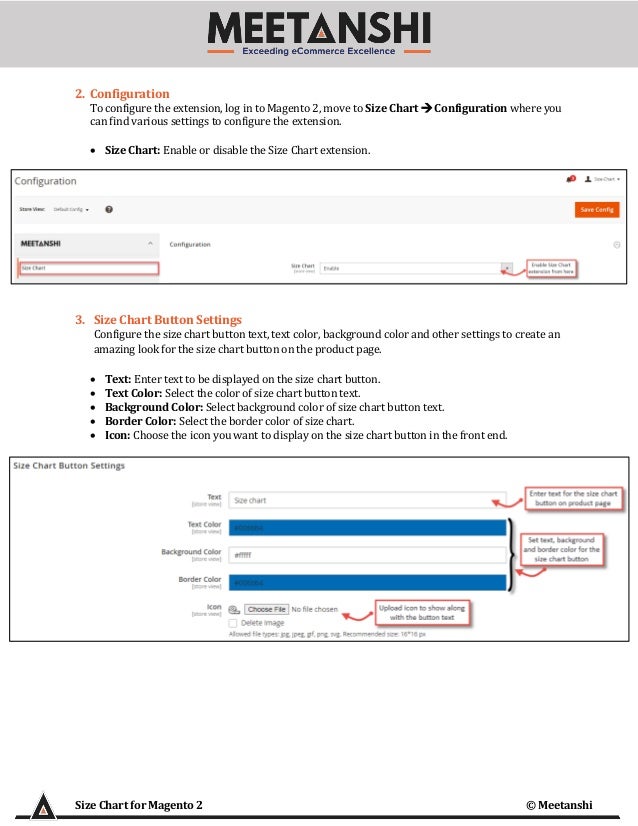
2. Configuration
To configure the extension, log in to Magento 2, move to Size Chart → Configuration where you
can find various settings to configure the extension.
• Size Chart: Enable or disable the Size Chart extension.
3. Size Chart Button Settings
Configure the size chart button text, text color, background color and other settings to create an
amazing look for the size chart button on the product page.
• Text: Enter text to be displayed on the size chart button.
• Text Color: Select the color of size chart button text.
• Background Color: Select background color of size chart button text.
• Border Color: Select the border color of size chart.
• Icon: Choose the icon you want to display on the size chart button in the front end.
Size Chart for Magento 2 © Meetanshi
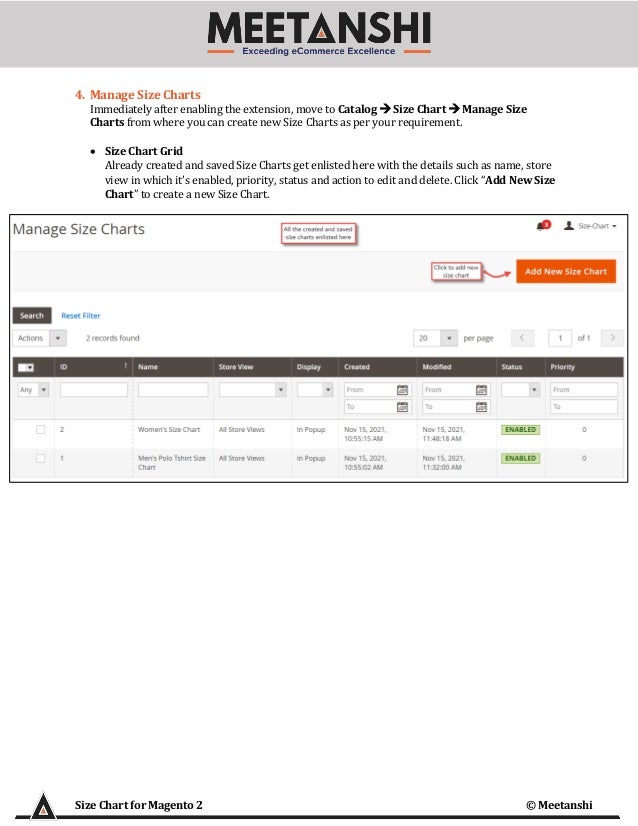
4. Manage Size Charts
Immediately after enabling the extension, move to Catalog → Size Chart → Manage Size
Charts from where you can create new Size Charts as per your requirement.
• Size Chart Grid
Already created and saved Size Charts get enlisted here with the details such as name, store
view in which it’s enabled, priority, status and action to edit and delete. Click “Add New Size
Chart” to create a new Size Chart.
Size Chart for Magento 2 © Meetanshi
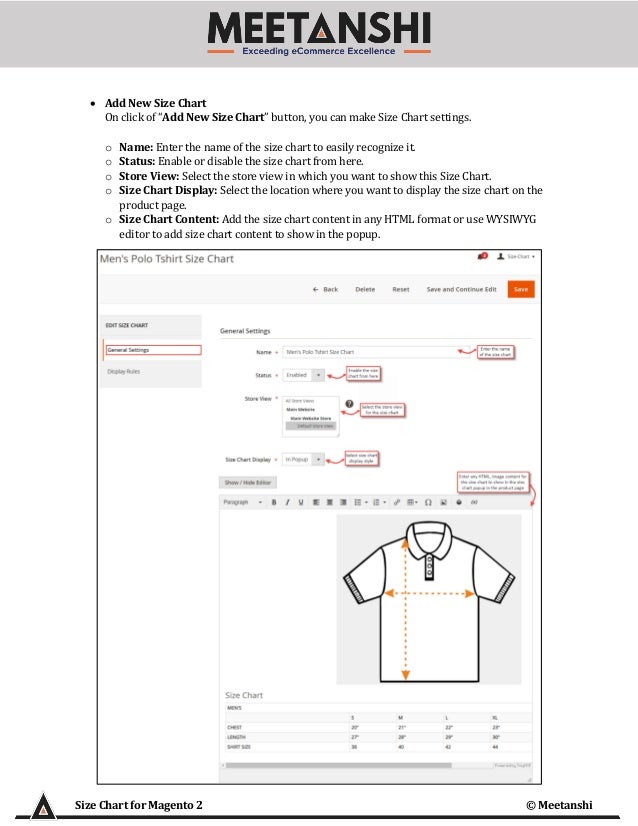
• Add New Size Chart
On click of “Add New Size Chart” button, you can make Size Chart settings.
o Name: Enter the name of the size chart to easily recognize it.
o Status: Enable or disable the size chart from here.
o Store View: Select the store view in which you want to show this Size Chart.
o Size Chart Display: Select the location where you want to display the size chart on the
product page.
o Size Chart Content: Add the size chart content in any HTML format or use WYSIWYG
editor to add size chart content to show in the popup.
Size Chart for Magento 2 © Meetanshi
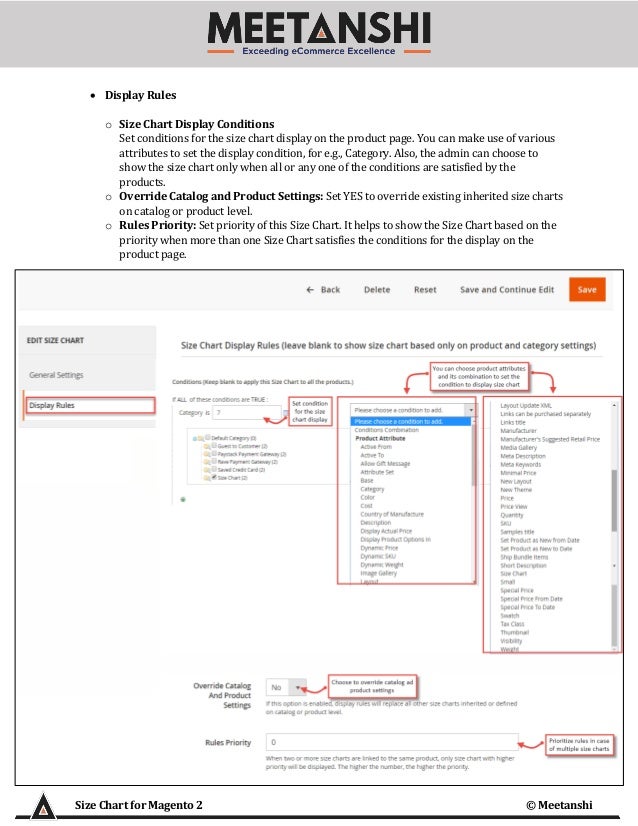
• Display Rules
o Size Chart Display Conditions
Set conditions for the size chart display on the product page. You can make use of various
attributes to set the display condition, for e.g., Category. Also, the admin can choose to
show the size chart only when all or any one of the conditions are satisfied by the
products.
o Override Catalog and Product Settings: Set YES to override existing inherited size charts
on catalog or product level.
o Rules Priority: Set priority of this Size Chart. It helps to show the Size Chart based on the
priority when more than one Size Chart satisfies the conditions for the display on the
product page.
Size Chart for Magento 2 © Meetanshi
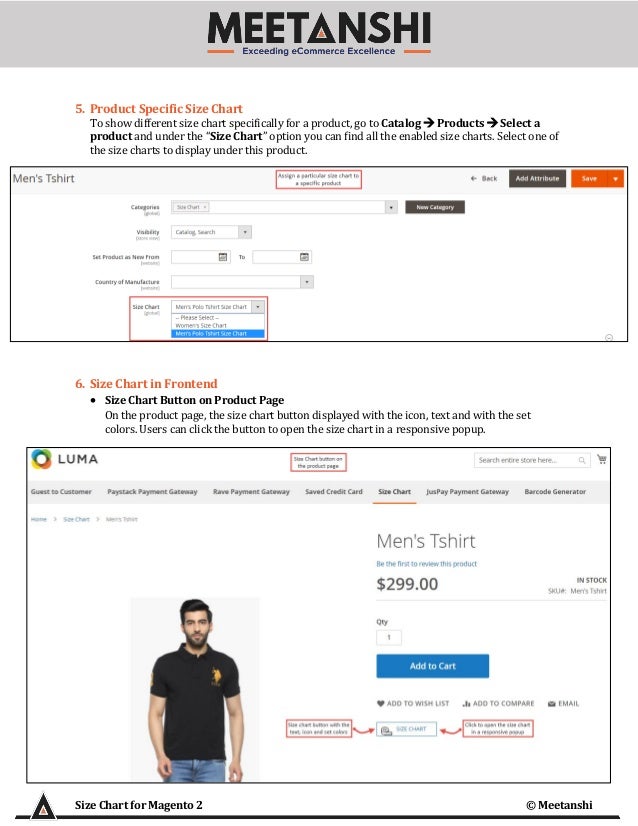
5. Product Specific Size Chart
To show different size chart specifically for a product, go to Catalog → Products → Select a
product and under the “Size Chart” option you can find all the enabled size charts. Select one of
the size charts to display under this product.
6. Size Chart in Frontend
• Size Chart Button on Product Page
On the product page, the size chart button displayed with the icon, text and with the set
colors. Users can click the button to open the size chart in a responsive popup.
Size Chart for Magento 2 © Meetanshi
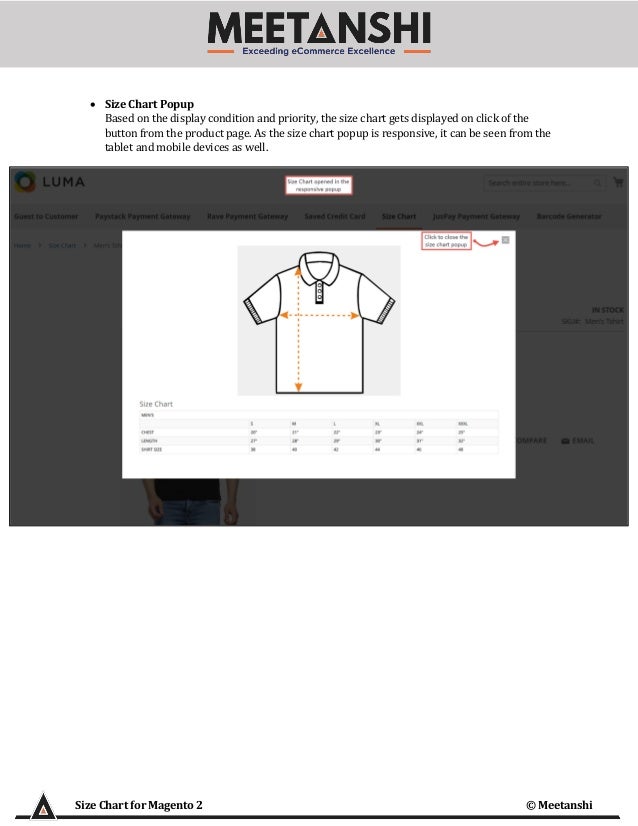
• Size Chart Popup
Based on the display condition and priority, the size chart gets displayed on click of the
button from the product page. As the size chart popup is responsive, it can be seen from the
tablet and mobile devices as well.

Magento 2 Size Chart

  • 1.
    Size Chart forMagento 2 © Meetanshi Size Chart for Magento 2 User Guide Table of Contents 1. Extension Installation Guide 2. Configuration 3. Manage Size Charts 4. Product Specific Size Chart 5. Size Chart in Frontend
  • 2.
    Size Chart forMagento 2 © Meetanshi 1. Extension Installation • For Magento Marketplace Customers o Find the Composer name and version of the extension in the extension’s composer.json file. o Login to your SSH and run: ▪ composer require meetanshi/magento-2-size-chart o Enter your authentication keys. Your public key is your username; your private key is your password. o Wait for Composer to finish updating your project dependencies and make sure there aren’t any errors. o To verify that the extension installed properly, run the command: ▪ php bin/magento module:status Meetanshi_SizeChart o By default, the extension is probably disabled. o Enable the extension and clear static view files: ▪ php bin/magento module:enable Meetanshi_SizeChart --clear-static-content ▪ php bin/magento setup:upgrade ▪ For Magento version 2.0.x to 2.1.x - php bin/magento setup:static-content:deploy ▪ For Magento version 2.2.x & above - php bin/magento setup:static-content:deploy –f ▪ php bin/magento cache:flush • For Meetanshi Customers o Extract the zip folder and upload our extension to the root of your Magento 2 directory via FTP. o Login to your SSH and run below commands step by step: ▪ php bin/magento setup:upgrade ▪ For Magento version 2.0.x to 2.1.x - php bin/magento setup:static-content:deploy ▪ For Magento version 2.2.x & above - php bin/magento setup:static-content:deploy –f ▪ php bin/magento cache:flush
  • 3.
    Size Chart forMagento 2 © Meetanshi 2. Configuration To configure the extension, log in to Magento 2, move to Size Chart → Configuration where you can find various settings to configure the extension. • Size Chart: Enable or disable the Size Chart extension. 3. Size Chart Button Settings Configure the size chart button text, text color, background color and other settings to create an amazing look for the size chart button on the product page. • Text: Enter text to be displayed on the size chart button. • Text Color: Select the color of size chart button text. • Background Color: Select background color of size chart button text. • Border Color: Select the border color of size chart. • Icon: Choose the icon you want to display on the size chart button in the front end.
  • 4.
    Size Chart forMagento 2 © Meetanshi 4. Manage Size Charts Immediately after enabling the extension, move to Catalog → Size Chart → Manage Size Charts from where you can create new Size Charts as per your requirement. • Size Chart Grid Already created and saved Size Charts get enlisted here with the details such as name, store view in which it’s enabled, priority, status and action to edit and delete. Click “Add New Size Chart” to create a new Size Chart.
  • 5.
    Size Chart forMagento 2 © Meetanshi • Add New Size Chart On click of “Add New Size Chart” button, you can make Size Chart settings. o Name: Enter the name of the size chart to easily recognize it. o Status: Enable or disable the size chart from here. o Store View: Select the store view in which you want to show this Size Chart. o Size Chart Display: Select the location where you want to display the size chart on the product page. o Size Chart Content: Add the size chart content in any HTML format or use WYSIWYG editor to add size chart content to show in the popup.
  • 6.
    Size Chart forMagento 2 © Meetanshi • Display Rules o Size Chart Display Conditions Set conditions for the size chart display on the product page. You can make use of various attributes to set the display condition, for e.g., Category. Also, the admin can choose to show the size chart only when all or any one of the conditions are satisfied by the products. o Override Catalog and Product Settings: Set YES to override existing inherited size charts on catalog or product level. o Rules Priority: Set priority of this Size Chart. It helps to show the Size Chart based on the priority when more than one Size Chart satisfies the conditions for the display on the product page.
  • 7.
    Size Chart forMagento 2 © Meetanshi 5. Product Specific Size Chart To show different size chart specifically for a product, go to Catalog → Products → Select a product and under the “Size Chart” option you can find all the enabled size charts. Select one of the size charts to display under this product. 6. Size Chart in Frontend • Size Chart Button on Product Page On the product page, the size chart button displayed with the icon, text and with the set colors. Users can click the button to open the size chart in a responsive popup.
  • 8.
    Size Chart forMagento 2 © Meetanshi • Size Chart Popup Based on the display condition and priority, the size chart gets displayed on click of the button from the product page. As the size chart popup is responsive, it can be seen from the tablet and mobile devices as well.