CEON Automation Software Quick Guide to  Lost & Found  Module
Table of Contents 1 Table of Contents 2  Login Page 3  Home Page 5  Home page of a Software module 1 View Lost Items 4 Add Lost Item 8 Add Lost/Found Category Type 2 View Found Items 5 Add Found Item 9 Update/Delete  Lost/Found  Category Type 3 S earch 6 Update/Delete the Lost Item 7 Update/Delete the Found Item
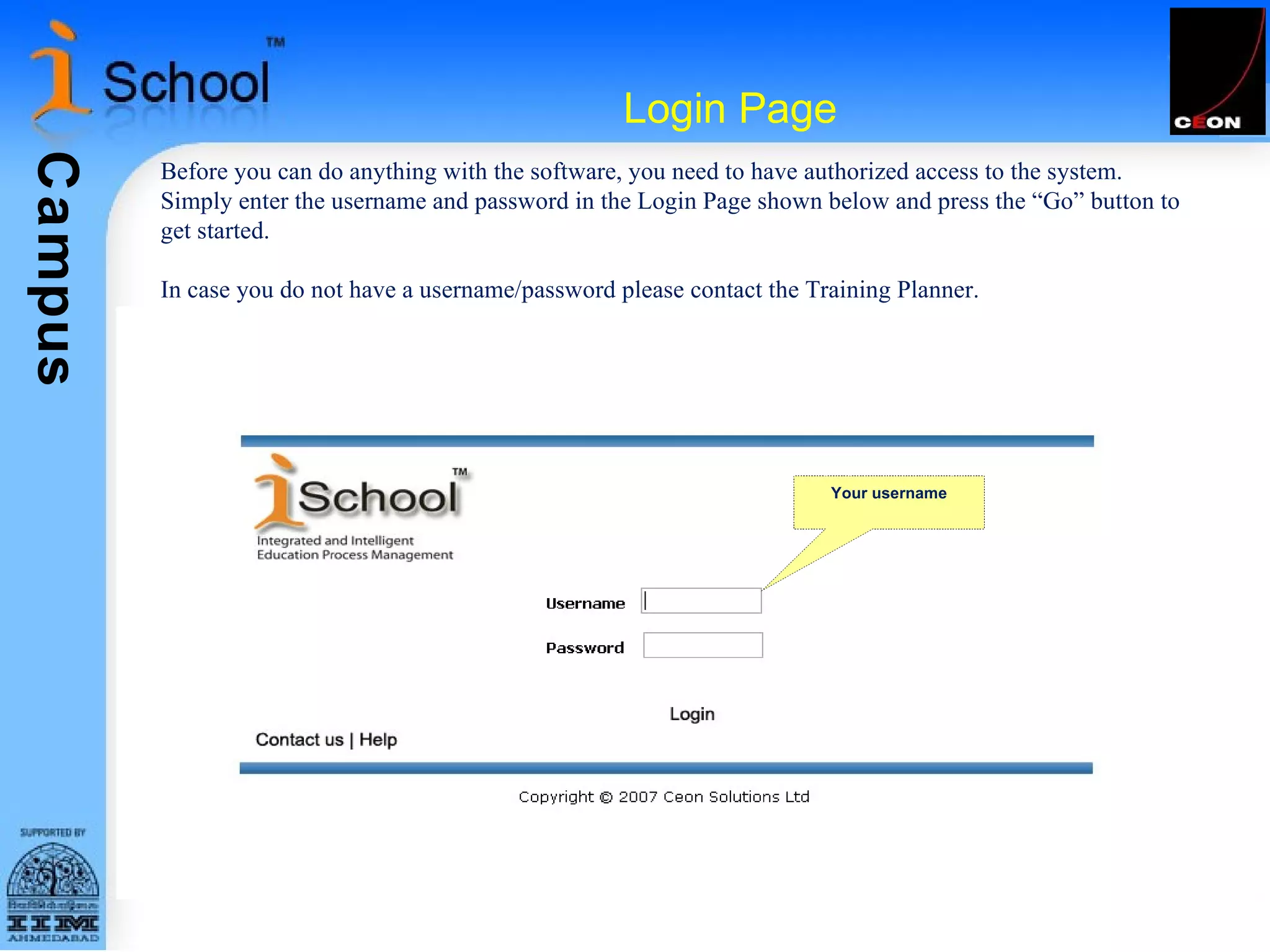
Login Page Before you can do anything with the software, you need to have authorized access to the system.  Simply enter the username and password in the Login Page shown below and press the “Go” button to get started. In case you do not have a username/password please contact the Training Planner. Your username
Home Page After logging in to the system, you can see your home page, which is shown below. To Logout click here This is the menu bar. Click any menu button to go to the corresponding homepage
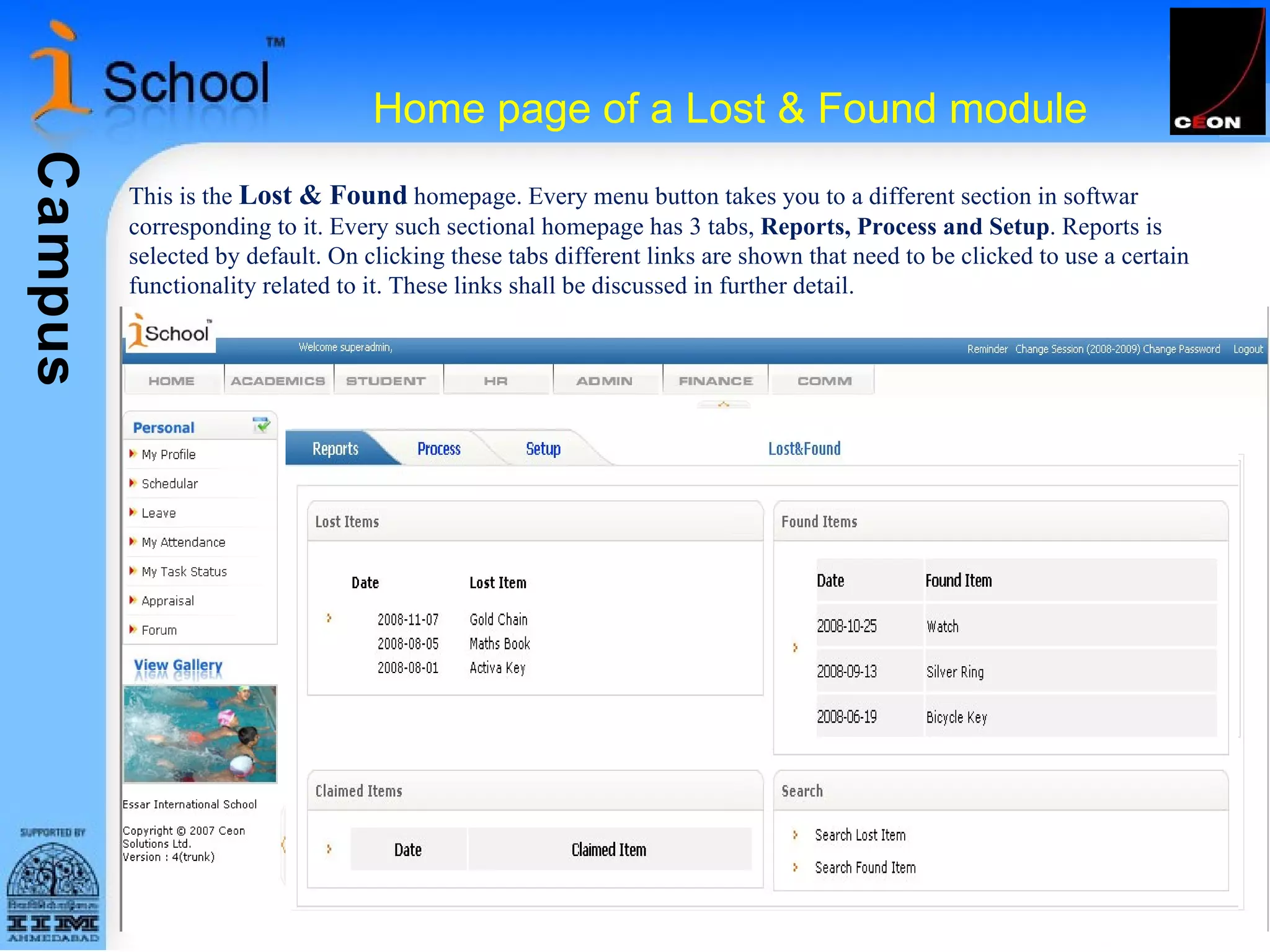
Home page of a Lost & Found module This is the  Lost & Found  homepage. Every menu button takes you to a different section in softwar  corresponding to it. Every such sectional homepage has 3 tabs,  Reports, Process and Setup . Reports is selected by default. On clicking these tabs different links are shown that need to be clicked to use a certain functionality related to it. These links shall be discussed in further detail.
Functional tabs on Lost & Found module homepage (Report) On clicking Lost&Found you are taken to the Lost&Found homepage. By default, you will see ‘Reports’ tab activated on Lost&Found homepage Display Lost Items Display Found Items Quick Search
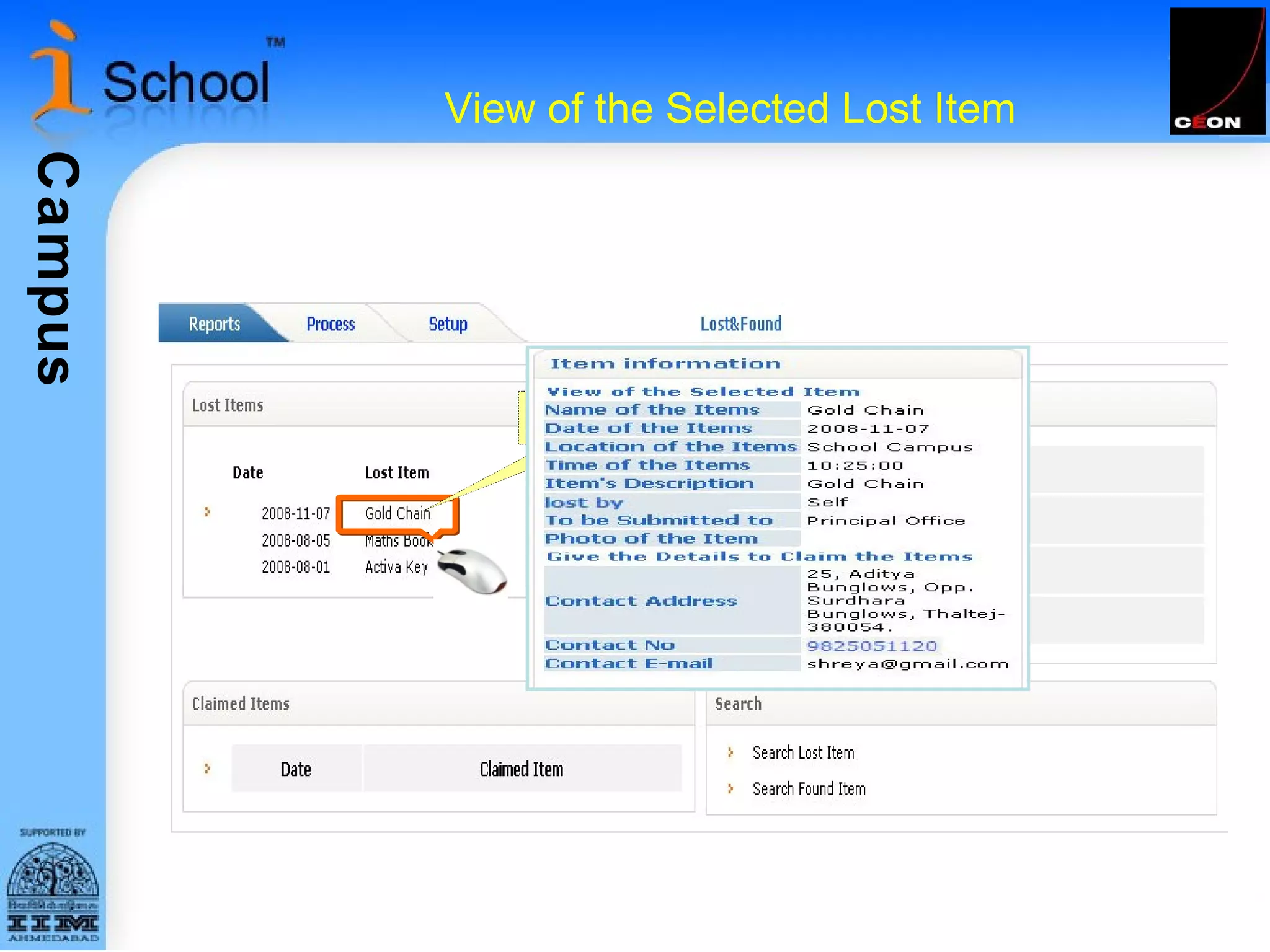
View of the Selected Lost Item View Selected Item
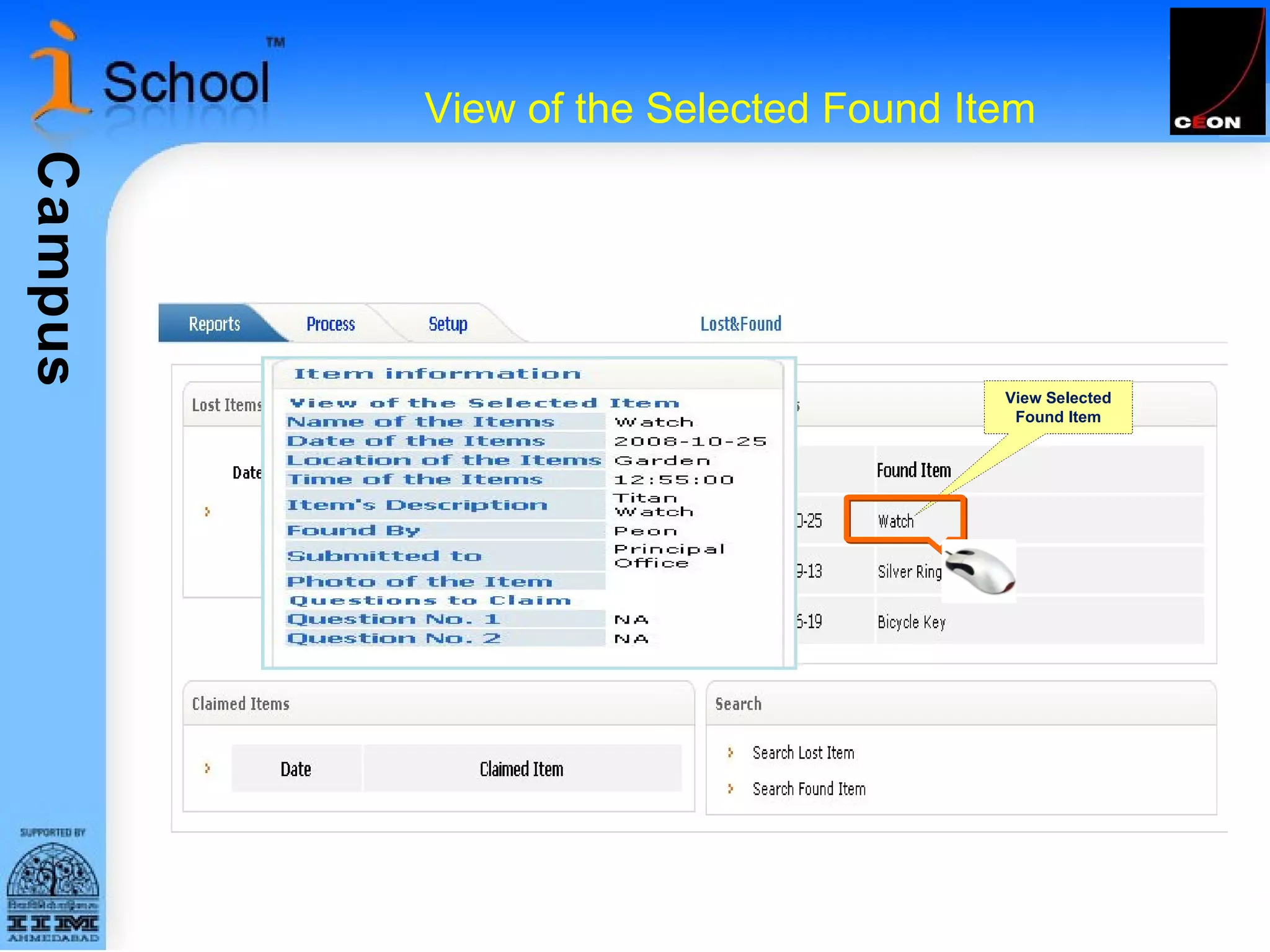
View of the Selected Found Item View Selected Found Item
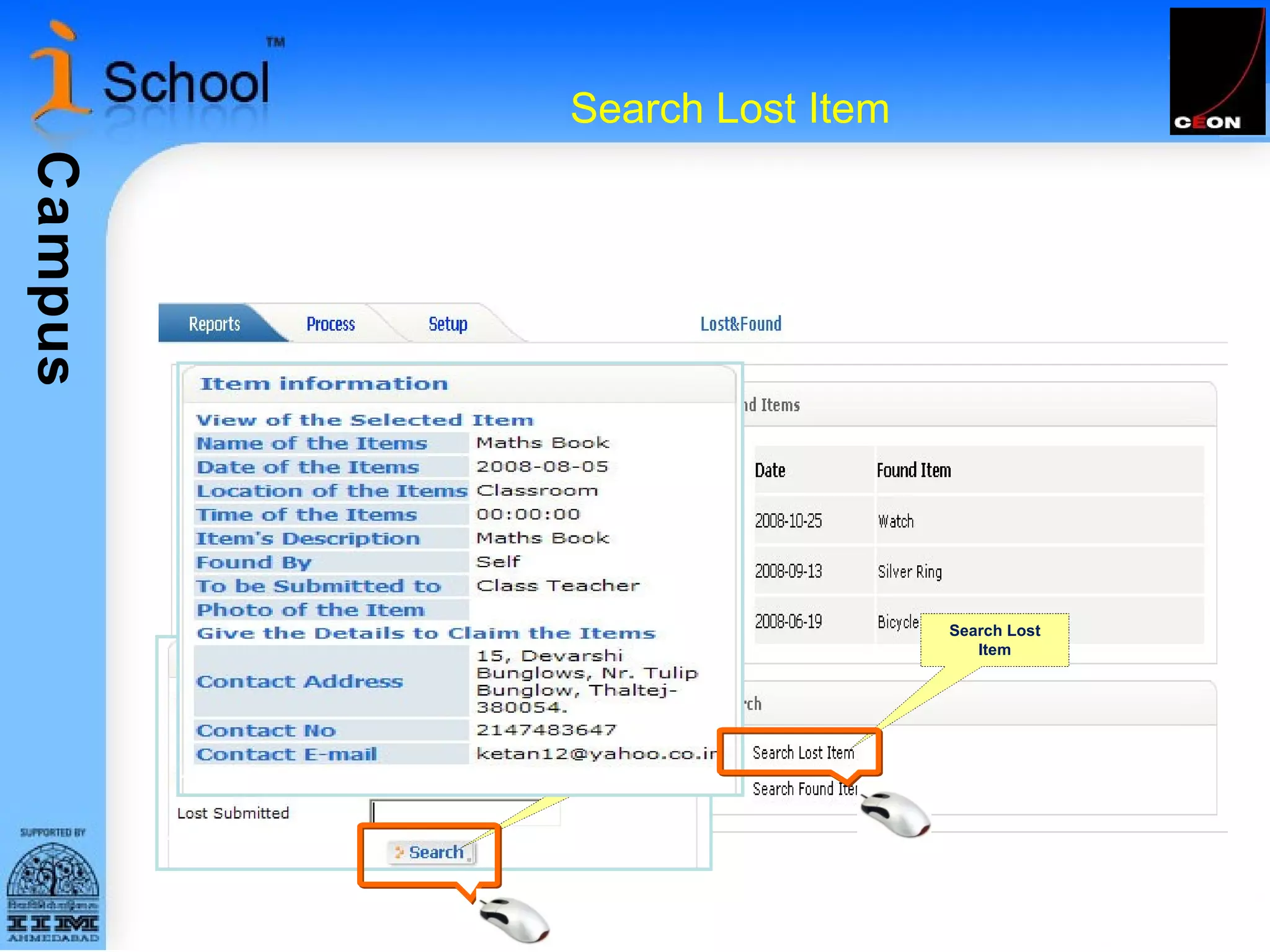
Search Lost Item Search Lost Item Select Button
Functional tabs on Lost & Found module homepage (Process) Add Lost &Found Item On clicking Lost&Found, you are taken to the Lost&Found homepage. You will find ‘Process’ tab, click on Process the homepage of Process tab will get open Update/Delete Lost&Found Item
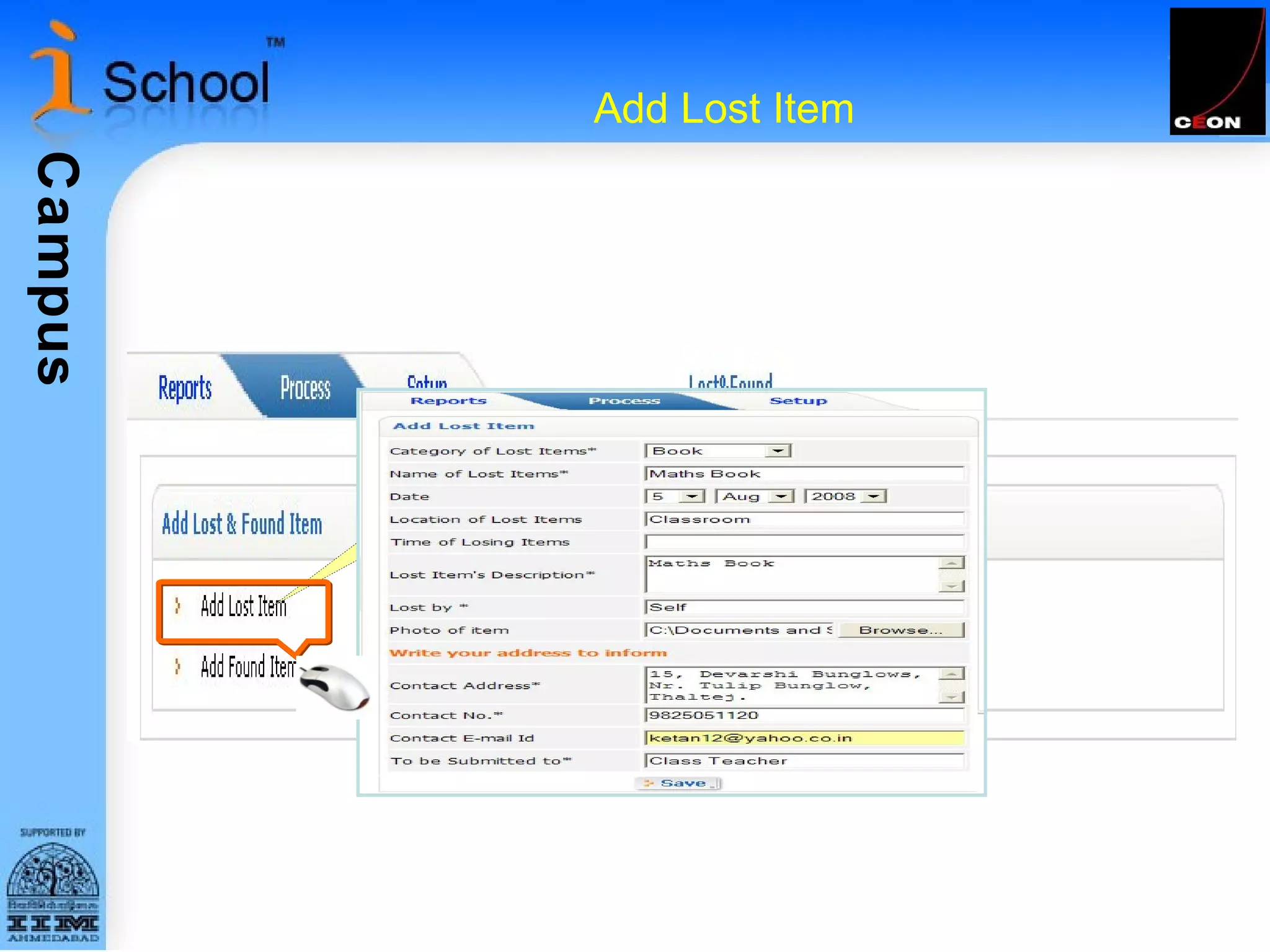
Add Lost Item  Add Lost Item
Add Found Item Add Found Item
Update/Delete the Lost Item Update /Delete the Lost Item
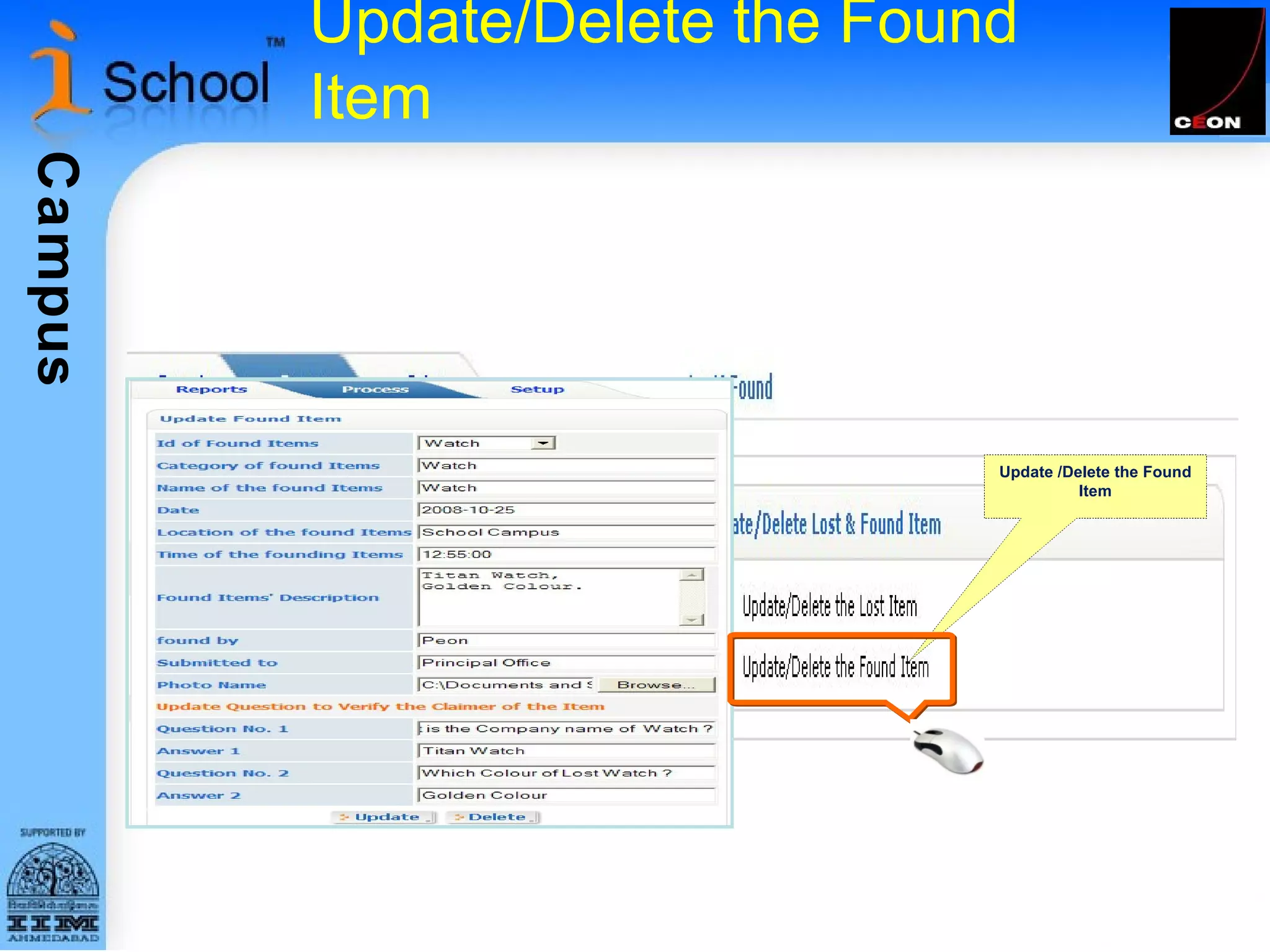
Update/Delete the Found Item Update /Delete the Found Item
Functional tabs on Lost & Found module homepage (Setup) On clicking Lost&Found, you are taken to the Lost&Found homepage. You will find ‘Setup’ tab, click on Setup the homepage of Setup tab will get open Add/Update/Delete Lost/Found Category Type
Add Lost/Found Category Type Add/Update/Delete Lost/Found Category Type Add Category Type
Update/Delete Lost/Found Category Type Click on Save Button Click on Box Click on Update Button

Lost & Found Ppt

  • 1.
    CEON Automation SoftwareQuick Guide to Lost & Found Module
  • 2.
    Table of Contents1 Table of Contents 2 Login Page 3 Home Page 5 Home page of a Software module 1 View Lost Items 4 Add Lost Item 8 Add Lost/Found Category Type 2 View Found Items 5 Add Found Item 9 Update/Delete Lost/Found Category Type 3 S earch 6 Update/Delete the Lost Item 7 Update/Delete the Found Item
  • 3.
    Login Page Beforeyou can do anything with the software, you need to have authorized access to the system. Simply enter the username and password in the Login Page shown below and press the “Go” button to get started. In case you do not have a username/password please contact the Training Planner. Your username
  • 4.
    Home Page Afterlogging in to the system, you can see your home page, which is shown below. To Logout click here This is the menu bar. Click any menu button to go to the corresponding homepage
  • 5.
    Home page ofa Lost & Found module This is the Lost & Found homepage. Every menu button takes you to a different section in softwar corresponding to it. Every such sectional homepage has 3 tabs, Reports, Process and Setup . Reports is selected by default. On clicking these tabs different links are shown that need to be clicked to use a certain functionality related to it. These links shall be discussed in further detail.
  • 6.
    Functional tabs onLost & Found module homepage (Report) On clicking Lost&Found you are taken to the Lost&Found homepage. By default, you will see ‘Reports’ tab activated on Lost&Found homepage Display Lost Items Display Found Items Quick Search
  • 7.
    View of theSelected Lost Item View Selected Item
  • 8.
    View of theSelected Found Item View Selected Found Item
  • 9.
    Search Lost ItemSearch Lost Item Select Button
  • 10.
    Functional tabs onLost & Found module homepage (Process) Add Lost &Found Item On clicking Lost&Found, you are taken to the Lost&Found homepage. You will find ‘Process’ tab, click on Process the homepage of Process tab will get open Update/Delete Lost&Found Item
  • 11.
    Add Lost Item Add Lost Item
  • 12.
    Add Found ItemAdd Found Item
  • 13.
    Update/Delete the LostItem Update /Delete the Lost Item
  • 14.
    Update/Delete the FoundItem Update /Delete the Found Item
  • 15.
    Functional tabs onLost & Found module homepage (Setup) On clicking Lost&Found, you are taken to the Lost&Found homepage. You will find ‘Setup’ tab, click on Setup the homepage of Setup tab will get open Add/Update/Delete Lost/Found Category Type
  • 16.
    Add Lost/Found CategoryType Add/Update/Delete Lost/Found Category Type Add Category Type
  • 17.
    Update/Delete Lost/Found CategoryType Click on Save Button Click on Box Click on Update Button