Connecting to a Unix/Linux system
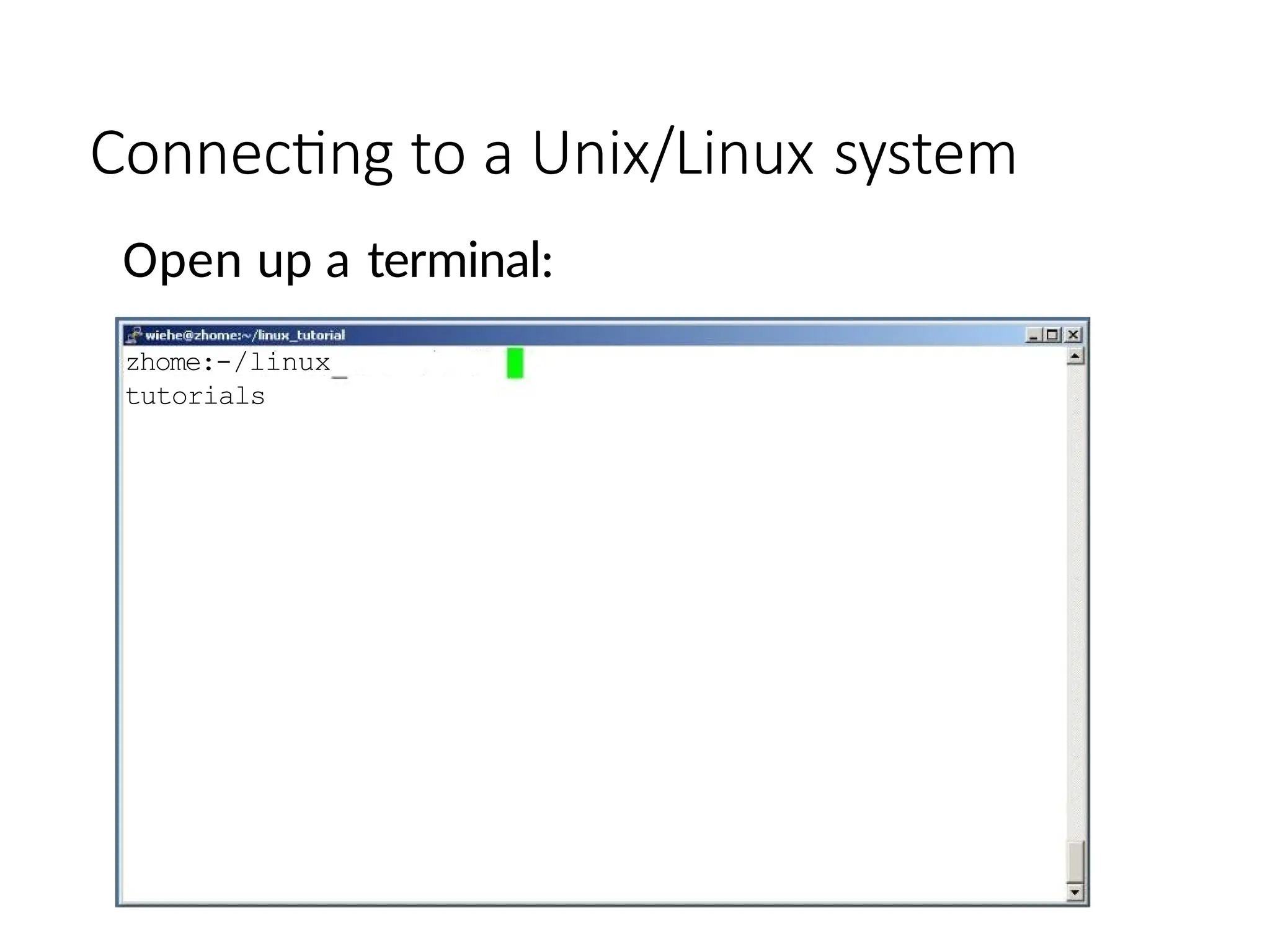
Open up a terminal:
zhome:-/linux
tutorials
Connecting to a Unix/Linux system
Open up a terminal:
zhome:-/linux
tutorials
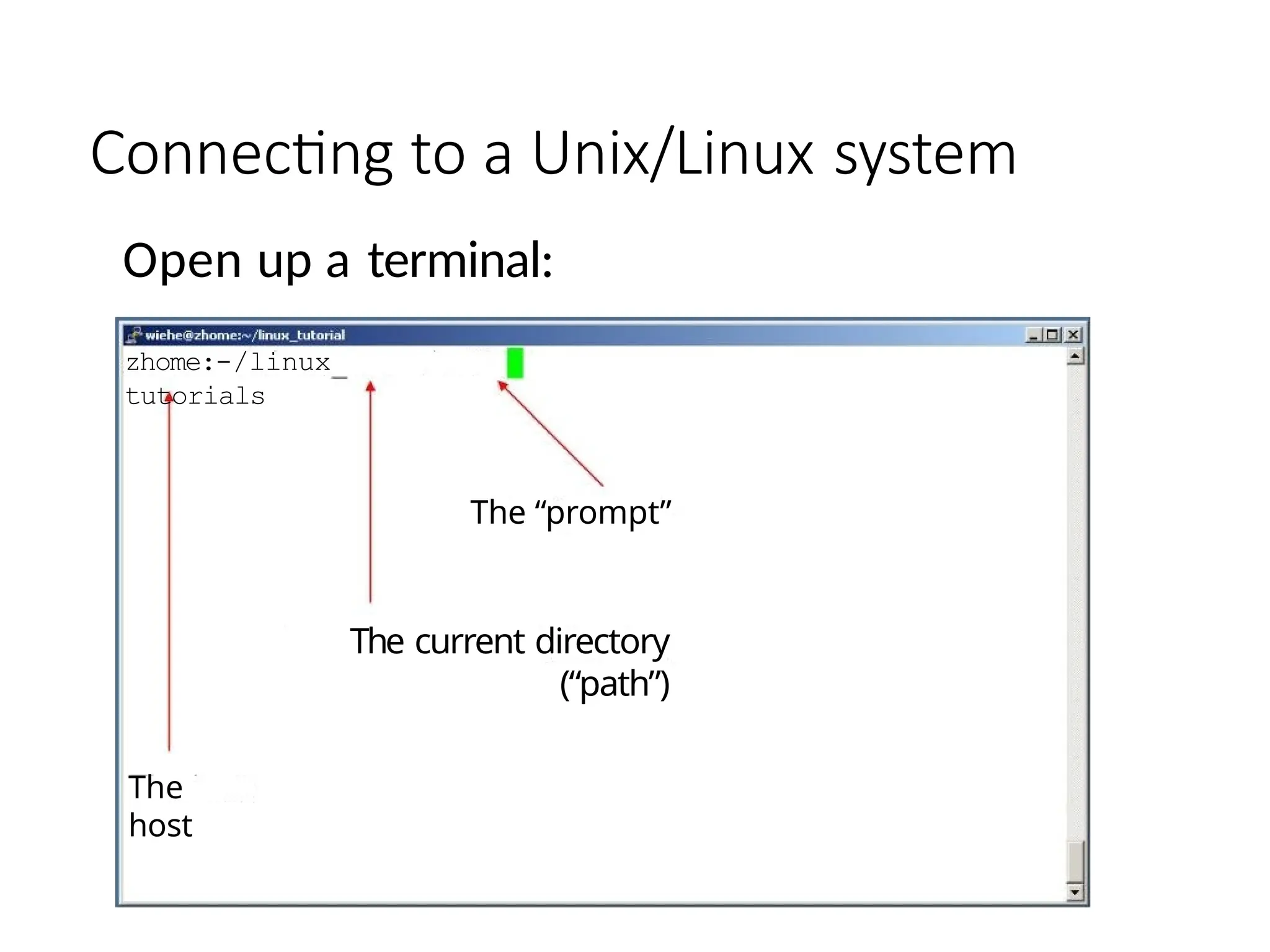
The
host
The “prompt”
The current directory
(“path”)
What exactly is a “shell”?
After logging in, Linux/Unixstarts another
program called the shell
The shell interprets commands the user
types and manages their execution
The shell communicates with the internal part
of the operating system called the kernel
The most popular shells are: tcsh, csh, korn, and
bash The differences are most times subtle
For this tutorial, we are using bash
Shell commands are C A S E SENSITIVE!
Help
!
Whenever you need help with a
command type “man” and the
command name
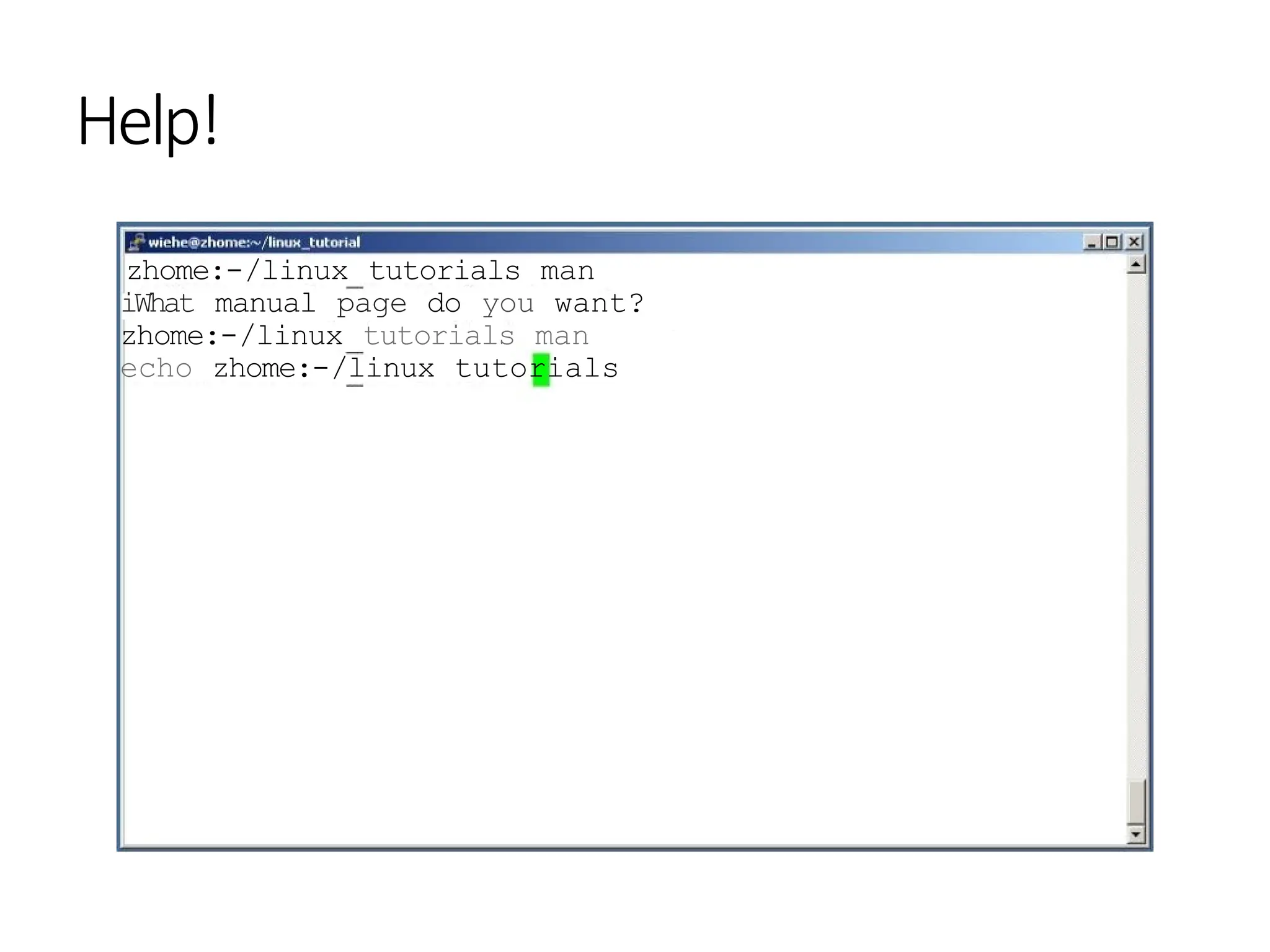
Help!
zhome:-/linux tutorials man
iWhat manual page do you want?
zhome:-/linux tutorials man
echo zhome:-/linux tutorials
ECHO ( 1) User Commands ECHO(1)
echo — display a line of text
SYNOPSIS
echo [OPTION]... [STRING]...
DESCRIPTION
NOTE: your shell may have its own version of
echo which will supercede the version described
here. Please refer to your shellas
documentation for details about the options it
supports.
Echo the STRING(s) to standard output.
do not output the trailing
newline
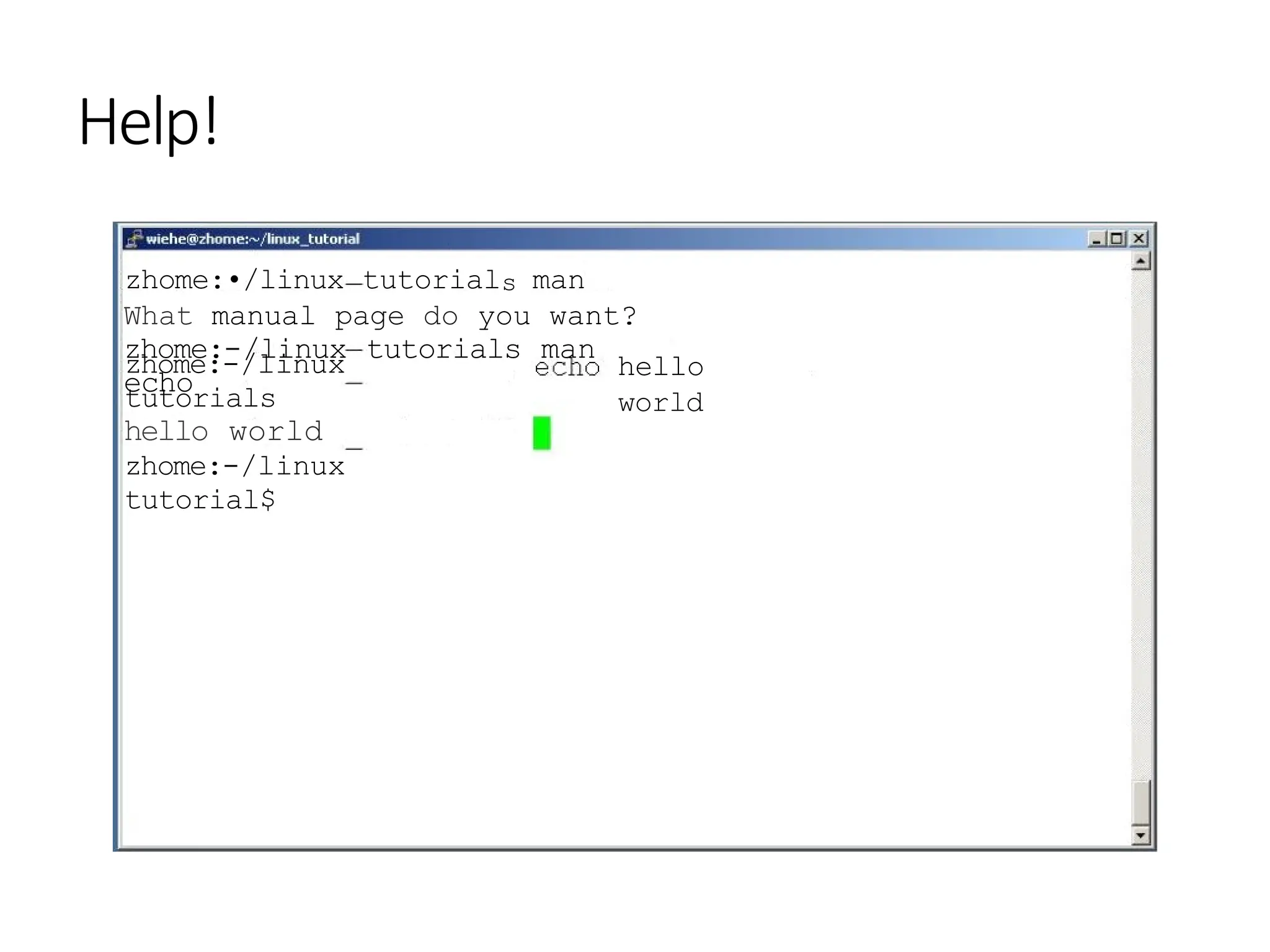
Help!
Help!
zhome:•/linux tutorials man
What manual page do you want?
zhome:-/linux tutorials man
echo
hello
world
zhome:-/linux
tutorials
hello world
zhome:-/linux
tutorial$
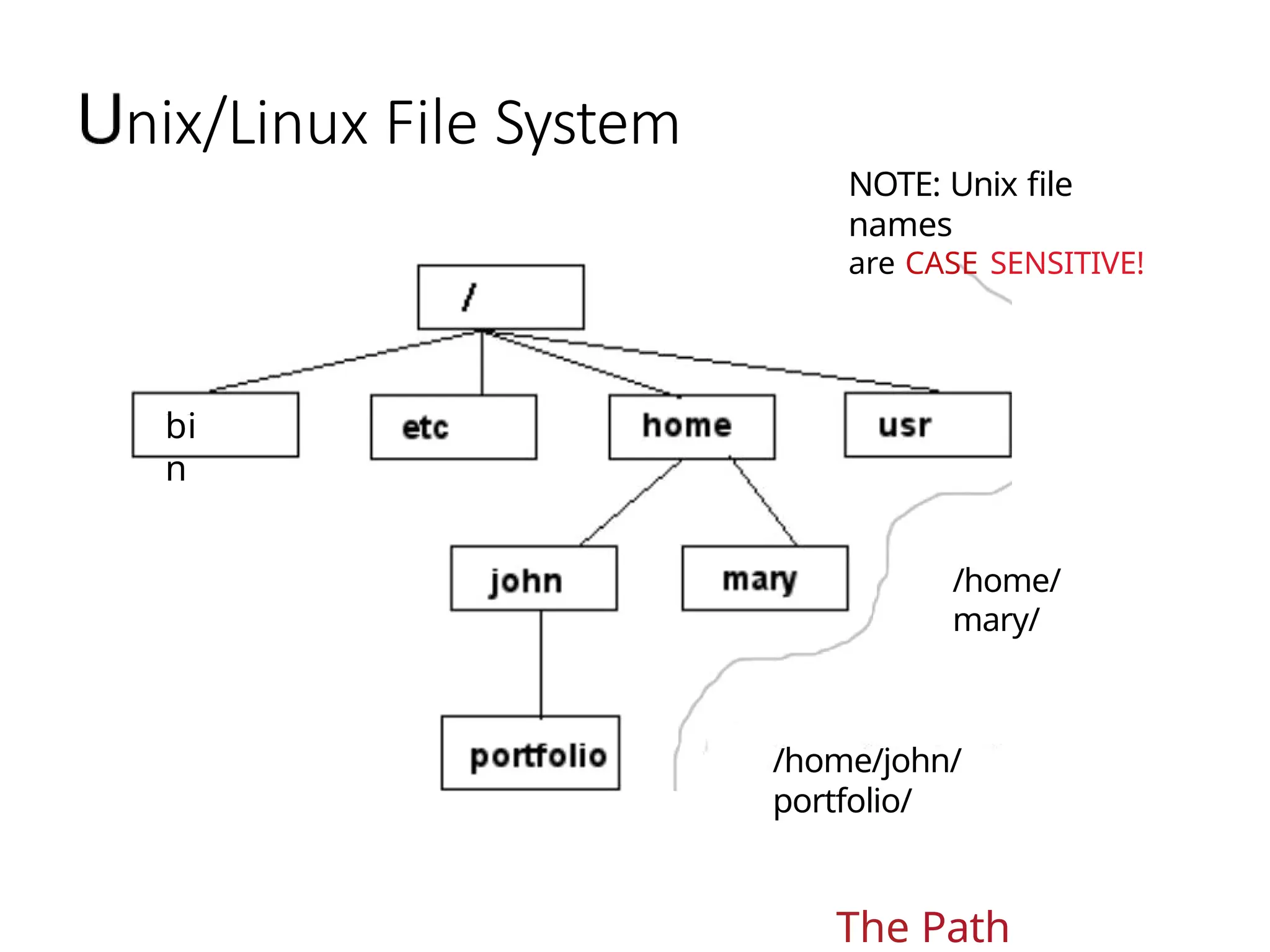
nix/Linux File System
bi
n
NOTE: Unix file
names
are CASE SENSITIVE!
/home/
mary/
/home/john/
portfolio/
The Path
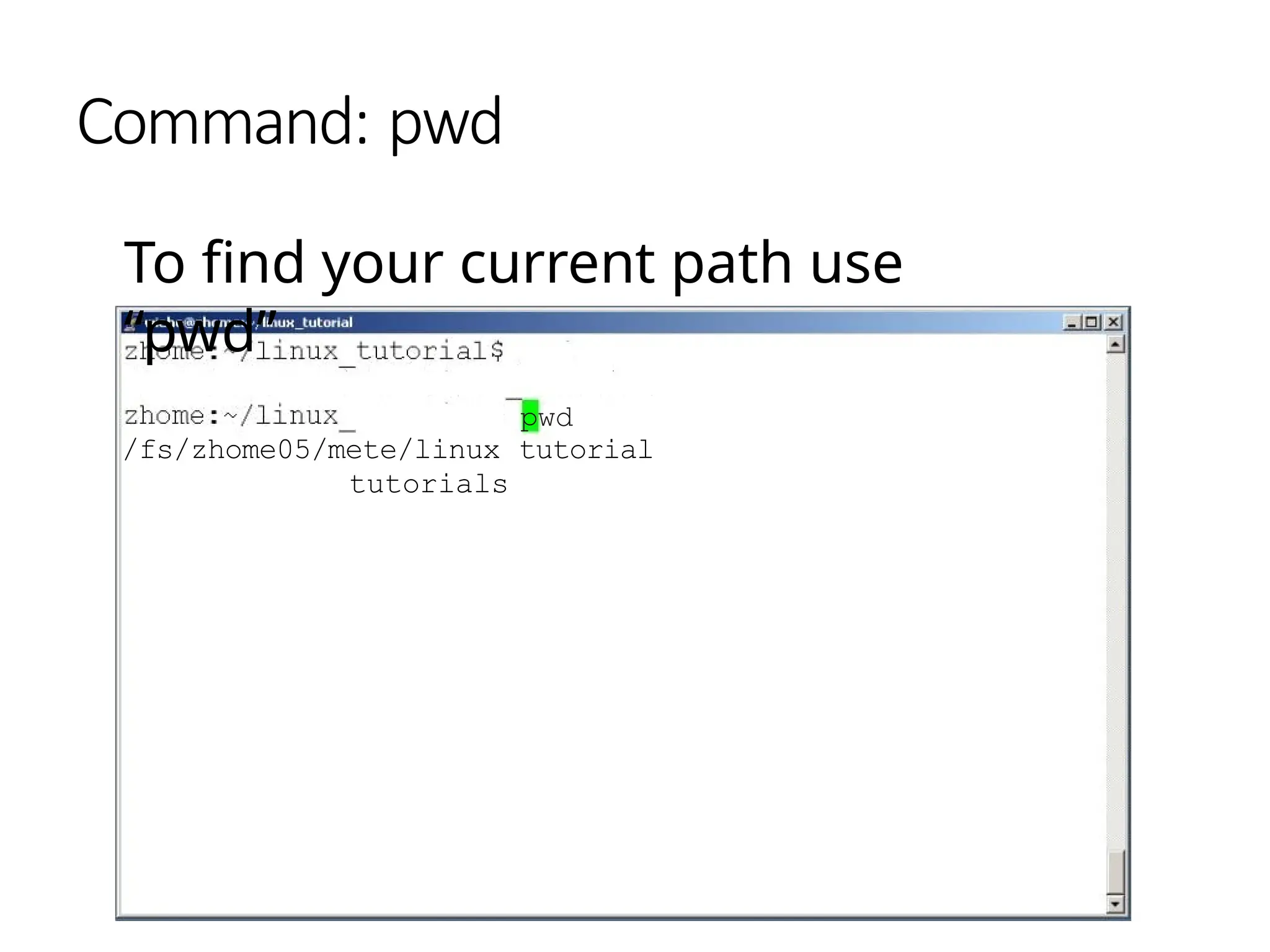
Command: pwd
To find your current path use
“pwd”
pwd
/fs/zhome05/mete/linux tutorial
tutorials
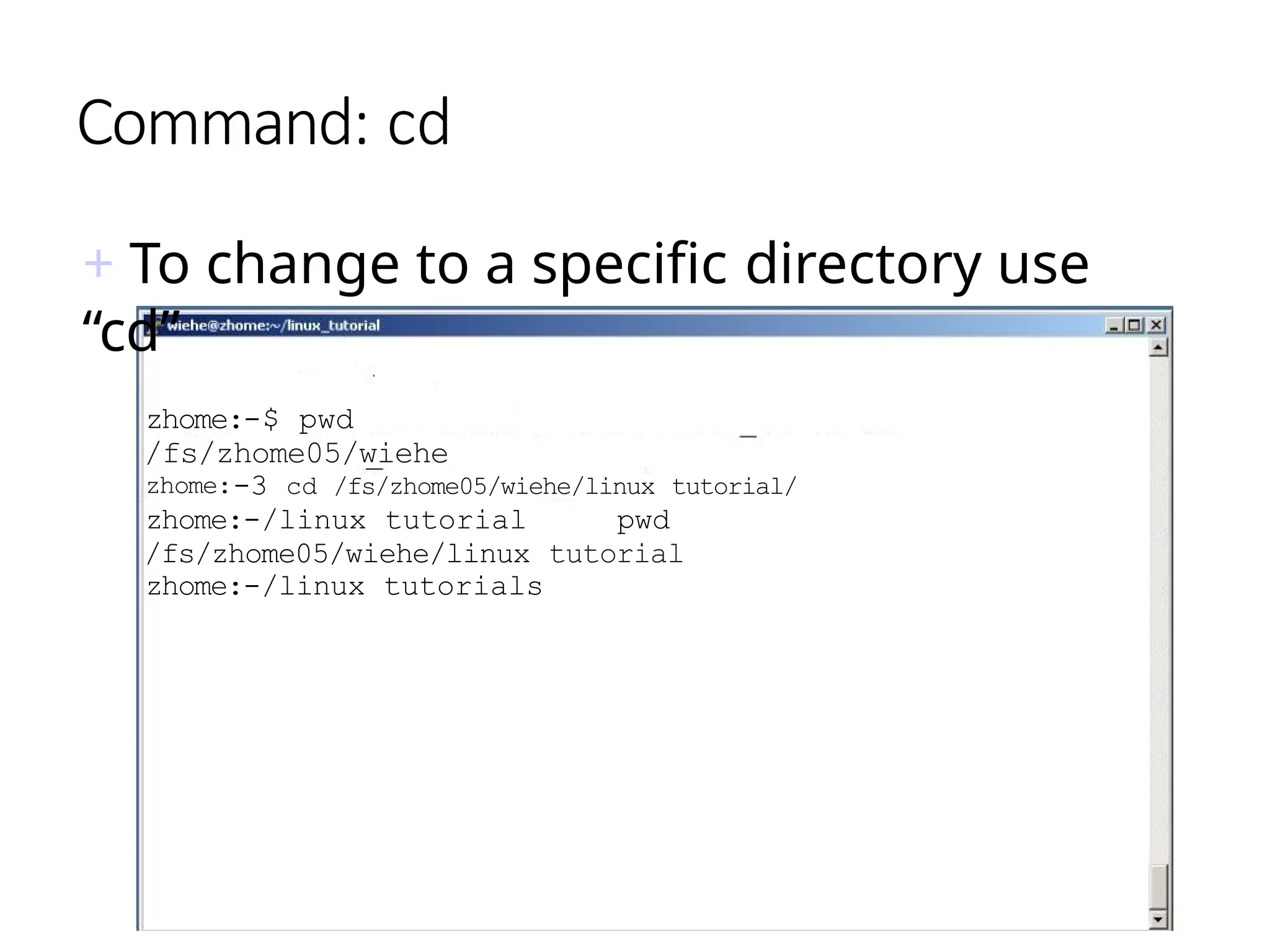
Command: cd
+ To change to a specific directory use
“cd”
zhome:-$ pwd
/fs/zhome05/wiehe
zhome:-3 cd /fs/zhome05/wiehe/linux tutorial/
zhome:-/linux tutorial pwd
/fs/zhome05/wiehe/linux tutorial
zhome:-/linux tutorials
Command: cd
-” is the location ofour home
directo
zhoue:-/linux tutorials pwd
/fs/zhome05/wiehe/linux tutorial
zhome: /linux tutorials cd -
zhome: $ pwd
/fs/zhome05/wiehe
zhome:•
irectory
below
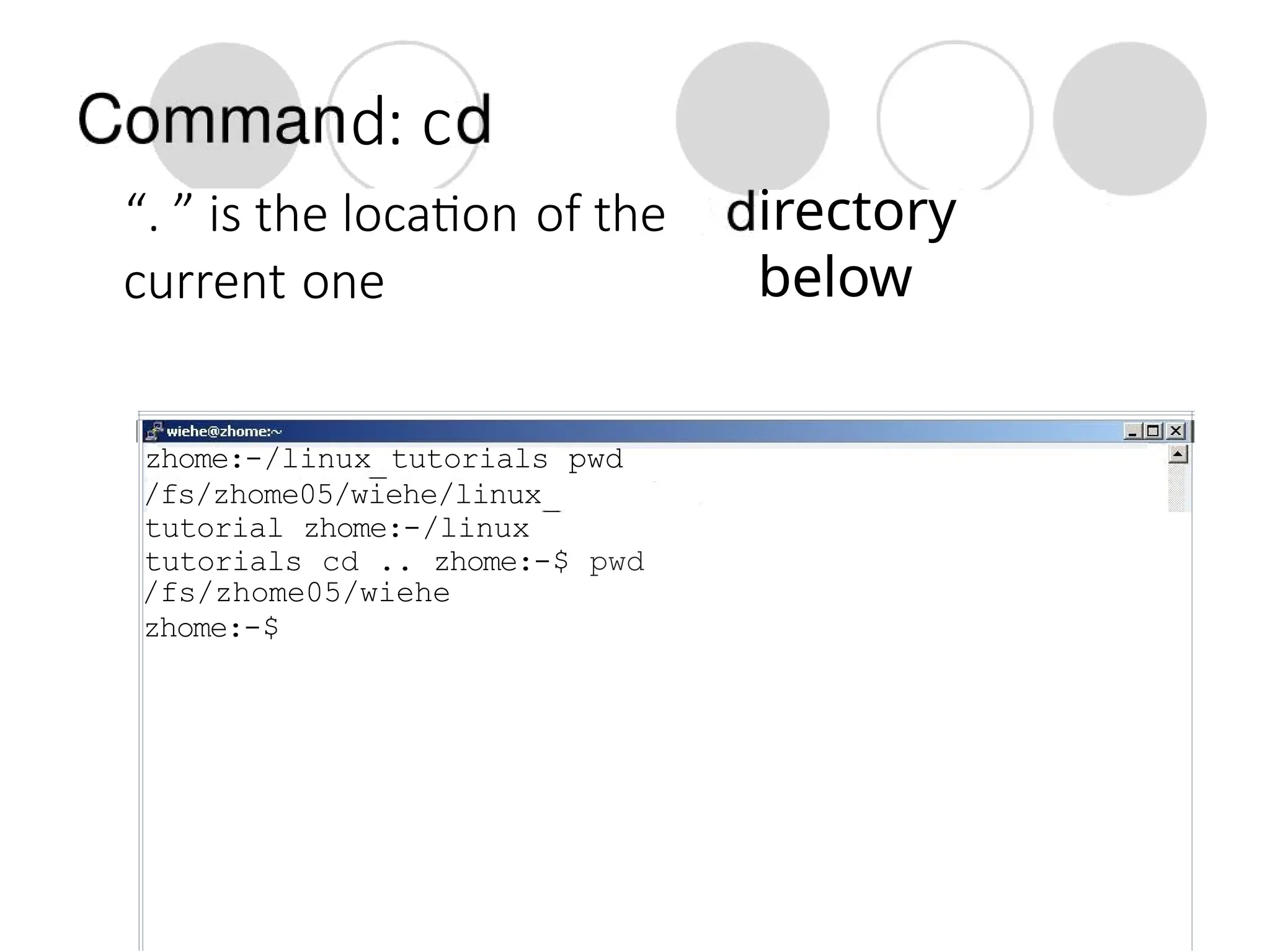
d: c
“. ” is the location of the
current one
zhome:-/linux tutorials pwd
/fs/zhome05/wiehe/linux
tutorial zhome:-/linux
tutorials cd .. zhome:-$ pwd
/fs/zhome05/wiehe
zhome:-$
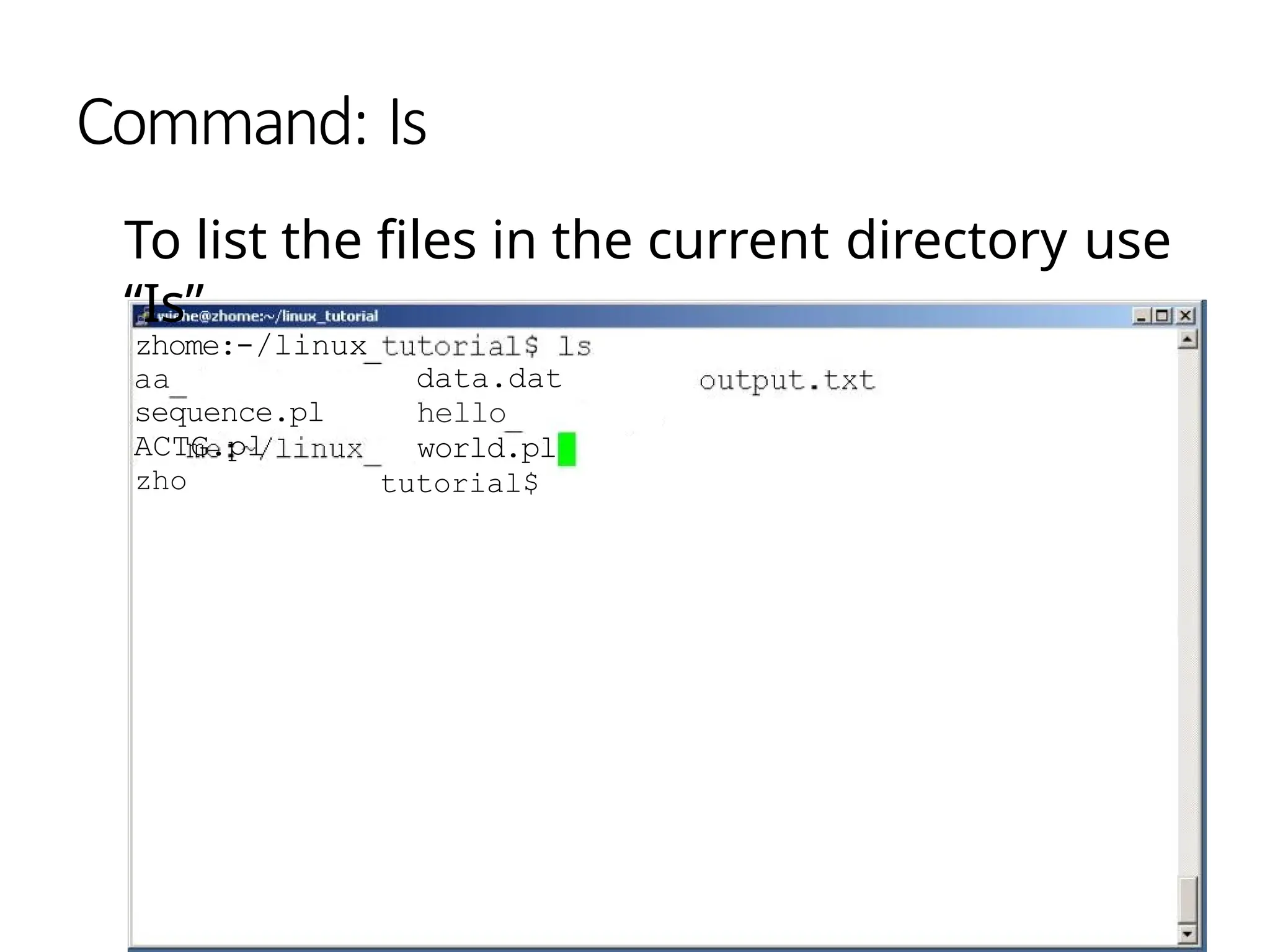
Command: Is
To list the files in the current directory use
“Is”
zhome:-/linux
aa
sequence.pl
ACTG.pl
zho
data.dat
hello
world.pl
tutorial$
Command: Is
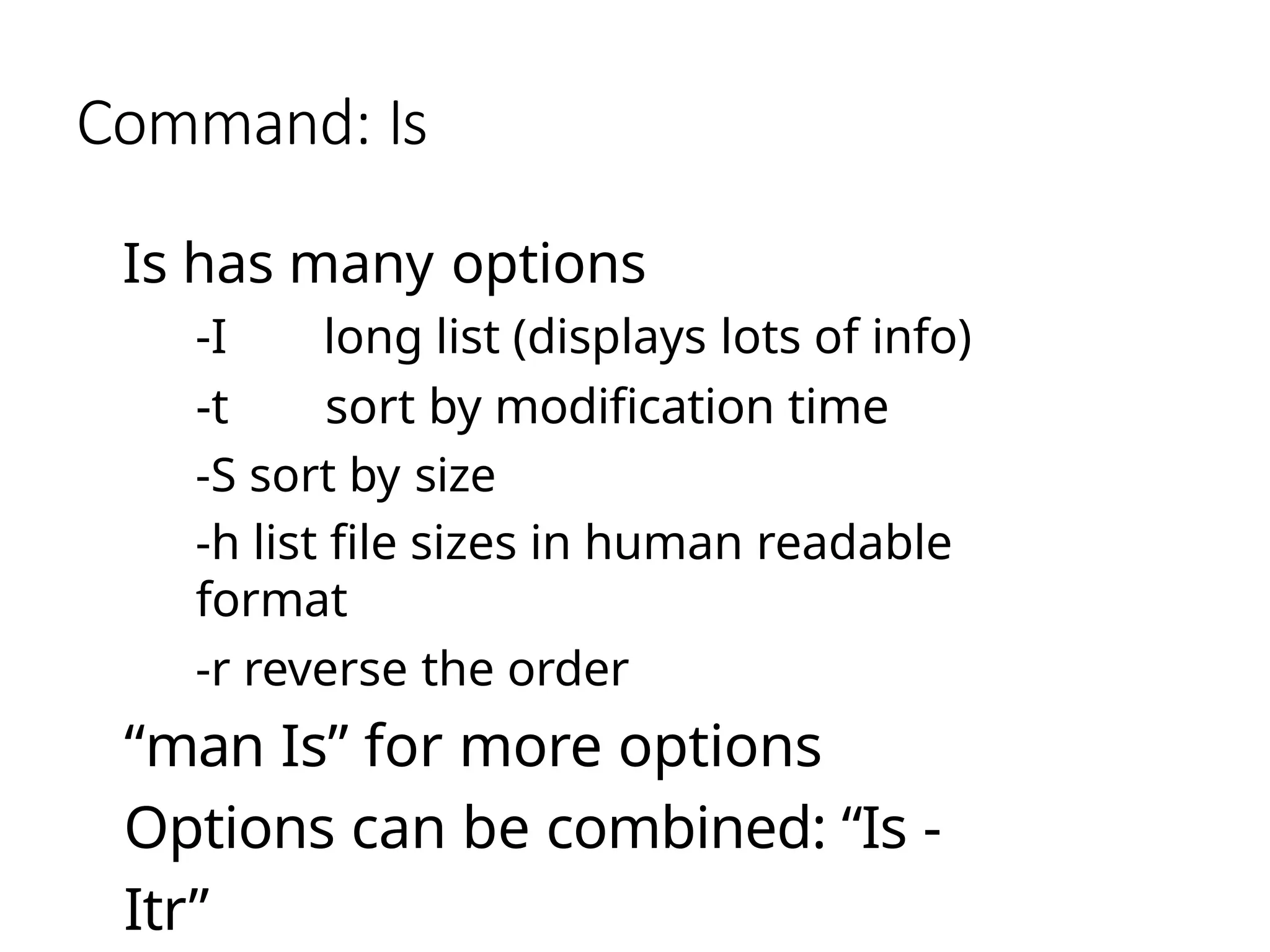
Is has many options
-I long list (displays lots of info)
-t sort by modification time
-S sort by size
-h list file sizes in human readable
format
-r reverse the order
“man Is” for more options
Options can be combined: “Is -
Itr”
Command: Is
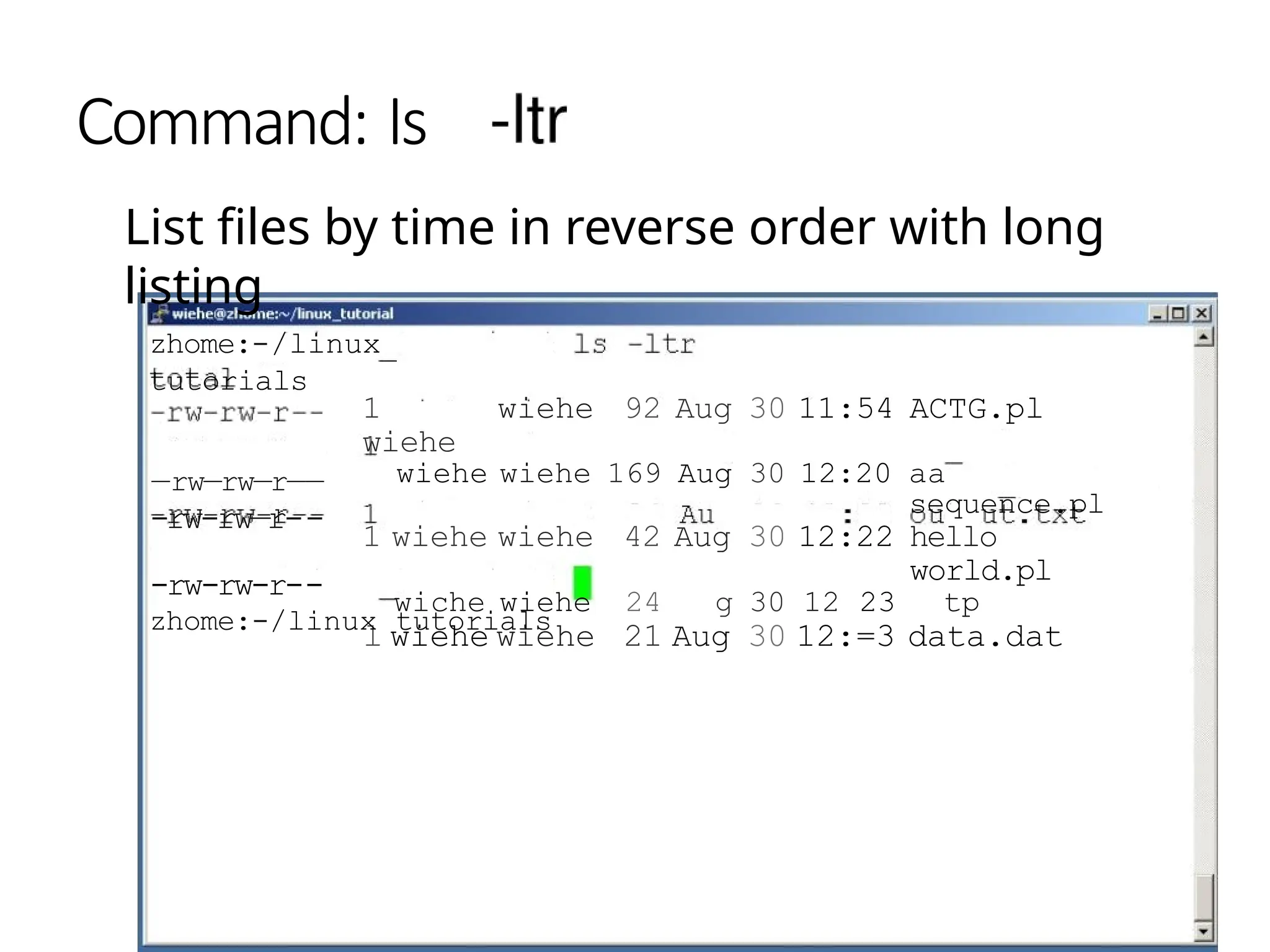
List files by time in reverse order with long
listing
1
wiehe
wiehe 92 Aug 30 11:54 ACTG.pl
wiehe wiehe 169 Aug 30 12:20 aa
sequence.pl
1 wiehe wiehe 42 Aug 30 12:22 hello
world.pl
wiche wiehe 24 g 30 12 23 tp
l wiehe wiehe 21 Aug 30 12:=3 data.dat
zhome:-/linux
tutorials
—rw—rw—r——
-rw-rw—r--
-rw-rw-r--
zhome:-/linux tutorials
General Syntax: *
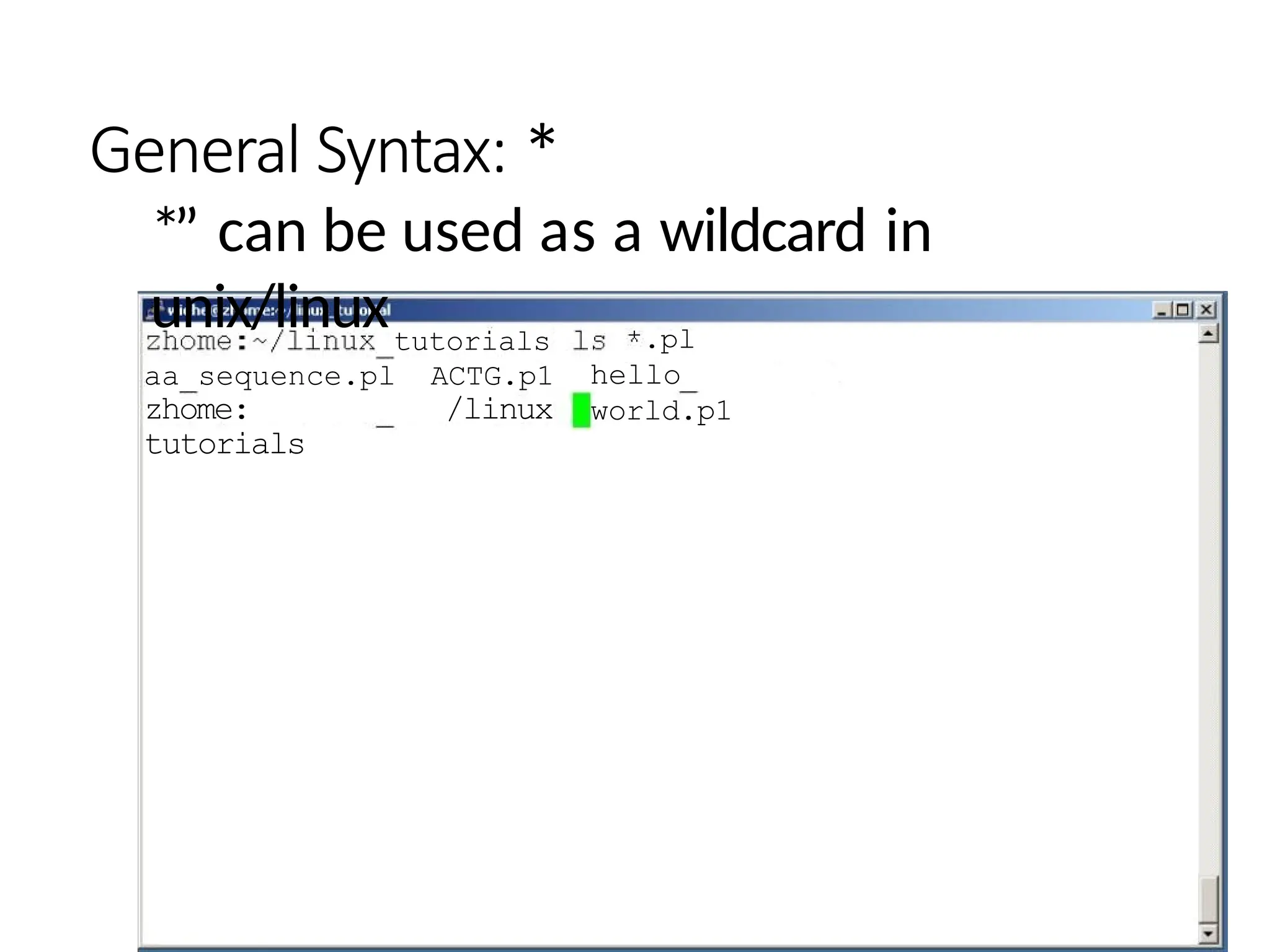
*” can be used as a wildcard in
unix/linuxtutorials
aa sequence.pl ACTG.p1
zhome: /linux
tutorials
.pl
hello
world.p1
Command: mkdir
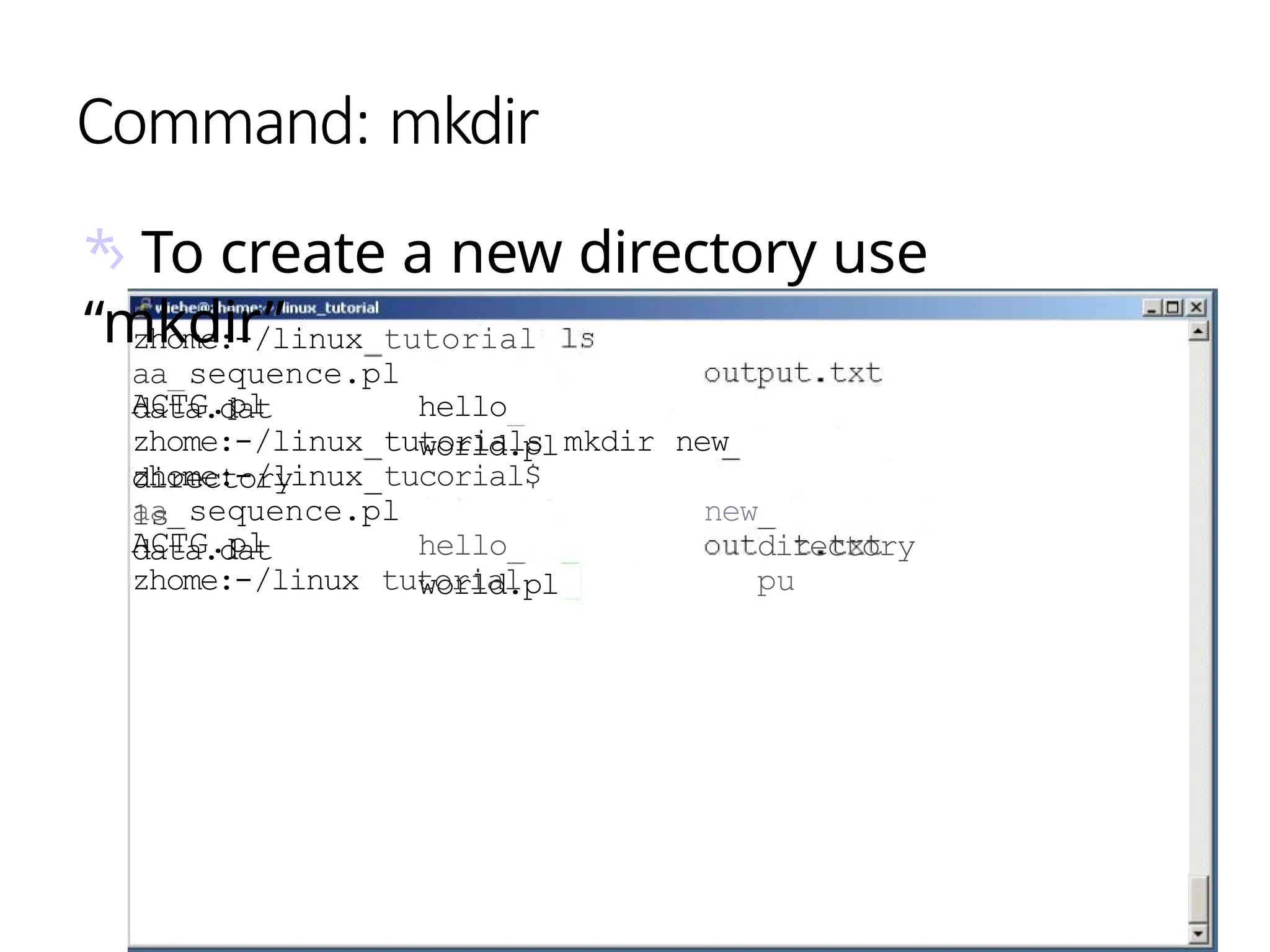
*› To create a new directory use
“mkdir”
zhome:-/linux tutorial
aa sequence.pl
data.dat hello
world.pl
ACTG.pl
zhome:-/linux tutorials mkdir new
directory
zhome:-/linux tucorial$
1s
aa sequence.pl
data.dat hello
world.pl
new
directory
pu
ACTG.pl
zhome:-/linux tutorial
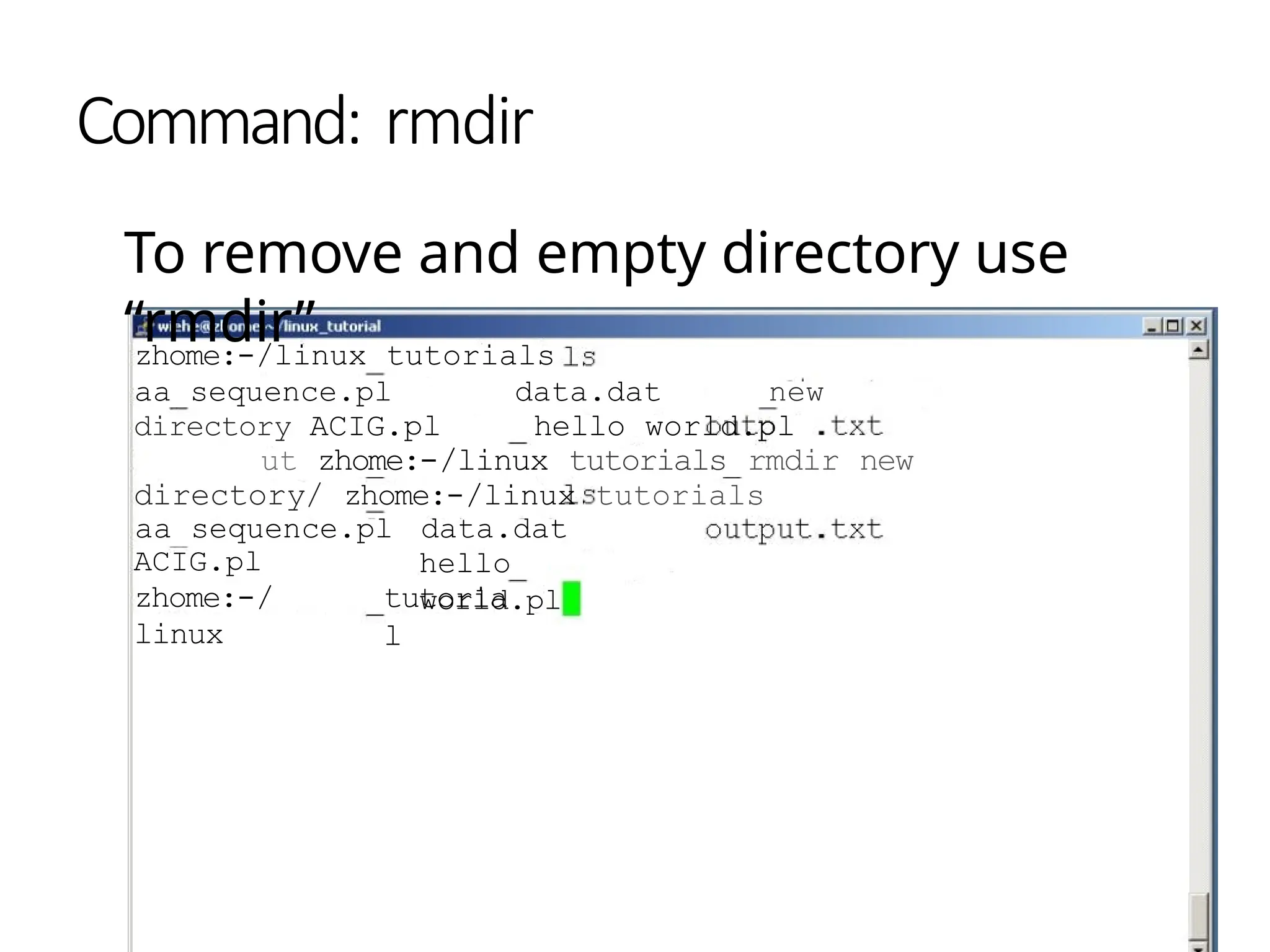
Command: rmdir
To remove and empty directory use
“rmdir”
zhome:-/linux tutorials
aa sequence.pl data.dat new
directory ACIG.pl hello world.pl
ut zhome:-/linux tutorials rmdir new
directory/ zhome:-/linux tutorials
aa sequence.pl data.dat
hello
world.pl
ACIG.pl
zhome:-/
linux
tutoria
l
Displaying a file
Various ways to display a file in
Unix
cat
less
hea
d
tail
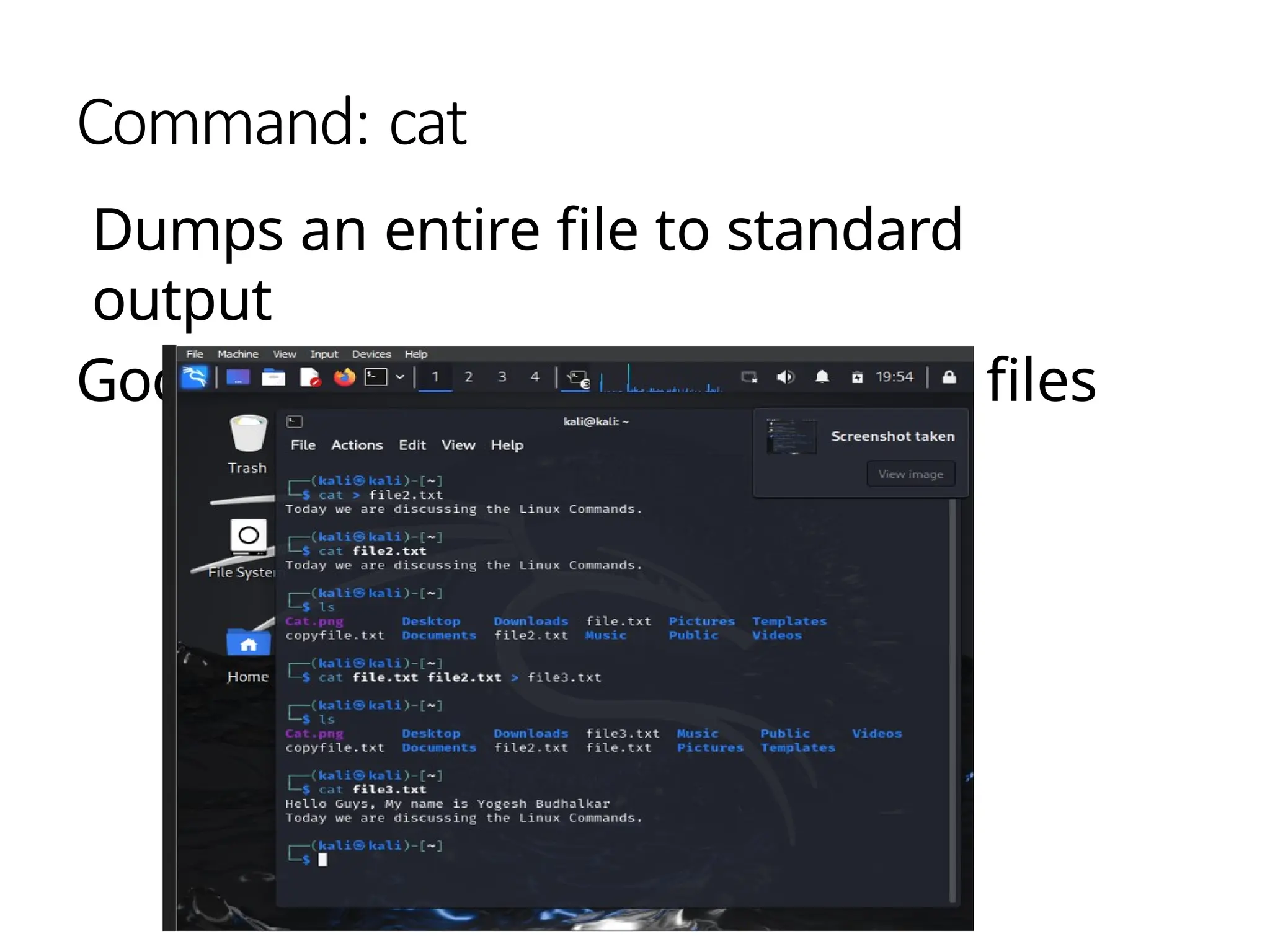
Command: cat
Dumps an entire file to standard
output
Good for displaying short, simple files
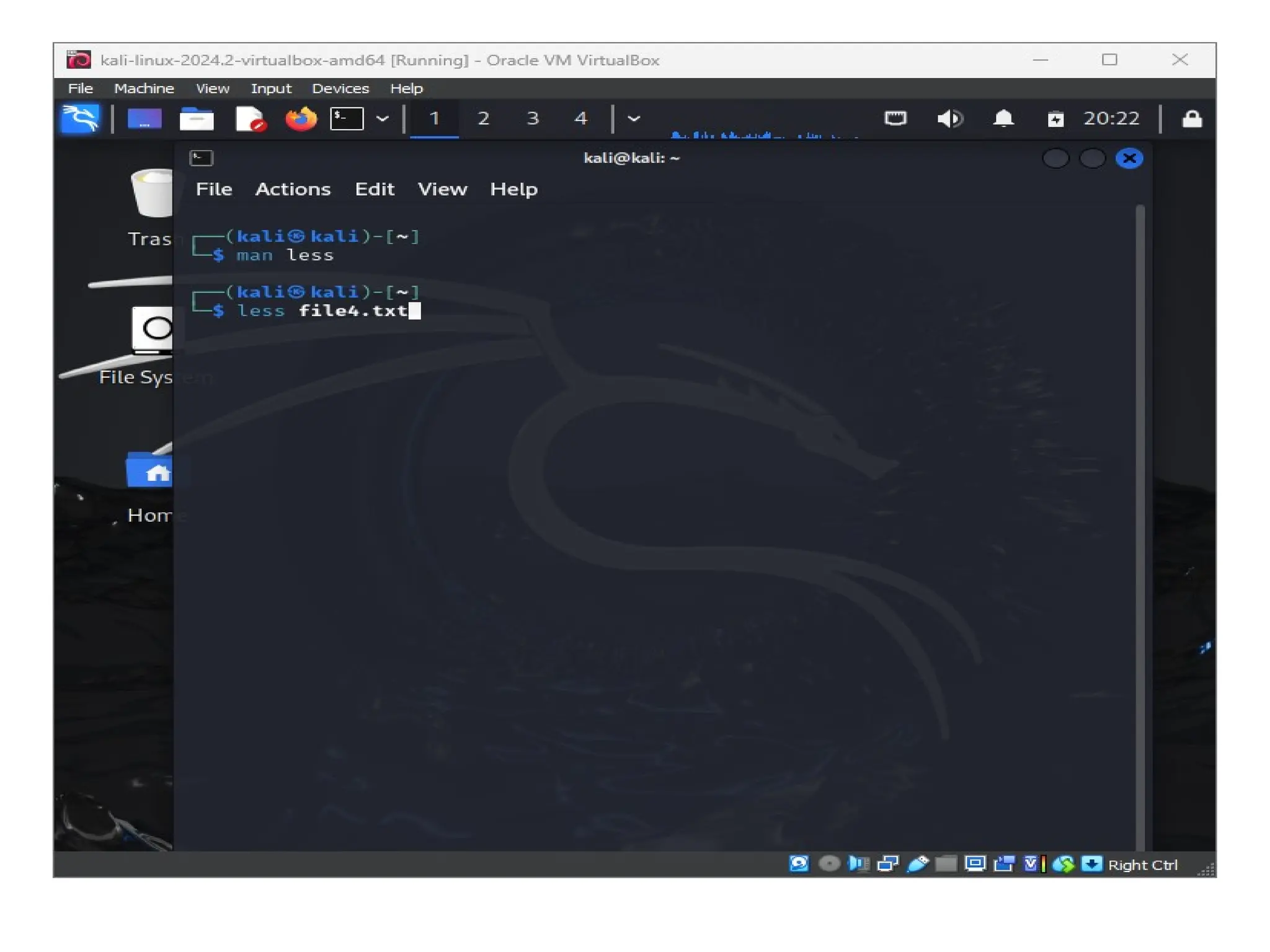
Command: less
• Less command is a Linux utility that can
be used to read the contents of a text file
one page (one screen) at a time. It has
faster access because if a file is large, it
doesn’t access the complete file, but
accesses it page by page.
• use “/” to search for a string
• Press to quit
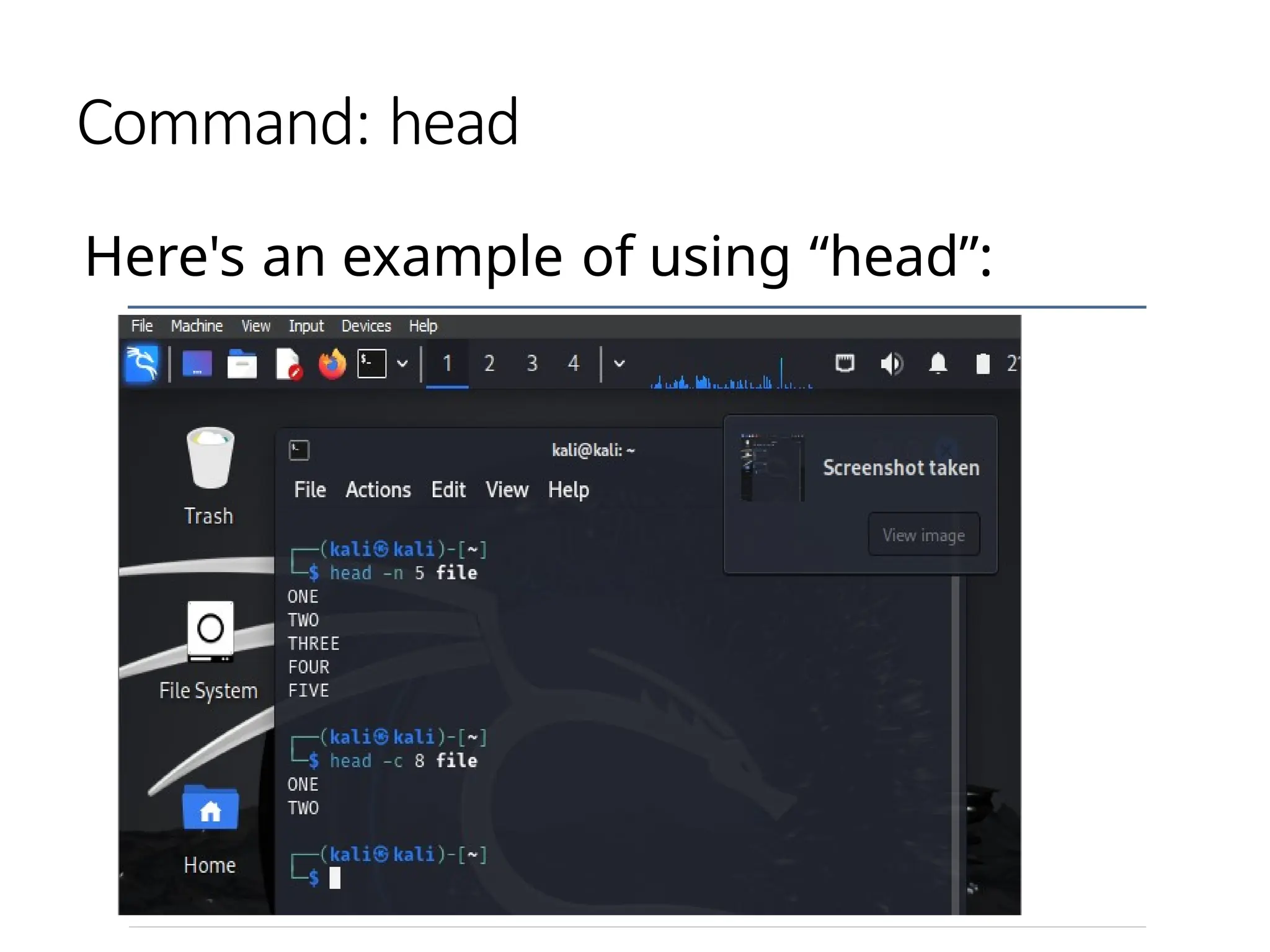
Command: [head (option..) (file..)]
• The head command, as the name
implies, print the top N number
of data of the given input.
• By default, it prints the first 10
lines of the specified files. If more
than one file name is provided
then data from each file is
preceded by its file name.
Command: head
Here's an example of using “head”:
Command: [tail (option..)(filename)]
Same as head, but shows the last
lines
File mands
Copying a file: cp
Move or rename a file:
mv Remove a file: rm
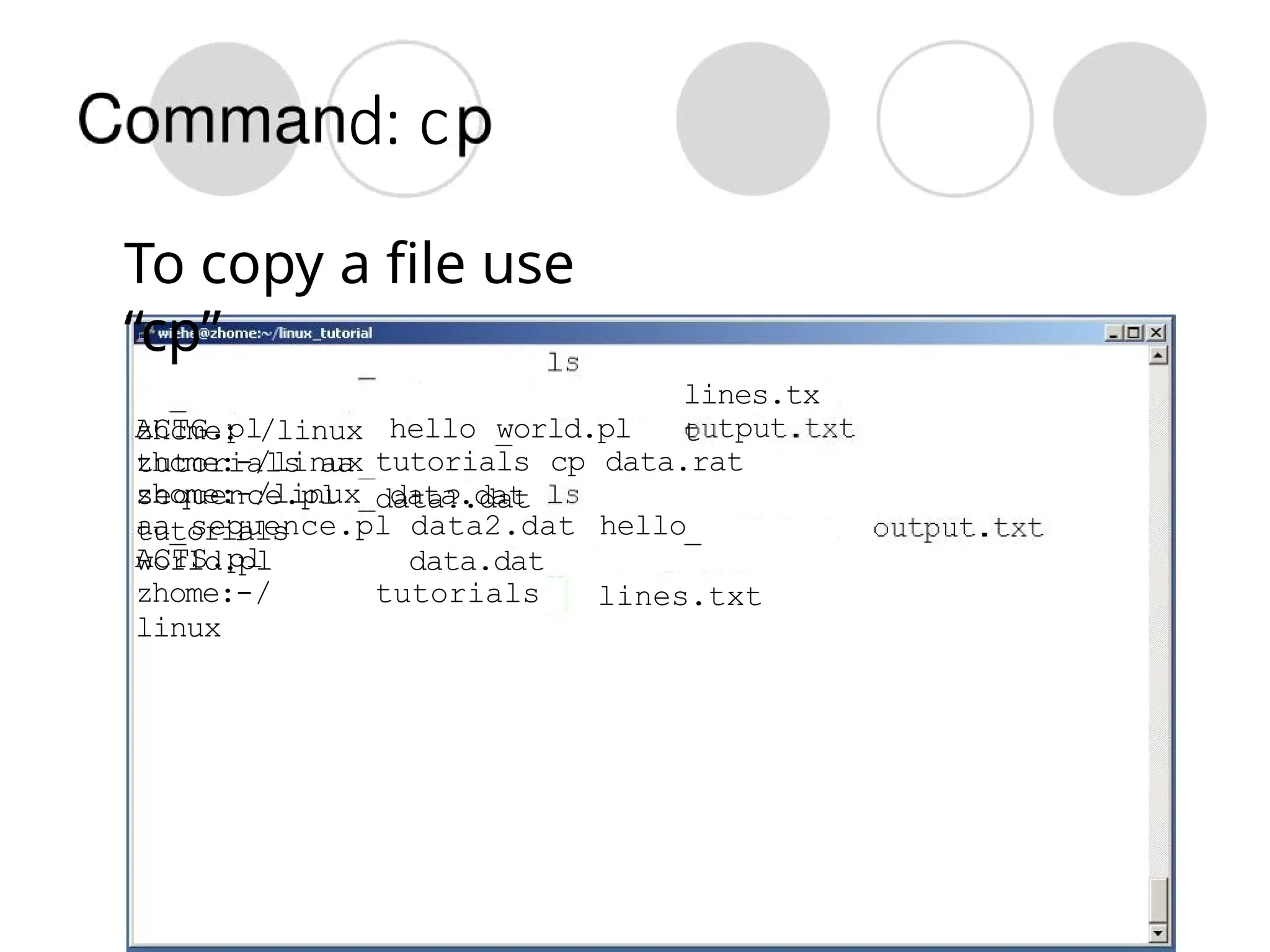
d: c
To copy a file use
“cp”
zhcme: /linux
tutorials aa
sequence.pl data.dat
lines.tx
t tpu
ACTG.pl hello world.pl
zhcme:-/linux tutorials cp data.rat
data?.dat
zhome:-/linux
tutorials
aa sequence.pl data2.dat hello
world.pl
lines.txt
ACTS.pl
zhome:-/
linux
data.dat
tutorials
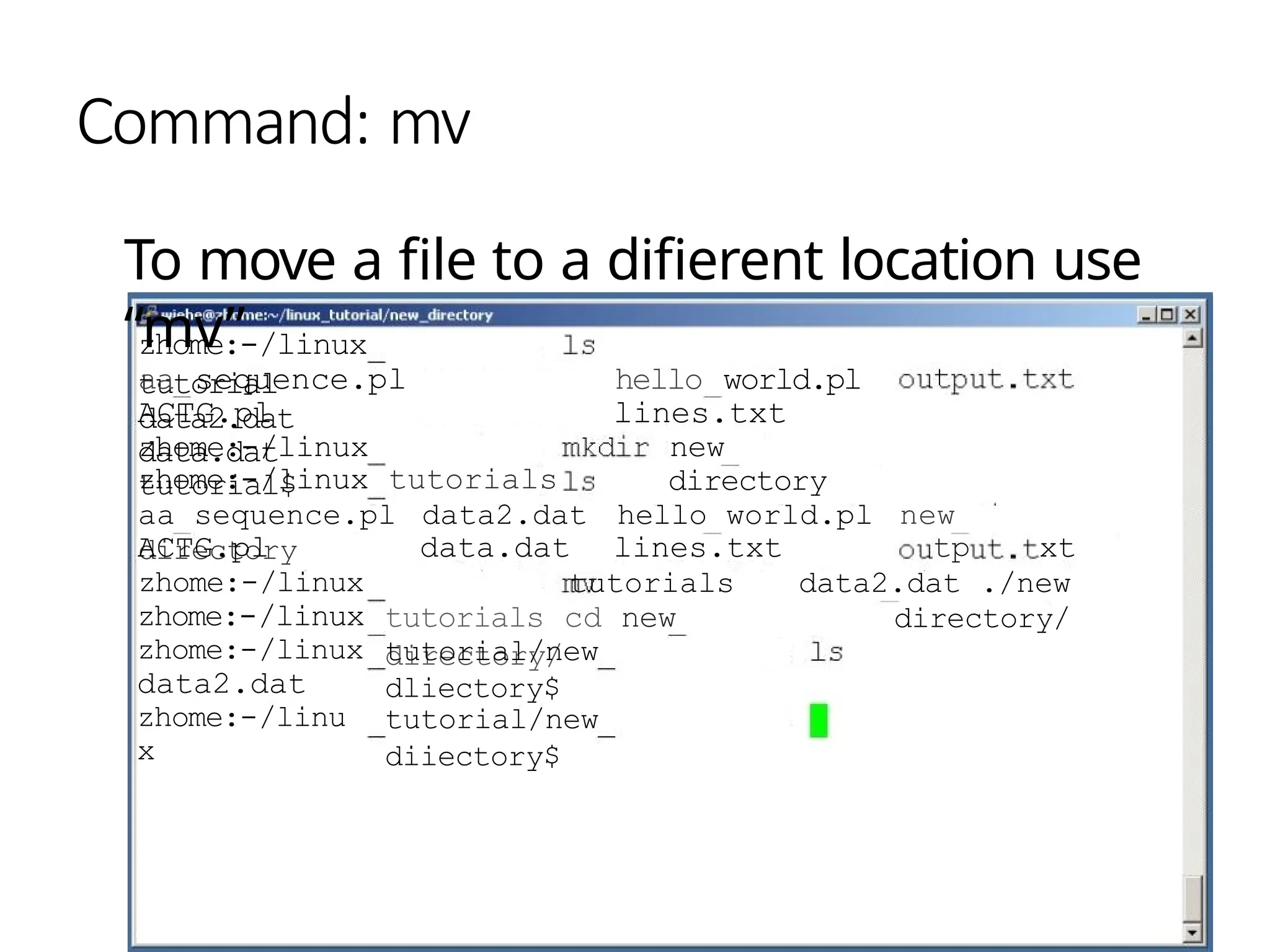
Command: mv
To move a file to a difierent location use
“mv”
zhome:-/linux
tutorial
aa sequence.pl
data2.dat
ACTG.pl
data.dat
zhome:-/linux
tutorial$
hello world.pl
lines.txt
new
directory
zhome:-/linux tutorials
aa sequence.pl data2.dat hello world.pl new
directory data.dat lines.txt tp xt
tutorials data2.dat ./new
directory/
tutorials cd new
directory/
tutorial/new
dliectory$
ACTG.pl
zhome:-/linux
zhome:-/linux
zhome:-/linux
data2.dat
zhome:-/linu
x
tutorial/new
diiectory$
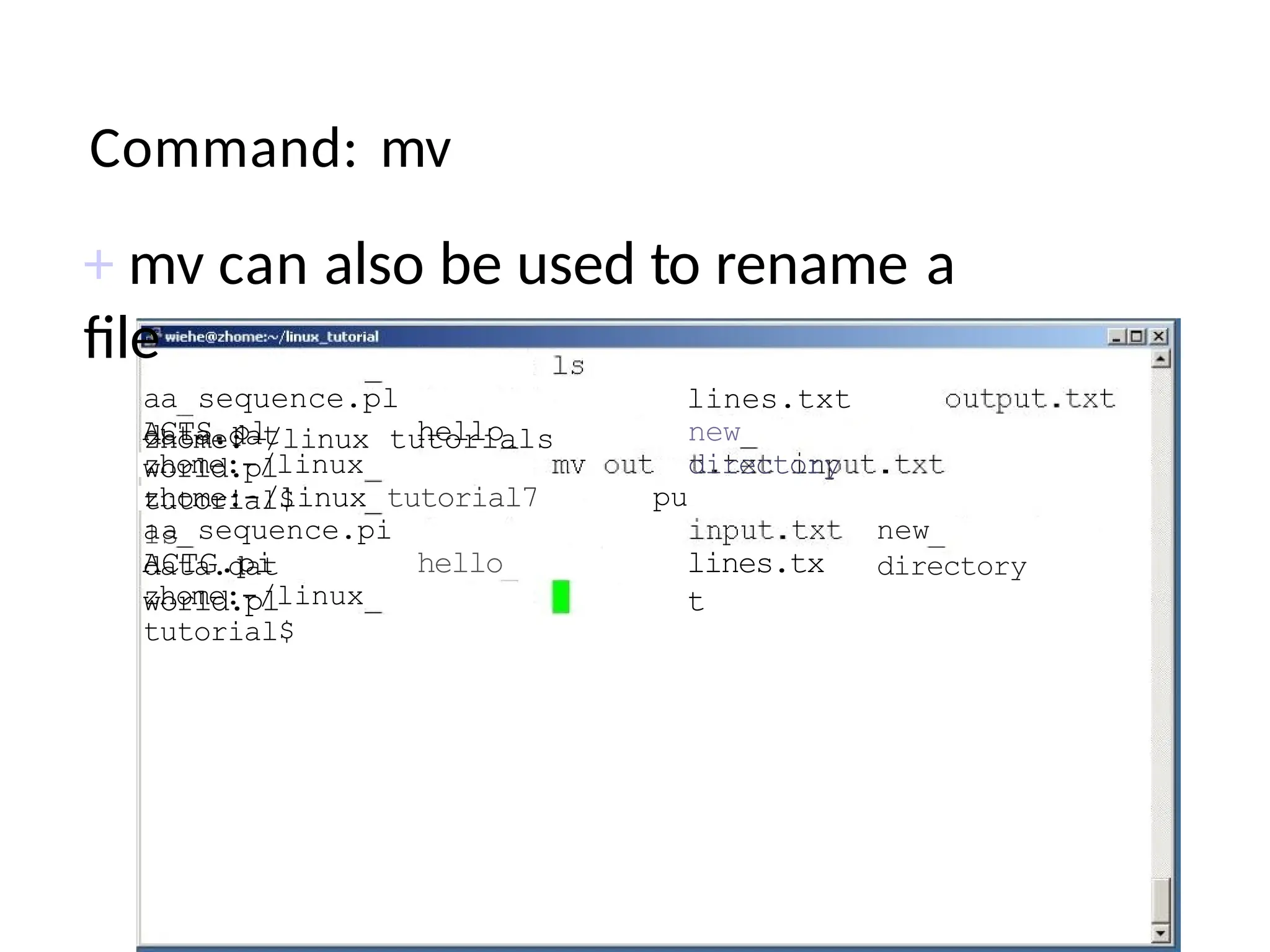
Command: mv
+ mv can also be used to rename a
file
zhome: /linux tutorials
aa sequence.pl
data.dat
ACTS pl hello
world.pl
zhome:-/linux
tutorial$
lines.txt
new
directory
pu
zhome:-/linux tutorial7
1s
aa sequence.pi
data.dat
ACTG.pi hello
world.pl
lines.tx
t
zhome:-/linux
tutorial$
new
directory
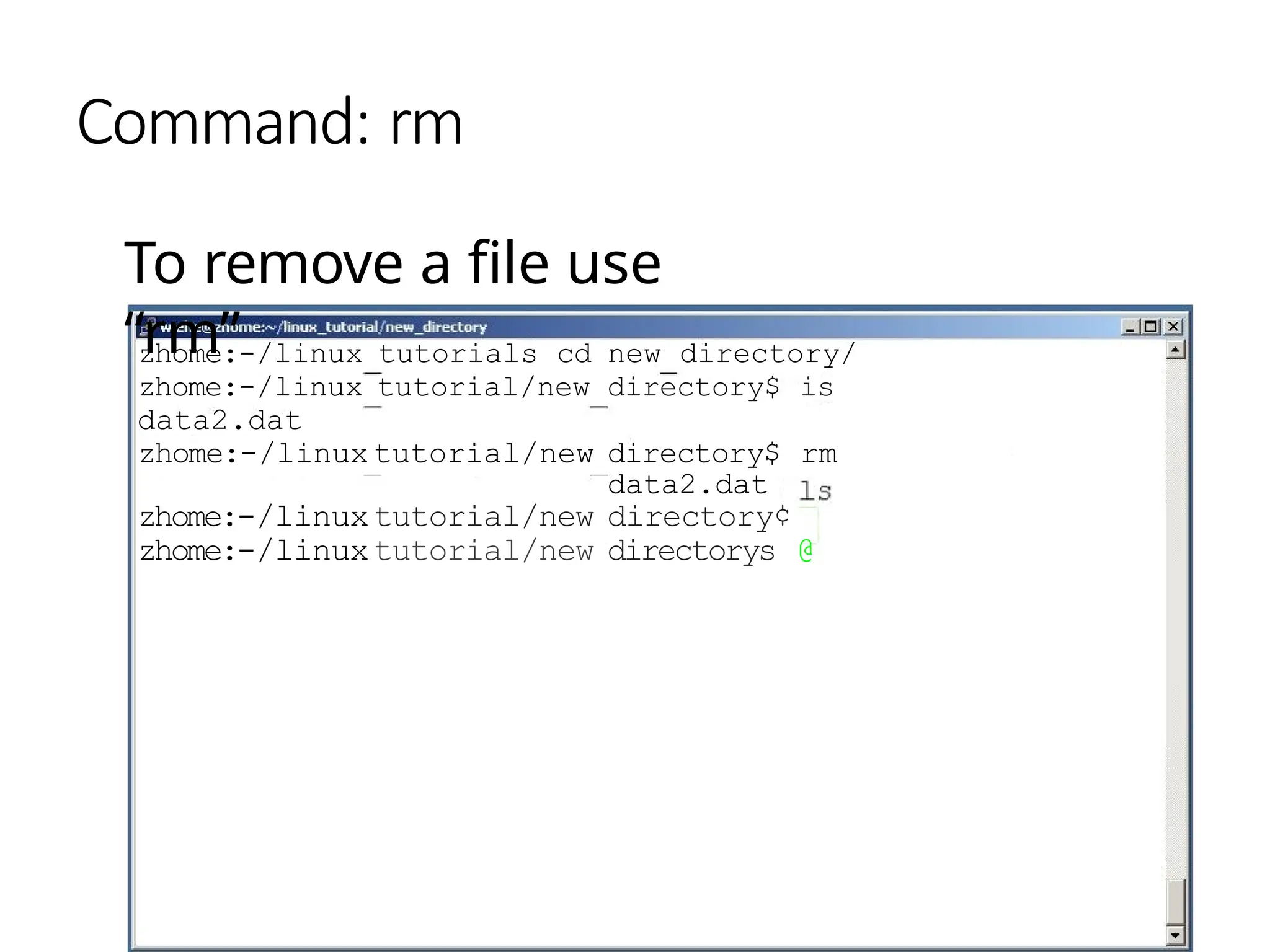
Command: rm
To remove a file use
“rm”
zhome:-/linux tutorials cd new directory/
zhome:-/linux tutorial/new directory$ is
data2.dat
zhome:-/linux tutorial/new directory$ rm
data2.dat
zhome:-/linuxtutorial/new directory¢
zhome:-/linuxtutorial/new directorys @
Command: rm
To remove a file “recursively”: rm r
Used to remove all files and
directories Be very careful, deletions
are permanent
in Unix/Linux
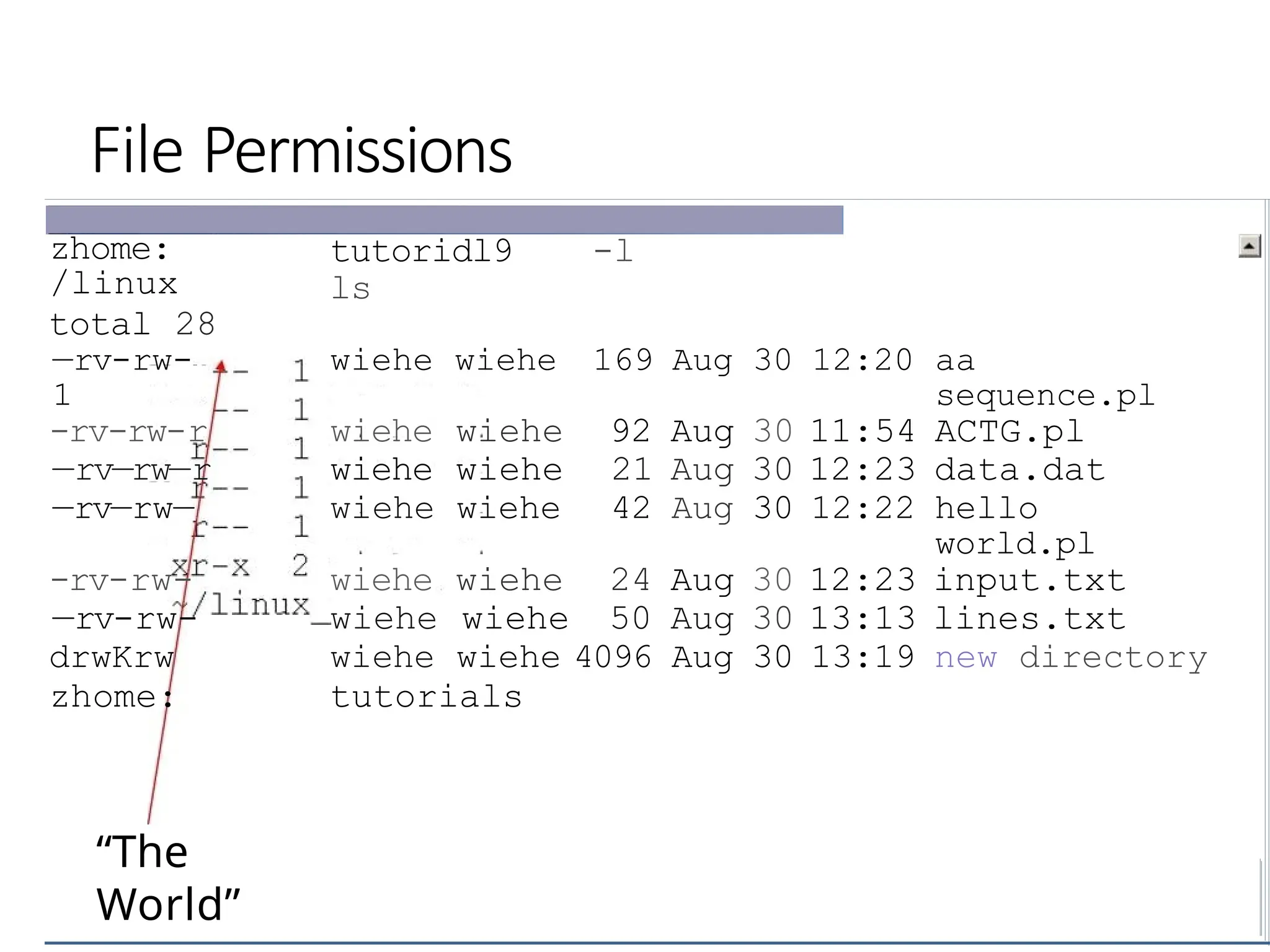
File permissions
Each file in Unix/Linux has an
associated permission level
This allows the user to prevent others
from reading/writing/executing their
files or directories
Use “Is -I filename” to find the
permission level of that file
Permission levels
“r” means “read only” permission
“w” means “write” permission
“x” means “execute” permission
In case of directory, “x” grants
permission to list directory contents
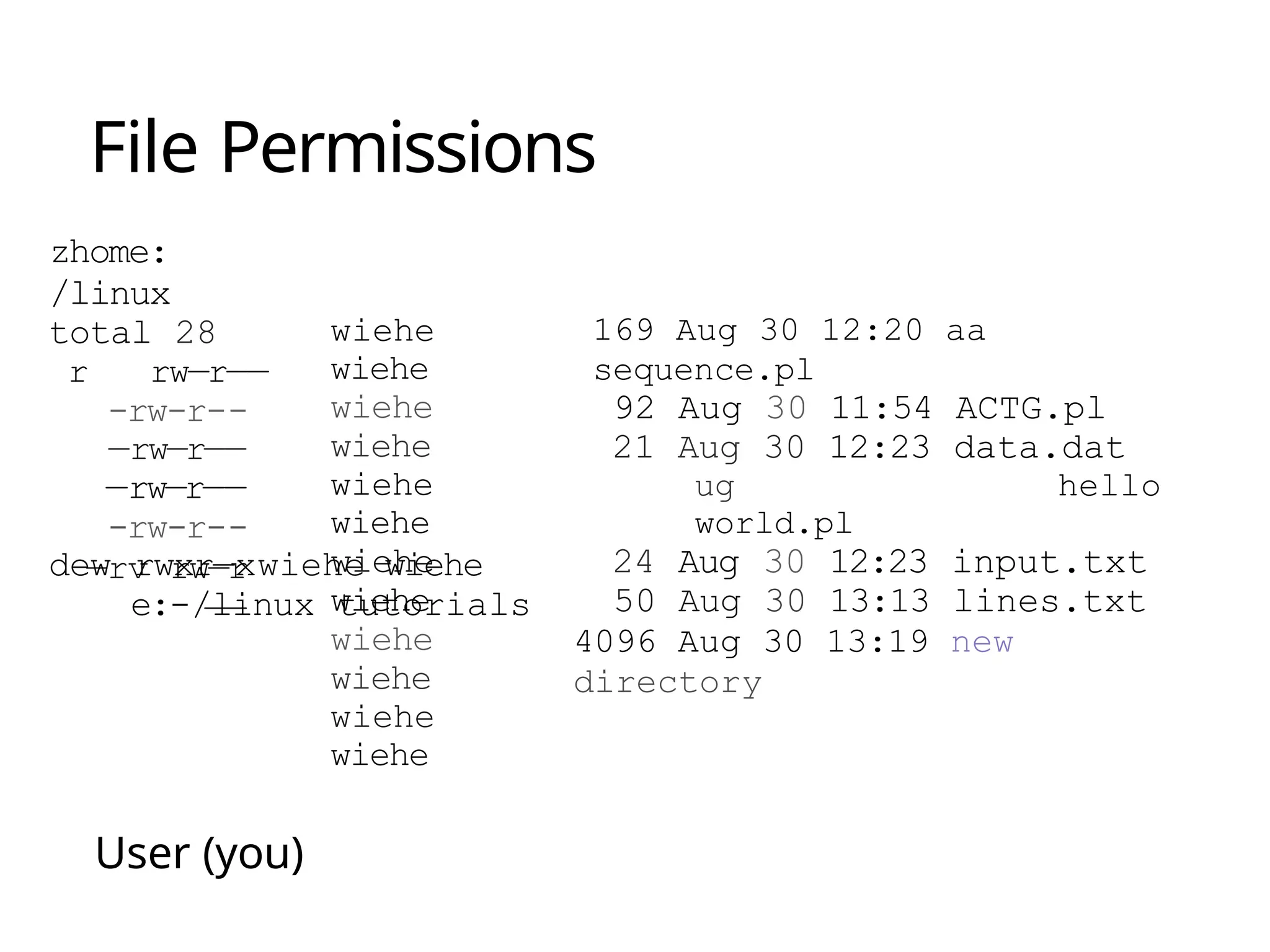
File Permissions
zhome:
/linux
total 28
r rw—r——
-rw-r--
—rw—r——
—rw—r——
-rw-r--
—rv rw—r
——
wiehe
wiehe
wiehe
wiehe
wiehe
wiehe
wiehe
wiehe
wiehe
wiehe
wiehe
wiehe
dew rwxr—xwiehe wiehe
e:-/linux tutorials
User (you)
169 Aug 30 12:20 aa
sequence.pl
92 Aug 30 11:54 ACTG.pl
21 Aug 30 12:23 data.dat
ug hello
world.pl
24 Aug 30 12:23 input.txt
50 Aug 30 13:13 lines.txt
4096 Aug 30 13:19 new
directory
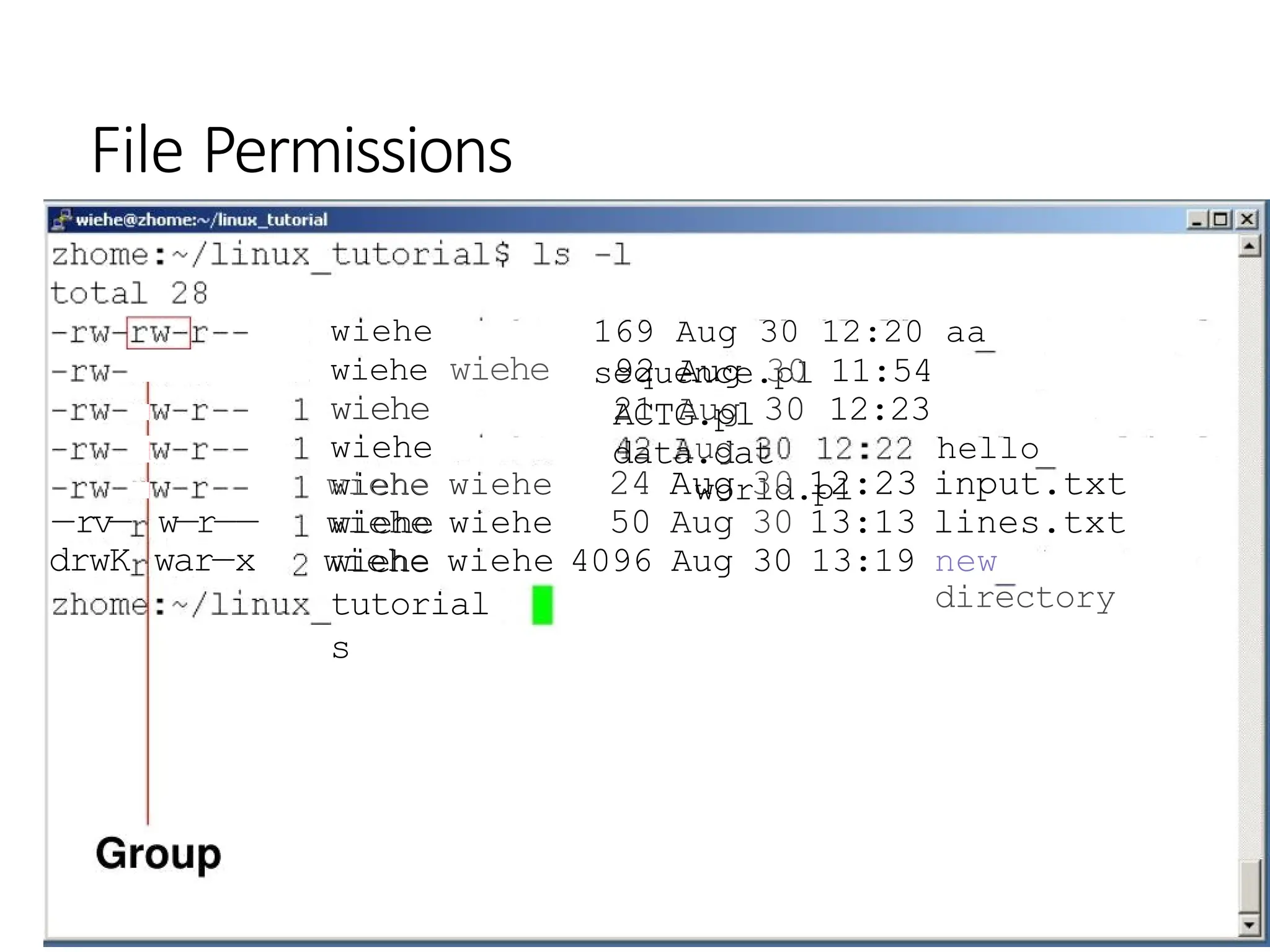
File Permissions
wiehe
wiehe wiehe
wiehe
wiehe
wiehe
wiehe
wiehe
tutorial
s
169 Aug 30 12:20 aa
sequence.pl
92 Aug 30 11:54
ACTG.pl
21 Aug 30 12:23
data.dat
ug hello
world.pl
wiehe wiehe 24 Aug 30 12:23 input.txt
—rv— w—r—— wiehe wiehe 50 Aug 30 13:13 lines.txt
drwK war—x wiehe wiehe 4096 Aug 30 13:19 new
directory
File Permissions
zhome:
/linux
total 28
tutoridl9
ls
-l
—rv-rw-
1
wiehe wiehe 169 Aug 30 12:20 aa
sequence.pl
-rv-rw-r wiehe wiehe 92 Aug 30 11:54 ACTG.pl
—rv—rw—r wiehe wiehe 21 Aug 30 12:23 data.dat
—rv—rw— wiehe wiehe 42 Aug 30 12:22 hello
world.pl
-rv-rw- wiehe wiehe 24 Aug 30 12:23 input.txt
—rv-rw- wiehe wiehe 50 Aug 30 13:13 lines.txt
drwKrw wiehe wiehe 4096 Aug 30 13:19 new directory
zhome: tutorials
“The
World”
Command: chmod
•If you own the file, you can change it's permissions with
“chmod”
•Syntax: chmod [user/group/others/alI]+[permission] [file(s)]
Below we grant execute permission to all:
—rw—rw—r—— 1 wiehe
wiehe chmo
d
world.pl
12 22 hello
world.pl hello
world.pl
zhome:-/linux tutorials
—rwxrwxr—x wiehe wiehe 42 Aug 30
12:
zhome:-/linux tutorial$
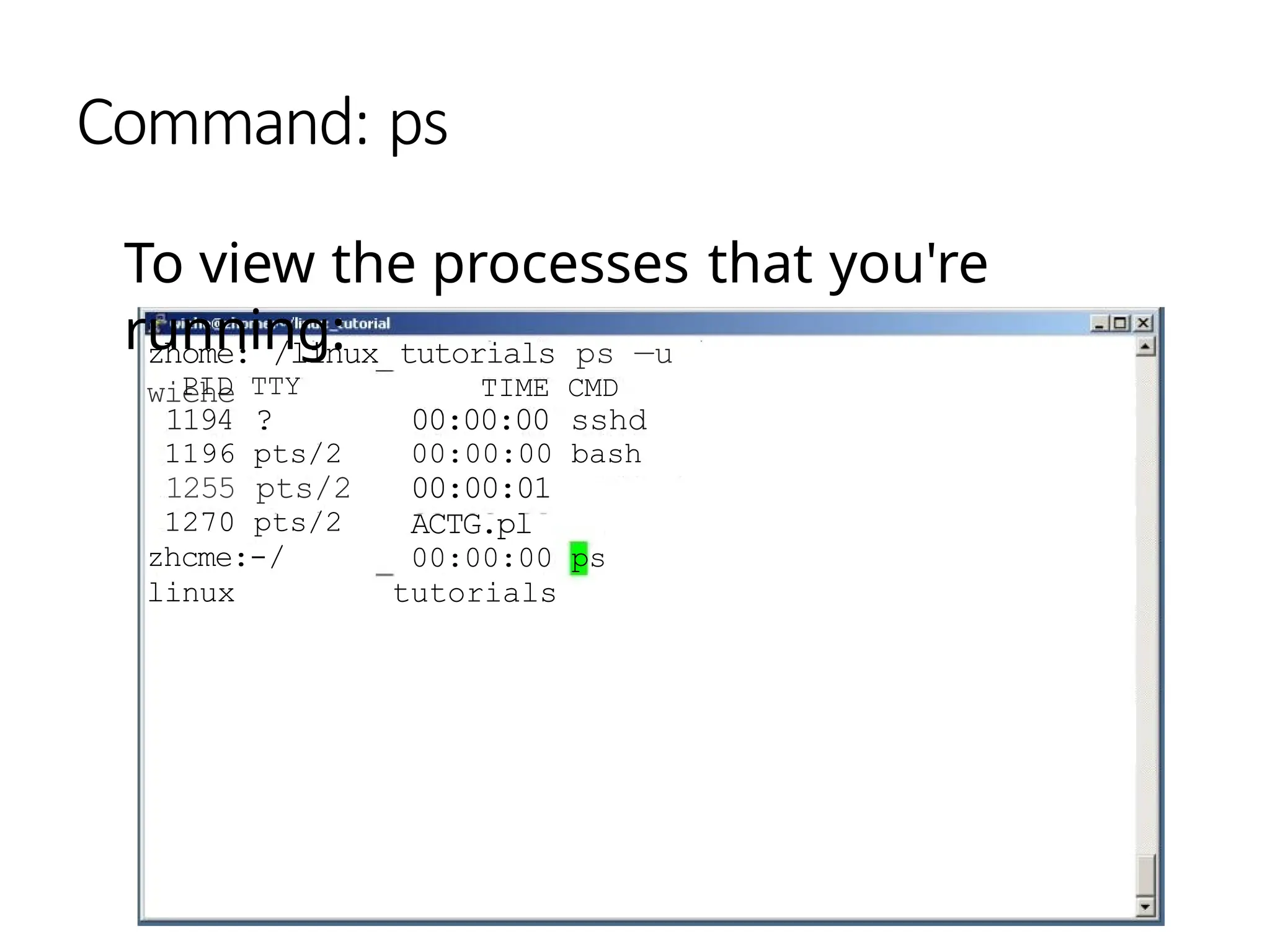
Command: ps
To view the processes that you're
running:
zhome: /linux tutorials ps —u
wiehe TIME CMD
PID TTY
1194 ?
1196 pts/2
1255 pts/2
1270 pts/2
zhcme:-/
linux
00:00:00 sshd
00:00:00 bash
00:00:01
ACTG.pl
00:00:00 ps
tutorials
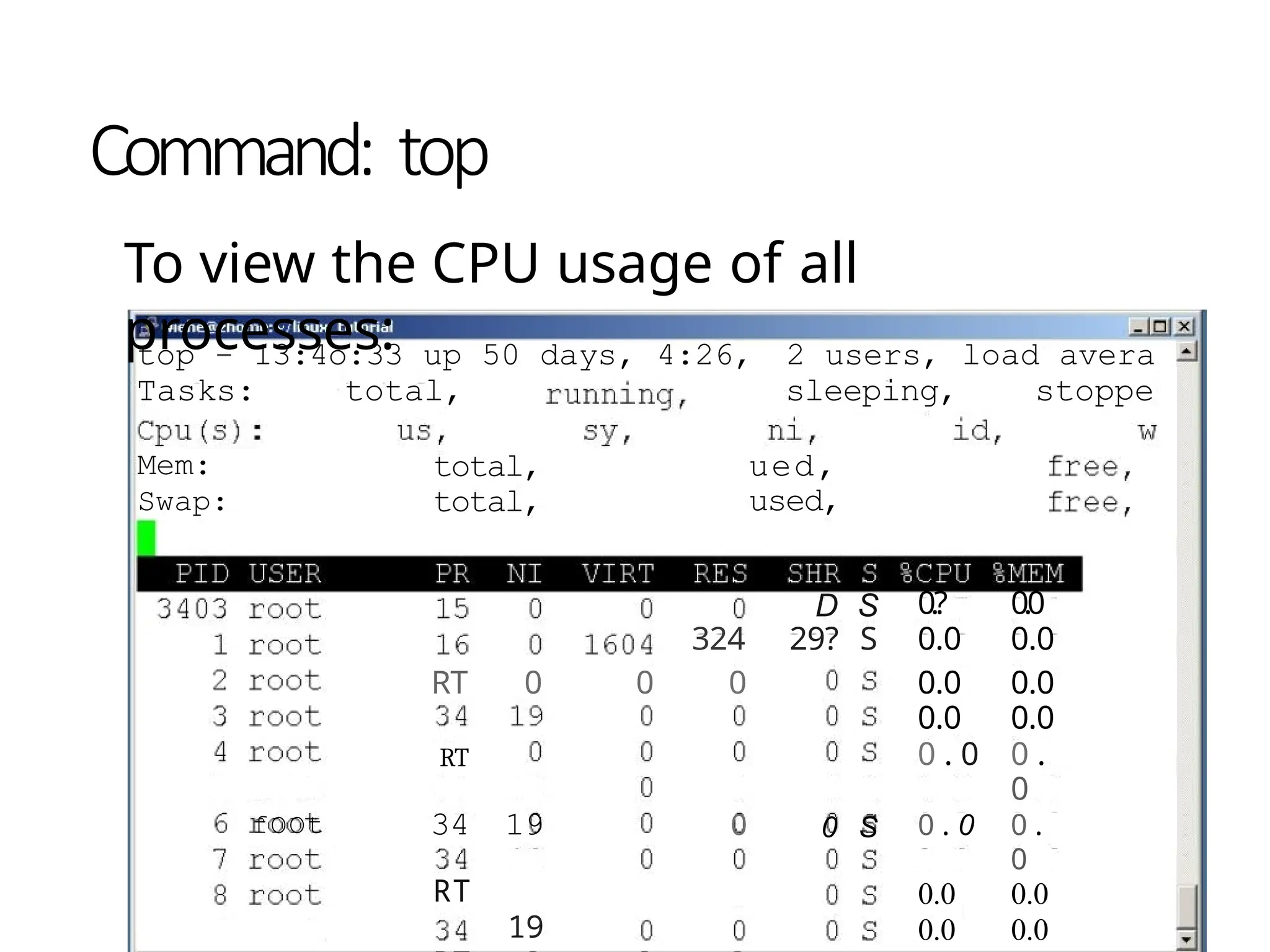
Command: top
To view the CPU usage of all
processes:
top - 13:4o:33 up 50 days, 4:26, 2 users, load avera
Tasks: total, sleeping, stoppe
Mem:
Swap:
total,
total,
ued,
used,
D S 0.? 0.0
324 29? S 0.0 0.0
RT 0 0 0 0.0 0.0
0.0 0.0
RT 0 . 0 0 .
0
fOOt 34 19 0 0 S 0 . 0 0 .
0
RT 0.0 0.0
19 0.0 0.0
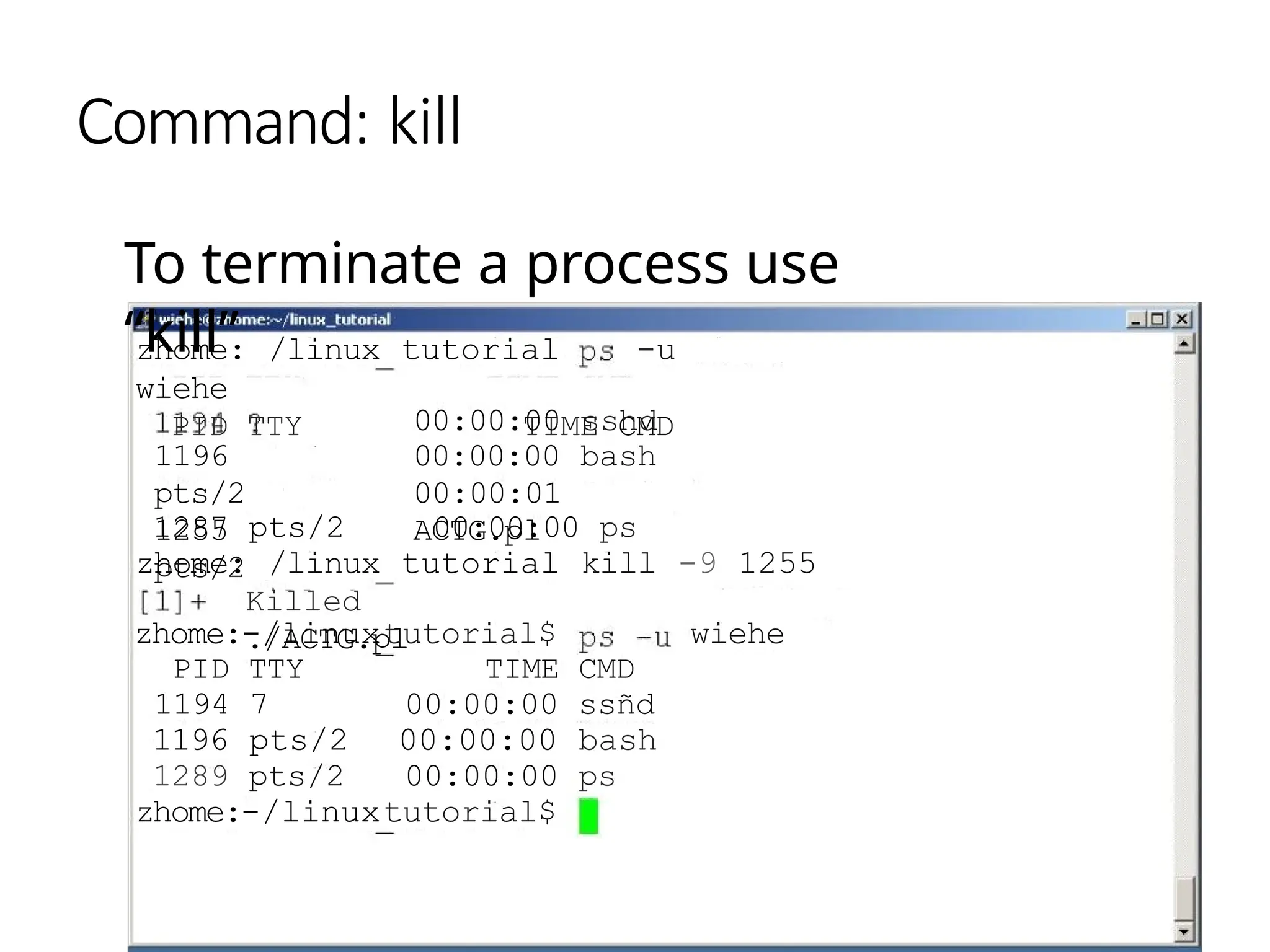
Command: kill
To terminate a process use
“kill”
zhome: /linux tutorial -u
wiehe
PID TTY TIME CMD
1196
pts/2
1255
pts/2
00:00:00 sshd
00:00:00 bash
00:00:01
ACTG.pl
1287 pts/2 00:00:00 ps
zhome: /linux tutorial kill -9 1255
Killed
./ACTG.pl
zhome:-/linuxtutorial$ wiehe
PID TTY TIME CMD
1194 7 00:00:00 ssñd
1196 pts/2 00:00:00 bash
1289 pts/2 00:00:00 ps
zhome:-/linuxtutorial$
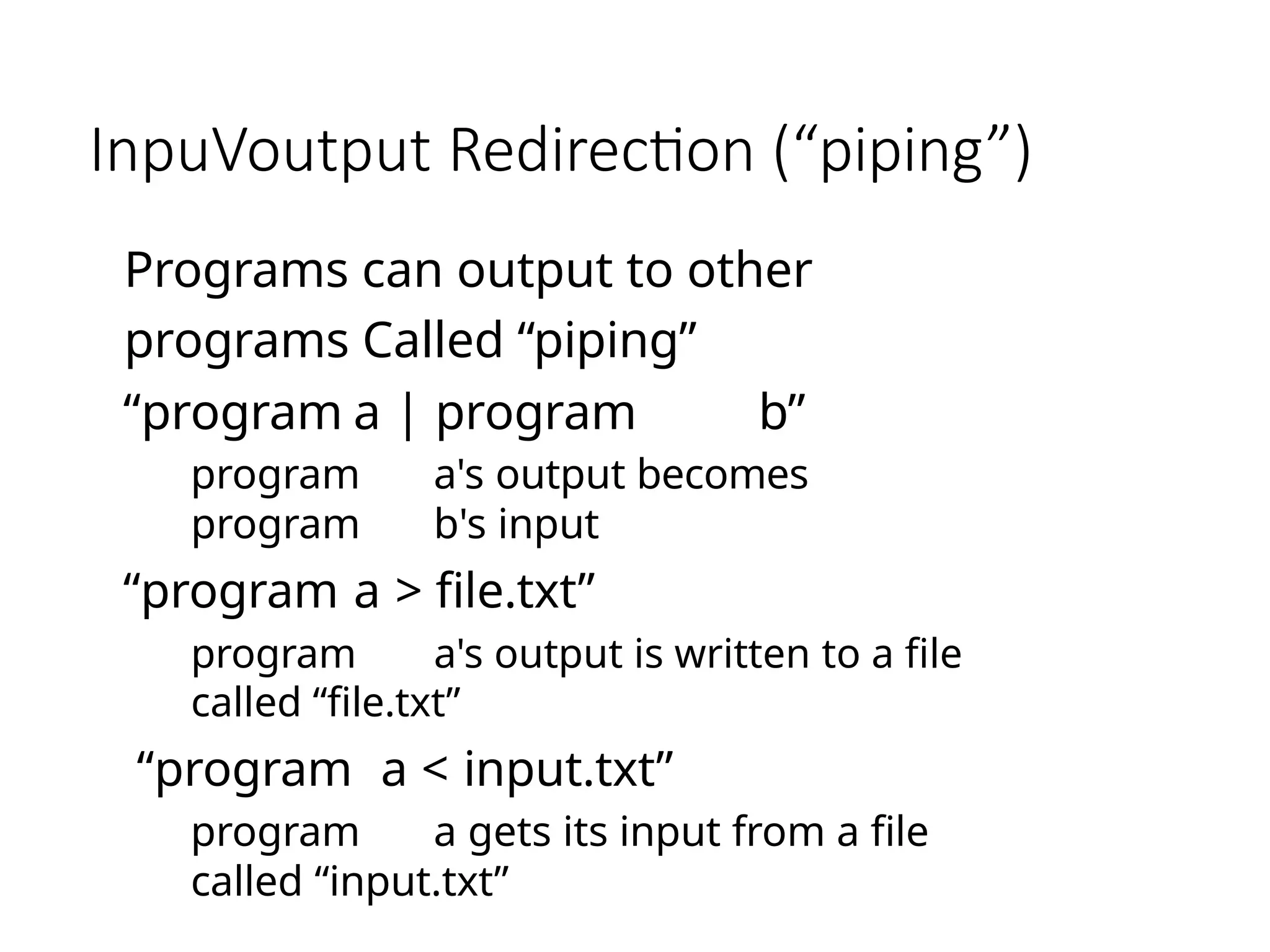
InpuVoutput Redirection (“piping”)
Programs can output to other
programs Called “piping”
“program a | program b”
program a's output becomes
program b's input
“program a > file.txt”
program a's output is written to a file
called “file.txt”
“program a < input.txt”
program a gets its input from a file
called “input.txt”
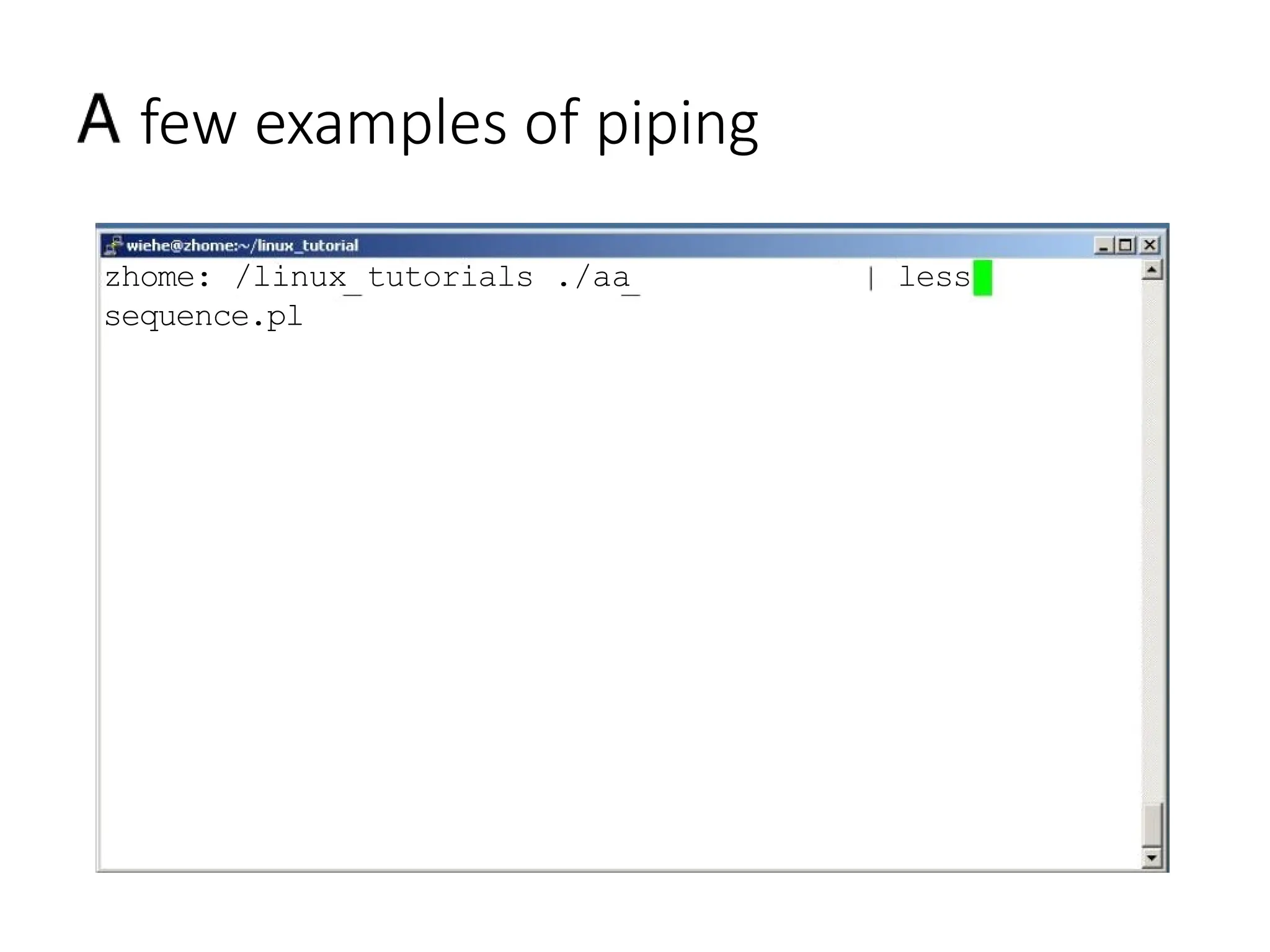
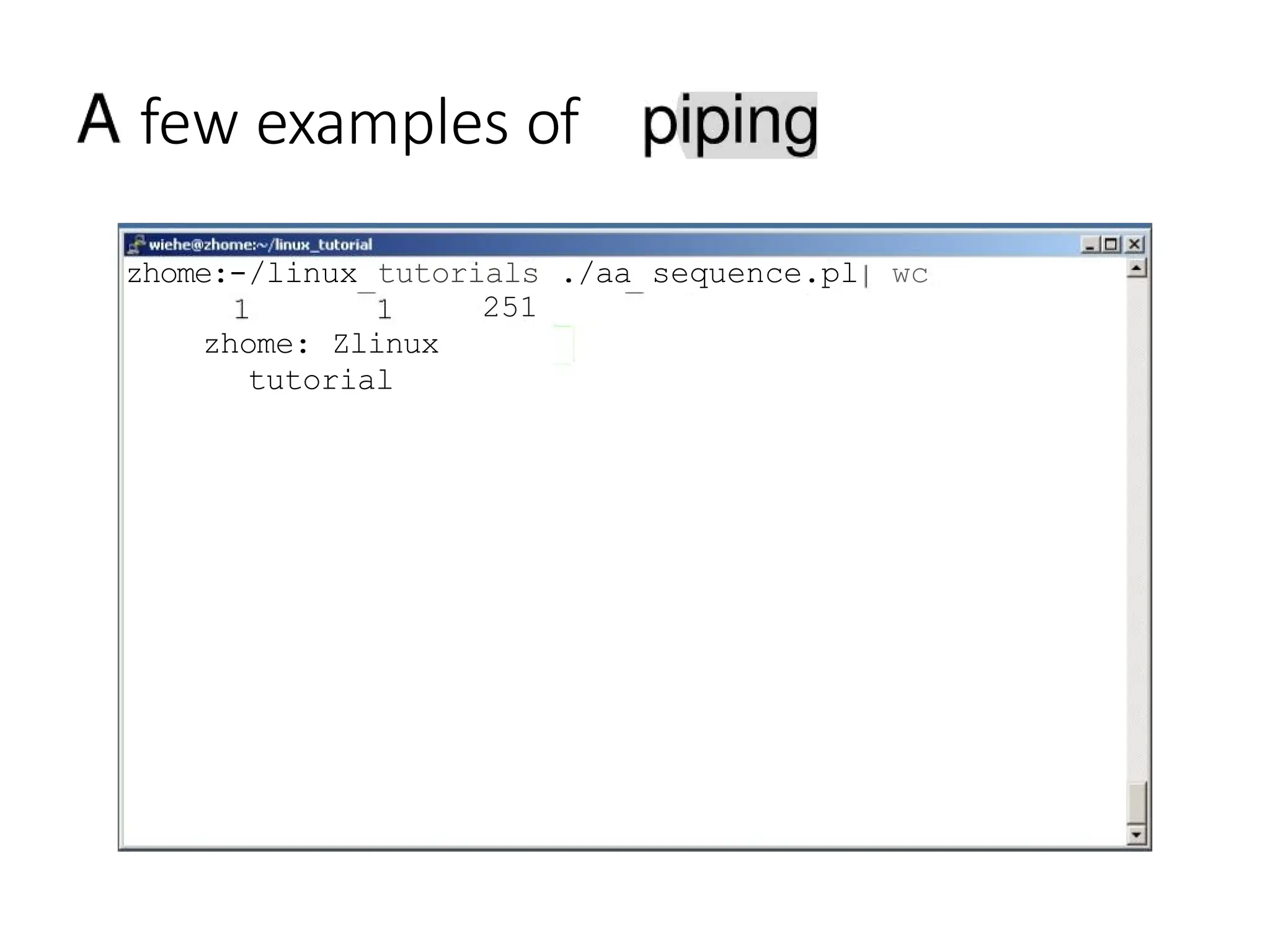
few examples of piping
zhome: /linux tutorials ./aa
sequence.pl
less
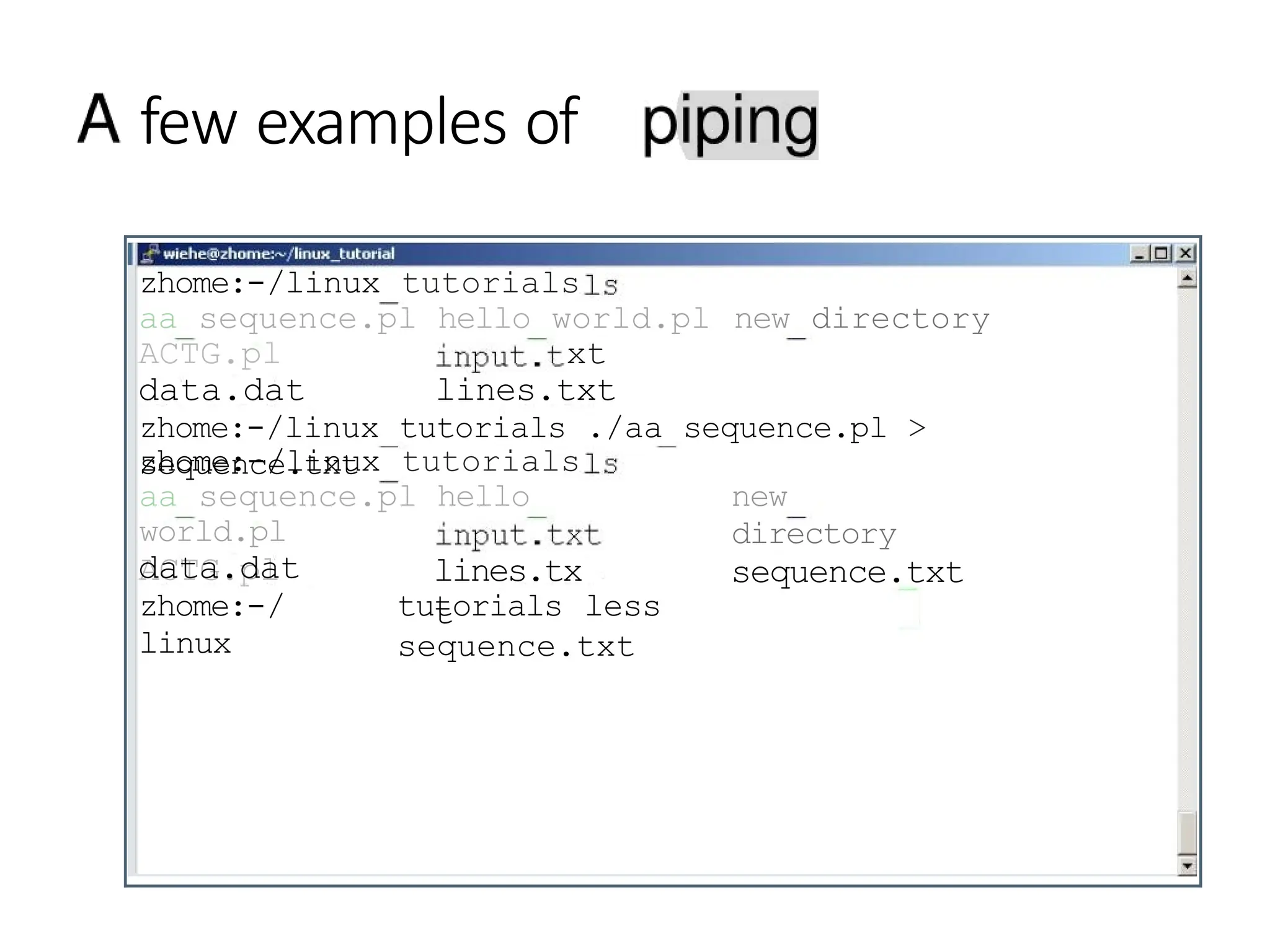
few examples of
zhome:-/linux tutorials
aa sequence.pl hello world.pl new directory
ACTG.pl xt
data.dat lines.txt
zhome:-/linux tutorials ./aa sequence.pl >
sequence.txt
zhome:-/linux tutorials
aa sequence.pl hello
world.pl
ACTG.pl
new
directory
sequence.txt
lines.tx
t
data.dat
zhome:-/
linux
tutorials less
sequence.txt
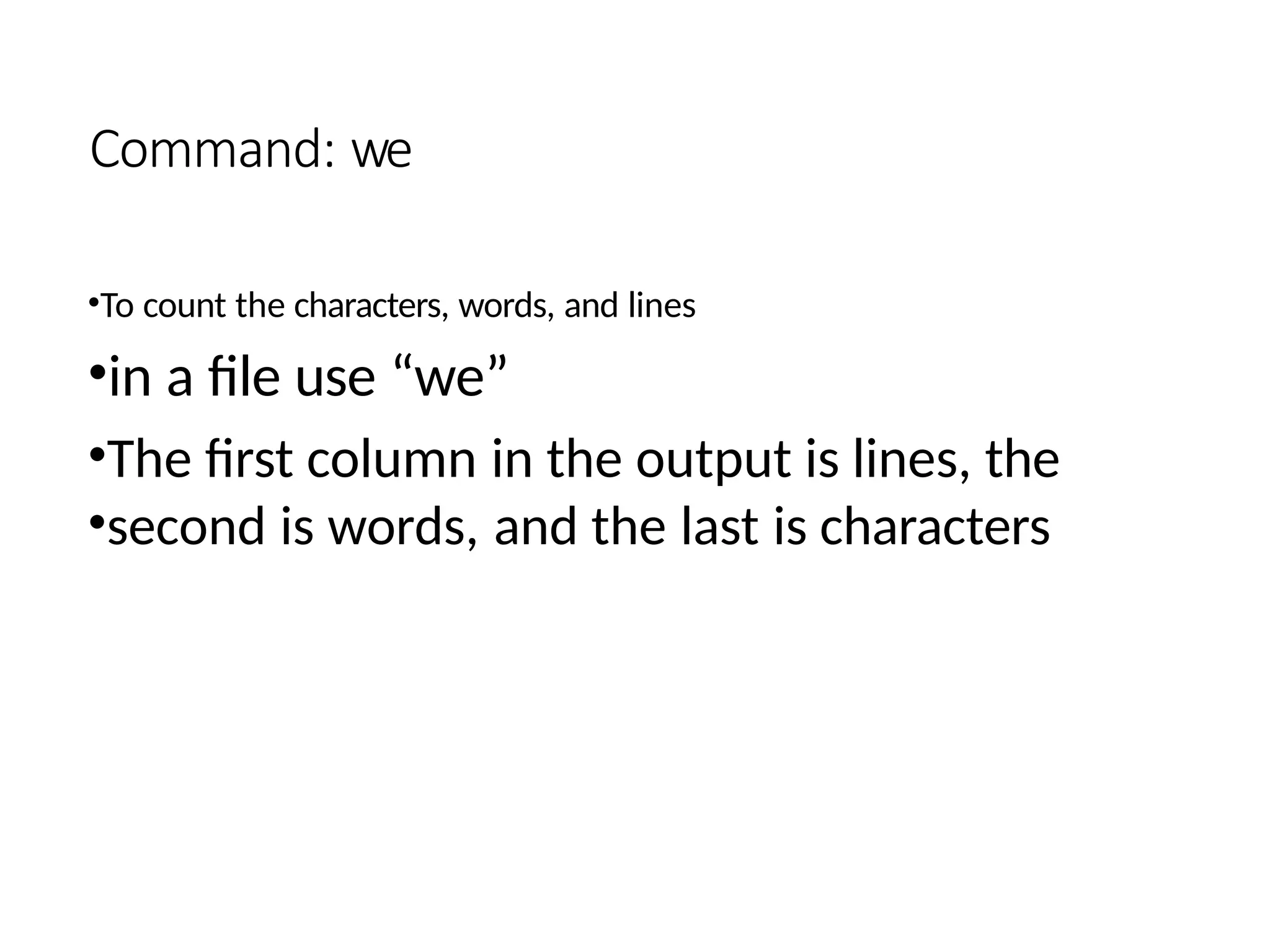
Command: we
•To count the characters, words, and lines
•in a file use “we”
•The first column in the output is lines, the
•second is words, and the last is characters
few examples of
zhome:-/linux tutorials ./aa sequence.pl wc
251
zhome: Zlinux
tutorial
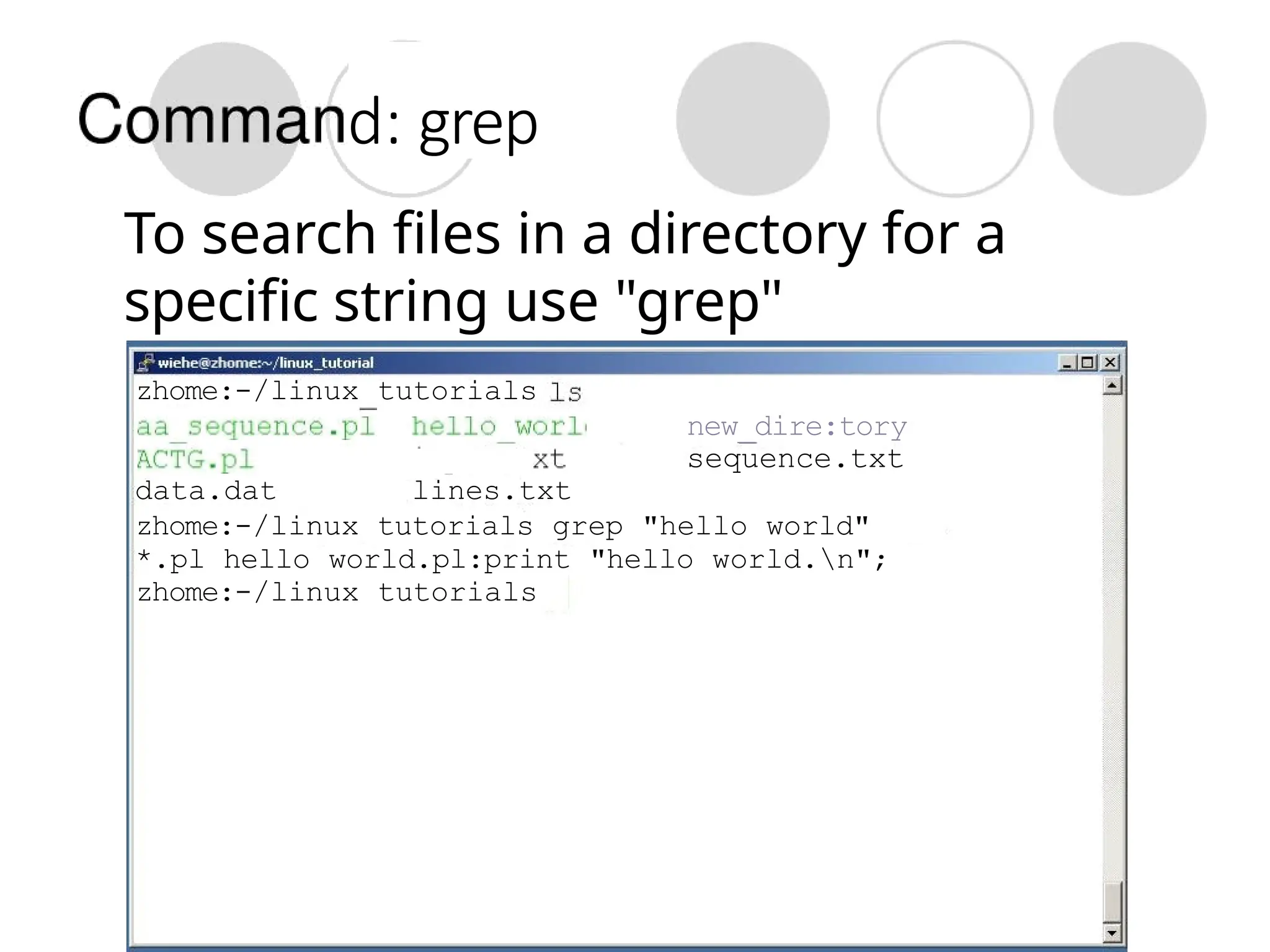
d: grep
To search files in a directory for a
specific string use "grep"
zhome:-/linux tutorials
new_dire:tory
sequence.txt
data.dat lines.txt
zhome:-/linux tutorials grep "hello world"
*.pl hello world.pl:print "hello world.n";
zhome:-/linux tutorials
Command: diff
To compare to files for differences use
“diff”
Try: diff /dev/null hello.txt
/dev/null is a special address it is
always empty, and anything moved
there is deleted

LINUX_COMMANDS_FOR_BEGINNERS_POWERPOINTPRESENTATION.pptx

  • 2.
    Connecting to aUnix/Linux system Open up a terminal: zhome:-/linux tutorials
  • 3.
    Connecting to aUnix/Linux system Open up a terminal: zhome:-/linux tutorials The host The “prompt” The current directory (“path”)
  • 4.
    What exactly isa “shell”? After logging in, Linux/Unixstarts another program called the shell The shell interprets commands the user types and manages their execution The shell communicates with the internal part of the operating system called the kernel The most popular shells are: tcsh, csh, korn, and bash The differences are most times subtle For this tutorial, we are using bash Shell commands are C A S E SENSITIVE!
  • 5.
    Help ! Whenever you needhelp with a command type “man” and the command name
  • 6.
    Help! zhome:-/linux tutorials man iWhatmanual page do you want? zhome:-/linux tutorials man echo zhome:-/linux tutorials
  • 7.
    ECHO ( 1)User Commands ECHO(1) echo — display a line of text SYNOPSIS echo [OPTION]... [STRING]... DESCRIPTION NOTE: your shell may have its own version of echo which will supercede the version described here. Please refer to your shellas documentation for details about the options it supports. Echo the STRING(s) to standard output. do not output the trailing newline Help!
  • 8.
    Help! zhome:•/linux tutorials man Whatmanual page do you want? zhome:-/linux tutorials man echo hello world zhome:-/linux tutorials hello world zhome:-/linux tutorial$
  • 9.
    nix/Linux File System bi n NOTE:Unix file names are CASE SENSITIVE! /home/ mary/ /home/john/ portfolio/ The Path
  • 10.
    Command: pwd To findyour current path use “pwd” pwd /fs/zhome05/mete/linux tutorial tutorials
  • 11.
    Command: cd + Tochange to a specific directory use “cd” zhome:-$ pwd /fs/zhome05/wiehe zhome:-3 cd /fs/zhome05/wiehe/linux tutorial/ zhome:-/linux tutorial pwd /fs/zhome05/wiehe/linux tutorial zhome:-/linux tutorials
  • 12.
    Command: cd -” isthe location ofour home directo zhoue:-/linux tutorials pwd /fs/zhome05/wiehe/linux tutorial zhome: /linux tutorials cd - zhome: $ pwd /fs/zhome05/wiehe zhome:•
  • 13.
    irectory below d: c “. ”is the location of the current one zhome:-/linux tutorials pwd /fs/zhome05/wiehe/linux tutorial zhome:-/linux tutorials cd .. zhome:-$ pwd /fs/zhome05/wiehe zhome:-$
  • 14.
    Command: Is To listthe files in the current directory use “Is” zhome:-/linux aa sequence.pl ACTG.pl zho data.dat hello world.pl tutorial$
  • 15.
    Command: Is Is hasmany options -I long list (displays lots of info) -t sort by modification time -S sort by size -h list file sizes in human readable format -r reverse the order “man Is” for more options Options can be combined: “Is - Itr”
  • 16.
    Command: Is List filesby time in reverse order with long listing 1 wiehe wiehe 92 Aug 30 11:54 ACTG.pl wiehe wiehe 169 Aug 30 12:20 aa sequence.pl 1 wiehe wiehe 42 Aug 30 12:22 hello world.pl wiche wiehe 24 g 30 12 23 tp l wiehe wiehe 21 Aug 30 12:=3 data.dat zhome:-/linux tutorials —rw—rw—r—— -rw-rw—r-- -rw-rw-r-- zhome:-/linux tutorials
  • 17.
    General Syntax: * *”can be used as a wildcard in unix/linuxtutorials aa sequence.pl ACTG.p1 zhome: /linux tutorials .pl hello world.p1
  • 18.
    Command: mkdir *› Tocreate a new directory use “mkdir” zhome:-/linux tutorial aa sequence.pl data.dat hello world.pl ACTG.pl zhome:-/linux tutorials mkdir new directory zhome:-/linux tucorial$ 1s aa sequence.pl data.dat hello world.pl new directory pu ACTG.pl zhome:-/linux tutorial
  • 19.
    Command: rmdir To removeand empty directory use “rmdir” zhome:-/linux tutorials aa sequence.pl data.dat new directory ACIG.pl hello world.pl ut zhome:-/linux tutorials rmdir new directory/ zhome:-/linux tutorials aa sequence.pl data.dat hello world.pl ACIG.pl zhome:-/ linux tutoria l
  • 20.
    Displaying a file Variousways to display a file in Unix cat less hea d tail
  • 21.
    Command: cat Dumps anentire file to standard output Good for displaying short, simple files
  • 22.
    Command: less • Lesscommand is a Linux utility that can be used to read the contents of a text file one page (one screen) at a time. It has faster access because if a file is large, it doesn’t access the complete file, but accesses it page by page. • use “/” to search for a string • Press to quit
  • 24.
    Command: [head (option..)(file..)] • The head command, as the name implies, print the top N number of data of the given input. • By default, it prints the first 10 lines of the specified files. If more than one file name is provided then data from each file is preceded by its file name.
  • 25.
    Command: head Here's anexample of using “head”:
  • 26.
    Command: [tail (option..)(filename)] Sameas head, but shows the last lines
  • 27.
    File mands Copying afile: cp Move or rename a file: mv Remove a file: rm
  • 28.
    d: c To copya file use “cp” zhcme: /linux tutorials aa sequence.pl data.dat lines.tx t tpu ACTG.pl hello world.pl zhcme:-/linux tutorials cp data.rat data?.dat zhome:-/linux tutorials aa sequence.pl data2.dat hello world.pl lines.txt ACTS.pl zhome:-/ linux data.dat tutorials
  • 29.
    Command: mv To movea file to a difierent location use “mv” zhome:-/linux tutorial aa sequence.pl data2.dat ACTG.pl data.dat zhome:-/linux tutorial$ hello world.pl lines.txt new directory zhome:-/linux tutorials aa sequence.pl data2.dat hello world.pl new directory data.dat lines.txt tp xt tutorials data2.dat ./new directory/ tutorials cd new directory/ tutorial/new dliectory$ ACTG.pl zhome:-/linux zhome:-/linux zhome:-/linux data2.dat zhome:-/linu x tutorial/new diiectory$
  • 30.
    Command: mv + mvcan also be used to rename a file zhome: /linux tutorials aa sequence.pl data.dat ACTS pl hello world.pl zhome:-/linux tutorial$ lines.txt new directory pu zhome:-/linux tutorial7 1s aa sequence.pi data.dat ACTG.pi hello world.pl lines.tx t zhome:-/linux tutorial$ new directory
  • 31.
    Command: rm To removea file use “rm” zhome:-/linux tutorials cd new directory/ zhome:-/linux tutorial/new directory$ is data2.dat zhome:-/linux tutorial/new directory$ rm data2.dat zhome:-/linuxtutorial/new directory¢ zhome:-/linuxtutorial/new directorys @
  • 32.
    Command: rm To removea file “recursively”: rm r Used to remove all files and directories Be very careful, deletions are permanent in Unix/Linux
  • 33.
    File permissions Each filein Unix/Linux has an associated permission level This allows the user to prevent others from reading/writing/executing their files or directories Use “Is -I filename” to find the permission level of that file
  • 34.
    Permission levels “r” means“read only” permission “w” means “write” permission “x” means “execute” permission In case of directory, “x” grants permission to list directory contents
  • 35.
    File Permissions zhome: /linux total 28 rrw—r—— -rw-r-- —rw—r—— —rw—r—— -rw-r-- —rv rw—r —— wiehe wiehe wiehe wiehe wiehe wiehe wiehe wiehe wiehe wiehe wiehe wiehe dew rwxr—xwiehe wiehe e:-/linux tutorials User (you) 169 Aug 30 12:20 aa sequence.pl 92 Aug 30 11:54 ACTG.pl 21 Aug 30 12:23 data.dat ug hello world.pl 24 Aug 30 12:23 input.txt 50 Aug 30 13:13 lines.txt 4096 Aug 30 13:19 new directory
  • 36.
    File Permissions wiehe wiehe wiehe wiehe wiehe wiehe wiehe wiehe tutorial s 169Aug 30 12:20 aa sequence.pl 92 Aug 30 11:54 ACTG.pl 21 Aug 30 12:23 data.dat ug hello world.pl wiehe wiehe 24 Aug 30 12:23 input.txt —rv— w—r—— wiehe wiehe 50 Aug 30 13:13 lines.txt drwK war—x wiehe wiehe 4096 Aug 30 13:19 new directory
  • 37.
    File Permissions zhome: /linux total 28 tutoridl9 ls -l —rv-rw- 1 wiehewiehe 169 Aug 30 12:20 aa sequence.pl -rv-rw-r wiehe wiehe 92 Aug 30 11:54 ACTG.pl —rv—rw—r wiehe wiehe 21 Aug 30 12:23 data.dat —rv—rw— wiehe wiehe 42 Aug 30 12:22 hello world.pl -rv-rw- wiehe wiehe 24 Aug 30 12:23 input.txt —rv-rw- wiehe wiehe 50 Aug 30 13:13 lines.txt drwKrw wiehe wiehe 4096 Aug 30 13:19 new directory zhome: tutorials “The World”
  • 38.
    Command: chmod •If youown the file, you can change it's permissions with “chmod” •Syntax: chmod [user/group/others/alI]+[permission] [file(s)] Below we grant execute permission to all: —rw—rw—r—— 1 wiehe wiehe chmo d world.pl 12 22 hello world.pl hello world.pl zhome:-/linux tutorials —rwxrwxr—x wiehe wiehe 42 Aug 30 12: zhome:-/linux tutorial$
  • 39.
    Command: ps To viewthe processes that you're running: zhome: /linux tutorials ps —u wiehe TIME CMD PID TTY 1194 ? 1196 pts/2 1255 pts/2 1270 pts/2 zhcme:-/ linux 00:00:00 sshd 00:00:00 bash 00:00:01 ACTG.pl 00:00:00 ps tutorials
  • 40.
    Command: top To viewthe CPU usage of all processes: top - 13:4o:33 up 50 days, 4:26, 2 users, load avera Tasks: total, sleeping, stoppe Mem: Swap: total, total, ued, used, D S 0.? 0.0 324 29? S 0.0 0.0 RT 0 0 0 0.0 0.0 0.0 0.0 RT 0 . 0 0 . 0 fOOt 34 19 0 0 S 0 . 0 0 . 0 RT 0.0 0.0 19 0.0 0.0
  • 41.
    Command: kill To terminatea process use “kill” zhome: /linux tutorial -u wiehe PID TTY TIME CMD 1196 pts/2 1255 pts/2 00:00:00 sshd 00:00:00 bash 00:00:01 ACTG.pl 1287 pts/2 00:00:00 ps zhome: /linux tutorial kill -9 1255 Killed ./ACTG.pl zhome:-/linuxtutorial$ wiehe PID TTY TIME CMD 1194 7 00:00:00 ssñd 1196 pts/2 00:00:00 bash 1289 pts/2 00:00:00 ps zhome:-/linuxtutorial$
  • 42.
    InpuVoutput Redirection (“piping”) Programscan output to other programs Called “piping” “program a | program b” program a's output becomes program b's input “program a > file.txt” program a's output is written to a file called “file.txt” “program a < input.txt” program a gets its input from a file called “input.txt”
  • 43.
    few examples ofpiping zhome: /linux tutorials ./aa sequence.pl less
  • 44.
    few examples of zhome:-/linuxtutorials aa sequence.pl hello world.pl new directory ACTG.pl xt data.dat lines.txt zhome:-/linux tutorials ./aa sequence.pl > sequence.txt zhome:-/linux tutorials aa sequence.pl hello world.pl ACTG.pl new directory sequence.txt lines.tx t data.dat zhome:-/ linux tutorials less sequence.txt
  • 45.
    Command: we •To countthe characters, words, and lines •in a file use “we” •The first column in the output is lines, the •second is words, and the last is characters
  • 46.
    few examples of zhome:-/linuxtutorials ./aa sequence.pl wc 251 zhome: Zlinux tutorial
  • 47.
    d: grep To searchfiles in a directory for a specific string use "grep" zhome:-/linux tutorials new_dire:tory sequence.txt data.dat lines.txt zhome:-/linux tutorials grep "hello world" *.pl hello world.pl:print "hello world.n"; zhome:-/linux tutorials
  • 48.
    Command: diff To compareto files for differences use “diff” Try: diff /dev/null hello.txt /dev/null is a special address it is always empty, and anything moved there is deleted