App	
  Tutorial	
  
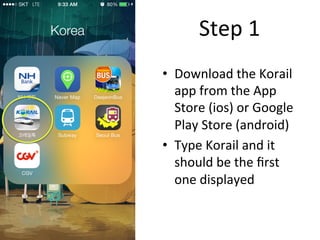
•  Download	
  the	
  Korail	
  
app	
  from	
  the	
  App	
  
Store	
  (ios)	
  or	
  Google	
  
Play	
  Store	
  (android)	
  
•  Type	
  Korail	
  and	
  it	
  
should	
  be	
  the	
  first	
  
one	
  displayed	
  
Step	
  1	
  
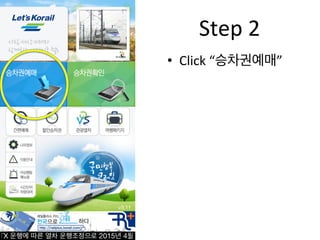
•  Click	
  “승차권예매”	
  	
  
Step	
  2	
  
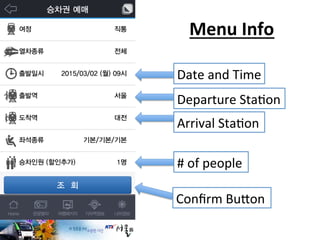
Menu	
  Info	
  
Date	
  and	
  Time	
  
Departure	
  StaFon	
  
Arrival	
  StaFon	
  
#	
  of	
  people	
  
Confirm	
  BuJon	
  
Date	
  and	
  Time	
  
Step	
  3	
  
-­‐  Click	
  the	
  Date	
  and	
  Time	
  
secFon	
  and	
  choose	
  your	
  
departure	
  Fme.	
  
  	
  Date	
  and	
  Time	
  
-­‐  Choose	
  the	
  date	
  on	
  
the	
  leN.	
  
-­‐  Choose	
  the	
  Fme	
  on	
  
the	
  right.	
  
-­‐  Click	
  확인	
  to	
  confirm.	
  
•  ANer	
  choosing	
  the	
  
Date	
  and	
  Time,	
  
choose	
  your	
  
Departure	
  StaFon	
  
and	
  Arrival	
  StaFon.	
  
Step	
  4	


  Sta1on	
  Selec1on	
  
-­‐  Scroll	
  and	
  search	
  for	
  
your	
  staFons	
  
-­‐  You	
  can	
  use	
  the	
  search	
  
bar	
  (only	
  Korean)	
  
-­‐  Or	
  use	
  the	
  blue	
  side	
  
bar	
  for	
  quick	
  access	
  to	
  
alphabeFcal	
  lisFngs	
  
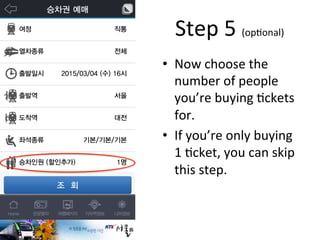
•  Now	
  choose	
  the	
  
number	
  of	
  people	
  
you’re	
  buying	
  Fckets	
  
for.	
  
•  If	
  you’re	
  only	
  buying	
  
1	
  Fcket,	
  you	
  can	
  skip	
  
this	
  step.	
  
Step	
  5	
  (opFonal)	
  
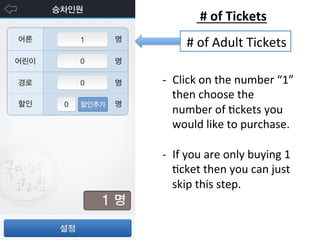
 #	
  of	
  Tickets	
  
	
  #	
  of	
  Adult	
  Tickets	
  
-­‐  Click	
  on	
  the	
  number	
  “1”	
  
then	
  choose	
  the	
  
number	
  of	
  Fckets	
  you	
  
would	
  like	
  to	
  purchase.	


-­‐  If	
  you	
  are	
  only	
  buying	
  1	
  
Fcket	
  then	
  you	
  can	
  just	
  
skip	
  this	
  step.	
  
•  Choose	
  the	
  number	
  
of	
  Fckets	
  you	
  want	
  to	
  
buy	
  	
  
•  Click	
  the	
  Back	
  Arrow	
  
buJon	
  on	
  the	
  top	
  leN	
  
corner	
  of	
  the	
  screen.	
  
DO	
  NOT	
  CLICK	
  취소.	
  	
  
It	
  means	
  to	
  cancel.	
  
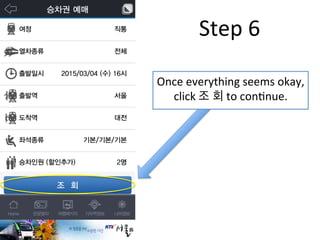
Once	
  everything	
  seems	
  okay,	
  
click	
  조 회	
  to	
  conFnue.	
  
Step	
  6	
  
•  This	
  page	
  just	
  gives	
  a	
  
brief	
  summary	
  
Step	
  7	
  
If	
  everything	
  seems	
  
okay,	
  click	
  예약하기	
  to	
  
conFnue.	
  
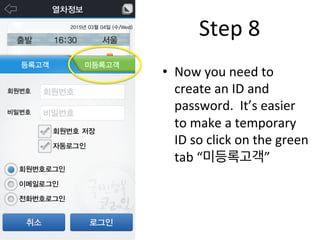
•  Now	
  you	
  need	
  to	
  
create	
  an	
  ID	
  and	
  
password.	
  	
  It’s	
  easier	
  
to	
  make	
  a	
  temporary	
  
ID	
  so	
  click	
  on	
  the	
  green	
  
tab	
  “미등록고객”	
  
Step	
  8	
  
•  Make	
  an	
  ID	
  and	
  click	
  입력	
  
Step	
  9	
  
Name	
  –	
  Just	
  type	
  in	
  your	
  first	
  name	
  
Type	
  in	
  your	
  phone	
  number	
  
Type	
  a	
  5	
  digit	
  numerical	
  password	
  
Retype	
  in	
  your	
  5	
  digit	
  password	
  
Click	
  to	
  confirm!	
  
Example:	
  
•  Now	
  choose	
  the	
  type	
  
of	
  seat	
  you	
  would	
  like	
  
to	
  use.	
  
•  Note:	
  The	
  standing	
  
Fcket	
  doesn’t	
  seem	
  to	
  
be	
  purchasable	
  via	
  app.	
  
If	
  you	
  want	
  standing,	
  
you	
  may	
  have	
  to	
  
purchase	
  it	
  at	
  the	
  
staFon.	
  
Step	
  10	
  
1st	
  Class	
  
Standard	
  
Standing	
  
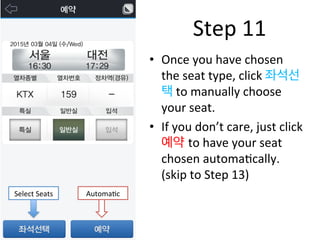
•  Once	
  you	
  have	
  chosen	
  
the	
  seat	
  type,	
  click	
  좌석선
택	
  to	
  manually	
  choose	
  
your	
  seat.	
  
•  If	
  you	
  don’t	
  care,	
  just	
  click	
  
예약 to	
  have	
  your	
  seat	
  
chosen	
  automaFcally.	
  
(skip	
  to	
  Step	
  13)	
  
Step	
  11	
  
Select	
  Seats	
   AutomaFc	
  	
  
Step	
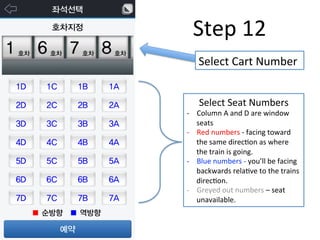
  12	
  
Select	
  Cart	
  Number	
  
Select	
  Seat	
  Numbers	
  
-­‐  Column	
  A	
  and	
  D	
  are	
  window	
  
seats	
  
-­‐  Red	
  numbers	
  -­‐	
  facing	
  toward	
  
the	
  same	
  direcFon	
  as	
  where	
  
the	
  train	
  is	
  going.	
  
-­‐  Blue	
  numbers	
  -­‐	
  you’ll	
  be	
  facing	
  
backwards	
  relaFve	
  to	
  the	
  trains	
  
direcFon.	
  
-­‐  Greyed	
  out	
  numbers	
  –	
  seat	
  
unavailable.	
  
Step	
  13	
  
Once	
  you	
  have	
  selected	
  
your	
  cart	
  and	
  seats,	
  
click	
  예악	
  to	
  conFnue.	
  
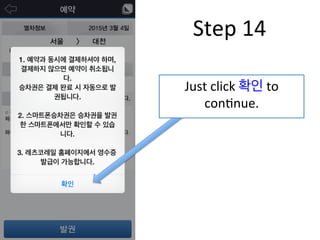
Just	
  click	
  확인	
  to	
  
conFnue.	
  
Step	
  14	
  
Step	
  15	
  
This	
  is	
  just	
  a	
  summary.	
  
Make	
  sure	
  to	
  check	
  for	
  
any	
  errors.	
  
If	
  everything	
  is	
  okay,	
  
click	
  발권.	
  
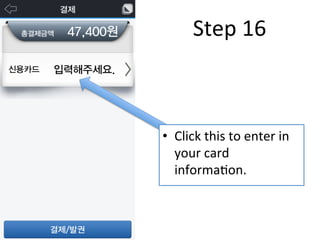
•  Click	
  this	
  to	
  enter	
  in	
  
your	
  card	
  
informaFon.	
  
Step	
  16	
  
Step	
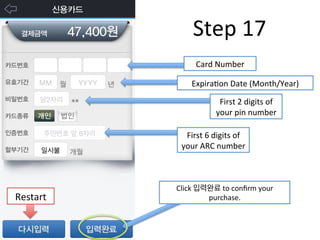
  17	
  
Card	
  Number	
  
ExpiraFon	
  Date	
  (Month/Year)	
  
First	
  2	
  digits	
  of	
  
your	
  pin	
  number	
  
First	
  6	
  digits	
  of	
  
your	
  ARC	
  number	
  
Click	
  입력완료	
  to	
  confirm	
  your	
  
purchase.	
  Restart	
  
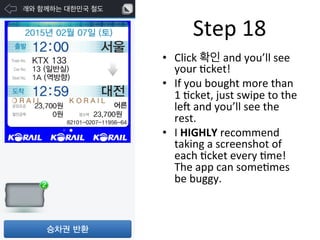
•  Click	
  확인	
  and	
  you’ll	
  see	
  
your	
  Fcket!	
  
•  If	
  you	
  bought	
  more	
  than	
  
1	
  Fcket,	
  just	
  swipe	
  to	
  the	
  
leN	
  and	
  you’ll	
  see	
  the	
  
rest.	
  
•  I	
  HIGHLY	
  recommend	
  
taking	
  a	
  screenshot	
  of	
  
each	
  Fcket	
  every	
  Fme!	
  
The	
  app	
  can	
  someFmes	
  
be	
  buggy.	
  
Step	
  18	
  
Have	
  a	
  fun	
  1me	
  
travelling!	
  

Korail App Tutorial

  • 1.
  • 2.
    •  Download  the  Korail   app  from  the  App   Store  (ios)  or  Google   Play  Store  (android)   •  Type  Korail  and  it   should  be  the  first   one  displayed   Step  1  
  • 3.
  • 4.
    Menu  Info   Date  and  Time   Departure  StaFon   Arrival  StaFon   #  of  people   Confirm  BuJon  
  • 5.
    Date  and  Time   Step  3   -­‐  Click  the  Date  and  Time   secFon  and  choose  your   departure  Fme.  
  • 6.
       Date  and  Time   -­‐  Choose  the  date  on   the  leN.   -­‐  Choose  the  Fme  on   the  right.   -­‐  Click  확인  to  confirm.  
  • 7.
    •  ANer  choosing  the   Date  and  Time,   choose  your   Departure  StaFon   and  Arrival  StaFon.   Step  4  
  • 8.
         Sta1on  Selec1on   -­‐  Scroll  and  search  for   your  staFons   -­‐  You  can  use  the  search   bar  (only  Korean)   -­‐  Or  use  the  blue  side   bar  for  quick  access  to   alphabeFcal  lisFngs  
  • 9.
    •  Now  choose  the   number  of  people   you’re  buying  Fckets   for.   •  If  you’re  only  buying   1  Fcket,  you  can  skip   this  step.   Step  5  (opFonal)  
  • 10.
     #  of  Tickets    #  of  Adult  Tickets   -­‐  Click  on  the  number  “1”   then  choose  the   number  of  Fckets  you   would  like  to  purchase.     -­‐  If  you  are  only  buying  1   Fcket  then  you  can  just   skip  this  step.  
  • 11.
    •  Choose  the  number   of  Fckets  you  want  to   buy     •  Click  the  Back  Arrow   buJon  on  the  top  leN   corner  of  the  screen.   DO  NOT  CLICK  취소.     It  means  to  cancel.  
  • 12.
    Once  everything  seems  okay,   click  조 회  to  conFnue.   Step  6  
  • 13.
    •  This  page  just  gives  a   brief  summary   Step  7   If  everything  seems   okay,  click  예약하기  to   conFnue.  
  • 14.
    •  Now  you  need  to   create  an  ID  and   password.    It’s  easier   to  make  a  temporary   ID  so  click  on  the  green   tab  “미등록고객”   Step  8  
  • 15.
    •  Make  an  ID  and  click  입력   Step  9   Name  –  Just  type  in  your  first  name   Type  in  your  phone  number   Type  a  5  digit  numerical  password   Retype  in  your  5  digit  password   Click  to  confirm!   Example:  
  • 16.
    •  Now  choose  the  type   of  seat  you  would  like   to  use.   •  Note:  The  standing   Fcket  doesn’t  seem  to   be  purchasable  via  app.   If  you  want  standing,   you  may  have  to   purchase  it  at  the   staFon.   Step  10   1st  Class   Standard   Standing  
  • 17.
    •  Once  you  have  chosen   the  seat  type,  click  좌석선 택  to  manually  choose   your  seat.   •  If  you  don’t  care,  just  click   예약 to  have  your  seat   chosen  automaFcally.   (skip  to  Step  13)   Step  11   Select  Seats   AutomaFc    
  • 18.
    Step  12   Select  Cart  Number   Select  Seat  Numbers   -­‐  Column  A  and  D  are  window   seats   -­‐  Red  numbers  -­‐  facing  toward   the  same  direcFon  as  where   the  train  is  going.   -­‐  Blue  numbers  -­‐  you’ll  be  facing   backwards  relaFve  to  the  trains   direcFon.   -­‐  Greyed  out  numbers  –  seat   unavailable.  
  • 19.
    Step  13   Once  you  have  selected   your  cart  and  seats,   click  예악  to  conFnue.  
  • 20.
    Just  click  확인  to   conFnue.   Step  14  
  • 21.
    Step  15   This  is  just  a  summary.   Make  sure  to  check  for   any  errors.   If  everything  is  okay,   click  발권.  
  • 22.
    •  Click  this  to  enter  in   your  card   informaFon.   Step  16  
  • 23.
    Step  17   Card  Number   ExpiraFon  Date  (Month/Year)   First  2  digits  of   your  pin  number   First  6  digits  of   your  ARC  number   Click  입력완료  to  confirm  your   purchase.  Restart  
  • 24.
    •  Click  확인  and  you’ll  see   your  Fcket!   •  If  you  bought  more  than   1  Fcket,  just  swipe  to  the   leN  and  you’ll  see  the   rest.   •  I  HIGHLY  recommend   taking  a  screenshot  of   each  Fcket  every  Fme!   The  app  can  someFmes   be  buggy.   Step  18  
  • 25.
    Have  a  fun  1me   travelling!