JINI for Joomla 3.x
Edit translations
The purpose of this presentation is to show you
how to edit language files with JINI.
In our example we edit the language file of the
content component.
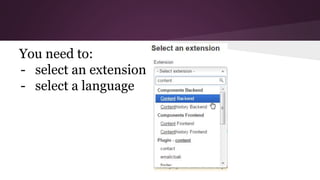
You need to:
- select an extension
- select a language
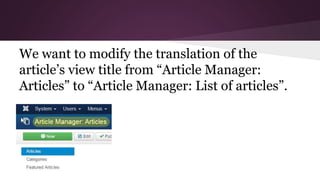
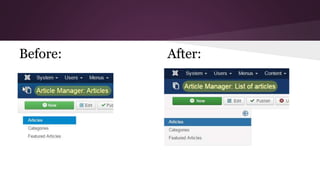
We want to modify the translation of the
article’s view title from “Article Manager:
Articles” to “Article Manager: List of articles”.
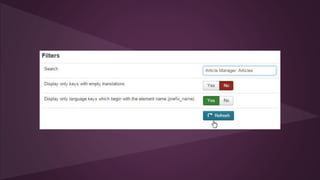
Use the search function of JINI to find the
language key of “Article Manager: Articles”.
Click “refresh” to actualise the results (see next
page).
JINI shows all language keys found that match
the search value. The language key of “Article
Manager: Articles” is
“COM_CONTENT_ARTICLES_TITLE”.
Set the translation value to the new value
“Article Manager: List of Articles” and click
“synchronise”
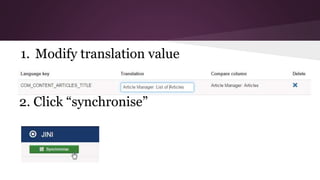
1. Modify translation value
2. Click “synchronise”
The modification of the translation has been
applied. Move to the articles view (main menu -
> content -> articles) and have a look at the
page title. It should have been changed.
Before: After:

Jini - edit translations

  • 1.
    JINI for Joomla3.x Edit translations
  • 2.
    The purpose ofthis presentation is to show you how to edit language files with JINI. In our example we edit the language file of the content component.
  • 3.
    You need to: -select an extension - select a language
  • 4.
    We want tomodify the translation of the article’s view title from “Article Manager: Articles” to “Article Manager: List of articles”.
  • 5.
    Use the searchfunction of JINI to find the language key of “Article Manager: Articles”. Click “refresh” to actualise the results (see next page).
  • 7.
    JINI shows alllanguage keys found that match the search value. The language key of “Article Manager: Articles” is “COM_CONTENT_ARTICLES_TITLE”. Set the translation value to the new value “Article Manager: List of Articles” and click “synchronise”
  • 8.
    1. Modify translationvalue 2. Click “synchronise”
  • 9.
    The modification ofthe translation has been applied. Move to the articles view (main menu - > content -> articles) and have a look at the page title. It should have been changed.
  • 10.