LOGO
Cascading Style Sheets (CSS)
CHAPTER 8
Eastern Mediterranean University
School of Computing and Technology
Department of Information Technology
ITEC229
ITEC229
Client-Side Internet and Web Programming
http://staff.emu.edu.tr/raygankansoy/en/teaching/itec229
CONTENT
8.1 Introduction to CSS
8.2 CSS Syntax
8.3 Ways to link style sheets to HTML
8.4 CSS Styling
2
http://staff.emu.edu.tr/raygankansoy/en/teaching/itec229
8.1 Introduction to CSS
3
 CSS stands for Cascading Style Sheets
 Styles define how to display HTML elements
 Styles were added to HTML 4.0 to solve a problem
 Change the appearance of hundreds of Web pages by changing
just one file
 External Style Sheets can save a lot of work
 Platform Independent.
 Style sheets can make an author's life much easier.
 While one could use <HR WIDTH="75%" SIZE=5
ALIGN=center> for every horizontal rule, this becomes
very cumbersome for the author.
 With style sheets, one only needs to specify such
presentational preferences once, and the style can be
applied to an entire site.
 If the author decides that WIDTH="50%" would be
better, then he or she only needs to change this
preference in one place, rather than having to search
through hundreds of pages to change the HTML.
 Style sheets also reduce download time when one file contains
all the style information.
http://staff.emu.edu.tr/raygankansoy/en/teaching/itec229
8.1 Introduction to CSS
4
Why CSS? -
Why CSS? - Styles Solved a Big Problem
Styles Solved a Big Problem
HTML was never intended to contain tags for formatting a
document.
HTML was intended to define the content of a document, like:
<h1>This is a heading</h1>
<p>This is a paragraph.</p>
When tags like <font>, and color attributes were added to the
HTML 3.2 specification, it started a nightmare for web developers.
Development of large web sites, where fonts and color information
were added to every single page, became a long and expensive
process.
To solve this problem, the World Wide Web Consortium (W3C)
created CSS.
In HTML 4.0, all formatting could be removed from the HTML
document, and stored in a separate CSS file.
All browsers support CSS today.
A style sheet is made up of style rules that tell a browser how to
present a document.
http://staff.emu.edu.tr/raygankansoy/en/teaching/itec229
8.2 CSS Syntax
5
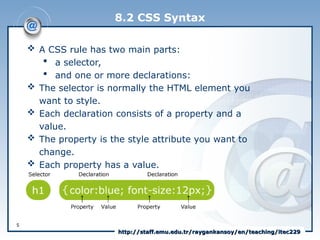
 A CSS rule has two main parts:
 a selector,
 and one or more declarations:
 The selector is normally the HTML element you
want to style.
 Each declaration consists of a property and a
value.
 The property is the style attribute you want to
change.
 Each property has a value.
http://staff.emu.edu.tr/raygankansoy/en/teaching/itec229
8.2 CSS Syntax
6
p
{
color:red;
text-align:center;
}
 A CSS declaration always ends with a semicolon,
and declaration groups are surrounded by curly
brackets:
 To make the CSS more readable, you can put one
declaration on each line, like this:
Example:
p {color:red;text-align:center;}
http://staff.emu.edu.tr/raygankansoy/en/teaching/itec229
8.2 CSS Syntax
7
CSS Comments
CSS Comments
Comments are used to explain your code, and may help
you when you edit the source code at a later date.
Comments are ignored by browsers.
A CSS comment begins with "/*", and ends with "*/",
like this:
/*This is a comment*/
p
{
text-align:center;
/*This is another
comment*/
color:black;
font-family:arial;
}
http://staff.emu.edu.tr/raygankansoy/en/teaching/itec229
8.2 CSS Syntax
8
The id and class Selectors
In addition to setting a style for a HTML element, CSS allows
you to specify your own selectors called "id" and "class".
The id selector is used to specify a style for a single, unique
element.
The id selector uses the id attribute of the HTML element, and
is defined with a "#".
The style rule below will be applied to the element with
id="para1":
Example:
#para1
{
text-align:center;
color:red;
}
http://staff.emu.edu.tr/raygankansoy/en/teaching/itec229
8.2 CSS Syntax
9
The id and class Selectors
The class selector is used to specify a style for a group of elements.
Unlike the id selector, the class selector is most often used on
several elements.
This allows you to set a particular style for many HTML elements
with the same class.
The class selector uses the HTML class attribute, and is defined with
a "."
In the example below, all HTML elements with class="center" will be
center-aligned: Example:
.center {text-align:center;}
You can also specify that only specific HTML elements should be
affected by a class.
In the example below, all p elements with class="center" will be
center-aligned:
Example:
p.center {text-align:center;}
http://staff.emu.edu.tr/raygankansoy/en/teaching/itec229
8.2 CSS Syntax
10
The id and class Selectors
Class Selectors
In the style sheet In the HTML
p.right{
text-align: right;
}
p.center{
text-align: center;
}
<p class="right">
This paragraph will be right-
aligned.
</p>
<p class="center">
This paragraph will be center-
aligned.
</p>
http://staff.emu.edu.tr/raygankansoy/en/teaching/itec229
8.3 Ways to link style sheets to HTML
11
 When a browser reads a style sheet, it will
format the document according to it.
 Three Ways to Insert CSS;
 External style sheet
 Internal style sheet
 Inline style
http://staff.emu.edu.tr/raygankansoy/en/teaching/itec229
8.3 Ways to link style sheets to HTML
12
External Style Sheet
An external style sheet is ideal when the style is applied to many
pages.
With an external style sheet, you can change the look of an entire
Web site by changing one file.
Each page must link to the style sheet using the <link> tag.
The <link> tag goes inside the head section:
<head>
<link rel="stylesheet" type="text/css" href="mystyle.css" />
</head>
An external style sheet can be written in any text editor. The file
should not contain any html tags. Your style sheet should be saved
with a .css extension.
An example of a style sheet file is shown below:
hr {color:sienna;}
p {margin-left:20px;}
body {background-image:url("images/back40.gif");}
http://staff.emu.edu.tr/raygankansoy/en/teaching/itec229
8.3 Ways to link style sheets to HTML
13
External Style Sheet
Advantages:
 An external style sheet is ideal when the
style is applied to numerous pages.
 With an external style sheet, an author could
change the look of an entire site by simply
changing one file.
 As well, most browsers will cache an
external style sheet, thus avoiding a delay in
page presentation once the style sheet is
cached.
http://staff.emu.edu.tr/raygankansoy/en/teaching/itec229
8.3 Ways to link style sheets to HTML
14
Internal Style Sheet
An internal style sheet should be used when a single
document has a unique style.
You define internal styles in the head section of an HTML
page, by using the <style> tag, like this:
<head>
<style type="text/css">
hr {color:sienna;}
p {margin-left:20px;}
body {background-image:url("images/back40.gif");}
</style>
</head>
http://staff.emu.edu.tr/raygankansoy/en/teaching/itec229
8.3 Ways to link style sheets to HTML
15
Inline Styles
Inline Styles
An inline style loses many of the advantages of style
sheets by mixing content with presentation. Use this
method sparingly!
To use inline styles you use the style attribute in the
relevant tag.
The style attribute can contain any CSS property.
The example shows how to change the color and the
left margin of a paragraph:
<p style="color:sienna;margin-left:20px">This is a
paragraph.</p>
http://staff.emu.edu.tr/raygankansoy/en/teaching/itec229
8.3 Ways to link style sheets to HTML
16
Multiple Style Sheets
If some properties have been set for the same selector
in different style sheets, the values will be inherited from
the more specific style sheet.
For example, an external style sheet has these
properties for the h3 selector:
h3
{
color:red;
text-align:left;
font-size:8pt;
}
http://staff.emu.edu.tr/raygankansoy/en/teaching/itec229
8.3 Ways to link style sheets to HTML
17
Multiple Style Sheets
And an internal style sheet has these properties for the
h3 selector:
If the page with the internal style sheet also links to
the external style sheet the properties for h3 will be:
color:red;
text-align:right;
font-size:20pt;
The color is inherited from the external style sheet and
the text-alignment and the font-size is replaced by the
internal style sheet.
h3
{
text-align:right;
font-size:20pt;
}
http://staff.emu.edu.tr/raygankansoy/en/teaching/itec229
8.3 Ways to link style sheets to HTML
18
Multiple Styles Will Cascade into One
Styles can be specified:
 inside an HTML element
 inside the head section of an HTML page
 in an external CSS file
Tip: Even multiple external style sheets can be
referenced inside a single HTML document.
Cascading order
What style will be used when there is more than one
style specified for an HTML element?
 Generally speaking we can say that all the styles
will "cascade" into a new "virtual" style sheet by
the following rules, where number four has the
highest priority:
http://staff.emu.edu.tr/raygankansoy/en/teaching/itec229
8.3 Ways to link style sheets to HTML
19
Multiple Styles Will Cascade into One
Cascading order
1.Browser default
2.External style sheet
3.Internal style sheet (in the head section)
4.Inline style (inside an HTML element)
So, an inline style (inside an HTML element) has the highest
priority, which means that it will override a style defined inside
the <head> tag, or in an external style sheet, or in a browser
(a default value).
Note: If the link to the external style sheet is placed after the
internal style sheet in HTML <head>, the external style sheet
will override the internal style sheet!
http://staff.emu.edu.tr/raygankansoy/en/teaching/itec229
8.4 CSS Styling
STYLING Background
STYLING Background
CSS background properties are used to define the
background effects of an element.
CSS Background Properties
20
Property Description
background Sets all the background properties in one
declaration
background-attachment Sets whether a background image is fixed
or scrolls with the rest of the page
background-color Sets the background color of an element
background-image Sets the background image for an element
background-position Sets the starting position of a background
image
background-repeat Sets how a background image will be
repeated
http://staff.emu.edu.tr/raygankansoy/en/teaching/itec229
8.4 CSS Styling
STYLING Background - Color
The background-color property specifies the background color of an
element.
The background color of a page is defined in the body selector:
Example:
body {background-color:#b0c4de;}
With CSS, a color is most often specified by:
 a HEX value - like "#ff0000"
 an RGB value - like "rgb(255,0,0)"
 a color name - like "red"
In the example below, the h1, p, and div elements have different
background colors:
Example
h1 {background-color:#6495ed;}
p {background-color:#e0ffff;}
div {background-color:#b0c4de;}
21
http://staff.emu.edu.tr/raygankansoy/en/teaching/itec229
8.4 CSS Styling
STYLING Background - Image
The background-image property specifies an image to
use as the background of an element.
By default, the image is repeated so it covers the
entire element.
The background image for a page can be set like this:
Example
body {background-image:url('paper.gif');}
Example
body {background-image:url(‘clouds’.jpg');}
22
http://staff.emu.edu.tr/raygankansoy/en/teaching/itec229
8.4 CSS Styling
STYLING Background - Image
Background Image - Repeat Horizontally or Vertically
By default, the background-image property repeats an
image both horizontally and vertically.
In the following example image is repeated only horizontally
(repeat-x)
Example
body
{
background-image:url('gradient2.png');
background-repeat:repeat-x;
}
23
http://staff.emu.edu.tr/raygankansoy/en/teaching/itec229
8.4 CSS Styling
24
Property Description
color Sets the color of text
direction Specifies the text direction/writing direction
letter-spacing Increases or decreases the space between characters in a
text
line-height Sets the line height
text-align Specifies the horizontal alignment of text
text-decoration Specifies the decoration added to text
text-indent Specifies the indentation of the first line in a text-block
text-shadow Specifies the shadow effect added to text
text-transform Controls the capitalization of text
vertical-align Sets the vertical alignment of an element
white-space Specifies how white-space inside an element is handled
word-spacing Increases or decreases the space between words in a text
STYLING Text -
STYLING Text - All CSS Text Properties
All CSS Text Properties
http://staff.emu.edu.tr/raygankansoy/en/teaching/itec229
8.4 CSS Styling
STYLING - Text Color
The color property is used to set the color of the text.
With CSS, a color is most often specified by:
 a HEX value - like "#ff0000"
 an RGB value - like "rgb(255,0,0)"
 a color name - like "red"
The default color for a page is defined in the body selector.
Example
body {color:blue;}
h1 {color:#00ff00;}
h2 {color:rgb(255,0,0);}
25
http://staff.emu.edu.tr/raygankansoy/en/teaching/itec229
8.4 CSS Styling
STYLING – Text Alignment
The text-align property is used to set the horizontal
alignment of a text.
Text can be centered, or aligned to the left or right, or
justified.
When text-align is set to "justify", each line is stretched so
that every line has equal width, and the left and right
margins are straight (like in magazines and newspapers).
Example
h1 {text-align:center;}
p.date {text-align:right;}
p.main {text-align:justify;}
26
http://staff.emu.edu.tr/raygankansoy/en/teaching/itec229
8.4 CSS Styling
STYLING – Text Decoration
The text-decoration property is used to set or remove
decorations from text.
The text-decoration property is mostly used to remove
underlines from links for design purposes:
Example:
a {text-decoration:none;}
It can also be used to decorate text:
Example:
h1 {text-decoration:overline;}
h2 {text-decoration:line-through;}
h3 {text-decoration:underline;}
h4 {text-decoration:blink;}
It is not recommended to underline text that is not a link, as
this often confuses users.
27
http://staff.emu.edu.tr/raygankansoy/en/teaching/itec229
8.4 CSS Styling
STYLING – Text Transformation
The text-transform property is used to specify uppercase and
lowercase letters in a text.
It can be used to turn everything into uppercase or lowercase
letters, or capitalize the first letter of each word.
Example
p.uppercase {text-transform:uppercase;}
p.lowercase {text-transform:lowercase;}
p.capitalize {text-transform:capitalize;}
STYLING – Text
STYLING – Text Indentation
Indentation
The text-indentation property is used to specify the indentation
of the first line of a text.
Example
p {text-indent:50px;}
28
http://staff.emu.edu.tr/raygankansoy/en/teaching/itec229
8.4 CSS Styling
29
Property Description
font Sets all the font properties in one
declaration
font-family Specifies the font family for text
font-size Specifies the font size of text
font-style Specifies the font style for text
font-variant Specifies whether or not a text should be
displayed in a small-caps font
font-weight Specifies the weight of a font
STYLING Font –
STYLING Font – All CSS Font Properties
All CSS Font Properties
http://staff.emu.edu.tr/raygankansoy/en/teaching/itec229
8.4 CSS Styling
STYLING Font –
STYLING Font – Family
Family
The font family of a text is set with the font-family property.
The font-family property should hold several font names as a
"fallback" system. If the browser does not support the first
font, it tries the next font.
Start with the font you want, and end with a generic family,
to let the browser pick a similar font in the generic family, if no
other fonts are available.
Note: If the name of a font family is more than one word, it
must be in quotation marks, like font-family: "Times New
Roman".
More than one font family is specified in a comma-separated
list:
Example: p{font-family:"Times New Roman", Times, serif;}
30
http://staff.emu.edu.tr/raygankansoy/en/teaching/itec229
8.4 CSS Styling
STYLING Font – Style
The font-style property is mostly used to specify italic text.
This property has three values:
 normal - The text is shown normally
 italic - The text is shown in italics
 oblique - The text is "leaning" (oblique is very similar to
italic, but less supported)
Example
p.normal {font-style:normal;}
p.italic {font-style:italic;}
p.oblique {font-style:oblique;}
31
http://staff.emu.edu.tr/raygankansoy/en/teaching/itec229
8.4 CSS Styling
STYLING Font –
STYLING Font – Size
Size
The font-size property sets the size of the text.
Being able to manage the text size is important in web
design. However, you should not use font size adjustments to
make paragraphs look like headings, or headings look like
paragraphs.
Always use the proper HTML tags, like <h1> - <h6> for
headings and <p> for paragraphs.
The font-size value can be an absolute, or relative size.
32
http://staff.emu.edu.tr/raygankansoy/en/teaching/itec229
8.4 CSS Styling
STYLING Font –
STYLING Font – Size
Size
Absolute size:
 Sets the text to a specified size
 Does not allow a user to change the text size in all
browsers (bad for accessibility reasons)
 Absolute size is useful when the physical size of the
output is known
Relative size:
 Sets the size relative to surrounding elements
 Allows a user to change the text size in browsers
 If you do not specify a font size, the default size for
normal text, like paragraphs, is 16px (16px=1em).
33
http://staff.emu.edu.tr/raygankansoy/en/teaching/itec229
7.4 CSS Styling
STYLING Font –
STYLING Font – Size
Size
Set Font Size With Pixels
Setting the text size with pixels, gives you full control
over the text size:
Example
h1 {font-size:40px;}
h2 {font-size:30px;}
p {font-size:14px;}
34
http://staff.emu.edu.tr/raygankansoy/en/teaching/itec229
8.4 CSS Styling
STYLING Font –
STYLING Font – Size
Size (With Em)
To avoid the resizing problem with Internet Explorer, many
developers use em instead of pixels.
The em size unit is recommended by the W3C.
1em is equal to the current font size. The default text size in
browsers is 16px. So, the default size of 1em is 16px.
The size can be calculated from pixels to em using this
formula: pixels/16=em
Example
h1 {font-size:2.5em;} /* 40px/16=2.5em */
h2 {font-size:1.875em;} /* 30px/16=1.875em */
p {font-size:0.875em;} /* 14px/16=0.875em */
In the example above, the text size in em is the same as
the previous example in pixels. However, with the em size, it
is possible to adjust the text size in all browsers.
35
http://staff.emu.edu.tr/raygankansoy/en/teaching/itec229
8.4 CSS Styling
STYLING Font –
STYLING Font – Size
Size (With Em)
Unfortunately, there is still a problem with IE. When resizing
the text, it becomes larger than it should when made larger,
and smaller than it should when made smaller.
Use a Combination of Percent and Em
The solution that works in all browsers, is to set a default
font-size in percent for the body element:
Example
body {font-size:100%;}
h1 {font-size:2.5em;}
h2 {font-size:1.875em;}
p {font-size:0.875em;}
The above code now works great! It shows the same text
size in all browsers, and allows all browsers to zoom or resize
the text!
36
http://staff.emu.edu.tr/raygankansoy/en/teaching/itec229
8.4 CSS Styling
STYLING Font – Weight
Set different font weight for three paragraphs:
Example
p.normal {font-weight:normal;}
p.thick {font-weight:bold;}
p.thicker {font-weight:bolder;}
The font-weight property is supported in all major browsers.
STYLING Font – Variant
Setting different variants for font:
Example
p.small {font-variant:small-caps;}
p.normal {font-variant:normal;}
37
http://staff.emu.edu.tr/raygankansoy/en/teaching/itec229
8.4 CSS Styling
STYLING Font – Variant
38
<html>
<head>
<style type="text/css">
p.normal {font-variant:normal;}
p.small {font-variant:small-caps;}
</style>
</head>
<body>
<p class="normal">Client-Side Internet and Web Programming.</p>
<p class="small">Client-Side Internet and Web Programming.</p>
</body>
</html>
http://staff.emu.edu.tr/raygankansoy/en/teaching/itec229
LOGO
Cascading Style Sheets
(CSS)
(CSS)
END of CHAPTER 8
http://staff.emu.edu.tr/raygankansoy/en/teaching/itec229

ITEC229_Chapter8_new.ppt computer architecture

  • 1.
    LOGO Cascading Style Sheets(CSS) Cascading Style Sheets (CSS) CHAPTER 8 Eastern Mediterranean University School of Computing and Technology Department of Information Technology ITEC229 ITEC229 Client-Side Internet and Web Programming Client-Side Internet and Web Programming http://staff.emu.edu.tr/raygankansoy/en/teaching/itec229 http://staff.emu.edu.tr/raygankansoy/en/teaching/itec229
  • 2.
    CONTENT 8.1 Introduction toCSS 8.2 CSS Syntax 8.3 Ways to link style sheets to HTML 8.4 CSS Styling 2 http://staff.emu.edu.tr/raygankansoy/en/teaching/itec229 http://staff.emu.edu.tr/raygankansoy/en/teaching/itec229
  • 3.
    8.1 Introduction toCSS 3  CSS stands for Cascading Style Sheets  Styles define how to display HTML elements  Styles were added to HTML 4.0 to solve a problem  Change the appearance of hundreds of Web pages by changing just one file  External Style Sheets can save a lot of work  Platform Independent.  Style sheets can make an author's life much easier.  While one could use <HR WIDTH="75%" SIZE=5 ALIGN=center> for every horizontal rule, this becomes very cumbersome for the author.  With style sheets, one only needs to specify such presentational preferences once, and the style can be applied to an entire site.  If the author decides that WIDTH="50%" would be better, then he or she only needs to change this preference in one place, rather than having to search through hundreds of pages to change the HTML.  Style sheets also reduce download time when one file contains all the style information. http://staff.emu.edu.tr/raygankansoy/en/teaching/itec229 http://staff.emu.edu.tr/raygankansoy/en/teaching/itec229
  • 4.
    8.1 Introduction toCSS 4 Why CSS? - Why CSS? - Styles Solved a Big Problem Styles Solved a Big Problem HTML was never intended to contain tags for formatting a document. HTML was intended to define the content of a document, like: <h1>This is a heading</h1> <p>This is a paragraph.</p> When tags like <font>, and color attributes were added to the HTML 3.2 specification, it started a nightmare for web developers. Development of large web sites, where fonts and color information were added to every single page, became a long and expensive process. To solve this problem, the World Wide Web Consortium (W3C) created CSS. In HTML 4.0, all formatting could be removed from the HTML document, and stored in a separate CSS file. All browsers support CSS today. A style sheet is made up of style rules that tell a browser how to present a document. http://staff.emu.edu.tr/raygankansoy/en/teaching/itec229 http://staff.emu.edu.tr/raygankansoy/en/teaching/itec229
  • 5.
    8.2 CSS Syntax 5 A CSS rule has two main parts:  a selector,  and one or more declarations:  The selector is normally the HTML element you want to style.  Each declaration consists of a property and a value.  The property is the style attribute you want to change.  Each property has a value. http://staff.emu.edu.tr/raygankansoy/en/teaching/itec229 http://staff.emu.edu.tr/raygankansoy/en/teaching/itec229
  • 6.
    8.2 CSS Syntax 6 p { color:red; text-align:center; } A CSS declaration always ends with a semicolon, and declaration groups are surrounded by curly brackets:  To make the CSS more readable, you can put one declaration on each line, like this: Example: p {color:red;text-align:center;} http://staff.emu.edu.tr/raygankansoy/en/teaching/itec229 http://staff.emu.edu.tr/raygankansoy/en/teaching/itec229
  • 7.
    8.2 CSS Syntax 7 CSSComments CSS Comments Comments are used to explain your code, and may help you when you edit the source code at a later date. Comments are ignored by browsers. A CSS comment begins with "/*", and ends with "*/", like this: /*This is a comment*/ p { text-align:center; /*This is another comment*/ color:black; font-family:arial; } http://staff.emu.edu.tr/raygankansoy/en/teaching/itec229 http://staff.emu.edu.tr/raygankansoy/en/teaching/itec229
  • 8.
    8.2 CSS Syntax 8 Theid and class Selectors The id and class Selectors In addition to setting a style for a HTML element, CSS allows you to specify your own selectors called "id" and "class". The id selector is used to specify a style for a single, unique element. The id selector uses the id attribute of the HTML element, and is defined with a "#". The style rule below will be applied to the element with id="para1": Example: #para1 { text-align:center; color:red; } http://staff.emu.edu.tr/raygankansoy/en/teaching/itec229 http://staff.emu.edu.tr/raygankansoy/en/teaching/itec229
  • 9.
    8.2 CSS Syntax 9 Theid and class Selectors The id and class Selectors The class selector is used to specify a style for a group of elements. Unlike the id selector, the class selector is most often used on several elements. This allows you to set a particular style for many HTML elements with the same class. The class selector uses the HTML class attribute, and is defined with a "." In the example below, all HTML elements with class="center" will be center-aligned: Example: .center {text-align:center;} You can also specify that only specific HTML elements should be affected by a class. In the example below, all p elements with class="center" will be center-aligned: Example: p.center {text-align:center;} http://staff.emu.edu.tr/raygankansoy/en/teaching/itec229 http://staff.emu.edu.tr/raygankansoy/en/teaching/itec229
  • 10.
    8.2 CSS Syntax 10 Theid and class Selectors The id and class Selectors Class Selectors In the style sheet In the HTML p.right{ text-align: right; } p.center{ text-align: center; } <p class="right"> This paragraph will be right- aligned. </p> <p class="center"> This paragraph will be center- aligned. </p> http://staff.emu.edu.tr/raygankansoy/en/teaching/itec229 http://staff.emu.edu.tr/raygankansoy/en/teaching/itec229
  • 11.
    8.3 Ways tolink style sheets to HTML 11  When a browser reads a style sheet, it will format the document according to it.  Three Ways to Insert CSS;  External style sheet  Internal style sheet  Inline style http://staff.emu.edu.tr/raygankansoy/en/teaching/itec229 http://staff.emu.edu.tr/raygankansoy/en/teaching/itec229
  • 12.
    8.3 Ways tolink style sheets to HTML 12 External Style Sheet External Style Sheet An external style sheet is ideal when the style is applied to many pages. With an external style sheet, you can change the look of an entire Web site by changing one file. Each page must link to the style sheet using the <link> tag. The <link> tag goes inside the head section: <head> <link rel="stylesheet" type="text/css" href="mystyle.css" /> </head> An external style sheet can be written in any text editor. The file should not contain any html tags. Your style sheet should be saved with a .css extension. An example of a style sheet file is shown below: hr {color:sienna;} p {margin-left:20px;} body {background-image:url("images/back40.gif");} http://staff.emu.edu.tr/raygankansoy/en/teaching/itec229 http://staff.emu.edu.tr/raygankansoy/en/teaching/itec229
  • 13.
    8.3 Ways tolink style sheets to HTML 13 External Style Sheet External Style Sheet Advantages:  An external style sheet is ideal when the style is applied to numerous pages.  With an external style sheet, an author could change the look of an entire site by simply changing one file.  As well, most browsers will cache an external style sheet, thus avoiding a delay in page presentation once the style sheet is cached. http://staff.emu.edu.tr/raygankansoy/en/teaching/itec229 http://staff.emu.edu.tr/raygankansoy/en/teaching/itec229
  • 14.
    8.3 Ways tolink style sheets to HTML 14 Internal Style Sheet Internal Style Sheet An internal style sheet should be used when a single document has a unique style. You define internal styles in the head section of an HTML page, by using the <style> tag, like this: <head> <style type="text/css"> hr {color:sienna;} p {margin-left:20px;} body {background-image:url("images/back40.gif");} </style> </head> http://staff.emu.edu.tr/raygankansoy/en/teaching/itec229 http://staff.emu.edu.tr/raygankansoy/en/teaching/itec229
  • 15.
    8.3 Ways tolink style sheets to HTML 15 Inline Styles Inline Styles An inline style loses many of the advantages of style sheets by mixing content with presentation. Use this method sparingly! To use inline styles you use the style attribute in the relevant tag. The style attribute can contain any CSS property. The example shows how to change the color and the left margin of a paragraph: <p style="color:sienna;margin-left:20px">This is a paragraph.</p> http://staff.emu.edu.tr/raygankansoy/en/teaching/itec229 http://staff.emu.edu.tr/raygankansoy/en/teaching/itec229
  • 16.
    8.3 Ways tolink style sheets to HTML 16 Multiple Style Sheets Multiple Style Sheets If some properties have been set for the same selector in different style sheets, the values will be inherited from the more specific style sheet. For example, an external style sheet has these properties for the h3 selector: h3 { color:red; text-align:left; font-size:8pt; } http://staff.emu.edu.tr/raygankansoy/en/teaching/itec229 http://staff.emu.edu.tr/raygankansoy/en/teaching/itec229
  • 17.
    8.3 Ways tolink style sheets to HTML 17 Multiple Style Sheets Multiple Style Sheets And an internal style sheet has these properties for the h3 selector: If the page with the internal style sheet also links to the external style sheet the properties for h3 will be: color:red; text-align:right; font-size:20pt; The color is inherited from the external style sheet and the text-alignment and the font-size is replaced by the internal style sheet. h3 { text-align:right; font-size:20pt; } http://staff.emu.edu.tr/raygankansoy/en/teaching/itec229 http://staff.emu.edu.tr/raygankansoy/en/teaching/itec229
  • 18.
    8.3 Ways tolink style sheets to HTML 18 Multiple Styles Will Cascade into One Multiple Styles Will Cascade into One Styles can be specified:  inside an HTML element  inside the head section of an HTML page  in an external CSS file Tip: Even multiple external style sheets can be referenced inside a single HTML document. Cascading order What style will be used when there is more than one style specified for an HTML element?  Generally speaking we can say that all the styles will "cascade" into a new "virtual" style sheet by the following rules, where number four has the highest priority: http://staff.emu.edu.tr/raygankansoy/en/teaching/itec229 http://staff.emu.edu.tr/raygankansoy/en/teaching/itec229
  • 19.
    8.3 Ways tolink style sheets to HTML 19 Multiple Styles Will Cascade into One Multiple Styles Will Cascade into One Cascading order 1.Browser default 2.External style sheet 3.Internal style sheet (in the head section) 4.Inline style (inside an HTML element) So, an inline style (inside an HTML element) has the highest priority, which means that it will override a style defined inside the <head> tag, or in an external style sheet, or in a browser (a default value). Note: If the link to the external style sheet is placed after the internal style sheet in HTML <head>, the external style sheet will override the internal style sheet! http://staff.emu.edu.tr/raygankansoy/en/teaching/itec229 http://staff.emu.edu.tr/raygankansoy/en/teaching/itec229
  • 20.
    8.4 CSS Styling STYLINGBackground STYLING Background CSS background properties are used to define the background effects of an element. CSS Background Properties CSS Background Properties 20 Property Description background Sets all the background properties in one declaration background-attachment Sets whether a background image is fixed or scrolls with the rest of the page background-color Sets the background color of an element background-image Sets the background image for an element background-position Sets the starting position of a background image background-repeat Sets how a background image will be repeated http://staff.emu.edu.tr/raygankansoy/en/teaching/itec229 http://staff.emu.edu.tr/raygankansoy/en/teaching/itec229
  • 21.
    8.4 CSS Styling STYLINGBackground - Color STYLING Background - Color The background-color property specifies the background color of an element. The background color of a page is defined in the body selector: Example: body {background-color:#b0c4de;} With CSS, a color is most often specified by:  a HEX value - like "#ff0000"  an RGB value - like "rgb(255,0,0)"  a color name - like "red" In the example below, the h1, p, and div elements have different background colors: Example h1 {background-color:#6495ed;} p {background-color:#e0ffff;} div {background-color:#b0c4de;} 21 http://staff.emu.edu.tr/raygankansoy/en/teaching/itec229 http://staff.emu.edu.tr/raygankansoy/en/teaching/itec229
  • 22.
    8.4 CSS Styling STYLINGBackground - Image STYLING Background - Image The background-image property specifies an image to use as the background of an element. By default, the image is repeated so it covers the entire element. The background image for a page can be set like this: Example body {background-image:url('paper.gif');} Example body {background-image:url(‘clouds’.jpg');} 22 http://staff.emu.edu.tr/raygankansoy/en/teaching/itec229 http://staff.emu.edu.tr/raygankansoy/en/teaching/itec229
  • 23.
    8.4 CSS Styling STYLINGBackground - Image STYLING Background - Image Background Image - Repeat Horizontally or Vertically By default, the background-image property repeats an image both horizontally and vertically. In the following example image is repeated only horizontally (repeat-x) Example body { background-image:url('gradient2.png'); background-repeat:repeat-x; } 23 http://staff.emu.edu.tr/raygankansoy/en/teaching/itec229 http://staff.emu.edu.tr/raygankansoy/en/teaching/itec229
  • 24.
    8.4 CSS Styling 24 PropertyDescription color Sets the color of text direction Specifies the text direction/writing direction letter-spacing Increases or decreases the space between characters in a text line-height Sets the line height text-align Specifies the horizontal alignment of text text-decoration Specifies the decoration added to text text-indent Specifies the indentation of the first line in a text-block text-shadow Specifies the shadow effect added to text text-transform Controls the capitalization of text vertical-align Sets the vertical alignment of an element white-space Specifies how white-space inside an element is handled word-spacing Increases or decreases the space between words in a text STYLING Text - STYLING Text - All CSS Text Properties All CSS Text Properties http://staff.emu.edu.tr/raygankansoy/en/teaching/itec229 http://staff.emu.edu.tr/raygankansoy/en/teaching/itec229
  • 25.
    8.4 CSS Styling STYLING- Text Color STYLING - Text Color The color property is used to set the color of the text. With CSS, a color is most often specified by:  a HEX value - like "#ff0000"  an RGB value - like "rgb(255,0,0)"  a color name - like "red" The default color for a page is defined in the body selector. Example body {color:blue;} h1 {color:#00ff00;} h2 {color:rgb(255,0,0);} 25 http://staff.emu.edu.tr/raygankansoy/en/teaching/itec229 http://staff.emu.edu.tr/raygankansoy/en/teaching/itec229
  • 26.
    8.4 CSS Styling STYLING– Text Alignment STYLING – Text Alignment The text-align property is used to set the horizontal alignment of a text. Text can be centered, or aligned to the left or right, or justified. When text-align is set to "justify", each line is stretched so that every line has equal width, and the left and right margins are straight (like in magazines and newspapers). Example h1 {text-align:center;} p.date {text-align:right;} p.main {text-align:justify;} 26 http://staff.emu.edu.tr/raygankansoy/en/teaching/itec229 http://staff.emu.edu.tr/raygankansoy/en/teaching/itec229
  • 27.
    8.4 CSS Styling STYLING– Text Decoration STYLING – Text Decoration The text-decoration property is used to set or remove decorations from text. The text-decoration property is mostly used to remove underlines from links for design purposes: Example: a {text-decoration:none;} It can also be used to decorate text: Example: h1 {text-decoration:overline;} h2 {text-decoration:line-through;} h3 {text-decoration:underline;} h4 {text-decoration:blink;} It is not recommended to underline text that is not a link, as this often confuses users. 27 http://staff.emu.edu.tr/raygankansoy/en/teaching/itec229 http://staff.emu.edu.tr/raygankansoy/en/teaching/itec229
  • 28.
    8.4 CSS Styling STYLING– Text Transformation STYLING – Text Transformation The text-transform property is used to specify uppercase and lowercase letters in a text. It can be used to turn everything into uppercase or lowercase letters, or capitalize the first letter of each word. Example p.uppercase {text-transform:uppercase;} p.lowercase {text-transform:lowercase;} p.capitalize {text-transform:capitalize;} STYLING – Text STYLING – Text Indentation Indentation The text-indentation property is used to specify the indentation of the first line of a text. Example p {text-indent:50px;} 28 http://staff.emu.edu.tr/raygankansoy/en/teaching/itec229 http://staff.emu.edu.tr/raygankansoy/en/teaching/itec229
  • 29.
    8.4 CSS Styling 29 PropertyDescription font Sets all the font properties in one declaration font-family Specifies the font family for text font-size Specifies the font size of text font-style Specifies the font style for text font-variant Specifies whether or not a text should be displayed in a small-caps font font-weight Specifies the weight of a font STYLING Font – STYLING Font – All CSS Font Properties All CSS Font Properties http://staff.emu.edu.tr/raygankansoy/en/teaching/itec229 http://staff.emu.edu.tr/raygankansoy/en/teaching/itec229
  • 30.
    8.4 CSS Styling STYLINGFont – STYLING Font – Family Family The font family of a text is set with the font-family property. The font-family property should hold several font names as a "fallback" system. If the browser does not support the first font, it tries the next font. Start with the font you want, and end with a generic family, to let the browser pick a similar font in the generic family, if no other fonts are available. Note: If the name of a font family is more than one word, it must be in quotation marks, like font-family: "Times New Roman". More than one font family is specified in a comma-separated list: Example: p{font-family:"Times New Roman", Times, serif;} 30 http://staff.emu.edu.tr/raygankansoy/en/teaching/itec229 http://staff.emu.edu.tr/raygankansoy/en/teaching/itec229
  • 31.
    8.4 CSS Styling STYLINGFont – Style STYLING Font – Style The font-style property is mostly used to specify italic text. This property has three values:  normal - The text is shown normally  italic - The text is shown in italics  oblique - The text is "leaning" (oblique is very similar to italic, but less supported) Example p.normal {font-style:normal;} p.italic {font-style:italic;} p.oblique {font-style:oblique;} 31 http://staff.emu.edu.tr/raygankansoy/en/teaching/itec229 http://staff.emu.edu.tr/raygankansoy/en/teaching/itec229
  • 32.
    8.4 CSS Styling STYLINGFont – STYLING Font – Size Size The font-size property sets the size of the text. Being able to manage the text size is important in web design. However, you should not use font size adjustments to make paragraphs look like headings, or headings look like paragraphs. Always use the proper HTML tags, like <h1> - <h6> for headings and <p> for paragraphs. The font-size value can be an absolute, or relative size. 32 http://staff.emu.edu.tr/raygankansoy/en/teaching/itec229 http://staff.emu.edu.tr/raygankansoy/en/teaching/itec229
  • 33.
    8.4 CSS Styling STYLINGFont – STYLING Font – Size Size Absolute size:  Sets the text to a specified size  Does not allow a user to change the text size in all browsers (bad for accessibility reasons)  Absolute size is useful when the physical size of the output is known Relative size:  Sets the size relative to surrounding elements  Allows a user to change the text size in browsers  If you do not specify a font size, the default size for normal text, like paragraphs, is 16px (16px=1em). 33 http://staff.emu.edu.tr/raygankansoy/en/teaching/itec229 http://staff.emu.edu.tr/raygankansoy/en/teaching/itec229
  • 34.
    7.4 CSS Styling STYLINGFont – STYLING Font – Size Size Set Font Size With Pixels Setting the text size with pixels, gives you full control over the text size: Example h1 {font-size:40px;} h2 {font-size:30px;} p {font-size:14px;} 34 http://staff.emu.edu.tr/raygankansoy/en/teaching/itec229 http://staff.emu.edu.tr/raygankansoy/en/teaching/itec229
  • 35.
    8.4 CSS Styling STYLINGFont – STYLING Font – Size Size (With Em) To avoid the resizing problem with Internet Explorer, many developers use em instead of pixels. The em size unit is recommended by the W3C. 1em is equal to the current font size. The default text size in browsers is 16px. So, the default size of 1em is 16px. The size can be calculated from pixels to em using this formula: pixels/16=em Example h1 {font-size:2.5em;} /* 40px/16=2.5em */ h2 {font-size:1.875em;} /* 30px/16=1.875em */ p {font-size:0.875em;} /* 14px/16=0.875em */ In the example above, the text size in em is the same as the previous example in pixels. However, with the em size, it is possible to adjust the text size in all browsers. 35 http://staff.emu.edu.tr/raygankansoy/en/teaching/itec229 http://staff.emu.edu.tr/raygankansoy/en/teaching/itec229
  • 36.
    8.4 CSS Styling STYLINGFont – STYLING Font – Size Size (With Em) Unfortunately, there is still a problem with IE. When resizing the text, it becomes larger than it should when made larger, and smaller than it should when made smaller. Use a Combination of Percent and Em The solution that works in all browsers, is to set a default font-size in percent for the body element: Example body {font-size:100%;} h1 {font-size:2.5em;} h2 {font-size:1.875em;} p {font-size:0.875em;} The above code now works great! It shows the same text size in all browsers, and allows all browsers to zoom or resize the text! 36 http://staff.emu.edu.tr/raygankansoy/en/teaching/itec229 http://staff.emu.edu.tr/raygankansoy/en/teaching/itec229
  • 37.
    8.4 CSS Styling STYLINGFont – Weight STYLING Font – Weight Set different font weight for three paragraphs: Example p.normal {font-weight:normal;} p.thick {font-weight:bold;} p.thicker {font-weight:bolder;} The font-weight property is supported in all major browsers. STYLING Font – Variant STYLING Font – Variant Setting different variants for font: Example p.small {font-variant:small-caps;} p.normal {font-variant:normal;} 37 http://staff.emu.edu.tr/raygankansoy/en/teaching/itec229 http://staff.emu.edu.tr/raygankansoy/en/teaching/itec229
  • 38.
    8.4 CSS Styling STYLINGFont – Variant STYLING Font – Variant 38 <html> <head> <style type="text/css"> p.normal {font-variant:normal;} p.small {font-variant:small-caps;} </style> </head> <body> <p class="normal">Client-Side Internet and Web Programming.</p> <p class="small">Client-Side Internet and Web Programming.</p> </body> </html> http://staff.emu.edu.tr/raygankansoy/en/teaching/itec229 http://staff.emu.edu.tr/raygankansoy/en/teaching/itec229
  • 39.
    LOGO Cascading Style Sheets CascadingStyle Sheets (CSS) (CSS) END of CHAPTER 8 http://staff.emu.edu.tr/raygankansoy/en/teaching/itec229