April 8, 2009 Reuben D. Rock an introduction to
What’s Your R.O.I. Today? You’ll Learn… What Wordpress is How it goes beyond blogging How you can get it today - for FREE Writing posts and pages Basic ways to customize Wordpress Embedding video
Consider this… +   Cliff’s Notes
Part One What is it?
Wordpress huh? Wordpress.com is a free blog site Anyone can sign up Blog about anything - within reason Limited ability to customize = FAIL Wordpress.org  is free blogging software Thousands of custom themes Thousands of plugins You can do  anything
Who Uses Wordpress? The little guys Me ( ReubenRock .com ) LaunchMemphis .com The BIG guys Harvard ,  Dartmouth ,  Berkeley ,  Cornell Sony ,  GE ,  Coca-Cola ,  Ford Motor Co. Martha Stewart
Part Two More than a blog
Beyond Blogging Wordpress does more because… Themes - customize appearance/layout Plugins - add functionality Both available at  Wordpress.org/extend Freebies will get the job done, but there are some that cost $$$. BUT before we dive into the glitter and pizzazz…
Part Three Installation
Let’s Install Wordpress You need: Hosting account (your  storage space ) Cpanel & Fantastico make Wordpress a breeze! I recommend  HostGator .com Domain name (e.g.  ReubenRock.com ) I recommend  1and1.com Wordpress software Fantastico will download this for you
Setting Up Hosting/Domain It’s easy, so we won’t cover it in depth Buy hosting Buy domain name Link domain name to hosting account Change your domains DNS settings to match your hosting account (24 hour wait) Here’s an easy guide if you need help: http: //faq .1and1. com/domains/dns_settings/index .html
Finally, Installing Wordpress Log in  to your hosting account Cpanel Usually at www.yourdomain.com/cpanel Scroll  down until you see Fantastico Click  it!
Fantastico Fantastico quickly installs Wordpress to save you hassle Click  “Wordpress” Click  “New Installation” Select  domain name from drop-down menu Type  admin name, password, nickname, email Click  “Install Wordpress” Now,  Click  “Finish installation”
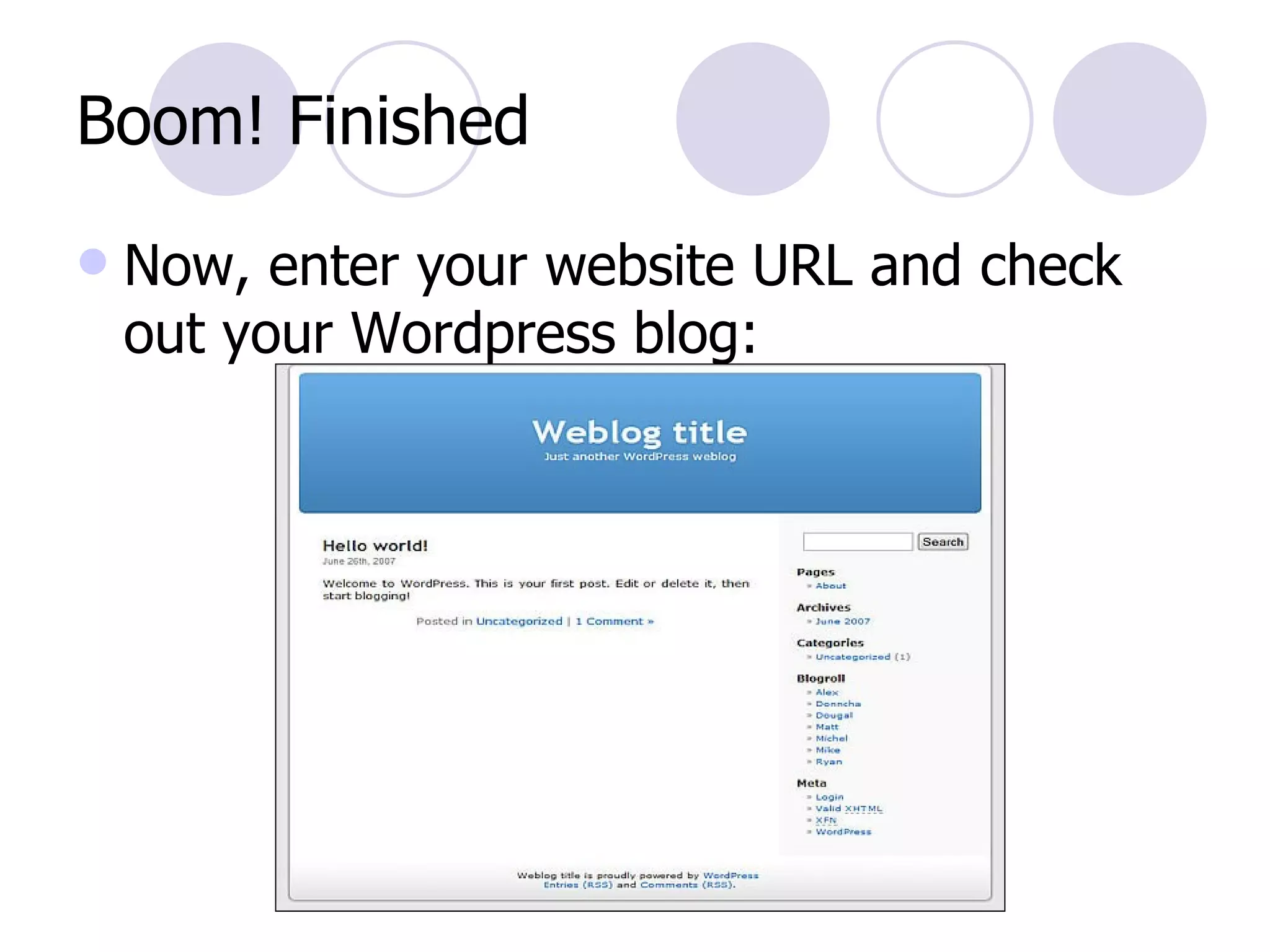
Boom! Finished Now, enter your website URL and check out your Wordpress blog:
Part Four Writing posts and pages
Managing Wordpress Dashboard is found at: www.yourdomain.com/wp-admin Log in to add posts, change settings, activate themes and plugins You can also change code (html, css, php) This isn’t required, but can be fun later
Writing Posts In the dashboard,  Expand  “Posts” on left Click  “Add New” Now you can add a title, tags, and write a new post Toolbar allows formatting, like  bold ,  italics ,  color , and much more. Click  “Publish” to finish your post Click  “Save Draft” to save post for later
Writing Pages In the dashboard,  Expand  “Pages” on left Click  “Add New” Now you can add a title and write a new page Toolbar allows formatting, like  bold ,  italics ,  color , and much more. Click  “Publish” to finish your page Click  “Save Draft” to save page for later
Post vs. Page What’s the difference? A  post  shows up in your “feed” For instance, your main page might show the last 10 posts you made A  page  does not do this Pages can be used for special sections, like About Me, Contact Information, etc.
Part Five Making it your own
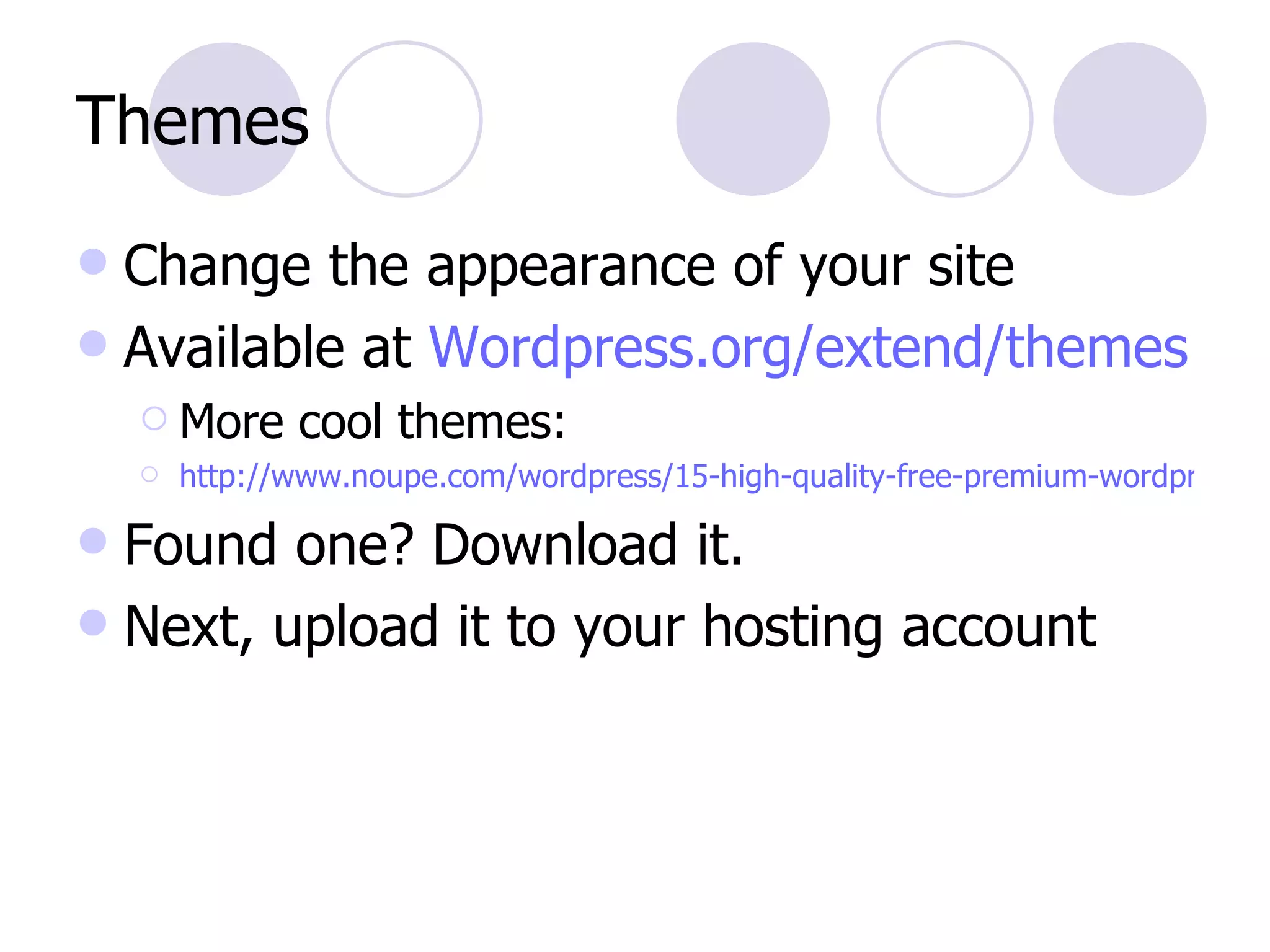
Themes Change the appearance of your site Available at  Wordpress.org/extend/themes More cool themes: http://www.noupe.com/wordpress/15-high-quality-free-premium-wordpress-27-themes.html Found one? Download it. Next, upload it to your hosting account
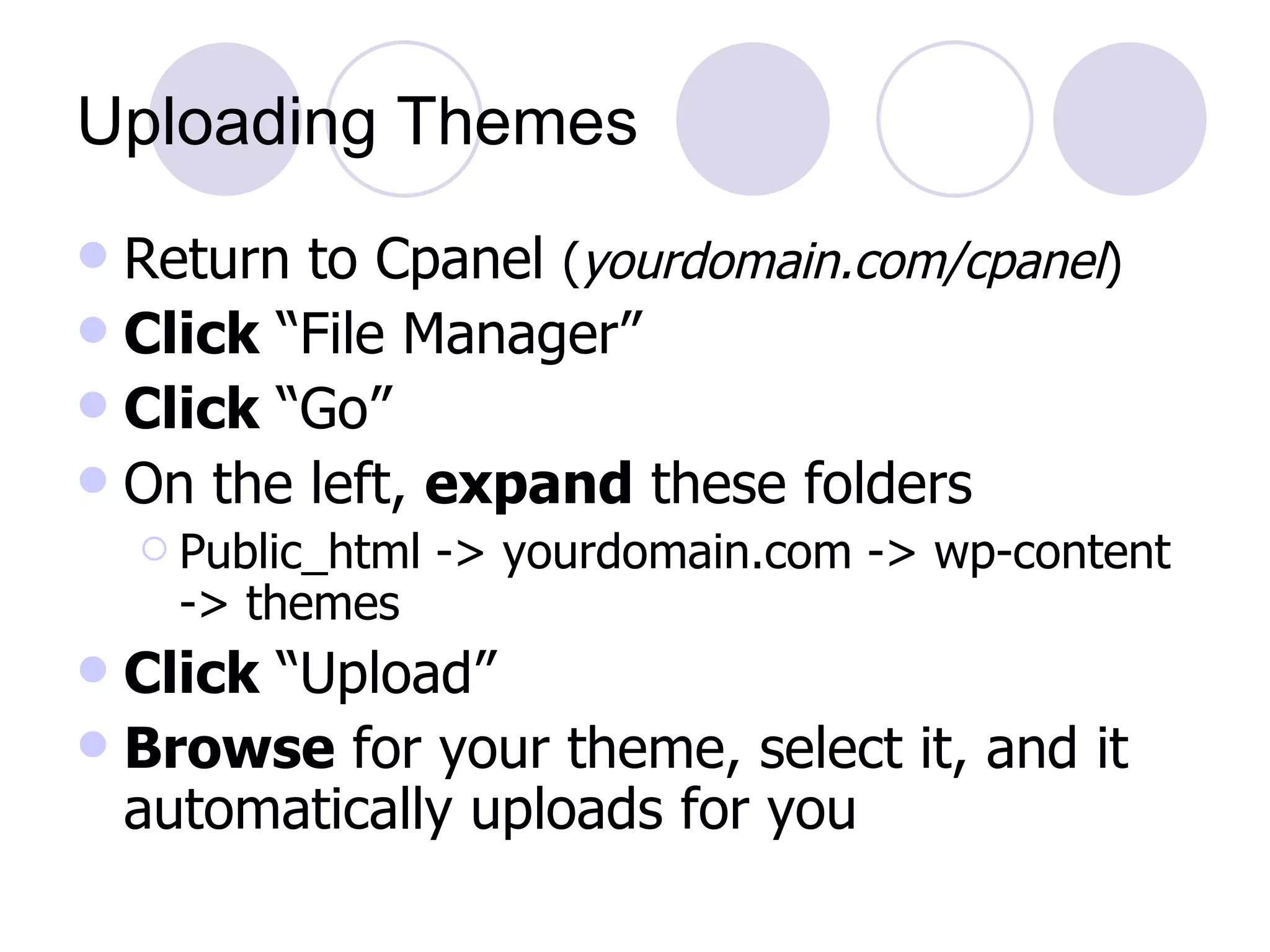
Uploading Themes Return to Cpanel  ( yourdomain.com/cpanel ) Click  “File Manager” Click  “Go” On the left,  expand  these folders Public_html -> yourdomain.com -> wp-content -> themes Click  “Upload” Browse  for your theme, select it, and it automatically uploads for you
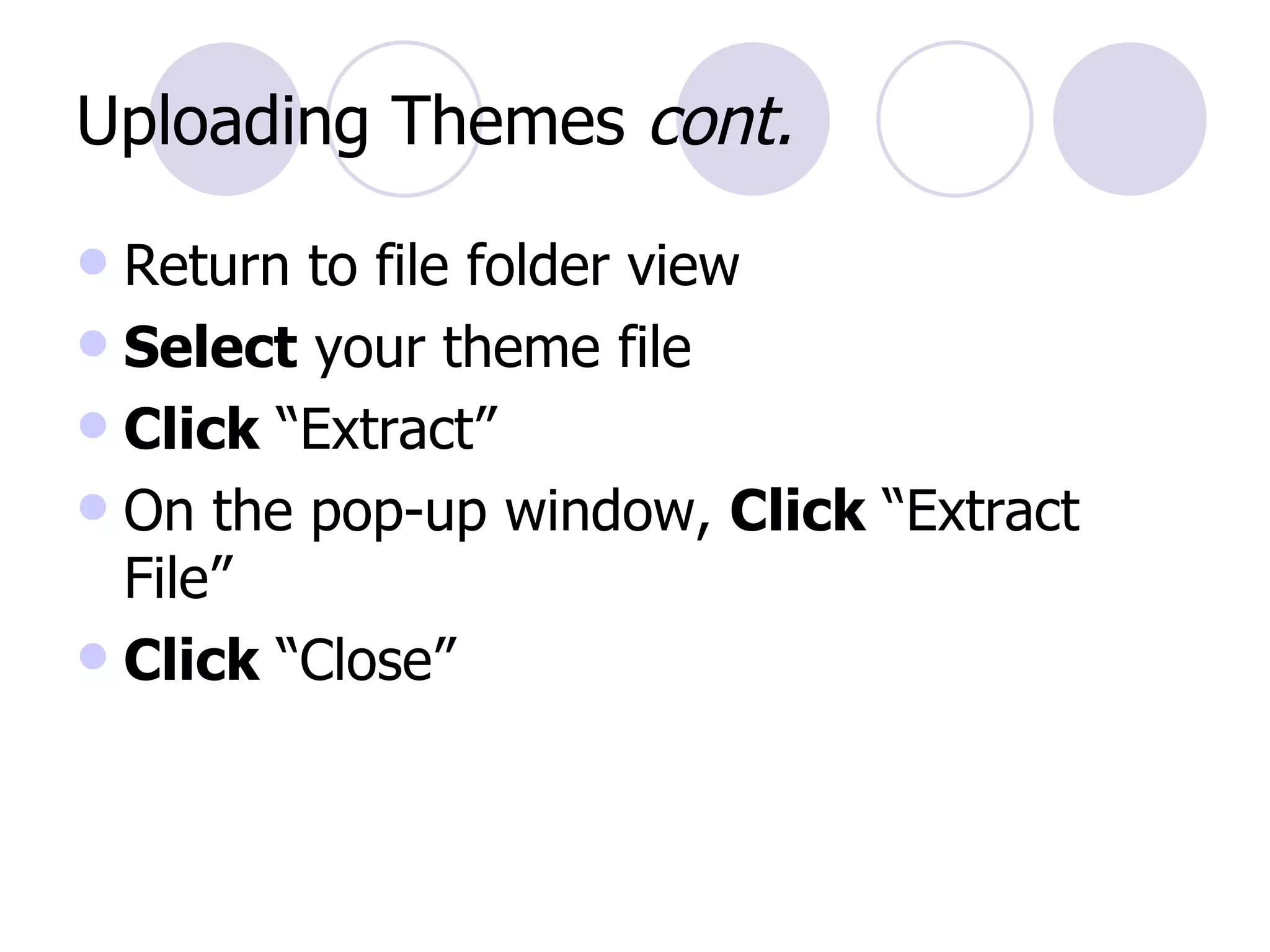
Uploading Themes  cont. Return to file folder view Select  your theme file Click  “Extract” On the pop-up window,  Click  “Extract File” Click  “Close”
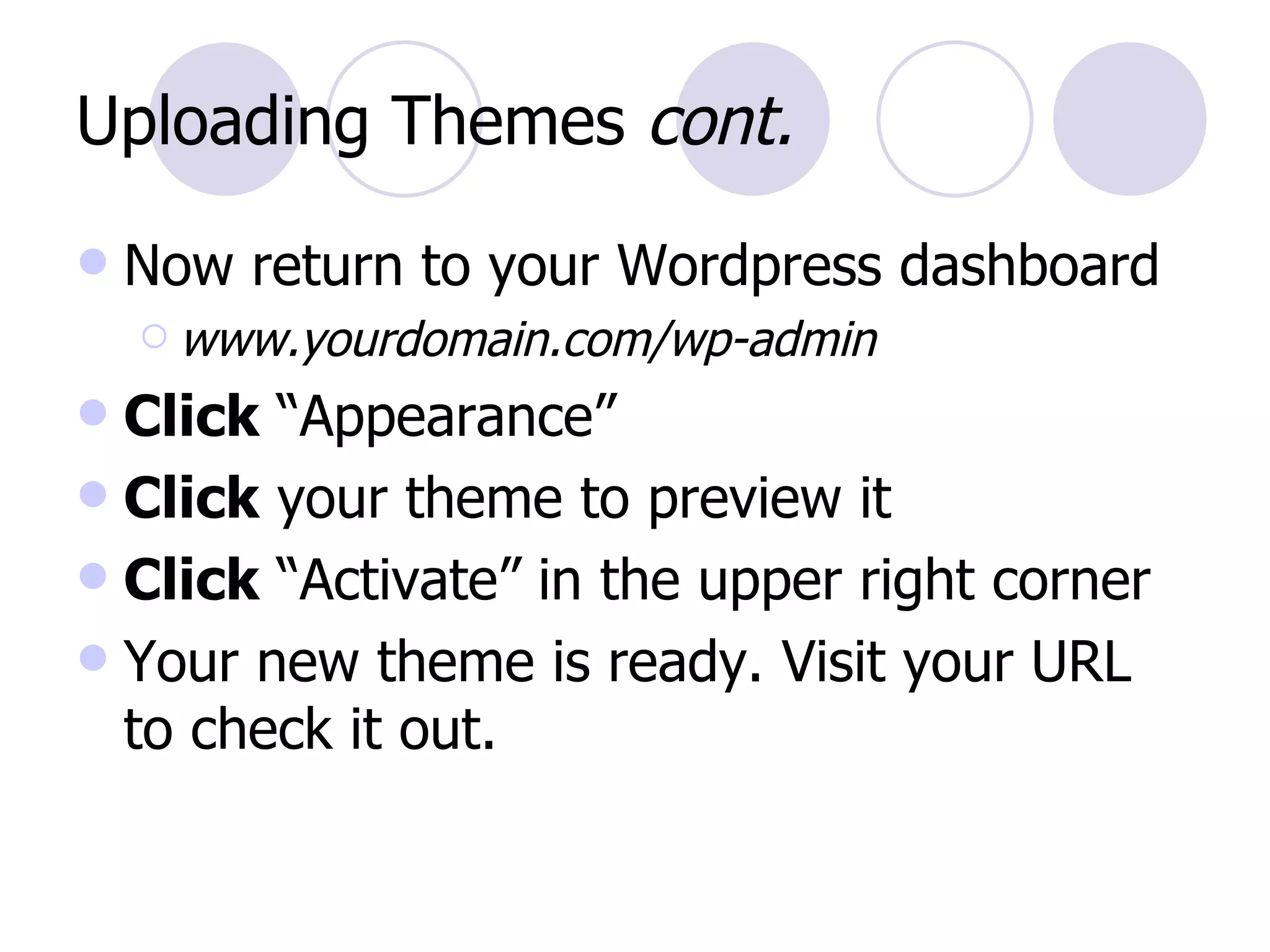
Uploading Themes  cont. Now return to your Wordpress dashboard www.yourdomain.com/wp-admin Click  “Appearance” Click  your theme to preview it Click  “Activate” in the upper right corner Your new theme is ready. Visit your URL to check it out.
Plugins Add functionality to your site Plugins for video, creating forms, adding analytic tools, 5-star ratings, etc. Available at  Wordpress. org/extend/plugins Installation may vary for certain plugins Found one? Download it. Next, upload it to your hosting account
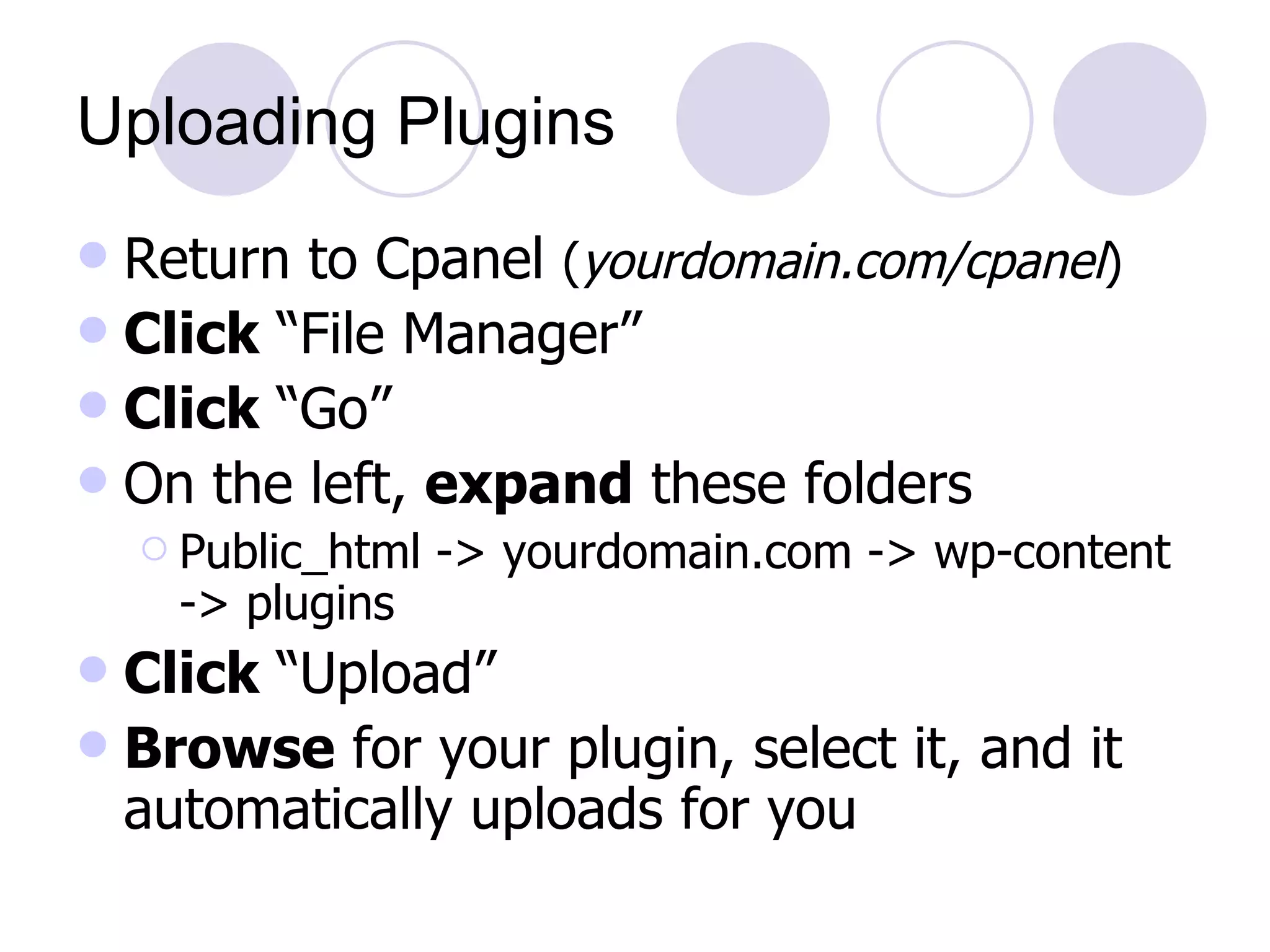
Uploading Plugins Return to Cpanel  ( yourdomain.com/cpanel ) Click  “File Manager” Click  “Go” On the left,  expand  these folders Public_html -> yourdomain.com -> wp-content -> plugins Click  “Upload” Browse  for your plugin, select it, and it automatically uploads for you
Uploading Plugins  cont. Return to file folder view Select  your plugin file Click  “Extract” On the pop-up window,  Click  “Extract File” Click  “Close”
Uploading Plugins  cont. Now return to your Wordpress dashboard www.yourdomain.com/wp-admin Click  “Plugins” Scroll  to find your new plugin Click  “Activate” on the upper right side Your new plugin is ready. You may need to adjust the plugins settings. Always read FAQ/Installation for plugins
Part Six Embedding video
Wordpress and Video It didn’t used to be easy Now, you can upload many video formats Or embed videos from YouTube, Vimeo, Viddler, etc.
Upload Video Start a new post or page Click  the “Add Video” icon Click  “Select Files” and choose a video Upload begins automatically Click  the “File URL” button Copy  the URL that appears Now,  Close  the add video window
Upload Video  cont. Click  “Show/Hide Kitchen Sink” to expand your toolbar Click  “Insert/edit embedded media” Select  your video file type Paste  the URL of your video file Click  “Insert” You’re done!
Review What have we learned?
Review Did you learn… What Wordpress is? How it goes beyond blogging? How you can get it today - for FREE? Writing posts and pages? Basic ways to customize Wordpress? Embedding video?
Resources Wordpress documentation http://codex.wordpress.org/Main_Page Top 50 Wordpress tutorials http://net.tutsplus.com/articles/web-roundups/top-50-wordpress-tutorials/ And of course…
Want a Copy? Download this presentation at http://www. slideshare . net/reubenrock/introduction-to-wordpress

Introduction to Wordpress

  • 1.
    April 8, 2009Reuben D. Rock an introduction to
  • 2.
    What’s Your R.O.I.Today? You’ll Learn… What Wordpress is How it goes beyond blogging How you can get it today - for FREE Writing posts and pages Basic ways to customize Wordpress Embedding video
  • 3.
    Consider this… + Cliff’s Notes
  • 4.
  • 5.
    Wordpress huh? Wordpress.comis a free blog site Anyone can sign up Blog about anything - within reason Limited ability to customize = FAIL Wordpress.org is free blogging software Thousands of custom themes Thousands of plugins You can do anything
  • 6.
    Who Uses Wordpress?The little guys Me ( ReubenRock .com ) LaunchMemphis .com The BIG guys Harvard , Dartmouth , Berkeley , Cornell Sony , GE , Coca-Cola , Ford Motor Co. Martha Stewart
  • 7.
    Part Two Morethan a blog
  • 8.
    Beyond Blogging Wordpressdoes more because… Themes - customize appearance/layout Plugins - add functionality Both available at Wordpress.org/extend Freebies will get the job done, but there are some that cost $$$. BUT before we dive into the glitter and pizzazz…
  • 9.
  • 10.
    Let’s Install WordpressYou need: Hosting account (your storage space ) Cpanel & Fantastico make Wordpress a breeze! I recommend HostGator .com Domain name (e.g. ReubenRock.com ) I recommend 1and1.com Wordpress software Fantastico will download this for you
  • 11.
    Setting Up Hosting/DomainIt’s easy, so we won’t cover it in depth Buy hosting Buy domain name Link domain name to hosting account Change your domains DNS settings to match your hosting account (24 hour wait) Here’s an easy guide if you need help: http: //faq .1and1. com/domains/dns_settings/index .html
  • 12.
    Finally, Installing WordpressLog in to your hosting account Cpanel Usually at www.yourdomain.com/cpanel Scroll down until you see Fantastico Click it!
  • 13.
    Fantastico Fantastico quicklyinstalls Wordpress to save you hassle Click “Wordpress” Click “New Installation” Select domain name from drop-down menu Type admin name, password, nickname, email Click “Install Wordpress” Now, Click “Finish installation”
  • 14.
    Boom! Finished Now,enter your website URL and check out your Wordpress blog:
  • 15.
    Part Four Writingposts and pages
  • 16.
    Managing Wordpress Dashboardis found at: www.yourdomain.com/wp-admin Log in to add posts, change settings, activate themes and plugins You can also change code (html, css, php) This isn’t required, but can be fun later
  • 17.
    Writing Posts Inthe dashboard, Expand “Posts” on left Click “Add New” Now you can add a title, tags, and write a new post Toolbar allows formatting, like bold , italics , color , and much more. Click “Publish” to finish your post Click “Save Draft” to save post for later
  • 18.
    Writing Pages Inthe dashboard, Expand “Pages” on left Click “Add New” Now you can add a title and write a new page Toolbar allows formatting, like bold , italics , color , and much more. Click “Publish” to finish your page Click “Save Draft” to save page for later
  • 19.
    Post vs. PageWhat’s the difference? A post shows up in your “feed” For instance, your main page might show the last 10 posts you made A page does not do this Pages can be used for special sections, like About Me, Contact Information, etc.
  • 20.
    Part Five Makingit your own
  • 21.
    Themes Change theappearance of your site Available at Wordpress.org/extend/themes More cool themes: http://www.noupe.com/wordpress/15-high-quality-free-premium-wordpress-27-themes.html Found one? Download it. Next, upload it to your hosting account
  • 22.
    Uploading Themes Returnto Cpanel ( yourdomain.com/cpanel ) Click “File Manager” Click “Go” On the left, expand these folders Public_html -> yourdomain.com -> wp-content -> themes Click “Upload” Browse for your theme, select it, and it automatically uploads for you
  • 23.
    Uploading Themes cont. Return to file folder view Select your theme file Click “Extract” On the pop-up window, Click “Extract File” Click “Close”
  • 24.
    Uploading Themes cont. Now return to your Wordpress dashboard www.yourdomain.com/wp-admin Click “Appearance” Click your theme to preview it Click “Activate” in the upper right corner Your new theme is ready. Visit your URL to check it out.
  • 25.
    Plugins Add functionalityto your site Plugins for video, creating forms, adding analytic tools, 5-star ratings, etc. Available at Wordpress. org/extend/plugins Installation may vary for certain plugins Found one? Download it. Next, upload it to your hosting account
  • 26.
    Uploading Plugins Returnto Cpanel ( yourdomain.com/cpanel ) Click “File Manager” Click “Go” On the left, expand these folders Public_html -> yourdomain.com -> wp-content -> plugins Click “Upload” Browse for your plugin, select it, and it automatically uploads for you
  • 27.
    Uploading Plugins cont. Return to file folder view Select your plugin file Click “Extract” On the pop-up window, Click “Extract File” Click “Close”
  • 28.
    Uploading Plugins cont. Now return to your Wordpress dashboard www.yourdomain.com/wp-admin Click “Plugins” Scroll to find your new plugin Click “Activate” on the upper right side Your new plugin is ready. You may need to adjust the plugins settings. Always read FAQ/Installation for plugins
  • 29.
  • 30.
    Wordpress and VideoIt didn’t used to be easy Now, you can upload many video formats Or embed videos from YouTube, Vimeo, Viddler, etc.
  • 31.
    Upload Video Starta new post or page Click the “Add Video” icon Click “Select Files” and choose a video Upload begins automatically Click the “File URL” button Copy the URL that appears Now, Close the add video window
  • 32.
    Upload Video cont. Click “Show/Hide Kitchen Sink” to expand your toolbar Click “Insert/edit embedded media” Select your video file type Paste the URL of your video file Click “Insert” You’re done!
  • 33.
    Review What havewe learned?
  • 34.
    Review Did youlearn… What Wordpress is? How it goes beyond blogging? How you can get it today - for FREE? Writing posts and pages? Basic ways to customize Wordpress? Embedding video?
  • 35.
    Resources Wordpress documentationhttp://codex.wordpress.org/Main_Page Top 50 Wordpress tutorials http://net.tutsplus.com/articles/web-roundups/top-50-wordpress-tutorials/ And of course…
  • 36.
    Want a Copy?Download this presentation at http://www. slideshare . net/reubenrock/introduction-to-wordpress