INTRODUTION TO HTML
HTML CONTENTS
• INTRODUCTION OF HTML
• HTML TOOLS
• HTML TERMINOLGY
• HOW TO CREATE AN HTML DOCUMENT
• SAVING AND VIEWING A HTML DOCUMENT
• TEXT TAGS
• SPECIAL CHARTACTER
• ADVANTAGES OF HTML
• DISADVANTAGES OF HTML
INTRODUCTION OF HTML
• HTML is a language for describing web pages.
• HTML stands for Hyper Text Markup Language
• HTML is not a programming language, it is
a markup language
• A markup language is a set of markup tags
• HTML uses markup tags to describe web pages
HTML TOOLS
•There are two tools of HTML.
a)HTML Editor: it is the program that one
uses to create and save HTML documents.
They fall into two categories:
- Text based or code based which allows one to
see the HTML code as one is creating a
document.e.g. Notepad.
HTML TOOLS
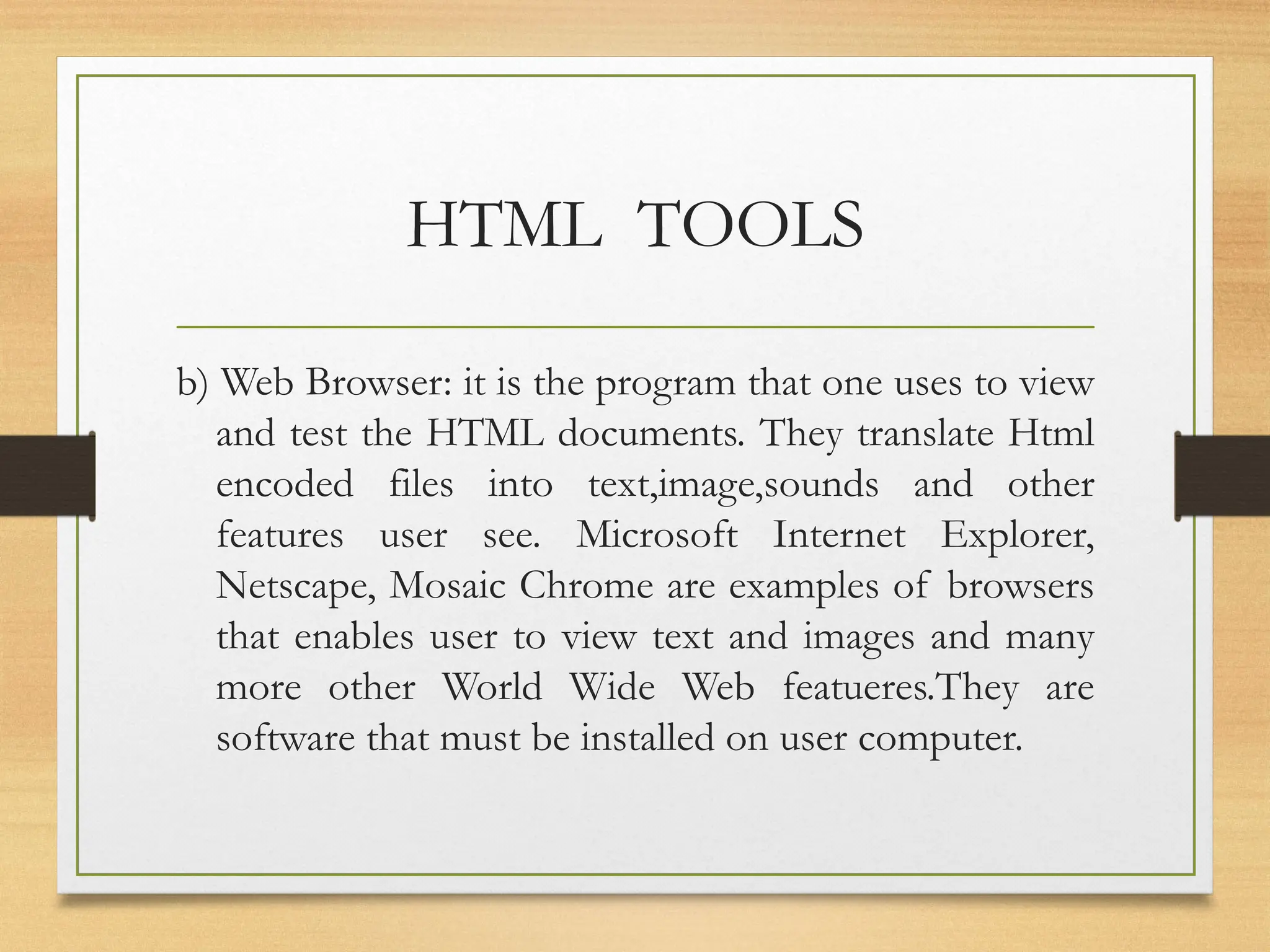
b) Web Browser: it is the program that one uses to view
and test the HTML documents. They translate Html
encoded files into text,image,sounds and other
features user see. Microsoft Internet Explorer,
Netscape, Mosaic Chrome are examples of browsers
that enables user to view text and images and many
more other World Wide Web featueres.They are
software that must be installed on user computer.
HTML TERMINOLGY
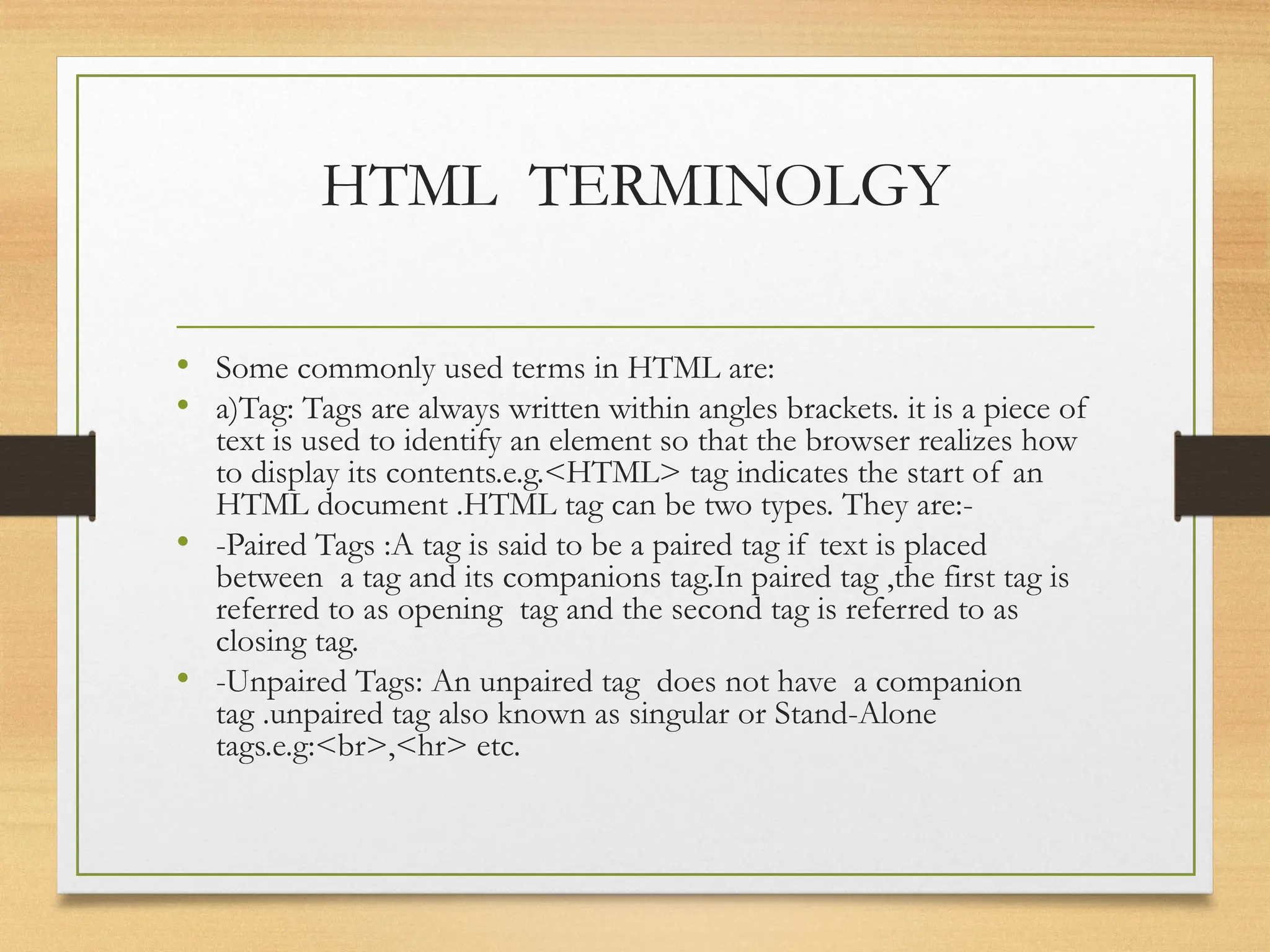
• Some commonly used terms in HTML are:
• a)Tag: Tags are always written within angles brackets. it is a piece of
text is used to identify an element so that the browser realizes how
to display its contents.e.g.<HTML> tag indicates the start of an
HTML document .HTML tag can be two types. They are:-
• -Paired Tags :A tag is said to be a paired tag if text is placed
between a tag and its companions tag.In paired tag ,the first tag is
referred to as opening tag and the second tag is referred to as
closing tag.
• -Unpaired Tags: An unpaired tag does not have a companion
tag .unpaired tag also known as singular or Stand-Alone
tags.e.g:<br>,<hr> etc.
HOW TO CREATE AN HTML DOCUMENT
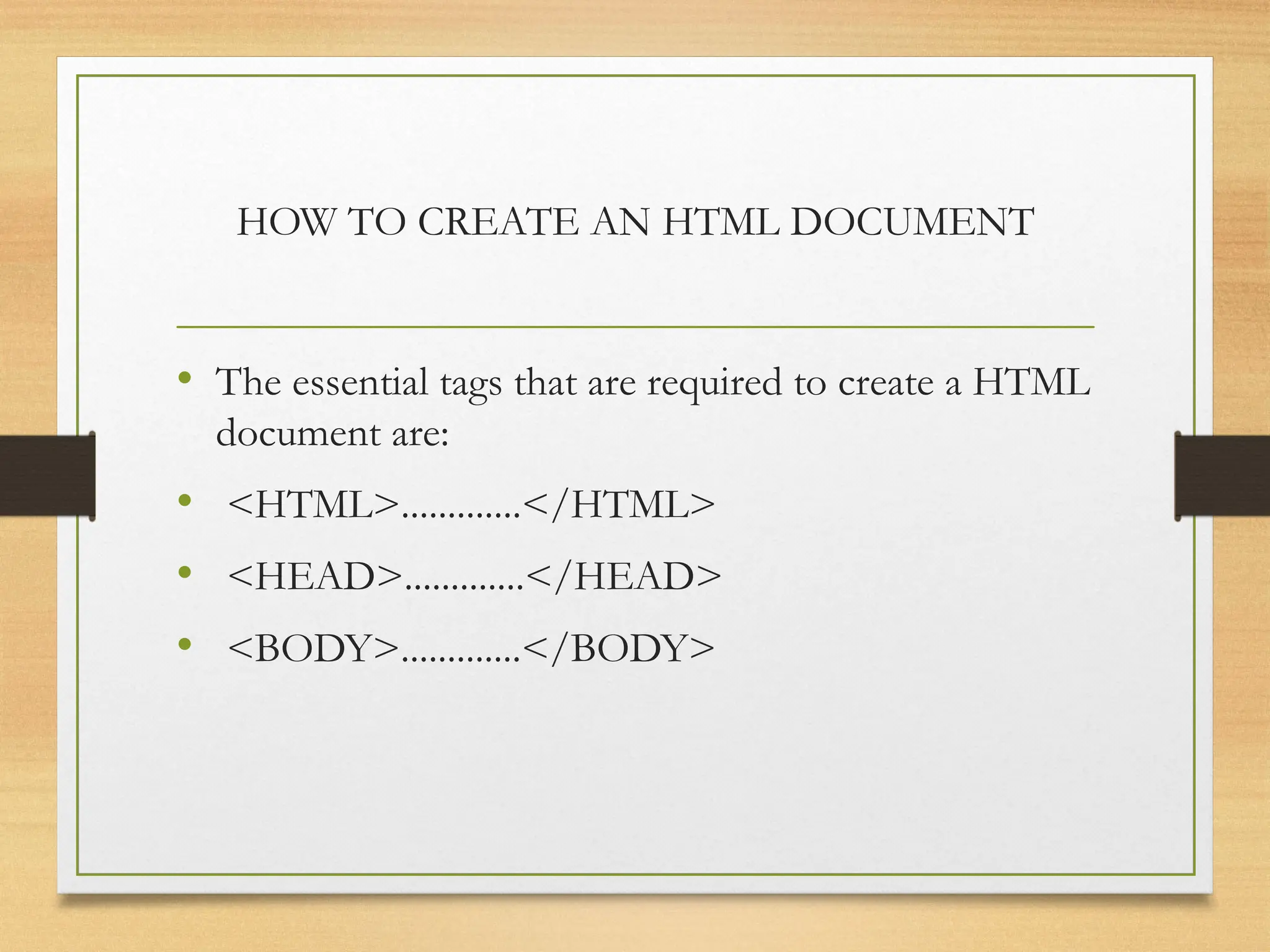
• The essential tags that are required to create a HTML
document are:
• <HTML>.............</HTML>
• <HEAD>.............</HEAD>
• <BODY>.............</BODY>
HTML Tag <HTML>
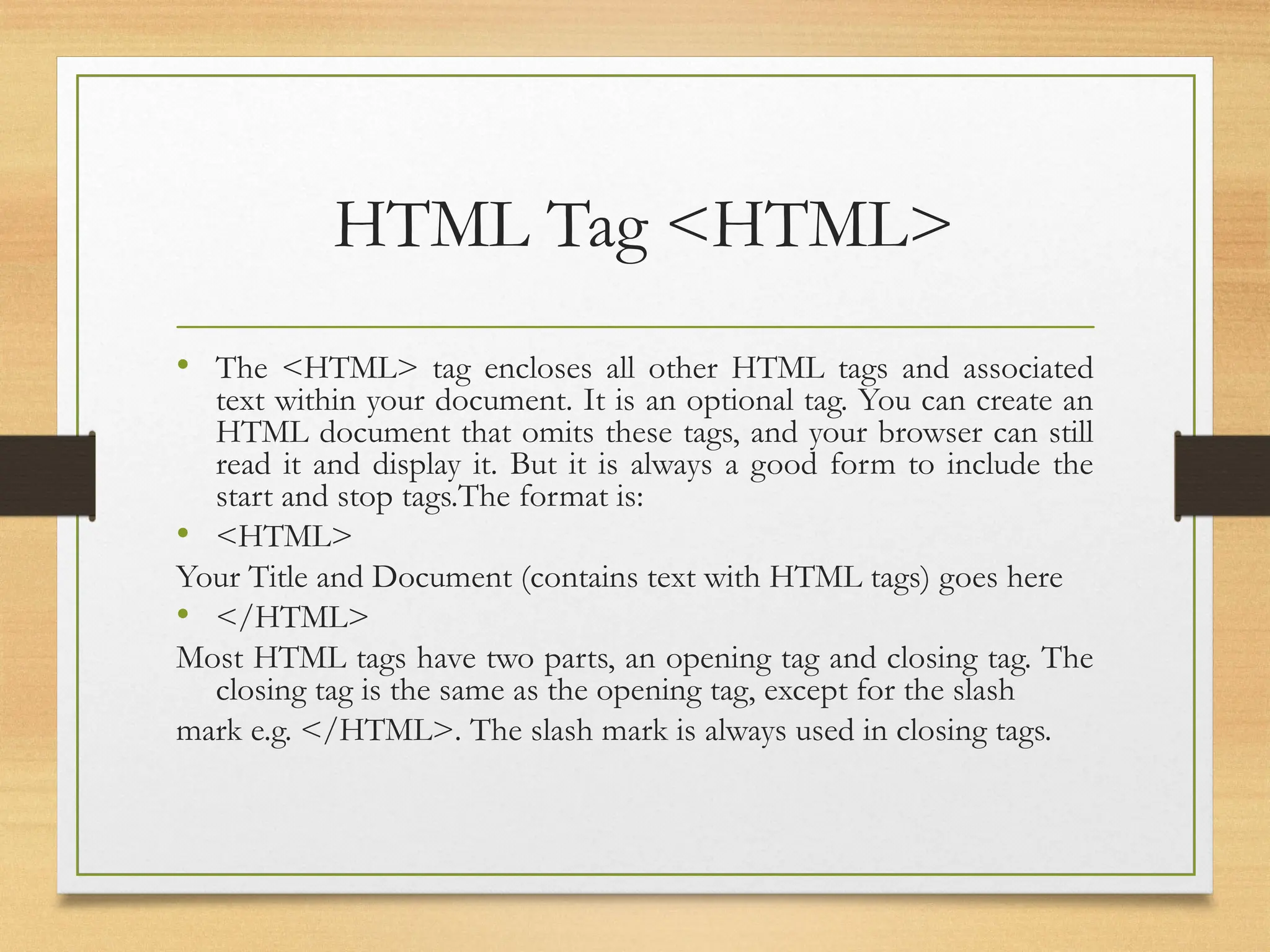
• The <HTML> tag encloses all other HTML tags and associated
text within your document. It is an optional tag. You can create an
HTML document that omits these tags, and your browser can still
read it and display it. But it is always a good form to include the
start and stop tags.The format is:
• <HTML>
Your Title and Document (contains text with HTML tags) goes here
• </HTML>
Most HTML tags have two parts, an opening tag and closing tag. The
closing tag is the same as the opening tag, except for the slash
mark e.g. </HTML>. The slash mark is always used in closing tags.
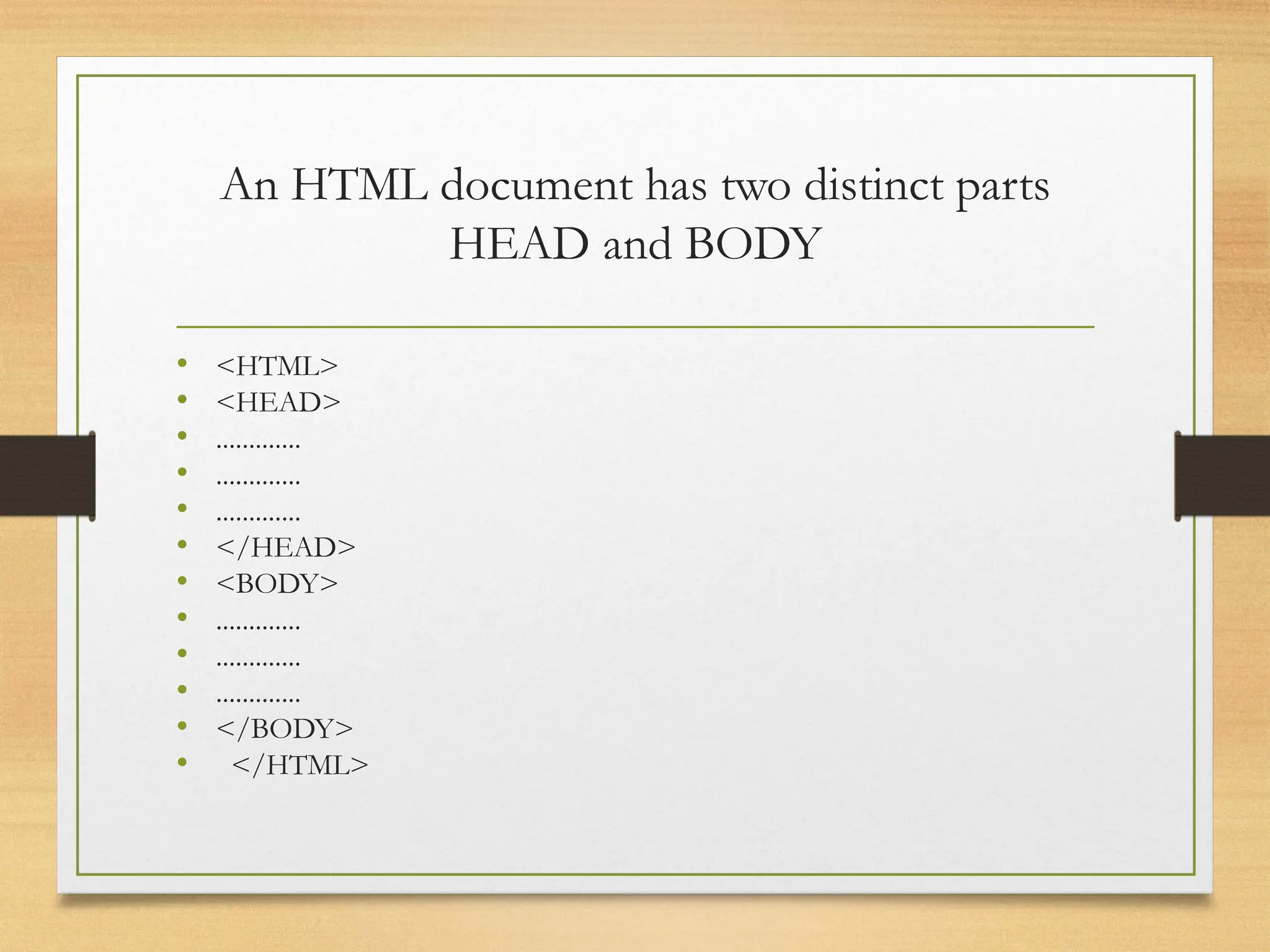
An HTML document has two distinct parts
HEAD and BODY
• <HTML>
• <HEAD>
• .............
• .............
• .............
• </HEAD>
• <BODY>
• .............
• .............
• .............
• </BODY>
• </HTML>
HEAD Tag <HEAD>
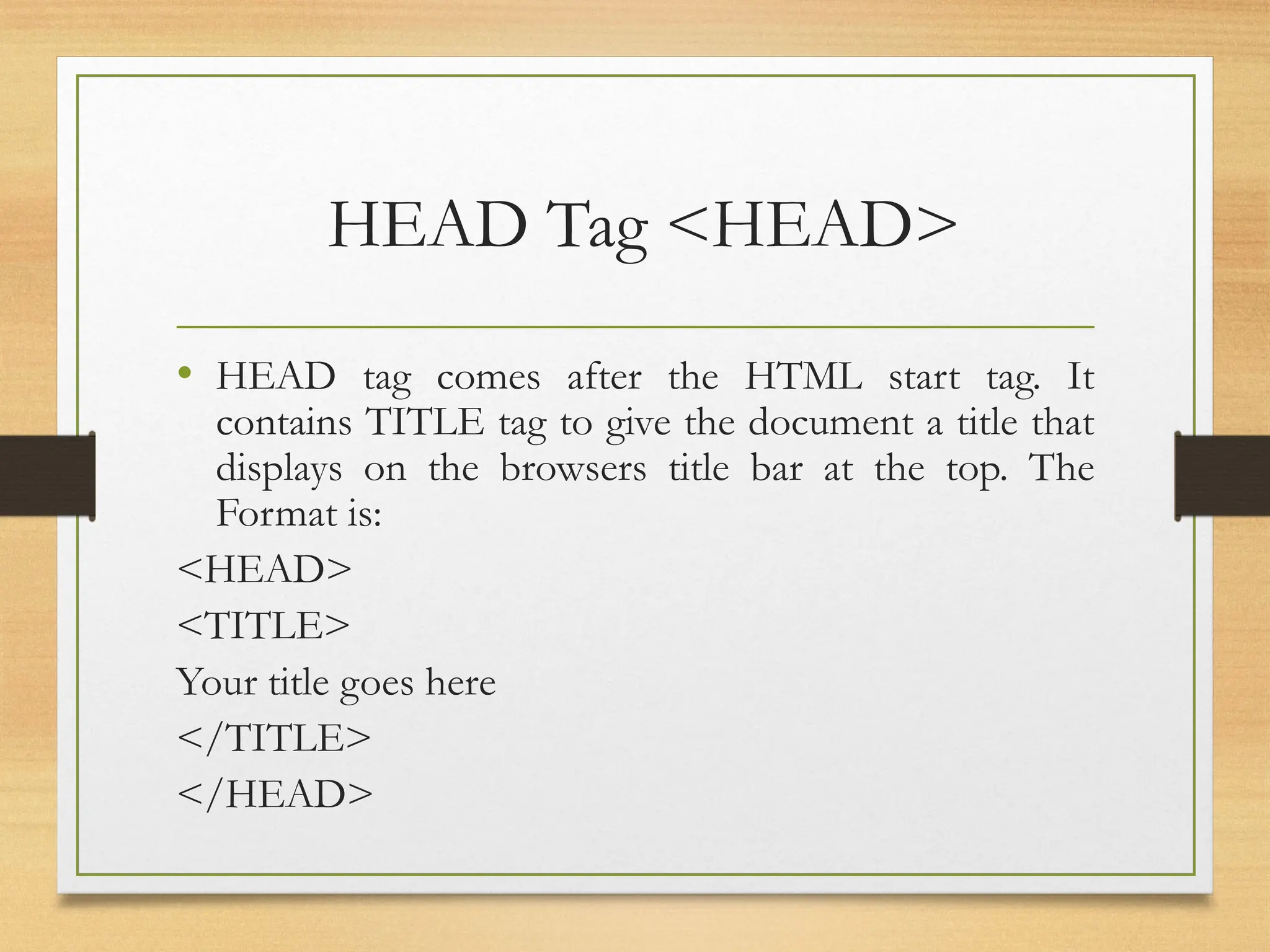
• HEAD tag comes after the HTML start tag. It
contains TITLE tag to give the document a title that
displays on the browsers title bar at the top. The
Format is:
<HEAD>
<TITLE>
Your title goes here
</TITLE>
</HEAD>
BODY Tag <BODY>
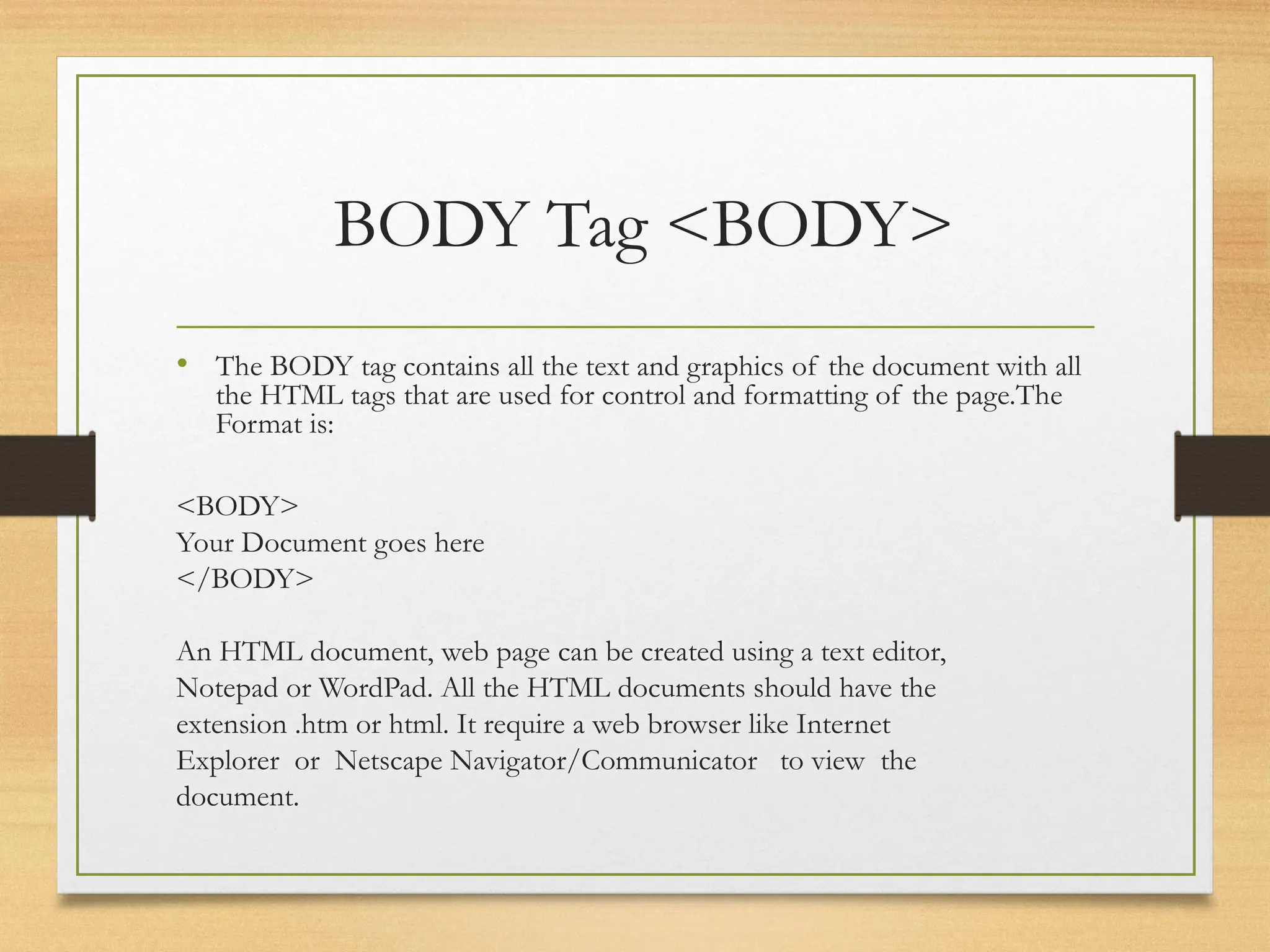
• The BODY tag contains all the text and graphics of the document with all
the HTML tags that are used for control and formatting of the page.The
Format is:
<BODY>
Your Document goes here
</BODY>
An HTML document, web page can be created using a text editor,
Notepad or WordPad. All the HTML documents should have the
extension .htm or html. It require a web browser like Internet
Explorer or Netscape Navigator/Communicator to view the
document.
Attributes used with <BODY>
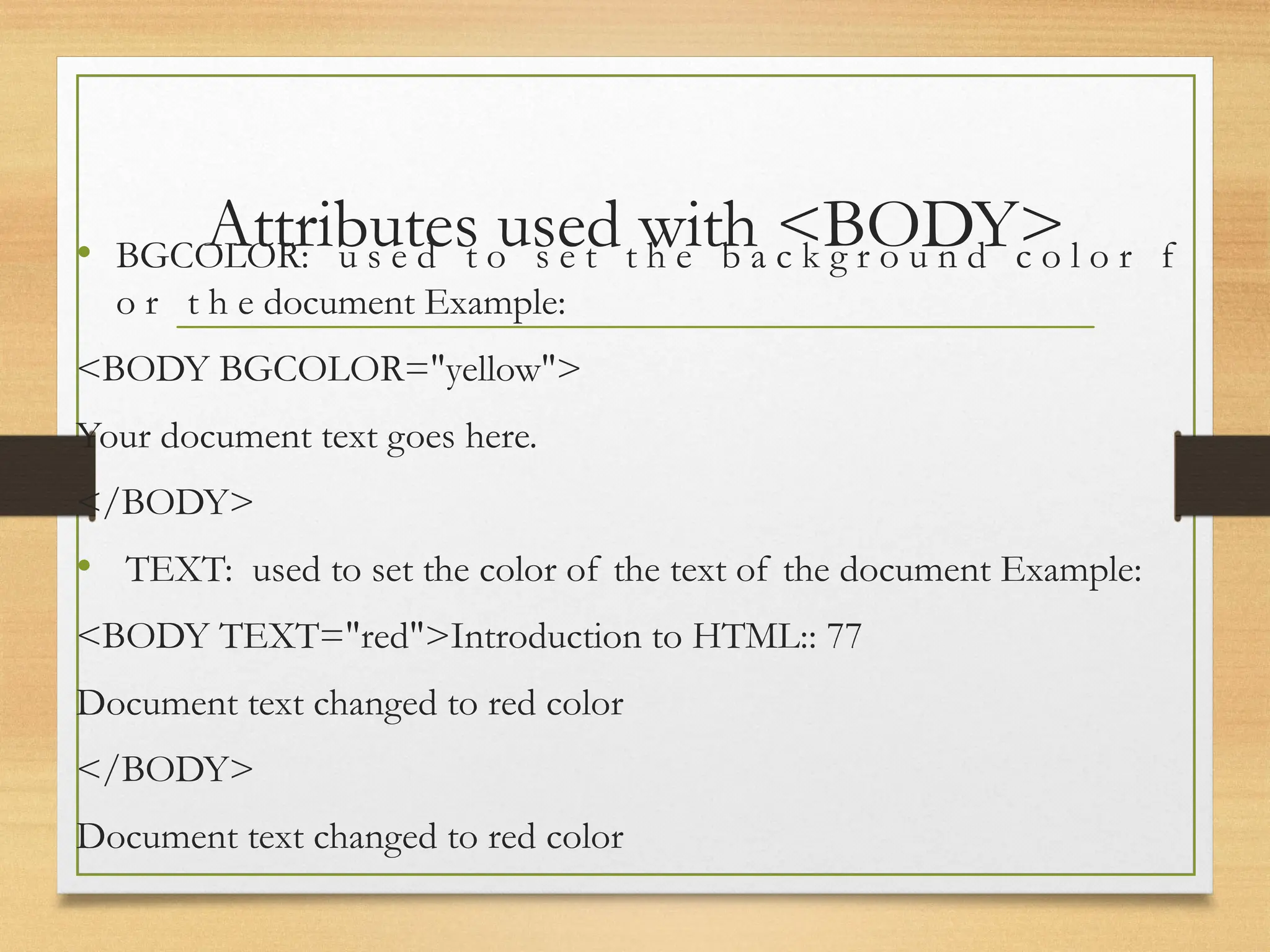
• BGCOLOR: u s e d t o s e t t h e b a c k g r o u n d c o l o r f
o r t h e document Example:
<BODY BGCOLOR="yellow">
Your document text goes here.
</BODY>
• TEXT: used to set the color of the text of the document Example:
<BODY TEXT="red">Introduction to HTML:: 77
Document text changed to red color
</BODY>
Document text changed to red color
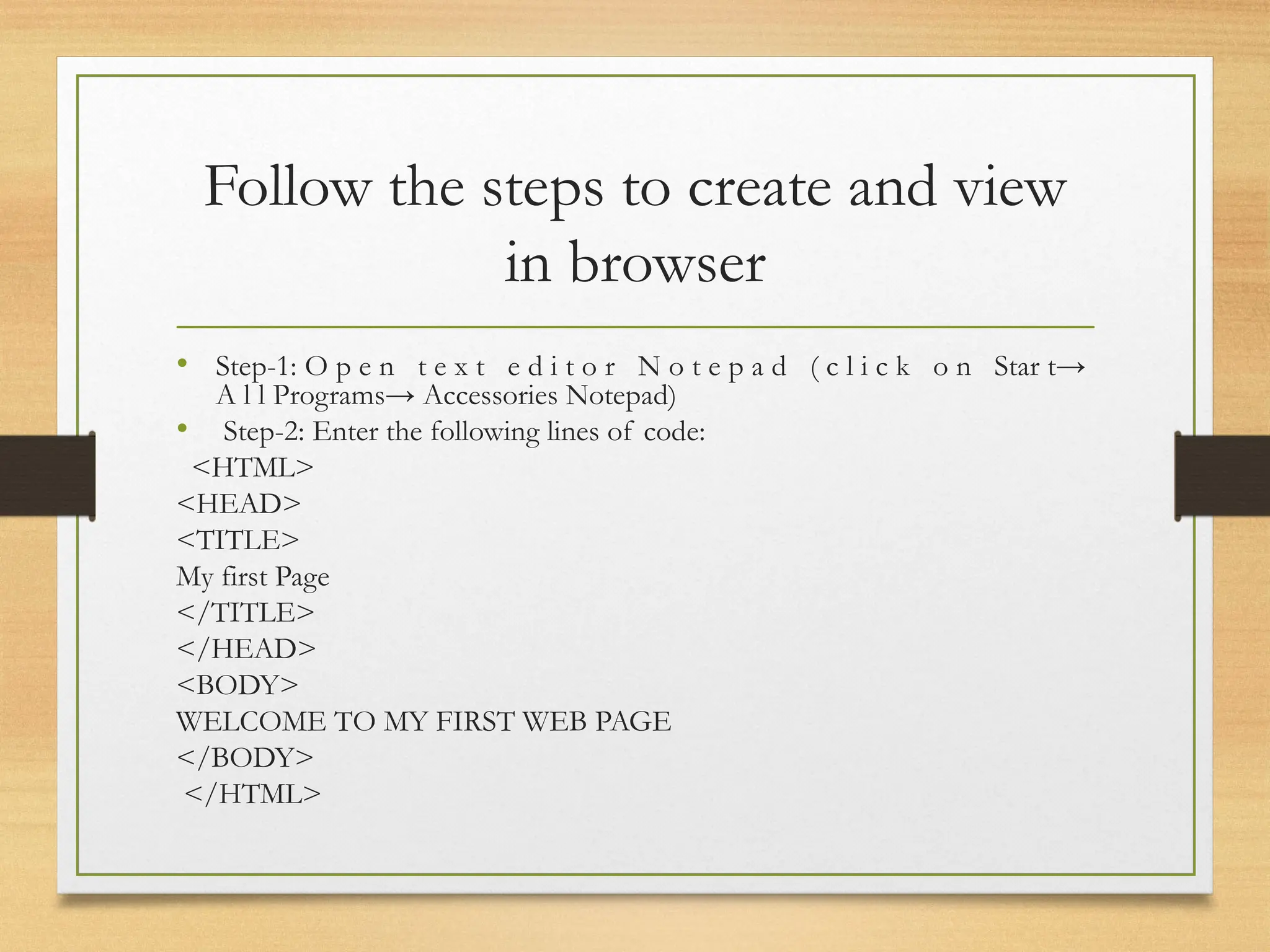
Follow the steps to create and view
in browser
• Step-1: O p e n t e x t e d i t o r N o t e p a d ( c l i c k o n Star t→
A l l Programs→ Accessories Notepad)
• Step-2: Enter the following lines of code:
<HTML>
<HEAD>
<TITLE>
My first Page
</TITLE>
</HEAD>
<BODY>
WELCOME TO MY FIRST WEB PAGE
</BODY>
</HTML>
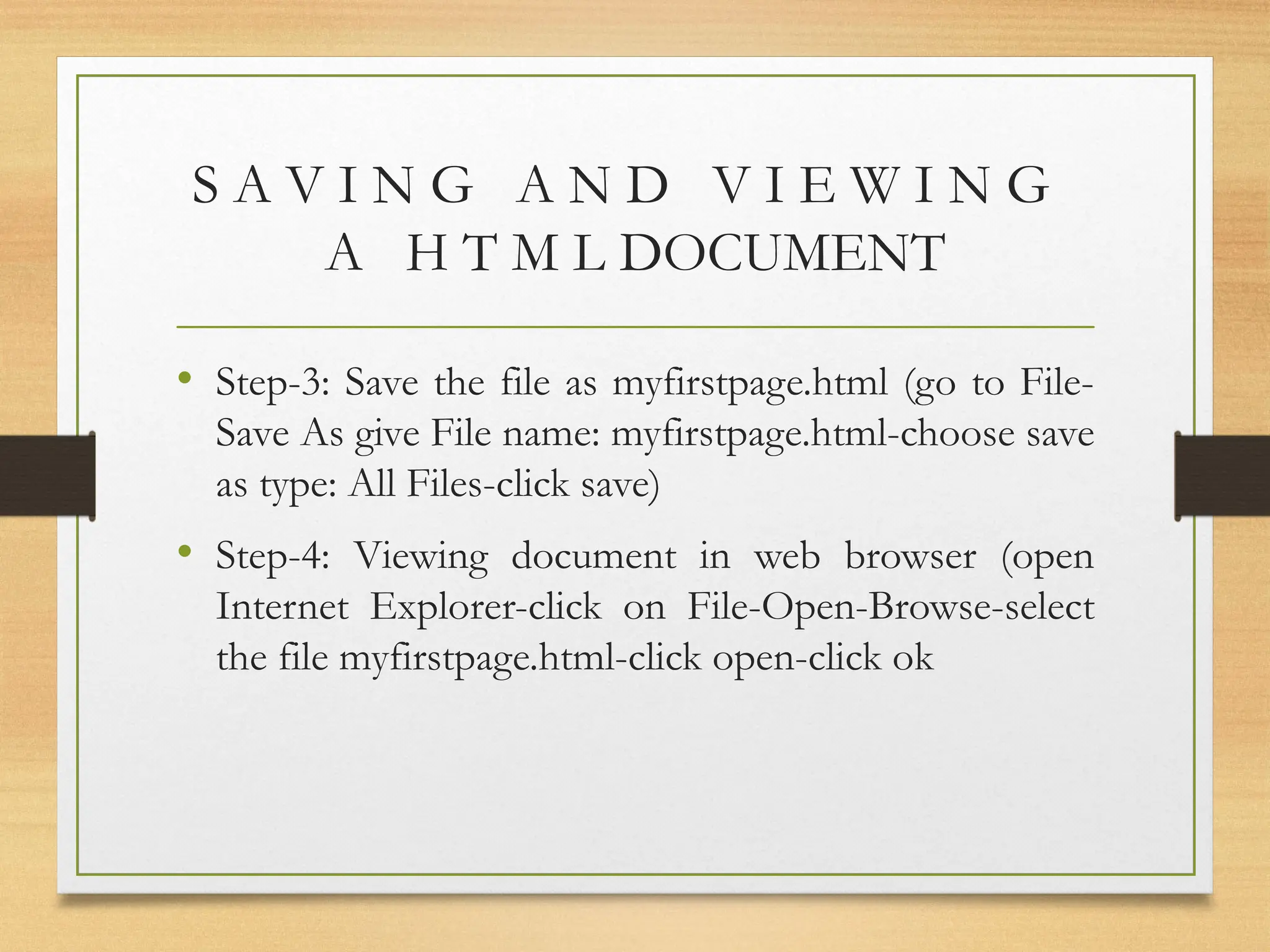
S A V I N G A N D V I E W I N G
A H T M L DOCUMENT
• Step-3: Save the file as myfirstpage.html (go to File-
Save As give File name: myfirstpage.html-choose save
as type: All Files-click save)
• Step-4: Viewing document in web browser (open
Internet Explorer-click on File-Open-Browse-select
the file myfirstpage.html-click open-click ok
TEXT TAGS
• Text tag are dividing into two categories as:
-Character-level tags and attributes which applies to
formatting of individual letters or words.
-Paragraph level tags and attributes which apply
=To formatting of sections of text.
Character Formatting Tag
• The character formatting tags are used to specify
how a particular text should be displayed on the
screen to distinguish certain characters within the
document.
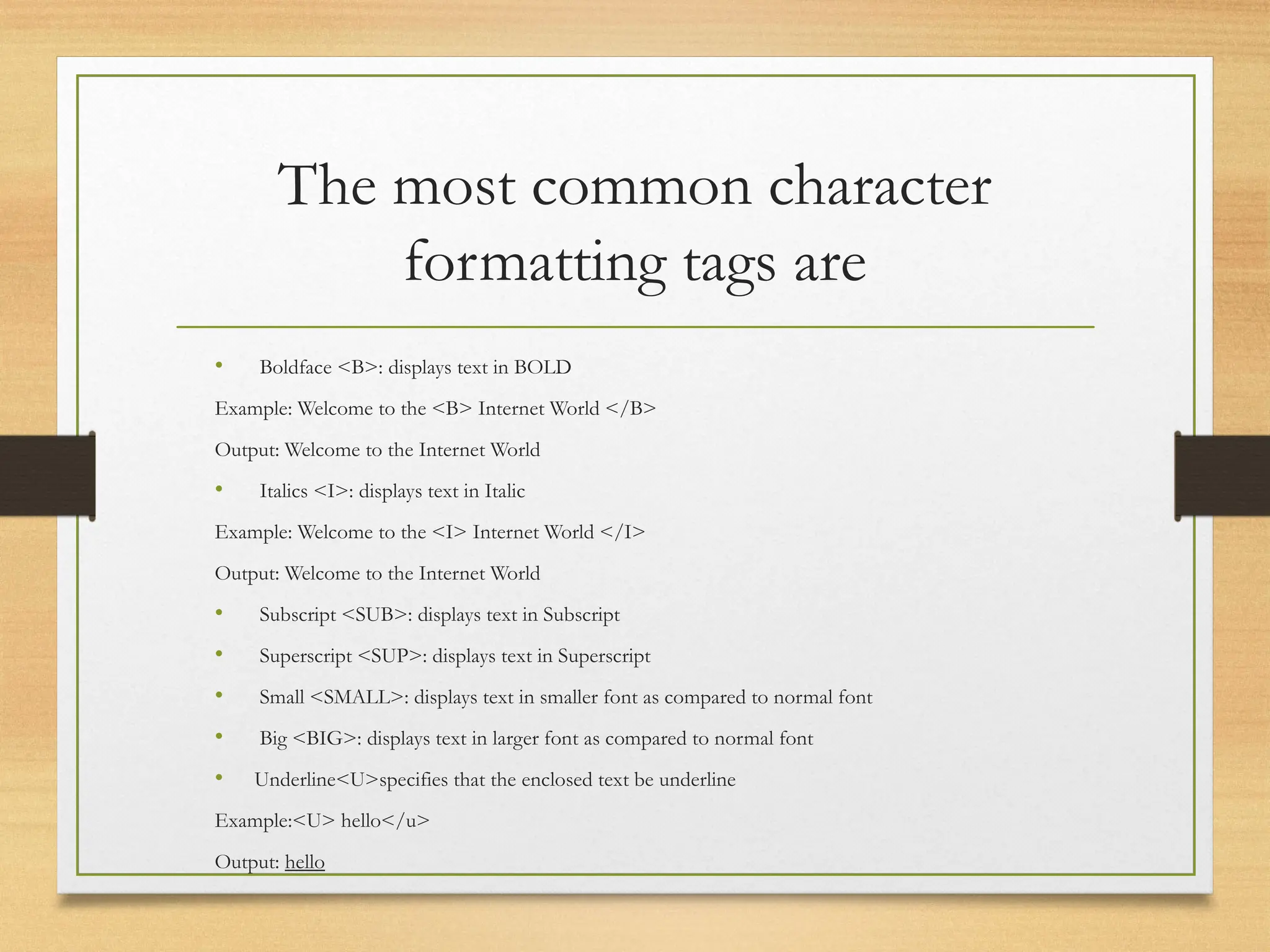
The most common character
formatting tags are
• Boldface <B>: displays text in BOLD
Example: Welcome to the <B> Internet World </B>
Output: Welcome to the Internet World
• Italics <I>: displays text in Italic
Example: Welcome to the <I> Internet World </I>
Output: Welcome to the Internet World
• Subscript <SUB>: displays text in Subscript
• Superscript <SUP>: displays text in Superscript
• Small <SMALL>: displays text in smaller font as compared to normal font
• Big <BIG>: displays text in larger font as compared to normal font
• Underline<U>specifies that the enclosed text be underline
Example:<U> hello</u>
Output: hello
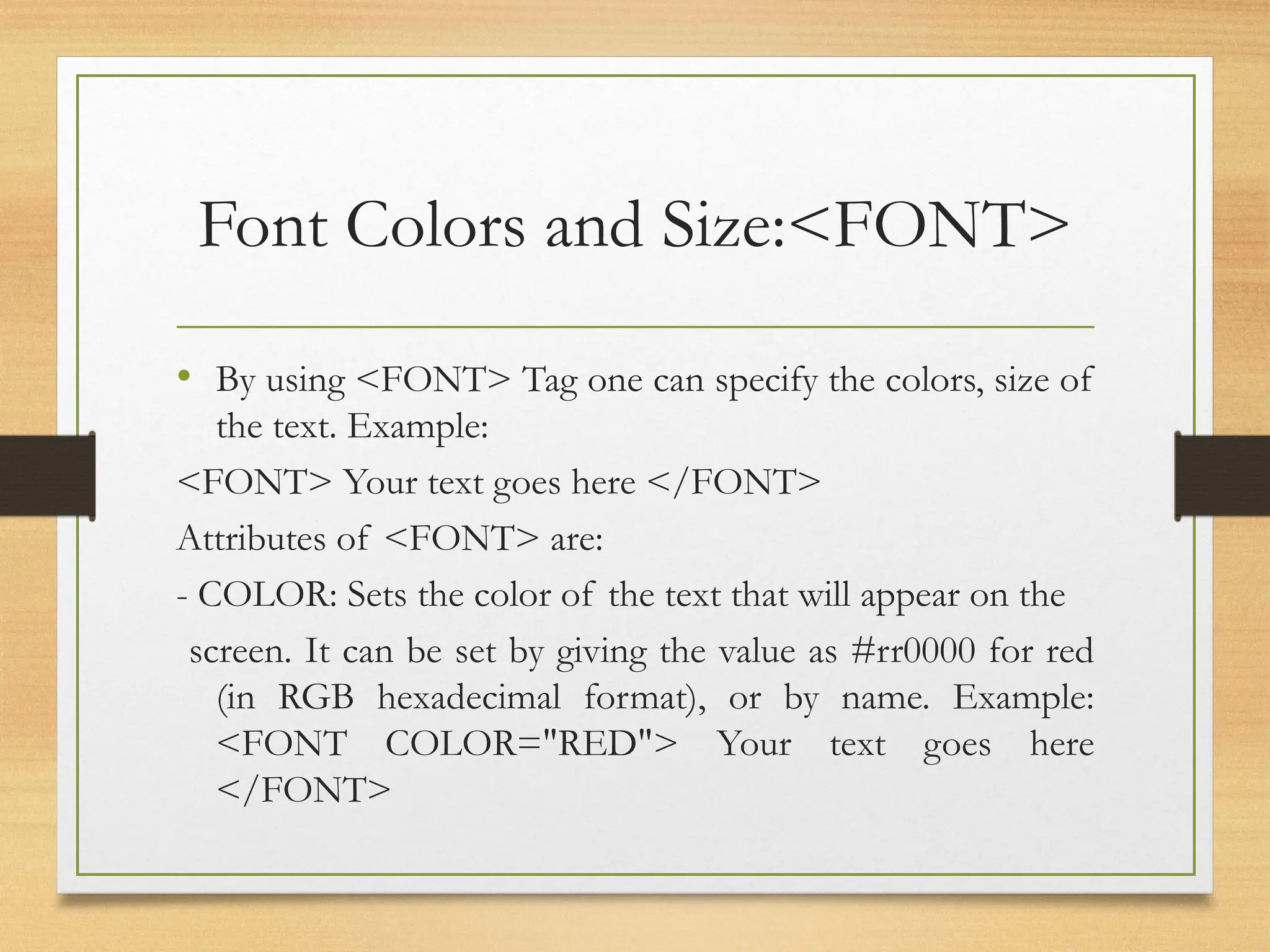
Font Colors and Size:<FONT>
• By using <FONT> Tag one can specify the colors, size of
the text. Example:
<FONT> Your text goes here </FONT>
Attributes of <FONT> are:
- COLOR: Sets the color of the text that will appear on the
screen. It can be set by giving the value as #rr0000 for red
(in RGB hexadecimal format), or by name. Example:
<FONT COLOR="RED"> Your text goes here
</FONT>
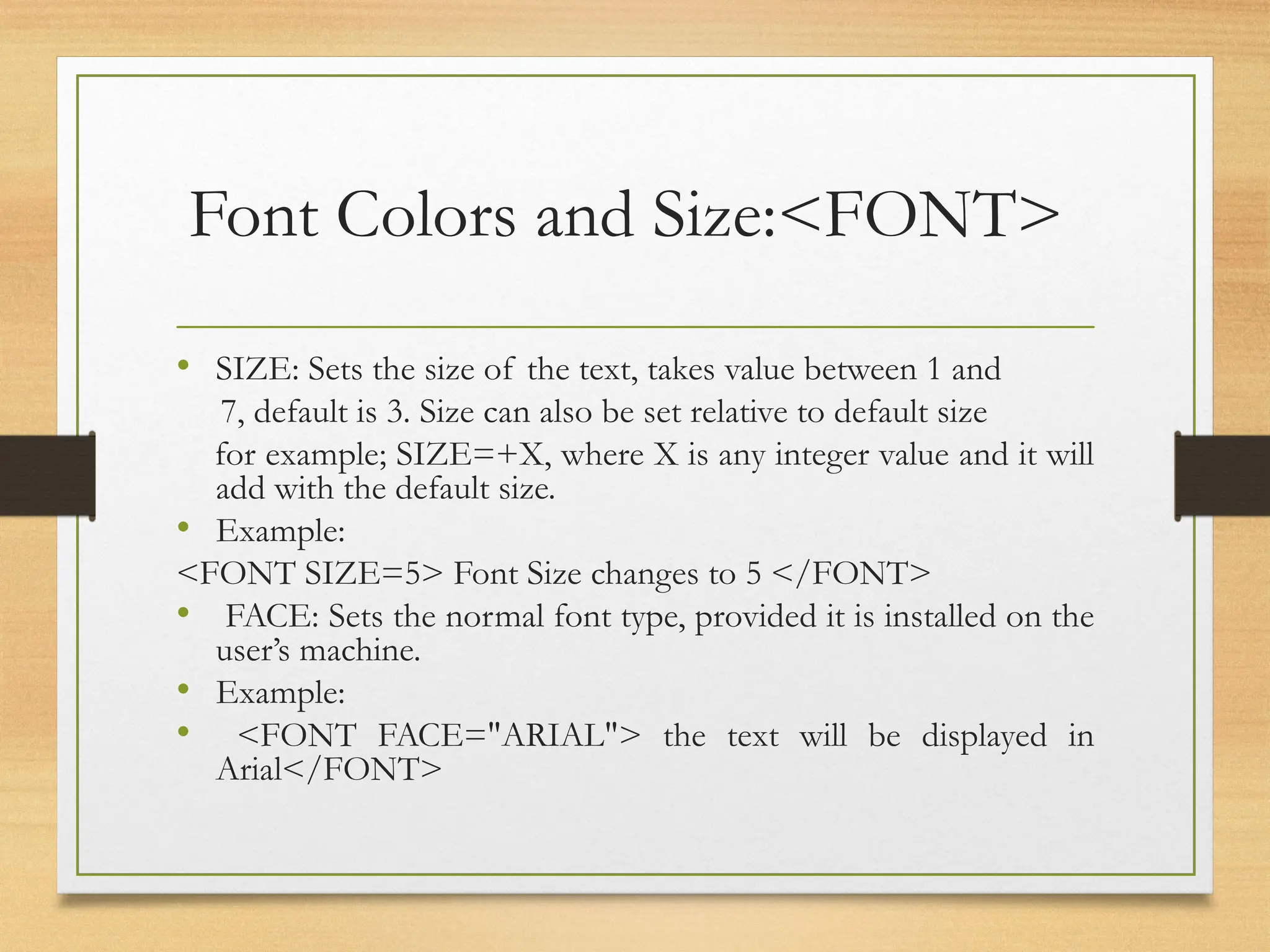
Font Colors and Size:<FONT>
• SIZE: Sets the size of the text, takes value between 1 and
7, default is 3. Size can also be set relative to default size
for example; SIZE=+X, where X is any integer value and it will
add with the default size.
• Example:
<FONT SIZE=5> Font Size changes to 5 </FONT>
• FACE: Sets the normal font type, provided it is installed on the
user’s machine.
• Example:
• <FONT FACE="ARIAL"> the text will be displayed in
Arial</FONT>
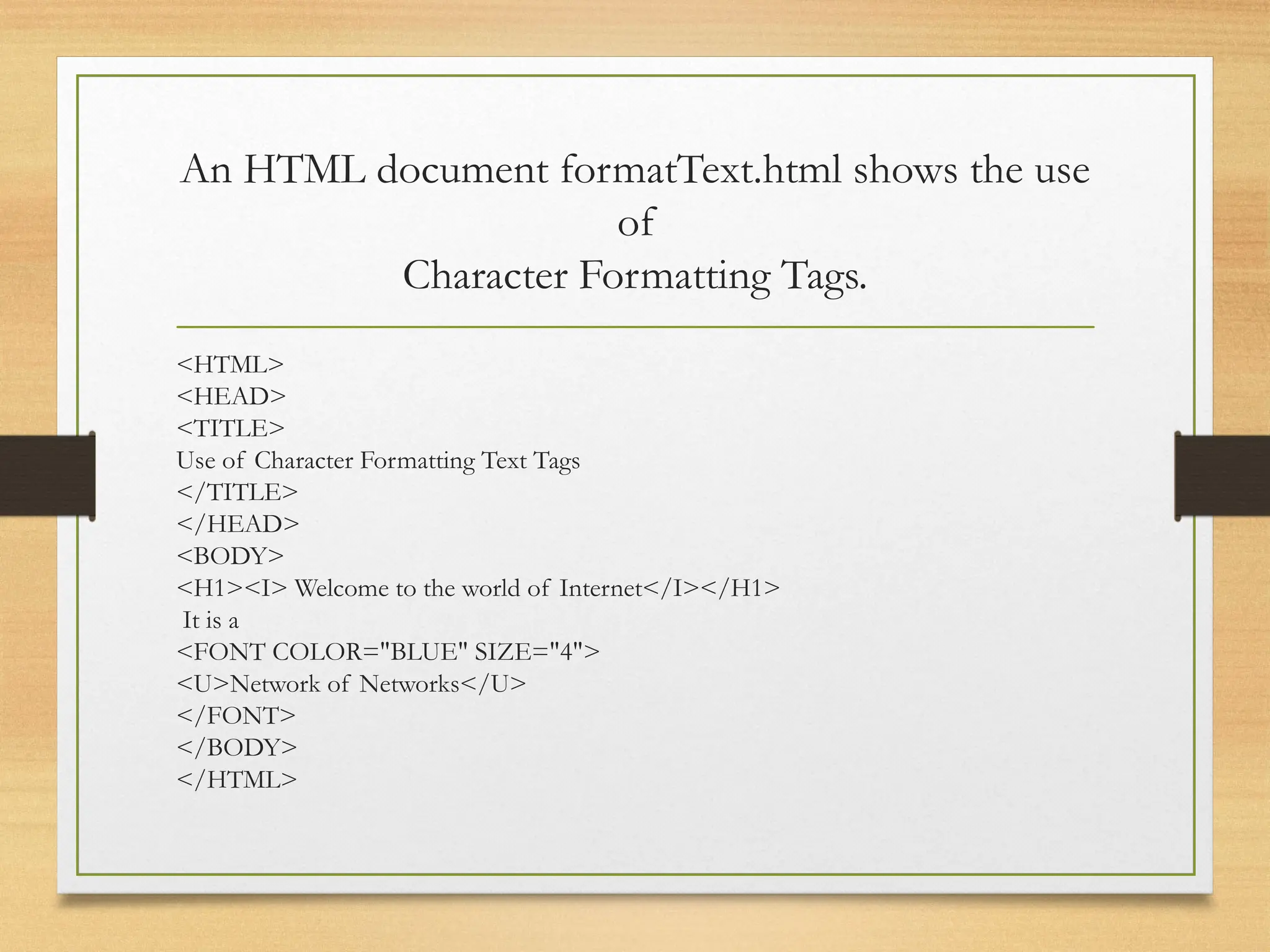
An HTML document formatText.html shows the use
of
Character Formatting Tags.
<HTML>
<HEAD>
<TITLE>
Use of Character Formatting Text Tags
</TITLE>
</HEAD>
<BODY>
<H1><I> Welcome to the world of Internet</I></H1>
It is a
<FONT COLOR="BLUE" SIZE="4">
<U>Network of Networks</U>
</FONT>
</BODY>
</HTML>
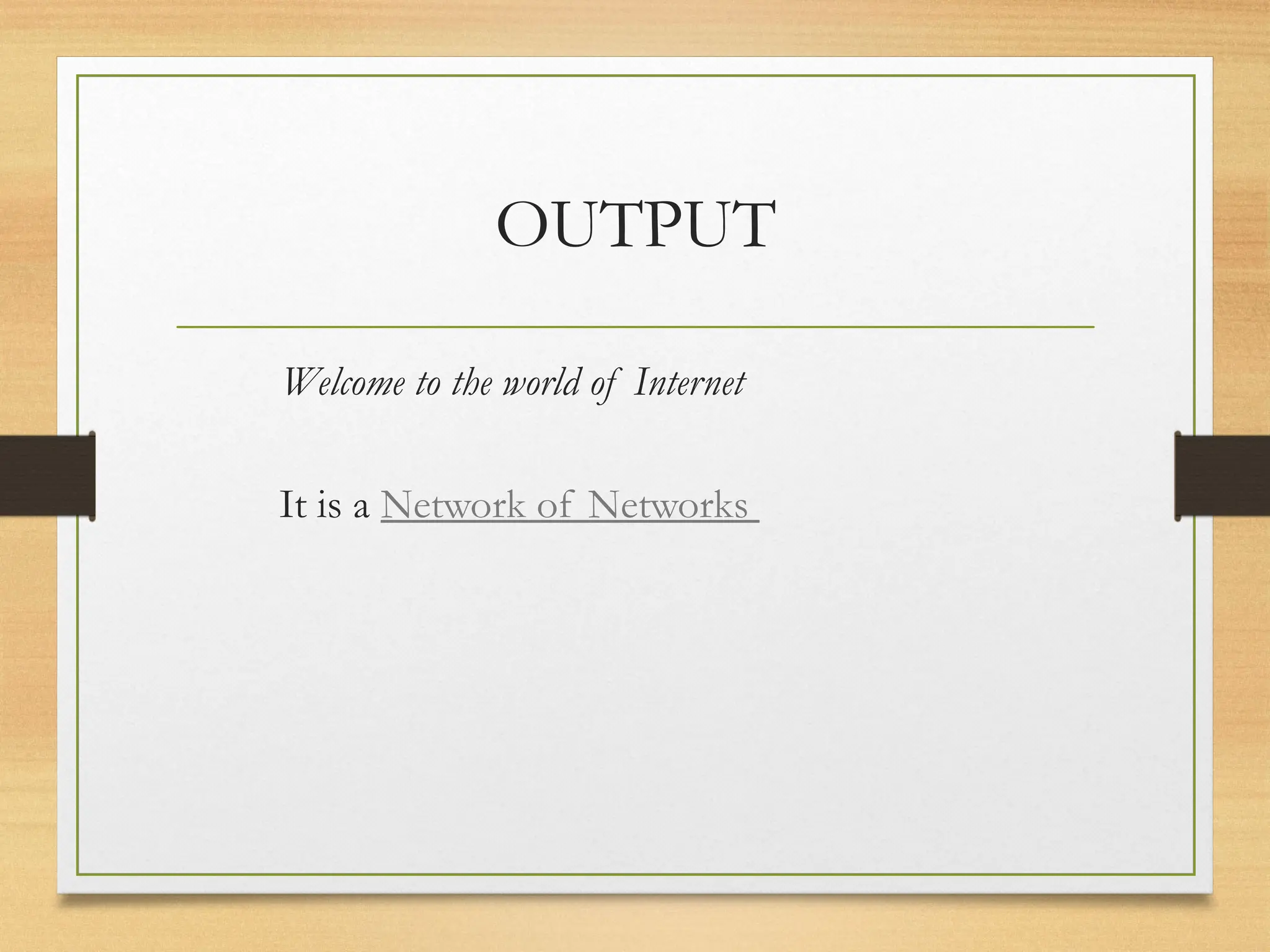
OUTPUT
Welcome to the world of Internet
It is a Network of Networks
paragraph Formatting Tag
• Paragraph level formatting applies to formatting of
an entire portion of text unlike character level tags
where only individual letters or words are formatted.
The most common paragraph
formatting tags are
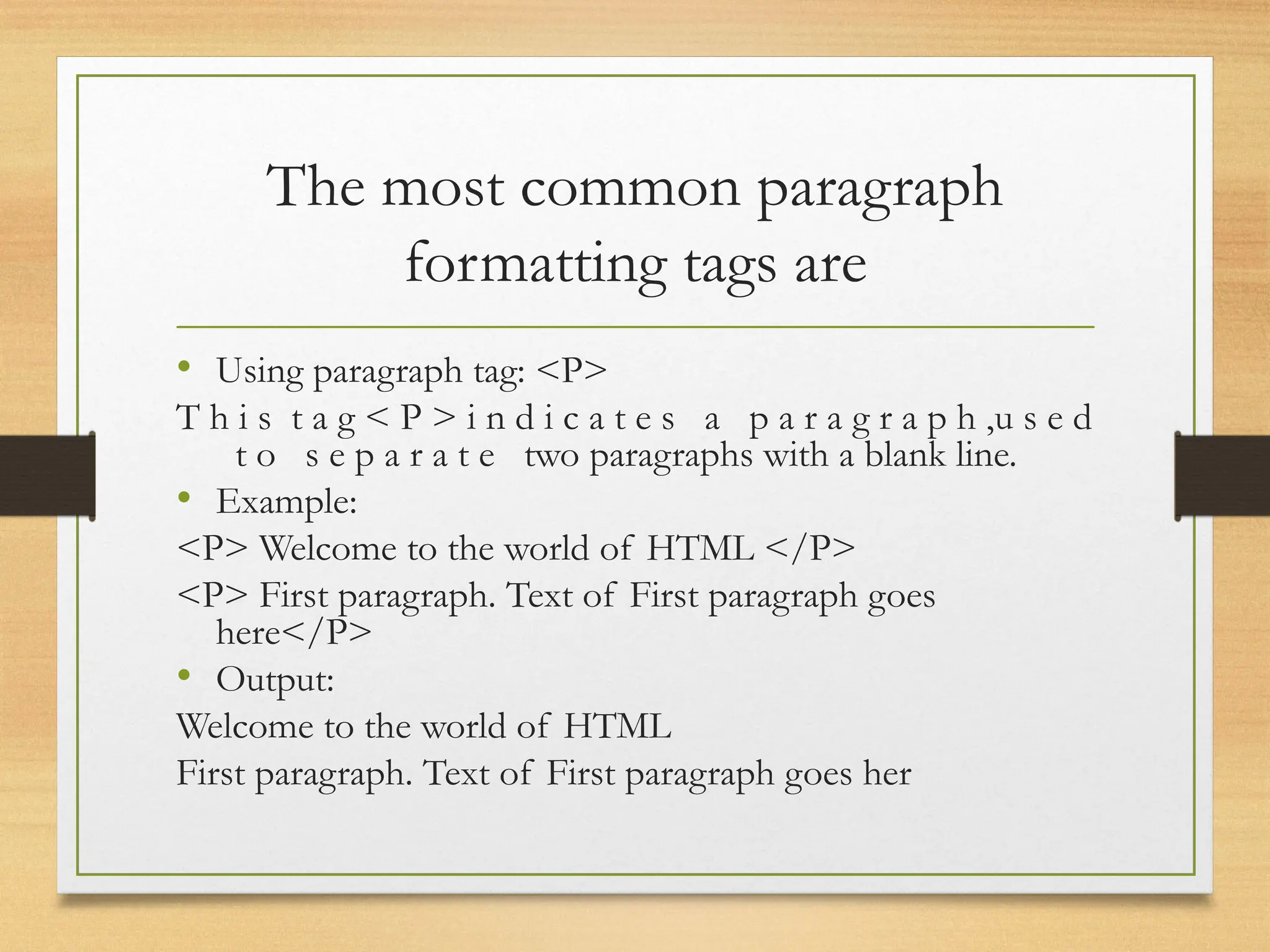
• Using paragraph tag: <P>
T h i s t a g < P > i n d i c a t e s a p a r a g r a p h ,u s e d
t o s e p a r a t e two paragraphs with a blank line.
• Example:
<P> Welcome to the world of HTML </P>
<P> First paragraph. Text of First paragraph goes
here</P>
• Output:
Welcome to the world of HTML
First paragraph. Text of First paragraph goes her
Using Line Break Tag: <BR>
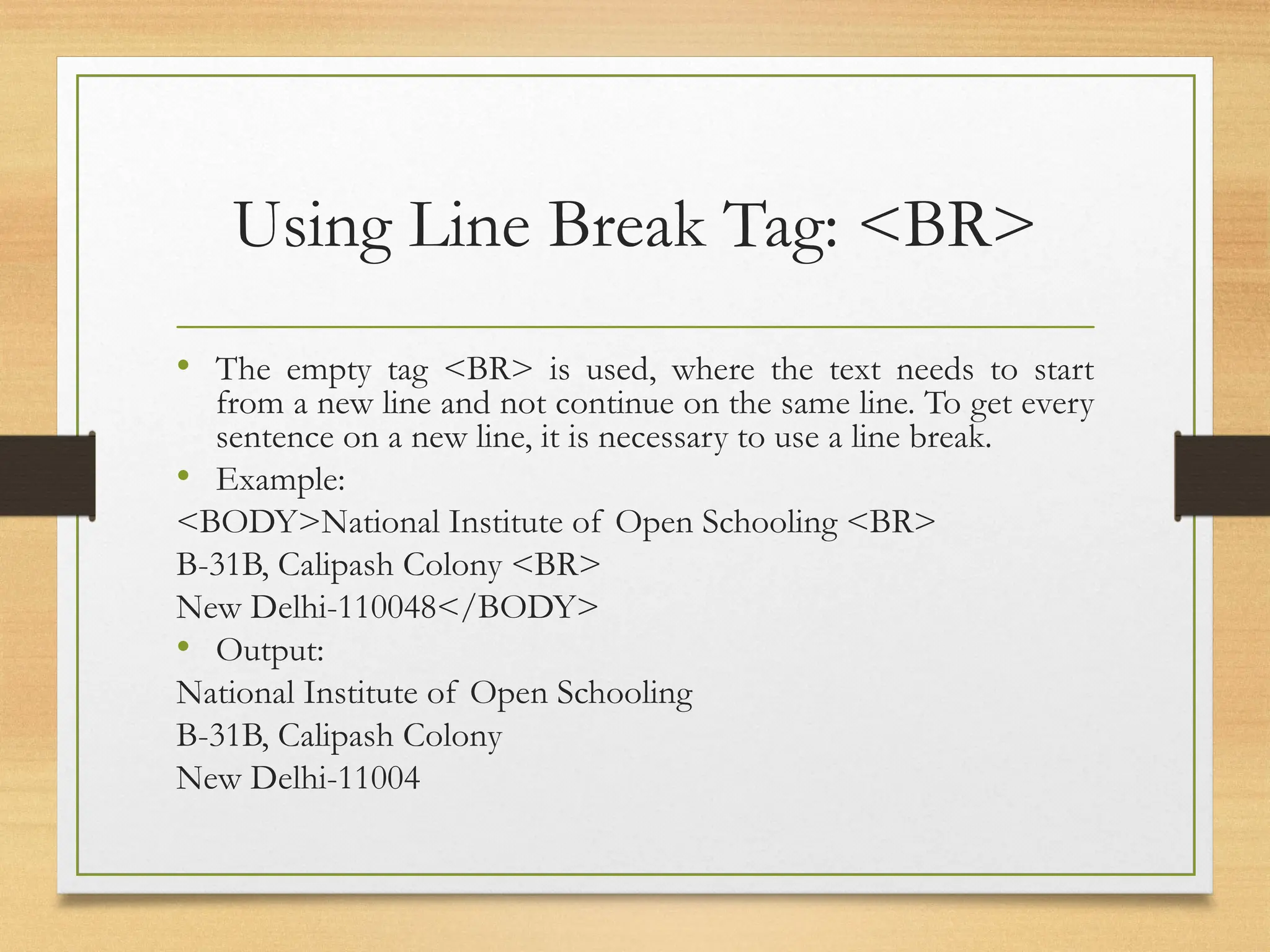
• The empty tag <BR> is used, where the text needs to start
from a new line and not continue on the same line. To get every
sentence on a new line, it is necessary to use a line break.
• Example:
<BODY>National Institute of Open Schooling <BR>
B-31B, Calipash Colony <BR>
New Delhi-110048</BODY>
• Output:
National Institute of Open Schooling
B-31B, Calipash Colony
New Delhi-11004
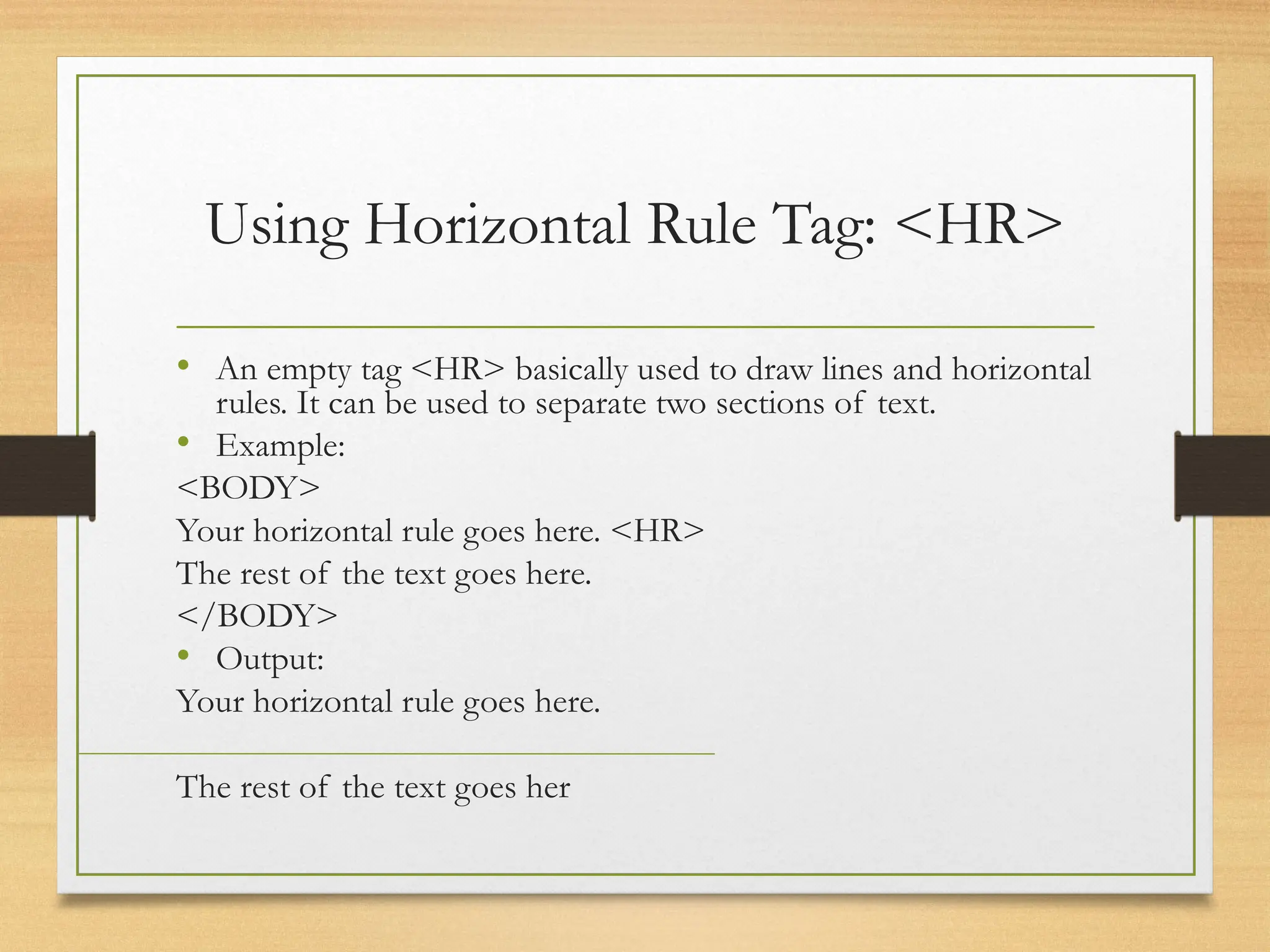
Using Horizontal Rule Tag: <HR>
• An empty tag <HR> basically used to draw lines and horizontal
rules. It can be used to separate two sections of text.
• Example:
<BODY>
Your horizontal rule goes here. <HR>
The rest of the text goes here.
</BODY>
• Output:
Your horizontal rule goes here.
The rest of the text goes her
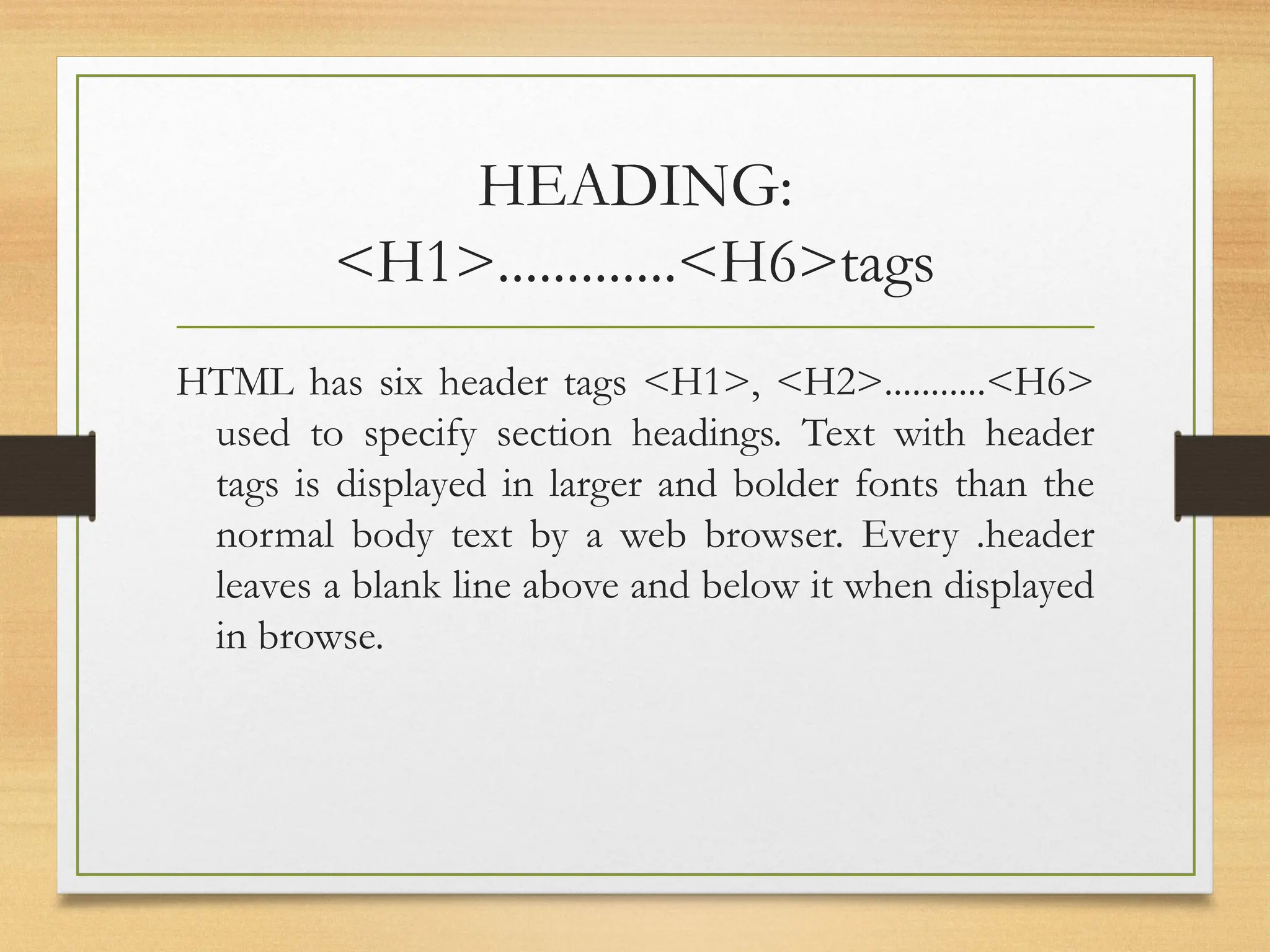
HEADING:
<H1>.............<H6>tags
HTML has six header tags <H1>, <H2>...........<H6>
used to specify section headings. Text with header
tags is displayed in larger and bolder fonts than the
normal body text by a web browser. Every .header
leaves a blank line above and below it when displayed
in browse.
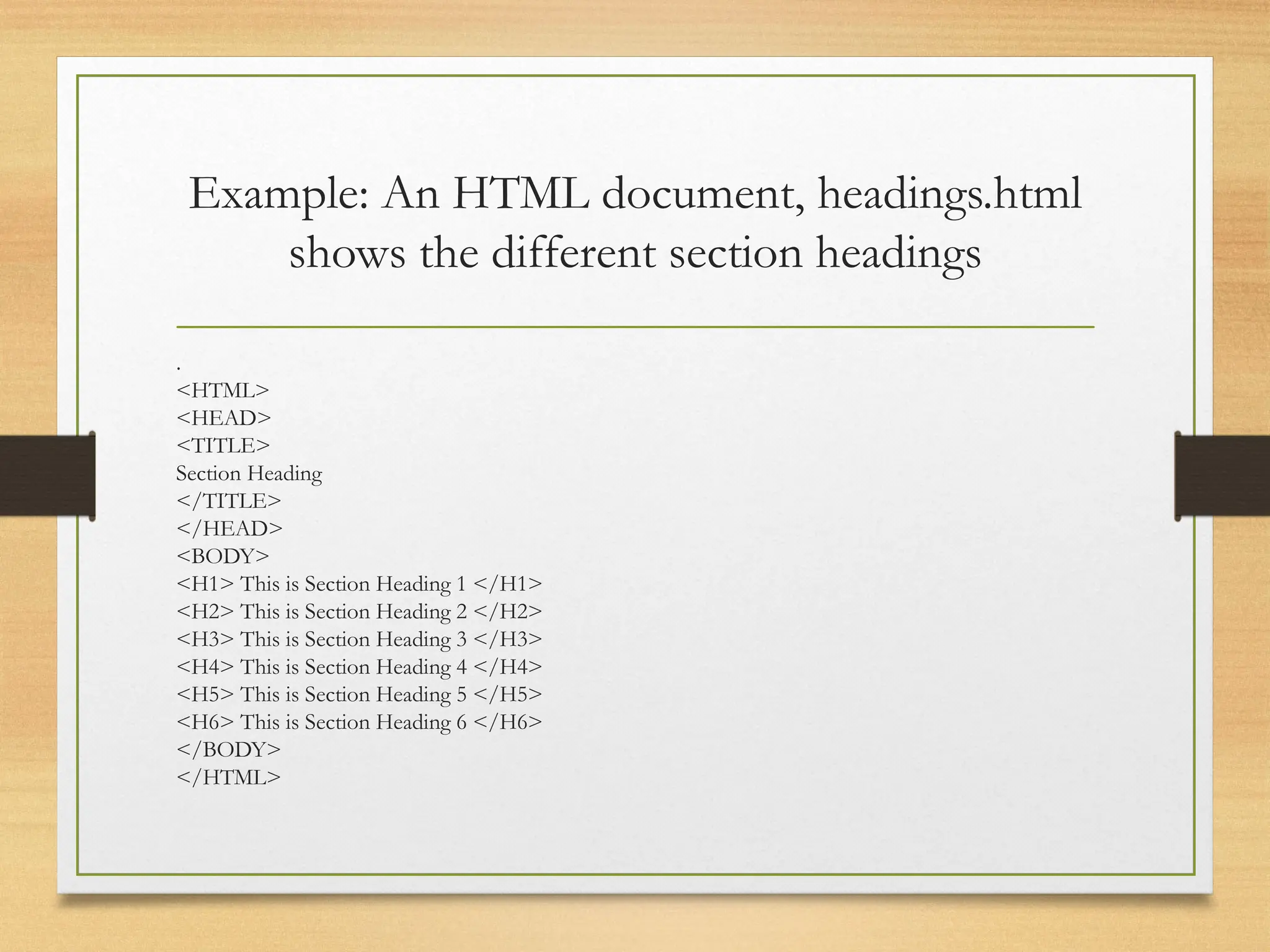
Example: An HTML document, headings.html
shows the different section headings
.
<HTML>
<HEAD>
<TITLE>
Section Heading
</TITLE>
</HEAD>
<BODY>
<H1> This is Section Heading 1 </H1>
<H2> This is Section Heading 2 </H2>
<H3> This is Section Heading 3 </H3>
<H4> This is Section Heading 4 </H4>
<H5> This is Section Heading 5 </H5>
<H6> This is Section Heading 6 </H6>
</BODY>
</HTML>
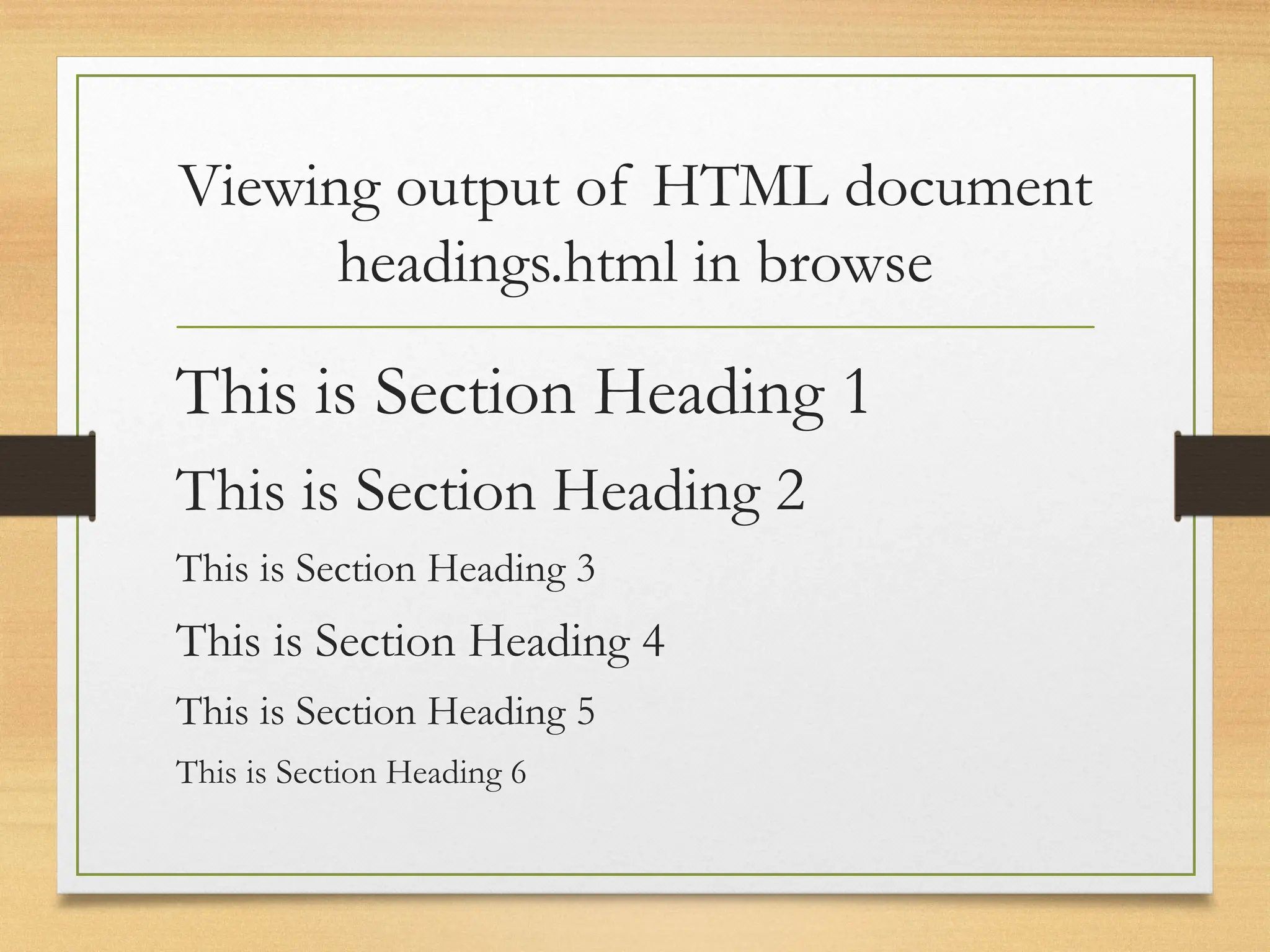
Viewing output of HTML document
headings.html in browse
This is Section Heading 1
This is Section Heading 2
This is Section Heading 3
This is Section Heading 4
This is Section Heading 5
This is Section Heading 6
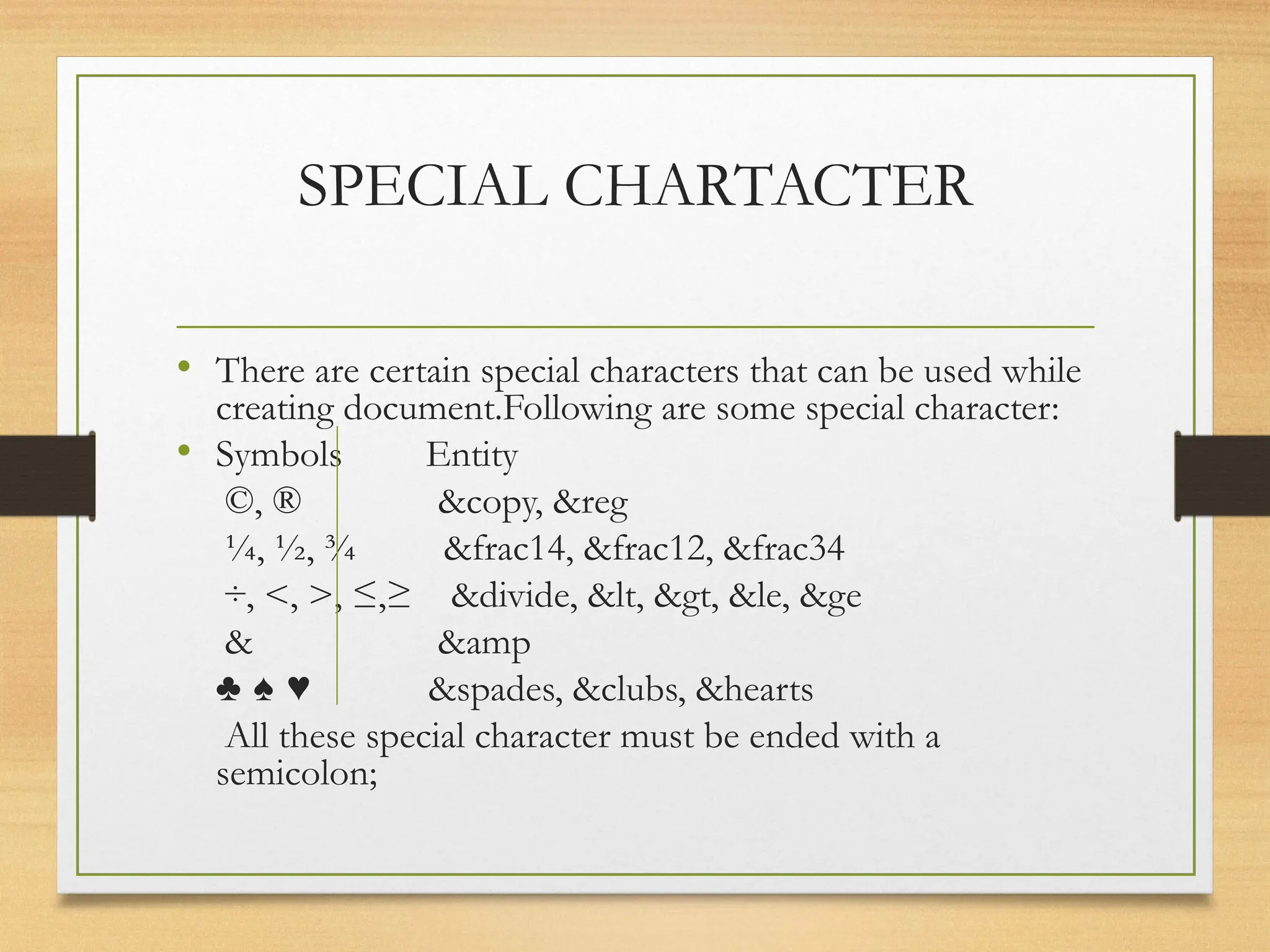
SPECIAL CHARTACTER
• There are certain special characters that can be used while
creating document.Following are some special character:
• Symbols Entity
©, ® &copy, &reg
¼, ½, ¾ &frac14, &frac12, &frac34
÷, <, >, ≤,≥ &divide, &lt, &gt, &le, &ge
& &amp
♣ ♠ ♥ &spades, &clubs, &hearts
All these special character must be ended with a
semicolon;
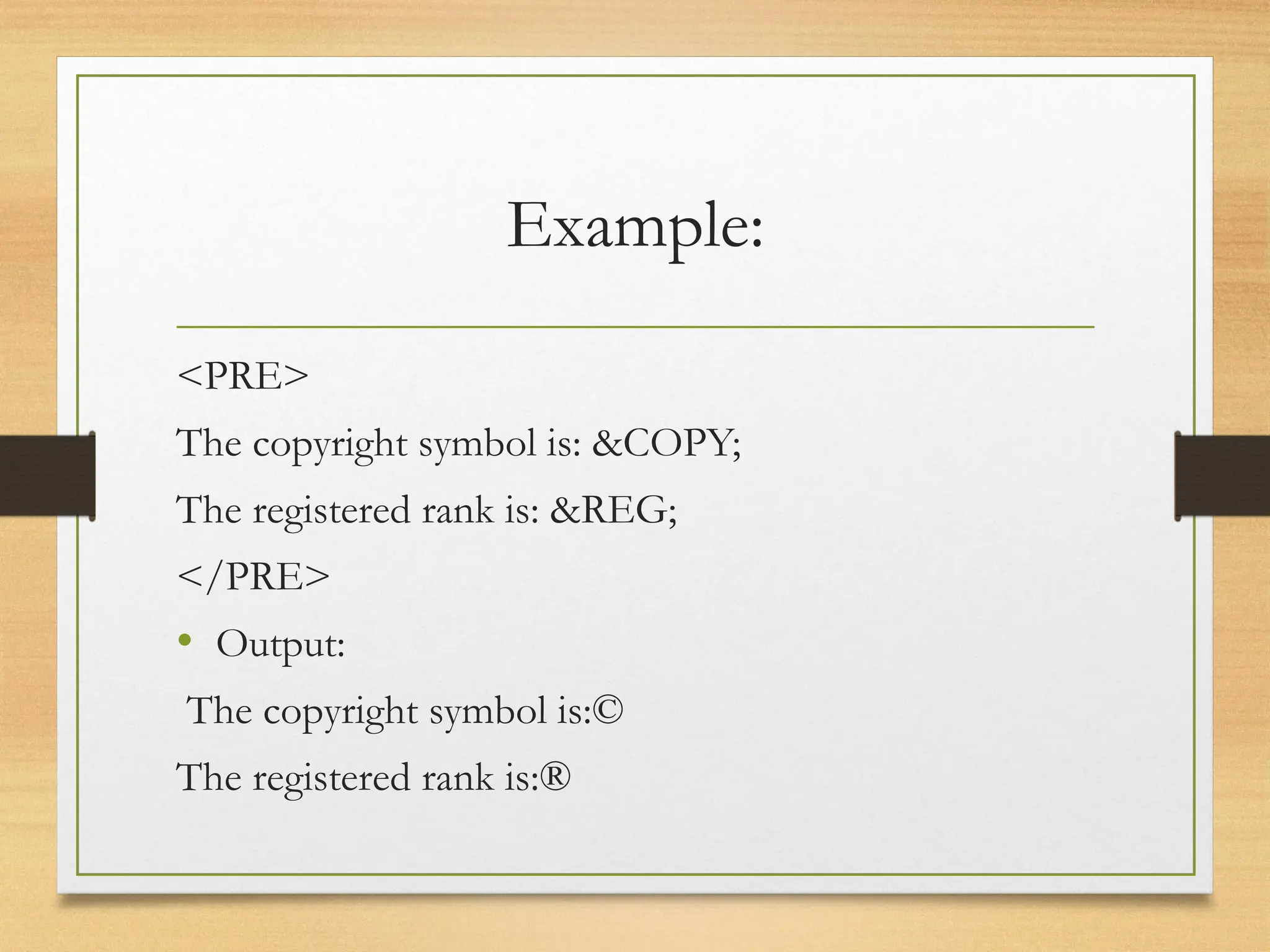
Example:
<PRE>
The copyright symbol is: &COPY;
The registered rank is: &REG;
</PRE>
• Output:
The copyright symbol is:©
The registered rank is:®
ADVANTAGES OF HTML
• Easy to use
• Supported on almost every browser.
• Widely used; established on almost every website
• Free - You need not buy any software.
• Easy to learn & code even for non programmers.
DISADVANTAGES OF HTML
• It cannot produce dynamic output alone, since it is a static language
• Sometimes, the structuring of HTML documents is hard to grasp
• You have to keep up with deprecated tags, and make sure not to
use them
• Deprecated tags appear because another language that works with
HTML has replaced the original work of the tag; thus the other
language needs to be learned (most of the time, it is CSS)
• Security features offered by HTML are limited
QUIZ-Html-Day 1
Internship HTML_Day-1 for beggineers.ppt

Internship HTML_Day-1 for beggineers.ppt

  • 1.
  • 2.
    HTML CONTENTS • INTRODUCTIONOF HTML • HTML TOOLS • HTML TERMINOLGY • HOW TO CREATE AN HTML DOCUMENT • SAVING AND VIEWING A HTML DOCUMENT • TEXT TAGS • SPECIAL CHARTACTER • ADVANTAGES OF HTML • DISADVANTAGES OF HTML
  • 3.
    INTRODUCTION OF HTML •HTML is a language for describing web pages. • HTML stands for Hyper Text Markup Language • HTML is not a programming language, it is a markup language • A markup language is a set of markup tags • HTML uses markup tags to describe web pages
  • 4.
    HTML TOOLS •There aretwo tools of HTML. a)HTML Editor: it is the program that one uses to create and save HTML documents. They fall into two categories: - Text based or code based which allows one to see the HTML code as one is creating a document.e.g. Notepad.
  • 5.
    HTML TOOLS b) WebBrowser: it is the program that one uses to view and test the HTML documents. They translate Html encoded files into text,image,sounds and other features user see. Microsoft Internet Explorer, Netscape, Mosaic Chrome are examples of browsers that enables user to view text and images and many more other World Wide Web featueres.They are software that must be installed on user computer.
  • 6.
    HTML TERMINOLGY • Somecommonly used terms in HTML are: • a)Tag: Tags are always written within angles brackets. it is a piece of text is used to identify an element so that the browser realizes how to display its contents.e.g.<HTML> tag indicates the start of an HTML document .HTML tag can be two types. They are:- • -Paired Tags :A tag is said to be a paired tag if text is placed between a tag and its companions tag.In paired tag ,the first tag is referred to as opening tag and the second tag is referred to as closing tag. • -Unpaired Tags: An unpaired tag does not have a companion tag .unpaired tag also known as singular or Stand-Alone tags.e.g:<br>,<hr> etc.
  • 7.
    HOW TO CREATEAN HTML DOCUMENT • The essential tags that are required to create a HTML document are: • <HTML>.............</HTML> • <HEAD>.............</HEAD> • <BODY>.............</BODY>
  • 8.
    HTML Tag <HTML> •The <HTML> tag encloses all other HTML tags and associated text within your document. It is an optional tag. You can create an HTML document that omits these tags, and your browser can still read it and display it. But it is always a good form to include the start and stop tags.The format is: • <HTML> Your Title and Document (contains text with HTML tags) goes here • </HTML> Most HTML tags have two parts, an opening tag and closing tag. The closing tag is the same as the opening tag, except for the slash mark e.g. </HTML>. The slash mark is always used in closing tags.
  • 9.
    An HTML documenthas two distinct parts HEAD and BODY • <HTML> • <HEAD> • ............. • ............. • ............. • </HEAD> • <BODY> • ............. • ............. • ............. • </BODY> • </HTML>
  • 10.
    HEAD Tag <HEAD> •HEAD tag comes after the HTML start tag. It contains TITLE tag to give the document a title that displays on the browsers title bar at the top. The Format is: <HEAD> <TITLE> Your title goes here </TITLE> </HEAD>
  • 11.
    BODY Tag <BODY> •The BODY tag contains all the text and graphics of the document with all the HTML tags that are used for control and formatting of the page.The Format is: <BODY> Your Document goes here </BODY> An HTML document, web page can be created using a text editor, Notepad or WordPad. All the HTML documents should have the extension .htm or html. It require a web browser like Internet Explorer or Netscape Navigator/Communicator to view the document.
  • 12.
    Attributes used with<BODY> • BGCOLOR: u s e d t o s e t t h e b a c k g r o u n d c o l o r f o r t h e document Example: <BODY BGCOLOR="yellow"> Your document text goes here. </BODY> • TEXT: used to set the color of the text of the document Example: <BODY TEXT="red">Introduction to HTML:: 77 Document text changed to red color </BODY> Document text changed to red color
  • 13.
    Follow the stepsto create and view in browser • Step-1: O p e n t e x t e d i t o r N o t e p a d ( c l i c k o n Star t→ A l l Programs→ Accessories Notepad) • Step-2: Enter the following lines of code: <HTML> <HEAD> <TITLE> My first Page </TITLE> </HEAD> <BODY> WELCOME TO MY FIRST WEB PAGE </BODY> </HTML>
  • 14.
    S A VI N G A N D V I E W I N G A H T M L DOCUMENT • Step-3: Save the file as myfirstpage.html (go to File- Save As give File name: myfirstpage.html-choose save as type: All Files-click save) • Step-4: Viewing document in web browser (open Internet Explorer-click on File-Open-Browse-select the file myfirstpage.html-click open-click ok
  • 15.
    TEXT TAGS • Texttag are dividing into two categories as: -Character-level tags and attributes which applies to formatting of individual letters or words. -Paragraph level tags and attributes which apply =To formatting of sections of text.
  • 16.
    Character Formatting Tag •The character formatting tags are used to specify how a particular text should be displayed on the screen to distinguish certain characters within the document.
  • 17.
    The most commoncharacter formatting tags are • Boldface <B>: displays text in BOLD Example: Welcome to the <B> Internet World </B> Output: Welcome to the Internet World • Italics <I>: displays text in Italic Example: Welcome to the <I> Internet World </I> Output: Welcome to the Internet World • Subscript <SUB>: displays text in Subscript • Superscript <SUP>: displays text in Superscript • Small <SMALL>: displays text in smaller font as compared to normal font • Big <BIG>: displays text in larger font as compared to normal font • Underline<U>specifies that the enclosed text be underline Example:<U> hello</u> Output: hello
  • 18.
    Font Colors andSize:<FONT> • By using <FONT> Tag one can specify the colors, size of the text. Example: <FONT> Your text goes here </FONT> Attributes of <FONT> are: - COLOR: Sets the color of the text that will appear on the screen. It can be set by giving the value as #rr0000 for red (in RGB hexadecimal format), or by name. Example: <FONT COLOR="RED"> Your text goes here </FONT>
  • 19.
    Font Colors andSize:<FONT> • SIZE: Sets the size of the text, takes value between 1 and 7, default is 3. Size can also be set relative to default size for example; SIZE=+X, where X is any integer value and it will add with the default size. • Example: <FONT SIZE=5> Font Size changes to 5 </FONT> • FACE: Sets the normal font type, provided it is installed on the user’s machine. • Example: • <FONT FACE="ARIAL"> the text will be displayed in Arial</FONT>
  • 20.
    An HTML documentformatText.html shows the use of Character Formatting Tags. <HTML> <HEAD> <TITLE> Use of Character Formatting Text Tags </TITLE> </HEAD> <BODY> <H1><I> Welcome to the world of Internet</I></H1> It is a <FONT COLOR="BLUE" SIZE="4"> <U>Network of Networks</U> </FONT> </BODY> </HTML>
  • 21.
    OUTPUT Welcome to theworld of Internet It is a Network of Networks
  • 22.
    paragraph Formatting Tag •Paragraph level formatting applies to formatting of an entire portion of text unlike character level tags where only individual letters or words are formatted.
  • 23.
    The most commonparagraph formatting tags are • Using paragraph tag: <P> T h i s t a g < P > i n d i c a t e s a p a r a g r a p h ,u s e d t o s e p a r a t e two paragraphs with a blank line. • Example: <P> Welcome to the world of HTML </P> <P> First paragraph. Text of First paragraph goes here</P> • Output: Welcome to the world of HTML First paragraph. Text of First paragraph goes her
  • 24.
    Using Line BreakTag: <BR> • The empty tag <BR> is used, where the text needs to start from a new line and not continue on the same line. To get every sentence on a new line, it is necessary to use a line break. • Example: <BODY>National Institute of Open Schooling <BR> B-31B, Calipash Colony <BR> New Delhi-110048</BODY> • Output: National Institute of Open Schooling B-31B, Calipash Colony New Delhi-11004
  • 25.
    Using Horizontal RuleTag: <HR> • An empty tag <HR> basically used to draw lines and horizontal rules. It can be used to separate two sections of text. • Example: <BODY> Your horizontal rule goes here. <HR> The rest of the text goes here. </BODY> • Output: Your horizontal rule goes here. The rest of the text goes her
  • 26.
    HEADING: <H1>.............<H6>tags HTML has sixheader tags <H1>, <H2>...........<H6> used to specify section headings. Text with header tags is displayed in larger and bolder fonts than the normal body text by a web browser. Every .header leaves a blank line above and below it when displayed in browse.
  • 27.
    Example: An HTMLdocument, headings.html shows the different section headings . <HTML> <HEAD> <TITLE> Section Heading </TITLE> </HEAD> <BODY> <H1> This is Section Heading 1 </H1> <H2> This is Section Heading 2 </H2> <H3> This is Section Heading 3 </H3> <H4> This is Section Heading 4 </H4> <H5> This is Section Heading 5 </H5> <H6> This is Section Heading 6 </H6> </BODY> </HTML>
  • 28.
    Viewing output ofHTML document headings.html in browse This is Section Heading 1 This is Section Heading 2 This is Section Heading 3 This is Section Heading 4 This is Section Heading 5 This is Section Heading 6
  • 29.
    SPECIAL CHARTACTER • Thereare certain special characters that can be used while creating document.Following are some special character: • Symbols Entity ©, ® &copy, &reg ¼, ½, ¾ &frac14, &frac12, &frac34 ÷, <, >, ≤,≥ &divide, &lt, &gt, &le, &ge & &amp ♣ ♠ ♥ &spades, &clubs, &hearts All these special character must be ended with a semicolon;
  • 30.
    Example: <PRE> The copyright symbolis: &COPY; The registered rank is: &REG; </PRE> • Output: The copyright symbol is:© The registered rank is:®
  • 31.
    ADVANTAGES OF HTML •Easy to use • Supported on almost every browser. • Widely used; established on almost every website • Free - You need not buy any software. • Easy to learn & code even for non programmers.
  • 32.
    DISADVANTAGES OF HTML •It cannot produce dynamic output alone, since it is a static language • Sometimes, the structuring of HTML documents is hard to grasp • You have to keep up with deprecated tags, and make sure not to use them • Deprecated tags appear because another language that works with HTML has replaced the original work of the tag; thus the other language needs to be learned (most of the time, it is CSS) • Security features offered by HTML are limited
  • 34.