IBM i
Version 7.2
IBM i and related software
Data migrations
IBM
Note
Before using this information and the product it supports, read the information in “Notices” on page
15.
This edition applies to IBM i 7.2 (product number 5770-SS1) and to all subsequent releases and modifications until
otherwise indicated in new editions. This version does not run on all reduced instruction set computer (RISC) models nor
does it run on CISC models.
This document may contain references to Licensed Internal Code. Licensed Internal Code is Machine Code and is
licensed to you under the terms of the IBM License Agreement for Machine Code.
© Copyright International Business Machines Corporation 1998, 2013.
US Government Users Restricted Rights – Use, duplication or disclosure restricted by GSA ADP Schedule Contract with
IBM Corp.
Contents
Data migrations.....................................................................................................1
What's new for IBM i 7.2..............................................................................................................................1
PDF file for Data migrations.........................................................................................................................1
Data migration concepts..............................................................................................................................2
Planning the IBM i migration....................................................................................................................... 2
Planning your hardware for data migration........................................................................................... 2
Planning your software for IBM i data migration...................................................................................3
Planning for your IBM i console connection.......................................................................................... 3
Recording an IBM i data migration plan.................................................................................................4
Performing the migration.............................................................................................................................4
Preparing for the migration with IBM i 7.2 on the source system........................................................ 4
Preparing the target system............................................................................................................. 4
Preparing the source system............................................................................................................5
Stabilizing the source system...........................................................................................................5
Completing the migration with IBM i 7.2 on the source system...........................................................6
Preparing for the migration from a IBM i model that does not support IBM i 7.2................................7
Preparing target system....................................................................................................................7
Preparing the source system............................................................................................................7
Completing the migration from a IBM i model that does not support IBM i 7.2.................................. 8
Fixing hardware resource names after a data migration.................................................................... 10
Scenarios: Data migration......................................................................................................................... 11
Troubleshooting the data migration..........................................................................................................12
Related information for IBM i data migration........................................................................................... 13
Notices................................................................................................................15
Programming interface information.......................................................................................................... 16
Trademarks................................................................................................................................................17
Terms and conditions................................................................................................................................ 17
iii
iv
Data migrations
An IBM® i data migration is the process of moving data from one system or logical partition that is running
IBM i to another system or logical partition running IBM i. When migrating data between systems, the
source system and the target system have different serial numbers.
This information describes how to migrate your data to IBM i 7.2 from IBM i V6R1 or later.
If you are upgrading to a new system without changing the serial number, see the Upgrading the system
and data migration topic for your system model in the IBM Power Systems Hardware Information Center.
If you are migrating data from one logical partition to another logical partition on the same system, follow
the instructions in Restoring a logical partition (LPAR) to another LPAR–Checklist 22.
This information assumes that you are moving data from one system to another. If you are installing a
new version of IBM i on the same system, it is not necessary to perform an explicit data migration. See
Installing, upgrading, or deleting IBM i and related software.
Another migration tool is feature code 0205, which you can order at no charge with the new system. To
use the feature, you must have a valid IBM Software Maintenance subscription for the source system.
Feature code 0205 authorizes you to use the new version and release on the source system for the sole
purpose of migrating your data. The earlier version and release must be reinstalled on your source system
after the data migration is completed.
Related information
Installing, upgrading, or deleting IBM i and related software
IBM Migration Services
IBM Power Systems Hardware Information Center
What's new for IBM i 7.2
Read about new or significantly changed information for the Data migrations topic collection.
Miscellaneous technical updates have been made since the previous publication.
How to see what's new or changed
To help you see where technical changes have been made, the information center uses:
• The image to mark where new or changed information begins.
• The image to mark where new or changed information ends.
In PDF files, you might see revision bars (|) in the left margin of new and changed information.
To find other information about what's new or changed this release, see the Memo to users.
PDF file for Data migrations
You can view and print a PDF file of this information.
To view or download the PDF version of this document, select Data migrations.
You can view or download these related topic PDFs:
Installing, upgrading, or deleting IBM i and related software
You can use this information if you are upgrading your system with a new IBM i release.
Backing up your system
You can use this information to back up your system before performing upgrade tasks. This allows you
to recover a working configuration should you experience problems during any part of the upgrade.
© Copyright IBM Corp. 1998, 2013 1
Saving PDF files
To save a PDF on your workstation for viewing or printing:
1. Right-click the PDF link in your browser.
2. Click the option that saves the PDF locally.
3. Navigate to the directory in which you want to save the PDF.
4. Click Save.
Downloading Adobe Reader
You need Adobe Reader installed on your system to view or print these PDFs. You can download a free
copy from the Adobe Web site (www.adobe.com/products/acrobat/readstep.html) .
Data migration concepts
IBM i data migration is the movement of data from one system or logical partition to a new system or
logical partition. When migrating data between systems, the source system and the target system have
different serial numbers.
The data migration process includes planning, ordering, preparing for, and performing the data migration.
Planning may require up to 6 weeks, depending on the complexity of your environment. Installing IBM i
on the source system requires at least one hour. Migrating the data from the source system to the target
system (sometimes referred to as the managed system) can normally be accomplished in up to 3 days.
Related information
IBM Migration Services
Planning the IBM i migration
The time you spend planning for your IBM i data migration can help minimize your downtime and make
performing the migration easier.
Related tasks
Performing the migration
To prepare for and perform a data migration from either a source system that supports IBM i 7.2 or a
source system that does not support IBM i 7.2, follow these general procedures.
Preparing for the migration from a IBM i model that does not support IBM i 7.2
If you cannot install IBM i 7.2 on your source system, you can still migrate your data by saving your
source system and then performing a full system recovery onto the target system.
Planning your hardware for data migration
Before you perform the actual IBM i data migration, identify your hardware requirements and prepare
your hardware.
To prepare your hardware, perform these general tasks:
1. Order the target system with feature code 0205 or prepare your target system or logical partition.
If the Licensed Internal Code is not preinstalled on the target system with IBM i 7.2, IBM recommends
that you upgrade to the new release of the operating system on your source system before you
migrate your data to the new system. Feature code 0205 authorizes you to use the new version and
release on the source system for the sole purpose of migrating your data. You must reinstall the
previous operating system on the source system after the data migration is complete.
2. Identify the hardware requirements for your data migration.
See the IBM Power Systems Hardware Information Center for more information.
3. Identify any tape incompatibilities.
2 IBM i: Data migrations
You must ensure that you have a tape drive that is compatible with the target system. To determine if
your tape drive is compatible, see the Storage Solutions Web site. To learn more about tape devices,
see the Tape topic.
4. Ensure that you have a physical plan for the target system.
The target system is going to be set up and running beside the source system for a period of time.
There are physical planning and setup implications that pertain to the target system.
Related information
Storage Solutions
IBM Power Systems Hardware Information Center
Tape
Planning your software for IBM i data migration
Before you perform the actual IBM i data migration, identify your software requirements and prepare your
software.
To prepare your software, perform these general tasks:
1. Evaluate disk storage space requirements.
Ensure that you have enough disk storage capacity for the new operating system and for the data from
the source server, as well as for any new data and software planned for the target server.
2. Identify possible upgrade paths for licensed programs.
When you install the new release of IBM i, some licensed programs might not work. Identify licensed
programs that are no longer available at this release and their replacements where applicable.
Additionally, to avoid losing data that depends on these licensed programs, migrate the data from your
server to an accessible location before installing the new release of IBM i.
Related information
Ensuring the server meets disk storage requirements for upgrades
Planning for your IBM i console connection
If you plan to use a console after the data migration, ensure that the target console is prepared for your
environment.
Perform these general tasks related to your console:
1. Choose a console that is supported by both the source and target systems.
Know your current strategy for connecting a console to your system or logical partition. Your current
connection strategy influences your planning activities. For more information about consoles, see the
Managing IBM i consoles topic in the IBM Power Systems Hardware Information Center.
Attention: An Operations Console directly attached to the system is not supported in IBM i 7.2.
If you currently have an Operations Console directly attached to the system, you must change
the console before you start to install or upgrade the IBM i software on your system. Failure to
do so will cause the installation to fail with unpredictable results. For more information about
changing consoles, see the Changing consoles topic in the IBM Power Systems Hardware
Information Center.
2. Ensure that the target console is set up for your environment and is operational.
The target console must be operational and tested as a stand-alone server before the data migration.
Related information
Connecting to your system
IBM Power Systems Hardware Information Center
Data migrations 3
Recording an IBM i data migration plan
When you complete the planning tasks, you should have a record of the data migration plan. If you have
other individuals assisting you in your data migration, this plan will not only help them understand your
situations but will also assist you if problems arise during the migration.
Include these tasks in your final data migration plan:
1. Record a final hardware and software plan that includes feature code 0205 (if possible). Record your
disk storage capacity and compatible tape drive information.
These items in the plan might cause you to change your software or hardware order.
2. Record a physical plan for the target server.
IBM Migration Services can help you in planning and migrating your data to the latest IBM i models. For
information, filter by hardware/software platform on the Services A-Z Web site.
Performing the migration
To prepare for and perform a data migration from either a source system that supports IBM i 7.2 or a
source system that does not support IBM i 7.2, follow these general procedures.
Before you begin these tasks, be sure you have completed the necessary planning. You can migrate your
data by using one of these paths:
If you can load IBM i 7.2 on your source system, perform these procedures.
1. “Preparing for the migration with IBM i 7.2 on the source system” on page 4.
2. “Completing the migration with IBM i 7.2 on the source system” on page 6.
If you cannot load IBM i 7.2 on your source system, perform these procedures.
1. “Preparing for the migration from a IBM i model that does not support IBM i 7.2” on page 7
2. “Completing the migration from a IBM i model that does not support IBM i 7.2” on page 8
Related tasks
Planning the IBM i migration
The time you spend planning for your IBM i data migration can help minimize your downtime and make
performing the migration easier.
Preparing for the migration with IBM i 7.2 on the source system
To prepare to migrate your IBM i data to a new target system when you can load IBM i 7.2 on the source
system, follow these procedures.
Before you begin this procedure, complete these prerequisite tasks:
• Obtain and review the preventive service planning (PSP) document on the Preventive service planning -
PSP website. The PSP document for IBM i 7.2 data migrations is SF98172. Review this document for
the most current information about conditions that might affect your data migration.
• Plan the migration.
Preparing the target system
1. Ensure that your console is set up and ready for your environment.
For information, see Connecting to your system.
2. Verify that the target system is set up and is running with only the Licensed Internal Code and the base
IBM i 7.2 operating system installed. (Order feature code 0205, or manually install the new system up
to the point before you use GO LICPGM to install libraries QGPL and QUSRSYS and licensed programs.)
3. If you are configuring a system with logical partitions, create logical partitions on the target system
and then install the Licensed Internal Code and IBM i 7.2 on each logical partition. Allow at least two
4 IBM i: Data migrations
additional hours to do this for each logical partition. For more information, see the Logical partitioning
topic for your system model in the IBM Power Systems Hardware Information Center.
4. Perform disk unit management (for example, manage disk protection and disk configuration). To do
this, you can use the Work with Disk Units option from the Dedicated Service Tools display. For more
information, see Configuring disks and disk protection.
Preparing the source system
1. Prepare to upgrade the IBM i release. Refer to Preparing to upgrade or replace IBM i software.
Ensure that you do the following:
• Use the Work with Line Descriptions command (WRKLIND) to view and delete unused lines and line
descriptions.
• Use the Work with Device Descriptions command (WRKDEVD) to delete unused device descriptions.
Note: You can use the WRKLIND and WRKDEVD commands to view and verify that all of the
descriptions listed are in use. If you are sure one is not in use, delete it. If you are not sure, keep it.
2. Print your system configuration information as follows:
a) On the IBM i command line, enter PRTSYSINF and then print the resulting spooled files. This prints
reports of the hardware resources, software resources, system values, installed fixes (program
temporary fixes or PTFs), and other configuration information.
b) Print a new system configuration list and keep this list for future reference. For instructions, see
Printing the system configuration list.
c) On the IBM i command line, enter WRKDEVD. Use option 6 (Print) to print the device descriptions.
d) On the IBM i command line, enter WRKCTLD. Use option 6 (Print) to print the controller descriptions.
3. Save the entire system so you can restore it to its original state after you perform the data migration.
Save the entire system by using option 21 of the GO SAVE command. For more information about the
GO SAVE command, see Overview of the GO SAVE command. Specify the following options:
a. Vary off the network server...*ALL
b. Unmount file systems..........Y
c. Spooled file data ............*ALL
Note: Ensure that you have two copies of the backup media.
If the Licensed Internal Code is not preinstalled on the target system with IBM i 7.2, feature code
0205 authorizes you to use the new version and release on the source system for the sole purpose of
migrating your data. To use feature 0205, you must have a valid software maintenance agreement on
your source system. When the data migration is complete, you must reinstall the previous operating
system on the source system to restore the system to its original state. To restore the system to its
original state, follow the steps in Recovering your system. Use the recovery information for the release
that you want to restore.
If feature 0205 was not ordered with your target system, use the other method for data migration in
the topic “Preparing for the migration from a IBM i model that does not support IBM i 7.2” on page
7. Otherwise, continue with the next step here.
4. Complete the upgrade of IBM i 7.2.
Refer to either Upgrading or replacing software using automatic installation or Upgrading or replacing
software using manual installation.
Stabilizing the source system
1. Run the source system at the new release level for 2 weeks.
2. Refresh the PTF level.
Check for new cumulative fix packs or high-impact pervasive (HIPER) fixes. For more information, see
Using software fixes.
3. Print your system configuration information as follows:
Data migrations 5
a) On the IBM i command line, enter PRTSYSINF and then print the resulting spooled files. This prints
reports of the hardware resources, software resources, system values, installed fixes (program
temporary fixes or PTFs), and other configuration information.
b) Print a new system configuration list and keep this list for future reference. For instructions, see
Printing the system configuration list.
c) On the IBM i command line, enter WRKDEVD. Use option 6 (Print) to print the device descriptions.
d) On the IBM i command line, enter WRKCTLD. Use option 6 (Print) to print the controller descriptions.
4. Save the entire system by using option 21 of the GO SAVE command. For more information about the
GO SAVE command, see Overview of the GO SAVE command. Specify the following options:
a) Vary off the network server...*ALL
b) Unmount file systems..........Y
c) Spooled file data ............*ALL
Note: Ensure that you have two copies of the backup media.
The next step is to complete the migration. Go to “Completing the migration with IBM i 7.2 on the source
system” on page 6.
Completing the migration with IBM i 7.2 on the source system
If you can load IBM i 7.2 on your source system, perform these procedures to migrate data to the target
system or logical partition.
Before you begin this task, perform the steps in “Preparing for the migration with IBM i 7.2 on the source
system” on page 4.
1. On the target system, perform the steps in Recovering your system to a different system. If a
controller or device no longer has a valid resource on the system, follow the steps in the topic “Fixing
hardware resource names after a data migration” on page 10 to make the necessary corrections.
2. Install any new licensed programs.
For more information, see Installing additional licensed programs.
3. Print your system configuration information as follows:
a) On the IBM i command line, enter PRTSYSINF (Print System Information) and then print the
resulting spooled files. This prints reports of the hardware resources, software resources, system
values, installed fixes (program temporary fixes or PTFs), and other configuration information.
b) Print a new system configuration list and keep this list for future reference. For instructions, see
Printing the system configuration list.
c) On the IBM i command line, enter WRKDEVD (Work with Device Descriptions) and enter option 6 to
print the device descriptions.
d) On the IBM i command line, enter WRKCTLD (Work with Controller Descriptions) and enter option 6
to print the controller descriptions.
4. Save the entire system using option 21 of the GO SAVE command. For more information about the GO
SAVE command, see Overview of the GO SAVE command. Specify the following options:
a) Vary off the network server...*ALL
b) Unmount file systems..........Y
c) Spooled file data ............*ALL
Note: Ensure that you have two copies of the backup media.
5. Resume normal operations and verify that all your applications run properly.
6. Tune the system performance.
This ensures that your systems make the best use of the system resources and allows workloads to
run as efficiently as possible. For details, see Tuning performance.
6 IBM i: Data migrations
Preparing for the migration from a IBM i model that does not support IBM i 7.2
If you cannot install IBM i 7.2 on your source system, you can still migrate your data by saving your
source system and then performing a full system recovery onto the target system.
Before you begin this procedure, complete these prerequisite tasks:
• Obtain and review the Preventive service planning (PSP) information. The PSP document for IBM i 7.2
data migrations is SF98172. Review this document for the most current information about conditions
that might affect your data migration.
• Plan the migration.
• Review the introductory information about previous release-to-current release support. Refer to
Previous release-to-current release support.
Related tasks
Planning the IBM i migration
The time you spend planning for your IBM i data migration can help minimize your downtime and make
performing the migration easier.
Preparing target system
1. Verify that the target system is set up and is running with only the Licensed Internal Code and the base
IBM i 7.2 operating system installed. (Order feature code 0205, or manually install the new system up
to the point before you use GO LICPGM to install libraries QGPL and QUSRSYS and licensed programs.)
2. If you are configuring a system with logical partitions, create logical partitions on the target system
and then install the Licensed Internal Code and IBM i 7.2 on each logical partition. Allow at least two
additional hours to do this for each logical partition. For more information, see the Logical partitioning
topic for your system model in the IBM Power Systems Hardware Information Center.
3. Ensure that your console is set up and ready.
For information, see Connecting to your system
4. Perform disk unit management (for example, manage disk protection and disk configuration). To do
this, you can use the Work with Disk Units option from the Dedicated Service Tools display. For
information, see Configuring disks and disk protection.
5. Make sure that you have a copy of the distribution media for the target system.
Preparing the source system
1. Clean up the source system:
a) Use the Work with Line Descriptions command (WRKLIND) to view and delete unused lines and line
descriptions.
b) Use the Work with Device Descriptions command (WRKDEVD) to delete unused device
descriptions.
Note: You can use the WRKLIND and WRKDEVD commands to view and verify that all of the
descriptions listed are in use. If you are sure one is not in use, delete it. If you are not sure, keep it.
c) Clean up disk storage space. For more information, see Cleaning up disk storage space.
2. Ensure that you have the required fixes (also called program temporary fixes or PTFs). For more
information, see Using software fixes.
3. Gather performance data.
This gives you a basis for comparing performance before and after the data migration. For details, see
Collecting system performance data.
4. On the IBM i command line, enter RTVSYSINF (Retrieve System Information).
When you run this command, specify the library to use. Typically, you can specify the QUPGRADE
library. If this library does not exist, create it with the Create Library (CRTLIB) command.
5. Print your system configuration information:
Data migrations 7
a) On the IBM i command line, enter PRTSYSINF and then print the resulting spooled files. This prints
reports of the hardware resources, software resources, system values, installed fixes (program
temporary fixes or PTFs), and other configuration information.
b) Print a new system configuration list and keep this list for future reference. For detailed
instructions, see Printing the system configuration list.
c) On the IBM i command line, enter WRKDEVD and enter option 6 (Print) to print the device
descriptions.
d) On the IBM i command line, enter WRKCTLD and enter option 6 (Print) to print the controller
descriptions.
e) Job scheduler entries will not be restored on the target system. Use the print option on the Work
with Job Scheduler Entries (WRKJOBSCDE) command to record your current job scheduler entries.
Then you can manually re-create them on the target system.
6. Save the entire system by using option 21 of the GO SAVE command. For more information about the
GO SAVE command, see Overview of the GO SAVE command. Make sure that you specify the following
options:
a) Vary off the network server...*ALL
b) Unmount file systems..........Y
c) Spooled file data ............*ALL
Note: Ensure that you have two copies of the backup media.
The next step is to complete the migration. Go to “Completing the migration from a IBM i model that does
not support IBM i 7.2” on page 8.
Completing the migration from a IBM i model that does not support IBM i 7.2
If you cannot load IBM i 7.2 on your source system, perform these procedures to migrate data to the
target system or logical partition.
Before you begin this task, perform the steps in “Preparing for the migration from a IBM i model that does
not support IBM i 7.2” on page 7.
If you did not get a new system with feature code 0205, follow steps 1 through 38 in Restoring previous
release user data to a new system on the target system. When you have completed those steps, continue
with step “8” on page 9 in this procedure.
If your target system is set up with only the Licensed Internal Code and IBM i 7.2 installed (feature code
0205), follow these steps.
1. Perform a manual IPL
2. At the IPL Options display, enter the correct date and time. Verify that the following values are set as
follows:
Start to system to restricted state = Y
Define or change system at IPL = Y
Set major system options = Y
3. On the Set Major System Options display, select N to not enable automatic configuration.
4. On the Define or Change the System at IPL display, do the following steps:
a) Select option 3 (System value commands).
b) On the System Value Commands display, select option 3 (Work with System Values).
c) On the Work with System Values display, enter 2 to change the following system values:
• Change QALWOBJRST to *ALL (Allow all object restore options).
• Change QIPLTYPE to 2 (Attended IPL, console in debug mode).
• Change QJOBMSGQFL to *PRTWRAP (Wrap the job message queue and print the messages that
are being overlaid because of wrapping).
8 IBM i: Data migrations
• Change QJOBMSGQMX to a minimum of 30 and 64 is suggested (Job message queue maximum
size of 30 MB).
• Change QPFRADJ to 2 (Performance adjustment at IPL and automatic adjustment).
• Change QVFYOBJRST to 1 (Do not verify signatures on restore. Restore all objects regardless of
their signature).
d) After the system changed the system values, press F3 (Exit) twice to return to the Define or
Change the System at IPL display
5. On the Define or Change the System at IPL display, press F3 to exit and continue the IPL.
6. On the Change Password display, either type the current password (if this is not the first IPL), or type
QSECOFR as the current password. Enter a new password. Reenter the password to verify and press
Enter.
7. Perform steps 31 through 38 in the topic Restoring previous release user data to a new system.
8. If a controller or device no longer has a valid resource on the system, follow the steps in the topic
“Fixing hardware resource names after a data migration” on page 10 to make the necessary
corrections.
9. Install any new licensed programs.
For more information, see Installing additional licensed programs.
10. Follow the steps in Checklist: Completing the IBM i upgrade or replacement.
11. Add job scheduler entries using the Add Job Schedule Entry (ADDJOBSCDE) command and the
information you printed from your source system.
12. If you installed System i® integration with BladeCenter and System x on your system and you saved it
while it was varied off, follow these steps:
a) Add the links for the server descriptions. Enter the following for each server description:
ADDNWSSTGL NWSSTG (storage_name) NWSD(server_description)
b) Vary on your integrated server by entering WRKCFGSTS *NWS and selecting option 1 to vary on
each server.
13. Print your system configuration information:
a) On the IBM i command line, enter PRTSYSINF and then print the resulting spooled files. This
prints reports of the hardware resources, software resources, system values, installed fixes
(program temporary fixes or PTFs), and other configuration information.
b) Print a new system configuration list and keep this list for future reference. For instructions, see
Printing the system configuration list.
c) On the IBM i command line, enter WRKDEVD (Work with Device Descriptions) and enter option 6 to
print the device descriptions.
d) On the IBM i command line, enter WRKCTLD (Work with Controller Descriptions) and enter option
6 to print the controller descriptions.
14. Save the entire system using option 21 of the GO SAVE command. For more information about the GO
SAVE command, see Overview of the GO SAVE command. Specify the following options:
a) Vary off the network server...*ALL
b) Unmount file systems..........Y
c) Spooled file data ............*ALL
Note: Ensure that you have two copies of the backup media.
15. Resume normal operations and verify that all your applications run properly.
16. Tune the system performance.
This ensures that your systems make the best use of the system resources and allows workloads to
run as efficiently as possible. For details, see Tuning performance.
Data migrations 9
Fixing hardware resource names after a data migration
Following a data migration, you may have hardware resources that are in different locations than they
were on your source server.
To fix these hardware resource names, follow these steps:
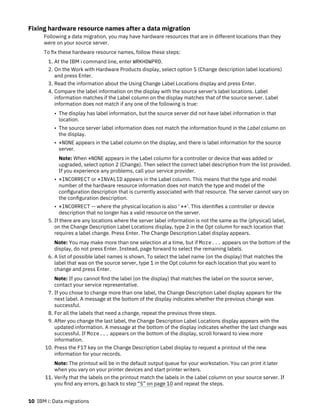
1. At the IBM i command line, enter WRKHDWPRD.
2. On the Work with Hardware Products display, select option 5 (Change description label locations)
and press Enter.
3. Read the information about the Using Change Label Locations display and press Enter.
4. Compare the label information on the display with the source server's label locations. Label
information matches if the Label column on the display matches that of the source server. Label
information does not match if any one of the following is true:
• The display has label information, but the source server did not have label information in that
location.
• The source server label information does not match the information found in the Label column on
the display.
• *NONE appears in the Label column on the display, and there is label information for the source
server.
Note: When *NONE appears in the Label column for a controller or device that was added or
upgraded, select option 2 (Change). Then select the correct label description from the list provided.
If you experience any problems, call your service provider.
• *INCORRECT or *INVALID appears in the Label column. This means that the type and model
number of the hardware resource information does not match the type and model of the
configuration description that is currently associated with that resource. The server cannot vary on
the configuration description.
• *INCORRECT -- where the physical location is also ' **'. This identifies a controller or device
description that no longer has a valid resource on the server.
5. If there are any locations where the server label information is not the same as the (physical) label,
on the Change Description Label Locations display, type 2 in the Opt column for each location that
requires a label change. Press Enter. The Change Description Label display appears.
Note: You may make more than one selection at a time, but if More... appears on the bottom of the
display, do not press Enter. Instead, page forward to select the remaining labels.
6. A list of possible label names is shown. To select the label name (on the display) that matches the
label that was on the source server, type 1 in the Opt column for each location that you want to
change and press Enter.
Note: If you cannot find the label (on the display) that matches the label on the source server,
contact your service representative.
7. If you chose to change more than one label, the Change Description Label display appears for the
next label. A message at the bottom of the display indicates whether the previous change was
successful.
8. For all the labels that need a change, repeat the previous three steps.
9. After you change the last label, the Change Description Label Locations display appears with the
updated information. A message at the bottom of the display indicates whether the last change was
successful. If More... appears on the bottom of the display, scroll forward to view more
information.
10. Press the F17 key on the Change Description Label display to request a printout of the new
information for your records.
Note: The printout will be in the default output queue for your workstation. You can print it later
when you vary on your printer devices and start printer writers.
11. Verify that the labels on the printout match the labels in the Label column on your source server. If
you find any errors, go back to step “5” on page 10 and repeat the steps.
10 IBM i: Data migrations
Attention: Do not exchange cards for problem analysis purposes. Card and device serial
numbers are tied to the server configuration.
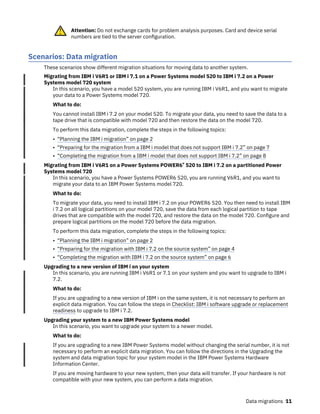
Scenarios: Data migration
These scenarios show different migration situations for moving data to another system.
Migrating from IBM i V6R1 or IBM i 7.1 on a Power Systems model 520 to IBM i 7.2 on a Power
Systems model 720 system
In this scenario, you have a model 520 system, you are running IBM i V6R1, and you want to migrate
your data to a Power Systems model 720.
What to do:
You cannot install IBM i 7.2 on your model 520. To migrate your data, you need to save the data to a
tape drive that is compatible with model 720 and then restore the data on the model 720.
To perform this data migration, complete the steps in the following topics:
• “Planning the IBM i migration” on page 2
• “Preparing for the migration from a IBM i model that does not support IBM i 7.2” on page 7
• “Completing the migration from a IBM i model that does not support IBM i 7.2” on page 8
Migrating from IBM i V6R1 on a Power Systems POWER6® 520 to IBM i 7.2 on a partitioned Power
Systems model 720
In this scenario, you have a Power Systems POWER6 520, you are running V6R1, and you want to
migrate your data to an IBM Power Systems model 720.
What to do:
To migrate your data, you need to install IBM i 7.2 on your POWER6 520. You then need to install IBM
i 7.2 on all logical partitions on your model 720, save the data from each logical partition to tape
drives that are compatible with the model 720, and restore the data on the model 720. Configure and
prepare logical partitions on the model 720 before the data migration.
To perform this data migration, complete the steps in the following topics:
• “Planning the IBM i migration” on page 2
• “Preparing for the migration with IBM i 7.2 on the source system” on page 4
• “Completing the migration with IBM i 7.2 on the source system” on page 6
Upgrading to a new version of IBM i on your system
In this scenario, you are running IBM i V6R1 or 7.1 on your system and you want to upgrade to IBM i
7.2.
What to do:
If you are upgrading to a new version of IBM i on the same system, it is not necessary to perform an
explicit data migration. You can follow the steps in Checklist: IBM i software upgrade or replacement
readiness to upgrade to IBM i 7.2.
Upgrading your system to a new IBM Power Systems model
In this scenario, you want to upgrade your system to a newer model.
What to do:
If you are upgrading to a new IBM Power Systems model without changing the serial number, it is not
necessary to perform an explicit data migration. You can follow the directions in the Upgrading the
system and data migration topic for your system model in the IBM Power Systems Hardware
Information Center.
If you are moving hardware to your new system, then your data will transfer. If your hardware is not
compatible with your new system, you can perform a data migration.
Data migrations 11
To perform this data migration, complete the steps in the following topics:
• “Planning the IBM i migration” on page 2
• “Preparing for the migration with IBM i 7.2 on the source system” on page 4
• “Completing the migration with IBM i 7.2 on the source system” on page 6
Migrating data from one logical partition to another
In this scenario, you want to migrate data from one logical partition to another on your system.
What to do:
If you are migrating data from one IBM i logical partition to another logical partition on the same
system, follow the instructions in Restoring a logical partition (LPAR) to another LPAR–Checklist 22.
Related information
IBM Power Systems Hardware Information Center
Troubleshooting the data migration
This information contains information related to specific data migration problems and how to resolve
them.
Error messages and reference codes (also known as system reference codes or SRCs) let you know that
an error occurred during the process.
Table 1. Data migration problems and resolutions
Description Resolution
Reference code A900 2000 appears on the control
panel display.
This reference code appears if the QIPLTYPE is set
to 2 or if the console display has no device
description. This reference code and message are
normal during the data migration procedure. The
reference code disappears when you perform a
normal IPL. If no workstation on your system is
operational when you receive reference code A900
2000, call your authorized service provider.
You see Message ID CPF3717: File not
selected. File label or file name
mismatch for file filename.
This type of message occurs most frequently when
the incorrect tape is inserted into the tape drive or
when you have incorrect parameters for the
RESTORE command.
Job scheduler entries are not restored on the
target system when you migrate from a system
that does not support IBM i 7.2
You must manually re-create the job scheduler
entries on the target system. If you did not print
these entries before you migrated your data, you
can obtain them from the source system.
The target system cannot read the tapes you used
to save the data from your source system.
Save the data from the source system using a tape
drive that is compatible with the target system.
You cannot configure your twinaxial devices. If you are using a twinaxial console on the source
system and using Operations Console on the target
system, you must have a twinaxial controller for
any twinaxial devices you plan to run from the
target system.
For more information, see the preventive service planning (PSP) document on the Preventive service
planning - PSP website. The PSP document for IBM i 7.2 data migrations is SF98172. This PSP document
describes High-Impact and PERvasive (HIPER) problems.
12 IBM i: Data migrations
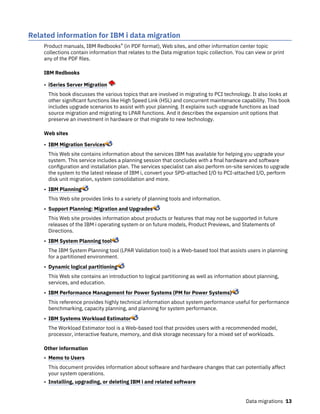
Related information for IBM i data migration
Product manuals, IBM Redbooks® (in PDF format), Web sites, and other information center topic
collections contain information that relates to the Data migration topic collection. You can view or print
any of the PDF files.
IBM Redbooks
• iSeries Server Migration
This book discusses the various topics that are involved in migrating to PCI technology. It also looks at
other significant functions like High Speed Link (HSL) and concurrent maintenance capability. This book
includes upgrade scenarios to assist with your planning. It explains such upgrade functions as load
source migration and migrating to LPAR functions. And it describes the expansion unit options that
preserve an investment in hardware or that migrate to new technology.
Web sites
• IBM Migration Services
This Web site contains information about the services IBM has available for helping you upgrade your
system. This service includes a planning session that concludes with a final hardware and software
configuration and installation plan. The services specialist can also perform on-site services to upgrade
the system to the latest release of IBM i, convert your SPD-attached I/O to PCI-attached I/O, perform
disk unit migration, system consolidation and more.
• IBM Planning
This Web site provides links to a variety of planning tools and information.
• Support Planning: Migration and Upgrades
This Web site provides information about products or features that may not be supported in future
releases of the IBM i operating system or on future models, Product Previews, and Statements of
Directions.
• IBM System Planning tool
The IBM System Planning tool (LPAR Validation tool) is a Web-based tool that assists users in planning
for a partitioned environment.
• Dynamic logical partitioning
This Web site contains an introduction to logical partitioning as well as information about planning,
services, and education.
• IBM Performance Management for Power Systems (PM for Power Systems)
This reference provides highly technical information about system performance useful for performance
benchmarking, capacity planning, and planning for system performance.
• IBM Systems Workload Estimator
The Workload Estimator tool is a Web-based tool that provides users with a recommended model,
processor, interactive feature, memory, and disk storage necessary for a mixed set of workloads.
Other information
• Memo to Users
This document provides information about software and hardware changes that can potentially affect
your system operations.
• Installing, upgrading, or deleting IBM i and related software
Data migrations 13
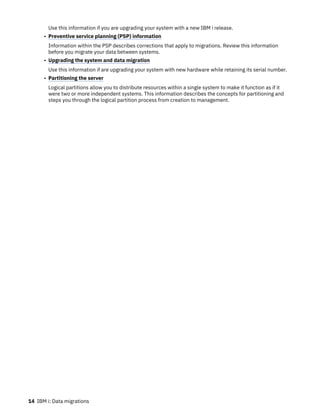
Use this information if you are upgrading your system with a new IBM i release.
• Preventive service planning (PSP) information
Information within the PSP describes corrections that apply to migrations. Review this information
before you migrate your data between systems.
• Upgrading the system and data migration
Use this information if are upgrading your system with new hardware while retaining its serial number.
• Partitioning the server
Logical partitions allow you to distribute resources within a single system to make it function as if it
were two or more independent systems. This information describes the concepts for partitioning and
steps you through the logical partition process from creation to management.
14 IBM i: Data migrations
Notices
This information was developed for products and services offered in the U.S.A.
IBM may not offer the products, services, or features discussed in this document in other countries.
Consult your local IBM representative for information on the products and services currently available in
your area. Any reference to an IBM product, program, or service is not intended to state or imply that only
that IBM product, program, or service may be used. Any functionally equivalent product, program, or
service that does not infringe any IBM intellectual property right may be used instead. However, it is the
user's responsibility to evaluate and verify the operation of any non-IBM product, program, or service.
IBM may have patents or pending patent applications covering subject matter described in this
document. The furnishing of this document does not grant you any license to these patents. You can send
license inquiries, in writing, to:
IBM Director of Licensing
IBM Corporation
North Castle Drive
Armonk, NY 10504-1785
U.S.A.
For license inquiries regarding double-byte (DBCS) information, contact the IBM Intellectual Property
Department in your country or send inquiries, in writing, to:
Intellectual Property Licensing
Legal and Intellectual Property Law
IBM Japan Ltd.
1623-14, Shimotsuruma, Yamato-shi
Kanagawa 242-8502 Japan
The following paragraph does not apply to the United Kingdom or any other country where such
provisions are inconsistent with local law: INTERNATIONAL BUSINESS MACHINES CORPORATION
PROVIDES THIS PUBLICATION "AS IS" WITHOUT WARRANTY OF ANY KIND, EITHER EXPRESS OR
IMPLIED, INCLUDING, BUT NOT LIMITED TO, THE IMPLIED WARRANTIES OF NON-INFRINGEMENT,
MERCHANTABILITY OR FITNESS FOR A PARTICULAR PURPOSE. Some states do not allow disclaimer of
express or implied warranties in certain transactions, therefore, this statement may not apply to you.
This information could include technical inaccuracies or typographical errors. Changes are periodically
made to the information herein; these changes will be incorporated in new editions of the publication.
IBM may make improvements and/or changes in the product(s) and/or the program(s) described in this
publication at any time without notice.
Any references in this information to non-IBM Web sites are provided for convenience only and do not in
any manner serve as an endorsement of those Web sites. The materials at those Web sites are not part of
the materials for this IBM product and use of those Web sites is at your own risk.
IBM may use or distribute any of the information you supply in any way it believes appropriate without
incurring any obligation to you.
Licensees of this program who wish to have information about it for the purpose of enabling: (i) the
exchange of information between independently created programs and other programs (including this
one) and (ii) the mutual use of the information which has been exchanged, should contact:
IBM Corporation
Software Interoperability Coordinator, Department YBWA
3605 Highway 52 N
Rochester, MN 55901
U.S.A.
© Copyright IBM Corp. 1998, 2013 15
Such information may be available, subject to appropriate terms and conditions, including in some cases,
payment of a fee.
The licensed program described in this document and all licensed material available for it are provided by
IBM under terms of the IBM Customer Agreement, IBM International Program License Agreement or any
equivalent agreement between us.
Any performance data contained herein was determined in a controlled environment. Therefore, the
results obtained in other operating environments may vary significantly. Some measurements may have
been made on development-level systems and there is no guarantee that these measurements will be the
same on generally available systems. Furthermore, some measurements may have been estimated
through extrapolation. Actual results may vary. Users of this document should verify the applicable data
for their specific environment.
Information concerning non-IBM products was obtained from the suppliers of those products, their
published announcements or other publicly available sources. IBM has not tested those products and
cannot confirm the accuracy of performance, compatibility or any other claims related to non-IBM
products. Questions on the capabilities of non-IBM products should be addressed to the suppliers of
those products.
All statements regarding IBM's future direction or intent are subject to change or withdrawal without
notice, and represent goals and objectives only.
All IBM prices shown are IBM's suggested retail prices, are current and are subject to change without
notice. Dealer prices may vary.
This information is for planning purposes only. The information herein is subject to change before the
products described become available.
This information contains examples of data and reports used in daily business operations. To illustrate
them as completely as possible, the examples include the names of individuals, companies, brands, and
products. All of these names are fictitious and any similarity to the names and addresses used by an
actual business enterprise is entirely coincidental.
COPYRIGHT LICENSE:
This information contains sample application programs in source language, which illustrate programming
techniques on various operating platforms. You may copy, modify, and distribute these sample programs
in any form without payment to IBM, for the purposes of developing, using, marketing or distributing
application programs conforming to the application programming interface for the operating platform for
which the sample programs are written. These examples have not been thoroughly tested under all
conditions. IBM, therefore, cannot guarantee or imply reliability, serviceability, or function of these
programs. The sample programs are provided "AS IS", without warranty of any kind. IBM shall not be
liable for any damages arising out of your use of the sample programs.
Each copy or any portion of these sample programs or any derivative work, must include a copyright
notice as follows:
© (your company name) (year). Portions of this code are derived from IBM Corp. Sample Programs.
© Copyright IBM Corp. _enter the year or years_.
If you are viewing this information softcopy, the photographs and color illustrations may not appear.
Programming interface information
This Data migrations publication documents intended Programming Interfaces that allow the customer to
write programs to obtain the services of IBM i.
16 Notices
Trademarks
IBM, the IBM logo, and ibm.com are trademarks or registered trademarks of International Business
Machines Corp., registered in many jurisdictions worldwide. Other product and service names might be
trademarks of IBM or other companies. A current list of IBM trademarks is available on the Web at
"Copyright and trademark information" at www.ibm.com/legal/copytrade.shtml.
Adobe, the Adobe logo, PostScript, and the PostScript logo are either registered trademarks or
trademarks of Adobe Systems Incorporated in the United States, and/or other countries.
Linux is a registered trademark of Linus Torvalds in the United States, other countries, or both.
Microsoft, Windows, Windows NT, and the Windows logo are trademarks of Microsoft Corporation in the
United States, other countries, or both.
Other product and service names might be trademarks of IBM or other companies.
Terms and conditions
Permissions for the use of these publications is granted subject to the following terms and conditions.
Personal Use: You may reproduce these publications for your personal, noncommercial use provided that
all proprietary notices are preserved. You may not distribute, display or make derivative works of these
publications, or any portion thereof, without the express consent of IBM.
Commercial Use: You may reproduce, distribute and display these publications solely within your
enterprise provided that all proprietary notices are preserved. You may not make derivative works of
these publications, or reproduce, distribute or display these publications or any portion thereof outside
your enterprise, without the express consent of IBM.
Except as expressly granted in this permission, no other permissions, licenses or rights are granted, either
express or implied, to the publications or any information, data, software or other intellectual property
contained therein.
IBM reserves the right to withdraw the permissions granted herein whenever, in its discretion, the use of
the publications is detrimental to its interest or, as determined by IBM, the above instructions are not
being properly followed.
You may not download, export or re-export this information except in full compliance with all applicable
laws and regulations, including all United States export laws and regulations.
IBM MAKES NO GUARANTEE ABOUT THE CONTENT OF THESE PUBLICATIONS. THE PUBLICATIONS ARE
PROVIDED "AS-IS" AND WITHOUT WARRANTY OF ANY KIND, EITHER EXPRESSED OR IMPLIED,
INCLUDING BUT NOT LIMITED TO IMPLIED WARRANTIES OF MERCHANTABILITY, NON-
INFRINGEMENT, AND FITNESS FOR A PARTICULAR PURPOSE.
Notices 17
18 IBM i: Data migrations
IBM®

IBM i and related software Data migrations.pdf

  • 1.
    IBM i Version 7.2 IBMi and related software Data migrations IBM
  • 2.
    Note Before using thisinformation and the product it supports, read the information in “Notices” on page 15. This edition applies to IBM i 7.2 (product number 5770-SS1) and to all subsequent releases and modifications until otherwise indicated in new editions. This version does not run on all reduced instruction set computer (RISC) models nor does it run on CISC models. This document may contain references to Licensed Internal Code. Licensed Internal Code is Machine Code and is licensed to you under the terms of the IBM License Agreement for Machine Code. © Copyright International Business Machines Corporation 1998, 2013. US Government Users Restricted Rights – Use, duplication or disclosure restricted by GSA ADP Schedule Contract with IBM Corp.
  • 3.
    Contents Data migrations.....................................................................................................1 What's newfor IBM i 7.2..............................................................................................................................1 PDF file for Data migrations.........................................................................................................................1 Data migration concepts..............................................................................................................................2 Planning the IBM i migration....................................................................................................................... 2 Planning your hardware for data migration........................................................................................... 2 Planning your software for IBM i data migration...................................................................................3 Planning for your IBM i console connection.......................................................................................... 3 Recording an IBM i data migration plan.................................................................................................4 Performing the migration.............................................................................................................................4 Preparing for the migration with IBM i 7.2 on the source system........................................................ 4 Preparing the target system............................................................................................................. 4 Preparing the source system............................................................................................................5 Stabilizing the source system...........................................................................................................5 Completing the migration with IBM i 7.2 on the source system...........................................................6 Preparing for the migration from a IBM i model that does not support IBM i 7.2................................7 Preparing target system....................................................................................................................7 Preparing the source system............................................................................................................7 Completing the migration from a IBM i model that does not support IBM i 7.2.................................. 8 Fixing hardware resource names after a data migration.................................................................... 10 Scenarios: Data migration......................................................................................................................... 11 Troubleshooting the data migration..........................................................................................................12 Related information for IBM i data migration........................................................................................... 13 Notices................................................................................................................15 Programming interface information.......................................................................................................... 16 Trademarks................................................................................................................................................17 Terms and conditions................................................................................................................................ 17 iii
  • 4.
  • 5.
    Data migrations An IBM®i data migration is the process of moving data from one system or logical partition that is running IBM i to another system or logical partition running IBM i. When migrating data between systems, the source system and the target system have different serial numbers. This information describes how to migrate your data to IBM i 7.2 from IBM i V6R1 or later. If you are upgrading to a new system without changing the serial number, see the Upgrading the system and data migration topic for your system model in the IBM Power Systems Hardware Information Center. If you are migrating data from one logical partition to another logical partition on the same system, follow the instructions in Restoring a logical partition (LPAR) to another LPAR–Checklist 22. This information assumes that you are moving data from one system to another. If you are installing a new version of IBM i on the same system, it is not necessary to perform an explicit data migration. See Installing, upgrading, or deleting IBM i and related software. Another migration tool is feature code 0205, which you can order at no charge with the new system. To use the feature, you must have a valid IBM Software Maintenance subscription for the source system. Feature code 0205 authorizes you to use the new version and release on the source system for the sole purpose of migrating your data. The earlier version and release must be reinstalled on your source system after the data migration is completed. Related information Installing, upgrading, or deleting IBM i and related software IBM Migration Services IBM Power Systems Hardware Information Center What's new for IBM i 7.2 Read about new or significantly changed information for the Data migrations topic collection. Miscellaneous technical updates have been made since the previous publication. How to see what's new or changed To help you see where technical changes have been made, the information center uses: • The image to mark where new or changed information begins. • The image to mark where new or changed information ends. In PDF files, you might see revision bars (|) in the left margin of new and changed information. To find other information about what's new or changed this release, see the Memo to users. PDF file for Data migrations You can view and print a PDF file of this information. To view or download the PDF version of this document, select Data migrations. You can view or download these related topic PDFs: Installing, upgrading, or deleting IBM i and related software You can use this information if you are upgrading your system with a new IBM i release. Backing up your system You can use this information to back up your system before performing upgrade tasks. This allows you to recover a working configuration should you experience problems during any part of the upgrade. © Copyright IBM Corp. 1998, 2013 1
  • 6.
    Saving PDF files Tosave a PDF on your workstation for viewing or printing: 1. Right-click the PDF link in your browser. 2. Click the option that saves the PDF locally. 3. Navigate to the directory in which you want to save the PDF. 4. Click Save. Downloading Adobe Reader You need Adobe Reader installed on your system to view or print these PDFs. You can download a free copy from the Adobe Web site (www.adobe.com/products/acrobat/readstep.html) . Data migration concepts IBM i data migration is the movement of data from one system or logical partition to a new system or logical partition. When migrating data between systems, the source system and the target system have different serial numbers. The data migration process includes planning, ordering, preparing for, and performing the data migration. Planning may require up to 6 weeks, depending on the complexity of your environment. Installing IBM i on the source system requires at least one hour. Migrating the data from the source system to the target system (sometimes referred to as the managed system) can normally be accomplished in up to 3 days. Related information IBM Migration Services Planning the IBM i migration The time you spend planning for your IBM i data migration can help minimize your downtime and make performing the migration easier. Related tasks Performing the migration To prepare for and perform a data migration from either a source system that supports IBM i 7.2 or a source system that does not support IBM i 7.2, follow these general procedures. Preparing for the migration from a IBM i model that does not support IBM i 7.2 If you cannot install IBM i 7.2 on your source system, you can still migrate your data by saving your source system and then performing a full system recovery onto the target system. Planning your hardware for data migration Before you perform the actual IBM i data migration, identify your hardware requirements and prepare your hardware. To prepare your hardware, perform these general tasks: 1. Order the target system with feature code 0205 or prepare your target system or logical partition. If the Licensed Internal Code is not preinstalled on the target system with IBM i 7.2, IBM recommends that you upgrade to the new release of the operating system on your source system before you migrate your data to the new system. Feature code 0205 authorizes you to use the new version and release on the source system for the sole purpose of migrating your data. You must reinstall the previous operating system on the source system after the data migration is complete. 2. Identify the hardware requirements for your data migration. See the IBM Power Systems Hardware Information Center for more information. 3. Identify any tape incompatibilities. 2 IBM i: Data migrations
  • 7.
    You must ensurethat you have a tape drive that is compatible with the target system. To determine if your tape drive is compatible, see the Storage Solutions Web site. To learn more about tape devices, see the Tape topic. 4. Ensure that you have a physical plan for the target system. The target system is going to be set up and running beside the source system for a period of time. There are physical planning and setup implications that pertain to the target system. Related information Storage Solutions IBM Power Systems Hardware Information Center Tape Planning your software for IBM i data migration Before you perform the actual IBM i data migration, identify your software requirements and prepare your software. To prepare your software, perform these general tasks: 1. Evaluate disk storage space requirements. Ensure that you have enough disk storage capacity for the new operating system and for the data from the source server, as well as for any new data and software planned for the target server. 2. Identify possible upgrade paths for licensed programs. When you install the new release of IBM i, some licensed programs might not work. Identify licensed programs that are no longer available at this release and their replacements where applicable. Additionally, to avoid losing data that depends on these licensed programs, migrate the data from your server to an accessible location before installing the new release of IBM i. Related information Ensuring the server meets disk storage requirements for upgrades Planning for your IBM i console connection If you plan to use a console after the data migration, ensure that the target console is prepared for your environment. Perform these general tasks related to your console: 1. Choose a console that is supported by both the source and target systems. Know your current strategy for connecting a console to your system or logical partition. Your current connection strategy influences your planning activities. For more information about consoles, see the Managing IBM i consoles topic in the IBM Power Systems Hardware Information Center. Attention: An Operations Console directly attached to the system is not supported in IBM i 7.2. If you currently have an Operations Console directly attached to the system, you must change the console before you start to install or upgrade the IBM i software on your system. Failure to do so will cause the installation to fail with unpredictable results. For more information about changing consoles, see the Changing consoles topic in the IBM Power Systems Hardware Information Center. 2. Ensure that the target console is set up for your environment and is operational. The target console must be operational and tested as a stand-alone server before the data migration. Related information Connecting to your system IBM Power Systems Hardware Information Center Data migrations 3
  • 8.
    Recording an IBMi data migration plan When you complete the planning tasks, you should have a record of the data migration plan. If you have other individuals assisting you in your data migration, this plan will not only help them understand your situations but will also assist you if problems arise during the migration. Include these tasks in your final data migration plan: 1. Record a final hardware and software plan that includes feature code 0205 (if possible). Record your disk storage capacity and compatible tape drive information. These items in the plan might cause you to change your software or hardware order. 2. Record a physical plan for the target server. IBM Migration Services can help you in planning and migrating your data to the latest IBM i models. For information, filter by hardware/software platform on the Services A-Z Web site. Performing the migration To prepare for and perform a data migration from either a source system that supports IBM i 7.2 or a source system that does not support IBM i 7.2, follow these general procedures. Before you begin these tasks, be sure you have completed the necessary planning. You can migrate your data by using one of these paths: If you can load IBM i 7.2 on your source system, perform these procedures. 1. “Preparing for the migration with IBM i 7.2 on the source system” on page 4. 2. “Completing the migration with IBM i 7.2 on the source system” on page 6. If you cannot load IBM i 7.2 on your source system, perform these procedures. 1. “Preparing for the migration from a IBM i model that does not support IBM i 7.2” on page 7 2. “Completing the migration from a IBM i model that does not support IBM i 7.2” on page 8 Related tasks Planning the IBM i migration The time you spend planning for your IBM i data migration can help minimize your downtime and make performing the migration easier. Preparing for the migration with IBM i 7.2 on the source system To prepare to migrate your IBM i data to a new target system when you can load IBM i 7.2 on the source system, follow these procedures. Before you begin this procedure, complete these prerequisite tasks: • Obtain and review the preventive service planning (PSP) document on the Preventive service planning - PSP website. The PSP document for IBM i 7.2 data migrations is SF98172. Review this document for the most current information about conditions that might affect your data migration. • Plan the migration. Preparing the target system 1. Ensure that your console is set up and ready for your environment. For information, see Connecting to your system. 2. Verify that the target system is set up and is running with only the Licensed Internal Code and the base IBM i 7.2 operating system installed. (Order feature code 0205, or manually install the new system up to the point before you use GO LICPGM to install libraries QGPL and QUSRSYS and licensed programs.) 3. If you are configuring a system with logical partitions, create logical partitions on the target system and then install the Licensed Internal Code and IBM i 7.2 on each logical partition. Allow at least two 4 IBM i: Data migrations
  • 9.
    additional hours todo this for each logical partition. For more information, see the Logical partitioning topic for your system model in the IBM Power Systems Hardware Information Center. 4. Perform disk unit management (for example, manage disk protection and disk configuration). To do this, you can use the Work with Disk Units option from the Dedicated Service Tools display. For more information, see Configuring disks and disk protection. Preparing the source system 1. Prepare to upgrade the IBM i release. Refer to Preparing to upgrade or replace IBM i software. Ensure that you do the following: • Use the Work with Line Descriptions command (WRKLIND) to view and delete unused lines and line descriptions. • Use the Work with Device Descriptions command (WRKDEVD) to delete unused device descriptions. Note: You can use the WRKLIND and WRKDEVD commands to view and verify that all of the descriptions listed are in use. If you are sure one is not in use, delete it. If you are not sure, keep it. 2. Print your system configuration information as follows: a) On the IBM i command line, enter PRTSYSINF and then print the resulting spooled files. This prints reports of the hardware resources, software resources, system values, installed fixes (program temporary fixes or PTFs), and other configuration information. b) Print a new system configuration list and keep this list for future reference. For instructions, see Printing the system configuration list. c) On the IBM i command line, enter WRKDEVD. Use option 6 (Print) to print the device descriptions. d) On the IBM i command line, enter WRKCTLD. Use option 6 (Print) to print the controller descriptions. 3. Save the entire system so you can restore it to its original state after you perform the data migration. Save the entire system by using option 21 of the GO SAVE command. For more information about the GO SAVE command, see Overview of the GO SAVE command. Specify the following options: a. Vary off the network server...*ALL b. Unmount file systems..........Y c. Spooled file data ............*ALL Note: Ensure that you have two copies of the backup media. If the Licensed Internal Code is not preinstalled on the target system with IBM i 7.2, feature code 0205 authorizes you to use the new version and release on the source system for the sole purpose of migrating your data. To use feature 0205, you must have a valid software maintenance agreement on your source system. When the data migration is complete, you must reinstall the previous operating system on the source system to restore the system to its original state. To restore the system to its original state, follow the steps in Recovering your system. Use the recovery information for the release that you want to restore. If feature 0205 was not ordered with your target system, use the other method for data migration in the topic “Preparing for the migration from a IBM i model that does not support IBM i 7.2” on page 7. Otherwise, continue with the next step here. 4. Complete the upgrade of IBM i 7.2. Refer to either Upgrading or replacing software using automatic installation or Upgrading or replacing software using manual installation. Stabilizing the source system 1. Run the source system at the new release level for 2 weeks. 2. Refresh the PTF level. Check for new cumulative fix packs or high-impact pervasive (HIPER) fixes. For more information, see Using software fixes. 3. Print your system configuration information as follows: Data migrations 5
  • 10.
    a) On theIBM i command line, enter PRTSYSINF and then print the resulting spooled files. This prints reports of the hardware resources, software resources, system values, installed fixes (program temporary fixes or PTFs), and other configuration information. b) Print a new system configuration list and keep this list for future reference. For instructions, see Printing the system configuration list. c) On the IBM i command line, enter WRKDEVD. Use option 6 (Print) to print the device descriptions. d) On the IBM i command line, enter WRKCTLD. Use option 6 (Print) to print the controller descriptions. 4. Save the entire system by using option 21 of the GO SAVE command. For more information about the GO SAVE command, see Overview of the GO SAVE command. Specify the following options: a) Vary off the network server...*ALL b) Unmount file systems..........Y c) Spooled file data ............*ALL Note: Ensure that you have two copies of the backup media. The next step is to complete the migration. Go to “Completing the migration with IBM i 7.2 on the source system” on page 6. Completing the migration with IBM i 7.2 on the source system If you can load IBM i 7.2 on your source system, perform these procedures to migrate data to the target system or logical partition. Before you begin this task, perform the steps in “Preparing for the migration with IBM i 7.2 on the source system” on page 4. 1. On the target system, perform the steps in Recovering your system to a different system. If a controller or device no longer has a valid resource on the system, follow the steps in the topic “Fixing hardware resource names after a data migration” on page 10 to make the necessary corrections. 2. Install any new licensed programs. For more information, see Installing additional licensed programs. 3. Print your system configuration information as follows: a) On the IBM i command line, enter PRTSYSINF (Print System Information) and then print the resulting spooled files. This prints reports of the hardware resources, software resources, system values, installed fixes (program temporary fixes or PTFs), and other configuration information. b) Print a new system configuration list and keep this list for future reference. For instructions, see Printing the system configuration list. c) On the IBM i command line, enter WRKDEVD (Work with Device Descriptions) and enter option 6 to print the device descriptions. d) On the IBM i command line, enter WRKCTLD (Work with Controller Descriptions) and enter option 6 to print the controller descriptions. 4. Save the entire system using option 21 of the GO SAVE command. For more information about the GO SAVE command, see Overview of the GO SAVE command. Specify the following options: a) Vary off the network server...*ALL b) Unmount file systems..........Y c) Spooled file data ............*ALL Note: Ensure that you have two copies of the backup media. 5. Resume normal operations and verify that all your applications run properly. 6. Tune the system performance. This ensures that your systems make the best use of the system resources and allows workloads to run as efficiently as possible. For details, see Tuning performance. 6 IBM i: Data migrations
  • 11.
    Preparing for themigration from a IBM i model that does not support IBM i 7.2 If you cannot install IBM i 7.2 on your source system, you can still migrate your data by saving your source system and then performing a full system recovery onto the target system. Before you begin this procedure, complete these prerequisite tasks: • Obtain and review the Preventive service planning (PSP) information. The PSP document for IBM i 7.2 data migrations is SF98172. Review this document for the most current information about conditions that might affect your data migration. • Plan the migration. • Review the introductory information about previous release-to-current release support. Refer to Previous release-to-current release support. Related tasks Planning the IBM i migration The time you spend planning for your IBM i data migration can help minimize your downtime and make performing the migration easier. Preparing target system 1. Verify that the target system is set up and is running with only the Licensed Internal Code and the base IBM i 7.2 operating system installed. (Order feature code 0205, or manually install the new system up to the point before you use GO LICPGM to install libraries QGPL and QUSRSYS and licensed programs.) 2. If you are configuring a system with logical partitions, create logical partitions on the target system and then install the Licensed Internal Code and IBM i 7.2 on each logical partition. Allow at least two additional hours to do this for each logical partition. For more information, see the Logical partitioning topic for your system model in the IBM Power Systems Hardware Information Center. 3. Ensure that your console is set up and ready. For information, see Connecting to your system 4. Perform disk unit management (for example, manage disk protection and disk configuration). To do this, you can use the Work with Disk Units option from the Dedicated Service Tools display. For information, see Configuring disks and disk protection. 5. Make sure that you have a copy of the distribution media for the target system. Preparing the source system 1. Clean up the source system: a) Use the Work with Line Descriptions command (WRKLIND) to view and delete unused lines and line descriptions. b) Use the Work with Device Descriptions command (WRKDEVD) to delete unused device descriptions. Note: You can use the WRKLIND and WRKDEVD commands to view and verify that all of the descriptions listed are in use. If you are sure one is not in use, delete it. If you are not sure, keep it. c) Clean up disk storage space. For more information, see Cleaning up disk storage space. 2. Ensure that you have the required fixes (also called program temporary fixes or PTFs). For more information, see Using software fixes. 3. Gather performance data. This gives you a basis for comparing performance before and after the data migration. For details, see Collecting system performance data. 4. On the IBM i command line, enter RTVSYSINF (Retrieve System Information). When you run this command, specify the library to use. Typically, you can specify the QUPGRADE library. If this library does not exist, create it with the Create Library (CRTLIB) command. 5. Print your system configuration information: Data migrations 7
  • 12.
    a) On theIBM i command line, enter PRTSYSINF and then print the resulting spooled files. This prints reports of the hardware resources, software resources, system values, installed fixes (program temporary fixes or PTFs), and other configuration information. b) Print a new system configuration list and keep this list for future reference. For detailed instructions, see Printing the system configuration list. c) On the IBM i command line, enter WRKDEVD and enter option 6 (Print) to print the device descriptions. d) On the IBM i command line, enter WRKCTLD and enter option 6 (Print) to print the controller descriptions. e) Job scheduler entries will not be restored on the target system. Use the print option on the Work with Job Scheduler Entries (WRKJOBSCDE) command to record your current job scheduler entries. Then you can manually re-create them on the target system. 6. Save the entire system by using option 21 of the GO SAVE command. For more information about the GO SAVE command, see Overview of the GO SAVE command. Make sure that you specify the following options: a) Vary off the network server...*ALL b) Unmount file systems..........Y c) Spooled file data ............*ALL Note: Ensure that you have two copies of the backup media. The next step is to complete the migration. Go to “Completing the migration from a IBM i model that does not support IBM i 7.2” on page 8. Completing the migration from a IBM i model that does not support IBM i 7.2 If you cannot load IBM i 7.2 on your source system, perform these procedures to migrate data to the target system or logical partition. Before you begin this task, perform the steps in “Preparing for the migration from a IBM i model that does not support IBM i 7.2” on page 7. If you did not get a new system with feature code 0205, follow steps 1 through 38 in Restoring previous release user data to a new system on the target system. When you have completed those steps, continue with step “8” on page 9 in this procedure. If your target system is set up with only the Licensed Internal Code and IBM i 7.2 installed (feature code 0205), follow these steps. 1. Perform a manual IPL 2. At the IPL Options display, enter the correct date and time. Verify that the following values are set as follows: Start to system to restricted state = Y Define or change system at IPL = Y Set major system options = Y 3. On the Set Major System Options display, select N to not enable automatic configuration. 4. On the Define or Change the System at IPL display, do the following steps: a) Select option 3 (System value commands). b) On the System Value Commands display, select option 3 (Work with System Values). c) On the Work with System Values display, enter 2 to change the following system values: • Change QALWOBJRST to *ALL (Allow all object restore options). • Change QIPLTYPE to 2 (Attended IPL, console in debug mode). • Change QJOBMSGQFL to *PRTWRAP (Wrap the job message queue and print the messages that are being overlaid because of wrapping). 8 IBM i: Data migrations
  • 13.
    • Change QJOBMSGQMXto a minimum of 30 and 64 is suggested (Job message queue maximum size of 30 MB). • Change QPFRADJ to 2 (Performance adjustment at IPL and automatic adjustment). • Change QVFYOBJRST to 1 (Do not verify signatures on restore. Restore all objects regardless of their signature). d) After the system changed the system values, press F3 (Exit) twice to return to the Define or Change the System at IPL display 5. On the Define or Change the System at IPL display, press F3 to exit and continue the IPL. 6. On the Change Password display, either type the current password (if this is not the first IPL), or type QSECOFR as the current password. Enter a new password. Reenter the password to verify and press Enter. 7. Perform steps 31 through 38 in the topic Restoring previous release user data to a new system. 8. If a controller or device no longer has a valid resource on the system, follow the steps in the topic “Fixing hardware resource names after a data migration” on page 10 to make the necessary corrections. 9. Install any new licensed programs. For more information, see Installing additional licensed programs. 10. Follow the steps in Checklist: Completing the IBM i upgrade or replacement. 11. Add job scheduler entries using the Add Job Schedule Entry (ADDJOBSCDE) command and the information you printed from your source system. 12. If you installed System i® integration with BladeCenter and System x on your system and you saved it while it was varied off, follow these steps: a) Add the links for the server descriptions. Enter the following for each server description: ADDNWSSTGL NWSSTG (storage_name) NWSD(server_description) b) Vary on your integrated server by entering WRKCFGSTS *NWS and selecting option 1 to vary on each server. 13. Print your system configuration information: a) On the IBM i command line, enter PRTSYSINF and then print the resulting spooled files. This prints reports of the hardware resources, software resources, system values, installed fixes (program temporary fixes or PTFs), and other configuration information. b) Print a new system configuration list and keep this list for future reference. For instructions, see Printing the system configuration list. c) On the IBM i command line, enter WRKDEVD (Work with Device Descriptions) and enter option 6 to print the device descriptions. d) On the IBM i command line, enter WRKCTLD (Work with Controller Descriptions) and enter option 6 to print the controller descriptions. 14. Save the entire system using option 21 of the GO SAVE command. For more information about the GO SAVE command, see Overview of the GO SAVE command. Specify the following options: a) Vary off the network server...*ALL b) Unmount file systems..........Y c) Spooled file data ............*ALL Note: Ensure that you have two copies of the backup media. 15. Resume normal operations and verify that all your applications run properly. 16. Tune the system performance. This ensures that your systems make the best use of the system resources and allows workloads to run as efficiently as possible. For details, see Tuning performance. Data migrations 9
  • 14.
    Fixing hardware resourcenames after a data migration Following a data migration, you may have hardware resources that are in different locations than they were on your source server. To fix these hardware resource names, follow these steps: 1. At the IBM i command line, enter WRKHDWPRD. 2. On the Work with Hardware Products display, select option 5 (Change description label locations) and press Enter. 3. Read the information about the Using Change Label Locations display and press Enter. 4. Compare the label information on the display with the source server's label locations. Label information matches if the Label column on the display matches that of the source server. Label information does not match if any one of the following is true: • The display has label information, but the source server did not have label information in that location. • The source server label information does not match the information found in the Label column on the display. • *NONE appears in the Label column on the display, and there is label information for the source server. Note: When *NONE appears in the Label column for a controller or device that was added or upgraded, select option 2 (Change). Then select the correct label description from the list provided. If you experience any problems, call your service provider. • *INCORRECT or *INVALID appears in the Label column. This means that the type and model number of the hardware resource information does not match the type and model of the configuration description that is currently associated with that resource. The server cannot vary on the configuration description. • *INCORRECT -- where the physical location is also ' **'. This identifies a controller or device description that no longer has a valid resource on the server. 5. If there are any locations where the server label information is not the same as the (physical) label, on the Change Description Label Locations display, type 2 in the Opt column for each location that requires a label change. Press Enter. The Change Description Label display appears. Note: You may make more than one selection at a time, but if More... appears on the bottom of the display, do not press Enter. Instead, page forward to select the remaining labels. 6. A list of possible label names is shown. To select the label name (on the display) that matches the label that was on the source server, type 1 in the Opt column for each location that you want to change and press Enter. Note: If you cannot find the label (on the display) that matches the label on the source server, contact your service representative. 7. If you chose to change more than one label, the Change Description Label display appears for the next label. A message at the bottom of the display indicates whether the previous change was successful. 8. For all the labels that need a change, repeat the previous three steps. 9. After you change the last label, the Change Description Label Locations display appears with the updated information. A message at the bottom of the display indicates whether the last change was successful. If More... appears on the bottom of the display, scroll forward to view more information. 10. Press the F17 key on the Change Description Label display to request a printout of the new information for your records. Note: The printout will be in the default output queue for your workstation. You can print it later when you vary on your printer devices and start printer writers. 11. Verify that the labels on the printout match the labels in the Label column on your source server. If you find any errors, go back to step “5” on page 10 and repeat the steps. 10 IBM i: Data migrations
  • 15.
    Attention: Do notexchange cards for problem analysis purposes. Card and device serial numbers are tied to the server configuration. Scenarios: Data migration These scenarios show different migration situations for moving data to another system. Migrating from IBM i V6R1 or IBM i 7.1 on a Power Systems model 520 to IBM i 7.2 on a Power Systems model 720 system In this scenario, you have a model 520 system, you are running IBM i V6R1, and you want to migrate your data to a Power Systems model 720. What to do: You cannot install IBM i 7.2 on your model 520. To migrate your data, you need to save the data to a tape drive that is compatible with model 720 and then restore the data on the model 720. To perform this data migration, complete the steps in the following topics: • “Planning the IBM i migration” on page 2 • “Preparing for the migration from a IBM i model that does not support IBM i 7.2” on page 7 • “Completing the migration from a IBM i model that does not support IBM i 7.2” on page 8 Migrating from IBM i V6R1 on a Power Systems POWER6® 520 to IBM i 7.2 on a partitioned Power Systems model 720 In this scenario, you have a Power Systems POWER6 520, you are running V6R1, and you want to migrate your data to an IBM Power Systems model 720. What to do: To migrate your data, you need to install IBM i 7.2 on your POWER6 520. You then need to install IBM i 7.2 on all logical partitions on your model 720, save the data from each logical partition to tape drives that are compatible with the model 720, and restore the data on the model 720. Configure and prepare logical partitions on the model 720 before the data migration. To perform this data migration, complete the steps in the following topics: • “Planning the IBM i migration” on page 2 • “Preparing for the migration with IBM i 7.2 on the source system” on page 4 • “Completing the migration with IBM i 7.2 on the source system” on page 6 Upgrading to a new version of IBM i on your system In this scenario, you are running IBM i V6R1 or 7.1 on your system and you want to upgrade to IBM i 7.2. What to do: If you are upgrading to a new version of IBM i on the same system, it is not necessary to perform an explicit data migration. You can follow the steps in Checklist: IBM i software upgrade or replacement readiness to upgrade to IBM i 7.2. Upgrading your system to a new IBM Power Systems model In this scenario, you want to upgrade your system to a newer model. What to do: If you are upgrading to a new IBM Power Systems model without changing the serial number, it is not necessary to perform an explicit data migration. You can follow the directions in the Upgrading the system and data migration topic for your system model in the IBM Power Systems Hardware Information Center. If you are moving hardware to your new system, then your data will transfer. If your hardware is not compatible with your new system, you can perform a data migration. Data migrations 11
  • 16.
    To perform thisdata migration, complete the steps in the following topics: • “Planning the IBM i migration” on page 2 • “Preparing for the migration with IBM i 7.2 on the source system” on page 4 • “Completing the migration with IBM i 7.2 on the source system” on page 6 Migrating data from one logical partition to another In this scenario, you want to migrate data from one logical partition to another on your system. What to do: If you are migrating data from one IBM i logical partition to another logical partition on the same system, follow the instructions in Restoring a logical partition (LPAR) to another LPAR–Checklist 22. Related information IBM Power Systems Hardware Information Center Troubleshooting the data migration This information contains information related to specific data migration problems and how to resolve them. Error messages and reference codes (also known as system reference codes or SRCs) let you know that an error occurred during the process. Table 1. Data migration problems and resolutions Description Resolution Reference code A900 2000 appears on the control panel display. This reference code appears if the QIPLTYPE is set to 2 or if the console display has no device description. This reference code and message are normal during the data migration procedure. The reference code disappears when you perform a normal IPL. If no workstation on your system is operational when you receive reference code A900 2000, call your authorized service provider. You see Message ID CPF3717: File not selected. File label or file name mismatch for file filename. This type of message occurs most frequently when the incorrect tape is inserted into the tape drive or when you have incorrect parameters for the RESTORE command. Job scheduler entries are not restored on the target system when you migrate from a system that does not support IBM i 7.2 You must manually re-create the job scheduler entries on the target system. If you did not print these entries before you migrated your data, you can obtain them from the source system. The target system cannot read the tapes you used to save the data from your source system. Save the data from the source system using a tape drive that is compatible with the target system. You cannot configure your twinaxial devices. If you are using a twinaxial console on the source system and using Operations Console on the target system, you must have a twinaxial controller for any twinaxial devices you plan to run from the target system. For more information, see the preventive service planning (PSP) document on the Preventive service planning - PSP website. The PSP document for IBM i 7.2 data migrations is SF98172. This PSP document describes High-Impact and PERvasive (HIPER) problems. 12 IBM i: Data migrations
  • 17.
    Related information forIBM i data migration Product manuals, IBM Redbooks® (in PDF format), Web sites, and other information center topic collections contain information that relates to the Data migration topic collection. You can view or print any of the PDF files. IBM Redbooks • iSeries Server Migration This book discusses the various topics that are involved in migrating to PCI technology. It also looks at other significant functions like High Speed Link (HSL) and concurrent maintenance capability. This book includes upgrade scenarios to assist with your planning. It explains such upgrade functions as load source migration and migrating to LPAR functions. And it describes the expansion unit options that preserve an investment in hardware or that migrate to new technology. Web sites • IBM Migration Services This Web site contains information about the services IBM has available for helping you upgrade your system. This service includes a planning session that concludes with a final hardware and software configuration and installation plan. The services specialist can also perform on-site services to upgrade the system to the latest release of IBM i, convert your SPD-attached I/O to PCI-attached I/O, perform disk unit migration, system consolidation and more. • IBM Planning This Web site provides links to a variety of planning tools and information. • Support Planning: Migration and Upgrades This Web site provides information about products or features that may not be supported in future releases of the IBM i operating system or on future models, Product Previews, and Statements of Directions. • IBM System Planning tool The IBM System Planning tool (LPAR Validation tool) is a Web-based tool that assists users in planning for a partitioned environment. • Dynamic logical partitioning This Web site contains an introduction to logical partitioning as well as information about planning, services, and education. • IBM Performance Management for Power Systems (PM for Power Systems) This reference provides highly technical information about system performance useful for performance benchmarking, capacity planning, and planning for system performance. • IBM Systems Workload Estimator The Workload Estimator tool is a Web-based tool that provides users with a recommended model, processor, interactive feature, memory, and disk storage necessary for a mixed set of workloads. Other information • Memo to Users This document provides information about software and hardware changes that can potentially affect your system operations. • Installing, upgrading, or deleting IBM i and related software Data migrations 13
  • 18.
    Use this informationif you are upgrading your system with a new IBM i release. • Preventive service planning (PSP) information Information within the PSP describes corrections that apply to migrations. Review this information before you migrate your data between systems. • Upgrading the system and data migration Use this information if are upgrading your system with new hardware while retaining its serial number. • Partitioning the server Logical partitions allow you to distribute resources within a single system to make it function as if it were two or more independent systems. This information describes the concepts for partitioning and steps you through the logical partition process from creation to management. 14 IBM i: Data migrations
  • 19.
    Notices This information wasdeveloped for products and services offered in the U.S.A. IBM may not offer the products, services, or features discussed in this document in other countries. Consult your local IBM representative for information on the products and services currently available in your area. Any reference to an IBM product, program, or service is not intended to state or imply that only that IBM product, program, or service may be used. Any functionally equivalent product, program, or service that does not infringe any IBM intellectual property right may be used instead. However, it is the user's responsibility to evaluate and verify the operation of any non-IBM product, program, or service. IBM may have patents or pending patent applications covering subject matter described in this document. The furnishing of this document does not grant you any license to these patents. You can send license inquiries, in writing, to: IBM Director of Licensing IBM Corporation North Castle Drive Armonk, NY 10504-1785 U.S.A. For license inquiries regarding double-byte (DBCS) information, contact the IBM Intellectual Property Department in your country or send inquiries, in writing, to: Intellectual Property Licensing Legal and Intellectual Property Law IBM Japan Ltd. 1623-14, Shimotsuruma, Yamato-shi Kanagawa 242-8502 Japan The following paragraph does not apply to the United Kingdom or any other country where such provisions are inconsistent with local law: INTERNATIONAL BUSINESS MACHINES CORPORATION PROVIDES THIS PUBLICATION "AS IS" WITHOUT WARRANTY OF ANY KIND, EITHER EXPRESS OR IMPLIED, INCLUDING, BUT NOT LIMITED TO, THE IMPLIED WARRANTIES OF NON-INFRINGEMENT, MERCHANTABILITY OR FITNESS FOR A PARTICULAR PURPOSE. Some states do not allow disclaimer of express or implied warranties in certain transactions, therefore, this statement may not apply to you. This information could include technical inaccuracies or typographical errors. Changes are periodically made to the information herein; these changes will be incorporated in new editions of the publication. IBM may make improvements and/or changes in the product(s) and/or the program(s) described in this publication at any time without notice. Any references in this information to non-IBM Web sites are provided for convenience only and do not in any manner serve as an endorsement of those Web sites. The materials at those Web sites are not part of the materials for this IBM product and use of those Web sites is at your own risk. IBM may use or distribute any of the information you supply in any way it believes appropriate without incurring any obligation to you. Licensees of this program who wish to have information about it for the purpose of enabling: (i) the exchange of information between independently created programs and other programs (including this one) and (ii) the mutual use of the information which has been exchanged, should contact: IBM Corporation Software Interoperability Coordinator, Department YBWA 3605 Highway 52 N Rochester, MN 55901 U.S.A. © Copyright IBM Corp. 1998, 2013 15
  • 20.
    Such information maybe available, subject to appropriate terms and conditions, including in some cases, payment of a fee. The licensed program described in this document and all licensed material available for it are provided by IBM under terms of the IBM Customer Agreement, IBM International Program License Agreement or any equivalent agreement between us. Any performance data contained herein was determined in a controlled environment. Therefore, the results obtained in other operating environments may vary significantly. Some measurements may have been made on development-level systems and there is no guarantee that these measurements will be the same on generally available systems. Furthermore, some measurements may have been estimated through extrapolation. Actual results may vary. Users of this document should verify the applicable data for their specific environment. Information concerning non-IBM products was obtained from the suppliers of those products, their published announcements or other publicly available sources. IBM has not tested those products and cannot confirm the accuracy of performance, compatibility or any other claims related to non-IBM products. Questions on the capabilities of non-IBM products should be addressed to the suppliers of those products. All statements regarding IBM's future direction or intent are subject to change or withdrawal without notice, and represent goals and objectives only. All IBM prices shown are IBM's suggested retail prices, are current and are subject to change without notice. Dealer prices may vary. This information is for planning purposes only. The information herein is subject to change before the products described become available. This information contains examples of data and reports used in daily business operations. To illustrate them as completely as possible, the examples include the names of individuals, companies, brands, and products. All of these names are fictitious and any similarity to the names and addresses used by an actual business enterprise is entirely coincidental. COPYRIGHT LICENSE: This information contains sample application programs in source language, which illustrate programming techniques on various operating platforms. You may copy, modify, and distribute these sample programs in any form without payment to IBM, for the purposes of developing, using, marketing or distributing application programs conforming to the application programming interface for the operating platform for which the sample programs are written. These examples have not been thoroughly tested under all conditions. IBM, therefore, cannot guarantee or imply reliability, serviceability, or function of these programs. The sample programs are provided "AS IS", without warranty of any kind. IBM shall not be liable for any damages arising out of your use of the sample programs. Each copy or any portion of these sample programs or any derivative work, must include a copyright notice as follows: © (your company name) (year). Portions of this code are derived from IBM Corp. Sample Programs. © Copyright IBM Corp. _enter the year or years_. If you are viewing this information softcopy, the photographs and color illustrations may not appear. Programming interface information This Data migrations publication documents intended Programming Interfaces that allow the customer to write programs to obtain the services of IBM i. 16 Notices
  • 21.
    Trademarks IBM, the IBMlogo, and ibm.com are trademarks or registered trademarks of International Business Machines Corp., registered in many jurisdictions worldwide. Other product and service names might be trademarks of IBM or other companies. A current list of IBM trademarks is available on the Web at "Copyright and trademark information" at www.ibm.com/legal/copytrade.shtml. Adobe, the Adobe logo, PostScript, and the PostScript logo are either registered trademarks or trademarks of Adobe Systems Incorporated in the United States, and/or other countries. Linux is a registered trademark of Linus Torvalds in the United States, other countries, or both. Microsoft, Windows, Windows NT, and the Windows logo are trademarks of Microsoft Corporation in the United States, other countries, or both. Other product and service names might be trademarks of IBM or other companies. Terms and conditions Permissions for the use of these publications is granted subject to the following terms and conditions. Personal Use: You may reproduce these publications for your personal, noncommercial use provided that all proprietary notices are preserved. You may not distribute, display or make derivative works of these publications, or any portion thereof, without the express consent of IBM. Commercial Use: You may reproduce, distribute and display these publications solely within your enterprise provided that all proprietary notices are preserved. You may not make derivative works of these publications, or reproduce, distribute or display these publications or any portion thereof outside your enterprise, without the express consent of IBM. Except as expressly granted in this permission, no other permissions, licenses or rights are granted, either express or implied, to the publications or any information, data, software or other intellectual property contained therein. IBM reserves the right to withdraw the permissions granted herein whenever, in its discretion, the use of the publications is detrimental to its interest or, as determined by IBM, the above instructions are not being properly followed. You may not download, export or re-export this information except in full compliance with all applicable laws and regulations, including all United States export laws and regulations. IBM MAKES NO GUARANTEE ABOUT THE CONTENT OF THESE PUBLICATIONS. THE PUBLICATIONS ARE PROVIDED "AS-IS" AND WITHOUT WARRANTY OF ANY KIND, EITHER EXPRESSED OR IMPLIED, INCLUDING BUT NOT LIMITED TO IMPLIED WARRANTIES OF MERCHANTABILITY, NON- INFRINGEMENT, AND FITNESS FOR A PARTICULAR PURPOSE. Notices 17
  • 22.
    18 IBM i:Data migrations
  • 24.