IBM Watson Studio
BY: DEEPAK TYAGI
About IBM Watson Studio
 Watson Studio, formerly Data Science Experience or DSX, is IBM’s software
platform for data science. The platform consists of a workspace that includes
multiple collaboration and open-source tools for use in data science.
 In Watson Studio, a data scientist can create a project with a group of
collaborators, all having access to various analytics models and using various
languages (R/Python/Scala). Watson Studio brings together staple open source
tools including RStudio, Spark and Python in an integrated environment, along
with additional tools such as a managed Spark service and data shaping
facilities, in a secure and governed environment.
 Watson Studio provides access to data sets that are available through Watson
Data Platform, on-premises or on the cloud. The platform also has a large
community and embedded resources such as articles on the latest
developments from the data science world and public data sets. The platform
is available in on-premises, cloud, and desktop forms.
History
 IBM announced the launch of Data Science Experience at the Spark
Summit 2016 in San Francisco. IBM invested $300 million in efforts to
make Spark the analytics operating system for all of the company's big
data efforts.
 In June 2017, Hortonworks and IBM announced their partnership to
collaborate on IBM's Data Science Experience. Hortonworks previously had
a partnership relationship with Microsoft.
 In 2018, the Data Science Experience platform was renamed IBM Watson
Studio.
How to create and use Watson
studio
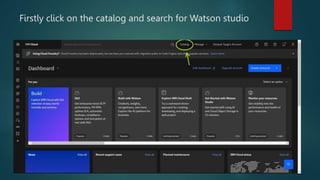
Firstly click on the catalog and search for Watson studio
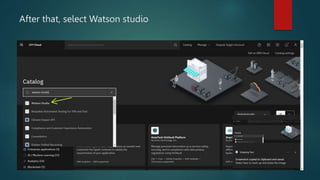
After that, select Watson studio
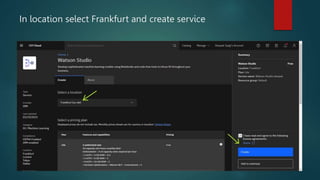
In location select Frankfurt and create service
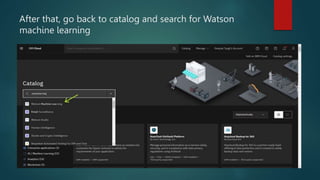
After that, go back to catalog and search for Watson
machine learning
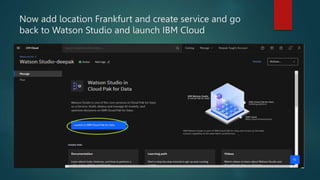
Now add location Frankfurt and create service and go
back to Watson Studio and launch IBM Cloud
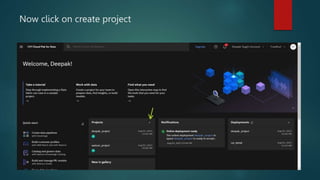
Now click on create project
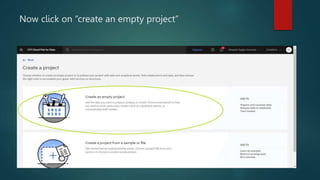
Now click on “create an empty project”
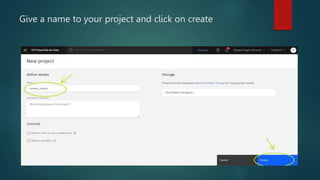
Give a name to your project and click on create
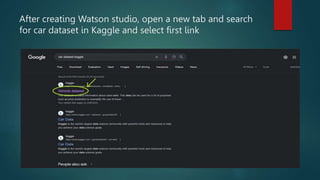
After creating Watson studio, open a new tab and search
for car dataset in Kaggle and select first link
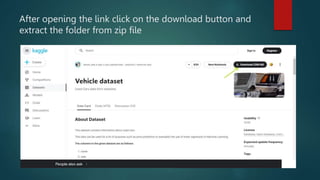
After opening the link click on the download button and
extract the folder from zip file
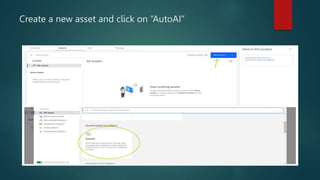
Create a new asset and click on “AutoAI”
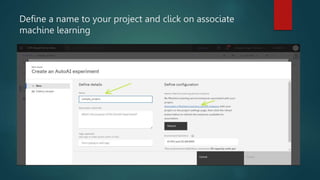
Define a name to your project and click on associate
machine learning
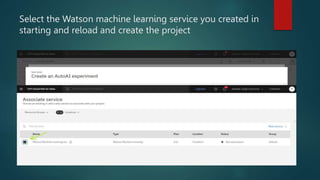
Select the Watson machine learning service you created in
starting and reload and create the project
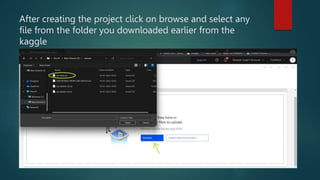
After creating the project click on browse and select any
file from the folder you downloaded earlier from the
kaggle
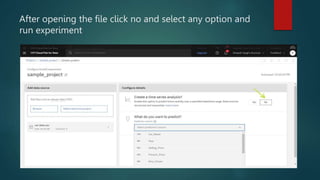
After opening the file click no and select any option and
run experiment
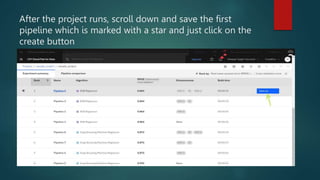
After the project runs, scroll down and save the first
pipeline which is marked with a star and just click on the
create button
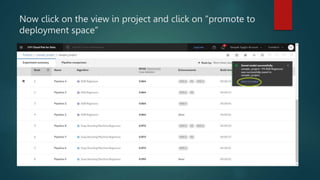
Now click on the view in project and click on “promote to
deployment space”
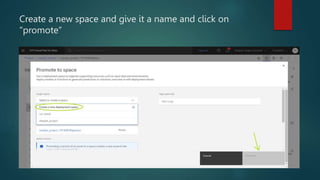
Create a new space and give it a name and click on
“promote”
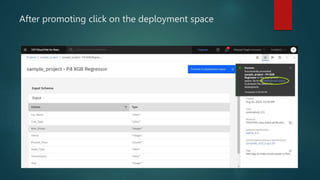
After promoting click on the deployment space
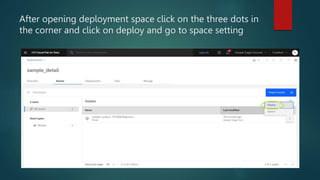
After opening deployment space click on the three dots in
the corner and click on deploy and go to space setting
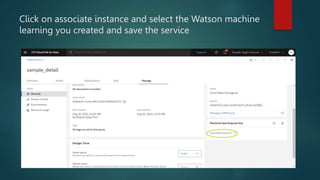
Click on associate instance and select the Watson machine
learning you created and save the service
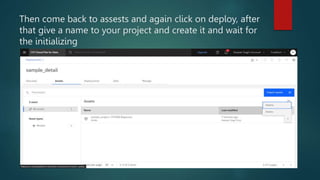
Then come back to assests and again click on deploy, after
that give a name to your project and create it and wait for
the initializing
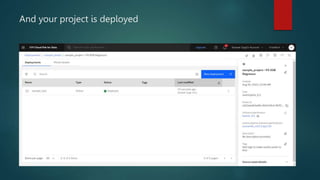
And your project is deployed
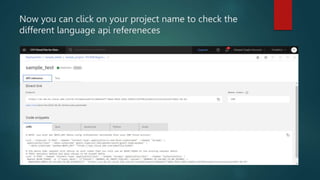
Now you can click on your project name to check the
different language api refereneces
How to test different methods in
project in Watson Studio
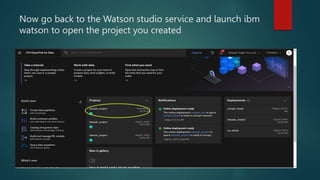
Now go back to the Watson studio service and launch ibm
watson to open the project you created
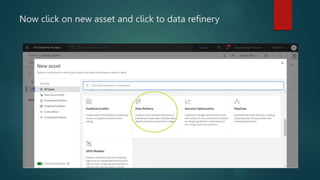
Now click on new asset and click to data refinery
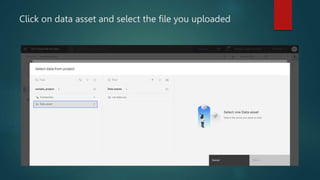
Click on data asset and select the file you uploaded
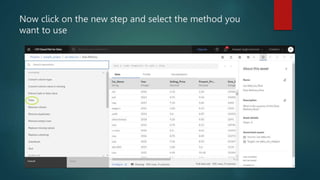
Now click on the new step and select the method you
want to use
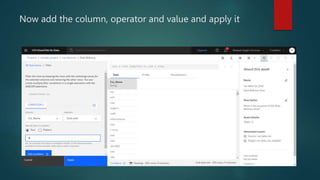
Now add the column, operator and value and apply it
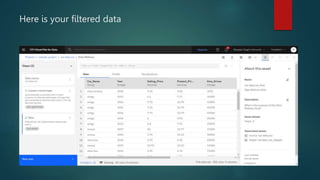
Here is your filtered data
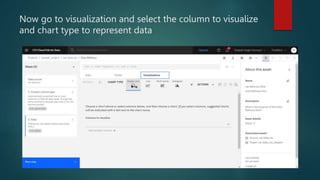
Now go to visualization and select the column to visualize
and chart type to represent data
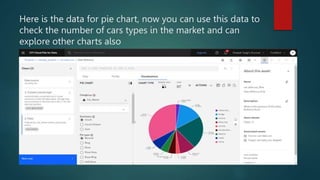
Here is the data for pie chart, now you can use this data to
check the number of cars types in the market and can
explore other charts also

How to work and create IBM Watson Studio.pptx

  • 1.
  • 2.
    About IBM WatsonStudio  Watson Studio, formerly Data Science Experience or DSX, is IBM’s software platform for data science. The platform consists of a workspace that includes multiple collaboration and open-source tools for use in data science.  In Watson Studio, a data scientist can create a project with a group of collaborators, all having access to various analytics models and using various languages (R/Python/Scala). Watson Studio brings together staple open source tools including RStudio, Spark and Python in an integrated environment, along with additional tools such as a managed Spark service and data shaping facilities, in a secure and governed environment.  Watson Studio provides access to data sets that are available through Watson Data Platform, on-premises or on the cloud. The platform also has a large community and embedded resources such as articles on the latest developments from the data science world and public data sets. The platform is available in on-premises, cloud, and desktop forms.
  • 3.
    History  IBM announcedthe launch of Data Science Experience at the Spark Summit 2016 in San Francisco. IBM invested $300 million in efforts to make Spark the analytics operating system for all of the company's big data efforts.  In June 2017, Hortonworks and IBM announced their partnership to collaborate on IBM's Data Science Experience. Hortonworks previously had a partnership relationship with Microsoft.  In 2018, the Data Science Experience platform was renamed IBM Watson Studio.
  • 4.
    How to createand use Watson studio
  • 5.
    Firstly click onthe catalog and search for Watson studio
  • 6.
    After that, selectWatson studio
  • 7.
    In location selectFrankfurt and create service
  • 8.
    After that, goback to catalog and search for Watson machine learning
  • 9.
    Now add locationFrankfurt and create service and go back to Watson Studio and launch IBM Cloud
  • 10.
    Now click oncreate project
  • 11.
    Now click on“create an empty project”
  • 12.
    Give a nameto your project and click on create
  • 13.
    After creating Watsonstudio, open a new tab and search for car dataset in Kaggle and select first link
  • 14.
    After opening thelink click on the download button and extract the folder from zip file
  • 15.
    Create a newasset and click on “AutoAI”
  • 16.
    Define a nameto your project and click on associate machine learning
  • 17.
    Select the Watsonmachine learning service you created in starting and reload and create the project
  • 18.
    After creating theproject click on browse and select any file from the folder you downloaded earlier from the kaggle
  • 19.
    After opening thefile click no and select any option and run experiment
  • 20.
    After the projectruns, scroll down and save the first pipeline which is marked with a star and just click on the create button
  • 21.
    Now click onthe view in project and click on “promote to deployment space”
  • 22.
    Create a newspace and give it a name and click on “promote”
  • 23.
    After promoting clickon the deployment space
  • 24.
    After opening deploymentspace click on the three dots in the corner and click on deploy and go to space setting
  • 25.
    Click on associateinstance and select the Watson machine learning you created and save the service
  • 26.
    Then come backto assests and again click on deploy, after that give a name to your project and create it and wait for the initializing
  • 27.
    And your projectis deployed
  • 28.
    Now you canclick on your project name to check the different language api refereneces
  • 29.
    How to testdifferent methods in project in Watson Studio
  • 30.
    Now go backto the Watson studio service and launch ibm watson to open the project you created
  • 31.
    Now click onnew asset and click to data refinery
  • 32.
    Click on dataasset and select the file you uploaded
  • 33.
    Now click onthe new step and select the method you want to use
  • 34.
    Now add thecolumn, operator and value and apply it
  • 35.
    Here is yourfiltered data
  • 36.
    Now go tovisualization and select the column to visualize and chart type to represent data
  • 37.
    Here is thedata for pie chart, now you can use this data to check the number of cars types in the market and can explore other charts also