Database Demonstration Femi Adegbesan Ola Adegbesan Thompson XXX AVID Database Solutions May 2011
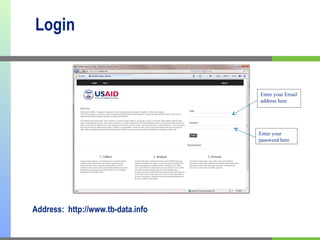
Login Address:  http://www.tb-data.info Enter your Email address here Enter your password here
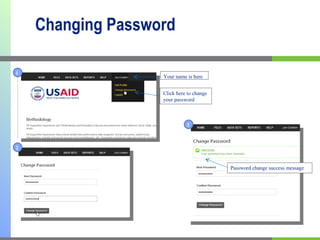
Changing Password Your name is here Click here to change your password Password change success message 1 2 3
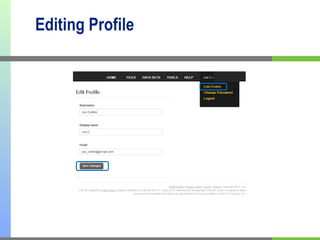
Editing Profile
Uploading Files
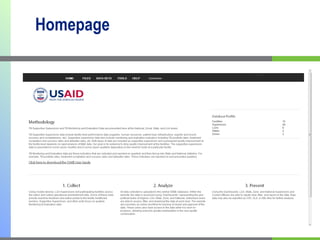
Homepage
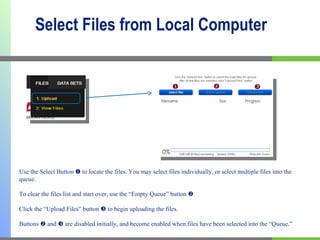
Select Files from Local Computer Use the Select Button    to locate the files. You may select files individually, or select multiple files into the queue.    To clear the files list and start over, use the “Empty Queue” button     Click the “Upload Files” button    to begin uploading the files.   Buttons    and    are disabled initially, and become enabled when files have been selected into the “Queue.”
Upload Selected Files to Server   Select multiple files by pressing and holding down the control  [ctrl]  key while clicking on the each file. The image above is an example of selecting 4 files at once.
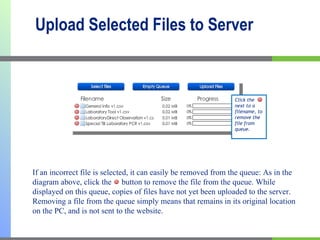
Upload Selected Files to Server Click the  next to a filename, to remove the file from queue. If an incorrect file is selected, it can easily be removed from the queue: As in the diagram above, click the  button to remove the file from the queue. While displayed on this queue, copies of files have not yet been uploaded to the server. Removing a file from the queue simply means that remains in its original location on the PC, and is not sent to the website.
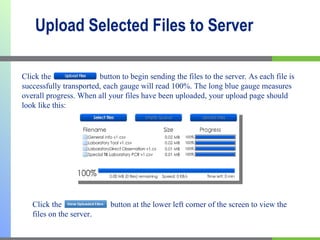
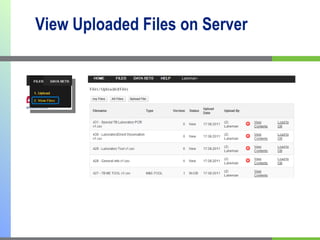
Upload Selected Files to Server Click the  button to begin sending the files to the server. As each file is successfully transported, each gauge will read 100%. The long blue gauge measures overall progress. When all your files have been uploaded, your upload page should look like this: Click the  button at the lower left corner of the screen to view the files on the server.
View Uploaded Files on Server
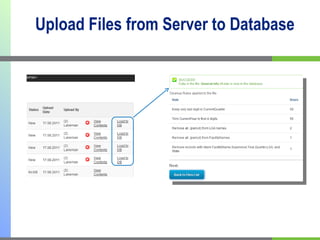
Upload Files from Server to Database
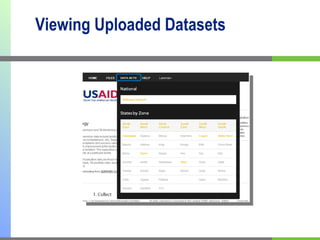
Viewing Uploaded Datasets
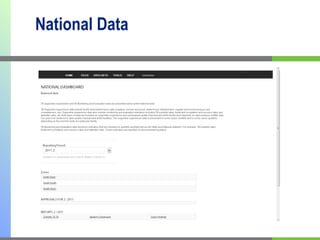
National Data
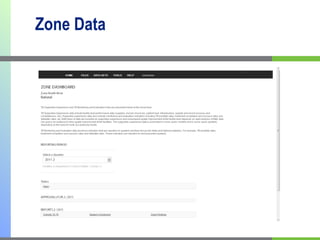
Zone Data
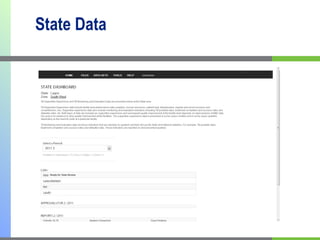
State Data
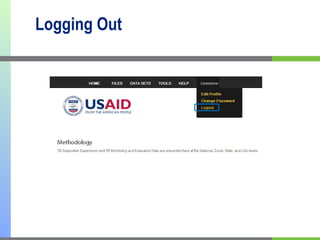
Logging Out

How to upload and view data

  • 1.
    Database Demonstration FemiAdegbesan Ola Adegbesan Thompson XXX AVID Database Solutions May 2011
  • 2.
    Login Address: http://www.tb-data.info Enter your Email address here Enter your password here
  • 3.
    Changing Password Yourname is here Click here to change your password Password change success message 1 2 3
  • 4.
  • 5.
  • 6.
  • 7.
    Select Files fromLocal Computer Use the Select Button  to locate the files. You may select files individually, or select multiple files into the queue.   To clear the files list and start over, use the “Empty Queue” button    Click the “Upload Files” button  to begin uploading the files.   Buttons  and  are disabled initially, and become enabled when files have been selected into the “Queue.”
  • 8.
    Upload Selected Filesto Server   Select multiple files by pressing and holding down the control [ctrl] key while clicking on the each file. The image above is an example of selecting 4 files at once.
  • 9.
    Upload Selected Filesto Server Click the next to a filename, to remove the file from queue. If an incorrect file is selected, it can easily be removed from the queue: As in the diagram above, click the button to remove the file from the queue. While displayed on this queue, copies of files have not yet been uploaded to the server. Removing a file from the queue simply means that remains in its original location on the PC, and is not sent to the website.
  • 10.
    Upload Selected Filesto Server Click the button to begin sending the files to the server. As each file is successfully transported, each gauge will read 100%. The long blue gauge measures overall progress. When all your files have been uploaded, your upload page should look like this: Click the button at the lower left corner of the screen to view the files on the server.
  • 11.
  • 12.
    Upload Files fromServer to Database
  • 13.
  • 14.
  • 15.
  • 16.
  • 17.
  • 18.