How to Set, Track, & Review
Employee Goals in Odoo 18
Appraisals
Enterprise
Enterprise
Introduction
In the Odoo 18 Appraisal module, managers have the ability to set
goals for their employees. This allows employees to understand what
they should work toward before their next review.
Employee goals can be easily defined within the Appraisal app, let’s
explore how this can be done in the following slides.
Enterprise
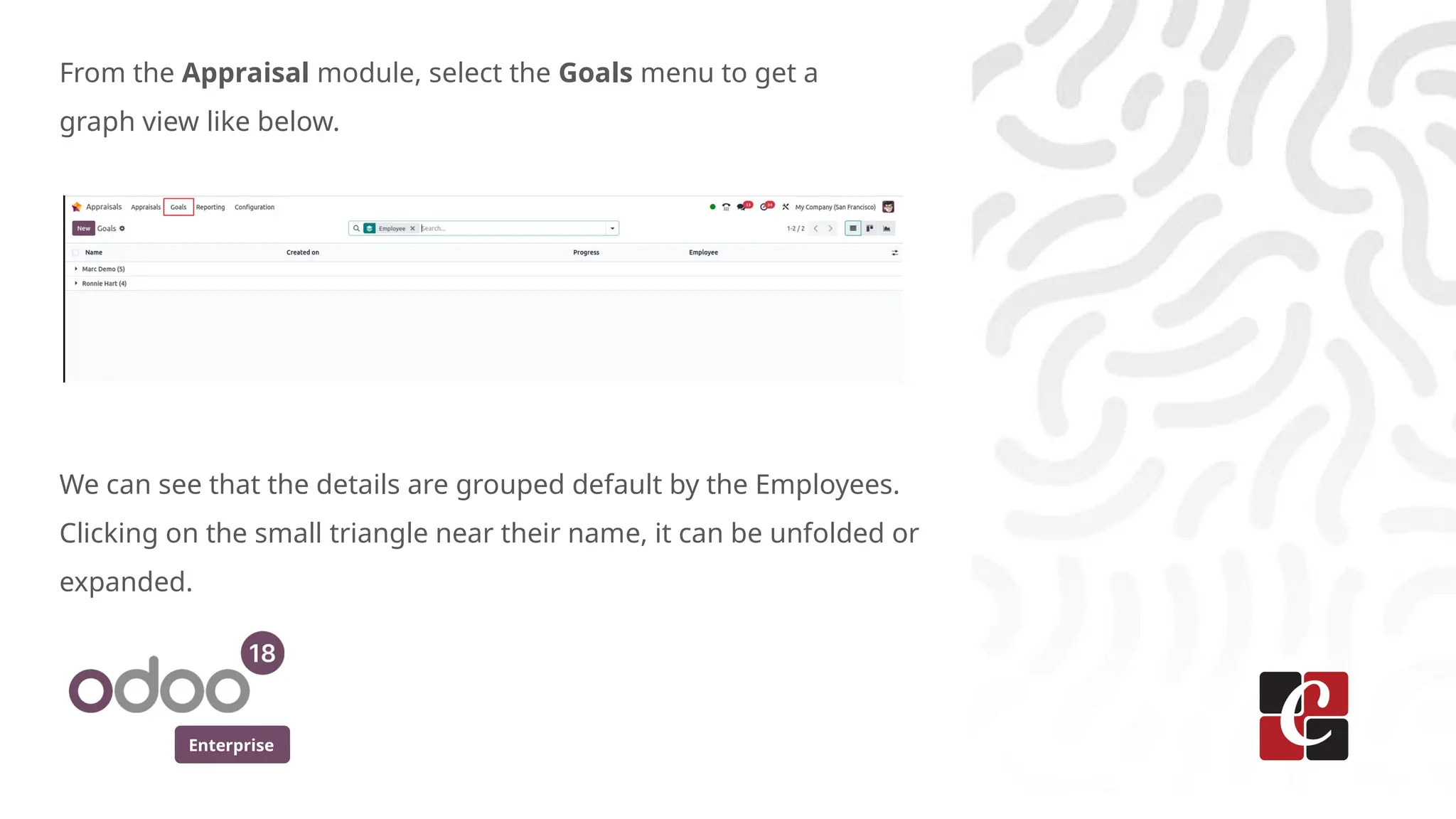
From the Appraisal module, select the Goals menu to get a
graph view like below.
We can see that the details are grouped default by the Employees.
Clicking on the small triangle near their name, it can be unfolded or
expanded.
Enterprise
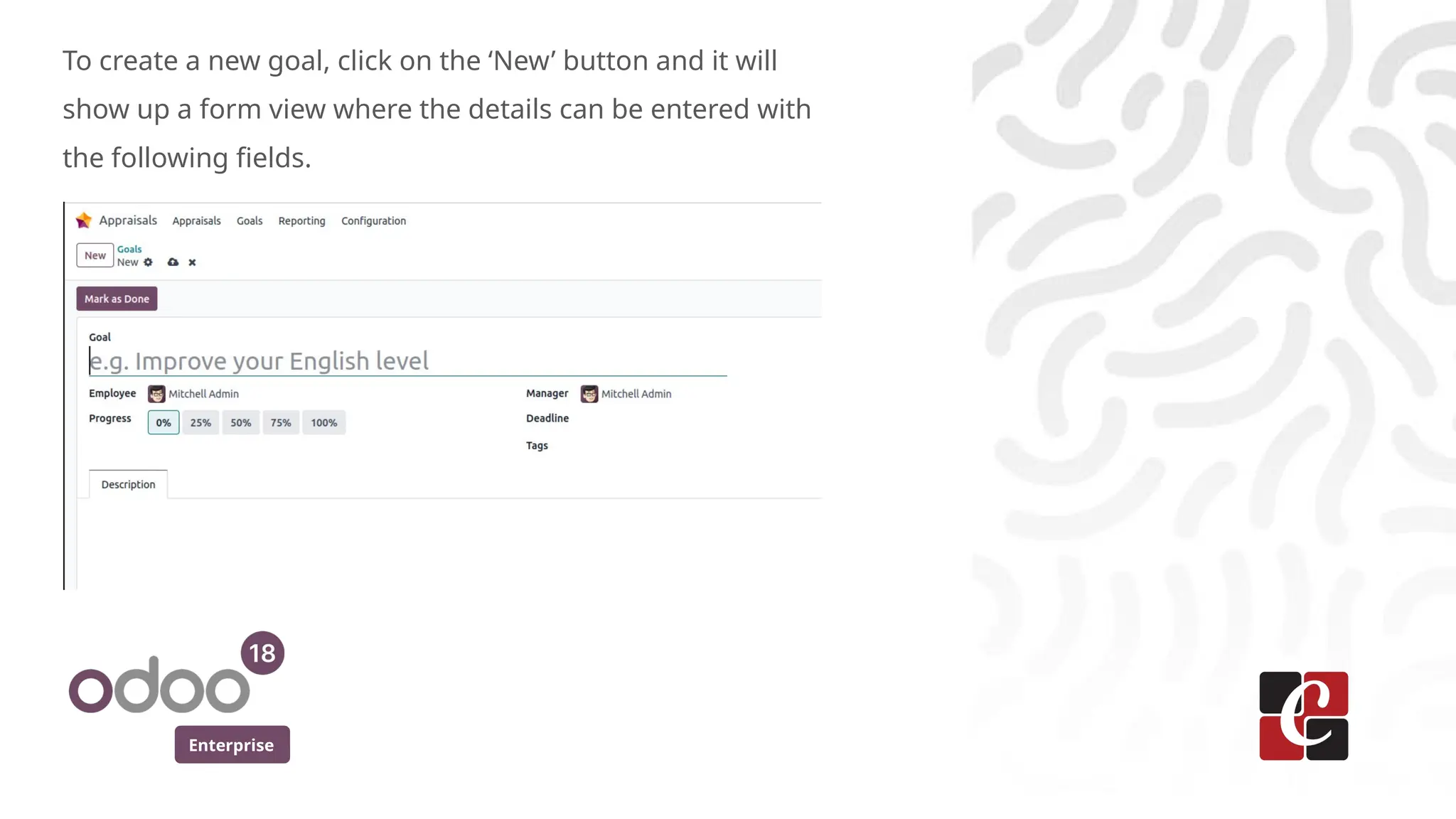
To create a new goal, click on the ‘New’ button and it will
show up a form view where the details can be entered with
the following fields.
Enterprise
● The Goal field is used to give a meaningful name or label to understand what actually
the goal is.
● Employee field will be auto filled with the current user, but we can edit it to change
for any other employee.
● Using the Progress field, we can set the initial progress so that the current stage we
stand can be saved in the record. Whatever the starting progress(0%, 25%, etc), our
aim must be to make it 100% in the end.
● We have to set a deadline for achieving the goal using the Deadline field.
● The relevant tags can be added with the Tags field so that the goal can be easily
understandable and identifiable.
● Under all these, we have the option to add a detailed note about the goal in the
Description field.
Enterprise
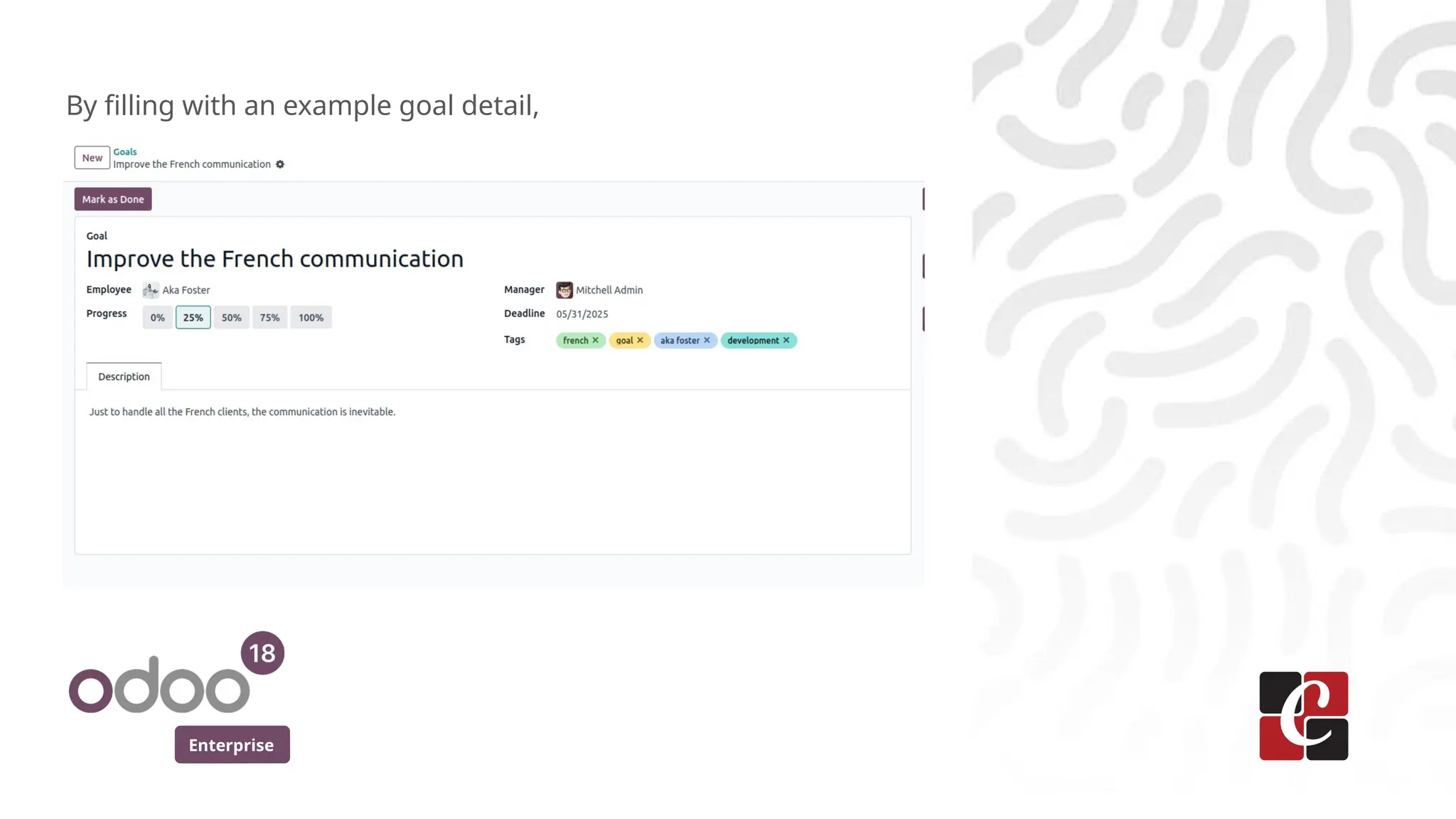
By filling with an example goal detail,
Enterprise
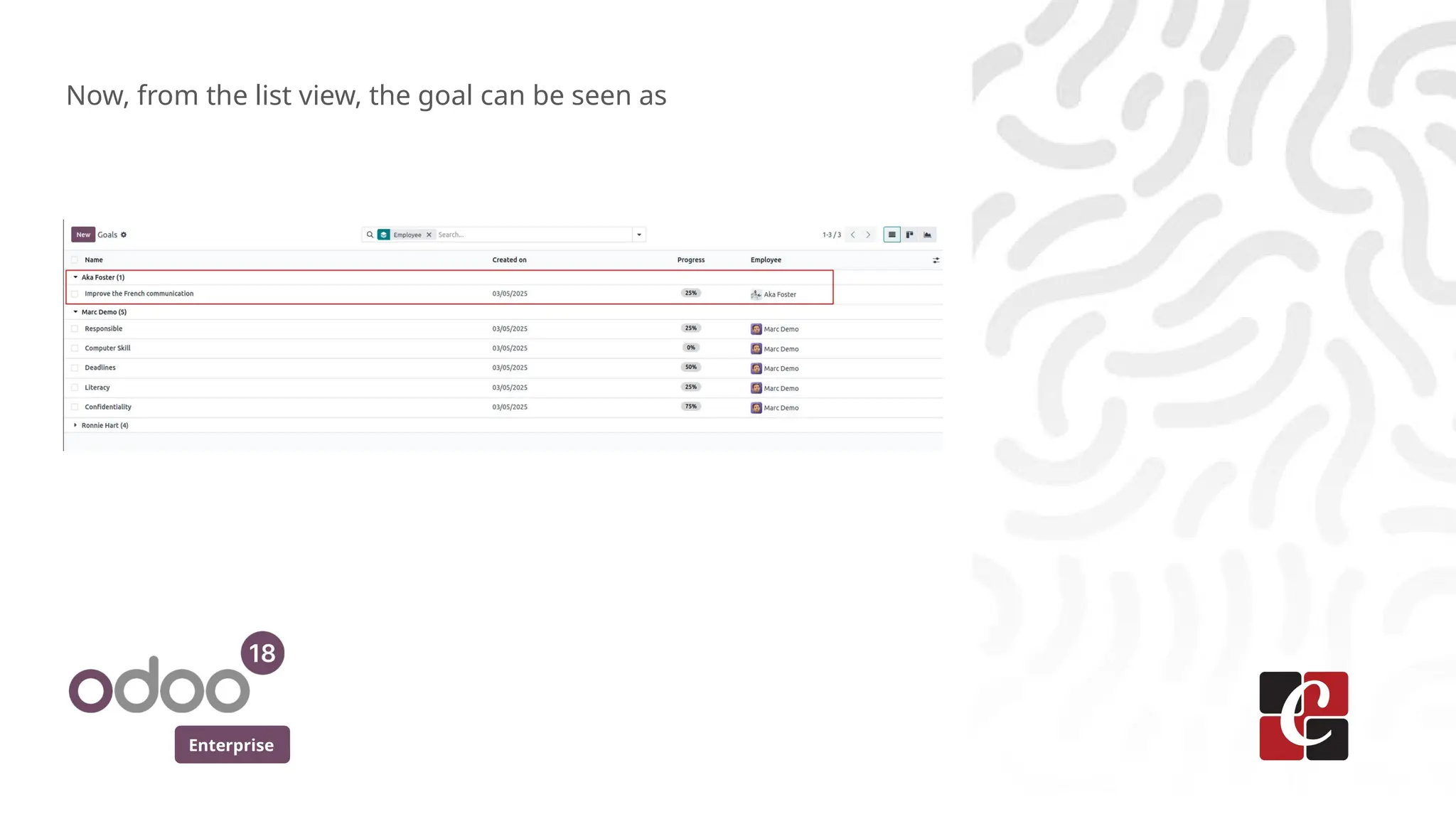
Now, from the list view, the goal can be seen as
Enterprise
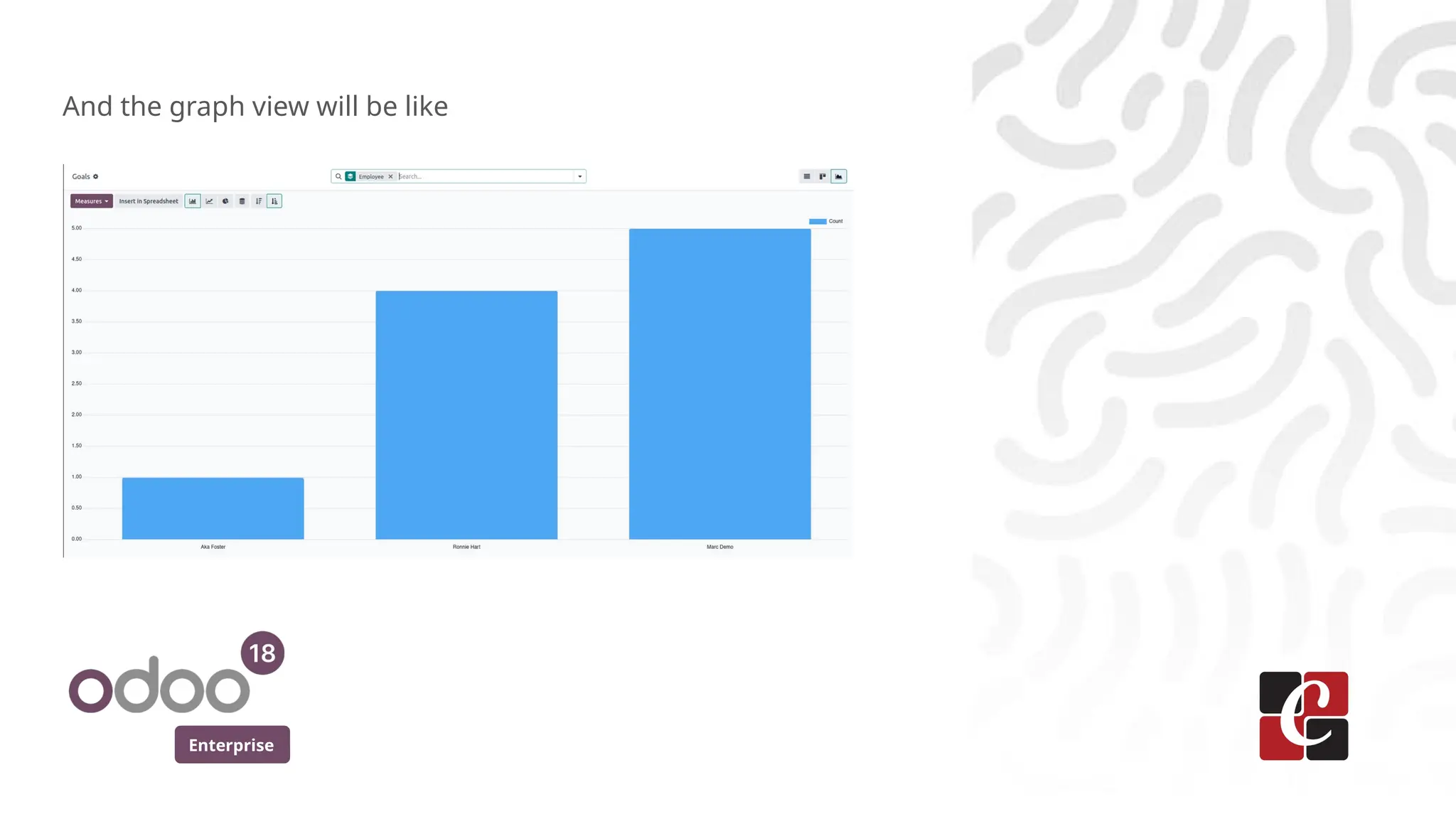
And the graph view will be like
Enterprise
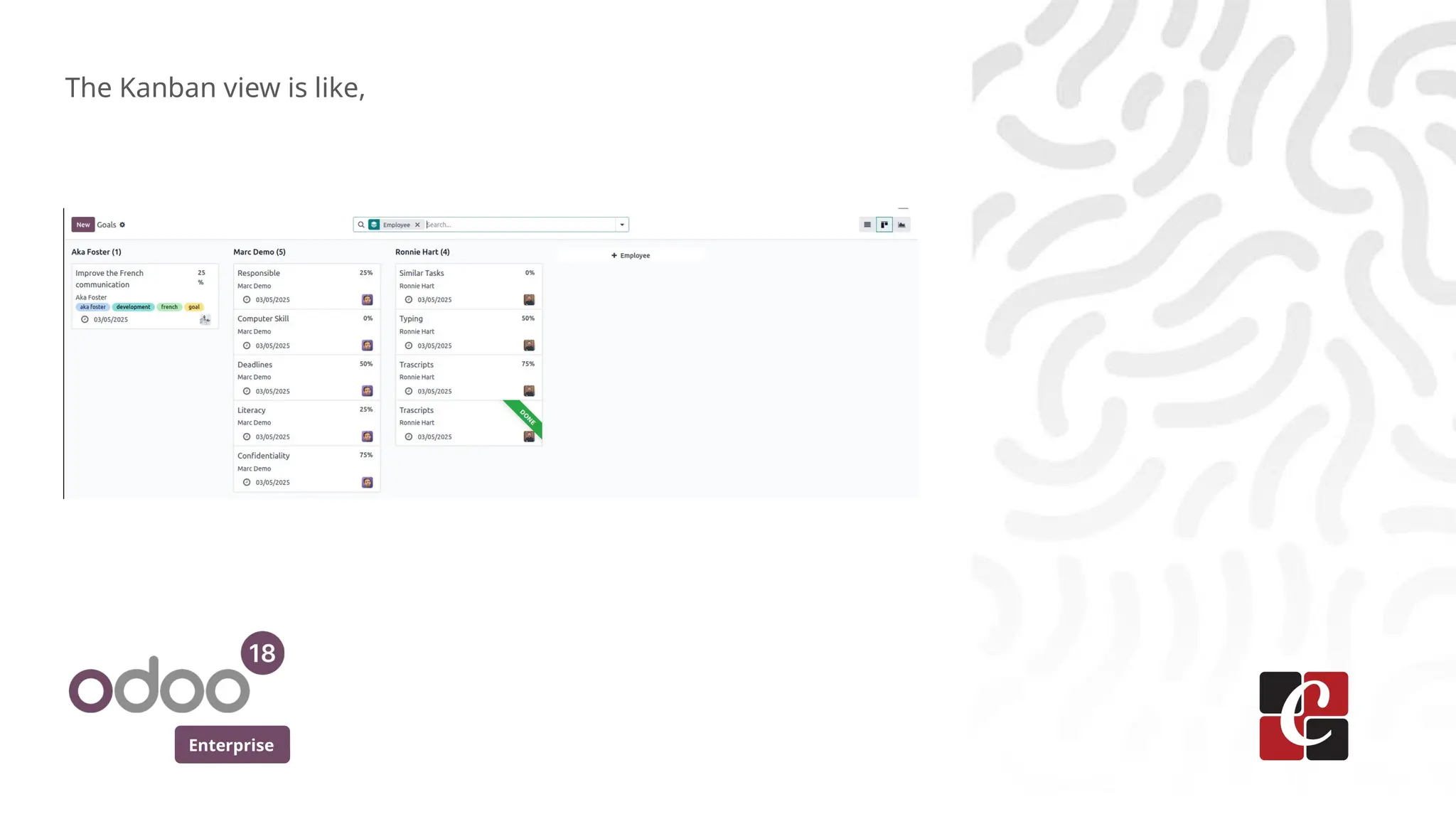
The Kanban view is like,
Enterprise
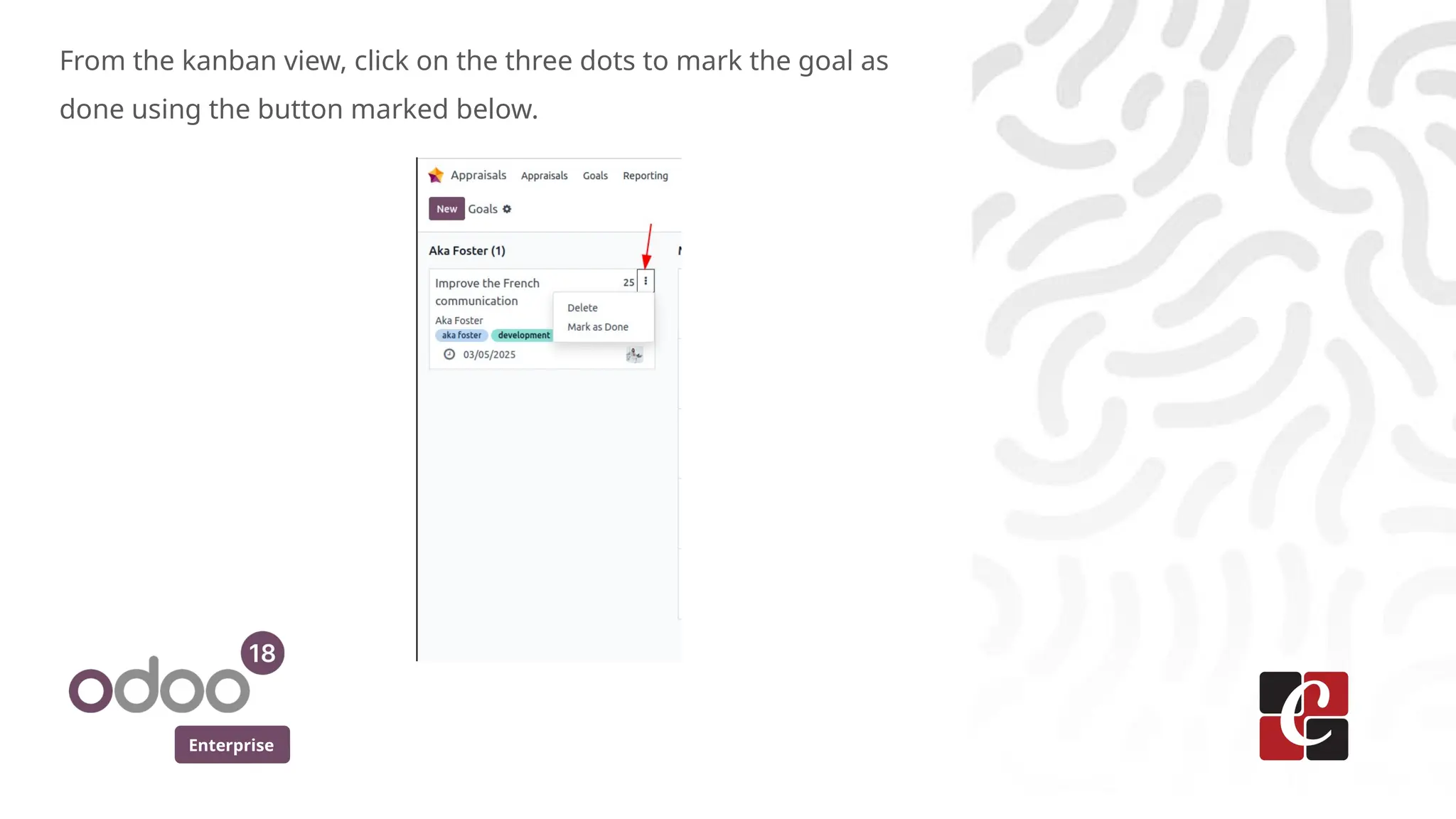
From the kanban view, click on the three dots to mark the goal as
done using the button marked below.
Enterprise
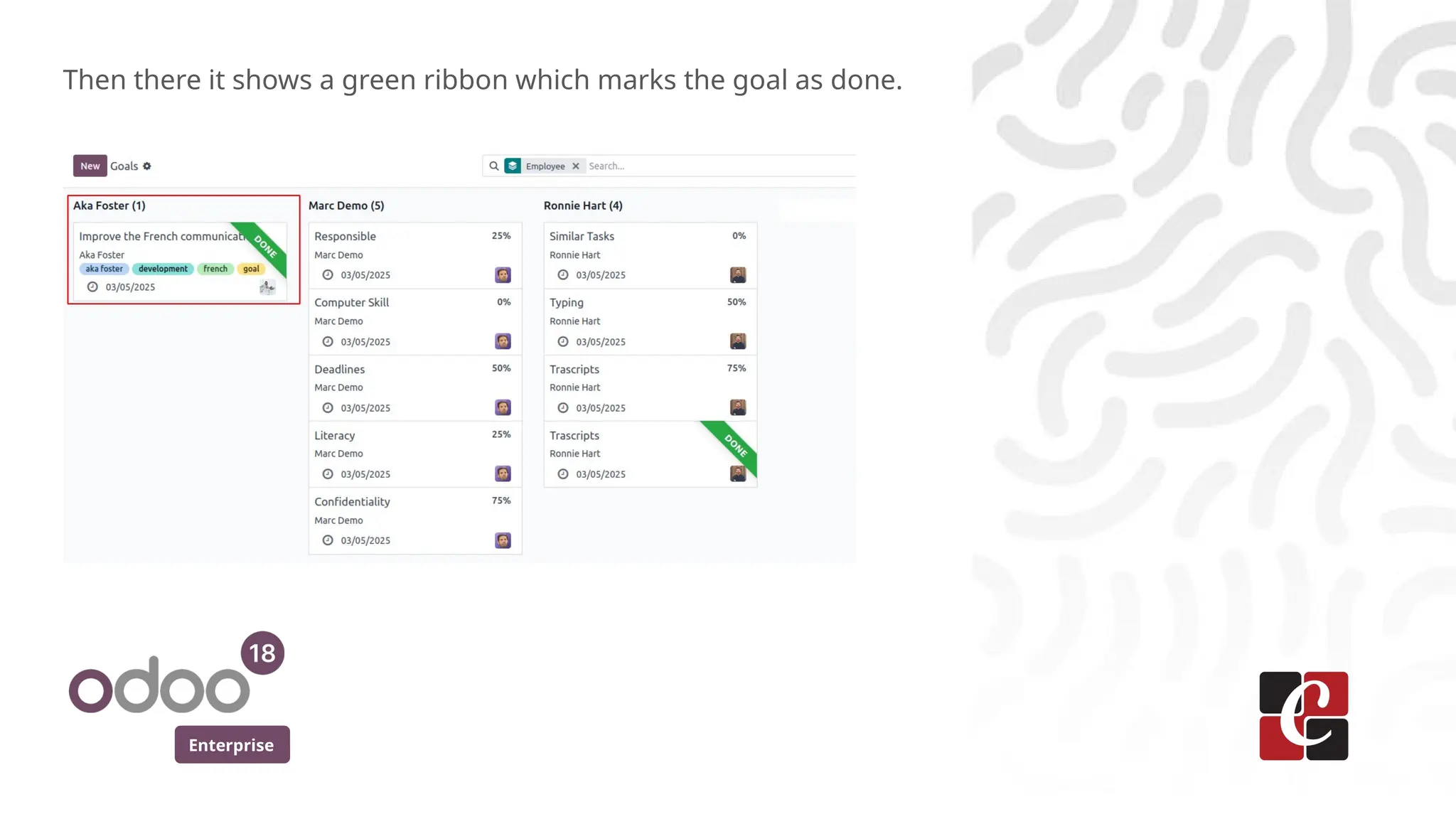
Then there it shows a green ribbon which marks the goal as done.
For More Info.
Check our company website for related blogs
and Odoo book.
Check our YouTube channel for
functional and technical videos in Odoo.
Enterprise
www.cybrosys.com
How to Set, Track, & Review Employee Goals in Odoo 18 Appraisals

  • 1.
    How to Set,Track, & Review Employee Goals in Odoo 18 Appraisals Enterprise
  • 2.
    Enterprise Introduction In the Odoo18 Appraisal module, managers have the ability to set goals for their employees. This allows employees to understand what they should work toward before their next review. Employee goals can be easily defined within the Appraisal app, let’s explore how this can be done in the following slides.
  • 3.
    Enterprise From the Appraisalmodule, select the Goals menu to get a graph view like below. We can see that the details are grouped default by the Employees. Clicking on the small triangle near their name, it can be unfolded or expanded.
  • 4.
    Enterprise To create anew goal, click on the ‘New’ button and it will show up a form view where the details can be entered with the following fields.
  • 5.
    Enterprise ● The Goalfield is used to give a meaningful name or label to understand what actually the goal is. ● Employee field will be auto filled with the current user, but we can edit it to change for any other employee. ● Using the Progress field, we can set the initial progress so that the current stage we stand can be saved in the record. Whatever the starting progress(0%, 25%, etc), our aim must be to make it 100% in the end. ● We have to set a deadline for achieving the goal using the Deadline field. ● The relevant tags can be added with the Tags field so that the goal can be easily understandable and identifiable. ● Under all these, we have the option to add a detailed note about the goal in the Description field.
  • 6.
    Enterprise By filling withan example goal detail,
  • 7.
    Enterprise Now, from thelist view, the goal can be seen as
  • 8.
    Enterprise And the graphview will be like
  • 9.
  • 10.
    Enterprise From the kanbanview, click on the three dots to mark the goal as done using the button marked below.
  • 11.
    Enterprise Then there itshows a green ribbon which marks the goal as done.
  • 12.
    For More Info. Checkour company website for related blogs and Odoo book. Check our YouTube channel for functional and technical videos in Odoo. Enterprise www.cybrosys.com