How to Save Money and Print QuickBooks Compatible MICR Blank
Checks Yourself
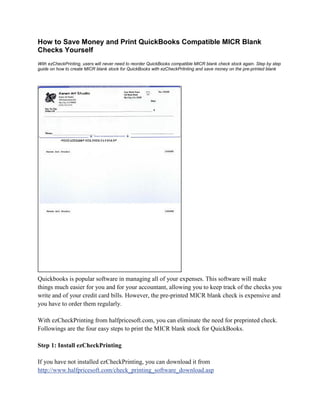
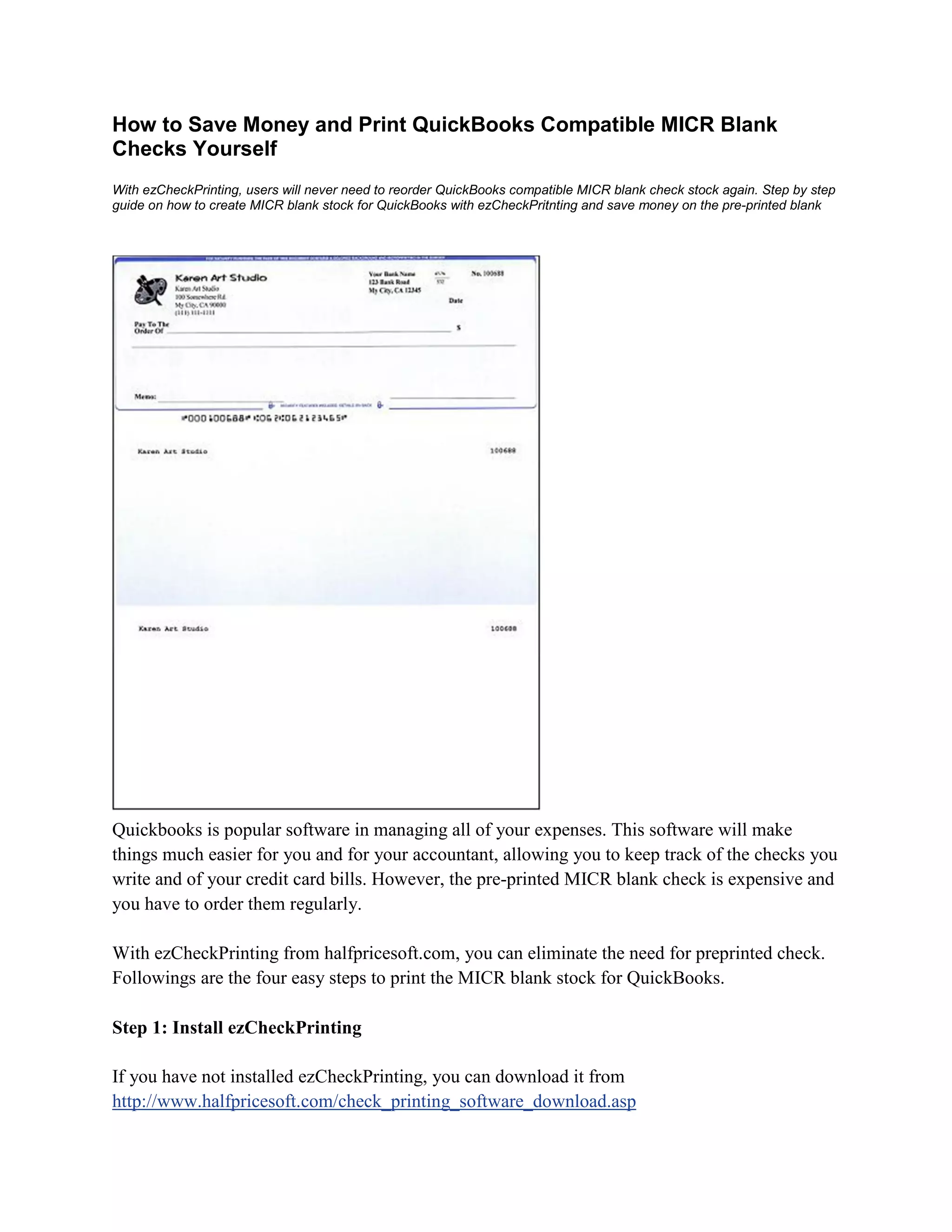
With ezCheckPrinting, users will never need to reorder QuickBooks compatible MICR blank check stock again. Step by step
guide on how to create MICR blank stock for QuickBooks with ezCheckPritnting and save money on the pre-printed blank

Quickbooks is popular software in managing all of your expenses. This software will make
things much easier for you and for your accountant, allowing you to keep track of the checks you
write and of your credit card bills. However, the pre-printed MICR blank check is expensive and
you have to order them regularly.
With ezCheckPrinting from halfpricesoft.com, you can eliminate the need for preprinted check.
Followings are the four easy steps to print the MICR blank stock for QuickBooks.
Step 1: Install ezCheckPrinting
If you have not installed ezCheckPrinting, you can download it from
http://www.halfpricesoft.com/check_printing_software_download.asp
Just follow the instructions on the download page to finish the installation. This software is
compatible with the latest Windows 7 system (32-bit or 64-bit).
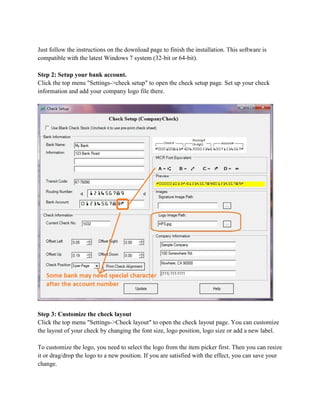
Step 2: Setup your bank account.
Click the top menu "Settings->check setup" to open the check setup page. Set up your check
information and add your company logo file there.

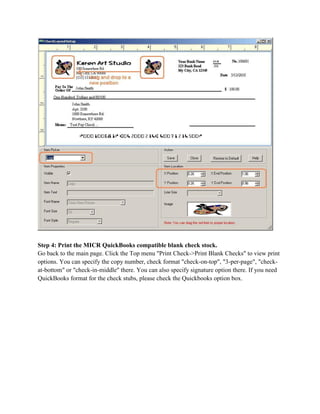
Step 3: Customize the check layout
Click the top menu "Settings->Check layout" to open the check layout page. You can customize
the layout of your check by changing the font size, logo position, logo size or add a new label.
To customize the logo, you need to select the logo from the item picker first. Then you can resize
it or drag/drop the logo to a new position. If you are satisfied with the effect, you can save your
change.
Step 4: Print the MICR QuickBooks compatible blank check stock.
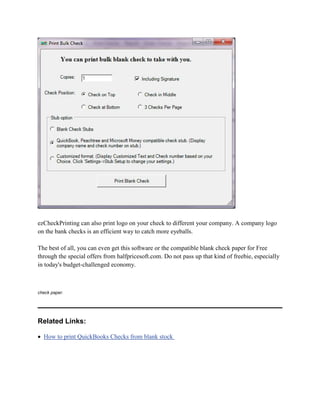
Go back to the main page. Click the Top menu "Print Check->Print Blank Checks" to view print
options. You can specify the copy number, check format "check-on-top", "3-per-page", "checkat-bottom" or "check-in-middle" there. You can also specify signature option there. If you need
QuickBooks format for the check stubs, please check the Quickbooks option box.
ezCheckPrinting can also print logo on your check to different your company. A company logo
on the bank checks is an efficient way to catch more eyeballs.
The best of all, you can even get this software or the compatible blank check paper for Free
through the special offers from halfpricesoft.com. Do not pass up that kind of freebie, especially
in today's budget-challenged economy.

check paper.

Related Links:
• How to print QuickBooks Checks from blank stock
• How to print check with logo
• How to print checks on blank stock

How to print QuickBooks\Quicken compatible blank check

  • 1.
    How to SaveMoney and Print QuickBooks Compatible MICR Blank Checks Yourself With ezCheckPrinting, users will never need to reorder QuickBooks compatible MICR blank check stock again. Step by step guide on how to create MICR blank stock for QuickBooks with ezCheckPritnting and save money on the pre-printed blank Quickbooks is popular software in managing all of your expenses. This software will make things much easier for you and for your accountant, allowing you to keep track of the checks you write and of your credit card bills. However, the pre-printed MICR blank check is expensive and you have to order them regularly. With ezCheckPrinting from halfpricesoft.com, you can eliminate the need for preprinted check. Followings are the four easy steps to print the MICR blank stock for QuickBooks. Step 1: Install ezCheckPrinting If you have not installed ezCheckPrinting, you can download it from http://www.halfpricesoft.com/check_printing_software_download.asp
  • 2.
    Just follow theinstructions on the download page to finish the installation. This software is compatible with the latest Windows 7 system (32-bit or 64-bit). Step 2: Setup your bank account. Click the top menu "Settings->check setup" to open the check setup page. Set up your check information and add your company logo file there. Step 3: Customize the check layout Click the top menu "Settings->Check layout" to open the check layout page. You can customize the layout of your check by changing the font size, logo position, logo size or add a new label. To customize the logo, you need to select the logo from the item picker first. Then you can resize it or drag/drop the logo to a new position. If you are satisfied with the effect, you can save your change.
  • 3.
    Step 4: Printthe MICR QuickBooks compatible blank check stock. Go back to the main page. Click the Top menu "Print Check->Print Blank Checks" to view print options. You can specify the copy number, check format "check-on-top", "3-per-page", "checkat-bottom" or "check-in-middle" there. You can also specify signature option there. If you need QuickBooks format for the check stubs, please check the Quickbooks option box.
  • 4.
    ezCheckPrinting can alsoprint logo on your check to different your company. A company logo on the bank checks is an efficient way to catch more eyeballs. The best of all, you can even get this software or the compatible blank check paper for Free through the special offers from halfpricesoft.com. Do not pass up that kind of freebie, especially in today's budget-challenged economy. check paper. Related Links: • How to print QuickBooks Checks from blank stock
  • 5.
    • How toprint check with logo • How to print checks on blank stock