Welcome to try our software for free at http://www.halfpricesoft.com.
_____________________________________________________________________________________
How to print draft checks in house
Step by step guide on how print pre-approved check draft to receive payment by
phone, fax and internet.
Any business can create a check draft. A regular check is created by the account holder, and signed (authorized) by
the account holder. A check draft is created by the merchant, and the signature is not required. The account holder
must authorize the merchant to create a check draft.
Followings are the steps to create a check draft if you receive a check by phone, fax or online.
ezCheckDraft allows customers to design and print bank draft checks with MICR
encoding on blank stock in house to receive payment via fax, phone and internet
quickly.
If you have not installed this software, you can download and try it free with no obligation
and no credit card needed.
This check printing software is compatible with Windows 8.1, 8, 7, Vista, XP, Me, 2003,
2000 and Apple Mac systems.
Step 1: Start ezCheckDraft software
You double click the desktop icon to start this application.
Step 2: Set up your account
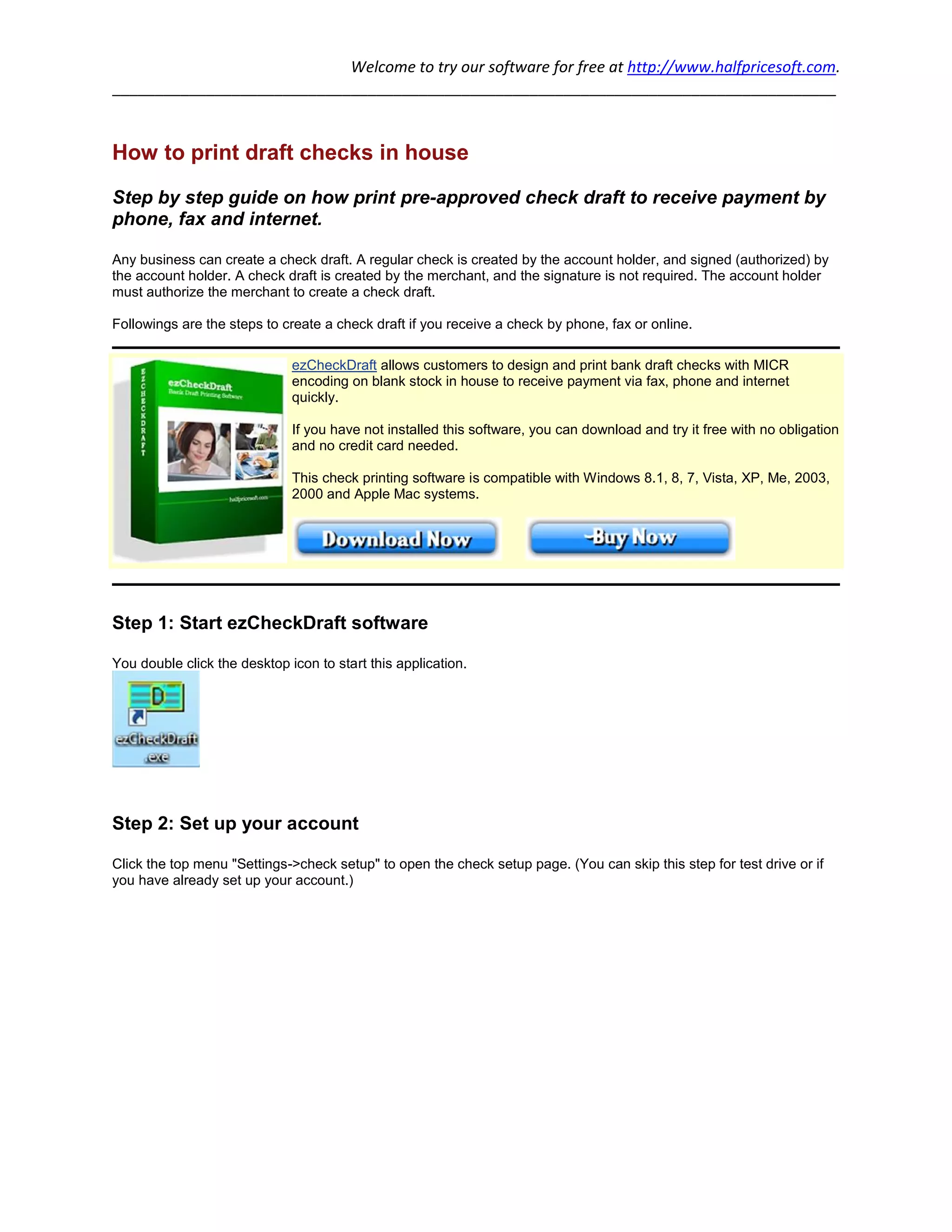
Click the top menu "Settings->check setup" to open the check setup page. (You can skip this step for test drive or if
you have already set up your account.)
Welcome to try our software for free at http://www.halfpricesoft.com.
_____________________________________________________________________________________
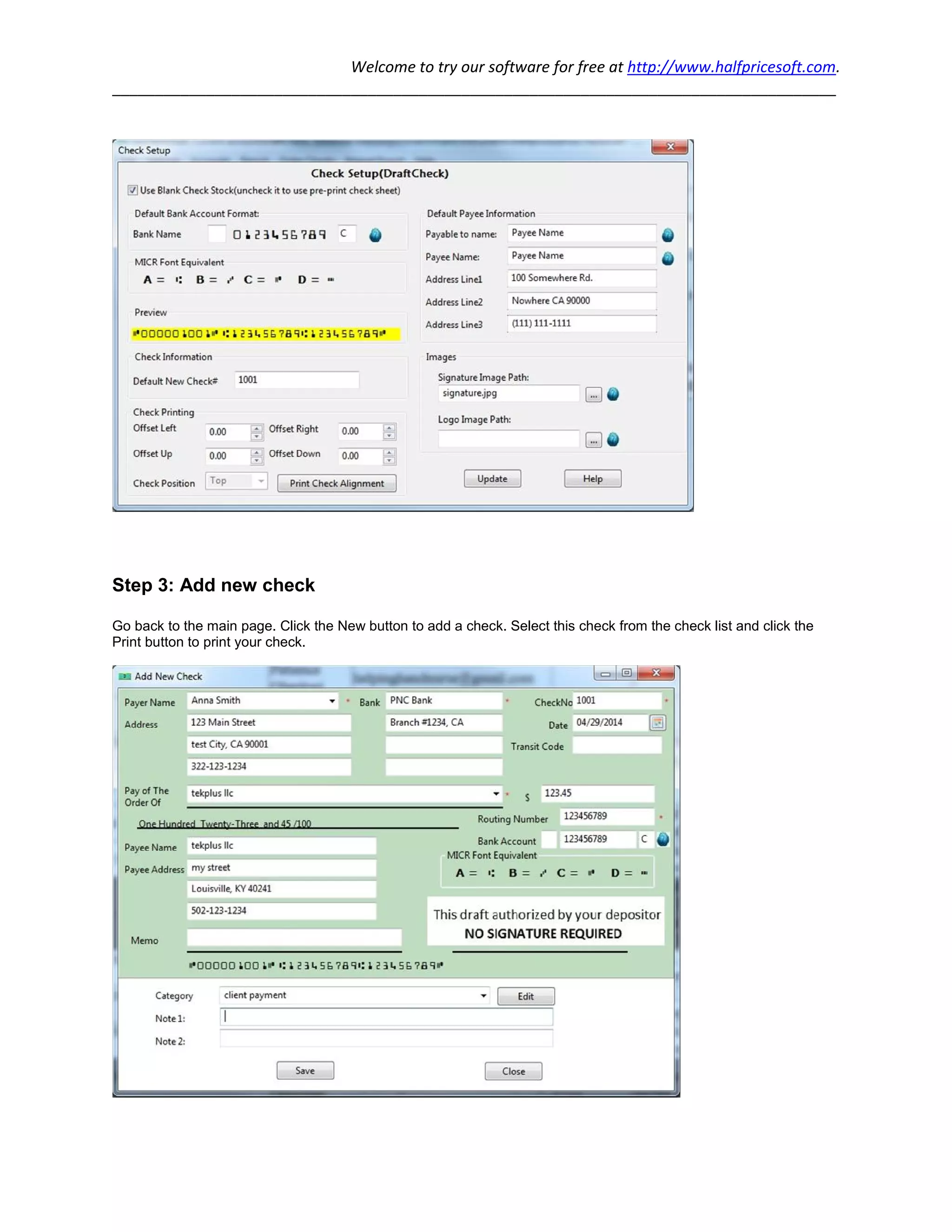
Step 3: Add new check
Go back to the main page. Click the New button to add a check. Select this check from the check list and click the
Print button to print your check.
Welcome to try our software for free at http://www.halfpricesoft.com.
_____________________________________________________________________________________
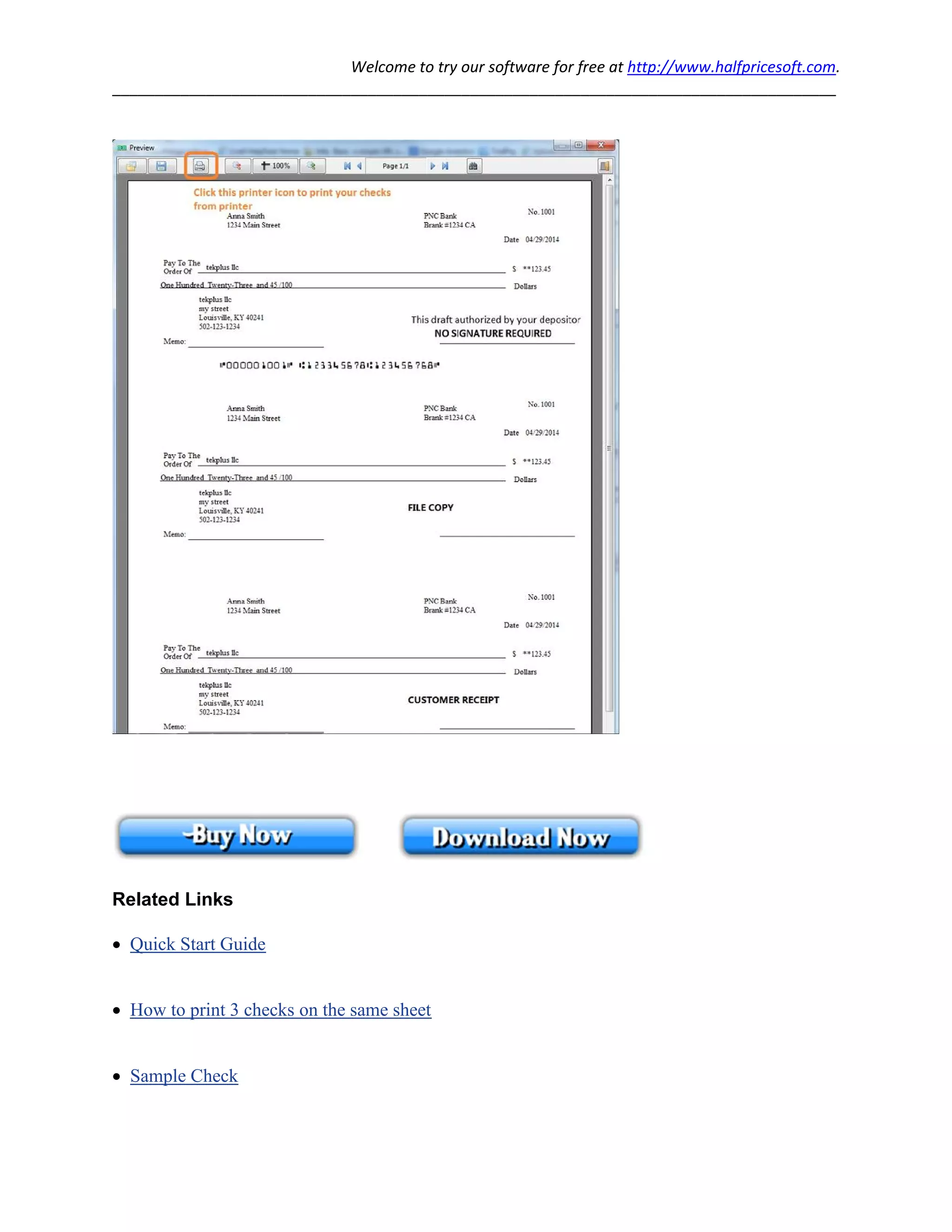
Step 4: Preview and Print checks
Select the check(s) from list and click the PRINT button to preview/print checks.
Welcome to try our software for free at http://www.halfpricesoft.com.
_____________________________________________________________________________________
Related Links
 Quick Start Guide
 How to print 3 checks on the same sheet
 Sample Check

How to Print Draft Check To Receive Check by Phone and Fax

  • 1.
    Welcome to tryour software for free at http://www.halfpricesoft.com. _____________________________________________________________________________________ How to print draft checks in house Step by step guide on how print pre-approved check draft to receive payment by phone, fax and internet. Any business can create a check draft. A regular check is created by the account holder, and signed (authorized) by the account holder. A check draft is created by the merchant, and the signature is not required. The account holder must authorize the merchant to create a check draft. Followings are the steps to create a check draft if you receive a check by phone, fax or online. ezCheckDraft allows customers to design and print bank draft checks with MICR encoding on blank stock in house to receive payment via fax, phone and internet quickly. If you have not installed this software, you can download and try it free with no obligation and no credit card needed. This check printing software is compatible with Windows 8.1, 8, 7, Vista, XP, Me, 2003, 2000 and Apple Mac systems. Step 1: Start ezCheckDraft software You double click the desktop icon to start this application. Step 2: Set up your account Click the top menu "Settings->check setup" to open the check setup page. (You can skip this step for test drive or if you have already set up your account.)
  • 2.
    Welcome to tryour software for free at http://www.halfpricesoft.com. _____________________________________________________________________________________ Step 3: Add new check Go back to the main page. Click the New button to add a check. Select this check from the check list and click the Print button to print your check.
  • 3.
    Welcome to tryour software for free at http://www.halfpricesoft.com. _____________________________________________________________________________________ Step 4: Preview and Print checks Select the check(s) from list and click the PRINT button to preview/print checks.
  • 4.
    Welcome to tryour software for free at http://www.halfpricesoft.com. _____________________________________________________________________________________ Related Links  Quick Start Guide  How to print 3 checks on the same sheet  Sample Check