Although Cortana "lives" in your taskbar, she
might not appear there by default. If you don't
feel like opening the Cortana app every time
you need her, pinning her to your taskbar will
save you a little extra time.
How to pin Cortana to your taskbar
on Windows 10
 Right-click on the taskbar
 Click on Cortana.
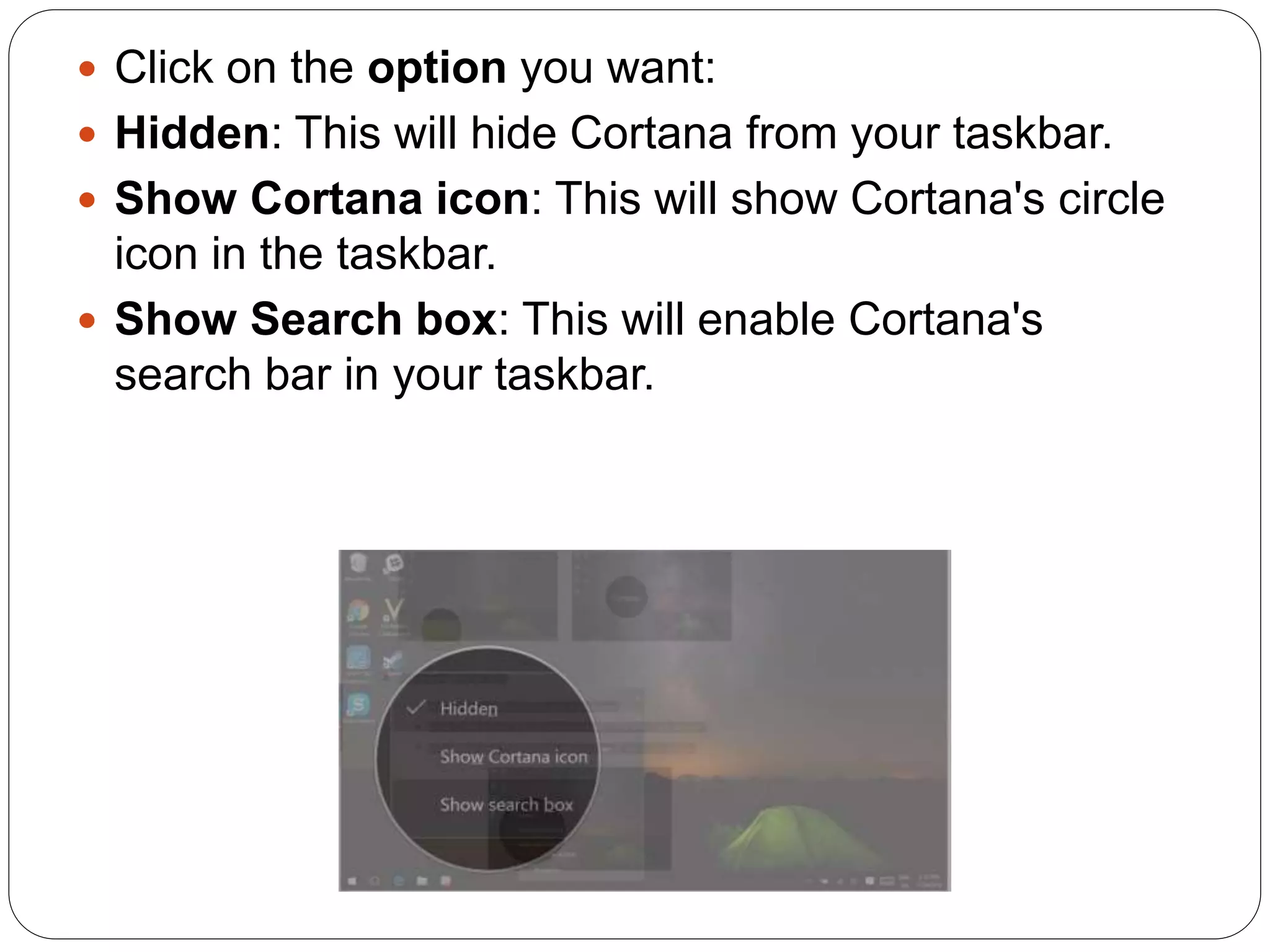
 Click on the option you want:
 Hidden: This will hide Cortana from your taskbar.
 Show Cortana icon: This will show Cortana's circle
icon in the taskbar.
 Show Search box: This will enable Cortana's
search bar in your taskbar.

How to pin cortana to your taskbar on

  • 1.
    Although Cortana "lives"in your taskbar, she might not appear there by default. If you don't feel like opening the Cortana app every time you need her, pinning her to your taskbar will save you a little extra time. How to pin Cortana to your taskbar on Windows 10
  • 2.
     Right-click onthe taskbar  Click on Cortana.
  • 3.
     Click onthe option you want:  Hidden: This will hide Cortana from your taskbar.  Show Cortana icon: This will show Cortana's circle icon in the taskbar.  Show Search box: This will enable Cortana's search bar in your taskbar.