Heartpoints
A Brief Introduction
Outline
Who
What
Why
How
Who
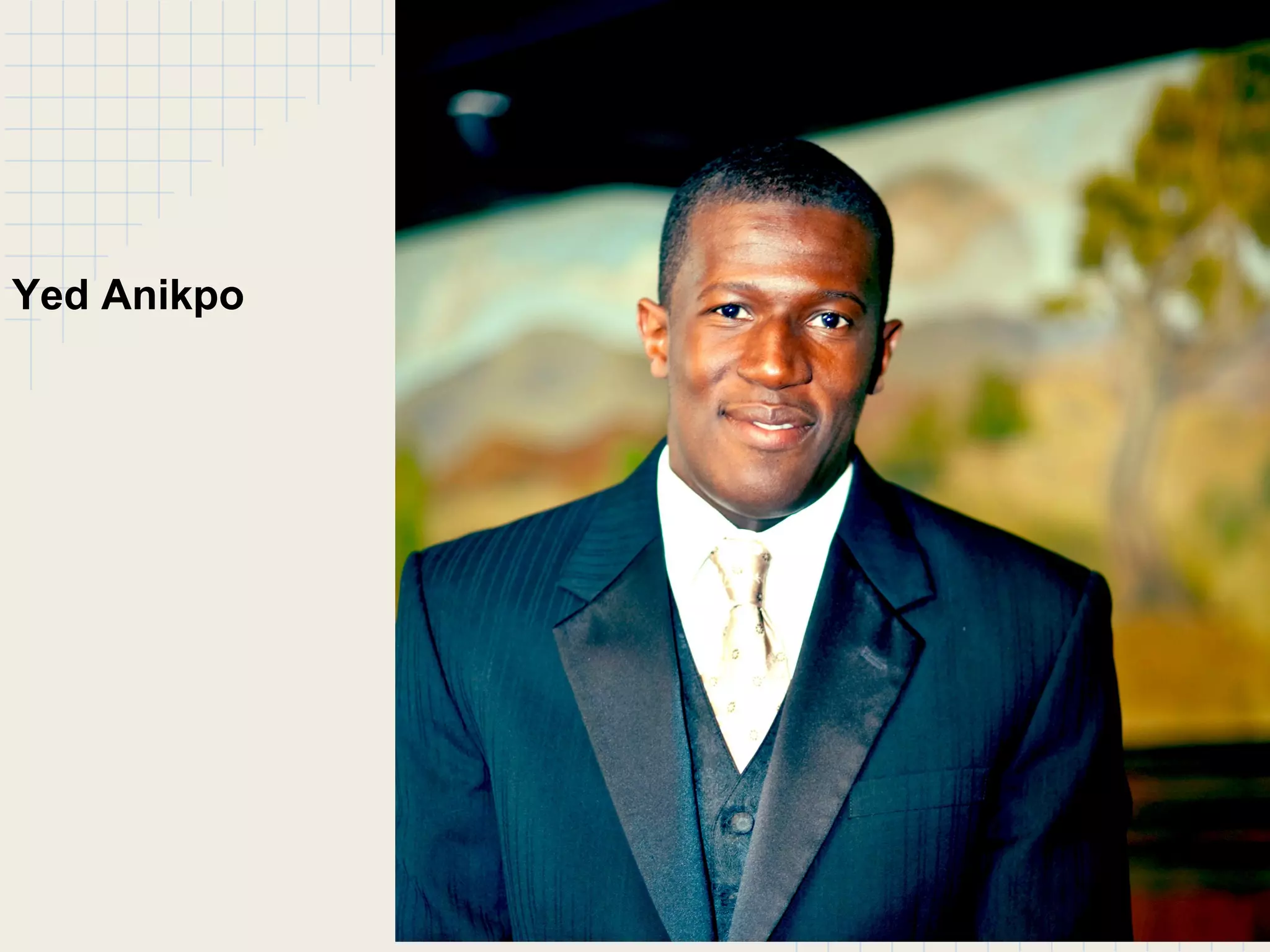
Founded by Yed Anikpo, Minneapolis based entrepreneur.
Experience in Middle-level management (Retail).
Bachelor of Arts, Political Science.
Christian, husband, father of two, lover of the Puritans.
Yed Anikpo
What
Heartpoints helps you make the most out of your Christian
life.
Heartpoints is an iPhone app for tracking your Christian
walk and for praying.
Why
● Inspired by the words of our Lord in Mark 14:38 "Watch
and pray that you enter not into temptation" (ESV)
● To provide believers with tools to cultivate personal
holiness for our good and His glory.
● Additionally inspired by the Puritans, specifically John
Owen's The Mortification of Sin in believers and
Jonathan Edwards's resolutions.
How
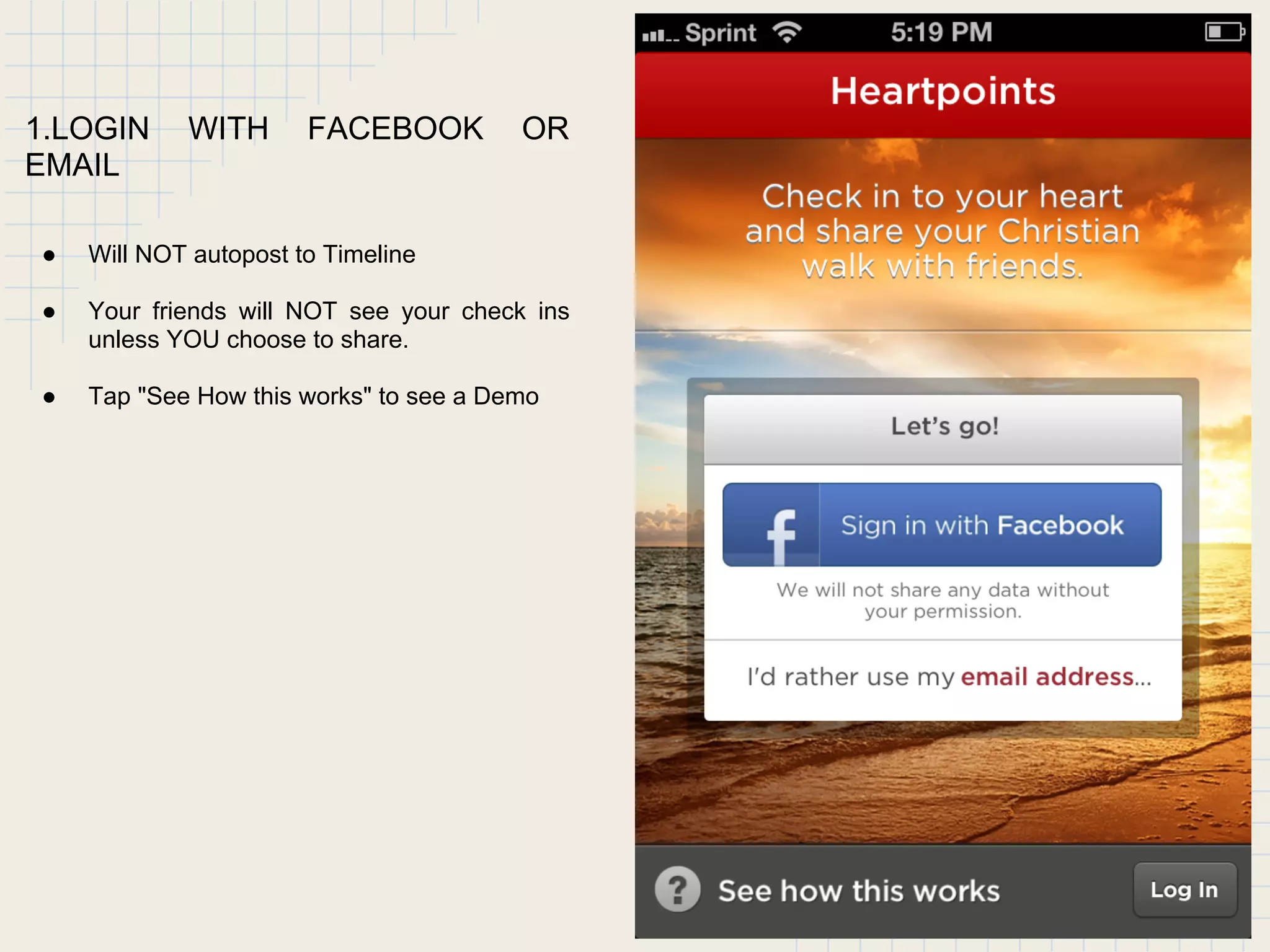
1.LOGIN WITH FACEBOOK OR
EMAIL
● Will NOT autopost to Timeline
● Your friends will NOT see your check ins
unless YOU choose to share.
● Tap "See How this works" to see a Demo
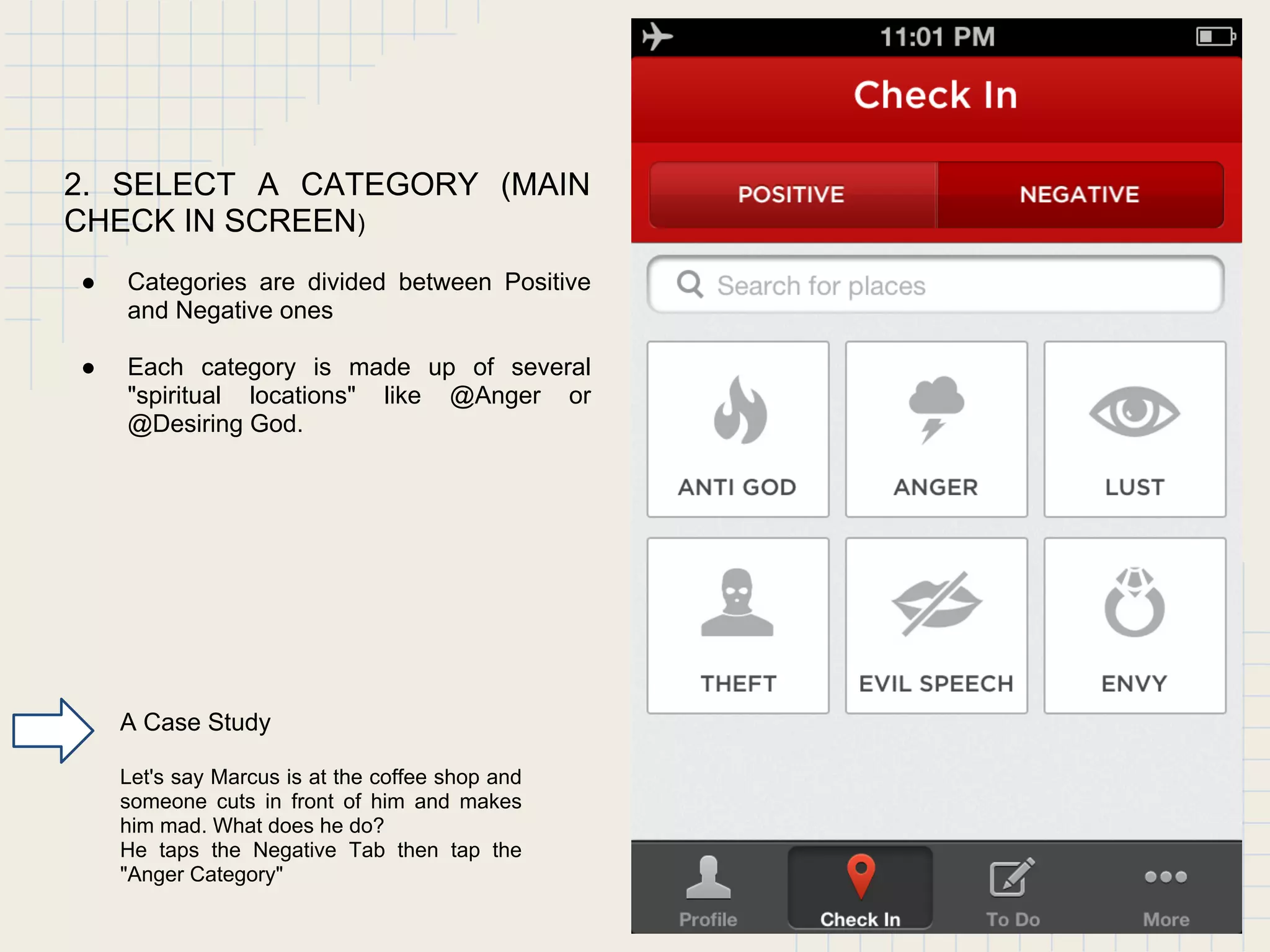
2. SELECT A CATEGORY (MAIN
CHECK IN SCREEN)
● Categories are divided between Positive
and Negative ones
● Each category is made up of several
"spiritual locations" like @Anger or
@Desiring God.
A Case Study
Let's say Marcus is at the coffee shop and
someone cuts in front of him and makes
him mad. What does he do?
He taps the Negative Tab then tap the
"Anger Category"
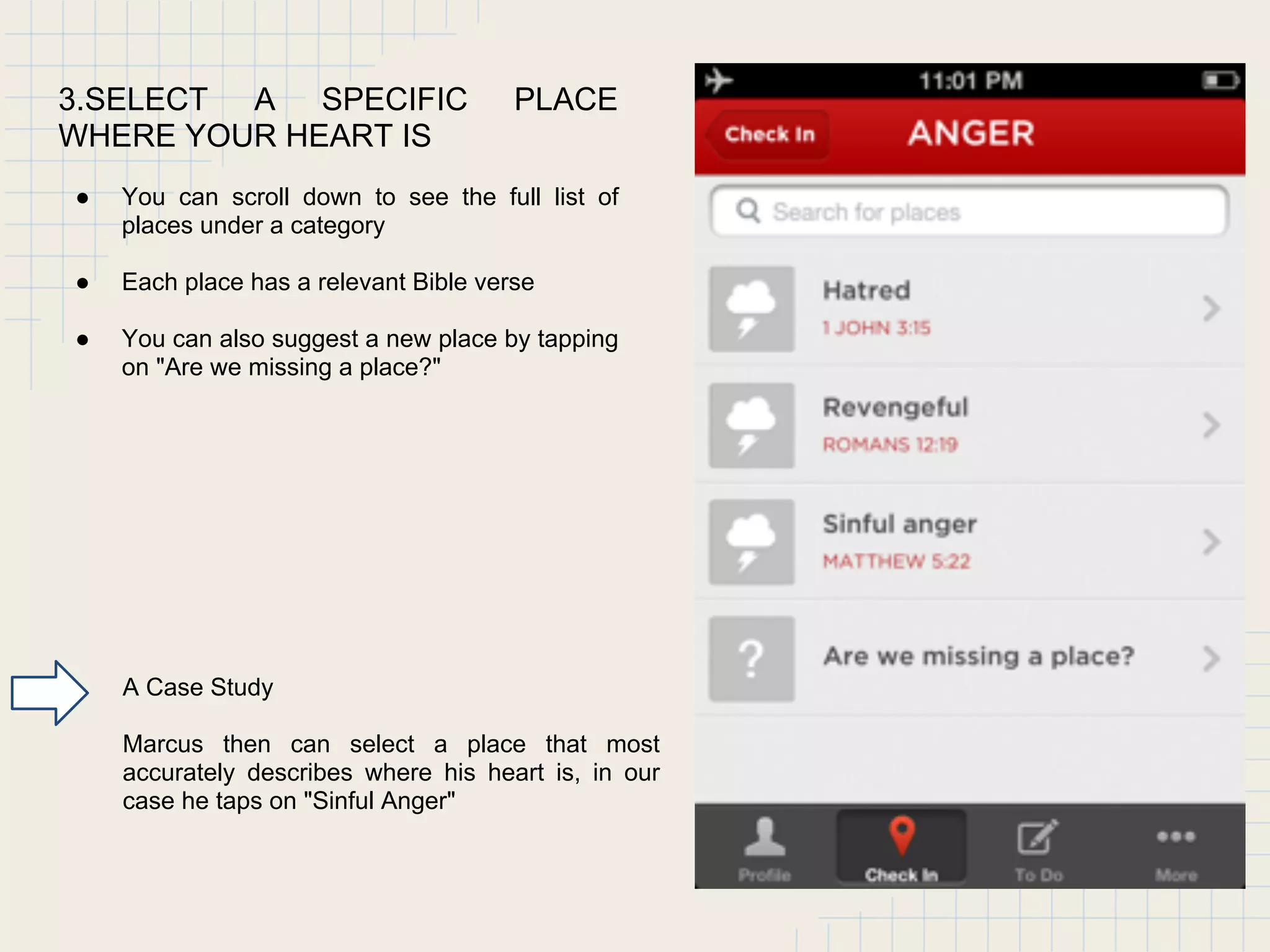
3.SELECT A SPECIFIC PLACE
WHERE YOUR HEART IS
● You can scroll down to see the full list of
places under a category
● Each place has a relevant Bible verse
● You can also suggest a new place by tapping
on "Are we missing a place?"
A Case Study
Marcus then can select a place that most
accurately describes where his heart is, in our
case he taps on "Sinful Anger"
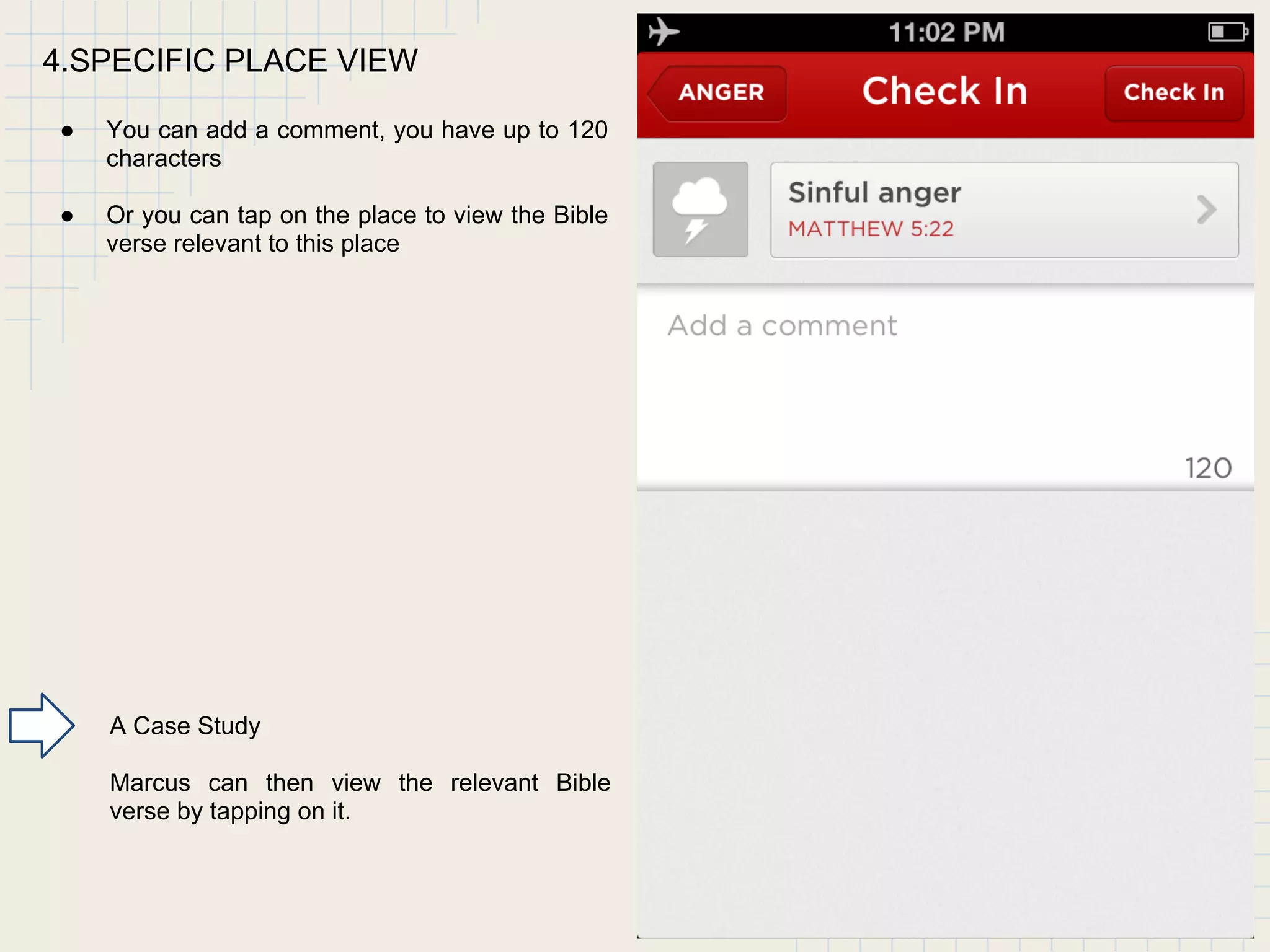
4.SPECIFIC PLACE VIEW
● You can add a comment, you have up to 120
characters
● Or you can tap on the place to view the Bible
verse relevant to this place
A Case Study
Marcus can then view the relevant Bible
verse by tapping on it.
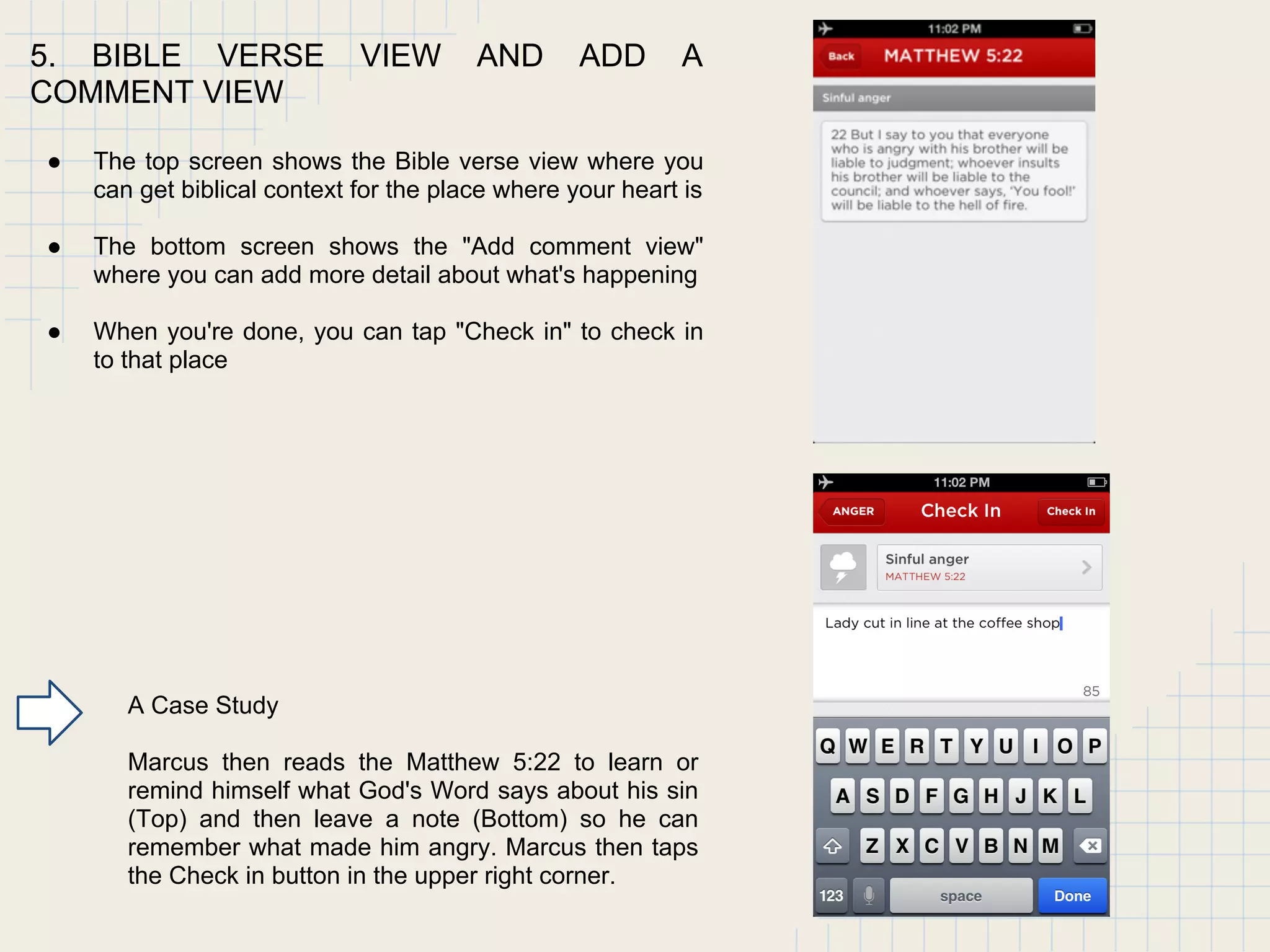
5. BIBLE VERSE VIEW AND ADD A
COMMENT VIEW
● The top screen shows the Bible verse view where you
can get biblical context for the place where your heart is
● The bottom screen shows the "Add comment view"
where you can add more detail about what's happening
● When you're done, you can tap "Check in" to check in
to that place
A Case Study
Marcus then reads the Matthew 5:22 to learn or
remind himself what God's Word says about his sin
(Top) and then leave a note (Bottom) so he can
remember what made him angry. Marcus then taps
the Check in button in the upper right corner.
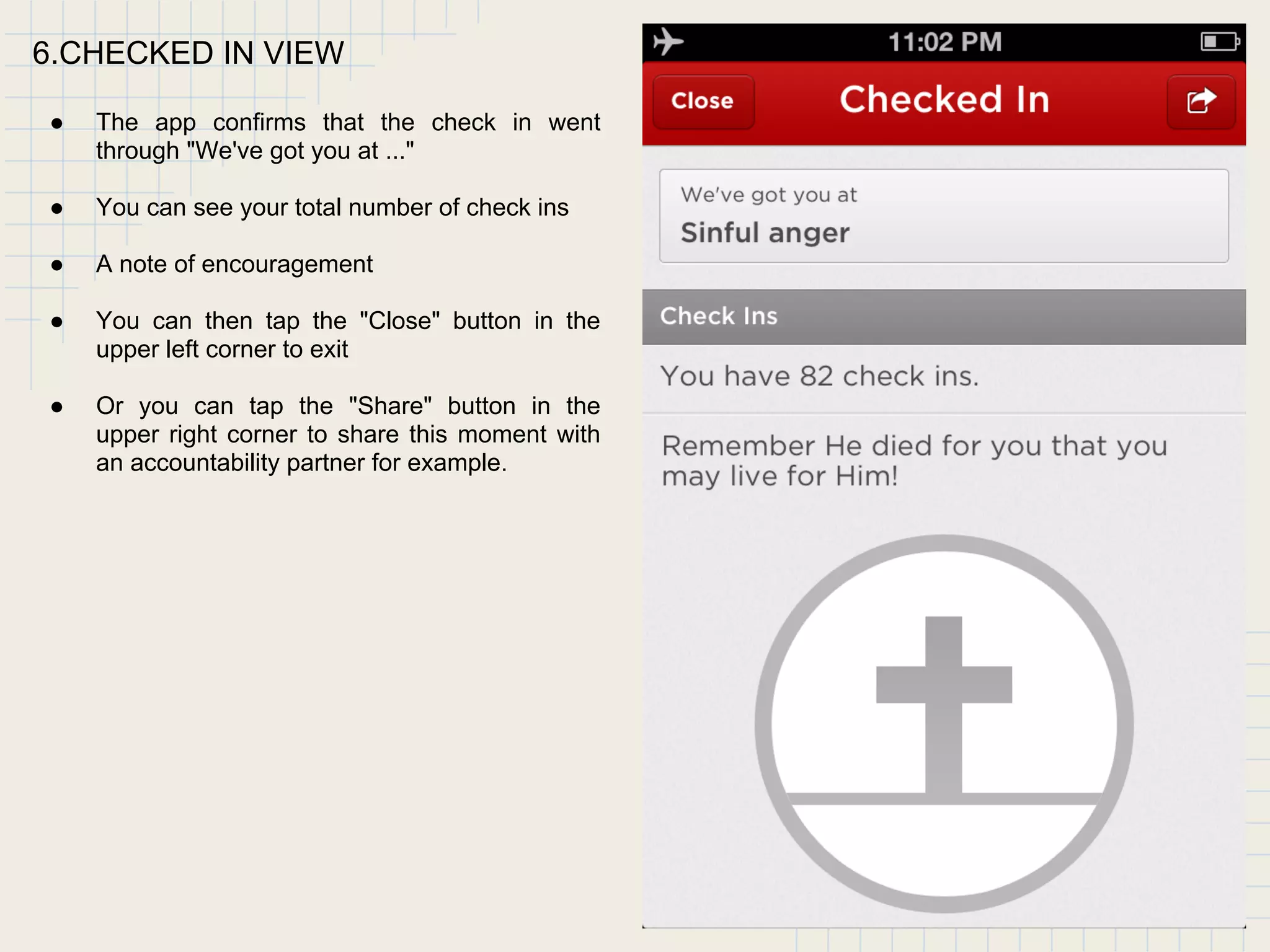
6.CHECKED IN VIEW
● The app confirms that the check in went
through "We've got you at ..."
● You can see your total number of check ins
● A note of encouragement
● You can then tap the "Close" button in the
upper left corner to exit
● Or you can tap the "Share" button in the
upper right corner to share this moment with
an accountability partner for example.
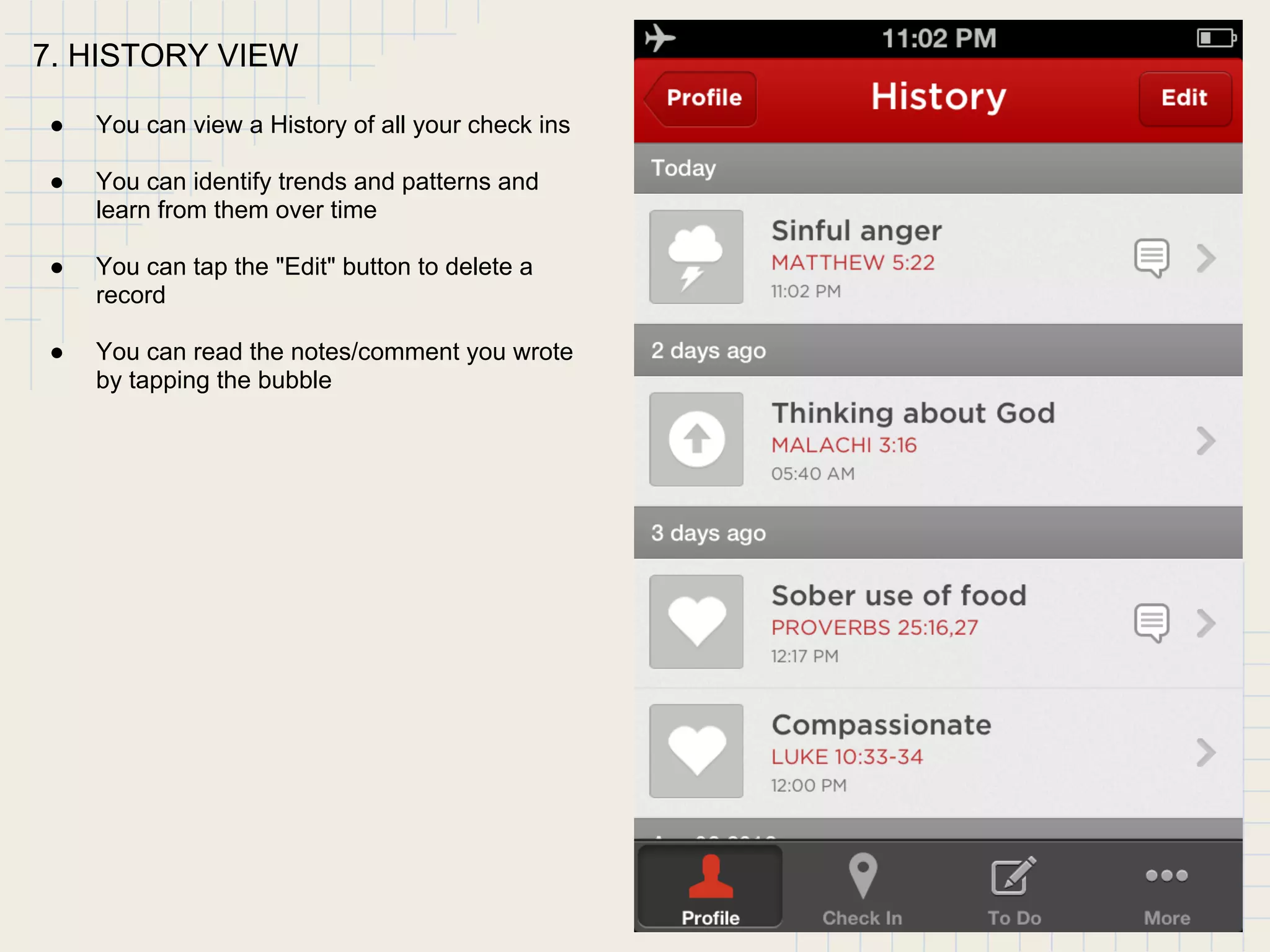
7. HISTORY VIEW
● You can view a History of all your check ins
● You can identify trends and patterns and
learn from them over time
● You can tap the "Edit" button to delete a
record
● You can read the notes/comment you wrote
by tapping the bubble
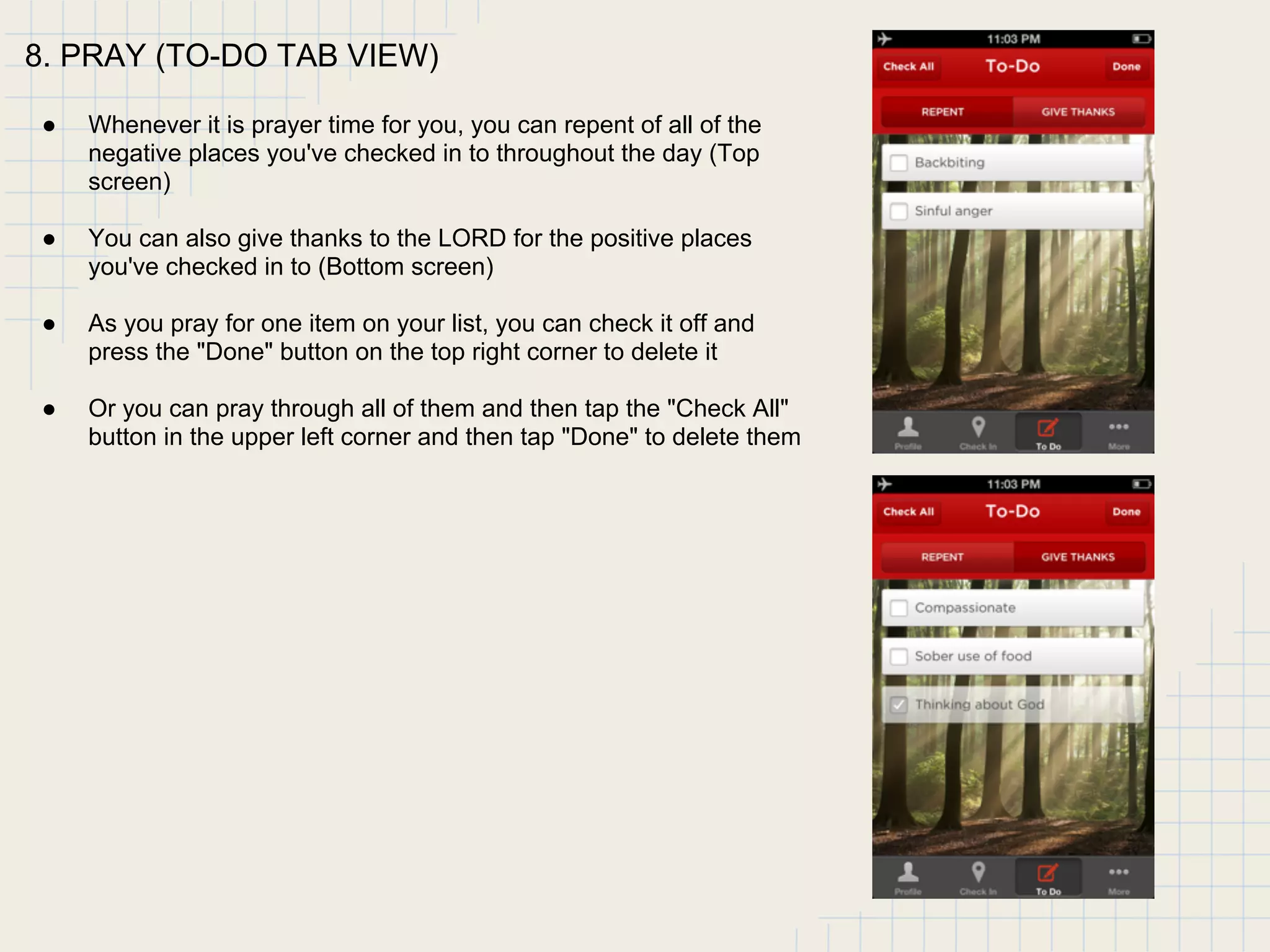
8. PRAY (TO-DO TAB VIEW)
● Whenever it is prayer time for you, you can repent of all of the
negative places you've checked in to throughout the day (Top
screen)
● You can also give thanks to the LORD for the positive places
you've checked in to (Bottom screen)
● As you pray for one item on your list, you can check it off and
press the "Done" button on the top right corner to delete it
● Or you can pray through all of them and then tap the "Check All"
button in the upper left corner and then tap "Done" to delete them
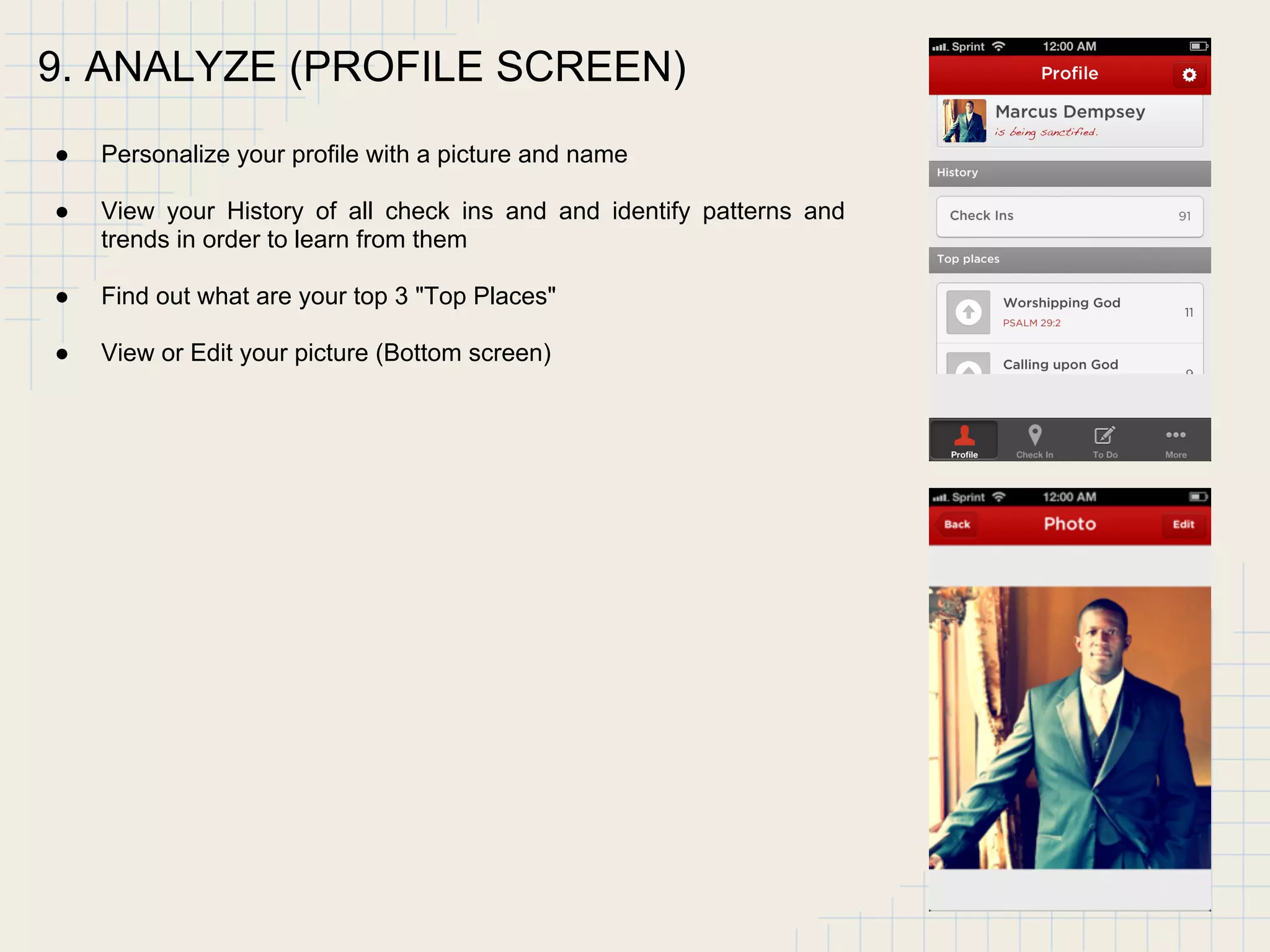
9. ANALYZE (PROFILE SCREEN)
● Personalize your profile with a picture and name
● View your History of all check ins and and identify patterns and
trends in order to learn from them
● Find out what are your top 3 "Top Places"
● View or Edit your picture (Bottom screen)
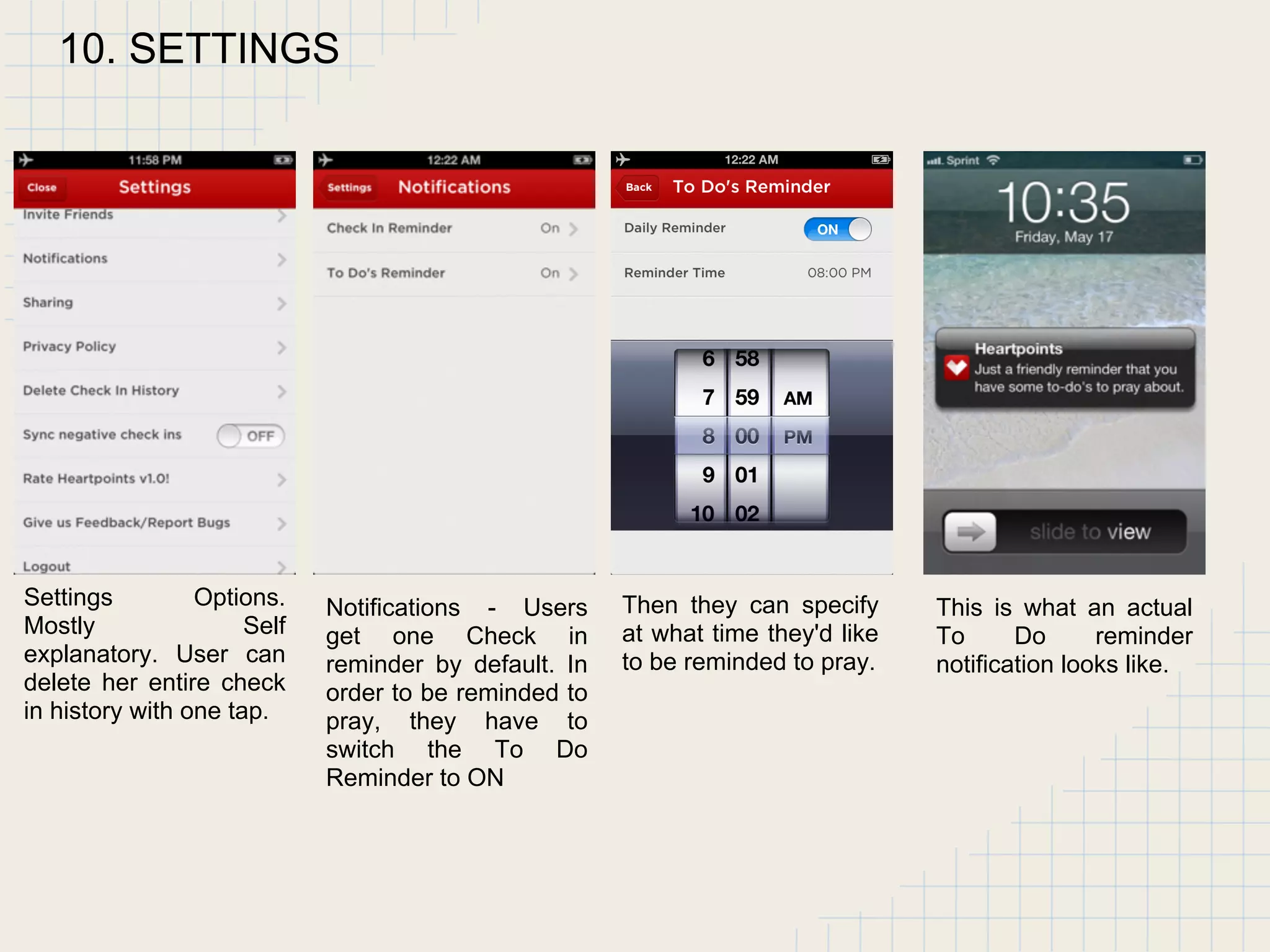
10. SETTINGS
Settings Options.
Mostly Self
explanatory. User can
delete her entire check
in history with one tap.
Notifications - Users
get one Check in
reminder by default. In
order to be reminded to
pray, they have to
switch the To Do
Reminder to ON
Then they can specify
at what time they'd like
to be reminded to pray.
This is what an actual
To Do reminder
notification looks like.
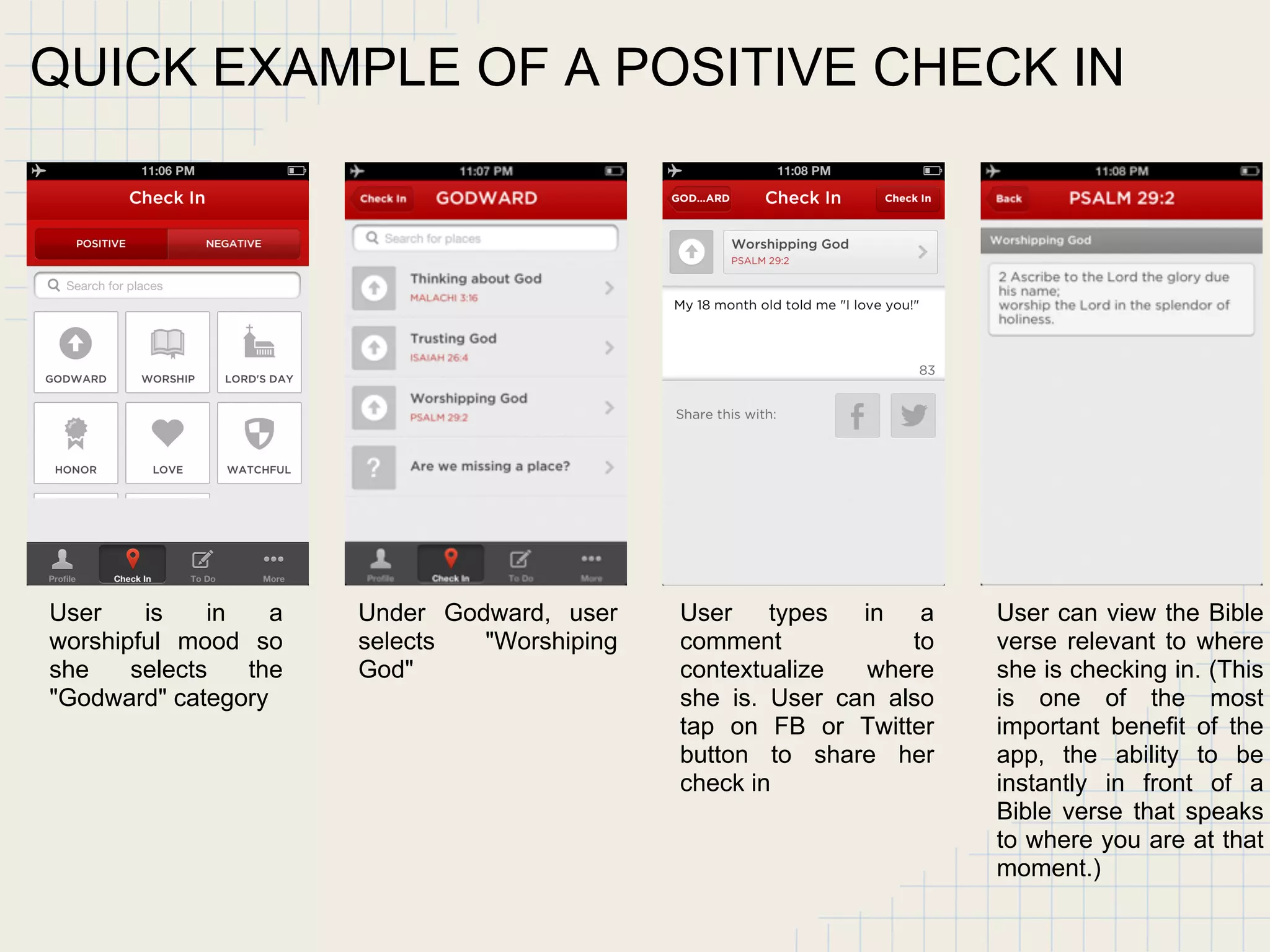
User is in a
worshipful mood so
she selects the
"Godward" category
Under Godward, user
selects "Worshiping
God"
User types in a
comment to
contextualize where
she is. User can also
tap on FB or Twitter
button to share her
check in
User can view the Bible
verse relevant to where
she is checking in. (This
is one of the most
important benefit of the
app, the ability to be
instantly in front of a
Bible verse that speaks
to where you are at that
moment.)
QUICK EXAMPLE OF A POSITIVE CHECK IN
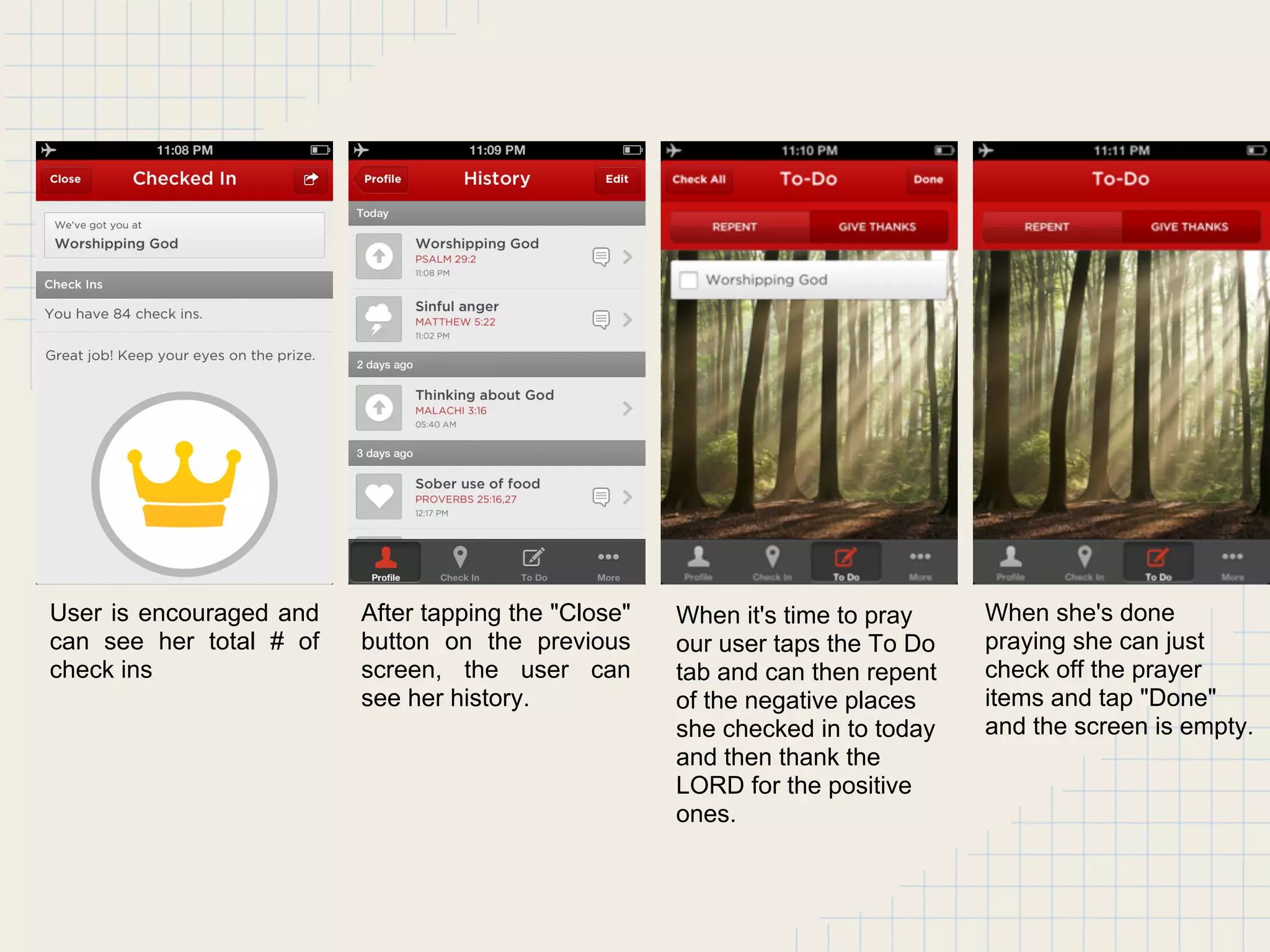
User is encouraged and
can see her total # of
check ins
After tapping the "Close"
button on the previous
screen, the user can
see her history.
When it's time to pray
our user taps the To Do
tab and can then repent
of the negative places
she checked in to today
and then thank the
LORD for the positive
ones.
When she's done
praying she can just
check off the prayer
items and tap "Done"
and the screen is empty.
Thank you for your
watching!

Heartpoints App 1.0 How To - by Christian Apps

  • 1.
  • 2.
  • 3.
    Who Founded by YedAnikpo, Minneapolis based entrepreneur. Experience in Middle-level management (Retail). Bachelor of Arts, Political Science. Christian, husband, father of two, lover of the Puritans.
  • 4.
  • 5.
    What Heartpoints helps youmake the most out of your Christian life. Heartpoints is an iPhone app for tracking your Christian walk and for praying.
  • 6.
    Why ● Inspired bythe words of our Lord in Mark 14:38 "Watch and pray that you enter not into temptation" (ESV) ● To provide believers with tools to cultivate personal holiness for our good and His glory. ● Additionally inspired by the Puritans, specifically John Owen's The Mortification of Sin in believers and Jonathan Edwards's resolutions.
  • 7.
  • 8.
    1.LOGIN WITH FACEBOOKOR EMAIL ● Will NOT autopost to Timeline ● Your friends will NOT see your check ins unless YOU choose to share. ● Tap "See How this works" to see a Demo
  • 9.
    2. SELECT ACATEGORY (MAIN CHECK IN SCREEN) ● Categories are divided between Positive and Negative ones ● Each category is made up of several "spiritual locations" like @Anger or @Desiring God. A Case Study Let's say Marcus is at the coffee shop and someone cuts in front of him and makes him mad. What does he do? He taps the Negative Tab then tap the "Anger Category"
  • 10.
    3.SELECT A SPECIFICPLACE WHERE YOUR HEART IS ● You can scroll down to see the full list of places under a category ● Each place has a relevant Bible verse ● You can also suggest a new place by tapping on "Are we missing a place?" A Case Study Marcus then can select a place that most accurately describes where his heart is, in our case he taps on "Sinful Anger"
  • 11.
    4.SPECIFIC PLACE VIEW ●You can add a comment, you have up to 120 characters ● Or you can tap on the place to view the Bible verse relevant to this place A Case Study Marcus can then view the relevant Bible verse by tapping on it.
  • 12.
    5. BIBLE VERSEVIEW AND ADD A COMMENT VIEW ● The top screen shows the Bible verse view where you can get biblical context for the place where your heart is ● The bottom screen shows the "Add comment view" where you can add more detail about what's happening ● When you're done, you can tap "Check in" to check in to that place A Case Study Marcus then reads the Matthew 5:22 to learn or remind himself what God's Word says about his sin (Top) and then leave a note (Bottom) so he can remember what made him angry. Marcus then taps the Check in button in the upper right corner.
  • 13.
    6.CHECKED IN VIEW ●The app confirms that the check in went through "We've got you at ..." ● You can see your total number of check ins ● A note of encouragement ● You can then tap the "Close" button in the upper left corner to exit ● Or you can tap the "Share" button in the upper right corner to share this moment with an accountability partner for example.
  • 14.
    7. HISTORY VIEW ●You can view a History of all your check ins ● You can identify trends and patterns and learn from them over time ● You can tap the "Edit" button to delete a record ● You can read the notes/comment you wrote by tapping the bubble
  • 15.
    8. PRAY (TO-DOTAB VIEW) ● Whenever it is prayer time for you, you can repent of all of the negative places you've checked in to throughout the day (Top screen) ● You can also give thanks to the LORD for the positive places you've checked in to (Bottom screen) ● As you pray for one item on your list, you can check it off and press the "Done" button on the top right corner to delete it ● Or you can pray through all of them and then tap the "Check All" button in the upper left corner and then tap "Done" to delete them
  • 16.
    9. ANALYZE (PROFILESCREEN) ● Personalize your profile with a picture and name ● View your History of all check ins and and identify patterns and trends in order to learn from them ● Find out what are your top 3 "Top Places" ● View or Edit your picture (Bottom screen)
  • 17.
    10. SETTINGS Settings Options. MostlySelf explanatory. User can delete her entire check in history with one tap. Notifications - Users get one Check in reminder by default. In order to be reminded to pray, they have to switch the To Do Reminder to ON Then they can specify at what time they'd like to be reminded to pray. This is what an actual To Do reminder notification looks like.
  • 18.
    User is ina worshipful mood so she selects the "Godward" category Under Godward, user selects "Worshiping God" User types in a comment to contextualize where she is. User can also tap on FB or Twitter button to share her check in User can view the Bible verse relevant to where she is checking in. (This is one of the most important benefit of the app, the ability to be instantly in front of a Bible verse that speaks to where you are at that moment.) QUICK EXAMPLE OF A POSITIVE CHECK IN
  • 19.
    User is encouragedand can see her total # of check ins After tapping the "Close" button on the previous screen, the user can see her history. When it's time to pray our user taps the To Do tab and can then repent of the negative places she checked in to today and then thank the LORD for the positive ones. When she's done praying she can just check off the prayer items and tap "Done" and the screen is empty.
  • 20.
    Thank you foryour watching!