1. Create a Microsoft Office 365 Login
2. Click All apps
3. Click on Forms
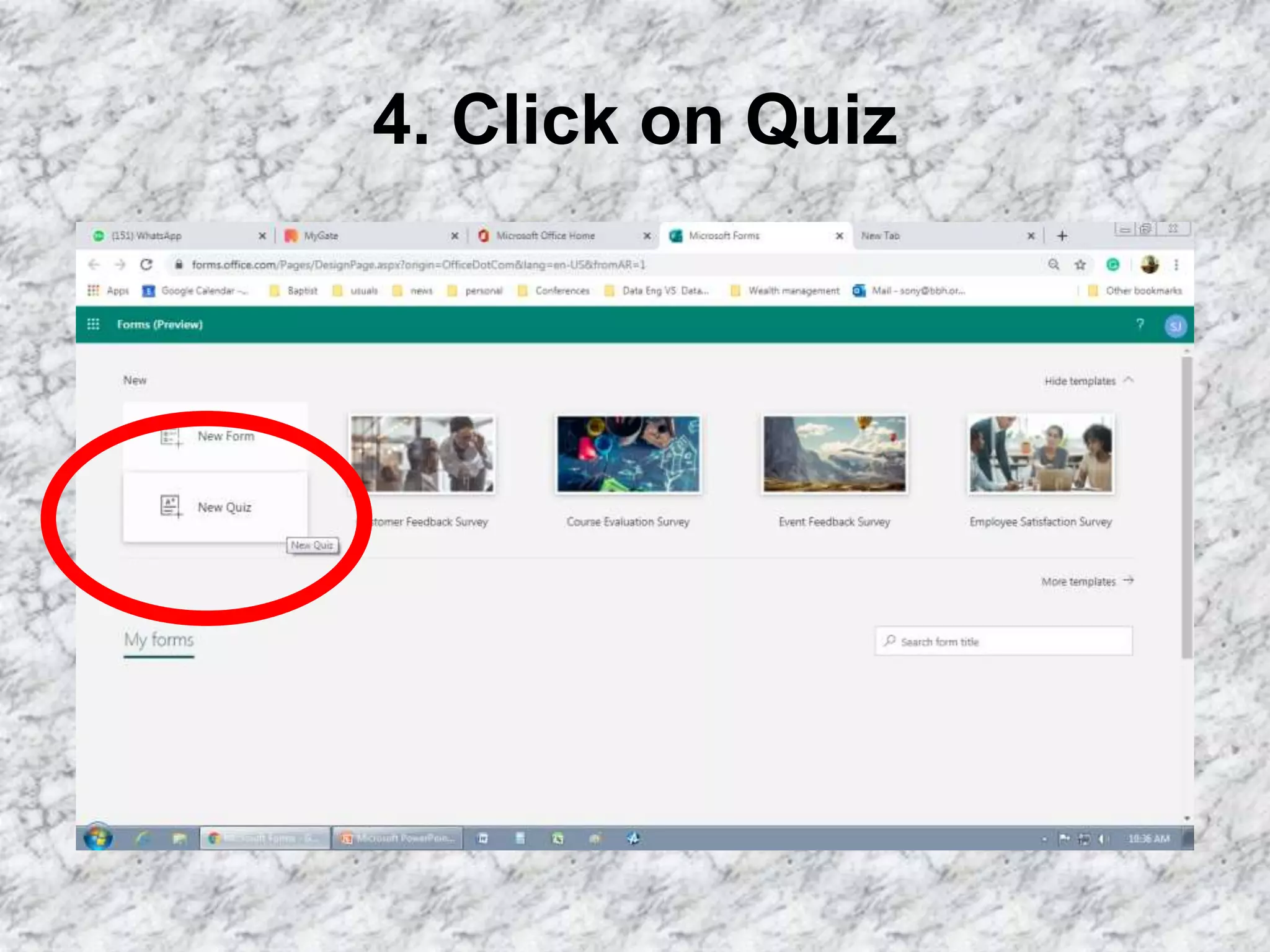
4. Click on Quiz
5. Quiz will open
6. Type the name and discription of the
quiz
7. Click on Add new
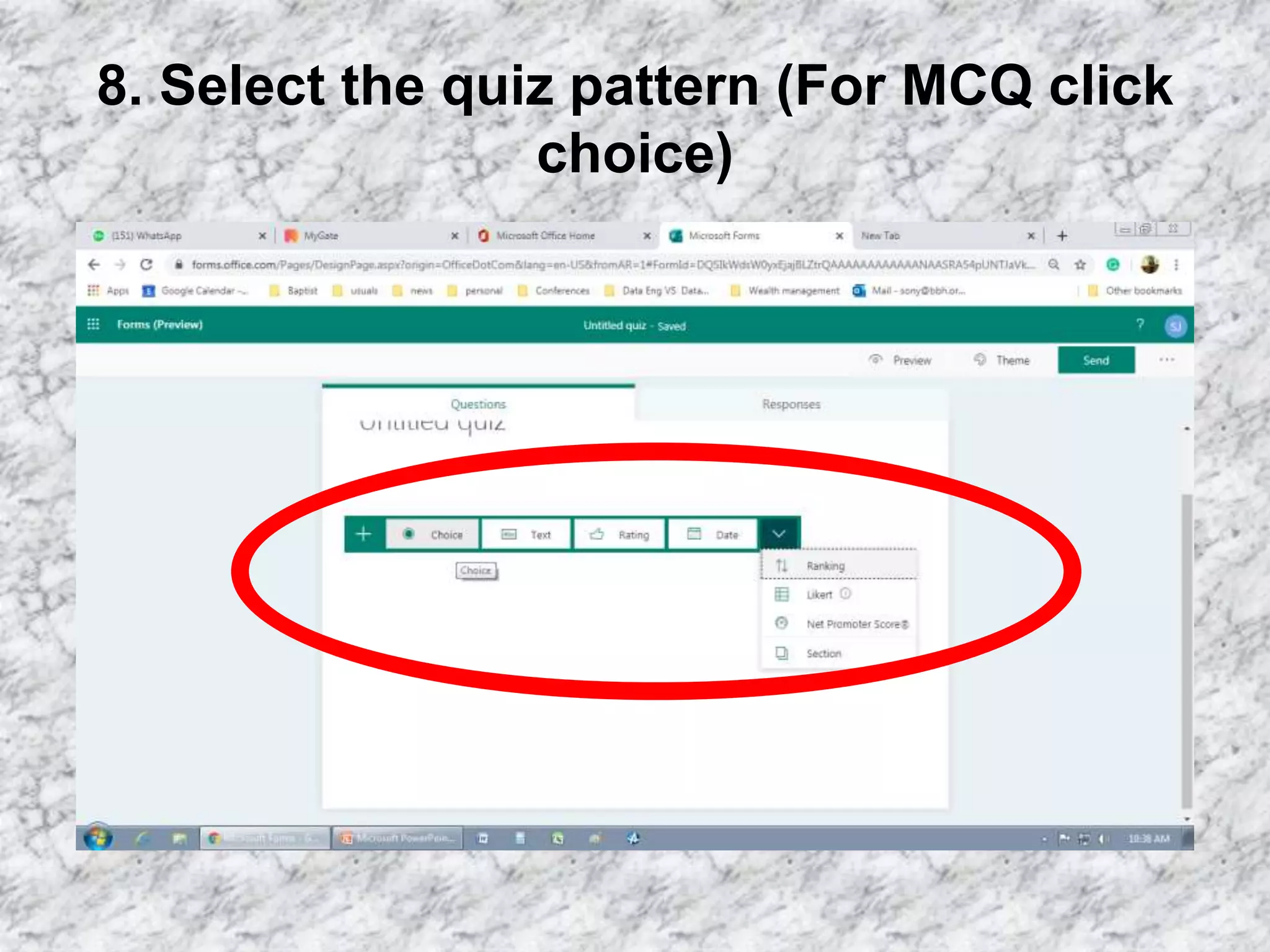
8. Select the quiz pattern (For MCQ click
choice)
9. Type question
10. Select the correct answer and to add
more options click Add option
11. Add explanation for the answer if required by
clicking on : this is optional.
12. Click Add new for the next question
13. Type your next question and repeat
the same for all questions.
14. For repositioning the question in the order/
copy/ delete the question use these
15. After every quest that you have added
check if the it is saved. Notice on the top
16. Click here to add points for the
question
17. A. Click Multiple answer if the candidate has an option for an other answer.
B. Click on Required to see that the candidate does not submit without
filling the details.
18. Click Preview to see how your questions will appear to your candidate
19. In the preview it would show both how it would
display if the candidate applies on computer
20. In the preview it would show both how it would
display if the candidate applies on Mobile
21. On completion click on share
to send to candidates
22. Click on copy on use the URL link
either to share through
email/sms/whatsapp
23. After candidates have replied check
responses and the same can be
downloaded as an excel.
Responses will be shown as a
graph
Thank you
Mr Sony Thomas

How to create a quiz in outlook