Download to read offline
![Name your
resource
Enter information about the file - *means
you must enter information
Add a description
– you can add
pictures etc. in
here if you want
Tick this box to
show the
description on
the course page
Add your file here
[see next page]
Choose how the
file will display –
or leave set to
Automatic
Don’t forget to
save your
changes
See the next page for how to add the file itself](https://image.slidesharecdn.com/guide3-addingresources-140806103722-phpapp01/75/Guide-3-adding-resources-3-2048.jpg)
![There are a number of ways to add a file
On a PC or laptop
– just drag and
drop from a
folder
Add a folder to
contain a number
of files
Add a file using
the file picker
[see below]
Server or recent
files – already
uploaded – can
be hard to
navigate
Upload a file from
a PC or a Laptop
Download e.g. an
image fr om its
web address
Files that have
been uploaded to
your private area
[home page]
Wikimedia is a
free image and
video site
Once your
Dropbox is
connected you
can select files
from it – see
guide 2
Click on the file then select this file in
the box that appears – you’re done!](https://image.slidesharecdn.com/guide3-addingresources-140806103722-phpapp01/75/Guide-3-adding-resources-4-2048.jpg)

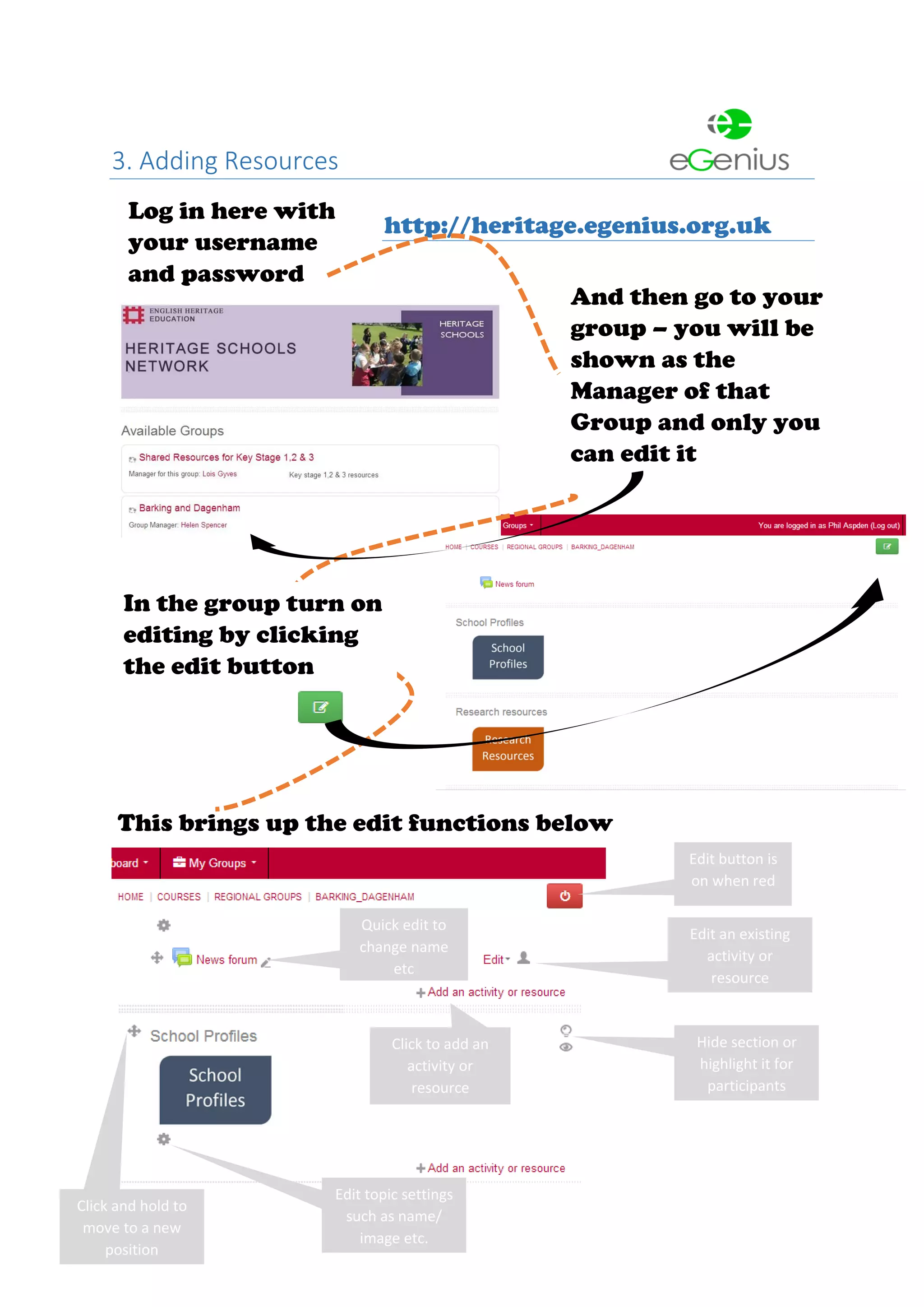
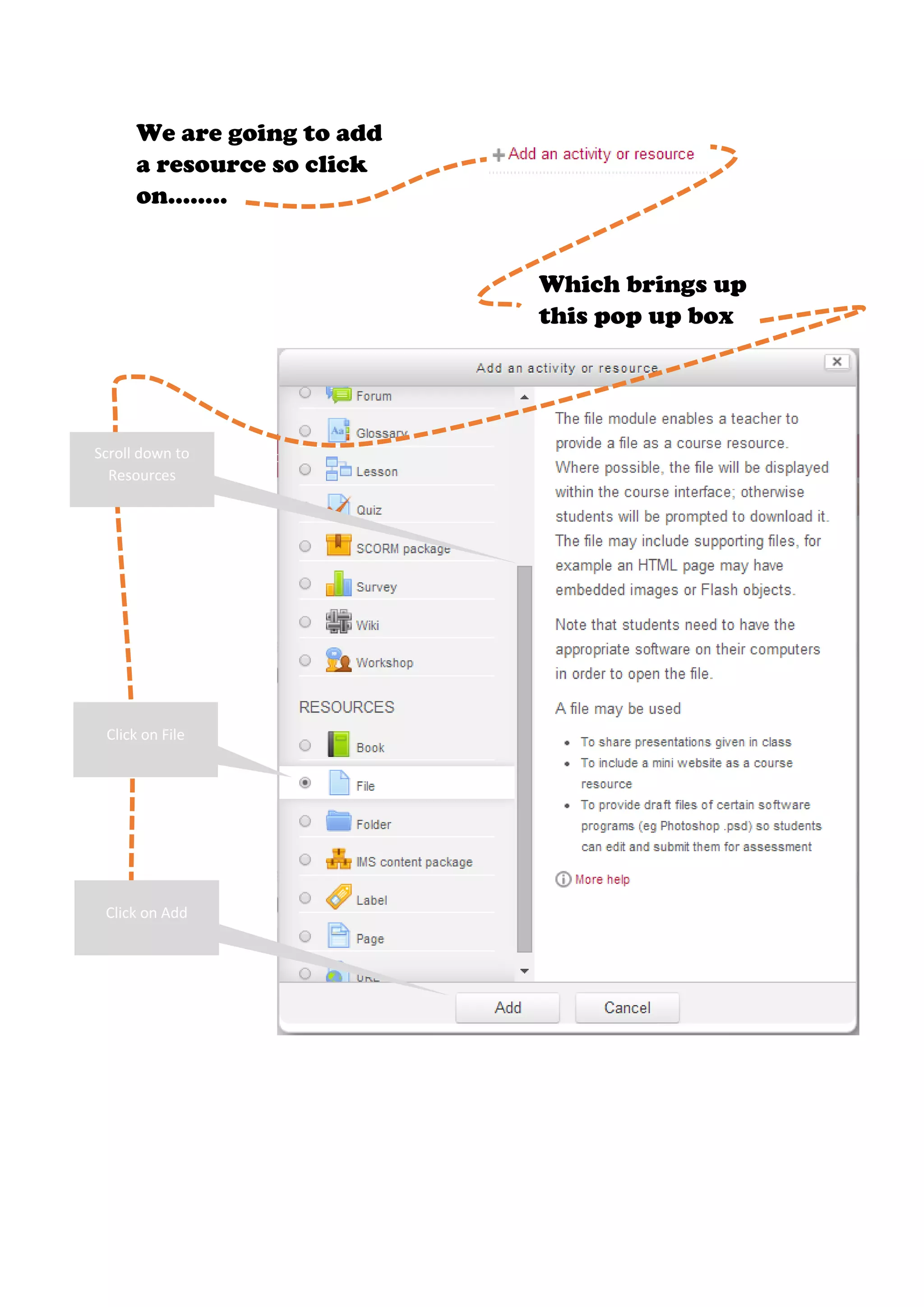
This document provides instructions for adding resources to a group on the Heritage e-genius website. It explains how to click the edit button to turn on editing mode, then click "Add" under "Resources" to open the file upload window. The steps to name the resource, add a description, choose a file display setting, and save changes are outlined. Various methods for selecting a file are also described, such as dragging and dropping, using the file picker, or selecting from private files or external sources like Dropbox.


