Owner
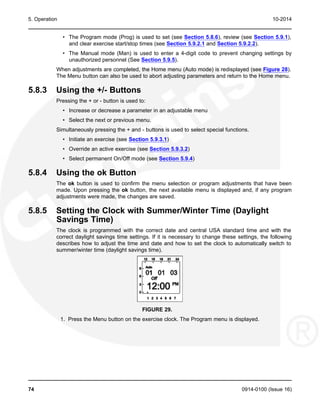
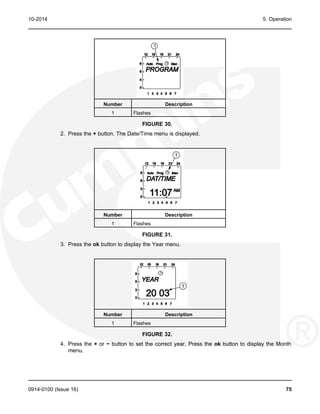
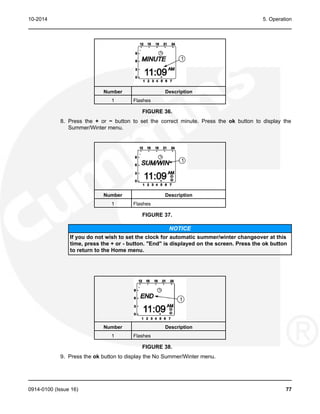
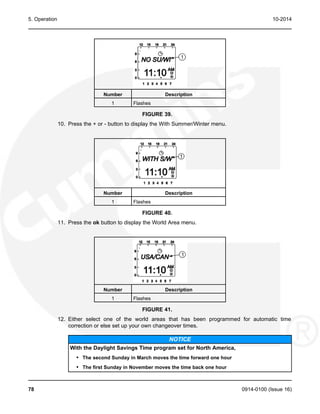
Owner Manual
Manual
Transfer Switch (20-2000 Amps)
GTEC (Spec A-B)
English
Original Instructions 10-2014 0914-0100 (Issue 16)
Table of Contents
1. SAFETY PRECAUTIONS .............................................................................................................. 1
1.1 Electrical Shock and Arc Flash Can Cause Severe Personal Injury or Death ....................... 1
1.2 General Precautions ............................................................................................................... 1
1.3 Utility-To-Generator Set Applications...................................................................................... 2
2. INTRODUCTION............................................................................................................................ 3
2.1 Owner Manual......................................................................................................................... 3
2.2 Transfer Switch Application .................................................................................................... 5
2.3 Transfer Switch Function ........................................................................................................ 5
2.4 Model Identification................................................................................................................. 6
2.4.1 Model Number.............................................................................................................. 6
2.4.2 Serial Number .............................................................................................................. 8
2.5 Manufacturing Facilities .......................................................................................................... 9
2.5.1 How to Obtain Service ............................................................................................... 10
2.6 Installation Overview............................................................................................................. 11
2.6.1 Application and Installation ........................................................................................ 11
2.6.2 Safety Considerations................................................................................................ 11
2.7 GTEC Features..................................................................................................................... 11
3. TRANSFER SWITCH START-UP................................................................................................ 15
3.1 Transfer Switch Start-up ....................................................................................................... 15
4. DESCRIPTION............................................................................................................................. 17
4.1 Cabinet.................................................................................................................................. 17
4.2 Control Panel ........................................................................................................................ 22
4.2.1 Control Function LEDs............................................................................................... 23
4.2.2 Automatic Transfer Switch Status LEDs.................................................................... 23
4.2.3 Membrane Pushbuttons............................................................................................. 23
4.3 Electronic Control System..................................................................................................... 24
4.3.1 Transfer Inhibit Input.................................................................................................. 24
4.3.2 Retransfer Inhibit Input............................................................................................... 25
4.3.3 Remote Test Input ..................................................................................................... 25
4.3.4 Two-wire Starting ....................................................................................................... 26
4.4 Transfer Switch..................................................................................................................... 26
4.4.1 Contact Assemblies ................................................................................................... 27
4.4.2 Electromechanical Actuator ....................................................................................... 27
4.4.3 Auxiliary Contacts ...................................................................................................... 27
4.5 Voltage Sensing.................................................................................................................... 27
4.5.1 Line-to-Neutral Voltage Sensing................................................................................ 28
4.5.2 Line-to-Line Voltage Sensing..................................................................................... 28
4.6 Options.................................................................................................................................. 28
4.6.1 Float-charge Battery Charger Option......................................................................... 28
4.6.2 External Exercise Clock Option ................................................................................. 29
0914-0100 (Issue 16) i
Table of Contents 10-2014
4.6.3 Elevator Relay Option................................................................................................ 29
4.6.4 Manual Restore Option.............................................................................................. 30
4.6.5 Transfer Switch Rating Voltage Change.................................................................... 31
5. OPERATION ................................................................................................................................ 35
5.1 Time Delays.......................................................................................................................... 35
5.1.1 Time Delay Engine Start (TDES)............................................................................... 35
5.1.2 Time Delay Engine Cooldown (TDEC) ...................................................................... 35
5.1.3 Time Delay Normal-to-Emergency (TDNE) ............................................................... 35
5.1.4 Time Delay Emergency-to-Normal (TDEN) ............................................................... 36
5.1.5 Time Delay Programmed Transition (TDPT) ............................................................. 36
5.1.6 Time Delay Elevator (TDEL) Pre-Transfer................................................................. 36
5.1.7 Elevator Post Transfer Delay..................................................................................... 37
5.2 Manual Operation ................................................................................................................. 37
5.3 Pushbutton Operation........................................................................................................... 39
5.3.1 Test Pushbutton......................................................................................................... 39
5.3.2 Override Pushbutton .................................................................................................. 39
5.3.3 Set Exercise Pushbutton............................................................................................ 40
5.4 Test with or without Load...................................................................................................... 40
5.4.1 Test with Load Sequence of Events .......................................................................... 40
5.4.2 Test without Load Sequence of Events ..................................................................... 41
5.5 Sensors................................................................................................................................. 42
5.5.1 Utility Sensor.............................................................................................................. 42
5.5.2 Generator Sensor....................................................................................................... 43
5.5.3 Phase Check Sensor ................................................................................................. 43
5.5.4 Return to Programmed Transition.............................................................................. 44
5.6 Generator Set Exerciser ....................................................................................................... 44
5.6.1 General Information ................................................................................................... 44
5.6.2 Exercise with or without Load .................................................................................... 44
5.6.3 Integrated Exerciser................................................................................................... 44
5.6.4 Power Loss Backup ................................................................................................... 45
5.7 External Exercise Clock Option [TR 610 top2] ..................................................................... 46
5.7.1 Initial Start-Up ............................................................................................................ 47
5.7.2 LCD Lighting (Display Back Light) ............................................................................. 50
5.7.3 Using the Menu Buttons............................................................................................. 51
5.7.4 Using the -/+ Push Buttons........................................................................................ 51
5.7.5 Using the OK Push Button......................................................................................... 51
5.7.6 Setting the Time, Date with Summer/Winter Time (Daylight Savings Time) ............. 52
5.7.7 Setting Exercise Start and Stop Times...................................................................... 57
5.7.8 Checking the Programs ............................................................................................. 61
5.7.9 Initiating or Overriding an Exercise Program............................................................. 66
5.7.10 Selecting Permanent On/Off Mode.......................................................................... 67
5.7.11 Adding A Security Code........................................................................................... 69
5.7.12 After Programming the Exercise Clock.................................................................... 71
5.7.13 Resetting the Timer.................................................................................................. 72
5.8 Optional External Exerciser .................................................................................................. 72
ii 0914-0100 (Issue 16)
10-2014 Table of Contents
5.8.1 Exercise with or without Load .................................................................................... 73
5.8.2 Using the Menu Button .............................................................................................. 73
5.8.3 Using the +/- Buttons ................................................................................................. 74
5.8.4 Using the ok Button.................................................................................................... 74
5.8.5 Setting the Clock with Summer/Winter Time (Daylight Savings Time)...................... 74
5.8.6 Exercise Start and Stop Times .................................................................................. 82
5.9 Checking the Programs ........................................................................................................ 88
5.9.1 Reviewing Exercise Start/Stop Times........................................................................ 89
5.9.2 Deleting Exercise Start/Stop Times ........................................................................... 93
5.9.3 Initiating or Overriding an Exercise Program............................................................. 99
5.9.4 Selecting Permanent On or Off Mode...................................................................... 101
5.9.5 Adding A Security Code........................................................................................... 103
5.9.6 After Programming the Exerciser Clock................................................................... 106
5.9.7 Resetting the Timer.................................................................................................. 106
5.10 Planned Maintenance ....................................................................................................... 108
5.11 Control Panel Configuration.............................................................................................. 109
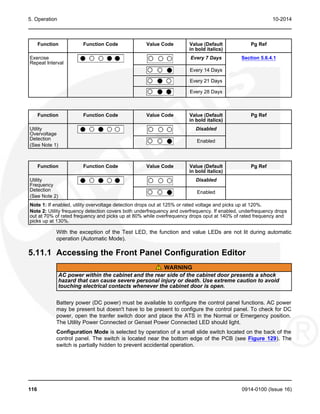
5.11.1 Accessing the Front Panel Configuration Editor.................................................... 116
5.11.2 Modify the Configuration........................................................................................ 118
6. INSTALLATION - MOUNTING................................................................................................... 119
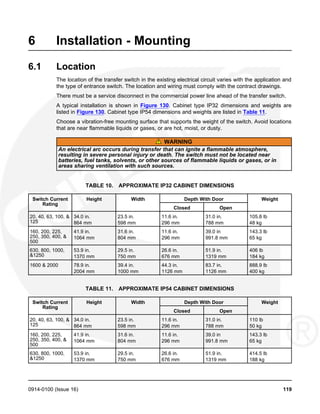
6.1 Location .............................................................................................................................. 119
6.2 Mounting Methods .............................................................................................................. 120
6.2.1 Wall Mounting .......................................................................................................... 121
6.2.2 Free-Standing .......................................................................................................... 121
6.3 Open Construction.............................................................................................................. 121
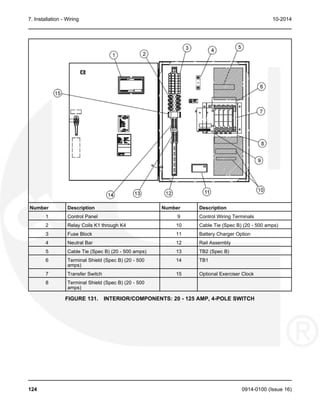
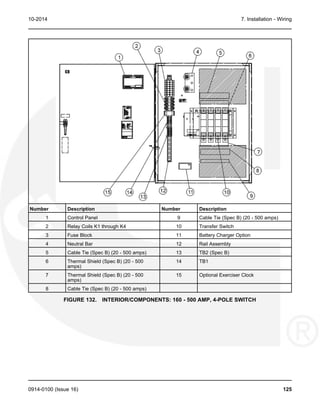
7. INSTALLATION - WIRING......................................................................................................... 123
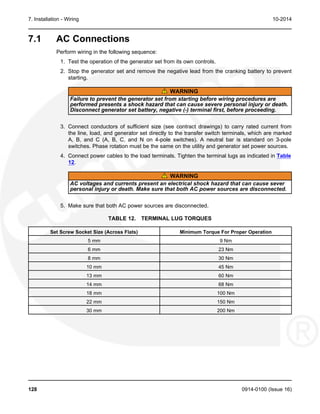
7.1 AC Connections.................................................................................................................. 128
7.1.1 Control Connections................................................................................................. 132
8. TROUBLESHOOTING ............................................................................................................... 147
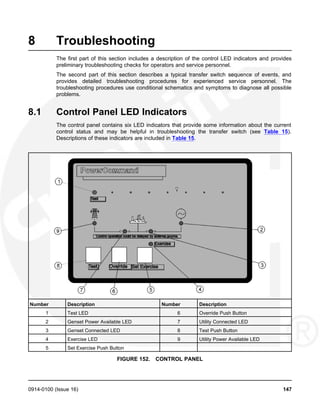
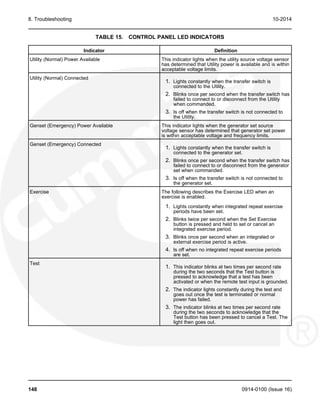
8.1 Control Panel LED Indicators ............................................................................................. 147
8.2 Troubleshooting Procedures for Operators and Service Personnel................................... 149
8.2.1 Power Outage Occurs, But Generator Set does not Start....................................... 149
8.2.2 Generator Set Starts During Normal Power Service ............................................... 150
8.2.3 Generator Set does not Exercise............................................................................. 150
8.2.4 After a Power Failure, the Generator Set Starts but does not Assume the
Load........................................................................................................................... 151
8.2.5 After Power Returns, the Transfer Switch does not Return to Normal Position...... 152
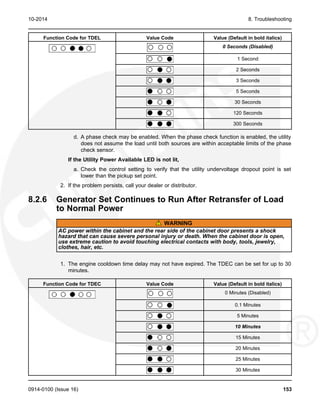
8.2.6 Generator Set Continues to Run After Retransfer of Load to Normal Power.......... 153
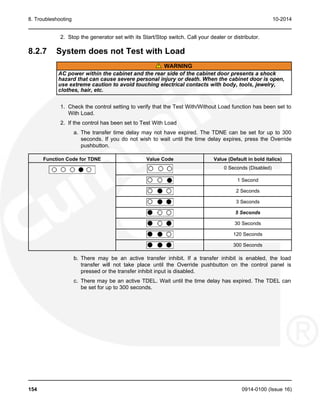
8.2.7 System does not Test with Load.............................................................................. 154
8.2.8 System does not Exercise with Load....................................................................... 155
8.2.9 External Exercise Clock Does Not Start an Exercise .............................................. 156
8.2.10 External Exerciser Does Not Repeat an Exercise ................................................. 156
8.2.11 Battery Charger Fails to Charge (if Equipped)....................................................... 156
8.2.12 Battery Loses Water .............................................................................................. 157
8.2.13 Battery Loses Charge ............................................................................................ 157
0914-0100 (Issue 16) iii
Table of Contents 10-2014
8.3 Troubleshooting Procedures for Experienced Service Personnel ...................................... 157
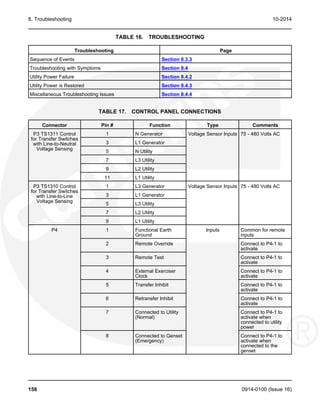
8.3.1 About Customer Inputs ............................................................................................ 157
8.3.2 Control Panel LED Indicators................................................................................... 157
8.3.3 Sequence of Events................................................................................................. 159
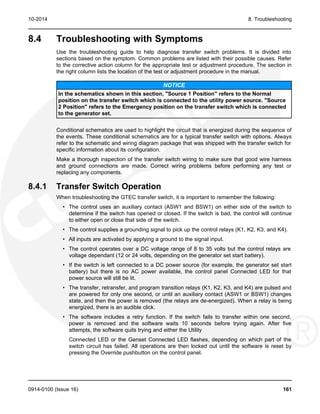
8.4 Troubleshooting with Symptoms......................................................................................... 161
8.4.1 Transfer Switch Operation ....................................................................................... 161
8.4.2 Utility Power Failure................................................................................................. 162
8.4.3 Utility Power is Restored.......................................................................................... 165
8.4.4 Miscellaneous Troubleshooting Issues.................................................................... 170
9. TRANSFER SWITCH SERVICE................................................................................................ 173
9.1 Switch Assembly Removal and Replacement Procedures................................................. 173
9.1.1 Switch Removal and Replacement Procedure ........................................................ 173
APPENDIX A. PARTS INFORMATION .......................................................................................... 177
APPENDIX B. TROUBLESHOOTING REFERENCE DRAWINGS FOR SEQUENCE OF
EVENTS.......................................................................................................................................... 183
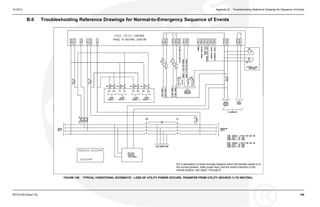
B.0 Troubleshooting Reference Drawings for Normal-to-Emergency Sequence of Events ..... 185
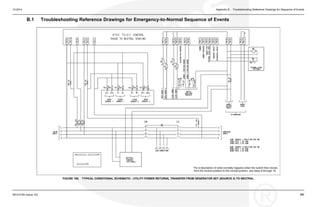
B.1 Troubleshooting Reference Drawings for Emergency-to-Normal Sequence of Events ..... 187
APPENDIX C. WIRING DIAGRAM ................................................................................................. 189
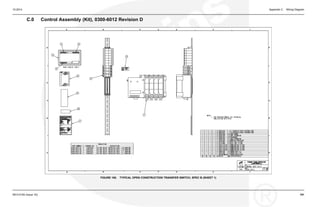
C.0 Control Assembly (Kit), 0300-6012 Revision D.................................................................. 191
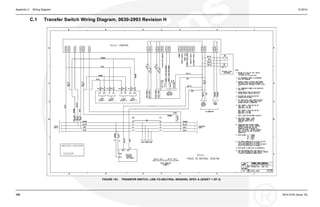
C.1 Transfer Switch Wiring Diagram, 0630-2993 Revision H.................................................. 192
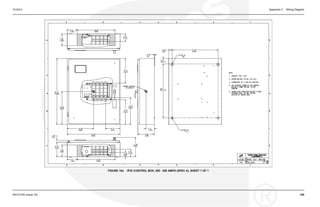
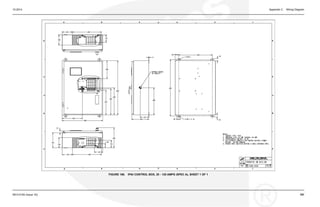
C.2 IP Control Boxes ................................................................................................................ 194
C.3 Transfer Switch .................................................................................................................. 201
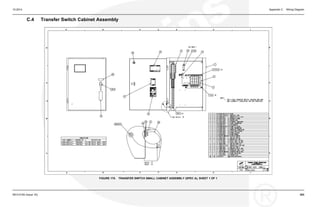
C.4 Transfer Switch Cabinet Assembly .................................................................................... 203
iv 0914-0100 (Issue 16)
1 Safety Precautions
This manual includes the following symbols to indicate potentially dangerous conditions. Read
the manual carefully and know when these conditions exist. Then, take the necessary steps to
protect personnel and the equipment.
DANGER
This symbol warns of immediate hazards that will result in severe personal
injury or death.
WARNING
This symbol refers to a hazard or unsafe practice that can result in severe personal
injury or death.
CAUTION
This symbol refers to a hazard or unsafe practice that can result in personal injury or
product or property damage.
1.1 Electrical Shock and Arc Flash Can Cause Severe
Personal Injury or Death
High voltage in transfer switch components presents serious shock hazards that can result in
severe personal injury or death. Read and follow these suggestions:
• The Operator must always keep the transfer switch cabinet closed and locked.
• Make sure only authorized personnel have the cabinet keys.
• All service and adjustments to the transfer switch must be performed only by an electrician
or authorized service representative.
NOTICE
Whenever closed transition is used, approval to parallel with the local electric utility
must be obtained.
1.2 General Precautions
Refer to NFPA 70E Standard for Electrical Safety in the Workplace to be sure the proper
personal protective equipment (PPE) is worn around this product.
Follow these guidelines while working on or around electrical equipment.
• Place rubber insulated mats on dry wood platforms over metal or concrete floors when
working on any electrical equipment.
• Do not wear damp clothing (particularly wet shoes) or allow skin surfaces to be damp when
handling any electrical equipment.
0914-0100 (Issue 16) 1
1. Safety Precautions 10-2014
• Remove all jewelry when working on electrical equipment.
• Wear safety glasses whenever servicing the transfer switch.
• Do not smoke near the batteries.
• Do not work on this equipment when mentally or physically fatigued, or after consuming
alcohol or any drug that makes the operation of equipment unsafe.
WARNING
Incorrect service or replacement of parts can result in death, severe personal injury,
and/or equipment damage. Service personnel must be qualified to perform electrical
and/or mechanical service.
1.3 Utility-To-Generator Set Applications
If the cabinet must be opened for any reason:
1. Move the operation selector switch on the generator set to STOP.
2. Disconnect the battery charger.
3. Disconnect the starting batteries of the generator set or sets (remove the ground [-] lead
first).
4. Remove AC power to the automatic transfer switch. If the instructions require otherwise,
use extreme caution due to the danger of shock hazard.
WARNING
AC power within the cabinet and the rear side of the cabinet door presents a shock
hazard that can cause severe personal injury or death. With the breaker in the OFF
position, the line side lugs are still energized.
2 0914-0100 (Issue 16)
2 Introduction
2.1 Owner Manual
This manual covers models produced under the Cummins®
Power Generation (CPG) brand
names.
This manual provides information necessary for operation, installation, and service of an GTEC
transfer switch. This manual also includes parts information.
This is an open transition transfer switch that includes an automatic transfer switch (ATS)
control. With an open transition switch, there is never a time when both sources are supplying
power to the load.
Programmed transition switches briefly pause in the neutral position of the transfer switch,
between switched positions, so that transient voltages from the load can diminish before the
load is switched to the other source.
FIGURE 1. GTEC TRANSFER SWITCH WITH DOOR OPEN (125 AMP, 4 POLE SWITCH SHOWN
WITH OPTIONAL 2 AMP BATTERY CHARGER) (SPEC A)
0914-0100 (Issue 16) 3
2. Introduction 10-2014
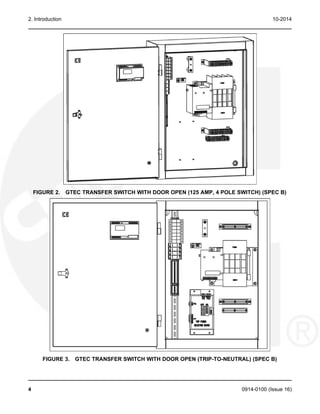
FIGURE 2. GTEC TRANSFER SWITCH WITH DOOR OPEN (125 AMP, 4 POLE SWITCH) (SPEC B)
FIGURE 3. GTEC TRANSFER SWITCH WITH DOOR OPEN (TRIP-TO-NEUTRAL) (SPEC B)
4 0914-0100 (Issue 16)
10-2014 2. Introduction
2.2 Transfer Switch Application
Transfer switches are an essential part of a building's standby or emergency power system. The
utility line (normal power), is backed up by a generator set (emergency power). The transfer
switch automatically switches the electrical load from one source to the other.
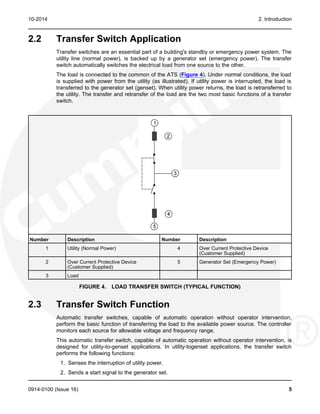
The load is connected to the common of the ATS (Figure 4). Under normal conditions, the load
is supplied with power from the utility (as illustrated). If utility power is interrupted, the load is
transferred to the generator set (genset). When utility power returns, the load is retransferred to
the utility. The transfer and retransfer of the load are the two most basic functions of a transfer
switch.
Number Description Number Description
1 Utility (Normal Power) 4 Over Current Protective Device
(Customer Supplied)
2 Over Current Protective Device 5 Generator Set (Emergency Power)
(Customer Supplied)
3 Load
FIGURE 4. LOAD TRANSFER SWITCH (TYPICAL FUNCTION)
2.3 Transfer Switch Function
Automatic transfer switches, capable of automatic operation without operator intervention,
perform the basic function of transferring the load to the available power source. The controller
monitors each source for allowable voltage and frequency range.
This automatic transfer switch, capable of automatic operation without operator intervention, is
designed for utility-to-genset applications. In utility-togenset applications, the transfer switch
performs the following functions:
1. Senses the interruption of utility power.
2. Sends a start signal to the generator set.
0914-0100 (Issue 16) 5
2. Introduction 10-2014
3. Transfers the load to the generator set.
4. Senses the return of utility power.
5. Retransfers the load to the utility.
6. Sends a stop signal to the generator set.
2.4 Model Identification
Identify the model by referring to the Model and Specification number as shown on the
nameplate. Electrical characteristics are shown on the lower portion of the nameplate (see
Figure 5), which is located on the cabinet door.
If it is necessary to contact a distributor regarding the transfer switch, always give the complete
Model and Serial number. This information is necessary to properly identify the unit among the
many types manufactured.
FIGURE 5. STANDARD NAMEPLATE
2.4.1 Model Number
The model number is made up of code segments that designate various features or options:
6 0914-0100 (Issue 16)
10-2014 2. Introduction
FIGURE 6. MODEL NUMBER SEGMENTS
1. GT = GTEC - Global transfer switch with open transition and delay transition
2. Number of poles: 2, 3, or 4
3. Current Rating: 20, 40, 63, 100, 125, 160, 200, 225, 250, 350, 400, 500, 630, 800, 1000,
1250, 1600, or 2000 amps
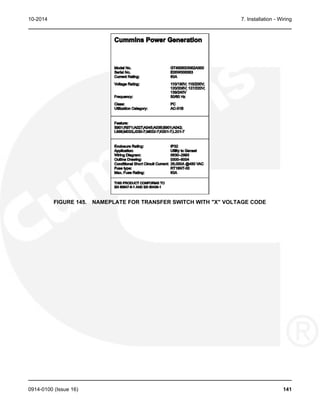
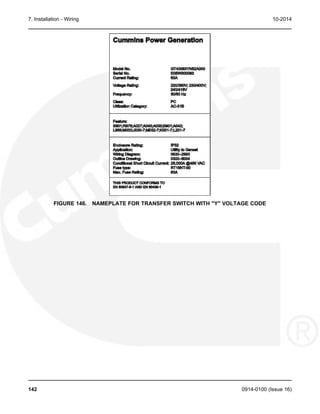
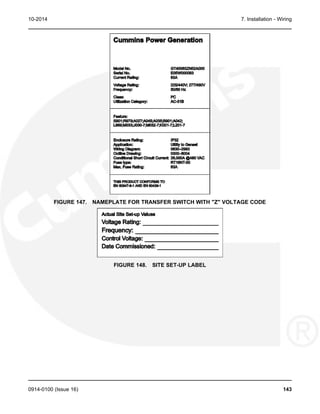
4. Voltage Code:
A = 110 VAC*
B = 115 VAC*
C = 120 VAC*
D = 127VAC*
E = 110/190 VAC**
F = 115/200 VAC**
G = 120/208 VAC**
H = 127/220 VAC**
I = 220 VAC*
J = 230 VAC*
K = 240 VAC*
L = 139/240 VAC**
N = 220/380 VAC**
O = 230/400 VAC**
P = 240/416 VAC**
Q = 255/440 VAC**
U = Multi-Voltage 110/19 - 277/480 V
W = Custom Define***
X = 110/190 V, 115/200 V, 120/208 V, 127/220 V, 139/240 V
Y = 220/380 V, 230/400 V, 240/416 V
Z = 255/440 V, 277/480 V
* = Single Phase, 2 Wire
** = Three Phase, 3 or 4 Wire OR
*** = The rating voltage is set by custom Single Phase, 3 Wire
5. Control Type:
L = 12 VDC, Powered Line-to-Line Sensing Control
N = 12 VDC, Powered Line-to-Neutral Sensing Control
0914-0100 (Issue 16) 7
2. Introduction 10-2014
P = 24 VDC, Powered Line-to-Line Sensing Control
Q = 24 VDC, Powered Line-to-Neutral Sensing Control
6. Frequency:
5 = 50 Hz
6 = 60 Hz
7 = 50/60 Hz
7. Construction Type:
2 = IP32 Enclosure
3 = IP54 Enclosure
K = Kit (open contruction)
8. Revision Letter:
Factory Assigned (A through Z)
9. Spec Number:
Factory Assigned (000 to 999)
2.4.2 Serial Number
The serial number is made up of nine characters.
FIGURE 7. SERIAL NUMBER SEGMENTS
1. Character 1 = Month manufactured
A = 1
B = 2
C = 3
D = 4
E = 5
F = 6
G = 7
H = 8
I = 9
J = 10
K = 11
L = 12
2. Characters 2 and 3 = Year built
05 = 2005
8 0914-0100 (Issue 16)
10-2014 2. Introduction
3. Character 4 = Plant location
0 = Fridley, Minnesota
1 = SML (Portables)
2 = Cummins (USA)
3 = Huntsville, Alabama
4 = Onan Power Electronics
5 = Singapore
6 = Westinghouse (Transfer Switches and Breakers)
7 = Canada (Linamar)
8 = Lister-Petter
9 = Kubota (K-series Portables)
A = Australia (Dunlite and Adelaide)
B = South America (Columbia)
C = Italy (DIEM)
H = Wuhan, Chine
L = Libby
M = Libby (Military)
R = Robin (Fugi Engines) USA
U = PGI
K = UK (Kent)
S = Mexico (Cumsa)
T = Brazil
X = Canada (Linamar - early production)
W = Nexage Wuxl, China
4. Characters 5 through 10 = Manufacturing Order Number (Sequentially assigned number)
2.5 Manufacturing Facilities
NORTH AMERICA EMEA, CIS ASIA PACIFIC
Cummins Power Generation Limited Cummins Power Generation Limited Cummins Power Generation Limited
1400 73rd Ave. NE Columbus Avenue 10 Toh Guan Road #07-01
Minneapolis, MN 55432 USA Manston Park TT International Tradepark
Manston, Ramsgate Singapore 608838
Kent CT12 5BF
United Kingdom
Phone +1 763 574 5000 Phone +44 1843 255000 Phone +65 6417 2388
Toll Free +1 800 888 6626 Fax +44 1843 255902 Fax +65 6417 2399
Fax +1 763 574 5298
0914-0100 (Issue 16) 9
2. Introduction 10-2014
BRAZIL CHINA INDIA
Rua Jati, 310, Cumbica Cummins Power Generation Cummins India Office Campus,
Guarulhos, SP 07180-900 2 Rongchang East Street, Tower A,6th Floor,
Brazil Beijing Economic – Technological Survey no 21, Balewadi
Development Area Pune 411 045
Beijing 100176, P.R.China India
Phone +55 11 2186 4195 Phone +86 10 5902 3000 Phone +91 020 6706 0000
Fax +55 11 2186 4729 Fax +86 10 5902 3199 Fax +91 020 6706 7011/16
LATIN AMERICA MEXICO
3350 Southwest 148th Ave. Eje 122 No. 200 Zona Industrial
Suite 205 San Luis Potosi, S.L.P. 78395
Miramar, FL 33027 Mexico
USA
Phone +1 954 431 551 Phone +52 444 870 6700
Fax +1 954 433 5797 Fax +52 444 824 0082
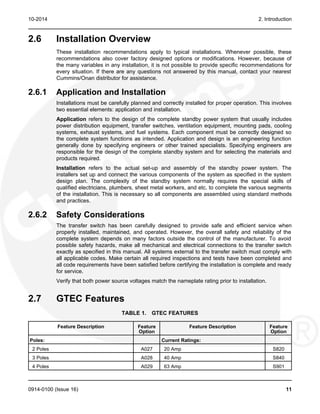
2.5.1 How to Obtain Service
When a product requires servicing, contact the nearest Cummins Power Generation distributor.
To locate the distributor, refer to www.cumminspower.com and select Distributor Locator.
When contacting the distributor, always supply the complete model, specification, and serial
number as shown on the nameplate.
2.5.1.1 Locating a Distributor
In North America
Telephone +1 800 888 6626 (this is an automated service for touch-tone phones only) to
contact the nearest Cummins Power Generation distributor in the United States or Canada.
Select Option 1 (press 1), to automatically connect to the nearest distributor.
If unable to contact a distributor using the automated service, consult the Yellow Pages.
Typically, distributors are listed under:
GENERATORS – ELECTRIC or
ENGINES – GASOLINE OR DIESEL
If unable to arrange a service or resolve an issue, contact the Service Manager at the nearest
Cummins Power Generation distributor for assistance.
When contacting the distributor, always supply the complete Model, Specification, and Serial
Number as shown on the product nameplate.
Outside North America
Refer to www.cumminspower.com and select Distributor Locator, or send an email to
ask.powergen@cummins.com.
10 0914-0100 (Issue 16)
10-2014 2. Introduction
2.6 Installation Overview
These installation recommendations apply to typical installations. Whenever possible, these
recommendations also cover factory designed options or modifications. However, because of
the many variables in any installation, it is not possible to provide specific recommendations for
every situation. If there are any questions not answered by this manual, contact your nearest
Cummins/Onan distributor for assistance.
2.6.1 Application and Installation
Installations must be carefully planned and correctly installed for proper operation. This involves
two essential elements: application and installation.
Application refers to the design of the complete standby power system that usually includes
power distribution equipment, transfer switches, ventilation equipment, mounting pads, cooling
systems, exhaust systems, and fuel systems. Each component must be correctly designed so
the complete system functions as intended. Application and design is an engineering function
generally done by specifying engineers or other trained specialists. Specifying engineers are
responsible for the design of the complete standby system and for selecting the materials and
products required.
Installation refers to the actual set-up and assembly of the standby power system. The
installers set up and connect the various components of the system as specified in the system
design plan. The complexity of the standby system normally requires the special skills of
qualified electricians, plumbers, sheet metal workers, and etc. to complete the various segments
of the installation. This is necessary so all components are assembled using standard methods
and practices.
2.6.2 Safety Considerations
The transfer switch has been carefully designed to provide safe and efficient service when
properly installed, maintained, and operated. However, the overall safety and reliability of the
complete system depends on many factors outside the control of the manufacturer. To avoid
possible safety hazards, make all mechanical and electrical connections to the transfer switch
exactly as specified in this manual. All systems external to the transfer switch must comply with
all applicable codes. Make certain all required inspections and tests have been completed and
all code requirements have been satisfied before certifying the installation is complete and ready
for service.
Verify that both power source voltages match the nameplate rating prior to installation.
2.7 GTEC Features
TABLE 1. GTEC FEATURES
Feature Description Feature Feature Description Feature
Option Option
Poles: Current Ratings:
2 Poles A027 20 Amp S820
3 Poles A028 40 Amp S840
4 Poles A029 63 Amp S901
0914-0100 (Issue 16) 11
2. Introduction 10-2014
Feature Description Feature Feature Description Feature
Option Option
Application: 100 Amp S902
Utility to Genset A035 125 Amp S048
Frequency: 160 Amp S903
60 Hertz A044 200 Amp S904
50 Hertz A045 225 Amp S905
50/60 Hertz A086 250 Amp S906
Phase: 350 Amp S907
Single Phase, 2 or 3 Wire A041 400 Amp S053
Three Phase, 3 or 4 Wire A042 500 Amp S908
Cabinet: 630 Amp S909
IP32 B026 800 Amp S055
IP54 B027 1000 Amp S056
Open Construction B004 1250 Amp S910
Battery Chargers: 1600 Amp S916
2 Amp, 12/24VDC K001-7 2000 Amp S920
Voltage Ratings: Control Options:
110/190 VAC R971 External Exercise Clock J030-7
115/200 VAC R972 Elevator Signal Relay M032-7
120/208 VAC R973 Manual Restore Switch S071
127/220 VAC R974 Auxiliary Relays:
139/240 VAC R975 24 VDC Coil L101-7
220/380 VAC R976 Emergency Position L102-7
230/400 VAC R977 Normal Position L103-7
240/416 VAC R978 12 VDC Coil L201-7
255/440 VAC R979 Emergency Position L202-7
277/480 VAC R980 Normal Position L203-7
110 VAC R981 Miscellaneous:
115 VAC R982 Terminal Block - 10 Position M002-7
120 VAC R983 Controller Type:
127 VAC R984 Line-to-Neutral C108
220 VAC R985 Line-to-Line C107
230 VAC R986 Starting Battery:
240 VAC R987 12V, Genset Starting Voltage M033
110/190V-139/240V R060 24V, Genset Starting Voltage M034
220/380V-240/416V R061 Neutral Connection:
255/440V-277/480V R062 Neutral Bar Assembly B028
110/190V-277/480V R063 GTEC:
12 0914-0100 (Issue 16)
10-2014 2. Introduction
Feature Description Feature Feature Description Feature
Option Option
Trip Power Selecting board J031-7
0914-0100 (Issue 16) 13
2. Introduction 10-2014
This page is intentionally blank.
14 0914-0100 (Issue 16)
3 Transfer Switch Start-up
3.1 Transfer Switch Start-up
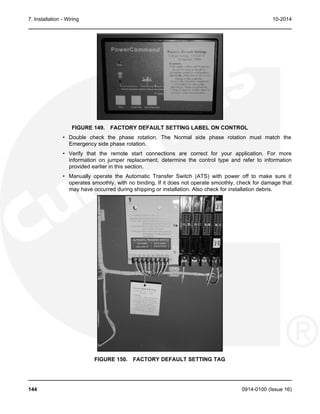
The GTEC transfer switch is preset at the factory to operate using default settings. The control
will operate the transfer switch when power is applied. However, you may wish to adjust some
of the settings for better performance.
The transfer switch must be installed correctly, with DC power present, before any adjustments
to the configuration can be made. If the transfer switch is connected to utility power, the Utility
Power Connected LED will be lit if battery power is available. Utility or genset voltage need not
be present to adjust the configuration.
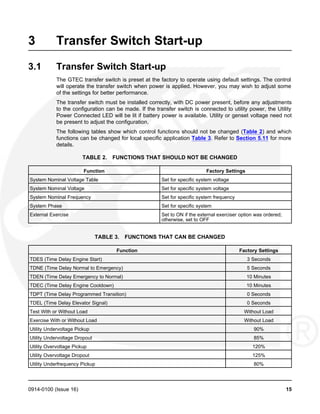
The following tables show which control functions should not be changed (Table 2) and which
functions can be changed for local specific application Table 3. Refer to Section 5.11 for more
details.
TABLE 2. FUNCTIONS THAT SHOULD NOT BE CHANGED
Function Factory Settings
System Nominal Voltage Table Set for specific system voltage
System Nominal Voltage Set for specific system voltage
System Nominal Frequency Set for specific system frequency
System Phase Set for specific system
External Exercise Set to ON if the external exerciser option was ordered;
otherwise, set to OFF
TABLE 3. FUNCTIONS THAT CAN BE CHANGED
Function Factory Settings
TDES (Time Delay Engine Start) 3 Seconds
TDNE (Time Delay Normal to Emergency) 5 Seconds
TDEN (Time Delay Emergency to Normal) 10 Minutes
TDEC (Time Delay Engine Cooldown) 10 Minutes
TDPT (Time Delay Programmed Transition) 0 Seconds
TDEL (Time Delay Elevator Signal) 0 Seconds
Test With or Without Load Without Load
Exercise With or Without Load Without Load
Utility Undervoltage Pickup 90%
Utility Undervoltage Dropout 85%
Utility Overvoltage Pickup 120%
Utility Overvoltage Dropout 125%
Utility Underfrequency Pickup 80%
0914-0100 (Issue 16) 15
3. Transfer Switch Start-up 10-2014
Function Factory Settings
Utility Underfrequency Dropout 70%
Utility Overfrequency Pickup 130%
Utility Overfrequency Dropout 140%
Phase Check Off
Return to Programmed Transition Off
Elevator Post Transfer Delay Off
Exercise Repeat Interval Every 7 Days
NOTICE
Utility overvoltage and under/over frequency can be eanbled or disabled but the set
points can not be changed.
16 0914-0100 (Issue 16)
4 Description
This section describes the control cabinet, the switch mechanism, and the standard and optional
control features available with the GTEC transfer switch.
4.1 Cabinet
This transfer switch uses an IP32 type cabinet. These Ingress Protection (IP) cabinets are
designed to prevent entrance of foreign objects that are 2.5 mm and larger and can keep out
falling drops of water up to a 15-degree incidence angle.
Examples of cabinets are shown in Figure 8, Figure 9, Figure 10, and Figure 11.
The GTEC is also available for open construction installations.
0914-0100 (Issue 16) 17
4. Description 10-2014
Number Description Number Description
1 Control Panel 9 Control Wiring Terminals
2 Relay Coils K1 through K4 10 Cable Tie (Spec B) (20 - 500 amps)
3 Fuse Block 11 Battery Charger Option
4 Neutral Bar 12 Rail Assembly
5 Cable Tie (Spec B) (20 - 500 amps) 13 TB2 (Spec B)
6 Terminal Shield (Spec B) (20 - 500 14 TB1
amps)
7 Transfer Switch 15 Optional Exerciser Clock
8 Terminal Shield (Spec B) (20 - 500
amps)
FIGURE 8. INTERIOR COMPONENTS: 20-125 AMP, 4 POLE SWITCH
18 0914-0100 (Issue 16)
10-2014 4. Description
Number Description Number Description
1 Control Panel 9 Cable Tie (Spec B) (20 - 500 amps)
2 Relay Coils K1 through K4 10 Transfer Switch
3 Fuse Block 11 Battery Charger Option
4 Neutral Bar 12 Rail Assembly
5 Cable Tie (Spec B) (20 - 500 amps) 13 TB2 (Spec B)
6 Thermal Shield (Spec B) (20 - 500 14 TB1
amps)
7 Thermal Shield (Spec B) (20 - 500 15 Optional Exerciser Clock
amps)
8 Cable Tie (Spec B) (20 - 500 amps)
FIGURE 9. INTERIOR COMPONENTS: 160-500 AMP, 4 POLE SWITCH
0914-0100 (Issue 16) 19
4. Description 10-2014
Number Description Number Description
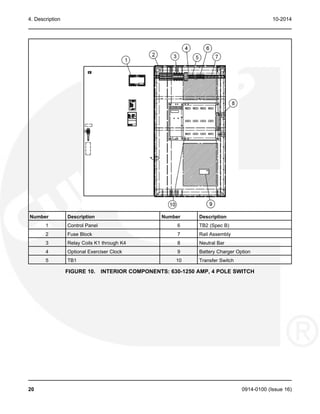
1 Control Panel 6 TB2 (Spec B)
2 Fuse Block 7 Rail Assembly
3 Relay Coils K1 through K4 8 Neutral Bar
4 Optional Exerciser Clock 9 Battery Charger Option
5 TB1 10 Transfer Switch
FIGURE 10. INTERIOR COMPONENTS: 630-1250 AMP, 4 POLE SWITCH
20 0914-0100 (Issue 16)
10-2014 4. Description
Number Description Number Description
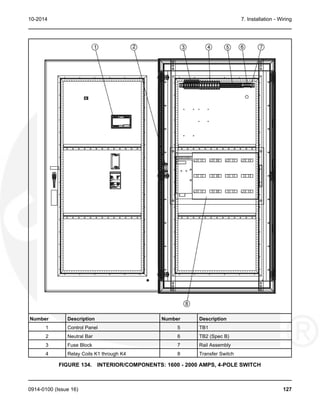
1 Control Panel 6 Rail Assembly
2 Neutral Bar 7 TB2 (Spec B)
3 Fuse Block 8 Battery Charger Option
4 Relay Coils K1 through K4 9 Transfer Switch
5 TB1
FIGURE 11. INTERIOR COMPONENTS: 1600-2000 AMP, 4 POLE SWITCH
0914-0100 (Issue 16) 21
4. Description 10-2014
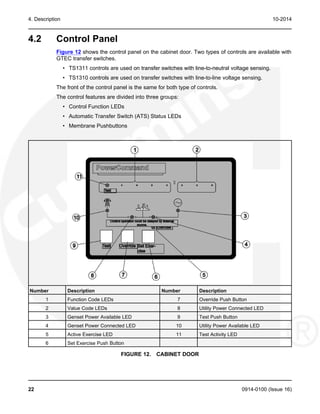
4.2 Control Panel
Figure 12 shows the control panel on the cabinet door. Two types of controls are available with
GTEC transfer switches.
• TS1311 controls are used on transfer switches with line-to-neutral voltage sensing.
• TS1310 controls are used on transfer switches with line-to-line voltage sensing.
The front of the control panel is the same for both type of controls.
The control features are divided into three groups:
• Control Function LEDs
• Automatic Transfer Switch (ATS) Status LEDs
• Membrane Pushbuttons
Number Description Number Description
1 Function Code LEDs 7 Override Push Button
2 Value Code LEDs 8 Utility Power Connected LED
3 Genset Power Available LED 9 Test Push Button
4 Genset Power Connected LED 10 Utility Power Available LED
5 Active Exercise LED 11 Test Activity LED
6 Set Exercise Push Button
FIGURE 12. CABINET DOOR
22 0914-0100 (Issue 16)
10-2014 4. Description
4.2.1 Control Function LEDs
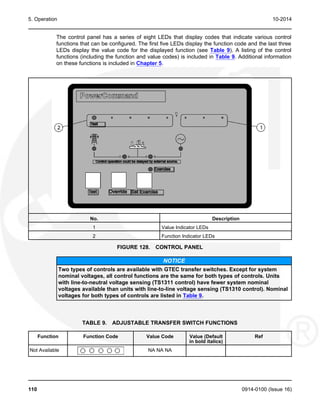
The control panel (see Figure 12) includes eight LEDs that display codes that indicate various
control functions that can be configured. The first five LEDs display the function code and the
last three LEDs display the value code for the displayed function. For information on configuring
these functions, see Section 5.11.
With the exception of the first LED (Test), normally these LEDs are off and are only lit when in
Configuration Mode. The Test LED is also used to notify the user of test periods.
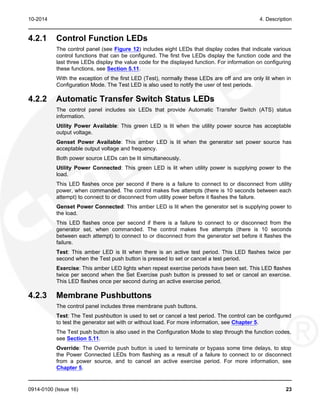
4.2.2 Automatic Transfer Switch Status LEDs
The control panel includes six LEDs that provide Automatic Transfer Switch (ATS) status
information.
Utility Power Available: This green LED is lit when the utility power source has acceptable
output voltage.
Genset Power Available: This amber LED is lit when the generator set power source has
acceptable output voltage and frequency.
Both power source LEDs can be lit simultaneously.
Utility Power Connected: This green LED is lit when utility power is supplying power to the
load.
This LED flashes once per second if there is a failure to connect to or disconnect from utility
power, when commanded. The control makes five attempts (there is 10 seconds between each
attempt) to connect to or disconnect from utility power before it flashes the failure.
Genset Power Connected: This amber LED is lit when the generator set is supplying power to
the load.
This LED flashes once per second if there is a failure to connect to or disconnect from the
generator set, when commanded. The control makes five attempts (there is 10 seconds
between each attempt) to connect to or disconnect from the generator set before it flashes the
failure.
Test: This amber LED is lit when there is an active test period. This LED flashes twice per
second when the Test push button is pressed to set or cancel a test period.
Exercise: This amber LED lights when repeat exercise periods have been set. This LED flashes
twice per second when the Set Exercise push button is pressed to set or cancel an exercise.
This LED flashes once per second during an active exercise period.
4.2.3 Membrane Pushbuttons
The control panel includes three membrane push buttons.
Test: The Test pushbutton is used to set or cancel a test period. The control can be configured
to test the generator set with or without load. For more information, see Chapter 5.
The Test push button is also used in the Configuration Mode to step through the function codes,
see Section 5.11.
Override: The Override push button is used to terminate or bypass some time delays, to stop
the Power Connected LEDs from flashing as a result of a failure to connect to or disconnect
from a power source, and to cancel an active exercise period. For more information, see
Chapter 5.
0914-0100 (Issue 16) 23
4. Description 10-2014
The Override push button is also used in the Configuration Mode to step through the value
codes, see Section 5.11.
Set Exercise: The Set Exercise push button is used to set or cancel repeat exercise periods
using the integrated exerciser. For more information, see Section 5.6.3.
4.3 Electronic Control System
This section describes the stand and optional components for the electronic control system.
WARNING
Improper calibration or adjustment of electronic control modules can cause death,
severe personal injury, and equipment or property damage. Calibration and adjustments
of these components must be performed by technically qualified personnel only.
Installation of these components and calibration and adjustment procedures are described in
Chapter 7.
WARNING
AC power within the cabinet and rear side of cabinet door presents a shock hazard that
can cause severe personal injury or death. When the cabinet door is open, use extreme
caution to avoid touching electrical contacts with body, tools, jewelry, clothes, hair, and
etc.
4.3.1 Transfer Inhibit Input
A transfer inhibit input is set up by connecting a dry (voltage free) contact between TB1-6 and
TB1-8. Closing the contact enables the feature and opening the contact disables it.
Number Description Number Description
1 GND 5 Remote Test
2 Genset Start 6 Transfer Inhibit
3 B+ 7 Retransfer Inhibit
4 Genset Start 8 Common
FIGURE 13. TB1 CONNECTIONS FOR TRANSFER INHIBIT
24 0914-0100 (Issue 16)
10-2014 4. Description
This feature is used to control load transfer to generator sets. When enabled, load transfer will
not take place unless the Override push button on the control panel is pressed or the transfer
inhibit input is disabled.
Pressing the Override push button on the control panel bypasses the transfer inhibit input and
bypasses Time Delay Normal to Emergency (TDNE). The TDNE runs if the transfer inhibit input
is disabled.
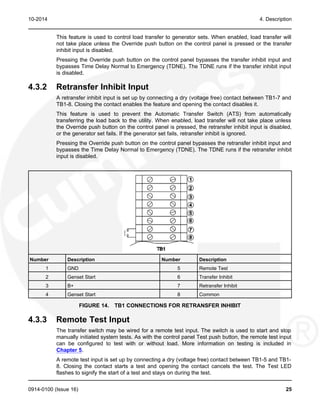
4.3.2 Retransfer Inhibit Input
A retransfer inhibit input is set up by connecting a dry (voltage free) contact between TB1-7 and
TB1-8. Closing the contact enables the feature and opening the contact disables it.
This feature is used to prevent the Automatic Transfer Switch (ATS) from automatically
transferring the load back to the utility. When enabled, load transfer will not take place unless
the Override push button on the control panel is pressed, the retransfer inhibit input is disabled,
or the generator set fails. If the generator set fails, retransfer inhibit is ignored.
Pressing the Override push button on the control panel bypasses the retransfer inhibit input and
bypasses the Time Delay Normal to Emergency (TDNE). The TDNE runs if the retransfer inhibit
input is disabled.
Number Description Number Description
1 GND 5 Remote Test
2 Genset Start 6 Transfer Inhibit
3 B+ 7 Retransfer Inhibit
4 Genset Start 8 Common
FIGURE 14. TB1 CONNECTIONS FOR RETRANSFER INHIBIT
4.3.3 Remote Test Input
The transfer switch may be wired for a remote test input. The switch is used to start and stop
manually initiated system tests. As with the control panel Test push button, the remote test input
can be configured to test with or without load. More information on testing is included in
Chapter 5.
A remote test input is set up by connecting a dry (voltage free) contact between TB1-5 and TB1-
8. Closing the contact starts a test and opening the contact cancels the test. The Test LED
flashes to signify the start of a test and stays on during the test.
0914-0100 (Issue 16) 25
4. Description 10-2014
Closing the contact causes the transfer switch to sense a, simulated, utility power failure and
sends a start and run signal to the generator set. If the control is set up to test with load, the
load is transferred to the generator set when the generator set becomes available. The Utility
Power Available LED remains on to show that the utility did not fail.
Number Description Number Description
1 GND 5 Remote Test
2 Genset Start 6 Transfer Inhibit
3 B+ 7 Retransfer Inhibit
4 Genset Start 8 Common
FIGURE 15. TB1 CONNECTIONS FOR REMOTE TEST TRANSFER
4.3.4 Two-wire Starting
The starting circuit is a basic supervisory function of the electronic control. Water-cooled
generator sets use a two-wire start control.
Although the logic is more involved, the two-wire starting circuit can be thought of as a single
pole, single throw switch. A closed switch starts the generator set. An open switch stops the
generator set.
NOTICE
Three-wire starting is not available on GTEC transfer switches.
4.4 Transfer Switch
The transfer switch (see Figure 8 through Figure 11) opens and closes the contacts that
transfer the load between the power sources. the switch is mechanically interlocked to prevent
simultaneous closing to both power sources. The main parts of the switch discussed here are
the contact assemblies, linear actuator, and auxiliary contacts.
26 0914-0100 (Issue 16)
10-2014 4. Description
4.4.1 Contact Assemblies
The automatic transfer switch has either two, three, or four poles. Three pole transfer switches
are provided with a neutral bar. The contact assemblies make and break the current flow. When
closed to either power source the contacts are mechanically held. A mechanical interlock
prevents them from closing to both power sources at the same time.
4.4.2 Electromechanical Actuator
Actuator operation is initiated automatically by the transfer switch control. Manual operation of
the switch is also possible. Refer to Section 5.2.
4.4.3 Auxiliary Contacts
Auxiliary contacts are provided on the utility and generator set sides of the transfer switch (see
Figure 16). They are actuated by operation of the transfer switch during transfer and retransfer.
The utility auxiliary contact switch is actuated when the transfer switch connected to the utility.
The generator set auxiliary contact switch is actuated when the transfer switch is connected to
the generator set. The auxiliary contacts have current ratings of five amperes at 250 VAC. The
contacts are wired to terminal block TB1.
Number Description Number Description
1 Utility Auxiliary Contacts 2 Generator Set Auxiliary Contacts
FIGURE 16. AUXILIARY CONTACTS (SPEC B SHOWN)
4.5 Voltage Sensing
The transfer switches in this manual are available with either line-to-neutral or line-to-line
sensing.
0914-0100 (Issue 16) 27
4. Description 10-2014
4.5.1 Line-to-Neutral Voltage Sensing
The following is true if the transfer switch is configured for line-to-neutral voltage sensing.
• There is a letter 'N' or 'Q' in the model number just after the voltage code
• The controller is identified as TS1311 on the white label on its case
• The P3 connector on the back of the controller has 11 pins
4.5.2 Line-to-Line Voltage Sensing
The following is true if the transfer switch is configured for line-to-line voltage sensing.
• There is a letter 'L' or 'P' in the model number just after the voltage code
• The controller is identified as TS131o on the white label on its case
• The P3 connector on the back of the controller has 9 pins
4.6 Options
4.6.1 Float-charge Battery Charger Option
A float-charge battery charger (Figure 17) regulates its charge voltage to continuously charge
without damage to the battery. As the battery approaches full charge, the charging current
automatically tapers to zero amperes or to steady-state load on the battery.
Two 2-amp battery chargers are available. One battery charger is compact and does not have a
digital display. The other battery charger is a premium charger which includes a digital display.
The primium battery charger is only available for field installation.
2-Amp Battery Charger
Number Description Number Description
1 LED
FIGURE 17. 2-AMP BATTERY CHARGER
28 0914-0100 (Issue 16)
10-2014 4. Description
The input voltage range for the 2-amp battery charger is between 100 and 240 VAC. The
maximum in-rush current at cold start is 15 amps for 115 VAC amd 30 amps for 230 VAC.
The 2-amp battery charger includes one LED that displays the following conditions:
• Red: On solid indicates the unit is charging
• Green: On solid indicates the unit is fully charged
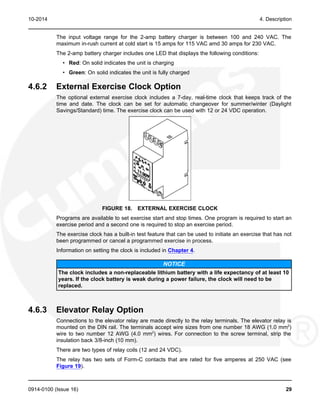
4.6.2 External Exercise Clock Option
The optional external exercise clock includes a 7-day, real-time clock that keeps track of the
time and date. The clock can be set for automatic changeover for summer/winter (Daylight
Savings/Standard) time. The exercise clock can be used with 12 or 24 VDC operation.
FIGURE 18. EXTERNAL EXERCISE CLOCK
Programs are available to set exercise start and stop times. One program is required to start an
exercise period and a second one is required to stop an exercise period.
The exercise clock has a built-in test feature that can be used to initiate an exercise that has not
been programmed or cancel a programmed exercise in process.
Information on setting the clock is included in Chapter 4.
NOTICE
The clock includes a non-replaceable lithium battery with a life expectancy of at least 10
years. If the clock battery is weak during a power failure, the clock will need to be
replaced.
4.6.3 Elevator Relay Option
Connections to the elevator relay are made directly to the relay terminals. The elevator relay is
mounted on the DIN rail. The terminals accept wire sizes from one number 18 AWG (1.0 mm2
)
wire to two number 12 AWG (4.0 mm2
) wires. For connection to the screw terminal, strip the
insulation back 3/8-inch (10 mm).
There are two types of relay coils (12 and 24 VDC).
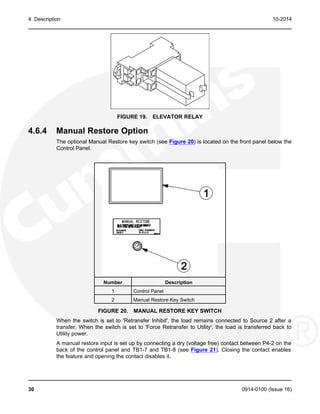
The relay has two sets of Form-C contacts that are rated for five amperes at 250 VAC (see
Figure 19).
0914-0100 (Issue 16) 29
4. Description 10-2014
FIGURE 19. ELEVATOR RELAY
4.6.4 Manual Restore Option
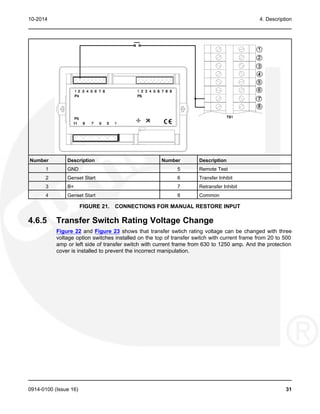
The optional Manual Restore key switch (see Figure 20) is located on the front panel below the
Control Panel.
Number Description
1 Control Panel
2 Manual Restore Key Switch
FIGURE 20. MANUAL RESTORE KEY SWITCH
When the switch is set to 'Retransfer Inhibit', the load remains connected to Source 2 after a
transfer. When the switch is set to 'Force Retransfer to Utility', the load is transferred back to
Utility power.
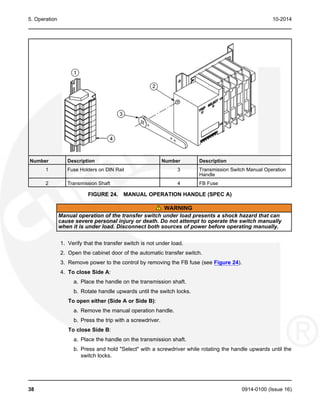
A manual restore input is set up by connecting a dry (voltage free) contact between P4-2 on the
back of the control panel and TB1-7 and TB1-8 (see Figure 21). Closing the contact enables
the feature and opening the contact disables it.
30 0914-0100 (Issue 16)
10-2014 4. Description
Number Description Number Description
1 GND 5 Remote Test
2 Genset Start 6 Transfer Inhibit
3 B+ 7 Retransfer Inhibit
4 Genset Start 8 Common
FIGURE 21. CONNECTIONS FOR MANUAL RESTORE INPUT
4.6.5 Transfer Switch Rating Voltage Change
Figure 22 and Figure 23 shows that transfer swtich rating voltage can be changed with three
voltage option switches installed on the top of transfer switch with current frame from 20 to 500
amp or left side of transfer switch with current frame from 630 to 1250 amp. And the protection
cover is installed to prevent the incorrect manipulation.
0914-0100 (Issue 16) 31
4. Description 10-2014
Number Description Number Description
1 Protection Cover 2 Transfer Switch Rating Voltage Option
Switches
FIGURE 22. 20-500 AMP TRANSFER SWITCH (SPEC B SHOWN)
Number Description Number Description
1 Transfer Switch Rating Voltage Option 2 Protection Cover
Switches
FIGURE 23. 630-1250 AMP TRANSFER SWITCH (SPEC B SHOWN)
WARNING
Disconnect al AC and DC power with GTEC before changing the rating voltage of
transfer switch.
32 0914-0100 (Issue 16)
10-2014 4. Description
NOTICE
Carefully read below sequence and the labels on the switch before changing the rating
of the transfer switch.
Transfer switch voltage option sequence:
1. Disconnect all AC and DC power with GTEC.
2. Remove the protection cover shown in Figure 22 and Figure 23
3. The voltage option switch has two positions, one is rating voltage fro 110 to 139 VAC, the
other is rating voltage from 220 to 277 VAC.
Slide the handles of switches to required voltage position according to the label as show on
Figure 22 and Figure 23. Make sure to move the handles to end position.
WARNING
Make sure that set three voltage option switches to the same position and move
handle to end position before installing the protection cover, otherwise transfer
switch will be damaged when it is energized.
4. Install the system rating voltage in the controller parameters
5. Reconnect all AC and DC power with GTEC
0914-0100 (Issue 16) 33
4. Description 10-2014
This page is intentionally blank.
34 0914-0100 (Issue 16)
5 Operation
5.1 Time Delays
The transfer switch control uses various time delays to break from one power source and
reconnect to the other source. The control panel can be used to adjust these time delays (see
Section 5.11).
In the following descriptions of time delays, it is important to remember that:
• When the transfer switch is connected to Normal, it is connected to the utility power
source.
• When the transfer switch is connected to Emergency, it is connected to the generator set
power source.
• When the transfer switch is in the Neutral position, it is not connected to either power
source.
5.1.1 Time Delay Engine Start (TDES)
This time delay prevents the generator from starting during brief utility power interruptions. This
timer starts the instant the utility fails, as detected by the Undervoltage Sensor.
When the control senses a utility failure, the control starts the Time Delay Engine Start (TDES)
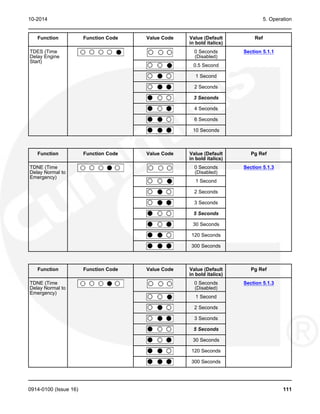
timer. This time delay is configurable for 0 (disabled), 0.5, 1, 2, 3, 4, 6, or 10 seconds (default =
3 seconds).
If utility power returns while the TDES timer is active, the timer is reset. When the timer expires,
the control de-energizes the start relay, closing the start contact signaling the generator set to
start. The timer is not reset until utility power returns. If the Override push button is pressed or
the Override input is grounded while the TDES timer is active, the TDES timer immediately
expires.
5.1.2 Time Delay Engine Cooldown (TDEC)
This time delay allows the generator to cool down (under no load conditions) before the control
turns it off.
The Time Delay Engine Cooldown (TDEC) starts timing when the load is retransferred to utility
power. This time delay is configurable for 0 (disabled), 0.1, 5, 10, 15, 20, 25 or 30 minutes
(default = 10 minutes).
When the TDES expires, the stop signal is sent to the generator and the timer is reset. Pressing
the Override pushbutton or grounding the Override input has no effect on this time delay.
5.1.3 Time Delay Normal-to-Emergency (TDNE)
This time delay allows the generator to stabilize before the load is applied.
While connected to Normal, this time delay starts after utility power fails and the generator
becomes available (the amber Genset Power Available LED is lit). This time delay also starts
after the generator becomes available when a with load Test or Exercise period is activated.
0914-0100 (Issue 16) 35
5. Operation 10-2014
The time delay is configurable for 0 (disabled), 1, 2, 3, 5, 30, 120, or 300 seconds (default = 5
seconds). If the generator fails any time during a TDNE, the control resets the timer and
restarts it once the generator is again available.
If the Override pushbutton is pressed or the Override input is grounded while the TDNE timer is
active, the TDNE timer immediately expires. The TDNE timer will not begin if a Transfer Inhibit
input is active.
5.1.4 Time Delay Emergency-to-Normal (TDEN)
While connected to Emergency, this time delay allows utility power to stabilize before the
retransfer command is issued. This delay also allows the generator to operate under load for a
minimum amount of time before transferring back to utility power.
This time delay starts with the transfer switch connected to the generator and after the utility
becomes available following an outage (The green Utility Power Available LED is lit). This time
delay also starts when an active Test or Exercise period is ended. After the delay, the transfer
switch can retransfer the load to the utility power source.
The time delay is configurable for 0 (disabled), 0.1, 5, 10, 15, 20, 25 or 30 minutes (default = 10
minutes). If the utility fails any time during this time delay, the control resets the timer and
restarts it once utility power becomes available. If the generator fails at any time during this time
delay, the timer expires and the normal retransfer sequence takes place.
If the Override pushbutton is pressed or the Override input is grounded while the TDEN timer is
active, the TDEN timer immediately expires. The TDEN timer will not begin if a Retransfer Inhibit
input is active.
5.1.5 Time Delay Programmed Transition (TDPT)
This feature causes the transfer switch to pause in the Neutral position for an adjustable period
of time whenever there is a transfer from one source to another. The intentional delay allows the
residual voltage of an inductive load to sufficiently decay before connecting it to another power
source. This delay prevents potentially damaging voltage and current transients in the
customer's power system. If TDPT is set to zero, then the transfer switch transfers from one
source to the other with no neutral position delay.
The control activates a Program Transition Time Delay (TDPT) whenever the transfer switch
has disconnected from one source and is in the Neutral position. The time delay is configurable
for 0 (disabled), 0.5, 1, 2, 3, 4, 6 or 10 seconds (default = 0 seconds). The control also detects if
the transfer switch has disconnected from the first source before connecting it to the second
source.
If there is a power source failure while the TDPT is active, the control only transfers to the
remaining active power source. The control does not terminate the TDPT timer if either source
fails while the transfer switch is in the Neutral position.
5.1.6 Time Delay Elevator (TDEL) Pre-Transfer
Primarily used in elevator applications, this delay sets a time to wait for an elevator pre-transfer
signal. This signal allows the elevator to come to a complete stop before the switch transfers.
The elevator pre-transfer signal and associated time delay, is used to signal an elevator control
system that there is an impending transfer or retransfer (i.e., the elevator is going to see a brief
power failure).
36 0914-0100 (Issue 16)
10-2014 5. Operation
This delay is disabled during an actual source failure. If the timer is set for more than 0 seconds,
then the control activates the elevator pre-transfer output and time delay prior to transferring the
transfer switch between two live sources. If the control is in a Test or Exercise sequence, the
control adds an additional delay prior to activating the transfer and retransfer commands. After
the TDNE (and/or TDEN) time delay expires, the control activates the Elevator output and starts
the TDEL timer.
The output relay has two normally open and two normally closed contacts, rated 5 amps at 380
volts.
When the timer expires, the control issues the transfer (or retransfer) command. When the timer
is inactive or expires, the control deactivates the relay output.
The Elevator Pre-transfer Time Delay is configurable for 0 (disabled), 1, 2, 3, 5, 30, 120, or 300
seconds (default = 0 seconds).
Transfer Inhibit and Retransfer Inhibit do NOT affect or delay the elevator pre-transfer delay
while it is active.
The Override pushbutton or Override input has no effect on this time delay.
The GTEC control also includes a feature called Elevator Post Transfer Delay that keeps the
elevator output active for the same TDEL time period after the transfer switch transfers. For
more information (see Section 5.1.7).
5.1.7 Elevator Post Transfer Delay
The Elevator Post Transfer Delay feature keeps the elevator output active for the same TDEL
time period after the transfer switch transfers. Instead of deactivating the elevator output when
the pre-transfer time delay expires, the control keeps the output active and starts the TDEL
timer again after it senses that the transfer switch has transferred. When the TDEL timer expires
the second time, the control deactivates the elevator output. The Elevator Post Transfer Delay is
configurable to be enabled (On) or disabled (Off) (default = Off).
5.2 Manual Operation
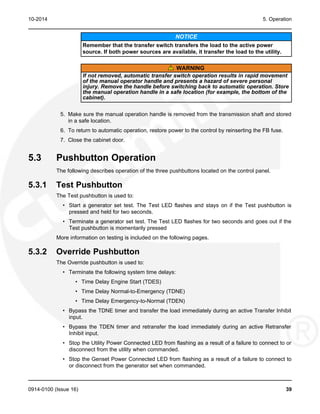
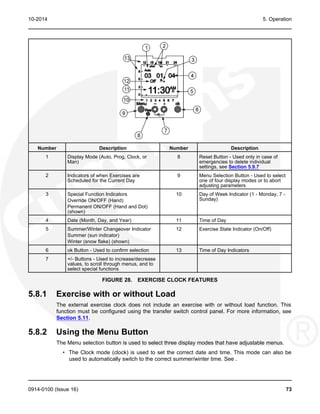
The transfer switch has an operator handle for manually transferring the load (see Figure 24).
Manual operation must be performed by qualified personnel under NO-LOAD CONDITIONS
ONLY. Use the following procedure:
0914-0100 (Issue 16) 37
5. Operation 10-2014
Number Description Number Description
1 Fuse Holders on DIN Rail 3 Transmission Switch Manual Operation
Handle
2 Transmission Shaft 4 FB Fuse
FIGURE 24. MANUAL OPERATION HANDLE (SPEC A)
WARNING
Manual operation of the transfer switch under load presents a shock hazard that can
cause severe personal injury or death. Do not attempt to operate the switch manually
when it is under load. Disconnect both sources of power before operating manually.
1. Verify that the transfer switch is not under load.
2. Open the cabinet door of the automatic transfer switch.
3. Remove power to the control by removing the FB fuse (see Figure 24).
4. To close Side A:
a. Place the handle on the transmission shaft.
b. Rotate handle upwards until the switch locks.
To open either (Side A or Side B):
a. Remove the manual operation handle.
b. Press the trip with a screwdriver.
To close Side B:
a. Place the handle on the transmission shaft.
b. Press and hold "Select" with a screwdriver while rotating the handle upwards until the
switch locks.
38 0914-0100 (Issue 16)
10-2014 5. Operation
NOTICE
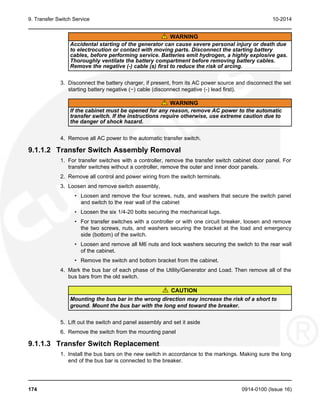
Remember that the transfer switch transfers the load to the active power
source. If both power sources are available, it transfer the load to the utility.
WARNING
If not removed, automatic transfer switch operation results in rapid movement
of the manual operator handle and presents a hazard of severe personal
injury. Remove the handle before switching back to automatic operation. Store
the manual operation handle in a safe location (for example, the bottom of the
cabinet).
5. Make sure the manual operation handle is removed from the transmission shaft and stored
in a safe location.
6. To return to automatic operation, restore power to the control by reinserting the FB fuse.
7. Close the cabinet door.
5.3 Pushbutton Operation
The following describes operation of the three pushbuttons located on the control panel.
5.3.1 Test Pushbutton
The Test pushbutton is used to:
• Start a generator set test. The Test LED flashes and stays on if the Test pushbutton is
pressed and held for two seconds.
• Terminate a generator set test. The Test LED flashes for two seconds and goes out if the
Test pushbutton is momentarily pressed
More information on testing is included on the following pages.
5.3.2 Override Pushbutton
The Override pushbutton is used to:
• Terminate the following system time delays:
• Time Delay Engine Start (TDES)
• Time Delay Normal-to-Emergency (TDNE)
• Time Delay Emergency-to-Normal (TDEN)
• Bypass the TDNE timer and transfer the load immediately during an active Transfer Inhibit
input.
• Bypass the TDEN timer and retransfer the load immediately during an active Retransfer
Inhibit input.
• Stop the Utility Power Connected LED from flashing as a result of a failure to connect to or
disconnect from the utility when commanded.
• Stop the Genset Power Connected LED from flashing as a result of a failure to connect to
or disconnect from the generator set when commanded.
0914-0100 (Issue 16) 39
5. Operation 10-2014
• Cancel an active exercise period.
The Program Transition (TDPT), Elevator signal (TDEL), and Engine Cool Down (TDEC) time
delays are not affected by pressing the Override pushbutton.
5.3.3 Set Exercise Pushbutton
This pushbutton is only used with the integrated exerciser and only functions if the External
Exercise function is disabled (set to Off). Information on configuring the control panel is included
in Section 5.11.
The Set Exercise pushbutton is used to:
• Set a delayed repeat exercise period when the pushbutton is pressed and held for five
seconds.
• Start an immediate exercise period (that also repeats) if the pushbutton is pressed
momentarily within ten seconds of starting the delayed exercise period.
• Cancel a repeatable exercise period if the pushbutton is pressed and held for five seconds.
More information on using the integrated exerciser is included on Section 5.6.3.
5.4 Test with or without Load
This feature allows a transfer switch operator to test the transfer switch and generator power
system. The test is configurable to be with load or without load. A test with load initiates a load
transfer. A test without load just starts the generator and runs it without load.
1. Verify that the transfer switch is set to test with or without load, as desired (see Section
5.11).
2. To start a test, press and hold the Test Pushbutton for two seconds or ground the Remote
Test input.
3. To end the test, momentarily press the Test pushbutton or remove the ground from the
Remote Test input.
NOTICE
When ending a test with load, you can bypass the retransfer time delay (TDEN) and
cause the immediate load retransfer by pressing the Override button. The generator
stops after the engine cooldown time delay (TDEC).
5.4.1 Test with Load Sequence of Events
The following describes the sequence of events of an GTEC transfer switch during a test with
load. In this example, TDPT is set to zero, the phase check sensor is disabled, the Transfer
Inhibit and Retransfer Inhibit inputs are inactive, and TDEL is set to zero.
The utility must be acceptable during the entire test event. Acceptability is determined by the
active source sensor (undervoltage sensor). If, at any time, the undervoltage sensor determines
that the utility is not acceptable, the Test is terminated.
40 0914-0100 (Issue 16)
10-2014 5. Operation
Before a test can begin, the transfer switch must be connected to the utility power source and
utility power must be available.
1. Verify that the transfer switch is set to test with load.
2. Verify that the green Utility Power Connected LED on the control panel is lit.
3. Verify that the green Utility Power Available LED on the control panel is lit.
4. Press and hold the control panel Test pushbutton for two seconds or ground the Remote
Test input to initiate the Test. The Test LED flashes two times per second for two seconds,
acknowledging that the test was activated. Once the test period starts, the Test LED stays
on continuously.
5. The control simulates a utility power failure but the Utility Power Available LED remains lit
as long as the utility is still available.
6. The control starts the TDES timer. After the timer expires, the control de-energizes the start
relay, closing the start contact to signal the generator to start.
7. When the generator set output is acceptable (the Genset Power Available LED is lit) the
control starts the TDNE timer.
8. After the TDNE timer expires, the transfer switch transfers to the generator set (the Genset
Power Connected LED is lit).
9. The control continues to run the generator set with the transfer switch connected to the
generator set until the control panel Test pushbutton is momentarily pressed or the ground
is removed from the Remote Test input.
10. After this action, the control starts the TDEN timer. The Test LED flashes twice per second
for two seconds to acknowledge the operation and then the Test LED goes out.
11. After the TDEN timer expires, the transfer switch retransfers back to the utility (the Utility
Power Connected LED is lit).
12. Once the transfer switch is connected to utility power, the control starts the TDEC timer.
13. After the timer expires, the control energizes the start relay, opening the start contact to
signal the generator to stop.
5.4.2 Test without Load Sequence of Events
The following describes the sequence of events of a GTEC transfer switch during a test without
load. In this sequence of events, the generator is started and runs without load for the duration
of the test.
The utility must be acceptable during the entire test event. Acceptability is determined by the
active source sensor (undervoltage sensor). If, at any time, the undervoltage sensor determines
that the utility is not acceptable, the Test is terminated.
Before a test can begin, the transfer switch must be connected to the utility and utility power
must be available.
1. Verify that the transfer switch is set to test without load.
2. Verify that the green Utility Power Connected LED on the control panel is lit.
3. Verify that the green Utility Power Available LED on the control panel is lit.
0914-0100 (Issue 16) 41
5. Operation 10-2014
4. Press and hold the control panel Test pushbutton for two seconds or ground the Remote
Test input. The Test LED flashes twice per second for two seconds acknowledging that the
test was activated. Once the test period starts, the Test LED stays on continuously.
5. The control de-energizes the start relay, closing the start contact to signal the generator to
start. When the genset starts and produces power, the amber Genset Power Available LED
lights.
6. The control continues to run the generator without load until the control panel Test
pushbutton is momentarily pressed or the ground is removed from the Remote Test input.
7. After the control panel Test pushbutton is momentarily pressed or the ground is removed
from the Remote Test input, the control flashes the Test LED twice per second for two
seconds to acknowledge the operation and then goes out.
8. The control energizes the start relay, opening the start contact to signal the generator to
stop.
5.5 Sensors
5.5.1 Utility Sensor
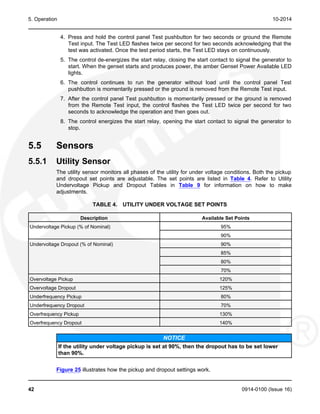
The utility sensor monitors all phases of the utility for under voltage conditions. Both the pickup
and dropout set points are adjustable. The set points are listed in Table 4. Refer to Utility
Undervoltage Pickup and Dropout Tables in Table 9 for information on how to make
adjustments.
TABLE 4. UTILITY UNDER VOLTAGE SET POINTS
Description Available Set Points
Undervoltage Pickup (% of Nominal) 95%
90%
Undervoltage Dropout (% of Nominal) 90%
85%
80%
70%
Overvoltage Pickup 120%
Overvoltage Dropout 125%
Underfrequency Pickup 80%
Underfrequency Dropout 70%
Overfrequency Pickup 130%
Overfrequency Dropout 140%
NOTICE
If the utility under voltage pickup is set at 90%, then the dropout has to be set lower
than 90%.
Figure 25 illustrates how the pickup and dropout settings work.
42 0914-0100 (Issue 16)
10-2014 5. Operation
Number Description Number Description
1 Example of Default settings for Nominal 5 90% of Nominal
Voltage of 240 VAC
2 Dropout Setting (194 V) 6 85% of Nominal
3 Pickup Setting (216 V) 7 Volts
4 Nominal Set Point (240 V)
FIGURE 25. UNDERVOLTAGE SENSING
5.5.2 Generator Sensor
The generator sensor is a single phase sensor that monitors undervoltage and underfrequency
conditions. All the pickup and dropout settings are fixed and are not adjustable. The generator
set undervoltage and underfrequency set points are listed in Table 5.
TABLE 5. GENERATOR SET UNDERVOLTAGE AND UNDERFREQUENCY SET POINTS
Description Set Point
Undervoltage Pickup (% of Nominal) 90%
Undervoltage Dropout (% of Nominal) 75%
Underfrequency Pickup (% of Nominal) 90%
Underfrequency Dropout (% of Nominal) 85%
5.5.3 Phase Check Sensor
The phase check sensor can be enabled, set to ON, for applications that require a fast transfer
of a load between two live sources, both power source available LEDs are lit. The phase check
sensor determines when the relative phase difference, less than 25 degrees and approaching 0,
and the frequency difference, less than 1 Hz, of the two sources are within specified limits.
When all conditions are met, a transfer is initiated. If enabled, the phase check sensor is
activated after all time delays have expired, just before the transfer switch transfers the load,
and only when both sources are available. Information on configuring the Phase Check On/Off
function is included in Table 9.
0914-0100 (Issue 16) 43
5. Operation 10-2014
5.5.4 Return to Programmed Transition
This feature can be used in conjunction with the phase check sensor. If, for some reason the
two sources do not fall within the specified limits of the phase check sensor for a period of two
minutes, then the control bypasses the phase check sensor, returns to the Programmed
Transition sequence of operation, and transfers the load. If this feature is enabled, the
programmed transition time delay (TDPT) should be set greater than zero. The actual setting
depends on your load.
5.6 Generator Set Exerciser
There are two exercise clock options, A049B864 and 0307-3053. Please refer to the appropriate
section for further details on your model: Section 5.7 for A049B864 and Section 5.8 for 0307-
3053.
5.6.1 General Information
Run the generator for at least 30 minutes once each week with at least 50% load (if possible). If
you do not want to use the exerciser, use the Test switch, to test the generator set each week.
The control includes an integrated exerciser that is set by pressing the Set Exercise pushbutton.
In addition, there may also be an optional fully programmable external exerciser clock installed
and wired to a control input.
If both types of exercisers are available, only one exerciser can operate at a time. The control
panel must be configured for the type of exerciser being used. This is done by setting the
External Exerciser function ON or OFF.
• If the integrated exerciser is used, the External Exercise ON/OFF function must be set to
OFF.
• If the external exerciser is used, the External Exercise ON/OFF function must be set to
ON.
• If the external exerciser is factory-supplied, the External Exercise ON/OFF function is
set to ON at the factory.
• If the external exerciser is not factory installed, the External Exercise ON/OFF function
is set to OFF.
5.6.2 Exercise with or without Load
The exercise with/without load configuration works with both types of exercisers (default =
without load) - see Section 5.11. When "With Load" is selected, the load is transferred to the
generator set. When "Without Load" is selected, the generator set runs with no load for the
duration of the exercise period.
5.6.3 Integrated Exerciser
This function is standard and is built into the control. With this exerciser, the exercise period is
20 minutes and it repeats every 7, 14, 21, or 28 days (default = 7 days) - see Section 5.11.
The integrated exercise function cannot be used unless the External Exercise function is
disabled (set to Off).
44 0914-0100 (Issue 16)
10-2014 5. Operation
Before an exercise can begin, the transfer switch must be connected to utility power and utility
power must be available (the green Utility Power Available LED must be lit).
5.6.4 Power Loss Backup
If DC power is removed from the control panel, the exercise clock uses a replaceable lithium
battery (part number 416-1250) to back up the time setting. The battery is good for ten years
and doesn't need to be serviced. The battery is attached to the time chip on the control board.
If no exercise period is set, the Exercise LED is off (see Figure 12).
5.6.4.1 Setting the Integrated Exercise Period
1. Verify that the Exercise LED is off and the External Exercise function is disabled (set to Off
- see Section 5.11). If the External Exercise function is enabled, the integral exerciser is
disabled.
2. To set the exercise start time for a repeat exercise period, press and hold the Set
Exercise pushbutton for 5 seconds. The Exercise LED flashes at a rate of twice per second
for 5 seconds and then stays on when the exercise period is set. A delayed 20 minute
exercise period will start in 12 hours. At that time, the Exercise LED flashes at a rate of
once per second during the entire exercise period. When the exercise period is over, the
Exercise LED quits flashing and remains on to signify that repeat exercise periods are
enabled.
3. To start an immediate exercise period and have it repeat, momentarily press the Set
Exercise pushbutton a second time within ten seconds of starting the delayed exercise
period. Momentarily pressing and releasing the Set Exercise pushbutton a second time
starts an immediate 20 minute exercise period instead of waiting for 12 hours. The
Exercise LED flashes at a rate of once per second during the entire exercise period. When
the exercise period is over, the Exercise LED stops flashing and remains on to signify that
repeat exercise periods are enabled.
5.6.4.2 Cancelling Repeat Exercise Periods
With the control panel Exercise LED on steady, press and hold the Set Exercise pushbutton for
5 seconds. The Exercise LED flashes at a rate of twice per second for 5 seconds and then goes
out to signify that repeat exercise periods are cancelled.
5.6.4.3 Cancelling an Active Exercise Period
Active exercise periods can be canceled by pressing the Override pushbutton on the control
panel or by grounding the remote override input (P4-2) on the back of the control panel.
5.6.4.4 Power Source Failure During an Active Exercise Period
If either power source fails during an active exercise period, the control immediately terminates
the exercise and proceeds with the automatic mode of operation.
5.6.4.5 Exercise without Load Sequence of Events
1. When an exercise period becomes active, the Exerciser LED flashes at a rate of once per
second.
2. The control signals the generator set to start and run for 20 minutes.
3. After the exercise period has ended, the control signals the generator set to stop.
0914-0100 (Issue 16) 45
5. Operation 10-2014
4. The Exercise LED stops flashing and remains on to signify that repeat exercise periods are
set (unless there are no repeat exercise periods). If there are no repeat exercise periods,
the Exercise LED goes out.
5.6.4.6 Exercise with Load Sequence of Events
1. When an exercise period becomes active, the Exerciser LED flashes at a rate of once per
second.
2. The control signals the generator set to start.
3. When the generator set output is acceptable, the control transfers the load to the generator
set, following the configuration set points.
4. After the exercise period has ended, the control retransfers the load back to the utility,
following the configured set points.
5. Once the load is connected to utility power, the control runs the generator set unload for
the duration of the cooldown timer (TDEC).
6. After the TDEC timer expires, the control signals the generator set to stop.
7. Unless the repeat exercise periods have been canceled, the Exercise LED quits flashing
and remains on to signify that repeat exercise periods are set. If the exerciser is not set up
to repeat exercises, the Exercise LED goes out.
5.7 External Exercise Clock Option [TR 610 top2]
The optional external exercise clock includes a real-time clock that keeps track of the time and
date. The 7-DAY exercise clock can be set for automatic changeover for summer/winter
(daylight savings/standard) time. The exercise clock can be used with 120V AC, 230-240V AC
or 12-24 V AC or DC +10%/-15% operation.
Up to 56 programs are available to set exercise start and stop times. One program is required to
start an exercise period and a second one is required to stop an exercise period.
The exercise clock has a built-in test feature that can be used to initiate an exercise that has not
been programmed or cancel a programmed exercise in process.
NOTICE
The clock includes a non-replaceable lithium battery with a life expectancy of at least
ten years power reserved is reduced with memory card inserted (in battery mode). If the
clock battery is weak during a power failure, the clock will need to be replaced.
46 0914-0100 (Issue 16)
10-2014 5. Operation
No. Description
1 Indicators of when exercises are scheduled for the current DAY.
2 DATE (DAY, MONTH and YEAR)
3 Dynamic display of the push button
4 OK button
Used to confirm selection
5 -/+ push buttons
Used to increase/decrease values, to scroll through menus and to select special functions.
6 Obelisk Top2 Memory card slot
7 Menu selection push button
Used to select one of four display modes or to abort adjusting parameters
8 DAY of week indicator (1 = Monday, 7 = Sunday)
9 Time of DAY
10 Exercise state indicator
(On/Off)
11 Time of DAY indicators
FIGURE 26. EXTERNAL EXERCISE CLOCK
5.7.1 Initial Start-Up
When the time switch is removed from the packaging all important settings have already been
made. Individual settings can be performed by selecting and confirming.
1. The national language is being displayed, use the - or + push buttons to scroll through the
available languages (English, Espanol, Francais, Portuguese, Italiano, or Deutsch).
0914-0100 (Issue 16) 47
5. Operation 10-2014
2. When the desired language is displayed, press the OK push button. The FORM DATE is
displayed.
3. Press OK push button to display the DATE formats.
4. Press - or + push buttons to select the desired date format, then press the OK push button.
The YEAR is displayed.
NOTICE
By pressing the ESC push button, i.e. the menu button, it is possible to return to the
previous setting menu. For example, if the user had made a mistake and pressed the
OK button too quickly, the menu button enables returning to the previous selection
item.
5. Press the - or + push buttons until the correct year is displayed and then press the OK push
button. The MONTH is displayed.
6. Press the - or + push buttons until the correct month is displayed and then press the OK
button. The screen then shows the DAY value flashing.
7. Press the - or + push buttons until the correct DAY is displayed and then press the OK push
button. The screen then shows the FORM TIME menu.
48 0914-0100 (Issue 16)
10-2014 5. Operation
8. Press the OK push button. Press - or + to select the desired Time Format.
9. Press the OK push button when the desired Time format is displayed. The screen then shows
the HOUR value flashing.
10. Press the - or + push buttons until the correct HOUR is displayed. Press the OK push
button. The screen then shows the MINUTE value flashing.
11. Press the - or + push buttons until the correct minute is displayed. Press the OK push
button. The screen then shows the automatic summer/winter (SU--WI USA) time changeover
flashing.
12. Press the - or + push buttons until the correct summer/winter time changeover is displayed.
Press the OK push button. The time switch is now in auto mode and screen displays the correct
date and time.
0914-0100 (Issue 16) 49
5. Operation 10-2014
5.7.2 LCD Lighting (Display Back Light)
The LCD light (Display Back Light) can be set to "Always On" or "Off After 1 Minute."
• ALWAYS ON = background lighting is never switched off
• OFF AFTER 1 MINUTE = background lighting is switched off again 1 minute after the last
time the button was pressed
1. From the Home menu, press the Menu button. The PROGRAM menu is displayed.
2. Press the + push button three times. The OPTIONS menu is displayed.
3. Press the OK push button, then press the + push button until the LCD ILLUMINATION menu
appears.
4. Press the OK push button to display the ALWAYS ON menu.
NOTICE
With OK push button a return is made to LCD ILLUMINATION.
5. Press the - push button to display the "AFTER 1 MINUTE OFF" menu.
50 0914-0100 (Issue 16)
10-2014 5. Operation
6. Press the OK push button to return to LCD Illumination menu. And then press the Menu
button twice to return to the Home menu.
NOTICE
In the battery mode (no mains) there is no LCD lighting.
5.7.3 Using the Menu Buttons
The Menu selection button is used to select four display modes that have adjustable menus.
• Time/DATE mode is used to set the correct DATE and time. this mode can also be used
to automatically switch to the correct summer/winter time.
• Program mode is used to set, review and clear exercise start/stop times.
• Options mode is used to enter a 4-digit code to prevent changing settings by
unauthorized personnel. This mode can also be used to switch On/Off LCD-Illumination
(Display Back Light).
When adjustments are completed, the Home menu (Auto mode) is redisplayed. The Menu
button can also be used to abort adjusting parameters and return to the Home menu.
5.7.4 Using the -/+ Push Buttons
Pressing the - or + push buttons are used to:
• Increase or decrease a parameter in an adjustable menu
• Select the next or previous menu
Simultaneously pressing the - and + push buttons is used to select special functions.
• Activate manual switching
• Activate permanent switching
• cancelling manual/permanent switching
5.7.5 Using the OK Push Button
The OK push button is used to confirm the menu selection or program adjustments you have
made. Upon pressing the OK push button, the next available menu is displayed and if any
program adjustments were made, the changes are saved.
0914-0100 (Issue 16) 51
5. Operation 10-2014
5.7.6 Setting the Time, Date with Summer/Winter Time (Daylight
Savings Time)
The clock is programmed with the correct date and central USA standard time and with the
correct daylight savings time settings. If it is necessary to change these settings, the following
describes how to adjust the time and date and how to set the clock to automatically switch to
summer/winter time (Daylight savings time).
1. Press the Menu push button on the exercise clock. The PROGRAM menu is displayed.
2. Press the + push button. The TIME/DATE menu is displayed.
3. Press the OK button to display the TIME menu.
4. Press the OK push button to display the HOUR menu. Hour value will flash.
52 0914-0100 (Issue 16)
10-2014 5. Operation
5. Press the – or + push button to set the correct hour. Press the OK push button to display
the MINUTE menu. Minute value will flash.
6. Press the – or + push buttons to set the correct Minute. Press the OK button to display the
TIME menu.
7. Press the + push button. The SET DATE menu is displayed.
8. Press the OK push button to display the YEAR menu. Year value will flash.
9. Press the - or + push buttons to set the correct year. Press the OK push button to display
the MONTH menu. Month value will flash.
10. Press the - or + push buttons to set the correct Month. Press the OK push button to display
the DAY menu. Day value will flash.
0914-0100 (Issue 16) 53
5. Operation 10-2014
11. Press the - or + push buttons to set the correct day. Press the OK push button to display
the SET DATE menu.
12. Press the + push button. The Summer/Winter (SU--WI) menu is displayed.
13. Press the OK push button to display the World Area menu.
It is possible to choose between 6 pre-set changeover settings, use own changeover
settings with 2 different methods, or switch off the automatic summer/winter time
changeover using - or + push buttons. Country value will flash.
14. Press - or + push buttons to select one of the world areas that has been programmed for
automatic time correction or else set up your own changeover times. Then press the OK
push button to activate and return to SU-WI menu.
NOTICE
With the Daylight Savings Time Program set for North America:
• The first Sunday in April moves the time forward 1 hour
• The last Sunday in October moves the time back 1 hour
• If you wish to select one of the world areas (GB/IRL/P, FIN/GR/TR, CDN, USA, IRAN,
EUROPE) that has been programmed for automatic time correction, press the + or -
push buttons until the correct world area is selected. Then press the OK button to
activate and return to SU-WI menu.
54 0914-0100 (Issue 16)
10-2014 5. Operation
If you do not wish to set the clock for automatic Summer/Winter changeover, press the - or
+ push buttons. "No SU/WI" is displayed on the screen. Press the OK button to return to
the SU-WI menu. SU value will flash.
TABLE 6. COUNTRY CODES AND NAMES
Code Country Name
GB Great Britain
IRL Ireland
FIN Finland
GR Greece
TR Turkey
CDN Canada
USA United States of America
IRAN Iran
EUROPE Europe
15. Press the - or + push buttons to display SU-WI FREE RULE, and press the OK push button
to set up your own changeover times.
16. Press the OK push button to display the menu for setting the month when the summer
changeover will take place. Press the - or + push buttons until the desired MONTH is
displayed. The month value will flash.
0914-0100 (Issue 16) 55
5. Operation 10-2014
17. Press the OK push button to display the menu for setting the week when the summer
changeover will take place. Press the - or + push buttons until the desired week (1 to 5 [1 =
first week, 4 = fourth week, 5 = last week]) is displayed. The week value will flash.
18. Press the OK push button to display the menu for setting the day of the week when the
summer changeover will take place. Press the - or + push buttons until the desired week
day (1 to 7 [1 = Monday, 7 = Sunday]) is displayed. The word "DAY" and number in lower
left corner will flash.
TABLE 7. DAYS OF THE WEEK
Number Day of the Week
1 Monday
2 Tuesday
3 Wednesday
4 Thursday
5 Friday
6 Saturday
7 Sunday
19. Press the OK push button to display the menu for setting the hour of the day when the
summer changeover will take place. Press the - or + push buttons until the desired hour is
displayed. The hour value will flash.
NOTICE
The starting time can be set for 1.00 to 22.00 for 24h format and 1.00 to 12.00 for
12h format.
56 0914-0100 (Issue 16)
10-2014 5. Operation
20. Press the Ok push button to display the menu for setting the month when the winter
changeover will take place. Press the - or + push buttons until the desired month is
displayed. Month value will flash.
21. Press the OK push button to display the menu for setting the week when the winter
changeover will take place. Press the - or + push buttons until the desired week ( 1 to 5 [1
= first week, 4 = fourth week, 5 = last week]) is displayed.
TABLE 8. WEEK TABLE
Number Week
1 First Week
2 Second Week
3 Third Week
4 Fourth Week
5 Last Week
NOTICE
The starting time of the winter changeover is the same time that was set
previously.
22. Press the OK push button followed by the Menu button twice. The Home menu is
displayed.
5.7.7 Setting Exercise Start and Stop Times
Up to 56 programs can be used to set exercise start and stop times. One program is required to
start an exercise period and a second one is required to stop an exercise period.
0914-0100 (Issue 16) 57
5. Operation 10-2014
NOTICE
If the Menu button is pressed before a start/stop program is saved, “ABORT" is displayed on the
screen. The program settings are lost and the new menu is displayed after two seconds or by
pressing the OK button.
1. From the Home menu, press the Menu button. The PROGRAM menu is displayed.
2. Press the OK button. The NEW Program menu is displayed.
3. Press the OK push button. A brief fade-in now occurs which is only for the programming of
the free memory locations. The number of available programmable time periods (maximum
of 56) is temporarily displayed.
This fade-in can be prematurely ended by pressing the OK push button.
4. With the arrow push buttons - and + select the channel status "ON" followed by
confirmation using the OK push button. The ON in the upper left corner will flash.
5. With the arrow push buttons - and +, set the HOUR for the switch-on (12:00 AM) and
confirm with the OK push button. The hour value will flash.
58 0914-0100 (Issue 16)
10-2014 5. Operation
6. With the arrow push buttons - and +, set the MINUTES for the switch-on (00 minutes) and
confirm with the OK push button. The minute value will flash.
7. With the arrow push buttons - and +, select the first weekday for the switching time
(Monday = DAY1) followed by confirmation with the OK push button. MONDAY and the
number value in the lower left will flash.
8. In order to copy the switching time to other weekdays confirm the COPY with the OK push
button
NOTICE
With the push buttons - and +, it is possible to change to SAVE if the switching
time is only to be performed on this weekday. After pressing OK, the switching
time would be saved "individually" and a return to NEW would be made.
9. To repeat an exercise more than once a week, press the OK push button when the Copy
menu is displayed. The ADD ___ DAY menu is displayed. The day after the day selected in
Step 7 is displayed.
0914-0100 (Issue 16) 59
5. Operation 10-2014
10. Press the - or + push buttons to select the desired day of the week the exercise is to begin.
Press the OK button.
11. After the weekday Sunday, SAVE is offered again. SAVE will flash. The switch-on timing of
Monday at 12:00 AM has now been copied from Sunday. Confirm the programming by
pressing the OK Push button.
12. The NEW Program menu is redisplayed. The switch-off time still has to be entered. Press
OK push button.
13. Press the OK push button. A brief fade-in now occurs which is only for the programming of
the free memory locations. The number of available programmable time periods (maximum
of 55) is temporarily displayed. This fade-in can be prematurely ended by pressing the OK
push button.
14. Instead of a switch-on (ON) the push buttons - and + must be selected for a switch-off
(OFF) and confirm using the OK push button.
60 0914-0100 (Issue 16)
10-2014 5. Operation
15. Repeat steps 5 through 11 to set up the stop time for the exercise.
16. Press the menu button twice to return to the HOME menu
NOTICE
If there are any exercises scheduled for the current day, those time periods are
indicated on the screen in the upper right.
5.7.8 Checking the Programs
The Check Program menus are used to review all set exercise start/stop times and, if
necessary, delete them.
NOTICE
If the Menu button is pressed while viewing start/stop programs, the program check function is
aborted and the Home menu is redisplayed.
5.7.8.1 Reviewing Exercise Start/Stop Times
All exercise start and stop exercise parameters can be viewed from the Program Check menu.
Normally, the starting time is followed by the ending time for a programmed exercise. However,
if a second exercise period overlaps the time frame of the first exercise period in the current
day, two start times are displayed, followed by two stop times.
1. From the Home menu, press the Menu button. The PROGRAM menu is displayed.
2. Press the OK push button. The NEW Program menu is displayed.
0914-0100 (Issue 16) 61
5. Operation 10-2014
3. Press the + push button once. The CHECK menu is displayed.
4. Press the OK push button. Now all programmed switching times are displayed classified on
the time bar according to the time sequence starting with the first weekday (e.g. MONDAY).
The number in the lower left corner will flash.
NOTICE
If no exercise periods are set up, the message “EMPTY" is displayed. To return to the NEW
Program menu, press the OK push button.
5. Review additional set exercise periods and return to the Main menu. To exit the Check
Programs function without reviewing all set exercise periods, press the - or + push buttons
until "END" is displayed. Press the OK button followed by the menu button twice to return
to the Main menu.
5.7.8.2 Modifying Exercise Start/Stop Times
It is possible to change exercise start/stop times using the PROGRAM menu MODIFY.
1. From the Home menu, press the Menu button. The PROGRAM menu is displayed
62 0914-0100 (Issue 16)
10-2014 5. Operation
2. Press the OK push button. Press + push button twice to display the MODIFY menu.
3. Press the OK push button. Now all programmed switching times are displayed classified on
the time bar according to the time sequence starting with the first weekday (e.g. MONDAY).
The number in the lower left will flash.
4. Press the OK push button to modify the Monday switch-on time. The MODIFY HOUR menu
is displayed. The hour value will flash.
5. Press - and + push buttons to modify the hour. Press the OK push button to display the
MODIFY MINUTE menu. The minute value will flash.
6. Press - and + push buttons to modify the minutes. Press the OK push button to display the
MODIFY BLOCK menu. The numbers at the bottom of the screen will flash.
7. Press the + push button to modify the switch-on time day (MONDAY). The number in the
lower left will flash.
0914-0100 (Issue 16) 63
5. Operation 10-2014
8. Press the OK push button to return to the MODIFY menu.
9. Press the + push button until the "END" is displayed. Press the OK button or the Menu
(ESC) push button to exit the menu.
5.7.8.3 Deleting Exercise Start/Stop Times
We can delete individual start and stop times.
1. From the Home menu, press the Menu button. The PROGRAM menu is displayed.
2. Press the OK push button. Press + push button 3 times. The DELETE menu is displayed.
3. Press the OK push button. The SINGLE menu is displayed.
64 0914-0100 (Issue 16)
10-2014 5. Operation
NOTICE
In the DELETE submenu it is also possible to select what is to be deleted. In
addition to deleting the switching times, it is also possible to select the menu item
DELETE ALL using the + push button. Here it is possible to jointly delete all saved
switching commands for the selected channel.
4. Press the OK push button. The first switching time saved for the first weekday is displayed.
5. Press the OK push button to display the DELETE BLOCK menu. The entire switching time
block (switch on at 9:00 AM from Monday to Sunday) can be deleted. The numbers at the
bottom will flash.
6. Press the + push button to remove MONDAY specifically from the block and delete it. The
number in the lower part of the screen will flash.
7. Press the OK push button. The confirmation of the delete procedure is displayed briefly
followed by an automatic return to the DELETE menu.
8. Press the OK push button to delete the other switching times.
0914-0100 (Issue 16) 65
5. Operation 10-2014
9. Press the + push button until "END" is displayed.
10. Press the OK push button or the MENU (ESC) push button to exit the menu.
5.7.9 Initiating or Overriding an Exercise Program
The exercise clock has a built-in test feature that can be used to initiate an exercise that hasn't
been programmed or cancel a programmed exercise in progress.
The control panel Load/No Load function can be set to test the generator set with or without the
load as desired.
5.7.9.1 Initiating an Exercise
In the example shown below, “Off" indicates that no exercise is currently active.
1. With the Home menu displayed, simultaneously press the - and + buttons for approximately
one second. “OVERRIDE" and a hand symbol are displayed on the screen. In addition,
“Off" is switched to “On" to indicate the exercise is initiated.
2. To end the exercise, simultaneously press the - and + buttons for approximately one
second. The original Home menu is redisplayed and “On" is switched back to “Off."
66 0914-0100 (Issue 16)
10-2014 5. Operation
5.7.9.2 Overriding an Exercise
In the example shown below, “On" indicates that an exercise is currently active.
1. With the Home menu displayed, simultaneously press the - and + buttons for approximately
one second. “OVERRIDE" and a hand symbol are displayed on the screen. In addition,
“On" is switched to “Off" to indicate the exercise is stopped.
2. To restart the exercise, simultaneously press the - and + buttons for approximately one
second. The original Home menu is redisplayed and “Off" is switched back to “On."
5.7.10 Selecting Permanent On/Off Mode
The exercise clock has a permanent on/off mode feature.
5.7.10.1 Selecting Permanent On/Off Mode Without an Active Exercise
In the example shown below, “Off" indicates that no exercise is currently active.
0914-0100 (Issue 16) 67
5. Operation 10-2014
1. With the Home menu displayed, simultaneously press the - and + buttons for approximately
three seconds. The OVERRIDE menu is first displayed on the screen followed by “PERM
ON" symbol. In addition, a continuous band of segments is displayed on top of the screen
and "Off" is switched to "On."
2. To switch to Permanent Off mode, press the – and + push buttons for approximately three
seconds. “PERM OFF" is displayed and “On" is switched back to “Off."
3. To return the clock to its original state, simultaneously press the – and + buttons for
approximately one second. The original Home menu is redisplayed.
5.7.10.2 Selecting Permanent On/Off Mode With an Active Exercise
In the example shown below, “On" indicates that an exercise is currently active.
68 0914-0100 (Issue 16)
10-2014 5. Operation
1. With the Home menu displayed, simultaneously press the – and + buttons for
approximately three seconds. The Override menu is first displayed on the screen followed
by “PERM OFF" symbol is displayed on the screen. In addition, the "On" is switched to
"Off."
2. To switch to Permanent On mode, press the – and +push buttons for approximately three
seconds. “PERM ON" is displayed and “Off" is switched back to “On." In addition, a
continuous band of segments is displayed on the top of the screen.
3. To return the clock to its original state, simultaneously press the + –and + buttons for
approximately one second. The original Home menu is redisplayed.
5.7.11 Adding A Security Code
A 4-digit security code number can be entered to prevent unauthorized personnel from using the
clock.
Once a security code has been set up, the exercise clock is locked 75 seconds after the last
keystroke. It can only be operated again after the correct PIN code is entered.
0914-0100 (Issue 16) 69
5. Operation 10-2014
CAUTION
Once a PIN code has been activated and the Reset button is pressed (see Resetting the Timer),
the exercise timer can no longer be activated without a valid PIN code.
1. From the Home menu, press the Menu button. The PROGRAM menu is displayed.
2. Press the + button 3 times. The OPTIONS menu is displayed.
3. Press the OK push button, then press the + push button until the PIN menu appears.
NOTICE
If the – or + button is pressed now, the message “END" is displayed. Press the OK push
button to return to the Home menu.
4. Press the OK button to display the NO PIN menu. NO PIN will flash.
NOTICE
If NO PIN is selected and confirmed with the OK push button, a return is made to
PIN
70 0914-0100 (Issue 16)
10-2014 5. Operation
5. Press the – or + button to display the With PIN menu. WITH PIN will flash.
6. Press the OK push button to display the CURRENT PIN (here 0000). Continue with the OK
push button.
7. The NEW PIN appears on the display. The first number will flash.
8. Press the - or + buttons to enter the first digit of the PIN code and confirm with the OK
push button.
9. After this, the second, third and fourth number of the PIN code is stipulated. As soon as the
fourth number has been confirmed with the OK push button a return is made to the auto
mode.
Important Note: The PIN number is immediately valid and the time switch is locked by it.
Additional Information: "Super PIN"
• In time switch a super PIN code is stored individually for each device with which the time
switch can be unlocked in spite of a set PIN. This super PIN specific to each device
ensures that the time switch can be unlocked again if the PIN code has been forgotten.
• The super PIN code is calculated from a special algorithm from the time switch device
serial number. This serial number, specific to each device, can be seen on the right-hand
side of the housing.
• The super PIN software with the special algorithm is available from Theben AG.
If required please contact the Theben hotline.
5.7.12 After Programming the Exercise Clock
1. Make sure the external exercise function on the transfer switch operator panel is set to On.
2. Place the generator set operation selector switch in the Remote position.
3. Check the system for proper operation as described in the Operator's Manual.
0914-0100 (Issue 16) 71
5. Operation 10-2014
5.7.13 Resetting the Timer
The Reset button should only be used in cases of an emergency. Reset is achieved by pressing
all 4 push buttons at the same time. By resetting, all configuration settings (time format, 24 Hour
or AM/PM, etc.) are maintained. Date and time are however deleted. The selection "Keep
program" or "Delete program" is available. "Delete program" must be confirmed separately. With
"Delete program" all switching commands and the holiday program are deleted.
5.8 Optional External Exerciser
The optional external exercise clock is a 7-day, 24-hour clock that, when installed, can store and
execute several start/stop programs per day and repeat exercise periods every week. It can be
programmed to run exercise periods at different times on different days. Unlike the integrated
exerciser, the external exercise can schedule an exercise period for something other than 20
minutes.
If the External Exercise function is enabled (set to On), then the integrated exerciser is disabled.
NOTICE
After a period of inactivity, the clock enters sleep mode and turns off the display. To re-
activate the display, briefly press the Menu button.
Up to 28 programs are available to set exercise start and stop times. One program is required to
start an exercise period and a second one is required to stop an exercise period.
The exerciser clock also has a built-in test feature that can be used to initiate a genset start and
run cycle.
The exerciser clock contains a lithium battery that is used as a backup power source. The
battery is not replaceable. When the clock is running off the internal battery, three flashing dots
are displayed between the hour and minute values (see Figure 27). Unless the clock battery
fails, exercise programs are stored and are not lost during a power outage.
Number Description
1 Flashes
FIGURE 27. INDICATOR OF CLOCK RUNNING OFF THE INTERNAL BATTERY
Figure 28 illustrates the face of the exercise clock and provides information on the display and
the function of the buttons.
72 0914-0100 (Issue 16)
10-2014 5. Operation
Number Description Number Description
1 Display Mode (Auto, Prog, Clock, or 8 Reset Button - Used only in case of
Man) emergencies to delete individual
settings, see Section 5.9.7
2 Indicators of when Exercises are 9 Menu Selection Button - Used to select
Scheduled for the Current Day one of four display modes or to abort
adjusting parameters
3 Special Function Indicators 10 Day of Week Indicator (1 - Monday, 7 -
Sunday)
Override ON/OFF (Hand)
Permanent ON/OFF (Hand and Dot)
(shown)
4 Date (Month, Day, and Year) 11 Time of Day
5 Summer/Winter Changeover Indicator 12 Exercise State Indicator (On/Off)
Summer (sun indicator)
Winter (snow flake) (shown)
6 ok Button - Used to confirm selection 13 Time of Day Indicators
7 +/- Buttons - Used to increase/decrease
values, to scroll through menus, and to
select special functions
FIGURE 28. EXERCISE CLOCK FEATURES
5.8.1 Exercise with or without Load
The external exercise clock does not include an exercise with or without load function. This
function must be configured using the transfer switch control panel. For more information, see
Section 5.11.
5.8.2 Using the Menu Button
The Menu selection button is used to select three display modes that have adjustable menus.
• The Clock mode (clock) is used to set the correct date and time. This mode can also be
used to automatically switch to the correct summer/winter time. See .
0914-0100 (Issue 16) 73
5. Operation 10-2014
• The Program mode (Prog) is used to set (see Section 5.8.6), review (see Section 5.9.1),
and clear exercise start/stop times (see Section 5.9.2.1 and Section 5.9.2.2).
• The Manual mode (Man) is used to enter a 4-digit code to prevent changing settings by
unauthorized personnel (See Section 5.9.5).
When adjustments are completed, the Home menu (Auto mode) is redisplayed (see Figure 28).
The Menu button can also be used to abort adjusting parameters and return to the Home menu.
5.8.3 Using the +/- Buttons
Pressing the + or - button is used to:
• Increase or decrease a parameter in an adjustable menu
• Select the next or previous menu.
Simultaneously pressing the + and - buttons is used to select special functions.
• Initiate an exercise (see Section 5.9.3.1)
• Override an active exercise (see Section 5.9.3.2)
• Select permanent On/Off mode (see Section 5.9.4)
5.8.4 Using the ok Button
The ok button is used to confirm the menu selection or program adjustments that have been
made. Upon pressing the ok button, the next available menu is displayed and, if any program
adjustments were made, the changes are saved.
5.8.5 Setting the Clock with Summer/Winter Time (Daylight
Savings Time)
The clock is programmed with the correct date and central USA standard time and with the
correct daylight savings time settings. If it is necessary to change these settings, the following
describes how to adjust the time and date and how to set the clock to automatically switch to
summer/winter time (daylight savings time).
FIGURE 29.
1. Press the Menu button on the exercise clock. The Program menu is displayed.
74 0914-0100 (Issue 16)
10-2014 5. Operation
Number Description
1 Flashes
FIGURE 30.
2. Press the + button. The Date/Time menu is displayed.
Number Description
1 Flashes
FIGURE 31.
3. Press the ok button to display the Year menu.
Number Description
1 Flashes
FIGURE 32.
4. Press the + or − button to set the correct year. Press the ok button to display the Month
menu.
0914-0100 (Issue 16) 75
5. Operation 10-2014
Number Description
1 Flashes
FIGURE 33.
5. Press the + or − button to set the correct month. Press the ok button to display the Day
menu.
Number Description
1 Flashes
FIGURE 34.
6. Press the + or - button to set the correct day. Press the ok button to display the Hour
menu. A small triangle is displayed above the assigned number in the display for the day of
the week (1 = Monday, 7 = Sunday).
Number Description
1 Triangle
2 Flashes
FIGURE 35.
7. Press the + or - button to set the correct hour. A line is displayed on the screen indicating
the hour of the day selected (the left side of the screen is for the first half of the day [AM]
and the top of the screen is for the second half of the day [PM]). Press the ok button to
display the Minute menu.
76 0914-0100 (Issue 16)
10-2014 5. Operation
Number Description
1 Flashes
FIGURE 36.
8. Press the + or − button to set the correct minute. Press the ok button to display the
Summer/Winter menu.
Number Description
1 Flashes
FIGURE 37.
NOTICE
If you do not wish to set the clock for automatic summer/winter changeover at this
time, press the + or - button. "End" is displayed on the screen. Press the ok button
to return to the Home menu.
Number Description
1 Flashes
FIGURE 38.
9. Press the ok button to display the No Summer/Winter menu.
0914-0100 (Issue 16) 77
5. Operation 10-2014
Number Description
1 Flashes
FIGURE 39.
10. Press the + or - button to display the With Summer/Winter menu.
Number Description
1 Flashes
FIGURE 40.
11. Press the ok button to display the World Area menu.
Number Description
1 Flashes
FIGURE 41.
12. Either select one of the world areas that has been programmed for automatic time
correction or else set up your own changeover times.
NOTICE
With the Daylight Savings Time program set for North America,
• The second Sunday in March moves the time forward one hour
• The first Sunday in November moves the time back one hour
78 0914-0100 (Issue 16)
10-2014 5. Operation
NOTICE
• To select one of the world areas (Europe, GP/P, SF/GR/TR, USA/CAN) that has been
programmed for automatic time correction, press the + or - buttons until the correct
world area is selected. Go to step 19.
Number Description
1 Flashes
FIGURE 42.
• To set up changeover times, continue with step 13.
13. To set up individual local changeover times, press the + or − buttons from the World Area
menu until the word “Free” is displayed.
Number Description
1 Flashes
FIGURE 43.
14. Press the ok button to display the menu for setting the month when the Summer
changeover will take place. Press the + or − buttons until the desired month is displayed.
Number Description
1 Flashes
FIGURE 44.
0914-0100 (Issue 16) 79
5. Operation 10-2014
15. Press the ok button to display the menu for setting the week when the Summer
changeover will take place. Press the + or − buttons until the desired week (1 thru 5 [1 =
first week, 4 = fourth week, 5 = last week]) is displayed.
Number Description
1 Flashes
FIGURE 45.
16. Press the ok button to display the menu for setting the hour of the day when the Summer
changeover will take place. Press the + or − buttons until the desired hour (1 through 3) is
displayed.
Number Description
1 Flashes
FIGURE 46.
NOTICE
The starting time can only be set for 1:00 (1.00), 2:00 (2.00), or 3:00 (3.00) AM.
17. Press the ok button to display the menu for setting the month when the Winter changeover
will take place. Press the + or − buttons until the desired month is displayed.
80 0914-0100 (Issue 16)
10-2014 5. Operation
Number Description
1 Flashes
FIGURE 47.
18. Press the ok button to display the menu for setting the week when the Winter changeover
will take place. Press the + or − buttons until the desired week (1 through 5 [1 = first week,
4 = fourth week, 5 = last week]) is displayed.
Number Description
1 Flashes
FIGURE 48.
NOTICE
The starting time for the winter changeover is the same as set in step 16.
19. Press the ok button. The Home menu is redisplayed and the appropriate summer/winter
symbol is displayed.
Number Description
1 Flashes
FIGURE 49.
0914-0100 (Issue 16) 81
5. Operation 10-2014
5.8.6 Exercise Start and Stop Times
Up to 28 programs can be used to set exercise start and stop times. One program is required to
start an exercise period and a second one is required to stop an exercise period.
NOTICE
If the Menu button is pressed before a Start/Stop program is saved, the word "ESCAPE"
is displayed on the screen. The program settings are lost and the Home menu is
displayed after two seconds or by pressing the ok button.
Number Description
1 Flashes
FIGURE 50.
1. From the Home menu, press the Menu button. The PROGRAM menu is displayed.
Number Description
1 Flashes
FIGURE 51.
2. Press the ok button. The New Program (NEW PROG) menu is displayed.
82 0914-0100 (Issue 16)
10-2014 5. Operation
Number Description
1 Flashes
FIGURE 52.
3. Press the ok button. The number of available programmable time periods (maximum of 28)
is temporarily displayed.
Number Description
1 Flashes
FIGURE 53.
4. The Starting Time (TIME ON) menu is displayed. Press the ok button.
Number Description
1 Flashes
FIGURE 54.
5. The Hour menu is displayed. Press the + or - buttons to set the desired exercise starting
hour (default = 12:00 AM). A line is displayed on the screen indicating the hour of the day
selected (the left side of the screen is for the first half of the day [AM] and the top of the
screen is for the second half of the day [PM]). Press the ok button.
0914-0100 (Issue 16) 83
5. Operation 10-2014
Number Description
1 Flashes
FIGURE 55.
6. The Minute menu is displayed. Press the + or - buttons to set the desired exercise starting
minute. Press the ok button.
Number Description
1 Flashes
FIGURE 56.
7. A menu is displayed for selecting the day of the week the exercise is to begin (default =
MONDAY). Press the + or - buttons to select the desired day of the week. A small triangle
is displayed above the assigned number in the display for the day of the week (1 =
MONDAY, 7 = SUNDAY). Press the ok button.
Number Description
1 Flashes
FIGURE 57.
8. The Copy menu is displayed. If you do not wish to have the exercise repeat more than
once a week, go to step 9. If you do wish to have the exercise repeat more than once a
week, go to step 10.
84 0914-0100 (Issue 16)
10-2014 5. Operation
Number Description
1 Flashes
FIGURE 58.
9. Press the + or - buttons. The Store menu is displayed. Press the ok button. Go to step 13.
Number Description
1 Flashes
FIGURE 59.
10. To repeat an exercise more than once a week, press the ok button when the Copy menu is
displayed. The Add ___day menu is displayed. The day after the day selected in step 7 is
displayed.
Number Description
1 Flashes
FIGURE 60.
11. Press the + or - buttons to select the desired day of the week that an exercise is to begin.
Press the ok button.
0914-0100 (Issue 16) 85
5. Operation 10-2014
Number Description
1 Flashes
FIGURE 61.
12. Press the + or - buttons. The Store menu is displayed. Press the ok button.
Number Description
1 Flashes
FIGURE 62.
NOTICE
After setting all days of the week that an exercise is to be repeated, you can use
the + or - buttons to cycle through the days and recheck the programs. When a day
that has a set program is redisplayed, it can be deleted. In the menu shown below,
press the ok button to delete the displayed program.
Number Description
1 Flashes
FIGURE 63.
13. The New Program (NEW PROG) menu is redisplayed.
86 0914-0100 (Issue 16)
10-2014 5. Operation
Number Description
1 Flashes
FIGURE 64.
14. Press the ok button to enter a time the exercise is to end. The number of available
programmable time periods is temporarily displayed. Please note that the number of
available programmable time periods has now decreased by one.
Number Description
1 Number of Available Programmable
Time Periods
FIGURE 65.
15. The Ending Time (TIME OFF) menu is displayed. Press the ok button.
Number Description
1 Flashes
FIGURE 66.
16. Repeat steps 5 through 13 to set the stop time for your exercise.
17. When the New Program (NEW PROG) menu is redisplayed, press the + or - buttons until
"End" is displayed.
0914-0100 (Issue 16) 87
5. Operation 10-2014
Number Description
1 Flashes
FIGURE 67.
18. Press the ok button to return to the Home menu.
NOTICE
If there are any exercises scheduled for the current day, those time periods are
indicated on the screen.
Number Description
1 SCHEDULED EXERCISES
FIGURE 68.
5.9 Checking the Programs
The Check Program menus can be use to review all set exercise start/stop times and, if
necessary, delete them.
NOTICE
If the Menu button is pressed while viewing start/stop programs, the Program Check
function is aborted and the Home menu is redisplayed.
88 0914-0100 (Issue 16)
10-2014 5. Operation
5.9.1 Reviewing Exercise Start/Stop Times
All exercise start and stop exercise parameters can be viewed from the Program Check menu.
Normally, the starting time is followed by the ending time for a programmed exercise. However,
if a second exercise period overlaps the time frame of the first exercise period in the current
day, two start times are displayed, followed by two stop times.
1. From the Home menu, press the Menu button. The PROGRAM menu is displayed.
Number Description
1 Flashes
FIGURE 69.
2. Press the ok button. The New Program (NEW PROG) menu is displayed.
Number Description
1 Flashes
FIGURE 70.
3. Press the + button once. The CHECK menu is displayed.
Number Description
1 Flashes
FIGURE 71.
0914-0100 (Issue 16) 89
5. Operation 10-2014
4. Press the ok button. The MONDAY menu is displayed.
Number Description
1 Flashes
FIGURE 72.
NOTICE
If no exercise periods are set up, the message "EMPTY" is displayed. To return to
the New Program menu, press the ok button.
FIGURE 73.
5. Use the + or - buttons to select the day of the week you wish to check. Press the ok
button. The starting time for the first exercise for the selected day is displayed.
Number Description
1 Flashes
FIGURE 74.
NOTICE
If a day does not have any set exercise periods, the screen below is displayed.
90 0914-0100 (Issue 16)
10-2014 5. Operation
Number Description
1 Flashes
FIGURE 75.
6. Press the ok button. The ending time for the first exercise for the selected day is displayed.
Number Description
1 Flashes
FIGURE 76.
7. Press the ok button. The next exercise start time is displayed. If the next start time is not
on the day selected in step 5, the day of the week is indicated on the bottom of the screen.
Number Description
1 Flashes
2 Indicates that an Exercise is Set for
Saturday
FIGURE 77.
8. Review additional set exercise periods and return to the Main menu.
• To exit the Check Programs function without reviewing all set exercise periods, press
the + or - buttons until "END" is displayed. Press the ok button to return to the Main
menu.
0914-0100 (Issue 16) 91
5. Operation 10-2014
Number Description
1 Flashes
FIGURE 78.
• To review all set exercise periods, repeat steps 6 and 7 until the word "END" is
displayed. Press the ok button to return to the Main menu.
Number Description
1 Flashes
FIGURE 79.
NOTICE
If an exercise period has been programmed with a start time only, a
continuous band of segments is displayed on the left side and top of the
screen showing the time of day the incomplete exercise period is set to begin.
This band of segments is also displayed on any other exercise periods
scheduled for that day.
Number Description
1 Flashes
FIGURE 80.
92 0914-0100 (Issue 16)
10-2014 5. Operation
• If an exercise period has been programmed with a stop time only, no special indicator
is displayed. The stop time is simply ignored.
5.9.2 Deleting Exercise Start/Stop Times
While checking the programs, you can also delete individual start and stop times.
Number Description
1 Flashes
FIGURE 81.
1. When a programmed exercise start time is displayed, press the + or - buttons until
"CLEAR" is displayed.
Number Description
1 Flashes
FIGURE 82.
2. Press the ok button. The New Program (NEW PROG) menu is redisplayed.
Number Description
1 Flashes
FIGURE 83.
3. Press the + button once. The CHECK menu is displayed.
0914-0100 (Issue 16) 93
5. Operation 10-2014
Number Description
1 Flashes
FIGURE 84.
4. Press the ok button. The MONDAY menu is displayed.
Number Description
1 Flashes
FIGURE 85.
5. If necessary, use the + or − buttons to select the day of the week that includes the exercise
ending time you wish to delete.
Number Description
1 Flashes
FIGURE 86.
6. Press the ok button.
94 0914-0100 (Issue 16)
10-2014 5. Operation
Number Description
1 Flashes
FIGURE 87.
7. Press the + or - buttons until "CLEAR" is displayed.
Number Description
1 Flashes
FIGURE 88.
8. Press the ok button. The NEW PROG menu is redisplayed.
Individual or all exercise periods can also be cleared. For more information, see "Section
5.9.2.1" and "Section 5.9.2.2".
5.9.2.1 Erase (Clear) A Programmed Exercise Period
1. From the Home menu, press the Menu button. The PROGRAM menu is displayed.
Number Description
1 Flashes
FIGURE 89.
2. Press the ok button. The New Program (NEW PROG) menu is displayed.
0914-0100 (Issue 16) 95
5. Operation 10-2014
Number Description
1 Flashes
FIGURE 90.
3. Press the + or − button until the CLEAR menu is displayed.
Number Description
1 Flashes
FIGURE 91.
4. Press the + or − button until "SINGLE" is displayed.
Number Description
1 Flashes
FIGURE 92.
5. Press the ok button. The first exercise start time of the week is displayed. To select a
different exercise start time, press the + or − buttons until the desired time is displayed.
96 0914-0100 (Issue 16)
10-2014 5. Operation
Number Description
1 Flashes
FIGURE 93.
6. Press the ok button. The New Program (NEW PROG) menu is redisplayed.
Number Description
1 Flashes
FIGURE 94.
7. Repeat steps 3 through 6 to erase the stop time for the exercise period erased above.
8. If necessary, repeat steps 3 through 7 for any additional exercise periods that need to be
erased.
9. When the New Program (NEW PROG) menu is redisplayed, press the + or − buttons until
the word "END" is displayed.
Number Description
1 Flashes
FIGURE 95.
10. Press the ok button to return to the Home menu.
5.9.2.2 Erase (Clear) All Programmed Exercise Periods
1. From the Home menu, press the Menu button. The PROGRAM menu is displayed.
0914-0100 (Issue 16) 97
5. Operation 10-2014
Number Description
1 Flashes
FIGURE 96.
2. Press the ok button. The New Program (NEW PROG) menu is displayed.
Number Description
1 Flashes
FIGURE 97.
3. Press the + or − buttons until the CLEAR menu is displayed.
Number Description
1 Flashes
FIGURE 98.
4. To clear all set exercise periods, press the + or - buttons until "ALL" is displayed. Press the
ok button.
98 0914-0100 (Issue 16)
10-2014 5. Operation
Number Description
1 Flashes
FIGURE 99.
5. The word "CONFIRM" is displayed. To continue clearing all exercise programs, press the
ok button. To abort clearing all exercise programs, press the + or − buttons.
Number Description
1 Flashes
FIGURE 100.
6. The new program menu is redisplayed. Press the + or − buttons until the word "END" is
displayed.
Number Description
1 Flashes
FIGURE 101.
7. Press the ok button to return to the Home menu.
5.9.3 Initiating or Overriding an Exercise Program
The exercise clock has a built-in test feature that can be used to initiate an exercise that hasn't
been programmed or cancel a programmed exercise in process.
The control panel Load/No Load function can be set to test the genset with or without load, as
desired.
0914-0100 (Issue 16) 99
5. Operation 10-2014
5.9.3.1 Initiating an Exercise
In the example shown below, "Off" indicates that no exercise is currently active.
FIGURE 102.
1. With the Home menu displayed, simultaneously press the + and - buttons for approximately
one second. "OVERRIDE" and a hand symbol are displayed on the screen. In addition,
"Off" is switched to "On" and the exercise is initiated.
FIGURE 103.
2. To end the exercise, simultaneously press the + and - buttons for approximately one
second. The original Home menu is redisplayed and "On" is switched back to "Off".
FIGURE 104.
5.9.3.2 Overriding an Exercise
In the example shown below, "On" indicates that an exercise is currently active.
FIGURE 105.
1. With the Home menu displayed, simultaneously press the + and - buttons for approximately
one second. "OVERRIDE" and a hand symbol are displayed on the screen. In addition,
"On" is switched to "Off" and the exercise is stopped.
100 0914-0100 (Issue 16)
10-2014 5. Operation
FIGURE 106.
2. To restart the exercise, simultaneously press the + and - buttons for approximately one
second. The original Home menu is redisplayed and "Off" is switched back to "On".
FIGURE 107.
5.9.4 Selecting Permanent On or Off Mode
The exercise clock has a permanent on/off mode feature.
5.9.4.1 Selecting Permanent On/Off Mode Without an Active Exercise
In the example shown below, "Off" indicates that no exercise is currently active.
FIGURE 108.
1. With the Home menu displayed, simultaneously press the + and - buttons for approximately
two seconds. The OVERRIDE menu is first displayed and then the "PERM ON" and the
hand/dot symbols are displayed on the screen. In addition, a continuous band of segments
is displayed on the left side and top of the screen and "Off" is switched to "On".
0914-0100 (Issue 16) 101
5. Operation 10-2014
FIGURE 109.
2. To switch to Permanent Off mode, press the + and - buttons for approximately two
seconds. "PERM OFF" is displayed and "On" is switched back to "Off".
FIGURE 110.
3. To return the clock to its original state, simultaneously press the + and - buttons for
approximately one second. The original Home menu is redisplayed.
5.9.4.2 Selecting Permanent On/Off Mode With an Active Exercise
In the example shown below, "On" indicates that an exercise is currently active.
FIGURE 111.
1. With the Home menu displayed, simultaneously press the + and - buttons for approximately
two seconds. The OVERRIDE menu is first displayed and then the "PERM OFF" and the
hand/dot symbols are displayed on the screen. In addition, "On" is switched to "Off".
102 0914-0100 (Issue 16)
10-2014 5. Operation
FIGURE 112.
2. To switch to Permanent On mode, press the + and - buttons for approximately two
seconds. "PERM ON" is displayed and "Off" is switched back to "On". In addition, a
continuous band of segments is displayed on the left side and top of the screen.
FIGURE 113.
3. To return the clock to its original state, simultaneously press the + and - buttons for
approximately one second. The original Home menu is redisplayed.
5.9.5 Adding A Security Code
A 4-digit security code number can be entered to prevent unauthorized personnel from using the
clock.
Once a security code has been set up, the exercise clock is locked 90 seconds after the last
keystroke. It can only be operated again after the correct PIN code is entered.
CAUTION
Once a PIN code has been activated and the Reset button is pressed (see Section 5.9.7),
the exercise timer can no longer be activated without a valid PIN code. The device must
be replaced
1. From the Home menu, press the Menu button. The PROGRAM menu is displayed.
0914-0100 (Issue 16) 103
5. Operation 10-2014
Number Description
1 Flashes
FIGURE 114.
2. Press the + button twice. The Date/Time menu is displayed, followed by the MANUAL
menu.
Number Description
1 Flashes
FIGURE 115.
3. Press the ok button to display the PIN menu.
Number Description
1 Flashes
FIGURE 116.
NOTICE
If the + or - button is pressed now, the message "END" is displayed. Press the ok
button to return to the Home menu.
104 0914-0100 (Issue 16)
10-2014 5. Operation
FIGURE 117.
4. Press the ok button to display the NO PIN menu.
Number Description
1 Flashes
FIGURE 118.
5. Press the + or − buttons to display the WITH PIN menu.
Number Description
1 Flashes
FIGURE 119.
6. Press the ok button to display the PIN Number menu.
NOTICE
I a 4-digit access code is not entered at this time, the only way to exit MANUAL
mode is to press the reset (RES) button.
0914-0100 (Issue 16) 105
5. Operation 10-2014
Number Description
1 Flashes
FIGURE 120.
7. Press the + or − buttons to enter the first digit of your 4-digit access code.
8. Press the ok button. Then press the + or − buttons to enter the second digit of the 4-digit
access code.
9. Repeat step 8 for the third and fourth digit of the 4-digit access code.
10. Press the ok button. The Home menu is then redisplayed.
5.9.6 After Programming the Exerciser Clock
1. Make sure the External Exercise function on the transfer switch control panel is set to "On".
For more information, see Section 5.11.
2. Place the generator set operation selector switch in the Remote position.
3. Check the system for proper operation as described elsewhere in the Chapter 5 section of
this manual.
5.9.7 Resetting the Timer
The Reset button should only be used in cases of an emergency. Resetting the timer erases all
existing language, date, and time settings. Upon pressing the Res button, the clock is set to
12:00 midnight, Wednesday, January 1, 2003. However, scheduled exercise periods remain
intact.
1. Use a pointed object to press the Res button for approximately one second. Two
information screens are displayed and the default national language is flashed.
FIGURE 121.
2. If the incorrect language is being displayed, use the + or - button to scroll through the
available languages (English, Espanol, Francais, Portugal, Italiano, or Deutsch).
3. When the desired language is displayed, press the ok button. The YEAR is displayed next.
106 0914-0100 (Issue 16)
10-2014 5. Operation
FIGURE 122.
4. Press the + button until the correct year is displayed and then press the ok button. The
MONTH is displayed next.
FIGURE 123.
5. Press the + or − button until the correct month is displayed and then press the ok button.
The screen then shows the DAY value flashing.
FIGURE 124.
6. Press the + or − button until the correct day is displayed. Press the ok button. The screen
then shows the HOUR value flashing.
FIGURE 125.
7. Press the + or − button until the correct hour is displayed. Press the ok button. The screen
then shows the MINUTE value flashing.
0914-0100 (Issue 16) 107
5. Operation 10-2014
FIGURE 126.
8. Press the + or − button until the correct minute is displayed. Press the ok button. The
screen then displays the correct date and time.
FIGURE 127.
5.10 Planned Maintenance
Performing the annual planned maintenance procedures increases reliability of the transfer
switch.
The following procedures must be done only by trained and experienced personnel, according
to procedures in Chapter 8. If repair or component replacement is necessary, call your dealer or
distributor.
WARNING
AC power within the cabinet and the rear side of the cabinet door presents a shock
hazard that can cause severe personal injury or death. Incorrect installation, service, or
parts replacement can result in severe personal injury, death, and/or equipment
damage. All corrective service procedures must be done only by technically qualified
personnel, according to procedures in Chapter 9.
WARNING
The transfer switch presents a shock hazard that can cause severe personal injury or
death unless all AC power is removed. Be sure to set the genset operation selector
switch to Stop, disconnect AC line power, disconnect the battery charger from its AC
power source, and disconnect the starting battery (negative [-] lead first) before
servicing.
WARNING
Ignition of explosive battery gases can cause severe personal injury. Do not smoke or
cause any spark, arc, or flame while servicing batteries.
108 0914-0100 (Issue 16)
10-2014 5. Operation
WARNING
1. Disconnect All Sources of AC Power:
a. Disconnect both AC power sources from the transfer switch before continuing. Turn
the generator set operation selector switch to Stop. (The selector switch is located on
the generator set control panel.)
b. If there is an external battery charger, disconnect it from its AC power source.
c. Disconnect the set starting battery (negative [-] lead first).
2. Clean
a. Thoroughly dust and vacuum all controls, meters, switching mechanism components,
interior buswork, and connecting lugs.
b. Close the cabinet door and wash exterior surfaces with a damp sponge (mild
detergent and water). Do not allow water to enter the cabinet, especially at
meters, lamps, and switches.
3. Inspect
a. Check buswork and supporting hardware for carbon tracking, cracks, corrosion, or any
other types of deterioration. If replacement is necessary, call your dealer or distributor.
b. Check stationary and movable contacts. If contact replacement is necessary, the
procedures are described in the Chapter 7.
c. Check system hardware for loose connections. Tighten as indicated in step 4
(Perform Routine Maintenance).
d. Check all control wiring and power cables (especially wiring between or near hinged
door) for signs of wear or deterioration.
e. Check all control wiring and power cables for loose connections. Tighten as indicated
in step 4 (Perform Routine Maintenance).
f. Check the cabinet interior for loose hardware. Tighten as indicated in step 4 (Perform
Routine Maintenance).
4. Perform Routine Maintenance
a. Tighten buswork, control wiring, power cables, and system hardware, as necessary.
Hardware torque values are given in Chapter 9. Retorque all cable lug connections.
Lug torque requirements are listed in Chapter 7.
5. Connect AC Power and Check Operation
a. Connect the set starting battery (negative [-] lead last). Connect the utility AC power
source, enable the genset power source. If applicable, connect power to the battery
charger.
b. Verify proper operation of the battery charger.
c. Test system operation as described in this section. Close and lock the cabinet door.
5.11 Control Panel Configuration
The control panel can be used to configure ATS functions. When in Configuration Mode, the
value code for the various control functions can be modified.
0914-0100 (Issue 16) 109
5. Operation 10-2014
The control panel has a series of eight LEDs that display codes that indicate various control
functions that can be configured. The first five LEDs display the function code and the last three
LEDs display the value code for the displayed function (see Table 9). A listing of the control
functions (including the function and value codes) is included in Table 9. Additional information
on these functions is included in Chapter 5.
No. Description
1 Value Indicator LEDs
2 Function Indicator LEDs
FIGURE 128. CONTROL PANEL
NOTICE
Two types of controls are available with GTEC transfer switches. Except for system
nominal voltages, all control functions are the same for both types of controls. Units
with line-to-neutral voltage sensing (TS1311 control) have fewer system nominal
voltages available than units with line-to-line voltage sensing (TS1310 control). Nominal
voltages for both types of controls are listed in Table 9.
TABLE 9. ADJUSTABLE TRANSFER SWITCH FUNCTIONS
Function Function Code Value Code Value (Default Ref
in bold italics)
Not Available NA NA NA
110 0914-0100 (Issue 16)
10-2014 5. Operation
Function Function Code Value Code Value (Default Ref
in bold italics)
TDES (Time 0 Seconds Section 5.1.1
Delay Engine (Disabled)
Start)
0.5 Second
1 Second
2 Seconds
3 Seconds
4 Seconds
6 Seconds
10 Seconds
Function Function Code Value Code Value (Default Pg Ref
in bold italics)
TDNE (Time 0 Seconds Section 5.1.3
Delay Normal to (Disabled)
Emergency)
1 Second
2 Seconds
3 Seconds
5 Seconds
30 Seconds
120 Seconds
300 Seconds
Function Function Code Value Code Value (Default Pg Ref
in bold italics)
TDNE (Time 0 Seconds Section 5.1.3
Delay Normal to (Disabled)
Emergency)
1 Second
2 Seconds
3 Seconds
5 Seconds
30 Seconds
120 Seconds
300 Seconds
0914-0100 (Issue 16) 111
5. Operation 10-2014
Function Function Code Value Code Value (Default Pg Ref
in bold italics)
TDEN (Time 0 Minutes Section 5.1.4
Delay (Disabled)
Emergency to
0.1 Minutes (For
Normal)
Testing)
5 Minutes
10 Minutes
15 Minutes
20 Minutes
25 Minutes
30 Minutes
Function Function Code Value Code Value (Default Pg Ref
in bold italics)
TDEC (Time 0 Minutes Section 5.1.2
Delay Engine (Disabled)
Cooldown)
0.1 Minutes (For
Testing)
5 Minutes
10 Minutes
15 Minutes
20 Minutes
25 Minutes
30 Minutes
Function Function Code Value Code Value (Default Pg Ref
in bold italics)
TDEL (Time 0 Seconds Section 5.1.6
Delay Elevator (Disabled)
Signal)
1 Second
2 Seconds
3 Seconds
5 Seconds
30 Seconds
120 Seconds
300 Seconds
112 0914-0100 (Issue 16)
10-2014 5. Operation
Function Function Code Value Code Value (Default Pg Ref
in bold italics)
Test Without Load Section 5.4
With/Without
Load With Load
Function Function Code Value Code Value (Default Pg Ref
in bold italics)
External Off Section 5.6
Exercise On/Off
(This control On
function is set at
the factory and
should not
require
adjusting.)
Function Function Code Value Code Value (Default Pg Ref
in bold italics)
Exercise Without Load Section 5.6.2
With/Without
Load With Load
Function Function Code Value Code Value (Default in Pg Ref
bold italics)
System Nominal Table 1
Voltage Table (tables
Selection below)
(This control
Table 2
function is set at
the factory and (tables
should not below)
require
adjusting.)
0914-0100 (Issue 16) 113
5. Operation 10-2014
Function Function Code Value Code Value (Default in Pg Ref
bold italics)
System Nominal 110 230
Voltage
(TS1311 115 240
Control -
Transfer
120 255
Switches with
Line-to-Neutral
127 277
Voltage
Sensing)
139 347
(This control
function is set at
220 347
the factory and
should not
require
adjusting.)
Function Function Code Value Code Value (Default in Pg Ref
bold italics)
System Nominal 115 400
Voltage
(TS1310 120 415
Control -
Transfer
190 440
Switches with
Line-to-Line
208 460
Voltage
Sensing)
220 480
(This control
function is set at
230 550
the factory and
should not
require 240 575
adjusting.)
380 600
Function Function Code Value Code Value (Default Pg Ref
in bold italics)
System Nominal 60 Hz
Frequency
50/60 Hz 50 Hz
(This control
function is set at
the factory and
should not
require
adjusting.)
114 0914-0100 (Issue 16)
10-2014 5. Operation
Function Function Code Value Code Value (Default Pg Ref
in bold italics)
Single Three Phase
Phase/Three
Phase Single Phase
(This control
function is set at
the factory and
should not
require
adjusting.)
Function Function Code Value Code Value (Default Pg Ref
in bold italics)
Utility 90% Section 5.5.1
Undervoltage
Pickup 95%
80%
Function Function Code Value Code Value (Default Pg Ref
in bold italics)
Utility 90% Section 5.5.1
Undervoltage
Dropout 85%
80%
70%
Function Function Code Value Code Value (Default Pg Ref
in bold italics)
Phase Check Off Section 5.5.3
On/Off
On
Function Function Code Value Code Value (Default Pg Ref
in bold italics)
Return to Off Section 5.5.4
Programmed
Transition On
On/Off
Function Function Code Value Code Value (Default Pg Ref
in bold italics)
Elevator Post Off Section 5.1.7
Transfer Delay
On/Off On
0914-0100 (Issue 16) 115
5. Operation 10-2014
Function Function Code Value Code Value (Default Pg Ref
in bold italics)
Exercise Every 7 Days Section 5.6.4.1
Repeat Interval
Every 14 Days
Every 21 Days
Every 28 Days
Function Function Code Value Code Value (Default Pg Ref
in bold italics)
Utility Disabled
Overvoltage
Detection Enabled
(See Note 1)
Function Function Code Value Code Value (Default Pg Ref
in bold italics)
Utility Disabled
Frequency
Detection Enabled
(See Note 2)
Note 1: If enabled, utility overvoltage detection drops out at 125% or rated voltage and picks up at 120%.
Note 2: Utility frequency detection covers both underfrequency and overfrequency. If enabled, underfrequency drops
out at 70% of rated frequency and picks up at 80% while overfrequency drops oput at 140% of rated frequency and
picks up at 130%.
With the exception of the Test LED, the function and value LEDs are not lit during automatic
operation (Automatic Mode).
5.11.1 Accessing the Front Panel Configuration Editor
WARNING
AC power within the cabinet and the rear side of the cabinet door presents a shock
hazard that can cause severe personal injury or death. Use extreme caution to avoid
touching electrical contacts whenever the cabinet door is open.
Battery power (DC power) must be available to configure the control panel functions. AC power
may be present but doesn't have to be present to configure the control panel. To check for DC
power, open the tranfer switch door and place the ATS in the Normal or Emergency position.
The Utility Power Connected or Genset Power Connected LED should light.
Configuration Mode is selected by operation of a small slide switch located on the back of the
control panel. The switch is located near the bottom edge of the PCB (see Figure 129). The
switch is partially hidden to prevent accidental operation.
116 0914-0100 (Issue 16)
10-2014 5. Operation
NOTICE
The Configuration Mode can be entered at any time, but once it is selected, all
automatic operation is suspended.
Number Description Number Description
1 Back of TS1311 Control 3 Switch in Automatic Mode
used on Units with Line-
to_neutral Voltage Sensing
2 Switch in Configuration 4 Back of TS1310 Control
Mode used on Units with Line-to-
line Voltage Sensing
NOTE 1: If enabled, utility overvoltage detection drops out at 125% or rated voltage and picks up at 120%.
FIGURE 129. NORMAL/CONFIGURATION MODE SELECTOR SWITCH
NOTE 2: Utility frequency detection covers both underfrequency and overfrequency. If enabled,
underfrequency drops out at 70% of rated frequency and picks up at 80% while overfrequency
drops oput at 140% of rated frequency and picks up at 130%.
0914-0100 (Issue 16) 117
5. Operation 10-2014
5.11.2 Modify the Configuration
The control has been configured at the factory and does not require additional adjustments,
default settings are shown in bold italics in each table section in Table 9. However, you may
wish to adjust some of the settings for better performance.
CAUTION
Incorrect settings can result in the transfer switch failing to operate correctly. Only
authorized trained personnel should make changes to the control function settings.
External Exercise, System Nominal Voltage, System Nominal Frequency, and Single
Phase/Three Pase settings are made at the factory and should not require any
additional adjustments.
1. Slide the selector switch to the Configuration Mode position (see Section 5.11). TDES is
always the first function shown when entering Configuration Mode.
2. Press the Test pushbutton to scroll through the various control function codes displayed
with the first five LEDs . The black filled circles indicate which LEDs are lit for the function
and value codes listed.
3. Once the desired function is selected, press the Override pushbutton to change the
associated value code displayed with the last three LEDs.
4. When configuration is completed, return the selector switch back to the Automatic Mode
position.
118 0914-0100 (Issue 16)
6 Installation - Mounting
6.1 Location
The location of the transfer switch in the existing electrical circuit varies with the application and
the type of entrance switch. The location and wiring must comply with the contract drawings.
There must be a service disconnect in the commercial power line ahead of the transfer switch.
A typical installation is shown in Figure 130. Cabinet type IP32 dimensions and weights are
listed in Figure 130. Cabinet type IP54 dimensions and weights are listed in Table 11.
Choose a vibration-free mounting surface that supports the weight of the switch. Avoid locations
that are near flammable liquids or gases, or are hot, moist, or dusty.
WARNING
An electrical arc occurs during transfer that can ignite a flammable atmosphere,
resulting in severe personal injury or death. The switch must not be located near
batteries, fuel tanks, solvents, or other sources of flammable liquids or gases, or in
areas sharing ventilation with such sources.
TABLE 10. APPROXIMATE IP32 CABINET DIMENSIONS
Switch Current Height Width Depth With Door Weight
Rating
Closed Open
20, 40, 63, 100, & 34.0 in. 23.5 in. 11.6 in. 31.0 in. 105.8 lb
125 864 mm 598 mm 296 mm 788 mm 48 kg
160, 200, 225, 41.9 in. 31.6 in. 11.6 in. 39.0 in 143.3 lb
250, 350, 400, & 1064 mm 804 mm 296 mm 991.8 mm 65 kg
500
630, 800, 1000, 53.9 in. 29.5 in. 26.6 in. 51.9 in. 406 lb
&1250 1370 mm 750 mm 676 mm 1319 mm 184 kg
1600 & 2000 78.9 in. 39.4 in. 44.3 in. 83.7 in. 888.9 lb
2004 mm 1000 mm 1126 mm 1126 mm 400 kg
TABLE 11. APPROXIMATE IP54 CABINET DIMENSIONS
Switch Current Height Width Depth With Door Weight
Rating
Closed Open
20, 40, 63, 100, & 34.0 in. 23.5 in. 11.6 in. 31.0 in. 110 lb
125 864 mm 598 mm 296 mm 788 mm 50 kg
160, 200, 225, 41.9 in. 31.6 in. 11.6 in. 39.0 in 143.3 lb
250, 350, 400, & 1064 mm 804 mm 296 mm 991.8 mm 65 kg
500
630, 800, 1000, 53.9 in. 29.5 in. 26.6 in. 51.9 in. 414.5 lb
&1250 1370 mm 750 mm 676 mm 1319 mm 188 kg
0914-0100 (Issue 16) 119
6. Installation - Mounting 10-2014
Switch Current Height Width Depth With Door Weight
Rating
Closed Open
1600 & 2000 78.9 in. 39.4 in. 44.3 in. 83.7 in. 892.9 lb
2004 mm 1000 mm 1126 mm 1126 mm 405 kg
Number Description Number Description
1 Generator Set Control 4 Load Cables
Housing
2 Remote Control Wires 5 Cables from Service
Disconnect Switch Box and
Meter
3 Cables to Source 2 Sides of 6 Automatic Transfer Switch
Transfer Switch
FIGURE 130. TYPICAL WALL MOUNT INSTALLATION
6.2 Mounting Methods
Transfer switches can be free-standing or mounted to a wall. Follow the appropriate set of
mounting instructions and refer to the outline drawing for installation dimensions, specifications,
and mounting hole patterns.
120 0914-0100 (Issue 16)
10-2014 6. Installation - Mounting
6.2.1 Wall Mounting
Small and medium switches (40 through 500 amps) are wall mounted (see Figure 130).
1. Check the location to be sure that no wires or plumbing, gas, or exhaust lines run behind
the wall.
2. Install two mounting bolts in the wall for the cabinet mounting keyholes.
3. With the shipping box standing so the cabinet is upright, carefully remove the top and sides
of the box.
4. Raise the cabinet and mount it on the two mounting bolts in the wall.
WARNING
Improper lifting can cause severe personal injury. Have sufficient manpower for
lifting and mounting the cabinet.
5. Install the two remaining mounting bolts, but do not tighten them.
6. Push the cabinet against the wall. If the cabinet does not align flush against the wall, shim
the mounting bosses as required.
7. Tighten all mounting bolts.
6.2.2 Free-Standing
Large switches (630 through 1250 amps) are floor mounted.
1. Adhere to all local codes.
2. Make sure adequate access to the rear of the cabinet is available for wire connections.
3. Provide stability by bolting the cabinet to the floor at all four corners.
6.3 Open Construction
Use a cabinet that meets the requirements of all local codes and standards. The door should be
secured and have safety warnings required to meet all applicable codes. The minimum cabinet
size is determined by the current rating of the transfer switch. Refer to individual outline
drawings for the minimum cabinet dimensions.
The outline drawings supplied with the transfer switch provide outline dimensions for mounting
the transfer switch components inside the cabinet. Page one of the outline drawing shows hole
patterns that must be drilled in the cabinet door to align various control components. Figure
Figure 163 shows page one of a typical outline drawing. Additional outline drawings are
included in Appendix C.
Refer to the Chapter 7 for electrical connections.
Use a cabinet that meets the requirements of all local codes and standards. The door should be
secured and have safety warnings required to meet all applicable codes. The minimum cabinet
size is determined by the current rating of the transfer switch. Refer to individual outline
drawings for the minimum cabinet dimensions.
0914-0100 (Issue 16) 121
6. Installation - Mounting 10-2014
This page is intentionally blank.
122 0914-0100 (Issue 16)
7 Installation - Wiring
Refer to Figure 131, Figure 132, Figure 133, and Figure 134 for component locations.
WARNING
AC voltages and currents present an electrical shock hazard that can cause severe
personal injury or death. Only trained and experienced personnel are to perform the
following procedures.
CAUTION
Installation debris can cause equipment failure and damage. Use extreme care to keep
drill chips and filings out of the relays, contacts, and other parts of the automatic
transfer switch when mounting or connecting conduit. Screwdrivers should be used
carefully to prevent damage to components.
When installing conduit, observe the following precautions:
1. Before beginning conduit installation, cover the transfer switch to prevent accidental entry
of metal chips.
2. If using rigid conduit between the generator set and the transfer switch, install at least 2
feet (610 mm) of flexible conduit between the rigid conduit and generator set to absorb
vibration.
3. Run control circuit wiring in separate conduit from the AC wiring; otherwise, induced
currents could cause operational problems within the switch. Cutouts can be made through
the top, bottom, or sides of the cabinet. Refer to
the switch outline drawings included in Appendix B, Wiring Diagrams.
0914-0100 (Issue 16) 123
7. Installation - Wiring 10-2014
Number Description Number Description
1 Control Panel 9 Control Wiring Terminals
2 Relay Coils K1 through K4 10 Cable Tie (Spec B) (20 - 500 amps)
3 Fuse Block 11 Battery Charger Option
4 Neutral Bar 12 Rail Assembly
5 Cable Tie (Spec B) (20 - 500 amps) 13 TB2 (Spec B)
6 Terminal Shield (Spec B) (20 - 500 14 TB1
amps)
7 Transfer Switch 15 Optional Exerciser Clock
8 Terminal Shield (Spec B) (20 - 500
amps)
FIGURE 131. INTERIOR/COMPONENTS: 20 - 125 AMP, 4-POLE SWITCH
124 0914-0100 (Issue 16)
10-2014 7. Installation - Wiring
Number Description Number Description
1 Control Panel 9 Cable Tie (Spec B) (20 - 500 amps)
2 Relay Coils K1 through K4 10 Transfer Switch
3 Fuse Block 11 Battery Charger Option
4 Neutral Bar 12 Rail Assembly
5 Cable Tie (Spec B) (20 - 500 amps) 13 TB2 (Spec B)
6 Thermal Shield (Spec B) (20 - 500 14 TB1
amps)
7 Thermal Shield (Spec B) (20 - 500 15 Optional Exerciser Clock
amps)
8 Cable Tie (Spec B) (20 - 500 amps)
FIGURE 132. INTERIOR/COMPONENTS: 160 - 500 AMP, 4-POLE SWITCH
0914-0100 (Issue 16) 125
7. Installation - Wiring 10-2014
Number Description Number Description
1 Control Panel 6 TB2 (Spec B)
2 Fuse Block 7 Rail Assembly
3 Relay Coils K1 through K4 8 Neutral Bar
4 Optional Exerciser Clock 9 Battery Charger Option
5 TB1 10 Transfer Switch
FIGURE 133. INTERIOR/COMPONENTS: 630 - 1250 AMPS, 4-POLE SWITCH
126 0914-0100 (Issue 16)
10-2014 7. Installation - Wiring
Number Description Number Description
1 Control Panel 5 TB1
2 Neutral Bar 6 TB2 (Spec B)
3 Fuse Block 7 Rail Assembly
4 Relay Coils K1 through K4 8 Transfer Switch
FIGURE 134. INTERIOR/COMPONENTS: 1600 - 2000 AMPS, 4-POLE SWITCH
0914-0100 (Issue 16) 127
7. Installation - Wiring 10-2014
7.1 AC Connections
Perform wiring in the following sequence:
1. Test the operation of the generator set from its own controls.
2. Stop the generator set and remove the negative lead from the cranking battery to prevent
starting.
WARNING
Failure to prevent the generator set from starting before wiring procedures are
performed presents a shock hazard that can cause severe personal injury or death.
Disconnect generator set battery, negative (-) terminal first, before proceeding.
3. Connect conductors of sufficient size (see contract drawings) to carry rated current from
the line, load, and generator set directly to the transfer switch terminals, which are marked
A, B, and C (A, B, C, and N on 4-pole switches). A neutral bar is standard on 3-pole
switches. Phase rotation must be the same on the utility and generator set power sources.
4. Connect power cables to the load terminals. Tighten the terminal lugs as indicated in Table
12.
WARNING
AC voltages and currents present an electrical shock hazard that can cause sever
personal injury or death. Make sure that both AC power sources are disconnected.
5. Make sure that both AC power sources are disconnected.
TABLE 12. TERMINAL LUG TORQUES
Set Screw Socket Size (Across Flats) Minimum Torque For Proper Operation
5 mm 9 Nm
6 mm 23 Nm
8 mm 30 Nm
10 mm 45 Nm
13 mm 60 Nm
14 mm 68 Nm
18 mm 100 Nm
22 mm 150 Nm
30 mm 200 Nm
128 0914-0100 (Issue 16)
10-2014 7. Installation - Wiring
Number Description Number Description
1 Source 1 (Normal) Terminals 7 Load Terminals
2 Neutral Bar (3-pole Only) 8 TB2 (Spec B)
3 Terminal Shield (Spec B) 9 TB1
4 Source 1 (Normal) Neutral Terminal (4- 10 Source 2 (Emergency) Terminals
pole Only)
5 Source 2 (Emergency) and Load Neutral 11 Ground Stud
Terminals (4-pole Only)
6 Terminal Shield (Spec B)
FIGURE 135. 20 - 500 AMP, 4-POLE TRANSFER SWITCH TERMINAL ACCESS (125 AMP SWITCH
SHOWN) (2 - 3-POLE SWITCHES ARE SIMILAR)
0914-0100 (Issue 16) 129
7. Installation - Wiring 10-2014
Number Description Number Description
1 Source 1 (Normal) Terminals 7 Source 1 Neutral Terminal (4-pole Only)
2 Neutral Bar (3-pole Only) 8 Ground Stud
3 Source 1 Neutral Terminal (4-pole Only) 9 Load Neutral Terminal (4-pole Only)
4 Source 1 (Normal) Terminals 10 Source 2 Neutral Terminal (4-pole Only)
5 TB1 11 Load Terminals
6 TB2 12 Source 2 (Emergency) Terminals
FIGURE 136. 600 - 1250 AMP, 4-POLE TRANSFER SWITCH TERMINAL ACCESS (1250 AMP
SWITCH SHOWN - OTHERS ARE SIMILAR)
130 0914-0100 (Issue 16)
10-2014 7. Installation - Wiring
Number Description Number Description
1 Source 1 (Normal) Terminals 7 Load Neutral Terminal (4-pole Only)
2 Source 1 Neutral Terminal (4-pole Only) 8 Source 2 Neutral Terminal (4-pole Only)
3 Neutral Bar (3-pole Only) 9 Source 2 (Emergency) Terminals
4 Source 1 (Normal) Terminals 10 Load Terminals
5 TB1 11 Ground Stud
6 TB2 (Spec B)
FIGURE 137. 1600 - 2000 AMP, 4-POLE TRANSFER SWITCH TERMINAL ACCESS (2000 AMP
SWITCH SHOWN - OTHERS ARE SIMILAR)
0914-0100 (Issue 16) 131
7. Installation - Wiring 10-2014
7.1.1 Control Connections
Connections of standard and optional control wiring are made at terminal block TB1. TB1 is
located near the bottom of the DIN rail (see Figure 138).
Number Description Number Description
1 TB1 2 TB2 (Spec B)
FIGURE 138. CONTROL WIRING CONNECTIONS
7.1.1.1 Connect Transfer Switch to Generator Set
WARNING
AC voltages and currents present an electrical shock hazard that can cause severe
personal injury or death. Disconnect the AC power source.
Wire size depends on the distance and the type of battery charger installed in the transfer
switch. Refer to Table 13 to determine the wire size required.
• Use Column A for connections to TB1-2, 4, 5, 6, 7, 8, and, if equipped, the annunciator.
• Use Column B for connections to TB1-1 (GND) and TB1-3 (B+) if no battery charger is
installed in the transfer switch.
• Use Column C for connections to TB1-1 (GND) and TB1-3 (B+) if a 2 Amp battery charger
is installed in the transfer switch.
132 0914-0100 (Issue 16)
10-2014 7. Installation - Wiring
• Use Column D for connections to TB1-1 (GND) and TB1-3 (B+) if a 10 Amp battery
charger is installed in the transfer switch.
TABLE 13. WIRE SPECIFICATIONS
Wire Size (AWG) Distance in Meters, One Way
[mm2
] (Multiply by 3.3 for Feet)
Column A Column B Column C Column D
16 [1.5] 305 130 38 8
14 [2.5] 488 206 61 12
12 [4.0] 732 329 91 18
10 [6.0] 1219 523 152 31
Wire resistance must not exceed 0.5 ohm per line. Use stranded wire only. For connection to
the screw terminal, strip the insulation back 3/8 inch (10 mm).
Remote starting (for Cummins Power Generation water-cooled generator sets only) uses
terminals B+, GND (ground), and RMT of terminal block TB1, Figure 138. Connect these
terminals to like terminals on the generator set. Refer to Interconnect Wiring diagram shipped
with the switch.
• For PCC 3100 and PCC 2100 generator set controls, install a jumper between TB1-1 and
TB1-2 for ground-to-start connection.
• For PCC 1301, 1302, 2300, and 3300 generator set controls, install a jumper between
TB1-10 and TB1-11 for ground-to-start connection.
• For Detector 12 generator set controls, install a jumper between TB1-2 and TB1-3 for B+
start.
• For PCC 3200 generator set controls requiring a dry contact start, do not install a jumper.
Be sure to check the Interconnect Wiring diagram shipped with the transfer switch.
7.1.1.2 Auxiliary Contacts
Auxiliary contacts, for external alarm or control circuitry, are available for the Normal (utility
power) and Emergency (generator set power) sides of the transfer switch. Connections for the
auxiliary contacts can be made on terminal block TB1, Figure 139. The contacts have ratings of
5 amperes at 250 VAC. Figure 139 shows the normally open and normally closed positions of
the auxiliary contacts with the transfer switch in the neutral position. Moving the transfer switch
to Normal or Emergency actuates the corresponding auxiliary contacts.
Use number 22 (0.4 mm2
) to number 12 AWG (4 mm2
) wire. For connection to the screw
terminal, strip the insulation back 3/8 inch (10 mm).
0914-0100 (Issue 16) 133
7. Installation - Wiring 10-2014
Number Description Number Description
1 COM 6 NO
2 NC 7 TB1
3 NO 8 Emergency Auxiliary Switch
4 COM 9 Normal Auxiliary Switch
5 NC
FIGURE 139. TERMINAL BLOCK TB1
7.1.1.3 Remote Start Stop Connections
Use number 18 (1 mm2
) to number 12 AWG (4 mm2
) wire. Resistance must not exceed 0.5 ohm
per line. Stranded wire is recommended. For connection to the screw terminal, strip the
insulation back 3/8 inch (10 mm).
Remote starting (for Cummins Power Generation water-cooled generator sets only) uses
terminals B+, GND (ground), and RMT of terminal block TB1, Figure 140. Connect these
terminals to like terminals on the generator set. Refer to your generator set wiring diagrams.
Connect a jumper between terminals 1 and 2 for PowerCommand control systems. Connect a
jumper between terminals 2 and 3 for Detector Control systems. A jumper is not needed in any
of the other systems.
134 0914-0100 (Issue 16)
10-2014 7. Installation - Wiring
Number Description Number Description
1 GND 6 Transfer Inhibit
2 Genset Start 7 Retransfer Inhibit
3 B+ 8 Common
4 Genset Start 9 TB1
5 Remote Test
FIGURE 140. TB1 START CONNECTIONS, REMOTE TEST, AND TRANSFER/RETRANSFER INHIBIT
7.1.1.4 Remote Test Input
To add remote test, connect a normally open, dry contact between terminals 5 and 8 of TB1
(see Figure 141). Closing the contact activates the feature and opening the contact deactivates
it.
Use number 22 (0.4 mm2
) to number 12 AWG (4 mm2
) wire. For connection to the screw
terminal, strip the insulation back 3/8 inch (10 mm).
0914-0100 (Issue 16) 135
7. Installation - Wiring 10-2014
Number Description Number Description
1 1 GND 6 6 Transfer Inhibit
2 2 Genset Start 7 7 Retransfer Inhibit
3 3 B+ 8 Common
4 4 Genset Start 9 TB1
5 5 Remote Test
FIGURE 141. TB1 CONNECTIONS FOR REMOTE TEST TRANSFER
7.1.1.5 Transfer Inhibit Input
To add transfer inhibit, connect a normally open, dry contact between terminals 6 and 8 of TB1,
see Figure 142. Closing the contact enables the feature and opening the contact disables it.
Use number 22 (0.4 mm2
) to number 12 AWG (4 mm2
) wire. For connection to the screw
terminal, strip the insulation back 3/8 inch (10 mm).
136 0914-0100 (Issue 16)
10-2014 7. Installation - Wiring
Number Description Number Description
1 1 GND 6 6 Transfer Inhibit
2 2 Genset Start 7 7 Retransfer Inhibit
3 3 B+ 8 Common
4 4 Genset Start 9 TB1
5 5 Remote Test
FIGURE 142. TB1 CONNECTIONS FOR TRANSFER INHIBIT
7.1.1.6 Retransfer Inhibit Input
To add retransfer inhibit, connect a normally open, dry contact between terminals 7 and 8 of
TB1, see Figure 143. Closing the contact enables the feature and opening the contact disables
it.
Use number 22 (0.4 mm2
) to number 12 AWG (4 mm2
) wire. For connection to the screw
terminal, strip the insulation back 3/8 inch (10 mm).
0914-0100 (Issue 16) 137
7. Installation - Wiring 10-2014
Number Description Number Description
1 1 GND 6 6 Transfer Inhibit
2 2 Genset Start 7 7 Retransfer Inhibit
3 3 B+ 8 Common
4 4 Genset Start 9 TB1
5 5 Remote Test
FIGURE 143. TB1 CONNECTIONS FOR RETRANSFER INHIBIT
7.1.1.7 Remote Override Input
The transfer switch may be wired with a remote Override switch that functions the same as the
control panel Override pushbutton.
To add remote override, connect a normally open, dry (voltage free) contact between P4-2 on
the back of the control panel and TB1-8 (see Figure 144). Closing the contact enables the
feature and opening the contact disables it.
Use number 22 (0.4 mm2
) to number 12 AWG (4 mm2
) wire. For connection to the screw
terminal, strip the insulation back 3/8 inch (10 mm).
138 0914-0100 (Issue 16)
10-2014 7. Installation - Wiring
Number Description Number Description
1 1 GND 6 6 Transfer Inhibit
2 2 Genset Start 7 7 Retransfer Inhibit
3 3 B+ 8 Common
4 4 Genset Start 9 TB1
5 5 Remote Test
FIGURE 144. CONNECTIONS FOR REMOTE OVERRIDE INPUT
TABLE 14. TB CONNECTIONS
Signal Terminal Number
PCC 1301 Start Signal TB1: Terminals 10 and 11 (11 is GND)
PCC 2100 Start Signal TB1: Terminals 1 and 22 (22 is GND)
PCC 3100 Start Signal TB1: Terminals 5 and 4 (4 is GND)
PCC 3201 Start Signal TB8: Terminals 4 and 5 (5 is GND)
PCC 3300 Start Signal TB8: Terminals 4 and 5 (5 is GND)
7.1.1.8 Inspection and Cleanup
Inspect all wiring to be certain that:
• Wiring does not interfere with switch operation
• Wiring is not damaged as the door opens and closes
• Wiring does not contact sharp or abrasive surfaces
• No wiring is left loose and unconnected
After mounting and wiring the cabinet, clean the interior with a vacuum cleaner to remove any
chips, filings, or dirt from the cabinet interior and components.
0914-0100 (Issue 16) 139
7. Installation - Wiring 10-2014
Double check the power supply voltages to make sure they match the voltages listed on the
nameplate. Some installations with a nonstandard nameplate require that the voltage rating and
frequency be recorded.
• An example of a standard nameplate is shown in Figure 5.
• Examples of non-standard nameplates are shown in Figure 145, Figure 146, and Figure
147.
1. Remove the Factory Default Setting label located on the control, see Figure 149, the
tag attached inside the transfer switch, see Figure 150, and the tag on the trip power
selecting board. Examples of these labels/tags are shown in Figure 151.
2. If the power supply voltage and frequency for the installation matches the default
setting listed on the label, record the settings on the Site Set-up label located next to
the nameplate on the inside of the transfer switch door (see Figure 148).
CAUTION
Incorrect settings can result in the transfer switch failing to operate correctly.
To avoid equipment malfunction and damage, make sure the control is
configured to match the power supply voltage and frequency.
CAUTION
Do not reset factory default time delay settings. Resetting factory default time
delay setting will affect oil recirculation system with integrated ATS.
3. If the power supply voltage and frequency for the installation does not match the
default setting listed on the label, access the configuration editor on the transfer
switch control and change the voltage/frequency settings to match the installation.
Refer to Section 5.11of this manual for information on how to adjust these settings.
Record the settings on the Site Set-up label located next to the nameplate on the
inside of the transfer switch door (see Figure 148).
140 0914-0100 (Issue 16)
10-2014 7. Installation - Wiring
FIGURE 145. NAMEPLATE FOR TRANSFER SWITCH WITH "X" VOLTAGE CODE
0914-0100 (Issue 16) 141
7. Installation - Wiring 10-2014
FIGURE 146. NAMEPLATE FOR TRANSFER SWITCH WITH "Y" VOLTAGE CODE
142 0914-0100 (Issue 16)
10-2014 7. Installation - Wiring
FIGURE 147. NAMEPLATE FOR TRANSFER SWITCH WITH "Z" VOLTAGE CODE
FIGURE 148. SITE SET-UP LABEL
0914-0100 (Issue 16) 143
7. Installation - Wiring 10-2014
FIGURE 149. FACTORY DEFAULT SETTING LABEL ON CONTROL
• Double check the phase rotation. The Normal side phase rotation must match the
Emergency side phase rotation.
• Verify that the remote start connections are correct for your application. For more
information on jumper replacement, determine the control type and refer to information
provided earlier in this section.
• Manually operate the Automatic Transfer Switch (ATS) with power off to make sure it
operates smoothly, with no binding. If it does not operate smoothly, check for damage that
may have occurred during shipping or installation. Also check for installation debris.
FIGURE 150. FACTORY DEFAULT SETTING TAG
144 0914-0100 (Issue 16)
10-2014 7. Installation - Wiring
FIGURE 151. FACTORY DEFAULT SETTING TAGS
0914-0100 (Issue 16) 145
7. Installation - Wiring 10-2014
This page is intentionally blank.
146 0914-0100 (Issue 16)
8 Troubleshooting
The first part of this section includes a description of the control LED indicators and provides
preliminary troubleshooting checks for operators and service personnel.
The second part of this section describes a typical transfer switch sequence of events, and
provides detailed troubleshooting procedures for experienced service personnel. The
troubleshooting procedures use conditional schematics and symptoms to diagnose all possible
problems.
8.1 Control Panel LED Indicators
The control panel contains six LED indicators that provide some information about the current
control status and may be helpful in troubleshooting the transfer switch (see Table 15).
Descriptions of these indicators are included in Table 15.
Number Description Number Description
1 Test LED 6 Override Push Button
2 Genset Power Available LED 7 Utility Connected LED
3 Genset Connected LED 8 Test Push Button
4 Exercise LED 9 Utility Power Available LED
5 Set Exercise Push Button
FIGURE 152. CONTROL PANEL
0914-0100 (Issue 16) 147
8. Troubleshooting 10-2014
TABLE 15. CONTROL PANEL LED INDICATORS
Indicator Definition
Utility (Normal) Power Available This indicator lights when the utility source voltage sensor
has determined that Utility power is available and is within
acceptable voltage limits.
Utility (Normal) Connected
1. Lights constantly when the transfer switch is
connected to the Utility.
2. Blinks once per second when the transfer switch has
failed to connect to or disconnect from the Utility
when commanded.
3. Is off when the transfer switch is not connected to
the Utility.
Genset (Emergency) Power Available This indicator lights when the generator set source
voltage sensor has determined that generator set power
is within acceptable voltage and frequency limits.
Genset (Emergency) Connected
1. Lights constantly when the transfer switch is
connected to the generator set.
2. Blinks once per second when the transfer switch has
failed to connect to or disconnect from the generator
set when commanded.
3. Is off when the transfer switch is not connected to
the generator set.
Exercise The following describes the Exercise LED when an
exercise is enabled.
1. Lights constantly when integrated repeat exercise
periods have been set.
2. Blinks twice per second when the Set Exercise
button is pressed and held to set or cancel an
integrated exercise period.
3. Blinks once per second when an integrated or
external exercise period is active.
4. Is off when no integrated repeat exercise periods
are set.
Test
1. This indicator blinks at two times per second rate
during the two seconds that the Test button is
pressed to acknowledge that a test has been
activated or when the remote test input is grounded.
2. The indicator lights constantly during the test and
goes out once the test is terminated or normal
power has failed.
3. The indicator blinks at two times per second rate
during the two seconds to acknowledge that the
Test button has been pressed to cancel a Test. The
light then goes out.
148 0914-0100 (Issue 16)
10-2014 8. Troubleshooting
8.2 Troubleshooting Procedures for Operators and
Service Personnel
The following procedures describe preliminary troubleshooting checks. These checks can be
used by both the operator and service personnel. If the trouble persists, call your dealer or
distributor..
WARNING
Some ATS service procedures present hazards that can result in severe personal injury
or death. Only trained and experienced service personnel with knowledge of electricity
and machinery hazards should perform service.
Diagnosis of problems involves observing system operation. If you cannot determine the
problem, contact Cummins/Onan Service.
WARNING
AC power within the cabinet and the rear side of the cabinet door presents a shock
hazard that can cause severe personal injury or death. Whenever the cabinet door is
open, use extreme caution to avoid touching electrical contacts with body, tools,
jewelry, clothes, hair, etc.
Several of the steps listed on the following pages include checking on the control panel settings.
To check the control settings, open the transfer switch door and slide the selector switch on the
back on the control panel to the Configuration Mode position. Additional information on
configuring the control panel is included in Section 5.11.
8.2.1 Power Outage Occurs, But Generator Set does not Start
WARNING
AC power within the cabinet and the rear side of the cabinet door presents a shock
hazard that can cause severe personal injury or death. Whenever the cabinet door is
open, use extreme caution to avoid touching electrical contacts with body, tools,
jewelry, clothes, hair, etc.
1. Verify that the operation selector switch on the generator set control panel is set to the
Remote position. Check for fault indicators on the generator set control.
2. Start the generator set using its start-stop controls. If it does not crank, check the starting
batteries. If it cranks but does not start, check the fuel supply. If the problem persists, call
your dealer or distributor.
WARNING
Ignition of explosive battery gases can cause severe personal injury. Do not smoke
or cause any spark or flame while servicing batteries.
WARNING
Ignition of fuel can cause severe personal injury or death by fire or explosion. Do
not permit any flame, cigarette, spark, pilot light, arcing equipment, or other
possible source of ignition near the fuel system.
0914-0100 (Issue 16) 149
8. Troubleshooting 10-2014
8.2.2 Generator Set Starts During Normal Power Service
WARNING
AC power within the cabinet and the rear side of the cabinet door presents a shock
hazard that can cause severe personal injury or death. Whenever the cabinet door is
open, use extreme caution to avoid touching electrical contacts with body, tools,
jewelry, clothes, hair, etc.
1. Verify that the operation selector switch on the generator set control panel is set to the
Remote position.
2. Check the Utility Power Available LED on the control panel to see if it is lit.
If the Utility Power Available LED is lit,
a. Check the Active Exercise LED to see if it is in an exercise period.
NOTICE
If the exercise period occurs at an unexpected time or for an excessive
duration, refer to the exerciser clock programming procedure or call the dealer
or distributor.
b. Momentary voltage dips might cause voltage sensors to initiate generator set starting.
Check the utility undervoltage parameter settings on the control panel. Increase the
TDES setting.
If the Utility Power Available LED is not lit,
a. Check the control setting to verify that the system nominal voltage matches what is
listed on the nameplate.
b. Check the control setting to verify that the system frequency matches what is listed on
the nameplate.
c. Check the control setting to verify that the system phase setting matches what is
listed on the nameplate.
d. Check the control setting to verify that the utility undervoltage dropout point is set
lower than the pickup set point.
3. If the problem persists, call the dealer or distributor.
8.2.3 Generator Set does not Exercise
WARNING
AC power within the cabinet and the rear side of the cabinet door presents a shock
hazard that can cause severe personal injury or death. Whenever the cabinet door is
open, use extreme caution to avoid touching electrical contacts with body, tools,
jewelry, clothes, hair, etc.
1. Verify that the operation selector switch on the generator set control panel is set to the
Remote position.
2. If the optional external exerciser is installed, verify that the External Exercise function has
been set to On.
150 0914-0100 (Issue 16)
10-2014 8. Troubleshooting
3. Check the Exercise LED on the control panel to see if it is lit.
a. If the Exercise LED is not lit, no exercise period has been set. Refer to the exerciser
programming procedure for information on setting an exercise.
b. If the Exercise LED is lit but not flashing, the exercise period has not yet started.
Integrated exercisers do not display exercise start and stop times. If the optional
external exerciser is enabled, check the exercise clock to see when an exercise is
scheduled.
4. Start the generator set using its start-stop controls. If it does not crank, check the starting
batteries. If it cranks but does not start, check the fuel supply.
WARNING
Ignition of explosive battery gases can cause severe personal injury. Do not smoke
or cause any spark or flame while servicing batteries.
WARNING
Ignition of fuel can cause severe personal injury or death by fire or explosion. Do
not permit any flame, cigarette, spark, pilot light, arcing equipment, or other
possible sources of ignition near the fuel system.
5. If the problem persists, call your dealer or distributor.
8.2.4 After a Power Failure, the Generator Set Starts but does
not Assume the Load
WARNING
AC power within the cabinet and the rear side of the cabinet door presents a shock
hazard that can cause severe personal injury or death. When the cabinet door is open,
use extreme caution to avoid touching electrical contacts with body, tools, jewelry,
clothes, hair, etc.
1. Check to see if the Genset Power Available LED on the control panel is lit.
If the Genset Power Available LED is not lit,
a. Check the output voltage of the power source by observing the voltmeter on the
generator set.
b. Check the control setting to verify that the system nominal voltage matches what is
listed on the nameplate.
c. Check the control setting to verify that the system frequency matches what is listed on
the nameplate.
d. Check the control setting to verify that the system phase setting matches what is
listed on the nameplate.
If the Genset Power Available LED is lit,
a. The transfer time delay may not have expired. The TDNE can be set for up to 300
seconds. If you do not wish to wait until the time delay expires, press the Override
pushbutton.
0914-0100 (Issue 16) 151
8. Troubleshooting 10-2014
Function Code for TDNE Value Code Value (Default in bold italics)
0 Seconds (Disabled)
1 Second
2 Seconds
3 Seconds
5 Seconds
30 Seconds
120 Seconds
300 Seconds
b. There may be an active transfer inhibit. If a transfer inhibit is enabled, the load
transfer will not take place until the Override pushbutton on the control panel is
pressed or the transfer inhibit input is disabled.
2. If the problem persists, call your dealer or distributor.
8.2.5 After Power Returns, the Transfer Switch does not Return
to Normal Position
1. Check to see if the Utility Power Available LED is lit.
If the Utility Power Available LED is lit,
a. The retransfer time delay period may not have expired. The TDEN can be set for up
to 30 minutes. If you do not wish to wait until the time delay expires, press the
Override pushbutton.
Function Code for TDEN Value Code Value (Default in bold italics)
0 Minutes (Disabled)
0.1 Minutes
5 Minutes
10 Minutes
15 Minutes
20 Minutes
25 Minutes
30 Minutes
b. There may be an active retransfer inhibit. If a retransfer inhibit is enabled, the load
transfer will not take place until the Override push button on the control panel is
pressed, the retransfer inhibit input is disabled, or the generator set fails.
c. There may be an active TDEL. Wait until the time delay has expired. The TDEL can
be set for up to 300 seconds.
152 0914-0100 (Issue 16)
10-2014 8. Troubleshooting
Function Code for TDEL Value Code Value (Default in bold italics)
0 Seconds (Disabled)
1 Second
2 Seconds
3 Seconds
5 Seconds
30 Seconds
120 Seconds
300 Seconds
d. A phase check may be enabled. When the phase check function is enabled, the utility
does not assume the load until both sources are within acceptable limits of the phase
check sensor.
If the Utility Power Available LED is not lit,
a. Check the control setting to verify that the utility undervoltage dropout point is set
lower than the pickup set point.
2. If the problem persists, call your dealer or distributor.
8.2.6 Generator Set Continues to Run After Retransfer of Load
to Normal Power
WARNING
AC power within the cabinet and the rear side of the cabinet door presents a shock
hazard that can cause severe personal injury or death. When the cabinet door is open,
use extreme caution to avoid touching electrical contacts with body, tools, jewelry,
clothes, hair, etc.
1. The engine cooldown time delay may not have expired. The TDEC can be set for up to 30
minutes.
Function Code for TDEC Value Code Value (Default in bold italics)
0 Minutes (Disabled)
0.1 Minutes
5 Minutes
10 Minutes
15 Minutes
20 Minutes
25 Minutes
30 Minutes
0914-0100 (Issue 16) 153
8. Troubleshooting 10-2014
2. Stop the generator set with its Start/Stop switch. Call your dealer or distributor.
8.2.7 System does not Test with Load
WARNING
AC power within the cabinet and the rear side of the cabinet door presents a shock
hazard that can cause severe personal injury or death. When the cabinet door is open,
use extreme caution to avoid touching electrical contacts with body, tools, jewelry,
clothes, hair, etc.
1. Check the control setting to verify that the Test With/Without Load function has been set to
With Load.
2. If the control has been set to Test With Load
a. The transfer time delay may not have expired. The TDNE can be set for up to 300
seconds. If you do not wish to wait until the time delay expires, press the Override
pushbutton.
Function Code for TDNE Value Code Value (Default in bold italics)
0 Seconds (Disabled)
1 Second
2 Seconds
3 Seconds
5 Seconds
30 Seconds
120 Seconds
300 Seconds
b. There may be an active transfer inhibit. If a transfer inhibit is enabled, the load
transfer will not take place until the Override pushbutton on the control panel is
pressed or the transfer inhibit input is disabled.
c. There may be an active TDEL. Wait until the time delay has expired. The TDEL can
be set for up to 300 seconds.
154 0914-0100 (Issue 16)
10-2014 8. Troubleshooting
Function Code for TDEL Value Code Value (Default in bold italics)
0 Seconds (Disabled)
1 Second
2 Seconds
3 Seconds
5 Seconds
30 Seconds
120 Seconds
300 Seconds
d. A phase check may be enabled. When the phase check function is enabled, the
generator set does not assume the load until both sources are within acceptable limits
of the phase check sensor.
8.2.8 System does not Exercise with Load
WARNING
AC power within the cabinet and the rear side of the cabinet door presents a shock
hazard that can cause severe personal injury or death. When the cabinet door is open,
use extreme caution to avoid touching electrical contacts with body, tools, jewelry,
clothes, hair, etc.
1. Check the control setting to verify that the Exercise With/Without Load function has been
set to With Load.
2. If the control has been set to Exercise With Load
a. The transfer time delay may not have expired. The TDNE can be set for up to 300
seconds. If you do not wish to wait until the time delay expires, press the Override
pushbutton.
Function Code for TDNE Value Code Value (Default in bold italics)
0 Seconds (Disabled)
1 Second
2 Seconds
3 Seconds
5 Seconds
30 Seconds
120 Seconds
300 Seconds
0914-0100 (Issue 16) 155
8. Troubleshooting 10-2014
b. There may be an active transfer inhibit. If a transfer inhibit is enabled, the load
transfer will not take place until the Override pushbutton on the control panel is
pressed or the transfer inhibit input is disabled.
c. There may be an active TDEL. Wait until the time delay has expired. The TDEL can
be set for up to 300 seconds.
Function Code for TDEL Value Code Value (Default in bold italics)
0 Seconds (Disabled)
1 Second
2 Seconds
3 Seconds
5 Seconds
30 Seconds
120 Seconds
300 Seconds
d. A phase check may be enabled. When the phase check function is enabled, the
generator set does not assume the load until both sources are within acceptable limits
of the phase check sensor.
8.2.9 External Exercise Clock Does Not Start an Exercise
WARNING
AC power within the cabinet and the rear side of the cabinet door presents a shock
hazard that can cause severe personal injury or death. When the cabinet door is open,
use extreme caution to avoid touching electrical contacts with body, tools, jewelry,
clothes, hair, etc.
1. Check the control setting to verify that the External Exercise function has been set to On.
2. Check the exercise program to see if exercise periods have been set up.
3. Check the exercise program to verify that both start and stop times for the exercise period
have been set up. The exercise will not start if only the start time is set up.
8.2.10 External Exerciser Does Not Repeat an Exercise
Check the external exercise clock Permanent On/Off Mode setting. Exercises will not repeat if
this feature is set to Off.
8.2.11 Battery Charger Fails to Charge (if Equipped)
Check the battery charger fuse(s). Replace, if necessary, with fuses of the correct rating. Fuse
ampere ratings are shown on the charger faceplate.
156 0914-0100 (Issue 16)
10-2014 8. Troubleshooting
WARNING
Ignition of explosive battery gases can cause severe personal injury. Do not smoke or
cause any spark or flame while servicing batteries.
If the fuse is OK, call your dealer or distributor.
8.2.12 Battery Loses Water
Battery charger float voltage could be too high (if equipped with battery charger). If the problem
continues, call your dealer or distributor
8.2.13 Battery Loses Charge
Battery charger float voltage could be too low (if equipped with battery charger). If the problem
continues, call your dealer or distributor
8.3 Troubleshooting Procedures for Experienced
Service Personnel
This section describes a typical transfer switch sequence of events, and provides detailed
troubleshooting procedures for experienced service personnel. The troubleshooting procedures
use conditional schematics and symptoms to diagnose all possible problems.
WARNING
Improper operation of the generator set presents a hazard that can cause severe
personal injury or death. Observe all safety precautions in your generator set manuals.
WARNING
AC power within the cabinet and the rear side of the cabinet door presents a shock
hazard that can cause severe personal injury or death. Use extreme caution to avoid
touching electrical contacts with body, tools, jewelry, hair, clothes, etc. The following
procedures are to be performed only by technically trained and experienced personnel.
8.3.1 About Customer Inputs
In applications with remote customer inputs, the generator set may start unexpectedly as a
result of these inputs. These symptoms may appear to be caused by the transfer switch control.
Verify that the remote input is not causing the symptom or isolate the control from these inputs
before troubleshooting the control.
8.3.2 Control Panel LED Indicators
The control panel located on the transfer switch enclosure door contains six LED indicators. The
indicators provide some information about the current control status and may be helpful in
troubleshooting the transfer switch. See Table 15, Table 16 and Table 17.
0914-0100 (Issue 16) 157
8. Troubleshooting 10-2014
TABLE 16. TROUBLESHOOTING
Troubleshooting Page
Sequence of Events Section 8.3.3
Troubleshooting with Symptoms Section 8.4
Utility Power Failure Section 8.4.2
Utility Power is Restored Section 8.4.3
Miscellaneous Troubleshooting Issues Section 8.4.4
TABLE 17. CONTROL PANEL CONNECTIONS
Connector Pin # Function Type Comments
P3 TS1311 Control 1 N Generator Voltage Sensor Inputs 75 - 480 Volts AC
for Transfer Switches
3 L1 Generator
with Line-to-Neutral
Voltage Sensing
5 N Utility
7 L3 Utility
9 L2 Utility
11 L1 Utility
P3 TS1310 Control 1 L3 Generator Voltage Sensor Inputs 75 - 480 Volts AC
for Transfer Switches
3 L1 Generator
with Line-to-Line
Voltage Sensing
5 L3 Utility
7 L2 Utility
9 L1 Utility
P4 1 Functional Earth Inputs Common for remote
Ground inputs
2 Remote Override Connect to P4-1 to
activate
3 Remote Test Connect to P4-1 to
activate
4 External Exerciser Connect to P4-1 to
Clock activate
5 Transfer Inhibit Connect to P4-1 to
activate
6 Retransfer Inhibit Connect to P4-1 to
activate
7 Connected to Utility Connect to P4-1 to
(Normal) activate when
connected to utility
power
8 Connected to Genset Connect to P4-1 to
(Emergency) activate when
connected to the
genset
158 0914-0100 (Issue 16)
10-2014 8. Troubleshooting
Connector Pin # Function Type Comments
P5 1 Open Normal (Utility) Outputs Grounded internally to
energize open normal
K4 relay
2 Close Normal (Utility) Grounded internally to
energize close normal
K2 relay
3 Open Emergency Grounded internally to
(Genset) energize open
emergency K1 relay
4 Close Emergency Grounded internally to
(Genset) energize close
emergency K3 relay
5 Elevator Pretransfer Grounded internally to
energize elevator
pretransfer relay
6 Genset Start Relay Internal dry contact
closes (de-energizes)
7 Genset Start Relay to start the genset
and is held open
(energized) to stop
the genset
8 Ground Input (−) Battery Connections 8 - 35 Volts DC
9 B+ Input
NOTICE
L3 Utility is not available on 2-pole transfer switches.
8.3.3 Sequence of Events
The control executes a prescribed sequence of events for all transfer switch operations.
8.3.3.1 Normal-to-Emergency Sequence of Events (Disable Trip Function)
The following describes the sequence of events for an GTEC transfer switch during a normal
(utility) power failure. In this example, TDNE and TDPT are set higher than zero, TDEL is set
to zero, and phase check is not enabled, trip function is not enabled.
Steps 1 through 8 describe what normally happens when the transfer switch is in the Normal
position, utility power fails, and the switch transfers to the Neutral position (see Figure 156).
Steps 9 through 12 describe what then normally happens when the switch then moves from the
Neutral position to the Emergency position (see Figure 157).
1. While the transfer switch is connected to the utility (Normal position), utility power fails. The
Utility Connected LED remains lit but the Utility Power Available LED goes out.
2. The Time Delay Engine Start (TDES) begins.
3. When the TDES expires, the internal start contact closes P5-6 and P5-7, sending a start
signal to the generator set.
4. When the generator set starts and produces power, the Genset Power Available LED
lights.
5. A Time Delay Normal-to-Emergency (TDNE) begins.
0914-0100 (Issue 16) 159
8. Troubleshooting 10-2014
6. After the TDNE expires, the control enables the Open Normal output by grounding P5-1,
energizing the K4 relay coil.
7. The transfer switch moves to the Neutral position.
8. Auxiliary switch ASW1 removes the ground signal from P4-7, signaling that the ATS has
disconnected from Normal; then the Utility Connected LED goes out.
9. The control starts the Time Delay Programmed Transition (TDPT) timer.
10. When the TDPT timer expires, both the Open Normal (P5-1) and Close Emergency (P5-4)
outputs are grounded, energizing K3 and K4 relay coils to move the transfer switch from
the Neutral position to the Emergency position. An auxiliary switch within the ATS breaks
the signal.
11. The load is transferred to the generator set.
12. Auxiliary switch BSW1 provides a ground signal to P4-8, signaling that the ATS has
transferred; then the Genset Connected LED lights. The control then removes the ground
signal from the Open Normal (P5-1) and Close Emergency (P5-4) outputs, de-energizing
relays K3 and K4.
8.3.3.2 Emergency-to-Normal Sequence of Events (Disable Trip Function)
The following describes the sequence of events for a GTEC transfer switch during a normal
(utility) power failure. In this example, TDEN and TDPT are set higher than zero, TDEL is set to
zero, and phase check is not enabled, trip function is not enabled.
Steps 1 through 5 describe what normally happens when the transfer switch is in the
Emergency position (connected to the generator set), utility power returns, and the switch
transfers to the Neutral position (see Figure 158). Steps 6 through 10 describe what then
normally happens when the switch moves from the Neutral position to the Normal position (see
Figure 159).
1. The utility returns. The Utility Power Available LED lights.
2. A Time Delay Emergency-to-Normal (TDEN) begins.
3. After the TDEN expires, the control grounds the Open Emergency output (P5-3), energizing
K1 relay coil.
4. The transfer switch moves to the Neutral position.
5. Auxiliary switch BSW1 removes the ground signal from P4-8, signaling that the ATS has
disconnected from Emergency; then the Genset Connected LED goes out.
6. The control starts the TDPT timer.
7. When the TDPT timer expires, the control grounds both the Open Emergency (P5-3) and
Close Normal (P5-2) outputs, energizing K1 and K2 relay coils to move the transfer switch
from the Neutral position to the Normal position. The load is transferred to the utility.
8. Auxiliary switch ASW1 provides a ground signal to P4-7, signaling that the ATS has
transferred; then the Utility Connected LED lights. The control then removes the ground
signal from the Open Emergency (P5-3) and Close Normal (P5-2) outputs, de-energizing
relays K1 and K2.
9. The control starts the Time Delay Engine Cooldown (TDEC) timer.
10. When the TDEC timer expires, the P5-6 to P5-7 contact opens and the generator set stops
running and the Genset Power Available LED goes out.
160 0914-0100 (Issue 16)
10-2014 8. Troubleshooting
8.4 Troubleshooting with Symptoms
Use the troubleshooting guide to help diagnose transfer switch problems. It is divided into
sections based on the symptom. Common problems are listed with their possible causes. Refer
to the corrective action column for the appropriate test or adjustment procedure. The section in
the right column lists the location of the test or adjustment procedure in the manual.
NOTICE
In the schematics shown in this section, "Source 1 Position" refers to the Normal
position on the transfer switch which is connected to the utility power source. "Source
2 Position" refers to the Emergency position on the transfer switch which is connected
to the generator set.
Conditional schematics are used to highlight the circuit that is energized during the sequence of
the events. These conditional schematics are for a typical transfer switch with options. Always
refer to the schematic and wiring diagram package that was shipped with the transfer switch for
specific information about its configuration.
Make a thorough inspection of the transfer switch wiring to make sure that good wire harness
and ground connections are made. Correct wiring problems before performing any test or
replacing any components.
8.4.1 Transfer Switch Operation
When troubleshooting the GTEC transfer switch, it is important to remember the following:
• The control uses an auxiliary contact (ASW1 and BSW1) on either side of the switch to
determine if the switch has opened or closed. If the switch is bad, the control will continue
to either open or close that side of the switch.
• The control supplies a grounding signal to pick up the control relays (K1, K2, K3, and K4).
• All inputs are activated by applying a ground to the signal input.
• The control operates over a DC voltage range of 8 to 35 volts but the control relays are
voltage dependant (12 or 24 volts, depending on the generator set start battery).
• If the switch is left connected to a DC power source (for example, the generator set start
battery) but there is no AC power available, the control panel Connected LED for that
power source will still be lit.
• The transfer, retransfer, and program transition relays (K1, K2, K3, and K4) are pulsed and
are powered for only one second, or until an auxiliary contact (ASW1 or BSW1) changes
state, and then the power is removed (the relays are de-energized). When a relay is being
energized, there is an audible click.
• The software includes a retry function. If the switch fails to transfer within one second,
power is removed and the software waits 10 seconds before trying again. After five
attempts, the software quits trying and either the Utility
Connected LED or the Genset Connected LED flashes, depending on which part of the
switch circuit has failed. All operations are then locked out until the software is reset by
pressing the Override pushbutton on the control panel.
0914-0100 (Issue 16) 161
8. Troubleshooting 10-2014
8.4.2 Utility Power Failure
WARNING
AC power within the cabinet and the rear side of the cabinet door presents a shock
hazard that can cause severe personal injury or death. Use extreme caution to avoid
touching electrical contacts with body, tools, jewelry, hair, clothes, and etc. Prior to
working with live circuits, remove all sources of AC power and remove power to the
door by removing the fuse from the FB fuse block. The following procedures are to be
performed only by technically trained and experienced personnel.
WARNING
Improper operation of the generator set presents a hazard that can cause severe
personal injury or death. Observe all safety precautions in you generator set manuals.
TABLE 18. UTILITY POWER (SOURCE 1) FAILS BUT THE GENERATOR SET DOES NOT START
Problem Possible Cause Corrective Action Section
Generator set cranks There may be a generator set Check the fuel system. Refer to the
but does not start problem generator set’s service manual
Generator set does Section 5.1
1. A Time Delay Engine Start 1. Wait until the time delay (up to 10
not crank Section 5.3.2
(TDES) may be timing. seconds) has expired, or press the
Figure 156
Override pushbutton on the control
2. There may not be a panel, or ground the Override
generator set start signal. input.
3. The generator set may be 2. Check for a generator set start
waiting for a remote start signal (closed contact between
command. P5-6 and P5-7).
4. There may be defective 3. Verify that the generator set
wiring. control is set for Remote Start.
5. There may be a defective 4.
battery or cables.
a. Check the start circuit wiring
6. The generator set control (see Figure 156).
may not be functioning
correctly. b. Check the wiring between
the ATS and the generator
set control.
5. Check the batteries and cable
connections.
6. Check the generator set control for
proper operation.
162 0914-0100 (Issue 16)
10-2014 8. Troubleshooting
TABLE 19. GENERATOR SET IS RUNNING BUT THE ATS DID NOT TRANSFER TO THE
GENERATOR SET
Problem Possible Cause Corrective Action Section/Page
Genset Section 5.5.2
1. There may be improper voltage at 1.
Available LED is Section 5.5.2
the voltage sensor inputs.
off a. Check for proper generator
set voltage between P3-1
2. There may be improper voltage
and P3-3. The voltage must
between the ATS power terminals.
be higher than the generator
3. There may be improper voltage at set voltage sensor pickup
the generator set output terminals. point.
b. Check voltage sensing wiring
between the control and the
ATS.
2. Check for proper generator set
voltage between ATS power
terminals EA and EC (line-to-line)
or between EA and EN (line-to-
neutral). Voltage must be higher
than the generator set voltage
sensor pickup point.
3.
a. Check for proper voltage at
generator set output
terminals. Voltage must be
higher than the generator set
voltage sensor pickup point.
b. Check the power circuit
wiring between the ATS and
the generator set.
Problem Possible Cause Corrective Action Section/Page
Genset Section 5.1.3
1. A Time Delay Normal-to- 1. Wait until the time delay (up to 300
Available LED is Section 5.3.2
Emergency (TDNE) may be seconds) has expired, or press the
on
Section 5.3.2
timing. Override pushbutton on the control
panel, or ground the Override Section 5.1.5
2. There may be an active transfer input.
inhibit.
2. Check for ground on P4-5, If
3. A Time Delay ELevator pre- present, remove the ground or
transfer (TDEL) may be timing. press the Override pushbutton.
3. Check for a ground on P5-5. If
present either remove the ground
or else wait until the time delay (up
to 300 seconds) has expired.
0914-0100 (Issue 16) 163
8. Troubleshooting 10-2014
Problem Possible Cause Corrective Action Section/Page
Utility The control was unsuccessful in its Section 5.3.2
1. Check the Open Normal circuit for
Connected LED attempts to open the Normal side of the
a bad connection, open wire, or a
is flashing ATS. After 5 attempts to move the ATS,
faulty part.
the Utility Connected LED flashes,
indicating that it failed to open. 2. Check K4 or the continuity through
To open Normal, the control grounds AT1 and AT2 or B1 and B2 of the
P5-1 to energize K4 for 1 second and ATS.
monitors the Source 1 position input
3. Press the Override pushbutton to
(P4-7) to see if auxiliary switch ASW1
reset the control so it will try to
opens. If ASW1 doesn't open, the
open the Normal side of the ATS.
control de-energizes K4, waits 10
Observe what happens and verify
seconds, and tries again. If ASW1
that the relay coils are energizing.
doesn't open after the fifth try, the Utility
Connected LED flashes and the control
a. If the coils are energizing,
quits trying.
• Check the wiring
between the relays and
the transfer switch.
• Check to see if the
transfer switch is faulty.
b. The coils are not energizing,
• Check the wiring
between the relay and
the control.
• Check to see if the
relay is faulty.
4. Check the three option switch
settings according to operation in
Chapter 4
NOTICE
The above description describes the operation if the programmed transition timer is set higher
than zero. If TDPT is set to zero, the control grounds both the P5-1 and P5-4 outputs to energize
the K3 and K4 relays to transfer the ATS to Emergency. If phase check is enabled, then both K3
and K4 are also energized but not until both sources are in phase.
164 0914-0100 (Issue 16)
10-2014 8. Troubleshooting
Problem Possible Cause Corrective Action Section/Page
Genset The control was unsuccessful in its Section 5.3.2
1. Check the Close Emergency
Connected LED attempts to close the Emergency side of
circuit for a bad connection, open
is flashing the ATS. After 5 attempts to move the
wire, or faulty part.
ATS, the Genset Connected LED
flashes, indicating that it failed to close. 2. Check K3, K4, or the continuity
To close Emergency, the control through B1 and B2 of the ATS.
grounds P5-1 and P5-4 to energize K3
3. Press the Override pushbutton to
and K4 for 1 second and monitors the
reset the control so it will try to
Source 2 position input (P4-8) to see if
close the Emergency side of the
auxiliary switch BSW1 closes. If BSW1
ATS. Observe what happens and
doesn't close, the control de-energizes
verify that the relay coils are
K3 and K4, waits 10 seconds, and tries
energizing.
again. If BSW1 doesn't close after the
fifth try, the Emergency Connected LED
a. If the coils are energizing,
flashes and the control quits trying.
• Check the wiring
between the relays and
the transfer switch.
• Check to see if the
transfer switch is faulty.
b. If the coils are not
energizing,
• Check the wiring
between the relay and
the control.
• Check to see if the
relay is faulty.
4. Check the three option switch
settings according to operation in
Chapter 4.
8.4.3 Utility Power is Restored
WARNING
AC power within the cabinet and the rear side of the cabinet door presents a shock
hazard that can cause severe personal injury or death. Use extreme caution to avoid
touching electrical contacts with body, tools, jewelry, hair, clothes, and etc. Prior to
working with live circuits, remove all sources of AC power and remove power to the
door by removing the fuse from the FB fuse block. The following procedures are to be
performed only by technically trained and experienced personnel.
WARNING
Improper operation of the generator set presents a hazard that can cause severe
personal injury or death. Observe all safety precautions in you generator set manuals.
0914-0100 (Issue 16) 165
8. Troubleshooting 10-2014
TABLE 20. UTILITY POWER IS RESTORED BUT THE SWITCH DOES NOT TRANSFER TO NORMAL
Problem Possible Cause Corrective Action Section/Page
Utility Power Section 5.5.1,
1. There may be improper voltage at 1. Check for proper utility voltage
Available LED is Section 5.11.2
the voltage sensor inputs. between P3-5, P3-7, and P3-9
off
(line-to-line) or between P3-5, P3-
2. There may be improper utility 7, P3-9, and P3-11 (line-to-
voltage between the ATS power neutral). Voltage must be higher
terminals. than the utility voltage sensor
pickup point.
a. Check voltage sensing wiring
between the control and the
ATS.
b. Make sure the utility voltage
sensing pickup setting and
dropout setting are not both
set at 90%.
2. Check
a. for proper utility power
between ATS power
terminals NA, NB, and NC.
Voltage must be higher than
the utility voltage sensor
pickup point.
b. power circuit wiring between
the ATS and the upstream
circuit breaker.
166 0914-0100 (Issue 16)
10-2014 8. Troubleshooting
Problem Possible Cause Corrective Action Section/Page
Utility Power Section 5.1.4
1. A Time Delay Emergency-to- 1. Wait until the time delay (up to 30
Available LED is Section 5.3.2
Normal (TDEN) may be timing. minutes) has expired, or press the
on
Section 5.1.6
Override pushbutton on the control
2. There may be an active retransfer panel, or ground the Override
inhibit input. input.
3. A TDEL may be timing. 2. Check for ground on P4-6. If
present, remove the ground or
4. A Phase Check may be enabled
press the Override pushbutton.
and the sources are not in phase.
3. Check for a ground on P5-5. If
present, either remove the ground
or else wait until the time delay (up
to 300 seconds) has expired.
4.
a. Check phase rotation
b. Check frequency differences
between the two sources,
frequency differences must
be 1 Hz or less.
c. Both sources may be at the
exact same frequency but
not in phase. The phase
angle difference between the
sources must be 25 degrees
or less. Enable the 'Returned
to Programmed Transition'
function. If the sources don’t
meet the requirements of in-
phase for 2 minutes, then
the control will transfer the
ATS in the programmed
transition mode.
0914-0100 (Issue 16) 167
8. Troubleshooting 10-2014
Problem Possible Cause Corrective Action Section/Page
Genset The control was unsuccessful in its Section B.1
1. Check the Open Emergency circuit
Connected LED attempts to open the Emergency side of Section 5.3.2
for a bad connection, open wire, or
is flashing the ATS. After 5 attempts to move the
a faulty part.
ATS, the Emergency Connected LED
flashes, indicating that it failed to open. 2. Check K1 or the continuity through
To open Emergency, the control BT1 and BT2 of the ATS.
grounds P5-3 to energize K1 for 1
3. Press the Override pushbutton to
second and monitors the Source 2
reset the control so it will try to
position input (P4-8) to see if auxiliary
open the Emergency side of the
switch BSW1 opens. If BSW1 doesn't
ATS. Observe what happens and
open, the control de-energizes K1,
verify that the relay coils are
waits 10 seconds, and tries again. If
energizing.
BSW1 doesn't open after the fifth try,
the Genset Connected LED flashes and
a. If the coils are energizing,
the control quits trying.
• Check the wiring
between the relays and
the transfer switch.
• Check to see if the
transfer switch is faulty.
b. If the coils are not
energizing,
• Check the wiring
between the relay and
the control.
• Check to see if the
relay is faulty.
4. Check the three option switch
settings according to operation in
Chapter 4.
NOTICE
The above description describes the operation if the programmed transition timer is set higher
than zero. If TDPT is set to zero, the control grounds both the P5-2 and P5-3 outputs to energize
the K1 and K2 relays to transfer the ATS to Normal. If phase checfk is enabled, then both K1 and
K2 are also energized but not until both sources are in phase.
168 0914-0100 (Issue 16)
10-2014 8. Troubleshooting
Problem Possible Cause Corrective Action Section/Page
Utility The control was unsuccessful in its Section 5.3.2
1. Check the Close Normal circuit for
Connected LED attempts to close the Normal side of the
a bad connection, open wire, or
is flashing ATS. After 5 attempts to move the ATS,
faulty part.
the Utility Connected LED flashes,
indicating that it failed to close. 2. Check K1, K2, or the continuity
To close Normal, the control grounds through A1 and A2 of the ATS.
P5-2 and P5-3 to energize K1 and K2
3. Press the Override pushbutton to
for 1 second and monitors the Source 1
reset the control so it will try to
position input (P4-7) to see if auxiliary
close the Normal side of the ATS.
switch ASW1 closes. If ASW1 doesn't
Observe what happens and verify
close, the control de-energizes K1 and
that the relay coils are energizing.
K2, waits 10 seconds, and tries again. If
ASW1 doesn't close after the fifth try,
a. If the coils are energizing,
the Utility Connected LED flashes and
the control quits trying. • Check the wiring
between the relays and
the transfer switch.
• Check to see if the
transfer switch is faulty.
b. If the coils are not
energizing,
• Check the wiring
between the relay and
the control.
• Check to see if the
relay is faulty.
4. Check the three option switch
settings according to operation in
Chapter 4.
TABLE 21. SWITCH TRANSFERRED TO NORMAL BUT THE GENERATOR SET CONTINUES TO
RUN
Problem Possible Cause Corrective Action Section/Page
Generator set Section 5.1.2
1. A Time Delay Engine Cooldown 1. Wait for the time delay (up to 30
did not shut Section B.1
(TDEC) may be timing. minutes) to expire.
down after the
ATS has 2. The generator set may not have 2. Check for a generator set stop
transferred to received a stop signal. signal (open contact between P5-6
Normal position and P5-7).
3. The selector switch on generator
set control panel may not be in the 3. Check to see if the generator set
correct position. control is set for Remote Start.
4. There may be defective wiring. 4. Check the start circuit wiring.
5. The generator set control may not 5. Check the generator set control for
be operating correctly. proper operation.
0914-0100 (Issue 16) 169
8. Troubleshooting 10-2014
8.4.4 Miscellaneous Troubleshooting Issues
WARNING
AC power within the cabinet and the rear side of the cabinet door presents a shock
hazard that can cause severe personal injury or death. Use extreme caution to avoid
touching electrical contacts with body, tools, jewelry, hair, clothes, and etc. Prior to
working with live circuits, remove all sources of AC power and remove power to the
door by removing the fuse from the FB fuse block. The following procedures are to be
performed only by technically trained and experienced personnel.
WARNING
Improper operation of the generator set presents a hazard that can cause severe
personal injury or death. Observe all safety precautions in you generator set manuals.
TABLE 22. MISCELLANEOUS
Problem Possible Cause Corrective Action Section/Page
Generator set Section B.1
1. The generator set may not have 1. Check for a generator set stop
running for no
received a stop signal. signal (open contact between P5-6
apparent reason
and P5-7).
2. The selector switch on generator
set control panel may not be in the 2. Check to see if the generator set
correct position. control is set for Remote Start.
3. There may be defective wiring. 3. Check the start circuit wiring.
4. The generator set control may not 4. Check the generator set control for
be operating correctly. proper operation.
170 0914-0100 (Issue 16)
10-2014 8. Troubleshooting
Problem Possible Cause Corrective Action Section/Page
Front panel test Section 5.4
1. The control is not set to Test With 1. Check the control setting to verify
does not Section 5.1.3
Load. that the Test With/Without Load
transfer the load
Section 5.3.2
function has been set to With
2. The control is set to Test With Load. Section 5.3.2
Load but one of the following has
Section 5.1.6
occurred. 2. If the control has been set to Test
With Load, Section 5.5.3
a. The transfer time delay may
not have expired. a. The TDNE can be set for up
to 300 seconds. If no desire
b. There may be an active to wait until the time delay
transfer inhibit. expires, press the Override
pushbutton.
c. There may be an active
TDEL. b. Check for ground on P4-5. If
a transfer inhibit is enabled,
d. A phase check may be the load transfer will not take
enabled. place until the Override
pushbutton on the control
panel is pressed or the
transfer inhibit input is
disabled.
c. Check for a ground on P5-5.
If present, either remove the
ground or else wait until the
time delay has expired. The
TDEL can be set for up to
300 seconds.
d. When the phase check
function is enabled, the
generator set does not
assume the load until both
sources are within
acceptable limits of the
phase check sensor.
Remote test There is no contact between TB1-5 and Close the contact to start a test.
does not TB1-8.
function
0914-0100 (Issue 16) 171
8. Troubleshooting 10-2014
This page is intentionally blank.
172 0914-0100 (Issue 16)
9 Transfer Switch Service
This section covers the removal and replacement procedures for the transfer switch assembly.
9.1 Switch Assembly Removal and Replacement
Procedures
There are separate switch assemblies. Each assembly corresponds to a particular current
range, and coil operating voltage, and number of poles. There are six current ranges; 20 to 63
amperes, 100 to 125 amperes, 160 to 250 amperes, 300 to 500 amperes, 630 to 800 amperes,
1000 to 1250 amperes, and 1600 to 2000 amperes) and three coil voltages (110, 220, and 277
VAC). Transfer switches can be in 2-, 3-, or 4-pole configurations.
For servicing purposes, each transfer switch assembly is removed and replaced as a unit. There
are no serviceable components.
9.1.1 Switch Removal and Replacement Procedure
9.1.1.1 Disconnect AC Power
WARNING
The transfer switch presents a shock hazard that can cause severe personal injury or
death unless all AC power is removed. Disconnect all sources of AC power to the
transfer switch before servicing. If a generator provides emergency power, move the
generator operation selector switch to Stop, disconnect AC line power, disconnect the
battery charger from its AC power source, and disconnect the starting battery negative
(-) cable.
1. Move the operation selector switch on the generator to Stop (Off). The selector switch is
located on the generator set control panel.
CAUTION
Always disconnect a battery charger from its AC source before disconnecting the
battery cables. Otherwise, disconnecting the cables can result in voltage spikes
high enough to damage the DC control circuits.
2. If there is an external battery charger, disconnect the battery charger from its AC power
source.
WARNING
Ignition of explosive battery gases can cause severe personal injury. Do not smoke
or cause any spark, arc, or flame while servicing batteries.
0914-0100 (Issue 16) 173
9. Transfer Switch Service 10-2014
WARNING
Accidental starting of the generator can cause severe personal injury or death due
to electrocution or contact with moving parts. Disconnect the starting battery
cables, before performing service. Batteries emit hydrogen, a highly explosive gas.
Thoroughly ventilate the battery compartment before removing battery cables.
Remove the negative (-) cable (s) first to reduce the risk of arcing.
3. Disconnect the battery charger, if present, from its AC power source and disconnect the set
starting battery negative (−) cable (disconnect negative (-) lead first).
WARNING
If the cabinet must be opened for any reason, remove AC power to the automatic
transfer switch. If the instructions require otherwise, use extreme caution due to
the danger of shock hazard.
4. Remove all AC power to the automatic transfer switch.
9.1.1.2 Transfer Switch Assembly Removal
1. For transfer switches with a controller, remove the transfer switch cabinet door panel. For
transfer switches without a controller, remove the outer and inner door panels.
2. Remove all control and power wiring from the switch terminals.
3. Loosen and remove switch assembly,
• Loosen and remove the four screws, nuts, and washers that secure the switch panel
and switch to the rear wall of the cabinet
• Loosen the six 1/4-20 bolts securing the mechanical lugs.
• For transfer switches with a controller or with one circuit breaker, loosen and remove
the two screws, nuts, and washers securing the bracket at the load and emergency
side (bottom) of the switch.
• Loosen and remove all M6 nuts and lock washers securing the switch to the rear wall
of the cabinet.
• Remove the switch and bottom bracket from the cabinet.
4. Mark the bus bar of each phase of the Utility/Generator and Load. Then remove all of the
bus bars from the old switch.
CAUTION
Mounting the bus bar in the wrong direction may increase the risk of a short to
ground. Mount the bus bar with the long end toward the breaker.
5. Lift out the switch and panel assembly and set it aside
6. Remove the switch from the mounting panel
9.1.1.3 Transfer Switch Replacement
1. Install the bus bars on the new switch in accordance to the markings. Making sure the long
end of the bus bar is connected to the breaker.
174 0914-0100 (Issue 16)
10-2014 9. Transfer Switch Service
2. Lift the switch and panel assembly and place the assembly into the cabinet and hang it on
the studs on the rear wall. Use the hardware removed previously to install the new switch
assembly in the cabinet. Torque the nuts per Table 23.
3. For transfer switches with a controller or with one circuit breaker, use the hardware
removed previously to install the bracket at the Load and Emergency side of the switch.
Torque the M6 nuts per Table 23.
4. Tighten the 1/4-20 bolts securing the mechanical lugs. Torque the bolts per Table 23.
5. Reinstall the cabinet door panel(s).
TABLE 23. METRIC HARDWARE TORQUES
Stud Size Recommended Torque (Nm)
M5 2
M6 4
M8 9
M10 20
M12 35
M16 84
M20 165
M24 283
M30 400
9.1.1.4 Reconnect AC Power (When Finished)
1. Replace all AC power to the automatic transfer switch.
2. Connect the generator set starting battery (negative (−) battery cable last).
WARNING
If the cabinet must be opened for any reason, remove AC power to the automatic
transfer switch. If the instructions require otherwise, use extreme caution due to
the danger of shock hazard.
3. If there is an external battery charger, connect the battery charger to its AC power source.
WARNING
Ignition of explosive battery gases can cause severe personal injury. Do not smoke
or cause any spark, arc, or flame while servicing batteries.
WARNING
Batteries emit hydrogen, a highly explosive gas. Thoroughly ventilate the battery
compartment before connecting battery cables. Connect the negative (-) cable (s)
first to reduce the risk of arcing.
4. Reconnect utility power (Normal) and generator set power (Emergency)
5. Set the operation selector switch on the generator set to in the Remote (or Auto) position
0914-0100 (Issue 16) 175
9. Transfer Switch Service 10-2014
WARNING
AC power in the cabinet and the rear side of the cabinet door presents a shock hazard
that can cause severe personal injury or death. Use extreme caution to avoid touching
electrical contacts whenever the cabinet door is open.
176 0914-0100 (Issue 16)
Appendix A. Parts Information
Table of Contents
Figure 153. GTEC Transfer Switch Parts ................................................................................................. 178
Table 25. GTEC Transfer Switch Parts ..................................................................................................... 178
Figure 154. GTEC Transfer Switch Parts ................................................................................................. 179
Table 27. GTEC Transfer Switch Parts ..................................................................................................... 180
Figure 155. GTEC Transfer Switch Parts ................................................................................................. 181
Table 29. GTEC Transfer Switch Parts ..................................................................................................... 182
0914-0100 (Issue 16) 177
Appendix A. Parts Information 10-2014
FIGURE 153. GTEC TRANSFER SWITCH PARTS
TABLE 25. GTEC TRANSFER SWITCH PARTS
Ref Part No. Qty Part Description Ref Part No. Qty Part Description
No. Use No. Use
d d
1 Control Display Line-to-Line 4 332-3125-02 1 Terminal Block - (TB1,10
Voltage Sensing (TS1310) Poles)
300-5965 1 Cabinet Construction with 5 332-2878 2 Terminal End Bracket
PowerCommand
300-5975 1 Open Construction 6 307-3076 4 Base, Relay (Socket)
without PowerCommand
Line-to-Neutral Voltage 7 Relay
Sensing (TS1311)
300-5985 1 Cabinet Construction 307-3070 4 12 VDC
with PowerCommand
178 0914-0100 (Issue 16)
10-2014 Appendix A. Parts Information
Ref Part No. Qty Part Description Ref Part No. Qty Part Description
No. Use No. Use
d d
300-5986 1 Open Construction 307-3071 4 24 VDC
without PowerCommand
2 321-0418 1 Fuse Block (includes fuse) 8 307-3077 8 Bracket, Relay (Clip)
3 Fuse
321-0417-01 4 2 Amp
321-0417-02 1 4 Amp
321-0417-03 2 10 Amp
FIGURE 154. GTEC TRANSFER SWITCH PARTS
0914-0100 (Issue 16) 179
Appendix A. Parts Information 10-2014
TABLE 27. GTEC TRANSFER SWITCH PARTS
Ref Part No. Qty Part Description Ref Part No. Qty Part Description
No. Use No. Use
d d
9 Transfer Switch Assembly Three Pole
20-63 Amp 306-4970-01 1 110 VAC
Two Pole 306-4970-02 1 220 VAC
306-5010-01 1 110 VAC 306-4970-03 1 277 VAC
306-5010-02 1 220 VAC Four Pole
306-5010-03 1 277 VAC 306-4971-01 1 110 VAC
Three Pole 306-4971-02 1 220 VAC
306-4992-01 1 110 VAC 306-4971-03 1 277 VAC
306-4992-02 1 220 VAC 800 Amp
306-4993-03 1 277 VAC Two Pole
Four Pole 306-5014-01 1 110 VAC
306-4993-01 1 110 VAC 306-5014-02 1 220 VAC
306-4993-02 1 220 VAC 306-5014-03 1 277 VAC
306-4993-03 1 277 VAC Three Pole
125 Amp 306-4983-01 1 110 VAC
Two Pole 306-4983-02 1 220 VAC
306-5011-01 1 110 VAC 306-4983-03 1 277 VAC
306-5011-02 1 220 VAC Four Pole
306-5011-03 1 277 VAC 306-4984-01 1 110 VAC
Three Pole 306-4984-02 1 220 VAC
306-4990-01 1 110 VAC 306-4984-03 1 277 VAC
306-4990-02 1 220 VAC 1250 Amp
306-4990-03 1 277 VAC Two Pole
Four Pole 306-5015-01 1 110 VAC
306-4991-01 1 110 VAC 306-5015-02 1 220 VAC
306-4991-02 1 220 VAC 306-5015-03 1 277 VAC
306-4991-03 1 277 VAC Three Pole
250 Amp 306-4985-01 1 110 VAC
Two Pole 306-4985-02 1 220 VAC
306-5012-01 1 110 VAC 306-4985-03 1 277 VAC
306-5012-02 1 220 VAC Four Pole
306-5012-03 1 277 VAC 306-4986-01 1 110 VAC
Three Pole 306-4986-02 1 220 VAC
306-4968-01 1 110 VAC 306-4986-03 1 277 VAC
306-4968-02 1 220 VAC 1600 & 2000 Amp
180 0914-0100 (Issue 16)
10-2014 Appendix A. Parts Information
Ref Part No. Qty Part Description Ref Part No. Qty Part Description
No. Use No. Use
d d
306-4968-03 1 277 VAC Three Pole
Four Pole A029C492 1 110 VAC
306-4969-01 1 110 VAC A029G083 1 220 VAC
306-4969-02 1 220 VAC A029G085 1 277 VAC
306-4969-03 1 277 VAC Four Pole
500 Amp A026K751 1 110 VAC
Two Pole A029G079 1 220 VAC
306-5013-01 1 110 VAC A029G081 1 277 VAC
306-5013-02 1 220 VAC
306-5013-03 1 277 VAC
FIGURE 155. GTEC TRANSFER SWITCH PARTS
0914-0100 (Issue 16) 181
Appendix A. Parts Information 10-2014
TABLE 29. GTEC TRANSFER SWITCH PARTS
Ref Part No. Qty Part Description Ref Part No. Qty Part Description
No. Use No. Use
d d
10 308-1217 2 Auxiliary Switch Level 18 Terminal, Shield (Spec B)
11 Battery Charger - 2 Amp, A040K274 1 63A, 3Pole, Source B
300-6207-01 1 12VDC (100-240 VAC) A040K276 1 63A, 3Pole, Source A
300-6207-02 1 24VDC (100-240 VAC) A040K278 1 63A, 4Pole, Source A
12 Neutral Bus Bar A040K280 1 63A, 4Pole, Source B
337-2366 1 20, 63, and 125 Amp A040K282 1 63A, 2Pole, Source A
337-3760 1 250 and 500 Amp A040K284 1 63A, 2Pole, Source B
337-3761 1 800 and 1250 Amp A040K290 1 125A, 4Pole, Source A
A028U410 1 1600 and 2000 Amp A040K292 1 125A, 4Pole, Source B
13 Isolator Standoff A040K294 1 125A, 3Pole, Source B
872-0033 2 20, 63 and 125 Amp A040K296 1 125A, 3Pole, Source A
872-0034 2 250 and 500 Amp A040K298 1 125A, 2Pole, Source B
872-0034 4 800 and 1250 Amp A040K300 1 125A, 2Pole, Source A
872-0034 4 1600 and 2000 Amp A040J812 1 250A, 2Pole, Source A
14 Exercise Clock A040J814 1 250A, 2Pole, Source B
307-3053 1 External Exercise Clock A040J816 1 250A, 3Pole, Source A
15 Manual Key Restore Switch A040J818 1 250A, 3Pole, Source B
308-1209 1 Key Restore Switch A040J820 1 250A, 4Pole, Source A
16 A035J311 1 Bracket, Cable (Spec B) A040J822 1 250A, 4Pole, Source B
17 A035J303 1 Bracket, Cable (Spec B) A040J824 1 500A, 2Pole, Source A & B
A040J826 1 500A, 3Pole, Source A & B
A040J828 1 500A, 4Pole, Source A & B
182 0914-0100 (Issue 16)
Appendix B. Troubleshooting Reference
Drawings for Sequence of
Events
Table of Contents
Figure 156. Typical Conditional Schematic - Loss of Utility Power Occurs, Transfer from Utility
(Source 1) to Neutral .................................................................................................................................. 185
Figure 157. Typical Conditional Schematic - Generator Set (Source 2) Available, Transfer from
Neutral to the Generator Set ..................................................................................................................... 186
Figure 158. Typical Conditional Schematic - Utility Power Returns, Transfer from Generator Set
(Source 2) to Neutral .................................................................................................................................. 187
Figure 159. Typical Conditional Schematic - Utility Power Available, Transfer from Neutral to Utility
(Source 1) .................................................................................................................................................... 188
0914-0100 (Issue 16) 183
Appendix B. Troubleshooting Reference Drawings for Sequence of Events 10-2014
This page is intentionally blank.
184 0914-0100 (Issue 16)
10-2014 Appendix B. Troubleshooting Reference Drawings for Sequence of Events
B.0 Troubleshooting Reference Drawings for Normal-to-Emergency Sequence of Events
FIGURE 156. TYPICAL CONDITIONAL SCHEMATIC - LOSS OF UTILITY POWER OCCURS, TRANSFER FROM UTILITY (SOURCE 1) TO NEUTRAL
0914-0100 (Issue 16) 185
Appendix B. Troubleshooting Reference Drawings for Sequence of Events 10-2014
FIGURE 157. TYPICAL CONDITIONAL SCHEMATIC - GENERATOR SET (SOURCE 2) AVAILABLE, TRANSFER FROM NEUTRAL TO THE GENERATOR SET
186 0914-0100 (Issue 16)
10-2014 Appendix B. Troubleshooting Reference Drawings for Sequence of Events
B.1 Troubleshooting Reference Drawings for Emergency-to-Normal Sequence of Events
FIGURE 158. TYPICAL CONDITIONAL SCHEMATIC - UTILITY POWER RETURNS, TRANSFER FROM GENERATOR SET (SOURCE 2) TO NEUTRAL
0914-0100 (Issue 16) 187
Appendix B. Troubleshooting Reference Drawings for Sequence of Events 10-2014
FIGURE 159. TYPICAL CONDITIONAL SCHEMATIC - UTILITY POWER AVAILABLE, TRANSFER FROM NEUTRAL TO UTILITY (SOURCE 1)
188 0914-0100 (Issue 16)
Appendix C. Wiring Diagram
Table of Contents
Figure 160. Typical Open Construction Transfer Switch, Spec B (Sheet 1) ........................................ 191
Figure 161. Transfer Switch, Line-to-Neutral Sensing, Spec A (Sheet 1 of 2) ..................................... 192
Figure 162. Transfer Switch, Line-to-Neutral Sensing, Spec A (Sheet 2 of 2) ..................................... 193
Figure 163. IP32 Control Box, 20 - 125 amps (Spec A), Sheet 1 of 1 .................................................... 194
Figure 164. IP32 Control Box, 200 - 500 amps (Spec A), Sheet 1 of 1 .................................................. 195
Figure 165. IP32 Control Box, 630 - 1250 amps (Spec A), Sheet 1 of 1 ................................................ 196
Figure 166. IP54 Control Box, 20 - 125 amps (Spec A), Sheet 1 of 1 .................................................... 197
Figure 167. IP54 Control Box, 200 - 500 amps (Spec A), Sheet 1 of 1 .................................................. 198
Figure 168. IP54 Control Box, 630 - 1250 amps (Spec A), Sheet 1 of 1 ................................................ 199
Figure 169. IP32 and IP54 Country Box, 1600 - 2000 amps (Spec A), Sheet 1 of 1 ............................. 200
Figure 170. Transfer Switch Small Cabinet Assembly (Spec A), Sheet 1 of 1 ..................................... 203
Figure 171. Transfer Switch Medium Cabinet Assembly (Spec A), Sheet 1 of 1 ................................. 204
Figure 172. Transfer Switch Large Cabinet Assembly (Spec A), Sheet 1 of 1 ..................................... 205
Figure 173. Transfer Switch 2000 amp Cabinet Assembly (Spec A), Sheet 1 of 2 .............................. 206
Figure 174. Transfer Switch 2000 amp Cabinet Assembly (Spec A), Sheet 2 of 2 .............................. 207
Figure 175. Transfer Switch Small Cabinet Assembly (Spec B), Sheet 1 of 1 ..................................... 208
0914-0100 (Issue 16) 189
Appendix C. Wiring Diagram 10-2014
This page is intentionally blank.
190 0914-0100 (Issue 16)
10-2014 Appendix C. Wiring Diagram
C.0 Control Assembly (Kit), 0300-6012 Revision D
FIGURE 160. TYPICAL OPEN CONSTRUCTION TRANSFER SWITCH, SPEC B (SHEET 1)
0914-0100 (Issue 16) 191
Appendix C. Wiring Diagram 10-2014
C.1 Transfer Switch Wiring Diagram, 0630-2993 Revision H
FIGURE 161. TRANSFER SWITCH, LINE-TO-NEUTRAL SENSING, SPEC A (SHEET 1 OF 2)
192 0914-0100 (Issue 16)
10-2014 Appendix C. Wiring Diagram
FIGURE 162. TRANSFER SWITCH, LINE-TO-NEUTRAL SENSING, SPEC A (SHEET 2 OF 2)
0914-0100 (Issue 16) 193
Appendix C. Wiring Diagram 10-2014
C.2 IP Control Boxes
FIGURE 163. IP32 CONTROL BOX, 20 - 125 AMPS (SPEC A), SHEET 1 OF 1
194 0914-0100 (Issue 16)
10-2014 Appendix C. Wiring Diagram
FIGURE 164. IP32 CONTROL BOX, 200 - 500 AMPS (SPEC A), SHEET 1 OF 1
0914-0100 (Issue 16) 195
Appendix C. Wiring Diagram 10-2014
FIGURE 165. IP32 CONTROL BOX, 630 - 1250 AMPS (SPEC A), SHEET 1 OF 1
196 0914-0100 (Issue 16)
10-2014 Appendix C. Wiring Diagram
FIGURE 166. IP54 CONTROL BOX, 20 - 125 AMPS (SPEC A), SHEET 1 OF 1
0914-0100 (Issue 16) 197
Appendix C. Wiring Diagram 10-2014
FIGURE 167. IP54 CONTROL BOX, 200 - 500 AMPS (SPEC A), SHEET 1 OF 1
198 0914-0100 (Issue 16)
10-2014 Appendix C. Wiring Diagram
FIGURE 168. IP54 CONTROL BOX, 630 - 1250 AMPS (SPEC A), SHEET 1 OF 1
0914-0100 (Issue 16) 199
Appendix C. Wiring Diagram 10-2014
FIGURE 169. IP32 AND IP54 COUNTRY BOX, 1600 - 2000 AMPS (SPEC A), SHEET 1 OF 1
200 0914-0100 (Issue 16)
10-2014 Appendix C. Wiring Diagram
C.3 Transfer Switch
The transfer switch (see Figure 8 through Figure 11) opens and closes the contacts
that transfer the load between the power sources. the switch is mechanically
interlocked to prevent simultaneous closing to both power sources. The main parts
of the switch discussed here are the contact assemblies, linear actuator, and
auxiliary contacts.
0914-0100 (Issue 16) 201
Appendix C. Wiring Diagram 10-2014
This page is intentionally blank.
202 0914-0100 (Issue 16)
10-2014 Appendix C. Wiring Diagram
C.4 Transfer Switch Cabinet Assembly
FIGURE 170. TRANSFER SWITCH SMALL CABINET ASSEMBLY (SPEC A), SHEET 1 OF 1
0914-0100 (Issue 16) 203
Appendix C. Wiring Diagram 10-2014
FIGURE 171. TRANSFER SWITCH MEDIUM CABINET ASSEMBLY (SPEC A), SHEET 1 OF 1
204 0914-0100 (Issue 16)
10-2014 Appendix C. Wiring Diagram
FIGURE 172. TRANSFER SWITCH LARGE CABINET ASSEMBLY (SPEC A), SHEET 1 OF 1
0914-0100 (Issue 16) 205
Appendix C. Wiring Diagram 10-2014
FIGURE 173. TRANSFER SWITCH 2000 AMP CABINET ASSEMBLY (SPEC A), SHEET 1 OF 2
206 0914-0100 (Issue 16)
10-2014 Appendix C. Wiring Diagram
FIGURE 174. TRANSFER SWITCH 2000 AMP CABINET ASSEMBLY (SPEC A), SHEET 2 OF 2
0914-0100 (Issue 16) 207
Appendix C. Wiring Diagram 10-2014
FIGURE 175. TRANSFER SWITCH SMALL CABINET ASSEMBLY (SPEC B), SHEET 1 OF 1
208 0914-0100 (Issue 16)
www.cumminspower.com
Cummins, the "C" logo, and "Our energy working for you." are trademarks of
Cummins Inc.
Copyright © 2014 Cummins Power Generation, Inc. All rights reserved.

GTEC OWNER MANUAL.pdf

  • 1.
    Owner Owner Manual Manual Transfer Switch(20-2000 Amps) GTEC (Spec A-B) English Original Instructions 10-2014 0914-0100 (Issue 16)
  • 3.
    Table of Contents 1.SAFETY PRECAUTIONS .............................................................................................................. 1 1.1 Electrical Shock and Arc Flash Can Cause Severe Personal Injury or Death ....................... 1 1.2 General Precautions ............................................................................................................... 1 1.3 Utility-To-Generator Set Applications...................................................................................... 2 2. INTRODUCTION............................................................................................................................ 3 2.1 Owner Manual......................................................................................................................... 3 2.2 Transfer Switch Application .................................................................................................... 5 2.3 Transfer Switch Function ........................................................................................................ 5 2.4 Model Identification................................................................................................................. 6 2.4.1 Model Number.............................................................................................................. 6 2.4.2 Serial Number .............................................................................................................. 8 2.5 Manufacturing Facilities .......................................................................................................... 9 2.5.1 How to Obtain Service ............................................................................................... 10 2.6 Installation Overview............................................................................................................. 11 2.6.1 Application and Installation ........................................................................................ 11 2.6.2 Safety Considerations................................................................................................ 11 2.7 GTEC Features..................................................................................................................... 11 3. TRANSFER SWITCH START-UP................................................................................................ 15 3.1 Transfer Switch Start-up ....................................................................................................... 15 4. DESCRIPTION............................................................................................................................. 17 4.1 Cabinet.................................................................................................................................. 17 4.2 Control Panel ........................................................................................................................ 22 4.2.1 Control Function LEDs............................................................................................... 23 4.2.2 Automatic Transfer Switch Status LEDs.................................................................... 23 4.2.3 Membrane Pushbuttons............................................................................................. 23 4.3 Electronic Control System..................................................................................................... 24 4.3.1 Transfer Inhibit Input.................................................................................................. 24 4.3.2 Retransfer Inhibit Input............................................................................................... 25 4.3.3 Remote Test Input ..................................................................................................... 25 4.3.4 Two-wire Starting ....................................................................................................... 26 4.4 Transfer Switch..................................................................................................................... 26 4.4.1 Contact Assemblies ................................................................................................... 27 4.4.2 Electromechanical Actuator ....................................................................................... 27 4.4.3 Auxiliary Contacts ...................................................................................................... 27 4.5 Voltage Sensing.................................................................................................................... 27 4.5.1 Line-to-Neutral Voltage Sensing................................................................................ 28 4.5.2 Line-to-Line Voltage Sensing..................................................................................... 28 4.6 Options.................................................................................................................................. 28 4.6.1 Float-charge Battery Charger Option......................................................................... 28 4.6.2 External Exercise Clock Option ................................................................................. 29 0914-0100 (Issue 16) i
  • 4.
    Table of Contents10-2014 4.6.3 Elevator Relay Option................................................................................................ 29 4.6.4 Manual Restore Option.............................................................................................. 30 4.6.5 Transfer Switch Rating Voltage Change.................................................................... 31 5. OPERATION ................................................................................................................................ 35 5.1 Time Delays.......................................................................................................................... 35 5.1.1 Time Delay Engine Start (TDES)............................................................................... 35 5.1.2 Time Delay Engine Cooldown (TDEC) ...................................................................... 35 5.1.3 Time Delay Normal-to-Emergency (TDNE) ............................................................... 35 5.1.4 Time Delay Emergency-to-Normal (TDEN) ............................................................... 36 5.1.5 Time Delay Programmed Transition (TDPT) ............................................................. 36 5.1.6 Time Delay Elevator (TDEL) Pre-Transfer................................................................. 36 5.1.7 Elevator Post Transfer Delay..................................................................................... 37 5.2 Manual Operation ................................................................................................................. 37 5.3 Pushbutton Operation........................................................................................................... 39 5.3.1 Test Pushbutton......................................................................................................... 39 5.3.2 Override Pushbutton .................................................................................................. 39 5.3.3 Set Exercise Pushbutton............................................................................................ 40 5.4 Test with or without Load...................................................................................................... 40 5.4.1 Test with Load Sequence of Events .......................................................................... 40 5.4.2 Test without Load Sequence of Events ..................................................................... 41 5.5 Sensors................................................................................................................................. 42 5.5.1 Utility Sensor.............................................................................................................. 42 5.5.2 Generator Sensor....................................................................................................... 43 5.5.3 Phase Check Sensor ................................................................................................. 43 5.5.4 Return to Programmed Transition.............................................................................. 44 5.6 Generator Set Exerciser ....................................................................................................... 44 5.6.1 General Information ................................................................................................... 44 5.6.2 Exercise with or without Load .................................................................................... 44 5.6.3 Integrated Exerciser................................................................................................... 44 5.6.4 Power Loss Backup ................................................................................................... 45 5.7 External Exercise Clock Option [TR 610 top2] ..................................................................... 46 5.7.1 Initial Start-Up ............................................................................................................ 47 5.7.2 LCD Lighting (Display Back Light) ............................................................................. 50 5.7.3 Using the Menu Buttons............................................................................................. 51 5.7.4 Using the -/+ Push Buttons........................................................................................ 51 5.7.5 Using the OK Push Button......................................................................................... 51 5.7.6 Setting the Time, Date with Summer/Winter Time (Daylight Savings Time) ............. 52 5.7.7 Setting Exercise Start and Stop Times...................................................................... 57 5.7.8 Checking the Programs ............................................................................................. 61 5.7.9 Initiating or Overriding an Exercise Program............................................................. 66 5.7.10 Selecting Permanent On/Off Mode.......................................................................... 67 5.7.11 Adding A Security Code........................................................................................... 69 5.7.12 After Programming the Exercise Clock.................................................................... 71 5.7.13 Resetting the Timer.................................................................................................. 72 5.8 Optional External Exerciser .................................................................................................. 72 ii 0914-0100 (Issue 16)
  • 5.
    10-2014 Table ofContents 5.8.1 Exercise with or without Load .................................................................................... 73 5.8.2 Using the Menu Button .............................................................................................. 73 5.8.3 Using the +/- Buttons ................................................................................................. 74 5.8.4 Using the ok Button.................................................................................................... 74 5.8.5 Setting the Clock with Summer/Winter Time (Daylight Savings Time)...................... 74 5.8.6 Exercise Start and Stop Times .................................................................................. 82 5.9 Checking the Programs ........................................................................................................ 88 5.9.1 Reviewing Exercise Start/Stop Times........................................................................ 89 5.9.2 Deleting Exercise Start/Stop Times ........................................................................... 93 5.9.3 Initiating or Overriding an Exercise Program............................................................. 99 5.9.4 Selecting Permanent On or Off Mode...................................................................... 101 5.9.5 Adding A Security Code........................................................................................... 103 5.9.6 After Programming the Exerciser Clock................................................................... 106 5.9.7 Resetting the Timer.................................................................................................. 106 5.10 Planned Maintenance ....................................................................................................... 108 5.11 Control Panel Configuration.............................................................................................. 109 5.11.1 Accessing the Front Panel Configuration Editor.................................................... 116 5.11.2 Modify the Configuration........................................................................................ 118 6. INSTALLATION - MOUNTING................................................................................................... 119 6.1 Location .............................................................................................................................. 119 6.2 Mounting Methods .............................................................................................................. 120 6.2.1 Wall Mounting .......................................................................................................... 121 6.2.2 Free-Standing .......................................................................................................... 121 6.3 Open Construction.............................................................................................................. 121 7. INSTALLATION - WIRING......................................................................................................... 123 7.1 AC Connections.................................................................................................................. 128 7.1.1 Control Connections................................................................................................. 132 8. TROUBLESHOOTING ............................................................................................................... 147 8.1 Control Panel LED Indicators ............................................................................................. 147 8.2 Troubleshooting Procedures for Operators and Service Personnel................................... 149 8.2.1 Power Outage Occurs, But Generator Set does not Start....................................... 149 8.2.2 Generator Set Starts During Normal Power Service ............................................... 150 8.2.3 Generator Set does not Exercise............................................................................. 150 8.2.4 After a Power Failure, the Generator Set Starts but does not Assume the Load........................................................................................................................... 151 8.2.5 After Power Returns, the Transfer Switch does not Return to Normal Position...... 152 8.2.6 Generator Set Continues to Run After Retransfer of Load to Normal Power.......... 153 8.2.7 System does not Test with Load.............................................................................. 154 8.2.8 System does not Exercise with Load....................................................................... 155 8.2.9 External Exercise Clock Does Not Start an Exercise .............................................. 156 8.2.10 External Exerciser Does Not Repeat an Exercise ................................................. 156 8.2.11 Battery Charger Fails to Charge (if Equipped)....................................................... 156 8.2.12 Battery Loses Water .............................................................................................. 157 8.2.13 Battery Loses Charge ............................................................................................ 157 0914-0100 (Issue 16) iii
  • 6.
    Table of Contents10-2014 8.3 Troubleshooting Procedures for Experienced Service Personnel ...................................... 157 8.3.1 About Customer Inputs ............................................................................................ 157 8.3.2 Control Panel LED Indicators................................................................................... 157 8.3.3 Sequence of Events................................................................................................. 159 8.4 Troubleshooting with Symptoms......................................................................................... 161 8.4.1 Transfer Switch Operation ....................................................................................... 161 8.4.2 Utility Power Failure................................................................................................. 162 8.4.3 Utility Power is Restored.......................................................................................... 165 8.4.4 Miscellaneous Troubleshooting Issues.................................................................... 170 9. TRANSFER SWITCH SERVICE................................................................................................ 173 9.1 Switch Assembly Removal and Replacement Procedures................................................. 173 9.1.1 Switch Removal and Replacement Procedure ........................................................ 173 APPENDIX A. PARTS INFORMATION .......................................................................................... 177 APPENDIX B. TROUBLESHOOTING REFERENCE DRAWINGS FOR SEQUENCE OF EVENTS.......................................................................................................................................... 183 B.0 Troubleshooting Reference Drawings for Normal-to-Emergency Sequence of Events ..... 185 B.1 Troubleshooting Reference Drawings for Emergency-to-Normal Sequence of Events ..... 187 APPENDIX C. WIRING DIAGRAM ................................................................................................. 189 C.0 Control Assembly (Kit), 0300-6012 Revision D.................................................................. 191 C.1 Transfer Switch Wiring Diagram, 0630-2993 Revision H.................................................. 192 C.2 IP Control Boxes ................................................................................................................ 194 C.3 Transfer Switch .................................................................................................................. 201 C.4 Transfer Switch Cabinet Assembly .................................................................................... 203 iv 0914-0100 (Issue 16)
  • 7.
    1 Safety Precautions Thismanual includes the following symbols to indicate potentially dangerous conditions. Read the manual carefully and know when these conditions exist. Then, take the necessary steps to protect personnel and the equipment. DANGER This symbol warns of immediate hazards that will result in severe personal injury or death. WARNING This symbol refers to a hazard or unsafe practice that can result in severe personal injury or death. CAUTION This symbol refers to a hazard or unsafe practice that can result in personal injury or product or property damage. 1.1 Electrical Shock and Arc Flash Can Cause Severe Personal Injury or Death High voltage in transfer switch components presents serious shock hazards that can result in severe personal injury or death. Read and follow these suggestions: • The Operator must always keep the transfer switch cabinet closed and locked. • Make sure only authorized personnel have the cabinet keys. • All service and adjustments to the transfer switch must be performed only by an electrician or authorized service representative. NOTICE Whenever closed transition is used, approval to parallel with the local electric utility must be obtained. 1.2 General Precautions Refer to NFPA 70E Standard for Electrical Safety in the Workplace to be sure the proper personal protective equipment (PPE) is worn around this product. Follow these guidelines while working on or around electrical equipment. • Place rubber insulated mats on dry wood platforms over metal or concrete floors when working on any electrical equipment. • Do not wear damp clothing (particularly wet shoes) or allow skin surfaces to be damp when handling any electrical equipment. 0914-0100 (Issue 16) 1
  • 8.
    1. Safety Precautions10-2014 • Remove all jewelry when working on electrical equipment. • Wear safety glasses whenever servicing the transfer switch. • Do not smoke near the batteries. • Do not work on this equipment when mentally or physically fatigued, or after consuming alcohol or any drug that makes the operation of equipment unsafe. WARNING Incorrect service or replacement of parts can result in death, severe personal injury, and/or equipment damage. Service personnel must be qualified to perform electrical and/or mechanical service. 1.3 Utility-To-Generator Set Applications If the cabinet must be opened for any reason: 1. Move the operation selector switch on the generator set to STOP. 2. Disconnect the battery charger. 3. Disconnect the starting batteries of the generator set or sets (remove the ground [-] lead first). 4. Remove AC power to the automatic transfer switch. If the instructions require otherwise, use extreme caution due to the danger of shock hazard. WARNING AC power within the cabinet and the rear side of the cabinet door presents a shock hazard that can cause severe personal injury or death. With the breaker in the OFF position, the line side lugs are still energized. 2 0914-0100 (Issue 16)
  • 9.
    2 Introduction 2.1 OwnerManual This manual covers models produced under the Cummins® Power Generation (CPG) brand names. This manual provides information necessary for operation, installation, and service of an GTEC transfer switch. This manual also includes parts information. This is an open transition transfer switch that includes an automatic transfer switch (ATS) control. With an open transition switch, there is never a time when both sources are supplying power to the load. Programmed transition switches briefly pause in the neutral position of the transfer switch, between switched positions, so that transient voltages from the load can diminish before the load is switched to the other source. FIGURE 1. GTEC TRANSFER SWITCH WITH DOOR OPEN (125 AMP, 4 POLE SWITCH SHOWN WITH OPTIONAL 2 AMP BATTERY CHARGER) (SPEC A) 0914-0100 (Issue 16) 3
  • 10.
    2. Introduction 10-2014 FIGURE2. GTEC TRANSFER SWITCH WITH DOOR OPEN (125 AMP, 4 POLE SWITCH) (SPEC B) FIGURE 3. GTEC TRANSFER SWITCH WITH DOOR OPEN (TRIP-TO-NEUTRAL) (SPEC B) 4 0914-0100 (Issue 16)
  • 11.
    10-2014 2. Introduction 2.2Transfer Switch Application Transfer switches are an essential part of a building's standby or emergency power system. The utility line (normal power), is backed up by a generator set (emergency power). The transfer switch automatically switches the electrical load from one source to the other. The load is connected to the common of the ATS (Figure 4). Under normal conditions, the load is supplied with power from the utility (as illustrated). If utility power is interrupted, the load is transferred to the generator set (genset). When utility power returns, the load is retransferred to the utility. The transfer and retransfer of the load are the two most basic functions of a transfer switch. Number Description Number Description 1 Utility (Normal Power) 4 Over Current Protective Device (Customer Supplied) 2 Over Current Protective Device 5 Generator Set (Emergency Power) (Customer Supplied) 3 Load FIGURE 4. LOAD TRANSFER SWITCH (TYPICAL FUNCTION) 2.3 Transfer Switch Function Automatic transfer switches, capable of automatic operation without operator intervention, perform the basic function of transferring the load to the available power source. The controller monitors each source for allowable voltage and frequency range. This automatic transfer switch, capable of automatic operation without operator intervention, is designed for utility-to-genset applications. In utility-togenset applications, the transfer switch performs the following functions: 1. Senses the interruption of utility power. 2. Sends a start signal to the generator set. 0914-0100 (Issue 16) 5
  • 12.
    2. Introduction 10-2014 3.Transfers the load to the generator set. 4. Senses the return of utility power. 5. Retransfers the load to the utility. 6. Sends a stop signal to the generator set. 2.4 Model Identification Identify the model by referring to the Model and Specification number as shown on the nameplate. Electrical characteristics are shown on the lower portion of the nameplate (see Figure 5), which is located on the cabinet door. If it is necessary to contact a distributor regarding the transfer switch, always give the complete Model and Serial number. This information is necessary to properly identify the unit among the many types manufactured. FIGURE 5. STANDARD NAMEPLATE 2.4.1 Model Number The model number is made up of code segments that designate various features or options: 6 0914-0100 (Issue 16)
  • 13.
    10-2014 2. Introduction FIGURE6. MODEL NUMBER SEGMENTS 1. GT = GTEC - Global transfer switch with open transition and delay transition 2. Number of poles: 2, 3, or 4 3. Current Rating: 20, 40, 63, 100, 125, 160, 200, 225, 250, 350, 400, 500, 630, 800, 1000, 1250, 1600, or 2000 amps 4. Voltage Code: A = 110 VAC* B = 115 VAC* C = 120 VAC* D = 127VAC* E = 110/190 VAC** F = 115/200 VAC** G = 120/208 VAC** H = 127/220 VAC** I = 220 VAC* J = 230 VAC* K = 240 VAC* L = 139/240 VAC** N = 220/380 VAC** O = 230/400 VAC** P = 240/416 VAC** Q = 255/440 VAC** U = Multi-Voltage 110/19 - 277/480 V W = Custom Define*** X = 110/190 V, 115/200 V, 120/208 V, 127/220 V, 139/240 V Y = 220/380 V, 230/400 V, 240/416 V Z = 255/440 V, 277/480 V * = Single Phase, 2 Wire ** = Three Phase, 3 or 4 Wire OR *** = The rating voltage is set by custom Single Phase, 3 Wire 5. Control Type: L = 12 VDC, Powered Line-to-Line Sensing Control N = 12 VDC, Powered Line-to-Neutral Sensing Control 0914-0100 (Issue 16) 7
  • 14.
    2. Introduction 10-2014 P= 24 VDC, Powered Line-to-Line Sensing Control Q = 24 VDC, Powered Line-to-Neutral Sensing Control 6. Frequency: 5 = 50 Hz 6 = 60 Hz 7 = 50/60 Hz 7. Construction Type: 2 = IP32 Enclosure 3 = IP54 Enclosure K = Kit (open contruction) 8. Revision Letter: Factory Assigned (A through Z) 9. Spec Number: Factory Assigned (000 to 999) 2.4.2 Serial Number The serial number is made up of nine characters. FIGURE 7. SERIAL NUMBER SEGMENTS 1. Character 1 = Month manufactured A = 1 B = 2 C = 3 D = 4 E = 5 F = 6 G = 7 H = 8 I = 9 J = 10 K = 11 L = 12 2. Characters 2 and 3 = Year built 05 = 2005 8 0914-0100 (Issue 16)
  • 15.
    10-2014 2. Introduction 3.Character 4 = Plant location 0 = Fridley, Minnesota 1 = SML (Portables) 2 = Cummins (USA) 3 = Huntsville, Alabama 4 = Onan Power Electronics 5 = Singapore 6 = Westinghouse (Transfer Switches and Breakers) 7 = Canada (Linamar) 8 = Lister-Petter 9 = Kubota (K-series Portables) A = Australia (Dunlite and Adelaide) B = South America (Columbia) C = Italy (DIEM) H = Wuhan, Chine L = Libby M = Libby (Military) R = Robin (Fugi Engines) USA U = PGI K = UK (Kent) S = Mexico (Cumsa) T = Brazil X = Canada (Linamar - early production) W = Nexage Wuxl, China 4. Characters 5 through 10 = Manufacturing Order Number (Sequentially assigned number) 2.5 Manufacturing Facilities NORTH AMERICA EMEA, CIS ASIA PACIFIC Cummins Power Generation Limited Cummins Power Generation Limited Cummins Power Generation Limited 1400 73rd Ave. NE Columbus Avenue 10 Toh Guan Road #07-01 Minneapolis, MN 55432 USA Manston Park TT International Tradepark Manston, Ramsgate Singapore 608838 Kent CT12 5BF United Kingdom Phone +1 763 574 5000 Phone +44 1843 255000 Phone +65 6417 2388 Toll Free +1 800 888 6626 Fax +44 1843 255902 Fax +65 6417 2399 Fax +1 763 574 5298 0914-0100 (Issue 16) 9
  • 16.
    2. Introduction 10-2014 BRAZILCHINA INDIA Rua Jati, 310, Cumbica Cummins Power Generation Cummins India Office Campus, Guarulhos, SP 07180-900 2 Rongchang East Street, Tower A,6th Floor, Brazil Beijing Economic – Technological Survey no 21, Balewadi Development Area Pune 411 045 Beijing 100176, P.R.China India Phone +55 11 2186 4195 Phone +86 10 5902 3000 Phone +91 020 6706 0000 Fax +55 11 2186 4729 Fax +86 10 5902 3199 Fax +91 020 6706 7011/16 LATIN AMERICA MEXICO 3350 Southwest 148th Ave. Eje 122 No. 200 Zona Industrial Suite 205 San Luis Potosi, S.L.P. 78395 Miramar, FL 33027 Mexico USA Phone +1 954 431 551 Phone +52 444 870 6700 Fax +1 954 433 5797 Fax +52 444 824 0082 2.5.1 How to Obtain Service When a product requires servicing, contact the nearest Cummins Power Generation distributor. To locate the distributor, refer to www.cumminspower.com and select Distributor Locator. When contacting the distributor, always supply the complete model, specification, and serial number as shown on the nameplate. 2.5.1.1 Locating a Distributor In North America Telephone +1 800 888 6626 (this is an automated service for touch-tone phones only) to contact the nearest Cummins Power Generation distributor in the United States or Canada. Select Option 1 (press 1), to automatically connect to the nearest distributor. If unable to contact a distributor using the automated service, consult the Yellow Pages. Typically, distributors are listed under: GENERATORS – ELECTRIC or ENGINES – GASOLINE OR DIESEL If unable to arrange a service or resolve an issue, contact the Service Manager at the nearest Cummins Power Generation distributor for assistance. When contacting the distributor, always supply the complete Model, Specification, and Serial Number as shown on the product nameplate. Outside North America Refer to www.cumminspower.com and select Distributor Locator, or send an email to ask.powergen@cummins.com. 10 0914-0100 (Issue 16)
  • 17.
    10-2014 2. Introduction 2.6Installation Overview These installation recommendations apply to typical installations. Whenever possible, these recommendations also cover factory designed options or modifications. However, because of the many variables in any installation, it is not possible to provide specific recommendations for every situation. If there are any questions not answered by this manual, contact your nearest Cummins/Onan distributor for assistance. 2.6.1 Application and Installation Installations must be carefully planned and correctly installed for proper operation. This involves two essential elements: application and installation. Application refers to the design of the complete standby power system that usually includes power distribution equipment, transfer switches, ventilation equipment, mounting pads, cooling systems, exhaust systems, and fuel systems. Each component must be correctly designed so the complete system functions as intended. Application and design is an engineering function generally done by specifying engineers or other trained specialists. Specifying engineers are responsible for the design of the complete standby system and for selecting the materials and products required. Installation refers to the actual set-up and assembly of the standby power system. The installers set up and connect the various components of the system as specified in the system design plan. The complexity of the standby system normally requires the special skills of qualified electricians, plumbers, sheet metal workers, and etc. to complete the various segments of the installation. This is necessary so all components are assembled using standard methods and practices. 2.6.2 Safety Considerations The transfer switch has been carefully designed to provide safe and efficient service when properly installed, maintained, and operated. However, the overall safety and reliability of the complete system depends on many factors outside the control of the manufacturer. To avoid possible safety hazards, make all mechanical and electrical connections to the transfer switch exactly as specified in this manual. All systems external to the transfer switch must comply with all applicable codes. Make certain all required inspections and tests have been completed and all code requirements have been satisfied before certifying the installation is complete and ready for service. Verify that both power source voltages match the nameplate rating prior to installation. 2.7 GTEC Features TABLE 1. GTEC FEATURES Feature Description Feature Feature Description Feature Option Option Poles: Current Ratings: 2 Poles A027 20 Amp S820 3 Poles A028 40 Amp S840 4 Poles A029 63 Amp S901 0914-0100 (Issue 16) 11
  • 18.
    2. Introduction 10-2014 FeatureDescription Feature Feature Description Feature Option Option Application: 100 Amp S902 Utility to Genset A035 125 Amp S048 Frequency: 160 Amp S903 60 Hertz A044 200 Amp S904 50 Hertz A045 225 Amp S905 50/60 Hertz A086 250 Amp S906 Phase: 350 Amp S907 Single Phase, 2 or 3 Wire A041 400 Amp S053 Three Phase, 3 or 4 Wire A042 500 Amp S908 Cabinet: 630 Amp S909 IP32 B026 800 Amp S055 IP54 B027 1000 Amp S056 Open Construction B004 1250 Amp S910 Battery Chargers: 1600 Amp S916 2 Amp, 12/24VDC K001-7 2000 Amp S920 Voltage Ratings: Control Options: 110/190 VAC R971 External Exercise Clock J030-7 115/200 VAC R972 Elevator Signal Relay M032-7 120/208 VAC R973 Manual Restore Switch S071 127/220 VAC R974 Auxiliary Relays: 139/240 VAC R975 24 VDC Coil L101-7 220/380 VAC R976 Emergency Position L102-7 230/400 VAC R977 Normal Position L103-7 240/416 VAC R978 12 VDC Coil L201-7 255/440 VAC R979 Emergency Position L202-7 277/480 VAC R980 Normal Position L203-7 110 VAC R981 Miscellaneous: 115 VAC R982 Terminal Block - 10 Position M002-7 120 VAC R983 Controller Type: 127 VAC R984 Line-to-Neutral C108 220 VAC R985 Line-to-Line C107 230 VAC R986 Starting Battery: 240 VAC R987 12V, Genset Starting Voltage M033 110/190V-139/240V R060 24V, Genset Starting Voltage M034 220/380V-240/416V R061 Neutral Connection: 255/440V-277/480V R062 Neutral Bar Assembly B028 110/190V-277/480V R063 GTEC: 12 0914-0100 (Issue 16)
  • 19.
    10-2014 2. Introduction FeatureDescription Feature Feature Description Feature Option Option Trip Power Selecting board J031-7 0914-0100 (Issue 16) 13
  • 20.
    2. Introduction 10-2014 Thispage is intentionally blank. 14 0914-0100 (Issue 16)
  • 21.
    3 Transfer SwitchStart-up 3.1 Transfer Switch Start-up The GTEC transfer switch is preset at the factory to operate using default settings. The control will operate the transfer switch when power is applied. However, you may wish to adjust some of the settings for better performance. The transfer switch must be installed correctly, with DC power present, before any adjustments to the configuration can be made. If the transfer switch is connected to utility power, the Utility Power Connected LED will be lit if battery power is available. Utility or genset voltage need not be present to adjust the configuration. The following tables show which control functions should not be changed (Table 2) and which functions can be changed for local specific application Table 3. Refer to Section 5.11 for more details. TABLE 2. FUNCTIONS THAT SHOULD NOT BE CHANGED Function Factory Settings System Nominal Voltage Table Set for specific system voltage System Nominal Voltage Set for specific system voltage System Nominal Frequency Set for specific system frequency System Phase Set for specific system External Exercise Set to ON if the external exerciser option was ordered; otherwise, set to OFF TABLE 3. FUNCTIONS THAT CAN BE CHANGED Function Factory Settings TDES (Time Delay Engine Start) 3 Seconds TDNE (Time Delay Normal to Emergency) 5 Seconds TDEN (Time Delay Emergency to Normal) 10 Minutes TDEC (Time Delay Engine Cooldown) 10 Minutes TDPT (Time Delay Programmed Transition) 0 Seconds TDEL (Time Delay Elevator Signal) 0 Seconds Test With or Without Load Without Load Exercise With or Without Load Without Load Utility Undervoltage Pickup 90% Utility Undervoltage Dropout 85% Utility Overvoltage Pickup 120% Utility Overvoltage Dropout 125% Utility Underfrequency Pickup 80% 0914-0100 (Issue 16) 15
  • 22.
    3. Transfer SwitchStart-up 10-2014 Function Factory Settings Utility Underfrequency Dropout 70% Utility Overfrequency Pickup 130% Utility Overfrequency Dropout 140% Phase Check Off Return to Programmed Transition Off Elevator Post Transfer Delay Off Exercise Repeat Interval Every 7 Days NOTICE Utility overvoltage and under/over frequency can be eanbled or disabled but the set points can not be changed. 16 0914-0100 (Issue 16)
  • 23.
    4 Description This sectiondescribes the control cabinet, the switch mechanism, and the standard and optional control features available with the GTEC transfer switch. 4.1 Cabinet This transfer switch uses an IP32 type cabinet. These Ingress Protection (IP) cabinets are designed to prevent entrance of foreign objects that are 2.5 mm and larger and can keep out falling drops of water up to a 15-degree incidence angle. Examples of cabinets are shown in Figure 8, Figure 9, Figure 10, and Figure 11. The GTEC is also available for open construction installations. 0914-0100 (Issue 16) 17
  • 24.
    4. Description 10-2014 NumberDescription Number Description 1 Control Panel 9 Control Wiring Terminals 2 Relay Coils K1 through K4 10 Cable Tie (Spec B) (20 - 500 amps) 3 Fuse Block 11 Battery Charger Option 4 Neutral Bar 12 Rail Assembly 5 Cable Tie (Spec B) (20 - 500 amps) 13 TB2 (Spec B) 6 Terminal Shield (Spec B) (20 - 500 14 TB1 amps) 7 Transfer Switch 15 Optional Exerciser Clock 8 Terminal Shield (Spec B) (20 - 500 amps) FIGURE 8. INTERIOR COMPONENTS: 20-125 AMP, 4 POLE SWITCH 18 0914-0100 (Issue 16)
  • 25.
    10-2014 4. Description NumberDescription Number Description 1 Control Panel 9 Cable Tie (Spec B) (20 - 500 amps) 2 Relay Coils K1 through K4 10 Transfer Switch 3 Fuse Block 11 Battery Charger Option 4 Neutral Bar 12 Rail Assembly 5 Cable Tie (Spec B) (20 - 500 amps) 13 TB2 (Spec B) 6 Thermal Shield (Spec B) (20 - 500 14 TB1 amps) 7 Thermal Shield (Spec B) (20 - 500 15 Optional Exerciser Clock amps) 8 Cable Tie (Spec B) (20 - 500 amps) FIGURE 9. INTERIOR COMPONENTS: 160-500 AMP, 4 POLE SWITCH 0914-0100 (Issue 16) 19
  • 26.
    4. Description 10-2014 NumberDescription Number Description 1 Control Panel 6 TB2 (Spec B) 2 Fuse Block 7 Rail Assembly 3 Relay Coils K1 through K4 8 Neutral Bar 4 Optional Exerciser Clock 9 Battery Charger Option 5 TB1 10 Transfer Switch FIGURE 10. INTERIOR COMPONENTS: 630-1250 AMP, 4 POLE SWITCH 20 0914-0100 (Issue 16)
  • 27.
    10-2014 4. Description NumberDescription Number Description 1 Control Panel 6 Rail Assembly 2 Neutral Bar 7 TB2 (Spec B) 3 Fuse Block 8 Battery Charger Option 4 Relay Coils K1 through K4 9 Transfer Switch 5 TB1 FIGURE 11. INTERIOR COMPONENTS: 1600-2000 AMP, 4 POLE SWITCH 0914-0100 (Issue 16) 21
  • 28.
    4. Description 10-2014 4.2Control Panel Figure 12 shows the control panel on the cabinet door. Two types of controls are available with GTEC transfer switches. • TS1311 controls are used on transfer switches with line-to-neutral voltage sensing. • TS1310 controls are used on transfer switches with line-to-line voltage sensing. The front of the control panel is the same for both type of controls. The control features are divided into three groups: • Control Function LEDs • Automatic Transfer Switch (ATS) Status LEDs • Membrane Pushbuttons Number Description Number Description 1 Function Code LEDs 7 Override Push Button 2 Value Code LEDs 8 Utility Power Connected LED 3 Genset Power Available LED 9 Test Push Button 4 Genset Power Connected LED 10 Utility Power Available LED 5 Active Exercise LED 11 Test Activity LED 6 Set Exercise Push Button FIGURE 12. CABINET DOOR 22 0914-0100 (Issue 16)
  • 29.
    10-2014 4. Description 4.2.1Control Function LEDs The control panel (see Figure 12) includes eight LEDs that display codes that indicate various control functions that can be configured. The first five LEDs display the function code and the last three LEDs display the value code for the displayed function. For information on configuring these functions, see Section 5.11. With the exception of the first LED (Test), normally these LEDs are off and are only lit when in Configuration Mode. The Test LED is also used to notify the user of test periods. 4.2.2 Automatic Transfer Switch Status LEDs The control panel includes six LEDs that provide Automatic Transfer Switch (ATS) status information. Utility Power Available: This green LED is lit when the utility power source has acceptable output voltage. Genset Power Available: This amber LED is lit when the generator set power source has acceptable output voltage and frequency. Both power source LEDs can be lit simultaneously. Utility Power Connected: This green LED is lit when utility power is supplying power to the load. This LED flashes once per second if there is a failure to connect to or disconnect from utility power, when commanded. The control makes five attempts (there is 10 seconds between each attempt) to connect to or disconnect from utility power before it flashes the failure. Genset Power Connected: This amber LED is lit when the generator set is supplying power to the load. This LED flashes once per second if there is a failure to connect to or disconnect from the generator set, when commanded. The control makes five attempts (there is 10 seconds between each attempt) to connect to or disconnect from the generator set before it flashes the failure. Test: This amber LED is lit when there is an active test period. This LED flashes twice per second when the Test push button is pressed to set or cancel a test period. Exercise: This amber LED lights when repeat exercise periods have been set. This LED flashes twice per second when the Set Exercise push button is pressed to set or cancel an exercise. This LED flashes once per second during an active exercise period. 4.2.3 Membrane Pushbuttons The control panel includes three membrane push buttons. Test: The Test pushbutton is used to set or cancel a test period. The control can be configured to test the generator set with or without load. For more information, see Chapter 5. The Test push button is also used in the Configuration Mode to step through the function codes, see Section 5.11. Override: The Override push button is used to terminate or bypass some time delays, to stop the Power Connected LEDs from flashing as a result of a failure to connect to or disconnect from a power source, and to cancel an active exercise period. For more information, see Chapter 5. 0914-0100 (Issue 16) 23
  • 30.
    4. Description 10-2014 TheOverride push button is also used in the Configuration Mode to step through the value codes, see Section 5.11. Set Exercise: The Set Exercise push button is used to set or cancel repeat exercise periods using the integrated exerciser. For more information, see Section 5.6.3. 4.3 Electronic Control System This section describes the stand and optional components for the electronic control system. WARNING Improper calibration or adjustment of electronic control modules can cause death, severe personal injury, and equipment or property damage. Calibration and adjustments of these components must be performed by technically qualified personnel only. Installation of these components and calibration and adjustment procedures are described in Chapter 7. WARNING AC power within the cabinet and rear side of cabinet door presents a shock hazard that can cause severe personal injury or death. When the cabinet door is open, use extreme caution to avoid touching electrical contacts with body, tools, jewelry, clothes, hair, and etc. 4.3.1 Transfer Inhibit Input A transfer inhibit input is set up by connecting a dry (voltage free) contact between TB1-6 and TB1-8. Closing the contact enables the feature and opening the contact disables it. Number Description Number Description 1 GND 5 Remote Test 2 Genset Start 6 Transfer Inhibit 3 B+ 7 Retransfer Inhibit 4 Genset Start 8 Common FIGURE 13. TB1 CONNECTIONS FOR TRANSFER INHIBIT 24 0914-0100 (Issue 16)
  • 31.
    10-2014 4. Description Thisfeature is used to control load transfer to generator sets. When enabled, load transfer will not take place unless the Override push button on the control panel is pressed or the transfer inhibit input is disabled. Pressing the Override push button on the control panel bypasses the transfer inhibit input and bypasses Time Delay Normal to Emergency (TDNE). The TDNE runs if the transfer inhibit input is disabled. 4.3.2 Retransfer Inhibit Input A retransfer inhibit input is set up by connecting a dry (voltage free) contact between TB1-7 and TB1-8. Closing the contact enables the feature and opening the contact disables it. This feature is used to prevent the Automatic Transfer Switch (ATS) from automatically transferring the load back to the utility. When enabled, load transfer will not take place unless the Override push button on the control panel is pressed, the retransfer inhibit input is disabled, or the generator set fails. If the generator set fails, retransfer inhibit is ignored. Pressing the Override push button on the control panel bypasses the retransfer inhibit input and bypasses the Time Delay Normal to Emergency (TDNE). The TDNE runs if the retransfer inhibit input is disabled. Number Description Number Description 1 GND 5 Remote Test 2 Genset Start 6 Transfer Inhibit 3 B+ 7 Retransfer Inhibit 4 Genset Start 8 Common FIGURE 14. TB1 CONNECTIONS FOR RETRANSFER INHIBIT 4.3.3 Remote Test Input The transfer switch may be wired for a remote test input. The switch is used to start and stop manually initiated system tests. As with the control panel Test push button, the remote test input can be configured to test with or without load. More information on testing is included in Chapter 5. A remote test input is set up by connecting a dry (voltage free) contact between TB1-5 and TB1- 8. Closing the contact starts a test and opening the contact cancels the test. The Test LED flashes to signify the start of a test and stays on during the test. 0914-0100 (Issue 16) 25
  • 32.
    4. Description 10-2014 Closingthe contact causes the transfer switch to sense a, simulated, utility power failure and sends a start and run signal to the generator set. If the control is set up to test with load, the load is transferred to the generator set when the generator set becomes available. The Utility Power Available LED remains on to show that the utility did not fail. Number Description Number Description 1 GND 5 Remote Test 2 Genset Start 6 Transfer Inhibit 3 B+ 7 Retransfer Inhibit 4 Genset Start 8 Common FIGURE 15. TB1 CONNECTIONS FOR REMOTE TEST TRANSFER 4.3.4 Two-wire Starting The starting circuit is a basic supervisory function of the electronic control. Water-cooled generator sets use a two-wire start control. Although the logic is more involved, the two-wire starting circuit can be thought of as a single pole, single throw switch. A closed switch starts the generator set. An open switch stops the generator set. NOTICE Three-wire starting is not available on GTEC transfer switches. 4.4 Transfer Switch The transfer switch (see Figure 8 through Figure 11) opens and closes the contacts that transfer the load between the power sources. the switch is mechanically interlocked to prevent simultaneous closing to both power sources. The main parts of the switch discussed here are the contact assemblies, linear actuator, and auxiliary contacts. 26 0914-0100 (Issue 16)
  • 33.
    10-2014 4. Description 4.4.1Contact Assemblies The automatic transfer switch has either two, three, or four poles. Three pole transfer switches are provided with a neutral bar. The contact assemblies make and break the current flow. When closed to either power source the contacts are mechanically held. A mechanical interlock prevents them from closing to both power sources at the same time. 4.4.2 Electromechanical Actuator Actuator operation is initiated automatically by the transfer switch control. Manual operation of the switch is also possible. Refer to Section 5.2. 4.4.3 Auxiliary Contacts Auxiliary contacts are provided on the utility and generator set sides of the transfer switch (see Figure 16). They are actuated by operation of the transfer switch during transfer and retransfer. The utility auxiliary contact switch is actuated when the transfer switch connected to the utility. The generator set auxiliary contact switch is actuated when the transfer switch is connected to the generator set. The auxiliary contacts have current ratings of five amperes at 250 VAC. The contacts are wired to terminal block TB1. Number Description Number Description 1 Utility Auxiliary Contacts 2 Generator Set Auxiliary Contacts FIGURE 16. AUXILIARY CONTACTS (SPEC B SHOWN) 4.5 Voltage Sensing The transfer switches in this manual are available with either line-to-neutral or line-to-line sensing. 0914-0100 (Issue 16) 27
  • 34.
    4. Description 10-2014 4.5.1Line-to-Neutral Voltage Sensing The following is true if the transfer switch is configured for line-to-neutral voltage sensing. • There is a letter 'N' or 'Q' in the model number just after the voltage code • The controller is identified as TS1311 on the white label on its case • The P3 connector on the back of the controller has 11 pins 4.5.2 Line-to-Line Voltage Sensing The following is true if the transfer switch is configured for line-to-line voltage sensing. • There is a letter 'L' or 'P' in the model number just after the voltage code • The controller is identified as TS131o on the white label on its case • The P3 connector on the back of the controller has 9 pins 4.6 Options 4.6.1 Float-charge Battery Charger Option A float-charge battery charger (Figure 17) regulates its charge voltage to continuously charge without damage to the battery. As the battery approaches full charge, the charging current automatically tapers to zero amperes or to steady-state load on the battery. Two 2-amp battery chargers are available. One battery charger is compact and does not have a digital display. The other battery charger is a premium charger which includes a digital display. The primium battery charger is only available for field installation. 2-Amp Battery Charger Number Description Number Description 1 LED FIGURE 17. 2-AMP BATTERY CHARGER 28 0914-0100 (Issue 16)
  • 35.
    10-2014 4. Description Theinput voltage range for the 2-amp battery charger is between 100 and 240 VAC. The maximum in-rush current at cold start is 15 amps for 115 VAC amd 30 amps for 230 VAC. The 2-amp battery charger includes one LED that displays the following conditions: • Red: On solid indicates the unit is charging • Green: On solid indicates the unit is fully charged 4.6.2 External Exercise Clock Option The optional external exercise clock includes a 7-day, real-time clock that keeps track of the time and date. The clock can be set for automatic changeover for summer/winter (Daylight Savings/Standard) time. The exercise clock can be used with 12 or 24 VDC operation. FIGURE 18. EXTERNAL EXERCISE CLOCK Programs are available to set exercise start and stop times. One program is required to start an exercise period and a second one is required to stop an exercise period. The exercise clock has a built-in test feature that can be used to initiate an exercise that has not been programmed or cancel a programmed exercise in process. Information on setting the clock is included in Chapter 4. NOTICE The clock includes a non-replaceable lithium battery with a life expectancy of at least 10 years. If the clock battery is weak during a power failure, the clock will need to be replaced. 4.6.3 Elevator Relay Option Connections to the elevator relay are made directly to the relay terminals. The elevator relay is mounted on the DIN rail. The terminals accept wire sizes from one number 18 AWG (1.0 mm2 ) wire to two number 12 AWG (4.0 mm2 ) wires. For connection to the screw terminal, strip the insulation back 3/8-inch (10 mm). There are two types of relay coils (12 and 24 VDC). The relay has two sets of Form-C contacts that are rated for five amperes at 250 VAC (see Figure 19). 0914-0100 (Issue 16) 29
  • 36.
    4. Description 10-2014 FIGURE19. ELEVATOR RELAY 4.6.4 Manual Restore Option The optional Manual Restore key switch (see Figure 20) is located on the front panel below the Control Panel. Number Description 1 Control Panel 2 Manual Restore Key Switch FIGURE 20. MANUAL RESTORE KEY SWITCH When the switch is set to 'Retransfer Inhibit', the load remains connected to Source 2 after a transfer. When the switch is set to 'Force Retransfer to Utility', the load is transferred back to Utility power. A manual restore input is set up by connecting a dry (voltage free) contact between P4-2 on the back of the control panel and TB1-7 and TB1-8 (see Figure 21). Closing the contact enables the feature and opening the contact disables it. 30 0914-0100 (Issue 16)
  • 37.
    10-2014 4. Description NumberDescription Number Description 1 GND 5 Remote Test 2 Genset Start 6 Transfer Inhibit 3 B+ 7 Retransfer Inhibit 4 Genset Start 8 Common FIGURE 21. CONNECTIONS FOR MANUAL RESTORE INPUT 4.6.5 Transfer Switch Rating Voltage Change Figure 22 and Figure 23 shows that transfer swtich rating voltage can be changed with three voltage option switches installed on the top of transfer switch with current frame from 20 to 500 amp or left side of transfer switch with current frame from 630 to 1250 amp. And the protection cover is installed to prevent the incorrect manipulation. 0914-0100 (Issue 16) 31
  • 38.
    4. Description 10-2014 NumberDescription Number Description 1 Protection Cover 2 Transfer Switch Rating Voltage Option Switches FIGURE 22. 20-500 AMP TRANSFER SWITCH (SPEC B SHOWN) Number Description Number Description 1 Transfer Switch Rating Voltage Option 2 Protection Cover Switches FIGURE 23. 630-1250 AMP TRANSFER SWITCH (SPEC B SHOWN) WARNING Disconnect al AC and DC power with GTEC before changing the rating voltage of transfer switch. 32 0914-0100 (Issue 16)
  • 39.
    10-2014 4. Description NOTICE Carefullyread below sequence and the labels on the switch before changing the rating of the transfer switch. Transfer switch voltage option sequence: 1. Disconnect all AC and DC power with GTEC. 2. Remove the protection cover shown in Figure 22 and Figure 23 3. The voltage option switch has two positions, one is rating voltage fro 110 to 139 VAC, the other is rating voltage from 220 to 277 VAC. Slide the handles of switches to required voltage position according to the label as show on Figure 22 and Figure 23. Make sure to move the handles to end position. WARNING Make sure that set three voltage option switches to the same position and move handle to end position before installing the protection cover, otherwise transfer switch will be damaged when it is energized. 4. Install the system rating voltage in the controller parameters 5. Reconnect all AC and DC power with GTEC 0914-0100 (Issue 16) 33
  • 40.
    4. Description 10-2014 Thispage is intentionally blank. 34 0914-0100 (Issue 16)
  • 41.
    5 Operation 5.1 TimeDelays The transfer switch control uses various time delays to break from one power source and reconnect to the other source. The control panel can be used to adjust these time delays (see Section 5.11). In the following descriptions of time delays, it is important to remember that: • When the transfer switch is connected to Normal, it is connected to the utility power source. • When the transfer switch is connected to Emergency, it is connected to the generator set power source. • When the transfer switch is in the Neutral position, it is not connected to either power source. 5.1.1 Time Delay Engine Start (TDES) This time delay prevents the generator from starting during brief utility power interruptions. This timer starts the instant the utility fails, as detected by the Undervoltage Sensor. When the control senses a utility failure, the control starts the Time Delay Engine Start (TDES) timer. This time delay is configurable for 0 (disabled), 0.5, 1, 2, 3, 4, 6, or 10 seconds (default = 3 seconds). If utility power returns while the TDES timer is active, the timer is reset. When the timer expires, the control de-energizes the start relay, closing the start contact signaling the generator set to start. The timer is not reset until utility power returns. If the Override push button is pressed or the Override input is grounded while the TDES timer is active, the TDES timer immediately expires. 5.1.2 Time Delay Engine Cooldown (TDEC) This time delay allows the generator to cool down (under no load conditions) before the control turns it off. The Time Delay Engine Cooldown (TDEC) starts timing when the load is retransferred to utility power. This time delay is configurable for 0 (disabled), 0.1, 5, 10, 15, 20, 25 or 30 minutes (default = 10 minutes). When the TDES expires, the stop signal is sent to the generator and the timer is reset. Pressing the Override pushbutton or grounding the Override input has no effect on this time delay. 5.1.3 Time Delay Normal-to-Emergency (TDNE) This time delay allows the generator to stabilize before the load is applied. While connected to Normal, this time delay starts after utility power fails and the generator becomes available (the amber Genset Power Available LED is lit). This time delay also starts after the generator becomes available when a with load Test or Exercise period is activated. 0914-0100 (Issue 16) 35
  • 42.
    5. Operation 10-2014 Thetime delay is configurable for 0 (disabled), 1, 2, 3, 5, 30, 120, or 300 seconds (default = 5 seconds). If the generator fails any time during a TDNE, the control resets the timer and restarts it once the generator is again available. If the Override pushbutton is pressed or the Override input is grounded while the TDNE timer is active, the TDNE timer immediately expires. The TDNE timer will not begin if a Transfer Inhibit input is active. 5.1.4 Time Delay Emergency-to-Normal (TDEN) While connected to Emergency, this time delay allows utility power to stabilize before the retransfer command is issued. This delay also allows the generator to operate under load for a minimum amount of time before transferring back to utility power. This time delay starts with the transfer switch connected to the generator and after the utility becomes available following an outage (The green Utility Power Available LED is lit). This time delay also starts when an active Test or Exercise period is ended. After the delay, the transfer switch can retransfer the load to the utility power source. The time delay is configurable for 0 (disabled), 0.1, 5, 10, 15, 20, 25 or 30 minutes (default = 10 minutes). If the utility fails any time during this time delay, the control resets the timer and restarts it once utility power becomes available. If the generator fails at any time during this time delay, the timer expires and the normal retransfer sequence takes place. If the Override pushbutton is pressed or the Override input is grounded while the TDEN timer is active, the TDEN timer immediately expires. The TDEN timer will not begin if a Retransfer Inhibit input is active. 5.1.5 Time Delay Programmed Transition (TDPT) This feature causes the transfer switch to pause in the Neutral position for an adjustable period of time whenever there is a transfer from one source to another. The intentional delay allows the residual voltage of an inductive load to sufficiently decay before connecting it to another power source. This delay prevents potentially damaging voltage and current transients in the customer's power system. If TDPT is set to zero, then the transfer switch transfers from one source to the other with no neutral position delay. The control activates a Program Transition Time Delay (TDPT) whenever the transfer switch has disconnected from one source and is in the Neutral position. The time delay is configurable for 0 (disabled), 0.5, 1, 2, 3, 4, 6 or 10 seconds (default = 0 seconds). The control also detects if the transfer switch has disconnected from the first source before connecting it to the second source. If there is a power source failure while the TDPT is active, the control only transfers to the remaining active power source. The control does not terminate the TDPT timer if either source fails while the transfer switch is in the Neutral position. 5.1.6 Time Delay Elevator (TDEL) Pre-Transfer Primarily used in elevator applications, this delay sets a time to wait for an elevator pre-transfer signal. This signal allows the elevator to come to a complete stop before the switch transfers. The elevator pre-transfer signal and associated time delay, is used to signal an elevator control system that there is an impending transfer or retransfer (i.e., the elevator is going to see a brief power failure). 36 0914-0100 (Issue 16)
  • 43.
    10-2014 5. Operation Thisdelay is disabled during an actual source failure. If the timer is set for more than 0 seconds, then the control activates the elevator pre-transfer output and time delay prior to transferring the transfer switch between two live sources. If the control is in a Test or Exercise sequence, the control adds an additional delay prior to activating the transfer and retransfer commands. After the TDNE (and/or TDEN) time delay expires, the control activates the Elevator output and starts the TDEL timer. The output relay has two normally open and two normally closed contacts, rated 5 amps at 380 volts. When the timer expires, the control issues the transfer (or retransfer) command. When the timer is inactive or expires, the control deactivates the relay output. The Elevator Pre-transfer Time Delay is configurable for 0 (disabled), 1, 2, 3, 5, 30, 120, or 300 seconds (default = 0 seconds). Transfer Inhibit and Retransfer Inhibit do NOT affect or delay the elevator pre-transfer delay while it is active. The Override pushbutton or Override input has no effect on this time delay. The GTEC control also includes a feature called Elevator Post Transfer Delay that keeps the elevator output active for the same TDEL time period after the transfer switch transfers. For more information (see Section 5.1.7). 5.1.7 Elevator Post Transfer Delay The Elevator Post Transfer Delay feature keeps the elevator output active for the same TDEL time period after the transfer switch transfers. Instead of deactivating the elevator output when the pre-transfer time delay expires, the control keeps the output active and starts the TDEL timer again after it senses that the transfer switch has transferred. When the TDEL timer expires the second time, the control deactivates the elevator output. The Elevator Post Transfer Delay is configurable to be enabled (On) or disabled (Off) (default = Off). 5.2 Manual Operation The transfer switch has an operator handle for manually transferring the load (see Figure 24). Manual operation must be performed by qualified personnel under NO-LOAD CONDITIONS ONLY. Use the following procedure: 0914-0100 (Issue 16) 37
  • 44.
    5. Operation 10-2014 NumberDescription Number Description 1 Fuse Holders on DIN Rail 3 Transmission Switch Manual Operation Handle 2 Transmission Shaft 4 FB Fuse FIGURE 24. MANUAL OPERATION HANDLE (SPEC A) WARNING Manual operation of the transfer switch under load presents a shock hazard that can cause severe personal injury or death. Do not attempt to operate the switch manually when it is under load. Disconnect both sources of power before operating manually. 1. Verify that the transfer switch is not under load. 2. Open the cabinet door of the automatic transfer switch. 3. Remove power to the control by removing the FB fuse (see Figure 24). 4. To close Side A: a. Place the handle on the transmission shaft. b. Rotate handle upwards until the switch locks. To open either (Side A or Side B): a. Remove the manual operation handle. b. Press the trip with a screwdriver. To close Side B: a. Place the handle on the transmission shaft. b. Press and hold "Select" with a screwdriver while rotating the handle upwards until the switch locks. 38 0914-0100 (Issue 16)
  • 45.
    10-2014 5. Operation NOTICE Rememberthat the transfer switch transfers the load to the active power source. If both power sources are available, it transfer the load to the utility. WARNING If not removed, automatic transfer switch operation results in rapid movement of the manual operator handle and presents a hazard of severe personal injury. Remove the handle before switching back to automatic operation. Store the manual operation handle in a safe location (for example, the bottom of the cabinet). 5. Make sure the manual operation handle is removed from the transmission shaft and stored in a safe location. 6. To return to automatic operation, restore power to the control by reinserting the FB fuse. 7. Close the cabinet door. 5.3 Pushbutton Operation The following describes operation of the three pushbuttons located on the control panel. 5.3.1 Test Pushbutton The Test pushbutton is used to: • Start a generator set test. The Test LED flashes and stays on if the Test pushbutton is pressed and held for two seconds. • Terminate a generator set test. The Test LED flashes for two seconds and goes out if the Test pushbutton is momentarily pressed More information on testing is included on the following pages. 5.3.2 Override Pushbutton The Override pushbutton is used to: • Terminate the following system time delays: • Time Delay Engine Start (TDES) • Time Delay Normal-to-Emergency (TDNE) • Time Delay Emergency-to-Normal (TDEN) • Bypass the TDNE timer and transfer the load immediately during an active Transfer Inhibit input. • Bypass the TDEN timer and retransfer the load immediately during an active Retransfer Inhibit input. • Stop the Utility Power Connected LED from flashing as a result of a failure to connect to or disconnect from the utility when commanded. • Stop the Genset Power Connected LED from flashing as a result of a failure to connect to or disconnect from the generator set when commanded. 0914-0100 (Issue 16) 39
  • 46.
    5. Operation 10-2014 •Cancel an active exercise period. The Program Transition (TDPT), Elevator signal (TDEL), and Engine Cool Down (TDEC) time delays are not affected by pressing the Override pushbutton. 5.3.3 Set Exercise Pushbutton This pushbutton is only used with the integrated exerciser and only functions if the External Exercise function is disabled (set to Off). Information on configuring the control panel is included in Section 5.11. The Set Exercise pushbutton is used to: • Set a delayed repeat exercise period when the pushbutton is pressed and held for five seconds. • Start an immediate exercise period (that also repeats) if the pushbutton is pressed momentarily within ten seconds of starting the delayed exercise period. • Cancel a repeatable exercise period if the pushbutton is pressed and held for five seconds. More information on using the integrated exerciser is included on Section 5.6.3. 5.4 Test with or without Load This feature allows a transfer switch operator to test the transfer switch and generator power system. The test is configurable to be with load or without load. A test with load initiates a load transfer. A test without load just starts the generator and runs it without load. 1. Verify that the transfer switch is set to test with or without load, as desired (see Section 5.11). 2. To start a test, press and hold the Test Pushbutton for two seconds or ground the Remote Test input. 3. To end the test, momentarily press the Test pushbutton or remove the ground from the Remote Test input. NOTICE When ending a test with load, you can bypass the retransfer time delay (TDEN) and cause the immediate load retransfer by pressing the Override button. The generator stops after the engine cooldown time delay (TDEC). 5.4.1 Test with Load Sequence of Events The following describes the sequence of events of an GTEC transfer switch during a test with load. In this example, TDPT is set to zero, the phase check sensor is disabled, the Transfer Inhibit and Retransfer Inhibit inputs are inactive, and TDEL is set to zero. The utility must be acceptable during the entire test event. Acceptability is determined by the active source sensor (undervoltage sensor). If, at any time, the undervoltage sensor determines that the utility is not acceptable, the Test is terminated. 40 0914-0100 (Issue 16)
  • 47.
    10-2014 5. Operation Beforea test can begin, the transfer switch must be connected to the utility power source and utility power must be available. 1. Verify that the transfer switch is set to test with load. 2. Verify that the green Utility Power Connected LED on the control panel is lit. 3. Verify that the green Utility Power Available LED on the control panel is lit. 4. Press and hold the control panel Test pushbutton for two seconds or ground the Remote Test input to initiate the Test. The Test LED flashes two times per second for two seconds, acknowledging that the test was activated. Once the test period starts, the Test LED stays on continuously. 5. The control simulates a utility power failure but the Utility Power Available LED remains lit as long as the utility is still available. 6. The control starts the TDES timer. After the timer expires, the control de-energizes the start relay, closing the start contact to signal the generator to start. 7. When the generator set output is acceptable (the Genset Power Available LED is lit) the control starts the TDNE timer. 8. After the TDNE timer expires, the transfer switch transfers to the generator set (the Genset Power Connected LED is lit). 9. The control continues to run the generator set with the transfer switch connected to the generator set until the control panel Test pushbutton is momentarily pressed or the ground is removed from the Remote Test input. 10. After this action, the control starts the TDEN timer. The Test LED flashes twice per second for two seconds to acknowledge the operation and then the Test LED goes out. 11. After the TDEN timer expires, the transfer switch retransfers back to the utility (the Utility Power Connected LED is lit). 12. Once the transfer switch is connected to utility power, the control starts the TDEC timer. 13. After the timer expires, the control energizes the start relay, opening the start contact to signal the generator to stop. 5.4.2 Test without Load Sequence of Events The following describes the sequence of events of a GTEC transfer switch during a test without load. In this sequence of events, the generator is started and runs without load for the duration of the test. The utility must be acceptable during the entire test event. Acceptability is determined by the active source sensor (undervoltage sensor). If, at any time, the undervoltage sensor determines that the utility is not acceptable, the Test is terminated. Before a test can begin, the transfer switch must be connected to the utility and utility power must be available. 1. Verify that the transfer switch is set to test without load. 2. Verify that the green Utility Power Connected LED on the control panel is lit. 3. Verify that the green Utility Power Available LED on the control panel is lit. 0914-0100 (Issue 16) 41
  • 48.
    5. Operation 10-2014 4.Press and hold the control panel Test pushbutton for two seconds or ground the Remote Test input. The Test LED flashes twice per second for two seconds acknowledging that the test was activated. Once the test period starts, the Test LED stays on continuously. 5. The control de-energizes the start relay, closing the start contact to signal the generator to start. When the genset starts and produces power, the amber Genset Power Available LED lights. 6. The control continues to run the generator without load until the control panel Test pushbutton is momentarily pressed or the ground is removed from the Remote Test input. 7. After the control panel Test pushbutton is momentarily pressed or the ground is removed from the Remote Test input, the control flashes the Test LED twice per second for two seconds to acknowledge the operation and then goes out. 8. The control energizes the start relay, opening the start contact to signal the generator to stop. 5.5 Sensors 5.5.1 Utility Sensor The utility sensor monitors all phases of the utility for under voltage conditions. Both the pickup and dropout set points are adjustable. The set points are listed in Table 4. Refer to Utility Undervoltage Pickup and Dropout Tables in Table 9 for information on how to make adjustments. TABLE 4. UTILITY UNDER VOLTAGE SET POINTS Description Available Set Points Undervoltage Pickup (% of Nominal) 95% 90% Undervoltage Dropout (% of Nominal) 90% 85% 80% 70% Overvoltage Pickup 120% Overvoltage Dropout 125% Underfrequency Pickup 80% Underfrequency Dropout 70% Overfrequency Pickup 130% Overfrequency Dropout 140% NOTICE If the utility under voltage pickup is set at 90%, then the dropout has to be set lower than 90%. Figure 25 illustrates how the pickup and dropout settings work. 42 0914-0100 (Issue 16)
  • 49.
    10-2014 5. Operation NumberDescription Number Description 1 Example of Default settings for Nominal 5 90% of Nominal Voltage of 240 VAC 2 Dropout Setting (194 V) 6 85% of Nominal 3 Pickup Setting (216 V) 7 Volts 4 Nominal Set Point (240 V) FIGURE 25. UNDERVOLTAGE SENSING 5.5.2 Generator Sensor The generator sensor is a single phase sensor that monitors undervoltage and underfrequency conditions. All the pickup and dropout settings are fixed and are not adjustable. The generator set undervoltage and underfrequency set points are listed in Table 5. TABLE 5. GENERATOR SET UNDERVOLTAGE AND UNDERFREQUENCY SET POINTS Description Set Point Undervoltage Pickup (% of Nominal) 90% Undervoltage Dropout (% of Nominal) 75% Underfrequency Pickup (% of Nominal) 90% Underfrequency Dropout (% of Nominal) 85% 5.5.3 Phase Check Sensor The phase check sensor can be enabled, set to ON, for applications that require a fast transfer of a load between two live sources, both power source available LEDs are lit. The phase check sensor determines when the relative phase difference, less than 25 degrees and approaching 0, and the frequency difference, less than 1 Hz, of the two sources are within specified limits. When all conditions are met, a transfer is initiated. If enabled, the phase check sensor is activated after all time delays have expired, just before the transfer switch transfers the load, and only when both sources are available. Information on configuring the Phase Check On/Off function is included in Table 9. 0914-0100 (Issue 16) 43
  • 50.
    5. Operation 10-2014 5.5.4Return to Programmed Transition This feature can be used in conjunction with the phase check sensor. If, for some reason the two sources do not fall within the specified limits of the phase check sensor for a period of two minutes, then the control bypasses the phase check sensor, returns to the Programmed Transition sequence of operation, and transfers the load. If this feature is enabled, the programmed transition time delay (TDPT) should be set greater than zero. The actual setting depends on your load. 5.6 Generator Set Exerciser There are two exercise clock options, A049B864 and 0307-3053. Please refer to the appropriate section for further details on your model: Section 5.7 for A049B864 and Section 5.8 for 0307- 3053. 5.6.1 General Information Run the generator for at least 30 minutes once each week with at least 50% load (if possible). If you do not want to use the exerciser, use the Test switch, to test the generator set each week. The control includes an integrated exerciser that is set by pressing the Set Exercise pushbutton. In addition, there may also be an optional fully programmable external exerciser clock installed and wired to a control input. If both types of exercisers are available, only one exerciser can operate at a time. The control panel must be configured for the type of exerciser being used. This is done by setting the External Exerciser function ON or OFF. • If the integrated exerciser is used, the External Exercise ON/OFF function must be set to OFF. • If the external exerciser is used, the External Exercise ON/OFF function must be set to ON. • If the external exerciser is factory-supplied, the External Exercise ON/OFF function is set to ON at the factory. • If the external exerciser is not factory installed, the External Exercise ON/OFF function is set to OFF. 5.6.2 Exercise with or without Load The exercise with/without load configuration works with both types of exercisers (default = without load) - see Section 5.11. When "With Load" is selected, the load is transferred to the generator set. When "Without Load" is selected, the generator set runs with no load for the duration of the exercise period. 5.6.3 Integrated Exerciser This function is standard and is built into the control. With this exerciser, the exercise period is 20 minutes and it repeats every 7, 14, 21, or 28 days (default = 7 days) - see Section 5.11. The integrated exercise function cannot be used unless the External Exercise function is disabled (set to Off). 44 0914-0100 (Issue 16)
  • 51.
    10-2014 5. Operation Beforean exercise can begin, the transfer switch must be connected to utility power and utility power must be available (the green Utility Power Available LED must be lit). 5.6.4 Power Loss Backup If DC power is removed from the control panel, the exercise clock uses a replaceable lithium battery (part number 416-1250) to back up the time setting. The battery is good for ten years and doesn't need to be serviced. The battery is attached to the time chip on the control board. If no exercise period is set, the Exercise LED is off (see Figure 12). 5.6.4.1 Setting the Integrated Exercise Period 1. Verify that the Exercise LED is off and the External Exercise function is disabled (set to Off - see Section 5.11). If the External Exercise function is enabled, the integral exerciser is disabled. 2. To set the exercise start time for a repeat exercise period, press and hold the Set Exercise pushbutton for 5 seconds. The Exercise LED flashes at a rate of twice per second for 5 seconds and then stays on when the exercise period is set. A delayed 20 minute exercise period will start in 12 hours. At that time, the Exercise LED flashes at a rate of once per second during the entire exercise period. When the exercise period is over, the Exercise LED quits flashing and remains on to signify that repeat exercise periods are enabled. 3. To start an immediate exercise period and have it repeat, momentarily press the Set Exercise pushbutton a second time within ten seconds of starting the delayed exercise period. Momentarily pressing and releasing the Set Exercise pushbutton a second time starts an immediate 20 minute exercise period instead of waiting for 12 hours. The Exercise LED flashes at a rate of once per second during the entire exercise period. When the exercise period is over, the Exercise LED stops flashing and remains on to signify that repeat exercise periods are enabled. 5.6.4.2 Cancelling Repeat Exercise Periods With the control panel Exercise LED on steady, press and hold the Set Exercise pushbutton for 5 seconds. The Exercise LED flashes at a rate of twice per second for 5 seconds and then goes out to signify that repeat exercise periods are cancelled. 5.6.4.3 Cancelling an Active Exercise Period Active exercise periods can be canceled by pressing the Override pushbutton on the control panel or by grounding the remote override input (P4-2) on the back of the control panel. 5.6.4.4 Power Source Failure During an Active Exercise Period If either power source fails during an active exercise period, the control immediately terminates the exercise and proceeds with the automatic mode of operation. 5.6.4.5 Exercise without Load Sequence of Events 1. When an exercise period becomes active, the Exerciser LED flashes at a rate of once per second. 2. The control signals the generator set to start and run for 20 minutes. 3. After the exercise period has ended, the control signals the generator set to stop. 0914-0100 (Issue 16) 45
  • 52.
    5. Operation 10-2014 4.The Exercise LED stops flashing and remains on to signify that repeat exercise periods are set (unless there are no repeat exercise periods). If there are no repeat exercise periods, the Exercise LED goes out. 5.6.4.6 Exercise with Load Sequence of Events 1. When an exercise period becomes active, the Exerciser LED flashes at a rate of once per second. 2. The control signals the generator set to start. 3. When the generator set output is acceptable, the control transfers the load to the generator set, following the configuration set points. 4. After the exercise period has ended, the control retransfers the load back to the utility, following the configured set points. 5. Once the load is connected to utility power, the control runs the generator set unload for the duration of the cooldown timer (TDEC). 6. After the TDEC timer expires, the control signals the generator set to stop. 7. Unless the repeat exercise periods have been canceled, the Exercise LED quits flashing and remains on to signify that repeat exercise periods are set. If the exerciser is not set up to repeat exercises, the Exercise LED goes out. 5.7 External Exercise Clock Option [TR 610 top2] The optional external exercise clock includes a real-time clock that keeps track of the time and date. The 7-DAY exercise clock can be set for automatic changeover for summer/winter (daylight savings/standard) time. The exercise clock can be used with 120V AC, 230-240V AC or 12-24 V AC or DC +10%/-15% operation. Up to 56 programs are available to set exercise start and stop times. One program is required to start an exercise period and a second one is required to stop an exercise period. The exercise clock has a built-in test feature that can be used to initiate an exercise that has not been programmed or cancel a programmed exercise in process. NOTICE The clock includes a non-replaceable lithium battery with a life expectancy of at least ten years power reserved is reduced with memory card inserted (in battery mode). If the clock battery is weak during a power failure, the clock will need to be replaced. 46 0914-0100 (Issue 16)
  • 53.
    10-2014 5. Operation No.Description 1 Indicators of when exercises are scheduled for the current DAY. 2 DATE (DAY, MONTH and YEAR) 3 Dynamic display of the push button 4 OK button Used to confirm selection 5 -/+ push buttons Used to increase/decrease values, to scroll through menus and to select special functions. 6 Obelisk Top2 Memory card slot 7 Menu selection push button Used to select one of four display modes or to abort adjusting parameters 8 DAY of week indicator (1 = Monday, 7 = Sunday) 9 Time of DAY 10 Exercise state indicator (On/Off) 11 Time of DAY indicators FIGURE 26. EXTERNAL EXERCISE CLOCK 5.7.1 Initial Start-Up When the time switch is removed from the packaging all important settings have already been made. Individual settings can be performed by selecting and confirming. 1. The national language is being displayed, use the - or + push buttons to scroll through the available languages (English, Espanol, Francais, Portuguese, Italiano, or Deutsch). 0914-0100 (Issue 16) 47
  • 54.
    5. Operation 10-2014 2.When the desired language is displayed, press the OK push button. The FORM DATE is displayed. 3. Press OK push button to display the DATE formats. 4. Press - or + push buttons to select the desired date format, then press the OK push button. The YEAR is displayed. NOTICE By pressing the ESC push button, i.e. the menu button, it is possible to return to the previous setting menu. For example, if the user had made a mistake and pressed the OK button too quickly, the menu button enables returning to the previous selection item. 5. Press the - or + push buttons until the correct year is displayed and then press the OK push button. The MONTH is displayed. 6. Press the - or + push buttons until the correct month is displayed and then press the OK button. The screen then shows the DAY value flashing. 7. Press the - or + push buttons until the correct DAY is displayed and then press the OK push button. The screen then shows the FORM TIME menu. 48 0914-0100 (Issue 16)
  • 55.
    10-2014 5. Operation 8.Press the OK push button. Press - or + to select the desired Time Format. 9. Press the OK push button when the desired Time format is displayed. The screen then shows the HOUR value flashing. 10. Press the - or + push buttons until the correct HOUR is displayed. Press the OK push button. The screen then shows the MINUTE value flashing. 11. Press the - or + push buttons until the correct minute is displayed. Press the OK push button. The screen then shows the automatic summer/winter (SU--WI USA) time changeover flashing. 12. Press the - or + push buttons until the correct summer/winter time changeover is displayed. Press the OK push button. The time switch is now in auto mode and screen displays the correct date and time. 0914-0100 (Issue 16) 49
  • 56.
    5. Operation 10-2014 5.7.2LCD Lighting (Display Back Light) The LCD light (Display Back Light) can be set to "Always On" or "Off After 1 Minute." • ALWAYS ON = background lighting is never switched off • OFF AFTER 1 MINUTE = background lighting is switched off again 1 minute after the last time the button was pressed 1. From the Home menu, press the Menu button. The PROGRAM menu is displayed. 2. Press the + push button three times. The OPTIONS menu is displayed. 3. Press the OK push button, then press the + push button until the LCD ILLUMINATION menu appears. 4. Press the OK push button to display the ALWAYS ON menu. NOTICE With OK push button a return is made to LCD ILLUMINATION. 5. Press the - push button to display the "AFTER 1 MINUTE OFF" menu. 50 0914-0100 (Issue 16)
  • 57.
    10-2014 5. Operation 6.Press the OK push button to return to LCD Illumination menu. And then press the Menu button twice to return to the Home menu. NOTICE In the battery mode (no mains) there is no LCD lighting. 5.7.3 Using the Menu Buttons The Menu selection button is used to select four display modes that have adjustable menus. • Time/DATE mode is used to set the correct DATE and time. this mode can also be used to automatically switch to the correct summer/winter time. • Program mode is used to set, review and clear exercise start/stop times. • Options mode is used to enter a 4-digit code to prevent changing settings by unauthorized personnel. This mode can also be used to switch On/Off LCD-Illumination (Display Back Light). When adjustments are completed, the Home menu (Auto mode) is redisplayed. The Menu button can also be used to abort adjusting parameters and return to the Home menu. 5.7.4 Using the -/+ Push Buttons Pressing the - or + push buttons are used to: • Increase or decrease a parameter in an adjustable menu • Select the next or previous menu Simultaneously pressing the - and + push buttons is used to select special functions. • Activate manual switching • Activate permanent switching • cancelling manual/permanent switching 5.7.5 Using the OK Push Button The OK push button is used to confirm the menu selection or program adjustments you have made. Upon pressing the OK push button, the next available menu is displayed and if any program adjustments were made, the changes are saved. 0914-0100 (Issue 16) 51
  • 58.
    5. Operation 10-2014 5.7.6Setting the Time, Date with Summer/Winter Time (Daylight Savings Time) The clock is programmed with the correct date and central USA standard time and with the correct daylight savings time settings. If it is necessary to change these settings, the following describes how to adjust the time and date and how to set the clock to automatically switch to summer/winter time (Daylight savings time). 1. Press the Menu push button on the exercise clock. The PROGRAM menu is displayed. 2. Press the + push button. The TIME/DATE menu is displayed. 3. Press the OK button to display the TIME menu. 4. Press the OK push button to display the HOUR menu. Hour value will flash. 52 0914-0100 (Issue 16)
  • 59.
    10-2014 5. Operation 5.Press the – or + push button to set the correct hour. Press the OK push button to display the MINUTE menu. Minute value will flash. 6. Press the – or + push buttons to set the correct Minute. Press the OK button to display the TIME menu. 7. Press the + push button. The SET DATE menu is displayed. 8. Press the OK push button to display the YEAR menu. Year value will flash. 9. Press the - or + push buttons to set the correct year. Press the OK push button to display the MONTH menu. Month value will flash. 10. Press the - or + push buttons to set the correct Month. Press the OK push button to display the DAY menu. Day value will flash. 0914-0100 (Issue 16) 53
  • 60.
    5. Operation 10-2014 11.Press the - or + push buttons to set the correct day. Press the OK push button to display the SET DATE menu. 12. Press the + push button. The Summer/Winter (SU--WI) menu is displayed. 13. Press the OK push button to display the World Area menu. It is possible to choose between 6 pre-set changeover settings, use own changeover settings with 2 different methods, or switch off the automatic summer/winter time changeover using - or + push buttons. Country value will flash. 14. Press - or + push buttons to select one of the world areas that has been programmed for automatic time correction or else set up your own changeover times. Then press the OK push button to activate and return to SU-WI menu. NOTICE With the Daylight Savings Time Program set for North America: • The first Sunday in April moves the time forward 1 hour • The last Sunday in October moves the time back 1 hour • If you wish to select one of the world areas (GB/IRL/P, FIN/GR/TR, CDN, USA, IRAN, EUROPE) that has been programmed for automatic time correction, press the + or - push buttons until the correct world area is selected. Then press the OK button to activate and return to SU-WI menu. 54 0914-0100 (Issue 16)
  • 61.
    10-2014 5. Operation Ifyou do not wish to set the clock for automatic Summer/Winter changeover, press the - or + push buttons. "No SU/WI" is displayed on the screen. Press the OK button to return to the SU-WI menu. SU value will flash. TABLE 6. COUNTRY CODES AND NAMES Code Country Name GB Great Britain IRL Ireland FIN Finland GR Greece TR Turkey CDN Canada USA United States of America IRAN Iran EUROPE Europe 15. Press the - or + push buttons to display SU-WI FREE RULE, and press the OK push button to set up your own changeover times. 16. Press the OK push button to display the menu for setting the month when the summer changeover will take place. Press the - or + push buttons until the desired MONTH is displayed. The month value will flash. 0914-0100 (Issue 16) 55
  • 62.
    5. Operation 10-2014 17.Press the OK push button to display the menu for setting the week when the summer changeover will take place. Press the - or + push buttons until the desired week (1 to 5 [1 = first week, 4 = fourth week, 5 = last week]) is displayed. The week value will flash. 18. Press the OK push button to display the menu for setting the day of the week when the summer changeover will take place. Press the - or + push buttons until the desired week day (1 to 7 [1 = Monday, 7 = Sunday]) is displayed. The word "DAY" and number in lower left corner will flash. TABLE 7. DAYS OF THE WEEK Number Day of the Week 1 Monday 2 Tuesday 3 Wednesday 4 Thursday 5 Friday 6 Saturday 7 Sunday 19. Press the OK push button to display the menu for setting the hour of the day when the summer changeover will take place. Press the - or + push buttons until the desired hour is displayed. The hour value will flash. NOTICE The starting time can be set for 1.00 to 22.00 for 24h format and 1.00 to 12.00 for 12h format. 56 0914-0100 (Issue 16)
  • 63.
    10-2014 5. Operation 20.Press the Ok push button to display the menu for setting the month when the winter changeover will take place. Press the - or + push buttons until the desired month is displayed. Month value will flash. 21. Press the OK push button to display the menu for setting the week when the winter changeover will take place. Press the - or + push buttons until the desired week ( 1 to 5 [1 = first week, 4 = fourth week, 5 = last week]) is displayed. TABLE 8. WEEK TABLE Number Week 1 First Week 2 Second Week 3 Third Week 4 Fourth Week 5 Last Week NOTICE The starting time of the winter changeover is the same time that was set previously. 22. Press the OK push button followed by the Menu button twice. The Home menu is displayed. 5.7.7 Setting Exercise Start and Stop Times Up to 56 programs can be used to set exercise start and stop times. One program is required to start an exercise period and a second one is required to stop an exercise period. 0914-0100 (Issue 16) 57
  • 64.
    5. Operation 10-2014 NOTICE Ifthe Menu button is pressed before a start/stop program is saved, “ABORT" is displayed on the screen. The program settings are lost and the new menu is displayed after two seconds or by pressing the OK button. 1. From the Home menu, press the Menu button. The PROGRAM menu is displayed. 2. Press the OK button. The NEW Program menu is displayed. 3. Press the OK push button. A brief fade-in now occurs which is only for the programming of the free memory locations. The number of available programmable time periods (maximum of 56) is temporarily displayed. This fade-in can be prematurely ended by pressing the OK push button. 4. With the arrow push buttons - and + select the channel status "ON" followed by confirmation using the OK push button. The ON in the upper left corner will flash. 5. With the arrow push buttons - and +, set the HOUR for the switch-on (12:00 AM) and confirm with the OK push button. The hour value will flash. 58 0914-0100 (Issue 16)
  • 65.
    10-2014 5. Operation 6.With the arrow push buttons - and +, set the MINUTES for the switch-on (00 minutes) and confirm with the OK push button. The minute value will flash. 7. With the arrow push buttons - and +, select the first weekday for the switching time (Monday = DAY1) followed by confirmation with the OK push button. MONDAY and the number value in the lower left will flash. 8. In order to copy the switching time to other weekdays confirm the COPY with the OK push button NOTICE With the push buttons - and +, it is possible to change to SAVE if the switching time is only to be performed on this weekday. After pressing OK, the switching time would be saved "individually" and a return to NEW would be made. 9. To repeat an exercise more than once a week, press the OK push button when the Copy menu is displayed. The ADD ___ DAY menu is displayed. The day after the day selected in Step 7 is displayed. 0914-0100 (Issue 16) 59
  • 66.
    5. Operation 10-2014 10.Press the - or + push buttons to select the desired day of the week the exercise is to begin. Press the OK button. 11. After the weekday Sunday, SAVE is offered again. SAVE will flash. The switch-on timing of Monday at 12:00 AM has now been copied from Sunday. Confirm the programming by pressing the OK Push button. 12. The NEW Program menu is redisplayed. The switch-off time still has to be entered. Press OK push button. 13. Press the OK push button. A brief fade-in now occurs which is only for the programming of the free memory locations. The number of available programmable time periods (maximum of 55) is temporarily displayed. This fade-in can be prematurely ended by pressing the OK push button. 14. Instead of a switch-on (ON) the push buttons - and + must be selected for a switch-off (OFF) and confirm using the OK push button. 60 0914-0100 (Issue 16)
  • 67.
    10-2014 5. Operation 15.Repeat steps 5 through 11 to set up the stop time for the exercise. 16. Press the menu button twice to return to the HOME menu NOTICE If there are any exercises scheduled for the current day, those time periods are indicated on the screen in the upper right. 5.7.8 Checking the Programs The Check Program menus are used to review all set exercise start/stop times and, if necessary, delete them. NOTICE If the Menu button is pressed while viewing start/stop programs, the program check function is aborted and the Home menu is redisplayed. 5.7.8.1 Reviewing Exercise Start/Stop Times All exercise start and stop exercise parameters can be viewed from the Program Check menu. Normally, the starting time is followed by the ending time for a programmed exercise. However, if a second exercise period overlaps the time frame of the first exercise period in the current day, two start times are displayed, followed by two stop times. 1. From the Home menu, press the Menu button. The PROGRAM menu is displayed. 2. Press the OK push button. The NEW Program menu is displayed. 0914-0100 (Issue 16) 61
  • 68.
    5. Operation 10-2014 3.Press the + push button once. The CHECK menu is displayed. 4. Press the OK push button. Now all programmed switching times are displayed classified on the time bar according to the time sequence starting with the first weekday (e.g. MONDAY). The number in the lower left corner will flash. NOTICE If no exercise periods are set up, the message “EMPTY" is displayed. To return to the NEW Program menu, press the OK push button. 5. Review additional set exercise periods and return to the Main menu. To exit the Check Programs function without reviewing all set exercise periods, press the - or + push buttons until "END" is displayed. Press the OK button followed by the menu button twice to return to the Main menu. 5.7.8.2 Modifying Exercise Start/Stop Times It is possible to change exercise start/stop times using the PROGRAM menu MODIFY. 1. From the Home menu, press the Menu button. The PROGRAM menu is displayed 62 0914-0100 (Issue 16)
  • 69.
    10-2014 5. Operation 2.Press the OK push button. Press + push button twice to display the MODIFY menu. 3. Press the OK push button. Now all programmed switching times are displayed classified on the time bar according to the time sequence starting with the first weekday (e.g. MONDAY). The number in the lower left will flash. 4. Press the OK push button to modify the Monday switch-on time. The MODIFY HOUR menu is displayed. The hour value will flash. 5. Press - and + push buttons to modify the hour. Press the OK push button to display the MODIFY MINUTE menu. The minute value will flash. 6. Press - and + push buttons to modify the minutes. Press the OK push button to display the MODIFY BLOCK menu. The numbers at the bottom of the screen will flash. 7. Press the + push button to modify the switch-on time day (MONDAY). The number in the lower left will flash. 0914-0100 (Issue 16) 63
  • 70.
    5. Operation 10-2014 8.Press the OK push button to return to the MODIFY menu. 9. Press the + push button until the "END" is displayed. Press the OK button or the Menu (ESC) push button to exit the menu. 5.7.8.3 Deleting Exercise Start/Stop Times We can delete individual start and stop times. 1. From the Home menu, press the Menu button. The PROGRAM menu is displayed. 2. Press the OK push button. Press + push button 3 times. The DELETE menu is displayed. 3. Press the OK push button. The SINGLE menu is displayed. 64 0914-0100 (Issue 16)
  • 71.
    10-2014 5. Operation NOTICE Inthe DELETE submenu it is also possible to select what is to be deleted. In addition to deleting the switching times, it is also possible to select the menu item DELETE ALL using the + push button. Here it is possible to jointly delete all saved switching commands for the selected channel. 4. Press the OK push button. The first switching time saved for the first weekday is displayed. 5. Press the OK push button to display the DELETE BLOCK menu. The entire switching time block (switch on at 9:00 AM from Monday to Sunday) can be deleted. The numbers at the bottom will flash. 6. Press the + push button to remove MONDAY specifically from the block and delete it. The number in the lower part of the screen will flash. 7. Press the OK push button. The confirmation of the delete procedure is displayed briefly followed by an automatic return to the DELETE menu. 8. Press the OK push button to delete the other switching times. 0914-0100 (Issue 16) 65
  • 72.
    5. Operation 10-2014 9.Press the + push button until "END" is displayed. 10. Press the OK push button or the MENU (ESC) push button to exit the menu. 5.7.9 Initiating or Overriding an Exercise Program The exercise clock has a built-in test feature that can be used to initiate an exercise that hasn't been programmed or cancel a programmed exercise in progress. The control panel Load/No Load function can be set to test the generator set with or without the load as desired. 5.7.9.1 Initiating an Exercise In the example shown below, “Off" indicates that no exercise is currently active. 1. With the Home menu displayed, simultaneously press the - and + buttons for approximately one second. “OVERRIDE" and a hand symbol are displayed on the screen. In addition, “Off" is switched to “On" to indicate the exercise is initiated. 2. To end the exercise, simultaneously press the - and + buttons for approximately one second. The original Home menu is redisplayed and “On" is switched back to “Off." 66 0914-0100 (Issue 16)
  • 73.
    10-2014 5. Operation 5.7.9.2Overriding an Exercise In the example shown below, “On" indicates that an exercise is currently active. 1. With the Home menu displayed, simultaneously press the - and + buttons for approximately one second. “OVERRIDE" and a hand symbol are displayed on the screen. In addition, “On" is switched to “Off" to indicate the exercise is stopped. 2. To restart the exercise, simultaneously press the - and + buttons for approximately one second. The original Home menu is redisplayed and “Off" is switched back to “On." 5.7.10 Selecting Permanent On/Off Mode The exercise clock has a permanent on/off mode feature. 5.7.10.1 Selecting Permanent On/Off Mode Without an Active Exercise In the example shown below, “Off" indicates that no exercise is currently active. 0914-0100 (Issue 16) 67
  • 74.
    5. Operation 10-2014 1.With the Home menu displayed, simultaneously press the - and + buttons for approximately three seconds. The OVERRIDE menu is first displayed on the screen followed by “PERM ON" symbol. In addition, a continuous band of segments is displayed on top of the screen and "Off" is switched to "On." 2. To switch to Permanent Off mode, press the – and + push buttons for approximately three seconds. “PERM OFF" is displayed and “On" is switched back to “Off." 3. To return the clock to its original state, simultaneously press the – and + buttons for approximately one second. The original Home menu is redisplayed. 5.7.10.2 Selecting Permanent On/Off Mode With an Active Exercise In the example shown below, “On" indicates that an exercise is currently active. 68 0914-0100 (Issue 16)
  • 75.
    10-2014 5. Operation 1.With the Home menu displayed, simultaneously press the – and + buttons for approximately three seconds. The Override menu is first displayed on the screen followed by “PERM OFF" symbol is displayed on the screen. In addition, the "On" is switched to "Off." 2. To switch to Permanent On mode, press the – and +push buttons for approximately three seconds. “PERM ON" is displayed and “Off" is switched back to “On." In addition, a continuous band of segments is displayed on the top of the screen. 3. To return the clock to its original state, simultaneously press the + –and + buttons for approximately one second. The original Home menu is redisplayed. 5.7.11 Adding A Security Code A 4-digit security code number can be entered to prevent unauthorized personnel from using the clock. Once a security code has been set up, the exercise clock is locked 75 seconds after the last keystroke. It can only be operated again after the correct PIN code is entered. 0914-0100 (Issue 16) 69
  • 76.
    5. Operation 10-2014 CAUTION Oncea PIN code has been activated and the Reset button is pressed (see Resetting the Timer), the exercise timer can no longer be activated without a valid PIN code. 1. From the Home menu, press the Menu button. The PROGRAM menu is displayed. 2. Press the + button 3 times. The OPTIONS menu is displayed. 3. Press the OK push button, then press the + push button until the PIN menu appears. NOTICE If the – or + button is pressed now, the message “END" is displayed. Press the OK push button to return to the Home menu. 4. Press the OK button to display the NO PIN menu. NO PIN will flash. NOTICE If NO PIN is selected and confirmed with the OK push button, a return is made to PIN 70 0914-0100 (Issue 16)
  • 77.
    10-2014 5. Operation 5.Press the – or + button to display the With PIN menu. WITH PIN will flash. 6. Press the OK push button to display the CURRENT PIN (here 0000). Continue with the OK push button. 7. The NEW PIN appears on the display. The first number will flash. 8. Press the - or + buttons to enter the first digit of the PIN code and confirm with the OK push button. 9. After this, the second, third and fourth number of the PIN code is stipulated. As soon as the fourth number has been confirmed with the OK push button a return is made to the auto mode. Important Note: The PIN number is immediately valid and the time switch is locked by it. Additional Information: "Super PIN" • In time switch a super PIN code is stored individually for each device with which the time switch can be unlocked in spite of a set PIN. This super PIN specific to each device ensures that the time switch can be unlocked again if the PIN code has been forgotten. • The super PIN code is calculated from a special algorithm from the time switch device serial number. This serial number, specific to each device, can be seen on the right-hand side of the housing. • The super PIN software with the special algorithm is available from Theben AG. If required please contact the Theben hotline. 5.7.12 After Programming the Exercise Clock 1. Make sure the external exercise function on the transfer switch operator panel is set to On. 2. Place the generator set operation selector switch in the Remote position. 3. Check the system for proper operation as described in the Operator's Manual. 0914-0100 (Issue 16) 71
  • 78.
    5. Operation 10-2014 5.7.13Resetting the Timer The Reset button should only be used in cases of an emergency. Reset is achieved by pressing all 4 push buttons at the same time. By resetting, all configuration settings (time format, 24 Hour or AM/PM, etc.) are maintained. Date and time are however deleted. The selection "Keep program" or "Delete program" is available. "Delete program" must be confirmed separately. With "Delete program" all switching commands and the holiday program are deleted. 5.8 Optional External Exerciser The optional external exercise clock is a 7-day, 24-hour clock that, when installed, can store and execute several start/stop programs per day and repeat exercise periods every week. It can be programmed to run exercise periods at different times on different days. Unlike the integrated exerciser, the external exercise can schedule an exercise period for something other than 20 minutes. If the External Exercise function is enabled (set to On), then the integrated exerciser is disabled. NOTICE After a period of inactivity, the clock enters sleep mode and turns off the display. To re- activate the display, briefly press the Menu button. Up to 28 programs are available to set exercise start and stop times. One program is required to start an exercise period and a second one is required to stop an exercise period. The exerciser clock also has a built-in test feature that can be used to initiate a genset start and run cycle. The exerciser clock contains a lithium battery that is used as a backup power source. The battery is not replaceable. When the clock is running off the internal battery, three flashing dots are displayed between the hour and minute values (see Figure 27). Unless the clock battery fails, exercise programs are stored and are not lost during a power outage. Number Description 1 Flashes FIGURE 27. INDICATOR OF CLOCK RUNNING OFF THE INTERNAL BATTERY Figure 28 illustrates the face of the exercise clock and provides information on the display and the function of the buttons. 72 0914-0100 (Issue 16)
  • 79.
    10-2014 5. Operation NumberDescription Number Description 1 Display Mode (Auto, Prog, Clock, or 8 Reset Button - Used only in case of Man) emergencies to delete individual settings, see Section 5.9.7 2 Indicators of when Exercises are 9 Menu Selection Button - Used to select Scheduled for the Current Day one of four display modes or to abort adjusting parameters 3 Special Function Indicators 10 Day of Week Indicator (1 - Monday, 7 - Sunday) Override ON/OFF (Hand) Permanent ON/OFF (Hand and Dot) (shown) 4 Date (Month, Day, and Year) 11 Time of Day 5 Summer/Winter Changeover Indicator 12 Exercise State Indicator (On/Off) Summer (sun indicator) Winter (snow flake) (shown) 6 ok Button - Used to confirm selection 13 Time of Day Indicators 7 +/- Buttons - Used to increase/decrease values, to scroll through menus, and to select special functions FIGURE 28. EXERCISE CLOCK FEATURES 5.8.1 Exercise with or without Load The external exercise clock does not include an exercise with or without load function. This function must be configured using the transfer switch control panel. For more information, see Section 5.11. 5.8.2 Using the Menu Button The Menu selection button is used to select three display modes that have adjustable menus. • The Clock mode (clock) is used to set the correct date and time. This mode can also be used to automatically switch to the correct summer/winter time. See . 0914-0100 (Issue 16) 73
  • 80.
    5. Operation 10-2014 •The Program mode (Prog) is used to set (see Section 5.8.6), review (see Section 5.9.1), and clear exercise start/stop times (see Section 5.9.2.1 and Section 5.9.2.2). • The Manual mode (Man) is used to enter a 4-digit code to prevent changing settings by unauthorized personnel (See Section 5.9.5). When adjustments are completed, the Home menu (Auto mode) is redisplayed (see Figure 28). The Menu button can also be used to abort adjusting parameters and return to the Home menu. 5.8.3 Using the +/- Buttons Pressing the + or - button is used to: • Increase or decrease a parameter in an adjustable menu • Select the next or previous menu. Simultaneously pressing the + and - buttons is used to select special functions. • Initiate an exercise (see Section 5.9.3.1) • Override an active exercise (see Section 5.9.3.2) • Select permanent On/Off mode (see Section 5.9.4) 5.8.4 Using the ok Button The ok button is used to confirm the menu selection or program adjustments that have been made. Upon pressing the ok button, the next available menu is displayed and, if any program adjustments were made, the changes are saved. 5.8.5 Setting the Clock with Summer/Winter Time (Daylight Savings Time) The clock is programmed with the correct date and central USA standard time and with the correct daylight savings time settings. If it is necessary to change these settings, the following describes how to adjust the time and date and how to set the clock to automatically switch to summer/winter time (daylight savings time). FIGURE 29. 1. Press the Menu button on the exercise clock. The Program menu is displayed. 74 0914-0100 (Issue 16)
  • 81.
    10-2014 5. Operation NumberDescription 1 Flashes FIGURE 30. 2. Press the + button. The Date/Time menu is displayed. Number Description 1 Flashes FIGURE 31. 3. Press the ok button to display the Year menu. Number Description 1 Flashes FIGURE 32. 4. Press the + or − button to set the correct year. Press the ok button to display the Month menu. 0914-0100 (Issue 16) 75
  • 82.
    5. Operation 10-2014 NumberDescription 1 Flashes FIGURE 33. 5. Press the + or − button to set the correct month. Press the ok button to display the Day menu. Number Description 1 Flashes FIGURE 34. 6. Press the + or - button to set the correct day. Press the ok button to display the Hour menu. A small triangle is displayed above the assigned number in the display for the day of the week (1 = Monday, 7 = Sunday). Number Description 1 Triangle 2 Flashes FIGURE 35. 7. Press the + or - button to set the correct hour. A line is displayed on the screen indicating the hour of the day selected (the left side of the screen is for the first half of the day [AM] and the top of the screen is for the second half of the day [PM]). Press the ok button to display the Minute menu. 76 0914-0100 (Issue 16)
  • 83.
    10-2014 5. Operation NumberDescription 1 Flashes FIGURE 36. 8. Press the + or − button to set the correct minute. Press the ok button to display the Summer/Winter menu. Number Description 1 Flashes FIGURE 37. NOTICE If you do not wish to set the clock for automatic summer/winter changeover at this time, press the + or - button. "End" is displayed on the screen. Press the ok button to return to the Home menu. Number Description 1 Flashes FIGURE 38. 9. Press the ok button to display the No Summer/Winter menu. 0914-0100 (Issue 16) 77
  • 84.
    5. Operation 10-2014 NumberDescription 1 Flashes FIGURE 39. 10. Press the + or - button to display the With Summer/Winter menu. Number Description 1 Flashes FIGURE 40. 11. Press the ok button to display the World Area menu. Number Description 1 Flashes FIGURE 41. 12. Either select one of the world areas that has been programmed for automatic time correction or else set up your own changeover times. NOTICE With the Daylight Savings Time program set for North America, • The second Sunday in March moves the time forward one hour • The first Sunday in November moves the time back one hour 78 0914-0100 (Issue 16)
  • 85.
    10-2014 5. Operation NOTICE •To select one of the world areas (Europe, GP/P, SF/GR/TR, USA/CAN) that has been programmed for automatic time correction, press the + or - buttons until the correct world area is selected. Go to step 19. Number Description 1 Flashes FIGURE 42. • To set up changeover times, continue with step 13. 13. To set up individual local changeover times, press the + or − buttons from the World Area menu until the word “Free” is displayed. Number Description 1 Flashes FIGURE 43. 14. Press the ok button to display the menu for setting the month when the Summer changeover will take place. Press the + or − buttons until the desired month is displayed. Number Description 1 Flashes FIGURE 44. 0914-0100 (Issue 16) 79
  • 86.
    5. Operation 10-2014 15.Press the ok button to display the menu for setting the week when the Summer changeover will take place. Press the + or − buttons until the desired week (1 thru 5 [1 = first week, 4 = fourth week, 5 = last week]) is displayed. Number Description 1 Flashes FIGURE 45. 16. Press the ok button to display the menu for setting the hour of the day when the Summer changeover will take place. Press the + or − buttons until the desired hour (1 through 3) is displayed. Number Description 1 Flashes FIGURE 46. NOTICE The starting time can only be set for 1:00 (1.00), 2:00 (2.00), or 3:00 (3.00) AM. 17. Press the ok button to display the menu for setting the month when the Winter changeover will take place. Press the + or − buttons until the desired month is displayed. 80 0914-0100 (Issue 16)
  • 87.
    10-2014 5. Operation NumberDescription 1 Flashes FIGURE 47. 18. Press the ok button to display the menu for setting the week when the Winter changeover will take place. Press the + or − buttons until the desired week (1 through 5 [1 = first week, 4 = fourth week, 5 = last week]) is displayed. Number Description 1 Flashes FIGURE 48. NOTICE The starting time for the winter changeover is the same as set in step 16. 19. Press the ok button. The Home menu is redisplayed and the appropriate summer/winter symbol is displayed. Number Description 1 Flashes FIGURE 49. 0914-0100 (Issue 16) 81
  • 88.
    5. Operation 10-2014 5.8.6Exercise Start and Stop Times Up to 28 programs can be used to set exercise start and stop times. One program is required to start an exercise period and a second one is required to stop an exercise period. NOTICE If the Menu button is pressed before a Start/Stop program is saved, the word "ESCAPE" is displayed on the screen. The program settings are lost and the Home menu is displayed after two seconds or by pressing the ok button. Number Description 1 Flashes FIGURE 50. 1. From the Home menu, press the Menu button. The PROGRAM menu is displayed. Number Description 1 Flashes FIGURE 51. 2. Press the ok button. The New Program (NEW PROG) menu is displayed. 82 0914-0100 (Issue 16)
  • 89.
    10-2014 5. Operation NumberDescription 1 Flashes FIGURE 52. 3. Press the ok button. The number of available programmable time periods (maximum of 28) is temporarily displayed. Number Description 1 Flashes FIGURE 53. 4. The Starting Time (TIME ON) menu is displayed. Press the ok button. Number Description 1 Flashes FIGURE 54. 5. The Hour menu is displayed. Press the + or - buttons to set the desired exercise starting hour (default = 12:00 AM). A line is displayed on the screen indicating the hour of the day selected (the left side of the screen is for the first half of the day [AM] and the top of the screen is for the second half of the day [PM]). Press the ok button. 0914-0100 (Issue 16) 83
  • 90.
    5. Operation 10-2014 NumberDescription 1 Flashes FIGURE 55. 6. The Minute menu is displayed. Press the + or - buttons to set the desired exercise starting minute. Press the ok button. Number Description 1 Flashes FIGURE 56. 7. A menu is displayed for selecting the day of the week the exercise is to begin (default = MONDAY). Press the + or - buttons to select the desired day of the week. A small triangle is displayed above the assigned number in the display for the day of the week (1 = MONDAY, 7 = SUNDAY). Press the ok button. Number Description 1 Flashes FIGURE 57. 8. The Copy menu is displayed. If you do not wish to have the exercise repeat more than once a week, go to step 9. If you do wish to have the exercise repeat more than once a week, go to step 10. 84 0914-0100 (Issue 16)
  • 91.
    10-2014 5. Operation NumberDescription 1 Flashes FIGURE 58. 9. Press the + or - buttons. The Store menu is displayed. Press the ok button. Go to step 13. Number Description 1 Flashes FIGURE 59. 10. To repeat an exercise more than once a week, press the ok button when the Copy menu is displayed. The Add ___day menu is displayed. The day after the day selected in step 7 is displayed. Number Description 1 Flashes FIGURE 60. 11. Press the + or - buttons to select the desired day of the week that an exercise is to begin. Press the ok button. 0914-0100 (Issue 16) 85
  • 92.
    5. Operation 10-2014 NumberDescription 1 Flashes FIGURE 61. 12. Press the + or - buttons. The Store menu is displayed. Press the ok button. Number Description 1 Flashes FIGURE 62. NOTICE After setting all days of the week that an exercise is to be repeated, you can use the + or - buttons to cycle through the days and recheck the programs. When a day that has a set program is redisplayed, it can be deleted. In the menu shown below, press the ok button to delete the displayed program. Number Description 1 Flashes FIGURE 63. 13. The New Program (NEW PROG) menu is redisplayed. 86 0914-0100 (Issue 16)
  • 93.
    10-2014 5. Operation NumberDescription 1 Flashes FIGURE 64. 14. Press the ok button to enter a time the exercise is to end. The number of available programmable time periods is temporarily displayed. Please note that the number of available programmable time periods has now decreased by one. Number Description 1 Number of Available Programmable Time Periods FIGURE 65. 15. The Ending Time (TIME OFF) menu is displayed. Press the ok button. Number Description 1 Flashes FIGURE 66. 16. Repeat steps 5 through 13 to set the stop time for your exercise. 17. When the New Program (NEW PROG) menu is redisplayed, press the + or - buttons until "End" is displayed. 0914-0100 (Issue 16) 87
  • 94.
    5. Operation 10-2014 NumberDescription 1 Flashes FIGURE 67. 18. Press the ok button to return to the Home menu. NOTICE If there are any exercises scheduled for the current day, those time periods are indicated on the screen. Number Description 1 SCHEDULED EXERCISES FIGURE 68. 5.9 Checking the Programs The Check Program menus can be use to review all set exercise start/stop times and, if necessary, delete them. NOTICE If the Menu button is pressed while viewing start/stop programs, the Program Check function is aborted and the Home menu is redisplayed. 88 0914-0100 (Issue 16)
  • 95.
    10-2014 5. Operation 5.9.1Reviewing Exercise Start/Stop Times All exercise start and stop exercise parameters can be viewed from the Program Check menu. Normally, the starting time is followed by the ending time for a programmed exercise. However, if a second exercise period overlaps the time frame of the first exercise period in the current day, two start times are displayed, followed by two stop times. 1. From the Home menu, press the Menu button. The PROGRAM menu is displayed. Number Description 1 Flashes FIGURE 69. 2. Press the ok button. The New Program (NEW PROG) menu is displayed. Number Description 1 Flashes FIGURE 70. 3. Press the + button once. The CHECK menu is displayed. Number Description 1 Flashes FIGURE 71. 0914-0100 (Issue 16) 89
  • 96.
    5. Operation 10-2014 4.Press the ok button. The MONDAY menu is displayed. Number Description 1 Flashes FIGURE 72. NOTICE If no exercise periods are set up, the message "EMPTY" is displayed. To return to the New Program menu, press the ok button. FIGURE 73. 5. Use the + or - buttons to select the day of the week you wish to check. Press the ok button. The starting time for the first exercise for the selected day is displayed. Number Description 1 Flashes FIGURE 74. NOTICE If a day does not have any set exercise periods, the screen below is displayed. 90 0914-0100 (Issue 16)
  • 97.
    10-2014 5. Operation NumberDescription 1 Flashes FIGURE 75. 6. Press the ok button. The ending time for the first exercise for the selected day is displayed. Number Description 1 Flashes FIGURE 76. 7. Press the ok button. The next exercise start time is displayed. If the next start time is not on the day selected in step 5, the day of the week is indicated on the bottom of the screen. Number Description 1 Flashes 2 Indicates that an Exercise is Set for Saturday FIGURE 77. 8. Review additional set exercise periods and return to the Main menu. • To exit the Check Programs function without reviewing all set exercise periods, press the + or - buttons until "END" is displayed. Press the ok button to return to the Main menu. 0914-0100 (Issue 16) 91
  • 98.
    5. Operation 10-2014 NumberDescription 1 Flashes FIGURE 78. • To review all set exercise periods, repeat steps 6 and 7 until the word "END" is displayed. Press the ok button to return to the Main menu. Number Description 1 Flashes FIGURE 79. NOTICE If an exercise period has been programmed with a start time only, a continuous band of segments is displayed on the left side and top of the screen showing the time of day the incomplete exercise period is set to begin. This band of segments is also displayed on any other exercise periods scheduled for that day. Number Description 1 Flashes FIGURE 80. 92 0914-0100 (Issue 16)
  • 99.
    10-2014 5. Operation •If an exercise period has been programmed with a stop time only, no special indicator is displayed. The stop time is simply ignored. 5.9.2 Deleting Exercise Start/Stop Times While checking the programs, you can also delete individual start and stop times. Number Description 1 Flashes FIGURE 81. 1. When a programmed exercise start time is displayed, press the + or - buttons until "CLEAR" is displayed. Number Description 1 Flashes FIGURE 82. 2. Press the ok button. The New Program (NEW PROG) menu is redisplayed. Number Description 1 Flashes FIGURE 83. 3. Press the + button once. The CHECK menu is displayed. 0914-0100 (Issue 16) 93
  • 100.
    5. Operation 10-2014 NumberDescription 1 Flashes FIGURE 84. 4. Press the ok button. The MONDAY menu is displayed. Number Description 1 Flashes FIGURE 85. 5. If necessary, use the + or − buttons to select the day of the week that includes the exercise ending time you wish to delete. Number Description 1 Flashes FIGURE 86. 6. Press the ok button. 94 0914-0100 (Issue 16)
  • 101.
    10-2014 5. Operation NumberDescription 1 Flashes FIGURE 87. 7. Press the + or - buttons until "CLEAR" is displayed. Number Description 1 Flashes FIGURE 88. 8. Press the ok button. The NEW PROG menu is redisplayed. Individual or all exercise periods can also be cleared. For more information, see "Section 5.9.2.1" and "Section 5.9.2.2". 5.9.2.1 Erase (Clear) A Programmed Exercise Period 1. From the Home menu, press the Menu button. The PROGRAM menu is displayed. Number Description 1 Flashes FIGURE 89. 2. Press the ok button. The New Program (NEW PROG) menu is displayed. 0914-0100 (Issue 16) 95
  • 102.
    5. Operation 10-2014 NumberDescription 1 Flashes FIGURE 90. 3. Press the + or − button until the CLEAR menu is displayed. Number Description 1 Flashes FIGURE 91. 4. Press the + or − button until "SINGLE" is displayed. Number Description 1 Flashes FIGURE 92. 5. Press the ok button. The first exercise start time of the week is displayed. To select a different exercise start time, press the + or − buttons until the desired time is displayed. 96 0914-0100 (Issue 16)
  • 103.
    10-2014 5. Operation NumberDescription 1 Flashes FIGURE 93. 6. Press the ok button. The New Program (NEW PROG) menu is redisplayed. Number Description 1 Flashes FIGURE 94. 7. Repeat steps 3 through 6 to erase the stop time for the exercise period erased above. 8. If necessary, repeat steps 3 through 7 for any additional exercise periods that need to be erased. 9. When the New Program (NEW PROG) menu is redisplayed, press the + or − buttons until the word "END" is displayed. Number Description 1 Flashes FIGURE 95. 10. Press the ok button to return to the Home menu. 5.9.2.2 Erase (Clear) All Programmed Exercise Periods 1. From the Home menu, press the Menu button. The PROGRAM menu is displayed. 0914-0100 (Issue 16) 97
  • 104.
    5. Operation 10-2014 NumberDescription 1 Flashes FIGURE 96. 2. Press the ok button. The New Program (NEW PROG) menu is displayed. Number Description 1 Flashes FIGURE 97. 3. Press the + or − buttons until the CLEAR menu is displayed. Number Description 1 Flashes FIGURE 98. 4. To clear all set exercise periods, press the + or - buttons until "ALL" is displayed. Press the ok button. 98 0914-0100 (Issue 16)
  • 105.
    10-2014 5. Operation NumberDescription 1 Flashes FIGURE 99. 5. The word "CONFIRM" is displayed. To continue clearing all exercise programs, press the ok button. To abort clearing all exercise programs, press the + or − buttons. Number Description 1 Flashes FIGURE 100. 6. The new program menu is redisplayed. Press the + or − buttons until the word "END" is displayed. Number Description 1 Flashes FIGURE 101. 7. Press the ok button to return to the Home menu. 5.9.3 Initiating or Overriding an Exercise Program The exercise clock has a built-in test feature that can be used to initiate an exercise that hasn't been programmed or cancel a programmed exercise in process. The control panel Load/No Load function can be set to test the genset with or without load, as desired. 0914-0100 (Issue 16) 99
  • 106.
    5. Operation 10-2014 5.9.3.1Initiating an Exercise In the example shown below, "Off" indicates that no exercise is currently active. FIGURE 102. 1. With the Home menu displayed, simultaneously press the + and - buttons for approximately one second. "OVERRIDE" and a hand symbol are displayed on the screen. In addition, "Off" is switched to "On" and the exercise is initiated. FIGURE 103. 2. To end the exercise, simultaneously press the + and - buttons for approximately one second. The original Home menu is redisplayed and "On" is switched back to "Off". FIGURE 104. 5.9.3.2 Overriding an Exercise In the example shown below, "On" indicates that an exercise is currently active. FIGURE 105. 1. With the Home menu displayed, simultaneously press the + and - buttons for approximately one second. "OVERRIDE" and a hand symbol are displayed on the screen. In addition, "On" is switched to "Off" and the exercise is stopped. 100 0914-0100 (Issue 16)
  • 107.
    10-2014 5. Operation FIGURE106. 2. To restart the exercise, simultaneously press the + and - buttons for approximately one second. The original Home menu is redisplayed and "Off" is switched back to "On". FIGURE 107. 5.9.4 Selecting Permanent On or Off Mode The exercise clock has a permanent on/off mode feature. 5.9.4.1 Selecting Permanent On/Off Mode Without an Active Exercise In the example shown below, "Off" indicates that no exercise is currently active. FIGURE 108. 1. With the Home menu displayed, simultaneously press the + and - buttons for approximately two seconds. The OVERRIDE menu is first displayed and then the "PERM ON" and the hand/dot symbols are displayed on the screen. In addition, a continuous band of segments is displayed on the left side and top of the screen and "Off" is switched to "On". 0914-0100 (Issue 16) 101
  • 108.
    5. Operation 10-2014 FIGURE109. 2. To switch to Permanent Off mode, press the + and - buttons for approximately two seconds. "PERM OFF" is displayed and "On" is switched back to "Off". FIGURE 110. 3. To return the clock to its original state, simultaneously press the + and - buttons for approximately one second. The original Home menu is redisplayed. 5.9.4.2 Selecting Permanent On/Off Mode With an Active Exercise In the example shown below, "On" indicates that an exercise is currently active. FIGURE 111. 1. With the Home menu displayed, simultaneously press the + and - buttons for approximately two seconds. The OVERRIDE menu is first displayed and then the "PERM OFF" and the hand/dot symbols are displayed on the screen. In addition, "On" is switched to "Off". 102 0914-0100 (Issue 16)
  • 109.
    10-2014 5. Operation FIGURE112. 2. To switch to Permanent On mode, press the + and - buttons for approximately two seconds. "PERM ON" is displayed and "Off" is switched back to "On". In addition, a continuous band of segments is displayed on the left side and top of the screen. FIGURE 113. 3. To return the clock to its original state, simultaneously press the + and - buttons for approximately one second. The original Home menu is redisplayed. 5.9.5 Adding A Security Code A 4-digit security code number can be entered to prevent unauthorized personnel from using the clock. Once a security code has been set up, the exercise clock is locked 90 seconds after the last keystroke. It can only be operated again after the correct PIN code is entered. CAUTION Once a PIN code has been activated and the Reset button is pressed (see Section 5.9.7), the exercise timer can no longer be activated without a valid PIN code. The device must be replaced 1. From the Home menu, press the Menu button. The PROGRAM menu is displayed. 0914-0100 (Issue 16) 103
  • 110.
    5. Operation 10-2014 NumberDescription 1 Flashes FIGURE 114. 2. Press the + button twice. The Date/Time menu is displayed, followed by the MANUAL menu. Number Description 1 Flashes FIGURE 115. 3. Press the ok button to display the PIN menu. Number Description 1 Flashes FIGURE 116. NOTICE If the + or - button is pressed now, the message "END" is displayed. Press the ok button to return to the Home menu. 104 0914-0100 (Issue 16)
  • 111.
    10-2014 5. Operation FIGURE117. 4. Press the ok button to display the NO PIN menu. Number Description 1 Flashes FIGURE 118. 5. Press the + or − buttons to display the WITH PIN menu. Number Description 1 Flashes FIGURE 119. 6. Press the ok button to display the PIN Number menu. NOTICE I a 4-digit access code is not entered at this time, the only way to exit MANUAL mode is to press the reset (RES) button. 0914-0100 (Issue 16) 105
  • 112.
    5. Operation 10-2014 NumberDescription 1 Flashes FIGURE 120. 7. Press the + or − buttons to enter the first digit of your 4-digit access code. 8. Press the ok button. Then press the + or − buttons to enter the second digit of the 4-digit access code. 9. Repeat step 8 for the third and fourth digit of the 4-digit access code. 10. Press the ok button. The Home menu is then redisplayed. 5.9.6 After Programming the Exerciser Clock 1. Make sure the External Exercise function on the transfer switch control panel is set to "On". For more information, see Section 5.11. 2. Place the generator set operation selector switch in the Remote position. 3. Check the system for proper operation as described elsewhere in the Chapter 5 section of this manual. 5.9.7 Resetting the Timer The Reset button should only be used in cases of an emergency. Resetting the timer erases all existing language, date, and time settings. Upon pressing the Res button, the clock is set to 12:00 midnight, Wednesday, January 1, 2003. However, scheduled exercise periods remain intact. 1. Use a pointed object to press the Res button for approximately one second. Two information screens are displayed and the default national language is flashed. FIGURE 121. 2. If the incorrect language is being displayed, use the + or - button to scroll through the available languages (English, Espanol, Francais, Portugal, Italiano, or Deutsch). 3. When the desired language is displayed, press the ok button. The YEAR is displayed next. 106 0914-0100 (Issue 16)
  • 113.
    10-2014 5. Operation FIGURE122. 4. Press the + button until the correct year is displayed and then press the ok button. The MONTH is displayed next. FIGURE 123. 5. Press the + or − button until the correct month is displayed and then press the ok button. The screen then shows the DAY value flashing. FIGURE 124. 6. Press the + or − button until the correct day is displayed. Press the ok button. The screen then shows the HOUR value flashing. FIGURE 125. 7. Press the + or − button until the correct hour is displayed. Press the ok button. The screen then shows the MINUTE value flashing. 0914-0100 (Issue 16) 107
  • 114.
    5. Operation 10-2014 FIGURE126. 8. Press the + or − button until the correct minute is displayed. Press the ok button. The screen then displays the correct date and time. FIGURE 127. 5.10 Planned Maintenance Performing the annual planned maintenance procedures increases reliability of the transfer switch. The following procedures must be done only by trained and experienced personnel, according to procedures in Chapter 8. If repair or component replacement is necessary, call your dealer or distributor. WARNING AC power within the cabinet and the rear side of the cabinet door presents a shock hazard that can cause severe personal injury or death. Incorrect installation, service, or parts replacement can result in severe personal injury, death, and/or equipment damage. All corrective service procedures must be done only by technically qualified personnel, according to procedures in Chapter 9. WARNING The transfer switch presents a shock hazard that can cause severe personal injury or death unless all AC power is removed. Be sure to set the genset operation selector switch to Stop, disconnect AC line power, disconnect the battery charger from its AC power source, and disconnect the starting battery (negative [-] lead first) before servicing. WARNING Ignition of explosive battery gases can cause severe personal injury. Do not smoke or cause any spark, arc, or flame while servicing batteries. 108 0914-0100 (Issue 16)
  • 115.
    10-2014 5. Operation WARNING 1.Disconnect All Sources of AC Power: a. Disconnect both AC power sources from the transfer switch before continuing. Turn the generator set operation selector switch to Stop. (The selector switch is located on the generator set control panel.) b. If there is an external battery charger, disconnect it from its AC power source. c. Disconnect the set starting battery (negative [-] lead first). 2. Clean a. Thoroughly dust and vacuum all controls, meters, switching mechanism components, interior buswork, and connecting lugs. b. Close the cabinet door and wash exterior surfaces with a damp sponge (mild detergent and water). Do not allow water to enter the cabinet, especially at meters, lamps, and switches. 3. Inspect a. Check buswork and supporting hardware for carbon tracking, cracks, corrosion, or any other types of deterioration. If replacement is necessary, call your dealer or distributor. b. Check stationary and movable contacts. If contact replacement is necessary, the procedures are described in the Chapter 7. c. Check system hardware for loose connections. Tighten as indicated in step 4 (Perform Routine Maintenance). d. Check all control wiring and power cables (especially wiring between or near hinged door) for signs of wear or deterioration. e. Check all control wiring and power cables for loose connections. Tighten as indicated in step 4 (Perform Routine Maintenance). f. Check the cabinet interior for loose hardware. Tighten as indicated in step 4 (Perform Routine Maintenance). 4. Perform Routine Maintenance a. Tighten buswork, control wiring, power cables, and system hardware, as necessary. Hardware torque values are given in Chapter 9. Retorque all cable lug connections. Lug torque requirements are listed in Chapter 7. 5. Connect AC Power and Check Operation a. Connect the set starting battery (negative [-] lead last). Connect the utility AC power source, enable the genset power source. If applicable, connect power to the battery charger. b. Verify proper operation of the battery charger. c. Test system operation as described in this section. Close and lock the cabinet door. 5.11 Control Panel Configuration The control panel can be used to configure ATS functions. When in Configuration Mode, the value code for the various control functions can be modified. 0914-0100 (Issue 16) 109
  • 116.
    5. Operation 10-2014 Thecontrol panel has a series of eight LEDs that display codes that indicate various control functions that can be configured. The first five LEDs display the function code and the last three LEDs display the value code for the displayed function (see Table 9). A listing of the control functions (including the function and value codes) is included in Table 9. Additional information on these functions is included in Chapter 5. No. Description 1 Value Indicator LEDs 2 Function Indicator LEDs FIGURE 128. CONTROL PANEL NOTICE Two types of controls are available with GTEC transfer switches. Except for system nominal voltages, all control functions are the same for both types of controls. Units with line-to-neutral voltage sensing (TS1311 control) have fewer system nominal voltages available than units with line-to-line voltage sensing (TS1310 control). Nominal voltages for both types of controls are listed in Table 9. TABLE 9. ADJUSTABLE TRANSFER SWITCH FUNCTIONS Function Function Code Value Code Value (Default Ref in bold italics) Not Available NA NA NA 110 0914-0100 (Issue 16)
  • 117.
    10-2014 5. Operation FunctionFunction Code Value Code Value (Default Ref in bold italics) TDES (Time 0 Seconds Section 5.1.1 Delay Engine (Disabled) Start) 0.5 Second 1 Second 2 Seconds 3 Seconds 4 Seconds 6 Seconds 10 Seconds Function Function Code Value Code Value (Default Pg Ref in bold italics) TDNE (Time 0 Seconds Section 5.1.3 Delay Normal to (Disabled) Emergency) 1 Second 2 Seconds 3 Seconds 5 Seconds 30 Seconds 120 Seconds 300 Seconds Function Function Code Value Code Value (Default Pg Ref in bold italics) TDNE (Time 0 Seconds Section 5.1.3 Delay Normal to (Disabled) Emergency) 1 Second 2 Seconds 3 Seconds 5 Seconds 30 Seconds 120 Seconds 300 Seconds 0914-0100 (Issue 16) 111
  • 118.
    5. Operation 10-2014 FunctionFunction Code Value Code Value (Default Pg Ref in bold italics) TDEN (Time 0 Minutes Section 5.1.4 Delay (Disabled) Emergency to 0.1 Minutes (For Normal) Testing) 5 Minutes 10 Minutes 15 Minutes 20 Minutes 25 Minutes 30 Minutes Function Function Code Value Code Value (Default Pg Ref in bold italics) TDEC (Time 0 Minutes Section 5.1.2 Delay Engine (Disabled) Cooldown) 0.1 Minutes (For Testing) 5 Minutes 10 Minutes 15 Minutes 20 Minutes 25 Minutes 30 Minutes Function Function Code Value Code Value (Default Pg Ref in bold italics) TDEL (Time 0 Seconds Section 5.1.6 Delay Elevator (Disabled) Signal) 1 Second 2 Seconds 3 Seconds 5 Seconds 30 Seconds 120 Seconds 300 Seconds 112 0914-0100 (Issue 16)
  • 119.
    10-2014 5. Operation FunctionFunction Code Value Code Value (Default Pg Ref in bold italics) Test Without Load Section 5.4 With/Without Load With Load Function Function Code Value Code Value (Default Pg Ref in bold italics) External Off Section 5.6 Exercise On/Off (This control On function is set at the factory and should not require adjusting.) Function Function Code Value Code Value (Default Pg Ref in bold italics) Exercise Without Load Section 5.6.2 With/Without Load With Load Function Function Code Value Code Value (Default in Pg Ref bold italics) System Nominal Table 1 Voltage Table (tables Selection below) (This control Table 2 function is set at the factory and (tables should not below) require adjusting.) 0914-0100 (Issue 16) 113
  • 120.
    5. Operation 10-2014 FunctionFunction Code Value Code Value (Default in Pg Ref bold italics) System Nominal 110 230 Voltage (TS1311 115 240 Control - Transfer 120 255 Switches with Line-to-Neutral 127 277 Voltage Sensing) 139 347 (This control function is set at 220 347 the factory and should not require adjusting.) Function Function Code Value Code Value (Default in Pg Ref bold italics) System Nominal 115 400 Voltage (TS1310 120 415 Control - Transfer 190 440 Switches with Line-to-Line 208 460 Voltage Sensing) 220 480 (This control function is set at 230 550 the factory and should not require 240 575 adjusting.) 380 600 Function Function Code Value Code Value (Default Pg Ref in bold italics) System Nominal 60 Hz Frequency 50/60 Hz 50 Hz (This control function is set at the factory and should not require adjusting.) 114 0914-0100 (Issue 16)
  • 121.
    10-2014 5. Operation FunctionFunction Code Value Code Value (Default Pg Ref in bold italics) Single Three Phase Phase/Three Phase Single Phase (This control function is set at the factory and should not require adjusting.) Function Function Code Value Code Value (Default Pg Ref in bold italics) Utility 90% Section 5.5.1 Undervoltage Pickup 95% 80% Function Function Code Value Code Value (Default Pg Ref in bold italics) Utility 90% Section 5.5.1 Undervoltage Dropout 85% 80% 70% Function Function Code Value Code Value (Default Pg Ref in bold italics) Phase Check Off Section 5.5.3 On/Off On Function Function Code Value Code Value (Default Pg Ref in bold italics) Return to Off Section 5.5.4 Programmed Transition On On/Off Function Function Code Value Code Value (Default Pg Ref in bold italics) Elevator Post Off Section 5.1.7 Transfer Delay On/Off On 0914-0100 (Issue 16) 115
  • 122.
    5. Operation 10-2014 FunctionFunction Code Value Code Value (Default Pg Ref in bold italics) Exercise Every 7 Days Section 5.6.4.1 Repeat Interval Every 14 Days Every 21 Days Every 28 Days Function Function Code Value Code Value (Default Pg Ref in bold italics) Utility Disabled Overvoltage Detection Enabled (See Note 1) Function Function Code Value Code Value (Default Pg Ref in bold italics) Utility Disabled Frequency Detection Enabled (See Note 2) Note 1: If enabled, utility overvoltage detection drops out at 125% or rated voltage and picks up at 120%. Note 2: Utility frequency detection covers both underfrequency and overfrequency. If enabled, underfrequency drops out at 70% of rated frequency and picks up at 80% while overfrequency drops oput at 140% of rated frequency and picks up at 130%. With the exception of the Test LED, the function and value LEDs are not lit during automatic operation (Automatic Mode). 5.11.1 Accessing the Front Panel Configuration Editor WARNING AC power within the cabinet and the rear side of the cabinet door presents a shock hazard that can cause severe personal injury or death. Use extreme caution to avoid touching electrical contacts whenever the cabinet door is open. Battery power (DC power) must be available to configure the control panel functions. AC power may be present but doesn't have to be present to configure the control panel. To check for DC power, open the tranfer switch door and place the ATS in the Normal or Emergency position. The Utility Power Connected or Genset Power Connected LED should light. Configuration Mode is selected by operation of a small slide switch located on the back of the control panel. The switch is located near the bottom edge of the PCB (see Figure 129). The switch is partially hidden to prevent accidental operation. 116 0914-0100 (Issue 16)
  • 123.
    10-2014 5. Operation NOTICE TheConfiguration Mode can be entered at any time, but once it is selected, all automatic operation is suspended. Number Description Number Description 1 Back of TS1311 Control 3 Switch in Automatic Mode used on Units with Line- to_neutral Voltage Sensing 2 Switch in Configuration 4 Back of TS1310 Control Mode used on Units with Line-to- line Voltage Sensing NOTE 1: If enabled, utility overvoltage detection drops out at 125% or rated voltage and picks up at 120%. FIGURE 129. NORMAL/CONFIGURATION MODE SELECTOR SWITCH NOTE 2: Utility frequency detection covers both underfrequency and overfrequency. If enabled, underfrequency drops out at 70% of rated frequency and picks up at 80% while overfrequency drops oput at 140% of rated frequency and picks up at 130%. 0914-0100 (Issue 16) 117
  • 124.
    5. Operation 10-2014 5.11.2Modify the Configuration The control has been configured at the factory and does not require additional adjustments, default settings are shown in bold italics in each table section in Table 9. However, you may wish to adjust some of the settings for better performance. CAUTION Incorrect settings can result in the transfer switch failing to operate correctly. Only authorized trained personnel should make changes to the control function settings. External Exercise, System Nominal Voltage, System Nominal Frequency, and Single Phase/Three Pase settings are made at the factory and should not require any additional adjustments. 1. Slide the selector switch to the Configuration Mode position (see Section 5.11). TDES is always the first function shown when entering Configuration Mode. 2. Press the Test pushbutton to scroll through the various control function codes displayed with the first five LEDs . The black filled circles indicate which LEDs are lit for the function and value codes listed. 3. Once the desired function is selected, press the Override pushbutton to change the associated value code displayed with the last three LEDs. 4. When configuration is completed, return the selector switch back to the Automatic Mode position. 118 0914-0100 (Issue 16)
  • 125.
    6 Installation -Mounting 6.1 Location The location of the transfer switch in the existing electrical circuit varies with the application and the type of entrance switch. The location and wiring must comply with the contract drawings. There must be a service disconnect in the commercial power line ahead of the transfer switch. A typical installation is shown in Figure 130. Cabinet type IP32 dimensions and weights are listed in Figure 130. Cabinet type IP54 dimensions and weights are listed in Table 11. Choose a vibration-free mounting surface that supports the weight of the switch. Avoid locations that are near flammable liquids or gases, or are hot, moist, or dusty. WARNING An electrical arc occurs during transfer that can ignite a flammable atmosphere, resulting in severe personal injury or death. The switch must not be located near batteries, fuel tanks, solvents, or other sources of flammable liquids or gases, or in areas sharing ventilation with such sources. TABLE 10. APPROXIMATE IP32 CABINET DIMENSIONS Switch Current Height Width Depth With Door Weight Rating Closed Open 20, 40, 63, 100, & 34.0 in. 23.5 in. 11.6 in. 31.0 in. 105.8 lb 125 864 mm 598 mm 296 mm 788 mm 48 kg 160, 200, 225, 41.9 in. 31.6 in. 11.6 in. 39.0 in 143.3 lb 250, 350, 400, & 1064 mm 804 mm 296 mm 991.8 mm 65 kg 500 630, 800, 1000, 53.9 in. 29.5 in. 26.6 in. 51.9 in. 406 lb &1250 1370 mm 750 mm 676 mm 1319 mm 184 kg 1600 & 2000 78.9 in. 39.4 in. 44.3 in. 83.7 in. 888.9 lb 2004 mm 1000 mm 1126 mm 1126 mm 400 kg TABLE 11. APPROXIMATE IP54 CABINET DIMENSIONS Switch Current Height Width Depth With Door Weight Rating Closed Open 20, 40, 63, 100, & 34.0 in. 23.5 in. 11.6 in. 31.0 in. 110 lb 125 864 mm 598 mm 296 mm 788 mm 50 kg 160, 200, 225, 41.9 in. 31.6 in. 11.6 in. 39.0 in 143.3 lb 250, 350, 400, & 1064 mm 804 mm 296 mm 991.8 mm 65 kg 500 630, 800, 1000, 53.9 in. 29.5 in. 26.6 in. 51.9 in. 414.5 lb &1250 1370 mm 750 mm 676 mm 1319 mm 188 kg 0914-0100 (Issue 16) 119
  • 126.
    6. Installation -Mounting 10-2014 Switch Current Height Width Depth With Door Weight Rating Closed Open 1600 & 2000 78.9 in. 39.4 in. 44.3 in. 83.7 in. 892.9 lb 2004 mm 1000 mm 1126 mm 1126 mm 405 kg Number Description Number Description 1 Generator Set Control 4 Load Cables Housing 2 Remote Control Wires 5 Cables from Service Disconnect Switch Box and Meter 3 Cables to Source 2 Sides of 6 Automatic Transfer Switch Transfer Switch FIGURE 130. TYPICAL WALL MOUNT INSTALLATION 6.2 Mounting Methods Transfer switches can be free-standing or mounted to a wall. Follow the appropriate set of mounting instructions and refer to the outline drawing for installation dimensions, specifications, and mounting hole patterns. 120 0914-0100 (Issue 16)
  • 127.
    10-2014 6. Installation- Mounting 6.2.1 Wall Mounting Small and medium switches (40 through 500 amps) are wall mounted (see Figure 130). 1. Check the location to be sure that no wires or plumbing, gas, or exhaust lines run behind the wall. 2. Install two mounting bolts in the wall for the cabinet mounting keyholes. 3. With the shipping box standing so the cabinet is upright, carefully remove the top and sides of the box. 4. Raise the cabinet and mount it on the two mounting bolts in the wall. WARNING Improper lifting can cause severe personal injury. Have sufficient manpower for lifting and mounting the cabinet. 5. Install the two remaining mounting bolts, but do not tighten them. 6. Push the cabinet against the wall. If the cabinet does not align flush against the wall, shim the mounting bosses as required. 7. Tighten all mounting bolts. 6.2.2 Free-Standing Large switches (630 through 1250 amps) are floor mounted. 1. Adhere to all local codes. 2. Make sure adequate access to the rear of the cabinet is available for wire connections. 3. Provide stability by bolting the cabinet to the floor at all four corners. 6.3 Open Construction Use a cabinet that meets the requirements of all local codes and standards. The door should be secured and have safety warnings required to meet all applicable codes. The minimum cabinet size is determined by the current rating of the transfer switch. Refer to individual outline drawings for the minimum cabinet dimensions. The outline drawings supplied with the transfer switch provide outline dimensions for mounting the transfer switch components inside the cabinet. Page one of the outline drawing shows hole patterns that must be drilled in the cabinet door to align various control components. Figure Figure 163 shows page one of a typical outline drawing. Additional outline drawings are included in Appendix C. Refer to the Chapter 7 for electrical connections. Use a cabinet that meets the requirements of all local codes and standards. The door should be secured and have safety warnings required to meet all applicable codes. The minimum cabinet size is determined by the current rating of the transfer switch. Refer to individual outline drawings for the minimum cabinet dimensions. 0914-0100 (Issue 16) 121
  • 128.
    6. Installation -Mounting 10-2014 This page is intentionally blank. 122 0914-0100 (Issue 16)
  • 129.
    7 Installation -Wiring Refer to Figure 131, Figure 132, Figure 133, and Figure 134 for component locations. WARNING AC voltages and currents present an electrical shock hazard that can cause severe personal injury or death. Only trained and experienced personnel are to perform the following procedures. CAUTION Installation debris can cause equipment failure and damage. Use extreme care to keep drill chips and filings out of the relays, contacts, and other parts of the automatic transfer switch when mounting or connecting conduit. Screwdrivers should be used carefully to prevent damage to components. When installing conduit, observe the following precautions: 1. Before beginning conduit installation, cover the transfer switch to prevent accidental entry of metal chips. 2. If using rigid conduit between the generator set and the transfer switch, install at least 2 feet (610 mm) of flexible conduit between the rigid conduit and generator set to absorb vibration. 3. Run control circuit wiring in separate conduit from the AC wiring; otherwise, induced currents could cause operational problems within the switch. Cutouts can be made through the top, bottom, or sides of the cabinet. Refer to the switch outline drawings included in Appendix B, Wiring Diagrams. 0914-0100 (Issue 16) 123
  • 130.
    7. Installation -Wiring 10-2014 Number Description Number Description 1 Control Panel 9 Control Wiring Terminals 2 Relay Coils K1 through K4 10 Cable Tie (Spec B) (20 - 500 amps) 3 Fuse Block 11 Battery Charger Option 4 Neutral Bar 12 Rail Assembly 5 Cable Tie (Spec B) (20 - 500 amps) 13 TB2 (Spec B) 6 Terminal Shield (Spec B) (20 - 500 14 TB1 amps) 7 Transfer Switch 15 Optional Exerciser Clock 8 Terminal Shield (Spec B) (20 - 500 amps) FIGURE 131. INTERIOR/COMPONENTS: 20 - 125 AMP, 4-POLE SWITCH 124 0914-0100 (Issue 16)
  • 131.
    10-2014 7. Installation- Wiring Number Description Number Description 1 Control Panel 9 Cable Tie (Spec B) (20 - 500 amps) 2 Relay Coils K1 through K4 10 Transfer Switch 3 Fuse Block 11 Battery Charger Option 4 Neutral Bar 12 Rail Assembly 5 Cable Tie (Spec B) (20 - 500 amps) 13 TB2 (Spec B) 6 Thermal Shield (Spec B) (20 - 500 14 TB1 amps) 7 Thermal Shield (Spec B) (20 - 500 15 Optional Exerciser Clock amps) 8 Cable Tie (Spec B) (20 - 500 amps) FIGURE 132. INTERIOR/COMPONENTS: 160 - 500 AMP, 4-POLE SWITCH 0914-0100 (Issue 16) 125
  • 132.
    7. Installation -Wiring 10-2014 Number Description Number Description 1 Control Panel 6 TB2 (Spec B) 2 Fuse Block 7 Rail Assembly 3 Relay Coils K1 through K4 8 Neutral Bar 4 Optional Exerciser Clock 9 Battery Charger Option 5 TB1 10 Transfer Switch FIGURE 133. INTERIOR/COMPONENTS: 630 - 1250 AMPS, 4-POLE SWITCH 126 0914-0100 (Issue 16)
  • 133.
    10-2014 7. Installation- Wiring Number Description Number Description 1 Control Panel 5 TB1 2 Neutral Bar 6 TB2 (Spec B) 3 Fuse Block 7 Rail Assembly 4 Relay Coils K1 through K4 8 Transfer Switch FIGURE 134. INTERIOR/COMPONENTS: 1600 - 2000 AMPS, 4-POLE SWITCH 0914-0100 (Issue 16) 127
  • 134.
    7. Installation -Wiring 10-2014 7.1 AC Connections Perform wiring in the following sequence: 1. Test the operation of the generator set from its own controls. 2. Stop the generator set and remove the negative lead from the cranking battery to prevent starting. WARNING Failure to prevent the generator set from starting before wiring procedures are performed presents a shock hazard that can cause severe personal injury or death. Disconnect generator set battery, negative (-) terminal first, before proceeding. 3. Connect conductors of sufficient size (see contract drawings) to carry rated current from the line, load, and generator set directly to the transfer switch terminals, which are marked A, B, and C (A, B, C, and N on 4-pole switches). A neutral bar is standard on 3-pole switches. Phase rotation must be the same on the utility and generator set power sources. 4. Connect power cables to the load terminals. Tighten the terminal lugs as indicated in Table 12. WARNING AC voltages and currents present an electrical shock hazard that can cause sever personal injury or death. Make sure that both AC power sources are disconnected. 5. Make sure that both AC power sources are disconnected. TABLE 12. TERMINAL LUG TORQUES Set Screw Socket Size (Across Flats) Minimum Torque For Proper Operation 5 mm 9 Nm 6 mm 23 Nm 8 mm 30 Nm 10 mm 45 Nm 13 mm 60 Nm 14 mm 68 Nm 18 mm 100 Nm 22 mm 150 Nm 30 mm 200 Nm 128 0914-0100 (Issue 16)
  • 135.
    10-2014 7. Installation- Wiring Number Description Number Description 1 Source 1 (Normal) Terminals 7 Load Terminals 2 Neutral Bar (3-pole Only) 8 TB2 (Spec B) 3 Terminal Shield (Spec B) 9 TB1 4 Source 1 (Normal) Neutral Terminal (4- 10 Source 2 (Emergency) Terminals pole Only) 5 Source 2 (Emergency) and Load Neutral 11 Ground Stud Terminals (4-pole Only) 6 Terminal Shield (Spec B) FIGURE 135. 20 - 500 AMP, 4-POLE TRANSFER SWITCH TERMINAL ACCESS (125 AMP SWITCH SHOWN) (2 - 3-POLE SWITCHES ARE SIMILAR) 0914-0100 (Issue 16) 129
  • 136.
    7. Installation -Wiring 10-2014 Number Description Number Description 1 Source 1 (Normal) Terminals 7 Source 1 Neutral Terminal (4-pole Only) 2 Neutral Bar (3-pole Only) 8 Ground Stud 3 Source 1 Neutral Terminal (4-pole Only) 9 Load Neutral Terminal (4-pole Only) 4 Source 1 (Normal) Terminals 10 Source 2 Neutral Terminal (4-pole Only) 5 TB1 11 Load Terminals 6 TB2 12 Source 2 (Emergency) Terminals FIGURE 136. 600 - 1250 AMP, 4-POLE TRANSFER SWITCH TERMINAL ACCESS (1250 AMP SWITCH SHOWN - OTHERS ARE SIMILAR) 130 0914-0100 (Issue 16)
  • 137.
    10-2014 7. Installation- Wiring Number Description Number Description 1 Source 1 (Normal) Terminals 7 Load Neutral Terminal (4-pole Only) 2 Source 1 Neutral Terminal (4-pole Only) 8 Source 2 Neutral Terminal (4-pole Only) 3 Neutral Bar (3-pole Only) 9 Source 2 (Emergency) Terminals 4 Source 1 (Normal) Terminals 10 Load Terminals 5 TB1 11 Ground Stud 6 TB2 (Spec B) FIGURE 137. 1600 - 2000 AMP, 4-POLE TRANSFER SWITCH TERMINAL ACCESS (2000 AMP SWITCH SHOWN - OTHERS ARE SIMILAR) 0914-0100 (Issue 16) 131
  • 138.
    7. Installation -Wiring 10-2014 7.1.1 Control Connections Connections of standard and optional control wiring are made at terminal block TB1. TB1 is located near the bottom of the DIN rail (see Figure 138). Number Description Number Description 1 TB1 2 TB2 (Spec B) FIGURE 138. CONTROL WIRING CONNECTIONS 7.1.1.1 Connect Transfer Switch to Generator Set WARNING AC voltages and currents present an electrical shock hazard that can cause severe personal injury or death. Disconnect the AC power source. Wire size depends on the distance and the type of battery charger installed in the transfer switch. Refer to Table 13 to determine the wire size required. • Use Column A for connections to TB1-2, 4, 5, 6, 7, 8, and, if equipped, the annunciator. • Use Column B for connections to TB1-1 (GND) and TB1-3 (B+) if no battery charger is installed in the transfer switch. • Use Column C for connections to TB1-1 (GND) and TB1-3 (B+) if a 2 Amp battery charger is installed in the transfer switch. 132 0914-0100 (Issue 16)
  • 139.
    10-2014 7. Installation- Wiring • Use Column D for connections to TB1-1 (GND) and TB1-3 (B+) if a 10 Amp battery charger is installed in the transfer switch. TABLE 13. WIRE SPECIFICATIONS Wire Size (AWG) Distance in Meters, One Way [mm2 ] (Multiply by 3.3 for Feet) Column A Column B Column C Column D 16 [1.5] 305 130 38 8 14 [2.5] 488 206 61 12 12 [4.0] 732 329 91 18 10 [6.0] 1219 523 152 31 Wire resistance must not exceed 0.5 ohm per line. Use stranded wire only. For connection to the screw terminal, strip the insulation back 3/8 inch (10 mm). Remote starting (for Cummins Power Generation water-cooled generator sets only) uses terminals B+, GND (ground), and RMT of terminal block TB1, Figure 138. Connect these terminals to like terminals on the generator set. Refer to Interconnect Wiring diagram shipped with the switch. • For PCC 3100 and PCC 2100 generator set controls, install a jumper between TB1-1 and TB1-2 for ground-to-start connection. • For PCC 1301, 1302, 2300, and 3300 generator set controls, install a jumper between TB1-10 and TB1-11 for ground-to-start connection. • For Detector 12 generator set controls, install a jumper between TB1-2 and TB1-3 for B+ start. • For PCC 3200 generator set controls requiring a dry contact start, do not install a jumper. Be sure to check the Interconnect Wiring diagram shipped with the transfer switch. 7.1.1.2 Auxiliary Contacts Auxiliary contacts, for external alarm or control circuitry, are available for the Normal (utility power) and Emergency (generator set power) sides of the transfer switch. Connections for the auxiliary contacts can be made on terminal block TB1, Figure 139. The contacts have ratings of 5 amperes at 250 VAC. Figure 139 shows the normally open and normally closed positions of the auxiliary contacts with the transfer switch in the neutral position. Moving the transfer switch to Normal or Emergency actuates the corresponding auxiliary contacts. Use number 22 (0.4 mm2 ) to number 12 AWG (4 mm2 ) wire. For connection to the screw terminal, strip the insulation back 3/8 inch (10 mm). 0914-0100 (Issue 16) 133
  • 140.
    7. Installation -Wiring 10-2014 Number Description Number Description 1 COM 6 NO 2 NC 7 TB1 3 NO 8 Emergency Auxiliary Switch 4 COM 9 Normal Auxiliary Switch 5 NC FIGURE 139. TERMINAL BLOCK TB1 7.1.1.3 Remote Start Stop Connections Use number 18 (1 mm2 ) to number 12 AWG (4 mm2 ) wire. Resistance must not exceed 0.5 ohm per line. Stranded wire is recommended. For connection to the screw terminal, strip the insulation back 3/8 inch (10 mm). Remote starting (for Cummins Power Generation water-cooled generator sets only) uses terminals B+, GND (ground), and RMT of terminal block TB1, Figure 140. Connect these terminals to like terminals on the generator set. Refer to your generator set wiring diagrams. Connect a jumper between terminals 1 and 2 for PowerCommand control systems. Connect a jumper between terminals 2 and 3 for Detector Control systems. A jumper is not needed in any of the other systems. 134 0914-0100 (Issue 16)
  • 141.
    10-2014 7. Installation- Wiring Number Description Number Description 1 GND 6 Transfer Inhibit 2 Genset Start 7 Retransfer Inhibit 3 B+ 8 Common 4 Genset Start 9 TB1 5 Remote Test FIGURE 140. TB1 START CONNECTIONS, REMOTE TEST, AND TRANSFER/RETRANSFER INHIBIT 7.1.1.4 Remote Test Input To add remote test, connect a normally open, dry contact between terminals 5 and 8 of TB1 (see Figure 141). Closing the contact activates the feature and opening the contact deactivates it. Use number 22 (0.4 mm2 ) to number 12 AWG (4 mm2 ) wire. For connection to the screw terminal, strip the insulation back 3/8 inch (10 mm). 0914-0100 (Issue 16) 135
  • 142.
    7. Installation -Wiring 10-2014 Number Description Number Description 1 1 GND 6 6 Transfer Inhibit 2 2 Genset Start 7 7 Retransfer Inhibit 3 3 B+ 8 Common 4 4 Genset Start 9 TB1 5 5 Remote Test FIGURE 141. TB1 CONNECTIONS FOR REMOTE TEST TRANSFER 7.1.1.5 Transfer Inhibit Input To add transfer inhibit, connect a normally open, dry contact between terminals 6 and 8 of TB1, see Figure 142. Closing the contact enables the feature and opening the contact disables it. Use number 22 (0.4 mm2 ) to number 12 AWG (4 mm2 ) wire. For connection to the screw terminal, strip the insulation back 3/8 inch (10 mm). 136 0914-0100 (Issue 16)
  • 143.
    10-2014 7. Installation- Wiring Number Description Number Description 1 1 GND 6 6 Transfer Inhibit 2 2 Genset Start 7 7 Retransfer Inhibit 3 3 B+ 8 Common 4 4 Genset Start 9 TB1 5 5 Remote Test FIGURE 142. TB1 CONNECTIONS FOR TRANSFER INHIBIT 7.1.1.6 Retransfer Inhibit Input To add retransfer inhibit, connect a normally open, dry contact between terminals 7 and 8 of TB1, see Figure 143. Closing the contact enables the feature and opening the contact disables it. Use number 22 (0.4 mm2 ) to number 12 AWG (4 mm2 ) wire. For connection to the screw terminal, strip the insulation back 3/8 inch (10 mm). 0914-0100 (Issue 16) 137
  • 144.
    7. Installation -Wiring 10-2014 Number Description Number Description 1 1 GND 6 6 Transfer Inhibit 2 2 Genset Start 7 7 Retransfer Inhibit 3 3 B+ 8 Common 4 4 Genset Start 9 TB1 5 5 Remote Test FIGURE 143. TB1 CONNECTIONS FOR RETRANSFER INHIBIT 7.1.1.7 Remote Override Input The transfer switch may be wired with a remote Override switch that functions the same as the control panel Override pushbutton. To add remote override, connect a normally open, dry (voltage free) contact between P4-2 on the back of the control panel and TB1-8 (see Figure 144). Closing the contact enables the feature and opening the contact disables it. Use number 22 (0.4 mm2 ) to number 12 AWG (4 mm2 ) wire. For connection to the screw terminal, strip the insulation back 3/8 inch (10 mm). 138 0914-0100 (Issue 16)
  • 145.
    10-2014 7. Installation- Wiring Number Description Number Description 1 1 GND 6 6 Transfer Inhibit 2 2 Genset Start 7 7 Retransfer Inhibit 3 3 B+ 8 Common 4 4 Genset Start 9 TB1 5 5 Remote Test FIGURE 144. CONNECTIONS FOR REMOTE OVERRIDE INPUT TABLE 14. TB CONNECTIONS Signal Terminal Number PCC 1301 Start Signal TB1: Terminals 10 and 11 (11 is GND) PCC 2100 Start Signal TB1: Terminals 1 and 22 (22 is GND) PCC 3100 Start Signal TB1: Terminals 5 and 4 (4 is GND) PCC 3201 Start Signal TB8: Terminals 4 and 5 (5 is GND) PCC 3300 Start Signal TB8: Terminals 4 and 5 (5 is GND) 7.1.1.8 Inspection and Cleanup Inspect all wiring to be certain that: • Wiring does not interfere with switch operation • Wiring is not damaged as the door opens and closes • Wiring does not contact sharp or abrasive surfaces • No wiring is left loose and unconnected After mounting and wiring the cabinet, clean the interior with a vacuum cleaner to remove any chips, filings, or dirt from the cabinet interior and components. 0914-0100 (Issue 16) 139
  • 146.
    7. Installation -Wiring 10-2014 Double check the power supply voltages to make sure they match the voltages listed on the nameplate. Some installations with a nonstandard nameplate require that the voltage rating and frequency be recorded. • An example of a standard nameplate is shown in Figure 5. • Examples of non-standard nameplates are shown in Figure 145, Figure 146, and Figure 147. 1. Remove the Factory Default Setting label located on the control, see Figure 149, the tag attached inside the transfer switch, see Figure 150, and the tag on the trip power selecting board. Examples of these labels/tags are shown in Figure 151. 2. If the power supply voltage and frequency for the installation matches the default setting listed on the label, record the settings on the Site Set-up label located next to the nameplate on the inside of the transfer switch door (see Figure 148). CAUTION Incorrect settings can result in the transfer switch failing to operate correctly. To avoid equipment malfunction and damage, make sure the control is configured to match the power supply voltage and frequency. CAUTION Do not reset factory default time delay settings. Resetting factory default time delay setting will affect oil recirculation system with integrated ATS. 3. If the power supply voltage and frequency for the installation does not match the default setting listed on the label, access the configuration editor on the transfer switch control and change the voltage/frequency settings to match the installation. Refer to Section 5.11of this manual for information on how to adjust these settings. Record the settings on the Site Set-up label located next to the nameplate on the inside of the transfer switch door (see Figure 148). 140 0914-0100 (Issue 16)
  • 147.
    10-2014 7. Installation- Wiring FIGURE 145. NAMEPLATE FOR TRANSFER SWITCH WITH "X" VOLTAGE CODE 0914-0100 (Issue 16) 141
  • 148.
    7. Installation -Wiring 10-2014 FIGURE 146. NAMEPLATE FOR TRANSFER SWITCH WITH "Y" VOLTAGE CODE 142 0914-0100 (Issue 16)
  • 149.
    10-2014 7. Installation- Wiring FIGURE 147. NAMEPLATE FOR TRANSFER SWITCH WITH "Z" VOLTAGE CODE FIGURE 148. SITE SET-UP LABEL 0914-0100 (Issue 16) 143
  • 150.
    7. Installation -Wiring 10-2014 FIGURE 149. FACTORY DEFAULT SETTING LABEL ON CONTROL • Double check the phase rotation. The Normal side phase rotation must match the Emergency side phase rotation. • Verify that the remote start connections are correct for your application. For more information on jumper replacement, determine the control type and refer to information provided earlier in this section. • Manually operate the Automatic Transfer Switch (ATS) with power off to make sure it operates smoothly, with no binding. If it does not operate smoothly, check for damage that may have occurred during shipping or installation. Also check for installation debris. FIGURE 150. FACTORY DEFAULT SETTING TAG 144 0914-0100 (Issue 16)
  • 151.
    10-2014 7. Installation- Wiring FIGURE 151. FACTORY DEFAULT SETTING TAGS 0914-0100 (Issue 16) 145
  • 152.
    7. Installation -Wiring 10-2014 This page is intentionally blank. 146 0914-0100 (Issue 16)
  • 153.
    8 Troubleshooting The firstpart of this section includes a description of the control LED indicators and provides preliminary troubleshooting checks for operators and service personnel. The second part of this section describes a typical transfer switch sequence of events, and provides detailed troubleshooting procedures for experienced service personnel. The troubleshooting procedures use conditional schematics and symptoms to diagnose all possible problems. 8.1 Control Panel LED Indicators The control panel contains six LED indicators that provide some information about the current control status and may be helpful in troubleshooting the transfer switch (see Table 15). Descriptions of these indicators are included in Table 15. Number Description Number Description 1 Test LED 6 Override Push Button 2 Genset Power Available LED 7 Utility Connected LED 3 Genset Connected LED 8 Test Push Button 4 Exercise LED 9 Utility Power Available LED 5 Set Exercise Push Button FIGURE 152. CONTROL PANEL 0914-0100 (Issue 16) 147
  • 154.
    8. Troubleshooting 10-2014 TABLE15. CONTROL PANEL LED INDICATORS Indicator Definition Utility (Normal) Power Available This indicator lights when the utility source voltage sensor has determined that Utility power is available and is within acceptable voltage limits. Utility (Normal) Connected 1. Lights constantly when the transfer switch is connected to the Utility. 2. Blinks once per second when the transfer switch has failed to connect to or disconnect from the Utility when commanded. 3. Is off when the transfer switch is not connected to the Utility. Genset (Emergency) Power Available This indicator lights when the generator set source voltage sensor has determined that generator set power is within acceptable voltage and frequency limits. Genset (Emergency) Connected 1. Lights constantly when the transfer switch is connected to the generator set. 2. Blinks once per second when the transfer switch has failed to connect to or disconnect from the generator set when commanded. 3. Is off when the transfer switch is not connected to the generator set. Exercise The following describes the Exercise LED when an exercise is enabled. 1. Lights constantly when integrated repeat exercise periods have been set. 2. Blinks twice per second when the Set Exercise button is pressed and held to set or cancel an integrated exercise period. 3. Blinks once per second when an integrated or external exercise period is active. 4. Is off when no integrated repeat exercise periods are set. Test 1. This indicator blinks at two times per second rate during the two seconds that the Test button is pressed to acknowledge that a test has been activated or when the remote test input is grounded. 2. The indicator lights constantly during the test and goes out once the test is terminated or normal power has failed. 3. The indicator blinks at two times per second rate during the two seconds to acknowledge that the Test button has been pressed to cancel a Test. The light then goes out. 148 0914-0100 (Issue 16)
  • 155.
    10-2014 8. Troubleshooting 8.2Troubleshooting Procedures for Operators and Service Personnel The following procedures describe preliminary troubleshooting checks. These checks can be used by both the operator and service personnel. If the trouble persists, call your dealer or distributor.. WARNING Some ATS service procedures present hazards that can result in severe personal injury or death. Only trained and experienced service personnel with knowledge of electricity and machinery hazards should perform service. Diagnosis of problems involves observing system operation. If you cannot determine the problem, contact Cummins/Onan Service. WARNING AC power within the cabinet and the rear side of the cabinet door presents a shock hazard that can cause severe personal injury or death. Whenever the cabinet door is open, use extreme caution to avoid touching electrical contacts with body, tools, jewelry, clothes, hair, etc. Several of the steps listed on the following pages include checking on the control panel settings. To check the control settings, open the transfer switch door and slide the selector switch on the back on the control panel to the Configuration Mode position. Additional information on configuring the control panel is included in Section 5.11. 8.2.1 Power Outage Occurs, But Generator Set does not Start WARNING AC power within the cabinet and the rear side of the cabinet door presents a shock hazard that can cause severe personal injury or death. Whenever the cabinet door is open, use extreme caution to avoid touching electrical contacts with body, tools, jewelry, clothes, hair, etc. 1. Verify that the operation selector switch on the generator set control panel is set to the Remote position. Check for fault indicators on the generator set control. 2. Start the generator set using its start-stop controls. If it does not crank, check the starting batteries. If it cranks but does not start, check the fuel supply. If the problem persists, call your dealer or distributor. WARNING Ignition of explosive battery gases can cause severe personal injury. Do not smoke or cause any spark or flame while servicing batteries. WARNING Ignition of fuel can cause severe personal injury or death by fire or explosion. Do not permit any flame, cigarette, spark, pilot light, arcing equipment, or other possible source of ignition near the fuel system. 0914-0100 (Issue 16) 149
  • 156.
    8. Troubleshooting 10-2014 8.2.2Generator Set Starts During Normal Power Service WARNING AC power within the cabinet and the rear side of the cabinet door presents a shock hazard that can cause severe personal injury or death. Whenever the cabinet door is open, use extreme caution to avoid touching electrical contacts with body, tools, jewelry, clothes, hair, etc. 1. Verify that the operation selector switch on the generator set control panel is set to the Remote position. 2. Check the Utility Power Available LED on the control panel to see if it is lit. If the Utility Power Available LED is lit, a. Check the Active Exercise LED to see if it is in an exercise period. NOTICE If the exercise period occurs at an unexpected time or for an excessive duration, refer to the exerciser clock programming procedure or call the dealer or distributor. b. Momentary voltage dips might cause voltage sensors to initiate generator set starting. Check the utility undervoltage parameter settings on the control panel. Increase the TDES setting. If the Utility Power Available LED is not lit, a. Check the control setting to verify that the system nominal voltage matches what is listed on the nameplate. b. Check the control setting to verify that the system frequency matches what is listed on the nameplate. c. Check the control setting to verify that the system phase setting matches what is listed on the nameplate. d. Check the control setting to verify that the utility undervoltage dropout point is set lower than the pickup set point. 3. If the problem persists, call the dealer or distributor. 8.2.3 Generator Set does not Exercise WARNING AC power within the cabinet and the rear side of the cabinet door presents a shock hazard that can cause severe personal injury or death. Whenever the cabinet door is open, use extreme caution to avoid touching electrical contacts with body, tools, jewelry, clothes, hair, etc. 1. Verify that the operation selector switch on the generator set control panel is set to the Remote position. 2. If the optional external exerciser is installed, verify that the External Exercise function has been set to On. 150 0914-0100 (Issue 16)
  • 157.
    10-2014 8. Troubleshooting 3.Check the Exercise LED on the control panel to see if it is lit. a. If the Exercise LED is not lit, no exercise period has been set. Refer to the exerciser programming procedure for information on setting an exercise. b. If the Exercise LED is lit but not flashing, the exercise period has not yet started. Integrated exercisers do not display exercise start and stop times. If the optional external exerciser is enabled, check the exercise clock to see when an exercise is scheduled. 4. Start the generator set using its start-stop controls. If it does not crank, check the starting batteries. If it cranks but does not start, check the fuel supply. WARNING Ignition of explosive battery gases can cause severe personal injury. Do not smoke or cause any spark or flame while servicing batteries. WARNING Ignition of fuel can cause severe personal injury or death by fire or explosion. Do not permit any flame, cigarette, spark, pilot light, arcing equipment, or other possible sources of ignition near the fuel system. 5. If the problem persists, call your dealer or distributor. 8.2.4 After a Power Failure, the Generator Set Starts but does not Assume the Load WARNING AC power within the cabinet and the rear side of the cabinet door presents a shock hazard that can cause severe personal injury or death. When the cabinet door is open, use extreme caution to avoid touching electrical contacts with body, tools, jewelry, clothes, hair, etc. 1. Check to see if the Genset Power Available LED on the control panel is lit. If the Genset Power Available LED is not lit, a. Check the output voltage of the power source by observing the voltmeter on the generator set. b. Check the control setting to verify that the system nominal voltage matches what is listed on the nameplate. c. Check the control setting to verify that the system frequency matches what is listed on the nameplate. d. Check the control setting to verify that the system phase setting matches what is listed on the nameplate. If the Genset Power Available LED is lit, a. The transfer time delay may not have expired. The TDNE can be set for up to 300 seconds. If you do not wish to wait until the time delay expires, press the Override pushbutton. 0914-0100 (Issue 16) 151
  • 158.
    8. Troubleshooting 10-2014 FunctionCode for TDNE Value Code Value (Default in bold italics) 0 Seconds (Disabled) 1 Second 2 Seconds 3 Seconds 5 Seconds 30 Seconds 120 Seconds 300 Seconds b. There may be an active transfer inhibit. If a transfer inhibit is enabled, the load transfer will not take place until the Override pushbutton on the control panel is pressed or the transfer inhibit input is disabled. 2. If the problem persists, call your dealer or distributor. 8.2.5 After Power Returns, the Transfer Switch does not Return to Normal Position 1. Check to see if the Utility Power Available LED is lit. If the Utility Power Available LED is lit, a. The retransfer time delay period may not have expired. The TDEN can be set for up to 30 minutes. If you do not wish to wait until the time delay expires, press the Override pushbutton. Function Code for TDEN Value Code Value (Default in bold italics) 0 Minutes (Disabled) 0.1 Minutes 5 Minutes 10 Minutes 15 Minutes 20 Minutes 25 Minutes 30 Minutes b. There may be an active retransfer inhibit. If a retransfer inhibit is enabled, the load transfer will not take place until the Override push button on the control panel is pressed, the retransfer inhibit input is disabled, or the generator set fails. c. There may be an active TDEL. Wait until the time delay has expired. The TDEL can be set for up to 300 seconds. 152 0914-0100 (Issue 16)
  • 159.
    10-2014 8. Troubleshooting FunctionCode for TDEL Value Code Value (Default in bold italics) 0 Seconds (Disabled) 1 Second 2 Seconds 3 Seconds 5 Seconds 30 Seconds 120 Seconds 300 Seconds d. A phase check may be enabled. When the phase check function is enabled, the utility does not assume the load until both sources are within acceptable limits of the phase check sensor. If the Utility Power Available LED is not lit, a. Check the control setting to verify that the utility undervoltage dropout point is set lower than the pickup set point. 2. If the problem persists, call your dealer or distributor. 8.2.6 Generator Set Continues to Run After Retransfer of Load to Normal Power WARNING AC power within the cabinet and the rear side of the cabinet door presents a shock hazard that can cause severe personal injury or death. When the cabinet door is open, use extreme caution to avoid touching electrical contacts with body, tools, jewelry, clothes, hair, etc. 1. The engine cooldown time delay may not have expired. The TDEC can be set for up to 30 minutes. Function Code for TDEC Value Code Value (Default in bold italics) 0 Minutes (Disabled) 0.1 Minutes 5 Minutes 10 Minutes 15 Minutes 20 Minutes 25 Minutes 30 Minutes 0914-0100 (Issue 16) 153
  • 160.
    8. Troubleshooting 10-2014 2.Stop the generator set with its Start/Stop switch. Call your dealer or distributor. 8.2.7 System does not Test with Load WARNING AC power within the cabinet and the rear side of the cabinet door presents a shock hazard that can cause severe personal injury or death. When the cabinet door is open, use extreme caution to avoid touching electrical contacts with body, tools, jewelry, clothes, hair, etc. 1. Check the control setting to verify that the Test With/Without Load function has been set to With Load. 2. If the control has been set to Test With Load a. The transfer time delay may not have expired. The TDNE can be set for up to 300 seconds. If you do not wish to wait until the time delay expires, press the Override pushbutton. Function Code for TDNE Value Code Value (Default in bold italics) 0 Seconds (Disabled) 1 Second 2 Seconds 3 Seconds 5 Seconds 30 Seconds 120 Seconds 300 Seconds b. There may be an active transfer inhibit. If a transfer inhibit is enabled, the load transfer will not take place until the Override pushbutton on the control panel is pressed or the transfer inhibit input is disabled. c. There may be an active TDEL. Wait until the time delay has expired. The TDEL can be set for up to 300 seconds. 154 0914-0100 (Issue 16)
  • 161.
    10-2014 8. Troubleshooting FunctionCode for TDEL Value Code Value (Default in bold italics) 0 Seconds (Disabled) 1 Second 2 Seconds 3 Seconds 5 Seconds 30 Seconds 120 Seconds 300 Seconds d. A phase check may be enabled. When the phase check function is enabled, the generator set does not assume the load until both sources are within acceptable limits of the phase check sensor. 8.2.8 System does not Exercise with Load WARNING AC power within the cabinet and the rear side of the cabinet door presents a shock hazard that can cause severe personal injury or death. When the cabinet door is open, use extreme caution to avoid touching electrical contacts with body, tools, jewelry, clothes, hair, etc. 1. Check the control setting to verify that the Exercise With/Without Load function has been set to With Load. 2. If the control has been set to Exercise With Load a. The transfer time delay may not have expired. The TDNE can be set for up to 300 seconds. If you do not wish to wait until the time delay expires, press the Override pushbutton. Function Code for TDNE Value Code Value (Default in bold italics) 0 Seconds (Disabled) 1 Second 2 Seconds 3 Seconds 5 Seconds 30 Seconds 120 Seconds 300 Seconds 0914-0100 (Issue 16) 155
  • 162.
    8. Troubleshooting 10-2014 b.There may be an active transfer inhibit. If a transfer inhibit is enabled, the load transfer will not take place until the Override pushbutton on the control panel is pressed or the transfer inhibit input is disabled. c. There may be an active TDEL. Wait until the time delay has expired. The TDEL can be set for up to 300 seconds. Function Code for TDEL Value Code Value (Default in bold italics) 0 Seconds (Disabled) 1 Second 2 Seconds 3 Seconds 5 Seconds 30 Seconds 120 Seconds 300 Seconds d. A phase check may be enabled. When the phase check function is enabled, the generator set does not assume the load until both sources are within acceptable limits of the phase check sensor. 8.2.9 External Exercise Clock Does Not Start an Exercise WARNING AC power within the cabinet and the rear side of the cabinet door presents a shock hazard that can cause severe personal injury or death. When the cabinet door is open, use extreme caution to avoid touching electrical contacts with body, tools, jewelry, clothes, hair, etc. 1. Check the control setting to verify that the External Exercise function has been set to On. 2. Check the exercise program to see if exercise periods have been set up. 3. Check the exercise program to verify that both start and stop times for the exercise period have been set up. The exercise will not start if only the start time is set up. 8.2.10 External Exerciser Does Not Repeat an Exercise Check the external exercise clock Permanent On/Off Mode setting. Exercises will not repeat if this feature is set to Off. 8.2.11 Battery Charger Fails to Charge (if Equipped) Check the battery charger fuse(s). Replace, if necessary, with fuses of the correct rating. Fuse ampere ratings are shown on the charger faceplate. 156 0914-0100 (Issue 16)
  • 163.
    10-2014 8. Troubleshooting WARNING Ignitionof explosive battery gases can cause severe personal injury. Do not smoke or cause any spark or flame while servicing batteries. If the fuse is OK, call your dealer or distributor. 8.2.12 Battery Loses Water Battery charger float voltage could be too high (if equipped with battery charger). If the problem continues, call your dealer or distributor 8.2.13 Battery Loses Charge Battery charger float voltage could be too low (if equipped with battery charger). If the problem continues, call your dealer or distributor 8.3 Troubleshooting Procedures for Experienced Service Personnel This section describes a typical transfer switch sequence of events, and provides detailed troubleshooting procedures for experienced service personnel. The troubleshooting procedures use conditional schematics and symptoms to diagnose all possible problems. WARNING Improper operation of the generator set presents a hazard that can cause severe personal injury or death. Observe all safety precautions in your generator set manuals. WARNING AC power within the cabinet and the rear side of the cabinet door presents a shock hazard that can cause severe personal injury or death. Use extreme caution to avoid touching electrical contacts with body, tools, jewelry, hair, clothes, etc. The following procedures are to be performed only by technically trained and experienced personnel. 8.3.1 About Customer Inputs In applications with remote customer inputs, the generator set may start unexpectedly as a result of these inputs. These symptoms may appear to be caused by the transfer switch control. Verify that the remote input is not causing the symptom or isolate the control from these inputs before troubleshooting the control. 8.3.2 Control Panel LED Indicators The control panel located on the transfer switch enclosure door contains six LED indicators. The indicators provide some information about the current control status and may be helpful in troubleshooting the transfer switch. See Table 15, Table 16 and Table 17. 0914-0100 (Issue 16) 157
  • 164.
    8. Troubleshooting 10-2014 TABLE16. TROUBLESHOOTING Troubleshooting Page Sequence of Events Section 8.3.3 Troubleshooting with Symptoms Section 8.4 Utility Power Failure Section 8.4.2 Utility Power is Restored Section 8.4.3 Miscellaneous Troubleshooting Issues Section 8.4.4 TABLE 17. CONTROL PANEL CONNECTIONS Connector Pin # Function Type Comments P3 TS1311 Control 1 N Generator Voltage Sensor Inputs 75 - 480 Volts AC for Transfer Switches 3 L1 Generator with Line-to-Neutral Voltage Sensing 5 N Utility 7 L3 Utility 9 L2 Utility 11 L1 Utility P3 TS1310 Control 1 L3 Generator Voltage Sensor Inputs 75 - 480 Volts AC for Transfer Switches 3 L1 Generator with Line-to-Line Voltage Sensing 5 L3 Utility 7 L2 Utility 9 L1 Utility P4 1 Functional Earth Inputs Common for remote Ground inputs 2 Remote Override Connect to P4-1 to activate 3 Remote Test Connect to P4-1 to activate 4 External Exerciser Connect to P4-1 to Clock activate 5 Transfer Inhibit Connect to P4-1 to activate 6 Retransfer Inhibit Connect to P4-1 to activate 7 Connected to Utility Connect to P4-1 to (Normal) activate when connected to utility power 8 Connected to Genset Connect to P4-1 to (Emergency) activate when connected to the genset 158 0914-0100 (Issue 16)
  • 165.
    10-2014 8. Troubleshooting ConnectorPin # Function Type Comments P5 1 Open Normal (Utility) Outputs Grounded internally to energize open normal K4 relay 2 Close Normal (Utility) Grounded internally to energize close normal K2 relay 3 Open Emergency Grounded internally to (Genset) energize open emergency K1 relay 4 Close Emergency Grounded internally to (Genset) energize close emergency K3 relay 5 Elevator Pretransfer Grounded internally to energize elevator pretransfer relay 6 Genset Start Relay Internal dry contact closes (de-energizes) 7 Genset Start Relay to start the genset and is held open (energized) to stop the genset 8 Ground Input (−) Battery Connections 8 - 35 Volts DC 9 B+ Input NOTICE L3 Utility is not available on 2-pole transfer switches. 8.3.3 Sequence of Events The control executes a prescribed sequence of events for all transfer switch operations. 8.3.3.1 Normal-to-Emergency Sequence of Events (Disable Trip Function) The following describes the sequence of events for an GTEC transfer switch during a normal (utility) power failure. In this example, TDNE and TDPT are set higher than zero, TDEL is set to zero, and phase check is not enabled, trip function is not enabled. Steps 1 through 8 describe what normally happens when the transfer switch is in the Normal position, utility power fails, and the switch transfers to the Neutral position (see Figure 156). Steps 9 through 12 describe what then normally happens when the switch then moves from the Neutral position to the Emergency position (see Figure 157). 1. While the transfer switch is connected to the utility (Normal position), utility power fails. The Utility Connected LED remains lit but the Utility Power Available LED goes out. 2. The Time Delay Engine Start (TDES) begins. 3. When the TDES expires, the internal start contact closes P5-6 and P5-7, sending a start signal to the generator set. 4. When the generator set starts and produces power, the Genset Power Available LED lights. 5. A Time Delay Normal-to-Emergency (TDNE) begins. 0914-0100 (Issue 16) 159
  • 166.
    8. Troubleshooting 10-2014 6.After the TDNE expires, the control enables the Open Normal output by grounding P5-1, energizing the K4 relay coil. 7. The transfer switch moves to the Neutral position. 8. Auxiliary switch ASW1 removes the ground signal from P4-7, signaling that the ATS has disconnected from Normal; then the Utility Connected LED goes out. 9. The control starts the Time Delay Programmed Transition (TDPT) timer. 10. When the TDPT timer expires, both the Open Normal (P5-1) and Close Emergency (P5-4) outputs are grounded, energizing K3 and K4 relay coils to move the transfer switch from the Neutral position to the Emergency position. An auxiliary switch within the ATS breaks the signal. 11. The load is transferred to the generator set. 12. Auxiliary switch BSW1 provides a ground signal to P4-8, signaling that the ATS has transferred; then the Genset Connected LED lights. The control then removes the ground signal from the Open Normal (P5-1) and Close Emergency (P5-4) outputs, de-energizing relays K3 and K4. 8.3.3.2 Emergency-to-Normal Sequence of Events (Disable Trip Function) The following describes the sequence of events for a GTEC transfer switch during a normal (utility) power failure. In this example, TDEN and TDPT are set higher than zero, TDEL is set to zero, and phase check is not enabled, trip function is not enabled. Steps 1 through 5 describe what normally happens when the transfer switch is in the Emergency position (connected to the generator set), utility power returns, and the switch transfers to the Neutral position (see Figure 158). Steps 6 through 10 describe what then normally happens when the switch moves from the Neutral position to the Normal position (see Figure 159). 1. The utility returns. The Utility Power Available LED lights. 2. A Time Delay Emergency-to-Normal (TDEN) begins. 3. After the TDEN expires, the control grounds the Open Emergency output (P5-3), energizing K1 relay coil. 4. The transfer switch moves to the Neutral position. 5. Auxiliary switch BSW1 removes the ground signal from P4-8, signaling that the ATS has disconnected from Emergency; then the Genset Connected LED goes out. 6. The control starts the TDPT timer. 7. When the TDPT timer expires, the control grounds both the Open Emergency (P5-3) and Close Normal (P5-2) outputs, energizing K1 and K2 relay coils to move the transfer switch from the Neutral position to the Normal position. The load is transferred to the utility. 8. Auxiliary switch ASW1 provides a ground signal to P4-7, signaling that the ATS has transferred; then the Utility Connected LED lights. The control then removes the ground signal from the Open Emergency (P5-3) and Close Normal (P5-2) outputs, de-energizing relays K1 and K2. 9. The control starts the Time Delay Engine Cooldown (TDEC) timer. 10. When the TDEC timer expires, the P5-6 to P5-7 contact opens and the generator set stops running and the Genset Power Available LED goes out. 160 0914-0100 (Issue 16)
  • 167.
    10-2014 8. Troubleshooting 8.4Troubleshooting with Symptoms Use the troubleshooting guide to help diagnose transfer switch problems. It is divided into sections based on the symptom. Common problems are listed with their possible causes. Refer to the corrective action column for the appropriate test or adjustment procedure. The section in the right column lists the location of the test or adjustment procedure in the manual. NOTICE In the schematics shown in this section, "Source 1 Position" refers to the Normal position on the transfer switch which is connected to the utility power source. "Source 2 Position" refers to the Emergency position on the transfer switch which is connected to the generator set. Conditional schematics are used to highlight the circuit that is energized during the sequence of the events. These conditional schematics are for a typical transfer switch with options. Always refer to the schematic and wiring diagram package that was shipped with the transfer switch for specific information about its configuration. Make a thorough inspection of the transfer switch wiring to make sure that good wire harness and ground connections are made. Correct wiring problems before performing any test or replacing any components. 8.4.1 Transfer Switch Operation When troubleshooting the GTEC transfer switch, it is important to remember the following: • The control uses an auxiliary contact (ASW1 and BSW1) on either side of the switch to determine if the switch has opened or closed. If the switch is bad, the control will continue to either open or close that side of the switch. • The control supplies a grounding signal to pick up the control relays (K1, K2, K3, and K4). • All inputs are activated by applying a ground to the signal input. • The control operates over a DC voltage range of 8 to 35 volts but the control relays are voltage dependant (12 or 24 volts, depending on the generator set start battery). • If the switch is left connected to a DC power source (for example, the generator set start battery) but there is no AC power available, the control panel Connected LED for that power source will still be lit. • The transfer, retransfer, and program transition relays (K1, K2, K3, and K4) are pulsed and are powered for only one second, or until an auxiliary contact (ASW1 or BSW1) changes state, and then the power is removed (the relays are de-energized). When a relay is being energized, there is an audible click. • The software includes a retry function. If the switch fails to transfer within one second, power is removed and the software waits 10 seconds before trying again. After five attempts, the software quits trying and either the Utility Connected LED or the Genset Connected LED flashes, depending on which part of the switch circuit has failed. All operations are then locked out until the software is reset by pressing the Override pushbutton on the control panel. 0914-0100 (Issue 16) 161
  • 168.
    8. Troubleshooting 10-2014 8.4.2Utility Power Failure WARNING AC power within the cabinet and the rear side of the cabinet door presents a shock hazard that can cause severe personal injury or death. Use extreme caution to avoid touching electrical contacts with body, tools, jewelry, hair, clothes, and etc. Prior to working with live circuits, remove all sources of AC power and remove power to the door by removing the fuse from the FB fuse block. The following procedures are to be performed only by technically trained and experienced personnel. WARNING Improper operation of the generator set presents a hazard that can cause severe personal injury or death. Observe all safety precautions in you generator set manuals. TABLE 18. UTILITY POWER (SOURCE 1) FAILS BUT THE GENERATOR SET DOES NOT START Problem Possible Cause Corrective Action Section Generator set cranks There may be a generator set Check the fuel system. Refer to the but does not start problem generator set’s service manual Generator set does Section 5.1 1. A Time Delay Engine Start 1. Wait until the time delay (up to 10 not crank Section 5.3.2 (TDES) may be timing. seconds) has expired, or press the Figure 156 Override pushbutton on the control 2. There may not be a panel, or ground the Override generator set start signal. input. 3. The generator set may be 2. Check for a generator set start waiting for a remote start signal (closed contact between command. P5-6 and P5-7). 4. There may be defective 3. Verify that the generator set wiring. control is set for Remote Start. 5. There may be a defective 4. battery or cables. a. Check the start circuit wiring 6. The generator set control (see Figure 156). may not be functioning correctly. b. Check the wiring between the ATS and the generator set control. 5. Check the batteries and cable connections. 6. Check the generator set control for proper operation. 162 0914-0100 (Issue 16)
  • 169.
    10-2014 8. Troubleshooting TABLE19. GENERATOR SET IS RUNNING BUT THE ATS DID NOT TRANSFER TO THE GENERATOR SET Problem Possible Cause Corrective Action Section/Page Genset Section 5.5.2 1. There may be improper voltage at 1. Available LED is Section 5.5.2 the voltage sensor inputs. off a. Check for proper generator set voltage between P3-1 2. There may be improper voltage and P3-3. The voltage must between the ATS power terminals. be higher than the generator 3. There may be improper voltage at set voltage sensor pickup the generator set output terminals. point. b. Check voltage sensing wiring between the control and the ATS. 2. Check for proper generator set voltage between ATS power terminals EA and EC (line-to-line) or between EA and EN (line-to- neutral). Voltage must be higher than the generator set voltage sensor pickup point. 3. a. Check for proper voltage at generator set output terminals. Voltage must be higher than the generator set voltage sensor pickup point. b. Check the power circuit wiring between the ATS and the generator set. Problem Possible Cause Corrective Action Section/Page Genset Section 5.1.3 1. A Time Delay Normal-to- 1. Wait until the time delay (up to 300 Available LED is Section 5.3.2 Emergency (TDNE) may be seconds) has expired, or press the on Section 5.3.2 timing. Override pushbutton on the control panel, or ground the Override Section 5.1.5 2. There may be an active transfer input. inhibit. 2. Check for ground on P4-5, If 3. A Time Delay ELevator pre- present, remove the ground or transfer (TDEL) may be timing. press the Override pushbutton. 3. Check for a ground on P5-5. If present either remove the ground or else wait until the time delay (up to 300 seconds) has expired. 0914-0100 (Issue 16) 163
  • 170.
    8. Troubleshooting 10-2014 ProblemPossible Cause Corrective Action Section/Page Utility The control was unsuccessful in its Section 5.3.2 1. Check the Open Normal circuit for Connected LED attempts to open the Normal side of the a bad connection, open wire, or a is flashing ATS. After 5 attempts to move the ATS, faulty part. the Utility Connected LED flashes, indicating that it failed to open. 2. Check K4 or the continuity through To open Normal, the control grounds AT1 and AT2 or B1 and B2 of the P5-1 to energize K4 for 1 second and ATS. monitors the Source 1 position input 3. Press the Override pushbutton to (P4-7) to see if auxiliary switch ASW1 reset the control so it will try to opens. If ASW1 doesn't open, the open the Normal side of the ATS. control de-energizes K4, waits 10 Observe what happens and verify seconds, and tries again. If ASW1 that the relay coils are energizing. doesn't open after the fifth try, the Utility Connected LED flashes and the control a. If the coils are energizing, quits trying. • Check the wiring between the relays and the transfer switch. • Check to see if the transfer switch is faulty. b. The coils are not energizing, • Check the wiring between the relay and the control. • Check to see if the relay is faulty. 4. Check the three option switch settings according to operation in Chapter 4 NOTICE The above description describes the operation if the programmed transition timer is set higher than zero. If TDPT is set to zero, the control grounds both the P5-1 and P5-4 outputs to energize the K3 and K4 relays to transfer the ATS to Emergency. If phase check is enabled, then both K3 and K4 are also energized but not until both sources are in phase. 164 0914-0100 (Issue 16)
  • 171.
    10-2014 8. Troubleshooting ProblemPossible Cause Corrective Action Section/Page Genset The control was unsuccessful in its Section 5.3.2 1. Check the Close Emergency Connected LED attempts to close the Emergency side of circuit for a bad connection, open is flashing the ATS. After 5 attempts to move the wire, or faulty part. ATS, the Genset Connected LED flashes, indicating that it failed to close. 2. Check K3, K4, or the continuity To close Emergency, the control through B1 and B2 of the ATS. grounds P5-1 and P5-4 to energize K3 3. Press the Override pushbutton to and K4 for 1 second and monitors the reset the control so it will try to Source 2 position input (P4-8) to see if close the Emergency side of the auxiliary switch BSW1 closes. If BSW1 ATS. Observe what happens and doesn't close, the control de-energizes verify that the relay coils are K3 and K4, waits 10 seconds, and tries energizing. again. If BSW1 doesn't close after the fifth try, the Emergency Connected LED a. If the coils are energizing, flashes and the control quits trying. • Check the wiring between the relays and the transfer switch. • Check to see if the transfer switch is faulty. b. If the coils are not energizing, • Check the wiring between the relay and the control. • Check to see if the relay is faulty. 4. Check the three option switch settings according to operation in Chapter 4. 8.4.3 Utility Power is Restored WARNING AC power within the cabinet and the rear side of the cabinet door presents a shock hazard that can cause severe personal injury or death. Use extreme caution to avoid touching electrical contacts with body, tools, jewelry, hair, clothes, and etc. Prior to working with live circuits, remove all sources of AC power and remove power to the door by removing the fuse from the FB fuse block. The following procedures are to be performed only by technically trained and experienced personnel. WARNING Improper operation of the generator set presents a hazard that can cause severe personal injury or death. Observe all safety precautions in you generator set manuals. 0914-0100 (Issue 16) 165
  • 172.
    8. Troubleshooting 10-2014 TABLE20. UTILITY POWER IS RESTORED BUT THE SWITCH DOES NOT TRANSFER TO NORMAL Problem Possible Cause Corrective Action Section/Page Utility Power Section 5.5.1, 1. There may be improper voltage at 1. Check for proper utility voltage Available LED is Section 5.11.2 the voltage sensor inputs. between P3-5, P3-7, and P3-9 off (line-to-line) or between P3-5, P3- 2. There may be improper utility 7, P3-9, and P3-11 (line-to- voltage between the ATS power neutral). Voltage must be higher terminals. than the utility voltage sensor pickup point. a. Check voltage sensing wiring between the control and the ATS. b. Make sure the utility voltage sensing pickup setting and dropout setting are not both set at 90%. 2. Check a. for proper utility power between ATS power terminals NA, NB, and NC. Voltage must be higher than the utility voltage sensor pickup point. b. power circuit wiring between the ATS and the upstream circuit breaker. 166 0914-0100 (Issue 16)
  • 173.
    10-2014 8. Troubleshooting ProblemPossible Cause Corrective Action Section/Page Utility Power Section 5.1.4 1. A Time Delay Emergency-to- 1. Wait until the time delay (up to 30 Available LED is Section 5.3.2 Normal (TDEN) may be timing. minutes) has expired, or press the on Section 5.1.6 Override pushbutton on the control 2. There may be an active retransfer panel, or ground the Override inhibit input. input. 3. A TDEL may be timing. 2. Check for ground on P4-6. If present, remove the ground or 4. A Phase Check may be enabled press the Override pushbutton. and the sources are not in phase. 3. Check for a ground on P5-5. If present, either remove the ground or else wait until the time delay (up to 300 seconds) has expired. 4. a. Check phase rotation b. Check frequency differences between the two sources, frequency differences must be 1 Hz or less. c. Both sources may be at the exact same frequency but not in phase. The phase angle difference between the sources must be 25 degrees or less. Enable the 'Returned to Programmed Transition' function. If the sources don’t meet the requirements of in- phase for 2 minutes, then the control will transfer the ATS in the programmed transition mode. 0914-0100 (Issue 16) 167
  • 174.
    8. Troubleshooting 10-2014 ProblemPossible Cause Corrective Action Section/Page Genset The control was unsuccessful in its Section B.1 1. Check the Open Emergency circuit Connected LED attempts to open the Emergency side of Section 5.3.2 for a bad connection, open wire, or is flashing the ATS. After 5 attempts to move the a faulty part. ATS, the Emergency Connected LED flashes, indicating that it failed to open. 2. Check K1 or the continuity through To open Emergency, the control BT1 and BT2 of the ATS. grounds P5-3 to energize K1 for 1 3. Press the Override pushbutton to second and monitors the Source 2 reset the control so it will try to position input (P4-8) to see if auxiliary open the Emergency side of the switch BSW1 opens. If BSW1 doesn't ATS. Observe what happens and open, the control de-energizes K1, verify that the relay coils are waits 10 seconds, and tries again. If energizing. BSW1 doesn't open after the fifth try, the Genset Connected LED flashes and a. If the coils are energizing, the control quits trying. • Check the wiring between the relays and the transfer switch. • Check to see if the transfer switch is faulty. b. If the coils are not energizing, • Check the wiring between the relay and the control. • Check to see if the relay is faulty. 4. Check the three option switch settings according to operation in Chapter 4. NOTICE The above description describes the operation if the programmed transition timer is set higher than zero. If TDPT is set to zero, the control grounds both the P5-2 and P5-3 outputs to energize the K1 and K2 relays to transfer the ATS to Normal. If phase checfk is enabled, then both K1 and K2 are also energized but not until both sources are in phase. 168 0914-0100 (Issue 16)
  • 175.
    10-2014 8. Troubleshooting ProblemPossible Cause Corrective Action Section/Page Utility The control was unsuccessful in its Section 5.3.2 1. Check the Close Normal circuit for Connected LED attempts to close the Normal side of the a bad connection, open wire, or is flashing ATS. After 5 attempts to move the ATS, faulty part. the Utility Connected LED flashes, indicating that it failed to close. 2. Check K1, K2, or the continuity To close Normal, the control grounds through A1 and A2 of the ATS. P5-2 and P5-3 to energize K1 and K2 3. Press the Override pushbutton to for 1 second and monitors the Source 1 reset the control so it will try to position input (P4-7) to see if auxiliary close the Normal side of the ATS. switch ASW1 closes. If ASW1 doesn't Observe what happens and verify close, the control de-energizes K1 and that the relay coils are energizing. K2, waits 10 seconds, and tries again. If ASW1 doesn't close after the fifth try, a. If the coils are energizing, the Utility Connected LED flashes and the control quits trying. • Check the wiring between the relays and the transfer switch. • Check to see if the transfer switch is faulty. b. If the coils are not energizing, • Check the wiring between the relay and the control. • Check to see if the relay is faulty. 4. Check the three option switch settings according to operation in Chapter 4. TABLE 21. SWITCH TRANSFERRED TO NORMAL BUT THE GENERATOR SET CONTINUES TO RUN Problem Possible Cause Corrective Action Section/Page Generator set Section 5.1.2 1. A Time Delay Engine Cooldown 1. Wait for the time delay (up to 30 did not shut Section B.1 (TDEC) may be timing. minutes) to expire. down after the ATS has 2. The generator set may not have 2. Check for a generator set stop transferred to received a stop signal. signal (open contact between P5-6 Normal position and P5-7). 3. The selector switch on generator set control panel may not be in the 3. Check to see if the generator set correct position. control is set for Remote Start. 4. There may be defective wiring. 4. Check the start circuit wiring. 5. The generator set control may not 5. Check the generator set control for be operating correctly. proper operation. 0914-0100 (Issue 16) 169
  • 176.
    8. Troubleshooting 10-2014 8.4.4Miscellaneous Troubleshooting Issues WARNING AC power within the cabinet and the rear side of the cabinet door presents a shock hazard that can cause severe personal injury or death. Use extreme caution to avoid touching electrical contacts with body, tools, jewelry, hair, clothes, and etc. Prior to working with live circuits, remove all sources of AC power and remove power to the door by removing the fuse from the FB fuse block. The following procedures are to be performed only by technically trained and experienced personnel. WARNING Improper operation of the generator set presents a hazard that can cause severe personal injury or death. Observe all safety precautions in you generator set manuals. TABLE 22. MISCELLANEOUS Problem Possible Cause Corrective Action Section/Page Generator set Section B.1 1. The generator set may not have 1. Check for a generator set stop running for no received a stop signal. signal (open contact between P5-6 apparent reason and P5-7). 2. The selector switch on generator set control panel may not be in the 2. Check to see if the generator set correct position. control is set for Remote Start. 3. There may be defective wiring. 3. Check the start circuit wiring. 4. The generator set control may not 4. Check the generator set control for be operating correctly. proper operation. 170 0914-0100 (Issue 16)
  • 177.
    10-2014 8. Troubleshooting ProblemPossible Cause Corrective Action Section/Page Front panel test Section 5.4 1. The control is not set to Test With 1. Check the control setting to verify does not Section 5.1.3 Load. that the Test With/Without Load transfer the load Section 5.3.2 function has been set to With 2. The control is set to Test With Load. Section 5.3.2 Load but one of the following has Section 5.1.6 occurred. 2. If the control has been set to Test With Load, Section 5.5.3 a. The transfer time delay may not have expired. a. The TDNE can be set for up to 300 seconds. If no desire b. There may be an active to wait until the time delay transfer inhibit. expires, press the Override pushbutton. c. There may be an active TDEL. b. Check for ground on P4-5. If a transfer inhibit is enabled, d. A phase check may be the load transfer will not take enabled. place until the Override pushbutton on the control panel is pressed or the transfer inhibit input is disabled. c. Check for a ground on P5-5. If present, either remove the ground or else wait until the time delay has expired. The TDEL can be set for up to 300 seconds. d. When the phase check function is enabled, the generator set does not assume the load until both sources are within acceptable limits of the phase check sensor. Remote test There is no contact between TB1-5 and Close the contact to start a test. does not TB1-8. function 0914-0100 (Issue 16) 171
  • 178.
    8. Troubleshooting 10-2014 Thispage is intentionally blank. 172 0914-0100 (Issue 16)
  • 179.
    9 Transfer SwitchService This section covers the removal and replacement procedures for the transfer switch assembly. 9.1 Switch Assembly Removal and Replacement Procedures There are separate switch assemblies. Each assembly corresponds to a particular current range, and coil operating voltage, and number of poles. There are six current ranges; 20 to 63 amperes, 100 to 125 amperes, 160 to 250 amperes, 300 to 500 amperes, 630 to 800 amperes, 1000 to 1250 amperes, and 1600 to 2000 amperes) and three coil voltages (110, 220, and 277 VAC). Transfer switches can be in 2-, 3-, or 4-pole configurations. For servicing purposes, each transfer switch assembly is removed and replaced as a unit. There are no serviceable components. 9.1.1 Switch Removal and Replacement Procedure 9.1.1.1 Disconnect AC Power WARNING The transfer switch presents a shock hazard that can cause severe personal injury or death unless all AC power is removed. Disconnect all sources of AC power to the transfer switch before servicing. If a generator provides emergency power, move the generator operation selector switch to Stop, disconnect AC line power, disconnect the battery charger from its AC power source, and disconnect the starting battery negative (-) cable. 1. Move the operation selector switch on the generator to Stop (Off). The selector switch is located on the generator set control panel. CAUTION Always disconnect a battery charger from its AC source before disconnecting the battery cables. Otherwise, disconnecting the cables can result in voltage spikes high enough to damage the DC control circuits. 2. If there is an external battery charger, disconnect the battery charger from its AC power source. WARNING Ignition of explosive battery gases can cause severe personal injury. Do not smoke or cause any spark, arc, or flame while servicing batteries. 0914-0100 (Issue 16) 173
  • 180.
    9. Transfer SwitchService 10-2014 WARNING Accidental starting of the generator can cause severe personal injury or death due to electrocution or contact with moving parts. Disconnect the starting battery cables, before performing service. Batteries emit hydrogen, a highly explosive gas. Thoroughly ventilate the battery compartment before removing battery cables. Remove the negative (-) cable (s) first to reduce the risk of arcing. 3. Disconnect the battery charger, if present, from its AC power source and disconnect the set starting battery negative (−) cable (disconnect negative (-) lead first). WARNING If the cabinet must be opened for any reason, remove AC power to the automatic transfer switch. If the instructions require otherwise, use extreme caution due to the danger of shock hazard. 4. Remove all AC power to the automatic transfer switch. 9.1.1.2 Transfer Switch Assembly Removal 1. For transfer switches with a controller, remove the transfer switch cabinet door panel. For transfer switches without a controller, remove the outer and inner door panels. 2. Remove all control and power wiring from the switch terminals. 3. Loosen and remove switch assembly, • Loosen and remove the four screws, nuts, and washers that secure the switch panel and switch to the rear wall of the cabinet • Loosen the six 1/4-20 bolts securing the mechanical lugs. • For transfer switches with a controller or with one circuit breaker, loosen and remove the two screws, nuts, and washers securing the bracket at the load and emergency side (bottom) of the switch. • Loosen and remove all M6 nuts and lock washers securing the switch to the rear wall of the cabinet. • Remove the switch and bottom bracket from the cabinet. 4. Mark the bus bar of each phase of the Utility/Generator and Load. Then remove all of the bus bars from the old switch. CAUTION Mounting the bus bar in the wrong direction may increase the risk of a short to ground. Mount the bus bar with the long end toward the breaker. 5. Lift out the switch and panel assembly and set it aside 6. Remove the switch from the mounting panel 9.1.1.3 Transfer Switch Replacement 1. Install the bus bars on the new switch in accordance to the markings. Making sure the long end of the bus bar is connected to the breaker. 174 0914-0100 (Issue 16)
  • 181.
    10-2014 9. TransferSwitch Service 2. Lift the switch and panel assembly and place the assembly into the cabinet and hang it on the studs on the rear wall. Use the hardware removed previously to install the new switch assembly in the cabinet. Torque the nuts per Table 23. 3. For transfer switches with a controller or with one circuit breaker, use the hardware removed previously to install the bracket at the Load and Emergency side of the switch. Torque the M6 nuts per Table 23. 4. Tighten the 1/4-20 bolts securing the mechanical lugs. Torque the bolts per Table 23. 5. Reinstall the cabinet door panel(s). TABLE 23. METRIC HARDWARE TORQUES Stud Size Recommended Torque (Nm) M5 2 M6 4 M8 9 M10 20 M12 35 M16 84 M20 165 M24 283 M30 400 9.1.1.4 Reconnect AC Power (When Finished) 1. Replace all AC power to the automatic transfer switch. 2. Connect the generator set starting battery (negative (−) battery cable last). WARNING If the cabinet must be opened for any reason, remove AC power to the automatic transfer switch. If the instructions require otherwise, use extreme caution due to the danger of shock hazard. 3. If there is an external battery charger, connect the battery charger to its AC power source. WARNING Ignition of explosive battery gases can cause severe personal injury. Do not smoke or cause any spark, arc, or flame while servicing batteries. WARNING Batteries emit hydrogen, a highly explosive gas. Thoroughly ventilate the battery compartment before connecting battery cables. Connect the negative (-) cable (s) first to reduce the risk of arcing. 4. Reconnect utility power (Normal) and generator set power (Emergency) 5. Set the operation selector switch on the generator set to in the Remote (or Auto) position 0914-0100 (Issue 16) 175
  • 182.
    9. Transfer SwitchService 10-2014 WARNING AC power in the cabinet and the rear side of the cabinet door presents a shock hazard that can cause severe personal injury or death. Use extreme caution to avoid touching electrical contacts whenever the cabinet door is open. 176 0914-0100 (Issue 16)
  • 183.
    Appendix A. PartsInformation Table of Contents Figure 153. GTEC Transfer Switch Parts ................................................................................................. 178 Table 25. GTEC Transfer Switch Parts ..................................................................................................... 178 Figure 154. GTEC Transfer Switch Parts ................................................................................................. 179 Table 27. GTEC Transfer Switch Parts ..................................................................................................... 180 Figure 155. GTEC Transfer Switch Parts ................................................................................................. 181 Table 29. GTEC Transfer Switch Parts ..................................................................................................... 182 0914-0100 (Issue 16) 177
  • 184.
    Appendix A. PartsInformation 10-2014 FIGURE 153. GTEC TRANSFER SWITCH PARTS TABLE 25. GTEC TRANSFER SWITCH PARTS Ref Part No. Qty Part Description Ref Part No. Qty Part Description No. Use No. Use d d 1 Control Display Line-to-Line 4 332-3125-02 1 Terminal Block - (TB1,10 Voltage Sensing (TS1310) Poles) 300-5965 1 Cabinet Construction with 5 332-2878 2 Terminal End Bracket PowerCommand 300-5975 1 Open Construction 6 307-3076 4 Base, Relay (Socket) without PowerCommand Line-to-Neutral Voltage 7 Relay Sensing (TS1311) 300-5985 1 Cabinet Construction 307-3070 4 12 VDC with PowerCommand 178 0914-0100 (Issue 16)
  • 185.
    10-2014 Appendix A.Parts Information Ref Part No. Qty Part Description Ref Part No. Qty Part Description No. Use No. Use d d 300-5986 1 Open Construction 307-3071 4 24 VDC without PowerCommand 2 321-0418 1 Fuse Block (includes fuse) 8 307-3077 8 Bracket, Relay (Clip) 3 Fuse 321-0417-01 4 2 Amp 321-0417-02 1 4 Amp 321-0417-03 2 10 Amp FIGURE 154. GTEC TRANSFER SWITCH PARTS 0914-0100 (Issue 16) 179
  • 186.
    Appendix A. PartsInformation 10-2014 TABLE 27. GTEC TRANSFER SWITCH PARTS Ref Part No. Qty Part Description Ref Part No. Qty Part Description No. Use No. Use d d 9 Transfer Switch Assembly Three Pole 20-63 Amp 306-4970-01 1 110 VAC Two Pole 306-4970-02 1 220 VAC 306-5010-01 1 110 VAC 306-4970-03 1 277 VAC 306-5010-02 1 220 VAC Four Pole 306-5010-03 1 277 VAC 306-4971-01 1 110 VAC Three Pole 306-4971-02 1 220 VAC 306-4992-01 1 110 VAC 306-4971-03 1 277 VAC 306-4992-02 1 220 VAC 800 Amp 306-4993-03 1 277 VAC Two Pole Four Pole 306-5014-01 1 110 VAC 306-4993-01 1 110 VAC 306-5014-02 1 220 VAC 306-4993-02 1 220 VAC 306-5014-03 1 277 VAC 306-4993-03 1 277 VAC Three Pole 125 Amp 306-4983-01 1 110 VAC Two Pole 306-4983-02 1 220 VAC 306-5011-01 1 110 VAC 306-4983-03 1 277 VAC 306-5011-02 1 220 VAC Four Pole 306-5011-03 1 277 VAC 306-4984-01 1 110 VAC Three Pole 306-4984-02 1 220 VAC 306-4990-01 1 110 VAC 306-4984-03 1 277 VAC 306-4990-02 1 220 VAC 1250 Amp 306-4990-03 1 277 VAC Two Pole Four Pole 306-5015-01 1 110 VAC 306-4991-01 1 110 VAC 306-5015-02 1 220 VAC 306-4991-02 1 220 VAC 306-5015-03 1 277 VAC 306-4991-03 1 277 VAC Three Pole 250 Amp 306-4985-01 1 110 VAC Two Pole 306-4985-02 1 220 VAC 306-5012-01 1 110 VAC 306-4985-03 1 277 VAC 306-5012-02 1 220 VAC Four Pole 306-5012-03 1 277 VAC 306-4986-01 1 110 VAC Three Pole 306-4986-02 1 220 VAC 306-4968-01 1 110 VAC 306-4986-03 1 277 VAC 306-4968-02 1 220 VAC 1600 & 2000 Amp 180 0914-0100 (Issue 16)
  • 187.
    10-2014 Appendix A.Parts Information Ref Part No. Qty Part Description Ref Part No. Qty Part Description No. Use No. Use d d 306-4968-03 1 277 VAC Three Pole Four Pole A029C492 1 110 VAC 306-4969-01 1 110 VAC A029G083 1 220 VAC 306-4969-02 1 220 VAC A029G085 1 277 VAC 306-4969-03 1 277 VAC Four Pole 500 Amp A026K751 1 110 VAC Two Pole A029G079 1 220 VAC 306-5013-01 1 110 VAC A029G081 1 277 VAC 306-5013-02 1 220 VAC 306-5013-03 1 277 VAC FIGURE 155. GTEC TRANSFER SWITCH PARTS 0914-0100 (Issue 16) 181
  • 188.
    Appendix A. PartsInformation 10-2014 TABLE 29. GTEC TRANSFER SWITCH PARTS Ref Part No. Qty Part Description Ref Part No. Qty Part Description No. Use No. Use d d 10 308-1217 2 Auxiliary Switch Level 18 Terminal, Shield (Spec B) 11 Battery Charger - 2 Amp, A040K274 1 63A, 3Pole, Source B 300-6207-01 1 12VDC (100-240 VAC) A040K276 1 63A, 3Pole, Source A 300-6207-02 1 24VDC (100-240 VAC) A040K278 1 63A, 4Pole, Source A 12 Neutral Bus Bar A040K280 1 63A, 4Pole, Source B 337-2366 1 20, 63, and 125 Amp A040K282 1 63A, 2Pole, Source A 337-3760 1 250 and 500 Amp A040K284 1 63A, 2Pole, Source B 337-3761 1 800 and 1250 Amp A040K290 1 125A, 4Pole, Source A A028U410 1 1600 and 2000 Amp A040K292 1 125A, 4Pole, Source B 13 Isolator Standoff A040K294 1 125A, 3Pole, Source B 872-0033 2 20, 63 and 125 Amp A040K296 1 125A, 3Pole, Source A 872-0034 2 250 and 500 Amp A040K298 1 125A, 2Pole, Source B 872-0034 4 800 and 1250 Amp A040K300 1 125A, 2Pole, Source A 872-0034 4 1600 and 2000 Amp A040J812 1 250A, 2Pole, Source A 14 Exercise Clock A040J814 1 250A, 2Pole, Source B 307-3053 1 External Exercise Clock A040J816 1 250A, 3Pole, Source A 15 Manual Key Restore Switch A040J818 1 250A, 3Pole, Source B 308-1209 1 Key Restore Switch A040J820 1 250A, 4Pole, Source A 16 A035J311 1 Bracket, Cable (Spec B) A040J822 1 250A, 4Pole, Source B 17 A035J303 1 Bracket, Cable (Spec B) A040J824 1 500A, 2Pole, Source A & B A040J826 1 500A, 3Pole, Source A & B A040J828 1 500A, 4Pole, Source A & B 182 0914-0100 (Issue 16)
  • 189.
    Appendix B. TroubleshootingReference Drawings for Sequence of Events Table of Contents Figure 156. Typical Conditional Schematic - Loss of Utility Power Occurs, Transfer from Utility (Source 1) to Neutral .................................................................................................................................. 185 Figure 157. Typical Conditional Schematic - Generator Set (Source 2) Available, Transfer from Neutral to the Generator Set ..................................................................................................................... 186 Figure 158. Typical Conditional Schematic - Utility Power Returns, Transfer from Generator Set (Source 2) to Neutral .................................................................................................................................. 187 Figure 159. Typical Conditional Schematic - Utility Power Available, Transfer from Neutral to Utility (Source 1) .................................................................................................................................................... 188 0914-0100 (Issue 16) 183
  • 190.
    Appendix B. TroubleshootingReference Drawings for Sequence of Events 10-2014 This page is intentionally blank. 184 0914-0100 (Issue 16)
  • 191.
    10-2014 Appendix B.Troubleshooting Reference Drawings for Sequence of Events B.0 Troubleshooting Reference Drawings for Normal-to-Emergency Sequence of Events FIGURE 156. TYPICAL CONDITIONAL SCHEMATIC - LOSS OF UTILITY POWER OCCURS, TRANSFER FROM UTILITY (SOURCE 1) TO NEUTRAL 0914-0100 (Issue 16) 185
  • 192.
    Appendix B. TroubleshootingReference Drawings for Sequence of Events 10-2014 FIGURE 157. TYPICAL CONDITIONAL SCHEMATIC - GENERATOR SET (SOURCE 2) AVAILABLE, TRANSFER FROM NEUTRAL TO THE GENERATOR SET 186 0914-0100 (Issue 16)
  • 193.
    10-2014 Appendix B.Troubleshooting Reference Drawings for Sequence of Events B.1 Troubleshooting Reference Drawings for Emergency-to-Normal Sequence of Events FIGURE 158. TYPICAL CONDITIONAL SCHEMATIC - UTILITY POWER RETURNS, TRANSFER FROM GENERATOR SET (SOURCE 2) TO NEUTRAL 0914-0100 (Issue 16) 187
  • 194.
    Appendix B. TroubleshootingReference Drawings for Sequence of Events 10-2014 FIGURE 159. TYPICAL CONDITIONAL SCHEMATIC - UTILITY POWER AVAILABLE, TRANSFER FROM NEUTRAL TO UTILITY (SOURCE 1) 188 0914-0100 (Issue 16)
  • 195.
    Appendix C. WiringDiagram Table of Contents Figure 160. Typical Open Construction Transfer Switch, Spec B (Sheet 1) ........................................ 191 Figure 161. Transfer Switch, Line-to-Neutral Sensing, Spec A (Sheet 1 of 2) ..................................... 192 Figure 162. Transfer Switch, Line-to-Neutral Sensing, Spec A (Sheet 2 of 2) ..................................... 193 Figure 163. IP32 Control Box, 20 - 125 amps (Spec A), Sheet 1 of 1 .................................................... 194 Figure 164. IP32 Control Box, 200 - 500 amps (Spec A), Sheet 1 of 1 .................................................. 195 Figure 165. IP32 Control Box, 630 - 1250 amps (Spec A), Sheet 1 of 1 ................................................ 196 Figure 166. IP54 Control Box, 20 - 125 amps (Spec A), Sheet 1 of 1 .................................................... 197 Figure 167. IP54 Control Box, 200 - 500 amps (Spec A), Sheet 1 of 1 .................................................. 198 Figure 168. IP54 Control Box, 630 - 1250 amps (Spec A), Sheet 1 of 1 ................................................ 199 Figure 169. IP32 and IP54 Country Box, 1600 - 2000 amps (Spec A), Sheet 1 of 1 ............................. 200 Figure 170. Transfer Switch Small Cabinet Assembly (Spec A), Sheet 1 of 1 ..................................... 203 Figure 171. Transfer Switch Medium Cabinet Assembly (Spec A), Sheet 1 of 1 ................................. 204 Figure 172. Transfer Switch Large Cabinet Assembly (Spec A), Sheet 1 of 1 ..................................... 205 Figure 173. Transfer Switch 2000 amp Cabinet Assembly (Spec A), Sheet 1 of 2 .............................. 206 Figure 174. Transfer Switch 2000 amp Cabinet Assembly (Spec A), Sheet 2 of 2 .............................. 207 Figure 175. Transfer Switch Small Cabinet Assembly (Spec B), Sheet 1 of 1 ..................................... 208 0914-0100 (Issue 16) 189
  • 196.
    Appendix C. WiringDiagram 10-2014 This page is intentionally blank. 190 0914-0100 (Issue 16)
  • 197.
    10-2014 Appendix C.Wiring Diagram C.0 Control Assembly (Kit), 0300-6012 Revision D FIGURE 160. TYPICAL OPEN CONSTRUCTION TRANSFER SWITCH, SPEC B (SHEET 1) 0914-0100 (Issue 16) 191
  • 198.
    Appendix C. WiringDiagram 10-2014 C.1 Transfer Switch Wiring Diagram, 0630-2993 Revision H FIGURE 161. TRANSFER SWITCH, LINE-TO-NEUTRAL SENSING, SPEC A (SHEET 1 OF 2) 192 0914-0100 (Issue 16)
  • 199.
    10-2014 Appendix C.Wiring Diagram FIGURE 162. TRANSFER SWITCH, LINE-TO-NEUTRAL SENSING, SPEC A (SHEET 2 OF 2) 0914-0100 (Issue 16) 193
  • 200.
    Appendix C. WiringDiagram 10-2014 C.2 IP Control Boxes FIGURE 163. IP32 CONTROL BOX, 20 - 125 AMPS (SPEC A), SHEET 1 OF 1 194 0914-0100 (Issue 16)
  • 201.
    10-2014 Appendix C.Wiring Diagram FIGURE 164. IP32 CONTROL BOX, 200 - 500 AMPS (SPEC A), SHEET 1 OF 1 0914-0100 (Issue 16) 195
  • 202.
    Appendix C. WiringDiagram 10-2014 FIGURE 165. IP32 CONTROL BOX, 630 - 1250 AMPS (SPEC A), SHEET 1 OF 1 196 0914-0100 (Issue 16)
  • 203.
    10-2014 Appendix C.Wiring Diagram FIGURE 166. IP54 CONTROL BOX, 20 - 125 AMPS (SPEC A), SHEET 1 OF 1 0914-0100 (Issue 16) 197
  • 204.
    Appendix C. WiringDiagram 10-2014 FIGURE 167. IP54 CONTROL BOX, 200 - 500 AMPS (SPEC A), SHEET 1 OF 1 198 0914-0100 (Issue 16)
  • 205.
    10-2014 Appendix C.Wiring Diagram FIGURE 168. IP54 CONTROL BOX, 630 - 1250 AMPS (SPEC A), SHEET 1 OF 1 0914-0100 (Issue 16) 199
  • 206.
    Appendix C. WiringDiagram 10-2014 FIGURE 169. IP32 AND IP54 COUNTRY BOX, 1600 - 2000 AMPS (SPEC A), SHEET 1 OF 1 200 0914-0100 (Issue 16)
  • 207.
    10-2014 Appendix C.Wiring Diagram C.3 Transfer Switch The transfer switch (see Figure 8 through Figure 11) opens and closes the contacts that transfer the load between the power sources. the switch is mechanically interlocked to prevent simultaneous closing to both power sources. The main parts of the switch discussed here are the contact assemblies, linear actuator, and auxiliary contacts. 0914-0100 (Issue 16) 201
  • 208.
    Appendix C. WiringDiagram 10-2014 This page is intentionally blank. 202 0914-0100 (Issue 16)
  • 209.
    10-2014 Appendix C.Wiring Diagram C.4 Transfer Switch Cabinet Assembly FIGURE 170. TRANSFER SWITCH SMALL CABINET ASSEMBLY (SPEC A), SHEET 1 OF 1 0914-0100 (Issue 16) 203
  • 210.
    Appendix C. WiringDiagram 10-2014 FIGURE 171. TRANSFER SWITCH MEDIUM CABINET ASSEMBLY (SPEC A), SHEET 1 OF 1 204 0914-0100 (Issue 16)
  • 211.
    10-2014 Appendix C.Wiring Diagram FIGURE 172. TRANSFER SWITCH LARGE CABINET ASSEMBLY (SPEC A), SHEET 1 OF 1 0914-0100 (Issue 16) 205
  • 212.
    Appendix C. WiringDiagram 10-2014 FIGURE 173. TRANSFER SWITCH 2000 AMP CABINET ASSEMBLY (SPEC A), SHEET 1 OF 2 206 0914-0100 (Issue 16)
  • 213.
    10-2014 Appendix C.Wiring Diagram FIGURE 174. TRANSFER SWITCH 2000 AMP CABINET ASSEMBLY (SPEC A), SHEET 2 OF 2 0914-0100 (Issue 16) 207
  • 214.
    Appendix C. WiringDiagram 10-2014 FIGURE 175. TRANSFER SWITCH SMALL CABINET ASSEMBLY (SPEC B), SHEET 1 OF 1 208 0914-0100 (Issue 16)
  • 216.
    www.cumminspower.com Cummins, the "C"logo, and "Our energy working for you." are trademarks of Cummins Inc. Copyright © 2014 Cummins Power Generation, Inc. All rights reserved.