Odoo Limited
2020
THE BEST SOLUTION FOR SMALL AND MEDIUM ENTERPRISES
Go Live
2021
THE BEST SOLUTION FOR SMALL AND MEDIUM ENTERPRISES
Presentation
Agenda
01
What is Go Live?
02
Steps
What is Go Live?
Odoo as reliable source of data
Go Live.
All stakeholders start using Odoo
to record daily operations
Go Live Baseline.
Accounting - Opening Balance Operations - Stock Count
● Assets
○ Bank & Cash
○ Stock Valuation
○ Account Receivables
● Liabilities
○ Account Payables
Steps
2. Account Receivables &
Account Payables
3. Inventory Adjustment
1. All Assets & Liabilities,
excluding Account Receivables
& Account Payable + Inventory
Opening Balance Import.
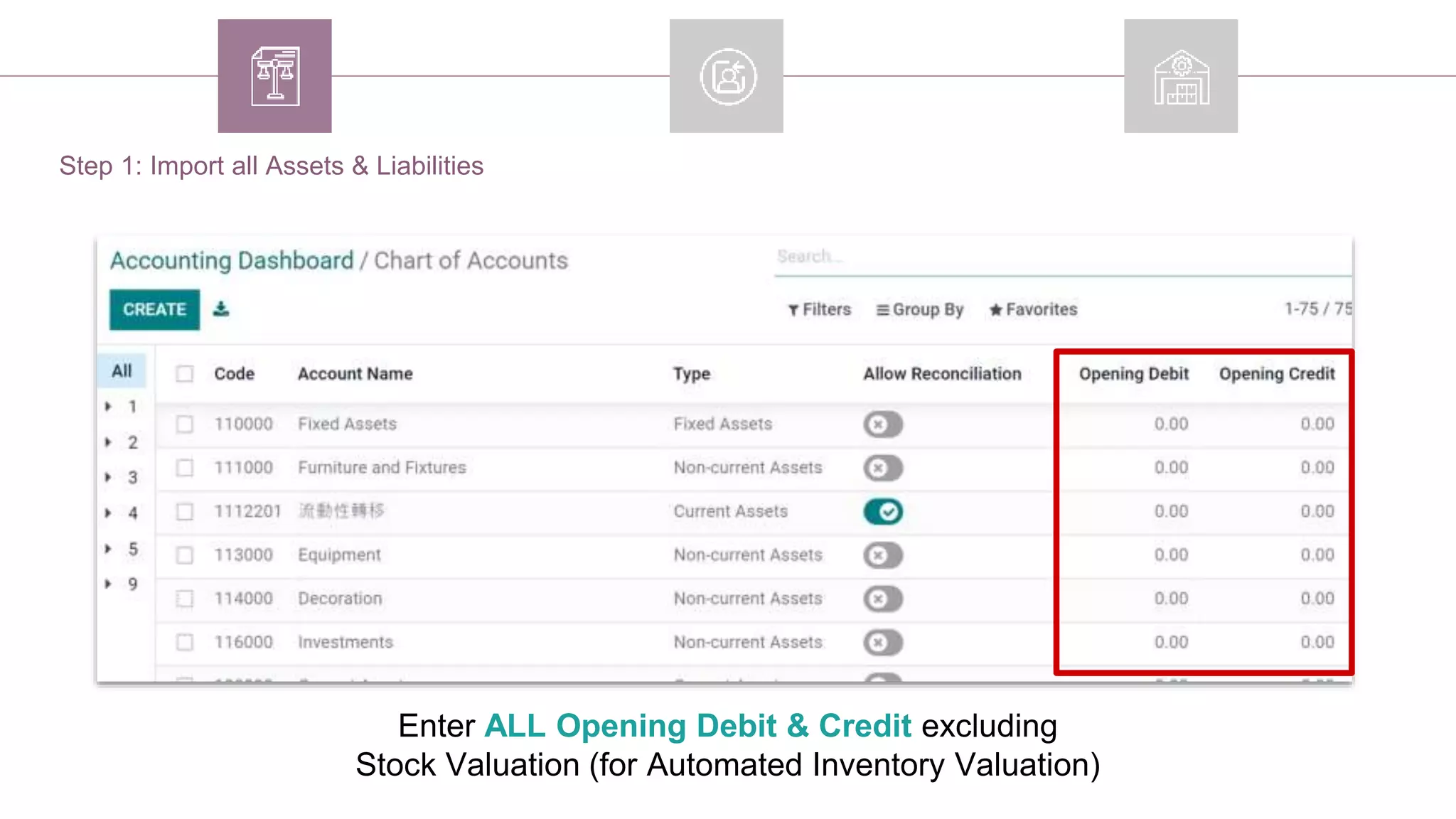
Step 1: Import all Assets & Liabilities
Accounting Dashboard > “Review” (Chart of Account)
Enter ALL Opening Debit & Credit excluding
Stock Valuation (for Automated Inventory Valuation)
Step 1: Import all Assets & Liabilities
Odoo has automatically generated a Draft Opening Journal Entry under
Journal Entries with an automatic Balancing Line
(Normally using Undistributed Profit / Loss Account)
Step 1: Import all Assets & Liabilities
● If not received / delivered → Create Sales /
Purchase Order, Delivery & Invoice/Bill
● If received / delivered → Add to the opening entry as
Account Receivables & Account Payable (following the
below steps)
Step 2: Import Account Receivables & Account Payable
Invoices / Bills.
Enter the Account Receivables & Account Payables per Partner
*If per Transaction level is needed, import date_maturity (Journal Items)
Step 2: Import Account Receivables & Account Payable
Ensure Debit & Credit balance with each other
(Adjust the Automatic Balance Line (Undistributed Profit / Loss) if needed)
Step 2: Import Account Receivables & Account Payable
Step 3: Inventory Adjustment
Ensure.
● All Storable Products have been imported
● Automated Inventory Valuation has been activated
in product categories
● Costs have been imported
[Automated Inventory Adjustment only] Use 999999 as the Incoming & Outgoing Stock
Valuation Account for Virtual Locations / Inventory Adjustment
Step 3: Inventory Adjustment
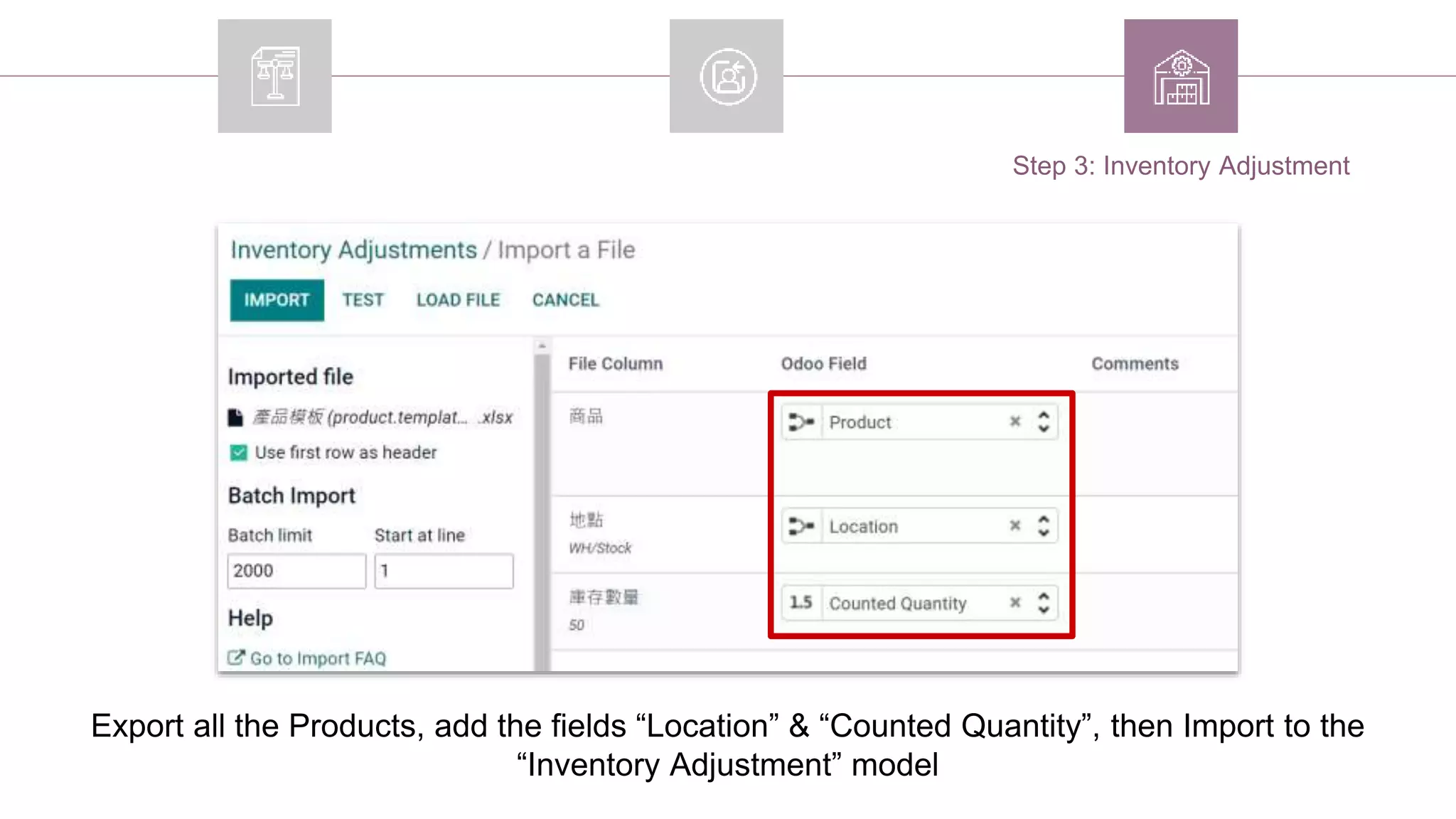
Export all the Products, add the fields “Location” & “Counted Quantity”, then Import to the
“Inventory Adjustment” model
Step 3: Inventory Adjustment
Select All and click “Apply”
Step 3: Inventory Adjustment
Done!
[Automated Inventory Valuation only] All Journal Entries for Inventory Adjustment have been
posted
Done!
Balance sheet has been updated with accurate Opening Balance

Go Live.pptx

  • 1.
    Odoo Limited 2020 THE BESTSOLUTION FOR SMALL AND MEDIUM ENTERPRISES Go Live 2021 THE BEST SOLUTION FOR SMALL AND MEDIUM ENTERPRISES
  • 2.
  • 3.
  • 4.
    Odoo as reliablesource of data Go Live. All stakeholders start using Odoo to record daily operations
  • 5.
    Go Live Baseline. Accounting- Opening Balance Operations - Stock Count ● Assets ○ Bank & Cash ○ Stock Valuation ○ Account Receivables ● Liabilities ○ Account Payables
  • 6.
  • 7.
    2. Account Receivables& Account Payables 3. Inventory Adjustment 1. All Assets & Liabilities, excluding Account Receivables & Account Payable + Inventory Opening Balance Import.
  • 8.
    Step 1: Importall Assets & Liabilities Accounting Dashboard > “Review” (Chart of Account)
  • 9.
    Enter ALL OpeningDebit & Credit excluding Stock Valuation (for Automated Inventory Valuation) Step 1: Import all Assets & Liabilities
  • 10.
    Odoo has automaticallygenerated a Draft Opening Journal Entry under Journal Entries with an automatic Balancing Line (Normally using Undistributed Profit / Loss Account) Step 1: Import all Assets & Liabilities
  • 11.
    ● If notreceived / delivered → Create Sales / Purchase Order, Delivery & Invoice/Bill ● If received / delivered → Add to the opening entry as Account Receivables & Account Payable (following the below steps) Step 2: Import Account Receivables & Account Payable Invoices / Bills.
  • 12.
    Enter the AccountReceivables & Account Payables per Partner *If per Transaction level is needed, import date_maturity (Journal Items) Step 2: Import Account Receivables & Account Payable
  • 13.
    Ensure Debit &Credit balance with each other (Adjust the Automatic Balance Line (Undistributed Profit / Loss) if needed) Step 2: Import Account Receivables & Account Payable
  • 14.
    Step 3: InventoryAdjustment Ensure. ● All Storable Products have been imported ● Automated Inventory Valuation has been activated in product categories ● Costs have been imported
  • 15.
    [Automated Inventory Adjustmentonly] Use 999999 as the Incoming & Outgoing Stock Valuation Account for Virtual Locations / Inventory Adjustment Step 3: Inventory Adjustment
  • 16.
    Export all theProducts, add the fields “Location” & “Counted Quantity”, then Import to the “Inventory Adjustment” model Step 3: Inventory Adjustment
  • 17.
    Select All andclick “Apply” Step 3: Inventory Adjustment
  • 18.
    Done! [Automated Inventory Valuationonly] All Journal Entries for Inventory Adjustment have been posted
  • 19.
    Done! Balance sheet hasbeen updated with accurate Opening Balance

Editor's Notes

  • #8 What is a good demo?