Empowerment Technologies
Senior High School Applied - Academic
Unit 3: Word Processing Skills
Lesson 1
Getting to Know Word
Processing
ENGAG EXPLOR
EXPLAIN EXTEND
EVALUAT
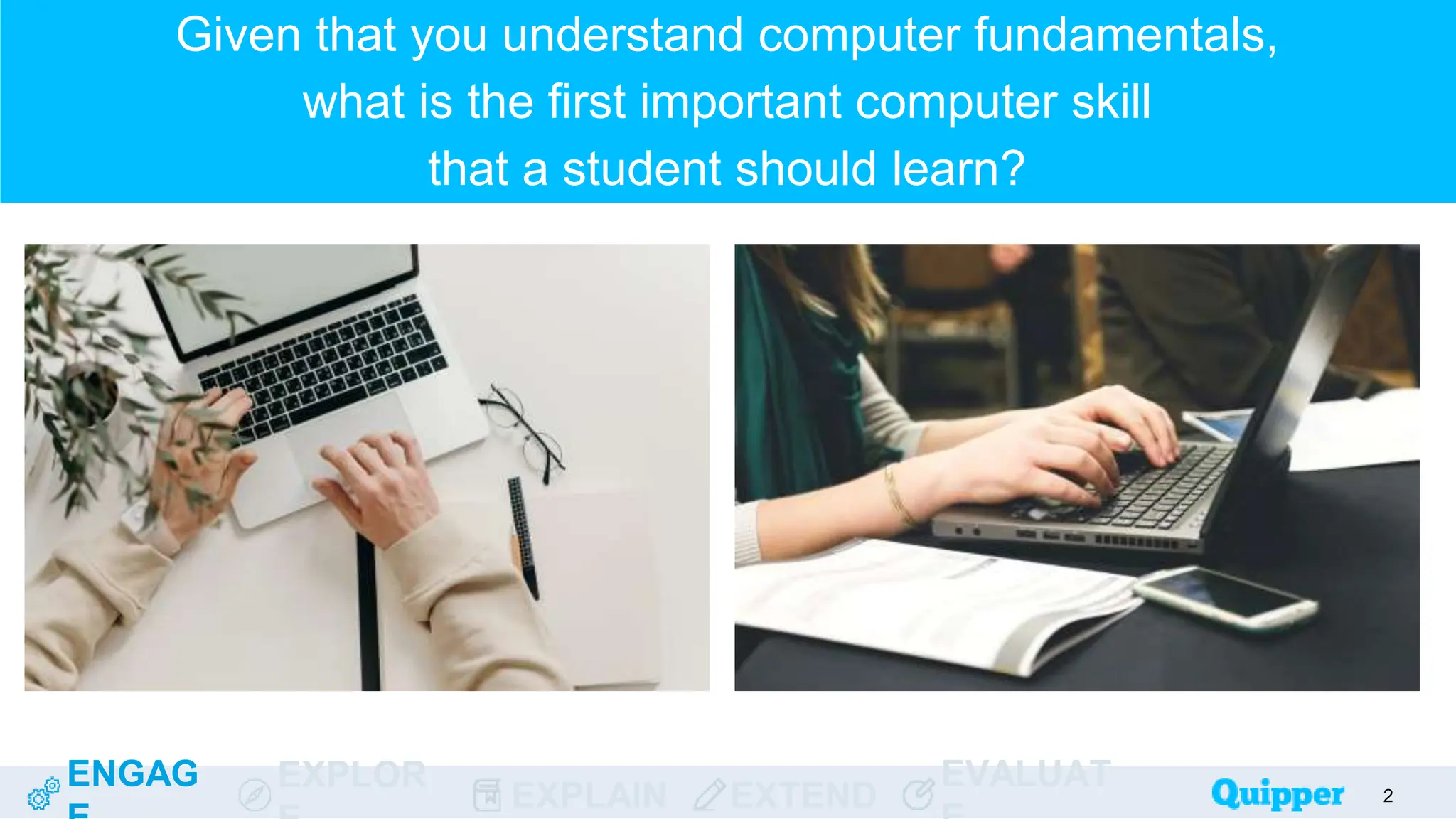
Given that you understand computer fundamentals,
what is the first important computer skill
that a student should learn?
2
ENGAG EXPLOR
EXPLAIN EXTEND
EVALUAT
What can you say about
the statement below?
“Composing, editing, and
formatting text can be both
your tool and your weapon
in the world.”
3
Learning
Objectives
ENGAG EXPLOR
EXPLAIN EXTEND
EVALUAT
At the end of the
lesson, you should
be able to do the
following:
4
● Understand what word processing
is.
● Appreciate the importance of
having word processing skills.
● Identify the basic features of a
word processor.
4
ENGAG EXPLOR
EXPLAIN EXTEND
EVALUAT
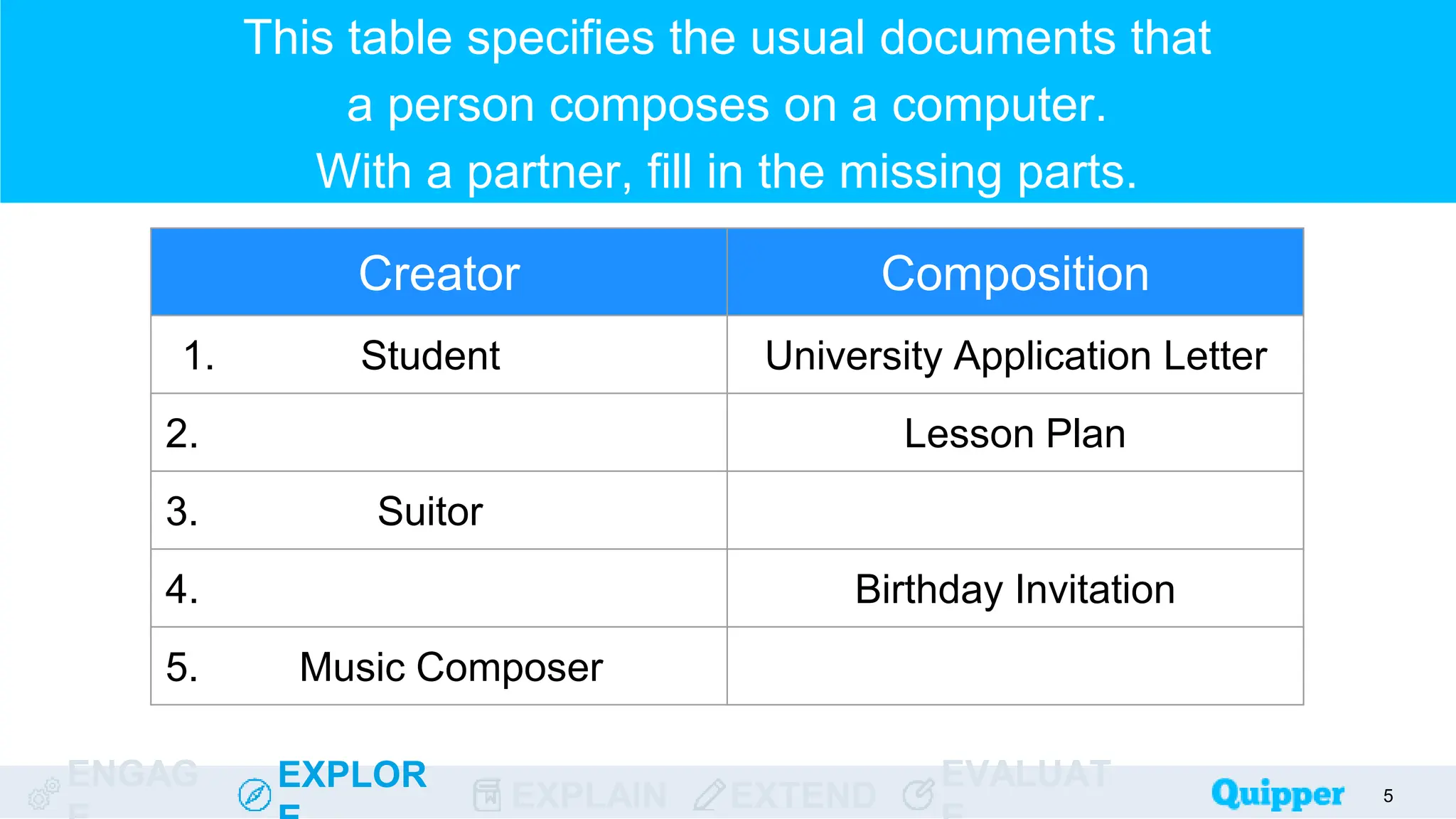
This table specifies the usual documents that
a person composes on a computer.
With a partner, fill in the missing parts.
5
Creator Composition
1. Student University Application Letter
2. Lesson Plan
3. Suitor
4. Birthday Invitation
5. Music Composer
ENGAG EXPLOR
EXPLAIN EXTEND
EVALUAT
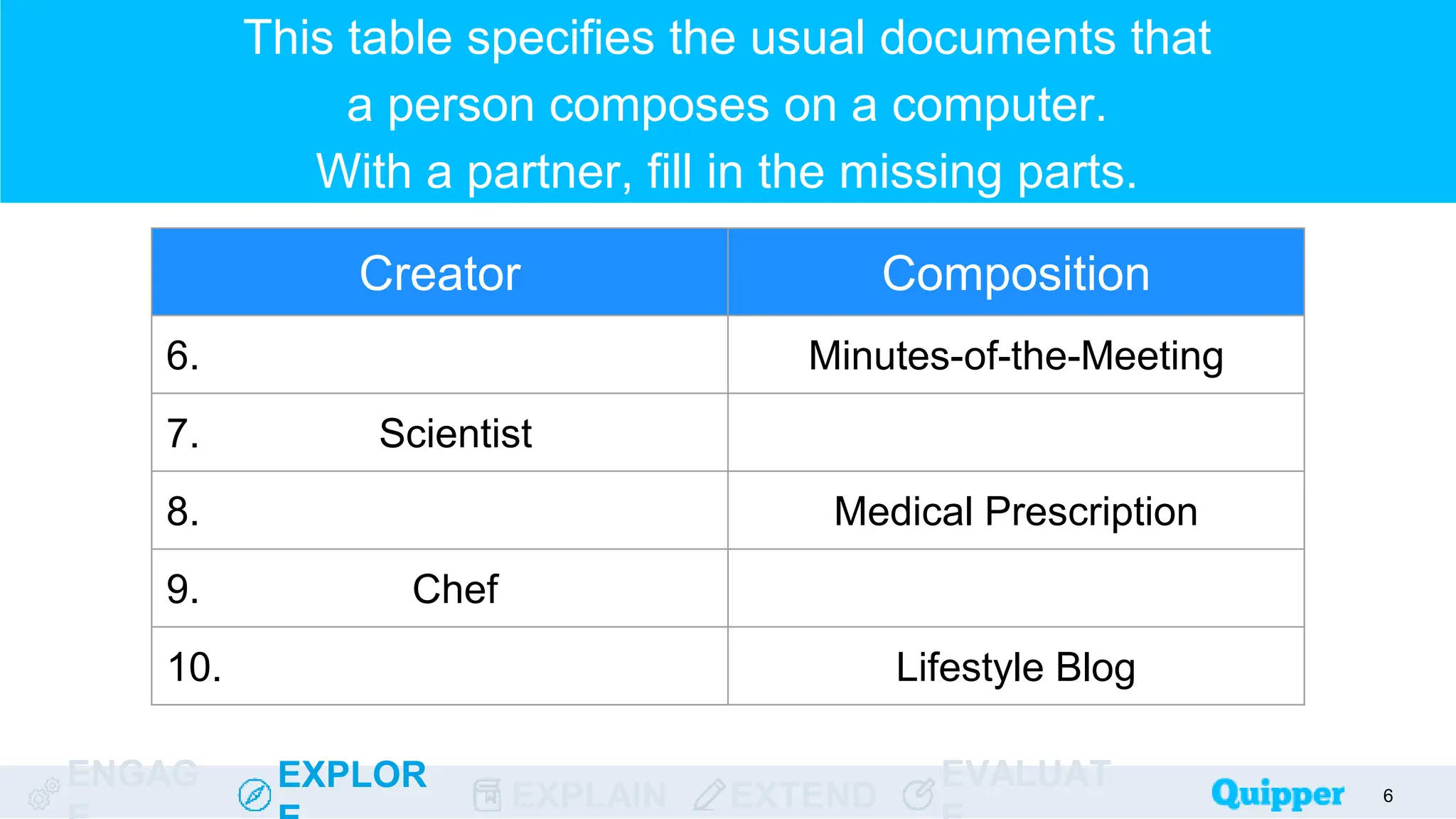
This table specifies the usual documents that
a person composes on a computer.
With a partner, fill in the missing parts.
6
Creator Composition
6. Minutes-of-the-Meeting
7. Scientist
8. Medical Prescription
9. Chef
10. Lifestyle Blog
ENGAG EXPLOR
EXPLAIN EXTEND
EVALUAT
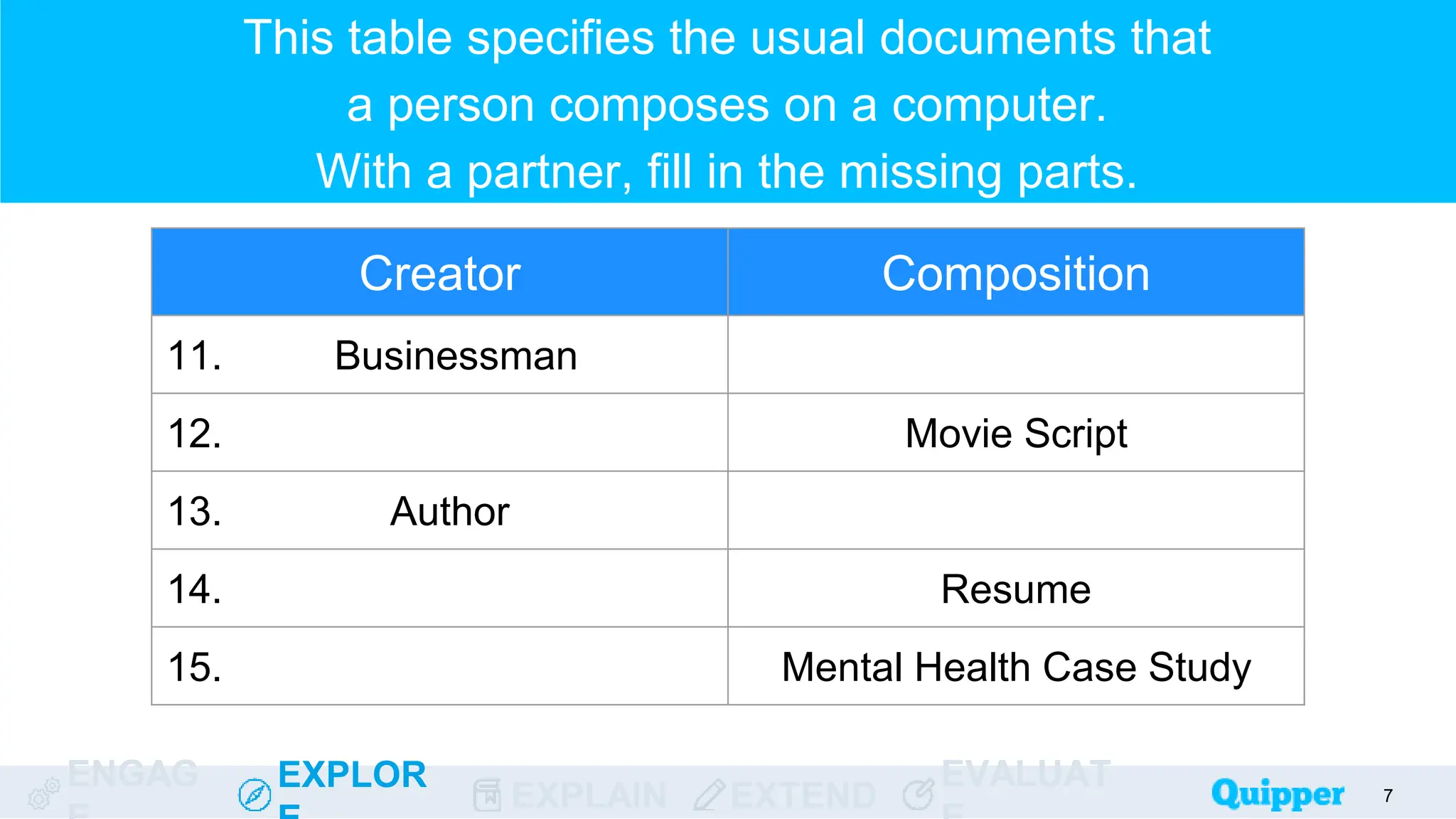
This table specifies the usual documents that
a person composes on a computer.
With a partner, fill in the missing parts.
7
Creator Composition
11. Businessman
12. Movie Script
13. Author
14. Resume
15. Mental Health Case Study
ENGAG EXPLOR
EXPLAIN EXTEND
EVALUAT 8
8
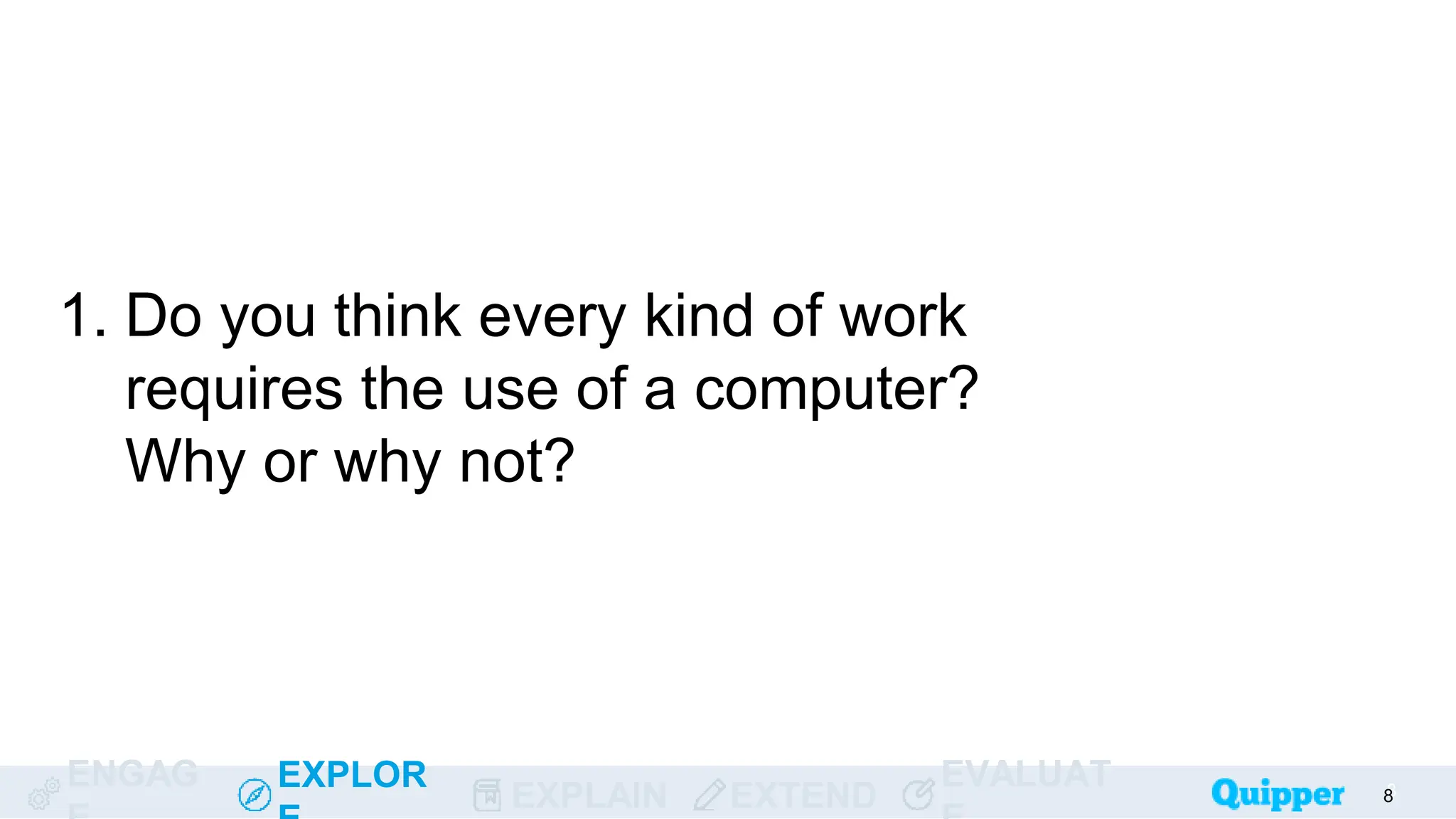
1. Do you think every kind of work
requires the use of a computer?
Why or why not?
ENGAG EXPLOR
EXPLAIN EXTEND
EVALUAT 9
9
2. What are the common types of software that
you use on your computer?
ENGAG EXPLOR
EXPLAIN EXTEND
EVALUAT
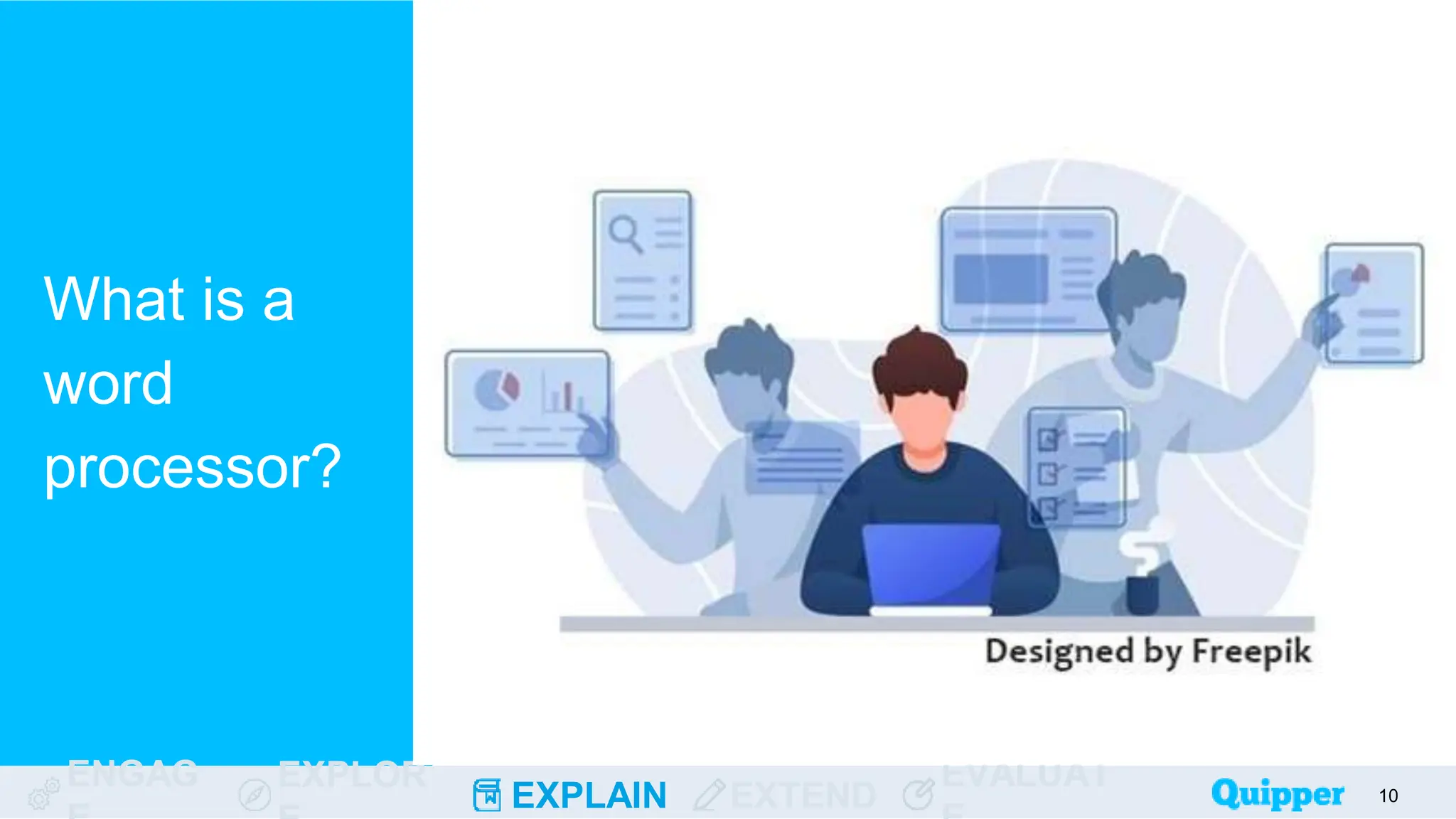
What is a
word
processor?
10
ENGAG EXPLOR
EXPLAIN EXTEND
EVALUAT
A word processor is a type of software that
enables the user to create, edit, and format text
using various tools.
11
ENGAG EXPLOR
EXPLAIN EXTEND
EVALUAT
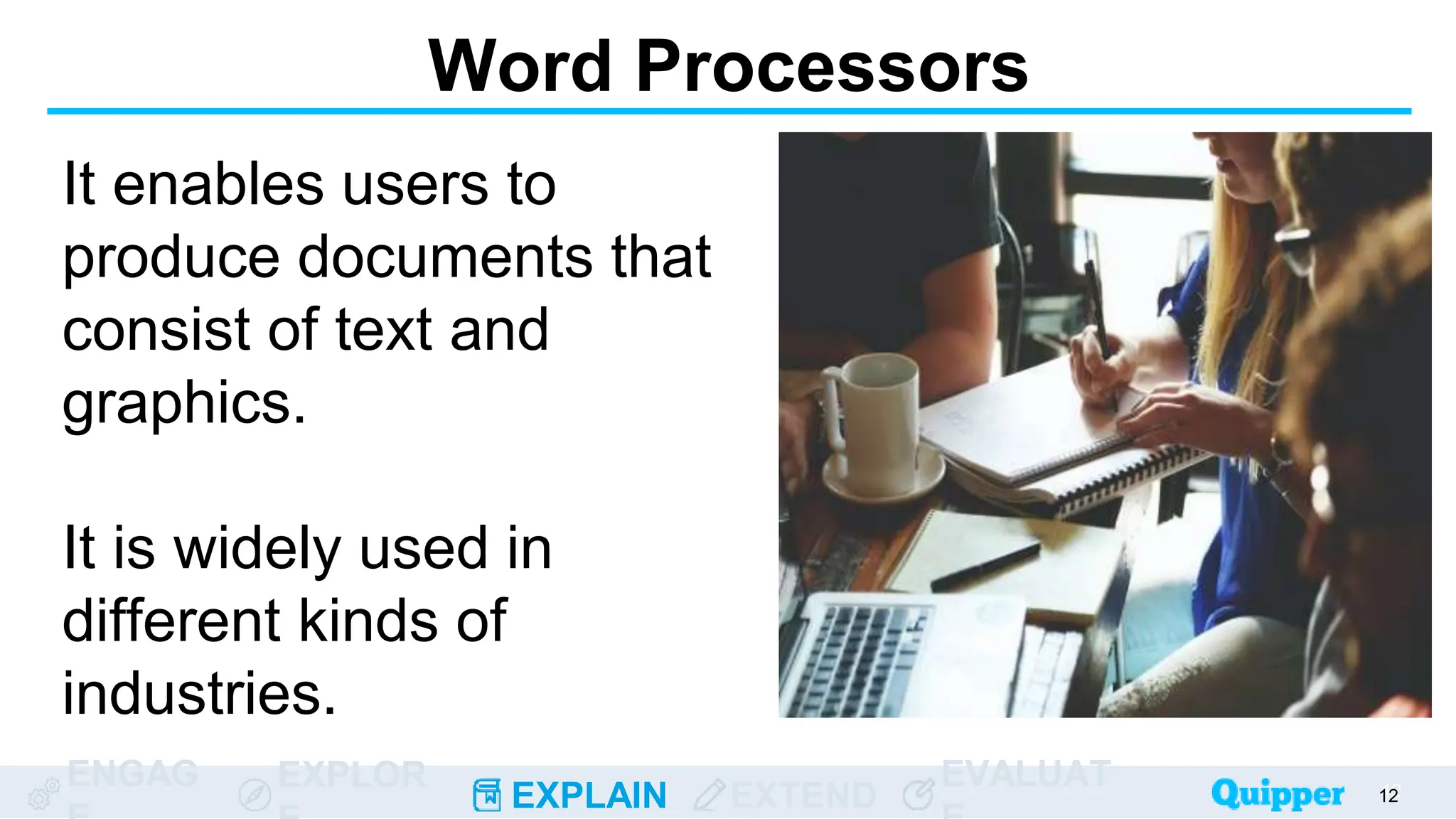
It enables users to
produce documents that
consist of text and
graphics.
It is widely used in
different kinds of
industries.
12
12
Word Processors
ENGAG EXPLOR
EXPLAIN EXTEND
EVALUAT
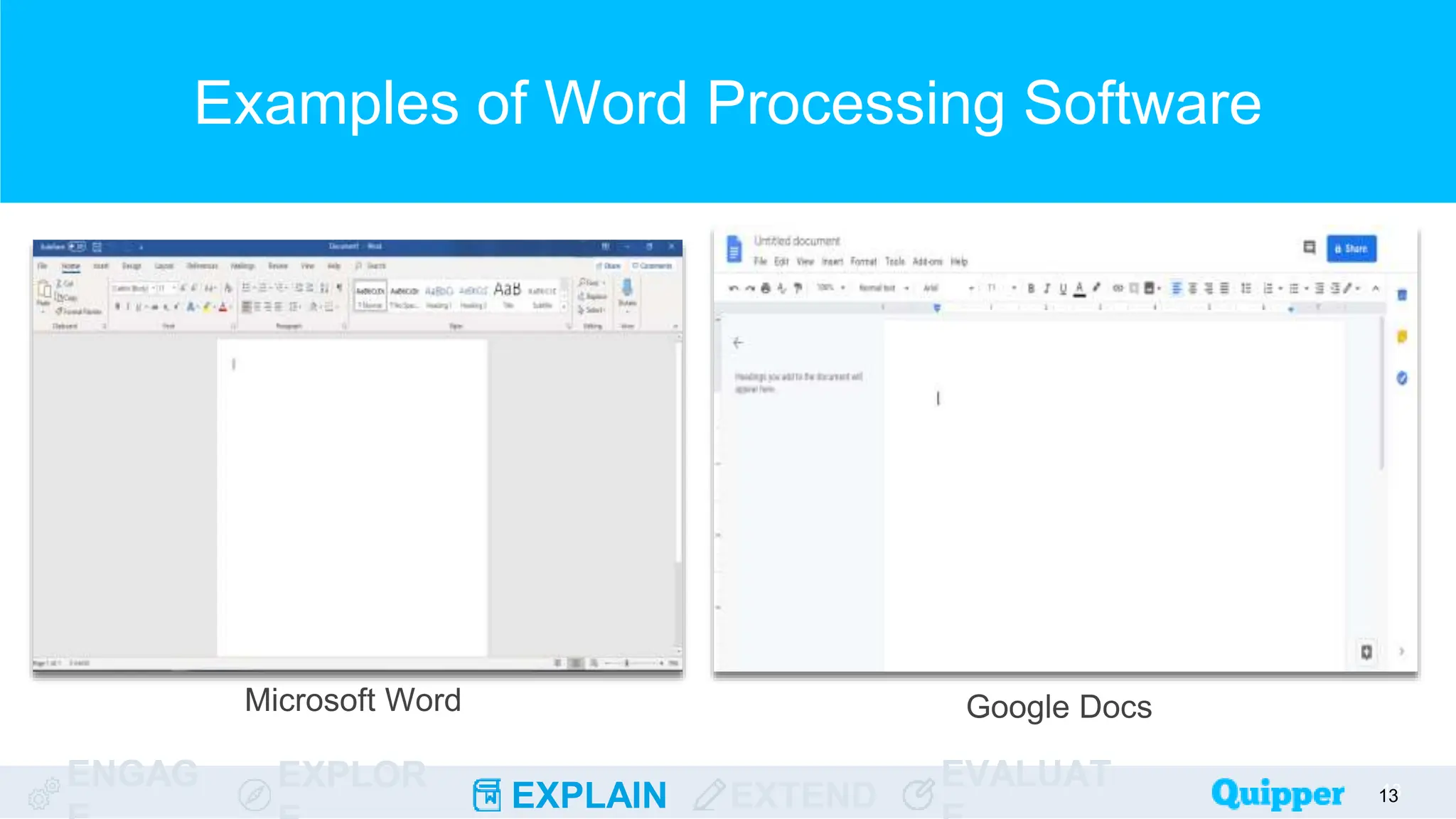
Examples of Word Processing Software
13
13
Microsoft Word Google Docs
14
Aside from a computer or laptop, we
can also use these word processors
with our mobile devices.
ENGAG EXPLOR
EXPLAIN EXTEND
EVALUAT
Word Processing Skills
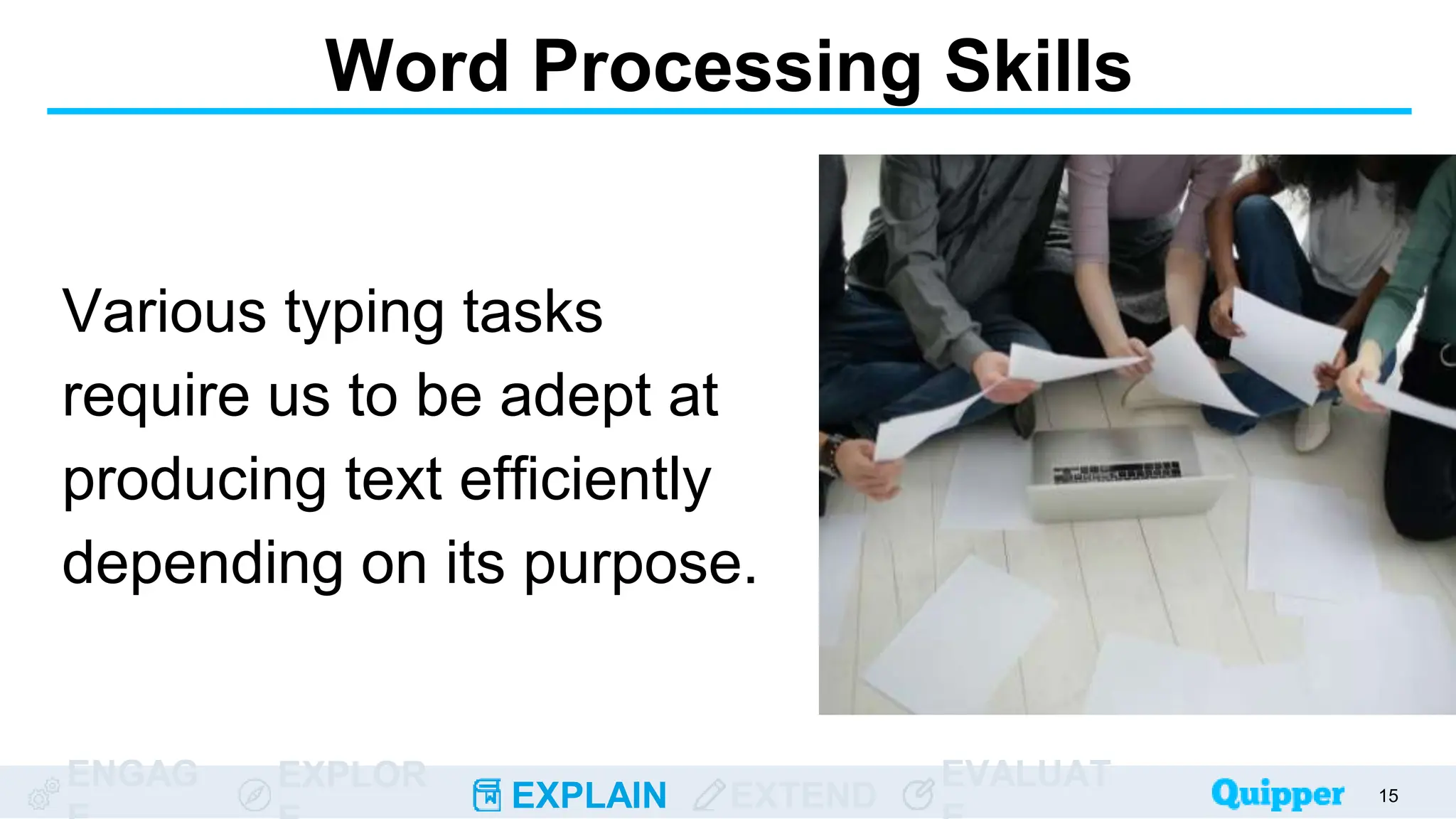
Various typing tasks
require us to be adept at
producing text efficiently
depending on its purpose.
15
ENGAG EXPLOR
EXPLAIN EXTEND
EVALUAT
Basic Word Processing Skills
● Keyboard and User Interface Familiarization
● Typing Speed and Accuracy
● Page Layouting
● Text Formatting
● Inserting Objects
16
16
Tip
17
Word processing software has varied
features.
Frequent practice will develop
familiarization and understanding.
ENGAG EXPLOR
EXPLAIN EXTEND
EVALUAT
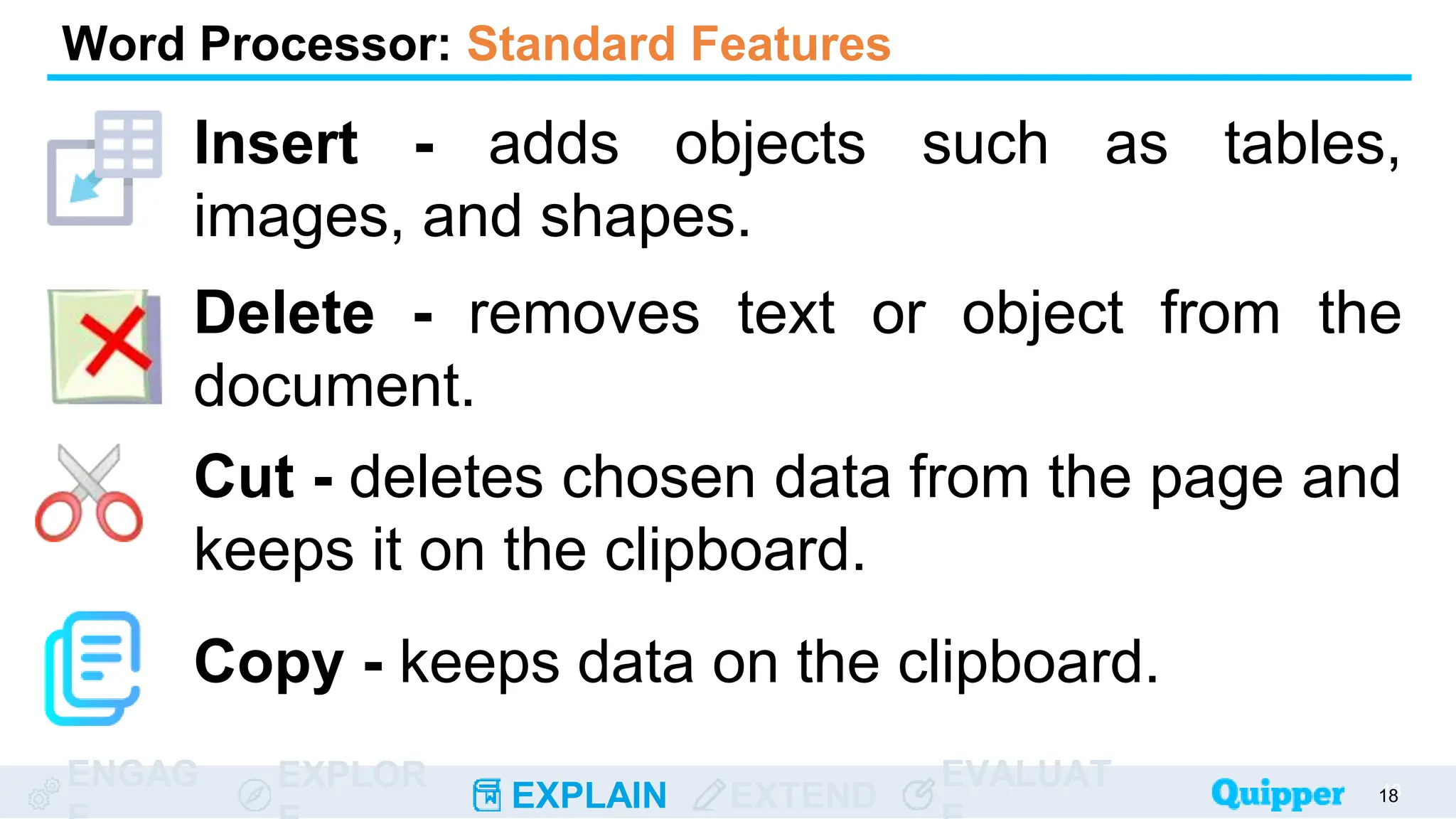
Insert - adds objects such as tables,
images, and shapes.
18
18
Word Processor: Standard Features
Delete - removes text or object from the
document.
Cut - deletes chosen data from the page and
keeps it on the clipboard.
Copy - keeps data on the clipboard.
ENGAG EXPLOR
EXPLAIN EXTEND
EVALUAT
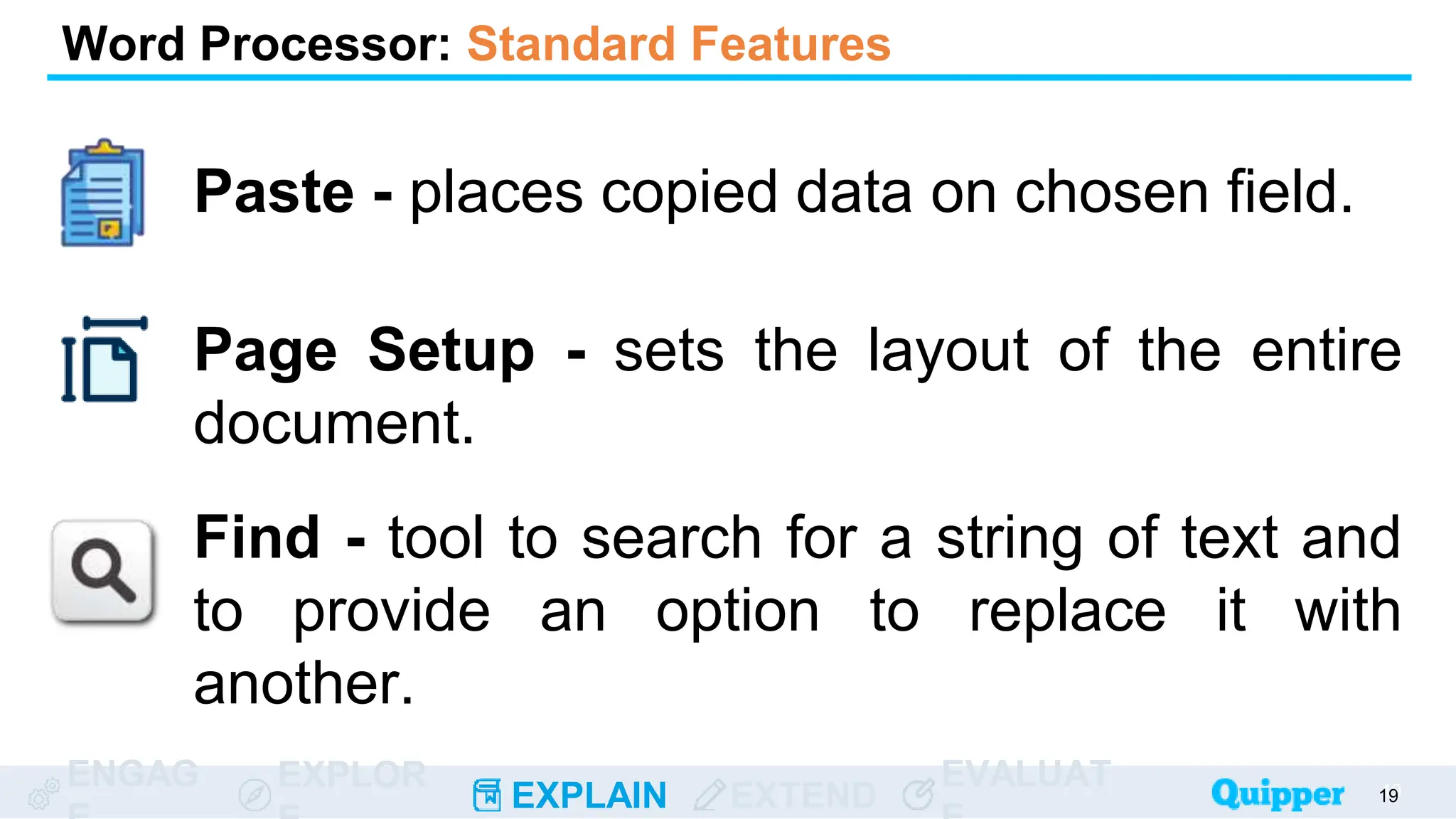
Paste - places copied data on chosen field.
19
19
Word Processor: Standard Features
Page Setup - sets the layout of the entire
document.
Find - tool to search for a string of text and
to provide an option to replace it with
another.
ENGAG EXPLOR
EXPLAIN EXTEND
EVALUAT 20
20
Word Processor: Standard Features
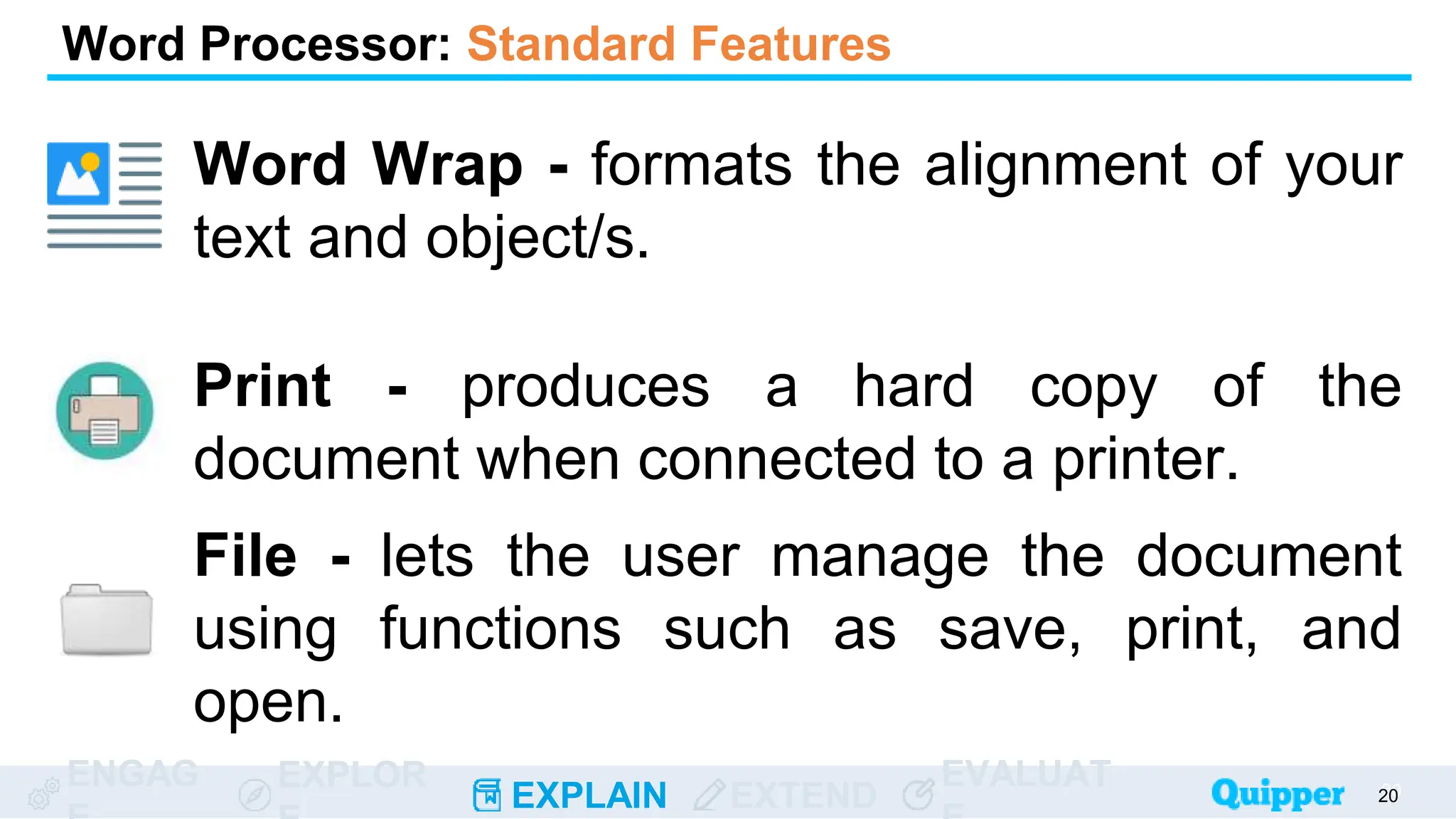
Word Wrap - formats the alignment of your
text and object/s.
Print - produces a hard copy of the
document when connected to a printer.
File - lets the user manage the document
using functions such as save, print, and
open.
ENGAG EXPLOR
EXPLAIN EXTEND
EVALUAT 21
21
Word Processor: Standard Features
Font - allows the user to personalize the
style and size of the text.
Windows - permits multiple screens for
users to work on.
Spell Check - prompts the user for words
spelled differently from the built-in dictionary.
Remember
Some word processors offer tools
that are way beyond the standard
features to cater to experienced
users.
22
ENGAG EXPLOR
EXPLAIN EXTEND
EVALUAT
Grammar Check - prompts the user for
sentence construction that does not meet
the grammar rules set by the software.
23
23
Word Processor: Additional Features
Footnotes - provides further information
about the document.
Automated List - adds numbering or bullets
to your list of text.
ENGAG EXPLOR
EXPLAIN EXTEND
EVALUAT
Graphics - allows the user to insert objects
such as diagrams, images, or shapes.
24
24
Word Processor: Additional Features
Header and Footer - permits customization
of the top and bottom part of the document
page.
Paragraph Layout - adjusts the indentation
and spacing of a paragraph.
ENGAG EXPLOR
EXPLAIN EXTEND
EVALUAT
Macros - allows the user to automate
templates or patterns for your document.
25
25
Word Processor: Additional Features
Mail Merge - lets the user send out letters or
documents in bulk to different recipients.
Table of Contents and Index - lists topics
included in the document.
ENGAG EXPLOR
EXPLAIN EXTEND
EVALUAT
Thesaurus - built-in synonym provider.
26
26
Word Processor: Additional Features
Collaboration - allows multiple editors to
access the document online.
Internet Features - provides links to
external sources via the Internet.
Translation and Speech- voice commands,
text reading, and translation.
Can you recall a scenario in which
you used a word processor for a
school task or project?
27
ENGAG EXPLOR
EXPLAIN EXTEND
EVALUAT
Exercise 1: Recall the Terms
On each cell, write down
as many terms as you
can recall from the topic.
28
ENGAG EXPLOR
EXPLAIN EXTEND
EVALUAT
Exercise 1: Recall the Terms
29
Standard Word
Processor Features
Additional Word
Processor Features
Word Processing
Skills
ENGAG EXPLOR
EXPLAIN EXTEND
EVALUAT
In this exercise, the
numbers indicate the
terms and the shapes
state definitions. Match
each number with its
corresponding shapes.
30
Exercise 2: Numbers to Shapes
ENGAG EXPLOR
EXPLAIN EXTEND
EVALUAT
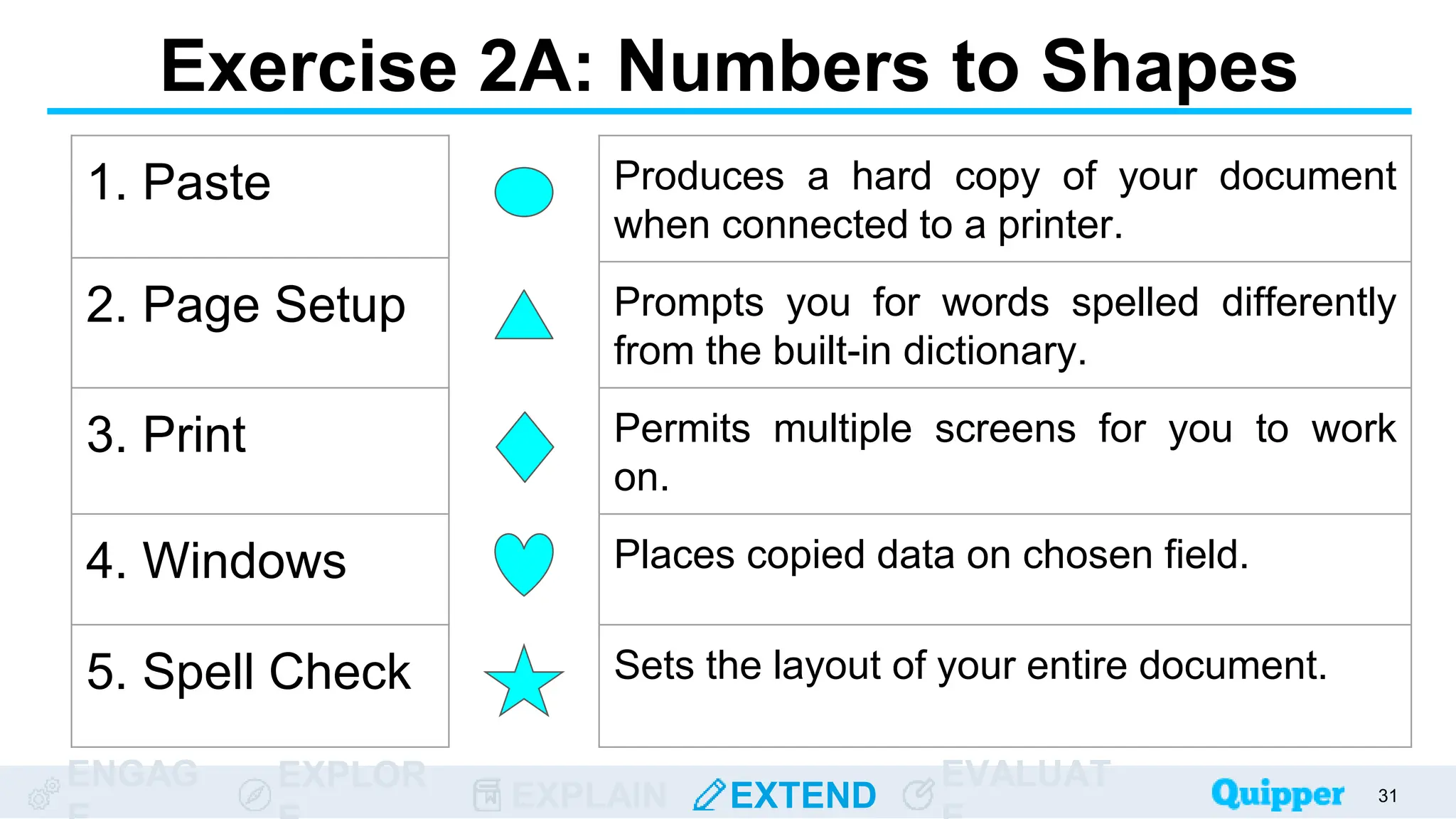
Exercise 2A: Numbers to Shapes
31
1. Paste
2. Page Setup
3. Print
4. Windows
5. Spell Check
Produces a hard copy of your document
when connected to a printer.
Prompts you for words spelled differently
from the built-in dictionary.
Permits multiple screens for you to work
on.
Places copied data on chosen field.
Sets the layout of your entire document.
ENGAG EXPLOR
EXPLAIN EXTEND
EVALUAT
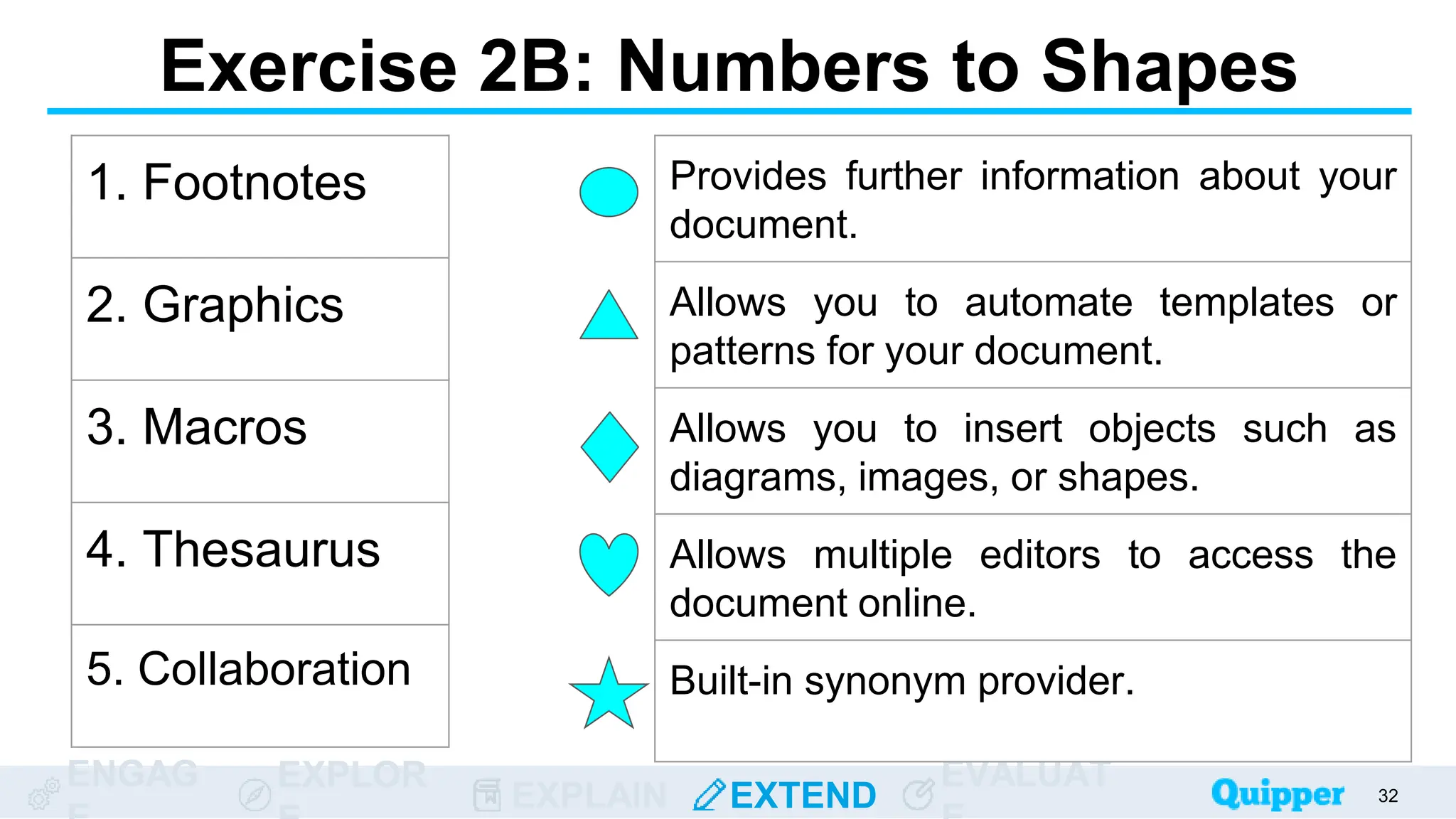
Exercise 2B: Numbers to Shapes
32
1. Footnotes
2. Graphics
3. Macros
4. Thesaurus
5. Collaboration
Provides further information about your
document.
Allows you to automate templates or
patterns for your document.
Allows you to insert objects such as
diagrams, images, or shapes.
Allows multiple editors to access the
document online.
Built-in synonym provider.
ENGAG EXPLOR
EXPLAIN EXTEND
EVALUAT
ENGAG EXPLOR
EXPLAIN EXTEND
EVALUAT
Something to ponder:
Based on your own
understanding, what is
word processing software?
33
33
33
33
33
ENGAG EXPLOR
EXPLAIN EXTEND
EVALUAT
ENGAG EXPLOR
EXPLAIN EXTEND
EVALUAT
Something to ponder:
Why are there additional
features being offered in
word processing software?
34
34
34
34
34
ENGAG EXPLOR
EXPLAIN EXTEND
EVALUAT
ENGAG EXPLOR
EXPLAIN EXTEND
EVALUAT
Something to ponder:
The initial skills that one
should possess are typing
and accuracy skills. What
are the possible ways to
acquire them? Elaborate.
35
35
35
35
35
Wrap Up
36
A word processor is a type software
that enables users to create, edit, and
format text using various tools.
It offers different features to suit the
needs of the users.
Wrap Up
37
Word processing skills are a set of
capabilities that users need to possess
so as to maximize the use of the
software.
Photo Credits
38
● Slide 18: This icon, Insert, by Freepik is licensed under CC BY-SA 4.0 via Flat Icons.
● Slide 18: This icon, Copy, by Freepik is licensed under CC BY-SA 4.0 via Flat Icons
● Slide 19: This icon, Paste, by wanicon is licensed under CC BY-SA 4.0 via Flat Icons.
● Slide 19: This icon, Page size, by bqlqn is licensed under CC BY-SA 4.0 via Flat Icons.
● Slide 20: This icon, Wrap, by Pixel perfect is licensed under CC BY-SA 4.0 via Flat Icons.
● Slide 21: This icon, Font, by Freepik is licensed under CC BY-SA 4.0 via Flat Icons.
● Slide 21: This icon, Window, by Freepik is licensed under CC BY-SA 4.0 via Flat Icons.
● Slide 21: This icon, Spelling, by Freepik is licensed under CC BY-SA 4.0 via Flat Icons.
● Slide 23: This icon, Grammar, by Eucalyp is licensed under CC BY-SA 4.0 via Flat Icons
● Slide 23: This icon, Research, by ultimatearm is licensed under CC BY-SA 4.0 via Flat Icons
● Slide 23: This icon, Bullet List, by Pixel perfect is licensed under CC BY-SA 4.0 via Flat Icons.
Photo Credits
39
● Slide 24: This icon, Page, by bqlqn is licensed under CC BY-SA 4.0 via Flat Icons.
● Slide 25: This icon, Examination, by Dighital is licensed under CC BY-SA 4.0 via Flat Icons.
● Slide 25: This icon, File, by iconixar is licensed under CC BY-SA 4.0 via Flat Icons.
● Slide 25: This icon, Index, by Pixelmeetup is licensed under CC BY-SA 4.0 via Flat Icons.
● Slide 26: This icon, Dictionary, by surang is licensed under CC BY-SA 4.0 via Flat Icons.
● Slide 26: This icon, Share, by Freepik is licensed under CC BY-SA 4.0 via Flat Icons.
● Slide 26: This icon, Surf, by Freepik is licensed under CC BY-SA 4.0 via Flat Icons.
● Slide 26: This icon, Language, by Smashicons is licensed under CC BY-SA 4.0 via Flat Icons.
Bibliography
40
Flynn, Ida M. “Word Processing.” Encyclopedia.com. April 13 2020. Accessed
May 22, 2020. https://www.encyclopedia.com/science-and-
technology/computers-and-electrical-engineering/computers-and-
computing/word-processing.

GETTING TO KNOW WORD PROCESSING - EMP.TECH

  • 1.
    Empowerment Technologies Senior HighSchool Applied - Academic Unit 3: Word Processing Skills Lesson 1 Getting to Know Word Processing
  • 2.
    ENGAG EXPLOR EXPLAIN EXTEND EVALUAT Giventhat you understand computer fundamentals, what is the first important computer skill that a student should learn? 2
  • 3.
    ENGAG EXPLOR EXPLAIN EXTEND EVALUAT Whatcan you say about the statement below? “Composing, editing, and formatting text can be both your tool and your weapon in the world.” 3
  • 4.
    Learning Objectives ENGAG EXPLOR EXPLAIN EXTEND EVALUAT Atthe end of the lesson, you should be able to do the following: 4 ● Understand what word processing is. ● Appreciate the importance of having word processing skills. ● Identify the basic features of a word processor. 4
  • 5.
    ENGAG EXPLOR EXPLAIN EXTEND EVALUAT Thistable specifies the usual documents that a person composes on a computer. With a partner, fill in the missing parts. 5 Creator Composition 1. Student University Application Letter 2. Lesson Plan 3. Suitor 4. Birthday Invitation 5. Music Composer
  • 6.
    ENGAG EXPLOR EXPLAIN EXTEND EVALUAT Thistable specifies the usual documents that a person composes on a computer. With a partner, fill in the missing parts. 6 Creator Composition 6. Minutes-of-the-Meeting 7. Scientist 8. Medical Prescription 9. Chef 10. Lifestyle Blog
  • 7.
    ENGAG EXPLOR EXPLAIN EXTEND EVALUAT Thistable specifies the usual documents that a person composes on a computer. With a partner, fill in the missing parts. 7 Creator Composition 11. Businessman 12. Movie Script 13. Author 14. Resume 15. Mental Health Case Study
  • 8.
    ENGAG EXPLOR EXPLAIN EXTEND EVALUAT8 8 1. Do you think every kind of work requires the use of a computer? Why or why not?
  • 9.
    ENGAG EXPLOR EXPLAIN EXTEND EVALUAT9 9 2. What are the common types of software that you use on your computer?
  • 10.
  • 11.
    ENGAG EXPLOR EXPLAIN EXTEND EVALUAT Aword processor is a type of software that enables the user to create, edit, and format text using various tools. 11
  • 12.
    ENGAG EXPLOR EXPLAIN EXTEND EVALUAT Itenables users to produce documents that consist of text and graphics. It is widely used in different kinds of industries. 12 12 Word Processors
  • 13.
    ENGAG EXPLOR EXPLAIN EXTEND EVALUAT Examplesof Word Processing Software 13 13 Microsoft Word Google Docs
  • 14.
    14 Aside from acomputer or laptop, we can also use these word processors with our mobile devices.
  • 15.
    ENGAG EXPLOR EXPLAIN EXTEND EVALUAT WordProcessing Skills Various typing tasks require us to be adept at producing text efficiently depending on its purpose. 15
  • 16.
    ENGAG EXPLOR EXPLAIN EXTEND EVALUAT BasicWord Processing Skills ● Keyboard and User Interface Familiarization ● Typing Speed and Accuracy ● Page Layouting ● Text Formatting ● Inserting Objects 16 16
  • 17.
    Tip 17 Word processing softwarehas varied features. Frequent practice will develop familiarization and understanding.
  • 18.
    ENGAG EXPLOR EXPLAIN EXTEND EVALUAT Insert- adds objects such as tables, images, and shapes. 18 18 Word Processor: Standard Features Delete - removes text or object from the document. Cut - deletes chosen data from the page and keeps it on the clipboard. Copy - keeps data on the clipboard.
  • 19.
    ENGAG EXPLOR EXPLAIN EXTEND EVALUAT Paste- places copied data on chosen field. 19 19 Word Processor: Standard Features Page Setup - sets the layout of the entire document. Find - tool to search for a string of text and to provide an option to replace it with another.
  • 20.
    ENGAG EXPLOR EXPLAIN EXTEND EVALUAT20 20 Word Processor: Standard Features Word Wrap - formats the alignment of your text and object/s. Print - produces a hard copy of the document when connected to a printer. File - lets the user manage the document using functions such as save, print, and open.
  • 21.
    ENGAG EXPLOR EXPLAIN EXTEND EVALUAT21 21 Word Processor: Standard Features Font - allows the user to personalize the style and size of the text. Windows - permits multiple screens for users to work on. Spell Check - prompts the user for words spelled differently from the built-in dictionary.
  • 22.
    Remember Some word processorsoffer tools that are way beyond the standard features to cater to experienced users. 22
  • 23.
    ENGAG EXPLOR EXPLAIN EXTEND EVALUAT GrammarCheck - prompts the user for sentence construction that does not meet the grammar rules set by the software. 23 23 Word Processor: Additional Features Footnotes - provides further information about the document. Automated List - adds numbering or bullets to your list of text.
  • 24.
    ENGAG EXPLOR EXPLAIN EXTEND EVALUAT Graphics- allows the user to insert objects such as diagrams, images, or shapes. 24 24 Word Processor: Additional Features Header and Footer - permits customization of the top and bottom part of the document page. Paragraph Layout - adjusts the indentation and spacing of a paragraph.
  • 25.
    ENGAG EXPLOR EXPLAIN EXTEND EVALUAT Macros- allows the user to automate templates or patterns for your document. 25 25 Word Processor: Additional Features Mail Merge - lets the user send out letters or documents in bulk to different recipients. Table of Contents and Index - lists topics included in the document.
  • 26.
    ENGAG EXPLOR EXPLAIN EXTEND EVALUAT Thesaurus- built-in synonym provider. 26 26 Word Processor: Additional Features Collaboration - allows multiple editors to access the document online. Internet Features - provides links to external sources via the Internet. Translation and Speech- voice commands, text reading, and translation.
  • 27.
    Can you recalla scenario in which you used a word processor for a school task or project? 27
  • 28.
    ENGAG EXPLOR EXPLAIN EXTEND EVALUAT Exercise1: Recall the Terms On each cell, write down as many terms as you can recall from the topic. 28
  • 29.
    ENGAG EXPLOR EXPLAIN EXTEND EVALUAT Exercise1: Recall the Terms 29 Standard Word Processor Features Additional Word Processor Features Word Processing Skills
  • 30.
    ENGAG EXPLOR EXPLAIN EXTEND EVALUAT Inthis exercise, the numbers indicate the terms and the shapes state definitions. Match each number with its corresponding shapes. 30 Exercise 2: Numbers to Shapes
  • 31.
    ENGAG EXPLOR EXPLAIN EXTEND EVALUAT Exercise2A: Numbers to Shapes 31 1. Paste 2. Page Setup 3. Print 4. Windows 5. Spell Check Produces a hard copy of your document when connected to a printer. Prompts you for words spelled differently from the built-in dictionary. Permits multiple screens for you to work on. Places copied data on chosen field. Sets the layout of your entire document.
  • 32.
    ENGAG EXPLOR EXPLAIN EXTEND EVALUAT Exercise2B: Numbers to Shapes 32 1. Footnotes 2. Graphics 3. Macros 4. Thesaurus 5. Collaboration Provides further information about your document. Allows you to automate templates or patterns for your document. Allows you to insert objects such as diagrams, images, or shapes. Allows multiple editors to access the document online. Built-in synonym provider.
  • 33.
    ENGAG EXPLOR EXPLAIN EXTEND EVALUAT ENGAGEXPLOR EXPLAIN EXTEND EVALUAT Something to ponder: Based on your own understanding, what is word processing software? 33 33 33 33 33
  • 34.
    ENGAG EXPLOR EXPLAIN EXTEND EVALUAT ENGAGEXPLOR EXPLAIN EXTEND EVALUAT Something to ponder: Why are there additional features being offered in word processing software? 34 34 34 34 34
  • 35.
    ENGAG EXPLOR EXPLAIN EXTEND EVALUAT ENGAGEXPLOR EXPLAIN EXTEND EVALUAT Something to ponder: The initial skills that one should possess are typing and accuracy skills. What are the possible ways to acquire them? Elaborate. 35 35 35 35 35
  • 36.
    Wrap Up 36 A wordprocessor is a type software that enables users to create, edit, and format text using various tools. It offers different features to suit the needs of the users.
  • 37.
    Wrap Up 37 Word processingskills are a set of capabilities that users need to possess so as to maximize the use of the software.
  • 38.
    Photo Credits 38 ● Slide18: This icon, Insert, by Freepik is licensed under CC BY-SA 4.0 via Flat Icons. ● Slide 18: This icon, Copy, by Freepik is licensed under CC BY-SA 4.0 via Flat Icons ● Slide 19: This icon, Paste, by wanicon is licensed under CC BY-SA 4.0 via Flat Icons. ● Slide 19: This icon, Page size, by bqlqn is licensed under CC BY-SA 4.0 via Flat Icons. ● Slide 20: This icon, Wrap, by Pixel perfect is licensed under CC BY-SA 4.0 via Flat Icons. ● Slide 21: This icon, Font, by Freepik is licensed under CC BY-SA 4.0 via Flat Icons. ● Slide 21: This icon, Window, by Freepik is licensed under CC BY-SA 4.0 via Flat Icons. ● Slide 21: This icon, Spelling, by Freepik is licensed under CC BY-SA 4.0 via Flat Icons. ● Slide 23: This icon, Grammar, by Eucalyp is licensed under CC BY-SA 4.0 via Flat Icons ● Slide 23: This icon, Research, by ultimatearm is licensed under CC BY-SA 4.0 via Flat Icons ● Slide 23: This icon, Bullet List, by Pixel perfect is licensed under CC BY-SA 4.0 via Flat Icons.
  • 39.
    Photo Credits 39 ● Slide24: This icon, Page, by bqlqn is licensed under CC BY-SA 4.0 via Flat Icons. ● Slide 25: This icon, Examination, by Dighital is licensed under CC BY-SA 4.0 via Flat Icons. ● Slide 25: This icon, File, by iconixar is licensed under CC BY-SA 4.0 via Flat Icons. ● Slide 25: This icon, Index, by Pixelmeetup is licensed under CC BY-SA 4.0 via Flat Icons. ● Slide 26: This icon, Dictionary, by surang is licensed under CC BY-SA 4.0 via Flat Icons. ● Slide 26: This icon, Share, by Freepik is licensed under CC BY-SA 4.0 via Flat Icons. ● Slide 26: This icon, Surf, by Freepik is licensed under CC BY-SA 4.0 via Flat Icons. ● Slide 26: This icon, Language, by Smashicons is licensed under CC BY-SA 4.0 via Flat Icons.
  • 40.
    Bibliography 40 Flynn, Ida M.“Word Processing.” Encyclopedia.com. April 13 2020. Accessed May 22, 2020. https://www.encyclopedia.com/science-and- technology/computers-and-electrical-engineering/computers-and- computing/word-processing.

Editor's Notes

  • #6 answers: example/bonus teacher love letter celebrant song lyrics
  • #7 answers: 6. secretary/assistant 7. research experiment 8. doctor 9. recipe 10. blogger
  • #8 answers: 11. business plan/business proposal 12. scriptwriter 13. book 14. job applicant 15. psychologist
  • #11 Explain This is the segment that is aligned with the Explain and Elaborate section of the study guide. The main sections with the main concepts or skills should be reflected in the slides. Note, however, not to always lift the text from the study guide. Place in the slides only short passages that represent key concepts or skills from each main section. You may paraphrase long sentences to shorten them or place only the key terms or phrases in the slides. Provide at least one example for each main section. You may copy the examples from the study guide. If the examples from the study guide are not suitable for a slide (e.g., too text-heavy, excerpt that is too long), create a different example. Have at least one additional example (for the whole Explain) that is not lifted from the study guide. This is to ensure that in case the learners have done some advance reading, the teacher can still offer something new to keep the learners engaged. Choose examples that are relevant to at least two out of the four academic strands. When applicable, examples should be application-based so that students can use the examples as references or as a point of inquiry. Make sure to use an Explain slide (as labeled at the bottom of the slide). Additional slides: Tips, Remember, blank slides Place additional slides strategically within the Explain section. These slides are similar to the in-text feature in the study guide because they can be used to manage heavy content and promote active learning. They should also be able to facilitate smooth transition between two concepts through any of the following: check understanding of the concept discussed check preconceptions about the next concept relate the previous to the next concept wrap up the previous concept before the next through tips on how to apply the concept or skill highlighting the main idea a related text or image that captures the main idea encouraging critical thinking to explore possibilities or extend the concept to new applications Use at least two different types of additional slides for the whole presentation. Tips and Remember may be copied from the study guide and placed coherently in between two Explain slides. The blank slides may be used for the following: Add a relevant text that was not previously mentioned in the study guide. For example, a quote from an expert that may be good to cite or discuss as a transition to the next concept. Placing essential questions that may may be copied from the study guide. You may also add new essential questions. Add checkpoint, explore or extend questions. These are questions that either check students’ understanding, ask students to explore other possibilities, or extend the concept to new contexts.
  • #32 answers: 1-heart 2-star 3-circle 4-diamond 5-triangle
  • #33 answers: 1-circle 2-diamond 3-triangle 4-star 5-heart
  • #34 sample answer: A word processing software refers to a computer software that enables users to create, edit, and produce text-based documents.
  • #35 sample answer: There are additional features in order to cater the various needs of the users and to give them an excellent experience in using such.
  • #36 sample answer: The best way is to frequently utilize word processing software in order to be familiarized with it. Look for techniques such as keyboard familiarization in order to be proficient with typing activities.