Getting started
with Flock
What is Flock?
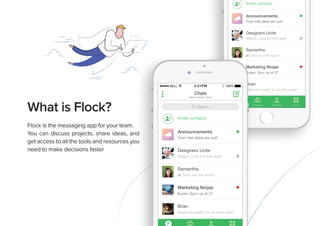
Flock is the messaging app for your team.
You can discuss projects, share ideas, and
get access to all the tools and resources you
need to make decisions faster
Brian
Does this qualify for an office joke?
Marketing Ninjas
Susan: Sync up at 3?
Samantha
Sent you the report
Announcements
Town Hall dates are out!!
Designers Unite
William: Love the first draft!
Chats Groups Contacts Apps
Invite contacts
Chats Channels Contacts Apps
Flock is the messaging app for your team.
You can discuss projects, share ideas, and
get access to all the tools and resources you
Brian
Does this qualify for an office joke
Marketing Ninja
Susan: Sync up at 3
Samanth
Sent you the
Channels
BELL 100%4:21PM
Search
Chats
Brian
Does this qualify for an office joke?
Marketing Ninjas
Susan: Sync up at 3?
Samantha
Sent you the report
Announcements
Town Hall dates are out!!
Designers Unite
William: Love the first draft!
Invite contacts
Alpha Design Team
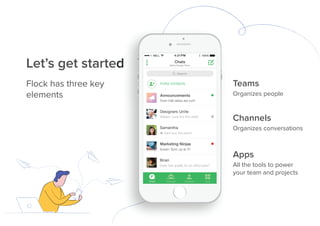
Let’s get started
Flock has three key
elements
Let’s get started
Channels
Organizes conversations
Apps
All the tools to power
your team and projects
Teams
Organizes people
Create new team
Jennifer Grey
Working from home
Alpha Design Team
alphadesignteam.flock.co
AD MW RV
Invite contacts
Do not disturb
About
App Store
Request a feature
Report a problem
ChatsChats
BELL 100%4:21PM
Teams
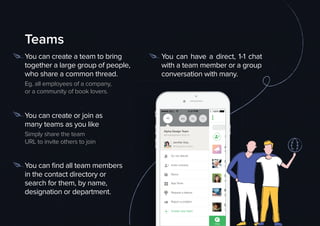
You can create a team to bring
together a large group of people,
who share a common thread.
Eg. all employees of a company,
or a community of book lovers.
You can create or join as
many teams as you like
Simply share the team
URL to invite others to join
You can find all team members
in the contact directory or
search for them, by name,
designation or department.
You can have a direct, 1-1 chat
with a team member or a group
conversation with many.
Channels
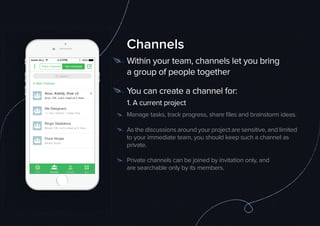
Within your team, channels let you bring
a group of people together
You can create a channel for:
1. A current project
Manage tasks, track progress, share files and brainstorm ideas.
As the discussions around your project are sensitive, and limited
to your immediate team, you should keep such a channel as
private.
Private channels can be joined by invitation only, and
are searchable only by its members.
Flock Ninjas
Ninad: Sure!
We Designers
You: Option 1 looks fine.
Ringo Gladiators
Ninad: OK. Let’s meet at 5 then.
Arun, Kshit , Viral +2
Arun: OK. Let’s meet at 5 then.
BELL 100%4:21PM
Search
Chats Channels AppsContacts
Your ChannelsPublic Channels
New Channel
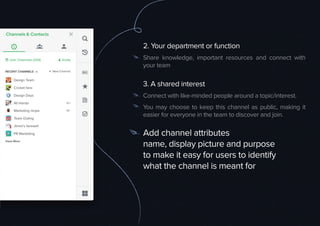
2. Your department or function
Share knowledge, important resources and connect with
your team
3. A shared interest
Connect with like-minded people around a topic/interest.
You may choose to keep this channel as public, making it
easier for everyone in the team to discover and join.
Add channel attributes
name, display picture and purpose
to make it easy for users to identify
what the channel is meant for
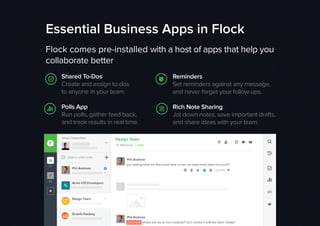
Essential Business Apps in Flock
Flock comes pre-installed with a host of apps that help you
collaborate better
Shared To-Dos
Create and assign to-dos
to anyone in your team.
Polls App
Run polls, gather feed back,
and track results in real time.
Reminders
Set reminders against any message,
and never forget your follow-ups.
Rich Note Sharing
Jot down notes, save important drafts,
and share ideas with your team.
Integration with
external apps
Find all your favorite apps in the
App Store and plug them into Flock.
No more switching between multiple
tools to get work done.
Receive notifications and updates
directly or in a channel.
Popular apps: Trello, Github,
Google Drive, Analytics, Hangouts,
Twitter and Mailchimp.
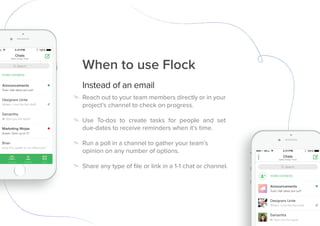
When to use Flock
Instead of an email
Reach out to your team members directly or in your
project’s channel to check on progress.
Use To-dos to create tasks for people and set
due-dates to receive reminders when it’s time.
Run a poll in a channel to gather your team’s
opinion on any number of options.
Share any type of file or link in a 1-1 chat or channel.
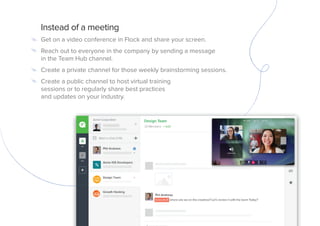
Instead of a meeting
Get on a video conference in Flock and share your screen.
Reach out to everyone in the company by sending a message
in the Team Hub channel.
Create a private channel for those weekly brainstorming sessions.
Create a public channel to host virtual training
sessions or to regularly share best practices
and updates on your industry.
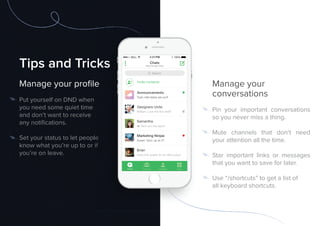
Tips and Tricks
Manage your profile
Put yourself on DND when
you need some quiet time
and don’t want to receive
any notifications.
Set your status to let people
know what you’re up to or if
you’re on leave.
Manage your
conversations
Pin your important conversations
so you never miss a thing.
Mute channels that don’t need
your attention all the time.
Star important links or messages
that you want to save for later.
Use ā€œ/shortcutsā€ to get a list of
all keyboard shortcuts.
Tips and Tricks
Manage your profile
Set your status to let people
know what you’re up to or if
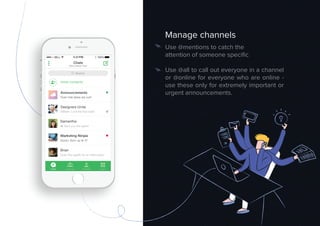
Manage channels
Use @mentions to catch the
attention of someone specific
Use @all to call out everyone in a channel
or @online for everyone who are online -
use these only for extremely important or
urgent announcements.
Show us
some love
/flock @flock

Getting Started with Flock

  • 1.
  • 2.
    What is Flock? Flockis the messaging app for your team. You can discuss projects, share ideas, and get access to all the tools and resources you need to make decisions faster Brian Does this qualify for an office joke? Marketing Ninjas Susan: Sync up at 3? Samantha Sent you the report Announcements Town Hall dates are out!! Designers Unite William: Love the first draft! Chats Groups Contacts Apps Invite contacts Chats Channels Contacts Apps Flock is the messaging app for your team. You can discuss projects, share ideas, and get access to all the tools and resources you Brian Does this qualify for an office joke Marketing Ninja Susan: Sync up at 3 Samanth Sent you the Channels BELL 100%4:21PM Search Chats Brian Does this qualify for an office joke? Marketing Ninjas Susan: Sync up at 3? Samantha Sent you the report Announcements Town Hall dates are out!! Designers Unite William: Love the first draft! Invite contacts Alpha Design Team
  • 3.
    Let’s get started Flockhas three key elements Let’s get started Channels Organizes conversations Apps All the tools to power your team and projects Teams Organizes people
  • 4.
    Create new team JenniferGrey Working from home Alpha Design Team alphadesignteam.flock.co AD MW RV Invite contacts Do not disturb About App Store Request a feature Report a problem ChatsChats BELL 100%4:21PM Teams You can create a team to bring together a large group of people, who share a common thread. Eg. all employees of a company, or a community of book lovers. You can create or join as many teams as you like Simply share the team URL to invite others to join You can find all team members in the contact directory or search for them, by name, designation or department. You can have a direct, 1-1 chat with a team member or a group conversation with many.
  • 5.
    Channels Within your team,channels let you bring a group of people together You can create a channel for: 1. A current project Manage tasks, track progress, share files and brainstorm ideas. As the discussions around your project are sensitive, and limited to your immediate team, you should keep such a channel as private. Private channels can be joined by invitation only, and are searchable only by its members. Flock Ninjas Ninad: Sure! We Designers You: Option 1 looks fine. Ringo Gladiators Ninad: OK. Let’s meet at 5 then. Arun, Kshit , Viral +2 Arun: OK. Let’s meet at 5 then. BELL 100%4:21PM Search Chats Channels AppsContacts Your ChannelsPublic Channels New Channel
  • 6.
    2. Your departmentor function Share knowledge, important resources and connect with your team 3. A shared interest Connect with like-minded people around a topic/interest. You may choose to keep this channel as public, making it easier for everyone in the team to discover and join. Add channel attributes name, display picture and purpose to make it easy for users to identify what the channel is meant for
  • 7.
    Essential Business Appsin Flock Flock comes pre-installed with a host of apps that help you collaborate better Shared To-Dos Create and assign to-dos to anyone in your team. Polls App Run polls, gather feed back, and track results in real time. Reminders Set reminders against any message, and never forget your follow-ups. Rich Note Sharing Jot down notes, save important drafts, and share ideas with your team.
  • 8.
    Integration with external apps Findall your favorite apps in the App Store and plug them into Flock. No more switching between multiple tools to get work done. Receive notifications and updates directly or in a channel. Popular apps: Trello, Github, Google Drive, Analytics, Hangouts, Twitter and Mailchimp.
  • 9.
    When to useFlock Instead of an email Reach out to your team members directly or in your project’s channel to check on progress. Use To-dos to create tasks for people and set due-dates to receive reminders when it’s time. Run a poll in a channel to gather your team’s opinion on any number of options. Share any type of file or link in a 1-1 chat or channel.
  • 10.
    Instead of ameeting Get on a video conference in Flock and share your screen. Reach out to everyone in the company by sending a message in the Team Hub channel. Create a private channel for those weekly brainstorming sessions. Create a public channel to host virtual training sessions or to regularly share best practices and updates on your industry.
  • 11.
    Tips and Tricks Manageyour profile Put yourself on DND when you need some quiet time and don’t want to receive any notifications. Set your status to let people know what you’re up to or if you’re on leave. Manage your conversations Pin your important conversations so you never miss a thing. Mute channels that don’t need your attention all the time. Star important links or messages that you want to save for later. Use ā€œ/shortcutsā€ to get a list of all keyboard shortcuts. Tips and Tricks Manage your profile Set your status to let people know what you’re up to or if
  • 12.
    Manage channels Use @mentionsto catch the attention of someone specific Use @all to call out everyone in a channel or @online for everyone who are online - use these only for extremely important or urgent announcements.
  • 13.