Getting Started with
Raspberry Pi
Tom Paulus
www.tompaulus.com
@tompaulus
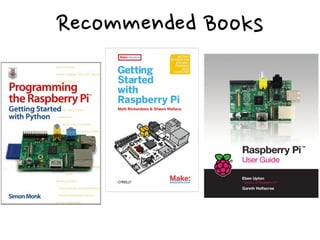
Recommended
 Books
Hardware
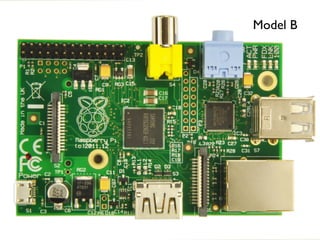
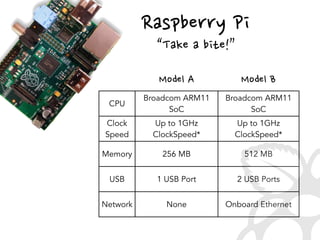
Model B
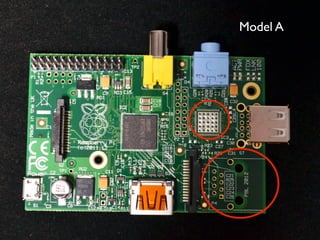
Model A
Raspberry
 Pi
Text
“Take
 a
 bite!”
CPU
Broadcom ARM11
SoC
Broadcom ARM11
SoC
Clock
Speed
Up to 1GHz
ClockSpeed*
Up to 1GHz
ClockSpeed*
Memory 256 MB 512 MB
USB 1 USB Port 2 USB Ports
Network None Onboard Ethernet
Model
 BModel
 A
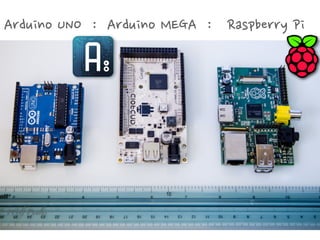
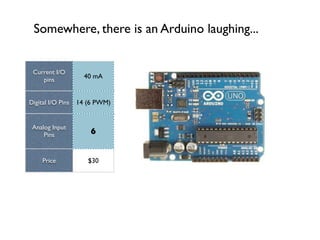
Arduino
 UNO
 
 :
 
 Arduino
 MEGA
 
 :
 
 
 Raspberry
 Pi
 
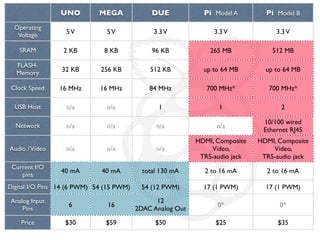
UNO MEGA DUE Pi Model A Pi Model B
Operating
Voltage
SRAM
FLASH-
Memory
Clock Speed
USB Host
Network
Audio /Video
Current I/O
pins
Digital I/O Pins
Analog Input
Pins
Price
5V 5V 3.3V 3.3V 3.3V
2 KB 8 KB 96 KB 265 MB 512 MB
32 KB 256 KB 512 KB up to 64 MB up to 64 MB
16 MHz 16 MHz 84 MHz 700 MHz* 700 MHz*
n/a n/a 1 1 2
n/a n/a n/a n/a
10/100 wired
Ethernet RJ45
n/a n/a n/a
HDMI, Composite
Video,
TRS-audio jack
HDMI, Composite
Video,
TRS-audio jack
40 mA 40 mA total 130 mA 2 to 16 mA 2 to 16 mA
14 (6 PWM) 54 (15 PWM) 54 (12 PWM) 17 (1 PWM) 17 (1 PWM)
6 16
12
2DAC Analog Out
0* 0*
$30 $59 $50 $25 $35
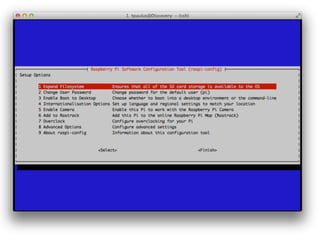
Initial Setup
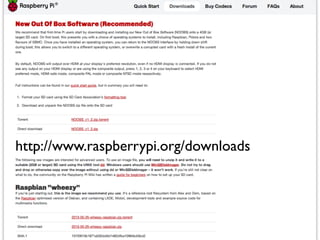
http://www.raspberrypi.org/downloads
Recommended
 SD
 Cards
•Class
 4
 Minimum
•2
 GB
 or
 More
•Major
 Brands
 are
 Better!
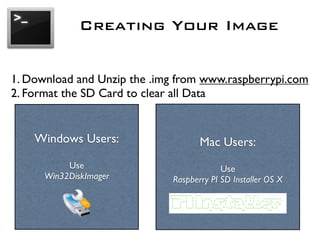
Creating Your Image
1. Download and Unzip the .img from www.raspberrypi.com
2. Format the SD Card to clear all Data
Windows Users:
Use
Win32DiskImager
Mac Users:
Use
Raspberry PI SD Installer OS X
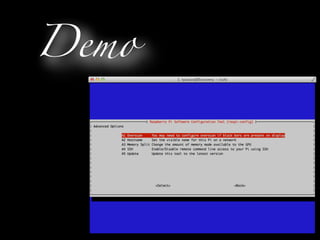
Demo
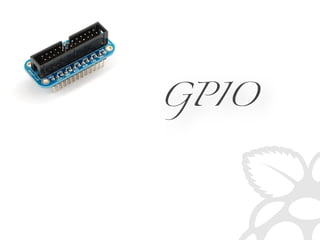
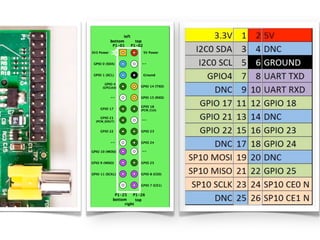
GPIO
sudo apt-get install python-dev python-pip
sudo easy_install -U distribute
sudo pip install RPi.GPIO
Preparing
 Python
Simple
 Blink
 App
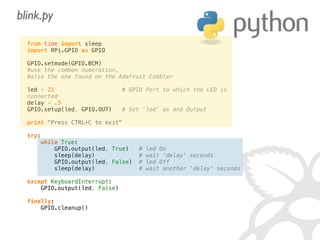
from time import sleep
import RPi.GPIO as GPIO
 
GPIO.setmode(GPIO.BCM)
#use the common numeration,
#also the one found on the Adafruit Cobbler
 
led = 21                    # GPIO Port to which the LED is
connected
delay = .5
GPIO.setup(led, GPIO.OUT)   # Set 'led' as and Output
 
print Press CTRL+C to exit
 
try:
    while True:
        GPIO.output(led, True)   # led On
        sleep(delay)             # wait 'delay' seconds
        GPIO.output(led, False)  # led Off
        sleep(delay)             # wait another 'delay' seconds
 
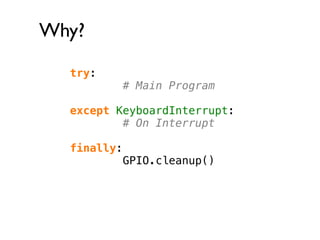
except KeyboardInterrupt:
    GPIO.output(led, False)
 
finally:
    GPIO.cleanup()
blink.py
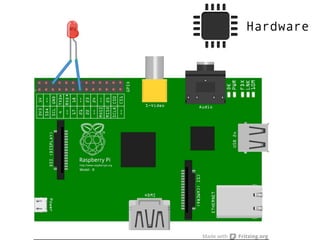
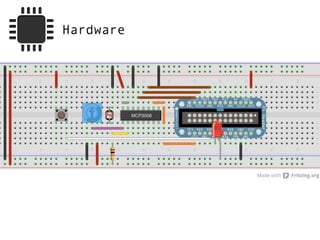
Hardware
Demo
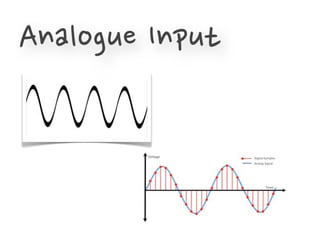
Analogue
 Input
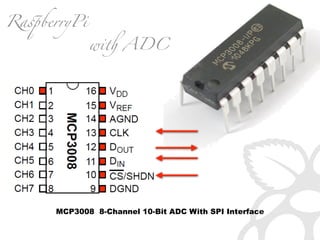
MCP3008 8-Channel 10-Bit ADC With SPI Interface
Ra!berryPi
wi ADC
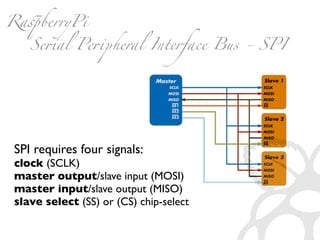
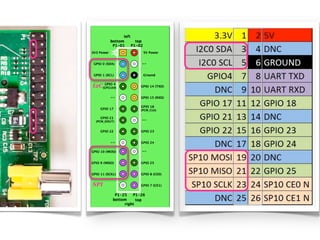
SPI requires four signals:
clock (SCLK)
master output/slave input (MOSI)
master input/slave output (MISO)
slave select (SS) or (CS) chip-select
Ra!berryPi
Se#al Pe#pheral Interface Bus - SPI
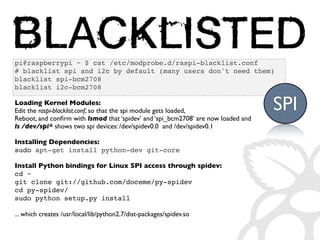
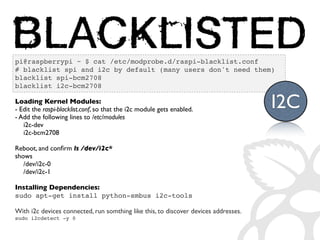
pi@raspberrypi ~ $ cat /etc/modprobe.d/raspi-blacklist.conf
# blacklist spi and i2c by default (many users don't need them)
blacklist spi-bcm2708
blacklist i2c-bcm2708
Loading Kernel Modules:
Edit the raspi-blacklist.conf, so that the spi module gets loaded,
Reboot, and confirm with lsmod that ‘spidev’ and ‘spi_bcm2708’ are now loaded and
ls /dev/spi* shows two spi devices: /dev/spidev0.0 and /dev/spidev0.1
Installing Dependencies:
sudo apt-get install python-dev git-core
Install Python bindings for Linux SPI access through spidev:
cd ~
git clone git://github.com/doceme/py-spidev
cd py-spidev/
sudo python setup.py install
... which creates /usr/local/lib/python2.7/dist-packages/spidev.so
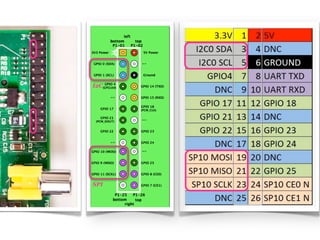
SPI
I2C
SPI
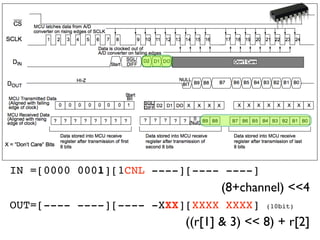
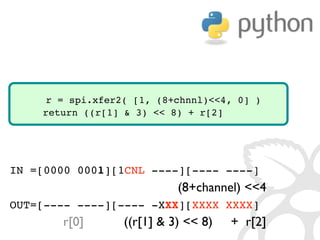
IN =[0000 0001][1CNL ----][---- ----]
(8+channel) 4
OUT=[---- ----][---- -XXX][XXXX XXXX] (10bit)
((r[1]  3)  8) + r[2]
IN =[0000 0001][1CNL ----][---- ----]
(8+channel) 4
OUT=[---- ----][---- -XXX][XXXX XXXX]
r[0] ((r[1]  3)  8) + r[2]
r = spi.xfer2( [1, (8+chnnl)4, 0] )
return ((r[1]  3)  8) + r[2]
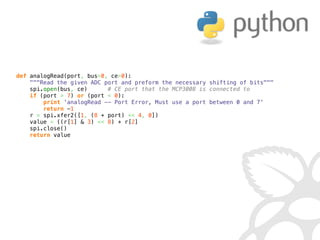
def analogRead(port, bus=0, ce=0):
    Read the given ADC port and preform the necessary shifting of bits
    spi.open(bus, ce)      # CE port that the MCP3008 is connected to
    if (port  7) or (port  0):
        print 'analogRead -- Port Error, Must use a port between 0 and 7'
        return -1
    r = spi.xfer2([1, (8 + port)  4, 0])
    value = ((r[1]  3)  8) + r[2]
    spi.close()
    return value
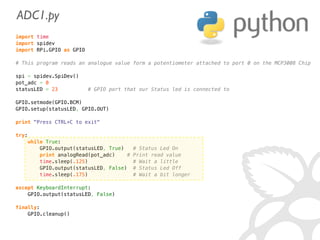
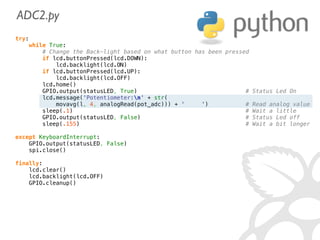
import time
import spidev
import RPi.GPIO as GPIO
 
# This program reads an analogue value form a potentiometer attached to port 0 on the MCP3008 Chip
 
spi = spidev.SpiDev()
pot_adc = 0
statusLED = 23          # GPIO port that our Status led is connected to
 
GPIO.setmode(GPIO.BCM)
GPIO.setup(statusLED, GPIO.OUT)
 
print Press CTRL+C to exit
 
try:
    while True:
        GPIO.output(statusLED, True)   # Status Led On
        print analogRead(pot_adc)    # Print read value
        time.sleep(.125)               # Wait a little
        GPIO.output(statusLED, False)  # Status Led Off
        time.sleep(.175)               # Wait a bit longer
 
except KeyboardInterrupt:
    GPIO.output(statusLED, False)
 
finally:
    GPIO.cleanup()
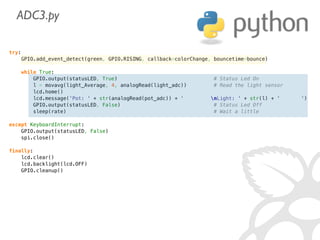
ADC1.py
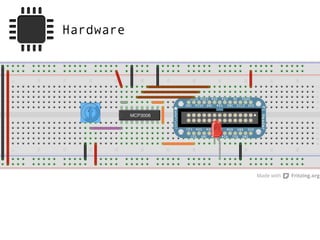
Hardware
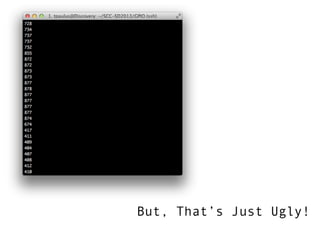
But, That’s Just Ugly!
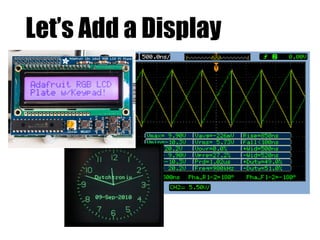
Let’s Add a Display

Getting Started With Raspberry Pi - UCSD 2013

  • 1.
    Getting Started with RaspberryPi Tom Paulus www.tompaulus.com @tompaulus
  • 2.
  • 3.
  • 4.
  • 5.
  • 6.
  • 7.
  • 8.
  • 9.
  • 10.
     bite!” CPU Broadcom ARM11 SoC Broadcom ARM11 SoC Clock Speed Upto 1GHz ClockSpeed* Up to 1GHz ClockSpeed* Memory 256 MB 512 MB USB 1 USB Port 2 USB Ports Network None Onboard Ethernet Model
  • 11.
  • 12.
  • 14.
  • 15.
  • 16.
  • 17.
  • 18.
  • 19.
  • 20.
  • 21.
  • 22.
  • 23.
  • 24.
  • 25.
  • 26.
  • 27.
  • 28.
    UNO MEGA DUEPi Model A Pi Model B Operating Voltage SRAM FLASH- Memory Clock Speed USB Host Network Audio /Video Current I/O pins Digital I/O Pins Analog Input Pins Price 5V 5V 3.3V 3.3V 3.3V 2 KB 8 KB 96 KB 265 MB 512 MB 32 KB 256 KB 512 KB up to 64 MB up to 64 MB 16 MHz 16 MHz 84 MHz 700 MHz* 700 MHz* n/a n/a 1 1 2 n/a n/a n/a n/a 10/100 wired Ethernet RJ45 n/a n/a n/a HDMI, Composite Video, TRS-audio jack HDMI, Composite Video, TRS-audio jack 40 mA 40 mA total 130 mA 2 to 16 mA 2 to 16 mA 14 (6 PWM) 54 (15 PWM) 54 (12 PWM) 17 (1 PWM) 17 (1 PWM) 6 16 12 2DAC Analog Out 0* 0* $30 $59 $50 $25 $35
  • 29.
  • 30.
  • 31.
  • 32.
  • 33.
  • 34.
  • 35.
  • 36.
  • 37.
  • 38.
  • 39.
  • 40.
  • 41.
  • 42.
    Creating Your Image 1.Download and Unzip the .img from www.raspberrypi.com 2. Format the SD Card to clear all Data Windows Users: Use Win32DiskImager Mac Users: Use Raspberry PI SD Installer OS X
  • 44.
  • 45.
  • 47.
    sudo apt-get installpython-dev python-pip sudo easy_install -U distribute sudo pip install RPi.GPIO Preparing
  • 48.
  • 49.
  • 50.
  • 51.
  • 52.
    from time importsleep import RPi.GPIO as GPIO   GPIO.setmode(GPIO.BCM) #use the common numeration, #also the one found on the Adafruit Cobbler   led = 21                    # GPIO Port to which the LED is connected delay = .5 GPIO.setup(led, GPIO.OUT)   # Set 'led' as and Output   print Press CTRL+C to exit   try:     while True:         GPIO.output(led, True)   # led On         sleep(delay)             # wait 'delay' seconds         GPIO.output(led, False)  # led Off         sleep(delay)             # wait another 'delay' seconds   except KeyboardInterrupt:     GPIO.output(led, False)   finally:     GPIO.cleanup() blink.py
  • 53.
  • 54.
  • 55.
  • 56.
  • 57.
    MCP3008 8-Channel 10-BitADC With SPI Interface Ra!berryPi wi ADC
  • 58.
    SPI requires foursignals: clock (SCLK) master output/slave input (MOSI) master input/slave output (MISO) slave select (SS) or (CS) chip-select Ra!berryPi Se#al Pe#pheral Interface Bus - SPI
  • 59.
    pi@raspberrypi ~ $cat /etc/modprobe.d/raspi-blacklist.conf # blacklist spi and i2c by default (many users don't need them) blacklist spi-bcm2708 blacklist i2c-bcm2708 Loading Kernel Modules: Edit the raspi-blacklist.conf, so that the spi module gets loaded, Reboot, and confirm with lsmod that ‘spidev’ and ‘spi_bcm2708’ are now loaded and ls /dev/spi* shows two spi devices: /dev/spidev0.0 and /dev/spidev0.1 Installing Dependencies: sudo apt-get install python-dev git-core Install Python bindings for Linux SPI access through spidev: cd ~ git clone git://github.com/doceme/py-spidev cd py-spidev/ sudo python setup.py install ... which creates /usr/local/lib/python2.7/dist-packages/spidev.so SPI
  • 60.
  • 61.
    IN =[0000 0001][1CNL----][---- ----] (8+channel) 4 OUT=[---- ----][---- -XXX][XXXX XXXX] (10bit) ((r[1] 3) 8) + r[2]
  • 62.
    IN =[0000 0001][1CNL----][---- ----] (8+channel) 4 OUT=[---- ----][---- -XXX][XXXX XXXX] r[0] ((r[1] 3) 8) + r[2] r = spi.xfer2( [1, (8+chnnl)4, 0] ) return ((r[1] 3) 8) + r[2]
  • 63.
    def analogRead(port, bus=0,ce=0):     Read the given ADC port and preform the necessary shifting of bits     spi.open(bus, ce)      # CE port that the MCP3008 is connected to     if (port 7) or (port 0):         print 'analogRead -- Port Error, Must use a port between 0 and 7'         return -1     r = spi.xfer2([1, (8 + port) 4, 0])     value = ((r[1] 3) 8) + r[2]     spi.close()     return value
  • 64.
    import time import spidev importRPi.GPIO as GPIO   # This program reads an analogue value form a potentiometer attached to port 0 on the MCP3008 Chip   spi = spidev.SpiDev() pot_adc = 0 statusLED = 23          # GPIO port that our Status led is connected to   GPIO.setmode(GPIO.BCM) GPIO.setup(statusLED, GPIO.OUT)   print Press CTRL+C to exit   try:     while True:         GPIO.output(statusLED, True)   # Status Led On         print analogRead(pot_adc)    # Print read value         time.sleep(.125)               # Wait a little         GPIO.output(statusLED, False)  # Status Led Off         time.sleep(.175)               # Wait a bit longer   except KeyboardInterrupt:     GPIO.output(statusLED, False)   finally:     GPIO.cleanup() ADC1.py
  • 65.
  • 66.
  • 67.